Recent Windows updates removed the ruler from the Snipping tool app. It is not a bug, but an intentional move by Microsoft.
A user got the below response when asking for support and posted it in a Microsoft Answers thread.
However, you can restore the older version and add it back.
How do I get back the missing ruler in Snipping Tool?
Open File Explorer.
Create a new folder called SnippingTool.
Go to the path C:\Windows.old\Windows\System32
Copy the SnippingTool.exe file and paste it in the folder you created in step 2.
Create another folder inside the parent folder of Snipping Tool and name it en-US (or whatever your default language is).
Now, go to C:\Windows.old\Windows\System32\en-US
Copy and paste the SnippingTool.exe.mui file into the new en-US subfolder that you created.
Exit File Explorer after you are done.
Microsoft has made improvements to Snipping Tool and introduced the Shapes option in the toolbar, but at the same time, they ditched the Ruler tool that helped users to make a straight highlight
When the Snipping Tool was missing for a few users, we provided a few tweaks to get it back but now it’s gone for good and Microsoft didn’t say anything about bringing it back.
If you’re looking to have some of the worst (or best, as they can be quite funny) times of your life on the Internet, then you should try some bad UIs (bad user interfaces). They will most surely give you some of the best laughs and headaches of your life.
If you don’t have time for them but still want to know what the fuss is all about, we’ve gathered up the worst (or best, again, depending on how you look at them) 5 of them. Hint: you’ll never look at Microsoft Paint again without the instinct to shake the brush before using it.
Let the Bad UI Battles begin:
5. Microsoft Paint and the need to shake the brush for one minute before using it
Yes, we all know that Microsoft went all AI with its native Paint app, with tools such as Cocreator instantly creating images at users’ requests, but this bad UI is not so instant.
Instead, you’ll need to shake the virtual brush with your mouse for 1 minute straight before using it. You know, just like in real life.
It looks rather painful, but the ‘help’ at the end is all we need to know to put this one into our top 5 of the worst bad UIs.
4. Selecting country codes by the alphabetical order of the country they belong to
And yes, that looks as horrendous as it sounds. According to this Reddit post, which has gained huge popularity in less than 24 hours, for many Redditors, this only means one thing: it would be a nightmare to have this implemented on a website.
It’s just bad. Painfully bad. I have a headache just looking at it. So, paradoxically, this makes it a worthy candidate for our Top 5 worst (or best) bad UIs.
3. Selecting country by throwing a dart at it in a virtual globe
Yes, the Bad UI Battle continues with another selecting country UI option, but this time, it’s even more frustrating. Visitors are asked to select their country by throwing a dart at a constantly moving virtual globe.
In fact, here’s how it looks, according to this Reddit post.
It’s really bad, the globe is constantly moving, and if you were in a time managing situation, this would be incredibly frustrating, to say the least. Fortunately, no one has officially implemented this. Yet.
2. Facebook’s Messenger Volume Slider and the frustration of selecting the right volume
Whether we’re speaking about Windows OS or Android, iOS, or any other social media platform, we all manually select the preferred volume rather than resort to automatic means, such as keyboard shortcuts. Even if we do it manually, there is a pleasure in clicking at the right spot and hearing the volume going down.
However, in a real-life situation, it seems that Facebook’s Messenger takes the second spot in our Top 5 worst Bad UI. The worst thing? This is actually real, and it’s quite a nightmare to select your preferred volume on Messenger. I mean, look at this Reddit user.
The award for the worst bad UI and the winner of the Bad UI Battles (for now, of course), is none other than the ability to vote for Reddit posts in 3D.
It became an instant success among Redditors, gathering more than 2k votes in less than 15 hours.
Plus, if you want to have a good laugh, you can also check this Reddit post where users are discussing the possibility of such a feature on Reddit.
But yes, this would be a literal hell, and despite the title of the post, I would find myself afraid to vote for a Reddit post with such UI.
You can also contribute with your Bad UI on this Reddit forum here, and you can vote for other Bad UIs there as well. Maybe we’ll turn this into a regular thing. However, we don’t want to give the tech giants too many ideas.
What’s your favorite Bad UI from these 5? Or which one gave you a headache?
When Microsoft first introduced ads in games, it was usually 1-2 during the entire gameplay. And, we, as players, were alright with it. It’s a free game, and Microsoft could push an ad or two, as long as it doesn’t affect the experience!
But that’s not the case anymore!
Microsoft is now incessantly pushing ads, and it has come to a point where many are considering stopping playing altogether. No one wants to see 5-12 30-second ads at a stretch before being able to play.
Sadly, this is the present situation across games, be it Solitaire, Sudoku, or other Microsoft titles!
The number of complaints to Microsoft has been rising by the day. Some have even reported it in the Feedback Hub. A user recently wrote in the Microsoft Community,
I have played Microsoft Solitaire for well over 20 years, patiently waiting through the ads once they became part of the game. But in the last few months I have had periods (like tonight) where the program will give me 5 or 6 ads in a row, without a single game. I know when this is going to happen because, at the end of the ad, the cursor stays as an arrow, and does not change to a hand. When you click the X with the cursor arrow, it takes you back to the screen where you say if you want to play again or not, and when you click yes it takes you to another ad. Over and over and over. I am to the point that I am ready to quit the game all together. Certainly, with all of the years of experience in programming that Microsoft has, they’re better than this.
What’s with the recent greatly increased frequency of ads in Microsoft Solitaire? If it’s a marketing strategy, it’s a fail as I will no longer play these games, preferring to play one of the many online versions that keep their ads unintrusive and under control. My most recent experience was three 30 second ads that played before I got to the game – ridiculous!
A disgruntled user reported that switching to another app and returning to the game also triggers an ad.
Even when I close the app and go back in, or switch to another game and return to Spider Solitaire, the ads just keep coming. GRRRRRRRR
The issue has been going on for a few weeks, and there has been no official acknowledgment from Microsoft.
So, right now, these ads aren’t going anywhere on their own. But you could use a few workarounds to get rid of ads or reduce their frequency!
How can I stop ads in Microsoft Games?
Power cycle your router: Simply power off the router, wait for 2-5 minutes and then turn it back on.
Clear the browser cache and cookies: Make sure to clear the browsing data both for the default browser and Microsoft Edge.
Subscribe to the Premium version of the game: If nothing works, you can subscribe to the game’s premium ad-free edition. For Solitaire, it’s $1.99/month or $14.99/year, and for Sudoku, it’s $1.49/month or $9.99/year.
Premium edition for Microsoft Sudoku
In an ideal world, you shouldn’t have to do anything. It’s Microsoft’s responsibility to push an optimal number and not incessantly bombard users with ads!
Besides, if you are seeing too many pop-ups on the PC, it could be a misconfigured setting, fixing which shouldn’t take more than a few minutes.
If you feel that Microsoft has increased ads in games, share your experience in the comments section.
Microsoft’s AI business is growing by the day and we know that now, they are making their own chips, Maia 100 and Cobalt 100, infused with artificial intelligence. However, they need a solid supply of foundry chips for their core cloud AI business, and for this, they will rely on Intel.
During the IFS Connect 2024, Intel announced that they strive to become the no. 2 foundry chips supplier by 2030 and that Microsoft’s Satya Nadella has become their latest 18A chips customer.
What does the Microsoft Intel deal means?
Right now, 80% of semiconductors come from Asia and it seems somehow insane to imagine that a western maker can take against that kind of power but with Microsoft as a client, Intel can get just the right pair of wings to make it.
Satya Nadella was invited to make a brief tele speech and it emphasized the need for a strong foundry chips supply chain in the U.S.:
All of us at Microsoft are committed to supporting Intel’s efforts to build a strong supply chain right here in the United States.
Satya Nadella during IFS Connect 2024
Intel’s A18 chips were specially designed for AI processes and engines. As relationships with Asia are going South due to the recent tensions, Microsoft is ensuring a stable ground for its growing business.
This is only the beginning for Intel because the demand for AI data centers from other big companies like Google, Amazon, and X has grown exponentially. Microsoft’s deal is certainly a sign for the other competitors to jump in and pick up the pace as well.
On this stage, the Microsoft deal with Intel seems like the reasonable thing to do as long as the chip maker will build a steady supply and commitment. And that is not all, because Intel also teamed up with ARM to hold against Nvidia’s stormy evolution in the latest period.
How much is Microsoft relying on Intel’s chips? No figures were stipulated during the conference so that’s still a mystery, but we will find out soon enough.
What do you think about the Microsoft Intel deal for foundry chips? Let’s talk about that in the comments section below.
The game was released on PlayStation 4, PlayStation 5, and Nintendo Switch on February 22, as part of the Xbox’s plans to make its exclusive games available on other platforms, and some users found out that the game is performing way better on PlayStation than Xbox, with the PlayStation version running at 120 FPS, and the Xbox version only managing a ‘modest’ 60 FPS.
Pentiment runs at 120 FPS on the PlayStation 5 and 60 FPS on the Xbox Series X.
However, Josh Sawyer, the director of the game, confirmed on X (formerly known as Twitter) that this is a bug, and Xbox users will receive an update for the game that will make it run properly on the console.
120fps will be enabled for XBOX in the next patch. It being disabled is just a bug.
120fps will be enabled for XBOX in the next patch. It being disabled is just a bug.
We don’t have any details about the release of the patch that will fix this annoying bug, but Pentiment players on Xbox shouldn’t worry: Obsidian knows about it, and the studio is dealing with the problem.
Some users rightfully wondered if the FPS issue could be that much of an issue, considering the game is mainly a graphic novel, and players wouldn’t need to worry about FPS in the first place, since it doesn’t really impact the game experience.
However, considering the issue is a bug, to begin with, it could be dealt with by releasing a patch. Other users were disappointed by the fact that the 60 FPS were there all along, and the 120 FPS patch is only released now that Pentiment is ported on PlayStation.
You’re telling me that the original supporters of this game doesn’t have a feature for over year and you’re getting it out after you release to their rival console?
If this is true, then it could end up disappointing a lot of Xbox users and lovers of the Obsidian Entertainment games, and there are a lot of them out there.
What do you think? Should Obisidian have released this patch right from the start?
If you’re working with both Google Sheets and Microsoft Excel, you will be pleased to know that now you can import and convert sensitive Excel files into Google Sheets with client-side encryption.
This feature was in beta in August 2023, but now it’s available for everyone and it offers that security boost you needed for your business.
In fact, the new feature brings complete control over your encryption keys and to choose the identity service you want to authenticate for the keys.
What you should know about Excel imports to Google Sheets
Although the feature is very helpful, it has some limitations. For instance, you can only import .xslx Excel file types and there is no support for additional Excel and tabular file types.
If you will try to import unsupported Excel features, those will be ignored in Google Sheets. There’s also a limit on the file sizes and the number of cells: 10 MB and 10 million cells.
How do I use the new Import feature?
Google also issued a small guide for admins and end users on how to use this feature:
Admins: Client-side encryption can be enabled at the domain, OU, and Group levels (Admin console > Security > Access and data control > Client-side encryption). Visit our Help Center to learn more about client-side encryption.
The new feature will gradually roll out in 15 days for Google Workspace Enterprise Plus, Education Plus, and Education Standard customers starting until March 11, 2024, so if you don’t see it yet, just try refreshing the tool from time to time.
What do you think about Google’s new feature? Let us know in the comments section below.
Following the announcement of the Shadow of the Erdtree FLC, Elden Ring has become one of the most popular games on Xbox, with a spike of over 78% in Xbox players, according to the TrueAchievements website. The game also made it into the Top 20.
The Shadow of the Erdtree DLC, which is slated to release this summer, on June 21, is an expansion of sorts to the insanely popular Elden Ring video game, one of the most commercially successful and critically acclaimed in recent history.
You can watch the gameplay trailer below.
As in line with Elden Rings, and the other Dark Souls games, Shadow of the Erdtree will be available on Xbox consoles: Xbox One, Xbox Series S, and X. And Elden Rings is seen as one of the best open-world RPGs to play on Xbox, so Shadow of the Erdtree will make no exception.
And, as in line with these games, there is not much to say about the new expansion: there will be an entirely new zone to explore, a plethora of new enemies and bosses to fight, new armor, new weapons, and, of course, a new story. However, players will have to pay attention to in-game items, places, and weapons to learn about the lore.
The video trailer does include a sort of description, which reads:
The Land of Shadow. A place obscured by the Erdtree. Where the goddess Marika first set foot. A land purged in an unsung battle. Set ablaze by Messmer’s flame. It was to this land that Miquella departed. Divesting himself of his flesh, his strength, his lineage. Of all things Golden.
So, it’s all up to your interpretation. However, there will be no doubt a frenzy about the new expansion, and rightfully so. The original Elden Ring is hailed as one of the best examples of dark fantasy RPGs ever released, and it has become widely known for its difficulty.
Shadow of the Erdtree will feature similar bosses, and players will have to die tens or hundreds of times before defeating them. But it’s all part of the charm.
In what is seen as a welcome step by many, Microsoft now allows users to set Copilot as the default digital assistant app on Android. Previously, it was usually Google Assistant, Bixby, or the manufacturer’s native app that occupied the position.
In a post on X (formerly Twitter), Mishaal Rahman reports that with Copilot’s Android beta app version 27.9.420225014, you can quickly set Copilot as the default assistant.
You can now set the Microsoft Copilot app as your default assistant app on Android!
With version 27.9.420225014, available in beta, you can change the default assistant app to Copilot. This lets you launch Copilot from any screen by swiping diagonally from the corner or… pic.twitter.com/M5FxLzIdxT
To set Microsoft Copilot as the default digital assistant app on Android, open Settings > go to Apps > tap on Choose default apps > select Digital assistant app > choose Device assistance app > pick Copilot from the list > tap on OK to confirm.
Once set, to open Microsoft Copilot, you just need to drag diagonally from the corner or press and hold the Power button.
Though, in its present form, the functionality of Microsoft Copilot as the default assistant is somewhat limited!
Launching Copilot simply brings up the main activity, and the AI-based chatbot doesn’t automatically listen to audio input or capture a screengrab of the on-screen content. But, these features could soon be released in the subsequent versions of Copilot on Android.
We have our hopes up since Microsoft has been aggressively working on Copilot, making improvements, adding new features, and introducing user-oriented functionalities across its products.
This could be Microsoft’s attempt to capture the Android ecosystem, which has always been ruled by Google!
What’s your review of Microsoft Copilot’s Android apps? Share with our readers in the comments section.
An Ericsson communications official contacting us to clarify the information in our news article:
Ericsson is Etisalat’s provider of User Data Management (UDM), a part of Ericsson’s Core portfolio, since 2020. We are not the incumbent packet core provider. Ericsson’s relationship with Etisalat, which also includes many other products of our broad portfolio, continues as is and has not been impacted by the cited contract with Microsoft.
Karl O’Doherty, Senior Communications Manager, BCSS MC Communications
Microsoft gave a strong signal with Azure Operator that telecom industry will soon follow the AI path and now, the giant has signed a 5G deal with Etisalat that paves the way for a strong development in the industry.
Etisalat has taken Microsoft’s 5G core network applications to host them on the Nexus platform. The 5G packet core is a development of the Affirmed technology bought by the Redmond giant in 2020, fused with the technology picked up from another telecom acquisition of Metaswitch.
Now, everything comes together and it seems that the major loosing party in this deal is Ericsson, who had Etisalat as a core customer. According to a 2023 Ericsson press release, the European company was celebrating reaching the 13 Gbps 5G downlink speed threshold with Etisalat.
The Ericsson official cleared this issue out saying that the above press release was related to Radio Access Network (RAN), not to Core.
How will Etisalat use Microsoft’s technology?
In an interview for LightReading, Yousef Khalidi, the corporate vice president of Microsoft’s Azure emphasized the importance of this deal with the United Arab Emirates’ Etisalat company:
This is not just a small network on the side, an IoT or backup network. This is real production going on.
However, according to the official, Etisalat will not simply set all its core in the public cloud. Azure Operator Nexus is a hybrid cloud solution which allows the operator to run its user and control planes of the network on premises. Only the management plane data will flow to the cloud.
Microsoft addresses the sovereignty concerns about sensitive data storage in other countries when it set up its public cloud facilities in UAE in 2019, so there is no need for further concerns.
What is Microsoft future in the telecom industry?
Big telecoms are reluctant to handle their platforms though a third-party cloud operator and prefer handling this data themselves, but they are also behind innovation.
Microsoft is already preparing a cloud core deal with the smallest UK mobile network operator, Three, which previously had a deal with Nokia for this operation.
And it seems that the common denominator for Microsoft’s success in this business are its AI infused cloud solutions.
My message to all of them is that they need to look at the option of moving up the stack and using more AI apps in their system, to look at adding value as opposed to doing plumbing. Leave the plumbing the plumbers. I have to admit not all of them are there yet, but there is movement.
Yousef Khalidi, corporate vice president of Microsoft’s Azure in an interview for LightReading.
The telecom industry, like any other, is prone to change and evolution and it seems that Microsoft has the right recipe for that.
What do you think about the Microsoft Etisalat deal? Let’s discuss it in the comments section below.
Xbox Insiders and some select Xbox App on PC users worldwide can now access a new platform called Game Hubs, and by the looks of it, it seems it can be the one platform that Xbox has been missing all along.
According to Xbox, the Game Hubs were built on constant feedback from Xbox players everywhere, and they represent a chance for users to connect to their games and other gamers in a new way.
Game hubs were built on your feedback around depth, progression, and more ways to connect with your games. With game hubs, you’ll be able to track your progress over time, discover the latest content and add-ons, connect or compete with your friends, get the latest news from developers, and more.
Xbox
Game Hubs will be released with 7 sections in mind, initially, and Xbox might add new sections to the platform, per users’ feedback. For now, these sections include:
The essentials
Featured content
Friends who play
Achievements
All add-ons
HowLongToBeat
From the developer
Each of these sections encompasses different aspects of gaming. For instance, the Essentials will show you how to download install, or update a game, as well as the total game time on that specific game, or if it’s going to leave the Game Pass or not.
Featured content features the newest content on Xbox, whether we’re talking about the latest Xbox games, add-ons, and so on. Friends who play will show all of your friends who are online at the time you’re playing, plus other aspects, such as progress comparison, so you can tease them about it.
Achievements will show all the progress you made in a video game, all the trophies and achievements you collected, as well as those you haven’t. All add-ons will be a special section dedicated to all things add-ons.
HowLongToBeat will surely keep you on your toes if you’re a competitive gamer, as the section will provide you with details regarding your playtime. Finally, From the Developer section, you’ll get the latest updates, announcements, tips, and tricks from the game’s developers.
Xbox hasn’t said anything about a potential general release date for Game Hubs, and the platform will only be available to Xbox Insiders and a subset of Xbox App on PC users, for now, but it’s expected to be widely available in the following months.
Xbox Insider Program turned 10 this month, and the team promised Insiders, as well as Xbox users, new features and changes coming to Xbox, so we’re inclined to believe this is one of them.
The new Game Hubs platform seems promising and exciting, and it could be the element that brings the Xbox community together. Following Phil Spencer’s announcement that Xbox exclusives will become multi-platforms, a lot of Xbox users felt betrayed by the news with many of them considering that it would be useless to own an Xbox now.
However, Game Hubs might change this: not only does the platform keep track of your Xbox activity, but it is actively using your activity to connect you with fellow Xbox players, and friends, and engage users in gaming sessions with others.
It could be the platform Xbox has been missing all along.
You can read the full blog post about Game Hubs here.
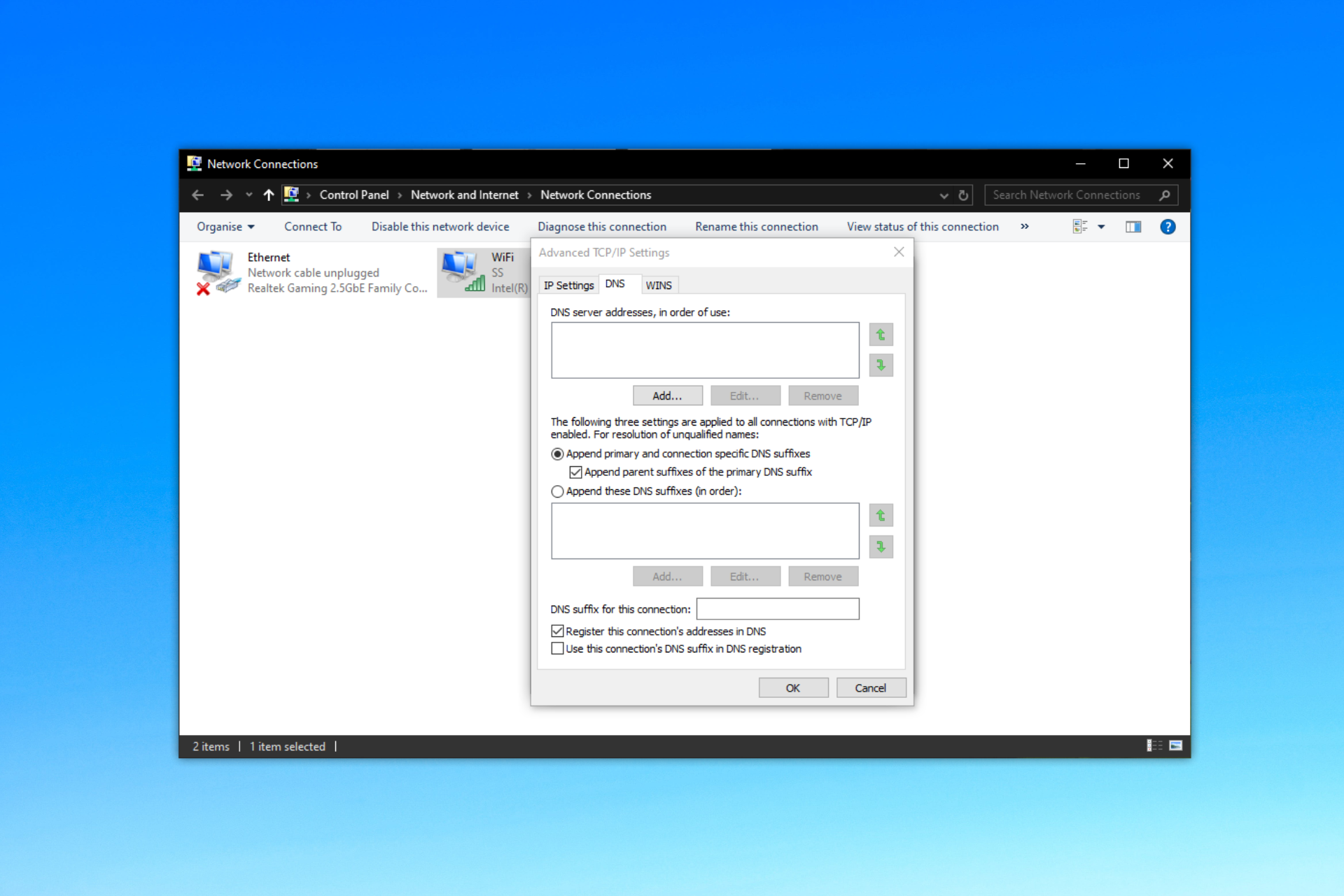
The good news is that you can disable DNS updates on your Windows computer.
However, please note that you do not need to disable dynamic DNS updates if you’ve configured static IP on Windows or If DHCP is enabled to fetch the global IP address.
How do I disable DNS updates on Windows?
First, open the network connections from the start menu.
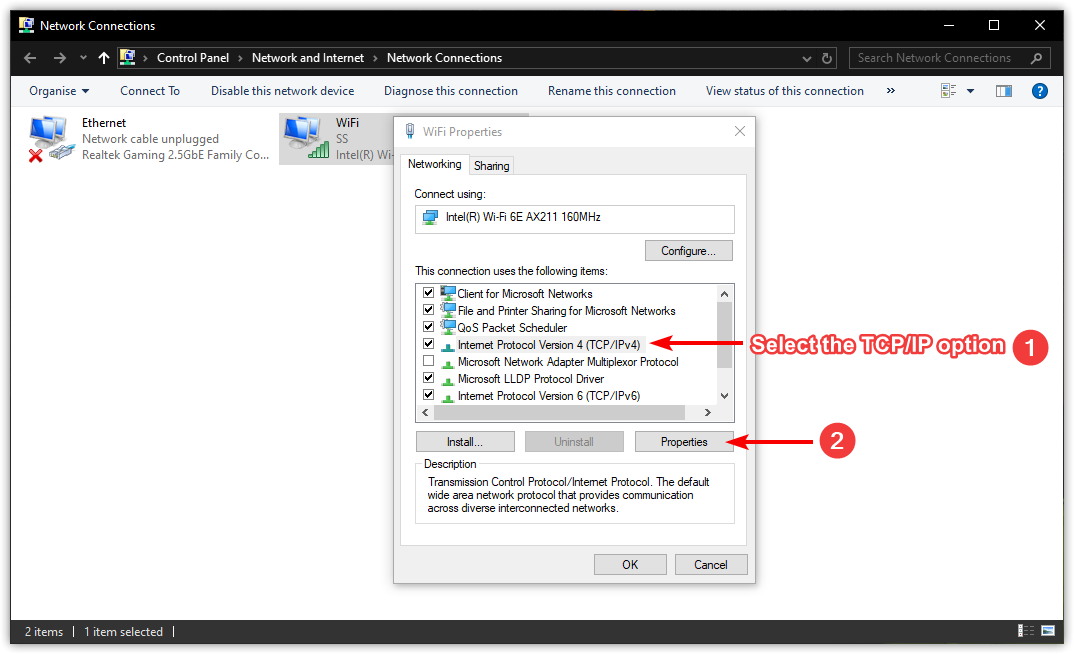
It will list the available network interfaces on your system (mostly two: Wi-Fi and Ethernet). Choose the active one, right-click on the target network interface, and choose Properties.
From the shown menu, find the listing ending with TCP/IP. If you can’t find the TCP/IP protocol, then refer to our detailed guide on how to fix the missing protocol on Windows 10/11. After selecting the TCP/IP option, click on Properties.
In the next prompt, all you have to do is hit the Advanced button to proceed further.
Next, it will show you the advanced TCP/IP settings. Here, click on the DNS tab and uncheck the second last option saying Register this connection’s addresses in DNS and hit the OK button.
Now, restart your system, and you will have dynamic DNS disabled!
Overall, disabling dynamic DNS in Windows computers ensures your data is not included in the occasional DNS data leaks. Personally, I like to tweak the networking settings as I don’t trust most VPN services, especially after knowing that 16% of VPN services leak your IP addresses.
But after following this guide, you can easily disable the dynamic DNS of your Windows computer and configure the other network-related settings to suit your needs.
Previously, there were rumours that Microsoft tried to sell Bing to Apple and for the latter to set Bing as the default search engine on the Safari browser. Now, the recently unsealed documents in Google’s antitrust case against the U.S. Justice Department confirm this.
As per CNBC, Microsoft tried to strike a deal with Apple on several occasions, including in 2009, 2013, 2015, 2016, 2018 and 2020, but it never went through.
Microsoft’s Mikhail Parakhin, CEO of Advertising and Web Services, said that the company offered 100% of Bing’s revenue to Apple, but the proposal was never accepted due to the deal Apple had with Google.
As per reports, Google pays Apple $10 billion annually to keep their search engine as the default on Safari, in addition to a share of the advertising revenue from Bing.
On the other hand, Google, in the unsealed documents, argued that Apple found Google to be a more effective search engine than Bing.
In each instance, Apple took a hard look at the relative quality of Bing versus Google and concluded that Google was the superior default choice for its Safari users.
Besides, it cited that just winning the race for the default search engine on a browser doesn’t suffice. The search engine must keep the users happy.
Where an inferior search engine is set as the default, a large proportion of users switch away. Even when a search engine wins a default, it must compete to keep users happy, and other search engines can compete to win users away.
Apple, on its part, asserted that Microsoft’s native search engine wasn’t refined and that the company wasn’t heavily invested in the product. Eddy Cue, Apple’s Senior Vice President of Services, said,
Microsoft search quality, their investment in search, everything was not significant at all. And so everything was lower. So the search quality itself wasn’t as good. They weren’t investing at any level comparable to Google or to what Microsoft could invest in. And their advertising organization and how they monetize was not very good either.
Apple’s CEO, Tim Cook’s, observation on Bing shared with senior executives has been redacted in the filing.
It’s a known fact that Google is the market leader among all search engines, and none even stands close. As per Statcounter, Google has a 91.47% market share, while Bing is a distant second at 3.42%.
The whole Microsoft vs. Google search engine battle isn’t about to die anytime soon. If anything, it’s going to get a lot more fierce. We will have to wait and watch how things unfold in the coming days!
Which search engine do you find the best? Share your thoughts in the comments section.
Microsoft released a surprise patch to the Beta Channel in the Windows Insider Program: KB5034845. Although quite small, the build comes with an important new feature, and that is the new notification badges for Windows 11 widgets.
Microsoft has recently experimented with widgets on the Windows Insider Program, as both the Dev and the Canary channels received a patch with a hidden feature, that once enabled, would allow Windows 11 to have 2 widget boards.
However, as described in the official blog post, KB5034845 only comes with a notification badge for the widgets. Now, if Windows 11 users have missed notifications, they will be able to see these notifications appear beside the widget icon, as you can see below.
The new feature will make it possible for the missed notifications to appear when you open the widget board, as well.
Aside from this new feature, the patch is quite small, with a few fixes and improvements, as you can see below:
[Taskbar]
Fixed an issue which was causing the taskbar to sometimes be very slow to appear sometimes after booting up and logging in for the first time.
[Search]
Fixed an issue where if your taskbar was close to being full of app icons, when you tried to open search it would just open and immediately close.
[Widgets]
We’ve made improvements to Widgets so that the icons on the taskbar no longer appear pixelated or fuzzy.
There is also a single known issue with this build:
Known issues
Microsoft Defender Application Guard (MDAG) for Microsoft Edge users may hit a no network connection issue when browsing inside MDAG. The workaround is to disable the MDAG enterprise policy or uninstall MDAG via “Turn Windows Features on and off” and reboot. As a reminder – MDAG for Edge is a deprecated feature.
The patch is now available to download to all those enlisted in the Windows Insider Program, in the Beta channel.
AI is currently engulfing multiple industries across the globe. Furthermore, companies are already using it to manage their tasks. On top of that, Microsoft and others are improving it daily. Thus, the telecommunications industry is slowly adapting to AI technologies and features.
But, according to Microsoft, Azure Operator, the next-generation, carrier-grade, hybrid platform will be one of the most valuable tools for the telecom industry.
How AI is used in telecommunications?
We believe that the most crucial use of AI in telecommunications lies in public protection. However, other uses exist, such as AI-driven services, network optimization, cloud improvements, and data management. On top of that, telecom operators can use the AI functions of the Azure Operator platform to improve our experience. In addition, with it, they could revolutionize the whole system.
Azure Operator Call Protection can analyze and verify if there is anything suspicious with your call. For example, researchers are training it to notify spam messages and calls. The best part is that you won’t need any application to use it. After all, the Azure Operator Call Protection will be a part of your network.
As a developer, you might be delighted to hear that the Azure Programmable Connectivity (APC) provides a unified interface across operator’s networks. Thus, you won’t have to learn new APIs for new projects. In addition, you can access the APC directly from the Azure Marketplace.
Additional features of the Azure Operator
The AI can also help engineers and operators. After all, they could use this tool to assess the network health and manage data. Furthermore, engineers can use Azure Operator Insights to collect and analyze a large quantity of network data. In addition, they can use the AI to eliminate data silos.
Moreover, engineers and operators can use Copilot to enhance network efficiency and customer satisfaction. On top of that, by using Copilot AI in Azure Operator Insights, engineers will have a way to understand intricate network information better. Afterward, they can work with the AI to find the fastest solutions.
Furthermore, operators can use the Azure Operator Nexus, the hybrid cloud platform, to unlock potential revenue-generating services, run mission-critical workloads, and modernize networks. In addition, they could use AI to monitor and manage everything easily.
Some companies use the Azure Operator Nexus to reduce costs, simplify operations, and improve their core competencies. For example, the AT&T company uses AI to improve their employee’s work.
Team Lumen uses Copilot to simplify and summarize tickets and create business presentations and new business proposals. Telefónica is using AI to improve its framework. Telkomsel used AI to create a virtual assistant that makes special packages based on customer needs, and Vodafone is using AI to make their work more efficient.
What are your thoughts? In which industry do you expect to see the Azure Operator Nexus next? Let us know in the comments.
The new Smart Connect tool from Motorola and Lenovo will be available for Windows 10 or later, just like Phone Link. Also, it will make managing your Motorola phones and your Lenovo tablets easier.
In addition, by using it, you will be able to transfer your task from one device to another. Furthermore, your Lenovo PC will transform into a Sharing Hub. However, we don’t know if this app will be available for other manufacturers.
What is Smart Connect?
With Smart Connect, you can switch through devices by using the keyboard and mouse, just like with Phone Link. Thus, the process will be similar to splitting your screen into three. Additionally, the tool merges the clipboard. Thus, you can copy and paste elements from one device to another.
Also, the Smart Connect application will allow you to turn your phone into a camera. Furthermore, with the tool, you will be able to use Smart Cast to link your phone screen to another one.
Also, the Smart Connect application will synchronize your notifications. So, you can answer them faster from any Lenovo or Motorola device. In addition, you will be able to drag and drop files between devices regardless of their size.
By the way, if you are a mobile games fan, you can play them on your laptop without third-party applications. So, the tool will further increase accessibility.
In a nutshell, we can’t wait for the Smart Connect tool to be available. Furthermore, according to Tom’s Guide, Motorola said they will make the app available on the Google Play Store and Microsoft Store. Also, the feature works like iTunes, in a way.
Additionally, we hope to see the Smart Connect tool available for multiple devices from others, not only Lenovo. After all, it would be great to connect any laptop to your Motorola phone.
What do you think? Are you going to use the Smart Connect application? Let us know in the comments.
The Microsoft 365 subscription comes in two plans, one for the family and one for you. The one for the family allows you to share it with five others. Also, it has 6 TB of secure cloud storage instead of 1 TB.
The best part about the family plan is that you can also share the Microsoft 365 subscription with your friends. Also, by using the family subscription, you can manage multiple accounts.
How to share your Microsoft 365 subscription?
To share your Microsoft 365 subscription, you will have to either send a link or an invite via email. The process is simple. All you need to do to access this feature is to log into your account. Then follow the steps below:
Look for the Manage Sharing option and select it.
Open the Services & subscriptions tab.
Press the Share button.
A pop-up will emerge with two options Copy link or Email invite.
We recommend the Copy link option because it is easier to use, and you don’t need to gather emails. Also, the process is easy for your friends and family members.
By the way, you can stop sharing the subscription anytime. You just need to open the Services & subscriptions settings and go to the Share Subscription option. Under the “You’re sharing Microsoft 365 benefits” box, you should find the “You’ve shared x of the 5″ available subscriptions. Below, you should see some profiles. Then, on the right, you will have a stop-sharing button for each profile.
Ultimately, we recommend you get the Microsoft 365 family plan. After all, you can help your friends and family, and it doesn’t cost that much, especially if you split it. In addition, if you don’t want to share it, you manage multiple accounts. This feature comes in handy when you are a freelancer.
You might want to learn how to use Microsoft 365 web. After all, this feature is quite useful, especially when you work with multiple devices.
What are your thoughts? Do you think that the Microsoft 365 family subscription is worth it? Let us know in the comments.
With the help of Microsoft, Nvidia, and Intel, Honor will soon release the MagicBook Pro 16, a Windows 11 laptop. In addition, it has various AI features, such as an empowered AI smart interaction, PC performance, and cross-OS collaboration.
Furthermore, the laptop has an AI optimization feature. Also, based on its specifications, it is quite powerful.
Is the MagicBook Pro 16 good?
Moreover, the MagicBook Pro 16 features an Intel Core Ultra 7 Processor and an NVIDIA GeForce RTX 40 Series Laptop GPU. Additionally, the laptop features a 16-inch FullView display with a 3072x1920p resolution. Also, you can enjoy games at a 165 Hz refresh rate.
By the way, MagicBook Pro 16 is also great at other things, such as video editing and design. After all, it has 500 nits peak brightness with 100% sRGB and DCI-P3. This feature allows you to use the laptop in bright environments. In addition, it weighs around 1,7 kg. So, you can take it everywhere with you. Also, the laptop has saturated and vivid colors, making it perfect for the job.
If you want a laptop with a long battery life, MagicBook Pro 16 can function up to 12 hours. In addition, it has a great audio system because it has six speakers with surrounding technology.
In a nutshell, we think that MagicBook Pro 16 is worth considering if you are looking for an AI PC. After all, the AI will enhance your gaming experience. On top of that, this technology will optimize the device better.
Also, you can take it anywhere because you don’t need to worry too much about the light settings. Furthermore, based on its specifications, it is pretty powerful. So, overall, it is a great choice, especially if you want a gaming laptop from which you can edit on the go.
What do you think? Are you going to get the MagicBook Pro 16? Let us know in the comments.
Microsoft has decided to extend to availability of Classic Teams by 3 more months. After initially warning Teams users that the classic version of the popular work-oriented platform would be deprecated by April 1, 2024, Microsoft has delayed to deprecation to July 1, 2024, stating:
We’re aware of the concerns around our timeline. Classic Teams users who have encountered issues moving to new Teams or who don’t meet the prerequisites to upgrade will still have access to the classic Teams client until July 01 2024 at the earliest. This will give admins more time to address any issues encountered during this process.
Microsoft
The Redmond-based tech giant has taken into consideration users’ feedback and will allow them 3 more months to transition to the new version. Organizations that still use the classic Teams now have time to complete the transition to the new version, which became the new default client for the platform, later last year.
While many users are still on the classic Teams, the new Teams has a plethora of new features and capabilities, including Copilot. Microsoft has also started to integrate the platform with its other Microsoft 365 apps, making it easier for users to use them in unison.
Teams is one of the most popular work-oriented platforms around, and with over 300 million users, millions are still using the classic version of it.
However, in the last 6 months, Microsoft enhanced and improved the platform with many features aimed at streaming workflows and overall providing a seamless experience.
The Redmond-based tech giant is constantly improving and releasing new features to the platform: just recently, for instance, the company announced that it will make it possible for users to engage in multitasking activities while attending Teams meetings, something that classic users wouldn’t be able to do.
A recent Geekbench listing for a prototype device featuring a Qualcomm processor named ZH-WXX, specifically the Snapdragon X Elite – XE1800, has demonstrated that it can be a worthy rival for Apple M3 in terms of performance.
In the benchmark results, the device has a new ARM chip and an impressive multi-core score of 12562, highlighting notable performance capabilities.
Qualcomm, a longstanding competitor to Apple’s M-series chips, has now joined hands with Microsoft on the development of Snapdragon X Elite, a processor specifically optimized for Windows 11.
During a teleconference, Qualcomm also hinted that the company is aiming to launch this processor in mid-2024, which is said to have advanced AI features.
And now, with these leaked benchmarks, it is safe to say that the claim is true. The predecessors of Snapdragon ARM chips failed to level with the Apple M-series; however, the XE1800 exhibits a significant leap and has outperformed M1 and M2 chips and might outmatch the performance level of M3 in an optimized environment.
This snapshot of the Geekbench test reveals that the Snapdragon X Elite is a powerful processor with a single-core score of 2,574. This metric measures the processor’s performance while executing tasks, stressing its capability to deal with single-threaded applications.
However, on the multi-core front, Snapdragon X Elite reached a score of 12562, which shows substantial improvement as compared to its previous iterations. This metric reflects the collective performance of all CPU cores when dealing with multi-threaded tasks, which is crucial for workloads that can be parallelized across multiple threads.
The benchmark also indicates that Snapdragon X Elite – XE1800 has 12 cores, one cluster with eight cores and the second one with four cores. This architecture follows the big.LITTLE design, optimizing some cores for performance and others for efficiency.
The test was run five times; the highest score for single core was 2574, and multi-core was 12562. Let’s check out all the results:
Test
Single-Core Score
Multi-Core Score
1
2574
12562
2
2565
11778
3
2517
11010
4
2548
11253
5
2434
2434
When compared with the Apple M series chip, the Snapdragon X Elite was found to be superior in multi-core performance to the previous Apple M gen chips, which is a big advancement in terms of processor technology. Here are the results:
Chip
Single-core Score
Multi-core Score
Apple M1
2334
8316
Apple M2
2589
9742
Apple M3
3181
15620
Snapdragon X Elite
2574
12562
However, the Apple M3 is still ahead of Snapdragon X Elite in both single-core and multi-core performance. Both the chips have 12 cores. The Apple M3 chip works at a higher speed (4.05 GHz) than the Snapdragon X Elite, whose current speed is not specified.
But one other thing that should be noticed is that this Snapdragon processor was tested on a device running on a Windows 11 preview build. This suggests that the processor could potentially yield even better results on a stable version of the operating system.
The overall test results show promising results, which means a device with this processor and running on Windows 11 can be expected to have improved performance.
What do you think about Qualcomm’s processor’s significant leap? Share your thoughts in the comments section below.
If you remember, a while ago, we reported a story where Microsoft announced the new Copilot GPTs, which are customized AI models that are modeled to be experts in certain fields, such as cooking, or fitness.
Well, according to Jordi Ribas, Head of Engineering and Product for Copilot and Bing, Microsoft has released some Copilot GPTs to Copilot, so, if you have access to Copilot Pro, you can now access Copilots that suit your needs at the moment.
So, if you’re looking for a virtual fitness trainer, Copilot can be one, and Jordi Ribas actually shows us a tease of this specific model on X (formerly known as Twitter).
We've rolled out a few Copilot GPTs in Microsoft Copilot. They can help create designs, plan your next vacation, learn to cook a new recipe, or create a custom workout plan. GPTs leverage contextual instructions in the prompt and domain info as part of the grounding (RAG) data. pic.twitter.com/q5ZJ19HUHt
We’ve rolled out a few Copilot GPTs in Microsoft Copilot. They can help create designs, plan your next vacation, learn to cook a new recipe, or create a custom workout plan. GPTs leverage contextual instructions in the prompt and domain info as part of the grounding (RAG) data.
Jordi Ribas
There are no signs of the upcoming Copilot GPT builder, another platform that Microsoft teased at the beginning of 2024. However, Ribas says that the platform is also coming soon:
Soon. We already have it on a flight or controlled experiment with a subset of users.
Jordi Ribas
The platform along with the Copilot GPTs can be used by AI enthusiasts to work on specific AI models, such as the ones mentioned earlier, and eventually sell them on a Microsoft-approved platform, such as Microsoft Store, or a possible Copilot Store.
It’s worth mentioning that the Copilot GPTs are currently rolling out to users so if you don’t have access to them currently, make sure to check out again in a few days.
Apart from Beta Channel, Canary Channel got a new build that added Wi-Fi 7 support on Windows 11, adding several features and functions to Copilot AI assistant. The Dev Channel also got an update with a small servicing pipeline release.
However, all the Windows Insider Program members, including Beta Channel, can get their hands on the revamped Photos app on Windows 11 and 10 with a new AI editing feature, Generative erase. If you want to learn what’s new in the app, check out this detailed article.
If you are not a Windows Insider yet, read this guide to learn the step-by-step process. In case you are already an insider, which Channel have you opted for, and why? Share your thoughts in the comments section below.
Microsoft has started the week by introducing the tech world (and the world) to its AI Access Principles, which are deemed by the company the most important initiatives in its 49-year history.
In a lengthy blog post, Brad Smith, vice president at Microsoft, emphasized the importance and relevance of AI in the current economy, outlining the need to create a perfect balance to sustain the development of AI technologies.
Smith managed to mention the importance of having a variety of companies engaging in competition when it comes to AI development, while also having the sustainable and climate-friendly means to do so. A recent report showcased that Microsoft used more than 22 billion liters of water to sustain AI back in 2022, and should the trend continue, it will most likely be responsible for the great waste of water globally.
Then, in a world where political stability is fragile, and threat actors are becoming more and more vicious in their attacks, the Microsoft executive also stressed AI partnerships to overcome these obstacles, and the need to be fully transparent and responsible under the law.
Smith also emphasized constructive, proactive, and committed partnerships (Microsoft also announced its AI partnership with Mistral AI, today) that would result in AI technologies ready to serve the public and private sectors, from governments to regular people.
Like other general-purpose technologies in the past, AI is creating a new sector of the economy. This new AI economy is creating not just new opportunities for existing enterprises, but new companies and entirely new business categories. The principles we’re announcing today commit Microsoft to bigger investments, more business partnerships, and broader programs to promote innovation and competition than any prior initiative in the company’s 49-year history. By publishing these principles, we are committing ourselves to providing the broad technology access needed to empower organizations and individuals around the world to develop and use AI in ways that will serve the public good.
Brad Smith
According to the Microsoft executive, these are the 11 AI Access Principles:
As we grow chip capacity, we are expanding Microsoft’s cloud computing AI infrastructure to enable the training and deployment of more foundation models, both proprietary and open source, and large and small
We are making AI models and development tools broadly available to software application developersaround the world, so every nation can build its own AI economy
We are making available public APIs to enable developers to access and use AI models we host on Microsoft Azure
We are supporting a common public API to enable network operators to support software developers
Developers may choose how to distribute and sell their AI models, tools, and applications for deployment and use on Microsoft Azure, whether via the Azure Marketplace or directly to customers
We respect the needs of developers by ensuring we do not use any non-public information or data from the training, building, deployment, or use of developers’ AI models in Microsoft Azure to compete with those models
We enable customers using Microsoft Azure to switch to another cloud provider by enabling them to easily export and transfer their data
We are supporting the physical and cybersecurity needs of all the AI models and applications that run in our AI data centers
We are applying a strong Responsible AI Standard to keep people at the center of AI design decisions and respect enduring values, including fairness, reliability and safety, privacy and security, inclusiveness, transparency, and accountability
We are investing in initiatives to spread AI skilling broadly around the world
We are managing our AI data centers in an environmentally sensitive manner and using AI to advance environmental sustainability needs
It’s worth mentioning that Microsoft is currently investing in AI technologies and infrastructures in several European countries, along with building new data centers to support these developments. The Redmond-based tech giant promised to keep the development as sustainable as possible, and it seems the company is taking the issue seriously with these new principles.
Outlook is set to introduce a new feature in the following weeks, that will allow managers and organizers to enable the option to let participants to a meeting choose between attending it virtually, or in-person.
The feature, suggestively called in-person, will be available initially only on Outlook on the Web, and the New Outlook for Windows desktop app, according to one of the developers behind it.
These new functionalities will be initially released only for Outlook on the Web and the New Outlook for Windows desktop app. We will then assess their acceptance, usage and feedback before proposing any potential extension to supporting it on other clients, including Mac and Mobile.
Microsoft
Outlook has now an improved hybrid meeting experience which gives you more options on how to manage and organize your meetings. This improved experience adds an option to mark an event as an in-person event, with this meeting organizers can request in-person attendance and attendees can RSVP confirming if they can indeed participate in person or if they can only make it virtually.
Microsoft
As you can see in the image below, organizers will be able to allow participants to choose by simply enabling the toggle for the In-person event option.
On the other hand, participants will also have three options to choose from, each with its benefits:
Yes, in person
Yes, virtually
Yes
The first two options are explicit, and organizers will know for sure the way participants will attend the meeting. However, the third option is also included for those participants who don’t want to disclose this information.
Ultimately, the organizers will be able to have a general view of all the participants’ ways of attending, effectively making Outlook’s new in-person feature an incredibly useful tool to have when it comes to managerial aspects of a meeting.
Microsoft recently added a new feature to Outlook, the ability to set the time and location of the current workplace, and coupled with this feature, the platform will make it easier for managers everywhere to organize meetings down to the tiniest detail.
In 2022, Microsoft used more than 22 billion liters of water to power the development of AI technologies, according to a new study, reports Firstpost.
In 2022, Microsoft had consumed about 22 million cubic metres of water, which is equivalent to 22 billion litres of water. That’s enough to fill an Olympic-regulation-sized pool 8800 times over.
Firstpost
The publication also reports that Google and Meta both use large quantities of water to develop AI technologies, although not as much as Microsoft. Compared to the 22 billion liters of water, Google consumed 6-7 billion liters of water, while Meta ‘only’ consumed 2 billion liters.
In 2023, the tech giants consumed even more, although we don’t have access to specific data. It’s safe to say these ways of developing AI technologies are not sustainable. But are they worth it?
Well, AI is a beast in the sense that it consumes a lot of power: we already know that the technology demands a lot of resources, with Microsoft relying on data centers and server farms to keep up with it. These servers also need substantial amounts of water for their cooling systems, some of which can be recycled, but most of, it can’t be, as it evaporates.
If the drive for developing new AI technologies continues this way, Microsoft, along with a few tech giants, will use enough water to equal half of some countries, such as the UK, water consumption by 2027.
This means that on their own, Microsoft, Google, and Meta, will be responsible for a significant part of the water consumption and waste, globally.
We don’t know if it’s worth it: Microsoft, together with OpenAI, and other AI companies, is seeking to reach new AI advancements to create both AGI and ASI, which could potentially elevate society to the next level. While this all sounds like science fiction, these companies said that reaching AGI is possible within this decade alone.
On the other hand, Microsoft and OpenAI have pledged to take a sustainable approach to AI development. More recently, Microsoft said that its new European data centers, used to support the development of AI technologies in Europe, will be built with a sustainable method in mind, saying:
Microsoft’s datacenters are designed to be sustainable and support our goals of being carbon negative, water positive, and zero waste. We believe AI will play a key role in tackling the climate crisis, and capabilities like Microsoft Cloud for Sustainability can help customers quantify carbon impact and measure optimizations.
Microsoft
The Redmond-based tech giant will have to initiate and support sustainable approaches to develop AI technologies moving forward, and there have been requests from environmental and climate change activists and organizations for AI companies to provide full transparency when it comes to water consumption.
Firstpost reports some companies agreed, such as OpenAI, while others, such as Google, have not made a statement on the issue.
Microsoft, the company at the forefront of AI, can potentially change the way AI companies approach this issue: positively, or negatively, of course.
It has been three years since the release of Windows 11, and the hardware requirements to install the operating system have not changed. Also, the necessary requirements to run the OS are easy to bypass, which helps users with old hardware run Windows 11.
However, things will not be the same now after the Windows 11 version 24H2 release . If you are following the release of preview builds of this version, you must know that it will require POPCNT instruction to boot.
This means if you have a CPU without POPCNT, you can not run 24H2 builds, even with the existing changes.
The recent addition of a registry to the Windows Registry Editor has also ensured this change is happening and it is not a mistake or temporary measure.
Also, one user, Bob Pony, noticed that while installing Windows 11 build 26058 on his computer, he got a message on the Setup page saying This PC’s processor doesn’t support a critical feature (PopCnt), among other things, which further assured the new compatibility requirement.
Another change that was spotted by Deskmodder suggests that the list of compatibility blocks is getting longer and has a new value, BlockedBYSSE4.2. This is responsible for checking whether your processor is compatible with the SSE 4.2 instruction set.
You can check it by launching Registry Editor and navigating to this path: Computer\HKEY_LOCAL_MACHINE\SOFTWARE\Microsoft\Windows NT\CurrentVersion\AppCompatFlags\CompatMarkers\GE24H2
Before you think Microsoft is forcing you to upgrade your device by introducing new requirements, you should know SSE 4.2 has been around since 2008, and Microsoft has just now added to the requirements list.
Also, if you want to use a modern operating system with updated features and the latest software, you need newer processes, as the modern OS is not designed to run on older hardware.
Microsoft announced its partnership with the France-based Mistral AI, which will see the release of the Mistral AI premium models in the Azure AI Studio, including Mistral Large, the new commercial AI model from the company.
The AI tool is capable of state-of-the-art reasoning and knowledge abilities, being able to help with any task, from code to mathematics, or translations.
Mistral Large is a general-purpose language model that can deliver on any text-based use case thanks to state-of-the-art reasoning and knowledge capabilities. It is proficient in code and mathematics, able to process dozens of documents in a single call, and handles French, German, Spanish, and Italian (in addition to English).
Microsoft
In a blog post released earlier today, the Redmond-based tech giant said that the partnership will take place over the next years and will benefit the AI models of both companies. The Financial Times also reports that Microsoft invested in the company, similar to the investment it made in OpenAI.
Today, we are announcing a multi-year partnership between Microsoft and Mistral AI, a recognized leader in generative artificial intelligence. Both companies are fueled by a steadfast dedication to innovation and practical applications, bridging the gap between pioneering research and real-world solutions.
Microsoft
The partnership aims to deliver results in three directions, according to Microsoft:
Supercomputing infrastructure
Scale to market
AI research and development
The three directions will see a constant collaboration between the companies. Mistral AI will develop AI models, and Microsoft will make those models available to wider markets, on platforms such as Azure AI Studio as Models as a Service (MaaS).
Additionally, Mistral AI will use Microsoft technology and research to not only focus on supercomputing infrastructure but also explore collaboration around training purpose-specific models for select customers, including European public sector workloads, as Microsoft puts it.
This, coupled with the recent investments announced by Microsoft in Germany, Spain, and other European countries, makes it clear that the Redmond-based tech giant wants to open up the discussion about the availability of its AI products in the region.
If you don’t know, Windows Copilot is not yet available in the region, but Microsoft is taking all the steps so that Windows can become EEA-compliant in the future.
Spotted by The Verge, Microsoft is set to go into detail about the new DirectSR, an AI-powered feature, that will allow game devs to scale super-resolution support across Windows devices, next month, at the Game Developers Conference 2024 event.
The DirectX team will showcase the latest updates, demos, and best practices for game development with key partners from AMD and NVIDIA. Work graphs are the newest way to take full advantage of GPU hardware and parallelize workloads. Microsoft will provide a preview into DirectSR, making it easier than ever for game devs to scale super resolution support across Windows devices. Finally, dive into the latest tooling updates for PIX.
GDC 2024
This specific presentation will take place on March 31, and game devs, independent or not, should attend it, as the GDC says this new feature will allow them to build the fastest and most beautiful video games that work great on all Microsoft platforms.
We guess we’ll have to wait one more month to see how exactly DirectSR will be implemented in Windows devices, and if it’s going to be a feature exclusive to Windows 11 or not.
However, the Redmond-based tech giant already debuted the AI-based Auto Super Resolution in the Dev and Canary channels within the Windows Insider Program. The feature, which was spotted a while ago, greatly improves gaming experiences on Windows 11 devices, although it can run into conflicts with another Windows capability.
But, as the feature is only released in Insider channels, there will be time for Microsoft to improve so that it won’t run into issues when it’s released generally.
Either way, Windows 11 is slowly becoming the most popular Windows OS for gaming and gamers, and rightfully so. Microsoft released dozens of features specifically for gamers, and the upcoming DirectSR feature on Windows 11 will surely turn the scales on its side.
Recently, a user reported on Microsoft Community that he wasn’t able to launch Roblox on his computer and encountered Roblox cannot run inside a virtual machine error.
He also mentioned that when he reached out to Roblox support, they asked him to factory reset the Windows operating system. However, he didn’t want to do that as it is a hassle.
Therefore, he reached out to Microsoft Community for help. One of the independent advisors, the AK6795 issue, said the error could occur if Core isolation on your computer is turned on.
He suggested that to fix this error, uninstall the VM platforms from your device and toggle off the Memory integrity feature under Core isolation in the Windows Security app.
If you can’t locate the feature, type Core isolation in the Windows Security app. Once you are done uninstalling the VMs, reboot your computer.
In case you can’t see Core Isolation on Windows 11, read this guide to learn the fixes. This seems to fix the issue for the user who complained about it.
Did this fix your problem with Roblox? If yes, then share your experience in the comments section below.
A Simple Mail Transfer Protocol (SMTP) server for Office 365 is crucial for organizations that wish to secure their outgoing emails. Not only is it reliable but integrates with the Office suite apps making it a no-brainer to configure it.
How do I enable SMTP in Microsoft 365?
1. Set up a static IP address
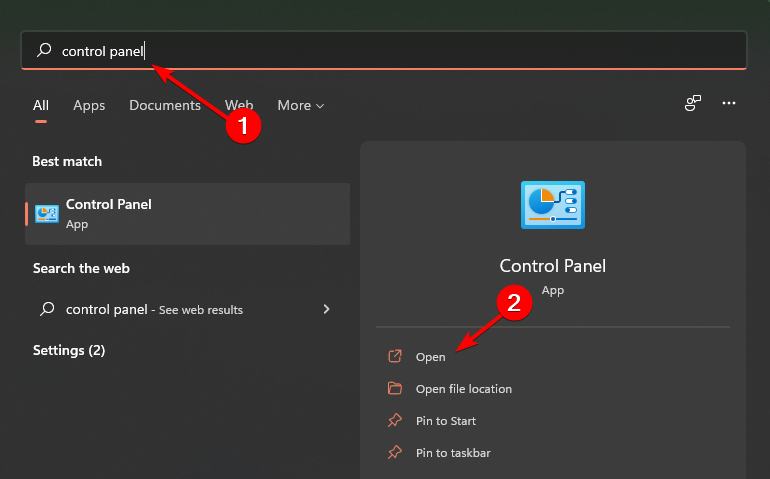
Hit the Windows key, type Control Panel in the search bar, and click Open.
Navigate to Network & Internet.
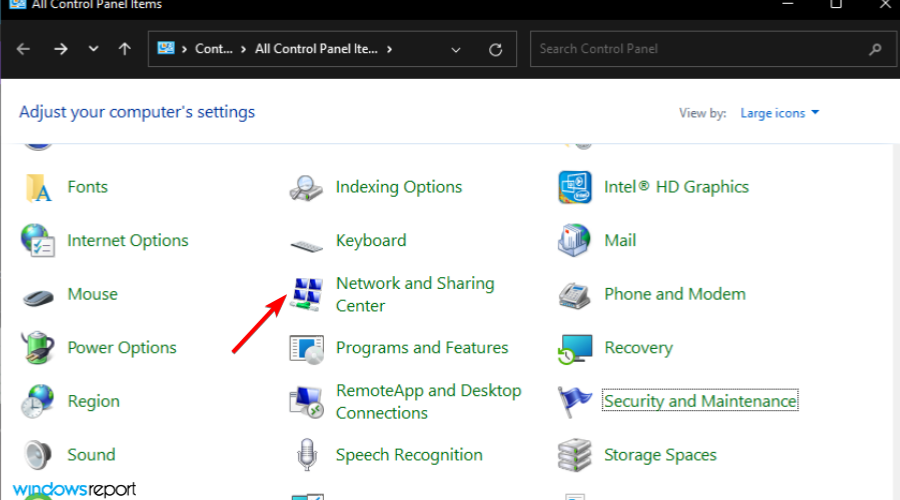
Select Network and Sharing Center.
On the left pane, select Change adapter settings.
Right-click your network connection and click the Properties option.
Select the Internet Protocol Version 4 (TCP/IPv4) option and select Properties.
Select Use the following IP address option, and under Use the following DNS server addresses set Preferred DNS server and press the OK button.
Aside from providing a consistent address, using a static IP makes it easier to create firewall policies that enhance network security because you can now manage traffic from both sides.
2. Enable TLS 1.2
2.1 Check status
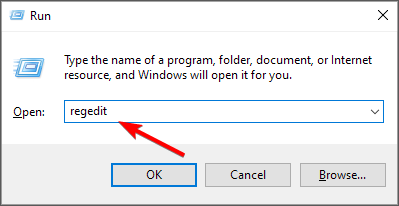
Start by checking whether TLS has been enabled on your device. Hit Windows + R, type regedit, and navigate to the following location: HKEY_LOCAL_MACHINE\SYSTEM\CurrentControlSet\Control\SecurityProviders\SCHANNEL\Protocols\TLS 1.2\Client\Enabled
The corresponding value should be 1, it has been enabled.
2.2 Check TLS version
Next, verify the version to ensure it’s compatible with your device.
Press Windows + X. and select Windows Powershell.
Enter the following command: Get-TlsCipherSuite.
Press Enter. Y
2.3 Enable TLS
Click on Windows + R.
Press Enter.
In the Internet Properties window, click on the Advanced tab.
Scroll down and check for the TSL protocol in use
Select Apply.
If you can’t find the option available, you’ll have to enable it from the Registry.
2.3.1 Enable TLS via the Registry
Before you make any changes to the Registry Editor, we recommend that you backup your registry or create a restore point. This way, if anything goes wrong, you can undo the changes and avoid damage to your PC.
Hit the Windows + R keys to open the Run command.
Type regedit in the search box and hit Enter.
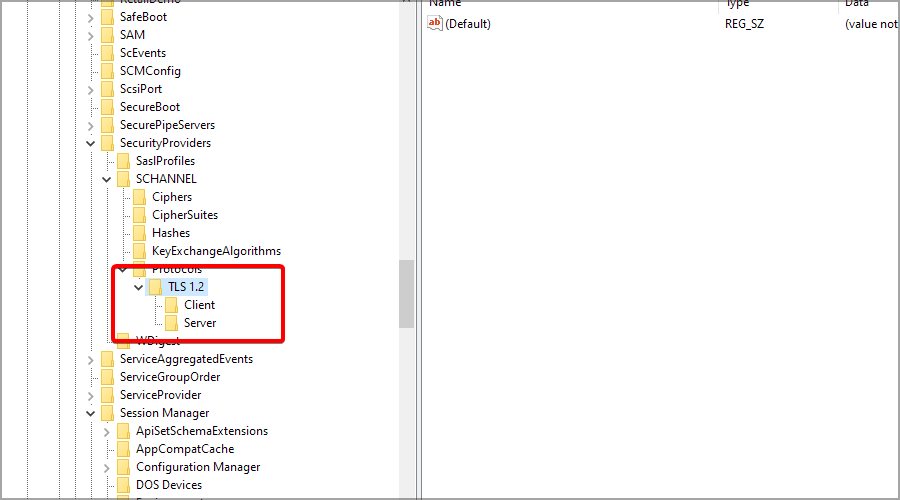
Navigate to the following path: Computer\HKEY_LOCAL_MACHINE\SYSTEM\CurrentControlSet\Control\SecurityProviders\SCHANNEL\Protocols
Right-click on an empty space in the right pane and select New>Key.
Name the new key TLS 1.2 and click to expand it.
Navigate to TLS 1.2, click on the empty space in the right pane, and add two new keys. Name the first one Client and the second one Server.
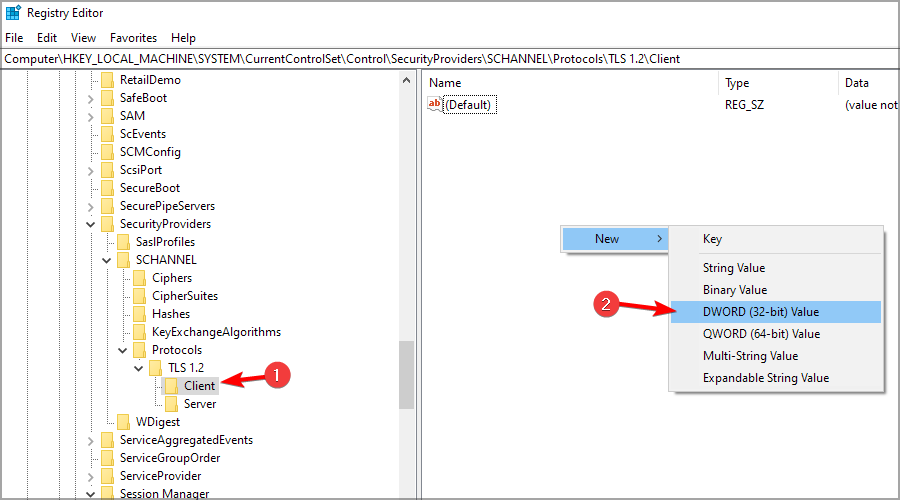
Now, select the Client key, right-click in the right pane and select New,and then DWORD (32-bit) Value.
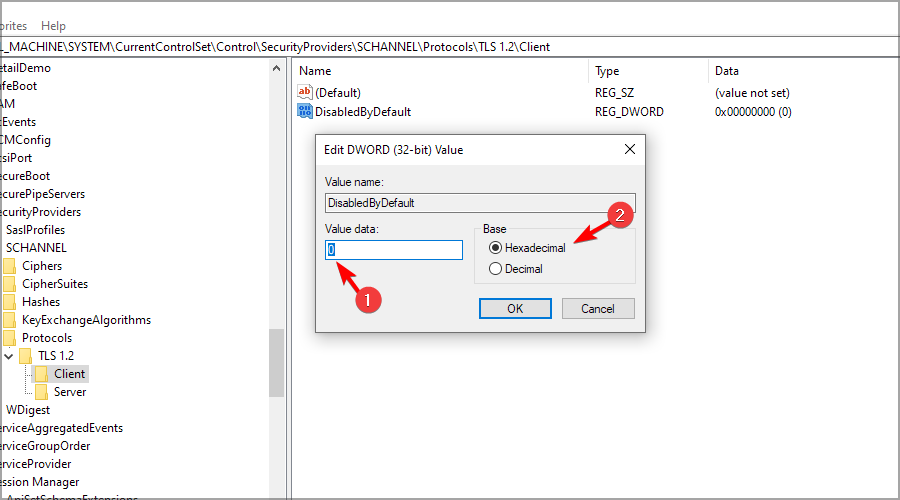
Name the DWORD DisabledByDefault, and double-click it.
Ensure that the Base is Hexadecimal, and the value is 0 (zero).
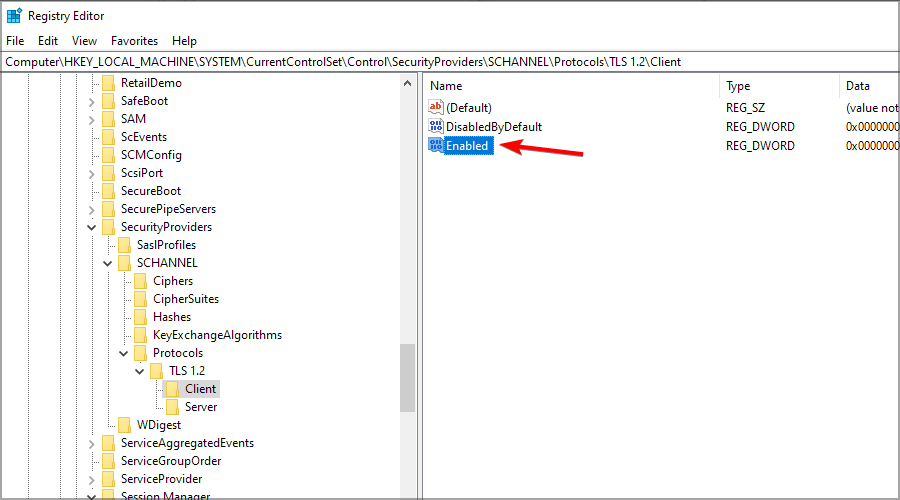
Create a new DWORD and name it Enabled, and double-click it.
Ensure that the Base is, again, Hexadecimal and the Value is set to 1.
Close the Registry Editor and reboot your PC.
TLS 1.2 is the preferred security protocol for email servers because it is widely adopted by most email clients and has strong encryption properties compared to older versions.
3. Unblock port 587
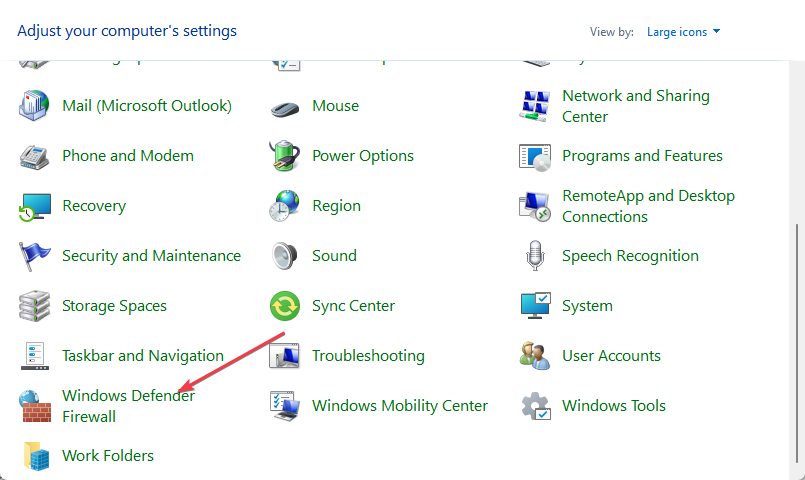
From the Start menu, search Control Panel, and press Enter.
Then, click on Windows Defender Firewall.
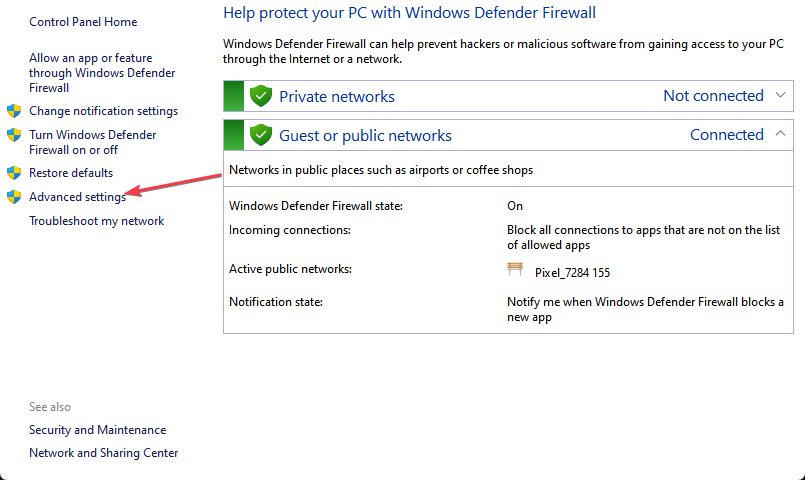
Select Advanced Settings.
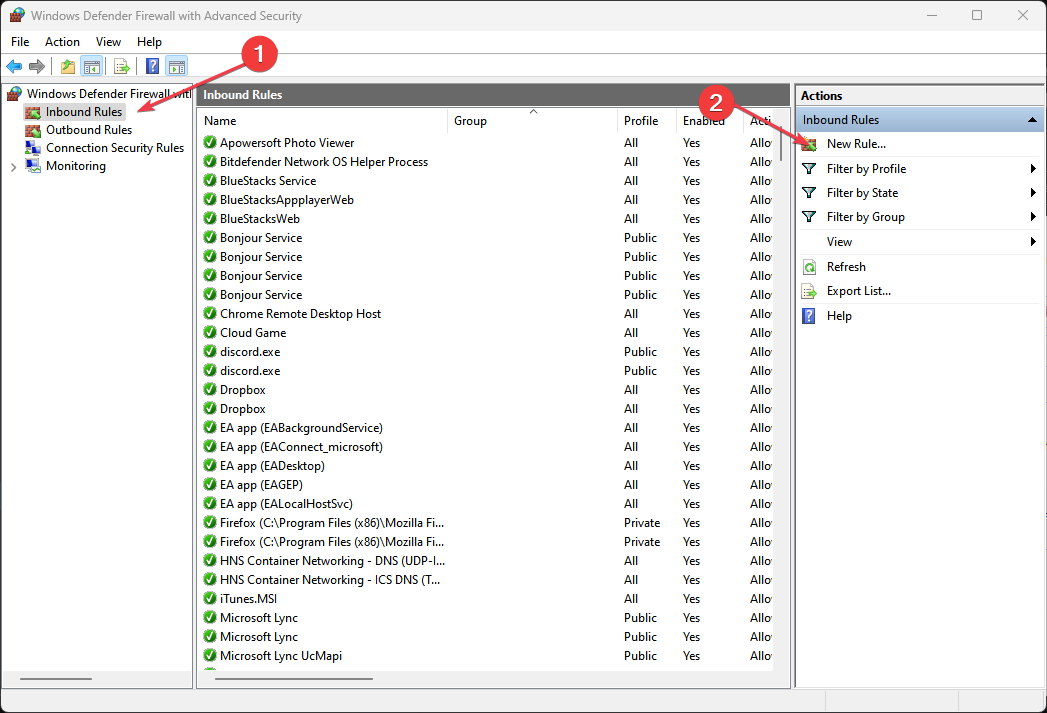
Then, choose Inbound Rules and click New Rule in the Actions window.
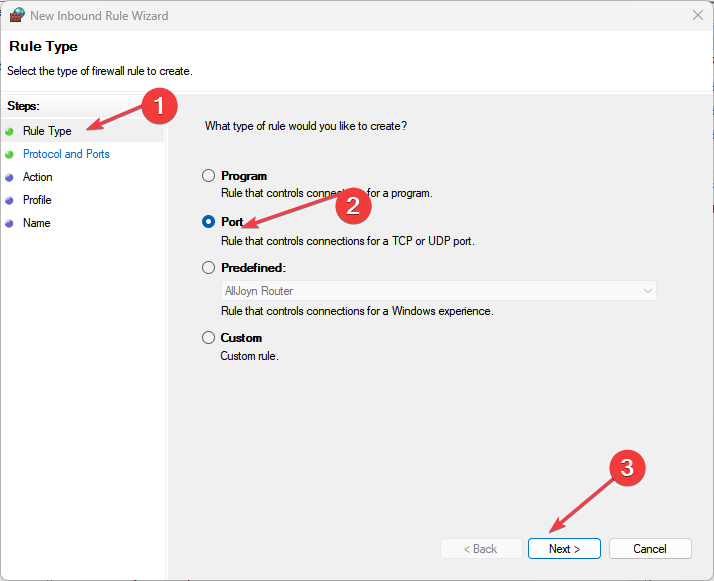
Now, select Rule Type of Port and click Next.
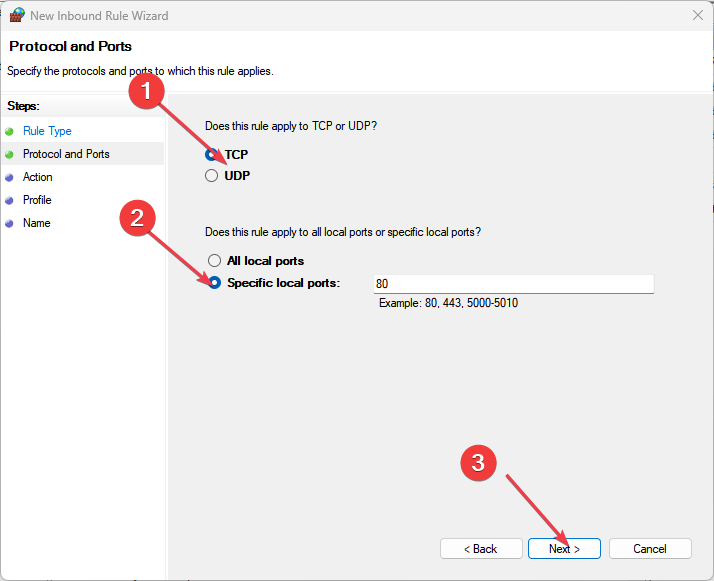
On the Protocol and Ports page click TCP. Select Specific Local Ports, type a value of 587 or 25, and click Next.
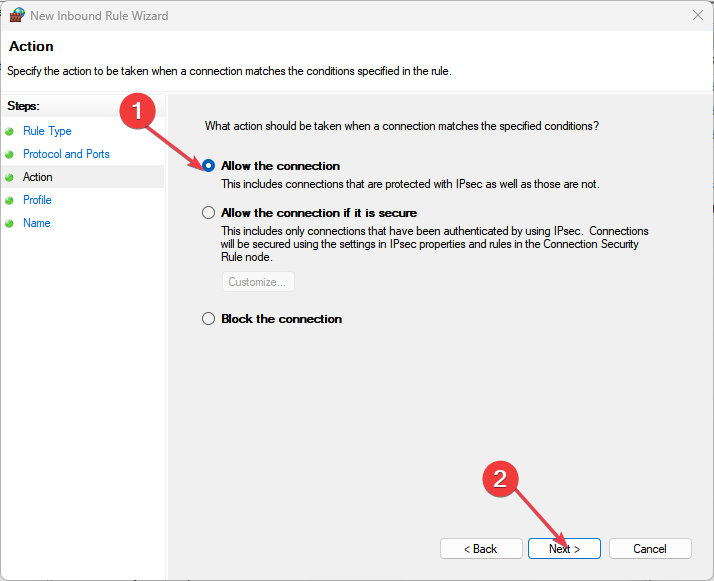
On the Action page click Allow the connection and click Next.
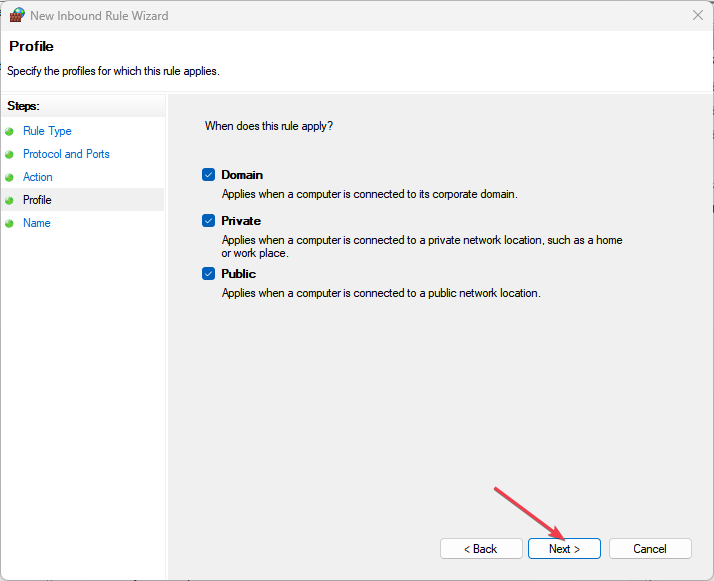
In the Profile page click the appropriate options for your environment and click Next.
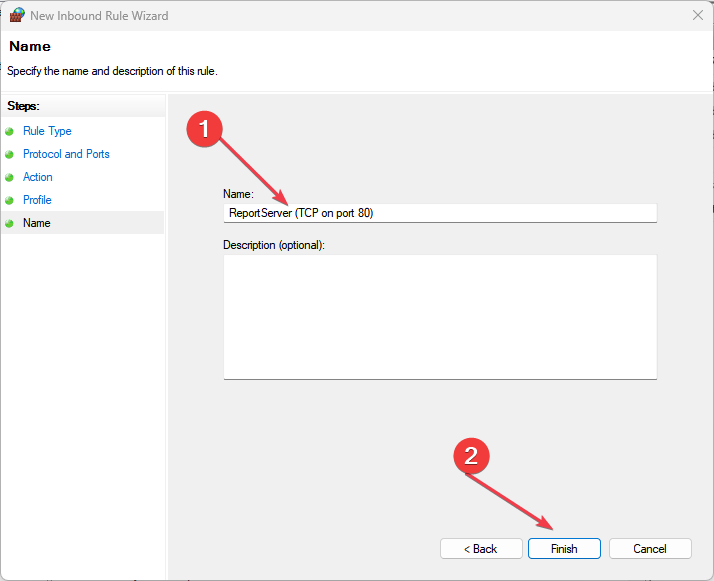
On the Name page enter the name of SMTP (TCP on port 587) and click Finish.
Restart the computer.
Port 587 or 25 is the default port for outgoing email traffic. Most ISPs block this port but if you enable TLS 1.2, you’ll require this port for email transmission to further enhance your security. It will also help avoid being blacklisted on email inboxes as spam since the port will now be free from restrictions.
Go to Settings > Domains and under your MX record, note down the Point to address value. It should be something like: contoso-com.mail.protection.outlook.com.
Go back to the admin center and navigate to Mail flow > Connectors. If none is available for your organization, create one.
Set your email flow scenario to Office 365.
Hit Next, and give the connector a name and brief description.
Next, check the By verifying that the IP address of the sending server matches one of these IP addresses that belong to your organization box and add the IP address from step 1.
Hit Save and a summary will appear.
You can send a test mail to confirm whether your emails are being received on the other end.
Expand Account Settings and select Manage Profiles.
Click on the Email Accounts button.
Choose your email account from the list, click on it to select then hit Change.
Click on More Settings.
Navigate to the Outgoing server tab and check the My outgoing server (SMTP) requires authentication and Log on using boxes.
Next, move to the Advanced tab and under the Use the following type of encrypted connection, select SSL/TLS from the drop-down menu then hit OK.
Potential issues and best practices for SMPT server for Office 365
Your TLS certificate may expire while you’ve enabled SMTP authentication. A quick update of your system should fix this since most are meant to be compatible with certain OS versions.
For best practices, SMTP port problems can occur at any time so check your firewall and network configurations frequently to ensure it is not blocking any connections and all necessary ports remain open.
That’s all we had for this article. If you’ve enabled an SMTP server on your Office 365, we’d like you to share your experience thus far. Drop us a comment down below.
If you’re one of the 400 million Windows 11 users, then you should know that Microsoft has made it possible for users to customize their taskbar calendar with random text of choice.
As you can see in the featured image above, we were able to replace the PM in the time area of the Windows 11 taskbar with a preferred text of our own. However, there is a limit to the text you can add there, so remember that before you replace the existing AM/PM with something you want.
How to customize your Windows 11 calendar then? Pretty easy. Here’s how:
Open Control Panel.
Click on Change date, time, or number formats, below the Clock and Region panel.
Click on Additional Settings.
Go to the Time panel.
Change the AM/PM text with the text that you want, and then click on Apply, and then OK.
Once again, click on Apply, and your new text should now be visible in the Windows 11 taskbar.
If the new text confuses you, you can change it back to the way it was by following the same steps. Windows 11 will even provide you with the AM/PM options so you won’t have to think it over.
This little trick can make your Windows 11 feel more personal to you, and your profile, and it’s one of those fun things to do on the operating system. On this Reddit thread, for instance, people have tried customizing their Windows 11 calendar with some funny results.
On the other hand, speaking about personalizing the Windows 11 experience, Microsoft will soon let people use their voices to voice Windows 11, with a new feature called Speak for Me. The feature was already released in the Windows Insider Program channel, and it is part of the new Windows 2024 Update.
So, you’ll have plenty of options to make your Windows 11 feel personal.
With new version releases, Microsoft is ensuring Windows 11 is deeply integrated with AI and is introducing more and more features to the native apps.
Recently, Paint has been getting several new features, including Layers inspired by Adobe Photoshop and DALL-E 3-powered Cocreator, and these are not it. If you want to know about Cocreator on Microsoft Paint, read this guide.
Another new AI feature will be added soon, which is said to be using a Neural Processing Unit, or NPU. It is a special hardware component that comes with new Windows 11 devices, which enables the machine to handle AI & machine learning tasks.
All this came to light when Windows Latest noticed there is a DLL file named NPUDetect that comes with the new Microsoft Paint, which suggests that this native app on Windows 11 could detect and use a Neural Processing Unit available on the machine in the near future.
The existence of the file sparked rumors that there could be upcoming features that could use NPU capabilities, such as AI-powered image editing tools.
Which new AI features are you expecting in Paint? Share your thoughts in the comments section below.
Microsoft announced a new capability coming to Azure subscribers: the Azure Operator Call Protection. It will allow AI to detect suspicious calls in real time, alerting subscribers that they’re being scammed.
The Redmond-based tech giant announced the new capability at MWC 2024, and it can be implemented at a network level, meaning all calls connected to that network will be scanned by the Azure Operator Call Protection.
Microsoft announced in a blog post that the capability is now in public preview, and it’s also one of the most powerful tools to combat the increasing telephone call scamming methods:
Call Protection is another powerful tool in the toolbox for fighting consumer fraud. It is a new service that applies AI analysis to phone calls in real time, alerts the subscriber if the call is suspicious and educates them as to why, for example a call supposedly from a bank that requests a PIN, something a genuine bank would never do.
Microsoft
Similarly to Copilot for Security, Azure Operator Call Protection uses AI from head to toe to work. Here’s how:
Azure services use AI to transcribe the call to text.
The call content is being scanned in real-time with the desired AI techniques to detect potentially fraudulent calls.
In case the call is fraudulent, Azure Text-to-Speech will render the text back into audio to warn the subscribers that they’re on a fraudulent call.
Azure subscribers won’t need to download any app to use this capability. Microsoft says that the company chose to integrate the capability without an app so that it can have a greater adoption rate, something that wouldn’t happen if users were required to download an extra app for it.
No handset app download is required. While providing an app can help enable an enhanced customer experience, it also requires the subscriber to discover and download the app, which can severely limit subscriber uptake. By providing an entirely network-derived experience, with no app needed, the service is available to as many subscribers as possible.
Microsoft
It will be, nonetheless, interesting to see how Azure Operator Call Protection is going to tackle the increasing usage of AI in phishing attacks. If you don’t know, Microsoft together with OpenAI recently published a report documenting how global threat actors are using AI to target and spread malware.
Copilot for Security will be able to handle most of these attacks, in a fighting fire with fire situation. But what would happen in this case? What if AI will be used to handle fraudulent calls?
However, that’s not all, the company has also made some adjustments to its Weather service, so let’s see what’s new.
Microsoft Weather will now show historical weather data
As you know, Microsoft Weather is available on all Windows 10 and 11 PCs, but you can also find it on Edge, and Bing on both browsers and mobile.
According to the MSPowerUser, Microsoft has updated its Weather Trends page with some new functionality, and now it offers historical data from the last 70 years.
This allows users to compare the temperature with any past year, month, or day. With this feature, users can see the average temperature, as well as historical high and low temperatures.
You can also see the weather overview for the selected year, as well as the overview for the past 73 years in a pie chart. Additional information includes the hottest, coldest, wettest and windiest months.
Speaking of which, it’s also possible to see historical weather records in terms of precipitation, humidity, and wind speed.
Overall, it’s a useful feature that can help users to better understand how climate has changed over the decades, so be sure to give it a try.
I booted up my computer today and Copilot show up once again on the right side of the Taskbar. I click on it and got a BSOD and it rebooted my computer. After logging back in Copilot is gone. WTF? This is the first BSOD in like a year. Since Windows updated to 23H2 version Copilot been showing up in the middle of the Taskbar and in the Taskbar Settings to turn it on and off. But once awhile it will disappeared from the Taskbar/Taskbar Settings for days and weeks before showing up again. Recently an update move Copilot to the right side of the Taskbar. But on next reboot it’s gone. Now it show up again and BSOD when I click on it and disappeared once again after a reboot. Like WTF is going on? This is like almost the tenth times I have noticed this. I’m on 23H2 Build 22631.3155 and I’m not an Insider.
After his post, two more users reported the same issue after upgrading their devices to 23H2. One of them also mentioned that even reinstalling the operating system a few times didn’t help.
However, there are no other complaints so far. So, most likely, as suggested by one of the users on the post, Snowflare182, suggested that the issue could be due to misbehaving third-party apps or some OS installation issues, which could be fixed by the common system issues.
A few months ago, the same issue surfaced on the devices of insiders in the Dev Channel using Windows 11 Build; however, instead of BSoD, File Explorer crashed for them.
If you are facing the same issue, check your computer for unwanted & misbehaving third-party apps, restart the Explorer, reset your computer, and ensure you have the latest Windows installed, then check if the issue persists.
In case you want to know how to reset your Windows 11, we have a complete guide with step-by-step instructions.
Are you facing the same issue after upgrading to Windows 11 23H2? Share your thoughts in the comments section below.
Good news for all Age of Empires lovers out there: the game is going mobile and you can pre-register to get it on Google Play, or iOS, now.
The mobile version of this insanely popular RTS game is a collaboration between Microsoft and TiMi Studio Group, which is the largest video game developer and operator in the world, by revenue, according to Wikipedia.
The studio has a rich history of bringing popular video games to mobile devices, including games such as Call of Duty, Honor of Kings, Arena of Valor, and many more, and Age of Empires is the latest addition to that collection.
Wondering what the Age of Empires will look like on mobile devices? Well, Microsoft shared a first sneak peek in the form a teaser trailer, which you can see below.
For hardcore Age of Empires fans out there, there is also a deep dive into the developing side of the story, with developers explaining how they brought the popular video game to the mobile environment.
The game will be simply named Age of Empires Mobile and it will feature many gameplay mechanics already established in its classic versions. So, if you’ve played Age of Empires 2 in Windows 10, or Windows 11, you shouldn’t have any trouble understanding what you need to do on mobile devices.
Age of Empires Mobile is a mobile war strategy game where players will embark on an exhilarating adventure and forge unbreakable bonds with friends. Featuring rich real-time controls, stunning visuals and historical heroes on grand battlefields, this addition to the franchise has so much to offer. The game features elements from Age of Empires games, merged with brand-new and mobile-specific gameplay. You’ll engage in strategic resource management, develop unique technologies and train diverse armies to build and defend your kingdom.
Microsoft
The announcement was part of a bigger blog post from Microsoft detailing the roadmap for the future Age of Games, including the hotly-anticipated Age of Mythology: Retold game, which is coming to Xbox and PCs in 2024.
And, you’re not alone in getting this news. According to the blog post, the game now has over 50 million players worldwide. Talking about a community, right?
If you want to switch to Linux but you want a distro that is similar to Windows 11, then Wubuntu might be what you need.
But what is Wubuntu and how does it work? This guide will answer all of your questions, so let’s get started.
Wubuntu is a perfect distro for all Windows 11 lovers, at first glance
Many users don’t want to switch to Linux simply because they don’t like the interface, and adjusting to the new environment can be tricky. Luckily for them, there’s Wubuntu, a distro that looks surprisingly like Windows 11.
The entire system runs on Ubuntu and it does its best to replicate the look and feel of Windows 11. There are even many Windows apps available, including Copilot, Edge, OneDrive, Teams, and PowerShell.
According to the developers, this distro is compatible with .exe files due to an improved Wine compatibility layer. Developers are also mentioning Android support, so this OS should be able to handle Android apps.
As for requirements, this distro requires a 2GHz dual-core CPU, 2GB of RAM, but more is recommended, and 25GB of storage. And unlike Windows 11, it doesn’t require TPM or Secure Boot!
Although this sounds impressive at first glance, it seems that Wubuntu comes with some valid concerns that you should know about.
Wubuntu might not be what it seems, according to the community
While this distro looks incredibly like Windows 11, it is reusing Microsoft assets without Microsoft’s consent. Here’s what users on Reddit had to say.
Trademark violation: If it’s not approved by Canonical, they’re not allowed to use the Ubuntu name. If Canonical notices they will be at least forced to rename.
Multiple copyright and trademark violations: As per previous poster, use of Windows assets, and also trademarks. MS could have them for breakfast, lunch and dinner legally.
Not being approved by Canonical is a huge issue for any Ubuntu distribution, and copyright infringement is also problematic. The developers offer a paid version; however, it’s not known what the paid version offers:
They never mention what the missing features in the free edition are. Are they just selling prioritized updates as a feature?
To make matters worse, a user on another Reddit thread has pointed out that this distribution is forked from Linuxfx, a distribution known for leaking user data.
It’s an actual scam, they have leaked user data in the past. Don’t bother, guys.
While Wubuntu sounds and looks impressive, after reading the criticism from the Linux community, it’s probably better if you would stay away from it, until the developers address these concerns.