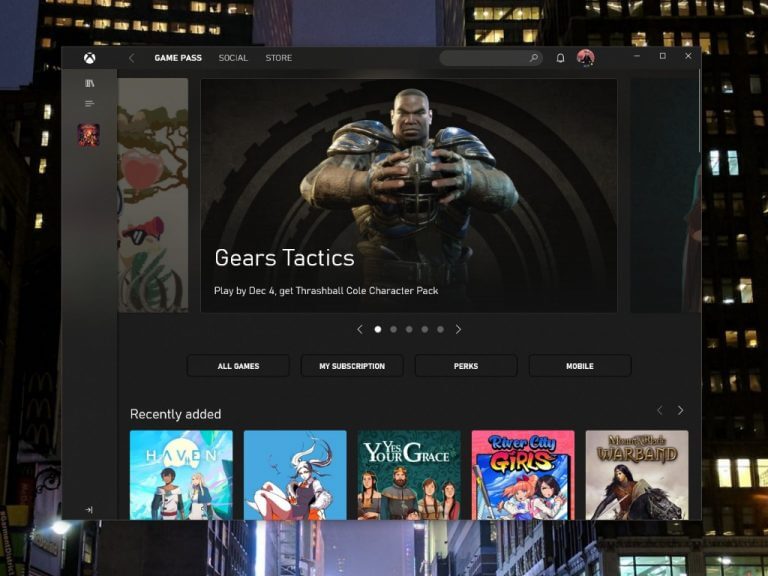
Gears 5 is getting its first solo expansion on December 15 with the Hivebusters Expansion. The new DLC will include a 3-hour campaign featuring Lahni, Keegan and Mac, the 3 heroes from Gears 5’s Escape mode on a suicide mission to destroy a Swarm hive.
Just like the regular Gears 5 campaign, the Hivebusters Expansion will support 3-player co-op, split-screen or online. However, each of the 3 heroes will have its own Ultimate Abilities to use again Locust enemies, a notable difference compared to the Gears 5 campaign where only Jack, the robot companion has special abilities.
The Gears 5: Hivebusters campaign expansion will also add 16 new achievements to unlock for 210 Gamerscore. Gears 5 was recently updated for Xbox Series X|S consoles, and this new DLC will support the same optimizations on Microsoft’s next-gen consoles including reduced load times, variable refresh rates, and 4K HDR Ultra visuals on Series X.
The upcoming DLC is available for $19.99 pre-purchase from the Microsoft digital store today ahead of its launch on December 15. If you’re an Xbox Game Pass Ultimate subscriber, you’ll be able to play it for free on day one on Xbox, PC, or Android via Cloud gaming. Also launching on December 15 is Gears 5: Game of the Year Edition, a new $59.99 bundle that includes the base game, the upcoming Hivebusters campaign expansion, Halo: Reach Character Pack, plus 30 days of boost.
If you’re familiar with computers, you likely have used the command prompt once to accomplish a common or admin task in Windows 10. But did you know that Teams also has its own command line or sorts? That’s right, from the top of the search bar in Microsoft Teams you can input certain commands. We’ll be looking at some of those today.
What are slash commands?
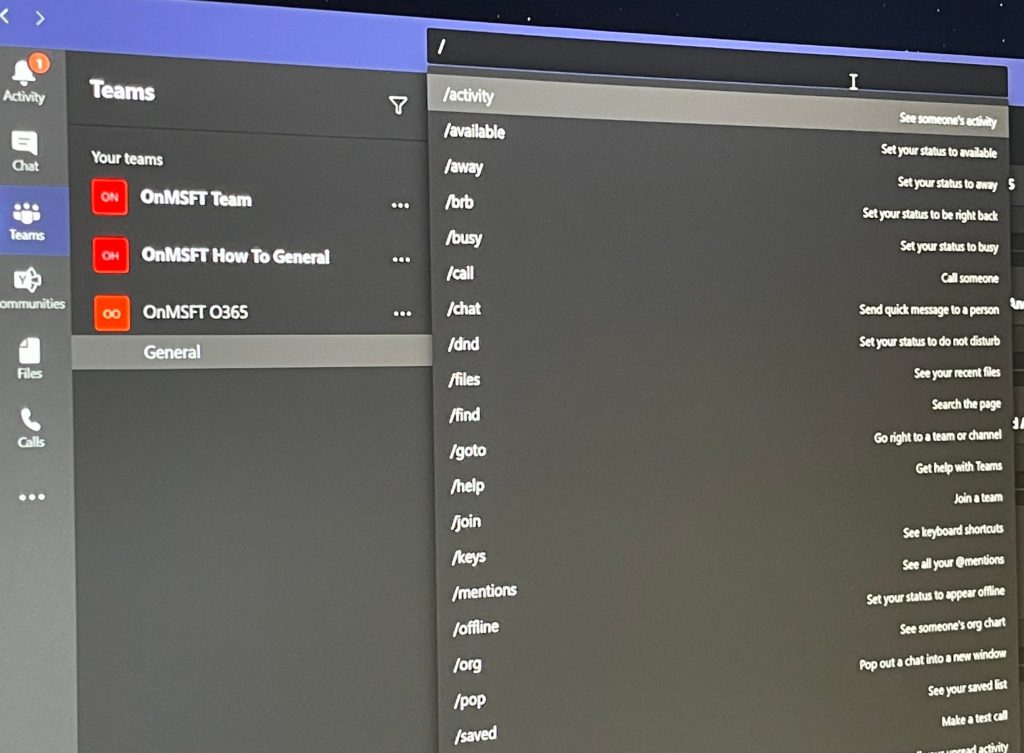
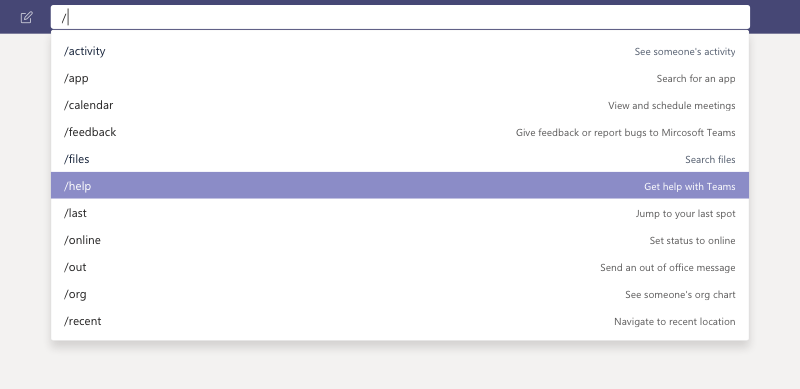
Slash commands in the Teams app on the web or the desktop app allow you to perform common tasks. You’re able to do things like update a status, going to a specific channel, or show recent files. You can use these by clicking your mouse in the search box and typing a “/” Once you do that, you can see all the commands available for you. Do note that you can also press Alt+K (Windows) or Option+K (Mac) to open the command list. You’ll likely appreciate slash commands because they can save you time during a busy day.
What are some common slash commands?
Command
What the command does
/activity
See a coworker’s activity
/away
Set your status to away
/busy
Set your status to busy
/call
Call a certain number or contact
/dnd
Set your status to do not disturb
/goto
Go to a team or channel
/files
See your recent files
/mentions
See your @mentions
When you first check out the slash commands, you’ll see a long list of supported ones. Right now, there’s a total list of 18 commands that are supported. Everyone using Teams has access to these, and if something isn’t working for you, then your organization likely disabled a feature that needs the command. Some of our favorite commands are above.
Not to be confused with keyboard shortcuts
Though we’ve focused on slash commands, these really should not be compared or confused with keyboard shortcuts. These are two different things. Slash commands are for common tasks in Teams, but keyboard shortcuts are rather focused on the general navigation of Teams. We explained those in a separate post. As always, we also remind you that you can check out our dedicated Teams hub for more Teams news and information.
Dictation recorder software usually works similarly to a dictaphone. Such tools allow your computer to be used in order to send dictation to your typist by email, the Internet, and also over the computer network. They also come with digital audio recording features.
There are a lot of dictation recording programs on the market by we gathered some of the best in order to show you their best features and to make your choice much easier. Check them all out and decide which one’s the best for you.
What dictation recorder tools can I find for Windows 10?
Using this program, you will be able to record and send dictation directly from your computer. This is a voice recording program that allows your PC running Windows to send dictation to your typist via email, Internet, or computer network among others.
Check out the best features that are included in this software below:
This is a professional dictation voice recorder that works like a traditional dictaphone.
You will be able to send a dictation instantly via the Internet.
This digital dictation software will significantly improve turn-around time, and it will let you work wherever you want to.
You will be able to enjoy excellent signal processing quality.
The program comes with automatic non-destructive editing with various record modes including record-overwrite, record-insert, and more.
The long silences will not be recorded thanks to voice-activated recording.
You will get the ability to assign priority to individual dictations.
The software supports encryption, and this is perfect to secure patient or client data for transmission over the Internet.
Express Dictate
Free, basic recording software for PC or Mac that successfully replaces a dictaphone to digitize your audio material.
Dragon Professional by Nuance is another dictation software that you can use to turn voice into typing directly onto your computer. This tool also allows for voice commands that turn into actions.
The new version of Dragon has been improved to recognize various accents and voice particularities, taking voice recognition to up to 99%.
Besides, the tool will memorize your most used words and phrases, to save dictation time. Actually, Dragon is focused on productivity all the way, given the fast speech recognition capabilities and instant on-screen reproduction, allowing for rapid corrections, if necessary.
The tool is compatible with Windows-only devices, including tablets or smartphones, and it has been adapted for touchscreen used, as well.
Note that in terms of browsers, it will work only with Internet Explorer or Chrome.
Dragon Professional Individual
Efficient, user-friendly dictation software, optimized for touchscreen devices, that will help you get your work done within minutes.
Another product in the same Dragon family, this time Dragon Home, the basic version of the Dragon speech recognition software.
It boasts the same efficiency when it comes to voice recognition and rendering. It is extremely useful when it comes to creating and formatting documents with only voice commands.
As opposed to the previous recommendation, Dragon Home won’t automatically turn your recordings into texts, and won’t sync customizations with the mobile app, in care you’re also using it.
However, for the sole purpose of transcribing and dictating, it will do the job perfectly.
Dragon Home
Basic, but reliable speech recognition, dictation and transcription software to bring your ideas to life.
SoniClear is a dictation voice recorder that will make recording dictation easier than using a dictation machine. You will get enhanced digital quality and also the convenience of managing your dictation files on your computer.
Check out the best features of this software:
You can send dictation files for transcription via the Internet or LAN.
Using this program, you will be able to experience the high-quality and convenience of recording dictation on your computer running Windows.
The default source audio will be from your sound card microphone.
If your computer comes with a built-in microphone, the program will record automatically from the mic.
If your computer does not come with a built-in mic, you have to plug a computer microphone into the mic-in jack of your sound card.
The default recording type is Meeting, and you will have to change it to Dictation.
When you are using the program for the first time, you will probably have to adjust the record volume.
When you finished dictating, you have to click the stop button.
If you’re satisfied with the results, your recording is done, and if you’re not, you can click the undo button and try again.
You also have the ability to record in sessions.
Groups of users can also post recordings into a common server location to provide a dictation repository. You can check out more of this software’s features and try out SoniClear by downloading it from its official website to see how it works.
With the latest software Olympus Dictation Management System (ODMS) you have a complete solution to create your daily businesses documents easily, quickly and efficiently.
Check out the best features included in this program:
Olympus has many years of experience in audio and dictation.
You will be able to choose between the ways in which you can turn speech into text: classic, automatic, and advanced transcription.
Classic transcription involves dictating and sending your dictation to the typist; the typist will make the transcription and the author will approve the document.
The automatic voice transcription involves dictating and sending the file to a speech recognition module, and then the document has to be approved by the initial author.
The advanced voice transcription involves the dictation module, the transcription module, and also the speech recognition capabilities.
You will receive the right tools to implement a professional dictation workflow and set up a complex central administration.
The program comes with a new and improved interface for increased usability. The user interface is a really important component of professional dictation, and it can really boost your efficiency and productivity as well. Check out more about Olympus Dictation Management System (ODMS) on its official website.
Dictation Buddy is a Windows-based software that records your voice and saves the recording as a compressed sound file that you will be able to play, edit, send, or publish.
Take a look at the most important features that are included in this software:
You can use Dictation Buddy to transcribe a recording or to record phone conversations.
You can record, and playback compressed sound files using fast and efficient Windows codecs.
You will be able to record from any line or sound card from your computer.
The automatic sound activation means that the recording will start when the audio sounds are detected.
The automatic save facilities mean that the sound files are automatically saved when a conversation or a dictation ends.
The files will be saved in a directory specified by the user.
You will also get accelerated playback for easy searching and the ability to edit your recording.
You will be able to send your recording via email.
The software is easy to use, and it includes an audio wizard to help you select the best recording parameters. The global hotkeys allow for quick access to the primary functions.
BigHand Dictate is currently one of the world’s leading dictation software having more than 280,000 users in more than 2,550 organizations.
Take a look at the features that are included in this program:
You will be able to use your resources in a smarter way to manage higher workloads and to spend more time on billable work.
You will be able to track, assign, edit, and approve a regular flow of work for increased clarity and efficiency.
Using this software, you will be able to get a return on investment.
This program makes dictation faster to complete and easier to manage.
The program enables you to record onto a vast variety of devices and then to easily share your dictation.
You will also be able to prioritize and track your voice files as well.
You can send your work to the support staff for transcription, to a speech recognition engine, or an outsourcing agency. Check out BigHand Dictate on its official website.
These are some of the best dictation recorder tools that you can currently find on the market and that is compatible with computers running Windows. Go to their official websites to check out their complete set of features. After you analyze them, you will be able to make the best choice for your dictation needs.
After Nvidia brought ray tracing support to the beta version of Minecraft for Windows 10 earlier this year, all PC gamers with Nvidia RTX cards can now enjoy ray tracing on Minecraft for Windows 10 today. The sandbox game’s new Render Dragon technology is quite the visual makeover as it introduces brightened blocks, water reflections, more realistic shadows, and rich global illumination.
“Players who install Minecraft ray tracing will by default see everything enhanced with a special physically based rendering texture pack, which interplays with the ray-traced effects to further enhance the experience. There are plenty of maps and worlds with this feature – all available on the Minecraft Marketplace,” the Minecraft team explained today.
In addition to this new ray tracing update for Minecraft for Windows 10, players can also download a new free world named Colosseum RTX, and a second one named Dungeon Dash RTX will follow soon. Developer Mojang has also announced the release of free content for both Bedrock and Java editions of Minecraft to celebrate the Minecraft Community this holiday season.
“For Bedrock, we’re releasing new character creator items and maps over the course of four weeks. We also have plenty of surprises for our Java players! These gifts will be released each Monday, and we will also be giving away a free week of Java Realms between December 8 and January 13 to both new and existing subscribers,” the team explained today.
Apple this morning announced their latest product, over the ear headphones known as AirPods Max. Priced at a whopping $550, there’s a lot of initial reaction and comparisons to Microsoft’s Surface Headphones. So, if you’re part of that wave, we’ve got your back. Here’s how the two compare on price, features, and a lot more.
Price
First off, there’s the price. Microsoft’s Surface Headphones come in two generations. You can find the first-gen Surface headphones for much cheaper at around $100-$120 on most reseller websites like eBay. The latest Surface Headphones 2, though, comes in at $250. Both products also come in multiple colors. Surface Headphones 2 come in Light Gray and Matte Black, though first-gen Surface Headphones only in Light Gray.
Apple’s AirPods Max, though, comes in five colors: Space Gray, Silver, Green, Sky Blue, and Pink. They’re priced at $550. Looking at just the price, you can see the difference here. You can pick up two Surface Headphones for the price of one Apple AirPods Max. But is it worth it? Let’s dive deeper.
Connectivity
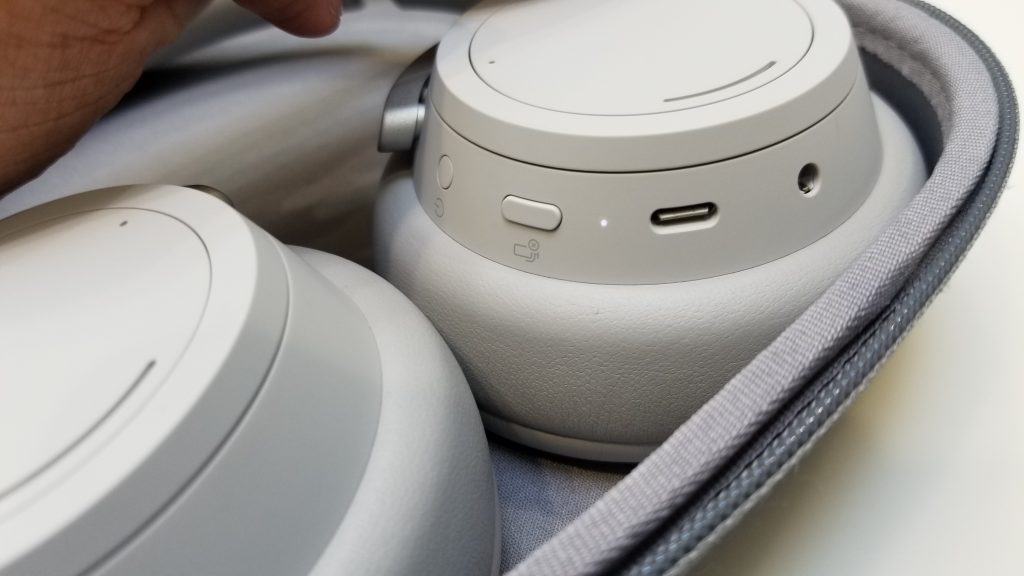
Next up, there’s connectivity. This is quite important for headphones. We’re giving Microsoft the upper hand here, for a couple of reasons. First off, Surface Headphones have a 3.5 mm headphone connector, letting you connect the headphones up to a PC or any other device manually to a headphone jack. Secondly, it also features multi-device support and Bluetooth, letting you pair and switch between PCs, Macs, iPhones, and other devices. There’s even a companion app on Windows, iOS, and Android, too to help you manage how you use the headphones with your non-Windows devices
Looking at the AirPods Max, there’s quite the situation if you’re not into Apple’s ecosystem of devices. While AirPods Max supports Seamless Switching and pairing between Mac, iPhone, and iPad devices, we presume it would work the same way with AirPods do with Windows. This isn’t exactly as seamless when it comes to pairing compared to Surface Headphones. Anyway, AirPods Max also lacks a 3.5 mm connector, so you can’t use the Apple cans with your PC with a cable.
And, as far as we can tell, managing the AirPods Max will only work through iOS, unlike Surface Headphones, which can be managed on iOS, Android, or Windows via the Surface Audio App. Finally, Apple’s headphones also have a proprietary Lightning connector for charging, whereas Surface Headphones are USB-C.
Design
Now, there’s the design. Of course, these two products differ significantly in design. We already dived deeper into Surface Headphones design back when we reviewed it. Basically, the Surface Headphones feature a padded canopy on the top and memory foam around the ear cups. We really like this design.
The outside of the cups (on the side) also rotates for volume control and noise cancellation and has touch controls to help control your digital assistant or play and pause music You’ll also find a dedicated mic mute button, as well as the power button on the cup, too. This is a unique design that helps keep the headphones light and thin, around 0.64 pounds, 8 inches in length, and 1.89 in thickness.
Apple’s new AirPods Max are different. Apple says that the headphones have a “breathable knit mesh canopy, spanning the headband, is made to distribute weight and reduce on-head pressure.” The headband is made of stainless steel and looks to be quite flexible. The earcups are also able to independently pivot, too.
Weight comes in at .85 pounds, and the length at 7.37 inches, and thickness at 3.28 inches. But let us not forget Apple’s Digital Crown. The AirPods Max features this signature feature from the Apple Watch on the top of the cup. This is to control volume, answer calls, and activate Siri. Another button on the cup will also let you switch between the audio and noise cancelation modes.
Sound and noise cancellation
Now, for sound and noise cancellation. Microsoft’s Surface Headphones feature up to 30dB for active noise cancellation, and 40 dB for passive noise cancellation (to hear outside). Microsoft claims there are 13-levels of active noise cancellation, too. Its Omnisonic speakers (Microsoft’s term for audio immersion,) meanwhile come with a 40nm Free Edge driver. The frequency response is 20-20 kHz, and audio Codecs are SBc and aptX. Digital Assistants, meanwhile, can be configured on-device based on what operating system or phone you’re using Surface Headphones with.
Just like AirPods Max, the Surface Headphones also sport audio pause, which means the music will pause if you slip it off your ears. There’s a total of eight mics on board, with two being in each cup. These are all the technical specs we can find listed online about Surface Headphones.
Apple’s AirPods Max, however, are jam-packed with all kinds of sensors for tracking your head, and for spatial audio. The drivers and speakers are Apple-designed and are dynamic. It has an optical sensor, position sensor, accelerometer, in each cup, and a gyroscope in the left ear cup. There’s also a total of nine microphones onboard, 8 for active noise cancellation, and three for voice pickup. Oh, and let’s not forget Siri, which is always-on with the Apple headphones, letting you hear messages, respond to messages, check the weather, and more.
There’s also a transparency mode, to let you hear outside noise, and adaptive EQ, which automatically tunes the low- and mid-frequencies of the music to the shape of an individual’s ear. We’ll also mention Apple’s headphones have the H1 headphone chip in each ear cup, too. Apple says this chip “uses computational audio to create a breakthrough listening experience.”
On paper, it would seem as though Apple has the upper hand here over Microsoft. For the high price, its headphones have a lot of technology packed in Apple’s new cans.
Battery life and conclusion
Apple says that AirPods Max can last up to 20 hours on a single charge for watching movies, talking, and more. Microsoft’s Surface Headphones, meanwhile, can go on for up to 18.5 hours of music listening time or up to 15 hours of voice calling on Microsoft Teams. Note that Apple’s headphones have a special carry case, which can put the headphones in an ultra-low power state to preserve charge. Surface Headphones have one, too, but the case doesn’t support this feature.
Alas, looking at both headphones, the choice is yours to make. For Microsoft fans, the Surface Headphones 2 are the best buy. You get the ease of use with different devices, and Windows 10. Apple fans, or those with Apple devices, might be better off with AirPods Max. Those pair of cans play nicer with iOS and Macs and even might have better sound quality.
Robots are deployed in a wide variety of manufacturing industries. Industries that utilize robots need robotic programmers to program their robots. Those are programmers who generate code for robot controllers with various scripting languages.
Robot programmers utilize offline programming and 2D and 3D simulator software. They need laptops with good processors and at least eight GB RAM that can handle the most complex robotic programming software.
Laptops with bigger displays and full-size keyboards are also more preferable for programming.
What are the best laptops for programming and robotics?
The Dell XPS 15 is a great laptop for all programming fields. Its ninth-generation i9 processor boasts a super quick 4.5 GHz clock speed.
This laptop provides up to 32 GB RAM and one TB storage, which is more than sufficient for robotic programming. It also has a crisp and vibrant 15.6-inch 4K resolution display.
The Dell XPS 15 has some nice features too. Its integrated fingerprint reader on the power button enables users to log in quicker.
The Dell XPS 15’s backlit keyboard is ideal for low lighting conditions, and its Dell Mobile Connect software also enables users to integrate their mobiles with this laptop.
With a ninth-generation Intel 8-core processor and up to 32 GB RAM, the ZenBook Pro Duo UX581 provides top-notch multitasking performance.
Its NVIDIA GeForce RTX 2060 is a beast of a GPU for 3D robotic simulator software. This laptop also boasts a luxurious 4K resolution display.
The ZenBook Pro Duo UX581 also features a unique dual-screen design. Its secondary touchscreen Sidepad Plus display can provide an expanded visual workspace for programming code and content.
So, that’s a feature of robotic programmers and other productivity users will appreciate.
This is a 15.6-inch gaming laptop with a powerful configuration that ensures it can handle the most system resource-intensive software for robotics programming.
It incorporates a 10-gen i7-108750H processor, 16 GB RAM, one TB SSD storage, and an NVIDIA GeForce RTX 2080 GPU.
The Razer Blade 15 also has a great keyboard backlighting. The Razer Blade 15 Advanced Model features per-key Razer Chroma lighting effects that users can customization.
Although not really useful for programming purposes, that’s still a nice feature nonetheless.
The LG gram 17 is an expansive, yet lightweight, 17-inch laptop that doesn’t sacrifice portability for size. Its 10th generation Intel i7-1065G7 CPU, combined with 16 GB RAM, makes it a powerful workstation for the most system resource heavy robotic programming.
Furthermore, LG gram 17 also has a decent keyboard that’s spacious and responsive.
The inclusion of a Numpad on its right side is a welcome addition for programming. Its keyboard also features two backlighting levels, which is handy for finding keys in low light conditions.
The VivoBook Pro is a good value laptop with a seventh-gen Intel i7-7700HQ CPU, 16 GB RAM, one TB HDD +256 GB SSD storage, and GTX 1050 GPU.
Although its processor isn’t the latest generation, this laptop still delivers decent performance for heavy-duty productivity software and multitasking.
This 15.6-inch laptop also has a nice design and a full-size keyboard. The VivoBook Pro incorporates a smooth aluminum chassis with light gold color. Its ergonomic backlit keyboard has responsive 1.4 mm keys and a Numpad robotic programmers can utilize.
Those are five of the best laptops to program robots with. Their strong processing and RAM quantities make them more than sufficient for the most heavy-duty programming and multitasking.
Overall, they’re great laptops for all productivity users and aren’t bad for gaming either.
The first reviews for Cyberpunk 2077, one of the most-anticipated games of 2020, have been published yesterday and they’re quite polarized. Following the blockbuster success of The Witcher 3 which crossed 50 million sales earlier this year, developer CD Projekt Red had a lot of pressure on its shoulders to deliver another iconic RPG, especially since Cyberpunk 2077 has been hyped to the extreme since its original announcement back in 2012.
If The Witcher video games series was based on a series of novels and short stories that started in 1993, Cyberpunk 2077 is based on a dystopian tabletop RPG launched in 1988. The game is set in Night City, a large American city entirely created by CD Projekt Red, and the developers obviously spent years on the meticulously crafted open world where players should be able to spend hundreds of hours.
Cyberpunk 2077 has been delayed several times, and CD Projekt Red also took some flak for breaking its promise to stay away from the crunch issues that have been plaguing the development of so many AAA games in recent years. Despite the ongoing hype, there’s definitely some controversy about Cyberpunk 2077, including the way the game deals with nudity, trans people, drugs, and more, though the developer deserves credit for not shying away from adult themes.
As of this writing, the PC version of the game received widespread critical acclaim with a 91 score on Metacritic, though several reviews have pointed out the huge amount of bugs still present in the game despite the multiple delays. Cyberpunk 2077’s RPG mechanics also don’t appear to really revolutionize the genre, though there’s nothing really wrong with that.
While Night City may likely appear to be intimidating at first, many reviews emphasized that the megacity is a true work of art. Carolyn Petit from Polygon had one of the best descriptions of it:
To its credit, the Night City of Cyberpunk 2077 is not just an amalgamation of imagery lifted from other influential sources, but an original creation that incorporates many signifiers of cyberpunk genre flavor (lots of Japanese kanji in neon, airships slowly drifting through the sky) while also feeling like a place we haven’t seen before.
Steam may issue forth from every surface, but this isn’t the shadowy aesthetic allure of Blade Runner. Night City is something altogether uglier and more chaotic than that, with its skyline of awkward megabuildings resembling a landscape assembled by a child out of chunky toy blocks.
Cyberpunk 2077 is CD Projekt Red’s first game that plays out in first-person, and gamers will be able to customize pretty much everything about V, the player controller protagonist. While The Witcher 3 series had a charismatic main character with Geralt of Rivia, Cyberpunk 2077 has Jonny Silverhand, a supporting character played by A-list actor Keanu Reeves. As expected, the movie star did a great job at making Silverhand a great sidekick.
“Keanu Reeves, known as Johnny Silverhand, is the one constant in every “Cyberpunk” playthrough, and probably the game’s best hook for its story. Reeves steals every scene he’s in, and dominates the game in ways I once again won’t dare spoil. Cyberpunk’s most objectively great quality is that it contains hours and hours of an extremely committed and multifaceted performance from Keanu Reeves. His starpower and presence is not wasted here,” wrote Gene Park from The Washington Post.
Among the not-so-positive reviews, Kotaku’s Riley MacLeod pointed out that the developers may have been too obsessed about trying to be edgy, and that can ultimately hurt the storytelling and gameplay. “It tries too hard, stuffing itself with a tangle of complicated roleplaying game systems; with so many cyberpunk tropes, plots, and slang; with neon and holograms and so many in-game ads, most of them for sex; with car chases and hacking and corporate espionage and double-crossing powerful people; with a world where the human body is made obsolete with money and technology, while also chewed up and spat out for the sake of capital,” wrote MacLeod.
Jeff Grub from Venture Beat also explained why despite CD Projekt Red’s ambition to push boundaries, Cyberpunk 2077 is probably more like a synthesis of the best open-world games from the past couple of years.
What Cyberpunk really is, however, is a big open-world action role-playing game. What it’s not is a look at gaming’s future. Instead, it feels like a summation of where we’ve come in gaming since the Xbox 360 generation. It feels like a game built by people looking around to see what works — like Grand Theft Auto’s open world, Watch Dogs’ hacking, Assassin’s Creed’s quest-filled maps, Fallout’s combat and character progression, Mass Effect’s dialogue system, Batman: Arkham Knight’s crime scene investigations, and every games’ skill trees.
It’s very rare to see games launching in a non-buggy state these days, and a huge open-world game like Cyberpunk 2077 could probably have stayed a couple more weeks in the oven. “This game is boiling over with glitches, particularly toward the game’s climax. As the game neared its end, every main character of the game was touched by some hilarious, scene-breaking glitch — including the very final shot of the story before the credits rolled. Whether this world holds together is a question I just can’t answer yet,” explained Gene Park from The Washington Post.
It’s worth noting that CD Projekt ReD didn’t provide codes for the Xbox One and PlayStation versions of the games to the media. The publisher also asked all testers to not use their own gameplay videos in reviews, probably to prevent bugs and glitches from becoming viral ahead of the game’s release. The PC version of the game supports ray-tracing and seems well optimized, though performance on consoles remains a mystery. As a reminder, a true next-gen version of Cyberpunk 2077 for Xbox Series X|S and PlayStation 5 consoles won’t be available until next year, and we hope CD Projekt Red will share more information soon.
Last but not least, Game Informer pointed out today that Cyberpunk 2077 can be hazardous for gamers prone to epileptic episodes. As it turns out, the game includes epileptic triggers in several zones where flickering lights are used. “During my time with Cyberpunk 2077, I suffered one major seizure and felt several moments where I was close to another one,” wrote Game Informer’s Liana Ruppert.
As game developers have been slowly but surely learning to make their games more inclusive, this is a clear misstep from CD Projekt Red and we hope this is something the developers will fix. In the meantime, if you’re prone to suffer from epileptic episodes, it’s probably best to play the game with caution.
Cyberpunk 2077 will be available on November 10 on Xbox One, Playstation 4, Google Stadia, and PC, and we’ll publish our hands-on with the Xbox One version later this week. We’ll be comparing the differences between the Xbox One S and Xbox One X versions in backwards compatibility mode, and we hope to publish our full review soon.
Microsoft is rolling out support for more background scenes in Microsoft Teams meetings. The company began the rollout earlier this month, and now it’s starting to show up in some tenants.
As the name suggests, Together mode allows meeting participants to sit beside other co-workers in virtual shared environments. With these new background scenes, users will be able to pretend that they are holding a Teams meeting in a coffee shop, an auditorium, or a conference room.
To try new scenes, enable Together mode in a meeting, and select the “Change scene” option. Keep in mind that some of these scenes like cinema, curved conference theater, and the auditorium can be used for larger meetings with up to 49 participants. However, the coffee shop and boardroom scenes are suitable for smaller meetings.
For now, users manually need to adjust their workstation camera to improve the effectiveness of the combined video feeds. To address this issue, the company is working on a new feature that should automatically scale and center participants in their virtual seats. We hope that the company will ship this enhancement in the coming months. Have you spotted the new Together mode scenes on your PCs? Sound off in the comments section below.
Microsoft is continually making international investments to expand its digital and physical footprint and yesterday, the company made its most “most significant investment in its 30-year history in Denmark.”
In a press release on the Microsoft Stories Europe website, the company announced a new sustainable data center in Denmark. According to Microsoft, the new data center is part of the company’s #DigitalLeapDenmark initiative that is not only intended to spark growth of Danish enterprises but do so while using 100 percent renewable energy.
Microsoft is estimating that its Denmark servers can be up to 93 percent more energy efficient than traditional enterprise data centers, an evaluation given by advisory and investment company The Footprint Firm which helps companies move toward “climate-positive” and sustainable solutions.
More specifically, the Denmark data center will help provide Danish customers access to the Microsoft Cloud at much faster speeds by mitigating distance-related complications.
“This is a proud day for Microsoft in Denmark. Building a hyper-scale data center in Denmark means we’ll store Danish data in Denmark, make computing more accessible at even faster speeds, secure data with our world-class security, protect data with Danish privacy laws, and do more to provide to the people of Denmark our best digital skills training. This investment reflects our deep appreciation of Denmark’s green and digital leadership globally and our commitment to its future.” -” Brad Smith, President, Microsoft.
Part of Microsoft’s Denmark investment comes with a pledge to bring “digital upskilling to 200,000 Danes,” which includes various training programs, certifications, digital education opportunities, and job-seeking tools. With over 2,000 partners collaborating with Microsoft in the area the company’s “upskilling” efforts should result in higher-paying more sought-after jobs over time for more Danes.
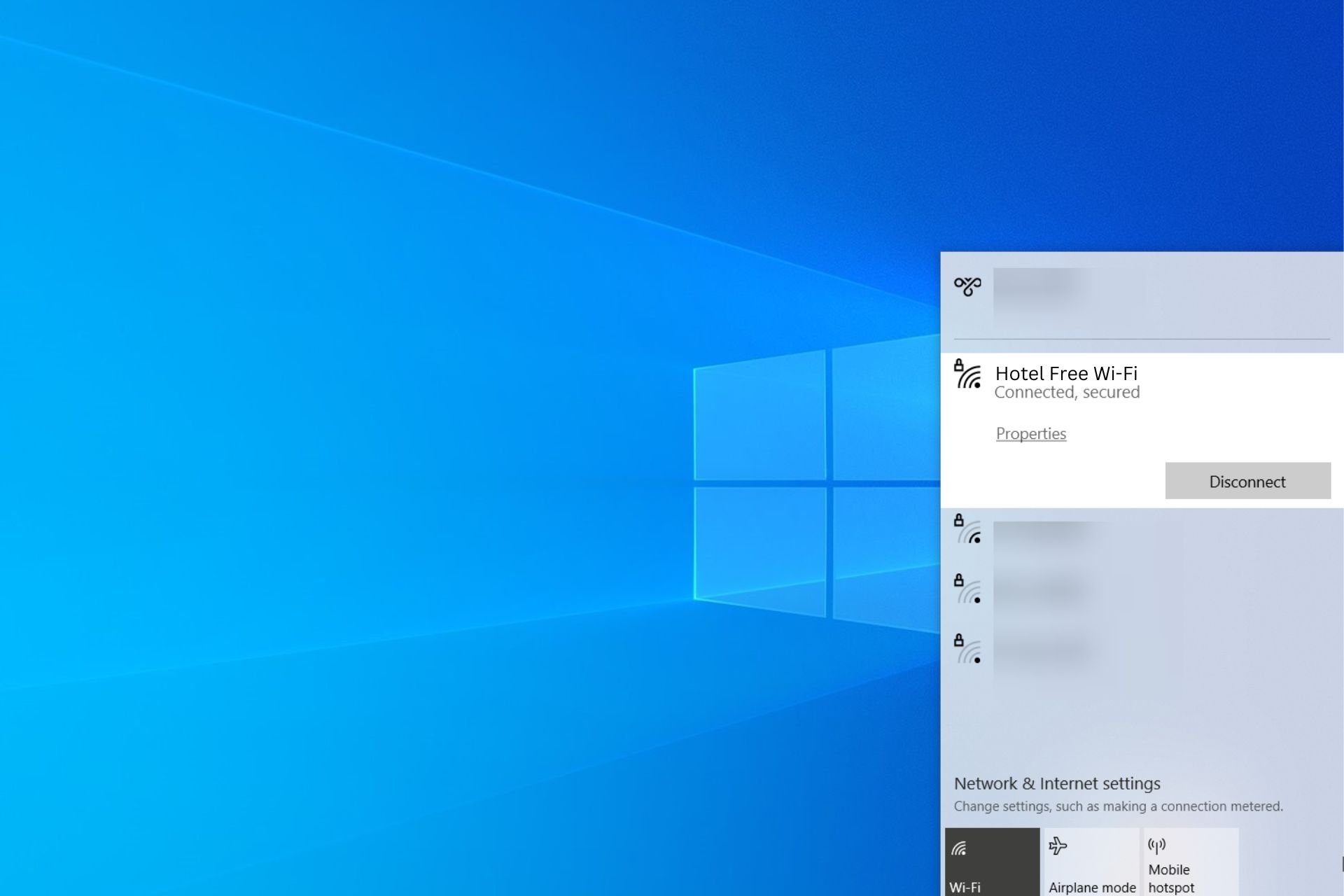
Checking in to a hotel usually means using its Wi-Fi to gain Internet access. Sometimes it’s password-protected, and sometimes it’s not.
Unfortunately, hotel Wi-Fi has security risks since you never know who might be monitoring your connection to the outside world.
If you don’t want to worry about this, we suggest getting a top VPN for hotel Wi-Fi. It will protect you from eavesdroppers and DDoS attacks, and even help you unblock websites.
Here’s what you should look for in a reliable VPN for hotel Wi-Fi while travelling:
Military-grade encryption
A large network of VPN servers
No IP or DNS leaks
A zero-logging policy
24/7 live chat support
We found the best VPN clients that incorporate all these features. You can find quick overviews of them below.
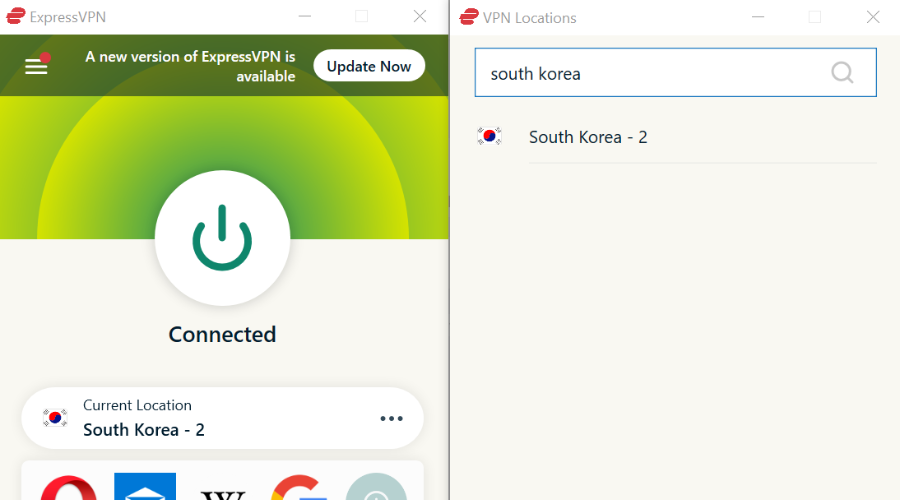
ExpressVPN is one of the best VPNs for hotel Wi-Fi, thanks to its superior connection speeds and top-of-the-line security features. It brings over 3,000 VPN servers in 94 countries.
This tool supports OpenVPN with up to 256-bit military-grade encryption. It runs zero-knowledge DNS servers and includes IPv6 leak protection. ExpressVPN supports 5 simultaneous device connections.
More about ExpressVPN:
No logs or leaks
Watch Netflix US anywhere
24/7 live chat support
30-day money-back guarantee
7-day free trial for Android and iOS
ExpressVPN
Don’t worry about your device security and online privacy when you can turn to this reliable VPN.
CyberGhost VPN – secure killswitch and DNS leak protection
CyberGhost VPN is the best free VPN for hotel Wi-Fi because it’s a premium VPN that you can use for free for a limited time only. It’s compatible with Windows, Mac, Linux, iOS, and Android.
This VPN service has an impressive network of more than 6,500 VPN servers in 89 countries. It supports OpenVPN with up to 256-bit military-grade encryption.
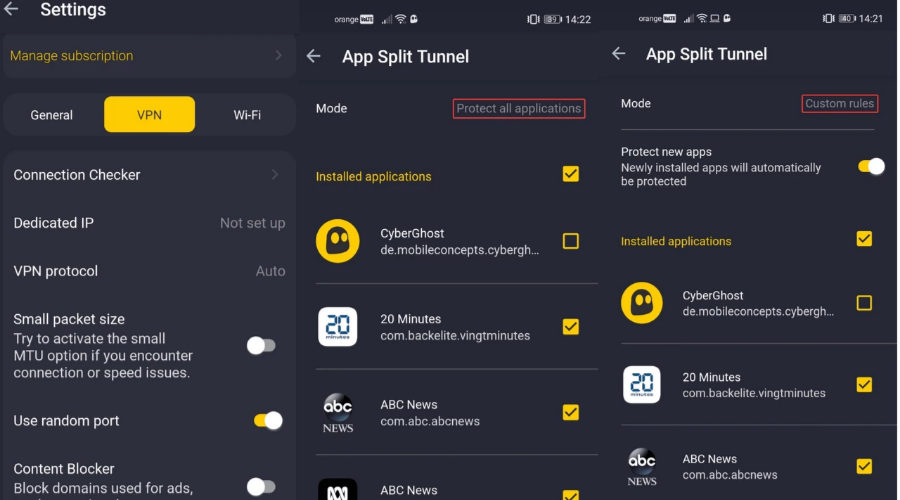
Furthermore, CyberGhost VPN has private DNS servers and split tunneling. It supports up to 7 simultaneous connections.
More about CyberGhost VPN:
No identifying logs
No IP or DNS leaks
Watch the best Netflix libraries, including US, UK, and Canada
Up to 45-day money-back guarantee
24/7 live chat support
1-day free trial for Windows
7-day free trial for Android and iOS
CyberGhost VPN
Get this dependable VPN to stay safe and unblock Netflix on hotel Wi-Fi.
NordVPN is already a household name that needs no introduction. It’s one of the most popular VPNs on the web and works great for keeping you safe while connecting to hotel Wi-Fi.
This VPN service has a network of more than 5,100 VPN servers in 59 countries. You can set it up on all popular platforms, including Mac, Windows, iOS, and Android.
NordVPN uses OpenVPN with up to 256-bit military-grade encryption. To amp up your security level, you can also use Double VPN, Onion-over-VPN or obfuscated servers.
More about NordVPN:
A zero-logging policy
No leaks
Unblock Netflix US and other catalogues
30-day money-back guarantee
24/7 live chat support
No free trial
NordVPN
Stay safe and secure when connecting to hotel Wi-Fi, thanks to this practical VPN service.
Private Internet Access (PIA) has more than 3,300 VPN servers in 48 countries. You can set it up on your Windows laptop, Macbook, iOS or Android mobile, with up to 10 simultaneous devices.
You can use the modern WireGuard protocol or stick to OpenVPN with up to 256-bit miliary-grade encryption. It has exclusive DNS servers, a browser ad blocker, along with SOCKS5 and Shadowsocks proxy.
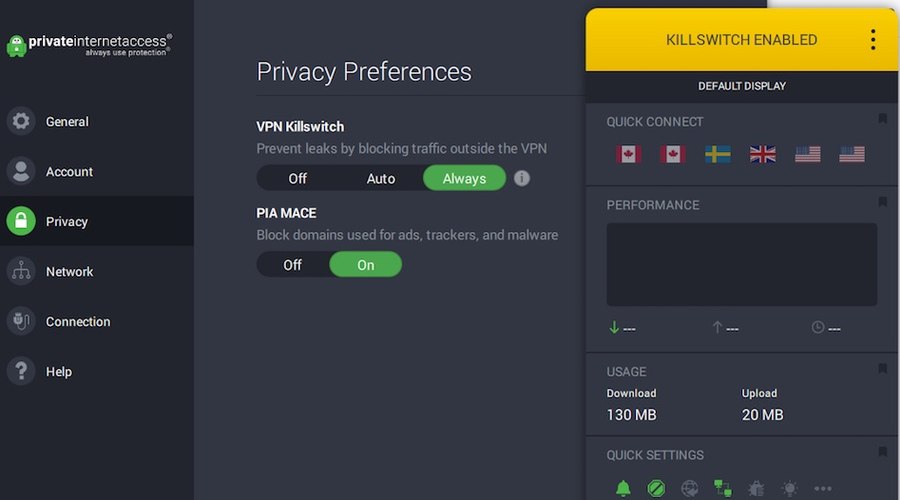
Additionally, PIA includes a kill switch, port forwarding, and split tunnelling.
More about PIA:
No traffic logs
No IP, DNS or WebRTC leaks
Unblock Netflix US anywhere
30-day money-back guarantee
24/7 live chat support
Private Internet Access
Secure your Internet connection when using hotel Wi-Fi, thanks to this reliable VPN service.
Surfshark is an incredibly popular VPN for hotel Wi-Fi because it offers affordable subscription plans and unlimited device connections. It comes with more than 1,700 VPN servers in over 63 countries.
Surfshark supports WireGuard and OpenVPN with up to 256-bit military-grade encryption. It can be installed on all popular devices such as Windows, Linux, Mac, Android, and iOS.
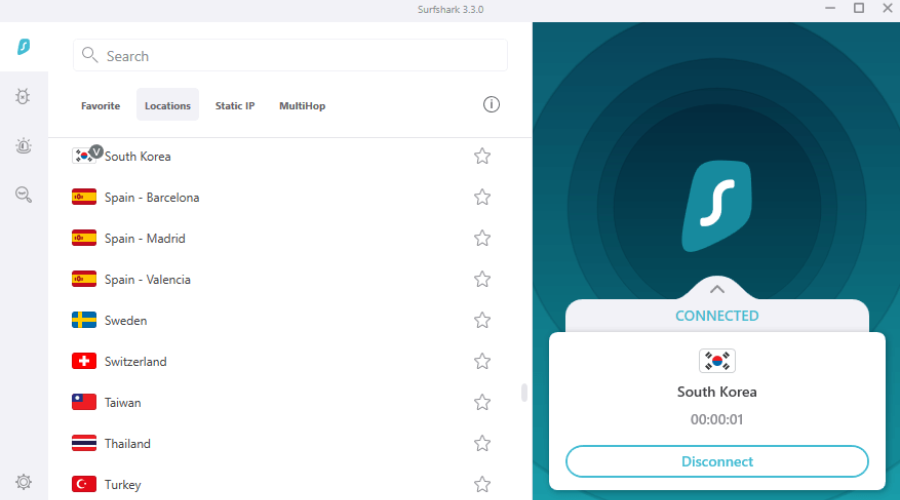
Furthermore, you can use exclusive DNS servers, obfuscated servers, multi-hop VPN connections, a kill switch, and split tunnelling mode. It also includes the Shadowsocks proxy.
More about Surfshark:
A no-logging privacy policy
No IP or DNS leaks
Watch unlimited Netflix streaming
30-day money-back guarantee
24/7 live chat and email support
1-day free trial for Android and iOS
Surfshark
Get this budget-friendly VPN to protect your device from hackers on hotel Wi-Fi.
It turns your PC into an OS emulator for various platforms and operating systems, including older Windows versions, Linux, and Mac. And it’s completely free to use.
Since VirtualBox supports VPN, a lot of users turn to it as a solution for securing their network connection.
But VPN connections don’t always work on VirtualBox.
Here’s a relevant message from the VirtualBox forum:
Hello, I have installed Windows XP on a Virtual Box space, everything is ok but when i tried to access the VPN it didn’t want, this is the first time i try to access the VPN with the Virtual Box, with my normal PC to ISP the VPN works great, but it doesn’t want to get connected through Virtual Box Windows XP image. Please help. Thank you
Resolve the problem by following the steps we listed below.
Why I cannot access VPN through VirtualBox?
Enable Paravirtualization in NAT adapter
Launch VirtualBox and go to Settings > Network
Find and select Adapter
Set Attached to NAT
Click on Advanced and select Adapter type: Paravirtualized Network
Enable VPN service on the host PC and start the virtual machine
Once done, you should be able to use the VPN of the host computer on the guest computer or virtual machine.
Switch to DNS proxy
Run VirtualBox on the default NAT setup
Open a terminal inside VirtualBox
Copy and paste the following line to enable DNS proxy:
VBoxManage modifyvm "VM name" --natdnsproxy1 on
If the DNS solution doesn’t make your VPN work properly with VirtualBox, proceed to the next.
Install two network adapters (NAT & Host-Only)
Set up a NAT adapter
This allows the guest PC to share the host VPN network and other related settings. However, your virtual engine (guest computer) would still be unable to access connections on the host computer.
Set up a Host-Only networking adapter
It will fix the previous problem and provides you with an IP address that can be accessed from the host PC. Then, you should be able to connect to the host’s VPN network.
You should now have a two-way connection, between both computers (virtual and actual). Consequently, VPN network sharing is made easy.
Use a VPN client
If you’re looking for an easy solution to bypass the VPN connection issue with VirtualBox as well as to protect your online privacy, consider using a premium VPN client.
All you have to do is download and install a VPN app, connect to a VPN server, and then open your virtual machine. And we can’t think of a better option than Private Internet Access.
PIA supports numerous VPN servers, a zero-logging privacy policy, WireGuard and OpenVPN protocols. It allows 10 simultaneous device connections and works flawlessly with Private Internet Access.
More about PIA:
Made for Windows, Mac, Linux, Android, iOS, and routers
To summarize, you shouldn’t worry if your VPN connection fails to work with VirtualBox. Instead, you can enable Paravirtualization in the NAT adapter or switch to DNS proxy mode.
You can also set up two network adapters for NAT and Host-Only. But the best way to remain secure and anonymous online is by turning to a reliable VPN service like Private Internet Access.
VPNBook is a free VPN service that lets you hide your digital identity in no time. However, like any other digital service, it may face certain issues.
One of the most discussed problems is VPNBook not connecting to the Internet.
It’s easy to see why such an issue can be debilitating to the regular Internet user.
Instead of anonymizing your connection, this issue can make it impossible to get online.
The good news is that there are a few fixes you could try to get VPNBook up and running again.
How to fix VPNBook not connecting
Update OpenVPN
If you’re no stranger to VPNBook, you probably understand how it works.
As opposed to using traditional VPN solutions, VPNBook relies on the OpenVPN client for some of its servers. OpenVPN has to be configured manually on each device.
Given that OpenVPN is, to some degree, the backbone of the VPNBook project, you must make sure that you’re at least running the latest version of the client.
For that reason, if VPNBook is not connecting to the Internet, try downloading the latest OpenVPN client, configure it properly, and try again.
Note: VPNBook PPTP servers make use of devices’ built-in VPN capabilities. For instance, you can configure PPTP on Windows and Android using each device’s internal capabilities.
Check credentials
For security reasons and probably to prevent exploitation of its free service, VPNBook frequently replaces the set of credentials displayed on its website.
With that in mind, you might want to check that the credentials you’re using haven’t been changed in the meantime.
Using invalid credentials can render your VPN connection unusable, thus making it impossible for you to access the Internet through it.
Visit the official servers page on the VPNBook website, scroll down and check if your credentials match the ones on the website.
Reinstall TAP adapter
Much like any other VPN solution, VPNBook makes use of a special driver that must be installed on the target computer.
This is usually called TAP adapter, TAP driver, TAP adapter driver, or generally a combination of the terms above.
Most VPNs bundle the driver, so you don’t have to spend a lot of time looking around for it. Even OpenVPN does.
However, this driver could become outdated or corrupted without warning.
For that reason we recommend you check if you have the latest version installed. If you do, try reinstalling the driver to rule out corruption problems.
Check servers
The servers offered on the dedicated page by VPNBook may be modified without warning from time to time.
For instance, a ca222.vpnbook.com server could no longer work overnight, but a ca223.vpnbook.com server could take its place without you even noticing.
Check the servers page as often as you can to prevent this issue.
Switch to TCP
Some ISPs or network administrators may have UDP filters and blacklists in place, which would render VPN unable to connect to the Internet.
All VPNBook bundles include TCP 443, TCP 80, UDP53, and UDP 25000 profiles.
Make sure to try them all out before calling it quits. More importantly, if you notice that UDP doesn’t seem to work at all, try using a TCP profile instead.
Alternative VPN services
Purchase a premium VPN subscription (we recommend PIA)
Download and install the VPN
Launch the VPN client on your computer
Connect to the server of your choice
Enjoy browsing the Internet privately
Using a premium VPN service could be, or at least seem less appealing than a free service such as VPNBook.
However, paid VPN services are constantly developed and serious issues such as connection issues are not frequent at all.
Private Internet Access, for instance, has a huge network that counts almost 20,000 servers all around the world.
Thus, even if one server doesn’t seem to work, you can simply switch to another one to solve any connectivity issues.
Private Internet Access
Looking for an alternative to VPNBooks that doesn’t have connectivity issues? Try Private Internet Access.
Final thoughts on VPNBooks not connecting to the Internet
All in all, if you’re using VPNBook and suddenly discover it doesn’t connect to the Internet, there are a few things you could try before calling it quits.
Given that the service revolves around partially configuring settings manually, you’ll have to make sure that credentials and server addresses are accurate.
If you’ve tried everything configuration-related and nothing seems to work, you could switch to a premium alternative.
Sure it’s less convenient that you’ll have to pay for it, but at least you’ll dodge connectivity issues with grace.
Whether you shoot videos using your smartphone or a DSLR camera, 4K videos have become a standard format for many. However, editing 4K videos is a CPU intensive work and requires a capable editing machine that offers adequate storage space and an accurate color display.
If you are on a budget, there are many mid-range laptops capable of running full-blown editing software like Adobe Premiere Pro and Black Magic Design’s DaVinci Resolve.
In this article, we have listed the best budget laptops for video editing that offer excellent performance without breaking the bank.
What are the best budget laptops for video editing?
Acer Aspire 5 A515-55-56VK is a winner when it comes to a budget priced workhorse. The latest version of the laptop comes with Intel Core i5 10th Gen CPU that packs enough punch for CPU intensive tasks like video editing.
While the build quality of the device is decent, the 15.6″ display offers good picture quality. It also features a fingerprint scanner on the touchpad and a backlit keyboard.
For storage, there is 8GB of RAM that is expandable and 256GB of SSD storage. It also offers plenty of I/O options, including USB Type-C 3.1 port and WiFi 6.
Acer Aspire 5 A515-55-56VK is an excellent choice for anyone looking for a mid-range laptop that doesn’t cost the earth without compromising the build quality or components.
Best laptop for video editing under $700: Acer Nitro 5
The latest edition of Acer’s Nitro 5 budget gaming laptops is the right choice for video editing. A beefy processor and a dedicated GPU offer enough to edit even 4K videos fast.
Under the hood, it comes packed with a Core i5 9th Gen Intel CPU paired with Nvidia GTX 1650 for optimal gaming and video rendering performance. The 15.6″ Full HD display gets decently bright and offers sharp picture quality.
Other features of the laptop include 8GB of RAM, 256 GB of SSD storage, and the usual connectivity features, including WiFi 6. The keyboard is good to type on, and the backlit keys help in the dark.
Acer Nitro 5 is a reliable workhorse that delivers on performance. However, to keep the costs down, Acer had to go short on storage while leaving space for storage expansion.
ASUS ZenBook 14 UX425JA comes packed with an Intel Core i7 CPU and integrated Intel GPU. For storage, you have 8GB of RAM that is expandable and a 512GB super-fast SSD drive. Like its 15″ variant, this one also features a touch-enabled trackpad that can also be used as a numberpad.
The 14″ Full HD display is a treat to watch and gets adequately bright when required. It also features the standard set of new-gen I/O ports to accommodate all your accessories.
ASUS ZenBook 14 UX425JA gets three – portability, power, and pricing – right for an ultraportable device that packs some serious power inside. Add to that the stunning looks, and you have the best budget laptop under $1000.
Finding the best budget video editing laptop is a tricky task as you have to find a decently powered laptop that offers great value for money.
All the laptops listed in this article can power through most video projects that you can throw at them. Go through the list and let us know your pick in the comments below.
In the past, audience engagement was usually done only by clapping and cheering but with the advancements in technology, now we can use specialized software designed specifically for this reason.
This type of software allows the crowd to interact with speakers and vice-versa using a simple button. You can use this software for live polling, webinars, gamification, live Q&A, etc. The information provided by such apps can also help speakers and organizers better understand the crowd’s preferences, make the experience more engaging and interactive.
Most of the software options for audience polling require different third-party controllers that allows your crowd to input data.
In this article, we will focus on the crowd polling software that doesn’t require you to buy anything else . People that are part of the audience, can easily use their smartphone to input data or participate in polls.
The speaker/presenter can also use his/her computer or mobile to set up questionnaires, interactive games, polls, get reactions, etc.
What are the best audience engagement tools for live events?
Captivate is currently the leading eLearning courses maker, bringing a set of professional features to create trainings quickly and efficiently, and spice them up with video content, interactive sessions, VR walkthroughs, or quizzes.
So the program isn’t a polling software per se but includes the necessary tools to create a polling session via out-of-the-box quiz templates.
Such types of interactions can challenge participants to match multiple choices, fill in the blanks, or provide a short answer.
Additionally, the remediation workflow provided by the app allows users to improve their results by retaking the quiz and better understanding the concepts.
Apart from this quiz-creation feature, Captivate allows you to accomplish the following:
Use ready-made templates to create simple or module courses
Add video content, motion effects, animations
Sync with PowerPoint to easily import presentations and convert them rapidly into interactive trainings
Deliver projects that are multiscreen responsive, so they adapt to the users’ device
Simultaneously record on-screen + webcam movement and edit for later insert into your slides
Bulk edit your objects with copy/paste functions, to save time when working on large projects
Access a whole library of attractive fonts via the Typekit integration
Adobe Captivate
Create highly interactive polls and quizzes within minutes, using the ready-made templates this fully customized software offers.
VoxVote is a great audience polling tool that allows you to easily manage your crowd no matter how big it is. This software was designed for any speaker or teacher in order to be able to interact with the crowds by creating questions, vote sessions, and also have the ability to discuss the results of the tests live.
This software can reduce the number of paper feedback forms, that are really hard to handle and the response rate is very low. This makes the feedback-obtaining process, more streamlined and exact.
You can also compare the results of your polling/tests by interacting with your crowd before, during, and after the talk.
Key features include:
Unlimited audience/projects/events
Browser-based voting (Wifi, 3G.4G, https)
See the results of your graphs live
Audience can receive email summaries
Allows the audience to ask questions and moderate
Ability to instantly create new questions
Can create presentation slides
Secure voting
Crossing/combining question in result
VoxQuiz – calculates the total of points obtained by answering the questions right and exports a list of users to Excel
You can find a good range of tutorials about how to use VoxVote on the official site.
BuzzMaster is a greatly powerful piece of software that was designed in order to make your audience polling experience easier than ever.
This software works with the state of the art interaction technology that can help you easily interact with your audience, find out opinions about different subjects, create tests/polls, and can also help you crowdsource funds for your cause.
The paid versions of BuzzMaster even offer you the services of an interaction specialist, who controls the system, consults with you in the starting stages of the project, and also works as a connection between the speaker and the crowd.
Key features include:
Selfie upload – when attendees arrive they can upload a selfie that can be customized by each person
Matchmaking – this feature allows you to be matched with different people at the
conference/meeting based on similar interests
Ability to open questions and comments – find out exactly what your audience’s opinion is and allows them to express their concerns, praises, etc.
Multiple-choice questions – allows you to find out data about audience demographics
Bar graphs – for easier representation of charts, questions, etc.
Pie charts
Clusters – groups your audience’s responses into data clusters for easy access
Voting features
Sorting and grading – can find out what the audience think of the speaker by using grades
The tool comes in three versions. We’ll list the main features of each version below.
BuzzMaster Essential:
250 maximum participants
Limited features and slides
Customized design
Interaction is done by client
Full phone customer support
Data export – PNG, XLSX
GDPR data protection
BuzzMaster Advanced:
This version of the software offers an unlimited number of participants, features and slides, a great number of customized designs. The Control Interaction Tool is managed directly by BuzzMaster, you get full customer support on-site, and all the other features of the Essential version with some additions :
Dedicated Wi-Fi network
Closed servers
Interaction specialist
Event program consultant
Complete technical support
Data DJ
Audience intermediary
With the Premium version of this software, you get all the features presented in both Essential and Advanced versions. The Premium version also gives BuzzMaster the power to function as a moderator.
Crowdpurr is another great software option that offers great audience engagement features for your events. This app is free to use and offers a wide range of traits that allow you to be in full control of your audience and, at the same time, pick their minds regarding their opinions, discussions, votes, interactive games, etc.
One of the best features of Crowdpurr is the fact that you can interactively add different elements to your hub. You can customize your software to suit your needs perfectly by adding images, questions, answers, brand logos, etc.
Crowdpurr offers users a wide range of features. Some of the most notable ones are:
Experience dashboard – friendly design of the user interface that allows you to keep a live overview and control over your data
Ability to see fully detailed results
Projector view – a reactive pop-up screen that allows you yo share your project with the crowd on any device
Real-time response with no refreshing needed
Ability to present the final results of your poll, trivia game, etc.
Easy to access mobile view – the audience can interact with your polls with no sign in required
Multiple and single voting
Wide range of question formats
Live polling
Social media walls
The free version of Crowdpurr has a limited amount of features and is designed for smaller crowds. You can use it with 15 participants/event, can ask only 3 questions, and can produce 3 experiences.
This version includes the experience dashboard, projector view, and mobile platform. The free Crowdpurr also has a logo posted on the screen and ads.
Crowdpurr’s Classroom Plan offers a good range of features that are designed for medium crowds. This plan allows you to use 100 participants, ask 100 questions, and produce up to 10 experiences. You can also upload custom branding logos, create image/GIF based questions, has a fully automatic playback mode, and get free customer support via email and phone.
You can also easily export test results, audience votes, and other participation data to Excel.
The Seminar Plan for Crowdpurr was designed for larger crowds. This version has all the features included in the Classroom Plan, and also adds:
500 participants
Can create 25 experiences
Can set custom crowd access codes for experiences
Collect and export names, emails, phone numbers, etc.
Multi-language crowd support
The Conference Plan from Crowdpurr was designed with huge crowds in mind. This version offers all the features of the Seminar Plan, and also adds:
1000 participants
Can create 50 experiences
Custom background uploading
Ability to set brand custom domains and URLs
The Convention Plan offers high-end advertising and was designed specifically for massive crowds. In this version you will find all the features included in the Conference Plan and also adds:
5000 participants
100 experiences
Ability to monetize ad space
Dedicated servers
The Crowdpurr Custom Plan offers you the possibility to organize specially tailored and branded experiences for high number of events. This version allows you to get high-end interactive experiences directly from the producer, offers support for Ultra HD Live events, and you have unlimited power of customization and deeply branded experiences.
You can also use immersive 3D graphics in your presentations and can get on-site tech support for both training and setup.
EventScribe is another great audience polling software that was designed specifically for educational conferences and meetings. This software allows planners to control every aspect of the event, and also gives the attendees the power to express their concerns, issues, and opinions.
When it comes to your audience, EventScribe can make note-taking a lot easier. Your attendees have access to the full event program, choose the sessions they want to participate in, and they can also add highlights, annotations, and even draw on your presentation slides.
By using EventScribe Floor Plan app, your audience can take part in live polling, ask questions, connect to social media, add comments during sessions, and can even share notes with other people.
This app is also perfect for meeting planners with its powerful back end tools. You can customize your app with specific branding, and the tile home screen design can easily present you with the possibility of selling sponsorship with full-screen ads, event sponsored content, etc.
EventScribe has been released in 3 different versions that offer specific features for different types of users:
EventScribe Express:
5 maximum menu navigation items
Basic pop-ups for your presentation
Speaker photos and biographies
Email module for communicating with users
EventScribe Standard includes all the features of the Express version and adds:
8 maximum menu navigation items
Quick tutorials for users
Advanced presentation pop-ups
Attendee list
EventScribe Professional contains all the features of previous versions and adds:
Unlimited number of menu navigation items
Set up customized pop-ups
Can hide speakers once the task is completed
You can filter the speakers by county, state, and organization
Confrenz is a light-weight audience polling app that allows the speaker/presenter to keep in touch with the crowd’s emotions, and also allows the audience to interact with the speaker by asking and answering different questions, participating in polls and questionnaires, etc.
Even though this app is not as powerful as the other options presented in this article, Confrenz has a good range of features that can simplify the process of organizing and managing events of all sizes.
Key features of Confrenz include:
Offers you a complete and interactive event guide
Great communication tools that allow you to stay connected to your crowd and vice-versa
Tools to get event feedback and info
Customized questionnaires and surveys
Wide range of interactions both speaker to the audience, and audience to the speaker
Having the possibility to engage the crowd at your events is a crucially important task. This allows you to hold their attention and present/talk with ease, by the use of all the incorporated tools found in the software presented above.
The wide range of tools presented in this article covers all the needs of both speakers/presenters that work with small crowds, and also for events with thousands of people.
Browsing through the features lists presented in these tools will surely make it easier than ever for you to choose the best software option for your needs. With this software, you can engage your audience at a professional level and make decisions on how you are going to continue your talk/presentation, based on live feedback from the attendees.
Let us know in the comment section below what software option you chose and why.
For many, live streaming has almost become their full-time job while for others is a requirement in their workplace, which in return gives them a lot of movement freedom.
Now it’s easier than ever to get your work done with only a good laptop and a reliable internet connection.
For high-quality streaming, you need high-speed internet with a reliable upload speed. Not to mention that your laptop should be able to handle multiple applications at the same time.
As there are many good laptops out there that could do this job just fine, we took the liberty of trying them out and select them based on the most frequently used streaming options.
Make sure to check out this article for the best streaming laptops you should have.
HP Pavilion Gaming 15-Inch Laptop is a laptop with so many great features that many will become addicted to it.
It comes with a 9th Generation intel(r) processor that will complete your tasks easy and fast. Is a great laptop for live webcam streaming and also fantastic for gaming or watching movies.
The advanced thermal management that comes within will ensure that your laptop is kept cool to the touch at all times and that this is not affecting the acoustics.
HP Stream Laptop is a slim and lovely laptop, as the description says, and is also the perfect choice for streaming twitch.
The screen is very sharp and with high contrast and is smooth and fast enough for web surfing, streaming video watching, normal office software working.
The keyboard backlit is another convenient addition that makes the typing comfortable especially when you are using the laptop during night time.
Acer Aspire 1 A115-31-C2Y3 is a great choice that will make it easy for you to stream while using OBS.
It’s a lightweight laptop with fast Wi-Fi connectivity and most of all reliable, meaning that you can count on it while doing your projects at work or school or while watching a movie at home.
Thanks to the Windows 10 in S mode you will benefit from a fast start-up and a pretty efficient way to get all things done fast.
Acer Aspire 5 Slim Laptop comes with a great balance between the performance it offers and its price.
It is the perfect choice in terms of listening to music, thanks to the Acer TrueHarmony that will allow for a more clear sound with its innovative speaking design.
Its peak performance and mobility and its extensive connectivity will allow you to accomplish more with this laptop than with any other.
Dell Inspiron is the last of our recommendations and the best when it comes to TV streaming thanks to the 15.6” HD Touchscreen.
It has been upgraded to 1 TB SSD which will allow you to save data on your laptop at a pretty fast speed.
Thanks to its powerful processor and the substantial bandwidth RAM you will be able to smoothly run your favorite TV programs, play games, work in video editing applications. All this without ever losing performance speed.
It’s not always an easy task finding and selecting the best laptop for your specific needs, considering that there are so many really great options out there.
We hope that our list helped you find the best laptop with which you can watch TV, play games, stream music, or work on other projects.
Spectrum is a popular US-based Internet Service Provider (ISP) that provides its customers with many communication services.
However, as expected, the service is unavailable to non-US residents. Furthermore, merely accessing the Spectrum website outside the United States will prompt you with an ugly Access Denied error.
With that in mind, we’ll teach you how to quickly circumvent this geo-restriction and bypass the Spectrum Access Denied error.
If done correctly, you should be facing Spectrum’s homepage without breaking a sweat. You’ll gracefully dodge the error you can admire in its entireness below:
You don’t have permission to access “https://www.spectrum.com/” on this server.
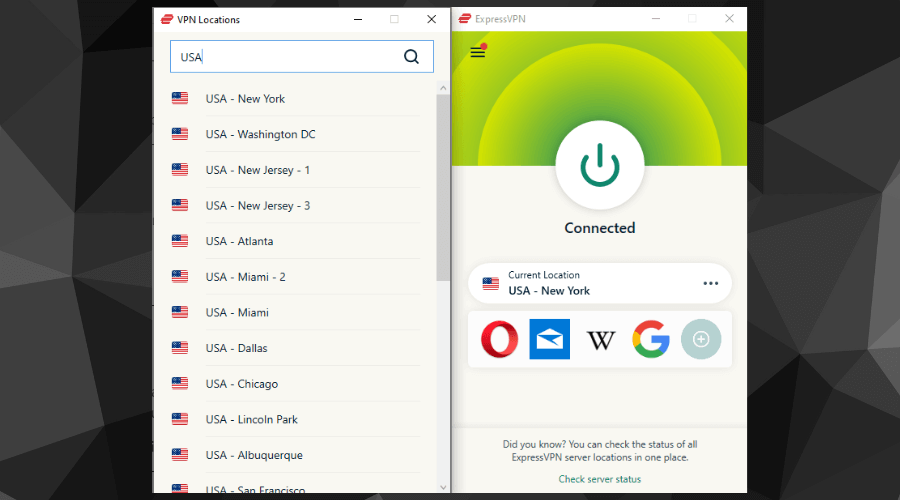
Using a VPN will hide your IP address, and re-route your connection through secure servers while encrypting your traffic to prevent it from being monitored.
By the end of it, Spectrum’s website will believe you are located on the US server you connected to.
As a result, you won’t have any problems accessing this US-only service, even from outside of this region.
ExpressVPN
Unlock geo-blocked content and navigate the internet safely with this powerful VPN solution.
Proxy servers are a great alternative to mask your actual location if you’re not ready for a total VPN commitment.
Most of them are free, so you won’t have to spend a dime trying to mask your location and bypass Spectrum’s Access Denied error.
On the other hand, using free proxy servers might significantly slow down your connection, given that many users constantly assault them.
Last but not least, advanced filtering and firewall systems can easily pick up on proxy traffic and restrict you from accessing specific resources.
By comparison, modern VPN solutions have traffic obfuscation features that could help you fly under the radar.
Smart DNS services
Using Smart DNS is perhaps the fastest method. In short, it can hide your location like a VPN but with no speed loss.
Let’s discuss this in more detail: a Smart DNS service replaces your ISP-assigned DNS with a private address hosted in a certain location.
Furthermore, your IP address will stay the same, and your traffic will be visible to your ISP.
As a result, you’ll be able to access resources such as Spectrum’s geo-restricted website quickly, just as long as you select an appropriate location.
Smart DNS services are fast due to their lack of encryption. Thus, if you also care about your privacy as much as you do about bypassing Spectrum’s Access Denied error, you should consider using a VPN.
Tor
Tor is still one of the most popular choices for hiding your online identity. Thus, it makes sense to use it if you want to access Spectrum and bypass the Access Denied error.
Aside from masking your IP address, Tor also hides your actual location and makes it seem like you’re in a different place.
Some of the most commonly known drawbacks of Tor include its slow connection speed and the random factor regarding location spoofing.
To summarize, Tor is free and can effectively hide your location. However, it’s also prolonged, and you can’t choose a specific location like you can with VPN services.
However, suppose you want to land in a specific exit node country. In that case, you can modify some configuration files, which is not intuitive, especially for non-tech-savvy users.
All things considered, if you’re trying to bypass Spectrum’s Access Denied error, there are many ways you can tackle this issue.
VPNs are arguably one of the best ways to go about it, but you’ll have to commit to buying a premium plan, given that free VPNs aren’t as effective.
Surely, you may bypass it successfully by using some of our other suggestions. However, you may experience some drawbacks, including slow connectivity, lack of encryption, and even the inability to choose a specific region.
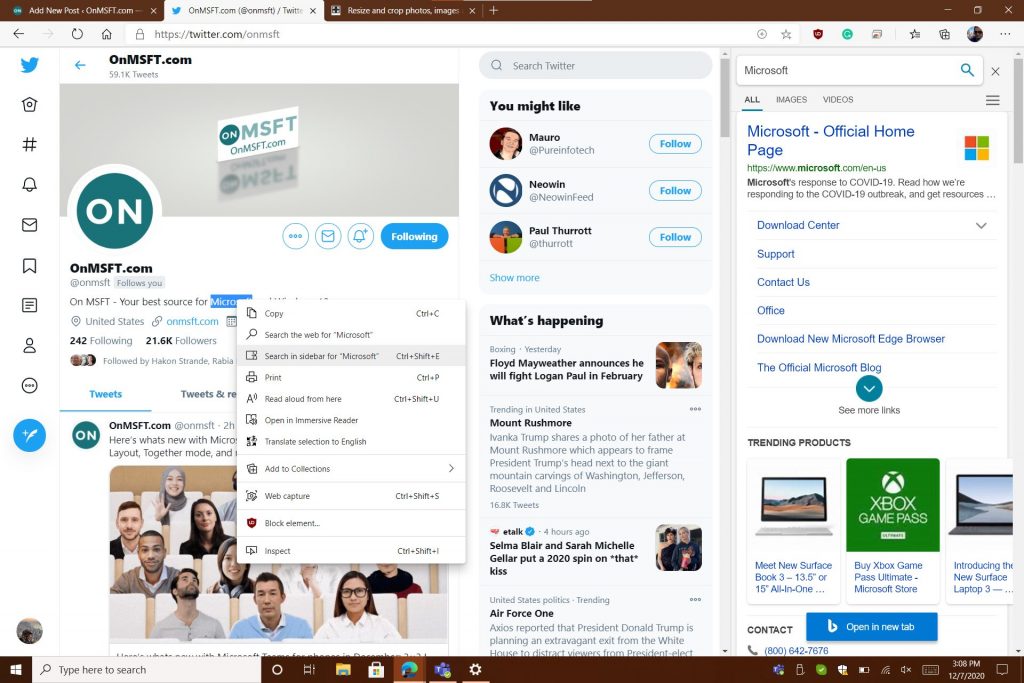
After initial testing with Edge Insiders, Microsoft is finally rolling out the “Search in Sidebar” feature to the production version of the Chromium-based web browser. As long as you’re running Edge version 87.0.664.55 or higher, you can now drag to highlight a word and then right-click on it, then choose Search in Sidebar, and get a contextual search box to the right side of Edge.
Specifically, this new option can be useful for things such as definitions, web links, images, videos. Compared to the “Ask Cortana” feature in legacy Edge, you’re also getting image and video verticals, which show better results related to the highlighted word or phrase. You also can summon it with CTRL+Shift+E, too, without clicking, as an alternate shortcut.
It’s important to note, though that sidebar search is persistent in the tab in which it was opened. You’re going to get the option to close the pane (with the “X) or look up additional information related to other words using the search box from Bing. You’re also able to use the“Open in new tab” button which opens the web results in a new tab.
This feature will definitely be useful for educators, students, and even journalists, too. Perhaps even for shopping, in combination with the Collections and price checking feature in Edge, as well. Let us know what you think in the comments.
Traditional computers are still going strong, but they no longer detain the monopole. A pool of alternatives is now available on the market and diversity, as always, is a good thing.
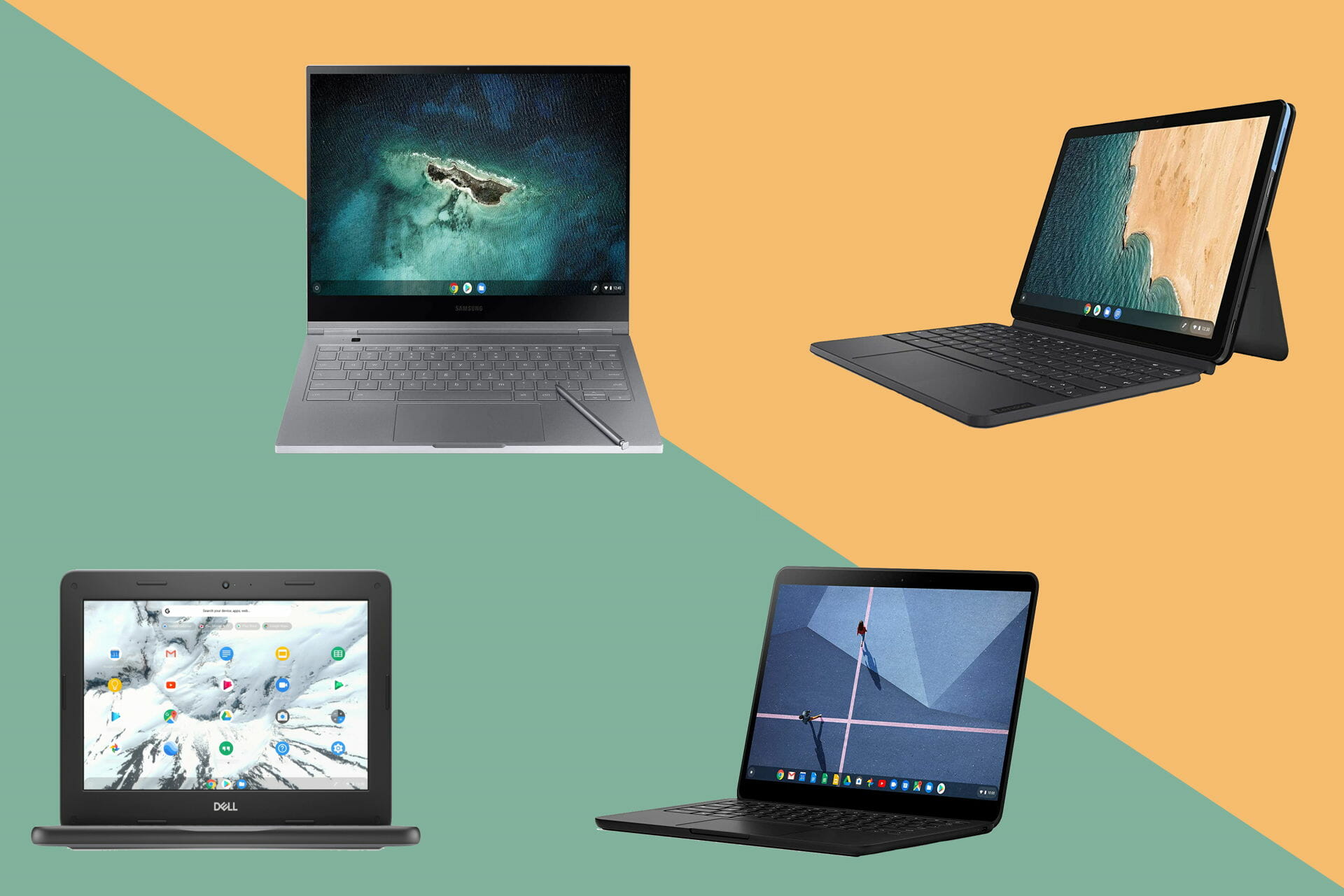
One particular alternative that is steadily gaining terrain are Chromebooks, hybrid-like devices that can be used as both laptops or tablets that primarily run on the Chrome OS.
We say primarily because recent years have spiced things up even more and now, we have Chromebooks that can run Android or even Linux apps.
And let’s not forget about the plethora of enhancements such as bigger screens, more computing power, and propers keyboards that were injected into these devices in recent years.
Price-wise, of course, a Chrome will be more affordable than a full-scale PC. But today, we want to show you the very best options for the lowest of budgets.
So, without further ado, here are our top 5 Chromebook recommendations that go for 200$ or so to fit all pockets.
For those of you who thought that Chromebooks and gaming are no match made in heaven, this device is here to prove you wrong.
With all the rights boosts in all the right places, this Chromebook is perfectly optimized to provide performance even in the most demanding scenarios such as intense gaming sessions.
The device is equipped with a powerful Intel Celeron N3350 processor, a 14-inch IPS HD SVA anti-glare WLED-backlit display, and beautiful Intel HD-powered graphics. To complete the immersive experience, audio is also one stead ahead with B&O play with dual speakers.
It may not be brand new, but it looks and acts like one. This HP-manufactured Chromed is powered by a dual-core Intel processor that is guaranteed to deliver performance.
When combined with Intel HD Graphics, you can expect a truly incredible viewing experience that is even further enhanced by the wide display geared with HD, SVA, and WLED anti-glare.
Wifi-ready (not to mention the Bluetooth compatibility) and backed-up by the Amazon guarantee, you simply cannot go wrong with this super-affordable and highly effective product.
Powered by an Intel Celeron processor that clocks at 1.1 GHz combined with 4GB of RAM, this Chromebook is all about boosting productivity as it allows you to open multiple tabs and run multiple apps simultaneously with no lagging.
The Intel HD 500 integrated graphics render fine-textured visuals on the HD display that stretched across 111.6 inches to provide an optimal viewing experience.
Coming in at approximately 2.2 pounds, this Chromebook is lightweight and portable, but also effective thanks to its Intel Celeron processor that pumps in enough power to support all your daily tasks effortlessly.
Speaking about portability, the device also comes with 2 Lithium-ion batteries included that will keep you juiced up for no less than 10 hours.
Last, but not least, the 11.6-inch display will have you set for a comfortable viewing experience in no time.
The Intel Celeron N2840 processor will put both its cores to good use allowing you to use this Chromebook for all your daily tasks, quickly and easily.
Its snappy performance can only be matched by the 11.6-inch display that offers crisp-looking images and is also HD-ready for your convenience.
The device is also highly versatile and Bluetooth-compatible to help you pair all your peripherals while keeping those precious USB ports free for more important devices.
Micro ATX and Mini ATX cases are pretty popular because they combine the power of a full-fledged desktop PC with a small form-factor, easier to store, and, why not, portable!
We tried to find the smallest Micro ATX cases for you but we also considered other features like proper ventilation or ease of access and security.
Corsair Carbide Air 540 is not the smallest Micro ATX cases but it’s one of the best from the smallest cases. It’s certainly the top case for cooling because you can mount up to six 120 mm or five 140 mm fans, with a 280 mm top radiator support and room for a 360 mm radiator on the front panel.
And this awesome case actually includes the 140 mm Corsair Air Series AF140L intake and exhaust fans that will not only ensure a very good airflow but it’s also a very silent solution.
The Corsair case comes with dual 3.5″ hot swap bays and four 2.5″ tool-free SSD drive cages for plenty of drives and storage.
The SilverStone CS280 has only a 12 liters volume but it offers incredible storage space and versatility in a very small form factor. This case supports a total of 8 hot-swappable 2.5” SAS/SATA drives, plus a ninth 2.5″ drive internally.
Nobody says you can’t mount so many drives in such a little case, but you probably won’t have any space left for the cables to wire them. It can hold an ITX motherboard, and comes with dual 80 mm intake fans.
The Cooler Master Box Q300L is a budget-friendly option for a very versatile Micro ATX case. Although the size is very small, this case supports a standard ATX PSU which it’s pretty rare with this size.
The I/O panel can be adjusted to six different locations based on the different system setup, three for each side of the case. Dust is a big problem for any PC but the magnetic dust filters on the front and upper sites not only that ensure proper ventilation but also keep the dust away.
The SG11 is an improvement over the best case design from the SilverStone portfolio, the Sugo SG01. It has the same, classic shoebox proportions, with 10.63″ (W) x 8.35″ (H) x 15.47″ (D).
Although it’s a Micro ATX case, the SG11 can accommodate many standard-sized components like an ATX power supply or graphics cards up to 14.5″ long for instance. This is a great case if you’re looking to build a compact workstation or a powerful small form factor gaming system.
If you want to build a Micro ATX gaming PC, Montech Flyer can help you all the way. It has two preinstalled 120 mm fans at the front and rear but it can host up to 8 fans.
You’ll be a fan too if you find out that this little tower case can hold Micro ATX, ITX, and Mini ITX motherboards, two 3.5″ HDDs, and also two 2.5″ SSDs.
The front RGB strip will add a touch of wow to the case and the dust-proof net from the top and at the PSU are easy to take off and clean.
This was out selection with the smalles Micro ATX cases for you to buy right now. You have to take into consideration that the small form factor of a case has to be doubled by versatility and intelligent cooling design.
If you have any suggestions, drop us a line in the comments section below.
If you work with a lot of data and sensitive information, you should avoid that these fall into the wrong hands. Consider, for example, the files and folders stored on a removable hard disk that gets lost or stolen.
The General Data Protection Regulation requires companies to adopt a series of security measures. Those should be applied for the encryption of data stored on notebooks, external hard drives, and other media.
But how is it possible to protect the files and folders stored on hard disks, external HDDs, or removable drives? How can you make sure that the data stored on these devices can only be accessed by the legitimate owner? How to reassure users that any third party will not access the data?
Luckily there are tools that you can use to encrypt HDDs or SSDs and keep any data safe.
?️ Quick tip:
Before creating the encrypted volume in the chosen unit, it is a good idea to create a backup copy of the unit contents.
This is only as a precaution, should anything happen to your original data. For this purpose, we recommend a free software such as AOMEI Backupper Professional.
This software help with system, disk, partition, and file backup, as well as with file synchronization and mirroring. It is currently one of the best tools to obtain an exact copy of your files.
AOMEI Backupper Professional supports both incremental and differential backups, and there’s also a command-line backup feature for advanced users.
You should store the image or backup on removable support or on another system. In this way, you can easily restore everything in case of problems.
AOMEI Backupper Professional
A simple and powerful solution to back up large files on any local or external drive, as well as in cloud.
VeraCrypt is a free opensource software considered as the direct successor of the TrueCrypt historian.
As opposed to TrueCrypt, VeraCrypt uses some improvements that allow you to trust on an even higher level of protection.
VeraCrypt allows you to create encrypted containers (volumes) within which you can save personal files and sensitive data. You can create the encrypted volumes on a local hard disk or on any removable hard disk or USB stick. You will only need to take care to mount the container after connecting the outdoor unit and disassembling it before removing it.
So, the application allows you to protect the contents of the hard disk and removable drives by fully encrypting it.
How to encrypt a hard disk with VeraCrypt
Launch the VeraCrypt installer by selecting the Install option. You can choose the Extract option if you do not intend to protect the system partition or the system disk. Remember that the system partition is the one hosting the operating system.
By choosing Extract you can still create encrypted containers and protect non-system partitions. In this case, you can save the files necessary for the VeraCrypt operation in a folder of your choice. You will, then, use the program as “portable” software.
In case you decide to install VeraCrypt on your system, the application creates – by default – a recovery point.
2. Connect the removable drive or the hard disk to be protected.
3. Start VeraCrypt.
4. Click on the Create volume button.
5. Click on Encrypt to non-system partition / drive then follow the instructions.
6. Choose between creating a VeraCrypt Standard volume and a hidden VeraCrypt volume.
For example, after you have encrypted the removable drive, nothing will happen when you connect it to your computer. To access the content of the storage unit, you will need to start VeraCrypt and mount it, using the interface.
You can mount or unmount then the encrypted volumes. If you choose the first option, you can to access the respective content. Vice versa, you make it impossible to access by unauthorized persons.
You should choose an encryption algorithm for data and a keyword (passphrase) that you will take care to keep jealously. Why so? To create a container encrypted volume (Create an encrypted file container option) or to protect a removable drive or an external hard drive.
How do I protect the system partition with VeraCrypt?
Alternatively, you can choose to encrypt the system partition or the entire system drive option by installing VeraCrypt. It protects the contents of the hard disk where the operating system is installed by encrypting all the files and folders.
This way, the content of the hard disk will not be readable by third parties that do not have a personal password.
VeraCrypt will encrypt automatically and completely all files, including temporary files, files used to manage the hibernation procedure (automatically turn on and off the computer), swap files, and so on.
Using encryption on the system partition or disk involves activating a pre-boot authentication mechanism.
Before loading the operating system, VeraCrypt asks to specify the passphrase or the personal keyword chosen when encrypting the unit.
Next:
Click the Create Volume button.
Select the Encrypt the system partition or entire system drive.
Select Normal.
Choose whether to encrypt only the partition containing the operating system or the entire hard disk.
Determine whether you want to encrypt the area, if any, located at the end of the hard disk, used by RAID systems, tools for system recovery, troubleshooting, diagnostics, and so on.
Create an emergency disk (Rescue Disk). You can use this disk to restore the startup of the operating system if you forget the passphrase or in case of malfunctions.
Windows 10, as well as older OS versions such as the Ultimate and Enterprise editions of Windows Vista and Windows 7, in the Pro and Enterprise editions of Windows 8 and Windows 8.1, on Windows Server 2008, you can encrypt and protect your hard disk using a built-in tool, BitLocker.
To enable it on your system, type BitLocker in the taksbar search box, click on Manage BitLocker. Choose to turn on the option on the desired drive.
You should know that Windows Vista and Windows 7 do not allow Bitlocker to start without the Trusted Platform Module (TPM) chip.
During the configuration phase of Bitlocker, Windows will ask you if you want to unlock the system by connecting a USB stick or typing a password.
The following steps are quite clear. They allow requesting encryption of the data actually written on the disk or even the encryption of free space.
There you have, two of the best SSD encryption software solutions available on the market. Let us know which one you installed and why.
TP-Link AC1750 Smart WiFi Router has a nice interface and setup and has many capabilities and features.
The main features it comes with are white and blacklisting, port forwarding, integrated USB ports, and many more.
The router has a phone app named Tether, and if needed, you can also generate a QR code in order to connect to the internet, which is a pretty nice feature.
D-Link WiFi Router, AC2600 MU-MIMO is a powerful router with USB ports that allow you to stream games and enjoy online gaming simultaneously.
Thanks to the Dual Core processor you will benefit from a powerful wireless internet network speed.
Moreover, the Intelligent quality of service feature will help you optimize the internet traffic by delivering seamless performance for your applications.
NETGEAR Nighthawk is another Wi-Fi router that will ensure you have a powerful signal and fast download speed even when you are some decent feet away from him.
You can connect up to 25 devices without seeing any changes in your streaming quality or the internet speed being affected.
Thanks to the WPA2 wireless security protocols, you are safe and protected while navigating the internet.
TP-Link AX6000 is the last product on our list, but not the least, as this router is strong, reliable, and powerful, which definitely makes it stand out.
Thanks to the strong 1.8 GHz Quad-Core CPU processor, this router will constantly deliver stable performance.
The TP-Link HomeCare features offer advanced security to protect your online privacy for all the connected devices.
We hope our list has helped you find the best router with a USB port that will be a nice addition to your home or office.
Google is constantly tweaking the tools that measure web pages’ responsiveness and now is finally offering a Heads-Up Display (HUD) for the Chrome browser.
This allows users to get a solid grasp on how much impact certain web pages have on the performance of their browser.
Even if that’s only an experimental feature at this stage, it can extend the Core Web Vitals platform that Google launched just a few months ago.
To be more precise, the company has created a built-in HUD that displays real-time performance metrics while using a web page.
Even more, it will also include a smoothness metric called Average Dropped Frame (ADF). That’s what Google reveals:
Chrome now has an awesome rendering benchmark system for GPU and rendering related benchmarks. It works on all Chrome flavors, even Android and CrOS, even in their content_shell forms.
How can I enable the new benchmark HUD in Chrome?
With Chrome Canary installed, type chrome://flags into the Chrome address bar and press Enter.
Up next, with the experiments screen opened, just search for HUD.
When the Show performance metrics in HUD flag shows up, click on the drop-down, and select Enabled.
You’ll be prompted to relaunch Chrome. Do so with no hesitation.
Once the browser restarts, you will see the performance metrics HUD while you browse the web.
This new HUD is meant to be placed in the upper right of a web page and will reveal some performance metrics that are needed to offer a good user experience when browsing a website.
The core vitals currently include First Input Delay (FID), Largest Contentful Paint (LCP), as well as Cumulative Layout Shift (CLS). Keeping these in check will ensure that the website is loading within an acceptable amount of time.
As for that ADF smoothness metric, it can measure the GPU and rendering performance of a web page. The lower the ADF, the smoother the page will actually be.
Do you want to try out the new Google Core Web Vitals performance metrics HUD? Let us know your decision in the comments area below.
These days, programs can provide tons of solutions to all kinds of modern problems such as organizing photos, learning a new language, and more.
You can also use a piece of hardware for your PC or mobile device to gain enhanced functionality. For instance, a mobile credit card reader is able to replace clunky, old-fashioned cash registers, and help you start accepting debit or credit card payments right on your computer or mobile device. But, on the other hand, not everyone owns such a mobile credit card reader, and this is where credit card reader software comes into action.
There are lots of credit card reader tools out there, and we picked three of the best ones that you can currently find on the market.
With Credit Card Terminal you will be able to turn your PC, tablet, or Windows laptop into a mobile credit card terminal. You will be able to accept payments even when you are on the go. This is an effortless and secure way to make sure that you never miss a sale.
Take a look at the best features that are included in this tool:
You can use the USB Credit Card reader on all versions of Windows 8.1 and also on Windows RT for free when you will be setting up a new account.
Using Credit Card Terminal, you will be able to swipe or key in credit cards, capture signatures, accept tips, and also collect sales tax.
You will also be able to send PDF receipts with a map that will be showing the location of your transaction.
All you have to do in order to be able to use Credit Card Terminale is download it from the Microsoft Store, enter your business information and instantly start accepting MasterCard, Visa, American Express, and Discover. The US-based support team is available to help you whenever you need it.
Credit Card Terminal
The simplest way to accept online payments on-the-go, from your phone, laptop, tablet or PC and let your business flow.
This is a free and also easy-to-use card authorization software. AnyCard Professional is a program that is used in order to authorize credit cards, and it comes with a pretty innovative approach that uses the Internet connection. The processing time is an automated one that runs in one or two seconds.
Check out the best features that are included in this software below:
The program was initially priced at $149, but now it is offered for free without any hidden costs involved.
The program does not come with any adware built into it.
You don’t have to provide your email address, unlike other software that is provided by other companies.
To be able to authorize cards, you will have to shop around and set up an account with a card processor, and AnyCard Professional only provides the software that allows you to authorize cards.
This program is really easy to use even for beginners.
AnyCard Professional states on the official website that is a small and generous way to give back to the community, and this is the reason for which it is free of charge.
The software does not come with support, but it does come with detailed help documentation which is filled with lots of helpful illustrations. This help documentation is built into the program. There is also included a PDF manual that covers the same help information that is found in the program. If you are having troubles while getting your Gateway configured, it’s recommended that you contact IT personnel or a more experienced computer user.
PaySimple provides one of the easiest and fastest ways to handle card transactions. Take a look at the most important features that are included in this program:
Using PaySimple, you will be able to accept credit cards on the spot in your store or office from a desktop computer or a laptop running Windows.
All you have to do is to plug a reader into your USB drive, and the transactions will sync seamlessly with the account that you have previously created on PaySimple.
PaySimple features a sleek website.
The software is ideal for users who want to collect and store data about customers.
PaySimple is excellent for business owners who need support for both recurring billing and ACH.
Overall, PaySimple is a great payment processor for larger businesses that are really concerned about getting a rich set of features. The merchant account provider includes tiered pricing. In order to find out what the fees are, you will have to negotiate them when you sign up. PaySimple provides merchant accounts for both card-present and card, not present transactions. You can check out the complete set of features on PaySimple’s official website.
These are some of the best credit card reader programs that you can currently find online, and they are all compatible with systems running Windows.
They all come with their unique set of features, and before deciding which one of these programs is the best for you, we recommend that you head over to their official websites to take a closer look at the software.
After you have analyzed their complete sets of features, you’ll be informed enough to make the best decision for your needs.
The Surface Hub isn’t a device that receives a ton of updates, and for good reason, as it’s designed mostly for communal use where sudden changes in UI, functionality, and features can become detrimental to expediency and productivity.
Perhaps, even worse than getting new UI and features that can disrupt a well-oiled productivity flow, is getting an update that breaks things, like the Windows 10 Team 2020 Update for the Surface Hub 2S.
On October 27, 2020, Microsoft made its Windows 10 Team 2020 Update for the Surface Hub available. The W10T 2020 Update was intended to help admins “manage installations using Windows Update for Business rings, similar to your standard Windows 10 update rings.”
However, since its release, Surface Hub 2S users have been complaining and sending feedback to Microsoft about the update causing various issues on the device. Microsoft hasn’t divulged the list of specific complaints, but today, it acknowledged the groundswell of Surface Hub users who are experiencing bugs and issues due to the new update rollout.
To date, we have 70% of all eligible devices in Phase 1 and 2 regions updated. While the majority of these devices were updated successfully, we have received feedback from a small number of customers who have encountered post-install issues. To ensure that we deliver an updated experience of the highest quality, we have taken two important actions:
We have created a summary of the current list of known issues, solutions, and remediations for transparency and to assist your team in diagnosing and resolving issues.
We have paused the Windows Update phased releases. Phase 1 and 2 were released per the schedule below and Phase 3 and 4 will be paused for the remainder of 2020.
In the same press release, Microsoft also offered workarounds for users that include using Bare Metal Recovery images to get around installation issues. In addition, Microsoft also noted that those who are “in a state of transition between Window 10 Team Edition version 1703 and 20H2,” by extending support through March 16, 2021.
Microsoft is currently working on a new set of translation capabilities for Outlook for Windows that will make it easier for users to translate their emails. The translation features will be coming in January 2021, according to an email sent out to Office 365 subscribers.
With this new translation experience, users will be able to automatically translate words, phrases, and full messages on their Windows PCs. More specifically, when a user receives a message in a language that is different than the user’s default mailbox’s language, the app will automatically provide a translation suggestion.
Microsoft says that there’s also an option for users to opt in to automatic translation, where the Outlook app will automatically translate all messages received in other languages. It is important to note that translation is an optional experience, and it will comply with the privacy settings of your respective organization.
The translation functionality is a useful feature that will hopefully make it easier to communicate and collaborate across different languages. As of this writing, it is under development and it’s available for Office Insiders. If you want to get early access to this new Outlook feature, you need to join the Office Insider program before it officially begins rolling out in mid-January.
The Outlook web app comes with handy convenience features to reduce context switching and help keep you focused. One relatively recent addition is the ability to view notes and tasks from within the web app, avoiding the need to maintain multiple browser tabs or alt-tab across apps.
Looking at notes first, click the “N” (OneNote) icon in the top-right toolbar to open the “OneNote feed” pane. Here, you’ll see any existing quick notes you’ve made in Sticky Notes or Outlook Notes.
Click the “Add a note” button to create a note. A note authoring page will appear, complete with rich text editing capabilities. This is based on Microsoft’s Sticky Notes app. Once you’ve done creating the note, it will show up back in the OneNote feed and within the Sticky Notes app on the web, Windows and mobile.
Despite its name, the OneNote feed doesn’t actually support regular OneNote notes yet. At the time of writing, a flyout at the bottom of the pane explains that support for OneNote pages will be added “soon”. Microsoft’s also planning Samsung Notes integration, further extending its support for Android mobile devices.
To view your calendar and tasks, click the Calendar icon in the top-right toolbar. The pane opens to a calendar agenda view. You can change which calendars are displayed and switch to a Daily view using the three dots icon next to the month header. To add a new calendar event, click the “New event” button at the bottom of the pane.
Microsoft To-Do tasks are accessed by clicking the “To Do” tab at the top of the calendar pane. Here, all your existing To Do tasks will be displayed, allowing you to quickly check them off or edit their details.
Click “Add a task” and start typing to create a new item. You can rearrange tasks and mark them as important. Right-click a task to see more options, such as the ability to set a reminder and due date.
All-in-all, these Outlook flyout panes are handy when making quick notes and tasks while browsing your inbox. As with everything connected to Outlook, changes are fully synced back to your Microsoft account, so events, notes and tasks will show up in Outlook Calendar, Sticky Notes and To Do respectively, irrespective of what you use to create them.
Finding the perfect laptop for your needs can be troublesome, especially when you must go through so many options.
There are many offers out there, and all of them seem great at first glance. In this article, we will explore some of the best 13-inch laptops with 16 GB of RAM to help you select the one that best suits your needs.
What are the best 13-inch laptops with great RAM capacity?
Dell XPS 13 is a reliable laptop with premium features and design, making it worth its price range.
Thanks to its 10th Gen Intel CPU, the laptop offers excellent performance, and the keyboard and touchpad make it the perfect choice for long work hours.
Moreover, the XPS 13 webcam has some nice improvements. It’s smaller and has a new 4-element lens, which is more than a typical camera’s, which delivers great video quality.
The Dell XPS 13 Touch Laptop is made of premium materials and has an aluminum chassis, which offers an elegant overall design.
The laptop is fast, strong, and reliable. It’s also easy to open, use, and carry anywhere.
Don’t let the size of the laptop make you think this is not a powerful one, as the 11th Gen Intel® Core™ processors and up to Intel® Iris® Xe graphics make it fast, smooth, and accessible.
In case you’re looking for something different, why not check Lenovo Thinkpad L15 Gen 4 specs and see if the device suits your needs?
Epson Stylus C88+ is an inkjet color printer, that can print borderless photos at a maximum resolution of 5760 x 1440 dpi.
You can print up to 23 ppm (page per minute) for black & white pages and up to 14 ppm for color. Furthermore, the input paper tray holds put up to 120 sheets at a maximum paper size of 8.5×14 inches.
With Epson Stylus C88+ to is possible to connect 2 computers at the same time, one using the parallel port and the other to the USB port.
This color printer, small and compact, is the best option for use at home, with an older PC and even with a newer one.
Epson LX-350 is ideal for front and back office environments needing continuous paper or multi-part stationery.
With this printer, you get speeds up to 347 cps (characters per second), allowing you to print bulk amounts of documents in a short time interval. It has a work capacity without failure for up to 10.000 hours, making it very reliable.
If you need a durable printer, easy to integrate with your system, Epson LX-350 is a great choice.
Zebra ZD500t is another great thermal printer, used for labels, that comes with additional connectivity options.
It works exactly like its sibling, Zebra GX430t, but you can integrate it on your network due to its ethernet port. This is a great feature because multiple users can print labels at the same time.
Except for the ethernet port, it also has a display which gives you some additional configuration options directly from the printer.
If you think that in a near future you’ll connect the printer to your enterprise systems, Zebra ZD500t is the best printer for labels that you can buy.
The Lexmark MS310DN printer is an affordable monochrome laser printer that has a lot to offer.
As for print speed, you can print up to 35 ppm thanks to the fast dual-core 800 MHz processor. It is also guaranteed to print 2500 pages per month without breaking.
If you need a printer for your small office, MS310dn is a great candidate because it creates high-quality prints.
Zebra GX430t is a monochrome printer used for printing labels, barcodes, receipts, and wristbands.
The printer uses thermal transfer technology, which means that you don’t have to install a toner because it doesn’t use ink to print. It uses a ribbon of either resin or wax, making the cost of printing almost zero.
Due to its small size, it is compatible with media rolls that have a one-inch core, a maximum diameter of 5 inches, and a maximum width of 4.25 inches.
If you want to create labels only, then this printer is one of the best with a parallel port.
The parallel port interface has almost completely been replaced by the newer communication standards like USB, ethernet or Wi-Fi.
However, if you have an older device, this guide will certainly help you to buy a printer that suits your needs.
If you have any suggestions don’t hesitate to contact us by using the comment section below.
Some of the projects the modern day engineer is expected to deliver are very sophisticated. It’s therefore imperative that engineers first assemble the right tools.
In civil engineering, many professionals believe that project success begins with choosing a dazzling civil engineering design tool.
But matters aren’t that straightforward because the market is currently flooded with civil engineering software.
On one hand, this can be a blessing since it’s hard to lack a befitting tool. Conversely, it can be a curse seeing that engineers have to spend more time comparing the avalanche of software.
So, which of these software is best for civil engineering?
What To Look For In A Civil Engineering Software
Civil engineering software incorporates a collection of tools to assist civil engineers during every stage in a project’s execution- from design to final construction.
Thus, at a bare minimum, the program should have each of these tools plus they should be running without bugs. The program is also supposed to run faster design iterations in addition to streamlining time-consuming tasks.
Additionally, the software should use visualization and simulation to improve project deliverables and decision making.
Lastly, programs with an intuitive interface are easier to use and help deliver projects smoothly regardless of their scale and complexity.
As mentioned, there are myriad civil engineering programs to help with the design, control, and completion of civil works such as bridges, roads, canals, and more.
Here is a brief look into the proven champions of civil engineering.
What is the best Civil engineering software for Windows 10 PCs?
Autodesk’s stranglehold on the engineering software market won’t end soon if they continue releasing high-quality programs like the wonderful Civil 3D software.
First, it supports BIM (Building Information Modeling) so professionals are assured of enhanced designs and construction documentation.
Then, it uses advanced simulation, visualization, and water analysis tools to improve decision making so that the end product will be of the best quality.
With its well-constructed collaboration features, Civic 3D expertly eliminates teething team coordination plus workflow challenges and could be a dream for teams in massive civil infrastructure projects.
Amazingly, they keep adding new features.
For example, the latest release has more accurate offset profiles, expanded corridor capabilities, and outstanding 3D virtual views of objects.
Others include automated parcel design, Geotechnical modeling tools, and an ability to produce annotated production plans.
One can download civil 3D for a 30-day free trial then choose to either subscribe for the monthly, annual, or 3-year plans.
Extend your BIM (Building Information Modeling) with Revit. You can use it to plan, design and construct buildings and infrastructure elements.
Instead of creating just a drawing of the elements in your projects, with Revit you are building 3D models. For each element in the model, you can attach a lot of information.
Learning how to use Revit, it means you will have the confidence of manipulating the data from a BIM model and you can easily see how one change to one object in a model will automatically impact the rest of the design.
The first version of Revit was released in April 2000 and, since then, it has been developed rapidly.
Now it is a piece of software much more data-intensive than AutoCAD but also less flexible because of its stricter rules necessary for constructing something safe and in coordination with other stakeholders.
Revit
Download Revit to create higher-quality, coordinated, model-based designs in 3D with integrated automation of repetitive tasks.
If you’re not interested in simple house and building designs and are looking to help with projects that are of a more macro scale, such as a city’s infrastructure, then AutoCAD InfraWorks 360 is what you need.
It has the same familiar AutoCAD design although the toolset and built-in templates and features are made to help with projects such as roadway, bridge and drainage designs.
It doesn’t matter whether you are at the transportation phase or if you’re already into the engineering, design and management phase of a large-scale project, InfraWorks has everything you need.
You work can also be shared in real-time using cloud technology, so getting hold of contractors and getting their live feedback has never been easier.
Besides, last minute changes and even new projects can be modified and sketched incredibly fast because InfraWorks lets you create the existing environment using vector data, raster data, and data from other global sources.
All in all, if you work in construction at a much larger scale and need to be in constant contact with your employers, AutoCAD InfraWorks 360 is what you need in your life.
AutoCAD InfraWorks 360
Design the infrastructure of a neighborhood, block, or even an entire city with the help of this incredible CAD tool.
MicroStation is another genius civil engineering software and closely rivals civil 3D when it comes to modeling different infrastructure projects.
The software actually edges the rest on several fronts.
Users looking at a program that doesn’t hog system resources like RAM are the first winners since Microstation typically runs pretty light. The system is also a favorite for engineers searching for speedy modeling, viewing, documentation, and visualization of projects.
Microstation is lately very simplified and the interface made so easy that total engineering newbies get the hang of it pretty fast.
Civil engineers need as many technologies as possible to meet the expectations of demanding clients and the program doesn’t disappoint.
It comes with a raft of traditional CAD capabilities supported by a horde of revolutionary inventions including 3D parametric modeling making it a versatile choice for varied infrastructure projects.
The quality of the paper plots, i-models, 2D/3D PDFs, reports, and 3D physical models is up there with the very best.
Unsurprisingly, the software application isn’t that affordable!
Because of their diversity and power, not many potent civil engineering applications come cheap.
And therein lays the biggest surprise about Sketchup! Sure, it’s one of the most complete 3D visualization programs for civil works yet, one can virtually do all site modeling with the free Sketchup version.
On the same note, there’re fantastic possibilities in SketchUp and its powerful extension warehouse.
For example, one can utilize pre-built assets from fellow users to speed up the foundational design process. Plus it makes the drawing and design forthright.
One simply draws shapes and lines. Then engineers just push and pull the surfaces to convert them into crisp 3D forms.
It additionally, stretches, copies, orbits, and paints to easily and quickly make anything desired. Better still, it has super-fast rendering performances for even complex designs.
In a nutshell, this could be the real deal for a civil engineer striving to grow into 3D visualization on a shoe-string budget.
Still, from Autodesk, AutoCAD is a reputable 2D/3D CAD program for civil engineers and one of the most widely used commercial design software.
The program intelligently creates basic geometry representing real-life information and is a great software for drawing inch-perfect lines and detailing of elements.
This software also features an impressive array of professional documentation tools not to mention that it supports an awesome drafting workflow, where individual drawings are edited independently.
The robust software provides native support for a DWG file and can easily identify graphical differences between different versions of drawings.
Moving on, it flaunts lots of 2D graphics enhancements such as two times faster zoom plus panning and changing draw orders.
Furthermore, users can import geometry, raster images, SHX font files, and even TrueType text into drawings from a PDF.
Collaboration is seamless now that drawings can be accessed from multiple platforms-desktop, online, and on mobile.
Since there are so many considerations to make, answering the question of which software is best for civil engineering isn’t easy.
Knowing exactly the types of tasks one will be involved in is crucial as is one’s skills and experience with modeling software.
That being said, prices for the commercial tools are a bit on the higher so the available budget may limit the number of options.
But all is not lost since some of the excellent civil engineering software like Sketchup are free. In the end, what matters is that one gets a program that suits your engineering needs.
Welcome back to our Windows 10 news recap, where we go over the top stories of the past week in the world of Microsoft’s flagship operating system.
Windows 10 Twitter app gains a variety of design and feature improvements
The latest update for the Twitter app has brought a number of improvements and fixes. Changes have been made across the app, including tweaks to the design, accessibility improvements, fixes for DM issues, and more. You can read the changelog here.
Copyright Marisa Allegra Williams (@marisa) for Twitter, Inc.
Windows 10 Xbox app adds ‘My Collection’ and Install Management Center with latest update
The Xbox app for Windows 10 has received a new update that aims to make it easier to manage your installed and owned games through a new “My Collection” feature. You’ll be able to see games you own, have installed, those in your Xbox Game Pass ‘Play later’ queue, as well as being able to manage the install queue and turn on or off automatic updates.
Windows 10 Your Phone now lets users delete their smartphone photos
This week has seen the Your Phone app on Windows 10 make it even easier to manage your smartphone photo library, now adding the ability to delete photos via the app on your Windows 10 PC.
That’s it for this week. We will be back next week with more Windows 10 news.
Microsoft news recap is a weekly feature highlighting the top Microsoft news stories of the past week. Sit back, grab some coffee, and enjoy the read!
Microsoft makes privacy changes to its Productivity Score software as concerns arise
Microsoft’s Productivity Score software has come under flak recently, being claimed a “full-fledged workplace surveillance tool”. In response to growing concern over the tool, Microsoft is going to be making changes, including removing usernames from the data, making it more of an overall score of the entire organisation, rather than individualds.
Microsoft introduces new calling features for Teams
New calling features are being introduced in Microsoft Teams. Two of the main important new additions is call transfer and CarPlay support, among others. Call transfer allows for transferring a call between different devices, so that you can stay in a call whilst on the move, which is expected to launch in early 2021, whilst CarPlay support will allow users to make and receive calls using their vehicle, though no release timeframe has been announced.
Microsoft Flight Simulator to get a free VR update on December 23
Later this month, Microsoft Flight Simulator is to get a free update that adds Virtual Reality to the game. VR headsets from a range of manufacturers will be supported, including HP, Valve, and Oculus.
Microsoft Forms will soon allow users to collect survey responses from specific people
Overwatch is a great game, and many prefer playing it with a keyboard and mouse. While Overwatch doesn’t support keyboard and mouse natively on PS4, it might offer some limited support.
In theory, almost any keyboard and mouse should work with Overwatch on PS4 as long as you have the keyboard and mouse adapter, and in this article, we’re going to show you the best Overwatch PS4mouse and keyboard that you can use.
What is the best Overwatch PS4 mouse and keyboard?
HORI PlayStation 4 TAC Pro Type M2 is an officially licensed keyboard and mouse combo for PS4. The keyboard has LED-backlit, so it’s perfect for late-night gaming sessions.
The keyboard comes with a dedicated HORI Device Manager phone app that you can use to adjust the keyboard layout, DPI settings, and more. Speaking of DPI, the mouse offers up to 3200 DPI sensitivity, for maximum precision.
Regarding the compatibility, HORI PlayStation 4 TAC Pro Type M2 is compatible with PS4, PS3, and PC, and it’s a great OverwatchPS4mouse and keyboard combo.
This keyboard has 35 keys, and it’s made from ABS plastic. All the keys are backlit, so you can easily enjoy nightly gaming sessions. It’s important to mention that the keyboard has a wrist rest, so you won’t experience fatigue while gaming.
The keyboard also has a non-slip rubber on the bottom, so it won’t move even during intense gaming sessions. As for the size, the keyboard measures 6.7×8.6 inches.
MFTEK One Hand Gaming Keyboard and Mouse Combo is a decent PS4mouse and keyboard combo, so it might be worth checking out.
GameSir VX is an Overwatch PS4mouse and keyboard combo, and in addition to PS4, these devices can also work with PS3, Switch, Xbox One, and PC.
The mouse has 5 DPI levels, ranging from 400 to 12000, and you can also adjust the polling rate. The keyboard is wireless, and thanks to the 1000mAh battery, it can last for hours.
GameSir VX can also adjust HIP and ADS sensitivity, and there’s even a dedicated mobile app available for quick configuration, so it’s a perfect choice for gamers.
Another great keyboard for PS4 is BlueFinger RGB, and this model comes with 35 keys, and just like other keyboards, it supports multiple key presses.
The keyboard is backlit, and it has 13 different backlit modes. As for the mouse, it comes with 6 buttons, and it has four DPI levels, up to 2000. Of course, the mouse is also backlit.
BlueFinger RGB is completely plug and play, and it’s compatible with Windows, macOS, PS4, and Xbox One, so it’s a perfect choice if you want to play FPS games on PS4.
If you need an Overwatch PS4 mouse and keyboard combo, then ZJFKSDYX C91 might be just what you need. This set is compatible with PS4, PS3, Xbox One, and Switch, and it should work right out of the box.
It’s worth mentioning that a keyboard and mouse converter is available, so you should be able to use this keyboard and mouse even with unsupported games.
ZJFKSDYX C91 keyboard and mouse combo has a mechanical feel and the mouse is ergonomic, so it’s a perfect choice for prolonged gaming sessions.
Using an Overwatch PS4 mouse and keyboard combo is easy, but make sure that you have the proper adapter beforehand to ensure maximum compatibility with the game.
VPN Unlimited is a highly-rated VPN service for various reasons. For instance, it’s one of the few VPNs with a lifetime subscription plan.
Plus, it has a native app that supports all popular platforms, including Windows, Mac, Android, and iOS.
However, since it’s a piece of software, it might occasionally throw errors. A good example is the VPN service not started due to internal exception error found in VPN unlimited.
Normally, we would suggest contacting the tech team. But it might take a while until you get a relevant answer.
If you’re a hands-on PC user who prefers to troubleshoot software issues, keep reading to discover how to fix the VPN unlimited internal exception error in just a few steps.
How do I fix the internal exception error in VPN Unlimited?
Check your firewall
In the Windows Search bar, type Allow an app and open Allow an app through Windows Firewall.
Click Change settings (you must have admin rights).
Make sure that VPN Unlimited is allowed to access Public and Private networks.
Save changes and restart your PC.
If you’re using another firewall than the built-in Windows option, make sure to adjust the above steps accordingly and unblock VPN Unlimited.
Alternatively, you can temporarily disable the firewall to see if it’s responsible for the VPN Unlimited internal exception error.
But we can’t recommend it because you risk compromising your security even in that small timeframe.
Try using the wired connection (LAN) instead of Wi-Fi.
Flush your DNS and reset Winsock.
Make sure all network drivers are properly installed and configured.
Check router ports.
Reset router to factory values.
It’s critical to check the quality of your network connection and make sure that your Internet is stable enough.
Otherwise, it might be the reason why you keep receiving the internal exception error in VPN Unlimited.
Connect to another VPN server
Explore the multiple server locations provided by the VPN Unlimited app, regardless of your device.
If a specific server is down, it could result in connectivity issues. That’s why it’s a good idea to connect to VPN servers from different countries.
Reinstall VPN Unlimited
If VPN Unlimited didn’t install correctly, or if it was affected by a system option, then reinstall it. Perhaps the TAP drivers were not configured properly on your device.
And, if this solution doesn’t work either, you have no choice but to contact the support team and request assistance regarding the VPN Unlimited internal exception error.
Switch to an alternative VPN
We saved this step for last because we know how important it is to try and fix a software problem before dropping it and moving to a better alternative.
It’s possible that VPN Unlimited isn’t a good match for your Internet connection and devices.
If you got tired of dealing with various VPN errors, consider switching to an alternative VPN service, such as Private Internet Access (PIA).
PIA has more than 3,300 VPN severs across 48 countries. You can set it up on all popular devices, including Windows, Android, Linux, Mac, iOS, and even routers.,
When you are trying to edit a workbook shared with you, you may encounter the This workbook was opened in read-only mode error. This prevents the user from editing the workbook in Excel Online and desktop app.
This error can occur due to several reasons, including the original document being maintained in the desktop app on the creator’s computer. It can also be triggered if your company is transitioning to SharePoint.
If you are also troubled by this error, here are a few troubleshooting steps to help you resolve the This workbook was opened in read-only mode error when editing Excel files.
How do I stop Excel from opening in read only mode?
1. Disable Read-only mode
If you can download these workbooks to your local computer, download a copy.
Right-click on the downloaded copy and select Properties.
Check if the Read-Only attribute is checked. Uncheck the Read-Only attribute and click OK to save the changes.
Next, open the Security tab. Make sure you have full control of this file.
Close the properties window, and open the workbook with your Excel app to see if the error is resolved.
If the original document has the read-only attribute enabled, it will prevent the user from editing the file and display the error message. Make sure to uncheck the option to see if that resolves the error.
2. Disable Protected View
Launch the Excel app.
Click on File and then select Options.
Click on Trust Center and select Trust Center Settings.
Go to Protected View.
Next, clear all the three boxes of Protect View on the right panel.
Close the Settings window and relaunch the Excel app.
Open the workbook and check if the error is resolved.
Protected View is the read-only mode where most editing functions are disabled to protect the users from harmful files. However, this can cause an issue with other documents as well. Make sure to enable Protected View once you have edited the workbook.
3. Close the workbook on local computer
The latest Excel app comes with the co-authoring feature. However, if you are not running the latest version of Office 365, and if the file owner keeps the file open on their Excel desktop app, you may not be able to edit that file.
Make sure the file is not opened in Excel desktop, and then try to edit the file in Excel Online. Try editing other Office 365 files and see if you can edit with Office Online.
How do I change a SharePoint document from read only?
Right-click on the SharePoint document and select Properties.
Open the General tab.
Uncheck the “Read-only” box.
Click Apply and then on OK to save the changes.
Once you have made the changes, open the SharePoint document, and check if the read-only message is resolved.
How do I turn off read only on OneDrive?
Open File Explorer.
Right-click on OneDrive and select Properties.
Open the General tab.
Under Attributes, uncheck the “Read-only” box.
Click OK to save the changes. If you see a prompt asking if you want to apply the changes to all folders, subfolders, and files, click OK.
That’s it. This should resolve the OneDrive desktop app changing your documents attribute to the Read-only issue.
This workbook was opened in read-only mode message usually occurs if the file owner has set the document attribute to read-only.
This error can sometimes lead to other issues, such as Microsoft Excel cannot paste the data, but we have a special guide that addresses it, so don’t miss it.
You can resolve the problem by disabling the read-only attribute. If not, try disabling Protected View temporarily to fix the error.
Passwords are the first line of defense when it comes to your private data and things are no different for Google Chrome users.
Having a weak password leads to security risks that many hackers are eagerly waiting to take advantage of. Many of them end up hacking browsing activities of countless users.
Not all users follow some essential security guidelines like keeping complex passwords. To prevent that from happening, Google Chrome’s Safety check feature will let you know more about the weakness of your passwords.
That’s a nice addition to the previous features that included a safe browsing check and finding harmful extensions installed on your browser.
After all, users are skeptical about Chrome’s Safety check and need more details. Here’s what one of them says:
I’ve always wondered how good the Chrome Safety check is, can it detect adware, unwanted safety issues with Chrome.
How can I enable Chrome’s weak password check?
With Chrome Canary installed, enter Chrome://flags in the address bar and press Enter.
Up next, search for weak, and both Passwords weakness check and Safety check for weak passwords flags will show up. Enable them right away.
Restart the browser to keep the changes.
Find your way into Settings > Safety Check > Check Now in order to quickly perform a safety check of your passwords.
Google will automatically highlight the weaker ones. Waste no more time and click on the Review button to solve the encountered problems.
Chrome’s new weak password check functionality isn’t currently available in stable channels. In spite of that, you can already enable it in Chrome Canary by completing the above procedure.
Besides using complex and non-repetitive passwords for all websites, keep in mind that you can also setup 2-step verification.
That’s a great way to make sure that no one else can access your Google account. The rule stays the same even if a member of your family knows your current password.
Have you also enabled Chrome’s weak password check? Knowing that your passwords are complex and not part of data breaches is essential, so use the comments area to tell us your opinion.
Microsoft’s Edge browser Canary development branch is usually updated daily and yesterday the company rolled out version 89.0.722.0 which brings a significant upgrade to the browser with Chrome-like grouped tab features.
The new features were first highlighted by Techdows. Since Grouped tabs features are coming by way of the Canary development branch and appear to be officially supported in this capacity, we expect to see a full channel log drop later today.
Now Edge users running the canary branch of browser development will be able to test out Tab Groups and Tab Groups Auto-Correct features which supports users labeling their grouped tabs as well as the browser automatically generating tab groups from open tabs pointing at the same domain. As expected, all grouped tabs will be collapsible and function similarly to the way the feature is done in Google’s Chrome browser.
Aside from being a Canary only release right now, the other catch to utilizing this new test feature is manually enabling it. Grouped tabs is not enabled by default. Users will need to go to edge://flags, search “Tab Groups to turn on the feature after updating to 89.0.722.0, which should be hitting browsers some time today.