Microsoft responds to OneDrive NTFS snafu, says warning message was missing

If you know what snafu stands for, then yup, this is a snafu. Over the weekend, we received some tips that OneDrive users, who had been using SD cards or external drives formatted in another filesystem protocol were now requiring NTFS:

OneDrive NTFS warning

A number of commenters on our initial post had been using non-NTFS drives, for whatever reason, for some time, and were confused and upset that they suddenly had lost access to their OneDrive files. We asked Microsoft for comment, and although the 4th of July holiday slowed things down a bit, Microsoft emailed today to offer an explanation:

“Microsoft OneDrive wants to ensure users have the best possible sync experience on Windows, which is why OneDrive maintains the industry standard of support for NTFS. Microsoft discovered a warning message that should have existed was missing when a user attempted to store their OneDrive folder on a non-NTFS filesystem – which was immediately remedied. Nothing has changed in terms of official support and all OneDrive folders will continue to need to be located on a drive with the NTFS filesystem.”

In this doozy of a statement, Microsoft admits they’ve been missing (for years?) a warning message and “immediately remedied” the problem (without warning or announcement!!). They contend that “nothing has changed in terms of official support,” when every affected OneDrive user knows full well that a lot has changed. It’s just an incredible statement, for a lot of reasons.

In looking through this OneDrive documentation, we can’t find anything mentioning NTFS, and a search on Microsoft.com for “OneDrive NTFS” only brings up multiple complaints about the recent changes. While, according to Microsoft, non-NTFS filesystems aren’t officially supported, those systems have worked just fine until just this past week.

I tested my Surface Pro 4 again, to see if there was a workaround I was missing, but it’s now apparently impossible to use anything but NTFS with OneDrive.

There are a couple of ways to get OneDrive working again. I just formatted the drive to NTFS, and set up OneDrive from scratch, using the D: drive (an SD card) as the OneDrive location. OneDrive then re-synced all my files and was ready to go again in an hour or so. Our How To post on setting up OneDrive goes into all the details.

If you’re using ExFAT or ReFS, you’re going to have to reformat your drive, but if you’re using a FAT drive, you can use the “convert” command by opening up a command line and running “convert <drive letter>: /fs:ntfs” (no quotes). This will convert the drive to NTFS without losing any data, although it’s probably far more likely you’re using ExFAT.

We’re going to respond back to Microsoft’s response, to see if we can clarify the clarification, but the short answer is that OneDrive now requires NTFS. Situation normal, and all that.


How to create multiple partitions on a USB drive

A partition is a specific region of a hard disk or external storage device. The primary partition of a HDD is the C: drive, but some users add new partitions to their hard disks so that they can organize folders and files more efficiently. Partitioning HDDs is especially handy for multi-boot configurations as users can create a separate partition for the additional operating system. So there are numerous third-party software utilities for Windows that enable you to create new drive partitions.

Windows only recognize the first primary partitions on USB drives, which is a notable restriction. Consequently, additional drives on USB sticks don’t show up in File Explorer. As such, there are seemingly few advantages to partitioning removable USB sticks for Windows users; but Linux platforms do recognize multiple partitions on external storage devices.

However, times are changing; and with the Creators Update, Windows 10 does support multiple USB drive partitions. The Creators Update ensures that Windows 10 users can see multiple partitions on their USB drives in File Explorer. This update also enables you to add new partitions to USB sticks with the Disk Management utility, but you must have Windows 10, Version 1703 with ADK installed.

Set up Multiple USB Drive Partitions With Disk Management

So Windows 10 users with the Creators Update (v1703) can partition their USB drives with the platform’s Disk Management tool. First, back up your USB stick if it has files on it; but it’s better to partition an empty external drive if possible. Then you can add partitions to USB storage with the Disk Management system tool as follows.

  • Insert the USB drive into a desktop’s or laptop’s USB slot.
  • Then format your USB drive with the NTFS file system if it isn’t already. You can check the file system by clicking This PC in File Explorer, right-clicking the USB drive and selecting Properties.
  • If the drive isn’t formatted with NTFS, you can right-click the USB drive in File Explorer and select Format from the context menu. That will open the window directly below from which you can select NTFS on the File system drop-down menu.
  • Press the Start button on the window and then click OK to format the external drive in NTFS.
  • Now press the Win key + X hotkey and select Disk Management to open the window shown directly below.
  • Next, you should right-click the USB stick listed on the Disk Management window and select the Shrink Volume option.
  • A window that includes an Enter the amount of space to shrink in MB text box then opens. So enter the amount of storage space to use for the new drive partitions in that text box.
  • Press the Shrink button on that window to create unallocated space on the USB stick.
  • Then you can right-click the unallocated USB stick space on the Disk Management window. Select the New Simple Volume option from the context menu.
  • A New Volume Wizard opens where you can enter the size for the new partition in the Simple volume size in MB text box. However, leave that text box at its maximum value if you’re only adding one new partition.
  • Press the Next button, and then you can select a drive partition letter.
  • Click the Next buttons and press Finish to create the new partition. Then you’ll see the new partition on the Disk Management window.

Add new Partitions to a USB Drive With Bootice

  • Alternatively, you can partition your USB drive with third-party software if you don’t have Windows 10, Version 1703. Bootice is one program that includes a partition manager. So you can add new partitions to USB sticks with that program as follows.
  • First, press the Download button on this Softpedia page to save the software’s RAR file. As Bootice saves as a RAR, you’ll also need the freeware 7-Zip software to extract it.
  • Open 7-Zip, select the Bootice RAR and click the Extract button to choose a path to extract the software to. Open the Bootice window below from the extracted folder.
  • Insert your USB stick into desktop or laptop. You can select that USB flash drive from the Destination Disk drop-down menu.
  • Press the Parts Manage button to open the window shown directly below.
  • Press the Re-Partitioning button to open a Removable disk-partitioning window.
  • Select the USB-HDD mode (Multi-Partitions) option and click OK to open Partition Settings.
  • There you can configure the size of the partitions. If you only need one or two extra partitions, enter ‘0’ in two of the Size text boxes.
  • Enter the partition labels in the Label text boxes.
  • You can also select either an MBR or GPT partition table type. MBR is fine for saving files and booting more outdated systems.
  • Press OK to format the USB drive. This will delete all the USB stick’s files, so you should have already backed up the drive if required.

Bootice also enables you to select the partition Windows displays, which is handy if your laptop or desktop hasn’t had the Creators Update yet. Select the drive for Windows to display on the Partition Manager window, and then press the Assign Drive Letter button. Now File Explorer will display the selected partition.

Add new Partitions to a USB Drive With AOMEI Partition Assistant

Partition manager utilities also enable you to create partitions on USB flash drives. Adding partitions to USB drives is straightforward with AOMEI Partition Assistant. That also has a freeware version you can add to Windows by clicking the Download Freeware button.

  • Insert your USB drive in PC, and open the AOMEI Partition Assistant window.
  • Now you can right-click the USB flash drive listed in AOMEI Partition Assistant and select the Create Partition option.
  • You can specify the partition size and drive letter in the Create Partition window. Press the OK button to close that window.
  • The AOMEI Partition Assistant window will display the new partition for your USB storage device.
  • Press the Apply button to finish the drive partitioning.

⇒ Get AOMEI Partition Assistant

So that’s how you can create multiple partitions on a USB flash drive with the Disk Management utility, AOMEI Partition Assistant, and Bootice. Then you can organize your folders more efficiently on the external storage. There are plenty of other third-party programs you can partition USB sticks with, and this Windows Report article tells you about some of the best partition managers.

60fps is a “developer choice” says Head of Xbox Operations Dave McCarthy

In an interview with MCV, Head of Xbox Operations Dave McCarthy sat down to explain why the team decided to call the next console from Microsoft the Xbox One X. Of course, during said interview, some other interesting information cropped to the surface such as the topical debate of 60fps.

For Xbox fans, this has been one of the major complaints about the Xbox family of consoles. 4k resolution is an admirable goal for gaming consoles, bringing more beautiful and realistic graphics to the TV screen. So why are gamers so upset that most Xbox games aren’t at 60fps?

The PC ‘Master Race’ has had access to 4k gaming in 60fps for quite a while now. With the high performance that computers have been able to achieve, many console gamers have long since converted – or at least use their PC for more demanding games. The Xbox One runs most games at 30fps with a 1080p resolution. So with the Xbox One X focusing most of its marketing on the 4k resolution, fans feel like bumping up games to 60fps should be a natural progression for the next Microsoft console that is supposedly “in a different league“.

Xbox One S One X

But according to McCarthy, the job of creating higher frame rates is up to the studios that make the games (via MCV).

“We’re all about the developer choice there overall. Different developers are going to choose to do different things for different game formats. But the good news is that the Xbox One SDK that everyone writes to will be able to handle that variation. You don’t need a unique version for Xbox One X. It’s just going to know if I’m running a One X, will take advantage of it and going to feel like a premium PC experience overall.”

McCarthy went on to explain that the Xbox One X is one of the easier consoles to get developers “up-and-running in a day or two” with its SDK, allowing them more options with a 2,160 frame buffer or to increase their game’s fps optimization further.

Paired with 4k resolution televisions, the Xbox One X console is likewise an ‘elite’ console that is priced as such. Still, it’s been made clear that the newer console will give developers a chance to push their games to optional higher quality than the previous iterations in the Xbox family. Whether they take that opportunity or not, is up to them. Even so, gamers have been arguing that they’d rather see the increase of 60fps for games across the board rather than the same performance across more pixels.

Forza Motorsport 7

It’s already been confirmed that its flagship titled Forza Motorsport 7 will be able to hit 60fps in native 4K resolution. Unfortunately, other games like Destiny 2, will be locked at 30fps for compatibility across other console devices. It remains to be seen how developers will utilize what the Xbox One X has to offer and which titles will take advantage of its native 4K capabilities.

This guy jammed the Xbox One S and PS4 Slim together in one console called the “Xstation”

Have you ever wanted to save some space in your entertainment center and jam your Xbox One S and PlayStation 4 together as one? Well, Eddie Zarick, the guy who you may remember as the inventor of the Xbox One S Laptop, has a solution which he created just for the fun of it. Zarick’s latest creation, dubbed the XStation, is an ultimate Xbox One and PS4 combination console that combines the best of both platforms into one single home gaming console.

As detailed in his video above, Zarick was inspired by fan reaction to his Xbox Laptop and decided to create a “Xstation” home console which has both a PS4 and an Xbox One built inside. Ultimately using parts from both slim versions of the Xbox One and the PS4, he was able to both combine Sony’s and Microsoft’s home console into one case.

The Xstation features an HDMI out and a main power port on the back and two USB ports per console on the back, along with disc slots and eject buttons for the games on the front side. There is also a fancy LED indicator to show that the console is on, Green for when the Xbox side is being used, and Blue for when the PlayStation side is being used.

Though there is a sync button, a switch button, and individual buttons for each console’s power on the front of the console, Zarick explains that you can’t use the Xbox One and the PS4 at the same time, mainly because he believes “there is no reason for it.”

Zarick demonstrates how one can switch between Xbox and PS4 using the button on the console, saying that there is an HDMI splitter which helps transition between the two different consoles. At one point, he even gives a size reference between the two consoles, revealing a bit about the internals of the Xstation, and the fact that the motherboards of the consoles are sitting inside, one upside down, with the heat sinks aligned so it can cool both systems.

And, just if you had extra doubts, Zarick gives a live demo of how you can install games and switch between both consoles seamlessly. There is one caveat, though, as he explains that you need to turn one console off before switching to the other, since the Xstation takes the power and transfers it to the other side. And obviously, you will need to have both an Xbox controller and a PS4 controller to enjoy the experience.

Unfortunately, Zarick says that the XStation won’t be mass produced like his Xbox or PlayStation laptops since he says that it’s just a “fun project just to show.” Indeed it is fun, and we hope that one day Sony and Microsoft can come together and produce a console which will do the same.

What’s in a name? Dave McCarthy explains why it’s called the Xbox One X

Since its reveal at E3 2017, fans have been debating about the Xbox One X. It’s name, price, and game line up are all hot topics across the board. During an exclusive interview with MCV, head of Xbox operations Dave McCarthy sat down with an Xbox One X and answered questions about the next console from Microsoft.

Particularly, what many fans have been curious about is why is it called an Xbox One X? The team understandably wanted to slide it into line with others of the Xbox One family, but the years of calling it ‘Project Scorpio’ has become a fonder name for many in comparison to the Xbox One X revealed at E3 2017.

“There was a real appeal to going back to our roots as an ‘X’ box team. That original Xbox was founded on a principle of real technical innovation, opening up some new avenues for games developers, and gamers overall. So it didn’t take us long to land on the X name,” McCarthy explains. “It spoke to us, it meant something in our history. So, as a team, we gravitated to the name pretty quickly. But I like Scorpio as a project code name as well.”

According to McCarthy, the historical representation of the X is meant to show technical innovation. Even the look of the Xbox One X is black like the original, something that the interviewer also brought up. When asked whether the sleek dark color was intentional in comparison to the white Xbox One S, McCarthy replied:

“Were we that purposeful?” McCarthy muses. “At the launch of the original Xbox One, we did a ‘we made this’ white version of the console for our employees. So we had white in mind, it was actually pretty awesome, people like the design of it in their rooms. And obviously putting together the Xbox One S was a pretty special design moment for us.

“Did I know that we were going to land back on black specifically? That might be a bit of a stretch, but it was definitely a journey we went on from launch with that special edition. We also did a special edition of the original Xbox One in white that sold very well.”

Whether purposeful or not, the black color of the Xbox One X and the name of it is clearly attempting to redefine the Xbox family as the more powerful consoles to date, even so far as saying that it’s “in a different league” compared to the PlayStation 4 Pro. McCarthy also noted that he only recently received a prototype and in that time playing with his son, the Xbox One X was easy to set up and play with better performance on already released games like Halo 5 and Battlefield 1.

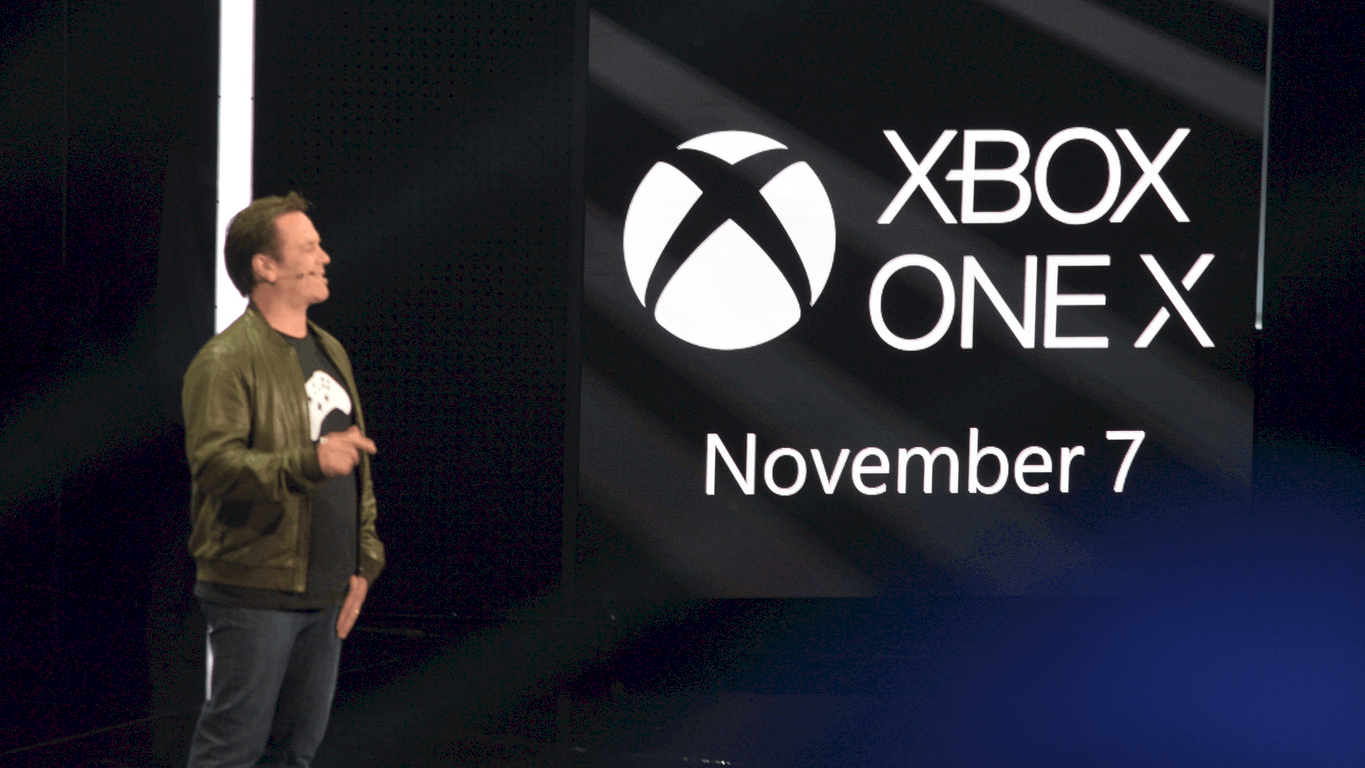
The next console from Microsoft will be launching on November 7. Have you decided if the heavy $499 price tag is worth the quality gaming experience or will you be sticking to the now discounted Xbox One S?

UK gets an expanded set of Azure Services

On the Microsoft Azure blog, the UK is set to get a number of new Azure Services in a much needed upgrade. Microsoft will be bringing the following Azure Services to the UK:

For another first in the UK, Microsoft Azure SQL Data Sync will be available as a Public Preview. SQL Data Sync Public Preview is SQL Database service that allows users to sync data across multiple SQL Server and SQL Databases. Users can sync their data and create sync groups that define specific databases, tables, or columns on a synchronization schedule.

Microsoft is pumped for the new Azure Services availability in the UK and hopes Azure enterprise users try them out and give Microsoft feedback via the Azure UserVoice.

How to project your phone screen to a Windows 10 PC

Wireless screen sharing is an increasingly popular way to consume media from a smartphone. Using protocols like Miracast, you can beam video from your mobile device to your TV. If you own a Windows 10 PC, you can project your screen to it too, letting you mirror your phone onto your desktop monitor.

Since the release of the Anniversary Update, Windows 10 has come with everything you need to stream your screen to your PC. You can both send and receive Miracast content within the operating system. To get started configuring your PC as a Miracast receiver, open the Settings app and click through to the “System” category.

Screenshot of Windows 10 projecting to PC Settings screen

All the relevant settings are listed on the “Projecting to this PC” page. Here you can choose where your PC is allowed to receive content and whether a PIN should be used for sharing.

Close-up screenshot of Windows 10 project to PC availability settings

The “Windows PCs and phones can project to this PC when you say it’s OK” dropdown menu lets you choose the physical locations that streaming is enabled for. By default, it’s set to “Available everywhere on secure networks.” Your PC will only show up as a Miracast receiver when it’s connected to a trusted network. Alternatively, you can force Miracast to be “available everywhere” or “always off.”

Close-up screenshot of Windows 10 project to PC availability settings

The second dropdown menu, “Ask to project to this PC,” controls whether you should be prompted before a device connects. Usually, “First time only” should be sufficient. You’ll get an alert the first time a new device connects but it will be remembered for subsequent uses. If you intend to use Miracast on an open network, “Every time a connection is requested” may be a safer option. Once you’ve finished setting the access controls up, you’re ready to start streaming content to your PC.

Screenshot of Windows 10 Connect app with compatibility warning

First, open the Connect app on your PC. This is Windows’ built-in Miracast player that will display the projected content. Then, on the device you want to stream content from, open your media and use the operating system’s controls to connect to a wireless display.

On Windows 10 devices, you only need to open Action Center and press the “Connect” quick toggle. Your PC should show up in the list if it’s on the same network. Tap its name to get connected. On Android, you can usually connect to a wireless display from the Quick Settings screen in the notification tray. The exact procedure will vary with the device used. iOS doesn’t include native support for Miracast devices but apps such as AirServer allow you to bridge the gap.

When you’ve connected your device, you should see a live view of its screen appear in the Connect app after a few seconds. It will stream in real-time from your phone, although performance will vary with each device combination. Only newer Windows 10 PCs and laptops include the dedicated hardware necessary for smooth Miracast streaming. If your device doesn’t fully support the standard, the Connect app and projection settings page will display a warning that performance might be degraded.

No PS4 release for indie gem Cuphead, game to remain an Xbox One/PC exclusive

Cuphead, the run and gun platform game with gorgeous vintage cartoons art style is one of the most exciting Xbox One/Windows exclusive titles to be released this year. The game was first shown three years ago during Microsoft’s E3 2014 press conference, and after a long wait gamers will finally be able to play it on September 29 with a simulatenous release on the Windows/Xbox Store and Steam.

The game is the first project by indie developer StudioMDHR Entertainment, and it won’t be released on Sony’s Playstation 4. Answering questions about the game on NeoGaf last week, the developers explained that the game will remain a Windows and Xbox One exclusive for now, though a Mac and Linux version could be released at some point (via Polygon):

Yes, this Cuphead game is exclusive to Xbox and PC (with Steam and Win10 versions at launch and a GoG release likely shortly after). There will likely be a Mac version down the road and possibly a Linux version beyond that (unless we lose our houses or whatever). We own the Cuphead IP.

Cuphead being a Xbox/Windows exclusive (the game will also support Xbox Play Anywhere if you purchase it from the Windows Store) is obviously a big win for Microsoft, though you may remind that indie games were clearly a big focus during Microsoft’s E3 2017 press briefing. We can’t really say the same about Sony, with Playstation boss Jim Ryan recently explaining to Gameindustry.biz that indie games were “less relevant now.”

With no new Halo or Gears of War title in the pipeline this year, Microsoft really needed a more diverse lineup of games to conclude 2017, and we expect Cuphead to do really well this fall. Let us know in the comments if you can’t wait to play the game on your Xbox One or Windows PC.

Digital Foundry digs up some initial Xbox One X benchmark specs

Eurogamer’s Digital Foundry was able to unearth some initial benchmark specifications for Microsoft’s new Xbox One X. As noted on Reddit, Richard Leadbetter posted a YouTube video guide where he details Microsoft’s Xbox One X benchmarks, as well as discusses 4K scaling on 900p and 1080p Xbox One game titles and backward compatibility performance.

Leadbetter’s extensive Xbox One X benchmark rundown on Eurogamer goes through Microsoft’s technical specs and whether the Xbox One X will be able to deliver on expectations. Leadbetter discovered some interesting insight into the Xbox One X benchmarks in a visit to Microsoft’s Redmond campus for a presentation by David Cook, a software engineer with Microsoft’s Advanced Technology Group (ATG). Take a look at the Leadbetter’s video below.

Leadbetter noted that Cook gave a detailed look at Scorpio Engine GPU, with “detailed performance profiling.” Leadbetter explains that the numbers presented in his report were not provided by Microsoft, but instead, “we sourced them via developer contacts and we further verified them before publishing.”

While it is hard to know for sure how the Xbox One X will perform in real-life testing, Leadbetter found some great insight and a look at Microsoft’s advice to game developers.

“The fundamental architecture of the Xbox One X GPU is a confirmed match for the original machine with additional enhancements. There are other features, including AMD’s delta colour compression, which sees performance increases of seven to nine per cent in two titles Microsoft tested. DCC is actually a feature exclusive to the DX12 API. In fact, DX11 moves into ‘maintenance mode’ on Xbox One X, suggesting that Microsoft is keen for developers to move on. There are benefits for both Xboxes in doing so – and there may be implications here for the PC versions too. We could really use improved DX12 support on PC, after all.

Expect an easy port to Xbox One X with a baseline 4x resolution boost, start with your high-end PC settings, use the memory well and fill any extra frame-time with additional effects. Guard carefully against increased loading stalls and – yes – consider techniques like checkerboard rendering and dynamic resolution. We’ve certainly seen representation of the latter techniques already, but as we move closer to Gamescom and the run-up to the Xbox One X launch, these early benchmarks are fascinating – and how the scaling demonstrated here translates into final shipping software should be fascinating to track once we have hardware and games to test.”

We will have to wait until the Xbox One X release on November 7, 2017 to see whether or not Leadbetter’s benchmark findings are correct.

Microsoft’s upcoming Faculty Research Summit to focus on AI

Microsoft’s annual Faculty Research Summit is coming up on July 17th, and the focus this year is “The Edge of AI.” The event will feature keynotes, sessions, and technologies, and will bring together leading figures in the computer science, social sciences, and human design worlds.

You can watch a live stream of certain segments from the event by clicking here, starting July 17th, 8:30 AM Pacific Time. Other parts of the event, and the keynotes which will also be live streamed can be seen below.

Together we will highlight some of the key challenges posed by artificial intelligence, and will identify the next generation of approaches, techniques, and tools that will be needed to develop AI to solve the world’s most pressing challenges.

  • Opening: AI in the Open World with Eric Horvitz, Microsoft, Technical Fellow and Managing Director
  • Keynote: Smart Enough to Work With Us? Foundations and Challenges for Teamwork-Enabled AI Systems, with Barbara Grosz, Harvard University
  • Research in Focus: Deep Learning Research and the Future of AI, with Yoshua Bengio, University of Montréal
  • Research in Focus: Conversational Agents, with Alan Ritter, Ohio State University, Lucy Vanderwende, Microsoft, Senior Researcher and Jason Williams, Microsoft, Principal Researcher
  • Fireside Chat with Harry Shum, Microsoft, Executive Vice President, and Christopher Bishop, Microsoft, Technical Fellow and Managing Director

If you’d like to learn more about the Microsoft Faculty Research Summit, you can visit this website to check out the full agenda, list of speakers, and more.

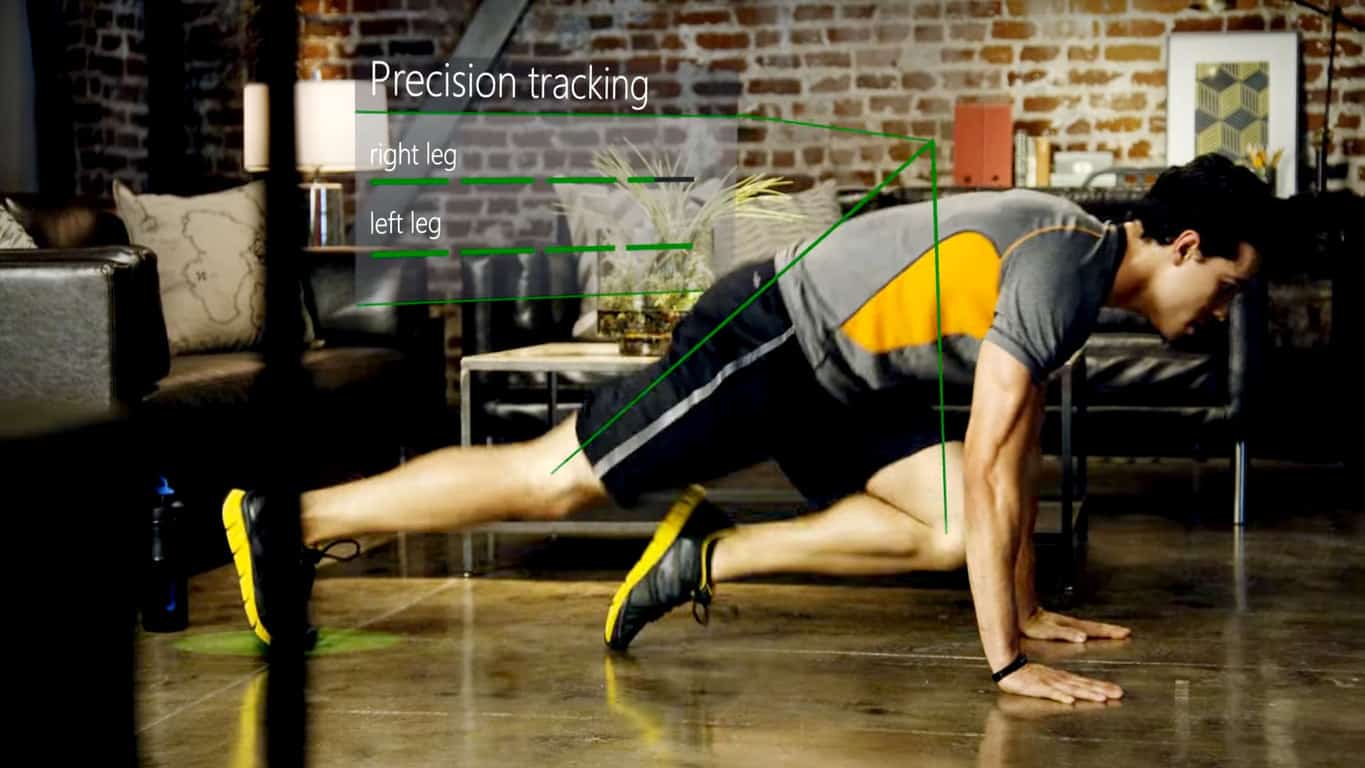
Xbox Fitness is still working on Xbox One after its closure

Last year, Microsoft announced that they would be shuttering the Xbox One’s Xbox Fitness program and would be phasing out its functionality in stages with none of the workouts being playable by June 30th 2017. It’s now almost a week after the apparent shutdown and Microsoft appears to have changed their tune somewhat.

On July 1st 2017, a new notification was added to Xbox Fitness which automatically displays when the app/program is opened for the first time since the deadline. It states that Xbox Fitness workouts can no longer be downloaded or streamed. This isn’t news but what’s interesting is that it makes no mention of lack of functionality for workouts that have already been downloaded onto the console. Indeed, all of the purchased workouts which I had downloaded onto my Xbox One work perfectly fine with all the related features such as stat tracking working as normal. Pretty great news!

It’s unclear how long Xbox Fitness will remain functional for loyal users with downloaded workouts but since the in-app notification only makes mention of streaming and downloading, it appears that it’s here to stay albeit with a userbase limited to those who have bought and downloaded content.

Are you excited by this change in policy by Microsoft and will you continue to use Xbox Fitness? Would you like to see some sort of Xbox Fitness revamp? Let us know in the comments below.

Death Note and other anime discounted on Xbox One and Windows 10

Microsoft is once again holding their Anime Month promotional campaign which means a plethora of anime series and movies are now discounted within the Windows Store that are playable on Windows 10 devices and the Xbox One video game console.

With movies, a variety of Dragon Ball, Naruto, and Inuyasha films have had their prices slashed quite significantly while Death Note, Dragon Ball Z, Naruto Shippuden, Fairy Tail, and many more series have also had their prices reduced. Some series such as Dragon Ball Z and Fairy Tale are also giving away their first seasons for completely free. These can simply be claimed from within the store. View all the anime discounts here.

Have you bought any discounted anime recently? Share your recommendations with us in the comments below.

Microsoft’s new Modern and Surface Arc mice are now available

Microsoft’s recently announced Surface Arc Mouse and Modern Mouse are both now available to buy in the Microsoft Store and other electronic outlets.

The Microsoft Surface Arc Mouse is available in black, gray, burgundy, or blue and is designed to work with the Surface line of devices but functions with other computers as well. The mouse can snap flat for easy storage and now supports both vertical and horizontal scrolling. View its store listing here and here.

The Microsoft Modern Mouse is ironically more of a traditional device aimed at those who like the look and feel of their current computer mouse. View its store listing here.

Do you like either of these new products and will you buy them? Let us know in the comments below.

Fix: Peek at desktop setting grayed out in Windows

Microsoft introduced Aero Peek in Windows 7, which enables users to peek through all open windows for a desktop preview by hovering the cursor over a Show Desktop taskbar button.

Although Windows 10 and 8 don’t include Aero effects, those platforms still retain Peek desktop previews. However, some Windows users have reported that the Use Peek setting is grayed out for them. This is how you can fix a grayed out peek at desktop setting in Windows 7/8/10.

Check the Enable Peek Setting

  1. First, check that Enable Peek is selected on the Visual Effects tab. To open System Properties, press the Win key + R keyboard shortcut, input ‘Sysdm.cpl’ in Run’s text box and press OK.
  2. Select the Advanced tab on the System Properties window.
  3. Press the Performance Settings button on that tab to open the window below.
  4. Click the Visual Effects tab. Click the Enable Peek checkbox if it’s not selected.
  5. Press the Apply and OK buttons to confirm selected settings.

Edit the Registry

  1. You can also fix the Peek setting with a registry edit. Open Run with the Win key + R hotkey and then enter ‘regedit’ to launch the Registry Editor.
  2. Click REGEDIT, HKEY_CURRENT_USER\Software\Microsoft\Windows\DWM on the left navigation pane as below.
  3. Now you can double-click EnableAeroPeek to open the window in the snapshot directly below.
  4. Enter ‘1’ in the Value data text box on that window, and click the OK button.

Run the Aero Troubleshooter in Windows 7

This is as fix more specifically for Windows 7 users. Some Windows 7 editions include an Aero troubleshooter that might help fix Aero Peek. You can run the Windows 7 Aero troubleshooter as follows.

  1. Press the Start button and enter ‘aero’ in the search box.
  2. Now select Find and fix problems with transparency and other visual effects to open the Aero troubleshooter window.
  3. Click Advanced and select the Apply repairs automatically option.
  4. Press the Next button to run the scan.
  5. If the troubleshooter fixes anything, you can click View detailed information for further details about detected issues.

Select an Aero Theme

Windows 7 users might find the Use Aero Peek to preview desktop option is grayed out for non-Aero themes. As such, if Windows 7 currently has a non-Aero theme, change it to an Aero theme instead, by right-clicking the desktop and selecting Personalize. Then select an alternative Aero theme.

Disable the LogMeIn Driver

The LogMeIn remote desktop software disables Aero Peek. The program’s driver is incompatible with Windows Aero. So if you’re using LogMeIn, consider removing the program and replacing it with alternative remote desktop software. Or you can disable the LogMeIn driver as follows.

  1. Open Run, enter ‘devmgmt.msc’ in the text box and press OK to open the Device Manager window below.
  2. Select Display Adapters and right-click the LogMeIn driver listed there.
  3. Select the Disable option on the context menu.
  4. Then restart Windows when prompted.

Close Anti-Virus Software

Anti-Virus software can also block the Enable Aero Peek option. If that happens, the setting might not be visible at all. So closing, or at least disabling, anti-virus programs might also fix Peek.

  1. You can usually disable anti-virus software from the system tray. To do so, you can right-click the software’s system tray icon and then configure the shield controls from the context menu.
  2. Alternatively, close the anti-virus utility with Task Manager by right-clicking the taskbar and selecting Task Manager.
  3. Click the Processes tab, and then scroll down to the software listed under Background processes.
  4. Select the anti-virus utility and press End task to close it.

Now open the taskbar settings or the Taskbar and Start Menu Properties window to select the Use Peek option. The peek at desktop setting will no longer be grayed out! Thus, you can preview the desktop with the Show Desktop button once more.

Xbox gamerscore king loses title after 11 years while on his honeymoon

Ray “Stallion83” Cox, long time owner of the world’s highest Xbox Gamerscore, has finally lost its crown after holding the title for eleven years (via Eurogamer). Three years ago, Cox was also the first player to reach a one million Gamerscore and it’s really impressive to see that the dedicated player managed to stay on top to this day.

But even hardcore gamers have to take some time off too, and Cox recently stopped his gaming sessions to go on honeymoon: this was when he was overtaken by Stephen “smernov” Rowe, who has a 1,591,840 Gamerscore at the time of this writing (Cox is not far behind at 1,585,854). According to a recent tweet, the former Xbox Gamerscore is not to worried about losing his title on such a special occasion.

As Cox has always taken achievement hunting extremely seriously, we guess he won’t give up his crown so easily. As you may know, this is pretty much a game within the game, and we certainly understand gamers who find the “Achievement unlocked” notification so addictive and gratifying. Sound off in the comments if your Xbox also turned you into an Achievement hunter over the years.

Sony pulls down PlayStation 4 Anthem trailer with Xbox One footage

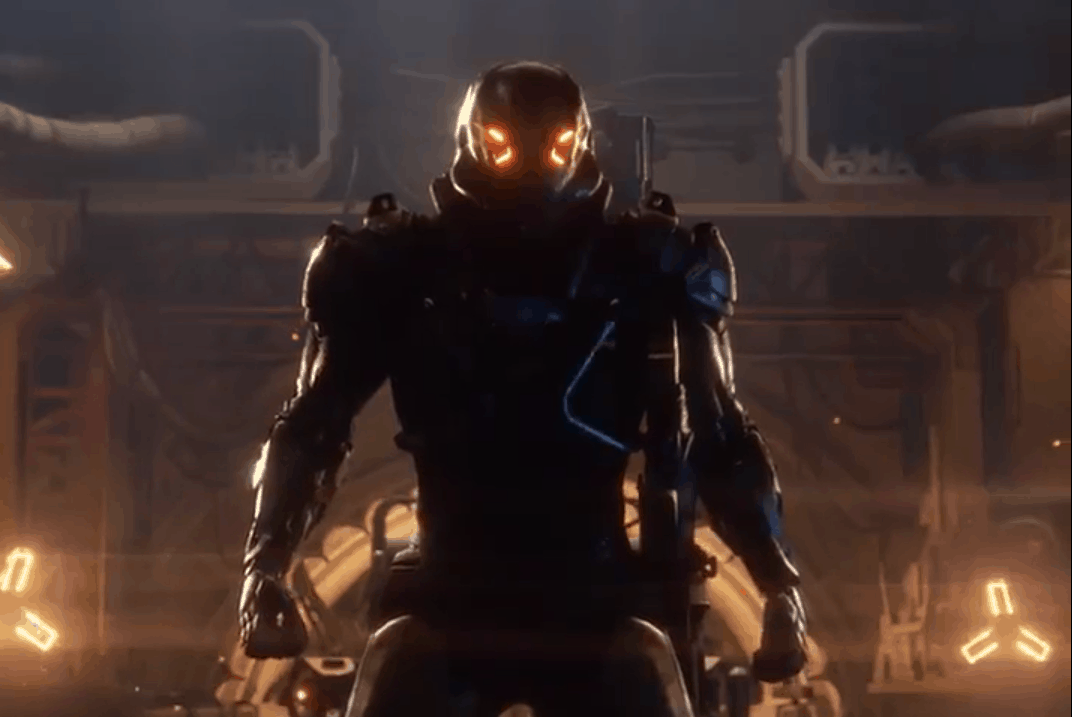
Yesterday, we reported that Sony uploaded a gameplay trailer video of Anthem, Bioware’s new open-world IP. The controversial video had fans in an uproar between Xbox One and PlayStation 4 more than usual when it was discovered that the video was the same used for its Xbox One X demo presentation at E3. The only difference was the edited button controls in the video, and unfortunately for Sony, they weren’t edited well enough.

After numerous reports and backlash concerning the video, it appears Sony has been feeling the heat. The video has since been removed. Not long after the news went viral, the video was marked as unavailable to the public.

Aaron Greenberg, General Manager of Xbox Games Marketing, summed up what many have been thinking with a single word mocking the video’s release:

It’s worth noting, as many have, that it’s more likely that the publisher created the video for marketing release. But without any statement from either party, we can only speculate. One thing is certain, the poor editing job left Sony marketing in the spotlight.

You can see the original Xbox One X footage of Anthem here.

E3 2017: Everything we liked and didn’t like from Microsoft’s Xbox One X reveal

With it now being more than a week since Microsoft’s 2017 E3 presentation, I decided to ask On MSFT’s Kit McDonal and Laurent Giret what excited them the most and where they felt the company could have improved.

Kit McDonald: For me, I’ve been mostly excited about Minecraft cross-play. Ever since Microsoft bought Mojang, it’s been clear that they’ve wanted to push Minecraft further. They’ve been teasing for a while now that they were hoping to merge Minecraft into one ecosystem for players to enjoy the game together, but when asked, they were always tight-lipped.

Laurent Giret: I was really pleased with the final Project Scorpio reveal: I think the Xbox One X branding is good, the design of the console is impressive, and it’s consistent with the Xbox One S. As for the $499 pricing, it’s quite expensive for a gaming console, but it’s actually very affordable for a 4K gaming machine (much more than a high-end gaming PC). Besides, the Xbox One S is still available to purchase and will support all upcoming Xbox One games, so gamers on a budget will still have options.

Brad Stephenson: I thought the Xbox One X console reveal was pretty solid as well and while its price is notably more expensive than its rival consoles, there’s no denying the value for money in regards to its tech plus there’s also the fact that $499 is exactly what the original Xbox One console sold for in 2013 (albeit with the Kinect). Not a bad deal really. It was a shame that the next Tomb Raider game wasn’t on display in 4K as a title like that could really help sell consumers on the Xbox One X. Honestly though, the console is a must-buy for me. It’s just a matter of when (likely before the end of the year).

Kit: The presentation seemed to go a lot smoother than what I was expecting. Moments such as the new Porche being revealed and the sportscast of the Darwin Project made the show an enjoyable watch. I can’t wait to play some of the new titles across both Xbox One and Windows 10 this year.

Laurent: The Original Xbox Backward compatibility was another big announcement I enjoyed. This probably won’t matter much to most Xbox gamers, but it makes the Xbox One more PC-like, and overall it’s a good incentive to invest in the Xbox ecosystem.

Brad: While some of the bigger titles like Anthem and Assassin’s Creed: Origins looked great, it was the smaller entries that piqued my interest. Super Lucky’s Tale admittedly borrows way too much from the Super Mario and 3D Sonic games to be called a completely original title but it is exciting to see a family-friendly game such as this on the Xbox One (and Windows 10) and given so much exposure during Microsoft’s E3 presentation. Another game that stood out for me was The Last Night which immediately became my favorite new game of E3. I’m generally over the use of 8-bit sprites in modern games but The Last Night makes the retro style look fresh and the entire game has a glorious aesthetic that’s somehow modern and old-school at the same time. I can’t wait to play this title. Was there anything you guys didn’t like?

Laurent: The Xbox One has suffered from two perception issues: Being slightly underpowered compared to the PS4 and Sony having better first-party exclusive games. Microsoft fixed the first issue with the Xbox One X this week but the second one still remains. Yes, Forza Motorsports 7 was a great demo for the Xbox One X but it’s is clearly not for everyone, unlike the more arcade and casual Forza Horizon 3, and unfortunately Sea of Thieves and Crackdown 3 are probably not the blockbuster exclusive games that the Xbox One X needed to make a big splash this holiday season.

Kit: I’m pretty easy to please actually. There wasn’t really anything I disliked from Microsoft at E3 this year. My biggest rant is about Bethesda but that’s a whole other topic.

Laurent: Microsoft probably had the more-impressive E3 press briefing this year but I think it lacked the ‘one more thing’ to please the more hardcore fans. This could have been Xbox Play Anywhere support for Gears of War: Ultimate Edition, or the release of Halo 5: Guardians on Windows 10 (Microsoft teased us with Halo 5 Forge on the Windows Store last year). These two franchises are very popular and their absence was really disappointing.

Brad: As an Xbox One owner who uses his Kinect every day, I was disappointed to see a complete lack of the console accessory during the presentation. With Cortana now available on the console, Microsoft has the capability to turn the Xbox One into some sort of Alexa or Google Home competitor and I’m fairly confident we’ll see some degree of this happen in 2017 or 2018. I’m not necessarily surprised the Kinect wasn’t mentioned given the need to promote the Xbox One X but some sort of small mention would have been nice. A new Dance Central game or a replacement for Xbox Fitness would have been amazing and would have gone a long way in reassuring all of the Kinect users who are beginning to feel abandoned. Maybe we’ll hear more about Kinect at Gamescom?

What did you like or dislike about Microsoft at E3 this year. Did they make you want to buy and Xbox One X or any of the new 4K-enabled games? Was there anything that was missing? Let us know in the comments below.

Details of Microsoft’s massive new sales reorg emerge

The sirens have been blaring and the warning lights spinning for a little over a week after information leaked about Microsoft’s plans to have a massive sales force layoff in the hopes of reshaping the company’s future, once again.

As D-day approaches for a lot of unfortunate employees at Microsoft, specific details surrounding the particulars of the company’s reorg are emerging.

According to a report from Mary Jo Foley from All About Microsoft, executive vice president Judston Althoff circulated a memo today which explained the company’s restructuring plans during and after the presupposed layoffs.

Microsoft will now have three units focused on seizing commercial and public fields sales. The three units titled Enterprise Operating Unit, Enterprise Services and Commercial Software Engineering teams and Commercial Software Engineering will all work closely with counterparts Marketing and Operations and the technical core group to offer sales and support for all business types.

More than just a name change and new targets, Microsoft is looking to put more focus on vertical targets that have seemingly be grossly under supported by the company.

The idea behind the entire move is to make Microsoft nimble enough to go after what Althoff believes are six important verticals including Manufacturing, Financial Services, Retail, Health, Education, and Government. While the listed vertices are already among the targets Microsoft is currently pursuing, the new team’s focus will be on addressing the horizontals such as how to accommodate a Modern Workplace, business applications, apps, and infrastructure as well as Data and AI.

In the SMC segment, Microsoft is focusing on both corporate accounts and small and mid-size businesses (SMBs). The SMC team will be divided into a handful of teams, namely Global Demand Center, which is designed to deliver direct revenue, sales leads and”consumption at scale”; Inside Sales; Marketing & Operations; Field Sales for SMC customers; and One Commercial Partner.

We’re not sure how this will play out when Microsoft begins to report its number for the following quarters. However, it not a far leap to assume this reorg will eventually better help Microsoft address its Small to Medium sized business experience which could, in turn,  give the company a leg to stand on in that area against the likes of Amazon and Google in the ongoing productivity and cloud war with the addition of One Commercial Partner.

As Mary Jo is reporting, an all hands on meeting was held today to presumably address the concerns of those affected by the reorganization. With that being said, we’re sure to hear more about Microsoft’s shuffling of departments and employees in the coming days.

From now until July 10 you can get free rubberized grips when buying Xbox Design Lab controllers

Microsoft is giving Xbox gamers a bigger reason to customize their controllers using the Xbox Design Lab.  As noted by Neowin, from now until July 10th, you can get free rubberized grips when buying a custom controller from the Xbox Design Lab.

Normally priced at $5.99, for the next week, the rubberized grips will be included for free on any order from the Xbox Design Lab.  Interestingly, the offer is also valid in the United Kingdom France, and Germany.

rubberized grips
A look at the rubberized grips

Safe to say that with the rubberized grips, you won’t be slipping up during those intense gaming sessions.  You can head to the Xbox Design Lab website now to customize your controller and choose from over a billion color combinations, metallic finishes.  For extra customization, you also can customize the colors of the back, bumpers, triggers,  D-Pad, thumbsticks, ABXY, view and menu button.  And, you can even engrave the controller with a personalized message of up to 16 characters.

As a reminder,  the Xbox Design Lab recently expanded to the UK, Germany, and France. But, you should also be aware that you can’t return or exchange a Xbox Design Lab controller order, so be sure to preview it before you make your final purchasing decision.

Do you think you will be picking up a custom Xbox controller because of this latest offer? Or do you settle for the standard controller instead? Let us know your thoughts in the comments below.

Sony uses Xbox One X E3 Anthem footage on Playstation YouTube gameplay video

It’s no surprise that Xbox One X stole the show at E3 2017 a couple of weeks ago. After all, it was the only hardware being shown off and it had a slew of beautiful new titles that Microsoft plans to release with it later this year. One such was Anthem, the new open world third-person RPG title from Bioware. Even though its release date is still up in the air, the buzz around Anthem has already pushed Sony to take advantage of the hype.

What was an Xbox One X exclusive developer preview created for E3 2017 has now been edited by the competing publisher. Last week, Sony posted the ‘Anthem – Official Teaser Trailer’ for PlayStation 4 on their official YouTube (via Neowin).

But what fans found most curious about the repeated video is the evidence of editing. As spotted by Eurogamer, fans pointed out that the Xbox One controller buttons were actually edited over by the PlayStation buttons.

Image Credit: Eurogamer

Xbox One X is reported to use the same checkerboarding techniques as Sony to run some of its games at 4K resolution. At least it was for the Anthem gameplay footage shown at E3. For Sony, that seems to be all it needs to know to pass edited Xbox One X gameplay as its own. We’d love to hear what you think!


Microsoft now selling its Modern Keyboard with Fingerprint ID in the US, Canada and China

Earlier this year, Microsoft released a $99 Surface Keyboard to go with its new Surface Studio all-in-one PC, but the company is now selling an even better version without the Surface branding (via Windows Central) . Welcome Microsoft’s Modern Keyboard with Fingerprint ID, which is basically the Surface Keyboard with a handy fingerprint sensor to use with Windows Hello.

The sensor is hidden in a normal key, and it can sign you in instantly with a simple press (be aware that Windows Hello is only supported on Windows 10 PCs). The new keyboard works with Bluetooth or a wired connection, and the Redmond giant promises up to 4 months of battery life with the included rechargeable batteries.

Microsoft is only selling its new keyboard in the US, Canada and China for now, and the company has yet to announce its availability in other markets. If you’re interested, you can get it for $129.99 on the US Microsoft Store.

Here are the best education apps for PC

The Windows Store offers many interesting education apps that you can use for learning purposes. However, there are around 1000 educational apps in the Store, so how do you know which apps are the best? This article aims at answering this question.

We are going to divide these apps into two categories: education apps for adults and education apps for kids.

The best education apps for adults

Reading Trainer

This amazing app can help you improve your reading speed. If you don’t have the time to enroll in formal speed reading classes, then Reading Trainer is the perfect app for you.

The app features many useful eye-exercises to increase your vision span, as well as tips and trick to improve your ability to concentrate. Try it out and you’ll see that you will double your reading speed in just a few days.

The statistics function lets you see and track your progress. The results of each training exercise are charted for your review. If you’re a student, or you work as an executive, secretary, or sales professional, this app is definitely going to help you.

You can download Reading Trainer for $3.99 from the Windows Store.


TED

TED brings some of the world’s most fascinating people who revolutionized the fields they activate in and challenges them to prevent their achievements and vision in 16 minutes.

You can filter task using various criteria, such as newest releases, most popular talks, trending now, etc. At the same time, TED also offers a series of playlists, focusing on particular domains or ideas.

Interested to see how education radicals, tech geniuses, medical mavericks, business gurus, and music legends think? Then download the TED app for free from the Windows Store.


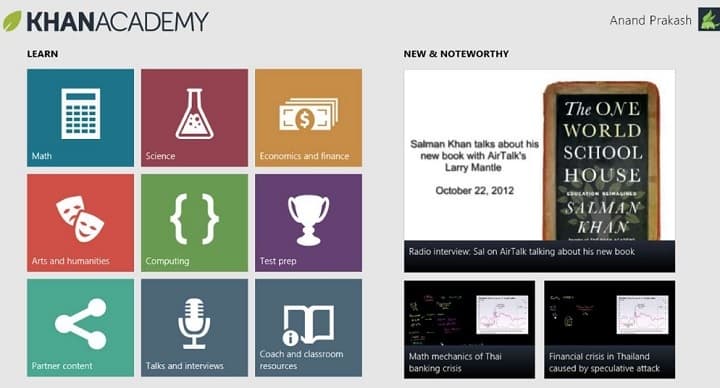
Khan Academy

Khan Academy is an app that offers you the chance to learn almost anything for free. The app covers a massive number of topics, such as biology, chemistry, physics, economics and finance, history, and more.

You can use this app to learn about the fundamentals of computer science or learn about how you can better manage your personal finances. Time spent using this tool is time invested in your personal education and growth.

You can download Khan Academy for free from the Windows Store.


Duolingo

Do you want to learn a foreign language, but you somehow never found the time and resources to get started? If the answer is yes, try Duolingo.

This app helps you learn Spanish, French, German, Portuguese, Italian, Irish, Dutch, Danish, and English in an interactive manner.

Duolingo is free, bringing college-quality education without the price tag. The UI is fun, you’ll lose hearts for incorrect answers and you can track your progress with shiny achievements.

You can download Duolingo for free from the Windows Store.


Memorize it!

If you need to learn something by heart, this app can help you. It will make the process easy through visual clues, anagrams and other memory techniques. The more you practice, the better you get.

The app’s UI is very simple and intuitive. Use the text field to enter the information that you need to memorize. Then select the best method to help you memorize the information.

The app is designed for various types of learning strategies. If you’re a visual learner, you can create gaps in the words; if you’re an auditory learner, you can use the audio playback feature and read along as the app reads the text aloud.

You can download Memorize it! for free from the Windows Store.


Critical Thinking Insight

This app features a series of reasoning skills tests and mindset evaluation tools that are used by HR specialists. The tests are divided into several categories:

  • My Learning Mind – Ages 11-17
  • My Thinking Mindset
  • My Thinking Skills
  • Quant Challenge
  • My Leadership Potential

After the app delivers your results, you also receive specific coaching suggestions to help you improve your skills.

You can download Critical Thinking Insight for free from the Store.


The best education apps for kids

Kindergarten Kids Learning

This app features a series of learning games and puzzles for kindergarten and preschool children. Parents and educators can use this app to teach children the alphabet, rhymes, counting, tracing, colors, shapes, the name of various vegetable, fruit and sports charts in an interactive manner.

You can download Kindergarten Kids Learning for free from the Windows Store.

  • Related: 6 of the best antivirus software with parental control

The Endless apps

If you want to teach your kids how to read or count, you can use the Endless Alphabet, Endless Reader and Endless Numbers apps.

Endless Alphabet helps kids learn their ABC’s and build their vocabulary with an adorable bunch of monsters. Each word features an interactive puzzle with talking letters and a short animation illustrating the definition.

Endless Reader introduces “sight words”. Kids need to recognize these words by sight in order to achieve reading fluency. This is an excellent learning method as many words have unusual spelling, beginners cannot yet use phonics knowledge.

Endless Numbers challenges kids to recognize numbers, sequences, quantity, numerical patterns, and do simple additions. The adorable Endless monsters will guide kids along the way.

You can download Endless Alphabet, Endless Reader and Endless Numbers from the Windows Store and try them for free.


Typing Fingers LT

Typing Fingers is a useful app to teach the efficient the ten-finger typing system. The tool offers a series of fun typing games for kids that allow all users, including adults, to improve their typing skills.

After you complete all levels, you’ll get a Typing Fingers diploma. The levels are built up gradually, so you learn how to use your keyboard in a fun and easy way.

You can download Typing Fingers for free from the Windows Store.


We’ll end our list of the best education apps here. If you’ve got any recommendations for similar apps, use the comment section below to let us know.

Parents can explore quiz focused learning through Blooket multiplayer, which offers interactive games that help kids practice knowledge in a fun and safe environment.

RELATED STORIES YOU NEED TO CHECK OUT:

Windows 10 news recap: Samsung Flow on non-Samsung PCs, France drops privacy complaints, and more

Welcome back to our Windows 10 news recap. We are continuing the trend of our weekly “Windows 10 news recap” series where we go over the top stories of the past week in the world of Microsoft’s flagship operating system.

Windows XP regains some market share, Windows 7 drops, according to NetMarketShare

Taking a u-turn from May, June saw Windows XP regaining some previously lost market share in NetMarketShare’s statistics, while Windows 7 fell slightly.

NetMarketShare June 2017

In wake of ransomware attacks, India presses Microsoft for discount on Windows 10 upgrades

Following multiple ransomware attacks lately, India is pressing Microsoft to discount Windows 10 upgrades, in order to encourage more people and businesses alike to upgrade to the latest, more secure operating system.

Windows 10 Build 2017

France drops privacy law complaints against Windows 10

Last year, France’s national information comission raised concerns about the data collected by Windows 10. At the time, Microsoft said that Windows 10 followed privacy regulations. Now, the commission has said that Microsoft has made changes that has reduced data collection by half and that it now complies with privacy regulations.

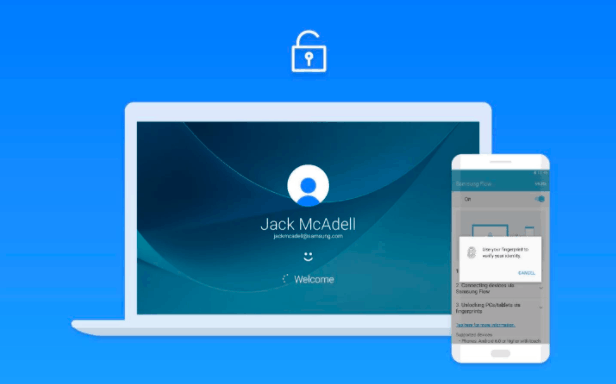
Samsung Flow updated, now supports any Windows 10 PC, unlock a Windows 10 PC with a Samsung phone

Previously only available on Samsung-based Windows 10 PCs, Samsung is now bringing Samsung Flow to all compatible Windows 10 PCs, allowing PCs to be unlocked using a Samsung phone, as well as cross-device notifications, and more.

That’s it for this week – we’ll be back next week with more Windows 10 news!

Xbox news recap: More Xbox One X news to be announced at Gamescom, Xbox One game storefront gets revamped and more

Welcome to our weekly Xbox news recap series, where we go over the top stories of the past week in the world of Xbox. Let’s get started.

More Xbox One X news to be announced at Gamescom

When asked whether or not fan favorite Halo 5: Guardians would be Xbox One X enhanced, Xbox boss Phil Spencer simply said that we would hear more about these titles at Gamescom later this year – although Phil himself will be unable to attend. While we didn’t get any kind of confirmation about what we should be looking for, the context prompting this answer can tell us a few things. The most important thing to take away here, though, is that older games like Halo 5 might just be on the menu for the Xbox One X 4k treatment. Don’t get your hopes up yet, but keep an eye towards Gamescom.

Xbox One game storefront gets revamped

Not a massive change here, but a convenient one. While users previously had to click through several tabs in order to get to the category of games they wanted to shop for, Microsoft has revamped the UI a bit to make it more convenient for people to look for things right from the main dashboard. While this isn’t the Fluent Design reimagining of the Xbox One UI that we believe may be coming soon, it’s a nice change.

Xbox One S E3 promo

Original Xbox games through Backwards Compatibility won’t change aspect ratio

Shouldn’t surprise most people, but it needed to be cleared up – when you boot up Fusion Frenzy or the original Splinter Cell on your Xbox One, you won’t be getting a better aspect ratio. Phil Spencer attributes this the the fact that giving widescreen to these games would be a significant undertaking, and would require way more resources per game than they can currently put into such a widespread project. Besides – most people would probably prefer the nostalgia of having that aspect ratio unchanged, so you can enjoy the early 2000’s in all their low-polygon glory.

Phil Spencer sets his eyes on Japanese markets

The Xbox One never took off in Japan. This is due to quite a few things – the dominance of Sony and Nintendo as a platform outside of America and the UK, the overwhelming preference for mobile gaming in Japan, or whatever else. Whatever you think the reason may be, Xbox’s Phil Spencer attributes the lack of attention from Japan to the lack of games on the platform that would resonate with Japanese audiences. In order to address the issue, Phil Spencer cited the upcoming release of a JRPG called Code Vein, along with an Xbox One X upgrade for Final Fantasy XV, as reasons why the Xbox One X may do better in Japan.

Microsoft, Xbox One

Only the Xbox One X will download 4k assets

Not groundbreaking, but it’s nice news for those who don’t want to waste space on their console – the Xbox One X will be the only console downloading 4k assets for games. While the Xbox One and Xbox One S can play any 4k enabled game, they’ll only be downloading the 1080p assets that they can actually play. 4k assets will only be taking up space on the hard drives of those who can utilize them, making sure that nobody’s wasting their time or space on something unnecessary.

Xbox One S One X

Thanks for joining us. To keep up to date with all the latest Xbox news, keep a close eye on our Xbox One tag.

How to bypass “It looks like someone else might be using your account” message

Sometimes you might not be able to log in to your account, and you’ll get It looks like someone else might be using your account error message. This issue can affect your email, Skype and Xbox account, so today we’re going to show you how to fix this problem on Windows 10.

How to bypass “It looks like someone else might be using your account” message?

Fix – “It looks like someone else might be using your account”

Solution 1 – Make sure that you’re using the correct password and email

Sometimes It looks like someone else might be using your account message appears while trying to log in to your email account. Even though this message says that someone else might be using your account, it’s possible that the message appears because you entered the wrong password a couple of times. To fix the issue, make sure that your login information is correct and try to log back in again.

It’s also possible that you’re signed in to your email account on another PC and that’s what’s causing this error. To fix it, make sure that you sign out of your email account on all other devices and try to log back in again.

Solution 2 – Wait for Microsoft to fix the issue

Sometimes this error can be caused by a temporary glitch on the server. Although these issues are rather rare, they can sometimes occur and prevent you from accessing your email. If it’s a server side issue, you’ll need to be patient and wait until Microsoft resolves it.

Solution 3 – Check for spyware

Few users reported that they were unable to access their email account due to spyware infection. According to them, it seems there was a spyware logging in to their email account. If you are also getting It looks like someone else might be using your account message, we strongly advise you to scan your system for malware and spyware.

Solution 4 – Recover your account

If you’re getting this error and you’re concerned that someone else might be using your account, you should try to recover it. Simply try to log in and choose the option to recover your password. You’ll need to enter your personal and recovery information, so be ready to do that. You need to be sure to enter as much information as you can in order to restore your account.

After doing that, you should be able to log in back again. Now you can go to the Account Settings section and view the recent activity. By doing that you can see all logins and password changes so you’ll know if your account was compromised.

Solution 5 – Contact Microsoft’s phone support

If you’re still unable to access your email account, be sure to contact Microsoft phone support. Several users reported that Microsoft operators were able to resolve the issue remotely, so be sure to contact them.

Fix – “It looks like someone else might be using your account” Skype

Solution 1 – Reinstall Skype

Several users reported that It looks like someone else might be using your account message appears on their PC when trying to access Skype. To fix this problem, you need to move few files and reinstall Skype. This is relatively simple, and you can do it by following these steps:

  1. Close Skype completely.
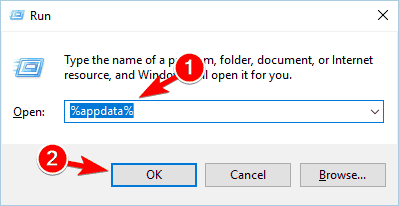
  2. Now press Windows Key + R and enter %appdata%. Press Enter or click OK.
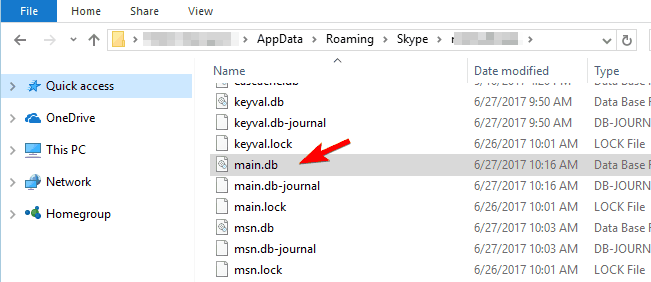
  3. Navigate to the Skype folder and then open the folder that represents your Skype username.
  4. Locate main.db file and copy it to your desktop.
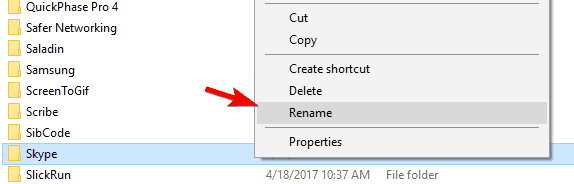
  5. Go back to AppData\Roaming folder. Locate Skype folder and rename it to Skype_old. If you’re unable to rename the folder, be sure to completely close Skype. If needed, use Task Manager to terminate Skype process.
  6. After renaming the folder you need to uninstall Skype.
  7. Download the latest version of Skype and install it.
  8. Optional: Some users are suggesting to create a new Skype account using Gmail, so you might want to try that.
  9. Log in to your account.
  10. Now you need to go to AppData\Roaming\Skype directory and navigate to your account folder. We already explained how to perform this in Steps 2-3.
  11. Once you open that folder, paste the main.db file from your desktop to it. If you see a messaging asking you to overwrite your files, choose Yes.
  12. Restart Skype and try to log in to your account again. After logging back in, you’ll have all your contacts and messages available.

Solution 2 – Change your Skype and Microsoft password

If you’re getting this error message while trying to sign in to Skype, it’s possible that your account is compromised. To fix this problem, you need to change your Skype and Microsoft password. Few users reported that changing the password solved the issue for them, so be sure to try it.

Fix – “It looks like someone else might be using your account” Xbox

Solution – Change your password

It looks like someone else might be using your account error message can also appear if you’re trying to access your Xbox account. This usually means that your account is compromised, so we advise you to change your password as soon as you can. After changing your password, the issue should be completely resolved.

It looks like someone else might be using your account message can appear on different platforms and it can prevent you from accessing your accounts. This message usually appears if your account is compromised, so if you’re getting this message be sure to try some of our solutions.

READ ALSO:

Windows 10 Mobile gets Bitpay Bitcoin wallet app

Windows Phone users feel left out on numerous occasions, but those that dabble in Bitcoin will be happy to know that Bitpay has released an official Windows Mobile app just for them. The new app is featured in the Windows Store and it allows Windows Mobile users to access Bitcoin through Bitpay.

Those that would prefer another provider should know that there is also a Copay Bitcoin app. That one is also featured in the Windows Store and it is available right now. It is considered to be more efficient thanks to the various benefits users can get from the consumer platform built by Bitpay.

The most important functions such as buying and selling Bitcoin as well as transforming it into another currency (USD) are available, as well as the ability to send funds to a desired location. There are a lot of other features included in the new Bitcoin app on the Windows Store.

Loads of integrations

Straight off the bat, it has to be mentioned that the new app features a lot of integrations with various functions and functionalities, with integration at the highest level with BitPay Visa cards. Users are able to fully manage, spend and load their funds which enhance the overall experience tremendously.

Amazon gift cards are also in high demand, so it’s pretty neat that the app features integration with Amazon gift cards, bringing even more versatility for users. Additionally, users can also make use of hardware wallets like TREZOR for instance, or Ledger. This is possible through the integration that the app has with these services.

Ease of access and the highest convenience

There are many characteristics that boost the user experience such as the ability to create multiple wallets or to use email services and push notifications in the mix.

Security is obviously a very important feature and the app doesn’t lack support in that department with its intuitive multisignature protection measures or security based on individual devices which stores keys locally instead of a cloud service.

Variety and customization

This is another area where the app shines with support for customizing wallets all the way to names and background/background colors. Users are also able to have their choosing of currency pricing, from a total selection of over 150 solutions. They can also choose whether they want their denomination in bits or BTC, which can be a really useful feature.

All in all, the new app is a really valuable tool for Bitcoin enthusiasts that use the Windows 10 Mobile platform. From the Windows Store, people can freely check it out and see if it has what they need to efficiently conduct their business.

RELATED STORIES TO CHECK OUT:

5 best malware tracker maps to see security attacks happen in real-time

The Internet used to be a safe place when it was first launched. Fast forward 30 years later to present day, the situation has dramatically changed. To put is plain and simple: malware is everywhere.

Antivirus and antimalware solutions are now compulsory in order to avoid getting your computer infected with malicious code. Unfortunately, the number of malware attacks have intensified lately, affecting users worldwide. The WannaCry, Petya and GoldenEye ransomware are only three of the most infamous ransomware attacks that made hundreds of thousands of victims in recent months.

If you want to keep up to date with the latest malware attacks, you can use dedicated malware tracker maps. These tools rely on massive threat intelligence networks to depict malware attacks in real time, including information about the malware type, origin of the attack and its victims.

Cyber threat real time maps

Norse Corp malware map


Norse Corp is the world’s largest threat intelligence network, relying on over eight million sensors to collect data. Its malware tracker map helps you stay informed, offering you real-time visibility into global cyber attacks.

The Norse online malware map allows you to filter the results by geolocalisation and protocols. You can track malware attacks from a specific region of the globe, or watch attacks unfolding all over the planet.

You’d never guess the scale of active malware attacks until you’ve analyzed a real-time malware tracking map. There are literally tens of thousands of attacks taking place every second.

You can check out the live Norse Corp malware tracking map here.


Kaspersky cyberthreat real-time map


Kaspersky Lab, one of world’s leading antivirus providers, also offers users a real-time malware map. Kaspersky’s map features an interactive Earth globe that allows you select a specific country and see detailed information about the number of ongoing malware attacks. The tool also offers statistics about the frequency of attacks for that country.

If you’re looking for a more general perspective on the ongoing malware attacks, you can click outside the globe to watch all the attacks unfold.

Kaspersky’s malware map also feature a buzz section, where you can find out more information about the most severe malware attacks that took place recently. You can also add the map to your website via the dedicated widget.

You can check out Kaspersky cyberthreat real-time map here.


FireEye Cyber Threat Map


FireEye’s cyber threat map offers users a general view on the most severe malware attacks taking place at a given moment. The company also provides visitors with statistics about the top target countries over the last 30 days, the top 5 reported industries, as well as the number of attacks reported on a given day.

You can check out FireEye’s real-time cyber threat map here.


CheckPoint’s live cyber attack map


CheckPoint’s real-time cyber threat map lists the malware attacks detected at a given moment, including information about the attack type, the attacking country and the target country.

In the upper left-hand pane, you can see statistics about the number of attacks reported on the current day and the day before, top target countries and top attacking countries.

You can check out CheckPoint’s cyber threat map here.


Fortinet cyber attack map


Fortinet’s malware attack map is an interactive tool that offers you both general and country-specific information. The map shows animated ongoing attacks, as well as information about the type and severity of the attacks.

To view specific statistics about the incoming and outgoing attacks for a particular country, simply select that country on the map and click on the details bar.

You can check out Fortinet’s cyber threat map here.

The malware attack maps listed above offer you real-time information about ongoing cyber attacks. However, they do not protect you from malware. Since prevention is better than cure, check out the articles below for more information on how to stay safe online:

Windows App Studio to shut down December 1, long live Windows Template Studio!

The UWP app creation tool Windows App Studio is retiring, according to a recent Microsoft blog post. The Windows App Team announced today that with the evolution of Windows Template Studio, the developer tool will be phased out and shut down completely by the end of the year.

Starting in the middle of next month, only existing users will be able to sign in. As the year progresses, the team hopes to see users transition over to Windows Template Studio. Here is the projected schedule for the Windows App Studio shutdown:

  • July 15, 2017
    • Only existing users can sign in
    • Finished application projects can be downloaded
    • No new dynamic collections data sources allowed to be created
    • Dynamic data will be allowed to be downloaded with a migration path provided
  • September 15, 2017
    • Application editor will stop working
    • Dynamic collections API will stop providing data to your existing applications
  • December 1, 2017
    • Windows App Studio will be shut down

Windows Template Studio is, for all intents and purposes, a better version of the Windows App Studio for Visual Studio 2017. Furthermore, it is open source and you can download it free on Github.

Microsoft reportedly planning a big Cloud First re-org for July 5th

Microsoft has been living the “mobile first, cloud first” mantra almost ever since Satya Nadella took over as CEO three years ago, but now it seems poised to re-org the company to better reflect its “cloud first” roots.

According to a (paywalled) report in the Puget Sound Business Journal (via Windows IT Pro), the company is expected to reveal the re-org on July 5th, making somewhat of a big splash right after the US Independence Day holiday.

Microsoft has been doing well with Azure, solidifying a second place position behind industry leader Amazon Web Services, and the company continues to push the benefits of the cloud, especially when tied to Office 365 and Windows, but working across a number of platforms.

Where this leaves the “mobile first” part of the equation is still yet to be revealed, as although there are consistent rumors of some kind of a Surface mobile device in the works, Microsoft’s main mobile strategy at the moment seems to be to get Microsoft services on iOS and Android, and to squeeze the last remaining bits of life out of Windows 10 Mobile and Lumia.

We’ll keep you posted of course on all the latest from Microsoft as news breaks.

In wake of ransomware attacks, India presses Microsoft for discount on Windows 10 upgrades

The past two months has been rough in terms of cybersecurity, particularly for India where upgrading to Windows 10 is considered a minority. With the recent WannaCry and “NotPetya” attacks exploiting older Windows operating systems, India has made an official request to Microsoft for a citizen discount to upgrade. Reuters reports an exclusive interview with India’s cyber security coordinator Gulshan Rai confirms that Microsoft has “in principle agreed”.

Rai told reporters that the government began its initative to push Windows upgrades not long after the WannaCry attack in May. Unfortunately, the cost of a new OS sets many of their citizens and businesses back. In India, Windows 10 Home runs 7,999 rupees (about $123 US) with Pro versions nearly doubled, Reuters pointed out. Even though Rai stated that nearly 200,000 ATMs were upgraded, that number doesn’t begin to touch the iceberg of the some 1.3 billion people in the country.

So how cheap is Microsoft expected to give away their ‘most secure’ home operating system? Exact numbers haven’t been released, and Microsoft spokespersons so far have refused to comment. However, Rai told Reuters that the one-time upgrade to Windows 10 will be discounted for the entire country, even going so far as saying that he expected the software to be “less than a quarter of the current price”.

The expected “throw-away prices” could encourage other countries to do the same, which could significantly impact projected revenue. No official confirmation has been released by Microsoft or other government officials at this time,


New LEGO Ninjago video game coming to Xbox One in September

Another LEGO-inspired game is set to be released for Xbox One this fall. Available on September 22, 2017 in the US, and coming to the UK later in October 2017, LEGO Ninjago will be available on Xbox One and Windows 10.

Here is the official announce trailer of LEGO Ninjago on Xbox One and Windows 10 PCs.

Following the storyline of the movie, LEGO Ninjago follows seven ninjas; Lloyd, Jay, Kai, Cole, Zane, Nya, and Mater Wu as they defend their island home, Ninjago, from the clutches of the evil Lord Garmadon and his Shark Army.

The ninjas of Ninjago must battle across 8 unique locations, each location featuring its Challenge Dojo, with plenty of LEGO collectibles and upgrades to pick up along the way.

LEGO Ninjago features Battle Maps too, so you can play against your friends and family locally with up to four players or via Xbox Live!

Stay tuned for more LEGO game news and we will let you know when LEGO Ninjago is ready for pre-order!

Windows 10 build 16232 bugs: Install fails, apps won’t launch, and more

Microsoft continues the Fall Creators Update build series with build 16232. This release adds a series of new security features to the OS, but also brings issues of its own.

If you’re planning to install build 16232 on your computer, check out this article to learn what to expect in terms of bugs.

Windows 10 build 16232 reported issues

  • Install fails

Many Insiders still can’t install this build version on their PC. The install process often gets stuck or fails with various errors.

I’m stuck on bluid 16215, have not been able to install any other build so far, they all fail either with 0x80070643 or simply won’t install after reboot. I really want to get out of 16215 since it’s a very buggy build, specially not being able to write ´´ for an spanish speaking person is awfull…. any way, let’s go for the third try on build 16232.

If you can’t install this build, try running the Windows Update Troubleshooter.

  • System Reserved Partition is unavailable

If you can’t access the System Reserved Partition using Disk Management, you’re not the only one. Many Insiders report that error 0x80240034 prevent them from access the respective partition.

  •  Apps won’t launch

Build 16232 sometimes breaks various apps. More specifically, when users double-click an app to open it, an error message appears on the screen, informing them that the app can’t be launched.

After I updated my computer to Build 16232.100 , my MSN WEATHER APP is not working.      Every time I click on Microsoft Weather , I get this message : THIS APP CAN’T OPEN . CHECK THE WINDOWS STORE FOR MORE INFO ABOUT WEATHER.

As a quick workaround, try resetting the respective app. Go to Settings > Apps & Features > select the problematic app > click on Advanced options > reset it.

  • Windows can’t print

Insiders report that they can’t print due to an allegedly printer setup error.

I get the error “Windows can’t print due to a problem with the printer setup.” That was from Word. Notepad++ gives “Can not start printer document.” When I try to print a test page, I get the message “Operation could not be completed (error 0x0000003d). The printer queue is full.” […]  I currently have build 16232. Print fails from both Microsoft Office apps and other apps.

  •  ‘The extended attributes are inconsistent’ error

Many Insiders report getting ‘The extended attributes are inconsistent’ error when they try to launch an app or install updates on their PCs.

To fix this error, reboot your computer and then go to Settings > Update & Security > Troubleshoot > select Windows store apps. The built-in troubleshooter should fix this problem.

  • Chrome hangs on full screen

Insiders also report that Chrome freezes for about half a minute when they use the full screen option. This problem doesn’t occurs on other browsers.

I am using Windows 10 Build 16232. In this build in Chrome Browser Full screen playback issue. If i play from YouTube video on full screen my laptop will hang for 40-60 Seconds. But other browser this not happen.

These are the most common build 16232 bugs reported by Insiders. As you can see, this build release is pretty stable and doesn’t feature any bugs that may break your PC.

If you encountered any issues after installing build 16232 on your computer, tell us more about your experience in the comments below.

RELATED STORIES YOU NEED TO CHECK OUT:
FIX: The Code Segment Cannot Be Greater Than or Equal to 64
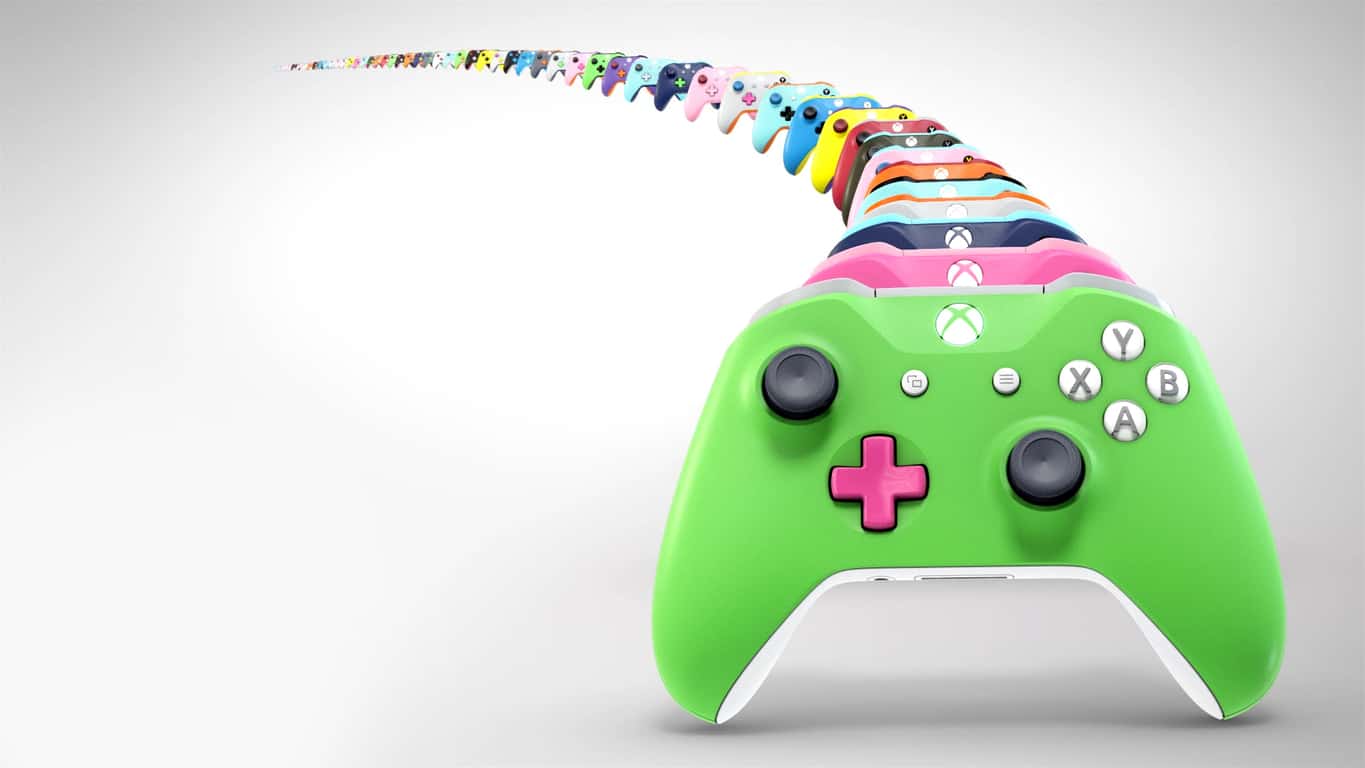
The ERROR_RING2SEG_MUST_BE_MOVABLE error is a system error and it’s often followed by The code segment cannot be greater than or equal to 64K message. Today we’re going to show you how to fix it.

How to fix ERROR_RING2SEG_MUST_BE_MOVABLE error?

1. Update Windows

  1. Press Windows Key + I to open the Settings app.
  2. Navigate to Update & security section. Select Windows Update from the menu on the left and click on Check for updates button.

  3. Windows will now check for updates and download them automatically in the background.

2. Scan your PC

Sometimes malware can interfere with Windows and cause this and many other errors to appear. If you suspect that your system is infected by malware, be sure to perform a full system scan as soon as you can. If your PC is malware-free, you should proceed to the next solution.

3. Temporarily disable your antivirus

The code segment cannot be greater than or equal to 64K can sometimes appear due to your antivirus application.

Some antivirus apps perform system-wide changes and enforce their security policies causing these types of errors to appear.

To check if your antivirus is the problem, you need to disable it temporarily. If the issue doesn’t occur with your antivirus turned off, you might want to check its configuration and disable the problematic options. Alternatively, you can uninstall your antivirus and switch to a different one.

4. Perform an SFC scan

  1. Press Windows Key + X to open Win + X menu and select Command Prompt (Admin) from the list.

  2. When Command Prompt starts, enter sfc /scannow and press Enter to run the command.
  3. Windows will start repairing your files. This process can take a while, so be sure not to interrupt it.

5. Boot into Safe Mode

Sometimes these errors can be caused by installed applications, but you should be able to fix them by entering Safe Mode. This is a special segment of Windows that runs with default applications and drivers, so you can use it to troubleshoot problems. To enter Safe Mode on Windows 10, do the following:

  1. Open Start Menu and click the Power button. Press and hold the Shift key on your keyboard and click on Restart option.

  2. You’ll see a list of options. Select Troubleshoot > Advanced options > Startup Settings and click the Restart button.
  3. Once your PC restarts, you’ll see a list of options. Press the appropriate keyboard key to select any version of Safe Mode.
  4. Once the Safe Mode starts, check if everything is working properly.

If the error doesn’t appear in Safe Mode, it’s most likely that the cause is a third-party application.

6. Uninstall recently installed applications

  1. Open the Settings app.
  2. Go to System section and click on Apps & features. Choose Sort by install date option, and search the list for recently installed application. Select the application you want to remove and click the Uninstall button.

  3. Follow the instructions in uninstall wizard to remove the application.

As previously mentioned, third-party applications can interfere with your system and they can cause The code segment cannot be greater than or equal to 64K error to appear. To fix the issue, you need to find and remove recently installed or updated applications by following these steps:

Alternatively, you can remove recently installed apps by doing the following:

  1. Press Windows Key + X and choose Programs and Features from the menu.

  2. Once Programs and Features window opens, click on Installed on to sort applications by install date. Now your applications are sorted and you can remove desired apps simply by double clicking them.

After removing recently installed applications, check if the problem still persists.

7. Perform a clean boot

  1. Press Windows Key + R and enter msconfig. Press Enter or click OK.

  2. Go to Services tab. Check Hide all Microsoft services checkbox and click on Disable all.

  3. Go to Startup tab and click on Open Task Manager.

  4. Once Task Manager opens, you’ll see a list of all startup applications. Select applications one by one and click the Disable button. Once you disable all startup apps, close Task Manager.

  5. Now go back to System Configuration window and click Apply and OK to save changes.

  6. Restart your PC.

8. Create a new user account

  1. Open the Settings app, go to Accounts section and choose Family & other people. Click on Add someone else to this PC in Other people section.

  2. Select I don’t have this person’s sign-in information.

  3. Click on Add a user without a Microsoft account.

  4. Enter the desired user name for the new account and click on Next.

9. Perform System Restore

  1. Press Windows Key + S, enter system restore and choose Create a restore point from the menu.

  2. System Properties window will now appear. Click on System Restore button.

  3. System Restore will now start. Select Choose a different restore point and click Next. Alternatively you can choose Recommended restore option to revert your PC quickly to a recent restore point.

  4. Check Show more restore points option and select the desired restore point. Now click the Next button.

  5. Follow the instructions on the screen to restore your PC to the previous state.

If the problem still persists, you might want to try restoring your PC using System Restore feature. This feature automatically creates restore points after driver or new software installation allowing you to easily restore your system if anything goes wrong. If you’re getting this error frequently, you might be able to fix it by following these steps:

After your PC is successfully restored the problem should be resolved completely.

ERROR_RING2SEG_MUST_BE_MOVABLE and The code segment cannot be greater than or equal to 64K errors can appear on any PC, but you should be able to fix them with ease by using one of our solutions.

READ ALSO:

Windows 10 now supports interdimensional travel

Several Reddit users have begun to notice a rather amusing Easter egg hidden in the latest Windows 10 Insider build for those on the Fast Ring. The quirky little discovery involves the text used in a popup error box that states after the usual “[program] has stopped working” text that “Windows is opening a portal to another dimension…”

Windows Insider image by mrzoops

Of course, the Windows 10 PCs with this build aren’t actually opening portals (as far as we know) but it’s fun nonetheless and could lessen the frustration of a program crashing for those Windows Insiders that are helping test builds of the Windows 10 operating system. It’s highly unlikely this will make its way to public copies of Windows 10 though so if you’re an Insider, enjoy it while you can.

Have you noticed this or any other Easter eggs on your Windows 10 PC? Share them with the On MSFT community in the comments below.

OG Xbox video games will not change aspect ratio on Xbox One, plus Achievements update

Microsoft’s Phil Spencer has confirmed in a tweet that original (OG) Xbox video games that gain backwards compatibility support on the Xbox One will not receive any aspect ratio changes from their original release version.

Basically, if an OG Xbox game had widescreen aspect ratio originally it will also have it on the Xbox One but if it didn’t on the OG Xbox, it won’t on the Xbox One. In the same Twitter thread, Spencer also communicated further with Xbox gamers about the possibility of adding Achievements to OG Xbox games. It had previously been stated that they would not receive any but this conversation seems to hint that the Xbox Team is still open to the idea and is looking at potential ways to enable them.

Spencer confirms that adding Xbox Achievements to OG Xbox titles would require them to patch each game individually and that that is something that would simply take too much time and resources. He also says they could potentially reward players with Achievements simply for playing games but that he’s not a fan of that approach. There’s also talk of one solution that would work by tracking the save file of a game however that’s something that hasn’t even been looked at yet as it might be too difficult to work out with the way the games and system are designed.

Is aspect ratio and Xbox Achievements important to you or would you just be happy to play OG Xbox games on your Xbox One? Let us know in the comments.

Windows 10 KB4022716 bugs: BSoD, black screen issues, and more

Windows 10 KB4022716 is a huge update, bringing more than 30 bug fixes to the table. Unfortunately, this patch also brings quite a few issues of its own, as users report.

Although most of these issues are minor ones, they are nevertheless annoying. Update KB4022716 also brings two severe issues that prevent users from using their computers: black screen issues and BSoD errors.

In this article, we’re going to list the most common KB4022716 bugs reported by users, so that you know what to expect in terms of bugs.

Windows 10 KB4022716 reported bugs

KB4022716 won’t install

Many users can’t install the latest update for Windows 10 Creators Update due to various issues: the download won’t start, the install won’t complete or ends with an error code, etc.

Am trying to install Windows 10 the latest update 28 June (KB4022716) for Outlook search/indexing issue, but unfortunately am not able to install and saying that, (Windows Update Standalone Installer, The update is not applicable to your computer.)

If you can’t install KB4022716, try running the Update Troubleshooter. Download the tool for free from Microsoft’s website, install it and then launch it.

READ ALSO: Windows Update issues after installing Windows 10 Creators Update [Fix]

Black screen issues

Users report that KB4022716 also causes black screen issues. The only solution to fix this problem is to uninstall the update.

Hi I just installed KB4022716 today. I have 4 Displaylink USB adapters. When the screen timeout happens moving the mouse results in a black screen and a flashing mouse cursor. If I uninstall KB4022716 the problem goes away.

KB4022716 kills your browser

If you can’t use your browser after installing KB4022716, you’re not the only one. Many users report that this update often prevents Chrome, Firefox and IE from launching. Apparently, Edge is the only browser that’s still functional after users install KB4022716.

Installed and restarted, then Google Chrome, Firefox and Internet Explorer all have trouble to start.
Google Chrome just starts and close without any error message. Firefox started and crashed. Internet Exporter shows problems to start. Edge appears to be working, didn’t try enough.
Using System Restore to go back before the update. Everything works normal. Tried again to install the update, and the problem came back.

Display doesn’t come back from sleep

Users report that their computers won’t come back from sleep after installing KB4022716. In the best case scenario, all users get is a black screen with a white mouse cursor. It appears that this problem is prevalent for Surface devices.

After installation of KB4022716 this morning, my previously stable Surface Book […] consistently fails to wake properly from sleep. If I get anything at all, it’s a blinking cursor on a black screen. Pressing and holding the power button eventually brings up a “slide to shut down” screen, and cancelling this gets me back to the Windows desktop.

It seems that this update introduced a huge bug in the lock screen. For the time being, the only solution is to simply uninstall it.

Blue Screen of Death issues

Update KB4022716 also freezes computers after a few minutes of usage, forcing users to perform a hard reset. Interestingly enough, after restarting their computers, users no longer experience BSoD issues.

After using my PC for a few minutes, it freezes […] Also, after restarting my PC, this does not happen, regardless of how long i use it. It only happends after I fully turn off the power in my room and then starting the PC “for the first time”.

These are the most frequent KB4022716 issues reported by users. If you’ve encountered other bugs after installing this update, tell us more about your experience in the comments below.

RELATED STORIES YOU NEED TO CHECK OUT: