Skyrim Special Edition mods are already running 6 to 1 in favor of Xbox One

The Elder Scrolls: Skyrim Special Edition is on the brink of release and already the game is seeing a clear bias towards Microsoft’s gaming platform. The new version of Skyrim will be coming with a higher resolution and improved graphics. Perhaps more importantly, it is providing support for console gamers to create mods. This is in a similar fashion to the Fallout 4 announcement earlier this year. However, compared to PlayStation 4, Xbox One is showing to be the better of the two options.

In preparation of the game’s release on Friday, Bethesda is sifting through countless mods to approve in advance. Currently there are sixty-five mods for the Xbox One compared to only the ten mods available for PlayStation 4.

Popular gaming news site IGN points out that this is likely due to the difference between Sony and Microsoft’s acceptance policies. For Xbox One, mods are allowed to use third-party assets and install up to 5GB of data, whereas the PlayStation version is restricted to only official game files and cannot exceed a 1GB limit.

These weren’t in the plans that Bethesda had originally anticipated and it seemed last month that we might not even see mods coming to PlayStation 4.

Like you, we are disappointed by Sony’s decision given the considerable time and effort we have put into this project, and the amount of time our fans have waited for mod support to arrive. We consider this an important initiative and we hope to find other ways user mods can be available for our PlayStation audience. However, until Sony will allow us to offer proper mod support for PS4, that content for Fallout 4 and Skyrim on PlayStation 4 will not be available. We will provide an update if and when this situation changes.

But it seems an arrangement was made betwen the developer and Sony after all, albeit quite a bit more restrictive than its competitor.

For a gamer, this speaks volumes to the availability of the title. The Elder Scrolls: Skyrim is commonly accepted as one of the more moddable games to date. Players on PC enhance their game play through more lighting updates, intense AI reconfigurations, and custom adventures to dive into. With the Special Edition opening up modding to console players, it’s no doubt that they’ll want to have the most options available to them.

So if you’re interested in playing The Elder Scrolls: Skyrim Special Edition with the most mods, the best bet would be to buy the Xbox One version. It won’t be available to play until Friday but you can pre-order it now on the Xbox Store.

What I expect (and don’t expect) at tomorrow’s Windows 10 Event in NYC

The day most Microsoft enthusiasts, fans, and watchers have been waiting for almost all year is now just less than 24 hours away. While Microsoft has detailed that it is set to unveil “what’s next for the future of Windows 10” in New York City on Wednesday, many specifics on the event have still been kept under the covers. What follows is a look at what I expect (and don’t expect) while in attendance at my first ever Microsoft Press event.

What NOT to expect

I find it more appropriate to begin by mentioning what most Microsoft followers such as myself seem to have become familiar with, the things that will not happen at the event. To begin with, I highly doubt that Microsoft will showcase any phones at this event. So, let’s put it to rest, there will not be a Surface Phone unveil on Wednesday.

Second on the list is the Microsoft Band 3 and fitness wearables. As we recently reported, Microsoft recently made it official that there would not be a Band 3 this year, and that the Band 2 had been pulled from the Microsoft store. This so, I don’t don’t think the company will have a change of heart and suddenly unveil a wearable that will shock the world.

The design is quite similar to the Microsoft Band 2
What could have been the Microsoft Band 3

Third up is any new information in regards to Project Scorpio. Again, since this event is themed towards the “future of Windows 10,” anything related to Xbox hardware will most likely not be unveiled at this event. There could, however, be some more information on Xbox Play Anywhere, or Xbox related gaming on Windows 10.

Next up is Surface Book 2, and Surface Pro 5.  As has been the theme amongst Microsoft watchers throughout the last few months, it is widely believed Microsoft will not announce a Surface Book 2 or a Surface Pro 5 this year, but rather wait until Spring of 2017. Given Microsoft’s recent sales on the existing lineup of Surface devices, there could, however, be a Surface line refresh with the newer Kaby Lake chips, but that’s pure speculation.

Surface Pro 4 b
A Surface Pro 4

Last up is any mentions of Office and Office 365. Since Microsoft already told us that there would be a separate Office event on November 2nd, I don’t expect to hear much from the Office team at this event.

What you can expect

Topping the list of what can be expected at the event is a new Surface All in One. While Microsoft has remained quiet about the existence of such a device, we’ve reported on this rumored AIO “Surface Cardinal” device at length. Based on what we have already reported on, the newest Surface-branded device might be similar to an iMac, and might be aimed for the living room, complete with a large touchscreen display, support for pen and inking, and a slim design.

Next up is an unveil of new Surface-branded keyboard and mouse. Again, thanks to FCC filings, details on both the keyboard and mouse have leaked, so this one could be much less of a surprise.

Surface Keyboard (Image Via Windows Central)

Third up is more information on the Paint UWP, HoloLens, and Windows Holographic, and perhaps and unveiling of Microsoft’s rumored new 3D ecosystem, code-named Beihei. Fueling this is the fact that an early version of the Paint UWP had leaked, and the fact that Microsoft’s press invite for the event teased creativity with an “Imagine what you will do” header image.

Additionally, since Microsoft recently opened up Windows Holographic to other manufacturers, we could also hear about plans for the future of Windows Holographic, and what may happen with HoloLens moving into the future.

Going back to creativity, since some Microsoft patents for “Paint 3D” were recently revealed, we could also expect to hear more about how HoloLens, or Paint, and how the two can be used for creating and using a 3D objects or environment.

xpaint2-1040x580-png-pagespeed-ic-ys62sjjuyq
Paint UWP

To wrap things up, a Home Hub, or a product similar to Amazon Echo might also appear at this event. As we previously have reported, details on a project very similar to what a Home Hub can be was recently spotted on a Microsoft employee’s LinkedIn page.

I’ll be at the event live, so be sure to follow us on Twitter and across social media to stay up to date on all the news coming out of Microsoft’s October event. And, stay tuned for a post on Thursday, which will give you a personal look at what it’s like to attend a Microsoft Press event.

What are you expecting tomorrow? Will Microsoft pull out some surprises? Let us know what you think will happen in the comments below.

Microsoft advances Azure Government, offering 75 new capabilities to 6 million users

At its 5th annual Government Cloud Forum, Microsoft met with over 600 Azure Government customers and partners to highlight some new capabilities and developments for its 6 million users. Azure Government has added a plethora of capabilities and wanted to share them and other highlights on how Azure Government has made big steps in providing the best technology services for local, state, and US federal government operations.

Recently, Microsoft signed a CJIS (Criminal Justice Information Services) agreement with the US State of Georgia. Microsoft now has 24 signed CJIS agreements in addition to the 13 Microsoft Government Cloud services in the FedRAMP (Federal Risk and Authorization Management Program) compliance certification. Microsoft believes that Azure Government sets them apart from their competitors and that “not all clouds are created equal” (check out their Azure in Government fact sheet).

Microsoft is expanding its Government Cloud services with two new announcements:

  • General Availability of Microsoft Operations Management Suite (OMS): Now available to Azure Government customers, Log Analytics and the Operations Management Suite Portal helps customers collect and analyze data generated by resources in cloud and on-premises environments. The service provides real-time insights using integrated search and custom dashboards to help customers readily analyze millions of records across all workloads and servers regardless of their physical location.
  • General Availability of the Azure Government Marketplace:   Now available to Azure Government customers, Azure Government Marketplace brings the quality, choice, and strength of the Azure partner ecosystem to our IT & Developer government customers using a unified location. We’ve partnered with some of the top ISVs to provide Azure Government customers more options for finding the right solution and quickly spinning up applications that suit their needs. A sample of partners includes: F5 Networks, Cisco Systems, ESRI, Citrix, Barracuda, and Splunk.

In this video, General Manager for National Cloud Programs at Microsoft, Doug Hauger, talks about Microsoft Azure Government products and services, including CRM Online Government and Office 365 Government, and how the Microsoft Cloud for Government meets the security and compliance requirements and needs of US federal, state, and local government agencies.

At the US Police Chiefs showcase, Microsoft signed three police agencies to utilize their Azure Government offerings; Los Angeles, Memphis, and Miami-Dade Police Departments. In addition, two US government agencies, Department of Housing and Urban Development (HUD) and National Oceanic and Atmospheric Administration (NOAA) are also taking advantage of Azure Government, as well as other Azure cloud services.

If you are interested in seeing what else Microsoft can do for your local, state, or federal government agency, sign up for the Azure Government trial. If you still have questions about Microsoft Cloud for Government, you can contact Microsoft and a representative will get in touch with you to discuss your questions and concerns. You can also contact Microsoft Government on Twitter.

The Microsoft Local Tech Gov Summit, a live stream event, taking place on November 16, 2016, from 9:00 AM to 12:00 PM PST. Register today.

Microsoft Canada to partner with city of Toronto to provide cloud-based tools for small businesses

Microsoft Canada is planning to assist the largest city in Canada with an impactful display of support for the local economy. The Mayor of Toronto John Tory has just announced that Microsoft will be providing cloud-based tools and services for their small business owners.

The collaboration was a major highlight of the Enterprise Toronto Small Business Forum being held at the Metro Toronto Convention Centre today. Enterprise Toronto is an entrepreneurial service funded by the City of Toronto that helps small businesses to improve the local economy.

The press release reads:

“The way we work, collaborate and communicate is changing and it is important that small businesses have technology in place that empowers them to be more agile, cost-efficient and competitive in today’s digital world,” said Janet Kennedy, President of Microsoft Canada. “We are excited to bring our productivity suite of services to the City of Toronto’s program and look forward to continuing our commitment to helping Canada’s small and medium-sized businesses grow and prosper with modern technology.”

Microsoft is offering the entrepreneurs access to tools, services, and even their own blog geared toward the initiative.

The Small Business Forum 2016 event has over 2,500 attendees and  is currently already underway. It will be running until 4 p.m. with speeches, panels, and seminars designed to assist small business persons in growing their business through the latest technology and strategies.We’ll be sure to keep you up to date as it progresses.

Fix: Xbox error “A.B.C”

Playing games online on your Xbox is great, but sometimes certain errors can prevent you from enjoying in online multiplayer. Users reported A.B.C error message while trying to play Call of Duty: Black Ops III, so let’s see how to fix this Xbox error.

Xbox error “A.B.C”, how to fix it?

Fix – Xbox error “A.B.C”

Solution 1 – Wait until the game installs the necessary updates

Users reported that this error occurs while trying to access online multiplayer in Call of Duty: Black Ops III. Apparently, this error appears because an update was deployed while you were playing. To fix this error, you need to do the following:

  1. Restart the game.
  2. On the main title screen, do not press X or A. This will allow the game to update itself on the main loading screen. To see if your game is updated, check the version number in the upper right corner. You might have to wait for a few minutes until the update is installed.
  3. After the necessary update is installed, try to start the game again.

Solution 2 – Remove and download your profile

According to users, you can fix this problem simply by removing and downloading your profile. Sometimes your profile data might get corrupted and that can cause Xbox error A.B.C to appear. To delete your profile on Xbox One, do the following:

  1. On the Home screen, scroll left to open the Guide.
  2. Now choose Settings > All Settings.
  3. Navigate to Account and select Remove accounts.
  4. Select the account that you want to remove and choose the Remove option.
  5. After you’re done, select Close.

To add an account on Xbox One, you need to follow these steps:

  1. Scroll left on the Home screen and open the Guide.
  2. Go to Sign in tab, move all the way down and choose Add & manage option.
  3. Select Add new and enter your Microsoft account login information.
  4. Accept the Service Agreement and configure Sign-in & Security preferences.

To remove an account on Xbox 360, do the following:

  1. Go to Settings > System.
  2. Select Storage.
  3. If you have external storage devices attached, select All Devices. If you don’t have any external storage devices, choose Hard Drive.
  4. Select Profiles.
  5. Highlight the profile that you want to remove and select Delete.
  6. You should be able to choose between two options: Delete Profile Only and Delete Profile and Items. The former option will delete your profile, but it will keep all your saved games and achievements intact. The second option will delete everything associated with your profile, including saved games and achievements.

To add a profile on Xbox 360, follow these instructions:

  1. Press the Guide button on your controller and select Download Profile option. If this option isn’t available, be sure that you’re not signed in to any profile on your Xbox.
  2. Select Download Profile button and enter your login information.
  3. Now select the storage location for your profile and wait until your profile is downloaded.

Before you download your profile, some users are suggesting that you need to restart your console. Restarting your console can clear your cache and fix potential problems, therefore we suggest that you do it. To restart your console, follow these steps:

  1. Press and hold the Power button for 10 seconds to turn your system off.
  2. Optional: When your system turns off, unplug the power cable and wait for 10 seconds. After that, connect the power cable again.
  3. Press the Power button to start your console again.

Alternatively, you can perform a full shutdown by following these steps:

  1. Open Settings and navigate to Power & Startup.
  2. Change the Power mode from Instant-On to Energy-saving.
  3. After making these changes, choose the Turn Xbox off option.
  4. Now hold the Guide button on your controller to turn on your Xbox or simply press the Power button on your console.
  5. Optional: Go back and change Power mode from Energy-saving to Instant-On.

Once again, to perform this solution you need to remove your profile, restart your system and download the profile again. After doing all that, the issue should be resolved and you’ll be able to play Call of Duty: Black Ops III without any problems.

Solution 3 – Restart your modem / router

According to users, sometimes this problem can be caused by your Internet connection. If your Internet connection isn’t properly configured, you might experience this error, but you can easily fix it by restarting your modem / router. To do that, follow these steps:

  1. Press the Power button on your modem.
  2. Once the modem turns off, wait for 30 seconds and turn it back on.
  3. After modem turns on completely, check if the problem is resolved.

If you have both modem and wireless router, be sure to restart both devices in order to fix this error.

Solution 4 – Clear your alternate MAC address

According to users, you can fix this issue simply by clearing your alternate MAC address. To do that on Xbox One, you need to follow these steps:

  1. Go to Settings > Network.
  2. Select Advanced Settings > Alternate MAC Address.
  3. Now select the Clear option to clear the alternate MAC address.

On Xbox 360 you can remove the alternate MAC address by doing the following:

  1. Go to System Settings and choose Network Settings.
  2. Select your current network and choose Configure Network.
  3. Select Additional Settings.
  4. Now select Alternate MAC address and make sure that it’s not set.
  5. After that, close the menu to save changes.

After clearing the alternate MAC address, check if the problem is resolved.

Xbox error A.B.C usually appears when you try to play Call of Duty: Black Ops III, but you can fix this problem simply by waiting for the game to install the latest patch. If the issue still persists, feel free to try other solutions from this article.

READ ALSO:

How to Download Windows 10 MySQL ODBC Driver and Configure it

ODBC stands for Open Database Connectivity. This is an API that acts as a bridge between your operating system and database management system such as MySQL.

You’ll need to have the Windows 10 MySQL ODBC driver to access MySQL databases. With that driver, you can then use your databases with numerous applications.

How can I download and install the MySQL ODBC driver on Windows 10?

1. Download the driver

  1. Firstly, open this page on the MySQL website.
  2. Select Microsoft Windows from the Select Platform drop-down menu.
  3. Then click the Download button beside either Windows (x86, 64-bit), MSI Installer or Windows (x86, 32-bit), MSI Installer depending on the Windows version you. For example, if it’s 32-bit system click Windows (x86, 32-bit), MSI Installer.
    download page  download the Windows 10 MySQL ODBC driver
  4. Now, open the MySQL ODBC driver setup wizard to install it.

The above steps are what you need to follow to download the Windows 10 MySQL ODBC driver.

2. Configure the driver

  1. Type set up ODBC into the Cortana search box and then select Set up ODBC Data Sources to open the window in the snapshot below.
  2. Click the System DSN tab and then press the Add button to open the window in the snapshot below.
    add mysql
  3. Next, double-click a MySQL ODBC driver from that list and click Finish.
    finish
  4. Enter an ID in the Data Source Name text box to identify the data source.
    data source
  5. If you’ve installed MySQL instance on the same PC you’re setting up the ODBC driver on, you can enter localhost as the TCP/IP Server name. Enter IP addresses there for remote MySQL servers.
  6. Enter root into the username field. That gives you default access to databases without needing to enter passwords.
  7. Now press the Test button to confirm a connection. A window will pop up stating, Connection was made.
  8. Finally, choose a database to link through the connection from the Database drop-down menu.
  9. Click OK to close the window. The System DSN tab now includes the connection.

So that’s how you can download and configure the MySQL ODBC driver in Windows for a local MySQL server. Configuration for a remote MySQL server is similar, except that a grant permission command and password are usually required.

Civilization 6 Bugs And Issues: How to Fix Them

Civilization is a great and challenging game, but users have reported various Civilization 6 bugs on their PC.

We covered some of these in the past, such as Civ 6 keeps crashing, but there are other issues that you can encounter.

So today, we’re going to address these problems and show you ways to fix them.

Why do Civilization VI bugs occur?

  • Missing DLL files can’t cause the game not to start.
  • Improper sound quality can cause sound issues to occur.
  • A lack of proper permissions can cause the game not to save.
  • Various issues can occur due to improper configuration files.

How can I fix Civilization 6 bugs?

1. The game won’t start due to missing .dll

  1. This is an issue with Visual C++ Redistributable. First, uninstall the versions you already have.
  2. Restart your computer.
  3. Go to Microsoft’s page and download the latest Visual C++ Redistributable for Visual Studio 2015. Download both versions (x64 and x86).

2. Civilization VI won’t start: no specific error message

  1. Install the update for Universal C Runtime in Windows (for Windows 7, 8.1 users).
  2. Reinstall Visual C 2015 Redistribute externally.
  3. Update Windows.
  4. Install KB2919442 and KB2919355 (for Windows 8.1).

3. How to fix audio bugs

  1. Go to Sound in Control Panel and select your playback device.
  2. Hit Properties. 
  3. Go to Advanced and lower the quality.

4. Civilization VI progress won’t save

  1. Go to My Documents and head to the Sid Meier’s Civilization VI folder.
  2. Create a new My Games folder.
  3. Right-click the folder and  select the Properties button.
  4. Go to the Security tab and click Edit and then Add to add a user.
  5. Enter your full email address in the box and hit Check name so the game recognizes the email account.
  6. Perform this action on both your My Games and Civ 6 folders to ensure the email account has the necessary privileges to the Civilization 6 folder.

5. How to turn off unit cycling

  1. Go to Documents\My Games\Sid Meier's Civilization VI\User
  2. Open Options.txt and press Ctrl+F and search for auto cycle.
  3. That should take you to the line: ;Does the selection auto cycle to the next available unit? (0 = no, 1 = yes) AutoUnitCycle 1
  4. Change the last character, the 1, to a 0. Save the changes and your problem is solved.

6. AI’s starting positions are too close to your camp

  1. Go to Steam\steamapps\common\Sid Meier's Civilization VI\Base\Assets/Maps\Utility
  2. Open AssignStartingPlots.lua.
  3. Find the line with local iMaxStart = GlobalParameters.STARTDISTANCE_MAJOR_CIVILIZATION or 9. It should be in the function AssignStartingPlots:_MajorCivBuffer(plot).
  4. Edit the number at the end to the number of tiles you want minimally between starting plots. Change it to 20 or above.
  5. Go to GlobalParameters.START_DISTANCE_MAJOR_CIVILIZATION can be found in Steam\steamapp\scommon\Sid Meier's CivilizationVI\Base\Assets\Gameplay\Data\GlobalParameters.xml.
  6. Set this value as well, setting it to 20 or above.

If you’re having Civilization 6 bugs with AI, then this solution should be able to help.

7. Stop AI’s bugging offers

  1. Go to Steam\steamapps\common\Sid Meier's Civilization VI\Base\AssetsGameplay\Data\GlobalParameters.xml
  2. Use the values below to make sure AI’s offer will become rarer
    <Row Name="AI_TURNS_BETWEEN_FRIENDSHIP_OFFERS" Value="5" />
    <Row Name="AI_TURNS_BETWEEN_PEACE_OFFERS" Value="3" />
    <Row Name="AI_TURNS_BETWEEN_TRADES" Value="10" />

  3. Save changes.

8. Change camera movement to WASD

  1. Open the Civilization VIBaseAssetsUIWorldInput.lua file.
  2. Change the Keys.VK_<direction> to Keys.W, Keys.A, etc.
  3. Change both functions or you’ll scroll forever.

9. How to make the tooltips appear faster

  1. Open C:\Program Files (x86)\Steam\steamapps\common\Sid Meier's Civilization VI\Base\Assets\UI\ToolTips
  2. Open the PlotToolTip.lua and locate the following line: local TIME_DEFAULT_PAUSE :number = 1.1;
  3. Change the 1.1; at the end to 0.2; The Tooltip will now appear sooner.
  4. In the same folder, open PlotToolTip.xml.
  5. Change line 4 (). Change the number in Speed=”4″ to whatever you want: higher = faster

10. Increase the font size

  1. Go to  steam\SteamApps\common\Sid Meier's Civilization VI\Base\Assets\UI\Fonts
  2. Go to Civ6_FontStyles_EFIGS.xml and open the file.
  3.  Change the FontNormal8 line to FontNormal10 or above.

11. Set a custom resolution for windowed mode

  1. Go to Documents\MyGames\Sid Meier's Civilization VI
  2. Open the AppOptions file.
  3. Change the value for the following options: ;Render width in pixels and  ;Render height in pixels

12. How to scale the mini-map

  1. Go to C:\Program Files (x86)\Steam\steamapps\common\Sid Meier's Civilization VI\Base\Assets\UI
  2. Open MinimapPanel.xml
  3. Go to the line "Sampler="Linear" Size="256,256">" 
  4. Increasing the first 256 will increase the size of the map.

These are the most frequent Civilization 6 bugs that can affect gamers. For more solutions, we have a great guide on Civ 6 not launching, so be sure to check it out.

If this article doesn’t answer your question, use the comment section below to tell us more about the particular bugs you’re experiencing.

We’ll update this article as soon as we find a workaround for your problem.

Microsoft patent proposes connecting two Surfaces for multi-screen layout

Have you ever imagined being able to use your Surface device with others of its kind to have a multi-monitor set up? The potential might not be too far beyond Microsoft’s sights according to a recent report. Brazilian site Tecmundo has discovered a patent written up earlier this year in June by Microsoft Technology Licensing, LLC.

The patent proposition describes the possibility of attaching Surface tablet devices together to extend the display, share data, and combine specifications. It reads:

Even though users may have access to a wide range of computing devices, conventional techniques to interact with these devices were provided by the computing devices separately. Accordingly, techniques are described herein to support physical and communicative connections between computing devices. For example, mobile computing devices such as tablets and phones may employ a slate form factor. A connection device may be used to provide a physical (e.g., magnetic) and communicative coupling between the devices, thereby permitting the devices to be used in combination, such as to expand an available display area, share processing and memory resources, and so on.

According to the patent application, Microsoft have a few ideas on how they could go about achieveing the extended displays for mobile devices. Not only are they considering the more data-centric communicative sharing, but they are also looking into creating a physical attachment between the two devices.

It’s been suggested that with the use of a magnetic coupling, the devices could be attached and enable communication as long as they remain intact with each other. There’s also some fascinating figure images that show the potential for making tablets into what can only be described as a rotational hinge attachment. This means that a digital keyboard could be used on the bottom tablet while the top is used for a monitor.

Of course, it’s safe to say that we shouldn’t get too excited about the possibility of seeing coupled Surface devices anytime soon. Not all proposals always turn out to merit investment. The patent was proposed in June and so far we haven’t seen evidence that the multi-monitor devices are on the near horizon. Still, it’s a fun prospect to think about and the development shouldn’t be ruled out completely just yet.

VLC for Xbox One app updated with a number of fixes and enhanced controls

The popular VLC media player app recently made its way to Xbox One via the Windows 10 Universal Windows Platform. That was good news for Xbox One owners, even if the app is in a relatively early stage. Now, there’s an update available that fixes a few issues and enhances the app’s controls.

Windows Central was kind enough to post the details of what’s been updated in Version 2.1.1 of the app (via MSPU) and here it is:

  • Added fast seek using gamepad triggers
  • B will now close the playback overlay when it’s displayed
  • Fix default control panel button focus
  • Improved media discovering performances
  • Fixed tab colors
  • General performance improvement
  • Fix crash when browsing password protected network drives
  • Fix mixed up channels when playing 5.1/7.1
  • Fix too long media discovery
  • Fix wrong external drive being browsed when 2 or more drives are plugged in
  • Fix various hardware acceleration bugs
  • Fix crash when displaying teletext subtitles
  • Fix inconsistent background audio behavior
  • Fix duplicated display of network drives

The update might not show up for you immediately, and so be patient. Let us know in the comments when you get the newest version, and what you think.

VLC UWP
VLC UWP
Developer:
VideoLAN
Price:
Free

Microsoft trademarks for ‘Studio’ and ‘Dial’ may reveal new Surface products

Microsoft’s October 2016 event in New York City is now just two days away, but the rumors for what devices might be revealed at the event continue to fluctuate.

While many continue to speculate over what new hardware Microsoft may present in a couple of days, the company may have revealed its showcase hand in new trademark findings.

Trademarks, which were not filed by Microsoft, but lodged by an independent Slovenian company across multiple countries, include “Surface Studio,” and “Surface Dial.” While it may be a longshot, “Surface Dial” could be for the rumored Surface Phone, and “Surface Studio” may be for the rumored all in one Surface device. Again, since these trademarks are not filed by Microsoft, it remains unclear if they could lead to official product names.

The folks over at TheNextWeb have also discovered some Microsoft trademarks for “Surface Laptop” and “Paint 3D,” perhaps hinting at the new Surface products which might be unveiled on Wednesday.

Surface Laptop trademark application

According to a blog post by Brian Conroy, (The Trademark Ninja,) who is a commercial litigation lawyer specializing in trademark law and intellectual property, two Microsoft trademarks filed in October include “Surface Laptop,” and “Paint 3D.”

Albeit wild, according to The Trademark Ninja, Microsoft could be covering up their tracks and is using the Slovenian company to file these trademarks. But, even if this is not the case, Microsoft has the right to shoot down and fight the trademark application that might conflict with its own product names. What do you think of these trademarks? Let us know what you think by dropping us a comment in the section below!

There is the possibility that “Surface Laptop” trademark might just be used to cover up the name of an impending device. Secondly, the trademark application for “Paint 3D” perhaps hints at the new name for the rumored Paint UWP which Microsoft may be releasing soon.

Microsoft to open two Azure data centers solely for US Department of Defense as it woos government contracts

Microsoft has been working hard to establish Azure as a trusted and certified cloud solution, and has picked up industry leading certifications here in the US and around the globe.

Whether its certifications that guarantee patient privacy for healthcare providers or security certifications for law enforcement agencies, Microsoft’s Azure and Azure Government are getting more and more government contracts.

And now Microsoft is going beyond just certifications, and actually opening up two isolated data centers to meet the United State’s Department of Defense’s needs. The new comes from FedScoop.com, via Bloomberg, which notes that the two new data centers will be able to store Impact Level 5 data. This is the second highest level of sensitive U.S. government information and could lead to an increasing number of federal contracts.

FedScoop’s report also notes that Microsoft has already achieved some impressive numbers for its Azure Government. FedScoop notes:

…nearly 6 million users across more than 7,000 federal, state and local government customer accounts now use Microsoft’s Government Cloud… Microsoft has signed Criminal Justice Information Services agreements in 23 states, covering more than 60 percent of the U.S. population.

Jason Zander, Microsoft’s Corporate Vice President for Microsoft Azure, notes that the last figure for Criminal Justice Information Services agreements is “nearly six times the number signed by our nearest cloud competitor.”

The two facilities will go online sometime in 2017 and provide Microsoft Azure Government and Office 365 US Government Defense services among others. And these data centers will house DoD National Security System data used by both DoD agencies and qualified contractors.

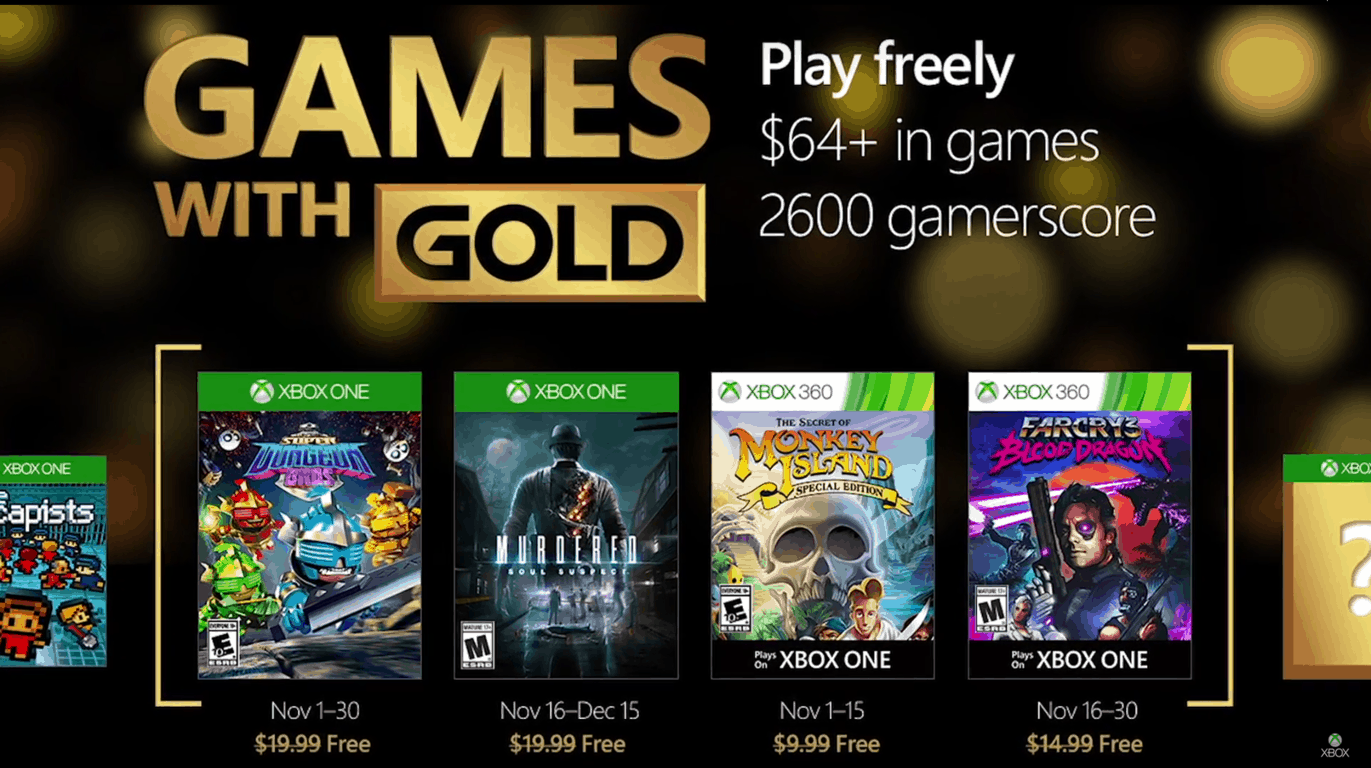
Here’s the Xbox Games with Gold lineup for November

October might be about to end, but that does not mean the Xbox Deals will stop coming. Major Nelson has just taken to his blog to announce November’s Games with Gold Lineup. Titles for next month include Super Dungeon Bros, Murdered: Soul Suspect, Monkey Island: SE, and Far Cry 3 Blood Dragon. We will allow you to judge how exciting these titles are for yourself, and have included download links, trailer, and descriptions for you after the video below.

Xbox One Titles:

Super Dungeon Bros ($19.99 ERP): November 1-30

Play on your own or with up to 4 friends in couch or online co-op as you raid the deepest dungeons of Rökheim. Wield wicked weapons with devastating destruction or exploit the punishing puzzles and terrifying traps that will slice and dice foes and bros alike. Fling your friends onto far off ledges and distant trap triggers, hurl your bros at advancing attackers or unleash your tag team tactics with the ultimate bro-op offensive! If really you’re up for the challenge, test your heavy metal in the deadly daily dungeon or master the way of the wicked weekly dungeon and climb to the peak of the global leaderboards.

Murdered: Soul Suspect: ($19.99 ERP): Available from November 16- December 15

A dark, supernatural detective thriller with a unique gameplay twist: solving your own murder from the afterlife. Ronan O’Connor, a detective with the Salem police, has his life brought to a brutal end by a masked killer. Caught in the purgatorial world of Dusk he must combine his investigative skills with powerful supernatural abilities to uncover the shocking link between his own death and a series of killings terrifying the town of Salem.

Xbox 360 Titles (Backward Compatible on Xbox One:)

Monkey Island: SE ($9.99 ERP): Available from November 1-15 

Relive the hilarious swashbuckling misadventures of the wannabe pirate Guybrush Threepwood as he attempts to become the most infamous pirate in the Caribbean! Back by popular demand, The Secret of Monkey Island™: Special Edition faithfully re-imagines the internationally-acclaimed classic pirate adventure game from LucasArts in gorgeous HD detail.

Far Cry 3 Blood Dragon ($14.99 ERP): Available from November 16-30

Welcome to an 80’s VHS vision of the future. The year is 2007 and you are Sargent Rex Colt, a Mark IV Cyber Commando who’s fighting against a cyborg army gone rogue. Your mission: get the girl, kill the baddies, and save the world. Experience every cliché of a VHS era vision of a nuclear future, where cyborgs, blood dragons, mutants, and Michael Biehn

These titles are available for free for a limited time only for those who are paid Xbox Live Gold members. Be sure to act fast once they are available for download and come back to WinBeta to let us know how the experience of playing these titles is going

Find directions to locations on Google Maps with the default Maps app on Windows 10 Mobile

The built-in Maps app on Windows 10 Mobile is pretty good, both in form and function. The UI is intuitive, there’s the ability to download maps offline, and turn-by-turn voice navigation is perfect.

However, for some regions outside the US, on several occasions you’ll find a landmark or location missing. Incidentally, in these instances, Google Maps would list that location. One, Google Maps is pretty good at map data and POIs outside the US, and since Google Maps is much more popular, most businesses only list themselves on Google Maps and not bother about other mapping services.

But of course, there’s no official Google Maps app for Windows. There’s gMaps though – an impressive client for Google Maps since the early days of the Windows Phone platform. The app allows you to find your location on the map and search for venues using powerful local search with support for multiple layers like street, satellite, traffic, bike, weather, et al.

Yet, I prefer using the Maps app. It’s integrated with Cortana and Bing, and just looks and feels much better. Also, it’s free and built-in. Interestingly, gMaps introduced an interesting feature – the ability to choose the default navigation app – that a lot of people are unaware of.

gmaps-maps-1
gMaps

When I’m unable to find a venue on Maps (the coworking space I work out of is not present on Maps, for example, but listed on Google Maps), I fire the gMaps app and search for that location. Now, to navigate to that address, instead of using the gMaps UI, I choose Maps as the navigation app. The app transfers the lat-long coordinates of the location (behind-the-scenes) to the Maps app which shows me the directions that I can navigate to.

gmaps-maps-2
Transitioning from gMaps to the Maps app

Essentially, this trick allows me to find venues and locations on gMaps and still use the familiar user experience of the Maps app for navigation. gMaps is also available for Windows 10 PCs (It’s not a universal app though), and maybe this works there as well, but for navigation, only the mobile scenario makes sense. If you’d like to try this out yourself, download the gMaps app. It’s free and ad-supported, with an in-app purchase unlocking the ad-free experience.

gMaps
gMaps
Developer:
DreamTeam-Mobile
Price:
Free

Ubisoft releases new patch for Tom Clancy’s The Division

Just last month, the developers behind Tom Clancy’s The Division announced they would be revamping most of the game and now, Ubisoft is preparing for the official launch of patch 1.4 for the popular game. They’re clearly prioritizing this patch over Survival and Last Stand mode, both of which they are currently working but set aside for this patch.

The update is expected to include some huge updates that fix several recurring bugs in the game which contributed to many of its issues in the market. The Division scored mostly positive reviews when it was first released but there were gamers who reported a few drawbacks in the game including lack of activity variety and lack of dynamic encounters, which Ubisoft easily detected from its Public Test server.

The game’s newest update is long-awaited and is already receiving positive reception even before its release on October 25 for the PC, Playstation 4, and Xbox One.

Here are a few high points from the full patch notes:

New World Tiers: When players reach level 30, they will be able to select their World Level Tier which determines the level of the enemies they encounter in the game’s overworld and the quality of loot the enemies drop.

Gameplay Improvements: Ammo capacity will shoot up automatically after a player reaches level 30 by 50%. Also, empty slots will be refilled in matchmaking if the group’s privacy settings allow it. Player accuracy will be lowered for a short time after performing combat rolls and a player’s HP will now regenerate when out of combat. Moreover, the magazines of weapons will be automatically refilled if the player encounters ammo crates.

Gear Sets and Enhancements: All gear sets have been overhauled, the details of which are elaborated in the patch notes. Moreover, a gear score of over 182 will offer fixed stats in the main attributes. Gear talents are reset and armor parts have been changed. Resiliency will now depend on toughness.

UI Enhancements: Items can be marked as junk and as favorites. Players can now repurchase from vendors, and deconstruct items from The Stash.

Skills: All skills except the signature ones now hold a 5-second cooldown period. First aid healing capacity has been revamped and most of the skills have seen alterations to promote balance. With hard caps removed from most skills, several skills are given more power over others, resulting in cookie-cutter gameplay.

Loot and rewards: Weekly and daily loot caches drop items balanced accordingly with players current gear, newer targets set in the High-Value Target contract pool, prizes have been upgraded, and a four-hour time respawn period is added for roaming bosses and NPCs. These updates in the gameplay will bring overall better rewards and meaningful gear progression.

Bug Fixes: Most importantly, the game’s UI has been revamped with several bug fixes.

Patch 1.4 for Tom Clancy’s The Division takes up 5GB of space but may vary from platform to platform. The update will be officially available live after a three hour maintenance period on Tuesday starting at 9.30 CET. With all these features, we can say fans of the game are going to be utterly pleased and to top it off, the film adaption will ignite even more excitement among The Division’s lovers.


Dropbox for Windows 10 now updated with new useful features

Dropbox for Windows 10 OS sports a few new features, including a new grid view that has been long requested by users.

The new grid view comes with a segmented view which groups videos and photos into a grid. In addition, folders and files are also put into a list. From now on, you will be able to access your videos and pictures with ease while still managing your folders and files without any problems.

As expected, the new update also comes with minor improvements for the application. You will be able to add links in comments which will become clickable and since it is a UWP app (Universal Windows Platform), it now has better support for Xbox controllers. Some user interface improvements were also made and you will notice them as soon as you will open the application.

Below you can see the full changelog of the new Dropbox version:

  • A new view style ‘grid view’ has been added with a segmented folder view grouping photos and videos into a grid view, and files, folders and upload in progress into list view
  • Links now are clickable in comments
  • UI improved: blue effect, better adaptive design, animations and more
  • Xbox controllers are now supported
  • Optimization and bug fixes.

Dropbox version 4.5 can now be downloaded and installed directly from the Windows Store.

What are your thoughts about the latest version of Dropbox for Windows? Feel free to tell us what other features you would like to see being added to this application!

RELATED STORIES TO CHECK OUT:

Microsoft introduces digital badges for Microsoft Certified Professionals

Microsoft has partnered with Acclaim to introduce Microsoft badges for Microsoft Certified Professionals (MCPs) to achieve certain certifications or pass select exams.

Acclaim is an independent badging platform owned by the company’s test-delivery partner, Pearson VUE, and provides a way to manage, share, and verify one’s Microsoft Certifications. Acclaim uses the Open Badges standards defined by Mozilla to offer digital badges. The web-enabled representation of an individual’s Microsoft certifications is made of an image and metadata uniquely linked to the person, and can be shared online, embedded in a résumé, or included on an email signature.

The digital badges will allow professionals to easily share the details of their skills in a trusted and verifiable manner to explore opportunities for career advancement. With Microsoft badges, professionals can find out which employers are looking for individuals with their skills, discover what kind of salary to expect to earn with those skills, as well as search for new job opportunities associated with their certification.

For now, MCPs who pass select exams or achieve the certifications, on or after October 21, 2016, will receive badges. However, beginning in November 2016, badges will be retroactively issued to those who passed the exams or achieved the certifications prior to October 21, 2016. After this pilot badge program, Microsoft will share details of additional badges in January 2017.

Microsoft postes a profit of $20.5 billion in Q1 2017

Microsoft’s earning report for the first quarter of fiscal year 2017 is now out. The company posted a profit of $20.5 billion, with $22.3 billion of that categorized as non-GAP, meaning the tech giant overcame all analyst expectations.

The Surface revenue saw an increase of 38% YoY, mainly due to the success of the Surface Book and the Surface Pro 4. This generated $672 million profit in the Q1 in 2016, a number which grew to $926 million in this fiscal year. Moreover, Microsoft is introducing to the public a new version of the Surface device next week, another opportunity for more revenue.

As expected, the Microsoft Phone series is in steady downfall. It declined by 72% this fiscal year. Even more so, the Xbox is not that successful either, even though the company recently released the Xbox One S model. According to its own reports, the gaming part of their business saw a 5% decline. Less people are now using the Xbox Live — 47 million active users,  or 2 million less than how many were using it in the Q4 in 2016 — +but it’s still up from the 39 million YoY.

Microsoft’s cloud business is also on the rise with an increase in profit of 8%. At the same time, Azure revenue is up by 116% while the company’s server and cloud services increased by 11%. Other products, like Office, saw a growth of 5%, while Office 365 increased by 51%.

RELATED STORIES TO CHECK OUT:

Titanfall 2’s new single player mode trailer released

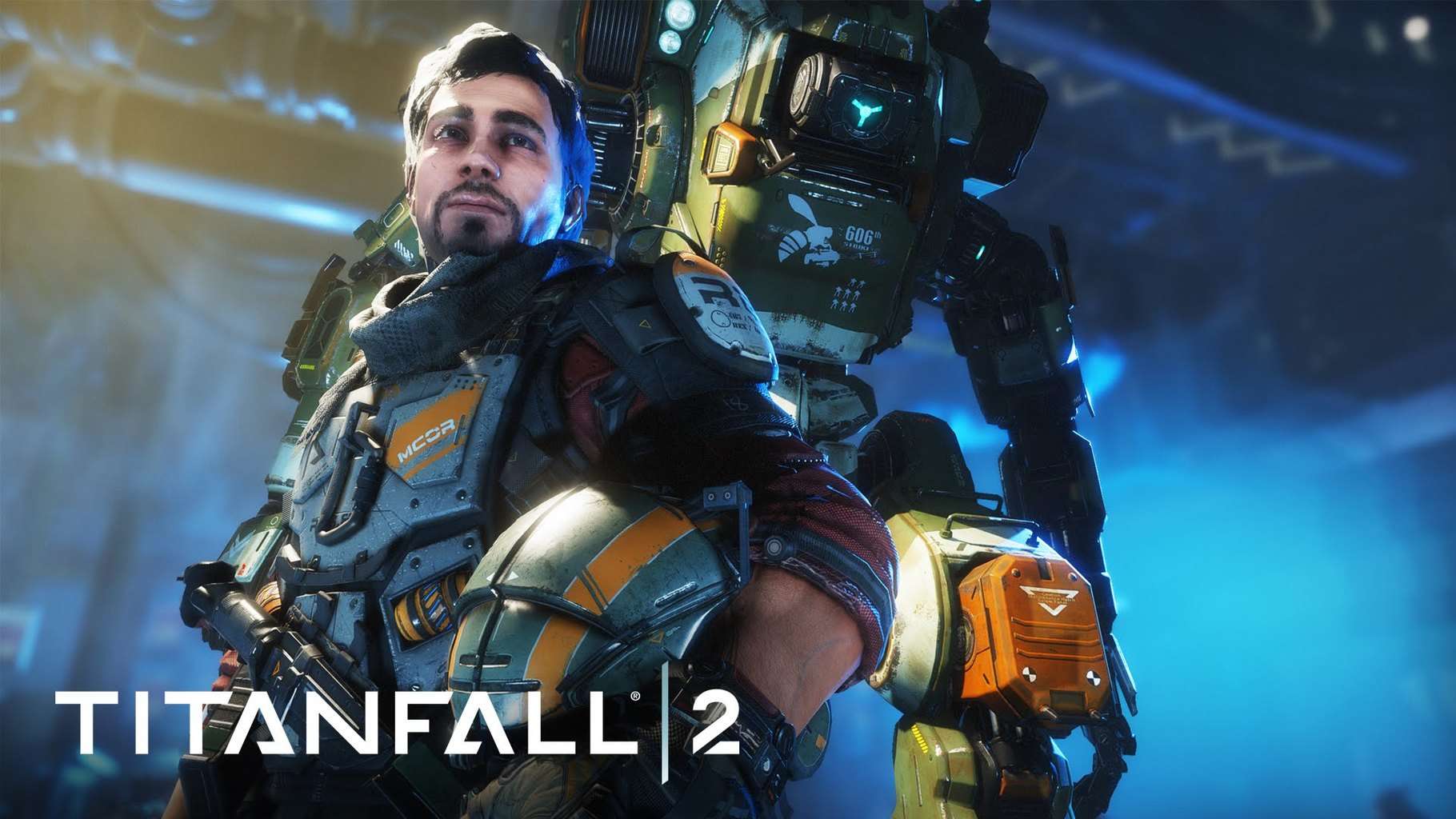
Titanfall 2 is the upcoming mech shooter sequel by Respawn Entertainment that now boasts a new trailer showing single player gameplay. Though two other trailers for the game display footage of the single-player campaign, this newest video is the best, most in-depth look at what might turn this young franchise into a huge success.

This game shows Jack Cooper, a rifleman in the militia, dreaming of becoming a pilot and a vanguard class Titan BT-7274. with the Frontier heating up, Jack, together with BT, have to combine their skills and risk it all in order to survive with the odds against them. Even if you’re fighting as a pilot or in a 20-foot tall machine for war, Titanfall 2 offers a fluid and fun alternative from other, more popular shooters.

A couple of months ago, Respawn Entertainment held two multiplayer tests for the Xbox One version of the game. However, it left the PC version out of the deal for safety measures, namely to prevent anybody from looking up the game files and giving fans spoilers about the main solo campaign. As everybody expected, fans have their hopes up really high for the upcoming game.

Starting October 28, Titanfall 2 will be made available worlwide both on Windows and on Xbox One platforms. Whoever pre-orders a copy of the Xbox One version will enjoy  early access feature to the remastered Angel City map, having long been one of the favorites of the fans.

RELATED STORIES TO CHECK OUT:

5 best family organizer apps for Windows users

Keeping your family fed is a pretty basic task but keeping it organized might be a different story, especially if you have a large family. Maintaining medications, appointments, travel dates, work schedules, chores, emergency contacts, and other joint family activities all under one roof might not be as easy as it sounds. To make family activities run smoothly, you need a safe platform to store and share information. That’s where family organizer apps come in handy.

In this digital era, busy families need smart solutions to stay organized. The internet is crammed with a plethora of tools designed to keep you in the loop with everything going on in your family. These apps let you keep track of your family calendar and to-do lists, all while you are on the go. We have synthesized the multitude of tools to bring you the best five family organizer apps to keep your family organized.

Read also: Top 7 photo viewer software for Windows 10


The Best Free and Paid Family Organizer Apps

Cozi Family Organizer

Cozi family organizer software
The Cozi family organizer app lets you easily update your family calendar by adding to-do lists, setting reminders, adding appointments and sharing the updated information for the family members to see. Each family member is assigned a color, so it’s quite easy to know who is free and who is busy at a glance. With Cozi, it’s possible for each family member to add updates and each update automatically syncs to all users connected to your account.

The Cozi app comes with a very robust reminder system that can be customized to send text and email reminders as well as weekly digest. You can create a family journal, plan meals, add a to-do list, share shopping lists, as well as keep track of photos and memories in the Cozi family journal. Cozi works on your Android, iOS, Blackberry, and Windows PC. The app is available for free with adds although you can subscribe to the Gold package for $29.99 to get an add free experience.

Get Cozi Family Organizer for Windows


Remember the Milk

family_organizer_software_remember_the_milk
Remember the Milk is a free and multifarious app that can help you manage all your tasks across multiple platforms. Once updated with new information, the app sends texts, email, or IM reminders to the users connected to the account. The app also lets you share tasks, to-do lists, and appointments with any contact. You can add all your family members so as to share any information you want to pass to them. You can also set categories on tasks depending on the degree of urgencies such as priority levels and due dates.

Get Remember the Milk


Two Happy Homes

two happy homes family organizer apps
Two happy Homes is a powerful family organizer tool that makes it easier for distant families to communicate and organize things together. Parents keep a joint contact list and calendar and can share useful information, to-do list, medication, and even pictures. The tool also comes with advanced features and can also be used to track and pay expenses online. It’s available in two packages: free and paid. With the free package, you can add up to 10 family members, get expenses tracking service, family calendar, notes and other utilities. With the paid subscription ($14.99 per month), you get unlimited contacts, medical information sharing, and ability to make payments online.

Get Two Happy Homes


AboutOne

family_organizer_apps_aboutone
AboutOne is yet another family organizer app that packs all you need to keep your family organized. The app comes with robust tools that let you easily share inventory, store medical information, share videos, and save important documents such as receipts. The app allows you to manage and share everything with your family members across multiple devices, including Android, iOS, Windows phone, and Windows 8 PC.

AboutOne is available in both free and paid versions. The free version comes with emergency management tools, room for up to 6 family members, and 1GB of storage. The paid version ($5 per month) offers a family calendar that syncs with other calendar programs, room for up to 10 family members, and 5GB of storage.

Get AboutOne


Chore Hero

family_organizer_apps_chore_hero
Chore Hero is a decent app that can help a family that stays together to be organized while teaching kids how to be responsible in a fun way. Unlike other apps on the list that performs multiple functions at the same time, Chore Hero is all about household chores, just as the name suggests. When kids complete the assigned chores, they earn bonus points, eventually graduating from chore newbies to chore heroes. You can either assign duties to various people on different days or let the app pick randomly.


Conclusion

While choosing the right organizer app for your family, it is important to consider your budget and family size as some apps can only add up to 6 contacts, where others offer unlimited contacts. Family organizer apps provide an easy way to keep in touch with family members while reminding them of important family appointments. Other family organizer apps you can check out include Family Organizer, Grocery IQ, Astrid, and Hub Family Organizer.

Windows 10 news recap: Huawei’s rumored high-end MateBooks, Game DVR performance concerns and more

Welcome back to our weekly “Windows 10 news recap” series where we go over the top stories of the past week in the world of Microsoft’s latest operating system. Let’s get started.

Huawei rumored to be planning high-end Windows 10 Matebooks for early 2017

It has been rumored that Huawei is planning on bringing 2 new MateBook devices in 2017, running Windows 10. The devices are said to not only be 2-in-1s and will come in 2 screen sizes: 13.3-inch and 15.6-inch. No price or imagery is available yet of the devices, but we should expect to see more in the not-so-distant future.

Microsoft sets the record straight on Windows 10 Game DVR

With Windows 10 came a new feature for gamers, known as Game DVR. It allows gamers on Windows 10 PCs to quickly record gameplay without having to install third-party software. For some, however, this new feature has apparently caused performance issues on some hardware configurations. In response to these concerns, Major Nelson published a blog post to address them. Major Nelson explains that Game DVR should not cause any performance issues on hardware that using the latest graphics drivers for the Anniversary Update, noting that users should see “equal performance”.

The Windows 10 Xbox app settings. Background recording is off by default.

As shown above, it is also possible to disable the background recording and the Game Bar of the Game DVR. This, in theory, should stop any performance issues on hardware configurations that are affected.

Microsoft rolling out Focused Inbox to Outlook for Mac and web, Windows 10 coming soon

Microsoft has finally provided a timeframe on when Windows 10 will be receiving Focused Inbox support for Outlook. As has been the case for some time, however, platforms other than Windows, such as Mac and Android, will be receiving Focused Inboxes before Windows 10 and Windows 10 Mobile. Windows platforms are slated to receive the update sometime in November – an exact date is not known at this point.

Focused Inboxes separates emails into 2 inboxes – the Focused Inbox is everything that is deemed important to the user and then another inbox, which shows the not-so-important emails, in order to help users stay focused on their work without being bombarded by numerous emails of low importance.

Viber for Windows 10 gains media gallery, more

Viber on Windows 10 has been updated to add several new features and make some changes. This latest update pushes the app to version 6.3, with the following changelog:

  • Large emoticons in chat
  • Media gallery in chat info screen
  • Answer video calls with video to automatically open your front-facing camera
  • Call directly from chat screenSticker support in toast notifications
  • Terms and policy update

Here is the build that got released this week:

Eve V is a 2-in-1 Windows 10 device that takes on Surface

The Finnish firm Eve is largely known for its revolutionary tablet devices like the first 8-inch Windows 8.1 T1 tablet unveiled last year and its crowdfunded Windows 10 tablet the Eve Pyramid Flipper (or Eve V).

In an interview, CEO of Eve Tech Konstantinos Karatsevidis, shed some light about the company’s upcoming launch of the Eve V hybrid Windows 10 device previously developed under the name Pyramid Flipper. Now, Eve is announcing that its 2-in-1  hybrid device will be officially launched on Indiegogo in the coming month and will also sport Intel’s Kaby Lake processors.

Eve revealed that the Eve V Indiegogo campaign will begin o November 21, 2016, with 500 units being initially up for purchase. The finalized product will be rolled out in early 2017. Moreover, the company announces worldwide shipping of their upcoming product.

It was also reported that the Eve V is currently undergoing “testing stages of development” with prototypes to be shipped to community members very soon. The company further claims that its team consists of experienced members from companies such as Apple and OnePlus. Eve also revealed some big names, like Intel, expressing interest in its project. Customers won’t be required to pay for the venture but will be for the manufacturing process. The company says its hybrid, in addition to being cheaper, will not include the type of bloatware found in other devices for faster operate.

The Eve V is LTE-optional, supports e-pen functionality and is similar to Microsoft’s Surface device with its integrated kickstand. It full specifications are yet to be revealed, but the provisional specs are as follows:

  • Display: 12-12.5″ IPS LCD, 2160x1440p or better, Gorilla Glass protection
  • Processor: Intel 7th-gen “Kaby Lake” CPUs
  • Graphics: Intel HD, eGPU support
  • Pen: N-Trig
  • RAM: LPDDR3, 8 GB/16GB
  • Storage: 128GB/256GB/512GB, SSD
  • Battery: 10 hours or better, USB-C port for charging
  • Wireless: WiFi ac 2×2, WiDi or Miracast wireless streaming, Bluetooth 4.2, GPS
  • Camera: Front: 720p HD autofocus or better
  • Audio: Stereo speakers or better
  • Sensors: Luminosity, Magnetometer, Gyroscope, Hall Effect, NFC
  • Ports and connections: 2xUSB 3.1 Gen 1 Type A, 1xUSB 3.1 Gen 1 Type C, 1xThunderbolt 3, 1×3.5 mm audio, MicroSDXC
  • OS: Windows 10

Eve-Tech is yet to reveal the pricing specification of the device but they had previously indicated that the base model will cost less than €1000 (~$1100) and that the “ultimate model” will be priced at €2000 (~$2200) including taxes. For more news and updates regarding Eve V, subscribe to its official website.

Microsoft overhauls the Xbox Forums, brings new design, categories and more

It has been a long time in the waiting, but finally, Microsoft has given the once age-old Xbox Forums a full makeover. Finally, we can wave goodbye to the inconsistent design of the old forums and hello to a more modern design that we’d expect to see on the web in 2016.

With this makeover, the Xbox Forums have received the following improvements:

  • Improve categorisation
  • Moved categories to the top menu, while using the rest of the screen for showing discussions and sub-categories
  • Searching has been improved, making it faster to search

It appears that the new Xbox Forums are still a little premature, as we noticed several issues, such as Gateway Timeout errors, discussions failing to load and the forums being a little flaky in places. So, while the design is definitely an improvement, the overall mechanics of the forums have remained largely the same, with similar issues to the forums predecessor.

Here’s a look at the new design:

xbox-forums-new-design
New Xbox Forums design

The Xbox Forums are designed to allow other Xbox users to provide support to each other, while also enticing game-specific discussion.

Let us know what you think of the latest Xbox Forums update in the comments below!

Fix: Xbox error ICMP

Xbox Live is an integral part of Xbox that allows you to play your favorite games online. Unfortunately, few users reported ICMP error on their Xbox, and today we’re going to show you how to fix this error.

Xbox error ICMP, how to fix it?

Fix – Xbox error ICMP

Solution 1 – Reset network settings to factory defaults

If you’re having ICMP error while trying to connect to Xbox Live, you might want to try resetting your network connection settings to factory defaults. Keep in mind that resetting these settings will remove all your network configuration from your Xbox, including your wireless password, so you’ll have to enter it again. To reset your network settings, do the following:

  1. Press the Guide button on your Xbox controller.
  2. Choose Settings and navigate to System Settings.
  3. Select Network settings.
  4. Choose Wired Network or your wireless connection.
  5. Select Configure Network.
  6. Go to Additional Settings tab and select Restore to Factory Defaults option.
  7. Select Yes, Restore to Factory Defaults to confirm.
  8. After that, restart your Xbox.
  9. Optional: If you’re using wireless network, be sure to configure wireless settings again.

Solution 2 – Test your Xbox Live connection

According to users, sometimes you can fix this problem simply by testing your Xbox Live connection. To do that on Xbox 360, follow these steps:

  1. Press the Guide button on your controller.
  2. Select Settings and navigate to System Settings.
  3. Now open Network Settings and select Wired Network or your network connection.
  4. Select Test Xbox Live Connection.
  5. Wait until the scan process is completed.

On Xbox One, you can test your network connection by doing the following:

  1. Scroll left on the Home screen to open the Guide.
  2. Select Settings > All Settings.
  3. Select Network > Network Settings.
  4. On the right side select Test network connection option.
  5. Wait while the scan tests your connection.

Solution 3 – Check for wireless interference

ICMP error can occur due to wireless interference, and in order to fix the problem you need to remove the source of wireless interference. Wireless interference can be caused by cordless phones, microwave ovens and other devices, and if that’s the case, you might want to move your wireless router away from these devices. In addition, make sure that your router is on elevated position so it’s not obstructed by anything. Sometimes wireless headsets can cause interference with Wi-Fi signal, therefore you might want to temporarily turn off your wireless headset and check if that solves the issue. Some users are also suggesting to change your wireless channel on the router, so you might want to try that as well. To do that, be sure to check your router’s manual for detailed instructions.

Solution 4 – Restart Xbox and your network hardware

Sometimes you can fix ICMP error simply by restarting your Xbox and network devices. To do that, follow these steps:

  1. Turn off your Xbox.
  2. After that, turn off your modem and router.
  3. Wait for a minute or two and turn on your modem again. Wait for a minute until your modem starts completely.
  4. After that, turn on your router and wait until it turns on completely.
  5. Lastly, turn on your console and check if the error is resolved.

Solution 5 – Clear the system cache

Sometimes your cache can interfere with your connection and cause this and many other errors to appear. Your cache holds all sorts of different files, and to fix this and many other problems, you need to clear your cache by following these steps:

  1. Press the Guide button on your controller.
  2. Navigate to Settings > System Settings.
  3. Select Storage or Memory.
  4. Highlight any storage device and press Y.
  5. Select Clear Cache option and select Yes to confirm that you want to clear the cache.
  6. After the cache is cleared, you can test your Xbox Live connection.

As for Xbox One, clearing the cache is a bit different, but you can do it by following these steps:

  1. Press and hold the power button on your console to turn it off.
  2. After your console turns off, unplug the power cable from your console.
  3. Press the power button on your console a few times while the console is unplugged to completely drain its battery.
  4. Connect the power cable to your console and wait until the light on the power brick changes from white to orange.
  5. Turn on your console again by pressing the power button.

After doing that, all cache files should be removed from your console and ICMP error should be resolved.

Solution 6 – Check your network settings

According to users, you might be able to fix ICMP error on your Xbox simply by changing your network settings. To do that, you need set the following:

  1. Make sure that DHCP is enabled.
  2. Set NAT to Open.
  3. Set Xbox Live settings to Automatic.
  4. Trigger your ports.

After doing that, the issue should be permanently resolved.

Solution 7 – Check if you have static IP address

Few users reported that their modem wasn’t fully compatible with Xbox Live. According to them, they were unable to connect to Xbox Live until their ISP assigned them a static IP address. If that’s the case, you might want to contact your ISP and see if you can get a static IP address. Keep in mind that getting a static IP address usually comes with a cost.

Solution 8 – Assign a static IP for your router

According to users, you can fix this problem simply by giving a static IP address to your bridged router. After doing that, use basic DHCP for your Xbox, but don’t assign a static IP address to it. In addition, you might want to disable firewall on your client router as well. To see how to perform any of these steps, we highly suggest that you check your router’s manual.

Solution 9 – Wait until your ISP fixes the problem

ICMP error can sometimes appear due to problems with your ISP. To be sure if this is a problem with your ISP, check if other users are having issues with Xbox Live. If that’s the case, it means that your ISP is having some technical difficulties, therefore be sure to wait for a couple of hours or call your ISP.

Solution 10 – Check if your Wi-Fi card is connected properly

Sometimes your Wi-Fi card might not be connected properly and that can cause this error to appear. If that’s the case, you just need to open your Xbox and reseat your Wi-Fi card. Keep in mind that opening your Xbox will break your warranty, so you might want to consider sending your Xbox to Microsoft repair center.

ICMP error will prevent you from accessing Xbox Live and playing your favorite games online, but we hope that our solutions helped you fix this problem.

READ ALSO:

Fix: Xbox error “Use a different way to pay”

Xbox allows you to purchase all sorts of content online, including games and DLCs, but sometimes certain problems can occur. Users reported Use a different way to pay error on their Xbox, and today we’re going to show you how to fix it.

“Use a different way to pay” Xbox error, how to fix it?

Fix – Xbox error “Use a different way to pay”

Solution 1 – Change your region settings

According to users, it seems that this problem is caused by region locking, but you should be able to fix it simply by changing region settings on your Xbox. To do that on Xbox 360, do the following:

  1. Make sure that you’re signed in with your Microsoft account. If not, choose the Sign in option.
  2. Navigate to Settings and choose System.
  3. Now select Console Settings.
  4. Select Language and Locate > Locale.
  5. Select the locale that you want to use.

To change region settings on your Xbox One, do the following:

  1. Make sure that you’re signed in to your Xbox account on Xbox One.
  2. Scroll left from the Home screen to open the Guide.
  3. Select Settings > All Settings.
  4. Now choose System.
  5. Go to Language & location.
  6. Choose your new location from the list and select Restart now.

Before you change your region, you should know that your gamertag, unlocked achievements and rest of your Xbox profile information will be moved with you. As for your Xbox Live Gold subscription, it will be moved as well, but if the selected region doesn’t support Xbox Live Gold, you might not be able to access it. Same goes for other subscriptions, and if the subscription isn’t supported in the newly selected region, you won’t be able to access it. As for Groove Music, some items from your collection might not be available in newly selected region, so keep that in mind. We have to mention that money from your Microsoft account won’t be transfered if you choose to change your region, therefore be sure to spend it.

You should also know that you won’t be able to change your region if you did so in the last three months. Also, if your account is currently suspended you won’t be able to make changes to your region. Lastly, any balance due on your Xbox subscription will prevent you from changing your region.

Solution 2 – Add your payment information again

Users reported this error while using PayPal with their Xbox account. To fix this error you need to add your billing information again, but be sure that all your information is up to date. According to users, this error appears due to incorrect or outdated billing information, so be sure to fix that. After doing that, you should be able to make payments without any problems.

Solution 3 – Check if you’re using the correct website

According to users, sometimes you might get this error if you’re using the version of the website that isn’t designed for your region. For example, if you’re trying to purchase something, you need to be sure that you’re using the version of the website that is designed specially for your region. This means that if you’re in the UK, you can only make purchases on a UK version of the website. In most cases, you should be able to switch to appropriate version simply by choosing the Change website region option at the bottom of the page.

Some users might try to purchase something from a website that isn’t designed for their region in order to get better offers, but that will cause this error to appear. To avoid this error in the future, be sure to use the version of the website designed only for your region or country.

Solution 4 – Wait for a couple of minutes

According to users, Use a different way to pay error can appear if you try to buy something right away after purchasing another item. If that happens, all that you have to do is to wait for 5 to 10 minutes and try to purchase the same item again.

Fix – Xbox One “Use a different way to pay” PBR9012 or CP205

Solution 1 – Contact your financial institution

Sometimes this error can occur if you don’t have the permission to make online purchases with your payment option. To see if you have the necessary permissions, be sure to contact your credit card company or financial institution. Users reported that this error can sometimes occur due to problems with your credit card, so be sure to contact your bank for more details. Few users had their cards flagged, but after calling Microsoft support, the issue was resolved.

Solution 2 – Add a new payment option

Sometimes you just need to add a new payment option to fix this error. To do that, simply log in to your Microsoft account with any web browser and choose Change a payment option. Now select Add a payment option and follow the instructions on the screen.

To add a new payment option on Xbox One, do the following:

  1. Be sure that you’re signed in to your Xbox One with a Microsoft account.
  2. On the Home screen, scroll left to open the Guide.
  3. Select Settings and navigate to All Settings.
  4. In Account section select Payment & billing.
  5. Select Add credit card or Add PayPal.
  6. Follow the instructions on the screen to add billing information. After doing that, check if the problem is resolved.

Solution 3 – Wait until the error is resolved

If your card is flagged, you’ll get this error while trying to make a purchase. Fortunately for you, this error can be resolved simply by waiting a certain time period. After waiting for 24 to 48 hours, the issue should be resolved and you’ll be able to make purchases once again. It’s also important not to attempt any purchases while your card is flagged or else the wait time will reset.

Xbox error Use a different way to pay will prevent you from purchasing any content on your Xbox One and Xbox 360, but you should be able to fix it by using one of our solutions.

READ ALSO:

DNS servers are down, Internet service severely disrupted in the US

At this moment, millions of Windows users cannot access popular platforms such as Twitter, Reddit, Github, Amazon and others due to a series of DDoS attacks against Dyn. Distributed Denial of Service (DDoS) attacks operate by overwhelming a website by traffic from many sources. Actually, this is a very common modus operandi for digital attacks.

According to Dyn’s official statement, the attack is mainly impacting US East and is affecting DNS customers in this region. The company’s engineers are still working on mitigating this DNS issue. Although the attack’s intensity has considerably diminished thanks to Dyn’s efforts, it still affects a huge number of users.

When Windows users first noticed this issue, they thought there was a problem with their computers. Users report that the error message “DNS Server isn’t responding” appears on the screen whenever they try to access particular websites. Rest assured, there is nothing wrong with your Windows computer.

As of the past hour, DynDNS got attacked and DDoSed. It’s one of the biggest DNS providers, so naturally that impacts a lot of internet access to seemingly random sites, including Runescape. Therefore, I suggest changing to Google’s Public DNS for now. The DNS addresses are 8.8.8.8 and 8.8.4.4. For more details on how to change your DNS, read Google’s explanation.

This solution works and allows you to connect to the websites of your choice, but as another users points out, the best thing to do is wait. Connecting to a public DNS server, such as Google’s, might actually be the point of such an attack: make people use less secure connections.

Meanwhile, if your DNS is still unavailable, try using one of these workarounds and see is these solutions fix the problem for you.

RELATED STORIES YOU NEED TO CHECK OUT:

ScreenWings is a free anti-screenshot tool for Windows users

ScreenWings is a free application for Windows OS, which will make sure that no screenshot will be taken on your computer. While not many users will find this application very useful, we can assure you that nowadays, an application like this can do the difference between having your personal information safe or getting into the hands of a hacker.

There are many hackers in the work, who are trying to steal information by grabbing your personal data (credit card info, bank account etc). This type of malware can take screenshots while you are writing your credit card information when trying to purchase something from the internet. That screenshot is then sent to the hacker, which will be able to see your credit card information and make purchases online.

Well, here is where ScreenWings comes in handy, as the application will NOT allow any screenshots to be taken on your computer. It is good to know that the application comes as a “portable program”, which means that you will be able to run it on your computer very easy.

When you launch the application, you will be able to see two buttons. One of them will be a red x-icon which closes the program, while the second one will allow you to enable the “anti-screenshot” function. Keep in mind that this button acts as a toggle, which means that you will be able to enable/disable the option whenever you want.

It is good to know that the screenshot functionality on Windows will still work, but you will notice that when you or a third party application is trying to take a screenshot, ScreenWings will blacken the screen. In other words, the screenshot will be taken as a “black screen” and the hacker will see only a black screenshot.

Have you ever got your personal data stolen by a hacker? Tell us your thoughts about ScreenWings and the simple, but useful, feature that it comes with!

RELATED STORIES TO CHECK OUT:

Battlefield 1 kills i5 CPUs, gamers are very disappointed

Battlefield 1 is finally out, allowing you to experience gruesome battles where only very few can make it alive. yes, Battlefield 1 is a killer game, especially for your i5 CPU.

According to the official system requirements, gamers should be able to run Battlefield 1 on Core i5 6600K. Of course, these are the minimum requirements, if you have an i7 processor, that’s even better. However, many gamers report Battlefield 1 literally drains their i5 CPUs. It appears this issue also affects i7 processors as well, particularly overclocked i7 CPUs.

I’ve got an overclocked 4770k and I’m on average using between 75% and 95% usage on my CPU during gameplay. Is this normal? It seems kind of much for an overclocked i7.

As one user points out, Battlefield games have been known to be taxing on CPUs. The same issues were reported on Battlefield 4, and judging by gamers’ feedback, Battlefield 1 is no exception to the rule.

Any CPU lower than a 4790k will get maxed out, regardless of what GPU gamers have. Many Battlefield 1 fans say they don’t really understand why EA/DICE took this decision in regards to CPU types, since the 4690k is the most popular gaming CPU out there.

Surprisingly, there are many gamers who run Battlefield 1 on sub-medium computers without any problem.

I have an i5-4570 @3.2GHz Turbo to 3.6GHz, 16GB RAM and GTX1070 8GB . I’m having no issues at all. Game runs like butter with all graphical options set to max. *shrug*

All in all, gamers’ reports confirm indeed that sometimes Battlefield 1 causes high CPU usage and most likely this is due to a game optimization bug. Battlefield 1 fans hope that the first patch for the game will address high CPU usage issues, but for the time being DICE has yet to issue any comments on this situation.

Have you already played Battlefield 1 on your Windows PC? Did you encounter any CPU issues?

RELATED STORIES YOU NEED TO CHECK OUT:

Top 9 WiFi tools for maximizing performance in Windows 10

A stable internet connection is a key to every aspect of our online life. Of course, the your internet package plays the integral part in your connection’s quality, but we can do a few things to make it even better, especially if we’re talking about the WiFi connection.

WiFi connection is more important to laptop users, because PC users mainly use the cable connection, so people on the go would definitely like to have as stable WiFi feature as possible. In that manner, we put together a few tools that will help you to maintain the quality of your WiFi connection at the highest level.

Using these tools will benefit you even beyond improving your WiFi connection quality. For example, you can get rid of annoying WiFi issues, which are one of the major problems in Windows, especially in the latest version, Windows 10. These tools are lined up in no particular order, since they provide different types of services, so it’s impossible to compare each one of them.

So, without any further ado, let’s see what tools we should use to maximize performance of our WiFi connection in Windows.

Tools for improving your WiFi connection

WifiInfoView

wifiinfoview windows 10

WifiInfoView is a free, portable tool that allows you to scan nearby WiFi routers. Why’s that important? Well, if you’re living in an apartment building, or some other densely populated area, the big number of WiFi routers can actually have negative effects on each other, preventing you from having the best possible WiFi performance you can get from your router.

That’s where WifiInfoView comes in. This tool shows you info about all nearby WiFi routers, including their channel numbers, MAC addresses, and more. When you find out about other routers’ channels, and notice that there are so many routers using the same channel, you can change the channel of your WiFi connection, to take some load off your router.

If you don’t know how to change your WiFi channel, check out the third solution form this article. So, you just need to use info from WifiInfoView to see which is the most crowded nearby channel, and simply move your connection to another one. We’re sure you’ll notice better performance of your WiFi router once you do that.

WifiInfoView is available for free, and you can download it from this link.

ZamZom Wireless Network Tool

zamzom windows 10

ZamZom is simple tool that allows you to see if anyone else (besides from you, and your household members) is connected to your WiFi network. That way, you can keep your WiFi network even more secure, and you’ll always know if someone is using your precious internet protocol.

In today’s world, with the wide range of tools, it is fairly easy for some people to break your WiFi password, and start using your internet. Especially if your WiFi password is weak. You probably know that the more people use your WiFi network, the poorer performance it will provide to you.

Since there’s no built-in tool in Windows 10 that allows you to see who’s connected to your WiFi, using this tool can be essential for blocking ‘thieves’ from stealing your internet. If you notice someone unknown is using your WiFi network, head over to your router’s settings, change your password, and use  stronger security this time.

ZamZom is very simple, but still effective. It scans for connected devices in a couple of seconds, giving you accurate results in no time.

This tool is available for free, and you can download it from this link.

Ookla Speed test

ookla speed test

This time, we have a web-based tool for you. This tool is called Ookla Speed Test, and as you probably can tell by its name, it gives you info about your connection speed.

Actual speed of your internet connection usually differs from what your provider listed (it’s slower), so it can be useful to determine the real situation. You connection speed can be even slower when you’re connected via WiFi, because of other potentially connected devices, just like we discussed above.

To test your internet speed with Ookla Speed test, just go to the site, run the test, and it will show you accurate results. The tool will show you both your upload and download speed, as well as the name of your internet provider.

No registration is needed for using Ookla Speed test, you just go to the site, and get the job done. There’s also an app for other platforms, including Android, iOS, and Windows 10, so you can test the signal strength in different areas of your home.

There are numerous tools like this around internet, but we think Ookla’s tool is the best choice. Of course, if you don’t agree with our opinion, look online for other internet speed testing tools.

InSSIDer Wireless Network Tool

InSSIDer Wireless Network Tool windows 10

InSSIDer Wireless Network Tool is another program for scanning your environment for other available networks. Its purpose is mainly the same as the purpose of above-listed WifiInfoView, but it offers some additional options. So, if you want your network finder to be more advanced, InSSIDer Wireless Network Tool is a great choice.

It will scan your surroundings for other wireless networks, and show you their  MAC address, the router manufacturer (in most cases), the channel they’re using, the service set identifier (SSID) or public name of the network, what kind of security they’re using, the speed of the network and more.

So if you’re interested in analyzing other networks, and comparing them with your connection, this tool will make it possible. But of course, perhaps the most valuable info you can draw with InSSIDer Wireless Network Tool is the channel of other networks. When you determine which channel is the most used one, you can transfer your connection to another channel, to get better performance.

InSSIDER Wireless Network Tool is available for free, and you can grab it from this link.

Wireless Wizard

Wireless Wizard windows 10

Now it’s time for one troubleshooting tool. One of the best free WiFi troubleshooting tools you can find is the program called Wireless Wizard. This program scans and analyzes your WiFi connection, looks for potential issues, and tries to solve them.

Wireless Wizard allows you to analyze the network’s performance, so you can find out what to change, if results are not satisfying. Once the problem is detected, Wireless Wizard will (try to) quickly solve it, and make your WiFi network working normally again. Of course, that depends on complexity of the detected problem.

Just like some other programs from this list, Wireless Wizard allows you the best channel for your connection. It works similarly to Windows’ own network troubleshooting tool, but of course, with many more features and options. Additionally, you can also use this program to resolve interference issues with your network connection.

The Wireless Wizard works with the majority of home and business networks, as well as with most major carriers. The program is very easy to use, as it has a very simple and neat design, so you shouldn’t have any trouble getting around in the environment.


Xirrus Wi-Fi Inspector

Xirrus Wi-Fi Inspector windows 10

Xirrus Wi-Fi Inspector is the third tool for scanning nearby networks on our lists. It is somewhere between WifiInfoView and InSSIDer Wireless Network Tool. So, if you want simple, straightforward, but also powerful tool, Xirrus Wi-Fi Inspector might be the right one.

Once you scan for the nearby networks with this tool, it will show you detailed info about them, including signal strength, the kind of network, the router manufacturer, the channel on which the network transmits and whether it’s an access point or an ad hoc network.

This tool can go even deeper by showing you info like, internal IP address, external IP address, DNS and gateway information of scanned networks, and more. You’ll definitely like the user interface, because it’s clean, simple and uses a ‘radar’ for scanning. Additionally, it also shows relative physical distance between you and each scanned network it found.

Xirrus is definitely simpler to use than InSSIDer, but the second one provides more detailed info about networks. So, if you just want to find out about channels of other networks, and don’t need a lot of additional information, Xirrus has the advantage.

Xirrus Wi-Fi Inspector is available for free, and you can download it from this link.

WeFi Wireless Networking Tool

wefi windows 10

We presented you enough tools for scanning all nearby networks, so you can choose the best option for you, depending on your needs. But WeFi is something similar, yet completely different. It allows you to search for hot spots in more distant locations.

For example, you’re going to a nice cafe in another part of the town, and you want to check their WiFi. Well, just use WeFi to find needed info. To find out about nearby networks at the selected location, just open the WiFi Maps tab in the program, enter address, and WeFi is going to show you all WiFi networks around. It will also give you various details about these networks, like type of the object ( hotel, café, etc.), distance from the location and whether a password is necessary.

Of course, it also has the ability to scan for networks near you, but since we have other tools for that on our list, the accent is not on this feature. It also has some additional features, like the ability to automatically connect to your favorite networks.

The program is free to use, but it also has a Paid version, which allows you to connect to WiFi networks that require paying a fee.

You can download or by WeFi Wireless Networking Tool from this link.

Connectify

connectivity windows 10

Connectify is a very useful tool, that allows you to turn your laptop into a WiFi hot spot! You’re probably familiar with doing this on your smartphone, but we’re sure you’d be glad to hear such thing is possible on Windows 10 PCs, as well.

Logically, a PC you’re turning into a WiFi hot spot needs to be connected to internet for Connectify to work. But what’s a very nice touch, it doesn’t necessarily have to be cable connection. So, it is enough for your computer to be connected to a WiFi network, and Connectify will turn your network card into a wireless transmitter.

Using Connectify is as simple as it gets. You just need to download the program, set up your hot spot’s name, password, and that’s it. Connectify will automatically start sending WiFi signal to nearby devices, using your network card. The program uses WPA2-PSK encryption, so you can be sure that only people how know the password will be able to connect.

Connectify is available for free, and you can download it from this link.

Hotspot Shield

Hotspot Shield windows 10

When you’re connected to a public network, there’s always a risk that someone might break into your device, and gain access to your data. That’s where Hotspot Shield comes in. This handy tool protects your data, by crating a secure VPN connection and encrypting all of your communications.

Running and using Hotspot Shield can’t be easier, you just need to open and turn it on. It will then automatically protect your data from potential attackers, by using the HTTP Secure (HTTPS) protocol.

However, not all users of this program are satisfied, because they’ve encountered some problems using it. First thing first, you need to dodge some bloatware when installing this software. Also, some users said that the program simply crashes and stops working for them. We haven’t experience such issues, but we must get you prepared, in case you’re not so lucky.

There are, of course, better programs for protecting your data than Hotspot Shield, but they all come with a price. So, if you’re looking for a free, and simple solution, Hotspot Shield is the right choice.

This program is available for free, so if you want to download it, head over to this link.

That’s about it for our list of the best WiFi tools for maximizing your network’s performance in Windows 10. As you were able to see, each of these programs (other than three WiFi analyzers) offers some unique, very useful operation for your router.

Do you agree with our list? Did we missed some cool program? Tell us in the comments.

RELATED STORIES YOU NEED TO CHECK OUT:

8 Best Windows Console Emulators to Use

Emulator software enables you to play retro console games on Windows and other platforms. These certainly aren’t something new, but now they’re becoming increasingly more sophisticated and can emulate 3D game consoles as recent as the Wii.

There are emulators for most retro game consoles, which are legal software packages so long as they’re based on original dumped BIOS copies. These are some of the best Windows console emulators.

What are the best Windows console emulators to use?

Dolphin

console emulator3


The Dolphin emulator is raising the bar for console emulation. That’s largely because it’s the first to emulate a seventh-generation console, otherwise the Wii, as well as the GameCube. It’s also the first emulator that provides online gaming.

The emulator is getting regular updates that are giving it considerable compatibility and performance boosts. Dolphin is now a lot faster after the 5 update. In a poll on the Dolphin website, about 87% voted that the emulator had perfect or playable compatibility with only minor graphical and audio glitches.

As Dolphin emulates more updated hardware, it has higher system requirements than most emulators. You’ll need to have a system with at least 2 GB RAM, Intel Core i5 or i7 processors, and a GPU that supports both Direct X 11.1 and OpenGL 4.4. Also note that this console emulator only runs on 64-bit Windows, Mac OS X and Linux platforms.

console emulator2

RetroArch

RetroArch is a new breed of all-in-one emulators that enables you to play games from a variety of retro consoles. As such, RetroArch runs most consoles up to the PlayStation 1 and GameBoy Advance.

Users can add a variety of console emulator cores to the software. That’s a big advantage compared with most other emulators limited to just one game console.

However, it does require a little more configuration to set up than alternative emulators. Open this page and click Windows to save the RetroArch installer to your laptop or desktop.

VBA-M VisualBoyAdvance

VBA-M VisualBoyAdvance is one of the best handheld console emulators. It emulates Nintendo’s Game Boy consoles from the original handheld to the Game Boy Advance. So users can play classic Game Boy, GB Color, and GB Advance games such as Tetris, Oracle of Seasons, Pokémon Red and Blue, Mario Land and more.

The emulator includes graphic filters to enhance display with, Game Boy printer emulation, a fast-forward button, screen capture options, and supports Code Breaker Advance cheat codes. Click Download on this Sourceforge page to add the VBA-M emulator to Windows.

You can explore a more modern option for Game Boy Advance emulation by checking the complete mGBA emulator guide for Windows, which covers setup steps, performance tips, and supported features.

Project 64

console emulator


The N64 was one of the first truly 3D game consoles that had some terrific games such as Zelda: Ocarina of Time and Golden Eye. There aren’t that many N64 emulators, but Project 64 is undoubtedly one of the best. With a decent graphics card and a good amount of RAM, this emulator will run most N64 games fairly flawlessly.

It also includes multiplayer support, and cheat options and enables users to adjust the aspect ratio. Press the Get Project 64 button on the emulator’s home page to save its setup wizard.

MAME

Arcades might have declined a bit, but many classic games were originally arcade titles. MAME is one of the best-established emulators committed to preserving vintage arcade games. As such, you can play arcade classics such as Pac-Man, Donkey Kong, and Bubble Bobble with this emulator. In addition, MAME also emulates NEO-Geo games.

It was originally a command line tool, but MAMEUI32 or MAMEUI64 both have GUIs and extensive game databases.

It might seem a slightly outdated emulator compared to some of the others here, but for classic arcade gaming, MAME is hard to beat. You can download the MAMEUI32 Zip for 32-bit Windows from this page.

PCSX2

console emulator4


The PlayStation 2 is one of the greatest game consoles ever. The PCSX2 is your best, and only, option for playing retro PS2 games in Windows, which smoothly emulates nearly all PlayStation 2 titles.

This is not entirely the same as other emulators that require ROMs. Instead, you’ll need to dump a BIOS into a folder and then configure the emulator to play the games. Consequently, you need to have a copy of the game to play it in PCSX2.

You can open this page to save the PCSX2 1.4.0 Standalone Installer to Windows.

Kega Fusion

console emulator5


SEGA no longer makes game consoles, but you always revive some Sonic nostalgia with Kega Fusion. Fusion is perhaps the best emulator for retro SEGA consoles because you can play Master System, Genesis, Game Gear, 32 X, SG1000, SC3000, SF7000, and MegaCD games with it.

That’s almost every SEGA console except the Dreamcast and Saturn. It provides USB gamepad support, a Netplay option for online gaming, video and audio capture options, and cheat support. Kega Fusion is also a portable program that you can run from USB flash drives. Click Kega Fusion 3.64 Windows on this page to save its ZIP.

Those are several great console emulators for Windows 10 and other platforms. With those, you can restore a multitude of classic console and arcade games for some gaming nostalgia. Note that you can also play 2D retro games in your browser at websites such as NesEmu, Retro SEGA, and Emulation Collective.

If you are looking for a PS3 emulator for your Windows computer, we have curated a list for the same; check out this guide.

How to Fix Common Battlefield 1 Issues

Battlefield 1 is now available globally, allowing you to dive into fierce World War 1 battles. Before you hit the play button, ensure your Xbox One or Windows PC is perfectly capable of running the game. In this manner, you’ll limit the potential issues you may encounter.

If you’re playing on a Windows PC, check the system requirements before you buy the game. If you’re still experiencing issues, check out the workarounds listed below.

How can I fix Battlefield 1 issues on Xbox One and Windows PC?

The EA Access trial warning keeps popping up

You can reset your Xbox One and choose the Reset and Keep my games and apps option. If you don’t want to perform this action, you can also delete any Battlefield 4 downloadable content (DLC) you have on your Xbox One, which will stop the pop-up from appearing.

Once you’ve deleted the DLCs, restart your Xbox One and relaunch Battlefield 1.

DirectX OUTOFMEMORY error

battlefield 1 DirectX error


If you’ve encountered this error, you can quickly repair the Redists files and see if this single action solves the problem. If not, continue the troubleshooting process by performing steps 2 and 3.

1. Go to the Battlefield 1 folder > _Installer > install/ repair the Redists files.
2. Install the latest major Windows updates.
3. Updated the Nvidia GeForce Experience, not the Driver.

Battlefield 1 opens a black window and then closes

battlefield 1 black screen


This issue usually lies with the Origin activation rather than the game itself. You should reinstall the Origin client, and then run Origin as an administrator. No game reinstallation is required.

There are many issues for which there is no workaround available. Most of these bugs will likely get fixed once the first patches for the game are rolled out.

Meanwhile, don’t forget to download the latest NVIDIA Geforce Game Ready Drivers that provide the optimal experience for Battlefield 1, Civilization VI, and Titanfall 2. Hopefully, these drivers will fix some of the many issues for which no workaround is available.

Another common issue Battlefield players face on gaming consoles and computers is error code 1; read this guide to learn more about it.

Microsoft Surface hits the big time, makes its way to South Park

So, it’s Friday again and it’s time for some fun. A tipster going by the name of Marco C. sent us an email revealing that a Surface-like device may have replaced iPads in the animated adult series South Park.

It’s always fun to see South Park shamelessly putting products and logos of other companies in the series and once again, that happened. A device looking like a Microsoft Surface showed up in Season 20, Episode 5 of South Park at the 17:20-timemark.

We, unfortunately, cannot link to a free site to watch the episode itself, but if you own a Hulu or Amazon Prime subscription then the show is available on these platforms.

Up until now, only iPads were to be found as the tablets in the South Park universe, but this looks to be changing. The Surface line has got a lot of mainstream attention the last two years and it seems to be taking over the position of “the definition of a tablet” in the eyes of content creators and even regular consumers.

We hope to see more of these appearances in the future and we will sure report on them, too. So stay tuned!

Surface Pro 4 helps design entrepreneur Patrick DuChene build his business

Microsoft has a nice history lately of highlighting various innovative business uses of its Surface line of Windows 10 2-in-1s. Often, given how well Surface works for creative types, Microsoft profiles professionals who work in design and architecture, and their most recent piece keeps the trend alive.

Design entrepreneur and Surface fan Patrick DuChene

This time around, Microsoft took some time to focus on the founder of DuChene Design Solutions, LLC, an independent design consultancy company that provides design work for landscape and design firms. As Microsoft puts it:

Patrick is all about productivity, efficiency and technology, which are key to making his business run. He enjoys flexibility, and says Surface is “awesome because I am able to move around the house to work where I feel like working, take it to the clubhouse where I live and have a drink and do some emails or write a speech, take it outside to my backyard and watch the boats come into the dock, and then manage my business at night by downloading files sent to me by clients and organizing them into my design schedule.” When I asked him what else he loves about the Surface Pro 4, he responded: “The screen, the screen, the screen! It is beautiful – the whites are so great, not bluish or yellowish like other laptops.”

Patrick uses a number of industry-specific and creative applications that work well on his Surface Pro 4, such as DynaSCAPE Design and Color, Lumion, SketchUp, and Shaderlight. For his business-oriented productivity, he uses Office:

“I can do my design base sheets, sketch on those base sheets for concepts for my clients or for myself, bring those sketches back into my software, finish the drawings, color the drawings, model the drawings and render the drawings ALL WITH ONE COMPUTER—not jumping back and forth from one system to the other.”

Design entrepreneur and Surface fan Patrick DuChene

Patrick is clearly excited about using one machine to accomplish so many things, which the Surface Pro 4 is uniquely positioned to enable. He offers more advice to designers who might want to make a jump to a Surface device:

  1. Create a base sheet for the property you are designing and take measurements and make notes on your Surface in the field with the Surface Pen. This will help expedite the design process later on and will help you capture that “feeling” you get in the space.
  2. Use Drawboard PDF or Microsoft Paint – both of which come free and installed on the Surface – to do labeled concept sketches that you can easily email to a client for feedback. Collaborating with your clients electronically during the design process makes them feel attended to and can make the whole process more enjoyable and effective.
  3. Make sure you purchase the right Surface configuration for your needs, as there are many hardware configuration options for different users and uses. If you are doing more intense tasks like 3D modeling or a lot of multitasking with design programs, I’d recommend you spring for the i7 with 16GB of RAM like I did. It will be plenty of power for almost anything you throw at it!

We concur with Patrick that the Surface Pro 4 is a well-rounded and capable device, and we too recommend it for anyone who needs to mix business tasks with creative design. Let us know in the comments if you, too, agree.

Microsoft’s unreleased Cache clip saver and organizer: our first impressions

Formerly called OneClip, the app now named Cache has been leaked onto the web allowing anyone to install it. But what is it, and how does it work?

Cache is a tool that is designed to simplify your workflow by managing all your links, pictures, texts and other copy-paste items. It stores your objects in either a sidebar, like in the picture below, or in a regular window.

The tool is very polished for a beta program, and it works as expected. It features an MDL2 design like UWP apps but actually isn’t one. The app is a Win32 app designed to look like a Universal Windows Platform application but it isn’t a true Windows 10 experience. The real platform this application runs on can be seen by right-clicking everywhere in the app and looking the context menu design as well as simply looking at the title bar or settings page. Even some of the dialogues look like Windows 95.

I’ve encountered some issues with it, however, but nothing major or nothing a restart of the app couldn’t fix. When clicking the three-dot menu then on “Edit image,” nothing happens. You have to right-click the icon in order to customize the collection. Also, some weird issues like not begin able to remove any content from the collection also popped up but were fixed with closing the app from the task manager and opening it again. It gave me different errors like “Sorry, something went wrong. We’ve notified the team.”

As you can see in the screenshot above, I have already started using the tool as my daily accessory for school and work. It works very well and improves my workflow by quite a lot. Instead of having 20 different tabs open in Edge and then switching between them and searching for the info I need each time, I can just move everything over there and easily drag and drop what I need into the articles. Pretty handy.

Now, do note that Cache is not officially released by Microsoft yet and the package I downloaded is from an untrusted source. I could have an infected computer now and you may see a bunch of fake posts promoting cheap ways to go down in weight on OnMSFT from now on. I don’t think that is going to happen, but make sure you know that OnMSFT takes zero responsibility for you downloading this app and using it, no matter if it just makes your PC crash or if your bank account data is stolen.

Having cleared that up, you can follow this link and read more about the leak and installation itself.

If you think it may not be a good idea to get it now and you prefer to wait until Microsoft implements it into the system or Office themselves, that is also fine. The rumours say that it will be released in the Redstone 2 update, and that means it should show up for Insiders soon.

Fix: Windows 10 Mobile build 14951 won’t download

Installing Windows 10 Mobile build 14951 has been a hard nut to crack for Insiders, as well as for Dona Sarkar’s Insider Team. Tens of thousands of Insiders cannot install build 14951 on their terminals because the update screen always shows “0% Downloading”.

In other words, Insiders cannot even download build 14951 on their phones. Yesterday, Microsoft has officially acknowledged the bug and today the company managed to develop a workaround to fix these install issues.

As we already pointed out, the download issues are not related to build 14951 itself, but to build 14946. Microsoft confirmed this piece of information as well:

We have narrowed this down to a new issue that only seems to affect devices on Windows 10 Mobile build 14946. We are making a change to how Build 14951 is published, so that Insiders can avoid hitting this issue. We will also make the same changes when we published the next build so Insiders do not hit this when upgrading to newer builds.

How to fix Windows 10 Mobile build 14951 install issues

“Here are 4 options we are validating to get out of this state:
FASTEST – You can force the update session to time out by:

  • Plug your device into a charger
  • Open Settings > Update & Security > Windows Insider Program – Change your device to “Slow” and then back to “Fast”
  • Turn on airplane mode Settings > Network & wireless > Airplane Mode
  • Navigate to Settings > Time & Language > Date & Time – If On, turn “Set date and time automatically” to the Off position
  • Change the date on the device to 7 days in the future
  • Return to the home screen & Reboot the device
  • After the reboot, turn off airplane mode – Settings > Network & wireless > Airplane Mode
  • Check for updates – Settings > Update & Security > Phone update > Check for updates
  • This process will fail with an error code. This is expected!
  • Change the device date back to the current date – Settings > Time & Language > Date & Time
  • Check for updates – Settings > Update & Security > Phone update > Check for updates
  • This check may fail again, this is ok.
  • Reboot the device
  • After the reboot, check for updates – Settings > Update & Security > Phone update > Check for updates
  • The check for updates should succeed and begin downloading 14951
    • *Note* We have seen several instances of users reporting getting error code 80242006 after this last check for updates. We will be doing some additional testing on our side for this, but in the mean time, Insiders are awesome and have noted these additional steps seem to bypass this final error message:
  • Switch Insider setting to Slow ring
  • Check for updates (will say you are up-to-date for the Slow ring)
  • Change back to Fast ring
  • Check for updates again and it should update.

EASIEST-LONGEST – If your device is already in this state, it will timeout after 5 days. Once the update times out, your device will get the updated metadata and should move forward as normal with download Build 14951.
MEDIUM WORK – If your factory reset your device on Build 14946 – Settings->System->About->Reset your phone – you will be able to download 14951 without issue now.
MOST WORK – Less optimal, but if you have already rolled back to an older build such as Windows 10 Version 1511 or Windows 10 Anniversary Update using WDRT, you can easily move forward avoiding this issue.”

Judging by the users’ reports, it appears that the most reliable method to install build 14951 is the first one on the list. Many users managed to download build 14951 after switching to Slow Ring and then back to Fast Ring.

RELATED STORIES YOU NEED TO CHECK OUT:

Microsoft launches 15th annual Imagine Cup, doubles top prize to $100,000

Microsoft has announced that it’s accepting applications for the 2017 Imagine Cup, its student technology competition now celebrating its 15th anniversary. Student teams can compete by building applications using Microsoft technologies, this year vying for a $100,000 top prize, double what it’s been in the past.

Microsoft has made some modifications to this year’s rules, first of all noting that it’s paramount that today’s students prepare for the future by building skills in cloud technologies, and so the company wants to “highly encourage all Imagine Cup projects to showcase one or more Microsoft Azure services within their solutions.”

Microsoft is also placing greater emphasis on the underlying technologies used in this year’s projects, and will be looking for “deep technology integration in fully formed apps, services and games with the potential to be viable in the commercial marketplace.”

Finally, the company is foregoing the categories that were used in past competitions so that projects that don’t neatly fit into a category can still compete.

You can check out the official rules and regulations, and register for the Imagine Cup today!

Here’s the latest Windows 10 stats as of October 2016

The cross-promotion network for Windows Phone and Windows Store apps AdDuplex has published today its latest Windows Device Statistic Report, and the new data collected on October 19th shows that the Windows 10 Anniversary Update continues to gain OS share across devices. While not a lot has changed on the mobile side since last month’s report, AdDuplex did observe that the global rollout of Windows 10 version 1607 on desktop PCs reached a new milestone this month. Let’s dive into the details below.

First of all, the company noted that the top Windows phone chart remained the same this month: the Lumia 535 is still the most popular handset worldwide with a 13.3% market share (up 0.7 points of percentage month-over-month), followed by the Lumia 520 and the Lumia 640. Looking at the Windows 10 Mobile phones exclusively, the only notable change is that the Lumia 540 (a more powerful variant of the Lumia 535 which was not released globally) in now the tenth most popular handset, replacing the Lumia 830. Additionally, the premium-priced HP Elite x3 entered the chart at #36, which doesn’t mean much as the handset has only reached select markets over the last few weeks.

No major changes in the top Windows phone chart this month.
Windows 10 Mobile remains at the same levels.
Low-end Lumia handsets are still on top.

The Windows Phone OS versions charts are more interesting: AdDuplex’s latest data confirms that Windows 10 Mobile is no longer growing and its current 13.7% OS share is actually slightly lower than last month’s numbers (14%). As AdDuplex only collects data from around 5,000 Windows Phone apps running AdDuplex SDK v.2 and higher, this doesn’t necessarily mean that Windows Phone 8/8.1 (both OSes claims a combined OS share of 84.2% OS) is making a come back. Still, it’s still quite concerning to see that the massive discounts on Microsoft’s latest Lumia phones did not move the needle.

AdDuplex Windows Phone October 2016
Windows 10 Mobile seems stuck at the 14% mark.

While Windows 10 Mobile still has a low market share, AdDuplex’s analysis of Windows 10 Mobile versions show that the Windows 10 Mobile Anniversary Update is now running on more than 90% of Windows 10 Mobile phones (including Windows Insiders running Redstone 2 builds). 84.9% of users are now running the version 1607, which is 2.5 points of percentage higher than last month’s numbers.

The Windows 10 Mobile Anniversary Update roll out was pretty quick.

On the desktop side, the Windows 10 Anniversary Update is now running on the majority of Windows 10 PCs: with a 76.6% OS share, the user base of Windows 10 version 1607 more than doubled over the last month. According to AdDuplex, this progress should encourage more developers to take advantage of the new features included in the latest major release.

The Windows 10 Anniversary Update is now running on the majority of Windows 10 PCs.

Lastly, the company updated its Windows 10 PC Manufacturers chart and noted that Lenovo has now tied with Dell for the second place, with both companies holding a 11.6% market share. HP is still far ahead of both (21.9%) while Microsoft remains a niche player with a 2.8% market share (down 0.2 points of percentage).

The Windows 10 Anniversary Update is now running on the majority of Windows 10 PCs.
Microsoft remains a niche player.

Overall, we’re pretty excited to see that the Windows 10 Anniversary Update is now running on the majority of Windows 10 PCs and we hope to see more developers starting to embrace the UWP platform. However, the fact that Windows 10 Mobile may have reached its peak on Windows phones may cast some doubt on Microsoft’s vision of a universal Windows platform with apps that scale across different devices on form factors. While Microsoft is still fully supporting Windows 10 Mobile, Windows 10 PCs definitely remain the most important element of the Windows 10 ecosystem and we don’t expect to see a lot of changes in the next few months.