Azure Arc now offers cost-smart, simplified SQL Server migration planning

Microsoft has rolled out a redesigned continuous migration assessment tool for SQL Server enabled by Azure Arc. The new experience is now generally available and brings a more streamlined, pricing-aware approach to cloud migration.

One of the standout additions is retail pricing visibility across all Azure savings options, including Hybrid Benefit and Reserved Instances. Now, users get cost estimates precomputed for all configurations, split clearly between compute and storage.

The assessments are standardized in USD using West US region pricing, making side-by-side comparisons easier. Also new is a revamped interface with strategic recommendations built right into the single-instance views.

It’s now possible to tweak savings preferences directly in the portal and see pricing adjust instantly without manual calculations. For IT teams planning to move SQL workloads to Azure SQL Database, Managed Instance, or VMs, this update eliminates a lot of manual prep.

Instead of juggling spreadsheets and pricing calculators, users can now explore configurations, costs, and migration strategies all in one place.

Best PC Games Under 50 GB That Deliver Top Performance Without Wasting Space

Finding the best PC games under 50 GB can be a game-changer for those who are conscious of storage space. These games provide thrilling experiences without consuming too much disk space, making them ideal for gamers with limited storage capacity.

Top Picks for High-Quality Games That Don’t Hog Space

🎮 The Witcher 3: Wild Hunt

The Witcher 3: Wild Hunt is an open-world RPG developed by CD Projekt Red. It’s a story-driven game set in a visually stunning fantasy universe full of meaningful choices and impactful consequences. Players take on the role of Geralt of Rivia, a monster hunter tasked with finding a child of prophecy.

Game Highlights:

  • Engaging storyline and character development
  • Expansive open-world exploration
  • Dynamic combat system

Platform: PC, PlayStation, Xbox
Cost: Often available at a discount on various platforms
Accessibility: Suitable for players who enjoy deep narratives and strategic gameplay

→ Get The Witcher 3: Wild Hunt on Steam


🎮 Dark Souls III

Dark Souls III is an action RPG known for its challenging gameplay and dark, immersive world.

It demands patience and skill as players navigate through its intricately designed levels and combat formidable foes.

Game Highlights:

  • Challenging and rewarding combat system
  • Atmospheric and detailed world design
  • Rich lore and story

Platform: PC, PlayStation, Xbox
Cost: Affordable, especially during sales
Accessibility: Best suited for players who enjoy challenging and strategic gameplay

→ Get Dark Souls III on Steam


🎮 Stardew Valley

Developed by ConcernedApe, Stardew Valley is a farming simulation game that offers a peaceful escape from the hustle and bustle of daily life. Players can grow crops, raise animals, and build relationships with the townsfolk.

Game Highlights:

  • Relaxing and addictive gameplay
  • Customizable farm and character
  • Engaging community interactions

Platform: PC, PlayStation, Xbox, Nintendo Switch
Cost: Budget-friendly
Accessibility: Perfect for casual gamers and those looking for a relaxing experience

→ Get Stardew Valley on Steam


🎮 Celeste

Celeste is a platformer developed by Maddy Makes Games. It’s renowned for its tight controls, challenging levels, and emotional storytelling. Players guide Madeline as she makes her way to the summit of Celeste Mountain, facing both physical and emotional challenges.

Game Highlights:

  • Precise and challenging platforming
  • Deep and moving narrative
  • Beautiful pixel art style

Platform: PC, PlayStation, Xbox, Nintendo Switch
Cost: Affordable and often on sale
Accessibility: Great for fans of platformers and story-driven games

→ Get Celeste on Steam


🎮 Hollow Knight

Hollow Knight, developed by Team Cherry, is a Metroidvania action-adventure game set in a beautifully hand-drawn world. Players explore the vast, interconnected kingdom of Hallownest, uncovering secrets and battling challenging enemies.

Game Highlights:

  • Expansive and interconnected world
  • Deep lore and atmospheric storytelling
  • Challenging combat and platforming

Platform: PC, PlayStation, Xbox, Nintendo Switch
Cost: Reasonably priced
Accessibility: Ideal for fans of exploration-focused and challenging games

→ Get Hollow Knight on Steam


💡 Best PC Games Under 50 GB Install Tips

When installing these games, ensure you have enough free storage not just for the game itself but also for any updates and save files.

It’s also advisable to check your system requirements to ensure smooth performance. For digital purchases, platforms like Steam offer cloud saves, which can help manage storage more efficiently.


❓ Frequently Asked Questions

What are the best PC games under 50 GB?

Some of the best PC games under 50 GB include The Witcher 3: Wild Hunt, Dark Souls III, Stardew Valley, Celeste, and Hollow Knight.

Can I play these games on a low-end PC?

Many of these games, like Stardew Valley and Celeste, are optimized for lower-end PCs, but always check the minimum system requirements for each game.

Are these games available on platforms other than PC?

Yes, most of these games are available on multiple platforms, including PlayStation, Xbox, and Nintendo Switch.

Do these games require an internet connection to play?

While some games may have online features, most can be played offline after the initial download and installation.


🧾 Final Take / Conclusion

In conclusion, some of the best PC games under 50 GB deliver outstanding gameplay without eating up your storage. Whether you’re drawn to the rich storytelling of The Witcher 3: Wild Hunt or the precise platforming of Celeste, these titles show that great experiences can come in compact packages.

For even more lightweight options, check out our top PC games under 5 GB that run smoothly on almost any setup.

Top PC Games Under 30 GB (Low Storage, High Quality)

PC games under 30 GB deliver rich, immersive experiences without demanding massive disk space (like 60 GB of free storage). These titles fit neatly between 15 GB and 30 GB, ideal for players balancing quality and storage.
You’ll find sprawling RPGs, cinematic shooters, strategy epics, and story-driven adventures in this collection, all of them being perfect for mid-range PCs, SSD-limited users, or Steam Deck enthusiasts. Often, these games complement libraries that include best PC games under 20 GB and best PC games under 10 GB.

Why searching for a game under 30 GB?

Searching for a game under 30 GB makes perfect sense if you want a balance between depth and efficiency. These games offer cinematic visuals, open worlds, and extensive content, yet remain manageable in size, avoiding the headache of massive downloads or filling up your SSD. Gamers with mid-tier rigs, moderate internet speeds, or storage-conscious setups will appreciate the sweet spot that 30 GB titles occupy.

Players who want more than lightweight indies but aren’t ready to commit to 50 GB or 100 GB monstrosities benefit most. Whether you’re a story-driven RPG enthusiast, a racing fan, or a simulation junkie, these games deliver high-quality experiences with room for expansion, mods, and DLC, all within a practical file size.


Starfield

Starfield is Bethesda’s 2023 space-faring RPG that combines exploration and deep customization. It sits around 30 GB, offering a massive open universe with rich lore and RPG mechanics.
Critics praised its sandbox design and depth. It’s perfect for RPG fans who enjoyed titles under 20 GB but crave a grander scale.

Game Highlights:
Expansive procedural galaxy
Deep character and ship customization

🔵 → Get it on Steam Page


Cyberpunk 2077

CD Projekt Red’s Cyberpunk 2077 (2020) is a sprawling action-RPG set in neon-tinged Night City. It installs between 25–28 GB on PC with all patches and expansions.
After a rocky launch, it’s now a benchmark for narrative-driven RPGs. Fans praise its atmosphere and story-driven design.

Game Highlights:
Open-world cyberpunk aesthetic
Rich role-playing and narrative depth

🔵 → Get it on Steam Page


Red Dead Redemption 2

Rockstar’s epic Western installment (2019) offers unmatched world-building in a roughly 25 GB download. Its cinematic storytelling and open-world gameplay earned universal acclaim.
RDR2 balances size and depth, ideal for players who appreciate narrative-driven games and compliment their collection of streamlined titles like those under 10 GB.

Game Highlights:
Immersive Wild West world
Emotional narrative and side activities

🔵 → Get it on Steam Page


Assassin’s Creed Odyssey

Released by Ubisoft in 2018, Odyssey delivers a sprawling Greek RPG experience in about 30 GB. It blends history with deep RPG systems and exploration.
Fans love its branching storylines, visuals, and sea travel. It offers console-level scale in a mid-range file size.

Game Highlights:
A massive open world of Ancient Greece
RPG progression with choices

🔵 → Get it on Steam Page


Horizon Zero Dawn (PC)

Guerrilla Games’ 2017 hit installs at around 22 GB. Its robot-dinosaur battles and lush landscapes drew praise for graphics and storytelling.
It offers a vibrant world under 30 GB, and its engaging combat mechanic makes it a must-play for action RPG fans.

Game Highlights:
Immersive post-apocalyptic world
Fluid combat and strong visuals

🔵 → Get it on Steam Page


Far Cry 6

Ubisoft’s 2021 shooter sits between 20–25 GB with full installs. Set in Yara, it offers large open-world action and narrative-driven combat.
Users appreciate its strong environment design and accessibility options for mid-range systems.

Game Highlights:
Tropical open world with dynamic environments
Varied combat and storytelling

🔵 → Get it on Steam Page


Death Stranding Director’s Cut

Kojima Productions’ 2021 PC port is about 28 GB. Its unique “social strand system” and narrative structure drew intrigue and acclaim.
Fans enjoy the story and world design. It’s a thought-provoking experience under 30 GB.

Game Highlights:
Innovative traversal and social systems
Artistic, cinematic narrative

🔵 → Get it on Steam Page


The Elder Scrolls V: Skyrim Special Edition

The remastered Skyrim (2016) comes in around 25 GB with mods. It enhances visuals and performance, renewing interest from RPG fans.
It remains one of most modded games on PC. If you enjoyed PC games with mods, this is a standout option.

Game Highlights:
Vast modding community
Upgraded visuals & mechanics

🔵 → Get it on Steam Page


Forza Horizon 5

Playground Games’ 2021 racer occupies about 28 GB. Set in Mexico, it’s praised for vibrant visuals, car variety, and live seasons.
It’s an accessible yet premium racing experience under 30 GB—perfect for car fans and gamers watching install sizes.

Game Highlights:
Stunning open-world racing
Seasonal and online updates

🔵 → Get it on Steam Page


Microsoft Flight Simulator 2020

MSFS 2020 is a stunning sim with realistic global terrain. It requires roughly 30 GB on PC, plus streaming for real-time data.
It’s the go-to for flight sim enthusiasts wanting scale and realism within the 30 GB limit.

Game Highlights:
Photogrammetric global world
Real-time live weather and traffic

🔵 → Get it on Microsoft Store


Cyberpunk 2077: Phantom Liberty DLC

Although an expansion, Phantom Liberty adds about 7–8 GB on top of base game, pushing total install up to ~33 GB; users can opt to exclude other extras to stay under 30 GB—ideal for targeted DLC enjoyment.

Game Highlights:
Spy-thriller set in Dogtown
New story, characters, and gameplay tweaks

🔵 → Get it on Steam Page


Elden Ring

Elden Ring, by FromSoftware and Bandai Namco (2022), merges challenging combat with a stunning open world built with George R.R. Martin. It installs around 25 GB, offering extensive lore and exploration.
Critically acclaimed for its design and freedom, it’s perfect for action RPG fans seeking a high-quality experience that respects storage constraints.

Game Highlights:
Rewarding combat with deep mechanics
Expansive, seamless open world

🔵 → Get it on Steam Page


Dying Light 2

Techland’s 2022 sequel packs parkour, zombies, and choices into a roughly 27 GB install. It expands on the original with a new day‑night cycle and branching storylines.
Praised for its fluid movement and atmosphere, it’s a zombie RPG that fits in the sweet spot under 30 GB.

Game Highlights:
Dynamic parkour meets zombie combat
Choice-driven narrative routes

🔵 → Get it on Steam Page


Mass Effect Legendary Edition

This remastered trilogy from BioWare (2021) bundles the first three Mass Effect games into roughly 28 GB. It includes updated visuals, all DLC, and a unified experience.
Fans applaud its storytelling and immersion. The install size is ideal for those wanting an epic journey without massive space demands.

Game Highlights:
Three story-rich RPGs in one
Visual enhancements and DLC included

🔵 → Get it on Steam Page


Call of Duty: Modern Warfare (2019)

Infinity Ward’s reboot installs between 20–25 GB (without Warzone), offering cinematic FPS action, campaign, and multiplayer.
It brings console-level quality optimized for PC and suits players seeking blockbuster shooters within a 30 GB limit.

Game Highlights:
Cine-grade campaign and real-time multiplayer
Seasonal content in compact installs

🔵 → Get it on Battle.net


Install Tips for Best PC Games Under 30 GB

Install these games on fast SSDs to minimize loading times. Always allow an extra 20 GB of free space for patches, mods, and Windows updates. Many of these titles, like Skyrim and Cyberpunk, support mods—check out our guide on PC games with mods to enhance your experience.


Frequently Asked Questions

Why choose under 30 GB games?

They balance depth and performance, delivering near-AAA experiences without huge storage demands. A smart middle ground between titles under 20 GB and bulk 50 GB+ installs.

Are these compatible with low‑spec PCs?

Yes, many run well on mid-range hardware. Titles like Skyrim and Forza include scalable settings and mods to improve low-end performance.

Do they support mods or online?

Several do: Skyrim, Cyberpunk, Forza encourage mods; others offer online modes or expansions. They support modern gaming needs without hogging space.


Final Take

These best PC games under 30 GB prove you can get cinematic worlds, deep stories, and immersive gameplay without installing 50–100 GB titles. From Starfield to Flight Simulator, these picks balance scale, performance, and storage efficiency—ideal for gamers optimizing disk space.

Xbox exec suggests AI tools to cope with job loss, sparks backlash

As Microsoft’s latest wave of layoffs hits thousands across the company, many in gaming, one Xbox executive has offered a controversial suggestion. He suggested try AI chatbots for coping with job loss.

In a LinkedIn post that was later deleted (via Aftermath), Xbox Game Studios’ Matt Turnbull said AI tools like ChatGPT and Copilot could help those feeling overwhelmed by job loss.

He suggested that these AI tools are as useful for resume building, career planning, and staying focused when “mental energy is scarce.”

“No AI tool is a replacement for your voice or your lived experience,” Turnbull wrote, “but these tools can help get you unstuck faster, calmer, and with more clarity.”

Matt Turnbull linkedin post
Image credit: Aftermath

Microsoft recently laid off up to 9,100 employees, shuttering studios and canceling projects across Xbox Game Studios. At the same time, the company is investing heavily in artificial intelligence, committing $80 billion to AI infrastructure earlier this year.

That dual message didn’t sit well with everyone. While Turnbull likely meant well, his advice drew backlash. On Bluesky, a repost of his comments sparked frustration from developers who see AI as a threat, not a solution, especially in creative fields already hit hard by job cuts.

Turnbull hasn’t explained why he pulled the post, but the timing and tone have left many questioning Microsoft’s priorities.

Microsoft Shares Crucial vTPM Certificate Guidance for Hyper-V Admins

Microsoft is urging IT and system admins to review its newly published guide on handling virtual TPM (vTPM) certificates, especially when using Hyper-V Generation 2 virtual machines.

The document outlines what happens when these certificates aren’t properly transferred during VM migrations, and why ignoring this could leave workloads stuck.

Windows 11 and Windows Server 2025 rely on vTPM to enable key security features like BitLocker and Secure Boot, even inside VMs. But there’s a catch. Hyper-V generates two self-signed certificates per host, one for encryption and one for signing, and these are tied to the machine itself.

If you move the VM without them, migrations can break. Admins will find both certificates under “Shielded VM Local Certificates” in the Microsoft Management Console.

To keep things running, Microsoft recommends exporting both certs (including private keys) as a .PFX file and importing them on the new host. Otherwise, organizations could face issues relocating protected virtual machines.

Microsoft also provides PowerShell commands and step-by-step instructions for exporting, importing, and updating these certificates as they age.

MuMu Emulator PC Download: Full Setup Guide for Beginners

MuMu Emulator PC download is the easiest way to enjoy Android games and apps on your Windows computer. Built by NetEase, it delivers a fast and reliable experience with full access to Google Play, high frame rates, and easy keyboard controls. If you’re new to emulation or just want a simple walkthrough, this step-by-step guide will walk you through everything you need to know.

How to Set Up MuMu Emulator on Windows

Minimum System Requirements

Before downloading MuMu, make sure your PC meets the following requirements:

  • Operating System: Windows 7, 8, 10, or 11 (64-bit is recommended)
  • Processor: Intel or AMD dual-core
  • RAM: At least 4 GB (8 GB preferred)
  • Storage: Minimum of 2 GB free disk space
  • Graphics Card: GPU with OpenGL 2.0 support or newer

If your PC meets these specs, you’re good to go.

While MuMu runs smoothly on most Windows versions, some users may wonder how it compares to native Android support. In fact, there’s an ongoing debate around MuMu versus Windows 11’s built-in Android emulator, especially in terms of performance and app compatibility. You can explore the pros and cons of both in this detailed comparison.

Download the Installer

This is the easiest step:

  1. Go to the official MuMu Emulator website: https://mumu.163.com/
  2. Look for the Download button specifically for Windows.
  3. Save the installer to your computer.

This ensures you’re getting the latest version directly from NetEase.

Install MuMu Emulator

Once the download finishes:

  1. Double-click the MuMuInstaller.exe file.
  2. Follow the setup wizard. Accept any prompts to allow installation.
  3. You can choose a custom install path if needed or stick with the default.

After installation, launch the emulator directly from your desktop or Start Menu.

Initial Setup and Google Play Login

When you open MuMu for the first time:

  1. It may take a few seconds to load as it prepares the Android environment.
  2. You’ll be prompted to sign in with your Google account.
  3. Once logged in, you get full access to the Google Play Store, just like on a real Android device.

This step is required to download apps and games.

Key Features You Can Explore After Installation

Customize Keyboard and Mouse Controls

MuMu allows full control mapping:

  • Click the keyboard icon on the right toolbar.
  • Assign movement, fire, swipe, and tap actions to your keys or mouse.
  • Save your settings for each game.

Perfect for games like Call of Duty: Mobile or Genshin Impact.

Enable High FPS and Smooth Graphics

To boost performance:

  1. Go to Settings > Performance Settings.
  2. Allocate more CPU cores and RAM if your PC allows it.
  3. Choose High FPS Mode for smoother animations.
  4. Enable graphics acceleration for better visuals.

If you’re aiming for optimal gaming with no stutter or delays, MuMu is one of the top performers among Android emulators with no lag, making it a strong pick for competitive mobile gaming on PC.

Run Multiple Games with Multi-Instance

MuMu supports running more than one app or game at the same time:

  1. Open the Multi-Instance Manager from the sidebar.
  2. Click New Instance and select your settings.
  3. Launch and switch between games or apps easily.

Great if you want to game and chat or manage multiple accounts.

Install Apps Outside Google Play (APK Files)

To sideload APKs:

  1. Download the APK file you need.
  2. Drag and drop the file directly into the MuMu window.
  3. It will install automatically.

Use this for apps not available on the Play Store.

Some users running emulators on Windows 11 may experience stability issues like freezing or crashing. This is especially common if system virtualization isn’t configured correctly. If you run into problems, this guide to Android emulator not responding in Windows 11 covers several proven fixes.

Why MuMu Emulator Is Worth Using

MuMu stands out for three big reasons:

  • It’s lightweight: It runs smoothly even on mid-range PCs.
  • It’s game-optimized: Built with mobile gamers in mind.
  • It’s user-friendly: Even beginners can install and use it in minutes.

Unlike some other Android emulators that are bloated or slow, MuMu focuses on speed and simplicity.


FAQs

Is MuMu Emulator free?

Yes, MuMu Emulator is 100% free to download and use.

Can I play all Android games on MuMu?

Most Android games run smoothly, especially those from Google Play. Some highly graphics-intensive games may require better specs.

Is MuMu Emulator safe for Windows?

Yes, MuMu is developed by NetEase, a trusted developer, and is safe as long as downloaded from the official site.

Conclusion

If you’re looking for a fast, reliable, and beginner-friendly way to run Android apps and games on your computer, MuMu Emulator for PC is a solid choice. With customizable controls, multi-instance support, and access to the Google Play Store, it offers everything most users need out of an Android emulator, especially for gaming.

Whether you’re switching from another emulator or trying one for the first time, MuMu delivers a smooth experience that rivals even Windows 11’s built-in Android support. And if you want lag-free performance and advanced features without the bloat, it easily ranks among the best available today.

Cemu Emulator for PC: Download & Setup Guide for Beginners

Cemu emulator for PC lets you play Nintendo Wii U games like Breath of the Wild, Mario Kart 8, and Super Smash Bros. directly on your Windows computer.

With Cemu, you can enjoy smoother frame rates, higher resolutions, and modding support that go far beyond what the original console offers.

In this guide, you’ll learn exactly how to download and install Cemu on PC, from basic setup to performance tweaks.


How to Install and Use Cemu Emulator on PC

System Requirements

Before installing Cemu, make sure your PC meets the minimum system specs:

  • OS: Windows 7 (64-bit) or newer
  • CPU: Intel or AMD with at least 4 threads (i5/i7, Ryzen 5+)
  • RAM: 8 GB minimum (16 GB recommended)
  • GPU: NVIDIA or AMD GPU with OpenGL 4.5 or Vulkan
  • Storage: 5 GB free for emulator and games

These requirements are essential for smooth gameplay, especially with high-end Wii U titles.

Downloading the Emulator

Go to the official Cemu site and click the Download button to grab the latest version (ZIP format). Once downloaded, extract the archive to a folder like C:\Emulators\Cemu.

Launching and Setting Up Cemu

Double-click Cemu.exe inside the extracted folder. On first launch, you’ll be prompted to set two paths:

  • MLC Path – for saves and updates (e.g., C:\Cemu\mlc01)
  • Game Path – where your Wii U backups (.rpx or Loadiine) are stored

If you’re aiming to run Breath of the Wild, this Zelda emulator setup guide for PC offers additional tips tailored for that title.

Installing Game Updates and DLCs

Use tools like MapleSeed2 or Wii U USB Helper to download official game updates or DLCs. Inside Cemu, go to File > Install game update or DLC, then point to the folder containing the files. This enhances stability and unlocks extra content.

Input Configuration

Open Options > Input Settings, then select your preferred controller (Wii U GamePad, Pro Controller, or keyboard/mouse). Map your buttons, save the profile, and test responsiveness.

Enabling Graphics Packs

Navigate to Options > Graphic Packs. Click Download latest community graphic packs, then enable options like:

  • Higher resolution (1080p, 4K)
  • FPS unlock (30→60)
  • Enhanced lighting and effects

If you’re planning to take Cemu on the go, here’s a full guide to play Zelda on Steam Deck using emulation tools like EmuDeck and Proton.

Boosting Performance with Shader Cache

To avoid stutter during gameplay, download transferable shader cache files for your game. Place them under:
Cemu\shaderCache\transferable

These caches preload shaders so they don’t compile during runtime.

Running Your Game

Click File > Load, then select the .rpx file (e.g., Zelda BOTW\code\game.rpx). On first run, Cemu will build shaders—this might cause temporary slowdowns. Performance improves with repeated playthroughs.

Optional Performance Tweaks

  • Set Vulkan as graphics backend under Options > General settings > Graphics
  • Enable async shader compile to reduce stuttering
  • Activate multi-core recompilers under Debug > Experimental

These settings help get the most out of your hardware.


FAQs

Can I play Zelda: Breath of the Wild using Cemu?

Yes. Cemu is highly compatible with BOTW and supports 4K, 60FPS, and mods. Use legal backups and follow graphic pack recommendations for best results.

Is Cemu compatible with Steam Deck?

Yes. You can run Cemu on Steam Deck via Proton or EmuDeck. It takes some tweaking, but it’s fully playable with good performance.

Do I need game updates or DLCs?

Not required, but strongly recommended. They improve game stability and unlock new content like additional characters, maps, or items.


Conclusion

Downloading the Cemu emulator for PC unlocks the full potential of Wii U games, offering smoother frame rates, stunning graphics, and controller customization.

Whether you’re aiming to enjoy Zelda BOTW in 4K or replay Mario Kart 8 with mods, this guide walks you through the entire process, from download to gameplay. Set it up right, and your PC becomes the ultimate Wii U console.


How to Use Ryujinx Emulator on PC (Beginner Setup Guide)

The Ryujinx emulator is a free, open-source Nintendo Switch emulator for Windows, macOS, and Linux. It lets you play your legally owned Switch games on PC with improved graphics, faster performance, and support for mods and multiplayer.

This guide shows you step-by-step how to install, configure, and start using Ryujinx on your computer.


Ryujinx Emulator Setup and Installation Guide

1. Check System Requirements

Before installing Ryujinx, make sure your PC meets these minimum specs:

  • OS: Windows 10 or later (64-bit only)
  • CPU: Intel or AMD processor with AVX support
  • GPU: OpenGL 4.5 or Vulkan 1.1 capable
  • RAM: At least 8 GB (16 GB recommended)
  • Software: .NET 6 Runtime (will be prompted on first run)

Want more options? Check this all-in-one emulator roundup for other top picks.


2. Download the Ryujinx Emulator

  • Visit Ryujinx.org
  • Click Download and choose the Windows x64 build
  • Extract the ZIP file to a folder like C:\Emulators\Ryujinx

3. Launch Ryujinx for the First Time

  • Open the Ryujinx folder and double-click Ryujinx.exe
  • If prompted, download and install the .NET 6 Desktop Runtime
  • Relaunch the emulator to open the main dashboard

4. Add Prod Keys and Firmware

To run any games, Ryujinx needs official Switch keys and firmware:

  • Dump prod.keys and title.keys from your own Nintendo Switch
  • Place them in the folder:
    Ryujinx\system\

For firmware:

  • Dump your firmware in .XCI or .ZIP format
  • Open Ryujinx > Tools > Install Firmware > Install from XCI or ZIP

⚠️ You must legally own both the games and the console. Pirated files are not supported.


5. Add Your Games

  • Go to Options > Settings > Game Directories
  • Click Add and select the folder with your .XCI, .NSP, or .NRO files
  • Games will auto-load into the main Ryujinx window

Explore other ways to play classic titles with this list of Windows console emulator tools.

Before sourcing ROMs, read our Vimm’s Lair safety guide to understand legal and security risks when downloading classic game files.


6. Configure Graphics Settings

For a smoother and sharper experience:

  • Open Options > Settings > Graphics
  • Enable V-Sync to prevent screen tearing
  • Set resolution scaling (2x, 3x, or 4x) based on your GPU
  • Enable Shader Cache to reduce in-game stutter

7. Set Up Controller or Keyboard Input

Ryujinx supports most gamepads:

  • Go to Options > Settings > Input
  • Select your player profile
  • Click Configure and map buttons for:
    • Switch Pro Controller
    • Xbox or PlayStation Controller
    • Keyboard + Mouse

8. Play Local Multiplayer (LDN Support)

Ryujinx offers local wireless play:

  • Open Multiplayer > Open Ryujinx LDN
  • Ensure all players use the same LDN build
  • Connect over LAN for local multiplayer sessions

9. Use Mods, Cheats, and DLCs

Ryujinx lets you customize your games easily:

  • Mods: Place files in the LayeredFS mod folder per game title ID
  • Cheats: Right-click a game > Manage Cheats
  • DLCs: Install dumped DLCs from Tools > Manage DLC

Why Ryujinx Works So Well

  • Optimized performance: Games run faster than on original hardware on strong PCs
  • Better visuals: Scale your Switch games to 1080p, 2K, or even 4K
  • Full input support: Flexible controller mapping and keyboard compatibility
  • Frequent updates: Ryujinx is actively maintained and regularly improved
  • Modding friendly: Easy LayeredFS support, DLCs, and cheat integration
  • Cross-platform: Works on Windows, macOS, and Linux

FAQs

Is Ryujinx legal to use?

Yes, as long as you dump your own Switch games and keys, Ryujinx is legal.

Can I play online multiplayer?

Not through Nintendo Online, but you can use Ryujinx LDN to emulate local wireless play over LAN.

Do I need a gaming PC?

Ryujinx runs well on mid-range hardware. High-end GPUs allow for better resolution and performance.

How do I update Ryujinx?

Just download the newest build from Ryujinx.org and replace your old files

Does it support macOS and Linux?

Yes, native builds for both operating systems are available on the official website.


Final Thoughts

Ryujinx is one of the best Switch emulators available for PC users. From 4K visuals and cheat support to local multiplayer and controller flexibility, it delivers a full console-like experience.

Follow this simple setup guide to start playing your favorite Nintendo Switch games legally and in high resolution, right from your desktop.

How to Download and Use the Xenia Emulator on PC

The Xenia emulator is a free and open-source Xbox 360 emulator built for Windows PCs. It allows you to play Xbox 360 games directly on your computer, offering improved visuals and performance compared to the original console. If you’re ready to relive your favorite 360 titles on PC, this guide will walk you through every step of the setup process.


Set Up the Xenia Emulator on Windows

What does Xenia?

Xenia enables your PC to run Xbox 360 games by mimicking the console’s hardware environment. It supports hundreds of games and often delivers smoother frame rates and better resolution than the original console.

For gamers looking to try other tools as well, here’s a full comparison of the best Xbox 360 emulators currently available on Windows.

You can also explore more options in this detailed guide on Xbox emulators for PC.

System Requirements

Before installing Xenia, make sure your PC meets the following minimum specs:

  • OS: Windows 10 or newer (64-bit)
  • CPU: 64-bit processor with AVX or AVX2 support (Intel Haswell or newer, AMD Ryzen and up)
  • GPU: DirectX 12 or Vulkan-compatible graphics card
  • Others: Visual C++ Redistributables, latest GPU drivers

Xenia does not support Xbox Live, online multiplayer, or Xbox Marketplace downloads.


Step-by-Step: Download and Install Xenia

1. Download the Emulator

  • Go to the official Xenia website: xenia.jp
  • Choose between:
    • Master Build: More stable, less frequently updated
    • Canary Build: Updated regularly with new features and fixes

Click the build you want, then download the ZIP file.

2. Extract the Files

  • Right-click the ZIP archive and choose Extract All.
  • Place the extracted folder somewhere convenient, like C:\Games\Xenia.

You do not need to run an installer. Xenia is a portable application.

3. Launch Xenia

  • Open the folder and double-click xenia.exe.
  • If your system meets all requirements, Xenia will start immediately.

If nothing happens, double-check:

  • You’re on a 64-bit version of Windows
  • Your CPU supports AVX2
  • Antivirus or Windows Defender isn’t blocking the app

Step-by-Step: Load and Play Games

4. Get a Compatible Xbox 360 Game

  • You’ll need a legally owned Xbox 360 game in .iso or .xex format.
  • Xenia does not include any games and does not support downloads of copyrighted content.

Important: Always back up your own discs and avoid downloading pirated ROMs.

Before sourcing Xbox 360 game files, read our Vimm’s Lair safety guide to understand legal and security risks when downloading classic game content.

5. Launch the Game

You can load games in two ways:

  • Drag and Drop the .iso or .xex file directly onto xenia.exe
  • Or go to File > Open inside the emulator, then select your game

Xenia will begin emulation and launch the game window.

6. Use Your Controller

Xenia supports Xbox controllers and any XInput-compatible devices:

  • Xbox 360 Controller (wired or wireless)
  • Xbox One or Series controller via USB or Bluetooth
  • Other USB gamepads that use XInput

Keyboard and mouse input is not officially supported, so a controller is strongly recommended.


Tips for a Smoother Experience

Check the Game Compatibility List

Xenia is still in active development, and not all games run smoothly. Visit the Xenia GitHub wiki for an up-to-date list of working titles.

Games are categorized as:

  • Playable
  • Loads
  • Intro/Logo Only
  • Nothing

Update Your Drivers

Outdated drivers can cause graphical glitches or crashes. Make sure to:

  • Update your GPU drivers (NVIDIA/AMD)
  • Install the latest DirectX runtime
  • Install the Visual C++ Redistributables

Avoid Online Features

Xenia does not emulate Xbox Live. If you try to access multiplayer or online features, the game will crash or get stuck.


Known Limitations

  • No Multiplayer: Xbox Live and LAN features are not supported
  • No Marketplace Access: You cannot download digital content or DLC
  • Occasional Bugs: Some games show missing textures, broken audio, or crashes
  • UI: Xenia is aimed at advanced users, so there’s no polished interface yet

The devs behind the project remain independent and have shut down rumors of an official Xbox partnership—even as speculation continues about a potential classics program that could breathe new life into 360-era titles.


FAQs

Is Xenia safe to use?

Yes. Xenia is open-source and maintained by an active development community. Always download from the official website or GitHub repository.

Can I play every Xbox 360 game?

No. While hundreds of titles are supported, compatibility varies. Some games only show a splash screen or crash on startup.

Does Xenia work on Windows 7?

You need at least Windows 8.1, but Windows 10 or newer is highly recommended.

Final Thoughts

Xenia makes it possible to enjoy Xbox 360 games on your Windows PC with improved graphics and smoother performance. While it’s still under development and has a few limitations, it’s one of the most capable Xbox 360 emulators available today. Stick to compatible titles, keep your drivers up to date, and use a supported controller for the best experience.

Citra Emulator for PC: Full Beginner’s Setup Guide

The Citra emulator for PC lets you play Nintendo 3DS games on Windows, Linux, macOS, and even Android. It emulates the 3DS hardware so you can legally run your game backups with smoother performance and better visuals. If you’re ready to revive your 3DS collection on your desktop, this step-by-step guide will walk you through it all.

If you’re exploring more options, check out all-in-one emulators that can run games across multiple platforms.

How to Use the Citra Emulator on PC

Step-by-Step Setup for Citra on PC

✅ System Requirements

ComponentMinimum Requirement
OSWindows 10/11 (64-bit), macOS, or Linux
CPUIntel/AMD with strong single-core performance
GPUOpenGL 3.3 compatible
RAM4 GB (8 GB recommended)
StorageSSD preferred for faster load times

🧩 Install the Emulator

1. Download the Citra Installer

  • Visit the official (archived) site: https://citra-emu.org/download
  • If the main site is unavailable, use GitHub or Archive.org mirrors
  • Choose the installer for your OS (Windows, Linux, macOS)

2. Install on Windows

  • Run the .exe installer
  • Pick the Nightly Build for stability
  • Or select the Canary Build for experimental features

3. First Launch Setup

  • Open Citra from your desktop or start menu
  • You’ll see a clean UI with options to load games, edit settings, and manage logs

🔑 Add Games and System Files

4. Dump 3DS System Files

You’ll need:

  • shared_font.bin
  • config_savegame
  • Other system files

Extract them from your own 3DS using GodMode9 and copy them to:

C:\Users\<YourName>\AppData\Roaming\Citra\sysdata\

5. Load Your 3DS Games

  • Use GodMode9 to back up your 3DS cartridges to .3DS or .CIA formats
  • In Citra:
    • Go to File > Load File for individual games
    • Or File > Add Game Directory to point to your whole collection

🕹️ Configure Gameplay and Settings

Graphics & Performance Tweaks

  • Go to Emulation > Configure
  • Adjust resolution scaling and CPU clock speed
  • Select your hardware renderer (OpenGL or software)
  • Enable V-Sync and texture filtering for smoother visuals

Control Settings

  • Go to Emulation > Configure > Controls
  • Remap keys for gamepad, keyboard, or mouse
  • Test your controller input to verify mapping

Try Multiplayer

Citra supports local wireless emulation for some multiplayer games.

  • Join a Citra Room or create your own
  • Not all titles are supported, so check compatibility beforehand

⚠️ Additional Notes

  • Always check the Citra Compatibility List to see how well a game runs
  • Citra supports both native in-game saves and emulator save states
  • Expect occasional glitches—especially in 3D-heavy titles

If you’re interested in running classic titles, you may also want to explore NES emulators for Windows 10. And for those aiming to emulate newer consoles, here’s a look at the top Nintendo Switch emulators for PC.

What You Can Do with Citra

  • Play Your 3DS Games: Run .3DS, .CIA, or .CCI game backups directly on your PC.
  • Upgrade Graphics: Boost resolution, add shaders, and enhance visuals up to 4K.
  • Improve Performance: Enjoy faster load times and smoother frame rates than on the original 3DS.
  • Use Any Controller: Supports Xbox, PlayStation, Switch Pro, and custom key mapping.
  • Use Mods & Cheats: Skip levels, apply cheats, and save progress with save states.
  • Preserve Your Collection: Backup and play your 3DS library on modern devices.

Citra does not come with games or 3DS firmware. You must dump them from your own Nintendo 3DS.

To use Citra legally:

  • Own a Nintendo 3DS.
  • Extract your own system files (like prod.bin, title.db) and game ROMs using tools such as GodMode9.
  • Do not download ROMs or system files from the internet. It’s illegal and violates Nintendo copyrights.

Summary

Citra is one of the best ways to legally enjoy 3DS games on your PC. With better graphics, save features, and control support, it transforms your original handheld experience into something more modern. Just remember to use your own system files and games to stay compliant with the law.


FAQs

Can I use Citra without owning a Nintendo 3DS?

No. You must own a 3DS and extract the system files and games yourself to use Citra legally.

Does Citra run all 3DS games?

Not all. Many popular titles run well, but you should check the Citra Compatibility List to confirm.

Is it better to use Nightly or Canary builds?

Nightly builds are more stable. Canary builds offer newer features but may cause bugs.

Meta Description (Bing Style)

Set up the Citra emulator on your PC to play 3DS games in HD with smooth performance and full controller support 🎮🖥️

Download Delta Emulator for PC (Full Setup Guide)

The Delta emulator for PC is not a native Windows app, but you can still use your computer to install it on your iPhone or iPad.

With AltStore as the bridge, you can sideload Delta safely and legally, no jailbreak required. Follow this simple guide to get started in minutes.


Delta Emulator Installation Guide Using a PC

System Requirements

Before starting, make sure your devices meet the following requirements:

  • Operating System: Windows 10/11 (64-bit) or macOS 10.14+
  • RAM: 4 GB or more
  • Free Disk Space: 500 MB minimum
  • Internet Connection: Required for downloads and app signing
  • iOS Device: iPhone or iPad with iOS 13 or newer
  • Cable: Lightning or USB-C cable
  • Apple ID: Used for signing apps in AltStore

Step 1: Download AltServer on Your PC

  • Go to https://altstore.io
  • Download AltServer for Windows or macOS
  • Install it and run the app, it will appear in the system tray

Step 2: Install iTunes and iCloud (Windows Only)


Step 3: Connect Your iPhone or iPad

  • Use a USB or USB-C cable
  • On your iPhone/iPad, tap “Trust This Computer”
  • Enter your device passcode to continue

Step 4: Install AltStore on Your iOS Device

  • In your system tray, click the AltServer icon
  • Select: Install AltStore > [Your Device Name]
  • Log in using your Apple ID (used only for app signing)
  • Wait until AltStore appears on your iOS home screen

Step 5: Install Delta from AltStore

  • Open AltStore on your iOS device
  • Browse or search for Delta
  • Tap Install and wait for confirmation
  • Delta will now appear as a new app on your device

Step 6: Trust the Developer Certificate

  • On your iPhone, go to:
    Settings > General > VPN & Device Management
  • Under “Developer App,” tap your Apple ID email
  • Tap Trust and confirm

Why This Works

AltStore uses your Apple ID to sign the app, bypassing App Store restrictions while staying within Apple’s terms for personal use. You stay in full control without jailbreaking your phone.


Is Delta Safe?

Yes. Both Delta and AltStore are open-source and widely trusted in the emulator community. Your Apple credentials are stored locally, and you don’t void your warranty.


FAQs

Can I install Delta directly on my PC?

No. Delta is designed for iOS only. This guide shows how to use your PC to install it on your iPhone or iPad.

Do I need to jailbreak my iPhone?

No. AltStore enables sideloading without jailbreaking.

Do I need to keep the device connected?

No. After installation, you only need to reconnect weekly to refresh the app via AltServer.

Is it legal to use Delta?

Yes. Sideloading is legal. Just make sure to use game ROMs you legally own.


Wrapping up

While Delta isn’t made for Windows, your PC plays a key role in bringing it to your iPhone or iPad, no jailbreak, no shady tools.

With AltStore, you can safely sideload Delta in just a few steps and start playing your favorite retro games. Just remember to refresh the app weekly and stick to legally owned ROMs.

Yuzu Emulator for PC: Full Setup Guide for Beginners

The Yuzu emulator for PC lets you play Nintendo Switch games on your computer.

It’s a free and open-source tool that mimics Switch hardware, offering better graphics, more customization, and controller support.

In this guide, we’ll walk you through the easiest way to download, install, and set it up step by step.


Step-by-Step Yuzu Installation (For Beginners)

Note icon NOTE
Yuzu does not include any games or copyrighted files. You must own a real Nintendo Switch and legally purchased games to use this emulator lawfully.

1. Check System Requirements

Before installing, make sure your PC meets the minimum specs:

  • OS: Windows 10/11 64-bit, Linux, or macOS
  • CPU: Intel Core i5/i7 or AMD Ryzen 5/7 with AVX2 support
  • GPU: NVIDIA or AMD card with OpenGL 4.6 or Vulkan
  • RAM: 8 GB minimum (16 GB recommended)
  • Storage: SSD recommended for smoother gameplay

2. Download the Yuzu Installer

Go to the official download page:
👉 https://yuzu-emulator.net/download/

  • Click Download for Windows
  • Choose the Yuzu Installer if you are on Windows

3. Install the Emulator

  • Run the .exe file you downloaded
  • When the Yuzu Installer opens, select Install
  • It will automatically download the latest version and set everything up

4. Launch Yuzu for the First Time

  • After installation, open the emulator
  • A setup wizard will guide you through the initial configuration

5. Add Encryption Keys

Yuzu needs prod.keys and title.keys to run games. These must be extracted from your own Nintendo Switch using a modding tool like Lockpick_RCM.

  • After dumping the keys, place them in:
    C:\Users\<YourUsername>\AppData\Roaming\yuzu\keys\

Without keys, games will not run.

6. Add Your Game Files

Extract your legally purchased game files (.XCI or .NSP) from your Switch and store them on your PC.

  • In Yuzu, go to File > Load File or Add New Game Directory
  • Select the folder where your games are located
  • Yuzu will display them in the main interface

For online access to classic games, Nintendo Switch Online games offer a legal way to revisit NES and SNES classics, though these aren’t supported directly by Yuzu.

Before adding or downloading any Switch game files, check our Vimm’s Lair safety guide to learn how to identify trustworthy sources and avoid legal or malware risks when handling ROMs.

7. Install Firmware (If Required)

Some games won’t run unless the official firmware is installed.

  • Dump the firmware from your Nintendo Switch
  • Then go to File > Install Files to NAND inside Yuzu and install it

8. Launch a Game

Click on any listed game in your library to launch it. Most popular titles will run well, especially on high-end PCs.

9. Configure Graphics and Performance

For better performance:

  • Go to Emulation > Configure
  • Under the Graphics tab:
    • Enable Vulkan if your GPU supports it
    • Set resolution scaling
    • Enable/disable anti-aliasing as needed

10. Set Up Your Controller

Yuzu supports a wide range of input devices:

  • Xbox Controller
  • PlayStation DualShock or DualSense
  • Keyboard and Mouse

To configure, go to Emulation > Configure > Controls and map each button to your preference.

If you’re also into older consoles, there are great NES emulators for Windows 10 that let you explore retro gaming on your PC.


Important Tips & Troubleshooting

Keep Yuzu Updated

Frequent updates improve game compatibility, fix bugs, and add performance boosts. Always use the latest build.

Avoid Downloading Keys or ROMs Online

Using unauthorized sources may lead to legal issues and break emulator compatibility. Stick to legally obtained files.


FAQs

Is Yuzu emulator legal?

Yes, using Yuzu is legal. However, downloading games or keys you don’t own is not.

Can I play games at higher resolution than the Switch?

Yes. Yuzu allows resolution scaling, better textures, and anti-aliasing for improved visuals.

What if my game doesn’t load or crashes?

Check if your game is compatible. Make sure your keys and firmware are correctly installed, and update Yuzu.


Final Thoughts

The Yuzu emulator for PC makes it possible to enjoy Nintendo Switch games with enhanced visuals, performance tweaks, and full controller support. By following the legal path and using your own hardware and games, you can safely build an impressive PC gaming experience with Switch titles.

Yuzu is often used to play hit titles like Minecraft, which has surpassed Nintendo’s own games to become one of the top-selling Switch titles in regions like the UK.

Windows 11 Features List: All Tools Explained Simply

The Windows 11 features list brings together everything users love about Windows 10, plus a modern design, powerful AI tools, and enhanced productivity options. Microsoft has refined the user experience from the ground up to make everyday tasks smoother, faster, and more connected. In this guide, we’ll walk through all the features step by step, from simple visual updates to advanced developer tools.

🔍 All Windows 11 Features (Grouped from Basic to Advanced)

🖌️ Visual Interface & Design Tweaks

Fluent Design System
Windows 11 introduces Fluent Design with rounded corners, translucent materials (like Mica), and smoother animations. The interface looks cleaner and feels more responsive.

Centered Start Menu and Taskbar
The Start menu and taskbar are centered by default, offering a streamlined look. Pinned apps and recent files are easier to reach, and Live Tiles have been removed.

Redesigned File Explorer
File Explorer gets tabs, a minimalist toolbar, and seamless OneDrive integration. Navigation and file organization are now more intuitive.

Quick Settings and System Tray
A redesigned Quick Settings panel lets you control Wi-Fi, brightness, volume, and Bluetooth faster than before, all from one place.

Widgets Panel
Open a customizable widget board that shows weather, traffic, calendar, sports, and personalized news. You can launch it with a swipe or click.

To see how these interface updates perform in real-world use, read our full Windows 11 review.

⚒️ Productivity & Multitasking Tools

Snap Layouts and Snap Groups
Drag windows into suggested layouts like side-by-side or quadrant view. Snap Groups remember your window setup when switching tasks or monitors.

Multiple Desktops
You can create separate desktops for different use cases: work, gaming, browsing, etc. Each one can have different wallpapers and apps.

Focus Sessions
Use a built-in timer that works with Microsoft To Do and Spotify to help manage work time and breaks effectively.

Clipboard History and Sync
Press Windows + V to see a clipboard history of up to 25 copied items. It can sync across devices if you’re logged in with a Microsoft account.

Voice Typing with Auto-Punctuation
Use the voice typing tool by pressing Windows + H. It now includes punctuation, making dictation smoother and more accurate.

If you just installed the OS, don’t miss our list of the first things to do in Windows 11 to make the most of these tools.

🤖 AI Features and Windows Copilot

Windows Copilot Integration
A sidebar AI assistant helps you summarize articles, rewrite text, adjust settings, or launch apps. Copilot uses context to give smart suggestions.

AI-Powered App and File Recommendations
Windows 11 learns your habits and offers app and file suggestions directly in the Start menu and File Explorer for faster access.

👨‍💻 Tools for Developers and Advanced Users

Windows Terminal
Get Command Prompt, PowerShell, and WSL in one modern interface. It supports tabs, themes, and Unicode.

WSL 2 (Windows Subsystem for Linux)
Run a full Linux kernel and even GUI apps without leaving Windows. Ideal for coding, testing, and development.

Dev Drive with ReFS
Set up a Dev Drive using the Resilient File System for faster build times and fewer interruptions. Designed for large development workloads.

Dynamic Refresh Rate
This feature balances performance and power savings by switching between low and high refresh rates based on what you’re doing.

🎮 Gaming Features

DirectStorage
Games load faster because your GPU can now access data directly from NVMe SSDs. This reduces CPU load and shortens loading times.

Auto HDR
Games not originally built with HDR get enhanced visuals automatically, including better brightness and color detail.

Xbox App and Game Pass Integration
Access Game Pass directly from Windows. You can install or stream titles right away, including cloud-based games.

Controller Bar
Plug in your Xbox controller to open a mini-game launcher showing your most recent games and apps.

🔐 Security and Privacy Features

TPM 2.0 and Secure Boot
Mandatory for installation, these features offer baseline protection from rootkits and boot-time malware. You can check out the Windows 11 requirements to make sure your device is compatible.

Windows Hello
Log in with facial recognition, fingerprint, or PIN instead of a password. It’s faster and more secure.

Smart App Control
This blocks unverified apps from launching, reducing malware risks. It’s ideal for users who download from third-party sources.

Core Isolation & Memory Integrity
Critical OS processes are isolated in memory, making it harder for attackers to tamper with the system.

Microsoft Defender Security Center
Integrated antivirus with real-time protection. Microsoft Defender now has a centralized dashboard for easier threat management.

☁️ Cloud Sync and Microsoft Account Integration

OneDrive Integration
Back up desktop, documents, and pictures automatically. Cloud files can be accessed in File Explorer with no extra setup.

Microsoft Account Sync
Sync your settings, themes, passwords, and Wi-Fi credentials across all Windows 11 devices.

Universal Clipboard
Copy something on one Windows device and paste it on another. Works with SwiftKey for mobile users as well.

🔄 Update Management Features

Smaller, Faster Updates
Windows 11 delivers smaller update packages. They install faster and reduce reboots, especially during active hours.

Windows Update for Business
Designed for IT admins to schedule and manage updates on multiple PCs from a central dashboard.

Energy Recommendations
Built-in tips help reduce energy consumption. Some are automatic, like dimming the screen or sleeping unused apps.

♿ Accessibility and Input Enhancements

Improved Narrator and Magnifier
Narrator uses more human-sounding voices. Magnifier works more fluidly and includes screen reading options.

Voice Access
Navigate your PC entirely through voice commands. You can open apps, scroll pages, or even type emails using dictation.

Tablet and Pen Enhancements
Tablet mode now includes haptic feedback for pens, larger touch targets, and better swipe gestures on 2-in-1 devices.


❓FAQs

What is Windows Copilot in Windows 11?

Windows Copilot is an AI-powered assistant that helps you summarize content, adjust system settings, and launch apps directly from the sidebar.

Does Windows 11 improve multitasking?

Yes. Features like Snap Layouts, Snap Groups, and multiple desktops make it easier to organize and switch between tasks.

Is Windows 11 good for gamers?

Definitely. It includes DirectStorage for faster load times, Auto HDR for enhanced visuals, and built-in Xbox Game Pass access.

How secure is Windows 11?

Windows 11 uses TPM 2.0, Secure Boot, Smart App Control, and Windows Hello to improve protection against modern threats.

✅ Final Thoughts

The Windows 11 features list covers everything from visual polish to deep system improvements. Whether you’re a casual user, developer, or gamer, Microsoft’s new OS offers smarter multitasking, enhanced security, and powerful AI assistance, all wrapped in a faster, cleaner interface.

Windows 11 Multiple Desktops Shortcuts: Step-by-Step Guide

Today we’ll show you how to use Windows 11 multiple desktop shortcuts to switch workspaces, stay focused, and boost productivity, no extra software needed.

Whether you’re juggling work, school, or creative projects, these built-in keyboard commands make multitasking effortless.


How to master Virtual Desktop Shortcuts in Windows 11

1. Open Task View

To start managing desktops, you need to open the Task View.

  • Shortcut: Press Win + Tab
  • What It Does: Opens Task View, showing all open windows and desktops

This is your main dashboard for creating, switching, or closing desktops. You can also use your mouse here to move apps between desktops.

If you want a deeper breakdown of what the feature offers, check out this complete guide to multiple desktops in Windows 11.

Tip icon Tip
If you don’t see the Task View icon on your taskbar, right-click the taskbar → choose Taskbar settings → enable Task View.

2. Create a New Virtual Desktop

You can create a new desktop in one second.

  • Shortcut: Press Win + Ctrl + D
  • What It Does: Instantly creates and switches to a new virtual desktop

This is ideal when you want to start fresh, like opening a clean desktop for a presentation or gaming.


3. Switch Between Desktops

After creating multiple desktops, switching is seamless with arrow key combos.

  • Switch Left: Win + Ctrl + Left Arrow
  • Switch Right: Win + Ctrl + Right Arrow

Windows keeps track of the order you created your desktops in. Use these keys to move left or right through them like flipping through app screens.

If you run into issues with switching or missing desktops, there’s a fix for Windows 11 multiple desktops not working that walks through troubleshooting steps.


4. Close the Current Desktop

Once you’re done with a desktop, close it quickly.

  • Shortcut: Win + Ctrl + F4
  • What It Does: Closes the current virtual desktop and moves windows to the previous one

This action is great for cleanup. Windows will transfer open windows to the next active desktop.


5. Use Task View with Your Mouse

If you’re not a keyboard-first user, you can still manage desktops easily:

  • Click the Task View icon on the taskbar (it looks like two overlapping rectangles)
  • Hover over any desktop to preview it
  • Click + New desktop to create one
  • Drag and drop windows from one desktop to another

This is perfect for visual users who prefer managing windows with a mouse instead of memorizing shortcuts.


6. Limitations of Default Shortcuts

As a regular user, you’re limited to the shortcuts Windows gives you:

  • You can only move left or right, not jump directly to Desktop 3 or Desktop 4
  • You cannot rename desktops or assign unique wallpaper per desktop unless done manually via Task View
  • You cannot customize or remap these shortcuts without external tools

Still, these default shortcuts provide all the core functionality for creating a distraction-free workspace.

If you’re working across multiple environments or need to control desktops remotely, learn how to use Chrome Remote Desktop with multiple accounts for seamless access.


FAQs

How do I switch between desktops without Task View

Use Win + Ctrl + Left or Right Arrow to cycle through active desktops.

Can I name virtual desktops in Windows 11

Yes. Open Task View with Win + Tab, right-click a desktop, and select Rename.

Can I set different wallpapers for each desktop?

Yes. In Task View, right-click a desktop → Choose background. Each desktop can have its own background.


Final Thoughts

Windows 11 multiple desktop shortcuts offer a built-in way to improve your productivity and keep your life organized.

Without installing anything, you can easily switch between tasks, reduce clutter, and control your workflow using simple key combos like Win + Ctrl + D or Win + Ctrl + F4.

If you ever need more control, like jumping directly to specific desktops or creating custom keybindings, tools like AutoHotkey or VirtualDesktopEnhancer can help. But for everyday tasks, the default shortcuts are all you need.

Should I Upgrade to Windows 11? 11 Strong Reasons Why 

Should I upgrade to Windows 11? This question is common among Windows 10 and even Windows 7 users who wonder if the benefits are truly worth the switch.

Windows 11 builds on the foundation of previous Windows versions but introduces new design elements, productivity tools, security measures, and performance enhancements. In this guide, you’ll discover 11 compelling reasons to upgrade.

Top Reasons to Upgrade to Windows 11 

1. A Cleaner, More Modern Interface

Windows 11 features a redesigned interface that’s both visually appealing and functional.

The Start Menu and taskbar are now centered, offering a more balanced look. Rounded corners, subtle animations, and improved iconography create a user experience that feels more fluid than Windows 10’s sharper and sometimes clunky visuals.

Compared to Windows 7, the design upgrade is drastic. Gone are the dated Aero Glass effects and cluttered menus. According to this Windows 11 review, the modern UI plays a big role in user satisfaction and ease of navigation.

2. Improved Multitasking with Snap Layouts

Snap Layouts and Snap Groups are a significant step up from the basic window snapping in Windows 10. These features allow you to neatly organize multiple windows into grid-like layouts without resizing them manually.

You can save and restore entire groups of apps, making multitasking faster and more intuitive. Windows 7 lacked any native snapping tools, so this marks a major productivity leap for older users.

3. Widgets for At-a-Glance Info

Widgets in Windows 11 provide a streamlined way to view personalized information like the weather, your calendar, emails, or news headlines, all in a glance. Unlike the somewhat cluttered Live Tiles of Windows 10 or the insecure desktop gadgets of Windows 7, these widgets are cleanly integrated into a single pane that slides out from the left. It’s fast, safe, and useful without overwhelming your desktop.

4. Built-in Microsoft Teams Integration

Microsoft Teams is now directly integrated into the taskbar in Windows 11, giving users instant access to chat, video calls, and meetings.

This is a big convenience over Windows 10, where Teams had to be installed and managed separately. It replaces Skype and offers a smoother experience for both personal and professional communication. Windows 7 users never had a baked-in solution like this at all.

Microsoft has also emphasized that these integrated tools are part of a larger push to make communication frictionless, as detailed in why you should upgrade from Windows 10 to Windows 11.

5. Better Battery Life and Performance Efficiency

Windows 11 has been optimized to run more efficiently on modern hardware. It uses resources more intelligently, resulting in faster boot times, quicker app launches, and improved battery life, especially on laptops.

Compared to Windows 10, background processes are better prioritized. For Windows 7 users, the performance jump is significant thanks to improvements in memory management and system scheduling.

Still unsure? Here’s how Windows 11 compares to Windows 10 on battery life.

6. Better Gaming Experience

Gaming on Windows 11 is a big win. The OS introduces DirectStorage, which allows games to load assets directly from the SSD to the GPU, bypassing the CPU and reducing load times.

Auto HDR enhances the visual quality of games even if they weren’t originally designed for HDR. These features are not available on Windows 10 and are entirely absent in Windows 7, making Windows 11 the best version yet for serious gamers.

Microsoft has been actively encouraging gamers to upgrade to Windows 11 in order to unlock these capabilities, even while addressing known bugs in upcoming builds.

7. Android App Compatibility

One of the standout new features in Windows 11 is support for Android apps via the Amazon Appstore. This integration allows you to use select mobile apps directly on your PC, something Windows 10 and 7 never offered without third-party emulators.

While still in beta, this feature shows Microsoft’s commitment to bridging mobile and desktop experiences, making it ideal for casual users and productivity-focused users alike.

8. Enhanced Touch, Pen, and Voice Input

Windows 11 offers a much-improved experience for 2-in-1 devices and touchscreen laptops. Gesture controls are smoother, and pen input feels more natural, thanks to lower latency and haptic feedback on supported devices.

Voice typing has also seen major upgrades, with improved accuracy and automatic punctuation. These enhancements build on Windows 10’s modest touch improvements and are far beyond anything available in Windows 7.

In a recent user survey on upgrading to Windows 11 for touch support, touch and pen enhancements were a top motivator.

9. Enterprise-Grade Security by Default

Security is one of Windows 11’s strongest advantages. The OS requires modern hardware features like TPM 2.0 and Secure Boot, which create a trusted execution environment at the hardware level.

These features power Windows Hello, Credential Guard, and BitLocker encryption, offering enterprise-grade protection by default.

While Windows 10 supports these tools optionally, Windows 11 makes them mandatory. Windows 7, now unsupported, lacks all of them and is a risky choice in today’s security landscape.

10. Future-Proofed Support

Windows 10 will stop receiving full support in October 2025. By upgrading to Windows 11, you ensure you receive the latest security patches, feature updates, and software compatibility going forward.

New apps and technologies are being built with Windows 11 in mind, so holding onto older versions will gradually limit what you can run safely and efficiently.

For a full breakdown of how Windows 11 is better than Windows 10 in every major area, this detailed report covers performance, productivity, and compatibility.

11. Optimized for Next-Gen Hardware

Windows 11 is designed to make the most of the latest technology. It performs better on hybrid processors like Intel’s Alder Lake series, supports high-refresh-rate monitors, and is ready for Wi-Fi 6E, 5G, and other modern standards.

These optimizations allow smoother multitasking, more responsive gameplay, and better overall system efficiency. Neither Windows 10 nor Windows 7 has been built to handle these hardware innovations as effectively.


FAQs

Is Windows 11 really better than Windows 10 for everyday use?

Yes. From a visual perspective to multitasking and security, Windows 11 offers meaningful improvements that most users will notice right away, especially on supported hardware.

Is upgrading to Windows 11 safe and reversible?

Yes, as long as your PC meets the system requirements. If you change your mind, you can roll back to Windows 10 within 10 days of upgrading.

What are the minimum system requirements for Windows 11?

You’ll need a 64-bit CPU with 2 or more cores, 4 GB RAM, 64 GB storage, TPM 2.0, UEFI firmware with Secure Boot, and a DirectX 12 compatible graphics card.

Conclusion

If you’re asking whether upgrading to Windows 11 is worth it, the answer is yes if your PC meets the requirements. Windows 11 delivers smoother multitasking, better gaming, stronger security, and even support for mobile apps. Whether you use your computer for everyday tasks or more demanding workflows, it’s a smart move for both performance and future compatibility.

Exclusive: Mozilla tests “Firefox IP Protection” to promote VPN within Browser

Mozilla is quietly testing “Firefox IP Protection”, a new Firefox feature promoting its paid VPN service, Mozilla VPN, directly within the browser interface. As part of the push, Firefox will show in-browser callouts and UI prompts designed to ask users to upgrade to Mozilla VPN to secure their entire device, not just their browser traffic.

This move aligns with Mozilla’s recent efforts, including quietly testing Perplexity AI as a new Firefox search option and later promoting Perplexity AI integration in Firefox, as well as launching a dedicated Firefox.com homepage for direct downloads.

Firefox IP Protection Experiment

As part of the experiment, Firefox displays a new toolbar button labeled “Firefox IP Protection”. It prompts users to upgrade to Mozilla VPN:

“Upgrade to protect yourself beyond the browser. Enhance your security with Mozilla VPN for your entire device, not just your browser. Customize your VPN location, set site-specific locations, and more.”

Screenshot of Firefox IP Protection callout prompting VPN upgrade
Image Credit: Venkat/WindowsReport.

This messaging highlights that Mozilla VPN can protect internet connections at the device level, offering premium features like customizable server locations.

The bug tracking details we reviewed reveal that the new IP Protection callout has two variants:

  • Signed-in users are prompted directly to enable the VPN.
  • Signed-out users are first asked to sign in with a Mozilla account, required to activate VPN features.

The experiment currently targets users in a Nimbus test—Mozilla’s platform for staged feature rollouts—so not all Firefox users will see these prompts. Mozilla also plans to show confirmation prompts to existing VPN subscribers, helping them activate protection within Firefox. Message bars will notify users when the VPN connects, disconnects, or encounters errors.

Mozilla VPN

Mozilla VPN is a subscription-based virtual private network service offered by Mozilla, makers of Firefox. It supports Windows, macOS, Linux, Android, and iOS devices, using the WireGuard® protocol for fast and secure connections. A single subscription covers up to five devices with unlimited bandwidth, and Mozilla enforces a strict no-logging policy to protect user privacy.

The experiment reveals Mozilla is planning to integrate device-wide VPN promotion directly into Firefox, making it easier for users to discover, subscribe to, and activate VPN protection for the whole device.

Apart from this, Mozilla is testing adding the Mica effect to the Firefox toolbar in Windows 11, in addition to the effect already present in context menus, tabs, and title bars. Additionally, Firefox on Android is getting a menu redesign and will soon let you lock private browsing tabs.

What do you think about Mozilla promoting its VPN directly within Firefox? Share your thoughts in the comments below.

Microsoft Forms Was Down for Some Users; But Now Fixed

If you’re trying to use Microsoft Forms and running into issues, you’re not the only one. Microsoft has confirmed an ongoing outage that’s preventing some users from accessing the service. The issue is being tracked under ID FM1109073, and updates are being posted in the Microsoft 365 Admin Center.

The company first acknowledged the problem on its official Microsoft 365 Status X account, saying, “We’re investigating an issue where some users may be unable to access the Microsoft Forms service.”

As of now, the Service Health portal still shows “all systems operational,” but that’s expected to change soon. Reddit users on the r/sysadmin subreddit are also reporting issues, particularly in Belgium, Germany, and the Netherlands, suggesting this may be a broader regional or possibly global disruption.

Microsoft Forms is part of the Microsoft 365 suite and is commonly used in workplaces and schools for quick polls, quizzes, and data collection. The outage is affecting organizations that rely on real-time feedback and collaboration tools across Teams, Excel, and SharePoint.

Not to forget, last month, Microsoft 365 also faced a significant outage impacting multiple services, but that incident was resolved within a few hours. At the time of writing this, Microsoft updated on X that “Impact associated with FM1109073 has been remediated, please look in the admin center for more details.”

Microsoft 365 Web Apps Get Simple Edit Access Request Option

Microsoft just made it easier for users to request editing rights in Word, Excel, and PowerPoint files opened on the web. You don’t have to email the file owner or download view-only copies.

Announced via Microsoft’s 365 Insider blog, the new feature introduces a built-in “Request more access” option in Microsoft 365 web apps.

If you’re viewing a file on OneDrive or SharePoint and need editing or reviewing permissions, you can now ask directly from the top-right corner of the document.

Here’s how it works:

  • Open the document in Word, Excel, or PowerPoint (web version)
  • Click the Viewing icon
  • Select Request more access
  • Choose either Ask to edit or Ask to review
  • (Optional) Add a message for context
  • Hit Send

The file owner then receives an email with the request and can approve or deny access directly from there. Once approved, users just need to refresh the document to get started.

This update is live for enterprise Microsoft 365 users with internet access, though there are a few caveats.

Classic View in Word for the web doesn’t support this feature yet, and changes might take longer to reflect in larger or heavily shared files. Still, it’s a much-needed quality-of-life upgrade for smoother collaboration.

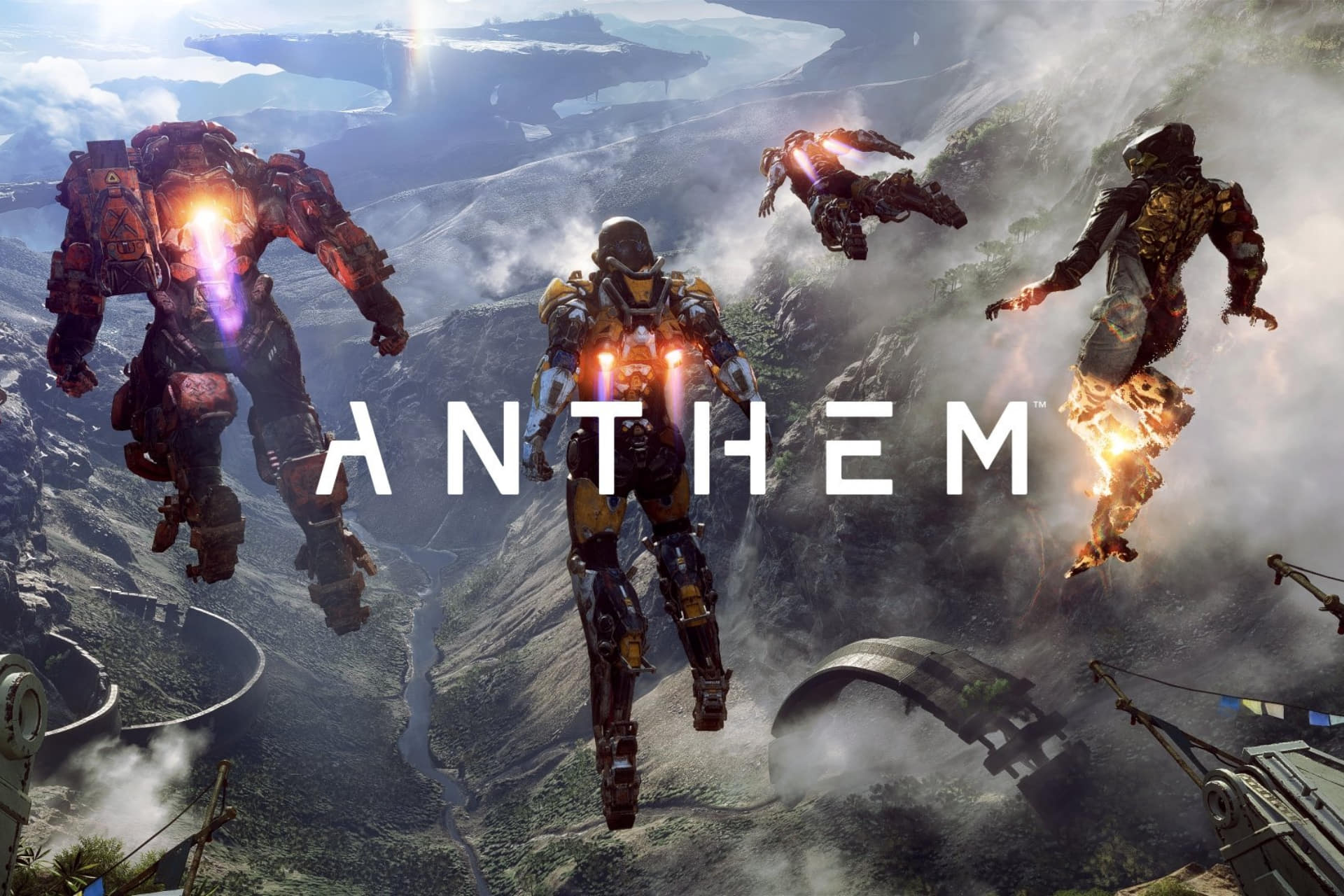
Anthem’s Servers Will Shut Down for Good in January 2026

BioWare’s ill-fated sci-fi multiplayer title Anthem is officially reaching its end. EA has confirmed the game’s servers will be permanently shut down on January 12, 2026.

Launched in 2019 as BioWare’s attempt to pivot into live-service multiplayer, Anthem never quite landed with critics or fans. Despite early ambitions and a planned reboot effort called Anthem NEXT, development stalled, and seasonal updates were canceled by 2021. Now, the final chapter is here.

In a blog post, BioWare shared, “After careful consideration, we will be sunsetting Anthem on January 12, 2026. This means that the game will still be playable online for the next 180+ days.”

Starting today, in-game premium currency purchases are disabled. However, players can still use any remaining credits in the store until the shutdown date.

There’s no offline mode, so once the servers go dark, the game will be entirely unplayable—even for those who bought it. If you’re an EA Play or Xbox Game Pass subscriber, Anthem is leaving those services much earlier, on August 15, 2025.

EA confirmed no BioWare jobs were affected by the decision to sunset the title. The original Anthem NEXT team had already been reassigned to Mass Effect and Dragon Age projects years ago. It’s one last flight for Anthem. So, if you want to suit up in your Javelin one more time, the countdown starts now.

GeForce NOW adds 21 new games in July, including Killing Floor 3 and RoboCop DLC

NVIDIA is kicking off July with a big content update for GeForce NOW. The cloud gaming service is getting 21 new games this month, including several new releases and some solid indie hits.

Seven titles are available to stream starting this week. Standouts include Little Nightmares II, Figment, and Path of Exile 2. Little Nightmares II joins as it hits Xbox and PC Game Pass, while Figment is free to claim on the Epic Games Store starting July 3.

Throughout the rest of the month, NVIDIA will continue expanding the lineup. On July 8, The Ascent arrives, followed by Every Day We Fight and Mycopunk on July 10.

Fans of chaotic shooters can look forward to Killing Floor 3 on July 24, while RoboCop: Rogue City – Unfinished Business drops on July 17. Other releases include Wuchang: Fallen Feathers, Wildgate, Brickadia, and more.

NVIDIA notes that more games may quietly join the list as July progresses. The service doesn’t operate like Xbox Game Pass. Instead, players need to own the games outright or access them through services like PC Game Pass to play them on GeForce NOW.

Windows 11 hits 59.84% on Steam as gamers move on from Windows 10

Windows 11’s grip on PC gaming is getting stronger. Steam’s June 2025 Hardware & Software Survey shows Microsoft’s latest OS climbing to 59.84% of Windows-based systems used by gamers, up 1.54 points from May.

Windows 10 continues its slow exit, now at 35.69%, while Windows 7 is nearly gone at just 0.09%. Windows still rules the platform overall, running on 95.67% of systems (+0.22 points). Linux holds 2.57%, and macOS trails with 1.76%.

With extended Windows 10 updates available for one more year, the OS is expected to linger in homes and gaming setups, but the shift is clear.

In hardware trends, the most common setup includes 16GB RAM, a 6-core CPU, and 1080p resolution. NVIDIA’s RTX 4060 Laptop GPU now tops the charts with 4.79% usage, just overtaking the popular desktop RTX 3060.

NVIDIA dominates GPU share with 74.07%, followed by AMD at 17.68% and Intel at 7.88%. On the CPU side, Intel still leads at 59.29%, with AMD close behind at 40.71%.

Valve’s monthly data shows where gaming is headed, faster GPUs, newer Windows, and 1080p still holding strong.

Helldivers 2 is coming to Xbox Series X|S this August with full crossplay

In a surprise move, Helldivers 2 is officially heading to Xbox. Once a major PlayStation console exclusive, the hit co-op shooter will launch on Xbox Series X|S on August 26, with pre-orders now open.

Arrowhead Game Studios made the announcement via Helldivers’ X (FKA Twitter) account, framing the Xbox launch as part of “Super Earth expanding its operations.”

The game’s tongue-in-cheek lore fits the dramatic tone. Players on Xbox will soon be able to join the galactic war effort alongside their friends on PlayStation and PC, thanks to full crossplay support.

Game Director Mikael Eriksson says the team is thrilled to open the game up to more players. “We know gamers have been asking for this for some time, and we are so excited to bring more Helldivers into our game. The fight for Super Earth has only just begun.”

Helldivers 2 originally launched in February 2024 and quickly became a breakout hit, praised for its fast-paced third-person combat and hilarious team-based chaos.

Players take on the role of elite shock troops spreading “managed democracy” across the galaxy, fighting bugs, bots, and bureaucracy in equal measure. Xbox players can pre-order the Standard Edition for $39.99 or the Super Citizen Edition for $59.99.

This version includes bonus gear and content. Whether you’re new to the battlefield or a veteran of bug-blasting campaigns, the war’s about to get a lot bigger.

Windows 11 Key Generators: Are They Safe?

You might be wondering about Windows 11 key generators:are they safe or just too good to be true? While they promise free activation, the risks to your system’s security and legality are often not worth it. This guide will walk you through the dangers and point you toward safer options.

Everything You Should Know About Windows 11 Key Generators

What Is a Windows 11 Key Generator?

A Windows 11 key generator, also called a “keygen,” is software designed to create fake product keys that trick Windows into thinking it is activated. These tools are often distributed through piracy websites and forums and claim to bypass Microsoft’s licensing process.

Most keygens mimic the format of real Windows product keys but do not connect to Microsoft servers for verification. They are commonly used to activate pirated or non-genuine copies of Windows 11.

Why Windows 11 Key Generators Are Unsafe

Using a key generator comes with multiple risks:

  • Malware Infections: Many keygens are bundled with trojans, spyware, or ransomware. These threats can steal personal data or damage your system.
  • No Windows Updates: Systems activated with fake keys may be blocked from getting security updates or feature releases, exposing you to known vulnerabilities.
  • System Instability: Non-genuine versions of Windows may show constant activation warnings, trigger random shutdowns, or block personalization settings.
  • Legal Risks: Using keygens violates Microsoft’s license agreement. Businesses and individuals can face fines or audits for software piracy.

What Can Happen if You Use a Key Generator

  • Invalid Activation: Windows can detect fake keys and deactivate your OS, removing key features and displaying watermarks.
  • No Technical Support: Microsoft will not offer customer service or updates for pirated versions.
  • Data Theft: Malware from keygens may access files, passwords, or banking details without your knowledge.

The short-term benefit is not worth the long-term cost.

If cost is a concern, here are legitimate ways to get a licensed copy of Windows 11 without using risky tools:

1. Free Upgrade from Windows 10

If you already have a licensed version of Windows 10, you may qualify for a free upgrade to Windows 11. Just use Windows Update or the Windows 11 Installation Assistant to upgrade securely.

2. Use the Windows Insider Program

You can join the Windows Insider Program to test preview versions of Windows 11 for free. These builds are not recommended for daily use, but they are legitimate.

3. Education Licenses for Students and Teachers

Many universities offer free or discounted Windows licenses. Check Microsoft’s Education Store to see if you’re eligible.

4. Buy a Budget OEM Key

OEM keys are valid licenses tied to a single device and cost significantly less than retail versions. You can find legal OEM keys from vendors like:

Before purchasing, it’s a good idea to understand the full process to buy a Windows 11 product key securely and verify its authenticity.

5. Volume Licensing for Businesses

If you manage multiple PCs, consider Microsoft’s Volume Licensing options. This allows businesses to activate and manage multiple machines legally and efficiently.

Also, for more technical users, you may want to know how to activate Windows 11 on a virtual machine without triggering license conflicts.

Not sure what type of license you already have? Learn how to check your Windows 11 license type before upgrading or purchasing a new key.

Additionally, be aware of reusability rules. If you’re planning to switch hardware or reinstall, check out how many times you can use a Windows 11 key.

Final Thoughts: Avoid Keygens, Stay Secure

Windows 11 key generators are unsafe, unreliable, and illegal. They often carry serious consequences like malware infections, legal penalties, or system instability.

Instead, choose one of the secure methods listed above. Whether it’s a discounted OEM key or a student license, there are trusted options that keep your PC running safely and legally.

FAQs

Can Windows 11 detect a fake product key automatically?

Yes, Windows 11 uses online activation checks and server-side validation to detect counterfeit or reused keys, which may result in deactivation or a persistent watermark.

Will Microsoft ban my account for using a key generator?

While personal accounts are rarely banned, using pirated activation methods can lead to loss of support, blocked updates, or issues with linked Microsoft services like OneDrive and Office.

Is there a difference between OEM and retail keys in terms of legality?

Both are legal, but OEM keys are tied to the first device they are activated on, while retail keys can usually be transferred to a new PC if the old one is no longer in use.

FIX: Missile Command Delta Crashing on PC

Experiencing frequent Missile Command Delta crashes on PC can be frustrating for both casual players and strategy fans. The game may crash mid-session, freeze to a black screen, or even reboot your system unexpectedly. These interruptions ruin immersion and momentum in gameplay.

We’ll explore everything from simple settings changes and driver updates to more technical tweaks like disabling anti-cheat interference and repairing corrupted files. Without further ado, let’s get going.

Step-by-Step Guide to Fix Missile Command Delta Crashes on PC

1. Update GPU Drivers & Windows

  • Use NVIDIA GeForce Experience or AMD Adrenalin to install the latest drivers.
  • Run Windows Update, including all optional patches.

Many crashes stem from outdated GPU drivers reacting poorly with new game engines.

2. Add Launch Options: Force DirectX11 & Core Use

In Steam, right-click the game > Properties > General > Launch Options. Add:

-dx11 -useallavailablecores -high

This forces DX11 rendering, which is more stable than the default DX12 for some, and assigns full CPU priority. Reddit users report that this significantly improves stability.

3. Disable Auto HDR

Some players, especially on newer GPUs, fixed crashes by disabling Auto HDR in Windows display settings. This stops driver-level rendering shifts mid-game.

4. Run in Windowed Mode

Crashes at startup or startup-freeze issues can be resolved by forcing -windowed in launch options. Many confirm this stops CTDs during load screens.

5. Locate and Clean Duplicate Game Installs

On Steam, check other drives for leftover folders. One Redditor found that deleting duplicate game folders on secondary drives solved mid-game PC crashes.

6. Disable Overlays and Monitoring Tools

Turn off Steam Overlay, Discord overlay, MSI Afterburner, Rivatuner, and any FPS trackers. Conflicts with the game’s anti-cheat often cause crashes.

7. Enable Core Isolation & Assign Anti-Cheat Process

On hybrid-core CPUs (Intel 12th/13th gen, AMD X3D), use Core Isolation and Core Director to pin the anti-cheat to Performance cores. This prevents frequent cycle resets, causing freezes.

8. Check PSU & Hardware Stability

Some users report PSU underperformance as the cause. If you experience PC-wide crashes, consider switching power outlet or PSU, and reduce quality settings as an interim solution.

9. Verify Game Files & Reinstall

Steam > Properties > Installed Files > Verify integrity. If repairs don’t stick, delete and reinstall the game. This resolves corruption that can trigger crashes.

10. Run Disk Checks

Open Command Prompt as admin and run:

chkdsk /f

This addresses potential disk read errors, especially on older SSDs.

11. Clear Shader Cache on SSD/Anti-Cheat Folders

On crashes related to kernel or power faults, after closing the launcher, use EmptyStandbyList.exe to clear the RAM cache. Reopen the game to rebuild shaders. Just in case you can’t start the game, follow our guide to fix Missile Command Delta not launching.

Common Causes of Fan-Crashing in Missile Command Delta

1. GPU Driver or Windows Conflicts: Outdated rendering stacks often crash with new titles.

2. Anti-Cheat Interference: Kernel-level anti-cheat can clash with hybrid CPU scheduling.

3. Overlay/Monitoring Tools: These inject hooks clash with the game’s engine.

4. Hardware or PSU Limitations: Underpowered PSUs or aging SSDs can cause abrupt system failures.

5. Corrupted Game Files: Bad assets or shader data often lead to random CTDs.

6. Hybrid Core CPU Issues: Without proper core isolation, scheduling conflicts freeze performance cores.

7. Auto HDR Bugs: This Windows feature is linked to in-game CRT stability.

8. Windowed/Fullscreen Render Mode: Fullscreen mode bugs exist; windowed mode often avoids them.

Conclusion

Missile Command Delta crashing on PC is usually fixable by tackling driver compatibility, anti-cheat conflicts, and hardware integrity. Start with launch options tweaks like DX11 and windowed mode, turn off overlays, and ensure your drivers and Windows are up-to-date. 

For hybrid CPUs, enabling Core Isolation and pinning the anti-cheat to performance cores can eliminate recurrent freezes. Clearing the shader cache and verifying files helps fix asset or shader issues.

If problems persist, especially abrupt PC reboots, double-check your PSU, storage health, and shutdown logs. Reinstall the game cleanly and use disk repair tools if needed. For persistent code-level crashes, contacting the developers with logs can lead to long-term fixes. In case you can’t install the game, check our guide on how to fix Missile Command Delta not installing on PC/Xbox.

FAQs

Why does Missile Command Delta keep crashing on my PC?

Crashes often happen due to outdated graphics drivers, corrupted game files, or conflicts with background applications.

How can I fix Missile Command Delta crashing at startup?

Verify your game files on Steam or your platform, update your GPU drivers, and ensure Windows is fully updated.

The game crashes randomly during play. What should I do?

Lower your graphics settings, disable any overlays like Discord or Steam overlay, and close unnecessary background programs.

Does my PC meet the minimum requirements for Missile Command Delta?

Check that your hardware matches or exceeds the minimum specs. Insufficient RAM, CPU, or GPU power can cause instability.

Are there known compatibility issues with specific hardware or software?

Some users report issues with certain AMD or NVIDIA drivers. Try rolling back to a stable driver version if the latest causes crashes.

Could an antivirus or firewall be causing the Missile Command Delta crash on my PC?

Yes, sometimes security software blocks game files. Add Missile Command Delta to your antivirus or firewall exceptions.

What if the game crashes with a specific error message?

You can reach out to us if you encounter any specific error message by dropping a comment below. Alternatively, note the error and search online or on forums like Steam Community or Reddit for targeted fixes related to that error.

How to Fix Missile Command Delta Not Launching

Trying to launch Missile Command Delta on your PC only to face a blank screen, instant crash, or no response at all can be frustrating. Whether you’re a new player or a seasoned strategy fan, the inability to start the game stops you from diving into the action. Fortunately, most launch issues are fixable with a series of straightforward troubleshooting steps.

This guide covers proven solutions from gaming communities, forums, and official support sources. We’ll walk through updating drivers, checking system requirements, fixing corrupted files, and adjusting key settings that often prevent Missile Command Delta from launching properly. Let’s get your game up and running.

Step-by-Step Guide to Fix Missile Command Delta Not Launching on PC

1. Check Your PC Meets Minimum Requirements

First, ensure your PC meets the minimum hardware and software specs for Missile Command Delta.

  • CPU: At least a modern quad-core processor
  • RAM: 8 GB or more recommended
  • GPU: Compatible DirectX 11 or higher card with 2GB VRAM minimum
  • OS: Windows 10 64-bit or later

If your PC falls short, the game might fail to launch or crash instantly. Just in case you are facing the latter, check out the full guide to fix Missile Command Delta crashing on PC.

2. Update Graphics Drivers and Windows

Outdated GPU drivers or Windows versions commonly cause launch failures.

  • Use NVIDIA GeForce Experience or AMD Adrenalin to install the latest drivers
  • Run Windows Update and include all optional updates

New drivers often improve compatibility with newer games like Missile Command Delta. Don’t skip this step.

3. Run the Game as Administrator

Sometimes, the game needs elevated permissions to access necessary files.

  • Right-click the game executable or shortcut
  • Select “Run as administrator”
  • Try launching again

This can fix permission-related launch blocks.

4. Disable Overlays and Background Programs

Overlay apps like Discord, Steam Overlay, or monitoring tools may conflict with the game.

  • Disable Steam Overlay: Steam → Settings → In-Game → uncheck “Enable Steam Overlay”
  • Close Discord overlay and other third-party apps before launching
  • Temporarily disable antivirus or firewall software that might block the game

Many players report overlays causing missile command delta not launching issues.

5. Add Launch Options for Compatibility

Tweaking the game launch parameters can help.

  • In Steam, right-click the game → Properties → General → Launch Options
  • Add the following commands:
-dx11 -windowed -useallavailablecores

This forces DirectX 11 mode (more stable than DX12), runs the game in windowed mode to avoid fullscreen bugs, and uses all CPU cores.

6. Verify Game File Integrity

Corrupted or missing game files can prevent launch.

  • In Steam, right-click Missile Command Delta → Properties → Local Files → Verify integrity of game files
  • Wait for Steam to check and repair any files

This fixes broken game data that causes launch failures.

7. Reinstall the Game

If verification doesn’t help, a clean reinstall may solve hidden corruption.

  • Uninstall Missile Command Delta fully
  • Delete leftover game folders (especially in Documents or AppData)
  • Reinstall fresh from Steam or your platform

Fresh installs often fix persistent launch issues.

8. Check for Windows Auto HDR and Disable It

Auto HDR can cause rendering conflicts that stop the game from launching properly.

  • Open Windows Settings → System → Display → HDR settings
  • Turn off Auto HDR if enabled

Many users fixed launch problems by disabling this feature.

9. Update DirectX and Visual C++ Redistributables

Missing or outdated system components sometimes block games from starting.

  • Download and install the latest DirectX runtime from Microsoft
  • Install or repair Visual C++ redistributable packages, especially 2015-2019 versions

These libraries are essential for game operation.

10. Use Compatibility Mode

Try running the game in compatibility mode for an earlier version of Windows.

  • Right-click the game executable → Properties → Compatibility tab
  • Check “Run this program in compatibility mode for” and select Windows 8 or 7
  • Apply and launch the game

This helps if the game struggles with your current Windows version.

11. Check Your System’s Power and Performance Settings

Missile Command Delta not launching can sometimes be linked to power management interfering with the CPU or GPU.

  • Set your Windows power plan to “High performance”
  • Disable CPU or GPU throttling tools temporarily
  • Ensure no battery saver modes are active on laptops

Consistent performance settings prevent sudden launch failures.

12. Review Event Viewer Logs

If you’re tech-savvy, check Windows Event Viewer for error logs related to the game launch.

  • Press Windows + R, type eventvwr.msc and hit Enter
  • Look under Windows Logs → Application for recent errors referencing Missile Command Delta or its executable
  • These logs can help identify specific causes or error codes

Developers and community forums often request these logs for troubleshooting.

Common Symptoms of Missile Command Delta Not Launching

  • Clicking “Play” does nothing, and no window opens
  • The game crashes immediately before the main menu appears
  • A black screen shows up and then closes
  • The game freezes on a loading splash screen
  • Windows shows an error, but the game never opens

If you’re seeing any of these, this guide can help.

Additional Tips and Troubleshooting

  • Close unnecessary USB devices like controllers or external drives; sometimes, they cause conflicts.
  • Disable multi-monitor setups temporarily, as full-screen games can misbehave across displays.
  • Try running the game from its install folder executable directly, bypassing Steam or launcher shortcuts.
  • Update your motherboard BIOS and chipset drivers if your PC is older or uses new hardware.
  • Create a new Windows user account to rule out profile corruption issues.

Common Causes Behind Missile Command Delta Not Launching

  • Outdated or incompatible drivers cause most launch failures because the game relies on up-to-date graphics and system software.
  • Conflicts with overlays or background apps inject code into the game process, sometimes blocking startup or causing immediate crashes.
  • Corrupted game files or incomplete installs lead to missing assets or executable errors that stop the game before launch.
  • Anti-cheat or security software interference can block parts of the game from running, mistaking them for threats.
  • Hardware not meeting minimum specs or power management settings can prevent the game from initializing properly.
  • Windows system components like DirectX or Visual C++ runtimes, missing or outdated, may cause crashes or failure to launch.

Conclusion

Missile Command Delta not launching on PC is a common hurdle that usually boils down to driver issues, corrupted files, or software conflicts. Start with basic fixes: update your GPU drivers and Windows, disable overlays, run as admin, and verify game files. If those don’t work, tweak launch options, disable Auto HDR, and try compatibility mode.

For stubborn cases, a clean reinstall and system component updates often clear hidden errors. If you’re still stuck, check event logs or seek help from the official support channels with your error details.

By following this guide, you should be able to overcome most launch issues and get back to defending your cities against missiles in no time. If you can’t install the game, check our guide on how to fix Missile Command Delta not installing on PC/Xbox.

FAQs

Why won’t Missile Command Delta launch when I click “Play”?

This usually happens due to outdated GPU drivers, corrupted game files, or interference from background programs like overlays or antivirus.

The game opens to a black screen, then closes. What’s wrong?

This could be related to Auto HDR, fullscreen bugs, or incompatible DirectX settings. Try disabling Auto HDR and forcing windowed mode using -windowed in launch options.

I meet the minimum specs. Why is the game still not starting?

Even with the right specs, launch problems can stem from missing Visual C++ runtimes, outdated DirectX, or conflicts with other software.

Could antivirus or firewall software block the game from launching?

Yes. Some security tools may mistakenly block the game’s executable or its anti-cheat component. Add exceptions or disable them temporarily to test.

Should I reinstall the game if it won’t launch?

Yes. If verifying files doesn’t fix it, a clean reinstall can remove corrupt data and resolve persistent launch issues.

Is it safe to use launch options like -dx11 or -windowed?

Absolutely. These options are widely used by the community to fix compatibility problems, especially with newer systems or graphics setups.

Why does the game crash instantly on my hybrid-core CPU?

Anti-cheat software might conflict with CPU scheduling. Enable Core Isolation or pin the anti-cheat to performance cores if supported.

How can I check what’s going wrong when the game doesn’t launch?

Open Windows Event Viewer to view crash logs. Check the Application section for errors tied to Missile Command Delta.

Here’s Why NVIDIA May Have Blocked RTX 5050 Reviews

NVIDIA didn’t want reviewers to get their hands on the RTX 5050, but QuasarZone went ahead and did it anyway. Despite having no review samples or official drivers, the outlet managed to test a Colorful-branded version of the card and published its findings.

The RTX 5050, part of NVIDIA’s mainstream GPU lineup, was tested on a Ryzen 9 9800X3D system with DDR5-6000 memory across 15 games at 1080p. Performance-wise, it didn’t impress. In raw numbers, the 5050 was:

  • 2.6% slower than Intel’s Arc B580
  • 6.2% behind the RTX 4060
  • 13.4% faster than the older RTX 3060

In Cyberpunk 2077, the card hit 65.5 FPS in default mode, while an overclock pushed that to 69.5 FPS. The 3DMark Time Spy score jumped from 10,290 to 11,281 with OC, a near 10% uplift. But the card’s locked 130W power limit keeps it from pushing further, limiting overclocking headroom.

What’s more surprising is that although the RTX 5050 has a 130W TGP, its real-world power consumption matched the RTX 4060’s, which officially runs at 115W, meaning the 4060 is more efficient overall.

According to QuasarZone’s full review, the RTX 5050 may appeal to those upgrading from a 30-series card, but with its limitations and pricing uncertainty, the Arc B580 (12GB VRAM) or even the RTX 4060 may be the smarter buy, if you can find one.

Windows 11 Pro vs Home vs Enterprise: Full Comparison

Choosing between Windows 11 Home, Pro, and Enterprise depends on your needs for features, security, and control. This article breaks down the differences in UI, capabilities, pricing, and business readiness.


Windows 11 Editions: Home vs Pro vs Enterprise – Quick Overview

EditionBest ForKey Advantages
HomeConsumers, casual usersModern UI, Windows Hello, essential security
ProPower users, small businessesBitLocker, Remote Desktop, Group Policy
EnterpriseEnterprises, IT environmentsAdvanced security, MDM, Azure AD, update control

Windows 11 Editions – In-Depth Comparison of Features & Benefits

BitLocker Encryption

Windows 11 Home only offers basic device encryption. Pro and Enterprise editions include full BitLocker encryption, which supports drive selection, secure key management, and integration with TPM 2.0.

Benefits: BitLocker protects sensitive data if your device is lost or stolen.
Downsides: Only available in Pro and Enterprise editions; not ideal for users on Home.
Use case: Freelancers, professionals, and companies handling confidential information should consider BitLocker for extra data security.

Remote Desktop Support

Windows 11 Pro and Enterprise can host Remote Desktop sessions, ideal for remote IT access. Home can only connect to other machines but cannot host.

Benefits: Enables remote work and system administration without third-party tools.
Downsides: Home users can’t host sessions, limiting its usefulness in professional setups.
Use case: IT admins or remote workers accessing office machines from home will need Pro or Enterprise.

Group Policy Management

Pro and Enterprise users gain access to the Group Policy Editor, a must-have for customizing system behaviors across multiple users or devices. Home lacks this entirely.

Benefits: Centralized control over security, updates, user settings, and system behavior.
Downsides: Overhead and complexity for casual users.
Use case: IT departments needing to enforce policies across multiple machines benefit the most.

Domain Join & Azure AD Integration

Enterprise and Pro editions allow domain joining and Azure AD integration. This enables centralized login, policies, and remote management. Home users are limited to personal Microsoft accounts.

Benefits: Supports single sign-on and access to organization resources.
Downsides: Adds complexity for personal or home use.
Use case: Businesses using Office 365, Teams, and other Microsoft services gain seamless user management.

Windows Update for Business

Pro and Enterprise editions let users defer and manage updates with Windows Update for Business. Enterprise users can also leverage Windows Autopatch for automatic system updates.

Benefits: Gives IT teams control over update timing and rollout.
Downsides: Home users must accept updates on Microsoft’s schedule.
Use case: Organizations preventing downtime during business hours or coordinating update rollouts across departments.

Enterprise-Level Security

Enterprise stands out with features like Microsoft Defender for Endpoint, Credential Guard, and AppLocker. Pro includes Windows Information Protection and Defender Application Guard. Home only provides Windows Security and basic protection.

Benefits: Protects against malware, phishing, and unauthorized access at scale.
Downsides: Requires configuration and IT oversight.
Use case: Companies handling financial, medical, or legal data should choose Enterprise for maximum protection.

Licensing & Upgrade Paths

Windows 11 Home typically comes pre-installed on consumer PCs and costs $139. Upgrading to Pro costs around $99 or $199 for a full license. Enterprise requires volume licensing, typically through Microsoft 365 E3/E5 plans. Trial ISOs for Enterprise are available for 90 days.

If you’re ready to upgrade, here’s how to buy a genuine Windows 11 product key safely and avoid common pitfalls.

You can also explore the differences between Windows 11 Pro and Pro N editions to decide which suits your needs, especially if you’re dealing with media functionality or regional software packages.

Benefits: Scalable options from basic consumer use to full enterprise deployments.
Downsides: Volume licensing for Enterprise can’t be purchased casually by individuals.
Use case: A freelancer upgrading to Pro vs. an IT manager deploying Enterprise across 100 devices.


Gaming and Performance

All editions support the same core gaming features: Auto HDR, DirectX 12 Ultimate, and Xbox Game Bar. There is no gaming performance difference between editions.

Benefits: Smooth gaming performance across all versions.
Downsides: None; edition choice does not affect gaming.
Use case: Gamers are safe using Home, no need for Pro or Enterprise unless for non-gaming reasons.


TPM 2.0 & Secure Boot

All editions require TPM 2.0 and Secure Boot to install Windows 11. This ensures compliance with Microsoft’s system security baseline.

Benefits: Enforces modern security standards and helps protect from firmware attacks.
Downsides: Older PCs may not be compatible without TPM.
Use case: Any user aiming for compliance and modern protection; required for Windows 11 installation.


User Interface & Experience

All Windows 11 editions share the same design: centered taskbar, rounded corners, Snap Layouts, and Widgets. Users note a cleaner, more intuitive UI. Pro and Enterprise look and behave the same as Home from a visual standpoint; the differences lie under the hood.

Benefits: Consistent experience across all editions.
Downsides: No visual difference to highlight upgraded features.
Use case: Users upgrading from Home to Pro or Enterprise won’t face a learning curve.


Pricing & Licensing Overview

EditionRetail PriceNotes
Home$139Consumer PCs default option
Pro$199 or $99 upgradeExtra features for professionals and SMBs
EnterpriseVolume licensing (E3/E5)Subscription via Microsoft 365; trial available

Looking to see what other editions exist beyond the main three? Here’s a full guide that breaks down how many versions of Windows 11 exist, including Education, SE, and others.

Benefits: Flexible paths based on individual or business needs.
Downsides: Enterpriseis not accessible to individual buyers.
Use case: Home users needing advanced features can upgrade to Pro; businesses with centralized control needs should opt for Enterprise.


Frequently Asked Questions

What is the difference between Windows 11 Home and Pro?

Pro includes BitLocker, Group Policy, Remote Desktop hosting, and enterprise features not found in Home.

Is Windows 11 Pro better than Home?

For business use or power users, yes. Home is fine for casual use.

Who should use Windows 11 Enterprise?

Organizations with IT departments managing fleets of devices requiring tight security and update control.

Which version of Windows 11 is best for gaming?

All three editions support the same gaming features and performance levels.

Can I upgrade from Windows 11 Home to Pro?

Yes. You can upgrade via Settings or the Microsoft Store.

Is Windows 11 Enterprise worth it?

Yes, for companies needing advanced device management and enterprise-grade security.

What features does Windows 11 Pro have that Home doesn’t?

BitLocker, Hyper-V, Group Policy, Remote Desktop host, and domain join.

Lenovo Teases First-Ever White ThinkPad, Launching July 11

Lenovo is stepping outside its comfort zone. Known for its signature black ThinkPads, and rarely, a silver variant, the company is now teasing something different. The company has just teased a full white ThinkPad.

Dubbed “White Moonlight,” the new design is set to be unveiled on July 11, according to official posts from Lenovo China. The teaser campaign leans heavily into themes of precision and elegance, with close-ups of mechanical watches and violins hinting at the level of craftsmanship behind the upcoming device.

LENOVO-THINKPAD-WHITE-2
Image: Lenovo Thinkpad China
LENOVO-THINKPAD-WHITE-1
Image: Lenovo Thinkpad China

While full specs haven’t been shared yet, it’s expected to stick closely to the internals of the 2025 ThinkPad lineup. That means Intel Core Ultra 200 U/H series chips with vPro and Evo support, or the new AMD Ryzen AI Pro 300 Series processors should be on the table.

What’s clear is that Lenovo’s not just painting the chassis white, it’s pitching a reimagined version of the ThinkPad that still hits all the usual marks. Expect to experience power efficiency, extreme durability, and tight design tolerances down to 0.1mm and 0.1 degrees.

ThinkPads have long had a loyal base, especially in enterprise circles. But a fresh look like this? It might just pull in some new eyes when it drops next week.

10 Best PC Games Under 2 GB to Install and Play

Best PC games under 2 GB offer compact yet compelling gameplay experiences ideal for SSD-sensitive setups and low-spec PCs.

This list blends classic hits, indie gems, and retro simulators. Gamers with limited storage, on-the-go laptops, or travel rigs will find something perfect here, it complements collections of PC games under 5 GB and Windows games under 1 GB.


Why to choose a game under 2 GB?

Choosing a game under 2 GB ensures fast downloads, easy installs, and light resource demands. These titles pack depth into small files, delivering layered gameplay and solid replayability.

They run smoothly on older machines, Steam Decks, or low-storage systems. These games strike the right balance, perfect if you’re also exploring broader libraries like best PC games under 10 GB.

What are the best PC Games Under 2 GB size?

GTA Vice City

GTA Vice City, by Rockstar North (2002), immerses players in an ’80s neon Miami with crime, style, and a killer soundtrack. Critics praised its compelling atmosphere and script.

At around 1.4 GB, it’s ideal for compact setups, offering rich open-world action with minimal disk usage.

Game Highlights:

  • Iconic soundtrack & vibrant missions
  • Streamlined open-world play
  • Low storage requirement

Get it on Softonic


GTA III

Rockstar’s 2001 classic pioneered 3D sandbox experiences in Liberty City. With voice-acted radio stations and crime-driven storytelling, it changed gaming forever.

Requiring only 1.2 GB, it’s still playable on low-end laptops, offering nostalgia and robust gameplay in a small install.

Game Highlights:

  • Sandbox action pioneer
  • Dynamic radio and missions
  • Legacy optimized for older PCs

Get it on G2A


Graveyard Keeper

Developed by Lazy Bear Games (2018), Graveyard Keeper is a humor-laced medieval sim with crafting, farming, and moral choices. Critics enjoy its twisted depth and time-management mechanics.

At 1.3 GB, it’s a load-friendly management sim that thrives on slow-paced gameplay and is perfect for mid-range PCs.

Game Highlights:

  • Crafting + resource interplay
  • Unique dark humor
  • Steam Deck-friendly

Get it on Steam Page


Serious Sam HD: The First Encounter

Croteam’s 2009 remaster of their 2001 hit preserves large-scale arena shooting with enhanced textures and effects. It earned praise for frantic action and nostalgia.

The game size is around 1.1 GB, providing massive battles and performance-friendly design.

Game Highlights:

  • Huge enemy waves
  • Tight classic shooter mechanics
  • Very low system requirements

Get it on Steam Page


Horizon Chase Turbo

Aquiris Game Studio (2018) delivers arcade racing with bright visuals, retro vibes, and addictive soundtrack. It’s praised for its nostalgic yet polished gameplay.

At 0.85 GB, it’s high-speed fun that suits travel computers and space-limited drives.

Game Highlights:

  • Retro-style arcade racing
  • Synthwave soundtrack
  • Lightweight and portable

Get it on Steam Page


Need for Speed: Underground

EA Black Box’s 2003 tuner culture racer blends customization, night racing, and a vibrant city backdrop. Critics loved its CSS styling and soundtrack.

Requiring under 0.7 GB, it offers full arcade thrills and modding potential in a compact install.

Game Highlights:

  • Deep car customization
  • Iconic street racing culture
  • Extremely light on space

Get it on Softonic


Need for Speed: Underground 2

Released in 2004, Underground 2 expanded tuner culture with an open-world city and music-infused atmosphere. Critics noted its enjoyable driving loop and customization.

Also around 1 GB, it extends the experience and remains easy to install on low-storage systems.

Game Highlights:

  • Open-city tuner gameplay
  • Expanded customization & music
  • Ideal for nostalgic racers

Download it on CNet


Tumblestone

Tumblestone (2016) is a puzzle game focused on speed and strategy, praised for its engaging mechanics and clean visuals.

At 0.77 GB, it’s a perfect short-session pick for casual gamers looking for a challenge in a tiny file.

Game Highlights:

  • Strategy-based puzzle mechanics
  • Clean, minimalist graphics
  • Speedruns & daily challenges

Get it on Tumblestone Site


Trainyard Express

Trainyard Express (2015) is a minimalist puzzle game where players route trains efficiently. Loved for its clever design and replayability.

Requiring 0.75 GB, it’s a lightweight delight for puzzle lovers on tight storage.

Game Highlights:

  • Brain-teasing train puzzles
  • Minimalist UI, polished gameplay
  • Compact & intuitive

Get it on Steam Page


Zero-K

Zero-K (2018) is an open-source RTS derived from Total Annihilation, notable for its massive battles and strategic depth.

At roughly 1 GB, it offers rich multiplayer, mod support, and continues evolving through community updates.

Game Highlights:

  • Large-scale real-time strategy
  • Constantly updated by community
  • Free-to-play, low storage footprint

Get it on Steam Page


Best PC Games Under 2 GB Install Tips

Install on SSDs or fast HDDs to avoid load lag. Keep at least 20% free disk space for patches and save files. Always download from official sources for safe versions.


❓ Frequently Asked Questions

Do these games run on low specs?

Yes, each title fits 0.7–2 GB and is compatible with older hardware or lightweight rigs.

Anything beyond single-player?

GTA, Serious Sam, NFS titles have modding or multiplayer options; others focus on solo gameplay or puzzle experiences.

What about even smaller games?

Check out our best PC games under 500 MB for ultra-light picks.


🧾Conclusion

These best PC games under 2 GB prove that excellent gaming experiences don’t require large downloads. Whether you’re drifting through Vice City, racing at night, or solving train puzzles, each title offers entertainment in a compact, optimized package.

Windows 10 vs Windows 11 Battery Life: Which OS Uses More Power?

Windows 10 vs Windows 11 battery life comparisons matter more than ever for users on laptops or portable devices. With subtle shifts in background processes, system demands, and power management, each version can affect how long your battery lasts during daily use.

Below, we check out real-world performance differences, battery-saving features, and optimization tips specific to battery longevity.


Windows 10 vs Windows 11 – Quick Overview

FeatureWindows 10Windows 11
Power ManagementAdvanced manual optionsStreamlined controls with automation
Battery Life on Older HardwareUp to 15% longerOften lower due to Modern Standby
Optimization ToolsClassic power plansAdds Efficiency Mode, DRR, CABC
Visual EffectsLightweight UIDemands more from GPU
Standby ModesTraditional SleepModern Standby enabled by default

🧠 RAM and Background Resource Impact

Windows 11 uses more RAM and CPU resources for background services like Widgets, Teams integration, and a richer desktop experience. This additional usage impacts idle power consumption, especially on devices with limited memory.

If you’re curious about how this affects battery life, check out our detailed analysis on how RAM usage compares between Windows 10 and Windows 11, where we explore how memory load can indirectly reduce battery longevity in Windows 11.


🔋 Battery Optimization Features

Both operating systems offer power-saving tools, but their approach differs. Windows 10 provides classic control panel power plans with deep customization. You can manually adjust sleep timers, processor thresholds, and more.

Windows 11 introduces Efficiency Mode, Dynamic Refresh Rate, and Content Adaptive Brightness Control (CABC) automated features designed to conserve power without user input. While helpful on newer laptops, these tools often depend on firmware or hardware support.

No matter which OS you use, if your battery life seems inconsistent, consider running a calibration. Our step-by-step guide to calibrating your laptop battery can help restore accurate battery readings and improve long-term performance.


⚙️ Standby and Driver Compatibility Issues

Windows 11 enables Modern Standby by default on many devices. This feature allows background activity during sleep, leading to overnight battery drain if not properly configured. On older or unsupported laptops, this can cause a noticeable drop in standby time compared to Windows 10.

Windows 10, on the other hand, relies on traditional sleep modes and has broader driver compatibility. This means fewer power management issues, particularly for aging systems.

For users who recently upgraded to Windows 11 or switched back to Windows 10 and encounter charging problems, our dedicated guide on fixing battery not charging issues in Windows 10 outlines practical troubleshooting steps, including driver reinstalls and hardware checks.


❓FAQ

Does Windows 11 drain more battery than Windows 10?

Yes, in many cases. Windows 11 introduces background services and visual enhancements that increase power consumption, especially on older hardware.

Can Windows 11 battery life be improved?

Yes. Enabling Efficiency Mode, Dynamic Refresh Rate, and adjusting background apps can help. Battery calibration and firmware updates may also reduce unnecessary drain.

Why is my battery draining fast after upgrading to Windows 11?

It could be due to Modern Standby, outdated drivers, or increased background activity. Tweaking power settings and disabling unused services can help extend battery life.

Is it worth downgrading to Windows 10 for better battery?

If your device is older and struggles with battery on Windows 11, downgrading to Windows 10 can restore better power efficiency and longer runtime.

🧾 Verdict Winodws 10 vs Windows 11: Which OS Is Better for Battery Life?

If battery longevity is your top concern, especially on older hardware, Windows 10 remains the more efficient choice. It consumes fewer resources, avoids power-hungry standby states, and offers more manual control over performance.

Windows 11 introduces useful automation and optimization features but can drain more power unless you’re on a newer device with fully supported hardware.

Bottom line:

  • Choose Windows 10 for longer battery life on legacy laptops.
  • Opt for Windows 11 only if your device is modern and fully optimized for the newer power architecture.

Marvel Rivals Season 3 Launches July 11 with Perks for College Players

Marvel Rivals Season 3, titled The Abyss Awakens, kicks off on July 11, and there’s more than just new maps and heroes coming. NetEase confirmed that seasons will now arrive every two months, giving fans a faster content cycle packed with updates.

In a new Dev Vision video, the studio confirmed the arrival of Jean Grey/Phoenix in Season 3, while Blade will follow in Season 3.5. Phoenix will feature in a new team-up ability with Wolverine. A fresh map and expanded cooperative powers are also on the way.

But the standout addition isn’t in the roster, it’s in the perks. NetEase is launching a College Student Perks program that offers free trials of 10 rotating costume skins and MVPs each season to verified university students. Access requires a .edu or equivalent email address, and the program will start in the US and UK before expanding.

These costumes won’t be permanent, but for college players on a budget, it’s a way to freshen up their loadout without spending a cent. The offer rolls out with the Season 3 launch, and details on participating schools or how to request verification support are available on the official Marvel Rivals site.

While the perk is limited in scope for now, it’s a unique move that may signal more student-friendly features ahead.

Windows 10 vs Windows 11 RAM Usage: Which One Uses Less Memory?

Windows 10 vs Windows 11 RAM usage is a key concern for anyone with a slower or older PC. If your computer struggles when opening more than a few tabs or launching basic apps, knowing which system uses less memory can help you avoid freezing and lag.

Both operating systems work well, but they manage RAM differently, and that affects performance in everyday use. Let’s break down how many resources each uses.


⚡ Windows 10 vs Windows 11 – Quick Overview

FeatureWindows 10Windows 11
Minimum RAM Requirement2 GB4 GB
Idle RAM Usage (Post-Boot)1.2 to 1.8 GB2.5 to 3.2 GB
Memory Compression SupportYesYes (uses it more often)
Visual Effects OverheadModerateHigher due to modern UI
Background ProcessesFewer apps run automaticallyMore built-in apps stay active
Page File (Virtual Memory)Works efficientlyTends to use more under load
System Services RAM FootprintLowerHigher because of features like Widgets
Optimized for New RAM TypesWorks with DDR3 and DDR4Supports DDR5 and faster memory

🧪 Windows 10 vs Windows 11 – RAM Usage in Detail

💾 RAM Management and Compression

Both systems use memory compression to reduce the strain on physical RAM. Windows 11 uses this feature more aggressively, which helps performance under load but raises overall memory usage.

Example: If you open 10 Chrome tabs and Spotify, Windows 11 keeps things smoother longer, but it uses more RAM from the start.

If you want to tweak your system up for better performance, check our guide on how to manage Windows 11 high RAM usage.


🛠️ Background Processes and Services

Windows 11 runs more built-in services by default, like Widgets, Teams Chat, and live weather updates. These increase RAM usage even when you’re not using them directly.

Example: If you only use Word and Chrome, Windows 10 may use 2.5 GB RAM total. Windows 11 could cross 3 GB because of extra background apps.


🖥️ Visual Effects and Interface Impact

Windows 11 has rounded corners, shadows, and transitions that make the system feel modern but heavier on memory.

Example: When you open File Explorer, Windows 11 adds animations and smooth movement that use more RAM. Windows 10 opens it with fewer effects, saving memory.


⚙️ Startup and Idle RAM Usage

Right after booting, Windows 10 usually uses between 1.2 and 1.8 GB RAM, depending on the system. Windows 11 uses more—typically between 2.5 and 3.2 GB.

Example: On a 4 GB laptop, Windows 10 leaves enough RAM to launch Excel and Outlook quickly. Windows 11 may feel laggy with the same setup.


📄 Virtual Memory and Page File Usage

When physical RAM fills up, both systems use virtual memory (stored on your drive) to stay stable. Windows 11 hits that limit faster due to higher base usage.

Example: If you’re editing large photos with only 4 GB RAM, Windows 10 may still handle it in RAM, while Windows 11 may start using the slower hard drive space.


🔋 RAM Optimization for New Hardware

Windows 11 supports the latest RAM technologies like DDR5 and LPDDR5. This helps on modern systems but doesn’t improve RAM efficiency on older ones.

Example: On a 2024 laptop with DDR5, Windows 11 feels faster. But on a 2015 desktop, Windows 10 uses memory more efficiently and feels lighter.


✅ Conclusion: Which One Uses Less RAM?

If your computer has 4 GB RAM or less, choose Windows 10. It uses less memory at startup and gives you more room for apps like Chrome, Word, or Zoom.

If you have 8 GB or more RAM, go with Windows 11. It uses more memory but gives you better multitasking and modern features.

Choose Windows 10 for speed and lighter memory load. Choose Windows 11 for newer hardware and a smoother multitasking experience.

FAQ

1. Can disabling features in Windows 11 reduce RAM usage?

Yes. Turning off Widgets, animations, Microsoft Teams Chat, and background apps can free up several hundred MB of RAM. Use the “Startup Apps” and “Background Apps” settings to disable non-essential services.

2. Does RAM usage affect battery life in Windows laptops?

Indirectly, yes. Higher RAM usage often means the CPU and disk are more active, especially if virtual memory is used. This can reduce battery life, particularly on Windows 11 where the base memory load is higher.

3. Is upgrading RAM better than downgrading to Windows 10?

If your system allows it, upgrading RAM gives more long-term flexibility. But if you’re limited to 4 GB and can’t upgrade, switching to Windows 10 offers a more immediate improvement in responsiveness.

4. How does RAM usage affect gaming performance on Windows 11?

Games often compete for memory with system processes. On Windows 11, more background services run by default, leaving less RAM for games. Disabling these services or upgrading to 8 GB or more helps performance.

5. Can virtualization features in Windows 11 increase RAM usage?

Yes. Features like Memory Integrity (Core Isolation) and Virtualization-based Security consume extra RAM. Disabling them may improve memory availability but could reduce security on your device.

6. Does Windows 11 manage RAM better over time than Windows 10?

On newer hardware, yes. Windows 11 uses smarter compression and improved memory prioritization for background tasks. However, this only benefits devices with at least 8 GB RAM and recent CPUs.

Battlefield 6 Targets 100M Players as Development Costs Cross $400 Million

EA isn’t playing it safe with the next Battlefield. Codenamed “Glacier,” the upcoming title is shaping up to be one of the company’s boldest projects yet, with development costs already crossing the $400 million mark, according to a report from Ars Technica.

That same report, based on interviews with former EA developers, says EA is aiming for a player base of 100 million. For context, Battlefield 2042 only brought in around 22 million players. The jump is massive, and the studio’s expectations are clearly high.

A player base that large suggests EA is looking far beyond traditional multiplayer. That’s where Battle Royale speculation comes in. As GameRant points out, most games that cross the 100M player mark offer a Battle Royale experience. While not confirmed, all signs point in that direction.

Still, longtime fans have reasons to be optimistic. The return of the popular Rush mode has already been confirmed through previous leaks. DICE is reportedly pulling from the best parts of past Battlefield games, so this isn’t a full-on pivot, more like a modern remix of what’s worked before.

Official details are expected to drop later this summer. For now, fans are watching closely, hoping Glacier can balance new ambitions with the core Battlefield DNA.

Best Games Under 500 MB for PC To Install and Enjoy 

Finding the best PC games under 500 MB can be a challenge, especially if you’re dealing with limited storage or a low-end PC, or simply want to see what a small-sized game can offer in terms of experience.. But smaller doesn’t mean worse as many lightweight games offer excellent gameplay, replay value, and fun experiences without hogging space.

This article lists some of the most popular PC games you can download under 500 MB. From action-packed classics to recent indie hits, these titles prove you don’t need massive installs for high-quality entertainment.

Why Download and Install a Game Under 500 MB?

PC games under 500 MB are ideal for users with low storage, slow internet, or older systems. These games download quickly, install smoothly, and often run well even without a dedicated GPU or SSD, making them perfect for laptops or budget builds.

Beyond technical benefits, small-sized games are often highly optimized, focused on core gameplay, and easier to mod or customize. If you’re into minimalist, fast-paced fun without waiting for 80 GB downloads, a game under 0.5 GB is the way to go.

Best PC Games Under 500 Mb To Play Right Now


Limbo

Limbo is a critically acclaimed 2D puzzle-platformer that stands out for its eerie monochrome art style and atmospheric gameplay. Released by Playdead, this game blends physics-based puzzles with an emotional, mysterious narrative.

Despite being under 500 MB, Limbo delivers an immersive experience. It’s a fantastic choice if you’re exploring compact, story-driven games with minimal UI. You’ll find similar quality picks in our best PC games under 10 GB roundup as well.

Limbo Highlights:

  • Atmospheric black-and-white art style
  • Puzzle-platformer with emotional storytelling
  • Extremely lightweight with quick install
    → Get it on Steam

Undertale

Undertale is a genre-defying indie RPG that became a cult hit thanks to its quirky humor, creative combat system, and emotional storytelling. The game lets you spare or kill enemies, and your choices affect the outcome drastically.

Weighing in at under 200 MB, it’s one of the best examples of how a tiny download can offer a massive impact. 

Undertale Highlights:

  • Unique battle and dialogue mechanics
  • Meaningful choices shape your journey
  • Soundtrack and humor loved by fans


→ Get it on Steam


Into the Breach

Developed by the creators of FTL: Faster Than Light, Into the Breach is a turn-based strategy game that mixes tactical depth with retro visuals. Players control mech squads to prevent alien threats, all within small grid-based maps.

Its file size is impressively small, yet it delivers deep, repeatable gameplay. If you’re a fan of low-spec strategy titles, this is a must-play.

Into the Breach Highlights:

  • Compact grid-based combat gameplay
  • Procedurally generated missions
  • Low-spec friendly and endlessly replayable

 → Get it on Steam


Broforce

Broforce is a side-scrolling run-and-gun platformer packed with explosive action and 80s movie parody characters. Each level is destructible, and gameplay is fast, chaotic, and hilarious — especially in co-op mode.

With pixel graphics and small install size, Broforce proves that retro-style games can still bring the heat. It’s a top pick for couch multiplayer fans and also appears in many lists of free PC games.

Broforce Highlights:

  • Destructible environments and pixel gore
  • Over-the-top action with co-op play
  • Parodies action heroes from 80s/90s


→ Get it on Steam


Hotline Miami

This top-down shooter is famous for its brutal difficulty, neon-drenched visuals, and pulsing soundtrack. Hotline Miami challenges players to plan their attacks, react fast, and restart often. In its gameplay, death is quick and constant.

Its bite-sized file size is matched by its bite-sized levels, perfect for short but intense gaming sessions. It’s also frequently featured in PC games with mods communities thanks to its custom level support.

Hotline Miami Highlights:

  • Ultra-fast, brutal top-down action
  • Retro aesthetic with killer soundtrack
  • Modding and custom levels supported


→ Get it on Steam


Terraria

Terraria might look like a simple 2D game, but it’s actually a massive sandbox full of mining, crafting, combat, and exploration. With procedurally generated worlds and endless replayability, it’s a classic for both solo and multiplayer fans.

Surprisingly, Terraria is under 500 MB despite its content density. If you’re into survival crafting games, this one’s a must. Kids love it too – see our curated picks of free PC games for kids for more fun options.

Terraria Highlights:

  • Massive worlds, biomes, and bosses
  • Supports multiplayer and modding
  • Lightweight yet content-rich sandbox


→ Get it on Steam


StarCraft: Brood War

StarCraft: Brood War remains one of the most influential real-time strategy games ever made. Even decades after release, its refined mechanics and balanced multiplayer still have a strong following.

The game’s remastered version is slightly larger, but the original install is comfortably under 500 MB. It runs great even on outdated machines, making it a great addition to our best free PC games for low-end PCs.

StarCraft Highlights:

  • Classic RTS gameplay with 3 unique factions
  • Legendary competitive multiplayer scene
  • Very low hardware requirements

 → Get it on Blizzard


Among Us

Among Us exploded in popularity in 2020 and has remained a staple for casual multiplayer sessions ever since. Players work together to complete tasks while trying to identify the impostors onboard a spaceship.

Its small size (under 500 MB) and simple graphics make it perfect for all systems. Whether on voice chat with friends or silent online play, it’s a lightweight gem.

Among Us Highlights:

  • Fast, social deduction gameplay
  • Supports cross-platform play
  • Popular with all age groups


→ Get it on Steam


Vampire Survivors

This minimalist roguelike puts you in control of an auto-attacking survivor, fending off increasingly large waves of enemies. With each round lasting minutes to half an hour, it’s perfect for quick bursts of addictive action.

Vampire Survivors is under 300 MB and runs on even the most basic setups. For those who enjoy games that require no installation at all, check out our list of PC games that run without installation.

Vampire Survivors Highlights:

  • Bullet hell roguelike with simple controls
  • Addictive power-up system
  • Perfect for short gaming bursts


→ Get it on Steam


Celeste

Celeste is a tough but touching platformer where you climb a mysterious mountain while dealing with inner struggles. Tight controls, a touching story, and hand-crafted levels make this a standout indie game.

Even with its critical acclaim and rich gameplay, the download size stays below 500 MB. For more compact games that push boundaries, see our PC games under 5 GB guide.

Celeste Highlights:

  • Precision platforming with assist options
  • Strong emotional narrative
  • Winner of multiple indie game awards


→ Get it on Steam


FAQs

What are the benefits of downloading small-sized PC games?

They save disk space, install faster, and often run smoother on low-end hardware. Ideal for older PCs or laptops.

Are these games truly under 500 MB after installation?

Most are under 500 MB in download size. Some may slightly exceed that post-install due to unpacked files.

Can I play these games without an internet connection?

Yes, most listed games support offline play once installed.

Where can I find more small or free games?

You can explore our full free PC games guide for regularly updated recommendations.


Final Thoughts

Choosing a game under 500 MB doesn’t mean compromising on quality. Titles like Terraria, Hotline Miami, and Among Us prove that great gameplay can come in small packages. Whether you’re tight on storage or just want to jump into a fast, fun session, these lightweight PC games offer incredible value.

Let your hard drive breathe and your gaming thrive.

11 Best PC Games Under 20 GB to Download and Play Today

Big-sized games, like games under 20 GB for PC, deliver deep, engaging experiences as they have a lot more data that could offer you an amazing gaming experience. Each title here stays between 10 GB and 20 GB, offering rich content optimized for mid-range PCs and SSD-conscious gamers.

This list contains:

  • RPGs
  • Shooters
  • Horror
  • narrative adventure

These genres are ideal for players seeking quality without massive installs (over 20 GB in size). Many titles here are featured in performance-focused gameplay content, ensuring a smooth experience across various systems, especially Windows 11 and Windows 10.

Why to choose a game under 20 GB?

Choosing a game under 20 GB ensures you get full-featured, content-rich experiences without sacrificing storage space. These titles often offer expansive worlds, cinematic stories, and high replay value yet remain compact enough to install, update, and manage easily.

A mid-size install strikes a balance between depth and efficiency—perfect for Steam Deck users, SSD owners, and anyone wanting major gaming experiences without the bloat of 50 GB+ titles. They download faster, patch quicker, and run smoothly on average hardware.

What are the best games under 20 GB for PC gamers?

The Witcher 3: Wild Hunt

The Witcher 3, by CD Projekt RED, is a legendary open-world RPG praised for its mature storytelling, expansive world, and memorable characters. Released in 2015, it consistently earns high critical acclaim and still sees heavy modding traffic today.

Despite being known to freeze during intense audio scenes, many players find comfort in optimization tips available online, like those addressing the Witcher 3 freeze with sound issues. At about 15 GB, this narrative-rich experience remains a compact yet powerful journey.

Game Highlights:

  • Rich, branching storylines and side quests
  • Optimized performance with frequent patches
  • Immersive world design and vibrant characters

Get it on Steam Page

Fallout 4

Fallout 4 from Bethesda (2015) puts you in a post-nuclear Boston, blending deep RPG mechanics with base building and open-world exploration. Its modding community keeps the game fresh years later.

The 13 GB base install now includes improvements seen in its acclaimed GOTY version, which has recently launched on Xbox One – a boost in community and technical support for a richer experience.

Game Highlights:

  • Vast world with rich storytelling and crafting
  • Strong mod support and DLC inclusions
  • Acts as a benchmark for post-apocalyptic RPGs

Get it on Steam Page


Control

Control, by Remedy Entertainment (2019), blends supernatural combat and exploration inside the unsettling Oldest House. Its telekinetic Parkour and destructible environments earned it instant acclaim.

The roughly 17 GB installation supports high-impact visuals without demanding extremes,  , offering polished perform ance across modern hardware.

Game Highlights:

  • Telekinetic powers meet destructible world physics
  • Cinematic presentation with strong narrative twists
  • Optimized for a range of systems

Get it on Steam Page


Metro 2033 Redux

4A Games’ Metro 2033 Redux (2014) rebuilds the acclaimed 2010 shooter with enhanced visuals and survival-horror elements set in Moscow’s Metro tunnels. Critics praised its atmosphere and resource-driven gameplay.

The 15 GB install delivers immersive gameplay with updated textures and lighting, seamlessly fitting mid-range rigs.

Game Highlights:

  • Dark, immersive environments
  • Balance of action and survival
  • Updated visuals in Redux version

Get it on Steam Page


Tomb Raider (2013)

Crystal Dynamics rebooted Lara’s origin story in 2013 with cinematic flair and emotional resonance. Critics praised the gritty tone, strong character growth, and gameplay variety.

Running at 12 GB, this adventure has occasional display driver errors (a common issue with older hardware), guidance on resolving these is covered in the Shadow of Tomb Raider display driver error fix, which often helps streamline older engines.

Game Highlights:

  • Emotional origin tale with smooth traversal
  • Fluid combat and environmental puzzles
  • Performance-friendly settings presets

Get it on Steam Page


Mafia II

Mafia II, from 2K Czech (2010), is a story-rich action-adventure set in a 1940s crime world. It earned strong praise for its narrative and period atmosphere despite some open-world limitations.

The 13 GB file size makes it a solid storytelling choice without heavy performance demands. Its cinematic storytelling and vintage setting offer a compelling standalone experience.

Game Highlights:

  • Atmospheric mid-century world
  • Strong narrative and character arcs
  • Compact and optimized design

Get it on Steam Page


Batman: Arkham Asylum

Developed by Rocksteady Studios in 2009, Arkham Asylum revitalized superhero games with its immersive combat, exploration, and storytelling. It won wide acclaim and awards for its innovative Bat gameplay.

At exactly 10 GB, it’s one of the earliest AAA titles optimized for older PCs, delivering polished combat and rich atmosphere without high-end hardware.

Game Highlights:

  • Innovative Freeflow combat
  • Atmospheric, story-driven levels
  • Runs well on dated systems

Get it on Steam Page


Dead Space (2008)

EA Redwood Shores’ Dead Space delivers survival horror excellence aboard the USG Ishimura. Praised for its tension, atmosphere, and dismemberment mechanics, it remains a genre staple.

The 12 GB game’s influence endures, amplified by the upcoming remake’s launch trailer that showcases the rebirth of the series: Dead Space Remake Launch Trailer: “Humanity Ends Here” Unveiled.

Game Highlights:

  • Creepy ambiance and weapon dismemberment
  • Tight, claustrophobic level design
  • Compact but high-quality horror experience

Get it on Steam Page


Dishonored

Dishonored, developed by Arkane Studios in 2012, is a stealth-action marvel set in a grim, plague-ravaged city. Its creative powers system and world design earned it widespread critical praise.

With a 15 GB footprint, it’s a favorite among mid-spec gamers. Its mission structure and replay options create an addictive loop of stealth experimentation.

Game Highlights:

  • Multiple ways to approach missions
  • Rich world-building and art direction
  • Performance-friendly gameplay scales

Get it on Steam Page


Life Is Strange

Life Is Strange (2015) by Dontnod is a narrative adventure in which choices and time-rewind powers shape the story. It received acclaim for emotional writing and character-driven structures.

It installs in about 12 GB, offering a heartfelt story in small disk space. The episodic format and narrative weight make it a powerful indie standout.

Game Highlights:

  • Choice-driven emotional narrative
  • Time-rewind mechanics
  • Manageable install size

Get it on Steam Page


SOMA

Frictional Games’ SOMA (2015) explores existential horror beneath the deep sea. Its introspective narrative and psychological tension received praise alongside its immersive environment.

The 14 GB file size offers a polished experience with minimal hardware demand, perfect for thought-provoking scares.

Game Highlights:

  • Intelligent, philosophical horror storytelling
  • Minimal combat, maximum suspense
  • Immersive underwater atmosphere

Get it on Steam Page


11 Best PC GAMES UNDER 20 GB Install Tips

Install these games on SSDs for optimal performance. Leave 5 GB free per title to accommodate updates or optional high-res packs. Many run well on mid-spec machines and are frequently highlighted in technical support content.


❓ Frequently Asked Questions

Can these run on low or mid-tier PCs?

Yes. Every title is optimized for performance between 10–20 GB and works well on Steam Deck-level hardware.

How can I manage install size?

Use store-page options to disable non-essential DLC or high-res textures, and uninstall when not playing.

Should I keep more free space?

Yes, leave at least 100 GB free on your SSD if you intend to install multiple titles and support ongoing updates.


🧾 Final Take

These 11 Best PC Games under 20 GB showcase impactful gaming in moderate file sizes. From rich RPG worlds to atmospheric horror, each title strikes balance between depth and performance, ideal for SSD and Steam Deck users optimizing storage.


📢 META DESCRIPTION
11 Best PC games under 20 GB 🎮 Witcher 3, Fallout 4, Control & more, top gaming experiences without bloating your SSD ✅

AI might not be your best friend, but Meta is working on making it feel like one

AI has taken over calendars, emails, shopping lists—and now, it wants to remember your favorite movie soundtrack. Meta is training its AI chatbots to send friendly, follow-up messages without being prompted.

According to leaked internal documents obtained by Business Insider, the project, dubbed “Project Omni,”aims to keep users engaged on its AI Studio platform by mimicking more human-like conversations that circle back to earlier chats.

These bots, made using AI Studio, can already take on specific roles like chefs, designers, or fan-facing personalities. Now, they’ll be trained to reference past conversations and reach out with questions or suggestions, something like, “Hope you’re having a harmonious day! Want movie night picks?”

The follow-ups only happen if the user initiates a chat and exchanges at least five messages within two weeks. No response to the first proactive message? The bot won’t ping again. Meta says it’s currently testing the feature, and it draws heavily from personalization based on prior exchanges.

Contractors from Alignerr, the data labeling firm helping train the bots, told BI that each persona is carefully crafted to maintain tone and context.AI chatbots are expected to follow Meta’s content standards and avoid emotionally heavy or controversial topics, unless a user brings them up first.

Whether this feels like thoughtful engagement or a virtual double text, Meta hopes the feature improves retention and keeps AI Studio bots top of mind.