Lenovo YOGA 7 (27, AMD) enters the Chinese market, starting at just $1105

The market for AiO (All in One) PCs is rapidly expanding, with more and more users opting for these compact power-packed devices. And with Lenovo YOGA 7 (27, AMD) 2024 debuting in China, buyers couldn’t be more happy.

The AiO PC is presently in pre-sale according to GizmoChina!

Powered by AMD Ryzen 7 8845HS, Lenovo YOGA 7 delivers exceptional performance in the price range. It comes with GeForce RTX 4050 for a lag-free photo/video editing and seamless gaming experience.

However, it’s primarily the 27″ flexible display that attracts users to the AiO PC. You can set the screen to horizontal and vertical, and the content rotates accordingly. Also, you can adjust the display’s height by up to 73 mm, in addition to changing its viewing range by 5°-10°.

For those concerned about temperature control on the compact PC, the Yoga 7 comes with high-efficiency composite heat pipes and efficient low-noise cooling fans. So, even under extensive multi-tasking, your PC doesn’t make any loud sounds!

As for the performance, it comes with three dedicated self-explanatory modes: Quiet, Balance, and Beast. To switch between the three, use the Fn + Q keyboard shortcut.

There are two models of the Lenovo Yoga 7 AiO PC, the one with 1 TB storage priced at $1105 (7,999 Yuan) while the other with 2 TB storage priced at $1,658 (11,999 Yuan).

Lenovo YOGA 7’s specifications

ProcessorRyzen 7 8845HS
GraphicsRTX 4050
Operating SystemWindows 11 Home
Storage2TB
RAM32GB
Display size27″
Display resolution2560 x 1440
Specification for the higher-end Yoga 7 27 AiO PC model

If you have been planning to get an All-in-One PC, the Lenovo Yoga 7 27 would be a good choice.

And there are several benefits to getting an AiO PC. It doesn’t occupy as much space, is easy to set up, consumes less power, and can be quickly moved from one place to another as opposed to a conventional desktop.

At 7,999 Yuan ($1105) and 11,999 Yuan ($1,658), the two models of Lenovo Yoga 7 AiO PC are reasonably priced for the market.

If you want to explore other options, check our top picks for Windows 11 AiO PCs!

What’s your first impression of Lenovo Yoga 7 (27, AMD)? Share with our readers in the comments section.

How to Edit an Image With DALL-E in ChatGPT

ChatGPT can generate images based on text prompts but the end result may not always be what you envisioned hence the need to edit with DALL-E.

With ChatGPT, the more descriptive your prompt is, the higher the chances of getting an accurate depiction of what you’re looking for.

Of course, you can use image editing tools but editing within ChatGPT gives you an opportunity to manipulate an image and get the exact match without the extra labor required by traditional image editors.

How do I edit an image with DALL-E in ChatGPT?

  1. Navigate to your browser and log in to ChatGPT. (You’ll need to be on the Plus plan to access DALL-E on ChatGPT4).
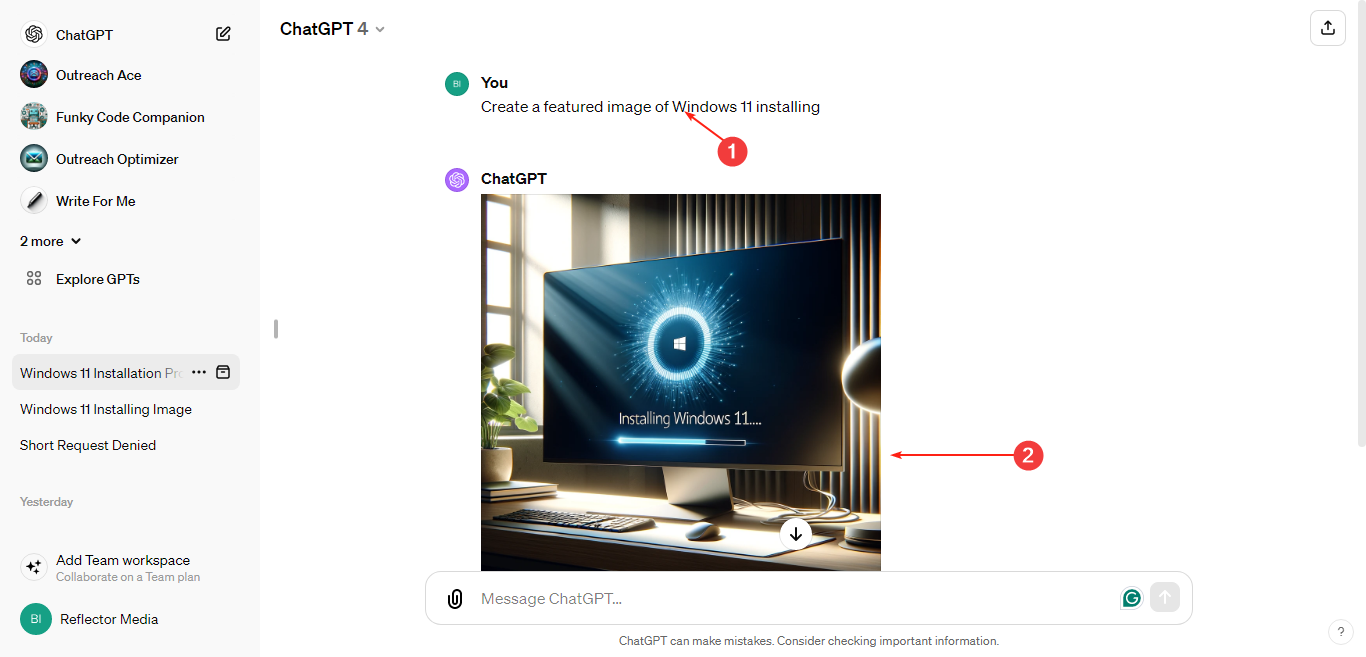
  2. In the text prompt, provide a description of an image you’d like to generate and wait for ChatGPT to create it.
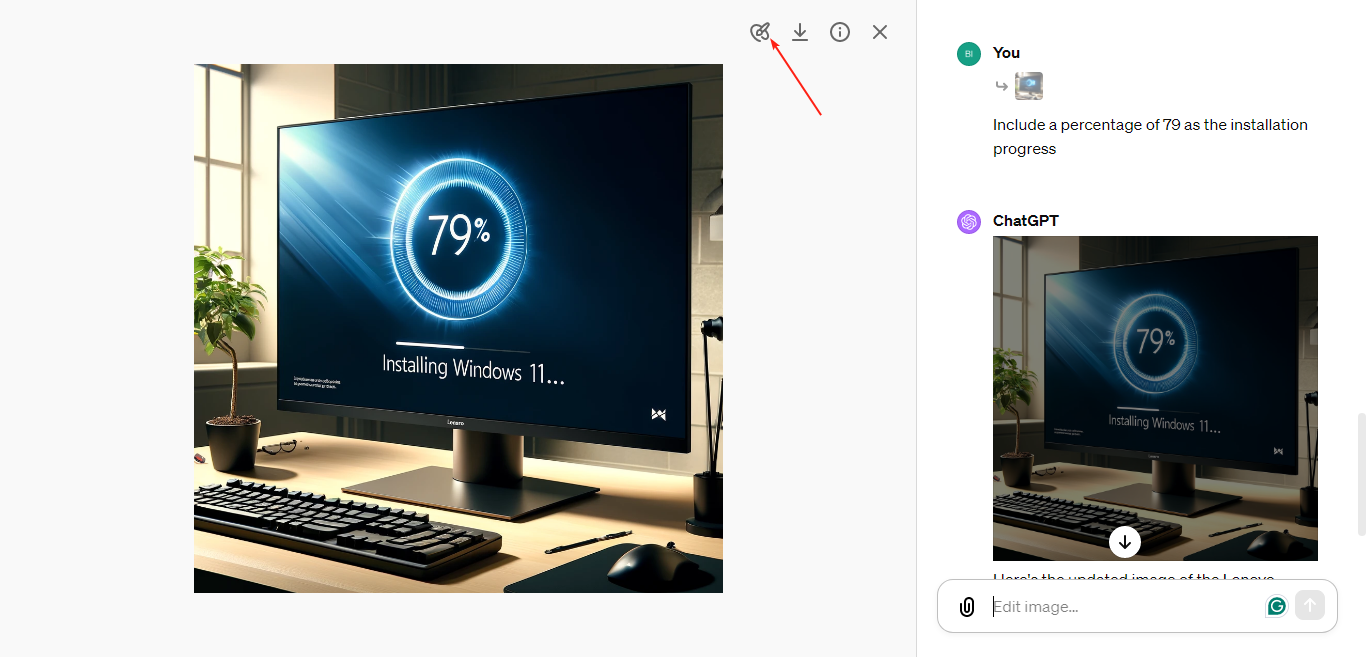
  3. Next, click on the image and select the edit button.
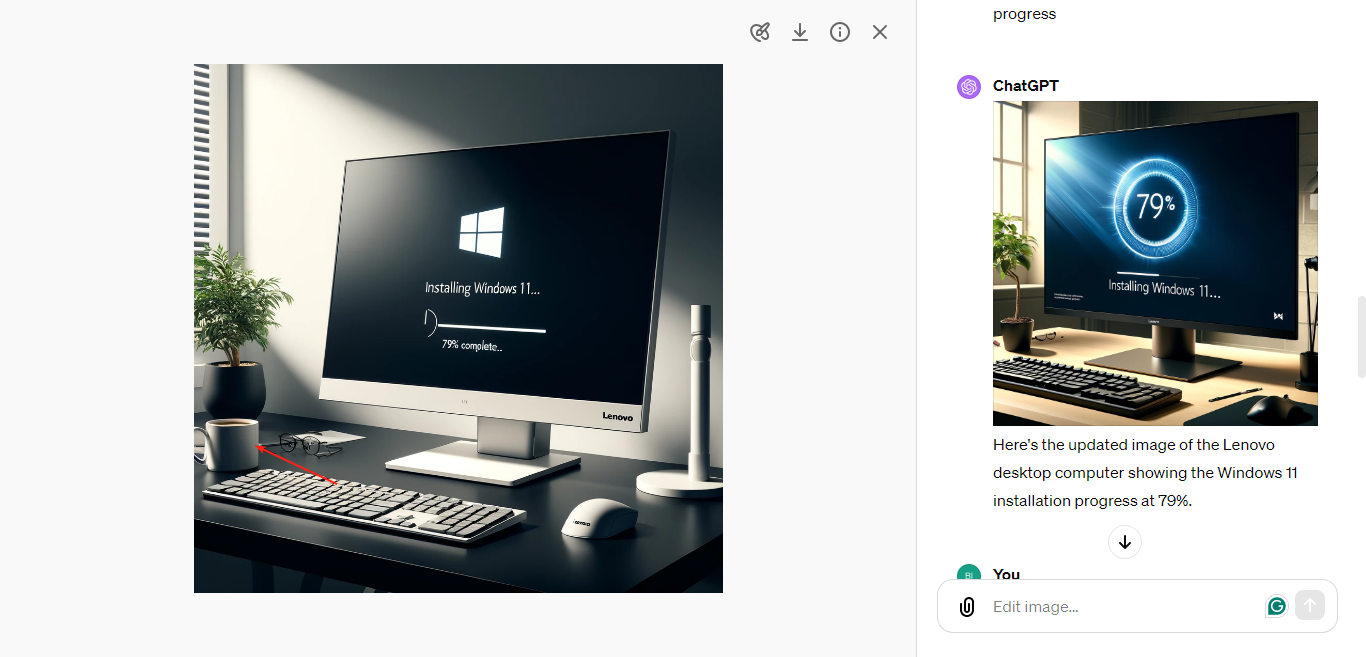
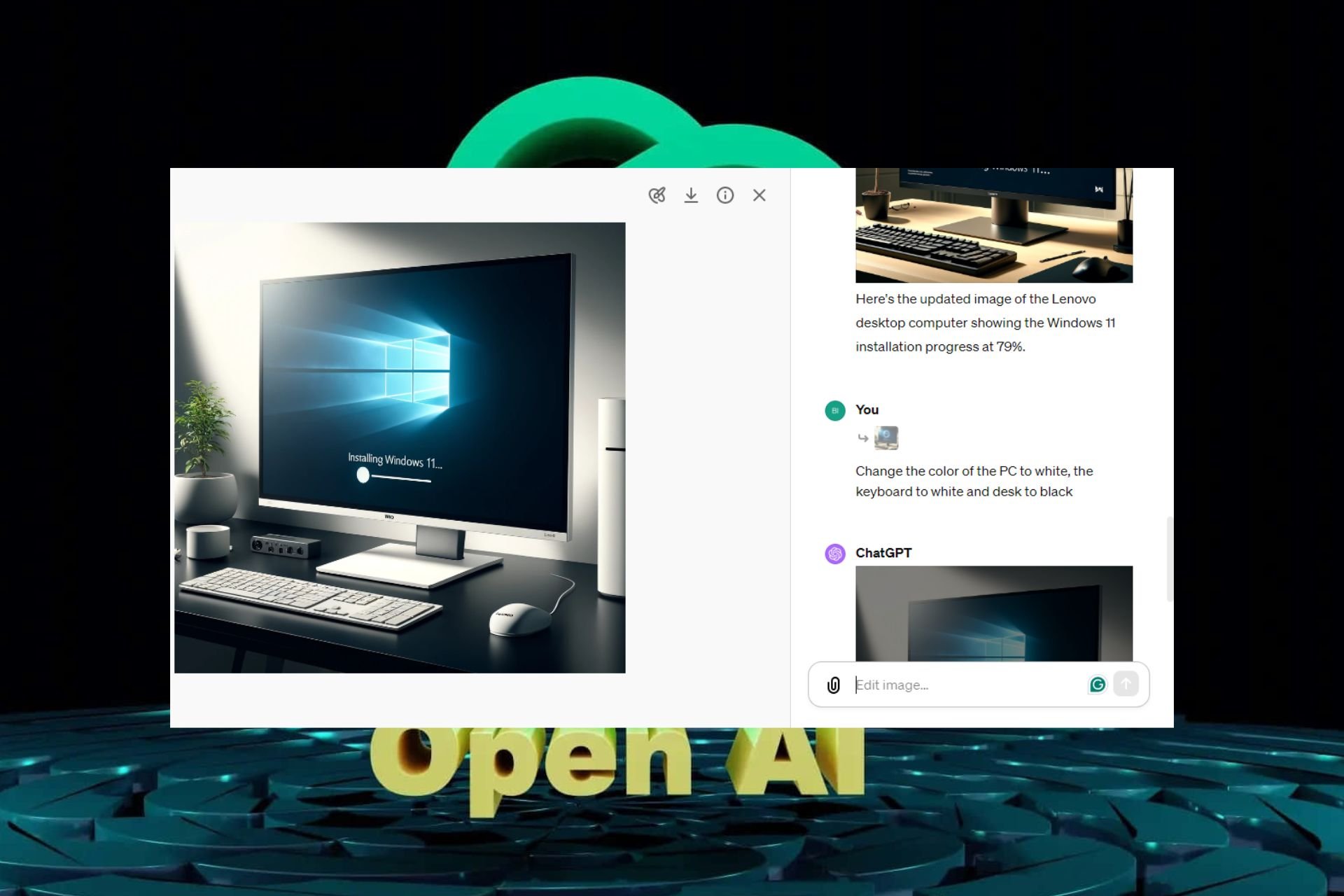
  4. You can select the specific area you’d like to edit and on your right in the text prompt, describe the edits. For instance, in this particular image, we want to include a PC brand and ensure it is displayed on the PC.
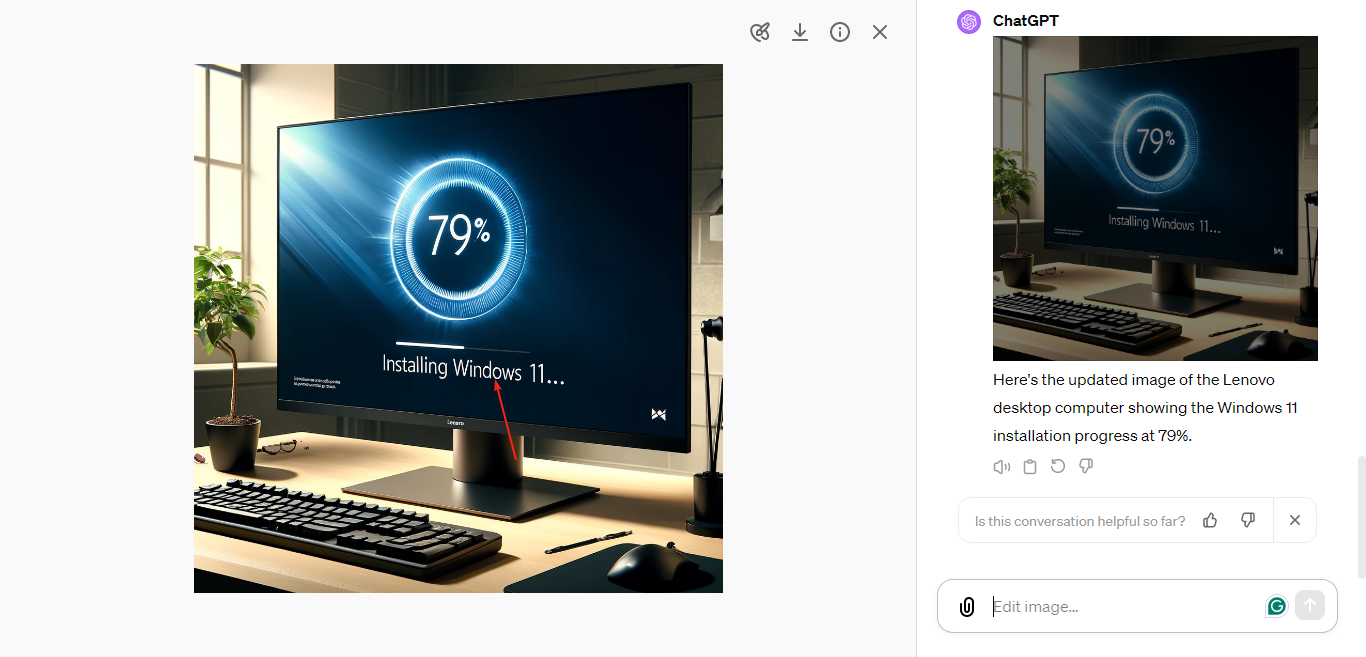
  5. Wait for the edits and view the updated image. Next, we want to remove the name Lenovo from the screen and include a progress percentage. Enter the prompt in the textbox and wait for the updated image.
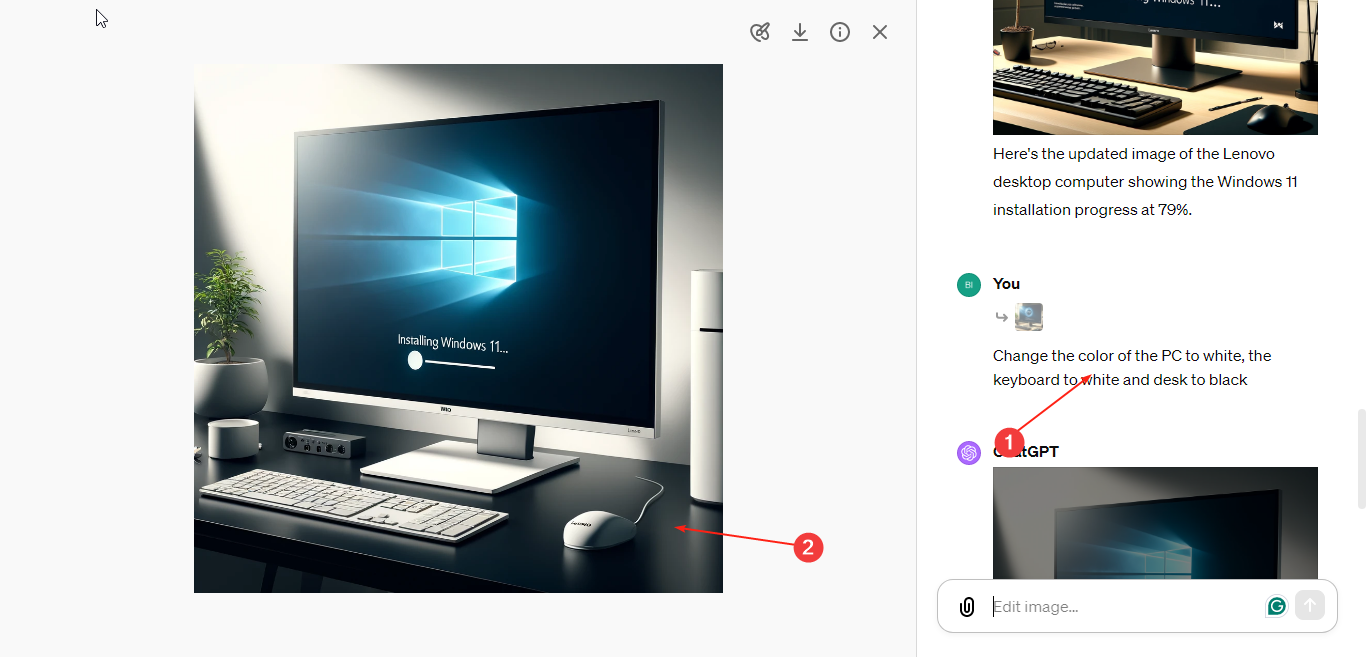
  6. Further, we want to change the color of the PC to be more vibrant so we task DALL-E to change it to white.
  7. Next, you can include more items in the picture. For instance, we add a cup of coffee.

Remember that with DALL-E, you can continue fine-tuning the details with descriptive prompts until you get your desired image. The clearer the instructions, the better the outcome.

All this is also available on both Android and MacOS so try it out on different platforms and see how you like it.

Limitations of editing images using DALL-E

  • Limited data – While ChatGPT may be able to generate and edit images, it may not capture all details that a natural image has or the exact scenario as you may envision because the model is trained with limited data.
  • Image distortion – Although the AI images generated are of high quality, they almost always lack realism. Editing may help cover some of these loopholes but in general, the images deviate from actual images with some inconsistencies even though insignificant in some cases.
  • Limited capabilities – Image editing on DALL-E 3 can only accommodate basic tasks. Complex editing that requires a high level of intricacy may be impossible to achieve and you may need the reinforcement of advanced image editing tools.

All in all, ChatGPT is continuously evolving and within no time, these limitations may no longer be there with a few more updates. However, for now, you can leverage its image editing capabilities to create those stunning Christmas cards or any other occasion you deem fit.

For those who are more business-oriented, you can already integrate ChatGPT in Microsoft Teams. If you’re more about living life on the edge, you can also try to generate Windows activation codes using ChatGPT.

It’s a gamble but the good thing about it is that it might be your lucky day to get a free upgrade.

That’s a wrap from us but we’re curious. Have you tried editing your images with DALL-E in ChatGPT?What was the experience like? Do you feel there are some features that could be added to improve the image editing process? Let us know in the comment section below.

Latest Palworld update, v0.2.1.0, on Xbox patches the bug preventing saved data from loading

The last few days have been filled with anxiety for Palworld fans after a recent update broke multiplayer game save data on Xbox. The issue was quickly acknowledged by developers, and they confirmed working on a patch. Now, the latest update, Palworld version v0.2.1.0, addresses the specific bug and more!

The release notes for Palworld v0.2.1.0 read,

・Fixed a bug that prevented save data from loading correctly in multiplayer
・Fixed a bug that caused the egg incubator to not work properly
・Fixed a bug that prevented raid boss achievements from being unlocked
・Bug reports and credits can now be accessed in-game
・Improved loading times on Xbox Series

But there is a catch!

The bug that broke multiplayer data from loading on Xbox was linked to the Chat feature. As a result, Chat has been disabled in Palworld, at least until the problem gets completely fixed.

Latest update still crashes Palworld, players report issues

There are still several issues in Palworld v0.2.1.0, from frequent crashes to the Pal Condensing Menu to the Dungeon bug.

I really wish they would make an update fixing the dungeon bug because on the Xbox series s every time I log in the simple game closes and it’s difficult to do Raid things like that.

I just crashed from a dungeon to this update.

I am still finding this problem in V. 0.2.1.0. It seems the 2.0.6 update has broken the Pal Condensing Menu making it unusable. If you try and update a pal that has NO STARS, when adding the fourth pal essence it goes from (3/4) to (0/16) and won’t allow the upgrade to one star.

Frequent crash on this new update and also my friends’ character data reset to level 1.

As for the dungeon issue, few users have been able to discover workarounds. One shared by MsBelleMae on Reddit reads,

The only way I have found around this is by going up to the dungeon, saving and quitting. When I reload back in I am able to clear the dungeon. Obviously not a permanent fix but maybe this can help in the meantime.

We expect a few more updates to stabilize the game and minimize the damage caused by Palworld v0.2.0.6 on Xbox. including restoring the Chat functionality.

For now, you should install the latest Palworld update, v0.2.1.0, on Xbox to get rid of the multiplayer game data bug and for faster loading time!

Palworld has been Xbox’s focus right since the start, from adding additional dedicated servers to fixing FPS issues. And we expect more patches and performance enhancements to be added soon!

Are you still unable to load multiplayer game data after Palworld’s latest update? Let us know in the comments section.

Get ready vault dwellers as Fallout 4 next-gen version is almost ready to drop

Good news Fallout fans! Bethesda is working on a next-gen version of Fallout 4, and we expect to see it soon.

So will this game be just a next-gen remaster or will it bring some new content to the game? Keep on reading to find out!

Fallout 4 next-gen upgrade is almost here, and it’s free!

The next-gen version of the game is scheduled to get a next-gen release as Glitched writes.

The good news is that the upgrade will be free for all existing Fallout 4 owners, so you won’t have to purchase the game again.

As for improvements, the game will offer Performance and Quality modes on both platforms, as well as increased resolution and texture quality. According to Bethesda, both modes are playable up to 60FPS on PS5 and Xbox Series X/S.

There is some good news for last-gen owners since they will get a free update with stability improvements and quest fixes.

Last but not least, PC gamers will get a patch with various new settings such as widescreen and ultra-widescreen support. The patch will also feature Creation Kit and quest bug fixes.

As for new content, the following Creation Club packs will be included:

  • Enclave Remnants – A new quest line that brings Enclave to the game, along with Enclave armor and weapons.
  • Makeshift Weapon Pack – This content pack converts all sorts of unusual items into weapons.
  • Halloween Workshop – Even though the Halloween season has passed, with this pack you can add Halloween decorations to your settlements.

Regarding the availability, the next-gen update is expected to drop on April 25 on next-gen consoles as well as Epic Games Store.

In other news, the new GTA+ price for Xbox users has caused a lot of controversy. If you’re an Xbox fan, you should know that the Xbox dashboard and party are coming to the web.

Chrome on Windows: New security feature to detect symbolic links

Microsoft is working with Google to implement a helper function called IsLink(…) for handling symbolic links in Windows for Chrome browser. This change addresses a specific security concern related to file handling during directory traversal.

When obtaining a file handle through functions like GetFile() or GetEntries() from a directory handle, there’s a risk that the file handle represents a symbolic link, also known as a symlink. Symlinks can point to paths that are potentially blocklisted or restricted. The security risk arises if the symlink file is created after permissions have already been granted to access the parent directory.

The IsLink function Implementation details for Chrome on Windows

The IsLink(…) helper function will likely check whether a given file handle corresponds to a symbolic link. By identifying symlinks, developers can take appropriate actions to prevent unintended security breaches.

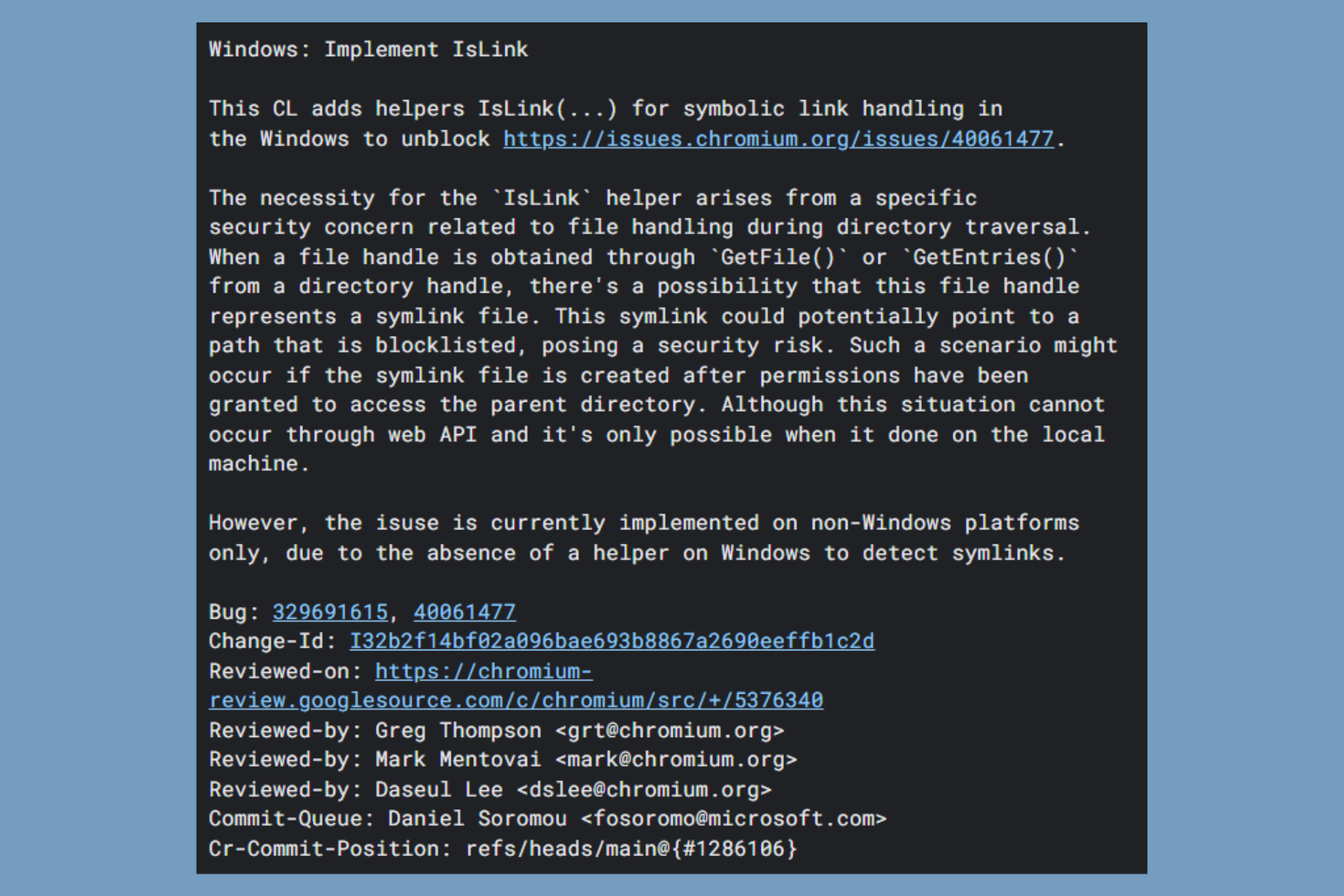
This CL adds helpers IsLink(…) for symbolic link handling in the Windows to unblock https://issues.chromium.org/issues/40061477.

The necessity for the `IsLink` helper arises from a specific security concern related to file handling during directory traversal. When a file handle is obtained through `GetFile()` or `GetEntries()` from a directory handle, there’s a possibility that this file handle represents a symlink file. This symlink could potentially point to a path that is blocklisted, posing a security risk. Such a scenario might occur if the symlink file is created after permissions have been granted to access the parent directory. Although this situation cannot occur through web API and it’s only possible when it done on the local machine. However, the isuse is currently implemented on non-Windows platforms only, due to the absence of a helper on Windows to detect symlinks.

Chromium development page

So, the issue only appears in the desktop version of Chrome for Windows because on other platforms, there is a helper for symlinks.

Hopefully, the IsLink helper will be implemented soon enough for all Chromium browsers.

Do you have any security concerns about Chrome? Let’s discuss this matter in the comments section below.

How to Broadcast Live on TikTok From a PC Using Streamlabs Desktop

TikTok is one of those apps that have stood the test of time and from people racking big bucks from the platform by going live, it only makes sense to optimize this feature so that you can broadcast from a PC and Streamlabs Desktop makes this possible.

Although you can download the TikTok app on your PC, its features don’t come close to those available on the mobile platform. Since it’s largely a mobile app, this explains why features like native livestream are not supported on desktop PCs.

However, for enhanced user experience broadcasting TikTok live from a PC could offer more functionality and improve user experience.

Streamlabs is an app that helps creators who use the live feature on social media sites like TikTok to enhance the experience. It has tons of customizable features, tools, templates, and plugins that ensure your live streams are of high quality.

How do I broadcast live on TikTok from a PC using Streamlabs Desktop?

1. Download Streamlabs Desktop

  1. Navigate to your browser and download Streamlabs Desktop.
  2. Once the download is complete, locate the exe file in your downloads folder, double-click on it to launch it then follow the on-screen prompts.
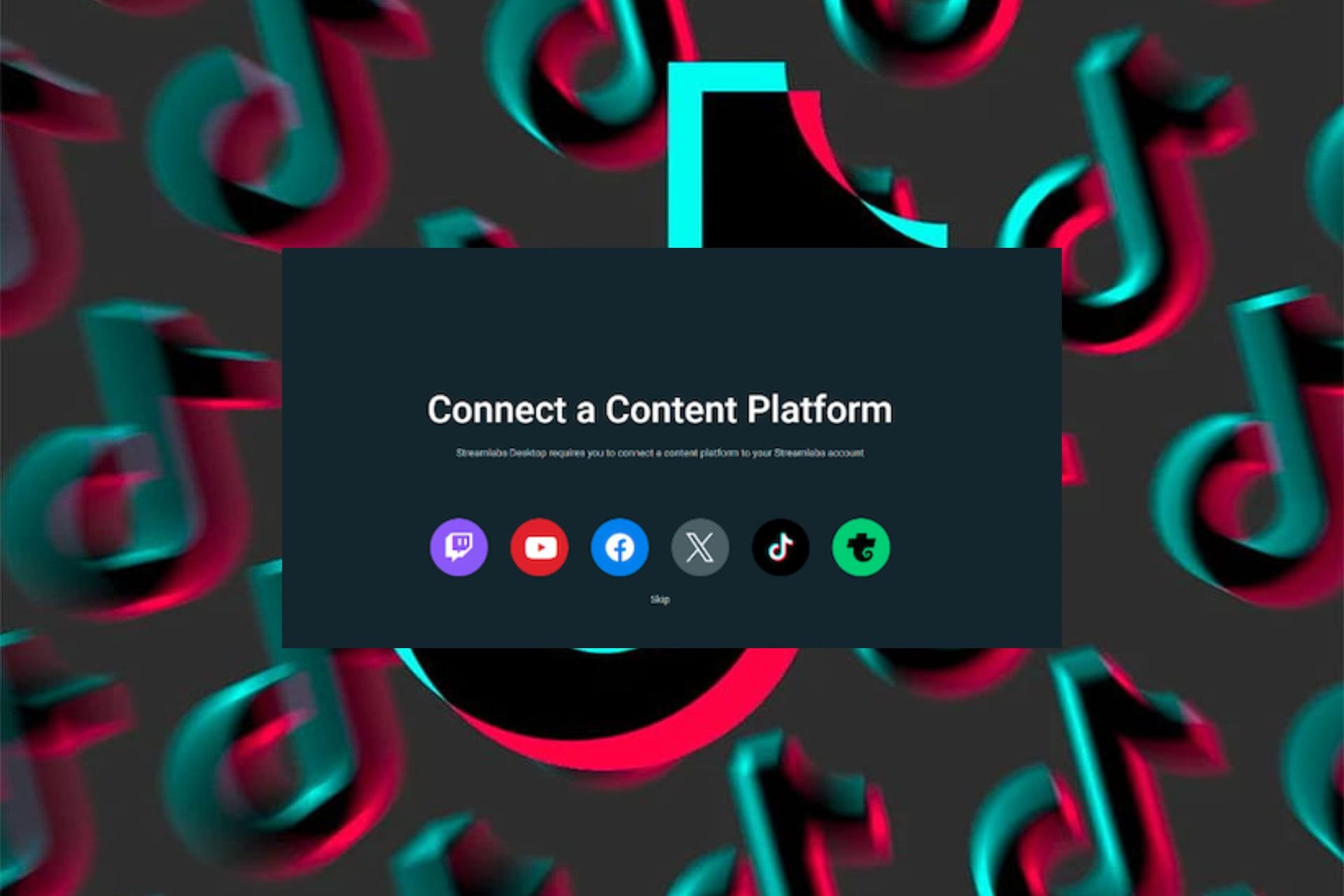
  3. In the next interface, you’ll be prompted to log in with either your Streamlabs ID or one of the social media platforms listed so select Login with TikTok.
  4. You’ll then be prompted to enter your TikTok credentials.

2. Integrate with TikTok

  1. Next, Streamlabs will ask for authorization to get additional access to your TikTok account. Read carefully the information this app will have access to and ensure you’re comfortable with it before proceeding.
  2. You’ll now see a Stream with TikTok option. Slide the cursor to turn green and then click on Confirm & Go Live.
  3. Note that not everyone will automatically have the permission to go live so if the option in 6 above is missing, click on Apply for TikTok Live Permission.
  4. Once everything is good to go, your browser will open a window where you’ll be live on TikTok and a Chat and live analytics on the right-hand pane.

How do I troubleshoot common issues with Streamlabs

  • Performance issues – TikTok is created for phones so any performance issues while broadcasting live streams on a PC are expected. However, with minimal processes and a strong network connection, there should be little to no performance issues.
  • Video/audio lag – Your video or audio may lag or out of sync during the live stream. Updated audio and video drivers should fix this issue. Streamlabs also has its own built-in settings that you can play with to achieve a balance.
  • Video quality issues – The main point of using Streamlabs is to optimize your video quality but you must also have supporting hardware. Try out with different resolutions and see which one augurs well with your hardware specifics.

For any other advanced troubleshooting, do not hesitate to reach out to Streamlabs support. While broadcasting live streams on TikTok using Streamlabs is pushing the limits, it’s definitely an experience worth trying.

The good thing is you have all these tools, features, templates, and plugins to experiment with until you achieve that sweet spot that allows you to achieve optimal results.

And while still on the topic of optimizing TikTok for the best user experience, you can bulk download TikTok videos and keep them for future use or in case the user deletes them.

We also have a few tips to help you resolve TikTok connection errors in case the comments are not loading.

For users who love live streaming on social networks, we also have a couple of YouTube live streaming software that we think would do a good job just as Streamlabs or even better.

Have you tried broadcasting a live stream of TikTok on your PC using Streamlabs or any other software? What was your experience? What are the good and bad? We’d love to get your opinion so drop us a comment down below.

Copilot in Excel will get the ability to generate multiple formula columns from a single prompt

Microsoft recently updated its roadmap for Microsoft 365, adding a new feature for Excel Copilot, which will allow the generation of multiple formula columns from a single prompt.

The feature is listed as Feature ID 391638 and was added to the Roadmap on April 11, 2024. It will be available on Windows, Mac, and the web within the Microsoft 365 suite.

This feature is accessible worldwide on standard multi-tenant cloud deployments, and the rollout is expected to begin in April 2024.

With this update, you can get tasks like separating full names into first and last names or separating days, months, and years from date with a single prompt.

There is no further mention of this upcoming multi-formula generation feature, but we can anticipate that it will offer a range of pre-defined formula options or allow Copilot to learn from user preferences over time.

This feature could be very useful for those who often use formulas and deal with complex data structures. Another important feature pending rollout this month is Copilot in Excel support for complex formula columns from multiple tables.

Microsoft also added a new Copy/Paste experience to the Excel web app. Now, you can use drag-and-drop auto-fill to copy and paste content. Moreover, you will get a list of paste options.

To conclude, Microsoft’s advancement in Copilot features for Microsoft 365 shows its commitment to providing users with a seamless experience. Furthermore, this newest feature is great for both experienced and newbie Excel users.

 However, if you haven’t tried Copilot in Excel yet, maybe this is the sign to do it. We have a detailed guide on everything you need to know to use it. If you have already used it, share your experience with our readers in the comments section below.

Microsoft pitched ChatGPT and DALL-E to the US Department of Defense

Microsoft proposed to the US Department of Defense (DoD) to use OpenAI and Azure AI tools, such as ChatGPT and Dall-E. With them, the DoD can build software and execute military operations. Additionally, the Pentagon could benefit from using AI tools for various tasks such as document analysis and machine maintenance.

According to The Intercept, the Microsoft proposal for the US Department of Defense (DoD) to use AI tools happened in 2023. Yet, in 2024, OpenAI removed its ban on military use. However, Liz Bourgeous, a spokesperson from the company, came forth and said that OpenAI’s policies don’t allow the usage of its tools to harm others.

However, there is a catch. The company’s tools are available through Microsoft Azure. Thus, even if OpenAI doesn’t sell them due to its policies, Microsoft can use its Azure OpenAI version for warfare.

How is AI used in the military?

On the other hand, the presentation from Microsoft to DoD has some examples of how to use AI tools for warfare. For instance, Dall-E can create images to improve battlefield management systems training.

In addition, the Azure OpenAI tools can help identify patterns and make predictions and strategic decisions. On top of that, the US Department of Defense (DoD) can use the AOAI for surveillance, scientific research, and other security purposes.

According to Anna Makanju, after OpenAI removed the ban on military use, the company started working with the Pentagon. However, the company still prohibits the usage of their AI tools for warfare. Yet, the Pentagon can use them for tasks like analyzing surveillance footage.

Could AI be a threat to humans?

There is a bit of controversy going on. According to Brianna Rosen, who focuses on technology ethics, a battle system will undoubtedly cause us harm, especially if it uses AI. Thus, OpenAI’s tools will most likely breach the company’s policies.

Heidy Khlaaf, a machine learning safety engineer, indirectly said that AI tools used by the Pentagon and DoD could become a threat. After all, AI doesn’t always generate accurate results. On top of that, its answers deteriorate when researchers train it on AI-generated content. Also, the AI image generators don’t even show an accurate number of limbs or fingers. Thus, they can’t generate a realistic field presence.

Another concern is AI hallucinations. After all, most of us know what happened to Google’s image generator. Also, AI could try to use predictions in its answers. Thus, the battle management system might become faulty.

Ultimately, Microsoft and OpenAI are getting billions from their AI tools contracts with the US Department of Defense (DoD) and the Pentagon. Also, their AI will inevitably lead to harm, especially when used for warfare training and surveillance. However, they should work to reduce the amount of AI errors. Otherwise, their mistakes could lead to disasters. On top of that, the US Government should be careful with Microsoft’s services, especially after the Azure data breaches.

What are your thoughts? Should governments use AI to enhance their military power? Let us know in the comments.

No more switching screens! Chrome lets you scroll and zoom shared tabs in video calls

Google is doing its best to improve the quality of its browser, and the company is testing a new feature in the Canary version.

According to our findings, there’s a new setting available that will allow video conferencing apps to interact more easily with shared tabs.

Chrome Canary is testing new video conferencing settings

By default, Chrome Canary will allow video conferencing web apps to ask users to allow them to scroll and zoom on shared tabs.

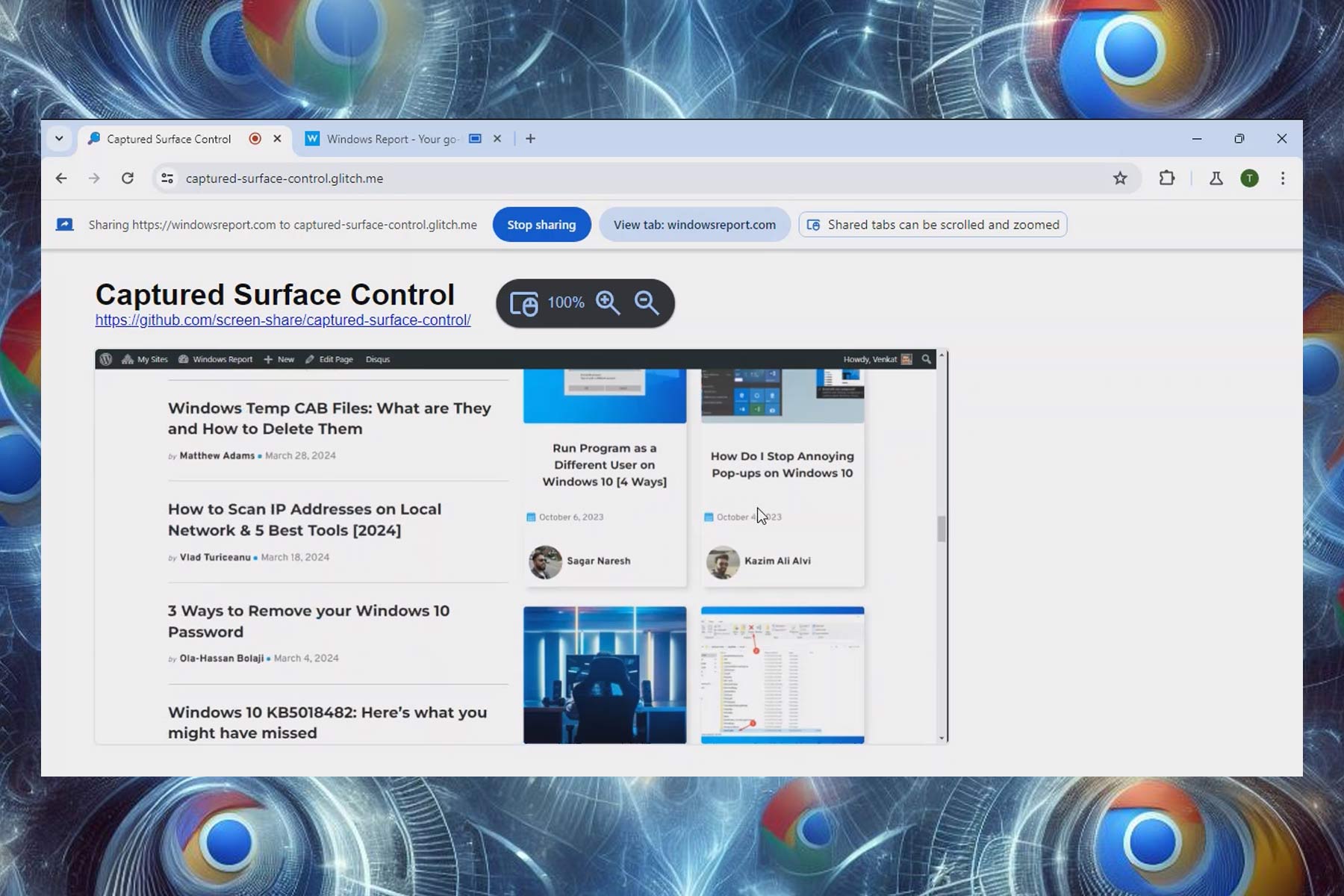
This is possible due to the new Captured Surface Control API that allows web apps to scroll or zoom during screen-sharing sessions.

By using this feature, users won’t have to switch away from the video conferencing apps to interact with the shared tabs or windows thus offering a seamless experience.

This allows presents to scroll and zoom on the shared tabs without impacting the meeting, which is perfect for users who are multitasking or presenting content during calls.

This feature is enabled to default in Chrome Canary, but if you don’t want to use it, you can disable it by doing the following:

  1. Open Chrome, click on Menu, and choose Settings.
  2. Select Privacy and Security.
  3. Navigate to Site settings.
  4. Expand the Additional Permissions and select Scrolling & Zooming.
  5. Select Don’t allow sites to scroll and zoom shared tabs and save changes.

To test this feature in action, do the following:

  1. Visit https://captured-surface-control.glitch.me/.
  2. Select Click to share a tab.
  3. Now the desired Chrome tab and click Share.
  4. Next, click the shared content to grant permission.
  5. You should now see Shared tabs can be scrolled and zoomed message meaning that you can interact with that tab.

Here’s how this feature works in action:

This is a great feature and it will be helpful to all users that frequently share content during video conferences.

As for other features, Chrome is testing a new feature that will stop websites from spying on your keyboard, and we can’t wait to see it in action.

CyberPowerPC i7 RTX 4080 is the best gaming PC you can get at a decent price

If you didn’t find the Costco deal for the CyberPowerPC rig, we’ve got another one for you. CyberPowerPC i7 RTX 4080 is now only $2,269 at Amazon and it offers the ultimate PC gaming performance for every buck you pay.

It’s the best price we’ve seen lately for a gaming rig that features the 14th gen Intel Core i7 CPU and the GeForce RTX 4080 SUPER GPU combo.

Why should I buy the CyberPowerPC i7 RTX 4080 desktop PC?

First, we need to mention that the 14th gen Intel Core i7-14700KF has 20 cores, 28 threads, and a 33MB cache, with a turbo clock of 5.6GHz. Cooled by a 240mm AiO liquid cooling system, it’s the best CPU you can get now for gaming.

Then, the GeForce RTX 4080 SUPER is slightly better than RTX 4080 because it features a higher base clock speed, granting him a 5% – 10% speed boost. It also has a better ray tracing performance than its Radeon RX 7900 XTX competitor. The bottom line here is that you will be able to enjoy 4K gaming on high FPS and max graphics settings.

Well, apart from the latest in CPU and GPU power, this gaming behemoth comes with 32GB of DDR5 RAM and 2TB PCIe NVME SSD. You can do more on both, but you can upgrade the PC easily later.

The rig comes with Windows 11 Home, keyboard, mouse, and all the connectivity you may think of, including Wi-Fi. You also get a 1-year CyberPowerPC warranty.

Are you planning on buying a gaming PC? Let’s talk about that in the comments below.

Microsoft Edge’s built-in Screenshot tool gains the ability to capture windows and save screenshots

Microsoft Edge Web Capture, now called the Screenshot feature, allows you to take full web page screenshots and has two new features: the ability to capture the window and the ability to save the screenshot capture.

To invoke the Screenshot tool, you click on the three dots icon and choose Screenshot or press Ctrl + Shift + S.

When you launched the tool earlier, you used to have two options: Capture area and Capture full page.

However, the new update shows that you will also get a Capture window option along with the other two options.

In the past, when you selected any of the options present and took a screenshot, you were presented with three options: copy, Markup capture, and Visual search.

Now, the options after you take a screenshot have also got a new addition: Save. This means you can now take a screenshot and save it for future use. The image will be saved in JPEG format.

These features are being tested in Edge Canary. If you want to join the Edge Insider program to enjoy the benefits of using new features before general availability, check this guide.

What are your thoughts on the matter? Share your opinions with our readers in the comments section below.

Alienware m16 & m18 are hugely discounted today, now’s the perfect time to buy them

If gaming laptops always seemed like an out-of-budget purchase, especially premium ones from the Dell Alienware series, this is your chance to get them! Alienware m16 & m18 are available for $1,799.99 and $3,299.99, respectively.

Alienware m16, with a regular price of $2,799.99, receives a $1,000 discount, while Alienware m18, priced at $3,999.99, gets a $700 price cut during the deal!

If you were looking for a power-packed, high-performance gaming laptop within the $1,500-$2,000 range, the Dell Alienware m16 is one of the top contenders right now. As for Alienware m18, it is one of the top-rated gaming laptops with unbeatable specifications in the price range.

Specifications for Alienware m16 & m18

Alienware m16Alienware m18
ProcessorAMD Ryzen 9 7845HX14th Gen Intel Core i9 14900HX
GraphicsNVIDIA® GeForce RTX 4080, 12 GB GDDR6NVIDIA® GeForce RTX 4090, 16 GB GDDR6
Operating SystemWindows 11 HomeWindows 11 Home
Storage1 TB, M.2, PCIe NVMe, SSD4 TB, M.2, PCIe NVMe, SSD
RAM32 GB: 2 x 16 GB, DDR5, 4800 MT/s64 GB: 2 x 32 GB, DDR5, 5200 MT/s, non-ECC, dual-channel
Display16″ QHD+ (2560 x 1600) 240Hz, 3ms, FHD IR Camera18″ QHD+ (2560 x 1600) 165Hz, 3ms, FHD, IR Camera
Battery LifeUp to 2 hours, 58 minutesNo official information (2.5 – 4 hours as per reviews)
Price during limited-period deal$1,799.99$3,299.99
Source: Dell’s official website

You can directly head to the official website and buy any of the two gaming laptops:

Dell is also offering a Price Match Guarantee, meaning if you find either of the Alienware laptops at a lower price online, Dell will match it, making this effectively the cheapest deal right now!

If you are looking for budget-friendly options, take a look at our top picks for gaming laptops under $800.

Do you think Dell Alienware m16 and m18 are a value-for-money purchase during the deal? Let us know in the comments section.

Microsoft is advertising a Windows 11 upgrade even if your PC is not eligible

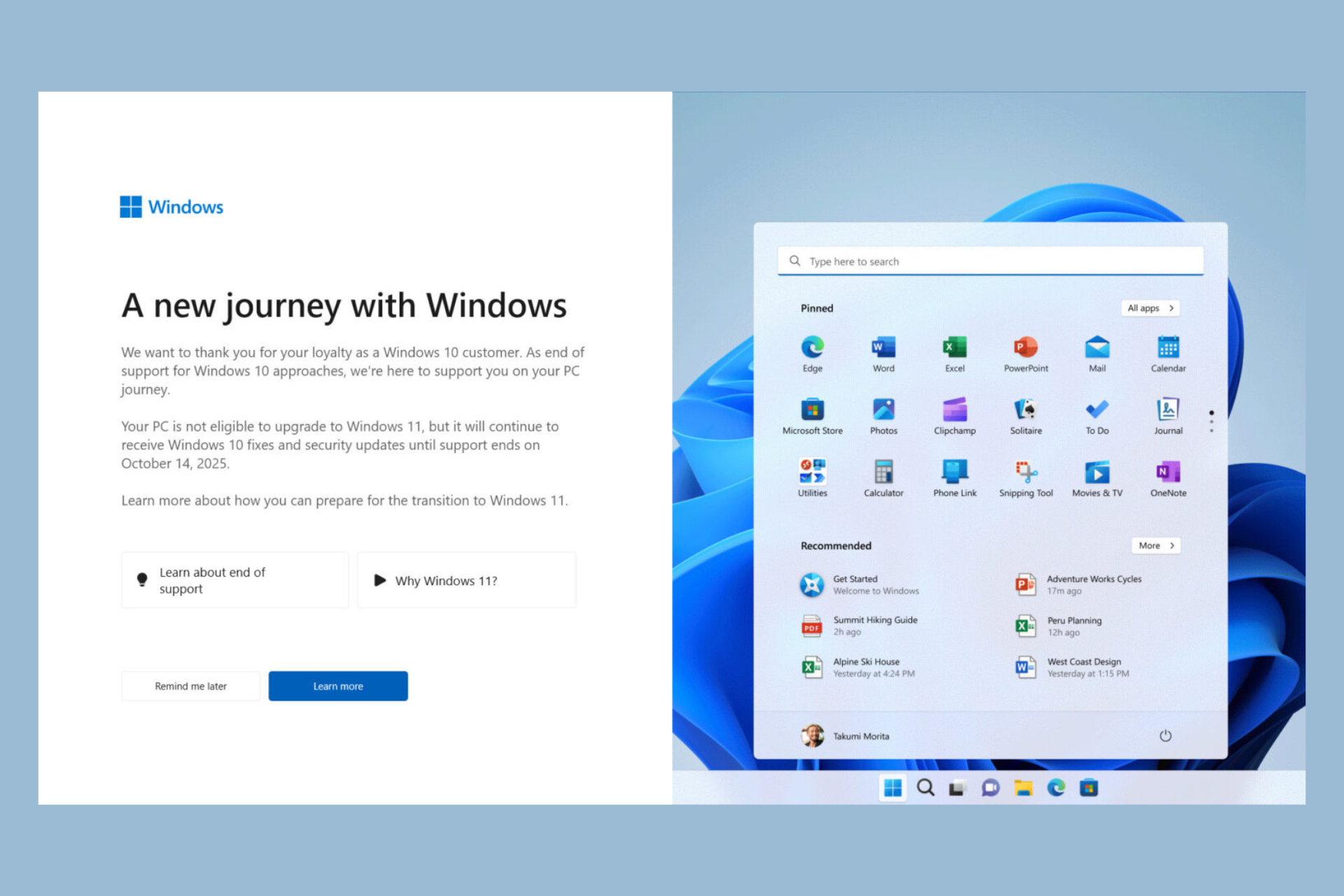
I’ve started one of my older Windows 10 laptops to find a big warning/advertisement from Microsoft:

A new journey with Windows.

We want to thank you for your loyalty as a Windows 10 customer. As end of support for Windows 10 approaches, we’re here to support you on your PC journey.

Your PC is not eligible to upgrade to Windows 11, but it will continue to receive Windows 10 fixes and security updates until support ends on October 14, 2025.

And, of course, I wasn’t the only one to get it. People posted the screenshot on Reddit and Bob Pony pinned the needle on the donkey with his post on X.

We were already bombarded by Windows 10 end of support announcements but at least those were pushed towards users who could actually upgrade to Windows 11 because they had an eligible configuration.

Instead, the latest advertisement is also meant for less fortunate of us who can’t actually perform the upgrade. So the deadline for upgrade is October 14, 2025, but you can get a three year support extension. However, the ESU extension is not free.

Apart from the useful, but pretty mean warning, you can’t just close this window. You only have the options to Remind me later and Learn more. Of course, the first one means that you will be continuously nagged about this while the second actually directs you to the Windows 10 end of support announcement.

The latest Microsoft X post emphasizes the Redmond giant’s push for Windows 11 upgrade. Isn’t burning the Windows 10 flag a bit too extreme, though?

The bottom line is that Microsoft wants you to buy a new Windows 11 compatible PC or upgrade yours to continue the Windows journey. While the advertisement is somehow useful, I think I can speak for many users when I say that there should also be a Never show this again button somewhere on that page.

Have you received this message? Tell us your thought in the comments section below.

KB5036893 is full of bugs! Folks are reporting lag, random reboots, and full on unresponsiveness

Microsoft does its best to keep Windows up to date and working properly by releasing frequent updates.

Unfortunately, sometimes updates can cause other unexpected problems, and this is exactly what happened with KB5036893.

KB5036893 update is plagued with various issues

KB5036893 is a long-awaited Moment 5 update, and while it brings some new features, it brings a lot of trouble to users.

Users on Microsoft Answers reported various issues, most noticeably slowdowns that prevent folders from opening.

Files and folders on the desktop stopped opening after clicking. They open eventually but after a long delay of 5 minutes!

This is a major problem since it makes the PC almost unusable. This isn’t the only problem, many reported other issues with responsiveness:

The computer started becoming unresponsive and the drives started lagging behind so much the CPU went idle and the computer had to be powered off manually.

As soon as it was restarted it tried to auto install this update again and the same thing happened 4 more times.

It’s not just unresponsiveness, a few users reported that WSL is not working after the KB5036893 update:

Confirm this update impact wls , after windows 11 installed the update and reboot, wls v2 can’t start. Tried

Some users experienced UI issues, most notably problems with the Taskbar:

It made it so my taskbar stopped working (It was gone with a loading symbol when you hover the mouse over where the taskbar should be) and I could not access my settings app to access any recovery options or anything. I also could not load firefox to browse the internet.

Users on Reddit also voiced their issues such as failed installations:

First time this has happened to me; it went to reboot and go to its second phase, and poof, it just died, black screen, power was on, but no signal to mouse or keyboard either. Had to power off, and power it back on to get it to continue. Very creepy!!!!

Error 0x800705b9 was also reported while trying to install the update:

I keep getting “Install error – 0x800705b9” no matter how many times I retry. I tried manually installing the update through the Microsoft catalog and I tried doing a repair install using a Windows 11 .iso file and both give me “Windows installation failed” error messages. Spent the past 8 hours trying to solve this with no luck.

Even the dreaded blue screen can appear after the failed setup:

Tried to install this, it went through the install normally, back to desktop and then blue screen. Couldn’t get it to work after a couple reboot cycles. Tried to uninstall quality updates which said successful and then blue screened again when trying to load windows. Back to desktop then blue screen again.

Instead of the blue screen, many users reported a white screen of death:

White screen of death https://answers.microsoft.com/en-us/windows/forum/all/white-screen-after-update/d598ded4-babb-407e-af48-d4b29553aca6 at least 20 people are having same issue today on reddit/microsoft forum, so probably in the thousands.

Mouse and monitor problems are also present in this update:

Monitors don’t come back on after resuming from sleep and my mouse is very jittery after installing KB5036893

Lastly, there are also issues reported with HP Dragonfly G1 and Diagnostic Data Viewer.

Overall, this update seems like a mess, so save yourself the trouble and don’t download it until Microsoft fixes these issues.

KB5036892 is not installing for many, showing 0x8007000d error. Here’s what to do

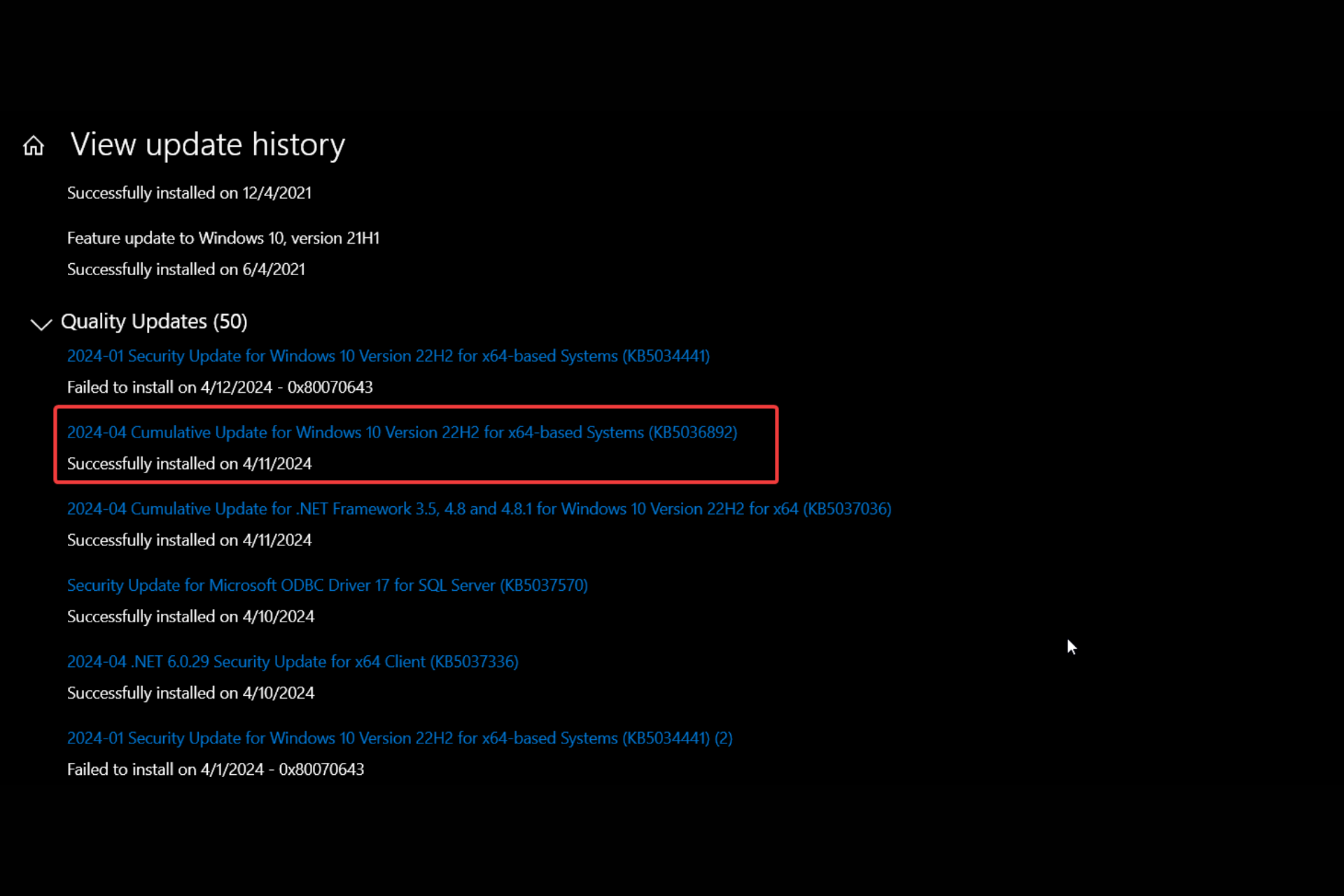
Microsoft recently released the KB5036892 that fixed more than 20 fixes and brought two new features but for some, the April 2024 cumulative update is impossible to install.

The users keep getting the error code 0x8007000d with the following message: Some update files are missing or have problems. We’ll try to download the update again later. Error code: (0x8007000d).

We’ve recently encountered the exact same problems with the KB5034848 patch for Windows 11.

The issue surfaced on the Microsoft Answers forum while the user kept getting the error even if he applied all the basic steps in this situation. He scanned the system for errors, ran the Windows Update troubleshooter and even performed a manual installation of the KB5036892 downloaded from the Microsoft Update Catalog page.

Error 0x8007000d is usually triggered by system file corruption or missing or incomplete update. So, first of all, perform a SFC scan, use the CHKDSK tool to verify the integrity of your drive and use the Windows update troubleshooter. If these don’t work, follow the solutions below.

What can I do if the KB5036892 is not installing?

An independent advisor suggested the user to remove the Microsoft Windows Printing Package using PowerShell. To do that on Windows 10, right-click the Start button and select Windows PowerShell (Admin) and run the following command:

Remove-WindowsPackage -Online -PackageName "Microsoft-Windows-Printing-PMCPPC-FoD-Package~31bf3856ad364e35~amd64~en-US~10.0.19041.1"

We also recommend uninstalling the latest Windows update and try again. For that, go to Settings > Windows Update > View update history > Uninstall updates and remove the most recent update. Then, restart your PC and check for updates.

If these methods don’t work, you will need to perform a Windows 10 repair upgrade. The highlighted guide will help you with this procedure.

Now, it’s not a secret that Microsoft is pushing Windows 10 users for an upgrade to Windows 11. There are also some rumors that the software giant is deliberately sabotaging the old OS to speed up the Windows 11 adoption. However, judging by the history of failed Windows updates, this is nothing out of the ordinary. You should definitely check our Windows 11 vs Windows 10 extensive comparison to see if it’s time for the upgrade.

Did you manage to install the KB5036892 update? Tell us in the comments if you’ve found any other working solutions.

Intel unveils 9 Meteor Lake-PS processors that are designed for edge computing

Intel recently announced new LGA 1851-ready Core Ultra Meteor Lake-PS processors at the Vision 2024 event. These processors come with Arc graphics and a Neural Processing Unit (NPU) for AI workloads tailored for edge computing.

The Meteor Lake-PS processors are designed for consumers in education, retail, kiosk, industrial, and smart point-of-sale systems for brick-and-mortar stores.

With over 90,000 deployments globally, edge computing is a colossal market for Intel, and with these new processors, the company is trying to solidify its position further.

These edge-focused Meteor Lake CPUs use the new LGA 1851 socket, which feels like it is setting the stage for a revolution in desktop computing. This socket will also be used in the upcoming Core Ultra 200 Arrow Lake-S processors, scheduled for release later this year.

Intel has unveiled nine new Meteor Lake-PS processors so far, comprising five 15W chips and four 45W processors.

The lineup in the 15W TDP category includes Core Ultra 3, Core Ultra 5, and Core Ultra 7 variants, which will have core counts ranging from 8 to 12.

All the processors feature two P-cores alongside E-cores and LPE-cores. Based on the SKU, CPU boost clocks reach up to 4.9GHz.

The Meteor Lake-PS 45W processor lineup offers enhanced capabilities and core counts ranging from 14 to 16 cores, suitable for people who need higher performance.

The Core Ultra 5 models in this category come with 4 P-Cores, 8 E-Cores, and 2 LPE-Cores. However, the Core Ultra 7 models feature 6 P-Cores, 8 E-Cores, and 2 LPE-Cores.

In addition, the CPU boost clock is between 4.5GHz and 5.0GHz, depending on different SKUs to fulfill workload requirements.

With the integration of Arc graphics and a dedicated NPU for AI workloads, Meteor Lake-PS processors are definitely a step forward in computational versatility.

This will empower users across various industries to leverage edge computing power to make decisions faster and gain operational efficiency.

What are your thoughts on the matter? Share your opinions with our readers in the comments section below.

Chrome’s new features for Tab Groups will let you pin & organize your workflows

Google is bringing in pinning, everything menu, and changes to the bookmarks bar for saved tab groups in the Chrome browser on Windows, Mac, ChromeOS, Linux, Fuchsia, and Lacros. The feature is currently being tested in the Canary version.

With the aim to simplify tab grouping and management, Chrome is set to introduce an option to enable saved tab group pinning, presently available as a Flag (experimental feature in Chrome).

Google Chrome’s Save Tab groups UI to get improvements

Whenever you save a tab group, it is pinned to the bookmarks bar, in a separate menu.

The menu appears on the bookmarks bar and shows all tab groups saved so far while allowing you to create new tab groups just as easily.


For each tab group that it displays, it offers an option to unpin/pin from the bookmarks bar, or delete the group.

While some features of the Tab Groups Save UI Update flag have not yet been completely implemented, they are slowly being rolled out. The pinning option for the saved tab groups, everything menu and changes to the bookmarks bar, will be visible soon.

Chome’s Tab Groups menu

Update: Now, Chrome’s main menu also features a menu for Tab Groups that shows created groups and allows to create a new one. This menu only appears when you’ve saved tab groups.

To enable the flag, launch Google Chrome > paste chrome://flags/ in the address bar and hit Enter > select Enable from the dropdown menu for Tab Groups Save UI Update > relaunch the browser.

Enabling the Tab Groups Save UI Update flag

For existing grouped tabs, simply right-click on one and choose Save. For a tab group in the bookmarks bar, you will find an Unpin option in the context menu.

Unpinning tab groups

Google Chrome has Tab groups available on different operating systems to organize tabs into distinct groups to eliminate clutter and enjoy a seamless experience. Also, you can collapse and re-expand tab groups as you please. Collapse them when you need more space, and re-expand for quicker accessibility!

Besides, you can save tab groups and sync them across devices so they are not lost on subsequent restarts and reflect across devices respectively.

Earlier this year, Chrome’s tab groups on Android got a desktop-like UI to make the feature more coherent across different devices.

Should the features from the Tab Groups Save UI Update flag be introduced for all? Share your thoughts with us in the comments section.

Latest leaks reveal that Marvel Rivals might be coming to consoles after all

If you’re a fan of hero shooter games, then you might be familiar with the upcoming Marvel Rivals game.

We finally have some leaked information about the game, so let’s see what’s in store for gamers.

Marvel Rivals leak brings good news for PlayStation 5 and Xbox users

As reported by Game Rant, NetEase and Marvel Games are working on a free-to-play hero shooter. The game will be similar to Overwatch and it will feature characters from Marvel Universe.

Many speculated that the game will be available on multiple platforms, especially after NetEase officials stated that they are actively exploring potential releases on other platforms.

In a deleted tweet, Twitter user Dreamz Gaming found a hidden code on the game’s website, and when enabled this code reveals all the platforms that the game will be released for.

According to him, the list includes PS5, Series X/S, Steam, and Epic Games Store. However, this is just a leak, and nothing has been confirmed by the developers.

However, we do know that there will be a closed alpha test in May, so if you want to try the game, consider joining it.

In other gaming news, the new GTA+ price leaves many Xbox users extremely disappointed. That’s not all, many are also unhappy because Microsoft is ignoring user feedback on Xbox home screen issues.

Vision 2026: Intel launches Gaudi 3 accelerator and next-gen Lunar Lake, CEO shares future strategy

Microsoft is focused on integrating artificial intelligence into PCs, and Intel is at the forefront of this campaign. During the recent Vision 2024 event, Intel unveiled Gaudi 3, its second AI chip, set to take on NVIDIA. Besides, Intel confirmed the next-gen Lunar Lake with 100+ TOPS (Tera Operations Per Second) performance.

At the Vision 2024 event, Intel’s CEO Pat Gelsinger, said,

Innovation is advancing at an unprecedented pace, all enabled by silicon – and every company is quickly becoming an AI company. Intel is bringing AI everywhere across the enterprise, from the PC to the data center to the edge. Our latest Gaudi, Xeon and Core Ultra platforms are delivering a cohesive set of flexible solutions tailored to meet the changing needs of our customers and partners and capitalize on the immense opportunities ahead.

About Gaudi 3, the latest AI chip from Intel

The Gaudi 3 AI accelerator will be the best choice for powering AI systems, boasting 4x higher AI compute for BF16 and a 1.5x rise in memory bandwidth over the previous models.

Tests conducted by Intel reveal that Gaudi 3 will be able to train Llama2 models with 7B and 13B parameters 50% faster than the current market leader, NVIDIA H100.

Intel plans to make Gaudi 3 available to OEMs (Official Equipment Manufacturers), Dell Technologies, HPE (Hewlett Packard Enterprise), Lenovo and Supermicro, by the second quarter of 2024.

Intel also shared a list of enterprises that utilized its products to train AI models or perform AI-powered tasks. It includes NAVER, Bosch, IBM, Seekr, IFF, Landing AI, Roboflow, and Infosys, amongst others.

Intel Xeon and Intel Core Ultra (Lunar Lake) receive improvements

Intel launched two new processors in the Xeon series, the Intel Xeon 6 processor with E-cores (Sierra Forest) and the Intel Xeon 6 processor with P-cores (Granite Rapids). The former offers improved efficiency, while the latter aids the AI performance. Besides, Sierra Forest will launch in the second quarter of 2024, followed by Granite Rapids.

The next-gen Intel Core Ultra (Lunar Lake) series of processors will deliver better results, hitting 100 TOPS (Tera Operations Per Second).

Intel also plans to ship more than 40 million AI PCs worldwide in 2024 across a range of designs, be it handheld consoles or ultra-thin laptops.

Read more about the Vision 24 event in Intel’s official press release.

In the last few years, Intel has made significant developments in the field of AI, but it has yet to beat NVIDIA, which commands roughly 70% of the AI chip market share. Also, NVIDIA plans to release two new AI processors.

The battle is about to get intense, with AI PCs gaining relevance. According to Microsoft, an ideal AI PC should have the Neural Processing Unit, the most recent CPU and GPU, support for Microsoft Copilot, and a dedicated Copilot key.

Most modern-day laptops with AI capabilities ship with a dedicated Neural Processing Unit. Quickly check if your PC has an NPU.

What do you think about Intel making strides in AI and Gaudi 3? Share with our readers in the comments section.

EA Play subscription becomes costlier, check the new prices

Subscription costs across the entertainment industry are rising, and EA (Electronic Arts) is the latest to hike prices for its subscription-based gaming service, EA Play.

As per a report from GamesIndustry.biz, EA is expected to increase subscription prices by up to 80%. This affects both the Standard and the Pro subscriptions. The latter is a premium service, offering more in-game rewards and early access to games!

Subscription TypeOld PricesNew Prices
Standard (monthly)$4.99 / £3.99$5.99 / £5.99
Standard (annual)$29.99 / £19.99$39.99 / £35.99
Pro (monthly)$14.99 / £14.99$16.99 / £16.99
Pro (annual)$99.99 / £89.99$119.99 / £109.99
Old and new prices for EA Play

The report suggests that the increased prices will come into effect for existing subscribers from May 10, 2024. As for the new users, EA Play is already displaying the updated prices.

Updated prices reflect for new subscribers

The price hike is aimed at accommodating the change in the value of the currency and aligning with the market value. EA has also sent out emails to existing customers, apprising them about the price hike for EA Play.

Ever since the news broke, many EA Play subscribers have expressed concerns. They believe that a price hike should be accompanied by new features or added value.

Last year, both Microsoft and Sony increased the subscription prices for Xbox Game Pass and PlayStation Plus, respectively. For the former, you can always earn 275 reward points with the Xbox Weekly Console Bonus!

What do you think of the price hike for EA Play? Share with our readers in the comments section.

Can’t escape Copilot as Microsoft is testing starting the AI bot with Windows

Copilot is a major component of Windows, and Microsoft does its best to remind us of that, by integrating its AI assistant in all major Microsoft services.

It seems that Microsoft is now testing a new feature that will show you Copilot as soon as Windows starts.

The latest Windows build has Copilot launching at startup

This was first reported by MSPowerUser, but many users or X also complained that Copilot automatically launches on startup in Build 26100 for Insiders in Canary and Dev Channel.

This is nothing new, and this feature has been tested in Build 26052, but it has been temporarily disabled.

Microsoft’s Brandon LeBlanc confirmed that they have enabled this feature again on his X profile:

However, not all users will get to experience this change, and according to Microsoft, Copilot only starts automatically for users that have at least 27-inch displays with full HD resolution or larger.

In case you don’t want to see Copilot at startup, you can change Copilot settings from the Personalization section to disable it.

Microsoft is well-known for promoting its services, and the company is currently testing Copilot prompts in Edge’s address bar.

Many believe that Copilot is more useful to companies, and if that’s true, the question arises as to why Microsoft keeps pushing it so relentlessly to everyday users.

After Wi-Fi drivers, Intel updates its Bluetooth drivers as well

Intel recently released Wi-Fi drivers; this time, an update is available for Bluetooth drivers. The update will bring the package version to 23.40.0.2 and is compatible with Windows 10 and Windows 11.

The update for the Bluetooth driver focuses on improving Bluetooth LE in several scenarios. The improvements that come along with the update are mentioned in the release notes:

  • Improvements for specific scenarios when using both BR/EDR and LE connections observed in 23.10.0.
  • Advertisement Data Info in Periodic Advertising feature improves platform power saving when host/OS changes are available and is a pre-requisite for LE Audio Aura cast.
  • Intel® Wireless Bluetooth® 23.40.0 driver has been updated to include functional and security updates. Users are encouraged to update to the latest version for best performance.

Here is the list of supported products and driver versions mentioned in the Intel release notes for Wireless Bluetooth 23.40.0

Intel Wireless AdapterBluetooth Driver Version
Intel Wi-Fi 7 BE202Windows 10 64-bit only
Windows 11 664-bit only23.40.0.2
Intel Wi-Fi 7 BE200
Intel Wi-Fi 6E AX411 (Gig+)
Intel Wi-Fi 6E AX211 (Gig+)
Intel Wi-Fi 6E AX210 (Gig+)
Intel Wi-Fi 6 AX203
Intel Wi-Fi 6 AX201
Intel Wi-Fi 6 AX200
Intel Wi-Fi 6 AX101
Intel Wireless-AC 9560
Intel Wireless-AC 9461/ 9462
Intel Wireless-AC 9260
Intel Dual Band Wireless-AC 3168Windows 10 64-bit
Windows 11 64-bit20.100.10.11Windows 10 32-bit20.100.9.8
Intel Dual Band Wireless-AC 3165
Intel Wireless 7265 Family

You can download and install the Intel Wireless Bluetooth driver version 23.40.0 from the official website. To do so, download the .exe file, double-click it to initiate the installation, and then follow the on-screen instructions to complete the process.

This software package includes drivers for the Intel Wi-Fi 7 products, including Intel Wi-Fi 7 BE202 and Intel Wi-Fi 7 BE200. 

The update works on 64-bit Windows 10 and Windows 11 devices with supported Intel network cards, as mentioned in the list above.

If you can’t find the network card installed on your PC, you can get help from Intel’s help page. Have you installed the latest version yet? If so, share your experiences with our readers in the comments section below.

Swiping right opens Copilot on Windows 11 instead of the Notification Center, here’s why

If you have a touchscreen Windows 11 PC or tablet, we have some bad news. Swiping right on the display doesn’t open the Notification Center anymore, and you are greeted by Microsoft’s native chatbot, Copilot, on Windows 11!

This doesn’t come as a surprise, given Microsoft’s push for Copilot and AI integration into its products, starting from File Explorer in Windows 11 to Microsoft Advertising.

The change was first spotted by Zac Bowden, Senior Editor at Windows Central, and shared in a post on X.

Apparently, Microsoft quietly announced its plans to test this feature on Windows 11 Insider Preview Build 23601 in Dec’23 in the official blog post.

We are trying out a change where when swiping from the right edge of the desktop on a touch display will open Copilot instead of notifications.

Now, it seems like the change has finally made it to Windows 11 tablets and PCs. As expected, users are not happy about it!

Many want the old Notification Center back

As soon as the change was implemented, users were quick to voice their disapproval, including me. Having used a touchscreen Dell Inspiron 14 5410 2-in-1 laptop for over 2 years, the inability to access the Notification Center with a quick swipe will certainly affect the workflow.

Though notifications are not as integral to the Windows ecosystem as they are to iOS and Android, they still remain vital to many. I often check the notifications at least once a day to make sure there are no unread messages on Slack or any critical device-related alerts.

As for Windows 11 users, some questioned the whole AI push, while others were happy as long the change could be reverted via the Local Group Policy Editor.

Seriously, this AI initiative from Microsoft reminds me of when they chased, tried and failed for an entire decade the phablet/tablet and mobile app craze and completely botched it, not understanding what users actually want or desire.

As long as we can always shut it off via Group Policy I am happy.

Remember, Microsoft hasn’t altogether deprecated the Notifications Center in Windows 11. You can still access it by clicking/tapping the Notifications icon at the extreme right of the taskbar.

We do hope Microsoft either adds a quick setting to reverse the change or at least introduces a group policy for it because, in the absence of the two, the new default right-swipe Copilot gesture can’t be changed!

If you are not a big fan, perhaps consider disabling notifications on Windows 11.

What do you think about Windows 11 opening Copilot instead of the Notifications Center on swiping right? Share with our readers in the comments section.

Google brings Gemini Code Assist and CodeGemma to ease your work

Google brings two new AI tools for coding, Gemini Code Assist and CodeGemma, based on Gemini and GemaAI models. The first one can help you code in many programming languages. The second one has fewer programming languages, but it can run locally. So, it is better for office work.

Gemini Code Assist can write code in 22 programming languages like C, C++, MatLab, Ruby, Rust, Javascript, Python, and SQL. Additionally, it can answer your questions about the Google Cloud. In addition, it can debug existing code. Also, it can explain code so you can learn it faster. Unfortunately, this AI tool for coding is part of the Gemini for Google Cloud offering. Thus, it is not currently available as a standalone tool.

CodeGemma has fewer programming languages compared to Gemini Code Assist. In addition, it can generate code in Python, Javascript, and Java and complete existing code lines. Google made three variants of this AI tool for coding.

The first CodeGemma model is the 7B pretrained variant, made for code generation from prefixes and suffixes and code completion. The second model is the 7B instruction-tuned variant designed for following instructions and natural language-to-code chat. The last model is the 2B pretrained variant that helps you complete code x2 faster. On top of that, you can run it on your device while being offline.

According to Google, the CodeGemma AI coding tool should help you reduce the repetitive code you have to create. Also, the company trained the models on 500 billion tokens of data. Yet, you can only access the 7B CodeGemma models using Nvidia’s Chat with RTX or Opera One’s browser developer version.

Previously, Google tried to offer us an AI tool for coding and various other tasks known as Duet AI. However, it rebranded into Google Business and Enterprise. So, the two new additions should replace it. Yet, it will take some time until Gemini Code Assist will compete with Copilot for GitHub. After all, Microsoft offers it as a standalone AI assistant. By the way, if you are looking for another engineering software, check Devin.

Ultimately, the new AI tools for coding from Google could help developers work faster. Also, the CodeGemma 2B will be a great tool since it works offline. So, it might be safer than its online counterparts. Hopefully, the new AI tools won’t hallucinate like the image generator, especially since this issue concerns some users.

What’s on your mind? Are you going to get the CodeGemma or Gemini Code Assist? Let us know in the comments.

Xbox dashboard and party chat now coming to the web

Microsoft is updating Xbox Cloud Gaming’s browser user interface, making it look more like the one on your Xbox PC app or console.

With the revamped interface, you get upgraded social features and Xbox party chat in the web version, which will allow you to join a call with friends right from your browser. So, you don’t need the dedicated Xbox app for that anymore.

You will also be able to find & manage Xbox friends, view user profiles and achievements, send messages, and check notification inboxes and toasts. In addition to this, you can also start parties outside of playing games and continue party chats between game sessions.

Microsoft is testing this with Alpha Skip-Ahead Xbox Insiders, and they can preview these updated features on supported browsers, the Meta Quest Headsets, & the Xbox app for Smart TVs.

To ease connecting the controller when playing on a browser, the insiders playing cloud games through xbox.com/play will notice a controller icon in the guide when connecting.

Here are the System Update Details mentioned in the Xbox Wire post,

  • OS Version: XB_FLT_2408GE\26100.1508.240404-2000
  • Available: 2 p.m. PT – April 8, 2024
  • Mandatory: 3 a.m. PT – April 9, 2024

With this version, Microsoft has introduced updates that will help properly reflect local languages across the console. Microsoft also acknowledged the issues related to audio & networking and assured that the team is working to find a fix for them.

To stay connected and informed about the release notes on the upcoming Xbox Insider features, follow Xbox Insider on X (formerly known as Twitter).

The Alpha Skip-Ahead ring on Xbox is an exclusive testing group; you have to enroll to get the pre-release versions. Given the potential for errors in these builds, Microsoft only restricts access to them by invitation.

However, if you want to join the group, navigate to the Xbox Insider Hub> Activities > Available > Joining new rings from your console, then complete the survey.

Have you opted in Xbox Insider Program? If so, share your experience using new features in the preview with our readers in the comments section below. 

How to Fix Your HP Laptop When the Caps Lock is Blinking

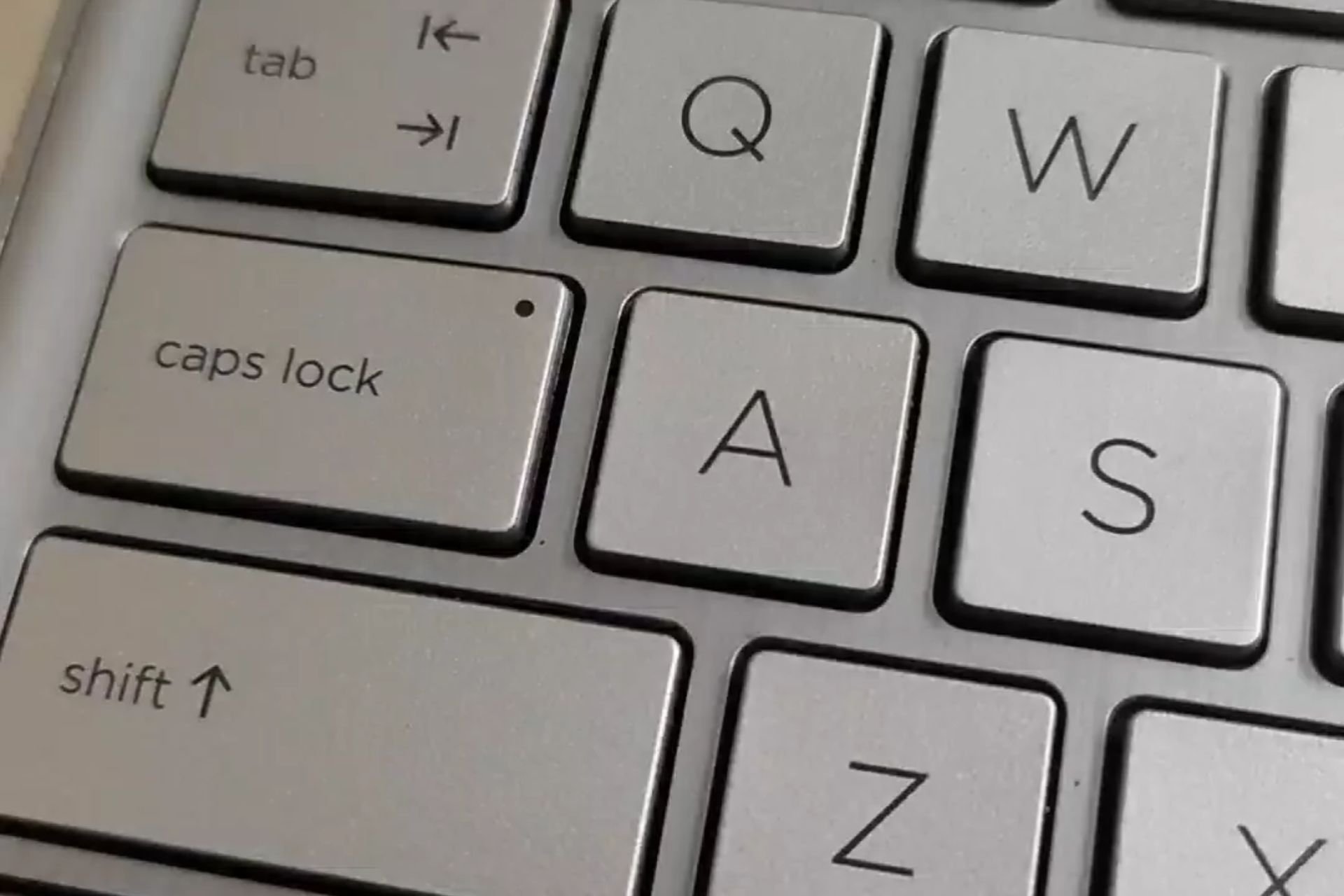
Your HP laptop caps lock key blinking is not a good sign but it is an indicator of an underlying problem and if you address it early enough, you could save your device from catastrophic damage.

The most common reason why your caps lock blinking is a hardware issue but in some rare cases, it can also be due to associated software. Common culprits include incompatible or faulty RAM, corrupted BIOS or a bad graphics card.

What can I do if my HP laptop Caps lock is blinking?

1. Reseat your RAM module

  1. Power off your HP laptop and unplug it from a power source.
  2. Remove the RAMs like you must have done in the past.
  3. Try placing them back and listen for a click sound. In most cases, this shows it is well seated on the RAM mount.
  4. Reboot your HP laptop.

Pay special attention to the technique while inserting the RAM stick. Slightly tilting it to a 30-degree angle will ensure it is seated properly in its slot.

Alternatively, if you have more than one RAM slot, you can remove it and put it in a different slot. Sometimes, only one RAM slot is working and you’ll have to test all of them to find one that isn’t damaged.

If all these don’t work, try with another RAM stick especially if you just did an upgrade. Your laptop may fail to boot after a RAM upgrade if it is incompatible or faulty.

2. Run the HP diagnostics tool

  1. Navigate to your browser and download the HP Hardware Diagnostics tool from the HP website.
  2. Open the file and follow the on-screen instructions to install the tool.
  3. Launch the tool and click on the System Tests button.Hardware Diagnostics tool
  4. The test will start running. Let it finish until it reaches 100%.
  5. Restart your HP laptop once the test is complete.
  6. If the caps lock is still blinking after completing the Quick Test, choose to perform the Extensive Test.

3. Reset BIOS and reinstall it

3.1 Reset BIOS

  1. Restart your HP laptop and repeatedly press ESC/F1/F2/F8 or F10 during the startup to get into the BIOS menu.
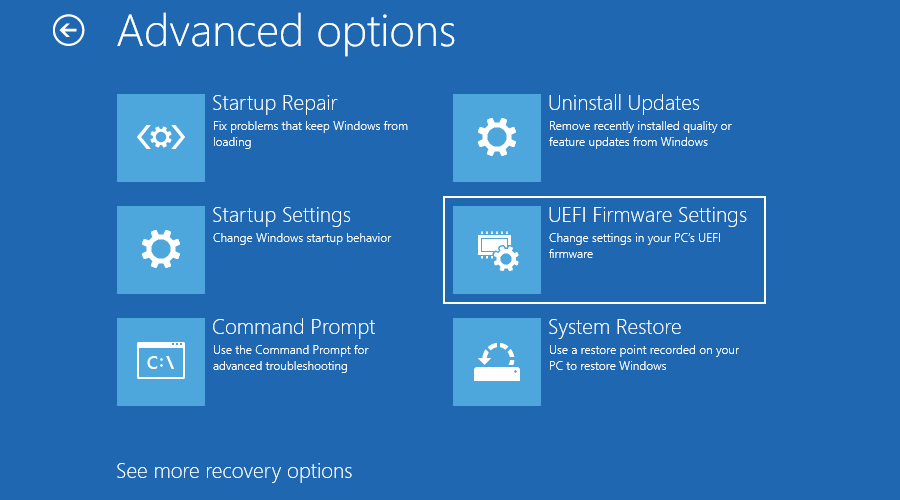
  2. Hit the Windows + I keys to open the Settings app and click on System>Recovery>Advanced startup. Go to Troubleshoot > Advanced Options > UEFI Firmware Settings and click on Restart.
  3. Once you are in the BIOS menu, press F9 to open the Load Default Options dialogue box.
  4. Select Yes using the arrow keys to reset BIOS settings to factory default.
  5. Exit and restart your HP laptop and check for any improvements.

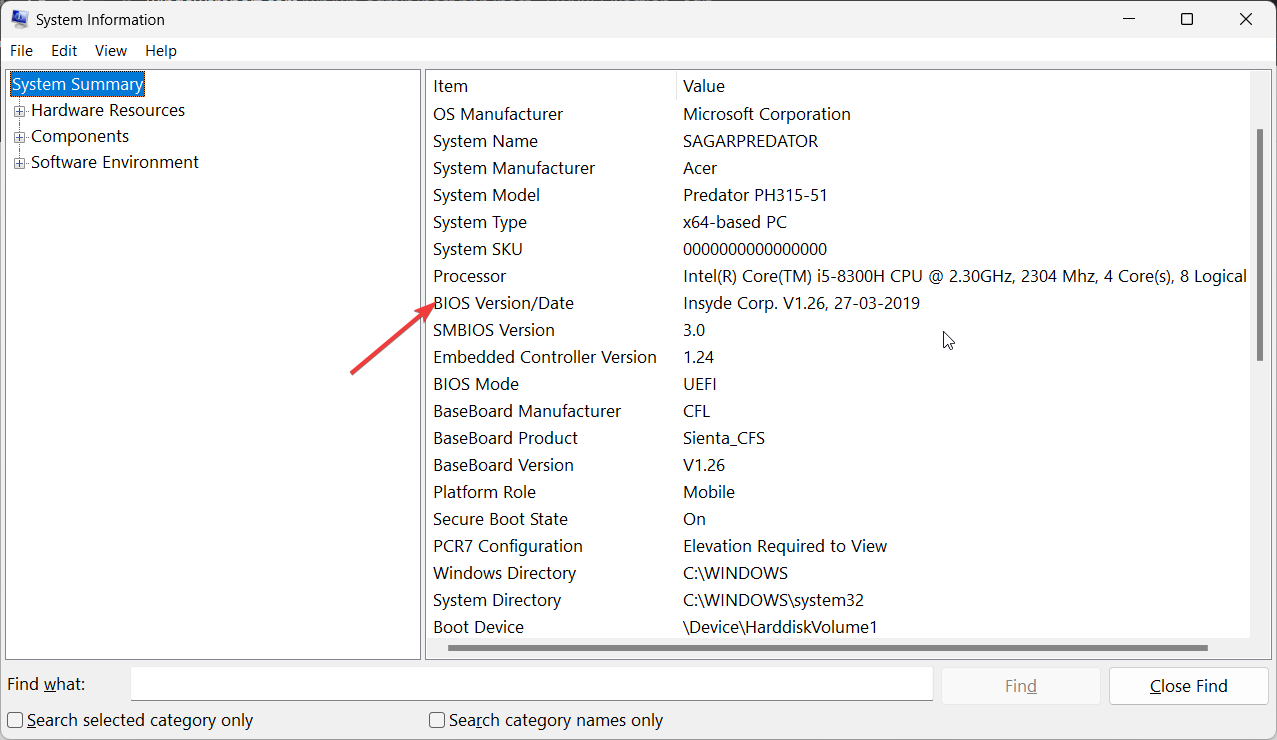
3.2 Check the BIOS version

  1. Open the Start menu by pressing the Windows key.
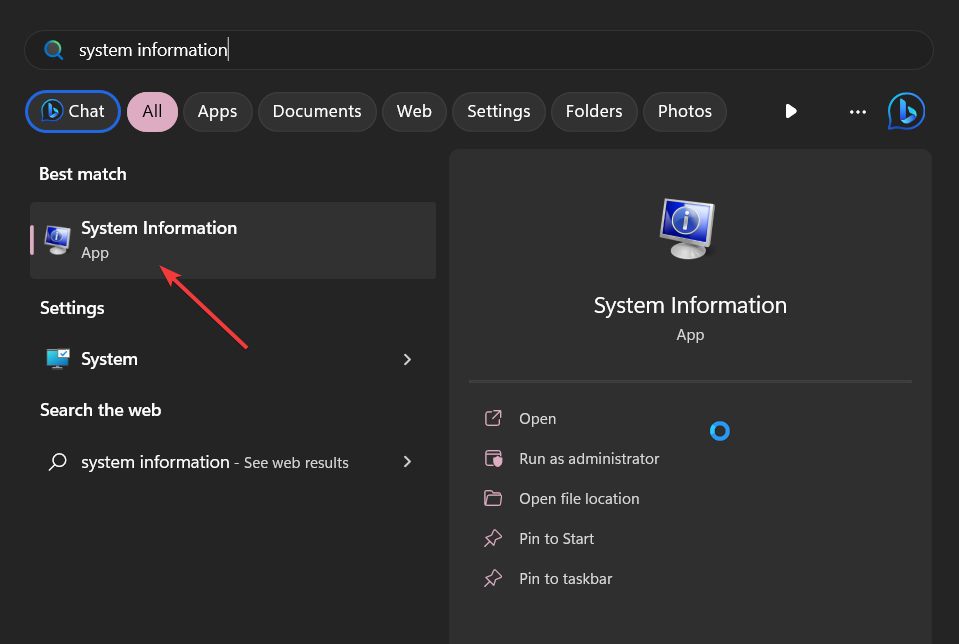
  2. Type System Information and open the top result.
  3. Locate BIOS Version/Date section on the right side.

3.3 Update BIOS

  1. The process of updating BIOS will differ depending on your motherboard. For this step, we shall be updating the HP motherboard.
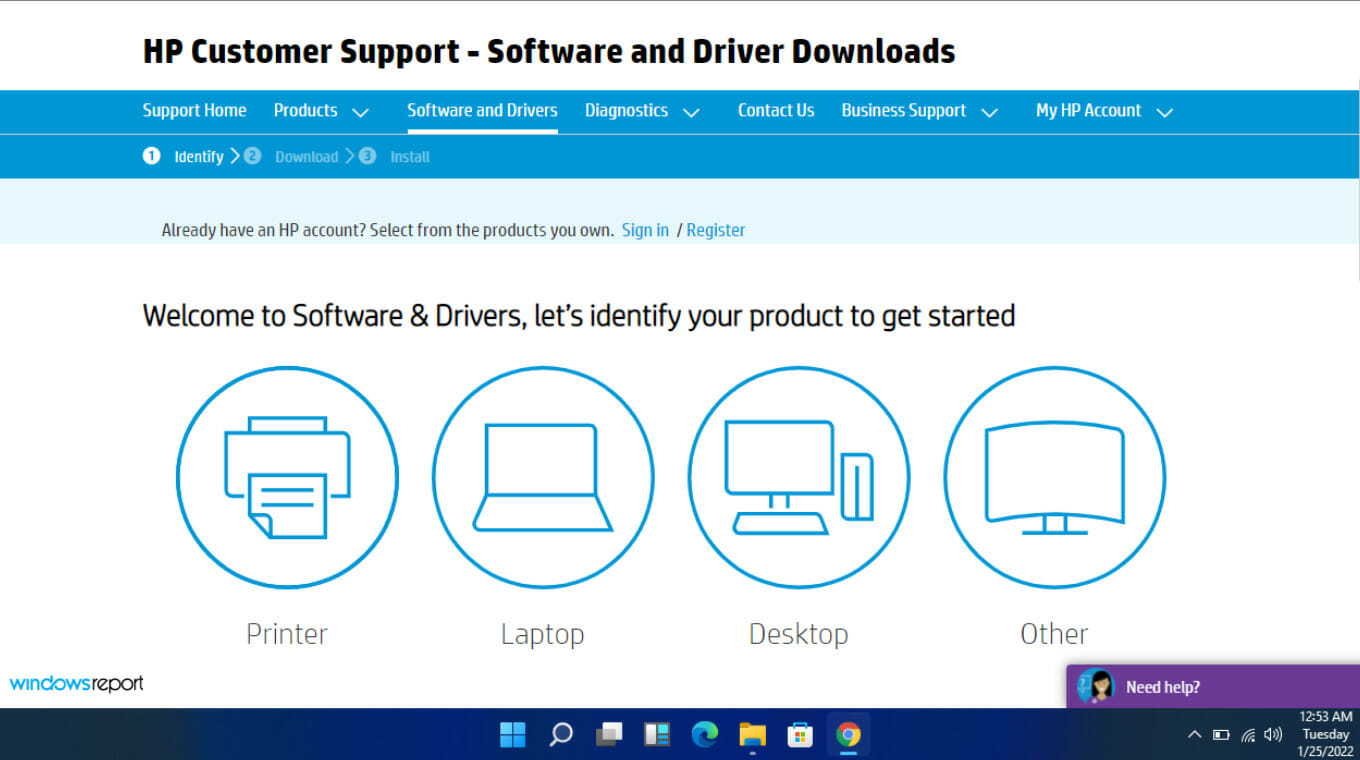
  2. Navigate to the HP driver and software download website.
  3. Choose laptop or desktop, depending on the type of computer you’re using.
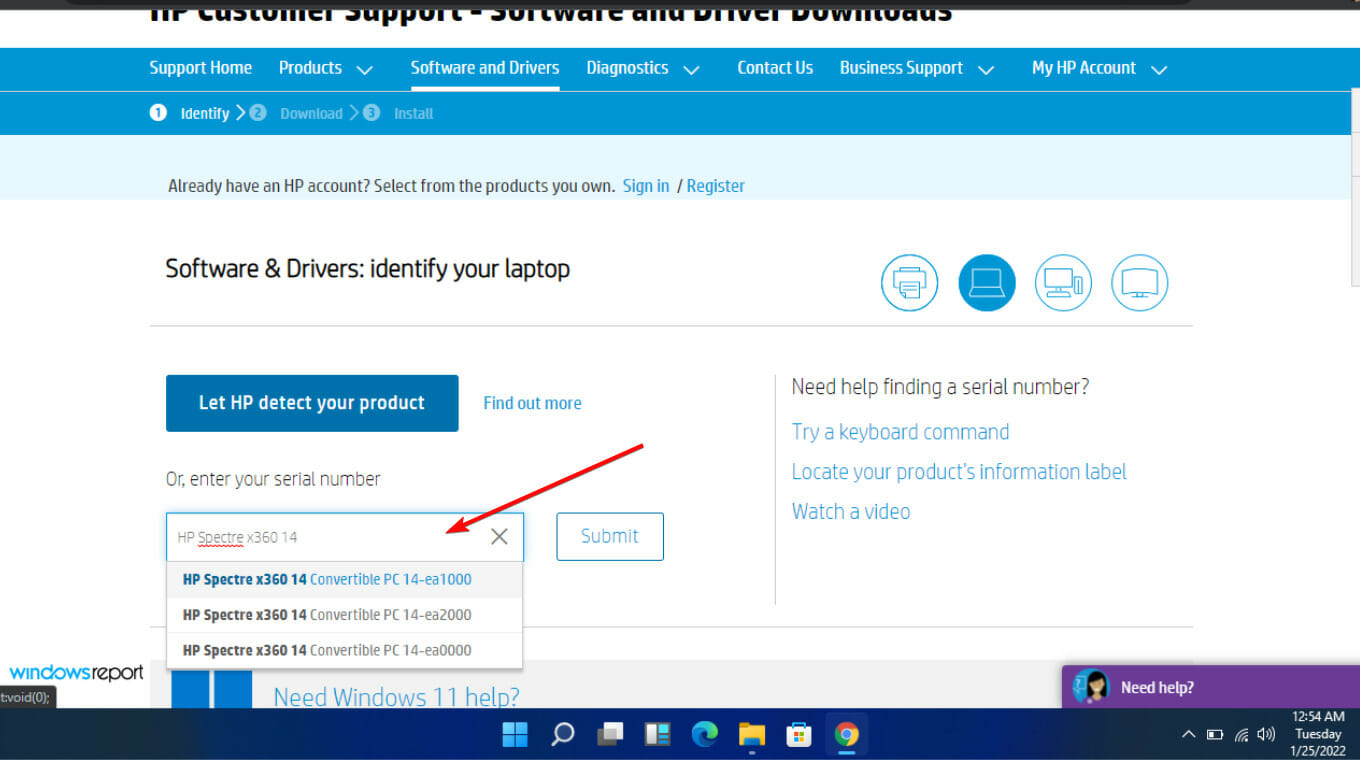
  4. Enter your exact serial number or your exact computer model.
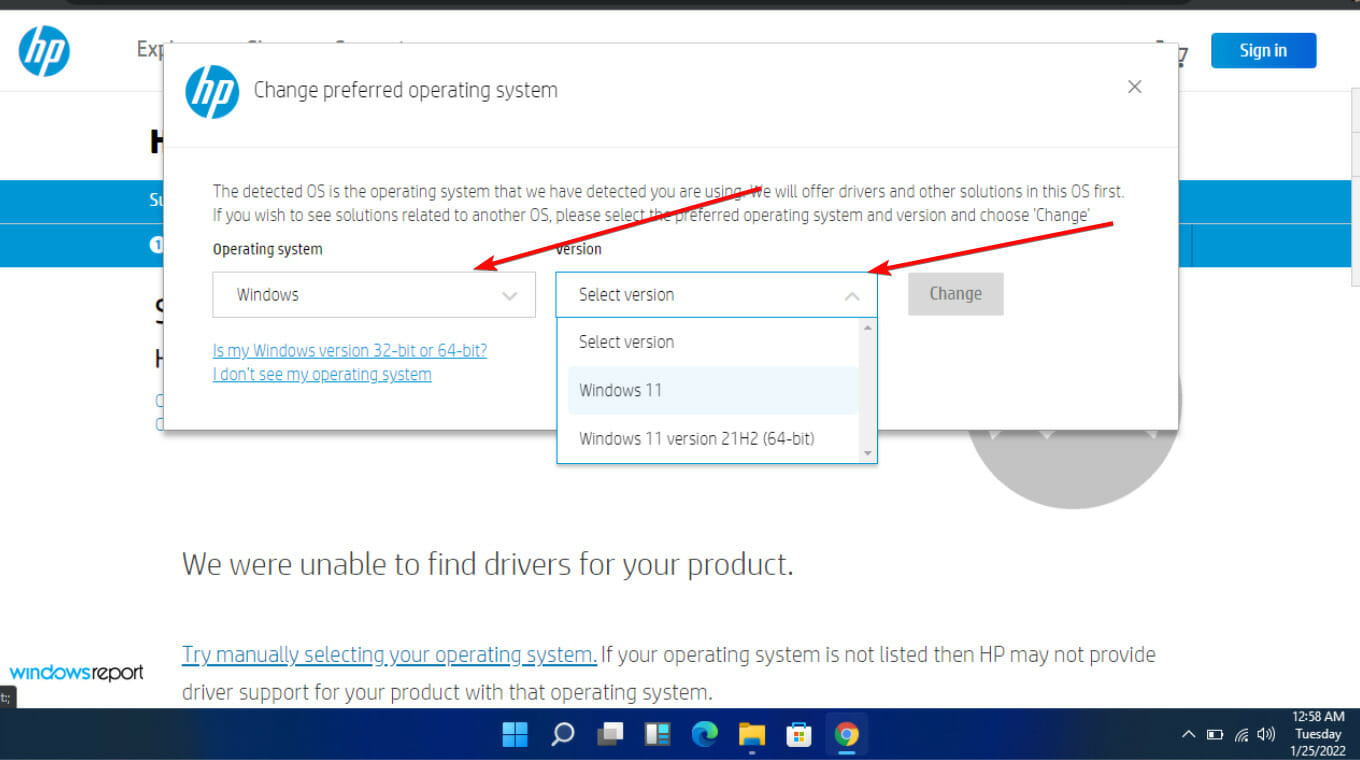
  5. Select your OS and OS version, then click Submit.
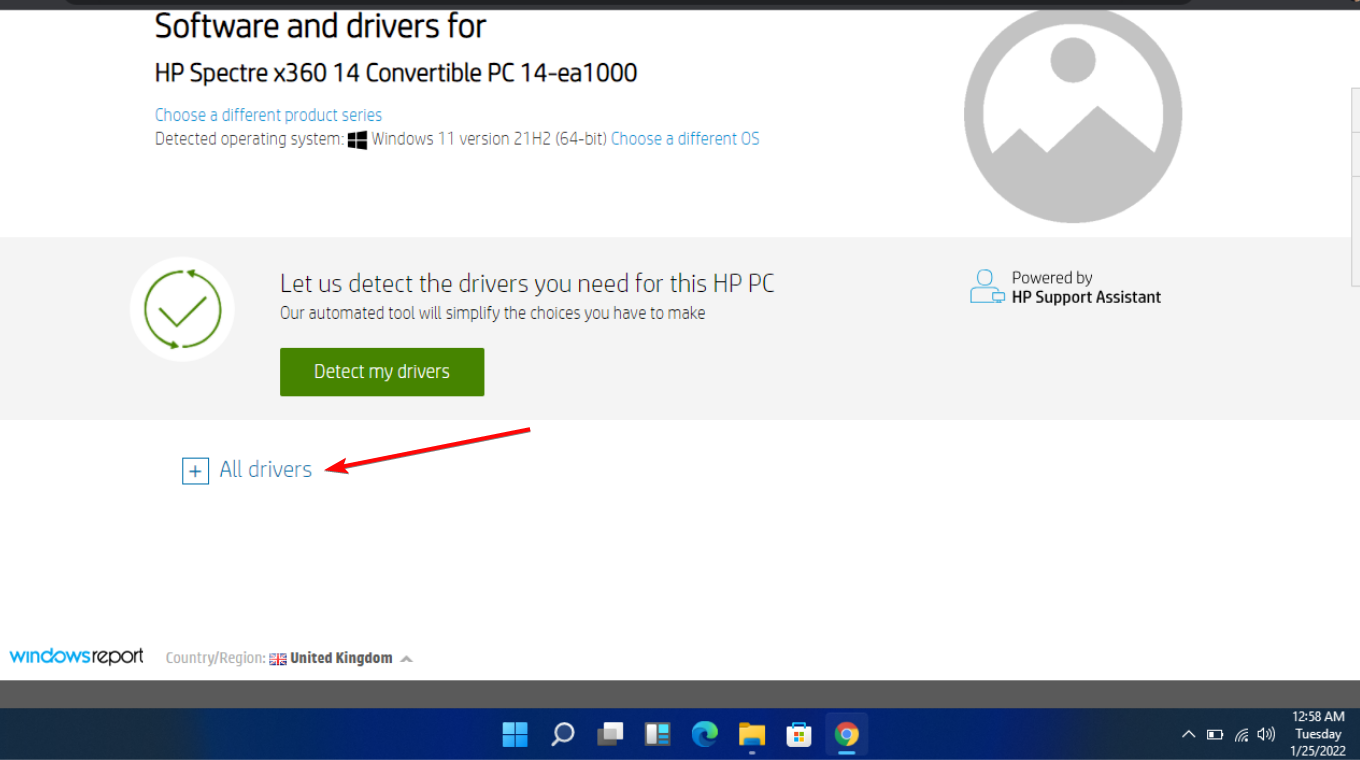
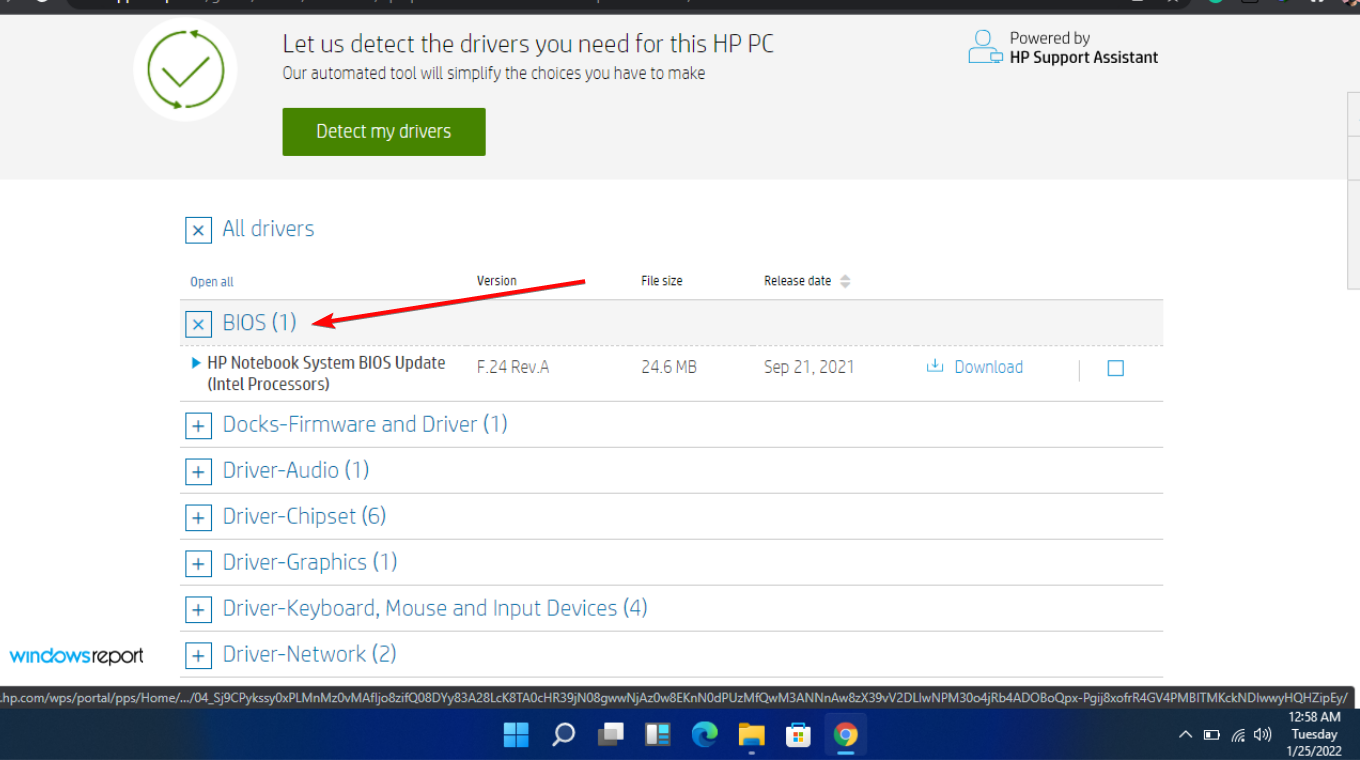
  6. Click on All drivers and then expand BIOS to see available updates.
  7. Click the download icon.
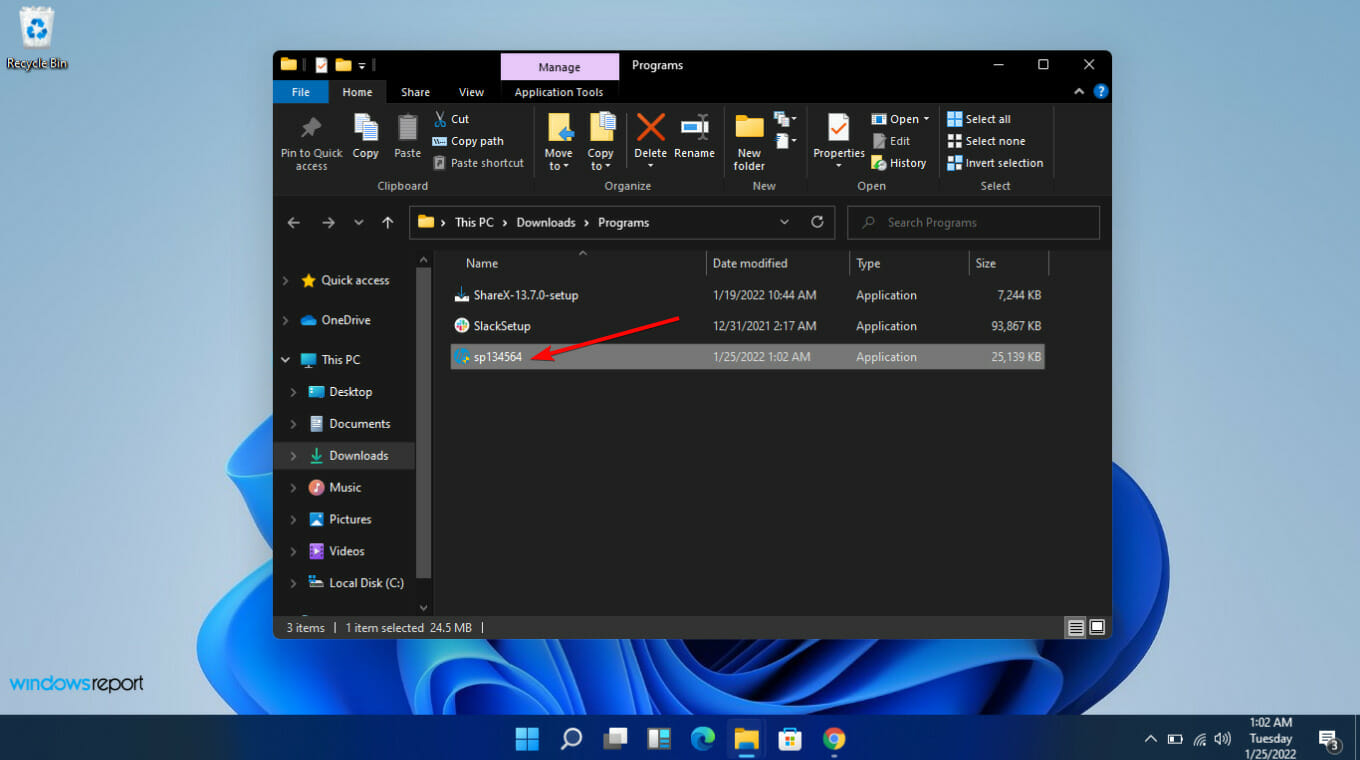
  8. Install the .exe file, following the on-screen instructions.
  9. Restart your HP laptop and observe whether the caps lock is still blinking.

3.3.2 Use a BIOS updater utility

  1. Disable your firewall temporarily as it may flag off this program as malware and prevent it from installing or making any changes on your laptop.
  2. Navigate to your browser and download the HP Support Assistant.
  3. Open the HP Support Assistant and log in with your account or continue as a guest.
  4. Right under your device picture, you will find an Updates option.
    hp support assistant interface
  5. Click on it to check if you are up-to-date or have any pending updates.
    hp support assistant update check
  6. If you see a new BIOS update available, click Download and install.
  7. Wait for the Support Assistant to finish the job and close the application.

You can opt for the BIOS updater if doing it manually is too tedious.

Note icon NOTE
HP Support Assistant only works with HP motherboards, so if you have one from another manufacturer, be sure to check their website to see whether they have a BIOS updater program as well.

4. Update your graphic drivers

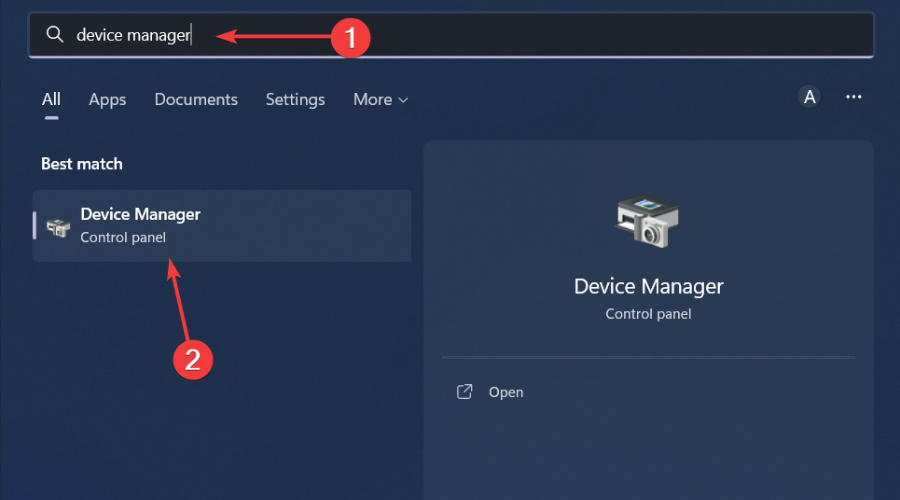
  1. Hit the Windows key, type Device Manager in the search bar, and click Open.device manager w11
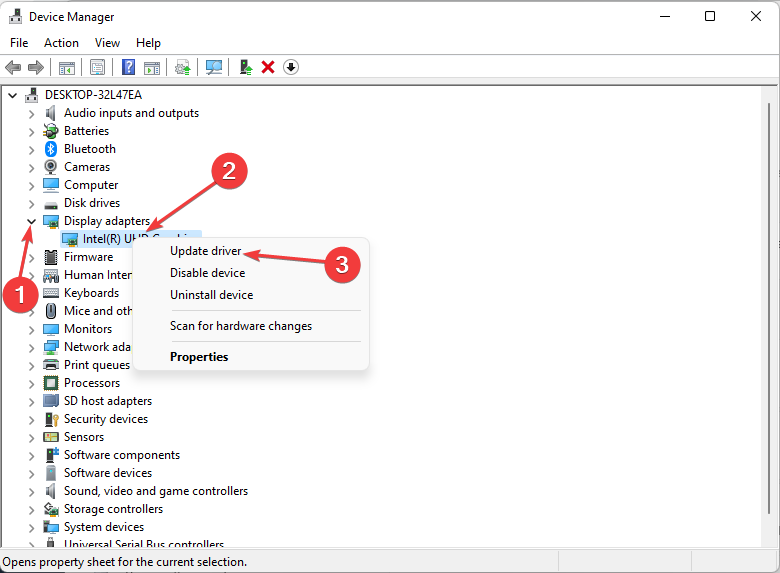
  2. Navigate to Display adapters to expand, right-click on your graphics card, and select Update driver.Graphic Driver Update
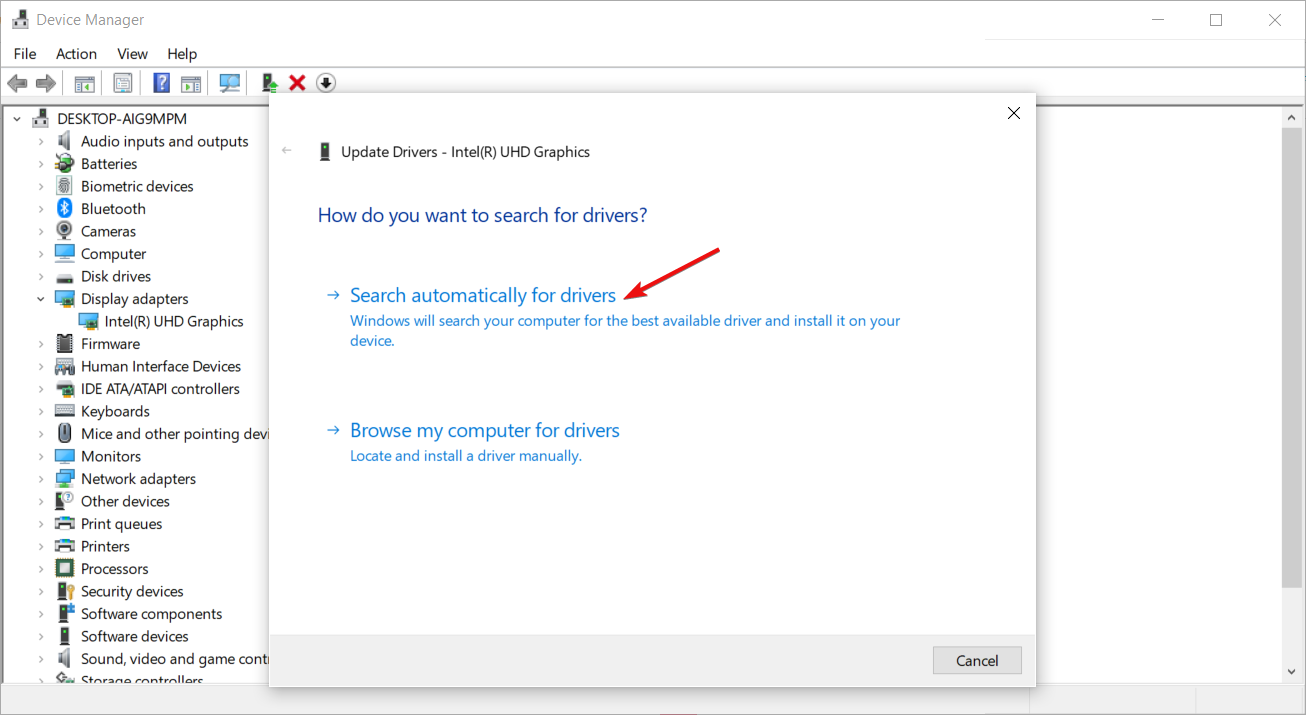
  3. Select Search automatically for drivers.

Even though Windows does a good job of finding compatible drivers, in some instances, it may fail. However, a good driver updater utility can fill in the gaps in such situations.

5. Perform a hard reset

  1. Shut down your laptop completely. 
  2. Unplug the charger from the laptop and power source. 
  3. Remove the battery and hold down the power button for 15-20 seconds. 
  4. Reinsert the battery and plug in the charger. Change the power supply this time.
  5. Now turn on your laptop and check if the caps lock blinking issue is fixed. 

If you’re using an additional keyboard, they tend to have connection problems so try unpairing then pairing back. Also, ensure you’ve charged the batteries fully or as an alternative, use your phone as a keyboard as a temporary solution.

In the worst case scenario your motherboard has malfunctioned, we’ve lined up a list of the best motherboards for your Windows 11 that won’t disappoint you.

Aside from keyboard issues, your mouse may also flicker when you’re using it so you may want to check our article on how to bypass this error.

Have you experienced a similar issue? Is there any solution above that was successful or do you have any other that we may have missed? Let us know in the comment section below.

Microsoft BUILD sessions hint at Windows 11 AI and ARM developer focus

Microsoft has unofficially and officially hinted at its big Windows 11 artificial intelligence push scheduled for later this year, and now session lists from their upcoming developer conference further buttress the company’s focus on AI and Windows on ARM (WoA) development for 2024.

The Verge reported that Microsoft plans to hold a special Surface and AI event a day before the company hosts its annual BUILD developer conference. The event is rumored to highlight Microsoft and Qualcomm’s partnership on ARM powered Surface devices and highlight several demos aimed directly at competing with Apple’s M3-Series CPUs. In addition to persuading developers that WoA this year is worth considering, Microsoft will also be unveiling a “big new Windows AI” feature during this special Surface and AI event.

Over the past couple of years, Microsoft has minimized its focus specifically on Windows development during its BUILD conference in favor of pushing other company objectives such as Azure, Quantum Computing and Security.

However, this year seems to be a bit of a return to Windows being a larger priority for the company as it schedules a special event prior to its developer conference while also hosting several sessions that emphasize specific Windows 11 and WoA development.

The BUILD developer sessions list was revealed earlier today and includes Designing for a brand-new Windows AI feature hosted by Rebecca Del Rio and Adrienne Pauley who are both product managers at Microsoft. Another session labeled Build richer experiences with Copilot in Windows hosted by product manager Ryan Forstie also hints at the company courting developers to expanded Windows 11 functionality because of its most recent AI push.

Perhaps the most standout session highlighting Microsoft’s confident venture into Windows on ARM once again might be the Introducing the Next Generation of Windows on Arm which is described as,

The Windows on Arm platform is bringing industry leading performance and experiences to applications. Learn about the exciting new experiences for Arm-powered Windows this year, such as intelligent Windows apps that leverage rich capabilities of the NPU. Get the inside scoop on what Microsoft and our partners have been doing for developers with runtimes, tooling, and infrastructure for Arm. Leave this session feeling inspired, with a newfound vision for the platform’s potential.

BUILD 2024 Session Catalog

With BUILD 2024 a little over a month away, it’s already been teased that Microsoft plans to introduce a new AI-infused experience simply called AI Explorer that will be coming to Windows 11 devices later this year as part of that continued push of machine learning and pre-generative AI packaging for the OS.

AI Explorer is rumored to work like a timeline of local events that can be recalled on a PC, giving users a robust search of almost any and every activity that occurs on a device.

Microsoft is also rumored to only be displaying Windows on ARM powered Surface devices during its May Surface hardware event, which hints at a first-ever divided in its Surface line up that delineates between Intel-powered commercial devices and soon-to-be ARM-powered consumer PCs.

It’s been a while since Microsoft has taken such big bets with its Surface devices as well as with Windows development. It’ll be interesting to see how these investments pay out for the company as well as consumers in the Fall.

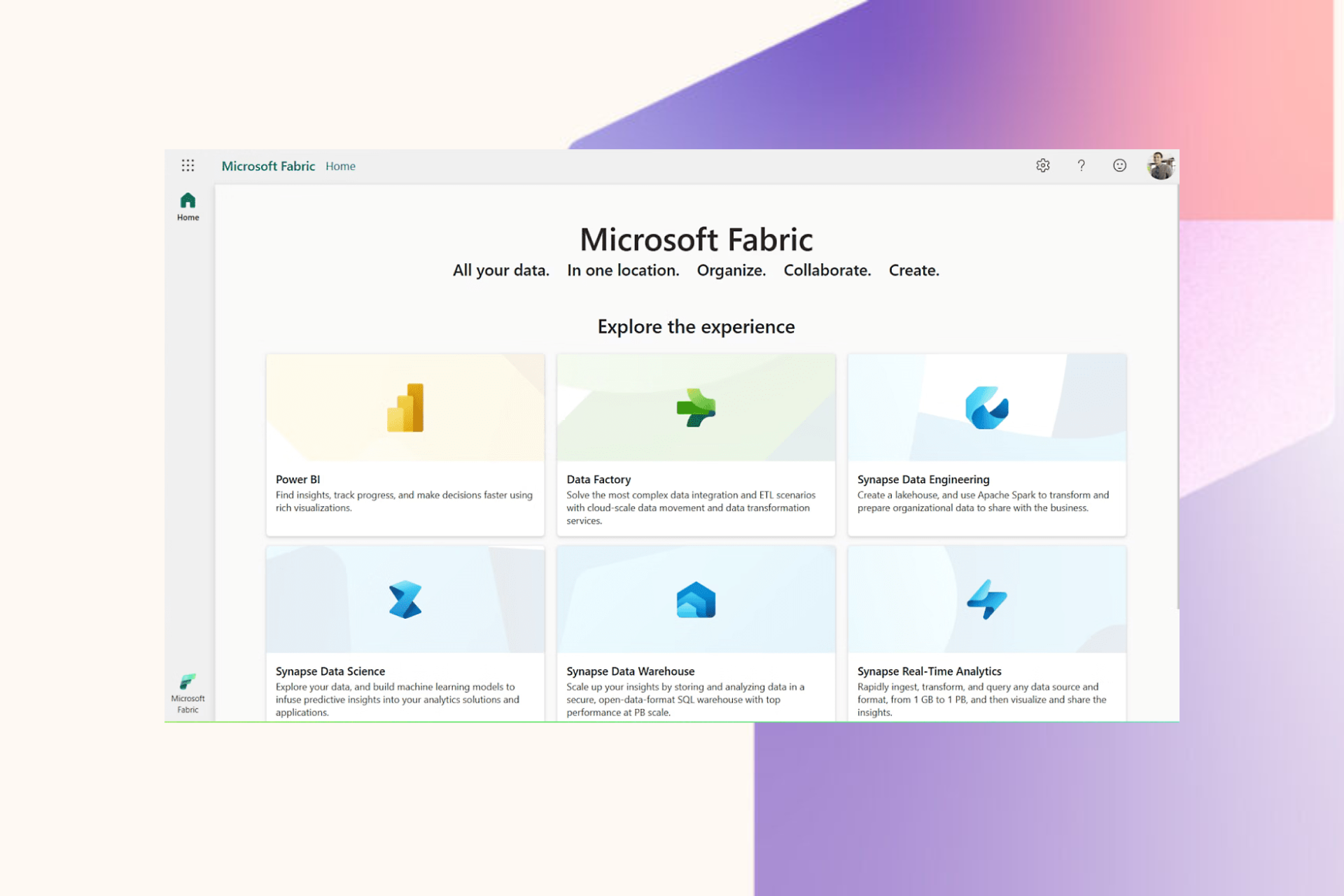
Microsoft Fabric introduces new security features and other enhancements to revolutionlize data analytics

Microsoft held a Fabric Community Conference in Las Vegas last month and announced exciting and groundbreaking new features and capabilities, aiming to reshape the landscape of data analytics within the Fabric ecosystem.

Complete platform enhancements

With the latest advancements, Fabric, Microsoft’s flagship analytics platform, will emphasize on delivering a unified SaaS platform equipped with end-to-end security, governance, and data management capabilities.

Security reinforcement

As security is an important aspect within the Fabric ecosystem and with the introduction of new features like Trusted Workspace Access, Azure Private Link support, and Managed Private Endpoints, and deeper integration with Microsoft Purview, it has further strengthens data security and compliance.

Furthermore, this will enable seamless enforcement of data loss prevention and access permissions within Fabric ecosystem.

CI/CD Transformation

Another update is the transformation of Fabric’s Continuous Integration/Continuous Deployment (CI/CD) experience. It includes robust support for data pipelines and data warehouses within Fabric Git integration and deployment pipelines, which empowers to streamline project management and deployment processes.

Dataflow and Pipeline Enhancements

New features like Fast Copy in Dataflows Gen2 and expanded support for on-premises data connectivity via the on-premises Data Gateway in dataflows and data pipeline functionalities promise to speed up data ingestion and transformation.

User experience improvements

You will now be able to create folders in workspaces and soon be able to create multiple apps within the same workspace.

Moreover, the tags have been added to Fabric items to improve discoverability, compliance, and resource reuse within the platform.

In future updates, you will also get the task flows feature, which will provide a complete visualization of data projects, to simplify project management and collaboration.

Governance advancements

Microsoft also introduced subdomains, which will allow your organization to redefine data governace structure as per your business needs.

The domain management tools are enhanced to simplify governance processes to empower businesses to keep control and compliance across their Fabric data estates

Integration with Microsoft Purview

Along with these Fabric advancements, Microsoft Purview provide a reimagined data governance experience customized for federated data governance practices with its seamless integration with Fabric to expedite multi-cloud data governance initiatives

Lake-Centric approach and openness

Fabric uses lake-centric approach and is committed to openness and all of that is can be seen through features such as Shortcuts and Mirroring, which enables seamless data virtualization and real-time data replication on all multi-cloud environments.

Now, it also has external data-sharing capabilities, which will further enhances collaboration and data accessibility, which will make secure data exchange with stakeholders and external partners easier.

Empowers business users

With the vision to empower every business user, Microsoft Fabric now has introduced enhancements to the core Power BI visuals, by providing additional formatting options for all cartesian charts, more layout options for the matrix visual, and new visual types such as button slicer and the new 100% stacked line area chart.

It also has added a metrics layer, which can enable your organization to create resuable standardized business metrics for several Fabric artifacts.

AI-Powered capabilities

Fabric now comes with Copilot, which will offer generative AI features to speed up the data exploration and analysis process.

With features like Explore and DAX query view, you can now deriver insights from data without any difficulty

In Explore section, you will now find Data overview button which will give you summary powered by Copiloit of the semantic model to help you get started.

Looks like Microsoft is just started, and with its commitment to continue pushing boundaries of data analytics, it can empower your organization to unlock the complete potential of your data and get the best outcomes.

These features will be available in preview in start of April and will roll out to regions slowly. What do you think about these enhancements of Microsoft Fabric? Share your opinions with our readers in the comments section below.

Limited time offer:  Lenovo ThinkPad X13 Gen 3 with AMD Ryzen 7 Pro 6850U is now available for  $849

Lenovo ThinkPad X13 Gen 3 AMD model is mentioned as a lightweight, ideal business laptop with 13 13-inch screen. It is now available at a discount of approx 23, i.e., $323, which means you can now get the laptop at $849, all thanks to this attractive offer.

This compact yet reliable business notebook comes with an AMD Ryzen 7 Pro 6850U processor, 16GB RAM, and a spacious 512GB SSD.

To take advantage of this limited-time discounted price, visit Woot, an Amazon-owned online store that offers free shipping for Amazon Prime members.

The ThinkPad X13 Gen 3 stands out with a 13-inch IPS display that offers vibrant colors, 100% sRGB coverage, 1920 by 1200 resolution, and 300 nits of brightness, which provides crisp visuals.

This robust laptop has a strong build chassis, a long-lasting battery life of up to 10 hours, and powerful performance.

The laptop doesn’t have a good webcam, and an SD card slot is also missing; however, it can be an attractive option if you want a laptop for use on the go.

Here is the detailed information about the laptop to ensure you make an informed decision

Specifications
Display WUXGA (1920 x 1200) IPS, anti-glare, 300 nits
WUXGA (1920 x 1200) IPS, anti-glare, touchscreen, 300 nits
WUXGA (1920 x 1200) IPS, anti-glare with Privacy Guard, 500 nits
ProcessorAMD Ryzen™ 5 PRO 6650U Processor (2.90 GHz, up to 4.50 GHz Max Boost, 6 Cores, 12 Threads, 16 MB Cache)
AMD Ryzen™ 7 PRO 6850U Processor (2.70 GHz, up to 4.70 GHz Max Boost, 8 Cores, 16 Threads, 16 MB Cache)
RAMUp to 32GB LPDDR5 6400MHz
SSD512 GB
OS Windows 11 Pro
GraphicsAMD Radeon 680M
Webcam FHD 1080p + IR Hybrid with Privacy Shutter
Back lit keyboardYes
Network ConnectionQualcomm Wi-Fi 6E NFA725A, 11ax 2×2 + BT5.1
Ports1x USB4® 40Gbps (support data transfer, Power Delivery 3.0 and DisplayPort™ 1.4a), 1x HDMI® 2.1, up to 4K/60Hz, 1x Headphone / microphone combo jack (3.5mm)
AudioFHD RGB camera option with Dolby Voice for immersive videocalls
Screen size 13.3 inches
BatteryUp to 10.5 hours* 41 Whr (MM18)
Up to 15 hours* on 54.7 Whr (MM18)
Supports Rapid Charge (up to 80% in 60 minutes) with 65W adapter
Warranty 3 Years

So, if this laptop fits your preferences, this is the best deal you can get! Grab it while you can! What do you think about it? Share your thoughts in the comments section below.

Another desperate attempt to slip ads into Windows by Microsoft

Microsoft is developing a way to display ads on the Windows 11 Start Menu, with the aim of encouraging users to download its recommended apps.

In the past, Microsoft used the upper part of the Start menu to showcase general ads, and users didn’t like it. So, this time, it is putting the app promotions at the bottom of the Start menu.

According to  PhantomOfEarth‘s post on X(formerly known as Twitter):

Looks like the Start menu’s Recommended section will be getting app promotions, similar to suggested apps in Start in Windows 10. This can be toggled off from Settings (Show recommendations for tips, app promotions, and more).

These app promotions would appear in the Recommended section of the Windows start menu with a Promoted ticker to differentiate it from other things.

However, if you don’t look at it carefully, you might end up installing the prompted app. Also, the prompted ad could come with an installed app, making it more confusing. Fortunately, you can disable or opt out of it from the Personalization section of Settings.

This is not the first time Microsoft has tried to do this; when we install Windows, it comes with a handful of pinned apps in the Start menu, and surprisingly, some of these apps are not even on the system.

So, if the presumptions are correct and if the promoted ads go live, we need to be extra careful when clicking on items shown in the Recommended section to avoid unwanted app installation.

What are your thoughts on the matter? Share your opinions with our readers in the comments section below.
Looking for a Nvidia H100 AI GPU? You can get it a bit faster now, says Dell

These days, AI is front and center, especially when it comes to ChatGPT, Copilot, and Gemini, but few know the raw processing power needed to keep them constantly running. Nvidia’s H100 AI GPUs are a great example of just that, being one of the leading graphics processing units used in AI.

But there aren’t that many of them lying around, and the demand is constantly increasing. Take, for example, Sora AI, which needs an estimated 4,200-10,500 Nvidia H100 GPUs for one month just to train one model. Factor in the recent shortage of H100 GPUs, and you can imagine how the wait time for new hardware has skyrocketed.

The wait times for H100 AI GPUs have significantly shortened.

Imagine a scenario where businesses and tech enthusiasts alike faced a grueling 40-52-week wait for their GPU orders at the end of 2023. Fast-forward to the present, and the landscape has dramatically changed, with lead times plummeting to a mere 8-12 weeks. According to DigiTimes, this shift, as reported by Terence Liao, the General Manager of Dell Taiwan, marks a pivotal moment in the tech industry, particularly for those vested in artificial intelligence (AI) and high-performance computing.

But what’s behind this sudden ease in GPU availability? The supply constraints that once throttled the availability of Nvidia’s H100 AI GPUs are apparently dissipating. The journey from a staggering 11-month wait to a more accessible 2-3 month timeframe is nothing short of remarkable. This improvement is not just a win for Dell but a beacon of hope for the entire tech ecosystem, signaling a potential end to the supply chain woes that have plagued the industry.

Despite the easing of supply constraints, the demand for AI-capable hardware remains sky-high. Businesses increasingly opt for AI servers over general-purpose ones despite the hefty price tag associated with the former. This trend underscores the critical role of AI in shaping the future of technology and business strategies. The reduction in lead times is a testament to the industry’s resilience and adaptability.

It seems that previous H100 stock also plays a role in this

Interestingly, this positive shift in GPU availability is partly attributed to companies having a surplus of H100 GPUs and choosing to resell some of their stock to mitigate the high maintenance costs of unused inventory. Additionally, Amazon Web Services (AWS) has played a role in alleviating some of the demand pressure by making it easier to rent Nvidia H100 GPUs through the cloud.

For large companies like OpenAI, which are at the forefront of developing their large language models (LLMs), the easing of supply constraints couldn’t come at a better time. These companies require thousands of GPUs to train their models efficiently and effectively. The continued shortening of lead times is a promising sign that they might soon have all the resources they need to push the boundaries of AI even further.

In essence, the GPU landscape is undergoing a significant transformation, and this shift not only benefits the big players in the field but also opens up new possibilities for innovators and creators everywhere.

Microsoft quietly pushes private notifications in Windows 11

It seems that Microsoft might finally update Windows 11 to support private notifications soon, as many users now claim that their notification badges appear to be private: that is not previewing anything aside from the app that pushes the notification.

The update is somehow disparate, as many users have started to get them since January 2024. This user, in particular, was stunned to find out Microsoft Defender pushed up a private notification on their Windows 11, which led them to believe they were hacked.

Earlier this week Twitter (now going as X) users shared that they were being hit with private notifications on Windows 11, as Windows enthusiast, @XenoPanther shared an image of the update.

So, it seems that Microsoft is releasing the update randomly, both to Insiders and non-Insiders, as well. For example, when we accessed the notification settings within the latest Dev build of Windows 11, we couldn’t find anything that would enable the hiding of notification context, as you can see below.windows 11 notifications private

There is an option to enable the hiding of notification context on Windows 11’s lock screen, as you can see below.

For that to happen, though, you’ll need to select each app and enable the option.

Many Windows users believe this might be a bug, and there is even a Feedback Hub post where users let Microsoft know about it.

However, even if it’s not a bug, it could be quite useful to Windows 11 users who often share their devices with others or are using it in public spaces where people can take a peak (not everybody has a screen protector, but Microsoft is working on a similar technology, so there you go).

For instance, I often find myself in such situations, where I have to use my Windows 11 device in public. The notifications show private and sensitive information, and I end up being all anxious about it.

So this update, or bug, or whatever it is, should be an optional feature in Windows 11. Yes, I want to be notified when someone texts me, or when an app does something, but it would be good if it’s private when I’m sharing my device with others.

Microsoft recently updated Windows 11 with new notification badges for Windows 11 widgets, and users can now be reminded of them when they access the weather widgets on the operating system. This means Microsoft could, and in fact, it already has updated notifications to hide context when you’re not on the lock screen.

Let’s hope it’s not treated as a bug.

Don’t want websites spying on your keyboard? This Chrome feature will put an end to that

The security of your browser should be your main priority, and Google is determined to make Chrome even safer.

Currently, the company is testing new settings that should prevent mouse and keyboard hijacking.

Chrome will prevent websites from hijacking your mouse and keyboard

Sometimes websites can access your mouse and keyboard, and if the website is malicious, that can be abused. According to the Android Police, Google plans to stop this with new privacy features.

This was first spotted by Leopeva64 on X in the Canary version of Chrome:

The new settings can be found in the Additional permissions section inside of the Privacy and Security settings.

There are three new features, and you’ll be able to prevent websites from scrolling and zooming shared tabs and prevent them from locking your keyboard or mouse pointer.

By enabling these features, you can prevent pages from capturing keyboard inputs or prevent websites from locking your mouse pointer on a certain page.

This is a small but useful feature, and we can’t wait to see it available in action in the stable version of Chrome. As for other privacy features, Google is updating privacy information in Chrome, however, this is still a work in progress.

We also have to mention that the V8 Sandbox has been released and is available in Chrome 123, thus beefing up your security further.

RDNA3+ architecture might stick around until 2027, according to a new leak

There’s an everlasting race for graphics supremacy, mainly between Nvidia and AMD. While this space would benefit from a bit more competition, there’s no lack of advancements and innovation. Nvidia is constantly working on monopolizing the market, and AMD is pushing through with improvements that might level the playing field.

RDNA is a great example of that, but with enough rumors about AMD’s upcoming RDNA4 architecture, what will happen with RDNA3+?

Well, it seems that RDNA 3+ is not going anywhere, at least for now. First seen by VideoCardz, it’s been whispered through the tech grapevine, specifically by the known insider Golden Pig Update, that AMD APU-powered laptops will stick with RDNA3+ until at least 2027. Now, isn’t that something? It’s like discovering your favorite series was renewed for several more seasons.

RDNA4 & RDNA5 on the horizon, but RDN 3+ holds its own

Why is this important, though? For starters, RDNA3+ is no small fry in the graphics world. It’s the same tech that’s powering the Ryzen 7000 Series processors. That means, even though it might not be the newest kid on the block in a few years, it will still pack quite the punch. AMD is expected to tweak it here and there to ensure it meets the demands of its users, but don’t hold your breath for any groundbreaking changes. After all, it’s based on what will be considered older technology.

With the tech world being as fast-paced as it is, rumors are already swirling about AMD’s next moves, with RDNA4 and even RDNA5 making rounds in the rumor mill. It’s a reminder of how quickly things can change and how today’s cutting-edge technology can quickly become tomorrow’s standard. But for now, RDNA3+ is here to stay in AMD’s APUs, promising to deliver solid performance for the foreseeable future.

Maybe AMD will shed more light on their plans for these APU models, but for tech enthusiasts and casual users alike, watching what’s to come is an exciting time. Whether you’re in the market for a new GPU or considering a processor upgrade, the landscape in 2024 is looking promising.

So, what’s your move going to be? Will you jump on the latest tech or wait to see how these developments unfold? Either way, AMD’s RDNA3+ will be a significant player in the tech game in upcoming years.

Hackers are using Windows script files to spread the Raspberry Robin and steal data

To avoid detection, threat actors are constantly using different techniques. In addition, sometimes they bring back old ones and tweak them to fit their needs and to bypass security systems. That’s why some wrongdoers are now using a new version of the Windows worm Raspberry Robin.

OpenAI researchers created an AI worm a while ago. Their virus managed to bypass security systems and steal data. In addition, the AI malware is capable of infecting multiple devices. So, the new Raspberry Robin worm used by cybercriminals could be similar.

Are computer worms still around?

Hackers used the Raspberry Robin worm to target tech companies and manufacturing businesses in 2021. Threat actors didn’t distribute the virus by using online methods. Instead, they sent USB flash drives to targeted organizations.

Employees unknowingly used the infected USBs and allowed attackers access to their company’s network. However, this incident is fascinating because it shows that we are more likely to defend our devices from online threats than offline ones.

How did threat actors use the Raspberry Robin Windows worm?

According to a new report by HP Wolf Security, threat actors are now using Windows script files (WSFs) to distribute the Raspberry Robin worm. IT admins and legitimate software use the WSFs to automate Windows tasks.

HP Wolf Security researchers believe threat actors used malvertising or spam emails to direct their victims to their domains and subdomains. Using this technique, attackers trick some of us into downloading their infected WSF files.

The WSF files infected with the Raspberry Robin worm can bypass security software. Additionally, the malware-tracking website VirusTotal doesn’t categorize these files as malicious. Thus, hackers can run them almost freely.

The Raspberry Robin worm is dangerous because it can inflict other malware such as SocGholish, Cobalt Strike, IcedID, BumbleBee, and Truebot. Additionally, the virus can migrate to other devices by infecting your network.

Don’t open email attachments from untrusted sources to protect your system from the Windows worm. Additionally, consider asking the email sender directly about their email. After all, the wrongdoers using the worm could steal the sender’s login information and commit identity theft. Also, you can get a paid antivirus or an identity theft protection software.

In a nutshell, the Raspberry Robin worm is a dangerous malware you can find in .wsf files. Threat actors might try to make you download it using malicious emails and malvertising. Additionally, if you receive a USB, consider not using it unless you have a way to test it.

What are your thoughts? Did you ever hear about this malware? Let us know in the comments.

The LG Gram 16 business laptop is 35% OFF for its lowest price ever

Although the LG Gram Laptop 16Z90Q has a big 16-inch screen, it weighs only 2.6 pounds thanks to its magnesium alloy chassis. That and its 0.66 inch thickness make it a highly portable business laptop. We tell you all this because this device is now only $750 down with $450 from its original price of $1,200.

Why should I but the LG Gram 16 laptop?

Well, the LG laptop is not only looks and feel, but there also some raw power in there. It comes with an 12 gen Intel Core i7 CPU and the Intel Iris Xe onboard GPU.

Yeah, you only get 16 GB of RAM, but it’s the LPDDR5 high speed one, clocking at 5,200 MHz, so it’s nothing to sneeze at. As for storage, that’s the job of a PCIe4 M.2 NVMe SSD with 256GB capacity.

We remind you that this is not nearly a gaming machine but a slim and lean laptop for business and travelling and at $750, it’s really a bargain.

Add to this a Full HD IR webcam and a 80 Watt-hour battery that will keep you live over that long overnight flight. LG Gram 16 also comes with Windows 11 Home and two USB-C ports, plus a HDMI out connection.

LG is preparing the next line of AI laptops and that’s why they are discounting their older laptops.

If you already have an LG Gram 16 laptop, tell us about your experience in the comments below.