Yelp is making Mozilla an extra buck through sponsored suggestions for Americans

It seems Mozilla has partnered with Yelp and is experimenting with showing local business recommendations in the Firefox URL bar when you search for something Yelp can offer. Yelp suggestions are being targeted for Firefox version 124 in the US region.

Firefox allows you to show search suggestions for your queries from the default search engine, such as Google, which you choose based on your location. This is not new. Showing suggestions based on local business queries is new, and Yelp excels at this by letting you choose enterprises based on ratings and reviews. Firefox is now testing Yelp suggestions.

What are Yelp Suggestions in Firefox?

When you search for something in the Firefox URL bar, you might see local recommendations from Yelp. These suggestions can help you find nearby restaurants or other services.

Occasionally, Yelp suggestions may even appear as the top pick. Firefox ensures you can control these, just like any other sponsored suggestions.

If you’re using Firefox, you’ll notice Yelp suggestions marked as sponsored when they appear as local recommendations.

For instance, these Yelp suggestions may pop up when you search for sushi, pizza, or burgers.
If you find an inaccurate location or want to see Yelp recommendations less frequently, click the feedback button next to the suggestion. You can also choose to hide specific suggestions altogether.

When you click a suggestion, Yelp results for your query based on ratings and reviews open and appear in a new tab.

This image has an empty alt attribute; its file name is Yelp-suggestion-menu-options.jpg

Mozilla aims to diversify its revenue sources beyond relying solely on search deals with Google. It is also earning money from subscription services such as Mozilla VPN and advertising. Sponsored suggestions are one of the revenue streams, and the non-profit organization also receives donations.

We don’t need a crystal ball to know that not all of you will enjoy these ads. So, if you’d like to completely turn off Sponsored suggestions, including those from Yelp, follow the steps below.

How do I disable Yelp suggestions in Firefox?

  1. Click on the Firefox menu and select Settings.
  2. Visit Search.
  3. Find Address Bar – Firefox Suggest.
  4. Uncheck Suggestions from Sponsors.

If you’re located in the US, you might see Yelp suggestions appear in the upcoming Firefox 124 update. What are your thoughts on this? Do you think Mozilla is prioritizing revenue over the future of Firefox as its market share declines? Let us know your thoughts in the comments below!

ICYDK, Firefox now supports Tab Previews and the Browser Android version is getting a Translation feature. Check out them if you’re interested.

Copilot Lab, the platform where you learn to work with AI models, is now available with hundreds of prompts

Microsoft teased Copilot Lab, a hub where users can learn to work with AI models for themselves or for the organizations they are part of, last year, at the Microsoft Surface Event in September 2023.

Now, according to the X post (formerly known as Twitter), Microsoft made Copilot Lab available to users, and the Redmond-based tech giant even unveiled the official site for it.

The Lab, where you can share ideas and suggestions with other colleagues, such as learning to write prompts and come up with new recommendations on how to work with an AI tool, was available in a private preview back in September.

However, the official site introduces many new options, and new capabilities that can be tested, experimented with, and implemented in personal or professional work. The site centralizes all the Microsoft 365 Copilots, and it provides users with options to get to know Copilot and Copilot Lab.

The Redmond-based tech giant also provides users with several prompts that they can try on right away. This dedicated page, for instance, has tens to hundreds of prompts that users can already try with Copilot.

Even more, these prompts can be filtered down to your needs. For instance, you can find prompts for Copilot in OneNote, or Copilot in Word, and they can be further narrowed to the kind of solution you want: to create, edit, ask, understand, or catch up.

Copilot Hub also functions as a how-to guide providing tools and means for users to understand how AI models work better, and to come up with more efficient prompts. Plus, as we mentioned earlier, users will be able to share these prompts with others, while also using other users’ prompts.

So, ultimately, Copilot Lab is a place where users (in personal, or professional settings) can learn to use all sorts of Copilots (from Copilot in Microsoft Edge to Copilot Pro), from other users, and share their experience with working with AI models with others.

Helldivers 2 Crossplay: How to Setup & Play [PC & PS5]

Want to crossplay Helldivers 2 between PC and PS5? The crossplay integration in Helldivers 2 is smoother than most other supported titles. By the end of this article, you’ll be able to set it up fast.

So, if you are on a PC and want to invite friends using PS5 (PlayStation 5) to your Helldivers 2 squad, keep reading.

How can I crossplay on Helldivers 2 between PC and PS5?

Tip icon Tip
The step listed (and screenshots) are for the PC version of Helldivers 2, but they are the same for the PS5. Simply use the corresponding buttons on your PS5 to open Settings. Everything else is exactly the same.

1. Enable Crossplay in Helldivers 2

  1. Launch Helldivers 2, open the in-game Settings, and go to the Options tab.
  2. Under Gameplay in the navigation pane, switch Crossplay to On.enable helldivers 2 crossplay

2. Invite players

2.1 Adding another player

  1. Navigate to the Social tab, enter the other player’s code in the search field, and select the profile from the right.search
  2. Now, click on Send Friend Request.helldivers 2 crossplay

2.2 Get others to add you

  1. Go to the Social tab from the top, and click on Generate next to the Your Friend Code option to get your designated code. You can share this with other players for them to send you an invite.generate
  2. After you receive a request, go to Friend Requests from the left pane, select the one from your friend, and click on Accept.accept

3. Add players to your squad

  1. Once added, go to the Friends pane from the left, and select the one you want to invite to your squad.friend
  2. Finally, click on Invite To Squad.Invite to squad helldivers 2 crossplay

Now, you can easily enable and set up crossplay or co-op in Helldivers 2 and play with your friends. To simplify things, Helldivers 2 shows a dedicated platform icon, PlayStation or PC, next to the player’s profile to identify which system they are using.

Can I crossplay Helldrivers 2 on Xbox too?

While crossplay between PC and PS5 is supported, Xbox users are currently left out since the game hasn’t been released on that platform yet, and there’s no indication of a release soon.

Known crossplay issues on Helldrivers 2

We came across several issues with crossplay on Helldivers 2. For instance, there are extended periods when PS5 users (added to friends) don’t appear online for us on a PC. Also, the server is often overloaded, and, as a result, Helldivers 2 crossplay is not working.

For most crossplay issues, you can fix things by deleting the user_settings.config file. It’s stored in the following path (where Username is the active profile name):C:\Users\Username\AppData\Roaming\Arrowhead\Helldivers2

As you can see, using crossplay on Helldivers 2 is more straightforward and effective with minimal interruptions. Given that the game was just released, it will take some time for the developers to polish out any remaining bugs, including the black screen on launch in Helldivers 2.

Also, cross-progression will soon be introduced to Helldivers 2, allowing you to play the game simultaneously on both PC and PlayStation 5.

For any queries or to share your experience with crossplay, drop a comment below.

The Windows 11 boot screen spinning circle is stored as a font

In a funny and somewhat surprising turn of events, the Windows 11 boot screen spinning circle is stored in the operating system as a… font, rather than plain design, or animation.

The issue was brought to light recently by Windows Insider @XenoPanther, however, it was noticed several months ago by Reddit users as well.

The Windows 11 spinning circle is stored in a special font called Segoe Boot Semilight, and it is one of the many Segoe fonts available in this operating system, as you can see below. windows 11 spinning circle

The spinning circle can then be found, by selecting this font in Windows 11’s Character Map, and scrolling down. Sometimes there are issues when accessing the Character Map, and if you encounter any while trying to do so, make sure to follow our solutions.

The spinning circle can be found in many versions, and all of these versions put together would form the rotating animation, as you can see in the picture above. So it’s safe to say that the spinning circle is animated with fonts and not an actual animation.

This is not disappointing, as it is surprising, but using fonts instead of animation might be justifiable: the fonts require much less power than running an animation, and power is everything if we want Windows 11 to boot as fast as possible.

Another interesting thing that we found is that this specific font, the Segoe Boot Semilight, wasn’t installed by default on our Windows 11 device, and instead, we had to install it separately.

Its installation does not take long. The font can be easily found online, and it can installed even more easily.

Control Panel > Appearance and Personalization > Fonts

Once there, you drag the fonts, and they will be automatically installed.

So did you know this or not? Tell us what you think below.

Microsoft will either provide 15000 jobs or give back 90 acres to Atlanta

Microsoft had plans for Atlanta’s Grove Park neighborhood. However, the company didn’t advance with its project. So, the officials of Atlanta are a bit worried and urge Microsoft to either provide 15,000 jobs as they promised or to give back the 90 acres. However, even if nothing happened on the premises, Microsoft refuses to put the land up for sale.

Why did Microsoft pull out of Atlanta?

Microsoft has not pulled out of Atlanta yet. However, they might do it to reduce costs. After all, recently, Microsoft laid off 10,000 employees. Furthermore, the news that Microsoft was going to build a new complex on the 90-acre increased propriety values.

Thus, according to Anissa Ferrell, the chair of Atlanta Neighborhood Planning Unit of J, many residents lost their homes. Also, there aren’t enough affordable properties in the community either. The worst part is that the community had problems even before Microsoft’s announcement. 

Andre Dickens, Atlanta’s Mayor, is going to address Microsoft next week to get more answers on the matter. On top of that, a spokesperson told Fox 5 that the company is trying to reengage in planning efforts. However, Microsoft is going to give the community a quarter of the 90 acres.

Unfortunately, Microsoft is not the only tech company affecting communities across America. Several others are, especially since the pandemic changed work habits. After all, some of us work hybrid or remote. Moreover, according to brokerage Cushman & Wakefield Plc, Atlanta has the highest office vacancy rates in the country.

In a nutshell, Microsoft will most likely have to give some public statements about the future of the 90-acre project. After all, the people need to know what’s going to happen to their community. Furthermore, Atlanta could partner with another company to achieve better results. After all, according to the Tax Policy Center, 19% of the city’s tax revenue relies on the commercial propriety market.

You might also want to know that Microsoft is not the only company to layoff their employees, EA and Sony are doing it too.

What are your thoughts? Should Microsoft release a public statement? Let us know in the comments.

Microsoft and Open AI are being sued for copyright infringement

Microsoft and OpenAI are facing lawsuits because ChatGPT generates answers that allegedly breaks the copyright laws. However, it is not something new.

After all, neither Microsoft nor OpenAI deny that they are using copyright-protected works to train the large language model. Yet, ChatGPT is not the only one with legal issues. Getty Images is suing Stability AI for generating models based on protected images. On top of that, Universal Music Group sues Anthropic for recreating lyrics.

Can AI cause copyright infringement?

In some cases, generative AI like ChatGPT replicates text from various articles and infringes copyright. Thus, some believe AI companies intentionally remove titles, author names, and copyright information. Furthermore, according to The Verge, Microsoft and OpenAI offer legal cover for customers if they get lawsuits due to CopilotAI Enterprise or Copilot.

By the way, the lawsuits state that the companies are aware of the copyright infringement. On top of that, according to The Guardian, OpenAI said in its submissions to the Telegraph that it is impossible to train AI without copyrighted materials. In the past, the New York Times has sued OpenAI, accusing them of training AI on their articles. However, OpenAI declined the accusations, saying that The New York Times abused a bug.

AlterNet, The Intercept, and Raw Story are suing OpenAI because they claim the company is using their story to train ChatGPT. Thus, the AI answers our questions by using their articles. Unfortunately, this shows that small companies and authors are the most vulnerable. So, if you are an author, you should be careful about your work. Also, we would like to suggest not to store your digital creations in online clouds.

Certainly, always be careful to check your sources if you’re using AI. Otherwise, you might get sued for copyright infringement. Furthermore, be careful when you save your data in a cloud, as Microsoft, Google, and other companies might use it to train their AI. Unfortunately, there aren’t too many regulations in place.

What do you think? How do you keep your content safe? Let us know in the comments.

Apple spring event 2026 unlikely, new hardware to launch on website

Apple has a plethora of hardware launches on its cards, but recent reports suggest the company will skip the spring event in 2024. For those uninitiated, the Cupertino giant didn’t hold a spring event last year.

According to the Power On Newsletter by Mark Gurman, Apple will announce the new MacBook Air, iPad Air, iPad Pro, and more via press releases. You could see the new hardware in marketing campaigns and online videos uploaded to the official website.

Here’s everything Apple may release soon by ditching the spring event 2024

Although there are no signs of the 2024 spring event, Apple has many devices to showcase. The first and most considerable upgrades are coming to the iPad Pro. Apple is all set to release a revamped iPad Pro that sports an OLED display and packs an M3 chip under the hood. We also expect to see an updated iPad Air, with a larger 12.9-inch screen alongside the usual 10.9-inch variant. Let’s not forget that these will be the first iPads since 2022.

Rumors about a new Apple Pencil are not unheard of as well. The upcoming Apple Pencil will reportedly feature new interchangeable magnetic tips and built-in support for the Find My functionality.

That said, a redesigned Magic Keyword for the iPad Pro with aluminum encasing is also coming alongside the new 13-inch and 15-inch M3-powered MacBook Air. The MacBooks won’t change much, except for the chipset part. Moreover, Gurman hints that Apple could launch all these devices sometime in March or April.

Were you excited about the Apple spring event 2024? Let us know in the comments.

Latest Google Drive app update aims for faster video playback

Google has finally pushed a much-needed app update to its popular cloud storage solution. The latest Google Drive app update aims to improve the video playback time and the search experience by adding three new filters.

This Google Drive app update will improve video playback time and enhance search experience

In a recent Workspace blog, Google mentions adding Dynamic Adaptive Streaming over HTTP, aka DASH. The new feature enables adaptive bitrate playback that allows automatic change in video quality based on the network quality. 

The company indicates that after installing the latest Google Drive app update, you will notice improvements in the time to start the playback after clicking play. The update also aims at reducing re-buffering during normal or highspeed playback. It is worth noting that DASH transcodes will automatically be implemented for all new videos uploaded to Google Drive. However, all existing videos will be updated by the end of this year. 

Apart from the playback time improvement, the tech giant is improving the in-app search experience on iOS with the latest Google Drive update. That said, the Android app is likely to receive support later down the line. The update includes three new filters for File Type, Owners, and Last modified, and are accessible below the search bar.

Google Drive new search filters
Image credit: Google

For those unaware, the new features were first spotted and reported by TheSpAndroid back in October last year. Moreover, Google says these filters are widely available for Google Workspace customers and iOS users with personal Google accounts.

XENIA 15G (2026) gaming laptop unveiled with 14th Gen Intel i7 processor

XPG has recently unveiled its latest gaming laptop, the XENIA 15G (2024). Under the hood, this powerful gaming laptop packs 14th Gen Intel i7-14700HX processor and NVIDIA GeForce RTX 4070 GPU for top-notch gaming, content creation, and development.

Display, RAM, storage, and gaming features

The XPG XENIA 15G gaming laptop sports a 15.6-inch FHD IPS display that offers crisp and fluid pictures for a smooth viewing experience. It comes with a standard high-speed 1TB ADATA LEGEND 850 SSD, but there are three SSD slots for you to use. That means you can expand the storage to 24TB using three ADATA S70 8TB SSDs. Similarly, the laptop comes with standard 16GB of ADATA DDR5 DRAM and is expandable up to 96GB using two ADATA DDR5 48GB modules to handle resource-intensive workloads easily.

Apart from the expansive storage option, the XPG XENIA 15G (2024) gaming laptop aims to offer optimal gameplay. The NVIDIA GeForce RTX 40 Series GPU benefits from the Ada Lovelace architecture, offering improvements in performance with Ray tracing and AI-powered DLSS 3. Moreover, the MUX switch allows switching between Optimus Hybrid Mode and Discrete Graphics Mode. And, ensures reduced latency, increased frame rates, and buttery-smooth gameplay.

XENIA 15G (2024) specifications

Model numberXENIAG15I7G14H4070LX and XENIAG15I7G14H4060LX
OSWindows 11
Display15.6″ FHD, 144Hz, IPS Panel
ProcessorIntel® Core™ i7-14700HX Processors
GraphicsNVIDIA® GeForce RTX™ 4070 8GB GDDR6 (105 W) and NVIDIA® GeForce RTX™ 4060 8GB GDDR6 (105 W)
Memory16GB (8GB*2) ADATA DDR5 5600 SO-DIMM Memory
Storage1TB ADATA LEGEND 850 PCIe Gen4x4 M.2 SSD
NetworkWifi 6E 802.11ax, BT 5.2
KeyboardSingle zone RGB Keyboard
I/O Ports1x USB 3.2 Gen 2 Type-A, 1x USB 3.2 Gen 1 Type-A, 2x USB 3.2 Gen 2 Type-C, 1x HDMI 2.1, 1x Audio Combo, and 1x RJ45
Battery53.35Whr Lithium-ion Battery
Camera1080P FHD Camera
Dimensions (L x W x H)361 x 248.2 x 24.9mm
Weigh2.25 kgs 
Package contentsXENIA 15G
180W Adapter
Warranty1 Year (May vary depending on regions)
Source: XPG

The XPG XENIA 15 (2024) is a powerful machine that will cater to the needs of students, working professionals, AI developers, or AAA gamers. XPG hasn’t mentioned the laptop’s price yet. You can check out this gaming laptop here. 

Android Chrome Tab Groups to Match Desktop’s with Colors and Titles

Tab groups, the feature that allows you to organize tabs into distinct groups, is getting a desktop-like appearance in Chrome on Android. The addition of colors and titles makes it easier to identify and manage tab groups. The Tab Group Parity feature for Chrome on Android is currently being tested in the Canary version.

Google initially introduced the Tab Groups feature in Chrome for the desktop and later added a basic version to Android. Desktop Tab Groups come equipped with better abilities to recognize groups of tabs using color codes and titles. Additionally, Chrome allows users to save and sync tab groups. However, these features are not currently available in the Android version, at least in terms of visual identification and labels.

Tab Group Parity in Chrome on Android

What is Tab group parity?

“Tab Group Parity aims to make tab groups more coherent across all of the various menus in the browser by making some UI tweaks, behavioral changes, and adding in some functionality,” notes Google in the feature bug report.

Google aims to bring parity between Chrome tab groups on Android and those on desktop. As a result, Android Tab Groups will now display colors and titles, along with visual indicators in the tab strip. These indicators include outlines for the selected tab group title and a bottom indicator.

We have noticed Google started working on the feature on January 11, but the flag hasn’t worked initially, the work has taken some time to reflect in Canary. Today we found feature started working partially.

To enable Tab Group Parity for Chrome on Android:

  1. Launch Chrome.
  2. Visit chrome://flags.
  3. Find and enable “Tab Group Parity Android” and “Tab Strip Indicators Android.”

  4. Relaunch Chrome.

When you open tabs and create a group, followed by several tab groups, you’ll notice that Chrome immediately shows colors for tab groups. Currently, Chrome uses the number of tabs as the default title, but this may change in the future. Stay tuned for upcoming changes to Tab Groups in Android.

In summary, Tab Group Parity for Android brings cross-platform consistency to tab groups, introducing colors and required titles. Additionally, Android’s Tab Strip Group Indicators display visual cues, including outlines for the selected tab, the tab group title indicator, and the bottom indicator.

What’s your take on this? Do you use Tab Groups in Chrome on Android? Let us know your thoughts on Google’s efforts to make Tab Groups consistent in terms of look and functionality across platforms in the comments below.

Looking for a desktop browser that offers better tab management, then check the 6 Best Browsers For Multiple Tabs & Tab Groups [2024 List]

Windows 11 BSOD error caused by Intel Wi-Fi driver

Intel confirmed that an issue with its Wi-Fi driver resulted in the Windows 11 BSOD error, aka Blue Screen of Death. Recently, the company released the Wi-Fi driver package version 23.30.0 to address the problem.

The driver update offers more than just fixing the Windows 11 BSOD error. In the supporting document, Intel mentions that the new Intel Wi-Fi drivers will enhance QoS management. Additionally, the company talks about Enhanced Power Management based on network latency. The document further outlines about fixing the following issues:

  • Windows System Event ID 5002 error 
  • Yellow exclamation mark beside wireless adapter in Device Manager
  • ‘No Wi-Fi networks found’ error in Wi-Fi list
  •  Wireless adapter nor connecting to monitor via Miracast

Intel mentions that Wi-Fi driver package version 23.30.0 addresses the above issues, including others affecting stability, performance, or vendor-specific features. 

Apart from rolling a fix for Windows 11 BDOS errors, Intel also pushed Wireless Bluetooth driver version 23.30.0 to improve device stability after waking up from sleep mode. The driver update further aims to enhance connectivity for users when using a secondary controller while gaming.

Did updating Wi-Fi drivers help you fix the issue? Let us know in the comments. Also, you can always check our complete guide on how to fix Windows 11 BSOD.

Google may soon introduce an ‘App Mall’ for Chromebooks

App Mall for Chromebook users could be one of the best gifts Google can offer to its users. For those who are unaware, Chromebooks come with different types of apps. First, unarguably, are the web apps (often called PWAs) that run in-built Chrome browsers. Additionally, Android apps, Steam games, and Linux apps are the other three kinds of apps you can run on Chromebooks. 

With so many app options from different platforms, choosing the best ChromeOS app has always been challenging for users. In short, you can’t find all these apps in one place. So, to resolve this issue, Google is working towards a one-stop solution named ‘App Mall’ for Chromebooks.

The upcoming feature will help Chromebook users access new apps optimized for ChromeOS. To give you an idea, Spotify is available as both a web app and an Android app via Google Play Store. In such scenarios, the App Mall feature will help you decide which app will offer the best user experience on your Chromebooks. 

The App Mall feature is a work in progress and hidden behind a flag in chrome://flags. Fortunately, you need not change flags to access the new App Mall. The App Mall is a web-based app accessible through an upcoming website. If you try to access the website now, it will throw the “Your connection is not private” error. 

No update for the Windows 11 Insider Canary and Dev Channels this week

Microsoft halts the release of Windows 11 Insider builds for Canary and Dev channel members for this week. Brandon LeBlanc, Senior Program Manager on the Windows Insider Program Team, confirmed the news. 

In a recent X (formerly Twitter) post, Brandon mentioned that some bugs on those builds remain to be fixed. As a result, there will be no new build release, at least this week, on the Canary and Dev channels.

Last week has been quite hectic for Microsoft’s Windows team. The team released a new Windows 11 feature update called Moment 5 on Thursday. The update brings several improvements, including additional language support for Voice Access, new casting enhancements, etc. Additionally, Microsoft rolled out new non-security release preview builds for Windows 11 22H2 and 22H3. These include a few feature improvements but mostly bug fixes. Moving on, the Beta channel members witnessed a rare Monday drop, with build number 22635.3212 (KB5034845). The update brings in a new Widget notification badging feature and fixes annoying taskbar issues on Windows 11. 

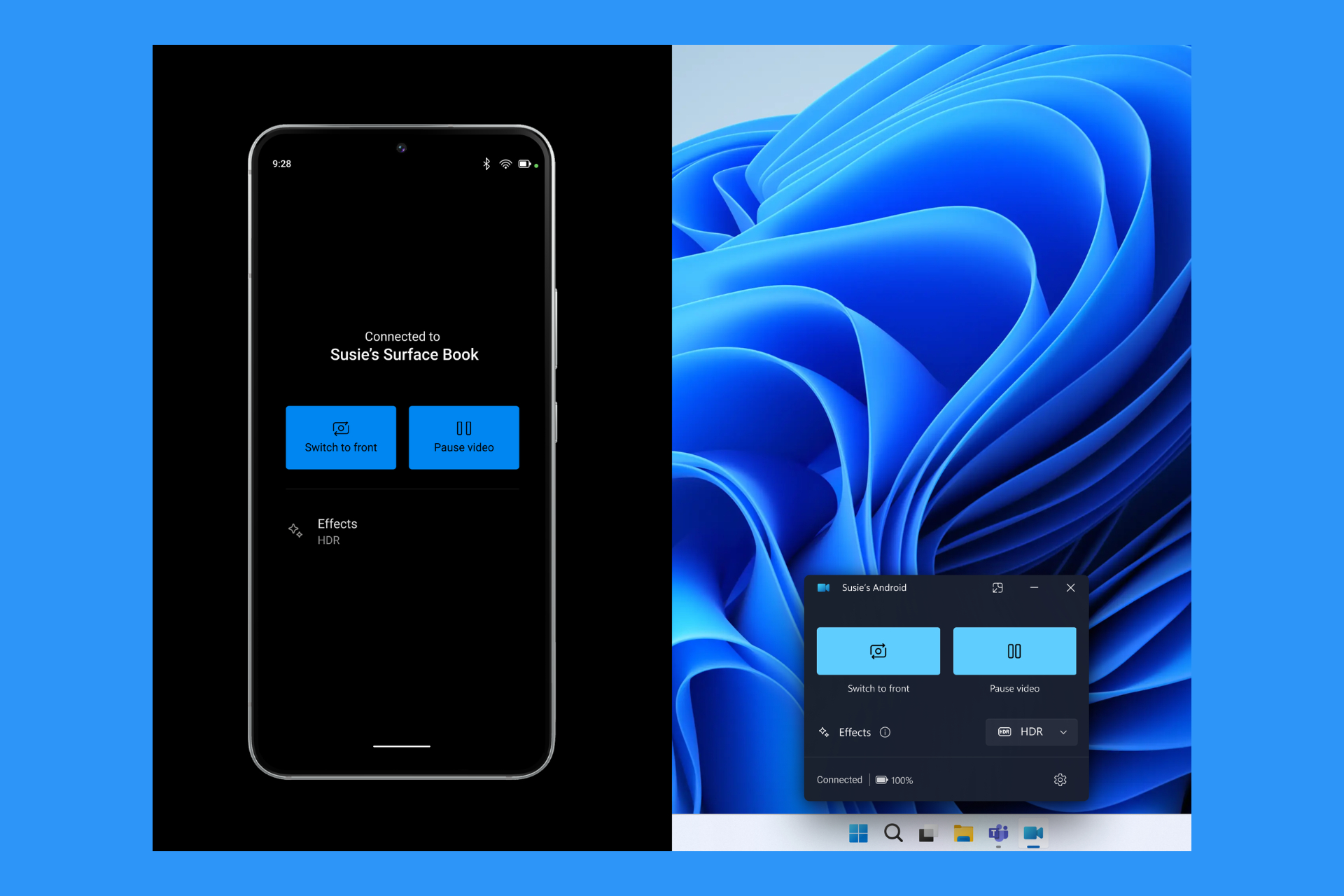
Moreover, Microsoft also showcased a new feature in Phone Link that allows using the back camera of an Android phone as a webcam on Windows 11. The feature is now live for Windows Insider members. 

OpenAI must not be tied to Microsoft, agrees Elon Musk who sues the AI company

After getting sued by another 3 publications earlier this week, OpenAI finds itself sued by none other than Elon Musk. The tech magnate says OpenAI must return to its non-profit, open state, as it was before Microsoft invested in the company.

In other words, Musk says OpenAI committed a breach of contract and violated unfair competition laws, suing its CEO, Sam Altman, along with other OpenAI executives, and demanding the return of the independent OpenAI company.

In the lawsuit, which can be accessed here, Musk has a lot to say about OpenAI and Microsoft. He claims that Microsoft is using OpenAI to make millions, and the AI company is keeping the GPT-4’s code and design a secret, something that he doesn’t agree with.

In other parts of the lawsuit, Musk says OpenAI and Microsoft’s goal to reach AGI would not be beneficial to humanity, but only to them, as the technology would give them a source of power and money, stating:

Mr. Musk has long recognized that AGI poses a grave threat to humanity—perhaps the greatest existential threat we face today. Mr. Musk publicly called for a variety of measures to address the dangers of AGI, from voluntary moratoria to regulation, but his calls largely fell on deaf ears. But where some like Mr. Musk see an existential threat in AGI, others see AGI as a source of profit and power.

It’s worth mentioning that Elon Musk was on the OpenAI’s board until 2018, and continued to make investments in the company until 2020. That year, OpenAI established a partnership with Microsoft, that saw the development and release of the GPT-3 model, and that was the first time the company committed a breach of contract, according to Musk.

Mr. Altman became OpenAI, Inc.’s CEO in 2019. On September 22, 2020, OpenAI entered into an agreement with Microsoft, exclusively licensing to Microsoft its Generative PreTrained Transformer (GPT)-3 language model. However, OpenAI published a detailed paper describing the internals and training data for GPT-3, enabling the community to create similar models themselves. And, most critically, the Microsoft license only applied to OpenAI’s pre-AGI technology. Microsoft obtained no rights to AGI. And it was up to OpenAI, Inc.’s non-profit Board, not Microsoft, to determine when OpenAI attained AGI.

Moreover, Elon Musk, through the lawsuit, also claims OpenAI’s new GPT-4 model is the first step towards AGI, and Sam Altman being reinstated as CEO of the company a few days after he was fired, was all Microsoft exploring its power and using it to contain and control the company.

Furthermore, on information and belief, GPT-4 is an AGI algorithm, and hence expressly outside the scope of Microsoft’s September 2020 exclusive license with OpenAI. In this regard, Microsoft’s own researchers have publicly stated that, “[g]iven the breadth and depth of GPT-4’s capabilities, we believe that it could reasonably be viewed as an early (yet still incomplete) version of an artificial general intelligence (AGI) system.” Moreover, on information and belief, OpenAI is currently developing a model known as Q* (Q star) that has an even stronger claim to AGI. As noted, Microsoft only has rights to certain of OpenAI’s pre-AGI technology. But for purposes of the Microsoft license, it is up to OpenAI, Inc.’s Board to determine whether OpenAI has attained AGI, and a Board coup took place in November 2023. On November 17, 2023, OpenAI, Inc.’s Board fired Mr. Altman after losing “confidence in his ability to continue leading OpenAI” because “he was not consistently candid with the board.” In a series of stunning developments spanning the next several days, Mr. Altman and Mr. Brockman, in concert with Microsoft, exploited Microsoft’s significant leverage over OpenAI, Inc. and forced the resignation of a majority of OpenAI, Inc.’s Board members, including Chief Scientist Ilya Sutskever. Mr. Altman was reinstated as CEO of OpenAI, Inc. on November 21. On information and belief, the new Board members were hand-picked by Mr. Altman and blessed by Microsoft. The new Board members lack substantial AI expertise and, on information and belief, are ill equipped by design to make an independent determination of whether and when OpenAI has attained AGI—and hence when it has developed an algorithm that is outside the scope of Microsoft’s license.

The lawsuit also contains emails shared by Elon Musk and Sam Altman right when OpenAI was a nascent company, along with other information, and it comes in a week where OpenAI was the subject of different lawsuits.

Aside from news companies suing it, OpenAI is also investigated by the US Securities and Exchange Commission (SEC). The Wall Street Journal reports the company is being accused of providing misleading to investors.

Hard week for OpenAI!

Microsoft Loop now lets users automatize their workflow with just a few clicks

Microsoft added to ability to automatize workflows in Microsoft Loop with just a few clicks, greatly improving users’ ability to handle time-consuming and tedious tasks.

In a blog post, the Redmond-based tech giant says the new automatization features can be set up with just a few clicks, and the settings can be easily managed as well.

Here’s how you can do it.

How to automatize workflows in Microsoft Loop

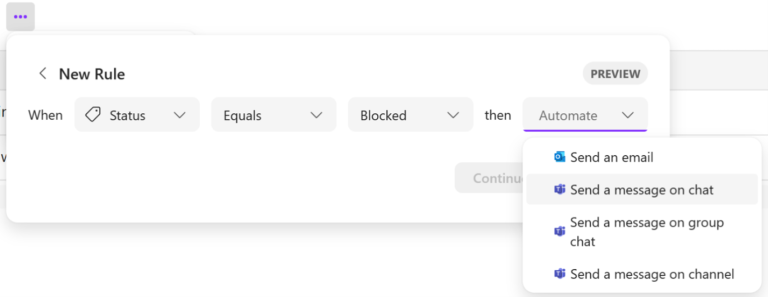
1. Go to loop.microsoft.com.

2. Select an existing Loop page or create one.

3. Go to the ellipses menu, and then select Table rules. 

4. Set your preferred options and then select Continue.


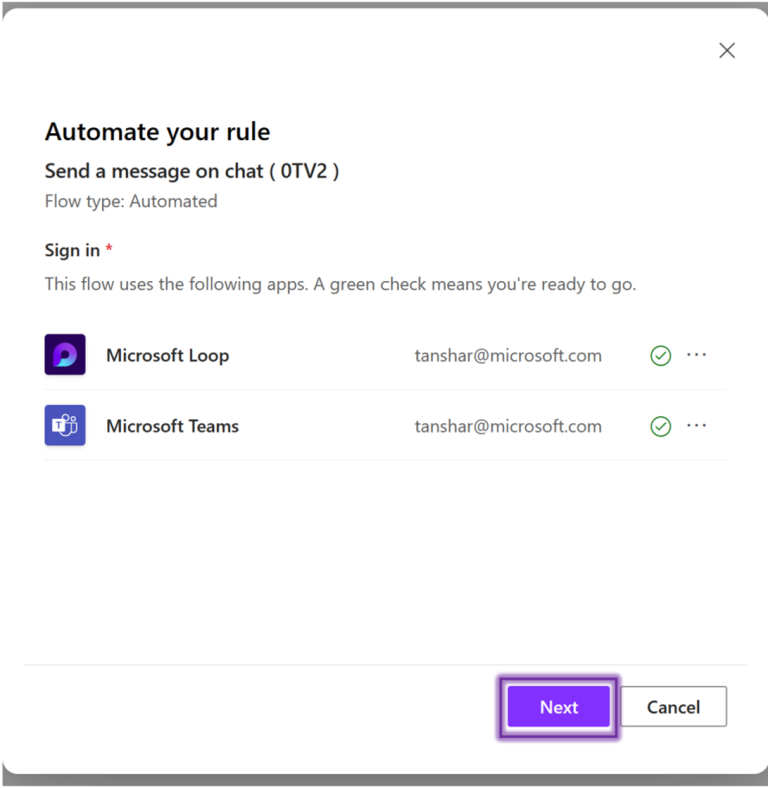
5. Review your options and select Next.


6. Add the recipients and select Create Flow.

There are some requirements to use this feature, and according to Microsoft, users will need:

  • A Power Automate license.
    • To learn more about Power Automate and how you can optimize processes across your organization, click here.
  • Loop connectors are enabled in your organization’s DLP policy. 
  • A stable internet connection.

The feature is available to all Microsoft 365 subscribers.

It’s also worth mentioning that the Redmond-based tech giant recently added Loop components in OneNote for Windows and the web, which is also very useful in time-based situations.

It’s safe to say Microsoft has been improving this platform lately. Do you use it? What do you think about this new feature?

Symmetry Systems says it can help you safely use Microsoft Copilot

Symmetry Systems, an emerging company that deals with data security management, says that its DSPM (Data Security Posture Management) tools can help users have a safe and secure environment when working alongside Microsoft Copilot.

The company says working with Copilot can sometimes be risky due to the tool’s many security breaches:

The deployment of Microsoft CoPilot necessitates a keen eye on security implications, especially given its reliance on existing permissions and policies. The challenge intensifies with broad platforms like Microsoft 365, where managing permissions for collaborative, unstructured data have already overwhelmed users, admins and security teams.

Symmetry Systems

The company also agrees that training Copilot to solve a certain task, is itself a risky situation, as the tool may inadvertently make use of and expose sensitive information.

Sources for training data for Copilot may not strictly align with the current user’s privileges and permissions. Copilot is often trained on data from multiple systems at access levels beyond the average user. As a result, outputs from Copilot may inadvertently expose data way beyond user privilege across the systems. 

Symmetry Systems

However, the data security management company also says that its tools can be used to prevent such situations, and it offers suggestions for a framework, including:

Classify Data: Begin by understanding what data you have. Symmetry Systems helps organizations classify their data across Microsoft 365. This helps distinguish between sensitive and non-sensitive information, thereby setting the stage for secure CoPilot deployment.

Surface Identity & Access Risks: Identifying who has access to what is pivotal. Symmetry Systems illuminates the often-overlooked corners of your data, identifying overly permissive access that could be exploited inadvertently through use of CoPilot. Access controls for organizational Copilot usage, access to training and sensitive data, along with expected data segmentation must be thoroughly tested. Access levels for Copilot must be strictly aligned with individual end users, to avoid potential data exposure beyond the user’s privilege.

Act on a Remediation Plan: Armed with insights from Symmetry Systems, organizations can formulate and implement a remediation plan to tighten access controls, ensuring that CoPilot interacts only with data that is appropriate for its intended productivity enhancements.

Ongoing Monitoring: The journey doesn’t end with deployment. Continuous monitoring and adjustment of permissions and access controls are imperative to maintaining a secure CoPilot-enabled workspace. Symmetry Systems offers ongoing monitoring  and actionable insights, enabling organizations to adapt to evolving data landscapes and maintain robust security postures.

Symmetry Systems

Microsoft made Copilot available to all of its 365 apps last year, in November, but the Redmond-based tech giant said that all the sensitive information shared with the AI tool is protected. However, in the light of AI-powered cyberattacks, an extra layer of protection would be always welcomed, considering just how devastating the breach of security can be.

You can read Symmetry Systems’ full blog post here.

8BitDo released Xbox Controllers with drift-resistant Hall Effect sticks and you can get them now

8BitDo, one of the most popular companies specializing in gaming peripherals, upgraded most of its Xbox controllers (and other controllers, as well) with drift-resistant Hall Effects sticks.

The 8BitDo Xbox controllers are considered by many Xbox users as some of the best third-party Xbox controllers around, so this addition is definitely good news for the Xbox community all around the world.

All the new and upgraded 8BitDo Xbox controllers can be found on this special Amazon page, which features all the information Xbox users need to know, from price to specs, and other relevant info.

As always, their sleek design and affordable prices, along with the new capabilities, will make a lot of Xbox users reconsider purchasing official Xbox controllers in favor of these ones. If you already have an Xbox controller collection, adding these new 8BitDo Xbox Controllers to it is a must, but you shouldn’t worry, as this is not a limited offer.

Speaking of collecting controllers, Xbox also released a Palworld-inspired controller that is now available to purchase from the Xbox Design Lab.

What do you think of the new controllers? Are you going to buy some of them? Which one is your favorite? Let us know in the comments section below.

The current Xbox Series S could easily outperform the upcoming Nintendo Switch 2, according to AMD leaker

The Nintendo Switch 2 device will most likely be released in 2025, according to the latest reports, however, it seems that it might be a decent handheld.

In fact, according to the known AMD leaker, @Kepler_L2, who commented on another leaker’s X post (formerly known as Twitter), the upcoming Nintendo Switch 2, which is most likely going to sport a T239 chip, is not even going to be on par with the current Xbox Series S, which is the less superior Xbox console.

The leaker also goes on to elaborate that even if Nintendo Switch 2 would still lose against the Xbox Series S, even if it were a SoC (System on a Chip) desktop device.

It’s worth mentioning that the current Xbox Series S will most probably get an upgraded version this year, called Ellewood, which sports a larger storage size and several other new capabilities, so the upgraded version would greatly outperform the upcoming handheld device, in this case.

However, details about the upcoming handheld still need to be revealed to see what exactly we are dealing with, before making such comparisons. But in the case, that it would sport a a T239 chip, it won’t have any chance against the Xbox Series S console.

Rumors say that Nintendo Switch 2 is already ready to be commercialized, but, apparently, the company wants to make sure it has enough devices in store ready to avoid unfortunate situations where devices can’t be found in stores, similar to what happened to PlayStation 5 and Xbox Series S, and X, last year.

Either way, for the fans of the console, comparing it to Xbox Series S has no relevance, considering the handheld will be in a league of its own, as it has always been, for that matter.

What do you think about it?

Toys for Bob, the game studio behind Skylanders, is going independent from Microsoft

Microsoft has decided to divest the Toys for Bob video-game studio, which is the creator behind the highly popular Skylanders titles. The game studio also announced that this move will not affect it, as it is planning to go independent.

In a blog post, Toys for Bob says that a partnership with Microsoft will still be possible, under their new independent status, and they’re planning to work on their new game, with new announcements being released very soon.

The video game studio only has words of praise for Activision, and Microsoft, and it seems the two companies were supportive of Toys for Bob going independent.

Below is the full announcement:

We’re thrilled to announce that Toys for Bob is spinning off as an independent game development studio!

Over the years, we’ve inspired love, joy, and laughter for the inner child in all gamers. We pioneered new IP and hardware technologies in Skylanders. We raised the bar for best-in-class remasters in Spyro Reignited Trilogy. We’ve taken Crash Bandicoot to innovative, critically acclaimed new heights.

With the same enthusiasm and passion, we believe that now is the time to take the studio and our future games to the next level. This opportunity allows us to return to our roots of being a small and nimble studio.

To make this news even more exciting, we’re exploring a possible partnership between our new studio and Microsoft. And while we’re in the early days of developing our next new game and a ways away from making any announcements, our team is excited to develop new stories, new characters, and new gameplay experiences.

Our friends at Activision and Microsoft have been extremely supportive of our new direction and we’re confident that we will continue to work closely together as part of our future.  

So, keep your horns on and your eyes out for more news. Thank you to our community of players for always supporting us through our journey. We can’t wait to share updates on our new adventure as an indie studio!  

Talk to you soon!

Toys for Bob

The now-independent video game studio somehow struggled to exist under the new Microsoft gaming department, after the gigantic acquisition of the Activision Blizzard King later last year. Back in January, Microsoft laid off thousands of positions across its gaming departments, and Toys for Bob was also impacted and affected by it.

However, now that Toys for Bob is no longer tied to Microsoft, the studio can develop video games at its own pace without the worries and constraints of a larger corporation.

Windows 11 Enterprise updates: Features for Windows Autopatch & Windows 365

Recently, Microsoft introduced new features for its Windows 11 Enterprise users through an update. Apart from the features introduced in the consumer update, the update included new features of Windows Autopatch and Windows 365 cloud-based PC desktop services.

New features added to Windows Autopatch

  1. Import Update rings
    • Allows the import of existing Update rings for Windows 10 and later.
    • Seamlessly integrate current update schedules into Windows Autopatch Management.
    • It will automatically register all targeted devices into Windows Autopatch without the need for redeployment.
    • Imported rings will be reflected in reporting and release experiences.
  2. Customer-defined service outcomes in Preview:
    • Deployment success is now based on user-defined rings, offering flexibility beyond the previous static 21-day schedule.
    • Enhanced reporting shows percentage completion for quality and feature updates.
  3. Improved Data Refresh Speed and Reporting Accuracy:
    • Windows Autopatch reporting now refreshes every 30 minutes, which is significantly faster than the previous 24-hour cycle.
    • Enhances data accuracy and provides more timely insights into patch compliance status.

New Windows 365 features

  1. A dedicated mode for Windows 365 Boot allows you to sign in to your CloudPC using passwordless authentication.
  2. A faster account switching experience that enables seamless transitions between different user accounts on cloud PC.
  3. Windows 365 Switch allows you to sign in and connect to your Cloud PC using Windows 11 Task view.

Other features

  • Enhanced voice access – Allows you and people with mobility disabilities to control your device and author text using voice without an internet connection.
  • Narrator Improvements – Comes with natural voice previews, improved detection of text in images, including handwriting, and announces bookmarks and comments in Microsoft Word.
  • Windows share – Now suggests different apps for sharing according to the signed-in account.
  • Nearby Share – Provides faster transfer speeds and an option to name the devices for seamless content sharing.
  • Casting improvements – Allows you to send content wirelessly from your device to a nearby display, and the Cast menu in Quick settings provides assistance in locating nearby displays and fixing connection problems.
  • Snap Layouts – Introduces hover-over feature on the minimize or maximize button to open the layout box to streamline on-screen app organization, providing you with options to view and select the suitable layout.

To download the latest updates on your computer, you can navigate to the Settings app, then Windows update>Check for updates.

However, if you want to manually download the latest release, you can download it from the Microsoft Update Catalog website and install it on your device.

Have you used any of the new features until now? If yes, share your opinions in the comments section below.

Windows 11-supported processors include new Intel chips, while AMD was cast aside

Microsoft has quietly updated the list of Windows 11-supported processors to include an array of new Intel chips. However, the list only includes the new Gen 14 Intel Core and Core Ultra processors, so if you were hoping for the addition of some older Intel processors, then you will be disappointed.

Another disappointing aspect, especially for AMD lovers, is that no new AMD processors made it to the list, as the list of supported AMD processors remained unchanged.

However, you should be aware that even if you don’t find your processor on the list, there is still a chance it could run Windows 11, as Microsoft states:

It is expected that the processor list will not reflect the most current offerings from processor manufacturers between updates. Updates to the processor lists will occur at each subsequent general availability of Windows.

Microsoft

The new processors should have no trouble running Windows 11, including the upcoming 2024 Update, which is slated for release later this year, and it will reportedly feature multiple AI capabilities.

The new Windows 11-supported Intel processors are:

  • Intel Core i3-14100
  • Intel Core i3-14100F
  • Intel Core i3-14100T
  • Intel Core i5-14400
  • Intel Core i5-14400F
  • Intel Core i5-14400T
  • Intel Core i5-14500
  • Intel Core i5-14500T
  • Intel Core i5-14600
  • Intel Core i5-14600K
  • Intel Core i5-14600KF
  • Intel Core i5-14600T
  • Intel Core i7-14700
  • Intel Core i7-14700F
  • Intel Core i7-14700K
  • Intel Core i7-14700KF
  • Intel Core i7-14700T
  • Intel Core i9-14900
  • Intel Core i9-14900F
  • Intel Core i9-14900K
  • Intel Core i9-14900KF
  • Intel Core i9-14900T
  • Intel Core 3-100U
  • Intel Core 3-100U with IPU
  • Intel Core 5-120U
  • Intel Core 7-150U
  • Intel Core Ultra 5-125H
  • Intel Core Ultra 5-125U
  • Intel Core Ultra 5-134U
  • Intel Core Ultra 5-135H
  • Intel Core Ultra 5-135U
  • Intel Core Ultra 7-155H
  • Intel Core Ultra 7-155U
  • Intel Core Ultra 7-164U
  • Intel Core Ultra 7-165H
  • Intel Core Ultra 7-165U
  • Intel Core Ultra 9-185H

The updated list can be seen here.

Google Chrome’s latest upgrade improves your search experience with new suggestions

Google is improving Chrome with new features constantly, and we already wrote about  Chrome profile customization options and the ability to read text from PDF files.

Besides these features, Chrome also introduced some changes that will make searching faster and easier than ever before.

Google Chrome just got updated with improved search suggestions

As reported by Tom’s Guide, the latest update for Chrome brings search suggestions on the new tab. The shown suggestions are based on your previous searches and on what other users are searching for.

With this update, you’ll also get more images for search suggestions, at least on Android and iOS. In the past, Chrome only showed images in suggestions that matched a specific term.

Following this update, Chrome won’t be as strict, and you’ll see more images for search suggestions. The last feature is designed to bring you better search suggestions on your mobile, even while using a poor Internet connection.

This update isn’t bringing any flashy features, and it’s already rolling out, so you should get it in the upcoming days.

8 Simple Ways to Fix Microsoft Edge Not Loading Pages

Even though Microsoft is experimenting with innovative features in its browser, Edge, such as the Visual Search capability that works together with Copilot or these 3 new exciting features, the browser sometimes fails to load websites, and it seems that some users have been experimenting this issue, right after installing the latest updates.

First, disable third-party antivirus, disconnect the proxy server, check your internet connection, and remove unwanted apps on your computer.

How can I fix the Microsoft Edge not loading pages issue?

1. Disable the Enhance your security on the web option

  1. Launch Edge, click the three-horizontal icon, and select Settings from the drop-down menu.Settings - microsoft edge not loading pages
  2. Go to Privacy, search and services, then locate the Security section.Security - enhanced web
  3. Navigate to Enhance your security on the web option and turn it off.

2. Update the browser

  1. Launch Edge, click the three-horizontal icon, and select Settings from the drop-down menu.Settings - microsoft edge not loading pages
  2. Select About Microsoft Edge.Edge
  3. If an update is available, it will be downloaded and installed.

3. Disable extensions

  1. Launch Edge, click the three-horizontal icon, and select Extensions from the drop-down menu. Extensions - microsoft edge not loading pages 
  2. Now, from the pop-up menu, choose Manage Extensions.MAnage extensions
  3. You will get a list of installed extensions. Click the toggle switch to turn them off one by one and check if this fixes the issue.Remove computer
  4. You can also click the Remove option to delete the extension completely.

Removing unwanted extensions can be handy for fixing issues like slow browser performance. Read this guide to learn more.

4. Clear all browsing data

  1. Launch Edge, click the three-horizontal icon, and select Settings from the drop-down menu.Settings - microsoft edge not loading pages
  2. Click Privacy, search and services, and look for Clear browsing data, then select Choose what to clear.Choose what to do
  3. Select Time range as All time from the drop-down menu, and select Browsing history, Download history, Cookies and other site data, and Cached images and files. Then click the Clear now button.clear data - microsoft edge not loading pages

Clearing browsing data on your Microsoft Edge can improve browser performance, resolve loading issues, and protect your privacy by removing cached files. Read this guide to learn about other Internet Options in MS Edge.

5. Remove Microsoft Edge user data

  1. Press Windows + R to open the Run dialog box.
  2. Type %LocalAppData%\Microsoft\Edge\User Data and click OK.Microsoft Data -
  3. Locate the Default folder from the window, it could be Profile 1 and name it Profile1.old.
  4. Now launch Microsoft Edge. It will start in a blank profile, and previous data will be in Profile1.old folder.

6. Repair the browser

  1. Press Windows + I to open the Windows Settings app.
  2. Go to Apps, then choose Installed apps.Apps, installed apps - microsoft edge not loading pages
  3. Click the three-dot icon and select Modify.Modify  
  4. On the Repair Microsoft Edge pop-up, click the Repair button.Repair - microsoft edge not loading pages

7. Reset the Edge settings

  1. Launch Edge, click the three-horizontal icon, and select Settings from the drop-down menu.Settings - microsoft edge not loading pages
  2. From the left pane, click Reset settings.
  3. Click the Restore settings to their default values.Reset the default values - microsoft edge not loading pages
  4. Restart your PC to save the changes.

8. Reinstall Edge

  1. Press Windows + E to open the Windows File Explorer.
  2. Go to this path, don’t forget to replace the system drive letter with C: C:\Program Files (x86)\Microsoft\Edge\Application\
  3. Locate the folder corresponding to the current Edge version number, go to the Installer folder, and locate setup.exe.setup - microsoft edge not loading pages
  4. Press Shift and right-click to open the context menu. Choose PowerShell.
  5. Copy & paste the following command to Uninstall Edge and hit Enter: .\setup.exe --uninstall--system-level --verbose-logging --force-uninstall
  6. Go to Microsoft Edge’s official website and click Download.
  7. Once downloaded, double-click the launcher file and follow the steps to install the browser again.

Remember to check your internet connection, regularly clear browser cache and keep Microsoft Edge updated to avoid all problems including fail to load websites.

In case Microsoft Edge keep crashing on you, you can follow the four easy tips to fix it instantly, read this guide to learn more.

If you have any other suggestions or comments about the topic, feel free to mention them in the comments section below.

Not on Windows 11? Microsoft’s new nag screen will remind you to upgrade

Microsoft is notorious for pushing users to switch to new services, and we still remember the tedious prompt from the Mail & Calendar app that kept promoting Outlook.

It seems that Microsoft is continuing this nagging practice, and Windows 10 users should brace themselves for what’s about to come.

Microsoft is now nagging users to upgrade to Windows 11

As you may know, the Windows 10 lifecycle is coming to an end, and after October 14, 2025, the operating system will be retired. Microsoft has already shifted all of its focus to Windows 11, and it’s not releasing any new features to Windows 10.

According to TechRadar, starting with the April 2024 security update, Windows users on non-managed cloud-domain joined and domain joined business devices will get an invitation message to upgrade to Windows 11.

The message will appear after signing in and following a reboot on Windows 10 Pro and Pro Workstation devices that are eligible for Windows 11.

Users will be offered to get the update, schedule it, or keep using Windows 10. We don’t know if this message will appear every time you sign on or restart your PC, but that wouldn’t be a surprise to us at all.

Windows 11 is still behind Windows 10 in market share, and it currently holds around 25%, while its predecessor holds almost two-thirds of the market.

Sadly, this isn’t anything new, Microsoft used the same tactic when Windows 10 was released, and it worked despite the user outcry, and it will work again.

Will you bite the bullet and make the switch or will you deal with nagging screens? Let us know in the comments!

Microsoft released Windows 10 KB5034843 with new changes and improvements

Microsoft released an optional Preview cumulative update for Windows 10 22H2 KB5034843 and introduced some changes and fixes to the previous issues.

The update was released mainly for maintenance, which included fixes directed to enterprise services like Azure remote Desktop and Windows Hello for Business.

Here are the details mentioned in the official release:

Changes

  • New! Using Windows share, you can now directly share URLs to apps like WhatsApp, Gmail, Facebook, and LinkedIn. Sharing to X (formerly Twitter) is coming soon.
  • This update affects games you install on a secondary drive. Now, they remain installed on the drive.
  • This update affects the Windows Backup app. It will no longer show on the user interface in regions where the app is not supported. To learn more, see KB5032038.

Improvements

This non-security update includes quality improvements. When you install this KB:

  • This update addresses an issue that affects Azure Virtual Desktop sessions. There are delays when you sign in.
  • This update addresses an issue that affects Azure Virtual Desktop virtual machines. At random, they restart. This occurs because of an access violation in lsass.exe.
  • This update addresses an issue that affects Windows Hello for Business. You cannot use it to authenticate to Microsoft Entra ID on certain apps. This occurs when you use Web Access Management (WAM).
  • This update addresses an issue that affects Microsoft Edge. The UI is wrong for Internet Options Data Settings.
  • This update addresses an issue that affects the Japanese Input Method Editor (IME). It fails to work for custom desktops.
  • This update addresses an issue that affects Remote Desktop Web Authentication. You might not be able to connect to sovereign cloud endpoints.

To update your Windows 11 to the latest version, you can go to the Settings app, click Update & Security, and then look for Windows Update to install them.

However, if you want to manually download the latest release, you can download it from the Microsoft Update Catalog website and install it on your device.

If you face any issues while installing the update, feel free to mention them in the comments section below. We will try to help you.

Lazarus Group exploits AppLocker vulnerability, causing havoc undetected

Microsoft and its services are constantly under security attacks, and the company is collaborating with government agencies to improve their security.

Unfortunately for Microsoft, another zero-day vulnerability has been found and exploited by hackers.

North Korean hackers have found another exploit that can disable security features

As reported by GovInfoSecurity, the Lazarus hacking group from North Korea has managed to find and use a vulnerability in the Windows AppLocker driver.

By using this exploit, they were able to obtain kernel-level access and turn off the security features of a PC to hide their presence.

The hackers have used an unknown vulnerability in the appid.sys, and this driver is in charge of enforcing rules on which applications can run on the PC.

This is a dangerous vulnerability, and even Microsoft stated that exploiting this vulnerability could let a hacker obtain system privileges. After obtaining access, the hackers would deploy their FudModule rootkit.

By using this rootkit, they would disrupt various kernel security mechanisms thus allowing themselves to operate without being detected.

Luckily, Microsoft was quick to fix this, and it has identified this exploit as CVE-2024-21338, so as long as you have the latest security updates installed, you should be safe.

Copilot for Finance streamlines productivity and workflow for professionals

Microsoft announced the public preview launch of Copilot for Finance that basically extends the capabilities of Copilot for Microsoft 365 with financial-specific tools.

It’s not the first such service. Microsoft also previewed the Copilot for Sales and Copilot for Service dedicated bots to help professionals in specific business areas.

What is new about Copilot for Finance?

The essence of Copilot for Finance is Copilot for Microsoft 365, that will use efficiently the Office tools (Excel, Outlook, Word and more) and it connects it to other productivity apps from the Enterprise Resource Planning (ERP) systems, such as Microsoft Dynamics 365 and SAP, and the Microsoft Graph.

Here are the key features of Copilot for Finance, as laid out by Microsoft in their announcement:

  • Helps financial analysts quickly conduct a variance analysis in Excel using natural language prompts to review data sets for anomalies, risks and unmatched values. This type of analysis helps finance provide strategic insights to business leaders about where it is meeting, exceeding or falling short of planned financial outcomes and why.
  • Simplifies the reconciliation process in Excel with automated data structure comparisons and guided troubleshooting to help move from insight to action, which helps ensure the reliability and accuracy of financial records.
  • Provides a complete summary of relevant customer account details in Outlook, such as balance statements and invoices, to expedite the collections process.
  • Enables customers to turn raw data in Excel into presentation-ready visuals and reports ready to be shared across Outlook and Teams.
Microsoft blog

So, in a few words, Copilot for Finance will help professionals make better and faster financial assessments, create customer account summaries and generate meaningful presentations based on the available data.

Microsoft’s idea behind Copilot for Finance is to help finance professionals with data management and review cycles:

Eighty percent of finance leaders and teams face challenges to take on more strategic work outside the operational portions of their roles. However, 62% of finance professionals say they are stuck in the drudgery of data entry and review cycles. 

Microsoft blog

Would you use Copilot for Finance to manage data from your business? Let us know about that in the comments section below.

Microsoft and Bosch team up to use Generative AI for safer roads

Driving is a learned ability, and this includes knowledge of basic rules of the road, understanding the vehicle operation, and the ability to maintain control in diverse driving conditions.

Not all humans can make quick decisions according to the changing conditions; imagine making assisted and automated driving systems learn to adjust according to changing road conditions.

However, Dr. Stefan Hartung, chairman of the Bosch board of management, said at this year’s Bosch Connected World (BCW) AIoT industry conference in Berlin:

Bosch is working on bringing a new dimension of AI applications into the vehicle.

The vision is that Generative AI can enable vehicles to assess situations & react according to them, thereby keeping the people on the road safer.

According to Bosch Tech Compass 2024, a worldwide representative Bosch survey on tech and AI, 60% of the participants hope AI will make roads safer.

Microsoft and Bosch expect that their alliance can help their automated driving functions to the next level. With the help of generative AI, they want to enhance the convenience of the vehicle, thereby ensuring better safety for all people on the road.

The comprehensive understanding of vehicles and automotive-specific AI expertise of Bosch and their access to vehicle sensor data to feed the generative AI can help them attain it.

Uli Homann, Microsoft CVP and Distinguished Architect, said:

In our unwavering commitment to safer roads, Microsoft is eager to explore collaboration opportunities with Bosch to pioneer the realm of generative AI.

Current driving assistance systems & their limitations

The existing driving assistance systems are trained to detect various elements in the environment, like people, animals, objects, and vehicles, but they have their limitations. As they are often rule-based and rely on pre-defined algorithms for decision-making, thereby they can’t make decisions in ambiguous situations.

However, Generative AI uses a vast amount of data to train systems for automated driving, which enables them to reach a better conclusion using the data. This could help identify whether a situation might lead to an accident.

Bosch and Microsoft have previously worked together to develop a universal software platform to connect cars and the cloud seamlessly. This time, the powerful duo wants to explore new ways to add advanced AI tech to the autonomous vehicle industry, showing their commitment to safety and innovation.

Dr. Tanja Rueckert, member of the Bosch board of management and chief digital officer, stated:

Generative AI is a boost to innovation. It can transform industry in much the same way as the invention of the computer.

64% of the participants believe that the AI is the technology that holds great importance in the future

The 2024 Bosch Tech Compass survey also showed that 64% of the participants believe that AI is the technology that will hold great importance in the future. Last year, 41% of respondents had the same opinion.

So, it is safe to say that with years going by and the advancement of AI technology, more people are hoping that AI could make people’s lives safer and easier.

Bosch is already using Generative AI in many areas, including manufacturing and everyday office work. To make these autonomous cars safer and more intelligent, Bosch has partnered up with a lot of other tech companies, including Google, AWS and Aleph Alpha.

Bosch Ventures, the Bosch Group’s venture capital unit, invested in the AI company Aleph Alpha in 2023, and Rueckert says:

Bosch and Aleph Alpha want to learn from each other, benefit from each other’s know-how, and work together on cross-domain use cases.

 From the AI search engine to manufacturing

AI experts at Bosch are working on more than 120 specific applications that these new AI models open up for the customers and associates of the company.

 AskBosch, the in-house AI-assisted search engine launched in 2023, offers faster natural-language access to data sources, external and internal. With these data sources, Bosch associates can research information specific to the company.

Generative AI is not limited to data access; it also helps speed up the manufacturing process. In one of Bosch’s initiatives in Germany, generative AI is able to create synthetic images for developing and scaling AI solutions for optical inspection. This can reduce the time invested in planning, launching, and ramping up AI applications from a 6-12 month period to a few weeks.

Bosch’s commitment to bringing the best of AI to the autonomous industry is beyond its technological pursuits. The company is also investing in training programs for associates so that the workforce is ready for the AI-driven future.

This makes the future of autonomous vehicles look promising, but will the company be able to strike a balance between innovation and responsible development is what we will have to see.

The company must consider a few important factors to get better results. Quality and diversity of training data, ethical considerations in decision-making, transparency, and interpretability.

Moreover, robustness against adversarial attacks and the model’s generalization ability to new, unseen situations.

Are you excited to see how generative AI can transform the autonomous industry? Share your opinions in the comments section below.

Meta tries to mimic Game Pass with a new Meta Quest+ service

Oculus Quest is a great device, and to bring a better offer of games to its customers, Meta Platforms has introduced a new service.

This is a subscription service similar to Xbox Game Pass that will allow Oculus users to access a vast library of games every month.

Meta Quest+ is a new subscription service for Oculus devices

Many game publishers are offering subscription models for their games, and it seems that Meta will follow suit according to the latest blog post.

Similarly to Xbox Game Pass, this service will allow you to access a selection of games with a yearly or monthly subscription.

Currently, the are 12 games available on the Meta Quest + such as The Climb, Demeo, ESPIRE 1, Jurassic World Aftermath Collection, Onward, and more.

This is a pretty great deal since individual games cost more than a monthly subscription. Speaking of which, you can get this service for $7.99 a month or $59.99 a year.

Meta also offers some great deals, and if you get a yearly subscription before May 31st, you’ll get a $25 store credit. And for new VR users, there’s a six-month trial if they purchase 512GB Meta Quest 3.

This sounds like a great deal, but the question remains how well this subscription model will be received by Oculus users.

As for VR, users are asking for Windows Mixed Reality to go open source after its discontinuation, so the question remains how viable is VR as a gaming platform. Only time will tell.

Windows Package Manager learned to reboot the system if app updates need it

Windows Package Manager version 1.7 is here, and it will help you greatly. After all, WinGet has some efficient quality-of-life updates. In addition, the command line tool for installing software will do most of the work for you. Furthermore, the 1.7 version also adds support for Entra ID authentication.

What is the advantage of Windows Package Manager?

The general advantage of the Windows Package Manager is that it searches, downloads, installs, and configures applications. In addition, it can also assist with their removal. Furthermore, there are different uses for this tool. For example, developers use it for management, software vendors use WinGet for distribution, and enterprises use it to automate their device setup.

The latest update allows the Windows Package Manager to upgrade itself. In addition, you won’t need to reboot your PC manually when updates and installations require it because WinGet does that for you. Furthermore, Windows Package Manager 1.7 repairs packages and enhances the performance for better network efficiency. Moreover, it can enable Windows features as a dependency, and with it, you could set them to open when installations need them.

The new version improves the quality of life and sets new heights for software installation. After all, the automatic reboots for software installation was a feature that most of us needed. Thus, now we can allow our Windows Package Manager 1.7 to do it without wasting time waiting to give manual input. Furthermore, to enable this option, you just need to add the –allow-reboot to your commands.

By the way, the Windows Package Manager 1.7 also accepts URLs besides local files.

In a nutshell, the Windows Package Manager version 1.7 is great because it has many quality-of-life features. Furthermore, it could make WinGet better than its competitors, such as Chocolatey. Hopefully, Windows will add more features in the future for this tool. After all, the WinGet has a lot of potential.

The following article might interest you, so check out Windows 365 Boot and Switch Cloud.

What are your thoughts? Is this update going to help you? Let us know in the comments.

Windows 11 KB5034848 brings many new features from Moment 5

Microsoft issued a new Windows update, but the patch called KB5034848 is optional, so you won’t find it under the Windows Update main window.

The Redmont giant has probably rolled it out as optional because Moment 5 updates recently announced.

What are the new features from KB5034848?

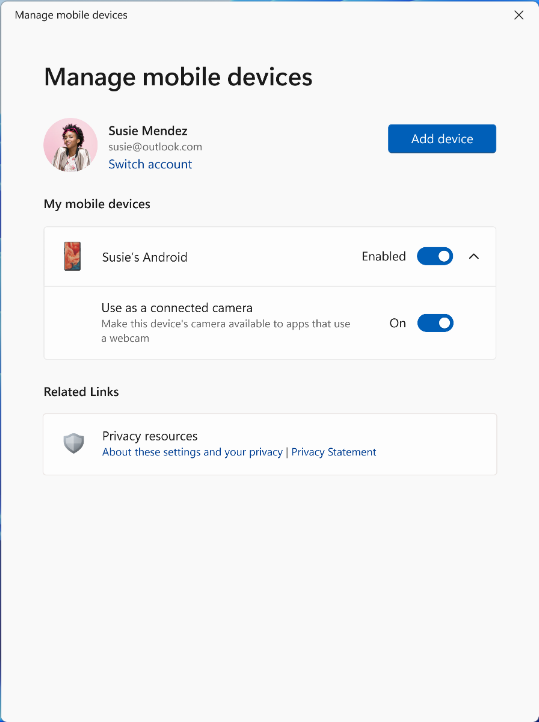
We recently talked about a new Insider feature that helps you use the phone cameras as webcam by using Phone Link. Well, with KB5034848, Microsoft changed the Phone Link settings page to Mobile devices. So, under Settings > Bluetooth & Devices, you will see Mobile devices instead of Phone Link, and there, you will be able to add and manage your smartphones.

Another notable addition are the new editing features from Snipping Tool that will allow you to edit the photos from your Android phone.

This update will also unleash the 80Gbps USB standard on your Windows 11 device with twice the bandwidth for USB 4 or Thunderbolt peripherals.

Here are some other notable features and fixes addressed by the KB5034848 update:

  • This update affects games you install on a secondary drive. Now, they remain installed on the drive.
  • This update addresses an issue that affects long-edge fed printers. The alignment of stapling or hole punch locations is wrong.
  • This update addresses an issue that affects the Windows Settings Home page. It randomly stops responding when you go to the page.
  • This update addresses an issue that affects networking. A device fails to make the automatic switch from cellular to Wi-Fi when it can use Wi-Fi.
  • This update addresses an issue that stops a system from going to sleep. This occurs when you connect an external device to the system.
  • This update affects the Windows Backup app. It will no longer show on the user interface in regions where the app is not supported. To learn more, see KB5032038.
Microsoft blog

How do I get the new KB5034848?

As we’ve mentioned in the beginning of this article, KB5034848 is an optional update, so you need to hit the Check for updates, then go to Settings > Windows Update > Advanced options > Optional updates to get it.

You should see it as 2024-02 Cumulative Update for Windows 11 Version 23H2 for x64-based Systems (KB5034848).

Also, make sure that the Get the latest updates as soon as they’re available feature is enabled in Settings > Windows update.

However, if you don’t see it yet, you may also download it manually from the Microsoft Update Catalog.

Did you get the latest optional update? If you stumble on any problems, let us know in the comments section below.

Cloud PC to receive much-needed Windows 365 Boot and Switch improvements

Microsoft is constantly developing new products, and we’re eagerly waiting for Microsoft Office 2024  and Microsoft Ignite 2024.

The company is also working on improving existing services, and the latest improvements are intended for Cloud PC. So, without further ado, let’s see what’s new with this service.

Windows 365 Boot and Switch Cloud just got improved with some new functionality

According to the MSPowerUser, Cloud PC got some enhancements, such as improved Intune integration for Windows 365 Boot dedicated mode.

With this feature, you can enable dedicated mode right from Intune. That’s not all, this mode now has the same customization and login experience, so it’s not different than the local version of Windows in that regard.

With these changes, users will see their user account on the sign-in screen and use passwordless sign-in as well.

New personalization options for Windows 365 Boot shared mode are here, allowing you to customize the login page with your organization name and brand.

There’s also an improved fail fast mechanism for Windows 365 Boot that informs you of network issues, thus allowing you to fix them before trying to log in.

You can now also manage local PC settings, including sound, display, and device settings right from Cloud PC.

Another incredibly useful feature is the ability to disconnect from the Cloud PC to your local computer using the Windows 365 switch. You can do that right from the Task view with just two clicks.

If you experience any issues while switching, you can see updates related to Cloud PC connection status as well as a connection timeout indicator right on the connection screen.

Last, but not least, there’s also a desktop indicator on the screen, allowing you to easily differentiate your local and Cloud PC.

Do keep in mind that to experience these features, you need to fill in a few requirements:

  • You need Windows 11-based endpoints (Windows 11 Pro or Enterprise).
  • The latest version of Windows 11 (version 22H2 build 22621.3235, or 23H2 build 22631.3235, or later).
  • Administrative access to Microsoft Intune.
  • Windows 365 Cloud PC license.

These features sound impressive, and they will be slowly rolling out. We expect to see them available to all users by the end of March.

Microsoft provides detailed steps to fix KB5034765 installation issues

Many users reported having issues installing the February 2024 security update, which was released on February 13, 2024. The problem mainly affected  Windows 11, version 23H2, and Windows 11, version 22H2.

Recently, Microsoft acknowledged that the February Patch Tuesday update was indeed causing problems during the process, and the installation might roll back at 96%.

The Redmond tech giant also specified the message user might see at the time of error:

Something didn’t go as planned. No need to worry – undoing changes. Please keep your computer on.

You can see this error in Windows Event Viewer with error code 0x800F0922. To fix this, you need to delete the hidden folder  C:\$WinREAgent, then restart your computer. Don’t forget to replace C with your system drive letter.

One of the users on Reddit suggested this step, and now, Microsoft has mentioned detailed steps on its Learn website. Here is what you have to do:

Below are two possible ways to delete the C:\$WinREAgent folder.

1) Manually delete the folder: To delete a hidden folder in Windows 11, you need to first make the folder visible and then delete it.

  1. Open File Explorer from the Taskbar, or by pressing Windows key + E.
  2. Click on the three-dotted icon and select Options.
  3. Go to the View tab and select the Show hidden files, folders, and drives option. Click the OK button to save the change.
  4. Now, you should be able to see the hidden folder C:\$WinREAgent in File Explorer. Right-click the hidden folder C:\$WinREAgent and select Delete.

2) Run a script to delete the folder:

  1. Open the start menu and type command prompt.
  2. From the results displayed at the right side of the start menu, select ‘Run as administrator’.
  3. On the command prompt, type the command rd /s /q “C:\$WinREAgent” and press enter.
  4. If no message is displayed, it means the command has succeeded, and the folder has been deleted. You can proceed to close the command prompt window.
    Note that a message is only displayed if an error was encountered. In this case, we recommend deleting the folder manually.

Microsoft also mentioned that this is a temporary fix, and they’re working on a resolution for the problem and will provide an update in the next release.

Did this workaround help you fix the KB5034765 installation issues? If yes, share your thoughts in the comments section below.

How to Use Your Android Phone as Webcam on Windows 11

The laptop camera is not usually of the best quality. Even if you have a separate webcam, chances are that it’s not even close to the quality of the cameras on your phone. That’s why you need to link your phone to the PC and start web conferencing with a really performant webcam.

How do I use my Android camera as webcam on Windows 11?

1. Use the Webcam setting on Android

Note icon NOTE
This solution only works on smartphones running Android 14 or newer OS.
  1. Connect your Android phone with its original USB cable to your PC.
  2. On the phone’s screen, touch the USB connection notification to access the USB settings.
  3. If you tap on Manage, you will get to the USB Preferences screen where you can select the Webcam feature.
  4. The phone will disconnect and reconnect with the PC, and you will see that the phone is configured to be used as a webcam on your PC.
  5. Now, go to the Camera app on your PC, and click on the Switch button to change the input from the default webcam to the camera detected from your phone.

The beauty of this solution is that you don’t need to install any additional software and it works seamlessly on Windows 11 and macOS as well.

We chose the Camera app for this example but once that Windows 11 detects your mobile camera, you will be able to use it on any of the web conferencing apps and even use some of the advanced features of your Android camera.

2. Use a third-party app

  1. First, download and install the DroidCam app for your Android phone from Google Play.
  2. Then, install the Windows client for your PC from the developer’s website.
  3. Launch the DroidCam app on your Android phone and you will see the Wi-Fi IP. Copy that into the Device IP field from the Windows client app and hit Start.
  4. That’s it! Now, you will get an image from your phone in the DroidCam Windows client.

If you want to learn more, we have a guide on how to download DroidCam for Windows, so you might want to check it out.

Please note that the app uses a Wi-Fi connection and the phone and PC have to be connected to the same hotspot. However, you may also use a USB cable for connection.

Also, DroidCam’s free version will only let you use an SD resolution of your camera. For the HD version you will have to pay a few extra bucks. We used DroidCam as an example because, from our experience, it’s the easiest to set up and use, but other apps like EpocCam, and iVCam Webcam are also worth noting.

3. Use the Phone Link and Link to Windows apps

Note icon NOTE
The new camera phone usage as webcam on PC is available only for Windows Insiders right now.
  1. First, you need the Phone Link app on Windows 11 (it’s already installed) and the Link to Windows app from Google Play.
  2. Make sure that you have a phone with Android 9.0+ OS and that the Link to Windows phone app is updated to version 1.24012* or newer.
  3. Then, on your Windows 11 computer, click the Start button, go to Settings > Bluetooth & devices > Mobile devices and choose Manage devices and allow your PC to access your Android phone.
  4. You also need to turn on Phone Link from Bluetooth & devices > Phone Link.
  5. Once you connect the smartphone to the PC, you will be able to use the Android phone’s both cameras for web conferencing and switch between the front and back cameras.

You also need to receive a Cross Device Experience Host update in the Microsoft Store, but this will be available only to selected Insiders for the moment.

How to get the best video quality from your Android webcam?

  • Make sure that the lens of your mobile cams are clean and without smudges.
  • Check the lighting in your room for the best results. You might have to purchase an additional right light.
  • Check for optimal speed if you’re using a wireless connection because web conferencing requires high bandwidth.
  • Use a USB connection if you want the best transfer speed.
  • Use a tripod or a special phone mount so your Android phone doesn’t shake.

Now you know how to use an Android camera as a webcam for a PC wirelessly or using a USB cable.

Did you know that you can also use an iPhone as a webcam on your PC? Our guide will explain exactly what to do for that. And if the Cross Device Experience Host is having install issues, we know how to fix it.

But that’s not all! Learn how to use your phone as a keyboard on PC and how to use the PC microphone on your mobile.

Did you manage to connect your Android smartphone and use it as a webcam? Let us know in the comments section below.

Microsoft Edge’s 3 new experimental features are pretty exciting

Microsoft Edge Canary is the version you should be using to explore new and experimental features. We’ve noticed a few ones that are not yet functional, but they hint at what Edge could offer in future versions.

You might soon get Microsoft Start integration into the Edge sidebar, the Edge background Tabs summary, and the Notebook feature in the Copilot sidebar.

Here are Microsoft Edge’s new features under testing in Canary

Microsoft Start to be integrated into Edge Sidebar

Microsoft is further integrating Microsoft Start by bringing it to the sidebar and its existing presence in Windows Widgets and the Edge new tab page. Till now, Microsoft start links opened in a new tab in the Edge browser. The new integration with the sidebar aims to automatically open links clicked from various Windows surfaces within the Microsoft Start sidebar when using Edge.

Additionally, non-pinned Microsoft Start might also start displaying notifications in the future.

You’ll find new Microsoft Start sidebar setting by visiting Settings> Sidebar >Other apps> Microsoft Start.

Further clicking, lets you control or disable automatically opening of Microsoft Start in Sidebar.

Automatically open Microsoft Start in the sidebar

Allows links from different Windows OS surfaces to open Microsoft Start in the sidebar when Microsoft Edge is launched. 

Background Tab Summary

Remember the sleeping tabs feature that puts tabs to sleep after a specified time to improve performance? That’s not all. Edge has various performance tools baked into the browser, such as Efficiency Mode and Browser Essentials.

Edge also has a performance measurement tool available, for instance, Performance Detector, that recommends a solution to fix when tab performance isn’t that great. Microsoft is now adding the ability to show a resource usage summary of background tabs with actions to improve performance. This new Edge background tabs resources summary tool will be available under Performance Detector.

Notebook is coming to Copilot in Microsoft Edge Sidebar

Notebook, which allows you to submit your questions and get answers from Copilot without prompts, is already available on most platforms, except the Edge browser sidebar when you use Copilot. The feature is now coming to Copilot in the Edge browser. The icon is now available in the menu for Copilot, but it’s not working yet.

Most of the features are not functional right now and may never appear in Edge’s stable version. However, we would like to know what you think about these in the comments below.

Phone Link will let you use your smartphone camera as a webcam on Windows 11

Microsoft announced the present and upcoming improvements of Copilot on Windows 11 and there are a lot of them if you’ve followed our News stream.
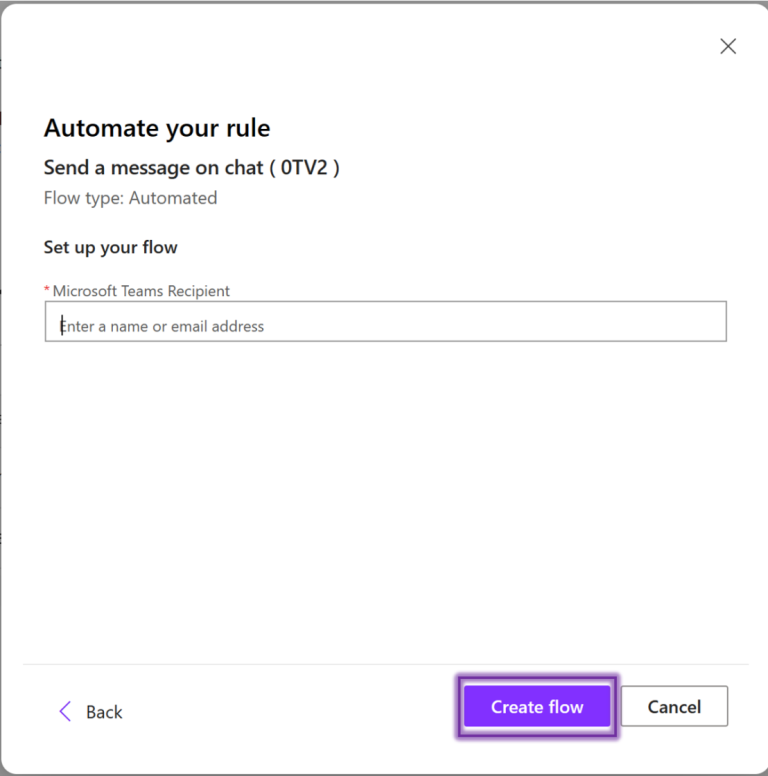
However, besides the Copilot advancements, Microsoft also showed off a new feature in Phone Link that is a lot more interesting:

Soon you will be able to access recent photos on your PC or use your phone as a webcam on all video conferencing apps, making your Android device a productivity partner to your Windows 11 PC.

Microsoft blog

With further investigation, we found out that Microsoft also announced Windows Insiders that they are now able to use the back phone camera as a webcam on Windows 11.

We signaled this new feature last year, but Microsoft moved fast in bringing it forward to the Insiders.

How do I use my camera as webcam on Windows 11?

First, make sure that you have a phone with Android 9.0+ OS and update the Link to Windows phone app to 1.24012* or newer.

Then, on your Windows 11 computer, go to Settings > Bluetooth & devices > Mobile devices and choose Manage devices and allow your PC to access your Android phone.

For everything to work, you also need to receive a Cross Device Experience Host update in the Microsoft Store. We remind you that this feature is only available right now to selected Insiders from all the Insider channels.

It’s really a breakthrough to use both quality cameras of your phone for web conferencing, and even more, switch between them with just a click:

With this feature, you’ll be able to wirelessly enjoy the high quality of your mobile device’s camera on your PC with flexibility and ease. Some of the abilities include being able to switch between front and back camera, pausing the stream during interruptions, and enjoying effects provided by your mobile model.

Microsoft blog

Using your iPhone as a webcam on Windows 11 is pretty easy, as you will see from our highlighted guide. However, we also have a complete guide on how to use your Android phone as webcam on Windows 11.

What do you think about the new Phone Link feature? Let us know in the comments section below.