Is it worth getting a VPN? What is the risk using free VPNs?

For some people, VPN is a must; for others, well, not so much. However, considering the tides of internet growth, online privacy was never as threatened as it is now.

Various leaks informed us about privacy intrusions, FCC is negating the net neutrality, large internet companies and ISPs are profiting on users data, by tracking and profiling them. The internet age of no privacy summarized.

That’s where the VPN comes in handy. Now, a lot of users that are aware of the threat, decide not to pay for VPN and settle for free solutions. And that’s fine. Anything is better than nothing.

Nonetheless, we are doubtful about free VPN solutions and today we decided to explain why is that the case. So, if you’re having any second thoughts, make sure to check the explanation below.


Is VPN something you should spend your money on?

What’s VPN exactly?

VPN is short for Virtual Private Network. It’s basically a safe tunnel that leads from your PC to ‘everything internet’ while enabling you to hide your IP address, avoid tracking, monitoring, and censorship.

The VPN providers provide you with dedicated servers that enable you to switch your current IP and location while maintaining the same levels of accessibility.

Think about it as a rent-a-car, just with the IP address instead of Toyota. The VPN client grants you the location and random IP of your choice, therefore enabling you to be a ghost on the grid.

Just an anonymous user without companies to track your online behavior.

VPN protects you from Internet Service Providers and individual sites that try to track your IP and thus violate your privacy. Furthermore, most of the premium solutions have multiple dozens or even hundreds of available servers for you to choose from.

So you can, let’s say, sit in your comfy home in Calcutta and use New York IP address in order to access the geo-restricted content and avoid tracking.

That’s the main concept for you. However, even though the tools are mostly similar, you might ask what creates a distinction between them.

Is paying for a VPN worth it?

It all boils down to how much you value your privacy, and how restrictive the Internet access laws are in your region.

For example, there are plenty of regions around the world where common websites are blocked, like YouTube or Netflix, or even programs altogether, such as how Skype is blocked in the United Arab Emirates.

More so, certain services are region-locked, the way Hulu is only available in the US. Thus, if you want the freedom of accessing any type of content, then a VPN is your only chance.


What is currently the best VPN I should use?

There are many factors that you should consider when trying to determine what VPN is best for you. Some users focus on high-security levels while others want more access points or a more stable connection.

While some VPN services are better than others and each has its own pros and cons, one VPN stands out because it has the perfect balance of all the criteria you may be looking for.

This service is owned, maintained, and developed by Kape Technologies (the same developers that brought your CyberGhost), and it has over 35,906 servers in 77 countries.

More so, your connectivity is safe and secure thanks to the WireGuard, PPTP, OpenVPN, and L2TP/IPSec technology used.

It also has the ability to easily switch between VPN Gateways means that you are very flexible when choosing your new IP.

More so, a single subscription will give you support to 10 devices simultaneously, so both you and your friends and family can enjoy a more private Internet browsing experience.

Private Internet Access

Private Internet Access

Browse the Internet in a more secure manner with this amazing VPN, now at a discount price for a limited time only!
Check priceVisit website

Is AVG VPN worth it?

AVG VPN is not exactly the best VPN on the market, but that doesn’t mean it is awful either. However, from a performance-to-price ratio point-of-view, there are certainly better alternatives.

Is Avast VPN worth it?

Just like with AVG VPN, Avast VPN isn’t exactly the best VPN on the market. This product is owned by a company that focuses primarily on antivirus software, so their VPN service isn’t all that much of a priority.

Is Nord VPN worth it?

Nord VPN is a top VPN service that features 5500 servers in 59 different countries, and it has a long history of delivering quality services. More so, if you manage to get it at a discount price, the investment is well worth it.


Is there a real need to use VPN nowadays?

It depends. If you’re concerned about your privacy, you probably should take VPN solutions seriously. People tend to say that they don’t have anything to hide.

On the other hand, that same folk won’t easily share their browsing history or credentials for various accounts, both personal and professional.

And that’s how it should be. That data is yours and only yours, and third-party sites, ISPs, or malicious individuals must be restrained from accessing it.

Therefore, the sole fact that your personal data is exposed to a higher bidder sounds incredibly Orwellian. Even though, for the most part, they tend to use it ‘only’ for advertisement purposes.

The internet is basically free and it’s, arguably, the synonym for the open society nowadays. With FCC (Federal Communications Commission) trying to break the net neutrality concept, one must assume that things are going south in regards to privacy and security for every affected user.

Another point of interest concerns geo-location restrains, where certain users from certain countries are unable to access the restricted content.

That somewhat elitist approach also goes against the concept of the Internet and makes it narrower than it’s supposed to be initially.

So, you can draw your own conclusions, and decide whether you want to protect your privacy or not.


What should you expect from a premium VPN solution?

There’s one, a tad washed-up Andrew Lewis’s phrase that’s frequently used but that doesn’t make it any less true. ”

If you are not paying for it, you’re not the customer; you’re the product being sold.

No one can guarantee you that the paid solution won’t track your data for sure, but at least, there’s the money for goods concept. And don’t forget that this isn’t a tool, but rather a service.

In addition, when it comes to performance and features, freeware solutions are mostly underperforming and quite limited in regards to the number of available servers, and also, they heavily affect the bandwidth.

That places them far behind the subscription-based premium solutions which, on the other hand, offer stable speeds and numerous servers.

What you can expect from premium VPN solutions is:

  • No data and speed limits.
  • Support for multiple devices.
  • Wireless network protection.
  • Full anonymity while using the service.
  • The formidable quantity of servers you can choose from.
  • Stability and valid customer support.
  • Support for handheld devices.

Don’t settle for less. The prices are going up to $100 per year subscription, but there’s a list of much more affordable solutions out there. Your final choice should depend on your preferences, but most of them should serve you justice.

With that, we can conclude this article. We certainly hope that you were able to learn something new about VPNs and their usability.

Do you think about VPN as a necessity? If so, what’s your VPN of choice? Do tell us in the comments section.

5 Best Mini PCs with Graphics Card Slot [Top Options]

Due to technological advancements, many computer’s hardware can be smaller in size. As a result, we can find mini-PCs on the market that have great performance.

A mini-PC works exactly like a desktop or a laptop, but they don’t take up any desk space. This is a significant advantage in situations where space is limited or you don’t really want a tower case.

If you want to take advantage of the small size, low cost, and less noise, you should definitively try out a mini-PC.

In this article, we’ll review the best mini-PCs that come with a graphic card so you can use it to watch high-resolution videos or even to play games.

What are the best mini PCs with graphic card slot?

Intel NUC 8

  • Intel Quad-Core i7-8705G up to 4.1GHz
  • AMD Radeon RX Vega
  • Many connectivity options: Wi-Fi, Bluetooth, Gigabit Ethernet
  • Windows 10 Pro
  • Expensive

NUC 8 is the most powerful mini-PC that was ever produced by Intel.

Unlike other NUC systems, this system’s dedicated AMD Radeon RX Vega graphics is powerful enough to run VR applications and play graphically demanding games. Moreover, there are six video ports that you can use to connect displays. 

You can buy this mini-PC with different storage and memory option, depending on your needs and budget. You can choose from 8GB RAM up to 32GB, and from 128GB SSD up to 2TB SSD.


Intel NUC 8 Mainstream Kit

  • You can add up to 32GB RAM
  • 8th Generation Intel Core i5 8259U processor
  • Supports Windows 10
  • Can't be used out of the box

NUC 8 Mainstream Kit is another great option if you want to buy a mini-PC with a performant graphics card.

NUC series from Intel can be a ready-to-go computer or a kit, meaning that you have to add some additional components. In this case, you have to add storage. Otherwise, it comes with Intel Iris Plus 655 graphics that supports up to 3 displays in 4K resolution.

If you like to build your own computer instead of an already configured model, this NUC 8 Kit is the best deal.


Beelink U55

  • Intel Core i3-5005u CPU
  • 5 USB ports
  • Wi-Fi, Gigabit Ethernet, and Bluetooth
  • Not the best mini-PC for gaming

Beelink U55 Mini is a very small mini-PC, easy to carry with you. Even if it’s smaller than a smartphone, this system has the proper amount of resources for Windows 10.

It is equipped with 8GB RAM and a 256GB SSD with a preinstalled Windows 10 Pro, so it can be used as soon as you unpack it. You can extend the RAM up to 32 GB and the storage up to 2TB SSD.

The video card is Intel HD Graphics 5500 with support for dual screen display via 2 HDMI ports, and a maximum resolution of 4K.


Lenovo ThinkStation P330 

  • 8th Gen Intel Core i7-8700T
  • Windows 10 Pro
  • 1 HDMI and 4 mini-Display port for video output
  • It can get hot at times, depending on the running tasks

Lenovo ThinkStation P330 is a perfect solution for both business and home use.

Likewise Nuc 8, you can choose the configuration for RAM memory and storage, right before buying. The system supports up to 64 GB RAM and 2TB SSD storage.

As per the graphics card, it comes with NVIDIA Quadro P620 with 2GB GDDR5. Great GPU for video editing software, CAD software, and as well for gaming.


ACEPC T11

  • Intel HD Graphics 500 with support for 4K resolution
  • Dual-band Wi-Fi and Gigabit Ethernet for internet connectivity
  • Very quiet
  • Not great with intensive tasks

If you are on a very limited budget, then the T11 model from ACEPC is the best solution for a mini-PC with just enough performance for daily tasks.

It features Intel Atop x5-Z8350 1.44GHz CPU with 4 cores, which can be overclocked to work at 1.92GHz. Along with that comes 4GB of RAM, with the maximum support of 64GB eMMC, which is pretty decent for a mini-PC.

The storage is not great, but it can be expanded up to 128GB by using a Micro SD card, or by simply using USB external HDD/SSD up to 2TB.


Whether you like to configure the PC with your own desired hardware or buy one that’s already configured, these mini-PCs are a perfect choice.

All of the above mini-PCs come with a good processor, and a great graphics card, making them perfect to watch movies in 4K resolution or to play video games.

Microsoft just announced a special roundtable about Bethesda joining Xbox at 10AM PT, watch it here

Microsoft has just announced that it will hold a special roundtable this morning to discuss its recent acquisition of Bethesda, which has been made official earlier this week. The event will kick off at 10AM PST, and we hope to learn more about the additional Bethesda games coming to Xbox Game Pass that Microsoft teased two days ago.

Xbox Marketing exec Aaron Greenberg made it clear that today’s event won’t be about new game reveals, but it should be “a great chance to learn more about the teams & people at Bethesda.” To be clear, it’s best to keep your expectations in check.

Microsoft acquired several new studios in recent years, but the company now owns eight new renowned developers with fantastic IPs such as Doom, Quake, Wolfenstein, Fallout, The Elder Scrolls, and more. Most Bethesda games should join Xbox Game Pass sooner or later, and future games will also be available in Game Pass on day one.

Earlier this week, Xbox head Phil Spencer reiterated that some upcoming Bethesda games will be exclusive to Xbox and PC, and it remains to be seen if we’ll get more details during the roundtable. Anyway, the event will kick off at 10AM PST on the Xbox YouTube channel, and we’re looking forward to hearing what the teams have to say.

Perfmon /Report Not Working: 5 Easy Methods to Enable It

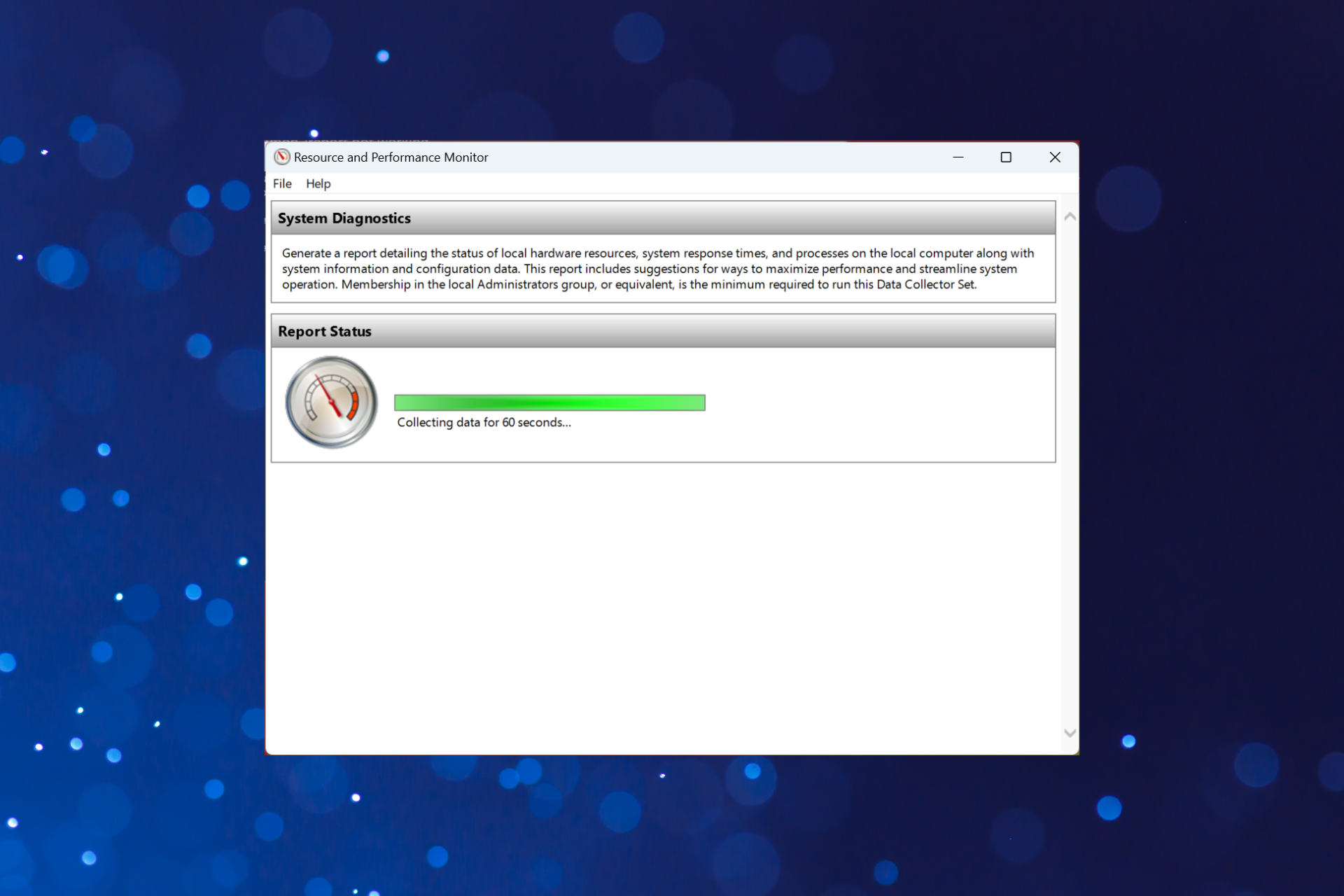
Optimal system performance is vital for the effective functioning of the PC. And for that, you can use the built-in Resource and Performance Monitor or a reliable third-party tool. But, many reported that perfmon /report is not working.

This puts users in a tricky spot since they cannot access the critical data related to the PC and thus ensure its upkeep. Don’t worry, though! We have some great insights if Perfmon generating report got stuck. Let’s find out.

Why is perfmon /report not working?

Here are the primary reasons you will find perfmon /report stuck or not working:

  • Appears to be stuck: In most cases, Resource and Performance Monitor continues to display the diagnostics as running even after a report is generated. So you will have to verify this first.
  • Corrupt system files: If the system files are corrupt, the built-in tool will have trouble generating a performance report or even running the diagnostics test.
  • Buggy update: Many users reported the problem only with specific versions of Windows, which probably indicates a bug in these.

What can I do if perfmon /report is not working?

Before we start with the complex solutions, here are a few quick things you can try:

  • Restart the computer.
  • Update the OS to the latest available version and check whether perfmon /report is still taking too long and not working.
  • When running the perfmon /report command, make sure to open Command Prompt with administrative privileges.
  • Ensure you are generating the report on an administrator account. If not, switch to an administrator account.
  • Disable the third-party antivirus, if any are installed on the PC, and try again. In case it works, we recommend you uninstall the current one and switch to an OS-friendly antivirus.

If none work, head to the fixes listed next.

1. Use a specialized software

Most of the time, using specialized software is what will have the work done more efficiently and even quickly. Using such software when perfmon is not generating reports is our recommendation.

PRTG Network Monitor will allow you to create and analyze all the system performance reports you need on Windows 10 in practically no time.

PRTG Network Monitor

Analyze and keep track of your entire IT infrastructure, ensuring your computer systems are running smoothly.
Free trial Visit website

2. Check if the report is already generated

  1. Press Windows + R to open Run, type perfmon in the text field, and hit Enter.perfmon
  2. Expand Reports, double-click on System, and then select System Diagnostics.check reports when perfmon /report not working
  3. All the generated reports will be listed on the right. Check if any matches the time frame you ran the tool, and open it.report

As stated earlier, your primary approach when perfmon /report is not working should be to verify whether the report has already been generated because, in most cases, it was.

3. Fix corrupt system files

  1. Press Windows + S to open Search, type Command Prompt, and click on Run as administrator.command prompt
  2. Click Yes in the UAC prompt.
  3. Paste the following commands individually and hit Enter after each to run DISM:DISM /Online /Cleanup-Image /CheckHealth DISM /Online /Cleanup-Image /ScanHealth DISM /Online /Cleanup-Image /RestoreHealth
  4. Once done, execute the following command to run the SFC scan:sfc /scannowsfc scan to fix perfmon /report not working
  5. After it’s complete, restart the computer, and you should be able to generate a performance report.

As stated earlier, corrupt system files could be why perfmon /report is not working. And the simplest fix, in this case, is to run the DISM (Deployment Image Servicing and Management) tool and SFC (System File Checker) scan.

Besides the quick method mentioned above, we also recommend third-party software because it can perform this action automatically.

It’s a safe and reliable option to use, as it can help you thoroughly scan your computer for corrupt system files and then locate fresh components from its frequently-revised vault.

4. Uninstall recent Windows updates

  1. Press Windows + I to open Settings, go to Windows Update from the navigation pane, and click on Update history.update history
  2. Scroll to the bottom, and click on Uninstall updates.uninstall updates to fix perfmon /report not working
  3. Now, click on Uninstall next to the last installed update.uninstall windows update to fix perfmon /report not working
  4. Again, click Uninstall in the prompt to confirm the change.uninstall
  5. Once done, restart the computer.

5. Perform a system restore

  1. Press Windows + R to open Run, type rstrui.exe, and click OK.rstrui.exe
  2. We recommend you select the Choose a different restore point option, and then click Next.choose a different restore point
  3. Choose a restore point from the list, one created before the problem first appeared, and click Next.system restore to fix perfmon /report not working
  4. Verify the restore details, and click Finish.start restore to fix perfmon /report not working
  5. Wait for the restore to complete.

If nothing listed previously worked, you can always perform a system restore to get things up and running when perfmon /report is not working in Windows. This is the reason many recommend regularly creating restore points.

As a last resort, you can reset Windows to factory settings, though in most cases, it wouldn’t come to that. Also, find out how to boost Windows performance and check some reliable tools to fix issues in Windows.

For other queries or to share the solution that worked for you, comment below.

5+ best games for old Windows 10/11 laptops

Windows 10 gaming laptops are a match for most desktops when it comes to playing the latest games. However, a lot of the latest games (especially 3D titles) aren’t going to run on more outdated laptops.

That doesn’t necessarily mean you can’t still have lots of gaming fun on an antiquated laptop, but your choice of games will be more limited to titles with lower system requirements.

Nevertheless, there are still plenty of great low end games for Windows 10 you that you can run. These are a few of the best games for outmoded Windows 10 laptops.

Here are the best low spec Windows 10 laptop games

Team Fortress 2

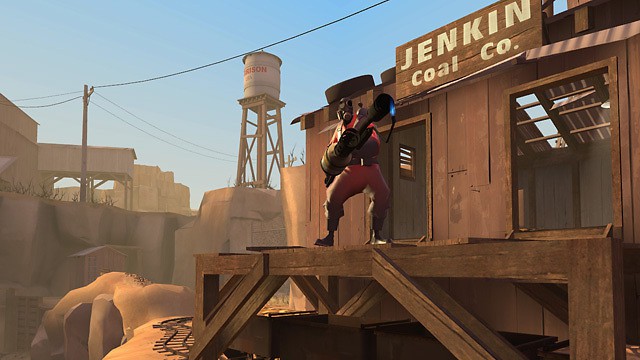
After the Half-Life series, Team Fortress 2 is perhaps Valve’s best game for Windows. This multiplayer blaster first launched in 2007, and it remains one of the most widely played Steam games.

Team Fortress 2 requires just 512 MB RAM and a 1.7 Ghz CPU, so it will run on most Windows 10 laptops. Furthermore, this game is free and you can add it to Windows 10 from Steam.

Team Fortress 2’s huge fan base might be partly due its humorous gameplay and art design. With more than 10 game modes Team Fortress 2 provides great variation.

Players can select to play Capture the Flag, King of the Hill, Control Points, Payload Race and Mann vs Machine game modes among others.

Another great thing about Team Fortress 2 is that it still getting regular updates with new content added that keeps the game fresh.

⇒ Get Team Fortress 2


Half-Life 2

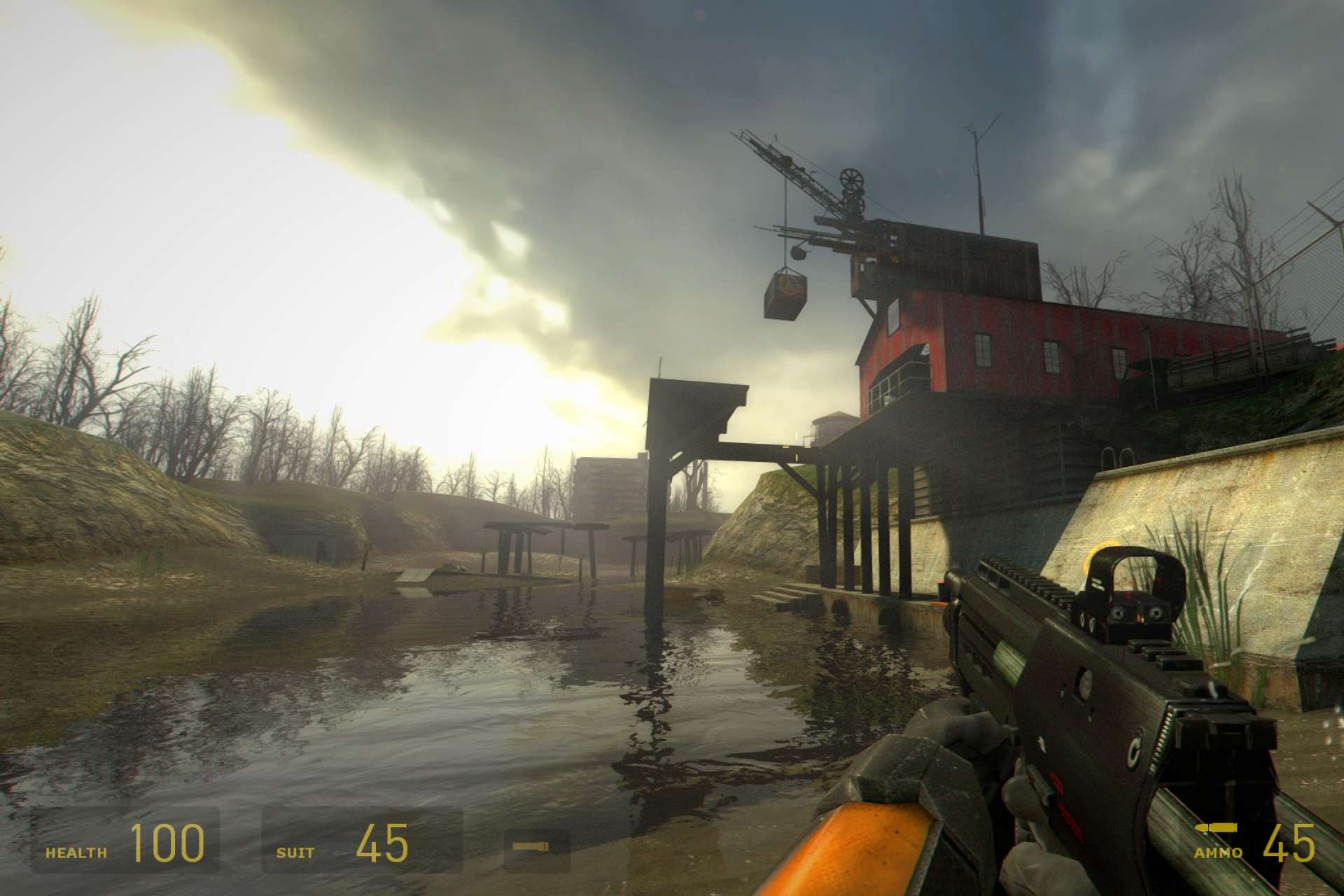
Half-Life 2 isn’t just one of the best Windows first-person shooters ever, it’s one of the best games ever. The sequel to the original Half-Life scooped 39 Game of the Year awards in 2004.

So this is surely one of the best games you can play on any lower specification Windows 10 laptop. The minimum system requirements for Half-Life 2 amounts to 512 MB RAM, 1.7 Ghz CPU and DirectX 8.1 graphics card.

With a Metacritic score of 96, Half-Life 2 is one of the most highly rated Windows games.

The game stars with the scientist Gordon Freeman who rallies the resistance against the alien Combine on Earth. Half-Life 2 retained all the suspense and intense gameplay of the original.

Its Source engine added whole new realism to the game. Half-Life 2 is renowned for its realistic physics with gravitational forces that send objects flying.

The Gravity Gun, with which players can toss objects at aliens, adds a whole new dimension to its gameplay.

This was a revolutionary game when it launched, and even today few first-person shooters can match Half-Life 2’s storytelling and controls.

⇒ Get Half-Life 2 on Amazon

If you’re searching for a good price deal for Half-Life 2, you should know that you can also find it available on G2A.

The game can also be bought from Kinguin, another cheap and safe alternative.


IL-2 Sturmovik: 1946

The original IL-2 Sturmovik has remained the most highly rated combat flight simulator for Windows for more than a decade.

IL-2 Sturmovik: 1946 is a compilation pack that brings together titles from the original series and includes additional content expansions of its own.

The game’s Steam page only includes Windows XP and 2000 within its OS system requirements, but IL-2 Sturmovik: 1946 does run on Windows 10.

The original IL-2 Sturmovik is a World War 2 flight simulator based in Eastern Europe’s air war.

However, you can also play the Pacific Fighters expansion in IL-2 Sturmovik: 1946, which includes U.S. and Japanese aircraft in the Pacific Theater.

As the game also packs in the Ace Expansion Pack, Forgotten Battles and additional alternative history campaigns, you can play in almost 200 missions. Overall, the compilation package includes five games in one.

Players can select to fly 229 vintage WW2 aircraft, which is a number few other flight simulators can match. IL-2 Sturmovik is renowned for its realism and physics, and each plane has its own unique feel.

Players can play in expansive multiplayer battles or single player missions that have varied objectives.

So this is little more than just a dogfighting simulator in which you blow everything out of the sky. Although the game’s graphics might be a tad dated now, it’s the gameplay that really counts.

⇒ Get IL-2 Sturmovik from Amazon

That’s not all. Thanks to its popularity, you can find the game on G2A as well.

You should also give GreenManGaming a look since they constantly have good deals.

If that doesn’t cut it for you, know that Kinguin has frequent deals for this game.


Age of Empires III: Definitive Edition

Age of Empires III is a classic RTS (Real-Time Strategy) game for Windows that Microsoft Studios has now revived in 2018 with Age of Empires III: Definitive Edition. So a great game is back with a bang with remastered visuals.

As this is still a 2D game, you don’t need a laptop with a top-notch 3D GPU for it. A Windows 10 laptop with a 1.8 Ghz i5 CPU, Four GB RAM. The game also requires DirectX 11 and one GB video card RAM win run this game.

Age of Empire’s players can select 16 civilizations to battle it out within the game’s 10 single-player campaigns and multiplayer mode. The revamped Age of Empires: Definitive Edition has 4K HD visuals and remastered sound.

There are a few gameplay refinements in the Age of Empires Definitive, such as its new Attack Move, unit queuing, and rally points.

The game also includes a Campaign editor tool with which you can make your own scenarios maps. So Age of Empires fans will love the remastered AoE Definitive.

⇒ Get AoE III: DE on Amazon

You can also buy it on G2A, another trusted CD Key site.

Note that Kinguin has AoE: DE for sale as well.

If you’re still not sure, you can check its price on GreenManGaming as well, since they also sell it.


Civilization V

Civilization titles are the best turn-based strategy games for Windows, and they don’t have hefty system requirements. However, if you really can’t run the latest Civ 6 on your Windows 10 laptop, check out Civilization V instead.

You can play this game on a Windows 10/8/7/Vista laptop with two GB RAM, 1.8 Ghz Intel Core 2 CPU and 256 MB nVidia 7900 GS GPU. The game is also compatible with Mac OS X and Linux Ubuntu platforms..

In Civilization V, as in the rest of the series, players build their civilizations up through the ages to reach an eventual victory condition.

Civilization 5 introduced new city-states and hex grid and included overhauled combat and cultural systems that give the game more strategic depth than its predecessors.

In Civ 5, where you position your army’s units is almost as important as their military tech. With a stunningly detailed game map, Civ 5’s graphical quality is also among the best in the series.

⇒ Get Civilization 5 from Amazon

You can also get Civilization 5 for cheap from G2A. The site is pretty popular, so you should give it a try.

Kinguin also has the game on its stock. You’ll definitely get some good deals there.

If those sites don’t interest you, try checking out Civilization 5 on GreenManGaming.


StarCraft: Remastered

StarCraft Remastered

Blizzard launched StarCraft: Remastered, a renewed version of the popular 2d RTS, for Windows 10 in 2017 to celebrate the anniversary. StarCraft: Remastered has breathed new life into a cult classic with slick new visuals.

The game only needs two GB RAM, an Intel Pentium D CPU and 256 MB Nvidia 6800 GPU to run on Windows laptops. The original StarCraft is available for free, and the remastered version can be found on many sites.

StarCraft: Remastered is pretty much the same game as the original title in which players battle it out with the Protoss, Terrans and Zerg factions in the Koprulu Sector.

However, it also includes the Brood War expansion that expands its content. The remastered StarCraft retains exactly the same gripping campaigns and gameplay, with much more detailed and smoother visuals.

Now you can play StarCraft in 4K on widescreen VDUs (Visual Display Units). Blizzard has also added stylized briefings and enhanced narrative to the game and rejuvenated its soundtrack.

Note: You can also play loads of classic retro games on Windows with console emulator software.

⇒ Get StarCraft: Remastered from Amazon

You’ll also find the game available on G2A, another awesome site filled with great deals for popular games.

Talking about popular, you should check Kinguin’s Starcraft: Remastered offer as well.


So who needs an Acer Predator, Alienware 17, or ROG Strix laptop for Windows 10 gaming? These are just a few of the great low graphics games for Windows 10 that you will definitely enjoy.

Did any of these games interest you? Make sure to let us know in the comment section below.

3 Best VR Controllers For PC [2026 Guide]

If you’re looking for a reliable VR controller to improve your gaming experience, you’ve come to the right place.

In this article, we’re going to list the best VR controllers for Windows PCs currently available on the market.

Therefore, we can only advise you to take your time and check our picks below. 

What are the best VR controllers for PC?

Razer Wolverine Tournament Edition

  • 4 remappable multi-function buttons
  • Optimized ergonomics
  • Razer Chroma Lighting
  • Razer Synapse for Xbox
  • Detachable braided cable
  • Not the most affordable option

First of all, we invite you to take a closer look at Razer Wolverine Tournament Edition. Thanks to its 4 remappable multi-function buttons, it can be adapted to suit your individual needs.

Razer Wolverine TE is powered by Razer Chroma lighting, so it is easier than ever to personalize your controller and enjoy a unique gaming experience.

Moreover, that’s your chance to show off your personal style with Razer Chroma’s wide selection of lighting effects and profiles, easily customizable through Razer Synapse for Xbox One.


VR remote controller Bluetooth

  • Ideal or mobiles iCade VR game
  • Support for Android and Windows
  • Extremely responsive
  • Newly designed shape
  • Great price
  • Doesn't work with Google Daydream

This VR remote controller gamepad might surprise you thanks to its video playback abilities. Users often find it especially helpful for sports highlights when things move very fast.

Linking your VR glasses is very simple, without interference, so don’t think twice. Use it with VR glasses as well and you won’t be disappointed.  

As for its unique shape, it is ideal to hold and control up to 5 high-tech devices, including mobile phones, smart TVs, and even certain TV box versions.


SteelSeries Stratus Bluetooth

  • Home and Back buttons
  • Easy-to-read LEDs
  • Up to 40 hours of wireless gaming
  • Android and PC compatibility
  • Ergonomic design
  • Bluetooth adapter sold separately

If you like the idea of simplicity, then keep in mind that SteelSeries Stratus Bluetooth was designed to pull out of the box, connect to your computer, and start gaming.

It also works on all Android devices if you’re on the go most of the time. There’s no wonder that it fits perfectly in your hands and feels great for hours of use.

Finally, rest assured that a wireless Bluetooth connection is incredibly responsive when using this controller.


With these VR controllers, you can walk around freely and explore the VR world in front of you.

Speaking of which, if you love the freedom of movement that comes with VR games, you can further enhance it with our wide selection of VR cable management systems.

You will most likely enjoy the experience!

So, with such great choices in front of you, what’s your favorite VR controller? Tell us more in the comments section below.

Posted in VR

FIX: HDMI Isn’t Showing in Playback Devices on Windows 10/11

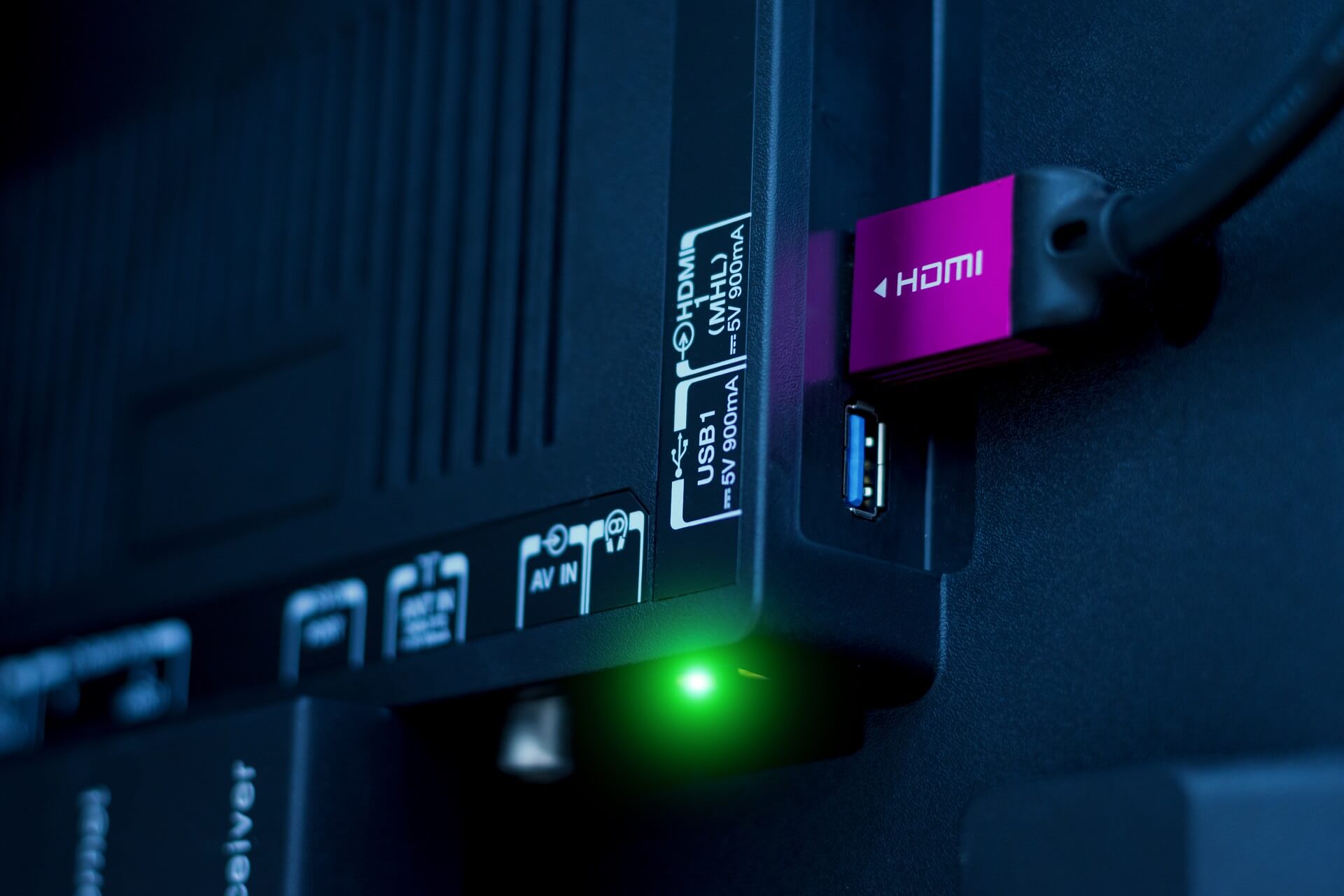
Many users tend to connect an additional display to their PC using the HDMI connection, but sometimes HDMI is not showing up in the playback devices section.

This can lead to certain problems, but today we’ll show you how to easily fix this issue.

Sometimes your HDMI device won’t show up in the playback devices section. That can be a big multimedia issue, and speaking of HDMI issues, here are some common problems that users reported:

  • Digital output device (HDMI) missing Windows 10
    • This is a common problem, and if this happens, be sure that your HDMIdevice isn’t hidden or disabled in playback devices section.
  • Windows 10 no HDMI audio option
    • Sometimes HDMI audio won’t work due to your audio drivers.
    • To fix the issue, reinstall your audio driver. If the issue is still there, update the audio driver to the latest version and check if that helps.
  • HDMI port not working on laptop
    • Sometimes this problem can occur due to your graphics card drivers.
    • To fix the issue, update the drivers to the latest version and check if that helps.
  • HDMI not showing up as audio device Windows 10, up in Sound
    • This is a relatively common problem, and in order to fix it, be sure that you turn on your HDMI device, connect it to the PC, and then turn on your PC.
    • By doing so, you’ll force the PC to recognize the device.
  • HDMI not detected, working, recognized, playing audio
    • These are some relatively common HDMI issues, and we covered most of them in our how to fix HDMI output problems article, so be sure to check it out for more solutions.

How do I fix HDMI not showing up in my playback devices

  1. Install the default graphics driver
  2. Reinstall the graphics card drivers
  3. Double-check the playback devices list
  4. Update the High Definition Audio Device
  5. Disable the Hyper-V feature
  6. Change the projection mode
  7. Make sure that you turn on your devices in the correct order
  8. Remove the problematic applications

1. Install the default graphics driver

  1. Press Windows Key + X to open Win + X menu.
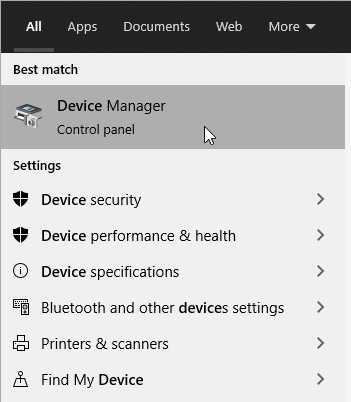
  2. Now select Device Manager from the list.
    device manager win + X menu Hdmi not working
  3. When Device Manager opens, locate your graphics card driver and right-click it.
  4. Choose Update driver from the menu.
    update driver menu HDMI not working
  5. Select Browse my computer for driver software.
    Search computer for driver software HDMI not working
  6. Now select Choose Let me pick from a list of device drivers on my computer.
    pick form a list of available drivers HDMI doesn't work
  7. Select the available driver and click Next.
  8. Follow the instructions on the screen to complete the process.

According to users, if HDMI is not showing up in playback devices, the problem might be related to the drivers. To fix this issue, users are suggesting installing the default graphics card driver.

Once the default driver is installed, check if the problem is still there. Bear in mind that the default driver might not offer the same performance as the latest driver.

So if you’re planning to play the latest games on maximum settings, perhaps this won’t be a good long-term solution for you.

2. Reinstall the graphics card drivers

  1. Open the Windows search bar.
  2. Type in Device Manager.
  3. Expand your Display Adapters section.
  4. Select your GPU, then right-click on it and select Uninstall.
  5. Now restart your computer.
  6. After your computer finished restarting, it will automatically search for a new driver.

Once you remove the drivers, try installing the latest drivers for your graphics card. You can do that by visiting your graphics card manufacturer’s website and downloading the latest driver for your model.

As already mentioned in the previous solution, sometimes your graphics card drivers can cause this problem to appear. To fix the issue, some users are suggesting removing your graphics card drivers.

Update drivers automatically

To completely remove your drivers, it’s advised to use a third-party software driver updater that can do it automatically for you, so you won’t need to worry about doing something wrong.

The software will make sure all of your drivers are up to date. With just a few clicks, the app will scan your device for compatible drivers and install them. The process is mostly automated as well.

3. Double-check the playback devices list

  1. Open the Playback devices
  2. Right-click the empty space and make sure that you check both Show Disabled Devices and Show Disconnected Devices.
    hidden devices playback settings HDMI not showing

Many users reported that HDMI is not showing in playback devices section, and if this happens on your PC, perhaps the HDMI device isn’t listed as HDMI on the list.

Many users reported that their device was listed as the model of their display followed by NVIDIA High Definition Audio.

As you can see, the device won’t be listed as HDMI, so you’ll need to pay a bit more attention and check all devices in the playback devices section in order to find your HDMI device.

Several users reported that their HDMI device was disabled and therefore hidden in the playback devices section. To fix that, you need to reveal all playback devices by doing the following:

After doing that, you should be able to see your HDMI device on the list and enable it.

4. Update the High Definition Audio Device

To do that, follow these steps:

  1. Open Device Manager and locate High Definition Audio Device.
    • It should be listed as AMD High Definition Audio Device or NVIDIA High Definition Audio Device.
  2. Right-click the device, and choose Update driver.
  3. Now select Search automatically for updated driver software and Windows will try to update the driver on its own.
    automatically search for driver software HDMI not in playback devices

According to users, if HDMI isn’t showing in playback devices, the issue can be related to your audio driver. To fix the problem, you just need to update this driver.

Once the driver is up to date, check if the problem is still there. If this method didn’t fix the problem for you, you can try updating the driver manually and check if that helps.

Some users are suggesting to uninstall your HDMI sound driver and install it again, so you might want to try that as well.

5. Disable the Hyper-V feature

  1. Press Windows Key + S and type windows features.
  2. Now choose Turn Windows features on or off.
    • Windows Features window will now appear.
  3. Look for Hyper-V on the list and disable it.
  4. Once you disable this feature, click OK to save changes.
    hyper-V disable HDMI not detected
  5. Restart your PC to apply the changes.

Hyper-V is a virtualization feature, and thanks to it, you can create a virtual environment on your PC and use it to run any operating system inside of Windows.

Although this feature can be incredibly useful to some users, it can also cause issues with HDMI devices.

In fact, many users reported that their HDMI device wasn’t showing up in the playback devices section due to the Hyper-V feature.

According to them, they managed to fix the issue simply by disabling the Hyper-V feature. This is quite simple to do, and you can do it by following these steps:

Once your PC restarts, the Hyper-V feature will be disabled and the problem with HDMI should be resolved.

6. Change the projection mode

  1. Press Windows Key + P.
  2. You should now see a list of options.
  3. Select Duplicate or Extend from the list.
    project modes HDMI not working

If HDMI isn’t showing in playback devices, the issue might be related to the projection mode.

Windows allows you to switch between several projection modes, and it seems that only duplicate and extend modes will show your HDMI device in the playback devices section.

After doing that, the HDMI device should appear in the playback devices section.

7. Make sure that you turn on your devices in the correct order

  1. Make sure that your PC and second display are turned off.
  2. Turn on your second display or TV.
  3. Now connect the HDMI device to your PC.
  4. Turn on your PC.

According to users, sometimes your HDMI device won’t show up in the playback devices section due to certain glitches.

Apparently, the HDMI device isn’t recognized if you plug it directly in your PC while it’s running. Once your PC boots, the problem should be resolved and the HDMI device should appear in the playback devices section.

Bear in mind that this is a one-time procedure, and once your HDMI device appears in the playback devices, the issue should be permanently resolved.

8. Remove the problematic applications

Several users reported that third-party applications can sometimes lead to issues with HDMI and playback devices. If your HDMI device is not showing, perhaps the problem can be related to third-party applications.

Several users reported that VLC Media Player caused this issue, but after removing the application, the issue was resolved.

Bear in mind that there are several ways to remove an application, but the most effective one is to use a dedicated utility such as CCleaner.

CCleaner is a PC cleaning and optimization software that has a powerful uninstaller feature, capable of completely removing any app along with its corresponding files and registry entries.

Once the application is removed, check if the problem is still there. Problems with HDMI devices are fairly common, and if your HDMI device isn’t showing in playback devices, be sure to try all of our solutions.

⇒ Get CCleaner

These are just a few of the solutions you can try to resolve this issue, but we also have further solutions for when there is no HDMI signal.

Let us know which one works best for you in the comments section below.

Error Writing to File on Windows 10 [Best Solutions]

Computer errors can occur from time to time, and sooner or later you’ll experience an error on your Windows 10 PC.

Users reported Error writing to file error messages while installing certain software, and since this error can prevent you from installing new applications, it’s crucial to know how to properly fix it.

In this comprehensive article, you will learn how to fix the Error writing to file for all the Windows 10 apps.

How can I fix error writing to file alerts?

Before applying any tweaking methods below, make sure you have enough disk space. Sometimes, the Error writing to file can be triggered by such a trivial problem.

1. Fix – Error writing to file

1.1 Register Windows Installer service

  1. Type cmd in the search tab and click on Run as administrator under Command Prompt to start it with full privileges.
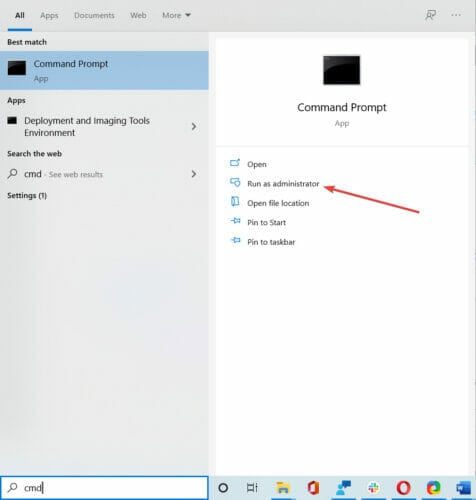
  2. When Command Prompt opens, enter the following lines:
    • msiexec /unregister
    • msiexec /regserver
  3. After both commands are successfully executed, close Command Prompt.

If you’re trying to install new software on your PC, you’ll have to use Windows Installer service.

This service is crucial for the installation process, but sometimes this service can become unregistered and prevent new applications from installing.

To fix this problem, you need to register the Windows Installer service manually.

By running these commands you’ll manually unregister and reregister the Windows Installer service, and hopefully, that will fix this error for you.

If you can’t access the Windows Installer, we have an excellent guide that will help you fix the problem.

1.2 Run the chkdsk command

  1. Open Command Prompt as administrator as shown in the previous step.
  2. When Command Prompt opens, enter chkdsk X: /r and press Enter (Be sure to replace X with the letter that matches your hard drive partition that you’re to installing the application to).
    • If you’re trying to scan your system partition you’ll have to schedule a restart and scan your partition before Windows 10 starts.
  3. After the scan is completed, try to run the installation process again.

Sometimes Error writing to file messages can appear if you have corrupt files that are interfering with the installation process.

One way to fix this problem is to perform a chkdsk scan and scan your hard drive partition for any corrupt files.

If chkdsk gets stuck follow this comprehensive guide to fix it quickly and continue with this fix.

1.3 Rename the com.Apple.Outlook.client.resources folder

Users reported this error message while trying to install iTunes on their PC, and one way to fix this problem is to rename one of your folders.

According to users, com.Apple.Outlook.client.resources folder can cause this error to appear, therefore in order to fix this problem, you need to find this folder and rename it to com.Apple.Outlook.client.resources_OLD.

After renaming the folder, try to perform the installation again and check if your problem is resolved.

1.4 Perform a Clean boot

  1. Press Windows key + R and enter msconfig. Press Enter or click OK.
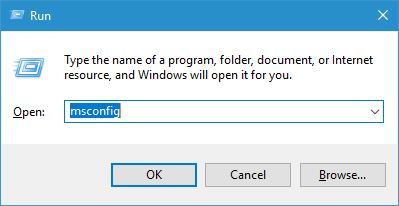
    error-writing-to-file-msconfig-1
  2. When System Configuration window opens, go to the Services tab.
  3. Check Hide all Microsoft services and then click on Disable all.
    error-writing-to-file-msconfig-2
  4. Now go to Startup tab and click Open Task Manager.
  5. In the Startup tab, disable all startup applications. You can do that by right-clicking the startup item and choosing Disable from the menu (Repeat this process for all startup applications).
    error-writing-to-file-msconfig-3
  6. After all startup items are disabled, close Task Manager.
  7. Go back to System Configuration window and click Apply and OK to save the changes.
  8. Restart your PC.

Sometimes Error writing to file messages can appear due to installing third-party applications. Certain applications and services can interfere with the setup process and cause this error to appear on your PC.

One way to fix this problem is to disable all startup applications and processes.

After your PC restarts, try to install the application again. If the application manages to install without any errors, repeat the same steps and enable all startup applications and services.

1.5 Change the security permissions for the ProgramData folder

1.5.1 Change the owner of the folder
  1. Open File Explorer and navigate to C:.
  2. Locate the ProgramData folder. If you can’t see this folder, go to View tab and check Hidden items checkbox.
  3. Right-click the ProgramData folder and choose Properties.
    error-writing-to-file-permissions-1
  4. Go to the Security tab and click on Advanced button.
    error-writing-to-file-permissions-2
  5. Click the Change link next to the Owner name.
    error-writing-to-file-permissions-3
  6. In Enter the object name to select enter Administrators and click Check names. If everything is in order, click OK to save changes.
    error-writing-to-file-permissions-4
  7. Select the Replace the owner on subcontainers and objects.
    error-writing-to-file-permissions-5
  8. Click Apply and OK to save the changes.

Some applications rely on the ProgramData folder for their installation, and if you don’t have the necessary privileges to access this folder, you might get Error writing to file message.

To fix this problem, you need to change the security permissions, but since that is an advanced process, we strongly recommend that you create a System Restore point before making any security-related changes.

1.5.2 Change the permissions from the Advanced security settings
  1. When Advanced Security Settings window opens check if SYSTEM and Administrators group have Full control access.
    • If one of the groups is missing, be sure to add it by clicking the Add button.
    • In case any of the two groups doesn’t have Full control, you can simply change that by double-clicking the group and checking the Full control option.
  2. Check Replace all child object permissions entries with inheritable permissions entries from this object and click Apply and OK.
    error-writing-to-file-permissions-6
  3. After that, try to reinstall the application again.

Another way to change the permissions of a specific folder is to use Command Prompt. This is a faster, although a bit more advanced method, therefore use it with extra caution.

To do that, open Command Prompt as administrator, enter the following command, and press Enter: icacls "C:Config.Msi" /T /C /grant administrators:F

This is just an example, therefore be sure to replace C:Config.Msi with the path of the folder that you’re trying to modify.

Although we showed you how to change the permissions of the ProgramData folder in our example, sometimes in order to fix this problem you need to change the permissions of the installation directory instead.

1.6. Rename the Config.msi folder

Sometimes, certain Adobe applications can’t be installed on your PC due to the Config.Msi folder. One of the simplest ways to fix this is to locate the Config.Msi folder and rename it.

By default, this folder should be located in the C: directory, and you can easily rename it. If you can’t rename the folder, you have to change the permission settings for the Config.Msi folder and try again.

1.7 Run the setup file as administrator

You can fix the Error writing to file error message simply by running the installation process as an administrator. To do that, right-click the setup file and choose Run as administrator from the menu.

This isn’t a permanent solution, but it should allow you to install the desired application without any errors.

1.8 Disable McAfee’s EPO agent

McAfee tools such as McAfee EPO agent can sometimes interfere with the installation process and cause this error to appear.

According to users, McAfee EPO agent has the policy to block autorun, and this policy can prevent applications from installing.

After turning the McAfee EPO agent off, you should be able to install any application without problems.

1.9 Check your firewall

Sometimes this error can occur due to your firewall settings, and you should be able to fix it simply by changing those settings.

User reported this error while installing iTunes, and according to them, the error was caused because the QTTask.exe was prevented from accessing the Internet by the firewall.

After allowing QTTask.exe to access the Internet the issue was completely resolved.

This solution applies to iTunes, but if you’re installing or updating a different application, be sure to check if your firewall isn’t blocking any installation files.

1.10 Give Full Control permissions to the Everyone group

  1. Locate the Config.msi folder, right-click it, and choose Properties from the menu.
    • By default this folder should be located in the C: directory.
    • Keep in mind that this folder might be hidden, therefore you need to enable Show hidden items option from the View tab.
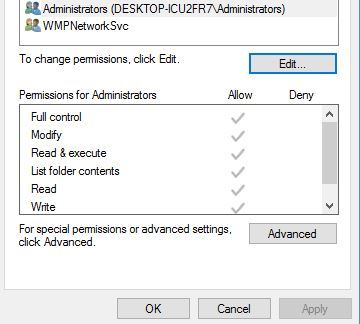
  2. Go to Security tab and click the Edit button.
    error-writing-to-file-edit-1
  3. Click the Add button.
    error-writing-to-file-edit-2
  4. In Enter the object names to select field enter Everyone and click Check Names. If your input is correct, click the OK button.
    error-writing-to-file-edit-3
  5. Everyone group should now be added to the Group or user names section. Select Everyone and check Full control in the Allow column.
    error-writing-to-file-edit-4
  6. Click Apply and OK to save the changes.

Users are also reporting that you can fix this problem simply by giving Full control over the Config.msi folder to Everyone on your PC. This is a simple procedure, and you can do it by following the steps above.

After changing the security permissions, try to install the application again.

1.11 Delete the Config.msi folder

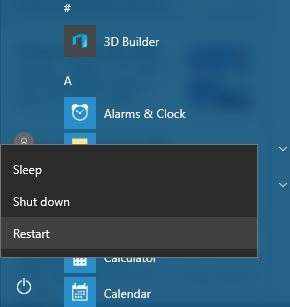
  1. Click the Start button, hold the Shift key on your keyboard and choose Power, then select Restart.
    error-writing-to-file-safe-mode-1
  2. When your PC restarts choose Troubleshoot, choose Advanced options and select Startup settings.
  3. Click the Restart button.
  4. When your PC restarts again you’ll see a list of options. Select any version of the Safe Mode by pressing the appropriate keyboard key.
  5. When Safe Mode starts, start the Command Prompt as administrator.
  6. When Command Prompt opens, type the following lines pressing Enter after each one:
    • cd c:config.msi
      erase *.*
      cd c:
      rd config.msi
  7. Restart your PC and try to install iTunes again.
  8. If the problem still persists, create the Config.msi folder in the C: directory.
  9. Create the .rdf file that the installation requires in the Config.msi folder and try to install iTunes again.
  10. If you encounter any errors, be sure to ignore them and you should be able to install iTunes.

A few readers reported that they were unable to install iTunes due to problems with Config.msi directory. One suggested a solution that worked for some users was to delete this folder from Safe Mode and recreate it.

1.12 Uninstall iDrive

According to users, sometimes, the Error writing to file message can appear if you have iDrive installed on your PC.

We don’t know how iDrive interferes with the installation process of other applications, but the only solution is to uninstall iDrive. After removing iDrive, the issue should be completely resolved.

You can, of course, do it manually from the Apps & features function in Windows 10.

But sometimes, programs don’t get uninstalled properly and you’re left with file remains that might interfere with the next installation of the same program.

The solution is to use a dedicated uninstaller tool that will do that automatically. To find the most suitable one for your needs, we advise you to pick from the best uninstaller software on Windows 10.

1.13 Disable Kaspersky antivirus and Memeo Instant Backup

Users reported this error while installing the MySQL workbench tool, and according to them, the issue was caused by Kaspersky antivirus and Memeo Instant Backup.

According to them, after disabling these tools the error was completely resolved. Keep in mind that any other antivirus or backup tool can cause this error to appear, therefore be sure to disable it temporarily.

Users also reported issues with Webroot antivirus, so if you have it installed be sure to temporarily disable it and check if that solves the problem.

1.14 Turn off User Account Control

  1. Press Windows key + S and enter user accounts. Select User Accounts from the menu.
  2. When User Accounts window opens, go to Change User Account Control settings.
    error-writing-to-file-uac-2
  3. Move the slider all the way down to Never notify and click OK to save changes.
    error-writing-to-file-uac-3
  4. After disabling User Account Control restart your PC and check if the problem is resolved.

User Account Control is a security feature that will alert you whenever you try to make a change that requires administrator privileges.

This is a useful feature that can sometimes protect you from malicious software that tries to make changes to your PC without your knowledge.

Even though this feature can be useful, it can also interfere with the installation process and cause Error writing to file message to appear.

1.15 Change the Symantec Endpoint Protection settings

  1. Open Symantec Endpoint Protection.
  2. On the left side click the Change Settings tab.
  3. Click the Configure Settings button in the Client Management section.
  4. Locate and disable Enable Application and Device Control option.

According to some of our readers, sometimes, Symantec Endpoint Protection can interfere with the installation process and cause this and other errors to appear. To fix this problem, you need to perform the quick steps above.

2. Fix – Error writing to file for android-sdk.7z

2.1 Install the Java Development Kit

Users reported this error while trying to install Android SDK on their Windows 10 PC. Apparently, this error is caused because the Java Development Kit is missing.

And the fastest way to fix this problem is to download the Java Development Kit. After downloading it, simply install it and the problem should be completely resolved.

2.2 Run the setup as administrator and disable your firewall

According to our readers, you can fix this problem simply by running the setup file as the administrator. If that doesn’t help, you might have to temporarily disable your antivirus and firewall and check if that solves the issue.

If the problem still persists, you might have to completely remove your antivirus software. Users reported that the issue was resolved after removing McAfee antivirus, therefore be sure to try that.

3. Fix – Error writing to file for 3DS Max

3.1 Turn off the Compression on Save option

According to users, this error appears when you try to save your file in 3DS Max, and one suggests that the workaround is to disable the Compress on Save option in Preferences.

After disabling this option, the error will not appear anymore, but your files will get larger in size without compression, so keep that in mind.

Users also reported that this error appears if you have more than two instances of 3DS Max open, therefore as long as you have less than 3 instances of this application running, you shouldn’t have any problems.

4. Fix – Error writing to file for Adobe Acrobat

4.1 Rename the Active X folder

Users reported Error writing to file message while trying to install Adobe Acrobat, and according to them, they managed to resolve this issue simply by renaming the Active X folder.

After renaming the folder to Active X_OLD, create a new Active X folder and copy the files from Active X_OLD folder to the new Active X folder that you created. After doing that, try to install Adobe Acrobat again.

Some users are also suggesting renaming the Acrobat folder to something else and try to install Adobe Acrobat again, so you might want to do that as well.

4.2 Delete the Apricot folder

A few of our readers reported that they managed to fix this problem simply by going to the Adobe folder: C:\ProgramData\Adobe

You should see Apricot and two other folders available. Delete them and try to install Adobe Acrobat as administrator.

4.3 Use a dedicated software to fix the Registry

Users reported that they managed to fix Error writing to file error while installing Adobe Acrobat simply by running a third-party solution.

Using the dedicated solution recommended below they removed problematic registry entries and that solved the problem for them.

⇒ Get CCleaner

The Error writing to file message can prevent you from installing certain applications, but in most cases, you can fix this problem by disabling your antivirus or by changing your security permissions.

If those solutions don’t work, feel free to try any other solution from this article. Also, if you have any other suggestions, don’t hesitate to write them in the comments section below.

Windows 10 Facebook app returns to the Microsoft Store app store as a PWA

Just over a year since the original Windows 10 Facebook app was removed from the Microsoft Store app store, a new one has now appeared.

This new app (cheers, AL) appears to be in beta and is in the Progressive Web App (PWA) format which essentially means that it’s kind of a web wrapper but with some added support for Windows 10 features such as notifications.

While using this new Windows 10 Facebook app is pretty much the same as using the Facebook website, it is noticeably faster than accessing the site in a web browser such as Edge or Chrome. It can often be hard to justify using a PWA over simply visiting a website but for those that get frustrated with how slow the Facebook website can be on their Windows 10 devices, this new app may be a good alternative.

How do you prefer to access Facebook? Let us know the comments down below and then follow us on Facebook for more Windows 10 app news.

Facebook (Beta)
Facebook (Beta)
Developer:
Meta
Price:
Free

5 Best Gaming Laptops Under 600$ [Buying Guide]

Not anyone wants to play a triple-A titles, and if you’re one of those kinds of gamers, you might be interested in a budget gaming laptop.

Some games don’t require much computing power to run, so all you need is a budget laptop and you’re set. We will show you a list of the 5 best gaming laptop under 600$ you can find on Amazon.

What are the best gaming laptops under 600$?

ASUS F512DA-EB51

  • AMD Quad-Core R5-3500U CPU
  • 15.6-Inch Full HD Display with thin bezels
  • Exclusive ErgoLift design for improved typing position
  • USB 3.2 Type-C, two USB 2.0 ports
  • Micro SD and HDMI port
  • No Thunderbolt 3 support

ASUS F512DA-EB51 is a great and cheap laptop for light gaming. It comes with a powerful CPU that runs less graphically intensive games well. The 8GB of DDR4 memory allows you to run multiple programs while you game and the SSD makes your games load fast.

It has a modern, attractive design and the case is slim, yet it has all the ports you need. The keyboard is backlit so you don’t have to worry about pressing the wrong keys when you play games late at night.


Acer Aspire 5

  • Ryzen 3 3200U AMD CPU
  • 16GB DDR4 memory, 1TB HDD and 128GB SSD
  • Radeon Vega 3 Graphics
  • 15.6-Inch 1080p Display
  • Windows 10 Home preinstalled
  • Battery doesn't last long if you're gaming

Acer Aspire 5 is a great laptop for its budget range. It combines high-quality, durable materials with customizable internals. The laptop is geared with a powerful Ryzen 3 CPU accompanied by 16GB of RAM.

Moreover, if you enjoy playing a multitude of games, you can store all of them thanks to the high storage capacity. The laptop has a compact and slim design and backlit keys.


HP 14 Touchscreen

  • 14-Inch HD Touchscreen Display
  • AMD Ryzen 3 3200U CPU
  • Radeon Vega 3 Graphics
  • 512GB SSD
  • 8GB DDR4 2400MHz RAM Memory
  • No DisplayPort via USB-Type C

The HP 14 Touchscreen is a light and slim laptop, equipped with a powerful AMD Ryzen 3 CPU and an integrated GPU. It is a smaller laptop but it is still capable of running less demanding games with no problem.

In addition, it comes with an SSD so you don’t have to worry about loading times. The Type-C HD Webcam allows you to socialize with your friends on Discord, Skype, or Twitch.


ASUS VivoBook 15

  • 15.6-Inch Full HD Display
  • 8GB DDR4 RAM memory
  • Ryzen 3 3200U Dual-Core CPU
  • AMD Radeon Vega 3 GPU
  • Underwhelming battery life

Asus VivoBook 15 is a cheaper laptop that can still run games, thanks to the AMD Ryzen 3 CPU and the Integrated GPU. This is a slim laptop with a wide display and slim bezels.

The keyboard is backlit and it includes the Numpad buttons which you can bind when playing MMOs, MOBAs, and RTS games.


Dell Inspirion

  • 15.6-inch display
  • Dual-Core i3 2.7GHz CPU
  • Intel HD 620 graphics
  • 8GB DDR4 SDRAM
  • 128GB SSD
  • Small storage space

Dell Inspirion is another great gaming laptop under 600$. The device comes with a 15.6-inch display and Truelife LED-Backlit Display and 1366×768 resolution.

As for the hardware, the laptop is powered by Intel Dual-Core i3-7130u 2.7GHz CPU and Intel HD 620 Graphics. Regarding the memory, there’s an 8GB DDR4 SDRAM and 128GB solid-state drive.

Of course, additional features such as 802. 11bgn Wi-Fi, Bluetooth 4.1, USB 3.0 port, and headphone jack are also available.


These laptops will satisfy gaming needs, so if your budget is tight make sure to check the products out.

Feel free to drop a comment in the section below if you want to leave any feedback related to gaming laptops.

5 Best Card Readers Compatible With Windows

A Smart card Reader is an external device for reading electronic smart cards. These are plastic cards with a built-in chip used for electronic processes, like authentications or financial transactions.

You will most probably need it because not all laptops include an incorporated card reader, and desktops do not have it at all.

Like many other peripherals, it can be or is not compatible with a particular operating system. In this article, we’ll present you with the best smart card readers compatible with Windows 10.

What are the best card readers for Windows 10?

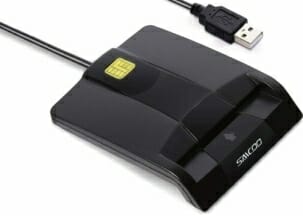
SAICOO DOD

  • Sleek ergonomic design
  • Recommended by militarycac.com
  • Piv and EMS ready
  • You have to install it, is not a plug&play device

SAICOO DOD Military is one of the best smart card readers on the market you can buy.

It is not only compatible with Windows 10 OS but also with older Windows versions. So, if you haven’t upgraded your system to version 10, this reader will surely work.

You can use it for all contact smart card operations like online banking or digital signature applications. 

Zoweetek Smart Card Reader

  • Compatible with all Windows versions, Linux and Mac OS
  • Advanced Realtek Chipset
  • Sleek ergonomic flat design
  • The mini driver disk provided in the package can't be used on slot-load drive

The Zoweetek smart card reader is another great and performant choice if you need a smart card reader.

It comes with a long USB 2.0 connecting cable, so you can easily install it on the back USB ports of your desktop. Furthermore, it features multiple certification standards like  PIV, EMS, and Microsoft WHQL certifications.

You can also use it to sign PDF documents, and it can work with foreign smart cards.

HID OMNIKEY 3121

  • All major operating systems supported, including Window 10
  • Plug&play on Windows 10
  • ISO 7816 Standard and EMVCo Terminal Level 1
  • Not very portable

The HID Omnikey is a smart card reader that comes with a standing base for convenient vertical use.

This reader complies with all official regulations, and you can use this one with officially issued IDs.

It is solidly built and comes with an attachment sticker. If you don’t need to carry it, this card reader is great for static use alongside your business computer.

Identiv SCR3500

  • Windows 10 compatible
  • Has a loop for a key ring
  • EMV level 1 certification
  • For Mac OS it doesn't work as a plug&play device

The Identiv SCR3500 model is one of the most portable and lightweight smart card readers you can find.

This device folds down to nearly half its size when not in use so it’s easy to store and transport. Besides its great look, it complies with all major smart cards and relevant industry standards.

It is also very easy to use with your Windows 10 OS, it will work as soon as you plug it, without the need for any driver installation.

Identiv SCR3310v

  • Operates quickly
  • Ergonomic design
  • Compatible even with Android platforms
  • You might need to install drivers if your OS is not up to date

Identiv SCR3310 is an ideal smart card reader option for various secure applications.

It works seamlessly with virtually all contact smart cards and operating systems. In addition, it provides full compliance with all major industry standards.

If you have a smart SSO or Network login card, Identiv SCR3310 is ideally suited for these tasks.

Smart cards are widely acknowledged as one of the most secure and reliable forms of electronic identification. If you need to use a card like this, you’ll also need a smart card reader for it to function.

All of the above card readers work flawlessly with your Windows 10 systems are easy to use, so be sure to consider them.

3 best VPNs for Black Desert Online to reduce ping and lag

Black Desert Online is a fantasy MMORPG that you can play in sandbox mode. The game has incredible graphics and works with Windows PC, PlayStation 4, and Xbox One. On Windows PC, it’s available on Steam. You can choose from over 16 classes and fully customize your character.

In Black Desert Online, you engage in combat, track down monsters and bosses, join guilds to siege nodes and conquer castles, as well as train skills such as crafting, trading, fishing, or cooking.

You can play it on multiple servers in North America and Europe. However, if you have connection issues like high ping that stops you from enjoying the game, consider using a VPN to improve ping in Black Desert Online.

What you need is a VPN with a large network of servers in North America and Europe. Furthermore, it should deliver excellent speed while also protecting your privacy and shielding you from DDoS attacks.

What are the best VPN apps for Black Desert Online?

Private Internet Access

Private Internet Access (PIA) is ideal for reducing ping while playing Black Desert Online. Created by Kape Technologies, it has numerous VPN servers all over the world, along with various features optimized for gaming.

For example, PIA lets you use static or dynamic IP addresses. It can also help you bypass ISP throttling and preserve your online anonymity thanks to a strict zero-logging privacy policy.

What you need to know about PIA:

  • Over 3,200 VPN servers in 46 countries (including North America and Europe)
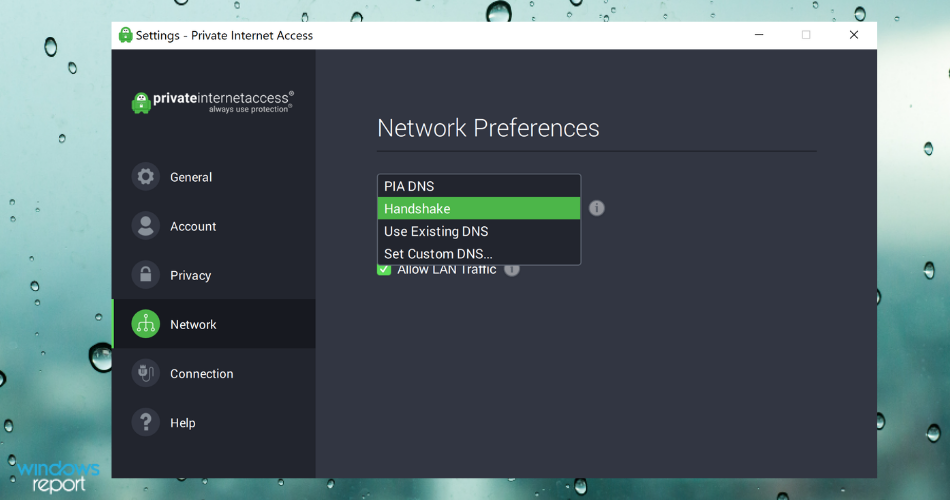
  • Reduce lagging in Black Desert Online using private DNS servers
  • Turn off encryption if you absolutely need maximum speed (no security)
  • 30-day money-back guarantee (no free trial)

Private Internet Access

Reduce ping and enjoy a smooth gaming experience when you play Black Desert Online.
Check price Visit website

CyberGhost VPN

Also owned by Kape Technologies, CyberGhost VPN can take your worries away when you play Black Desert Online by eliminating lags. It’s one of the fastest VPN apps with an impressive network of servers.

When it comes to security, CyberGhost VPN is designed to protect you from DDoS attacks while gaming. Similar to PIA, it has exclusive DNS servers, but it can also protect you from DNS leaks.

What you need to know about CyberGhost VPN:

  • More than 6,400 VPN servers in 89 countries
  • Decrease your ping time while playing Black Desert Online
  • Protect your Wi-Fi router from hackers
  • 45-day money-back guarantee (1-day free trial, no credit card)

CyberGhost VPN

Turn your Black Desert Online gameplay into a smooth experience by eliminating lag with this VPN app.
Check price Visit website

BullGuard VPN

Developed by BullGuard, BullGuard VPN is another strong candidate to improve your gaming experience by decreasing ping in Black Desert Online. Although it has fewer servers than the other two VPNs on this list, the app delivers excellent network speed.

As far as security goes, BullGuard VPN has a kill switch that becomes active as soon as you lose the VPN connection. Moreover, it allows up to 6 simultaneous device connections. It’s one of the best VPNs for Windows 10.

What you need to know about BullGuard VPN:

  • More than 2,000 VPN servers in 16 countries
  • Eliminate lag when you play Black Desert Online
  • No identifying data
  • 30-day money-back guarantee (no free trial)

⇒ Get Bullguard

In conclusion, Black Desert Online is a great MMORPG you can play online whenever you want to take a break and immerse yourself in a world of monsters. And, if you’re having trouble with Black Desert Online due to lag, make sure to use one of the VPN apps above to eliminate this issue.

Aventail VPN connection failed / not found [Solved]

Many Aventail VPN users have encountered the error message Aventail VPN is not connecting. This problem seems to occur no matter how the VPN service was used and on different Windows operating systems.

This issue can be extremely annoying, as the purpose of using a VPN service in the first place is to not have browsing limits.

If your Aventail VPN service is not connecting to any server, people are entitled to try and change their service.

Although changing the VPN that you use will always be an option, in this article we will explore some of the best troubleshooting methods.

The methods presented here are not a full-on fix, but they helped other users in your situation.

For this reason, please try these methods in the order that they were presented to avoid causing any further complications.


What can I do if the Aventail VPN connection is not found?

1. Make sure that your antivirus service and VPN are not interfering

  1. Open the antivirus software > open Firewall settings.
  2. Check for the list of apps allowed through the antivirus firewall.
  3. Make sure that Aventail VPN is allowed connections for both local and public servers.
  4. Save the settings.
  5. Restart your PC, and try to connect to the Aventail VPN server again.

2. Try out another VPN solution

It’s time to reconsider your options when you’re tired of getting the same connection failed errors. The VPN recommended below is a solution founded in the United States in 2010.

A leader in privacy like Kape Technologies most likely sounds like music to your years, so that’s your chance to legally hide all your activity risk-free on every website and enjoy a smooth overall experience.

Its dedicated apps for Windows, Mac OS, Linux, iOS, and Android are intuitive even for newbies. Within the app, let us tell you from the start that you’ll find various settings options.

You may enable DNS leak protection, change the level of encryption, or enjoy that Internet kill switch that will prevent traffic from leaking even when VPN gets disconnected.

Private Internet Access

Private Internet Access

Private Internet Access is a great alternative to Aventail VPN. Now available at a major discount!
Check priceVisit website

3. Set the Aventail VPN remote access settings

computer - aventail vpn not connecting
  1. Right-click on the Aventail Connect icon inside your taskbar -> select Enable Remote Network.
  2. Inside the Remote Network Access window -> click the remote network box.
  3. Type or select the appropriate remote network access you want to use.
  4. Click OK.
  5. Check to see if you can connect to the server.

4. Automatically detect the Internet proxy server settings

Note: Before trying out this method, it is very important that you disable remote network access. You can do so by following the 2nd method presented in this article.

  1. Right-click the Aventail Connect icon inside your taskbar -> select Options.
  2. Inside the options window -> select the Internet Proxy tab.
  3. Click Detect.
  4. If the automatic detection is completed, the software will automatically assign values to the Server, Port, Version, and Internet Proxy fields.
  5. Check to see if this fixes your connection problems.

In this guide, we explored some of the best troubleshooting methods to deal with connection problems in Aventail VPN.

Please feel free to let us know if this guide helped you solve your issue, by using the comments section below.

Convert AAX to MP3 [Best free & paid solutions]

Audible offers a huge range of audiobooks, originals, and TV programs to its users. As you certainly noticed, Audible uses the proprietary AAX file format to distribute the audio files from its library.

However, what if you want to convert AAX to MP3 format? While the Audible app comes with a decent media player, not everybody is fascinated by the same.

A good number of Audible users would prefer to use their favorite MP3 player to play audiobooks as it offers more control and customization options.

By default, Audible does not offer an option to convert the AAX format to MP3 or other audio formats. Fortunately, there are multiple third-party tools that can help you with this task.

In this article, we take a look at the best AAX to MP3 converts to help you turn your Audible audiobooks to MP3 format.

Note: Some of these tools are free while others may require you to purchase a license to use.

How can I convert Audible AAX files to MP3?

Epubor Audible Converter

Epubor Audible Converter is a powerful tool that can convert Audible AAX files to MP3. It can remove Audible DRM and convert the files to MP3 with 100% quality preserved.

While Epubor Audible Converter is a premium software, you can still download the free trial to try the tool before making a purchase.

The tool comes with a splitting feature that allows you to split a single Audible book into multiple chapters. You can customize the split into minutes, segments, or chapters accordingly.

Let’s quickly look at its key features:

  • Edit the metadata of your files
  • Convert Audible DRM files to unprotected formats up to 60 times faster
  • Preserve original parameters (channel, bit rate, codecs) upon converting files
  • Split Audiobook into chapters
  • Interactive guides to walk you through the conversion process
Epubor Audible Converter

Epubor Audible Converter

Convert AA/AAX books to MP3 and enjoy them on your favorite media player with 0 compromises on quality!
Free trialVisit website

imElfin Audible Converter

imElfin Audible Converter

This is an all-in-one tool that performs flawlessly when it comes to removing the DRM from AA and AAX audiobooks. What’s more, it does so without any quality loss.

With imElfin Audible Converter, you can convert your audiobooks to MP3 or M4B formats in no time, thanks to its intuitive, drag, and drop-compliant interface.

Let’s quickly look at its key features:

  • Convert audiobooks to MP3 or M4B with no quality loss whatsoever
  • Batch conversion support to accelerate workflows
  • Faster conversion speed to save you even more time
  • Clean interface with intuitive, 1-click controls and drag and drop functionality
  • Split audiobooks into chapters or by time to perfectly fit your listening habits
  • Remove DRM from Audible AA/AAX
imElfin Audible Converter

imElfin Audible Converter

Remove DRM from Audible AA/AAX and convert Audible to MP3 or M4B like a pro!
Free trialVisit website

TunesKit Audible AA/AAX Converter (WIN & MAC)

Audible to MP3 converter

TunesKit Audible Converter is a feature-packed premium converter that lets you get full control over the audiobooks you purchased from Audible.

The downloaded audiobooks can be converted into MP3 to enjoy the collection on all the MP3 format supported players.

Due to the high quality decrypting process, the tool is capable of saving all Audible AA and AAX audiobooks without any quality loss. Additionally, you can choose the output format as lossless before converting the file.

TunesKit Audible Converter can convert into multiple audio formats including MP3, AAC, M4A, AC3, and WAV. Furthermore, you can also adjust the output settings to meet your requirement.

⇒ Get TunesKit Audible Converter


TunePat Audiobook Converter

TunePat is one of the best tools to convert Audible AA/AAX books into practically any format of your choosing, plus it’s for sure the best Audiobooks downloader on the market.

This software allows you to download Audible audiobooks and save them locally on your PC, thus making the presence of an internet connection optional.

TunePat can easily convert the proprietary AA & AAX format to MP3, M4A, or M4B without impacting the quality – this means you can enjoy lossless output files that preserve the same quality as the originals.

Let’s quickly look at its key features:

  • Download audiobooks for offline listening
  • Convert AA/AAX Audiobooks to M4A/M4B/MP3
  • Faster conversion speed and no quality loss
  • Generate accurate metadata for your audiobooks automatically
  • Preserve chapters after conversion
  • Free software updates and technical support included

⇒ Get TunePat Audiobook Converter


TuneCable Audiobook Converter

TuneCable Audiobook Converter

TuneCable might be focused on Apple Music conversion, but it does an excellent job with AA/AAX audiobooks as well.

This powerful tool can easily convert Audible books into MP3, WAV, FLAC, and many more popular formats with 100% quality preservation.

Just as the previous software on our list, it’s also capable of rendering your audiobooks offline on any device and keep metadata in place to help you stay organized at all times.

Let’s quickly look at its key features:

  • Recording capacities for Apple Music
  • Convert AA/AAX audiobooks and M4P music to MP3, WAV, FLAC, or AAC and more formats losslessly
  • Play content offline
  • Get output files 10 times faster
  • Preserve metadata and artwork upon conversion for organizational purposes
  • Upload and share your files directly to Google Drive, Dropbox or OneDrive

⇒ Get TuneCable Audiobook Converter


Have you got the chance to try out one of the tools on this list? If so, feel free to share your experience with us by reaching for the comments section below.

Happen to know other products that you believe might be worth mentioning here? Don’t be shy to come forward and we’ll make sure to update our guide for the rest of the community to benefit.

How to get rid of the Edge Legacy end of life notifications

Microsoft Edge Legacy has finally reached its end of life and starting from March 10, 2021, if you’re still using it, you will receive a notification that will let you know about this change.

The browser notification looks like this: This version of Microsoft Edge is no longer supported or receiving security updates. Download the new version of Microsoft Edge today.

The key words here are receiving security updates, or actually not receiving them which nowadays can write a recipe for vulnerability against all kinds of online threats.

What can I do if Edge Legacy has reached end of life?

Basically, you are prompted to download and install the new, more advanced Edge Chromium version. By hitting the Download now button you will be redirected to the Microsoft Edge webpage.

You can also opt for the Not now button, but you will probably keep receiving the notification soon because the program created a timestamp of this action in the Registry.

How can I get rid of the Edge end-of-life notification?

  1. Type group policy in Windows search and click on Edit group policy from the results.
  2. Navigate to the following path: Computer Configuration\ Administrative Templates\ Windows Components\ Microsoft Edge
  3. Find the Suppress the display of Edge Deprecration Notification policy and double click it to open in a new window.
  4. Tick the Enable option, click on the Apply button from the bottom right, and then click the OK button.

If you’re keen on still using the old Edge and don’t want to be bothered by such notifications, you can also get rid of them, you can change that with the Group Policy Editor.

Microsoft added the Suppress the display of Edge Deprecration Notification policy just for this purpose.

Note: If you’re running a Windows 10 Home OS, you won’t find the Group Policy editor but you can follow this excellent guide to activate it.

Anyway, you will be able to use the old Legacy version of Edge only until April 13, 2021 when a Patch Tuesday update will remove it and replace it with the Chromium version.

Tell us what are your thoughts about the Edge Legacy end of life with a comment in the section below.

Avira Phantom VPN trial and data reset [Full Guide]

Avira Phantom is a VPN service from the popular security software provider Avira. The software like any other VPN service allows you to surf securely and anonymously.

The VPN is available on all the devices including your Windows computers and it comes in both free and paid and version.

Sometimes, the VPN may fail to work and get stuck at the connecting screen or simply fail to connect. One way to resolve this issue is by resetting the Avira VPN.

If your Avira VPN client is not working, here is how you can reset Avira Phantom VPN on your Windows 10 computer.

What can I do if Avira Phantom VPN is not working?

1. Reset Avira Phantom VPN

  1. Press Windows Key + R to open the Run box.
  2. In the run box, type regedit and press OK to open the Registry Editor.
  3. In the Registry Editor, you need to navigate to the following key:
    • ComputerHKEY_LOCAL_MACHINESOFTWAREClasses{80b8c23c-16e0-4cd8-bbc3-cecec9a78b79}
  4. Copy and paste the above key path as it is to locate the key.
  5. Right-click on the {80b8c23c-16e0-4cd8-bbc3-cecec9a78b79} key and select Delete.
    Delete registry key Avira VPN Reset
  6. Close the Registry Editor and reboot the system. Windows will automatically create the deleted key in the registry editor.  That should reset the Avira VPN.

2. Try out another reliable VPN

If you like the idea of a different VPN that does not have connection failures and errors encountered in Avira Phantom, the VPN recommended below has a tested reputation.

That’s a solution developed by Kape Technologies that has been gaining a lot of popularity in recent times. You may know that it comes from a US-based business.

This isn’t a red flag since the tool has a strict zero-logs policy. With no user-identifying logs, the government can’t ever get access to your data.

You can even pay anonymously with many brand gift cards if you don’t want to reveal your payment information.

Moreover, you may use it on 10 devices simultaneously, hide your identity, and encrypt web traffic without the constant fear that it could stop working out of the blue.

Private Internet Access

Private Internet Access

Private Internet Access is a great alternative to Avira Phantom. Currently available at a major discount!
Check priceVisit website

3. Run Diagnostic

If the issue persists, you can run the built-in Diagnostic tool provided by the Avira VPN to flush out any other issues.

  1. Open the File Explorer.
  2. Navigate to the following path where the Avira Diagnostic tool is located.
    • C:Program Files (x86)AviraVPNcommand prompt Reset Avira VPN
  3. Double-click on the Avira.VPN.Diag.exe to run the diagnostic tool. If the UAC prompt appears, click on Yes.
  4. It will open the command prompt and run the diagnostic. The command prompt window will close if the diagnostic is successful.
  5. Restart the system and check for any improvements

By following these steps, you should be able to reset Avira Phantom VPN on your Windows computer.

However, if the issue persists, check out our detailed guide including the most common VPN errors and their quick fixes.

News and Interests in the taskbar get another refresh with Windows 10 Insider build 21322

Microsoft has just announced the release of Windows 10 Insider build 21322 for Insiders in the Dev Channel. This new build introduces another redesign for News and Interests inspired by user feedback, though the bad news is that Microsoft will be restarting the gradual rollout of this new feature from scratch.

If you have access to this new feature on your Insider PC, you may lose it after installing today’s build. The Windows Insider team still plans to make the new experience available for all Dev Channel Insiders soon, but for now, only a subset of Insiders will see the redesigned News and Interests flyout in the taskbar.

“The news and interests flyout experience will now show two columns of content, making it easy to quickly glance over your feed of weather, headlines, money, and more. By default, it will open via hover or click. Based on your feedback, we will also be introducing an option to only open via click in a coming update,” the team explained today.

The build 21322 will also remove the 3D Viewer and Paint 3D apps on clean installs, though the apps will remain available in the Microsoft Store. This build also removes the Math Input Panel due to “increasingly low usage,” though the experience will also remain available as an optional feature in the OS.

You can learn more about all the changes, bug fixes, and known issues in the build 21322 below:

Changes and Improvements

  • Our new option to paste as plain text from clipboard history (WIN + V) is now rolling out to all Insiders in the Dev Channel.
  • Theme-aware splash screens have been re-enabled for everyone in the Dev Channel with this build.
  • 3D Viewer and Paint 3D will no longer be preinstalled on clean installs of the latest Insider Preview builds. Both apps will still be available in the Store and will stay on your device after an OS update. So, if you upgraded your PC like normal, you shouldn’t see these apps changed in your app list.
  • Due to increasingly low usage, Math Input Panel is being removed. However, the input control and math recognition engine that powered the app is remaining as an optional feature titled “Math Recognizer” which can be installed via Settings > Apps > Apps & features and clicking “Optional features”. So, while the app itself will no longer be there, the features it enabled for math equation input in OneNote, Excel, and elsewhere, will continue to work and developers can continue to utilize the input control.

Fixes

  • We fixed an issue where Surface Pro X devices would bugcheck when resuming from sleep.
  • We fixed an issue where devices were experiencing hangs when Xbox controller were connected while shutting down, restarting, or entering sleep in recent Dev Channel builds.
  • We fixed an issue leading to the About page of Settings not being present in the previous flight.
  • We fixed an issue where the OS Info link on the Windows Update Settings page did not work.
  • We fixed an issue resulting in some Settings search results unexpectedly being missing in recent flights.
  • We fixed an issue where if you go to Settings > System > Power & Sleep it would crash Settings for some Insiders.
  • We fixed an issue where the status information was not being displayed under Settings > Update & Security > Windows Update when you were up to date.
  • We fixed an issue where the Chinese text for the lunar calendar in the clock and calendar flyout was not displaying properly in recent flights.
  • We fixed an issue where it was unexpectedly possible to scroll the quick actions area of the Action Center when the region was collapsed.
  • We fixed a bug affecting GPU Compute support in the Windows Subsystem for Linux. See this GitHub issue for reference.
  • We fixed an issue where clipboard history might not update to display the latest entries.
  • We fixed an issue where launching an app would dismiss the touch keyboard even though you’d used the taskbar button to manually invoke it.
  • We fixed an issue resulting in gifs (via the touch keyboard or emoji panel) unexpectedly being inserted as a single image in certain apps.
  • We fixed an issue where when using search to insert the red heart emoji from the touch keyboard or emoji panel, in certain apps upon insertion it would unexpectedly appear black, despite the app supporting colored emoji.
  • We fixed an issue where when using the new dark mode for the Pinyin IME displayed tips would be unreadable due to having black text.
  • We fixed an issue when typing with certain IMEs where Narrator wouldn’t announce when you expanded or collapsed the displayed information in the candidate window.
  • We fixed an issue where certain TV tuners no longer were no longer working.
  • We fixed an issue that could result in your PC bugchecking when renaming a file or folder on an SD card.
  • We fixed an issue where devices running Trend Micro software may randomly bugcheck.
  • An issue has been fixed where devices with Bitdefender installed experienced a black screen and/or explorer.exe crashes. Resolving the issue requires an update to the Bitdefender software.

Known issues

  • We’re looking into reports of the update process hanging for extended periods of time when attempting to install a new build.
  • Live previews for pinned sites aren’t enabled for all Insiders yet, so you may see a grey window when hovering over the thumbnail in the taskbar. We’re continuing to work on polishing this experience.
  • We’re working on enabling the new taskbar experience for existing pinned sites. In the meantime, you can unpin the site from the taskbar, remove it from the edge://apps page, and then re-pin the site.
  • [News and interests] We’re addressing an issue where news and interests may not be available when signing into Windows without internet access but returns when online.
  • [News and interests] Sometimes the news and interests flyout cannot be dismissed with pen.
  • [ARM64] Insiders who installed the preview version of the Qualcomm Adreno graphics driver on the Surface Pro X may experience reduced brightness of the display. This issue is fixed with an updated version of the preview graphics driver at https://aka.ms/x64previewdriverprox. If you are experiencing this issue, please see the feedback collection for more information.
  • Windows Subsystem for Linux (WSL) users who upgrade to this build will be unable to use the GPU Compute feature. We’re working on a fix for this. Users who do a clean install will not be affected.
  • We’re working on a fix for an issue where some devices with Realtek network adapters running driver version 1.0.0.4 may experience intermittent loss of network connectivity.
  • We are investigating an issue where on some high-refresh-rate monitors, games will only run at 60Hz. Variable-refresh-rate monitor scenarios may also result in tearing.
  • The network flyout on the login screen doesn’t open on this build, which will prevent you from connecting to a new network before logging in. If your account is in a state that requires internet to log in, you can work around the issue by plugging in Ethernet, getting the device in range of a previously configured Wi-Fi network, or logging in with any other available account first.
  • We’re working on a fix to address a DWM memory leak that was introduced in the previous flight.

News and Interests in the taskbar is the main new feature we’ve seen in recent Insider builds, and we hope to see more additions soon. Last week, the build 21327 also introduced new system icons inspired by the Microsoft Fluent Design style, and this is hopefully just a teaser for the “Sun Valley” design update coming later this year.

Yubico and Microsoft team up to make international election campaigns, high-risk organizations more secure

Yubico, which has the mission to make secure login easy and available for everyone. is expanding its partnership with Microsoft. The company announced today in a blog post that it has delivered, free of cost, 25,000 YubiKeys to Microsoft AccountGuard customers in 31 countries.

The goal of the expanded partnership is quite simple. Building on what has already been done in the United States ahead of last year’s election, YubiCo hopes that it can extend protections to international election campaigns, human rights defenders, healthcare workers, journalists, and other high-risk organizations. It comes just a short week after Microsoft detailed its Zero Trust security mindset, which involves approaches to addressing security, compliance, identity, and device management as an interdependent whole.

“Yubico is a valued partner for Microsoft AccountGuard and the YubiKey is our recommended hardware-based multi-factor authentication solution,” said Tom Burt, Corporate Vice President, Customer Security & Trust, Microsoft. “We’re working with individuals whose security is at risk by sophisticated attackers. Knowing that we can give AccountGuard customers the most advanced form of phishing protection, at no cost, is a tremendous win across the board.”

YubiCo’s YubiKey will be used as part of the partnership. It allows enterprises to ditch passwords and securely access their accounts with just the tap or touch of a YubiKey. YubiKey also supports both legacy and modern systems. More information on YubiCo’s products are available here.

Xbox Store and Xbox Game Pass app now displays supported languages for games

Microsoft has started adding information about supported languages for games on the Xbox Store and the Xbox Game Pass app. This has been a longstanding missing piece compared to what other digital stores like Steam and the PlayStation Store and Steam already offers, and it should really help Xbox gamers to decide if they want to play or buy a game depending on its supported languages.

As of today, Microsoft has added language tags on the Xbox Store and the Xbox Game Pass app for “hundreds of games,” with more to come in the future. The store listings will show in language for a game’s interface, audio, and subtitles, as seen below. “To make it even easier, the language you select as the default for your console will surface to the top of the list; you won’t have to scroll,” the Xbox team explained today.

Xbox Supported Languages

Microsoft redesigned the Xbox Store last fall ahead of the release of the Xbox Series X and Series S consoles, bringing speed improvements, search filters, and a personalized experience using your Microsoft account. However, there’s still some room for improvements on this redesigned Xbox Store. As an example, it’s still too difficult to find Xbox games that support mouse and keyboard input, and Microsoft also doesn’t allow customers to gift Xbox One games to people in other markets or even gift backwards-compatible Xbox 360 and original Xbox games.

“Later this year we will unveil more updates to make it even easier for you to find and play games that are right for you, meeting your unique preferences and needs,” the team said today. We’re looking forward to learning more details about these improvements, but in the meantime, the addition of supported languages for games is very welcome.

Chrome OS is a better tablet operating system than Windows 10 — Here’s why

There’s no doubt that Windows 10 has evolved a lot over the years. Many things like Action Center, the Start Menu, Task View, and a lot of other smaller everyday UI elements across the operating system have changed a lot since Windows 10 was first introduced in 2015.

One thing that hasn’t changed much, though, is tablet mode. Despite Microsoft pushing out its own flagship tablets like the Surface Go, Surface Book, and Surface Pro, tablet mode largely remains a mess in Windows 10.

Sure, last year’s October 2020 Update introduced some small tweaks to make tablet mode, but the traditional tablet mode experience largely remains a mix of leftovers from Windows 8.1, with custom touches for Windows 10.

Enter Chrome OS. I recently purchased a Google Pixel Slate and coming from using a Surface Go 2 as my main device, I feel like Google has made a lot of advancements in tablet mode, making Chome OS the better tablet operating system when compared to Windows 10.

But could there also be lessons learned from Microsoft, and could Microsoft learn from Google? Let’s dive in to find out.

The main tablet mode user interface

Let me go first to where it all starts — entering tablet mode. In Windows 10, entering tablet mode has gone through some changes. Windows now recognizes the posture of your tablet and will automatically adjust the desktop user interface with a more touch-friendly layout. The taskbar gets more spaced out, the search bar collapses, and File Explorer adapts, too.

This change was actually introduced in the October 2020 Update, but you can still manually switch over to a more specially catered tablet mode (which I prefer) by configuring it in the Windows 10 settings. This traditional tablet mode has more of a full-screen experience and forces apps full screen rather than keep them windowed.

Lessons likely learned from Microsoft, Chrome OS handles this the same way. When a 2-in-1 Chromebook is flipped over, or a Chromebook tablet’s keyboard detached, the Chromebook will switch away from its traditional desktop-UI to a more compact experience, automatically. That is in the same way that Windows 10 used to automatically switch you to a specially catered full-screen tablet mode experience by default.

It’s here where the differences become apparent, though. It is also why I can see why Microsoft no longer forces users into that traditional tablet mode user interface. In Chrome OS, the tablet mode is clean and concise. You have a search box up top and a static list of icons for apps. This is reminiscent of what we’ve seen in Windows 10X, and I really do like the simplicity of it.

Basically, in Chrome OS tablet mode, you don’t have anything in your way. You get only what you want, and need. To me, this is important when you’re holding a tablet in your hand. It works just like a home screen on a phone — pick the app you want, and launch it.  A full-screen Start Menu with Live Tiles doesn’t make sense in 2021.

Nobody cares to see information at a glance anymore, especially if they’re already planning to jump into that app by just tapping it, anyway. Again, look at why these Live Tiles are being phased out in Windows 10X as an example.

But the Windows 10 tablet mode mixes things up a bit too much for my liking. You get both your Live Tiles, as well as an option for a list of static apps. The list of static apps is the clearest, as my colleague pointed out to me, but it’s still a scrollable list and doesn’t have easily show or has a list of folders, as it is in Chrome OS. Lessons learned for Microsoft, as Windows 10X has a similar home screen.

But tablet mode goes just beyond a home screen, there’s also multitasking, switching apps, and using apps in a tableted mode. Let’s go there next.

Multitasking

Multitasking is the heart of any tablet mode. In Windows 10, when in tablet mode, you can drag down an app from the title bar to the right side of the screen to enter a split-screen view to multitask. This then lets you open any other open app on the left side of your screen.

As you know, you can close apps by dragging them down into the taskbar or clicking the “X” when triggering the split-screen view. You also can switch between open or pinned apps by tapping the back button in the taskbar, too, to go back. To resize Windows, meanwhile, you can just drag the slider between the screen.

There’s nothing wrong with that basic way of multitasking in Windows 10 tablet mode. It, in fact, works very well and is intuitive, which is why I think Google has done something the exact same thing in Chrome OS. But looking at Chrome OS, there are some added touches for multitasking in tablet mode that Windows 10 could use.

In Chrome OS, multitasking works as it does on Android. The system shelf ends up becoming “collapsed” so you can pull it up on it quickly as needed to switch between your pinned or open apps (reminiscent of the now-dead Windows 10X for dual-screen tablets.) A long swipe up and hold on the shelf, meanwhile, will bring you back to your home screen. You can then split-screen by dragging the app to the side of the screen you need it on, seeing suggestions for other open apps on the empty side.

Looking at this Chrome OS multitasking, there’s one thing I wish Microsoft could clean up in Windows — it involves the Taskbar. Chrome OS tablet mode collapses the system tray and presents you with floating icons for apps when you multitask. I wish Windows would do the same, with more gesture-based controls beyond what we already have. Everyone is already familiar with the swiping gestures from Android and iOS, so why not bring them to Windows, too?

The Taskbar in tablet mode is great, but it does feel cluttered at times (even when configured to be hidden.) Collapsing it down a bit, spacing the icons out on top of a floating Taskbar like Chrome OS would really help in terms of discoverability and switching apps. We’re getting previews of this in Windows 10X for single-screen devices, so there is hope ahead.

Using apps in tablet mode

The final thing on my list comes in relation to using apps in tablet mode. I touched on this when I talked about the lack of a tablet mode in Microsoft Edge, but after using Chrome OS, I think that Google is outdoing Microsoft in this area.

Why? When browsing the web in Edge in tablet mode, Edge retains all of its window controls. You still see controls to minimize, close the Edge window itself unless you manually enter full-screen mode. It feels a bit intrusive, as valuable space is being taken up for those controls. It is true that UWP apps, and select apps in Windows, do remove the window controls, but Edge does not, That’s a shame, as the majority of people spend their time web browsing.

Chrome OS steps things up and will “hide” the window controls in all apps, in the same way that Android does. It’s a really clean and concise experience. Especially when browsing through YouTube, or Twitter, which puts emphasis on the space for viewing media and other items.

Changes on the way

As I touched on throughout this post, there are indeed changes on the way to Windows 10. Rumor has it that sweeping visual changes are coming in the Sun Valley update to Windows, rejuvenating the look of the operating system. Even with Windows 10X, Microsoft is making bounds. The Taskbar, Action Center, and other areas of the operating system (which I didn’t touch on here when talking about Chrome OS) are all rumored to be getting big changes. We covered these in our video above, and it offers a breath of hope for Windows in the future.

Microsoft Build – coming May 25-27?

During the Microsoft Ignite livestream, CVP Jeff Sandquist revealed that “Build is coming in May.” Not a huge revelation, as the conference has traditionally been in April or May, but so far Microsoft hasn’t said much about this year’s virtual only version of the annual developer focused event.

Now, in a sizzle video revealed by Microsoft-watcher extraordinaire WalkingCat, it looks like we may be able to further narrow down the dates for the upcoming Build 2021:

The sizzle reel, starting with an ode to Microsoft’s resilience in response to the global pandemic when it comes to pivoting to these virtual events, goes on to reveal a very quick slide showing some dates for upcoming events, captured in this screenshot:

Build Dates

WalkingCat is adamant on Twitter that these are “placeholder” dates, but even though Microsoft isn’t saying much about timings, the dates for Ignite are right, and there’s as good a chance as any that these will turn out to be the actual dates for Build (May 25-27), Ready (July 21-22), and another version of Ignite (October 13-14).

For now, we’ll have to wait and see. Until then, enjoy the video, it’s fun!

PS Store browser not supported error [Quick fix]

The PS Store (PlayStation Store) allows you to manage games for your PlayStation console.

However, when accessing the PlayStation Store on your PC through the web browser, you may encounter the PS Store browser not supported error.

The full error reads:

Due to a recent web browser update, this browser is temporarily not supported. While we work on a fix, try another browser usually occurs if the cross-site tracking feature is disabled. 

At times the error can also due to browser incompatibility, third-party software conflict, or corrupted cache. 

Follow the steps in this quick troubleshooting guide to resolve the PS store browser not supported error on your smartphone and PC.

Quick Tip

The PS Store browser not supported error usually occurs on the Safari browser. Accessing the PS Store page on a different browser like Opera seems to have resolved the issue.

Opera One Browser comes with improved browsing and page loading speed due to built-in ad blockers. With plenty of privacy features, including free VPN, built-in tracker blockers and a native AI.

Opera One

Avoid the Safari PS Store browser all together by making the switch to a great browser with loads of amazing features.
Free Download Visit website

How do I fix the PS Store browser not supported error?

1. Disable Prevent Cross-Site Tracking 

For Safari Browser on Mac

  1. Launch the Safari browser on your Mac.
  2. Click the Safari menu on the left of the menu and then click on Preferences. 
  3. Open the Privacy tab.
    PS Store browser not supported
  4. Uncheck the Prevent Cross-Site Tracking box to disable the feature.
  5. Close the Preferences window and relaunch the Safari browser.
  6. Open the PS Store page again and check if the browser not supported error is resolved.

For Safari on iPhone 

  1. Open Settings and choose Safari under Privacy & Security section.
  2. Under the Privacy and Security section, locate the Prevent Cross-Site Tracking option.
    PS Store browser not supported
  3. Uncheck the Cross-Site Tracking box to allow cross-site tracking.
  4. Once disabled, close Settings and relaunched the Safari browser.
  5. Access the PS Store web page and check if the error is resolved.

2. Clear browsing data and history

Safari for Mac

  1. Launch the browser, and click the Menu icon.
  2. Choose Clear History from the list.
    PS Store browser not supported
  3. In the Clear field, choose All History.
  4. Click the Clear History button.

Safari for iPhone

  1. Open Setting and choose Safari.
    PS Store browser not supported
  2. At the bottom, select Clear Cookies and Data.
  3. Confirm the action when prompted.

Chrome 

  1. Click the menu icon and choose Settings.
    PS Store browser not supported
  2. Scroll down to the Privacy and Security section and click on the Clear browsing data option.
  3. Choose the time range and then all the three options listed.
  4. Click the Clear data button and confirm the action.

Firefox

  1. Click the menu icon and choose Options.
  2. Open the Privacy & Security tab from the left pane.
    this browser is temporarily not supported
  3. Scroll down to the History section and click the Clear History button.
  4. Choose all the data that you want to delete and click OK.

Once you have cleared the cache and other data on your browser, relaunch the app and check if you access the PS Store without the not-supported browser error.

If the error persists, try opening the page in emulation mode. This is more of a workaround but should work as a temporary solution.


3. Open the web page using Device Emulation

  1. Launch any browser on your PC. If the error is occurring on a Safari browser, use the app to access the website.
  2. When you see the error, press Ctrl + Shift + I to bring up the Inspect Element option.
    this browser is temporarily not supported
  3. Then press Ctrl + Shift + M to enable the Device Emulation option. 
  4. From the left corner, click the drop-down menu indicating the screen-resolution and choose any smartphone device from the list.
  5. Reload the web page and check if you can access the PS Store without any error.

Tricking the website into thinking you are using a smartphone will force the website to show a mobile page for the PS Store. You can then make purchases or manage your games as you would do using the desktop page.

Use the PS4/PS5 App 

this browser is temporarily not supported
  1. Download and install the PS4 / PS5 app on your smartphone.
  2. Launch the app and login with your PS Store credentials.
  3. You can use PS Store using the PlayStation App on your smartphone without encountering an error.

The PS Store browser not supported error can occur due to cache and browser incompatibility issues. Using an alternate browser like Opera One browser seems to have resolved the issue for many.

If not, clear the cache and site data or disable Prevent Cross-Site tracking feature.

Overwatch is now optimized for Xbox Series X|S consoles with 120FPS support

Overwatch, Blizzard’s popular multiplayer shooter is now optimized for Microsoft’s Xbox Series X and Series S consoles. A new patch was released on all platforms yesterday, adding three new graphics options on Microsoft’s next-gen Xbox consoles.

Similar to what Codemasters did on Dirt 5, Overwatch on Xbox Series X|S allows gamers to either prioritize resolution, image quality, or framerate. Support for 120FPS is really good news as it can make a notable difference in fast-paced first-person shooters.

You can find below all the details about Overwatch’s 3 new visual modes on Xbox Series X|S consoles:

  • “Resolution” : This mode prefers higher-resolution output at the cost of some image-quality (Series X: 4K @ 60Hz, Series S: 1440p @ 60Hz)
  • “Balanced” : This mode prefers image-quality at the cost of resolution (Series X: 1440p @ 60Hz, Series S: 1080p @ 60Hz)
  • “Framerate” : This mode prefers higher frame-rate at 120 frames-per-second at the cost of both image-quality and resolution (Series X: 1440p @ 120Hz, Series S: 1080p @ 120Hz)
    • NOTE: Not you must have a TV that supports 120Hz or VRR (Variable-Refresh-Rate) to fully take advantage of the “Framerate” mode

As Overwatch will celebrate its fifth anniversary in May, it’s nice to see Blizzard making the effort to optimize the game for Microsoft’s new consoles, especially since Overwatch 2 is already in development. It’s also worth noting that the game has yet to be optimized for PlayStation 5 consoles, so Overwatch is currently best-played on Xbox Series X|S consoles or PC.

Overwatch probably doesn’t enjoy the same level of attention as free-to-play battle royale games like Apex Legends, Call of Duty: Warzone, or Fortnite these days, though its squad-based combat remains very enjoyable. As Overwatch 2 still has no release date, Overwatch will now really shine on Microsoft’s Xbox Series X|S consoles.

Overwatch® 2
Overwatch® 2
Price:
Free

Microsoft’s new Falcon and Winter Soldier Xbox Series X ad features a fun MCU character return

Microsoft released a fun new commercial for the Xbox Series S and Xbox Series X video game consoles this week that features Anthony Mackie’s Sam Wilson (aka Falcon) from the upcoming Disney+ series, Falcon and the Winter Soldier.

In it, Sam enters a video game store and explains to the clerk that he’s behind in gaming and pop culture since being blipped for the past five years. The clerk then points to a pair of Xbox Series S and X consoles behind him, implying that they’re both the hottest thing in gaming right now and that Sam should buy one.

While the ad itself is really just a bit of fun marketing and cross-promotion between Microsoft and Disney, it also features a fun Easter egg that many Marvel fans quickly spotted. The clerk talking to Sam is actually the same one that spoke to Steve and Natasha in the Apple Store scene in Captain America: The Winter Soldier. It’s unclear if he was blipped as well but it definitely looks like he’s switched jobs. Maybe Apple had to close a few stores after half of the population disappeared?

Speaking of the blip, Falcon and the Winter Soldier, like most post-Endgame Marvel series and films, is set in or after the year 2023 which means that both Xbox consoles are surprisingly still pretty hot stuff in the MCU several years after they were released. We’re probably not supposed to overthink the ad this much though.

Certificate issues still continue during March Patch Tuesday

Windows 10 is the best Windows OS for a reason, and that is the frequent updates that it benefits from, regardless of the version that you are running.

These updates can be more or less significant, with the most important of them being the monthly Patch Tuesday updates.

Speaking of which, the March Patch Tuesday updates are here, and they bring a whole world of changes to the Windows OS, although not all versions of Windows 10 receive the same treatment.

However there are times when some issues persists throughout updates, such as the certificates issues from Windows 10 v20H2/v2004, and Windows 10 v1903/v1909.


Loss of certificates still present even after this month’s updates

All the way back in January 2021, Microsoft reported that their cumulative updates for Windows 10 v20H2/v2004, and Windows 10 v1903/v1909. were plagued by an issue that could lead to a loss of certificates:

System and user certificates might be lost when updating a device from Windows 10, version 1809 or later to a later version of Windows 10.

Devices will only be impacted if they have already installed any Latest cumulative update (LCU) released September 16, 2020 or later and then proceed to update to a later version of Windows 10 from media or an installation source which does not have an LCU released October 13, 2020 or later integrated.

This primarily happens when managed devices are updated using outdated bundles or media through an update management tool such as Windows Server Update Services (WSUS) or Microsoft Endpoint Configuration Manager.

This might also happen when using outdated physical media or ISO images that do not have the latest updates integrated.

Note Devices using Windows Update for Business or that connect directly to Windows Update are not impacted. Any device connecting to Windows Update should always receive the latest versions of the feature update, including the latest LCU, without any extra steps.

Unfortunately, 2 month’s worth of updates was not enough for Microsoft to patch this issue up for good. More so, they failed to provide a workaround for the issue as well, so users are left to update on their own risk.


That being said, it is up to you whether you update your PC with the latest cumulative update or not.

If you decide on the latter, you could always try postponing the Windows Update process of your PC for up to 35 days, although that isn’t something that we recommend, strictly for security reasons.

For example, not updating your Windows 10 PC leaves you vulnerable to Exploit Wednesday or Uninstall Thursday.

More so, there’s also the fact that this month alone 97 CVEs were discovered in Microsoft and Adobe products, so if you use a lot of them, there’s a high chance that your system may by at risk as well.

Will you update your PC now that you know what the cons of the cumulative update are?

If not, let us know what you will do instead by leaving a comment in the section below.

KB5000803 improves network traffic during Windows Updates

Patch Tuesday is one of the highlights of every month, especially if your a tech enthusiast, and a fan of keeping your Windows 10 updated with the latest features.

Well, the March Patch Tuesday updates are here, and they bring a how of improvements, tweaks, and fixes that will make your PC a lot more reliable.

One great example would be KB5000803 for Windows 10 v1607.


KB5000803 fixes stop errors, vulnerabilities, and more

According to the official Microsoft homepage that covers KB5000803, installing this cumulative update should improve the following:

Addresses an issue that causes an increase in network traffic during update detection for Windows Updates. This issue occurs on devices that are configured to use an authenticated user proxy as the fallback method if update detection with a system proxy fails or there is no proxy.

Once installed, this cumulative update should make updating yoru OS to be more stable, and with fewer errors.

More so, the reduction in network traffic will make updating your Windows 10 PC go faster.

Of course, this is just one of many changes included in this update, since it also addresses sever vulnerabilities, fixes an issue that resulted in stop errors, and more.


Now that you have a better understanding of the benefits of updating your Windows 10 PC, you can go ahead and download and install the latest cumulative updates.

However, if you’re still not convinced, you can always opt not to update, and you can even postpone any update notifications for up to 35 days.

However, this may leave your PC vulnerable to CVEs, especially since this month alone 97 were discovered, affecting Microsoft and Adobe products.

Whichever the case, know that getting the latest cumulative updates is extremely easy, as there are multiple mediums toa quire them:

  • The Windows Update menu
  • Manually downloading from the Windows Update Catalog
  • Via the Windows Server Update Service (WSUS)
  • Using a Group Policy if part of a company network.

Whichever the case, your PC will benefit from the latest changes and improvements, so go for it.

What are your opinions about the changes brought by KB5000803?

Let us know whether you’ll update your PC by leaving us a message in the comments section below.

97 CVEs discovered during the March Patch Tuesday updates

The digital world is in a continued arms race between software, malware, and the tools used to keep us safe from malware.

Well, another round of this war has been concluded now that the March Patch Tuesday updates are here, as new reports of discovered CVEs have been brought to light.

So far, 2021 has been quite abundant in CVEs, with the following numbers being discovered each month:

Well, it seems that the month of March is quite abundant as well, with 97 CVEs discovered, all of which will be discussed in greater detail in the article below:


The March CVE report includes 97 identified CVEs

Vulnerabilities found in Adobe products

Of the 97 CVEs found this month, only 8 belonged to Adobe programs, more precisely Adobe Connect, Creative Cloud Desktop, and Framemaker.

Of the 8 identified CVEs, 4 were rated as being Critical while the other 4 were rated as Important.


Vulnerabilities found in Microsoft products

As always, Microsoft products hold the bulk of identified CVEs, with 89 found this month alone.

These CVes affected multiple Microsoft services, including Microsoft Windows components, Azure and Azure DevOps, Azure Sphere, Internet Explorer and Edge (EdgeHTML), Exchange Server, Office , and more.

4 of these vulnerabilities were considered under active attack, so a smaller patch to fix them right away was released before the regular Patch Tuesday schedule.

Of these 89 bugs, they were rated as follows:

  • 14 are listed as Critical
  • 75 are listed as Important in severity.

Which were some of the most severe CVEs?

While all CVEs should be deemed as noteworthy, there were some that stood out due to their severity, or the way they behaved:

All other identified CVEs are listed in the table below:

CVE

Title

Severity

CVE-2021-26411 Internet Explorer Memory Corruption Vulnerability Critical
CVE-2021-26855 Microsoft Exchange Server Remote Code Execution Vulnerability Critical
CVE-2021-26857 Microsoft Exchange Server Remote Code Execution Vulnerability Critical
CVE-2021-27065 Microsoft Exchange Server Remote Code Execution Vulnerability Critical
CVE-2021-26858 Microsoft Exchange Server Remote Code Execution Vulnerability Important
CVE-2021-27077 Windows Win32k Elevation of Privilege Vulnerability Important
CVE-2021-27074 Azure Sphere Unsigned Code Execution Vulnerability Critical
CVE-2021-27080 Azure Sphere Unsigned Code Execution Vulnerability Critical
CVE-2021-21300 Git for Visual Studio Remote Code Execution Vulnerability Critical
CVE-2021-24089 HEVC Video Extensions Remote Code Execution Vulnerability Critical
CVE-2021-26902 HEVC Video Extensions Remote Code Execution Vulnerability Critical
CVE-2021-27061 HEVC Video Extensions Remote Code Execution Vulnerability Critical
CVE-2021-26412 Microsoft Exchange Server Remote Code Execution Vulnerability Critical
CVE-2021-26876 OpenType Font Parsing Remote Code Execution Vulnerability Critical
CVE-2021-26897 Windows DNS Server Remote Code Execution Vulnerability Critical
CVE-2021-26867 Windows Hyper-V Remote Code Execution Vulnerability Critical
CVE-2021-26890 Application Virtualization Remote Code Execution Vulnerability Important
CVE-2021-27075 Azure Virtual Machine Information Disclosure Vulnerability Important
CVE-2021-24095 DirectX Elevation of Privilege Vulnerability Important
CVE-2021-24110 HEVC Video Extensions Remote Code Execution Vulnerability Important
CVE-2021-27047 HEVC Video Extensions Remote Code Execution Vulnerability Important
CVE-2021-27048 HEVC Video Extensions Remote Code Execution Vulnerability Important
CVE-2021-27049 HEVC Video Extensions Remote Code Execution Vulnerability Important
CVE-2021-27050 HEVC Video Extensions Remote Code Execution Vulnerability Important
CVE-2021-27051 HEVC Video Extensions Remote Code Execution Vulnerability Important
CVE-2021-27062 HEVC Video Extensions Remote Code Execution Vulnerability Important
CVE-2021-27085 Internet Explorer Remote Code Execution Vulnerability Important
CVE-2021-27053 Microsoft Excel Remote Code Execution Vulnerability Important
CVE-2021-27054 Microsoft Excel Remote Code Execution Vulnerability Important
CVE-2021-26854 Microsoft Exchange Server Remote Code Execution Vulnerability Important
CVE-2021-27078 Microsoft Exchange Server Remote Code Execution Vulnerability Important
CVE-2021-27058 Microsoft Office ClickToRun Remote Code Execution Vulnerability Important
CVE-2021-24108 Microsoft Office Remote Code Execution Vulnerability Important
CVE-2021-27057 Microsoft Office Remote Code Execution Vulnerability Important
CVE-2021-27059 Microsoft Office Remote Code Execution Vulnerability Important
CVE-2021-26859 Microsoft Power BI Information Disclosure Vulnerability Important
CVE-2021-27056 Microsoft PowerPoint Remote Code Execution Vulnerability Important
CVE-2021-27052 Microsoft SharePoint Server Information Disclosure Vulnerability Important
CVE-2021-27076 Microsoft SharePoint Server Remote Code Execution Vulnerability Important
CVE-2021-24104 Microsoft SharePoint Spoofing Vulnerability Important
CVE-2021-27055 Microsoft Visio Security Feature Bypass Vulnerability Important
CVE-2021-26887 Microsoft Windows Folder Redirection Elevation of Privilege Vulnerability Important
CVE-2021-26881 Microsoft Windows Media Foundation Remote Code Execution Vulnerability Important
CVE-2021-27082 Quantum Development Kit for Visual Studio Code Remote Code Execution Vulnerability Important
CVE-2021-26882 Remote Access API Elevation of Privilege Vulnerability Important
CVE-2021-27083 Remote Development Extension for Visual Studio Code Remote Code Execution Vulnerability Important
CVE-2021-26880 Storage Spaces Controller Elevation of Privilege Vulnerability Important
CVE-2021-26886 User Profile Service Denial of Service Vulnerability Important
CVE-2021-27081 Visual Studio Code ESLint Extension Remote Code Execution Vulnerability Important
CVE-2021-27084 Visual Studio Code Java Extension Pack Remote Code Execution Vulnerability Important
CVE-2021-27060 Visual Studio Code Remote Code Execution Vulnerability Important
CVE-2021-27070 Windows 10 Update Assistant Elevation of Privilege Vulnerability Important
CVE-2021-26869 Windows ActiveX Installer Service Information Disclosure Vulnerability Important
CVE-2021-27066 Windows Admin Center Security Feature Bypass Vulnerability Important
CVE-2021-26860 Windows App-V Overlay Filter Elevation of Privilege Vulnerability Important
CVE-2021-26865 Windows Container Execution Agent Elevation of Privilege Vulnerability Important
CVE-2021-26891 Windows Container Execution Agent Elevation of Privilege Vulnerability Important
CVE-2021-26896 Windows DNS Server Denial of Service Vulnerability Important
CVE-2021-27063 Windows DNS Server Denial of Service Vulnerability Important
CVE-2021-26877 Windows DNS Server Remote Code Execution Vulnerability Important
CVE-2021-26893 Windows DNS Server Remote Code Execution Vulnerability Important
CVE-2021-26894 Windows DNS Server Remote Code Execution Vulnerability Important
CVE-2021-26895 Windows DNS Server Remote Code Execution Vulnerability Important
CVE-2021-24090 Windows Error Reporting Elevation of Privilege Vulnerability Important
CVE-2021-26872 Windows Event Tracing Elevation of Privilege Vulnerability Important
CVE-2021-26898 Windows Event Tracing Elevation of Privilege Vulnerability Important
CVE-2021-26901 Windows Event Tracing Elevation of Privilege Vulnerability Important
CVE-2021-24107 Windows Event Tracing Information Disclosure Vulnerability Important
CVE-2021-26892 Windows Extensible Firmware Interface Security Feature Bypass Vulnerability Important
CVE-2021-26868 Windows Graphics Component Elevation of Privilege Vulnerability Important
CVE-2021-26861 Windows Graphics Component Remote Code Execution Vulnerability Important
CVE-2021-26862 Windows Installer Elevation of Privilege Vulnerability Important
CVE-2021-26884 Windows Media Photo Codec Information Disclosure Vulnerability Important
CVE-2021-26879 Windows NAT Denial of Service Vulnerability Important
CVE-2021-26874 Windows Overlay Filter Elevation of Privilege Vulnerability Important
CVE-2021-1640 Windows Print Spooler Elevation of Privilege Vulnerability Important
CVE-2021-26878 Windows Print Spooler Elevation of Privilege Vulnerability Important
CVE-2021-26870 Windows Projected File System Elevation of Privilege Vulnerability Important
CVE-2021-26866 Windows Update Service Elevation of Privilege Vulnerability Important
CVE-2021-26889 Windows Update Stack Elevation of Privilege Vulnerability Important
CVE-2021-1729 Windows Update Stack Setup Elevation of Privilege Vulnerability Important
CVE-2021-26899 Windows UPnP Device Host Elevation of Privilege Vulnerability Important
CVE-2021-26873 Windows User Profile Service Elevation of Privilege Vulnerability Important
CVE-2021-26864 Windows Virtual Registry Provider Elevation of Privilege Vulnerability Important
CVE-2021-26871 Windows WalletService Elevation of Privilege Vulnerability Important
CVE-2021-26885 Windows WalletService Elevation of Privilege Vulnerability Important
CVE-2021-26863 Windows Win32k Elevation of Privilege Vulnerability Important
CVE-2021-26875 Windows Win32k Elevation of Privilege Vulnerability Important
CVE-2021-26900 Windows Win32k Elevation of Privilege Vulnerability Important

January and February 2021 already started off with an ascending trend in terms of the number of CVEs, but March seems to have brought fewer for a change.

Remember that if you use any of the Microsoft or Adobe products and services mentioned above, you stand a greater risk because of the aforementioned vulnerabilities, so remember to download and install the latest Patch Tuesday updates.

It could also help to use third-party antivirus tools, but that means spending some more, while the Patch Tuesday updates are, and will always be free.

What’s your take on this month’s CVE report?

Let us know whether CVEs should be a concern for the general public by leaving us your feedback in the comments section below.

Windows 10 March Patch Tuesday [DIRECT DOWNLOAD LINKS]

The 9th of March is now here, and that means that the Patch Tuesday updates delivered by Microsoft are here as well.

As always, these monthly updates are meant to improve all versions of the Windows OS with tweaks and new features, as well as fix whatever might have ended up broken in previous updates.

These updates vary in importance from one version of Windows 10 to another, and that is precisely why we’ve created this guide that will act as a detailed changelog for the month of March.

As an added bonus, we will also be including direct download links for all the cumulative updates, so that you can get them immediately, even if they haven’t become yet available in your Windows Update menu.

Remember that you can update your Windows 10 Pc by using the following methods:

  • The Windows Update menu on your OS
  • The WSUS (Windows Server Update Service)
  • Group Policies set up by your admins if you’re part of a larger network.

Changes included in the March Patch Tuesday Updates

Windows 10, version 20H2

As of the writing of this article, Windows 10 v20H2 is the latest major version of Windows 10, and as such has the most experimental features on it.

Fortunately, most bugs that were first present when it was first made available have been weeded out, and this version of Windows 10 is far more stable.

That being said, you should upgrade to this version as soon as possible if your hardware allows it (the system requirements are the same as with Windows 10 v2004).

If you haven’t updated to Windows 10 v20H2, know that it is easiest to update if you already have Windows 10 v2004. Check out this in-depth guide on how to get Windows 10 v20H2 as fast as possible.

Cumulative update name:

Improvements and fixes:

  • Addresses an elevation of privilege security vulnerability documented in CVE-2021-1640 related to print jobs submitted to “FILE:” ports. After installing Windows updates from March 9, 2021 and later, print jobs that are in a pending state before restarting the print spooler service or restarting the OS will remain in an error state. Manually delete the affected print jobs and resubmit them to the print queue when the print spooler service is online.
  • Security updates to the Windows Shell, Windows Fundamentals, Windows Management, Windows Apps, Windows User Account Control (UAC), Windows Virtualization, the Windows Kernel, the Microsoft Graphics Component, Internet Explorer, Microsoft Edge Legacy, and Windows Media.

Known Issues:

  • System and user certificates might be lost when updating a device from Windows 10, version 1809 or later to a later version of Windows 10. Devices will only be impacted if they have already installed any Latest cumulative update (LCU) released September 16, 2020 or later and then proceed to update to a later version of Windows 10 from media or an installation source which does not have an LCU released October 13, 2020 or later integrated. This primarily happens when managed devices are updated using outdated bundles or media through an update management tool such as Windows Server Update Services (WSUS) or Microsoft Endpoint Configuration Manager. This might also happen when using outdated physical media or ISO images that do not have the latest updates integrated.
    • Note Devices using Windows Update for Business or that connect directly to Windows Update are not impacted. Any device connecting to Windows Update should always receive the latest versions of the feature update, including the latest LCU, without any extra steps.

[DIRECT DOWNLOAD LINK]


Windows 10, version 2004

Windows 10 v2004 shares the same core system as Windows 10 v20H2, so all updates, fixes, and improvements applied to one are the same as the other.

Cumulative update name:

  • Same as Windows 10 V20H2

Improvements and fixes:

  • Same as Windows 10 V20H2

Known Issues:

  • Same as Windows 10 V20H2

[DIRECT DOWNLOAD LINK]


Windows 10, version 1909

Windows 10 v1909 shares a core structure, core operating system, and an identical set of system files with Windows 10 v1903.

Because of this, all cumulative updates that apply to one version are available to the other as well.

Cumulative update name:

Improvements and fixes:

  • Addresses an elevation of privilege security vulnerability documented in CVE-2021-1640 related to print jobs submitted to “FILE:” ports. After installing Windows updates from March 9, 2021 and later, print jobs that are in a pending state before restarting the print spooler service or restarting the OS will remain in an error state. Manually delete the affected print jobs and resubmit them to the print queue when the print spooler service is online.
  • Security updates to the Windows Shell, Windows Fundamentals, Windows Management, Windows Apps, Windows User Account Control (UAC), Windows Core Networking, Windows Hybrid Cloud Networking, Windows Virtualization, the Windows Kernel, the Microsoft Graphics Component, Internet Explorer, Microsoft Edge Legacy, and Windows Media.

Known Issues:

  • System and user certificates might be lost when updating a device from Windows 10, version 1809 or later to a later version of Windows 10. Devices will only be impacted if they have already installed any Latest cumulative update (LCU) released September 16, 2020 or later and then proceed to update to a later version of Windows 10 from media or an installation source which does not have an LCU released October 13, 2020 or later integrated. This primarily happens when managed devices are updated using outdated bundles or media through an update management tool such as Windows Server Update Services (WSUS) or Microsoft Endpoint Configuration Manager. This might also happen when using outdated physical media or ISO images that do not have the latest updates integrated.
    • Note Devices using Windows Update for Business or that connect directly to Windows Update are not impacted. Any device connecting to Windows Update should always receive the latest versions of the feature update, including the latest LCU, without any extra steps.

[DIRECT DOWNLOAD LINK]


Windows 10, version 1809

According to Microsoft, users that still have the Home, Pro, Pro for Workstation, and IoT Core editions of Windows 10 V1809 should know that it reached End of Service back in November 2020.

That is why it is advised that you update your OS to a newer, supported version.

Cumulative update name:

Improvements and fixes:

  • Addresses an elevation of privilege security vulnerability documented in CVE-2021-1640 related to print jobs submitted to “FILE:” ports. After installing Windows updates from March 9, 2021 and later, print jobs that are in a pending state before restarting the print spooler service or restarting the OS will remain in an error state. Manually delete the affected print jobs and resubmit them to the print queue when the print spooler service is online.
  • Security updates to the Windows Shell, Windows Fundamentals, Windows Management, Windows Apps, Windows User Account Control (UAC), Windows Core Networking, Windows Hybrid Cloud Networking, the Windows Kernel, Windows Virtualization, the Microsoft Graphics Component, Internet Explorer, Microsoft Edge Legacy, and Windows Media.

Known Issues:

  • After installing KB4493509, devices with some Asian language packs installed may receive the error, “0x800f0982 – PSFX_E_MATCHING_COMPONENT_NOT_FOUND.”

[DIRECT DOWNLOAD LINK]


Windows 10, version 1803

Microsoft first announced that Windows 10 v1803 will reach the end of mainstream support, and starting with July there wouldn’t be any more optional, non-security releases for this version of Windows 10.

Because of the current global pandemic, as well as user feedback, Microsoft decided to extend the support for Windows 10 v1803 up until 2021.

Cumulative update name:

Improvements and fixes:

  • Addresses an elevation of privilege security vulnerability documented in CVE-2021-1640 related to print jobs submitted to “FILE:” ports. After installing Windows updates from March 9, 2021 and later, print jobs that are in a pending state before restarting the print spooler service or restarting the OS will remain in an error state. Manually delete the affected print jobs and resubmit them to the print queue when the print spooler service is online.
  • Security updates to the Windows Shell, Windows User Account Control (UAC), Windows Fundamentals, Windows Core Networking, the Windows Kernel, the Microsoft Graphics Component, Windows Graphics, Internet Explorer, Microsoft Edge Legacy, and Windows Media.

Known Issues:

  • Microsoft is not currently aware of any issues with this update.

[DIRECT DOWNLOAD LINK]


Windows 10, version 1703

Note: Windows 10, version 1703 has reached the end of service for  Home, Pro, Pro for Workstation, and IoT Core editions.

In order to continue receiving quality and security updates, Microsoft recommends that you get the latest possible version of Windows 10 installed.

Cumulative update name:

Improvements and fixes:

  • Addresses an elevation of privilege security vulnerability documented in CVE-2021-1640 related to print jobs submitted to “FILE:” ports. After installing Windows updates from March 9, 2021 and later, print jobs that are in a pending state before restarting the print spooler service or restarting the OS will remain in an error state. Manually delete the affected print jobs and resubmit them to the print queue when the print spooler service is online.
  • Security updates to the Windows Shell, Windows User Account Control (UAC), Windows Fundamentals, Windows Core Networking, the Windows Kernel, the Microsoft Graphics Component, Internet Explorer, Microsoft Edge Legacy, and Windows Media.

Known Issues:

  • Microsoft is not currently aware of any issues with this update. 

[DIRECT DOWNLOAD LINK]


Windows 10, version 1607

Note: Windows 10, version 1607 has reached the end of service for all of its available editions. Update to the latest version of Windows 10 in order to keep your system protected.

Cumulative update name:

Improvements and fixes:

This security update includes quality improvements. Key changes include:

  • Turns off token binding by default in Windows Internet (WinINet).
  • Addresses an issue in the Windows Management Instrumentation (WMI) service that causes a heap leak each time security settings are applied to WMI namespace permissions.
  • Addresses an issue with extra dereferencing that causes a server to stop working.
  • Addresses an issue in which a principal in a trusted MIT realm fails to obtain a Kerberos service ticket from Active Directory domain controllers (DC). This occurs on devices that installed Windows Updates that contain CVE-2020-17049 protections and configured PerfromTicketSignature to 1 or higher. These updates were released between November 10, 2020 and December 8, 2020. Ticket acquisition also fails with the error, “KRB_GENERIC_ERROR”, if callers submit a PAC-less Ticket Granting Ticket (TGT) as an evidence ticket without providing the USER_NO_AUTH_DATA_REQUIRED flag.
  • Addresses an elevation of privilege security vulnerability documented in CVE-2021-1640 related to print jobs submitted to “FILE:” ports. After installing Windows updates from March 9, 2021 and later, print jobs that are in a pending state before restarting the print spooler service or restarting the OS will remain in an error state. Manually delete the affected print jobs and resubmit them to the print queue when the print spooler service is online. 
  • Addresses a reliability issue in Remote Desktop.
  • Addresses an issue that might cause stop error 7E in nfssvr.sys on servers running the Network File System (NFS) service.
  • Adds a new dfslogkey as described below:
    • Keypath: HKEY_LOCAL_MACHINE/SOFTWARE/MICROSOFT/dfslog.
    • The RootShareAcquireSuccessEvent field has the following possible values:
      • Default value = 1; enables the log.
      • Value other than 1; disables the log.

        If this key does not exist, it will be created automatically. To take effect, any change to
        dfslog/RootShareAcquireSuccessEvent in the registry requires that you restart the DFSN service. 

  • Addresses an issue that causes an increase in network traffic during update detection for Windows Updates. This issue occurs on devices that are configured to use an authenticated user proxy as the fallback method if update detection with a system proxy fails or there is no proxy.
  • Security updates to the Windows Shell, Windows User Account Control (UAC), Windows Fundamentals, Windows Core Networking, Windows Hybrid Cloud Networking, Windows Kernel, Windows Virtualization, the Microsoft Graphics Component, Internet Explorer, Microsoft Edge Legacy, and Windows Media.

Known Issues:

  • After installing KB4467684, the cluster service may fail to start with the error “2245 (NERR_PasswordTooShort)” if the group policy “Minimum Password Length” is configured with greater than 14 characters.

[DIRECT DOWNLOAD LINK]


Windows 10, version 1507

Note: Windows 10, version 1507 is the oldest version of Windows 10 still active, and it has reached the end of service for some time now.

If your hardware allows it, update to a much newer version of Windows 10.

Cumulative update name:

Improvements and fixes:

  • Addresses an elevation of privilege security vulnerability documented in CVE-2021-1640 related to print jobs submitted to “FILE:” ports. After installing Windows updates from March 9, 2021 and later, print jobs that are in a pending state before restarting the print spooler service or restarting the OS will remain in an error state. Manually delete the affected print jobs and resubmit them to the print queue when the print spooler service is online.
  • Security updates to the Windows Shell, Windows User Account Control (UAC), Windows Fundamentals, Windows Core Networking, the Microsoft Graphics Component, Internet Explorer, Microsoft Edge Legacy, and Windows Media.

Known Issues:

  • Microsoft is not currently aware of any issues with this update.

[DIRECT DOWNLOAD LINK]


This concludes our article covering this month’s Patch Tuesday updates.

We hope that by reading the changelog, you’ll make a more informed decision on whether to download the latest updates or not.

If you do decide to to apply the updates, go ahead and use our direct download links, since the lead straight to the official Windows Update Catalog.

However, remember that the Patch Tuesday updates are extremely important and should be applied, especially if you express any concerns regarding your PC’s security.

This is especially the case, considering this month over XYZ vulnerabilities were found.

As a general note, Patch Tuesday updates should be applied as soon as they become available in your region, that is unless you want to become a target during Exploit Wednesday or Uninstall Thursday.

[wl_navigator]

What is AppVShNotify.exe? Malware, Virus, or Safe process?

Windows 10 is full of background services that most users have never heard of it. Users can view somewhat obscure Windows EXE components listed on the Processes tab in Task Manager.

AppVShNotify is among the curious processes some users spot in Task Manager.

What is AppVShNotify?

AppVShNotifyis is an EXE (executable) file in Windows 10, 8, and 7 that stands for Microsoft Application Virtualization Client Shell Notifier. It’s a file for the Microsoft Application Virtualization background service in Windows. Some users can find that file in one of these folder paths:

C:Program FilesCommon Filesmicrosoft sharedClickToRun
C:Program Files (x86)Microsoft Office (for users with MS Office installed)

What does AppVShNotify do?

The Microsoft Application Virtualization service makes software available via virtualization, which enables apps to run within virtual environments.

Its AppVShNotify.exe file is utilized by App-V to integrate virtual apps and make them available to end-users.

Is AppVShNotify safe?

The real AppVShNotify.exe is a Microsoft file that’s entirely safe. However, some unscrupulous programmers might proliferate viruses and malware disguised as the AppVShNotify.exe.

Thus, some users might discover fake AppVShNotify.exe malware on their PCs that cause error messages like:

Failed to initialize properly
AppVShNotify could not be installed

The real AppVShNotify.exe should be in a subfolder of Program Files like the paths shown directly above. If you discover an AppVShNotify.exe in a path outside Program Files, you’ve probably found malware on your PC.

How can I uninstall AppVShNotify?

  1. Yes, you can uninstall the real AppVShNotify.exe via the Programs and Features Control Panel applet. To do so, press the Windows and R keys at the same time.
  2. Then input this run command for Programs and Features within the Open box: appwiz.cpl
  3. Click the OK option to open the Windows uninstaller.
    The Programs and Features applet AppVShNotify
  4. Enter Microsoft Application Virtualization in the Programs and Features search box.
  5. Select the listed Microsoft Application Virtualization.
  6. Click Uninstall for the Microsoft Application Virtualization, and Yes on confirmation prompts, to uninstall it.
  7. Thereafter, turn off your desktop or laptop to restart Windows.

Removing the software is one way to disable Appvshnotify on your PC.

You can also remove software listed within Programs and Features with third-party uninstaller utilities. Some third-party uninstallers will remove leftover files and registry entries Windows’ uninstaller might leave behind.

So, if you need to entirely uninstall this software file with no leftovers files that remain stuck in your PC, the most ideal way is with effective uninstaller software.

How can I remove AppVShNotify malware?

  1. You can run an antivirus scan to purge AppVShNotify malware. To do so with Windows 10’s built-in antivirus utility, click the Windows Security icon on the system tray.
    Windows Security system tray icon AppVShNotify
  2. Click the shield button on the left side of Windows Security to open the Quick scan option.
    The Quick scan button AppVShNotify
  3. Click Scan options to open the settings shown directly below.
  4. Select the Full Scan option there.
  5. Press the Scan now button.

There are some dedicated third-party malware scanner utilities you can utilize that can be more efficient for purging malware than Windows Security.

⇒ Get Malwarebytes

However, most users need not be alarmed by the AppVShNotify.exe process. Don’t try to uninstall/disable the AppVShNotify.exe process if you utilize software virtualization.

If you don’t need it though, you can free up some HDD storage by uninstalling MS Application Virtualization.

Full Fix: VPN does not work over 3G

If your VPN does not work over 3G, this post is meant for you. As a quick reminder, 3G, short for the third generation, is the third generation of wireless mobile telecommunications technology.

In addition, it is the upgrade for 2G and 2.5G GPRS networks, for faster internet speed. Some Windows users reported that they were unable to use their VPN service over 3G.

This may be due to several reasons such as blockage by telecom operator, unsupported protocols, low speed, etc.

However, if your VPN does not work over 3G, Windows Report has compiled the following solutions for you.

What can I do if the VPN does not work over 3G?

1. Change your VPN provider service

Stop struggling to find a fix for your VPN that simply doesn’t work over 3G when you may choose one that will never make you worry about such issues.

Owned by Kape Technologies, the VPN recommended below has quite a few features that are ideal for those interested in finding an error-free solution this time.

With zero IP and DNS leaks on the record, consistent speeds for P2P torrenting, and an unmatched precision to unlock any protocol filters, it exceeds expectations.

Even more, this VPN gives you the desired freedom to customize your encryption algorithms and protocols for secure 3G connections.

Private Internet Access

Private Internet Access

Let us assure you that Private Internet Access works over 3G. Enjoy a major discount right away!
Check priceVisit website

2. Check your Internet connection

A quick fix for the VPN does not work over 3G problem is to check your Internet connection. Windows users reported that limited/inactive Internet connection can cause a VPN problem.

Hence, you need to test your Internet connection. In order to test your Internet connection, disconnect from the VPN service, and try to access any website on your web browser using the 3G Internet connection.

If you are unable to access the Internet while disconnected from the VPN, then you may need to consider changing your Internet connection mode to 4G, LAN, broadband, or Wi-Fi connection.

3. Reinstall the 3G stick software (modem)

  1. Go to Start > Control Panel.
  2. Right-click Start and select Programs and Features.vpn does not work over 3g
  3. Find your 3G software from the list of programs and select Uninstall.
  4. Follow the prompts to complete the uninstall of the 3G software.
  5. After the uninstall, insert the modem stick and follow the prompts to install the 3G software.
  6. Hence, connect to the internet and try to use the VPN afterward.

If your 3G connection mode is via a modem, then you may need to reinstall the stick software. This method is noted to have fixed the VPN does not work over the 3G problem.

Follow the above steps to reinstall your 3G software. Alternatively, you may also reinstall the VPN client on your PC, and then access the Internet afterward.

4. Manually configure DNS settings

Manually configuring your computer with other DNS server fixes the VPN does not work over 3G issues and helps you enjoy faster connection speeds.

Some computers may not automatically connect to the VPN DNS servers; hence you need to configure it with your VPN DNS servers’ IP addresses, manually. Here’s how to do it in Windows:

Open Network Connections settings

  1. Right-click Start and select Run.
  2. Type ncpa.cpl and click OK.
  3. In the Network connections window, find your usual connection.
  4. Right-click the connection and select Properties.
no internet over 3G

Set the DNS server addresses

  1. Double click Internet Protocol Version 4 (IPv4) or just Internet Protocol.
  2. Select Use the following DNS server addresses.
  3. Type these Google DNS server addresses: Preferred DNS server 8.8.8.8 and Alternate DNS server 8.8.4.4.DNS settings

If Google DNS is blocked, try the following: Neustar DNS Advantage (156.154.70.1 and 156.154.71.1) enter and press OK and Level3 DNS (4.2.2.1 and 4.2.2.2) enter and press OK.

5. Change your telecom operator

Some telecom operators in some countries do restrict usage of VPN most especially when you use it over 3G. However, not all telecom operators would exercise this strict restriction.

Hence, you may need to change your telecom operator to another one with lesser restrictions.

Meanwhile, if your VPN does not work over 3G after changing your telecom operator, you may need to contact your telecom operator customer service and ask for help in fixing the problem.

Let us know if any of these solutions helped fix the VPN does not work over 3G problem, by leaving a comment in the section below.

Final major Microsoft Edge Dev version 90 build improves the Collections and autofill features

Right on schedule, a new Microsoft Edge Dev update is here. This week’s release is a little minor, and it will be the final major version 90 release, according to Microsoft. That said, it does bring some improvements to Collections as well as autofill. Here’s a look at what you need to know.

First off, we’ll start with the new features. It’s now possible to sort overall Collections. It’s also possible to drag and drop downloaded files from the list in the Downloads popup into webpages or folders. Other new features are below.

  • Added the ability for users to manually search through their autofill data by pressing the / key.
  • Added an option to the Disable Developer Mode Extensions popup to stop showing it. Note that this popup only appears in Beta and Stable.
  • Finished rolling out the new Downloads popup

Now, for the usual reliability fixes, changed behaviors, and known issues. For reliability fixes, you should notice that Microsoft fixed an issue where using an extension that has a popup menu in a PWA or website installed as an app causes the browser to crash. They also fixed a crash when opening the Web Widget, and issues where webpages might crash upon loading. See below for everything else you need to know. The list is shorter than usual this week!

  • Fixed an issue where Edge may be unusable the first time it is opened after an update, but closing and re-opening it fixes it.
  • Fixed a hang when uninstalling a PWA or website installed as an app.
  • Fixed an issue where interacting with the Web Widget when the browser is using a Guest session sometimes leads to a crash.
  • Fixed an issue where some webpages crash upon loading.
  • Fixed an issue where some videos appear black but audio plays fine.
  • Fixed an issue where images don’t display properly on certain websites.
  • Improved the Site Information popup.
    Fixed an issue where the Profiles Settings page sometimes shows a broken image with the message “HIDE_HEADER”.
  • Fixed an issue where focus automatically moves into the Downloads menu when it appears to ask users what to do with a pending download.
  • Fixed an issue where adding notes to a Web Capture causes the captured image to go blank.
  • Fixed an issue on Mac where the Tab menu has a duplicate option to Select Next Tab.
  • Fixed an issue where tabs forget they’re supposed to be horizontal after exiting fullscreen.
  • Fixed an issue where some webpages appear too wide and can’t be scrolled to see all their content.
  • Fixed an issue on Linux where scrolling the vertical tabs pane switches the active tab instead of scrolling the pane.
  • Fixed an issue where the “See more in sidebar” link in dictionary definitions in PDFs doesn’t work.
  • Fixed an issue where changing the browser’s zoom settings also incorrectly affects the Web Widget.
  • Fixed an issue where installing a PWA or website as an app sometimes results in the app having no favicon even though the website did before it was installed.
  • Deprecated the management policy to control the SSL Version Min

To end, there’s a new known issue we want to note. Microsoft says users of certain VMWare software may run into an issue where Edge will no longer open. Known issues from last week and prior releases are still the same and have not changed.

Outside of Edge Insider news, there’s still a lot to report this week. The legacy version of Microsoft Edge is no longer being supported, and Microsoft is bringing the new Chromium-based Edge to Xbox. As always, you can check out all these stories over at our Microsoft Edge news hub.

Microsoft releases new patches to fix Exchange flaws currently used by hackers

Microsoft issued an update to its recent March Cumulative Update for its Exchange Server platform aimed at patching four critical vulnerabilities that have recently become exploits.

Today’s March 9, 2021, update follows a previously issued emergency patch for its 2013, 2016, and 2019 Exchange Server products that have become the recent targets of cyberattacks from a presumed nation-state. Internally, Microsoft is tracking CVE-2021-26855, CVE-2021-26857, CVE 2021-26858, and CVE-202-27065 as the four identifiable flaws within its various Exchange Server platforms for on-premise setups.

Microsoft’s community support forum details the steps admins can use to temporarily patch the vulnerabilities within their systems against the latest cyberattack.

  • These updates must be installed from an elevated command prompt:
    1.      Download the update but do not run it immediately.
    2.      Temporarily disable file-level antivirus software
    3.      Select Start, and type CMD.
    4.      In the results, right-click Command Prompt, and then select Run as administrator.
    5.      If the User Account Control dialog box appears, choose Yes, and then select Continue.
    6.      Type the full path of the .msp file, and then press Enter.
    7.      After the installation is finished, re-enable the antivirus software, and then restart the computer. (You might be prompted by the installer to restart.)

Among the additional crucial bits of protection, the community support blog also hosts information that includes the limitations to Microsoft’s support of affected Exchange Servers. Embedded within Microsoft’s community support blog is the company’s explanation on why it’s currently racing to patch and protect previously unsupported platforms as well as the distinction that these new updates should not infer future support.

These update packages contain only fixes for March 2021 CVEs (CVE-2021-26855, CVE-2021-26857, CVE-2021-26858, CVE-2021-27065); no other product updates or security fixes are included. Installing these updates does not mean an unsupported CU is now supported.

Today’s update comes as an acknowledgment by Microsoft that its on-premise Exchange Server has become the highlighted target of malicious online attacks twice within a year or so. While not the scale of SolarWinds, the Hafnium cyberattack has been running for some time and is in its own right has the potential to be crippling.

An estimated 18,000 organizations worldwide are potentially affected by the Hafnium cyberattack. The list of vulnerabilities for the affected Exchange servers includes Server-Side Request Forgery for HPPT requests that don’t require authentication, insecure decentralization at the SYSTEM level, and write paths to post-authentication arbitrary file writes.

Back in late February, Microsoft was brought before Congress to answer questions regarding the massive SolarWinds cyberattack, and it stands to reason the company will be questioned about this most recent attack and what steps it’s going to take going forward to mitigate this level and occurrence of cyber-attacks to its older on-premise Exchange Servers.

VPN One Click not working / not connecting [Fixed]

Some users have reported that their version of VPN One Click has suddenly stopped working. This can be extremely frustrating if you need to access the VPN service.

You may want to visit specific websites, or just to protect your online privacy. In this article, we will explore the best troubleshooting methods to deal with this issue.

To start browsing privately using VPN One Click as soon as possible, read on to find out how to do it.

What to do if VPN One Click is not connecting?

1. Uninstall and then reinstall the latest version of VPN One Click

  1. Press Win+X keys on your keyboard -> select Apps and features.Apps and features - VPN One Click stopped working
  2. Search for VPN One Click inside the programs list -> select it -> press Uninstall.
  3. Follow the on-screen instructions to finish the removal process.
  4. After the application is removed, visit the official website to download the latest version of the software.

2. Give a try to a different VPN solution

use-a-vpn

If you happen to lack the patience needed for fixing this VPN connection issue, why not using a more reliable alternative?

Other than keeping you away from such errors and impeccable Windows compatibility, this tool is also a very capable unblocker of geo-locked streaming services including Netflix, Hulu, and HBO Go.

Moreover, do keep in mind that it has countless security options at your disposal and a zero-logs policy, which is ideal considering it is a US-based business.

Private Internet Access

Private Internet Access

Use PIA and you’ll never worry about connections issues. Now available at a major discount!
Check priceGet it now

3. Make sure your firewall service is not blocking VPN One Click

firewall service
  1. Click on Cortana search box -> type firewall -> select the first option from the results.
  2. Inside the Firewall settings -> select the option Allow an app or feature through Windows Defender Firewall.
  3. Search for VPN One Click on the list and make sure to allow all connections (both incoming and outgoing).
  4. Save the settings and try to see if this solved your problem.
  5. If this method didn’t resolve the problem, follow the next method.


4. Try a different server inside your VPN One Click

VPN One Click servers
  1. Even though this might seem like an obvious solution, some people managed to get their VPN working again by simply choosing another server to connect to.
  2. You can choose any of the servers presented in the Server list inside the program. Try a few of the options to see if this fixes your issue.
  3. If all of the above methods failed to solve your issue, follow the next method.

5. Contact the official VPN One Click support

Contact page screenshot - VPN One Click has stopped working

You can easily send an email to the address [email protected] and ask for help. In order for the VPN One Click team to be able to help you, you will need to provide the following information:

  • A copy of your proof of payment.
  • The description of your problem.
  • The location from which you’re trying to use their services.
  • The activation code (you can find it by launching the VPN One Click software and clicking the menu icon at the top left side of your screen.

In this article, we explored some of the best troubleshooting methods to deal with the issue caused by VPN OneClick not working anymore.

Please feel free to let us know if this guide helped you solve your issue, by using the comment section found below.

10 Best coding browser extensions [Dev tools]

Many PC users use different types of browser extensions. They are small software modules you can use to customize your browser.

There are many browsers that use coding extensions, so this type of software is not limited to Firefox, Google Chrome or Opera One, for example.

The first program that supported browser extensions was originally Internet Explorer starting in 1999. After that, other popular browsers started to contain this feature.

Thus, after Internet Explorer, people could also use browser extensions with Mozilla Firefox, Opera One, Google Chrome, and Safari. The last software for Internet browsing that supports browser extensions in Microsoft Edge.

Quick Tip:

If you want to get the most from your coding experience then you should try Opera One. It uses less from your computer’s resources and offers faster loading times thanks to its integrated ad blocker.

Opera One ensures your privacy as its integrated VPN will reduce online tracking, and offer you safe browsing while also enabling you quick access to your messaging apps and it’s native AI.

Opera One

Use Opera One to take advantage of faster loading times and great features that will offer you an enhanced coding experience!
Free Download Visit website

What are the best coding browser extensions?

Usersnap

Usersnap is an extension for Google Chrome that allows you to capture and annotate web pages directly in your browser. Use it to offer visual feedback regrading prototypes or to report bugs.

After you have taken screenshots about the different issues you may have encountered, they will be stored directly in your project dashboard. This makes using Usersnap a pleasant work for bug tracking and feedback.

As a tool used for bug tracking and feedback, Usersnap is the best in the coding browser extensions category. This software was also mentioned in various media articles such as Huffington Post or Forbes.

Big Tech companies have tested this top coding browser extension. Now, Usersnap is used on a daily basis at Facebook, Google or Microsoft.

If you’re interested in getting Usersnap for Firefox, it is available on the official download page.

⇒ Get Usersnap for Chrome


Web Developer

This extension for Google Chrome is useful when you want to add a toolbar with different useful tools.

This is one of those coding browser extensions that can be used by both developers and programmers as well.

Using the web developer, you can add outlines to elements with just a click, display rulers, and finding the broken images on an entire page. These are only a few examples of the variety this tool can offer you.

To take advantage of the Web Developer’s features on Firefox, check out the official download page for this browser.

You can also easily get the same extension on Opera One by checking the Web Developer download page.

⇒ Get Web Developer for Chrome


Hiver

If there are coding browser extensions that are team-based, then Hiver is one of them.

If you work with a team, then all of you can use this great tool to manage group inboxes right from your Gmail.

If you encounter critical emails about support escalation or other technical bug isssues, use Hiver.

It will help you assign them to individual developers and keep track of them in real-time.

In other words, Hiver is great for assigning critical issues to developers and keeping track of them from the beginning until they are solved.

In case you’re a Firefox user, you can download Hiver from the official addons page.

⇒ Get Hiver for Chrome


F19N Obtrusive Live Test

The f19N is one of the best coding browser extensions, more specifically an extendable Webpage Testing Framework.

Developers can use this software to test pages using predefined best practices using criteria such as web performance or SEO.

Use this tool to create these tests yourself, obtain direct visual feedback, and have access to browser processes when the pages are loading.

⇒ Get F19N Obtrusive Live Test


Window Resizer for Developer

This extension allows you to resize your browser window fast. After you click the icon in the menu bar, this will activate a menu composed of window sizes.

These sizes are customizable and this app also offers you the option to use it as a pop-up. Windows Resizer is one of those coding browser extensions you may consider as an resolution emulator.

Use it to verify different screen resolutions to check if the media settings are functioning as you expect them to. This tool also offers you the option to rotate the screen and customize the available presets.

To easily download the same extension to your Firefox browser, download it from the official addons page.

⇒ Get Windows Resizer on Chrome


ColorPick Eyedropper

Among many different coding browser extensions, ColorPick Eyedropper is a tool for color choosing. Use it to choose color values from any web page by controlling a color chooser feature.

Many users that tried it have been satisfied with this option and consider the ColorPick Eyedropper easy to use, simple, and very intuitive.

In case you’re using the Firefox browser, you can download the extension for it on the official download page.

If you’re using Opera One, the addons page will help you download it easily.

⇒ Get ColorPick Eyedropper for Chrome


CSSViewer

If you seek a property viewer for CSS, then choose CSSViewer from the variety of coding browser extensions available. Built user-friendly, this software contains a detailed floating panel.

You can use this feature to obtain details on the section on which the mouse cursor is. You will obtain valuable information such as font, color, positioning, background, box and effects attributes.

Use CSSViewer to gain quick access to information. You can do so even if you’re using Firefox by visiting the official addons page.

⇒ Get CSSViewer on Chrome


Lorem Ipsum Generator

Just as its name states, the Lorem Ipsum is one of the coding browser extensions that allow you to create text fast and easily. Use it to enhance your design by adding default text.

Just after you have installed it, you can use Lorem Ipsum Generator with its default settings. You can fine-tune the text you wish to use with this extension by customize those settings.

The Lorem Ipsum was designed so that every sentence will be randomly generated to look like real text. Choose to use 1-5 paragraphs, each one containing between 1 to 20 sentences.

This extension will also provide you with an optional paragraph encasing and different line breaks.

⇒ Get Lorem Ipsum Generator on Chrome


actiTime

If you seek a browser extension useful for time management, then actiTime Timer is just what you need. Many developers will find this tool very useful to monitor working hours from browser or from web apps.

For example, actiTime is one of the coding browser extensions that is compatible and works well with Jira. This extension has proven very useful for companies and freelancers alike.

Both professional categories use actiTime to analyze performance and control two fundamental metrics of a project: progress and profitability.

⇒ Get actiTime on Chrome


Ghostery

If you want something special from the great variety of coding browser extensions available online, Ghostery is the answer.

An extension for Chrome, Ghostery will immediately detect pixels, trackers, and any embedded snipets available on websites.

In other words, right after visiting a page, this extension will show you which trackers and plugins are installed on that page.

The good news do not end here, because Ghostery offers even more. This coding browser extension will protect your privacy as well.

If your preferred browser is Firefox, you can download the app from the official extensions store.

In case you prefer Opera One, this addon can be found on the official addons page, and can be easily installed.

⇒ Get Ghostery


The average extensions for your browser are useful to offer you additional features, and improve your computing experience.

There is also the coding browser extensions category, available for IT professionals.

If you are a web developer, a web designer or just share a strong passion for IT, then this guide is for you.

This article will briefly inform you about extensions for browsers and recommend you 10 top such software for Developers.

How to activate dark mode on Avast Secure Browser

Avast Secure Browser is an ultra-secure Chromium-based browser that incorporates various blocking tools.

This browser doesn’t include a built-in dark mode feature. However, you can still activate dark mode in Avast Browser by using Chrome’s themes and extensions and a Windows 10 setting.

Quick tip:

Some alternative browsers such as Opera, support the dark mode out of the box. The browser also has a wide array of other features.

Those features include ad blocker, video pop-outs, as well as a Speed Dial that lets you access your favorite websites easily.

Opera built-in media player, instant messenger, Twitter and Instagram integration, and a free and unlimited VPN.

Opera

Opera

Opera browser offers secure and fast web browsing, as well as a built-in dark mode.
Get it freeVisit website

How can I activate a dark mode on Avast Secure Browser?

1. Select the Dark default app mode

  1. To activate a dark mode in Avast Secure Browser without themes or extensions, press the Windows + S hotkey.
  2. Type the keyword dark in the search utility.
  3. Click Turn on dark mode for apps to open Settings as in the shot directly below.
    Choose your default app mode option avast browser dark mode
  4. Select Custom on the Choose your color drop-down menu.
  5. Click the Dark option for the Choose your default app mode setting to turn the Settings app, and others, black.
  6. Now open Avast Secure Browser to check out its new dark mode.
    Dark Settings tab avast browser dark mode
  7. You can revert to a light theme for apps by selecting Light for the Choose your default app mode setting.

After doing that dark mode will be enabled in Avast Browser and all other applications on your PC.


2. Add the Morpheon Dark theme to Avast Secure Browser

  1. Open Avast Browser.
  2. Click the green Security button on that browser’s toolbar.
  3. Turn off the Extension Guard setting, which is shown in the screenshot directly below.
  4. Then check out the Morpheon Dark theme on its Chrome Web Store page.
  5. Click the Add to Chrome button to add that theme to Avast Secure Browser.
Morpheon Dark theme avast browser dark mode

That theme applies black coloring to the tab bar, URL toolbar, and bookmarks bar.


3. Add Dark New Tab to Avast Secure Browser

  1. To add a black New Tab Page to ASB, check out the Dark New Tab extension page.
  2. Click the Add to Chrome button there to add that extension to Avast Secure Browser.
  3. Then click + New tab button to open the browser’s start page, which will now have a dark background as in the shot below.
    Dark New Tab avast browser dark mode
  4. You can click the Toggle Dark/Light button on that page to switch between a dark and light New Tab page.

This isn’t an actual dark mode for Avast Browser, but it’s a decent workaround.


4. Check out the Dark Lunar extension

  1. If you want to extend the darkness in Avast Secure Brower to webpage backgrounds, open the Lunar Reader extension page.
  2. Press the Add to Chrome button to add that extension to ASB.
  3. Thereafter, open the Google search page in a browser. It should now have a dark background as in the screenshot directly below.
    Dark Google search avast browser dark mode
  4. Click the Lunar Reader button on Avast Secure Browser’s toolbar.
    Lunar Reader avast browser dark mode
  5. You can toggle the dark mode off/on for a page by clicking the Dark Mode setting there.
  6. To adjust the dark background on pages, drag the Contrast and Brightness bars to the left and right.
  7. Click the Night Shift button to apply a night mode.
  8. You can exclude dark backgrounds for certain websites by clicking the Site List tab.
    The Site List tab avast browser dark mode
  9. Select Blacklist Mode on that tab.
  10. Then enter the URLs of websites you prefer to exclude dark backgrounds on.

So, that’s how you can activate an Avast Browser dark mode. If you don’t care about all your other apps having dark themes, you might as well select Windows 10’s Dark default app setting.

Users who just want ASB to be dark can add the aforementioned themes and extensions instead.

Report: New Microsoft webcam could launch alongside Surface Laptop 4 this Spring

Microsoft is reportedly planning various digital events this year, starting with an Xbox event rumored for March 23. A Surface event is also in the cards for this Spring, where Microsoft is expected to announce the new Surface Laptop 4 alongside other accessories.

A new Microsoft webcam could be announced at this Spring Surface event according to a new report from Brad Sams. This new webcam could include a privacy cover and support HDR video, though it may not come with a 4K sensor. According to the report, Microsoft could also use this Spring Surface event to announce some new audio accessories that could work in tandem with this new webcam.

Microsoft has been selling webcams and other PC accessories for quite some time now, and you may remember the company’s series of LifeCam cameras that you can still find today. In recent years, though, the company let other manufacturers such as Logitech and Lenovo sell cameras that support the same Windows Hello sign-in technology available on Surface devices.

Since there are already many excellent webcams on the market, it remains to be seen how this new Microsoft webcam could stand out from the competition. Microsoft accessories can sometimes be quite expensive, though the company recently surprised us with its $99 Xbox Wireless headset to be released on March 16.