Drone Video Editing Software: Best to Use in 2026

Drones are the latest fad among the videographers. Be it a wedding video shoot or for your personal Vlog on YouTube and Facebook, audience and clients highly prefer drone videos these days.

But, just having a drone to capture 4K footage is half the job. To make the most of the drone footage, you need to polish it using a video editor before making it live.

A videographer may have different requirements from a video editor than a video logger – as a result, it is safe to assume that no one video editor may cater to the needs of different people.

Which is why we have had a look at the best video editors that can help you produce stunning video footages captured from your drone.

In this article, we present you the best software to edit drone footage that can be used by both professionals and beginners.

What is the best software to edit drone footage?

Adobe Premiere Pro

Adobe Premiere Pro is the industry standard for video editing and is one of the well-known software from Adobe.

The Premiere Pro does not offer a perpetual license for the copy, and you have to rely on the monthly or yearly subscription plans to use the tool.

This means if you don’t plan to renew the subscription you will certainly lose access to your older edits and projects within the cloud.

Other than that, Adobe Premier comes equipped with all the basic and advanced video editing features that are essential to creating a stunning video from drone footage.

Adobe supports multiple-monitors which allows you to hookup up to 3 monitors easily making it easier to preview the videos before the rendering process.

From 8K resolution to virtual reality, Adobe Premiere Pro can handle any footage without any issues.

The latest version of Premiere Pro comes with precise and simple color grading tools for accurate color touches along with an improved audio function embedded into the Essential Sound panel that lets you remove background noise and reverb for professional-grade results.

The new Motion Graphics templates let you add infographics with drag and drop functionality to make an informative video.

There is also end-to-end VR 180 support to create a more immersive experience for your VR headsets and online platforms.

Despite its non-linear workspace, Adobe Premiere Pro is among the best video editors used by TV studios to YouTube creators alike.

Download the free trial that works for seven days but offers all the features without any limitations to test the software.

Pros

  • Easy to learn and use
  • Multi-platform support
  • 8K video support
  • Excellent color grading options

Cons

  • No perpetual license
Adobe Premiere Pro

Adobe Premiere Pro

Premiere Pro is the industry-leading video-editing software for social sharing, TV, and film.
Check priceVisit Website

CyberLink PowerDirector

PowerDirector is among the most popular drone footage video editors available today. Cyberlink, the developer of PowerDirector, has added new tools to the video editor over the years, and today it is equipped with a huge arsenal of editing tools that can compete with other industry grade video editors.

The user interface is not the easiest of the lot and that is one part where we think it can improve. Apart from that, PowerDirector offers all kind of editing tools that includes support for 4K and 3D videos, tons of effects, multicam editing features and motion tracking tools.

PowerDirector comes in three version – PowerDirector Ultra, Ultimate and 365. The last one is a subscription-based model and costs around $48.99 for a year.

Cyberlink has included a feature called Express Projects that let’s you pick ready-made templates with effects, transition, animation, and music and add it to your drone footage.

It also has tools to edit action camera footage, color adjustment tools, one-click color correction, Color Match feature to standardize color through different clips, and other color grading options.

It also comes with tools to customize text, theme designer for animated slideshows, ability to add subtitles, ability to add a hand-drawn overlay, animated objects as overlays and Green Screen removal feature.

PowerDirector is an excellent video editor and the fact that it offers the fastest preview and rendering options makes it an ideal choice to edit drone footage.

PowerDirector 365

PowerDirector 365

PowerDirector 365 allows you to create compelling content with useful new effects, streamlined interface, and best-in-class editing tools.
Check priceVisit Website

Corel VideoStudio Pro

Just like all the other Corel multimedia software, the VideoStudio Pro also offers excellent set of required tools for video editing while keeping the user interface clean and simple.

It comes equipped with multicam editing, motion tracking support, 4K, and 360-degree video support as well as video masking feature. You name it, and VideoStudio Pro has it.

Corel has equipped the video editor with over 1500 filters and effects for video enhancement. You can begin with the ready-made templates or start from the scratch by editing on the timeline and add photos, videos, and audio to your drone footage or simply combine them in a video.

The latest version of VideoStudio Pro comes with resize and crop video tools, split screen video templates that can be used to create promotional videos, new lens correction tools, stop-motion animation to capture animation frame by frame and Pan and zoom feature.

The earlier mentioned 360-degree video support means you can import videos from a 360 camera to the editor and later upload it to YouTube directly.

Just like the previous version, file formats are not an issue for VideoStudio Pro, but the latest version comes with XAVC-S so that you can export the video onto the SD card and play it directly on your camera.

Corel VideoStudio is a well-designed and powerful video editing software that comes with support for 4K and 360-degree video combined with an affordable price tag makes it a top choice for professional and home users alike.

Pros

  • Intuitive user interface
  • Support for 4K Ultra HD videos
  • 360-degree video and Motion tracking support
  • Excellent set of editing tools

Cons

  • Average performance
  • Limited video overlay tracks
Corel VideoStudio Pro

Corel VideoStudio Pro

Loaded with easy to use tools and with lots of fun features, Corel VideoStudio is your editor for everyday adventures.
Check priceVisit Website

Magix Movie Edit Pro

Magix Movie Edit Pro is a complete video editing package that comes with essential and advanced video editing tools while offering an intuitive user interface allowing for better productivity and an easy learning process.

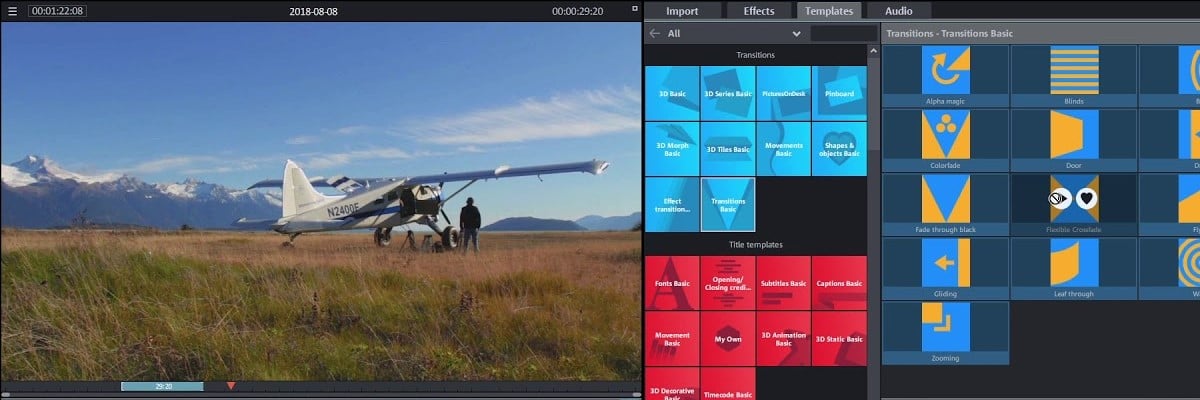
Magix Movie Edit Pro can be used to create intros and outros for the videos using the ready-made templates. There is a new title animation feature that lets you add finishing touches to the videos and also add slow motion and fast motion effects by modifying speed.

The tools offer over 1500 effects and music tracks to select from. For green screen addicts, Movie Edit Pro supports the Chroma keying feature to make it all possible.

Magix has also improved the workspace with new controls offering precise editing tools. You can rearrange, delete and reorder the tracks on the timeline with ease as well.

Besides, you can match colors for multiple videos in the same group with match color option. For the export, Movie Edit Pro supports multiple formats including support for direct upload to YouTube, Facebook, and Vimeo.

Magix Movie Edit Pro comes with tons of effects and music tracks while offering an excellent set of editing tools. The beginners can learn to use the basic editing functions quickly; however for the difficult procedure, one needs to spend a good amount of time to learn all the tricks it has on offer.

Pros

  • 4K file support
  • Tons of video effects
  • Multicam support
  • Excellent audio editing tools
  • New automatic program wizard

Cons

  • Advanced features involve a steep learning curve
  • Slow rendering process

⇒ Get Magix Movie Edit Pro 


Pinnacle Studio

Pinnacle Studio is our last recommendation in this list, but that doesn’t mean it is the least of the lot. Pinnacle Studio offers a great combination of usability, performance and essential video editing that can be used and mastered by even beginners while the advanced users will figure out the working in no time.

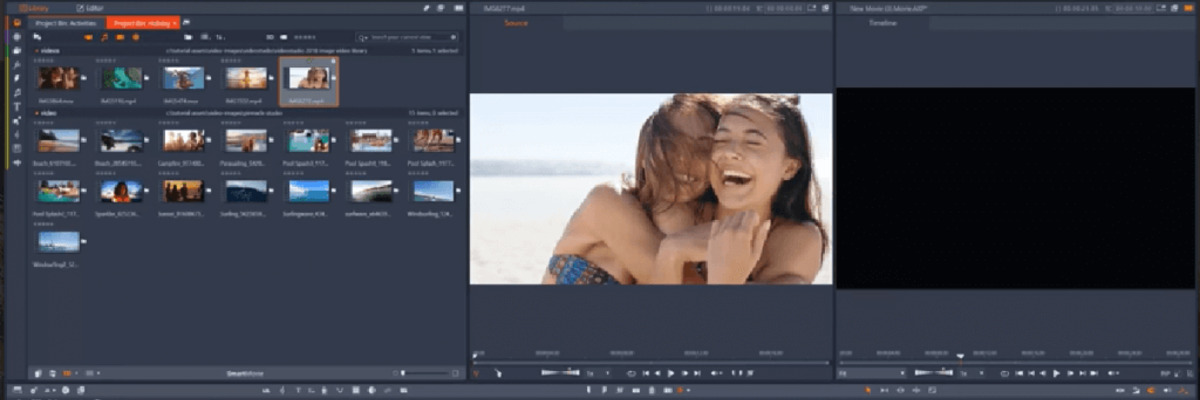
Pinnacle Studio offers ready-made templates if you want to render a video without putting much effort into editing quickly. Or you can edit the raw footage on the multi-track timeline and experiment with included 1500+ filters and effects.

You can work with features like multi-camera video editing and split-screen video feature. The built-in MultiCam feature enables you to record the screen as well as webcam simultaneously for creating tutorial videos.

The selective color feature lets you highlight a single-colored object from a picture while keeping everything else in black and white.

Other features in this tool include stop-motion animation, green screen (Chroma keying) feature, time remapping for slow and fast motion video effects as well as an audio editor.

Pinnacle Studio has one of the best rendering speed among the video editors. When combined with its price tag and the features like MultiCam screen recording, it can be used for more than just video editing.

Pros

  • Intuitive user interface
  • 360-degree video and VR support
  • Super fast rendering
  • Tons of visual effects
  • 4k video and H.265 support

Cons

  • Occasional crashes

⇒ Get Pinnacle Studio 


For professionals content creators it is important to have a good drone but what’s equally important is to have a powerful video editor that is easier to use yet offer all the effects and templates that will help you produce a studio-grade video.

We have tried to find the most accessible yet affordable tools for this guide that can help both the professionals as well as home users who use drones to capture fun and family moments and wants to make it special with adding some cool effects.

What do you think? Which is your preferred software for editing drone footage? Do let us know in the comments below.

Wondershare Filmora 11 Video Editor Review [2026 Honest Hands-On]

Video editors worldwide have had a reputation for being hard to master, costing a lot of money, and being hardware-intensive software that will melt budget PCs.

Putting that aside, we would like to perform a short review on Wondershare, the latest version of a critically acclaimed video editing software, now with more tools than ever before.

We will be looking over the software to see what it has to offer, what new updates version 11 brings, and whether or not investing in it is truly worth it, so continue reading below to find out more.

The improved Filmora 11 comes with many cool options like new FX, Speed Ramping, Instant Mode, Audio Beat Sync Masking, a myriad of templates, over 10 million stock media files, and more.

What are the new features of Filmora 11?

1. FX Plug-ins

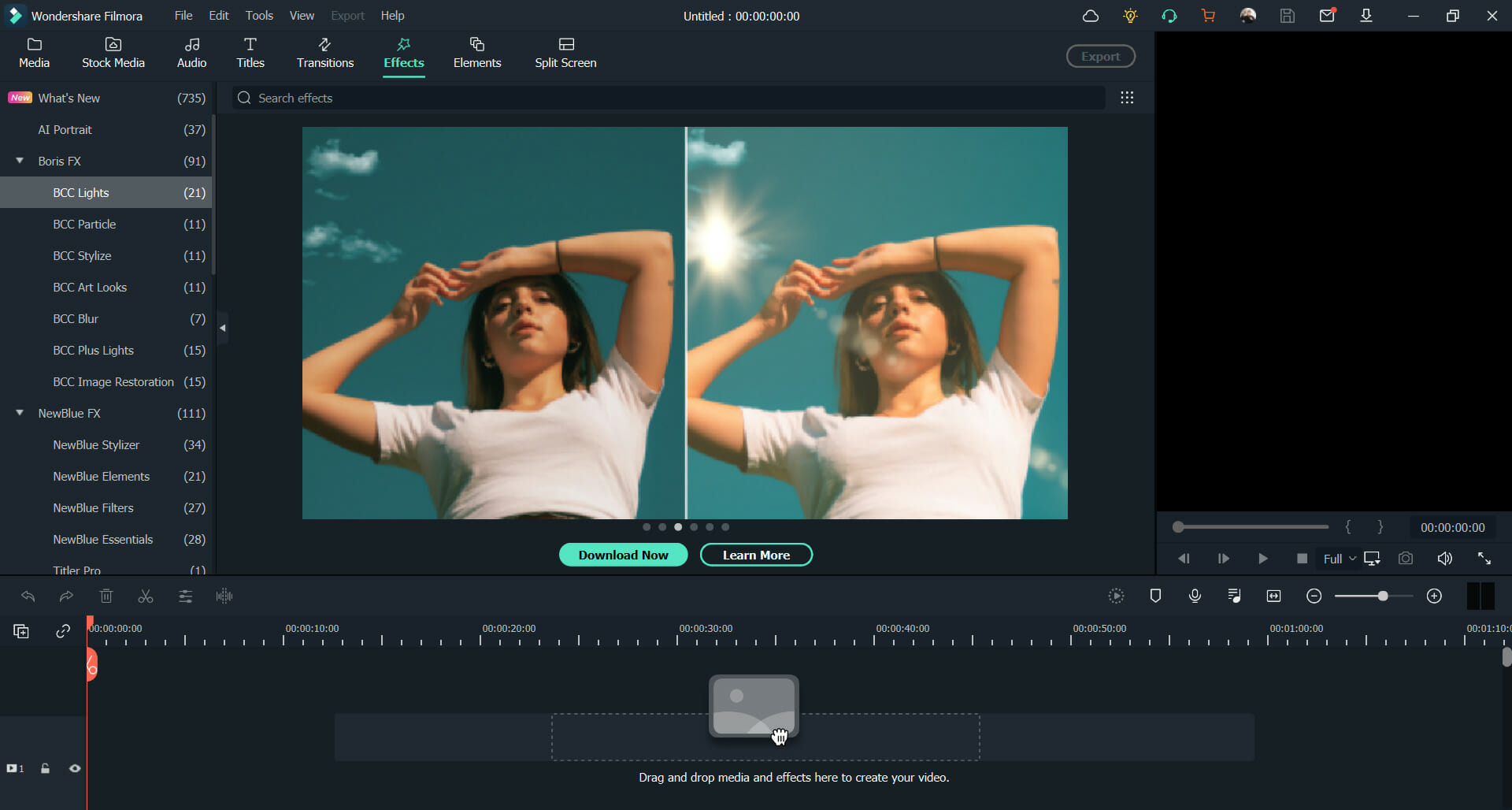
Filmora has new cooperation with Boris FX and NewBlue, so you can use the professional add-on video effects from them like 3D title, and motion blur to your videos in Filmora 11.

That will make editing cinematic videos a breeze and will certainly add that wow factor to your creations.

2. Speed Ramping

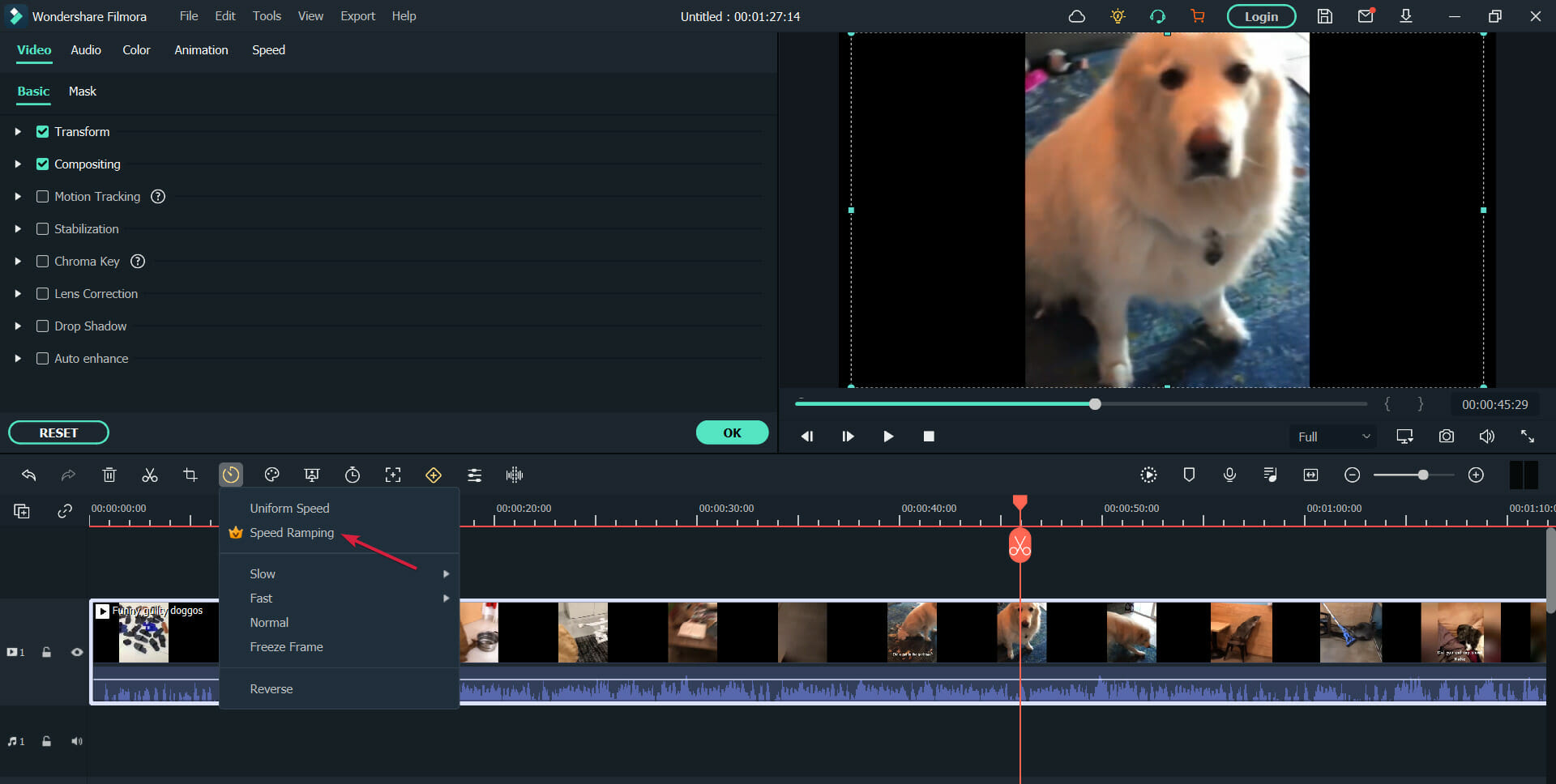
Slowing down or speeding up frames in a video is a really complex stunt for any video editing software, but with Filmora 11, you can achieve it with just a few clicks.

You get six presets for Speed Ramping that cover pretty much all the situations, but you may adjust them or create your own presets in a fraction of the time needed for other software.

When you alter the speed of the clip, most video editing software will also affect the sound behind it. The neat trick is that Filmora 11 can maintain the audio pitch throughout the duration of the effect, leaving the sound intact.

3. Instant Mode

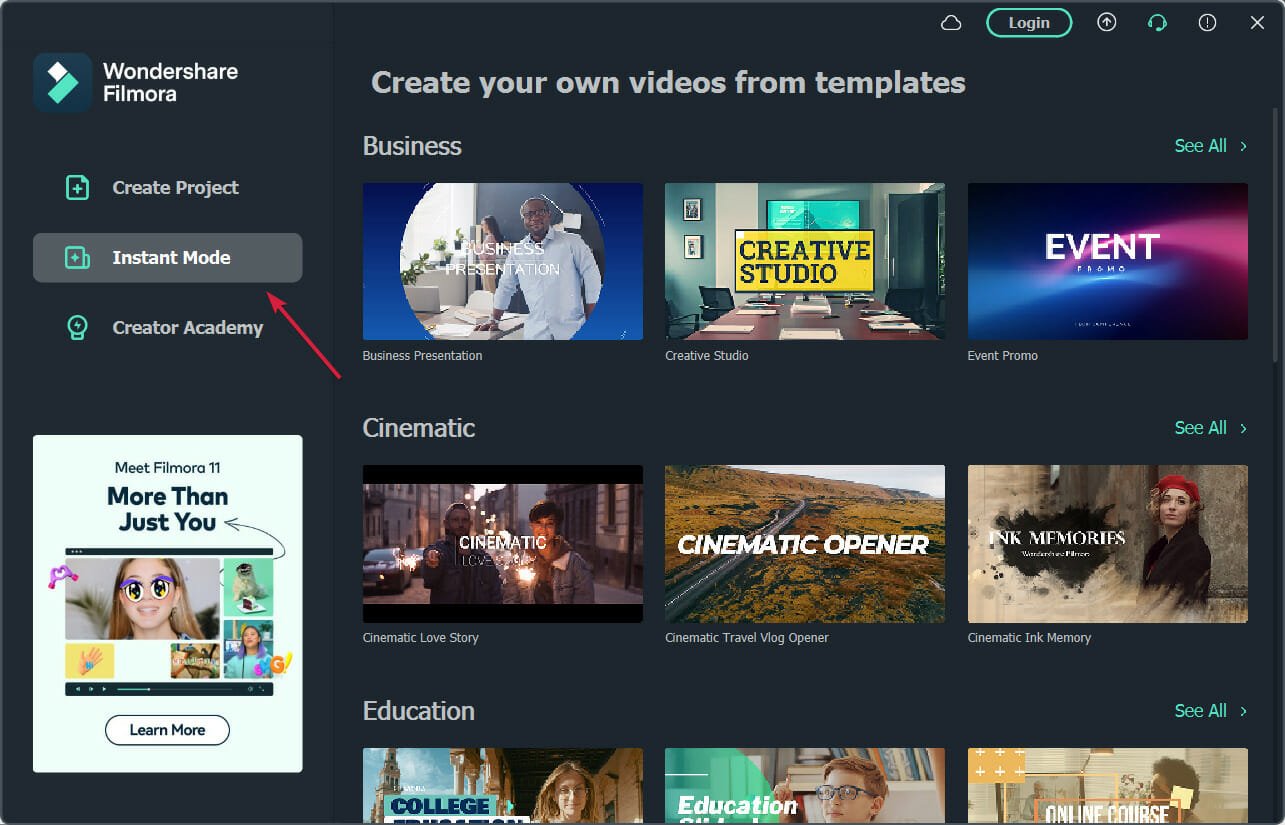
Instant Mode is a Windows-only feature that allows you to produce a video complete with all the elements, including titles, highlights, effects, and more, in less than 5 minutes.

In fact, we created a guide on how to create a video quickly using Filmora 11 that will show you exactly how to use the Instant Mode so you can see for yourself.

All you need to do is to pick one of over 115 templates available, and add your media, and the software takes care of everything automatically.

4. Auto Beat Sync

Filmora 11 has a new great feature called Auto Montage Maker, which uses the Auto Beat Sync tool to match the video footage with the music clips, analyze beat points, and then add video effects or switch the view.

The technology also detects any bad frames of the footage, which are too dark, overexposed, or with jitter, and deletes them automatically to quickly get a video matched music.

We also need to mention the Auto Synchronization feature that is used to align the audio and video captured by different cameras in the same scene.

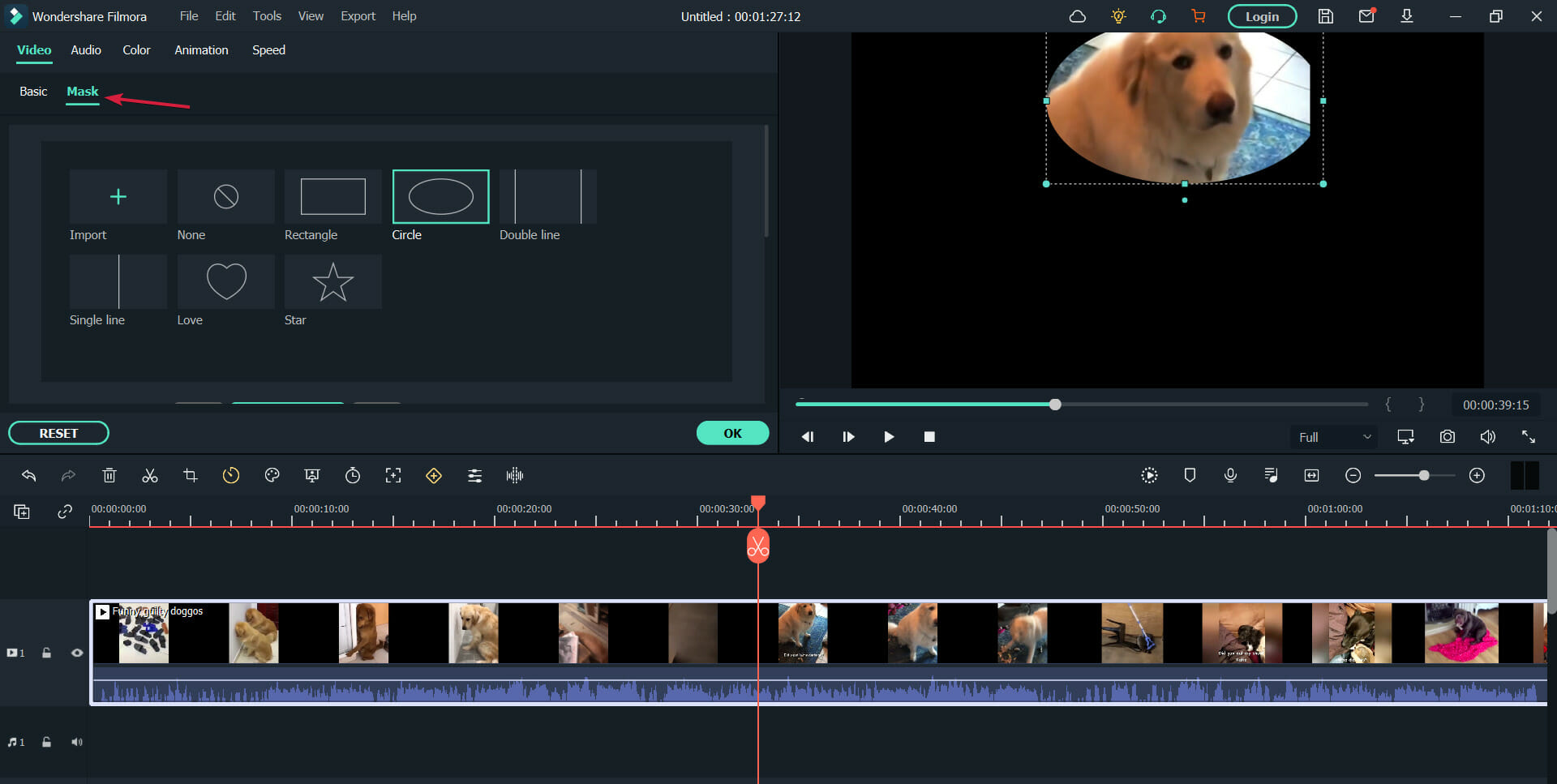
5. Masking

Maybe you don’t want everyone to see all the objects in a frame or a part of the video. That’s where Filmora 11’s masking feature or the many overlays available come in handy.

Choose from the many shapes available, including rectangles, triangles, hearts, and more to hide the elements you don’t want in the video.

You can move the mask around the frame, and adjust its size and orientation with simple mouse movements.

Other new features include access to a library of over 10 million stock videos, an increased number of templates, and the Wondershare Drive.

The latter will allow you to upload and share project documents, templates and export videos. That also helps you access your projects from another PC and continue your work.

What are the other key features of Filmora?

Back in 2020, we had our hands on Wondershare Filmora X, and back then they managed to make an amazing impression with what their product had to offer.

Given the high standards posed by version X, Wondershare Filmora 11 really had to reinvent itself if they wanted to stay on top of their game, which they did with flying colors.

1. Motion Tracking

This neat feature lets you attach an element to a moving object in your video without making it look unnatural.

We all know how videos can look cheap when you see objects moving around that obviously don’t belong to the original background. That’s why it’s the most crucial element added in Filmora X.

Filmora made this tool extremely easy-to-use, although there are current limits to how efficiently you can use it, as objects that have a high contrast compared to their background will be tracked better.

2. Keyframing

Keyframes can now be used to edit videos so that you can change their position, rotation, scale, and opacity, and add animation effects to liven up the videos.

You’ve probably seen a lot of keyframing especially in YouTube videos, and while we did spend a little time getting the hang of the feature, we found ourselves working with the tool just for fun.

Currently, keyframing can be used to take video elements and rotate, scale, move or alter their transparency. We await to see what future updates will bring.

3. Color Match

Color matching is yet another new feature brought in version 10, and in terms of importance, it goes somewhere near motion tracking, since this effect can mean the difference between an amateur and a professional video.

Stitching together several clips together will now seem seamless once you use this new feature to match the colors accordingly.

There are plenty of color parameters that can be fine-tuned, like white balance, color enhancement, and 3D LUT.

Thankfully enough, you get to preview every single change you make, which is indeed a time saver as the tool does need a bit of practice getting used to.

4. Audio Ducking

If you want to create videos where dialogue is an important element, then this tool will let you automatically fade music so that the words will be easier to comprehend.

This neat tool will probably make social media users flock towards Filmora X, since their videos are usually ones that consist of them talking into the camera, with the occasional background music causing disturbance.

The tool itself was very easy to use, and I managed to reduce background music from a video with 2 clicks and by moving a slider.

There are, however, some limitations from what we saw, since audio ducking doesn’t seem to be all that efficient if the background music is very lyric-predominant, such as rap or hip-hop, but the difference is minor.

5. Silence Detection Add-on

This tool is something we were really interested in trying once we read about it in the changelog, especially since awkward moments of silence are especially bad for presentation videos.

In simple terms, this tool lets you automatically cut out moments of silence or low volume of videos.

All you need to do is select a video that has audio, and then input the parameters that need to be followed, such as minimum silence duration, the volume threshold for the silence to be considered silence, and the softening buffer for transitioning between cropped segments.

Wondershare Filmora 11 – a price plan for every pocket

Filmora 11 is available in a free version as well, and while many of you may be used to free versions of video editors that are full of restrictions in terms of access time or available features, this doesn’t apply here.

The free version of Wondershare Filmora 11 is available for an unlimited amount of time, grants you access to all of its features and tools, and there is no limit to how big the videos can be when using it.

The only limitation, which is quite understandable (and amazing for being just the one) is the fact that all exported videos will have a watermark applied to them.

This unlimited access to all the power that Filmora offers is a great way of letting users know what they can truly do with the product and also lets them better judge whether the investment is worth it or not.

Reference:

Speaking of investment, Wondershare Filmora 11 is available starting from $49.99 USD per year. For those who are interested in advanced effects, plug-ins, and Wondershare Drive, the subscription is $18.99 USD per month.

Wondershare Filmora 11

Powerful for advanced users, and accessible to beginners, Wondershare Filmora X has it all!
Get it free Visit website

Intuitive interface, low learning curve, and more

Once you are done installing the program, using it will be a piece of cake, since the interface is optimized in such a way that even beginners will get a hang of it in no time at all.

Of course, this can still prove challenging for some, and Filmora comes with plenty of built-in tutorials that are meant to show the user around the interface, familiarizing him with all the tools that are at his disposal.

In fact, Wondershare took extra steps in creating these tutorials, to the point where they designed them to be interactive, engaging, and even rewarding, by designing them to look and feel like challenges with rewards at the end.

These challenges cater to users of all levels, and they are separated based on their difficulty in different categories:

  • Get Started
    • Grants you a free video effect pack
  • Advanced Challenge
    • Grants you 7 days of access to the Filmstock Standard Library
  • Get Creative
    • Not exactly a set of challenges, but it grants access to their online libraries of tutorials.

Completing these challenges is actually quite rewarding, so even if you know how to use the program already, not taking advantage of the extra freebie would be a shame.

Once you’ve passed this phase and have truly accustomed yourself to what Filmora can offer, you can finally appreciate what a vast toolset it provides users.

Not only does the smooth interface keep the elements and buttons to a minimum, but one can also appreciate the responsiveness of the program itself.

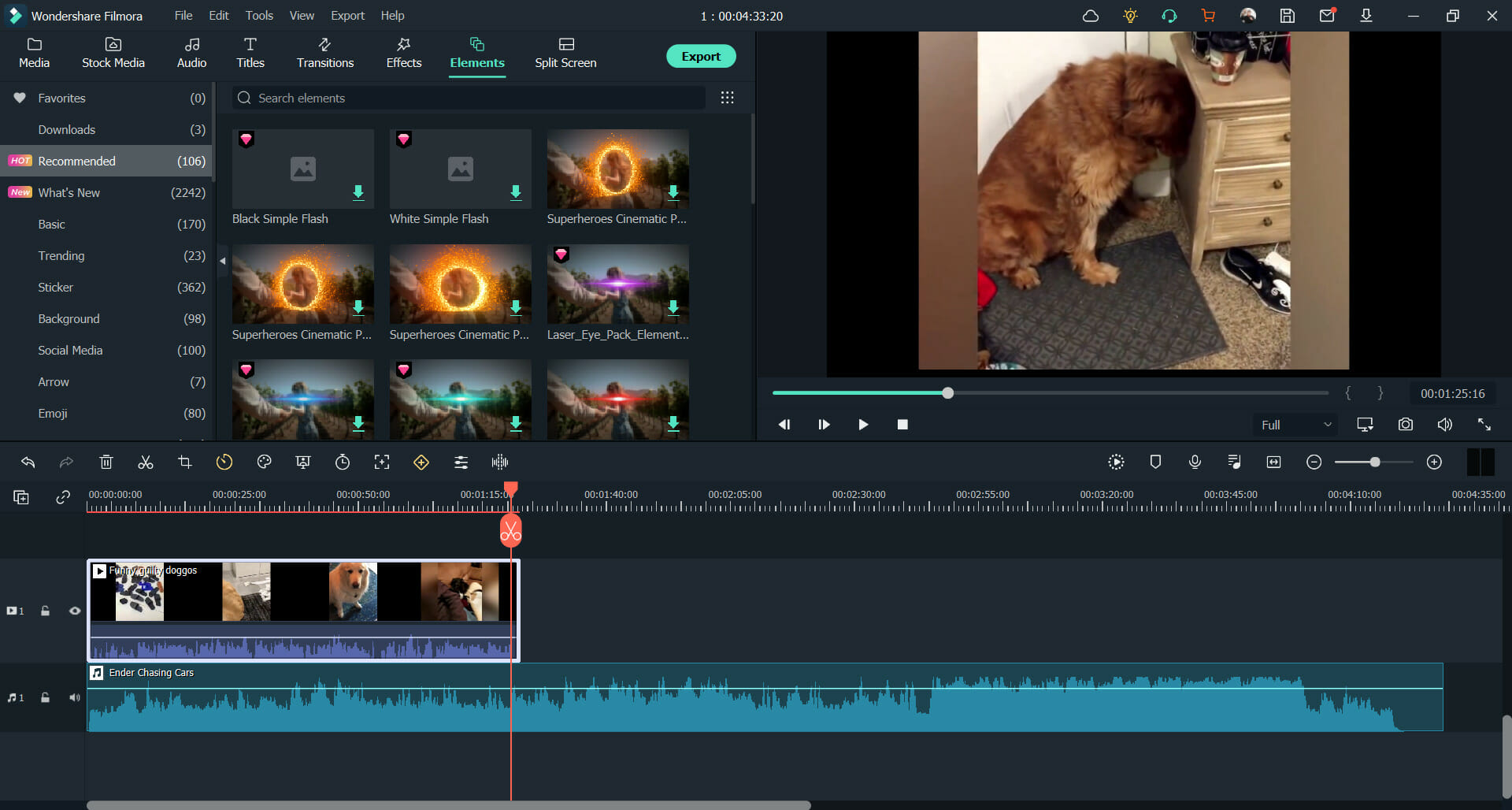
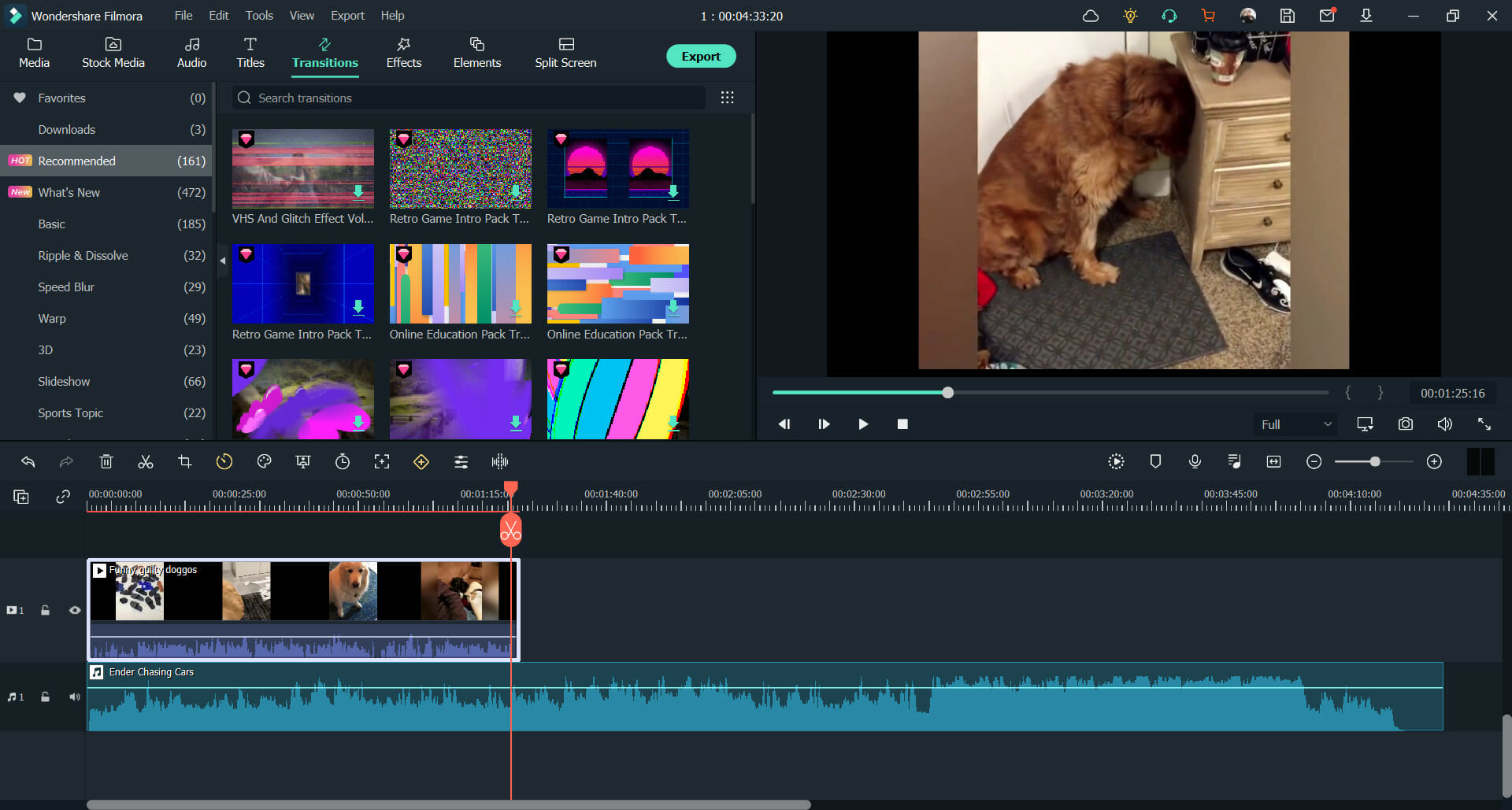
Besides, you have an entire library of elements that you can use to enhance your videos, such as:

  • Audio samples
  • Title editing
  • Transition effects
  • Video effects
  • Graphical elements
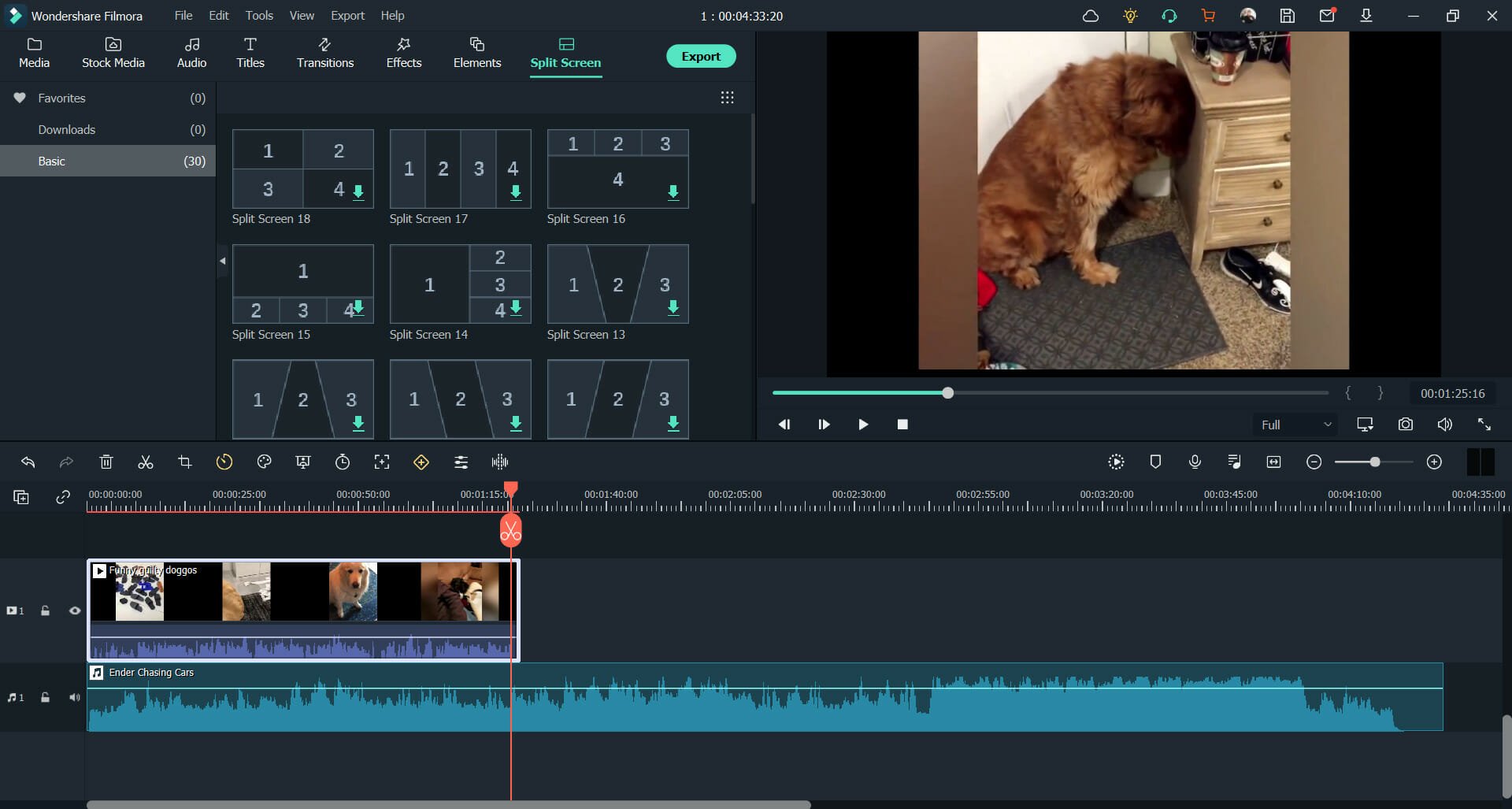
  • Split-screen templates

All of these assets total in the hundreds, and the only true limits of what you can do with the videos is strictly tied to your imagination.

Of course, you also have access to the more basic tools, such as video trimming, cropping, and resizing, but these have become somewhat standard to all video editors.

Closing thoughts on Wondershare Filmora

Pros
Available as a free version with pretty much no restriction
Great for both beginners and advanced users
Constantly updated with new effects
Interactive tutorials with rewards
Smooth and intuitive interface
Cons
The cost of their subscription make the Perpetual plan seem like the obvious choice

As far as we’re concerned, Wondershare Filmora 11 does justice to its previous incarnations, and the program did manage to reinvent itself in a way that makes buying it worthwhile.

Of course, you don’t need to take our word for it, go and download the free version, try it, and see for yourself whether the program truly has everything you need or not.

Have you tried Filmora 11 yet? If so, let us know what you think about it by leaving us your feedback in the comments section below.

Microsoft’s Windows 10 Alarms & Clock app just updated with a whole new look

Windows 10’s Alarms & Clock app, the free one that comes pre-installed on all Windows 10 devices, updated this week with one of its biggest updates in a while.

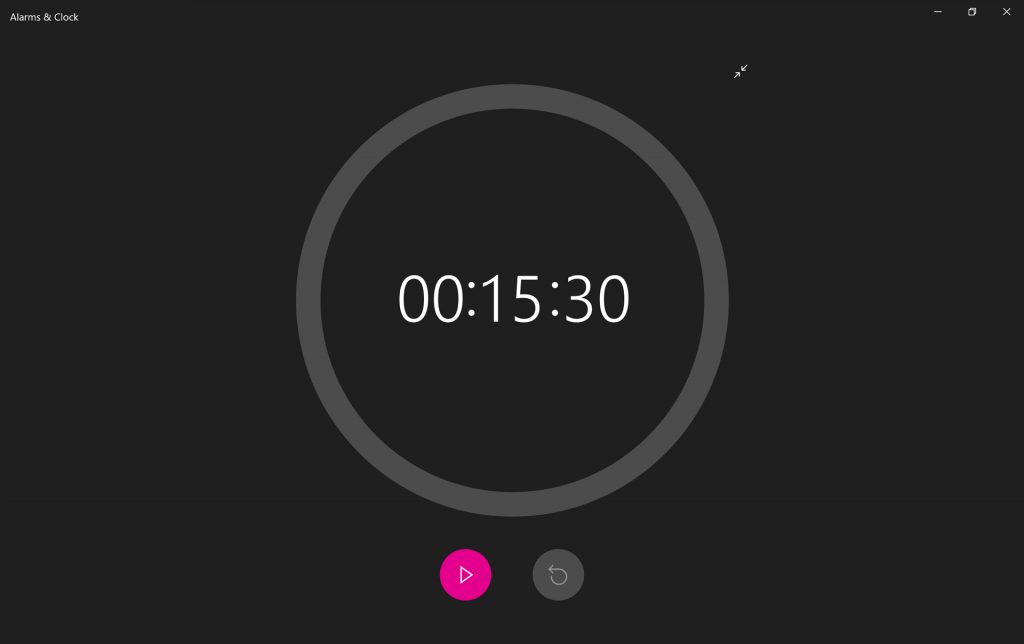
This update, which brings the app up to Version 10.2101.28.0, refines the overall design allowing for much larger font and adding a fullscreen option for the Timer and Stopwatch functions.

Windows 10’s Alarms & Clock app

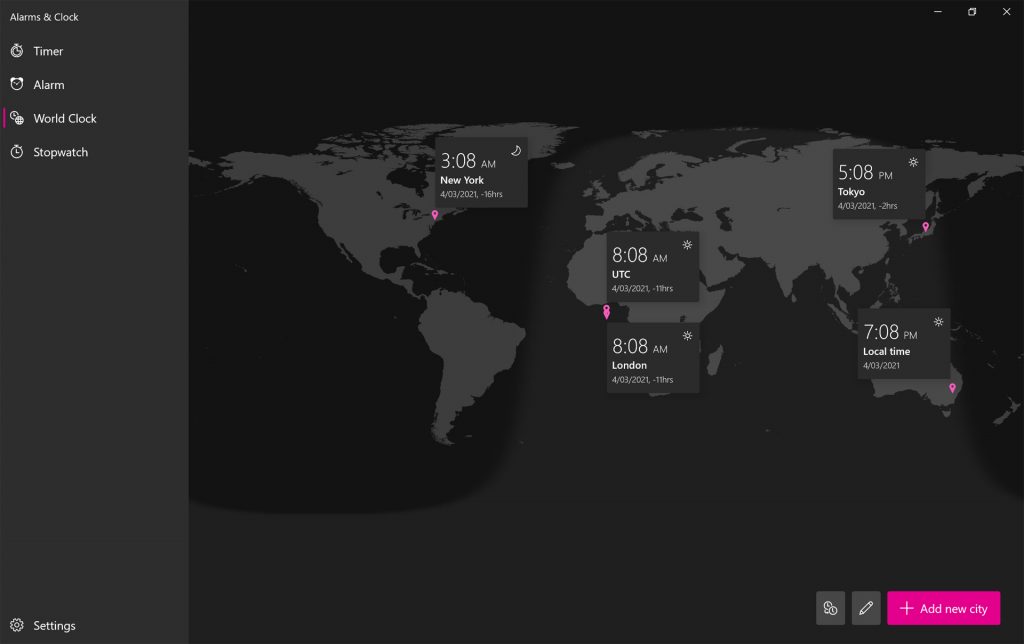
The World Clock also gain some improvements with the addition of weather icons and current date for each city location which should come as a relief to those who still get confused by time differences when traveling or planning a meeting.

Windows 10’s Alarms & Clock app

The Alarms & Clock app menu was also moved to the left side of the screen and the app now better adjusts when resized.

Do you use Alarms & Clock? Let us know if you like these changes in the comments below and then follow us on Twitter and Facebook for more Windows 10 app news.

Windows Clock
Windows Clock
Price:
Free

5 best read-only PDF converters [Windows & Mac]

Many users are using PDF format for document sharing, but sometimes PDF files can be protected or in read-only mode.

To edit these files you’re going to need a read-only PDF converter, and in this guide we’re going to show you the best tools for the job for both Mac and Windows.


What are the best read-only PDF converters?

Adobe Acrobat

Being the most popular and used tool for Portable Document format files, Adobe Acrobat allows users to perform advanced file management.

Thus, using this solution from Adobe, you will be able to view, create, manage, manipulate and print different files.

Using Adobe Acrobat repeatedly, you will be able to save your PDF file as read-only file with ease. You can also easily convert from PDF and to PDF format.

Adobe Acrobat has more useful features, such as extensive editing, text recognition, and much more. If you want to make PDF read only, this is the right tool for the job.

Icecream PDF Converter

Icecream PDF Converter is a great tool for converting different files into the PDF format. Now you can use any Word, jpg or epub and quickly convert it into PDF.

Another feature of this read only PDF converter allows you to take different files and join them into a single document. The Icecream PDF Converter contains a built-in PDF reader that supports files that are password-protected.

We also have to mention Icecream PDF converter’s OCR feature that recognizes text, allowing you to create editable Word documents.

When it comes to file conversion, Icecream PDF Converter is one of the best tools for the job, so be sure to try it out.

Nitro PDF

A performant read-only PDFconverter, Nitro PDF your ideal tool for converting PDF files into Word, Excel or PowerPoint formats, and vice versa.

Nitro PDF will also retain the format of your files by maintaining the aspect of your images, fonts and formatting.

Also, when using an Outlook plugin, you are able to convert emails, attachments, and email folders into PDF, and archive important files for future usage.

Wondershare PDFelement

PDFelement pdf password remover software

Wondershare PDFelement is an PDF software that allows you to create PDF forms and documents. Edit, create forms, annotate, convert and protect your files with ease.

This software is available on multiple platforms, so it’s a great option if you want to make PDF read only on Mac or Windows.

If you need a PDF editor that works on multiple platforms, supports PDF forms and annotations, then PDFelement might be the right choice for you.

Mac PDF Converter Ultimate

Mac PDF Converter Ultimate is another great tool that can make PDF files read only on Mac. It was designed to convert PDF files into editable text documents.

Using this software you can easily convert PDF files to ePub, text, Excel, HTML and other file formats.

You can also use Mac PDF Converter Ultimate to convert a PDF file into image-related formats such as jpg, png or gif.

The software also has advanced OCR technology, so ti works with scanned PDF files that are image-based.

If you’re looking for the best read-only PDF converter, Adobe Acrobat is the best tool you can use for this purpose.

However, other entries on our list aren’t too far behind in terms of functionality, so be sure to consider them as well.

Before leaving, don’t hesitate to check our latest guide on the best fill & sign PDF tools that you can use.

FIX: VPN blocked by Webroot [8 Easy Solutions]

Many Windows users reported that their VPN was blocked by Webroot antivirus. If you experienced the same issue, Windows Report will show you how to fix this problem.

The VPN blocked by Webroot problem prevents VPN users from making a VPN connection whereby anytime they attempt to switch on their VPN service, they get halted in the process.

Founded in 1997, Webroot is one of the powerful antivirus programs with excellent web filtering capabilities.

Although there are several antivirus programs on the market as well, some antivirus tools come with VPN services, while others are overprotective such as Webroot, and block VPN connections.

Windows Report has enlisted the best workarounds to fix the VPN blocked by Webroot issue. You can try out any of the solutions so as to fix the problem.

What can I do if Webroot blocked the VPN?

1. Temporarily disable Webroot

  1. Locate the Webroot SecureAnywhere icon in your system tray.
  2. Right-click on the system tray icon and then click on the Shutdown Protection option.
  3. Follow the prompts to shut down the Webroot protection.

You need to consider temporarily disabling Webroot in order to use your VPN service. This should enable your VPN to bypass the VPN blocked by Webroot issue.

Note: After using your VPN, it is essential that you repeat these steps and activate Webroot protection afterward. This will protect your system from malware and viruses.

Alternatively, you can also disable SSL port (443) monitoring which is what some VPN services use to initiate the connection.

Webroot might block this port as a security measure. Therefore, you should disable SSL monitoring for the port exclusion.

Meanwhile, you can do this by disabling the Web shield & Filtering option in the Webroot program.


2. Change your VPN

While there are numerous VPN service providers out there; some of them are not compatible with Webroot. This is due to technicalities involved with the applications’ processes; therefore, you need to change your VPN.

Our recommendation goes to the best VPN, a world-class solution that is renowned for its versatility as it is for its well-rounded, comprehensive security, and privacy-oriented features.

This highly flexible VPN solution is perfectly suited to blend in seamlessly with multiple systems, devices, browsers, and software such as Webroot.

And its adaptability stretches beyond apps compatibility all the way to its impressive network of servers.

Boasting 22,228 gateways with global coverage, this tool routes your traffic through encrypted VPN tunnels, making sure that your data is secured and inaccessible to prying eyes.

This generous server pool also means that buffering, latency, or slow, faulty connections are left in the past.

Instead you get to enjoy lag, ISP throttling, and geo-restrictions free connections to fast and reliable servers anywhere in the world regardless of your physical location.

Speaking about speed, you also benefit from unlimited bandwidth and lightning-fast download speeds to get the most of your web experience and never worry about snoops, hackers, or unwanted attention.

Your browsing is anonymous, your IP address hidden and your online identity protected by multiple layers of privacy.

Private Internet Access

Private Internet Access

Don’t let overprotective Webroot compromise your online privacy – team up with PIA!
Check priceVisit website

3. Exclude VPN in Webroot

Webroot
  1. Launch the Webroot antivirus program.
  2. Now, go to Virus & Threat protection settings.
  3. Select Exclusions.
  4. Select Add or remove exclusions.
  5. Select Add an exclusion and add your VPN client software.

You need to exclude your VPN software from Webroot protection settings. This automatically resolves the VPN blocked by Webroot issue.

Normally, this should resolve the VPN blocked by Webroot problem; however, some VPN software use the port 1723 for TCP, and ports 4500 UDP and 500.

Therefore, you need to add your VPN in Windows Firewall Advanced settings. See how you can do that in the next solution.


4. Add Exception in Windows Firewall

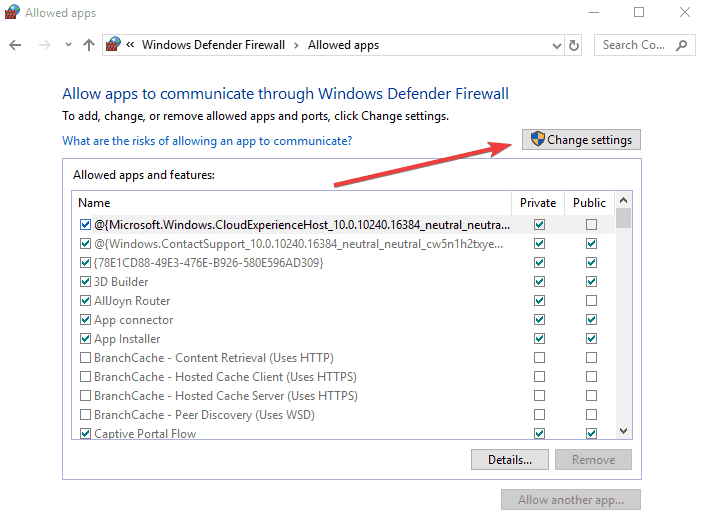
  1. Go to Start, type Allow a program through Windows firewall and then hit the Enter key.
  2. Click on the Change Settings option.vpn blocked by webroot
  3. Now, Click on Allow another program.
  4. Select the VPN software you want to add or click Browse to find the VPN software, and then click OK.
  5. Check if you can connect to your VPN.

However, if you still experience the VPN blocked by Webroot problem, you proceed to the solution.


5. Reinstall the VPN client software

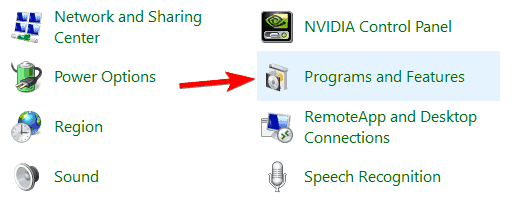
  1. Type Control Panel in Windows search and press Enter.
  2. Select Programs & Features.vpn blocked by webroot
  3. Find your VPN from the list of programs and select Uninstall.
  4. In the Setup Wizard, click you’ll get a notification after a successful uninstall, so click Close to exit the wizard.
  5. If the VPN is still listed as available after uninstalling it, press Windows key + R to start the Run app.
  6. Type ncpa.cpl and press Enter to open the Network Connections window.
  7. Under Network Connections, right-click on the WAN Miniport labeled with your VPN.
  8. Select Delete
  9. Go to Start, type Network Connections, and press Enter. Right-click a VPN connection and use the Delete option.
  10. Select VPN. If you see your VPN as available, delete it.

Some Windows users reported that they were able to resolve the VPN blocked by Webroot issue simply by reinstalling their VPN client software.

After completing the uninstall operation, proceed to install the VPN client software afresh using the executable file provided for you by the VPN service provider.


6. Add Rule for PPTP

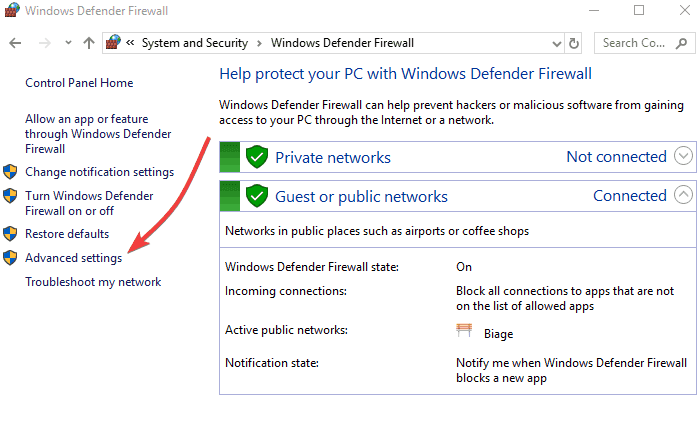
  1. Start Control Panel as indicated in the previous solution.
  2. Now, go to Windows Firewall and select Advanced Settings.vpn blocked by webroot
  3. Search for the Routing and Remote Access (under Inbound Rules and Outbound Rules)

Another way of resolving the VPN blocked by Webroot issue is by enabling the PPTP rule.

For Inbound Rules: right-click Routing and Remote Access (PPTP-In), select Enable Rule.

For Outbound Rules: right-click Routing and Remote Access (PPTP-Out), select Enable Rule.


7. Change Antivirus

Webroot antivirus might be incompatible with your VPN software thereby resulting in the VPN blocked by Webroot problem.

In order to resolve this issue, you can consider replacing Webroot with another antivirus that is compatible with your VPN.

The antivirus recommended below offers the best protection but it is also less prone to any errors or interference with your system or any other software, including your VPN.

⇒ Get Bitdefender


8. Contact customer support

contact customer support

If you are still experiencing a VPN blocked by Webroot issue, then we highly recommend that you should contact either your VPN service provider or Webroot for advanced troubleshooting procedures.


Conclusively any of the aforementioned solutions should be able to fix VPN blocked by Webroot problems. So, ensure you try out any of the workarounds in order to fix the VPN problem.

We do appreciate it if you share your experience with us. Let us know how it worked in the comments section below.

Download Bitdefender VPN for Windows

Bitdefender originally focused on dedicated antivirus software and later decided to also offer a VPN in their software package.

Some of their current antivirus packages include Bitdefender Antivirus Plus, Bitdefender Total Security, and Bitdefender Internet Security.

The company recently added the VPN feature to its current antivirus packages.

Bitdefender VPN is spectacular, although, there are lots of things to improve on as a standalone VPN service. However, it is ideal for users with existing Bitdefender packages as it gives you secure and anonymous browsing.

Here’s what to expect from Bitdefender VPN:

  • Support for OpenVPN, L2TP/IPsec, and IKEv2 (new) VPN protocols
  • Secured Wi-Fi, especially on public networks
  • Compatible all major OS
  • Unblock geo-restricted content
  • Hide your IP address
  • Decent encryption
Bitdefender VPN

Bitdefender VPN

Encrypted traffic and IP hiding for complete Bitdefender-powered online anonymity. (Subscription plan includes antivirus as well).
Check price Visit website

Once you’ve downloaded and installed Bitdefender VPN, nobody will have access to your online activity logs.

In other words, advertising agencies won’t be able to profile you so as to serve you personalized ads. Your ISP won’t be able to spy on you and then sell your browsing history to third-parties, as most of ISPs do.

Bitdefender VPN servers

Bitdefender VPN offers a limited amount of servers for subscribers to access. This could be because they are relatively new in offering VPN services.

Yet in our view, this is a disadvantage depending on where you are; the available servers are far away and this can make the speed of the VPN connection much lower.

In addition, there could be congestion of servers which could cause a drop in performance. Notwithstanding, BitDefender servers did quite well on testing offering decent speeds for streaming and browsing.

Privacy and security

Privacy bitdefender vpn windows 10

It is quite unclear what the privacy and security measures are of the Bitdefender VPN service. For instance, it is unclear what encryption is utilized by Bitdefender or what privacy policy Bitdefender uses.

When we checked the terms and conditions, it was stated that the VPN does not forward users’ contact data or internet data to third parties.

But it is unclear to us whether users’ internet usage logs are stored. However, for the sake of simplicity, we assume that Bitdefender VPN does not keep logs.

As a service that guarantees the privacy of its users, we believe that this information must be transparent. This applies both to openness in the encryption that is used and openness in the logging policy that is used.

The fact that Bitdefender does not do this ensures that low points are scored in this review.

VPN Compatibility

Bitdefender VPN windows 10 review

Bitdefender is available for all known operating systems most especially Windows OS. If you want to use Bitdefender VPN on other devices, such as a router, it is not possible despite the OpenVPN protocol that is used.

The necessary data to set up a connection with the Bitdefender OpenVPN servers is missing; hence, it is advisable to get the Bitdefender Box to secure these devices.

⇒ Get Bitdefender Box

Installing BitdefenderVPN is simple when you install it on its own or install any BitDefender package; the VPN functionality is automatically added.

Windows Installation

bitdefender vpn windows 10 install

If you are an existing Bitdefender customer, the appearance of the software will not be unknown to you. In the main screen, you can choose privacy on the left side.

In that overview, there is then the option to select VPN. Meanwhile, if you use either the free or premium VPN, you have the option of connecting to any VPN on the server list.

In the Bitdefender settings screen, you also have the option to automatically start the VPN connection when Windows starts up. This is an easy and convenient option.

Bitdefender Premium VPN Pricing

Bitdefender VPN

The free version of Bitdefender VPN can be used if you have a subscription to a Bitdefender software package such as Bitdefender Total Security suite.

However, there are many restrictions applied to this free VPN. Hence, you do not have a free server choice in the free version.

In addition, there is also a 200MB data limit. This data limit is virtually unworkable, as it is easily consumed when browsing.

The free version of Bitdefender VPN is sufficient if you want to use it, for example, to check your mail at the airport or for safe internet banking.

To access Bitdefender premium VPN package you will need to upgrade to an extra package. The price for using the VPN servers is in itself very reasonable.

It is true that you have already paid for other features in the main package of Bitdefender; hence, if you need only the VPN service, then this is a costly service.

At the time of writing, the extra costs for the Premium VPN package are $ 49.99 every 12 months. But due to the cost of the Bitdefender package, you pay at least $ 73.98. This is still a reasonable price for a total security package.

Bitdefender VPN and geo-restricted sites

Sometimes, people want to stream media, watch online TV/radio, play online games, and even browse on some websites but they get restricted.

This may be due to geo-restrictions locks placed by the website owners. However, the only way to bypass this restriction is by using a VPN.

For example, it is not possible to watch the American version of Netflix in the Netherlands normally but with a VPN, you can easily spoof your location.

Because Netflix is trying to block VPN connections, it is always important to know whether your chosen VPN provider can indeed unblock access to the American version of Netflix.

Bitdefender can bypass imposed geo-restrictions on such major streaming sites.

Bitdefender is still just starting up which is seen in the number of servers offered and their server speed. The cost of upgrading to the service is high considering the features they currently offer.

You are still obliged to purchase other Bitdefender suite packages before you can use the VPN services.

However, it is still a good service to use if you have an existing BitDefender subscription and want more privacy and anonymous browsing.

Valheim is not saving when logging off? Try these fixes

Valheim is an incredible fast-trending survival game with a 95% approval rate on Steam which is great for an early access title.

But we can see how that can happen because the gameplay is great and the graphics helps a lot too.

However, like any other starting game out there, Valheim came with its share of bugs and one of them is that users’ games are not saving after logging out and that translates into hours of lost play.

Here’s how a user expresses his complaint on Reddit:

I’m not sure why but whenever I log out of Valheim my game does not save. It goes to a black screen and does not do anything.

When on the black screen it shows that I am still in the game and I’ll still get the notifications that I can eat more and other related alerts.

The only fix for this for me is to go into cheat mode and manually save. Does anyone have a fix for this problem? I lose many gameplay hours because of this issue.

The Valheim not saving error is really frustrating because sometimes you spend a lot of time and effort to get a special item only to find out in the next session that all was for nothing.

So, it seems that this issue mostly occurs in single-player mode when you are offline. When you play online, the game server saves the state periodically.

There is no official fix for this issue yet, but we have found a few solutions that can get you over this problem until the next update.


How can I fix the Valheim not saving problem?

1. Save the game from your console

  1. Press F5 to open up the game console.
  2. Type save (all lower case letters) and press Enter.
  3. That will save your game so do that before logging out.

That’s it! Next time you open your game you will have your progress saved but you need to remember to do that every time before logging out.


2. Uncheck the read-only box from the .old file

  1. Open Windows File Explorer by pressing the Windows + E keys.
  2. Navigate to the following folder: C:/Users/Username/AppData/LocalLow/IronGate/Valheim/characters
  3. Locate the charactername.fch.old file (replace charactername with the actual name of the character).
  4. Right-click the file and select Properties.
  5. Uncheck the read-only attribute and click OK.

It seems that this problem is caused by the fact that a file named charactername.fch.old (replace charactername with your actual character name) somehow gets the read-only attribute.

This means that the game cannot overwrite it with new data and that’s why your game is not being saved. The solution is to remove the read-only attribute from the file.

However, this trick doesn’t work every time because some users complained that the read-only attribute comes back after a while.


Unfortunately, this is by far not the only Valheim bug out there. For instance, many gamers complained about screen shaking but you can fix that issue easily.

You should also consider installing the latest Valheim mod that can fix a lot of other issues with the game.

Buggy or not, Valheim is among the top 5 most popular games in Steam so a few issues won’t stop you. Anyway, it would be excellent to have an official copy by hitting the button below.

Valheim

Valheim

Valheim is one of the most popular games on Steam so get on with this incredible survival adventure.
Check priceVisit website

Have you succeeded in fixing your Valheim not saving issue using our solutions? Do you have any other tweaks that can also help other fellow games? Leave us a comment in the section below.

Posted in Fix

Roundcube connection to storage server failed [Fixed]

Roundcube is a free and open-source solution for webmail that is based on a desktop-like interface. Unfortunately, many users reported Roundcube connection to storage server failed message.


What does connection to storage server failed mean?

This error message is related to Dovecot, and if you see it, it means that Dovecot isn’t running on the server.

However, this issue can be resolved by using one of the solutions bellow.


How can I fix Roundcube connection to storage server failed error?

1. Delete all Dovecot index files

delete index file roundcube connection to storage server failed
  1. Open Dovecot.
  2. Search and create a backup for the index files.
  3. Delete the following: cd /home
    /etc/init.d/dovecot stop
    rm -f /imap///Maildir/dovecot*
    rm -f /imap///Maildir/./dovecot*
    rm -f /Maildir/dovecot*
    rm -f /Maildir/./dovecot*
    /etc/init.d/dovecot restart

This solution is useful if the index files are for older versions of this software. As a result, they don’t work together with new Dovecot versions.

This solutions can come in handy if you’ve updated Dovecot recently and you are encountering issues.

After deleting all Dovecot index files, the software will notice they are missing, and create them again. Before doing anything, be sure to create a backup.

This is a simple solution, and it should help you with Connection to storage server failed in Roundcube on Ubuntu.


2. Add commands to Dovecot’s .conf file

add commands roundcube connection to storage server failed
  1. Locate the following file: /etc/dovecot/dovecot.conf
  2. Add the following lines: mail_max_userip_connections = 15
    remote 127.0.0.1 {
    mail_max_userip_connections = 40>;
    }

You must apply this solution if Dovecot has reached his per-IP limit. You will be able to recognize this situation if you receive the following message:

imap-login: Maximum number of connections from user+IP exceeded (mail_max_userip_connections=10)

Try this solution if you encounter Roundcube connection to storage server failed error in Debian.


3. Increase imap process limit

imap process limit roundcube connection to storage server failed
  1. Edit the following file:  /etc/dovecot.conf
  2. Navigate to the section service imap-login{
  3. Set a higher limit in that section.

You will view the following error message that requires to use this solution and increase the imap process limit:

master: Warning: service(imap-login): process_limit (100) reached, client connections are being dropped

After making these changes, check if the Roundcube connection to storage server failed message is gone.


4. Verify logs

verify logs roundcube connection to storage server failed

Verify Apache logs

You must search for the following lines that show the error:

cd /var/log/httpd
tail -n 20 error_log
tail -n 20 domains/domain.com.log
tail -n 20 domains/domain.com.error.log


Verify Dovecot logs

Seek the following lines in Dovecot:

tail -n 20 /var/log/maillog


5. Verify accuracy of localhost data

localhost data roundcube connection to storage server failed
  1. Go to the following location: /etc/hosts
  2. Check if your local host settings are correct. They should look like this:

127.0.0.1   localhost

If you’re getting Connection to storage server failed in Docker, be sure to try this solution.


6. Run ./buildtodovecot

run buildtodovecot roundcube connection to storage server failed
  1.  Navigate to /usr/local/directadmin/conf/directadmin.conf
  2. Ensure that you have the following command: dovecot=1
  3. Run the following commands: cd /usr/local/directadmin/custombuild
    ./build todovecot
    /etc/init.d/directadmin restart

If the /etc/virtual/domain.compasswd is not in the right format, this will cause the Roundcube connection to storage server failed error. This file should have 7 columns that are separated by colons.

When you notice the /etc/virtual/domain.compasswd file has only 2 columns and 1 colon, it will be necessary to input the ./buildtodovecot command.


Roundcube connection to storage server failed is an error related to Dovecot, but hopefully, you should be able to fix it with our solutions.

Did you find a solution on your own? If so, feel free to share it with us in the comments section.

CyberGhost VPN Review: Pricing, Security, Speed, Bandwidth

CyberGhost is a highly reliable VPN service that gives you an easy way to hide your internet activity and personal information.

It is a well-known provider that offers different subscription plans, perfectly tailored to cater to every audience, from long-term commitment seekers (we are talking about the 3-year ultra-advantageous plan) to a 1-month subscription.

One thing is for sure though, all editions of CyberGhost offer VPN ultra-fast servers without bandwidth limitations.

CyberGhost isn’t exactly a small VPN provider, as of 2017 they have over ten million users. Also, the VPN service supports Android, iOS, Mac OS, and Windows devices. But routers, gaming consoled, and smart TVs are not to be left out either.

Unlike other VPN clients, CyberGhost does not ban P2P sharing on its servers. When it comes to torrenting, P2P, and streaming, it’s hard to get your hands on a more performant tool to access geo-restricted content and unblock websites, streaming services, gaming, and more.

Why do I need a VPN like CyberGhost?

There are many ways you can make use of a reliable VPN service like Cyber Ghost. Below are some of the major advantages of using a VPN service.

1. Enhanced Security

Typically, people turn to VPN services as a way to use the internet in a safe matter. In other words, encrypted VPN servers will prevent prying eyes from stealing your personal information, bank account number, passwords, etc.

Your computer is especially vulnerable to hackers when you use WiFi at an airport, coffee shop, etc. WiFi in public areas tends to have poor security, allowing hackers to hijack your PC and steal valuable information.

Speaking of Wi-Fi security, we have a dedicated article on how to protect your computer when using public Wi-Fi. Check it out and apply the recommendations listed there.

However, a VPN service is a great tool to ward off hackers. And CyberGhost is one of the best services on the market to provide this type of protection. The reason behind this is that the company offers some of the best encryption technologies a VPN service can provide.

All subscription plans from this provider offer AES 256-bit level of encryption, which means that you do not have to worry about hackers when transferring or downloading sensitive personal or business information.

CyberGhost VPN

Enhanced security, supreme privacy, and unlimited entertainment, that’s what you get with Cyberghost!
Check price Visit website

2. Avoid Geo-targeting

Geo-targeting delivers advertisements or content on a website or program based on the user’s location. Take, for example, Netflix, the movie streaming application, it shows different content based on which country you are in.

For instance, Netflix users in the United States may have more content than Netflix users in China. However, if you use a VPN service like CyberGhost, you can access Netflix content from any country as long as the provider has servers there.

This feature does not just work for Netflix. Some websites like Facebook and Google are blocked in countries like China. However, if you use a VPN, then you can bypass these location restrictions.

Speaking of Facebook and Google, did you know these giants heavily practice that data collection? Check out this guide and learn how to stop them from collecting your personal data.

3. Reduce Ping and improve gameplay

There are certain types of VPN services that are specifically built for gamers. A VPN can reduce ping, which in turn improves reaction time, by avoiding congested pathways to the server of the game you are playing.

If a game does not have servers located in your area, then you most likely will want to get a VPN.

A good VPN provider like CyberGhost can literally make a previously unplayable online game, playable. We recommend CyberGhost because they are well known to be one of the fastest providers available.

4. Unlimited Bandwidth

Unlimited bandwidth means that you can upload or download as much data or information as you want on a VPN server, at any given period of time.

Now not all VPN services provide unlimited bandwidth. But all plan types from CyberGhost do.

Why choose CyberGhost over other VPN providers?

CyberGhost provides everything you need in a VPN, including top-of-the-line security, numerous servers, and reduced ping. While the interface is fairly basic, there are advanced options that will satisfy more experienced users.

If you have little or no experience with VPN servers, you can always start by using one of the free-trial servers. Once you get an idea of how beneficial a CyberGhost VPN service can be, you can move on to a more complex plan.

If you decide to upgrade, you will be glad to know that CyberGhost offers highly competitive pricing, especially if you purchase a three-year plan at once. You can refer to the picture below to see how much the premium subscription costs.

What are the differences between the plans from CyberGhost?

There are 4 different types of plans offered by CyberGhost, starting with 1 month up until a 3-year subscription. The information below will help give you a better idea of the differences between each version.

All billing plans include great VPN features such as access to over 6479 servers spread across 90+ countries worldwide, ultra-fast speeds, and unlimited bandwidth that guarantees to take buffering out of the picture.

Moreover, all editions have a great advantage allowing you to protect up to 7 devices simultaneously with just 1 subscription. Of course, excellent, 24/7 live support is available for all users at all times.

However, if you want to get more bang for your buck, the 3-year plan grants the biggest savings and is fully refundable for 45 days.

Unlike its competitors, CyberGhost offers a whopping 45-day money-back guarantee to allow you to thoroughly test the VPN’s features and be 100% convinced this is the right VPN for you.

That is how sure they are that they’re on to a great product, and we couldn’t agree more.

Cyberghost VPN compatibility

Cyberghost VPN is compatible with the following Windows versions:

  • Windows Vista
  • Windows 7
  • Windows 8.1
  • All Windows 10 versions

It is worth mentioning this tool comes with a series of pre-configured profiles that are fully optimized for most usage scenarios.

For example, if you’re in a hurry, you can select the streaming or downloading mode, and the VPN will automatically take care of the rest.

If you are looking for the best VPN service without bandwidth limits, unrivaled fast servers, and high-end encryption, then we highly recommend CyberGhost.

It has several features that set it apart from other providers. In addition, they have a great support system and versatile plans. What’s there not to like?

Ignite 2021: Power Automate Desktop is now free for all Windows 10 users

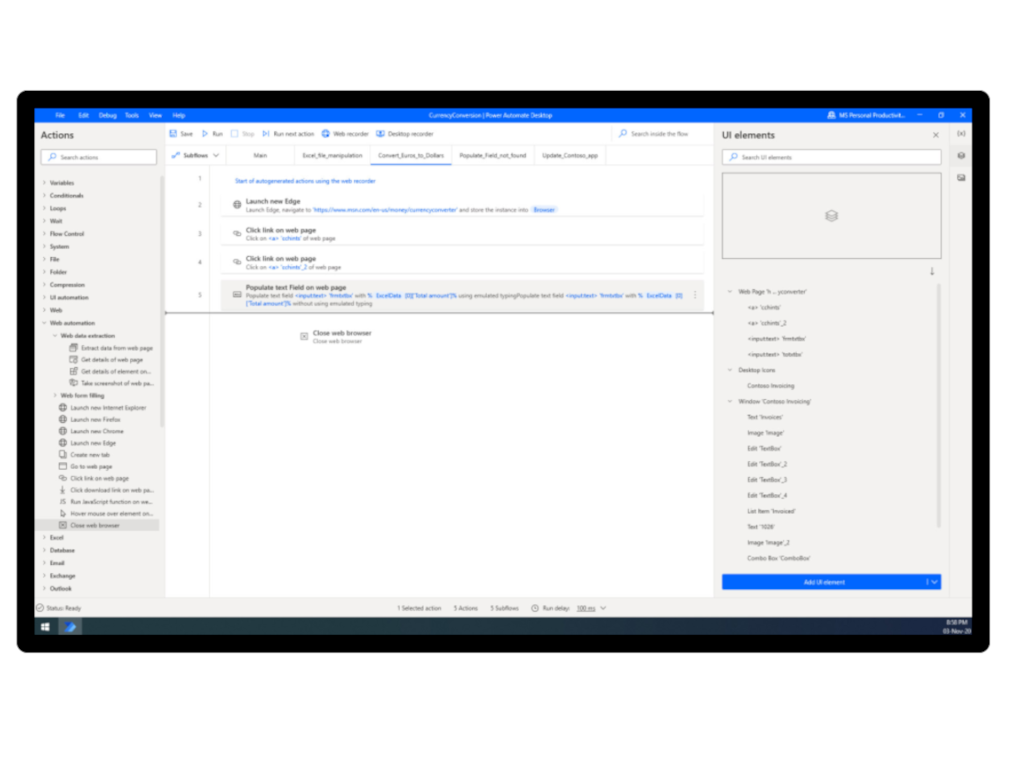
At Microsoft’s Ignite 2021 yesterday, the company announced that its enterprise level tool Power Automate Desktop is now free for all Windows 10. Power Automate Desktop is what Microsoft defines as an “attended Robotic Process Automation” solution which is a macro recorder on steroids. It comes with 370 prebuilt actions that help you build flows across different applications and the best part is that it enables you to build your own scripts to automate time consuming repetitive tasks which saves time and money.

Last September, Microsoft launched Power Automate Desktop based off Softomotive technologies which the company acquired back in early 2020. Since, the acquisition Microsoft has extended the technology and deeply integrated it into its own stack.

Those who want to give Power Automate Desktop a try can download the tool from Microsoft in the coming weeks under Microsoft Insider Builds for Windows 10 first. Then, eventually it will be generally rolled out to Windows 10 built in, all the way to the standard cheaper Windows Home version. Until now, a license per user for the tool would typically set you back at least $15 per month.

“We’ve had this mission of wanting to go democratize development for everybody with the Power Platform,” Charles Lamanna, the CVP of Power Platform engineering at Microsoft, told me. “And that means, of course, making products which are accessible to anybody — and that’s what no-code/low-code is all about, whether it’s building applications with Power Apps or automating with Power Automate. But another big part of that is just, how do you also expand the imagination of a typical PC user to make them believe they can be a developer?”

This move Microsoft has made which Lamanna believes reduces the licensing friction and sends a message to Windows users that they can build bots and automate tasks as well.

““The way we’ve designed it — and the experience we have, particularly around the recording abilities like a macro recorder — makes it so you don’t have to think about for loops or what is this app I’m clicking on or this text box — you can just record it and run it,” he said.”

Learn more about the now free Power Automate for Windows 10 here and let us know what you think about this move from Microsoft making Power Automate Desktop free for users in the comment section below!

Ignite 2021: Viva Connections starts rolling out in the Teams desktop experience

Microsoft’s Spring 2021 Ignite conference is underway today, and the company has been unveiling a host of new capabilities for its various Microsoft 365 services, including Teams. Along with all the news, the firm has also announced that the Teams desktop experience for Viva Connections is now rolling out to all Microsoft 365 customers.

Last month, Microsoft announced Viva, the company’s new employee experience platform that leverages Teams and other Microsoft 365 services. The company detailed four modules in preview, including Viva Insights, Viva Learning, Viva Topics, and Viva Connections. However, at launch, Viva Topics was the only module that became generally available for customers.

Now, Viva Connections is another Viva module that will hit general availability later this month. This means that it will now be available to customers as an add-on to their existing Microsoft 365 and SharePoint plans at no additional costs. Microsoft believes that Viva Connections is “a gateway to your digital workplace,” and it lets employees see a curated list of content from their company.

“Microsoft Viva Connections, one of the four Viva modules, is your gateway to a modern employee experience. It is personalized and appears in the apps and devices your employees already use every day, such as Microsoft Teams. Viva Connections provides a curated, company-branded experience that brings together relevant news, conversations, and other resources,” the company explained.

While the Teams desktop update for Viva Connections has begun rolling out this week, but the company noted that mobile users would need to wait a bit more to receive it. The mobile experience is still in the works, and it’s coming this summer. Meanwhile, Microsoft plans to release a summer update to enhance the desktop experience, focusing on IT admins and deployment improvements.

If you’re interested to learn more about this module, you can check the dedicated “Introducing Microsoft Viva Connections” session out. Additional details about Microsoft 365 and SharePoint licensing options are available on this page.

Aukey EP-N7 True Wireless Earbuds review: Aukey’s $65 budget friendly AirPods alternative

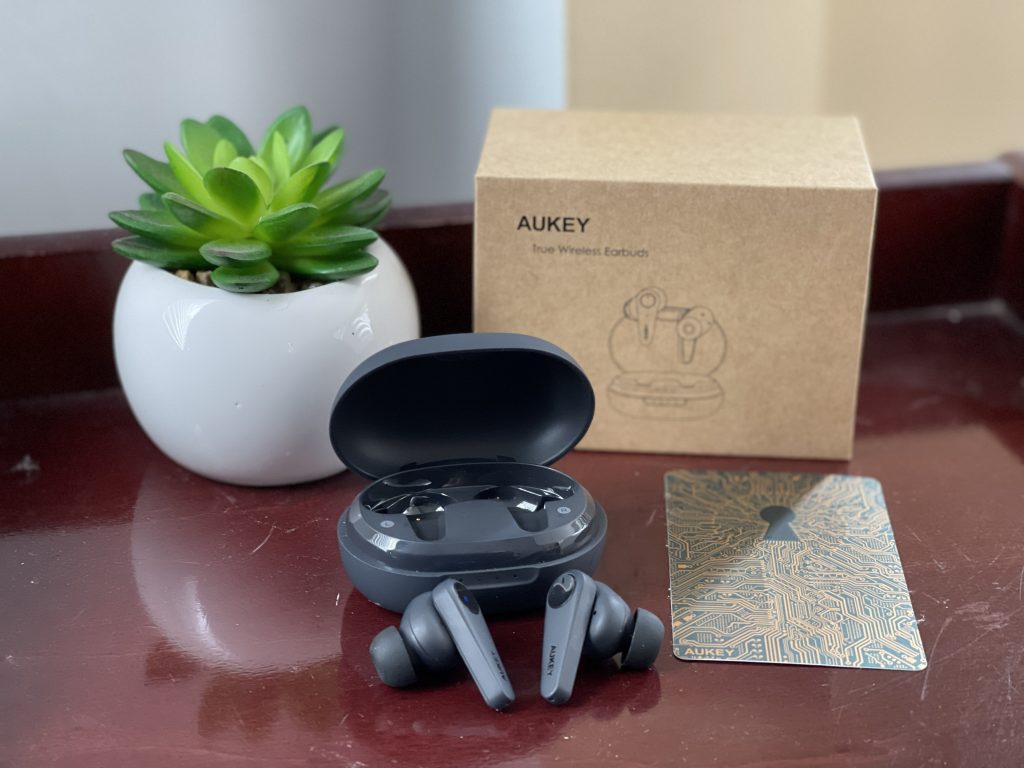
Aukey is a brand that is known for its chargers, dongles, cables, and more, but after my review of the Aukey EP-T32 Wireless Earbuds a few weeks ago, the company proceeded to send me the EP-N7 for review, too. Catered for more day-to-day use rather than sports and fitness, Aukey’s latest earbuds are a nice alternative to Apple’s AirPods. And, best of all, at $65, these earbuds are budget-friendly and won’t break the bank.

Charging case and battery life

Aukey-earbuds-case

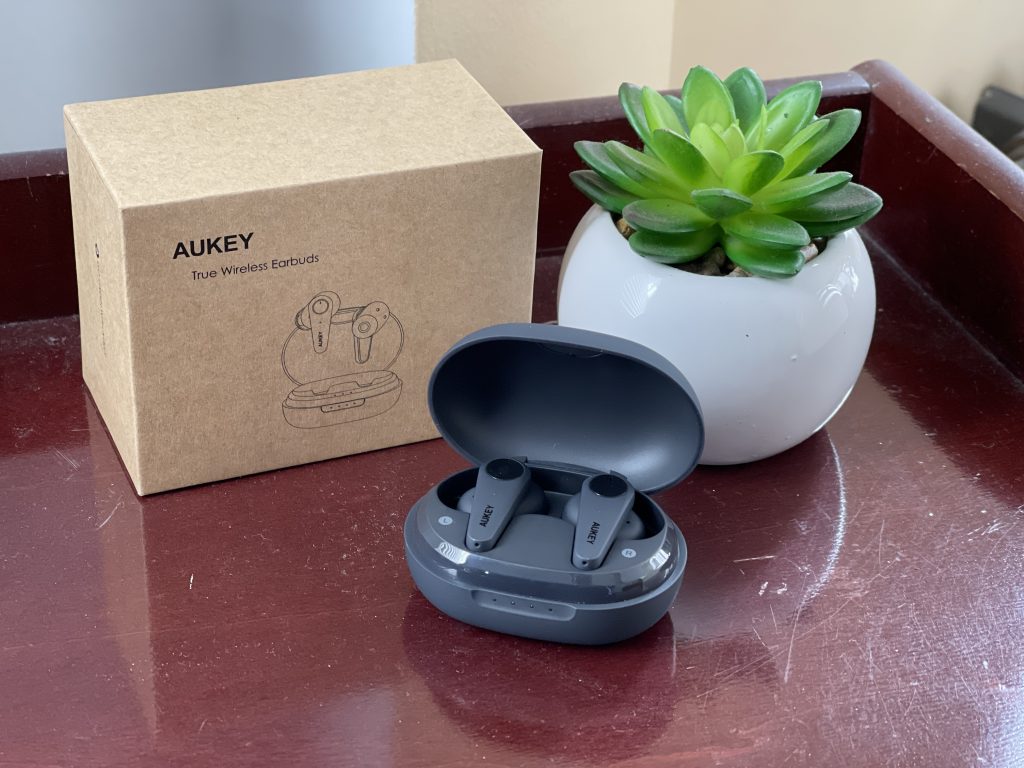
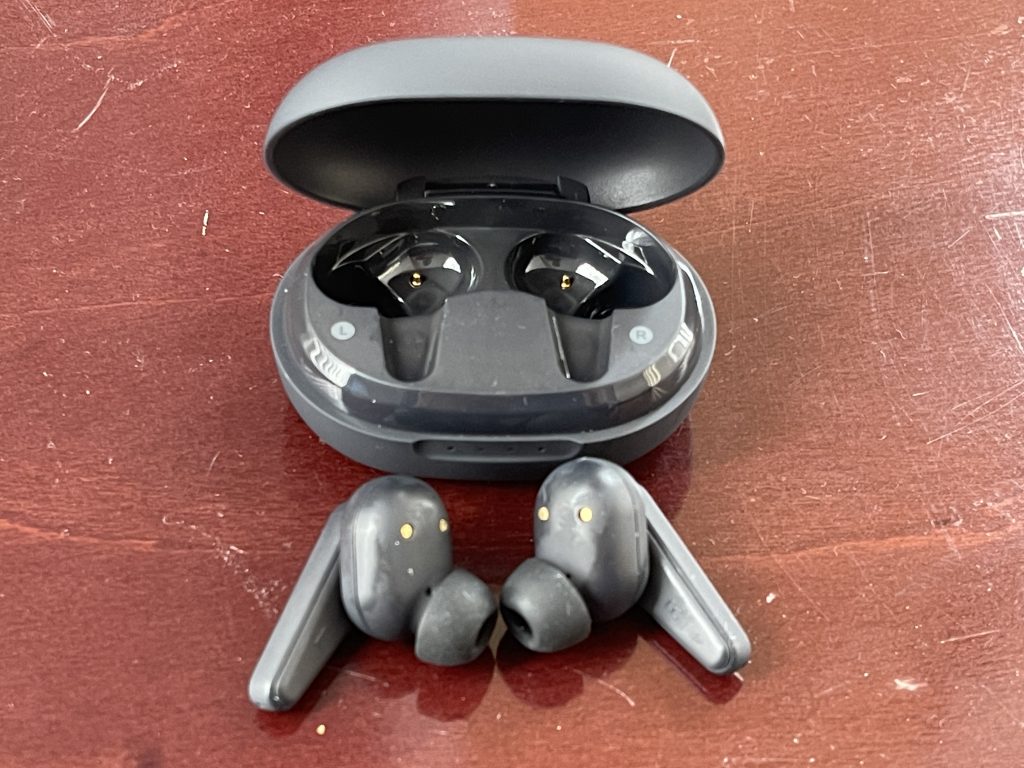
As usual, I’ll begin by mentioning the charging case as well as the battery life for these earbuds. Unlike the EP-T32 Wireless Earbuds, the case with the EP-N7 is a lot more compact. It manages to fit in the palm of my hand and is even smaller than Apple’s own AirPods case. The case itself also has a brushed plastic feel, which is pretty cool as it makes it feel a bit more premium. I easily slid the case into my jeans pocket when I went for a daily walk.

The pairing is the same as all other Aukey earbuds. When the earbuds are in the case, and the lid is opened, the earbuds will enter a pairing mode. Taken out, it will connect to the last paired device. The earbuds can be powered off at any time by holding on the touch controls and putting them back in the case. Again, it is pretty seamless, but you only can pair the earbuds to one device at a time. Bluetooth will need to be turned off on one device if you want to hand it off to another.

Aukey-earbuds-case

Now, for the battery life. Aukey promises up to 25 hours of battery life when on the go. After wearing the earbuds when editing our OnPodcast podcast, watching it the next day, and then while working the following day, I estimate that the battery is a little bit closer to 20 hours.

Battery life is not too much of a hassle, though, as the EP-T7 sports support for USB-C fast charging. The case can fully be recharged in 1.5 hours. There is no wireless charging, however, which is a bit of a letdown. It reminds me of the original AirPods, which didn’t have wireless charging on board.

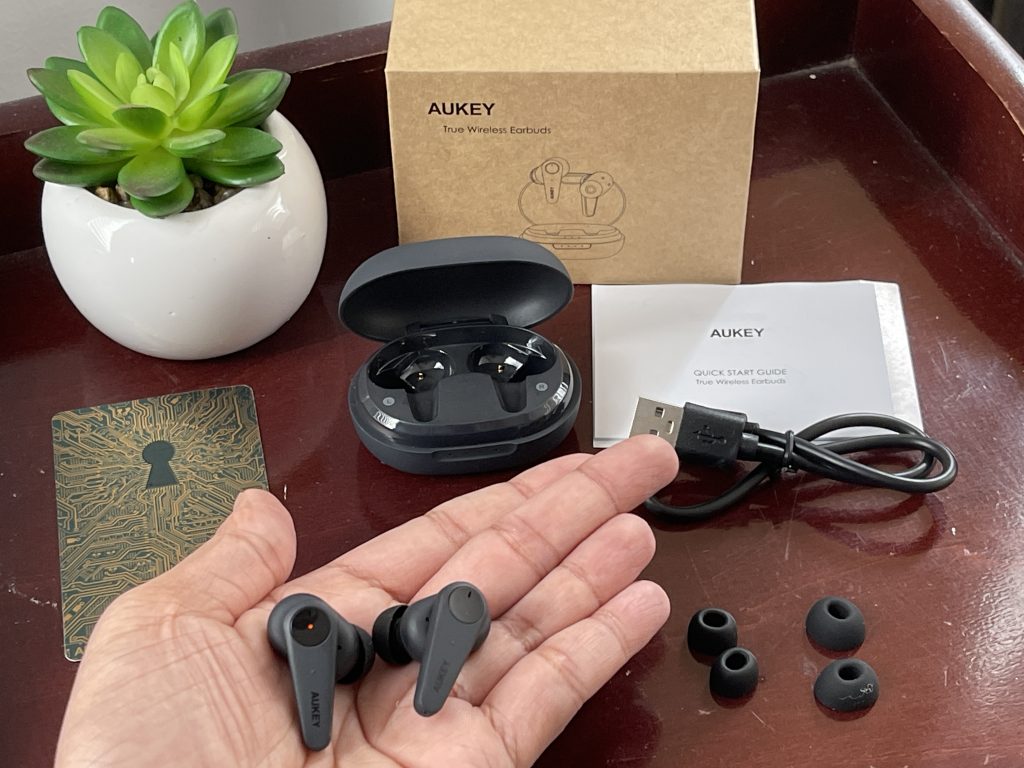
As for what’s included in the box, you get three different size ear tips, as well as a short USB-C cable, and an instruction manual. I’ll have more on the tips later. But keep in mind that the earbuds fit snugly in the case, just as Apple’s AirPods do. There are magnets to pull the buds into place, keeping them snug in the case and at home when you’re not using them.

The fit, the sound, the noise cancellation

Img 5114

But what about the fit? These earbuds are, overall, quite light and comfy. That means the EP-T7 is easy to fit in your ears, without “dragging down.” or causing discomfort.  I was able to keep the Aukey in my ears for my close to 5-hour workday without having to constantly adjust or move the earbuds around.

Visually, the stem of the Aukeys are black, and are small in length, giving it a slim profile when in your ear. There are also three sizes of silicone ear tips (small, medium, and large) to pick from. I choose the small ear tips, which create a more solid seal to my ears to keep out the outside noise. I loaned the earbuds to my mother for some photos for my review, and she also preferred the smaller tips, too. I think a smaller tip creates a better seal for optimum noise cancellation, as I’ll get into next.

Aukey earbuds with tips

Regardless of which tips you choose, the sound quality is great. Of course, it won’t be on the same level as AirPods, but for the $65 price, the EP-N7 does not disappoint. Aukey is using 8mm titanium dynamic drivers with AAC/SBC audio coding technology onboard the EP-N7. These are the same as what you find in their other earbuds, but I do think the quality is noticeably better on the EP-N7 than on other Aukey products.

The increase in audio quality is thanks to the hybrid active noise cancellation on board the earbuds, as well as the tight seal with the small ear tips. The tech behind this means the two microphones are able to work together to give you the best audio quality. Basically, the external and internal noise cancellation microphones work in combo to cancel out up to 35DB of ambient noise, according to Aukey. The microphones also work with a transparency mode, too.

Aukey Earbuds in ear

To test active noise cancellation, I was sitting in the room with my parents while they were watching TV. The EP-N7 managed to cancel out the noise from the TV in the background, as well as their ongoing conversation, keeping me in my musical vibes.

And, when I was ready to switch back to paying attention to them, I tapped the earbuds to activate the Transparency Mode, which allowed me to join back in the conversation while still listening to the music. It’s very reminiscent of what I usually do with my AirPods, where you don’t need to take off the earbuds to have a conversation.

In testing the microphone quality, I gave my friend in Los Angeles a Facetime call. Normally, I’d use my AirPods for such calls. She noticed no difference in my voice, telling me it sounded like I was in the room with her. I just think it’s a shame I could not control the volume with the earbuds. I needed to constantly reach down to the phone to change the volume.

But, overall, in my audio tests, I really enjoyed how the Aukeys are able to make rock music sound great. I noticed a slight elevation in the vocals of ACDC’s Back in Black. In other songs, the earbuds balanced out treble and bass, though the mids aren’t as great. I noticed this when listening to Tyla Yaweh’s All the Smoke. I still think that if you like balanced music, then the EP-N7 will work well for you.

A final note here comes on the IPX5 rating. Aukey promises that IPX5 water resistance protects against sweat and rain. I didn’t test these in the rain or when working out, as the pandemic limits my travel, but knowing that the EP-T32 wireless earbuds also sport the same resistance, it’s reassuring.

The touch controls

2cd12173 B224 435d 9a2b Bb17c2822c49. Cr0,0,970,600 Pt0 Sx970 V1

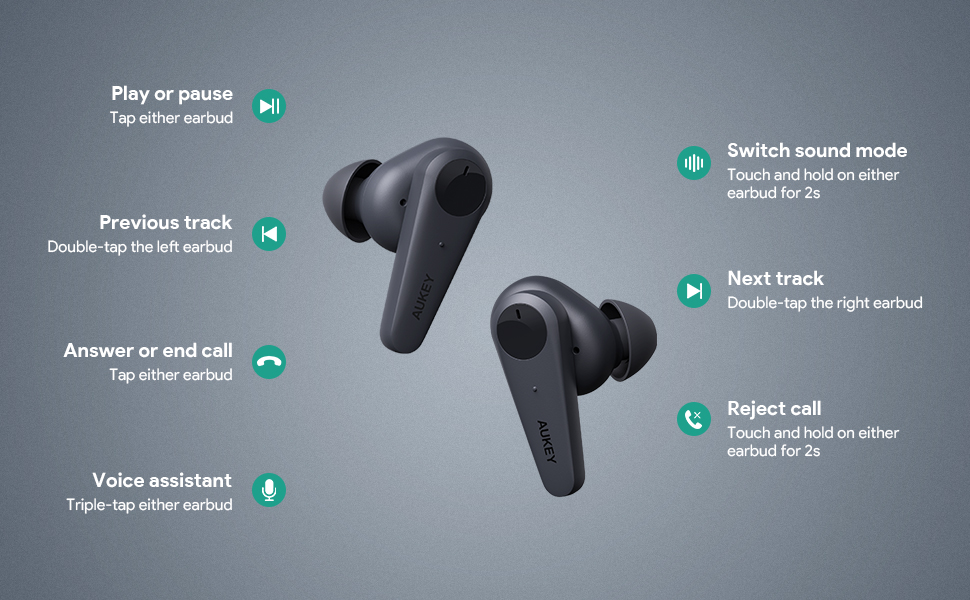
To end my review, I’ll touch on the touch controls of the EP-N7. The controls are very reminiscent of what you get with Apple’s AirPods. You can tap or pause on either earbud to play or pause music. Double-tap the left earbud to go to the previous track, double-tap the right earbud to go to the next track. You also can answer or end calls by tapping either earbud or triple tap the earbud to get to your voice assistant of choice.

Overall, the controls are simple. It helps that there’s a round touchpad on the earbud, too. This makes it clear where you need to touch to accomplish your task. I just wish the touchpads had volume control, like Microsoft’s Surface Earbuds.

Enter our giveaway!

Overall, the Aukey EP-N7 is solid and will offer you a solid alternative to AirPods. The earbuds produce good sound for the price, the battery life is decent, and there’s great active and passive noise cancellation. Just keep in mind there’s no aptX codec support, and no volume touch controls, and no wireless charging. You’ll have to spend more on more premium earbuds for this.

a Rafflecopter giveaway

If you’re looking for your own Aukey earbuds, you can check out our giveaway. We’ll be announcing a winner on March 7 on the OnPodcast!

How to fix the Microsoft Teams error code 4c7 [Quick Guide]

If you’re seeing the error code 4c7 inside Microsoft Teams, you are not the only one experiencing this issue. A wide range of users with different setups has complained about seeing this error.

The problem is caused by users trying to sign in to Microsoft Teams from a corporate network where Active Directory Federation Services (ADFS) is running.

This will not allow you to log in, and will also display the follwoing error message:

Modern authentication failed here, but you’ll still be able to sign in. Your status code is 4c7.  

This setting is not enabled by default for deploying ADFS on the Intranet, so it needs to be activated manually. Read on to find out exactly what to do to activate it.


How can I fix the 4c7 error in Microsoft Teams?

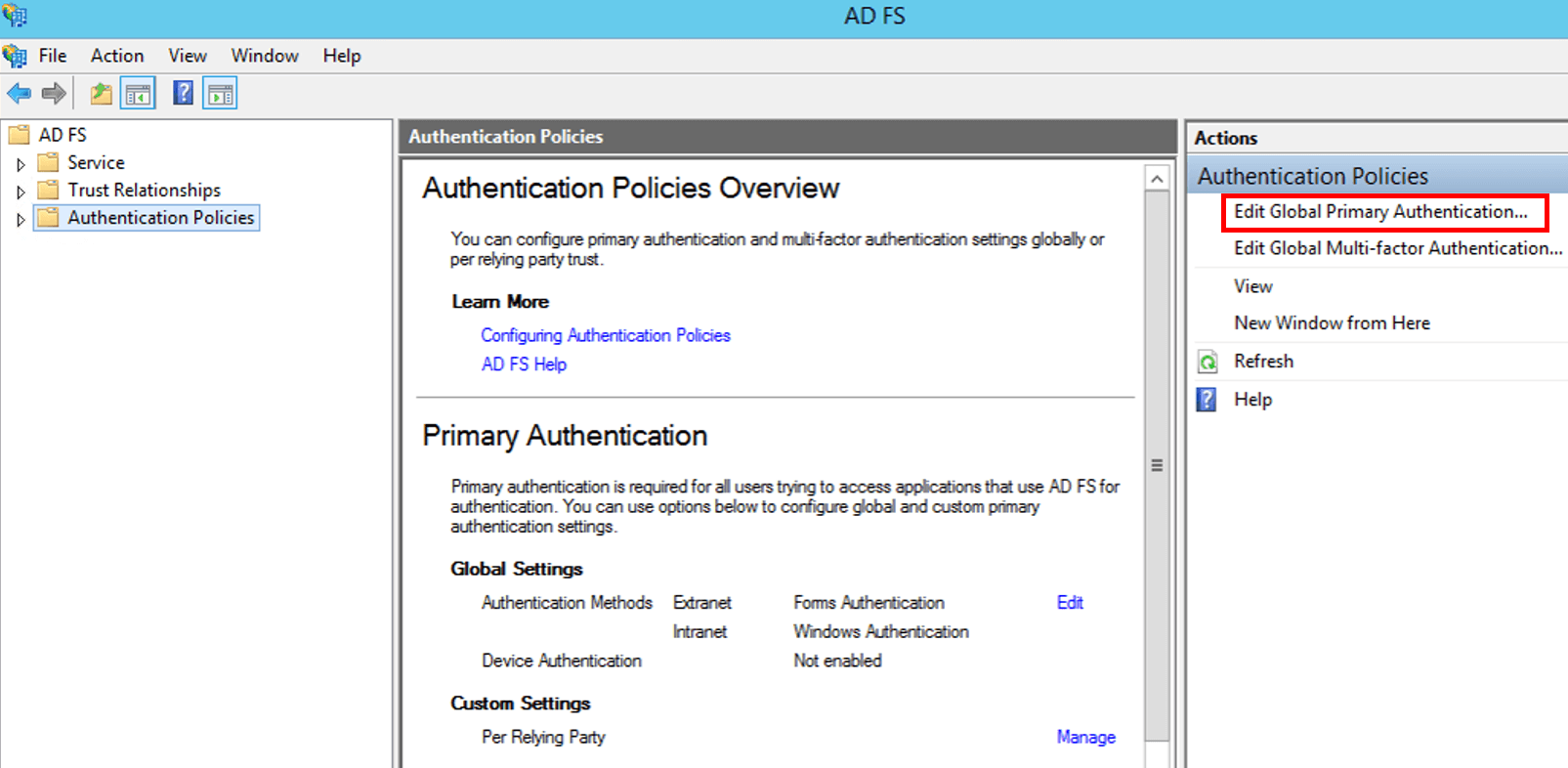
1. Enable Forms Authentication

  1. Open the ADFS Microsoft Management Console.
  2. Click the Authentication Policies option found inside the panel to the left of your screen.
  3. Under the Actions section, select Edit Global Primary Authentication from the right-side menu.global authentication policy microsoft management console
  4. Click on the Intranet tab, and choose Forms Authentication.
  5. Select Ok to apply the settings.

To solve this issue once and for all, you will need to enable Forms Authentication by using the ADFS Microsoft Management Console (MMC).

You can find this snap-in on the computer where the local Active Directory is located.

Plus, you can always have the alternative in mind. Take a closer look at our dedicated guide to the best collaboration software for small businesses, and find the right one for your needs.


2. Verify if Microsoft Teams is turned off

  1. Go to the Microsoft 365 admin portal and sign in with your account credentials.
  2. Navigate to Settings, and search for Microsoft Teams.
  3. Activate it for user types, and click Save.

Microsoft Teams is part of the Microsoft Office 365 suite and is intended for team collaboration of members. Of course, companies have control over the applications that are offered to employees.

Therefore, when you see the 4c7 error code in Microsoft Teams, it is good to check if Teams was accidentally disabled.


Wondering how to activate a Microsoft 365 product key? Check out our quick guide!


In this quick fix article, we explored the best way to deal with the Modern authentication failed here, but you’ll still be able to sign in. Your status code is 4c7 error message inside Microsoft Teams.

We hope that this guide managed to solve your problem and that now you can log into your Microsoft Teams account without any issues.

Please feel free to let us know if you found this guide helpful. You can do so by leaving a comment in the section found below this article.


Latest update to the Microsoft Store brings hints of ‘Sun Valley’ design

After about eighteen hours of confusion, we’re finally getting the real story behind what Microsoft’s latest visual update to its app store represents. Midday yesterday the Twitter handle @Alumia_Italia posted a gif that showed a visually improved version of the Update settings area in the Microsoft app store which included a new pinned icon, improved cursor highlights, new drop-down menus, a progression circle, and a secondary compact viewing option of the store as well.

For an app that’s seen incremental improvement over the past two years, the visual improvements have understandably been seen as a big deal, to the point of being misidentified as an entirely new effort from Microsoft.

The internet ran with the theory that, ahead of the long rumored ‘Sun Valley’ visual refreshed expected in the Fall, Microsoft would also be extending its redesign efforts to building an entirely new app store experience. The theory that Microsoft would introduce a new app Store to coincide with its reported ‘Sun Valley’ update was short-lived.

Fortunately, Microsoft isn’t tossing the baby out with the bathwater, (I don’t even know how that became a saying) instead, according to vocal Windows Insider Program team member Brandon LeBlanc, it’s merely an update to the current store. LeBlanc’s response to the confusion does downplay some of the visual differences that are very apparent in the gif, but ultimately reinforce the common sense of the Windows team which probably doesn’t want to have to redo a ton of work on its app store that’s both in Windows 10 and its Xbox, especially leading up to a design refresh of its flagship operating system.

While LeBlanc reiterates that what people were reporting on is only a minor update to the Store, it should be pointed out that many if not most have yet to actually receive or test this latest iteration of the app Store. In fact, he adds an addendum to his earlier clarification by explaining that it’s rolling out and “It’s a normal update to Store with some improvements…”

For anyone interested in getting some hands-on time with the new look and feel of the Updates Settings in the Store, @ALumia_Italia footnotes that it’s an update on the Dev channel of the Windows 10 Insider program is not being offered to all Dev Insiders but is being held as a staggered rollout. So, if enroll your device into the Dev Insider channel and cross your fingers basically. LeBlanc does not mention that it’s a test of any sort, so seems eventually this minor update should hit all devices at some point.

Lenovo ThinkPad X1 Fold: When hardware and software don’t mix

Lenovo announced its ThinkPad X1 Fold over a year and a half ago, and since then, nothing meaningful has occurred in the space. Sadly, Microsoft abandoned the sector of foldable screen support with its famed Windows 10 X being put on ice, and as much as partners such as Lenovo tried to accommodate the absence with its own patchwork digital services, foldable screen interest has reduced to a simmer of its former interest level.

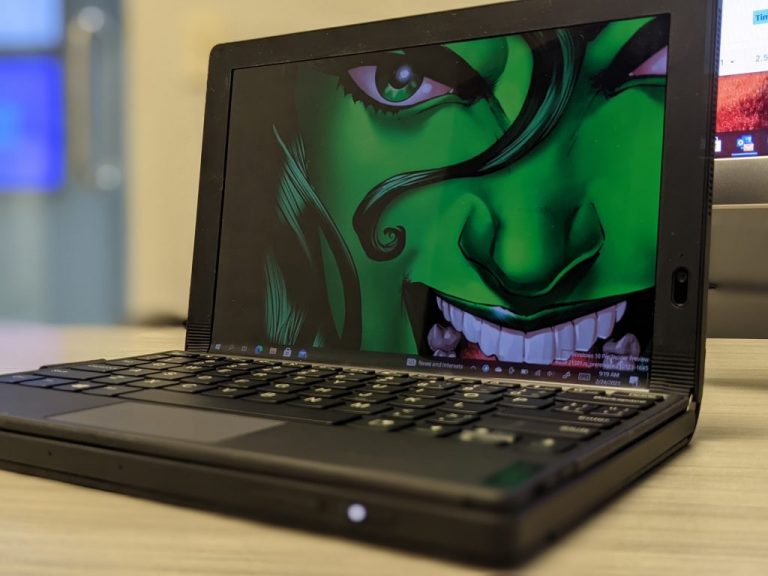
Unfortunately, Lenovo was either saddled with excess hardware or didn’t get the industry memo that full-scale foldable workstations are taking a hiatus for now. Yet here we are with the ThinkPad X1 Fold, and while I think in many ways the hardware is ahead of its time, without the software layer in place, reviewing this device was a disjointed experience.

Design

Starting at $2,499 and $2,749 for the review unit I tested, the Lenovo ThinkPad X1 Fold is admittedly a niche device aimed at seeding the market for lower-cost alternatives in the future. With that being said, every dollar spent is reflected in the design, materials, and architecture that went into completing the Fold’s final offering. Despite experimenting with temperamental OLED display technology, the X1 Fold feels every bit as sturdy, reliable, and environmentally tested as any other ThinkPad device. In most ways, the X1 feels sturdier than a Microsoft Surface Pro, even when the keyboard cover is attached, and that’s thanks in large part to its casing. The outer portions of the X1 Fold are a thicker plastic material covered in what I think is faux leather. The leather could be real, and that might account for the extra nickels and dimes added to the final purchasing price.

Pxl 20210128 151216247.portrait

The leather covering acts as a flexible skin for the X1 Fold which slides in and out of place when the device is folded or not. In addition to being a single slab of protection for the Fold, the leather cover also doubles as a built-in kickstand. About one-seventh of the leather protector folds outward to help prop up the X1 Fold in a semi-horizontal orientation. The integrated design takes what Microsoft did with the Surface Pro one step further. Instead of having to attach a secondary cover to protect the screen as well as engineer another mechanical moving part, Lenovo combined both functions into a slick single point of user friction. Unfortunately, the X1 Fold’s origami only works in landscape or vertical orientations, when in vertical perspectives, users are reliant on the folding of the screen to prop up portions of their view.

In 2021, screens are increasingly becoming bezel-less but the X1 Fold leans hard into its bezels, almost flagrantly. However, when holding the device, it’s apparent why the bezels remain. In addition to almost cartoonish bezels at this point, Lenovo also coated the X1 Fold’s in a rubberized foam-like material that helps users firmly keep a grip on the 2.2lb tablet computer while also protecting the screen from smacking itself when it’s folded onto itself or dropped, both potential situations further highlight the foresight and attention paid to the X1 Fold’s hardware.

Pxl 20210224 142701690.portrait

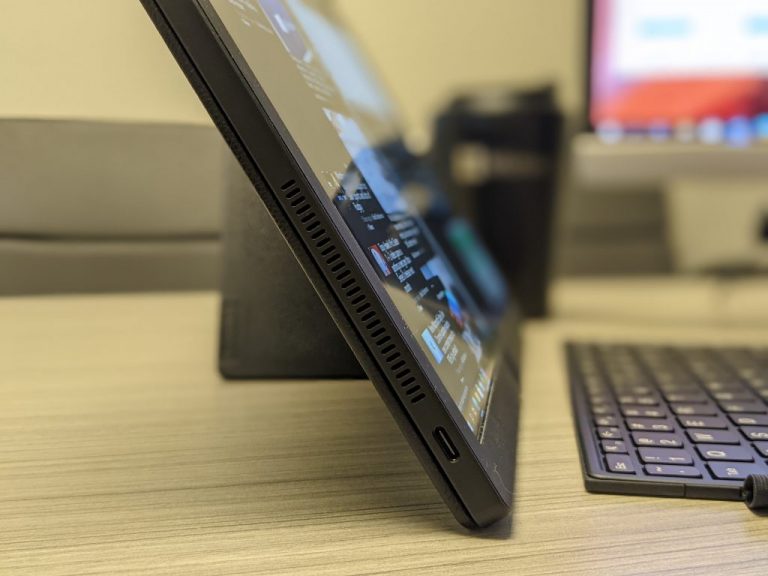
On the outer brim of the device are the power button, volume rocker, and two USB-C ports that sit catacorner to one another towards the bottom right corner of the device. According to Lenovo, both USB-Cs can push 10Gbps and one can be used as a display portal to connect to the X1 Fold to a second monitor. Aside from the gen 2 USB-C 3.2 ports, the X1 Fold sacrifices connectivity for portability. There are no other ports, and the placement of the current I/O really discourages the use of dongles to extend connectivity.

Keyboard

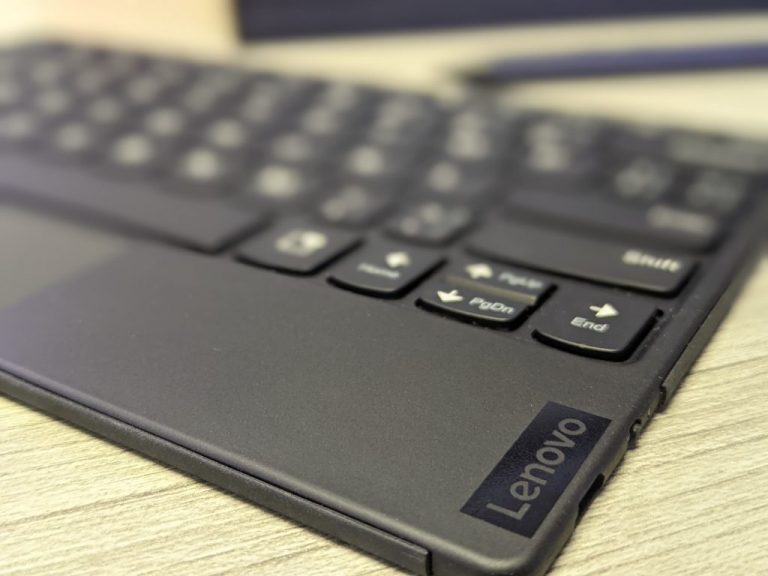
I wanted to review this separately from the main hardware of the Lenovo X1 Fold because, well, it’s its own engineering marvel. While it’s a bit cramped for how I’m accustomed to using a keyboard, the fact that it connects through Bluetooth rather than pogo pins is something that should be standard in 2021 for detachable PCs. I get that introducing Bluetooth connectivity introduces another failure point, but having used several Surface Pro keyboards, having a pogo pin setup isn’t always a guaranteed experience either. Lenovo list the keyboard on its site as the optional: Lenovo Fold Mini Keyboard, but just like the Surface Pro, it’s implicitly needed and comes in the box thankfully.

Pxl 20210224 141852430.portrait

Once again, Lenovo flexes its engineering prowess by subtly adding magnetic connectors to the bezel of the X1 Folds screen that helps secure the keyboard in place when tucked into the folded device. The entire carrying setup of the X1 Fold is seamless and intuitive. Furthermore, the keyboard becomes ultra-handy when touch typing becomes exhaustive. In the L-shape fold of the X1 Fold, you can split the screen between a 9.7-inch viewable area and a 9.7-inch typing experience. Some people can make use of the onscreen keyboard but with some of the software glitches that come with this version of Windows 10 on the Fold, it’s just more convenient to toss the keyboard on the screen and begin typing. When a user is done with the keyboard just leave it on top of the screen and fold the X1 around it and everything fits nice and snug in place. My only complaint is that the keyboard uses a micro-USB as a port for connecting power.

Pxl 20210128 151245895.portrait

The disjointed charging experience is noticeable upon the first charging session. The computer portion of the X1 Fold uses USB-C while users need to scrounge around for a micro-USB to charge the keyboard. One last note about the keyboard is that unlike the Surface Pro, it can’t be positioned beyond a flat 180 degrees, so lap typing or typing on anything other than a completely flat surface is practically out of the question.

Hardware

The Lenovo X1 Fold comes with configurations of up to 1TB PCIe M.2. SSD storage is great for quickly uploading files if you can find a USB-A to USB-C converter. There is also an 8GB LPDDR4X 4267MHz memory that comes equipped. Sadly, due to some software issues, I’ll talk about shortly, every bit of that 8GB crawls on the X1 Fold. Intel chucked a Core i5-L16G7 chip into the X1 Fold capable of up to 3.00 GHz Turbo Boost with 5 cores, 5 threads, and 4MB Cache as well as integrated graphics. The battery on the X1 Fold is about average for a detachable device. Lenovo claims up to 10.4 hours of battery use when testing video playback and while that might be true, I was getting 6 hours steadily for regular computer use. Thankfully, there is a 50Wh battery in the device as well as Rapid Charge Technology onboard.

Pxl 20210224 145157808.portrait

As for the guest of honor, the screen, Lenovo uses a 13.3-inch QXGA foldable 2K OLED, DCI-P3 95% touch, and pen-enabled panel that can push upwards of three hundred nits of brightness. It’s not the brightest panel in 2021 or even in 2019 when it was first engineered but it gets the job done and does it looking like a normal screen when it’s fully unfolded. Perhaps, because of its foldability, the screen does not feel like normal glass to the touch but instead a smooth plastic and it becomes further pronounced when the device is folded and the crease in the middle is visible.

Experience

The actual hardware experience of the X1 Fold is the most intuitive of all detachable or foldable devices in the market, in large part due to its chunky book-like design. The feel in the hand is very reminiscent of a leather-bound book that invites the folding and unfolding of the device. Closing the X1 Fold also comes with a muffled but satisfying click when the two magnet points on opposite bezels connect. Opening and closing the X1 Fold is a treat amongst itself and could constitute a stress-relieving activity (albeit an expensive one) thanks to the smooth hinge process that allows for a measured fold and unfold experience each time. I’m not sure how the folding mechanism would hold over time, but I did a cursory fold test of over three hundred folds in a single sitting and the device responded the same throughout the process.

Speaking of the X1 Fold’s folding experience, it began and ended with opening and closing the device for me. Other reviewers were able to persevere operating the device in an almost seated-L position to get work done, but the crease obscured too much of the viewing for me to concentrate on my work. I found myself simply opening the device-wide to take full advantage of the 13.3-inch screen. I understand the selling point is the folding nature of the screen, but nothing in Windows really takes advantage of that mechanism and in practice, it really only served as a neat new way to condense my workstation.

Pxl 20210224 141940356.portrait

While it may seem like a negative, having the X1 Fold unfurled in all of its 13.3-inch glory also worked in forcing me to use Windows 10 in tablet mode often. When I wasn’t banging out articles, triage emails, or writing ad copy, I found myself using the Fold in tablet mode 80 percent of the time. Which was a newish experience for me, even coming from a Surface Pro 7 Plus. While it’s not the lightest tablet-PC on the market, the leather on the back feels more inviting to the touch than other alternatives, and being able to quickly snap it close without having to scurry for a keyboard cover just reinforced my tablet use of the device.

However, that’s where things mostly fell apart for me.

I’m not sure who to assign blame here, so I won’t, but the Windows 10 experience on the Fold is janky at best and often unusable at worst. Rotation recognition on the X1 Fold is spotty and slow which means that if you found a position to consume media in, don’t lose it because there is a decent chance you may need to restart the device to get back to that orientation. If you’re not fighting the gyroscope, you might numb your fingers double and triple pressing touch points on the screen because they’re registering a touch. A quick but risky fix for the lack of touch response in a particular app could be rotating the app to place the touchpoint in a spot the screen is recognizing at the time, but we know how that could end.

Pxl 20210224 142427894.portrait


More disappointing than some software glitches with Windows 10 is that Microsoft doesn’t seem to be working on its tablet-mode at all. As an Insider, I could weather the development storm of a broken tablet experience if I had some assurance that a solution is in the works. The X1 Fold was designed specifically with Microsoft’s original dual-screen Windows 10X vision in mind but the software company, unfortunately, pulled the rug from underneath its partner. Worse yet, it’s retooling that Windows 10 X for a single screen experience going forward which ostensibly obsoletes the X1 Fold out of the box. Lenovo attempts to cover up the lack of Windows 10X with its own mode-identifying software that will float windows to the middle of the screen and allow a user to toss it to one of the corners in the desktop. However, Windows 10 tablet mode relies heavily on a vertical split-screen paradigm when windowing. For a device that folds in the middle, Microsoft needs to rethink windowing as well as the gestures of the operating system when touch is the primary interface.

Thankfully, touch and type aren’t the only inputs. Lenovo includes a pen with the X1 Fold that has a better registration rate on the screen, so I found myself navigating the OS mostly with a pen that I had to remind myself not to bite as I fidgeted during work hours.

Summary

The technology behind the folding aspect of the X1 Fold is fascinating, but actual productivity from this device is middling, especially for its price. At close to $3,000, users are paying a $1,500 premium for the convenience of being able to fold up their laptops in a semi-new way. With only 8GB and a Core i5 chip, it’s not meant to be a workhorse or even a mainstream creativity device for mass adoption. Couple those points with this janky Windows 10 experience, the X1 Fold at best is an engineering reference device.

On the other side, it’s a ThinkPad with a high price tag which means it’s destined for some executive’s desk who might say why don’t we have our company email client outfitted for my shiny new toy. With that being the case, hopefully, the X1 seeds the land for a flourishing batch of foldables in the future. Lenovo is only half of this equation with Microsoft being the other who needs to figure out Windows 10 X or its Sun Valley update. Windows 10 needs to revisit its tablet mode in a major way that addresses the future of intuitive touch-first thin clients that connect to its robust cloud platform. If it doesn’t it could end up watching some other company capitalizing on its early Windows 8 work.

Dev type stories: How Windows app development has changed, and what I would do differently today – Part 4

This is a four part piece feature story on my Windows Development journey; the good, bad and ugly. This is the final Part 4 of my Windows development journey which focuses on how Windows app development has changed, and what I would do differently today.

How Windows app development changed

Windows app development has changed from a desktop PC centric environment to a mobile first, cloud first world in the world of global servers and online consumption. Traditional app development has peaked, the most popular app category gaming has peaked, business model has changed on how apps are monetised.

App development models has changed from desktop oriented to some lightweight web based, cloud backend PWA apps that is popularised under Microsoft competitors such as Chromebooks which is now being considered to be part of the “New Windows” under Windows 10X platform. This shift of mobile first and cloud first has accelerated further during covid-19 where quarantines and lockdowns has affected many during the crisis. Therefore, app developers have had to adjust. This is to accommodate the changing ties as well to support the users in different app categories that has shifted from the traditional dominated social media apps and gaming to essential and emergency apps for mostly health, basic needs and vital supplies.

Adjustments were pretty quick in coming. Websites and app developers had taken note and adapted to the changing situation. Such as up to date covid-19 news for students, workers and small business owners making adjustments to changing environment in the workplace. Larger emphasis on e-commerce for online shopping to virtual classrooms in time of lockdowns and quarantines.

The boom in contact tracing apps that has emphasis of the phone, where most users use as a communication and information tool today rather than a Pager device, PDAs or a Pocket PC from 20 years ago. These types of mobile focused apps leaves traditional desktop PCs and tablets in the dust with no mobile first world use. Education apps on the rise due to staying indoors which has been the call of the medical community. Because of this, some schools have chosen to close their doors. This is to due to the amount of socializing involved inside campus.

Fortunately for students, education centric apps have been around for while. Apps like Microsoft Teams for virtual classrooms, Canvas for homework projects etc. have been serving the education sector for a while now. The diversity of learning modes and styles allows for more innovation due to students having different learning styles.

Food and beverage delivery apps has increased in consumption with people staying indoors. Have forced establishments to adjust that depended on foot traffic. Now, that has shifted leading them to create online app services that cater to their customers. Since, stores have now increased priority with online presence. Food delivery demands have allowed some of the more fortunate establishments to survive. Some of the establishments in the market have even grown during the crisis.

The necessity of delivery and logistics industries have allowed industry to survive. With social distancing rules implemented, the necessity of delivery services became more obvious for more people. Utilising delivery apps allow business establishments to even smaller brick mortar retail businesses with shorter hours to stay active for longer. Meaning they can maintain a higher rate of sales compared to physical presence. Peer-to-peer delivery also allows small online businesses to survive. These are businesses that depend on online traffic to make sales.


What I would do differently today with Windows app development

I would focus on creating not only a hobby for myself. I would create a tool that people would mostly likely use in situations such as covid-19 that could have a huge impact on many industries to reverse businesses that were put on hold during the crisis.

Because app developers essentially develop tools. Due to the crisis, people are more dependent and more appreciative on these tools. Be it for their everyday needs or the future of their children.

Have a long term mindset with these apps because the long term effects of these apps mean that their utility does not end with the pandemic. Things under app development will change post covid-19 and would not go back to where it was pre-covid 19.

Windows app developers need to specifically focus on education where it comes at a great responsibility when access to schools is limited for many. To fill that role, Windows app developers have to consider the needs of both students and teachers.

App development model has changed too where data, analytics will play a role in a more inter-connected environment with the world of cloud and servers. This is where web based lightweight apps comes to play such as PWA in harnessing data, people’s behaviour and interaction with the app that is useful for teachers monitoring students, doctors monitoring their patients etc.

Summary

At the end of the day, having a robust application that is data driven, contextually aware, basic in nature and lightweight for the changing data driven web based app world such as PWA. Bring opportunities for new developers with new tools and some tools that mostly stayed the same in native. However, the most fundamental changes of Windows app development, and app development in general is the end users needs whether it is a student, patient, doctor, teacher, worker or parents etc.

This is the area and opportunity as a Windows developer should focus on building tools people need from education to logistics that can have an impact and can change how things are done in changing times under covid-19.

Inspired by my Windows development journey? Learn more about Windows development here. Share your experience with Windows app development in the comments below!

10 Best Online Scheduling Tools to keep your agenda organized

If most of your work is done online and you need to schedule meetings with other people, you really should do yourself and your client a favor — ditch the back and forth emails by using an online calendar or appointment scheduling tool. We promise you that this will make both your lives much easier.

Scheduling software will allow you, your secretary and your associates to view and access the master calendar and schedule time efficiently to meet with your customers and colleagues.

Check out the tools that we have prepared for you because each one has its unique cool features.

Here are the best online scheduling tools

SimplyBook.me – Setup custom features

SimplyBook.me is an online booking system that works for most service-based industries like beauty salons, fitness centers, consultants, schools, medical centers, and more.  

What differentiates SimplyBook.me from other booking systems is that it is based on custom features.  So you can pick the custom features that you would like to include in your booking system and then pay accordingly.

The clients, the ones booking the service, will always get sent booking reminders either by email or sms, which will reduce no-shows.

With the system, users can also connect with Facebook, Instagram or Google and thereby add a Book Now button there to allow clients to book an appointment from those channels or even offer the clients to book via a branded mobile app.

It is super easy to manage all bookings and clients. Users can download the admin app, and be notified every time a new booking comes in.

You can see the calendar for the day, access clients, and of course add, change or delete a booking if needed. Here you can see a list of their most popular custom features:

  • Facebook/Instagram integration
  • Instagram photo gallery sharing
  • Google My Business integration
  • Coupons & Gift cards
  • Related Resources
  • Accept payments
  • Video Meetings
SimplyBook.me

SimplyBook.me

Schedule tasks and manage your time in a more efficient manner with this great productivity tool!
Check priceVisit website

Transwide – Improves tracking

online scheduling tools

Transwide is a cloud-based solution. It features a suite of integrated modules that offers all the necessary tools for carriers to source, plan, settle, execute, and analyze all kinds of operations.

Transwide’s appointment scheduling app is twSlot and it offers a platform for planning and visibility with loading and unloading activities. It is available as a standalone app or as part of a broader Transwide suite.

Transwide is the ideal option for users who want to automate their transportation and logistics operations and processes with minimum risks and achievable deployment objectives.

Here are its most important features:

  • It is an excellent tool for scheduling loads, and it’s very user-friendly.
  • It reduces phone calls to carriers, and it improves tracking.

Its support, implementation, and sales staff have offices in more locations, and they are trusted partners with over 200 companies on four continents.

The tool’s downside as noticed by users involves the fact that the screen changes a bit slowly.

⇒ Get Transwide twSlot

Acuity – Automate appointment bookings

online scheduling tools

Acuity is a cloud-based appointment scheduling software solution that offers business owners the opportunity to manage their appointments online. The tool is ideal for the needs of small and midsize business and individual professionals.

Its most important and useful features include the following:

  • It allows users to automate appointment bookings by offering a real time view of their available time.
  • It can automatically sync calendars according to users’ time zone.
  • It can send regular alerts and reminders to users about their appointments and schedules.
  • The scheduling feature of this tool includes customizable intake forms, embeddable calendars, third party application calendar synchronizing, and group scheduling for workshops.

The tool provides a free basic module, and it’s also available as a monthly subscription.

The downside of the tool is the fact that the company plan doesn’t cover a lot of users, so the corporate package is not suitable for businesses with lots of employees. Other users have complained about the lack of an app to go along with the tool because the website seems a bit confusing.

⇒ Get Acuity Scheduling

DocMeIn – Drag-and-drop interface

online scheduling tools

DocMeIn is a cloud-based appointment scheduling solution that is perfect especially for the needs of medical and healthcare service practitioners. The tool is ideal for small and midsize healthcare setups and individual practitioners as well.

Here are its key-features:

  • The tool provides color-coded calendars and a drag-and-drop interface for managing appointments.
  • It can schedule recurring appointments at intervals that are defined by the users.
  • It allows users to configure flexible business hours including breaks and days off.
  • It reminds customers of pending appointments via SMS, emails, or voice calls.
  • It lets users automatically recall meeting invitations and enable import or export of data into Microsoft Excel or Google Drive.
  • The tool offers integration with third-party calendar management solutions including Google Calendar, Microsoft Outlook and more.

Most users who have used the tool appreciated it greatly, and the only minus seems to be the fact that it’s a standalone program so it cannot be integrated into a billing program.

⇒ Get DocMeIn

Schedulista – SMS-based reminders

online scheduling tools

Schedulista is a cloud-based scheduling app that lets users schedule and reschedule appointments online, generate notifications and manage customer information as well.

The most important features of this tool are listed below:

  • It provides SMS-based reminders.
  • It allows online payment processing via credit card integration.
  • Users can customize their working hours, and the software will use this to authorize appointment bookings.
  • The tool offers social media integration, side-by-side calendar views, data export in CSV format, analytics and reporting and role-based access permissions.

Schedulista provides integration with third-party apps including Microsoft Outlook and Google Calendar.

Users have noticed a few mysterious error messages sometimes, but other than that, the tool turned out to be extremely helpful.

⇒ Get Schedulista

OnSched – Automated marketing capabilities

online scheduling tools

OnSched is also a cloud-based scheduling app that provides users the possibility to book appointments online, to automate marketing campaigns, to capture and segment customers data and engage with their clients by providing custom deals based on usage.

Check out the tool’s essential features below:

  • It provides SMS and email reminders and also a dashboard for reporting and analytics.
  • The tool provides automated marketing capabilities that include managing appointment wait lists, multi resource logins and also configuring deals.
  • The tool offers advanced reporting and analytics capabilities including a suite of standard reports, email digests of daily activities and the ability to create custom visual reports.

The tool is ideal for pros in IT services, massage, car rentals, consulting and healthcare segments.

⇒ Get OnSched

ScheduFlow – See schedules in 3D

online scheduling tools

This is an employee scheduling solution that helps users create, view and edit schedules in real-time. It is accessible from any device including Windows Phone mobile devices.

Here are the key features of the product:

  • It also features a carousel card view that lets users see schedules in 3D.
  • It offers one-time and recurring appointments, customizable time scales and automatic reminders.
  • The tool deploys as a desktop app for ease of installation and upgrade.

The service is perfect for small to midsize businesses that have fewer than 100 employees and that are in any industry.

A downside of the service according to its users is the fact that once you delete something there is no undo button available and this can be quite annoying in case you have made a mistake.

⇒ Get ScheduFlow

PetalMD Software – Provides walk-in appointment management

online scheduling tools

PetalMD Software is an online appointment scheduling platform that is best used by small and midsize health care practices of all kinds including hospitals, clinics, and individual departments.

Here are its essential features:

  • Physicians can offer online booking from their websites, and they can give their patients lots of booking options, and this will result in a reduced number of phone calls.
  • The tool can sync with the user’s existing EMR to avoid double booking.
  • The tool sends automated reminders to patients to reduce no-shows.
  • The tool also provides walk-in appointment management and open slots can be provided in case of last-minute bookings either online or over the phone.

The service is available on a subscription basis, and there’s a fee charged for every appointment booked.

⇒ Get PetalMD Software

BookSteam – Manage customer and client contact info

online scheduling tools

BookSteam is an online appointment scheduling tool that provides business and customer-facing functionalities for clients and customers to schedule their appointments online. Businesses can manage these appointments on the backend.

Check out the most important features of this solution:

  • It creates a custom website for businesses that will show business details, a list of services, client reviews, and a “book now” button for accessing and scheduling appointments.
  • It allows companies to collect and manage customer and client contact info appointment data and history.
  • The service uses email and text reminders to keep customers up-to-date and connected, even while they’re on the go.
  • It allows clients and staff members to receive instant notifications for a scheduled appointment.

Users enjoy using this app and the only minus most of them have found is the fact that they think that customers should be able to book multiple staff in one room instead of separate schedules. You can try the service for free for a month.

⇒ Get BookSteam Software

Timely – Integration with third-party apps

Timely is targeted at individual pros and also small to midsize businesses such as hair salons, beauty salons, health clinics, personal trainers, therapists and so on.

Here’s a list of the most useful features of this service:

  • Users can run their appointment schedules from anywhere.
  • Users can generate reports and then send notifications and reminders as well.
  • More features include calendar management allowing users to book and rebook their appointments, manage recurring bookings, and more.
  • The service provides automated SMS and email reminders.

With this service, you’ll get integration with third-party apps such as Google Calendar, Xero, and more.

The service’s minuses include the following: it doesn’t support calls, it cannot have different times zones for various calendars, and you also have to pay extra cash for text alerts and new appointments.

⇒ Get Timely

For businesses providing appointment-based services to their customers, tracking the status of those appointments is vital as it will optimize operations and attract more clients.

Appointment scheduling software will help your business achieve high goals by enabling users to manage reservations, schedule appointments and take bookings.

After browsing through the list of tools above, you can choose whatever tool fits your business’ needs best.

New Alexa for Xbox app discovered for Xbox One and Xbox Series X consoles

A new app called Alexa for Xbox has been discovered in the Microsoft Store app store. While Microsoft’s Xbox One and Xbox Series X (and S) consoles already have built-in support for the Alexa virtual assistant that allows for basic voice commands for controlling media playback and turning the console on an off, this app appears to bring the full Alexa experience to Xbox users, essentially turning their TV into a giant screen for viewing Alexa-related content.

According to the description and screenshots on the Alexa for Amazon app page, the app will allow users to listen to music and view Smart Camera footage on screen in addition to managing a variety of Alexa tasks such as editing shopping lists, etc.

While the app page is live in the Microsoft Store, the app itself doesn’t appear to have been activated yet as claiming it on the web version of the store didn’t trigger a download on my Xbox Series X console. The Alexa for Xbox app also doesn’t appear to be discoverable on consoles yet either even when searching for its full name. It will likely launch soon though.

What do you think about this Alexa for Xbox app? Is it something that you’d use? Let us know in the comments below and then follow us on Pinterest and Twitter for more Xbox news.

Alexa for Xbox
Alexa for Xbox

Microsoft Teams support comes to Vuzix’s M400 and M4000 smart glasses

Vuzix announced today that their M400 and M4000 smart glasses have now added support for Microsoft Teams video conferencing.

“Microsoft Teams is a widely used video conferencing applications with approximately 115 million average daily users as of October 2020 and a user base that spans a wide array of enterprise market verticals,” Vuzix’s president and chief executive officer said in a statement. “Offering hands-free Microsoft Teams interoperability with our M400 and M4000 Smart Glasses, this implementation will enable Vuzix to address a new and significant segment of enterprise customers that wish to use Microsoft Teams as their platform.”

Vuzix is a company that’s heavily invested in both augmented reality technology and smart glasses hardware. Their M400 and M4000 smart glasses are part of the Longevity Series of products targeted at companies for long-term usage. While impressive, they’re definitely not intended for the casual consumer with the M400 costing $ 1,799.99 and the M4000 going for $2,499.99.

A special webinar focusing on Microsoft Teams integration with Vuzix smart glasses is set for 2:00 PM (ET) tomorrow, March 4th. Those interested can register here.

Do you see a future for smart glasses? Share your thoughts with us in the comments below and then follow us on Twitter for more tech news.

[Fixed] lenovobatterygaugepackage.dll is missing or not found

The LenovoBatteryGaugePackage.dll is a file that will sometimes become the source of an error.

There can be instances when, at the computer startup, the user will receive a message stating LenovoBatteryGaugePackage.dll is missing or not found.

Read the next section and learn how to solve the issues with the LenovoBatteryGaugePackage.dll on your PC.

How can I fix LenovoBatteryGaugePackage.dll is missing error?

1. Uninstall Lenovo Vantage and Lenovo System Interface Foundation

  1. Press Windows key + R to open Run, type in appwiz.cpl, and hit Enter.Launch Windows Programs and Features
  2. In Programs and Features find Lenovo Vantage (LV), and choose Uninstall. 
    uninstall program
  3. After the process has ended, navigate back to Programs and Features.
  4. Locate Lenovo System Interface and Foundation, and choose Uninstall.
  5. After both Lenovo utilities have uninstalled, restart your computer.
  6. Download Lenovo System Bridge and Lenovo System Update.
  7. Install both utilities and ensure every Lenovo component is fully updated.
  8. Restart the computer again.

These elements are legacy components that have been replaced by the producer with Lenovo System Bridge and Lenovo System Update.

If you have them available in your operating system, this can cause the error LenovoBatteryGaugePackage.dll is missing or not found.

To completely remove certain software, it’s advised to run a PC scan using cleaning software such as CCleaner. The tool will be able to detect and remove any residual files and registry entries.

2. Apply the Lenovo solution

  1. Visit the download section from Lenovo’s website.
  2. Download the Battery Gauge app. 
  3. Open it using WinZip.
  4. After extracting the files right-click Fix-Battery_Gauge.bat and select Run as administrator.
  5. Select Yes for granting administrative privileges in the User Account Control (UAC) section.
  6. Apply the fix, restart the computer, and verify if the problem has been solved.

This solution applies if you have installed the Lenovo Vantage Toolbar on your computer, but have not updated it.

As a result, Windows 10 will display the LenovoBatteryGaugePackage.dll error.

In this regard, Lenovo has released a script that must be run with admin access to repair the registry and solve the problem.

3. Restore the DLL file

Most of the time, DLL-related errors can be resolved if you use specialized software, as it’s the safest method.

By choosing repairing tools, you gain ample capacity to find missing DLLs and repair broken ones from your PC.

With a comprehensive scan of your system, dedicated software automatically detects the issues with your system files and replaces them right away with functional ones.

Plus, it will also optimize your operating system with cleaning tools and other useful processes present within the app.

4. Edit permissions

  1. Open File Explorer and navigate to the following location:  C:ProgramDataLenovoImControllerPluginsLenovoBatteryGaugePackagex64
  2. Locate and right-click on lenovobatterygaugepackage.dll, and choose Properties.
  3. Choose Security, click Edit, and navigate to the permission screen.
  4. Click Add, type in Everyone in the text box, click OK, and then Apply.
  5. From Permissions for Everyone, select Full Control and then Allow.
  6. Restart the computer and verify if the issue has been solved.

In some instances, a permission issue might prevent some user accounts to access the LenovoBatteryGaugePackage.dll, but after making these changes, the issue should be gone.

5. Update BIOS

  1. Open the browser and navigate to Lenovo’s System Update page.
  2. Locate the Where to download section and click Download tool now.
  3. Enter your Lenovo PC serial number.
  4. Click on System Update and wait for the download to complete.
  5. Open the installer and click Yes when prompted by User Account Control (UAC).
  6. Follow the setup process to complete the installation of the utility.
  7. Install the BIOS update and every other pending update.
  8. Once this setup is over, your computer will restart and the new BIOS version will be installed.

After you have entered your PC’s serial number, the Lenovo utility will identify the specific download for your particular model.

Fixing the LenovoBatteryGaugePackage.dll is missing or not found error is not as hard as you think, and you should be able to do it with our solutions.

If you found a solution that we didn’t mention in our guide, feel free to share it with us in the comments section.

How to Fix Downloader.dll is Missing / Not Found Error

Windows and various applications rely heavily on DLL files to work properly, and one of those files is downloader.dll.

Before we start fixing the issue, let’s familiarize ourselves with the DLL file in question.

What is downloader.dll used for?

Downloader.dll is associated with various applications, and in case you have any issues with this file, those applications won’t be able to run.

However, there’s a way to fix this issue, and if downloader.dll is missing on your PC, just use one of our solutions to fix it.

How can I fix the downloader.dll is missing/not found error?

1. Use a professional third-party software

When you encounter the Program can’t start because downloader.dll is missing from your computer error, this may be the consequence of file corruption.

These types of issues are usually complicated to fix manually, but there’s specialized software that can do that automatically.

2. Update Windows device drivers

  1. Type in Device Manager in the taskbar’s search box and hit Enter.
  2. Choose a category to verify the names of the devices.
  3. Select and right-click on the device that needs an update.
  4. Select Search automatically for updated driver software.
    driver update automatically
  5. Choose Update driver.

Keep in mind that this method might not be the most effective one, so if you’re having issues with downloader.dll, it’s usually better to use a specialized software.

To update all your drivers quickly and automatically, we suggest using a specialized driver updating tool.

3. Launch System File Checker (SFC)

  1. Type in Command Prompt in taskbar box, and right-click on the result.
  2. Select Run as administrator and type in sfc / scannow
  3. Hit Enter and wait until the scanning process has ended.

After you have performed these steps, you will be notified that Windows Resource Protection found corrupt files and successfully repaired them.

Otherwise, you will receive the message Windows Resource Protection found corrupt files but was unable to fix some of them.

The System File Checker is able to fix integrity errors only for those files that are not in use by Windows.

To scan those files already in use, you must perform some additional steps.

Scan files already in use

  1. Press the Windows key, choose Settings, and then Update & Security.
  2. Select Recovery, navigate to Advanced startup and click Restart Now.
  3. Close Command Prompt and restart the computer.

After performing the scan, check if the problem with downloader.dll is gone.

4. Use System Restore

  1. Press Windows key + R to launch Run, and type in rstrui.Activate System Restore
  2. Click OK, select Choose a different restore point, and click Next.
  3. Check the box from Select more restore points for the list with dates.
  4. Choose a date to restore Windows 10, click Next and then Finish.

When you will choose a date, be careful to select one before the downloader.dll error appeared. After you have followed these steps, your computer will restart.

After rebooting with the restored version of your operating system, Program can’t start because downloader.dll is missing from your computer error should be gone.

When you encounter the error about the download.dll file, there are several tested solutions that can fix it.

Be sure to try all of our solutions, and let us know which one worked for you.

Windows 10/11: Edge not working on VPN? Try these solutions

Using a VPN has been proven to eliminate or at least curb privacy issues when we go online. A VPN creates a secure tunnel that all your traffic is routed through.

However, sometimes even foolproof solutions such as VPN can fail. Even the best corporate VPNs are flawed.

For instance, an alarming number of users complain that Edge, the popular net browser signed by Microsoft, suddenly stops working when using a VPN.

The issue seems to arise most often on Windows 10, but Windows 11 users also experience it.

In the following sections, we’re going to see what can be done in this situation. But first, you have to make sure of the following:

If you’ve checked everything off this list and Edge still won’t work, it’s time to see some potential fixes to your situation.

How do I make Edge work with my VPN?

1. Disable the default gateway on the remote network

  1. Go to the Settings app
  2. Access Network and InternetSettings app network and Internet
  3. Select Change adapter options Network configuration Change adapter settings
  4. Right-click your VPN adapter and click PropertiesChange properties VPN adapter
  5. Access its Networking tab
  6. Select Internet Protocol version 4
  7. Click PropertiesProperties button IPv4
  8. In the new window click the Advanced buttonAdvanced IPv4 settings
  9. Make sure that Use default gateway on remote network is not selectedUse default gateway on remote network deselected

2. Change your VPN media status settings

  1. Head to your network connections
  2. Right-click your VPN connection
  3. Select Properties
  4. Click the Configure buttonVPN adapter Configure button
  5. Go to the Advanced tab
  6. Select the Media Status option in the Property list
  7. Set it to Always Connected from the Value dropdown menuMedia Status Always Connected VPN
  8. Click OK

3. Use a stable, efficient VPN provider

  1. Decide on a good VPN for Edge.
  2. For great security and a low error rate, we use ExpressVPN. Get an ExpressVPN subscription.
  3. Install it on your PC.
  4. Connect to the desired server
  5. Launch Edge.
  6. Access your favourite websites.

ExpressVPN is an excellent VPN service that passed all of our tests with flying colours. In case you can’t make Microsoft Edge connect to the Internet while using a VPN, try giving ExpressVPN a try. We experienced no such issue and we bet you won’t, either.

Not only it doesn’t trigger errors, but it also provides you with an unmatched level of security and privacy, offers high-speed servers, and can unblock a broad variety of geo-restricted services.

ExpressVPN

Keep your VPN connection up all times, with no hiccups with this fast, reliable, and modern VPN!
Free trial Visit website

In conclusion, if you’re having trouble with your VPN connection on Microsoft Edge, try the hassle-free solutions above and get back to viewing your favourite websites in no time.

And, if you’re having trouble with slow VPN connections, don’t panic since you can easily fix those, too. It’s nothing out of the ordinary since even corporate VPNs are sometimes slow.

Microsoft starts pushing Windows 10 version 21H1 to all Insiders in the Beta channel

As we’re getting closer to the public release of Windows 10 version 21H1, Microsoft has started pushing the update to all Insiders in the Beta Channel. Until now, Insiders could opt in to install the first 21H1 build 19043.844 that was released on February 17, but that’s changing starting today.

“21H1 is now being offered as a recommended update to all Windows Insiders in the Beta Channel. Insiders who previously didn’t choose to install 21H1 will now automatically receive 21H1 in the Beta Channel,” the Windows Insider team said today.

Windows 10 21H1 is another service pack-like update just like the version 20H2 was. The only new feature is the multicamera support for Windows Hello, and this update will also bring performance improvements for Windows Defender Application Guard.

Microsoft is planning bigger changes later this year for Windows 10 version 21H2. Earlier today, Microsoft’s Panos Panay said during an Ignite 2021 session that “it’s going to be a massive year” for Windows, and there have been some rumors about an upcoming Windows press event coming soon. With the first Windows 10X devices expected for this Spring, we hopefully won’t have to wait too long to see what’s next for Windows.

[Fixed] bcp47mrm.dll is Missing From Your Computer Error

The bcp47mrm.dll is a DLL file that has critical importance for your operating system, making it work properly. Whenever it is missing from your computer, Windows will show you an error message.

As with many other dll files, bcp47mrm is usually installed on your computer by software or a game that requires it.

What is bcp47mrm.dll used for?

The presence of bcp47mrm.dll in your operating system allows Windows to function properly. This is a common feature for dll files. Also, there are certain games or software programs that require this specific file.

However, issues with this DLL file can occur, and in today’s guide, we’ll show you how to fix them.

How can I fix bcp47mrm.dll missing error?

1. Use professional software

When you encounter DLL file-related errors, this is proof that there might be issues with your registry. There are instances when your Windows 10 registry files are corrupted, missing, or need to receive updates.

Any of these potential scenarios will launch if the bcp47mrm.dll is missing from your computer error.

Can I automatically fix missing DLL files in Windows 10?

Many users are usually tempted to download the missing dll file from different websites.

However, there is a better and faster way to automatically fix the missing DLL files.

Using a specialized tool to find your missing DLL files will do the job. You can employ an effective repairing software that can find the bcp47mrm.dll file and install it properly on your computer. 

2. Restart the computer

  1. Press and hold the Power button for 5 seconds.
  2. Wait 30 seconds and push the Power button to turn the computer on.

The easiest way to solve the bcp47mrm.dll error is to restart your computer. Your device may have cache problems, and a restart should automatically fix that issue.

This is the simplest solution that can help you if bcp47mrm.dll is missing from your computer.

3. Perform a driver update

  1. Type in Device Manager in the search box and press Enter. 
  2. Select a category from the device list to check the one that needs an update.
  3. Right-click on it and select Update driver.
  4. Choose Search automatically for updated driver software.

Alternatively, you can download bcp47mrm.dll by using driver update software. This software is designed to automatically download and install missing drivers, so it’s worth checking out.

Updating your drivers is essential to keep your system healthy and running smoothly, so with the best driver update tools you can actually protect your PC from system problems. 

Plus, you can manage all your drivers from the same platform and update or find the missing ones with ease, in a few clicks.

The process is almost entirely automated, and you will just select what drivers need to be updated or installed in your system.

4. Scan for malware

Malware files are any type of program that was designed with the purpose to cause damage to computers. In this category, we may encounter worms, viruses, trojans, and any other harmful programs.

If your computer has been infected with malware, that can cause the bcp47mrm.dll error to appear. Using a dedicated program for malware removal should help you solve this problem.

Our suggestion is to use the most efficient anti-malware software tools in order to be highly protected against advanced malware. 

Users are now able to protect their devices, data, and privacy from their homes or on the go. Always be a step ahead in terms of cybersecurity and protection using professional antivirus tools.

The bcp47mrm.dll missing from your computer is an error that can be fixed by using several approaches.

Install a third-party solution that will replace any damaged files, perform a forced restart on your computer or update your Windows device drivers.

Did our solutions work for you? Let us know in the comments below!

Ignite 2021: Panos Panay hints at a big year for Windows

Big news: Panos Panay is pumped! Today at a mini session at Ignite, Microsoft’s Chief Product Officer for Windows and Devices, joined Roanne Sones in a “fireside chat” about Windows. While much of the quick 15 minute session centered on current features of Windows, Panay couldn’t resist letting slip a little hint at the future:

Look I have not talked about the next generation of Windows and what’s coming next, but I can tell you I am SO PUMPED.”

Panay went on to say that “it’s going to be a massive year” for Windows. As we know, both Windows 10X and a refresh of Windows code named “Sun Valley” are slated to arrive this year, and although Microsoft has been largely quiet about either or both, that could soon change.

As we noted earlier, Tom Warren over at The Verge is hearing about a Windows-focused event coming soon:

The Windows Experience Blog did try to keep the fires burning with a recap of Windows sessions happening at Ignite, but it’s clear that Microsoft wants to keep the focus on Microsoft Mesh, the Power Platform, security, and Azure this week. From the sound of things, however, the focus could soon turn to Windows, and indeed the beginning of a “massive year.”

Avatar Making Software: 5 Best to Create Avatars from Photos

There are many ways to create a memorable avatar, but the best one is by using software that can create an avatar from a photo.

If you wish to create your own personalized avatars independently from social media websites, then you should consider using specialized software.

We have prepared the best software recommendations that you can use to create avatars. Read the next section and learn what are the best programs for this task.

What is the best software to create avatar from photo?

Adobe Photoshop – Best class photo editor

Adobe Photoshop

Develop your skill in composition, photo editing, digital painting, graphic design, and animation. Use Photoshop to master all of these artistic skills and use iPad and desktop to bring your ideas to life.

Use live streaming together with Photoshop not only to learn new skills but to share your projects too. Turn a portrait into a masterpiece and improve the quality of expressions with this professional Adobe software.

Create awesome images using features such as removing objects, retouch, and recolor. Transform a simple image into art using Photoshop’s intelligent new features and smart editing tools.

Enrich your images and improve what your camera can do using your imagination. Just use Photoshop’s one-click selection, combined with unlimited layers and easy masking functions.

Photoshop is an amazing tool, and it’s the best app to create avatar from photo if you’re skilled enough to use it.

Adobe Photoshop

Use Adobe Photoshop, the world’s best photo editing software to create amazing avatars!
Check price Visit website

Maya Software – Complex character edits

Maya Software to create avatar from photo

Maya Software is another app that can create avatars from photos. However, the original purpose of the software is computer animation, modeling, simulation and rendering.

If you want to learn how to create complex characters and awesome avatars, try out Maya Software. You can use it to create expansive worlds and amazing effects.

Sharpen your photo editing skills using Maya’s engaging animation tools and bring characters to life. Use Maya software for modeling to shaping 3D objects and scenes.

Go beyond creating an avatar for your social media account and learn how to create realistic effects, such as explosions. Learn about Maya Software’s unique tools and features and create excellent visual content.

Maya Software

Use Maya, a software created especially for 3D computer animation, rendering, simulation and modeling to create amazing avatars.
Free trial Visit website

Avatar + Anime Maker – Ideal for anime fans

Avatar + Anime Maker is an app that can create avatar from photo with ease. Use this face changer application to create funny, cute, or scary anime faces.

Built as a very user-friendly app, Avatar + Anime Maker contains everything you need. Create stunning pictures using the instant blending of an anime face mask, hairstyles, beards, and various awesome stickers.

Create your ultimate avatar by setting a mask, dragging it to rotate left or right, and scaling it horizontally or vertically. Choose what to use from a rich gallery of masks, faces, emojis, and many more.

Avatar + Anime Maker

This great face-changer app that allows you to modify your pictures and create funny or scary avatars.
Get it free Visit website

Avatoon – Suitable for business or casual

Avatoon software to create avatar from photo

Avatoon is an interesting app that can create avatars from photos without hassle. You will be amazed by the end result: an awesome custom hand-drawn portrait.

Every step of the process was designed to be very simple. Initially, you must upload your photo and fill out a short form. As soon as your new portrait is ready, Avatoon team contacts you and sends you your new avatar.

You will receive your cartoon drawing in a vector format that can be redimensioned to any size you desire.

Use Avatoon pictures for more than a simple profile picture for social media accounts, and insert them in your project for a better impact on your viewers.

⇒ Get Avatoon

Befunky – Creative graphic designs

befunky software to create avatar from photo

This is a friendly mobile app that transforms pictures into art using several editing features. It will be very easy for you to crop photos, create a transparent background, and retouch portraits for you and your friends.

Befunky allows users to create their desired avatars using only a few simple steps. This software to create avatars from photos also contains different filters allowing you to customize your photos.

⇒ Get Befunky

Creating an avatar is simple, as long as you use good software to create an avatar from photo. In this guide we showed you our top picks, so be sure to check them all.

What is your favorite avatar making software? Let us know in the comments below.

How to fix PUBG Lite is unavailable in your region error

PUBG Lite is the free version of the popular game PlayerUnknown’s Battlegrounds. The Lite edition is quite frankly the best way to experience PUBG without paying a dime.

Although free services are a great ramp for increasing user base, the main focus doesn’t revolve around them. Therefore, sometimes, free users might experience issues that premium/paid users don’t.

One of the most common errors PUBG Lite players complain about is the PUBG Lite is unavailable in your region error. What makes it more annoying is that it appears to occur entirely random.

While some players experience it at launch, other have this issue immediately after finishing a game, or while configuring their settings. It doesn’t seem to follow a pattern, either. Fortunately, you can bypass geoblocks quite easily and we’ll show you exactly how.

How to fix PUBG Lite is unavailable in your region error?

1. Use a VPN

  1. Download and install Private Internet Access on your PC.
  2. Launch the VPN and connect to a secure serverPIA is connected to Netherlands
  3. Run PUBG Lite on your PC and check if it works

Private Internet Access is a stable, efficient VPN that can help you keep your privacy safe while playing PUBG Lite.

Additionally, it can help you eliminate or curb ping issues and even spoof your location to avoid the infamous PUBG Lite is unavailable in your region error.

Private Internet Access

Did you get the PUBG Lite is unavailable in your region error? PIA can help you avoid it by spoofing your location.
Check price Visit Website

This VPN service has a network of over 3,000 servers distributed all around the world, covering 66 locations in 46 countries.

Note: if you’re seeing the same error after enabling the VPN, disconnect from the server you chose and select another one. You might want to use a different location, as the error is apparently location-related.

2. Configure your time zone correctly

  1. Hit the Win key on your keyboard
  2. Type Location privacy settings and select the option from the menu
  3. Make sure that you’ve enabled Location for your PC and that apps are allowed to access itLocation enable Windows 10
  4. Hit the Win key on your keyboard once more
  5. Type Change the date and time and click the option with the same nameWindows 10 changing date and time
  6. Toggle the following options to ON:
    1. Set time automatically
    2. Adjust for daylight saving time automatically
    3. Set time zone automaticallyConfiguring date and time settings
  7. Check that the auto-set time zone is real and accurate
  8. Launch PUBG Lite and check if you still get the error

Note: the time zone configuration method won’t work with a VPN. VPNs usually spoof your location and assign you different times (and sometimes even dates) based on your virtual location.

Conclusion

To wrap it up, if you’ve had enough of region errors while playing PUBG Lite, using a VPN such as Private Internet Access (buy here) might be your strongest bet.

This service can help you spoof your location so that the game won’t trigger any errors due to client-server time zone/date discrepancies.

Even if PUBG Lite starts acting up while you’re connected to your favorite VPN server, you can still fix the issue easily by choosing a different server.

The process doesn’t take too long and it’s also very intuitive and user-friendly.

More so, using a VPN might even eliminate ping-related issues and will also give you a privacy boost.

VyprVPN Review: A Lightning-Fast Secure VPN Client?

Your online security should be your priority, and if you want to ensure your privacy online, you should use a VPN.

Many great VPN services are available on the market, but if you’re looking for a reliable, trusted, and audited No Log VPN, you should consider using VyprVPN.

VyprVPN review: speed, security, and privacy tested

What is VyprVPN?

VyprVPN is a VPN client that prioritizes user privacy and safety, and it was developed by the Golden Frog team from Switzerland.

In case you didn’t know, Switzerland has strict privacy laws, and the Swiss Federal Constitution guarantees the right to privacy.

As a Swiss company, Golden Frog has to comply with strict privacy laws, meaning that your personal information won’t be stored or sold to third parties.

In fact, VyprVPN became the first publicly audited no-log VPN service in November 2018, verifying that the company doesn’t store any user information, including your IP address.

What features does VyprVPN offer?

VyprVPN


Advanced user privacy

As briefly mentioned in the introduction, Golden Frog has a strict no-logs policy, meaning the company won’t store your personal information.

In fact, the company has its own servers and infrastructure, so they don’t rely on any third parties to provide its service.
It’s important to mention that VyprVPN has its own zero-knowledge and encrypted DNS server.

While third-party DNS servers might log your information and queries, the VyprDNS server fully encrypts your traffic without logging any personal information or queries.

In addition to protecting your privacy, VyprDNS will also prevent any DNS filtering and censorship attempts.

Download VyprVPN for Windows

⇒ Get now VyprVPN

VyprVPN is compatible with the following Windows versions:

  • Windows 10
  • Windows 8.1
  • Windows 8
  • Windows 7
VyprVPN

VyprVPN

VyprVPN is currently one of the best VPNs on the market. Give it a try and you'll see why.
$1.66/mo. Buy it now

Servers with worldwide coverage

VyprVPN has 700+ servers available across different countries around the globe, from North and South America, to Europe, Asia, Africa, and even Oceania. Thanks to its impressive network, you can easily access any geo-restricted content with VyprVPN.

As previously mentioned, VyprVPN doesn’t use third-party servers, so you can rest assured that your personal information won’t be made available to third parties.

Maximum speed, without throttling

VyprVPN offers maximum speed to its users so that you can enjoy multimedia with ease. Many ISPs tend to throttle your speed or block certain websites completely, but thanks to traffic encryption, your ISP won’t be able to see your traffic and throttle it.

Encryption protocols and NAT Firewall

VyprVPN offers standard encryption protocols, including PPTP, L2TP/IPsec, OpenVPN, and Chameleon.

However, there’s also a special Chameleon Protocol for premium users. This protocol is based on the OpenVPN 256-bit protocol, and thanks to the metadata scrambling, it prevents VPN blocking and throttling.

It’s worth mentioning that VyprVPN supports NAT Firewall that blocks unrequested inbound traffic while you’re connected to VyprVPN.

This feature is incredibly useful if you’re using a wireless router and you have your smart devices connected to it.

Availability on multiple platforms

In order to provide you with maximum protection, VyprVPN is available on all major platforms. This includes Windows, Mac, Android, and iOS. The service is also available on Blackphone, Anonabox, QNAP, and smart TVs.

If needed, you can also get VyprVPN for your router and protect all devices on your network with ease.

Simple and easy-to-use interface

Unlike some other VPN clients on the market, VyprVPN has a simple and friendly user interface that allows you to connect almost instantly to any VPN server.

The application has a simple but friendly design, and the central part of the application is the speed graph.

Thanks to the speed graph, you can be sure that the server is using it fast enough for all your needs. You can also detach the graph and view it in a separate window if needed.

The main window will also show you important information, such as your current IP address and time spent connected.

Information regarding the current protocol and firewall is also there, so you can rest assured that you’re completely protected.

How to choose a server on VyprVPN

servers vyprvpn review


Connecting to a server is quite simple, and you can do it basically with a single click. Just press the big Connect button, and VyprVPN will automatically choose your fastest server. Of course, you can manually select your server if you want.

As for manual selection, you can see the ping time of each server, so you should be able to always connect to the fastest one. If needed, you can add servers to favorites and connect to a specific server in the future with just two clicks.

It’s worth mentioning that there’s server sorting by region, so you can only show servers from the region you want. If you want to find a specific location quickly, you can use the search feature.

Fine-tune your VyprVPN settings

options window vyprvpn review


VyprVPN also supports extensive configuration, and you can easily set the frequency of desktop notifications or set the application to start automatically with Windows. All VyprVPN’s features can be configured from the Options window, allowing you to modify your settings easily.

All features that VyprVPN offers are neatly organized in the Options window, and even first-time users should be able to configure them without too much trouble.

Overall, VyprVPN offers a sleek and straightforward user interface that both first-time and advanced users will be able to use.

VyprVPN vs VyprVPN Premium — which one to choose?

VyprVPN is available in two different plans, and the basic VyprVPN plan is available for up to 3 devices. This plan has almost all VPN features but doesn’t have Chameleon Protocol and VyprVPN Cloud feature.

On the other hand, VyprVPN Premium is available on up to 5 devices, and it has full support for both Chameleon Protocol and VyprVPN Cloud.

Although the basic plan doesn’t have certain features, it will be more than enough for basic users, but if you’re an advanced user that wants maximum protection, you might want to consider getting a Premium plan.

Update:

Until recently VyprVPN offered two plans, VyprVPN, and VyprVPN Premium, but now these two plans have been condensed into one. All plans now include:

  • Unlimited high-speed bandwidth
  • 5 simultaneous user connections
  • 70+ global server locations
  • Chameleon™
  • Protocol Apps for all devices
  • Risk-free 3-day trial

VyprVPN is a great VPN client that focuses heavily on user privacy.

With its servers, zero-knowledge DNS server, and a strict no-log policy, VyprVPN is a perfect choice if you’re looking for a reliable and truly private VPN.

Posted in VPN

How to sign PDF with timestamp [Best Solutions]

Signing your documents is important, and in this guide we’ll show you how to sign PDF with timestamp.

This process requires third-party software, but once you obtain a reliable PDF editor, you just need to follow these simple solutions.


How can I electronically sign a PDF with a timestamp?

1. Sign PDF with timestamp using a dedicated Adobe software

  1. Open or create a new document in the dedicated Adobe software.
  2. Click on the Sign tab and then choose Work with certificates.
  3. From Certify, select Visible or Not Visible.
  4. Click and drag where your signature to where it should appear on the page.
  5. Select the option Sign As that will display your Digital ID.
  6. Click on Info in the dialog box to verify certificate details.
  7. Click Appearance to select a previously used signature.
  8. Click on Create your own to add an image,  change size and font or to include or exclude other information.
  9. Check Permitted Actions under Certifying tab to limit or expand actions for other people.
  10. Click Sign.

This solution is simple and intuitive, and it’s the best way to sign a PDF with a timestamp. Get it from the link below.

Adobe Acrobat

Adobe Acrobat

Use Adobe Acrobat to stay connected with your team and simplify your workflows!
Free trialVisit website

2. Sign PDF with timestamp using third-party software

use pdf/x standard to fix pdf printing error
  1. Download and install the software from the link provided below.
  2. Open File, navigate to Preferences and expand Digital Signature.
  3. Choose Time Stamp Servers, and go to Available Servers.
  4. Click New to add a new timestamp server, enter name and URL for it, and then optional login information.
  5. Click OK to save the settings you made. 

The next steps are the part when you must set correctly an already existent timestamp server.

  1. Select Acquire timestamp from attestable server and tick its checkbox.
  2. Select a timestamp server from Available servers.
  3. Click Edit and enter new information in the Time Stamp Server.
  4. Click Set Default to use a specified timestamp server.
  5. Click OK.

If you want to use the default timestamp server and it is unavailable, do not worry. This tool will use the first available timestamp server from your list. 

We advise you to list the server in an order according to your preferences. This is another great method that you can use to sign PDF with timestamp, so be sure to try it out.

⇒ Get Nitro PDF


3. Use a dedicated tool to sign the PDF

PDF signer how to sign pdf with timestamp
  1. Download and install the software from the link provided below.
  2. Tick the Time stamp document checkbox.
  3. Press Time Stamp Settings.
  4. Check box from Time Stamp Server requires authentication, and insert username and password.
  5. Check the Use Nonce box to include Nonce on a time-stamping request.
  6. Check the Time Stamp Server Policy box and enter a valid OID.
  7.  Verify the Hash Algorithm to have the SHA1 option or change it to SHA256/384/512.
  8. Check the box from option Apply verification according to PAdES-LTV. 

The third step is only to be used if the Time Stamp Server requires authentication. The Nonce is a number that allows you to check the timeliness of response when there isn’t a local clock available.

The TSA requests may require a Timp Stamp Server Policy that contains a valid OID in the form of 1.3.6.1.4.1.13762.3, for example.

Once you have performed these settings, you will not have to sign each document individually.

This applies when you choose the recommended tool below, a product that allows you to sign quickly multiple PDF files. This software is useful for signing a large number of corporate documents.

⇒ Get PDF Signer


To sign PDF with timestamp, we recommend using a program such as the dedicated Adobe software. You also have two alternatives in this article so make sure you try them out and see which one fits better to your needs.

Try out these above-mentioned solutions from this guide and leave us a message in the comments section if you found them helpful.

6 Best VPNs For Google Chrome To Use [Trusted]

When you’re browsing, the first thing you think of or consider is your safety, plus that of your data and information.

Google Chrome may not be one of the most lightweight browsers for Windows and other operating systems, but it surely is the most used.

But when it comes to building privacy on this cherished browser, choosing the right VPN can make all the difference.

Google Chrome offers a lot in terms of being user-friendly, stable, versatile, and secure, and it’s a browser that can open blocked sites if managed correctly.

This, in addition to the numerous customization options it offers by using extensions, you can actually enjoy Chrome as a personal browser that fits your needs and preferences.

Among these extensions are those from VPN providers, but it is kind of hard to pick one from the many available to use today.

Besides security and online safety, you also need a VPN that can bypass censorship and unblock geo-restricted content, plus strong encryption and performance.

Here are our top choices for the best VPN for Google Chrome.

Which VPN works best with Chrome?

Private Internet Access – Best for multiple port forwarding

Our recommendation goes also to PIA, a trusted VPN client perfectly suited to seamlessly blend in with Chrome.

Chrome-friendly PIA owns the perfect leverage when it comes to your safety on the web. But it does not just secure your browser, it extends its protection to all your apps thanks to the TCP/IP interface level.

This world-class VPN provider relies on tunneling technology to provide multi-layered security, which basically means that it uses encrypted tunnels to create multiple layers of privacy around you.

Besides its massive gateway network that stretches worldwide (45+ countries), the service is your number 1 choice for confidentiality with a strict zero-logs policy.

It might also be worth mentioning that these advanced features are packed in a very intuitive and easy-to-use interface allowing you to connect your VPN client with just one click, literally.

Compatible with all major operating systems and browsers, PIA will do more than protect your identity and guarantee your anonymity, it will also provide unrestricted access to the internet by bypassing IP-based censorships.

Let’s quickly look at its key features:

  • Best-in-class encryption technology
  • P2P, Torrenting, and Streaming optimized
  • Protects up to 10 devices simultaneously
  • Block ads, trackers, and malware
  • Multiple VPN gateways
  • Unlimited Bandwidth, ultra-fast download speeds
  • No traffic logs and IP cloaking for supreme privacy
  • Instant setup and easy-to-use interface

Private Internet Access

Supports WireGuard, PPTP, OpenVPN, and L2TP/IPSec protocols plus SOCKS5 Proxy.
Check price Visit website

NordVPN – Best for the Double VPN

This is the best VPN for Google Chrome when it comes to ad-free and malware-free browsing. It features over 5500 servers in 59 locations and supports a maximum of 6 devices connected at the same time.

Its server coverage is huge, plus you get ad and malware blocking to lock out any popups and threats while using the Chrome browser.

While it has no free Chrome extension, you can set up an account and benefit from the CyberSec feature to block ads and malware sites, for a more secure and streamlined browsing experience.

NordVPN is lightweight and user-friendly, with solid speeds and a zero-logs privacy policy, plus its price plans are very affordable.

It also comes with an automatic kill switch, and live customer support. If you’re looking for unrestricted internet access with privacy and double-data encryption, this is your VPN for the Chrome browser.

Let’s quickly look at its key features:

  • Encryption of the future
  • Strict log-free policy
  • Threat defense
  • DoubleVPN
  • Kill Switch
  • DNS leak protection
  • Onion over VPN
  • Support for streaming

NordVPN

Enjoy privacy and security without the dread of prying eyes.
Check price Visit website

ExpressVPN – Best for the flexibility

The ExpressVPN browser extension aids in the spoofing of your HTML5 geolocation and ensures that you use the encrypted HTTPS versions of websites whenever possible.

It also allows you to control the ExpressVPN app remotely from your Chrome browser. HTTPS Everywhere, powered by the Electronic Frontier Foundation, connects you to a website’s more secure HTTPS version whenever it is available.

You can use an ExpressVPN browser extension to change your location on any device, including Roku TV, Apple TV, and Samsung TV.

In Chrome, we tested the ExpressVPN extension to change the broadcast location and it worked flawlessly.

Examine the security settings before connecting to a server. You can usually get to them by clicking a gear symbol or a hamburger menu (three horizontal lines), as ExpressVPN does.

To improve your online security, enable WebRTC Leak Blocking and use HTTPS everywhere.

Let’s quickly look at its key features:

  • Works with all major platforms
  • 30-day money-back guarantee
  • Chrome, Firefox, and Edge extensions
  • Optimized for private and secure downloads
  • No user logs and data leaks
  • 3,000 servers in 94 countries

ExpressVPN

Reliable match for Chrome based on the same principles of not tracking data and offering security.
Check price Visit website

CyberGhost – Best for the optimized servers

CyberGhost VPN has more than 6479 servers in 90 countries, plus it is super affordable.

You can surf the internet on Google Chrome privately and with complete security, plus it has extra features that are also easy to use, and install on your computer.

With the CyberGhost Free Anonymous Proxy, which you can use whenever you have a privacy concern, by typing in your preferred website the proxy works its magic.

But if you seek 100 percent anonymity for your daily online activities, like surfing or unblocking streaming websites like Netflix, Hulu, Amazon Prime, or BBC iPlayer, or torrenting privately, install the full CyberGhost VPN.

The proxy protects against spying by encrypting your HTTP web traffic, allows you to search the web anonymously without keeping track of your habits or preferences, and replaces your IP with an anonymous one so no one knows who you are.

Let’s quickly look at its key features:

  • Compatible with all major platforms
  • Connection to up to 7 devices
  • Unlimited bandwidth
  • Anti-fingerprinting
  • NoSpy Servers
  • Browser Extensions

Cyberghost

You get an effortless way to access websites without being tracked.
Check price Visit website

Hotspot Shield VPN – Best for the add-blocker

Hotspot Shield is another popularly used VPN for Google Chrome with 3200 servers in 70 locations and support for a maximum of 5 devices.

Other advantages based on its features include ease of use, secure and anonymous browsing, fast streaming, access to global content, and security for your Wi-Fi. It also gives you access to a variety of encrypted IP addresses.

Its VPN protocol is patented – Catapult Hydra – and it compresses your data allowing it to move faster than other VPNs in the market. It also has anti-malware protection an ad-blocker for ad-free browsing and unlimited bandwidth.

You can also get a free version of this VPN, which supports major operating systems and devices.

Let’s quickly look at its key features:

  • Fast download speeds
  • Intuitive setup and installation
  • Automatic server assignment
  • Optimal servers to browse anonymously
  • Malware Protection
  • Public Wi-Fi protection

Hotspot Shield

This VPN uses 256-bit encryption and has frequent updates on its browser add-on.
Check price Visit website

Windscribe – Best for dynamic IPs

There are numerous advantages to using the Windscribe VPN browser extension for Chrome in addition to the desktop app.

Windscribe goes above and beyond most VPNs by providing its own R.O.B.E.R.T. (Remote Omnidirectional Badware Eliminating Robotic Tool) anti-malware and anti-phishing security.

When upgrading to the Pro version you get the ad-blocking and anti-tracking functionalities.

As soon as you log in, the Windscribe extension will connect you automatically. When the extension icon turns green and you see ON in the top-left corner, you are connected.

Your IP address will also change from your personal IP to the IP of the VPN server you have chosen.

Let’s quickly look at its key features:

  • Servers in 63 countries and 110 cities
  • Split tunneling
  • Port forwarding
  • Simple user interface
  • Dynamic and static IPs
  • No identifying logs
  • Blocks WebRTC to prevent leaks

Windscribe

Spoofs your GPS to the location of the connected proxy thus allowing a safe browsing environment.
Check price Visit website

Is there a free VPN for Chrome?

Based on our VPN advocates’ research, we defined ProtonVPN as the best free VPN for Chrome.

With 100+ servers in three countries (the United States, the Netherlands, and Japan) and a medium VPN speed, ProtonVPN provides a limited VPN connection with a strict no-logs policy.

We tested it while watching YouTube videos and it successfully blocked the most annoying ads without interruptions.

If you want a browser with a free VPN, you should look into the Opera browser that comes along with extra security measures.

The free VPN is built into the Opera browser for Android and desktop, and there are no subscription, payment, login, or additional extensions required.

Which VPN for Google Chrome do you use? Share with us in the comments section below.

How to Create a Fillable PDF with Electronic Signature [Easy Guide]

When creating a PDF file, sometimes you need to have a signature field, and in this guide, we’ll show you how to make a PDF fillable with a signature.

Adding a signature requires only a couple of clicks, and you can do it in most PDF editors, but in this guide, we’ll focus on the most popular ones.

How can I make a PDF fillable with a signature?

1. Use Adobe Acrobat software

How to create a fillable PDF with an electronic signature

  1. Open the PDF file, choose View, and then Tools.
  1. Find Prepare Form and click Create form.
  2. Choose the Add Signature option.
  3. Select a file or scan a document.
  4. Add new form fields by clicking on the Add a signature field button and then clicking on the document where the field should appear.
  5. Save the document.

Use Type to type your name in cursive format or to change the style of your signature. The Draw option allows you to draw your signature using a mouse or touchpad.

You can also use a pen if this software is installed on a touchscreen device.

How to create a fillable PDF with multiple signatures?

The process is the same as in the previous section; you just need to create multiple signature fields, and that’s it.

Also, check that additional fields aren’t being locked or set to read-only.

This is the easiest way to add a digital signature block to a PDF, but you’ll need a dedicated solution. Luckily, you can get the software from the link below.

Adobe Acrobat

Use the performant Adobe Acrobat to view, create, use, and print PDF files.
Free trial Visit Website

2. Use a dedicated signature software

An E-Signature is a person’s digital signature used to validate the integrity and validity of a signed document in electronic form. E-signature software enables many receivers in various places to sign documents online.

You can also fill out the form before signing it. E-Signatures are legally enforceable. Professional signature software is a type of technology that allows you to sign papers online and create a PDF that can be filled up with your signature.

It employs an electronic signature and eliminates the need for paper, printing, scanning, or faxing your papers.

It is a simple-to-use software and a great way to add a signature field to a PDF.

3. Use an online tool for document signature

  1. Choose the free trial option from the DocuSign website.
  1. Upload your PDF document.
  2. Add the following: comments, customized tags, and signature.
  3. Create PDF files and save templates for your most used forms.
  4. Send your signed PDF file to your recipients.

Once you have used this solution, DocuSign will automatically save your PDF document in the cloud. You can access the file from there whenever you need to use it again.

After you upload your document in Step 2, the tool will convert its fields into digital fillable ones. If the uploaded form does not have fields, you will have to add them manually. 

After you reach the final step of this solution, you will no longer have to print, scan, fax, or mail your document. You can just send it directly from the web app.

We have created this concise guide to show you how to make a PDF fillable with a signature. You should use dedicated software and follow a simple process to create your desired document.

Two other programs can also help you achieve your goal, so make sure you try them and decide which is the best option for your needs. Elsewhere, you can also create a Microsoft Word fillable form.

Consult our previous section to see what steps you should follow with our recommended software. Feel free to leave us a comment about the one that you enjoy using the most.

Error 0x0000000F [Complete Troubleshooting Guide]

The 0x000000F BSOD (blue screen of death) is the reason why some users avoid putting their computers to sleep or waking it up.

This is a blue screen that comes in various forms when you attempt to boot or wake your machine. Some 0x0000000F error messages include the following:

  • Your PC needs to be repaired 0x0000000F – this issue is related to your computer’s Windows boot manager, meaning that Windows OS is not able to read the booting configuration data
  • Startup error 0x0000000F – most common caused is that some important system files are corrupted
  • SPIN_LOCK_ALREADY_OWNED (0x0000000F) – you might have installed an incompatible version of BIOS and you need to install back the previous version
  • Access violation reading location 0x0000000F – this is an error related to a software issue
  • Status 0x0000000F with netowork boot – the error states that the configuration data for your PC is missing or contains errors
  • UEFI boot error 0x0000000fF – it appears when there is a hardware issue or corrupted or missing files
  • UNEXPECTED_KERNEL_MODE_TRAP 0x0000000F ntkrnlpa.exe 3f476 – this is a bug related to your Intel CPU

If you get a BSOD with any of these error messages, repair your machine with this guide.

How do I get rid of the startup error 0x000000F?

1. Enable Windows default BSOD troubleshooter

  1. Open Settings on Windows. You can do this using the Windows key + I combination.
  2. In Settings, select the Update & Security group.0x0000000f-bsod-windows-settings
  3. Next, select Troubleshoot from the left-hand panel.
  4. Click on Blue Screen on the right-hand area.
  5. Finally, select the Run the troubleshooter button.

After fixing the found errors, reboot your machine. If you still get the 0x0000000F BSOD screen, then it may be a problem with your RAM. Proceed to the next solution below.

2. Use a third-party PC repair software

Many third-party tools can help you troubleshoot BSoD errors. The software will scan for issues and try to solve them.

In the first place, using such a PC repair tool will offer a free scan and detect potential functionality issues in your system. Afterward, you may obtain a detailed report with the errors that need to be fixed.

Hence, such software repairs existent BSoD errors that cause this startup issue by replacing damaged system files with functional ones. In this way, you have effective assistance with no technical knowledge required from you.

3. Test your RAM’s health using Windows Memory Diagnostic

  1. Press the Windows key to reveal the Start menu.
  2. On the Start menu, begin to type windows memory and then select Windows Memory Diagnostic from the results.
  3. Next, Windows will give you two options – choose Restart now and check for problems.windows-memory-diagnostic-uefi-boot-error-0x0000000f
  4. At this point, your machine will restart and take you to a blue screen while the system detects memory problems.
  5. On completion of the memory check, the computer will reboot again.
  6. Finally, when the system successfully boots into Windows, click on the Notification area from the System tray to view the results of the diagnostics.

Although these results do not repair the 0x0000000F BSOD issue, it gives you useful pointers to the cause of the problem.

4. Boot into Windows Safe Mode to bypass 0x0000000F BSOD

  1. Open the Run dialog box by pressing the Windows key and R.
  2. In Run, type msconfig and press Enter to launch the System Configuration wizard.

  3. Next, navigate to the Boot tab and go to the Boot options section.
  4. Here, check the box labeled Safe boot and make sure the Minimal radio button is selected.use-safe-boot-0x0000000f-bsod
  5. Now, hit the Apply button and then click on OK to save your changes.
  6. Next, restart your computer. Immediately the screen lights up, press the F8 key (or the function key for your computer model) continuously.
  7. You will arrive now at the Startup Settings screen. Here, various startup modes are listed.
  8. Press the number that corresponds to the Enable Safe Mode option to boot your system into Safe Mode.

In Safe Mode, the system loads with no unnecessary programs or processes. If you get the 0x0000000F BSOD and are unable to start up your PC, Safe Mode lets you get into Windows without errors.

5. Recover missing driver files and reset any corrupt components

  1. Right-click on the Windows taskbar to begin.
  2. From the contextual menu, choose Task Manager.access Task Manager from the taskbar
  3. Next, from the upper left-hand side of the screen, go to the File tab and click on Run new task.recover-missing-files-uefi-boot-error-0x0000000f
  4. After that, type in cmd in the empty field.
  5. Now, mark the box labeled Create this task with administrative privileges.
  6. Hit the OK button now to launch Command Prompt as an Admin user.
  7. In Command Prompt, type -sfc /scannow and press Enter to run the command.

Your PC will now begin to investigate the cause of the 0x0000000F BSOD and attempt to fix the issue. After completing the troubleshooting process, the machine will reboot.

6. Do a clean Windows installation to clear the 0x0000000F issue

reinstall-windows-0x0000000f-bsod

When your computer gives you the SPIN_LOCK_ALREADY_OWNED (0x0000000F) error, the machine may become unusable.

Of course, replacing your computer is not a troubleshooting solution. However, reinstalling Windows is close. Make a backup of your data first, so that you don’t lose everything.

Making a clean Windows install will remove your pc needs to be repaired 0x0000000f message, but without guidance, you can complicate the process.

Mostly, this 0x0000000F BSOD occurs due to drivers’ poor handling of power state transition requests. We have covered the various solutions for resolving the issue.

If you found this guide helpful, we appreciate your feedback. How did you fix the UEFI boot error 0x0000000f?

Samsung becomes official TV partner for Xbox Series X consoles in the US and Canada

Microsoft has renewed its partnership with Samsung to make the Korean company the official TV partner for its Xbox Series X consoles in the US and Canada. If you got your hands on Microsoft’s next-gen Xbox console, the company is now recommending Samsung Neo QLED and QLED TVs to get the most of its new hardware.

The relationship between Xbox and Samsung started back in 2017 with the release of the Xbox One X, when Microsoft recommended Samsung QLED TVs for the best 4K HDR gaming experience. It’s true that Samsung’s quantum dot technology remains a great alternative to the more expensive OLED screens from LG and other TV manufacturers, even though QLED TVs still use LED-backlit panels that can’t provide the same perfect blacks as OLED screens.

Still, there’s a lot to like about Samsung’s Neo QLED and QLED TVs, which support HDMI 2.1 features including 4K gameplay at 120FPS with a low 5.8ms response time. Some of Samsung’s new QLED TVs also come with Variable Refresh Rate support in the form of AMD Freesync Premium Pro, allowing these TVs to reduce stutter and tearing by adjusting their refresh rate in real-time to match what the console can output. But that’s not all.

“Samsung’s 2021 Neo QLED and QLED line-up features the new and intuitive Game Bar in Game Mode, allowing players to easily adjust the screen’s aspect ratio, check input lag, connect wireless headsets, and more. Game Mode also optimizes gameplay with its next-gen Samsung Neo Quantum Processor, utilizing AI based deep-learning to elevate your gaming experience,” added Chris Munson, Sr. Xbox Global Brand Partnerships Lead.

It will be interesting to see how Microsoft’s partnership with Samsung will evolve in the coming weeks. Not so long ago, Xbox head Phil Spencer said that he wanted to bring Xbox Cloud Gaming to other platforms including Smart TVs, and it wouldn’t be surprising if the cloud gaming service comes first to Samsung’s new Neo QLED and QLED screens.

Ignite 2021: Microsoft Mesh sessions announced after Alex Kipman’s keynote unveiling

This morning, Microsoft spent most of the Ignite 2021 keynote unveiling Microsoft Mesh, the new Virtual Reality platform taking HoloLens and virtual reality to a whole new level. Now, after the announcements are over, Microsoft has released a set of new sessions at Ignite, all scheduled for today, Tuesday March 2nd.

Here are the sessions:

  • An Introduction to Microsoft Mesh
  • Ask the Experts: Microsoft Mesh
  • Introducing Microsoft Mesh | New platform to deliver collaborative mixed reality experiences

If you’re interested in learning more about Microsoft Mesh, you can check these sessions out, and you can learn more in this blog post Microsoft Mesh – A Technical Overview

FIX: BSoD error after upgrade [Windows 10 v2004]

Windows 10 released its latest feature update on 27 May 2020 called Windows 10 v2004.

Unfortunately, like all new feature updates that hit live, not everything went all that smoothly, as many users reported having issues with getting the latest update.

However, new reports have been coming in where users are experiencing BSoD errors with a variety of software after they upgraded their OS to the latest version.

That is precisely why we’ve decided to write this step-by-step guide on how to fix BSoD errors related to the latest Windows 10 feature update.


How do I fix BSoD errors after the Windows 10 v2004 update?

1. Use a dedicated tool

For BSoD errors and for various other computer issues you can try to use a dedicated tool that scans your computer, finds the problems, and solves them.

2. Update your software

Many reports have been coming about a variety of software causing BSoD errors after the latest feature update.

One good example is that of a variety of ESET products, such as ESET endpoint products versions 7.2 and ESET Windows home products versions 13.1.

If you too are experiencing such issues, then your best bet is to uninstall the software that is giving you issues, and then perform a clean install of the latest version available.

More so, It would be a good idea do make sure you already have the latest versions of your software already installed before considering upgrading to Windows 10 v2004.


3. Update your drivers

Updating to Windows 10 v2004 has already been reported to have issues when your drivers aren’t the latest version.

However, if you do somehow manage to perform the upgrade, the lack of the latest drivers will surely be the cause of any ensuring BSoD errors.

As such, if you just updated your OS but you know it’s been a long time since you last updated your drivers, then that’s where you should start off with.

You can update the driver manually from Device Manager, or by searching them on the manufacturer website. This task might be time-consuming and sometimes errors can appear.

Instead of doing this manually, you can use a dedicated software that automatically find the best drivers for all your computer parts, and keeps your system up to date.

⇒ Get Outbyte Driver Updater


4. Scan your PC for malware

Malware has always been a common cause for BSoD errors, and this may also include the one related to the Windows 10 v2004 update.

That being said, make sure that you perform a full system scan with Windows Defender or a third-party antivirus tool so that you can remove any possible malware from your system.


Looking for a solid antivirus tool? Check out this article for our top picks!


5. Check your hard drive for errors

Constantly installing and uninstalling programs, as well as copying and deleting files can take a toll on your hard drive over time, and can lead to the appearance of bad sectors.

Since this means that your system files can also end up badly written, hard drive issues are yet another common cause for BSoD errors.

If you want to avoid BSOD errors caused by faulty hard drives, your best bet is to buy a new one, especially if yours is already old or filled with bad sectors.


6. Make sure your hardware is still compatible

While a newer feature update isn’t the same as an entirely new OS, it is possible that some of your hardware components may no longer be compatible with the newer versions of Windows 10.

One good thing about BSoD errors is that they also come with a  troubleshooter, and knowing how to read and interpret the logs inside can give you an idea of what the problem may be.

Most often than naught, the issues may be resolved by replacing the faulty hardware component, and if it isn’t the hard drive, then the culprit is most likely the graphics card.


7. Use System Restore

One good method of getting rid of BSoD errors is performing a System Restore back to a version that was as clean as possible (preferably right after an OS install).

Once you’ve performed a restore, upgrade your drivers to the latest version and try updating to Windows 10 v2004 again.

For more information on how to perform this task, check out our guide on how to use System Restore in Windows 10.

It would be a good idea if you have a backup of all of your data before performing the OS update to Windows 10 v2004. This can be done far easier when you use dedicated third-party tools.


8. Reset your PC

If all the methods mentioned above failed, then your only option is to perform a full system reset.

However, keep in mind that if you want to make sure that all of your data is safe and sound during this process, then you need to perform a backup before-hand.

You can even consider using a third-party backup tool to do this, as they usually save time, and will always do a much better job.


By following these steps you should no longer encounter any more BSoD errors after installing the Windows 10 v2004 feature update.

Let us know which of the methods mentioned above helped you most by leaving us a message in the comments section below.

Ignite 2021: Microsoft Dynamics gets seamless integration with Teams

Microsoft has been building tight integrations between platforms on their road to providing a comprehensive business solution. Teams is at the core of collaboration and it provides first class integration with most Microsoft 365 offerings. Now that goodness is coming to Microsoft Dynamics 365. There are huge productivity and collaborative improvements coming to many areas of the platform.

Sales teams now have the ability to track career movements using LinkedIn Sales navigator as well as share sales records with Microsoft Teams without leaving Dynamics 365 Sales.

Customer service is also getting nod with access to Teams chat directly from Dynamics 365 Marketing. This means users don’t have to leave the platform keeping them in their flow as they collaborate with stakeholders and members of their team providing a smooth and seamless experience.

Now users will also be able to self service and interact with Dynamics 365 Human Resources directly from Teams. This feature means users will be able to take care of many Human Resource related questions on their own freeing valuable time for the Human Resources team and managers.

Another exciting feature coming to the platform is Dynamics 365 Intelligent Order Management, this new configurable artificial intelligence (AI)-powered software-as-a-service (SaaS) application is designed to help customers scale their order management process maintaining compatibility with legacy enterprise resource planning systems. A feature worth mentioning is the ability for businesses to adjust and change order paths based on recommendations given by the system in order to achieve optimal efficiencies for stock levels and cash flow.