GTA V, Resident Evil Village, Hitman 3, NBA 2K21, and Pragmata all confirmed for Xbox Series X

This morning, Sony fully revealed the look of their next gen PS5 console and debuted trailers for a number of major video games that are set to launch on it.

While a few of the titles shown were PS5 console exclusives, such as Spider-Man: Miles Morales and Horizon Forbidden West, many others were new entries in existing popular franchises that also have entries on Microsoft’s Xbox consoles which left many wondering if they would be coming to Microsoft’s own next gen console, the Xbox Series X, as well.

Gamers didn’t have to wait long as the official Xbox Twitter account quickly confirmed that Hitman 3, Resident Evil Village, and Pragmata were locked in for the Xbox Series X console with the Xbox Wire news site stating that Resident Evil Village is set for a 2021 release while Pragmata can be expected sometime in 2022.

The official trailer for Hitman 3, which you can watch below, reveals that the game will launch on both the Xbox One and Xbox Series X in January 2021. Interestingly, the video description for the Pragmata trailer states very clearly that the title is next gen only so an Xbox One release seems unlikely. Resident Evil Village also seems to be next gen only.

What about GTA V and NBA 2K21? Microsoft’s Aaron Greenberg confirmed on his personal Twitter account that they are coming to the Xbox Series X as well. It’s unclear if they’ll be coming to the Xbox One.

Interested in more Xbox Series X? Microsoft release a new trailer for their console just yesterday.

Are you excited for any of these newly announced video games? Let us know which ones have you pumped in the comments below and then follow us on Pinterest and Twitter for more Xbox gaming news.

Google Chrome scrollbars to get dark mode support

There are different ways to personalize the UI of the apps you work with day to day. Well, dark mode is one of the coolest ways to do just that. Most popular applications and platforms, from Google Chrome and Microsoft Edge to Twitter and Windows 10, support dark-themed interfaces.

While Chrome lets you browse the web in dark mode, only sections of the browser change color. UI components like menus and the toolbar turn dark, but the web content doesn’t.

According to the folks at Techdows, Google is fixing that. The company is reportedly now working on a setting that’ll enable you to force Chrome scrollbars to turn dark along with the rest of the browser.

Dark mode support coming to Google Chrome scrollbars

You’ll soon be able to force web content to turn dark in Chrome on your desktop via a flag that became available recently.

The new switch named Web Platform Controls Dark Mode will let you personalize every part of the Chrome using a dark theme. Additionally, enabling the setting should render forms controls dark.

The feature is certainly welcome considering the mismatch you get on a dark-themed site with bright Chrome scrollbars lingering from one side or the bottom of the screen.

The new setting hasn’t made it to the release version of Chrome yet, and Google hasn’t made any announcement with respect to that. But according to reports, the Canary build of the browser supports the dark mode improvement.

Two conditions have to be right for you to use the feature though:

  • Enable dark mode on your Windows 10 device.
  • Visit a website that supports dark mode.

Chromium-based Microsoft Edge also supports dark mode, and we created a guide to help you activate the feature in the browser.

Have you tried using dark mode in Google Chrome yet? What was your experience? Feel free to let us know via the comments section below.

Covid-19 inspired hackers target Office 365 SMB users

Just the other day, it emerged that hackers set up an Office 365 phishing website to steal users’ Microsoft credentials. They targeted people affected by the COVID-19 crisis.

According to Abnormal Attack, hackers are now sending phishing emails to small businesses that expect financial relief due to the effects of COVID-19. They’re primarily targeting enterprises with Office 365 accounts.

Malicious actors target Office 365 accounts

The attackers are after SMBs that have applied for COVID-19 relief from the government.

In the attack, the target receives an email sent from a Dropbox account, which is a legitimate domain. The message contains a link to a document on a Dropbox download page.

However, clicking on download takes the potential victim to another page with an Office 365 image. But the user has to supply their Microsoft account credentials to access the document.

Since the O365 page is fake, it’s just a means for the attacker to collect the victim’s user name and password.

This attack is attempting to exploit current efforts by the government to provide relief funds for small business owners affected by COVID-19 closures and shelter-in-place orders.

Nearly 5000 email accounts have received the phishing email. One of the reasons why the attackers may succeed is that they’re offering correspondence that the victim expects.

Similarly, the malicious players are impersonating the government as well as using a legitimate launching platform, Dropbox.

Legitimate tech companies are improving their productivity tools in different ways against the backdrop of the COVID-19 pandemic. For example, Microsoft is optimizing its workforce collaboration tool, Teams, to cater to the needs of its over 44 million daily users, including remote workers.

However, not every actor in the tech industry is looking at COVID-19 from that perspective. So, companies and individuals need to not only stay vigilant, but also keep securing their enterprise and personal data.

Have you ever used Dropbox or Office 365? Feel free to share your experience or ask any questions in the comments section below.

[wl_navigator]

XPS and Inspiron among Windows 10 2004 supported Dell PCs

Dell has published a list of Dell computers that are supported for Windows 10 2004.

Ever since Windows 10 May 2020 Update shipped, it’s been causing different types of problems for some users. A major concern is that the OS is failing to install on certain PCs for reasons like driver incompatibility. Microsoft has even put some of the affected devices on a compatibility hold, preventing them from getting the update.

However, it has become clear that the new OS is not entirely to blame for the installation errors that some users are reporting. So, if you are a Dell PC user and wish to upgrade your OS, be sure to check out the list to confirm compatibility.

Windows 10 2004 compatible devices include Dell XPS

Some of the compatible Dell brands and models include Alienware, Inspiron, XPS, and Vostro desktops and notebooks.

For any device to appear in the list, Dell must have tested it for Windows 10 2004 support. The company will not be testing or updating drivers for PCs not in the list.

However, Dell doesn’t rule out the possibility that your device may be compatible with the May 2020 update even if it hasn’t undergone testing.

So, you can go ahead and install the OS on an untested PC anyway. But you may experience some hardware compatibility issues even after installing generic drivers from Microsoft.

Dell laptops and desktops that have been tested for update to Windows 10 May 2020 Update (Build 2004), as well as previous versions of Windows 10. If your device is not listed in the tables below, Dell is not testing the device and drivers will not be updated for that model. If your device shipped with a version of Windows 10, drivers are available for that version and testing is not necessary.

Have you tried installing Windows 10 2004 on a Dell laptop or desktop? You can always lets us know via the comments section below.

[wl_navigator]

3 best VPNs for Civ 5 to reduce multiplayer lag and fix ping

Part of the Civilization series, Sid Meier’s Civilization V (Civ 5) is a turn-based and real-time strategy game that you can play on Windows, Mac, and Linux. You can also find it on Steam. We think it’s one of the best games for low-spec laptops.

In the game, you start your civilization in prehistoric times and must guide it into the future. There are multiple ways in which you can win, including military, research, government, and expansion conquest.

Sid Meier’s Civilization V features solo and multiplayer modes, but it’s infinitely better with friends. You can either host a game server or join an online session while taking your ping time into account.

If you have Civ 5 multiplayer lag, you can use a VPN to reduce your ping and significantly improve the quality of your gameplay. It’s a simple solution to optimize your Internet traffic for gaming and to fix packet loss.

But this requires an excellent VPN service with a large network of high-speed servers and top-notch security features. We’re here to set you on the right path.

What are the best VPNs to fix Civ 5 lag?

Private Internet Access

use PIA to fix Civ 5 multiplayer lag

The easiest way to fix Civ 5 multiplayer lag is by resorting to Private Internet Access (PIA). It’s a powerful virtual private network created by Kape Technologies that supports numerous VPN servers, enhances your gaming experience, and solves Wi-Fi packet loss.

PIA gives you the possibility to forward ports, which is great for hosting game servers. It allows 10 simultaneous connections, has private DNS servers, and uses the OpenVPN and WireGuard protocols. Plus, you can take advantage of 24/7 live chat support.

How PIA can help you:

  • +3,300 VPN servers in 47 countries
  • Disable VPN encryption for extra speed
  • Static and dynamic IP addresses
  • Ideal for Civ 5 late-game lag
  • 30-day money-back guarantee (no free trial)
Private Internet Access

Private Internet Access

If you're looking for a quick Civ 5 late-game lag fix in multiplayer mode, use PIA to reduce your ping time.
$2.85/mo. Buy it now

CyberGhost VPN

use CyberGhost VPN to fix Civ 5 lag

If Civ 5 lags when you’re in the city menu, turn to CyberGhost VPN for assistance. It’s a reliable VPN solution owned by Kape Technologies, which can speed up your Internet connection, evade geoblocks, and refine your gaming experience.

CyberGhost VPN supports split tunneling mode, which is useful for creating whitelists and blacklists to better manage network resources. It has exclusive DNS servers, allows 7 simultaneous connections, and supports OpenVPN.

How CyberGhost VPN can help you:

  • +6,400 VPN servers in 89 countries
  • DNS leak protection
  • Works with Windows, Mac, and Linux
  • Quickly fixes Civ 5 lag when the map moves
  • 45-day money-back guarantee (1-day free trial)
CyberGhost VPN

CyberGhost VPN

Use this fast and secure Civ 5 multiplayer VPN to tremendously enhance your gameplay.
$2.75/mo. Buy it now

NordVPN

use NordVPN to reduce Civ 5 ping

If you’re wondering how to reduce Civ 5 multiplayer lag quickly and easily, you can’t go wrong with NordVPN. Owned by Tefincom & Co., this VPN service has an extensive network of servers optimized for gaming, streaming, and P2P. It’s great for eliminating jitter.

With the aid of NordVPN, you can fix network congestion and reduce ping in Civ 5. It supports OpenVPN, private DNS, up to 6 simultaneous connections, and obfuscation mode for bypassing VPN blocks.

How NordVPN can help you:

NordVPN

NordVPN

If you're wondering how to make Civ 5 stop lagging, you can't go wrong with this VPN service.
$3.49/mo. Buy it now

In conclusion, you can eliminate Civ 5 multiplayer lag by turning to a robust VPN solution that provides you with numerous servers all around the world to redirect your network traffic through VPN.

Having fast Internet connections and security features like anti-DDoS protection is critical. Although you can turn to Radmin VPN for Civ 5 since it’s free to use for hosting game servers, we suggest opting for the 3 VPN apps we mentioned above since they provide superior speed and safety features.

[wl_navigator]

How to fix WoW error 134

World of Warcraft is a massively popular multiplayer online role-playing game developed by Blizzard Entertainment.  However, at times when launching the game, you may encounter the WoW error 134.

The full error reads:

ERROR #134 (0x85100086) Fatal condition! Failed to open required archive

According to Blizzard, this error may occur when the World of Warcraft is prevented from making changes to a game file. It can be caused by incorrect permissions, antivirus program blocking the connection or corrupt installation.

In this article, we take a look at the best solutions to fix the WoW error 134 on your PC.


How do I fix the WoW error 134 Fatal conditions?

1. Run Battle.net as administrator

WoW error 134

  1. Right-click on the Battle.net desktop application icon.
  2. Select Properties.
  3. Click Change settings for all users.
  4. Under Settings, check Run this program as administrator.
  5. Click Apply.
  6. Click OK to save the changes.

Launch Battle.net and open World of Warcraft to see if the error is resolved.

Running the Battle.net launcher as an administrator can fix issues that may occur due to permission, patching, networking, and start-up issues.


2. Repair World of Warcraft

WoW error 134

  1. Launch the Blizzard Battle.net desktop app.
  2. Select the World of Warcraft game.
  3. Click on Options.
  4. Select Scan and Repair.
  5. Click Begin Scan.
  6. The repair tool will scan the game installation files and repair any corrupt files.
  7. Relaunch the launcher and check if the error is resolved.

3. Check your antivirus for issues

WoW error 134
Turn off firewall

  1. Click Start and select Settings.
  2. Go to Update and security.
  3. Click on Windows Security.
  4. Click on Firewall and network protection.
  5. Open your currently active network (Home, Public, Private).
  6. Toggle the switch to turn off Windows Defender Firewall.

If you are using a third-party antivirus solution, you can disable the tool from the taskbar temporarily. Right-click on the antivirus icon in the System Tray and select Disable temporarily.

Once disabled, launch Battle.net launcher and try to open World of Warcraft. If the issue is resolved, make sure to add the game to whitelist.

At times, you may have to uninstall your antivirus to fix the fatal condition error completely. Check the Blizzard battle.net security software page for different antivirus compatibility with the game.


4. Update Windows and hardware drivers

Update display driver

0x85100086 Fatal condition

  1. Press Windows Key + R to open Run.
  2. Type DxDiag and click OK.
  3. In the DirectX Diagnostic Tool, open the Display.
  4. Note down the driver version.
  5. Open your graphics card manufacturer website.
  6. Download the latest version of the display driver for your GPU.
  7. Once installed, relaunch Battle.net and check if the error is resolved.

At times, Windows update may come bundled with necessary drivers update for your device that fixes glitches and bugs found in the previous update. Try updating your Windows OS to see if that helps you fix the error.

0x85100086 Fatal condition

  1. Press Windows Key + I.
  2. Go to Update & Security.
  3. Download and install all the pending Windows updates.
  4. Make sure you have sufficient internet bandwidth as some Windows updates can be in GBs.

Update network drivers

0x85100086 Fatal condition

  1. Press Windows Key + R.
  2. Type devmgmt.msc and click OK to open Device Manager.
  3. Expand the Network adapter
  4. Right-click on your network adapter.
  5. Select Update Driver.
  6. Select Search for update driver software automatically.
  7. Wait for Windows to download and install any pending updates.
  8. Reboot the computer and check for any improvements.

If Windows fails to find a newer version of the website, you can visit the network adapter manufacturer or your laptop manufacture website to find the new drivers and install them manually.


5.  Uninstall and reinstall World of Warcraft

WoW crash error

  1. Press Windows key + R.
  2. Type appwiz.cpl.
  3. Select World of Warcraft from the list of installed apps.
  4. Click on Uninstall.
  5. Click Yes to confirm.
  6. Once uninstalled, open the file explorer, navigate to the following location, and delete WoW related files from the folder.
    C:\Documents and Settings\Local Settings\Temp
    C:\Windows\Temp
    C:\Program Files\gametitle
    C:\Program Files (x86)\gametitle
    C:\Program Files\Common Files\Blizzard Entertainment
    C:\Users\Public\Games\gametitle
    C:\Users\Public\Public Documents\Blizzard Entertainment\gametitle
  7. Empty the recycle bin.

Once the game is uninstalled, you can reinstall it from the Battle.net launcher. Reinstalling the game can fix any issues that may occur due to corrupt installation or missing files that the built-in troubleshooter couldn’t fix.


The WoW error 134 can be fixed by troubleshooting your system for permission issues, corrupt installation, or driver issues. As a last resort, try reinstalling the game to see if it fixes the error.

Rust Packet Loss: What Is It and How to Fix It?

When it first came out, Rust was completely something else. You woke up naked somewhere on an island and held a rock. Making your way through wild animals, environmental hazards, and malevolent other players, you had to survive.

Rust allows you to build shelters and craft many items to help you in your adventures, such as clothes, weapons, and food. Well, you don’t craft food, but you’ll need some heat source to prepare it.

The point is, Rust can be equally enjoyable and frustrating. Aside from players who managed somehow to find automated weapons and keep fragging you, some other, more technical issues might make you hate your Rust experience.

Packet loss. You can’t escape the dreaded packet loss, even on the remote island Rust throws you on. And the worst part is that this phenomenon can really make the difference between finding shelter in time or losing everything to a classic rock bludgeoning.

What is packet loss in Rust?

Packet loss happens whenever packets you send or receive never reach their destination. With Rust, it’s no different. Aside from the environment in which the leak occurs (i.e. the Rust game server), the behavior is quite the same.

If you’ve never experienced it before, consider yourself lucky. However, packet loss is a nasty piece of work and can further cause problems such as high ping/latency, game freeze, jitter, and even connection timeouts.

VPN Rust game

And when it comes to Rust, disconnecting from the game server means waiting a lot if you want to get back.

What causes packet loss in Rust?

Regardless of where it occurs, packet loss is usually caused by the same factors. The most common one is network congestion which is more often than not out of your control. Meaning that if you’re not a network administrator, there’s little you can do about it.

Other reasons might include improper network management, outdated or faulty equipment, and software/hardware malfunctions. For instance, if your ISP throttles your bandwidth, you will likely experience packet loss.

How to fix packet loss in Rust?

1. Use a VPN

  1. Download and install ExpressVPN.expressvpn download page
  2. Launch it and log into your account.
  3. Connect to the server of your choice.
  4. Launch Rust.
  5. Check if the issue still persists.

ExpressVPN is an excellent all-around VPN service. It can cover a lot of ground regarding the security of your connection, boosting your online privacy, circumventing geoblocking, and even improving packet loss.

ExpressVPN

Secure and improve your connection to any online games with this professional VPN solution.
Check Price Visit Website

Note that using a VPN with Rust, in this case, will only work if the packet leaks occur on your ISP’s side or if the ISP throttles your connection. Thus, it won’t work if the leaks occur on your side or the game servers.

Nevertheless, we recommend using a VPN, which can boost your connection’s security and sometimes even improve your ping.

2. Troubleshoot your connection manually

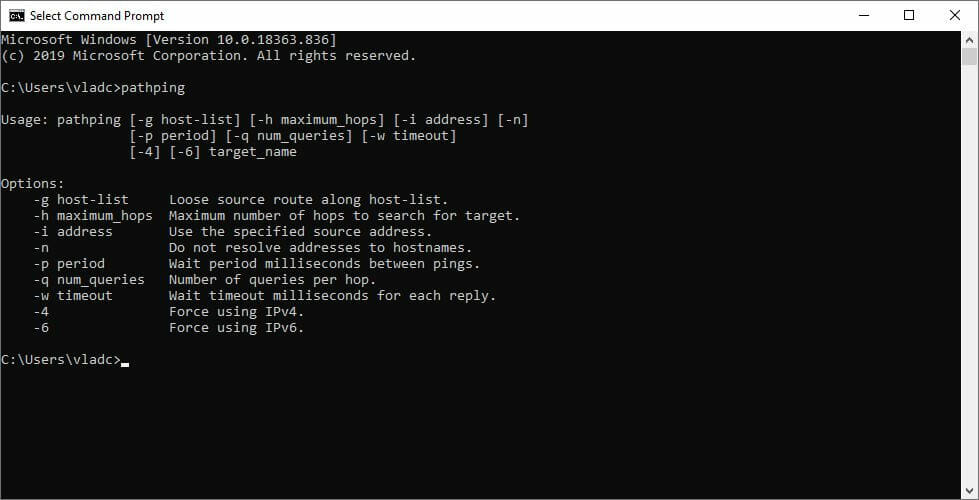
  1. Use our guide to help you perform a pathping test
  2. Locate the hops that are leaking packets on your connection
  3. Depending on your test results, take any of the following measures:
  • Replace/repair/upgrade/check/update any faulty components of your home network
  • Try using a wired connection instead of Wi-Fi (Wi-Fi packet leaks are more common)
  • Call your ISP if you notice packet leaks on their side of the connection
  • Ask your ISP to call the network distribution company if you notice something off there
  • Contact Rust’s support crew (or the server owner) if the packet leaks occur there

We remind you that network congestion is often the cause of packet loss. In this case, your safest bet would be switching servers or waiting for the packet loss issue to be solved. Also, try avoiding peak hours if you have a favorite server.

Rust packet loss can be fixed sometimes

If you’re experiencing packet loss in Rust, there might be a thing or two you can do. We advise isolating the issue and ensuring it doesn’t happen on your side of the connection.

If it does, replace any faulty component of your network as necessary. If not, try using a VPN or contacting the party at fault and ask them (nicely) if they can alleviate the situation.

Last but not least, although a VPN might not work with packet loss 100% of the time, it’s still a wise investment. A trustworthy VPN can provide you with online privacy, a secure connection, geo-restriction bypassing, and even improved ping.

Power BI June update brings new UI and AI assisted graphics

For those who are not aware, Power BI is a suite of business analytics tools that you can use to analyze data and share insights with colleagues and partners.

It’s a complex tool for monitoring your business available on every device.

What’s new in the Power BI June update?

The list of the new updates is impressive, to say the least, but must of them fall on the user interface category.

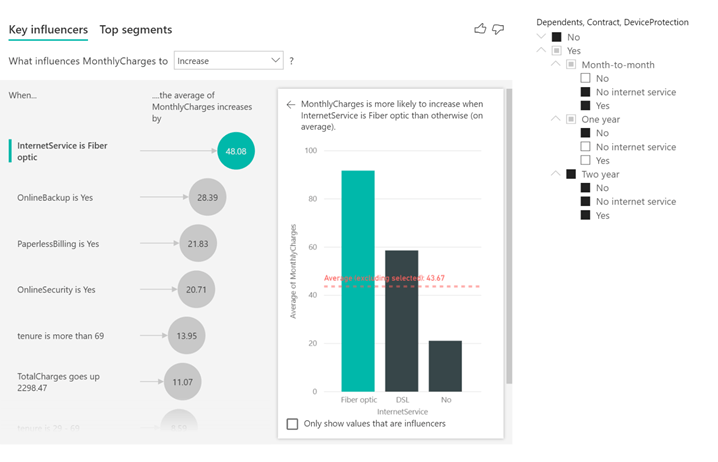
What caught our attention is the hierarchical slicer that is now supported by AI visuals.

Microsoft also provided an example where you can see that the hierarchical slicer is cross-filtering the Key influencers visual.Hierarchical slicer with AIPower

AI Insights available for everyone

Microsoft also announced that the AI Insights from the Power Query is now generally available.

AI Insights give you access to a collection of pre-trained machine learning models that enhance your data preparation efforts.

These include text analytics functions (sentiment scoring, key phrase extraction and language detection), image detection as well as connectivity to Azure ML models.

The complete list of Power BI updates

Here’s the complete list of June updates, as they appear on the Power BI blog:

Reporting

  • Enhancements to mobile layout authoring
    • New phone emulator
    • Updated visualization pane
    • Support for overlaid visuals
  • Automatic page refresh is now generally available
  • Hierarchical slicer is now generally available
    • New options for expand/collapse icons
    • Icons now scale with font size
    • Ability to customize indentation for child items
    • Supported with AI visuals
  • Modern ribbon is now generally available
  • RLS is now supported for Featured Tables in Excel’s Data Types gallery

Analytics

  • AI insights are now generally available

Visualizations

  • Line chart dot formatting options
  • Radar chart by MAQ Software
  • ValQ for Modern Visual Planning
  • Advanced Trellis by xViz
  • Updates to Gantt chart by xViz
  • Updates to Cards with States by OKViz

Template apps

  • Agile HR Analytics
  • Uber User Data Report

Modeling

  • Model view enabled for live connect (preview)
  • Updates to Model view

Data connectivity

  • Palantir Foundry connector

Other

  • New Power BI trainings

Do you use Power BI? What do you think about the new update? Tell us about your experience in the comments sections below.

[wl_navigator]

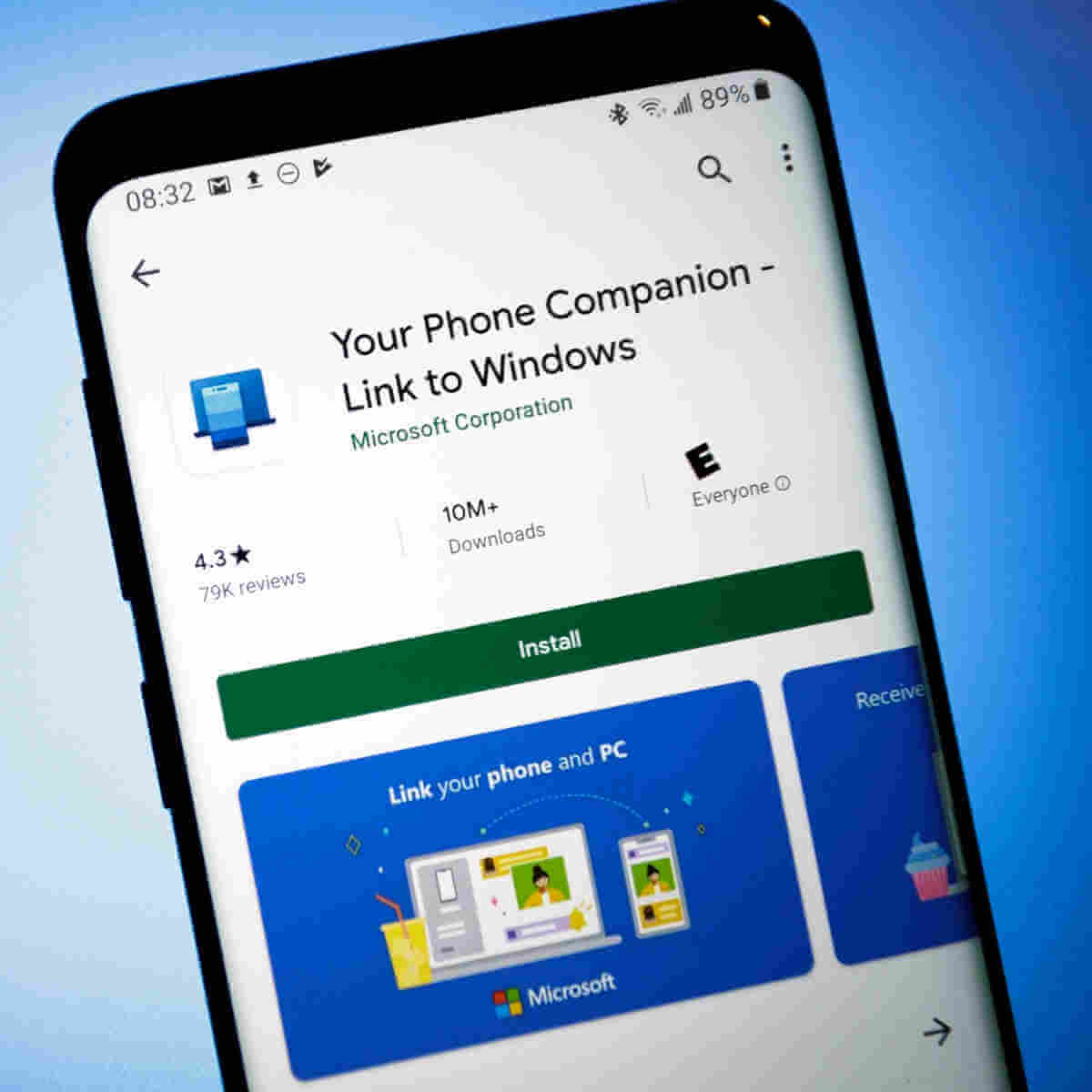
Your Phone app lets you play or pause your smartphone music

The Your Phone app lets you pair your Android or iOS device with your Windows 10 PC. Originally, the application only enabled you to view some of your phone’s content on your desktop. But it’s got more sophisticated to the point of letting you drag and drop files or images between your smartphone and PC.

Now, you can control media playing on your Android or iOS device within the phone-desktop linking app.

Your Phone app gets media control functions

The Windows 10 application has been updated with the ability to control the music or audio apps running on your smartphone. Microsoft announced the general availability of the new feature when it released Windows 10 build 19645 to the Fast ring.

This feature lets you control your music and audio apps from the Your Phone app. Now you can access and control the audio apps playing from your phone directly within the app, without needing to split your attention between devices or breaking your workflow.

So, now you can play, pause, or play next/previous audio file with your eyes focused on your desktop, rather than smartphone.

In addition, the app lets you control audio apps running on your smartphone. Supported applications include YouTube Music, Google Podcast, and Spotify.

While build 19645 only shipped to a group of Windows 10 insiders, the  media control update is available to all users.

However, Microsoft is not pushing the feature via an automatic update. That’s why the company recommends you update to the latest versions of the Your Phone app (for your mobile device) and Your Phone Companion (for your PC).

Also, be sure to update to the latest version of Windows 10 or at least use Windows 10 October 2018 Update.

We created a guide to help you get started on the new media control experience available in the PC-phone linking app app. You may check it out anytime!

Any thoughts or experiences with the Your Phone app? As always, you can leave any suggestions or questions in the comments section below.

Windows 10/11 Feature Experience Pack mystery unveiled

It seems like if you got the new Windows 10 2004 update, you also got a new Feature Experience Pack.

An app with the exact same name appeared in the Microsoft Store since last year in December and it’s still there but it doesn’t give you anything to work with.

Now, the folks from ZDNet spotted it and also provided a few clues on what’s going on.

What is the Windows 10 Feature Experience Pack?

This package is installed on every PC with the May 2020 Update and up, including the latest Windows 10 build 19645.

Windows 10 Feature Experience Pack

You can see by yourself by going to Settings, then System and System information and scroll down to Windows specifications. You will see a new item there called Experience.

Although Microsoft didn’t say anything about what it is and what it contains, you can see a reference in the Features on Demand package.

Feature Experience Pack mystery lifted

feature experience Pack

The Windows Feature Experience Pack is a part of the Features on Demand for Windows 10 and Windows Server, as listed in a Microsoft document listing the Available Features on Demand.As you can see from the caption above, the package is only 44.15MB and it contains Windows Client Shell Components and some features critical to Windows functionality.

Microsoft also added the warning to not remove this package.

The Features on Demand package also includes Internet Explorer, Notepad, the DirectX Configuration Database, Paint, PowerShell ISe, Quick Assist, the Print Management Console, and more.

X399 Motherboards: Which is the best to buy now?

AMD’s powerful Ryzen Threadripper CPUs have left behind its competitor with high core count and reasonable price tag. That said, these powerful CPUs need an equally powerful motherboard that can withstand the workload combined with sufficient cooling.

X399 motherboard perfectly compliments the Ryzen Threadripper chipset. The X399 series of motherboards offer all that you need to push the processor to its limits, provided that you can take care of other requirements like sufficient cooling and power supply.

In this article, we explore the best X399 motherboards that you can buy today that can help you build your workstation with top of the line computer hardware for best multi-core performance.

Best X399 Motherboards

ASRock X399 Taichi sTR4

X399 Motherboards

Pros:

  • Affordable X399 motherboard
  • Excellent Multi-core/multi-threaded performance
  • Full-length M.2 connectors for SSDs

Cons:

  • Minor aesthetics misses

With plenty of connectivity options and decent aesthetics, the ASRock X399 Taichi sTR4 is one of the most affordable X399 motherboards available in the market today. It offers reliable performance with UEFI BIOS.

ASRock X399 Taichi sTR4 supports the AMD TR4 socket Ryzen Threadripper series CPUs. It comes with a high-speed wireless connection, 8 SATA port, 3 Ultra M.2 slots, 10 GB/s LAN port, and 12 UBS 3.0 ports along with other usual connectivity options.

On the flip side, the board lacks detailed overclock tweak settings, and also the RGB LED isn’t the best in class.

ASRock X399 Taichi sTR4 due to its affordable price tag and good aesthetics is an excellent choice if you are looking for a value for money X399 motherboard.

⇒ Get ASRock X399 Taichi sTR4

GIGABYTE X399 AORUS PRO

X399 Motherboards

Pros:

  • Supports AMD 2nd Gen Ryzen Threadripper CPU
  • Quad-channel ECC support
  • Fast USB 3.1 Type-C support
  • Affordable price tag

Cons:

  • Lacks WLAN module

GIGABYTE X399 AORUS PRO is the company’s second socket AMD TR4 motherboard for the AMD 2nd Gen Ryzen Threadripper CPUs. The board is a tuned down version of X399 Gaming 7 to achieve the affordable price tag.

Talking about cost-cutting, the board no longer runs the entire length of the PCB, and only one out of three M.2 slots come with a heatsink. It supports quad-channel EEC DDR4 memory at the maximum speed 3600MHz. For connectivity, Gigabyte has included USB 3.1 Type-C interface, Intel LAN, and 4-way graphics support with dual armor and durable design.

GIGABYTE X399 AORUS PRO is one of the most affordable X399 motherboards from a reputable brand that comes with decent I/O support and excellent performance for the price.

⇒ Get GIGABYTE X399 AORUS PRO

ASRock X399 Professional Gaming

X399 Motherboards

Pros:

  • Support for AMD Ryzen 2nd Gen Threaripper CPU
  • 11 Power Phase and Dr. MOS support
  • 7.1 CH HD Audio Support
  • 8 SATA 3 and 3 Ultra M.2 slots
  • USB 3.1 support and 10 GB/s LAN connection

Cons:

  • Few unnecessary layout quirks

The ASRock X399 Professional Gaming as the name suggests is marketed as a motherboard for advanced gamers who wants to build a 2nd Gen Threadripper system with the main focus on gaming.

The ASRock X399 Professional Gaming is the most feature-packed X399 motherboard from the company and comes loaded with features that professional gamers may not utilize at all.

It comes with IR Digital PWM, 11 power phase, and Dr. MOS support out of the box. There is plenty of room for storage as well with 8 SATA 3 ports and 3 M.2 slots, this motherboard offers superfast data transfer. Other features on the board include Bluetooth 4.2 support, USB 3.1, and 10 GB/s LAN port.

ASRock X399 Professional Gaming is an excellent choice for advanced gamers who are not big on flashy LEDs and aesthetics as this board is all about elegance.

⇒ Get ASRock X399 Professional Gaming

GIGABYTE X399 Designare EX

X399 Motherboards

Pros:

  • Support AMD Ryzen Threadripper 2nd Gen
  • Quad-channel EEC support with 8 DIMMs
  • USB 3.1 Type C support
  • Dual-Band WiFi support

Cons:

  • Lacks additional power connectors

The GIGABYTE X399 Designare EX is the company’s flagship X399 motherboard that is marketed at advanced professionals looking for reliability and rigidity.

GIGABYTE X399 Designare EX boasts quad-channel 3600MHz DIMMs, front and reader USB 3.1 Type-C interface, built-in WiFi module with support for dual-band 2.4/5GHz connection, and EGB lighting and RGB strip headers for those who like it.

The sheer number of USB ports is one of the main highlights of the board. With over 8 USB 3.1 ports at the rear panel and two front USB ports, you have plenty to connect all your peripherals without using a USB Hub.

⇒ Get GIGABYTE X399 Designare EX

ASUS ROG Zenith II Extreme TRX40 (For AMD Ryzen 3rd Gen)

X399 Motherboards

Pros:

  • Excellent aesthetic
  • Best in class storage support
  • 10 Gb/s LAN support
  • Excellent overclocking support.

Cons:

  • Relatively expensive

The ASUS ROG Zenith II Extreme TRX40 perfectly complements the latest AMD 3rd Gen Ryzen Threadripper processors offering maximum connectivity and speed with up to five M.2 slots, USB 3.2 support, and AMD StoreMI functionality.

The ASUS ROG Zenith II Extreme TRX40 is an aesthetically pleasing motherboard with all the bells and whistles that you can ask in a high-end motherboard.

Apart from the best in class RGB LEDs and an OLED display, this motherboard offers the best in class performance and overclocking support for your beastly Ryzen Threadripper chip.

Zenith II Extreme boasts PCIe 4.0 support, WiFi 6, 16 power stages for optimized power solution, and comprehensive thermal design with active-cooling VRM heatsink, fan extension card, and water-cooling zone.

If you are upgrading from your AMD Ryzen 2nd Gen CPU to 3rd Gen Threadripper, Asus ROG Zenith II Extreme is the best of the lot.

⇒ Get ASUS ROG Zenith II Extreme TRX40

Conclusion

Unlike the latest 3rd Gen Ryzen CPUs, the 2nd Gen Ryzen Threadripper has a very limited selection of motherboards. That said, all the motherboards listed in the article above offer excellent performance and best in class features to help you make the best of your powerful Ryzen processors.

Instead of going for the most feature-packed and the expensive X399 motherboard, go through the list and pick the motherboard that meets your requirement the best.

7 Mangastream alternatives to read Manga [Best choices]

Mangastream is (or was) pretty much the go-to website for online manga readers. Mangastream is classified as a scanlation website. It used to provide a scanned and translated copy of the original comics in other languages. However, the website recently vanished from the web with a 404 error for everyone trying to access the website. While the disappearance of Mangastream may have come as a shock for its readers, there are plenty of Mangastream alternatives that you can try. In this article, we have put together a list of popular Mangastream alternatives to read manga online for free. Some of these alternatives are known to release WSJ series episodes even before the official release, so you don’t need to worry about missing out on the latest episodes of your favorite manga series.

What is the best alternative to MangaSteam?

MangaOwl

Mangastream alternatives

MangaOwl is one of the best alternatives to MangaStream as it offers some WSJ series episodes even before the official release. You can choose from over 53 genres of Manga including that includes Action genre as well.

MangaOwl allows you to continue reading from where you left off. You can read and stop anywhere and then continue without having to remember where you left off.

The user rating system makes it easy to read Mangas that are highly recommended by other manga readers. Users can also submit Manga from the collection section.

⇒Read MangaOwl

Mangadex

If you want to read manga online for free without the annoying ads, try Mangadex.  It offers high-quality manga series online with support for scanlation groups.

Mangadex offers one of the largest collections of Shonen, Seinen, and Josei comics. The comics are available in over 20 languages making it one of the largest manga sites with multi-lingual mangas.

The users can form groups for sharing and uploading manage series. You can also read alternative fan-fiction ending and official crossover manage series if you are into these things.

Users can interact in the forum or through the dedicated community forum to discuss their favorite manga with other readers. However, on the flip side, Mangadex seems to be missing some newest releases of popular manga series from its website.

⇒Read Mangadex


Read and organize your favorite manga comics with the best manga readers apps.


MangaFox

Mangastream alternatives

MangaFox offers the latest manage comic book online for free. The manga library at MangaFox is updated daily. Users can read the mangas online or download the MangaFox app to access it from their mobile devices.

That said, the app is not officially available on Google Play Store and App Store for iOS devices. You can download it from the official Mangafox website as an apk and install it manually.

There are two MangaFox websites – Mangafox.net and Mangafox.online. While both of these websites offer manga comics, Mangafox.net offers a better user experience and collection of comics.

⇒Read Mangafox

MangaHere

Mangastream alternatives

MangaHere is one of the most popular MangaStream alternatives with its ever-growing manga collection of over 10,000 comics in its directory. Similar to other free manga websites, MangaHere changes its URL extension frequently due to DMCA issues.

MangaHere offers multiple genres of manga, including action, comedy, drama, fantasy, romance, and school life. All the collection is categorized into one of these sections, making it easier to access your favorite genre.

The comics can be read online or through the mobile app using the MangaZone app. Needless to say, due to the nature of the app, it must be installed manually using the app.

⇒Read MangaHere

MangaPark

Mangastream alternatives

MangaPark is yet another online library for manga readers offering a free and large collection of manga comics in multiple languages. Users can keep a tab on their reading history by creating a free account.

Users can browse the latest manga or find something genre-wise. The Surprise option recommends a new manga depending on the user interest.

You can sort through the best manga using the rating system. The users can discuss the characters or leave the request for more chapters in the comments.

⇒Read MangaPark

Manganelo

Mangastream alternatives

From the most popular manga to the newest releases, Manganelo offers one of the largest collections of manga on the internet.

You can begin reading the manga as a guest or create a free account for more features such as bookmarks, reading history, and other customization options.

Manganelo lists the manga by genres that include adventure, action, cooking, historical, and harem, among others. Readers also have an option to rate the manga.

All the chapters from a manga is presented in a scrollable list, making it easier to navigate. Users can bookmark the chapters for future access.

⇒Manganelo

MangaFreak

Mangastream alternatives

MangaFreak offers the latest chapter of all your favorite manga online. Despite a decent collection of manga on offer, the site is not as popular as other MangaStream alternatives listed above.

One of the unique features of the MangaFreak is the ability to download manga comics to your devices for offline reading. Additionally, users can bookmark episodes to continue from where they left off without creating an account.

On the flip side, MangaFreak is ridden with in-page as well as pop-up ads that can be annoying for some users. However, that is not something our best ad-blocker browsers cannot fix.

⇒Read MangaFreak


What’s your pick?

All the MangaStream alternatives listed in this article are free to read and browse. With the manga scanlation sites shutting down one by one (some being forced and some out of respect for the original publishers’ work), these alternatives can help new manga readers in getting familiar with the world of manga comics.

Go through the list and let us know your favorite MangaStream alternative in the comments.

[wl_navigator]

Windows Terminal 2.0 will have Quake mode and more

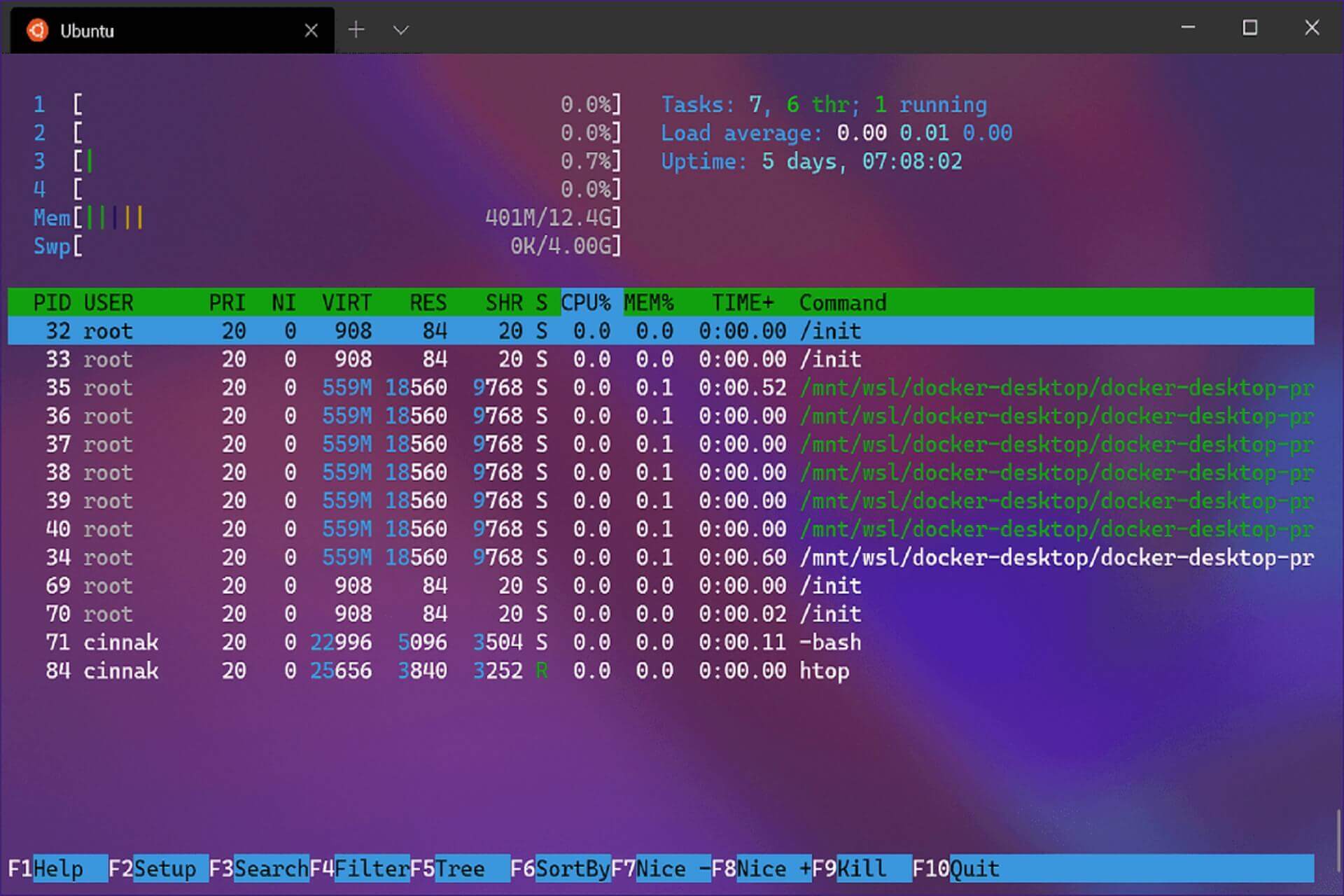
Kayla Cinnamon, the Program Manager at Microsoft, announced in a cheerful tweet that she and her team published the roadmap for Windows Terminal.

The schedule includes every step until the final push to Windows Terminal 2.0 for general public programmed for 2021-05-31.

Windows Terminal 1.0 was launched in May, during the Microsoft Build 2020 event and it’s a terminal application for users of command-line tools and shells like Command Prompt, PowerShell, and WSL.

Many commenters say that Windows Terminal, together with Windows Power Shell will sign the retirement papers for Command Prompt but nothing is written in stone yet.

Windows Terminal roadmap

The Github document details much of the updating procedures and roadmap until the next year’s spring:

The Windows Terminal project is engineered and delivered as a set of 4-week milestones. New features will go into Windows Terminal Preview first, then a month after they been in Preview, those features will move into Windows Terminal.

So, every month we will see a preview and a final version for the Terminal.

New Windows Terminal features and priorities

The Microsoft Team even laid down a list of features (they call them Scenarios) that either fix some issues with the current Windows Terminal 1.0.

Of course, every such scenario comes along with priority grades from 0 to 3, 0 being the most urgent.

The most commented and awaited feature on Twitter seemed to be the Quake mode. No, Windows Terminal is not going to run Quake (unfortunately).

The Quake mode is actually providing a quick launch terminal that appears and disappears when you press a hotkey.

Other interesting new features described by Microsoft include:

  • Settings UI – A user interface that connects to settings.json. This provides a way for people to edit their settings without having to edit a JSON file.
  • Command palette – A popup menu to list possible actions and commands.
  • Tab tear-off – The ability to tear a tab out of the current window and spawn a new window or attach it to a separate window.
  • Clickable links Hyperlinking any links that appear in the text buffer. When clicking on the link, the link will open in your default browser.

[wl_navigator]

Edge update fixes Collections, PDF, crashes, and other bugs

The Microsoft Edge transformation is still underway, with new features coming to it as build 85.0.538.0 goes live in the dev channel.

Microsoft announced a couple of features it was adding to Edge during the recently concluded Build 2020 event. From Collections integration with Pinterest to Sidebar search and automatic profile switching—these improvements are vital to the success of a browser playing catch up behind Chrome and Firefox in terms of popularity.

Well, the latest Edge update introduces new features, improvements, and a couple of functional fixes.

Microsoft Edge update fixes

Edge update 85.0.538.0 brings a couple of improvements on the user experience. Solved issues include:

  • Crashing of the browser when you launch an InPrivate or Guest window.
  • PDF launch failure.
  • Using the Edge Touch Bar when playing video on Mac would cause the webpage to crash. Your Touch Bar experience is now optimized.
  • Thanks to the update, Collections shouldn’t be crashing all too often.
  • Uninstalling a site set up as an app on your PC should now go smoothly.
  • You should be able to import passwords from another browser without too many glitches.

Apart from the above issues, build 85.0.538.0 addresses erratic behavior in Edge, including the disappearance of the mouse. It also fixes audio problems when using specific Bluetooth speakers.

There are a couple of changes to these other Edge features:

  • Touch Bar
  • Apps menu
  • Downloads management page

Added features

The latest Edge update brings support for more languages for translating webpage text.

Other new features are:

  • Added support for the TLS Cipher Suite Deny List management policy.  Updated Administrative Templates to come later.
  • Added the Win HTTP Proxy Resolver Enabled management policy to control how Microsoft Edge interacts with the Windows proxy resolver.  Note that this policy is already deprecated, and Administrative Templates will come later.

How would you rate your Microsoft Edge experience so far? Feel free to share your thoughts via the comments section below.

[wl_navigator]

How to use the new music controls in Your Phone app and more

Microsoft announced in a blog post for the release of the Windows 10 Insider build 19645 that you are now able to use Your Phone app’s audio controls feature.

For those unfamiliar with it, Your Phone is a Windows 10 app that pairs your Android device with your PC and provides you with interaction with it. 

You can see the messages and notifications from your phone and lately you are even able to see the photos from your phone and even to make and receive calls.

How can I use the new music controls in Your Phone app?

The new feature was available in beta testing since April but now it will be available for everyone running Windows 10 version 17134.0 or higher.

That allows you to use the Windows 10 app to control music and certain audio apps from your Android phone. It’s easy to use the feature following these simple steps:

  1. Open a music player from your Android phone and hit play on any song. It supports popular streaming apps like Spotify, Pandora, Amazon Music, Google Play Music, and Google Music. In this example, we used Google Play Music.open a music player
  2. Start Your Phone App from your Windows 10 computer. You should see the player window on the bottom-left part of the window.how to use Your phone music control
  3. You can now use the controls from your phone’s player. You can also see the player you’re using, the song details and even the artwork.

Note: Make sure you also keep Your Phone Companion app from your Android phone updated to experience the feature.

Your Phone app future function

Your Phone app got much attention from Microsoft lately and they don’t seem to slow down any time soon. The most important future iteration will be picture-in-picture.

Microsoft will probably call this Compact Overlay. It will let you view an app in a small window while looking at something else in other parts of the screen.

When an app is running in this mode, it will float on top of other bigger windows. That way, you can still do other things like watching a video.

[wl_navigator]

Check out the best sites to play online chess games

Without overshadowing the excitement of a good classic real-life board game, online chess has become increasingly popular starting with the 1990s and the introduction of Microsoft’s basic chess game.

Nowadays one can find a multitude of possibilities to stay focused on a virtual chessboard, from specific chess apps for mobile of Windows, to specific chess software for Windows.

Not to mention Chess Tutor, a software that anyone can use to better their chess technique.

And then there’s also the multitude of online chess games, which allow amateur players to play just occasionally, but also to join huge chess communities worldwide, where they can share tactics and learn strategies.

In this article, we’ll be looking at some of the best sites where you can play online chess.

Quick Tip:

Think you could get better at chess with the right help? You should try AI software that analyzes every move you make and every chess match.

DecodeChess uses an algorithm created by a grandmaster in chess that will find all your flaws and suggest new and better strategies on the go.

DecodeChess

Learn new strategies, see your mistakes and win against any opponent.
Free Download Visit Website

What are the best websites to play free online chess?

Chess.com – Largest online chess community

At the moment, Chess.com is the largest community of chess players from all over the world, with over 28 million members, and over 1 million online chess games hosted daily.

It’s a community where there’s a place for everyone, no matter if you’re a beginner or an expert. The dynamic is fantastic: not only you can join live games and compete against reputable opponents, but you can also find correspondence-style games, read useful articles, follow live events and tournaments, and join forums.

Signing up is free, as is the basic membership. But to enjoy the full experience and gain access to extra training features and videos, you need a paid membership.

⇒Go play on Chess.com

Lichess.org – Great learning tools

lichess

Considerably smaller than the previous community, the one a Lichess is similarly important.

The website provides a variety of online play modes as well as training materials and learning tools. You can opt to play standard chess games, choose your opponent, and even create your own chess game.

Since the chess community is not that large, you might find an opponent a bit harder, but the website is an excellent learning open source.

Membership is free, but of course, donations are encouraged.

⇒Go play on Lichess.org

Chess24.com – Great chess modes to be played

chess24

Currently, Chess24 is one of the largest chess communities that you can join and have fun playing good quality online chess.

The platform offers the same game features and training opportunities as the previous options, plus a gift shop for avid chess fans.

You can either user the site’s web version, or download their app for Android or iOS and keep training at your own pace, anywhere.

Basic membership is free, whereas a premium upgrade allows full access to training material such as video series and ebooks. 

⇒Go play on Chess24.com

Free Internet Chess Server (FICS) – Oldest chess server still standing

FICS

FICS is one of the oldest internet chess servers, with a still strong community.

It’s a good place to start with an occasional game, and then move on to more serious games against other players or strong computers.

They don’t have an official interface, though, so in order to play you need to download a compatible interface, depending on your device. Most interfaces are free.

⇒Go play on Free Internet Chess Server (FICS)

Playchess. com – Good place to watch live chess games

playchess

Another great online source to play free chess, watch live games or tournaments, and improve your chess moves.

Membership is free and recommended to have access to all the tools they offer, plus access to all other ChessBase Web Tools.

Besides playing regular games or blitz games, you will be able to even store your own games in the cloud for further analysis and improvement, take chess quizzes to study previous strong games.

⇒Go play on Playchess. com

Red Hot Pawn – Good premium features

red hot pawn

As the homepage says, Red Hot Pawn is a perfect place to enjoy just a basic chess game on the spot, against a computer. You have to sign up for customizable features, and also to be able to record your games and moves, to pause and resume games at a later time.

You can also download their dedicated app for Android or iOS and enjoy correspondence chess games.

For premium paid membership, you get access to training material and other features, as expected.

⇒Go play on Red Hot Pawn

Chess Tempo – Good variety of difficulties against players

chess tempo

Whether you fancy some live chess or just a correspondence chess game, Chess Tempo is always a good option.  You can choose an opponent based on their ratings, and you can opt for a blitz game or a longer one.

And if you want to improve your moves, this is the place to be, since you can find specific training from opening to endgame or just tactics.

Free membership offers just enough features for an amateur player.

⇒Go play on Chess Tempo

Gameknot – Good chess tournaments and database

gameknot

With Gameknot, once you register (for free) you have instant access to correspondence chess games only, tournaments, annotated games, and whole chess database.

You can even play several chess games online simultaneously and try different strategies.

Give it a try whenever you are at your computer and have the knack to make a move.

And with this, we end our choices. We’d like to hear about your favourite website to play online chess so drop us a line in the comments section below.

⇒Go play on Gameknot

Looking for free word games to play online? Check this guide

Who doesn’t like to show off as a wordsmith from time to time? But to do that, you need to practice your vocabulary and what better way to do it than fun word games. Besides easy games for kids, there’s a whole bunch of free online word games that adults can play over and over again. We’ve picked some of the easiest and most addictive word games that you can find.

What are the best online word games?

Word Wipe

word wipe

Word Wipe is developed by Great Day Games and can be really challenging if you’re not focused.

You are given a board full of scrambled letters and you have to join adjacent letters to create words, and clear as many rows as you can. The more letters you join, the higher your score gets.

You might feel a bit time-pressured, tough. You can turn off sound to get fully immersed in the game.

⇒Play Word Wipe

Letter Logic

letter logic

This is a classic crossword game, with a very plain design, but a good way to unwind and expand on your vocabulary.

There’s no time limit, but you have a very discreet clock in the left corn of the board just to remind you how time flies. And believe us, it does, because it’s not that easy to complete the game.

⇒Play Letter Logic

Scramble Words

scramble words

Scramble Words by AARP is an addictive word game in which you have to unscramble a bunch of 5 letters to make as many words as you can in the allotted time.

While it can completely draw you in, the background music can be a little annoying at times. This is also why after a while, the game can get tedious.

⇒Play Scramble  Words

Word Zen

word zen

Word Zen is a game developed by Big Fish Games, in which you are given a board full of letters that you have to combine to create words.

As expected, if you create longer words, you get more points, and you complete the game faster. But, as you eliminate letters, it gets harder to also find words.

In the full version of the game, you get 4 levels of difficulty and over 100 levels to get to.

An interesting detail is that you can play this with family and friends, creating separate profiles to compete against each other.

⇒Play Word Zen

Wild West Hangman

hangman online

Based on the original version of Hangman, this free online version is similar, but instead of hanging a drawn body, you hand a cowboy.

There are six topic areas to choose from and you’re allowed six incorrect letter guesses before the cowboy is hung and the game is over.

It’s a very simple game that can get boring after a short while, but nevertheless a good option to take your mind off more serious business.

⇒Play Wild West Hangman

So these were our 5 best word games that we found interesting. We would like to hear your opinion on this topic, so feel free to use the comments section below.


[wl_navigator]

Hands on with Microsoft Delve, an awesome way to see the Microsoft 365 content that’s most relevant to you

The core experience of Microsoft 365 is collaboration and sharing documents. You likely already share documents in OneDrive, Microsoft Teams, Outlook, and other apps across the service. So, what if you’re looking for one central hub where you can see how documents have been shared across your organization, and what you have shared yourself?

That’s where Microsoft Delve comes in. The Microsoft 365 app can be used to discover and organize the information that is most interesting to you on any given day, from across Microsoft’s apps and services. You even can create a profile, too, where your coworkers can get to know more about you. So, if you’re curious about how Microsoft Delve works, here’s a quick tour and guide.

Finding and sharing documents and content in Delve
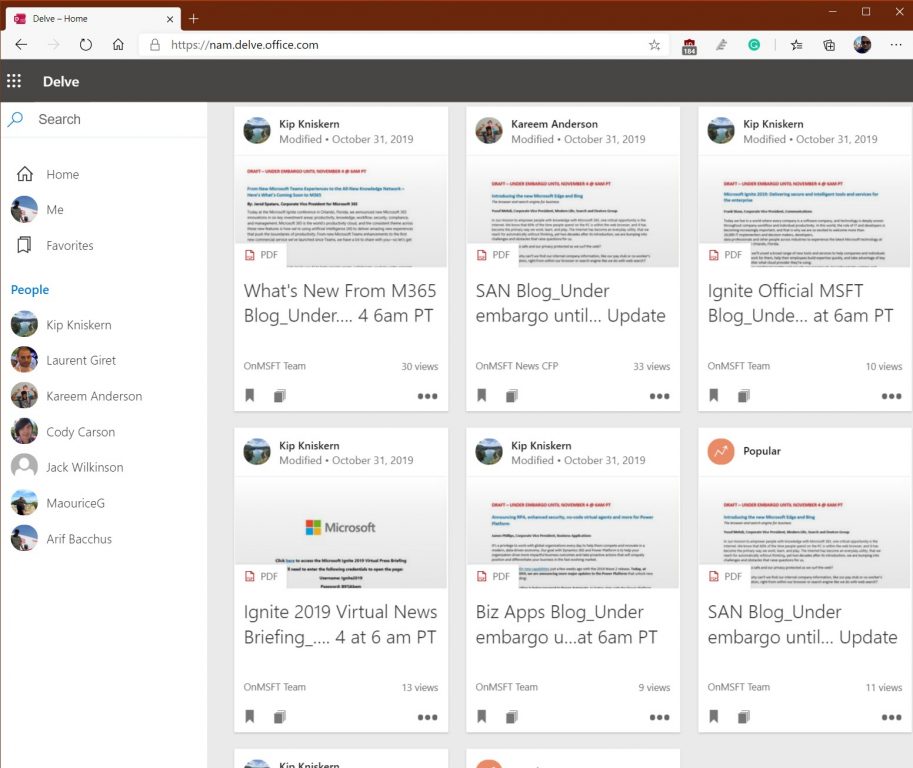
Once you sign in to Delve or choose it from the Microsoft 365 app launcher, you’ll be sent to the Home experience. From home is where you’ll get an up-to-date overview of what you and the people you work with are working on. This highly personalized area shows documents from OneDrive for Business or SharePoint that are likely to be most interesting to you right now. Powered by the Microsoft Graph, the things that show up in Delve may include Office documents, PDF files, SharePoint site content, images, and more. You also might video shared in emails, if they’ve been saved to Stream. If you’re looking for something specific, you can use the search box, too.

Keep in mind, though, that your documents are safe. Delve never changes permissions and only you see your private documents on Delve. Other people can see that you’ve modified a document, but only if they have access or if you’ve given them access to the same document. Documents are also not stored in Delve, and are pulled from SharePoint and OneDrive for Business, so everyone has their own view. You see your private documents, and other people see theirs. More information about this is available here.

Anyway, each document or item in the home will be represented as a tile. You’ll also see a profile photo for who uploaded or owned the document and item. There’s also a number on each tile, showing you how many views or how many times the document has been opened.

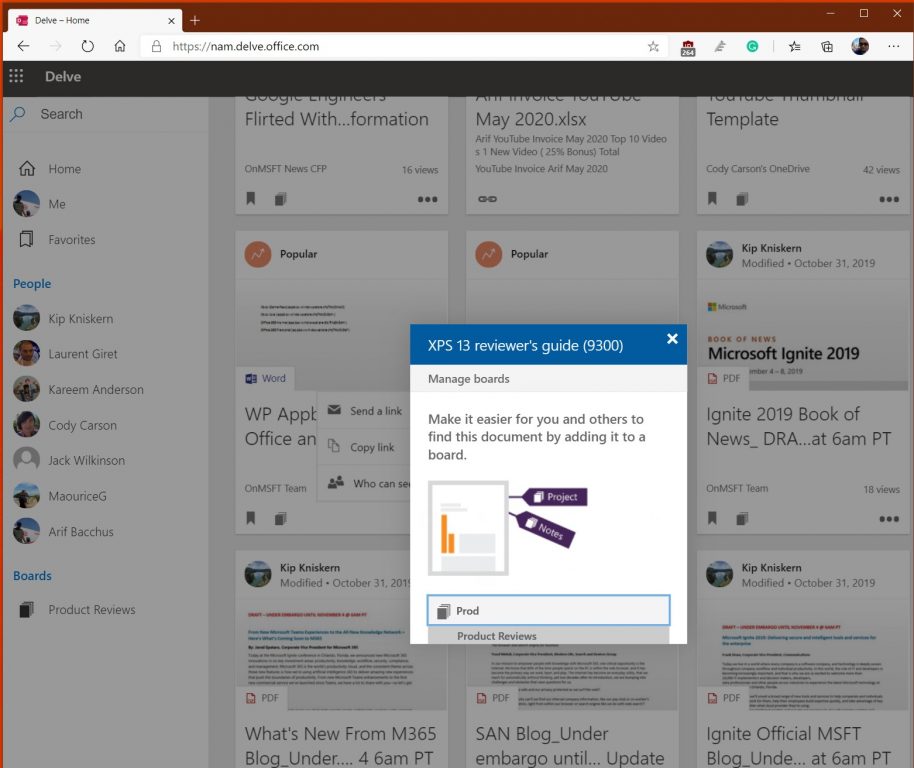
As expected, you can click the tile to open the document. But you also can click . . . more options to send a link, copy a link or check on who can see the file. Additionally, on the bottom left side of each tile, you will see two options. One will allow you to favorite the item to see it later. You’ll have quick access to all these favorites from the favorites section in the sidebar. Another option also allows you to add it to a board, which we discuss next.

Boards in Delve
The Board

Another core experience of Delve is what is known as a “board.” This “board” can be a collection of different items that you feel share a similar theme or content. If you haven’t already created one, a board can be crafted by clicking the manage board icon (it looks like three squares stacked on top of each other) on the lower-left corner of a card in the Home experience. You also can add an item to an existing board by typing out the name.

Once created, the items that you add to a board will show up within a few minutes for other Delve users who have access to them. You will also see a new board section appear on the bottom left side of the sidebar of Delve. Keep in mind, though, that not all content types can be added to boards. If the manage board icon isn’t available on a card, you can’t add that content type to board.

Your Profile
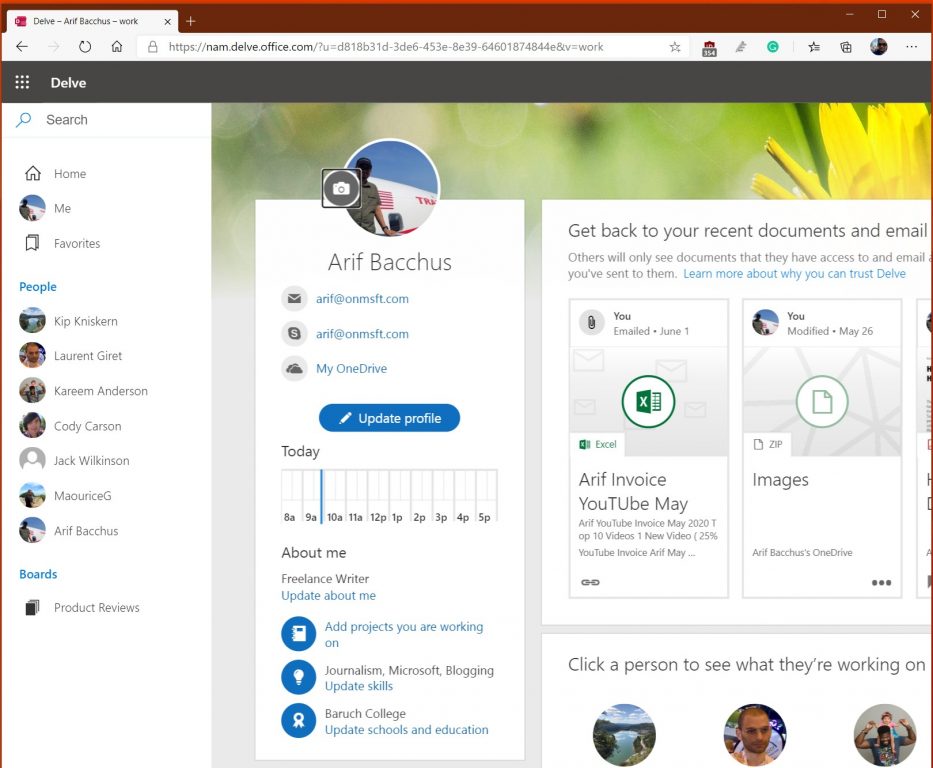
Much like Facebook, Twitter, and LinkedIn, Delve allows you to have a profile page. This profile page can be accessed by clicking on the Me section in the sidebar. Your Profile has your contact information, and additional information such as your photo, a custom-background image, your role, schools, skills, and much more. You can edit this at any time by clicking the Update Profile icon. Edits are saved automatically, but you can save at any time by clicking Save. All information with the small globe icon is also public for everyone to see. However, some information, such as your name or title, may be collected from your IT department and can’t be changed.

Keep in mind, though, that your profile page will be visible to everyone in your organization. When other people visit your page, they can see your contact information and connect with you directly. They can also see who you’re working with, and what documents you and people around you are working on. Importantly, though, they will only see documents that they already have access to and not your private documents that have not been shared.

The profile is a key part of Delve, as you’ll be able to click someone else’s profile page with the People link in the sidebar. This will give you information about them and what they’re working on. You’ll see what people they’re connected to, and a selection of popular documents from people around them — if you already have access to them. Contact information shows up as well, and a small graph showing availability times, so you now when the person is in and out of office.

Find the Microsoft 365 content that’s most relevant to you

Tracking down documents across OneDrive and Teams can be hard sometimes, so Delve is something that is much appreciated. It makes finding Office documents and the content that is most relevant to you much easier. Check out Delve now today, and let us know how you’re liking it by dropping us a comment below


How to check PC temperature on Windows 10 [FULL GUIDE]

Keeping the optimal temperature of your computer processor is vital for its health. Processors that oftentimes get too hot can lead to severe hardware or software problems, eventually to BSOD, sudden shutdown, or freeze.

But, as you know, when gaming or working on certain programs that require a lot of processing resources, your computer tends to heat up. This also happens when you keep your laptop on your lap or on a blanket, blocking its cooling system.

But there are a few ways to check on the temperature of your device and we’re going to explain to you how.

How can I check the temperature of my CPU?

What’s the ideal CPU temperature?

Unfortunately, there’s no standard good or bad temperature when it comes to CPUs. But for each processor, there’s a Tj. Max, or a temperature junction, is the highest operating temperature up to which the processor works properly.

You can check online for the limits, depending on your processor.

Ideally, if you keep your processor just under 60° C you’re OK, while a temperature between 70° C to 80° C means an overworked processor, and you should see what’s blocking the fans. Anything above 90° C might cause your device to shut down.

For any one of the last two instances, it is useful to know how to cool off CPU temperature.

That’s it! If you have other suggestions for CPU temperature monitoring software, just drop us a line in the comments section below.

How to check CPU temperature

1. Check temperature in BIOScheck cpu temp in bios

  1. Restart your computer.
  2. Enter BIOS by repeatedly pressing Delete, F1, or F2 (depends on the computer).
  3. In BIOS, go to over the different tabs until you see the CPU settings.

Here you should see what you’re looking for under CPU Temperature. The temperature is typically shown in both Celsius and Fahrenheit.

2. Use third-party free software

There are a bunch of third-party programs that you can install for free and that is considerably hassle-free compared to the previous method. Most of them don’t clutter your computer, so they’re safe to use.

What’s more, you can customize their features so that you can see exactly what you’re interested in.

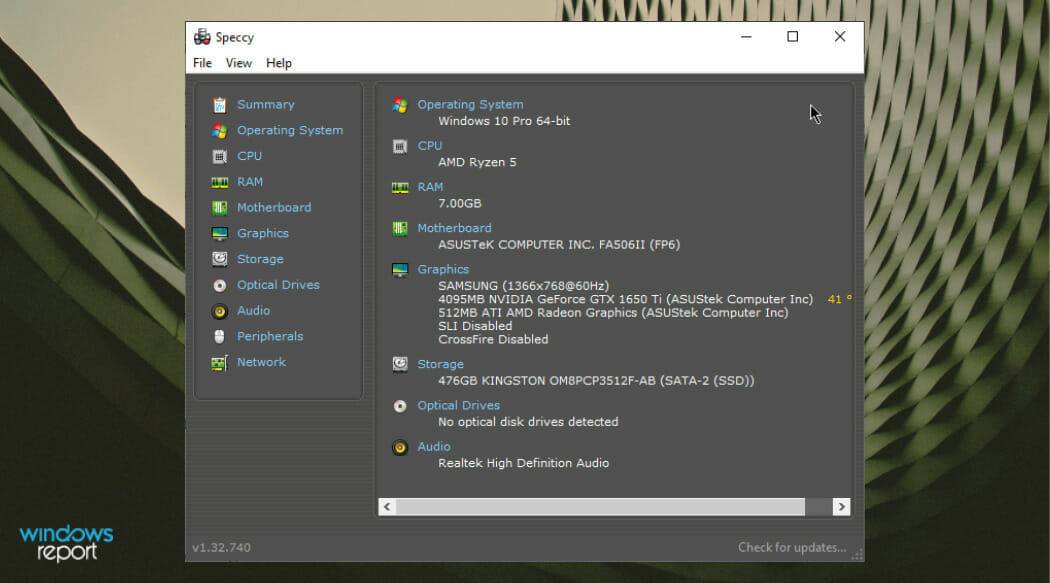
Speccy – Lightweight app

Speccy is a lightweight app developed by CCleaner, the popular developer of PC optimization software of the same name.

How to check PC temperature on Windows 10

It comes as a bundle of system diagnostic features, including the ability to check CPU temperature in Windows 10. With a single click, you can get useful information about your PC’s hardware details such as motherboard, RAM, graphics cards, and more.

You can also see the CPU temperature in the system tray by going to View > Options > System Tray > Minimize to tray, and checking Display metrics in-tray.

⇒ Get Speccy

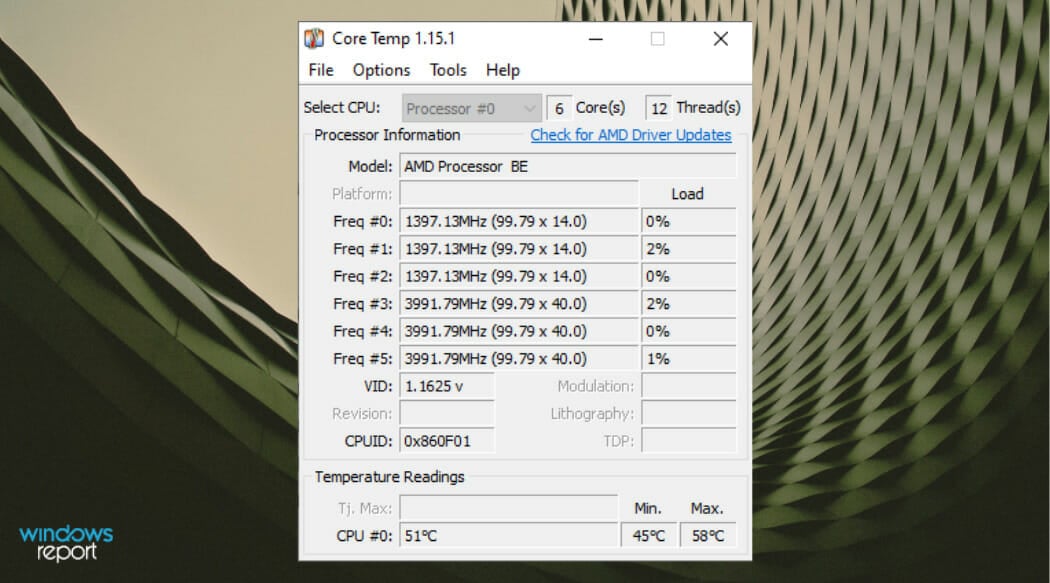
Core Temp – Easy to use

How to check PC temperature on Windows 10

Core Temp is an app that monitors and displays in real-time processor temperature and other vital information.

It can show the temperature of each individual core of every processor in your system and inform you of your processor’s Tj. Max, which is the highest temperature level beyond which your CPU starts overheating.

The app displays the temperature in the system tray, by default. If not, you can enable this from Options > Settings > Windows taskbar.

When installing it, make sure you uncheck other included bundle features.

⇒ Get Core Temp

Open Hardware Monitor – Intuitive interface

Open Hardware Monitor is also free software that monitors your CPU temperature, as well as fan speeds, voltages being used, load and clock speeds of your computer.

With this app, you can get in one view detailed information about each Core your processor has.

As expected, you can opt to see a specific Core temperature in the taskbar, by right-clicking on each Core temperature and selecting Show in-tray.

⇒ Get Open Hardware Monitor

A software that can monitor your CPU’s running temperatures is a helpful tool to have if you’re having computer problems or want to stress test your newly-built PC to check everything is working properly.

You can check other PC specs using the CPU Z tool for a more in-depth review.

Have you tried any of these tools so far? Tell us your opinion!

8 two-player online games to challenge a friend

While single-player online games are a good option to have fun, one of the most sought-for features is the multiplayer option. I mean, it should always be more fun to compete against a real face or cooperate with your best mate to save the world.

As expected, the two-player online games offer is varied, from multiplayer games to co-op games and even classic board and card games. You can play with your buddies either online or together on the same PC or console. 

Mind that some of the games in the following list are not for free.

Best online games to play with your friends

Apex Legends

A battle royale type of game in which you team up with one or two friends (Legends) to make a unique squad that will fight against other teams and gains wealth and fame.

The game received multiple awards, including for Best Multiplayer category. It is available for PS4, Xbox One, or PC, with a free download, and further in-game purchases.

⇒ Get Apex Legends

Fortnite

Another free battle royale type of game, in which you have to build forts, and fight and take out competitors until you’re the last man (or woman) standing.  It also supports a story mode, where you can battle against zombies with a friend.

The game can’t be played locally, only online, and is available for Xbox One, PC, Nintendo Switch, PS4, iOS, or Android. 

⇒ Get Fortnite

Mario Kart Tour

free car games

Available only as an app, on Apple Store or Google Play, Mario Kart Tour is very suitable for nostalgics, but not only. After all, Super Mario games have been a long time favorite with many online games fans of all ages.

The standard version is free to play, but then there are, of course, in-app purchases.

After downloading the app, you have to create a Nintendo account, register your friends on the dedicated list and invite them to play.

Mind that according to recent reviews the multiplayer option proved faulty, but for sure the developers are working to fix it, as many players have installed the app precisely for this feature.

⇒ Get Mario Kart on Google Play

Pandemic

This one is a great co-op game that can be played in 2 to 5 players, that have to make up a team and fight a worldwide infectious disease.

Since it doesn’t have a multiplayer option, you can invite friends and cooperate to make a strategy, then play in turns.

The game is available on PCs and Macs, a well as on gaming consoles and mobile devices running on Windows or iOS, at prices starting from $4.99.

⇒ Get Pandemic on Amazon

A way out

Yet another co-op game, perfect for two players, in which the two of you are prisoners trying to escape.

You have to work together to get through various challenges and many times you depend on one another to survive. 

The game is available for separate purchase for PS4, Xbox One, and PC. 

⇒ Get for PC

⇒ Get for Xbox

⇒ Get for PS4

Portal 2

Portal 2 is a great single-player puzzle game, but due to the high demand, a two-player mode was introduced.

It features a unique futuristic story, challenging test chambers and tricky puzzle rooms that the two of you have to go through together, to advance in the game.

Portal 2 is suitable for PCs, Xbox One, or Xbox 360. 

⇒ Get Portal 2 on Amazon

Words with friends

words with friends online

Back to some classic board games, this is a Scrabble-like game that you can play with your Facebook friends. All you need is a Facebook account and then challenge a networking buddy.

You can play it either locally or download the dedicated app and log in with your Facebook account.

⇒ Get from Google Play

⇒ Get from Apple Store

Chess on Linchess.org

Last but not least, a good chess game for the more geeky ones.  No registration is required and access is completely free.

When the two of you are ready, go to Lichess.org and choose the Play with a friend option, then choose the type of game you want and press on one of the icons. You’ll receive a sharable link, which your friend has to access to join your game.

From then on, just make your smartest move!

⇒ Play Chess

These were just a few options of two-player games, covering multiple game types, for all tastes, we hope. A few errors like the Once Human network error may suffice but it’s nothing you can’t handle.

We’d like to hear your recommendations on this topic, so please use the comments section below.

No Man’s Sky video game launches on Windows 10 and gets Xbox One and PS4 crossplay

It’s a pretty big day for fans of the No Man’s Sky video game. Not only is the latest update rolling out today on Xbox One with a number of new features and fixes, the Windows 10 version of No Man’s Sky is now available to buy and download on PC via the Microsoft Store and crossplay has been enabled for all players on Xbox One, Windows 10, and Sony’s PS4 console.

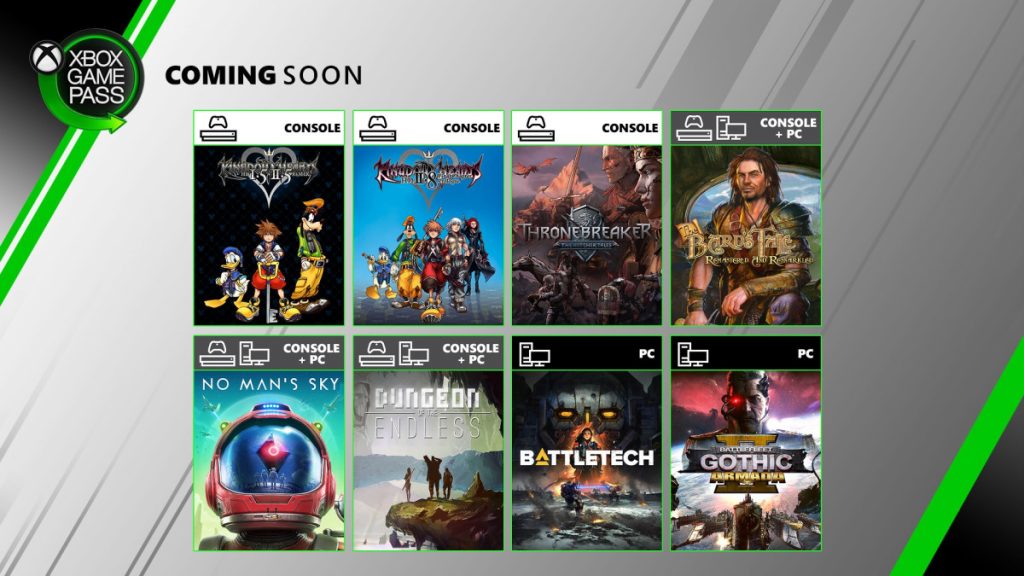
Oh, and No Man’s Sky is now also playable for free for Xbox Game Pass subscribers on console or PC.

“A tremendous amount of work has gone into this update and the underlying technology and systems,” an announcement on the official No Man’s Sky website reads. “We’ve moved to an entirely new networking architecture, with more flexibility for the future, allowing players to play together regardless of platform. I’m very proud of the team that has worked so hard to make this happen. Meanwhile we are continuing to work hard on new content updates, large and small for the future.”

Here’s the full patch notes for today’s update with details on each of the new features introduced today.

Game Pass

  • No Man’s Sky is now available in the Windows Store and is on Game Pass for Xbox One and Windows 10 players.

Cross-Platform Multiplayer

  • Replaced the entire network backend, so that players can now make multiplayer connections across all platforms.
  • Cross-platform groups can be created or joined in game, or from the frontend.
  • Ambient multiplayer on the Space Anomaly, in space, or on planets, can now match you with players from any platform.
  • Players from your own platform are identified by your platform’s icon. Players from another platform are identified by a controller icon.

No Man’s Sky Friends

  • When face-to-face with another player, a quick interaction has been added to smoothly create a new group or invite new players to your existing group.
  • Once in a group with a player, you can use the same interaction to quickly add them to your No Man’s Sky Friends, allowing you to quickly find and join their game again at another time.
  • No Man’s Sky Friends can also be added at any time by means of a unique code.
  • No Man’s Sky Friends can be managed on a new screen available from the Network Options page.

Chat Options

  • Re-enabled Voice Chat on PS4.
  • An option to automatically transcribe voice chat has been added to the Network options.
  • An option to automatically translate voice chat has been added to the Network options.
  • Guidance text has been added to the chat window after typing an unknown command.
  • Fixed a number of instances where incorrect auto-chat messages are broadcast.
  • Added a system to prevent multiple instances of the same auto-chat message being broadcast.

Quality of Life

  • It is now much easier to target other players to see their names.
  • Added a warning message when leaving the Anomaly while listed for a Nexus mission that has not started yet.
  • Iteration Ares now sells a range of basic upgrade modules.
  • Improved the feeding experience when giving bait to large creatures.
  • Introduced a small number of general optimisations.
  • Introduced some small improvements to load times.

VR Improvements and Bug Fixes

  • Upgraded the OpenVR implementation to 1.10.30.
  • Cockpit exit handles can now be grabbed both ways up.
  • Added an option to show the player’s body when playing in VR.
  • Camera height now reflects the height of your character in VR.
  • Improved the accuracy of hand tracking in VR.

Bug Fixes

  • Fixed an issue that could prevent rainbows from appearing on some platforms.
  • Introduced some minor visual improvements to GTAO to improve quality and reduce smearing artefacts on moving objects.
  • Introduced some improvements to the volumetric fog fading effect on planetary approach.
  • Fixed an incorrect icon in multiplayer bone-collection missions.
  • Fixed an issue that caused full-strength camera shake and controller vibration to be applied whenever a ship landed in multiplayer, regardless of how near that ship was.
  • Fixed an issue that caused parts of the backpack to be visible in first-person mode.
  • Fixed a console-only issue that caused additional, incorrect, terrain resource markers to appear near to real terrain resource deposits.
  • Fixed an issue that caused a misleading “out of jump range” message when out of warp fuel in Creative mode.
  • Improved the accuracy of the error message given when unable to summon your starship because you are in combat.
  • Fixed an issue that prevented the Antimatter Reactor from being built on planets without atmospheres.
  • Fixed an issue that caused some players to appear to bend their knees backwards when aiming at high angles.
  • Fixed a stutter that could occur when summoning the Space Anomaly.
  • Fixed an issue that could cause ship audio to play repeatedly in multiplayer.
  • Fixed a VR issue that could make it difficult to target players who were near the Nexus.
  • Fixed an issue that caused the Community Research update message to appear as soon as a player started a new Creative Mode game.

No Man’s Sky had a bit of a rough launch after it failed to meet the expectations of gamers but, after a number of updates, it’s gradually become one of this console generation’s greatest recovery stories right alongside Star Wars Battlefront II.

Do you play No Man’s Sky? Let us know which of these announcements excites you the most in the comments below and then follow us on Pinterest for more Xbox gaming news.

No Man's Sky
No Man's Sky
Developer:
Hello Games
Price:
Free

Call Of Duty: Modern Warfare’s latest update is now live on Xbox One consoles and it’s BIG

The latest update for the mega-popular Call Of Duty: Modern Warfare video game is now live to download for players on all platforms including Microsoft’s family of Xbox One consoles.

This latest update features a bunch of new content for Modern Warfare’s fourth season which is also now live after being delayed a week due to the state of unrest in the United States.

Among the more noteworthy changes are the addition of eight Mastery Challenges for each weapon, new Contraband Contracts, and in-match events.

Here’s the full release notes:

WHAT’S NEW

Weapon Mastery Challenges!

Once you’ve unlocked Gold for a weapon, Mastery Challenges become available. There’s 8 Challenges per weapon, each granting their own rewards, with 4 Playercards and 4 Emblems up for grabs. You’ll need to make your way through 2 Kill Challenges, 2 Headshot Challenges, and 4 additional Challenges that must be done in order (Gold, Platinum, Damascus, Obsidian). Completing all challenges for 51 weapons unlocks a badass special Sticker and Playercard!

Warzone In-Match Events!

Events can occur during Warzone Battle Royale matches and have an impact on the strategy and approach to gameplay. Events can happen in any given match without advance notice. When they happen events will always occur mid-game. E.g. after the first drop kit and before the Gulag closes. Only one event type will occur in a given match, so familiarize yourself with three new event types, available at the start of Season Four – ‘Jailbreak’, ‘Fire Sale’, and ‘Supply Chopper’.

When a ‘Jailbreak’ occurs, all players that have been eliminated will be released back into the match. Whether you were waiting for your 1v1 in the Gulag, or had been relegated to a spectator, now you’ll have another chance. You will get a one-minute notice before a Jailbreak event happens to find additional armor or secure a weapon for your returning teammates. Jailbreak events can occur any time during the middle game of a Battle Royale match, so it may be worth it to spectate, just in case. Be mindful that when a Jailbreak occurs, it’s not just your teammates that are coming back, but tons of additional enemies.

A ‘Fire Sale’ is an in-game event that temporarily discounts most of the items at a Buy Station up to 80% or even gives items out completely free. A Fire Sale is the perfect time to pick up a UAV, Armor Box for your squad, or even a lethal Killstreak. During a Fire Sale buying back a fallen teammate is completely free. If your short on in-match Cash, a Fire Sale might be the best chance to redeploy a squadmate. Note that even during a Fire Sale, Loadout Drops are not discounted. Fire Sales only last sixty seconds, so expect Buy Stations to be crowded and prepare for a fight.

A ‘Supply Choppers’ event brings a non-lethal, but heavily armored helicopter to Verdansk. The helicopter will have a lot of health, and it will require a few rounds of bullets and maybe a rocket or two to bring it down. The helicopter will not shoot at you, but make sure that while you’re distracted enemy teams don’t take advantage. Once you destroy the Supply Chopper, it will drop high quality loot for players to pick up. This loot includes three UAVS, two armor boxes and munitions boxes, a gas mask, a grenade launcher, and tons of Cash at a minimum. Supply Choppers leave after a certain period of time, so if you want to take one out start firing right away. Remember, that after taking down a Supply Chopper, you have to collect the loot. Watch out for enemy teams who might try to take you out during the collection or steal your hard-earned rewards.

Contraband Contract System!

Contraband is a new, rare contract with a permanent Blueprint Reward. Contraband contracts have a chance to spawn after a previous contract is completed. If you see the Contraband briefcase, hurry up and collect it. Once you have it, take it to the designated Helicopter Extraction location to call in the helicopter. The player carrying the briefcase must deposit it into the helicopter drop-bag to complete the mission. If you kill a player carrying this briefcase you can steal it complete the contract for your team. Be on the lookout for them on your Tac Map!

PLAYLIST UPDATE

Modern Warfare

  • Barakett Promenade has been added to Ground War!
  • Trench Mosh Pit (2v2)!
  • Scrapyard 24/7!
  • Blueprint Gunfight!

Warzone

  • Quads
  • Trios
  • Duos
  • Solos
  • Blood Money

Warzone Rumble!

  • Warzone Rumble is a brand-new mode in Warzone. Two teams of 50 players parachute and battle it out in various areas around Verdansk. This mode is high action with custom loadouts, vehicles, and quick respawns.
  • Modified Special Operations:
  • Just Reward – Veteran
  • Just Reward – Regular

DOWNLOAD SIZE

The Season 4 download is going to be large. In order to reduce the overall disc space that MW and WZ take up, we’re compressing a bunch of assets. Once installed, the S4 launch will only take up an additional 4GB on consoles for all of the new content.

We’re continuing to sweep all assets to make size reductions where we can, and also further optimize future patches for size. If helpful, one reminder for console players, you can uninstall the content packs for modes that you’re not playing if you want to free up space.

You can learn how to do so HERE.

GENERAL FIXES

  • Fix for some players not receiving their Season 3 emblem
  • Fixes to help reduce players encountering Error Code 13-71. If you still experience this after today’s update, please reach out to Activision Customer Support
  • Fix for a bug where the Ghost Perk was not hiding players from the Heartbeat Sensor when viewing the Killcam
  • Fixed an issue where some players were unable to activate a Nuke after getting the appropriate number of kills
  • Fix for a bug where the 4th Operator Mission for Talon, “Complete 2 Warzone Plunder Matches” was not tracking as intended
  • Fix for an issue where some players could find long wait times when attempting to load into Ground War matches
  • Fix for a bug where neutral Hardpoints were appearing yellow instead of grey
  • Various exploit fixes across multiple maps
  • Fix for the Officer Challenge, “Get 20 kill while crouched” not tracking properly for some players
  • Fixed a bug where the white health regen was triggering on downing other players even if Quick Fix wasn’t equipped
  • Fix for an exploit where players could sometimes call in duplicate UAVs
  • Added new weapon perks to the Specialist Bonus (the bonus earned after getting 8 kills while specialist is active): Frangible-Disabling, Frangible-Wounding, Mo’Money, Recon, Heavy Hitter, FMJ, Presence of Mind
  • Fixed a bug where players were unable to perform executions when on some elevated surfaces
  • Fixes to help prevent an issue where players were able to move before the match countdown timer completed
  • Fixes to help prevent against black graphical corruption issues some players were seeing
  • Fix for the “For the Cause” grip tape not appearing properly on the base M4
  • Improved stability fixes for PC
  • Fixes to help prevent issues with voice chat

WEAPONS

  • Lowered ammo count for reload warning on belt fed LMG
  • Fixed bug with HDR and Sleight of Hand where reloading would not give ammo to the player

WARZONE

  • Loot Update: New weapons and updated Blueprints! Be on the lookout for the Fennec, CR-56 Amax, Renetti, and more!
  • Fixed a bug where the Recon Contract could spawn inside an Ammo Supply cache, making it unusable
  • After completing the Contraband Mission and calling in the extract helicopter, players could shoot the helicopter without receiving hitmarkers and the helicopter would remain on screen indefinitely
  • Fixed a bug where players were able to drop their weapon in the Gulag
  • Fix for an exploit where players were able to duplicate Self Revive kits

SPECIAL OPERATIONS

  • Fix for a bug where a player was stuck in 3rd person gameplay
  • Daily Challenges are now displayed alongside Multiplayer and Warzone challenges
  • Fixed an issue where unlocking an Operator skin in Co-Op would not unlock the base skin for that Operator as well
  • Fixed a bug where the game would not end correctly if the last player alive used Team Revive immediately before dying

SPECIAL OPERATIONS: SURVIVAL

  • Fix for being able to duplicate the Juggernaut Suit Munition minigun
  • Fix for rare instances of waves not ending properly
  • Fixed an exploit on St. Petrograd where players could fully hide from soldiers behind a bar

Interestingly, Xbox One players have begun reporting that the update size is significantly larger than it should be. While the update should be around 30GB in size, many Xbox gamers have taken to Twitter to vent their frustration at updates that are hitting 80 and even 100GB.

Activision has officially stated that this is a bug and that a fix is being looked into. Those on a limited internet plan may want to disable game updates for the meantime.

Are you excited for Call Of Duty: Modern Warfare Season 4 and have you encountered this Xbox One update glitch? Share your experiences with the community in the comments below and then follow us on Pinterest and Twitter for more Xbox gaming news.
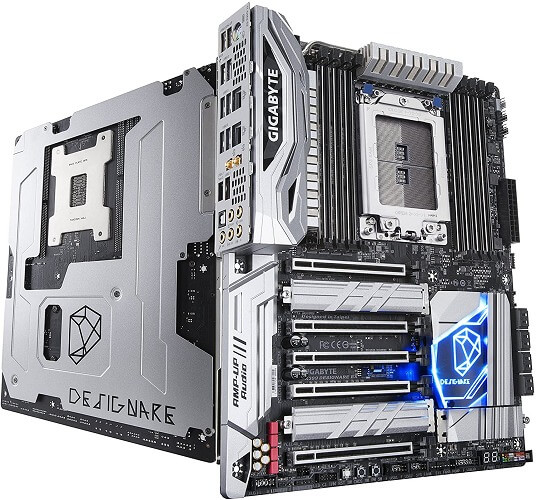


Microsoft confirms Senua’s Saga: Hellblade II will use Epic’s new Unreal Engine 5

As we’re just a couple of hours away from Sony’s big PlayStation 5 event, Microsoft doesn’t want to be left out of the conversation about the future of gaming. Indeed, the company has just published a long post on Xbox Wire that summarizes everything that’s been revealed about the Xbox Series X so far, with some interesting details about Microsoft’s upcoming first-party games.

As you may know, Microsoft plans to showcase new Xbox Game Studios titles in July, and the company confirmed that Senua’s Saga: Helllade II, the first next-gen game we saw back in December 2019 will use Epic’s new Unreal Engine 5.

The power of Xbox Series X was first demonstrated with the unveiling of Senua’s Saga: Hellblade II. The team will be building the game on Unreal 5 and leveraging the power of Xbox Series X to bring the Hellblade franchise to levels never before seen. The footage shown was captured in-engine and reflects the power of Xbox Series X available to developers to deliver new universes, experiences and games in ways you have never imagined.

Xbox head Phil Spencer previously confirmed on Twitter that several Microsoft studios were using the Unreal Engine for their next-gen games. The first Unreal Engine 5 demo we saw last month ran on Sony’s PlayStation 5, though the new game engine will support all gaming devices (including current generation consoles) when it’s released next year.

After putting so much emphasis on the fact that the Xbox Series X is the most powerful console ever, we hope that Microsoft’s big game showcase in July will not disappoint. In the meantime, the company will likely pay good attention to Sony’s event today, especially since the Japanese company may well reveal the design and price of the PlayStation 5.

Windows 10 build 19645 supports Hyper-V nesting on AMD chips

A day after releasing Patch Tuesday updates, Microsoft has shipped Windows 10 Insider Preview Build 19645 to beta testers in the Fast ring.

This update brings impressive changes, including support for nested virtualization on AMD processors. Also, it introduces a new way of delivering updates to the Linux Kernel.

The package includes a couple of bug fixes too.

Nested virtualization in Windows 10 build 19645

Windows 10 build 19645 introduces support for nested virtualization on AMD-powered PCs.

So, if your computer uses an AMD processor, you can now use it to run Hyper-V within a Hyper-V virtual machine (VM).

Generally available versions of the Windows OS support nested virtualization only on Intel microchips.

The only other change build 19645 brings relates to how Microsoft delivers updates for the Linux kernel residing in WSL 2 distributions. With this version, the Windows image no longer contains the Linux kernel.

Therefore, in the future, Microsoft will be servicing the Linux kernel via Microsoft Update.

We changed the servicing model for the Linux kernel inside of Windows Subsystem for Linux 2 distributions. This build includes this change to remove the Linux kernel from the Windows image, and instead have it be serviced via Microsoft Update, the same way that 3rd party drivers (like graphics, or touchpad drivers) are installed and updated on your machine today.

Some of the fixes this Windows 10 update brings are:

  • Bug checks for PCs booting from eMMC storage when coming out of hibernate.
  • Inconsistent rendering of taskbar preview thumbnails.
  • Some text fields not showing handwriting input after tapping with a pen.

Plus, if you’re a fan of the Your Phone app, Microsoft has confirmed that you can now use the app to control music or audio apps running on your Android smartphone.

Have you installed Windows 10 build 19645 yet? Feel free to let us know or ask any questions via the comments section below.

[wl_navigator]

Test attack exposes Intel SGX security vulnerabilities  

A recently published proof of concept exposes security weaknesses in Intel SGX or Software Guard Extensions. The report comes amid the growing sophistication of cyber threats, which has demonstrated that software-based antimalware tools alone are inadequate.

As such, tech companies like Microsoft are advocating for hardware-backed reinforcements to traditional software protections.

Intel SGX chips fail SGAxe test attack

Cybersecurity researchers successfully breached Intel SGX enclaves.

They demonstrated that it’s possible to access data protected within the enclaves by bypassing all the countermeasures Intel has in place.

We then proceed to show an extraction of SGX private attestation keys from within SGX’s quoting enclave, as compiled and signed by Intel. With these keys in hand, we are able to sign fake attestation quotes, just as if these have initiated from trusted and genuine SGX enclaves.

In the test attack, the researchers were able to steal protected data, which should be difficult when it comes to Intel SGX. Essentially, the technology allows developers to partition confidential information in hardware-secured enclaves.

The experiment proved that code executed at higher privilege levels can breach the SGX ecosystem.

SGAxe is a transformed version of CacheOut, which is also a security vulnerability in certain Intel microchips.

Intel has published the full list of vulnerable processors.

While there’s no evidence of any SGAxe exploit in the wild, hackers can still draw inspiration from the available proof of concept to get started. So, hopefully, Intel will release micro-updates to patch the affected chips soon enough.

10th Generation Intel Core processors are not in the list of affected chips, though. That should be good news, considering that one of their key selling points is their best-in-class built-in security.

Do you think hardware-backed PC security, such as Intel SGX enclaves, is the way to go? You can always share your thoughts in the comments section below.

[wl_navigator]

Packet loss Battlefield 1: What is it and how to fix it?

Battlefield 1 is a popular WW1-themed first-person shooter developed by EA DICE and distributed by Electronic Arts. But don’t get fooled by its name, as it’s far from being the first game of the long Battlefield series. It’s actually the 15th installment.

The game received a lot of positive reviews, and was generally well-received, compared to the previous titles in the series. It sold over 15 million copies, which is outstanding considering the game was released in 2016.

Battlefield 1 caters to the needs of both single-player and multi-player enthusiasts. If you’ve never played in multi-player and plan to never do it, then you can skip this article altogether.

Mainly because packet loss, one of the most annoying issues you can encounter in online games, doesn’t affect the game in single-player. But first, let’s discover a bunch of things about this dreaded packet loss.

What does packet loss mean in Battlefield 1?

Packet loss generally means the same thing, regardless of where you encounter it.

Packets of data that you send or receive never make it to their destination, which can cause other issues such as high latency, jitter, rubberbanding, crashes, or even connection timeouts.
More often than not, packet loss is caused by network congestion. Thus, it can occur suddenly and disappear just as quickly before you even notice it.

However, sometimes, losing packets can be caused by faulty hardware/software components, improper network routing, DDoS attacks, or even server-side faults. And that’s when you can step in and try to fix it.

How to test for packet loss for Battlefield 1?

  1. Press the Win key on your keyboard
  2. Type CMD
  3. Right-click the command prompt and select Run as administrator
  4. Go to the Pingtestlive website
  5. Note the IP address of the server you’re interested in
  6. In the CMD window, type pathping x.x.x.x (x.x.x.x = the IP address of the server)
  7. Wait for the test to complete
  8. Check if there’s any packet loss between the source (you) and the server

Long story short, as the connection gets further away from you, your ping will increase. But that doesn’t mean packet loss is a must. So be careful and check every hop thoroughly.

How to fix Battlefield 1 packet loss?

1. Use a VPN

  1. Download Private Internet Access on your PC
  2. Install it
  3. Launch it and log into your PIA account
  4. Connect to the server of your choice
  5. Repeat the packet loss test above
  6. Launch Battlefield 1 and check if the problem still persists

You can perform either one of the last two steps since they’re meant to show the same thing: if packet loss still occurs. Note that using a VPN won’t work if you lose packets on your end, or if the Battlefield 1 server experiences issues.

Private Internet Access

Private Internet Access

Losing packets in Battlefield 1? PIA could help you fix that.
$2.85/mo. Buy it now

Therefore, the only way using a VPN might work is if the leak happens on your ISP’s side.

Private Internet Access is a great all-round VPN tool from Kape Technologies. It can help you not only bypass packet loss, but also protect your privacy, secure your connection, and even bypass geoblocking. Additionally, it offers 24/7 live chat support.

2. Troubleshoot the connection manually

  1. Run the packet loss test as described aboveCMD pathping
  2. Locate the hop or hops where the packet leaks occur
  3. Depending on your test results, take any of the following actions:
    • Check/repair/replace/update/upgrade any faulty components on your end (PC, router, cables)
    • Call your ISP and ask the support team to look into the issue
    • Ask your ISP to connect the network distribution company if the issue is on their end
    • Contact Electronic Arts’ support team and inform them of your findings

As we’ve mentioned above, network congestion is usually the culprit. Therefore, the best fix, in this case, would be waiting around for the issue to pass. Maybe don’t log in at peak hours.

Battlefield 1 packet loss usually passes by itself

Since it’s a quite popular game (world-wide), you can expect a lot of players to log into the game at any hour of the day. If you experience packet loss, you might want to check whether the problem is on your side, or on your ISP’s.

If there seems to be packet loss on the Battlefield 1 server, you might want to wait it out. Network congestion usually leads to this kind of situation, and the best way to solve it is to wait it out.

Last, but not least, you should consider investing in a trustworthy VPN. Even if it won’t solve your packet loss crisis every time, it can still help you bypass geo-restrictions, safe-keep your privacy, and secure your connection.

[wl_navigator]

Microsoft to help improve RPA tool WinActor

Microsoft and NTT DATA are joining hands to help enterprises deploy and utilize cloud-based resources, specifically on Azure. The two companies will jointly improve NTT DATA’s WinActor, a robotic process automation (RPA) application.

The Redmond-based company is already in the RPA field, and it even has its own such tool, Power Automate. Besides, Microsoft recently announced it had acquired Softomotive, the firm that developed WinAutomation.

Microsoft alliance with NTT DATA to enhance WinActor

The move by Microsoft to extend its partnership with NTT DATA doesn’t come as a surprise.

For starters, the tech giant is in the habit of acquiring or at least forming alliances with like-minded tech firms to help enterprises quickly and smoothly move their data and applications to the cloud.

It took over Movere, a cloud-migration service, in September 2019, for example.

The company is now liaising with NTT DATA on multiple tech fronts, and WinActor development is a key objective of the alliance.

In a statement published today, Microsoft said it’s collaborating with NTT DATA to help with the digital transformation of businesses. Going forward, the corporations will work hand in hand to deploy Microsoft Azure-powered solutions and services.

The companies will enhance NTT DATA’s knowledge management solution everis knowler, and robotics process automation tool WinActor focusing on streamlining business operations and increasing productivity and efficiency.

NTT DATA is itself a global leader in IT. So it has the breadth and depth necessary to help with the deployment of Microsoft’s productivity solutions, including Microsoft 365.The companies can also leverage their synergistic alliance to push Teams to more people working from home.

Lately, Microsoft has been improving Teams’ capacity for workforce collaboration. For example, the Office 365 platform will soon allow Meetings with up to 300 participants.

What are your views about the improvements coming to WinActor? You may reach for the comments section below to leave your feedback anytime!
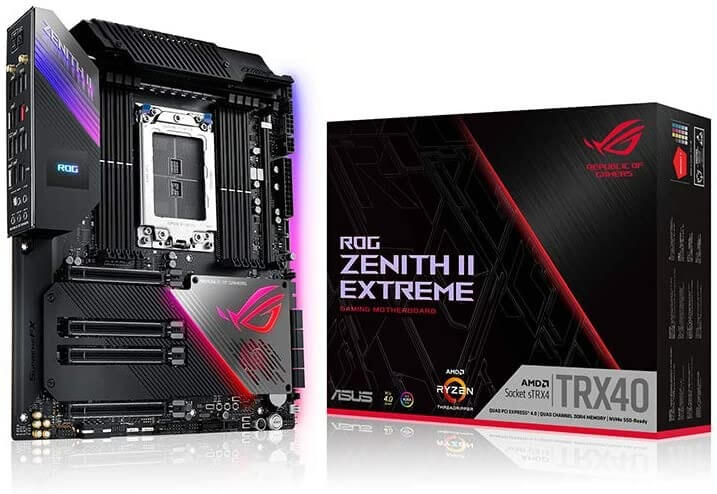
Vectra integration with Azure Sentinel to power SOCs

Vectra integration with Azure Sentinel is finally here, the IT security firm announced. The development comes against the backdrop of increased attacks on cloud-based systems or applications, such as Office 365.

For example, according to a 2019 report, bad actors targeted Microsoft 365 accounts with an unsettling degree of success.

Fortunately, enterprises can use products like Azure Sentinel to spot and stop cyber attacks before they happen. Microsoft Defender Advanced Threat Protection (ATP) is another tool available to users that need to analyze their systems and quickly detect threats before they materialize.

Well, these Microsoft security services are being integrated with Vectra to provide an optimized view of enterprise-wide security postures and threats.

Vectra integration with Azure Sentinel

Security Operation Center (SOC) processes that utilize siloed tools are not efficient enough in the face of constant threats that organizations face day to day. Moreover, security personnel receiving threat alerts from disjointed systems may miss some important signals.

So, Vectra integration with Azure should help such teams consolidate their threat detection and response strategy. According to a statement by Vectra, this partnership should bring benefits such as:

  • Bring the Vectra high fidelity behavioral detections straight to your Sentinel Workbook for immediate attention with direct links into the Vectra UI for deeper analysis.
  • Automate incidents in Azure Sentinel based on configurable threat and certainty score thresholds from Vectra.
  • Perform forensic analysis on incidents to identify devices, accounts, and attackers involved. Leverage Vectra threat intelligence feed to proactively prevent future attacks.

Enterprises leveraging Vectra incorporation into Microsoft Defender ATP enjoy these additional perks:

  • Gain Vectra’s full view of network interactions and seal all security visibility gaps.
  • Stop and isolate hackers, while keep resources running and available.
  • Utilize high-fidelity detections along with extensive process-level host-context.

Have you got any suggestions or questions regarding Vectra integration with Azure Sentinel or other Microsoft security services? Feel free to share your thoughts in the comments section below.

[wl_navigator]

Windows 10 2004 upgrade triggers storage corruption issues

The much-awaited Windows 10 2004 brought a number of impressive new features and improvements, including things like Windows Hello in safe mode, optimized reserved storage, and the new business-oriented Cortana app.

Considering what users that have upgraded to the Windows 10 May 2020 Update are saying on social media, such as Twitter and Reddit, it’s safe to conclude that the installation went smoothly for the vast majority of them.

However, the latest OS version from Microsoft has been something of a mixed bag of goodies. As such, it’s leaving some users disappointed, despite its good features.

The OS is causing all manner of issues, from installation failure to storage problems, based on Microsoft and user reports.

Windows 10 2004 causes storage issues for some users

One user has shared to the Windows 10 Subreddit the storage problems they’re experiencing after installing Windows 10 version 2004. Their main concern is the wide spread corruption of system files on a parity drive.

The user claims that these issues never existed before upgrading to the OS.

I got my first chkdsk error shortly after upgrading to 2004. New errors keep showing up now, and my files contents are being corrupted. Chkdsk repairs the errors, but more come back. Some files partially lose their contents, others lose their contents entirely. File contents are being replaced either partially or completely by NULL bytes.

Well, Microsoft released some Patch Tuesday updates to fix various issues affecting Windows, including version 2004. However, most of these are security patches, so solutions for many other problems like driver incompatibility or corrupt storage are still  unavailable.

Apart from that, it appears that some users are able to eliminate some of the Windows 10 2004 issues by rolling back the update. But that’s usually a viable option to users that have a system backup in place.

Did you manage to update to Windows 10 2004 without major issues? As always, you can share your experience or ask any questions via the comments section below.

[wl_navigator]

5 Best virtual pet games online

If you are not ready to bring a real furry friend to your family or house, you can start by getting plenty of practice caring for virtual pets in virtual pet games. At first, there was only Tamagotchi – a digital pet created in Japan that became a blast of a toy in the 1990s and early 2000s.  Now you have tens of virtual pets that you can choose from, in as many possible environments, with enhanced graphics and challenges. And, of course, they are available on any device or gaming platform, be it a smartphone, computer, or gaming console. We’ll be looking at only a few of them, but the options are extremely varied.

What are the best virtual pet online games?

The Sims 4: Cats & Dogs

sims 4

This is an expansion pack for The Sims 4, which allows the player to create a variety of cats and dogs and add them to the Sims’ homes or care for neighbourhood pets as a veterinarian. 

The game brings a Create A Pet tool, that lets you personalize cats and dogs, each with their own unique appearances, distinct behaviours, and outfits.

It also brings a new world, Brindleton Bay, that you can, of course, populate with pets.

The game is available to play on PCs, Macs, Xbox One, and Playstations.

⇒Get The Sims 4: Cats & Dogs

Planet Zoo

planet zoo

A much-awaited for zoo construction and management simulation game, Planet Zoo is all about wildlife conservation.

The player has to build a zoo to shelter 68 species of animals (in the basic version of the game) – and create the perfect environment for them. Then, one also has to entertain and educate the human visitors.

The game received very good reviews upon launch and has already snatched a few awards.

⇒Get Planet Zoo 

Falcon Age

best pet games falcon age

For fans of bird games, this one can be a good mixture of a good story plot about colonialism in the US with realistic graphics, and entertaining enough since it focuses on building a relationship with a falcon.

And while you get to raise and train the falcon since it’s only a baby bird, your pet can reward you with cute fist bumps.

The game also comes with an optional VR mode, which is recommended if you want to get the full experience of the game.

Falcon Age is available for PC and Playstation 4.

⇒Get Falcon Age

Cat Quest 2

cat quest 2

This is a classic action RPG-game, situated in the fantasy realm of cats and dogs (so it’s not only about cats). As you might guess, it’s a sequel of the very popular game of the same name.

Players praised the satisfying combat episodes doubled by exciting and varied dungeons filled with new traps and obstacles, the fantastic graphics, and the infectious humour.

Whether you play solo or cooperate with a friend, the aim is to regain your throne (or your thrones).

The game is available to play on a multitude of platforms including PlayStation 4, Nintendo Switch, Xbox One, iOS, PCs, Macs, smart TVs. 

There’s a demo version that you can download, and then purchase the full version.

⇒Get Cat Quest 2

Megaquarium

best pet games megaquarium

This is one of the best management games of 2019, where you are the curator of your own aquarium.

You get to design your displays, look after your fish, manage your staff, and keep the visitors happy. And fish-caring is not as easy as you might think!

Besides completely captivating the player with the building and management plans of the establishment, there’s also the feeding plan and placement plan for each type of fish.

Megaquarium is available to play on PlayStation 4, Nintendo Switch, Xbox One, iOS, PCs, Macs, and Linux.

⇒Get Megaquarium

And that concludes our top picks. We’ll be happy to hear your picks, so use the comments section below.


[wl_navigator]

6 Best Online Golf Game to Play in Your Browser [With Friends]

Are you looking for the best online Golf games to play with friends and other people? This is the right article for you.

Golf is a great sport played by millions across the world. When the weather isn’t so good, however, you can play numerous online golf games instead. Players can play these titles in browsers and downloadable multiplayer ones retailing on Steam.

The best of these items are realistic golfing simulations that include various multiplayer modes.

Can you play online Golf games with friends?

Yes. You can play online Golf games with friends without any problem. However, it totally depends on the game you are going to play. Not all games allow you to play with friends. Some are only allowed to play with other persons randomly.

Many online games have local play facilities. Most titles offer to play online using the internet. So, our suggestion is to choose the right game before purchasing. For your convenience, we have prepared the best list of games that most people will enjoy.

What’s the best online Golf game?

Shot Online

ShotOnline online golf game

Shot Online is an online Golf MMO that has had some rave reviews. This is a freely available online Golf game with an RPG twist. Aside from playing Golf across the game’s 21 courses, players can also exchange items and complete quests in Shot Online community events.

With its proprietary physics engine, Shot Online provides a realistic golfing simulation. That makes it one of the best free Golf games out there. Players can compete in SO tournaments that offer prize money. So, playing Shot Online can pay off in more ways than one.

⇒ Shot Online

Golf with Friends

Golf with Friends is an online multiplayer Windows PC game that’s based on golf putting. There are no tee shots or chipping in this game as it’s all about putting. This is a mini-golf game with 12-player online multiplayer modes.

It includes 11 18-hole-themed miniature golf courses for players to play its Hockey, Dunk, and Classic game modes. Golf with Friends certainly isn’t a realistic golfing simulator, but it’s a fun mini-golf alternative to other online golf games.

⇒ Golf with Friends

WGT Golf

WGT Golf is another best title considered as the benchmark for browser-based online Golf games. It’s one of the best 3D online games you can register for and play in browsers. WGT features realistic Golf simulations and 25 famous Golf courses.

Players can play on renowned Golf courses, such as St Andrews, Pebble Beach, Pinehurst, Kiawah Island, and Bandon Dunes. In addition, WGT holds a series of virtual golf tournaments on those courses in which players can win both real and virtual golf prizes.

⇒ WGT Golf

Jack Nicklaus Perfect Golf

Jack Nicklaus Perfect Golf is both an online and single-player golf game for Windows and Mac OS X. This is very much a golf simulator with accurate in-game physics and even a real-time weather system that replicates the weather conditions at your actual location.

Perfect Golf also comes with Course Forge, which enables players to design their own courses. For online multiplayer, PG includes a multiplayer lobby from which you can find other players to play rounds. Players can also enter online tournaments from the game’s tournament lobby.

⇒ Jack Nicklaus Perfect Golf

Golf Club 2019

Golf Club 2019 is an official PGA Tour game with online and single-player game modes. Players can play on real championship courses in Golf Club 2019’s PGA Tour Career mode. This game features six TPC golf courses, which are Sawgrass, Boston, Scottsdale, Deere Run, Summerlin, and Southwind.

Golf Club 2019 enables players to set up societies for competitive online multiplayer games. Those societies have their own presidents who establish and schedule events for society members to play against player ghosts. In the game’s head-to-head online multiplayer, you can play new Alt-Shot and Skins game modes along with Stroke and Matchplay.

Those online golf games bring all the thrills and spills of the sport to your Windows desktop or laptop. You can play out some thrilling golf rounds against players across the world in those games.

⇒ Golf Club 2019

The Online Golf Challenge

The Online Golf Challenge is a free-to-play 3D 18 holes game you can play in the browser without any download required. After registering, you can play rounds on golf courses in Europe, North America, and Southeast Asia.

Players can level up their characters and play in regular daily or weekly tournaments. Online Golf Challenge includes a world rankings list for its tournament mode that players can climb up during its seasons.

There isn’t much in the way of prizes to play for in Online Golf Challenge tournaments other than OGC Marks, but you’ll still have fun.

⇒ The Online Golf Challenge

Basically, these are the games you can play and enjoy online if you are a Golf lover. If you already played any of the titles featured in this article, feel free to let us know in the comment box.

KB4557957 for Windows 10 v2004 may freeze your system

Microsoft just released the June Patch Tuesday and we already see some problems with the patches.

This is the first Patch Tuesday after the major Windows 10 May 2020 update and the issues start showing up when the users perform the updates.

KB4557957 for Windows 10 v2004 freezes your system

A user describes his problem on Reddit after installing the new KB4557957 patch for Windows 10 version 2004:

KB4557957 seems to behave weird on my system. Shortly after rebooting, the system semi-freezes. I can move the mouse cursor around, but app/programs freezes. Can’t shutdown/reboot so have to shutdown the computer by holding the power button.

The problem seems pretty serious as it blocks the user from shutting down or reboot his computer by normal means and he had to shut down his computer by pressing the power button.

How can I fix the freezing issue with the KB4557957?

It’s not the first time that a patch creates freezing problems after installing. Actually, it starts to become a pretty common issue with KBs.

The user’s solution, as he mentioned in his post, was to simply uninstall the update. After that, everything returned back to normal.

Unfortunately, nobody from the forums had another solution to this problem. So, if you’re experiencing this problem as well, perhaps the only thing you can do is also to uninstall the update.

How can I uninstall an update?

If you want to uninstall the KB4557957 patch, type update in Windows Search and click on the Check for updates from the results.

Next, click on View update history and then on Uninstall updates. Right-click on the KB patch from the list and select Uninstall.

Did you have any other problems with the update, check out our Windows 10 version 2004 most common issues.

If you experience any other problems, please tell us your story in the comments section below.

[wl_navigator]

How to set up Bellsouth email on Windows 10/11 step by step

Bellsouth email account is quite common in the States as the email host under the AT&T ISP provider.

There seems to be a lot of sign-in issues with this host since the user’s credentials are discredited or they just can’t sign in. If that’s the case for you, the best way is to contact AT&T support.

On the other hand, we’ll need to confirm that you’ve configured your email host properly. And, as many users use Outlook as their go-to email client, you can find how to set up Bellsouth.net account on Outlook.

Bellsouth.net email settings for Outlook

Setting up a Hotmail account on the Outlook is as simple as possible. It doesn’t require any manual configuring of the incoming and outgoing servers. You just enter your credentials and sink emails.

However, that’s not the same for all third-party email clients. Some of them require a manual approach when configuring POP3 SMPT servers.

Nonetheless, if you have even elementary knowledge about this, the procedure is rather simplistic. Of course, we made sure to explain it below. Here’s how to add Bellsouth.net email in Outlook on Windows 10:

  1. Open the Outlook client.
  2. Click on File > Add account.
  3. Choose Manual configure server settings or additional server types and click Next.
  4. Click Yes on the next window.
  5. Enter your Bellsouth.net email address and name.
  6. Choose IMAP and POP. Click Next.
  7. For the Incoming Mail Server, enter imap.mail.att.net.
  8. For the Outgoing Mail Server, enter smtp.mail.att.net.
  9. Enter your email address and password when prompted.
  10. Choose More settings and check both My outgoing server (SMTP) requires authentication and Use same settings as my incoming mail server boxes.
  11. Open Advanced tab and make sure that the Incoming Server port number for POP3 is 995.
  12. The Outgoing Server port should be 465.
  13. Enable SSL under the Use the following type of encrypted connection section.
  14. Click Finish and that should do it.

You might also be interested in 5+ best antivirus for Yahoo Mail to protect your emails


If the test fails, replace the imap.mail.att.net and  smtp.mail.att.net with the pop.mail.yahoo.com and smtp.mail.yahoo.com, respectively. After that, you can try again.

With that, you should be able to receive and send emails without issues. Outlook should allow you all kinds of configuration options and settings, so make sure to customize it to your liking.

This article will also help you if you are looking for the following information:

  • Bellsouth.net email settings
  • Bellsouth email settings outlook
  • Bellsouth email server settings
  • Incoming mail server for Bellsouth.net
  • Bellsouth pop3 settings
  • Yahoo Bellsouth email settings

With that being said, we can conclude this article. In case you have anything to add or take from this instruction manual, make sure to tell us in the comments section below.

[wl_navigator]

Top 5 settings in Microsoft Teams you need to change or try now

Once you’re up and running with Microsoft Teams, there’s a lot you can do to customize it. We’ve already discussed that in a separate post, but there are a few settings you should also consider changing to tweak your experience for the good. From notifications, application behavior settings, read receipts, and more, here are the top five settings you need to change or try out in Microsoft Teams right now.

Application behavior settings and theme

The first thing on our list is application behavior settings. These can be found under the general settings tab of Microsoft Teams. From there, there are some settings to tweak that can change your Teams experience. For instance, you can choose to turn off or enable auto-start of the application on the startup of your PC. You also can choose to keep the app running in the background when closed. Both of these make it easier to stay on top of new messages. At the top, there are also some theme settings, too, for the visual appearance of the app.

Read receipts 

Next up is read receipts. This feature of Teams lets users you’re chatting with know they’ve seen or read messages. It shows up in the chat as an eye icon. This is turned on by default, but if you’re hoping for more privacy, you can disable it easily. To do this, open Teams settings by clicking on your profile picture, and then choosing Privacy. You should then see a toggle switch for Read receipts.

Notification Settings

Third on our list is notification settings. These settings will help clean up your activity feed and your emails. There are various settings you can play with, including for turning off the banner notifications that appear on desktop, as well as the email notifications. You even can turn notification sound on or off, and disable notifications for likes and reactions. The sky is the limit, and there’s a lot you can change.

Background blur and custom backgrounds

While this one doesn’t relate to Teams settings itself, it is something you might want to consider changing when on a call with your coworkers in Teams. If you didn’t already know, you can set your own custom background during a video call to help disguise things in the background. You also can blur out the background too. Both settings can be found on the page you see before you join a call, or during a call from the . . . icon in the middle of the screen during a call. In the case of joining before a call, you’ll notice a purple slider next to the video icon, click it and you’ll get the option to blur your background. You’ll also see some of the pre-set backgrounds, and the ability to choose your own image there, too.

Multi-window pop-out chat

Final on our list is another indirect Microsoft Teams setting — pop-out chat. As the name suggests, this feature lets you pop out your chat messages into a separate window on top of your current conversations. Available as an option when right-clicking on a chat, pop-out chat functions very easily.  You can drag out the window and resize it, put it on another monitor, and keep a chat close in view when you’re on a video or voice call. The feature only works on Teams on Windows 10 and MacOS, however, and isn’t supported on the web or Linux as of yet.

Which settings do you change in Microsoft Teams?

These are our top 5 picks for settings to change in Microsoft Teams, but there’s a lot more that we didn’t discuss. Check out out Microsoft Teams hub for more articles, guides, and how-tos. And please let us know in the comments about which settings you change when using Microsoft Teams.

Lenovo and Dell share list of devices compatible with the Windows 10 May 2020 Update

Microsoft officially started rolling out the Windows 10 May 2020 Update last month, and the software giant said that they are taking a “measured approach” to gradually roll out the major release to all the compatible devices. To help users find out if their particular machine is compatible with the latest version, both Dell and Lenovo have shared a list of compatible systems that have been tested by the manufacturers with the Windows 10 May 2020 Update (via Deskmodder).

Lenovo users can head over to the official support page now, enter the serial number of their Lenovo PC in the search box, or use the “Select Your Product” button to see available support options. Alternatively, you can also use Ctrl+F to find if your computer is listed in the following product families: ThinkPad laptops, Lenovo Notebook/Ideapad, ThinkCentre+AIO, IdeaCentre+AIO, and ThinkStation. In addition, the company has also highlighted a couple of device-specific issues on this page, along with some workarounds to resolve those problems.

Dell owners who are interested to update their PCs can navigate to the company’s support page to check the compatible product groups and devices. Considering that some people may not know the exact model of their machine, Dell has provided some additional information to help them determine their PC model. All other Dell users can simply use the Ctrl+F command to directly jump to their model on the support page. Dell has listed a couple of product families as the main entry points including Alienware, Inspiron, XPS, Latitude, Optiplex, Precision Workstation, and Embedded Box PCs.

It is worth noting that your computer may still get the Windows 10 May 2020 Update even if it isn’t listed on these sites, and it’s just that the manufacturer hasn’t tested it yet. However, Dell stated that it won’t provide driver updates for machines that have not been tested. “If your device is not listed in the tables below, Dell is not testing the device and drivers will not be updated for that model,” the support page reads.

No Man’s Sky, Thronebreaker: The Witcher Tales and more are coming to Xbox Game Pass this month

Microsoft announced a big update for the Xbox Game Pass catalog this morning. Three new games are coming to Xbox Game Pass for Console and PC this month, starting with No Man’s Sky and Dungeon of the Endless tomorrow, June 11, which will be followed by Bard’s Tale Remastered and Resnarkled on June 18.

Console subscribers will get three additional games this week, including Kingdom Hearts HD 1.5 & 2.5 ReMix and Kingdom Hearts HD 2.8 Final Chapter Prologue on June 11, plus Thronebreaker: The Witcher Tales on June 18. Additionally, Xbox Game Pass for console subscribers are invited to check out the free UEFA Euro 2020 DLC for eFootball PES 2020 this month, as well as a free upgrade for The Elder Scrolls Online: Morrowind.

There are two other new games to mention for Xbox Game Pass for PC, with Battletech and Battlefleet Gothic Armada 2 to be available on June 11. Moreover, Obsidian Entertainment’s new survival game Grounded will be available for pre-install on June 16 on PC and console ahead of its Xbox Game Preview debut on July 28.

The Xbox team also revealed today a list of 11 games that will leave Xbox Game Pass on June 15. You can find all platform details below:

  • Book of Demons (PC)
  • Everspace (Console & PC)
  • Resident Evil Revelations (Console)
  • Riptide GP: Renegade (Console & PC)
  • Riverbond (Console & PC)
  • Samorost 3 (PC)
  • Screamride (Console)
  • Superhot (Console & PC)
  • Supermarket Shriek (Console & PC)
  • The Last Door: Season 2 (PC)
  • The Stillness of the Wind (PC)

While there’s no E3 2020 this year, it’s good to see that Microsoft still kept some exciting announcements for Xbox and PC gamers. It’s not clear if we should still expect a June “Xbox 20/20 update” to follow last month’s Inside Xbox live stream, but hopefully, we won’t have to wait until July to get some next-gen Xbox news.