Microsoft’s Edge Insider builds bring a different approach to data management than the outgoing EdgeHTML-based browser. You have more granular control over the types of data that are affected when you clear cached resources.
Before we start, it’s worth noting that the “Clear browsing data” option isn’t necessarily what you’re looking for. The most common forms of data deletion, such as clearing history or deleting bookmarks, can also be found within their respective menus. This function is geared towards the mass reset of browser settings, for when you want to get back to a clean slate.
Click the “…” button in the top-right of the Edge interface. Select “Settings” from the menu which appears and then switch to the “Privacy and services” page.
At the top of the page, click the blue “Choose what to clear” button. A popup will appear which lets you precisely define the types of data which should be removed.
First, use the “Time range” dropdown menu to choose how much data should be deleted. Options range from “Last hour” to “All time.”
Next, use the checkboxes to select the types of data to be removed. You will see warnings of the potential impact of each deletion – for example, removing cookies will sign you out of sites, while clearing cached images could result in slower page loads.
Most of the checkboxes should be fairly self explanatory. Some to note are “Passwords” (this will delete your stored site passwords, potentially leaving you locked out), “Site permissions” (resets all the permission popups displayed when you visit pages) and “Hosted app data.” The latter option will clear all data used by web apps installed on your machine. This might have implications on the functionality of those apps.
Once you’ve made your selection, click “Clear now” to perform the deletion. The selected data types will be removed immediately.
Finally, Edge lets you automatically clear this data each time you close the browser. Back on the “Clear browsing data” settings page, click the “Choose what to clear every time you close the browser” link. You’ll arrive on a new page of options very similar to what we just saw. Use the toggle buttons to enforce automatic deletion for your chosen cache types.
Microsoft To Do recently rolled out support for creating groups of lists. This feature lets you tidy up your navigation menu by nesting related task lists under named folders.
To create a group, press the icon to the right of the “New list” button in To Do’s navigation. Next, type a name for your list group.
With the group created, you’re ready to add some lists to it! Drag and drop any of your lists into the panel below the group’s name. They’ll now belong to the group. You can click the group’s name to hide or reveal the lists which are within it.
Groups are a convenient way to combine related lists of tasks. However, the functionality is currently quite limited. There’s no way to view a list of all the tasks in a group, aggregated from all the lists within it. Groups are static collections of lists, so you can’t use them to create any more complex task management workflows. It’s possible Microsoft will add more group-specific capabilities in the future but for now they’re an organisation mechanism only.
Sometimes you might encounter Unable to continue please reboot error message in Windows Easy Transfer. This can be a problem and prevent you from transferring your personal data to a different PC.
However, there’s a quick and way to fix this, and today we’ll show you how to do it.
How can I fix Unable to continue Windows Easy Transfer error message?
1. Remove any unknown user accounts that have no name
Press Windows Key + S and enter advanced system settings. Select View advanced system settings from the list of results.
Now click the Settings button in the User Profiles section.
List of profiles will appear. Locate the profiles that don’t have a user name assigned to them and delete them.
After doing that, restart your PC and check if the issue is still there.
Note: Several users reported that removing the profiles that they didn’t want to transfer fixed the issue for them, so be sure to try that as well.
2. Make sure you’re logged in as an administrator
Sometimes Unable to continue please rebooterror can appear in Windows Easy Transfer if you’re not logged in as administrator.
To fix that, make sure that you log in as a PCadministrator and run the application with administrative privileges.
The iOS OneDrive app updated to Version 11.2.6 today with a variety of fixes for existing bugs and full support for iOS 13’s Multiple Windows feature when used on an Apple iPad tablet.
This new feature allows users to open and view numerous files from the OneDrive app at the same time which should prove useful for those who like to multitask.
Here’s the full release notes:
We’ve added support for the new iOS 13 Multiple Windows feature on iPads. If you’ve got an iPad with iOS 13 handy, you can now open multiple files at once for your viewing and editing needs.
Tapping on notifications for shared Office documents sometimes crashed the app. This is now fixed.
Some users saw an error message when opening Microsoft Visio files. This has been fixed. These files now open in Microsoft Visio Viewer app.
Do you use OneDrive on your iPad and will you be using the Multiple Windows feature? Share your thoughts with the community in the comments below and then like us on Facebook for more Microsoft news.
This new version of the classic game, which launched on the Xbox 360 way back in 2009, features all of the content from the original but with a significant graphical upgrade on the Xbox One and Xbox One S and a 4K Ultra HD presentation on the Xbox One X. Ghostbusters:
Ghostbusters: The Video Game Remastered also features its own set of unique Xbox Achievements for players to unlock as well.
Here’s the official game description and reveal trailer:
Authentic Ghostbusters Experience – The game features the voices and in-game likenesses of Bill Murray, Dan Aykroyd, Harold Ramis, and Ernie Hudson in an original story penned by the writers of the original films – Dan Aykroyd and Harold Ramis. Unique Gameplay – Experience unique ghost hunting, wrangling and trapping with upgradeable weapons in widely destructible environments. Test the team’s mettle with large scale boss fights. Storyline Campaign – Play through a unique storyline as the player battles and captures ghosts – both well-loved and brand new – throughout New York.
Were you a fan of the original Ghostbusters: The Video Game game or will this be your first time playing it? Let us know in the comments below and then follow us on Twitter for more Xbox gaming news.
This Sway is unavailable error will prevent you from accessing shared Sway presentations, but there’s a way to fix this problem. Without further ado, let’s see how can we fix this problem once and for all.
What to do if your Sway presentation isn’t available?
1. Try opening the presentation URL in a different browser
This Sway is unavailable can appear if there’s an issue with your web browser, therefore it’s advised to try opening the link in a different web browser.
If you’re looking for the best browser for the job, we’d suggest trying out Opera Browser.
This browser is built on Chromium engine, so it’s quite similar to Chrome.
Regarding the features, there’s malware, tracking, and privacy protection as well as a built-in VPN.
Opera’s VPN, which is embedded into the web browser, allows you to surf the web in some more privacy. It is 100% free and has no bandwidth restrictions.
However, instead of using an OpenVPN, it encrypts your data using a proxy, which is less private than a complete, standalone VPN service.
The Opera browser is fast and dependable. It now has a one-click capability for saving the current web page to PDF. Opera Browser Allows you to open a large number of tabs without experiencing memory saturation or latency thanks to efficient memory management.
Users have been complaining on the official forums that they are experiencing an error message whenever they try visiting a website using the Xbox console.
I’m getting error code 0x97e10bca and can’t access many of my sites. How do I remedy this?
While no further details were given, others came complaining about getting that error message as well:
after installing free app in store , i haven’t any problems but after restart xbox one any time run apps this error code appears . and didn’t work app . for example Media and movie app, mirror app
How do you fix an error code 0x97e10bca?
1. Delete the last apps you installed
If this problem started appearing right after you installed an app, try to uninstall them to see if that fixes the problem.
Press the Xbox button
Select My Games & Apps
Select the app you want to uninstall and press the Menu button on your controller (the Start button)
Choose Manage Game
In the new screen, select Uninstall All
2. Perform a power cycling
Power cycling revolves around shutting down your console in a controlled manner.
2.1. Restart your console from the Power Center
Press and hold the Xbox button in the center of your Xbox One controller
This will open the Power Center
Choose Restart console
Confirm the Restart
2.2. Restart your console from the guide
Press the Xbox button to open the guide
Navigate to System
Choose Settings
Select Restart console
Confirm the Restart
2.3. Physically power cycle the console
Hold the Xbox button on the front of the console for approximately 10 seconds
Press the on the console or the Xbox button on your controller to restart your console back on
2.4. Disconnect and reconnect your console’s power cable
Hold the Xbox button on the front of the console for approximately 10 seconds
Unplug the console’s power cable. Wait 10 seconds
Be sure to wait 10 seconds, as this step resets the power supply
Press the on the console or the Xbox button on your controller to restart your console back on
3. Perform a factory reset on your Xbox
Press theXbox button on the controller
This will open the Guide
Now go toSystem
Select Settings
Go toSystem
At Console info, chooseReset console
You’ll be given two options:
Reset and keep my games & apps – Select this option is you want to reset your console but save the important data
Reset and remove everything– Select this option is you want to reset your console and completely wipe everything that is on it.
Heading into the future, Microsoft is taking a big bet on a new trend we’ve seen emerge with phone and even some laptop makers (like Lenovo) this year — dual-screen devices.
There have been plenty of patents, leaks, and more relating to Microsoft’s work in this area, but yesterday, at the October 2 Surface event, the company finally came out and made everything public. Big Redmond showcased a working prototype of a dual-screen Windows 10 PC known as Surface Neo, and shocked the world with a dual-screen Android-powered phone that is known as Surface Duo.
Microsoft kept the two new devices pretty much under lock and key, but we were able to get close, anyway. Here’s everything we currently know about the two devices, and why it matters.
Surface Neo
We’re starting first with Surface Neo. The device will be shipping first to developers within the next couple of months. Later, it will then come to consumers next year, around holiday 2020. There are also a few other important things to note.
First off, Neo features two 9.1 inch screens, that when folded together add up to 13 inches. Apparently, it is also the thinnest Gorilla Glass LCD screen ever created. Next, the weight is about 654 grams. Judging from the photos of the prototype that we took, it also sports a nicely hidden polished 360-degree hinge between the screens.
You’ll also notice the detachable magnetic pen on the back of the screen, as seen in this photo from the keynote that we took of Panos holding Neo. Finally, under the hood, Neo is powered by Intel Lakefield processors, an as-yet unreleased hybrid processor for dual-screen devices.
Why does it matter? Because of Windows 10 X
What matters most about Neo is not the hardware. Instead, it is the fact that it is running Windows 10 X, a flavor of Windows Core OS just for dual-screen devices. Not only will this power Neo, but also a new wave of future devices from HP, Dell, and ASUS. Much like it did when pioneering the 2-in-1 form factor with the Surface Pro, Microsoft is betting big on dual-screen devices, and actually has the software and partners for it, or so we hope.
There’s not much we know about Windows 10 X, but we were shown on stage at the Surface event how two apps (Mail and Edge) could run side by side on the two screens, and how an app can cross the two screens with a “spanning” feature. We also were shown that apps could launch on one screen, and pushed to the other by dragging around the hinge. It was also confirmed that all Windows apps and the Office apps will be supported in Windows 10 X, with developers not having to worry about changing the coding for apps, although it’s less clear exactly how the “spanning” feature will work.
Elsewhere, we were shown the “Wonderbar” feature of Windows 10 X. Somewhat like the TouchBar on the MacBook Pro, this small half-portion of the bottom screen appears when you attach a physical keyboard to the bottom of Neo. It will show emojis, a trackpad, inking options, and even work as a small screen. Presumably, if you connect a physical keyboard or third-party keyboard, the same will happen.
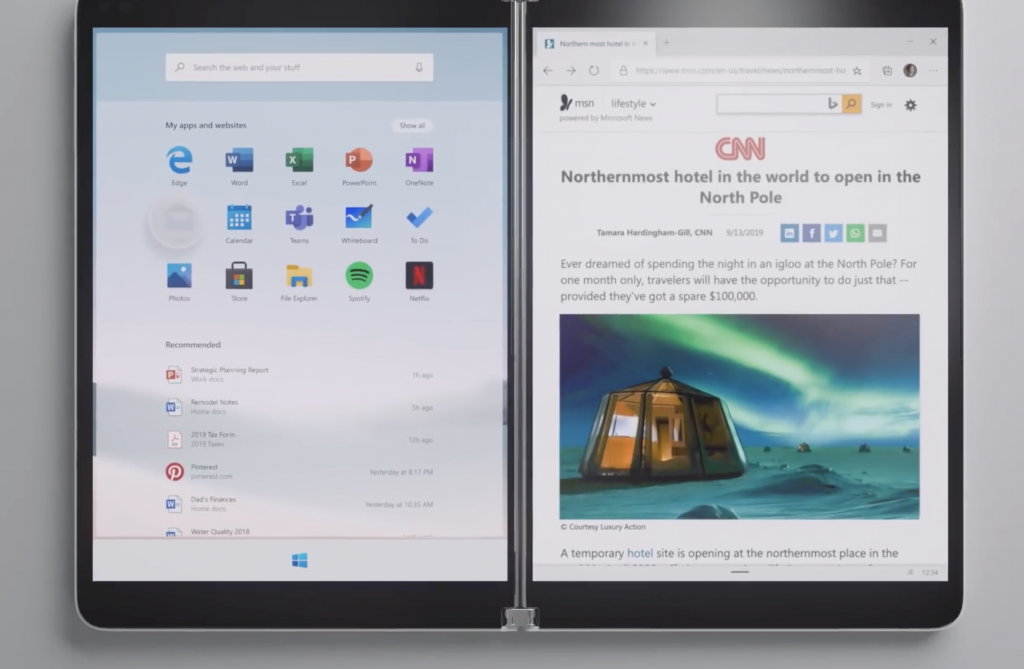
It’s also become apparent that Windows 10 X on Neo, and other devices, will ditch the traditional start menu. According to The Verge, the new Start menu is similar to the one we saw when a rogue Windows Insider build went public. You’ll just see a list of pinned apps, a list of recent documents, as well as a search bar, and a Start button. There are no more live tiles.
Surface Duo
Next, there’s Surface Duo. Also coming in time for Holiday 2020, this is a similar dual-screen device to Neo. However, instead of being a PC, it is meant to perhaps mark Microsoft’s return to the phone world. We especially saw this in the teaser video for Duo, where a woman pulled the device out of her bag while already working on Surface Duo, and answered a phone call. Anyway, there’s a couple of tidbits to note on this device.
To begin some specs lists, the Surface Duo sports two separate glass 5.6-inch displays, which fold out to one 8.3 inch display. It’s also 4.8 mm thin and sports the same 360-degree hinge as Neo. According to The Verge, the demo device also sports a Snapdragon 855 processor inside. Much to our surprise, it also powered by Android.
There’s also some confusion as to what cameras are on Duo, as the prototype we saw during the Surface Event only had one front-facing camera. However, MSPoweruser reports that Microsoft had two separate versions of the device. One of which is a black version that YouTuber Marques Brownlee, captured with a camera hole.
Why does it matter? Because of Android
But, why does this all matter to you, as a Microsoft fan or follower? Well, for the first time ever, a Microsoft product is not featuring a Microsoft operating system. Instead of running Windows, the Duo is powered by Android. That’s right. Microsoft is becoming an Android phone maker.
Be damned if you may, but there there is a good reason as to why. According to press interviews, Panos Panay believes that Android has the apps people want. This is something that’s part of the reason why Microsoft’s last venture into the world of phones failed. That’s you, Windows 10 Mobile.
Anyway, when Panos Panay was asked about why Android, this quote from The Verge puts it’s best.
“Because there are hundreds of thousands of apps, and you want them. And [Microsoft CEO Satya Nadella] and I talked about it, and it’s about meeting our customers where they are, where they’re going to be. I don’t think the mobile application platform’s going anywhere anytime soon.”
But, Android won’t suddenly be the big operating system for Microsoft. The other dual-screen device, Neo still runs Windows. Instead, it appears as though Android on Duo is all about giving customers choice, again, in the words of Panos via The Verge. Which is a good thing, considering the flops of Surface RT, Windows 10 S, and Windows 10 Mobile.
“You want to give customers what they want in the form factor that they’re using. We’ve learned this — let’s put the right operating system on the wrong product or the other way around. But what’s the right operating system for the form factor? And in this case, on mobile devices, Android’s the obvious choice, But anything [bigger than] that, Windows is everything”
Big steps forward for the future at Microsoft
Putting everything together, Microsoft is taking a big step forward in its history. At the same time, it also has demonstrated that it learned from the failure of its past. Bidding on the dual-screen PC and phone is a huge thing, and I think Microsoft is setting itself up for some success here.
Why? Well, though the company has the physical hardware ready for both Duo and Neo, it’s waiting for developers to test it first. Microsoft won’t be releasing an unpolished and app-less operating system as it did with Windows 10 Mobile. With Android, and Windows 10 X, it is letting the developers test the products, then release it first to consumers in all the glory.
Here is what Insiders on the Fast Ring can expect to see changed, improved upon and fixed in preview build 18995 (20H1).
We’ve made some improvements to address an issue resulting in some users frequently seeing a notification saying their account needed to be fixed, but the Settings page that opened showed no action was necessary.
We fixed an issue resulting in some Insiders seeing error 0x80242016 when trying to upgrade.
We fixed an issue where you might be prompted to fix something before you could update, but the dialog with what to fix didn’t display the issue that needed fixing.
We fixed an issue resulting in the mouse cursor unexpectedly showing up in screenshots in recent builds.
We fixed an issue impacting the reliability of taking screenshots with WIN+Shift+S / Snip & Sketch.
We fixed an issue where, if you started a snip from Snip & Sketch by pressing New and had “automatically copy to clipboard” enabled, the first initial copy might be blank.
We fixed an issue where the Action Center might be visible in screenshots recently if you started them by pressing the Screen Snip quick action.
We fixed an issue for multi-mon devices that could cause random crashes in UWP apps when switching focus between monitors.
We fixed a high hitting DWM crash from the last few flights.
We fixed an issue in recent flights that resulted in Skype unexpectedly closing the first time it was launched and you tried to sign in.
We’ve updated our File Explorer context menu logic, so if you right-click on a .HEIC image file, you’ll now have the option to Print or Set as Desktop Background, as you can with other image file types.
We fixed an issue where you might need to invoke the File Explorer context menu twice before the option to create a new Text Document would appear.
We’ve made some improvements to help address an issue where search may appear blank.
We fixed an issue resulting in some users seeing a 0x000007D1 when trying to print.
We fixed an issue where the publisher’s information was unexpectedly blank for some apps in App Settings.
We fixed an issue where the Windows Update information in the Settings header could be out of date.
We fixed an issue where turning Bluetooth off then back on while a Bluetooth audio device was paired could take an unexpectedly long time.
We fixed a crash when adding devices in Devices Settings.
We fixed an issue where the ImmGetVirtualKey function wasn’t returning VK_PROCESSKEY even if an IME was enabled.
We fixed an issue where pressing space to enter a selected word with the Changjie IME when using the touch keyboard might not work.
We fixed a ctfmon.exe crash when using the Japanese IME if reconversion was triggered with a partial selection.
We fixed an issue where ctfmon.exe would crash if you attempted to use dictation from the touch keyboard in certain apps.
We fixed an issue impacting Windows Ink Workspace reliability.
We fixed an issue that could result in pinned websites icons in the taskbar sometimes unexpectedly switching from their actual icon to the default browser icon.
We fixed an issue where calendar events created from the taskbar clock and calendar flyout wouldn’t have a default 15min reminder set.
We fixed an issue where if the taskbar changed scale enough times while an IME was active, it would lead to the input indicator disappearing from the taskbar.
We fixed an issue resulting in transparent/invisible app thumbnails in snap assist when snapping an app to the side when in tablet mode.
We fixed an issue where Task View would display that the navigation pane of certain apps was expanded, even if it was actually collapsed.
We’ve improved Magnifier performance when using touch.
We’ve updated our logic, Magnifier UI will now show properly when alt-tabbing if Magnifier was minimized originally.
We’ve fixed a few small issues with the Text cursor indicator page in Settings.
We fixed an issue where, when using the text cursor indicator, you might unexpectedly see a focusable Eoaexperiences.exe app running in the taskbar.
We’ve improved the reading of email when objects such as images are embedded in the message while using Narrator to remove the repeating of information while moving through the content.
We fixed a bug in Narrator where the link sound did not play in certain scenarios.
We fixed an issue with older drivers showing as available for download. If you continue to see older drivers in the Option updates section of Windows Update, please let us know.
Fortunately, the list of known issues is much shorter by comparison.
There has been an issue with older versions of anti-cheat software used with games where after updating to the latest 19H1 Insider Preview builds may cause PCs to experience crashes. We are working with partners on getting their software updated with a fix, and most games have released patches to prevent PCs from experiencing this issue. To minimize the chance of running into this issue, please make sure you are running the latest version of your games before attempting to update the operating system. We are also working with anti-cheat and game developers to resolve similar issues that may arise with the 20H1 Insider Preview builds and will work to minimize the likelihood of these issues in the future.
Certain 2D apps (like Feedback Hub, Microsoft Store, 3D Viewer) are incorrectly being treated as having protected content within Windows Mixed Reality. During video capture, these 2D apps block their content from being recorded.
When capturing a repro video while filing a bug via Feedback Hub in Windows Mixed Reality, you won’t be able to select Stop video, due to the protected content issue noted above. If you want to submit a repro video, you will need to wait 5 minutes for the recording to time out. If you’d like to file the bug without a repro video, you can close the Feedback Hub window to end the recording and resume filing your bug when you reopen the app in Feedback > Drafts.
When using the Search bar in either Control Panel or File Explorer, the box becomes grey and prevents input. We’ve identified the cause, and we’re working on a fix for a future flight.
Devices configured for dual scan (WSUS and Windows Update) for updates may not be offered new builds in the Fast ring. Selecting Check online for updates from Microsoft Update will scan for updates, but may return with the message, “Your device is up to date.” We’re working on a fix for a future flight.
Some devices configured to Use HDR may experience a bluish tint on their HDR displays after using Night Light. We have identified the cause, and we are working on a fix for an upcoming build.
Theme packs downloaded from the Microsoft Store fail to apply.
Starting with the previous flight, some Insiders may find that Settings doesn’t launch from the button in Start, isn’t listed in the All apps list, or as a search result. If you are impacted, pressing WIN+R and inputting “ms-settings:” (without the quotes) will launch Settings if you need it.
After successfully updating to a new build, the Windows Update Settings page may show the same build needs to install. You can verify the build was successfully installed by checking the build number in the corner of the screen or going to Win+R, typing winver, and confirming the build number. We have identified the cause of this issue, and we’re working on a fix for a future flight.
The slow march of progress moves on in the shadow of Microsoft’s tease of Windows 10X now but preview build 18995 brings some solid improvements and fixes, none the less.
Windows 10X, the new version of Windows 10 built for dual screens will come with a brand new Start Menu that won’t have any Live Tiles. We briefly saw the new Start Menu when Microsoft demoed the Surface Neo yesterday, and gone are the flipping Live Tiles showing you unread emails, upcoming calendar events, latest news, and more.
Still, despite the removal of Live Tiles, the new Start Menu in Windows 10X seems provide easy access to what users really care about: Unified Search, Recent apps and websites, and there’s also a “Recommended” section highlighting documents or websites you may be interested in. The whole design is a bit reminiscent of what you can see on Office.com, which also features Search at the top, a grid of apps in the middle, and a Documents section below
You can see the Windows 10X Start Menu at the beginning of the Live demo below:
Speaking with The Verge, Microsoft’s Joe Belfiore explained that this new Start Menu experience should feel intuitive for consumers coming from Windows 10.
“We think this feels familiar to people who are using tablets and mobile devices today, and we’ve tried to use the screen real estate in a way that combines app launching with suggestions of things like websites, documents, or things you’re working on,” explains Belfiore. “We’re trying to really strike a great balance between familiarity and progress.”
Live Tiles were a key differentiation point when Windows Phone was still a thing, but the animated icons didn’t really have the same impact on Windows 8, and later Windows 10. The app gap is still real on the Microsoft Store in 2019, and very few apps make good use of Live Tiles. Earlier this year, Microsoft accidentally released a Windows 10 preview build that included a redesigned Start Menu with no Live Tiles, but the latest 20H1 preview builds still come with the familiar Start Menu.
A redesigned Start Menu appeared in the Windows 10 build 18947 that Microsoft released accidentally.
It’s not clear if Microsoft eventually plans to make its Start Menu more consistent across Windows 10 and Windows 10X, but we wouldn’t be surprised if Live Tiles eventually fade away. Most Windows 10 users probably don’t spend that much time staring at Live Tiles on their Start Menu, and it’s probably not a coincidence that neither Apple or Google copied that feature in their own operating systems.
Microsoft Office has long included support for spellcheck and grammar assistance. In recent years, Microsoft has expanded the toolset with new writing style options to help you develop your written voice.
Many of these features are disabled by default. They’re individually customisable so you can use some writing style components while ignoring others. The capabilities apply when authoring Word documents and Outlook emails.
To get started, launch Word or Outlook. You’ll need to be using Office 2019 or have an active Office 365 subscription. Click the “File” tab to get into the Backstage view. Click “Options” at the bottom of the left navigation menu.
In the Options popup window, click the Proofing page. We’re interested in the settings under the “When correcting spelling and grammar in Word” heading. The checkboxes allow you to toggle spellcheck, grammar and frequently confused words warnings.
The fifth checkbox, usually disabled, enables the optional “Readability Statistics” feature. Press F7 to open this popup, which provides information such as the average number of words per sentence and sentences per paragraph. There’s specialist statistics too, such as a Flesch Reading Ease score and the percentage of sentences which are passive. These metrics can be helpful when crafting writing for maximum readability.
Back in the Proofing options window, we’ll now turn our attention to the “Writing Style” dropdown menu. This controls which of Word’s writing style suggestions should be enabled. You can choose between “Grammar” and “Grammar & Refinements.” The latter enables extra default proofing checks for clarity and conciseness.
Either one of these presets can be customised by clicking the “Settings” button. Here, you’ll see a list of all the proofing options available within Office. Each one can be individually enabled or disabled.
There’s too many checks to cover each one in detail here. It’s best to start with the default selection. You can then review the list to enable extra checks which help you improve. Alternatively, you can disable default checks which you find annoying or inaccurate.
The capabilities range from basic grammatical errors, such as missing capitalisation, to advanced – and subjective – writing style adjustments. These include checks for overuse of complex jargon and overt “wordiness.” At the other end of the writing spectrum, Office can also flag informal language and slang words which may lower the tone of your writing.
Office ships with most of its grammatical error detection capabilities enabled. The more subjective writing style checks are turned off by default, to avoid frustrating users and creating a high volume of alerts.
For users who benefit from the toolset, it’s a versatile alternative to popular apps like Grammarly. You can get comprehensive writing style guidance without leaving Word, which will help you to stay focused on your writing.
The point of Untitled Goose Game is simple. You play a goose and you go around causing as much havoc as possible. For the past week, Untitled Goose Game is the #1 downloaded game on Nintendo Switch in the US. The game is also available in the Epic Games Store on Windows 10 PC. Here’s the trailer for Untitled Goose Game.
While House House is working on bringing the game to consoles, the developer has not yet decided on whether to bring the game to Android or iOS. Cabel Sasser, the founder of Panic Inc., Untitled Goose Game’s publisher, explained on Twitter that a mobile version would require some extra design work.
We're still chewing on this. It'll take a lot of design work to make a version that works good for touch controls!
At the moment, House House has no plans just yet for any new DLC for Untitled Goose Game. Stay tuned, we may hear more from House House on a new game that it is in the works.
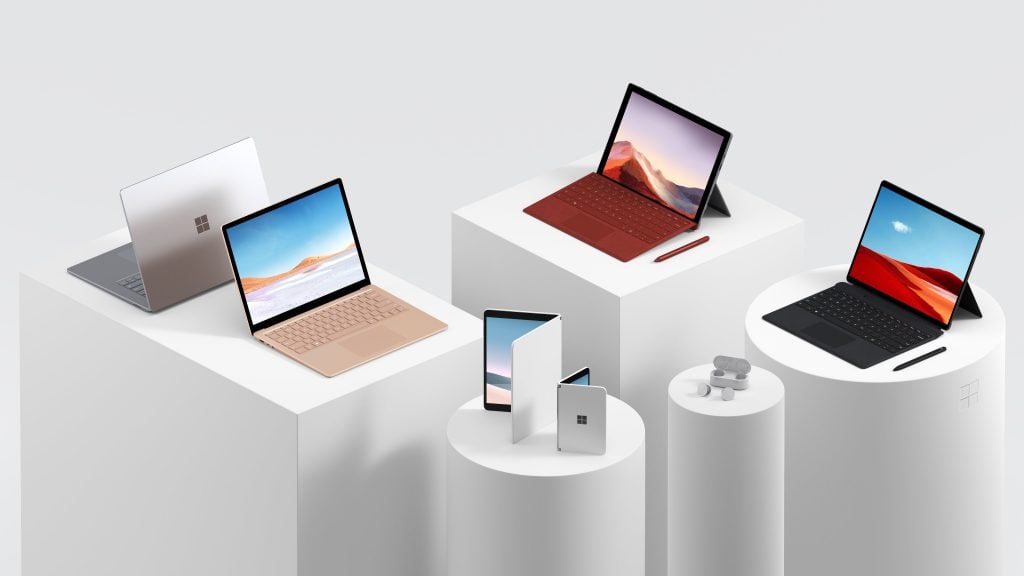
Yesterday’s Microsoft event in New York City was quite the doozy. While most attention was put towards the redesigned Surface Laptop 3, a new Surface Pro X, as well as the Surface Neo and Duo dual-screen devices, there was another product to be talked about too — the Surface Pro 7.
Although the Surface Pro 7 design is unchanged — and not as exciting as the other products revealed yesterday — it still was able to show off some refinements. We spent some time with the device, and here’s more on why we think it is slightly better than before.
Same old design, but a new Type Cover color to go along with it
If you were longing for a redesigned Surface Pro 7, don’t get your hopes up. At 1.70 pounds and 0.33 mm in thickness, the device is essentially the same as the past few generations. In fact, holding it with my Surface Pro, I hardly noticed any difference. The 3:2 aspect ratio and 12.3-inch 2,736 x 1,824 PixelSense Display are all still the same.
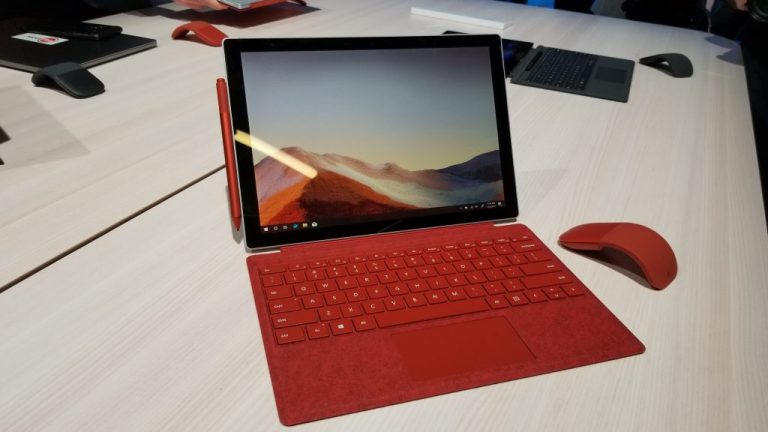
Elsewhere, the kickstand, bezels, and everything out about the external area and build of the device is unchanged. The only visual difference to me was an option for a new red Surface Pro Signature Type Cover. Even that felt similar to the previous versions — with an amply sized trackpad, decent key travel, as well as responsive keys and no big flex in the keyboard deck.
Of all the Surface Pro models on the table, this one stuck out the most. It’s truly a bold color that just pops. But, that’s just the keyboard, which can spice up the visual look and work with any modern Surface Pro device.
Finally, USB-C!
While the design on the Surface Pro 7 is the same, a key refinement is the addition of USB-C. Like with the Surface Pro X, and Surface Laptop 3, Microsoft has finally come on board with the modern connector that many have dubbed as “the one port that does it all.” Particularly, with the Surface Pro 7, the USB-C port is replacing the older Mini Displayport.
On the right side of the device is now the Surface Connect port, USB-A, and USB-C. It’s nice to see Microsoft still sticking with Surface Connect, and also going with USB-A and USB-C. This means you can connect to multiple monitors, and charge your phone via USB-C or enjoy other modern USB-C and older accessories. You even can use the USB-C port to charge the device. Sadly, though, the port is not Thunderbolt 3 compatible, so you can’t connect to an external GPU or dual 4K monitors.
Oh, and it’s also worth noting something important. All of the new Surface devices announced at yesterday’s event support fast charging. This means you can get up to an 80% battery level on the Surface Pro 7 with just 1 hour worth of charging. For me, in a world where I’m always looking to be disconnected from AC power, that kind of important. It is also important because Microsoft is quoting up to 10.5 hours of battery on the Surface Pro 7 for typical usage. That is quite the same as the 9.5 hours, most reviewers experienced when testing the Surface Pro 6.
A boost in power under the hood
Like many other 2-in-1’s announced within the last month or two, Microsoft’s is finally giving the Surface Pro 7 a much-needed performance boost. Under the hood of the device are options for Intel’s 10th generation processors. You can either choose from a dual-core Core i3, or quad-core Core i5 and i7 processors.
The model I was hands-on with featured the Core i7 option, which is the most expensive at $1,500. Still, this might be worth it for some, as the Core i7 processor features Intel’s Iris Plus integrated graphics. Microsoft claims this new CPU brings 2x graphics performance and 40% faster performance compared to the last generation chipsets, but obviously more testing is needed. This could be the option for some light gaming, as well as photo and video editing.
At $750, the cheapest models feature an Intel Core i3 processor and 4GB of RAM or 128GB of storage. This makes it a decent machine for multitasking, but I wouldn’t take it too far.
Nonetheless, in my hands-on time, I taxed the Core i7 Surface Pro 7’s web browser with multiple instances of YouTube, and other websites. It didn’t lag or freeze, despite the fact that every other tech writer around me had done the same before I did.
Some cool inking features, and improved mics
Final of some things worth noting on the Surface Pro 7 is its studio mics. This means that the device can easily and clearly pick up what you’re speaking during Teams or Skype calls, and it’s also supposed to work better with Cortana. I tried it during my hands-on time, but the feature was quite messy. Cortana didn’t understand me when I asked her about the NY Mets baseball team. That’s probably due to the loud showroom floor, and the audio from the journalists next to me who were doing a video about the device.
Also of note are some of the new Office 365 features Microsoft displayed on the stage during yesterday’s keynote. I don’t think these features will remain exclusive to the Surface Pro 7, but it’s still worth mentioning anyway. Using your Surface Pen, you can edit spreadsheets, and you can write directly into cells, to have it converted into regular numbers or text. You also now draw a line through text in word, and it will be deleted. See this in action in the video below.
Just slightly refined
At the end of the day, the Surface Pro 7 is just a slightly refined device. With the addition of USB-C, and Intel Ice Lake processors, it’s a nice little upgrade over the last generation. For those with the Surface Pro 6, this might not be worth getting, unless you really want to enjoy USB-C.
However, for those looking to buy a new Surface, the Surface Pro 7 is the way to go. Starting at $749, and available on October 22, it is relatively affordable compared to the Surface Laptop 3, and the Surface Pro X.
The Microsoft Ergonomic Keyboard, as its name suggests, is designed for wrist health and comfort with a split keyboard, cushion, and palm rest while the Microsoft Bluetooth Keyboard uses a more traditional rectangular form factor and can connect wirelessly to devices while boasting two years of battery life.
What really sets these keyboards apart though is their dedicated Windows 10 shortcut keys for Office 365, search, emoji, media controls, and screen snipping. The Microsoft Bluetooth Keyboard even appears to have a shortcut for the Windows 10 Your Phone app which is interesting.
While it can be difficult to offer dramatic improvements to keyboards, it is fascinating to see Microsoft push specific Windows 10 functions this way.
Microsoft Intune is a handy cloud management service for mobile device management. It enables corporate users to enroll devices within the Azure portal. Intune users can sync enrolled mobile devices so that they immediately receive pending actions and the latest updates.
How Can Intune Users Sync Devices?
1. Run a Sync Device Action
To run a sync device action within the Intune portal, log in to MS Azure.
Then click Devices on the Microsoft Intune tab.
Select a device on the Overview pane.
Then click the Sync button.
Select the Yes option to provide further confirmation.
Thereafter, users can check sync actions by clicking Devices and Device actions.
2. Sync Devices Via the Company Portal App
Intune users can sync Windows devices with the Company Portal app. First, click the Get button on the Company Portal MS Store page to add that app to Windows.
Open the Company Portal app on the device to sync.
Click Settings at the bottom left of the Company Portal window.
Press the Sync button.
Alternatively, users can right-click the Company Portal taskbar icon to open its Jump List menu. Then select the Sync this device option.
3. Sync Devices Via Settings
To manually sync Windows devices via Settings, click the Start button.
Then click Settings to open the window shown directly below.
Select Accounts on the Settings app.
Click Access work or school on the left of the app’s window.
Then select the account with a briefcase or Microsoft icon.
Press the Info button, and then users can click Sync.
In older Windows 10 build versions, users might need to select a company name under the Enroll in to device management subtitle. Then press the Sync button.
4. Sync Windows 10 Mobile Devices
To manually sync Windows 10 Mobile devices with Intune, tap All Apps and Settings.
Select Accounts to open the options shown directly below.
Tap Work access, and then select the company title beneath the Enroll in to device management heading.
Tap the sync button for the selected company account.
So, that’s how users can sync Windows devices with Intune. Thereafter, the synced devices will get the latest updates and check in with Intune for pending actions. Syncing devices can also increase app installation speed.
Keep in mind that issues with Intune can occur, and we already wrote about error code 80180006 in our previous guides.
To learn more about Intune, we have a great guide on how to edit Edge flags in Intune, so don’t miss it.
Microsoft pulled a surprise last year when it revealed the Surface Headphones. We recently reviewed it and quite enjoyed it, but this year the company is back again with something that is keener to Apple’s infamous AirPods.
We spent some hands-on time with the new Surface Earbuds during Microsoft’s event today in New York City, and we were fairly impressed. Here are our impressions.
Charging Case
Like the dental floss style case that comes with Apple’s AirPods, the first thing I noticed with Surface Earbuds is its charging case. It’s shaped a bit like a traffic light. You can simply rest the earbuds on the top of the case when it’s open, and the buds will magnetically be pulled in to start charging. If you put the wrong bud in the wrong spot, it won’t accept it.
The case itself charges via USB-C and can hold up to 24 hours of battery life, but the buds themselves will only last 8 hours. That is quite impressive considering that the earbuds will be used all day. It is also outfitted with the Microsoft Logo and features a pairing button on the bottom.
Comfort and fit
Of course, the Surface Earbuds are not all about the case. Microsoft tells me that the ear tips on the Surface Earbuds can fit 95 percent of all human ears. It was tested extensively in labs with over 1,000 human ears and is designed for comfort and stability.
For the other 5 percent, Microsoft includes options for a small size or large size ear tip. That just so happens to be me, as I needed to try the small tip for the Earbuds to properly fit inside my ear.
As Microsoft demoes in this video above, you need to pop off the tip and then slide it back into the Earbuds for it to snap into place. I had trouble doing this, but Microsoft assured me it’s a seamless process once you get used to it. I should also note that the buds rest inside your ear without touching your ear canal. That means, there’s no sound cancellation, as I discover later.
Microsoft also mentions that you need somewhat of a “screwing” motion to first rest the buds on your ear canal, and then get the Earbuds to fit properly into your ears. I had trouble getting it to sit inside my ears, but once I repeated the process, things were smooth.
Hey, where’s Cortana?
A notable feature on last year’s Surface Headphones was Cortana. The digital assistant was built right in, and you could voice activate it for certain tasks. This time around, with the Surface Earbuds, Microsoft is doing something different. There’s no voice activation or inbuilt Cortana.
Pressing and holding on the touch surface on the outside of the Surface Earbuds will instead summon any digital assistant that you have tied to your device. On Windows devices, that can be Cortana. But, on Android that can be Google Assistant and even Cortana, if you’ve configured it as default on your device. Presumably, this also includes Siri on the iPhone, but we couldn’t confirm that.
Of course, there are also some additional controls on Surface Earbuds. You can swipe up and down on the exterior of the Earbuds for volume control, and you can swipe forward to advance songs on Spotify. You also can swipe back to go back to a previous song in Spotify.
This exterior touch control surface makes the Surface Earbuds look huge, but it’s appreciated. You have a large surface to scroll through and control your device when running, or doing other activities.
Sound quality and other features
Last year’s Surface headphones feature noise cancellation onboard. I expected the same with Surface Earbuds, but, apparently, Microsoft took a different approach. Microsoft instead focused on designing Surface Earbuds so it could be used across different contexts. This includes using it by yourself in silence, or while you’re commuting, talking to a coworker. Essentially, Microsoft doesn’t want you to take the buds out and put it back in every minute. It envisions you keeping these on all day while you need it.
I wasn’t provided a specific answer on the noise cancellation. Instead, Microsoft mentioned the Omnisonic sound it did during the keynote. A Microsoft rep also played some tunes for me and urged me to continue speaking. As I did, I still heard the rep talking to me, as well as the music. Music was clear and concise, and bass was decent, as was the voice of the person speaking to me. There’s some sort of magic going on, but it was hard for me to judge true sound quality in a crowded event hall.
Finally, is a cool feature that I’ve not seen on other earbuds. Surface Earbuds can live caption your PowerPoint slides. When I tried doing this my spoken words were slightly delayed as the PowerPoint presentation picked them up, but Microsoft told me that was due to the WiFi. Still, this is a cool feature. Other features onboard let you access your Outlook calendar and emails with your voice.
You’ll be able to pick up Surface Earbuds in later this year, and pricing starts at $249. That might be a high price to pay compared to other products from competitors (including Apple’s AirPods), but Surface is definitely a premium brand and products are priced accordingly.
Hopefully, the investment should be worth it for Surface fans. Be it the PowerPoint live captions, or the support for other digital Assistants, Microsoft has built quite the number of features in its Surface Earbuds. However, audiophiles may still prefer the Surface headphones and their killer noise cancellation feature, something we’d really like to see in the next version of the Surface Earbuds.
Microsoft’s new Surface Laptop 3, Surface Pro 7, and Surface Pro X are available today to pre-order on the US Microsoft Store. Pages are up now, but at last check the actual “add to cart” links weren’t working, but have been promised to be live today.The new laptop seems to be the most significant upgrade, with a new modular design (with replacable SSD), a bigger trackpad, and new aluminum finish. There’s also a bigger 15” model powered by new AMD Ryzen processors.
The Surface Laptop 3 will start at $999 for the base 13” model with an 10th Gen Intel Core i5 processor, 8GB of RAM, and 128GB of storage. There are also Core i7 models starting at $1,599, with the most expensive model with 16GB of RAM and 1TB of storage costing reaching $2,399.
The 15” Surface Laptop 3 will start at $1,199 for the model with an AMD A9 Ryzen processor, 8GB of RAM, and 128 GB of storage. The most expensive model with an A11 chip, 32 GB of RAM, and 1TB of storage costs $2,799.
The Surface Pro 7 will start at $749 for the model with an Intel Core i3 processor, 4G of RAM, and 128GB of storage, but you may prefer the $899 model with an Intel Core i5 processor and twice the RAM. Core i7 options start at $1,499, with the most expensive model with 16GB of RAM and 1TB of storage costing $2,299.
Last but not least, the Surface Pro X with the new custom-designed SQ1 ARM processor is slightly more expensive, starting at $999 for the model with 8GB of RAM and 128GB of storage. There are two other options, a $1,299 model with twice the storage, and a $1,799 model with 512GB of storage. Keep in mind that you’ll be able to upgrade the SSD yourself, just like on the Surface Laptop 3.
The Surface Pro 7 and Surface Laptop 3 will start shipping on October 22, while the Surface Pro X will be available on November 5.
At today’s Microsoft Event in New York City, Microsoft took the wraps off a trio of new products and hinted at even more to come. The list range from the Surface Earbuds, Surface Laptop 3, Surface Pro X, and even the dual-screen products dubbed the Surface Duo and Surface Neo.
There’s a lot to process, but we received some quality hands-on time with the devices after today’s show. While Surface Duo and Neo were behind a barricade and out of our reach, here’s a look at the Surface Laptop 3. We’ll be following up a bit later with a video all about the Surface Pro X and Surface Earbuds.
Surface Laptop 3
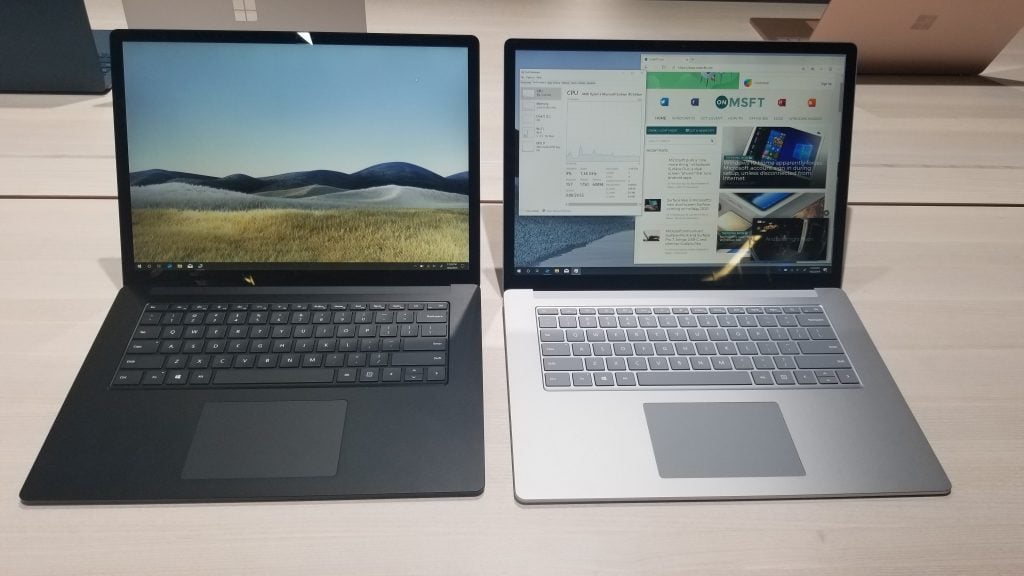
As rumored, Surface Laptop 3 comes in two different flavors at both 13.5 inches and 15-inches. We’re starting first with the 13.5-inch version. Some quick points to note are that the 13.5 inch Surface Laptop 3 comes with 10th Gen Intel Core processors. There’s also an option for a version with a full aluminum enclosure on black and gold-colored models, in addition to classic versions with the Alcantara fabric. Here’s a quick video of the device below, explaining some of these details.
Personally, one of the first things I noticed when holding the 13.5 inch Surface Laptop 3 was the aluminum finish. It’s easy to hold in the hands and it is very cool to the touch. The device itself is also easy to open, as I could pull its lid up with just one hand. Asides from that, the keyboard keeps the same layout and 1.3 mm of travel. The trackpad is 20 percent larger, and I was easily able to navigate Windows 10 and the web without issues.
Another thing that stuck out to me was the beautiful screen. That default landscape wallpaper really popped right out, and the brightness wasn’t even turned past 50 percent. Of course, also of note are the ports on the device. There’s now USB-A, USB-C (but no support for Thunderbolt 3, sadly) as well as Surface Connect. That makes it well rounded and modern for most individuals, without having to worry about dongles. Users can even upgrade the device is they want, as Microsoft mentioned to me that the components are modular, including the hard drive.
Under the hood, the 13.5 inch Surface Laptop 3 sports 10th Gen Intel Processors. The model I was hands-on with sported the Intel Core i7-1065G7. Naturally, that means opening up multiple apps and instances of Edge didn’t slow the device down. Microsoft is claiming this Surface Laptop 3 is 2 times faster than the previous generation. There also are some significant graphical improvements with Intel’s new Iris Plus integrated graphics, that could make it good for light gaming, but more testing is needed.
Next up is the 15 inch Surface Laptop 3. While it keeps the same design and build as the 13.5-inch version, this model is particularly different from anything Microsoft has ever released before. Instead of Intel inside, it sports a custom AMD Ryzen 5 processor under the hood, with an extra core on the GPU. Apparently, this is spiffy enough for web browsing, and even some CAD design, and light gaming, according to Microsoft. I wasn’t able to take the processor THAT far, but it was able to handle web browsing, and opening some of the other apps in Windows 10. It didn’t once freeze.
For all that power under the hood, the 15 inch Surface Laptop 3 is a bit heavy. Microsoft says it’s 3.4 pounds, and I noticed this when trying to carry the device around the showroom floor and when holding it and the 13.5-inch version in my hand.
Other things to note on the Surface Laptop is its support for fast charging. You can now get up to an 80 percent charge in just one hour. Microsoft claims 11.5 hours of battery, but more testing will be needed again, especially when such power-hungry processors. Either way, the 13.5 inch and 15 inch Surface Laptop 3 are definitely powerful, and closer to being MacBook killers.
Microsoft has just announced the new line of Surface Devices at the Surface Event earlier today. Perhaps the most exciting new device (at least of the ones available this year) announced on stage is the Surface Pro X, which comes with many new features including a new Microsoft-designed ARM-based SQ1 processor for enhanced portability and long battery life.
The company says its new processor will be very power efficient, providing three times the computing power per watt compared to the Surface Pro 6. It is a custom build of the Snapdragon 8cx processor and will also feature an integrated AI engine, which will bring enhanced eye tracking to the device. It will also offer a graphics performance rating of 2 teraflops, allowing users to play casual games and use various graphics applications, and Surface Pro X will also support two separate 4K displays.
Microsoft has also integrated a 13-inch display on the same panel that was designed for the older 12-inch Surface Pro. The display will offer a screen resolution of 2880 x 1920, giving the device a pixel density of 267 per inch. With the new custom-designed ARM processor, Microsoft is also able to give users LTE Advanced, always-on functionality, and crazy fast charging speeds. The device also comes with a USB type-C port, just like the company’s recently announced Surface Laptop 3 and Surface Pro 7 devices mentioned below.
Microsoft will also be selling the new Surface Pen with will be much slimmer and will allow it to charge from inside the keyboard case, replacing the near-obsolete AAAA batteries the older generation devices used until now.
Surface Pro 7
Microsoft also briefly announced the Surface Pro 7 on stage at the event. The device will feature the same 12.3-inch display as the previous generation, but the most notable change is the USB-C port in place of the outdated mini Display port, while retaining the Surface Connector. The company didn’t go into details about specs on stage, except that the tablet will use Intel’s 10th generation Core processors. We’ll have to wait and see when pre-orders become available later today.
Surface Pro X will be available November 5 and pre-orders are open today, with prices starting at $999. If your budget is tighter or you need Intel Core computing power, the Surface Pro 7 will be available starting October 22 with prices starting at $749.
Microsoft rattled off a series of updates, redesigns, and custom chipset development during its October 2, 2019 event and in the melee of announcements, the company dropped its latest installment in the wearable productivity space. Alongside its over-the-ear Surface Headphones, Microsoft will be selling its newly unveiled Surface Earbuds later this year.
Sometime during the holiday season, customers can pick up the Surface Earbuds for $249.00 and for that price the earbuds claim to provide 24-hour battery life, support for any platform, 2 mics per earpiece, a multitude of gesture controls, and Office dictation and real-time captioning as the cherry on top.
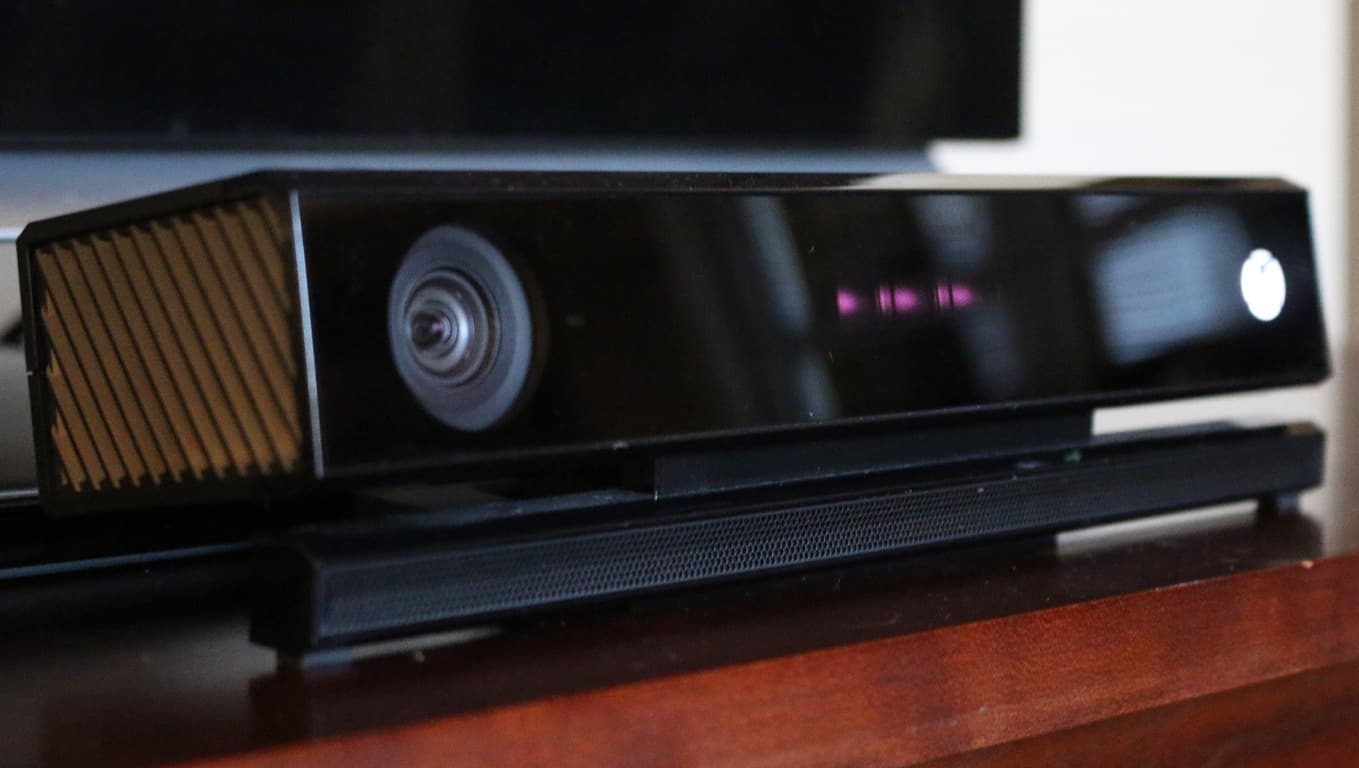
Microsoft could be working on a new high-end camera system for its Project Scarlett, according to a report from Gizmodo. As per the media outlet’s sources, the camera would primarily be used for live-streaming and won’t be an upgrade to the Kinect hardware.
This would make sense, as Microsoft has been pushing gamers, especially those on Xbox, to use its live-streaming service Mixer over that of competitors such as Twitch and YouTube, although in a strange twist, the company has removed Mixer game streaming from the Windows 10 Xbox Game Bar. With live-streaming as a core focus on Microsoft’s new hardware, it could help the company’s streaming service gain more attention.
According to Gizmodo, the new camera system could be capable of streaming in 4K Ultra HD with an incredible two-frame latency. We’re not sure how that converts to milliseconds, but the Kinect was capable of somewhere between 8–10 ms. The report also notes that Microsoft has also been demoing Snapchat-like filters for use that changes with the lighting within games.
Sony is also reportedly working on a camera system of its own for the unreleased PS5 as can be seen in a leaked Brazilian design sheet published on Scribd. The document doesn’t explain anything as far as internal specs, only showing a few diagrams of the device.
What do you think about the live-streaming camera that could be bundled with Microsoft’s unreleased console? Do you think Microsoft should bundle it in, or sell it separately? Let us know in the comments.
Just announced yesterday, PlayerUnknown’s Battlegrounds (PUBG) got a new server update allowing cross-play between Xbox One and PS4. The cross-play console announcement was made back in August, and you can test out the console crossplay using PUBG’s new Update 4.3 on public test servers now.
In addition to cross platform play, Console Update 4.3 adds a number of other features, including a new featured map, the ability to see Xbox One and PS4 icons next to players on game leaderboards, updates to new weapons, character customization, and more.
When you are playing on PUBG’s Public Test Server, you will be able to identify which players play on which platform through special console-specific icons. Other cross platform play benefits include:
Players playing on the same platform will show the platform logo in front of their ID when played on Cross Platform Play option “on”.
Players will be able to identify the platform of other users in loot box, when spectating, on user status message, etc.
Amazon Fire TV stick is a video streaming device. With it, you can stream video and audio apps, such as Netflix and Spotify.
People from all around the world are using this device, so it is a successful technology. However, nothing is perfect, and the Amazon Fire TV stick is no exception.
Few users can’t connect the Amazon Fire TV stick to Wi-Fi. Fortunately, there are some solutions available for this significant issue.
Today, we will show you how to fix the problem for good.
What to do if Amazon Fire TV stick is not connecting to server?
1. Set up your network
When you see the “unable to connect to network” message, press and hold the Home button for at least 10 seconds.
This will bring a message in the bottom-right corner that the new remote has connected.
Navigate through the options to set up your connection.
2. Restart the device
Sometimes, a simple restart might solve the issue.
Press and hold the Select button for at least 5 seconds. This will put the remote into pair mode.
Press the Select and Play buttons together to restart the device.
If the solution above doesn’t work, try resetting your device to fix the connectivity issue in the Amazon Fire TV stick.
Click Settings on your Fire TV.
Click on System.
Scroll down and choose Reset to Factory Defaults.
The message “You are about to reset your Fire TV to its original factory settings. Your sign-in information and personal preferences will be lost” will appear. Click on the Reset button.
The restore process will take approximately 5 to 10 minutes. Wait for your Amazon Fire TV to reset.
It is worth mentioning that this problem appeared after people used a new Wi-Fi connection.
Luckily, you can solve this issue quickly with our effortless solutions. Set up your new network, restart the device, and reset your device if these operations don’t work.
Steam is one of the biggest video-game distribution platforms on the market today.
One of the key elements boasted by Steam is the ability to host and help out indie developers so that they can get recognized.
One such aspect is a user’s ability to follows publishers, curators game developers and more of the like.
However, some Steam users have been complaining about an error message that is preventing them from following any more curators.
Whenever I try to follow a steam curator I get the following message: “There was a problem trying to follow the Steam Curator.” or another message about a problem with servers (I don’t have the exact text right now). The problem occurs regardless of whether I use the steam application or the website.
Why can’t I follow curators?
There’s a limit to how many curators you can follow
Further investigations and discussions among users revealed the answer.
It would seem that Steam doesn’t differentiate between curators, publishers, or developers that you follow.
Additionally, not many people know but Steam has an unofficial limit of 100 follows.
As such, if you are already following the max number then you will not be able to follow another.
If you do try this, you get the “There was a problem trying to follow the Steam Curator” warning everyone else is getting.
Thus, the only logical solution is to simply unfollow curators that haven’t been active in a while, so that you can make room for the new ones.
Steam is not the only one out there
If you want to try something else other than Steam, you could try some other digital game distribution platforms, such asEpic GamesorGOG.
Both of them come with their own mini-clint that acts as both a game launcher and a library.
More so, all of them have weekly sales, as well as massive Summer and Winter Sales where you can get discounted games, DLCs and OSTs.
GOG is a popular game publishing and distribution platform for classic games that allows users to manage all of their games from one place. However, at times you encounter an issue where a GOG game won’t launch on your PC.
This is a common problem, but you can fix it with some tweaks. In this article, we have compiled a list of fixes to help you resolve GOG games won’t launch issues in Windows computers.
Note: These fixes deal with both GOG standalone installer as well as the Steam client.
Why won’t my GOG games open?
Below are some of the reasons a GOG game might not be launching on your PC:
Compatibility issues: Sometimes, the GOG game you are trying to play might be compatible with your operating system. What you need to do here is to play the game in compatibility mode for an older OS.
Corrupt game files: If you are experiencing this issue on Steam, it might be because of corrupt game files. Verifying the integrity of your games files should help restore normalcy here.
Problems with the galaxy.dll file: Some users have found this issue to be to issues with the galaxy.dll file. Delete the file has fixed the problem in most cases.
How can I fix GOG games if they won’t launch on my PC?
1. Run the game from the directory
If you are unable to launch the GOG games from the desktop shortcut, try to launch the game directly from the installation folder.
Open File Explorer and navigate to the GOG game data folder.
Double-click on your game‘s .exe file. The game will open without any issues.
Open File Explorer and navigate to the game directory where the game is installed.
Right-click on the exe file of the problematic game. (example – crosscode-beta.exe for Crosscode)
Select Properties.
Go to the Compatibility tab.
Under the Settings section, uncheck Run this program as an administrator option.
Click Apply and click OK to save the changes.
Double-click on the .exe file of the game and check if it fixes the GOG games won’t launch problem.
3. Run the game in compatibility mode
One workaround to run some games is to run them in compatibility mode.
Open File Explorer and navigate to the game directory where the problematic game is installed.
Right-click on the exe file of the faulty game and select Properties.
In the Properties window, click the Compatibility tab.
Under the Compatibility mode, check Run this program in compatibility mode for: box.
Select the OS for the compatibility mode by clicking on the drop-down menu.
Click Apply and OK to save the changes.
4. Verify game cache
If you are using GOG via Steam client, try verifying the game cache.
Launch the Steam client on your computer.
Click on the Library tab.
Right-click on your game and select Properties.
In the Properties window, open the LOCAL FILES tab.
Click on Verify integrity of game files button.
Steam will validate the game files and show All file successfully validated message.
Click Close.
Try launching the game and check if the GOG game launches successfully.
5. Delete the galaxy.dll file
If you are using GOG Galaxy, try deleting the galaxy.dll file from the game folder.
Open File Explorer and navigate to the following location: C:/Program Files (x86)/Steamsteamapps/common/Your game
Next, go to your game/bin/x64 folder.
Delete the galaxy.dll file from the folder. Also, delete any file that mentions Galaxy.
Close File Explorer and launch the GOG game.
Wait for a minute for the game to boot, and that should fix the GOG game not working on your computer problem.
With this, we can conclude our guide on the GOG game not working issue. You only need to follow the instructions above and the problem should be solved.
Similarly, if your GOG games won’t open in full screen, check our guide to fix it. Feel free to let us know the solution that helped you fix this issue in the comments below.
Knowing how to create and manage Hyper-V virtual switches is a critical aspect of managing and maintaining your Hyper-V virtual machines. In this article, we will show you all the methods to configure and deploy Hyper-V virtual switches.
Follow the steps in this article to create Hyper-V virtual switches on Windows computers. There are two ways to do this, and we have listed both of them.
Steps to create Hyper-V virtual switch
1. Create virtual switch using Hyper-V Manager
Creating virtual switches using the Hyper-V virtual manager is easy. Here is how to configure it.
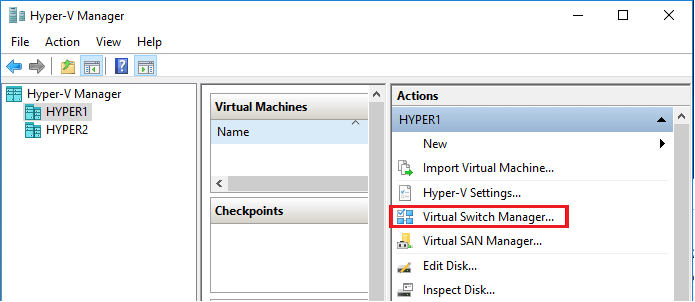
Open Hyper-V Manager on your Windows computer.
From the right pane click on “Virtual Switch Manager” under Actions. It will open the Virtual Switch Manager wizard.
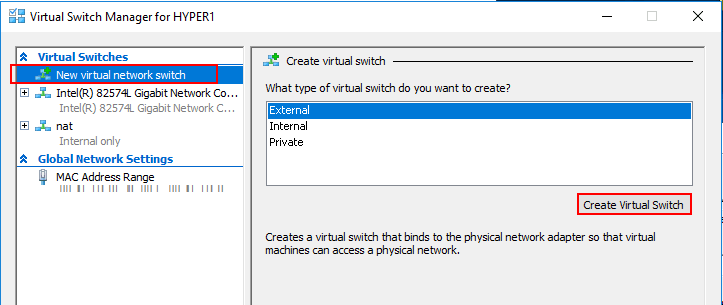
In the wizard, choose the “New virtual network switch” option.
Next, select the type of virtual switch you want to create. There are three types of the virtual switch which I have explained below. Private Virtual Switch – This switch only allows communications between the connected VMs that are connected to the private virtual switch. Internal Virtual Switch – This switch only allows communication between virtual adapter connected to connected Virtual Machines and the operating system. External Virtual Switch – This switch allows communication outside the host. This is due to the switch being connected to a physical network adapter installed in the Hyper-V.
Select you prefered type of virtual switch and click on Create Virtual Switch button.
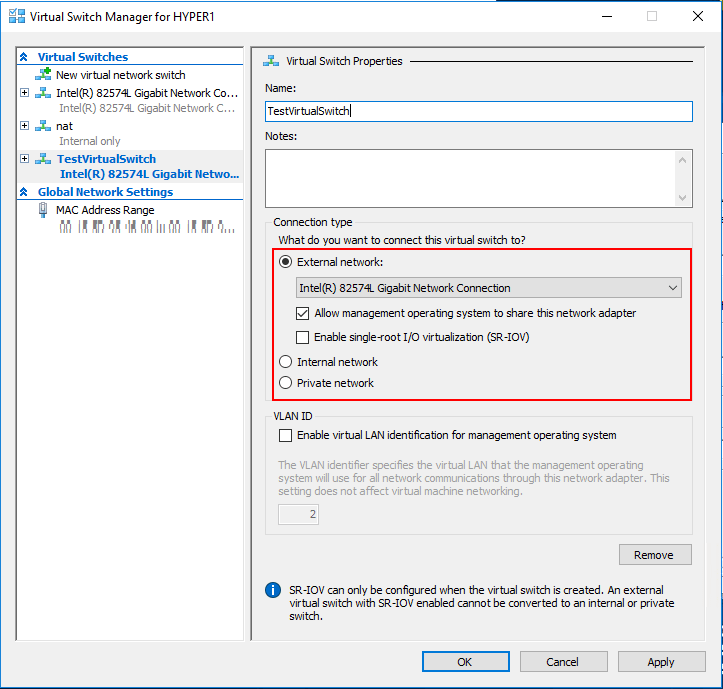
Name your new virtual switch.
For Connection Type, select “External Network” and select the network connection from the drop-down menu.
Check “Allow management operating system to share this network adapter” box. These options depend on the virtual switch type selected by the user.
There is an option to enable “VLAN ID” for LAN identification. Leave it unchecked, if you don’t know what it does.
Once done, click on Apply and OK to complete new virtual switch configuration.
Before setting up virtual switches, make sure Hyper-V is installed and running properly. You can follow this complete step by step tutorial on how to install Hyper-V on Windows Home.
One advantage of using PowerShell to create a virtual switch is the automation it offers in the Hyper-V environment. It also expedites the process by creating virtuals switch with a few commands.
Right-click on “Start” and select Windows PowerShell (admin).
In the PowerShell window, enter the following command and hit enter:
This command will show network adapters. Take note of the names. Get-NetAdarpte
External Switch – The following command creates a new External switch. Make sure to replace switch name and network adapter name accordingly. New-VMSwitch -name < switch name > -NetAdapterName < network adapter name > -AllowManagementOS $true
Internal Switch – The following command creates a new Internal Switch. Make sure to replace the switch name and network adapter name accordingly. New-VMSwitch -name < switch name > -SwitchType Internal
Private Switch – The following command create a new Private Switch. Make sure to change the switch name and network adapter name accordingly. New-VMSwitch -name < switch name > -SwitchType Private
Execute any one of the above commands to create Hyper-V virtual switch.
Conclusion
These are the two ways to create Hyper-V virtual switch in Windows virtual environment. Do let us know your thoughts in the comments below.
Error 0x8004060c is an MS Outlook issue that arises when users try to send emails. The full error message can vary a little, but this is one example: Task ‘EMAIL ADDRESS’ – Sending and Receiving reported error (0x8004060C): ‘Unknown Error 0x8004060C.’ Thus, Outlook isn’t much good when error 0x8004060c strikes as users can’t send or receive messages with the application. This error is often due to inflated PST files that eclipse the max mailbox storage size for Outlook.
How Can Users Fix Outlook Error 0x8004060c?
1. Use dedicated repairing software for Outlook
If the Outlook app doesn’t seem to respond properly, you might fix it with Outlook email recovery tools that can manage this concern in minutes.
By choosing such automated tools, you will repair multiple problems concerning your email client. More exactly, it helps to fix corrupted PST files and recover email data from your mailbox instantly.
Plus, it can manage other data file errors that may occur and prevent you from accessing the platform to send and receive your emails.
2. Delete Superfluous Emails
First, try deleting superfluous emails wasting storage space. To do that, hold the Ctrl key and select multiple emails. Then press the Delete button to erase them.
3. Reduce the Mailbox Size
Outlook 2019 and ‘16 users can try reducing the mailbox size to fix error 0x8004060c with the Mailbox Cleanup utility. Click Files and Tools to open the options shown directly below.
Click the Mailbox Cleanup button.
Select the AutoArchive option to archive more emails.
4. Compact the PST Size
Users can also try compressing PST files. Click File and Info in Outlook.
Click the Account Settings button to open a settings window.
Then click the Data Files tab.
Select a PST file to compact.
Click the Settings button.
Press the Compact Now button on the Outlook Data File window.
5. Recreate the Outlook Data OST File
Recreating the Outlook data OST file is another potential fix for error 0x8004060c. First, close Outlook if it’s open.
Launch Run with the Windows key + R hotkey. Input ‘Control Panel’ in the Open box, and click the OK button.
Click the Control Panel > button is shown directly below to select All Control Panel Items. Then click Mail Setup (or Mail) in Control Panel.
Click the Show Profile button.
Select the profile to fix, and then press the Properties button.
Click the E-mail Accounts button.
Select the E-mail tab on the Accounts Settings window.
Select the Exchange account, and press the Change button.
Deselect the Use Cached Exchange Mode setting.
Click the More Settings button to open further options.
Select the Advanced tab on the Microsoft Exchange window.
Press the Offline Folder File Setting button.
Click the Disable Offline Use button.
Click Yes to confirm.
Then click the Offline Folder File Setting option and OK.
Select Yes on the dialog box that opens.
Select the Use Cached Exchange Mode option, click OK & Next, and press the Finish button.
6. Fix PST Files With Scanpst.exe
Fixing corrupted PST files with the Scanpst utility (otherwise Outlook Inbox Repair Tool) might also fix error 0x8004060c. Press the Windows key + E hotkey, which will open File Explorer.
Then open the MS Office folder in Explorer. The default path for MS Office will be something like: C:Program Files (x86)Microsoft OfficerootOffice16.
Click SCANPST.EXE to open the window shown directly below.
Click Browse to select the Outlook PST file to repair.
Click Start to initiate a scan.
Then press the Repair button.
The above resolutions might fix error 0x8004060c for some Outlook users. In addition, the Microsoft Support and Recovery Assistant might come in handy for fixing error 0x8004060c. Click Download Now on the Outlook Support Center page to check out that Microsoft utility.
Some Outlook users have posted on the Microsoft forum about an Outlook error. The full error reads: The action cannot be completed. The connection to Microsoft Exchange is unavailable. Outlook must be online or connected to complete this action.
That error arises when users try to set up or utilize a Microsoft Exchange email account within Outlook.
How do I fix the Action cannot be completed error on Outlook?
1. Reregister the DNS
Some users have fixed the action cannot be completed error by reregistering the DNS. Press the Windows key + S hotkey.
Type cmd in the search box, and select Run as administrator under Command Prompt.
Then enter these commands separately and press Enter after each:ipconfig /flushdnsipconfig /registerdnsipconfig /releaseipconfig /renewNETSH winsock reset catalogNETSH int ipv4 reset reset.logNETSH int ipv6 reset reset.log
Deleting the current Outlook profile and adding a new one is another potential resolution for the Exchange is unavailable error. To do that, press the Windows key + R hotkey.
Input Control Panel in Run, and click the OK button.
Click Control Panel> in the path bar and select All Control Panel Items.
Then click Mail to open Mail Setup.
Click Show Profiles to open the General tab.
Select the profile listed there, and click the Remove button.
Thereafter, close the Mail Setup window.
Outlook will automatically prompt you to set up a new profile after removing the previous profile.
3. Turn Off the Windows Defender Firewall
To check if the Windows Defender Firewall isn’t responsible for the action cannot be deleted error, turn the WDF off before launching Outlook. Press the Windows key + S hotkey.
Input the keyword firewall in the search box, and click Windows Defender Firewall to open the Control Panel applet directly below.
Click Turn Windows Defender Firewall on or off to open the options in the snapshot directly below.
Select the Turn Off Windows Defender Firewall option for both the Private and Public network settings, and click the OK button.
4. Turn Off Third-Party Antivirus Utilities
Right-click the Taskbar and select Task Manager.
Click the Startup tab shown directly below.
Select an antivirus utility, and click the Disable button.
Then restart Windows after removing the antivirus software from the startup.
Some users might need to disable or even uninstall their third-party antivirus software firewalls. To disable antivirus utilities, remove them from the system startup
5. Turn Off Outlook Add-ins
To ensure there aren’t any conflicting add-ins, turn off Outlook’s add-ins. To do that, click File and Options in Outlook.
Then click Add-ins on the left of the window.
Select COM Add-ins on the Manage drop-down menu.
Click the Go button.
To remove add-ins, select them on the COM window and click the Remove button.
Those are a few of the resolutions users have fixed the action cannot be completed error. In addition, check out the Microsoft Support and Recovery Assistant, which is a handy troubleshooting utility for Outlook and other MS Office application issues.
Users can add that software to Windows 10 by clicking the Download now button on its Outlook Support Center page.
Feel free to let us know the solution that helped you fix this issue in the comments below.
Part of the setup process of Windows 10 usually involves creating, signing in with a Microsoft Account (MSA,) or signing in with an Offline Account locally without an MSA if you prefer not to use one. Well, according to new reporting from HowtoGeek, the latest version of Windows 10 Home with the May 2019 Update now steps back from that.
Though we haven’t confirmed it ourselves, it is being claimed that the latest stable versions of the May 2019 Update no longer automatically provides an alternate option for local sign-in during the first time set up process. Apparently, the option to create an Offline Account has disappeared entirely from the setup.
Clicking “Next” or “Create account,” during Account set up will automatically prompt for an MSA or Skype name. As HowtoGeek points out, clicking “Learn More” on the following set up pages will instead come up with the following disclaimer, telling users to create an MSA anyway, and then remove it in settings.
“If you’d prefer not to have a Microsoft account associated with your device, you can remove it. Finish going through Windows setup, then select the Start button and go to Settings > Accounts > Your info and select Sign in with a local account instead.”
We’ve reached out and asked Microsoft for a comment on this issue. However, for now, it would appear that the only way to bring back the classic option to use an Offline Account (and not use an MSA) would be to disconnect a PC from the internet during set up.
That can either be done by disabling WiFi or unplugging the Ethernet cable. This will force the setup into an error code, and you can then “Skip” the process of creating an MSA, and see the old Offline Account option.
As the public beta for Microsoft’s Project xCloud game streaming service is about to kick off in the US, UK and Korea, the Xbox Game Streaming (Preview) app for Android phones has showed up on the Google Play Store (via Windows Central). The app isn’t available for download yet, but Android users can still add it to their Wishlist.
According to the app description, the Android app will support streaming games from Microsoft servers as well as from your own console. Microsoft said last week that only 4 games (Halo: 5 Guardians, Gears 5, Sea of Thieves, and Killer Instinct) will be available initially during the Project xCloud public beta, but the new Console streaming feature that Microsoft should start testing you will allow Xbox One owners to stream any game they own to their Android phone or tablet.
We still don’t know when Microsoft plans to kick off the public beta for Project xCloud, but an announcement is likely coming very soon. As for the Console Streaming, the network test for this feature is now live in the latest Xbox One preview builds for Preview Alpha and Skip Ahead Insiders, and the feature should be available soon for select Xbox Insiders.
These are definitely exciting fans for Xbox fans, though iOS users may be out of luck for now. Microsoft previously said that Project xCloud will only support Android phones and tablets at launch, and iOS support is still unclear for Console Streaming.
Microsoft is partnering with Novartis, as Switzerland based pharmaceutical company, to use use artificial intelligence to improve drug discovery. The company aims to use AI to enhance research into developing new treatments for many of the health issues that are still without a cure.
Microsoft says that the partnership will help provide solutions to challenges when it comes to drug development, including research, trials, manufacturing, and even finance. The two companies can also address other challenges such as increasing the efficiency of analyzing huge sums of data and allow associates to easily share each others’ work.
In the announcement video, Microsoft CEO Satya Nadella explains:
“That’s why I’m so optimistic about this strategic partnership we’re announcing today with Novartis, which brings together the life sciences expertise with the power of Azure and Microsoft AI. Together we will work to answer some of the most challenging questions facing the life sciences industry today.”
Data scientists from Microsoft will work with Novartis research teams to investigate new ways on how AI can be used in three different areas. The first is to address challenges for personal treatment for macular degeneration, a disease that leads to irreversible blindness. Second, the companies want to look into using AI to increase the efficiency of manufacturing new gene and cell therapies for those with acute lymphoblastic leukemia. And lastly, they will work on ways to use neural networks to generate, screen, and select promising models to help improve the time it takes to create new medicines.
In addition to this partnership, Microsoft also worked with Novartis in 2016 in the past to help doctors access multiple sclerosis using the Kinect. The more recent partnership definitely makes a lot of sense, especially as Microsoft pushes to try to be the leader when it comes to AI advancements.
What do you think of the partnership? Feel free to drop a comment down below.
Microsoft has acknowledged that some users running the latest version of Windows 10—the May 2019 Update—have been experiencing issues preventing them from using wireless printing. The company says it’s working on a fix for the issues, but has also provided temporary workarounds for users to try in the meantime.
???? [Windows Release Health Update – New Known Issue: Mitigated] The print spooler service may intermittently have issues completing a print job and may result in a print job being canceled or failing. Read more here: https://t.co/NHEQuEjsVX.
Microsoft’s Windows Health Dashboard notes the issues arose in version 18362.357, causing print jobs to be canceled or failing altogether. The dashboard also mentions that affected devices could include older versions of Windows 10 dating back to version 1607 in addition to Windows 8.1, Windows 7 SP1, and Windows Server.
The company says users should be able print the file after the first error, but that a restart could work if the failure is persistent. If all else fails, it also notes that those using the v4 print driver might be able to install v3 to correct the issue.
The company says that it is “working on a resolution” for the issue and “will provide an update in an upcoming release.” Hopefully it will get sorted out sooner than later.
Are you experiencing issues like this on your Windows 10 machine? Let us know in the comments area down below.
If Sony pioneered video game streaming with its PlayStation Now service back in 2014, the company is apparently taking the new competition from Google Stadia and Microsoft’s Project xCloud pretty seriously. Today, the Japanese company announced some big changes for PlayStation Now, including a significant price cut, which affect both current and new subscribers.
Starting today, the subscription service currently available on PlayStation 4 and Windows will cost $9.99/month (previously $19.99), or $59.99 yearly (previously $99.99). The new $9.99 monthly price is now in line with Xbox Game Pass and Google Stadia Pro, though Sony wants to stay competitive by adding new blockbuster games to the PlayStation Now catalog every month.
“We currently have the largest game library of any console game subscription service, with more than 800 games available. Starting today, we’re adding more blockbuster content that includes some of the most highly played and critically acclaimed PS4 games ever,” the company said today. The PlayStation 4 exclusives God of War, Uncharted 4: A Thief’s End, inFAMOUS Second Son, along with Rockstar Games’ GTA V are joining the catalog today and will be available through January 2, 2020. Going forward, Sony said that it plans to make more “marquee games” available in PlayStation Now for a limited period.
If adding more blockbuster games and PS4 exclusives will be important to make the service stand out, Sony is also about to kick off its first global marketing campaign for PlayStation Now. You can watch the first TV spot below:
Five years after its initial debut in the US, PlayStation Now is now available in 19 territories and 70% of the PS4 user base, the company said today. Earlier this year, Sony revealed that PlayStation Now had reached 700K subscribers worldwide, and this new price cut may push more PS4 owners to check out the service. Sony also announced this summer that it had sold more than 100M PlayStation 4 units worldwide, so the company is definitely well-placed to become one of the biggest players in the emerging cloud gaming market.
In a move that appears to be focused on security, Microsoft’s Outlook on the web will be increasing the number of blocked file extensions that can be accessed through the online email service.
Last week the company explained in a post on its Exchange Team Blog, that its BlockedFileType property will now be “adding several additional file extensions.”
For those interested, the following file extensions being added to the list are as follows:
Microsoft is assuring users that the newly blocked file extensions were rarely used by organizations and shouldn’t affect most of its user base. Going forward though, anyone who sends or received any of the above file extensions through attachments will relieve a notification that will not be able to download the attachment.
However, for any person or organization fearful of being accidentally blacklisted, Microsoft does offer a manual whitelist ability for file extensions to be added to AllowedFileType lists with the following script:
Users can also leverage the following shortcut, Set-OwaMailboxPolicy -Identity “<Policy Name>” -AllowedFileTypes @{Add=”.foo”}
Lastly, for anyone looking to salvage their file extensions from Microsoft’s predetermined blacklist, users can apply the following script to bump the file extensions out of lock and key in the future.
If, you’re still confused by the change or wondering why a certain file extension was added to the Outlook on the web’s blacklist, read the company’s individual explanations on their inclusions here.