PUBG crosses 3 million players on Xbox One after just one month

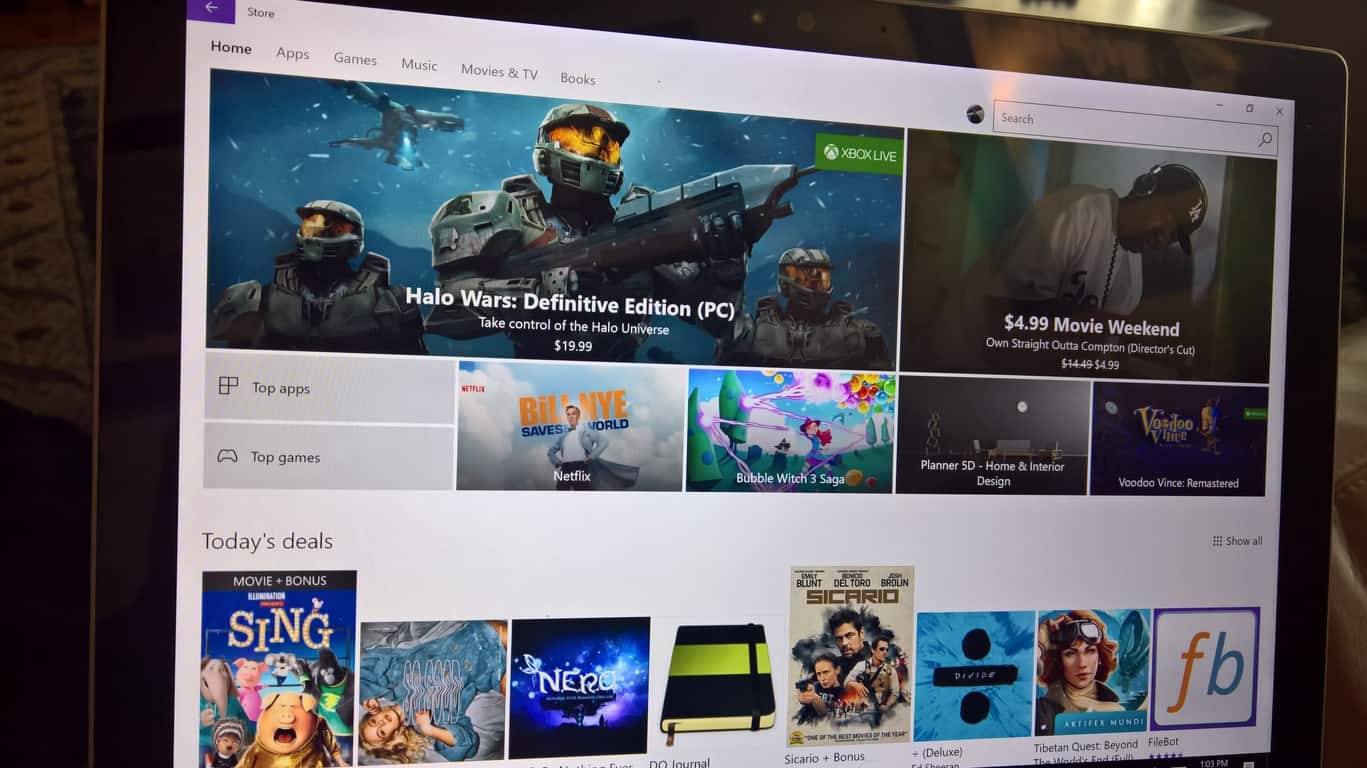
PUBG has quickly been translating its PC success to the Xbox platform, easily crossing 3 million players not long after the game came out. It’s a huge milestone for PUBG, and something that Aaron Greenberg was quick to brag about on Xbox Wire. This is just another notch in the belt of what’s become one of the largest names in gaming, both for the everyday gamer and for the larger streaming community. It’s even been able to garner some serious attention in competitive circles, opening up to an unexpected audience.

For players who just recently got their copy of PUBG – either on its own or alongside their Xbox One X – Microsoft is holding a “Tips and tricks” stream on Mixer, on January 16th. If you’re anything like me and have never come close to winning a game, this should help elevate your skills so you can start competing.

USB power booster solutions for your Windows 10/11 PC

By default the USB power slots can provide a specific amount of output power. This value is following a precise standard and it’s not related with the Windows version that’s installed on your laptop, notebook or computer, or with your system configuration. However, if you feel that this power is just not enough and if you want to increase it, then you can use a few solutions, which we will list below.

Now, the general idea is this one: the USB power limits are kept as a standalone value by a fuse on the USB port. This fuse is resettable so even if you manage to modify the output power the values will be reset on the next system restart (these values will vary only depending on your USB specifications: USB2 / USB3, etc.).

That’s why it’s really hard, if not impossible, to find a program that can help you boost up USB power. What you can do is to use Device Manager in order to adjust this power – do note that from Device Manager you can set which port receives power and adjust general settings; however you won’t be able to boost the output value.

Here are the USB power standards so that you can have a more proper background view over these default values:usb powerstandards

Thus, it’s quite complicated to find a certain software solution for increasing the USB power. But, instead you can use a cheap hardware alternative. For example, you can buy an external powered USB hub. This device can ensure more power for your USB ports without hassle – for example you can fast charge your smartphone while transferring data between your computer and your phone. It’s also a cheap solution as a decent external powered USB hub is usually priced around $15.

Another way in which you can receive more power from your USB ports is by using a USB Y cable. This cable will help you draw power from two USB ports simultaneously. Such cable can be bought for about $6 from amazon or from any other retail you prefer.

Other methods are not recommended as you can damage some hardware components from your system if you choose to tweak the default power that’s supplied by your motherboard – if you are not an electrician the best will be to buy the hub mentioned above or to use the USB Y cable.

As for the stuffs that you can configure from Device Manager, here is what you need to follow for accessing your USB ports:

  1. Right-click on the Windows start icon.
  2. From the list that will be displayed choose the Device Manager entry.device manager windows 10
  3. From Device Manager scroll-down until you see the ‘Universal Serial Bus controllers’ field.
  4. Extend this field by clicking on the arrow next to it.
  5. Right-click on the USB Root Hub device and choose ‘Properties’.
  6. From the Properties dialog box switch to Power Management tab.
  7. You can now restrict power to the USB port, if that’s what you want to achieve.
  8. You can repeat these steps for all your USB Root Hub devices to customize the USB output power.
  9. If you think that your USB port is not running correctly you can also choose to reinstall the associated drivers – you can automatically update device driver or uninstall and then reinstall them manually.

So, those are the essential details that must be reviewed in term of customizing the USB output power. As you noticed it’s not recommended to boost this power through software methods. It’s complicated to do so if you don’t have the right knowledge and experience and if something isn’t set properly you can end up in using a faulty hardware component.

The general idea is that you can boost the USB power output value by using cheap external devices such as an external powered USB hub, or an USB Y cable.

RELATED STORIES TO CHECK OUT:

How to fix performance issues after installing Patch Tuesday updates

The latest Windows 10 updates patch a series of CPU vulnerabilities that could allow hackers to access information on your computer, phone, and servers.

Microsoft recently acknowledged that these updates are actually a double-edged sword. They protect your computer against the latest cyber threats, but at the same time, they trigger performance issues.

What does that mean exactly? Well, to put it simply, you may encounter computer slowdowns.

Here is how this problem manifests itself:

  • Windows 10 computers powered by Skylake, Kabylake or newer CPUs may experience single-digit slowdowns. Microsoft doesn’t expect users to notice a significant impact because the percentages are reflected in milliseconds.
  • Windows 10 computers powered by older silicon processors (CPU manufactured in 2015, Haswell or older) may experience more significant slowdowns. Unfortunately, some users will indeed notice a decrease in system performance.
  • Windows 7  and Windows 8 computer equipped with older silicon CPUs are not as lucky. Users will experience a visible decrease in system performance.
  • Windows Server on any silicon CPU is affected by a more significant performance impact when you enable the mitigations to isolate untrusted code within a Windows Server instance.

Which is the latest version of Windows 10? Find out from our constantly updated article about Patch Tuesday!


And now the question is: How do you fix these problems?

Fix PC performance issues caused by Windows updates

1. Uninstall apps and programs that you don’t need

All those apps and programs that you don’t regularly use put unnecessary strain on your CPU. Simply remove them.

Go to Start > Apps & Features, select the programs that you don’t use and then click on Uninstall.

remove windows apps

2. Stop CPU-hogging software

Now that you have deleted all the unnecessary programs, check if the remaining ones are indeed working properly. If they use too much CPU power, simply disable them.

  • Go to Start > Task Manager > click on the Processes tab > select CPU to filter the programs depending on their CPU impact
  • Right-click the programs that eat up too much CPU > select End task

program hogs CPU

Needless to say, if you’re using a cryptocurrency mining software, the best solution is to temporarily turn off the tool. By their very own nature, cryptominers use an awful lot of computer power to solve complex mathematical problems.

Give your computer a break and start mining again when Microsoft has fixed these performance issues.


Looking for the best software to fix high CPU usage? Here are our top picks.


3. Delete large files and folders

If you use your computer to store large files, try deleting them or moving them to an external storage device. Most importantly, avoid storing large files on the partition where you installed the OS.

4. Disable game streaming

If you’re a gamer, try disabling game streaming. This action should reduce the impact of the latest updates allowing you to direct more computer resources into the game itself.

Yes, we know, streaming your games and sharing your experience with other players is fun, but given the current situation it’s best to refrain from using this feature until Microsoft fixes the problem.

5. Clean your Registry

Running a system file check scan (SFC scan) allows you to detect and fix corrupted or missing registry keys.

They may cause various technical issues on your computers, prevent apps from launching, cause the PC to behave erratically, and more.

Here’s how you can repair your Registry:

  • Go to Start > go to the search field box and type CMD
  • Select Command Prompt > launch it as an admin
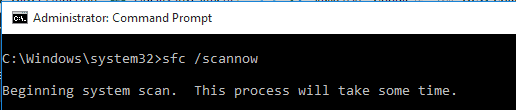
  • Type the following command and hit Enter:  sfc/scannow


Can’t access Registry Editor? Things aren’t as scary as they seem. Check out this guide and solve the issue quickly.


6. Install a PC optimizer

Tune-up software helps you optimize your computer’s performance so that it runs smoothly irrespective of what you throw at it.

For more information on the best PC optimizing programs that you can use, check out the articles below:

There you go, we hope that these suggestions helped you reduce the negative impact that the latest Windows updates have on your computer.

While it may not be possible to completely eliminate performance problems, the solutions listed above will at least help you mitigate their effects.

RELATED STORIES TO CHECK OUT:

Microsoft PowerShell Core released, runs on Windows, Mac and Linux

Yesterday, Microsoft released the open-source PowerShell 6.0, which works on Windows, as well as Linux and Mac machines. However, there may be some changes coming, as noted by a ZDNet report. While this is exciting news, it should be noted that there are two branches of PowerShell:

“PowerShell Core runs on Windows 7, 8.1 and 10; Windows Server 2008 R2, 2012 R2, 2016 and ‘Semi-Annual Channel’ (the twice-annual feature update to Server); macOS 10.12 and above; and a variety of Unix flavors, including Ubuntu, Debian, CentOS, Red Hat Enterprise Linux, OpenSUSE and Fedora.

As is the case with .NET, there are now two distinct branches of PowerShell: Windows PowerShell, built on .NET Framework, and PowerShell Core, built on .NET Core. Microsoft is not planning to release any new versions of Windows PowerShell. The 5.1 release is the last of that line, but will be supported for the foreseeable future. PowerShell Core can work side-by-side with Windows PowerShell.”

This should come as no surprise, as Microsoft announced their plans to make PowerShell open-source and available on Linux and Mac, back in 2016. Even though Microsoft detailed that they would provide updates to PowerShell just like they will in Windows 10 and Office 365. If you have questions about how the release of Microsoft PowerShell might affect you, be sure to check the FAQ page here.

Microsoft January 2018 firmware updates for Surface Pro, Laptop, Book include Meltdown, Spectre fixes

Microsoft has released a new set of firmware updates for its Surface Pro, Surface Laptop, and Surface Book devices that contain fixes for the recently recognized security vulnerabilities known as Meltdown and Spectre.

In addition to fixes noted in Microsoft security advisories 170012 and 180002, the original Surface Book firmware update includes some bug fixing and performance improvements:


  • Intel (R) Audio Display (v10.22.1.102) improves audio stability.
  • Intel (R) HD Graphics 520 (v22.20.16.4811) improves DirectX 12 and power performance.
  • Intel (R) Management Engine Interface (v11.7.0.1040) improves system stability.

You can check Windows Update on these machines to download and install these important updates.

(via MSPU)


New Microsoft patent describes controlling apps with your mind, no gestures needed

After introducing the possibility to control a Windows 10 PC with your eyes last year, it seems that Microsoft is working on something truly mind-blowing. A new Microsoft patent titled “Changing an application state using neurological data” describes a solution for controlling apps with your mind, no eyes or gestures needed (via CBInsights).

Microsoft filed the patent in May 2016, and it describes a solution for using neurological data (including electroencephalography, or EEG) for facilitating application state changes. The patent also mentions a computer system connected to an EEG sensor, which would be configured for changing the state of an application in response to received neurological user intention data. “In some circumstances, neurological user intention data corresponding to a physical gesture is generated when a user thinks about and/or focuses on a movement in the same way an amputee might think about moving an amputated limb,” the patent reads.

Microsoft explained that this mind control technology could work with several types of applications including games, VR apps, a web browser, a word processor and more. The patent mentioned different types of mind-controlled operations as well:

Operations may include object move operations, build operations, edit operations, animation or actuation operations, data input or output operations, display operations, audio operations, character/object movement or control operations, menu operations, navigation operations, processing operations, or other operations performable within the application to modulate input or output, settings, responses (e.g., visual, audio, and/or mechanical responses), and the like.

This is a pretty fascinating patent overall, and Microsoft certainly isn’t the only company working on new ways to interact with computing devices. Microsoft recently received a lot of criticism for killing off Kinect, but who needs gestures when you can mind-control your apps? It will probably be years before this technology becomes a reality, but the future definitely looks exciting.

Developers can now add paid subscriptions to Windows 10 apps

Microsoft yesterday announced that Windows developers now have the option to add paid subscriptions and automated recurring billing in all UWP apps. This means developers can sell digital products inside their apps, earning more revenue while also providing Windows 10 users a seamless purchase experience.

Developers can feel free to visit the Microsoft Store App Developer Agreement for more details on the fees related to subscriptions. To enable the feature, a UWP app must also target the Windows 10 Anniversary Update or a later release in Visual Studio.

Subscriptions

Developers will receive 85% of the subscription price, minus applicable taxes for apps. For games, developers get 70% of the subscription price, minus applicable taxes. Windows 10 users can manage any purchased subscriptions from the services and subscriptions page for their Microsoft account.

This is definitely an interesting step in making the Microsoft Store in Windows 10 more enticing for developers. Do you think this will help Windows developers make more money? Drop us your thoughts in the comments below.

Rainway will let gamers play PC games on their Xbox One & Nintendo Switch consoles

Rainway has announced that they’ll be launching their open beta on January 20th. Rainway is an experimental service that aims to provide gamers with a free way to stream PC and mobile video games to their Xbox One and Nintendo Switch consoles. A new trailer shows Rainway in action.

“We’re happy to share with you today our vision for the future of PC and mobile gaming. With Rainway we hope to usher in true device agnostic gaming using our low latency streaming technology,” the YouTube video’s description reads. “Pair Rainway with your favorite console or smart phone for an unprecedented experience.”

The open beta will be for Rainway’s web platform which means that it won’t work on the Xbox One just yet but gamers should be able to try out streaming a PC game from one computer to another or even a tablet or smartphone and play it in the web browser.

Interested gamers can sign up for the open beta on the official Rainway website.

Microsoft launched a similar service within the Windows 10 Xbox app which allows Xbox One console owners to stream their gameplay to a Windows 10 PC that’s on the same Wi-Fi connection. There is no option for streaming a game running on a Windows 10 PC to an Xbox One though so Rainway, if it works as well as it looks in the trailer, could be a popular tool for many people.

Would you like to stream a PC game on your Xbox One console? Let us know in the comments below.

Fix: Can’t connect to Xbox Live after Minecraft update

Major Minecraft updates are mostly well-balanced with both improvements and bug fixes for all available platforms. However, it seems that one of the latest Minecraft updates blocked the Xbox Live connection. Namely, regardless of platform, you’re running Minecraft on, there’s a chance that you won’t be able to sign on Xbox Live.

For that purpose, we enlisted a few solutions that should help you overcome this issue. So, if you’re stuck on the sign-in screen, make sure to check the steps below.

How to resolve Xbox Live connection issues after the Minecraft update

1: Close the game and restart your PC/console

Even though this issues commonly emerge after an update, there’s a chance that the update at hand isn’t the culprit for the inability to connect to Xbox Live servers. So, before you start throwing sticks and stones at Microsoft, make sure that your Xbox Live account is valid. Sometimes the slightest thing is causing the stall. Also, don’t forget that certain features are available only to paid Xbox Live version, called Xbox Live Gold.

Furthermore, we advise you to restart your console or PC and try again. It might resolve some issues, and resolve the halt you’re experiencing with Minecraft.

2: Update/restore the game

Updates are too often the double-blade swords. They bring to the game a lot of improvements, new content, and features, but there’s always (always!) a bug or two. Luckily, more times than not, you can expect a patch that addresses the main issues. So, we advise you to update your Minecraft version and move from there.

If you’re not sure how to update Minecraft, follow the steps below:

  1. Start the Minecraft Launcher.
  2. Click Options.
  3. Select ”Force update!” and wait for the procedure to end.

This will keep your saves but relieve you of mods in the process.

On the contrary, if you’re unable to run the current, updated version, you can restore the previous version and resolve the problem in that manner. Just replace the current ”minecraft.jar” file with the one from the previous version.

3: Don’t use a single account on multiple devices

Some users reported that the issues started when they tried to use a single Xbox Live account on multiple devices. We’re all well aware that this is a standard option and it should work without issues whatsoever. However, never underestimate Microsoft’s ability to implement revolutionary changes (Better together update) in an unpolished manner.

So, until they finally deal with the issues at hand, you won’t be able to run Minecraft in the cross-platform mode with only one Xbox Live account. This includes all platforms, console, PC, and handheld devices.

Also, try to change your current region. Switching between the regions helped some users resolve this issue and they were able to connect to Xbox Live in a seamless manner.

4: Check the connection and the server status

Now, what are the chances for your connectivity to cause this issue immediately after the update? Not large, but it’s, either way, something you should check out. Here are some steps you should take in order to confirm that the connection isn’t causing Xbox Live errors.

    • Use wired connection.can't connect to xbox live after update - MC
    • Restart PC/console and router/modem.
    • Run the Speed Test (Xbox)
      1. Navigate to Settings > Network > Detailed Network Statistics.
      2. Wait for the assessment procedure to end.
      3. If you meet the requirements, everything should be fine. On the other hand, if you haven’t met the requirements — continue with the steps below.
    • Update console’s firmware.
    • Update router’s firmware.
    • Check the NAT. Make sure that the OPEN NAT type is enabled.
    • Forward ports.
    • Check the Server status, here.

5: Make sure that you have a cross-platform supporting version

Another commonly overlooked fact regarding the game versions is the difference between Minecraft: Xbox One Edition and just a unified Minecraft, called simply Minecraft. Furthermore, PCs have an alternative version called Minecraft: Java Edition. So, make sure to run the cross-platform supported Minecraft version while trying to log in.can't connect to xbox live after update - MC

Basically, only one Minecraft version lets you play in the cross-platform model. If you try it with others, you won’t be able to connect to Xbox Live, regardless what you try.

6: Reinstall the game

Finally, our last resort is the reinstallation. Of course, you can always send a ticket report to Xbox Live support team and ask for the resolution. However, it won’t cost you anything except the time to try and reinstall the game. Nonetheless, don’t forget to backup your save files before you move to reinstallation. Follow the instructions below to reinstall the Minecraft:

Windows 10

  1. In the Windows Search bar, enter %AppData% and press Enter.
  2. In the Application Data folder, open the Minecraft folder and move the ”saves” folder to an alternative location.
  3. Get back and delete Minecraft folder.
  4. Run Minecraft.exe and wait for the downloading process to end.
  5. Before running the game, return to the Application Data folder and copy-paste the ”saves” folder you preserved.

Xbox One

  1. Navigate to My apps & games.
  2. Choose Games.
  3. Select Minecraft from the list and press the Menu button.
  4. Choose Manage Game and then Manage All.
  5. Select Uninstall All and then Uninstall.
  6. Navigate to My apps & games and open the ”Ready to install” section.
  7. Highlight Minecraft and select Install.

That should wrap it up. In case you have any questions, suggestions, or alternative solutions, don’t forget to tell us in the comments section below.

RELATED STORIES YOU SHOULD CHECK OUT:

FIX: KB4056890 fails to install or breaks computers

Windows 10 Anniversary Update update KB4056890 patches the CPU vulnerabilities that could potentially allow hackers to steal data from your computer.

At the same time, the update also brings a few issues of its own, sometimes quite severe. Judging by user reports, there are two main issues affecting this release that we will describe below.

Windows 10 KB4056890 reported issues

1. Install fails

If you can’t install this update, well you’re not the only one. Sometimes the install process gets stuck or fails with various error codes such as 0x80070002.

KB4056890 has now failed to install four times and the last two times there has been an error 0x80070002. The registry entry is what another MS site says it should be and the anti-virus software is kts2016 (Kaspersky Total Security).

The good news is that we already published a guide on how to fix error 0x80070002. We hope that the solutions available in the respective article will help you fix the problem. You can also run the build-in Update Troubleshooter from the Settings page. Simply to to Settings >Update & Security > Troubleshoot > select the Update Troubleshooter and run the tool.

windows update troubleshooter

You can also check out the following troubleshooting guides:

2. Windows won’t start

Some users were unable to properly start their Windows session after installing the latest Windows 10 version 1607 update. The only solution to fix this problem was to perform a system restore.

After updating with KB4056890, my Asus suite 3 will not launch.So using system restore, it’s back to working fine. The trouble is this same update wants to reinstall itself. Is their a way of preventing this happening.

Just in case system restore fails to work for you, the guide below may help you:

If you encountered other bugs after installing KB4056890, describe the problems in the comments below.

It’s not just Windows – Linux Ubuntu systems being bricked by Meltdown/Spectre patches, too

As you likely know by now, some users with AMD Windows PCs were reporting boot up issues after installing Microsoft’s Meltdown security patch. This caused the company to eventually pause the update for AMD based PCs. Well, it looks as though Windows is not the only operating system impacted, as the Meltdown patch is also bricking some Linux Ubuntu systems.

Linux and Ubuntu users have apparently been venting about the “bricking” issue on the Ubuntu forums, and also contributing technical info about it on the Ubuntu Launchpad bug tracker. Supposedly only Ubuntu users running the Xenial 16.04 release are experiencing bricked systems after updating to kernel image 4.4.0-108.

Canonical originally released Kernel image 4.4.0.108 on January 9, and a security bulletin notes that this was to correct Meltdown. There have been subsequent Linux Kernel updates, including 4.4.109, and 4.4.0.109.114 which attempt to alleviate the bricking issue, though it has not worked for everyone. Others have also said that rolling back to the previous kernel image also resolves all problems, except for being protected from Meltdown and Spectre, of course.

New Sword Art Online video game is coming to the Xbox One, pre-orders now open

A new video game based on the popular Sword Art Online anime series, Sword Art Online: Fatal Bullet is now available to pre-order on the Xbox One family of consoles. The new game is due for release on February 23rd this year and is a third-person action roleplaying game. Here’s the official game description.

Your fate has just begun… Experience an original story where you are the protagonist in the world of Gun Gale Online. Create your own avatar and explore devasted lands while experiencing exciting third person shooting in this action RPG. Encounter enemies and run into new and familiar faces from the Sword Art Online series.

Journey through a world of guns where after a chance encounter you’ll gain the help of a very rare AI, ArFA-Sys. Along the way, you will have to make choices. But every choice comes with a price… Will you bring hope or despair? This is your adventure… This is your story…

Pre-orders of Sword Art Online: Fatal Bullet will also receive two exclusive costumes and a unique weapon for use in-game. Are you a Sword Art Online fan and are you hyped for this game? Let us know in the comments below.

Xbox One will soon change its theme depending on the time of day

Microsoft has done a last minute update to the release notes for their Xbox Insiders build that was rolled out yesterday. While nothing has been removed from yesterday’s notes, something rather interesting was added; Scheduled Themes. Here’s the new information that was added.

Put your themes on a schedule! You’ll soon be able to switch between light and dark themes based on time of day.

The notes are pretty self-explanatory. There will soon be a setting that Xbox One owners can enable that will automatically change the visual appearance of the console’s user interface at different times of day. This setting will be first offered to Xbox Insiders for testing and feedback and then rolled out to the average Xbox One owner soon afterwards.

Would you enable this feature on your Xbox One? Let us know in the comments below.

How to fix error 0x000000c4 on Windows 7

If you’ve read the latest news reports, you already know that when it comes to updating your Windows 7 computer, the best solution is to simply avoid installing the latest patches – at least for now.

User reports confirm that the latest Windows 7 updates are plagued by a bevy of issues than can sometimes brick your computer.

One of the most common issues caused by KB4056894 is the annoying error code 0x000000c4, as this user reports on Reddit:

This morning I came in to find 3 computers that would not boot – BSOD stop: 0x000000c4. All 3 machines are the same model – HP Compaq dc5750 with AMD CPUs. At first I tried my normal “it won’t-boot” troubleshooting steps and gradually worked my way out of ideas.

Fixing this error is not an easy task since common troubleshooting solutions such as launching various startup modes or reverting BIOS Settings to default won’t work.

How to fix Windows 7 error 0x000000c4

  1. Press F8 during startup and select Repair Your Computer.
  2. Launch Command Prompt and type the following command: dir d:
  3. Hit Enter to run the command and check if the Windows drive is mapped correctly.
  4. Using Command Promp, enter the following command: dism /image:d: /remove-package /packagename:Package_for_RollupFix~31bf3856ad364e35~amd64~~7601.24002.1.4 /norestart
  5. A progress bar should now appear on the screen. The entire process should finish in about 10 minutes. When the progress bar disappears, restart Windows.
  6. Go to the Windows update center and hide KB4056894 to prevent it from reinstalling.

You can also disable Windows Update to make sure that your computer won’t download any patches until you turn the update service back on.

Here’s how to block updates:

  1. To to Start > type ‘run’ > launch the Run window
  2. Type services.msc > hit Enter
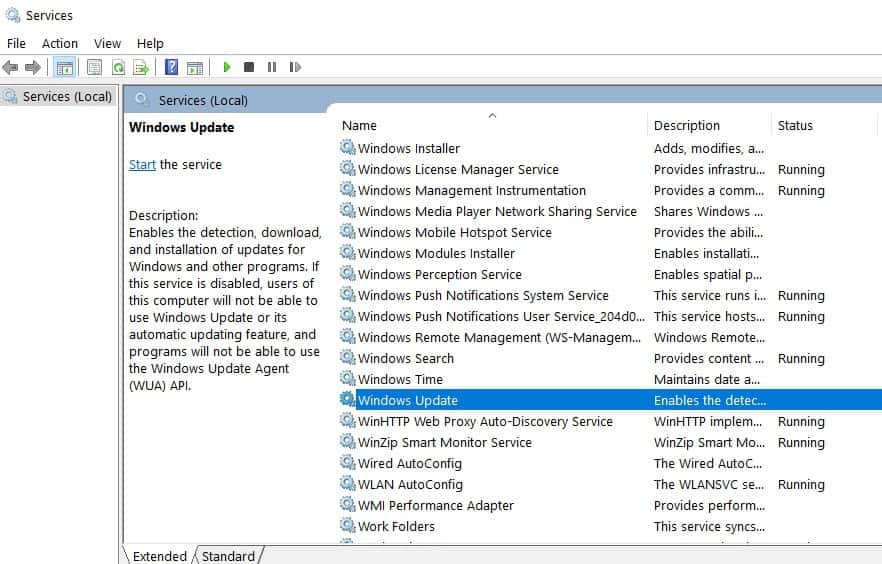
  3. Locate the Windows Update service > double click on it to open itblock windows update
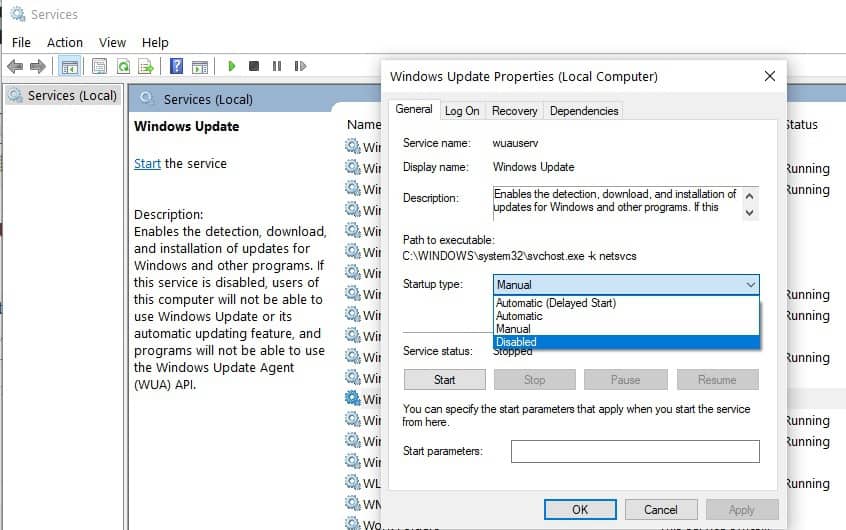
  4. Go to the General tab > Startup Type> select Disabledisable windows updates
  5. Restart your computer > no updates should be installed until you turn on the Windows Update service again.

There you go, this is how you can fix error 0x000000c4 on Windows 7.

Use the comment section below to let us know if this solution fixed the problem for you.

RELATED STORIES TO CHECK OUT:

Microsoft details impact of Meltdown/Spectre fixes for Windows, warns of performance slowdowns

Microsoft, Intel and PC manufacturers are still dealing with the Meltdown and Spectre CPU vulnerabilities these days, and contrary to Intel’s reassuring statements from last week, the fixes will have a performance impact, especially on older PCs. Microsoft chose to be transparent today, with Executive Vice President of the Windows and Devices Group Terry Myerson addressing the issue head-on in a detailed blog post.

The good news is that for Windows 10 PCs with modern Intel processors, the Windows security patches plus the additional firmware updates necessary for addressing a specific variant of the Spectre vulnerability won’t have a big impact on performance. However, for Windows 10 PCs with Intel Haswell CPUs or older as well Windows 8 and 7 systems using these same old processors, the performance impact will be much more significant. Moreover, Myerson added that the software and firmware updates may also cause a “more significant performance impact” on servers.

Here is a summary of what Microsoft’s latest research revealed:

  • With Windows 10 on newer silicon (2016-era PCs with Skylake, Kabylake or newer CPU), benchmarks show single-digit slowdowns, but we don’t expect most users to notice a change because these percentages are reflected in milliseconds.
  • With Windows 10 on older silicon (2015-era PCs with Haswell or older CPU), some benchmarks show more significant slowdowns, and we expect that some users will notice a decrease in system performance.
  • With Windows 8 and Windows 7 on older silicon (2015-era PCs with Haswell or older CPU), we expect most users to notice a decrease in system performance.
  • Windows Server on any silicon, especially in any IO-intensive application, shows a more significant performance impact when you enable the mitigations to isolate untrusted code within a Windows Server instance. This is why you want to be careful to evaluate the risk of untrusted code for each Windows Server instance, and balance the security versus performance tradeoff for your environment.

Overall, owners of modern Windows 10 PCs shouldn’t see a big difference after installing the software patches plus the Intel firmware updates. “For context, on newer CPUs such as on Skylake and beyond, Intel has refined the instructions used to disable branch speculation to be more specific to indirect branches, reducing the overall performance penalty of the Spectre mitigation,” Myerson explained. “Older versions of Windows have a larger performance impact because Windows 7 and Windows 8 have more user-kernel transitions because of legacy design decisions, such as all font rendering taking place in the kernel.”

A couple of days ago, Intel announced its plans to release firmware updates for 90% of processors from the past five years by the end of this week. Today, the company added in a press release that it will issue updates to the remaning 10% by the end of January, and also release patches for other products thereafter. “Based on our most recent PC benchmarking, we continue to expect that the performance impact should not be significant for average computer users,” the company explained. “This means the typical home and business PC user should not see significant slowdowns in common tasks such as reading email, writing a document or accessing digital photos.”

Terry Myerson wasn’t as optimistic today, and the exec promised that Microsoft will publish all of its data on benchmark performance in the coming weeks. “We’re also committed to being as transparent and factual as possible to help our customers make the best possible decisions for their devices and the systems that run organizations around the world,” Myerson added.

Microsoft is working on a new Careers system for Xbox Achievements

Apparently, Microsoft is looking to update Xbox Achievements with a new “Careers” system and other special Avatar bonuses. As noted by Windows Central, Microsoft is looking to enhance Xbox Achievements to complement the new Avatars that were originally slated to arrive in Fall 2017. Since the new Xbox Avatars won’t arrive until early 2018, it looks like Microsoft may be bringing new surprises with Xbox Achievements too.

Microsoft looks to be planning a new website too; “Career.XboxLive.com.” Although the website is not publicly accessible at the moment, the website may further describe how the upcoming Career system would work with Xbox Achievements. Based on the documentation that Windows Central received, here’s how the new Career system might work. 

“It appears that players using this new Career system will be able to obtain levels, and even prestige ranks, obtaining rewards such as loot crates which come with cosmetic items for the new Avatars system. The Career system also comes with Quests to complete specific objectives, such as playing certain games, which will also come with crate and experience points as rewards.”

It is too early to know for sure how the new Xbox Career system will work, if it is ever implemented at all. It may come when the new Avatars are available, or Microsoft might hold off on releasing the Xbox Career system until later in 2018. Unless we get more concrete details or an official comment from Microsoft, nothing is known for certain how the Xbox Career system will work. However, it sure is exciting! Stay tuned!

Microsoft to bring cross platform Message.io chat to Teams

Microsoft is looking for beta testers to test out Messaging.io (M.io) chat to Microsoft Teams.

M.io will help you stay connected and chat with your contacts regardless of what chat platform they use; Slack, SPark, HipChat, and more:

“M.io lets you chat with your contacts on any platform – all from within Microsoft Teams as your central messaging hub. For example, you can chat with your colleagues or external peers that are using Slack all from within Microsoft Teams. It’s some heavy duty magic we’ve been working on and we’re excited to start sharing with the community.”

If you are interested in becoming a beta tester for M.io, you can sign up using your email. It will be interesting to see how M.io works within Microsoft Teams, but it looks like it’ll be an even better way to stay connected and collaborate. Stay tuned for more information on this feature in an upcoming Microsoft Teams update!

Microsoft once again lets users pay with Bitcoin

Yesterday we reported that Microsoft would no longer accept Bitcoin as a form of payment online. Though the company said it was “temporary” measure Microsoft has since pushed back and restored the ability for users to reload their Microsoft account balances using Bitcoin (via Thurrott.com.)

Since the original reports surfaced, Microsoft apparently worked with their provider to correct any issues, and is now once again accepting Bitcoin. A statement from a Microsoft spokesperson confirmed this.

“We’ve restored Bitcoin as a payment option in our store after working with our provider to ensure lower Bitcoin amounts would be redeemable by customers.”

Bitcoin is a bit of a wild currency, especially because values tend to fluctuate higher and then lower every day, and because there is a transfer fee involved. Microsoft previously stopped accepting Bitcoin back in 2016, only to pull back and once again accept it two days later.

Microsoft halts AMD Meltdown and Spectre patches following reports of unbootable PCs

Yesterday reports surfaced on some AMD PCs not booting properly after installing the latest Windows 10 security patch. As a result, many Windows users with AMD powered PCs took to Microsoft’s support forums to complain about the issue. In the face of this criticism, Microsoft has halted the AMD Meltdown and Spectre patches, instead saying it is now working with AMD to resolve the problems and issue another update soon (via The Verge.)

The halt means that AMD PCs will no longer receive the KB4056892 patch which is causing some machines to become unbootable. In fact, the reason many were experiencing issues is that the AMD chipsets would not “conform to the documentation previously provided to Microsoft.”

Microsoft further elaborated on the situation via a statement on their support website:

“Microsoft has reports of customers with some AMD devices getting into an unbootable state after installing recent Windows operating system security updates. After investigating, Microsoft has determined that some AMD chipsets do not conform to the documentation previously provided to Microsoft to develop the Windows operating system mitigations to protect against the chipset vulnerabilities known as Spectre and Meltdown.”

The following security updates are also no longer being pushed to PCs with AMD processors:

  • January 3, 2018—KB4056897 (Security-only update)
  • January 9, 2018—KB4056894 (Monthly Rollup)
  • January 3, 2018—KB4056888 (OS Build 10586.1356)
  • January 3, 2018—KB4056891 (OS Build 15063.850)
  • January 3, 2018—KB4056890 (OS Build 14393.2007)
  • January 3, 2018—KB4056898 (Security-only update)
  • January 3, 2018—KB4056893 (OS Build 10240.17735)
  • January 9, 2018—KB4056895 (Monthly Rollup)

Those who already installed any of these updates are being urged to visit Microsoft’s support website. The website explains how a user can troubleshoot Windows 10, Windows 8.1, and Windows 7 in the event that the operating system is unbootable.

Xbox One begins testing mini game hubs & Do Not Disturb mode

A new Preview Alpha build (1802.180105-1503) is now available for Xbox Insiders. This latest build adds several improvements to the Xbox One’s Guide (i.e. the pop-out menu) relating to Achievements and Game Hubs and also introduces the Do Not Disturb option which was used on the Xbox 360 but hadn’t been integrated into the Xbox One generation of consoles yet. This new option essentially disables notifications while turned on.

Other changes include improvements to the Community feed, inactivity shutdown, and a new avatar option in addition to a variety of bug fixes. Here’s the official release notes.

NEW FEATURES:

We’re excited to return in 2018 with new features that impact the way you access your games and Achievements, how you let your friends know whether you’re able to play, and much more. Over the next several weeks, Xbox Insiders will begin to see a variety of cool new features they can interact with and provide feedback on. Here’s a look forward at some of the excitement still to come:

Starting today at 6 p.m. PST, Xbox Insiders enrolled in the Alpha ring will receive the latest Xbox One system update (1802.180105-1503). With this update, you’ll be able to use the “Next Achievements” feature in the Guide, which enables you to view and sort a cross-games list of upcoming Achievements. Easily see which Achievements you are closest to, and quickly launch the game to obtain them. Sort filters allow you to prioritize next Achievements by closest, most common, rarest, most common rare, and highest Gamerscore.

Mini Game Hubs will soon be available right in the Guide. With this feature, you’ll be able to access great content for the games you’ve played recently from a Game Hub without ever having to leave the action. Mini Game Hubs provide an easy way to see friends who are currently playing, upcoming Achievements, Looking for Group posts, and more.

Sometimes all you want to do is avoid all distractions and focus entirely on your game. We’ll be including a “Do not disturb” online status, which will suppress notifications and let your friends know that you’re not available for another game or activity right now.

We’re tweaking the community feed to make it easier to view comments. You’ll soon be able to see a peek of the most recent comment on community posts, with comments rearranged to place those that are most recent at the top. You’ll also be able to see who has liked your comments.

To address user feedback, we’re adding additional inactivity shutdown options to the Power mode & startup menu. In addition to shutting down the console after one or six hours of inactivity, you will be able to select options for two, three, four and five hours.

Alongside the updates listed above, which will work their way naturally through the Xbox One Preview Update rings, a subset of users may also see additional experimental features. These features are only enabled for a portion of the Xbox Insider audience to gauge interest and collect feedback. Your participation in the Xbox Insider Program helps us make the work-in-progress content and features coming to Xbox even better

FIXES:

Narrator

Narrator can read large amounts of text.

KNOWN ISSUES: 

Guide/Home crashing   

We are aware of the Guide and Home crashing and determined the root cause.  A fix is being worked on.

Workaround: In the interim please HARD Reboot (Hold the power button for ten seconds)the console to fix this issue.

Games Installation

Some users are encountering where some games that are installed are failing to launch.

Workaround : If the games are installed to an external drive please copy the game to the internal drive or attempt to delete the title and redownload to fix the launch error.

Display   

We are investigating the inaccurate RGB colors that have been reported when displaying in 4K HDR mode when playing a UHD disc.

Tournaments

The left and right navigation for selecting date and time during Tournament creation is currently reversed when the console language is set to Arabic or Hebrew.

Left and right navigation in Tournament twists is reversed when the console language is set to Arabic or Hebrew.

Left and right navigation in the bracket view of Tournaments is reversed when the console language is set to Arabic or Hebrew

Avatars on Home

Users wishing to represent themselves as an avatar can do so by changing their settings under My profile > Customize profile > Show my avatar.

Are you an Xbox Insider? Let us know if you’re enjoying these new features in the comments below.

USB-C universal receiver: Where can I buy one?

The USB-C connection is going to overtake and eventually replace the standard USB 2.0 technology. The newest MacBook models have only USB-C ports so it’s only a matter of time until this becomes mainstream technology.

But there is one question on the mind of many technology users, and especially laptop owners: ‘Where can I buy a USB-C universal receiver”?

In this article, we’re going to answer that question and offer you more information about this device.

USB-C universal receiver: Everything you need to know

There are many USB-C to USB adapters that you can use but they usually stick out too much from the side of the laptop, as users report:

Regular USB ports are disappearing. Logitech needs to have a USB-C unifying receiver and adapters aren’t a good solution because they stick out an inch from the side of the laptop. ONE MISTAKE where it catches something (a wall, the side of furniture, or anything else) and the laptop jack will be destroyed and most of the time that will take out the other USB-C jacks on that side of the laptop as well.

However, there is no USB-C universal receiver currently available on the market. But the good news is that hardware manufacturers acknowledged the need for such a device and will release it in the near future.

When exactly? Well, we can’t really answer that question either: it could be a few months, a year or even more. However, judging by the current trend and the number of user requests, we dare say that in one year’s time, USB-C universal receivers will be available everywhere.

Buy a USB-C mouse

USB-C universal receiver mouse

If you don’t want to wait until a USB-C universal receiver is available on the market so that you can finally connect your mouse to the USB-C port of your laptop, then buy a brand-new USB-C mouse.

Here’s an article on the best USB-C gaming mice that you can buy right now. You can pair that mouse with these USB-C headphones.

We’ll update this article as soon as new information is available about USB-C universal receivers.

RELATED STORIES TO CHECK OUT:

How to block KB4056892 from installing on your Windows 10 PC

Update KB4056892 is perhaps the most hated patch of the moment. Many users reported that this update often breaks computers, leaving them unable to use their devices.

Taking into account this situation, users are looking for a quick way to prevent KB4056892 from installing on their computers.

KB4056892 is Awaiting restart. Unfortunately, when I did a restart it bricked my system. I had a large windows logo on the screen and it just sat there. I rebooted and was able to trigger a repair. The repair said it was backing out the last update as it would not be completely installed. With KB4056892 is Awaiting restart I did another restart and had the same problem. How do I block it so it doesn’t get installed if I have to reboot the machine?

Simply uninstalling the update doesn’t solve the problem as the OS will download it again and again. So, how exactly can you block KB4056892?

How to prevent KB4056892 from downloading and installing

1. Stop Windows Update

  1.  To to Start > type ‘run’ > launch the Run window
  2. Type services.msc > hit Enter
  3. Locate the Windows Update service > double click on it to open itblock windows update
  4. Go to the General tab > Startup Type> select Disabledisable windows updates
  5. Restart your computer > no updates should be installed until you turn on the Windows Update service again.

2. Pause updates

If you regularly install the latest updates on your computer, and you simply want to avoid installing KB4056892 in particular, then the best solution is to pause updates. Hopefully, this will give Microsoft enough time to fix the problematic updates.

Go to Settings > Updates & Security > Advanced Settings > Turn on the “Pause updates’ toggle

pause windows updates

There you go, these two simple solutions should help you keep KB4056892 at bay. Although you can’t defer the update until an indefinite time, you can block it from installing on your computer at least for a few days.

RELATED STORIES TO CHECK OUT:

Windows 7 KB4056894 bugs: BSOD, black screen, apps won’t open

Last week, Microsoft rolled out a series of updates aimed at fixing a major CPU security vulnerability affecting virtually all Windows computers.

Windows 7 KB4056894 is one of those patches, but judging by user reports, the update caused more harm than good. Many users complained that the update caused their computers to stop working.

As a quick reminder, another major update triggered similar results. Windows 10 version 1709 KB4056892 turned many computers into simple pieces of decoration. Read more about it in this round-up article.

So, if you’re planning to update your Windows 7 computer soon, read this article to learn what are the most common KB4056894 bugs reported by users. Maybe you’ll change your mind and postpone installing the updates, although this means making your PC vulnerable to the latest CPU cyber threats.

Windows 7 KB4056894 issues

1. BSOD and error 0x000000C4

By far, the most frequent KB4056894 bugs is the annoying Blue Screen of Death. Judging by the number of views that this thread got on Microsoft’s forum, there must be tens of thousands of users experiencing this problem.

 After installing the latest Windows updates and rebooting, I got the following error:
*** STOP: 0x000000C4 (0X0000000000000091, 0x0000000000000000, 0xFFFFFF80002C4EFC0, 0x0000000000000000)  I could not boot into Safe Mode. I was able to boot into the recover console and uninstall the latest update that was still in the “Install Pending” state

Again, it seems that this issue is prevalent for AMD computers, and especially those powered by the following chips:

  • AMD Athlon X2 6000+
  • AMD Athlon X2 4800+
  • AMD Athlon X2 4600+
  • AMD Athlon X2 BE-2400
  • AMD Opteron 285
  • AMD Turion X

Somehow, the latest Windows updates appear to be incompatible with AMD CPUs. Although users have been reporting these problems for several days, Microsoft and AMD have yet to issue any comments.

This piece of advice coming from a Windows 7 user who already encountered many issues after installing the update perfectly resume the general user opinion:

Microsoft should update MS KB article 4056894 acknowledging the BSOD problem when KB4056894 is installed on affected AMD CPUs, which they have not yet done. In the meantime, Win7 users using any AMD processor (old or new) should avoid installing the KB4056894 update until MS issues a revised patch or a new one with a different KB number to address the blue screen crashes.

2. Computers won’t boot

Other Windows 7 users warned that installing KB4056894 may lead to boot up issues. More specifically, the OS fails to boot up with various error codes displayed on a black background, but the good news is that you can fix the problem.

Attention KB4056894 Security Update Will Make your AMD X2 Computer unusable Win7 Win 8.1 Win10 and Maybe Other System too

Here’s how to fix boot up issues after installing KB4056894:

  1. Backup the HDD of the computer that won’t boot on another computer. The quickest way to do that is by using a dedicated back up software.
  2. Connect the problematic HDD on a machine powered by an AMD CPU (AMD Phenom CPU Athlon X3 or similar)
  3. Boot the problematic HDD on the second machine. If it fails, located the IDE AHCI Settings in Bios
  4. When the computer boots up, Windows will download and install KB4056894
  5. Uninstall the update and reboot your computer
  6. Go to Windows Update and allow the system to check for new updates
  7. If it finds KB4056894 again and possibly other driver updates, disable KB4056894 and driver updates
  8. Shutdown your computer
  9. Disconnect the problematic HDD from the second PC, connect it to the first machine
  10. Start the computer and check if the issue persists.

Did it work for you?

3. The screen goes black

In some case, the update seems to crash the display driver. Users report that every 15 minutes, the screen goes black without affecting the running programs. In most cases, the problem goes away after a few seconds.

I recently installed KB4056894 […] Prior to doing so, my Dell Inspiron 1420 laptop running Windows 7 Pro had been working just fine. Since the update was installed yesterday, every 10-15 minutes, my screen goes entirely black for about 3-5 seconds, as if the display driver is crashing and restarting. It doesn’t appear to affect any of my running programs, nor does it crash the computer. But clearly, it should not be causing the display to go black.

4. Software failure

If some of your programs recently stopped working after you installed the latest Windows 7 updates, you may want to uninstall the respective patches.

While not as frequent as the three issues listed above, this problem is indeed affecting quite a few users.

I am running Windows 7 Professional and the only recent Windows update was: 2018-01 Security Monthly Quality Rollup for Windows 7 for x64-based Systems (KB4056894).

These are the most common issues triggered by the latest Windows 7 updates. Have you encountered similar bugs after updating your computer?

RELATED STORIES TO CHECK OUT:

Xbox App for Windows 10/11: Everything you need to know

Microsoft Store divided Windows 10 users, and both sides have good arguments to be for or against. However, even though you’re avoiding Windows Store apps like a plague, there are some apps that are irreplaceable for different niches. One such as is the Xbox App that’s basically there to improve overall Xbox experience and unite two Microsoft-powered platforms.

Today, we’ll talk a bit about Xbox app for Windows 10, its usability and design. Of course, we can’t skip on the way to remove it if you’re not really into gaming or not have anything in common with Xbox consoles. Something for everyone so do check it out below.

Why Xbox App is there on Windows 10 and why is/isn’t useful

1. Features and overall usability

Let’s break it simply for you. The cross-platform system that Microsoft offers makes this app quite useful for the Xbox gaming community. Because of that, this is basically a port from the Xbox interface. It’s arguably one of the most useful applications available at the Microsoft App Store, and that’s hardly a complimentary statement.

The main focus is on interactions with other players, stats tracking, and news curating similar to the ones on Steam, Origin, or Battle.net. However, besides being the main player hub, there are not so many extra-important features you can utilize with Xbox for Windows 10.

xbox software for windows 10

It’s basically like a niche-focused social network for gamers around the world, with forum-like Clubs you can join or create a one on your own. You can link your Twitter and Facebook accounts with Xbox app, in order to find friends that also play games on Microsoft platforms. You follow folks and gather followers, basically. The community is pretty respectable, but we can’t be certain how many of those community members use Xbox App for Windows 10 to enroll in Clubs and interact with other players.

There’s also a game library with all your games, In addition, you can track your in-game progress, compare stats with other players, and get yourself various achievements. Again, just like a Steam and similar desktop clients does.

Design-wise, Xbox App offers mediocre user-friendly experience, and we’re certain everything would be much better if the interface isn’t so much bloated with various game ads. Nonetheless, it does a fairly good job. The most distinctive feature that might make it worth a while is the cross-platform streaming from Xbox One to Windows 10 PC. There are a lot of similar solutions that’ll enable you to do so, but it’s a valuable asset, nonetheless.

You can improve your system performance further by reviewing optimized gaming settings for Windows 10 in this helpful Windows gaming settings guide.

  • READ ALSO: Microsoft Brings new Social features to Xbox App on Windows 10

2. How to use it

Thanks to Microsoft’s a ted forced diligence, you’ll find Xbox App just after you install Windows 10. You should find it in the Start menu with all other pre-installed apps. It’ll use your Microsoft Account to automatically sign in, but, of course, you can select an alternative account that’s related to Xbox Live.

Once you log in, you can immediately start with the profile customization. You can change your avatar, Gamertag, and the interface color. Everything is so similar to Xbox One control panel so players should have an easy time moving through the different categories.

  • READ ALSO: Xbox mouse support could land with the next Insider build
xbox software for windows 10

These are the options you can access from the main left pane:

  • Home 
  • My Games – Games library which includes all supported games.
  • Achievements – Your stats, achievements, and current progress.
  • Game DVR – Screenshots and in-game recordings.
  • Clubs –  Community where you can interact with like-minded players.
  • Trending – Curated news from the gaming world and interesting community content.
  • Microsoft Store – The shortcut to Microsoft Store > Games.
  • Search 
  • Connection – This is where you can connect Xbox One to Windows 10 PC.
  • Settings 

3. How to remove it if you’re not really into it

Even though there’s a lot of positive feedback, many users are still annoyed by the fact that Microsoft assumed the Xbox app needs to be pre-installed. Not everyone play games, combined with other lackluster built-in apps with even less importance, can make you mad.

To make the things even worse, Windows 10 won’t let you uninstall Xbox app from the system in the usual manner. We understand the product placement policy, but sometimes (most of the time) you need to give the user an opportunity to choose.

Luckily, there’s a workaround that enables you to completely remove the Xbox app from your Windows 10. Here’s how to do it:

    1. Right-click on the Start button and open PowerShell (Admin).
    2. In the command line, copy and paste the following command and press Enter:

      • Get-AppxPackage Microsoft.XboxApp | Remove-AppxPackage
        xbox software for windows 10

    3. Once the process is finished, exit PowerShell and restart your PC.

That should relieve you of Xbox app for good. Of course, if you find it useful, you can download it later on from the Microsoft Store. And with that, we can wrap it up. If you have questions, suggestions or you’re willing to share your experience with Xbox in Windows 10, make sure to do so in the comments section.

RELATED STORIES YOU SHOULD CHECK OUT:

Microsoft updates reasons for Cortana removal from Dynamics, hints at more open integration

A couple of days ago, Microsoft backed off adding Cortana integration to Dynamics 365 There was no definitive reason as to why this was occurring, and the company even noted: “we welcome your feedback and ideas.” Today the saga has developed a bit more, and Microsoft is now hinting at a more open integration in the future (via Neowin.)

The same blog post about Cortana integration with Dynamics 365 now headlines: “Work continues on Dynamics 365 digital assistant experiences.” Though not mentioned specifically, this does hints that Microsoft may be working to bring Alexa and Cortana together in Dynamics 365. See the statement for yourself below.

We are working to deliver a robust and scalable digital assistant experience across all of our Dynamics 365 offerings. This includes natural language integration for customers and partners across multiple channels including Cortana. To that end, we are discontinuing the current Cortana integration preview feature that was made available for Dynamics 365 and we are focusing on building a new long term intelligent solution experience, which will include Cortana digital assistant integration.

As you may recall, Microsoft previously detailed they would be working with Amazon to integrate Cortana with Alexa. The two companies missed the deadline, but Microsoft recently insisted that the two are still working on the integration. With this so, Dynamics 365 somehow could now be involved in the Cortana and Alexa partnership, especially because of the “long-term intelligent solution experience.” and “partners” phrasing.

Again, just speculating, as Microsoft has not said anything beyond the new statement seen in the blog post. It also could be the way of the company being more open to the competition, and allowing digital assistant integration to all, but there’s no telling, especially with the news that Amazon Alexa would be coming to some Windows 10 PCs.

[Updated] Microsoft no longer accepting Bitcoin as form of payment

According to a report from Bleeping Computer, Microsoft is temporarily no longer accepting Bitcoin as a form of payment. The reason is due to the “unstable state” of the cryptocurrency and worldwide payment system.

UPDATE: Microsoft has since restored the ability to pay with Bitcoin online.

Although there was some confusion and temporary hault, Microsoft has long allowed users to use Bitcoin in order to add $10, $15, $25, $50, $,75, or $100 amounts to their Microsoft account balance. The company also previously adopted Bitcoin as a payment method in 2014.

Bitcoin in Microsoft account (Image via Bleeping Computer)

This move from Microsoft makes sense, as Bitcoin values tend to fluctuate higher and then ower every day. The fluctuation also means that Microsoft could be taking up loses if they accept the payment.

This, along with high fees, is also why Steam recently stopped accepting Bitcoin as a form of payment. Anyway, the company is urging those who previously used Bitcoin as payment to consider using credit or debit cards, a PayPal account, or a direct bank account.

Some AMD PCs won’t boot properly after installing latest Windows 10 security patch

When word got out on an exploit in AMD and Intel Processors, Microsoft and other tech giants were quick to respond and patch their systems or devices. Although Microsoft issued an emergency Windows Update to address the issue, it is apparently causing more harm than good for those with AMD PCs (via Neowin.)

Some users are reporting that their older AMD based PCs with Athlon processors will no longer boot into Windows after installing the latest KB4056892 security patch. Their devices instead give a roll-back error, 0x800f0845, with no way to go back and restore. It’s an issue that is well noted on the Microsoft Support forum, where over 457 people have marked that they have the same question/problem.

Top comments in the forum state that the best fix for those experiencing the problem is to clean install Windows 10 and then disable or pause Windows Updates to prevent KB4056892 from being installed. Microsoft has yet to acknowledge the issues or reply the support forum, but that is likely to change soon. Be sure to keep tuned for more updates.

FIX: Windows 10/11 failed to resume from hibernation

Many Windows 10 users reported that their computers won’t resume from hibernation. This issue has been affecting users ever since the first version of Windows 10 was launched.

There are also many errors codes that appear on the screen when this problem occurs, including error 0xC000009A, 0xc0000001, 0xc0000411 or error 0xc000007b.

In this article, we’ll list a few solution that will help you fix this issue and resume your Windows 10 session in no time. It is worth mentioning that this problem manifests itself in different ways for users: some may be stuck on the hibernating window and the PC doesn’t allow any commands, while others may have access to their session despite the initial error message.

How to fix Windows 10 failed to resume from hibernate

1. Turn off Ethernet connection

Many users confirmed that turning off Ethernet connection when waking up your computer reduces the number of instances where this issue occurs.

As simple as this solution may seem, it work wonders.

2. Remove the battery and AC adapter several times

Try removing the battery as well as the AC adapter. Then insert the battery back in and boot the device without connecting the power cable.  When the hibernating screen appears, remove the battery again and reboot the device using only the power cord. Then boot the device using only the battery.

So, here’s a step-by-step guide:

  1. Disconnect the power cord and boot your computer using only your laptop’s battery. The hibernating screen will appear shortly
  2. Turn off the computer by pressing the power about for about 10 seconds
  3. Remove the battery and plug the power cord
  4. Boot up your computer. The hibernating screen will appear again
  5. Unplug the powercord. Don’t press the power button. Simply interrupt electricity supply to your laptop.
  6. Insert the battery again, press the power button to start your laptop.
  7. This time, the log in screen should be available.

3. Check your disk for errors

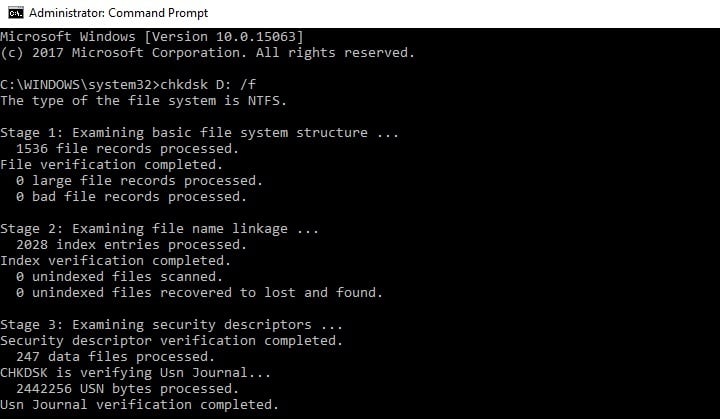
Start Command Prompt as administrator and type the chkdsk C: /f command followed by Enter. Replace C with the letter of your hard drive partition.

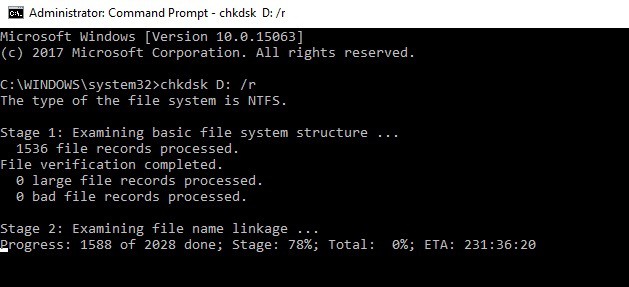
As a quick reminder, if you do not use the /f parameter, chkdsk displays a message that the file needs to be fixed, but it does not fix any errors. The chkdsk D: /f command detects and repairs logical issues affecting your drive. Then run the /r parameter as well to repair physical issues.

4. Repair your Windows Registry

The simplest way to repair your registry is to use Microsoft’s System File Checker to check for system file corruption. This tool verifies the integrity of all system files and repairs them if necessary. Here’s how to run an SFC scan:

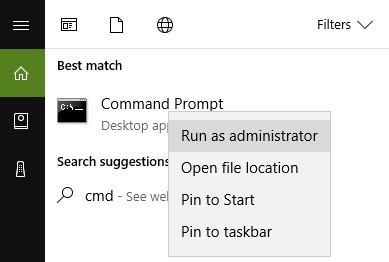
1. Go to Start > type cmd > right-click Command Prompt > select Run as Administrator

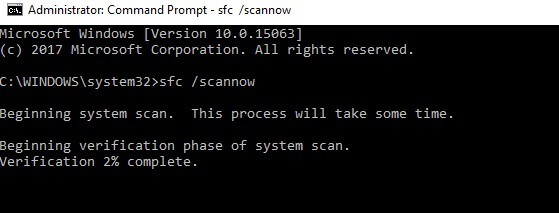
2. Now type the sfc /scannow command

3. Wait for the scanning process to complete and then restart your computer. All corrupted files will be replaced on reboot. You should now be able to resume your session.

5. Update your drivers/ Windows OS

If  Windows 10 does not resume from hibernation, this issue is usually related to a driver problem. Make sure that you’ve installed the latest driver and well as Windows 10 OS updates.

The quickest and simplest way to do this is to go to Settings > Update & Security > and hit the ‘Check for updates’ button. Your computer will automatically install the latest OS version available, including the newest drivers.

update windows 10

You can also go to Device Manager and check if there is any yellow exclamation point next to your drivers. This indicates that the respective driver is not working properly and needs to be updated. To install the latest driver version, right-click on the respective driver and select ‘Update driver’.

exclamation mark device manager

Did any of these solutions fixed the problem for you? Let us know in the comments below.

RELATED STORIES TO CHECK OUT:

Xbox news recap: Kinect ceases production, PUBG to be exclusive to Xbox for “some time” and more

Welcome to our weekly Xbox news recap series, where we go over the top stories of the past week in the world of Xbox. Let’s get started.

Kinect sensors cease production

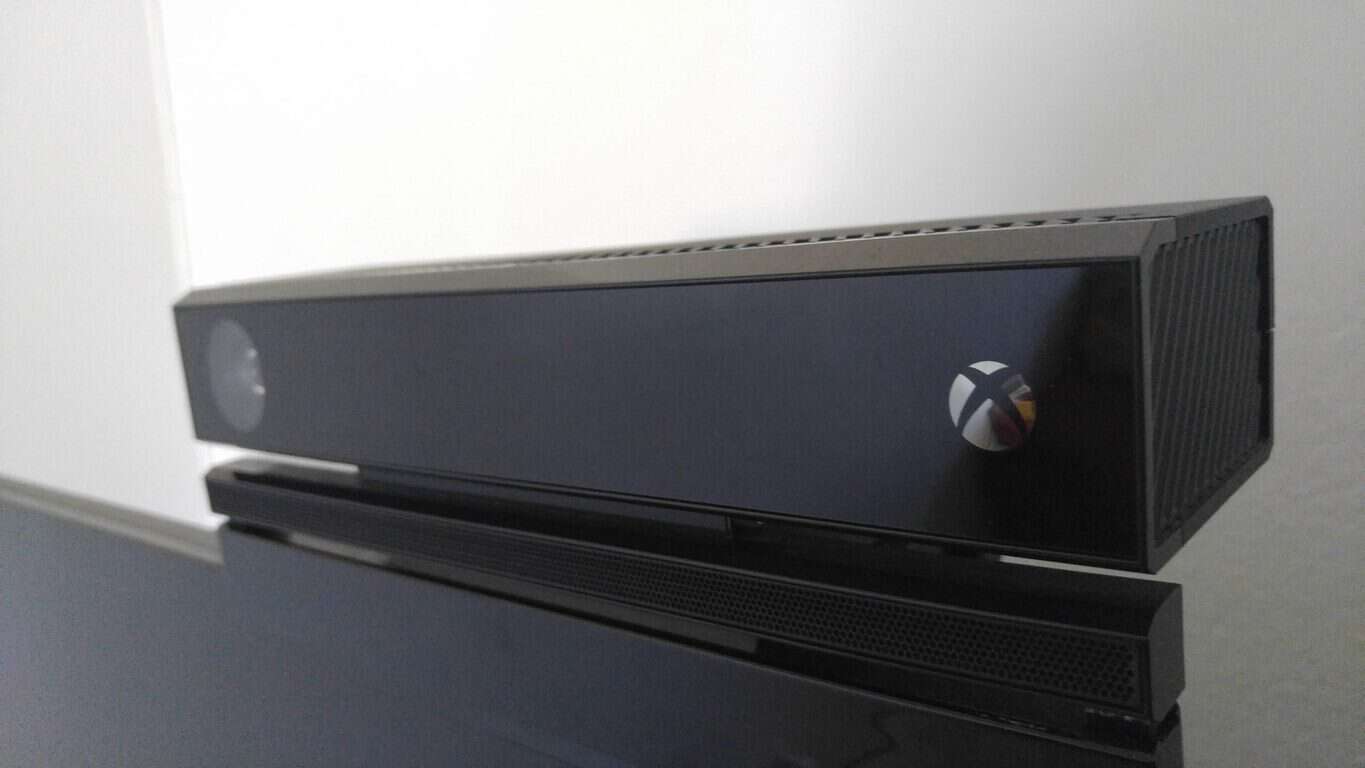
After years of being brushed under the rug and being more or less forgotten by gamers at large, the Kinect has finally been shut down. It was announced by Microsoft this week that the little-peripheral-that-could would completely cease production. The sensor has been mostly irrelevant to the majority of Xbox gamers, but a significant community has broken out that uses it to develop all sorts of applications for other platforms.

PUBG to be Xbox exclusive for some time

PUBG has been one of the biggest things to happen to the gaming industry in the past few years – it’s a massive deal. The battle royale game became a massive success for both gamers and streamers, becoming one of the most successful titans of gaming culture right beside Overwatch and League of Legends. The game launched on Xbox in mid-December, and according to an interview with the CEO in charge of PUBG, the game will stay there for a while. Although it’s certain to come to other platforms at some point in time, the game will likely remain a console exclusive for a comfortable period of time.

Microsoft accused of dishonest advertising with Xbox One X and Kinect

With the Kinect being shut down, attention has been brought to some potentially dishonest advertising behaviors from Microsoft in regards to the Xbox One X. The console isn’t compatible with the Kinect sensor – and while that isn’t a massive problem in and of itself, it seems like most of the console’s advertising suggests otherwise. In several pieces of marketing, it’s suggested that “Xbox One accessories work with Xbox One X.” All of them. With the Kinect undoubtedly being an Xbox One accessory, it’s easy to see why some people are calling foul play on Microsoft’s advertising.

Xbox One X Accessories

Sea Of Thieves custom controller available for pre-order

Looking for a new controller to fawn over? Sea Of Thieves is well on its way, and the custom controller that’s coming out to promote the game is one of the most gorgeous controllers I’ve seen so far. The controller is purple with spatterings of seafoam green, and compass markings surrounding the left stick. The controller also glows in the dark, for night owls who wanted to have some novelty with their gaming experience. The peripheral is pretty snazzy, and is available for pre-order for about $75.

Thanks for joining us. To keep up to date with all the latest Xbox news, keep a close eye on our Xbox One tag.

Microsoft news recap: decides against adding Cortana to Dynamics 365, Azure customers shouldn’t notice performance impact from CPU patches and more

Microsoft (MSFT) news recap is a weekly feature highlighting the top Microsoft news stories of the past week. Sit back, grab some coffee, and enjoy the read!

Microsoft backs off adding Cortana integration to Dynamics 365

Despite having Cortana integration for Dynamics 365 in preview, the company has decided against adding its own virtual assistant, Cortana, to its CRM platform.

Microsoft Dynamics CRM

Redesigned calendar is coming soon to Outlook.com beta

Beta users of Outlook.com are to receive a redesigned calendar. A teaser image of the new calendar shows more consistency between Calendar and Mail.

https://twitter.com/OfficeNews/status/949295293488599041

Microsoft to publish fiscal year 2018 second-quarter earnings on Jan. 31

At the end of the month, we’ll be seeing how Microsoft’s different divisions are performing, as the company publishes its second-quarter earnings for 2018 on 31st January.

Azure customers should not see a “noticeable performance impact” due to Intel, AMD CPU vulnerability patches

As news of 2 vulnerabilities in CPUs from Intel, ARM and AMD broke out, reports have suggested that the patches to resolve the flaws would deliver a performance hit of between 5% and 30%. Despite this, Microsoft is saying that its Azure customers should not see a “noticeable performance impact”.

That’s it for this week. We’ll be back next week with more Microsoft news.

Windows 10 news recap: Surface firmware update to patch CPU vulnerabilities, MEGA extension arrives on Microsoft Edge and more

Welcome back to our Windows 10 news recap. We are continuing the trend of our weekly “Windows 10 news recap” series where we go over the top stories of the past week in the world of Microsoft’s flagship operating system.

Windows 10 Mobile receives a new security update, potentially patches for Meltdown and Spectre flaws

In light of the CPU vulnerabilities affecting Intel, ARM and AMD, Microsoft has released a new security update to all versions of Windows 10 Mobile that are suspected to include patches for the flaws.

New Surface firmware updates are rolling out with fixes for Intel CPU vulnerabilities

Alongside Windows 10 Mobile, Microsoft’s Surface line of products have received firmware updates that also fix the known processor vulnerabilities. The firmware update is rolling out to the following devices:

  • Surface Pro 3
  • Surface Pro 4
  • Surface Book
  • Surface Studio
  • Surface Pro Model 1796
  • Surface Laptop
  • Surface Pro with LTE Advanced
  • Surface Book 2

You still have a few days to upgrade to Windows 10 for free

For those who still haven’t taken Microsoft up on its offer of a free upgrade to Windows 10, the accessibility upgrade is still available for a few more days.

The new MEGA extension for Microsoft Edge is now live

MEGA has released its own extension for Microsoft Edge, available now in the Microsoft Store, making it easier for users to access their MEGA cloud storage.

That’s it for this week. We’ll be back next week with more Windows 10 news!

Windows 10 updates trigger display issues on AMD computers

Microsoft rolled out a series of Windows 10 updates a few days ago in order to patch the latest CPU security vulnerabilities identified by Google.

Unfortunately, many users reported that the latest Windows 10 updates often caused more harm than good. Microsoft already added a series of bugs on the list of known issues, but users revealed that the list is actually much longer than that.

We recently published an article listing the most frequent issues that users have experienced after installing the latest updates. The respective post echoed a lot of comments and we noticed that all of them referred to AMD CPUs.

Severe display problems on AMD computers

Our readers confirmed that AMD systems lock up with the Windows logo showing on a black screen as soon as they update their computers.

This problem is even more severe when office computers are affected, as this reader reports:

Know someone where all machines using AMD CPUs in their office have this issue. They can’t restore or anything. All Intel CPU machines updated fine.

Indeed, it seems that there is a compatibility issue between the latest Windows 10 updates and AMD CPUs. Intel machines don’t seem to be affected by this problem.

Microsoft has yet to issue any comments on this matter despite the significant number of user complaints.

This is not the first time when computers powered by AMD processors have been plagued by display issues. As a quick reminder, just one month ago thousands of users complained about display problems on AMD Radeon video cards.

Microsoft quickly released KB4057291 but even back then the update failed to fix the issue for all users. The nightmare is not over yet for AMD PC owners as January updates brought a new problem.

Have you encountered the same issues after installing the Windows 10 updates released this month? Did you find any workarounds to fix the problem?

Quick reminder: Firefox ends support for Windows XP and Vista this year

Mozilla announced that it’s ending support for its Firefox web browser on Windows XP and Vista in 2018. Mozilla also announced a while back that users who were on these older versions of Microsoft’s operating system would be moved to something called Firefox Extended Support Release (ESR).

The company initially announced that support would be offered until September 2017, but later changed its mind, extending it to June 2018.

While we don’t know what the exact date will be, Mozilla should give users more details about it in the coming months. This way, users and organizations have more time at their disposal to move away from the two operating systems Microsoft stopped supporting back in April 2014 and April 2017.

Mozilla finally gives up on Windows XP and Vista

Firefox was one of the few browsers that continued to support Windows XP and Windows Vista. Mozilla also stated that Firefox users still lingering on these platforms should expect some security updates until then Users will not have to take any additional action in order to get those updates.

Upgrade your OS to avoid attacks and exploits

Mozilla advises users still running these old versions of Windows to consider upgrading. Users are strongly encouraged to upgrade their systems to a newer version of Windows that is safer and still supported by Microsoft. All unsupported OS will no longer receive security updates and they’ll become more favorable targets of cyber attacks and exploits.

RELATED STORIES TO CHECK OUT:
KB4056892 bugs: Install fails, browser crashes, PC freezes, and more

Microsoft recently pushed KB4056892 to Windows 10 Fall Creators Update users in order to patch the Meltdown and Spectre CPU vulnerabilities.

The Redmond giant confirmed that the update also brings issues of its own — three of them to be more precise. However, recent user reports confirmed that KB4056892 causes more problems than initially acknowledged by Microsoft.

So, the question is: will you still install KB4056892 and patch those CPU security vulnerabilities knowing that the update may break your PC?

If you haven’t installed the latest Windows 10 updates yet, continue reading this article to learn what are the most common KB4056892 issues reported by users. If you already installed the update, well, reading this article may make you fell a bit better knowing that you’re not the only experiencing these problems.

KB4056892 reported bugs

1. KB4056892 won’t install

Many users can’t install the update because the install process gets stuck, fails with error 0x800f0845 or the computer suddenly uninstalls the update.

Okay, been trying this on my Toshiba laptop for the past few days, keeps getting to 30%, restarts, locks at the blue Window icon, I have to force a restart, and then after forcing a second restart, it then diagnoses the problem, uninstalls the update, and then does nothing. Error code is 0x800f0845. […]  I have downloaded the manual install file, but it doesn’t appear to work either.

If you can’t install KB4056892 on your Windows 10 computer, the following troubleshooting guides may help you fix the problem:

ALSO READ: How to block KB4056892 from installing on your Windows 10 PC

2. Browsers crash

Some users reported that the latest Windows 10 version 1709 update breaks browsers. More specifically, the browser window become white, it freezes for a few seconds and then the browser crashes completely returning to desktop.

After update KB4056892, this Chrome is crashed and auto quit, Firefox and Geforce Experience too, but gaming PUBG, BF1 and Overwatch are normal. How to fix it???

If you’re experiencing the same problem, the articles below may be of help:

3. Certain apps and programs fail to work

Windows 10 users also reported that certain programs stopped running after they installed KB4056892. These include: SlimWare DriverUpdate, ASUS AI Suite 3, EPLAN, etc.

These updates cause SlimWare DriverUpdate program to stop running. With the updates installed a BugSplat error report is generated and the program will no longer run. I uninstalled the updates and the program ran perfectly until the updates got reinstalled by windows automatic update process.

We don’t have a solution for these program failures, but we do have a suggestion on how to solve the ASUS AI Suite 3 issue. So, to fix ASUS AI Suite 3 issues on Windows 10, first download the latest AI Suite 3, right click the zip file and select “Properties”.

Select the “Unblock” check box and hit OK. Unzip the zip file and run AsusSetup.exe as Administrator. Keep in mind that your need to unblock the ZIP first before you extract the files. Reboot your computer and the AI Suite 3 should work smoothly now.

4. KB4056892 bricks or locks up computers

According to user reports, this update sometimes freezes computers. When users boot up or restart their machines, the Windows logo just sits on the screen and the boot up process stops.

Unfortunately, when I did a restart it bricked my system. I had a large windows logo on the screen and it just sat there. I rebooted and was able to trigger a repair. The repair said it was backing out the last update as it would not be completely installed.
With KB4056892 is Awaiting restart I did another restart and had the same problem. At the end I was staring at a Windows logo that just sat there. Again I triggered a repair and the system is now usable.

5. The app list is unavailable

If the list of apps is nowhere to be found in the Start menu, you’re not the only one experiencing this issue.

Just got the January 3, 2018 KB4056892 update, and now my start button will not show app list in start menu any longer. I’ve already checked Settings, Personalization, Start and set & reset the option to “Show app list in start menu” with no luck. How do I fix this?

For more information on how to troubleshoot this problem, go to Microsoft’s support page.

These are the most common KB4056892 issues reported by Windows 10 users. Did you encountered other bugs after installing the latest updates on your computer? Tell us more about your experience in the comments below.

RELATED STORIES TO CHECK OUT:
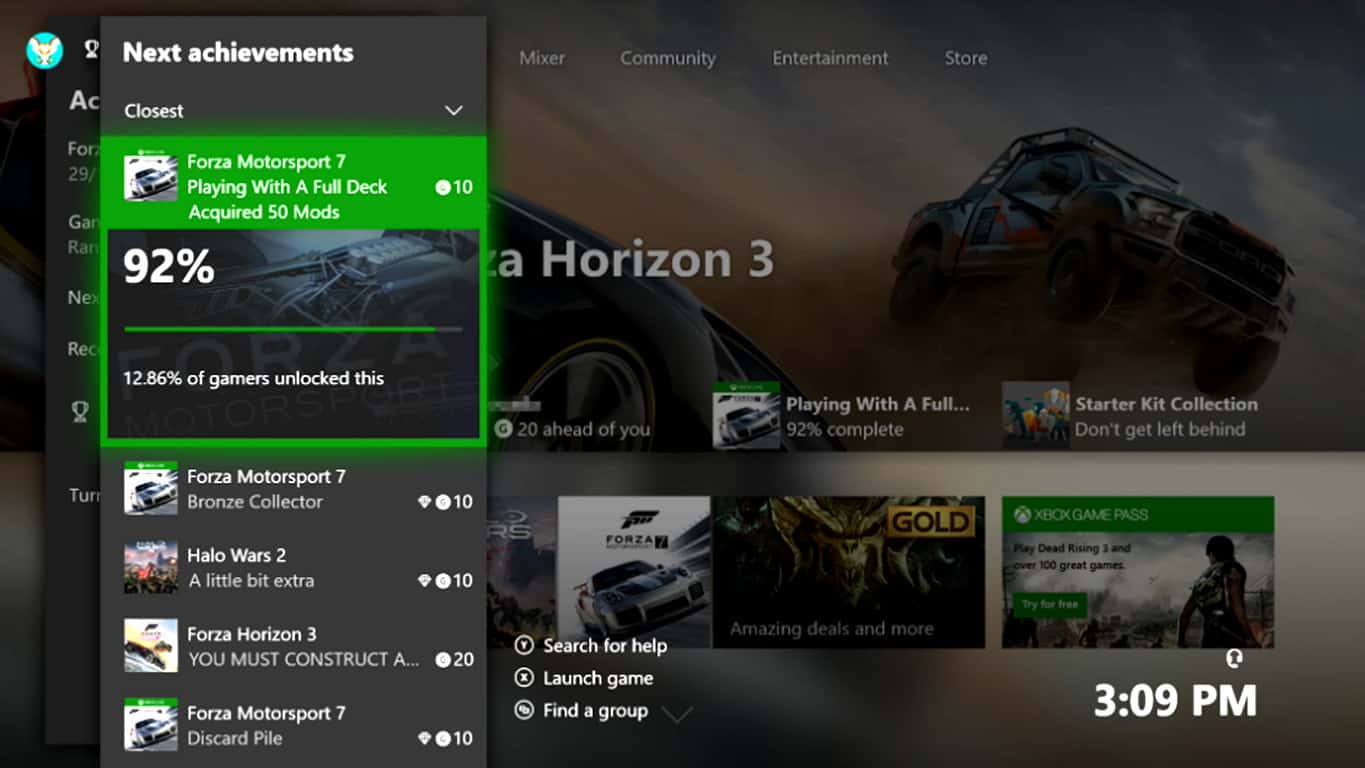
Grab a free Marvel’s Black Panther Xbox Avatar item here

Microsoft is offering a free Black Panther suit fr your Xbox Avatar in the Xbox Store. As noted via a Reddit post, all you need to do to don this Black Panther suit is TO head over to the Xbox Marketplace. It’s free, so you have nothing to lose by picking up this Xbox Avatar item.

Microsoft, Marvel, Xbox
There are separate Marvel Black Panther suits for your female and male Avatars, so obviously you can’t purchase both Black Panther suits from the Xbox Store.

Unfortunately, this free Marvel Black Panther suit is available for Xbox Avatars in the US only. So if you are in other regions, you are SOL. Possibly, Marvel may add Black Panther to its highly successful line of console games, so don’t be surprised if you see Black Panther on Xbox One sometime soon. You can go see Marvel’s Black Panther movie in theaters starting on February 16, 2018.

Microsoft India briefly lists Xbox One X launch on January 15th, takes page down

The Xbox One X launched last November in select markets across the world, but India was not included in the launch party. Noted by Digit, it turns out that Microsoft may have recently caused some false excitement and confusion in India, as the company briefly listed the Xbox One X launch on January 15th and then took the page down.

This page briefly had the Xbox One X at the price of Rs 44,990 (about $710 US), but it’s since gone offline. Microsoft also tells Digit that there is “nothing to share” at the moment in regards to the Xbox One X coming to India. The company instead recently put up the Xbox One S for sale in India at, which originally launched in the US back in 2016.

The listing (Image via Technocodex)

It’s still not certain if Microsoft will ever bring the Xbox One X to India, but some Indian gamers seemed angry at the high price noted on the since removed page. This, though, is not the first time that an Xbox related page has been pulled in a foreign country. As you may recall, Xbox Poland revealed keyboard, mouse support is coming for Xbox One consoles soon, but then pulled the page.

(via MSPU)