Halo Wars 2: Awakening the Nightmare expansion now available on Xbox One, Windows 10

Halo Wars 2 came out months ago to a decent amount of praise, becoming a well-liked entry into a cult classic series, and helping to keep Halo fans interested while we wait for the next entry in the main series. For those of you who wanted to head back into the world of Halo Wars 2, there’s a brand new expansion out that can help you satisfy that need. Halo Wars 2: Awakening the Nightmare, is now available on Xbox One and Windows 10.

The new expansion will feature the introduction of The Flood back into Halo Wars, alongside of some new games modes. Beyond this, you’ll get the opportunity to get into some new campaign missions from the perspective of the Banished. If this sounds like the kind of thing you’d be interested in, you can pick it up right now for $19.99.


The Copy Functions Cannot be Used: 5 Ways to Fix

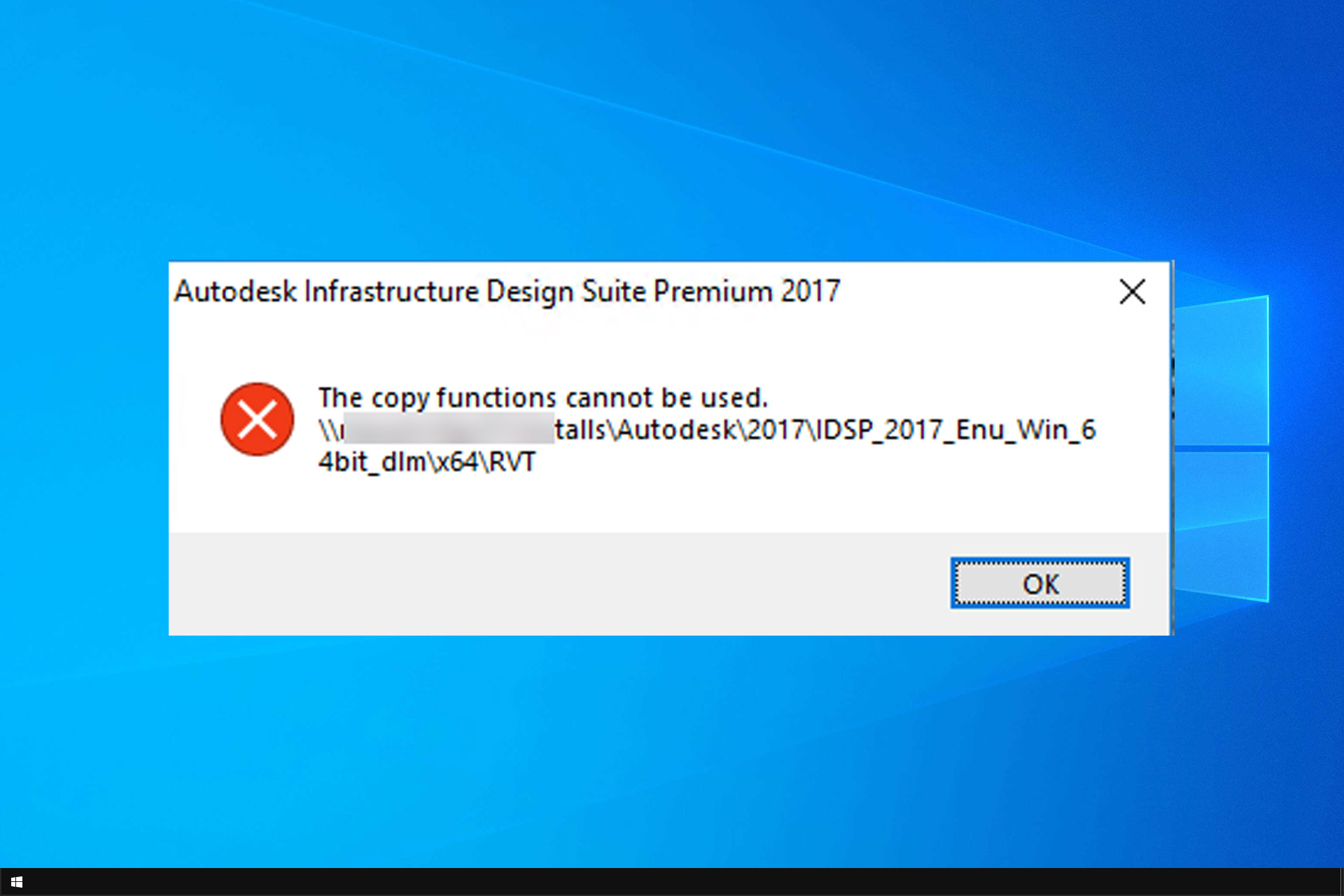
The copy functions cannot be used error message appears when installing certain applications on your PC. Unlike Another installation is in progress error, this one will block the files from copying to your system.

This can be a serious issue since it will prevent you from installing certain software completely, so it’s important to fix it.

Join us while we take a closer look at this guide and show you the best methods you can use to fix this problem.

What causes The copy functions cannot be used error?

  • Your antivirus might be interfering with the installation process.
  • If you’re using an optical drive, it might not be working properly or the disc might be dirty.
  • Antivirus can sometimes interfere with the setup process on your PC.
  • The setup.ini file isn’t properly configured.
  • Permission issues on your PC can prevent the setup from running properly.

How do I fix The copy functions cannot be used error?

Before we start fixing the issue, here are a few quick workarounds that might work if you’re using an optical drive:

  • Insert your disc into a different optical drive if you have it and check if that helps.
  • Clean the disc carefully with a soft cloth and try to run the setup file again.

1. Temporarily disable your antivirus

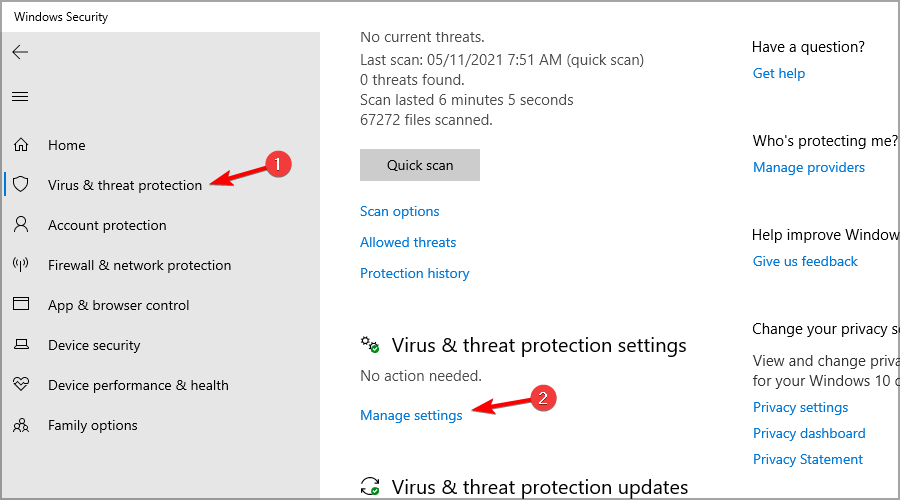
  1. Open Windows Security.
  2. Go to Virus and threat protection. In there, click on Manage settings.
  3. Turn off Real-time protection.
  4. Try to install the software again.

Disabling real-time protection isn’t advised, so be sure to use this as a temporary solution for The copy functions cannot be used error.

2. Copy the installation files to the root directory

  1. Locate the setup file.
  2. Move it to the root directory. In case you don’t know what it is, it’s C:\
  3. Try to run the setup again.

Some users also recommend disabling your antivirus before starting the setup, so be sure to do that as well.

3. Change setup.ini file

  1. Copy all installation files to your hard drive.
  2. After doing that, you need to locate setup.ini file and edit it.
  3. You need to edit EXTRA_FILES line and depending on the software you’re trying to install you need to change it as follows:
    For Autodesk Fabrication CADmep 2014: EXTRA_FILES=CADmepDBX;*.exe:*.pit:*.xml:*.mc3:*.mlm:3rdParty:CER:%lang%:EULA:NLSDL:Setup:SetupRes:Third-Party Component Open Source EULAs
    For Autodesk Fabrication CADmep 2016: EXTRA_FILES=CADmep;*.exe:*.pit:*.xml:*.mc3:*.mlm:3rdParty:CER:Content:%lang%:EULA:NLSDL:Setup:SetupRes:Third-Party Component Open Source EULAs
    For Autodesk Fabrication ESTmep 2016: EXTRA_FILES=ESTmep;*.exe:*.pit:*.xml:*.mc3:*.mlm:3rdParty:CER:Content:%lang%:EULA:NLSDL:Setup:SetupRes:Third-Party Component Open Source EULAs
    For Autodesk Fabrication CAMduct: 2016:EXTRA_FILES=CAMduct;*.exe:*.pit:*.xml:*.mc3:*.mlm:3rdParty:CER:Content:%lang%:EULA:NLSDL:Setup:SetupRes:Third-Party Component Open Source EULAs

After making the changes to the setup.ini file, save them and check if The copy function cannot be used error is gone.

4. Give Everyone access to the setup folder

  1. Locate the setup directory, right-click it and choose Properties from the menu.
  2. When Properties window opens, go to Security tab and click on Edit.
  3. Click on Add button.
  4. In Enter the object names to select field enter Everyone and click on Check Names button. Now click OK.
  5. Now select Everyone from the Group or user names section and check Full control in Allow column. Click Apply and OK to save changes.

After doing that, all users will have full access to that directory and you should be able to install the application without any errors. Even though this solution is related to AutoCAD, you can also try it with other problematic apps.

5. Perform Clean boot

  1. Press Windows key + R and enter msconfig. Click OK.
  2. Go to Services tab and check Hide all Microsoft services option. Now click on Disable all button.
  3. Navigate to Startup tab and click on Open Task Manager.
  4. When Task Manager opens, you’ll see a list of all startup applications. Select each application on the list and click the Disable button.
  5. Once you disable all startup applications, close Task Manager. Go back to System Configuration window and click on Apply and OK.

After making these changes, restart your PC or log out and log back in to your Windows 10 account. After doing that, try to install the problematic application again.

If you manage to install the app, repeat the same steps and enable all startup apps and services.

ERROR_CANNOT_COPY and The copy functions cannot be used errors can appear on almost any PC and prevent you from installing certain applications.

This isn’t the only issue you can encounter, and many reported You do not have sufficient privileges to install error. However, we already fixed it one of our other guides.

This can be a problematic error, but you should be able to fix it by using one of our solutions.

Satya Nadella talks transformation at Microsoft and beyond in his book ‘Hit Refresh’

The first ‘business’ book I read was ‘The Road Ahead’ by Bill Gates. I was in school, and happy with fiction, encyclopedias, and an occasional biography. But Windows and Microsoft fascinated me during those days (still do!), and I picked up the book to read about Bill Gates’ vision of a personal computer on every desk and in every home.

Published in November 1995, and written in a personal tone with no technical jargon, the book talked about the personal computing revolution that was brewing at the time and envisaged an ‘information superhighway’ for the future.

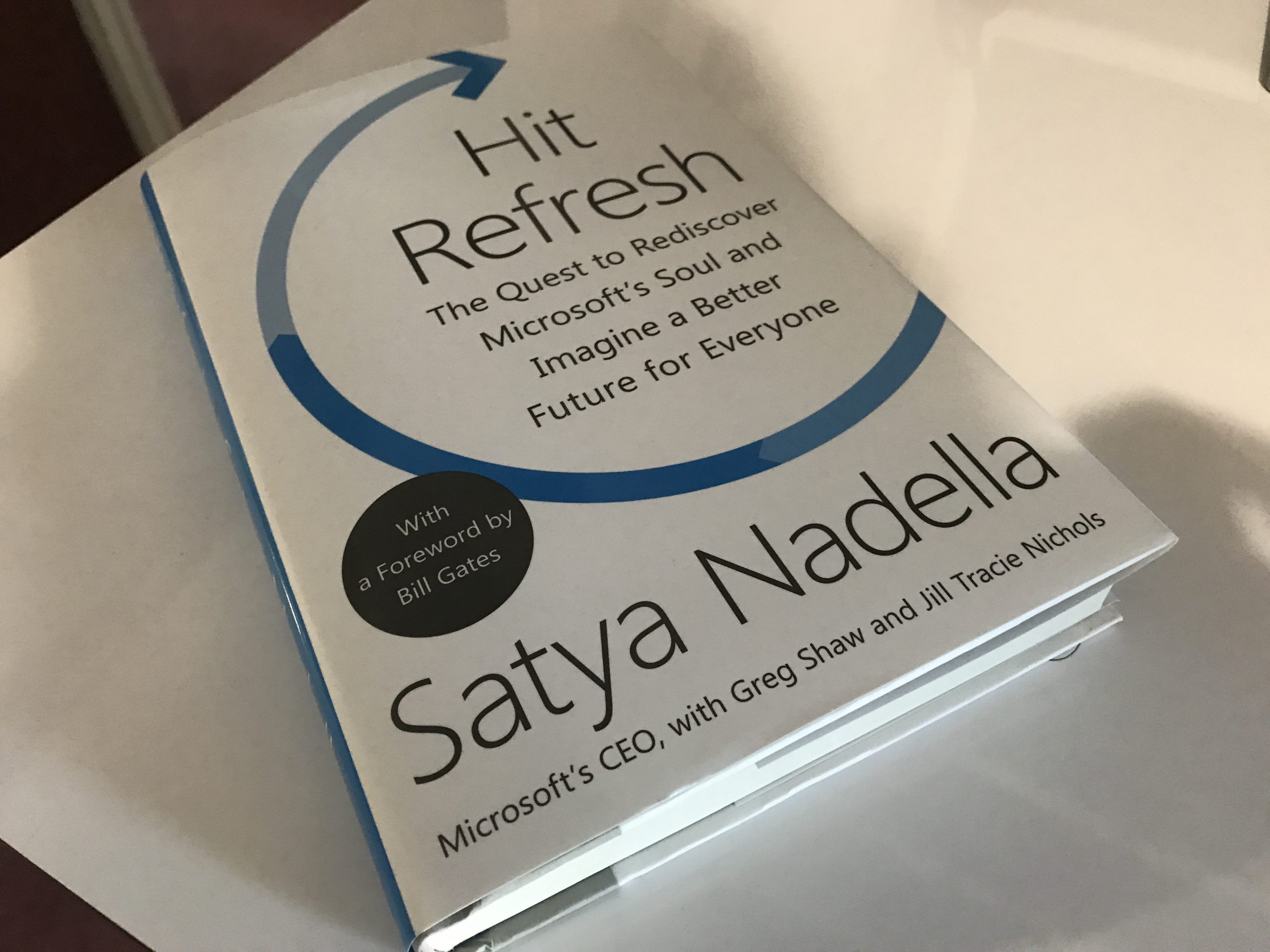
While Bill’s vision for personal computing became a reality, the world of technology – both for consumers and businesses – has changed since Bill Gates moved on from Microsoft. Satya Nadella’s book, which released today, talks about Microsoft’s transformation, and how the tech industry at large is changing to disrupt the status quo.

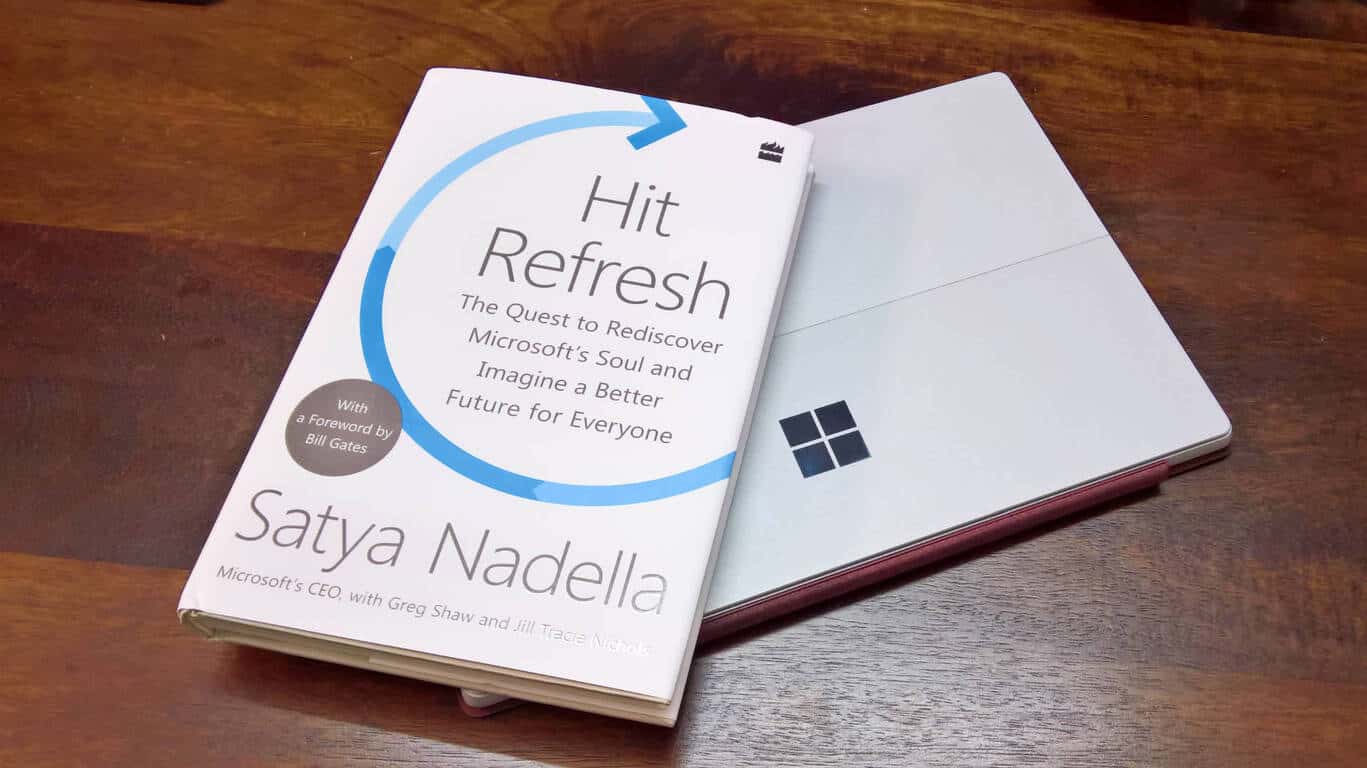
Hit Refresh: The Quest to Rediscover Microsoft’s Soul and Imagine a Better Future for Everyone, published by HarperCollins Publishers, is about individual change, about the transformation happening inside of Microsoft, and the technology that will soon impact all of our lives.

Satya traces his journey from India to the US, tells the inside story of Microsoft’s revival, and shares his vision of the most exciting and disruptive wave of technology – artificial intelligence, mixed reality, and quantum computing. Satya also explores the potential impact of the technology to society and delivers a call to action for world leaders.

At the core, Hit Refresh, is about us humans and the unique quality we call empathy, which will become ever more valuable in a world where the torrent of technology will disrupt the status quo like never before.

– Satya Nadella from Hit Refresh

According to Satya, Hit Refresh isn’t a victory lap or a how-to manual, since that would be premature. It’s a set of reflections, ideas, and principles on transformation.

The book has a foreword by none other than Bill Gates himself. In his blog post about Hit Refresh, Bill notes that he has benefitted from Satya’s insights for decades, and he’s glad everyone else will now have the same opportunity to learn from him.

Here’s the complete text of the foreword by Bill Gates.

Satya has charted a course for making the most of the opportunities created by technology while also facing up to the hard questions.

– Bill Gates

It has been shared that Satya Nadella will donate all of his proceeds from Hit Refresh to Microsoft Philanthropies.

Interestingly, there’s also special Employee Edition of Hit Refresh for Microsoft employees. It comes with annotations by Satya himself.

Here’s some suggested reading around Hit Refresh:

Satya wants the book to inspire people to discover more empathy in their own lives. He hopes that it’ll start important conversations and spark new ideas, and that others will share their own hit refresh moments.

Ignite 2017: Excel to get new data types to make it “smarter”

In a story via TechCrunch, Microsoft is adding new data types to Excel in an effort to make Excel “smarter.” Microsoft will be able to achieve making Excel smarter with help from machine learning.

Jared Spataro, Microsoft’s Office general manager, and Rob Howard, marketing director of Office 365, gave TechCrunch a demonstration of this new Excel functionality at Ignite 2017. Spataro explained how the new data types would work in Excel.

“We’re pleased to introduce new data types. That doesn’t sound all that interesting and we had this interesting discussion about what we’d name these things, but at the end of the day we realized that if you’re really an Excel wonk, the thing that you’re going to get is that there’s new data types.”

Another cool aspect of the Excel data types is that you can utilize Microsoft’s Bing API in Excel to tag a list of names; in Spataro’s demonstration, he used company names. However, Excel would be able to use more than just company names, Excel could use Bing API to tag stock information from the company, what city the company’s headquarters are located, and more and populate the information in an Excel spreadsheet.

The Office 365 team is also looking to create a built-in tool for Excel that will be able to recognize the most important information from an Excel spreadsheet and visualize it using a tool comparable to Microsoft’s Power BI, which the Office 365 team is calling the “Insights.”

Spataro added that the new Excel features were created to enhance data collection and visualization:

“It is meant to take any list of data and then start to generate insights. It will look at combinations, charts, pivot tables and it will recognize those that are most interesting by looking at outliers, looking at trends in the data, looking at things that represent changes. Services breathe new life into these applications. We think these apps still have a lot of life in them for just working on your content, but we do believe that these connections just makes it magical.”

Insights will be coming first to Office Insiders in the Fast Ring in the coming months, and data types will be available early next year, according to a Microsoft spokesperson.

“This is Star Wars Battlefront 2” – EA releases new trailer

Earlier today, EA released a new Star Wars Battlefront 2 trailer on YouTube. In the new trailer, John Boyega, who played Finn in the Star Wars The Last Jedi film, explains the features that will be available in Star Wars Battlefront 2, coming November 17th to Windows 10 PC, Xbox One, and the PS4. Check out the trailer on YouTube below:

In addition to the features explained in the YouTube trailer, there are other bonuses available in Battlefront 2, including:

  • Access to play Star Wars Battlefront II on November 14, 2017, a 3-day head start
  • Upgraded versions of all 4 trooper classes (Officer, Assault, Heavy, and Specialist)
  • 4 epic ability upgrades—one for each trooper class (Officer, Assault, Heavy, and Specialist)
  • Instant weapon unlocks and weapon modifications for each trooper class
  • Exclusive Kylo Ren and Rey in-game outfits and gear, inspired by Star Wars: The Last Jedi
  • Epic ability modifiers for Kylo Ren and Rey
  • Epic ability modifier for the Millennium Falcon

Those who pre-order Star Wars Battlefront 2 Deluxe Edition also get special extras, including Instant access to Yoda’s epic Lightsaber Mastery and six hero and starfighter epic Star Cards. EA Access and Origin Access members save an additional 10% off the pre-order retail price.

Pre-order Star Wars Battlefront 2 Deluxe Edition on Xbox One.
Pre-order Star Wars Battlefront 2 Standard Edition on Xbox One.
Pre-order Star Wars Battlefront 2 on Windows PCs on Origin Access.

Firefox Quantum Developer Edition released: the fastest Firefox ever

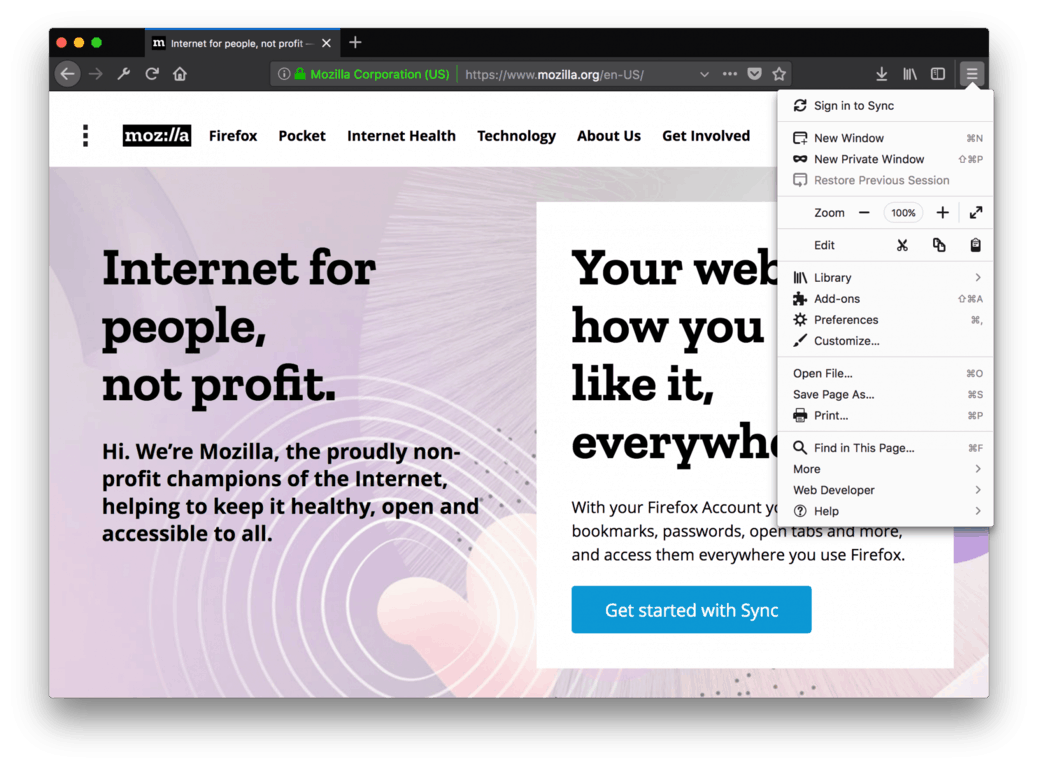
Mozilla today released FireFox Quantum Developer Edition. The company is calling this the fastest Firefox ever and is highlighting the new features making Firefox feel like a newer, faster, and better browser.

Firefox Quantum is powered by Quantum CSS, which is a new CSS engine written in Rust and based on the Servo parallel browser engine product. As part of development, the Firefox team also fixed over 360 performance bugs and focused on improving responsiveness and user interface interactions. Of course, they also made it 64 bit and multi-process by default, helping take advantage of newer processors, and reducing RAM consumption and crashes caused by graphics drivers.

Here is a bit more on what has changed for the end user, in the words of Firefox developer Dan Callahan.

  • To complement Quantum, the Photon team rebuilt Firefox’s interface to be faster and more modern. You’ll hear more about Photon in November, but highlights include redesigned menus, square tabs, and a new “Library” button that acts as a single place for your bookmarks, downloads, history, etc.
  • The “Activity Stream” project redesigned the New Tab Page to feature highlights from your recent history and bookmarks, as well as recommendations from Pocket. Of course, each of these content blocks are optional, and add-ons can completely replace the new tab page.
  • We also refreshed form handling in Firefox, adding a brand new autofill feature and implementing built-in widgets.
  • Lastly, Firefox’s preferences were completely redesigned and are now searchable.

You can sign up to get notified when Firefox Quantum has been released to the mainstream public. Or, you can click this link here to download, and submit feedback to Mozilla.

Ignite 2017: Microsoft Azure gets new logo, tagline

Azure is definitely one of Microsoft’s fastest growing business these days, and it was apparently time for the company to update its visual identity with something more modern. The ongoing Ignite conference was a good opportunity for Microsoft to unveil a new logo for Azure as well as a new tagline: “Azure. Cloud for all.”

“The new Microsoft Azure logo is a bit more abstract, and it doesn’t include a cloud in it anymore,” explained Microsoft MVP Chris Pietschmann. “If you’re familiar with the Microsoft Office icons / logos, then you may recognize a similar style theme. It also forms a letter “A” that obviously represents the name ‘Azure’.”
The Redmond giant also released today a new “Azure Manifesto” video featuring CVP Julia White, EVP Scott Guthrie and more. “The Azure Manifesto is sort of a mission statement for us to follow,” shared Pietschmann. “Microsoft says that we are all “Change Agents” that need to work to unlock the cloud.”

The new Azure logo and tagline can already be seen on the official Azure website, and you can also see the updated visual identity on all the official Azure social media accounts. Do you like this new logo, or do you think the old one was better? Let us know below.

Microsoft working to resolve issue where some stock Windows 10 apps won’t update

If you’re the kind of person who likes to stay on top of app updates in the Windows Store you may have noticed an error code when attempting to download new versions of stock Windows 10 apps. Well, senior program manager at Microsoft, Brandon LeBlanc, has come out to say that Microsoft is aware of this issue and is working to republish the apps soon.

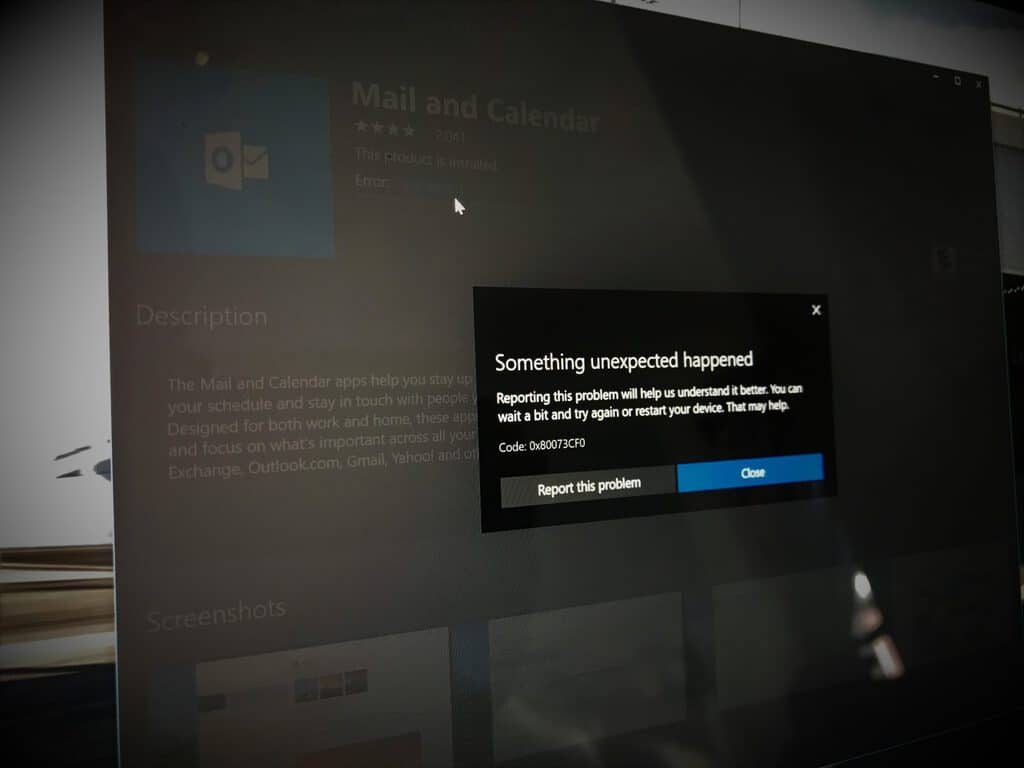
Specifically, the store throws a 0x80073CF0 error code when it attempts to download updates for some stock apps like Mail and Calendar. It’s still not exactly certain what causes this issue, or when a fix will be released for this issue, but it is great to see that Microsoft is aware of the problem and is working to resolve it.

In other news, Microsoft recently rebranded the Windows Store app on Windows 10 to the Microsoft Store. For now, this change is only for those in the Release Preview Ring so it’s apparent that Microsoft may be testing name changes and gather feedback before rolling it out to a wider audience.

We will be keeping an eye on this situation and will update this post accordingly when a fix has been released. Until then let us know if you have been affected by this issue by dropping us a comment below!

Enpass to bring its desktop app to Windows Store, along with the new Edge Extension

Enpass is my password manager of choice, especially because of their first-rate support for Windows 10 (I use it on my Android smartphone as well). The Enpass app for Windows 10 Mobile is one of the best designed UWP apps on the Windows Store, and because of that, Enpass is quite popular amongst Windows users.

Except that the company’s browser extension for Microsoft Edge browser has been in the works since quite a while. Enpass already has browser extensions for all major browsers that users can use for quick autofilling of login details, credit card information, and more – all from within the browser.

Few months ago, the company had shared that it was working with the Edge team at Microsoft to enable that, and the Edge team confirmed the same. Due to the limitations of Edge APIs, it was difficult for the offline password manager to work with the browser. That is last what we heard from them.

However, that is changing now, and looks like the Edge extension is ready, and would be coming to the Windows Store in a couple of days. I did get a sneak peek of the same, and it works as expected.

To enable the Edge extension and to chart their new way forward, Enpass is also making a few changes to its Windows apps, and we’ve got all the inside information about it.

As of now, Enpass has two apps – a traditional Win32 desktop app as well as a UWP app available on Windows Store. While the latter, also available on Windows 10 Mobile, offers native Windows 10 experience with Cortana and Windows Hello integration, the browser extensions (and other advanced features) only work with the former because of limited capability of UWP.

Enpass is now bringing the desktop app to Windows Store via Microsoft’s Desktop Bridge technology. The Win32 app is now ported to the Windows Store, and will be available as a free download. The app will work with Windows 10 Creators Update and later versions.

While the existing UWP app on the store will stay in its current form, it is likely to be orphaned or rolled back at a later time once the desktop app upgrades to modern design and integrates signature Windows 10 experiences like Cortana or dark mode, for example. The company’s next major release will establish the new Enpass Password Manger app as the primary app. While the UWP app in its current form will go away, it will be available in its refreshed form for Windows 10 Mobile users. Pretty awesome of Enpass folks to continue support for Windows 10 Mobile!

Essentially, from now – when the new bridged app is available – to the next major release, there would a transition phase for Enpass users, but looks like it would be better for us in the long run since it would mean a unified, feature-complete free app for PCs with a handy app on the mobile.

Vin Diesel shows off custom Xbox One S console

Using the late Paul Walker’s charity organization, Reach Out Worldwide (ROWW), Vin Diesel will be giving away a custom Xbox One S (via Reddit) to help Hurricane Harvey, Maria, and Irma victims. Paul Walker died in 2013 in a car accident. The custom Xbox One S console is modeled after the 1995 Mitsubishi Eclipse that Walker drove in the original The Fast and Furious movie in 2001.

Walker’s brother Cody is helping ROWW continue its charitable efforts by raising money for the victims of Hurricane Harvey in Texas, Irma in Florida, and Maria in Puerto Rico. Cody is using his late brother’s celebrity friends, including Vin Diesel, to host a special Xbox event at the Microsoft Lounge in California. Here is a look at ROWW’s recent efforts and a look at more information on Game4Paul, a partnership with Microsoft and Xbox.

Although a lot of people would probably like to see a custom Xbox One X being given away, all proceeds raised from the event will be put towards reconstruction efforts caused by Hurricane Harvey and Irma. Here, Vin Diesel gives you a closer look at the custom Xbox One S. The custom Xbox One S will be autographed by Vin Diesel, Tyrese, and other Fast and Furious stars.

The Xbox One S charity event will start at 11 AM PST on October 1, 2017, at the Microsoft Lounge in Los Angeles, California. Help the victims of Hurricane Harvey and Irma in the 3rd annual Game4Paul event, donate and watch the event live on Facebook, Twitch Xbox channel, and Mixer Xbox channel.

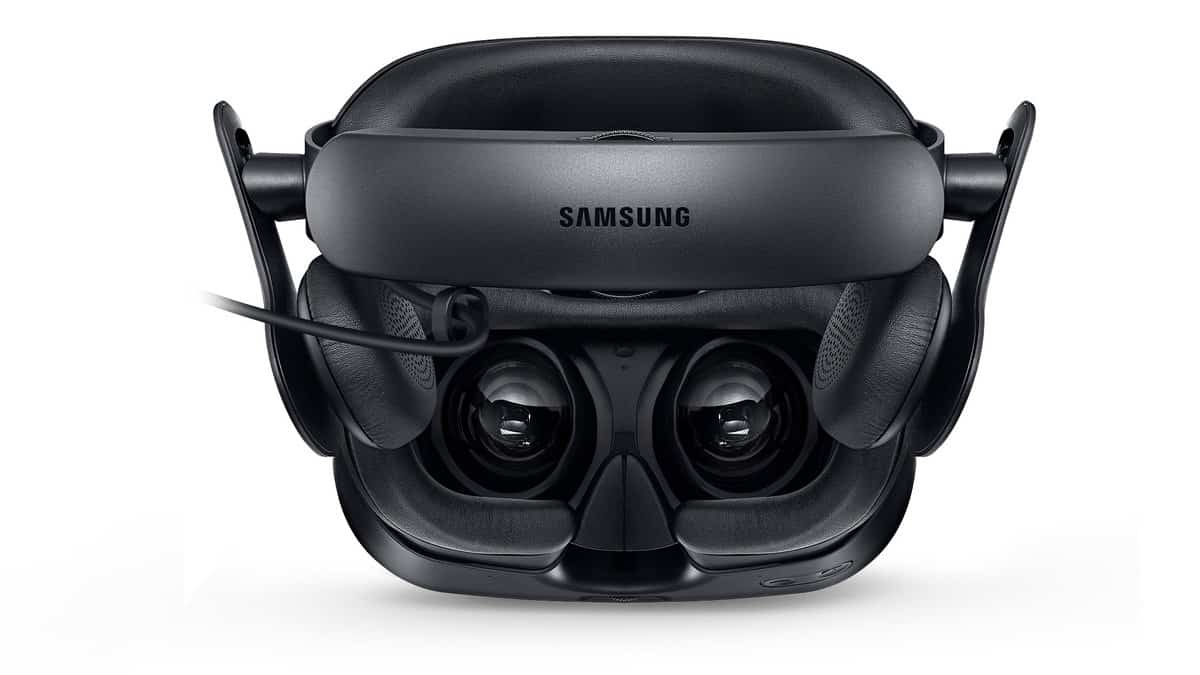
Samsung’s upcoming Windows Mixed Reality headset has leaked

Windows Mixed Reality is the next big thing for Microsoft, and plenty of Microsoft partners are planning to release headsets just in time for the holiday season. Well, thanks to the latest round of leaks from Microsoft watcher WalkingCat, it turns out that Samsung also wants in on the Windows Mixed Reality game (via The Verge.)

https://twitter.com/h0x0d/status/912486390834671616

Although WalkingCat provides no source for this leak, the anonymous Twitter user has had a great track record of being right in the past. The photos of the headset reveal the same standard design seen on other Windows Mixed Reality headsets, but with some curious-looking built-in headphones, similar to the ones seen on the Oculus Rift. It also looks as though Samsung could be bundling in the Windows Mixed Reality Motion controllers, or selling them as a separate addition.

Microsoft is holding a Windows Mixed Reality event on October 3rd in San Francisco, and Alex Kipman is expected to speak. We might as well learn more about the Samsung headset then, but for now, consumers interested in Windows Mixed Reality will need to check out the other options releasing later in October. As highlighted at IFA 2017, confirmed headsets range in price from $299 to $450, and include the Dell Visor, Lenovo Explorer, and headsets from both Acer, and HP.

Microsoft releases Windows Server version 1709; its first semi-annual release

Microsoft announced the release of Windows Server version 1709 yesterday, which is the first version of the server operating system to ship in the company’s new Semi-Annual Channel. “With releases every six months, the Semi-Annual Channel is designed to deliver continuous innovation for customers who want to take advantage of new operating system capabilities at a faster pace,” explained the company.

Following the release of Windows Server 2016 last year, this faster release cycle will allow Microsoft to bring new features to IT admins twice a year. “While our work continues to span investments across the application platform and virtualization infrastructure, for this specific release you’ll see a majority of investments accruing to applications, particularly those built on containers and microservices,” the Windows Server team noted.

Here are the main new features in the first semi-annual release of Windows Server:

  • The new version ships with optimized Server Core and Nano Server container images that should bring many improvements for containers and microservices.
  • The Windows Subsystem for Linux(aka Bash on Windows) is now included, as well as native support for Linux containers.
  • Project Honolulu, Microsoft’s new browser-based graphical management experience for Windows Server is also available in technical preview.

Windows Server version 1709 will be available on Azure in early October. For customers with Software Assurance on their Windows Server licenses or MSDN licenses, the new server operating system will be available to download from the Volume Licensing Service Center portal in mid-October.

Fallout 4: Game Of The Year Edition launches on Xbox One

Fallout 4: Game of the Year Edition launched today on Microsoft’s Xbox One family of consoles. This new release of Fallout 4 contains the base game and all of the add-ons that was released post-launch. Here’s the official game description and teaser:

Get the complete post-nuclear adventure from Bethesda Game Studios and winner of more than 200 ‘Best Of’ awards, including the DICE and BAFTA Game of the Year. Fallout 4 G.O.T.Y. includes the critically acclaimed core game and all six official add-ons including Automatron, Wasteland Workshop, Far Harbor, Contraptions Workshop, Vault-Tec Workshop, and Nuka-World.

As the sole survivor of Vault 111, you enter a world destroyed by nuclear war. Every second is a fight for survival, and every choice is yours. Only you can rebuild and determine the fate of the Wasteland. Welcome home.

Buy Fallout 4: Game of the Year Edition on Xbox One

Are you a Fallout 4 fan? Let us know if you’d recommend it and why in the comments below.

Friends can now be grouped by game with new update for Xbox Insiders

Xbox Insiders on the Alpha ring will be happy to find out that Microsoft added yet another simple way to customize their friends list. Today, Larry Hryb (a.k.a. Major Nelson) tweeted that as of today, users will be able to sort their friends by game titles.

Xbox Live friends that are currently in games will be visible via the People tab under ‘Friends in games’. Selecting this will open up all of your online friends and which games they are playing.

If Hryb’s comment is any indication, then this looks to be a result of feedback from Insiders. This is just one of many features planned for the upcoming months as we make way to the big Xbox One fall update.

3 Best Free Alt Tab Alternatives for Windows

The Alt + Tab function on Windows allows users to conveniently switch between running applications at a rapid pace. This is great for individuals to multitask, but it does have some limitations. And that’s where an Alt Tab alternative comes into the picture.

An alt tab alternative can both enhance the feature by making it more attractive and convenient or replace it entirely, depending on how you configure things. These are some of the many Windows customizations software available to users.

Below, we have the best programs out there that will help you easily switch between the programs. Choose one that best suits your requirements.

What are the best Alt-Tab alternatives for Windows?

FastWindowSwitcher – Lightweight and portable

While Alt Tab is easy to use, it is not convenient if you want quick access to numerous programs simultaneously. However, with FastWindowSwitcher, users can easily access numerous programs with the simple touch of a button.

Not only is this Alt-Tab alternative highly functional, it is also portable. No installation is required to use this application. This means you can put the program on a flash disk or portable drive and use it on any computer you want.

Since the application is about convenience and ease of use, it does not open in a separate window. Instead, users can press the default key combo, Windows + Y, to access the program.

Pressing these two keys together will display letters on your screen that hover over each application you have open. This way, you only have to press one of the corresponding letters on your keyboard to access your desired program.

Users can change the default keys by accessing the application’s icon in the taskbar. Right-click on the icon and click Settings, then you will have the ability to change your shortcut.

Users looking for a lightweight program that makes it easier to handle a wide variety of programs will be interested in FastWindowSwitcher. While it does not come with numerous features, FastWindowSwitcher is still a great program for multitasking.

⇒ Get FastWindowSwitcher

Switcheroo – For seamless multitasking

Switcheroo is perhaps not the fastest Alt-Tab alternative on the block, but it is certainly the most convenient if you have over 10 applications open simultaneously.

The program works like a search engine. Users only have to type in the first letters of an open program, and it will appear on a list.

Open the program by pressing Alt + Space. Users who want to change the hotkey for opening Switcheroo can access the Options menu found on Switcheroo.

It works great even on Windows 10 and is a fantastic tool for all users. Both amateur and expert Windows users can utilize Switcheroo to simplify multitasking.

Switcheroo does not use any special features or graphics to entice users. Instead, it offers users a simple and highly effective tool.

⇒ Get Switcheroo

Winaero Tweaker – Offers a plethora of customizations

With Winaero Tweaker, as the name suggests, users can tweak a wide variety of things about their PC.

You can add bookmarks, view system information, tweak appearances, add custom accents, add schemes, tweak icons, tweak menus, tweak Windows, slow down animations on the PC, and much more.

The features mentioned here are only a quick glimpse of what Winaero Tweaker offers. Of course, this option also allows users to tweak the Alt-Tab function.

In Winaero Tweaker, users can change the appearance of the Alt-Tab dialog. They can use the program to increase the transparency. Furthermore, you can dim the background desktop when using the function, which will help you focus on switching apps.

Alternatively, you can use the Hide opened windows option. When you Alt-Tab with this option on, it opens another window without a background to distract you.

Users can tweak the size of the margins of the thumbnails. You can also customize the vertical spacing as well as horizontal spacing between your thumbnails.

All in all, if you are looking for an alternative that allows tweaking your Alt Tab as well as other functions on Windows, then Winaero Tweaker will be the perfect tool.

⇒ Get Winaero Tweaker

There you have it, the best alternatives for Windows if you don’t want to disable Alt-Tab. Each of these applications has its unique disadvantages and advantages, and it is up to you to decide what works best.

If Alt Tab is not working on your PC, then these software alternatives might be just what you need.

Before you leave, check the best customization software for Windows 11, in case you have upgraded.

Tell us your choice from the list in the comments section below.

Satya Nadella addresses Nokia acquisition in “Hit Refresh,” says it was “too late to regain ground we had lost”

We just received a copy of Satya Nadella’s book “Hit Refresh,” and of course we wanted to know if Microsoft CEO addressed the elephant in the room. That is, Microsoft’s confusing mobile strategy that led to Windows Phone dropping to 1% of smartphone market share worldwide. Fortunately, Nadella doesn’t shy away from the subject in his book, and he specifically mentions the story behind Microsoft’s acquisition of Nokia. The CEO details how he voted no on the deal, and that once it went through, it was happening at a time when it was too late for Microsoft to regain the ground they had already lost.

To introduce the topic (on pages 71-73 of the hard cover print version of the book,) the CEO mentions the way that Android undercut Windows. “Google, with its free Android operating system found a way to undercut Windows, something we did not react quickly enough,” writes Nadella. He later continues with the painfully hard truth. “Looking back, the Nokia deal announced in September 2013, five months before I became CEO, became another painful example of this loss.”

Interestingly, Nadella does praise the Nokia deal a small bit, writing about it helping Microsoft in achieving “double-digit market share in some European markets.” He even reasons with why Microsoft was interested in Nokia in the first place, highlighting it could have been the move that Windows needed to catch up with iOS and Android in Mobile. “The hope behind the [Nokia] acquisition was that combining the engineering and design teams at Nokia with software development at Microsoft would accelerate our growth with Windows Phone,” he explained.

Lumia 950
The Lumia 950 and 950XL didn’t exactly scream Nokia quality.

Even with this small bit of praise, Nadella revealed that he voted no when Steve Ballmer asked members on his leadership team to vote thumbs-up or thumbs-down on the deal. “I voted no. While I respected Steve and understood the logic of growing our market share to build a credible third ecosystem, I did not get why the world needed the third ecosystem in phones, unless we changed the rule,” writes Nadella. “A few months after I became CEO, the Nokia deal closed, and our teams worked hard to relaunch Windows  Phone. But it was too late to regain the ground we had lost. We were chasing our competitor’s taillights,” he added.

As we all know, this saga came to an end when Microsoft wrote off its Nokia acquisition, cutting 18,000 jobs and ultimately causing the company to exit the smartphone business. This hit Nadella specifically hard. “It was heartbreaking to know that so many talented people who have so much of themselves to their would work lose their jobs,” the exec shared.

Overall, the failed Nokia acquisition helped Nadella learn some very important and painful lessons. As the CEO remarked, Windows Phone wasn’t differentiated enough from iOS and Android, even with its Live Tiles and other cool ideas. “What we needed most was a fresh and distinctive approach to mobile computing,” wrote Nadella. “Where we went wrong was failing to recognize our great strengths were already part of the soul of our company, inventing new hardware for Windows, making computing more personal, and making out cloud services work across any device and platform. We should only be in the phone business when we have something that is really differentiated,” he explained.

If one can put the puzzle pieces together, these above quotes, and the entire way Nadella tells the story of Microsoft and Nokia, there could possibly be a small hint at the long rumored “Surface Phone.” For now though, Windows Phone fans will need to keep reading between the lines and keep hopes high for Microsoft hitting refresh on its mobile division. Otherwise, Microsoft seems to be fine with selling Microsoft versions or popular Android phones such as the Samsung Galaxy S8. Microsoft co-founder Bill Gates seems to already have moved on, and is now using an Android phone with “lots of Microsoft software.“

Microsoft details how Microsoft Teams will become the core communication client in Office 365

Earlier today, Microsoft announced at Ignite 2017 that their collaboration software Teams would soon include Skype for Business features in it. Their new Office blog shares more details about the upcoming integration, and it’s now clear that Microsoft Teams is set on the course to replace Skype for Business in due time.

Until then, the tech giant is continuing to build up its business collaboration tool with a list of upcoming communication features. Today, a public preview released Dial-In Conferencing with more to come such as PSTN calling, call hold, call transfer and voicemail. etc.

Microsoft’s vision of business meetings are aimed to be streamlined through one tool, and that looks to be Teams. As stated in the blog post:

  • Before a meeting, Teams will surface relevant documents and rich information about the participants to help you prepare.
  • During the meeting, the conversation can be captured, transcribed, and time-coded, with closed captioning and voice recognition for attributing remarks to specific individuals.
  • After the meeting, the cloud recording and transcript can be automatically added to the relevant channel, so conversations, documents, notes, and action items can be reviewed, indexed, and searched by the entire team.

As we noted earlier today, Skype for Business isn’t on the chopping block just yet. The press release notes that it will still remain available for customers not yet ready for Microsoft Teams and that a new version is to be released in mid to late 2018.

Windows 10 build 16291 bugs in Slow Ring: install fails, black screen issues, and more

Microsoft will roll out the Windows 10 Fall Creators Update in just three weeks’ time. As a result, the company is working at full speed to add the finishing touches to the OS.

The Redmond giant recently pushed out Windows 10 build 16291 to Slow Ring Insiders, but it seems that this version of the OS  is quite unstable. Insiders reported that Microsoft failed to fix some of the bugs that affected the build when it was first released to Fast Ring Insiders.

If you’re planning to install build 16291 on your PC, read this article to learn what its most frequent issues are.

Windows 10 build 16291 reported bugs

Build 12691 install fails

If you can’t install build 12691 on your PC, you’re not the only one: many users reported that the install process often crashes during the reboot phase.

I cannot install RS3 16291 install ’cause it crash at 6% during the “reboot” phase.
I’ll try to clean Windows update/software distribution and try again. !

Other Insiders reported that error 0x80070057 prevents them from installing the latest builds. The only way to fix this error it to clean install Windows and then download and install the build again.

EVERY insider release since 14.x on my Surface pro4 I get this bleeding bip error…. ( Error 0x80070057 )It ends up with me having ALWAYS to fresh install windows and delete all apps and more.. then it will install.. It is VERY frustrating to say the least!!!
And I have tried every troubleshooting on the internet… WHY can’t MS fix this!!!

Touch keyboard language settings issues

Full XAML touch keyboard support for all languages is still unavailable. Also, the swipe feature works smoothly with US English keyboards only.

When can we expect the full XAML touch keyboards for all languages with a keyboard? There is still after all this time no full keyboard for Myanmar script.
When can we expect swipe to work for keyboards other than US English? It still fails to work for English (Australian) and isn’t even available for English (International), let alone other languages

Builds resets Windows user settings

Many users complain that the build resets user settings:

After the update to build 16288 and 16291 all user settings have been reset to default. It is as if the user logs in for the first time after a fresh windows install. This also occurred after the update to build 16291 (from 16288). This never occurred in past insider builds. Anyone else had the same experience?
Update: I installed build 16291 on 2 PC’s and on one PC the user settings were saved, while on the other PC the user settings got reset.

Black screen issues

The latest Windows 10 builds causes black screen issues for many users, and build 16291 is no exception.

The last three builds, when I’ve tried to update, have booted to a black screen with cursor, after the first update reboot. […]  I quickly see a window pop up and disappear before no further progress is made. Then I have to hard reboot. In the upgrade version, it gives me a Safe_OS installation phase failure error.

These four issues are the most frequent build 16291 bugs reported by Slow Ring Insiders. If you’ve encountered other issues, let us know in the comments below.

RELATED STORIES TO CHECK OUT:

Move 100TB of data to Azure with this ruggedized 45 lb Data Box from Microsoft

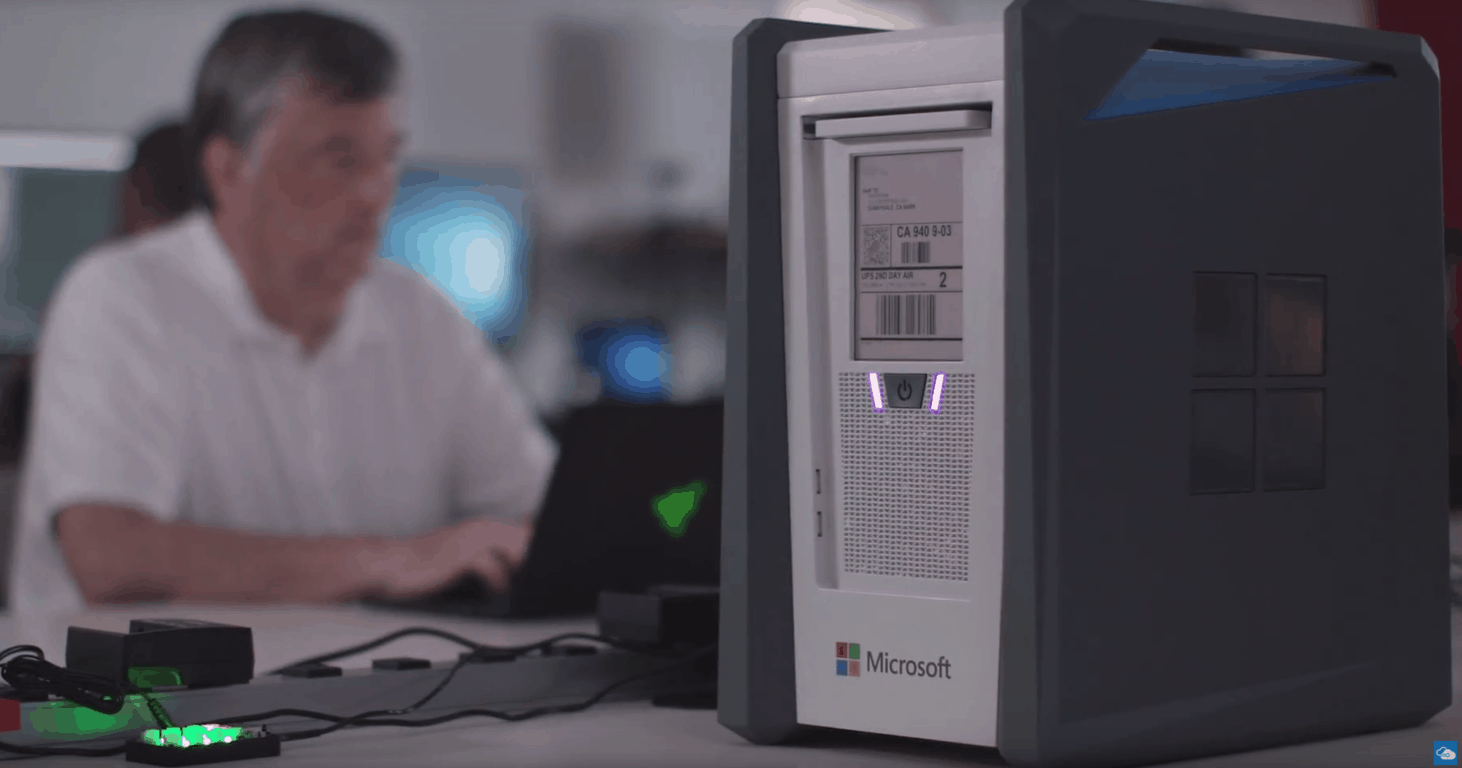
At Ignite 2017 today, Microsoft showcased a slew of new products and technologies powered by the Microsoft Cloud. Now, Microsoft provides a new way to transfer a ridiculous amount of data (100TB) with a rugged 45-pound Data Box to Azure. In this video, Oceaneering International describes how the Azure Data Box helps their business data needs and the data needs of their clients.

While the ability to store data in the cloud with Azure continuously is Microsoft’s ultimate goal, internet connectivity is not always available, or even with a good connection, moving lots of data can be a problem. In the future, Microsoft hopes to provide the perfect Azure Cloud solution, without requiring any physical storage drives on-site.

Other features of the Data Box include the ability to plug right into the datacenter network, as well as supporting standard protocols, including SMB and CIFS. The Azure Data Box also use a 256-bit AWS encryption to secure the data. The Data Box can also be shipped anywhere, no boxing required, using its own e-paper display. Whether enterprises need to upload the data to the Azure cloud or ship the data to a customer, the Data Box provides a very helpful and mobile data storage solution.

Ignite 2017: Lenovo unveils ThinkSmart Hub 500, aimed at tackling conference room complexities

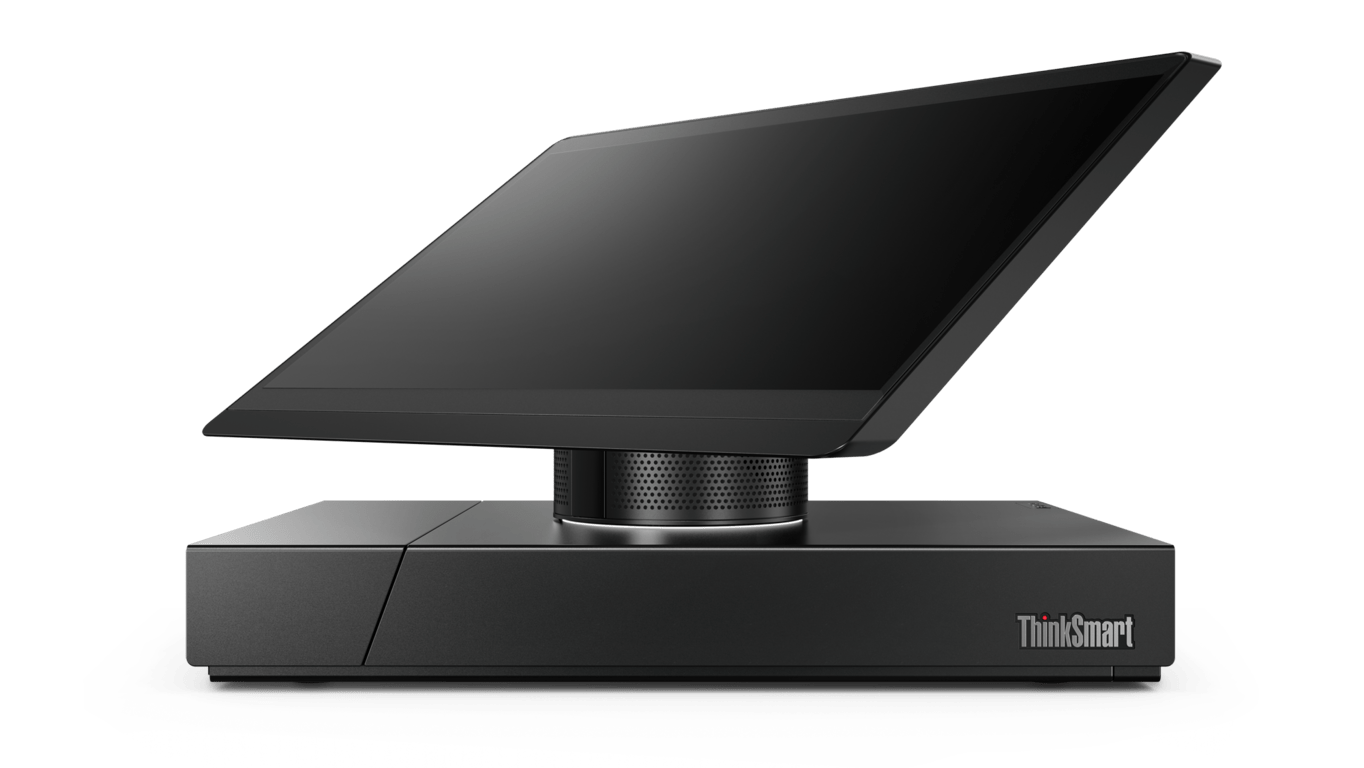
Today at Microsoft Ignite 2017, Lenovo unveiled the ThinkSmart Hub 500. The device is Lenovo’s first Smart Office product offering, aimed at tackling conference room complexities.

Lenovo’s ThinkSmart Hub 500 is able to manage collaboration within modern meeting rooms, and has the ability to connect remote and local participants to Skype for Business meetings and shared content. This device was developed in cooperation with Microsoft, and helps eliminates the need of sharing laptop screens. It features a 360-degree rotatable 11.6 inch display, and runs on Windows 10 IoT Enterprise. Other features include Dolby Audio Premium sound experience, 360-degree array microphones and a touch display to control the meeting and large external displays.

Peter Han, Vice President, Partner Devices and Solutions, Microsoft remarked on the ThinkSmart Hub 500.

“Lenovo consistently delivers innovative devices and solutions that meet the unique needs of business customers, and the ThinkSmart Hub 500 is no exception…“This second-generation Skype Room Systems solution from Lenovo will transform meeting rooms, and enable rich collaborative Skype for Business experiences.”

Lenovo is launching pilot programs with the ThinkSmart Hub 500 later this year, and it will becoming available in the first quarter of 2018. You can visit this webpage to sign up and get updated for more information when the ThinkSmart Hub 500 ships.

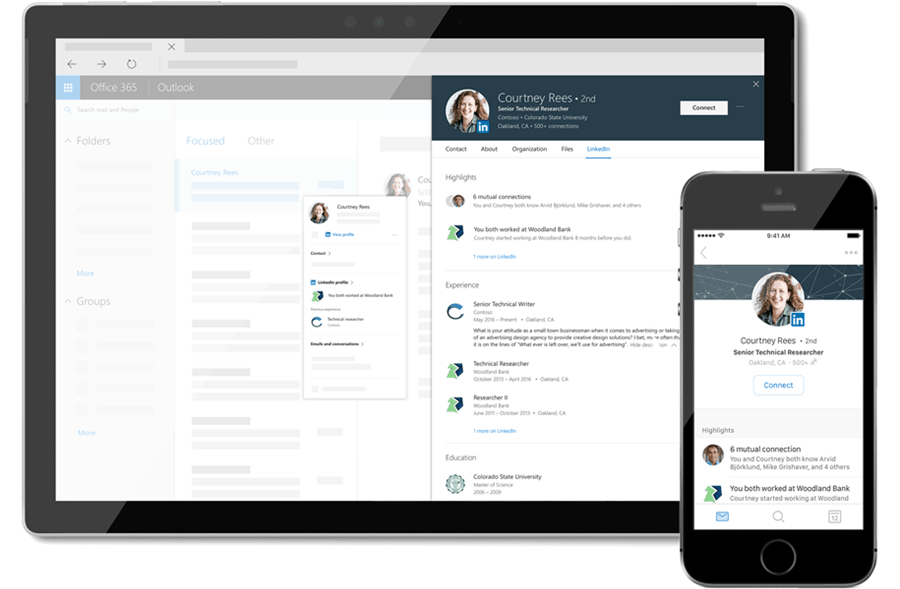
Ignite 2017: LinkedIn gains direct integration into Office 365

Microsoft announced today at its Ignite conference that it’s integrating LInkedIn’s data into Office 365 apps and services. After connecting your LinkedIn account to your Office 365 account, you’ll be able to get personalised LinkedIn insights in Outlook and other Office 365 apps and services.

“Whether it’s a colleague, customer or partner, these details help you better understand who that person is so you can start off on the right foot and collaborate efficiently, even when outside your organization,” a LinkedIn blog post notes. “But our vision is to help you deepen existing relationships as well — surprising you with what you may not know about the people you work with every day.”

LinkedIn’s integration in the Profile Card will start rolling out next month to Office 365 first release customers, and it will be available first in the Outlook web app, SharePoint and OneDrive for Business (the integration will come in the coming months on Outlook desktop, Outlook iOS and other Office products). Last but not least, this new LinkedIn integration will be available “soon” on personal Outlook.com accounts, and it should be more advanced that the now deprecated feature that let you sync various social media accounts (including LinkedIn and Facebook) to your Microsoft account.

Ignite 2017: Microsoft announces new low cost Windows 10 S laptops from HP, Lenovo, and Fujitsu

This morning at Microsoft Ignite 2017, Microsoft announced a series of new low cost Windows 10 S laptops from HP, Lenovo, and Fujitsu. The announcement is in conjunction with the news of Microsoft 365 expanding to Education and F1 offerings, and is also part of Microsoft’s efforts to empower Firstline workers to achieve more.

According to Microsoft, these devices are powered by Microsoft 365, and will offer up self-service deployment, and simplified management. The devices are designed for businesses and educators, and are meant to always stay up to date, helping lower management costs for owning these devices.

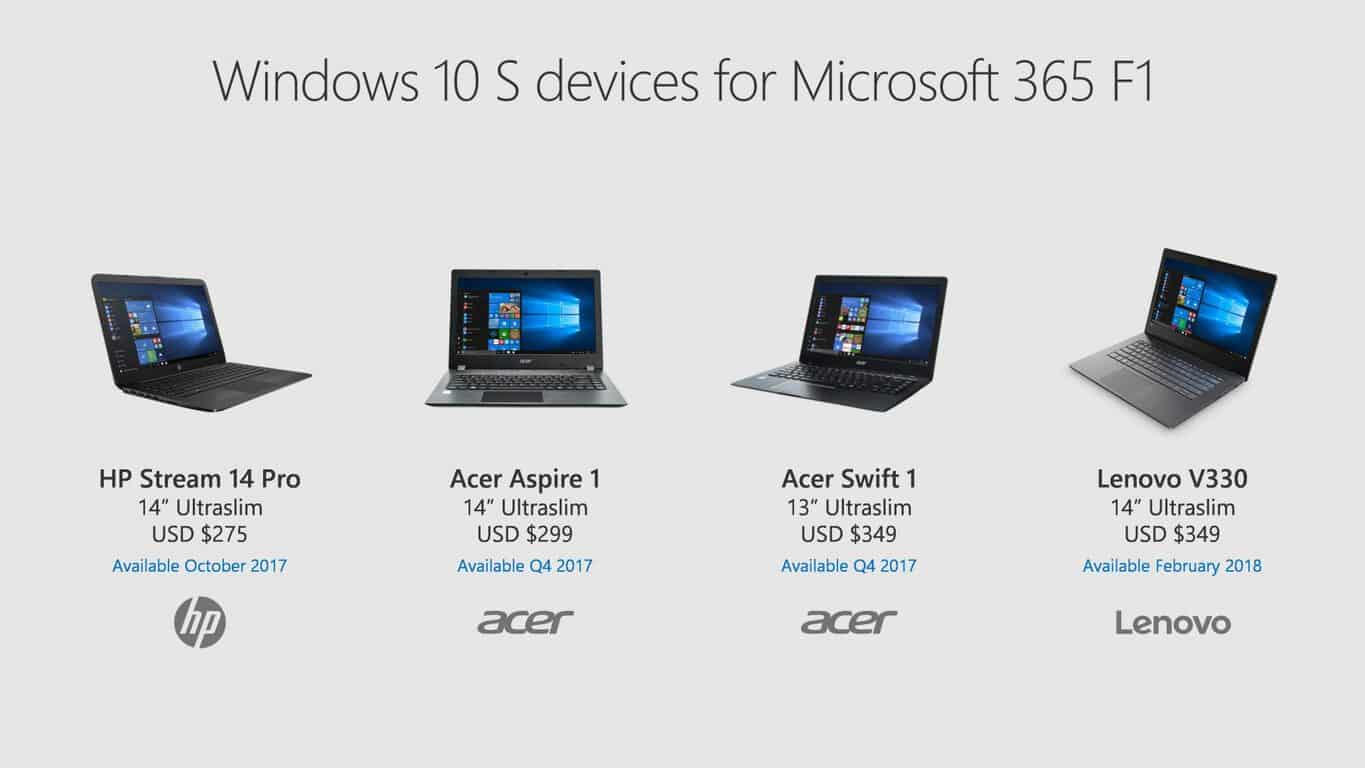
These devices will be available later this year, and prices will start at $275. Prices on the devices can be seen below.

  • HP Stream 14 Pro: 14 inch Ultraslim: Available October 2017 for $275
  • Acer Aspire 1: 14 inch Ultraslim: Available Q4 2017 for $299
  • Acer Swift 1: 13 inch Ultraslim: Available Q4 2017 for $349
  • Lenovo V330: 14 inch Ultraslim: Available February 2018 for $349

The devices are simple to use, and deliver a familiar Windows 10 experiences, but with the added benefits of streamlined security and ease of management. It’s really great to see Microsoft selling Windows 10 S, as this will be a great advantage for the company over the popularity of Google’s Chromebooks.

HP, Lenovo to support Windows AutoPilot to allow IT pros manage Windows 10 deployments

On the sidelines of Microsoft Ignite 2017 conference, Microsoft announced that HP and Lenovo will support Windows AutoPilot starting January 2018.

Announced in June this year, Windows AutoPilot is a collection of technologies used to set up and pre-configure new devices, making them business-ready. IT professionals can also use Windows AutoPilot to reset, repurpose, and recover devices.

The cloud service allows IT pros and administrators to customize the Windows 10 out of box setup experience using a cloud configuration. After the launch, the program was rolled out to OEMs, distributors, and resellers to help them link devices to an organization.

The Windows AutoPilot Deployment Program was piloted by Surface, and HP and Lenovo now will join the program by providing device IDs to companies on select orders.

Users will be able to set up a new device complete with the company configuration and apps ready to go without the need for IT to touch the device or manage updates in person.

Ignite 2017: Microsoft goes big on Quantum Computing

Today at Ignite 2017, CEO Satya Nadella laid out Microsoft’s big plans for quantum computing. Here’s a short video by Microsoft to give you an introduction to the world of quantum computing, where Microsoft blends quantum physics with computer science.

In the last year, Microsoft hired two new leaders of quantum computing and created a new Microsoft AI and Research Group that reports directly to Nadella. Quantum computing hardware and software are speculated to be able to handle some of the biggest hurdles that we face today, like climate change and finding new ways of treating and curing diseases, at a much faster pace than current technology.

Today, Microsoft unveiled a new website, and a new video showing everything the company is working on and quantum computing services available for enterprise customers. Check out the new video below.

“Quantum computing takes a giant leap forward from today’s technology—one that will forever alter our economic, industrial, academic, and societal landscape. In just hours or days, a quantum computer can solve complex problems that would otherwise take billions of years for classical computing to solve. This has massive implications for research in healthcare, energy, environmental systems, smart materials, and more. The quantum economy is coming. And Microsoft envisions a future where customers use Azure for both classical and quantum computing.”

According to Microsoft, quantum computing will change the way we think about the world around us and solve some of the most complex problems that we face as a global community.

Ignite 2017: Microsoft formally announces Bing for Business preview, improved Office 365 search

It’s shaping up to be a busy morning at Microsoft Ignite 2017 in Orlando, Florida, and the announcements just keep rolling in. On stage today, Microsoft revealed the launch of a private preview of Bing for Business, and also improved Office 365 search.

The new Office 365 search is powered by the Microsoft Graph, and will help deliver more relevant search results across Microsoft 365. Microsoft believes the new Office 365 search will help users find the right versions of a document, find presentations, learn more about topics, and help employees harness the power of an organization’s collective knowledge.

The Bing for Business private preview, meanwhile, will provide a unified view of personalized, contextual search results from both inside and outside an organization. Here is a bit more on the features of Bing for Business.

  • Enterprise Bookmarks – Bookmarks provide the fastest way for you to find sites, tools, and other information within the enterprise. Bookmarks can range from timely topics with a short life span like a company event to more permanent bookmarks, such as linking to the internal time and reporting tool.
  • People Search – With Bing for business, people search is a quick way to help you search and find a person and understand their role within the company, who they work for, see what they are working on, find out where they are located and get directions through integrated building and office floor maps.
  • Organizational Chart – Quick access to the organizational chart to understand a person’s place within the company and further browse their peers, management, and direct reports.
  • Building and Floor Plans – Buildings and floor plans help you quickly find your way or locate where a colleague is sitting or to learn your way around a new building.
  • Document Search – Allows you to search and find contextual and relevant documents saved on SharePoint and other sources within the Microsoft Graph.
  • Office 365 Groups – You will be able to explore the Groups a person belongs to as part of people search and browse their contents. Additionally, they will be able to search for groups by their name.
  • Bing for business Industry News – Bing works with your company to understand your job and tasks. Over time, Bing learns which business news matters to you – such as news about your company, competitors, and industry.  This feature is a personalized newsfeed on Bing.com, helping you make timely, informed decisions.
  • Management and Analytics – IT admins can quickly configure, create bookmarks, and define the search triggers, words or phrases. IT admins will also have a better understanding on how people within the organization are searching the web

Bing for business is available for private preview starting today and will be set to expand to Office 365 Enterprise E1, E3, E5, F1, Business Essentials, Business Premium, and Education E5 subscriptions in the future. Keep it locked into OnMSFT, as more is sure to develop as Ignite 2017 rolls on throughout this week.

Ignite 2017: Microsoft want to own the hybrid cloud with Azure Stack

At Ignite 2017, Microsoft announced the expansion of Azure Stack, Microsoft’s play to combine the cloud with on-premises computing.  In particular, Azure Stack will be the new standard for providing a consistent hybrid cloud experience for Microsoft’s enterprise customers.

Today, Microsoft’s Scott Guthrie talked a lot about how Microsoft wants to mobilize some recent Azure advancements to remove cloud barriers for enterprise customers. Guthrie pointed out four key areas that Microsoft focused on to ensure Azure’s success:

  1. Enabling IT and developer productivity
  2. Providing a consistent hybrid cloud
  3. Unlocking AI solutions
  4. Ensuring trust through security, privacy and cost controls

Guthrie points out how Azure Stack will help Microsoft provide a consistent hybrid cloud experience for enterprise customers. Azure Stack is Microsoft’s hybrid cloud platform that allows enterprise customers to use Azure cloud services from on-premises datacenters. Azure Stack is designed to help enterprise customers meet security and compliance requirements, or to access Azure resources without internet connectivity.

Microsoft will continue to use Azure Stack as a hybrid cloud platform, but now Azure Stack will be able to access more Azure resources. Guthrie notes that in order to enable consistent hybrid development across cloud and on-premises, certain things must be done.

At Ignite 2017, Microsoft revealed that Azure Stack integrated systems are available for purchase with Microsoft partners, including Dell, Lenovo, HPE, and others. Now, developers can build one application and have it run in Azure or run locally on Azure Stack, allowing the app to be used in either case, while still meeting regulatory requirements.

Guthrie also pointed out that the cost of moving enterprise operations from one cloud service can be expensive. Guthrie uses the example of a recent enterprise customer that wanted to migrate their 1000+ SQL Server applications to AWS (Amazon Web Services). The cost to the customer would be over $10 million to modify each of their SQL Server applications in order to be compatible and used within Amazon’s cloud services.

Guthrie sees that an amount like this to convert cloud applications is a bit ridiculous. Microsoft built Azure SQL Database service, which boasts 100% SQL Server compatibility, requiring no code changes (per Managed Instance). Microsoft will also be introducing a new Azure Database Migration Service that has an almost seamless downtime migration. That same customer would be able to save their $10 million cost (and downtime) to move their applications to AWS, by migrating their application data to Azure instead.

Microsoft, Azure, Stack
Guthrie also announced the general availability of SQL Server 2017. SQL Server 2017 is the first version of the Microsoft database solution that can run on Windows Server, Linux and Docker without any problem. So far, Guthrie states that there have been 2 million pulls of the SQL Server on Linux image on Docker Hub. SQL Server 2017 offers other great features, including in-database advanced machine Learning with support for scalable Python and R-based analytics.

The addition of machine learning to SQL Server 2017 means that developers can now create and train advanced models with data within SQL Server without the need to move any data. Microsoft has built SQL Server 2017 to be the most robust yet, with built-in security, performance, and AI on whatever platform you choose.

Microsoft wants to be the company that customers go to when they need company critical analytic applications to perform on demand. Another important announcement is that SQL Data Warehouse will be offered as a preview release of the new “optimized for compute” performance tier. According to Guthrie, this new performance tier is able to scale up to 30,000 compute Data Warehouse Units, more than ever before. Microsoft is going to sweeten the deal even further by making it cost effective for customers to run SQL Server and Windows Server on Azure.

By using Azure Hybrid Benefits, customers could see up to a 50% reduction in licensing costs. Guthrie makes it clear that Azure is the most cost-effective and best performing hybrid cloud solution to run Windows Server and SQL Server. Microsoft offers customers the most comprehensive and consistent hybrid cloud solution to handle whatever enterprise customers need and could possibly ever want.

Microsoft kicks off Ignite 2017 with Windows 10 S, Skype and Bing for Business, Microsoft 365 news and more

Day one of Microsoft’s annual Ignite conference is officially underway in Orlando, and the company is kicking things off with a bang. Over 25,000 attendees were greeted with news about Windows 10 S devices, Skype, Bing for Business, Microsoft 365, and more. Here is a wide angle look at the day’s biggest stories as they unfold at today’s keynote address

Expanded Microsoft 365:

Microsoft is expanding Microsoft 365, which is a service that the company originally announced a few months ago. As part of the expansion, Microsoft announced new Microsoft 365 F1 and Microsoft 365 Education plans, with the hopes of empowering people to succeed, and foster a new culture of work and school. Microsoft 365 F1 is designed for first line workers, and brings together Office 365, Windows 10, and Enterprise Mobility and Security. Microsoft 365 Education, meanwhile, includes Office 365 for Education, Windows 10, Enterprise Mobility and Security, and Minecraft: Education Edition.

New Microsoft 365 Windows 10 S powered devices:

The Redmond giant unveiled new Microsoft 365 Windows 10 S powered devices from HP, Lenovo, and Fujitsu. The devices are designed for cloud based management, start in price at $275 and will offer customers simplified management, helping them stay up to date, and save money.

Microsoft goes big on Quantum Computing:

Microsoft talked a lot about Quantum Computing, and how the company is working to build the world’s first truly scalable quantum computer. Microsoft is envisioning a future where customers can use Azure for both classical and quantum computing, and solve complex problems that would otherwise take billions of years for classical computing to solve.

Skype for Business becomes a part of Microsoft Teams:

As long rumored, Skype for Business will become part of Microsoft Teams. This is part of Microsoft’s new vision for intelligent communications in Office 365, making Microsoft Teams the central hub for team communication and collaboration. Upcoming features slated for release as part of the integration into Teams include inbound and outbound calls to PSTN numbers, hold, call transfer and voicemail, audio conferencing preview, and interoperability between Team and Skype for Business. The company also reminded users that Skype for Business is not dead, announcing that Skype For Business server will be released in the second half of 2018.

Bing for Business Private Preview & Intelligent Search Experiences:

In order to help businesses deliver more relevant search results within Microsoft 365, Microsoft announced Bing for business private preview. This will provide businesses with a personalized and contextual search results from inside and outside an organization.

The Cloud and AI:

Microsoft is expanding Dynamics 365, and detailed new AI solutions which will help businesses transform critical enterprise scenarios, and apps and services that are used everyday within organizations. These solutions include an intelligent virtual agent for customer care, and an intelligent assistant for customer service staff, as well as conversation management tools. Also included are modular apps (Abstract and Onboard) for Dynamics 365, helping transform high-impact processes, and deeper integration between PowerApps, Microsoft Flow, Office 365, and Dynamics 365.

Expanded Azure Stack:

Microsoft is announcing the expansion of Azure Track, saying it will be the “new standard for providing a consistent hybrid cloud experience for Microsoft’s enterprise customers.” Also announced was Azure Tack shipping through IOEM partners, SQL Server on Linux, Windows and Docker availability with SQL server 2017 GA, Database Migration Services, Azure Cost Management services by Coludyn.

The final set of Azure related announcements include: integrated security capabilities in Azure Security Center, preview of Azure Machine Learning, Azure CosmosDB and Azure Functions integration.

Microsoft is also updating Microsoft Cognitive Services, including the availability of text analytics, and how Bing Custom Search, and Bing Search v7 will be providing more relevant results in the coming months.

Ignite 2017

It’s obviously a very busy first day of Ignite 2017, but there will be more to come in the week ahead. Keep it locked in to OnMSFT for all your Microsoft news and information! And be sure to follow us on Twitter or like us on Facebook, to ensure you won’t miss a single minute of all the Microsoft news and information.

Ignite 2017: Microsoft introduces two new Microsoft 365 offerings, as well as new capabilities

At the Microsoft Ignite 2017 conference, Microsoft announced the expansion of Microsoft 365. Announced at Microsoft Inspire few months ago, Microsoft 365 brings together Office 365, Windows 10, and Enterprise Mobility + Security to provide a complete, intelligent solution for organizations.

The two new Microsoft 365 offerings are:

  • Microsoft 365 Education: It includes Office 365 for Education, Windows 10, Enterprise Mobility + Security, and Minecraft: Education Edition and gives students, faculty, and staff everything they need to create and collaborate securely.
  • Microsoft 365 F1: It includes Office 365 F1, Windows 10, and Enterprise Mobility + Security and is designed to maximize the impact of the Firstline Worker. Firstline Workers are those employees who are first to engage customers, represent a company’s brand, and see products and services in action.

Firstline workers include sales associates, factory workers, customer service agents, medical staff, etc. and comprise of 80% of global workforce. Microsoft 365 F1 aims to provide purpose-built capabilities that help foster firstline culture and community, train and upskill employees, digitize business process, deliver real-time expertise, and minimize risk and cost.

Microsoft also announced the upcoming Microsoft 365–powered devices, including new commercial Windows 10 S devices from HP, Lenovo, Fujitsu, starting at $275 and available starting later this year. These devices will enable self-service deployment, simplified management, and a reduced total cost of ownership for businesses.

Microsoft also announced new Microsoft 365 capabilities to unlock employees’ creativity, fuel teamwork, and to provide IT a simpler way to manage users, devices, applications, and data.

Watch Microsoft’s Ignite Vision Keynote right here

Microsoft’s Ignite 2017 conference is about to get started in Orlando, and you can watch it live below when it starts at 9 AM EST. For those unfamiliar, Ignite is Microsoft’s annual event for IT leaders, and there will be more than 1,000 sessions about productivity, IT and cloud infrastructure, security and more. You can also expect Microsoft to make a lot of announcements about Office 365, synergies between Skype for Business and Microsoft Teams and much more.

We’re attending the introducing keynote this morning, so keep it locked to OnMSFT if you don’t want to miss any of the announcements that will be made during this first day.

The program issued a command but the command length is incorrect

If you’re getting the ‘ERROR_BAD_LENGTH’ error code with the description ‘The program issued a command but the command length is incorrect‘ follow the troubleshooting steps listed in this article to fix it.

The command length is incorrect: Error background

‘ERROR_BAD_LENGTH’ occurs on Windows servers especially after installing the latest updates. The error is usually triggered by malware infections or corrupted system files.

The good news is that this error code occurs extremely rarely. On the other hand, the bad news is that the number of solutions to fix it is quite limited.

The command length is incorrect [FIX]

Solution 1 — Reboot your server

Users reported that rebooting their servers helped them get rid of the ERROR_BAD_LENGTH error code. As simple and rudimentary as this solution may appear, do use it before you continue with more complex troubleshooting steps.

Solution 2 — Run a full system scan

As stated at the beginning of this article, ‘The command length is incorrect’ error code may also be triggered by malware infections. Run a full system scan in order to detect and remove malware. Then check if the issue persists.

Solution 3 — Repair your registry

The simplest way to repair your registry is to use a dedicated tool, such as CCleaner. Don’t forget to first backup your registry in case anything goes wrong.

You can also use Microsoft’s System File Checker to check for system file corruption. The utility verifies the integrity of all protected system files and repairs files with problems when possible. Here’s how to run an SFC scan:

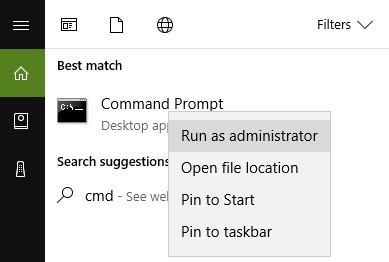
1. Go to Start > type cmd > right-click Command Prompt > select Run as Administrator

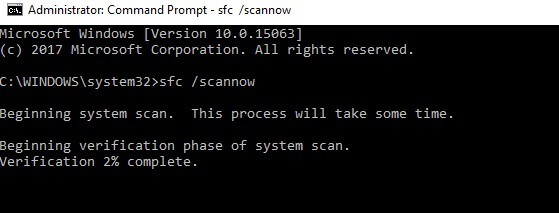
2. Now type the sfc /scannow command

3. Wait for the scanning process to complete and then restart your computer. All corrupted files will be replaced on reboot.

Solution 4 — Roll back to a previous OS version

If the problem still persists after you rebooted your server, scanned it for malware, and cleaned your registry, try rolling back to a previous bug-free version.

We hope that the solutions listed above helped you fix the ‘ERROR_BAD_LENGTH’ error code. If you’ve come across other workarounds to fix this problem, you can help the Windows community by listing the troubleshooting steps in the comments below.

RELATED STORIES YOU NEED TO CHECK OUT:

Access And Customize Advanced Touchpad Settings [How to]

Touchpads can be incredibly useful, but many users like to adjust hidden settings. Speaking of which, many are wondering how to access touchpad’s advanced settings.

Adjusting the settings can help if the touchpad is not working, so keep on reading to learn how to properly access these settings.

How do I customize my touchpad?

  1. Open the Settings app and navigate to Devices.
  2. Select Touchpad from the left pane.
  3. Now customize your settings.
  4. Optional: Use the dedicated touchpad software for more options.

How do I access my touchpad settings?

Use Mouse properties applet

  1. Press the Win + R hotkeys in order to bring the Run box.
  2. Inside the Run field enter main.cpl and click on OK when done.maincpl advanced touchpad settings
  3. This command will open the Mouse Properties window, from where you can then access and modify advanced touchpad settings in Windows 10.
  4. So, from the Mouse Properties window, you can adjust based settings for your mouse and also for the touchpad.
  5. The advanced touchpad settings can be reached by switching to the manufacturer tab – in this case, we had to click on the ELAN tab.mouse properties advanced touchpad settings
  6. There you will receive the settings related with the hardware support for your particular touchpad.
  7. As already outlined, you can change only regular settings by default.
  8. For displayed the complex tweaks I needed to click on Options…advanced touchpad properties
  9. From here I can choose to customize and optimize the touchpad functionality in Windows 10.

Keep in mind that these steps are for the Toshiba Satellite notebook, and they might be slightly different on your device. However, the general principle remains the same.

As you can see, finding the advanced touchpad settings is pretty simple, and you can access them in a matter of moments if you know how.

From there you can configure your device or even completely disable the touchpad on your PC if you choose to do so.

We hope that you find this guide informative and that you managed to properly configure your touchpad.

3 solutions to delete Netflix content in Windows 10/11

Netflix is one of the most popular online streaming services that can be used by Windows 10 users. This platform offers full support for the Windows system as there is a dedicated Netflix app available on the Windows Store.

Through this app, you can also choose to download your favorite videos and TV shows and watch everything offline. While this ‘offline’ feature is extremely useful, it also comes with a small downside: the content you download will be stored on your Windows 10 device and you can soon experience disk storage issues. That’s why you should learn how to easily remove the offline content downloaded through the Netflix app.

By default, the Netflix content is saved in the same place where the Netflix app is installed on your Windows 10 PC. Shortly, the videos will be stored inside the ‘C’ partition of your device. Well, this is where the Windows OS and other system files are stored too. Therefore, saving a large amount of files on this partition is not recommended. As a result, you should remove unnecessary files from time to time, including the Netflix offline content.

How to remove Netflix content in Windows 10

Remove only certain movies or TV shows

  1. On your Windows 10 device launch the Netflix software.
  2. From the top-left corner of the main Netflix window click on the ‘hamburger’ icon.
  3. Select My downloads from the list that will be displayed.
  4. All your downloaded movies and TV shows will be now listed on your computer.
  5. Now, from this window click the Edit icon (from top-right corner).
  6. A checkbox will be now displayed near the downloaded contents.
  7. Just select the entries that you don’t want to keep.
  8. When done click the Delete button – located also in the top-right corner.
  9. That’s all.

Delete all Netflix offline content

  1. Open the Netflix app once more.
  2. Click on the three dots icon which is located in the top-right corner of the main window.
  3. Select Settings from the list that will be displayed.
  4. From the Netflix settings page find the Download field.
  5. Under download locate and also select the ‘delete all downloads’ option.
  6. Wait while the Netflix content is removed and restart the app.

Remove Netflix files manually

As mentioned, the files that are downloaded from Netflix for offline viewing are saved by default within the C partition. You can locate all these files by navigating towards ‘C:UsersUserNameAppDataLocalPackages4DF9E0F8.Netflix_mcm4njqhnhss8LocalStateofflineInfodownloads’.

Note: enter your own user name in the string to access the Netflix folder. Once there, select the files you want to remove (press and hold Ctrl and click on the implied files or press Ctrl+A if you want to select the whole list) and resume the delete process.

Those are the 3 methods that can be successfully applied in Windows 10 for removing Netflix content. Note that if you remove these files instead of deleting them, the Netflix app will no longer display the transferred content.

If you have any other questions related with the solutions listed above, let us know in the comments field below.

RELATED STORIES TO CHECK OUT:

Microsoft Store Rebrands to Windows Store [Full Story]

We already knew Microsoft was planning on rebranding the Windows Store to Microsoft Store when the company started diversifying its media offerings for Windows 10 devices.

Read on to find out all about how Windows Store became Microsoft Store.

The rebranded Windows Store is rolling out

The company is now rolling out the rebranded Windows Store to Windows Insiders in the Release Preview Ring together with an app update. This update involves a brand new logo for the Microsoft Store and also changes the Windows Store’s name to ‘Microsoft Store.’ While the new logo looks rough for now, this is probably not the final version.

The potential reasons behind the rebranding

Microsoft is likely revamping the Windows Store with a new name and logo to provide users access to more products in Windows 10, with potential plans to offer products and services directly on Surface hardware or other third-party products such as the Fitbit straight from the Microsoft Store application.

The newly revamped store in Windows 10 could also lead to Microsoft making it cross-platform along with providing users the opportunity to make TV shows and movies purchased from the Microsoft Store available across their various devices and the web as well.

Does Windows Store still exist?

Windows Store is going to become Microsoft Store after the update rolls out. Basically, it will rebrand itself. In other words, Microsoft Store and Windows Store is the same thing.

Of course, none of this has been officially announced — not even the rebranding– which this could mean that things are still in the testing process for now.

The Extended Attributes are Inconsistent: 14 Ways to Fix it

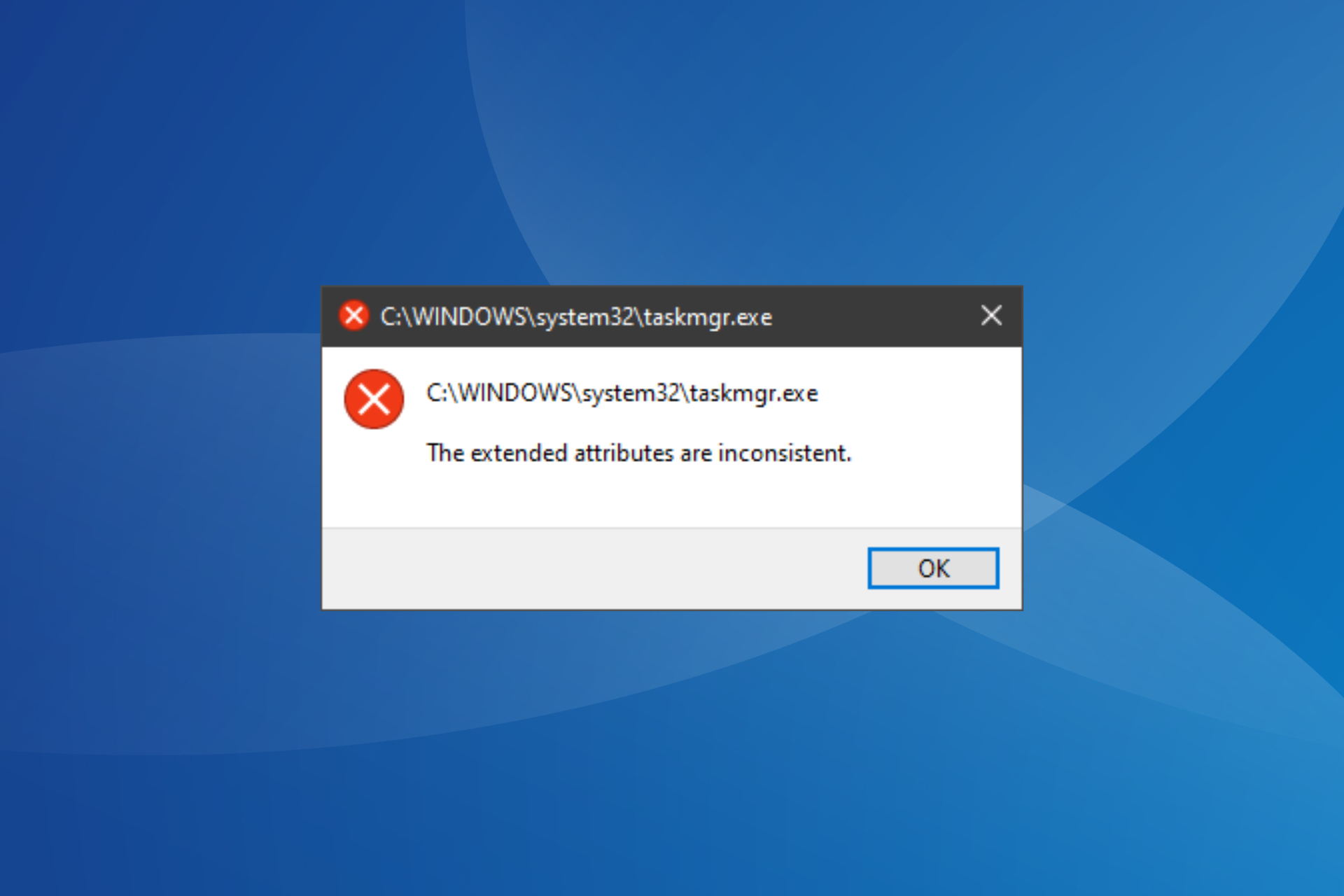
ERROR_EA_LIST_INCONSISTENT is a system error that can appear on any version of Windows. The error is usually followed by The extended attributes are inconsistent message.

The error usually appears when opening applications that require administrative privileges, but other programs, too, are sometimes unaffected. Keep reading to find out the solutions!

How do I fix The extended attributes are inconsistent error?

1. Change the sound settings

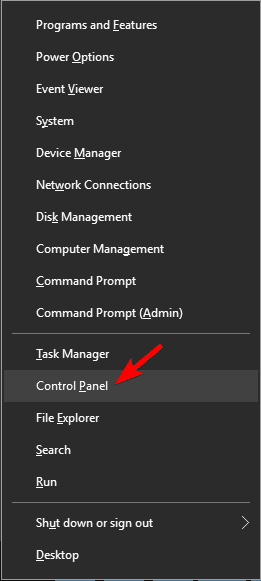
  1. Press Windows + X to and choose Control Panel.
  2. Once Control Panel opens, go to Sound.
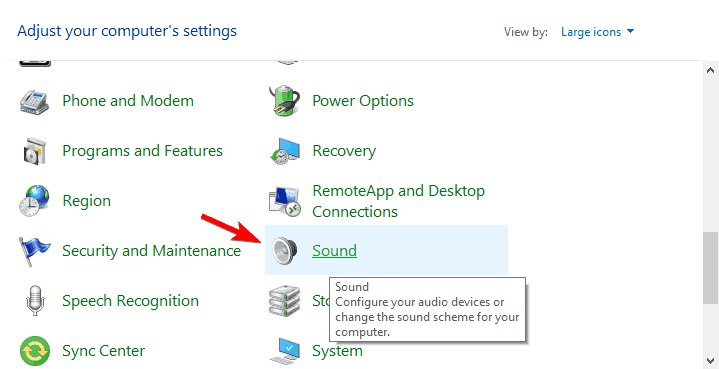
  3. Navigate to the Sounds tab and select Windows User Account Control from the list. Choose (None) from the Sounds menu and click Apply and OK to save changes.
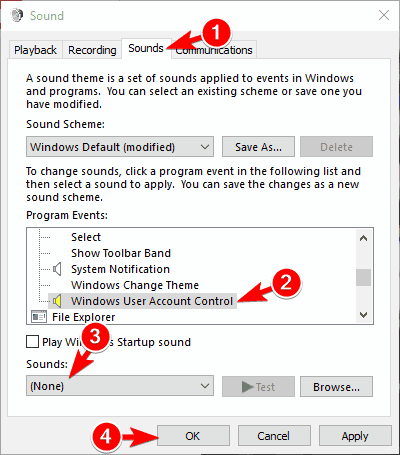
According to users, The extended attributes are inconsistent message can be caused by certain sounds on your PC. To fix the problem, you need to change your sound settings.

After saving changes, check if the problem still appears. We know that this is an unusual solution, but many users claim that it works, so be sure to try it out.

2. Perform a clean boot

  1. Press Windows + R, enter msconfig and click OK.
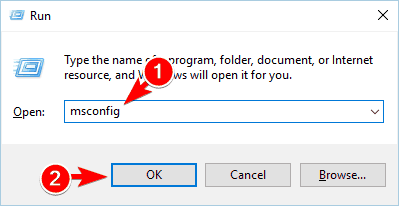
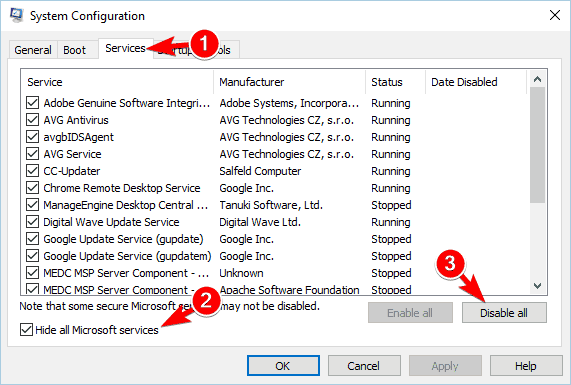
  2. Go to Services tab, check Hide all Microsoft services, and click on Disable all.
  3. Go to Startup tab and click on Open Task Manager.
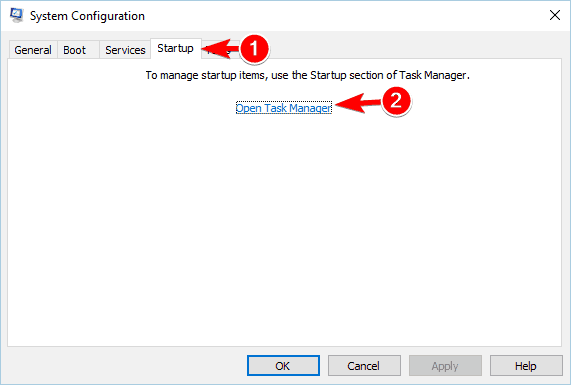
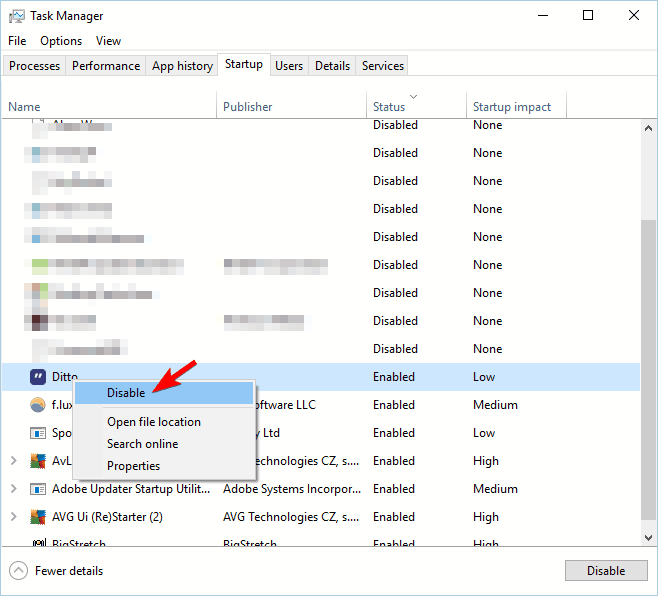
  4. Right-click each application on the list and choose Disable from the menu. After disabling all applications, close Task Manager.
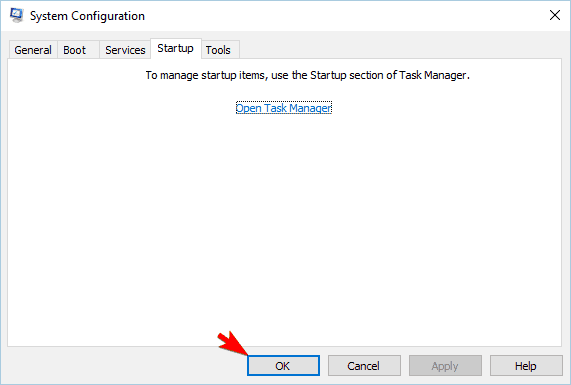
  5. Go back to the System Configuration window and click on Apply and OK.
  6. After doing that, restart your PC or log off and log back into your account.

Third-party applications and services can sometimes interfere with Windows and cause this problem to appear. In many cases, these can start automatically with Windows and cause this problem to occur. To fix the problem, you need to perform a clean boot.

If the issue doesn’t appear anymore, it means that a third-party application is causing this problem. To find the problematic application, you need to repeat the same steps again and turn on all services and applications one by one or in groups.

Keep in mind that you need to restart your PC or relog into your account to apply changes. After you find the problematic application, you need to remove it or update it to the latest version.

3. Change the User Account Control settings

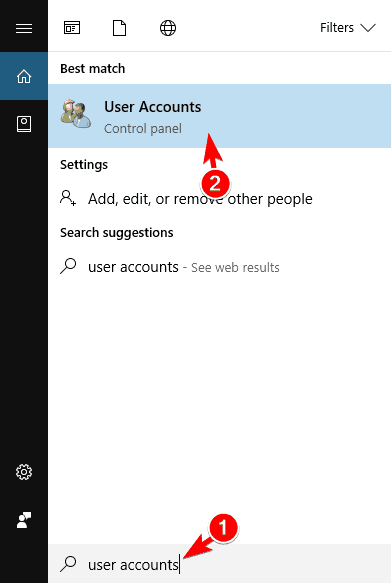
  1. Press Windows + S and enter user accounts. Select User Accounts from the menu.
  2. Click on Change User Account Control settings.
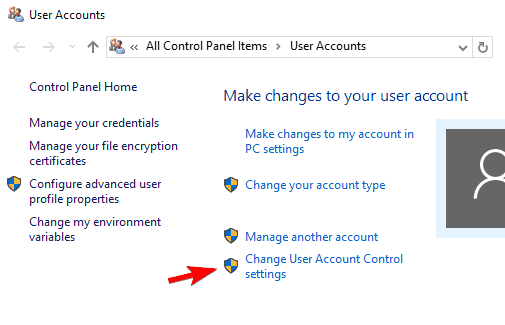
  3. Once the window opens, move the slider to the default value or set it to Never notify. Click OK to save changes.
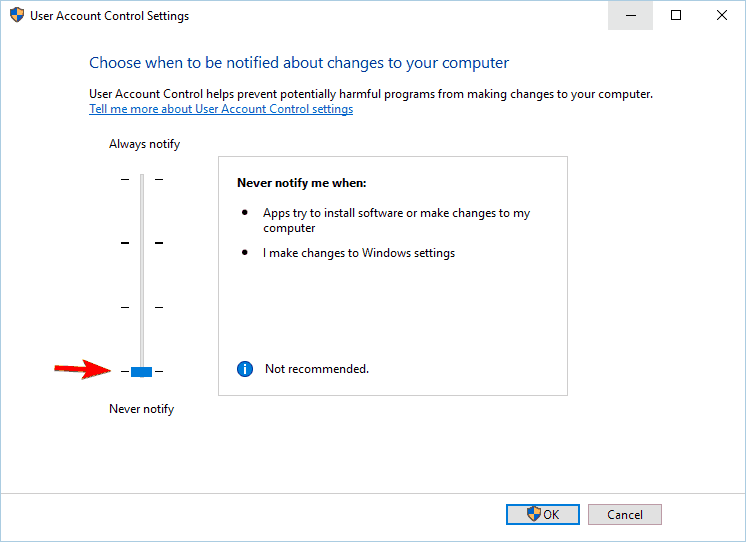
  4. After doing that, restart the computer and check if the problem is resolved.

Few users also recommend performing these steps after booting into Safe Mode. This fix for The extended attributes are inconsistent error in Windows 10 worked for many.

4. Disable sounds and reinstall the sound drivers

  1. Open the Control Panel, and choose Sound.
  2. Navigate to the Sounds tab and set Sound Scheme to No Sounds. Click Apply and OK to save changes.
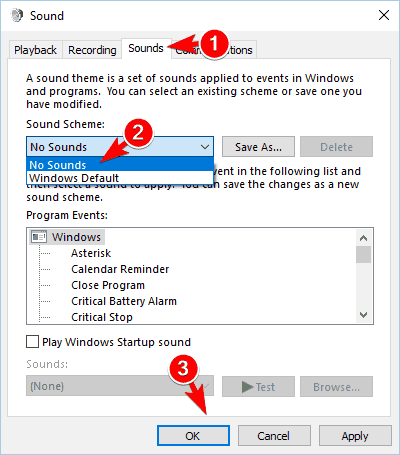
  3. After disabling all sounds, you should be able to install applications. However, to fix the problem, you need to reinstall your audio driver. To do that, press Windows + X and choose Device Manager.
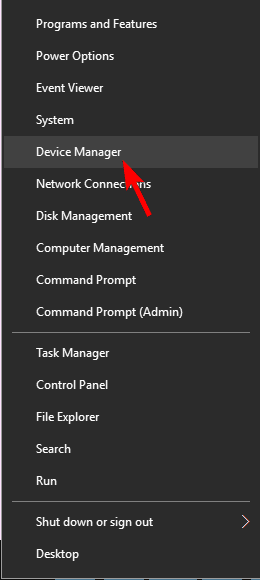
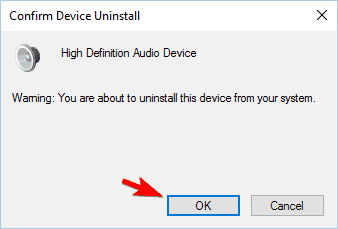
  4. Locate your audio driver, right-click, and choose Uninstall from the menu.
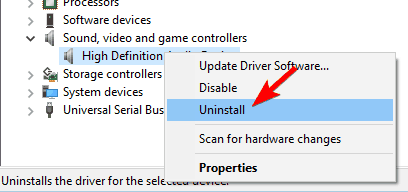
  5. Click OK to remove the driver.
  6. After doing that, restart your PC, and the driver will be automatically installed.
  7. Now you can restore your default sound scheme, and the problem should be permanently resolved.

It seems that a corrupt driver can cause this problem to appear, but after reinstalling the audio driver everything should be back to normal.

A few users also suggest switching your audio scheme to Default to fix this problem. If you have custom sound schemes installed, be sure to try this before uninstalling the driver.

5. Check your accounts

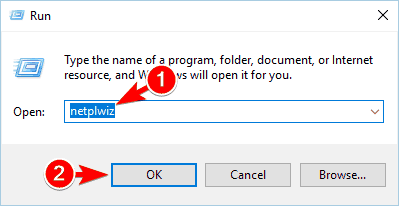
  1. Press Windows + R, enter netplwiz, and click OK.
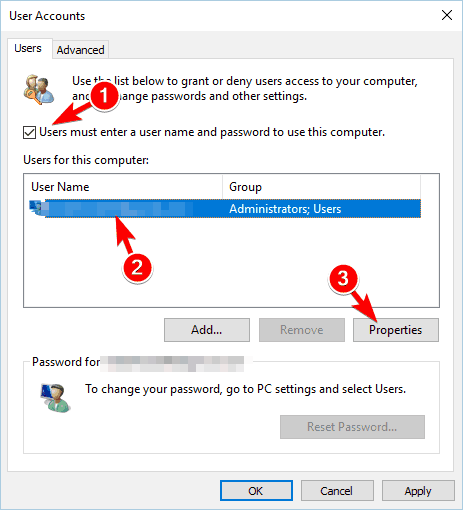
  2. Check Users must enter a user name and password to use this computer option. Select your account and click on Properties.
  3. Go to the Group Membership tab, select Other, and choose Administrators or Users.
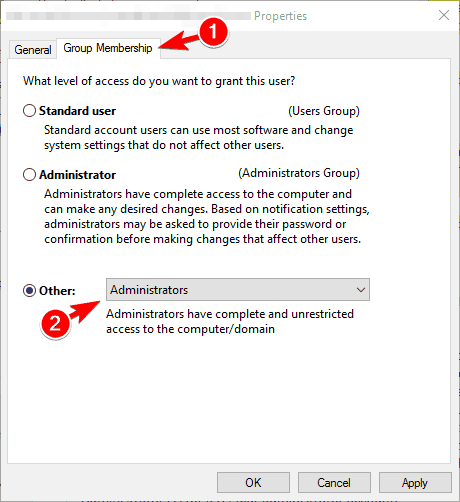
  4. Repeat the previous steps for all available user accounts.
  5. To apply the changes, you need to log off of every signed-in account and log back in.

Few users claim that the issue only affects standard non-administrator accounts, so if you see The extended attributes are inconsistent, upgrade the standard account to an administrator account to fix it.

6. Create a new user account

  1. Press Windows + I to open the Settings app.
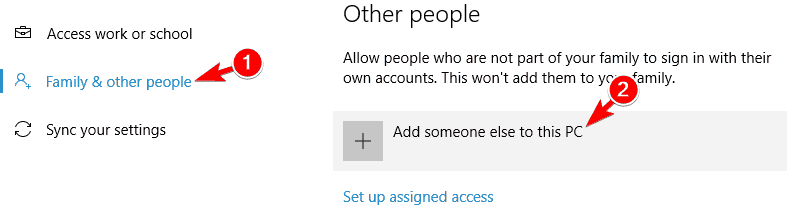
  2. Navigate to the Accounts section. Go to Family & other people and click on Add someone else to this PC button.
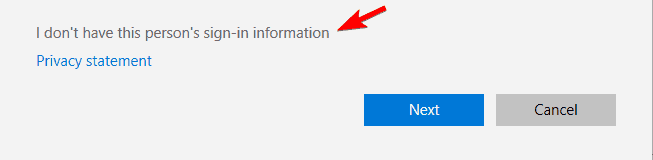
  3. Select I don’t have this person’s sign-in information.
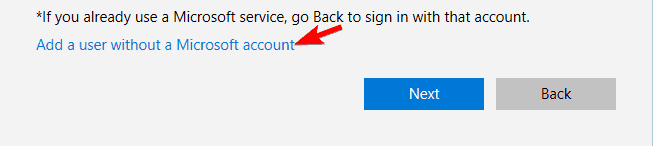
  4. Now click on Add a user without a Microsoft account.
  5. Enter the desired user name and click Next.
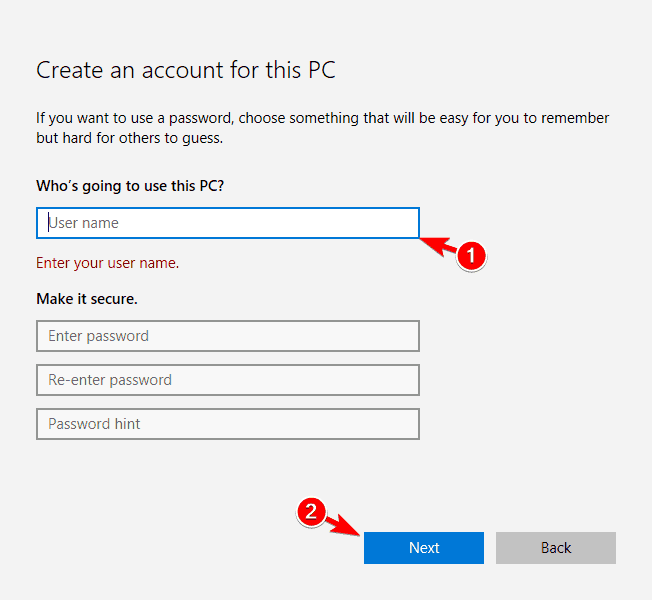
If The extended attributes are inconsistent error arises due to a corrupt user account, creating a local account should work. Check whether the problem still appears. If not, you can switch to the newly created account and use it as your main one.

7. Install Windows updates

  1. Press Windows + I to open the Settings app.
  2. Go to the Update & Security section and click on the Check for updates button.
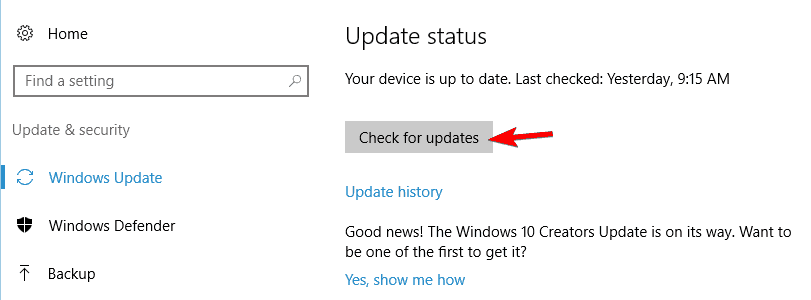
Windows will now check for available updates and download them in the background. Several users reported that this solution worked for them, so be sure to try it out.

8. Temporarily uninstall your antivirus software

If you want to protect your PC from malware, it’s important to have an antivirus installed. However, some antivirus tools can cause issues with Windows and lead to The extended attributes are inconsistent error message.

To fix the problem, you can temporarily disable your third-party antivirus software and check if that helps. Even if you disable your antivirus, your PC won’t be vulnerable because Windows 10 comes with Windows Defender, which protects it from online threats.

In case disabling the antivirus doesn’t solve the issue, you might have to uninstall the program. If removing your antivirus fixes the problem, you might want to try updating it to the latest version or switch to a completely different antivirus tool.

Users reported that Avast was causing this problem on their PC, but after removing it, the issue was resolved completely.

9. Run the DISM and SFC scan

  1. Press Windows + X and choose Command Prompt (Admin) from the menu.
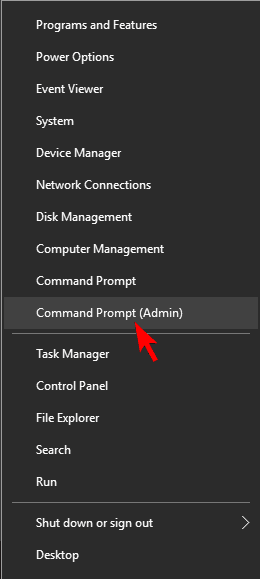
  2. Run the following command:Dism /Online /Cleanup-Image /RestoreHealth
  3. Now, paste the following command and hit Enter:sfc /scannow
  4. The SFC scan will now start. This process can take a while, so be sure not to interrupt it.

In some cases, this error can occur if your system files are corrupted. If that’s the case, you might be able to repair them by performing an SFC scan or running the DISM commands.

10. Change the power settings

  1. Press Windows + S and enter power options. Select Power Options from the menu.
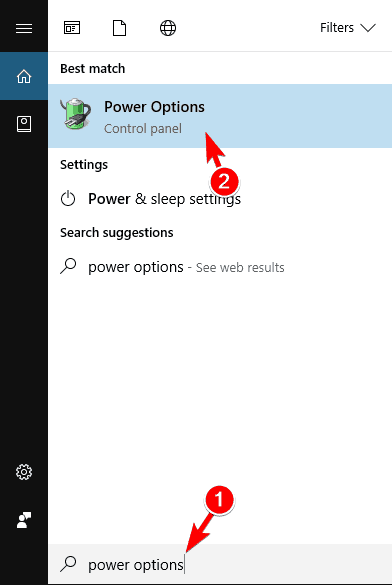
  2. Click Change plan settings for the currently selected plan.
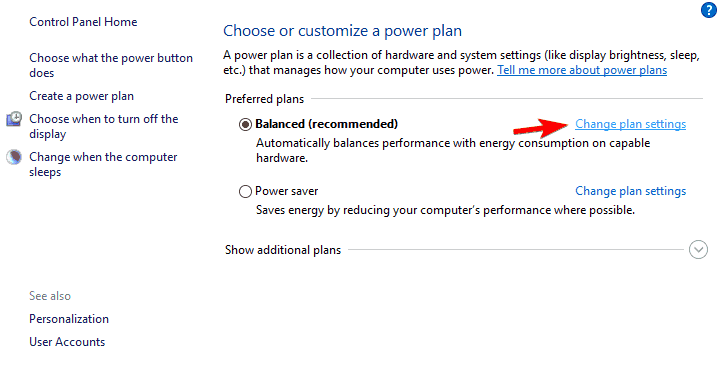
  3. Now select Change advanced power settings.
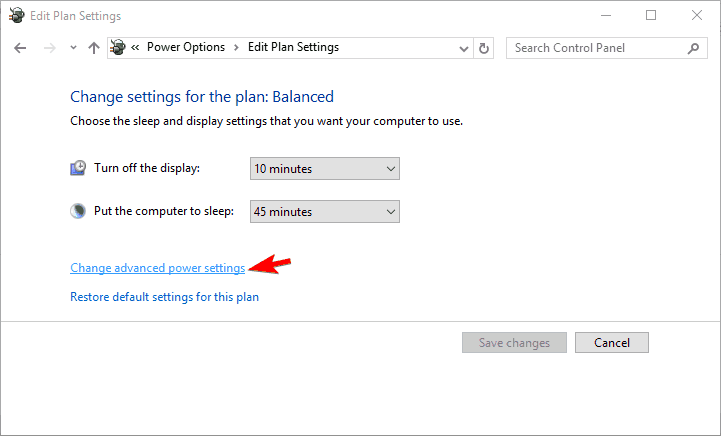
  4. Navigate to Switchable Dynamic Graphics, and select Global Settings. Set On battery and Plugged in to Optimize performance.
  5. Click OK to save changes.

After making these changes, try to run the problematic application again and verify whether The extended attributes are inconsistent message still appears. If you can’t find the options from Step 4, it means that this solution doesn’t apply to your PC.

11. Change Group Policy settings

Tip icon Tip
Gpedit.msc is included in Pro and Enterprise editions of Windows but users can install the Local Group Policy Editor on Windows 10 Home.
  1. Press Windows + R, enter gpedit.msc, and then click OK.
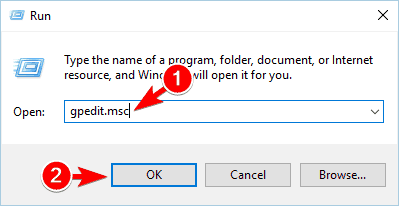
  2. In the left pane, navigate to Local Computer Policy, select Computer Configuration, and then choose Windows Settings.
  3. Now, go to Security Settings, expand Local Policies, and click on Security Options.
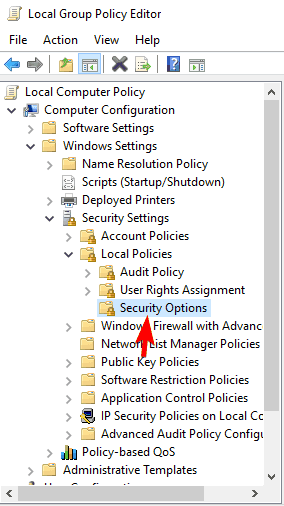
  4. Now you need to disable the following policies:
    • User Account Control: Use Admin Approval Mode for the built-in Administrator account
    • User Account Control: Detect application installations and prompt for elevation
    • User Account Control: Only elevate executable files that are signed and validated
    • User Account Control: Only elevate UIAccess applications that are installed in
      secure locations
    • User Account Control: Run all administrators in Admin Approval Mode
  5. To disable any of these policies, simply double-click them to open their properties and then choose Disabled. Click Apply and OK to save changes.
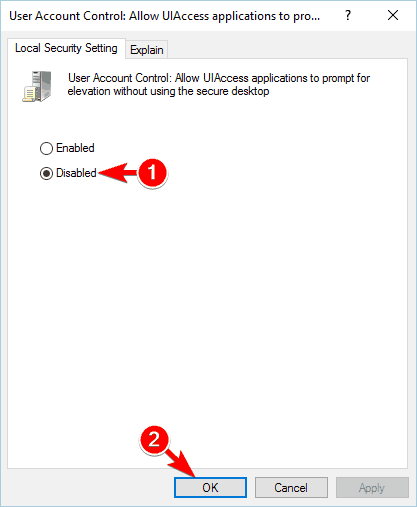
  6. After disabling all policies, close Group Policy Editor and check if the problem is resolved.

12. Uninstall problematic applications

  1. Open the Settings app and go to the System section.
  2. In the pane on the left, navigate to Apps & features, select the problematic app from the list on the right, and then click on Uninstall.
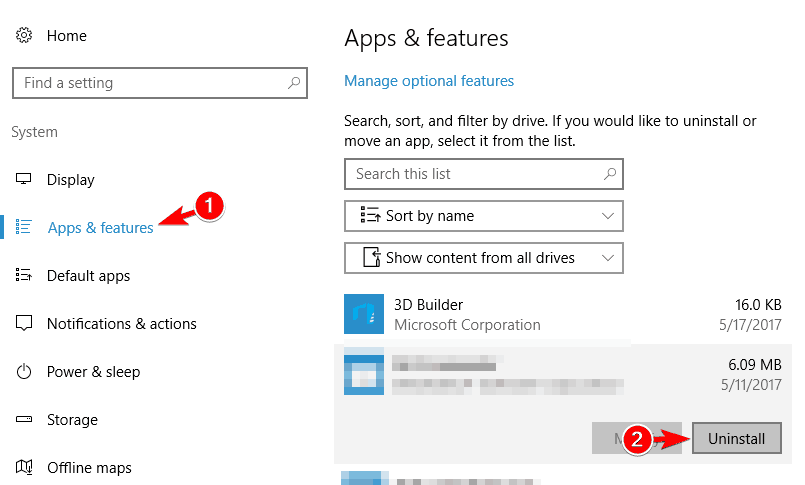
  3. Follow the instructions on the screen to remove the app.

Sometimes third-party applications can cause certain errors, and one of those errors is The extended attributes are inconsistent. To fix the error, you need to find and remove the problematic application.

Some users reported that Crowdstrike app was causing the problem, so if you have this application on your PC, we urge you to remove it.

13. Perform a System Restore

  1. Press Windows + S and enter system restore. Choose Create a restore point from the menu.
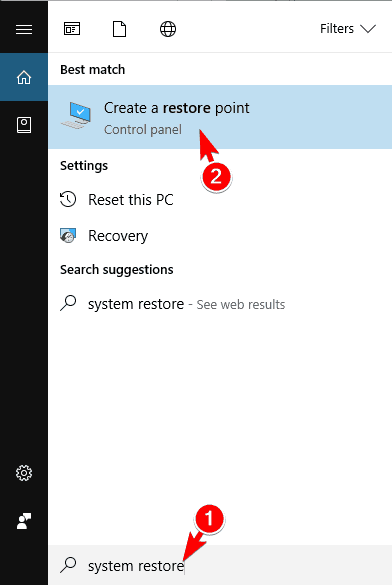
  2. Click on the System Restore button.
  3. Choose Next.
  4. Check the Show more restore points option in the bottom left corner. Select the desired restore point and then click on Next.
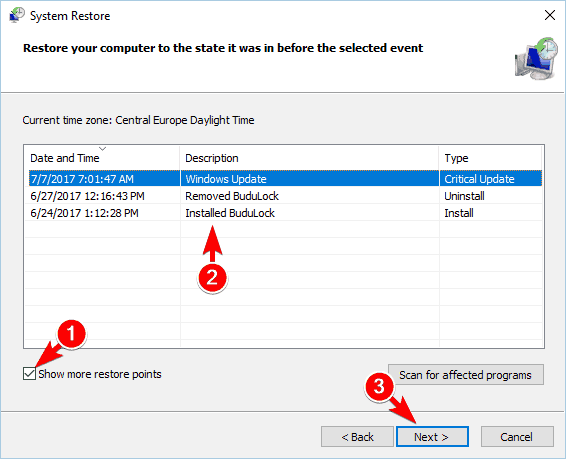
  5. Follow the instructions on the screen to complete the process.

If The extended attributes are inconsistent error message started appearing recently, you might be able to fix it by using System Restore. This is a useful feature that allows you to restore your PC to the previous state and fix many problems.

After your PC is restored, the error should be resolved, and everything will work normally.

14. Reset Windows

Tip icon Tip
Before you proceed, make sure to create a bootable USB for Windows 10 as the process requires reinstalling the OS. Also, use dedicated backup software to create a copy of the files to retrieve them later.
  1. Open the Start Menu, click the Power button, press and hold the Shift key and then choose Restart.
  2. Choose Troubleshoot, then Reset this PC, and click on Remove everything.
  3. If asked to insert installation media, be sure to do that.
  4. Select Only the drive where Windows is installed, and then click Just remove my files.
  5. Now you’ll see a quick list of changes the reset will perform. To start the reset process, click the Reset button.
  6. Follow the instructions on the screen to complete the process.

After the process is done, you’ll have a clean installation of Windows 10. You’ll have to move your personal files from the backup and install all applications again.

However, the problem with this error should be resolved. This is a drastic solution because it will remove all your files, so use it as a last solution.

ERROR_EA_LIST_INCONSISTENT and The extended attributes are inconsistent errors can prevent you from running certain applications on your PC, but you should be able to fix them by using one of our solutions.

Before you leave, find out some quick tips to boost the performance of Windows.

For any queries or to share more solutions with us, drop a comment below.

Error code 805a8011 on Windows 10/11 mobile devices [FIX]

If you are using the Windows operating system on your mobile devices, you must have definitely stumbled upon the error code 805a8011. This usually occurs when you are trying to install or update your mobile application from the Windows Store.

Error code 805a8011 may be due to issues related to app connection problem, low storage space, issues with syncing to Microsoft account, and many more. We have compiled a list of solutions to fix the error code 805a8011 problem on your mobile devices.

How to fix error 805a8011

Solution 1 – Change your network

Switching your Internet connection should fix the error code 805a8011 problem. If you used a public Wi-Fi network, you can disconnect it and use another Internet connection. You can also use another mobile Internet as the case may apply and try to access the Windows Store.

error code 805a8011

Solution 2 – Free up your storage space

Error code 805a8011 problem may be caused by low or insufficient storage space on your mobile phone. You need to free up some space so as to enable your Windows mobile devices to accommodate new applications or update already existing apps. This can be done by deleting unwanted apps, videos, music, photos, and other files up to a minimum of 100MB. The error code 805a8011 should probably be fixed by this method.

Solution 3 – Check your Date and Time Settings

The error code 805a8011 can appear because of the incorrect date and time settings in the phone operating system. Check the date/time and time zone settings to ensure they are correct. Disable automatic update of date and time using the Internet, and set the date/time parameters manually. Restart the Windows phone, reconnect to the Internet, and access the Windows Store.

Solution 4 – Synchronize your Microsoft Account

Due to unspecified data, Microsoft may prevent you from logging into the Microsoft account for security reasons. Check to see if all your Microsoft profile fields are full. Before you proceed, you need to log in from your PC to your Microsoft account, fill out all the fields provided, and accept the license agreement. Follow these steps:

  • Login to your Microsoft account and ensure that Microsoft services are working properly. If you do not have a Microsoft profile, sign up at Windows Live
  • In your Windows mobile device, go to Settings
  • Click on the Email + accounts
  • Press and hold on Microsoft account
  • Tap on the “Synchronize” menu

After these steps, it is highly recommended that you reboot your mobile device and access the Windows Store. Try to download new apps or update installed apps. This solution should fix the error 805a8011 problem.

Solution 5 – Reset your Windows phone

Resetting your Windows phone and reverting back to the default settings should probably fix the error code 805a8011 issue. Before you proceed, it is highly recommended that you backup your files such as documents, contacts, music, pictures, videos, music, and other important files. To back up your files, follow these steps:

  • On your Windows mobile device, go to “Settings”
  • Tap the “Backup” menu
  • Then, tap on “Apps+Settings” option
  • To back up only your settings, tap on Settings Backup
  • To back up only your apps, tap on App Backup.

Note: It is very important that you backup important stuff before you reset your Windows phone.

There are two steps available to reset your Windows mobile devices which is either soft reset or hard reset.

Steps for the Soft Reset

  • While your Windows mobile device is in an active state, press down and hold Volume and Power buttons until you feel that your phone is vibrating.
  • Release the buttons afterwards and wait while the device starts rebooting automatically.
  • Check whether you can access Windows Store or not.

With the soft reset method, if you still receive error code 805a8011, then you have to go for the hard reset method. Hard reset solution is available for both Windows 8 and Windows 8.1 mobile devices.

Note: Your Windows mobile device will revert back to the factory state when your reset it.

Steps for the Hard Reset (Windows 8, Windows 10)

For Windows 8 and Windows 10 mobile devices, follow these steps for hard reset:

  • Turn off your Windows mobile device
  • Press and hold the Volume down key and plug-in your charger. Your Windows device would start showing an Exclamatory Sign (!) on your screen
  • Then, press the keys as in the following order:
  1. Volume Up
  2. Volume Down
  3. Power
  4. Volume Down.

Your Windows phone will automatically restart. You have successfully hard reset your Windows 8 phone.

Steps for the Hard Reset (Windows 8.1)

Windows 8.1 mobile devices can be hard reset by following these steps:

  • While in active state, go to “Settings”
  • In the Settings menu, tap on About
  • Proceed by tapping on “Reset your Phone” menu
  • Then, two warnings would prompt on your screen. Tap “Yes” to proceed to the next step
  • Your mobile device will restart automatically

You have successfully reset your Windows 8.1 mobile device.

In conclusion, the solutions above can fix the 805a8011 error on your Windows mobile devices. You can now install new apps or update existing apps.

RELATED STORIES TO CHECK OUT:

Project Cars 2 reported bugs: multiplayer doesn’t work, jagged graphics, and more

Project Cars 2 is now live on both Windows PCs and Xbox One. If you want to drive the most powerful cars in the world and experience thrilling car races, then this is the right game for you.

Unfortunately, many players are reporting various issues after they install the game. In this article, we’re going to list the most frequent Project Cars 2 bugs reported by gamers in order to give you an idea of what to expect. We’re sure that Bandai Namco will patch these issues as soon as possible, but until then, gamers need to find a way to deal with them.

Project Cars 2 reported issues

UPD is missing

It appears that UDP did not make the cut for the initial console release.  If you’re looking for the UDP option but can’t find it, you’re not the only one as the option is currently unavailable on the Xbox One. Hopefully, the title’s upcoming update will fix this issue.

Logitech G920 issues

Gamers report that Logitech G920 wheels break the game, with the wheel suddenly pulling left and right, making it very difficult for players to keep their cars on the track.

I was really excited for this game…day one controller issues yet again, same as project cars one (Gamepad that time)
When driving in a straight line, or sitting still on the track. The Logitech G920 wheel violently yanks left & right non-stop, which makes the game unplayable. I double checked and the issues doesn’t exist in project cars one. Just project cars 2. (The wheel still yanks left & right in corners, just not as severely)

For more information on the wheels compatible with the game, check out this list.

AccuForce is not detected

Many players report that Project Cars 2 won’t detect AccuForce, so there is no way to set steering inputs. The good news is that one resourceful player has a workaround to this problem: when assigning the Steer Left and Steer Right, simply return the wheel to center as soon as you’ve turn it to the respective direction in order to assign the function. Do not turn the wheel to its extent and hold it there.

Anti-aliasing is ineffective

Gamers report that PC2 doesn’t always offer the best possible graphics experience as jagged edges are the norm.

MSAA, FXAA, SMAA, all are pretty ripe with obvious and distracting aliasing on every setting in PCARS2. And I don’t have enough power for high enough of Super Sampling for that to make a difference.

Would it be possible to add a TAA (Temporal Anti-Aliasing) option in the near future, Slightly Mad Studios? […] at this point I’d take the the most severe post-TAA blur over all the jagged edges in an instant. Would love to have it as an option with the rest, would be incredible on so many tracks.

Joining online games is a difficult task

Many PC2 players report they can’t enter lobbies. As a result, they can’t join multiplayer online sessions. There are also various errors you may encounter while trying to connect to lobbies, including the ‘Host migration failed” error.

Help! i cant join online game sessions! I can see the game sessions but get stuck on the joining screen. it then goes to “disconnected from game session”. Anyone have some advice, “restarted PC already and tried running it as admin.

The good news is that the game’s devs are aware of this issue and are working on a fix.

These are the most common issues affecting Project Cars 2. If you encounter other problems, use the comments below to tell us more your experience!

RELATED STORIES TO CHECK OUT: