Cortana missing or not working after a Windows 10 major update

It appears that the Windows 10 Anniversary Update and Cortana don’t get along very well. Many users complained Cortana was missing after they installed the update on their machines. Other users were a bit luckier, they could find Cortana, but they couldn’t get her to work.

The fact that Cortana is not working on the latest Windows 10 version is surprising, taking into account all the publicity Microsoft created around its personal assistant.

After the Anniversary Update Cortana has gone

Cortana missing or not working Anniversary update

“[…] now Cortana is missing. When I click on the Search icon, there is no notebook, no light bulb, and if I try Settings, I just get “Change what Cortana knows about me in the cloud.” No sound commands in Cortana are working, from “Hey Cortana” to anything in Search. I can’t search by voice.”

Users can no longer use Cortana after updating to Windows 10 version 1607

“So as soon as the update to Anniversary update finished, I hit up Cortana and after a second it changed back to the regular “search” and doesn’t let me turn on Cortana back again.”

Other users managed to get Cortana to work to a certain extent. However, it appears that not all the options are available: the info cards, the notification mirroring and other features are unresponsive, or they are missing altogether.

How to fix Cortana issues in Windows 10 Anniversary Update

The only solution we found to fix Cortana-related issues in the Anniversary Update involves modifying the registry. If you managed to find other workarounds, list them in the comment section below.

cortana not working anniversary update registry

  1. Type regedit in the search box > hit Enter
  2. Go to HKEY_CURRENT_USER\SOFTWARE\Microsoft\Windows\CurrentVersion\Search
  3. Change BingSearchEnabled from 0 to 1.
  4. Make sure all the Cortana flags are set to 1.
  5. Try to use Cortana again.

RELATED STORIES YOU NEED TO CHECK OUT:

Partition disappears in Windows 10 Anniversary Update

Microsoft hoped the Windows 10 Anniversary Update would literally be a revelation for all users, but shortly after installing the update, users encountered various issues. Despite Microsoft’s efforts to anticipate all the possible bugs, the list of complaints is getting longer every day.

Many users are reporting that some of their partitions simply disappeared after installing the Anniversary Update. Usually it’s the smallest partition that disappears, although we couldn’t say for sure whether the partition is deleted or if Windows simply doesn’t detect it. Some users are informed that the partition is not allocated, while others can detect it once they install partition management apps.

Users complain their partition is gone after Anniversary Update

I  began installting the update yesterday evening before going to bed. Now I see that my D: partition is gone. In the disk manager it says “149,05GB Unallocated”. It is a 160GB Intel SSD. I had most applications installed and all my personal files on this partition.

Users report partition won’t mount after Windows 10 Anniversary Update

partition gone anniversary update

Since updating to the Anniversary update earlier one of my partitions won’t mount. It’s on a 3TB Seagate ST300DM001 HDD which I have split into 1 2TB partition and 1 1TB partition. The 1TB partition mounts fine however the 2TB doesn’t, this was working fine before the update in Windows 10 and the drive is using GPT.

One program that helps in such situations is the MiniTool Partition Wizard. The program successfully detects the partition, allows users to assign a drive letter and access the partition in File Explorer.

Other users suggesting installing Acronis Virtual Disk Drive for 2 TB+ drives, and confirmed that in their case the partition magically re-appeared with all the files intact. You can try this workaround as well, download Acronis Virtual Disk Drive, and see if it works for you.

RELATED STORIES YOU NEED TO CHECK OUT:

Third party Pokémon GO app for Windows 10 is now available

Pokémon GO is an augmented reality game was only released for Android and iOS. However, a few weeks ago, we found out about a company named ST-Apps that’s working on a third party Pokémon GO app for Windows 10 Mobile.

We are pretty sure that not many thought this game would be available for Windows 10 Mobile so soon, but it seems the Windows Phone community inspired the developer company to make an effort and release it as soon as possible. ST-Apps seems to have figured out a way to sideload Pokémon GO using its source code from GitHub.

However, gamers will still need to make an account on an Android or iOS device, something that can be done via Bluestacks). Keep in mind that side-loading will need to be enabled in order to install the app as it can’t be found on the Windows Store. The downside of Pokémon GO for Windows 10 Mobile is that it lacks the augmented reality features the game comes with. The third party Pokémon Go app can be installed on devices that run on Windows 10 Mobile, but there are developers who could bring it to Windows 8.1 OS by using the source code.

How to install third party Pokémon Go Game On Windows 10 Mobile:

– You will need to create a Pokémon Trainer Club account by heading to this page
– Log into Pokémon GO from an Android/iOS device to select your starter (You can do this via Bluestacks)
– Logout from the official Pokémon GO application
– Enable sideloading on your Windows 10 Mobile device
– Download the certificate from here and the app file from here
– Copy the two files on your mobile device, open the file manager, launch and install the .cer file. After that, launch and install the .appx file.
– Launch the game and log into your Pokémon GO account to start playing!

RELATED STORIES TO CHECK OUT:

Windows 10 Anniversary Update brings a whole new set of emojis

Anniversary Update for Windows 10 is now released, and it brought a lot of interesting additions. One of the additions that you might not notice at first look, but will definitely love once you find it is a whole army of new emoji for Windows 10, just like we told you before.

The update completely changed Windows 10 emoji set, by redesigning some of existing emoji, but also by introducing brand new ones. According to Emojipedia, the new list of Windows 10 emoji now counts 52 thousand emoji! This sound unbelievable, but is completely true, there are infinite combinations of little guys you can use while chatting with your friends.

windows 10 anniversary emoji

“Microsoft today released Windows 10 Anniversary Update which includes a completely new emoji design, full Unicode 9 emoji support, as well as interracial and single parent families — a first for any operating system. This version of Windows includes over 52,000 new emojis when all family combinations are taken into account. You read that right, fifty two thousand.”

Emoji on each Microsoft’s platform, including Windows 10 PCs and Tablets, and Windows 10 Mobile devices, were updated with the Anniversary Update. However, only users who already managed to install the Anniversary Update on their PCs are currently able to use all these emojis, as the update still has to arrive to Windows 10 Mobile.

windows 10 anniversary update emoji

You can take a look at all emoji on Emojipedia, but be aware, it might take a while until you manage to check each one. Also, don’t forget to tell us in the comments, what’s your favorite Windows 10 Anniversary Update emoji?

RELATED STORIES YOU NEED TO CHECK OUT:

85 changes introduced with Windows 10 Anniversary Update

The Windows 10 Anniversary Update promises to take the Windows user experience to the next level with a plethora of interesting features. These improvements were added following user feedback, so many users will be happy to see that Microsoft took their opinion into consideration and updated Windows 10 accordingly.

The changes made to Windows 10 improve many areas of the OS: The Start Menu displays more apps, Cortana is more reliable, the Notification Center is more user-friendly, while the Edge browser now supports a series of new features. However, it’s hard to notice all these improvements unless you use them, which is why we’re presenting you with the 85 new features the Anniversary Update includes.

85 Windows 10 Anniversary Update Improvements

  1.  The default e-mail address is no longer displayed on the lock screen.
  2. You can control Music playback from the lock screen itself.
  3. The Login screen now uses a background image same as the lock screen.
  4. New Windows activation troubleshooter to resolve issues with windows activation.
  5. Microsoft account is now linked with your digital license which activates Windows.
  6. The Start menu UI has been updated.
  7. Lists of the most used applications and all applications have been combined together.
  8. Vertical bar added to the left side of the menu which contains settings, Explorer and file options.
  9. The Start menu now displays up to three newly added applications instead of one.
  10. Applications that start with numbers are now listed under the symbol “#” instead of “0-9”.
  11. Cortana is available on the lock screen (you must first activate in the settings).
  12. Improved synchronization of Cortana and Action center.
  13. Cortana has been integrated with Maps.
  14. Reminders are shown as a list and can use images and application data also.
  15. Music search-Cortana can search for music and supports playback from Groove music pass(US only)
  16. You can set a timer using Cortana.
  17. Sync your notifications on the PC to phone and vice versa is enabled through Cortana. You can get information about battery, calls on other devices, etc.
  18. Cortana can read your  Office 365 emails, reminders, etc.
  19. Cortana shows sound wave instead of random characters when it is listening to you.
  20. Search shows Onedrive results too.
  21. Added ability to show a specific window on all virtual desktops.
  22. Switch between desktops is now possible with the new four-finger gestures on the Touchpad.
  23. Indicators on the taskbar for Universal modern apps.
  24. The system clock is integrated with events from the calendar application.
  25. The system clock will be displayed on each monitor when using a multi-monitor configuration.
  26. The Flyout UI of volume is improved-now you can change the source of the Audio and control volume accordingly.
  27. Explorer Icon would be removed by default.
  28. is moved to the right of the system clock.

  29. Notification Center icon now shows the number of notifications.
  30. Notifications between mobile and desktop versions of Windows are now synchronized.
  31. The Wi-Fi icon now has an additional interface instead of the on/off network.
  32. The options are available to the new setting priority and the allowable number of notifications from the same application and configuration buttons at the bottom of the center.
  33. You can reject any notification by clicking the middle mouse button.
  34. Now you can remove/add individual items from the quick actions.
  35. Extensions support has been added. The notable extensions available now are Adblock Plus, Translator, Last Pass and Web Clipper.
  36. Tabs can be pinned so that accidentally closing the browser doesn’t remove them.
  37. Switch back and forth from web pages using swiping left or right.
  38. Right clicking the back button would result in the list of web pages history.
  39. Added an option to clean-up the data when the browser is exited.
  40. The favorite bar can now show icons only,allows renaming and creating folders.
  41. Paste/search and paste and go options up in the address bar depending on the information present on the clipboard.
  42. A warning displays when you close Edge wh a download is in progress.
  43. The default download location of the items can be changed.
  44. Added importing favorites support from Firefox.
  45. Favorites are shown in a tree structure in hub.
  46. When the display window is narrow,the share and make a note button get converted into an icon.
  47. What’s new and tips page added to the main menu of the browser that leads to a page of Edge change-log.
  48. Hub can be pinned so that it would open when we start Edge.
  49. New download prompt that would ask you for either save/run.
  50. Duplicate favorites are allowed but they should not be in the same folder.
  51. New Skype Universal app replaces phone and video app.
  52. Added connect app which brings continuum experience to a PC.
  53. Added Sticky notes as a modern app.
  54. Feedback hub has been introduced replacing Insider hub and windows feedback.
  55. New shortcut for feedback hub-Windows key+F.
  56. New updated versions of Sports, News, Music Films and TV etc.
  57. Sway is merged with photos app.
  58. Windows Defender can be used even if another 3rd party antivirus is installed.
  59. Microsoft WiFi has been discontinued.
  60. A new tool to clean install Windows.
  61. Now applications can be run in light or dark mode.
  62. Taskbar properties have been merged in the Settings app.
  63. The apps can now be reset in the factory state. The option is present in System>Apps. This is quite handy when an app doesn’t open.
  64. A network test button has been added to test the network.
  65. Each subcategory of a category has its own icon.
  66. Location improvements-now approximate locations can be used.
  67. Screen reader and magnifier improvements.
  68. Added a separate option for Windows Insider program in Update and security.
  69. Active hours in Windows update. The computer doesn’t restart in the time interval of active hours.
  70. The latest information on windows update link has been moved to advanced options.
  71. Developer subcategory in update and security has been improved.
  72. The search bar in the Settings app has been moved to center and is enabled by default. Earlier to search you had to click on the text box first.
  73. Improvements to the subcategory bar-the colored text would tell the active section.
  74. New icons of update and security and Windows update.
  75. The taskbar can now be hidden when in Tablet mode.
  76. List of all applications is now shown in full screen rather than a list.
  77. Optimization of Onecore, the shared code of windows used to develop windows on all platforms.
  78. New Windows Ink feature: Windows Ink is enabled by default
  79. New interface for installation progress of Windows updates
  80. Improved battery life of a device in standby mode.
  81. Native Ubuntu Bash support.
  82. The User interface of User account control has been changed.
  83. Added a new group policy to remove 260 character limit on paths of files and folders on NTFS.
  84. New emoticons.
  85. Command Prompt display has been improved on High DPI displays.

What are your favorite Windows 10 features? What other features should Microsoft add to Windows 10?

RELATED STORIES YOU NEED TO CHECK OUT:

Fix: Can’t install Edge extensions in Windows 10 Anniversary Update

The Windows 10 Anniversary Update arrived on the scene on August 2nd, and soon after installing it many users hit the forums, searching for a solution for the issues they encountered.

The Redmond giant has long been boasting about Edge’s new features, particularly about the plethora of extensions users would be able to install. However, quite a significant number of users reported they couldn’t install extensions for Microsoft Edge after downloading the Anniversary Update.

Here is the problem: This app encountered a problem. Please reinstall it to repair. Same circle. Reinstall and same message pop up. Cannot get out. […]

This problem only applied for extension in Window Store. Any other app installed and worked fine. This problem is driving me crazy. 4 months waiting and nothing but pain. What should I do? I don’t want to do a clean install.

The Anniversary Update keeps on informing users that extensions need repair and asks them to reinstall Edge extensions over and over again. Users confirmed that this issue occurs with every Edge extension.

It appears that the bug is not with extensions or Edge, it seems that the Windows Store itself is the issue. It can update apps, but it cannot install them properly. Once apps are downloaded, they simply crash or won’t launch at all.

Fix: Can’t install Edge extensions in Windows 10 Anniversary Update

Solution 1 – use PowerShell

1. Launch Powershell as admin.

fix install edge extensions powershell anniversary update

2. Type Get-AppxPackage *pocket* | Remove-AppxPackage to uninstall pocket.

powershell remove package anniversary update

3. Type Get-AppxPackage -AllUsers| Foreach {Add-AppxPackage -DisableDevelopmentMode -Register “$($_.InstallLocation)AppXManifest.xml”} to reinstall all stock apps including the Windows Store.

fix install edge extensions

4. Install Pocket through the Windows Store.

Solution 2 – Use the CCCleaner

  1. Launch CCleaner > go to Tools and Remove Programs
  2. Select the Edge extension and removed it.
  3. Go to the Store through Edge > install the extensions you want.

RELATED STORIES YOU NEED TO CHECK OUT:

Windows 10 Anniversary Update improves the Windows Store

Microsoft improved every important aspect of Windows 10 with the Anniversary Update. One of the features drawing the most attention from users is definitely the Windows Store. The Anniversary Update introduced some visible changes to the Store that users will see once the update is released.

Besides all the changes Microsoft introduced to the Store, it also paved the way bigger updates in the future. And by bigger updates, we mean  Xbox Play Anywhere, which is set to be released this fall. In case you’re not familiar with Xbox Play Anywhere, this feature allows you to play a single game on multiple Microsoft platforms, including Windows 10 PCs, Windows 10 tablets, and Xbox One.

While this feature has yet to be released, the Windows Store already allows you to purchase a game that will eventually work on both platforms. The list of games compatible with Xbox Play Anywhere is still short with just a few newer titles like Minecraft, Quantum Break, Forza Motorsport, and more. This will also affect media purchases, as well.

windows 10 store anniversary update game description

Preparation for Xbox Play Anywhere is definitely the biggest highlight of the post-Anniversary Update Windows Store, but it also contains some refreshing features that we mustn’t forget about: The Store was drastically redesigned and now has a more distinct Windows 10 feel.

Apps and games descriptions are now richer and sport improved user ratings, system requirements, and more. The Store will even tell you if a certain game is compatible with your computer so you don’t end up buying a game that you can’t play.

windows 10 store anniversary update sys requirements

Of course, perhaps the biggest problem of the Windows Store and the UWP platform itself remains. Windows 10 won’t receive many new apps from third-party developers even after the Anniversary Update, but that’s not something Microsoft could fix with the Anniversary Update.

All in all, the Windows Store is now much better and more appealing — and the best is yet to come.

What do you think about the revitalized Windows Store in the Anniversary Update? Is there something you want to see in the Store that Microsoft still hasn’t bring? Tell us in the comments below!

RELATED STORIES YOU NEED TO CHECK OUT:

Top 10 Anniversary Update features to know about

Microsoft is boasting that its Anniversary Update is the best version of Windows ever, promising its new features will impress every users. Since not everyone had the chance to test out the new Windows 10 version, we’ll quickly list the most important features that come with the Anniversary Update for your reference

Here are the best Anniversary Update features

1. The new Windows 10 Refresh Tool

The Anniversary Update makes it easier for users to clean install Windows 10. There is no need to perform complex actions such as configuring your BIOS. All you have to do is download the RefreshWindowsTool.exe and follow the on-screen indications.

Thanks to the new Windows 10 Refresh Tool, it takes less time to clean install Windows 10, and all users with basic tech skills can perform the action.

For a step-by-step guide on how to use the Windows 10 Refresh Tool, check out our fix article.

2. You can now reactivate Windows 10 after changing your hardware

You can now link your Windows 10 digital license to your Microsoft Account. Thanks to this new feature, you can easily reactivate Windows 10 after having upgraded your hardware.

If the message “Windows is not activated” is displayed on the screen, then the troubleshooting option allowing you to quickly reactivate your Windows 10 will be visible.

  1. Go to Settings > Update & security > Activation > click the Troubleshoot button
  2. Click I changed hardware on this device recently.
  3. Sign in with your Microsoft account.
  4. Under Reactivate Windows 10, check This is the device I’m using right now > click Activate.

3. Windows Defender Limited Periodic Scanning

windows defender limited periodic scanning

Up until recently, Microsoft didn’t allow Windows users to run two antivirus programs at the same time. Most users choose to run 3rd party product instead such as Norton instead of running Microsoft’s native Windows Defender.

However, while 3rd-party antiviruses cannot fully protect your system, Microsoft can’t force users to run Windows Defender either. Therefore, the tech giant found some middle-ground: It now allows users to run 3rd-party antivirus programs together with Windows Defender.

The new Limited Periodic Scanning feature is actually only available for devices running 3rd-party antivirus programs. It periodically scans your computer and removes any threats that remained undetected by your full-time antivirus.

4. The Network Reset feature

network reset windows 10

You can now reset your network adapters with just a couple of clicks. This method allows you to fix the most common Wi-Fi or Ethernet issues preventing you from connecting to the Internet.

  1. Go to Settings > Network & internet > Status > Network Reset.
  2. Click Network Reset > Yes.

5. Windows 10 Mobile Hotspot

windows 10 mobile hotspot

Thanks to this new feature, you can now turn your Windows 10 PC into a mobile hotspot and share your internet connection with other devices.

  1. Go to Settings > Network & Internet > Mobile hotspot.
  2. Select Edit > Add a new network name and password > Save.
  3. Turn on the Mobile hotspot to share your cellular data connection.

6. More control over app battery usage

Battery life is very important, especially when you are on the go. Unfortunately, Microsoft’s devices have a long history of battery issues. The Surface devices have been plagued by battery issues, and the battery drain problems on various Lumia models are a never-ending saga.

The Anniversary Update helps users better manage the app battery usage by restricting apps from running in the background. Also, the feature will turn off the apps you’re not using if high battery drain is detected.

1. Go to Settings > System > Battery > click Battery usage by app > customize the feature

battery usage by app windows 10

7. Active hours update

active hours windows 10

Many Windows users complained the OS installed updates when they were using their computers, giving them no time to save the files they were working on. Fortunately, Microsoft heard your complaints. Now, Windows 10 lets you select the time you’re actively using your machine to avoid any conflict.

  1. Go to Settings > Update & security > Windows Update
  2. Click Change active hours > select the time you’re be actively using your computer
  3. Save your settings.

8. Dark Mode

windows 10 the dark mode

Dark themes are useful if you’re using your laptop or tablet during the night. Thanks to the Anniversary Update, you no longer need to change the Registry to enable Dark Mode. You can activate this mode with a few clicks instead.

  1. Go to Settings > Personalization
  2. Go to Colors > choose Dark mode at the bottom of the screen.

9. Windows 10 now syncs phone notifications to your PC

cortana windows 10 phone notifications

Cortana is now a better assistant and can push notifications from your phone to your PC. There are no limitations regarding the phone platform you’re using: Android, iPhone, and Windows Phone notifications will all appear on your Windows 10 PC.

  1. Go to Cortana Settings > Send notifications between devices > click Edit sync settings > personalize your Settings

10. Microsoft Edge extensions

edge extensions windows 10

Using Edge extensions is easier now. You can simply download the extensions you want from the Microsoft Store and use them in your browser. Edge extensions are only available for Windows 10 PC; Microsoft already announced extensions wouldn’t come to Windows 10 Mobile anytime soon.

What are your favorite Windows 10 features?

RELATED STORIES YOU NEED TO CHECK OUT:

Windows 10 Redstone 2 Preview builds already being tested

Microsoft doesn’t waste any time! The first Redstone update, aka the Anniversary Update, for Windows 10 is not even out yet, and the company has already started working on the second one. In addition, there’s word around the internet that Microsoft is testing a new Windows 10 Preview build internally, and it should be available to Windows Insiders soon.

Since the Anniversary Update is going to be released by the time Microsoft pushes a new Preview build, we can say that it will mark the start of the “Redstone 2 builds cycle.” According to BuildFeed, the first Redstone 2 build for Windows 10 Preview will be dubbed 14894 and should be available to all Insiders who choose to stay in the Insider Program after the Anniversary Update.

Despite the big jump in the number, the new Windows 10 Preview build probably won’t introduce any new features. That is completely normal since Microsoft needs some time to prepare new additions. We remind you that when Microsoft started shipping Redstone 1 builds to Insiders, we waited more than a month for new features.

Speaking of Redstone 1 Preview builds, Microsoft released the first Redstone Preview build to Insiders right after the November Update, so the fact that the company will do the same with Redstone 2 builds is not surprising. We still don’t know anything about potential Redstone 2 features but as soon as Microsoft announces something new, we’re going to make sure to let you know. For now, let’s focus on the Anniversary Update which will be released tomorrow.

If you’re interested in testing Redstone 2 Preview builds, tell us what features you expect from the next major update for Windows 10 in the comments below! 

RELATED STORIES YOU NEED TO CHECK OUT:

Stubhub, IFTTT, and even Spock come to Skype with new bots

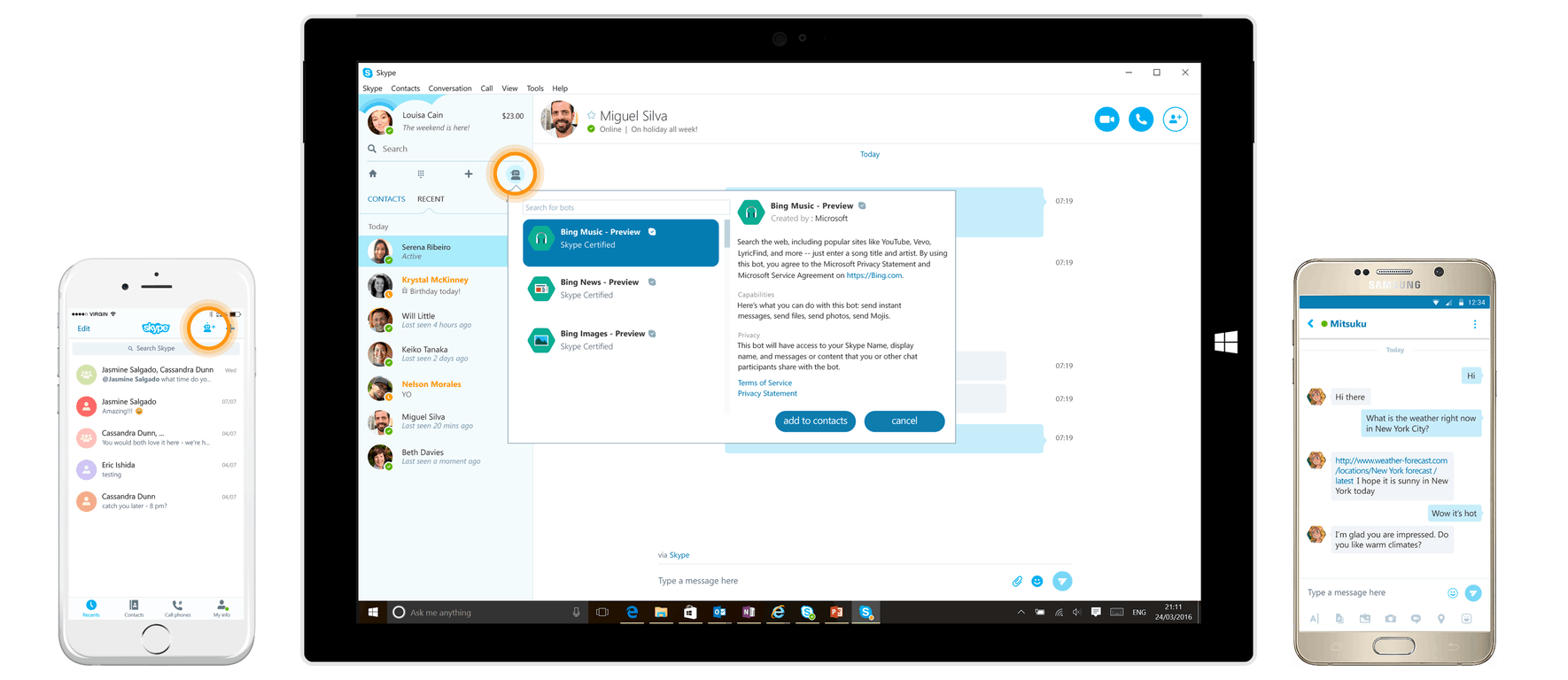
Satya Nadella’s vision for artificial intelligence has been a driving force in the creation of interactive APIs across Microsoft products. One such example is the development of bots for Skype. The communication application has embraced the technology as a means to enhance the way humans converse amongst themselves. Bots are useful tools that take advantage of cards and natural language recognition to reply with relevant and non-invasive responses.

Many Skype users have already gotten their chance to play with the bots through the convenient Summarize and often hilarious Murphy. According to the blog post released today, the team is rolling out some new collaborations, partnering up to provide more chat options for customers.

  • Skyscanner Bot – A travel search engine that sends back real-time ticket prices based on location suggestions.
  • IFTTT Bot – Also called “If This, Then That” gives you the power to set up triggers and connect apps, devices, and websites with personalized integration.
  • StubHub Bot – Find the tickets for nearby artists, shows, events, and performers easily.
  • Hipmunk Bot – A travel assistant that will find the tickets for your next trip and help you secure the flight of your choice.
  • Spock – Everyone’s favorite second in command from the Star Trek universe willing to share his bout of logic to anyone that will listen.

The bots are easily added onto your Skype directory by just clicking the “Add to Contacts” button at the link provided. They can be included in personal conversations, group conversations, or talk to one by yourself if you’re feeling the need for company and information.

More bots are expected to join the Skype contacts as a result of the very first Skype Bot Hackathon held earlier this summer. Some of the upcoming creations include bots to help choose dinner, find that song you’re dying to listen to, and search for just the right health insurance. These and many more will be coming as the Skype team continues to develop easier ways to communicate and interact with your contacts.

Windows Maps get Ink support in Fast Ring Insider update

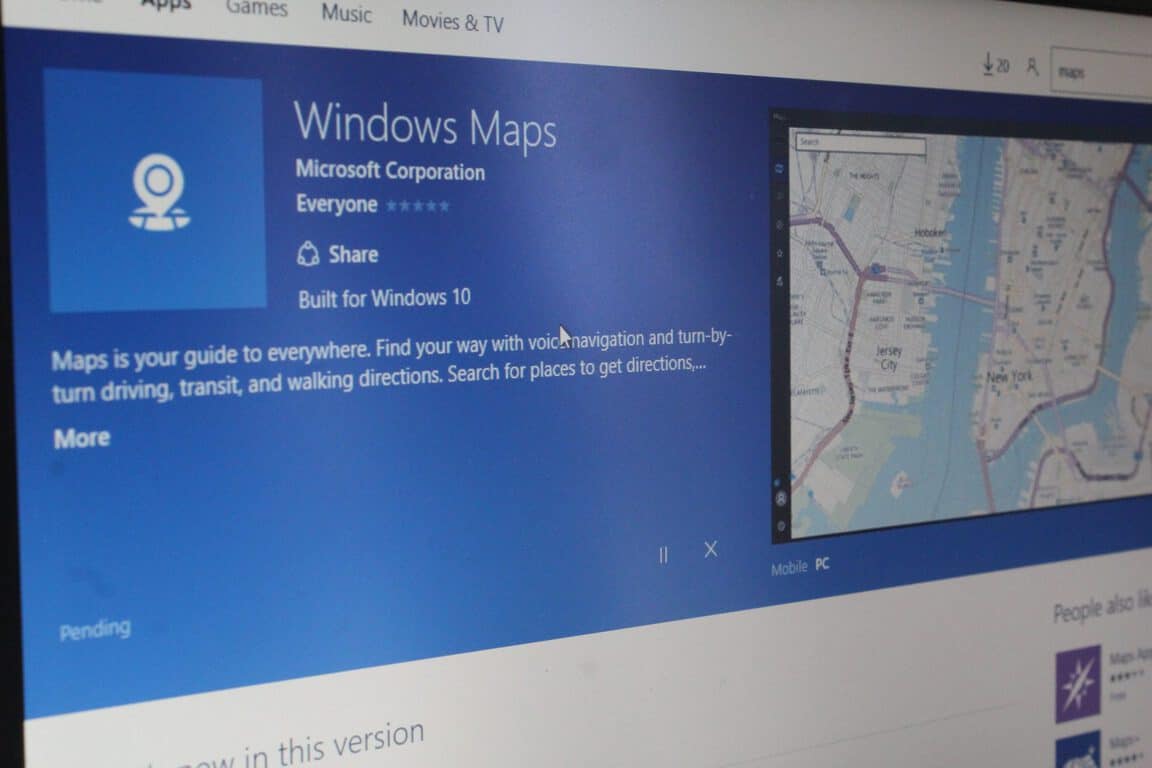
As we have covered before, the Windows 10 Anniversary Update introduced the Windows Ink feature to Microsoft’s latest Windows operating system. Windows Ink delivered many new features to Windows 10, including Sketchpad, Screensketch, and Screenotes. Perhaps one of the most anticipated features, however, is the ability to mark up and draw on any Windows 10 App, including stock apps such as Maps and Photos.  This ability to draw on maps and Photos is now live, but only for Windows Insiders in the Fast Ring (via Neowin.)

An update to Windows Maps is now delivering the ability, so if you’re a Windows Insider on the fast ring, be sure to head over to the Windows Store and update your app now!  Once you update, you will be able to draw anywhere on your Map, create and measure custom routes, or simply mark up the map and make notes for remembering.

The update should bring the app to version 5.1608.2117.0 overall, and make for a fun Windows Ink experience. So. how will you use this feature? Are you excited to finally be able to draw on your favorite Windows Maps? Let us know your thoughts by dropping us a comment below.

Is the Weather Channel app coming to Xbox One?

When the Xbox One version of the Windows 10 Anniversary Update dropped over the weekend, it brought support for Cortana, support for Windows 10 UWP apps to the Xbox One Console, and so much more.  In the few days since launch, not many UWP apps have been released or ported over to the public build of the Xbox One, but a post seen on Reddit now hints at the release of a new more apps soon.

The Weather Channel App Compatible on Xbox One (Image via u/Krose7298)

As seen above, the Windows Store listing for the Weather Channel App displays an Icon which mentions that the app itself is available on Xbox. So, to the Reddit user, this indicates that the app may supported on Xbox in the near future.  Another Reddit user in the same thread, however, also discovered the same “available on Xbox” icon on many other apps, including  Fitbit, Dropbox, Viber, Roku, and Calculator.

This could both be a glitch in the Unified Windows Store, but it also may be an indication that these apps may be heading over to the Xbox One soon. We would love to hear your thoughts on what this could mean, so be sure to drop us a comment below!


How to: Recharge your phone with laptop in Sleep Mode

Charging your smartphone is simple if you have a power adapter or a computer, but what if you want to preserve power? You can recharge your phone from a laptop while laptop is in Sleep Mode, and today we’re going to show you how to do it.

How to recharge your phone with laptop in Sleep Mode?

Solution 1 – Change Power Management settings for USB Root Hub

If you want to charge your smartphone while your laptop is in Sleep Mode you need to change few Power Management settings. To do that follow these steps:

  1. Press Windows Key + X to open Power User Menu and select Device Manager from the list.
    recharge-phone-laptop-sleep-mode-device-manager
  2. When Device Manager opens expand the Universal Serial Bus controllers section. You should see several USB Root Hub devices available.
    recharge-phone-laptop-sleep-mode-USB-root-hub
  3. Double click USB Root Hub device to open its properties.
  4. Go to Power Management tab and make sure that Allow the computer to turn off this device to save power is not checked.
    recharge-phone-laptop-sleep-mode-allow
  5. Click OK to save changes.
  6. Repeat the same steps for all USB Root Hub devices.

Solution 2 – Make sure that USB Wake Support is enabled

USB Wake Support allows you to wake up your laptop by using a USB device, such as a USB mouse or keyboard. To enable USB Wake Support you need to enter BIOS and turn on this setting. For detailed instructions on how to enter BIOS we advise you to check your motherboard manual for detailed instructions.

Solution 3 – Allow your mouse to wake up your PC

According to users, you can recharge your phone in Sleep Mode by changing the power settings of your mouse. To do that follow these steps:

  1. Start Device Manager.
  2. Expand Mice and other pointing devices section and double click HID-compliant mouse.
    recharge-phone-laptop-sleep-mode-hid-mouse
  3. Go to Power Management tab and be sure that Allow this device to wake the computer is checked.
    recharge-phone-laptop-sleep-mode-wake-up-allow

Solution 4 – Change the Power Options

Users reported that you need to change a few options before your can recharge your phone while the laptop is in Sleep Mode. To do that follow these steps:

  1. Press Windows Key + S and enter power options. Select Power Options from the menu.
    recharge-phone-laptop-sleep-mode-power
  2. Find your current plan and click Change plan settings.
    recharge-phone-laptop-sleep-mode-change-plan-settings
  3. Click Change advanced power settings.
    recharge-phone-laptop-sleep-mode-advanced-power-settings
  4. Go to USB settings > USB selective suspend setting and make sure that it’s set to Disabled for On battery and Plugged in settings.
    recharge-phone-laptop-sleep-mode-selective-usb
  5. Click Apply and OK to save changes.

Charging your phone with laptop in Sleep Mode isn’t that hard, and we hope that you managed to enable this feature after using our solutions.

This can come in handy especially if you want to turn on your phone without using the Power button.

How to get a non-white Xbox One S console

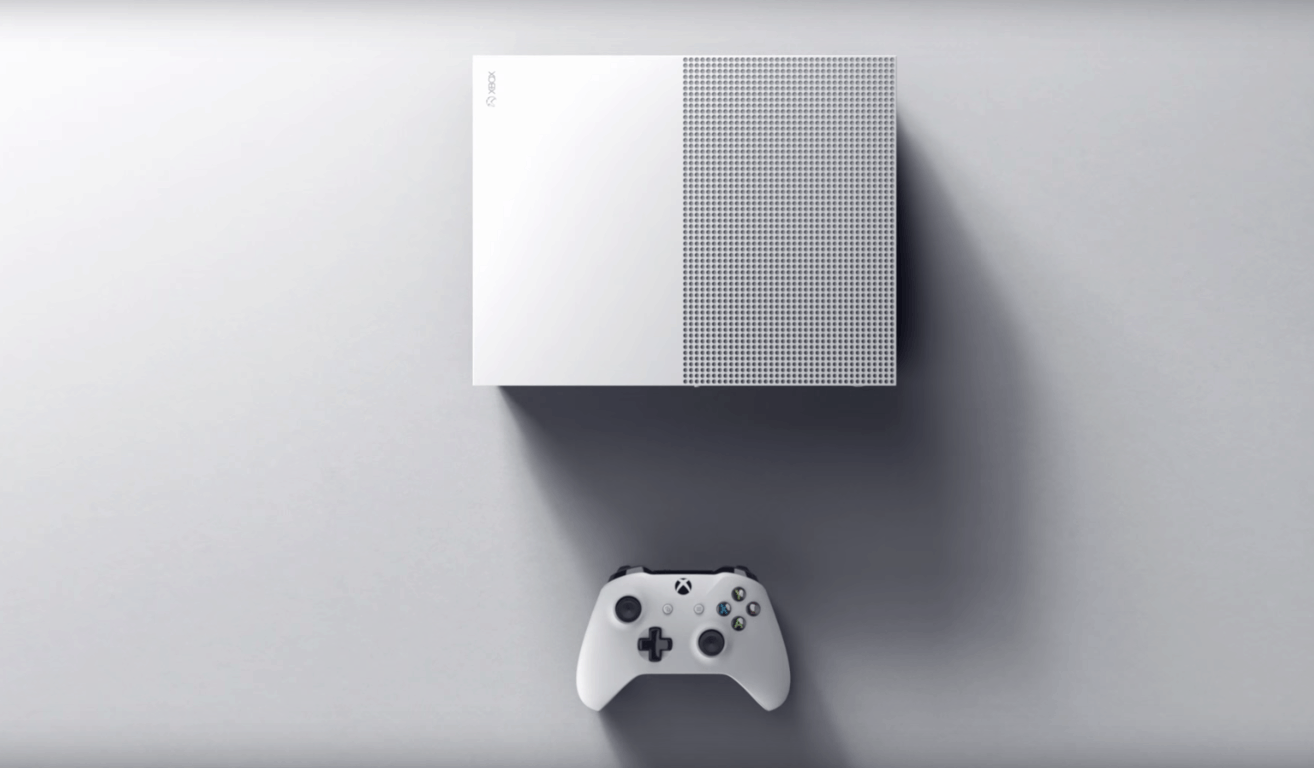
With the release of Microsoft’s new and improved Xbox One model, the Xbox One S, many fans have been wondering if the tech giant would consider giving gamers more color variations beyond the default white.

Microsoft recently gave gamers the ability to create their own customized Xbox One controllers through the newly unveiled Xbox Design Labs but so far they’ve been mum on any console options. Unfortunately for them and luckily for everyone else, a third party has stepped up to the plate to fill the hole in the market, Colorware. This company specialises in customizing hardware for clients and has just added the Xbox One S to their range of supported items.

Colorware offers an impressive array of color options for pretty much every part of the Xbox One S console and also provides options for the included controller. The controller options don’t appear to be as impressive as Microsoft’s own service though.

Interested parties can pay to have their own console and controller customised for $249 or order a brand new one from them for $649. It’s not the cheapest service by any means but it is a viable option for those looking to add more color to their gaming lives.

The Xbox One S launched today worldwide and while it is technically in the same console generation as the original Xbox One, this new gaming console supports 4K resolution output and is slightly more powerful. The Xbox One S is also a physically improved product with a lighter weight, smaller dimensions, and an internalized power supply (i.e. it has no need for a huge power brick like the regular Xbox One).

An Xmas Xbox One S by Customware

The launch of the Xbox One S also signifies the arrival of Microsoft’s new Xbox One controller which can now supports Bluetooth and can be used with both a Windows 10 PC and an Xbox One console. One of these new controllers ships with the Xbox One S but users can also order them separately and through the previously mentioned Xbox Design Lab which allows them to create their own.

Are you interested in customizing your gaming equipment? Let us know in the comments below.

Save

Don’t Starve gets a special edition and a new expansion on Xbox One

A special re-release of Don’t Starve, Don’t Starve: Giant Edition, is now available to buy, download, and play on Microsoft’s Xbox One video game console. This Giant Edition comes with the full Don’t Starve video game plus the Shipwrecked Expansion add-on which adds and entirely new tropical archipelago area to survive in. It contains new seasons, new biomes, and new creatures.

Here’s the official description: The complete Don’t Starve experience bundle! Includes Don’t Starve: Giant Edition, the renowned uncompromising wilderness survival game, and the Shipwrecked expansion pack!

You play as Wilson, an intrepid Gentleman Scientist who has been trapped by a demon and transported to a mysterious wilderness world. Wilson must learn to exploit his environment and its inhabitants if he ever hopes to escape and find his way back home.

With Don’t Starve’s procedurally generated map, at any time you can create a new living and breathing world that hates you and wants you to die.

Buy Don’t Starve: Giant Edition + Shipwrecked Expansion on Xbox One

Have you played Don’t Starve? Would you recommend it to a friend? Let us know in the comments below.

Windows 10 Update History updated to show version 1607

The Windows 10 Anniversary Update is finally here, and users have slowly begun to test the new features. Microsoft pushed the update a few hours ago, and you should bear in mind that it’s going to be rolled out in waves. If the Anniversary Update is not available for you yet, have a little patience and search for updates a bit later.

Microsoft has already updated the Windows 10 Update History page to show version 1607, inviting users to upgrade to the latest OS.

Windows just keeps getting better and better.

The Windows 10 Anniversary Update is the second big update since the launch of Windows 10. It’s full of great new features that customers told us they want. The Windows 10 Anniversary Update will automatically download and install when it becomes available for your device (your device will be running Windows 10 Version 1607 after it’s installed). Want it now? Click the button below to get it.

Windows 10 Version 1607 brings the knowledge base to version KB3176929, adding a series of important improvements as well:

  • “Improved reliability of background tasks and extensions for Microsoft Edge.
  • Addressed licensing issue that prevents apps from activating.
  • Addressed issue that prevents changing display orientation after attaching a keyboard dock.
  • Addressed issue with scheduled update scans that are delayed during Connected Standby.
  • Addressed issue that sometimes prevent Extensible Application Markup Language (XAML) apps from receiving keyboard input.
  • Addressed issue with event logging that creates very large virtual allocations.
  • Addressed issues that cause high battery drain when a Windows 10 Mobile device is idle or the screen is off.
  • Addressed additional issues with Cortana, Microsoft Query and Microsoft Excel compatibility, and the Korean Input Method Editor (IME).”

If you want to install the Windows 10 Anniversary Update now, download the Anniversary Update ISO files and follow the on-screen indications.

RELATED STORIES YOU NEED TO CHECK OUT:

Millennials prefer Google Docs for collaboration over Microsoft Word

Microsoft is in a bit of a pickle that it is finding difficult to escape from right now. According to a new report, millennials tend to prefer to use Google Docs when it comes to collaboration but will use Microsoft Word for personal use.

This demonstrates a worrying trend that Google is having more success in the workplace than previously thought. It could also prove that Google Docs is much better for collaborating, something we here at Windows Report have to agree on.

Here’s what the Creative Strategies report has to say, taken from ReCode:

“When students write papers by themselves, only 12 percent use Google Docs. But when students write papers in groups — when they collaborate — 78 percent use Google Docs. On the other hand, 80 percent of students use Microsoft Word for individual work, and 13 percent use it for group work. The dynamic is the same for all Millennials, regardless of gender, the phone they use, or where they live: Microsoft Word for individual work, Google Docs for collaborative work.”

When the software giant announced and launched Office Web Apps, it was supposed to represent some well-needed competition to Google Docs in the online space. However, Office Web Apps — especially Word — have always been a problem. For one, the formatting isn’t perfect, and it’s not possible to add a URL by clicking enter on the keyboard after it is pasted. There are times when the program shows two instances of the same account currently viewing a document. (Apparently, Word Online is not smart enough to tell both accounts are one and the same.) Whenever this happens, it is impossible to add a title to the document.

These problems have been going on for ages and still no fix. So as it stands right now, Microsoft has a lot of work to do before it can get millennials excited about its Office Web Apps — and Google will no doubt take advantage of this.

RELATED STORIES YOU NEED TO CHECK OUT:

  • Facebook teams up with Microsoft to deliver Office 365 services to its workforce

How to delay the Windows 10 Anniversary Update

If you don’t want to install the Windows 10 Anniversary Update right now, you can delay it for a few months. This option is available only for Windows 10 Pro, Windows 10 Education and Windows 10 Enterprise users. Unfortunately, the consumer version of Windows 10 doesn’t allow users to defer updates, therefore these users are left with no choice but to accept it.

How to delay the Windows 10 Anniversary Update

  1. Go to Settings
  2. Select Update & Security

advanced options update

3. Select Advanced options

4. Check the Defer Updates box

defer updates anniversary update

This action takes your computer to the Business branch. In this manner, major updates are delivered only after the consumer branch validates them. Validation takes place after at least four months of usage, which is enough time for possible bugs to be detected.

Once you check the Defer Updates box, your computer should receive updates only after November 2016.

Some Windows 10 editions let you defer upgrades to your PC. When you defer upgrades, new Windows features won’t be downloaded or installed for several months. Deferring upgrades doesn’t affect security updates. Note that deferring upgrades will prevent you from getting the latest Windows features as soon as they’re available.

When using Windows for professional purposes, the best solution is to make sure the OS and the subsequent updates are fully stable and reliable before installing them. In this manner, you avoid potential bugs which could have a major financial impact on your business.

Microsoft offers top solutions for business professionals and constantly upgrades its Windows 10 Pro and Windows 10 Enterprise OS. Nevertheless, prevention is better than cure, and you should run the Anniversary Update only after the consumer branch has validated it.

RELATED STORIES YOU NEED TO CHECK OUT:

Microsoft provides some details on how to develop apps for the Windows 10 Anniversary Update SDK

As the Windows 10 Anniversary Update makes it way to consumers over the next few days, the Windows team appears to be forgoing a brief celebratory lap of their accomplishments to instead champion more developer participation with this OS release.

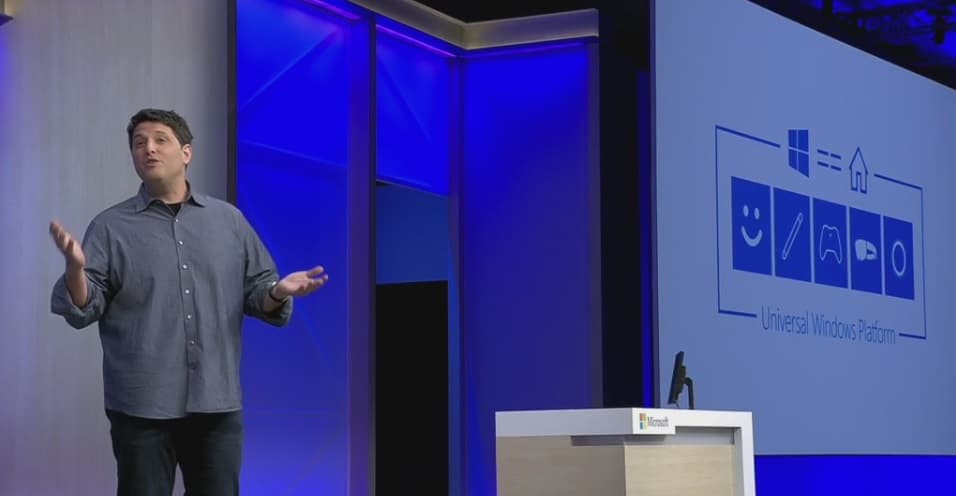
Today, both the Visual Studio and Windows Hardware Certification teams have announced new building and submission tutorials for developers interested in the Windows 10 platform. While the overall process of building and deploying a Universal Windows Platform app remains relatively unchanged from what has been announced during Build 2016, there are some additional features and processes the Windows team would like developers to consider for the platform.

Starting with building Universal Windows apps targeting the Windows 10 Anniversary SDK in specific, developers should be aware that the Visual Studio team has released new development tools to VS 2015 Update 3. The new tools, now enable developers to target Windows 10 AU SDK (build 14393) specifically, which in turn allows them to leverage all the added goodies that have been bundled in the update.

Developers targeting Windows 10 AU can now make use of the 2,700 plus enhancements to the Windows 10 Anniversary Update such as Cortana additions, Windows 10 Inking and pen support, Edge improvements and cross-platform development between desktops, phones, Xbox One and HoloLens.

Updated SDK
Updated SDK

After developers have gone through the process of creating or updating Windows apps using .NET for better Windows 10 AU SDK integration, improved Windows Store integration, possibly deploying larger games to the Xbox, debugging an application through new XAML UI’s and designing support for indirect resources, comes to the new submission process.

Thankfully, the Windows hardware and certification teams have updated their submission process to include versions 1607 of Windows 10 and Windows Server 2016.

As of today, the Windows Hardware Lab Kit (HLK) has been updated to support the two new SKU’s as well as providing improvements to HLK that include exporting failed HLK jobs, improved ability to diagnose failed HLK test and adding playlist support for incremental Windows releases.

The Windows hardware certification team also refined its compatibility policy of Windows 10 to include version 1507/ Windows 10, version 1511 drivers Factory-Installing on Windows 10 and version 1607 images.

For the first 90 days after the release of Windows 10, version 1607, OEMs looking to achieve Compatibility for systems shipping Windows 10, version 1607 may factory-install drivers for components that achieved Compatibility with Windows 10, version 1511. After 90 days, OEMs looking to achieve Compatibility for systems shipping Windows 10, version 1607 can factory-install only drivers for components that achieved Compatibility with Windows 10, version 1607. This is not applicable to OEMs certifying for Windows Server 2016, as all components within the system must be certified for Windows Server 2016 to be considered compatible.

All of this news comes just hours after Microsoft pulls the trigger on its largest update this year for Windows 10. There is little doubt that while Microsoft is focused on transitioning to the cloud, it has its eyes leveled at the men and women who make the current Windows community a vibrant and worthwhile endeavor. Hopefully, these refinements and updates speak to some of the troubles some developers have had transitioning their older apps, programs, and services over to the Universal Windows Platform.

Project Premonition is a Microsoft powered drone created to fight Zika carrying mosquitos

Microsoft’s Project Premonition is an initiative to begin fighting emerging infectious diseases before they even get a foot in the door. By utilizing drones and devices to collect early pathogens, researchers can get a head start on battling epidemics such as Zika, Ebola, Chikungunya, and MERS.

With breaking news about the Zika cases in Florida, Microsoft leaped into action. Harris County, TX is being armored up with mosquito traps that emit carbon dioxide to attract their prey. With Project Premonition inbound, the foot-tall canister traps can detect the vibration of mosquito wings and snap closed. There is a total of 64 compartments on each one.

Once the samples are dropped off with researchers, they can begin testing and analyzing the mosquitos. The pathogens of the Zika virus were originally unknown compared to other infectious diseases. Microsoft Research is continuing to develop algorithms that better identified the potential threats through analyzing the genetic material directly. Through gene sequencing, the data can show more about the species, the animals they have bitten, and what sort of pathogens they have encountered. More algorithms are being developed as more and more data is changed and altered in the pathogens.


The future of Project Premonition doesn’t stop there. Microsoft intends to begin releasing drones into the environment in efforts to scan the area and send back data. Researchers would be able to log when and where mosquitoes are most active. This would be extremely useful to note ideal locations to place traps and keep them at a safe distance as the device is deployed. CNN writes that with improved technologies, scientists hope the traps will eventually be able to identify the type of mosquito in advance. With over 3,600 types of mosquitoes, diseases are only carried by a handful.


Scientists are calling the Project Premonition a game changer, praising the effectiveness of the technology. Check out the Today Show coverage of Project Premonition in Harris County below.

Download Windows 10 Anniversary Update official ISO files

The big day is finally here! Microsoft should start pushing out the long-awaited Anniversary Update for Windows 10 to all eligible users today. But if you don’t want to wait for Windows 10 version 1607 to appear through Windows Update, official Anniversary Update ISO files are also available. With these, you can download the update right away.

download anniversry update iso

For now, the download link only works for Windows 10 Enterprise, as you need to enter your business email to be able to download the ISO file. Of course, as soon as other download links become valid, we’re going to update this article so you can download the Anniversary Update for your version of Windows 10.

UPDATE: We finally managed to find links for downloading ISO files for each specific version. However, downloading ISOs still requires either a MSDN subscription, or using a Media Creation Tool. So, if you don’t have a MSDN subscription, the only way to download ISOs is by using the Media Creation Tool. As soon as we find individual links, we’ll update this article once again. Thanks for your patience!

UPDATE 2: Microsoft has made it much more easier to download the official ISO files for Windows 10 Anniversary Update version 1607. There are customers whose Windows machine may have issues with the Windows 10 media creation tool, so a very easy to follow page has been set up on the Microsoft Software Download Windows 10 site. Thus, follow the link from below and its steps to download a disc image (ISO file) that can be used to install or reinstall Windows 10 or to create installation media using a USB flash drive or DVD.

Official page for downloading ISO files for the Windows 10 Anniversary Update version 1607

download windows 10 anniversary update iso 1607

As always, before proceeding towards the download itself, make sure you have an internet connection, sufficient data storage available on a computer, USB or external drive for the download, as well as a blank USB or DVD (and DVD burner) with at least 4 GB of space if you want to create media. Also, it is very important to know that the links provided by Microsoft are valid for 24 hours only from time of creation.

Download and install Windows 10 Anniversary Update

If you can’t wait for official links to be approved by Microsoft, famous leaker WZor already managed to upload his unofficial collection of Windows 10 Anniversary Update ISOs. Yo can download it from this link.

Download Windows 10 Home Anniversary Update ISO files

Windows 10 Home is the most basic version of Windows 10 aimed at less-advanced users. This version lacks some features included in other versions of the system, like the ability to edit Group Policies.

You can download both 64-bit and 32-bit versions of ISO files for the Anniversary Update for Windows 10 Home edition from here:

Download Windows 10 Pro Anniversary Update ISO files

Windows 10 Pro is the operating system for smaller companies and more advanced users. It contains all features users and business need, but the Anniversary Update brought a few restrictions with it.

You can download both 64-bit and 32-bit versions of ISO files for the Anniversary Update for Windows 10 Pro  from here:

Windows 10 Enterprise Anniversary Update ISO files

Windows 10 Enterprise is aimed at bigger businesses and companies, where IT admins take care of computers.

You can download both 64-bit and 32-bit versions of ISO files for the Anniversary Update for Windows 10 Enterprise edition from here:

download anniversry update iso windows 10

As we said, you’re going to need your business email address to be able to download Enterprise ISO files. Also, Microsoft noted that the media creation tool doesn’t work for this version.

Windows 10 Education Anniversary Update ISO files

You can download both 64-bit and 32-bit versions of ISO files for the Anniversary Update for Windows 10 Education edition from here:

The Anniversary Update isn’t the only thing Microsoft prepared for Windows 10 Education: Windows 10 Pro Education SKU was also announced. Read more about this OS here.

None of the ISO files are available on MSDN yet, but once again, we’re sure Microsoft will make it available as soon as version 1607 starts rolling out to first Windows 10 users.

Some early birds already managed to download and install the Anniversary Update on their computers, and changes are already visible. The Anniversary Update changed the way Start Menu looks, moved Taskbar Properties to the new UI, added a Win+F command that now opens the Feedback Hub, and many more changes

Speaking of the Anniversary Update, you think your computer is ready for it? Why don’t you check to make sure?

RELATED STORIES YOU NEED TO CHECK OUT:

Microsoft’s commercial cloud revenues nearing $10 billion per year

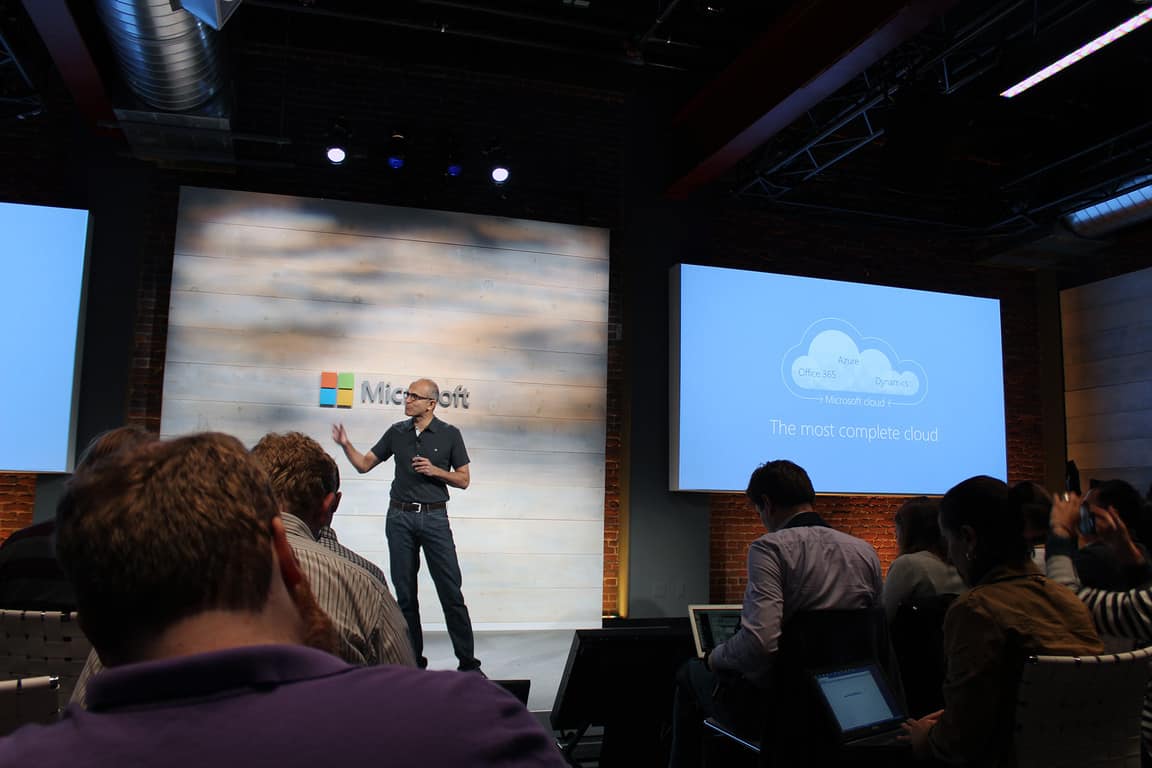
Microsoft’s recent quarterly earnings report all but pointed to the company’s massive shift in focus towards its growing cloud businesses. Unfortunately, due to some rather creative reporting on Microsoft’s part, nailing down exactly how well the company has been doing at chasing industry leader Amazon while putting some distance between itself and other competitors such as Google or IBM has been a bit more difficult.

However, a new Microsoft regulatory filing may be our first glimpse into the success of Microsoft’s cloud businesses as well as an indicator or things to come for investors. The folks over at Geekwire were able to get their hands on a Microsoft regulatory filing that not only shows Azure and Office 365 up 40 percent from its previous year but that the two have helped the company reach close to $10 billion by the end of its fiscal year 2016.

As mentioned earlier, when Microsoft reports its numbers for the quarter, the company has recently begun to factor in run rates rather than pure profit. The way Microsoft calculates its new metric of run rate uses the most recent months’ revenue and multiplying that number by twelve to create an annual figure that can then be analyzed. The company’s new financial math has helped it report a commercial cloud run rate of roughly $12 billion in its last quarterly result.

However, when filing a regulatory 10-K report, Microsoft has to be a bit clearer on its numbers. Instead of the nice ballooned number of $12 billion-plus in revenue, the 10-K report shows a company that is closer to $9.5 billion. While seemingly not as impressive as its quarterly earnings report, it should be noted that following the previously reported 10-K reports Microsoft is on a clear trajectory upwards when it comes to cloud revenue.

Commercial Cloud revenue run rate

Microsoft’s Commercial Cloud, which includes Office 365, Azure and Azure-related services and products, has shown leaping growth year over year. Last year, Microsoft’s Commercial Cloud accounted to $5.8 billion in revenue, and only $2.8 billion in 2014 and the numbers go as low as a mere $700 million all the way back to 2012 reports.

Even with Microsoft reporting an almost $10 billion revenue run rate it’s still trailing far behind Amazon Web Services which reported $7.9 billion for its quarter. The reason for the glaring discrepancy in figures is how the two companies report their figures. Until recently, Amazon made similar use of bundled reporting of its cloud services but has since pulled AWS out and reported it strictly as a singular IaaS and PaaS, whereas Microsoft and Google combine Office 365 and other cloud-based Google Services into their reports. As it stands, AWS is a singular $7.9 revenue generating machine, while some obscured portion of Office 365 contributes to Microsoft’s $9.5 billion, lessening the potential amount Azure by itself brings collects.

However, as Microsoft’s revenue run rate continues its upward momentum, it shouldn’t be long before the company begins to break out Azure from Office 365 when Azure’s numbers can compete directly with AWS as the two cloud services race towards $10 billion mark.

Windows 10 Anniversary Update SDK available, Windows Store open for developer submissions

Microsoft is ringing in a slew of celebratory updates and announcements today as a result of the Windows 10 Anniversary Update rollout. Jumping on the wagon, they have released a blog post announcing that the updated SDK build 14393 and Visual Studio 2015 Update 3 are now publicly available.

SDK Build 14393 contains over 2700 improvements to the Universal Windows Platform, encouraging even more developers to convert and build their apps for multiple Windows devices. More specifically, the updated APIs focus on making natural communication even easier through vision, writing, and speech including improvements to Windows Ink, Cortana APIs, and Windows Hello.

On top of the Anniversary Update SDK and Visual Studio, the team is putting their nose to the grindstone on a few important projects thanks to the feedback of thousands of developers. Some of them include:

  • Desktop Bridge (Project Centennial): The millions of developers using Win32 and .NET to build desktop apps can now get access to the benefits of the Universal Windows Platform and the Windows Store. Using the modern deployment technology of UWP, desktop apps can cleanly install, uninstall and update, as well as get full access to UWP APIs including Live Tiles, roaming storage, push notifications and more.
  • Bash Shell on Windows: We are pleased to deliver a top requested feature from users of popular command-line tools. You can now download the Bash shell from our partners at Canonical directly from the Windows Store. Now you can run native Bash and GNU/Linux command-line tools directly on the new Windows Subsystem for Linux.
  • Improved Tools and Bridges for iOS and Android Developers: Visual Studio now includes Xamarin tools built-in, ready to create apps for Windows and iOS and Android. In addition, our open source Windows Bridge for iOS enables iOS developers to bring Objective-C code into Visual Studio and compile it into a UWP app.

It’s an exciting time for developers interested in building on the UWP. The Windows 10 Anniversary Update has brought a lot of new technologies into eager hands. Microsoft hopes to see more ideas and innovative applications brought into the Windows Store and Dev Center with the new submission process. This includes the acceptance of apps that use the Desktop Bridge.

Experience the Windows 10 Anniversary Update’s new features first hand by downloading the update today! Let us know in the comments what you think.

Watch Major Nelson unbox an Xbox One S live on Facebook at noon PDT

As Microsoft’s Xbox One S gaming console has officially launched today, now is a good time for Xbox fans all around the world to celebrate. Later today, you will be able to join Xbox Live’s Major Nelson for a live unboxing of the brand new console on Facebook:

(update: here’s the video, as the event has already taken place)

+++

If you’re still considering if the Xbox One S is worth your hard-earned dollars, this event could well help you make your decision. As a reminder, the new gaming console is 40% smaller than the previous model, features an integrated power supply and comes in a gorgeous white finish. If you haven’t done it yet, we invite you to read our previous post featuring several shots of the new console next to its predecessor, and we also published an interesting tour of the Xbox One S hardware components earlier today. Let us know in the comments if you plan to tune in to the live streaming event at 12 PM PT.

Microsoft begins new video series on Windows 10 Anniversary Update

In celebration of Microsoft’s Windows 10 Anniversary Update, the company will be releasing a new weekly video series called “This Week on Windows”. The first video is focused on explaining more about the new features for the AU including experiences brought in for Windows Ink, Cortana, gaming improvements and more.

More specifically the first video covers details about:

  • Windows Ink brings the power of Windows to the tip of your pen
  • Improvements to security with Windows Defender and Windows Hello for apps and websites
  • Increased power efficiency with Microsoft Edge and the arrival of extensions
  • Cortana improvements such as being available over a locked screen, recalling key information across devices, and adding photos for visual reminders.
  • Gamers are able to use voice commands on the Xbox thanks to Cortana, now available in U.S. and U.K. updates. She’s pumped full of new commands and improved language recognization. The virtual assistant will also be able to recommend new games, check in on your friends, turn on Xbox One via Kinect, and so much more.
  • Windows Store is a one-stop shop for play and work. With Xbox titles and Windows store combining, users can find everything they need from video games, subscription choices, bundles, pre-orders, and various other applications across both PC and console.
  • New innovations for the modern classroom with simpler set up and better tools for educators. The “Take a Test” app creates a secure environment for creating exams.
  • The new Skype preview is completely redesigned for the new Windows 10 Anniversary Update with all the expected features.

This is just the first of many videos that will be posted. The blog series is expected to bring the latest Windows news, apps, and tips as an ongoing project.

By the way, while you’re at it, be sure to check out our own Windows 10 Anniversary Update Review video!

The Windows 10 Anniversary Update just went live a few minutes ago for PC users. According to Microsoft, the AU is the most stable build to date with a long list of major features and overhauls to whet your appetite. There isn’t a reason not to update with an average of 20% improved boot speed and longer lasting energy consumption for users so far. Check out our coverage for more information regarding how to manually update today!

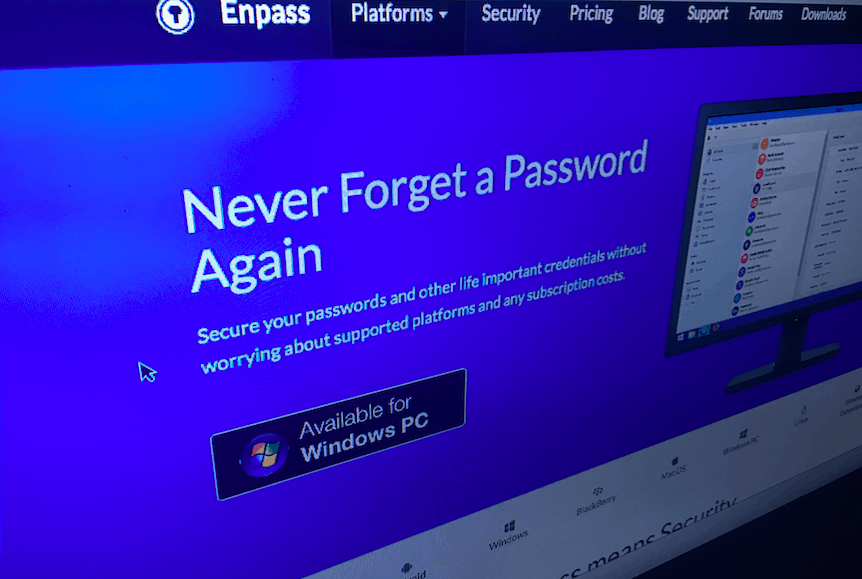
EnPass complains about lack of Edge/UWP APIs, delays password manager extension release

Today Microsoft will further cement its new Windows as a Service business model by releasing the Windows 10 Anniversary Update. This will be the second major update to Windows 10 since launching last year. And some much-requested features, like browser extensions for Microsoft Edge, will finally be coming to Windows 10 with today’s update.

But while Microsoft’s latest browser will be among Windows 10 improved features, one thing will be missing. Windows Central spotted a blog post by Enpass which explains why the password manager app will not be releasing their extension for Edge.

Windows 10, Anniversary Update, Edge, Extensions
Edge Extensions available in Windows Store

Enpass explains that there is no official API which connects an Edge extention with a UWP app. Because their password manager works offline, Enpass wants to have their proposed extension for Edge connect with the Enpass UWP app installed on the same machine.

Since Enpass is an offline password manager, it requires some sort of local communication channel with the Edge extension to share data for auto filling. The connection is generally through localhost web-socket. Unfortunately, we don’t have any official APIs to connect Edge extension with Enpass app installed on same machine.

But currently, the only way to do this is with a manual workaround that is not without risks. Enpass notes Microsoft has previously said such workarounds can make Edge vulnerable to attack. And by relying on something that Microsoft clearly states is a vulnerability, Enpass isn’t even certain their extension would be permitted in the Windows Store.

Accordingly, Enpass is humbly requesting Microsoft and the Windows developer community establish an API to allow Edge extensions and UWP apps to communicate locally on a machine. The exact details for their request can be further read on the Windows Dev Center forums.

While Enpass’s extension won’t be generally available in the Windows Store, it is possible to side load their beta extension, for now at least. The Enpass app can currently be downloaded for Windows 10 and Windows 10 Mobile from the box below.

Enpass
Enpass

Giveaway: Surface Book with Windows 10 Anniversary Update pre-installed!

Last week we had a chance to visit Redmond and check out all the latest features of the Windows 10 Anniversary Update, including Windows Hello, Windows Ink, and updates to Cortana and the Start Menu. Microsoft was kind enough to provide us a Surface Book to check out all these new features and more, and now we’d like to pass that good fortune on to our readers.

We’ve been checking out all the new features in our Anniversary Update Feature Series, and with our quick look video, so be sure to take a closer look at everything included in this latest update. Even if you’ve been running every one of the Windows Insider builds, they’re worth checking out.

As you know, we’re in the process of rebranding WinBeta to a new name and a new focus on all things Microsoft, and soon we’ll be coming to you from OnMSFT.com (launches at the end of this month!). We want you to have the best possible experience when you’re checking out our new site, and all you have to do is check out our Facebook page, follow us on Twitter, or since almost 20,000 of you already follow us, just tweet a mention of our site and the contest and you’ll be entered in a random drawing:

a Rafflecopter giveaway

This Surface Book is the Core i5 128GB / 8GB RAM model, and it comes with a pen and power supply, and it’s loaded with the Anniversary Update (we’ll make sure it’s fully up to date before we ship), and it’s brand new in the box.

The giveaway is US only, and will run for two weeks, ending at 9pm PDT on August 16th, 2016. A US street address to send the Surface Book to the winning entry will be required of the winner, so sorry if you’re outside of US borders, but you won’t be able to receive the Surface Book so don’t try. Other than that, there’s not much to it, so thanks for reading WinBeta, stay tuned for lots more from OnMSFT.com, and good luck!

Here’s whats new inside the Xbox One S: smaller SoC, new optical drive, more

Microsoft’s Xbox One S gaming console is now officially available in a $399 2TB launch edition, nearly two months after the company first unveiled it during its E3 2016 press conference in June. While the new console improves the previous model in almost every way, we didn’t know all the details about its hardware components. However, Microsoft’s senior director of product marketing and planning Albert Penello just gave an interview to Eurogamer and his detailed answers may finally satisfy your curiosity (via Windows Central). We have selected the most interesting bits from the interview below.

The Xbox One S SoC

The new Xbox One SoC is fabricated at TSMC and uses its 16nm Fin FET process, allowing for more power efficiency:

The SoC in the Xbox One S is designed in the 16nm Fin FET process, which results in a die that is 240mm2; 33 per cent smaller and consumes less power than the 28nm SoC in the original Xbox One. for the Xbox One S consoles shipping this year the SoC is fabricated at TSMC.

Reducing the power consumption of the SoC opened up opportunities to reduce the size of the chassis significantly. We designed the console to make sure it had great acoustic performance and reliability for the consumer. The cooling solution uses an aluminum heat sink with two heat pipes and a single 120mm axial fan to draw air through the whole system.

Additionally, the new SoC has kept the same design from its predecessor, though the GPU frequency has slightly increased to enable HDR support. However, this additional power won’t make much a difference on non-HDR Xbox One games:

The SoC in Xbox One is the same design as the previous processor. Same GPU, same number of CUs, same memory, same CPU. As we discussed, we did make some refinements for 4K support and to fit in the new chassis. We also used this opportunity to increase the GPU frequency from 853 MHz to 914 MHz. By making this change, developers creating HDR titles do not have to incur any performance hit. We also decided to make the extra six per cent available to all titles. So some games (ones that utilize dynamic resolution and/or unlocked framerates) may see a very minor performance improvement. Our testing internally has shown this to be pretty minor, and is only measurable on certain games, so we didn’t want to make it a “selling point” for the new console.

The original Xbox One (black) next to the Xbox One S (white) (credit: CNET)

HDR Support

As we previously reported, the Xbox One S will only support the HDR 10 standard which has been embraced by Sony and Samsung:

HDR10 is the standard HDR format for the UHD Blu-ray spec, and our understanding is that the majority of consumer TV sets will support HDR10, with Dolby Vision as an option. Dolby Vision looks to be a great technology and we have discussions with Dolby often.

Furthermore, if you had concerns about an upcoming fragmentation between HDR and non-HDR Xbox One games, Penello explained that developers are actually allowed to release HDR patches to their existing games:

This is totally up to the developers. Having an HDR TV set myself, I would love to see this happen but it’s not something we require.

4K video support

New hardware on the Xbox One S will enable support for 4K video streaming from Netflix and other video streaming services:

There are several components required to support the 4K UHD video playback that result in a combination of changes in the new console. First, we added a 4K HEVC decoder to the SoC to render the compressed video streams efficiently in hardware. Next, we updated the video output to HDMI 2.0 and HDCP 2.2.  The interface revisions are all integrated into the SoC and enable outputting video at the higher bandwidths required for 4K UHD and HDR formats, as well as the copy protection tech required for protected content.

Lastly, the Xbox One S features a brand new Blu-ray UHD DVD drive, and Penello also explained that it’s not possible to enable support for 4K Blu-ray DVDs on the original Xbox One via a firmware update.

I have seen people online believe that you can do a ‘firmware’ upgrade to our existing BD drive to support 4K, but that’s not true. In addition to DSP firmware updates, the drive in the Xbox One S also includes a new optical pickup to support three-layer UHD Blu-ray format discs. Plus HDMI 2.0 video output with HDCP 2.2 copy protection is also a BD-UHD certification requirement, both of which are included in Xbox One S and weren’t implemented on the other Xbox One consoles.

We invite you to read Penello’s full interview on Eurogamer, and the Xbox team also just published an helpful article to answer all your questions about 4K, HDR and TV setups. Let us know what do you think of the Xbox One S hardware components by dropping us a comment below.

Third-party Hitbox app for Windows updated with Hitbox account and follower support

As we recently announced, the third-party Hitbox app recently hit the Windows Store. It was a momentous occasion, as the app became a great way to use the Hitbox streaming platform to watch live broadcasts of the games you love straight from your Windows device(s).  While there is still no official Hitbox app for Windows, Jonathan Antoine, the developer of the app, has shown commitment to the Windows platform and even recently released a Windows 10 Mobile version of his app. Today, an update has hit the third-party app, further showing the developer’s dedication to the Windows platform.

Overall, the update brings in support for Hitbox account and follow/unfollow support, allowing users to sign-in with their Hitbox account and manage the users they follow. It is just the latest addition, as the app already lets people search for games, streams and recorded videos, access trending channels and games, and access all the live streams and videos of games.

Hitbox on Windows Phone

So, if you’re using this app, be sure to press that download button now! Even if you are not using the app, we have done you a favor and have included a download link for you below.


Microsoft officially launches the 2TB Xbox One S, available now

The wait for Microsoft’s new gaming console is finally over: Microsoft’s $399 2TB launch edition Xbox One S is now available in select markets at Microsoft Stores or your local retailer. If you can’t wait to get your hands on the new console, hurry up as it’s currently selling out fast, with Xbox Wire Editor in Chief Will Tuttle explaining in a new blog post today that “demand is extremely high and the 2TB launch edition is only available in limited quantities.”

As a reminder, here are the main highlights of the new gaming console:

  • Xbox One S offers a great value as one of the top 4K Ultra HD Blu-ray players on the market – which means you can watch your favorite movies in stunning 4K.
  • You can play over 100 console exclusives, and with High Dynamic Range (HDR) support for video and gaming, Xbox One titles like Gears of War 4, Forza Horizon 3, Scalebound andNBA 2K17 will look even better thanks to a higher contrast ratio between lights and darks, bringing out the true visual depth of your favorite games. And don’t forget about the growing library of backward compatible Xbox 360 games.
  • You can also stream movies or TV shows in 4K Ultra HD with content from partners like Netflix available now. More content from Amazon Video and others is on the way!
  • Xbox One S is 40 percent smaller than the original Xbox One, featuring a built-in power supply. No more brick!

While the Xbox One S improves the original Xbox One console in nearly every way, the new hardware lacks a dedicated port to plug in the Kinect sensor. However, it’s not all bad as Microsoft can offer you a free Kinect USB adapter if you currently own an original Xbox One with Kinect. According to Tuttle, “Kinect continues to play an important role in our Xbox ecosystem, especially with the introduction of Cortana on Xbox One this summer.”

Lastly, waiting a few more weeks to get a cheaper Xbox One S may be a good idea: Microsoft plans to release 1TB and 500GB Xbox One S options starting at $299 USD later in August, and the Xbox One S Madden NFL 17 Bundle and Xbox One S Halo Collection Bundles will also launch on August 23 (you can already pre-order them on the US Microsoft Store). If you will be able to spend some quality time with the console today, feel free to share your impressions with us in the comments below.

Xbox One owners can now play Layers of Fear: Masterpiece Edition and Battleship

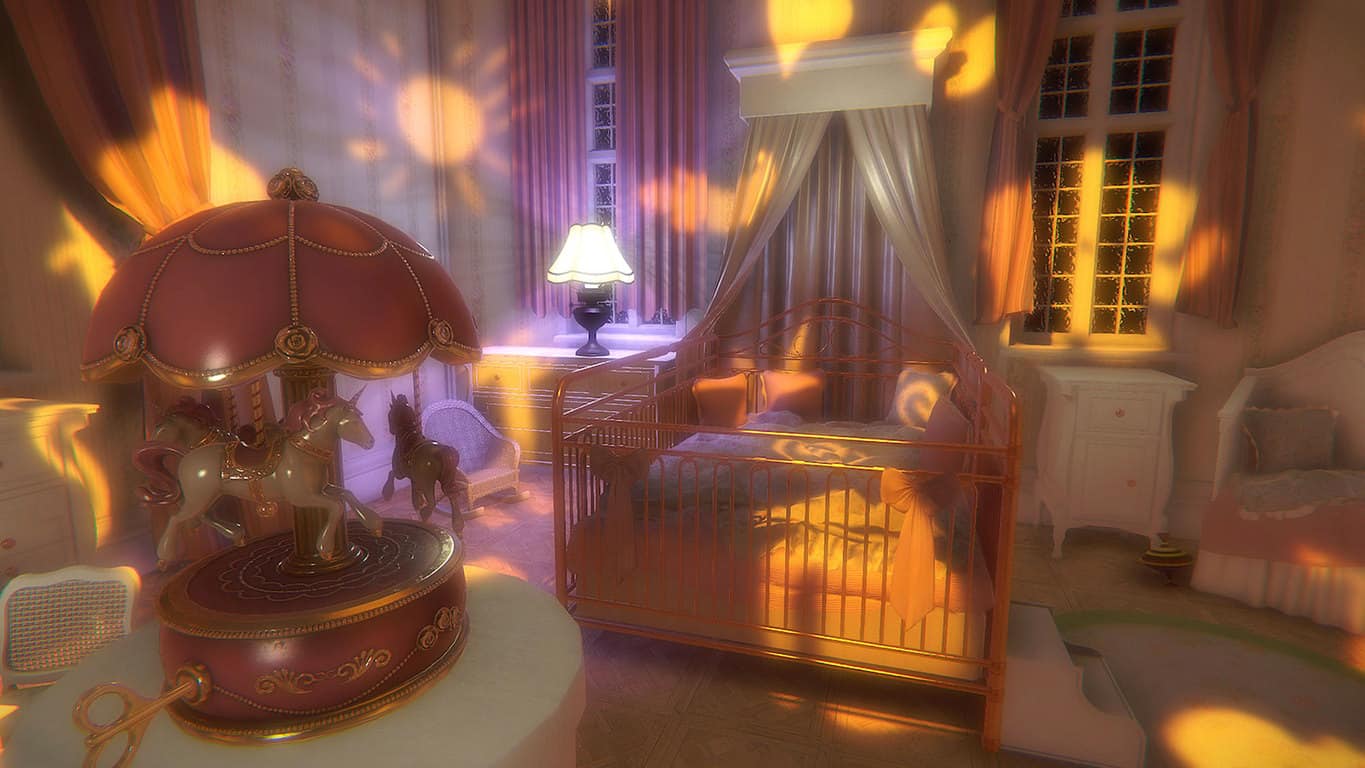
Xbox One owners are spoilt for choice this week with several video games debuting on the system. Batman: The Telltale Series, Risk: Urban Assault, and Dead Island Retro Revenge all came out today. F1 2016 is also now available to pre-order. Joining these titles are Battleship and Layers of Fear: Masterpiece Edition, both of which can be bought, downloaded, and played right now.

Battleship is a video game version of the classic board game. It features both offline and online multiplayer. Here’s the official game description: With a modern, dynamic and interactive 3D board, BATTLESHIP brings the classic franchise to a new level for a memorable experience.

Deploy your fleet and shoot at your opponent’s grid to find and destroy enemy ships before yours are sunk. Enjoy the game you know and love with the Classic mode or get more tactical in a brand new way to play with the “Clash at Sea!” mode.

Buy Battleship on Xbox One

Layers of Fear: Masterpiece Edition on the other hand is and action and adventure title with a focus on story and exploration. Here’s the official game description: Layers of Fear is a first-person psychedelic horror game with a heavy focus on story and exploration. Delve deep into the mind of an insane painter and discover the secret of his madness, as you walk through a vast and constantly changing Victorian-era mansion. Uncover the visions, fears and horrors that entwine the painter and finish the masterpiece he has strived so long to create.

Layers of Fear: Inheritance expands the plot from Layers of Fear and tells the story of the painter’s daughter, who comes back to her childhood home to face her past. Can she forgive her father, or will she resent all that has happened? Relive her experiences and witness the full scope of the tragedy that has swallowed up the family.

Buy Layers of Fear: Masterpiece Edition on Xbox One

Have you bought any new Xbox One games so far this week? Let us know which ones in the comments below.

Risk: Urban Assault and Dead Island Retro Revenge out now on Xbox One

Two new video games came out today on Microsoft’s Xbox One console, Risk: Urban Assault and Dead Island Retro Revenge.

Dead Island Retro Revenge is an old school-style spin-off of the popular Dead Island video games and features retro graphics and gameplay that should look familiar to fans of brawler games like Double Dragon. It was previously available as part of a bundle but is now available to buy individually. Here’s the official description: Time for some 16-bit retro revenge! Hell-bent on saving his cat, Max must carve a bloody path through a zombie-infested California, tearing his way through hordes of the undead, battalions of corrupt soldiers, and a slew of evil-minded ex-cons. Pull off crazy combos, collect power-ups, wield super weapons, and unleash insane magic attacks as you fight to become the amazing 16-bit side-scrolling hero you’ve always believed yourself to be!

Buy Dead Island Retro Revenge on Xbox One

Risk: Urban Assault is a digital interpretation of the famous Risk board game and is set in a post-apocalyptic world. The gameplay features several major cities around the world and a host of unique strategies and attacks. Here’s the official game description: Lead your troops to victory with Risk Urban Assault! In a post-apocalyptic world, rally your armies and march across some of the most famous cities around the globe. From Shanghai to New York, be cunning and play strategically to defeat driven opponents. Use diplomacy, build facilities or take advantage of your commanders’ special abilities, you now have smart new ways to establish your domination! Fight until all cities are yours!

Buy Risk: Urban Assault on Xbox One

Are you interested in either Risk: Urban Assault and Dead Island Retro Revenge or is there another upcoming Xbox One game that’s caught your eye? Let us know in the comments below.

Upgrade to Windows 10 for free using this loophole

The free Windows 10 upgrade offer ended on July 29, but you can still get Windows 10 for free even if you missed that boat. Normally, if you want to upgrade to Windows 10 now, you have to shell out $119. However, there is still a loophole available allowing you to get Windows 10 for free.

Microsoft already announced that Windows 10 would remain free for assistive technologies users, but hasn’t done anything to prevent other users from taking advantage of this exception. In other words, even if you are not using a computer running assistive technologies, you can pretend you are and upgrade to Windows 10 for free.

It appears that Microsoft doesn’t perform any verification at all to make sure your computer is running assistive technologies. This loophole practically allows all Windows users to upgrade for free whenever they want.

We’re not sure whether Microsoft left this loophole on purpose or not, so as to allow more users to upgrade to Windows 10. It does seem very unlikely that the tech giant is not aware of the existence of this loophole.

If you want to upgrade to Windows 10 for free, go to Microsoft’s page and hit the Upgrade now button. Although Microsoft hasn’t revealed when exactly the free upgrade offer for customers using assistive technologies would end, you should hurry up and upgrade to Windows 10 now while you still can.

When does the free upgrade offer extension end?
We have not announced an end date of the free upgrade offer for customers using assistive technology. We will make a public announcement prior to ending the offer.

RELATED STORIES YOU NEED TO CHECK OUT:

Is my computer ready for Windows 10 Anniversary Update?

The Windows 10 Anniversary Update is around the corner, but before you upgrade, you should check if your computer is compatible with Microsoft’s latest OS. If your device is not fully capable of running Windows 10, you may experience serious issues once you install the OS, possibly making you regret the moment you decided to upgrade.

Here’s how to check if your computer is ready for the Anniversary Update

  1. Download  the KB3035583 update which will install the Get Windows 10 app on your machine
    1. Go to Windows Update > Check for Updates
    2. Select the KB3035583 update > install it
  2. Right-click the Get Windows 10 icon > select Check your upgrade status

Get Windows 10 icon Check your upgrade status

3. Click on the hamburger menu > select Check your PC

Get Windows 10 check your PC4. A list with all the possible issues will appear, informing you about the features that may not work properly.

check-windows-10-compatibility

However, sometimes Get Windows 10 may display inaccurate information, suggesting you to delete certain programs which you may have already removed.

The compatibility check tells me that I need to uninstall a program I already uninstalled over a week ago (PerfectSpeed by Raxco).  The check ran yesterday but I uninstalled the program well over a week ago and I can’t find a trace of it anywhere on my computer.  Will this be a problem when my computer finally upgrades?  (I currently have Windows 7).

Other users even removed the video card, installed a new card compatible with Windows 10, but when they ran Check my PC again, it showed that the video card they had previously removed was not Windows 10 compatible.

The minimum system requirements for properly running Windows 10 are:

  • Processor: 1 gigahertz (GHz) or faster processor or SoC
  • RAM:1 gigabyte (GB) for 32-bit or 2 GB for 64-bit
  • Hard disk space: 16 GB for 32-bit OS 20 GB for 64-bit OS
  • Graphics card: DirectX 9 or later with WDDM 1.0 driver
  • Display: 800×600

RELATED STORIES YOU NEED TO CHECK OUT:

Microsoft and CardioDiagnostics partner to create Azure powered monitoring tools

Microsoft’s Azure cloud technology has made significant strides in the bringing healthcare to a higher quality. One such example is that of cardiologists experimenting in mobile cardio telemetry. That is to say, a device that can securely share collected data in real time across the cloud to be monitored by medical professionals.

In today’s Microsoft News Center blog post, the company shared insight into the potential of its monitoring device led by Ziad Sankari and his team from CardioDiagnostic. The medical pioneering company has put themselves on the map for developing an algorithm that is capable of analyzing the electrical activity of the heart and detecting specific patterns with quick recognition. In n effort to create products and technology for their innovation, CardioDiagnostic praised Microsoft Azure’s services as being scalable, available and durable. In compliance with the Health Insurance Portability and Accountability Act (HIPAA), Azure provided their project with the peace of mind that patients data is safe.

The device is about the size of a mobile phone that is then hooked up to electrodes. It can be worn in any setting necessary by the patient without the need to be even remotely near a trained medical professional. In fact, they can even use the monitor while it is charging. The data is sent in real time through the cloud for a consistent monitoring of the patient’s wellbeing. The technology makes it possible to detect arrhythmias or abnormalities that might occur. These early detection will not only help the team understand correlations with these symptoms and cardiac anomalies, but could potentially save lives with quick response. Perhaps the most important part of the device is the emergency button, keeping an alert close at hand for a surprise situation or discomfort.

It never ceases to amaze what applications Microsoft’s technology might have their hands in. With a growing healthcare field ripe for significant technological advancements, the company continues to sow fields of possibilities through their secure and effective Azure cloud.

Microsoft releases Node.js Tools 1.2 for Visual Studio 2015

A quick and minor update snuck in over the weekend for the Node.js Tools for Visual Studio (NTVS) settling into the version to 1.2. This version, as with others, is focused on increasing a developer’s productivity with basic upgrades to current tools already available.

  • Faster, better ES6 IntelliSense
  • More reliable debugging
  • Improved Performance
  • Improved Unit Testing Experiences

Overall, the small update to the plug-in improved a lot of stability and performance issues, including reducing the out-of-memory crashes that many users were experiencing beforehand.

Visual Studio (NTVS) is an open source project that is available on the GitHub repository. The update is compatible with VS Community 2015, VS 2015 Express for the Web, and VS 2015 Professional or above. The update doesn’t apply for Visual Studio Express for Windows. Check it out or download the newest version here.