Manage tabs like a pro in Chrome with the upcoming tab groups menu

Chrome is constantly getting new features and improvements, and this is one of the reasons why it’s the best browser on the market.

Speaking of improvements, it seems that Chrome will get another feature that will help users with tab management.

The tab groups pane has been spotted in the desktop version of Chrome

Google added a tab groups pane in the Android version, but it seems that the desktop version is also getting this feature.

This was first spotted by Twitter user Leopeva64:

As you can see, this feature will be accessible from the bookmarks bar. Google has a plan to make tab groups in Chrome for Android and the desktop version as similar as possible leading up to syncing between the two.

This feature looks interesting, and hopefully, it should help users better organize their tabs in the future. Unfortunately, we have no information regarding the release date of this feature.

As for other features, Chrome got V8 Sandbox for improved security, and Google says that tracking protection in Chrome is ready for rollout.

Xbox emerges as the top platform for Diablo 4, confirms Xbox president

When Microsoft acquired Activision Blizzard, everyone knew games from the latter would feature in the Xbox Game Pass. It took a while, but things got into motion, and soon, Diablo 4 came to the Xbox Game Pass on March 28, 2024.

Now, Xbox President Sarah Bond has confirmed that Xbox is the best platform for Diablo 4. In an interview with Windows Central, Sarah said,

We are integrating Activision Blizzard King titles into our services — we launched Diablo IV into Game Pass, and Xbox has quickly become the #1 platform for Diablo 4 players.

The game’s PC release was also a success, but users had to install Battle.net to play Diablo 4.

In the future, we will see more Activision Blizzard titles coming to the Xbox Game Pass, and expect similar results for each. As per reports, this year’s Xbox Showcase will witness exciting titles being announced.

We will have to wait and see if Xbox losing the console war will affect Microsoft’s future plans!

What’s your review of Diablo 4? Share with our readers in the comments section.

Apple’s ReALM performs better than GPT-4 and enhances Siri

Apple is developing Reference Resolution As Language Modeling (ReALM), an AI model capable of outperforming OpenAI GPT-4. In addition, it should help Siri understand the context of a conversation better and process onscreen content. However, we don’t know if Apple will add its new AI with the iOS 18 update or wait for its upcoming phone lineup. Yet, they might reveal the large language model (LLM) during the Worldwide Developers Conference.

Everything we know so far about Apple’s ReALM

Up until recently, Apple kept its silence about its ReALM AI developments. However, there were rumors that the company was working on an LLM. Yet, they joined the AI race quite late, and Microsoft is already leading the market, especially since it keeps investing in various projects.

According to a research paper, the ReALM AI from Apple has four models: ReALM-80M, ReALM-250M, ReALM-1B, and ReALM-3B. On top of that, the M and B mean millions and billions of parameters. Also, the LLM can convert data into a text format that other models can understand easily.

The smallest model of Apple’s ReALM can compete in performance with GPT-4, while the larger models substantially outperform it. With this new AI technology, the company might be able to reclaim its lost territory from some of its competitors.

Even if the results of Apple’s ReALM are outstanding, it might not be able to keep up with the upcoming OpenAI model. Yet, AI technology development happens fast. So, Apple might need to focus on its characteristics rather than benchmarks.

The Apple AI has distinctive features

According to Business Insider, ReALM will not compromise the performance of your device. On top of that, with its help, Siri will understand your queries better. In addition, Apple’s LLM has an image recognition system that allows it to gather text information such as phone numbers, addresses, names, and more.

Apple researchers consider it important to train LLMs on screenshots and not only on images. This method could be handy in real-life situations.

In a nutshell, ReALM is a promising LLM and shows the progress made by the company in a short period. Additionally, its capabilities show that Apple is ready to join the AI race. Also, with it, Apple might be able to reclaim its market share from its competitors.

What are your thoughts? Are you eager to try the new Apple AI? Let us know in the comments.

Have you played Doom on office equipment? Apparently you can!

There’s no secret for anyone that even GPT-4 AI can play Doom, but have you tried playing on an office equipment? The Ctrl Alt Rees, a British guy famous for trying the weirdest devices that can play the shareware version of Doom has demonstrated the same feat on the biggest rig that ever played Doom: a desk PC.

Apparently, a British manufacturer called Time was producing PCs that were built into office desks in the early 2000s and Rees found one in perfect condition running Windows 2000 Professional.

He bought the machine with $38 from a community center on eBay. Unfortunately, the PC was password protected so he had to install Windows 98 instead and outfit it for Doom.

The PC came in with one of the earliest CTX LCD monitors, a fax machine, a 64k modem, a sturdy keyboard (which apparently survived unharmed and a ball mouse (do you remember those?).

Rees discovered in the desk a Gigabyte Micro ATX GA-7VKMP motherboard, an AMD Duron 1100 Single-Core CPU running at up to 1.1 GHz and an 1 GB RAM module. Not only that Doom ran incredibly smooth, but the British also succeeded in installing the Windows’ MIDI driver to get the audio from the game.

We can’t say we’re not impressed but playing Tetris in Microsoft Excel seems a bit more outrageous. We’ve learned about this from Tom’s Hardware.

What is the craziest device you’ve seen Doom running on? Tell us all about it in the comments section below.

Microsoft still sends alerts about Windows XP’s End of Support, but does it help anyone

Windows XP, released on October 25, 2001, has been out of support for a decade, i.e., from April 8, 2014. When Microsoft dropped support for XP, most upgraded to Vista (released in 2007) or Windows 7 ((released in 2009) after a few years. But, some haven’t done so to date!

It now appears that Microsoft recently sent them another reminder about Windows XP’s End Of Support on April 8, 2024, exactly ten years after the iteration went out of support.

In a post on Reddit, a user shared a screengrab of the alert received on the Windows XP computer.

Soon, a few theories started doing rounds. A user pointed out that Microsoft still sends EoS alerts on the 8th of every month, while some others blamed it on the KB2934207 update.

While we couldn’t verify if there exists a periodic EoS alert schedule, uninstalling the KB2934207 update should help when the reminders are persistent!

Will End of Support alerts make Windows XP users upgrade?

Frankly, these reminders won’t help. Everyone running Windows XP at this point knows about the reduced security and increased vulnerability. And they are just so used to the UI that upgrading doesn’t seem like a viable option. Besides, their computer runs fine and can connect to the Internet.

Windows XP in 2024 is still doable, and that’s what matters the most!

Even if they were to upgrade, which iteration would they go with, Windows 10 or Windows 11? The former, i.e., Windows 10, will soon reach the end of support, and Windows 11 requires high-end configurations, which a 15-year-old PC is unlikely to have.

So, as long as Windows XP users are not considering getting a new PC, they won’t upgrade, no matter how many End of Support reminders Microsoft sends!

If you are still running the unsupported iteration, discover our tips for Windows XP to improve the performance.

What do you think will get Windows XP users to upgrade? Share with our readers in the comments section.

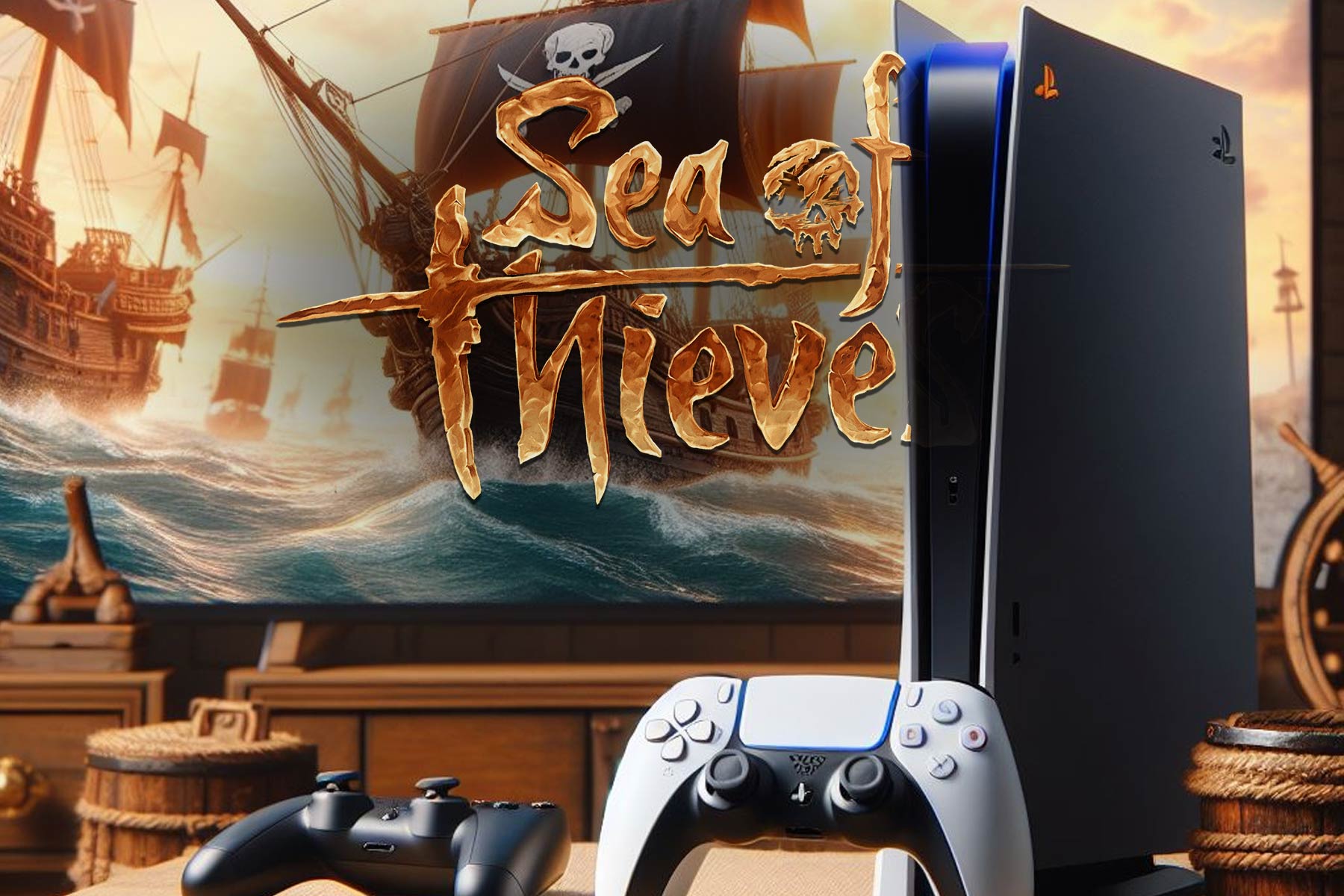
Sea of Thieves success on PS5 will determine the future of upcoming ports, rumors say

As you know, Microsoft is moving some of its exclusives to PlayStation, and the company has plans to bring all Xbox games to PlayStation.

This sounds like a major investment, and the future of the PS5 and Switch ports lies in the success of Sea of Thieves.

Sea of Thieves’ success might determine Microsoft’s policy on future ports

As you know, Sea of Thieves is coming to PlayStation soon, and a few weeks ago, Xbox ports were dominating PlayStation pre-order charts.

This is good news since the success of Sea of Thieves will influence Microsoft’s course of action when it comes to future ports, as GoNintendo writes.

As you know, Microsoft is bringing Pentiment and Grounded to Switch, while Sea of Thieves is coming to PS5.

It seems that the Sea of Thieves and its success on PS5 will determine the future of other ports on both PS5 and Switch, as undisclosed sources say.

We hope that Sea of Thieves will be successful on PS5 as we hope to see many other ports on both PS5 and Switch in the future.

Buckshot Roulette is now available on Steam with a new version and exciting features

Buckshot Roulette, the short indie tabletop horror video game introduced in 2023, was released on Steam on April 4, 2024.

The game is developed by Mike Klubnika. It makes you reimagine the deadly game of chance Russian roulette and involves a 12-gauge pump action shotgun.

The Steam version of the game includes achievements, new gameplay items, and a leaderboard. In the coming months, a multiplayer mode will also allow you to play it with friends.

The game originally came out on itch.io in 2023 and used to cost $1.20; however, on Steam, you need to pay $2.99 to purchase the game, and from April 18, 2024, the price of the itch edition will also be $2.99.

If want it at a cheaper price, get it now on itch.io while the price is $1.20. However, if you want to get it from Steam at a low cost, you can grab the game at a 10% discount till April 11. This was done to celebrate its launch on the Steam platform. So, you will be able to get it for $2.69.

The Steam version of the game will have a 1.2 version, but the same will not be launched for the players using the itch.io version until April 18; here is what the official blog post says:

The reason for a 2-week delay on itch is that some of the new features are created with Steam tools, and because of this I’m not able to push the update on itch.io immediately. I want to take 2 weeks to make sure that all the early itch.io supporters get a fun and bug-free experience.

Following Steam’s rules and requirements, once the v1.2 update is released on itch.io, the price of the game will be changed from 1.20$ to 2.99$.

The blog post also mentioned that there will be differences between the itch and Steam versions, as certain features in future updates will depend on Steam tools. As of this update, the online leaderboard and achievements features will not be included in the itch version.

So, if you don’t care about these features and multiplayer mode coming in the future, you should go with the one available on itch.io before April 18, as it is cheap.

The game developers are also working on the console release as well so that the game can be available on Xbox, PlayStation, and other consoles.

Well, it is a little disappointing as the players who trusted the developers and brought on the popularity of the game will not be able to enjoy all the features coming to the game in the future.

Have you tried Buckshot Roulette yet? If so, share your experiences in the comments section below.

Twitch will stream Minecraft and Fortnite eclipse-themed games alongside NASA’s live broadcast

The 2017 eclipse from the U.S. was a record-breaking event and the one from 8 April 2024 (today!) has all the chances to surpass it. NASA will broadcast the event live, but now it has also teamed up with Twitch, Microsoft, and Epic for a first-time meta broadcast matching gaming with sighting the event.

The event is called Look Up! and it will feature streamers playing eclipsed-themed games in Minecraft and Fortnite, as spotted by PCGamer.

If you do not like epic total eclipses, you might still enjoy the Minecraft and Fortnite special events. The Look Up! game mode from Minecraft will feature solar eclipse puzzles and questions to fill out missions and escape the moon to get to the Earth in time before the start of the eclipse.

When playing Fortnite, you will get some missions that are accessible by moving on the path of the eclipse that will traverse Mexico, the U.S. and Canada. All this gaming event will be streamed alongside NASA’s live footage of the eclipse.

NASA has posted all the details about the April 8, 2024 solar eclipse including the areas that will benefit from the full spectacle of the totality. It’s a pretty narrow band on the map so check it out if you want to know whether to buy the special glasses or not. Actually, if you don’t have those, don’t Look up! because you risk permanent damage to your retina.

Xbow Showcase just got more exciting: Gears of War to be announced, release dates for Microsoft Flight Simulator 2026 and Indiana Jones revealed

Xbox Showcase gives you a dose of what’s next for the console, future game announcements, sharing release dates, and more. This time around, Microsoft is expected to announce a new Gears of War game during Xbox Showcase.

According to The Verge, Gears of War 6 will be a highlight of the June’24 event. The last game in the franchise, Gears of War 5, was released in June’19, almost five years ago.

The report goes on to state that a new Call of Duty will hit the console later this year. Besides, Microsoft will share the release dates for Microsoft Flight Simulator 2024, Indiana Jones and the Great Circle, and Avowed.

Xbox players are excited about this year’s Showcase event, and it’s perfectly summed up in this comment on Reddit.

I know that this sounds familiar but this year’s Showcase could be huge banger.

New COD, Gears 6, Perfect Dark, State of Decay 3, id’s new game, release dates for Indiana Jones, Avowed, MSFS2024 etc.

We had previously reported that Gears of War would come out sooner after The Coalition went on a hiring spree. Besides, there are rumours of Gears of War coming to PlayStation, but Microsoft hasn’t officially confirmed the news yet!

What do you think about the new Gears of War announcement during the Xbox Showcase? Share with us in the comments section.

New Lunar Lake Intel CPU Ultra 5 234V spotted: 8 cores, 2.1 GHz

Everybody is waiting for the new Lunar Lake CPUs from Intel because they will power the next laptops such as the Galaxy Book5 Pro that was recently spotted in the SiSoft Sandra database.

Now, we have some new information about a Lunar Lake Intel CPU that was leaked by a user on X, according to Tech Radar.

The information comes from 01.org, Team Blue’s Open Source Technology Center. The Lunar Lake CPU is called Intel Core Ultra 5 234V and it comes with 8 cores and 8 threads per package.

Although the name touts it as a 2.1 GHz processor, the boot sequence from the source writes that the system detected a 3100 MHz (3.1 GHz) CPU. However, the chip is still in development so that might change at any moment.

Allegedly, the Intel Core Ultra 5 234V is part of the Core Ultra 200 CPUs, where Ultra is the top tier tech from Intel. We remind you that Intel also has the Raptor Lake Refresh H CPUs which will be part of the lower tier from the Core 200 class.

The new Core 200 and Core Ultra 200 will replace the Meteor Lake and Raptor Lake Refresh chips.

We can’t wait to see what will be the performance of the laptops boosting the new Intel CPUs but we hopefully won’t have to wait that long.

How to Play YouTube Music on Desktop With No Ads

YouTube Music has become a popular way of listening to music due to its variety, but for an enjoyable experience on your desktop, seamless listening with no ads is the way to go.

YouTube ads can interrupt playback from 15 seconds up to 90 seconds, and since they appear at close range between intervals, it can be annoying to listen to a playlist that frequently disrupts.

How do I play YouTube Music on my desktop with no ads?

1. Subscribe to YouTube Premium

  1. Open your preferred web browser on your PC. (We’ll be using Chrome for this step).
  2. Go to the YouTube Music website by typing music.youtube.com in the address bar and pressing Enter.
  3. If prompted, sign in to your Google account. If you don’t have an account, you’ll need to create one.
  4. Navigate to the left-hand pane and select Upgrade.
  5. Select one plan and follow the on-screen prompts to complete the subscription.

The individual plan might be too expensive, so consider subscribing to the Family or student plans to get your money’s worth.

Another hack to get more out of your premium subscription is downloading your music playlists offline. If you reconnect to the internet before 30 days, you can keep your downloads intact and save on data.

2. Install adblocker extensions

  1. Launch your Chrome browser, and in a new tab, go to the following location:chrome.google.com/webstore/category/extensions
  2. In the search bar at the top left, type Jadskip and hit Enter then click on Add to Chrome.
  3. Confirm by clicking Add extension.

The good thing about JadSkip is it works for both video and audio so it’s a two-in-one adblock solution. If you’ve installed an adblocker but it is not working, try refreshing your browser or try another one. It’s also possible that YouTube Music is yet to be available in your country.

Also, ensure you’ve not installed two adblockers, as they could be conflicting.

Unfortunately, Google is making it harder for adblockers to thrive. You might install it, but YouTube may flag it. Worse still, you might get locked out of your account or denied access until you uninstall it. YouTube may also fail to load captions with adblockers installed.

The best response to such is to make your adblocker undetectable.

3. Switch to unofficial apps

We’ve already discussed ways to download the YouTube Music app to your desktop and one of them involves downloading the unofficial app. If you get YouTube Music from GitHub, you don’t have to worry about ads because it comes built-in with an adblocker.

However, if you’re going for any other unofficial version, you can also download the Revanced app for an ad-free experience.

Note icon NOTE
WindowsReport is not affiliated with GitHub, so you must do your due diligence if you decide to download unofficial apps.

Potential issues that may arise from blocking ads on YouTube Music

  • Blocking ads is a direct violation of YouTube Music’s terms of service. If your account is flagged for violating these terms, you risk getting your account suspended.
  • Most of the content creators on YouTube Music depend on the platform for income, and running ads is one major way they do this. Blocking these ads means they can’t get paid, limiting their ability to produce future projects.
  • Adblockers or extensions in general tend to slow down your browser and may negatively affect the functionality or performance of YouTube Music. YouTube may start slowing down your browser because of such add-ons.

While blocking YouTube Music ads promises an enjoyable listening experience, you need to consider the bigger picture and the ripple effect it has on all involved parties.

If you can’t afford a premium subscription, it’s best to check out other music player apps that offer free listening with no ads, or their premium service is a little bit affordable.

That’s a wrap from us, but we’d love to hear about any other tricks you use to play YouTube Music on your desktop with no ads. Drop us a comment below.

ASUS ROG Iceblade X, a compact gaming powerhouse has been announced

ASUS devices have been known for their quality, especially the ROG series with its gaming hardware.

Speaking of which, today we have the latest member of the ROG family, Iceblade X, so let’s see what it can do.

ROG Iceblade X gaming PC has just been announced

As NotebookCheck writes, ASUS has announced the ROG Iceblade X series. Unlike regular PCs, this one uses water cooling to address the waste hear issues.

As for the specs, they are the following:

  • Intel Core i7-14700KF or Core i9-14900KF CPU
  • RTX 4070 Super GPU
  • 32GB RAM
  • Aura Sync-compatible lighting
  • 2x USB 3.2 Gen 1 Type-A ports and  2x USB 2.0 ports on the back
  • 3x DisplayPort 1.4a ports and a HDMI 2.1 port
  • Ethernet port that offers up to 2.5 Gbit/s
  • WiFi 6E

The device measures 11.5 x 32.3 x 28.69 cm, and its volume is just 10 liters. Currently, it seems that this device is available only in the Chinese market.

As for the price, the Core i7 model costs $2075 while the Core i9 will cost around $2350. In other gaming news, AMD Zen 5 will dramatically improve your gaming performance, so stay tuned for more news.

Limited time deal: Acer Nitro 17 gaming laptop available for just $980 on Amazon

If you are planning to get a new Windows 11 gaming laptop, consider Acer Nitro 17, a power-packed device with great reviews. The Acer Nitro 17 is presently available for just $980, $219 off its regular price of $1199, in a limited-period Amazon deal.

It’s a value-for-money purchase!

RTX AI in Nitro 17 will boost the laptop’s performance, improve the gaming experience, and find extensive applications in different programs. The keyboard and other components are more than decent for the price range.

The gaming laptop comes with dual-fan cooling, quad intake, and a quad-exhaust port design to ensure optimal temperature. Though when the fans run at full speed, it may get a bit loud!

Speaking of sounds, Acer Nitro 7 features the AI-powered Purified Voice 2.0 technology. It uses AI to filter out background noises and enhances clarity.

Acer Nitro 17’s specifications

ProcessorAMD Ryzen 7 7840HS Octa-Core
GraphicsNVIDIA GeForce RTX 4050
Storage1 TB SSD (Solid State Drive)
RAM16 GB DDR5, ‎4800 MHz
Operating SystemWindows 11 Home
Display Size17.3″
Display Resolution‎1920 x 1080 px

You can’t expect Acer Nitro 17 to match the performance of premium gaming laptops, but it’s unbeatable in the price range. Some have raised concerns about the build quality, but with proper use, the gaming laptop should last a few years without a repair or replacement.

Hurry up and get Acer Nitro 17 from Amazon at just $980 during the limited-period deal!

If you are looking for cost-effective options, check out our top picks for gaming laptops under $800.

What do you think of the Acer Nitro 17 Amazon deal? Share with us in the comments section.

Hackers promote fake AI pages via Facebook ads to trick you

Wrongdoers discovered a new way to trick you into downloading their malware. This time, they use fake AI pages via Facebook ads to trick you into accessing their malicious link. Yet, you might see other fake AI accounts, such as DALL-E, Sora, MidJurney, and ChatGPT-5.

It is not the first attempt by threat actors to exploit Facebook ads services. A while ago, they tried to trick people with fake job offerings. Thus, carefully analyze the URLs and their sources before accessing them.

How are threat actors using fake AI pages to inflict malware?

Cybercriminals promote fake AI pages and attract users by offering limited-time access to upcoming products. Sometimes, they showcase a desktop application that doesn’t exist. Additionally, they might promote an NFT-related opportunity, such as generation and monetization.

Threat actors will try all sorts of tricks to gain your trust. Then, by accessing their malicious links, they will send you to a fake AI website similar to the real one. However, this one will most likely feature download buttons and irresistible offers.

After they infect your device, threat actors can use the malware to steal credentials, cryptocurrency, cookies, credit card information, and more. Afterward, they sell your information on the dark web. Then, other wrongdoers use your information to commit fraud or conduct scams.

One of the most recent cases of hackers using fake AI pages happened with MidJourney. According to Bitdefender specialists, the fake Midjourney page had 1.2 million followers. Additionally, wrongdoers used it in a Facebook ads campaign targeting users aged between 25 and 55. On top of that, the ad reached 500,000 Europeans.

Unfortunately, cybercriminals created dozens of fake AI pages, most of which seem legitimate. They regularly post updates and features about the AI service they mimic to enhance their credibility. Also, to spread malware, they used a GoFile link. Even if Facebook is removing fake accounts, hackers create more.

Ultimately, unmoderated communities and unchecked pages lead to the propagation of data-stealing malware. Thus, threat actors can freely exploit tools like Facebook ads to increase the follower count for their fake AI pages and trick us. So, the best way to defend yourself is to avoid opening links.

What are your thoughts? Did you encounter suspicious Facebook ads or fake AI pages? Let us know in the comments.

After the EU, a South African agency is investigating Microsoft for alleged anti-competitive practices

Recently, Microsoft was in the news after Slack complained to the EU Commission about unfair competitive practices related to Microsoft Teams. This led to an announcement that Microsoft will sell Teams separately at $5.25. However, the Redmond tech giant is still not in the clear.

Microsoft is in trouble again as another antitrust case has been registered for alleged anti-competitive practices. This time, a South African agency has filed a case against its cloud computing business practices.

According to Reuters, the South African company is investigating Microsoft over its cloud computing licensing practices. The basis of this case is the same as the European Union antitrust one.

When Reuters reached the tech giant for a comment, they said the company is not aware of any complaint filed by the South African competition authority.

The South African agency didn’t respond to Reuters’ request for comment. The other details about the case file are not known as of now, but it is not the first time Microsoft has faced issues like these in the cloud computing arena.

These complaints underscore the growing global scrutiny on the big tech companies and their business practices, and Microsoft’s denial that it was aware of this latest complaint shows that there will be a legal battle ahead.

What do you think about the matter? Share your opinions with our readers in the comments section below.

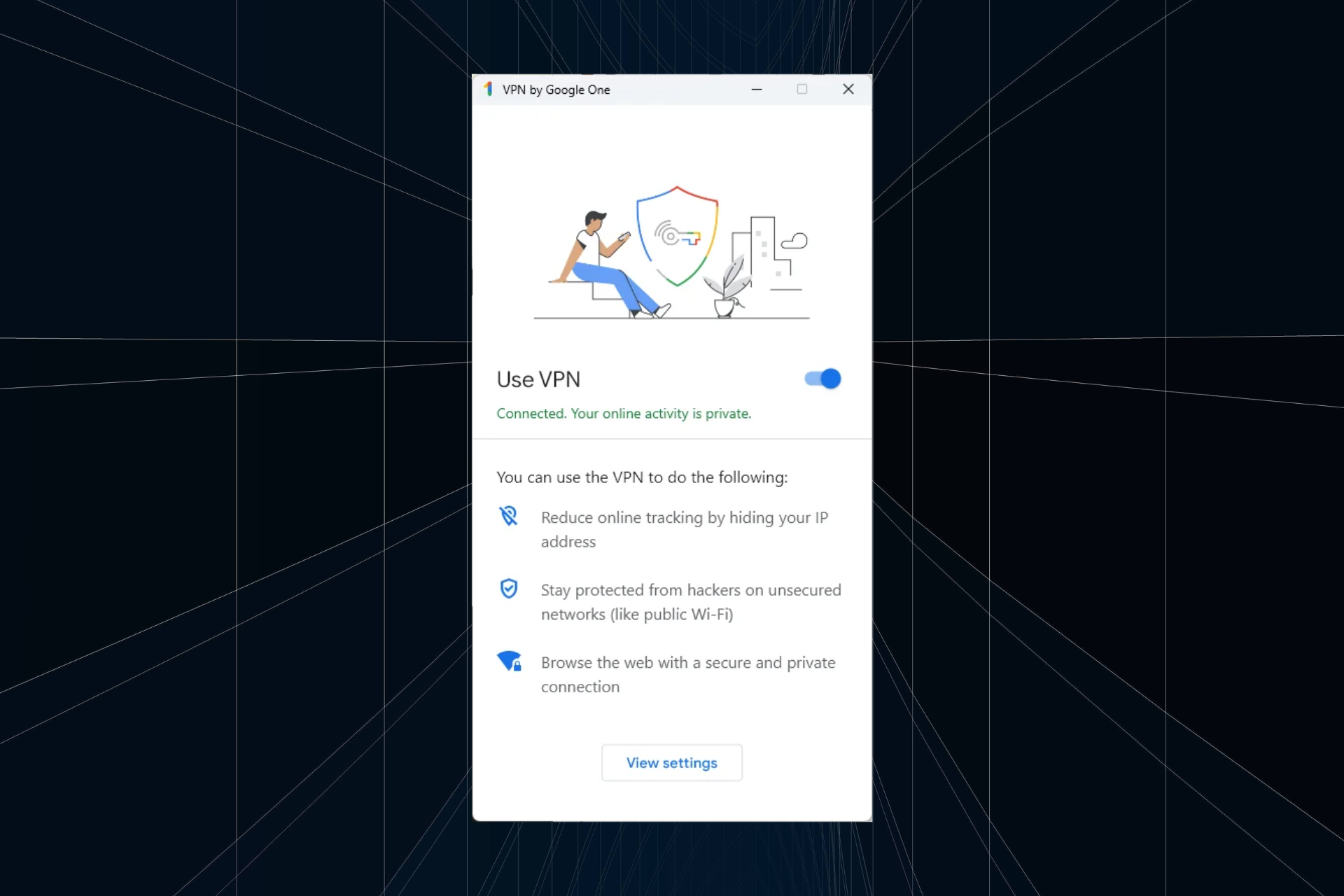
Google One VPN changes the Windows DNS, affecting security and Internet speed

Google One’s bundle package comprises a VPN, often used by subscribers on Windows, Mac, Android and iOS. A few months ago, users highlighted a problem wherein the VPN automatically changed the device’s DNS to Google’s DNS server.

First reported on GitHub, the problem’s description reads,

This VPN BREAKS DNS functionality in windows 11, it locks the system DNS to google DNS servers under the network settings.

1. Settings -> Network & Internet -> Ethernet
Leave this open, and set on Automatic DHCP.
2. Connect to Google VPN, it will change your DNS setting to manual google DNS servers.
3. Disconnect, and keep an eye on the settings window we left opened, it will stay stuck to the google DNS settings, not the automatic DHCP, breaking ANY dns functionality of your computer.

Even after a restart, closing the google VPN app, or disconnecting the DNS settings are stuck on a manual assignment. This is unacceptable. In order to use the google one vpn, one needs to manually go into network settings and toggle back on the auto assignment.

Based on available reports, this seems to be the case with only Windows devices. The DNS server is not automatically changed on MacOS, Android, or iOS!

A few days later, Google’s Ryan Lothian acknowledged this and confirmed that it’s an intended privacy-oriented feature and not a bug, as many initially believed.

Hey folks, thank you for reporting this behaviour.

To protect users privacy, the Google One VPN deliberately sets DNS to use Google’s DNS servers. This prevents a nefarious DNS server (that might be set by DHCP) compromising your privacy. Visit https://developers.google.com/speed/public-dns/privacy to learn about the limited logging performed by Google DNS.

We think this is a good default for most users. However, we do recognize that some users might want to have their own DNS, or have the DNS revert when VPN disconnects. We’ll consider adding this to a future release of the app.

Every time you want to change the DNS, you will have to do so from within the network adapter’s settings. Even if you uninstall the Google One VPN, Google’s DNS will still be in place unless manually removed. Ideally, after uninstall, DNS should revert to the previous configuration!

Why is the DNS server vital?

DNS (Domain Name System) is critical both to the security and how quickly a website loads up. It doesn’t directly affect the Internet speed but reduces the time taken to convert the domain name to the corresponding IP address, giving the impression of a faster Internet. But that’s just as good!

Also, a reliable DNS server doesn’t throw any errors or have issues accessing specific websites, and prevents different types of attacks. Google’s DNS is undoubtedly good, but often faster DNS servers near you may be a better choice.

No other VPNs have shown this behaviour, at least not the popular ones. While Google is known for data collection through different means, which most of us have gotten used to over time, changing the DNS is a step in the wrong direction!

We expect newer versions of Google One’s VPN to not change the DNS server.

What’s your take on the feature in Google VPN? Share with our readers in the comments section.

A new Edge extension adds a Chrome-like Link Preview feature to the browser

This Extension adds a Chrome-like Link Preview feature to Microsoft Edge. You can open the Link Previews with the Alt + Click shortcut or by long pressing, just like in Chrome.

We recently reported that Chrome has added a feature to preview links before you navigate. It is currently available behind a flag that you need to enable manually in the Chrome prerelease versions. The option is available in the right-click menu and Chrome also offers an Alt + click shortcut to trigger it. Furthermore, Until now, this was a Chrome-only feature, not available in Edge even in flag form.

We now have an extension available in the Edge add-ons Store that replicates or mimics Chrome behavior and offers the same Alt + Click shortcut or Long Press to preview a link.

When you hover over preview content, the Preview dialog page content appears in the window. We tested this extension in Edge Stable, and it works beautifully, as you can see in the clip below.

Note: The extension is pretty new and has no reviews. Please be careful before installing this extension and proceed at your own risk.

The developer advertised its new Link Preview extension on Reddit and the post already has a lot of favorable comments and upvotes. That’s a clear sign that Edge users really expected this feature. If it gains more traction, Microsoft might think of adding it to the browser directly.

Did you install the Link Preview extension? Tell us about your experience in the comments section below.

Microsoft creates an Xbox game preservation team to ensure backwards compatibility

Since Microsoft bought Activision-Blizzard, Xbox has become a huge gaming powerhouse, despite console unrests. The Redmond giant wants to bring Xbox on every screen and it’s even working on a handheld console to complete the circle.

There’s possibly a bright future ahead, but how about the past? Would we be able to play those old games we love on a new Xbox console? Will we be able to play some new titles on older devices?

According to Windows Central, Sarah Bond, Xbox’s President made a pretty bold commitment to answer these questions:

We have formed a new team dedicated to game preservation, important to all of us at Xbox and the industry itself. We are building on our strong history of delivering backwards compatibility to our players, and we remain committed to bringing forward the amazing library of Xbox games for future generations of players to enjoy.

Xbox President Sarah Bond

Why does Xbox needs a game preservation team?

Allegedly, the next Xbox console won’t have any disk drive and other rumors imply that the new handheld console will solely rely on cloud storage. We’re living the age to complete digital shift where everything is online. And when everything is on the cloud, digital stores can remove games as if there weren’t there in the first place.

Google, Apple, and Nintendo have been known to do that and Microsoft is closing the Xbox 360 store in July this year. However, there are still hundreds of backwards-compatible games which still survived to be played on newer Xbox consoles.

That’s why it’s important that this game preservation team to future proof our titles, to be able to play them for a longer time. However, the real issue is not how they make the old games play on new consoles but the other way around.

Creating a less resource-demanding version of the latest games for an older console such as Xbox One is hard. And if they do, would you downgrade your gaming experience just to be able to play it? We’ll see how this will work out.

What are the best old titles you would like to keep playing on a new console? Let’s talk about that in the comments section below.

How to Connect Your Xbox Controller to Apple Vision Pro

To add more versatility to your Xbox controller, you can connect it to your Apple Vision Pro and explore endless possibilities for an enhanced gaming experience.

How do I connect my Xbox controller to my Apple Vision Pro

1. Check for compatibility and support

  • Xbox Wireless Controller with Bluetooth (Model 1708)
  • Xbox Wireless Controller Series S
  • Xbox Wireless Controller Series X
  • Xbox Elite Wireless Controller Series 2
  • Xbox Adaptive Controller

While Xbox can pair with Apple Vision Pro, it needs to be one of the above supported controllers.

2. Pair the two devices

  1. Power on your Xbox controller by pressing and holding the Xbox button until it turns on.
  2. Press the connect button to put it in pairing mode.
  3. Go to your Apple Vision Pro and turn on the Bluetooth option.
  4. Here, you should see your Xbox controller among the listed available devices. Select it and pair it.

3. Customize controller

  1. On your Apple Vision Pro, go to Settings  > General > Game Controller.
  2. Here, you can tailor controls to your preferences by selecting an option for buttons and change it to the function you want it to perform. You can also create custom controls for easier navigations.

The cap with customized controllers is it only applies to supported games from the Apple Arcade or the App Store on Xbox.

Additional tips to enhance the gaming experience

  • For uninterrupted gameplay, invest in a charging dock or rechargeable batteries. Some batteries give you up to 40 hours per charge. We have an interesting article on what Xbox users use.
  • Explore additional peripherals such as headphones or controller grips for an immersive gaming experience.
  • Ensure your controller and Apple Vision Pro firmware are up-to-date for smooth pairing and to avoid frequent disconnections.
  • Switch off other devices that may cause interference with the Bluetooth connection and keep both devices in close range.

And that’s a wrap from us but don’t just stop here when it comes to exploring all the different devices you can pair your Apple Vision Pro with. We have already explored how you can connect your Xbox to the Apple Vision Pro as well as how to connect it to your PC.

Whether you’re a die-hard fan or just a casual gamer, it’s worth a try to pair these absolutely revolutionary devices and unlock new possibilities and new adventures in the world of gaming.

You can also connect your Xbox controller to Quest 2 if you’re all about virtual reality headsets.

Have you tried pairing your Xbox controllers with your Apple Vision Pro headset? What was the experience like? Let us know in the comment section below.

This is the complete list of apps that may prevent installing Windows 11 24H2, could trigger Safeguard holds

If you were planning to upgrade to Windows 11 24H2 at release, it’s time to get things in order. To start with, make sure no apps and drivers on your PC prevent the installation of the Windows 11 24H2 update due to a Safeguard Hold.

Microsoft often enforces Safeguard Holds after assessing the quality and compatibility data from individual PCs when it identifies that a particular update could cause issues. Safeguard Holds are automatically lifted when the issue is fixed and the same is verified!

With Windows 11 24H2 being a significant update in terms of new features and changes, Microsoft is much more careful with the rollout than it was previously. PCs running incompatible apps or drivers will be automatically blocked from installing the update!

Apps and drivers that may conflict with Windows 11 24H2 installation

1. ConisioAdmin.exe (Solidworks PDM)
2. EaseUS Disk Copy.exe (EaseUS Disk Copy Application)
3. ep_dwm.exe (ExplorerPatcher) Included since 22H2
4. iCloudServices.exe (iCloud files shared in Explorer via WhatsApp) from 23H2
5. RadeonSoftware.exe (AMD GPU perf settings) From 23H2
6. StartAllBackCfg.exe (StartAllBack) Included since 22H2
7. Multi-mon + Copilot (Microsoft)
8. MergeSdb (Microsoft)
9. Intel IntcOED.sys (Intel)
10. Intel IntcAudioBus.sys (Intel) (%WinDir%\System32\drivers\IntcAudioBus.sys)
11. Realtek 8192su Wireless USB 2.0 Adapter (Realtek) (%WinDir%\System32\drivers\RTL8192su.sys)

This list of apps, shared by Deskmodder and sourced from a decrypted appraiser.sdb file, has a few popular names. But it is usually an older version of these apps that prevents updating to Windows 11 24H2. For instance, the Windows 7 version of VLC will trigger Safeguard Holds during the update and not the latest one.

Now, all that’s left is to uninstall these apps!

There’s also a long list of hardware IDs as well on the on Deskmodder’s official blog.

Besides, with Microsoft adding SSE4.2 to the list of compatibility blocks, CPUs without POPCNT won’t be able to run Windows 11. In case you are still unsure, there’s a quick way to find out if your PC can run Windows 11 24H2.

As for the changes in Windows 11 24H2, you can expect features to move from Control Panel to Settings, the removal of WordPad, and more!

Do you have any apps that might prevent updating to Windows 11 24H2? Share with us in the comments section.

Skype Today sends incessant notifications on iOS, here’s how you can get rid of it

Skype Today, available as a separate tab and message box, shares news articles based on your preferences. But, for many, it keeps sending notifications, often the same ones multiple times. This time around, iOS users were affected!

Many took to social media platforms and forums to share their experiences. A user posted on X (formerly Twitter).

Another user on X hinted at uninstalling Skype due to the constant notifications.

Some took to Skype forums on Reddit to share their exasperation with the incessant notifications and the lack of information regarding disabling them.

I’ve had Skype on my phone for years. Today, for the first time ever, I got a push notification with some news headline. I looked through the Skype settings to try to find the option to disable this (presumably new) “feature”. I couldn’t find anything, so I decided perhaps there was an error and it was a one-off.

Well, I just got another useless news notification, so I’ve uninstalled the app.

How do I remove Skype Today?

If you, too, got a barrage of notifications sent on your iOS device, muting, disabling, and deleting Skype Today or uninstalling Skype are the only options. While the first three tackle the news-sharing Skype Today feature, the last one gets rid of the app altogether!

  • Disable Skype Today: Open Skype Settings > go to Appearance tab > turn off the toggle for Enable Today tab.
  • Mute Skype Today: Open the Skype Today chat from the left pane > tap on Mute at the bottom.
  • Block Skype Today: Go to the Skype Today chat > open its profile > tap on Block Skype Today. Deleting doesn’t work, it will return in a few hours!
  • Uninstall Skype: Press and hold Skype on the iOS device’s home screen > choose Remove App > tap on Delete App in the confirmation prompt.
Enable Today tab toggle under Skype’s Appearance settings

Incessant Skype Today notifications are not new, have been a problem since months

This isn’t the first time Skype has been criticized for pushing far too many notifications. Last year, users raised similar concerns and Skype later released a statement acknowledging the issue and confirming it’s working on a fix.

We can find reports from months earlier on Reddit of users complaining about Skype Today.

It seems that Microsoft, not to be deterred by the fact that everyone immediately disabled the “Today” tab, has now decided to forcefully add a “Skype Today” bot to your contact list, which automatically sends you a summary of recent news items. Each of these come in as messages, just like any other contact, complete with the new message sound and notification alert. I’m not sure how often, but so far I’ve received two messages in the past 12 hours.

Till date, Skype Today appears to be a work in progress, a system that would benefit greatly from some polishing. If Microsoft doesn’t want users to switch to Skype’s alternatives, it’s high time the company addresses their concerns, particularly with Skype Today!

What has been your experience with Skype Today notifications on iOS? Share with our readers in the comments section.

The recent Windows updates make changing the default browser more challenging

Microsoft has been known to force users to use its software, and this is especially true if you want to change your default browser.

It seems that changing the default browser just got a bit harder after recent updates from Microsoft.

Microsoft makes changing the default browser harder on Windows

Microsoft is now using a Windows driver that will prevent users from changing their default browser through software or by modifying the registry as BleepingComputer writes.

Fortunately, this doesn’t mean that you’re stuck with your current browser, but the only way to change the default browser is now through the Settings app.

These changes affect both Windows 10 and Windows 11 and were introduced in KB5034763 and KB5034765 updates in February.

This change was first noticed by Christoph Kolbicz who noticed that his applications that utilized the registry to change the default browser stopped working:

According to Kolbicz, these values are now locked and can’t be changed manually or with software. While this behavior can be stopped, it requires disabling the new UCPD.sys driver from the registry.

Additionally, users need to disable the UCPD velocity task in the Task Scheduler to prevent the driver from activating again.

Why was this implemented? Kolbicz speculates that this change is associated with DMA law. Others speculate that this is an anti-competition measure that will prevent other browsers from setting themselves as the default browser.

Some also speculate that this is a security feature that will prevent malware from changing your default browser. Sadly, no official information is currently available from Microsoft.

Speaking of DMA changes, you can now easily remove Edge, and you can even stop Microsoft from promoting Edge on Windows.

The Outer Worlds: Spacer’s Choice Edition and Thief are free this week

As you might already know, Epic Games sometimes has free offers. This week, the company put Thief and The Outer Worlds: Spacer’s Choice Edition out for grabs until April 11. So, hurry up and get them from the Epic Store. Additionally, if you want to find free deals in time, use a Discord bot or Opera GX.

Everything you need to know about The Outer Worlds

The Outer Worlds is an open-world RPG with great mechanics and a good storyline. It won the role-playing game of the year award at the D.I.C.E. Awards. Also, the game received a total of 20 award nominations.

Before going into details about the game’s plot, know that you will most likely enjoy the game if you are a Sci-fi fan. Also, if you recently got Helldivers and played Starfield, this one would be a great addition to your collection. Furthermore, The Outer Worlds 2 will be available soon.

Plot-wise, The Outer Worlds follows the story of a colonist awakened from a cryosleep by a mad scientist. Your challenge is to uncover a secret conspiracy and decide the fate of the Halcyon colony. Also, your choices in the game affect the story’s progress, and you can recruit various companions.

The combat system of The Outer Worlds feels smooth. You have a time-slowing technique that helps you with difficult enemies. Some players consider the game’s world-building excellent. On top of that, many praise its storytelling and dialogue.

There is also a downside to the game. It doesn’t have a map as big as Fallout or Skyrim, and replaying it might not be as enjoyable due to the lack of content. Plus, you have to play from THE POINT OF NO RETURN save because after you finish the story, that’s it.

Ultimately, even if Epic Games is not your favorite platform, consider getting Thief and The Outer Worlds, especially since they are free. After all, both games offer many hours of gameplay. Also, they have a beefy story and great mechanics. Additionally, The Outer Worlds 2 is coming, and you should play the prequel to get a headstart.

Are you eager to play any one of them? Let us know in the comments.

An alleged image of AMD Zen 5 Ryzen Granite Ridge Desktop CPU leaks online

In a recent post on X (formerly Twitter), a user (@ExperteVallah) leaked the alleged image of the AMD Zen 5 Ryzen Granite Ridge Desktop CPU. The shared image has a caption 8c16t, which indicates it will feature 8 cores and 15 threads. The alleged image showcases a standard AMD Ryzen CPU without an SKU identifier and QR which is covered intentionally.

Previously, the Einstein@Home and LHC@home databases showed entries of the AMD Zen 5 CPU. Interestingly, both the database entries hinted at a sample with 8 cores and 16 threads. However, the high-end Granite Ridge CPU could offer up to 16 cores and 32 threads. The entries also include an OPN ID of 100-000001290-11, similar to the one in the leaked image.

Wccftech, who first spotted the leak, mentioned that it has seen several AMD Zen 5 Granite Ridge Ryzen CPUs being shipped out in shipping manifestos.

Although there’s not much information about AMD’s Zen 5 core architecture for now. However, the CPU maker has officially said that it will offer the following:

Now that several details and images of AMD’s Zen 5 Ryzen Granite Ridge CPU samples are out online, there are chances that we might see the official launch in the upcoming Computex 2024 event.

The KB5035941 March update fixes Sysprep 0x80073cf2 error in Windows 10 22H2

Microsoft has good news for you if you have been facing the Sysprep error 0x80073cf2 in Windows 10 22H2. Earlier, the Redmond giant mentioned a workaround to fix the 0x80073cf2 errors while using the System Preparation Tool. 

Back in January, addressing this issue in a support document, Microsoft added:

After installing updates released November 30, 2023 KB5032278 or later, some Windows devices might be unable to complete preparation using System Preparation Tool (Sysprep.exe) due to issues with the status of a Microsoft Edge package. Affected Windows devices will receive a 0x80073cf2 in the setupact.log.

However, Microsoft silently updated the Resolved Issues page for Windows 10 22H2 to inform about the fix. According to the company, the KB5035941 preview update released in March end resolved the Sysprep error 0x80073cf2. 

Talking about the resolved issue on the same page, Microsoft added:

This issue was resolved in updates released March 26, 2024 (KB5035941) and later. We recommend you install the latest security update for your device. It contains important improvements and issue resolutions, including this one. 

Let’s not forget that it not only fixed the  Sysprep error 0x80073cf2 in Windows 10 but added a few new features with that update. Among them, is the inclusion of MSN information cards to the Windows 10 lock screen. 

Google reportedly allowed OpenAI to scrap data from YouTube videos for GPT-4 training

As per the latest report from The New York Times, OpenAI scrapped data from YouTube videos to train its most advanced large language model (LLM), GPT-4. The AI company reportedly used a million hours of YouTube videos for GPT-4 training.

Interestingly, people from the concerned department at Google, which also owns YouTube, know about OpenAI’s practice of transcribing YouTube videos.

Google allegedly has the same approach so it allows OpenAI to scrap data from YouTube videos for GPT-4 training

The report suggests that OpenAI has developed a new model – the Whisper audio transcription model, which helped the AI company to scrap YouTube video data. It is worth noting that the company is well aware that it might come under the scanner of government bodies. However, it went ahead with the practice believing it was fair use.

The NY Times claimed that OpenAI scrapped data from YouTube videos and podcasts to train its two AI models. The report further mentions the involvement of OpenAI president, Greg Brockman, in the company’s shady approach for GPT-4 training.

The news agency further reported that Google is also practicing the same for training its Gemini AI which is a direct violation of the creator’s copyrights. However, Google said that it scraps data from YouTube videos only when the original creator consents to it.

The NY Times also talked about a report from The Times that Google tweaked its privacy policy last year. Talking about the same, it mentioned:

One motivation for the change, according to members of the company’s privacy team and an internal message viewed by The Times, was to allow Google to be able to tap publicly available Google Docs, restaurant reviews on Google Maps, and other online material for more of its A.I. products.

Previously, OpenAI CTO Mira Murati confirmed that their new AI video model, SoraAI, is trained on publicly available video data.

YouTube is aware of OpenAI’s practice but seemingly hesitates to interfere

In a recent interview with Bloomberg, YouTube CEO Neil Mohan said such practices are a clear violation of terms of service. He added:

One of those expectations is that the terms of service are going to be abided by. It does not allow for things like transcripts or video bits to be downloaded, and that is a clear violation of our terms of service. Those are the rules of the road in terms of content on our platform.

When asked about OpenAI using the data from YouTube videos for GPT-4 training, he gave an unsatisfactory answer. Mohan said that he is aware of the reports and added it may or may not have used data from YouTube videos.

Lastly, it is not new for AI companies like OpenAI and Google to use publicly available data for AI training. That said, these companies are well aware that they can be scrutinized for the same matter by the regulators.

Do you think companies using user data to train AI is a shady tactic? What’s your take on this? Share your views in the comments below.

Microsoft Excel web app gets a new feature to share links to Sheet views

Microsoft recently added a new feature to the Excel web version to share links to existing or new Sheet views. In a recent blog post, the company mentioned that the feature is now available on the Excel website. 

Share links to Sheet views in Excel web app
Image credit: Microsoft

Talking of the new share links to Sheet views on the Excel web, Vinay, Excel’s Product Manager added: 

We’ve heard from many of you who are regularly using Sheet views that you’d like the ability to quickly bring others’ focus to the information that needs attention. To address this request, we’re enabling you to share a link to a Sheet view that captures a subset of a workbook’s contents.

The company further mentioned that the feature allows you to efficiently collaborate on large or complicated workbooks. It makes it easier for you to receive feedback and input from your team members.

Here’s how to share links to existing or new Sheet views in the Excel web version

The blog post also talked about how the feature works. We have listed step-by-step methods below to help you learn to share links to new or existing Sheet views:

  1. First, you need to click the View tab, 
  2. Then, you can click the Sheet View arrow and select an existing view in the list, or create a new sheet view altogether,
  3. In the Sheet view, right-click any cell or the sheet tab with content you’d like to share,
  4. Next, select Copy Link To Sheet View,
  5. Now, click the Close button in the Link to Sheet message that appears on the screen, 
  6. Lastly, share the copied link with anyone (for example, in an email, in the Teamds chat, etc.) or simply keep the link as a reference and use it.

More recently, Microsoft announced a bunch of new features for the Excel web version. This includes new cut-and-paste features, allowing users to export CSV files, and more.

Meta will add a Made with AI label to AI-generated content starting May

Starting in May this year, Meta will add a Made with AI label to more AI-generated content. It will broadly label AI-generated media including videos, images, and audio on all its platforms including Facebook, Instagram, and Threads.

Let’s not forget that in February, Meta hinted to expand the labeling of AI content shared on its platforms. However, the announcement and detailed plans were shared by the VP of the company’s Content Policy on Friday, April 5.

Meta’s decision to label AI content comes after the Oversight Board’s feedback

Monika Bickert, VP of Content Policy at Meta recently informed about the company’s plans for AI content labeling. Bickert mentioned that the company will start labeling manipulated content when the industry standard AI image indicators hint at it. This implies further to the AI-generated content uploaded by any user disclosing its nature.

According to the blog post, Meta plans to label and contextualize the manipulated media rather than remove it from its platform, risking people’s freedom of speech. Meta agrees with the Oversight Board’s feedback about the company’s narrow labeling approach, which only covered manipulated videos. 

Adding more on the Meta’s manipulated media policy, Bickert wrote: 

Our manipulated media policy was written in 2020 when realistic AI-generated content was rare and the overarching concern was about videos. 

The decision to expand AI-content labeling comes after feedback from the Oversight Board in the wake of a controversial manipulated video of President Biden inappropriately touching her granddaughter.

Worth noting that the Oversight Board earlier agreed to Meta’s decision to not remove the controversial video from Facebook. The company then insisted that the video didn’t violate their manipulated media policy. However, the board asked to reconsider this policy quickly, given the number of elections in 2024.  

The company plans to widen its labeling approach starting May 2024. But, it will stop removing content that violates the manipulated video policy from July. Meta says that this will allow people to understand more about the self-disclosure process before it stops removing manipulated media in batches.

All in all, it won’t be wrong to say that Meta’s plan to label AI content is a measure to mitigate misinformation given the upcoming US elections. Time will tell how well it implements the said changes.

Beta Channel Build 22635.3430 adds Copilot’s ability to change its icon

On April 5, 2024, Microsoft released Windows 11 Insider Preview Build 22635.3430 (KB5036992) for users in the Beta Channel. The KB5036992 patch brings minor improvements to Copilot and Windows Share. The company also addressed a few known issues in the release notes.

First, let’s talk about new improvements introduced in Beta Channel Build Number 22635.3430, under KB5036992.

Beta Channel Build 22635.3430 lets Copilot change its icons in the taskbar

Copilot can now change its icons in the taskbar when you copy text or images. Depending on what you copy, you’ll see Copilot change its icon. And, a new related menu now opens when you hover the mouse over the icon.

Talking of the new action menu for copied images, there are new options – Create similar image and Analyze this image. When you select the Analyze this image option from the menu, Copilot will describe the image you copy using GPT-4 Vision.

Whereas, the AI bot quickly utilizes DALL-E 3 to create similar images when you select the Create similar image option. Let’s not forget that with the previous update, Copilot can automatically show up when a user copies text or images. 

Windows Share updated for seamless media and file sharing to group chats and Microsoft Team Channels

The tech giant also updated the capability of Windows Share with the latest Beta Channel Build 22635.3430. Users can share documents or media files to Microsoft Teams Channels and group chats right from the Windows Share window.

Microsoft also noted that users signed in with a Microsoft Entra ID can only use this feature for now. The company rolled out the feature earlier with Beta Channel Build 22635.2776, under KB5032292. However, the feature was earlier disabled to fix some related issues. Also, there’s no mention of when the feature will be available to personal or work accounts.

The Beta Channel Build 22635.3430 release notes also talk about issues with the new position of Widgets in Windows 11 for left-aligned taskbars. That’s not all, there’s mention of general issues in the release notes which read:

We are investigating an issue where Internet Information Services (IIS) and Windows Communication Foundation (WCF) may not work after installing this update.

Are you facing any issues after installing this update? If yes, comment down below to share with our readers.

KB5034203 and newer updates are causing caching issues in Windows 10 21H2 and 22H2

Microsoft recently updated the Windows 10 issue details page and talked about the newly spotted caching issues in the Windows 10 KB5034203 update released in January. It says that some Windows 10 devices within enterprise networks might face issues using Microsoft Connected Cache (MCC) nodes causing increased download traffic from the public internet. 

Systems with DHCP Option 235 are likely to run into caching issues in Windows 10

The newly discovered bug reportedly affects devices with Windows 10 version 21H2 and 22H2 with KB5034203 or newer updates. Microsoft further confirmed that the systems with DHCP Option 235 are most likely to run into caching issues in Windows 10. As a result, enterprise users have no choice but to use networks outside of their companies to download updates and apps.

For those unaware, Microsoft Connected Cache is a feature currently available in preview that offers software-based caching. It allows delivering “Microsoft Content” across education and enterprise networks.

The tech giant says that Connected Cache for Enterprise and Education caters to customers looking to modernize the management away from Configuration Manager distribution points. 

Microsoft also mentioned that the caching issue in Windows 10 KB5034203 and newer updates doesn’t affect home users. That’s because the affected feature only caters to the needs of ISPs, enterprises, and education networks. 

Microsoft says workarounds are available to mitigate the problem

But, the company said it is working towards resolving the caching issue in Windows 10. And, mentioned that the fix could feature in the next updates. In the official documentation, Microsoft added two options that IT admins can try to resolve the problem at their end:

  • Option 1: Configure Microsoft Connected Cache endpoint in DOCacheHost policy as indicated in Cache hostname. Additionally, DOCacheHostSource has to be set to 1 or removed as indicated in Cache hostname source. Note that by default, the DOCacheHost and DOCacheHostSource policies have no value.
  • Option 2: This issue can also be mitigated using Group Policies available through our support channel. Organizations can request help through Support for business.

Are you also facing caching issues with Windows 10 KB5034203 or newer updates? Let us know if the solutions suggested by the company helped resolving it.

Finally, Firefox now supports Chrome’s Text Fragments in Firefox 126

Mozilla has finally added support for Text Fragments (formerly known as Scroll to Text Fragment) to Firefox 126. The feature is being tested in Nightly; here is how you can enable and use it.

Firefox gets Text Fragments support in Version 126

Chrome introduced the Scroll to Text Fragments feature in 2020. This feature allows users to link directly to a specific part of a web page using a text snippet embedded within the URL. When the link is opened in a supported browser (like Chrome), it automatically highlights and scrolls to the part that part of the page.

This feature allows a user or author to link to a specific portion of a page, using a text snippet provided in the URL. When the page is loaded, the browser highlights the text and scrolls it into view.

Text Fragments has been supported by Safari, and Chromium browsers like Microsoft Edge, Opera, Brave, Vivaldi, and Android browsers. The feature is being actively used by Google in search results. There is a demand from users for Firefox to support it also. Finally, Firefox supports text fragments, currently in Nightly.

How to enable and use Text Fragments in Firefox

  1. Launch Firefox In the address bar, type about:config and press Enter.
  2. Click Accept the Risk and Continue to proceed.
  3. In the search bar, type dom.text_fragments.enabled.
  4. Right-click on the preference and select New boolean preference.
  5. Name the preference dom.text_fragments.enabled and set its value to true.

Creating Text Fragment Links in Firefox

  1. Copy the URL of the webpage you want to link to.
  2. Add #:~:text= to the URL, followed by the specific text snippet you want to highlight.

Example URLs:

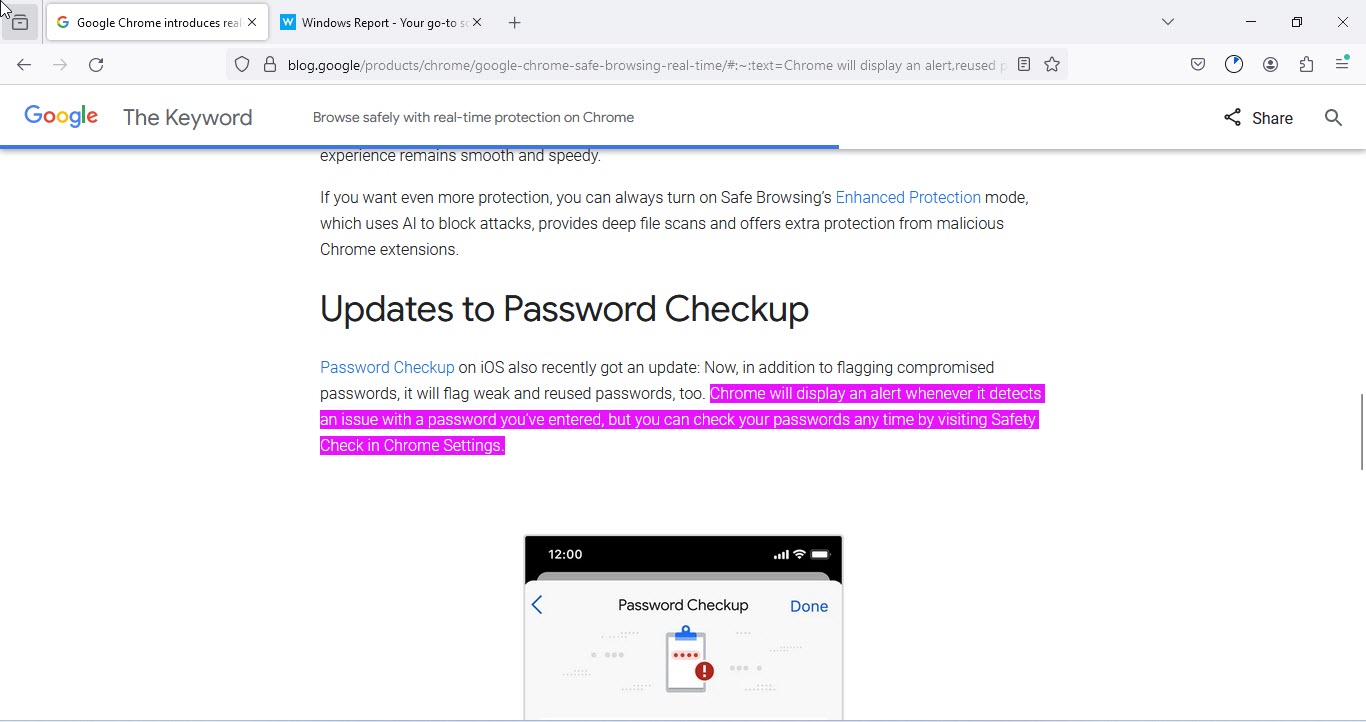
Original URL: https://blog.google/products/chrome/google-chrome-safe-browsing-real-time/

Text Fragment URL (highlights “Chrome will display an alert”): https://blog.google/products/chrome/google-chrome-safe-browsing-real-time/#:~:text=Chrome%20will%20display%20an%20alert

Original URL: https://windowsreport.com/v8-sandbox-available-chrome-123/

Text Fragment URL (highlights “beta release”): https://windowsreport.com/v8-sandbox-available-chrome-123/#:~:text=beta%20release

When you copy and navigate to the above text fragments, Chrome and Firefox both highlight them. However, Firefox uses a different highlight color. This is the only noticeable difference. Both browsers offer similar functionality for creating links, highlighting text, and scrolling to specific sections.

The Text Fragments feature is currently being tested by Mozilla in Firefox 126 Nightly. However, only an initial version of the feature has been implemented, and the company still has a lot of work to do to bring it on par with Chrome in terms of functionality and bug fixes.

In other news related to Firefox, Mozilla has partnered with Qwant and allows to use it as a Search engine from the URL bar in the browser. And, Firefox may get Vertical Tabs like in Edge.

New Microsoft Xbox leadership reorg says goodbye to 26-year veteran Kareem Choudhry

As Microsoft continues to wrap its corporate arms around its $68B Activision acquisition, its Xbox division is wrangling with yet another shuffling of executive chairs and business priorities that’s resulted in veteran Kareem Choudhry leaving as the division purses growth in new avenues.

Choudhry, a 26-year veteran of the Xbox business is exiting stage left as of today due to ‘circumstantial’ reasons, according to reports from Windows Central. Choudry’s contributions include the development and marketing of the Xbox Series, the Xbox backward compatibility layer, Xbox Cloud Gaming and the formation of a new gaming AI division within Microsoft.

Choudhry’s AI gaming division is an internal project referred to as Xbox’s Emerging Tech team or XEmTech for short.

XEmTech will endure as Choudhry departs and be led by Roanne Sones, an OEM expert formerly from within Microsoft’s Windows business. XEmTech will shift into the fold of the Xbox hardware division proper with a rumored interest in developing some sort of handheld console for the business. Jason Ronald could accompany Sones and XEmTech alongside a pursuit of a handheld Xbox experience from his current position as Tech Advisor within the Xbox hardware division.

The folks over at Windows Centra managed to get insider information from an internal memo circulating in the Xbox division that positioning the new AI team under the general Xbox gaming hardware division should allow the overall business to “accelerate innovation”.

Additional re-org musical chairs consist of Ashely McKissick and Kevin Gammill promoted to heads of the newly established Xbox Experiences and Platforms division tasked with improving the overall Xbox experience between Windows and Xbox. The Xbox Experiences and Platforms team could be the link that many of the most recently Windows-powered handhelds have been looking for to make those experiences feel more native and less convoluted than they currently are.

After successfully navigating the Xbox and Activision regulatory process, Catherine Gluckstein will be promoted to lead of the Xbox Strategy and Regulatory team as Microsoft Advertising executive Jennifer Creegan moves to of Microsoft’s Gaming analytics and business planning division.

Microsoft’s Xbox division now has a much brighter spotlight on it following its $68B investment and will need to quickly justify its price tag plus its public fights with international regulatory bodies, hence the evolving reorg of the business. It’ll be interesting to see what the business brings forth in the second half of 2024 and into 2025 as a result of all this shuffling.

Latest NVIDIA Game Ready Driver 552.12 still doesn’t support multi-monitor RTX HDR, causes black screen for a few

When NVIDIA released the latest Game Ready Driver 552.12, we were excited about new features, but more importantly, support for RTX HDR on a multi-monitor setup. Seems like the wait is going to be a little longer!

The latest driver is aimed at improving the gaming experience for new titles supporting DLSS (Deep Learning Super Sampling) 3. The driver description on the official download page reads,

This new Game Ready Driver provides the best gaming experience for the latest new games supporting DLSS 3 technology including Season 3 of Call of Duty: Modern Warfare III and Call of Duty: Warzone and Diablo IV’s latest update which introduces ray tracing support.

While we could wait another few months for multi-monitor RTX HDR, black screen and performance issues seem like a bigger problem right now.

In our experience, it’s normal for a new driver to cause a black screen, but the problem shouldn’t be so widespread.

We recommend readers not install any new drivers right away but wait for a few days and analyze how it performs for others. If no are minimal or no issues, proceed with the installation. Else, wait for a patch!

NVIDIA’s Game Ready Driver 552.12 triggers a black screen

The latest NVIDIA Game Ready Driver caused a black screen. In some cases, the GPU made a loud noise, and the setup had to be manually turned off.

Just installed this driver and while doing so my screen went black and noise started blaring like something was way wrong.. I had to manually shut my pc off. Turned it back on to the driver installed, but now my background pic is gone.. screen is just black now.

The latest Game Ready Driver 552.12 also causes stutter on a few systems.

Im getting stutters for the first time on my 3090 with this driver, just downgraded yesterday and stutters gone, mostly on nfs unbound, never had 1 stutter.. Also cpu is really working harder for no reason..

Surprisingly, the latest driver also fixed stutters for some, but it could have to do with the latest game updates.

I had stutter in the cutscenes of HFW , using the 551.86 Nvidia driver, uninstalled it via DDU in safe mode and then installed v552.12 while every monitoring tool was closed. Now the stutters are gone , I don’t know what solved it maybe it was the latest hfw update that was released today or this driver or maybe both.

As for installation problems, these were, in our experience, limited to 7800X3D and 5800X3D with a 4090. You may also get a black screen post driver installation in such cases.

My PC black screened while installing the driver. (4090/7800x3d)

If you get a black screen after installing Game Ready Driver 552.12, an easy option is to roll back the NVIDIA driver. Or if the problems are minimal, perhaps wait for a newer version with the patch. Until then, don’t forget to report the issue to NVIDIA!

What has been your experience with the latest NVIDIA Game Ready Driver? Share with us in the comments section.

Coincidence at its peak: The individual squares in Windows 11’s Start menu icon are 11×11 px

We don’t often come across coincidences in the Windows ecosystem. Everything is part of an elaborate and well-thought-of system, with a dedicated set of professionals working on it around the clock. But we came across something fascinating about Windows 11!

Recently, a user on Reddit pointed out that the individual squares in the Windows 11 Start Menu icon are 11px wide and 11px tall.

While there’s no clear mention, this is probably under 100% scaling. Another user pointed out that the size of the individual boxes changes to 13x13px at 125% scaling and 16x16px at 150% scaling.

While the OP (Original Poster) on Reddit used Screen Ruler in Microsoft PowerToys, you can also discover the pixels using a screenshot-capturing app. Just capture the relevant part and identify its dimensions.

Is this just a coincidence? It is difficult to say. The only way to find out is to wait for the next iteration of the OS and see if the same pattern continues.

Irrespective of that, the coincidence fascinated everyone, and many came forward to share their take on the matter.

Windows 11 – 11px x 11px!
Windows 12 – 12px x 12px?

At least something is pixel-perfect.
You can’t say that about other taskbar icons.

How bored were you to find this satisfying information?

To discover similar fascinating things on your PC, perhaps download Microsoft PowerToys. But make sure to learn about it before you start making the changes.

Do you know any interesting facts about Windows? Share with us in the comments section.

Edge 123.0.2420.81 is here, boosting security and squashing vulnerabilities

Web browsers are a common target for cyberattacks, and to keep users safe, Microsoft is frequently releasing new updates.

Speaking of which, the latest update for Microsoft Edge is here, so let’s take a closer look at it and see what’s new.

The latest Edge update is here and it addresses various security issues

Recently, a new security update for Edge was released, and according to Microsoft’s post, the update remedies several security issues.

The update brings the latest Security Updates of the Chromium project to Edge. For details, you can check the Security Update Guide.

Besides Chromium security updates, this version also addresses the Microsoft Edge spoofing issue. The vulnerability is labeled as CVE-2024-29981 and it’s considered a non-severe issue.

CVE-2024-29049 was also patched, and this is a Webview2 spoofing vulnerability. Unlike the previous one, this one is classified as a moderate threat.

While this update brings nothing new, it fixes various security issues, so it’s advised to download the latest version and keep your browser safe.

In other news, Microsoft Edge 124 Beta updates the First Run Experience. If you use Edge on multiple platforms, you’ll be pleased to hear that Edge can now show you cross-device search query history suggestions.

Adobe addresses concerns over AI scanning speculations in its Windows apps

With AI setting its precedent in every sector of our lives, we often are concerned about our privacy and the infringement of personal data when using AI-powered apps.

Recently, Adobe started testing the new AI features in its apps for Windows 11, 10, and other platforms and found itself at the center of apprehension when rumors circulated about its Windows apps automatically scanning documents with the help of AI.

It all started when security reporter Brian Krebs revealed wrote in the post:

Sure. Let Adobe AI scan all of your documents. What could go wrong?

In response, many users expressed concerns about privacy and didn’t want to use any of the Adobe apps for sensitive documents.

The discussion quickly started on other forums, like Reddit, where users swear not to use Adobe for their documents and suggest that others not share their documents with people who use Adobe.

What does Adobe have to say?

In response to these concerns and questions, Adobe has stepped forward and given a statement to Windows Latest to address the situation.

The confusion started from Adobe’s documentation, and Adobe explained that users had misinterpreted the documentation.

The documentation says:

The generative AI features in Acrobat and Acrobat Reader are turned on by default. However, you can choose to turn them off, if necessary.

The documentation suggests that the generative AI features were enabled by default. However, Adobe says this simply means that these AI features are available to everyone.

The company further clarifies that its software doesn’t scan or analyze any document unless a user uses the AI features by agreeing to the terms, opening the document, and choosing the AI Assistant or generative summary buttons to enable the features on the document.

Deepak Bharadwaj, the Vice President of Product Management for Document Cloud at Adobe, also responded to the email by WindowsLatest and said:

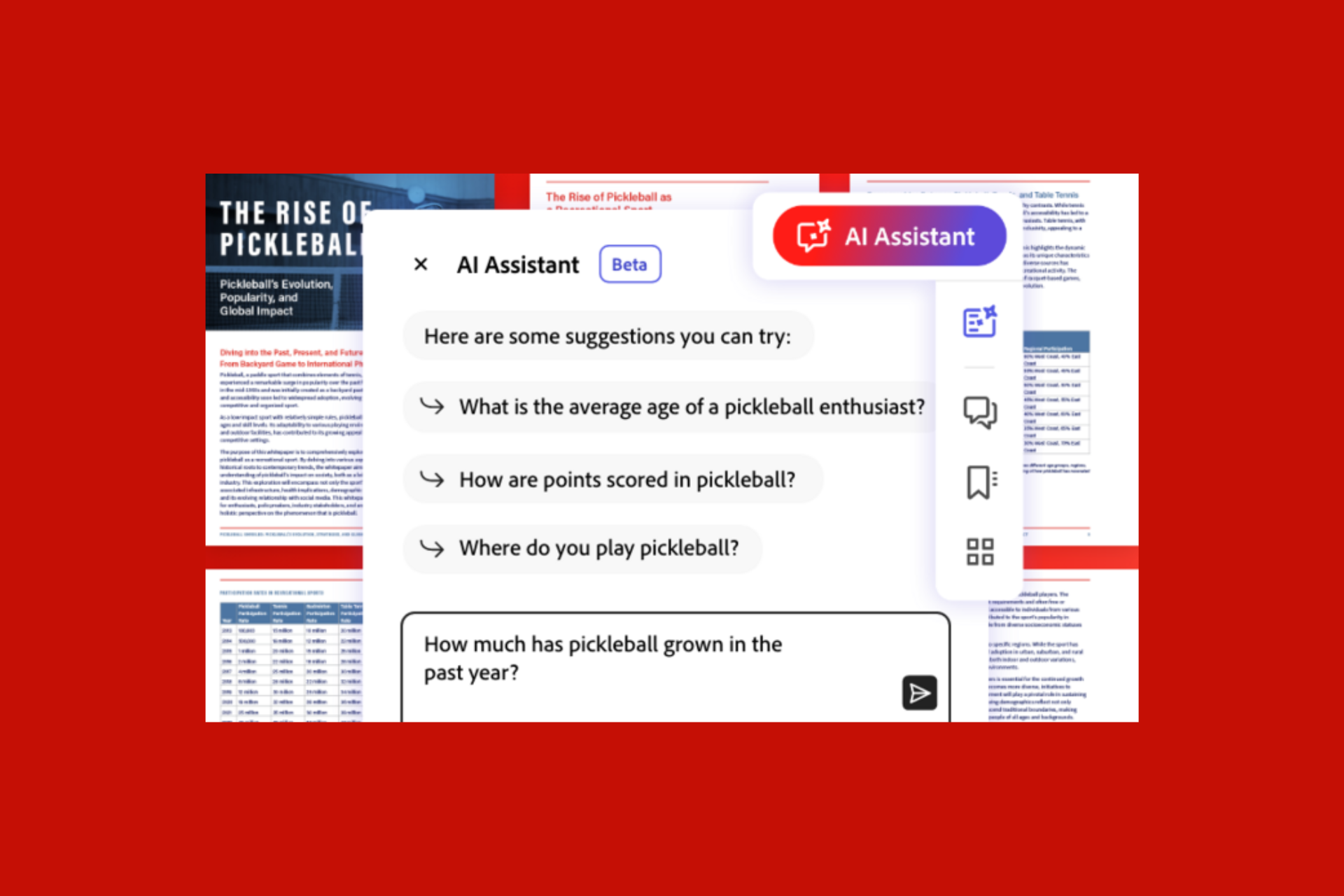
Adobe Acrobat AI Assistant (now in beta) is a new generative AI-powered conversational engine deeply integrated into document workflows. Like other Adobe AI features, Adobe Acrobat AI Assistant was developed and deployed in alignment with Adobe’s AI principles of accountability, responsibility and transparency. In addition, the features are governed by data security, privacy and AI ethics protocols and no customer content is used to train LLMs without customers’ consent.

Moreover, Bharadwaj highlighted how AI assistants can help users generate summaries and insights from lengthy documents and format information for several purposes, such as emails, presentations, and reports.

He also said:

Millions of users are already using Acrobat AI Assistant in beta to answer questions, instantly generate summaries and insights from long documents and format information for sharing in emails, reports and presentations. Acrobat AI Assistant is bringing generative AI to the masses, unlocking new value from the information inside PDFs.

How can I deactivate the feature?

If you still have concerns, you can use a preventive measure mentioned by a Reddit user, giving you complete control over the feature.

On your Windows 11 or 10 computer, open Registry Editor and navigate to this path: Computer\HKEY_LOCAL_MACHINE\SOFTWARE\Policies\Adobe\Adobe Acrobat\DC\FeatureLockDown

Right-click  FeatureLockDown, select New, then DWORD, and name it bEnableGentech. Once created, double-click it and change its Value data to 0 to disable AI assistant from the preference menu, then click OK to confirm. Restart your PC to save the changes.

If you want to enable the feature, follow the same steps and change the Value data to 1.

Alternatively, you can run this command on PowerShell to control the feature:

New-ItemProperty -Path ‘HKLM:\SOFTWARE\Policies\Adobe\Adobe Acrobat\DC\FeatureLockDown’ -Name “bEnableGentech” -PropertyType DWord -Value 0

According to the company’s statement and options provided to give complete control over the feature, WindowsLatest research further found that rumors are baseless.

However, some users remain skeptical of the company’s response and clarification, as this wouldn’t be the first time a tech company claimed one thing but did the complete opposite.

Where do you stand in this? Share your opinions with our readers in the comments section below.