We reported about GPT-4 Turbo in November, 2023, when it was launched. However, the LLM was only available in Copilot Pro for $20. Now, Microsoft added it into the regular Copilot version and it can be used by everyone.
Microsoft’s Mikhail Parakhin announced the change in an X post and added the fact that you can still use the old LLM if you use a toggle button inside Copilot.
We have checked Copilot’s page source code and GPT-4 Turbo is indeed activated but we can’t see the toggle Parakhin mentioned. It’s probably a matter of time.
What’s new about GPT-4 Turbo?
The major change, if you observe the screenshot above is that now you can add 4000 characters/tokens to Copilot instead of 2000 as before.
Technically, from the GPT-4 Turbo release last year, we found out that the LLM is capable of handling 128,000 tokens, the equivalent of a 300 page book so now is way above its limitations.
We also know from Open AI that the maximum number of output tokens for this model is 4096.
Another interesting fact is that we cannot see the attachment clip in the query window so you no longer can add documents in Copilot.
How can I get GPT-4 Turbo in Copilot?
There’s nothing special you need to do. Just visit the Copilot webpage in your browser and sign in with your Microsoft account.
If you want to check whether GPT-4 Turbo is activated, press Ctrl + U on Windows or Cmd + U on macOS to see the page source code and search for GPT-4 Turbo or GPT4T. If it’s there, the new feature is active.
Please note that GPT-4 Turbo is still a preview release and you might get some errors or bugs during usage.
What do you think about the new addition of GPT-4 Turbo? Tell us what you think in the comments section below.
Google is constantly adding new features to Chrome, and users have been waiting for the link preview feature for a while.
While this feature is still in development, we have some exciting news regarding it.
Chrome Canary lets you preview links more intuitively
We already wrote about Chrome’s link preview feature a few months ago, and it seems that this feature just got a new quality of life improvement.
To use it, in the past, you had to right-click the link and choose the preview option. Alternatively, you could use the Alt key and left-click to quickly open a preview.
According to MSPowerUser, that has been changed, making webpage previews easily accessible. Now, you just need to hold the Alt key and hover over the link and you’ll get the preview window, without having to click anything.
The change was first spotted by Twitter user Leopeva64 and he even has a video showcasing it in action:
BBC’s iPlayer Downloads app, used by many of us for streaming our favourite shows, has been shut down on March 11, 2024. BBC had apprised users of the change in advance last month. Any existing downloads will remain viewable until April 8, 2024.
Keeping up with the announcement, BBC had already discontinued the iPlayer Downloads app and removed it from the official website. So, anyone who hadn’t already installed the app lost the offline streaming functionality a while ago. For the rest, it stopped on March 11.
Download and offline streaming have not been discontinued on tablet and mobile apps, i.e. Android and iOS. The changes are limited to PCs.
We have made the difficult decision to close the BBC iPlayer Downloads application for PC and Mac, due to the low number of people using it and the cost required to keep it going. This does not affect downloads on the BBC iPlayer mobile or tablet apps, and viewers can continue to stream programmes on BBC iPlayer on their PCs and Macs.
BBC iPlayer users are not pleased with the change
BBC iPlayer users are not happy with the discontinuation of offline streaming on PCs. A few took to the web to vent their frustration.
It is a shame. I like to download rather than watch online in order to avoid buffering at busy times, although to be fair, this has got better lately. I should imagine the closure is to save money on maintaining the desktop app but it is hard to see any savings as more than notional since it is unlikely to need a dedicated team for occasional bug-fixes in a mature product.
I have BBC iPlayer downloader on my Windows 11 laptop and use it to download programmes to watch at a later time in work. As some of you may know, the BBC, in its infinite stupidity, has announced that from 11th March 2024, the PC/Laptop version will cease to work as they are closing it down.
Offline streaming was a good option for many of us while travelling. And watching content on a 15″ display always made more sense over the mobile’s 5.5″ screen. Besides, downloaded content doesn’t buffer, which is a plus point for many of us in areas with poor network connectivity.
Workarounds to stream offline in BBC iPlayer on PC
When such changes are introduced, enthusiasts always find a way around it. Streaming errors like 02062 as well as download blocks are not new for users.
The simplest option right now is to use an effective screen mirroring software. It will allow you to cast the screen and view BBC iPlayer downloads on the PC.
Another quick workaround is to use an Android emulator on the PC. With this, the BBC iPlayer will function as if it were running on an Android device.
If none of these work out for you, maybe get a tablet with a slightly bigger display. Because, BBC iPlayer’s offline streaming on Windows and MacOS is not coming back!
What do you think of BBC’s decision to stop iPlayer downloads? Share with our readers in the comments section.
Have you digitized your collection of old home movies or have a backlog of low-resolution clips from the internet? Perhaps you’re a video editor but your last footage just wasn’t up to scratch?
AI video enhancers are becoming increasingly popular because of their ability to improve video quality and get more out of your memories and footage.
One such tool that I have been testing recently is Winxvideo AI. In this review, I explore all its key features to see exactly what can be accomplished with AI.
What is Winxvideo AI?
Winxvideo AI is a combined video and image enhancement software for Windows that can increase resolution and apply other AI tweaks to improve quality. It also includes editing, recording, and video downloader tools.
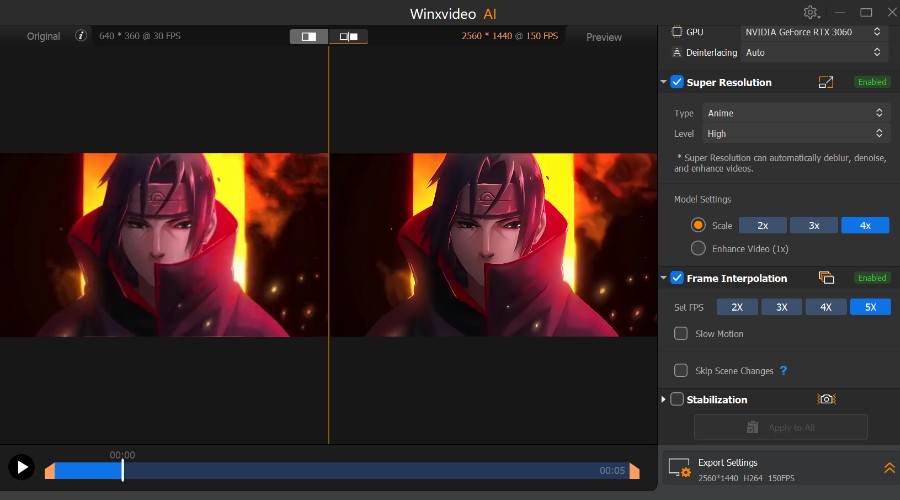
Winxvideo AI is a simple but powerful tool. It uses your computer’s GPU to speed up the video and image enhancement process. Simply drag-and-drop your files to get started. The main window shows your clips or images on a timeline, and you can preview enhancements side-by-side or by using a slider across a single frame.
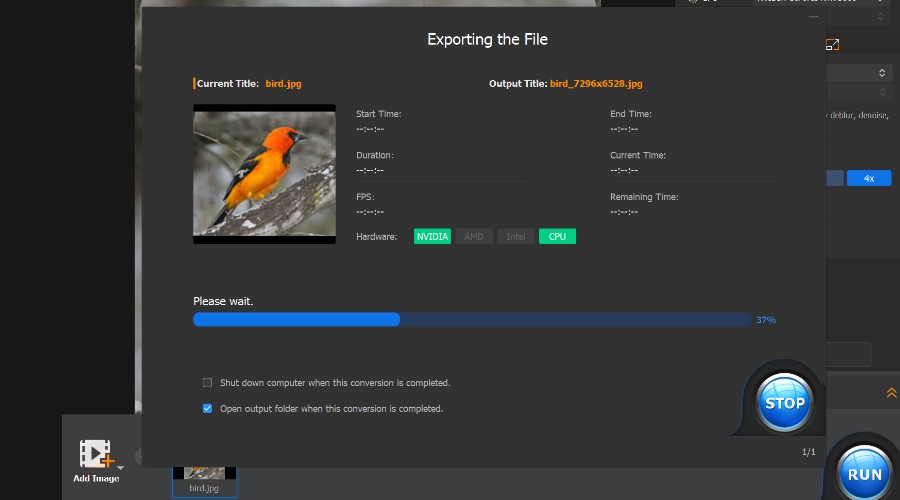
When you are happy with the results, click the big Run button to export the enhanced video or image.
The super resolution feature uses advanced algorithms to analyze and upscale low-resolution videos to higher resolutions.
For example, I was able to quickly upscale a 360p video clip to 1440p. Moreover, it was able to detect that the clip was anime and apply an appropriate model to remove blur and noise.
Frame Rate Boost
Its frame interpolation feature can increase the frame rate of your video by up to 5 times, from 30fps to 120fps, 240fps, or even 480fps, depending on the source material and the desired output.
In my test, I was easily able to boost my clip’s frame rate from 30fps to 150fps.
By using AI to add new frames between existing frames, it’s able to reduce motion blur and stuttering, creating smoother and more natural-looking motion in the video. It also improves the overall quality of the video by reducing artifacts and enhancing details, particularly in fast-moving scenes or shots with a lot of movement.
Video Stabilization
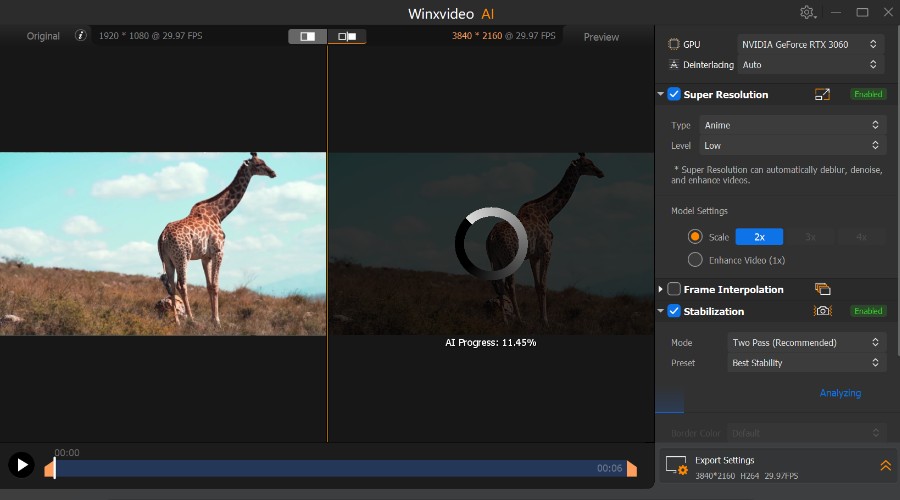
Winxvideo AI’s third key feature is stabilization. This analyzes the movement of the camera in a video, detecting and compensating for any shakes and jitters.
You can apply this to a whole video or use object-based stabilization. This focuses on stabilizing a specific object or subject within the video.
In my test video of shaky camera footage of a giraffe, movement wasn’t completely removed, but it became much smoother, without any sudden jitters.
In total, you get 2 modes, 4 presets, and 3 cropping types, so it’s worth playing around to get the best results.
Image AI
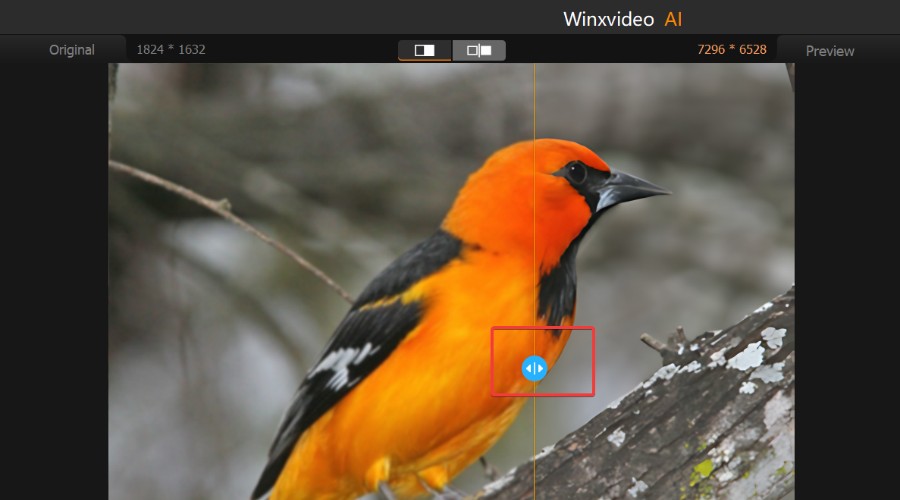
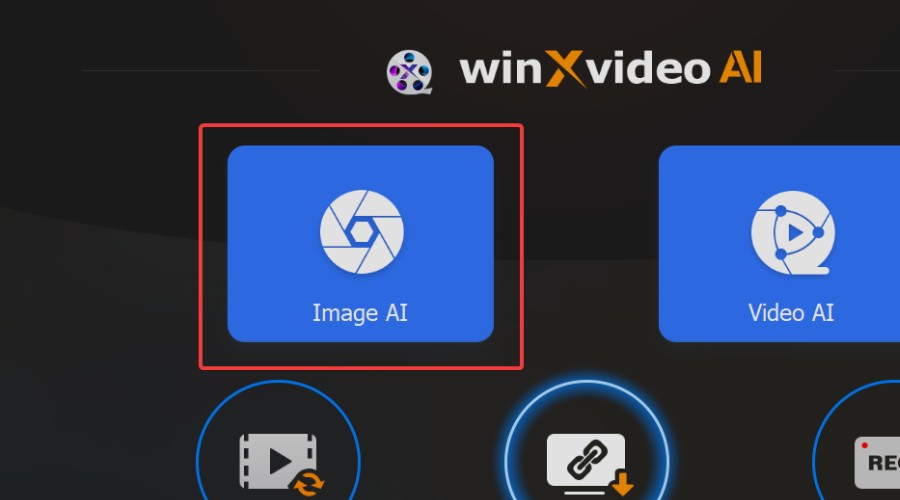
Winxvideo AI can also improve image quality. It enlarges small images, reduces noise and blur, and improves color and contrast. Simply choose Image AI from the main window, then drag-and-drop your images to get started.
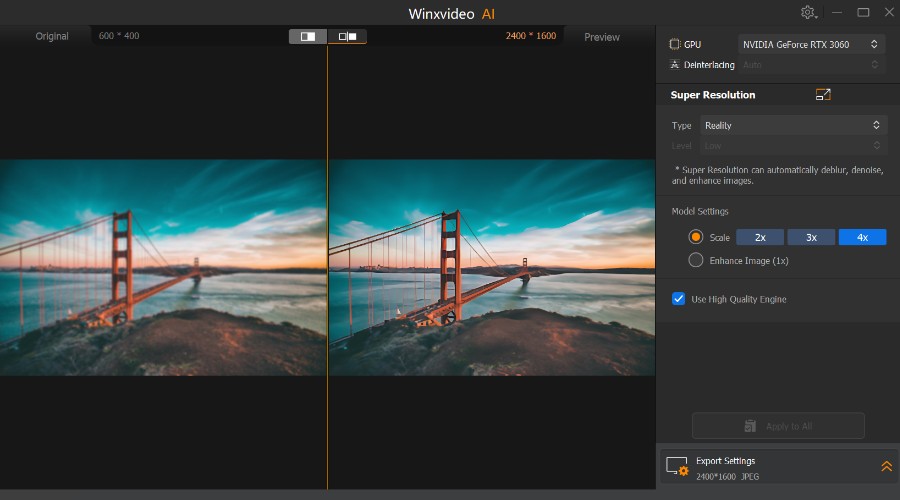
Like video, super resolution increases the resolution of images and you can choose between a reality model for photos and an anime model for cartoons and graphics. Depending on the source, this can reach 10k.
My test image of a bridge was able to scale-up by 4 times. The end result wasn’t perfect, but it was a lot sharper than the original.
Batch Processing
With Winxvideo AI, you can process multiple videos and images at once, saving you time and effort when working with large amounts of content. Drag-and-drop as many source files as desired, then click Apply to All when using one of its features.
Video Convertor
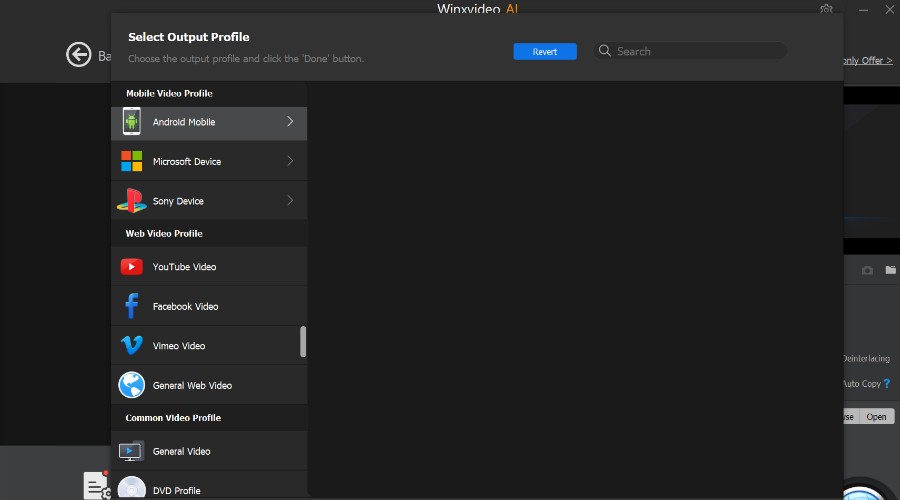
With Winxvideo AI’s video converter, you can easily convert your videos to the desired format while maintaining high-quality and fast conversion speeds. Its presets require no technical knowledge, just choose the overall quality, device, or video platform, depending on your requirements.
Alternatively, if you know the precise format you want, choose from MP4, HEVC, H.264, MKV, MOV and more than 420 others. You can also convert video to audio, with support for MP3, AAC, PCM, WMA, Flac, Ogg, and more.
Although the focus is on conversion, there is also an editing toolbox for applying basic effects and transitions, as well as trimming, splitting, and merging different videos.
Video Downloader
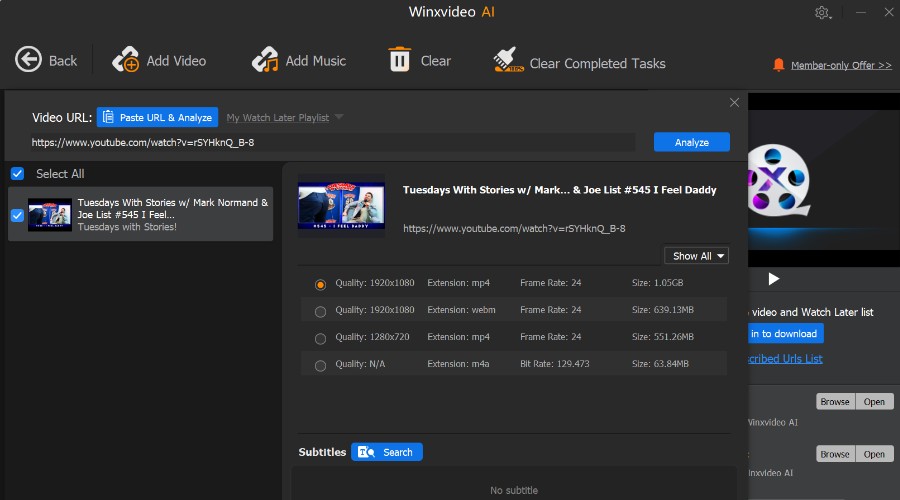
The downloader lets you download and save videos and audio files from online sources for offline viewing or listening. This includes everything from YouTube and Vimeo to Facebook and Twitter.
If you’re tired of web downloaders that are full of ads, this is an excellent alternative. Click the add video or add music buttons and paste the URL to the video or song. It will then quickly analyze the source and provide different formats and qualities to download.
Recorder
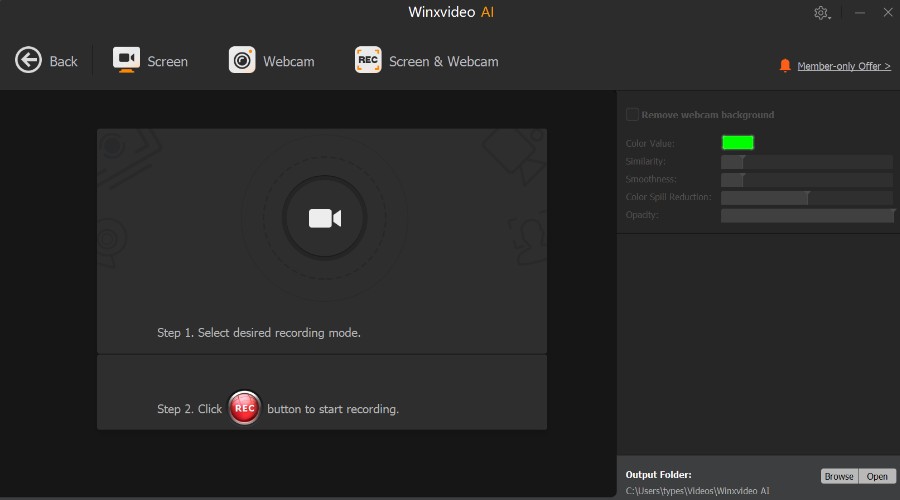
To top it off, Winxvideo AI also offers a recorder feature to capture your screen activity, webcam footage, or both simultaneously. It’s perfect for creating tutorials, recording gameplay, or capturing live streams.
You get full control over the recording mode, recording area, audio source, and quality.
While recording, you can add annotations, highlights, or draw on the screen using the built-in tools. Then, once you stop recording, you can preview and edit the captured video using the built-in video editor.
Winxvideo AI – Pricing
You can try Winxvideo AI for free or make use of one of the giveaways or discounts. Currently, it has two main pricing plans:
Overall, Winxvideo AI is one of the best AI video enhancer tools I’ve tested. It covers all the bases, including videos and images, with the ability to download and edit clips in the same suite.
Its simple enough for anyone to enhance their content in a few clicks, but has enough extra features to keep more advanced users occupied as well.
Microsoft has rolled out updates on Patch Tuesday for both Windows 10 (KB5035845) and Windows 11 (KB5035853).
We are seeing major patches in KB5035853, the update pertaining to Windows 11. In addition to quality improvements, the update addresses the 0x800f0922 error with KB5034765 on Windows 11, version 23H2. Microsoft’s official blog states,
This update addresses a known issue that might affect the February 2024 security and preview updates. They might not install, and your device might stop responding at 96%. The error code is “0x800F0922.” The error message is, “Something did not go as planned. No need to worry – undoing changes. Please keep your computer on.”
As for KB5035845, the update pertaining to Windows 10, you will find quality improvements. Nothing specific has been shared by Microsoft in the official blog.
These Patch Tuesday updates are automatically installed on the PC and, after that, require a restart. If it doesn’t appear, turn on the toggle for Get the latest updates as soon as they’re available in the Windows Update settings.
Besides, it’s recommended that you install all such cumulative updates for an error-free experience and improved security. These are usually small, including KB5035845 and KB5035853, and won’t take more than a few minutes to install!
Patch Tuesday is here, and the new update is upon us. These types of updates usually address security issues, but sometimes they can bring certain improvements.
That’s the case with this update, so let’s take a closer look and see what improvements this update offers.
The latest update lets you edit your phone photos more easily
KB5035853 update was just released, and according to Microsoft’s documentation, it doesn’t offer anything new or exciting, besides addressing various security issues.
However, XDA Developers discovered a new feature that allows users to edit phone photos with the Snipping Tool.
To use this feature, you need to connect your phone to your PC via the Phone Link feature. Once connected, all new photos from your phone will appear as notifications on your PC.
You can even click the notification to further edit the photo with the Snipping Tool. The update also renamed Phone Link in Settings app to Mobile devices, to avoid confusion with the Phone Link app.
Lastly, the update added support for USB4 version 2, which doubles the current USB speed.
Overall, this is a useful feature that might come in handy to some users, so if you already got the update, be sure to give it a try.
The last few months helped NAND manufacturers recover from the losses accrued in the post-pandemic phase when they couldn’t anticipate the market sentiments. Now, as per Digitimes, Phison CEO K. S. Pua warns that any price fluctuations at this point could potentially disrupt the market and lead to a fall in demand.
In the post-pandemic years, i.e., 2022-23, the NAND and SSD manufacturers were reeling under heavy losses. Massive price cuts were announced, which helped stabilize the weakened demand. But, after several months of favourable market conditions, manufacturers are contemplating a price rise.
Analysts at Trend Force suggest that this hike could be in the 40-50% range and will be enforced sooner than expected. A 40% rise in prices will allow companies to break even, and anything higher will deliver profits.
Phison CEO Pua believes this won’t go down well and could put a halt to the increase in demand. The reason, there’s only a certain amount consumers are willing to pay. Anything beyond that, and they will simply look for cheaper alternatives or drop the plan altogether.
Pua’s solution to the problem is rather simple. Manufacturers should meet the current demand by optimally adjusting production and not relying on price control mechanisms. This would ensure a sustainable relationship between demand and supply and, in turn, boost profits.
Again, there are risks to the approach. What if the demand falls again when the production or supply is expanded? This would lead to further losses for companies and force them to again lower the price, basically repeating the post-pandemic scenario. But this time around, recovery may take longer!
Experts predict that PC prices will rise in 2024, primarily due to two reasons: increased cost of components and the revived user interest due to modern technologies like AI. Consumers are willing to pay more. Subsequently, PC shipments are expected to increase by 8%.
Minor fluctuations in NAND prices shouldn’t have too much of an impact on the demand. But if it’s near the predicted 40-50% range, SSDs may not remain a viable storage option for many, at least as a secondary drive. So, manufacturers should pay heed to Phison CEO K. S. Pua’s advice.
What’s your take on the NAND and SSD prices and how much of an increase won’t falter the demand? Share with our readers in the comments section.
For speediness, I downloaded the .msu file to a central location and then am installing via powershell $msuFilePath = “\\PATH2KB\KB5035849\windows10.0-kb5035849.msu” wusa.exe /quiet /norestart $msuFilePath
Others have confirmed that manual download indeed works:
I get Download error 0xd0000034 Update: installs fine via catalog download
just confirmed this server 2019 update deploys just fine from on-prem ConfigMgr sources, so the issue seems to be limited to public Windows/Microsoft update sources at the moment.
(my other server 2019 test box that points to WU/MU had the same error code, but downloading from the catalog and installing manually worked fine as others have reported.)
Thirteen plaintiffs are suing Microsoft and OpenAI to end the unpaid and unapproved AI data harvesting. Furthermore, they accused Microsoft of using copyrighted data to train their AIs. However, the company didn’t deny their allegations. Microsoft considers that they can use public information at will. Also, OpenAI says it’s only possible to train AI with copyrighted content.
What does AI do with our data?
AI does harvest unapproved data. On top of that, researchers might use all resources available, especially since most data is public. Unfortunately, paywalls can’t stop them, especially since they have a lot of funding. Furthermore, Microsoft and OpenAI harvested our data for years.
According to a privacy claim from September 2023, Microsoft and OpenAI conduct unapproved AI data harvesting through their products. Some of the mentioned applications are Spotify, Snapchat, Stripe, Slack, Microsoft Teams, and MyChart.
Moreover, the plaintiffs accuse Microsoft and OpenAI of sharing, storing, tracking, and disclosing our data. In addition, according to an article from The Register, the companies also fail to protect our private information. After all, a year ago, OpenAI needed to add filters to prevent their AI from sharing phone numbers.
Microsoft tried to dismiss the lawsuits by claiming that the plaintiffs had no plausible evidence of eavesdropping, scrapping, or intercepting data. In addition, they do not have any proof that Microsoft allegedly caused them harm. In addition, OpenAI agrees with Microsoft that there shouldn’t be any legal issues for using publicly available information to train their AI. Thus, they do not care if some of us consider their method unapproved data harvesting.
Ultimately, the thirteen plaintiffs consider Microsoft and OpenAI to be data thieves. So, they should be more responsible about how they train their AI. Furthermore, if the plaintiffs win, we might receive a legal right to remove our data from AI models. However, by ending the unapproved AI data harvesting, AI might suffer setbacks.
To discover the vulnerabilities and bugs of Bard, now known as Gemini, researchers hacked the AI. However, the Gemini AI is not their only victim. After all, the team did a number on the Google Cloud Console. In addition, after presenting their discoveries, they received $50,000. Furthermore, their efforts revealed some serious security vulnerabilities that could lead to DDOS attacks, access to specific user data, and access to uploaded images.
Can an AI be hacked?
Threat actors can hack the AI by using backdoor attacks. As a result, they can steal data and harm the model. Thus, it is important to check the system thoroughly. Also, that’s why some companies like Google and Microsoft hold events and reward researchers who are willing to hack their systems to exploit their vulnerabilities.
This research team hacked the AI and discovered how to exploit one of its vulnerabilities. Afterward, they used the major flaw to access user images without authentication, verifying processes, or permission. In addition, the research team revealed that it is possible to trick Gemini into sharing user data.
According to Cyber Security News, the research team used Gemini’s optical character recognition (OCR) to disclose other information, such as emails, notes, and revenues. Furthermore, they thought of hacking into Gemini using images with embedded data. In addition, the researchers managed to find a way to bypass the Content Security Policy (CSP).
Researchers also hacked the Google Cloud Console’s AI by discovering a vulnerability in one of the API’s endpoints. Afterward, they started exploiting it with Denial-of-Service (DoS) attacks. As a result, they prevented the AI from receiving commands from other users.
In a nutshell, the team hacked into Google Cloud Console AI and Gemini AI and managed to discover some fatal vulnerabilities. Afterward, they reported the security flaws. Furthermore, Google organizes such competitions and rewards the discovery of bugs. After all, they lead to great security-related discoveries.
What are your thoughts? Should companies host hacking events frequently? Let us know in the comments.
The newest software upgrade can protect your device from the cybercrime gang Magnet Goblin. However, if you dismiss it, you are more susceptible to cyber-attacks. On top of that, the gang targets Linux and Windows users. Furthermore, they use remote access Trojans to control your device from anywhere.
Unfortunately, the locations of the threat actors are unknown. Thus, it is best to upgrade your software until researchers dismiss the alert.
Why is cybercrime increasing?
Cybercrime is increasing because it has become easier for threat actors, like Magnet Goblin, to target system vulnerabilities. After all, cyber-attacks are more frequent due to remote working, increased internet usage, and AI. Furthermore, the Magnet Goblin uses already patched software flaws, known as 1-day vulnerabilities. Thus, it is very important to keep your device up to date to counter such attacks.
Magnet Goblin used software vulnerabilities found in Ivanti Connect Secure, Magneto, Apache ActiveMQ, ConnectWise ScreenConnect, and Qlik Sense. However, they might use other applications as well. Furthermore, the malware can introduce commands, encrypt your data, and delete files. Moreover, it can adjust settings, modify connection intervals, and request more commands from the command & control server.
According to Sergey Shykevich, the Magnet Goblin doesn’t relate to any group or specific geographical location. Researchers didn’t find any state-sponsored resources. Furthermore, Magnet Goblin is looking for financial gains. They target manufacturing, energy, and healthcare organizations.
In a nutshell, you should always keep your operating system updated to avoid attacks from groups like Magnet Goblin. After all, they move very fast to implement their exploits. In addition, OS updates usually bring additional security fixes and beneficial features.
What are your thoughts? Do you keep your operating system updated? Let us know in the comments.
While Microsoft plows forward with its vision of pre-generative artificially intelligent platforms, it does so with the use of technology that leverages unsustainable bitcoin mining levels of electricity according to Dutch researcher Alex de Vries.
In a recent The New Yorker piece authored by Elizabeth Kolbert; she writes about de Vries indexing of AI energy consumption spurred by his earlier work with his own Bitcoin Energy Consumption Index posted to Digiconomist.
de Vries charted Bitcoin mining at consuming forty-five-billion-kilowatt hours of electricity per year dwarfing the use of the entire nation his home nation, the Netherlands. In addition to its draw on the electrical grid, Bitcoin mining also results in eighty-one million tons of CO2 emissions which is equivalent the North African country of Morocco.
With Bitcoin as the energy sink barometer, de Vries noticed the alarming similarities in AI energy consumption and began tracking its potential trajectory.
In the journal Joule, dedicated to research on sustainable energy, de Vries writes about the similar trajectory AI and bitcoin mining are on in terms of energy-intensive consumption. de Vries estimates that if Google gets fully up and going with Gemini incorporated into or replacing its current search services and platforms, that AI platform could account for more energy consumed by countries such as Croatia, Guatemala, and Kenya at twenty-nine billion kilowatt-hours per year.
As it pertains to Microsoft and ChatGPT, ramping up use of OpenAI’s pre-generative platform authors a similar energy sink as its estimated to be processing two hundred million requests per day that results in roughly half a million kilowatt-hours of electricity consumed.
Kolbert offers a comparison between the average household’s use of electricity in a day to that of ChatGPT with the average household peaking at twenty-nine kilowatt hours a day versus ChatGPT’s five hundred thousand.
The Verge also carried a piece that attempts to quantify AI usage following the known quantities of large language models like GPT-3, as such,
Training a large language model like GPT-3, for example, is estimated to use just under 1,300 megawatt hours (MWh) of electricity; about as much power as consumed annually by 130 US homes. To put that in context, streaming an hour of Netflix requires around 0.8 kWh (0.0008 MWh) of electricity. That means you’d have to watch 1,625,000 hours to consume the same amount of power it takes to train GPT-3.
James Vincent – The Verge
de Vries research has led him to the conclusion that mirrors that of even OpenAI’s CEO Sam Altman, which he believes “There’s a fundamental mismatch between this technology and environmental sustainability.”
The Verge also speaks with de Vries about his methods for calculating the energy consumption of LLMs such as ChatGPT.
To estimate the sector’s global energy usage. As de Vries explains in a commentary published in Joule last year, Nvidia accounts for roughly 95 percent of sales in the AI market. The company also releases energy specs for its hardware and sales projections.
By combining this data, de Vries calculates that by 2027 the AI sector could consume between 85 to 134 terawatt hours each year. That’s about the same as the annual energy demand of de Vries’ home country, the Netherlands.
“You’re talking about AI electricity consumption potentially being half a percent of global electricity consumption by 2027,” de Vries tells The Verge. “I think that’s a pretty significant number.”
Altman was a bit more diplomatic with his concerns when speaking with the press at Davos, stating that “I think we still don’t appreciate the energy needs of this technology,” and that “We need fusion or we need, like, radically cheaper solar plus storage, or something, at massive scale-like a scale that no one is really planning for.”
Independent of the language used by Altman and de Vries’, it’s clear that companies investing in massive server farms that are expelling extensive amounts of CO2 when cooled at this nascent state in AI adotpion, will come to a crossroads, soon where the questions of growth and sustainability cross paths.
Kolbert notes that US datacenters alone account for four per cent of electricity consumed gloablly with that number expected tip six percent by 2026.
Beyond being disheartened by seeing recent history sort of repeat itself between bitcoin mining and AI energy consumption lessons, de Vries also questions whether AI should be adopted at scale given the finite resource its gobbling up.
“Because considering all the limitations AI has, it’s probably not going to be the right solution in a lot of places, and we’re going to be wasting a lot of time and resources figuring that out the hard way,”
Perhaps as a society, we’ll eventually settle on the most optimized use cases for AI and put our collective resources to supporting those, the question remains on how much energy will be used between now and then with compelling examples such as bitcoin mining still running almost unadulterated.
Microsoft Edge is getting updated with new features to facilitate users and provide a better browsing experience. Now, you will soon get the ability to enable or disable the video translation feature on Edge
According to a recent post by Leopeva64 on X (formerly known as Twitter), Microsoft has added a toggle to activate and deactivate the video translation feature in Edge Canary.
You can find this setting by navigating to Settings>Language>Translation. Otherwise, you can right-click an online video and then click the gear icon to open the Translate video settings.
As mentioned in the image, the toggle says:
Offer to translate videos on supported sites. This preview feature enables you to translate the audio and subtitles of videos on supported sites. The translated subtitles and audio are AI generated and may be erroneous. User discretion is advised.
As of now, it is a beta-only feature, and you will be able to first experience the feature on Edge Canary, the browser’s experimental channel, before its global availability. So, if you want to use the feature as it comes to the channel, make sure you have Edge Canary.
Earlier, Microsoft also added other language support, including French, Spanish, English, Russian, Hindi, German, and Italian to this feature. If you want to learn how to use it, we have a detailed guide for you.
In addition to selecting the language, you can choose to translate the audio, subtitles, or both while watching videos on the browser.
Are you excited to use the video translation feature on Edge? Share your thoughts in the comments section below.
A compatibility program, Deck Verified, maintained by Valve and moderated by the community, was launched in October 2021 to showcase the best games under the two compatibility categories, Verified and Playable, on Steam Deck.
According to the latest figures on SteamDB, Valve was able to review Steam Deck compatibility of over 14000 games, including 9,416 Playable and 4,607 Verified games.
In less than 29 months, the company has tested up to 17,947 games, of which 14,023 are deemed playable or verified. The rest, 3,924 games tested, were declared unsupported.
The speed of testing is commendable, but given the huge number of Windows titles on Steam, which will continue to grow, as of now, the number is more than 146,548, and there is a long way to go.
The list can help a lot of gamers decide whether to invest in Steam Deck or not. However, reports claiming Remnant 2’s poor performance indicate that the system that tests compatibility is not perfect. Also, the list of unsupported games is inaccurate, as some of the games listed in the category can work on Steam Deck with minor changes.
With all things considered, we think that Deck Verified can be refined and become more accurate, and the increased number of games added to the compatibility list is proof of it.
If you want to learn more about Steam Deck, we have a detailed guide for you.
What are your thoughts on the matter? Share your opinions in the comments section below.
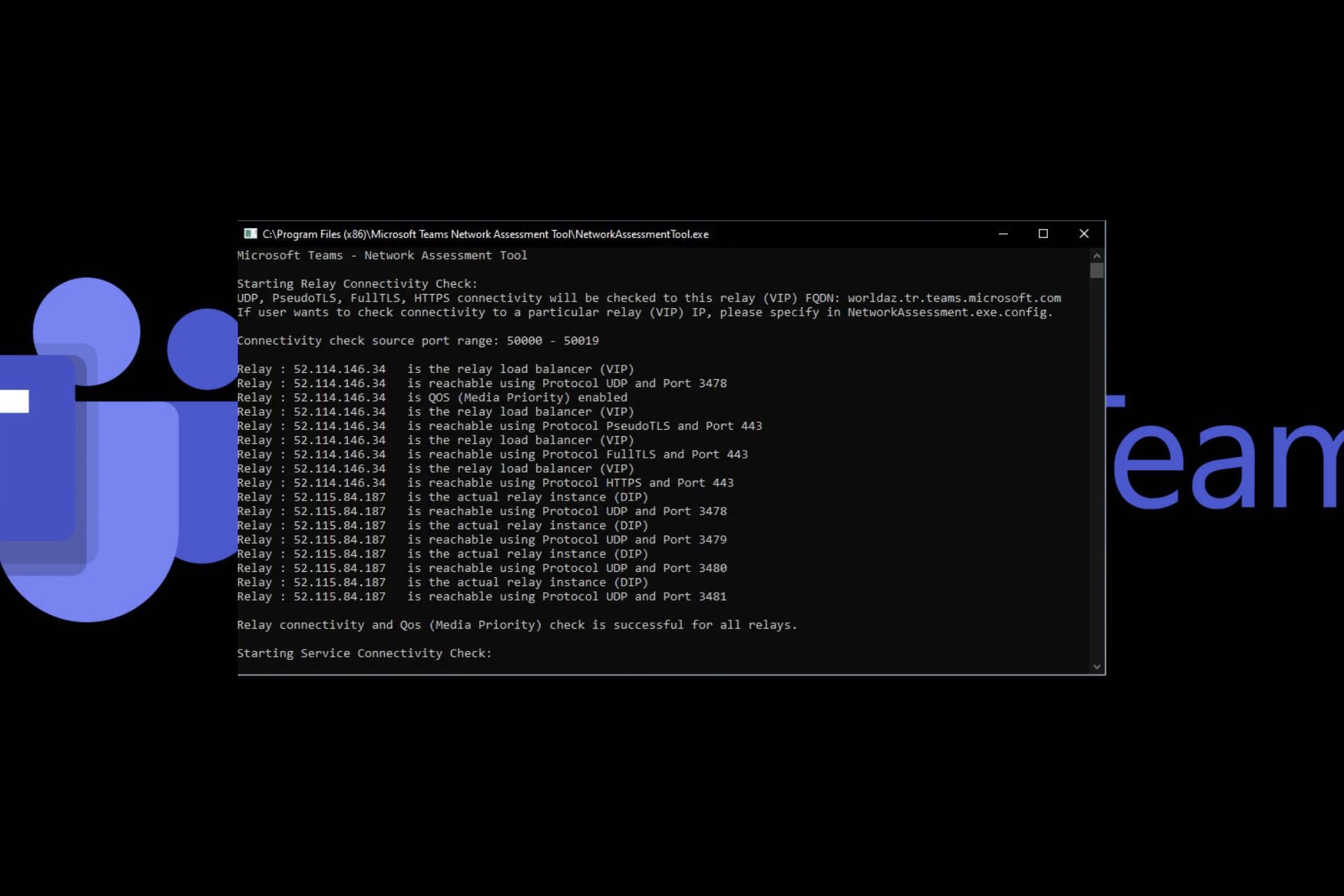
Video conferencing and collaboration tools are important, especially if you’re managing a large team. It’s crucial to ensure your network connectivity is stable, hence the need for a Microsoft Teams network assessment tool.
What is the Microsoft Teams network assessment tool?
Overview
Although there are a host of tools you can use to test your network’s speed and reliability, Microsoft has its own dedicated tool for assessing Microsoft Team’s network. A simple test call won’t cut it, as this only checks for the basics like video and microphone quality.
An established team is highly dependent on a stable and reliable network connection so, it is imperative to conduct these assessments to get insights on components like bandwidth limits, network capacity, speed and reliability.
System requirements
This information will be significant in preparation for communication and collaboration.
Supports all Windows operating systems from Windows 8 upwards. Windows Server users must enable the Desktop Experience feature while Windows N or KN versions must install the Media feature pack.
Comprehensive diagnostic reports: This is the main function of the Microsoft Teams network tool. It assesses the network environment and pinpoints pain areas that must be addressed. Network administrators can then use these reports to troubleshoot and optimize the network.
Assess network demands: In case your team grows or you wish to expand, this tool can help assess the scalability and measure whether it will be able to meet the demand. You can assess whether you’ll have to limit bandwidth on Teams but if the current capabilities cannot accommodate a stretched-out usage without affecting performance, you’ll have to upgrade your bandwidth limits.
Real-time monitoring: As you’re on your Microsoft Teams, the network assessment tool also works in the background monitoring usage. If anything changes or there are issues like lag and packet loss, you get this information for further examination and troubleshooting.
Areas of analysis
Network performance
Bandwidth: Network performance is dependent on the bandwidth available. If Teams requires more bandwidth than is available, there will be a degraded performance. If there’s enough bandwidth but still a performance issue, you might have to close superfluous apps that are hogging the bandwidth.
Latency: The time it takes for data to travel to and fro matters as it can make or break the Teams call. For instance, if there’s too much lagging when on video or delays, you might need to increase your bandwidth.
Network connectivity
This involves the reliability of the connection when using a VPN, wireless/wired connection, firewalls and DNS servers. An overzealous firewall can block critical ports required for a stable connection so the assessment tool can help pinpoint such anomalies.
All these components can positively or negatively affect the connection to a Teams call so if you notice a degraded performance, you may have to turn on or off one of the aforementioned settings.
What are the pros and cons of the Microsoft Teams network assessment tool?
Pros
Enhances productivity: The network tool gives real-time analysis and reports on the network assessment. This in turn takes away all the guesswork of figuring out the issue and going straight to troubleshooting.
Performance evaluation: The network performance helps you plan ahead whether you’ll need to scale up or increase your bandwidth to meet the demands of your organization. This way, productivity remains unaffected.
Optimizes network: By keeping tabs on your network performance, you are able to mitigate network failures before they become a problem.
Cons
Limited testing: While the network assessment tool does a great job, you can only test on one client machine at a time. If you have multiple devices, it can be time-consuming.
No scheduling: You cannot schedule a test to be performed at a later time. All tests have to be conducted manually which may not be practical especially if you have a large team.
Resource intensive: Running network assessments requires significant system resources especially, for large-scale environments. This in turn could affect the quality of the network allocated for other tasks or activities.
Best practices for network optimization
Regular firmware and software updates: The only way to ensure optimal performance is to update your network card drivers, router firmware and any other related software/firmware. This will ensure your network is adequately equipped to handle the demand.
Implement security policies: An unsecured network poses a risk to any organization hence the need to implement robust and reliable security policies. This includes up-to-date firewalls, encryption protocols, and any other measures deemed necessary to secure the network from risk factors.
Distribute load evenly: For optimal resource usage, it is important to spread out the network traffic across devices to avoid network congestion so that there’s never over-usage or under-usage.
Hopefully, you’ve learnt a thing or two about the Microsoft Teams network assessment tool and are now in a better position to decide whether to download it. You can also test it out with Teams for Linux and compare the performance.
Speaking of Microsoft tools, you may also be interested in the NetMon for Windows. And you don’t have to limit yourself just to the Microsoft suite.
There are so many open-source network monitoring tools that can help you keep tabs on your network traffic and other elements to ensure you’re using your bandwidth optimally.
We’d love to get your thoughts on this tool. Have you used it before, and would you say it has enhanced communication when using Teams? Share your thoughts with us in the comment section below.
We’re all impatiently waiting for the latest generation of Intel’s CPU, and recently we got some unpleasant news.
It seems that upcoming CPUs will be more expensive than previously expected.
Micro Center just revealed potential prices for the upcoming Intel CPUs
Tom’s Hardware reported that Micro Center has revealed its potential prices for the upcoming Intel CPUs according to the removed listing.
The new Core i9-14900KS is expected to cost $749, which is slightly more than previously expected. This price is somewhat expected and similar to the price in Canada.
As for the specs, the removed listing stated that this CPU will have 8 cores and a 3.2GHz base clock that can be boosted up to 6.2GHz.
Additional specs include 16 E-cores 32MB of L2 cache, 36MB of L3 cache, and support for DDR4-3200 and DDR5-5600.
We have to mention that this model is $200 more expensive compared to its predecessor, Core i9-14900K, so you might be better off sticking with the older model.
Keep in mind that this information might be only for Micro Center, and the actual price might differ depending on the retailer. As for the announcement date, rumors have it that we’ll see it on March 14th.
Nintendo DS and 3DS were a huge hit back in the day, and tech-savvy fans have found a way to revive it, in a way.
A few modders have managed to convert a Steam Deck into a Nintendo 3DS, and the results are impressive.
Modders have converted a Steam Deck into a working Nintendo 3DS
As reported by Retro Dodo, it seems that Reddit user TyePower managed to convert his Steam Deck into a 3DS.
This was achieved by adding a 7-inch battery-powered monitor to the Steam Deck and securing it with Clamshell detachable mounts. While the device might look a bit rough, it works pretty well.
It’s powered by a discontinued Citra emulator and it uses 1080p resolution. This isn’t the only model, Andrew from RetroHandhelds.gg also created his own 3DS.
While Andrew’s device doesn’t look too flattering, especially because it has a battery attached to the second screen, it can emulate the games perfectly.
Intel easily dominated the global CPU market, shipping over 50 million units worldwide, according to the latest statistics by Canalys, far exceeding the second AMD, and the third Apple, with 8 million units, and 6 million units sold respectively.
The tech giant had a market share of 78% in Q4 2023, and according to statistics, is showing a stable performance, with a growth of 3% as you can see in the image below.
AMD comes in second, with sales of 8 million units, and a decent market share at 13%, while Apple managed a moderate 6 million units figure. Both companies experienced a slight decrease in their performance, with AMD experiencing a -1%, and Apple -4%.
In terms of revenue, Intel managed to increase it by 2%, to $41 billion, while Apple performing much better here, with an 8% growth, and $8 billion in revenues. AMD comes in third with 7% growth, and $5 billion in revenue.
MediaTek, Qualcomm, or ARM haven’t managed to break in, however, things are about to change, as Qualcomm is set to enter the CPU market this summer, delivering its first chipsets to the future Windows AI PCs, and we have to say, it’s looking quite exciting.
So as Microsoft welcomes another player into its Windows PCs sphere, both Intel and AMD will have to keep up with the ARM-inclined CPUs, and the new NPUs, which are starting to take hold. It will be interesting to see how these three companies will evolve and ignite the competition.
Intel is still very much preferred even though AMD has great CPU options almost on every level, and the company was able to develop units that surpassed Intel CPUs in certain aspects. However, as Qualcomm is coming with a fresh new perspective, the competition is about to get tighter.
What do you think about Intel dominating the CPU market? Which one do you prefer: Intel or AMD? Let us know.
Microsoft might be releasing an Eye-Gaze typing technology that would help users type and interact with applications solely using their eyes, according to the patent, which was published recently and can be read here.
The technology employs a so-called ‘dwell-free’ typing, meaning users can type just by looking at keys on a screen. But it can also be used to interact with other applications by gazing at them: for instance, if a user looks at a button in a web browser, the system can click the button for them.
As eye movements can be jittery, and the recorded gaze might be non-uniformed, the noisy gaze will be intercepted by the dwell-free response system, which, as the paper explains, is a system that does not rely on dwell time for identifying a desired letter or word of a user.
This means users won’t have to gaze at the buttons for extended periods, as the technology would use the dwell-free system to make sense of the user’s gaze accurately and come up with solutions.
Employed in an operating system, such as Windows, this technology could let users control various settings such as audio volume, or brightness by moving their eyes. It would not be limited to just certain applications, as it can be extended to become a new way to interact with devices.
The most interesting aspect of this technology is that it also employs an AI-based model that gathers user information to make smart predictions and suggestions. If the user is looking at a certain area when navigating an application or operating system, the technology will associate these gazings with certain actions.
Microsoft is also making the Eye-Gaze technology predictive by using a so-called prediction processor, which guesses the word or action based on where they’re looking. The technology is also using smart algorithms to come up with quick responses to the user’s actions.
The Redmond-based tech giant has been experimenting with the eye-gaze technology on its HoloLens headsets, although in that case, the experience exists in a mixed-reality setting. Apple’s Vision Pro device also employs a similar technology, but users still require hand movements happening in a mixed reality setting, as well.
This technology, however, would be employed on all devices, including, but not limited to mobile phones, tablets, and personal computers, and it can be run on any application that has text-input capabilities, such as text messaging apps, email apps, or search engine apps.
Could we expect this kind of technology in Microsoft Edge or the future AI-based Windows? Microsoft has already experimented with gaze-controlled settings in Windows 11, but this is the next level, and quite frankly, it’s both exciting and terrifying.
We all know about the 1993 shooter DOOM and at that time, any hardware was tested with the question: Will it play DOOM? The Register spotted a student project that proves GPT-4’s capability to play the old game.
Adrian de Wynter, a principal applied scientist at Microsoft and a researcher at the University of York in England, developed a method to test if GPT-4’s reasoning and planning capabilities extend to the 1993 first-person shooter Doom. As it turns out, yes, the bot can run and play it, but you could beat it easily.
How can GPT-4 run DOOM?
In fact, it’s more complicated because the GPT-4 LLM can’t run DOOM’s code directly, but its variant, GPT-4V, can also work with images and play the game without any special training.
So, de Winter used GPT-4V to get the screenshots from the game, together with structure descriptions. Then, an Agent model can make decisions based on the visual input and the previous history. The commands to the game are sent back and translated into keystrokes.
That makes the model pretty slow and sluggish in playing the game, but it has other problems as well:
For example, it would be very common for the model to see a zombie on the screen, and start firing at it until it hit it (or died). What’s the issue here? Well, first that the zombie goes out of view. Worse, it is still alive and will whack you at some point. So you gotta go after it, right? After all, in Doom, it’s whack or be whacked. It turns out that GPT-4 forgets about the zombie and just keeps going. Note: the prompt explicitly tells the model what to do if it is taking damage and it can’t see an enemy. Better yet, it just goes off on its merry way, gets stuck in a corner, and dies. It did turn around a couple of times, but in nearly 50-60 runs, I observed it… twice, I wanna say.
Adrian de Wynter
So, GPT-4V just forgets about the enemies if they get out of sight, which could be a hilarious problem even for the most inexperienced human player.
But the problem here is not the bot’s poor skills in killing monsters in a game but the ethical ramifications of the programming:
On the ethics department, it is quite worrisome how easy it was for (a) me to build code to get the model to shoot something; and (b) for the model to accurately shoot something without actually second-guessing the instructions,
Adrian de Wynter
In other words, the AI was more than happy to follow the instructions for shooting targets without asking any questions. Although it can be fun to see an AI playing a game and making its own decisions to complete its programming goals, the researcher’s conclusion is that the bot has no idea what it’s doing.
After all, this programming could be used in real scenarios for automated drones that could produce real damage.
What do you think about GPT-4 playing DOOM? Let’s talk about that in the comments section below.
According to the European Data Protection Supervisor (EDPS), the European Commission didn’t abide by several important data protection rules under European Union data protection laws while using Microsoft 365 services.
The EDPS is an independent body that is responsible for conducting data protection audits within EU institutions and can issue corrective measures to rectify violations.
Wojciech Wiewiórowski, EDPS, said:
It is the responsibility of the EU institutions, bodies, offices and agencies (EUIs) to ensure that any processing of personal data outside and inside the EU/EEA, including in the context of cloud-based services, is accompanied by robust data protection safeguards and measures. This is imperative to ensure that individuals’ information is protected, as required by Regulation (EU) 2018/1725, whenever their data is processed by, or on behalf of, an EU.
The investigation’s key findings indicate that EC failed to specify in its contract with Microsoft the types of data that could be collected and mention the purpose of the same.
Furthermore, the EC didn’t implement adequate safeguards concerning the transfer of data outside the European Union area, an important aspect of ensuring the protection of individuals’ personal information.
The European Data Protection Supervisor ordered the European Commission to bring its use of Microsoft 365 services into compliance with the EU’s stringent data protection regulations. It also informed that Microsoft 365 data flows that don’t adhere to the regulations will be suspended effective December 9, 2024.
The breach occurred over a three-year period, starting on May 21, 2021, and ending with the EDPS decision on March 8, 2024.
The European Data Protection Supervisor said the EC failed to ensure proper contractual specifications with Microsoft as the EC didn’t clarify the use of data and didn’t blame Microsoft for this.
As EDPS found the EU at fault, it enforced EU regulation 2018/1725 on the processing of personal data, which shows how important robust data protection measures are, especially when working with external service providers.
This incident reminds people doing business in Europe to pay attention to all the tiny contractual details and adhere to the regulatory framework to avoid problems in the future.
What are your thoughts on the matter? Share your opinions in the comments section below.
Micorosft has been integrating its native chatbot, Copilot, into more and more products, and the Microsoft Advertising Platform is the latest in the list. In September’23, the Redmond-based tech giant confirmed their plans at the Microsoft AI event.
Finally, many on the Advertising Platform can see the Copilot button at the top-right corner. It appears to be a gradual rollout. For anyone who didn’t get the feature, wait for a few days.
The arrival of Microsoft Advertising Copilot was first reported by Thomas Eccel in a post on X(formerly Twitter).
Huge Update: Bing Ads account has now Copilot integrated!
Soon, we saw posts on several different platforms, including LinkedIn.
At present, it appears that Microsoft Advertising Copilot would offer assistance and advice and, at the same time, guide you through the platform. For instance, if you want to set up an ad campaign, Copilot would detail the entire process.
For Copilot to prove effective in the Advertising Platform, it must be accurate and user-oriented. The AI-powered integrated chatbot should assist users with ideas and be able to identify the flaws in one, if asked.
What do you think of Microsoft Advertising Copilot? Share your review in the comments section.
Legion Go is a small gaming beast that is capable of running all sorts of demanding video games, and so far there have been almost no issues with it, aside from the regular complaint that its battery life doesn’t last for long.
However, it seems that the console’s right stick can get stuck when running Sniper Elite 5, a third-person FPS, as one Reddit user claimed that the freezing of the button makes the game character rotate repeatedly.
Ok so I’m on day five with my Legion Go. After initial frustration with Windows all the bloatware and the massive configuration job you have to go through to set this thing up. Im finally happy with it, and I’ve got most of my favourite games installed. I do have a bit of a showstopper and I’m considering returning it if I can’t fix this one niggling issue. As you can see in the video the problem is the right stick every 5 to 10 minutes it will just get stuck, usually making the game character rotate repeatedly, which is pretty useless in a first-person shooter. I’m close to giving up even I love the device otherwise.
does anyone know what to do?
For the record I’m also testing an Asus Rog flow z13 which I’m using with an external controller and I’m just investigating ways to attach some joycons or something similar let me know what you guys think.
Reddit user
The user also mentioned later in the post that this Legion Go issue happens only when playing Sniper Elite 5, so if you’re running into this issue, here is what you need to do:
Check out to see if the right stick gets stuck in other games
You’ll need to make sure your Legion Go isn’t indeed malfunctioning, by opening up other games and checking to see if the right stick functions properly.
It shouldn’t, but if it does, you’ll need to recalibrate the right stick:
Press L2 + L3 (Controller L) or R2 + R3 (Controller R) for 3 seconds to enter calibration mode,
The LED flashes violet.
Rotate the rocker 3 turns, wait for 2 seconds after the rocker re-centers itself, and then the calibration is complete.
Quit to the desktop and restart Sniper Elite 5
Apparently, Sniper Elite 5 is the one having a bug, as other users have noticed issues with it on other platforms or handhelds.
So, the best solution is to quit the game, return to the desktop, and then open Sniper Elite 5, as this Reddit user explains:
Is this Sniper Elite 5? If it is. I believe it’s a bug in the game. I had the same issue playing this title on my ROG Ally. The spinning would usually start after I had the game on pause for a bit and then returned to playing. Other times it would just start randomly whilst playing.
The only fix was to quit to the desktop and restart the game. Good luck.
Reddit user
Ultimately, Legion Go is not the one at fault, but the Sniper Elite 5 game is. If the handheld console seems to malfunction only when playing this game, you might also want to uninstall and reinstall the game altogether.
Try these solutions and see if they work for you, and if they do let us know. By the way, if you have a Legion Go, check out these official skins coming for it soon.
If you’re looking to collect information from a group of people, you can create a Microsoft Word fillable from a blank document or use an online template.
How do I create a Microsoft Word fillable form?
1. Enable developer mode
Launch Microsoft Word and open a blank document.
Navigate to File>Options>Customize ribbon.
Check the Developer box and hit Save.
2. Design the form
On your blank document, create an outline for your form with the necessary items.
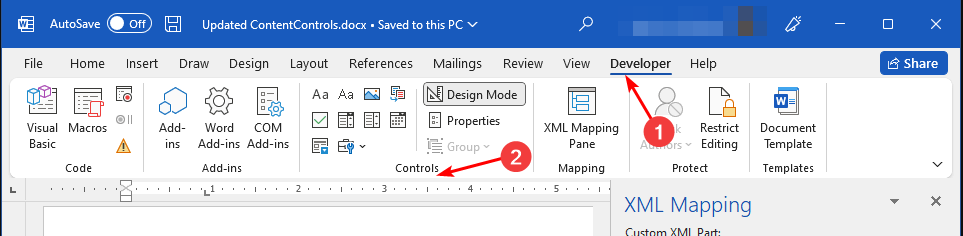
Next, click on the Developer tab on the top menu ribbon then select Controls. Here, you can select the type of information you wish to be filled ranging from check boxes, drop-down options and text boxes.
Once you’re done, click on the Design mode button to exit.
3. Limit editing
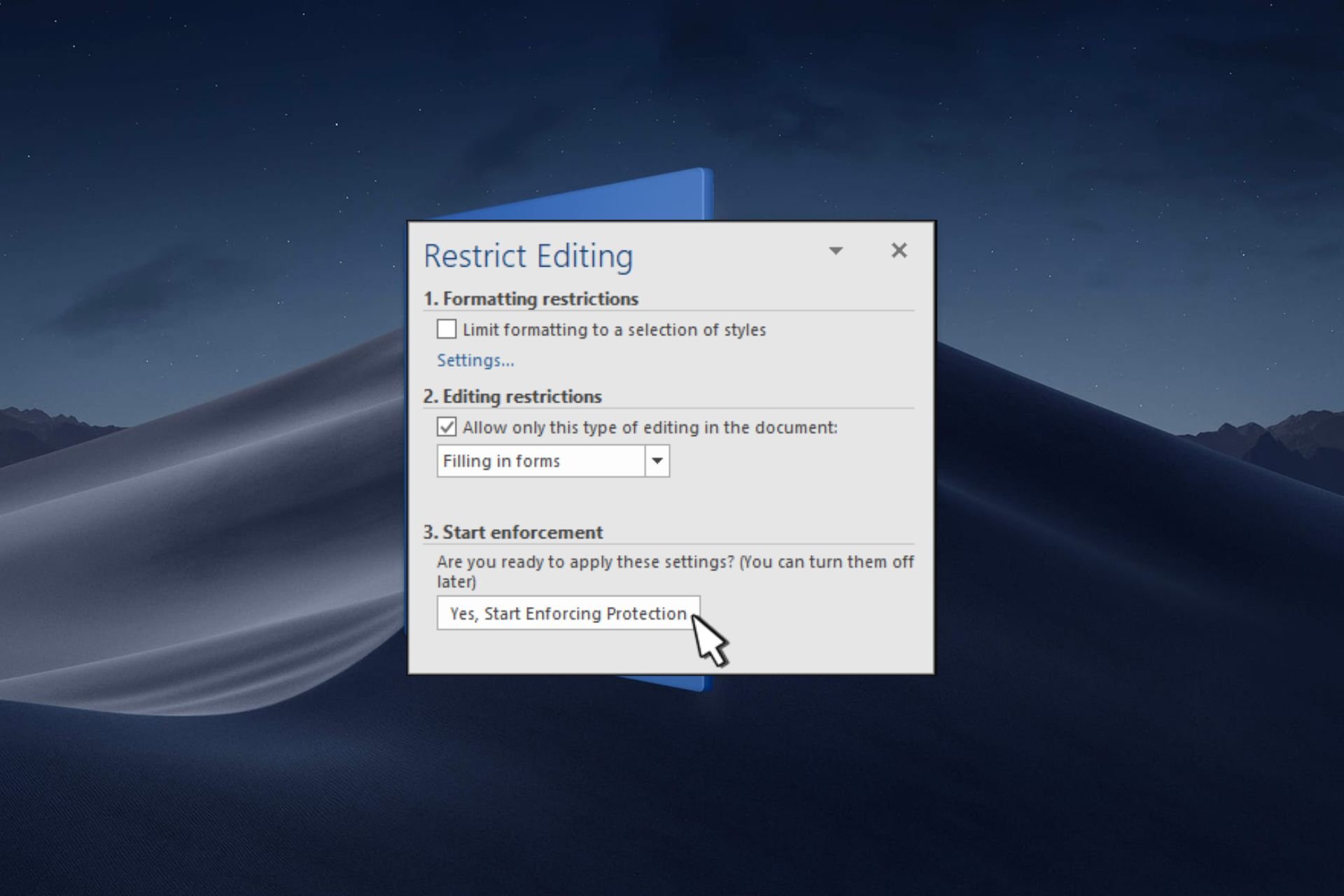
Click on the Developer tab on the top menu ribbon then select Restrict Editing.
Check the Editing restrictions check box and in the drop-down menu, select Filling in forms then hit the Yes, Start Enforcing Protection button.
You can enter a password for enhanced protection but it is not necessary.
When you send out the form, you want to protect the other fields from being edited or altered. While fillable forms on Microsoft Word come in handy, some features may prevent them from being opened on other devices or on the web. These forms are not widely compatible.
Luckily, you’re not limited to Microsoft Word. In case you prefer working with PDF documents, you can also create a fillable PDF form. And if none of these work for you, there are a host of software tools to create forms that are compatible with most browsers and devices.
That’s it! You can now create a fillable form ready to be shared and filled out by others using Microsoft Word. If the form is too long, don’t forget to create a table of contents to aid in navigation.
To take your Word knowledge to a new level, be sure to check our guide on how to create index cards in Word for more useful tips.
Have you tried creating a fillable form with Microsoft Word? How easy or hard was it? Leave your comments down below.
Researchers discovered that a misconfigured Microsoft Configuration Manager (SCCM) can lead to security vulnerabilities. Thus, a threat actor can use this opportunity for cyber attacks, such as payloads, or to become a domain controller. In addition, the SCCM works in many Active Directories. Furthermore, it helps admins manage workstations and servers on Windows networks.
During the SO-CON security conference, SpecterOps announced their repository with attacks based on faulty SCCM configurations. Also, you can check it out by visiting their GitHub Misconfiguration Manager page. Additionally, their research is a bit different from others because they include penetration testing, red team operations, and security research.
What is SCCM?
SCCM stands for System Center Configuration Manager, and you might know it as Configuration Manager or MCM. Furthermore, you can use the MCM tool to manage, secure, and deploy devices and applications. However, the SCCM is not easy to set up. On top of that, the default configurations lead to security vulnerabilities.
The attackers can gain control over your domain by exploiting your SCCM security vulnerabilities. After all, according to researchers, cybercriminals can use your network access accounts (NAA) if they use too many privileges.
Also, an unknowing or novice administrator could use the same account for all of the things. As a result, this might lead to decreased security across devices. Furthermore, some MCM sites could use domain controllers. Thus, they might lead to remote code control, especially if the hierarchy is not in order.
Depending on the environment, an attacker could use four different attacking methods. The first method can allow access to credentials (CRED). The second attack can elevate privileges (ELEVATE). The third one can perform reconnaissance and discovery (Recon), and the final one gains control over the SCCM hierarchy (TAKEOVER).
Ultimately, you should properly manage your SCCM and verify if the hierarchy is in order. Also, there are three ways in which you can defend yourself. The first method is to prevent attacks by strengthening your MCM configurations to impact the attack technique (PREVENT).
The second method is to monitor your logs for suspicious activities and to use intrusion detection systems (DETECT). Afterward, the third method is to plant fake configuration settings and embed hidden data (CANARY).
What are your thoughts? Were you aware of this security vulnerability? Let us know in the comments.
Chrome for Android is getting a new feature, one that would aid multitasking and improve the overall app experience. With it, you will be able to minimize Custom Tabs into PiP (Picture in Picture) mode, work on the active apps, and quickly jump to the former at will!
For the unversed, Custom Tabs is a feature in Chrome that lets apps open links using the browser from within the app without having to launch the browser manually. Earlier, these Customs Tabs had to be terminated before you could get back to the active apps.
Now, as spotted by Mishaal Rahman and posted on X(formerly Twitter), the feature to minimize Custom Tabs into PiP is available starting with the Chrome 122 Beta version and is enabled by default.
You'll soon be able to minimize Chrome Custom Tabs so you can interact with an underlying app without fully closing out your browser tab!
Google says this is enabled by default for Custom Tabs starting with Chrome 122 Beta. pic.twitter.com/wEo4d8cSY9
At present, the feature titled, Allow Custom Tabs to be minimized, is listed under Flags. You can access and modify it from the following Chrome address: chrome://flags/
Chrome flag
Flags are experimental features that Google tests on Chrome. Not every feature brought in as a flag makes it to the stable version of the browser. So, we will have to wait and watch if and when the Allow the Custom Tabs to be minimized flag finally makes it to the stable Chrome version!
Until then, you can keep using it. This particular flag poses no security risks and doesn’t result in crashes or errors, as reported by many.
What do you think of this upgrade to Custom Tabs in Chrome? Share with our readers in the comments section.
The new Digitial Markets Act (DMA) has come, forcing many tech companies, including Microsoft, to bring changes in their products and services to make them compliant.
Earlier, we talked about changes that gave us the ability to uninstall Edge and Bing; this time, the change was associated with Edge pop-ups.
From now on, when you change your default browser, you will not see promotional pop-ups for Edge in Windows 11 and 10.
Before the change, you see the Edge browser benefits pop-up whenever you try to switch to any other browser.
Previously, Edge’s promotional ad appeared under the Featured app section when you changed the Open with settings on a Windows 11/10 computer.
Microsoft removed the Featured app section with Windows 11’s February 29, 2024 update. When you use the Open with feature to check the available apps, Edge will no longer appear in the Featured app.
This change will be applied to your Windows 10 and 11 devices and will be available for people outside Europe.
Edge used to be a system component, which is why you can’t uninstall it from your device. Starting with the Moment update, Microsoft will now give the option to uninstall Edge and Bing in EEA.
As per Microsoft’s documentation, Edge collects diagnostic data separately. You will be able to enable or disable the optional diagnostic data sharing in the Edge browser settings.
Microsoft also introduced changes to S-mode exclusions, default sign-in settings, and feeds in the Widgets board.
Earlier, the Widget board’s feeds contained content from MSN, but now you can change the default news feed provider or disable it altogether.
Another change is that you will not be logged into your Microsoft account automatically unless you don’t give consent.
Furthermore, Windows will no longer use Edge to open links for system apps, respecting the default browser instead of in Europe.
For users outside Europe, Windows will still use Edge to open relevant links when an inbox app requests it.
Changes in S mode
Microsoft Edge and Bing are still the native apps in S mode, but you can exit the mode to install third-party apps. To do so, go to Settings and look for the Switch Out Of S Mode setting.
All the changes introduced to Windows to make it compliant with DMA are released in the Windows 10 22H2 build 19045.4123 and Windows 11 23H2 Build 22631.3235 on February 29, 2024.
Since EEA was released in March 2024, users have gained control over their devices and can customize Windows as they like.
What are your thoughts on the matter? Share your opinions in the comments section below.
Microsoft and OpenAI’s partnership is well known to the world. When Sam Altman was fired as the CEO of OpenAI, Satya Nadella played a major role in helping Altman return to the position.
As it turns out, many inside the company reportedly believe that Microsoft’s strategy is more centred toward OpenAI than the in-house products and services. This has come to light in an exclusive story by Business Insider.
Several present and former employees at Microsoft who worked on the AI team led by Eric Boyd have expressed concerns about this shift in strategy.
A former employee highlighted how Azure AI Bot Service isn’t available as a standalone service anymore. He claims that most such services, though available, have either been renamed or bundled with other products.
The former Azure AI is basically just tech support for OpenAI. Eric Boyd is effectively maintaining the OpenAI service. It’s less of an innovation engine than it once was. Now it’s more IT for OpenAI. The beating heart of innovation is elsewhere. It’s not very innovative, but it’s a good business strategy.
It’s also claimed that Microsoft and OpenAI employees, at times, work on the same project and have access to each other’s office space.
Microsoft continues to push leading native products
Microsoft’s AI push has picked up pace in recent months, and most of its new features are, in some way, backed by artificial intelligence. The Redmond-based tech giant’s native AI chatbot, Copilot, has now been built into more programs than ever. Copilot in Word and Copilot in Outlook, to name a few.
Based on these trends, we can say that Microsoft is still pushing its native tools, but this may be limited to a few, primarily to ones where Microsoft is a leading brand name, such as Copilot. For the rest, it might be employing the services of OpenAI when financially viable.
If you have more information on the story, share it with our readers in the comments section.
The Bandung and Hat Yai Airports, from West Java, Indonesia, and Thailand, respectively have been added to Microsoft Flight Simulator by third-party developers, and they’re available to download now. The first one is available on the iniBuilds store for $9.63, and there is a trailer for it, which you can watch below:
The second one was developed by SiamFlight and it’s available on Simmarket for $15.99. Each of these airports comes with its features. For instance, the Bandung airport will have these features in Microsoft Flight Simulator:
Custom Ground Polygon all around the airport with custom true-to-life marking
Custom 3D Model of the airport, landside, surrounding areas, approach objects, and major Bandung Landmarks.
Fully Realistic PBR 4K and 2K Complimentary Textures
3D Detailed Full interior for the new terminal, and Partial Interior for the old terminal
Animated Objects (Indonesian High-Speed Train, Airport Tour Bus, Towed Aircraft, Air Conditioner, Store Doors, Road Gates, Escalator, etc)
Detailed Landside with custom roads
The old version of the airport name text is included (activated by MSFS in-game time to pre-2017)
Animated working LED Screens with a Working clock showing local time
Working Runway-In-Use Indicator, showing Runway Active according to wind
Realistic Runway Slope
Terminal Sounds
The Hat Yai Airport’s features include:
Terminal Detailed with interior (from the pilot’s POV as necessary)
Airport support buildings.
ATC building.
Cargo building zone.
Custom Animated Jetways to match real ones – SimObjetcs.
Runways and Taxiway are properly named and connected.
Full Airport service as required.
Parking gate numbers ready for GSX Pro.
Hand-placed Taxiway guidance signs.
Hand-placed Taxiway and Runway lights system, Taxiways center, Taxiways edge. etc.
Custom ground texture. Static objects around the airport.
Taxiways, aprons, and runways match the real airport.
Full Day/Night lighting.
Plus, another third-party developer, FlightFX, announced a new Cessna 750 Citation X business jet on its Discord server, and it will be released to Microsoft Flight Simulator in the coming weeks.
San Francisco and Ivato Airports were recently added to the game, and if you want to try your luck with the planet of Arrakis, now you can download the free Dune expansion, as well.
Edge is getting better with each passing day, and Microsoft doesn’t appear as pushy anymore. In the latest series of developments, Microsoft Edge, in collaboration with cross-industry browser vendors, has contributed to Speedometer 3.0, the latest version.
Speedometer is a browser benchmark primarily used by developers to compare the performance of individual browsers or different versions of the same browser. It is also often used to find the fastest browsers.
Microsoft’s contribution to Speedometer 3.0, which comes with significant improvements and more tests, is a new Complex DOM set of tests.
In the official blog post, the Microsoft Edge Team highlights how they have collaborated with several web applications to address existing performance and scalability issues through a deep analysis of application software stacks, performance profiles, and architecture.
These investigations have consistently shown that the complexity of the DOM and CSS rules is an important driver of end-user perceived latency. Inefficient patterns, often encouraged by popular frameworks, have exacerbated the problem, creating new performance cliffs within modern web applications. The new Complex DOM tests perform DOM mutations in the context of a large DOM tree, which trigger a cascade of costly CSS selector matching operations and style recalculations.
The Complex DOM set of tests contributed by Microsoft Edge to Speedometer 3.0 helps identify a website’s performance when several different styling rules need to be applied to the existing elements.
Remember, Speedometer 3.0‘s score is more suited for comparison on a personal level. It doesn’t feature a global ranking. For instance, you can use Speedometer 3.0 to identify which browser works best on your PC.
What’s your Speedometer 3.0’s score? Share with our readers in the comments section.
Along with the newly-announced TRAIN initiative, which sees the partnership of dozens of healthcare organizations with Microsoft to advance the AI capabilities in the healthcare industry, the Redmond-based tech giant is also introducing new services to the Azure AI Health Bot, allowing healthcare organizations to build their own Copilot experiences.
In a blog post, Microsoft says:
We’re adding new healthcare-specific safeguards for generative AI in private preview within the Azure AI Health Bot services. Preview customers can experience an integration with Microsoft Copilot Studio, allowing healthcare organizations to build their own copilot experiences.
Microsoft
There is already a private preview available and customers can now sign up for it to make use of the newest generative AI capabilities, such as:
Power generative answers that are grounded on customer’s own sources.
Generative answers that are grounded on the customer’s websites.
New healthcare intelligence capabilities to incorporate generative answers grounded on credible healthcare sources.
Seamlessly use pre-built protocol-based healthcare intelligence capabilities such as symptom checkers and triage.
Credible generative AI fallback ensures reliable and accurate responses in healthcare-related scenarios.
Microsoft is also providing healthcare organizations with built-in safeguards that could fit each organization’s unique requirements and needs. These are now available in the private preview and include:
Clinical safeguards include healthcare-adapted filters and quality checks to allow verification of clinical evidence associated with answers, identifying hallucinations and omissions in generative answers, credible sources enforcement, and more.
Healthcare chat safeguards include customizable AI-related disclaimers that are incorporated into the chat experience presented to users, enabling the collection of end-user feedback, and analyzing the engagement through built-in dedicated reporting, as well as healthcare-adapted abuse monitoring, among other things.
Healthcare-adapted compliance controls include built-in Data Subject Rights (DSRs), pre-built consent management, out-of-the-box audit trails, and more.
According to Microsoft, many healthcare organizations already implemented these new Copilot healthcare experiences with their infrastructure, including Roche Pharmaceuticals or Ramsay Santé.
Firefox is a great browser with several unique features, one of them being the ability to take screenshots right from the browser.
Speaking of which, it seems that Mozilla is looking to improve the screenshot feature in Firefox, and here’s what we know so far.
Mozilla is currently testing a new screenshot feature in Firefox
As reported by How-to Geek, Firefox might be getting a new screenshot feature soon. In its current iteration, the screenshot feature worked as an extension, so it had certain limitations.
For example, you weren’t able to take a screenshot of settings pages, since extensions aren’t allowed to access them. That’s about to change with a new version of the screenshot feature.
The new version will improve performance, keyboard, and visual accessibility, and it will finally allow users to take screenshots of any page in Firefox.
Just like before, the feature can be activated with a keyboard shortcut or from the context menu. Regarding the availability, you can go ahead and test this feature in the Firefox Nightly build.
As for the official release, we expect to see this feature available in Firefox 125 on April 26th. Speaking of Firefox, the Android version also got some changes recently, and Firefox Nightly for Android now has a tab bar, so don’t miss it.
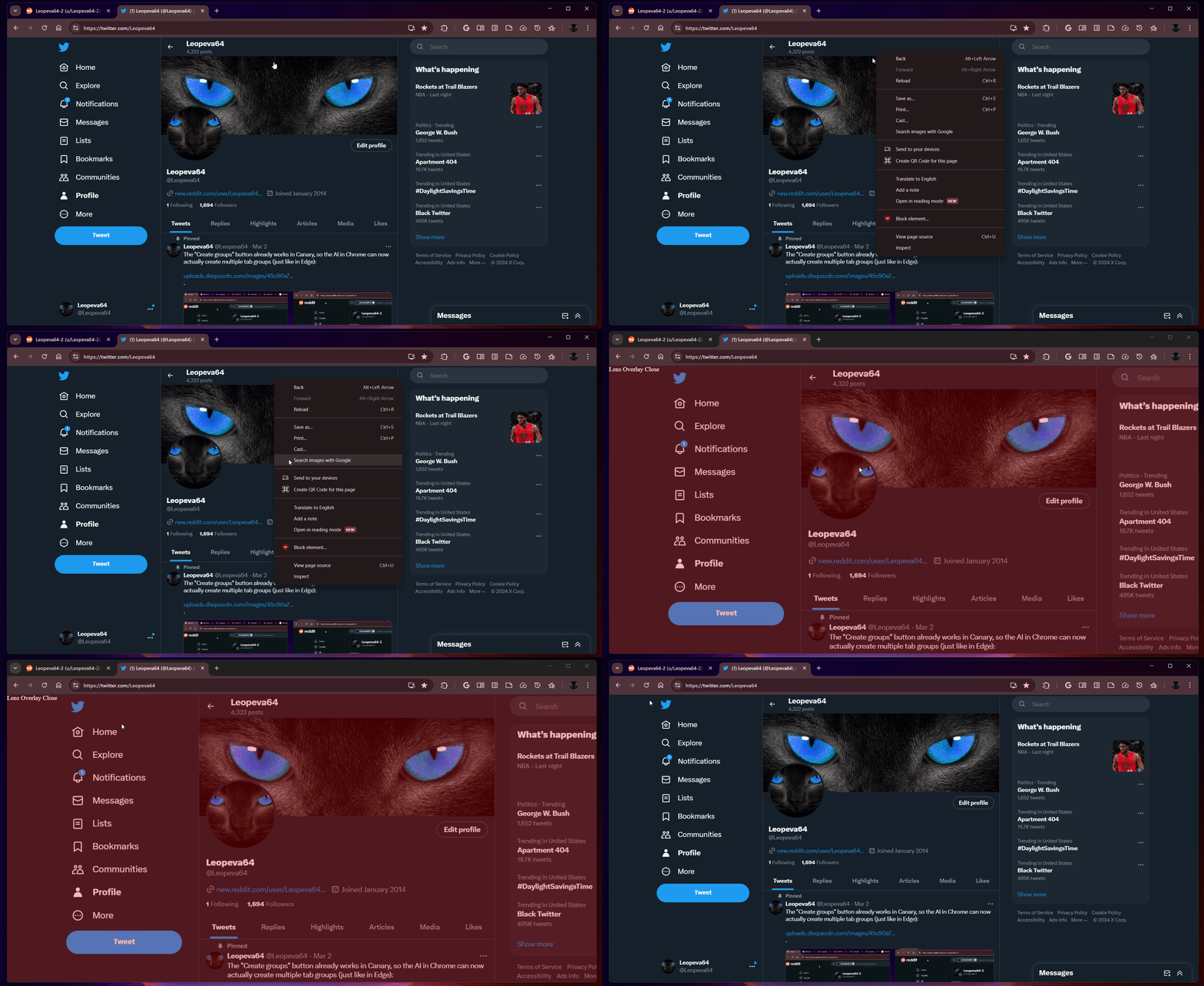
Google Lens is a great tool for mobiles because it allows you to search the web for relevant results based on the pictures you take with your phone. However, you can also do a similar thing on your desktop browser. Simply right-click on an image from a Chrome tab and select Search image with Google.
The window will split and you will see a lot of similar images on the right pane.
Recently, as spotted by Leopeva64 on X, Google was trying to go further and provide you with the Lens Overlay feature. We don’t know exactly what it was supposed to do, because it doesn’t work, but the supposition was that it was a screenshot editor within Chrome.
It didn’t take for Google more than one day to scrap this idea, and we found that out from the same Leopeva64 user.
Chromium developers have decided that Chrome's screenshot editor isn't polished enough to ship it, they *might redesign it in the future, but for now they will remove the flag and the code related to this feature:https://t.co/vHG46t1jZUhttps://t.co/NVQOsa5JvF . pic.twitter.com/k5pTa4wwhb
Apparently, the developers dropped this feature because it was too hard to implement without important changes to Chrome, as they highlighted in the project page:
We decided, after a great deal of UX feedback, that this component isn’t polished enough to ship and we don’t quite see a path to getting it there without a big rework. This change deletes the feature, the logic to install the component, and the wiring for it in the screenshot bubble.
Chromium project
Now, you can still use the Search image with Google feature and then edit whatever image you’re interested in on another image editor.
Who knows, some day, Google may come back to this idea and have their own built-in screenshot editor.
What do you think about Lens Overlay and Google’s screenshot editor? Tell us all about it in the comments section below.
Epson recently released a Windows 11-compatible driver for their L3210 printer series. Until then, you had to download the drivers for Windows 10 (64-bit) and then install them.
While those for the previous iteration worked fine, you should download OS-compatible drivers from now on to minimize any conflicts and get the best performance.
Before you proceed, make sure to connect the printer to the PC, preferably through a wired connection.
How can I install the Epson L3210 printer driver in Windows 11?
1. Automatically through the setup
Go to Epson L3210’s driver page, select Windows 11 from the Operating System dropdown menu, and click on Go.
Now, expand the Drivers entry, and click the Download button next to Printer Driver.
Once downloaded, head to its storage location, and double-click on the L3210_X64_30400_LA.exe file to run the setup.
Click Yes in the UAC prompt.
Tick/untick the Set as default printer and Automatically update software options as required, and click on OK.
Select the language from the dropdown menu, preferably English, and click OK.
Agree to the terms of the license agreement.
Now, let the setup install the latest Epson L3201 series printer driver.
Once done with the printer driver installation, restart the PC for the changes to apply.
Similarly, you can install the Epson L3210 scanner driver in Windows 11. The process remains the same. You will have to download the scanner drivers from the website instead.
Also, if you see the Make sure the printer is turned on and connected to your computer via the USB cable message, even when the printer is powered on and plugged in, we will need to manually set it up as described next.
2. Manually through the setup
3.1 Extracting the driver files
Download the Epson L3210 driver from the official website.
Right-click on the downloaded L3210_X64_30400_LA file, choose Show more options, pick the installed file extraction software, and select Extract files from the context menu.
Choose the extract location and click on OK. We didn’t change it and extracted the files in the same folder as the .exe.
Finally, verify that all the files have successfully been extracted.
3.2 Installing the driver
Press Windows + I to open Settings, go to Bluetooth & devices from the navigation pane, and click on Printers & scanners.
Click the Add device button near the top right.
When you see The printer that I want isn’t listed appear, click on Add manually next to it.
Choose Add a local printer or network printer with manual settings and click Next.
Now, choose Use an existing port, pick USB_001 or any similar entry from the dropdown menu, and click Next.
Pick Epson from under the Manufacturer column, then select Epson L3210 Series, and click Next.
If the Epson entry isn’t listed, click on Have disk, navigate to the location of the files you extracted earlier, open the WINX64 folder, choose a .inf file, click Open, and then proceed.
Set a printer name, then wait for the installation to complete.
Configure the preferred printer-sharing settings.
If required, tick the checkbox for Set as the default printer and click on Print a test page, then click on Finish to complete the setup, and finally restart the computer.
You should now find Epson L3210 listed under the list of printers in the Windows 11 Settings and the Device Manager with the latest driver installed. And it shouldn’t, in all likelihood, throw any errors.
This method works when you already have an installed driver for u003cemu003eEpson L3210u003c/emu003e and want to update it.
Press Windows + X to open the Power User menu, and select Device Manager from the list.
Expand the Printers entry, right-click on Epson L3210, and select Update driver.
Choose Browse my computer for drivers.
Now, select Let me pick from a list of available drivers on my computer.
Click on Have disk, navigate to the location where you have the extracted driver files (.inf), select it, and then proceed with the update.
If a newer version comes out later, you can simply update it via the Device Manager instead of having to install things from scratch. Make sure to verify compatibility or else the printer may stop working.
Remember, the process to install printer drivers in Windows 11 is similar across manufacturers. You just need to find the required setup files. After that, it’s pretty much what we discussed earlier!
For any queries or to share issues you faced with the driver or installation, drop a comment below.
All these versions are running the 21H2 version, which was released way back in November 2021. The following editions will reach the end of service:
Windows 10 Enterprise, version 21H2
Windows 10 IoT Enterprise, version 21H2
Windows 10 Enterprise multi-session, version 21H2
Windows 10 Education, version 21H2
This move comes as no surprise since Home, Pro, Pro Education, and Pro for Workstations 21H2 versions reached their end of life in June last year.
After June 11, these editions won’t receive any security updates, thus becoming vulnerable. To remedy this issue, Microsoft advises upgrading to version 22H2 or Windows 11.
Despite these efforts, many are reluctant to switch as two-thirds of users are still on Windows 10. However, as the end of life for their editions approaches, more and more users will make the switch.
The latest Agility SDK 1.613.0 is out now, and Microsoft introduced Work Graphs with it, among a plethora of new capabilities for game developers, such as Shader Model 6.8, GPU Upload Heaps, Incrementing Constants in ExecuteIndirect, and Generic Programs in State Objects.
However, Work Graphs especially can take game development to the next level, due to its very promising capabilities. For instance, this API will enable the usage of the GPU at full capacity: with it, developers will be able to generate and schedule work directly on the GPU, bypassing the CPU.
What does this mean? According to Microsoft, it means you can achieve higher performance, lower latency, and greater scalability for your games with tasks such as culling, binning, chaining of compute work, and much more.
Microsoft published an in-depth overview of the new Work Graphs, and you can read all about it here.
The Redmond-based tech giant also introduced new capabilities to Shared Model 6.8:
SV_StartVertexLocation and SV_StartInstanceLocation will offer greater control when working with shaders.
Wave Size Range will enable developers to specify their preferred wave size in the shaders they author.
Expanded Comparison Sampling will allow developers to create better cross-platform shaders.
Microsoft says that the GPU Upload Heaps will provide new and easier ways to copy data from the CPU to the GPU, and it uses the latest technology to make the transfer of data faster and initiate low latency whenever possible.
What’s interesting is that the Redmond-based tech giant is making the GPU Upload Heaps available to Windows insiders, on machines equipped with Windows 11 Insider Preview Build 26080 or later.
Last March, GPU Upload Heaps was released as a developer preview that required the use of Developer Mode. Now, we are pleased to announce that the retail release can be used in any application where the target machine is Windows 11 Insider Preview Build 26080 or later.
Microsoft
Make sure to check out the Agility SDK 1.613.0 blog post, where Microsoft talks about the Work Graphs and other capabilities.