This February marks the 20-year anniversary of Visual Studio .NET and the team’s month-long celebration is introducing a webcast on Valentine’s Day.
At 9:00am Pacific Time on February 14, 2022, Scott Hunter, Scott Hanselman and a bevy of special guests will broadcast their stories and journeys through .NET development as well as announcing a host of other celebratory events for the remainder of the month with the community.
During the commemorative event, host and guests will presumably cover both past accomplishments as well as what’s to come for .NET as hinted at in the blog post announcement.
We just released .NET 6 in November 2021 and are full speed ahead building .NET 7. In fact, .NET 7 Preview 1 will release this week. With .NET 6 you now have a unified set of base libraries and SDK, a simplified development experience with investments in C# 10 and minimal APIs, high productivity with hot reload, and a whole lot more. .NET 6 is the fasted adopted version of .NET yet, and we’re seeing very good reception from users. I encourage you to give it a try if you haven’t already.
We’re excited to get the .NET Multi-platform App UI (.NET MAUI) release out the door and in your hands very soon. .NET MAUI will let you build native apps for Windows, macOS, iOS and Android with a single codebase and we are now focusing on quality and bugs so now is the time to try the preview and give us feedback while we can act on it.
For those interested, be sure to visit the .Net home page to watch the special webcast as well as get more details on upcoming events for the community.
The talk of the Super Bowl ads might be Coinbase’s QR code, and although Microsoft didn’t pay up for its own ad this year, it did release a fun post-game spot over on YouTube. The short 30-second ad wants you to “respect the power of Surface,” and showcases some superstitions behind the game.
Since Microsoft has a big contract with the NFL, the ad naturally highlights how Surface devices are used on the sidelines. In it, there are a few superstitions that Microsoft plays fun at. The first is swiping with the pen to get the ball back, the second is touching the Surface to get a touchdown, the third is turning around with the Surface to turn the defense around.
Of course, superstitions or not, Surface devices have made headlines because of the NFL and it’s likely the “Respect” part of the ad is a nod to this. Back in December, Tom Brady tossed a Surface tablet on the sidelines, after his team fell to a loss against the Saints. The NFL warned him not to do it again, but even before that, Aaron Rodgers did the same back in 2015.
Ever wanted to use one of your Teams apps in Outlook? Well, it’s something that Microsoft is planning, as the feature was recently added to the Microsoft 365 Roadmap, for release later this year (via Windows Central.)
According to the roadmap entry, Microsoft says that Outlook users will be able to “acquire and use these updated Teams apps,” without leaving Outlook. Presumably, this hints that developers might need to update their Teams apps to support both apps. It also looks as though these cross-Teams and Outlook apps are catered for personal, and/or search, per the roadmap.
The feature is set for release in December of 2022 for both Outlook on the web, as well as desktop. However, seeing as though that’s just Microsoft’s best timing for when you can expect this, it could come even later. Also, with Inspire 2022 coming up in July, you might expect the company to talk more about this then, as the conference always sports a lot of Teams news. Until then, you’ll just have to settle with using your Teams apps separate from Outlook.
There are many ways to open Windows Control Panel. Still the central hub of Windows, the Control Panel can help you manage almost all aspects of your operating system.
Be it keyword or mouse settings, password and users records, or fiddling with the sound and other hardware settings, Control Panel has access to all. Even though Microsoft is taking steps to replace Control Panel with Windows Settings, you can still control your PC from the Control Panel, and for some settings it’s the only place to go.
It’s therefore not a surprise that there are so many ways one can use to Open the Control Panel in Windows. So let’s first get started with some of the more straightforward ways at our disposal.
1. Start Menu search bar
The Start menu search bar is the place that lets you access almost all of your apps or folders from a single place. Not surprisingly, you can also use it to open Control Panel in your Windows. Here’s how:
Go to the Start menu search bar, type in ‘control panel’ in the search box, and select the Best match. The Control Panel will be opened.
You can also open the Control Panel from the File Explorer. The File Explorer, previously also called the Windows Explorer, is a file management application that works as a graphical user interface, which in turn helps you edit, manage data and other file contents.
In the File Explorer, select Desktop and from there, click on Control Panel.
3. Run dialog box
The Run dialog box is a handy utility to help you access all kinds of files on your Windows computer. You can also launch the Control Panel with it. To get started, go to the Start menu, type in ‘run’ and select the Best match. Or alternatively, press Windows key +R.
In the Run dialog box, type ‘control panel,’ and hit Enter. The Windows Control Panel will be launched.
4. Command prompt
You can also use the Windows Command prompt to open the Windows Control Panel. Simply go to the Windows key + X. Or Alternatively, go to the Start menu search bar, type in ‘cmd,’ and hit Enter.
When the Command prompt gets launched, type in the following command and hit Enter:
control panel
The Control Panel will be launched in your Windows 10 or 11.
5. Start menu shortcut
If you’ve to open the Control Panel almost every day, then there’s a sneaky way to access it. How? You can simply pin the Control Panel shortcut to the Start menu so that you can launch anytime from there. Here’s how:
Click on the Start button, and type in ‘control panel’. From there, right-click on the Control Panel and select Pin to Start.
Now, whenever you want to open the Control Panel, simply click on the Windows Start button, and you’ll find the Control Panel icon in the Pinned section.
6. Task Manager
Infamous as a rescuer for any and all hanged Windows processes, the Task Manager is a handy application in the Windows operating system; just any gamer.
But it has many other uses as well. One such use is its feature to launch different Windows apps. Here’s how:
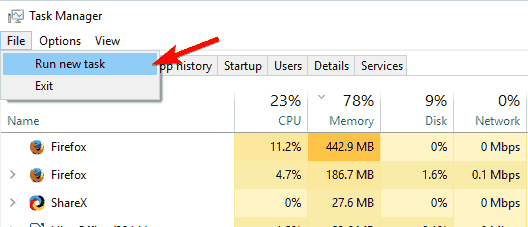
To launch the Task Manager, go to the Windows power menu. Right-click on the Windows Start button, and select the Task Manager. In the Task Manager, click on File > Run new task.
In the new window, type in ‘control panel’ and hit Enter. The Task Manager will be opened.
7. Desktop shortcut
Desktop shortcuts are a handy way to launch different Windows apps. They are also super convenient, especially if you’ve to use the specified app again and again. Interestingly, you can also open the Control Panel with a simple shortcut. Here’s how:
Right-click anywhere in the desktop and select New > Shortcut. In the new dialog box that pops ups, type in ‘control panel’ in the Browse… box, and hit Enter. Then give a relevant name to the screenshot (we’ve named it Control Panel), and select Finish.
8. File Explorer’s address bar
The File Explorer’s address bar is located in the top-left corner of the Windows operating system. Interestingly, you can also use this address bar to open the Control Panel in your Windows. Here’s how:
Click on the > option in front of the computer icon. As soon as you do that, you’ll get a drop-down list from where you can select the Control Panel. Click on that icon of Control Panel, the Control Panel menu will be opened.
Open Control Panel in Windows 10 or Windows 11
And these are all the different ways to open Control Panel in your Windows. We hope one of these methods helped you launch the Windows Control Panel without any hassles. Be sure to also check out our separate guides on how to open Task Manager as well as File Explorer.
Here are the various versions of Visual Studio that will no longer be supported.
Visual Studio 2012: support ends on January 9, 2023 for the IDE and its associated products, runtimes, and components. We recommend users upgrade to a newer version of Visual Studio.
Visual Studio 2017: mainstream support ends April 12, 2022, and the product will transition to extended support until April 2027. During extended support we’ll provide fixes only for security issues. We recommend users move to the 15.9 supported baseline to remain under support.
Visual Studio 2019 version 16.7: support ends April 12, 2022. We recommend users move to the version 16.11 supported baseline, or to Visual Studio 2022.
Visual Studio 2019 Preview Channel: after April 2022, we will no longer provide updates to the Preview Channel of Visual Studio 2019. We recommend users migrate to either the Visual Studio 2019 Release Channel or to Visual Studio 2022 Preview to stay secure and receive the latest feature updates.
Once you make the upgrade to Visual Studio 2022, you will have access to three channels which include the Preview channel, the Current Channel, and the Long-term Servicing Channels. The Preview Channel is in place to serve as a platform where users can interact with the developers and give feedback in regards to the latest features and their functionality.
On the other hand, the Current Channel is where you can access these new features once they are ready for use. Microsoft further indicated that users should make all the updates that come to this channel to ensure that they are covered in terms of support. The Long-Term Servicing Channels essentially gives the developer more control over you once you embrace the new feature releases. Furthermore, Microsoft provides 18 months’ worth of security upon release.
Download Visual Studio 2022 to get accustomed to it before Microsoft stops providing support to the current version you are on.
Welcome back to our Windows news recap, where we go over the top stories of the past week in the world of Microsoft’s flagship operating system.
Be careful! HP details fake Windows 11 installers that can infect your computer
HP has warned of fake Windows 11 installers doing the rounds. Whilst these aren’t new, and were going around even before the official Windows 11 launch, this particular one has a very similar-looking installation process to the official Windows 11 installer, making it harder to distinguish.
New Your Phone feature to show recently opened Android apps on your Windows 11 Taskbar
WhatsApp Beta on Windows 10 and 11 gets a clean dark mode
A clean dark mode is being tested in the WhatsApp Beta app on Windows 10 and 11, allowing it to better match your Windows colour theme, and be less demanding on your eyes at night or in different light conditions.
That’s it for this week. We’ll be back next week with more Windows news.
Microsoft news recap is a weekly feature highlighting the top Microsoft news stories of the past week. Sit back, grab some coffee, and enjoy the read!
Microsoft lays out new open App Store principles
In what appears to be an effort to butter up regulators, Microsoft has announced a set of Open App Store Policies aimed at putting Microsoft in a positive position as laws and regulations around app stores tighten by appearing more friendly to competition and consumer choice. It’s also likely that this move is, at least in part, to help smooth its acquisition of Activision Blizzard.
OneNote for web gets a ton of new improvements
OneNote for web has received a fairly significant update, bringing a whole host of improvements, including improved Copy/Paste, a new mode switcher, auto-inking, and more. See the full list here.
You can now block out political content from your LinkedIn feed
People often avoid political discussions at work, and now it’s possible to filter out political content on your LinkedIn feed. The new option to block political content means that you’ll no longer see content related to candidates, parties, election results, and more.
Call of Duty, more to stay on PlayStation beyond Sony’s agreements with Activision after acquisition, says Microsoft
MSI, or Micro-Star International, is a world-leading gaming laptop brand. Most MSI gaming laptops offer impressive specs and powerful video cards capable of handling the most power-hungry games.
But recently, many users have complained about MSI afterburner error code 22. The entire error message reads CTaskSchedulerinterface::AddTask failed with error code -22!
What is Error Code 22 on MSI Afterburner?
MSI Afterburner is the most popular graphics card program, as we all know, but let’s see what the main causes for Error Code 22 are:
Task Scheduler issues – The MSI Afterburner Error Code 22 occurs mainly due to some error in the Task Scheduler that can prevent your PC from auto-shutting down.
Registry issues – Indirectly, a clogged Registry may affect MSI Afterburner and produce this error code.
Now that we know why this happens, let’s apply the solutions below to fix the problem quickly.
How can I fix AddTask failed with error code -22?
1. Run a quick SFC scan
Click on Start, search for command prompt, and select Run as Administrator.
Type the following command and hit Enter: sfc/scannow
Restart your device once done and check if the MSI afterburner error is resolved.
Before starting this method, create a System Restore Point or back up your Registry. So, if anything goes wrong, you can restore it, and your Windows system will be back to normal.
Click Windows key + R to open the Run dialog box.
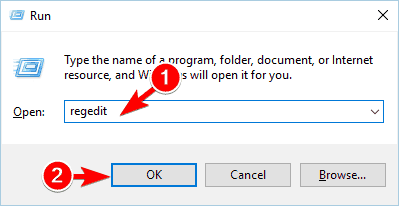
Type regedit and hit Enter.
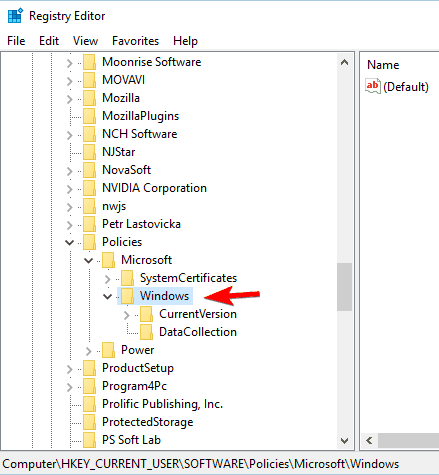
Once the Registry Editor opens, navigate to the following path: Computer\HKEY_LOCAL_MACHINE\SYSTEM\CurrentControlSet\Services\Schedule
Double-click on Start in the right pane.
Type 2 in the Value Data field and click OK to save the changes.
4. Reinstall MSI Afterburner
Click the Start button and select Settings.
Now, click on Apps. In Windows 11, also click on Installed apps from the right pane.
Look for MSI Afterburner in the list of apps, click on it, and select Uninstall. In Windows 11, after finding the app, click on the three dots menu and select Uninstall.
Go through with the uninstallation, then go to the MSI Afterburner download page and download a fresh copy of the software and install it.
This was how to fix the error code 22 in MSI Afterburner, and we hope our solutions helped you solve this issue.
If the troubleshooting methods didn’t solve this error, try our MSI Afterburner fix guide for more information.
If you still have issues or you have other solutions that we overlooked, feel free to drop a comment below.
DPC stands for Deferred Procedure Call and is meant to perform high-priority tasks first and low-priority tasks later. However, tcpip.sys latency issues can sometimes interfere with DPC.
TCP/IP or Transmission Control Protocol/Internet Protocol handles PC communication. If the tcp/ip.sys goes corrupt, then it will misbehave and often lead to BSoD errors. Thankfully in this guide, we have a lot of solutions that will help you to resolve the tcp/ip.sys latency issue in your PC.
What can cause DPC latency?
There are several common causes for DPC latency, with the following ones being the most common:
Outdated drivers – Outdated drivers can cause this and many other issues. To fix it, just update your drivers and the issue should be gone.
DNS cache – DNS cache can sometimes cause problems with your network adapter, but you simply need to flush DNS to fix that.
Power settings – Adjusting the power plan or network adapter settings can sometimes fix this problem.
IPv6 – This is a fairly new protocol, and it can cause issues with certain network adapter drivers.
Now that we know the reasons behind this problem, let’s apply the right solutions.
How can I fix tcpip.sys latency?
1. Flush the DNS cache
Click the Search icon on your taskbar.
Search for command prompt and run the app as administrator.
Type the below commands and press Enter, one by one:
netsh winsock reset
netsh int ip reset
ipconfig /release
ipconfig /renew
ipconfig /flushdns
Restart your computer and check if this resolves the issue or not.
One of the ways to fix the DCP latency issue caused by tcpip.sys is to flush the DNS cache. Running commands removes the IP addresses or other DNS records from the cache.
2. Change the current power plan
Open the Search menu from the taskbar.
Search for control panel and open the app from the results.
Click on Power Options.
Select a different power plan except for the Balanced option.
Several users have reported that switching from the Balanced power plan to a high-performance or other power plan helped them resolve the tcpip.sys latency.
3. Update the network driver
Right-click on the Start menu and select Device Manager.
Expand the Network adapters.
Right-click on your network adapter and select Update driver from the context menu.
Hit the Search automatically for drivers option.
Let the system look out for a new driver for your network and follow the prompts if it detects one.
Chances are the outdated network drivers are causing the tcpip.sys latency issue on your PC. Update the driver by following the above steps and check if this resolves the issue or not.
Another simple and fast solution to keep your drivers updated and avoid future errors is to use an automated driver update tool.
Right-click on your internet and select Properties.
Uncheck the box for Internet Protocol Version 6 entry.
Click OK.
Restart your PC and check if this resolves the issue or not.
There are chances that the internet protocol that you have selected is problematic. In such a case, you can disable the protocol and check if this resolves the issue or not.
If you are facing an audio latency issue on your Windows PC, you can check out our guide, which gives you a bunch of solutions to resolve the problem.
A server ping software is a useful tool that allows for testing the strength of the network connection or to see whether or not there are any packet losses on the network.
Performing the monitoring of your network using such a tool gives you a clearer perspective regarding the performance of your key devices.
Ping is basically the action of testing how long does it take for a package to go from one device to another. And if the package doesn’t reach its destination in one piece, we call that effect packet loss.
That’s where these tools come into the picture to monitor all this data and provide you with the most accurate reports possible.
So, in this article, we’ll walk you through the best server ping software to use in order to make an informed decision.
Site24x7 is undoubtedly one of the best server monitoring software and that includes pinging them to assess their connection response.
However, if you’re just looking for a simple ping tool, this is not it because it has a lot more complex features.
For instance, Site24x7 monitors over 60 network performance metrics for up to ten servers and offers inventory reports for them.
It doesn’t matter what type of servers or the systems they’re running, including Debian, SUSE, or CentOS, this tool will get you covered from all sides.
Moreover, the solution also looks at the Microsoft applications’ performance. The list of supported software is pretty long, but we will mention Office 365, SharePoint, Hiper-V, Exchange, and SQL.
You will be able to build your own plugin integrations but you will discover the readily available ones for Apache, MySQL, and Nagios.
Overview of the best features of Site24x7:
Over 60 performance metrics, including ping and packet loss
Single dashboard control
Microsoft applications monitoring
Plugin integrations for Apache, MySQL and Nagios included
Manage customer accounts and endpoints securely
Site24x7
With this complex too you can ping up to 10 servers and manage all their traffic.
PRTG Network Monitor is one of the most popular monitoring tools that pings devices in order to measure their availability.
Using this tool, you will actually scan the devices by their IP range, and you can also use one of the available features for ping monitoring.
Some of them are Ping Sensor, Cloud Ping Sensor, and Ping Jitter Sensor. Thankfully, after the monitoring, you may opt between seeing the data live or historically.
You will have included the ping time, maximum and minimum ping time, and also the packet loss percentage.
Let’s go through some of its best features:
Scan devices by their IP range
Built-in Ping Sensor, Cloud Ping Sensor, and Ping Jitter Sensor
Automated performance monitor
Receive packet loss percentage data
PRTG Network Monitor
Measure the ping time and other important network metrics with this performant and reliable tool.
Nagios Network Analyzer is one of the best server ping software solutions that you can use. This tool provides a view of the availability of your devices and detects any packet loss.
Knowing all this will help you decide faster on how well your network is performing. The software allows you to customize the layout for each user as needed or simply use one of the available options.
Let’s see some of its most important features:
Monitor all your devices from a single interface
Get detailed reports on packet loss
Monitor all in-house and external applications
Set up alerts to notify you when potential threats arise
ManageEngine OpManager has a Free Ping and Traceroute Tool that allows you to quickly and efficiently see how your network is performing.
With this tool, you will see how available are your servers and routers, switches, and websites. Using this server ping software tool will give you a clear view of the succeeded and failed ping counts.
Moreover, you will be able to save snapshots of ping details and view alerts on your dashboard, in case the servers are not available.
Let’s review a few of this tool’s best features:
Dedicated ping and traceroute tools
Checks your servers, routers, switches and websites
Assess default dashboards or create your own
Over 200 performance widgets available
Obtain comprehensive real-time reports on your network with this powerful tool.
Spiceworks Network Monitor comes with features that offer real-time status alerts of your network. You will be able to catch the problems before anyone else notices and also solve them as fast as possible.
Thanks to the ping monitor feature you will see which devices are online and available and if there are any issues.
In the Spiceworks Connectivity Dashboard, you will have all data about servers, routers, switches, printers, and more.
Take a glimpse at some of its best features below:
Simple to install and set up
Get real-time insights and spot sluggish network connections
Fully loaded help desk creation
Scan your IP devices and collect the data in minutes
Star Wars Battlefront II is an action shooter based on the Star Wars franchise. Despite being a great game, many users reported FPS drops in Battlefront 2.
This isn’t the only issue, many have reported mouse lag in Battlefront 2 and we covered this issue in a separate guide.
What causes performance issues on Battlefront 2?
There are several things that cause performance issues on Battlefront 2, but we will highlight the most common:
Outdated graphics drivers – If you don’t update the drivers for your graphics card, you may encounter performance problems with all your games, not only Battlefront 2.
Old OS version – Having an operating system that isn’t fully updated can cause various Star Wars Battlefront 2 problems. You might even have the game not working on Windows.
Bad port or build – Running Battlefront 2 on the older generation of PC or graphic card could also cause performance issues due to a bad port or build since this game requires more than enough of your machine’s power.
Limited resources – If your PC configuration is right on the edge of the minimum system requirements, not only that the performance of the game will be affected, but sometimes you won’t be able to run the game at all.
On the other hand, stuttering in games might be brought on by a drop in FPS, the game engine loading assets, or an imbalance between FPS and refresh rate.
Now that we know what can cause poor performance in Battlefront 2, let’s see what we can do to improve it.
How do I fix FPS drops, lag & stuttering in Battlefront 2?
Before getting into more complicated troubleshooting, let’s crosscheck some basic methods to improve the performance in Battlefront 2:
Check if you meet the recommended requirements:
Minimum requirements
Recommended requirements
CPU
AMD FX-6350 or Intel Core i5 6600K
AMD FX 8350 Wraith or Intel Core i7 6700 or equivalent
RAM
8 GB
16 GB
Video card
AMD Radeon HD 7850 2GB or NVIDIA GeForce GTX 660 2GB
Right-click the Start button and select Device Manager.
Click the Display adapters section to expand it, right-click on your adapter, and select Update driver.
Choose Search automatically for drivers.
Install the new driver if the system finds any new updates.
Outdated graphics drivers can result in gaming performance issues. You can try using specialized software to scan your device and update all your old drivers with the most recent updates from its database.
4. Disable Game Bar or Game DVR
Click the Start button and then select Settings.
Click on Gaming.
Go to Game Bar or Game DVR.
Turn the switch off.
5. Disable Game Mode
Click the Start button and then select Settings.
Click on Gaming.
Select Game Mode and turn the switch off.
6. Switch to Borderless window
Press Alt + Enter key combination to play in borderless window form in Windows.
Press F11, if using a browser.
After doing that, check if the problem is resolved.
We hope that you can now fix the issue of FPS drops, lagging, and stuttering in Battlefront 2. All our solutions are simple to follow, and they will surely help you fix this issue.
Did you find a different solution for this problem? Let us know in the comments below.
Microsoft is looking to boost the appeal and functionality of its OneNote note-taking app with a range of new features.
The company has announced it is rolling out new features that are designed to make it easier for users to find what they are looking for in the web app of Microsoft OneNote.
The updates include search improvements, copy and paste enhancements, as well as a number of smaller tweaks.
Microsoft OneNote updates
OneNote is one of the most useful software tools Microsoft has ever made. But since the company made it available for free, it hasn’t given it much attention and the app has grown long in the tooth.
The company has revealed a host of new features for the OneNote web app and they’re all pretty welcome, especially if you use OneNote on a regular basis.
First up, there’s the new mode switcher that lets you switch between Page Mode and Full Page Mode to change how you view notes. There’s also an improved copy/paste experience with support for enhanced formatting, tables and lists from other apps like Word.
There are also improvements to page navigation that make it easier to jump between different sections and pages of your notebook. You can now add highlighting to your text, too, making it easier to pick out important bits of text in a hurry.
The company is also adding support for Office Lens, Microsoft’s app for scanning documents on the go by snapping photos of them on your phone or tablet.
In the future, Microsoft hopes that its note-taking app will play a crucial role in helping users across the world transition to the new way of hybrid working. It has also launched a revamped training program for organizations hoping to use Note as part of their remote working strategy.
The new design, which will be available soon, aims to provide users with a cleaner look and feel while retaining all of the features familiar to existing users.
In addition, Microsoft is working hard to provide a fast, reliable experience that’s on-par with desktop apps, so you can take notes wherever and however you choose.
Available updates
Microsoft has not ignored the rest of OneNote, and the app has received a number of significant updates.
The priority for Microsoft is Teams, which is meant to be a hub for all work. This means that OneNote is still getting new features, but they are being developed in close conjunction with Teams.
Some of the announced updates have been released gradually, while others are still forthcoming. One upcoming feature, improved link sharing in Teams, will be released in the future.
This makes sense from an organizational point of view: Teams is where Microsoft wants users to be working in the future, so it’s logical to focus effort on it. However, users will want to get as much functionality as they can into OneNote itself.
The new mode switcher which is in live preview mode in the Office Web Apps lets you switch between editing and viewing content, preventing accidental changes to read-only sections or files where users may not have edit permissions.
The improved Copy and Paste function enables users to keep text formatting intact when copying and pasting text between OneNote and another program.
Additional features
Microsoft further launched additional updates to its digital note-taking application, OneNote, through the Windows Store.
With these updates, users can now zoom in or out on documents with the app’s picture view and lock any images or printouts to be used in place of a background. Videos can also be resized by clicking and dragging the right side of a video on the screen.
Another tweak allows Stylus users to automatically include ink in their notes while they take them. OneNote will now remember where you left off working after you close it and reopen it.
Following these updates is the announcement by Microsoft in combining the OneNote for Office and the OneNote for Windows 11 app from the Microsoft store into a single app.
Through this combination, Microsoft aims to stem confusion on which app to install at the same time encouraging more users to try out OneNote.
What is your take on the updates of the new features on Microsoft OneNote? Let us know in the comments section below.
Microsoft has added a new service to its Windows 365 Cloud PC for enterprise, making it easier for admins to onboard users through its cloud identity platform, Azure Active Directory (AAD).
Microsoft describes it as a cloud-native desktop experience and is targeted at remote workers. It was made as part of the company’s efforts to respond to the coronavirus pandemic.
The new service lets admins set up new AAD-only or hybrid AAD users by uploading an Excel file. It’s meant to help organizations quickly add employees working from home for the first time.
Microsoft says the update will make it easier for employees to work remotely or switch devices while on the job.
Feature on demand
Microsoft Azure Active Directory (AAD) is a crucial part of Microsoft’s identity and security services, as well as its join feature for controlling access to devices.
Now, AAD is coming to the company’s Windows 365 Cloud PC—the monthly-subscription version of Windows 11 it launched recently.
The ‘join’ feature means your organization can use AAD to control access to devices in the same way it manages application and service access today.
The new feature, called Azure AD Join, is designed to work with Windows 365 Enterprise and gives organizations more flexibility in how they manage their employee’s devices.
Microsoft says that its Azure Active Directory (AAD) Join feature has been the most requested addition to Windows 365 Enterprise, a version of the company’s cloud-based software.
As AAD Join is integrated with the on-premise variant of Microsoft’s Active Directory, it provides a way for admins to enroll devices without using the on-premise software.
Microsoft’s announcement of Azure AD Join is the latest in its efforts to give enterprises cloud-based options for managing user access.
When you select the Azure AD join type, you do not need an existing Azure infrastructure to use the service.
Cloud ID is a public preview currently available to administrators of the Microsoft Endpoint Manager admin center, who may provision Cloud PCs for users via their subscription-free Azure accounts.
Improving configuration process
Microsoft is improving configuration options for Cloud PCs so that they will always be available in the user’s preferred language upon login. Currently, there are many different local language options available for Microsoft Cloud PC clients.
Increasing the number of languages for Cloud-based computers will ensure that users accessing the new service from around the world are able to use it in their native tongue.
To help streamline the process of pre-configuring and deploying Windows client images, administrators can now set a Language Pack and a Region to be installed on Cloud PCs as part of the provisioning policy.
Administrators who deploy Windows 11 with language packs can configure the operating system to install those language packs automatically. The feature saves time and effort.
Microsoft’s Windows 365 managed PC service is gaining a new feature: the ability to configure software updates to be installed on a schedule. Microsoft says this is the most-requested feature for Windows 365, so hopefully, it’ll make some admins very happy.
In addition to scheduled updates, there are a number of other new features that have been added. There’s now the ability to enforce network access controls and upload logs to Azure Monitor, which can be used by admins to monitor devices in real-time.
Microsoft’s Windows 365 managed PC service has added two new regions, US Central and Germany West Central. These regions allow admins to create a virtual network in the cloud that provides access to an on-premise network.
Has the new feature in windows 365 been of help to you and your organization in this time of covid? Let us know from the comments section.
Microsoft is finally addressing one of the major concerns with Defender, which is that it’s relatively easy to bypass when setting up exclusions. The issue has been that even a standard user can add an exclusion, and that can allow malware to evade scans.
Microsoft is changing the way it handles file exclusions in its Windows Defender antivirus software. The default setting will now require users to provide administrator privileges to add an exclusion, a move that Microsoft says will improve security.
Users of Windows 11 Home and Pro are currently able to exclude files from Defender scans without any extra permissions. In a post on its Tech Community site, Microsoft said that the change would help prevent malware from bypassing detection by adding exclusions.
The change seems relatively simple but could improve security for those who are not paying attention or are unaware of the risks of running Defender without real-time protection enabled.
Microsoft Defender’s score
This latest change to Microsoft Defender is designed to make bypassing Windows Defender scans harder by changing Exclusions permission.
Microsoft Defender’s latest feature is designed to address this very issue. The company has now changed how you can add exclusions to Windows Defender effectively making it harder for attackers to bypass scans from Windows Defender and other antivirus solutions on Windows 11.
In Microsoft Defender’s most recent assessments, the software received higher marks in its second year.
Microsoft’s improving score implied that the company had made great strides in the field and probably would continue to improve as time goes by.
Windows Defender exclusions
Bypassing antivirus scanners is nothing new. Ever since they were invented, hackers and malware authors have been looking for ways to evade them, and one of the easiest ways has been through exclusions.
Many antivirus programs allow you to exclude certain files or directories from scans to improve performance and prevent false positives.
These exclusions are usually meant for large enterprise systems or big program installs that slow down the scanner. But they can also be used by hackers and malware authors to easily bypass scans.
According to Microsoft, the permissions for Windows Defender Exclusions have recently changed and users no longer have access to them if they are not an administrator.
The change is a result of a report from Microsoft that highlighted how a security hole could be used by attackers to hide malicious code on Windows 11 machines by adding files and folders to the exclusion list.
Microsoft has now changed the permissions required to view the Exclusions. Before this update, anyone with access to a machine could see the exclusions set on that machine.
However, after this update, it has been modified such that only someone with Administrator rights can view the Excluded files and folders.
The change essentially blocks access to the Registry key that contains the list of applications and files that are excluded from Defender scans. In previous versions of Windows 11, any user could access and edit the Exclusions list.
A user trying to query the Registry address gets an error when accessing it with Command Line. The person previously could see the excluded files and folders.
Importance of updates
Microsoft’s decision to make this change is a wise one, as leaving these permissions open could allow malicious actors to unload their payloads inside one of those folders and run it without triggering any kind of alert from Windows Defender.
The Exclusion feature in Windows Defender is meant to exclude specific folders from the application’s scanning.
It seems like Microsoft will continue to remove this feature in upcoming builds until they find a way for users to make changes to those exclusions without risking having malware bypass Defender scans.
Microsoft has still not announced exactly how it plans to roll out the update, but many believe that the recent patch was when the update was introduced.
What are your thoughts about the new updates on Microsoft defender scans? Share in the comments section below.
Microsoft widgets task has been in a high CPU load (as it does not properly close after use) and this causes laptops to run very hot and cause a significant drain of the battery.
Overheating and high CPU usage
If you have noticed high CPU usage and overheating in your PC after installing Windows 11 Update, you’re not alone. Many users have run into this issue after the latest update.
High CPU usage and overheating are often the result of a misbehaving application. The first thing you should do is close any programs that you’re not using.
The issue was spotted by a number of users who have posted complaints on social media platforms, mentioning that the latest update has been causing high CPU usage, resulting in overheating and performance issues.
Further, even if you are able to kill the process through Task Manager, it appears that the process immediately restarts again in a loop.
For more powerful CPUs, visit our guide and pick one that fits your needs
Beta and Release channels affected
The problem appears to be prevalent in the Beta and Release channels and the CPU usage goes up to 100%.
According to this Reddit user, there was too much CPU usage they had to force close the widgets in the task manager.
Even though it’s not one of the most popular games in the world, Generation Zero has still managed to gather thousands of interested players.
And some of those players have actually decided to upgrade their current gaming setups and opt for some updated devices.
We’re, of course, talking about the new generation of Xbox consoles. And we all know that the most powerful one of these new models is the Series X.
However, if you are planning to play Generation Zero on your new Series X machine, remember to turn Auto HDR off, or suffer the consequences.
Auto HDR makes Generation Zero glitch on Xbox Series X
Fancy playing a few rounds of Generation Zero on your brand new, state-of-the-art console? No problem there, just remember one key aspect before you install the game.
Don’t get the wrong idea, we’re not saying it won’t work on your Series X, we’re just reminding you that you should most definitely turn Auto HDR off before you install it.
Why? Because if you don’t, you will be in the same predicament as this Reddit user, who didn’t realize what he was doing wrong until he had to install the game twice to find out, and a third time to actually play it.
Of course, no one could have seen this coming, so it’s hard to anticipate something like this happening, especially when you spend so much money on your new gaming rig.
More so, when that expensive console comes from Xbox, you sort of have a guarantee that it won’t malfunction, bug, or glitch when you play a three-year-old game.
However, this one did, just because the above-mentioned feature remained turned on, by default, and the game was unplayable.
If this happens to you as well, don’t throw the controller at the screen, as that won’t really solve the glitch. Simply uninstall it, turn off Auto HDR and reinstall the title.
The user that’s spotted this flaw also sent an email to devs, so we expect this issue to be fixed in the near future. But, just to be on the safe side, disable it before you start a gun battle with your friends.
Have you also had this problem while trying to play Generation Zero on your Series X? Share your experience with us in the comments section below.
True gamers will surely agree with what we are about to say right now. It’s not just the graphics that make a game what it actually is, as sound plays a major role in every experience.
And the truer the sound, the better you immerse yourself in the world of your hero. Sound fidelity has come far these last years, considering that stereo systems and headphones are so sensitive nowadays.
That being said, Xbox Series X|S owners will soon be able to enjoy a new update that lets them preview how their audio setup will behave when gaming.
Better customize audio settings on your Series X/S console
Xbox Insiders in the Alpha, Alpha Skip Ahead, and Beta rings can now preview a new audio setup screen that lets users scroll through and test a variety of different options.
Among these options are regular stereo uncompressed, 5.1 uncompressed, and Dolby Atmos for home theater, so you can maximize your gaming experience.
A sound pattern will play along with an animation to show which speaker in your setup is active, allowing you to make any necessary adjustments.
Hey Xbox Insiders! Alpha, Alpha Skip Ahead and Beta rings now have a new audio setup screen that will let you preview how different HDMI output modes will behave with your audio setup before you select one. Here's a little video tour of the feature, courtesy of @Adamkonig! pic.twitter.com/cmPqmPspTw
On the off chance you were among the people struggling to determine the difference between each audio setup, or simply want to ensure that your speakers are placed in the correct position, this is certainly a handy feature to have.
It goes without saying that you’ll need a compatible receiver to take advantage of some of these options, so don’t expect DTS: X for home theater to work if you don’t have a license or compatible setup that supports DTS: X.
This isn’t the first audio upgrade to the Xbox Series X and Xbox Series S that we’ve seen, and console users will know exactly what we’re talking about.
The Redmond tech giant recently rolled out a feature that automatically mutes your TV speakers whenever you connect a headset.
Also, important noting is that this feature only supports three types of spatial audio: Windows Sonic, Dolby Atmos, and DTS: X.
Is this a feature that you were waiting for on your new generation Xbox console? Let us know in the comments section below.
This is one of the most used live streaming video platforms, but it seems like some users encounter the Twitch error, which makes them unable to join a call in Twitch. It can be a pretty annoying error, but it can be easily fixed.
The developers at Twitch Interactive managed to solve the problem after people have continued to report it.
In this article, we will explore a few steps you should consider to make sure the issues are not local, in the case this error occurs again.
Before getting into the main subject, let’s take a look at some causes that can explain why it can appear while using the app.
Why am I unable to join a call in Twitch?
Wrong privileges – If you’re unable to join a call on Twitch, it might be possible that you’ve tried to access it with the wrong privileges. Thus, you’re gonna have to make sure that you run the app with the administrator ones. Keep on reading and discover how to easily do it.
Hardware acceleration-related problems – Twitch hardware acceleration is also known as hardware rendering. Its main purpose is to use PC hardware more efficiently than in software running on a general purpose. It aims to decrease latency and increase throughput. Yet, the opposite result may occur. Then, you may need to run Twitch without GPU hardware acceleration.
Antivirus or similar software is blocking the app – Many Windows users have gone through it. While launching an app or game, Windows Firewall or any other antivirus software might block specific features.
Fortunately, we’ve compiled a list of solutions that will solve our presented issue, in any of the above situations.
What can I do if I’m unable to join a call in Twitch?
1. Run Twitch with administrator privileges
Navigate to your desktop, and find the Twitch executable.
Right-click on it, and select Run as administrator.
2. Toggle software rendering option
Hit the Windows key, type Twitch, then open the app.
Make sure you’re logged in with the account you want to join the call.
Click on your profile image, from the upper-right corner of the window.
Navigate to Settings.
Stay on the General tab, then toggle the Software Rendering Mode option.
3. Make sure your antivirus is not blocking the app
3.1 Windows Defender
Use the following keyboard shortcut to open the search box: Windows + S.
Type Firewall, then open the first shown result.
Inside the Windows Defender Firewall check to see if there are any rules set up for Twitch in both the Inbound and Outbound tabs by scrolling through the list to the right.
In the case you find Twitch in those lists, make sure to set all Inbound rules to allow connections.
Your antivirus or firewall can sometimes block Twitch. Thus, you’re going to be unable to join a call in this app.
3.2 Antivirus software
Depending on which software you use to protect your computer from viruses, you will need to check if it is blocking any connections for Twitch. Toggle all settings to Allow to resolve the issue. Alternatively, you can disable it to fix this issue.
Thus, we have a better alternative named TotalAVEssential which offers advanced malware protection and security tools for improved digital privacy.
There you go, these are several quick solutions that might help you with the Twitch error, which makes you unable to join a call. Feel free to try them all and let us know in the comments section if these solutions worked for you.
Twitch is one of the biggest online streaming platforms. Hundreds, if not thousands of streamers try entertaining millions of viewers on a daily basis.
It is valued both by streamers and viewers, letting users quickly get started with new channels and also keep track of their subscriptions. Twitch is also very much focused on letting users build and maintain strong communities within their niches.
Streamers can broadcast gameplay using different devices: computers, consoles, mobile phones, or tablets. However, it seems like some of them encountered an issue when trying to broadcast through Xbox One and the error message says like this:
Your account is restricted from broadcasting – you must be an adult to broadcast using Xbox One – Check your account settings for any content restrictions Error Code: 0x20B31181
In an attempt to fix Twitch error 0x20B31181 on Xbox, we compiled this list of quick solutions. Before discovering them step-by-step, let’s take a look at some reasons that explain why this error can appear.
Why does the Twitch error 0x20B31181 on Xbox?
Problems related to the Internet connection – In this case, you’ll only have to check your Internet connection and properly set it up. You’re going to discover how to do it later in this guide.
Profile presence is set on Off – It seems like our presented error might occur due to some incompatible profile presence settings. To normally run Twitch with Xbox, you’ll have to make sure your profile presence is set On.
Privacy and Online Safety settings – In some cases, these ones were blocking the users’ actions. Thus, you’ll have to allow some related options.
Temporary bugs – Like any other software, both Twitch and Xbox may run intro trouble. In this situation, the best thing to do is reconnecting your accounts.
Twitch saved data are blocking the process you want to perform – There might also be some elements that limit your activity, so it is recommended to clear them.
How can I fix the Twitch error 0x20b31181 on Xbox?
1. Check your Internet connection
1.1 Through Xbox Settings
Press the Xbox button, then open Settings.
Navigate to Network.
Go to Network settings.
Select Test network connection.
Analyze the results and see if you have decent download/upload speed and ping.
1.2 Set up your Internet connection properly
Use a wired connection instead of Wi-Fi
Contact your internet provider if you notice abnormal internet activity.
2. Change your profile presence to Online
Press the Xbox button, then select your gamerpic
Select My profile.
Now, choose to Appear online.
3. Change Privacy and Online Safety settings
Press the Xbox button, then open Settings
Go to Privacy and Online Safety.
Set Broadcast gameplay to Allow.
Set Share content made using Kinect to Allow.
4. Reconnect accounts
4.1 Unlink your accounts
Press the Xbox button, then open Settings
Go to Account.
Choose UNLINK [your gamertag]
4.2 Perform a Power cycle to the Xbox One
Turn off the console from the Xbox Power button of the console
Leave the console off for about 10 seconds
Turn the console back on.
Link your Twitch account back to the Xbox account
5. Delete Twitch saved data
Press the Xbox button, then select Home
Go to My games & apps.
Press the Menu button on Twitch, then choose to Manage app.
Under Saved data on the right, choose the appropriate gamertag.
Press the Menu button.
Select Delete saved data
Alternatively, you can choose Uninstall and then reinstall the Twitch app back.
What other Twitch error codes can I encounter on Xbox?
Twitch app error code 995f9a12 – This one a common problem it it seems like in most cases it appears after making some changes like replacing the display name or deactivating the twitch account.
Twitch error code 61d3870c in Xbox – If you’ll ever face this one, you have to know that you’ll get the following message: SOMETHING WENT WRONG. We’re so sorry; something unexpected happened. 61D3870C.
We hope that our guide helped you to fix the Twitch broadcasting issue on your Xbox One. If you liked this article, leave a comment in the comment section below.
Great news from Microsoft today, as SwiftKey has just received another update on both Android and iOS, one that brings some exciting new features to the table.
One of the features that were highly requested and have now hit live, allows Android users to search emoji using as many as 139 languages in the SwiftKey keyboard app, including Persian, Romanian, Thai, and Turkish.
Also, after installing this latest update, SwiftKey users on Android can type in Awadhi, East Frisian, Garhwali, Hmar, and Saraiki.
New multi lingual features added to SwiftKey
Besides the features we already described at the beginning of the article, Microsoft also added Intelligent Nudge, which automatically detects a task and asks users whether they want to add it to Microsoft To Do.
For Android users, this SwiftKey update brings the build to 7.9.6.8, and adds the following, according to the official release notes:
Emoji search is now available to 139 languages including Persian, Polish, Romanian, Thai and Turkish. View the full list here: https://aka.ms/sk-android-emoji-search
You can now type in Awadhi, East Frisian, Garhwali, Hmar and Saraiki.
We’ve added the Intelligent Nudge, which automatically detects a task and prompts users to add it to To Do.
Therefore, the new interface is a lot more user-friendly and offers a wide variety of dialects to choose from, so keep that in mind next time you use it.
What about iOS users?
You’ll be pleased to know that iOS users weren’t left out and they also received an update for their version of Microsoft’s SwiftKey.
This latest update takes the version of the app to 2.9.2 and includes no other new features except for the ability to search emoji in many new languages. The full official changelog is given below.
Emoji search is now available for most languages in SwiftKey Toolbar to find your emoji easier!
Either way, there are new features to enjoy and explore, in many different languages. Excited about the new SwiftKey changes? Share your thoughts with us in the comments section below.
Some users reported that the Twitch app gives the error code 995f9a12 on Xbox One and it seems to be pretty annoying. If you’re also facing it, make sure you verify this guide completely.
The Xbox Twitch app allows you to stream contents live from your console to your Twitch viewers.
However, some users reported encountering the Twitch app error code 995f9a12 on Xbox One. It seems to be pretty common, and this is how people describe it:
Been streaming on xbox one with the Twitch app and alls been good. Recently changed my display name, and now on the xbox app i get this message when trying to broadcast: “something went wrong. We’re so sorry; something unexpected happened. 995F9A12”
If you are also troubled by this error, here are a couple of troubleshooting tips to help you fix the Twitch app on Xbox one gives error code 995f9a12.
When does the Twitch app error code 995f9a12 appear on Xbox?
It seems like this issue occurs after making some changes like replacing the display name or deactivating the twitch account.
However, there might be some other reasons that explain it, such as a server or app-related problems or temporary bugs.
To discover the best options to get rid of this error, make sure you keep on reading.
How can I fix the Twitch app error code 995f9a12 on Xbox?
If you’re not logged in, click on the Log in button, from the upper-right corner of the window.
Now, enter you Twitch credentials, then click on Log in.
Click on your profile image.
Navigate to Settings.
Open the Connections tab.
Find Xbox and click on Remove/Unlink.
On your Xbox, launch the Twitch app and click on Sign in.
You will get a 6 digit sign-in code. Enter it and login.
Now you should be able to login to your Xbox Twitch app without any error.
This is the most recommended fix for the Twitch app error code 995f9a12 as it proved to be extremely efficient in several worldwide cases.
2. Reset Xbox Alternate MAC Address
Press the Xbox button on your Controller.
Go to System tab, then select Settings.
From the left window pane, navigate to Network.
Select Network Settings.
Now select Advanced Settings.
Click on Alternate MAC Address.
Select the Clear button.
Click on Restart to restart the Xbox console and check for any improvements.
If you had used alternate MAC address to deal with network issues in the past, it can create issues in the future as well. Resetting the alternative MAC Address can help you resolve this Twitch error.
3. Leave a Comment on Live Stream
As strange as it may sound, users have reported that trying to leave a comment on Live stream has helped them resolve the error.
So, access any random live stream from your Xbox Console and try to leave a comment. If you get an error code, try again a few more times.
Now go back to the Home screen of Twitch app and check if you can sign in again and if the Twitch Xbox one error code 995f9a12 is resolved.
If you’re not logged in, click on the Log in button, from the upper-right corner of the window.
Now, enter you Twitch credentials, then click on Log in.
Click on your profile image.
Navigate to Settings.
Click on the Channel and Videos tab.
From the left window pane, navigate to Stream.
Now, from the right window pane, look at the Primary Stream key section, then click on the Reset button.
Wait for a few minutes for the key to reset.
Now go back to the Xbox and launch the Twitch app. Try to sign and check if the issue is resolved.
If the issue persists, try to uninstall and reinstall the Twitch Xbox app. This should resolve any issues occurring due to app file corruption.
What other Twitch error codes can I encounter when using Xbox?
Unfortunately, our presented problem is not the only one that might appear while running Twitch. Because it is always important to prevent or quickly fix such errors, make sure you check the following list:
Twitch error 0x20b31181 on Xbox – This one will notified you by broadcasting restrictions. In these terms, keep in mind that you must be an adult to broadcast using Xbox One.
Twitch error code 61d3870c in Xbox – If you’ll ever face this issue, you’ll get a message that says SOMETHING WENT WRONG. We’re so sorry; something unexpected happened. 61D3870C.
So, these are the best solutions to try if the Twitch app gives error code 995f9a12 on Xbox One.
Because your opinion is important to us, feel free to let us know which one worked the best for you, by leaving a comment in the section below.
Using a VPN is the best way to ensure that your online activities aren’t monitored. As you most likely know, your traffic is routed through an encrypted tunnel to a server fully controlled by the VPN provider.
Since the traffic is exiting the VPN server, your computer shows up as having the IP address of the said server, masking your location and keeping you safe from prying eyes and snooping Wi-Fi hotspots.
Moreover, a powerful VPN can help you enjoy streaming media or bypass geographic restrictions on your favorite website.
If you want to make the best choice, don’t hesitate to take a closer look at NordVPN. You’ve come to the right place for that.
What is NordVPN?
Developed by Tefincom & Co., S.A., NordVPN is a feature-rich VPN provider that offers a robust collection of advanced client-side features, a slick interface, and unmatched security and encryption.
Transparency and innovation are both essential concepts when it comes to NordVPN. This VPN service excels at helping the VPN industry follow its course and mature robustly through expert knowledge while serving over 14 million users worldwide.
That’s possible thanks to a network of 5500 servers in no less than 59 countries, and the numbers are growing.
The server list has recently expanded, and that’s good news for a VPN’s speed as long as more servers lead to less crowding.
As for the wide variety of locations, this works in your favor as well. There’s simply a higher chance you’ll find one nearby.
How to use NordVPN?
There are various ways to connect to a NordVPN server. In fact, you can always do so with just a couple of clicks:
Make a choice by using the map
The quickest way to connect to a server is by using the map with all locations marked. All these countries include NordVPN servers, so make a choice right away by clicking on a location.
If necessary, move the map around by dragging it with your mouse button.
2. Pick a server from the list of countries
If using the map isn’t your cup of tea, don’t hesitate to click on Countries in the top-left part of the interface.
You may now choose the desired country by simply clicking on its respective entry.
3. Select a server within the desired country
You can use also use the attributes of a country of your choice as a filtered measure. They provide you with the following information: Region and Server.
4. Auto-connect on Wi-Fi
In order to go one step further and skip the hassle of manually deciding on a country or a specific server, click Settings in the upper-left part of the app.
You simply need to look for the Auto-connect on Wi-Fi option and toggle the switch On.
5. Obfuscated servers (OpenVPN)
NordVPN’s obfuscated servers use special algorithms to appear that you perform regular Internet browsing activities with no VPN involved.
They are ideal for countries with restricted access, so feel free to go to Settings and locate the Obfuscated servers option.
Turn it on and click the On button in the upper part of the window to connect to an obfuscated NordVPN server.
After successfully connecting to a server, the bar at the top of the page should say that your status is Protected.
At this point, your IP address cannot be tracked back to your identity and actual location. However, do note that your connection safety depends on the password you use.
As with all other online accounts, using a strong, unique password is extremely important.
How fast is NordVPN?
Let’s continue with the obvious question: is NordVPN fast? In September 2020, AV-TEST performed a thorough investigation of some popular VPN solutions, and we’d like to tell you more about their results.
The chart representing the measured download performances in the US reveals that NordVPN is above the rest of the products, outperforming the second-placed VPN by over a quarter of the download speed.
The average download speed in Mbps in the US for local VPN connections compared to the unencrypted connection and industry average
Regarding the average US upload speed, NordVPN is again leading with approx. 320 Mbps, showing that NordVPN indeed provides the fastest VPN product in the market.
The average upload speed in Mbps in the US for local VPN connections compared to the unencrypted connection and industry average
That’s possible thanks to the WireGuard-based protocol NordLynx, a technology that delivers incredibly fast downloads and near-instant connection times without compromising your privacy.
All these make NordVPN the ideal choice for Netflix watchers worldwide. Just make sure to use the servers closest to your current location, and you’ll also find this VPN’s speeds both consistent and reliable.
Therefore, yes, NordVPN is fast and recommended for streaming, torrenting, as well as normal browsing.
Is NordVPN safe?
You need to know from the start that NordVPN is a no-log service, therefore it will never track or share your private information when you’re connected to one of the VPN’s servers.
NordVPN takes the no-logs policy extremely seriously. They recently had PWC Switzerland audit them, and it turned into a new validation that this service never puts users at risk.
At the moment, NordVPN utilizes the following VPN protocols:
OpenVPN – that’s a popular and extremely versatile protocol that can be used on both TCP and UDP ports; since it’s open-source, its code has been scrutinized for vulnerabilities
IKEv2/IPsec – all users’ details are kept protected since this protocol employs strong cryptographic algorithms and keys
WireGuard/NordLynx – that’s the latest protocol in the VPN industry; it’s free, open-source, and surprisingly fast
Moreover, NordVPN uses AES with 256-bit keys recommended by the NSA for securing classified data. So, NordVPN isn’t just our recommendation as the most reliable and modern VPN service, but we also rank it as being one that takes your privacy seriously.
After the passage of a new national security law affecting Hong Kong, let us remind you that countless VPNs announced their intention to remove their server presence from the city.
This wasn’t the case with NordVPN. Once again, the company addressed the problem with the utmost responsibility.
All NordVPN servers are either diskless or encrypted, so the users’ privacy is guaranteed even in the event of an unfortunate physical takeover.
No less important, to increase security, NordVPN has started running its first collocated servers, which are owned and maintained exclusively by NordVPN.
These servers from Finland are just a glimpse of what’s to come. This practice of housing privately-owned servers will continue, and more of NordVPN’s servers will be under their ownership by the end of 2020.
One key feature of NordVPN is Threat Protection, which you can enable from the program’s Settings menu.
While it is optional, do consider that this feature is an advanced technology solution that can play a huge role in ensuring secure access to the network.
Threat Protection can keep you safe from cyber threats since it compares websites you’re browsing with known blacklists and will block your access if a threat is already confirmed.
Even more, your device won’t participate in DDoS attacks, even if malware has already begun to infect it. More precisely, it will eliminate connection and communication between the device you use and the control server of the botnet.
Finally, this feature is your chance to forget all about the annoying pop-ups and targeted ads that invade your screen.
Is NordVPN worth the price?
Users worldwide take advantage of the well-distributed NordVPN server fleet, strong privacy policy, and countless intuitive features. Chances are you look for these as well.
There are desktop applications for Windows, mac OS, and Linux waiting for you in French, German, and Spanish, along with mobile apps for Android and iOS.
NordVPN also provides customer support assistance – in German and French – to answer all your questions regarding general information about the included features, billing, and connectivity.
A single subscription lets you use six devices simultaneously, including your smart TV and router, making it a good value for a household with many members and personal devices.
And if you’re disappointed with the service or if it simply doesn’t work for you, do keep in mind that you have up to 30 days to get your money back. That’s why NordVPN is a great choice.
NordVPN
Staying safe from snooping Wi-Fi hotspots has never been easier. Claim the best NordVPN offer now!
That’s what NordVPN is all about – a service with the fastest speeds and strong security; a chance to enjoy a newer, better VPN experience. Are you ready for the change as well?
The Xbox 360 was home to a wealth of great games, many of which have gone on to become classics. The names Bioshock, Skyrim, and Red Dead Redemption are some of the ones that most readily come to mind when someone brings up the 360 (though none of these were exclusive to the system).
But there were so many other great games for Microsoft’s seventh generation effort that never really got the limelight they deserved, as so often happens in this hyper-saturated era of gaming in which it can be so hard for games to stand out. In all console generations it is inevitable that some more-than-worthy titles will fall by the wayside for one reason or another – whether it be a lack of/bad marketing, bad timing, or in some cases a game may just be ahead of its time.
Here we are going to have a look at some of the more underrated games that called the Xbox 360 home.
A sequel to American McGee’s Alice (American McGee is the name of a video game designer, in case you are wondering. Coincidentally, he is American) this game flew under the radar when it was released. It was an independently-developed action-adventure platform game with a serious dark side that explores the darkest recesses of protagonist Alice’s psyche. Despite not really taking full advantage of the 360’s capabilities, the game features some pretty impressive graphical artistry, especially in some of the “trippier” environments. In all it was a very solid game that never really got its due, though it does have a cult following these days that still yearns for an Alice 3.
(Backwards Compatible with Xbox One and Series X/S)
This was Final Fantasy creator Hironobu Sakaguchi’s first effort with his own Mistwalker Studios after leaving Square Enix. The game, an impressive jrpg with a design and mechanics traditional of that genre, was published by Microsoft Game Studios. It was much more than just a bone to throw jrpg-starved Xbox fans, however, with a deep storyline and dynamic characters, all of it complimented by some gorgeous visuals. While the sun had already set on the genre’s golden age by the time Lost Odyssey released, it remains a very worthwhile play for lovers of the Japanese style roleplaying experience.
All the games described here are playable on Series X/S in one fashion or another.
(Not backwards compatible. Available on Xbox One, Series X/S)
Child of Light was a highly acclaimed side scrolling action rpg with semi turn-based combat and jaw-dropping, hand painted watercolor graphics. Designed to be “a playable poem” in the words of the lead designer, the game’s character dialogue is in the form of lyrics. This along with the classic narrative of a heroic quest give the game an unmistakably storybook feel and aesthetic. It all made for quite a unique take on the genre at the time, and one that is still well worth playing today.
This game was inspired by the Chinese literary classic Journey to the West, though you would scarcely guess that judging from the game’s post-apocalyptical setting. Originally intended to be a CGI film, the action adventure title released in 2010 to general critical acclaim and commercial failure. It has since gone on to garner a cult following and is known today as one of the seventh generations’ biggest hidden gems, noted for its overall solid gameplay, gorgeous settings and visual design, and memorable story with cinematologist-guided scriptwriting.
So there are just a couple of the most underplayed Xbox 360 games. But really, there were so many more that are still worth discovering today. It was a great console generation overall, and the 360 especially earned a place in gaming memory with a slew of great games. Do yourself a favor and check some of them out sometime.
It’s possible that you’ll sense something or, more likely, hear something when you’re playing games on your computer or running a resource-intensive application like a virtual machine or a video editor. You may notice that the fans on your computer are spinning wildly, and this is very normal.
This is simply the way in which PCs respond to fluctuations in temperature. The fans assist in controlling the flow of air through the computer, which helps to prevent the graphics card and processor from overheating, which in turn aids to prevent performance throttling.
When you play games or watch videos, the GPU’s temperature will rise. It’s nothing to be concerned about because that’s exactly what the system is intended to do. If you notice that the temperature levels are higher than they generally are in other games, check your computer’s vents and fans.
Reduced graphical settings in games can also help to keep the thermal conditions under control, and may even result in a slight increase in frame rate. Follow along to learn how to check your GPU’s temperature and monitor it more closely, but first let’s see what the perfect temperature should be.
What is the optimal temperature for GPU?
We sometimes lose sight of how critical it is to keep our core hardware operating at optimal temperatures from time to time. It has the potential to assist your system in a variety of ways, ranging from improved performance to a longer operating life span.
Having said that, keeping your gear cool isn’t always straightforward – especially when you add in scenarios such as gaming and rising ambient temperatures, among other things.
As most people are well aware, gaming places a significant amount of additional strain on your computer’s components, particularly the CPU and graphics card. The majority of the time, this stress is converted directly into heat.
When gaming, your hardware must run at a faster rate in order to maintain the required performance levels for the game. As a result, your components naturally become significantly hotter.
It makes no difference whether you’re using an AMD or an Intel processor; the temperature threshold for each processor is significantly different. For gaming purposes nowadays, the recommended CPU temperature is 176°F (80°C), with an average temperature of 167°-176°F (75°-80°C).
CPUs, on the other hand, have the potential to become a little hotter in certain circumstances. Long gaming sessions, as well as overclocking, will result in somewhat higher average temperatures on average.
The normal GPU temperature range is between 65 and 85 degrees Celsius (149 and 185 degrees Fahrenheit). If its temperature exceeds the maximum value, for example, if it is around 100°C, you can attempt lowering the sustainable heat levels in accordance with the current temperature.
However, this will only work if you know what the current GPU temperature is. Overheating of the card can result in major hardware damage, so it is always advisable to keep an eye on the temperature when using it.
How can I check GPU’s temperature in Windows 11?
Use Task Manager
Press the CTRL + ALT + DELETE buttons on your keyboard simultaneously, then click on Task Manager to open it.
Now, navigate to the Performance tab and scroll down until you see the GPU panel in the left side. Under it you will be able to see its current temperature, also if you click on it, more details will be shown on the right.
For a full description of your system’s information including the temperatures of both your CPU and GPU, we recommend that you use a specialized tool such as Aida64’s products.
Which type of air-cooling should I use?
When it comes to gaming, it is nearly always preferable to purchase an aftermarket GPU with an open-air cooling architecture. In addition to ensuring lower temperatures throughout the board, this will physically boost the performance and lifespan of your gear.
Not to mention that they have a more attractive aesthetic appearance. If your case does not have the best airflow, we still prefer this design over a blower-style fan design because it is quieter.
A GPU with a completely new cooling architecture, on the other hand, is a significantly more expensive approach to accomplishing the same goal. In addition to providing cooler temperatures, open-air cooling will also provide a more peaceful overall experience.
Alternatively, if you want to perform a large number of CPU-intensive tasks (which will generate excessive heat), you can always get a blower fan GPU to exhaust some of the surplus heat out the back of your PC. With this type of cooling, you will notice a minor reduction in interior temperatures.
It’s also possible that a blower-style fan would be more appropriate for a smaller form factor PC construction. They are significantly smaller than open-air systems and will not smother the rest of your equipment. All contemporary graphics cards are equipped with intelligent fans.
These fans are typically turned off until the temperature reaches 86°F to 104°F (30°C to 40°C) or higher. This is the moment at which they will begin to operate at a predetermined speed (found in the preset profile). When the system is cool, this has a significant impact on noise output and power consumption.
And lastly, since you got the hang of checking your GPU’s temperature, you will definitely want to learn how to check your CPU’s temperature next. Don’t miss it out!
Let us know in the comments section below whether the article was helpful for you. Thanks for reading!
For a while now, Microsoft has been trying to create an enabling environment that complements the hybrid workplace. They had earlier shared their vision and highlighted the direction they wanted Teams to take, in an attempt to help clients transition to a new normal.
It now seems that they may be on the verge of achieving their goals, as one of the key updates, Front Row, is starting to roll out. It provides both single and dual display modes. The announcement was made on February 1. but the feature is rolling out now. They further highlighted that the feature will seamlessly enhance the meeting experience between in-the-room meeting users with those joining it virtually. (Via ZDNet)
The video gallery has been moved to the bottom of the screen, the change is set to enhance the meeting experience for attendees joining virtually, ultimately providing a more life-like experience.
According to a post on LinkedIn, the feature is a brainchild to both the Microsoft Global Workplace Service IT team and the Microsoft Teams product team. The post goes further to indicate that users do not need to have access to special peripherals to use the feature.
Moreover, Microsoft is still working on more features such as the segmented video layout. Front row is already available on Microsoft Teams, therefore, users are encouraged to download the app to fully explore the Front Row feature during work meetings.
Twitch is probably the world’s most popular video live streaming service. Used mostly for gamers, this platform has been a popular place for gamers to gather around and post tutorials, walkthroughs, and various gameplay videos.
Those of you familiar with Twitch is probably also aware of the platform’s way of handling donations.
Well, Twitch introduced a new element called gift cards that are designed to make great gifts for moderators, emote artists, and friends in chat.
What are Twitch gift cards and why would I use them?
Digital gift cards are available online from the Twitch official website and are come in a range of different designs. They can be themed around events like birthdays, graduations, and more.
The guide below will show you exactly how you can buy and use one, and it is structured to be as easy to understand as possible.
Gift cards can be convenient and useful when you need to make purchases or want to give a gift to someone else.
How do I buy and use a Twitch gift cards?
First of all, make sure you already have an active Twitch account
If you don’t, create one before proceeding (if you don’t know how to do it, take a look at the end of this article).
Go to the Twitch gift card page to start browsing for the gift card you are interested in.
Select the card design.
Select the value of the card:
Currently, the digital cards can be bought in $25, $50, $100, and $200 values
They can be redeemed and used for Bits, subs, and gift subs
Choose a Delivery Option.
Next, you will need to input the following information:
The recipient’s name
A personalized message
A sender name
The send date
Click Add to Cart. Presuming that you have enough money on your Twitch account, the transaction should now be finished.
By following these steps you should now be able to acquire a Twitch gift card and send it to someone.
Type the code of your gift card right under Enter code.
Click on Redeem.
NOTE
To redeem a Twitch gift card, the recipient will need to be living in the US and will need to have a Twitch account.
Remember that once you redeem a card, you cannot use it anymore, and the full amount on the card is transferred to the recipient’s gift card balance in their Twitch Wallet.
In the upper-right corner of the page, choose to Sign Up.
Now, enter the needed information, then click on Sign Up.
You’ll receive a code on your phone. Enter it in the gaps shown below.
Once it’s all set, click on Done.
Now, you have a Twitch account!
As mentioned before, to be able to buy a Twitch gift card, it is necessary to have already created an account. If you don’t know how to do it, make sure you follow the steps below.
By following the steps above, you should be able to now redeem any Twitch gift card that you receive.
Have you tried sending a Twitch gift card so far? Let us know what you think about this new feature by leaving us a message in the comments section below.
Twitch is one of the most popular video streaming platforms and the main tool for video game streamers.
While it works fine most of the time, you might sometimes encounter the Twitch error code 5000. As many users claimed this issue, it isn’t uncommon.
This error appears as a message notification while streaming, and it says the following:
5000: Content not available
If you are also troubled by this annoying problem, here are a couple of troubleshooting tips to help you resolve the issue.
Why does the Twitch error code 5000 appear in Chrome?
Before finding what are the best options to fix it, let’s see why the Twitch error code 500 can occur on your Chrome screen.
Cookies and Cache – For those of you who didn’t know, browsers like Chrome save some information from websites in its cache and cookies. In order to prevent any troubles, it is recommended to constantly clear them.
Extensions compatibility – Because the Twitch error code 5000 might occur due to a third-party extension conflict in Chrome, we suggest checking the compatibility.
DNS servers – It is important to flush a DNS cache for several reasons. The most common ones it that the cache may contain outdated information. So, even if you clear your browser history, the DNS cache will still have the old information.
What can I do to fix the Twitch error code 5000?
1. Clear Cookies and Cache
Press on the Windows key, type Chrome, then open the first result.
From the upper-right corner of the window, click on the 3-dots menu.
Navigate to Settings.
From the left window pane, select the Privacy and security section.
Click on the Clear browsing data option.
Select the time range, check the Cookies and other site data and Cached images and files options, then click on the Clear data button.
Close and relaunch Chrome browser. Try to stream the twitch video with 5000 error and check for any improvements.
Old and corrupted cached browser data can create issues with Twitch streaming resulting in Twitch error code 5000. However, users have reported that clearing the browser cache has helped them resolve the error. Follow the steps to clear the browser cache for Chrome.
2. Check Extension Compatibility
Press on the Windows key, type Chrome, then open the first result.
From the upper-right corner of the window, click on the 3-dots menu.
Now, hover, the mouse over More Tools, then click on Extensions.
From the list of extensions, disable all the extensions one by one, by turning Off the toggle button.
If you have the Ghostery extension installed, disable it as well. It is a known culprit behind the Twitch error content not available issue.
Now open Twitch again and try to play the video. If the video plays without any error, start enabling all the extensions one by one until you find the problematic extension.
The Twitch Error code 5000 can also occur due to a third-party extension conflict in Chrome. In this matter, you should check your Chrome browser for any plugin that may not be compatible with the Twitch service.
3. Flush the DNS
Use the following keyboard shortcut, then type cmd: Windows + S.
Right-click on the Command Prompt and select Run as Administrator.
In the Command Prompt, type the following command and press on the Enter key: ipconfig/flushdns
Close Command prompt.
Relaunch the Chrome browser.
Try to stream the Twitch video again and check for any improvements.
The Twitch error code 5000 is not the only one that might appear while running this streaming app. Unfortunately, there are many other related problems, but we’ve ensured to compile a list with the most popular ones.
Twitch error code 2000 – This issue is directly related to network problems, but it can be easily solved by following our dedicated solutions.
Twitch error 1000 – If you’ll ever face this error, keep in mind that you won’t be able to download videos from Twitch or play streams.
The Twitch error 4000 – This one might also be triggered by incompatible browser extensions or third-party cookies.
This is how you can fix the Twitch error code 5000 in the Chrome browser. If you encounter any additional questions, the comment list below would help you to share them with us.
Many may argue that the best way to play video games on your Windows 11 computer is using the classic mouse and keyboard due to how accurate you can get with the controls. But that requires learning a whole new setup and configuration.
Most people are used to playing their favorite games with a controller, and thanks to the flexibility of PCs nowadays, you use one on your computer. The PS5 DualSense is great because of its ergonomic design. It fits comfortably in your hands which is perfect for long gaming sessions.
The DualSense also has a lot of hidden features that everyone should know about, like checking your battery level. This is something the previous PS4 didn’t have and you’d have to wait until the battery was almost dead to know.
What should I know about connecting my PS5 controller?
As good as the DualSense controller is, there have been reports of the controller not connecting or being detected. The easiest way to solve this issue is by connecting the controller to your PC with a proper USB cable.
Some games have DualSense support natively. In those cases, all you have to do is plug in your controller and you’re good to go. But this raises other questions like what if you don’t own a USB cable or don’t want to use one? What about the games that don’t have native DualSense support?
Well, this guide will show you three different ways to solve any detection problems with your PS5 controller. This includes connecting via Bluetooth and downloading DS4Windows. The latter is an app that allows you to use DualSense controllers on games that don’t support it.
It does this by emulating an Xbox controller (which has wider support) and tricking the game into thinking your DualSense is an Xbox device.
How can I solve detection problems for my PS5 controller?
1. Solving via Settings menu
Click on the Start icon.
Click on Settings.
Click on Bluetooth & devices in the Settings menu.
Check if Bluetooth is turned On. If not, click on the switch to turn it on.
On your PS5 controller, press and hold the Share and PlayStation button until the light begins to flash to put it into pairing mode.
On your PC, click on the Add device button or the Add device window at the top.
Select Bluetooth to pair your PS5 controller.
The DualSense will appear as Wireless Controller. Select the first option.
It may ask you to enter your computer’s PIN to connect.
Enter your PIN and click Connect.
Wait for the pairing to complete.
Check your Settings menu to see if the controller has been paired.
Click the Download button in the corner to download DS4Windows.
In the next window, click the blue Download button.
Click the Zip file that downloads.
Highlight the file and click Extract.
Choose a location to extract the file to. Then click OK.
Go to where the file is located.
Double click DS4Windows to open the app.
Click Install ViGEmBus Driver.
An installation wizard will appear. Accept the terms and then press Install.
Click Finish.
In DS4Windows, click on the Controllers tab. The controller should appear here, but as seen in this example, it doesn’t.
Ensure that your controller is on and connected to the PC. Start by going to the Bluetooth & devices section in the Settings menu.
As seen in this example, the DualSense is connected.
If it isn’t connected, click on Add device.
Press and hold the Share and PlayStation button on your controller. The light will start blinking indicating that its looking for a computer to pair up with.
On your PC, select Bluetooth and then Wireless Controller.
You may have to add your computer’s PIN to move forward.
After connecting, go back to DS4Windows.
You should be able to see your DualSense controller connected to DS4Windows.
If it doesn’t appear if you’re connected via Bluetooth, try using a USB cable and connect the controller to the PC.
If you want to reconfigure the controller, click on Edit.
Here you can change things like the analog stick sensitivity, touchpad, internal gyroscope, and more.
3. Solving on Steam
On Steam, click on the Steam entry in the upper left hand corner.
In the drop down menu, click Settings.
Click Controller in the sidebar.
Click the GENERAL CONTROLLER SETTINGS button.
Check the box next to PlayStation Configuration Support in this new window.
If a DualSense is connected, you will see PlayStation 5 Controller at the bottom of the window.
If you click on PlayStation 5 Controller, you will given option to change preferences, calibrate the controller, and change the button layout.
Clicking on Define Layout takes you to a new page where you can change the buttons.
Click Save at the bottom to keep the configuration.
Is there anything else I should know about Windows 11 and video games?
For Windows 11, Microsoft took a different approach towards video games. The company was much more heavy-handed and strict on developers during the Windows 10 era, but this time around, Microsoft is being much more hands-off. It wants developers to naturally come to the platform without coercion.
This can be seen when Microsoft announced that the new OS will support Android apps, including the mass of games available. This feature still hasn’t seen an official release, although it is available to people who signed up for Windows Insider. It’s unknown if and when Android apps will see wide release.
And if you’re a big gamer, you’ve no doubt have heard of Twitch. It’s the leading online platform for video game streams and set the foundation that other sites are trying to emulate. You may be interested in knowing which internet browser is the best one for Twitch.
All browsers have access to Twitch, but the website does require a fairly high amount of resources to stream without issue. And because of that, certain browsers are better than others.
Feel free to leave a comment below if you have any questions on other Windows 11 apps. Also, leave comments about guides that you’d like to see or information on other Windows 11 features or list guides like this.
The Windows Insider Dev Channel could soon get busy. According to Windows Central’s Zac Bowden, Microsoft is readying some big builds, which might bring back some of the missing features people have been complaining about, and even add new ones.
The news comes after a two-week pause in Windows Insider builds, and per Bowden’s sources, this pause was because Microsoft was busy adding new features and changes. You can expect a big jump in build numbers as a result, too, from the current 225xx to 250xx.
This means the return of Windows features like the ability to create app folders in the Start Menu, support for file dragging and dropping on the Taskbar. In addition, new blur effects could be on the way soon
Other new features coming to Windows Insiders include a “Snap Bar” feature and touch features for Start Menu and Quick Settings. Notable of that is the ability to drag up on from the bottom of the screen to get to Quick Settings or the Start Menu. Snap Bar, meanwhile, could “be another way of snapping multiple app windows to the built-in snapping grid system on Windows 11,” according to Bowden.
In other areas of visuals, Bowden believes Microsoft is even working to bring acrylic/blur effects in legacy title bars. This will best be seen in Win32 apps. This should help with the design consistency in Windows 11, which has been said is a goal for Microsoft this year.
So, when will everyone else expect these features? Well, look out for it in the next major Windows 11 release, for the second half of this year in “Sun Valley 2.” It definitely seems like it’ll be an exciting time to be a Windows Insider soon.
If you found that your Twitch app is not detecting your World of Warcraft addons after an upgrade or install, you came to the right place. A large number of users have dealt with the same situation recently.
The problem seems to vary, with some users saying that the issue doesn’t stop at the WoW addons and that it also includes the WoW game not being detected.
Here is what one user had to say about this issue:
Is there anyway I can get some help for this? My Twitch doesn’t find my WoW on my computer, and doesn’t recognize the file when I select it. I can’t update my addons and everything has gone very buggy since 8.1.5
This issue seems to affect users with different system configurations, and even though it allows you to run WoW, the addons are nowhere to be seen.
This has caused users a lot of frustration, but in today’s article, we will explore some of the best methods to deal with it.
What can I do if the Twitch app is not detecting WoW?
1. Make sure you selected the right profile
If addons are showing inside World of Warcraft but not inside your Twitch app, you will need to make sure that the right profile is selected inside the app.
To do so, you will need to check the addon section from the upper right side of your screen and choose the right profile from the drop-down menu.
2. Log out and log back in the Twitch app
Press on the Windows key, type Twitch, then open the first result, or you can simply navigate to the Twitch official page.
Look at the top-left corner of the window, then click on your profile image.
Choose to Log Out.
Wait a few minutes.
Now, open again the Twitch desktop client or go again to the Twitch official page.
From the upper-left corner of the window, click on the Log In button.
Enter your Twitch credentials, then click on Log In.
3. Delete the AddonGameInstance.json file
Hit the Windows key, type Twitch, then open the first result, or simply navigate to the Twitch web version.
Click on the 3 dots menu icon at the top of your screen.
Select Help.
In the opened page, scroll down, then click on About.
Inside the newly opened window -> click on the Client Folder button.
Twitch is a popular streaming platform for Xbox users as it allows you to stream live gameplay directly from the console. However, some users have reported a glitch with their Xbox Twitch app.
When you try to open the Twitch app and try to sign in you get twitch error code 61d3870c in Xbox. You can find similar issues reported by other users.
Is anyone else experiencing an error when trying to sign in to the Xbox One Twitch App? I keep getting an error: SOMETHING WENT WRONG. We’re so sorry; something unexpected happened. 61D3870C
Follow this troubleshooting guide to fix Twitch error code 61d3870c in Xbox.
Why does the Twitch error code 61d3870c appear on Xbox?
You should know that the Twitch error code 61d3870c appears due to several reasons that you can find in the list below:
Twitch server-related issues – Like any other platform or app, Twitch can run into different troubles and it’s not only about what you might do. In these terms, we strongly recommend checking the Twitch status, then other forums to establish whether or not the problem has a general impact.
Temporary bugs – These can occur randomly and without knowing it. The best thing to do is try to disconnect and then reconnect Xbox from your Twitch account.
VPN-related problems – Twitch doesn’t like VPN accounts that are suspicious and may terminate or suspend any account that uses those IP addresses. In this matter, you should check your VPN first.
DNS issues – DNS can affect gaming or streaming activities by blocking malicious websites. However, it seems like the wrong related settings can lead to the Twitch error code 61d3870c, so you might need to change them.
How can I fix the Twitch error code 61d3870c in Xbox?
1. Check for the issues at the Twitch End
At times, the error can occur if there are issues with the Twitch server. It might be down and/or the app can be down for maintenance or due to any other unforeseen reason. To easily check it, make sure you navigate to the Twitch status official page.
You can also check if any other users have reported similar problems. We strongly recommend accessing the Reddit Community or Twitch Forum.
In addition, you can verify other console forums and if the users of other consoles (like PlayStation) are also witnessing similar issues.
If the issue happens to be on a larger level, it could be a Twitch end-related problem, and you only can wait for it to be automatically solved.
Wait for a day or two before you take try any other troubleshooting guide in case the issue is at the developer’s end.
If everything seems to work in Twitch servers, make sure you keep on reading to discover other options to fix the Twitch error code 61d3870c in Xbox.
2. Disconnect Xbox from Twitch Account
If the issue persists, try to disconnect and reconnect your Xbox console from the Twitch account. Many users have reported that disconnecting their Console from the Twitch account has resolved the issue.
Now, disconnect your Xbox console from the connections page.
After disconnecting the console, reboot the Xbox console (optional).
Now try to connect your Xbox console to the Twitch account again and check if you get 6 digit code instead of the error code 61d3870c.
3. Check your VPN
Twitch platform doesn’t approve VPN accounts that are suspicious and may terminate or suspend any account that uses those IP addresses. If you are connected to Twitch using a VPN client on your Xbox console, turn off the VPN client and then try to connect to the Twitch app again.
If the issue persists, contact twitch’s support. Twitch support may ask for your provided identification proof to verify the account to see any suspicious activity, for security reasons.
The good news is that you may actually use a VPN with Twitch without any connection or security issues. Private Internet Access (PIA) is a VPN company in the United States that has the biggest server network, connecting 78 countries.
A big part of these modern servers is hosted in the United States. As a result, you’ll always be able to connect to and stream your favorite content on Twitch with a low ping server, with no suspicious activity detected.
4. Change DNS Settings
Another simple solution that has worked for other Xbox users with twitch error code 61d3870c is changing the DNS settings on their console. Here is how to do it.
From the Xbox One home screen, go to Settings.
Select Network.
Click on Advanced Settings.
Now select DNS Settings.
Click on Manual.
Change the Primary and Secondary DNS values with the following values: Primary DNS: 8.8.8.8 and Secondary DNS: 8.8.4.4
Save the changes.
Reboot the console and try to sign in to the Twitch account.
If nothing seems working try to reset the Xbox console to the factory default by keeping all the games and personal files.
What other Twitch error codes can I encounter in Xbox?
Of course, the Twitch error code 61d3870c in Xbox is not the only one that might occur. There are several other problems and to prevent them, make sure you check the following list:
Twitch error 0x20b31181 on Xbox – This one talks about restricting account from broadcasting. You’ll be notified that you must be an adult to broadcast using Xbox One, so checking your account settings for any content restrictions might solve it.
Twitch error code 995f9a12 on Xbox One – If it will ever happen to face this error code, keep in mind that something unexpected went wrong. To fix this annoying issue in a few minutes, take a look at some dedicated solutions.
These are the best options you can try to get rid of the Twitch error code 61d3870c in Xbox. As you can see, they are not complicated, so you can perform each step below without experience.
If you encounter any additional questions or curiosities, do not forget that you can leave a comment in the section below.
Are you facing Decentraland not working on Safari issue? This article will tell you why it happens and how to get rid of it.
The Virtual World game, Decentraland, runs only on the browser right now. It is also free to start. As a result, many users from many devices have begun exploring this metaverse platform.
However, Mac users who use Safari may find that this browser is not running the Decentraland well. Mainly, they notice that this browser takes a lot of time to load the game or Decentraland is not working on Safari at all.
Both of these problems are related. So, These have the same solutions. However, before taking steps to fix this problem, you also should know the things that act behind the scene.
Why may Decentraland not work with Safari?
Decentraland not working or stuck at loading in Safari
Safari is getting better with each new macOS update Apple has been releasing. Notably, this browser gained new features, looks, and performance improvements with the macOS Monterey.
Still, many platforms or browser-based games like Decentraland don’t work well with it because of having a different rendering engine with less user base. But, the followings are the main reasons behind Decentraland not working on the Safari problem.
Safari is not a recommended browser by this virtual world game publisher.
Third-party extensions are causing problems loading essential resources.
Misconfiguration in Safari preferences.
Whatever causes the problem with Decentraland, you can always solve it if you follow the proper steps.
How can I fix Decentraland not working on Safari?
1. Disable the Adblocker
Click on Safari in the macOS menu bar and go to Preferences.
Click on the Extensions tab.
Uncheck the Adblocking extensions.
This type of extension scans all requests and may block essential elements required to run Decentraland on Safari. So, you should disable any active Adblockers in Safari as the first step to fix this problem.
2. Disable All extensions
Not only the Adblocking extensions or addons, any other items that can use a lot of resources should be disabled. Because, In many cases, We found Decentraland doesn’t load because of having less available CPU and memory power.
3 Make sure third-party cookies are enabled
Go to Safari preferences like before.
Go to the Privacy tab.
Make sure Block all cookies is unchecked.
4. Close all other apps
If extreme memory usage occurs in Mac, you may not be able to run Decentraland on Safari due to lack of available memory.
Note that this virtual world game requires 8 GB RAM, 2 GB available graphics memory, and Core i3 2nd gen+ or latest Apple Silicon processors to run smoothly.
So, close all the apps except Safari when you want to play it.
5. Try it on a different computer
One of the downsides of the latest Apple Silicon-based Macs, notably the M1 Macbook Air or Pro, is these are not upgradable.
If you have the base model with having just 8 GB of Ram, Decentraland not working issue may occur along with various performance problems.
Though it should not happen as Mac handles RAM very decently and the built-in GPU performs well, the situation still may come for some reasons. In this case, there is no alternative to using the Metaverse on another computer with better specs.
6. Change the browser
If Decentraland doesn’t work on Safari at all, you should use an alternative browser. It will be a wise idea if you download Edge or Chrome, or Firefox.
Then, try to run Decentraland on that browser.
Why should you use Chromium or Firefox browsers for Decentraland?
For Mac or Windows, Decentraland officially recommends users try the game in Chromium or Firefox-based browsers. The reason is apparent. The game has not been coded by targeting Safari users.
Though you can continue using Safari for it, you have to expect any errors or optimization issues.
Not only this, the most recommended way to play Decentraland is with the MetaMask wallet. This crypto-wallet has extensions for Chrome, Edge, Firefox, brave, opera, etc. Unfortunately, there is no Safari extension.
Else, In our test, Safari uses a significant amount of RAM when users run browser-based games, especially in the M1 or other Apple Silicon Macs.
So, for a safe and best experience, we recommend avoiding Safari to explore this virtual world.
By the way, the methods mentioned above are the best ones to fix Decentraland not working on Safari problem. You can share in the comment box if you know any other working way.
Digital pre-orders are now open for Chrono Cross: The Radical Dreamers Edition on Microsoft’s Xbox One and Xbox Series X console families ahead of its April 4th release.
Chrono Cross: The Radical Dreamers Edition is a modern remaster of the classic 1999 PlayStation roleplaying game which was praised for its gameplay, score, and plot.
This new version of Chrono Cross boasts new HD models, higher quality music, improvements to combat, and various visual options that can be enabled or disabled on the fly.
Here’s the official list of improvements made in Chrono Cross: The Radical Dreamers Edition:
3D models converted to HD
Refined character illustrations
Higher-quality background music
Switch enemy encounters on or off
Background filter feature
Battle enhancement features to make combat easier
Auto-battle function
Switch between imitation pixel font and HD font
Change screen resolution
Are you a fan of the original Chrono Cross video game or will this be your first time playing it? Let us know in the comments below and then follow us on Twitter and Facebook for more Xbox news.
Those of you who use Google Chrome to browse the web probably aren’t surprised to find downloads in the bottom bar of your browser window.
However, as more and more users complained about the lack of transparency in this feature, Google decided to make a few changes.
If you’re using Google’s browser to download files, you’re probably aware that the downloads bar can get pretty annoying. The bar appears at the bottom of your screen whenever you start downloading something and stays there until the download is complete.
Google’s latest test release for Chrome Canary comes with a new feature that hides the downloads bar as soon as it becomes inactive.
In other words, once you start downloading something from the web and see a new item appear in the downloads bar, it will prompt you with two options: either keep it visible or hide it until your download is complete.
New feature
The improvement is simple, yet will likely improve the overall workflow of many users. When you download a file, the downloads icon will appear next to any other extension icons in your toolbar at the top-right side of the browser.
If you click on that icon, a menu will pop up with your most recent downloads. You can then click on an individual download for additional actions like opening the file, copying it to your clipboard, or opening the download folder.
The change in Chrome will replace the toolbar with a bubble that appears directly next to the downloaded file in the browser’s download shelf.
The bubble will expand when clicked to display your most recently downloaded files, enabling the same quick access that the current toolbar provides, as well as displaying the progression on any active downloads.
Downloads button
In an upcoming update, the button will change color and size to reflect the stage of download progress.
From the recent patch, the downloads button will change color and size in reflection of your download progress, with the icon changing from gray to blue while active.
Rather than changing color based on whether or not the download finished successfully, it now reflects the status of your download.
Google has also been working on moving alerts to the top right of your screen instead of the bottom right. This should help reduce distractions when downloading files, as well as make it easier for users with touchscreen devices to interact with these prompts.
The removal of what is known as the download shelf from the bottom of the Chrome browser seems to confirm Google’s plans both to remove the downloads bar from Chrome entirely and replace it with a more discreet bubble model that does not hog a section of your display.
To be clear, this feature has not been fully implemented and rolled out yet. However, it’s currently accessible via Chrome Canary, a beta version of Google’s popular web browser if you go into settings and toggle a specific flag for it.
Chrome’s popularity
While Microsoft Edge has many useful features and does not require a disproportionate amount of memory to function well, it is still lagging behind Chrome as the most widely used web browser.
Google’s Chrome browser has been taking inspiration from Edge lately, but Microsoft’s browser still has a small share of the overall market. It appears that Google is paying attention to this recent growth in Edge’s market share.
Microsoft Edge is currently having some growth, the reason could be the design of the downloads bar on Google Chrome takes up an unnecessary amount of screen space, with the entire bar appearing and condensing your browser window even if you’re only downloading a single image.
Google hasn’t shared much on when exactly this new interface is going to be rolled out to users, so we’ll just have to keep a lookout for it and hope that it comes sooner rather than later.
What is your experience with Chrome’s downloads? How would you like it to appear after upgrading? Please share your opinion in the comments section.
Microsoft is rolling out a new feature in its Your Phone app that lets Windows 11 users launch their most recently used applications on their Android devices.
The company is testing the new functionality, which doesn’t require any additional effort on the part of the user to set up, with Windows Insiders and it leverages the existing Apps capability already built into several select smartphones.
Your Phone allows users to mirror their Android phones directly to their PCs to respond to texts, notifications, and photos from their mobile devices. The app already lets users mirror multiple apps to a PC while they work on other tasks.
How it works
In Windows 11, the mouse cursor can be placed over the Your Phone icon in the notifications area of the taskbar to access the recent Apps feature.
The Android apps that users had most recently opened will also appear at the top of your Apps page inside Your Phone app. Clicking on an app will open it just as if it had been opened from the Apps feature within the Your Phone app.
With the new Recent Apps feature, your recently used Android apps will appear on the Your Apps page of the Your Phone app.
This change makes it easy to quickly access an app, making it possible for you to switch from your desktop to your mobile device
Microsoft plans to roll out this new Continuity feature to everyone over time and expects that everyone will have access within weeks.
Devices used
To take advantage of Microsoft’s new recent Apps feature, users must have a flagship Samsung Galaxy device that supports the exclusive link to Windows feature.
The new feature is currently only supported by select Samsung Galaxy devices that support the exclusive link to the Windows feature that can be accessed from the quick panel menu.
Link to Windows was developed by Microsoft and Samsung, and it allows users to sync their phone with their Windows 11 PC without using a USB cable.
Using the new Recent Apps feature, you can simply click on any of your recently used apps and it will open immediately within Your Phone.
If you don’t want to open an app, you can also just drag and drop files between your phone and PC by simply tapping and holding on to a file you want to transfer.
Apple’s handoff feature
Microsoft’s implementation is more sophisticated than Apple’s Handoff feature. It works with any app on all three platforms. Microsoft’s solution will open the native app that supports Handoff when it transitions from an iOS device to a Mac or vice versa.
This isn’t quite as handy as Apple’s solution since it doesn’t work with native iOS apps. You can only access apps on your Mac or Windows computer or through Chrome browsers on a Mac and Windows PC.
One nice thing about this new Continuity feature is that it works across multiple devices. If you pick up where you left off on one device, you can continue using that app on another device.
The big caveat here is that this new recent app feature only works with specific phones right now. Microsoft says support for more Android phones running will be added soon.
The Your Phone app will require an active internet connection and Bluetooth connection between your phone and PC to make this work.
The experience isn’t as seamless as Apple’s handoff feature where you could easily switch from one device to another without launching individual apps.
How do you feel about the recent apps on your phone app, will it be of help to you? Share your thoughts in the comment section.
The File in use error message usually appears when you try to delete a certain file while it’s being used by a different application or a user. This can be an annoying error, so today we’re going to show you how to fix it on Windows 10.
How do I fix the file in use error?
1. File in use error
1.1. Uninstall the problematic applications
Third-party applications can sometimes cause the File in use error to appear. Users reported that this problem occurred while working with ISO files. According to them, the cause of the problem was an application called Virtual Clone Drive.
After removing the Virtual Clone Drive, the error was resolved completely.
One way to instantly get rid of any kind of software from your PC is to go for a professional uninstaller.
While you have the option to remove anything from the Add or remove programs in Windows, we suggest you to use dedicated uninstaller software.
Removing from Windows will leave behind some files associated with the problematic application. This will prevent a future reinstallation and cause all sorts of issues.
Dedicated software can find and successfully remove all files related to the app you want to delete. They can also completely uninstall stubborn apps that can’t be removed using the Add or remove panel.
When Task Manager opens, navigate to Processes tab.
Locate Windows Explorer on the list, right click it and choose End Task.
Once Windows Explorer closes, select File > Run a new task.
The Create new task window will now appear. Enter explorer and click OK to start Windows Explorer again.
If you’re getting the File in use error, it’s most likely that the file is being used by a different application. Sometimes, certain apps can use files in the background and cause this error to appear.
To fix the issue, be sure to close all running applications and try to delete the file. In addition, restart your PC and try to delete the file again.
If that doesn’t work, you might want to try moving all other files to a different folder. After doing that, try to delete the folder that has the problematic file in it. Lastly, you can try restarting File Explorer.
Once Windows Explorer starts, try to delete the file again. If that doesn’t work, you can try to terminate the process that’s related to the problematic file. For example, if you can’t delete a PDF file, try terminating your PDF application from Task Manager.
Now click on Power button. Hold the Shift key on your keyboard and choose the Restart option from the menu.
Once your PC restarts, you’ll see a list of options. Select Troubleshoot from the menu.
Select Advanced options > Startup Settings and click the Restart button.
A list of options will appear. Choose any version of Safe Mode by pressing the appropriate key.
If you can’t delete a file due to the File in use error, you might want to try removing it from Safe Mode. Once the Safe Mode starts, try to delete the file again.
1.4. Use Command Prompt
Open Command Prompt as administrator. To do that, press Windows Key + X to open Win + X menu and choose Command Prompt (Admin).
Once the Command Prompt opens, find the problematic file, hold the Shift key, and right-click it. Now choose Copy as path from the menu.
In Command Prompt, enter del and press Ctrl + V to paste the file path. Don’t run the command yet.
Use Task Manager to close Windows Explorer. We explained how to do that in Solution 1, so be sure to check it out. In order to successfully remove the file, it’s important not to restart Windows Explorer.
Switch back to Command Prompt and press Enter to run the command that you entered in Step 2.
After the command is executed, you can close Command Prompt and restart Windows Explorer
If you don’t want to rely on third-party solutions to fix this problem, you can use Command Prompt instead.
1.5. Change the file extension of the problematic file
According to users, you might be able to fix this problem simply by changing the file extension of the problematic file. In order to do that, first you need to turn on the option to show file extensions. To do that, follow these steps:
Open File Explorer.
Click the View tab and check File name extensions option.
After doing that, you need to find the problematic file, select it and press F2 on your keyboard.
Change the file extension to .txt or any other extension.
A warning message will appear. Click Yes.
After you change the file extension, try to delete the file again.
1.6. Switch to Details view
Open File Explorer and locate the problematic file.
Right-click the empty space and choose View > Details.
Optional: You can do the same thing by navigating to the View tab and clicking on Details.
According to users, the File in use error can appear due to your thumbnails. Sometimes, Windows has issues unloading thumbnails, preventing you from deleting your files.
To fix the problem, you just have to switch to Details view in File Explorer and you should be able to delete the file.
After switching to Details view, all thumbnails will be disabled and you should be able to delete the file. Users suggest moving the file to Desktop and closing the File Explorer window.
By doing so, the preview pane won’t be available and you should be able to delete the problematic file with ease.
1.7. Disable thumbnail generation
Press Windows Key + R and enter gpedit.msc. Click OK or press Enter.
When the Group Policy Editor opens, navigate to User Configuration > Administrative Templates > Windows Components > File Explorer in the left pane.
In the right pane double click on Turn off caching of thumbnails in hidden thumbs.db files.
Select the Enabled option and clickApply and OK to save changes.
If you can’t access Group Policy Editor, you can disable thumbnail generation using Registry Editor. To do that, follow these steps:
Press Windows Key + R and enter regedit. Press Enter or click OK.
When the Registry Editor opens, navigate to HKEY_CURRENT_USERSOFTWAREPoliciesMicrosoftWindows key in the left pane.
Right-click the Windows key and choose New > Key. Enter Explorer as the name of the new key.
Navigate to the Explorer key and right-click the empty space in the right pane.
Choose New > DWORD (32-bit) Value. Enter DisableThumbsDBOnNetworkFolders as the name of the new DWORD.
Double-click newly created DisableThumbsDBOnNetworkFolders DWORD to open its properties.
Set Value data to 1 and click OK to save changes.
After you’re done, close Registry Editor and check if the problem is resolved.
If you’re having problems with this error, you might be able to fix it by disabling thumbnail generation. You can do that by using the Group Policy Editor. This solution applies to network drives, but it might work for your local drive as well.
Start the application. A list of active files will now appear.
Locate the problematic file on the list, right-click it and choose Kill Processes of Selected Files. By doing so, you’ll terminate processes that are associated with that file.
After doing that, try to delete the file again.
Another third-party application that can help you with this problem is OpenFilesView tools. The application is simple to use.
This is a simple application that allows you to close all processes related to a specific file. If the problematic file isn’t available on the list, you might have to try a different solution.
When the application opens, go to Find > Find Handle or DLL.
In the Handle or DLL substring field, enter the name of the problematic file and click the Search button.
A list of associated applications and DLLs should appear. Locate the application associated with the file, right-click it and choose the Close Handle option.
Several users reported that you might be able to fix the problem by using Process Explorer.
Keep in mind that you might have to repeat this process few times in order to close all related applications. We have to mention that Process Explorer is an advanced tool, so you might find it hard to use if you’re a novice user.
1.10. Make sure that file isn’t blocked
Right-click the problematic file and choose Properties from the menu.
Go to the General tab and click the Unblock button in Security section. Click OK and Apply to save changes.
Sometimes, the File in use error can appear if the file you’re trying to delete is blocked. Windows sometimes blocks downloaded files in order to protect you from malware. Although this feature can be useful, it can also prevent you from removing certain files.
After unblocking the file, try to delete it again. If you can’t find the Unblock button in the Properties window, it means that the file is already unblocked, so you should try a different solution.
1.11. Remove the virtual hard drive
Press Windows Key + X and choose Disk Management from the list.
The Disk Management tool will now appear. Locate your virtual hard drive, right-click it and choose Detach VHD.
A confirmation message will now appear. Click OK. After you detach the drive, it will disappear from Disk Management tool.
After doing that, close Disk Management and try to delete the .vhdx file again.
A few users reported that the File in use error appears while trying to remove a virtual hard drive .vhdx file. To fix this problem, you need to remove the virtual hard drive from your PC.
Keep in mind that this solution only applies when deleting virtual hard drive files. If you have this problem with any other type of file, you should try a different solution.
1.12. Use Resource Monitor
Press Windows Key + R and enter resmon. Press Enter or click OK.
When Resource Monitor starts, go to the CPU tab. Now, expand the Associated Handles section and in the Search Handles field, enter the name of the problematic file. A list of associated applications will now appear.
Right-click the associated application and choose End Process from the menu.
If you can’t delete a specific file, you might be able to solve the problem by using Resource Monitor, a Windows application that can give you a lot of information about open applications and files.
Keep in mind that sometimes you won’t be able to find the problematic file using Resource Monitor. If that happens, you might have to check each process one by one and check the list of all associated handles.
If you manage to find the folder that has the problematic file, you’ll be able to determine which application is using it. Resource Monitor is an advanced tool, so it might take you a while to get used to it especially if you’re a first time user.
2. How do I fix the File in use error in Excel?
2.1. Create a registry file and add it to your registry
Paste the following text: Windows Registry Editor Version 5.00 [HKEY_CURRENT_USERSoftwareMicrosoftWindowsCurrentVersionExplorerAdvanced] "ShowInfoTip"=dword:00000000[HKEY_CURRENT_USERSoftwareMicrosoftWindowsCurrentVersionExplorerModulesGlobalSettingsSizer]"PreviewPaneSizer"=hex:35,00,00,00,00,00,00,00,00,00,00,00,bd,02,00,00"ReadingPaneSizer"=hex:04,01,00,00,00,00,00,00,00,00,00,00,64,02,00,00
Go to File and click Save as.
Set Save as type to All Files. Enter fix.reg as the File name and click the Save button.
Close Notepad and locate the fix.reg file. Double-click it and choose Yes when the warning message appears.
According to users, you might be able to fix the File in use error while opening Excel files by creating a .reg file and adding it to your registry.
Keep in mind that this solution will modify your registry, therefore it’s advised to create a backup or System Restore point.
2.2. Disable the preview pane
Users claim you can fix this problem simply by disabling the preview pane in File Explorer. We already explained how to do that in one of our previous solutions, so be sure to check it out.
2.3. Check the file name
The File in use error can appear if the file name of your Excel document is too long. If the file name is too long, Excel can’t create the lock file.
To fix the issue, you need to locate your Excel file and shorten its name. After renaming the file, you should be able to access it without issues.
2.4. Delete the hidden lock file
Navigate to the folder where problematic Excel file is saved.
Click View and check the Hidden items option.
Locate the lock file. (It should have the same name as your Excel document.)
Delete the lock file.
Excel usually creates a temporary lock file alongside your Excel document. According to users, you simply have to locate and remove the lock file in order to fix this error.
After removing the lock file, you should be able to access your Excel document without any issues.
2.5. Check the personal.xlsb file
Navigate to C:Usersyour_usernameAppDataRoamingMicrosoftExcelXLSTART folder.
If this folder isn’t available, navigate to C:Usersyour_usernameAppDataLocalMicrosoftExcelXLSTART folder instead.
If you can’t find any of these folders, you’ll need to reveal hidden files. We already showed you how to do that in our previous solution, so be sure to check it out.
Keep in mind that personal.xlsb is a hidden file, so you’ll need to reveal hidden files in order to see it.
Once you locate personal.xlsb file, delete it if you don’t plan to use it.
Optional: If you need the personal.xlsb file, right-click it and choose Properties from the menu.
Navigate to General tab and check the Read-only option. Click Apply and OK to save changes.
According to users, the File in use error in Excel appears after adding macros to the personal.xlsb file. To fix the problem, you need to find and delete that file.
After doing that, you should be able to start Excel without any problems.
The File in use error is an annoying problem that will prevent you from accessing your files. If you have this error on your PC, be sure to try some of our solutions and let us know how it works out for you!

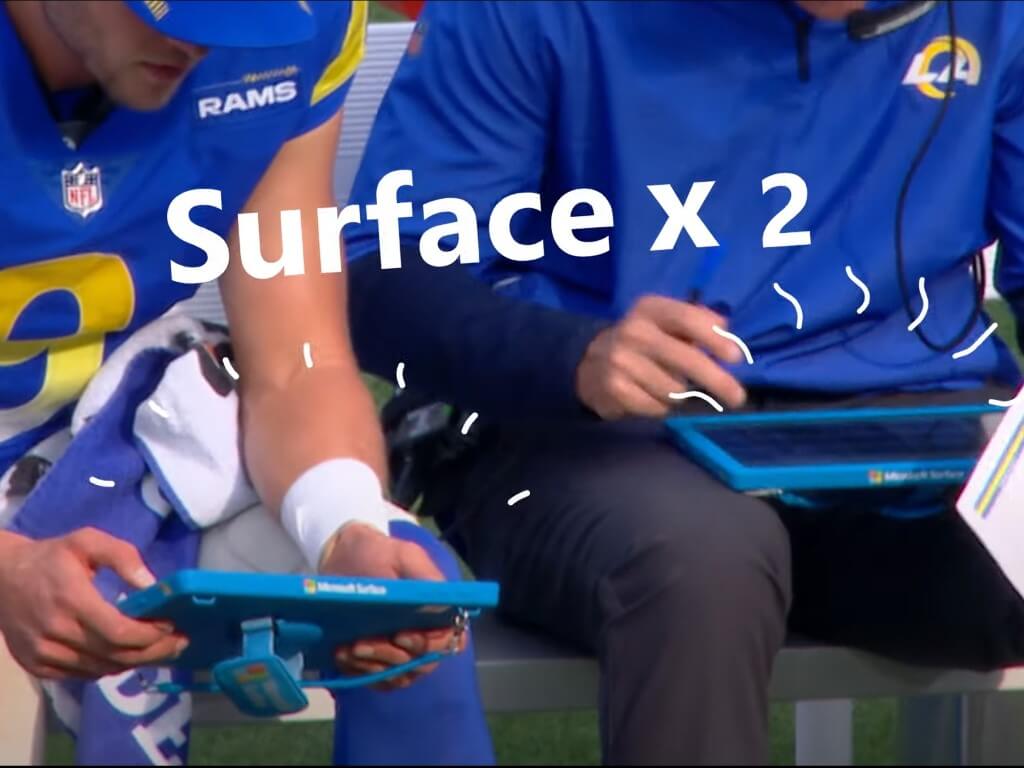

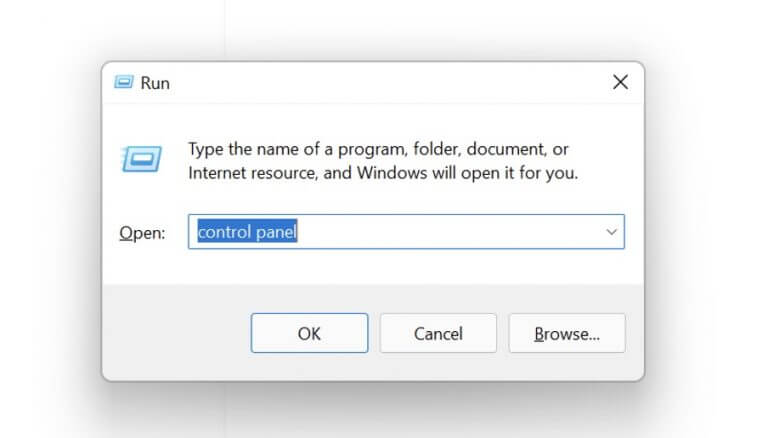
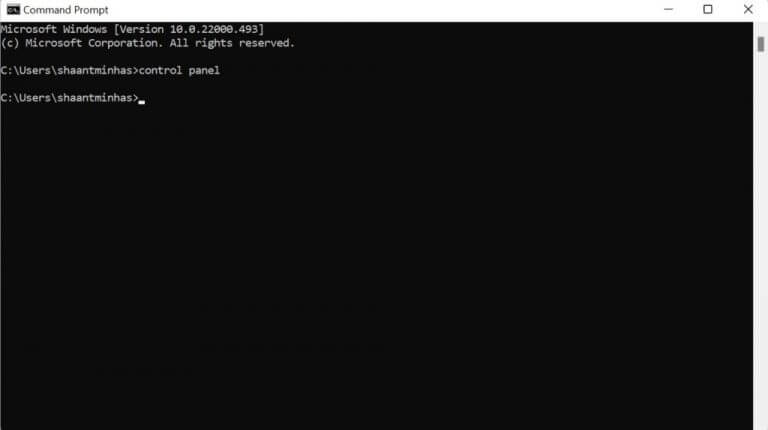
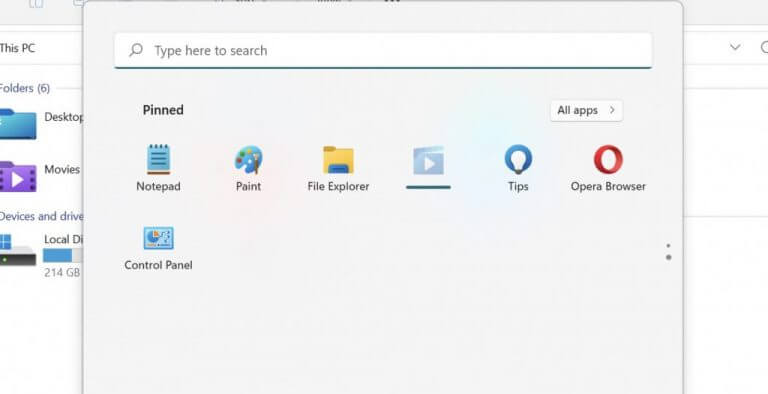
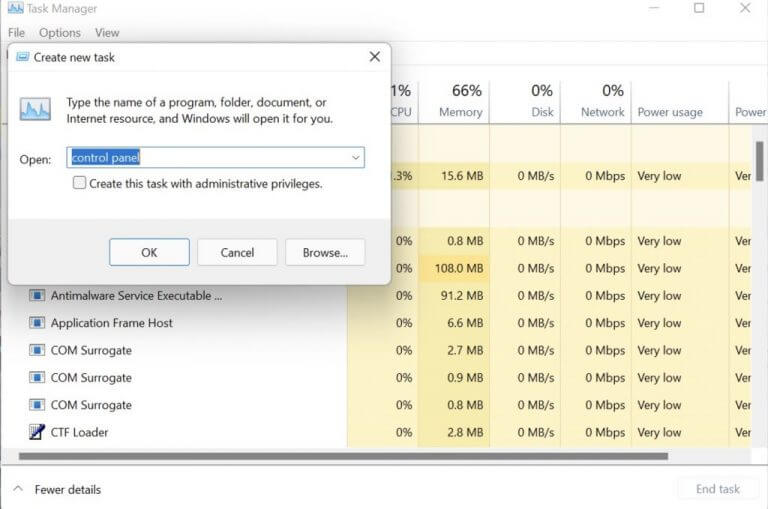
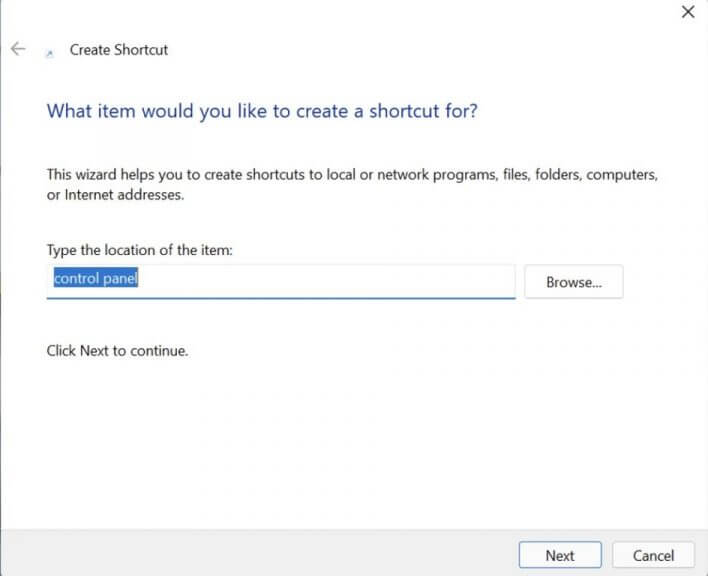


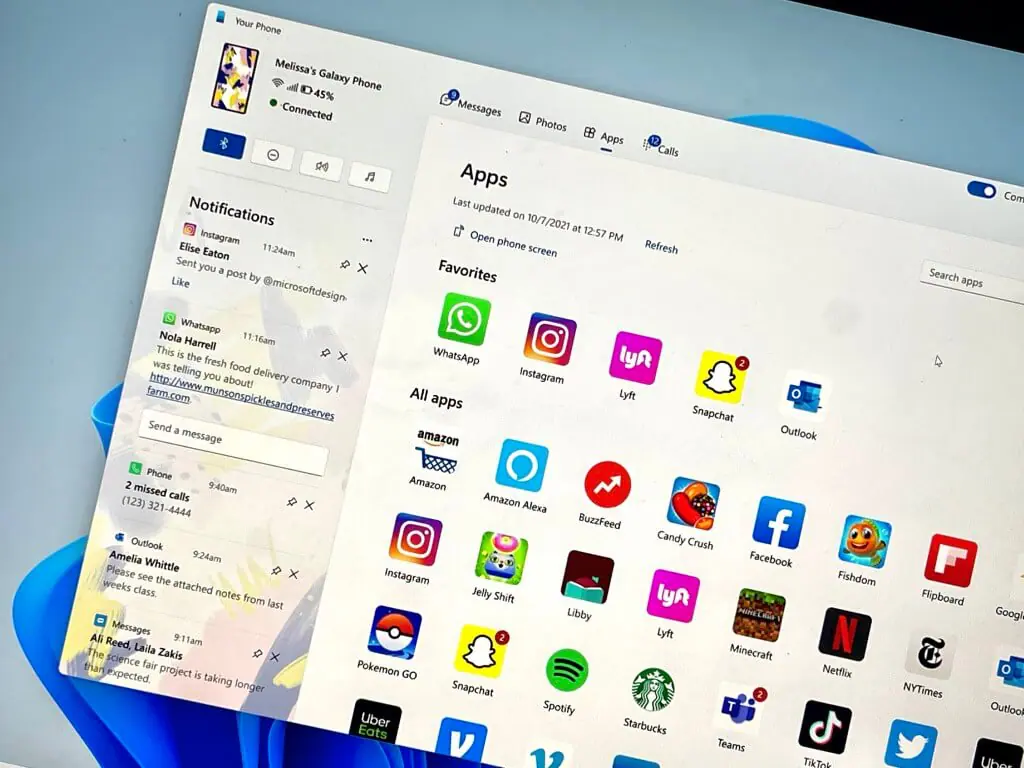
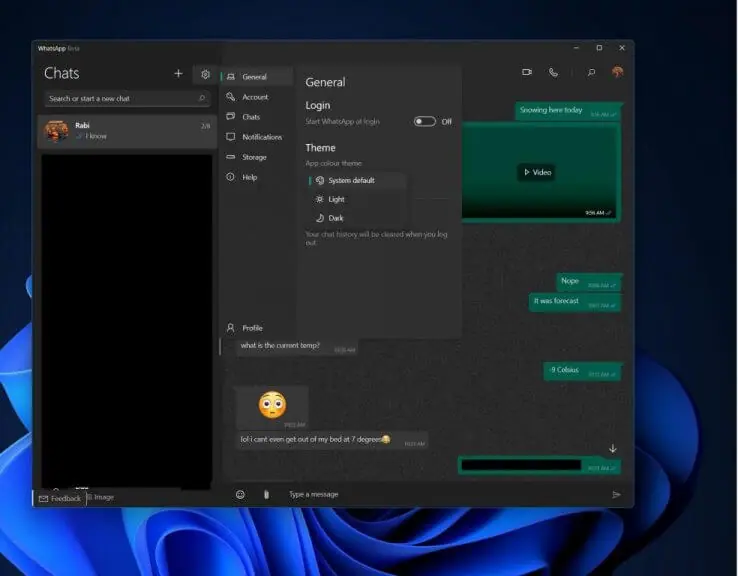

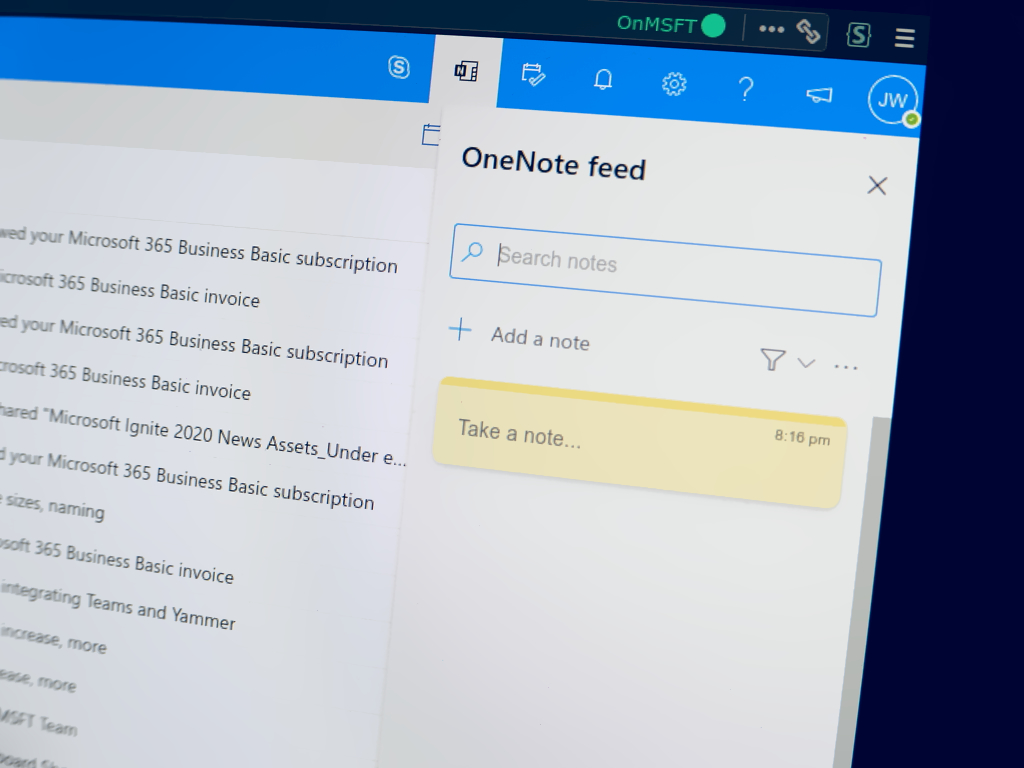


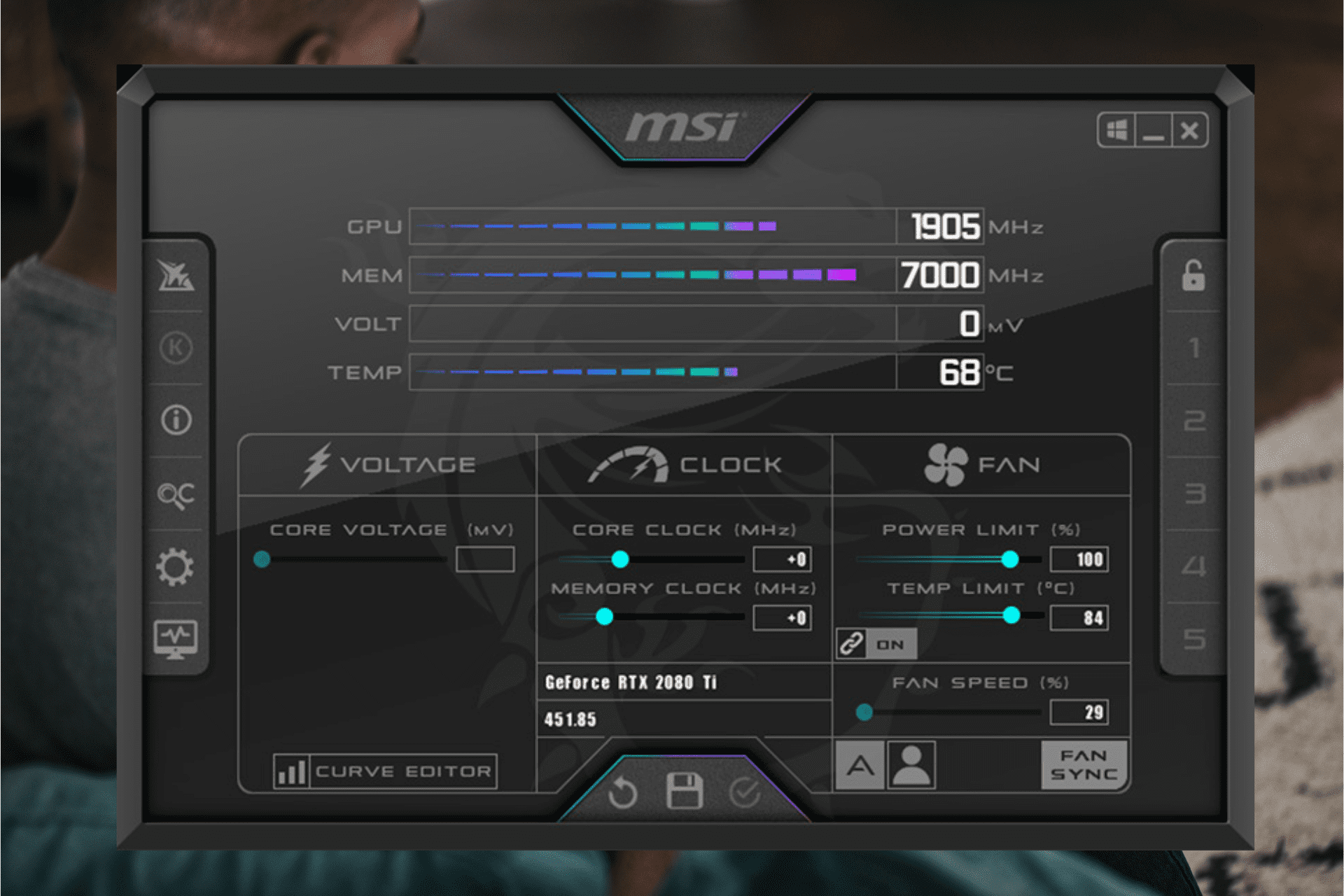


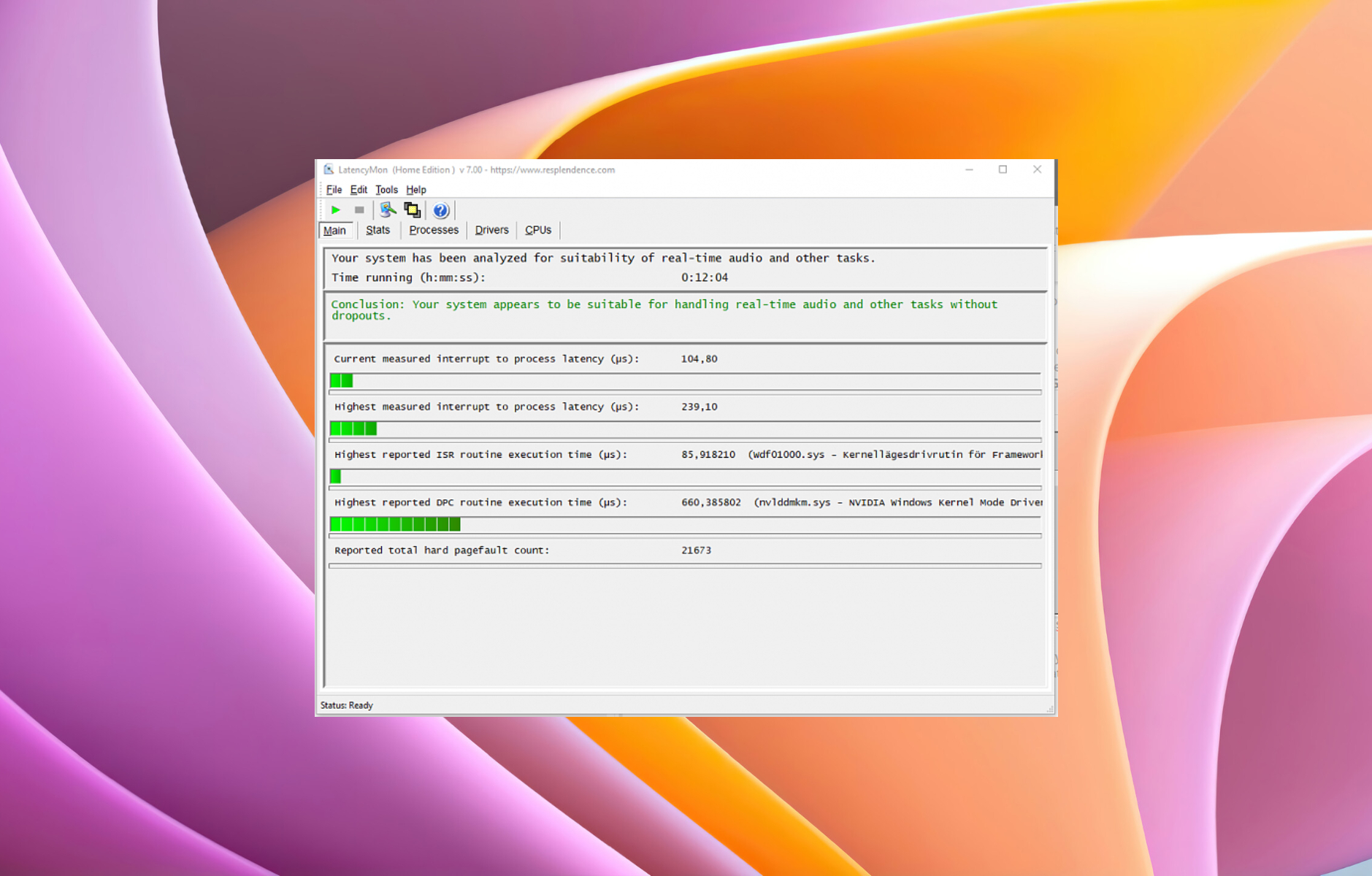
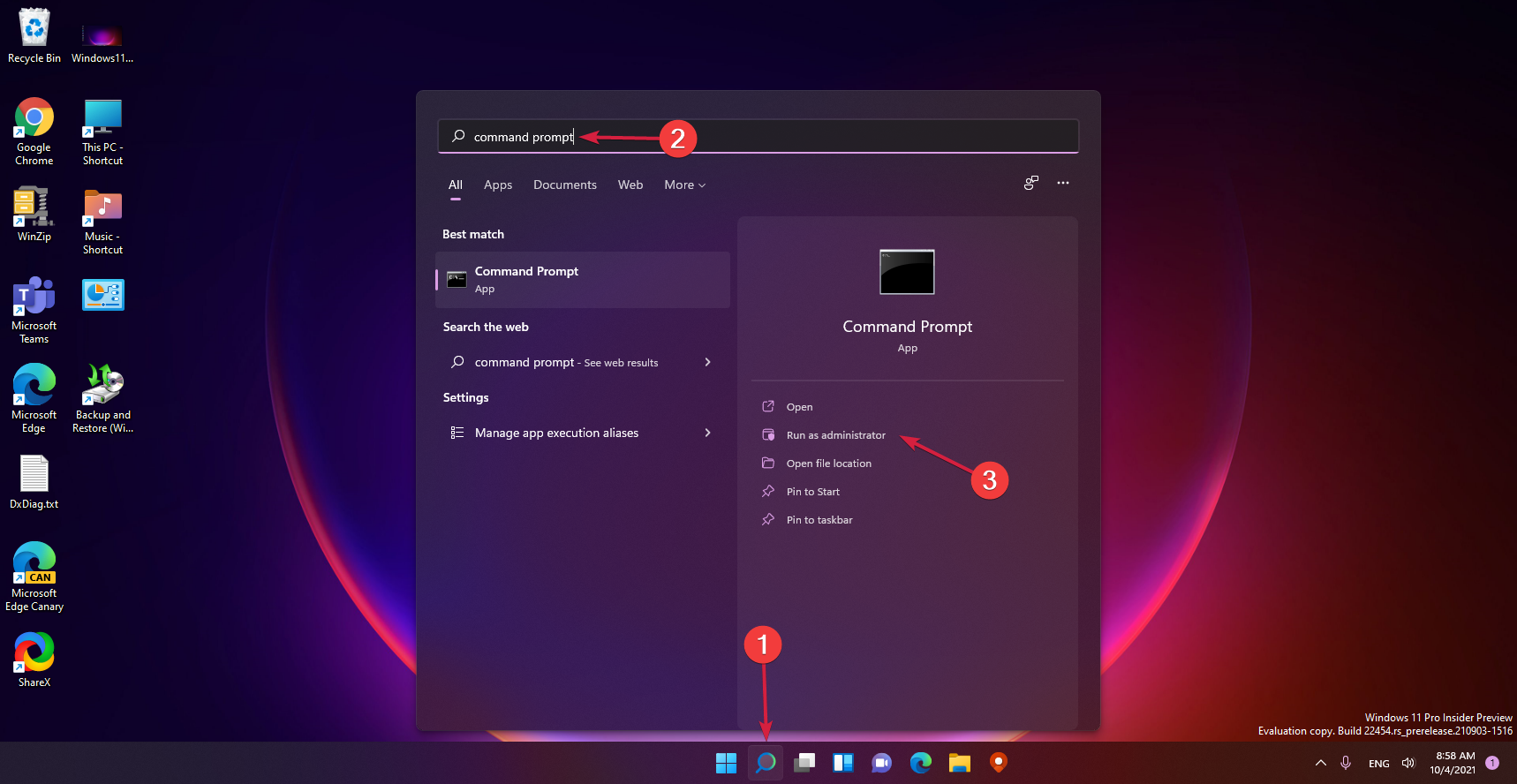
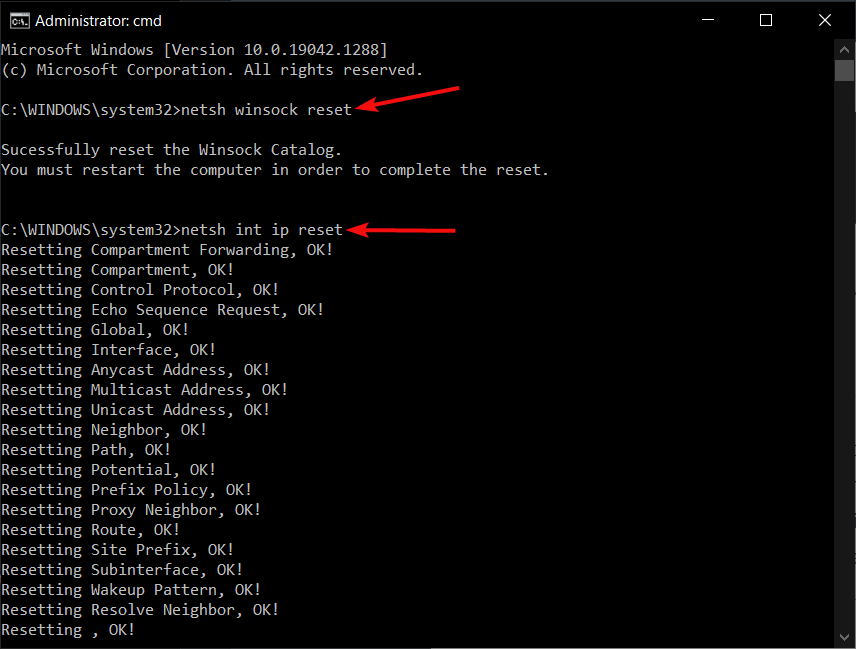
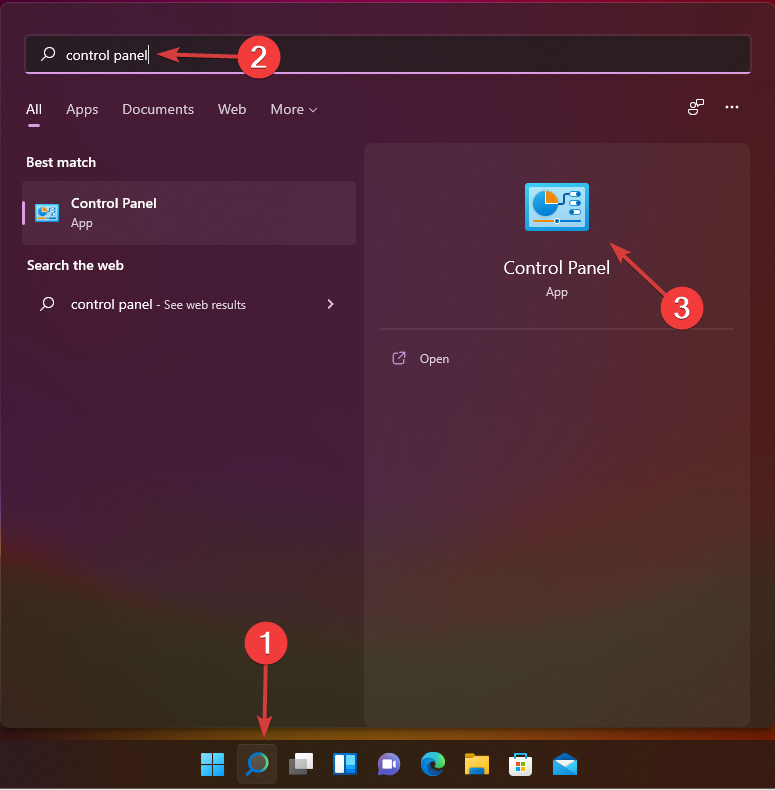
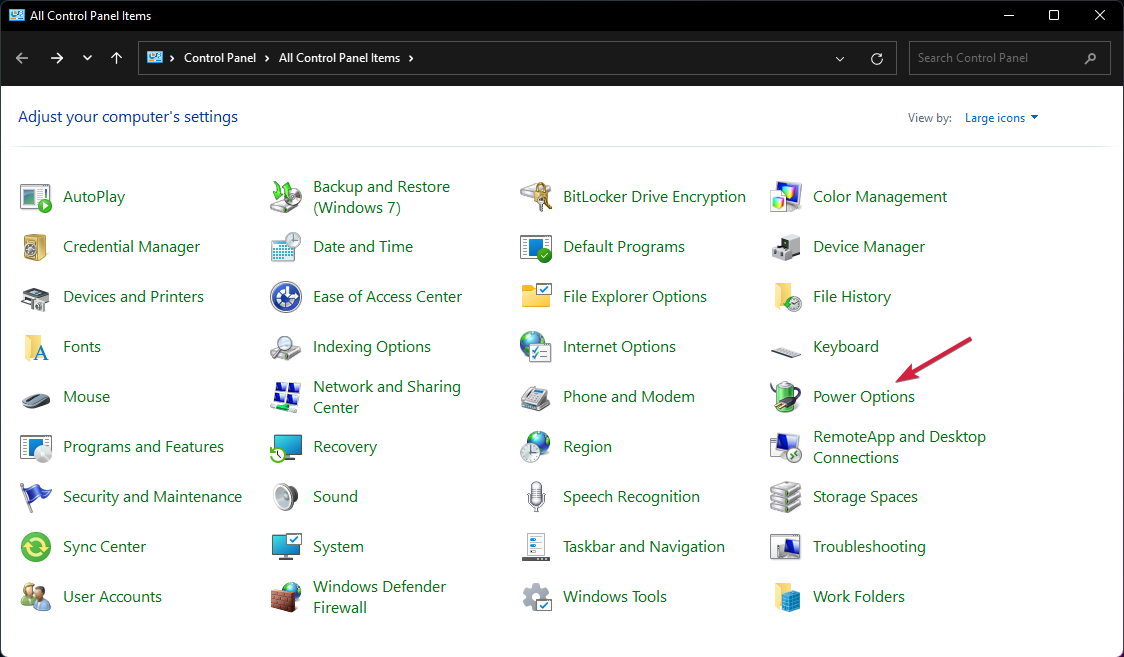


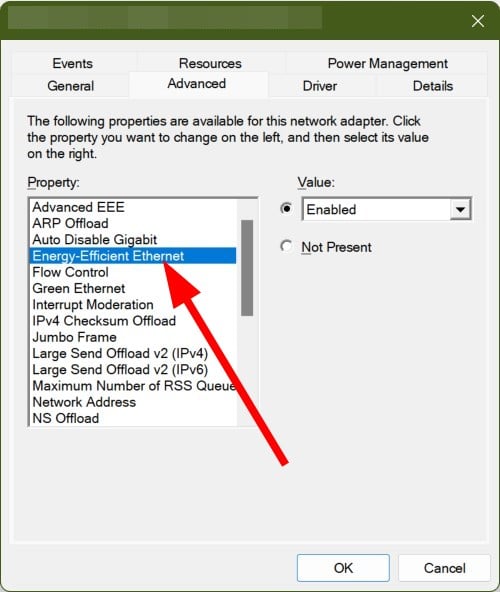
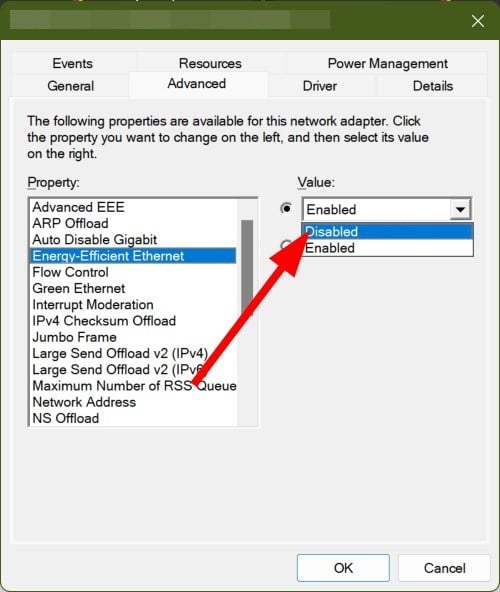


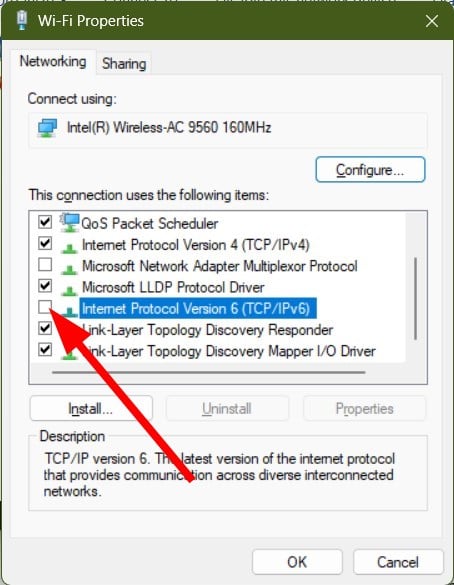
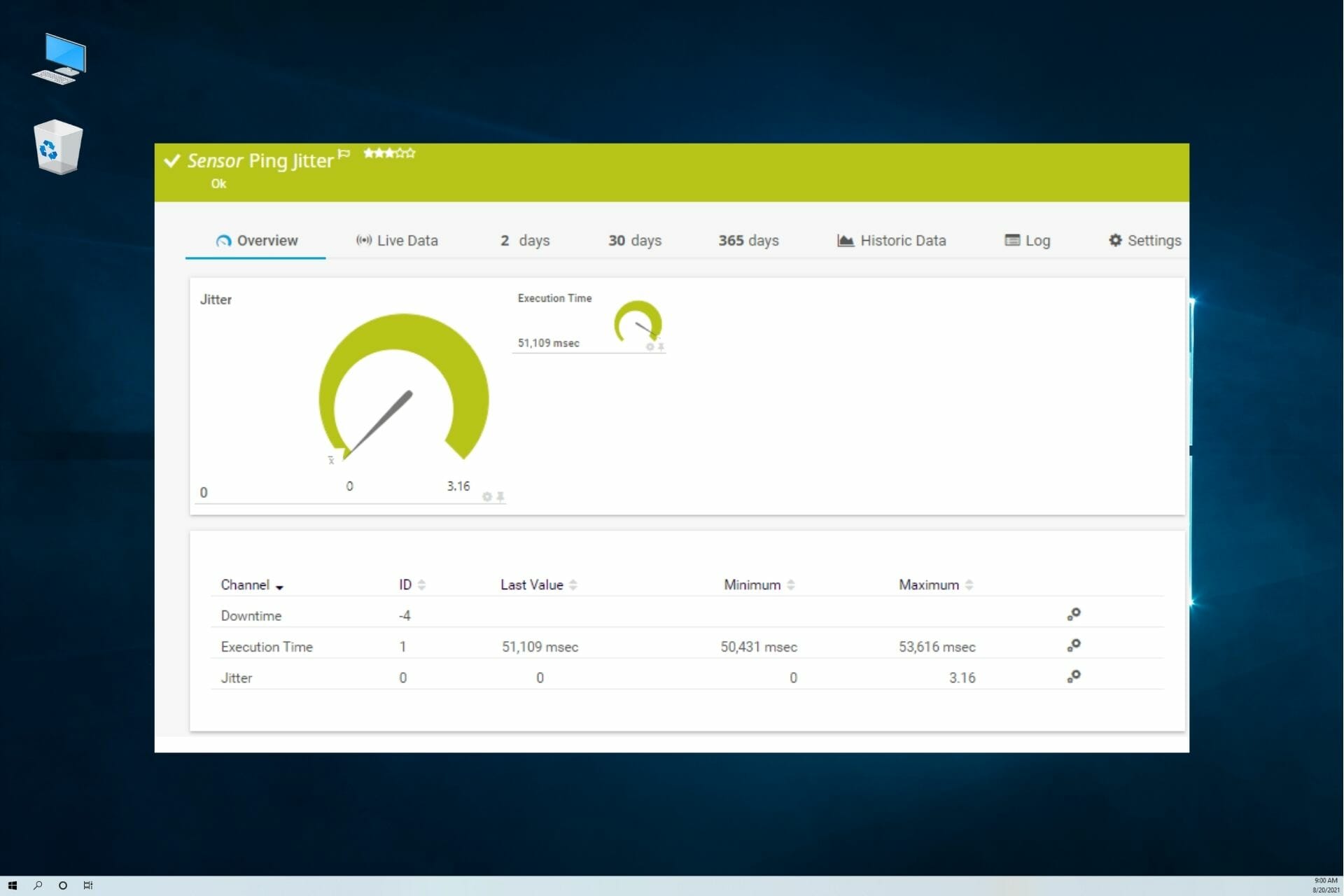
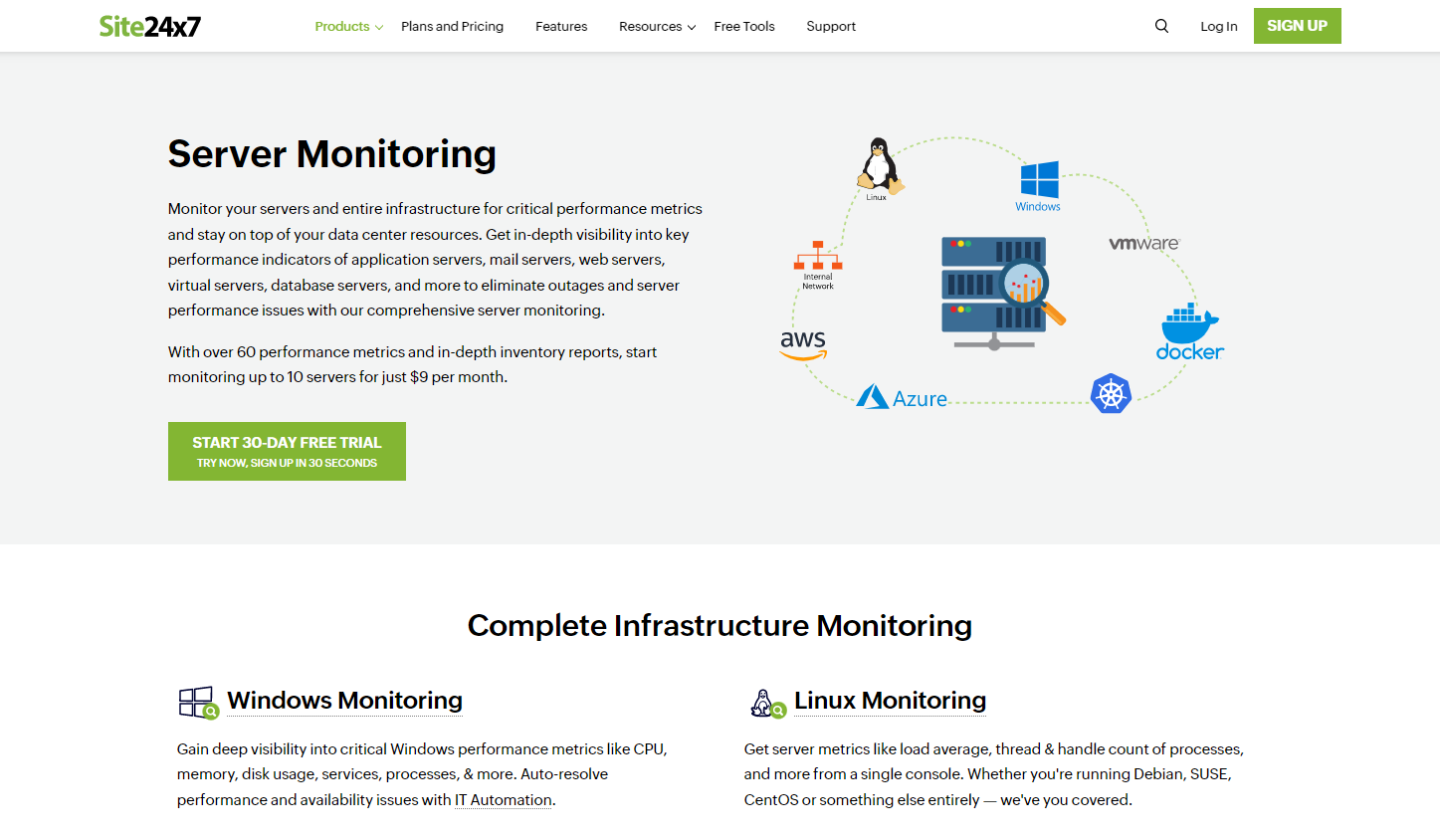

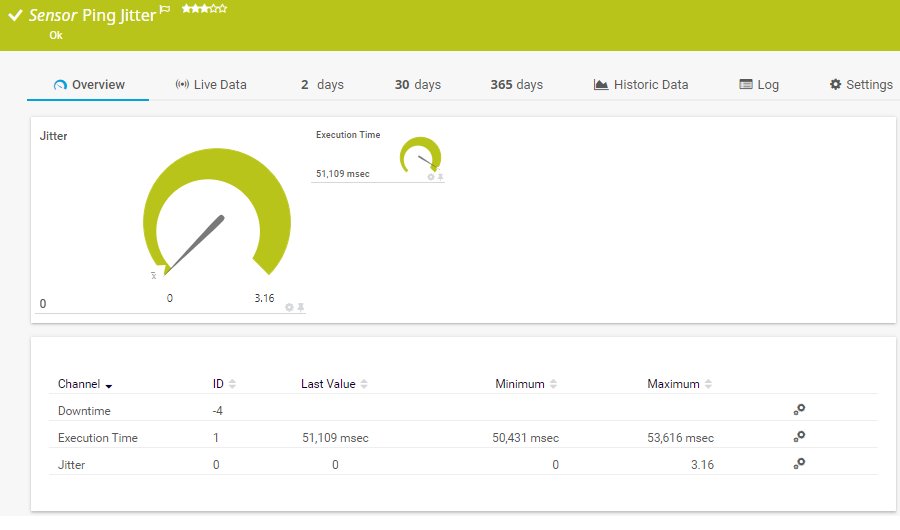
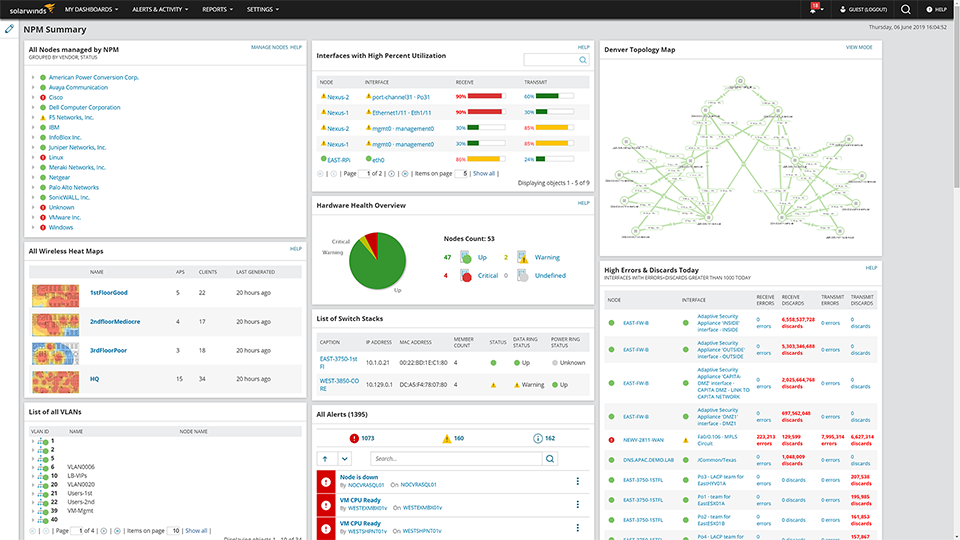

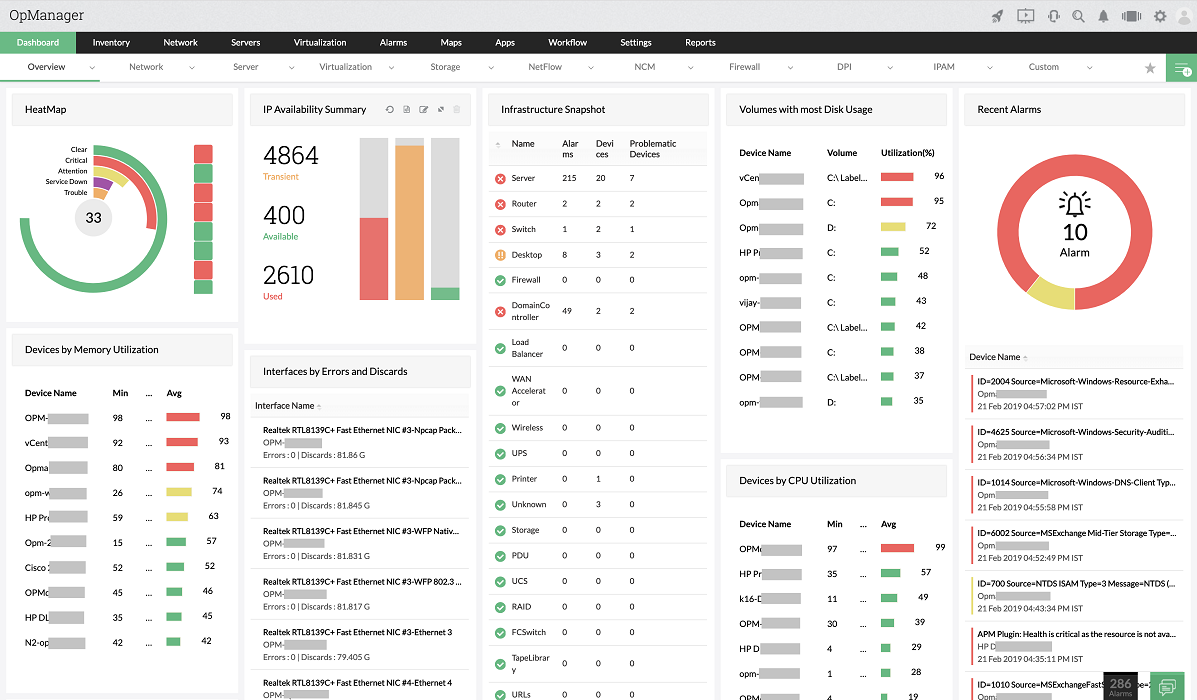







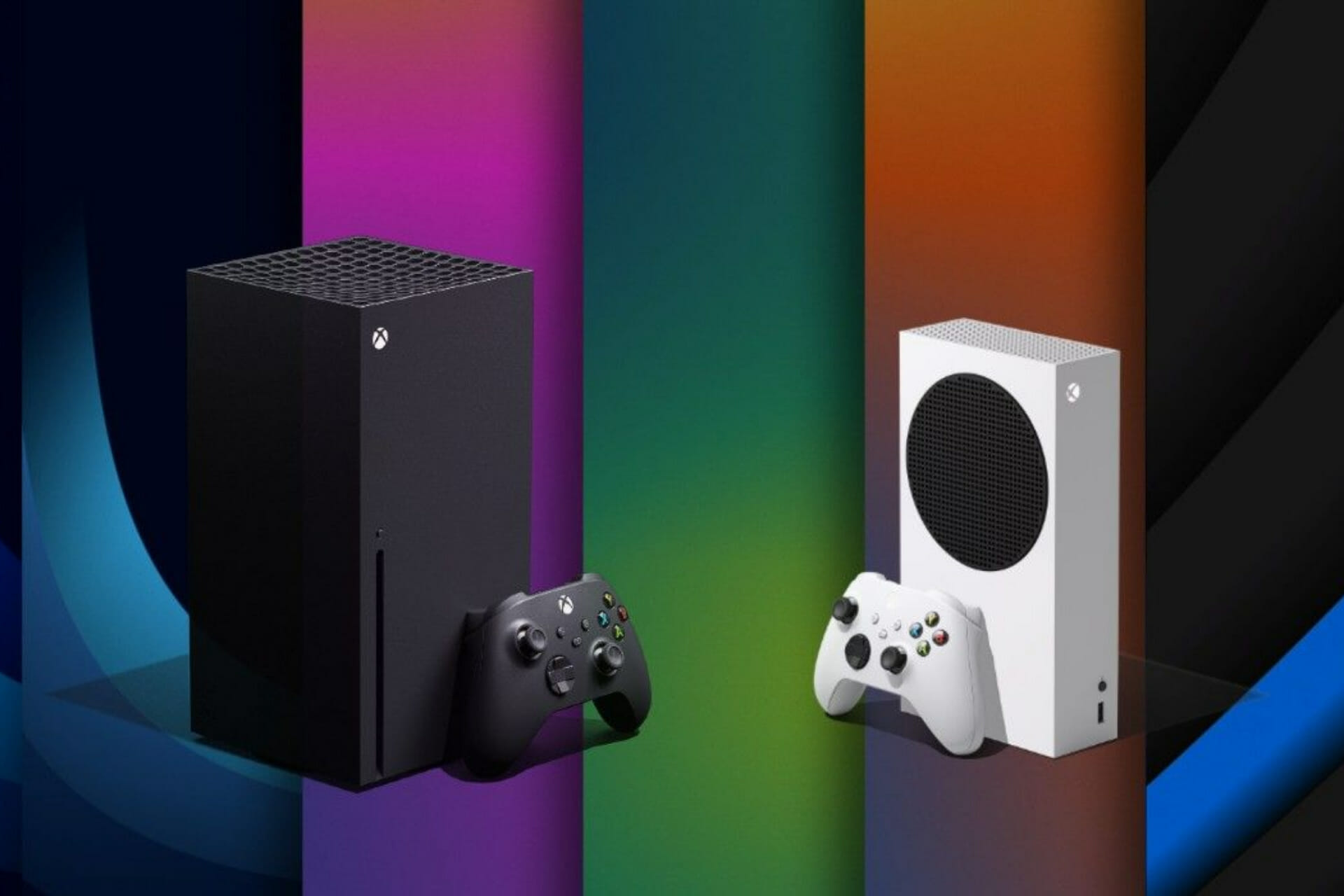
![Twitch error: Unable to join call [3 Easy Solutions]](https://windowsreport.com/wp-content/uploads/2022/01/Twitch-2-1-1.jpg)


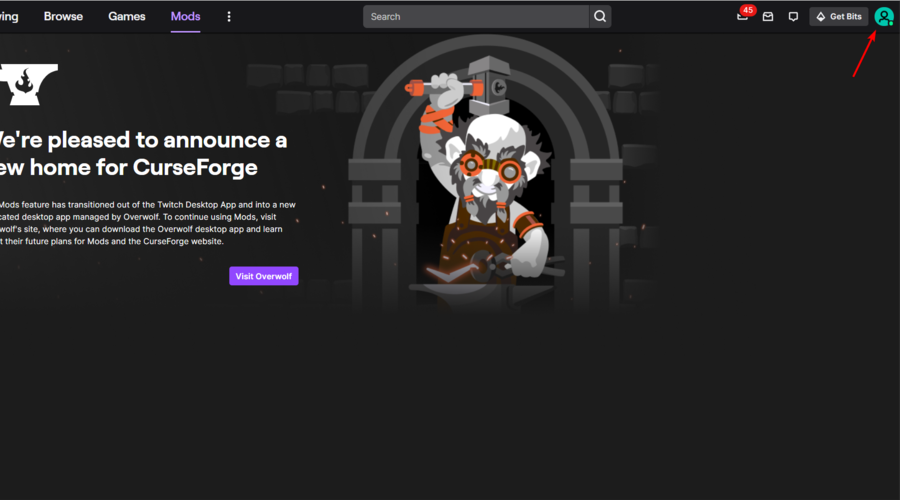
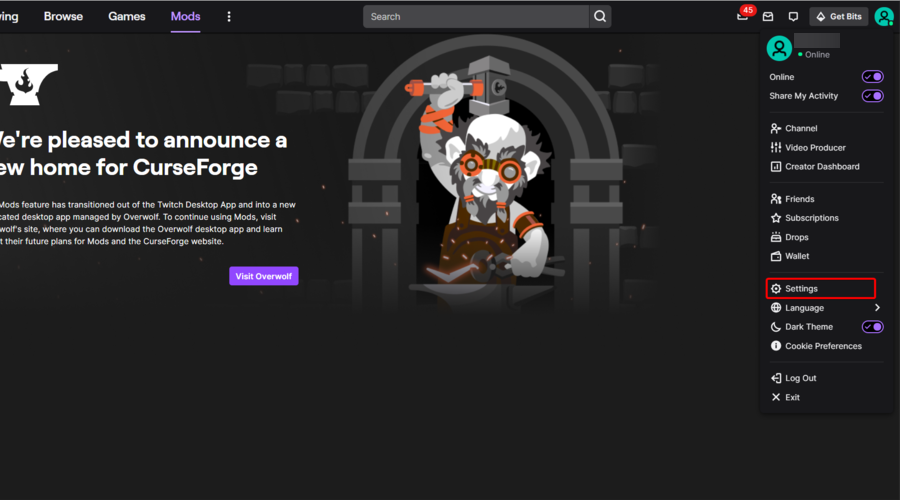


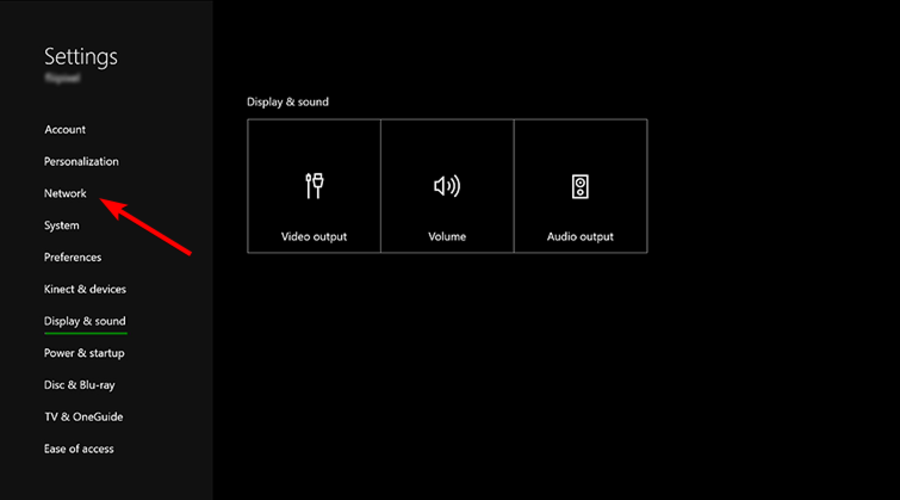


![Twitch app error code 995f9a12 on Xbox One [Quick fix]](https://windowsreport.com/wp-content/uploads/2022/01/Twitch-app-error-code-995f9a12-2-1-1.png)
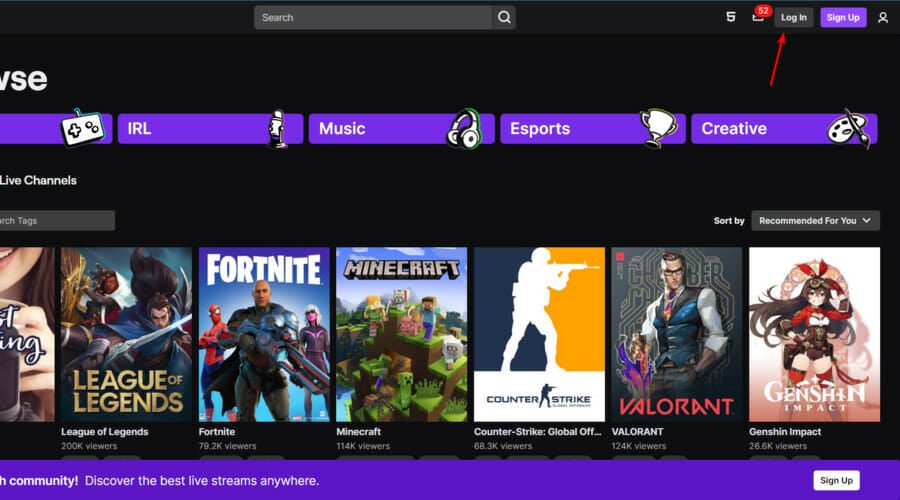
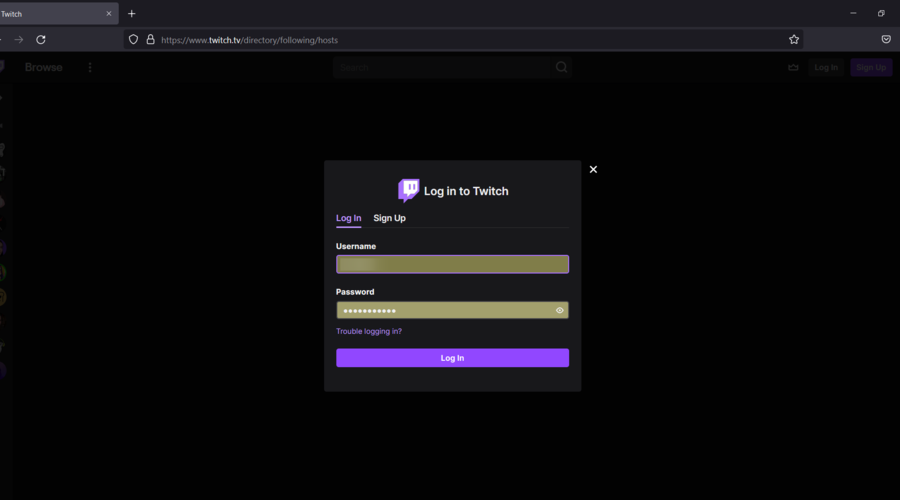
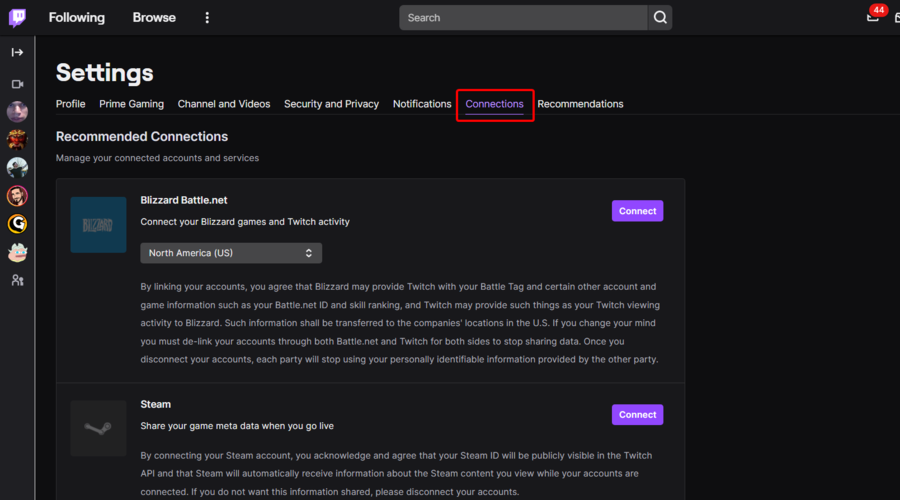
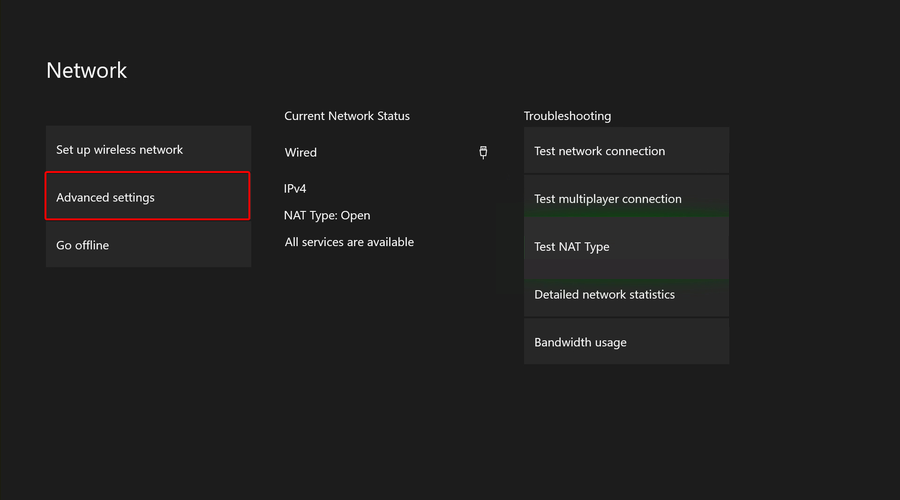
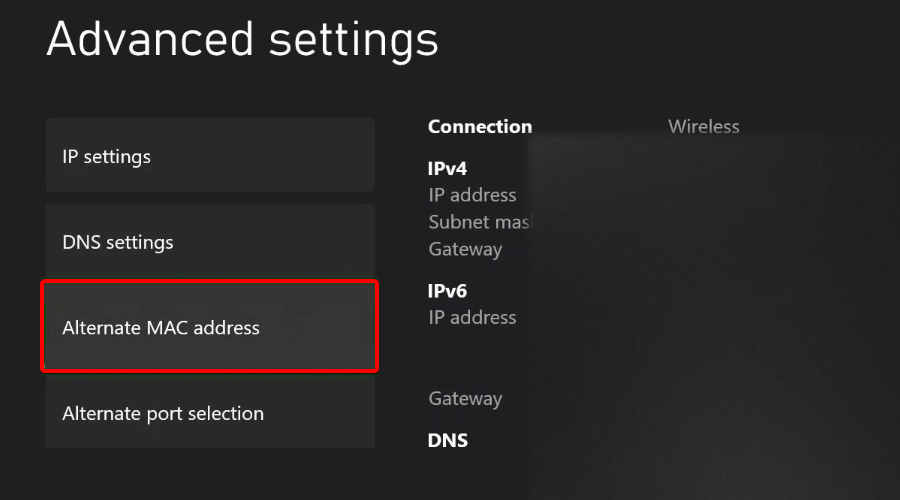
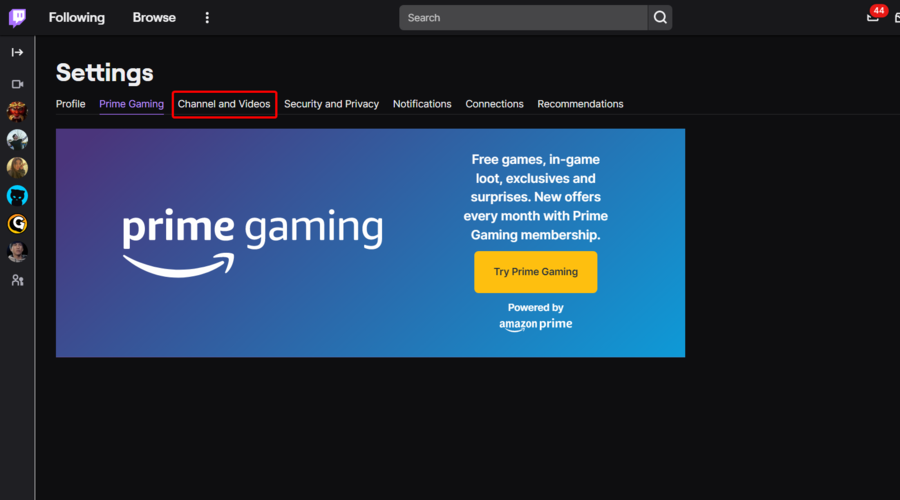
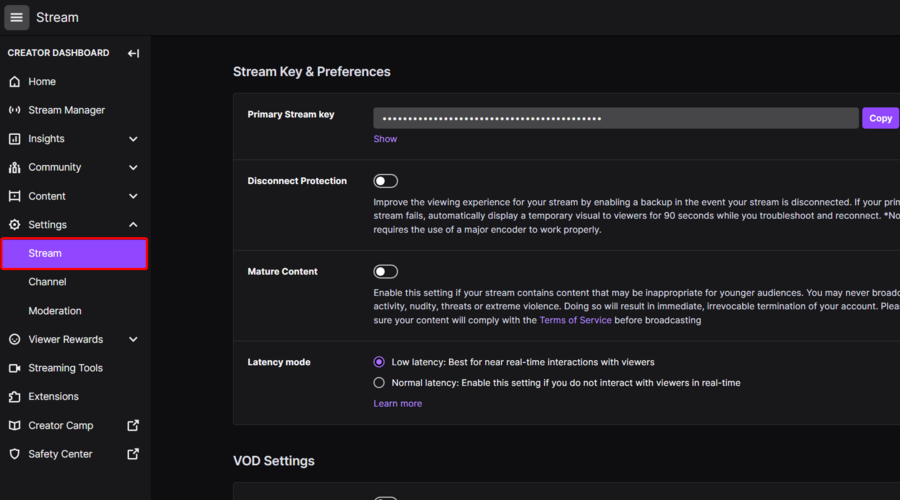
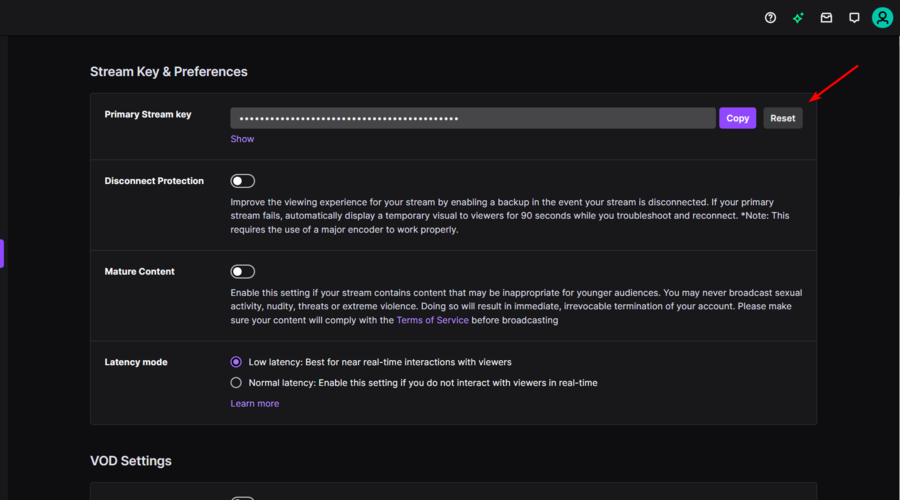



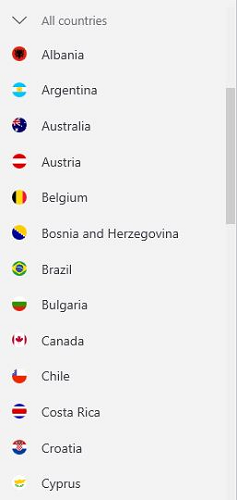
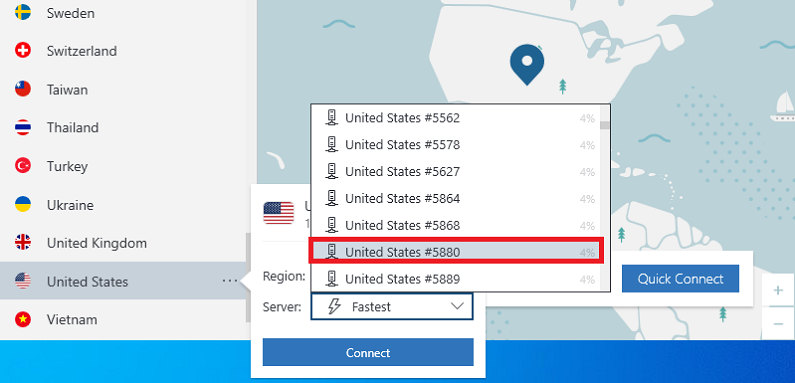
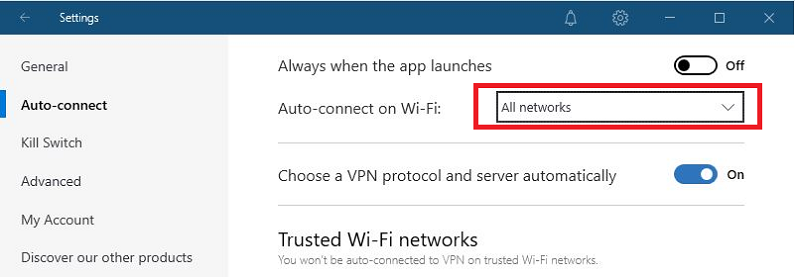
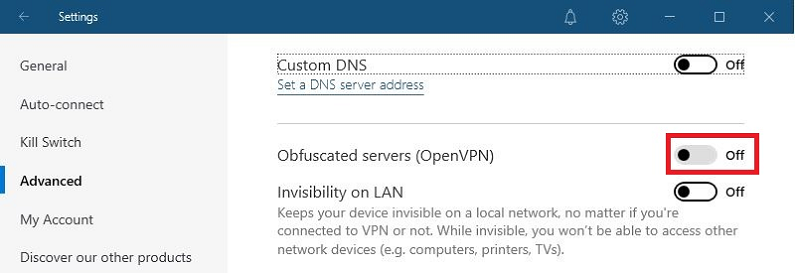
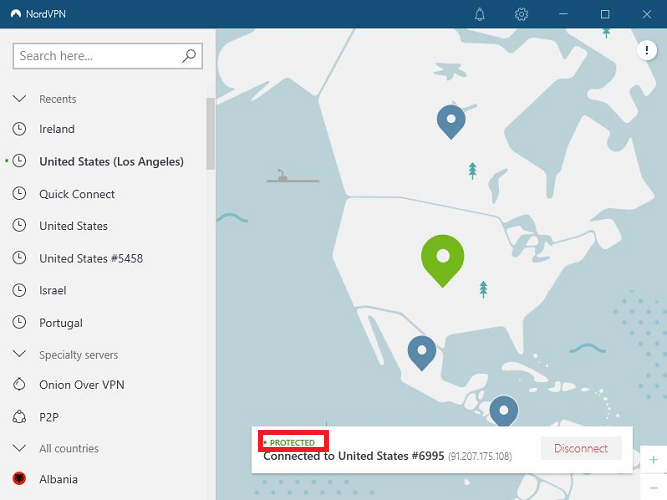
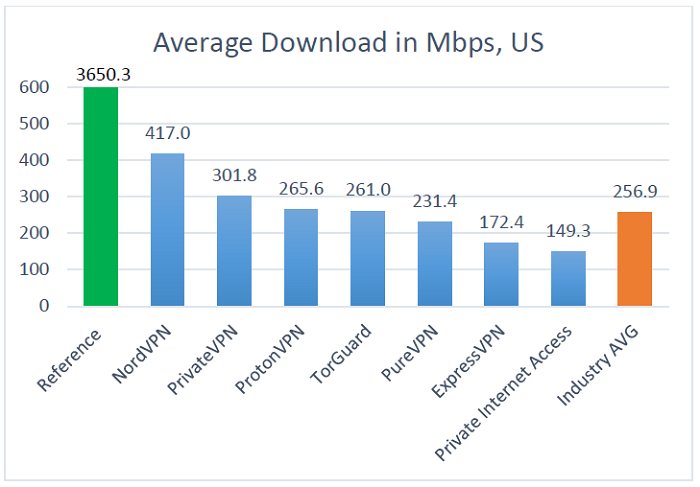
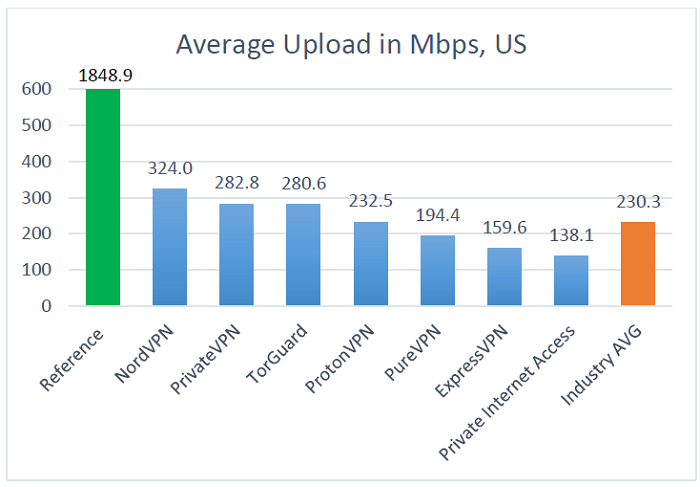
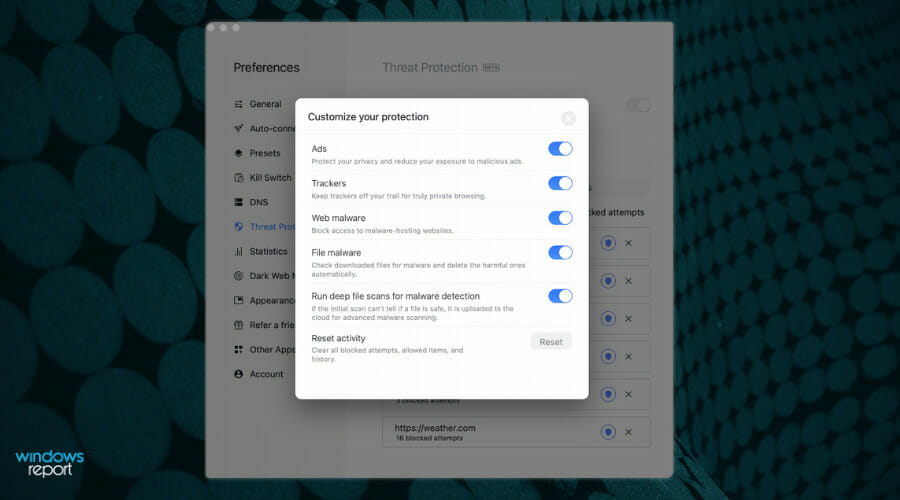

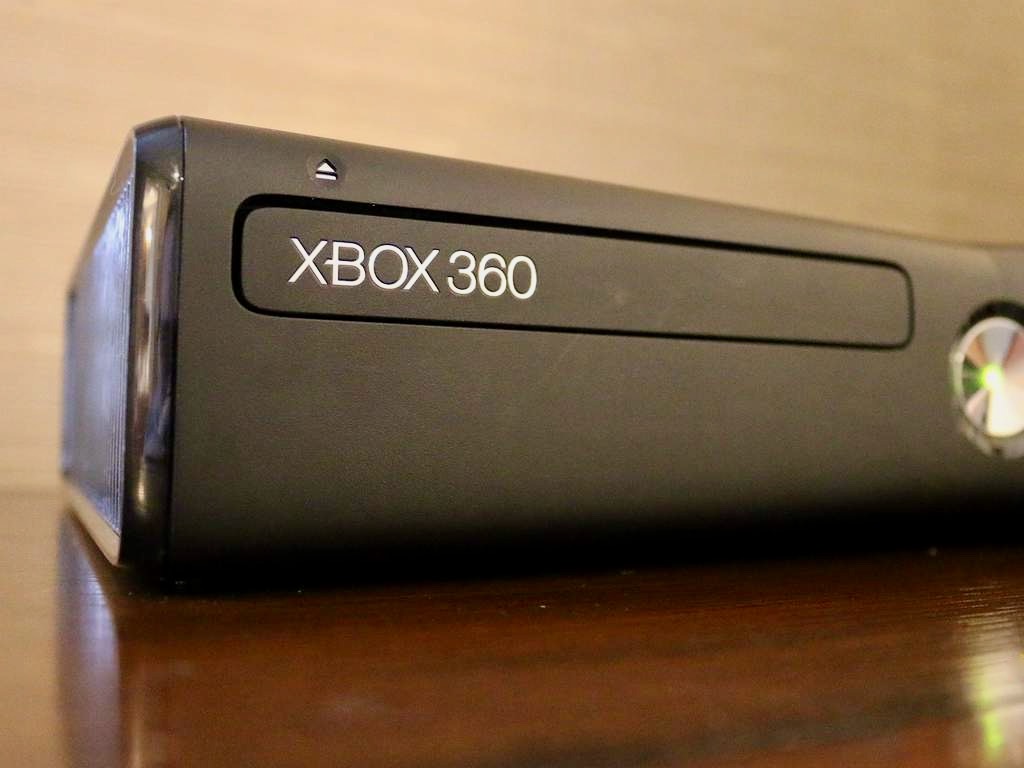
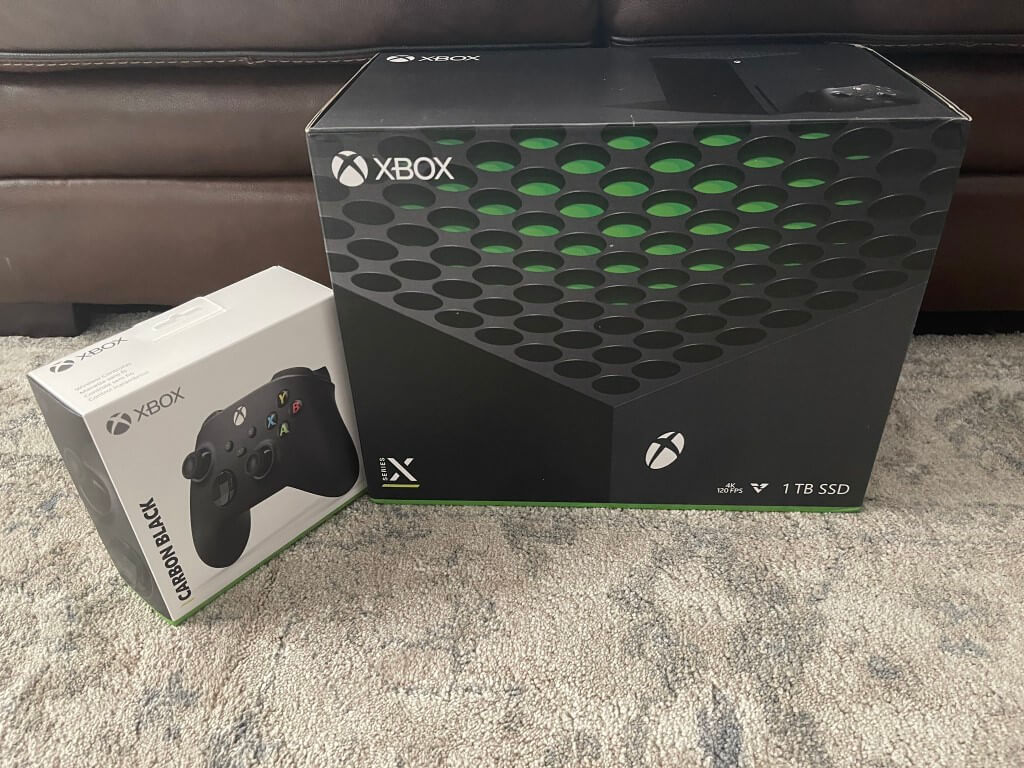
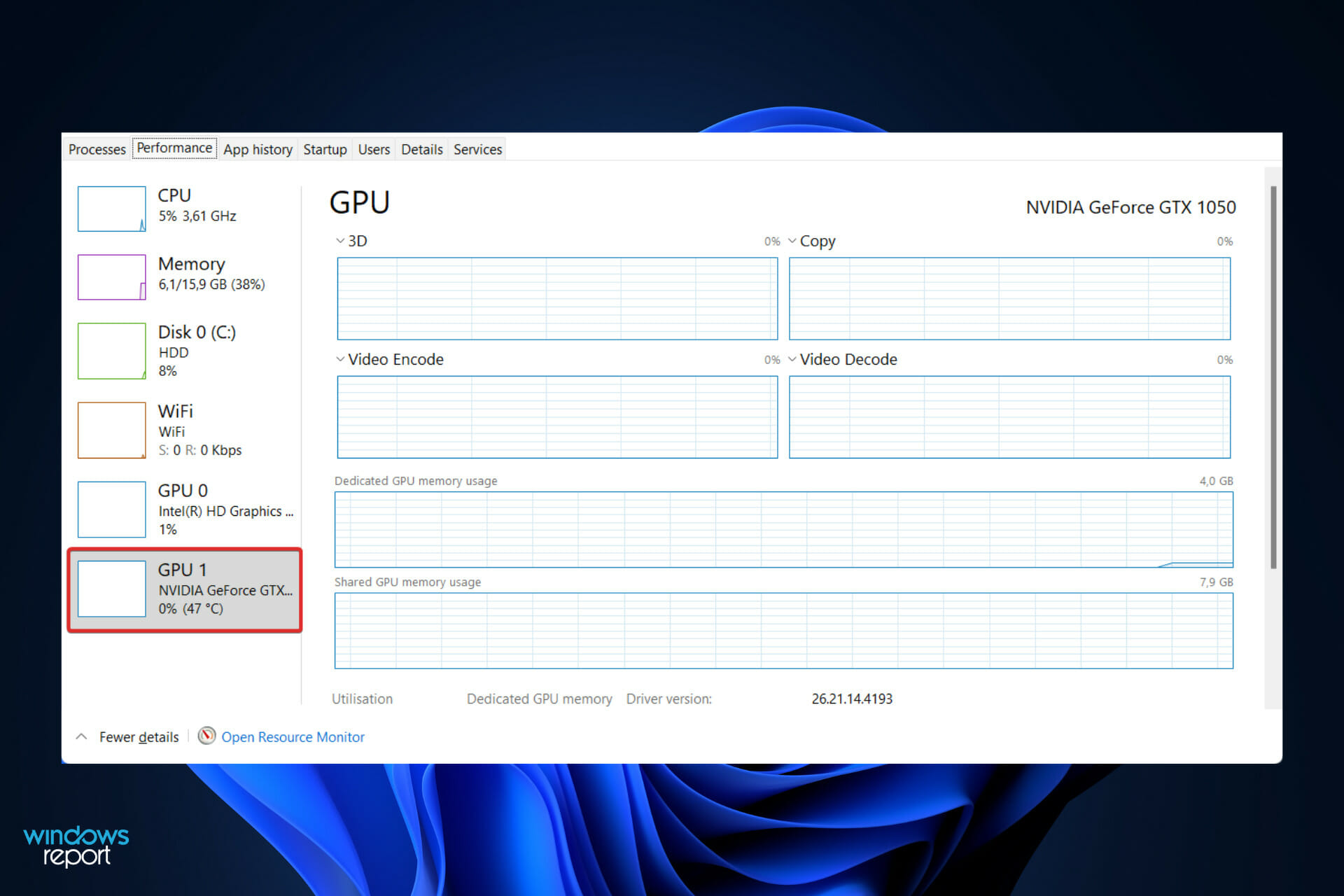
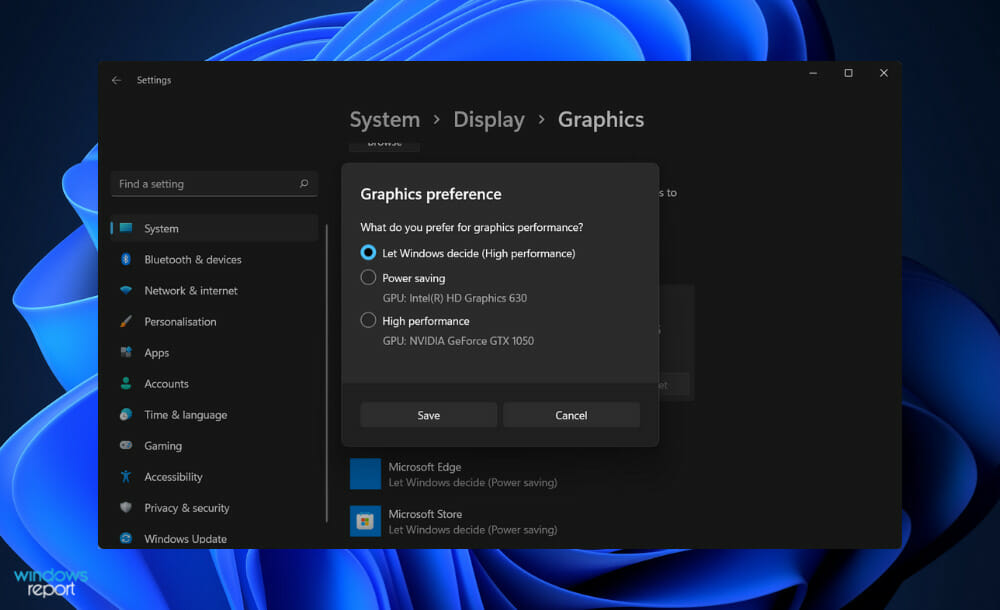



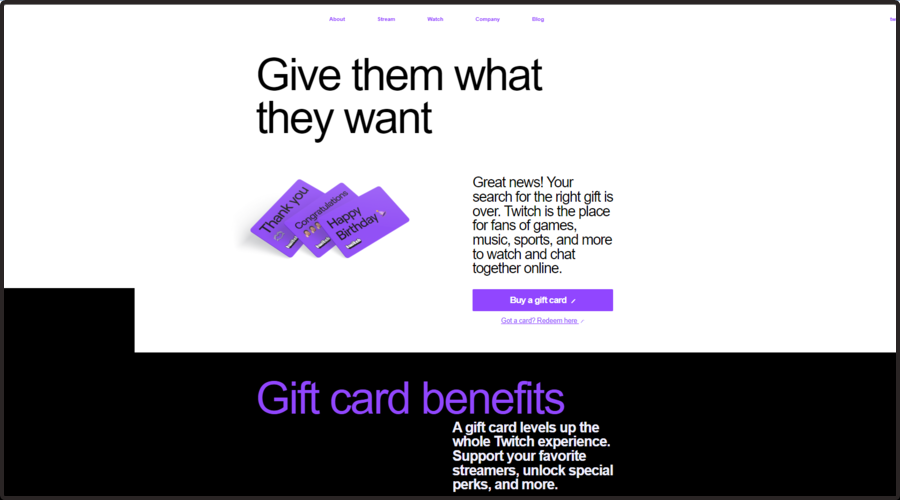
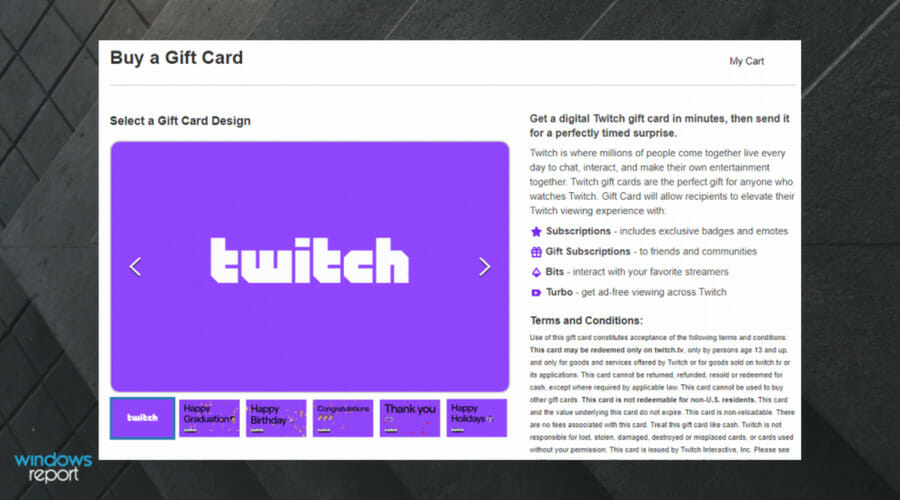
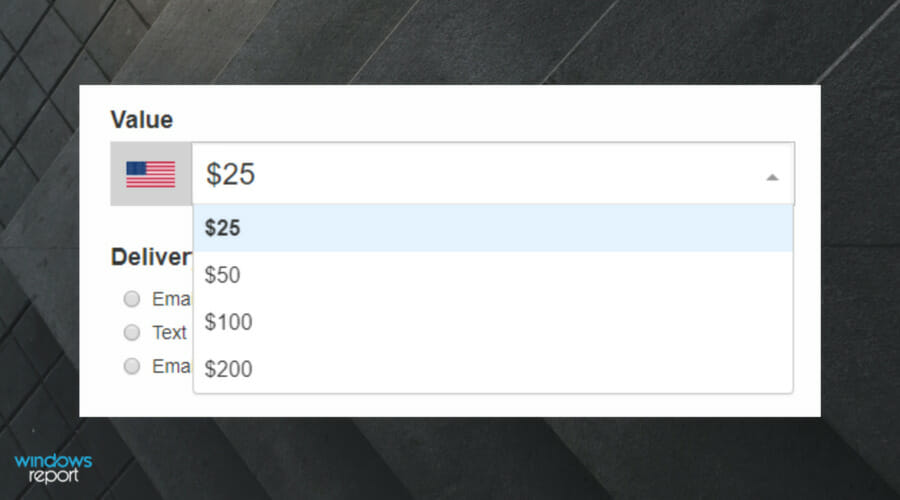
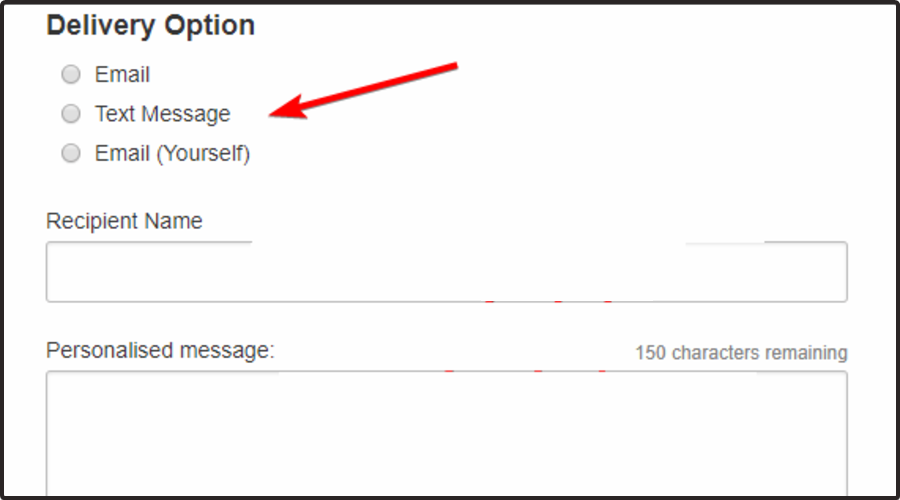

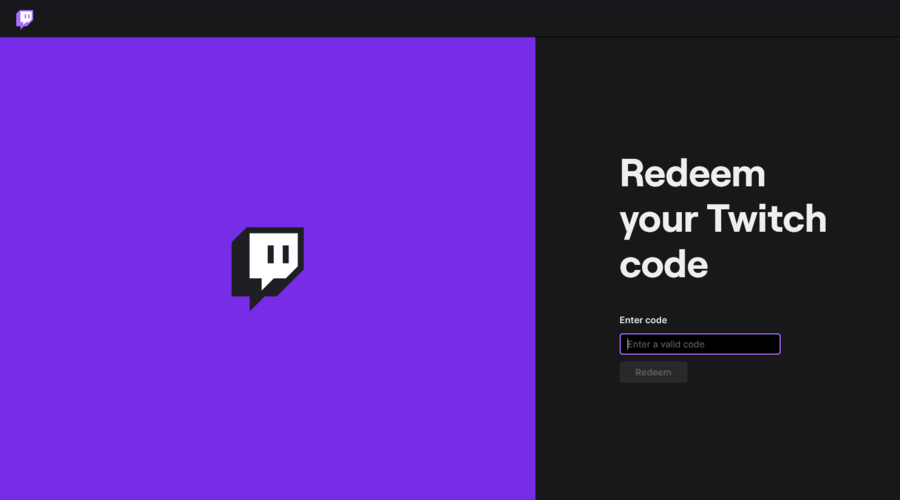
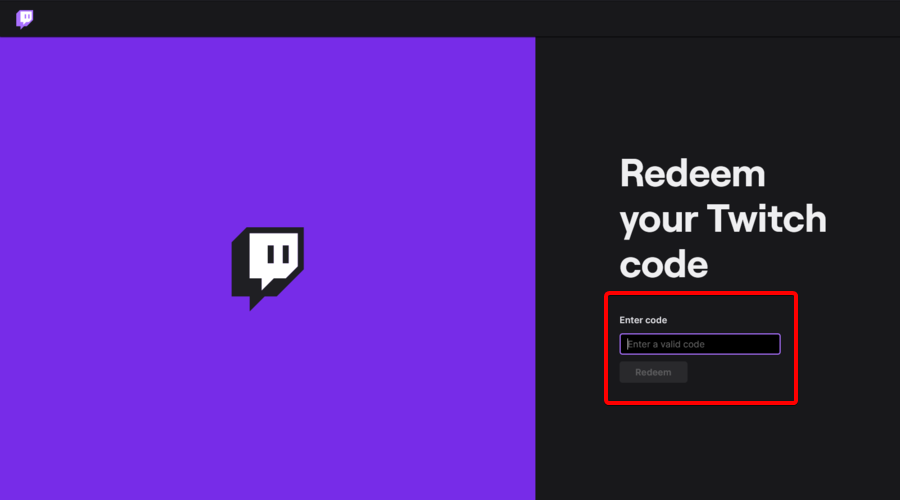
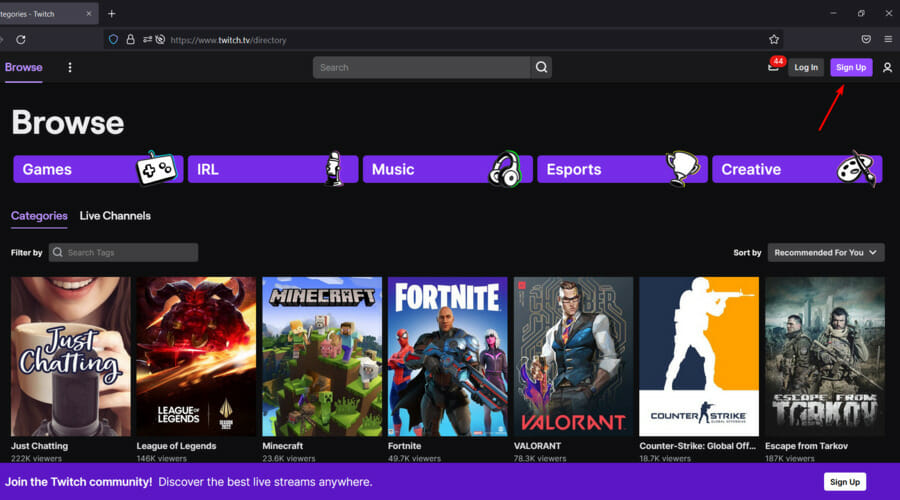
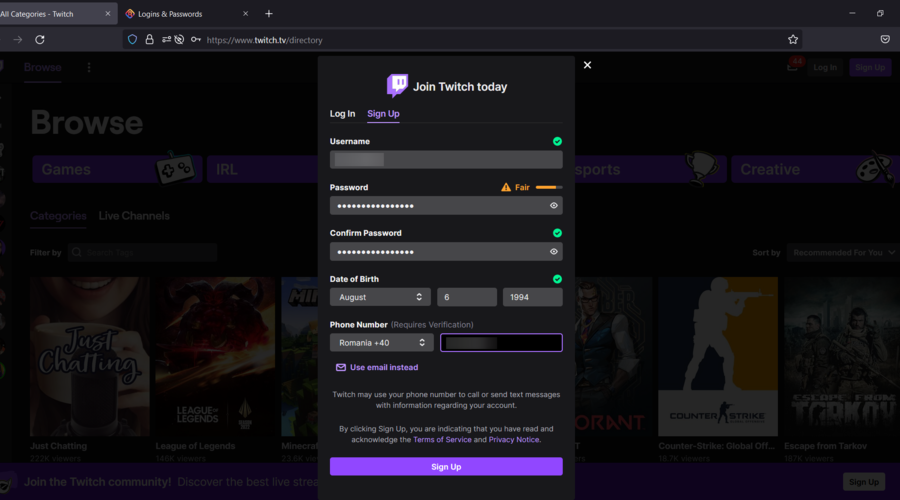
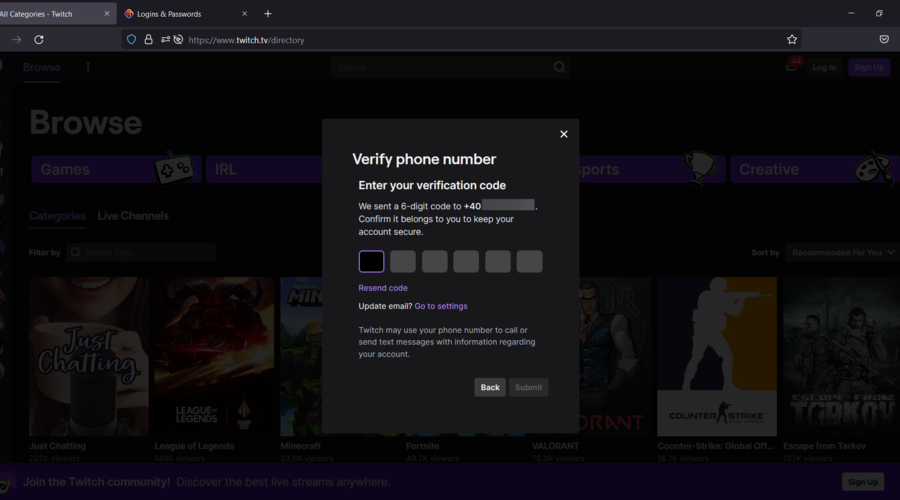




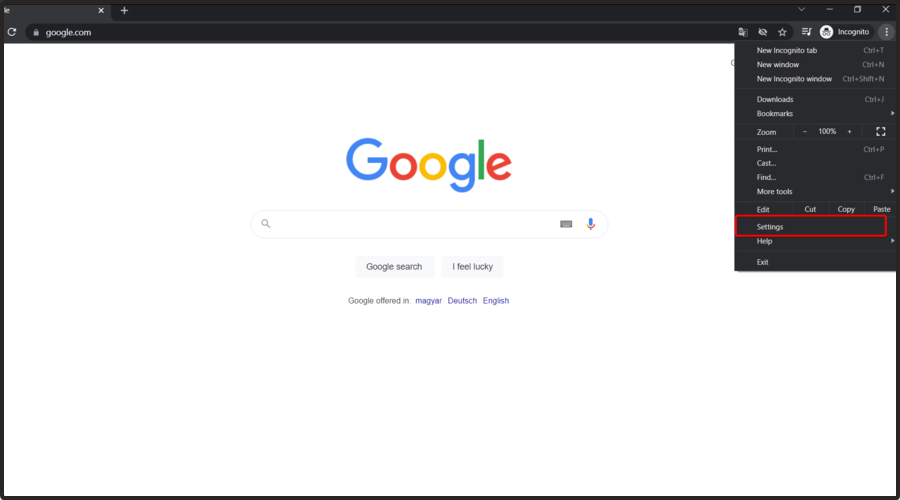

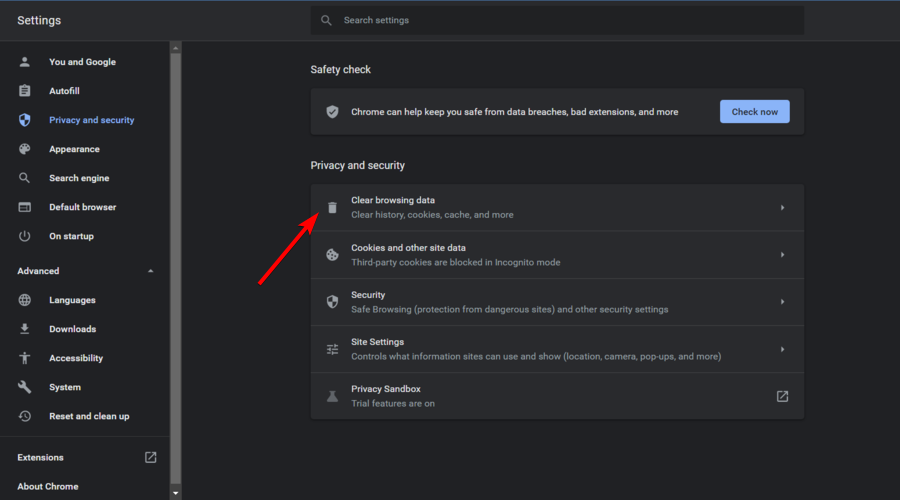

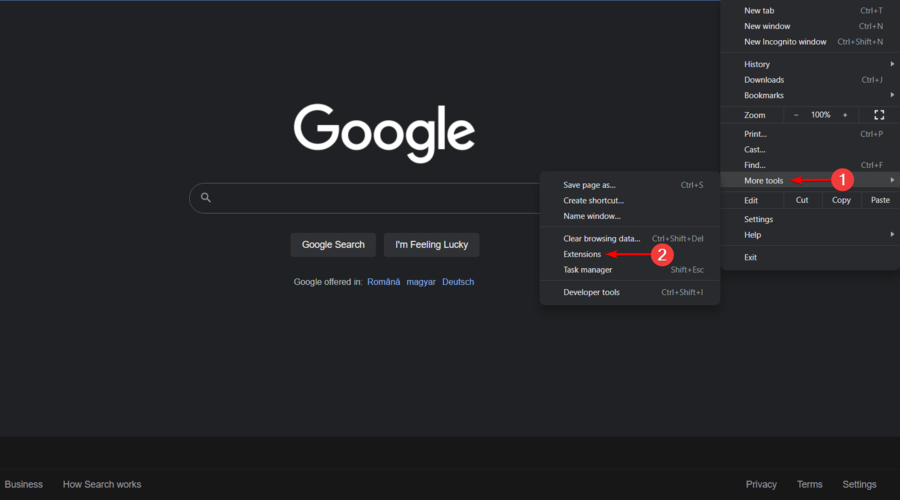


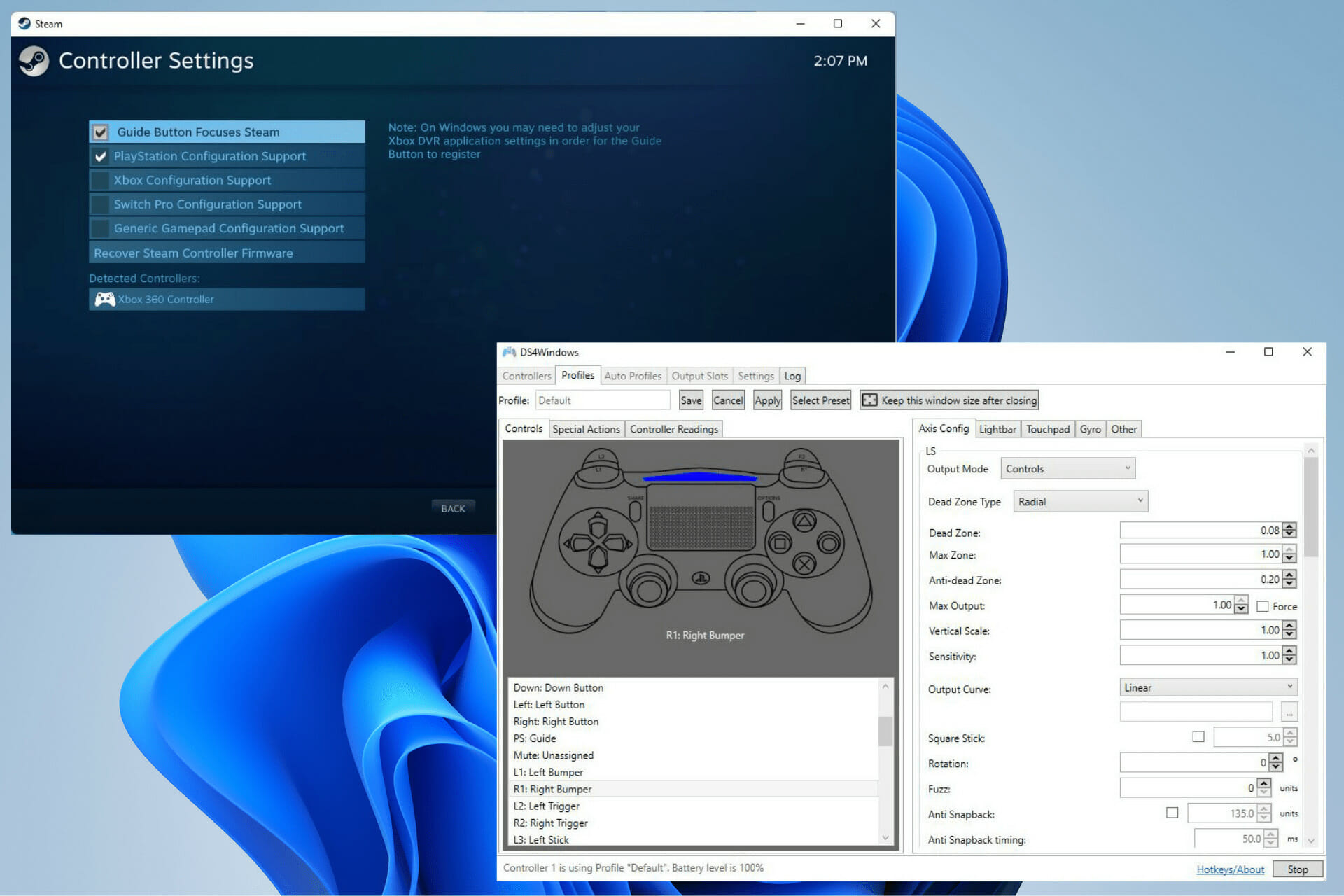

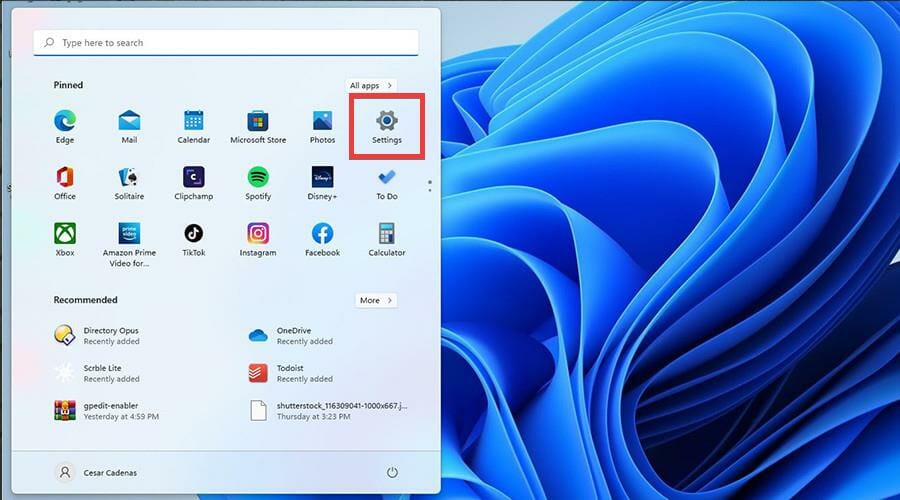
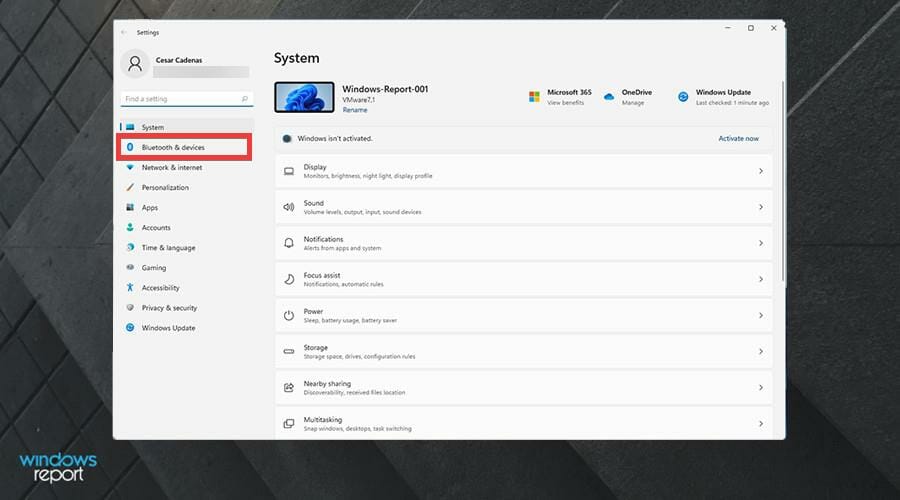
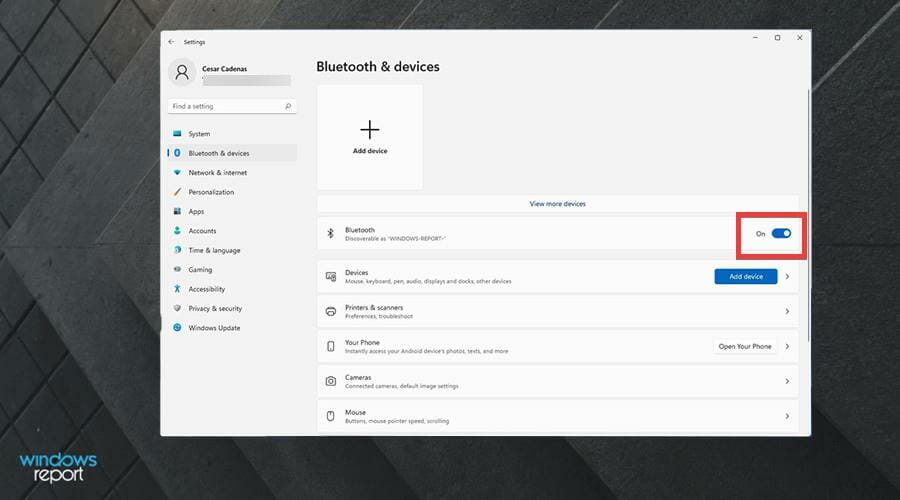
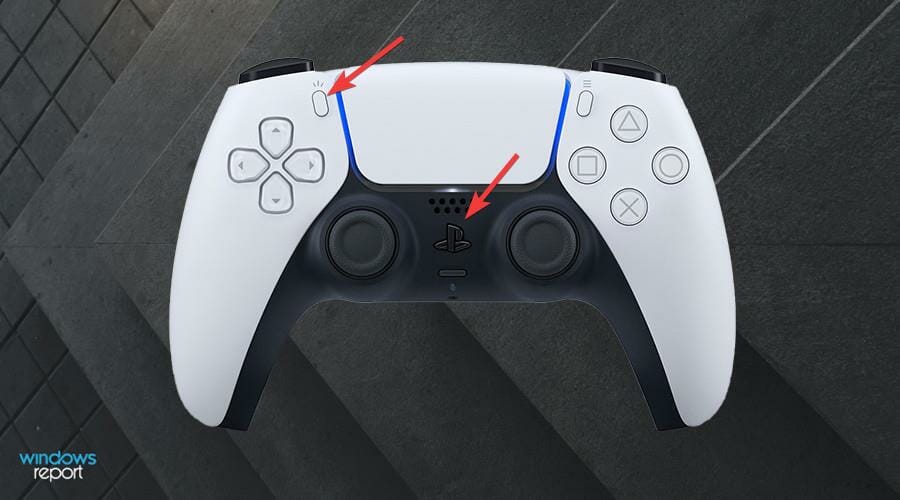
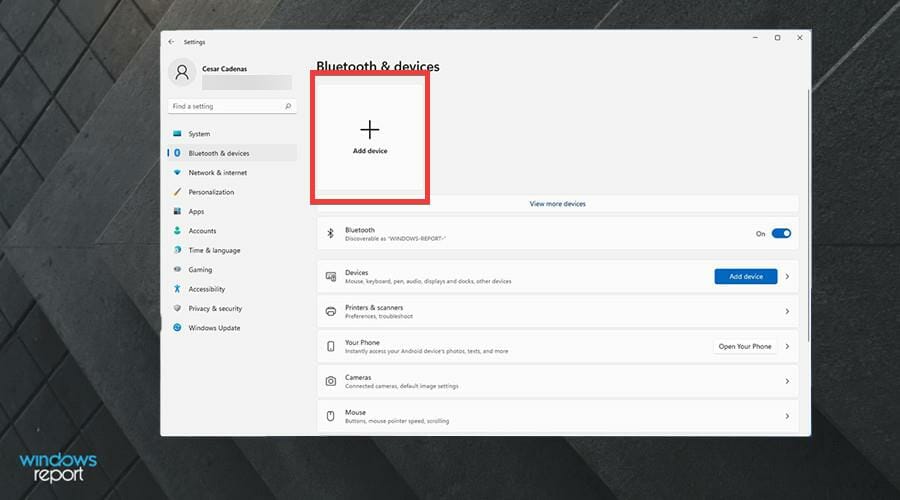
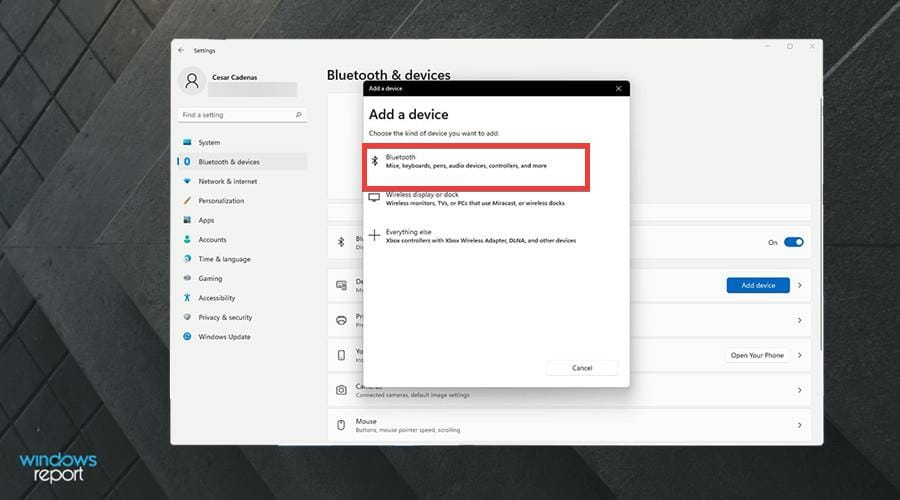
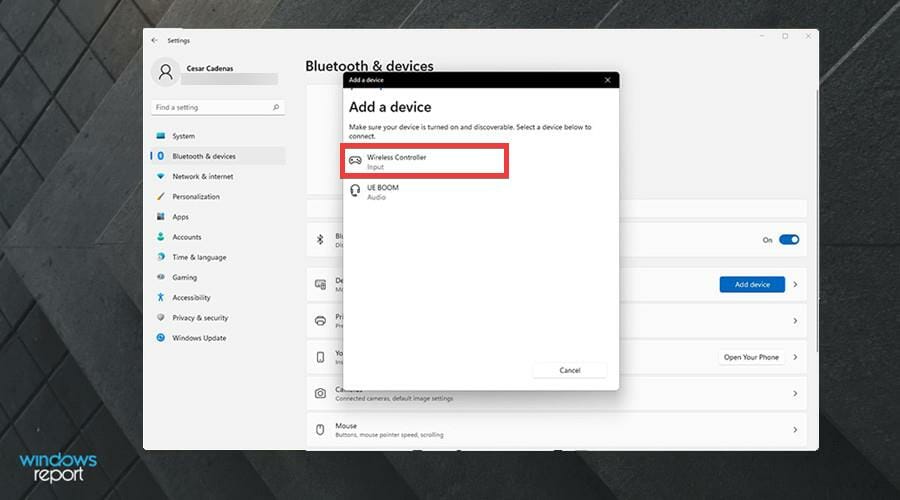
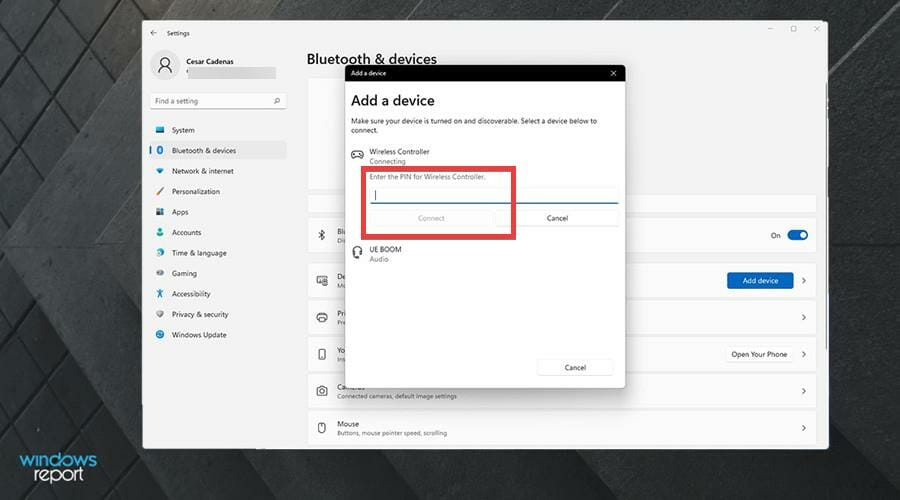
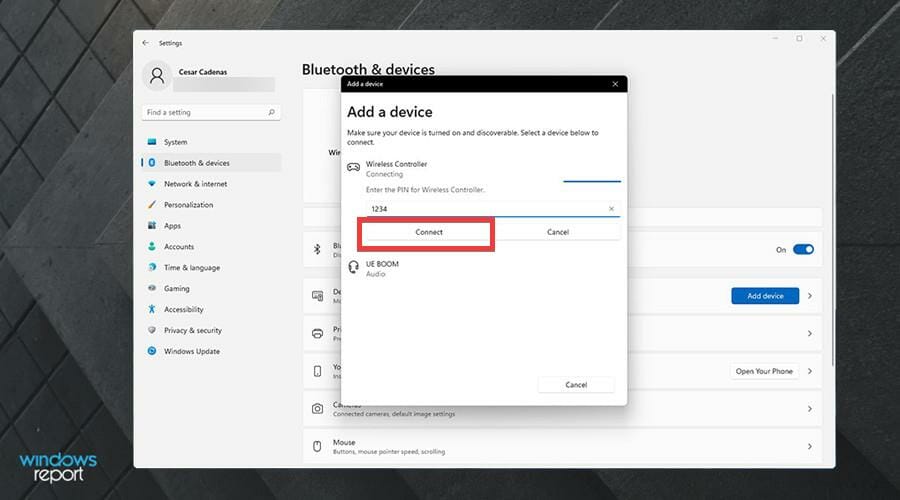
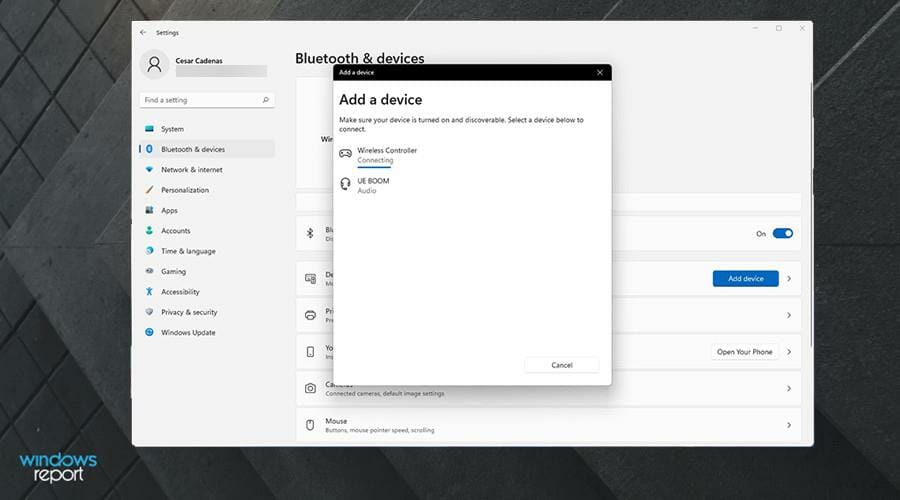
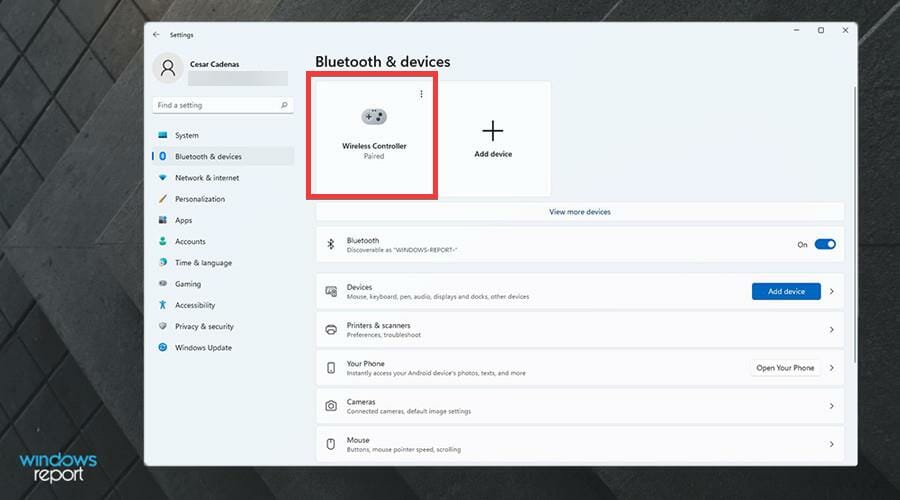
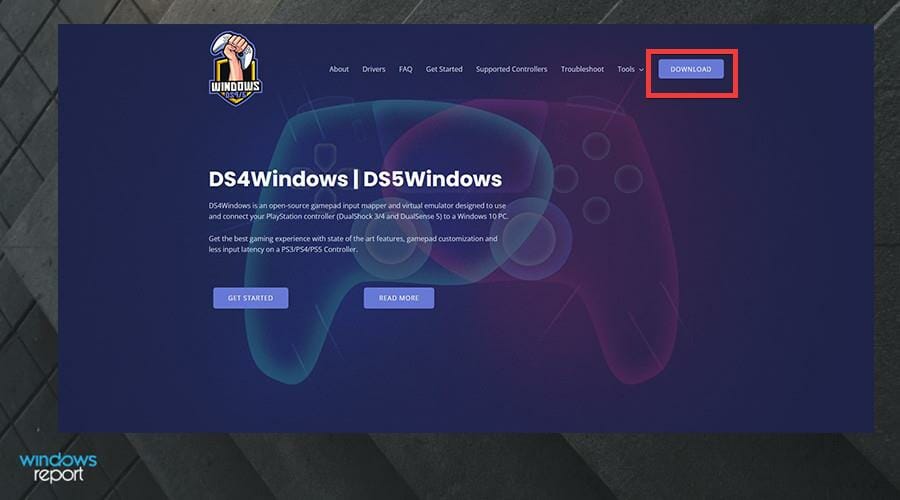
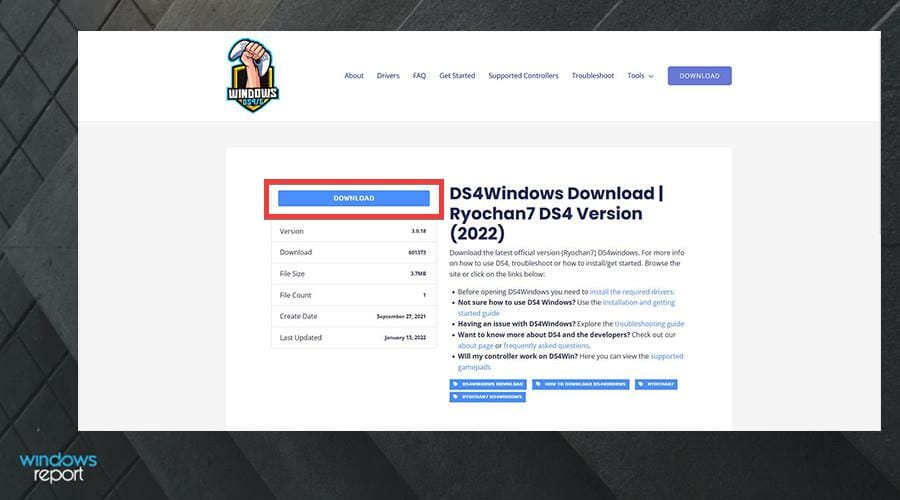
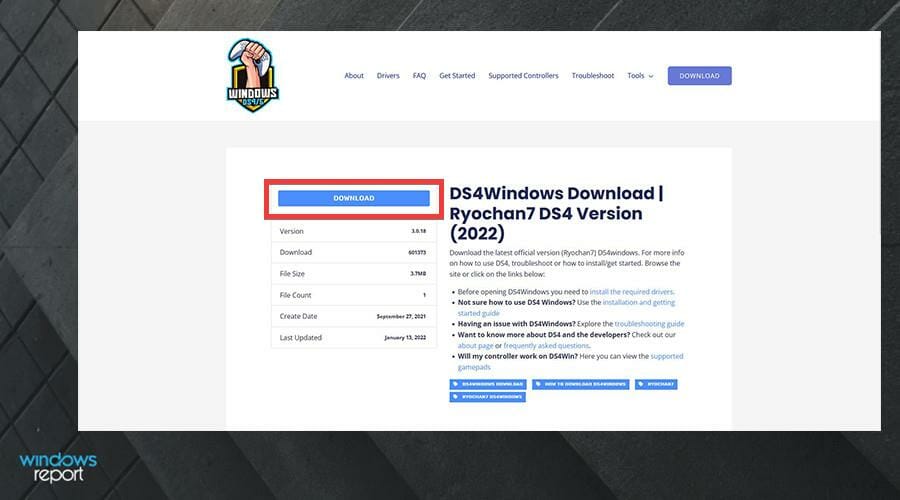
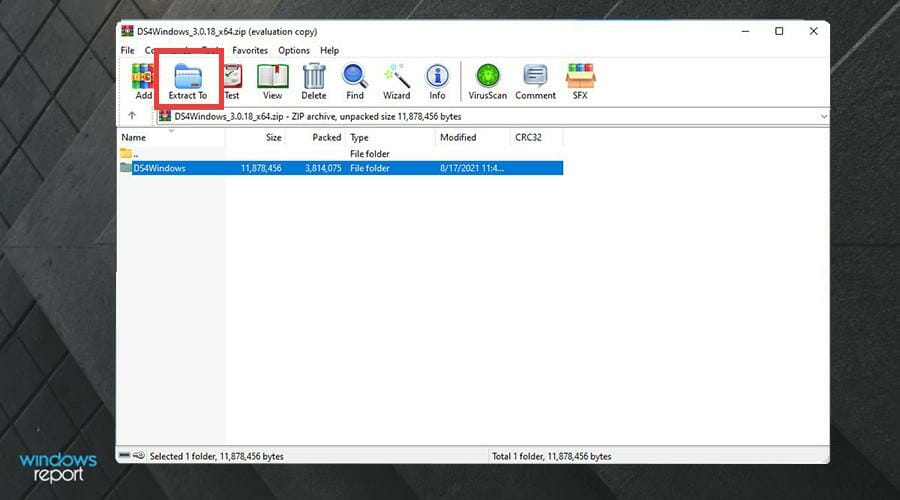
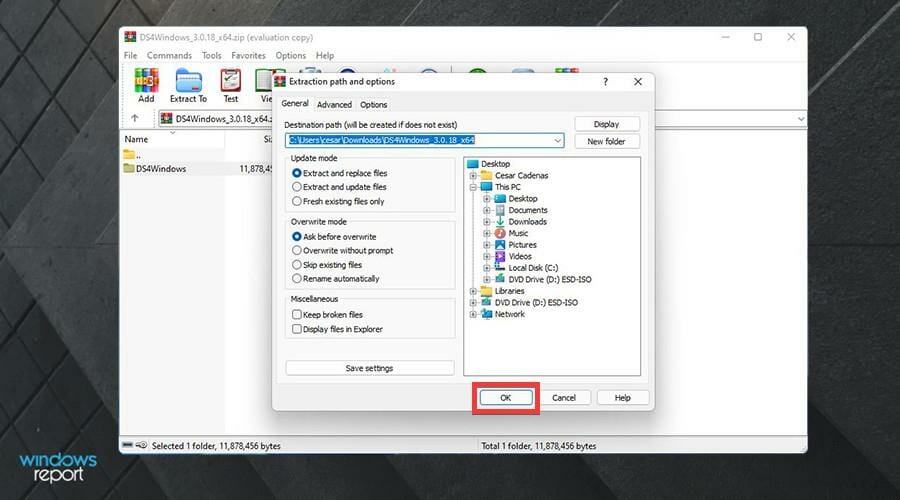
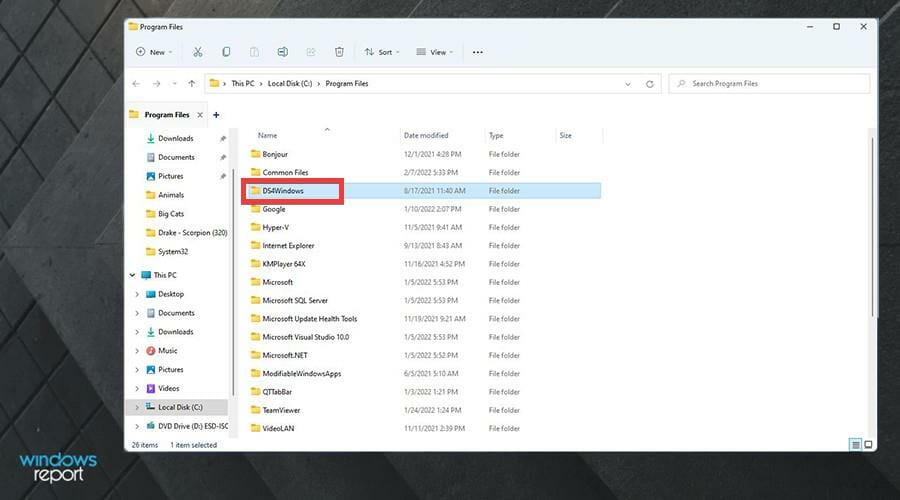
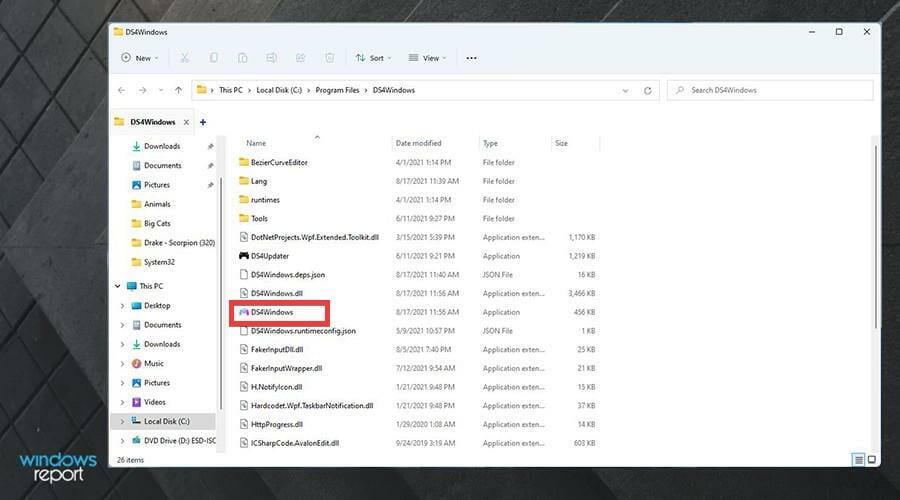
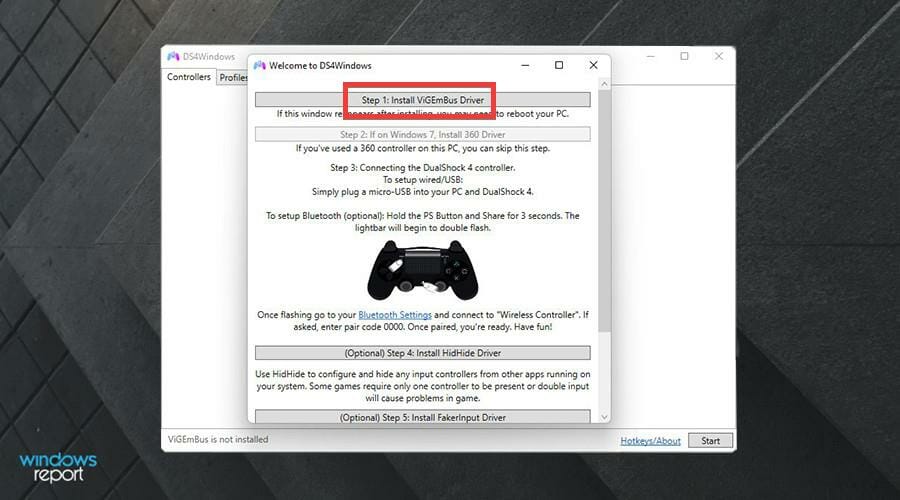
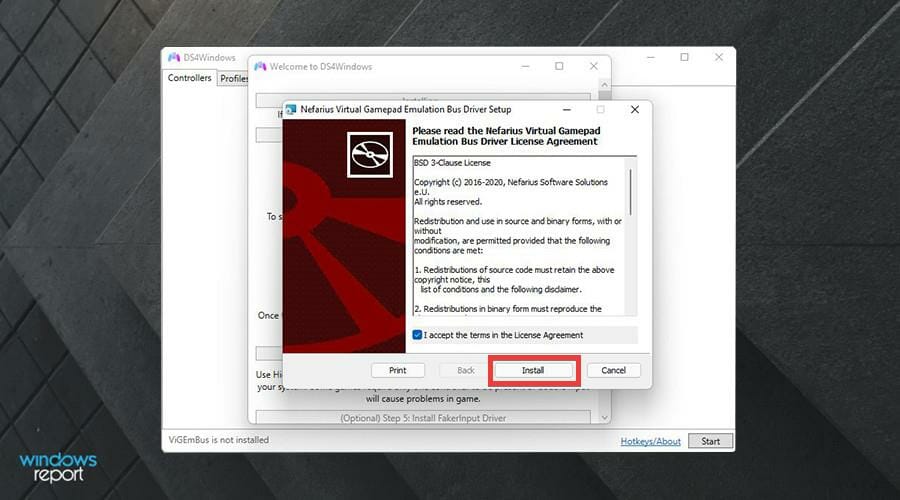
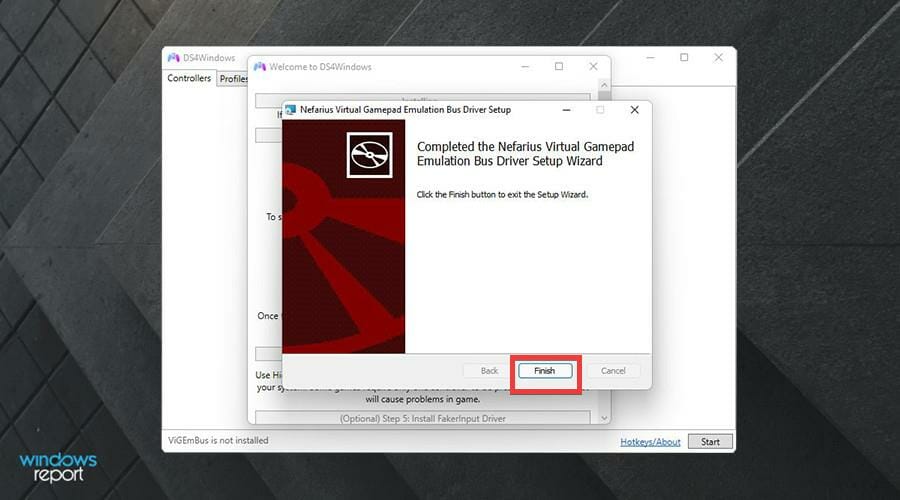
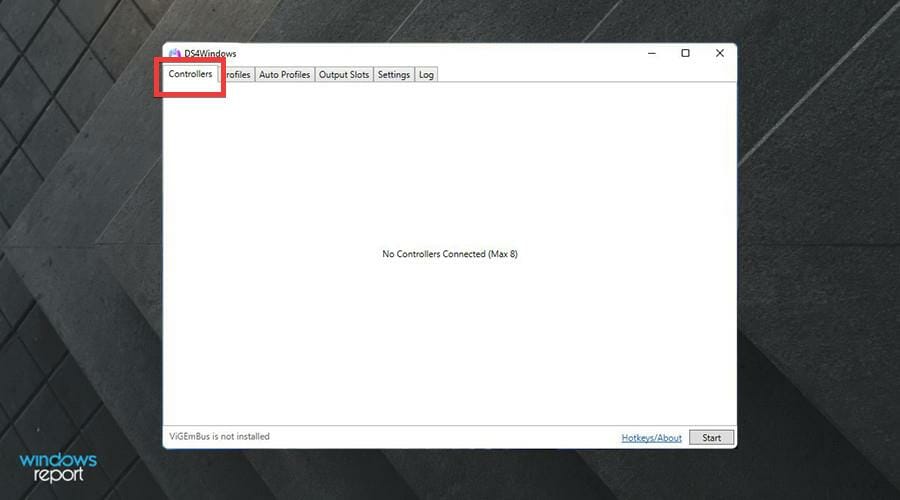
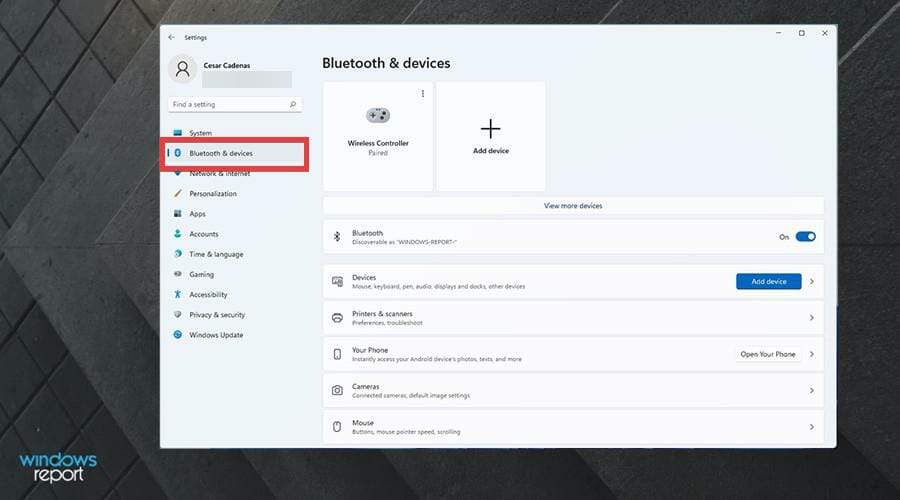
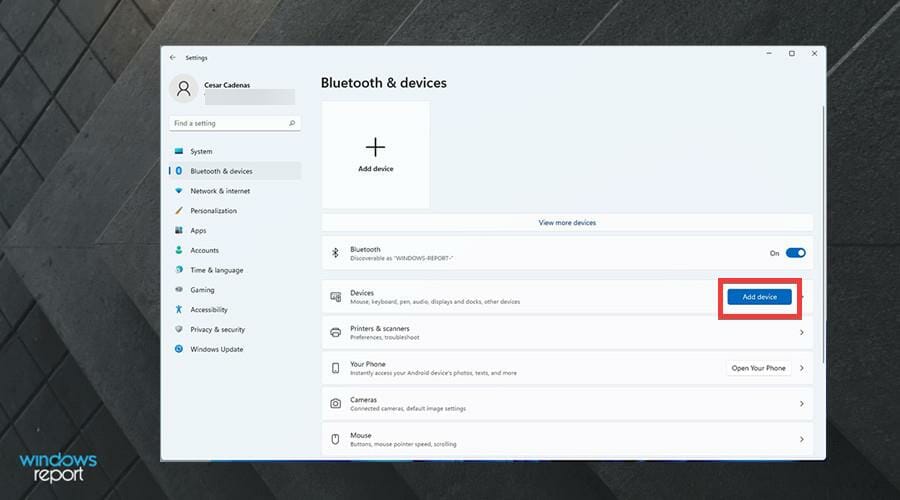
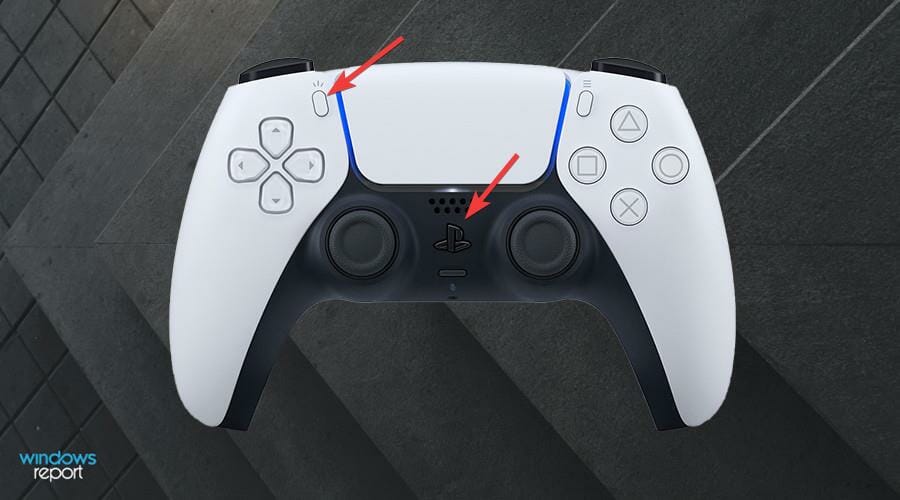
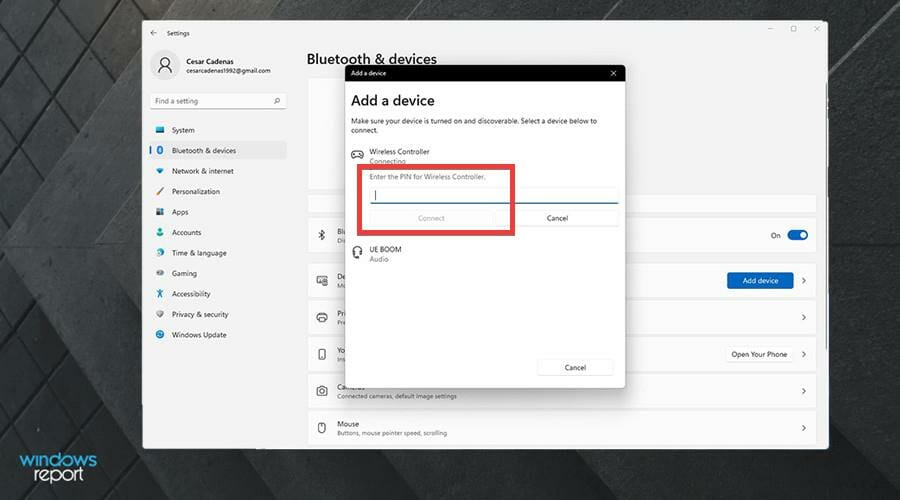
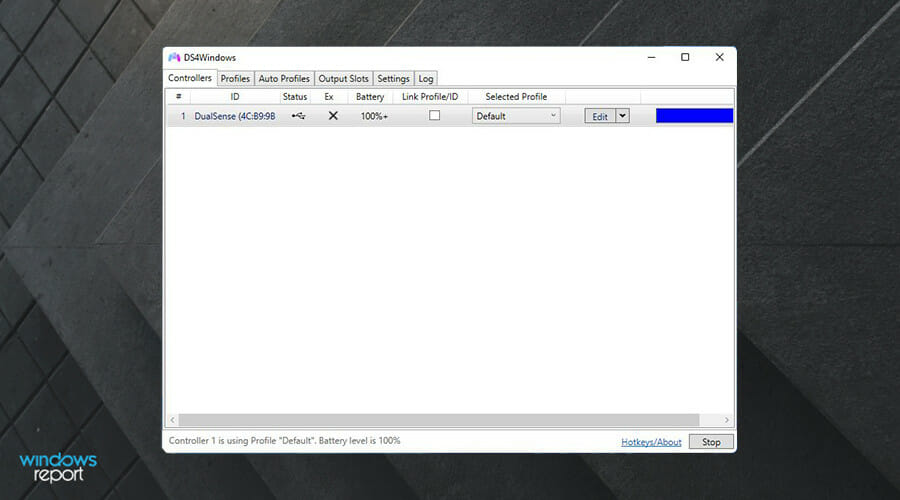
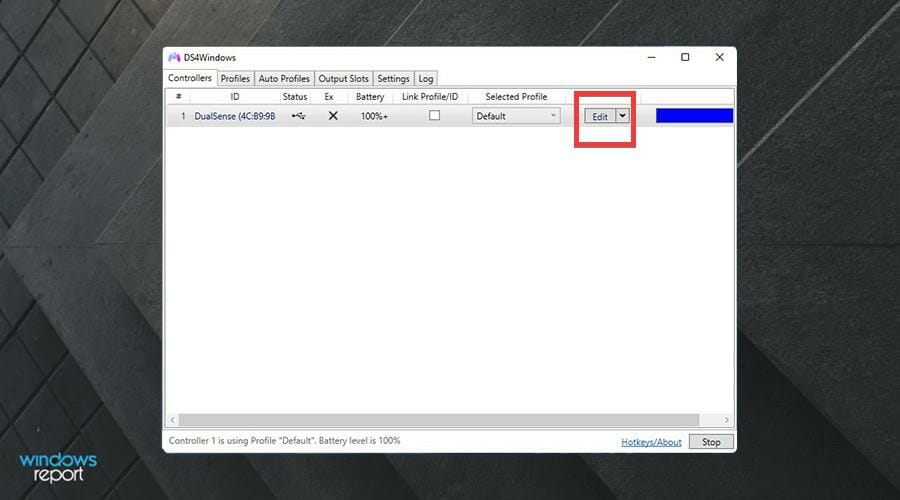
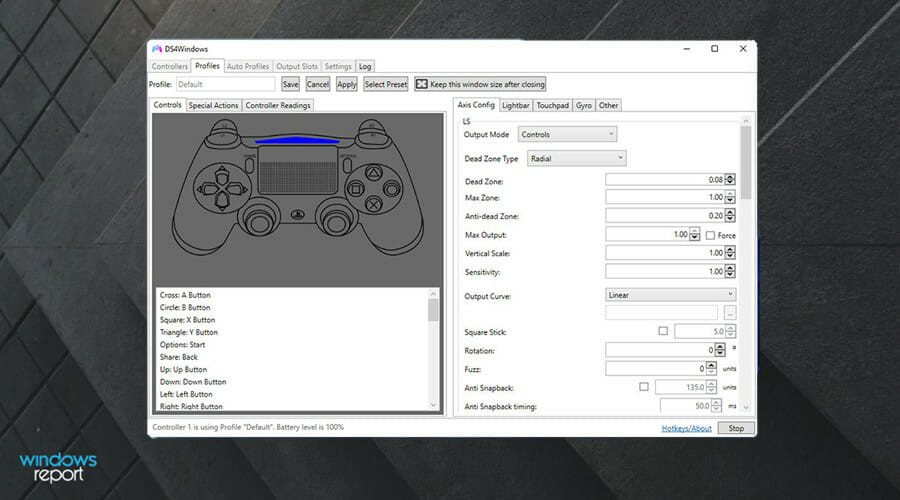
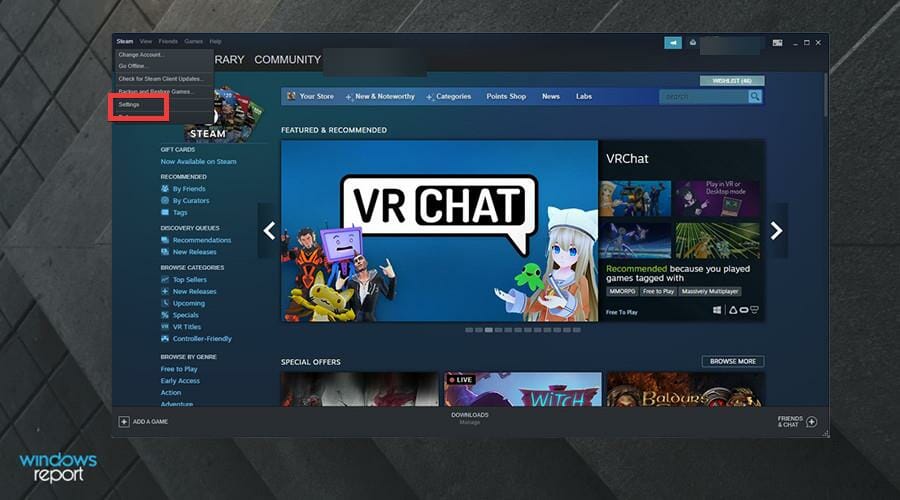
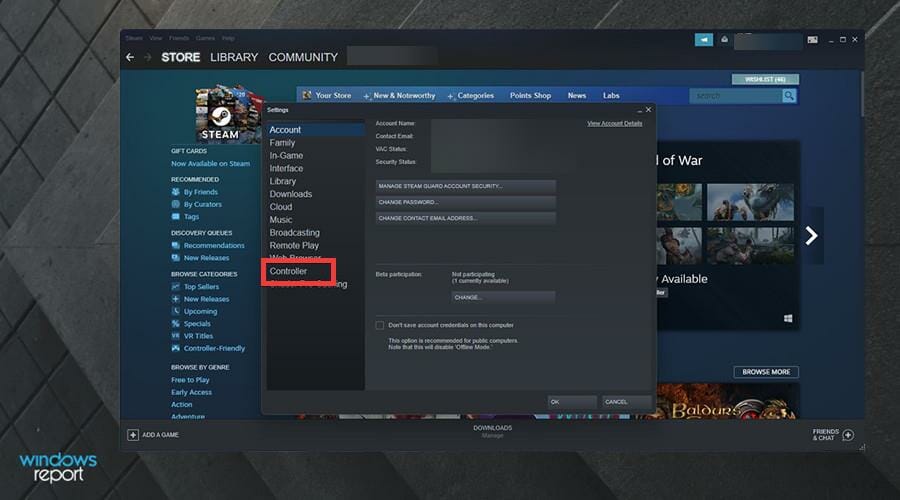
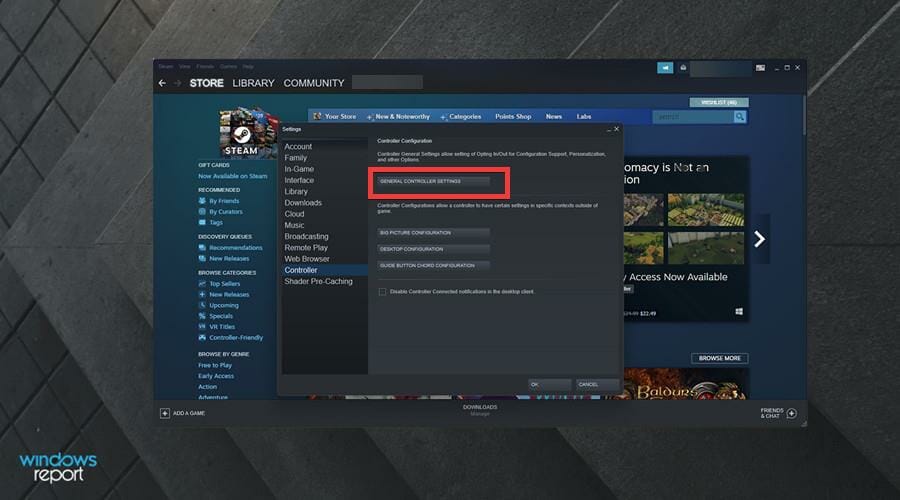
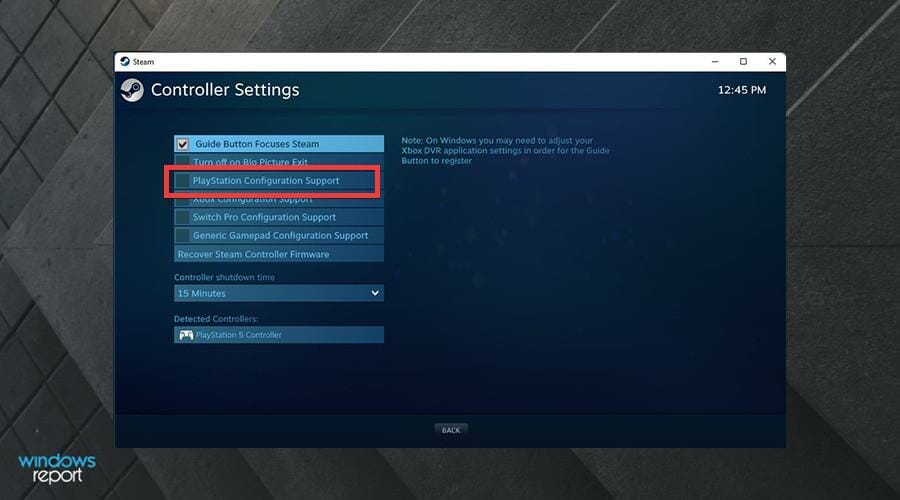
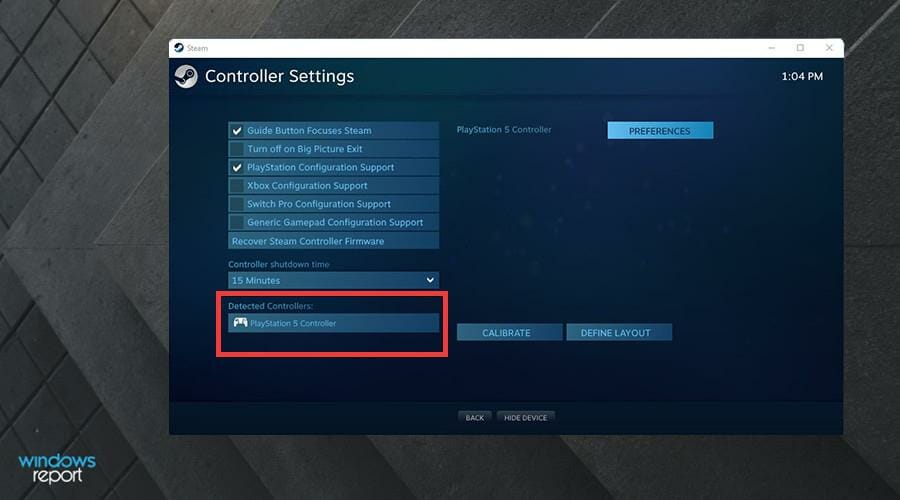
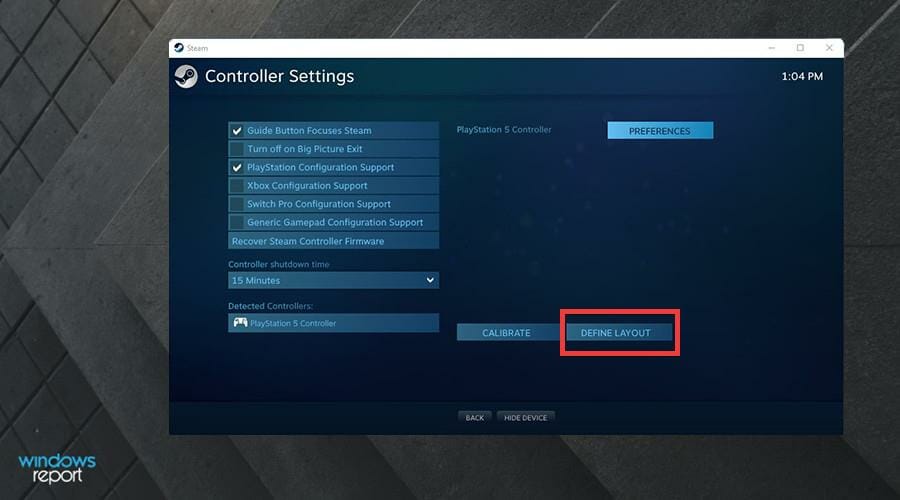
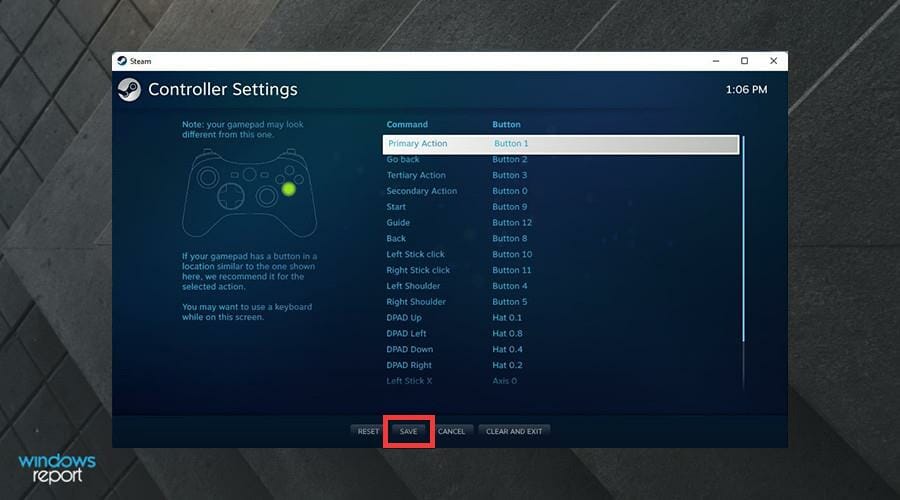
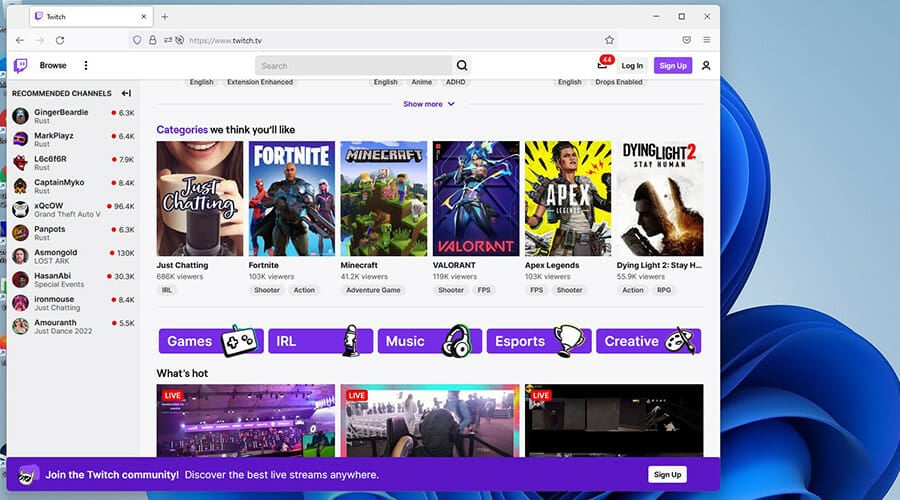



![Twitch error code 61d3870c in Xbox [Fast Solutions]](https://windowsreport.com/wp-content/uploads/2022/01/Twitch-error-code-61d3870c-in-Xbox-1-1.png)






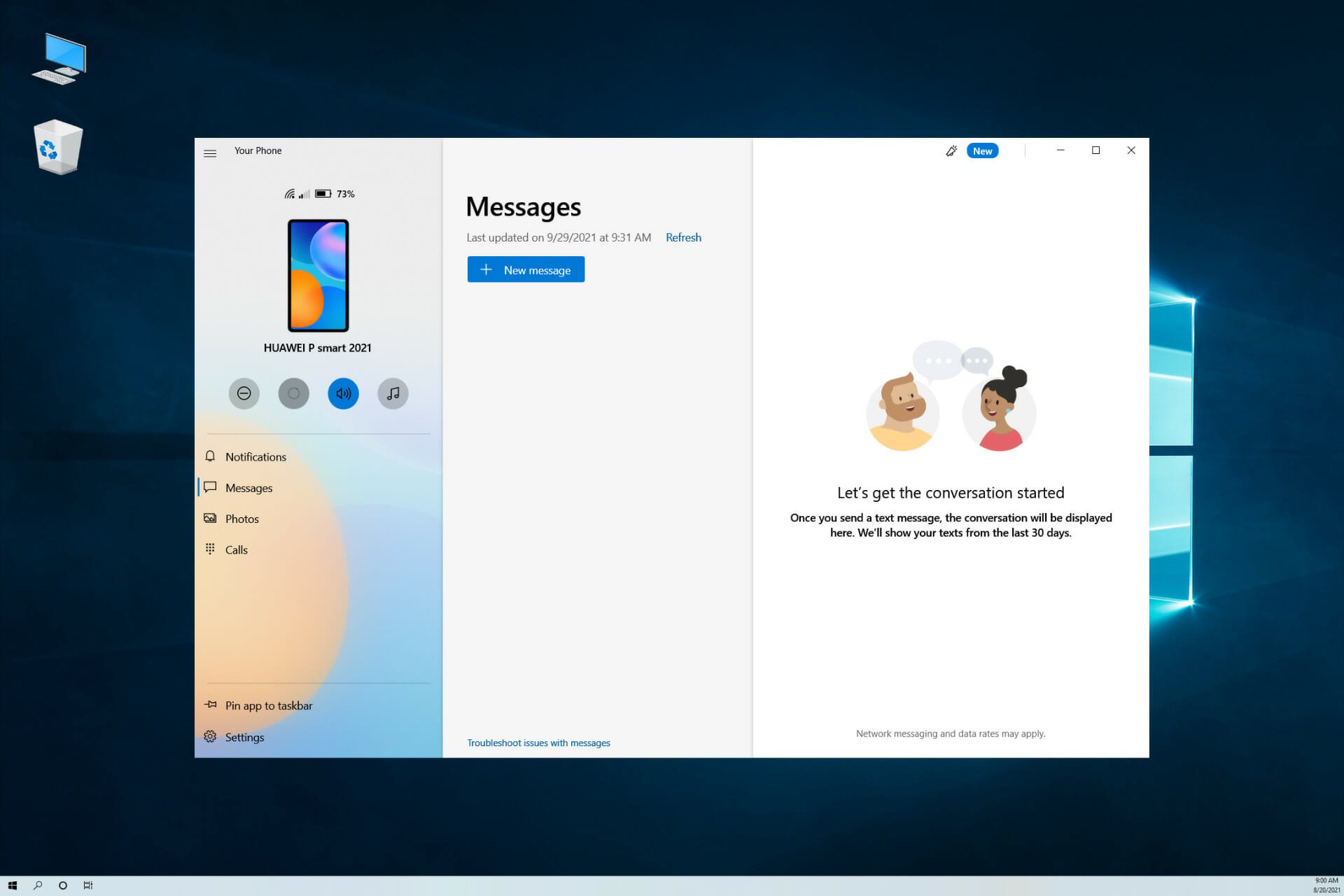
![“File in use” error on Windows 10 [Fix]](https://windowsreport.com/wp-content/uploads/2017/05/Error-PC.jpg)