This new experience is now available for users in the Beta Channels, through the Windows Insider program.
We’ve now reached the tenth cumulative update for Windows 11 RTM Build 22000, and this one comes with some of the system apps that went through the revamp process.
If you check for updates today, a new patch called Cumulative Update for Windows 11 (22000.194), KB5005635, will appear available for download.
Today’s rollout includes the following application updates: Snipping Tool, Calculator, and Clock with Focus Sessions.
So if you are excited to take them for a test drive, remember to search the Store for updates.
Besides providing availability for the utility software mentioned above, Microsoft also packaged fixes for some of the pending issues that Windows 11 still struggled with.
Let’s take a look at what Redmond officials decided to tweak via build 22000.194 :
Addressed an issue where if you enable then disable a contrast theme, it would lead to artifacts in title bars, in some cases making the minimize/maximize/close buttons hard to see and use.
Fixed a crash with certain connected devices that could result in not being able to use Bluetooth.
Mitigated an issue that was resulting in subtitles not appearing when expected in certain apps, particularly Japanese language subtitles.
Fixed an issue that was causing certain PCs to bugcheck during modern standby.
Mitigated an issue when typing with certain 3rd party IMEs into the search box in Settings that could result in the candidate window being rendered elsewhere on-screen (not attached to the search box) and/or characters inserted into the search box not displaying.
Fixed an issue that causes PowerShell to create an infinite number of child directories. This issue occurs when you use the PowerShell Move-Item command to move a directory to one of its children. As a result, the volume fills up and the system stops responding.
This build includes a change that aligns the enforcement of the Windows 11 system requirements on Virtual Machines (VMs) to be the same as it is for physical PCs. Previously created VMs running Insider Preview builds may not update to the latest preview builds. In Hyper-V, VMs need to be created as a Generation 2 VM. Running Windows 11 in VMs in other virtualization products from vendors such as VMware and Oracle will continue to work as long as the hardware requirements are met. For more details on the Windows 11 system requirements – see this blog post here.
Be careful, build 22000.194 comes with a few issues of its own
Even though developers are working around the clock and doing everything they can in order to rid the upcoming OS of all its flaws, especially the critical ones, some problems still make their way into our homes.
Out of the issues that Microsoft engineers haven’t managed to sort out during this period, these have the highest possibility of making our lives miserable.
[General]
Investigating reports from Insiders in the Beta Channel where after upgrading to Windows 11, they are not seeing the new Taskbar and the Start menu doesn’t work. To workaround this if you are impacted, please try going to Windows Update > Update history, uninstalling the latest cumulative update for Windows, and the reinstall it by checking for updates.
Working on a fix for an issue that is causing some Surface Pro X’s to bugcheck with a WHEA_UNCORRECTABLE_ERROR.
[Start]
In some cases, you might be unable to enter text when using Search from Start or the Taskbar. If you experience the issue, press WIN + R on the keyboard to launch the Run dialog box, then close it.
System and Windows Terminal is missing when right-clicking on the Start button (WIN + X).
[Taskbar]
The Taskbar will sometimes flicker when switching input methods.
[Search]
After clicking the Search icon on the Taskbar, the Search panel may not open. If this occurs, restart the “Windows Explorer” process, and open the search panel again.
Search panel might appear as black and not display any content below the search box.
[Widgets]
The widgets board may appear empty. To work around the issue, you can sign out and then sign back in again.
Widgets may be displayed in the wrong size on external monitors. If you encounter this, you can launch the widgets via touch or WIN + W shortcut on your actual PC display first and then launch on your secondary monitors.
[Microsoft Store]
We continue to work to improve search relevance in the Store.
[Windows Sandbox]
Within Windows Sandbox, the language input switcher does not launch after clicking the switcher icon on the Taskbar. As a workaround, users can switch their input language via any of the following hardware keyboard shortcuts: Alt + Shift, Ctrl + Shift, or Win + Space (the third option is available only if Sandbox is full-screened).
Within Windows Sandbox, the IME context menu does not launch after clicking the IME icon in the Taskbar. As workarounds, users can access the functionalities of the IME context menu with either of following methods:
Accessing the IME settings via Settings > Time & language > Language & region > (e.g., Japanese) three dots > Language options > (e.g., Microsoft IME) three dots > Keyboard options.
Optionally, you may also enable the IME toolbar, an alternative UI, to quickly invoke specific IME functions. Continuing from above, navigate to Keyboard options > Appearance > Use IME toolbar.
Steam is one of the largest digital distribution platforms, with thousands of great titles to choose from. However, it seems that there are some issues with this service.
According to users, it seems that Steam is not signing in to Friends, thus making it harder for you to play with the people you know.
This can be a problem since you won’t be able to chat with others or invite them to play with you in certain games.
In today’s guide, we’re going to take a closer look at this problem, and show you how to easily fix it on your Windows 11 PC.
How many users does Steam have?
The platform currently has 25.47 million users worldwide. This is an increase of approximately 6 million new accounts from January 2020.
Number of Steam users worldwide (Source: Statista)
However, the number seems to drop slightly, but we doubt that this trend will continue, and we’re positive that the platform will increase the number of users in the future.
Can I play with my friends if the Friends list on Steam isn’t working?
In most cases, you should be able to play with people you know, even if the Friends list isn’t working on Steam.
Keep in mind that you won’t be able to invite a specific person to join your session from the chat, but instead, you’ll have to invite them from the game that you’re playing, by sharing the lobby ID or server IP address.
This varies from game to game, and with some games you might have issues while inviting your friends to join you.
What do I do if Steam is not signing in to Friends?
1. Turn off power saving for your network adapter
Press Windows Key + X and choose Device Manager from the list.
Expand the Network adapters section. Double-click your network adapter.
Go to the Power Management tab. Uncheck Allow the computer to turn off this device to save power. Click OK to save changes.
2. Restart your router/modem
Go to your modem.
Press the Power button to turn it off.
Keep the device turned off for a minute or so.
Now press the Power button to turn it again.
Wait for a minute until your modem boots completely.
If there’s a problem with a specific service, you’ll have to wait until it’s resolved.
How can I chat with friends if my Friends list isn’t available in Steam?
If the chat isn’t working, you won’t be able to communicate with other people over Steam.
The only way to circumvent this issue is to use VoIP software for gamers until the issue is resolved by Valve.
Download the VoIP software that you want to use, create an account and ask your friends to do the same. This isn’t an optimal solution, but it’s the only one available at the moment.
Why is Steam going offline while I’m playing?
There could be various reasons for this problem ranging from server issues to your network configuration.
In some instances, your installation might be corrupted or other applications might be interfering with Steam, causing it to go offline.
If you’re having this problem, be sure to check our guide on what to do if Steam is going offline for more information.
If Steam is not signing in to Friends, you won’t be able to stay in touch with the people you know while gaming. This is most likely a server problem, but hopefully, you’ll be able to fix it with our solutions.
In case you’re impatient, you can always adjust your network adapter’s power settings or restart your modem and check if that solves the issue for you.
Did you find a solution to this problem on your own? Share it with us in the comments section below.
Windows and ARM processors have a long history, and Windows 10 is fully compatible with them, so it’s no wonder that Windows 11 will do the same.
Taking a look at Windows 11 requirements, we can see that Qualcomm processors will work with it, although the list of supported models doesn’t seem too impressive at the moment.
In case you’re not familiar, these types of processors are usually used on mobile devices, and many are wondering how will they compare to regular desktop CPUs.
In today’s guide, we’re going to take a closer look at Windows 11 and Qualcomm compatibility and tell you everything you need to know about it.
What should I know about Windows 11 and Qualcomm support?
Qualcomm, a quick introduction
Qualcomm is a chip manufacturer from San Diego, California, and it has been making electric components since 1985, and they are one of the largest manufactures in the world.
The company is developing semiconductors for different industries, but Qualcomm is best known for its wireless chips and Snapdragon mobile processors.
Are Qualcomm processors good?
Qualcomm CPUs are one of the best on the smartphone market delivering amazing performance to their users.
Therefore, we’re not surprised to see that Windows 11 will be compatible with models from the Snapdragon series. Regarding the performance, here’s the list of the best smartphone processors:
As you can see, out of the top 10 smartphone CPUs, Snapdragon devices took four spots on this list, thus proving their quality and performance.
However, PCs and smartphones are drastically different devices, so how do these types of processors compare to their desktop and laptop counterparts?
How is Qualcomm CPU laptop performance?
Although the Snapdragon series are one of the best brands on the smartphone market, the situation is a bit different on the desktop market.
Compared to other high-end laptop CPUs, Microsoft’s SQ2 didn’t perform too well, and it offered low benchmark scores.
Moreover, compared to other ARM processors, it achieved lower results than its Apple competitor.
Microsoft SQ2 benchmark results (Source: CPU Benchmark)
As for Snapdragon 8xc Gen 2, the situation is the same, and this model is at the bottom of the list compared to the high-end x64 laptop CPUs, which is expected.
Snapgradon 8cx Gen 2 benchmark results (Source: CPU Benchmark)
Qualcomm processors can’t compare to the high-end x64 CPUs, but the situation is similar when compared to mid-range and even some low-end models.
Snapgradon 8cx Gen 2, Microsoft SQ2 benchmark results (Source: CPU Benchmark)
This comes down to the different architecture that processors are using, therefore it’s not fair to compare ARM and x64 devices.
Keep in mind that these are just benchmark results, and while they may offer some insight into CPU performance, they aren’t the best representation of real-life everyday performance.
Will Windows 11 be fully compatible with Qualcomm processors?
So far, we know that x86 Win32 applications will be able to run on ARM processors seamlessly, without any modification required by the developers.
However, when it comes to 64-bit applications, the situation isn’t as simple. Windows 10 on ARM has support for those types of apps using the ARM64 emulation.
This brought some compatibility and performance issues, and we’re expecting the new version to address that. To improve 64-bit emulation, Microsoft decided to develop and use ARM64EC.
The new technology will be available in Windows 11, and it will allow apps, processes, and modules to use both ARM64EC and x64 when needed.
Using this technology, the code will run natively, while the x64 code will use the built-in ARM emulation. In the past, the developers were encouraged to optimize their apps for ARM64 completely, but this was a lengthy and time-consuming process.
However, that changes with ARM64EC since now you can select which components you want to rebuild and optimize for ARM technology.
Other unoptimized x64 components will be emulated, thus allowing you to port essential parts of the application and speed up the optimization process.
This is a great improvement that will surely help the developers, but sadly, the performance will greatly vary depending on how developers choose to optimize their software.
What Qualcomm processors will work with Windows 11?
The latest version of Windows brought some new hardware requirements, especially in the CPU department, and unfortunately, some older models won’t be supported.
Currently, several Qualcomm processors are compatible with Windows 11, and we expect that number to increase in the future. Here’s the list of official compatible models:
Snapdragon 850
Snapdragon 7c
Snapdragon 8c
Snapdragon 8cx
Snapdragon 8cx (Gen2)
Microsoft SQ1
Microsoft SQ2
What are the pros and cons of using Windows 11 with a Qualcomm processor?
The biggest advantage of using Windows 11 with a Qualcomm processor is the battery usage. ARM devices use less power, and therefore they last longer on a single charge.
You can get up to 20+ hours of video playback, and with moderate usage, the battery can last up to multiple days on a single charge.
Since ARM processors use less electricity, they are generating less heat, meaning that your PC will remain cooler.
As a result, laptops that use them don’t require active cooling, allowing for manufacturers to make sleek, quiet, and light devices.
These CPUs also have built-in Adreno GPU, and support lightning-fast 4G LTE and 5G connectivity, allowing you to reach speeds up to 2Gbps on 4G and up to 7Gbps with 5G.
As for the flaws, we have to say that we’re concerned about application support and performance. Qualcomm states that the vast majority of apps will work on Windows 11 devices running on ARM processors.
This includes popular web browsers and collaboration tools such as Zoom, Slack, and Microsoft Teams. In case you’re not familiar with it, we have an in-depth guide on how to use Microsoft Teams on Windows 11.
Other applications include Microsoft Office, Adobe Acrobat Reader, Spotify, Pandora, Amazon Music and social media apps.
The question remains how will other applications, most notably 64-bit, work, and will there be any major performance issues and slowdowns, especially when using emulation.
ARM processors offer lower performance than some entry-level laptop CPUs, so if you’re looking to get a PC with high-end performance, maybe these types of devices aren’t for you.
What is the difference between ARM and x86/x64 processors?
Qualcomm processors are ARM devices and they are based on RISC architecture. On the other hand, x86/x64 CPUs are using CISC.
RISC has less than 100 instructions and it uses a 32-bit instruction format, as well as simple addressing mode, and register-based instructions.
This architecture uses more lines of code since it performs just one instruction per clock cycle, and this is why ARM processors use less electricity, which makes them perfect for smartphone devices.
On the other hand, CISC processors have from 120 to 350 instructions and they use variable instruction and data formats, and about 8 to 24 general registers.
This allows your CPU to execute one complex instruction instead of multiple simple instructions like with RISC processors.
As a result, x64/x86 processors are used in devices that need to perform complex tasks, such as laptop and desktop computers.
These devices offer high performance, but they require more cooling, and more electricity, while ARM CPU use less electricity and provide lower performance.
We’re excited about Windows 11 and QualcommCPU support, and we can’t wait to see how it works in action, but we’re still a bit concerned about how well will ARM devices handle x64 software.
To learn more about Qualcomm CPUs, our Snapdragon X Elite vs M4 article will give you more insight.
Are you going to get a device with an ARM processor or are you going with a different Windows 11 ready laptop? Let us know in the comments below.
To install Windows 11 on a virtual machine, you might need to enable TPM, and this guide will show you how to enable TPM in VMware software.
The process is fairly simple, but it can take a bit, depending on the size of the virtual machine, so let’s see how to do it.
How do I enable TPM on my VMware Workstation VM?
1. Encrypt your virtual machine
Open the VMware Workstation and select your virtual machine.
Select Edit virtual machine settings.
Go to the Options tab and select Access Control on the menu on the left.
Now click the Encrypt button.
Enter the password for the virtual machine.
Wait for the process to finish.
2. Enable Trusted Platform Module
Click on Edit virtual machine settings.
In the Hardware tab click on Add.
Select the Trusted Platform Module and click on Finish.
Navigate to the Options tab and select Advanced from the left pane.
In the Firmware type section, check Enable secure boot option, and click Apply and OK to save changes.
How do I enable TPM in VMware Player?
Locate your virtual machine file, right-click it, and open it with Notepad. It usually has a .vmx extension.
Add the following line managedvm.autoAddVTPM = "software"
Save changes and start your VM.
Does Windows 11 VM need TPM?
If you’re using Hyper-V, you must have a TPM chip to run Windows 11. As for VMware, you can run Windows 11 on VM without physical TPM. You still have to enable it by following our instructions from above.
How to install Windows 11 on VMware Workstation without TPM?
If you want to install Windows 11 without TPM on your virtual machine, you can follow the steps from our guide on how to bypass Windows 11 TPM requirements.
As you can see, it’s easy to enable TPM in VMware Workstation, and to do so, you need to adjust a couple of settings. Although using this feature is unnecessary, it can give you an extra layer of security.
Keeping your PC safe should be your priority, and security options like this will ensure that your bootloader is unaltered and that no malware is starting with your PC.
Windows 11 is finally here, but unfortunately, it seems that it won’t work with older devices, and this has many users worried.
To install the latest version, many users will be forced to upgrade their PC, or even buy a whole new computer, which is far from an optimal solution.
Microsoft decided to drop support for older hardware, and introduce the TPM requirement to boost the security of its users.
The new version has specific CPU requirements, and in today’s guide, we’re going to answer whether Windows 11 can work with Haswell processors.
Can I use Windows 11 and Haswell CPU?
What are Haswell CPUs?
Haswell CPUs are series is developed by Intel and released in 2013. These are 22nm processors, and they are designed to be optimized for power saving.
These models took many features from their predecessor, Ivy Bridge, but they also brought few new ones including support for new sockets, a wider core, improved performance, and new instructions.
The Haswell devices were a part of the fourth-generation core CPUs, but they were eventually replaced by Broadwell and Skylake models.
What are the Haswell CPU features?
The models from the Haswell series are the first desktop processors that were made for a system-on-chip architecture.
Regarding the thermal power design, these devices use 37-57W on laptops, 35-140W on desktops, and 11.5W-15W on the Ultrabook series.
Haswell CPUs had support for dual-channel DDR3 memory with a maximum capacity of 32GB, at 1333MHz or 1600MHz frequency. As for PCI Express, there was support for 16 PCI Express 3.0 lanes.
Some models from this series came with Intel HD Graphics 5000, allowing users to enjoy multimedia.
As for the number of cores, here’s a quick overview:
i7 – 4 cores and 8 threads
i5 – 4 cores/threads
i3 – 2 cores and 4 threads
Pentium and Celecorn – 2cores/threads
In terms of CPU speed, high-end devices could reach 3.00GHz-4.00GHz, while mid-range ones would usually run on up to 2.0GHz-3.5GHz, and the entry models would run at 1.3GHz-2.6GHz.
For 2013 Haswell had great specs, so it’s no wonder that some users still use it on their older PCs. However, the question remains, how will Haswell work with Windows 11.
Does Windows 11 support Haswell processors?
Windows 11 requirements are different from the previous versions, and they have caused a bit of controversy.
The latest version will require a TPM chip, and if you’re not familiar with it, we suggest reading our TPM and Windows 11 guide for more information.
What about Haswell processors? According to Microsoft’s documentation, you’ll need at least an 8th generation IntelCPU, meaning Coffee Lake or newer.
If you’re using a 4th generation, such as Haswell, it means that you won’t be able to run Windows 11 since your hardware isn’t supported.
Even if you can’t upgrade, support for Windows 10 will last until 2025, so you can continue using it at least for few more years.
Why doesn’t Windows 11 support Haswell CPUs?
When Windows 11 was first announced, it was able to run on devices that don’t meet the hardware requirements fully, so if you had any version of the TPM, you could’ve installed it.
To learn more about different versions of this feature, check our TPM 1.2 vs TPM 2.0 guide for more in-depth information.
As you can see, Microsoft didn’t strictly enforce their requirements, and users were able to install Windows 11 with a warning message about using unsupported hardware.
That’s not the case anymore, and many older processors are unable to run the latest version of the operating system.
The reason behind this is most likely security, and many older CPUs don’t support TPM 2.0, which is required for Windows 11.
It’s worth mentioning that older processors don’t support certain security features, so they can’t utilize virtualization security and hypervisor-protected code integrity features that are always enabled.
Many are speculating that this is because of Spectre and Meltdown malware, and Intel’s 8th generation of CPU has improved security designed specifically to deal with this type of threat.
Take into consideration that the 8th generation is the minimum requirement for Windows 11, which leads us to believe that this is one of the reasons why Microsoft dropped support for older CPUs.
Is there any way to run Windows 11 on Haswell CPU?
Although Haswell devices aren’t officially supported, that hasn’t stopped users from installing the new operating system. It seems that Microsoft isn’t enforcing strict hardware requirements for Insider Program at the moment.
This allows you to join it and download Windows 11 on your PC with ease. However, this might change soon.
A couple of users reported that you can remove a hard drive that has an operating system installed and connect it to another PC, even if it doesn’t meet the hardware requirements, and it should work.
Keep in mind that this is just a workaround, and it might get patched in the future. For a long-term solution, you might want to run Windows 11 on a virtual machine.
Lastly, there’s an option to download Windows 11 ISO, and then modify it with files from the older version to circumvent hardware and security requirements.
This method might be risky especially when modifying ISO files, so we won’t go into detail, but it’s one method that advanced users might try.
Are Haswell processors good?
When they were released, they were great, but now, years after the initial release, they just can’t compete with modern low-end devices.
Haswell CPUs support only DDR3 at 1600MHz, which is a lot slower compared to newer models. However, these processors can still be used for basic needs, such as web browsing, office work, and light gaming.
What can I do if Windows 11 won’t work with my Haswell device?
Although there are still a couple of workarounds that allow you to install the latest version on devices that don’t meet the hardware requirements, we assume that Microsoft will put an end to that in near future.
This doesn’t leave users with many choices, and they will have to upgrade to meet the hardware requirements or purchase a Widows 11 ready PC.
Is Windows 11 worth upgrading to?
Yes, as long as your PC meets the hardware requirements. We wrote an in-depth guide in which we compared Windows 10 vs Windows 11, so be sure to check it out for more information.
The new version brings some major changes in terms of functionality and visual appearance, offering a complete visual revamp.
Performance-wise, Windows 11 will use DirectStorage that will improve gaming loading time and performance. On top of that, there’s improved security with the requirement of TPM and Secure Boot.
If your PC doesn’t meet the hardware requirements, you can continue using the current version of Windows, but keep in mind that many app and game developers will slowly drop support for it in the upcoming years.
Windows 11 doesn’t support Haswell CPUs officially, but there are few workarounds that you can try and see if they’ll help you run it.
Keep in mind that Microsoft is most likely aware of these workarounds and that they will most likely be disabled soon.
What are your thoughts on the new version of Windows and its CPU requirements and have you managed to run it on unsupported hardware? Let us know in the comments below.
From what we found, it seems like there are plenty of users who are wondering how to efficiently use the Windows 11 Voice Typing Tool.
The great news is that there are no complicated ways. So, do not worry if you’ve never tried it before. In case you’re not that familiar with this feature, take a look at some reasons to give it a shot.
What can the Windows 11 Voice Typing Tool offer?
Also known as a dictation tool, voice typing does nothing more than its name says. It records what you’re speaking, then converts it into text in real-time.
Note that you can use it in any text box. So, we talk about text editors or composing boxes of a chat app, typing an email, and the list can go on with many other options.
It is no doubt that the latest operating system came up with some new great features and improvements, and that also applies to Voice Typing Tool.
On the previous OS, you were supposed to edit what you already dictated, and this means outlining yourself and punctuating the words accordingly. Now, your work will be more simplified, with Windows 11 doing all the job.
How can I use Voice Typing Tool in Windows 11?
1. Open the Voice Typing Tool
Select the text box where you want to type (in this particular case, we opened a Notepad box).
Remain with the cursor in that text box, then use the following keyoard shortcut: Windows + H.
A little pop-up box will appear and you’ll be able to move it anywhere.
In case it’s obstructing your screen view, just click and hold the bar at the top to drag and move it around the screen.
2. Enablethe Voice Typing launcher
Open the Voice Typing Tool, as you learned from the previous method.
In the pop-up box, click on the Settings icon (marked as a gear).
Make sure that the toggle button from the Voice typing launcher is On.
In case you enable this option, you’ll be able to quickly voice typing launcher when you’re in a text box. In other words, it will automatically appear anytime you click inside a text field.
For those who dictate often, this choice would be extremely helpful to save your working time. Of course, if you change your mind, it can always be turned back off.
3. Turn on auto-punctuation
Open the Voice Typing Tool, then navigate to Settings.
Look at the Auto-punctuation section, then make sure the toggle button is On.
4. End dictation
4.1 Stop or pause the dictation
Click on the Microphone icon.
If you decide to stop or pause the dictation, you can also use the following keyboard shortcut: Windows + H.
4.2 Exit Voice Typing Tool
The quickest way to exit the Windows 11 Voice Typing Tool is by pressing the Esc key.
What are the supported languages in Windows 11 Voice Typing Tool?
Even if voice typing is a great feature, there are a few catches you should consider. First of all, it is mandatory to be connected to the Internet. Besides that, it only works with certain languages.
Take a look at the list below and find out from what you can choose:
English (US, Australia, Canada, India, United Kingdom)
You can also try Google Assistant for PC to add powerful cross platform voice control alongside the built in Windows 11 tools.
Check out this Windows 11 voice assistant
Besides the Voice Typing Tool, Windows 11 comes up with an incredibly useful voice assistant. You’ve probably heard before about Cortana.
If not, keep in mind that you can use it for multiple reasons like setting a reminder, scheduling a meeting, searching the Internet, locating items on your PC or Windows phone, and much more.
Unlike the previous version, this time Cortana will no longer be included in the initial boot sequence, nor be pinned in the Taskbar.
The voice assistant is installed in Windows 11 but is not active by default. Before using it, you’ll need to turn it on, launch, and sign in to the Cortana app.
As you can notice in the picture below, it uses high-quality artificial intelligence. But let’s shortly explain what is this all about.
Raw data can originate from multiple sources, such as databases, apps, sensors, devices, and IoT systems.
On the other hand, various transformations, analytics, and machine learning processing can provide insights that are presented or delivered to users, apps, and automated systems.
Windows 11 brings up some new and improved features and the Start menu is one of them.
However, the opinions are divided. Some users are extremely excited about the latest upgrades, while others are not that happy with the refreshed Start experience.
To build a more personalized environment, the OS design allows you to customize the Windows 11 Start menu in various ways.
Before anything else, you should know that the newest design looks quite different from the Windows 10 version. For a full comparison between Windows 10 and Windows 11, check out our dedicated article.
What’s new about the Windows 11 Start Menu customization?
You can access the Start menu home page by hitting the Windows key on your keyboard or by clicking on the Windows icon from your centered desktop taskbar.
Pinned apps are displayed at the left top, and the All apps list button is placed on the right top side of the window.
Also, for perfect customization, you have the option to add and view recommended and recent items, which appear in the bottom half of the page.
As you can see in the picture below, Windows 11’s Start menu comes up with a brand new design, which also includes the round corner feature.
Now let’s see how this menu can be customized according to your own preferences. To build a unique Windows 11 Start menu, make sure you read each of our recommendations.
How can I make a great Windows 11 Start Menu customization?
1. Pin apps
Press on the Windows key, then click on the All apps button.
Search for the app you want to pin in the Windows 11 Start menu, then right-click on it, and select to Pin to Start.
If you go back to the Start menu, the app will appear in the Pinned section.
Repeat the process for any app you want.
This is a great option that will let you personalize one of the most used features. We also recommend checking more solutions to pin apps to the Start menu in Windows 11.
Note that if you ever change your mind, you can easily unpin certain apps, following the first two steps, but instead of the Pin to Start option, you’ll have to choose to Unpin from Start.
2. Rearrange pinned apps
After pinning the desired apps, you can also manage them, by moving it to any position. To simply do it, left-click on the app, then hold and drag it wherever you need.
Note that if you pin more than 18 apps to the Windows 11 Start Menu, then a second page will be added. You can scroll to move between different pages of pinned apps.
You can also search for Windows 11 apps in alphabetical order. To simply do it, you have to open the All apps section, then click on any alphabet letter.
3. Tune recommendations
Hit the Windows key, then open the Settings menu.
Go to Personalization, then select the Start section.
To find the new apps or programs in Windows 11 Start Menu, you can enable the Show recently added apps, right after installing it. With this feat you’ll be able to save time by not scrolling through the entire app list to find a newly installed app.
You can also turn on the Show the most used apps option. This will help you get recommendations of frequently used apps.
Now look at the Show the most used apps option, then if the toggle button is greyed out, you’ll have to enable a privacy setting to make it work, by following the next 3 steps. If it is not, jump directly to the step 9.
To easily do it, jump to the Privacy & Security section (from the Settings home menu), then navigate to General.
There, look at the Let Windows improve Start and search resultsby tracking app launches section, then enable it.
Go back and open the Personalization page once again. Now you’ll be able to turn on the Show the most used apps option.
In the same page, you canenable the Show recently opened itemsin Start, Jump Lists and File Explorer option. You’ll get quick access to files and programs you access across your Windows 11 Start Menu.
4. Add folders
Access again the Windows 11 Settings menu.
Go to Personalization, then navigate to Start.
Select the Folders section.
By setting the toggle button on On, you can add folders such as Downloads, Documents, Pictures, and more to the Start Menu.
To view these folders, go to the right bottom side of Start menu (next to the Power button). There, you can quickly access important folders, without being necessary to scroll through your pinned apps.
You can also add a custom folder to the Start menu. Right-click on that folder select the Pin to Start option.
5. Get back to the classic Start menu
Hit the Windows key, type Registry Editor, then open it.
Navigate to the following location: HKEY_CURRENT_USER\Software\Microsoft\Windows\CurrentVersion\Explorer\Advanced
Look at the left window pane, right-click on the Advanced option, then select New, and DWORD (32-bit) Value.
Enter the following value name, then press on Enter to save it: Start_ShowClassicMode
Double-click on the same value, then change its data to 1, and click on OK.
Restart your PC.
If you’re not happy with the newest aspect, Windows 11 Start menu customization is the key, by switching back to the old design.
What are the most common Start menu issues?
Like any other Windows feature, the Start menu can sometimes run into trouble. Take a look at the following list and be prepared for future possible problems.
Minor system issues – Your OS might sometimes be affected by small errors (random and temporary) that would prevent the Start Menu from properly starting. However, do not panic! It is possible that your system won’t be affected by critical bugs.
Critical errors affecting your OS – Beside the first case scenario, your Start Menu might also be occured by much more serious bugs. In these terms, we have to consider aspects like malware which can corrupt or damage your operating system. To prevent such situations, you should check these antivirus options for Windows 11.
So these are the most popular ways to customize your Windows 11 Start menu. We hope you’ll better enjoy your digital experience by applying each of them.
Some users already reported some Start Menu-related troubles. If you’re one of them, checking a full guide on how to solve Windows 11 Start menu not working issues would definitely help you.
The Windows 11 clipboard brings up a lot of new features that will surely increase your digital work satisfaction. Microsoft redesigned this item’s panel, inserting interesting upgrades.
Unlike the previous OS version, this one offers you more variety in using your clipboard options. To be more precise, we talk about interactive improvements and paste text actions.
We’re going to show you an easy guide about how to use the improved clipboard. So make sure you read this article entirely to discover some notable updates.
Why should I use the Windows 11 clipboard?
1. Never lose anything copied
It is not uncommonly to copy a text, then become distracted by some random stuff, and copy something else. Finally, you realize that you’ve lost what you need.
With the Windows 11 clipboard, you’ll not have to worry about losing anything. Thus, keep in mind that the clipboard manager keeps an ongoing record of something that you’ve copied.
In these terms, you’re allowed to scroll through your entire history and find your missing object.
2. Collect and compile
For those who are taken into deep research mode on their day-to-day activity and work with plenty of opened tabs at once, we have great news.
As you probably noticed, when you have a lot of web browser tabs opened, your PC is not running as it should be. Considering this, the Windows 11 clipboard will help you collect and compile all the needed URLs.
The only steps to follow are collecting all the URLs, then heading back to your clipboard manager to compile them.
3. Review your days
The clipboard can be a pretty good record of what you’ve been up to on your PC, on working or free days.
So, you’ll be able to scroll through the things you’ve copied on certain days. This is a great option to get you updated on what you’ve been working on.
For example, using the Windows 11 clipboard could remind you to get back and finish a particular work project.
How can I easily use the clipboard in Windows 11?
1. Open the Windows 11 clipboard
Press simultaneously the Windows + V keys.
The Windows 11 clipboard will appear on your desktop screen.
As you can see, opening Windows 11 clipboard is extremely simple, being done in a few seconds. Once you access your clipboard, make sure you continue reading this article to find out the best features that you can use.
2. Manage the most interesting clipboard features
2.1 Navigate to the emoji section
Use the keyboard shortcut mentioned in the previous step to open the clipboard.
Click on the Smiley face icon to access the advanced Emoji options.
After accessing this section, you’ll be able to select any category you need, according to your preferences.
At the bottom of the page, you can discover some additional information about this subject. We prepared some easy steps to find out a variety of cool Microsoft emojis.
However, do not get directly there! You should definitely take a look at all the instructions listed below.
2.2 Try the GIFs section
On the main clipboard screen, select the GIF icon.
As you can see, you can plenty of categories, such as: Trending, Italy soccer (with some new great updates of the Euro 2020 championship), monday, etc.
For a much more animated digital experience, you should definitely take a look at this category and use dedicated GIFs. Note that you can also use keywords to find the perfect GIF.
2.3 Use Kaomojis
Access the Kaomoji icon.
You have a variety of options from you can choose to express emotions like greeting, acting cute, sad, and so on. You can also view your recently-used kaomojis and the Classic Ascii Emoticons.
2.4 View the clipboard history
From the main clipboard menu, select the Notebook icon.
Here you can see all you clipboard history.
As you can observe, you’re allowed to remove the clipboard history by clicking on the Clear all button.
If you’re not able to see the clipboard history icon (the notebook), make sure you take a look at the following step.
3. Enable the clipboard history
Open Settings.
Go to System, then scroll down, and select Clipboard.
Make sure the toggle button from the Clipboard history section is On.
4. Use the Plain as text Windows 11 clipboard feature
Open the clipboard menu, by pressing the Windows + V keys.
Paste the copied content as plain text, removing all unwanted formatting.
Check out this cool variety of emojis from your Windows 11 clipboard
Emojis are some of the most used symbols in our day-to-day communication, becoming the main support of less-time consuming digital interactions.
As we mentioned before, the new clipboard allows you to use plenty of emojis, according to your state of mind or your daily perspectives. In the section below, we’ll present all the categories from which you can choose.
The first recommendation is the Recently-used emoji section. Thus, you won’t consume time searching for the day-to-day emojis.
You can also access the Smiley faces and animals section.
The third category is related to People.
The Windows 11 clipboard also offers you a Celebrations and objects emoji category.
For those ones who are foodie or nature-passionate, you have a dedicated Food and plants emoji section.
If you’re a traveler, the Transportation and places emoji category will surely make your digital experience more interactive.
Last, but not least, you have an additional Symbols section.
As you can see, the new clipboard on Windows 11 can be used in different easy ways. These are just some of the latest OS features that allow you to create a more interactive and dynamic digital environment. If you are looking for more advanced features to manage your clipped data, we recommend Comfort Clipboard.
If you have any other thoughts on this topic, do not hesitate to share them with us in the comments section below.
Microsoft’s official online Xbox Gear Shop has just launched two new lines of merchandise inspired by the company’s Xbox consoles and video game franchises.
The first line is called the Xbox 20th Anniversary Collection and includes a black hoodie and two T-shirts featuring the logo for the very first Xbox console that launched in North America back in 2001.
The second line of products is referred to as the Xbox Sphere Collection. This series of new T-shirts feature the modern Xbox logo shaded with a design inspired by one of the main first-party Xbox video game series.
Xbox Gear Shop’s Xbox Sphere Collection
Six Xbox Sphere T-shirts are currently available to purchase from the Xbox Gear Shop featuring designs inspired by Halo, State of Decay, and Psychonauts. All six are called Wave 1 on the website’s front page which suggests that more T-shirts in the style are on the way.
Windows 11 is amazing, but sadly, some PCs won’t be able to run it, due to changed hardware requirements.
This affects mostly older CPUs and devices that don’t have certain security features. In that regard, we suggest reading our Windows 11 and TPM guide.
The change sparked a bit of controversy, but luckily for Intel owners, Tiger Lake processors will support the new operating system.
To learn more about Windows 11 and Tiger Lake compatibility and performance, be sure to keep reading until the end.
What should I know about Windows 11 and Tiger Lake?
Find out all about Tiger Lake processors
These are the 11th generation of Intel Core mobile processors, released in September 2020. They are using the 10nm technology and Willow Cove microarchitecture.
This series comes with Xe integrated graphics, providing users with great multimedia performance. Regarding motherboard support, Tiger Lake CPUs use FCBGA1449 and FCBGA1787 sockets.
Will Windows 11 support Tiger Lake processors?
Yes, Windows 11 will support the Tiger Lake processors out of the box. This series was recently released, therefore it’s fully supported by the latest version.
To make sure that your IntelCPU is on the list of compatible devices, be sure to check Microsoft’s compatibility page for more information.
What are Tiger Lake CPU features?
As previously stated, these models will use 10nm+ technology, similar to previous generations, while delivering improved performance thanks to the chip redesign.
According to Intel, Tiger Lake offers 20% more system power and up to 20% faster speeds for office tasks. As for the clock speeds, the high-end models offer up to 5.0GHz, while entry CPUs will have 4.4GHz max clock speed.
Certain processors have built-in Intel Xe graphics that should double the performance compared to the previous Gen11 graphics.
Thunderbolt 4 support is available as well, enabling rapid file transfer and the ability to output a 4K signal on four displays simultaneously, or an 8K signal on a single display.
There are four different series available, each with different features, such as the number of cores, threads, and maximum frequency.
Overall, the Tiger Lake series is a great improvement compared to the previous generation, so it’s worth getting.
How does Tiger Lake compare to other processors?
Intel Tiger Lake series offers great performance and it can compete with AMD’s lineup. According to the benchmark tests, the high-end models are better than all of their competition.
Intel Core i9-11980HK benchmark results: CPU Benchmark
As we can see, Intel Core i9-11980HK dominates its competition with ease.
Other models such as Core i7-11370H also have solid benchmark results, and they can easily parry their AMD counterparts.
Intel Core i7-1185G7 benchmark results: CPU Benchmark
The situation is slightly different for Core i7-1185G7, but judging by the results, this CPU is more than capable, but don’t expect the same results as on the high-end models.
Intel Core i7-1185G7 benchmark results: CPU Benchmark
As for the real-life performance, Intel claims that the Tiger Lake series offers better performance compared to the previous series and AMD when it comes to everyday tasks.
This series will also offer better performance when using AI-enabled applications, such as Photoshop, Nero AI Photo Tagger, and Power Director.
Tiger Lake AI-enabled applications benchmark: Intel
Overall, these CPUs offer solid performance and should be more than capable of handling everyday tasks.
Are Tiger Lake processors good for gaming?
Windows 11 brings a smoother gameplay experience and performance increase thanks to the new DirectStorage API feature.
To top it off, there’s support for Xbox Game Pass for Windows, so expect to get your hands on some great gaming titles. However, the question remains, can Tiger Lake processors handle gaming?
Comparing to the previous generation of CPUs, the new series with Intel Iris Xe graphics offers better gameplay performance across the board.
Intel Core 10th generation vs 11 generation performance: Intel
The situation is similar when comparing i7-1185G7 to AMD Ryzen 7 4800U, and we can see that Intel’s CPU offers better in-game results in most games.
Intel Core i7-1185G7 and AMD Ryzen 7 4800U performance: Intel
Although this difference isn’t drastic, it’s noticeable, especially in games such as League of Legends, CS: GO, and Dota 2.
When comparing i7-1185G7 to a dedicated graphics card, such as NVIDIA MX350, Nvidia outperforms it in some games, but the performance difference isn’t too big.
It’s worth mentioning that i7 also outperforms NVIDIA in some games, so your results will greatly vary depending on the game you’re trying to run.
Intel Core i7-1185G7 and NVIDIA MX350 performance: Intel
Tiger Lake processors offer great performance, and they can handle gaming with ease, which makes them a perfect choice for gamers, as long as you keep your expectations realistic.
If you want a device that will give you a smooth and lag-free experience in the latest titles, perhaps you should consider getting a gaming laptop.
How many CPUs are there in the Tiger Lake series?
This series has about 50 different models available, and all of them are sorted into four different series, U, H-35, S, and H-45.
As for the meaning of each label, here’s a quick explanation:
U – Mobile power-efficient CPUs
H – High performance optimized for mobile, HK label means that the CPU is unlocked
S – Special edition
How do I know if my Tiger Lake CPU has a built-in GPU?
Most CPUs from this series have a graphics processor, but if you want to check that for your model, we suggest reading the official documentation.
A faster way to do that is to look at the processor model. The ones that have G1-G7 in their name have a built-in GPU, so they are easy to differentiate.
Devices that have G7 in their name are using Intel Iris Xe, while the ones with G4 in their name are powered by Intel UHD.
Are Tiger Lake CPUs better than Ryzen 4000 CPUs?
This isn’t a simple question, and while Tiger Lake can parry Ryzen 4000 series, Ryzen is using 7nm architecture while Intel is using 10nm.
7nm architecture gives an advantage to Ryzen and it offers better performance. TDP is also smaller on Ryzen, and the maximum is set at 54W while for Tiger Lake the maximum is 65W.
However, there’s a catch, and 65W TDP is for only a single high-end model, while Ryzen has several CPUs that have a TDP between 35 and 54W.
When you add the price into the mix, Ryzen is usually a better option compared to mid-range and low-end Intel devices.
Windows 11 will be fully compatible with Tiger Lake processors, and they should be able to handle any resource-intensive task, as well as some gaming without issues.
What are your thoughts on this CPU series? Let us know in the comments section below.
Journal, which is an inking app that’s a Microsoft Garage project, is getting some big updates. Microsoft announced today some new tools for the app which will make inking more powerful. These include a new lasso tool, multi-select support, and more.
There’s a total of eight different updates with the latest version of Journal, available on Windows 10 or Windows 11 through the Microsoft Store. With the lasso tool, Microsoft says that its AI can now handle cases where you write and circle items quickly, like numbers in a bulleted list. In addition, there’s a new music staff page style. With this, it should be easier to use Journal to write your music. You can see some of the other features in this update below.
Multi-select by holding down the CTRL key and tapping with a finger. You can then select whatever ink or item you want on that page.
Import your protected PDFs into a journal.
Set a default writing language. These new languages include Chinese (Simplified and Traditional), Dutch, French, German, Greek, Italian, Japanese, Korean, Portuguese, Russian, Spanish, and Turkish..
Save your pen state so that each time you open the app it remembers the pen you use.
Improved accuracy when copying stuff from Journal and into other apps.
Today’s update also brings some general bug fixes and delivers performance improvements. These include improved handling of opening and saving journals. Also included are headers and stars now being detected accurately, and improved performance of ink. If you’re not already using Journal, you can try it via the link below.
Although you might be tempted to think that VPNs and GPNs are similar given that their acronyms differ by only one letter, actually the two are quite dissimilar and were made for different purposes.
A VPN (virtual private network) is a service that – after you connect to one of its secure servers – routes all your internet traffic through an encrypted tunnel that no one can look into, not even your ISP (internet service provider).
In addition, it masks your ISP-provided IP and spoofs your current physical location by replacing it with a new virtual geo-location. This is done by assigning you a new IP depending on the country and specific location of the server you connect to.
Because of that, VPN services offer three great advantages to its users, namely, they secure your traffic and data, anonymize your online activities, and allow you to bypass geo-blocking.
This way, you can conduct your online sensitive businesses (e.g. online banking) in a very secure way, you shouldn’t worry anymore about third parties spying on you, and you’ll also be able to access websites, streaming services, games, apps, etc. that are not available in your country or region.
A GPN (gamers private network), on the other hand, does not provide any of the above mentioned VPN features, but it is specifically optimized for improving your online gaming experience.
What a GPN actually does is it relays your traffic as it is to the target gaming server while also prioritizing the speed between your device and that server during your online gaming sessions.
The GPN only handles online game traffic and tunnels only selected real-time game communications in order to provide you with the fastest route to the gaming servers. It does not encrypt your traffic or hide your activity, nor does it assign you a new IP to allow you circumvent geo-restrictions.
GPNs are only targeted at optimizing your online connections. By redirecting your real-time game data to an optimized path to the game server, the GPN will increase your gaming speed and help you reduce latency, ping, jitter and packet loss which often annoy you and frustrate you big time.
Furthermore, we invite you to go through our comparison/versus guide to experience more in-depth – both with written and visual examples – the differences between a VPN and a GPN so that you can easily decide what service to choose, depending on what you want to obtain.
VPN vs GPN – which is the best and for what?
VPN: best solution for geo-blocking, online anonymity and security
UI & Design
In addition to the features a VPN offers, it’s very important for the common user to be able to enjoy them and use the client without difficulty, and therefore, the user interface (UI) and design are important factors when choosing a product.
VPN services come in different versions for different devices and operating systems, and while they do vary as far as the user interface (UI) and design are concerned, they also serve their primary purpose, no matter what platform you’re using them on.
Whether you want to use a VPN on your PC, laptop, phone, tablet, TV, etc., there are software applications that you can download, install and use on most devices.
Once you installed the client on your device, you can use it right away to quickly connect to a server. When there’s no available client that you can install, you can do a manual configuration in order to use the service.
Usually, setting up a VPN on your device – especially those that come with automatic configuration – should be an easy task for most of you, as it does not require you to be any tech-savvy.
Some clients have a very easy-to-use interface, while others may sometimes give you a hard time if you want to dissect them, that is, change or configure certain settings or use some features of which you know nothing.
Anyway, we’ll get into details regarding the settings and features later. Once you understand the purpose of each feature, you’ll have no problems using your VPN regardless of whether it has a user-friendly client or not.
After you launch a VPN on your system, you’ll generally see a main window or dashboard from where you can quickly connect to a recommended or previously used server or you can go to the list of all the other available servers and pick one from there.
Then, you can go to the menu and access certain tabs such as settings, preferences, account, etc. From there you can enable or disable certain features, configure your preferred settings, etc.
It is recommended – for a smooth and hassle-free experience – that you only modify settings or enable features that you’re familiar with. Otherwise, you may experience issues with your VPN.
All of the VPN applications shown above are designed for desktop or laptop devices; the system they’re operating on does not matter that much design-wise, as the clients are pretty similar in Graphical User Interface (GUI).
There are also VPN extensions that you can add to your browser. They are pretty minimalist in design and features compared to traditional VPN applications, and can be easily used by enabling them in the browser and connecting to a server as you would normally do.
Unlike the other VPNs which route all the other traffic to and from your device through the VPN server, VPN extensions only route traffic going to and from your web browser.
Therefore, VPN extensions only apply to one single browser – the one you use them on – and all the other browsers, apps, tools, games, etc. will use a direct, unencrypted internet connection.
Furthermore, most of the VPN service providers also developed applications for mobile devices, which usually come with a user-friendly interface so anyone can set them up and use easily.
Given that so many users now prefer smartphones for their common online activities instead of laptop and desktop PCs, they can use VPNs on them either to bypass geo-restrictions or for privacy and security purposes.
VPNs for phones and tablets have a more simplistic UI compared to their PC counterparts, and while they do offer many of the general features that come with a certain plan, some of them are missing for the mobile versions.
Because of that, if you care specifically about some features and need them on your mobile device, you need to do your research in advance before purchasing a subscription so you won’t be taken aback if they lack.
The bottom line is that you shouldn’t worry anymore about what kind of device you’re using, as most of the decent VPN services existent on the market have integrations for multiple platforms.
Also, as you’ve already seen with the above examples, the VPN design and user interface are generally user-friendly with most of the services, especially if you choose a well-reputed product.
Settings & Features
Although VPN services share many features, there are others that can only be found in certain products, versions, platforms, etc.
Depending on the provider and its associated client, you can modify, enable, disable certain features and configure the VPN according to your specific needs.
Generally this can be done by accessing the settings/preferences sections as shown in the images below with different VPN clients.
Servers
VPN servers are a very important aspect to consider when choosing a VPN service since their primary function is to allow you bypass geo-blocking and online censorship in certain regions.
Top VPN providers usually offer a generous list of available servers from which you can choose to connect. The more countries, locations and servers a VPN offers, the better it is for you since you’ll have more options and your chances of accessing geo-blocked content will increase substantially.
Whether you want to access websites, stream movies, TV shows, music, play online games that are unavailable in your country or region, just go to the list of VPN servers, select one, connect to it and start surfing the web boundlessly.
Connecting to a VPN server is a very easy thing to do, and therefore, you are only a few clicks away of circumventing geo-location barriers, no matter where you’re currently physically located.
Many VPN clients have a quick connect option which allows you to connect to a recommended or previously used server.
The best advice we can give you if you’re very concerned about servers is to get a premium VPN subscription plan, as free versions only come with a small and limited number of servers available.
Encryption
Encryption plays a very important role when you use a VPN since it ensures your online security and data protection. This is particularly important when you conduct sensitive business online.
The VPN routes your internet traffic through a secure VPN tunnel, and therefore, an encrypted connection is established between you and the destination on the web. In addition to encrypting your data, the VPN also hides your IP address and location.
When your traffic is encrypted, you shouldn’t worry anymore about your data being intercepted and compromised. ISPs, governments, hackers won’t be able to read it even if they intercept it.
As such, you’ll be able to surf the web in a very secure and private way, that is, you’ll no longer be spied on by third parties and also not prone to cyberattacks.
Top VPN providers use military-grade VPN encryption such as the Advanced Encryption Standard (AES) which is the most secure and is also used by governments, militaries and top secret agencies.
Some VPNs (e.g. NordVPN) provide what is called a Double VPN or multi-hop feature that routes your traffic through two VPN servers instead of one, which leads to your data being encrypted twice.
This is a great feature since it adds an extra layer of security and privacy. Unfortunately, multi-hop is not at all common among the VPN providers, thus only a few of them have it. This might be due to the fact that the connection can become slower when traffic goes via two VPN servers.
Protocols
VPN protocols determine how your data is routed through a connection. In other words, they represent the sets of instructions and processes that VPN service providers use so that you can benefit from stable and secure client-server communications.
In fact, VPN protocols are a combination of transmission protocols and encryption standards. Some providers use more protocols than others; however, you’ll find the most common protocols with the majority of VPN services, and you’ll also be able to switch between them.
Among the major VPN protocols currently existing we have PPTP (Point-to-Point Tunneling Protocol), L2TP/IPSec (Layer 2 Tunneling Protocol), OpenVPN, SSTP (Secure Socket Tunneling Protocol), IKEv2 (Internet Key Exchange version 2), and the newer WireGuard.
OpenVPN is by far the most popular VPN protocol which is used by many VPN providers. Although you might experience slower speeds with OpenVPN, this protocol is very reliable and secure.
With OpenVPN you can also select the connection type, namely, choose between the UDP (User Datagram Protocol) and TCP (Transmission Control Protocol) communications/transmission protocols.
OpenVPN uses UDP by default since it functions best over it, so although you can choose between UDP and TCP, you should stick to the default settings unless there’s a concrete reason to not do so.
WireGuard, on the other hand, is a newer VPN protocol which is still being developed and is expected to have a better performance than OpenVPN or other protocols.
VPNs use different ports to establish a secured connection over the internet, so depending on the type of protocols a VPN uses, you can switch between different protocols for various reasons.
You may want to change port numbers in order to increase performance or unblock the connection if a certain port/protocol combination is blocked.
All in all, since protocols are important for the overall performance of a VPN, you should definitely look at what protocols a certain service offers before picking one.
Kill switch
Depending on the specific VPN service, you may find the kill switch feature under different names such as VPN kill switch/killswitch, network lock, firewall, etc.
Regardless of how it’s called, the VPN kill switch basically has the same function, namely, to automatically disconnect your device from the internet when your VPN connection drops unexpectedly. Your internet traffic will remain blocked until the VPN connection is restored.
When you enable the kill switch feature, you can rest assured that neither your IP will get accidentally exposed nor your online security and anonymity will be compromised, because all traffic entering or leaving your device will be stopped immediately.
In addition to turning the kill switch on or off, there are situations – depending on the VPN service – in which you can choose when to use the kill switch.
For example, you can use the kill switch system-wide, in which case it will block all internet traffic when the VPN connection fails, or you can use it only at the application level by specifying which applications should be blocked in case the connection to the server drops.
By providing you with these security measures, the kill switch is a great feature, so you might want to take it into account and check beforehand whether the VPN you want to choose offers it or not.
Split tunneling
When you’re connected to a VPN server, all your traffic is routed through an encrypted tunnel in order to get the maximum protection and privacy. However, with the split tunneling feature you can choose to split or divide your traffic depending on specific circumstances.
Split tunneling allows you to divide traffic by routing some of it through an encrypted VPN tunnel while the rest will be routed through a separate tunnel on the open network.
This way, you can keep part of your traffic secure and private and access foreign geo-blocked content while at the same time you can access web services from local IP addresses.
In addition to allowing you to access local and foreign networks at the same time, split tunneling is also helpful in saving bandwidth since routing all your data through the VPN uses more of it.
Of course, there’s also the risk of third parties accessing your traffic if you use split tunneling in order to exclude certain websites or apps from the protection of your VPN. Overall, we do think it’s a great feature and more VPN services should implement it.
Port forwarding
Port forwarding allows incoming internet connections to reach certain devices and applications on a private network. The private network can be made up of all the devices connected to the WiFi router or all the users connected to a VPN.
With port forwarding, internet data that is going to a specific port is then forwarded to another port. In other words, it reroutes the incoming connections so as to bypass the NAT firewall which sends those connections to the devices that requested them and also blocks unwanted incoming data.
So, if you want to remotely access your home devices from other devices, you have to set up port forwarding which allows unsolicited connections through the NAT firewall on specific ports.
Port forwarding works with VPNs as well, but many providers do not support it since it can pose security threats that might outweigh the benefits.
Although there are associated security vulnerabilities when using port forwarding, you can set it up, however, on a VPN since it will increase your torrent download speeds and it can also help you host online games with dedicated IPs.
Dedicated IPs
When you’re connected to a VPN server, you share the same IP address with other connected users. However, there are some VPN services that will allow you to get a dedicated IP address.
Unlike a shared IP, that is assigned to other users too, a dedicated IP will be available for your use only. Getting a dedicated IP may come with some advantages, depending on your needs.
For example, you can connect to remote corporate systems or private servers that only authorize a specific list of IP addresses, and you’ll also manage to avoid blacklists that can be common with shared IPs due to bad online behavior coming from other users.
In addition, when you do online banking and log in with virtual IPs from different locations, banks can treat this as a suspicious activity and you might end up with a locked account.
Obfuscation
Obfuscation – although not offered by many VPN providers – is a great feature that offers specialized VPN servers also known as obfuscated servers which conceal the fact that you’re using a VPN.
Since a VPN masks your IP and encrypts your data, no one can see what you’re doing; however, your ISP knows that you’re using a VPN based on how your data packets look.
So, when you connect to an obfuscated server, it will change your data packets and no one will realize that you’re using a VPN unless they inspect them manually.
Obfuscation can be a great solution to bypass censorship in heavily restricted countries. Some of those have a partial or complete ban on the use of VPNs, and therefore, you can circumvent the VPN blocks without taking any risks by merely connecting to an obfuscated server.
GPN: best solution for online gaming
UI & Design
GPNs are also known as ping reducers since their primary purpose is to optimize and improve the quality of your online gaming. Their purpose is pretty limited compared to VPNs in general, so their user interface and design are also minimalist.
As you can see with Outfox, it shows you a simple dashboard where you can find the games they support as well as some relevant characteristics at the bottom, such as ping, jitter, packet loss, their server and the game server.
After you play a game by connecting through a GPN server, you can see the results of your gaming session and observe how they compare with previous ones when you didn’t use a gaming VPN.
The settings area appears to be pretty bare as well. Apart from the server and account sub sections, there’s not much information that you can change or other settings that you can configure.
Outfox, for example, automatically identifies when you launch one of their supported games on your device and will do the job for you by directing you to the appropriate game server.
Wtfast, which is probably the most popular GPN, is a little bit more complex as far as its graphical user interface is concerned, because it provides some additional options and features.
Nonetheless, the client is very user-friendly, and unlike Outfox, you can launch their supported games from within if you already have them installed on your device.
The Dashboard tab allows you to go to the games list if you want to choose from there or you can QUICK CONNECT a previously played game, as seen above. Also, you can switch from the dashboard to other sections or you can access your Account Settings.
The Wtfast Settings tab shows you info regarding your account, such as subscription type, expiry date, the number of connected devices, your date of birth and avatar.
In addition, you can select your country and preferred server country. It is advisable that you pick a Wtfast server close to your location since it will help reduce latency and ping spikes. This is particularly good if you don’t know where the game server is located.
In case you know where the game server is, you should pick a GPN server that is closer to the game server. This will even better optimize and improve your online gaming experience by eliminating lag and further reducing latency, ping, and packet loss.
Unless you know where the game server is, you can ask the gaming provider for the exact location. Otherwise, if you still can’t find its actual location, you should stick to a server that is close to you.
With the Wtfast Help section you can access the knowledge base where you can find info regarding the product, request a game not listed yet, provide feedback, or contact customer support.
As you’ve already seen above, we compared here the design of two different GPN products or ping reducers, and as you can see, one is more simplistic, while the other is a little more complex.
Nonetheless, GPNs have a very user-friendly interface that allow you to quickly launch a game while connected to their servers. For the most part, they take care of everything once you select a game.
Games
GPNs usually have a list of games they support, so you can install any of those on your device and start playing at higher speeds and without lag which frustrates many gamers, and for good reason.
Some GPNs provide larger lists of supported games than others. If your favorite game is not available with a certain GPN product, just look for others, and you’ll probably find it.
Usually, a decent number of games is supported by a certain GPN, ranging from action, adventure, and role-playing to strategy, sports, etc. You can select them by category, and they will be shown in the GPN client as shown above with Wtfast GPN.
With Wtfast you can select to detect any games that you have installed on your system, and if they are supported by the GPN, they will appear under the MY GAMES section.
Once the detected supported games appear, you can pick one and launch it. With other VPNs like Outfox, there’s no need for you to do anything than merely launch the game from your system.
You can do that with Wtfast as well, but if you want to select a different server, for example, you need to use the Wtfast GPN client.
As you can see above with Counter-Strike which was launched from the Wtfast application, you have the option of selecting the game version/platform and the route. If you select an automatic route, the best one will be chosen using the GPN systems and algorithms.
Alternatively, you can choose a manual route and server by ping time. You’ll have a list with plenty of servers to choose from. As we discussed above, please beware how you choose the server (e.g. depending on the game server locations and/or your location).
After your gaming session is finished, you will be able to see the speed statistics, that is, you can notice whether there are any improvements after using the GPN to connect via its optimized servers.
From the session summary you can see the values for the lowest, average and highest ping, then for average jitter, lost packets and pink spikes. These all have to do with the quality of your online gaming session on the whole.
Furthermore, you can compare the latency (measured in milliseconds) that resulted before using the GPN and after. Also, you can see the average ping savings, if any. From these statistics, you will be able to draw a conclusion as to whether your lag reduced or your speed increased.
In many situations you are going to see considerable improvements in your overall gaming performance after using a GPN. However, in others – as shown above – the performance will be actually weaker.
This might be due to the distance between your location and that of the gaming and/or GPN servers as well as how many of them each service provides, how they are distributed, etc.
All in all, it is indeed proven that you can eliminate lag and increase your speed while playing a game connected via a GPN specialized server, and therefore, getting a GPN could be a good solution for a smoother gaming experience.
VPN vs GPN: final thoughts
As you’ve already seen, a VPN (virtual private network) and a GPN (gamers private network) aka ping reducer or gaming VPN differ to a large extent from each other and have different functions.
VPNs are a great solution for those concerned – and anyone should be – about their online privacy, anonymity, and security. When you use a powerful VPN, you shouldn’t worry anymore about ISP tracking, third-party surveillance or cyberattacks.
Moreover, with a VPN you can also bypass online censorship in very restrictive countries as well as geo-blocking in order to access websites, apps, streaming services, games, etc. not available in your country or region.
Pros
Anonymity via IP masking & location spoofing.
Security & privacy via strong encryption.
Bypass geo-blocking & online censorship.
Avoid bandwidth throttling.
Decent prices & easy setup.
Cons
Lower internet speeds due to encryption.
GPNs are a good option for the avid online gamer – and probably you’re one too – because they can significantly improve your gaming experience that very often can be affected by lag and slow speeds.
By redirecting your game data to their own gaming-optimized servers, GPNs focus only on in-game connection traffic in order to ensure the best network connection performance and prevent servers from overloading. This helps reduce ping which causes the unbearable lag.
Pros
Reduce lag & ping times.
Reduce jitter & packet loss.
Improve gaming speed & quality.
Multiple gaming-optimized servers.
Affordable pricing & easy-to-use interface.
Cons
Only a limited number of games supported.
In conclusion, given the above comparison in which we showed you how VPNs differ from GPNs, and also what kind of benefits and features each provides, we hope that you’re now more enlightened.
Depending on your specific needs and purposes, you should confidently get either of them or both for that matter, as you’ll benefit from many advantages, whether you want to surf the web freely, privately and securely, or play your favorite online games hassle-free.
You can lose your photos due to accidental deletion, data corruption, or device formatting. Regardless of the cause, it’s still an excruciating and terrible feeling to lose great memories.
Usually, the camera’s memory cards are the most common storage media for pictures, and they’re the ones that suffer data loss most of the time.
Fortunately, there are lots of photo recovery software tools available out there that can help you get back your digital data.
How does the accidental deletion occur?
Most digital cameras and mobile phones come with an SD card to save photos and other data on them. An SD’s capacity is limited, and it will get full very quickly.
In such a case, you have to transfer your pictures, and other data that you might have there to another place or you have to delete unnecessary data in your SD to make room for more.
Mistaken deletion is a frequent issue and users must have options to recover their deleted pictures from their SD cards.
An important aspect that is worth remembering is that whenever you format a device or delete any pictures from your camera or any other digital storage media, the link to the photo is removed, but the actual data will still be kept.
You will be able to recover it if it hasn’t been replaced with new data. Photo recovery software usually works on physically available data. Here are the best five tools for recovering your pictures from an SD card.
Developed by Stellar, Photo Recovery is a widely used tool for recovering unlimited file formats including JPEG, GIF, RAW, PNG.
What’s great about it is that it comes with an intuitive interface that allows users with just a general knowledge of computers to quickly recover all deleted photos from an SD card.
Moreover, since it supports the most recent CFast, CompactFlash, and microSDHC/XC cards, Stellar Photo Recovery also appeals to professional photographers, designers, and illustrators.
And don’t forget that you can use Photo Recover to retrieve videos and music files too, just in case you happen to delete them by accident.
Stellar Photo Recovery key features that you’ll soon enjoy:
Simple and intuitive interface
Support for 4k, 6k, 8k, UHD, and 360-degree files
Extended flexibility to add your own file types
File Type, Tree View, and Deleted List preview options
SMART information feature regarding your storage drive
Stellar Photo Recovery
Looking for the best tool to recover deleted photos from your SD card? Stellar is our top recommendation!
We’ve all lost our photo archives at some point doing data transfer. It may be overwhelming, because it may seem difficult or almost impossible to restore them.
There is a method to reclaim your cherished memories and moments with Easy Digital Photo Recovery. This software recovers every type of graphic image format, including the most cryptic.
Let’s capture Easy Digital Photo Recovery characteristics so you can rest assured that your static memories can be retrieved:
The data that’s been identified may be filtered by name, recovery status, creation date, and size.
Image types that can be recovered include JPEG, RAW, ARW, ORF, DCR. TIFF, RAF, DNG, X3F and much more.
Compatible with any Windows version, as well as the most recent hard drives and file systems from leading manufacturers.
It’s free to download and test it to see whether the image hasn’t been overwritten so you can restore it.
Contemporary data recovery techniques that are more successful than the efforts of a data retrieval specialist.
Manageable with any data transmitters, like sd-cards.
It does not harm your SD card and is entirely safe because its sole job is to restore photos.
The majority of the time, missing data lacks details, and you may be obliged to retrieve all files. Easy Digital Photo Recovery allows you to preview the lost and found image, which saves time and storage because you are simply looking for photographs, not all data.
Easy Digital Photo Recovery
Easy Digital Photo Recovery is one of the greatest agreeable recovery software on the market that is operating correctly, well-organized, and securely.
Erelive calls itself The best Data Recovery for Windows, and that’s not too far from the truth and that’s because this tool is very popular among users.
It doesn’t work only on SD cards, but it covers all types of media and storage devices including internal or external hard drives, SSD, USB drives, camera or camcorder memory, MP3 or MP4 players, game consoles, and more.
Moreover, this software can recover your data even if you permanently deleted the file, you formatted the drive, you reinstalled the system or you suffered a partition error.
As for the file types, Erelive can handle all of them whether there are documents, videos, photos, audio, archives, and more, without any size limitation.
Recovering your files is extremely simple. First, you preview and select the files that you want to recover, then you select the location from which you want to retrieve them and hit the Start Scan button.
After the scan is finished, you select the files you need to restore and click on the Recover button. That’s it! Your files are saved.
Let’s take a look at Erelive’s key features:
Simple and intuitive utilization
Can recover data from any type of media, including the camera internal memory
Can retrieve all types of files, including photos, videos, documents and even archives
Fast file retrieval
No file size limit
Erelive
Use this awesome tool to recover all types of files from all the types of media, even from the camera memory.
Whenever you accidentally delete data from an SD card, the first feeling you get is panic, so you naturally have no time for programs that have complicated UIs or ambiguous instructions.
That being said, you will want to try a different software tool, one like Kernel Data Recovery.
This program is as easy as they can get, allowing anyone that knows how to read the on-screen hints and instructions to perform complex data recoveries.
Of course, Kernel data Recovery doesn’t just deal with the data from SD cards, it deals with data from pretty much any type of medium, regardless of whether the deletion was an accident or caused by an error or corruption.
Simply launch Kernel Data Recovery, select the media that you want to scan for deleted data, and then proceed with the on-screen instruction to recover it in no time at all.
Kernel Data Recovery
If you need to recover data from any type of media, including SD cards, then you need a tool like Kernel Data Recovery!
Recoverit is quite a comprehensive software that provides users with a chance of getting back their deleted/lost photos and more data.
The tool is efficient, and it takes pride in its ability to restore the files which were damaged by viruses, accidental delete, formatting, or power failure. Here are its most significant features:
The tool is perfectly designed to fit both Windows and Mac operating systems
The tool is suitable for lots of types of electronic devices fromflash drives, hard drives, and memory cards
The program can retrieve a vast variety of file types without any difficulties
The software offers users lots of options for recovering their lost pictures and more files
It can recover pictures lost due to accidental delete, inaccessibility, improper partition or partition error, unexpected power off, virus damage, formatted device, factory reset without backup, and reinstalled Windows or a hard disk crash
Recoverit
Recover all files from your system, bot just your videos, with the help of this well-rounded recovery and repair tool!
Any Data Recovery is developed by Tenorshare, and this is one of the best SD card data recovery software on the market, and thousands of users currently trust it.
The software can easily wizard users to recover their photos and more documentsfrom all kinds of storage media including SD cards.
There are more than 500 file types that can be recovered with this program. Here are the most notable features of Any Data Recovery:
You can retrieve pictures that have been lost due to wrong deletion, virus infections, or power failure
You have the ability to restore formatted SD files due to mistaken formatting
You can recover photos from formatted damaged, defective, and unreadable SD cards
The tool provides users two ways of recovering photos, just to make sure that there’s 100% success of photo recovery
You will be able to preview the lost data before you decided to recover it
Any Data Recovery Pro provides support to all popular SD cards, like Sandisk Extreme Pro, Lexar Professional 600x, Verbatim, Premium UHS-I, PNY Pro-Elite Plus, Kingston Technology Ultimate XX, Samsung SDHC Pro, etc.
iCare Data Recovery is a risk-free data recovery program that is able to recover deleted photos and more files from various types of storage media including digital camera SD cards, USB drives, removable hard drives, hard drives.
Take a look at the essential features of the software:
The program supports a variety of file types including pictures, videos, documents, audio files, emails, and so on
You will be able to recover any type of storage media that can be used on a Windows system
The tool does a perfect job of recovering photos from corrupted SD cards
This read-only data recovering software will not damage your device
General tips for recovering deleted photos from an SD card
If you have just deleted a crucial batch of pictures from your memory card, don’t despair because there are ways for undeleting them.
First, you will need a card reader, a PC, the memory card itself, and a bit of patience. Arm yourself with all these things then follow the steps below:
Don’t do anything to your memory card once you have realized that your images have been deleted. By don’t do anything we mean do not take any more photos on the card and remove it from your camera immediately. Do not format it before restoring your lost photos.
Select your favorite recovery software. You have the five options that we listed above.
Install and set up any of these photo recovery software and choose the type of files you want to recover. In our case, it’s photos, of course. Follow the steps required to complete the operation. There will be different steps that you will need to follow depending on the software you chose to use.
In the end, check the files that have been recovered to make sure that everything is there.
Do not forget toback up your pictures this time to prevent anything like this from happening again.
Tips for keeping your memory cards as healthy as possible
Memory cards are resilient, but there are a few things that you can do, and a few precautions that you can take that will save you a lot of headaches. Here are also some tips for keeping your memory cards healthy:
You should always format the card in the camera; you have to perform a format regularly.
Never remove the card from the camera while data is still being transferred.
Always turn the camera off before removing the card.
Have a backup card just in case something terrible happens.
What can I do if the SD card doesn’t mount?
Sometimes, your memory card might not show up in your filesystem. There are various reasons for which such a thing might happen.
The obvious troubleshooting tips include taking the card out of your PC and rebooting the system. You also have to make sure that the card reader is compatible with the kind of memory card that you are using.
For example, if you have a card reader that is only compatible with SDHC it will not read SDXC cards. A CompactFlash reader will not read a CFAST 2.0 card.
We hope that all these tips for preventing your photos from getting lost and our solutions and tools for recovering your deleted photos will come in handy whenever something like this happens to you.
Is your choice Stellar Photo Recovery or do you find any other similar tools in mind? Let us know in the comments area below.
Coloring is one of the best methods to relax your mind after a hard day’s work. As simple and childish as this activity may seem, it is extremely relaxing at first sight and helps you de-stress in just a few minutes.
Adult coloring books are very popular nowadays, and nobody will question your sanity if you admit that coloring is one of your favorite hobbies. You can also give a try to digital watercolor painting software which is more advanced.
If you worry about the environment and you don’t want to use paper, you can install coloring book apps on your computer.
The majority of digital coloring books are designed for mobile devices, for obvious reasons, but we managed to find three coloring book apps for Windows 10 that we’ll list in this article.
This is by far the best and most popular Windows coloring app in the Windows Store. It features very intricate coloring patterns and a wide range of colors you can choose from.
When you first launch the app, a series of instructions are listed, but you can quickly skip them because the user interface is intuitive. You’ll immediately guess what each icon does.
The variety of color palettes is impressive, and you can always add more colors, apart from the standard ones. The Zen music playing in the background helps you to relax, while you play with colors.
The music is not intrusive and stops as soon as the app is in place in the taskbar. The coloring patterns are complex, and the mouse clicks have a very high degree of precision.
You can use the pencil to add shades, undo your actions, zoom in and out, and more. There are many artworks available, including two Free Artwork Packs.
More so, other paid coloring packs, such as Animals, Florals, Zen, Butterflies, Mandalas, and more. We really had fun coloring this cute owl below.
Zen: Coloring book for adults
Relax and enhance your creativity with this easy-to-use coloring book for adults!
Adult Coloring Book offers you beautiful illustrations, including mandala, zen, and animals, along with many color palettes. Let inspiration take over you and play with these beautiful colors.
Detailed illustrations and drawings will relax your mind and free your imagination. You’ll definitely feel full of energy after a coloring session.
This app offers 15 free coloring patterns, with the available colors placed on the right-hand side or at the bottom of the page. More complex coloring patterns are available as in-app purchases.
Simply select the color you want to use and click on the area you want to color. Pay attention to the edges because you may color the outline by mistake.
Keep in mind that the, although it is free, the software offers in-app purchases of different templates, colors, and other awesome stuff.
Adult Coloring Book
Get inspired and let your creativity fly with this versatile Adult Coloring Book!
You shouldn’t be surprised that we added this app to the list. Watching Disney cartoons is a guilty pleasure for many adults and the possibility to color the most popular Disney characters will appeal to many.
Unleash your creativity, reduce stress, and play around with your artistic side accompanied by princesses and villains. You can create beautiful designs of your favorite Disney and Pixar characters.
Lots of shades, gradients, and film palettes are available to inspire you. When you finish your masterpiece, you can also share it with friends.
Color by Disney requires around 520 MB to install, which is more than most Windows Store apps need.
The app gives you access to only 8 free pictures, which may be annoying for some users. Of course, additional patterns are available as in-app purchases.
Color by Disney
Color your favorite Disney characters and more with this creative coloring book for adults!
This adult coloring book is not to miss by anybody due to its various drawing models and floral designs.
You can use this tool for creating relaxing moments using creative drawings with vibrant colors. There are brushes and pencil strokes for better results.
More so, Colory has a tap-to-fill option that can enhance the process and color the page much easier.
Regarding colors, this app is among the fewest that gives you ink color options for never seeing colorful drawings.
In addition, you should know that it’s possible to add filters that improve the coloring designs from your book.
It is a proven fact that coloring relaxes the brain, and it works for both adults and children. While our thoughts are focused on this activity, our brains tend to relax.
Besides, the satisfaction you get when you finish coloring something, you try out new interesting colors and experiment with them.
Not to mention that it helps children develop and become more organized because they can’t cross boundaries.
Coloring is not just for children
We all know that coloring books are usually associated with children, especially during kindergarten, when they learn and experiment.
However, there are coloring books made for adults, that are made to relax the brain. Some people color as a hobby.
Those books usually contain mosaic-style paintings that are very intricate, usually having lots of small details to cover. The result, however, is satisfying.
Coloring books popularity
This niche market has always existed, but the real boom happened in 2015, when the market skyrocketed, leading to a shortage of coloring pens.
Although the trend was popular for a while, it didn’t keep its numbers. After only 1 year, the market started going downward.
Nowadays, not many people are interested in coloring books anymore, but you can still find plenty around if you decide you want to give it a try!
Since we’re talking about art and fun, why don’t you take a look at our awesome list of the best painting apps for Windows 10 and let your artistic spirit fly?
Have you already used the coloring book apps listed in this article? Tell us more about your experience in the comment section below.
Microsoft is announcing some updates for the Mesh App for HoloLens today. These are designed around users and bringing new features like an improved user interface, as well as co-location, and new brushes. If you’re lucky enough to have a HoloLens headset and have been trying out the app to connect with your coworkers in a virtual space, here’s what you need to know.
We start first with the biggest change, the redesigned UI. With this new UI, the Microsoft Mesh app should feel a bit more cohesive and feel more enjoyable to use. Microsoft added in new menus, 3D assets, icons, animations, magic windows, and more. In addition, you’ll also find some new brushes. There are now 40+ new brushes to enjoy, as well as new brush sounds and animations.
More importantly, Microsoft Mesh now is able to work with the eye gaze interaction. This lets you use your eyes to select holographic content and menu items, rather than use your hands or hand rays. Note that this is experimental. Some other new features can be seen below.
Co-location: This highly anticipated feature allows users in the same physical location to be in a collaborative session with each other (without needing an avatar) alongside remote avatar participants. Check it out with your coworkers as you return to the office.
The UI audio is now more consistent, delightful, and responsive. Experience audio feedback for user interactions, such as brushstrokes and joining/leaving a space.
Tap into your productive side with voice-enabled and keyboard-enabled sticky notes, which are located in the stickers sub-menu of the Tools tab. Enable this experimental feature in Settings > Experimental > Sticky Notes.
Microsoft Mesh was first announced back at Ignite 2021. It was the highlight feature of the conference and users are able to use the service to create virtual representations of themselves and connect virtually and share experiences for more immersive meetings. You can learn more about Microsoft Mesh here.
The ever-popular Apple iPod has evolved to a full-fledged media device from being just a music player. The latest generation of iPod comes with a powerful A8 chip, Touch ID, rear and front-facing camera, a touch screen display, and runs on iOS. The mobile OS means you can play your favorite games and watch multimedia content on the iPod.
This is all good until you want to transfer music from iPod to a computer or vice versa. The Apple devices are not the most user-friendly when it comes to working with non-Apple devices.
Now if you compare that to the Android devices, you only need to connect the phone to the computer, select File transfer mode and start moving files from and to your computer.
For file transfer from iPod to the computer, Apple recommends iTunes. But, what if you don’t want to use iTunes? This is where the third-party alternatives come in handy.
In this article, we take a look at the best software to transfer music from iPod to computer without using iTunes.
iOTransfer 4 is an iTunes alternative and an ultimate iPhone and iPad manager. The software offers one-click transfer of files, wireless file transfer, deep phone scan, and clean, video converter, and a built-in video downloader.
You can try it for free with the 7 days trial but with limited features. The other two premium versions have similar features except for the difference in license validity.
This service is useful for transferring files between iPod, iPhone, and PC. You can backup all the photos from your iPod with a single click to a PC. The albums can be managed from the dashboard and also you can delete duplicate photos in bulk.
IOTransfer 4 also felicitates the transfer of music and videos from an iPod to a computer. This is also helpful if you want to manage multiple iOS devices and transfer files between the devices.
The backup feature effectively backs up all the data including music, videos, photos, contacts, eBooks, podcasts, and voice memos to PC.
AirTrans allows you to transfer files locally over a Wi-Fi network. It also has a video converter feature that allows you to convert video into common formats like MP4, AVI, FLV, and MP3. Another interesting feature is the ability to download videos from streaming sites like YouTube, Vimeo, and Vine.
IOTransfer 4
A useful iPhone transfer tool that simplifies your life.
SynciOS Manager is an iPod manager that allows you to transfer music files from iPod to a computer. Apart from the music, it can also be used to transfer video files, photos, apps, ebooks, and contacts between the devices.
If you own an Android device along with an iPod and want to transfer data between the devices, SynciOS supports transfer between both iOS and Android devices.
You can backup, edit, transfer, and manage media files. Make unique ring-tone for iPhone and Android devices. Transfer audio and video files between iOS and Android devices.
The powerful contact manager deletes duplicate contacts automatically and also allows you to add new contacts and edit them on the computer. You can also backup and restore WhatsApp messages, but the features are only available for iOS users.
Similar to IOTransfer, SynciOS also allows you to download YouTube videos on iPod and Android devices for offline use. You can download videos from over 100+ sites in 4K HD resolution. The video files can be converted to supported video format or audio files directly.
The one-click backup and restore option creates a backup of personal data including contacts, apps, call history, playlist, Ebook, etc to your computer. You can restore all the data to a new device or the same device with one click as well.
If you want to set up a new device, use the batch app install function to install multiple apps simultaneously.
SynciOS comes in two versions. Download the free version for experiment and if needed buy the pro version which comes with additional features.
SynciOS Manager
Manage your files & transfer music on iOS and Android devices with SynciOS!
The Xilisoft iPhone Transfer is a smart iPod manager to synchronize your iPod to the computer. It is an iPhone manager and comes in both free but limited and paid premium versions.
Unlike SynciOS, Xilisoft iPhone Transfer only works with iOS devices including iPhone, iPad, and iPod running on iOS 12 and earlier. It is available for Windows and Mac platforms.
Xilisoft iPhone Transfer allows you to use your iPod as a flash drive. This means you don’t need to use the Xilisoft iPhone Transfer app to transfer files. You can directly drag and drop anything from your computer or your iPod easily.
This iPod manager allows you to manage documents for the supported formats. You can backup iPod contents such as music, movies, videos, pictures, podcasts, etc to your computer.
It also supports app transfer between your PC and iOS device with a drag-&-drop functionality. You can backup messages and contacts with ease well.
The file manager enables you to search and view files on your iPod quickly. You can also use it to create and edit playlists and photo albums.
You can connect multiple iOS devices and manage them all from one place simultaneously. If you don’t want to use USB cables, you can transfer the files over Wi-Fi.
Download the free version of Xilisoft iPhone Transfer to see how it works. For more features, you can opt for the premium version.
Xilisoft iPhone Transfer
Manage, transfer, and synchronize your documents with Xilisoft iPhone Transfer!
AnyTrans is a multi-platform iPhone content manager. It allows you to transfer across iPhone, iPad, iPod, iTunes, iCloud, and computer. You can move around all the data from your iPod to the computer as you want.
AnyTrans allows you to move the music from iPod to your computer or even rebuild the iTunes library. You can simply drag and drop new songs to iOS devices without any restrictions.
You can pick and set any song as a ringtone on your iPhone. The software also helps with photos and videos transfers from computer to iPod and vice versa. You can even convert HEIC images to JPG if needed.
The cleanup feature allows you to analyze all the contact messages and remove them in bulk based on their use. You can also back up the important messages and contacts to the computer.
Similar to SynciOS, AnyTrans also allows you to download YouTube videos to iPod and iPhone. You can even import or export video to the computer. The videos are automatically converted to iOS compatible format during transfer.
AnyTrans’s backup features automatically create a backup of your data such as photos, messages, app data, etc wirelessly and secure it on your computer with your permission.
AnyTrans is not the most affordable iPod management solution. But it comes with an extra set of features that are not available on other iOS device managers.
iMobie AnyTrans
Transfer and organize your media library files across multiple devices, download online media content, and more.
CopyTrans Manager is a simple iPhone/iPod manager tool that allows you to transfer music, contact, photos, create and restore backups, manage the iTunes library and the iCloud files from a single software.
CopyTrans bundle consists of 6 packs name CopyTrans Cloudly, CopyTrans Contacts, CopyTrans Shelbee, CopyTrans Photo, CopyTrans TuneSwift, and simply CopyTrans which helps in the transfer of music from iPod to computer.
The user interface is simple and easy to use and resembles with iTunes user interface. If you only want to transfer music files, get the CopyTrans app which is cheaper, but if you want the whole bundle, you will have to pay a little more.
There are several options available
CopyTrans Contact – This app allows you to manage iPod contacts, calendars and messages along with notes.
CopyTrans Cloudy – This app allows you to manage your iCloud account to download, delete and rescue the files.
CopyTrans Shelbee – Create and restore backup of your entire iPhone or selected data, use Shelbee feature.
CopyTrans Photo – This app is for transferring music from iPod to a computer.
CopyTrans Tuneswift – This is a multi-purpose app that allows you to transfer files, backs up data and restores iTunes library.
CopyTrans bundle is a simple iPod manager software that allows performing essential tasks like backup and file transfer with ease.
Whether you own an iPhone, iPad, or iPhone, these iOS managers can help you in managing all the data on your iOS device and move it to a computer.
You can create custom ringtones using ringtone cutters, convert videos and move them to iPod, download videos and audio files from streaming sites such as YouTube without using any external downloader, and more.
These iOS device managers allow you to bypass the restrictions placed by iTunes and make the most of your iPod and iPhone.
Previously, the Live captions and transcription features in Teams were only available for English-speaking users, but the app has now expanded this capability to 27 new spoken languages. The list includes French, Portuguese (Brazil), German, Hindi, and Japanese. This update should help to increase clarity and engagement during meetings.
To change the language of the Live caption during a meeting, select the menu (. . .) icon available at the bottom right corner of the meeting window and click the “Change spoken language” option. Choose your desired language and click confirm to apply the changes. Once changed, all meeting participants will see a notification on their screens informing them about this change.
If you have only enabled Live transcriptions in a meeting, you will need to navigate to the “Transcript” panel available on the right side of the screen and click the menu (. . .) icon. Select the “Change spoken language” option and then choose any language.
It is worth noting that this language change will affect both Live captions and transcriptions in Microsoft Teams meetings. Furthermore, the setting will be applicable to all meeting participants, and there is no way to set this option for specific users. If you want this to change, be sure to provide your feedback on Microsoft’s UserVoice forum.
There’s no shortage of note-taking apps these days, but Google recently started bundling Cursive, a new PWA note-taking app on new Chromebooks. Exclusive to Chromebooks, this new app is somewhat inspired by Microsoft’s own OneNote app.
We’ll start by looking at the user interface for the OneNote PWA. As you probably know, OneNote depends on a ribbon and tab-based experience. You get controls for File, Home, Insert, Draw, View, and Help up top. That’s then followed by another area for fonts and various document formatting options. On the left, meanwhile, you get a collapsable sidebar for all your notebooks and sections.
Google Cursive looks to make things more simplistic. On the main screen, you see a list of notebooks and a button for creating a new notebook. You can create a new page in a notebook without having to deal with a sidebar on the left. It is all represented by icons up top. Once in a notebook, at all times, you can jump back to your home screen with a home button up top. Even the drawing options are clear, represented by a floating bar at the top of the screen.
We like Google’s implementation a lot better, as there are fewer menus and buttons in the way. You only see the controls that matter most to you during your inking process, but there are some limits, as we get into next.
Pens & other drawing
The signature feature of OneNote has always been its pens. However, in the OneNote PWA, you just get one pen, with a highlighter, 16 colors, and various line thickness options. You even can manually type notes with your keyboard and solve math problems. On the other side of things with Google Cursive, things are different as the emphasis is on actual inking, rather than keyboard typing.
Google Cursive has a total of 28 different pen colors. It also has three different pen thickness options and the same 28 highlighter colors. You won’t find the ability to insert any text boxes, or even solve math. It’s all about using your pen to draw. If you need to take notes with a keyboard, then OneNote is the better solution.
We also want to mention the latency, too. We tested Google Cursive on a Pixel Slate, and there was just a slight delay between our pen strokes and what happened on the screen. On a Dell XPS with the OneNote PWA, meanwhile, there was no delay. Microsoft definitely has the upper hand when it comes to latency. Note that we used the same pen across both devices.
Quick controls
Google Cursive has a lot of quick control features for inking. We wish the OneNote PWA had these. For example, you can scribble over what you wrote to delete your content. You also can use your pen to draw a line, and then drag the line down to add a bit more space to your note. You even can select content, tap a copy icon, and press and hold where you want to paste.
Some of these features are present in the desktop version of OneNote but are missing in the OneNote PWA. Google definitely makes inking easier on Cursive, and I hope that Microsoft can learn a few lessons for those who are more interested in using a web browser app for inking than the traditional desktop app.
Not quite the OneNote replacement just yet
Google Cursive is great for inking with a pen. OneNote is still better for most students, though, since it has the ability to take notes with the keyboard, and also solve math problems. I’d also love to see Cursive work on products other than Chromebooks. For now, when you use the app on Windows, notebooks will be read-only.
In a sort of promotion, Microsoft President Brad Smith has been approved by the company’s board to come aboard as vice chairman.
Smith’s new leadership role won’t interfere with his current daily duties as Microsoft president but represents a reflection of his position among political, legislative, bureaucratic, and regulatory bodies as he represents the company.
“This reflects the unique leadership role that Brad plays for the company, our board of directors and me, with governments and other external stakeholders around the world,” said Satya Nadella, chairman and chief executive officer of Microsoft.
In addition to Smith coming aboard. Microsoft announced a quarterly dividend increase as well as a new share purchase program. There appears to be no causation between the two announcements but perhaps a light correlation that reflects kindly of Smith’s ability to navigate what could be some bumpy legislative battles in the future for Microsoft.
As for details on the quarterly dividends, the company declared $0.62 per share which represents an 11 percent increase over the current dividend offering, or an additional 6 cents. The increased dividend will be payable December 9, 2021, and to shareholders of record on November 18, 2021. The old dividend offering will pay out on November 17, 2021, for late movers.
Microsoft’s share purchase program is a little bit vaguer where the company approved up to $60 billion in share repurchasing but offered no expiration dates and included a termination clause that can be invoked at any time.
The company may offer more details at its next shareholders meeting, which is scheduled for later this Fall on November 30, 2021, and with newly minted vice chair Brad Smith in attendance.
Microsoft has announced that real-time co-authoring support for encrypted documents is now generally available on both Windows and Mac. This feature will let users collaborate with each other in real-time and make changes while working on protected Word, Excel, and PowerPoint files.
Previously, this capability was only available for Office on the web, but starting today, everyone with an active Microsoft 365 E3/A3/G3/E5/A5/G5 subscription will be able to use the new co-authoring feature. “With Microsoft 365, when sensitivity labels are used to encrypt Word, Excel, or PowerPoint documents, multiple users can now edit these documents in real-time with AutoSave, empowering teams to do their best work while maintaining protection across the document lifecycle,” Paras Kapadia, Principal Program Manager for Office 365 explained.
Microsoft noted that customers who want to try out the co-authoring experience can start deploying it by installing the latest Office Current Channel or Monthly Enterprise Channel updates. Users can go to the Microsoft 365 Compliance Center settings in order to enable and use the real-time co-authoring capabilities. You can find more details about the prerequisites of the feature on this support page.
Microsoft says that real-time co-authoring support on MIP encrypted documents is also coming to mobile users. However, the Redmond giant has yet to give a time frame when this feature will be added to its Office mobile apps.
“Beginning today, you can now completely remove the password from your Microsoft consumer account. Use Microsoft Authenticator app, Windows Hello, a security key, or a verification code sent to your phone or email to sign in to your favorite apps and services, such as Outlook, OneDrive, FamilySafety, and more,” explained Vasu Jakkal, CVP of Microsoft Security.
The reason Microsoft believes going passwordless is the future is pretty simple: it’s not only impossible for humans to remember multiple complex passwords that need to be changed from time to time, and passwords can also be obtained by hackers by various means, including social engineering techniques. For an organization, a hacker managing to breach a single account could have really devastating consequences.
“We’ve heard great feedback from our enterprise customers who have been on the passwordless journey with us. In fact, Microsoft itself is a great test case — nearly 100% of our employees use passwordless options to log in to their corporate account,” explained Jakkal.
To go passwordless with your personal Microsoft account, you’ll first need to install the Microsoft Authenticator app on your iOS and Android device and sign in there with your account. Once you’re ready, you can visit account.microsoft.com, sign in, and choose Advanced Security Options. Under “Additional Security Options, there should be a “Passwordless Account” option, which you can turn on.
Microsoft says that this feature will be rolled out to consumer accounts over the coming weeks, so you may not be able to go passwordless immediately. Anyway, be assured that you can still re-add a password for your Microsoft account if you’re not ready yet to go fully passwordless.
The Redmond company’s regular clutch of updates takes on the greatest importance this month as the company releases a fix for a critical-severity bug.
This is currently being referred to by its vulnerability designation reference, CVE-2021-40444.
We also know that it is currently being exploited, in Office documents, as well as significant patches for Microsoft products and cloud services.
Microsoft fixes security breaches via Patch Tuesday
During this month’s Patch Tuesday event, Microsoft released a total of 67 fixes for many of its products.
The largest number of fixes, which is 27, was to repair problems that an attacker might use to raise their own privilege level on a computer.
If you were wondering about the second-largest number, which in this case is 14, address the ability of an attacker to execute arbitrary code on a victim’s computer.
It’s important to know that all but one of the critical vulnerabilities fall into the Remote Code Execution category.
This includes the -40444 bug, which was nicknamed the Microsoft MSHTML Remote Code Execution Vulnerability.
The non-RCE critical vulnerability is an information disclosure bug that affects Azure Sphere (CVE-2021-36956), a platform Microsoft created, that is intended to add a security layer to Internet-of-Things (IoT) devices.
Some of the nasty bugs affecting the Edge browser on both the Android and iOS platforms were also fixed by the tech giant.
Users of that browser on those devices will, necessarily, have to obtain their fixed versions from the relevant app store for their device, both of which are subject to a vulnerability that Microsoft describes as spoofing.
The critical vulnerabilities affecting Windows itself (CVE-2021-36965 and CVE-2021-26435) apply to a component called the WLAN AutoConfig Service.
If you didn’t know, this is part of the mechanism that Windows 10 uses to choose the wireless network a computer will connect to, and to the Windows Scripting Engine, respectively.
Microsoft provided no additional information prior to the Patch Tuesday release deadline about the mechanism by which these bugs execute code on a system.
Redmond developers tackle huge Office bug this month
After this bug was discovered and became public knowledge on September 7, security researchers and analysts began swapping proof-of-concept examples of how an attacker might leverage the exploit.
Unfortunately, the high profile of this bug means that attackers will have taken notice and are likely to begin exploiting the vulnerability.
This nasty bug involves the MSHTML component of Microsoft Office, which can render browser pages in the context of an Office document.
In the exploitation of the bug, an attacker creates a maliciously-crafted ActiveX control and then embeds code into an Office document that calls the ActiveX control when the document gets opened or previewed.
The stages of the attack are, in general terms:
Target receives a .docx or .rtf Office document and opens it
The document pulls down remote HTML from a malicious web address
The malicious website delivers a .CAB archive to the target’s computer
The exploit launches an executable from inside the .CAB (usually named with a .INF extension)
The malicious scripting uses the built-in handler for .cpl files (Windows Control Panel) in order to run the file with a .inf extension (which is actually a malicious .dll) extracted from the .cab file.
A lot of people have not only crafted functional proof-of-concept (PoC) exploits, but a few have created and published builder tools that anyone can use to weaponize an Office document.
The original version of the exploit used Microsoft Word .docx documents, but we’ve already spotted some versions that use .rtf file extensions.
Attackers use the techniques not only to launch .exe files but also malicious .dll files, using rundll32. There’s no reason to believe the exploit won’t expand their range to other Office document types, as well.
It’s good to know that Redmond officials are doing the best they can to keep us safe, but this is all about a common effort, so we also have to do our parts.
What are your thoughts on this month’s Patch Tuesday updates? Share your opinion with us in the comments section below.
According to an email sent out to interested followers, Ignite 2021 will include some of Microsoft’s top tech leaders speaking on a variety of Azure, Microsoft 365 topics and more:
Hear directly from Microsoft’s tech leaders Satya Nadella, Vasu Jakkal, James Phillips, Alysa Taylor, Jared Spataro, Mitra Azizirad, amongst others, on the latest in cloud, productivity, collaboration, security, and application development. Join us for a truly interactive environment, as we share news about Microsoft Azure, Security, Microsoft 365, Power Platform and more.
The digital conference is free, but you must register to take advantage of all the features of Ignite, including the Connection Zone and Learning Zone, digital breakout sessions, and more.
We’ll have more of course on Ignite as it happens, stay tuned to OnMSFT.com for all the latest.
Movies Anywhere, the digital locker service that lets consumers consolidate their digital movie purchases in one single place now has an official app on Xbox consoles (via Engadget). The app lets US consumers view their purchased movies from iTunes, Google Play, Microsoft’s Movies and TVs, and other digital retailers, and it’s free to use on Xbox consoles and other platforms.
Overall, the Movies Anywhere app provides access to over 8,000 digital movies from The Walt Disney Studios (including Twentieth Century Film), Universal Pictures, Warner Bros. Entertainment Inc., and Sony Pictures Entertainment Inc. On Xbox consoles, the app supports 4K UHD, HDR, Dolby Vision, 5.1 Surround and Dolby Atmos spatial sound, making it a solid alternative to Microsoft’s Movies & TV app.
The Movies Anywhere app on Xbox consoles also lets users organize their purchased movies into personal lists, and it supports social features including Watch Together and Share Pass to share your favorite movies with friends and family. Movies Anywhere is currently only available in the US and you can sign up for free on this page.
Microsoft Teams search function is about to get some major updates this month. The company on September 16 will be rolling out two new features to public preview users that should help to improve the search experience in Teams.
First of all, Microsoft Teams has added a new Top Hits section at the top of the search autosuggest results that aims to enhance discovery and reduce the time required to perform a successful search. This feature is essentially an expansion of the existing search experience in Teams, and it makes finding people, files, and messages faster and more intuitive than ever before.
Hit Highlighting is the other new feature coming to the search functionality in Microsoft Teams this month. Thanks to this feature, the app will provide users “more relevant results and fuzzy matching capabilities” when searching for the channel and group chat suggestions in Teams. “Hit Highlighting in suggestions will make it easier for a user to understand why a particular result is included in the suggestions, and allow them to find what they are looking for, faster,” the Microsoft Teams public preview team explained.
Keep in mind that these search improvements are only rolling out to all users running the public preview version of Teams, and they are not generally available for everyone. If you’re interested, you can try out these features by clicking the three dots icon on the left side of the profile menu and selecting About > Public preview > Switch to Public preview.
Microsoft has revealed today the next new games coming to Xbox Game Pass in September, which includes a lot of ID@Xbox titles. Aragami 2, Subnautica: Below Zero, and seven other games will be available on Console, PC, and Xbox Cloud Gaming, but some new games such as Phoenix Point and Tainted Grail: Conquest are only coming to a single platform.
You can find all details about these new Xbox Game Pass games and their release dates below:
Flynn: Son of Crimson (Cloud, Console, and PC) – September 15
I Am Fish (Cloud, Console, and PC) – September 16
SkateBird (Cloud, Console, and PC) – September 16
Superliminal (Cloud, Console, and PC) – September 16
Aragami 2 (Cloud, Console, and PC) – September 17
Lost Words: Beyond the Page (Cloud, Console, and PC) – September 23
Sable (Cloud, Console, and PC) – September 23
Subnautica: Below Zero (Cloud, Console, and PC) – September 23
Tainted Grail: Conquest (PC) – September 23
Lemnis Gate (Console and PC) – September 28
Astria Ascending (Cloud, Console, and PC) – September 30
Unsighted (Console and PC) – September 30
Phoenix Point (Console) – October 1
The company also announced that 11 cloud-enabled games are getting support for touch controls on PC, iOS, and Android devices starting today. The list includes Blinx: The Time Sweeper, Crimson Skies: High Road to Revenge, Cris Tales, Halo: Spartan Assault, Halo Wars: Definitive Edition, Halo Wars 2, Last Stop, Omno, Raji: An Ancient Epic, The Medium, and Tropico 6.
Last but not least, the Xbox team revealed that Drake Hollow, Ikenfell, Night in the Woods, Kathy Rain, and Warhammer Vermintide II will leave the Xbox Game Pass catalog at the end of the month. In case you missed it, Microsoft also announced today that the Windows 10 Xbox app now provides access to Xbox Cloud Gaming right within the app, and Xbox Remote Play is also supported for all games installed on Xbox Series X|S and Xbox One consoles.
It’s been one year since the Surface Duo was released, but some loyalists keep finding interesting use cases for the dual-screen foldable. In the latest one of those, one YouTuber showcased Windows 365, Microsoft’s cloud PC service for enterprise, running on the device.
As seen below, the roughly 13-minute long video reveals that this experience is pretty much what you expect if running Windows 365 on an Android phone. That’s because Windows 365 is just being accessed via the Remote Desktop app. However, the interesting thing here is what happens once the Duo is connected to a monitor, and Windows 365 is launched. Basically, the app can be spanned across both screens on the Duo, but without the black bar in between when you’re connected up to a monitor. This makes it seem as though you’re running Windows natively on the device.
Of course, running Windows 365 on the Duo has some faults. Since the Duo is powered by Android, if you’re using a keyboard and mouse, the keyboard combinations will trigger Android’s shortcuts. There also appears to be some lag when typing, too, possibly due to the network. Overall, though, this video is quite interesting and shows yet another cool use for the Duo. Let is know what you think in the comments below.
Microsoft has released an experimental version 0.46 to users running the pre-release versions of PowerToys. The latest update brings support for the Video Conference Mute tool that provides universal controls for managing audio/video during video calls and meetings.
In addition to the Video Conferencing utility, this PowerToys release adds all the features that were released with the PowerToys stable version 0.45. The list includes a new settings menu UI, stability improvements, bug fixes, and more.
Here’s the full list of improvements in PowerToys version 0.46:
Fixed toolbar top right vertical offset to allow users to close other app windows.
Fixed compatibility issues for certain systems when compiling from source.
Fixed toolbox from persisting on screen.
Fixed microphone un-muting when changing Video Conference Mute toolbar position.
Added Video Conference Mute to the “Welcome to PowerToys” window.
The company has also acknowledged a bunch of issues with this release, and you can find the full list of known issues and limitations below:
With some webcams, there is an incompatibility with Teams and the overlay image is not rendered, instead a corrupted frame is shown. If your camera has this quirk, please let us know the model in the [main tracking issue – #6246]
The application preview (Teams, Meet, etc.) may show the overlay image flipped horizontally but that is expected, the image will show correctly to the other people on the call.
In order to enable/disable the VCM, PowerToys should run as administrator
Changes to some of the VCM settings require the application to restart to pick up the new values such as a new overlay image.
In some cases, the overlay image can be shown flipped vertically (the workaround is to edit the image and flip it before selecting it).
(#6246)
If the PowerToys Video Conference Mute webcam doesn’t show up in the video conference app, try restarting the app and if still doesn’t show up try restarting Windows.
If you’re interested in trying out the Video Conference Mute tool, you can head over to GitHub to download the experimental version of PowerToys. You can find more information about the preview feature on this support page.
Kape Technologies PLC has agreed to purchase Express VPN for $936 million. The acquisition is expected to deliver high earnings that will contribute to its completion.
If you have been watching closely, Express VPN had a $279.4 million revenue in 2020 with $74.8 million as adjusted earnings. The completion is therefore expected to generate a higher revenue of up to $624 million in 2022.
Part-funding for the acquisition
The company does not plan to cover the cost alone. By placing shares on the market at a minimum price of 337.5 pence, the funds are expected to help fund part of the acquisition. In addition, Kape will also be placing separate retail offers for ordinary shares on the PrimaryBid platform. The shares will however not exceed $9.4 million.
In total, the sale of shares is expected to cover the equivalent of $237 million. The $345 million expected to be paid in cash will be covered in a two-part instalment. The first instalment will be in a year and the next one 24 months after the close.
Express VPN to join Kape’s brands
Express VPN is expected to join a list of other Kape’s brands such as Zenmate VPN and CyberGhost VPN among others.
The aim of the acquisition is to complement the firm’s cybersecurity tools and secure the data rights of their users. Express VPN has been listed as one of the best VPNs when it comes to protecting users.
Remember how we were just talking about purchasing new, Windows 11 compatible devices? Well, if you’re in the market for a new device that supports the upcoming OS, you are in luck.
Microsoft will add more choices to the already existing gadget pool over the coming months so that you will surely find one that is perfect for your needs.
Let’s take a quick look at what the Redmond tech company is going to bring to the table in the near future.
The new Surface Pro X will come with Windows 11 ARM
The device’s model number is 1876 just like its predecessors, more exactly the Surface Pro X SQ1 and Surface Pro X SQ2.
Taking into consideration all details, there seem to be no major changes made, the only difference may just be a slight change in the processor.
In the Surface Pro X introduction from the official website, Redmond officials said the thinner Surface Pro today is using both Microsoft SQ 1 and SQ 2 chips.
The gadget also uses an ultra-fast LTE connection and has 2 USB-C ports and an almost full-screen 13-inch touchscreen.
Microsoft says that they are planning to start a free upgrade to Windows 11 by the end of 2021 and is expected to continue into 2022.
Going by this information, it is safe to say that devices including the Surface Duo 2, Go3, and the new Pro 8, and even other notebook computers will be coming out.
The above-mentioned list is also expected to include the new Surface Pro X, which will come with ARM chips, and will be upgraded to the Windows 11 ARM system.
And this might not be all. Constant rumors circulating online indicate that the Redmond tech giant is actually preparing a much larger fleet of new generation laptops and tablets.
If, by chance, you are already a Surface owner and bought such a gadget some months, or maybe years ago, you should find out if the one you have is compatible with the new operating system.
Remember that if you are experiencing trouble with Microsoft’s devices, you are definitely in the right place. For example, for problems with the network adapter, we got you covered.
Have you decided to get your own Surface laptop or tablet for the new operating system? Let us know in the comments section below.
The Artful Escape is a musical platformer with a strong yet whimsical narrative. It tells the story of Francis Vendetti, a teenage guitar prodigy who everyone expects to become a famous folk musician, just like his legendary uncle before him.
On the evening before his first big performance, you can clearly see him struggling with this laid-out path that others have made in his stead. But an opportunity arises that will take Francis to new cosmic reaches and allow how to truly discover himself.
? Amount of achievements: 12 (10 secret) ⏲️ How long to beat: around 4-5 hours ? Platforms: Windows, Steam, Xbox One consoles, Xbox Series X|S
Made it home – 100G
Arrive at Francis’ house (Secret)
This achievement can’t be missed and is story-related. It will be the first achievement you can unlock and should pop the moment you reach Francis’s home at the top of Calypso. Remember to use the elevators.
*If it doesn’t pop by getting near the house, use the interaction button near the front door.
Light It Up – 75G
Light up every building and area of Calypso (Secret)
After the otherworldly encounter, it will be night time and you will be able to press X to turn on lights in the town of Calypso. Make sure to work your way through the entire town, going as far left and right as you can on each of the three height levels.
If you’ve done it correctly, the achievement should pop when you make your way to the town’s entrance.
The Journey Begins – 100G
Leave Lightman’s Workshop (secret)
Just keep playing the game and following Lightman through the town and onto his ship, the Cosmic Lung. Once you leave his workshop, it should pop automatically. This achievement is story-related and can’t be missed.
Snowman – 50G
Jam with the snowman
In Chapter 8: Into the Heliotromms, you’ll be sliding down snowy slopes and playing your guitar. At some point you’ll encounter a lone snowman near a log you’ll have to jump over. Simply slow your roll for a bit and play the guitar by pressing X in front of him. He should start shaking to the music and after a few seconds, the achievement should pop.
Stage Fright – 50G
Don’t do anything for 3 minutes during a jam
It’s possible you can unlock this achievement as early as the jam versus Lightman in Calypso. I got the achievement in chapter 8: Into The Heliotromms when I had to face this cute woolly creature. Getting the achievement is really easy and just requires a bit of patience: as soon as the jam starts, put down your controller and wait for three minutes.
Complete Heliotromms – 100G
Jam with Tromms (Secret)
At the end of Chapter 8, you’ll have to jam with a giant creature to beat the level. Simply follow the rhythm minigame instructions as you should have done a few times before at this point. Remember: you don’t have to wait for them to complete the entire sequence and you can copy their notes as soon as they light up.
New Threads – 50G
Create a custom outfit (Secret)
While in theory, you could miss this achievement, it would require a huge love for Francis’s default outfit that looks like he put on a Nintendo Power Glove and called it a day. Instead, let loose your creativity in chapter 18 and customize your outfit any way you want.
You can change your socks, footwear, pants, shirt, vest, guitar, hairstyle, glasses, and make-up, but it really only takes single customization for the achievement to pop at the end. Simply go back to the entrance at the bottom left and your 50Gs are earned.
How’d You Get Up There? – 75G
Land on top of the archway after the big jelly (Secret)
This unlocks in the chapter called Glimmerdim Beach and is probably the easiest achievement to miss in the entire game. Once the chapter loads, make your way to the right until you encounter a giant jelly to bounce off of.
You’ll have to use these jelly surfaces to jump higher. While there is a big one present here, it’s best to use the smaller one to the right. Jump on it and immediately after bouncing up, use Y to smash down (if you do it sooner, it will result in a higher jump). Then move to the right at the height of your jump and use X to float even further, it should lift you even higher. Make your way to the arch and land on top of it.
*DON’T use double jump, it somehow capped the height for me and made it impossible to reach the top of the arch.
Here is a video that should explain it better:
Complete GlimmerDimm – 100G
Jam with Glimmer (Secret)
This is another story-related achievement that should be hard to miss. Simply defeat Glimmer at the end of the level and the achievement should pop. Enjoy the ride on the Cosmic Turtle, it’s a trip!
Amp Jammer – 100G
Complete all amp landa jams (Secret)
At certain points in the game, you’ll have to use the amp to trigger a gate to rise or a bridge to drop. These are all required to beat the game and should be impossible to miss. Near the end of the game, when you’ve triggered the last one, you should have earned the achievement.
Complete Hyperion – 100G
Jam with the GlamourGonn (Secret)
This is it. The final jam with the giant gelatinous cosmic creature known as the GlamourGonn. This is a story-related achievement and impossible to miss. Simply riff on the appropriate chords, as you’ve done many times before, and feel good about yourself.
Guitar Legend – 100G
Complete the game (Secret)
It’s time for one final show. At the end of the game, you’ll be back at Calypso and ready to show everyone the rockstar you have become. Enjoy the final moments of the game as you unlock this last story-related achievement and by this point, you should have earned the full 1000G.
Just look back at where it all began. That was quite a ride, wasn’t it?
That’s about it when it comes to The Artful Escape achievements. Most of them are unmissable and will unlock simply by beating the game while others are a bit more tricky, but you can definitely get them all if you closely follow our guide.
If you have any other questions or you need some extra steps for completing any one of these achievements, don’t hesitate to drop a comment in the section below and we’ll make sure to help you out!
Are you tired of dealing with a slow and bloated PC? No matter what you do, your computer will gradually fill up with junk files and apps that are no longer needed.
Thankfully, there’s a great software that will speed up the PC, remove unwanted files, and optimize it to run like it is brand new.
Pegasun System Utilities will clean up your device fast and easily. With a simple click of the mouse, you’re good to go, and your headaches are gone.
The software is suitable for everyone who owns a PC. No matter if you’re a gamer, a white-collar worker, or simply use the computer five minutes a day. A maintenance tool such as this one will improve safety and prolong the device’s health.
What can Pegasun System Utilities do?
Pegasun System Utilities comes equipped with PC maintenance and cleaning tools that will make your device perform at peak performance.
The Windows 10 Optimizer tool scans all categories to ensure immediate system optimization. It has over 340 settings that will improve performance and give better privacy protection.
Startup and service manager will turn off all unnecessary startup software/services that would otherwise slow down the PC boot. No need to manually disable each app. Pegasun System Utilities detects them automatically for you.
Never lose important files again thanks to the backup manager that will regularly create copies of your data to keep everything safe and secure. You can even set up a schedule for the process.
A multi-purpose tool to take advantage of
We could say that this software does it all since it provides more than 28 premium tools that were designed to automate PC maintenance.
Gamers will notice a significant boost in FPS and overall performance after optimizing their systems with the software.
There is also a turbo mode that can be toggled on to boost your computer’s performance like never before.
The free version of the software comes with basic optimization and cleaning tools, as well as security features, but the premium one has the complete package available.
So, what are you waiting for? Open the door to optimization and security you never thought possible. This software packs a punch when it comes to the well-being of your device.
An all-in-one tool like this should be present in each PC. Don’t believe us? Install it now and see the difference yourself. Even if you don’t want to bother installing it, the developers actually thought of that as well. There’s a portable version of the software available that doesn’t require any installation.
Have you used a maintenance or optimization tool before? If so, how much did it improve your device? Tell us in the comments section below.
The Artful Escape is a musical platformer with a strong yet whimsical narrative. It tells the story of Francis Vendetti, a teenage guitar prodigy who everyone expects to become a famous folk musician, just like his legendary uncle before him.
On the evening before his first big performance, you can clearly see him struggling with this laid-out path that others have made in his stead. But an opportunity arises that will take Francis to new cosmic reaches and allow how to truly discover himself.
Onwards to the Cosmic Extraordinary
Don’t *fret* your future
When Francis reaches his home in Calypso and is about to turn in for the night, he is approached by a strange being that looks like a floating brain-in-a-jar with tentacles. He’s surprisingly unphased by this appearance and agrees to join it and a few humanoid characters on a trip across the dilated pupils of the cosmos.
They promise him a journey of self-discovery and experiencing sights and sounds he could never dream to fathom. But first, he’s got to sign a little contract. Wouldn’t want to be liable when he melts his brain or gets lost drifting into space now, would we…
“Please sign the laserwork”
Now getting to this point takes about a little under an hour and the non-patient players may tune out, but they’d be missing out on the mind-blowingly stunning visuals that follow as soon as we start traveling through the Cosmic Extraordinary and beyond with our holographic guitar.
This is where the “platforming” comes into place that I’ve seen mentioned in a lot of short copies on the game or when it was teased before release. But I don’t find that description to really fit the bill.
— BloodyGoodReviews™ | Pirate PR ?☠️ (@BloodyGoodRev) September 10, 2021
Not a platformer
You see, I think The Artful Escape is as much a platformer as Super Mario games are narrative adventures. Sure, you have to jump a few times, but it’s used more to drive the story somewhere while showing us all the pretty things the game has in store.
Francis can double jump and use a mid-air strum to float a bit further, but it’s rarely difficult to make the jumps, and even in the off chance that you plunge into the depths of a level, you’ll just respawn mere feet away from where you perished.
There are three good reasons why you should play The Artful Escape though, so let’s go over them.
The writing is bold and fun
Bold like this outfit. It’s like he put on a full-body Nintendo Power Glove
The story takes Francis to interesting locations and lets you talk to even more fascinating creatures. Usually, it’s just a back-and-forth you navigate through by pressing a single button, but The Artful Escape gives you a choice every time it dives into personal territory.
This is a journey of rediscovery after all, and Francis is redefining who he really is, or rather, who he wants to be. You get to pick a new name for yourself, write your own backstory, from your place of origin to the most important feat you’ve ever performed, but it’s all make-believe and the options range from mildly credible to insanely far-fetched.
Sadly, his lies were not worth a shot
Now, people familiar with indie favorites by Night School (Oxenfree, Afterparty) may do a double-take when they see a screenshot with speech bubbles like the one above. The style is certainly similar, as is the silly dialogue, but make no mistake; this is the first game by Beethoven & Dinosaur, and they rocked it!
The visuals will melt your eyes
Now this is Flower Power!
Rarely do you see a game with such a distinct aesthetic. From colorful handpainted backgrounds to dazzling laser shows, The Artful Escape is sure to wow you with the visual spectacle on show. No two environments look alike and it feels as if what we’re seeing was recorded from an LSD-powered lucid dream.
From luminescent planet musea and purple snowy mountainsides to vibrant pink jungles, there is no wonder every single character in the game wears a set of glasses, their eyes have had much to endure.
And it’s not just environments, but the “action” setpieces are downright stunning as well, one of my favourites being a race on the back of a dimensional turtle and using your jams to speed it up.
Cowabunga!
When the only visual negative in the entire game is “the characters move weird” then you know you’ve got a work of art on your hands.
The soundtrack rocks!
When a game revolves entirely around music, it’s only obvious that a lot of attention went into the playlist and the sound design. Now fair warning, you’ll be hearing electrical guitar riffs pretty much throughout the adventure and if that particular sound is not to your liking, the game may not be for you.
I could really appreciate how the game started with a Bob Dylan-like song (that was pretty catchy) and moved into full-on electric rock and over-the-top light shows.
And it will come as no surprise that the gameplay is rhythm-based as well, with 5 buttons each representing a different riff. You’ll simply need to play a game of Simon Says to open portals, extend bridges or compete with beautiful gelatinous moths.
Now you’re just asking for treble
No need to worry if you’re not much of a rhythm hero or if your memory isn’t the best. You can play the notes as you see them light up in the example, and if you make a mistake you can try again with no negative consequences. The Artful Escape WANTS you to reach the end of the journey, so it won’t be throwing anything in your way to prevent that.
The voice acting is also top-notch, but I do have a single complaint here: it may have happened only 4 or 5 times in the entire game, but some of the voice lines were missing. It’s only really noticeable because the rest of the game is so well-polished and bug-free though.
Completion and Achievements
The Artful Escape isn’t a very long game, but it certainly is memorable. Completing the game will take around 4 hours, maybe 5 if you’re allowing yourself to take in the sights.
Most of the achievements will be unlocked simply by playing the game, with a select few possibly requiring some assistance to unlock. If you still need some help, be sure to check our Achievement Guide!
Amazing story that goes to the far reaches of the galaxy and back
Simply stunning visual design
Great sounds design and voice acting
Cons
Some missing voice lines
Francis' animation looks weird
Final Score: 4.5/5
The Artful Escape is a gem of an indie game. It delivers on all fronts and makes for a lasting memory of witty one-liners, gorgeous sights, and spine-chilling sounds. From the inspiring coming-of-age story where you get to help a teenage guitar prodigy redefine himself to the creative new places you’ll visit and species you’ll interact with, this is four hours of your time well-spent!
If something happens to your PC and you are unable to access your files, chances are that you’ll quickly reach out for your external backup hard drive.
But is it up today or perhaps some critical files are missing?
In this post, we will reveal the best backup software for external hard driveswhether you have a budget or looking for a free version. Let’s dive right in.
Why do you need backup software for an external hard drive?
An external hard drive backup software saves changes automatically, in real-time and, to the latest detail.
All you have to do is connect your external hard drive and leave the rest to it.
There is a huge variety of powerful external hard drive auto backup software vying for your attention and choosing is no easy task. Here are our trusted choices.
What is the best way to backup an external hard drive?
Paragon Backup is one of the most flexible choices. With its plethora of innovative options, this program is good enough to rival the best commercial external hard drive backup software.
As far as scheduling backup tasks is concerned it’s all up to it. Whether you want to backup daily, weekly, bi-weekly, monthly, or as soon as you connect your external drive, Paragon Backup has got your back.
If it’s repairing corrupted partitions to restore a backup, the program does it expertly.
Users who select this free software enjoy full, incremental, differential, and rescue disk creation services.
Again, it will allow you to encrypt your backup files with a strong password to protect your precious privacy.
It similarly does a professional job in recovery, decryption, and synching backups from the various partitions, disks, and the entire system.
You’ll also be getting an intuitive interface to allow you to easily configure this famous software.
Paragon Backup
Secure your information on your external hard drive with a proficient tool, so try out Paragon Software!
If you’re looking for powerful data recovery software, you simply cannot go wrong with this Stellar-powered program.
Supporting an impressively wide range of formats from photos to videos and email files, Stellar Data Recovery can retrieve data with accuracy every single time.
This is a highly reliable tool that can reach even the most severely corrupted segments as well as formatted partitions and encrypted drivers, thus salvaging your precious data no matter how grave the situation may seem.
Let’s quickly look at its key features:
Supports multiple file formats
2 scan modes are available (Quick and Deep)
Compatible with all external storage media
Can retrieve data from corrupted, encrypted, formatted, or malware-infected drivers
Save Scan & Resume Recovery option
Stellar Data Recovery
Prevent data loss and retrieve apparently irrecuperable files with this ultra-powerful data recovery tool!
Acronis Backup solution comes with numerous benefits for data safety and hard drive backup support for Windows or Mac.
First of all, you can set up the software to secure all your data with cloud backup tools for home users or even large IT environments.
With threat diagnostic or threat protection, this ideal cybersecurity solution can guarantee hard disk data recovery and protection.
More importantly, there are capabilities that will protect all your files, including Office data backups or local data cloud versions for better security.
Let’s quickly look at its key features:
Drive data recovery
File synchronization and backup
Real-time disk cloning
Cloud data recovery
Microsoft 365 backup tools
Acronis Backup
Have a go with this unparalleled backup tool for greater data security.
Supporting NTFS, NTFS5, FAT16, and FAT32, Kernel Data Recovery is one powerful recovery tool that can retrieve your precious data from the most extreme scenarios including corruption, deletion, loss, or simply inaccessibility.
Kernel tool can recover data from any removable drive effortlessly – you can even use filters and search options to detect a specific type of file format or more formats at once. Useful, right?
What’s more, all data retrieved with this powerful software will preserve its original properties during the restoration process. 100% integrity and accuracy are guaranteed.
Let’s quickly look at its key features:
Fix corruption issues and restore corruption-affected files to their original state
Compatible with NTFS, NTFS5, FAT16, and FAT32 partitions
Supports all major removable drives
Full customization available for your recovery settings
Kernel Data Recovery
Kernel stands for Windows recovery – all partitions, all drives, all file formats, no matter how damaged. Get a taste of a proper backup!
Recuva is all about straightforwardness – if you need to retrieve a file, look no further as this is a simple and great solution.
Supporting all file formats with great ease, you can use it to retrieve anything and everything from videos, emails, pics, work documents, and more.
The tool is versatile enough to support all kinds of devices and platforms including external media such as hard drives, memory cards, USB sticks, and the list can go on and on.
Let’s quickly look at its key features:
Delete files for good with the secure deletion option
Deep scan mode available
Retrieve data from corrupt or formatted drives
Cross-platform and cross-device compatibility
Support for all major file types
Recuva
Recover your missing or corrupted files effortlessly with Recuva!
AOMEI Backupper is an all-inclusive backup solution for your external hard drive and is optimized for express use by users at both work and home.
And while I don’t know how they pulled it off, I have to admit the company has done an impressive job.
You see, it doesn’t stop at just a plain backup but will create a secure image file for your entire hard disk, SSD, or the partitions you select!
Additionally, you can schedule backups for your most valuable files and folders in a variety of ways including a full automatic daily backup or the time-saving incremental/differential backup.
It’s also a versatile solution and can also be used to backup (and restore) office files, photos, videos, programs, and games on a network or NAS.
The standard version is, amazingly, free but you can opt for the professional or the phenomenal server version. The main difference is the backup speed.
AOMEI Backupper
Have a reliable plan B with this performant backup solution and never worry again about your essential data.
Next to the list, EaseUS software provides the same as the other solutions here, saving up to 2GB of lost data from your PC.
Before anything else, know that you can recover data for free. The app gives you the option to backup data from your disk, SSD, USB, SD card, or other local storage.
More so, it includes advanced disk imaging and instant restoring features to secure your digital information from various PC storage locations or external hard drives.
The hard drive recovery is guaranteed with this tool because it holds powerful features to repair damaged or inaccessible HDD devices and recover lost data from them.
Some of the new features of EaseUS:
Fixes SD card compatibility problems.
Backup failure to Dropbox issue feature
Recover deleted or formatted files back on your PC
Support for backing up Microsoft 365 files.
Partition recovery tools
EaseUS Data Recovery Wizard
Save any HDD critical information with this affordable data backup solution.
Handy Backup is another fine solution and even throws in a couple of surprises here and there.
The interface is straightforward and should help you synchronize, backup, and restore files seamlessly.
Backups are pretty fast regardless of the slot you connect your hard drive to because the program saves data directly in native formats.
You can schedule the backups to auto-execute at an appointed time or run silently as you work by creating the backup task as a Windows service.
What is surprising for most users is the military-grade encryption-based protection which secures the data against access by malicious elements if you accidentally misplace your hard drive.
The software can even compress the backup to secure zip files and data to save on handy storage space, whether using Transcend, Western Digital, Seagate, or any other hard drive.
Handy Backup
Use this sound software to shield your data from loss or removal and rest assured about your valuable information.
Novastor Backup makes it super easy for users to preserve their critical data even when too busy to think about backups.
It has taken home several awards largely thanks to its unmatched design!
It will allow you to, first and foremost, automate the daily backups so as long as it’s properly configured, your data remains safe.
It will, in addition, provide backup images in the event that not a single disk works making it an essential component of disaster recovery plans.
The application doesn’t take any chances and comes with multiple backup options: You can back up to your external disk, online, and even to various file-sharing sites.
In an effort to ensure it will never fail you, the program allows you to upgrade for free each time a new version is released.
Also, you will get lightning-fast restoration speed: your individual files or entire hard drive are back and ready in record time.
Fbackup is a magical auto-backup software for Seagate external drives. It’s simple to install and offers plenty of advanced backup features.
It detects your Seagate automatically, scans it for changes, and auto-updates your spreadsheets, documents, and media files.
FBackup has a neat and intuitive interface and is one of the most effective external hard drive backup aids.
The free software also comes with password protection and a powerful compression function to economize on storage space.
The Fbackup advanced external hard drive software is perfect for anyone looking for a backup application that guarantees peace of mind with their external Seagate hard drive.
That you can easily lose your happy family memories or priceless business information is not in doubt.
Your business could suffer unprecedented losses while as an individual, the pain that comes with missing milestone birthday photos, movies, and music from your external hard drive cannot be underrated.
Thankfully, good backup software for external hard drivessaves the situation by automating backups and simplifying the file restoration process.
What is your favorite backup external hard drive program? Feel free to share with us via the comments section below.
Microsoft is planning to launch a new polling experience in Teams meetings and chats. According to an email sent out to Office 365 subscribers, a new “Polls” app is scheduled to roll out to all users by the end of November.
Microsoft launched polling capabilities in Teams meetings back in November of last year. However, it turns out that many users are not familiar with the fact that they can use the Microsoft Forms app to create polls before, during, and after meetings. “Microsoft Forms has always focused on providing the best polling experience to our customers. However, according to customer feedback and telemetry, we have determined that many people don’t know the “Forms” App provides polling capability in Teams,” the company explained.
Microsoft says this “more discoverable” Polls app aims to address this issue by specifically providing polling capabilities in Teams chats and meetings. The app will come with a new Teams-branded icon and a name, but the user experience of adding polls to Teams meetings and private/group chats will remain the same.
As a part of this change, the Redmond giant is also retiring the existing “Forms” app that provides the polling capability in Microsoft Teams meetings. Going forward, the original Microsoft Forms app will only remain accessible as a tab in the Teams channel tab. In case you missed it, Polls in Microsoft Teams meetings will add support for open-ended questions later this month.
The latest version of Mozilla Firefox lets Windows users set it as their default browser in just one click, no trip to the Windows 10 Settings app necessary. According to a report from The Verge, Mozilla has circumvented Microsoft’s default browser protections in Windows 10, which protect users seeing malware replace default apps on their PCs.
We’ve tried installing Mozilla Firefox version 91 on a Windows 10 and a Windows 11 PC, and we can confirm that the pop-up window that shows up when you open the browser for the first time lets you set it as your default in just one click. Windows 10 usually requires users to change their default browser in the Settings app, and Windows 11 has made this process even more complicated, as we explained.
If Microsoft told The Verge that the company isn’t supporting Mozilla’s hack, the non-profit organization has apparently become frustrated with Microsoft giving its own Edge browser a preferential treatment on Windows. If you need to visit the Windows 10 Settings app to set Chrome or other browsers as your default, it’s not the case for Microsoft Edge as you can set it as your default right from the browser’s settings.
“People should have the ability to simply and easily set defaults, but they don’t. All operating systems should offer official developer support for default status so people can easily set their apps as default. Since that hasn’t happened on Windows 10 and 11, Firefox relies on other aspects of the Windows environment to give people an experience similar to what Windows provides to Edge when users choose Firefox to be their default browser,” a Mozilla spokesperson said in a statement to The Verge.
It remains to be seen how Microsoft will address Mozilla’s hack, which could well give other browser vendors an incentive to push for a change. Microsoft received a fair share of criticism for making the process of switching default apps even in Windows 11 even more complicated, and the Redmond giant may need to find a better balance between security principles and open competition.
Do you miss the pre-Windows 10 days when users could switch default browsers in a single click? Let us know in the comments below.

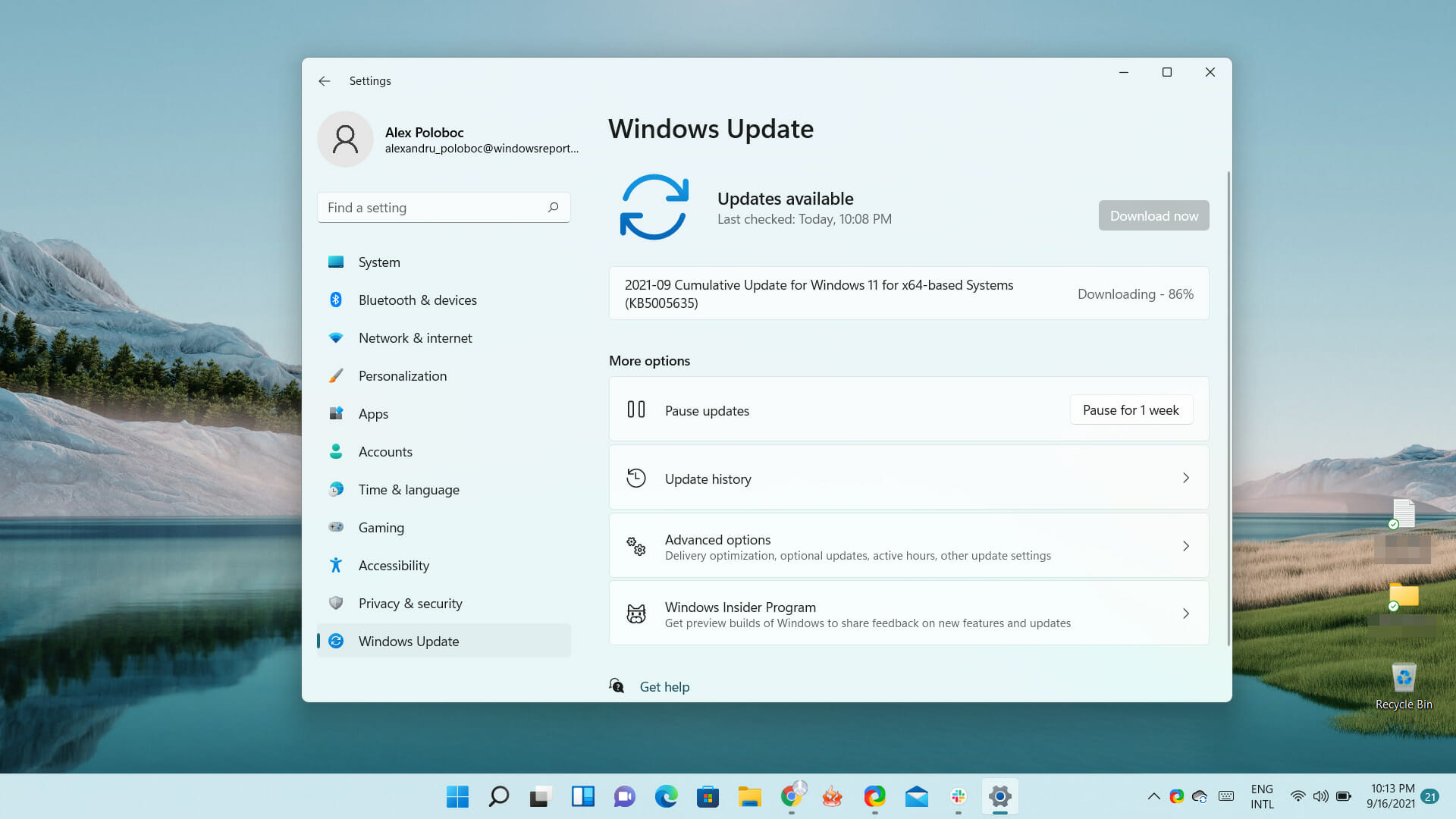


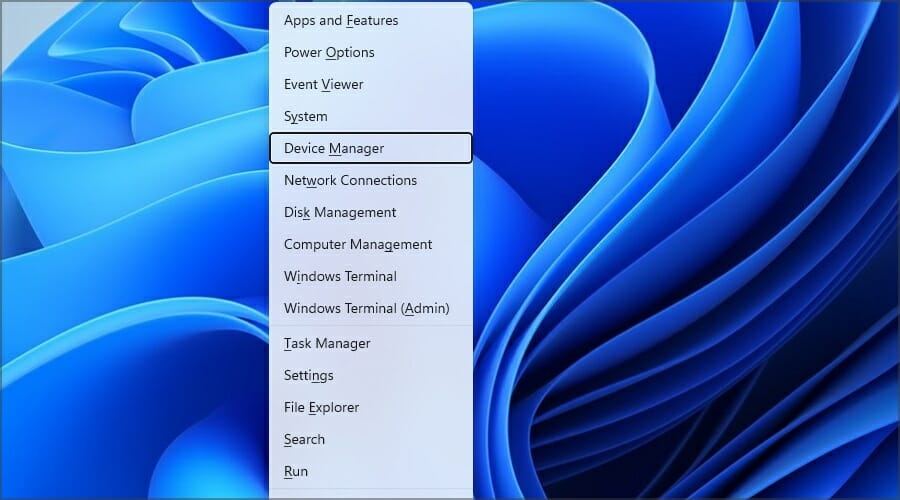


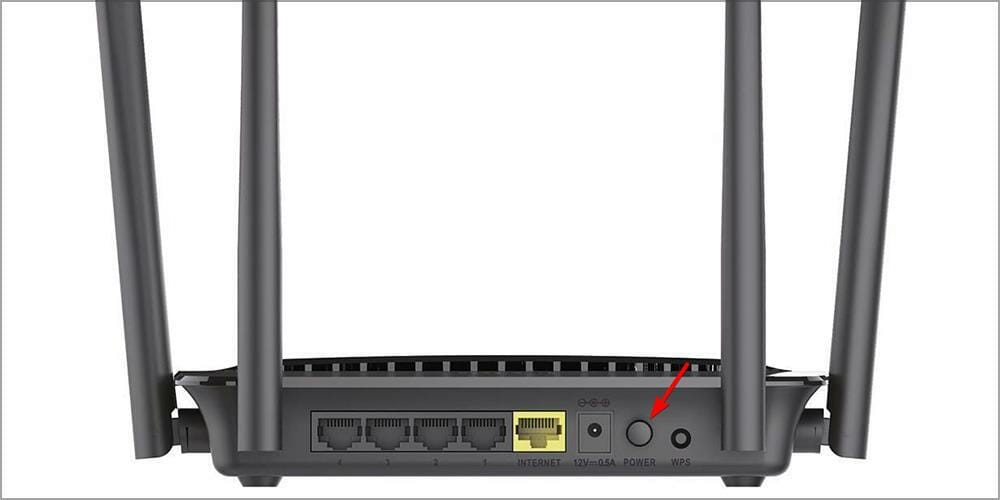



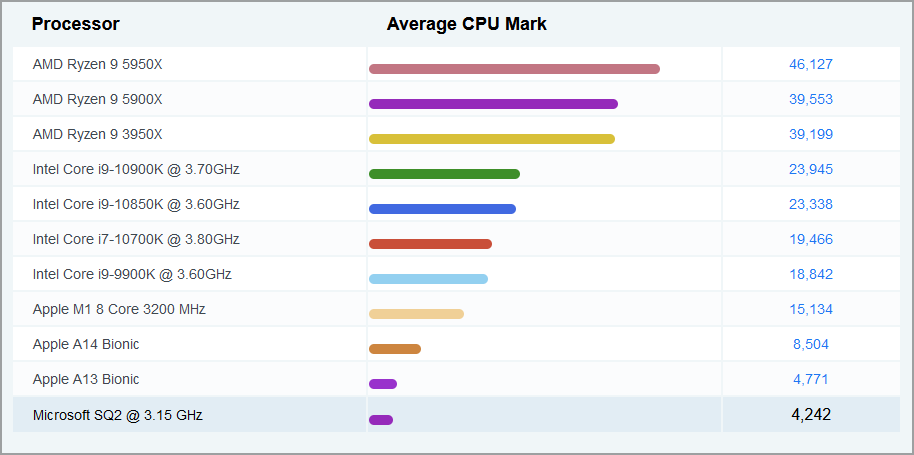



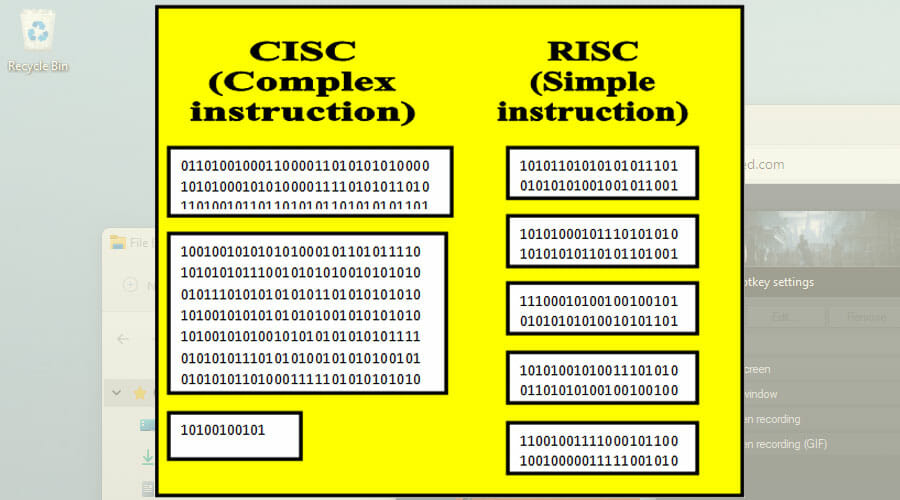
![Enable & Activate TPM 2.0 on VMware Workstation [How to]](https://windowsreport.com/wp-content/uploads/2021/09/How-to-enable-TPM-in-VMware-by-using-just-a-few-steps.jpg)


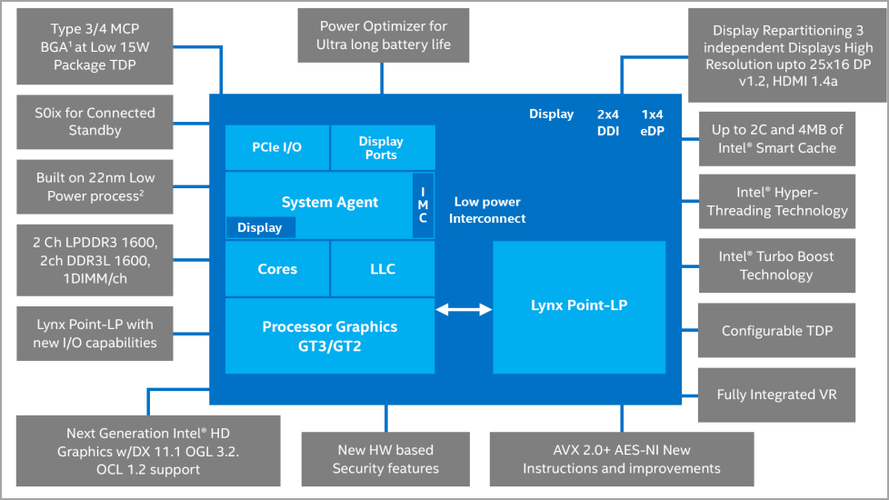


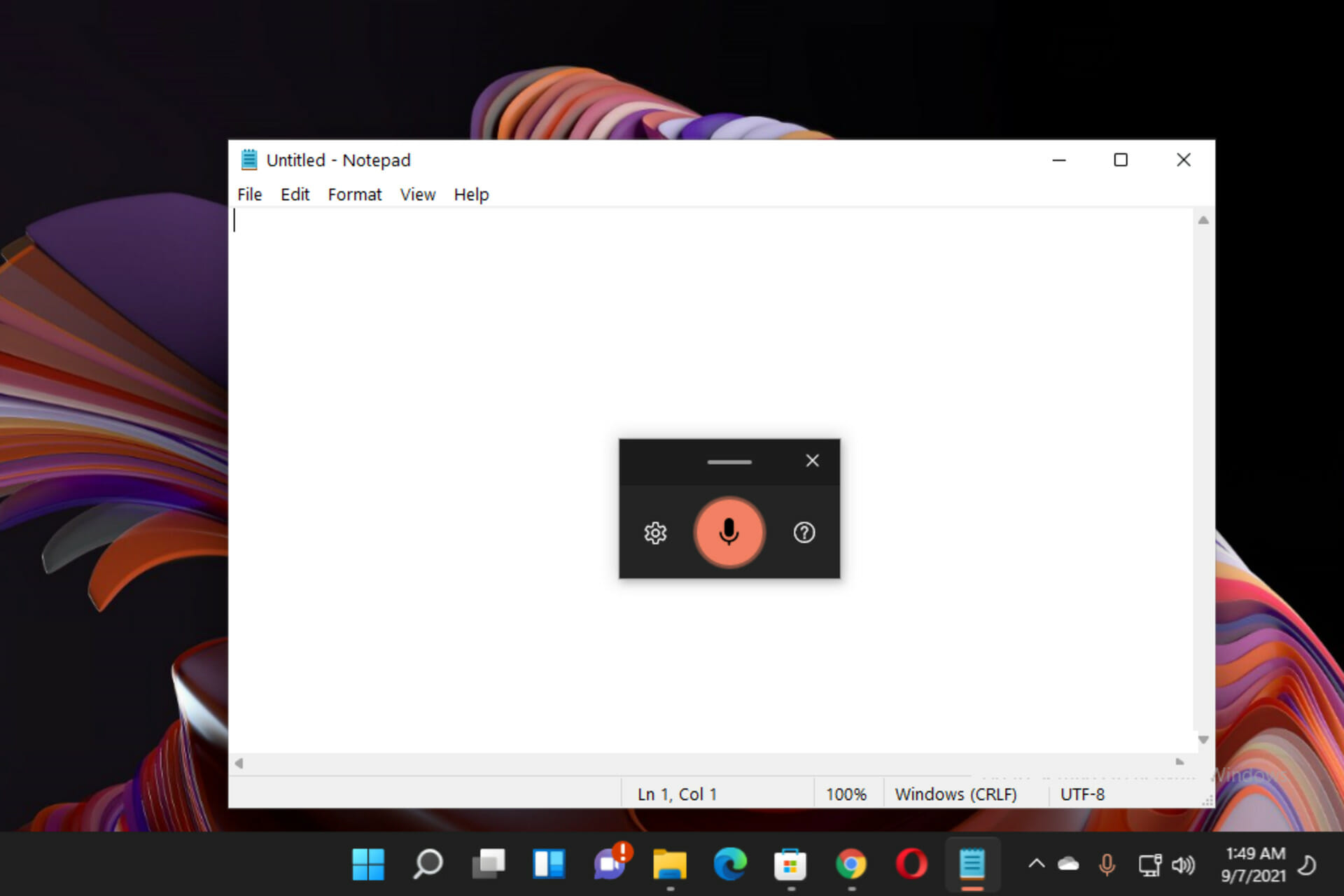


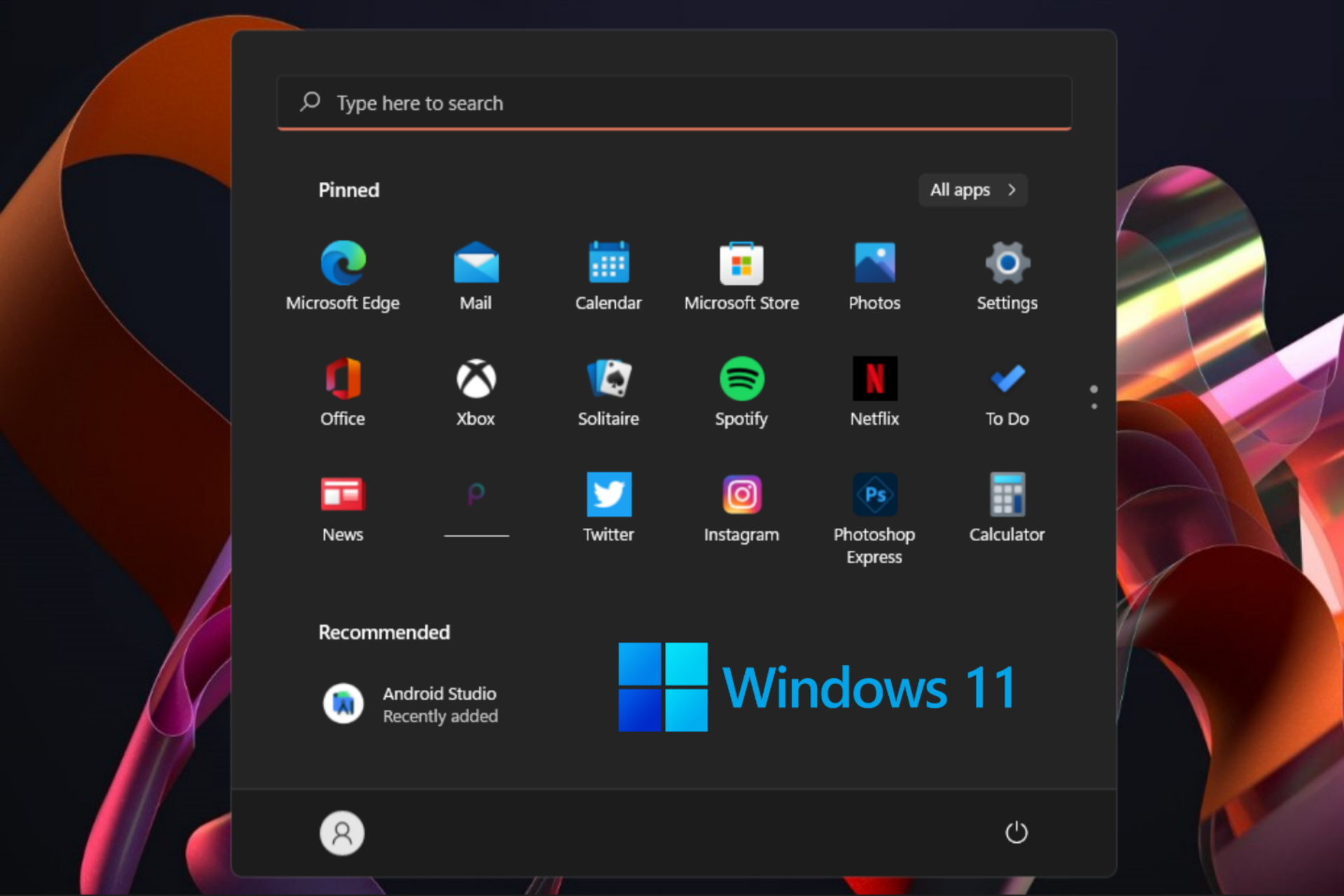
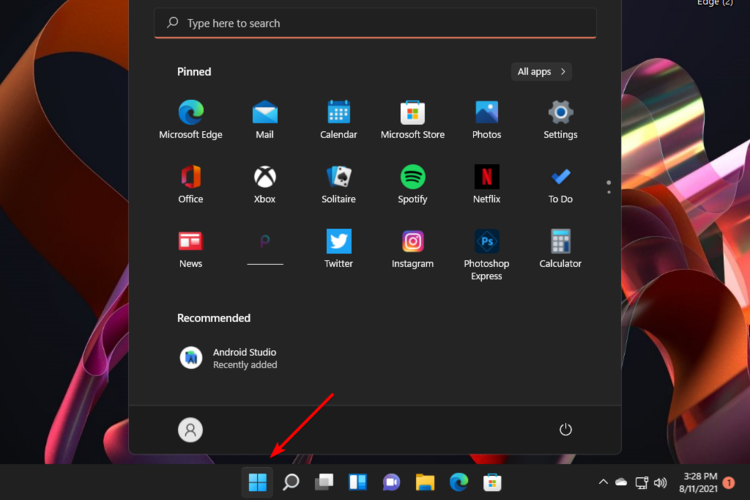


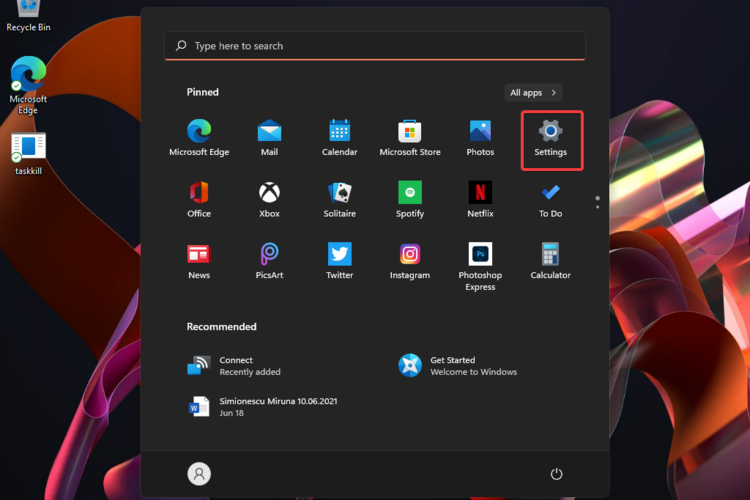





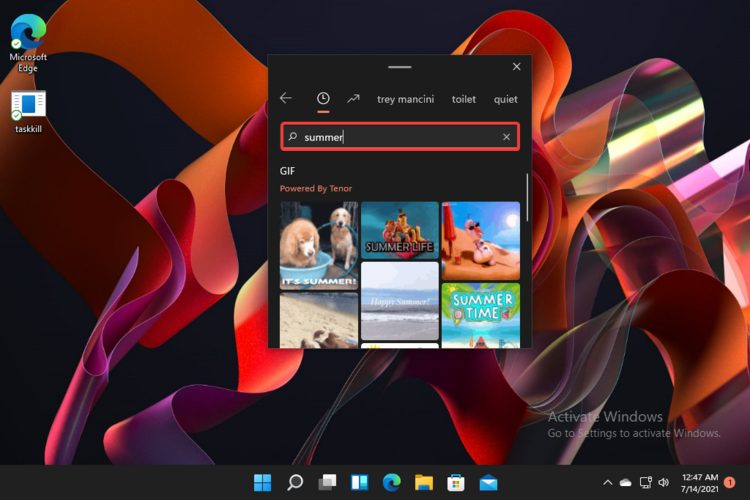


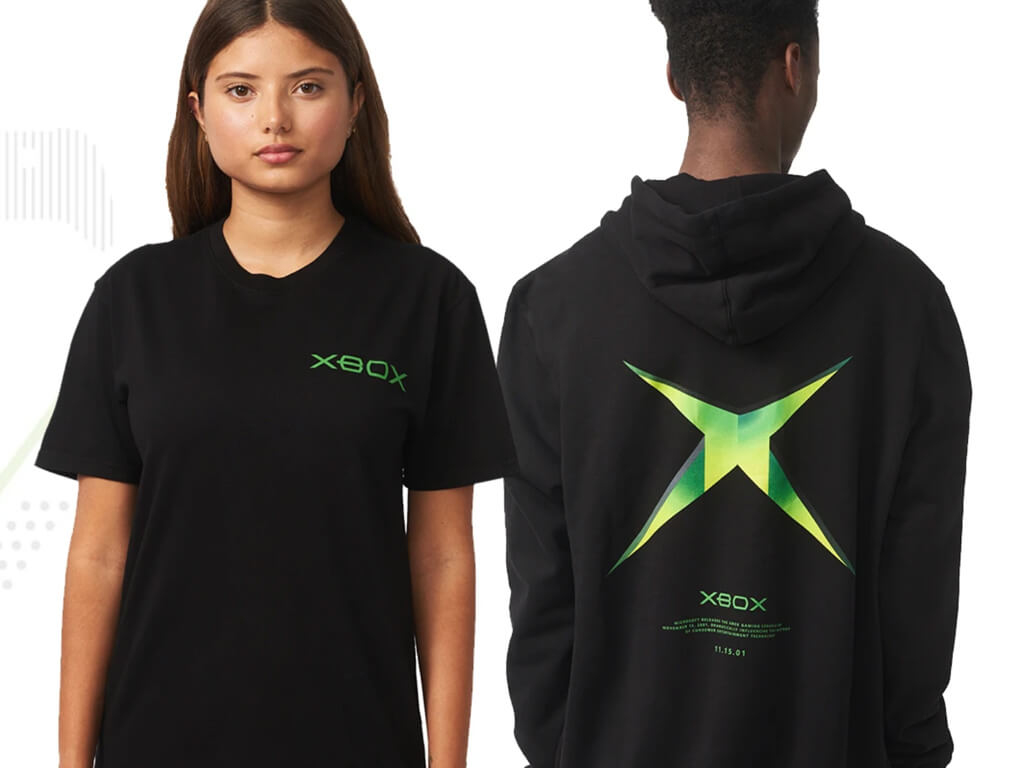



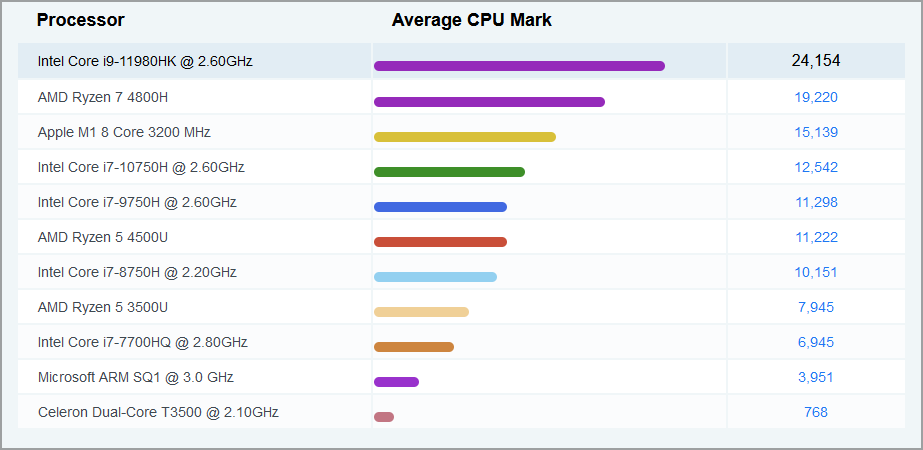
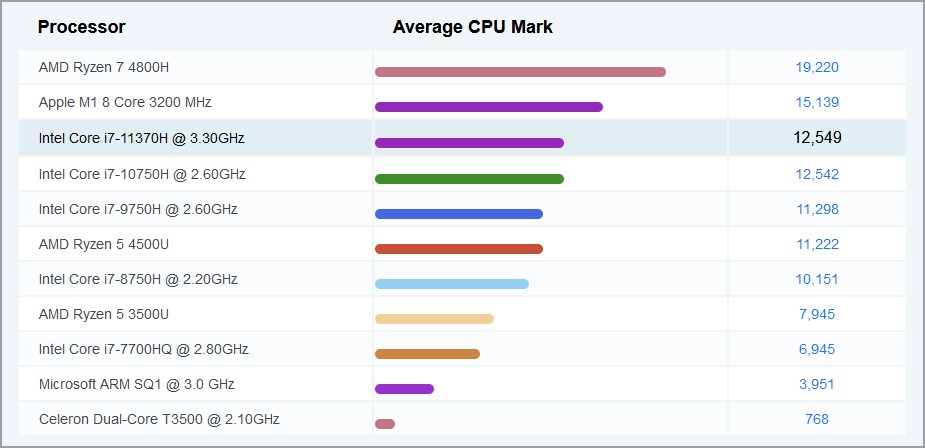
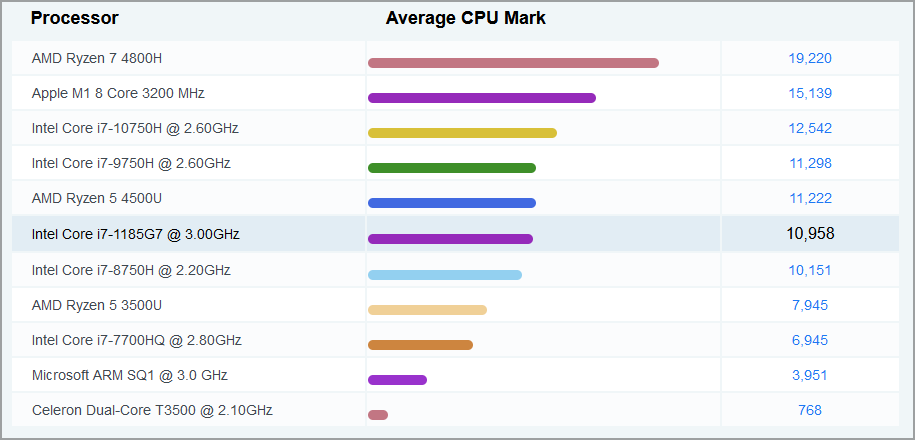









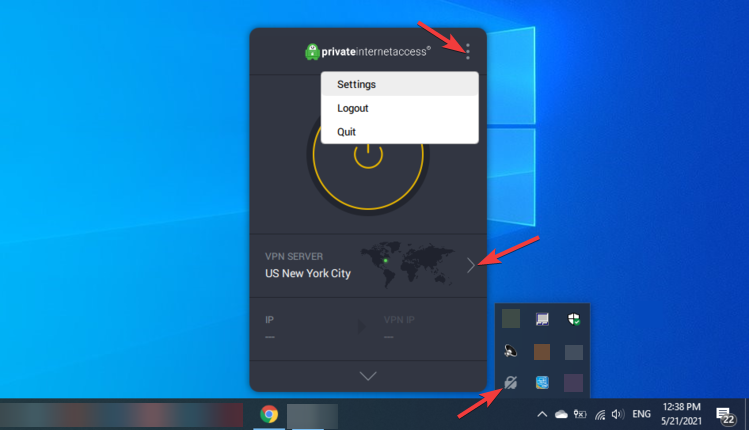
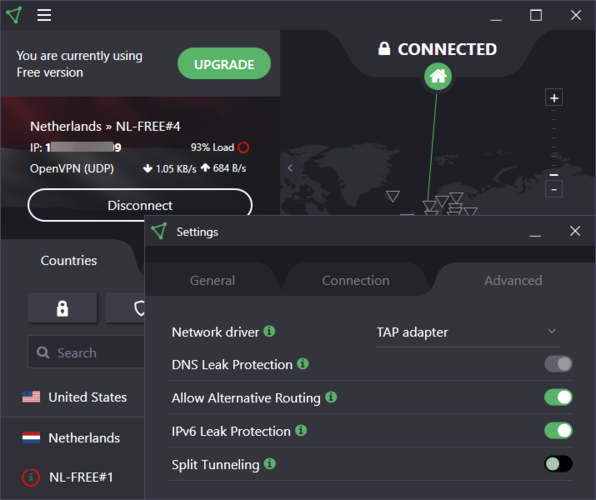
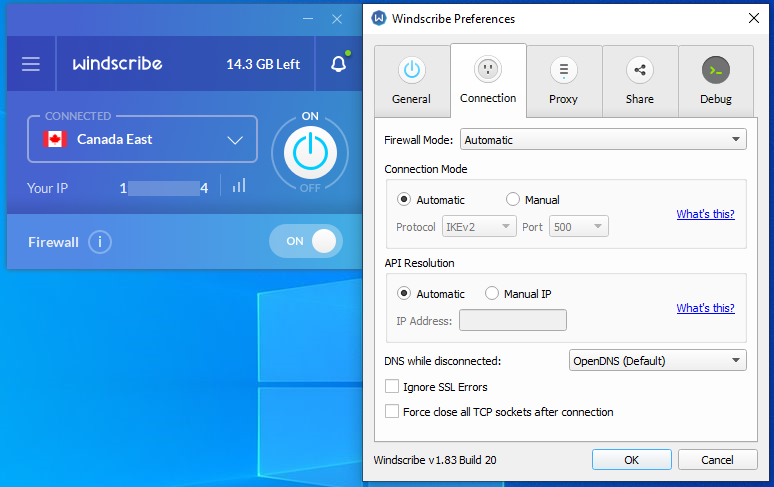
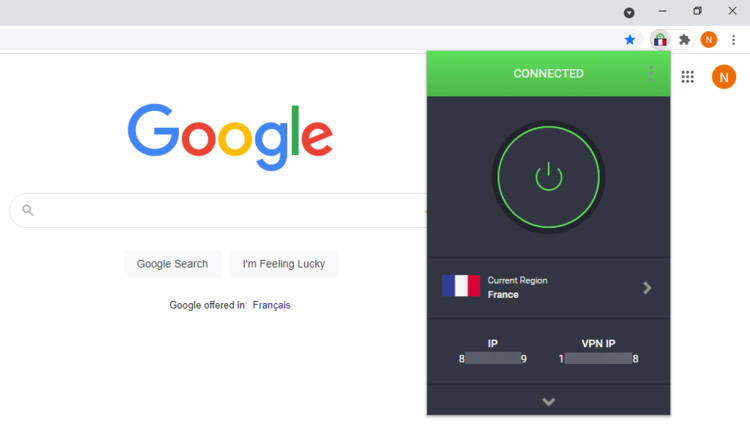
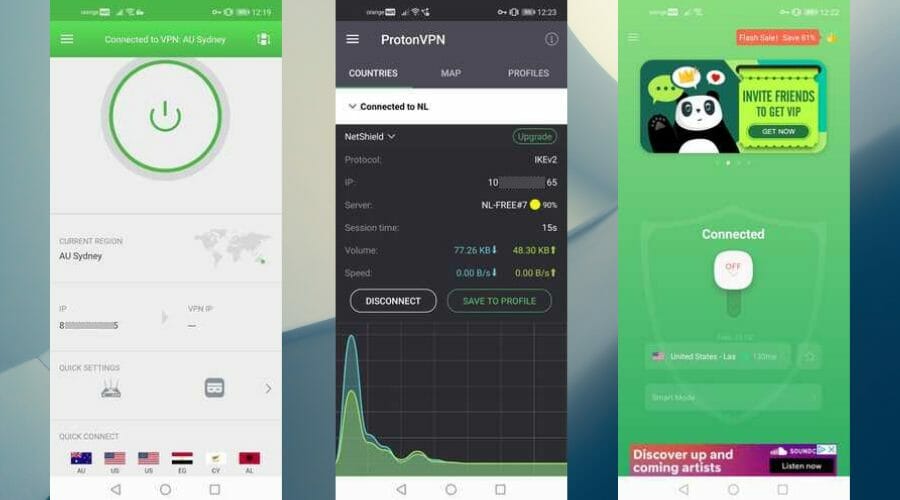
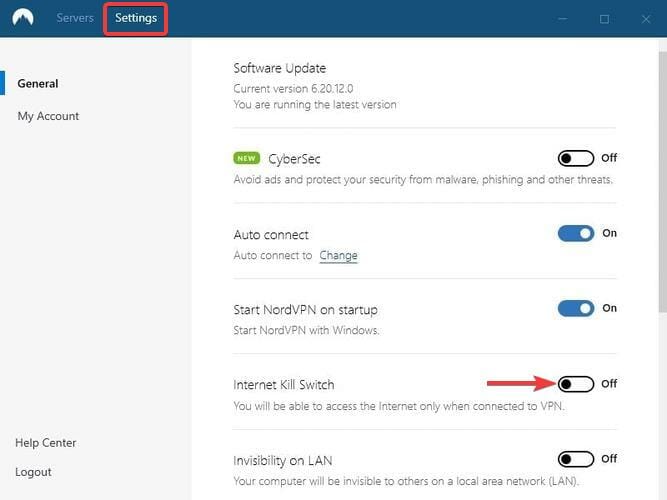



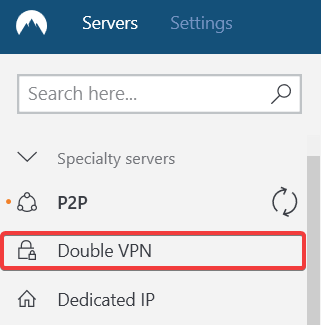
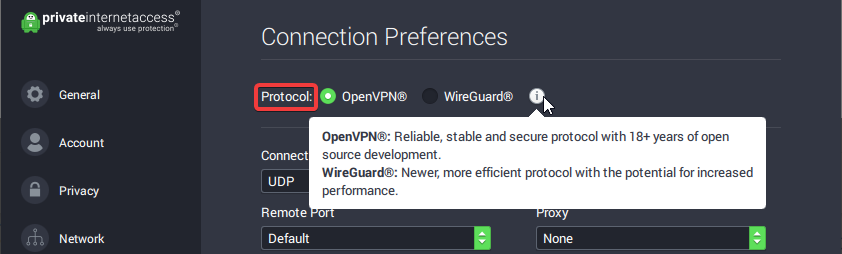
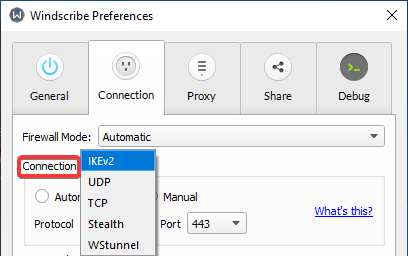
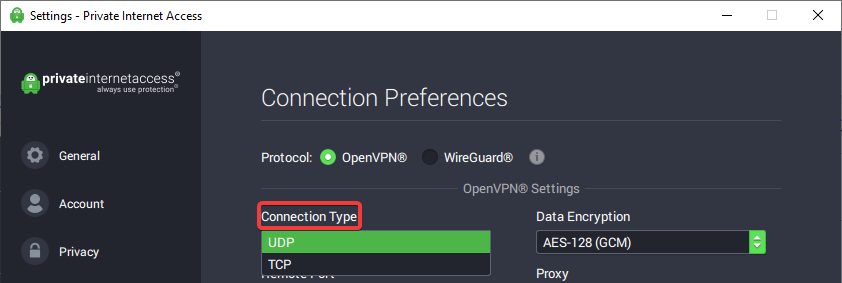

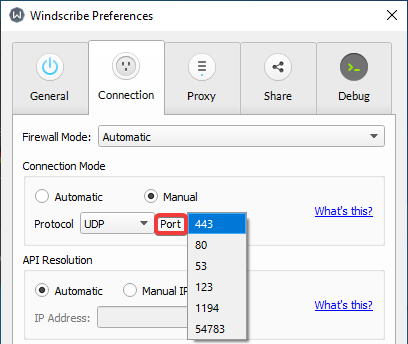
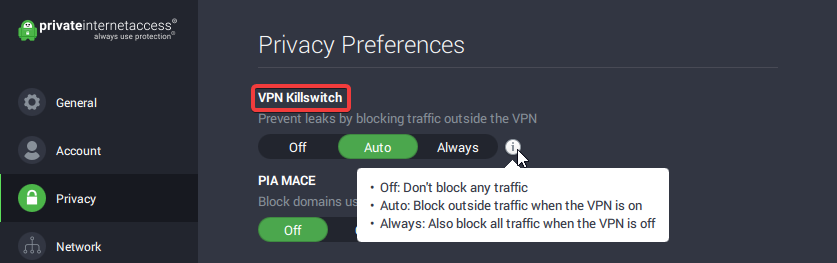
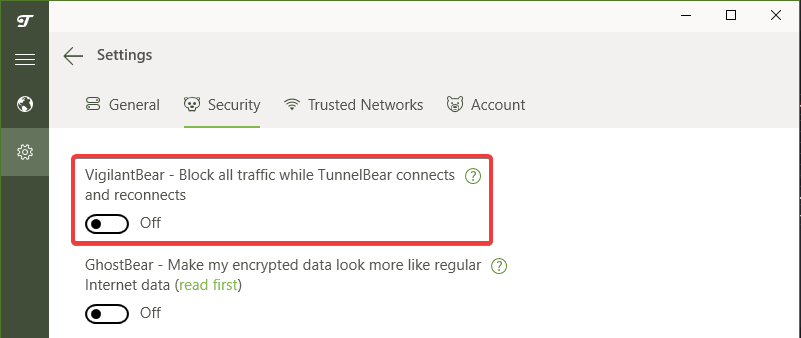
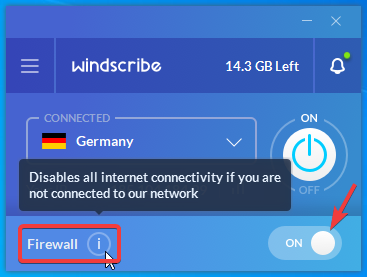

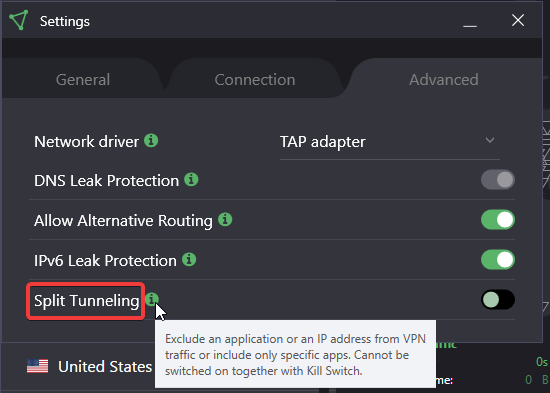
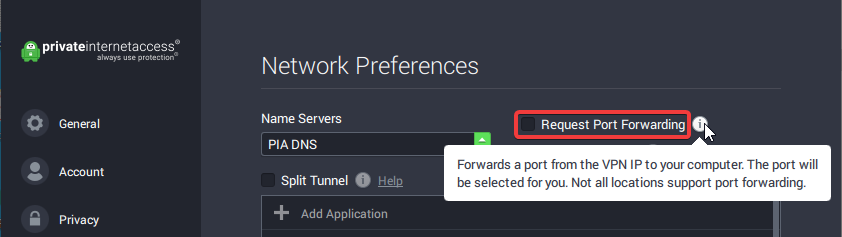

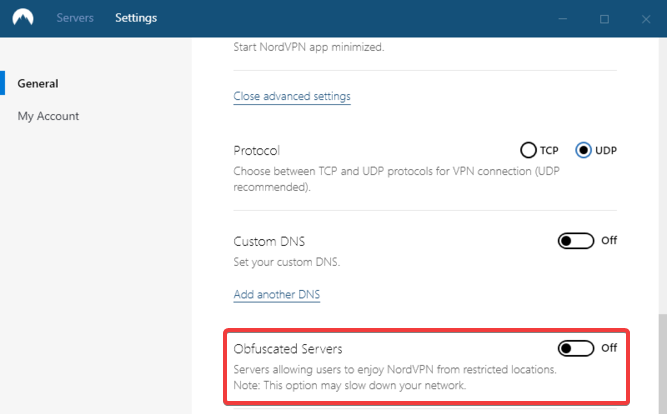
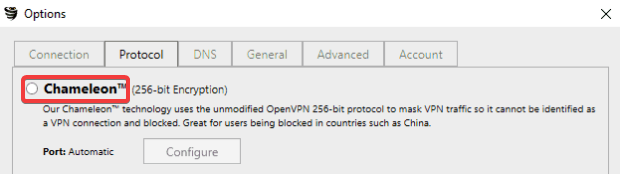

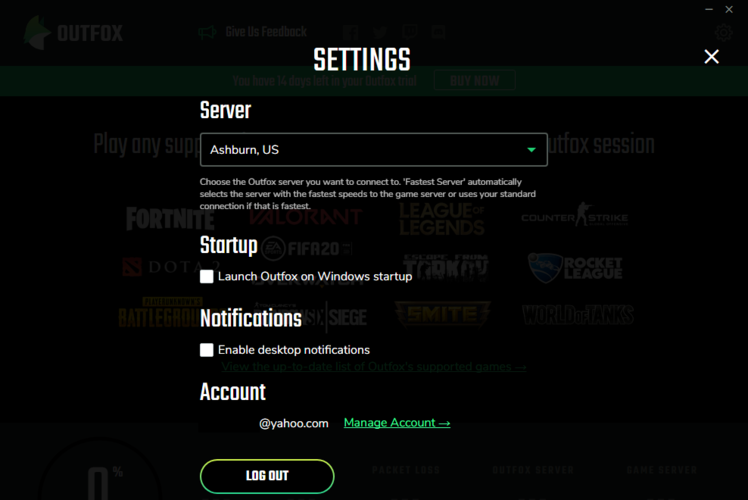
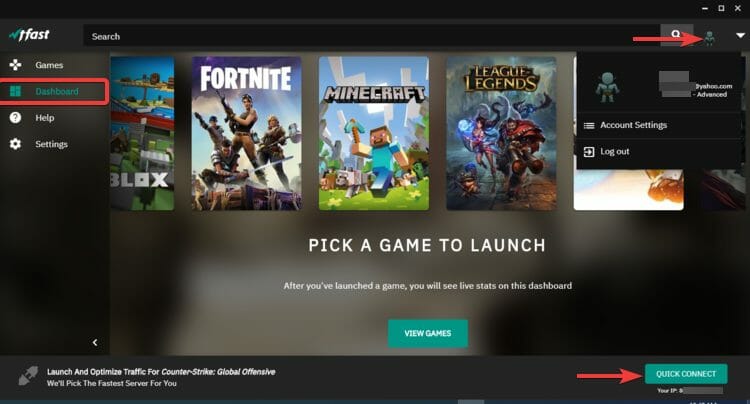

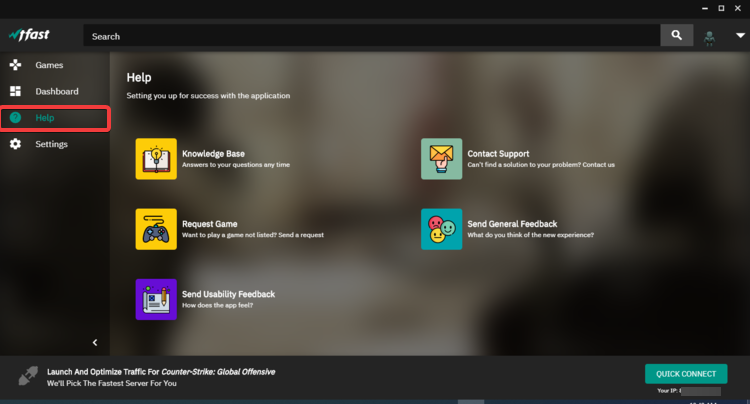


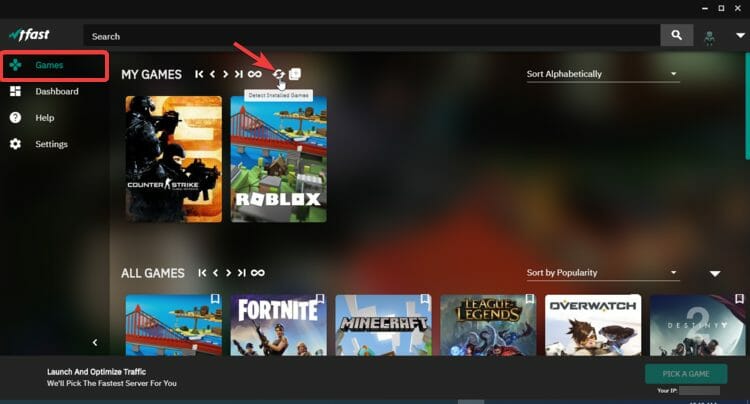
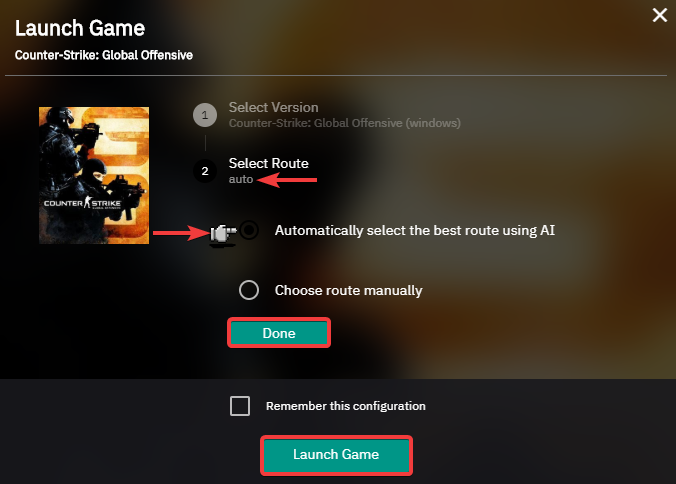

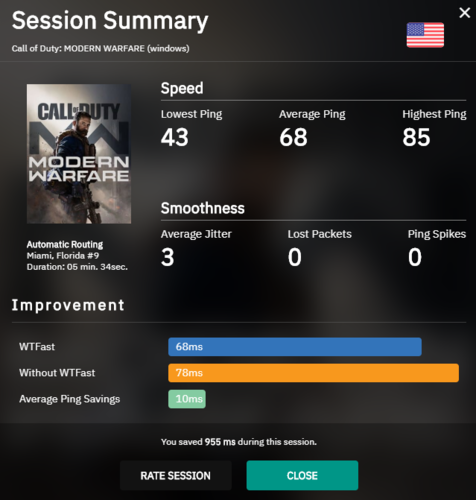



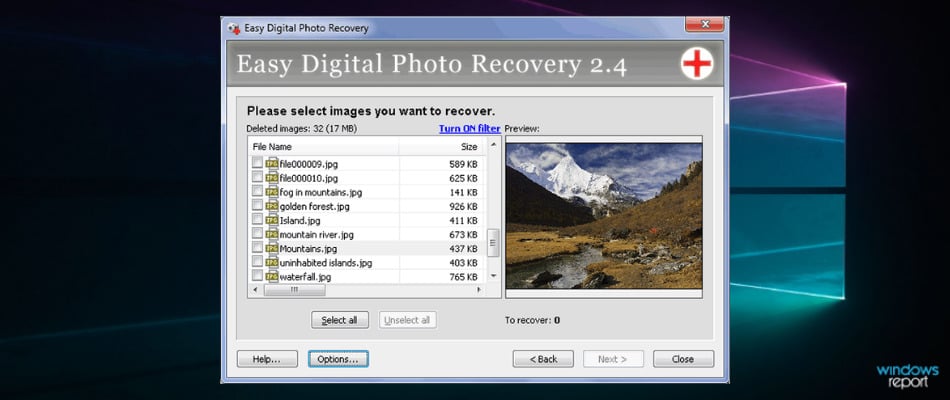

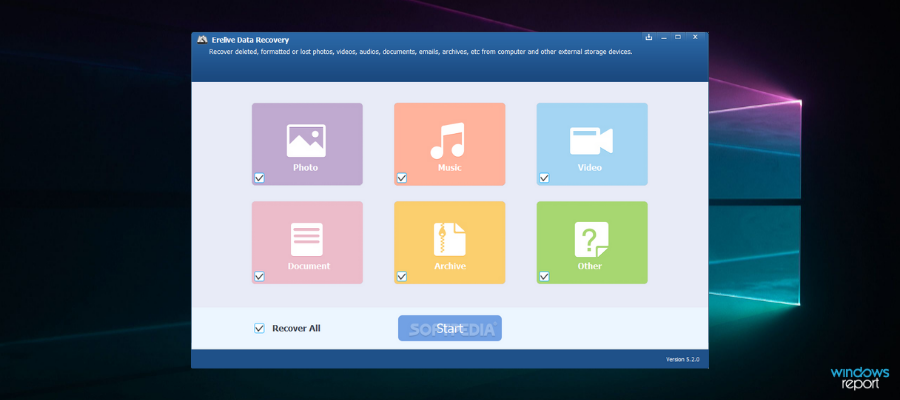


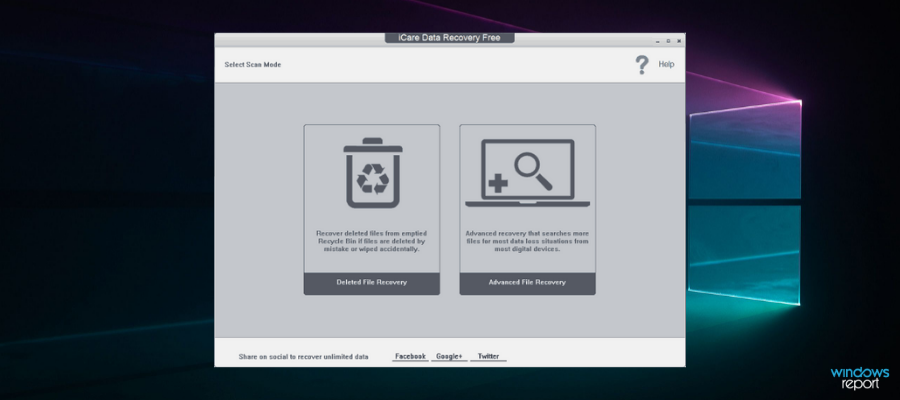
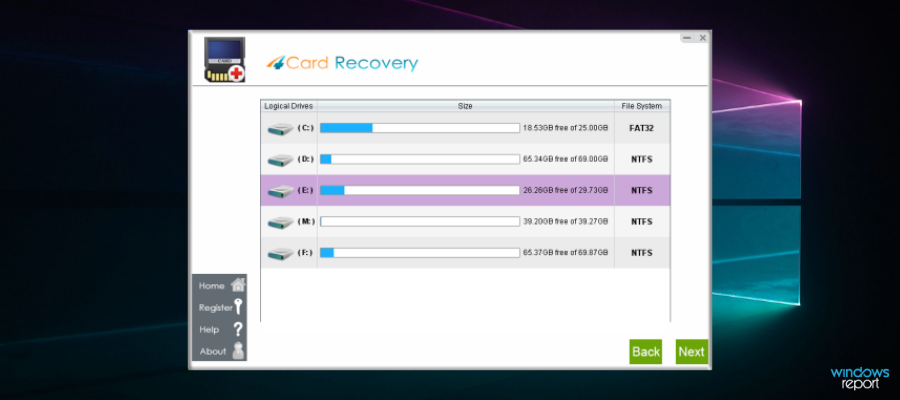




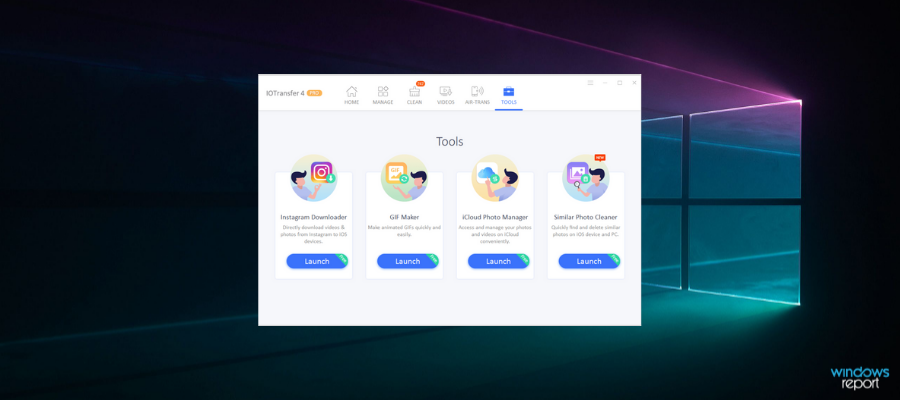
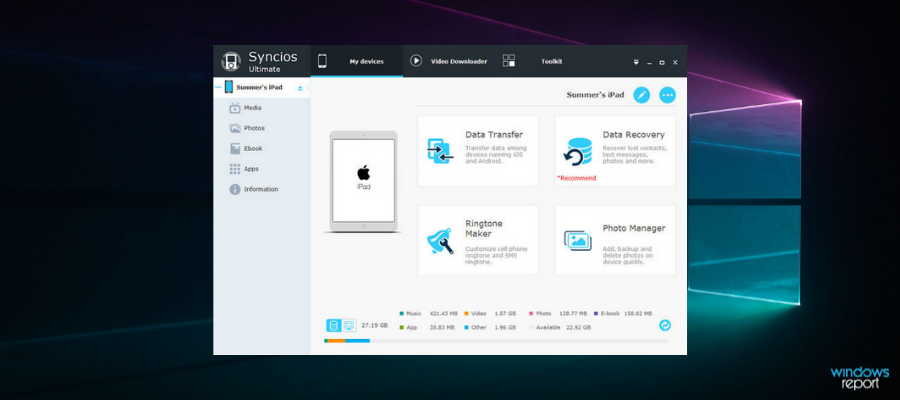

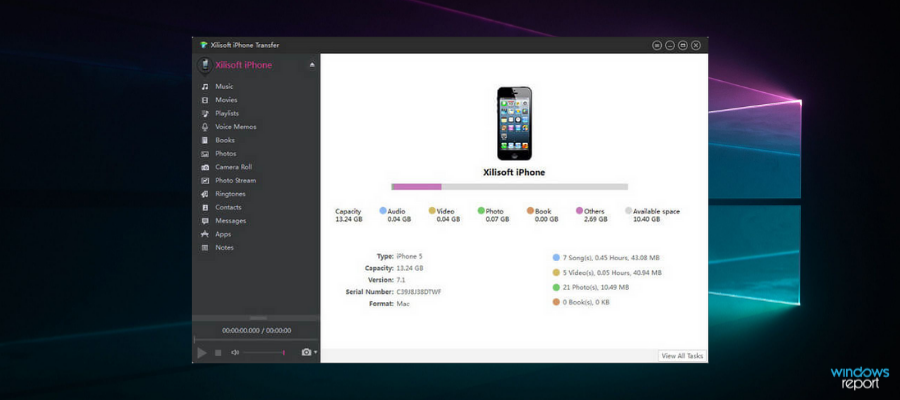

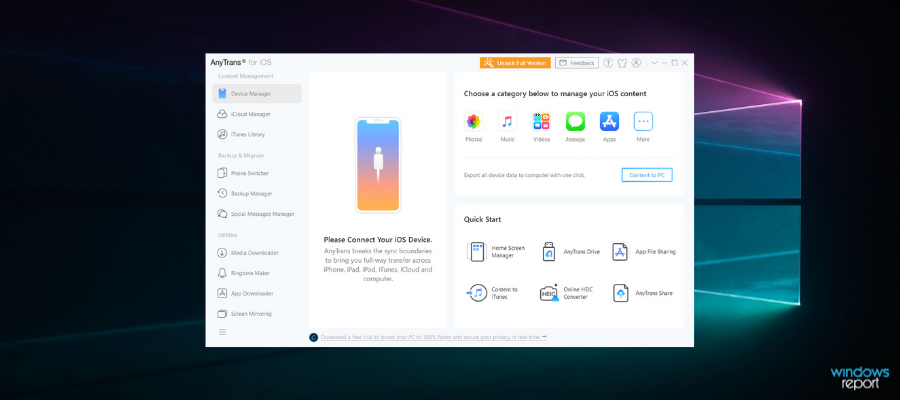
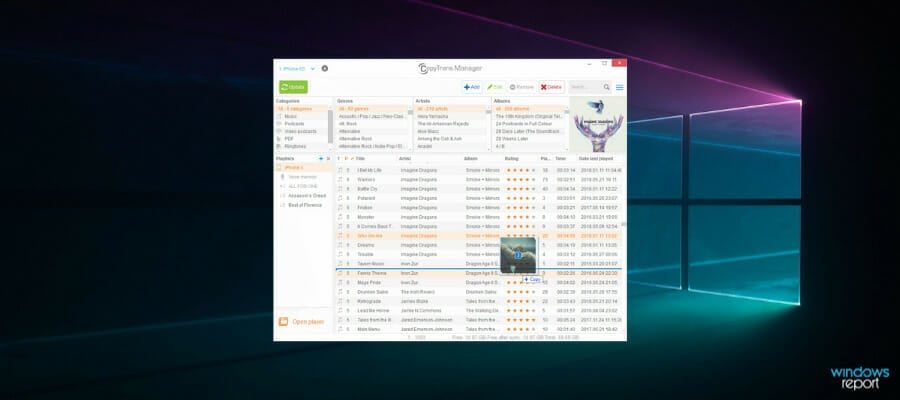

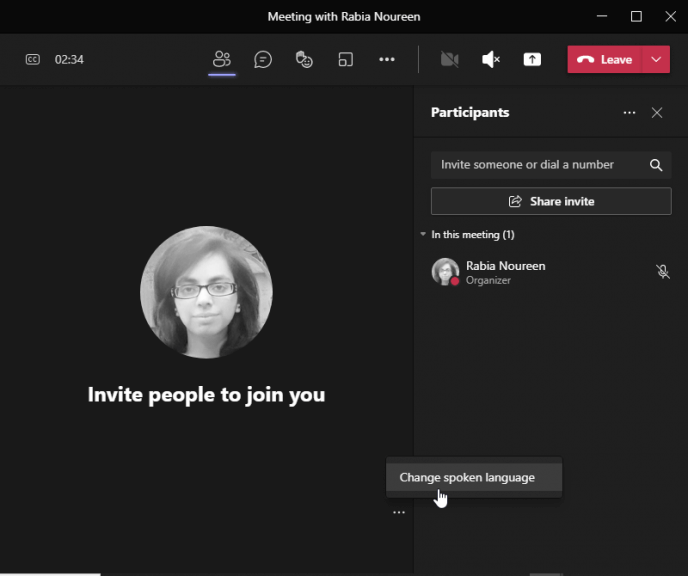
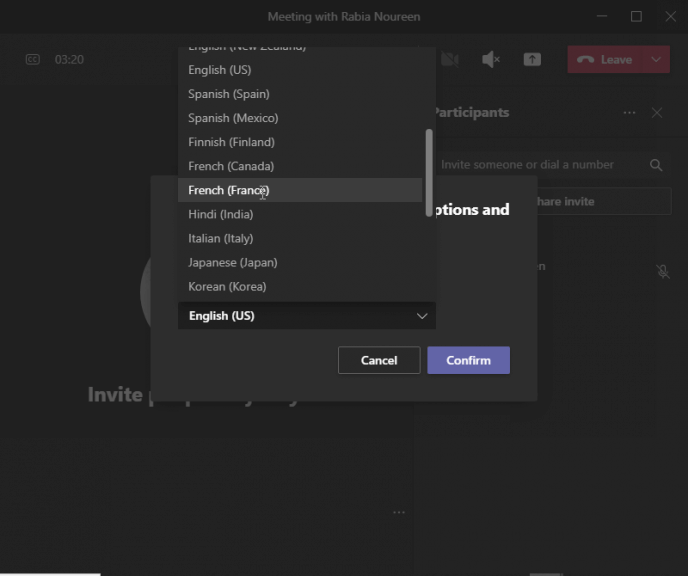
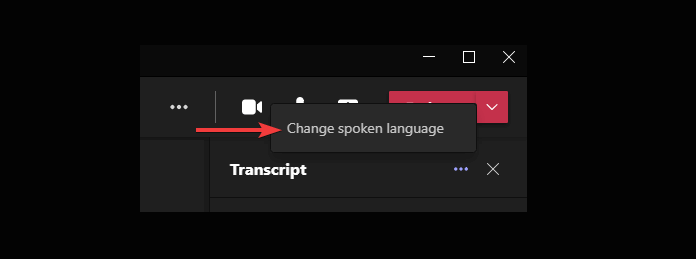
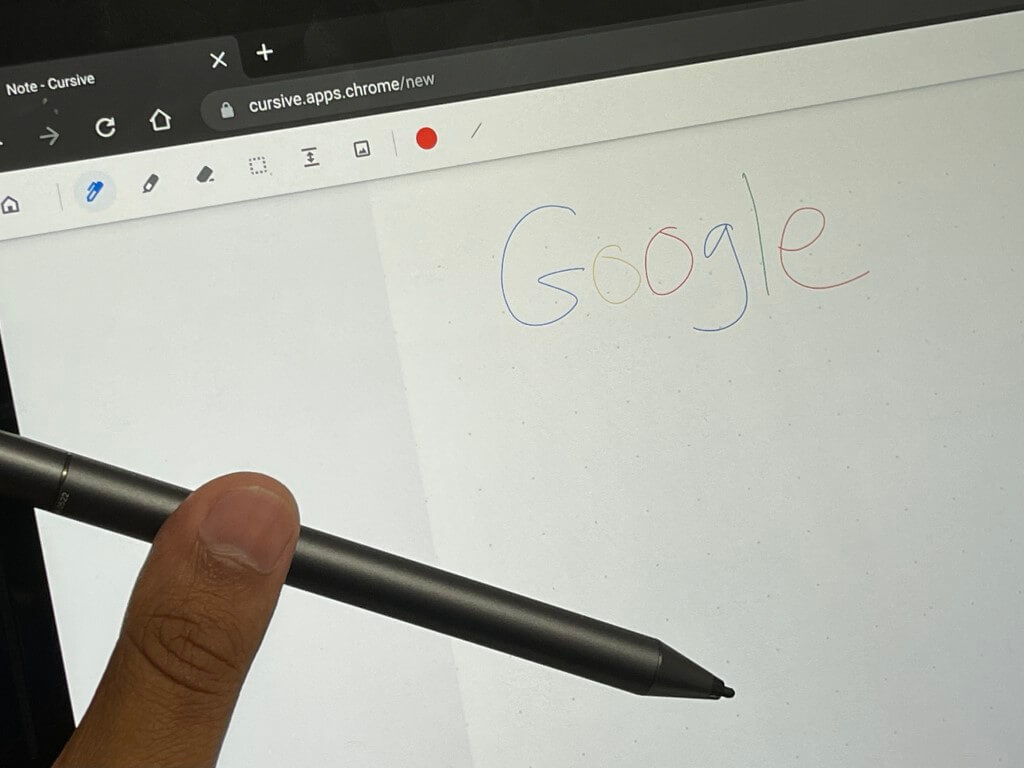
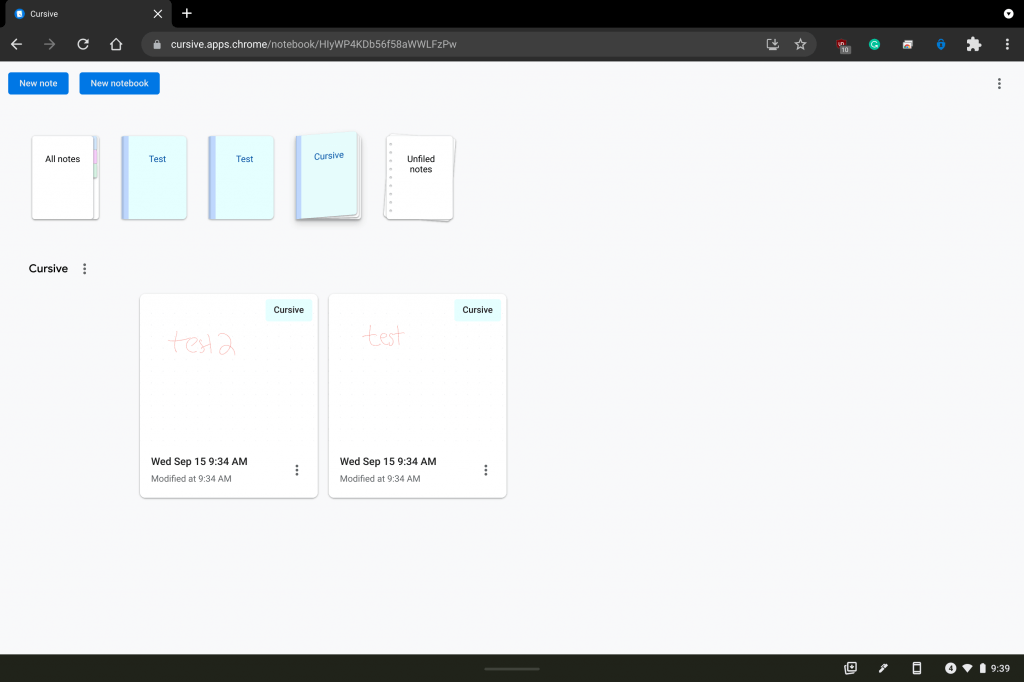

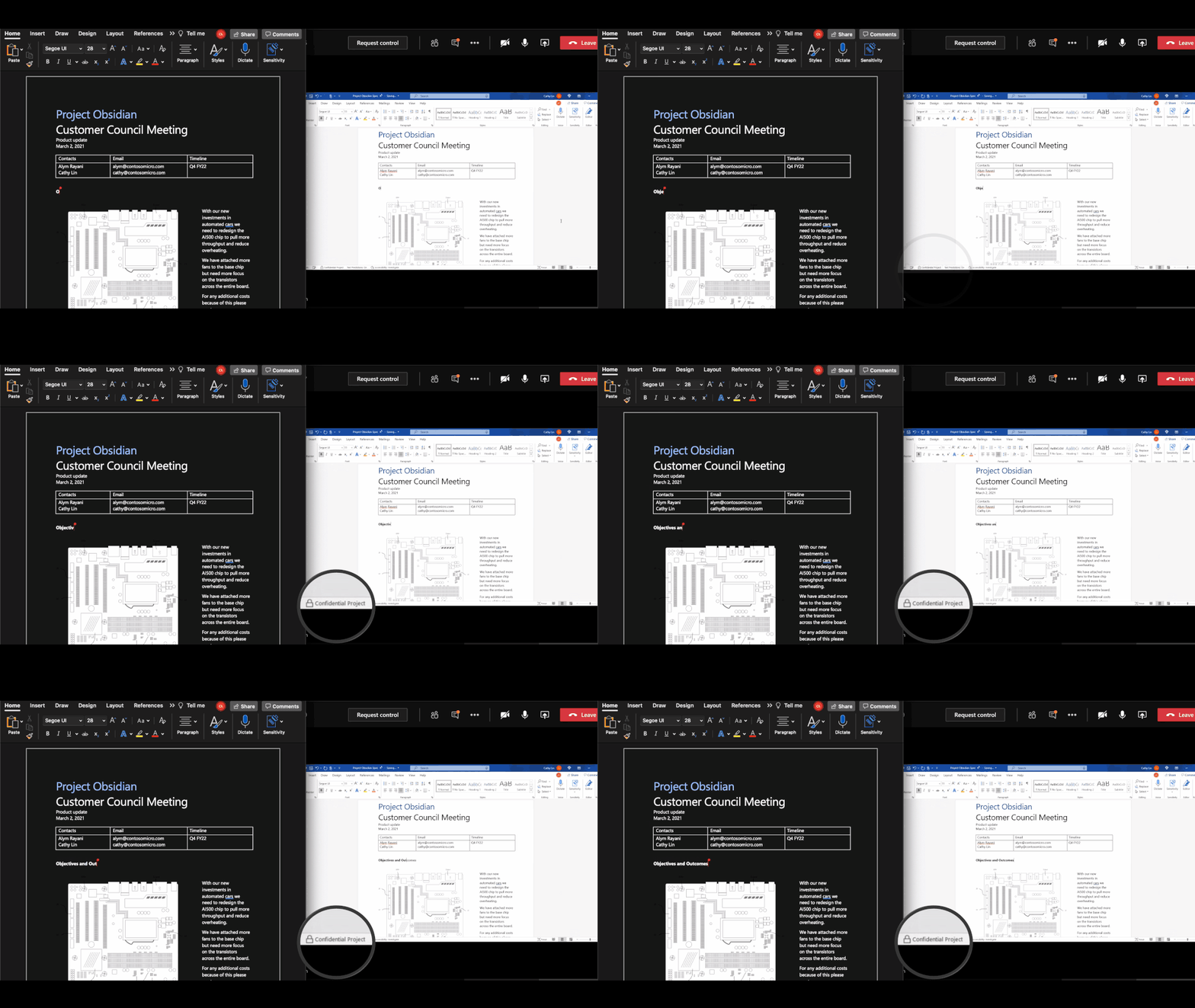







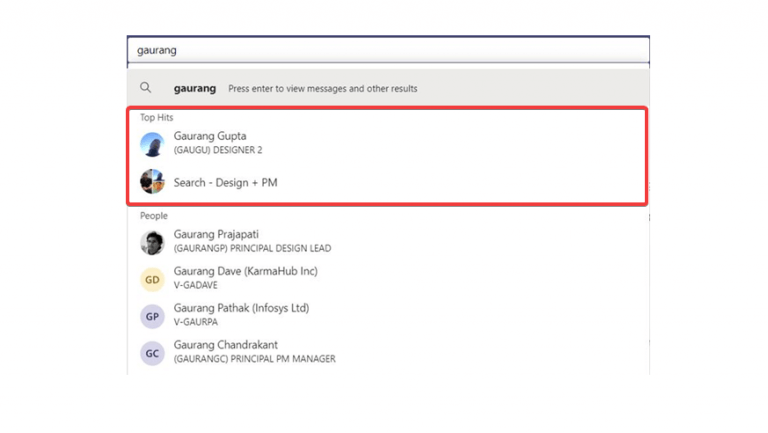
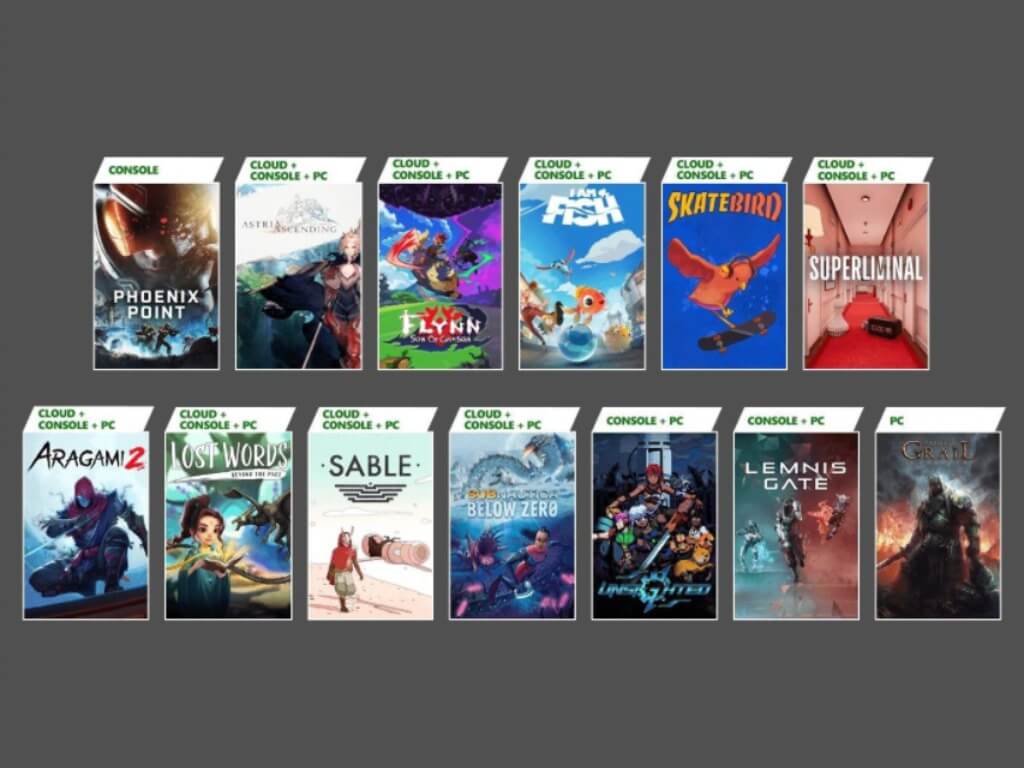
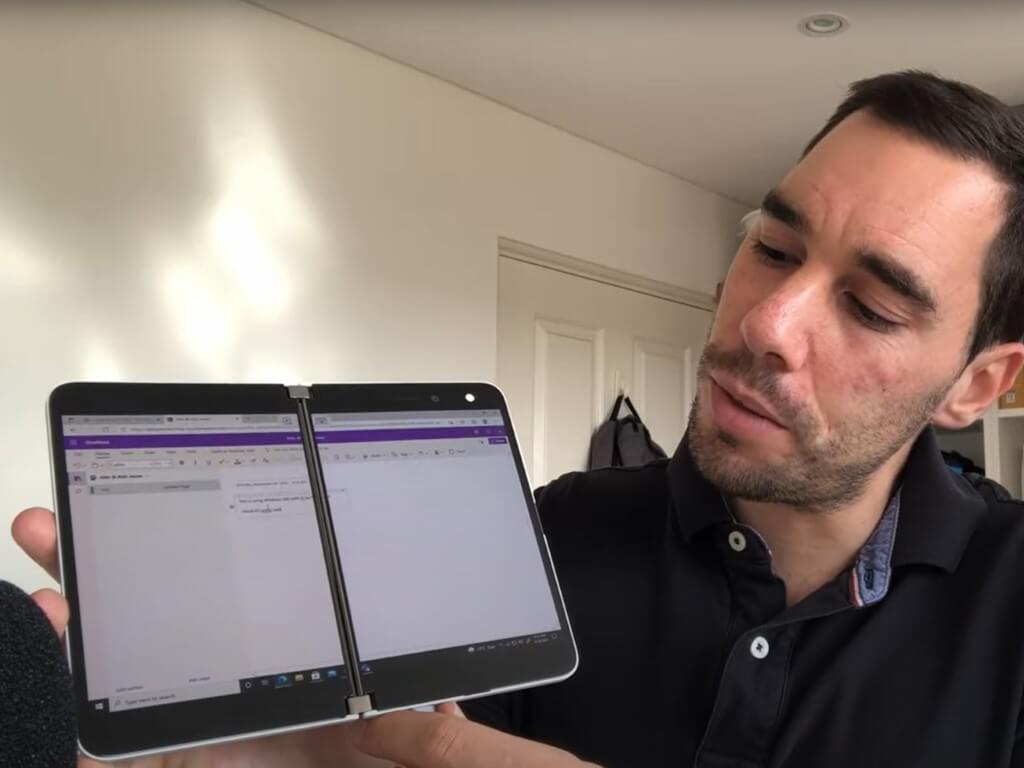
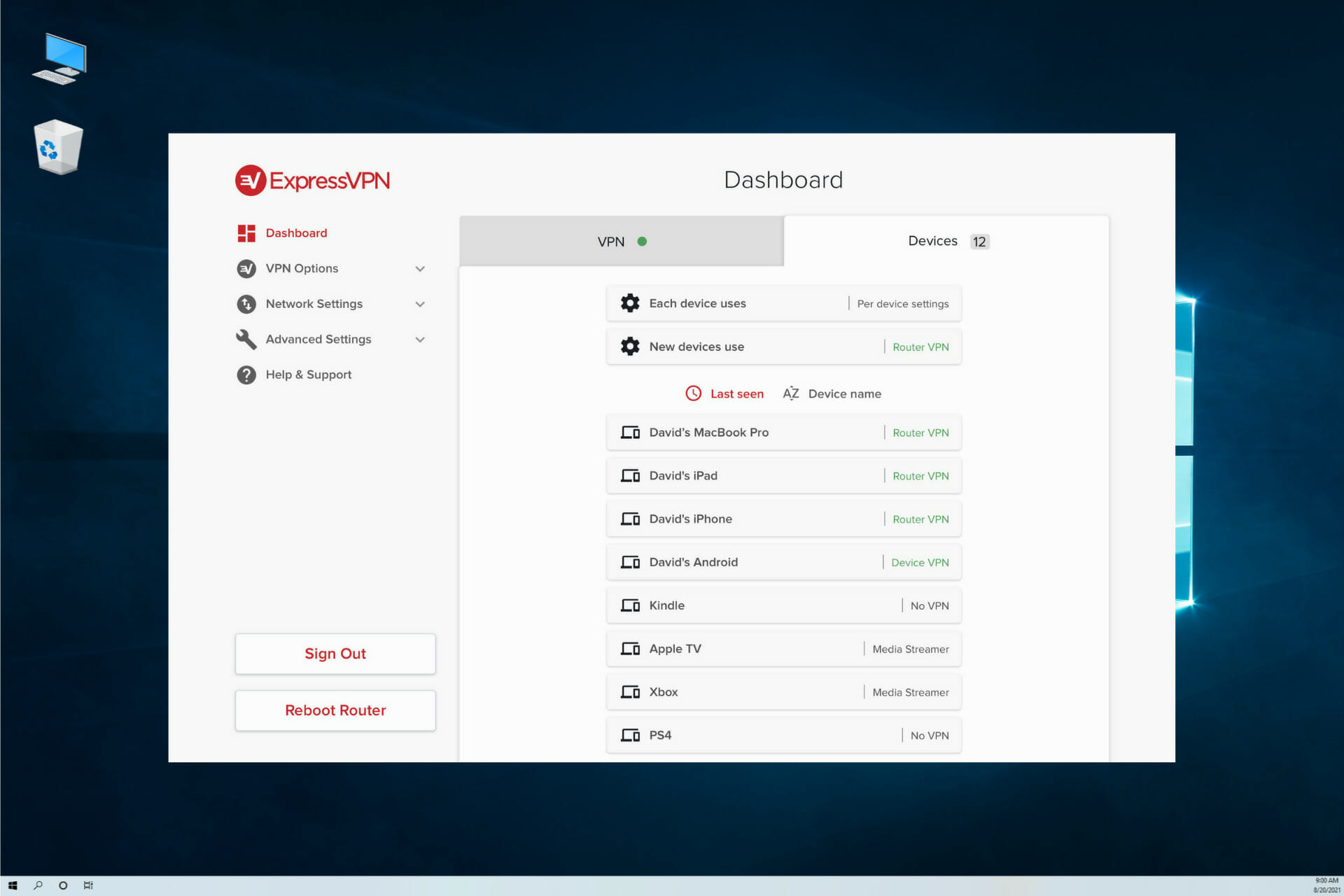













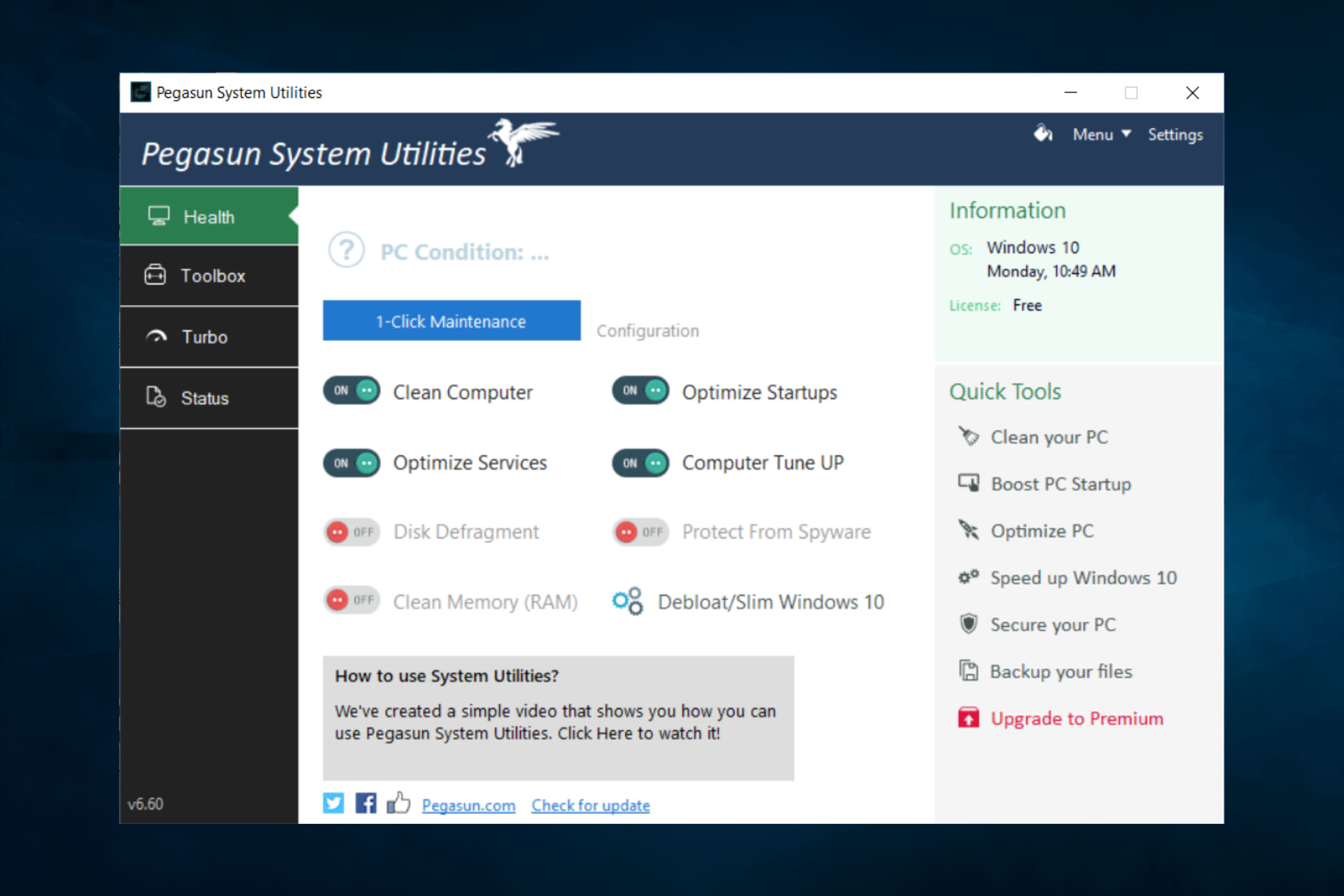












/cdn.vox-cdn.com/uploads/chorus_asset/file/22846262/firefoxdefaults.gif)