Also worth taking into consideration is that the PowerToys version 0.41.2 includes some stability bug fixes, accessibility improvements, and more.
Microsoft presents the new Awake tool for PowerToys
To be more exact, the Awake tool will give you the ability to prevent your Windows 10 devices from entering sleep mode.
It provides users with options to keep their PCs awake indefinitely, or a predefined amount of time, during which the OS will not be allowed to enter its low-power state.
The Redmond-based tech company says that this feature is a more than convenient way for us to keep our screens awake on demand.
And for those of you who are interested on browsing through the entire list of changes that version 0.41.2 of PowerToys brings to the table, we got you covered:
Shortcut guide removed support for long Win press to activate.
Turned off FancyZones canvas editor magnetic snapping to allow keyboard support
Updated Color Picker GIF for OOBE.
Removed outdated MSIX code
Upgraded all projects to Modern WPF 0.94
Dropped support for the module interface API to save settings
Removed Winstore dependency
General
Improved auto-update experience in PowerToys Settings
Updated general bug report information to be more robust
Improved settings layout for radio button groups. Updated images and menu for OOBE.
Localization updates
Awake
New Awake utility added! Power-Users can now keep their computer awake on-demand without having to manage its power settings.
Color Picker
Improvements to Color Picker’s zoom functionality.
Prevent duplicate colors from appearing in selection history
Improved UX to better support keyboard navigation.
Fixed OOBE hotkey description.
FancyZones
Full keyboard support for canvas editor’s main window and context.
New support for faster layout selection by double clicking a desired layout from the editor to automatically apply it and dismiss the editor.
New zone activation behavior allows users to snap a window to the zone who’s center is closest to the cursor.
Added process icon for FancyZones.
Fixed issue with zoning minimized windows.
Fixed a bunch of accessibility bugs
Now an independent exe, detached from the runner process.
File Explorer Add-Ons
Adjusted Markdown newline behavior to be less strict so the add-on behaves more like GitHub implementations Image Resizer
Fixed bug with custom size option where leaving a height/width value blank caused the output to be a 1 x 1 square pixel. Now the blank value automatically adjusts to the height/width that was set.
Image Resizer
Fixed bug where specifying a width but no height generated a 1×1 px image instead of auto-adjusting the height.
PowerRename
Fixed File Explorer crash when running PowerRename
Settings / Welcome to PowerToys
Fixed Color Picker’s key-binding information
Shortcut Guide
Customize key-binding from settings menu
Took Shortcut guide out of the runner process to remove unnecessary interdependencies
Installer
Updated .NET Core dependency to 3.1.15
Reduced the network traffic by making the updater not download files when they’re already cached
New maintenance update, a few hours after patch release
Interestingly enough, only a couple of hours after the release, the PowerToys team has offered users another maintenance update, which would address a serious problem.
The issue was that PowerToys kept being incorrectly flagged as a malicious program by Bitdefender antivirus software.
Thus, Microsoft advised users to install version 0.41.3 in order to resolve this problem.
Have you also updated your PowerToys? Let us know if you encountered any issues, in the comments section below.
If you weren’t aware, know that Google has just announced a major change for developers that want to list their apps on the Google Play Store, a change that could have a great impact on the Android app ecosystem.
For the moment, the default format for app publishing is APK, but according to Google, starting with August, the new system will require developers to post apps as Android App Bundle.
Developers will have to say goodbye to APKs
As you probably know, running Android apps via the Amazon App store is considered to be one of the biggest features of Windows 11. However, Google has decided to complicate things a bit.
Even though not many users are happy with Microsoft’s decision to sideload apps through another Store, that isn’t Microsoft’s own, or the Google Play Store, the situation got even more convoluted than before.
Even considering that this change only applies to new apps listed on the Google Play Store starting August 2021, this decision casts a shadow over Microsoft’s Android aspirations for the new OS.
So, as we mentioned above, the new Android App Bundle format will therefore replace APK as the standard publishing format. Note that over one million apps are already using the Android App Bundle format.
Is Google trying to somehow sabotage Microsoft’s plans?
Nobody is saying that this shift that Google has announced is directly aimed at Microsoft’s plans to bring Android apps to their new operating system, but some are definitely considering it.
This is mainly because Google’s announcement comes just days after Microsoft unveiled Windows 11 and its ability to let you sideload Android apps as APKs.
Google’s controversial switch to App Bundles could mean that there will be even fewer apps available to run on Windows 11, although you’ll also be able to get Android apps on Windows 11 from the Amazon Appstore.
Its still early, and Microsoft plans to release the new OS somewhere towards the end of the year. This gives the company plenty of time to rethink its strategy and come up with a solution.
All we can do now is wait and hope that the tech giant will indeed find some middle ground with Google and actually deliver the possibility to use Android apps natively on Windows 11.
What is your opinion on this whole situation? Share your thoughts with us in the comments section below.
Today’s digitalized world makes everything more accessible. Socializing, working on projects, or simply doing your own thing has never been easier.
Thanks to mobile devices, we have all the information and necessary tools at the tip of our fingers, always sitting in our pockets ready to help us.
Obviously, mobile devices are great, and we can use them to store precious or sensitive data that is important to us in a way or another.
However, let’s say that you just bought a brand new mobile device. What happens to the data from the previous phone, especially when you still need it?
This is where Wondershare MobileTrans comes into play. This desktop application helped over 50.000.00 users worldwide transfer their data from one phone to another.
Wondershare was founded in 2003 and is now a global leader in software development and a pioneer in the digital creative field.
They provide simple and convenient solutions thanks to powerful technology. As a result, Wondershare is trusted by millions of users in over 150 countries around the world.
The company believes that together, we can build a creative world, pursue our passions and dreams, and strive for a better digital environment.
With MobileTrans, you can transfer all of your data (including pictures, cookies, etc) from WhatsApp and lots of other social media apps. More so, you can also restore it from cloud backups.
The process is pretty simple and straightforward. Move everything with one click! The days of manually copying files between devices are gone! Save your precious time and be more productive.
What is Wondershare MobileTrans?
As briefly mentioned before, this is desktop software that transfers data between different types of phones, such as iPhone and Android, for example.
There is a broad variety of compatible files that can be transferred, from contacts to photos, videos, messages, songs, other software, and much more.
Besides the compatibility with iOS and Android, the program is also compatible with Windows mobile devices as well. In fact, it supports more than 8000 mobile devices running those platforms.
Additionally, the whole software is made for non-tech savvy users who don’t have previous background knowledge. The user interface is intuitive and comprehensive.
NOTE
Supported Mobile Phone systems: iOS 5 and up (iOS 14 included) Android 2.1 and up (Android 10 included) Windows Phone 8/8.1 Supported Computer Systems: Windows 10/8.1/8/7/Vista/XP Mac 11(macOS Big Sur), 10.15 (macOS Catalina), 10.14 (macOS Mojave), Mac OS X 10.13 (High Sierra), 10.12(macOS Sierra), 10.11(El Capitan), 10.10 (Yosemite), 10.9 (Mavericks), or 10.8
Let’s talk about features
Wondershare MobileTransfer’s features can be crammed up into four categories. Phone transfer, WhatsApp transfer, Backup, and Restore.
Phone transfer
Transfer up to 17 types of data between different ecosystems, including files that normally cannot be shared between Android, iOS, and Windows phones.
Benefit from a secure transfer, ensuring that the original files will not be altered, lost, or deleted during and after the process.
Compared to other means of data transfer, Wondershare MobileTrans is 3 faster than all of them, since all operations will be done on the computer and no Wi-Fi or internet is needed.
Additionally, you will be the only person who has access to the data, since the software doesn’t store it without asking permission first.
How do I transfer my data?
We’ve said this before. The process is simple, and can be done easily:
Click on Phone Transfer, and connect both phones to the computer.
Select what data you wish to transfer, then click Start.
Wait for the process to finish.
If you want a more detailed tutorial from Wondershare themselves, check out this awesome video from their official website.
WhatsApp transfer
This feature is pretty self-explanatory. You can transfer all the WhatsApp data between phones, no matter what platform they use.
Take control of your WhatsApp files by backing them up on your computer and exporting them to different devices. There’s no risk of data leaking anymore.
More so, the backed-up files will not be overwritten, so you can keep multiple backups on your computer if you wish. This way, you can also transfer your data to multiple phones.
Here’s a list with all the different WhatsApp files you can transfer:
Messages
Photos (including stickers, profile pictures, and chat photos)
Videos
Attachments
How do I transfer my WhatsApp data?
The process is similar to the other feature:
Launch Wondershare MobileTrans and select WhatsApp transfer.
You can also transfer files from WA Business, LINE, Viber, Kik, and WeChat.
Connect your phone, select the type of files you wish to transfer, then click Start.
Wait for the process to finish.
Additionally, Wondershare created another nifty app especially for transferring WhatsApp files, called Wondershare Wutsapper.
This app can be used without the need for an intermediary computer. All you have to do is install it on both phones, connected them through USB, and you’re good to go.
Data Backup
Another great and useful feature from MobileTransfer is the data backup. More precisely, you can create backups of your entire phone and store them on the PC.
In contrast to the standard backup software such as iTunes, MobileTransfer doesn’t overwrite previously saved data, so you can store how many backups you wish.
Here’s a list with the type eligible data:
Contacts, messages, voice memos
Photos, music, videos, wallpapers
Call history, ringtone, alarms
Reminders, calendar, notes
Apps and bookmarks
How do I backup my data?
Launch Wondershare MobileTransfer.
Connect your Phone, and select Backup.
Choose which data to backup, and select Start.
Wait for the process to finish.
Data Restoration
The last main feature that we’ll discuss is closely tied to data backup and has been mentioned before. After you backup your data, you can obviously restore it.
You can restore files from your phone’s special backup system, or by creating one with MobileTransfer. Moreover, you can preview the data before restoring it to the device.
Here is yet another list with the compatible files:
Contacts
Messages and call logs
Audio
Gallery
Calendar
App-specific data
The data restoration works flawlessly for over 6000 devices, including:
Almost all generations of iPads, including iPad Mini, iPad Pro, iPad Air, and more
iPod touch from the 2nd generation to the 7th generation
Samsung Galaxy S, Note, J Series, and other Samsung devices
Other Android devices like HTC, Motorola, LG, Huawei, Xiaomi, OPPO, etc
How do I restore my data?
Launch Wondershare MobileTransfer, and select Restore.
Connect your phone, and choose from one of the available backups.
Then, select the content you wish to restore and click Start.
Let the restoration process finish.
Pricing
Wondershare MobileTransfer has lots of different price plans and features marketed towards macOS and Windows. There are also a student and business-oriented plans.
The program also has a free, albeit very limited version, which allows for the restoration/backup/transfer of a maximum of 10 images.
The free version is more of a test drive before upgrading to one of these price plans:
For Windows:
As you can probably see, there is an annual or lifetime billing point. You can opt for different features, and you can pay with PayPal or other methods.
For Mac:
There is a big difference in prices between the Mac and the Windows price plans, however, only the prices have changed. All the other services remained the same.
NOTE
All of these price plans benefit from a 7-day money-back guarantee, are constantly updated for free, and are 100% secure.
Wondershare MobileTrans
Easily transfer, Backup & Restore your phone data thanks to this awesome software.
Compatible with most devices from different manufacturers
Great transferring speeds
100% secure
Complete backup of your device
Accessible
Cons
You can only backup entire media folders, not specific photos/videos/songs
Final verdict
We reached the end of our review, and as we always do, we have to give our closing throughs regarding this interesting software.
Overall, we were very pleased with its performance. The transfer speeds are really fast, as long as you have a capable computer.
We also found the tool to be really useful, since normally you can’t transfer and interact with certain files between the different operating systems.
All in all, we recommend getting Wondershare MobileTransfer if you’re planning to buy a phone from a different brand. It does make moving things between the two phones so much easier.
One could argue that the prices for Mac users are way higher than for Windows, but that’s justified by the fact that Apple is known for trying to force users to utilize their own software.
Earlier this week, Microsoft rolled out PowerToys version 0.41.3 that brought a bunch of improvements to the suite of tools, including a new Awake tool. Today, the company has followed up with a minor update to fix a high CPU usage bug and a few other issues in the tool (via Neowin).
If you’re unfamiliar, the new PowerToys Awake feature allows users to keep their PC awake on-demand either indefinitely or for a specific time. It has been designed to help people focus on their important tasks; however, some users have been experiencing very high CPU consumption while running the Awake tool.
The company says that the latest patch aims to the high CPU usage issue in version 0.41.3. The update also comes with improvements to the PowerToys Run, FancyZones, and other utilities.
Here’s the full list of improvements and fixes in PowerToys version 0.41.4:
#11898 – PowerToys Run crashing when selecting search results
If you are interested in trying out PowerToys on Windows 10, you can download the version 0.41.4 update from the GitHub releases page. However, existing PowerToys users can also install the latest version manually directly through the tool.
If you’re hoping to improve your experience with Microsoft Teams, then you could try out a dedicated microphone or speaker. These help you sound clearer, and also hear everyone on the call better. But what if you need both?
That’s where Microsoft’s Modern USB-C Speaker, priced at $100, comes into the picture. This compact speaker is all about boosting the Teams experience, as I found out during my two-week review period after picking one up for myself.
Features
Before jumping into the review, I’ll start first with the features of this speaker. Measuring at 5.4 inches long and about 1.14 inches tall, this speaker is a lot bigger than I initially thought. It sports a 50 nm full-range driver speaker, as two omnidirectional microphones. Connections happen via USB-C, and the cable length is just over 2 feet.
For you audiophiles, the frequency response range is 200Hz – 20kHz for music playback and 300Hz-10KHz for conferences. Of course, the speaker also comes with a travel case, too. And you’ll find dedicated buttons on the top for volume, answering calls, muting calls, and triggering Teams. That means that it is certified for Microsoft Teams.
Design
As a USB-C speaker, there’s not much fancy in terms of the design here. Microsoft’s using a fabric material on the top of the device, which feels quite premium in the hands. The bottom, meanwhile, is silicone. On the bottom, you’ll also find room to wrap the USB-C cable. This lets you hide the cable away when the speaker is not in use. Paired with the carrying case, this helps make sure that the speaker doesn’t crowd up your desk or take up too much space in your bag.
Also of note is the buttons on the top of the device. One press of the Teams button, followed by selecting calls in Teams will let you run a call. You also can use the answer a call button to answer a call. The button will flash white on an incoming call, and solid white during a call. Volume controls let you control the volume of your PC, and the mute button lets you disable the microphone.
For the price of $100, I would have loved to see an option for this speaker to work via Bluetooth, but I guess this might have changed the design a bit and make the speaker a bit bulkier. Besides, the speaker works fine on any phone or tablet that has USB-C, so that’s a huge plus for being modern.
Performance
When it comes to the performance of the Microsoft Modern USB-C speaker, I was actually very surprised. For audio calls in Teams where I used the speaker in place of headphones or my computer’s speakers, it sounds like the person is in the room with me. Voices on the other end of the call are super clear and crisp. There was one situation where I needed to turn down the volume on the speaker, though, as my colleague was hearing “talk-back” from the sounds coming out of the speaker itself, but this is a rare scenario that I only experienced once.
Meanwhile, the microphones are just as close to using a dedicated microphone as you’d get. You can see the quality of the microphones in the OnPodcast episode above, where I used the Microsoft Modern USB-C speaker in place of a dedicated microphone. There were some cases where the mics picked up background noises (such as the fireworks outside,) but generally speaking, for voice calls, I think the two omnidirectional microphones are great for situations where you’re in more quiet environments like an office or a home office.
Note that Microsoft isn’t the only company that makes conferencing speakers, either. You can check out other options like this eMeet speaker (which has Bluetooth, an aux jack, as well as a USB dongle) or even the Lenovo 700 Ultraportable speaker, and the Anker PowerConf Bluetooth Speakerphone. There’s a lot of alternatives out there, but what makes Microsoft’s the most unique is the Teams certification and Teams button.
As for music, don’t be prepared to use the Microsoft Modern USB-C speaker at your next party. While it’s a good boost over the included speakers on your phone or laptop, this speaker is best for voice calls, rather than music. The levels of the mids in songs (where the best frequencies play) aren’t quite as good as what you’d get with other speakers.
The lack of a play and pause button or mute audio on the speaker makes controlling music a bit awkward, but USB-C does make this Microsoft speaker a good way to extend your PC’s sound experience. I listened to Jess Glynn’s Rather Be and the violins at the start of the song, and the beat drops were pretty decent, as well as the bass when the volume is turned up past 60%. In another song like Bastille’s Pompeii, I felt the same way, especially in the highs and in the beat drop of drums.
For music, I’ve seen better speakers, with dedicated batteries as well as Bluetooth connectivity. The JBL Flip 4,Anker Sondcore Motion+ are just two examples. But when it comes to video conferencing, the Microsoft Modern USB-C is unmatched thanks to its microphones and Teams integrations.
Boosting the Microsoft Teams experience
For the price of $100, the Microsoft Modern USB-C speaker is a good way to boost your Teams experience. If you buy this speaker, you’ll end up hearing your calls like never before, and your voice might end up sounding clearer to everyone else on your call. Just don’t be prepared to use the speaker for long-term music playing as it’s not the best experience for listening to music.
Microsoft has revealed today an exclusive Xbox Wireless Controller and Nike sneaker bundle inspired by the upcoming Space Jam: A new Legacy movie coming to theaters on July 16. The bundle includes an interesting-looking Road Runner vs Wile E. Coyote Xbox Wireless Controller, as well as a pair of Nike Lebron 18 Low sneakers also inspired by the classic Looney Tunes characters.
“The controller brings elements of each shoe together and is the aftermath of a Wile E. Coyote and Road Runner encounter. For the lucky ones that get the product collection, they’ll be able to see up-close the chaotic scene with dust clouds of the Road Runner settling as he speeds across the controller and the many cobbled contraptions of Wile E Coyote’s foiled attempts,” explained Elliott Hsu, Xbox Principal Designer.
The official bundle will be available via the Nike SNKRS app in North America on June 15, just a day before the release of the Space Jam: A New Legacy feature film. Microsoft previously revealed three other Xbox controllers inspired by the Tune Squad, Good Squad, and the Warner Bros. Serververse from “Space Jam: A New Legacy,” which will be available for purchase on July 8 in North America.
In the meantime, Xbox Game Pass Ultimate subscribers will also be able to grab Space Jam: A New Legacy – The Game for free starting today, July 1. The arcade-style game features the beloved Looney Tunes characters Bugs Bunny and Lola Bunny as well as the newest member of the Tune Squad, LeBron James, and the game will become free-to-play for all Xbox gamers on July 15.
The Twitter web app, which powers the official Windows Twitter app, received a number of new features and fixes over the past month.
Of particular note is the addition of extra support for Feminine Arabic, with a new setting that will allow those using the app in Arabic to specify which form of the language they prefer, and the activation of inline replies for all users.
Here’s the full release notes for all of the changes that have been made to Twitter on the web over the past month:
New
Error Pages: Our error pages have gotten a visual refresh. Hopefully you’re not seeing these too often, but keep an eye out if you run into one!
Feminine Arabic: In some languages, such as Arabic, words can be feminine or masculine, but we’ve missed a way for people to tell us how they want to be addressed. We’ve introduced a new language setting that acknowledges and better supports the Arabic feminine form. You can configure this setting by going to “Settings and privacy”, then “Accessibility, display, and languages.” Next, select “Languages” and go to “Display language”. You can read more here!
Inline Reply: Previously in experiment, inline replies should now be enabled for nearly everyone.
Updated
Accessibility: Date input and dropdown selector fields will now semantically flag error states to provide better coverage for screen readers.
Accessibility: Focusing a follow button will now give you additional context such as the account or Topic you may be following or unfollowing.
Accessibility: “j” and “k” keyboard shortcuts will allow you to navigate up and down DMs much like other timelines.
Accessibility: Improved accessibility tagging of radio button groups.
Composer: Increased the tap target size for interacting with the composer.
Composer: Decreased the height of previous Tweets shown in the composer when creating a thread.
DMs: Media that’s been hidden within DM message requests will now be rendered immediately when accepting the request instead of requiring a refresh.
Quick Promote: Locations which do not allow targeted promotions will no longer show in the location list when going through the Quick Promote process.
Spaces: When navigating to a different page from within a Space on mobile, the dock should now collapse if it’s expanded.
Tweets: We’ve removed the reply context prompt for Tweets on the conversation timeline when replying to your own threaded Tweets.
Fixed
Account: When deleting a phone number, the confirmation message will now properly call out whether you’re using the number for two-factor authentication.
Carousels: Clicking on an offscreen slide in a carousel will now properly swap you to that slide.
Carousels: Video will no longer continue playing after you’ve navigated away from the slide in a carousel.
Composer: The composer input will now properly default to right-to-left or left-to-right depending on your language setting, regardless of whether you’ve entered text.
Conversation Controls: Resolved issues around being unable to create polls with conversation control settings.
DMs: Removed excess empty space at the bottom of the DM inbox and search screens when scrolling.
DM Drawer: Using the “g i” keyboard shortcut to navigate to the Lists screen will no longer open the DM drawer as well.
Drafts: Tweet drafts that reply to other Tweets will no longer incorrectly show that the Tweet you’re replying to has been deleted.
Emoji Picker: The emoji picker window will no longer expand based on the size of the search string.
Popovers: Certain popover modals will no longer truncate their content on mobile clients.
Popovers: Using the escape key to close media popovers on Safari will no longer cause Safari to exit full screen mode.
Sensitive Media: Fixed an issue where the link to appeal a sensitive media warning was not opening the reporting flow properly.
Spaces: Navigating directly to a Space which is scheduled will now give you the option to set a reminder instead of showing the ended dialog.
Spaces: Fixed an issue where Spaces scheduled within 48 hours would incorrectly show as scheduled for the current day.
In addition to all of the above updates, Twitter this week also enabled the ability for users to use security keys as their sole form of two-factor authentication (2FA) on their accounts. Until now, a second form of 2FA, such as a mobile phone number, was required.
“While any form of 2FA is better than no 2FA, physical security keys are the most effective,” a new post that went live today on the official Twitter blog explains. “Security keys are small devices that act like keys to your house. Just as you need a physical key to unlock the door to your home, you need a security key to unlock access to your account. Security keys offer the strongest protection for your Twitter account because they have built-in protections to ensure that even if a key is used on a phishing site, the information shared can’t be used to access your account. They use the FIDO and WebAuthn security standards to transfer the burden of protecting against phishing attempts from a human to a hardware device. Security keys can differentiate legitimate sites from malicious ones and block phishing attempts that SMS or verification codes would not.”
Microsoft and Google may soon be at more visible odds with one another as their six-year pact ends.
Despite their open competitive nature and back-and-forth marketing swipes, Microsoft and Google did enter a private 2015 truce to avoid direct conflicts in courtrooms and in front of regulators, according to a report from the Financial Times.
More specifically,
The companies had settled outstanding lawsuits and agreed not to litigate or complain about each other to regulators without first trying to resolve disagreements at the highest level internally, according to two people familiar with the terms.
In addition to squashing legal beefs before they get out of hand publicly, the agreement was also intended to produce greater co-operative ventures between Microsoft and Google, however, it seems the two may have entered that part more figuratively in hindsight.
In April of this year, Microsoft and Google were given the option to renew the secret arrangement but it appears neither party opted to continue the mutually beneficial civility from the past six years.
While knee-jerk reactions may lean heavily on the historically catty nature between Microsoft and Google, the reality is that two semi-monopolistic businesses entering backroom deals to avoid Congressional scrutiny isn’t a good look as Congress sets investigate anticompetitive behaviors in the tech sector.
With the gloves figuratively off for the two companies, we should expect to see both Microsoft and Google jockeying for perceptual mindshare with renewed marketing efforts like Scroogled and jabs at SolarWinds, as both face regulatory scrutiny in the coming years.
After we saw how Microsoft’s new operating system performs on mobile phones, the Galaxy Book 2, and even on the company’s own Surface devices, its time to take a look at some other gadgets that run the OS.
Lately, some users decided to install Windows 11 on some of the foldable touch-screen devices that are on the market right now. And guess what? It runs great on these ones too.
Windows 11 runs extra smooth on the Lenovo X1 Fold
It is well known that social media platforms are the places where users go and tout the latest tech feats they have managed to pull.
And ever since this whole Windows 11 madness started, everyone has been trying to install the new OS on any device they could get their hands on.
It would appear that Windows 11 runs smoother than expected even on the ThinkPad X1 Fold, from Lenovo.
There seems to be a pattern emerging here, as all users that have installed the fresh operating systems on devices such as tablets, Surface gadgets, and phones, are actually stating that their devices run even better than before.
It appears that the new battery life improving features that Microsoft decided to add for laptops and tablets, also apply to other battery powered devices.
I was really waiting for 10X. Didn’t expect 11 and didn’t expect this big improvement on Fold. Even battery is better. I really tough I will have to downgrade it next day…..
The above-mentioned Reddit post stresses how natural and fluent this new OS feels on such devices, encouraging other enthusiasts to also try this experience.
Windows 11 seems to get better reviews with each passing day
The vast majority of users that have taken the leap and tried the early build of Windows 11 actually declare themselves satisfied with it’s performance, so far.
We’re not only talking about the PC/laptop version of the OS, but also the one for tablets and other portable devices.
That being said, the new OS will also be able to run on system without the TPM chip, and you can always invest in a new TPM-enabled device, or a new motherboard for your desktop.
Also, remember that this is just the beginning of the operating system’s life, so we might actually see more and more improvements as time goes by.
Overall, people seem to be pretty content with this version of the OS and are excitedly expecting the full version to be released.
What are your thoughts on Windows 11 so far? Share them with us in the comments section below.
The buzz around the new Windows 11 doesn’t seem to tone down anytime soon as users are constantly looking and analyzing every new feature, comparing prices, searching the web, and starting threads on forums.
But lately, a lot of expressed interest has been around the new Microsoft Store and all that will come with it.
Gamers want to know if Steam and Epic Games Store will really be a part of the new app store, android users if Microsoft is really bringing Android apps to Windows 11, and so on.
The vision for the new store can best be described by Panos Panay, the executive and chief product officer for Windows+ devices at Microsoft:
The new Microsoft Store is your single trusted location for apps and content to watch, create, play, work and learn. Not only will we bring you more apps than ever before, we’re also making all content – apps, games, shows, movies – easier to search for and discover with curated stories and collections.
Want to know everything there is to know about the new app store? Then keep reading as in today’s article we’ll take a closer look at the new Microsoft Store for Windows 11 and answer all of your questions.
What does the new Microsoft Store have to offer?
A cleaner and organized design
From a visual point of view, the redesign is based on Fluent Design and WinUI, the native UI platform of Windows.
The new Microsoft Store looks cleaner, way more organized, has a new navigation menu on the left side, and a new search bar.
But what is definitely an improvement is the app’s page design as it will have a much more detailed appearance.
You can now see extra information about the size of the downloads, reviews from users, app features, and a changelog.
According to Microsoft, the new store was redesigned to meet the needs of customers and developers alike, offering an overall better experience and performance than the Windows 10 Store.
The store will support more app types
During the big announcement, they also revealed that the brand-new store will support more app types, including unpackaged Win32 .exe and .MSI programs.
In addition, developers will be able to also use .NET, UWP, Xamarin, Electron, React Native, Java, and Progressive Web Apps packaging technology to get apps published in the Microsoft Store.
But what really caught the attention during the Windows 11 launch is the news that app developers can now use their own CDN and commerce platforms.
This means they’ll get to keep 100% of their revenue, unlike other app stores that usually take a certain percent.
The company will allow third-party payment systems from July 28, but as with everything that sounds too good to be true, Microsoft said that this won’t include games.
New partnerships, interesting apps, and more games
Microsoft Store on Windows 11 will bring you thousands of apps and games, all verified, all safe, with most of them free to download and play.
Over the last years, Steam has become a huge game and app store on Windows so of course, Microsoft wants to bring its users all the apps and games they want.
On another note, some new confirmed partners are Adobe with its Creative Cloud suite, Zoom, Disney Plus, and even TikTok.
You will be able to find and download Notepad and Paint directly from the store, alongside Office, Edge, and Visual Studio.
Microsoft also dropped some huge news regarding Microsoft Teams, as for the first time, the app will be directly integrated into Windows.
This comes as quite a big surprise for users considering the long collaboration with Skype, which wasn’t even mentioned during the Windows 11 launch.
But one of the biggest and most exciting news was the partnership announcement with Amazon Appstore.
This means that Windows customers will now have access to Android apps on their Windows 11 devices.
Take a look at what Palanidaran Chidambaram, Director of the Amazon Appstore and Cross-Screen Technology had to say regarding the subject:
Today we offer a broad selection of mobile apps in our Amazon Appstore, available across Fire TV, Fire Tablets, and Android devices that our customers use and enjoy every day… With this announcement, Amazon Appstore developers will now have the opportunity to make their Android apps available to hundreds of millions of Windows customers.
With this partnership, users will be able to search for apps in the Microsoft Store and get them through the Amazon Store.
While also be able to search for apps by going directly to a website but have the option to use a pop-up store to download the app through the Microsoft Store.
This is great also news to those who love Instagram or Snapchat for instance, as using the app is so much easier than using the website.
To make this Appstore integration possible on x86 systems Microsoft noted during the launch event that Windows users will be able to buy Amazon mobile apps and run them via Intel Bridge technology.
In addition, the Intel-powered apps will also run on ARM and AMD-based systems, though the technical details of how that will work are not quite clear yet.
Will Windows 10 apps work on Windows 11?
Windows 11 new Microsoft Store will also come to Windows 10, so if you are not yet decided if you want to make the upgrade, you will still be able to use the new store and all its perks.
Ultimately, Microsoft’s goal is to create an Appstore that would bring reassurance and convenience to its users, to avoid the risk of installing apps from the web involve.
The new Microsoft Store will be available to customers with the upgrade to Windows 10 or Windows 11 starting from this years fall.
So far, we’ve covered almost every question you might’ve had regarding the new Windows 11, we spoke with users and even compiled an exclusive survey, for you to have all the information you need in one place.
Have any questions? Feel free to use our comments section below and we’ll get back to you in no time.
Already a well-known fact, to the ones that keep themselves informed about Windows 11 and all its inner workings, is that it has been optimized for multiple devices.
It seems to work really great on laptops and tablets with touch screens, all made possible thanks to the new in-built tablet mode, and also significantly improved gestures experience.
Now, some of the more tech-savvy people that got their hands on the preview build, are loading the OS on some devices that users didn’t even think it would run on.
Windows 11 scales surprisingly well on a mobile phone
Gustave Monce, who is a highly respected developer, took it upon himself and managed to compile an ARM build of Windows 11, using the UUP images, and installed the OS on a Microsoft Lumia 950 XL.
If you can remember, this device was released in 2015 with Windows 10 Mobile and discontinued in 2017, due to the app gap problem.
Even though Windows 11 was officially designed for tablets, laptops, and desktops, and nobody was expecting it to run on a phone, at least not now, the new operating system scales surprisingly well on a mobile device such as this one.
The Lumia 950 XL phone features a 5.7-inch display and is able to boot the new Windows with a tight and perfect fit.
Monce also managed to enable the cellular connectivity feature in Windows 11, and he did so by manually porting drivers from Windows 10 Mobile and Windows 10 on ARM project.
Microsoft’s Windows 11 apparently comes with settings that allow you to manage cellular connectivity on Snapdragon-powered Always Connected PCs, but it also seems to work fine on Windows Phones.
Raspberry Pi 4 also runs Windows 11 like a charm
Its not surprising that people try to get Windows 11 on all sorts of gadgets, the surprising part is that the OS actually works well on them.
A new Reddit thread has surfaced, which features the author getting the latest Windows 11 build running on the 4GB variant of the Raspberry Pi 4.
He claims that performance is even better than Windows 10 running on the same hardware.
So it would seem that Microsoft’s new operating system covers a much wider range of devices than we initially thought.
Which is amazing news, considering that, once it officially launches, everyone is going to want a piece of this OS.
Windows 11 runs on OnePlus 6T, but disables some core options
Even though this is awesome news, don’t start celebrating just yet. Yes, the new OS runs successfully on the OnePlus 6T, but there are many aspects of the phone that don’t function anymore.
Wi-Fi and Bluetooth are broken, and so is the audio system, which means that the Windows 11 startup sound won’t be audible on this OnePlus.
There are still some features that continued to work, such as touchscreen input, the USB port, and the GPU, which only partially works.
There are various security threats online, ranging from browser hijackers to ransomware, and this is why it’s crucial that you use reliable antivirus software.
Kape Technologies acquired Intego, and its latest product brings 24/7 protection and high-grade protection to the Windows platform.
The company is a leader in computer security, especially on the macOS platform, and today we’re going to test Integro Antivirus on Windows 10 and see how secure it is.
What is Intego Antivirus?
Intego Antivirus is an antivirus software created by the security company Intego. The company has been making security software for macOS since 1997 and has a user base of thousands of customers.
Intego also has a Windows version of its antivirus software, so we decided to take it for a test run and see how it performs.
What features does Intego Antivirus have?
Ease of use and friendly user interface
The first you’ll notice about Intego Antivirus is its ease of use. The installation process is almost completely automated, so you won’t have to configure anything.
Once you start Intego Antivirus for the first time, you’ll be greeted with a simple and sleek user interface.
The application is divided into five sections: Dashboard, Scans, Quarantine, Security Reports, and Settings.
Each section is neatly organized, and you can find the features and settings that you need at a glance.
Multiple scanning methods
Intego Antivirus offers several scanning types, and you can perform a quick scan or a complete scan with just a single click.
If you want, you can also choose to scan only a specific file or folder. It’s worth mentioning that the antivirus will perform weekly scans in order to keep your PC safe.
Low resource usage
Unlike other antivirus software, Intego Antivirus is extremely light on your resources, even while performing a full system scan.
According to our tests, Intego Antivirus used only around 10% of the CPU and up to 55MB of RAM during a full system scan.
Resource usage is even lower when using the application in Real-Time Protection mode, and it will barely use any of your CPU while keeping the memory usage roughly the same.
We were pleasantly surprised at how well the application is optimized, and we’re positive that it will work even on low-end PCs without any problems.
Web Shield
The Web Shield module blocks Malware downloads, suspicious websites, and web attacks when you’re browsing. The Web Shield’s status will appear in the My Dashboard window, as shown in the screenshot above.
If, by any chance, you need to disable it, you can do that from the Settings/Security section.
And if you want to limit the access of your kids, for instance, you can add URLs and IP addresses in the Web Shield to be blocked.
You will even be notified if someone tried to access those blocked IP addresses or URLs, and that can be really handy.
High-end security
Intego Antivirus offers protection against various threats, including malware, spyware, adware, ransomware, and other threats.
In our tests, Realtime Protection has successfully blocked the malicious files when we tried to run them, and the infected files were moved immediately to the quarantine.
Regarding the quarantined files, you can view them easily in the Quarantine section, and you can choose to delete them, restore them, or restore and add them to the list of exclusions.
Regarding the reports, all your reports are divided into three groups: Scan Reports, Real-Time Reports, and Exclusions Reports for easy viewing.
It’s worth mentioning that all quarantined files will be deleted automatically after 30 days, but you can easily change that.
Intego Antivirus also has VB100 Certification, and according to the VB100 tests, Intego Antivirus will detect 99% of threats with 0% of false positives.
This puts Intego Antivirus on the list of one of the most secure antivirus applications on the market.
If you want to try out Intego Antivirus, we covered in-depth the entire download/installation process.
Intego Antivirus
Intego Antivirus is a lightweight antivirus software that can protect your PC from all major online threats.
Like we wrote above, Intego Antivirus is very permissive and doesn’t require too many resources to run optimally. Here’s the list of requirements:
Any officially supported PC compatible computer
Windows 7 or higher
500 MB free hard disk space
2 GB RAM
Internet connection is required (a high-speed connection is highly recommended)
Intego Antivirus for PC – The final verdict
After some testing, we can confirm that Intego Antivirus is one of the best antivirus applications we tested.
The software offers great protection, and it’s pretty straightforward to use. We were also pleasantly surprised at how low its resource usage is.
Whether you have a high-end PC or a model several years old, Intego Antivirus will run smoothly on it and provide you with the best possible protection on the market.
There’s no shortage of webcams these days, but Microsoft’s last officially branded webcam came in the late 2010s with the Microsoft LifeCam Studio. Since then a global pandemic has shaped the way we do our work, putting 1080p webcams at the top of things that are needed for any home or school setup.
That’s why Microsoft recently announced the Modern Webcam, a new webcam that promises high-quality 1080p video conferencing on Teams. But is it up to snuff in a market of webcams dominated by brands like Logitech? I picked one up for review, and that’s what I’m here to help explain.
Special Features
There’s a couple of features in the Microsoft Modern Webcam that Microsoft markets. I’ll begin by mentioning these at the top of my review, rather than the bottom. It is likely that you’re already looking through these features before going to the store or checking this out online. So why not explain it to begin with?
First off, there’s the HDR support as well as True Look (also known as Retouch) and Auto white balance and anti-flicker. These features improve your video feed by using A.I. to touch up the light and the colors in the room around you, and even your face, too. It’s essentially what your iPhone or Android camera can do, and it’s not uncommon in most webcams priced above $50 these days, just look at Amazon for examples.
But there is one note. As I’ll explain later, in some cases, when used in combination, these features can be a little intense. For most people, though, the features will help improve your webcam feed in poor lighting conditions. You have full control over all these webcam features in the Microsoft Accessory Center app if you’re unhappy with how your webcam feed is coming out. This is what this Microsoft webcam does best, but more on that later.
Then there’s the integrated privacy shutter. This is quite common on webcams these days, and it’s nothing really too special. Just slide the shutter over to the right to cover the webcam, and you’re good, as a piece of plastic will cover the lens. Note that there’s even a little LED ring light that illuminates to let you know the webcam is on, too. Quite common, so even if you forget to leave the shutter closed, you’ll know if someone is looking at you when you see that light on.
Other features include the mounting system, the 78-degree field of view, and USB-A connectivity, and a microphone. Let’s not forget that this is also a 1080p camera, too that can output at 30 frames per second. This means that the person on the other end of the call will see more of you, and in higher quality vs the cheaper 720p HD webcams, you can find on Amazon for under $30.
Oddly enough, though, the microphone on the webcam is turned off by default, and you’d need to enable it in the Microsoft Accessory Center app, which warns you that turning on the webcam impacts its “Certified for Teams” functions. I didn’t see this hurt anything in Teams despite the message.
And another note. 30 frames per second on this webcam are the basis for video conferencing. For streaming or gaming and 60 fps where every movement on-camera counts, you’d have to look at a more expensive webcam like the Logitech C922 Pro or even the Anker PowerConf C300 and the Razer Kiyo Pro Streaming Webcam. There’s also no Windows Hello support on this webcam, so keep that in mind if you’re planning to buy it. If you’re after a Windows Hello webcam, we suggest looking at the Lenovo 500 Full HD USB Webcam instead.
Design
Features listed, let’s move on to the design. All webcams are basically created equal and are rectangular blocks of plastic, but the Microsoft Modern Webcam does feel a bit different. Rather than being rectangular, this webcam is a shaped bit more like an oval.
That means it is quite compact and sits nicely on a monitor, almost floating in the air as part of your monitor or laptop itself. Not to forget, how thin and light it is around 0.19 pounds, and just 3 inches thick.
The mounting system on the front of the camera is also compact, as it doesn’t have a huge lip to grab onto and sit on your monitor or laptop. The lip is a bit small, which means it slips right on slim-bezel laptops like the XPS 13. Even the feet on the back are compact, not being overly long or wide, like you get with Logitech webcams. Microsoft clearly thought a lot about the design to make sure it fits in well with your setup without being too distracting.
As for the privacy shutter, it is designed just as you’d expect. It’s not too hard to slide left and right, as it is made of light plastic. You’ll know when it’s safe in place, too, as you get a tiny magnetic click with it.
Performance
To test out the Microsoft Modern Webcam, I used it on the weekly OnMSFT Podcast which just so happened to be filmed through Teams and Skype. You can check it out in the episode above, which goes on for 54 minutes. Overall, I think that the quality is actually pretty good. Compared to the previous week’s episode where I used my Logitech C920 Pro webcam, the quality difference isn’t too noticeable between the two webcams.
Both webcams are 1080p, and there was no flickering or fading in my image, and the exposure and white balance are both on par with each other. Both webcams also offer the same 78-degree field of view, which didn’t matter much to me, as Teams and Skype would cut half of my frame out during the recording of the podcast. The Logitech has better mics, though, as it has dual mics, whereas Microsoft only has one, which definitely doesn’t sound as good as a dedicated microphone.
What is noticeable, though, is the effects of the HDR and the Retouch features. Though my skin color is light-brown, the webcam ends up blowing my skin color and face color a bit out of proportion when this feature is turned on. If you go back an episode, you’ll see that I look a bit more red than usual. I had both the retouch and HDR turned on in the software for this episode, and I think this is the reason why my skin didn’t look more natural. Of course, it could also be due to my setup, as I have a ring light facing the screen.
So don’t let that make you not buy this webcam. Microsoft gives you full control over these features via the software. If you’re not satisfied with how your video feed looks, you can always tweak it how you want in a few clicks.
Software
The most special part of the Microsoft Modern Webcam to me is the software. There’s a lot of features in the Microsoft Accessory Center (automatically downloaded when your webcam is plugged in) that let you control your image as you see fit. Logitech also offers similar software, but it usually only works on compatible webcam models.
Anyway, with the Microsoft Accessory Center, you can control the brightness, contrast, saturation, sharpness of your image. You also can control the HDR and Retouch features. White Balance, Auto Exposure, and Flicker reduction are the other things that can be controlled too. Basically, what you see is not what you get. If your image isn’t the way you want it to be, just weak the settings here for a better experience. Considering that the webcam is close to $100, it’s nice to see Microsoft give you this extra level of control.
A great webcam
For the price of $70, the Microsoft Modern Webcam isn’t all that bad. I do wish that it had support for Windows Hello, but otherwise speaking, it’s a great webcam. The 1080p sensor makes a huge difference in the long run for higher-quality video calls, and it’s backed by some great software that lets you tweak the video settings as you wish. You can buy the webcam now via our affiliated link if you please and would like to support us.
The new Microsoft Store that made its debut in the first Windows 11 preview build has already started to welcome some new high-profile productivity apps. Indeed, the popular streaming and recording program OBS Studios is now available to download from the new Store and is currently being promoted in the top carousel, and it has also been joined by the video conferencing app Zoom.
As many early enthusiasts have been pointing out, this is a good taste of things to come for a Store that struggled to attract big names for so many years. With its new Microsoft Store for Windows 11 (also coming soon to Windows 10), Microsoft is finally adding support for more app types such as Win32, .NET, and PWAs, and the company will also allow developers to keep 100% of their app revenue if they choose to use their own commerce platform for their apps instead of Microsoft’s.
“We’re excited to soon be welcoming leading first and third-party apps like Microsoft Teams, Visual Studio, Disney+, Adobe Creative Cloud, Zoom and Canva to the Microsoft Store,” Microsoft’s Chief Product Officer Panos Panay announced last week during the Windows 11 reveal. In addition to bringing more Win32 apps to the new Microsoft Store, we’ve also seen new Progressive Web Apps (PWAs) show up such as WordPress.com and TikTok launch on the Store, which is another encouraging sign.
Microsoft is also planning to bring Android apps on its Microsoft Store via a partnership with the Amazon App Store, though this integration isn’t live in the first Windows 11 preview build released on Monday. Microsoft will likely have to share on this front in the coming weeks, but it remains to be seen if Android apps can really offer a “native” experience to Windows users.
If you have yet to install the first Windows 11 Insider build, it’s currently available for all Insiders in the Dev channel in Windows Update. Please note that you’ll just need a PC with a dual-core processor and a minimum of 4GB of RAM to install it, and you won’t need to worry about CPU generations or the presence of a TPM 2.0 chip on your PC to install the new bits.
Here at Windows Report we have a somehow weird passion for bugs, errors and whatever. I personally hunt errors and issues ever since I first started the website.
We make it our mission to roundup all these bugs especially when it comes to big Windows Updates being released, because we know that Microsoft is looking and listening.
And as we all love Windows, it’s important that you use the Feedback Hub to let the Microsoft developers what exactly is broken.
But we’re also inviting you to our comments section to share with us what’s off with your very first Windows 11 Preview release.
Official issues for the first Windows 11 build
First of all, as always, Microsoft has informed of all the issues that they are aware of, as follows:
Taskbar
Taskbar will not be shown across multiple monitors but will return in an upcoming build.
The preview window may not display the entire window when hovering over Task View on the taskbar.
The taskbar might appear empty for some users, not displaying any icons, the clock, or other functions.
Users can’t drag files on the taskbar in order to open apps, on Windows 11 22000.51.
While in power saver mode, some users claim that the taskbar goes completely transparent and the icons seem to be floating on the screen.
Settings
When upgrading a device with multiple user accounts to Windows 11, Settings will fail to launch.
A small set of Settings legacy pages as well as fit and finish bugs will be addressed in future releases.
The ‘Power mode’ setting does not show up on the Power & battery page.
When launching the Settings app, a brief green flash may appear.
When using Quick Settings to modify Accessibility settings, the settings UI may not save the selected state.
Start
In some cases, you might be unable to enter text when using Search from Start or the taskbar. If you experience the issue, press Win + R on the keyboard to launch the Run dialog box, then close it.
We’re working on fixing an issue that’s preventing unpinning apps from Start, making the command bar in File Explorer disappear, or hiding snap. To work around these, restart your PC.
Search
App icons in the Search panel may do not load, and instead appear as gray squares.
When hovering your mouse over the Search icon on the taskbar, the third recent search does not load and remains blank.
After clicking the Search icon taskbar, the Search panel may not open. If this occurs, restart the “Windows Explorer” process, and open the search panel again.
When you hover your mouse over the Search icon on the taskbar, recent searches may not be displayed. To work around the issue, restart your device.
Search panel might appear as black and not display any content below the search box.
Widgets
System text scaling will scale all widgets proportionally and may result in cropped widgets.
Launching links from the widgets board may not invoke apps to the foreground.
When using screen reader/Narrator in widgets may not properly announce content
Widgets board may appear empty. To work around the issue, you can sign out and then sign back in again.
When using the Outlook client with a Microsoft account, Calendar, and To Do changes may not sync to the widgets in real time.
Widgets may be displayed in the wrong size on external monitors. If you encounter this, you can launch the widgets via touch or WIN + W shortcut on your actual device monitor first and then launch on your secondary monitors.
After adding multiple widgets quickly from the widgets settings, some of the widgets may not be visible on the board.
Microsoft Store
The install button might not be functional yet in some limited scenarios.
Rating and reviews are not available for some apps.
Ok, so these are all official bugs that Microsoft is aware off. And these are usually mild, and not affecting important areas of activity for new Windows 11 users.
Now let’s have a look at what early adopets have been sending our way…
First Windows 11 bugs collected from real users
Call of Duty players get shadowbanned
Increasing chatter on Reddit goes to shows that by using a pre-release version of Windows you can actually get banned from online games, as the anti-cheat program for validation might flag your system.
Here’s the list of other games that could be in the same situation:
Battlefield series
PUBG
Rainbow Six: Siege
But it could actually affect all BattlEye supported games.
Local users and accounts missing
On the Microsoft support forums, somebody is complaining that he has local users and accounts missing.
Explorer.exe infinite restart loop
The new Explorer has gone under a complete redoing but it is also throwing away some naughty errors, too. User GamerZero said this:
After update to windows 11 insiders preview (got normal update in settings/update center) im having troubles with windows explorer.exe. Right after win11 installation it got in infinite restart loop, i’ve tried to stop it and start with admin permissions myself from task manager (windows+R doesn’t seem to work also as any win+key combos). Also tried to use sfc /scannow and reboot the PC. Still my explorer.exe doesn’t work also as any of related things such as desktop.
Context menu of the right mouse button is hidden
This time, another user spotted a small glitch with the right mouse button:
I just upgraded to Windows 11 today. However, when I operated the right mouse button, I found that the context menu of the right mouse button was hidden. You must press shift +F10 to display the complete right mouse context menu. Excuse me, how can I make Windows11 display the context menu of the right mouse button by default like Windows10?
CPU issues
MarkHerridge saw that the first build could be playing around with your CPU a tad too much:
This new Win 11 Pro has my same CPU at min 3600MHz and jumping to 4175MHz by just moving my mouse temps 36/40c. Also in the Task Manager, it says it is only using around 2% to 4% of the CPU. I have tried a minimal boot to no avail, everything else works perfectly, I have not installed anything since the Win 11 Pro download/install. There has to be a glitch or something, it is making my fans run higher than they normally do.
GUI glitches
Jesse Guthrie got some issues when setting up his graphics settings on his monitor:
Enabling 10bpc (30-bit color) on an 8-bit+FRC 4k HDR monitor causes a lot of GUI related glitches in the settings menu and the Microsoft Store app. For example, some menu items vanished, and they show up in a flickering way when I run my mouse over them. This happen with 10bpc HDR and 10bpc SDR.
Some users still get BSoD errors
After installing the preview Insider build for Windows 11, and fiddling with it for a bit, the system crashes inexplicably for some users, as reported on Reddit.
Games constantly freeze on the Insider 10.0.22000.51 Preview Build
Although this is not the first report of games going haywire on Microsoft’s new operating system, this is pretty uncommon behavior.
A Reddit user shared his Windows 11 gaming experience with the rest of the community and, sure enough, everyone was astonished at the sight of the bugs that make playing games on the new OS a total nightmare.
It’s literally impossible to enjoy your favorite games, as they keep freezing every two seconds. The only workaround, if we can call it that, is constantly Alt-Tab-ing the game, in order to make it work again.
Other users are saying that, after updating to Windows 11, none of the installed games open anymore, which can prove to be quite a nuisance for someone that games a lot in his free time, or earns his living by gaming.
Fullscreen gaming triggers mouse bugs
Another bug that Windows 11 users have stumbled upon involves peripherals. More exactly, the mouse seems to display some pretty erratic behavior, while running games in fullscreen, as user Heroxoot said on Reddit:
So far I’ve found a mouse bug that seems to be caused by either full screen games or perhaps wallpaper engine. I can make it quit generally by clicking off the game onto the desktop. I noticed it doesn’t happen as much in windowed mode as well. I thought maybe it was an auto HDR thing but it appears now. Also thought perhaps it could be caused by having 2 mice connected but also not the case. Not really hurting much except sometimes it causes really bad mouse lag.
Using Ryzen 5 5600x, 1080ti, DDR4 3200mhz, and various SSDs.
Windows 11 File Explorer runs significantly slower
After updating to the available Windows 11 preview build, this simple process takes up to 25% of an i5-7400 processor just for browsing and takes a few seconds to load to a folder.
The user that flagged this issue also provided a quick workaround for it, which is enabling the Launch folder windows in a separate process feature, found in the Folder Options.
By doing so you will disable the new design based on UWP, and revert to the Win32 Ribbon Explorer.
To be more exact, after installing Windows 11, people are now saying that the system randomly shows different capacities for the hard drives.
For example, one user points out that he had 800 GB left on his HDD before installing the new OS. After the installation process was complete, the system only showed 2 GB of free space.
Consistent crashing, followed by unresponsive purple screen
Out of all the strange behaviors that users described dealing with, after installing the developer build for Windows 11 on their PCs, this has to be the weirdest yet.
User FixMyPCPlz decided to appeal to the knowledge of other, more tech-savvy people, or maybe Microsoft employees, in order to find a solution for his problem.
Hey all. I recently installed the Developer build of Windows 11 on my PC. After it crashed multiple times randomly (I assumed this was just an issue with the build itself) I reverted back to windows 10. However, these random crashes persisted even after reverting to 10. Only 1/5 of the random crashes so far have actually had a BSOD, with the error being a page fault in nonpaged area. every other crash has been a complete freeze of my PC, followed by my monitors losing signal, and failing to regain (PC is still ON). The only way I could fix this state was by holding the power button (forcing shutdown). Since the last crash, my desktop background has been stuck as this unsightly (in my opinion lol) purple, with no way of changing it. Memory diagnostic had no effect, nor did chkdsk. Let me know what information I can supply to better explain my situation. Looking to fix this ASAP as I stream on Twitch and use this PC for that. Thank you for your time
TPM preventing from logging on with work/school account
Apparently, the TPM security chip that his device has, which is a mandatory requirement for running Windows 11, prevents him from logging on the device using a work or school account.
I have experienced these issues after the upgrade to Win 11:
Getting TPM issue when trying to log to a work/school account.
Can’t launch Outlook
Microsoft Teams having issues with the internet.
For the first issue, I went to Dell BIOS and I cleared the PPT but this didn’t fix the issue.
For the second and third issues, I did an online repair for M365 but it’s still there.
A constant aray of visual bugs
Of course, no new experience would be complete without visual bugs. Whether we are talking about the mouse cursor showing up in unexplainable positions or displaying strange colors, or the taskbar completely missing, it seems that Windows 11 has no shortage of these visual blunders.
Another report on social media shows just how much work this new operating system still needs, and why user feedback is critical in this early stage.
Windows 11 creates further TPM 2.0 security chip confusion amoung users
As you most likely already know, the most important system requirement that Microsoft insisted on for Windows 11 is the TPM 2.0 security chip.
If your device does not have this tiny piece of hardware, it won’t be able to run the new operating system.
However, besides all the user backlash that this decision received, the OS still reacts weirdly when users try to activate the security chips, as there still are some tweaks to be performed, system-wise.
So I’m running a Razer Blade 15 that has an 8th gen i7-8750H.
Device manager shows, under security devices, “Trusted Platform Module 2.0”
But when I search TPM and open Security Processor settings, it claims my device does not support this feature, with the specifications all showing nothing.
Searching for Security Processor troubleshooting, it says “your device does not support this feature” under TPM, while if I run TPM.msc, it shows TPM 2.0 and it’s ready for use.
Through TPM.msc, it gives me the opportunity to clear TPM, but I’m not sure of the implications of it (I don’t have BitLocker, neither are any of my files encrypted)
Is it worth trying to clear my TPM to see if it fixes the issue? What risks are there to doing that?
This problem seems to affect even more users than initially thought, as more reports keep pouring in, via social media platforms and various Windows forums and community posts.
Function key no longer working after Windows 11 update
This time, after the operating system update, the function key (Fn) appears not to work anymore. This makes it hard for people that constantly use it to quickly adjust brightness, volume, or mute their devices by only using their keyboards.
The first quick workaround for such an issue would be to just reinstall the keyboard drivers. However, if this doesn’t work for you, it means that the issue might be OS-related and would require Microsoft to deal with it as they sort through the mountain of bugs that came with Windows 11.
Low volume when using Bluetooth headphones on Windows 11
It turns out that there are also some audio bugs that come with these preview builds of Windows 11.
Users are not reporting that, after installing the new Windows 11 preview build, the audio volume was significantly impacted.
This change mostly affects audio when other devices, such as Bluetooth speakers or headphones are involved. After connecting these gadgets, via Bluetooth, the volume is really low, as Reddit user Timothydnomie says:
Hi everyone, I recently updated to Windows 11 and I’ve noticed that even at 100% volume, audio is still quite low even with headphones compared to Windows 10. I’ve gone into sound settings and everything is at 100%. Has anybody else experienced this?
File Explorer repetitive crash caused by the sencond monitor
One of our readers signaled to us another bug in our comments section. It seems that after the update, File Explorer started to crash repetitively:
With some caveats, Windows 11 was working fine until today update (07-17-2021) after restart, Explorer Enters an Infinite Crash loop The reason I found is when have 2 Monitors connected, if you disconnect one, explorer stops crashing There is obviously one issue here, I cant use the pc with only one Monitor plugged Also, the volume on all devices are low compared to windows 10, all including air Pods and all my headsets speakers are low volume Unfortunately, I had reverted to windows 10 since the insiders version is too full of bugs
It seems that the bug appears when you have two monitors connected. He managed to stop the problem by unplugging one of the monitors.
If you find yourself in the same situation, you can temporarily disconnect the second monitor and revert back the update if you want to use the 2 monitor configuration.
These are just the very few we spotted and we are going to continuously update for newer ones. So feel free to jump in with your own input.
According to a report from Axios, Microsoft president Brad Smith explained the company’s plan to expand its legal and corporate affairs unit by as much as 20 percent ahead of potential regulation battles.
While Microsoft usually goes through an annual reorg during most summers to optimize company resources by streamlining divisional overhead, this summer’s effort looks to focus on primarily on shielding the company from as much regulatory blowback as possible by going on a hiring blitz.
When interviewed, Smith relayed the intentions behind its new July 1, 2021, blitzkrieg hiring effort as,
This reflects a conclusion that this decade will bring expanded tech regulation around the world. As I sometimes put it inside the company, the 2020s will bring to tech what the 1930s brought to financial services.
More specifically, Microsoft plans to announce on Tuesday that its general counsel Dev Stahlkopf will be departing the company’s top legal role to pursue opportunities elsewhere while, Lisa Tanzi and Hossein Nowbar get promoted to new positions that involve policy implementation and overseeing litigation, compliance, and intellectual property.
In addition to its legal shuffles, Microsoft will also give its chief privacy officer and former FTC commissioner Julie Brill oversight of the company’s regulatory governance division.
Two weeks ago, the United States Congress introduced five new bi-partisan approved antitrust bills intended to limit the ‘power’ of big tech, all of which puts Microsoft back under the anticompetitive microscope.
Leading headlines regarding Microsoft and the new antitrust legislation was a communication between Ohio Republican representative Jim Jordan’s letter to Brad Smith calling into question the company’s overall competitive position in the market against its ability to regulate its users’ behaviors.
While shifting market shares have allowed Microsoft to fly relatively under the radar as of late while its competitors in Google, Amazon and even Facebook took heat for anticompetitive behaviors, Congress’ reexamining of the tech industry could seat Microsoft back into similar late 90’s antitrust regulations and setbacks soon.
If you are a proud owner of such a device, know that Microsoft has considerably improved users’ experience, and has announced important plans for the future.
Windows 11 is said to be game-changing on Surface Pro X
Users who have already upgraded their OS on owned Surface devices are more than pleased with the way this software is currently performing.
Social media has been flooded with positive reviews for the operating system, running on these Microsoft devices.
There isn’t a single negative review for Windows 11 running on Surface Pro X, performance-wise, except for some of the UI choices that the Redmond tech company made, with the new OS.
The vast majority are content with this new era of the Windows operating system, and say that it performs good, and looks really well done, as this Reddit user exemplified with this picture.
Users also mention substantial improvements to all the touch features and have even started calling these devices the iPad killers they have been dreaming of for years.
It seems that Microsoft wasn’t just all talk when it came to reshaping the future for their Surface devices, delivering a pretty immersive and complete experience for its users.
The touch keyboard is now much more usable. The keys are bigger and the feedback more intuitive.
Context menus are touch-friendly and easier to use.
Touch screen gestures are fluid and make navigating windows far more simple.
Larger hit areas make windows easier to use.
Even widgets in the dashboard are smooth. The new smart menu is cleaner, icons nicer, user interface, in general, is more refined.
64-bit amd64 emulation works flawlessly for me on this build. Wslg is working great in Debian. Zero overhead or setup required, it just works. I bet nested virt works fine too.
There are, however, some issues with Windows 11 on the Surface Pro X
Insider builds also installed on the Surface Pro 4
Another Reddit thread talks about a Windows 11 insider build being installed on a Microsoft Surface Pro 4 device, which performs just as well as the above-mentioned one.
Users point out that the OS upgrade for the Surface gadgets improves everything there is, system-wise, appearance-wise, as well as performance-wise.
As flagged in the thread we mentioned, the user that upgraded his OS on his Surface Pro 4 device, says that it feels like a different, brand new computer.
He reports faster response times for the Windows UI, a much more responsive touch screen, more fluent transitions, and an overall upgrade, with some occasional animation tears, which are normal for such an early build.
All-in-all, it seems that the tech company really outdid themselves this time, if everyone is, apparently, so pleased with all these changes.
Users even upgraded to Windows 11 on Surface Go 2 devices
Again, nothing but positive reviews, from the users that went ahead and upgraded their operating systems on the Microsoft Surface Go 2 devices.
Although there are a few users that haven’t quite gotten around to applying Windows 11 to their Go 2 gadgets, as specified in this Reddit thread, most of them managed just fine.
And those who did get the new OS to run on the above-mentioned Surface devices, say that it runs extremely smooth, smoother than Windows 10 ever ran on their Surface gadgets.
And this is just the beginning as the tech giant has a lot more plans for its Surface devices in the future, plans that will revolutionize how everyone will perceive their operating system.
It will be interesting to see what new changes or features Microsoft will be adding to the Surface family, once Windows 11 officially starts rolling out to the public, later this year.
Windows 11 won’t run on the Surface Pro 5
Lately, users have been installing the new preview build of the operating system on all the compatible Microsoft Surface devices and claimed that it works flawlessly.
However, there seems to be a tiny problem when it comes to the Surface Pro 5 device, which was released back in 2017. Even though the gadget meets the mandatory system requirements, the OS won’t run on it.
This caused sever backlash from all the Surface users that adopted this model as their own, as they are all simply wondering why this is happening.
Why is the Surface Pro 5 not compatible with Windows 11? , it meets the minimum requirements and is Secure Boot and TPM 2.0 enable. It’s a Microsoft product, if Windows 11 is so efficient as they claim, it should run no problem with the notebook that Microsoft itself sells. What is the reasoning behind not running Windows 11, the processor? The processor in the i5 model runs at 2.60ghz and it’s dual-core. Are they lying about the minimum requirements then? Do they try to seem more efficient than they actually are? Can someone explain
The system requirements have been the main focal point of user complaints, ever since Microsoft announced Windows 11 in the first place.
And even though the community is constantly ranting about this critical aspect, the tech giant doesn’t seem to back down.
Windows 11 runs with a battery saver bug on the Surface 3 laptop
Another one of the Microsoft Surface devices, which supports Windows 11, has been updated with the new OS. However, the user that installed it is also reporting a bug that others have experienced as well.
Just installed the insider dev build on my surface laptop 3. Version 10.0.22000 Build 22000. Surface is an i5, 8gb ram, 256gb black model. It’s really great, enjoying the changes, but definitely doing some weird stuff.
According to this Windows user, whenever he starts up the laptop with the battery-saver feature turned on, the Windows 11 taskbar turns completely transparent.
Icons that are located on the taskbar seem to be just floating on the screen.
However, this bug is not isolated to these Surface devices, as more users have flagged it on other machines as well.
The important thing here is that Microsoft’s new operating system does work well on the Surface 3 laptop.
It is well known that Microsoft’s new operating system isn’t only designed for PCs and laptops, but for a wider range of devices.
There are, of course, all sorts of gadgets that will be compatible with Windows 11, such as tablets, Microsoft’s Surface devices, and maybe even mobile devices, in the future.
Galaxy Book 2 runs Windows 11 smoothly
Recently, some Windows 11 users actually installed the operating system, that everyone has been talking so much about, on a Galaxy Book 2 device from Samsung.
The news here isn’t that the user actually installed the OS on this device, but how smoothly it runs on this Samsung gadget. Also, the thread author seems to be more than satisfied with his new software choice
Apparently, the new operating system is much more flexible than we first thought it would be. This is excellent news, considering that this is only the beginning of this new journey.
With time, Windows 11 might be coming to more and more devices, spreading its availability to a vast network of supported gadgets and doodads.
Remember that, before installing Windows 11 to your device, there are some system requirements that you should take into consideration.
You can determine if your device is Windows 11 ready by using Microsoft’s Pc Health Check app, which will tell you exactly if your device can, or why your device can’t support the new OS.
Also, if you are a Microsoft Surface user, you can check here which Surface models are compatible with the new operating system.
What devices have you installed Windows 11 on so far? Let us know in the comments section below.
One of the most anticipated moments in the fresh history of Microsoft’s new operating system is finally upon us.
The first preview build for Windows 11 has become available for all insiders, in the dev channel. However, it appears that this early version did not really live up the user expectations.
After trying it for the first time, users flocked to social media platforms to share their experience with other curious Windows 11 enthusiasts.
Windows 11 preview build is laggy and unreliable for some
While some users are completely satisfied and eager to further explore all the possibilities that Windows 11 has to offer, others are not quite as convinced, or pleased with the new product.
Social media platforms have been flooded with complaints aimed at the new dev build for Microsoft’s new operating system.
The most complaints are related to the fact that Windows 11 is extremely laggy, even more than expected for a preview version.
To be a bit more exact, users accuse intense animation shutter while using the new OS preview build, paired with visual glitches and a slowly reacting Task Manager.
Although this information something we would want to hear, its not at all shocking or unexpected. This is, after all, a pre-release developers build which focuses on the flagging and fixing of current issues.
So, it’s pretty normal for some users to experience quite a few hiccups while navigating the intricate new system that is Windows 11.
The new build works fine on faster devices, apparently
Some of the other participants to the above-mentioned Reddit thread are actually trying to show the opposite of what the thread is all about.
While some struggle with the new Windows 11 build, users that have more recent or simply stronger PC/laptop builds, state that the OS is running smoothly for them.
Running buttery smooth on my Ryzen 7 1700. / It’s extremely fast on my dell! Way faster than any win10 dev build ever
This leads us to believe that some users are probably not taking into consideration some of the system requirements that Microsoft announced for Windows 11.
We can all agree that, yes, this is a preview build, but it’s still Windows 11, not Windows 10, which means that, even though it’s still a preview build, it still needs some important resources to run smoothly.
And, as we mentioned before, it is still way to early to put a permanent stamp on Windows 11’s performance just yet. Many things can and most probably will change until Microsoft releases it to the public as a finished product.
All we can do now is try to contribute to the bettering of the new OS, by flagging existing issues.
Over the coming months, Microsoft will surely release more and more builds to Windows Insiders, each version being significantly tweaked and improved.
Have you already tried the new Windows 11 dev build? If so, share your experience with us in the comments section below.
With Windows 11 in the spotlight, Microsoft is making some major changes in terms of gaming performance. Features such as Auto HDR and DirectStorage should make games look better and load faster than before.
However, the biggest addition is the new Xbox app that will support Xbox Game Pass for PC. What exactly is Xbox Game Pass for PC, and how does it work?
Do not hesitate to join us while we closely review this service and see what it offers.
What is Xbox Game Pass for PC, and how can I use it?
Xbox Game Pass has been on Microsoft consoles for years, and this feature gives you access to various gaming titles with a monthly subscription.
This is a great way to save money, especially if you play multiple games on a monthly basis, so you’ll most likely find something interesting to play.
With Windows 11, Microsoft is finally bringing Xbox Game Pass to the PC with a new Xbox app, allowing you to access popular gaming titles with a monthly subscription.
Xbox Game Pass for PC isn’t only available for Windows 11, and you can use this service even if you’re on Windows 10 right now.
How does Xbox Game Pass for PC work?
To use the Xbox Game Pass for PC, you first need to purchase the Game Pass. You can do that from Microsoft’s website or the Microsoft Store app.
Once you purchase the subscription, you’ll get access to more than a hundred titles, including some amazing older games as well as the latest titles.
All available games can be downloaded and played without any extra costs as long as you keep paying the monthly subscription.
To actually play the games above, you need to use the new Xbox app that will come built-in with Windows 11, or you can download the Beta version of the app from Microsoft’s website.
Once you launch the Xbox app, select the title that you want to play, download it, and you can start playing right away. The whole service is incredibly convenient since it will provide you with access to a large library of games, for a small fee.
What titles are available in Xbox Game Pass for PC?
According to Microsoft, the Xbox Game Pass for PC will give you access to over 100 high-quality PC games. There are games from all genres, ranging from FPS to strategy games, and there are even some older titles.
Battlefield, Titanfall, Wolfenstein, and Doom, Halo, Gears of War series
Age of Empires series, Crusader Kinds III
No Man’s Sky
Need for Speed series, DiRT 5, Forza Horizon games
The Elder Scrolls III, IV, and V, Final Fantasy VII, X-X2, XV, Dragon Age, and Mass Effect series
Ori series
FIFA and Madden series
The Sims 3 and 4
Minecraft
Psychonauts
Cities: Skylines
These are some of the available titles that you can get with the Xbox Game Pass for PC, and for the list of all available games, be sure to check this Xbox Game Pass for PC page.
Keep in mind that the list of available games will change, so some games might be available only for a limited time.
Xbox Game Pass for PC comes with some exclusive deals from Xbox Game Studios and Bethesda Softworks allowing you to play brand new games on the launch day.
That’s right, with the Game Pass, you’ll get access to the latest games from these two developers soon as they are released and save some money along the way.
Game Pass for PC also comes with EA Play, allowing you to play selected EA games. In addition, get ready for in-game rewards and early trials for the new games.
Overall, this is a great deal, especially because you can enjoy the most recent games from two major game developers for a small monthly fee.
Xbox Game Pass for PC requirements:
Operating system: Windows 11, Windows 10
CPU: Intel Core i5, AMD Ryzen 5 or newer
GPU: Nvidia GTV 1050, AMD Radeon RX 560
DirectX: DirectX 12 API
Memory: 8GB RAM, 3GB VRAM
Storage: 150GB
Keep in mind that these requirements can change depending on the title that you’re trying to run, and some high-end gaming titles will require more hardware power to work properly.
What type of Game Pass subscriptions are available?
Xbox Cloud Gaming is a new feature that allows you to play Xbox games on different devices, including your PC, web browser, mobile device, or tablet.
With this feature, you can play with your friends on Xbox regardless of the platform that you’re using.
Since you’re streaming the games from the cloud, you can start playing a game on your Xbox, and continue playing it on your PC or tablet, right where you left off.
As for the compatible devices, here’s the list of tested devices that support Xbox Cloud Gaming:
iPhones
iPhone XR, iPhone XS
iPhone 11, iPhone 11 Pro
iPhone 12 Mini, iPhone 12, iPhone 12 Pro, iPhone 12 Pro Max
iPads
iPad Air (3rd Gen), iPad Air (4th Gen)
iPad Pro 11 2nd Gen
iPad Mini 5th Gen
iPad 8th Gen
Windows devices
Surface Go 2
Surface Pro 6, Surface Pro X, Surface Pro 7+
Surface Laptop, Surface Laptop 3, Surface Book 2
Keep in mind that this isn’t the final list, these are just devices that have been tested by the Microsoft team, so even if you have a device that isn’t on this list, it might still work with Xbox Cloud Gaming.
Is Xbox Game Pass for PC available?
Yes, you can activate the Xbox Game Pass for PC right now and use it on Windows 10 and Windows 11. To do that, follow these steps:
Once the app is installed, start it and log in with your Microsoft account.
Now select one of the available games and wait for it to download.
Once the game is downloaded, run it and that’s it.
Keep in mind that this new Xbox app will be available out of the box for Windows 11 once it’s released.
In which regions is Xbox Game Pass for PC available?
Xbox Game Pass for PC and Xbox Game Pass Ultimate are available in all regions where Xbox Game Pass is available. However, cloud gaming is available only in certain regions.
For more information, be sure to check the Xbox website and verify if Xbox Game Pass and cloud gaming are available in your region.
What happens when the game is no longer available in Xbox Games for PC library?
If a specific game is no longer available in the Game Pass library, you won’t be able to play it anymore with your subscription, and the only way to do so is to purchase it.
As a subscriber, you get a 10% discount for all games released in the past 90 days and a 20% discount on all games released for more than 90 days.
Xbox Game Pass for PC is an amazing feature that should allow you to get access to an amazing library of games with a monthly subscription.
To top it off, you’ll get day-one access to the tiles from Xbox Game Studios and Bethesda on the launch day, meaning you can enjoy those games cheaper than on other distribution platforms.
However, we hope to see titles from other developers on the launch day, along with Xbox Game Pass, in the near future. Tried Game Pass and want to stop your subscription? Use our step by step guide to cancel Xbox Game Pass in minutes.
Xbox Game Pass for PC is one of the best additions to Windows 11, making this operating system one of the best gaming platforms.
Microsoft has released an out-of-band update today to fix PDF issues on Windows 10 versions 2004, 20H2, and 21H1. The same KB5004760 patch is now available for all three versions of the OS, and you may want to install it asap if you’ve been encountering issues when trying to open PDF files on your PC.
According to the release notes, this KB5004760 patch addresses “an issue that might prevent you from opening PDFs using Internet Explorer 11 or apps that use the 64-bit version of the WebBrowser control. Additionally, a PDF might render as just a gray background when using the Adobe Acrobat plug-in.”
There are no other fixes in this out-of-band update, which follows the release of a previous optional KB5003690 patch for Windows 10 versions 2004, 20H2, and 21H1. This previous update released on June 21 addressed some performance issues that some gamers have encountered after installing a previous update, and it also included some fixes for Windows Mixed Reality, the news and interests taskbar widget, and more.
One of the features that users got most excited about when Microsoft announced all the possibilities for Windows 11, is the native integration of Android apps into the OS.
But the story isn’t quite what Microsoft first showed it to be during the unveiling event. In fact, its not even close to what most of us were imagining.
Running Android apps on Microsoft’s new operating system will prove to be a bit more trickier than one would expect.
Emulator developers are not convinced by Microsoft’s plan
While talking to Windows Report, Xia Yuanwei, from LD Player, shared his opinion on the developing situation, involving the integration of native Android apps into Windows 11.
In fact, using the native word is a bit farfetched, considering the way this whole system was put in place, in the first place.
So, in order to use Android apps on Windows 11 you have to actually sideload them. What this means is that when you try to download an app from the Microsoft Store, you actually download it from the Amazon Store instead.
Which also means that you will have to be signed in to an Amazon account, in order to actually do so.
As you can imagine, not many users are to content with the choice that Microsoft made, as the number of apps you can get on Amazon doesn’t even come close to what we could get from Google Play store, for example.
This whole app in an app, in an app scenario, is why some Android emulator companies are pushing the bar even higher and trying to create a better user experience when it comes to Android apps on your PC.
According to the current news from Microsoft so far, they only support apps from Amazon store. They don’t offer some features like multi-instance, keymapping, macro, etc. Also, the system may not be able to sideload apks therefore users can’t download the apps only on Google Play or another store. But we haven’t experienced this new feature on W11. So it’s hard to tell for now what exactly does it look like.
Will emulators be the future of Android PC apps?
Many were surprised to find out that you actually need an Amazon account and app to actually be able to download and use Android apps on their Windows 11 PCs, as these details weren’t part of the initial presentation.
According to Xia Yuanwei, Another concern that users have, regarding Microsoft’s initiative, is the fact that Android apps might not even run that well on a PC, and that the experience will totally change.
We are, of course, talking about features that might not work or just won’t be the same as on mobile devices, distorting the customer experience that many have grown accustomed to.
Experts think that what Microsoft is trying to do know will actually inspire other independent developers to create better ways to emulate these apps on the new OS.
Perhaps this new feature on W11 is good for letting more people know that Android apps can run on Windows and they might soon find other well-developed software called android emulator that runs better than it.
Other companies will probably perfect Microsoft’s idea
After the Redmond based tech company shared their new plan with the world, smaller companies, which deal with emulating Android software, have most likely even started to perfect the initiative.
It’ll be great to be able to use such apps on our PCs, without having to actually sideload them from a different platform, like Microsoft and Amazon are doing.
As we mentioned above, many were wishing that Microsoft would implement this idea by using Google’s Play Store, due to the vastness of opportunities it offers, in comparison to Amazon’s app store.
Emulator developing companies, such as LD Player, strongly feel that they can deliver a better product than Microsoft, if we are talking about the ability to load and run Android apps on a Windows OS.
However, their goal is to focus on gaming Android emulators, as these are the most sought after software bundles.
LDPlayer is more focusing on the gaming features for emulator development and emulator gaming is the essence of using an emulator on PC. Based on this, LDPlayer would be much better than using the new W11 feature as it gets frequent updates to improve the compatibility and stableness of games. The company has all energy to put into building the emulator but this might not be the case for W11.
However, if it comes to it, these companies will most likely not shy away from this challenge, and will rise to the occasion, delivering important software possibilities.
Intel’s new idea could help app developers not go through Amazon
After all the discussions that revolve around this subject, which clearly confused many, app developers are now wondering what their way out of this is.
Many of them don’t feel like going through Amazon just to have their creation featured on the Windows 11 Store and are now looking for more answers.
The solution might be a bit unexpected for some. Intel has posted some information regarding this matter, and it seems to have sparked everyone’s interest.
Intel and Microsoft’s long-standing approach to OS, system architecture, and hardware integration enables the best PC experience for customers. The combination of Windows 11 and Intel® technologies and platforms offers unmatched performance, compatibility, and experiences on Windows, and we’re bringing people’s favorite experiences from the phone to the PC with Intel® Bridge Technology.
Apparently, the new PCs enabled by Intel Core processors. along with Intel’s vast portfolio of intellectual property, as well as platform technologies are said to deliver the full potential of new Windows 11 experiences.
This will allow users and developers to collaborate, create and also connect in ways that are meaningful to them.
How will all this work?
Based on what developers at Intel are saying, with the Intel Bridge Technology, PCs will continue to offer a plethora of choices, coupled with the best experiences for the broadest ecosystem of applications.
If you weren’t aware, know that Intel Bridge Technology is a runtime post-compiler that enables applications to run natively on x86-based devices.
This, of course, includes running those applications on the Windows OS.
More exactly, this will provide the right engines for the correct workloads, by integrating leading CPU cores, graphics technology, artificial intelligence accelerators, and image processors in a single, verified solution.
Nobody is saying that this will 100% be the solution to this situation, but more and more developers are taking notice of this initiative and become automatically interested.
Needless to say that, if Intel pulls this off, Microsoft might have to totally rethink its Amazon Store strategy for the Android apps that are supposed to come to Windows 11.
Other Android emulator companies are already taking matters into their own hands and might even develop software to bypass all this cyber bureaucracy.
What is your opinion on Microsoft’s plan for bringing Android apps to Windows 11? Let us know in the comments section below.
As the newly-released Microsoft OS, Windows 11, requires your PC to have a TPM-enabled motherboard, it is very important to understand what options you have before making a choice.
As a PC user, you have the option to invest in an already prepared device, invest in a TPM chip in case you already have the right motherboard, or change your device’s motherboard entirely.
This list is for users in the latter situation, so we will discuss some of the best motherboards available online that enable 2.0 TPM chips to be used, and thus Windows 11 to run optimally.
How we choose the best motherboards with TPM 2.0 capabilities
In order to present you with an easy-to-understand and comprehensive list of the best motherboards with TPM slots, our testers have taken the market by storm and researched every detail they could find about this idea.
The devices we present to you were chosen after a rigorous test that not only confirms the fact that TPM chips can be attached but also other important factors that make a motherboard useful and stable.
These elements are essential when choosing a good motherboard for your PC. As the motherboard is the mainframe to which all the devices of your PC connect, all these elements can make or break a good device.
Besides these elements, another important factor for running Windows 11 without issues on your device is for the motherboard to have a TPM header included.
A TPM header is a special slot that allows a TPM chip to be installed on the motherboard.
How to install a TPM 2.0 chip?
To successfully install a TPM chip to your motherboard, you will need to follow these steps:
Hardware installation
Turn off your system and remove any power cords and USB devices.
Remove the cover of your PC.
Insert the standoff into the workstation board and insert the TPM module connector into the header on the motherboard.
Press the connector gently but firmly to ensure that the slot is fully connected, and then tighten the tamper-resistant screw.
Activate UEFI mode
Restart your PC and go into BIOS.
Enable the UEFI mode (found under the Boot Maintenance Manager/ Advance Boot option or Boot mode.
Press F10 to save the setting.
Press Y to confirm and wait for the system to be rebooted.
Enter BIOS again.
Activate TPM
Navigate to the Security tab and open TPM2 Operation.
Press Enter on the TMP2 ClearControl (NO) + Clear option.
Press F10 to save, then press Y to confirm and wait for the system to reboot.
Modify Integrated IO configuration
Navigate to the Advance/Integrated IO menu.
Activate the Inter (R) VT for the Directed I/O option.
Go to the Advanced/Processor Configuration menu.
Enable both Intel (R) Virtualization Technology, and the Intel (R) TXT options.
NOTE
If the Intel (R) TXT option is greyed out, you will need to press F10 to save the settings, and perform another BIOS boot. The option should be available after.
Enable TPM 2.0 in Device Manager
To finalise this process entirely, simply boot into your Windows OS, and navigate to the Device Manager.
There, under the Security Devices entry, you should have the Trusted Platform Module 2.0 available.
Right-clicking it will allow you to enable the device.
As you can see, the process for activating the chip on a system that didn’t have it naturally can be a bit tricky, but these steps will surely help you with this process.
Where to buy a TPM 2.0 chip?
At this point in time, it seems that there is a shortage of TPM 2.0 chips on the market, with no seller having any available.
Some users speculate that this is because Microsoft has covered the entire market and made purchases in order to implement devices with the chip for Windows 11, while others think that this is simply caused by users being so excited about the newly-released OS.
Whatever the actual reason is, the fact remains: No TMP 2.0 chips can be bought at this point in time. We will keep an eye out on how things develop and will update this guide accordingly.
Best TPM 2.0 motherboards to buy at this point in time
The Prime Z590M-PLUS LGA from Asus is an Intel motherboard that offers some very good features, and besides that, it looks very good.
This element of course applies only to those of you who have a see-through computer case, but it is an added bonus nonetheless.
The Intel Z590 is a micro ATX motherboard that has PCIe 4.0 and has 9 DrMOS power stages enabling you to power the entirety of your setup without any issues.
The LGA 1200 socket featured on it is perfectly compatible with either an 11th or 10th generation Intel Core processor, it has a six-layer PCB, 8-pin ProCool connector, and is built using alloy chokes and capacitors that ensure great power.
With all that power, the motherboard also needs propper cooling, and for this reason, the Z590 is using Large VRM heatsinks, a PCH heatsink, and also equipped with hybrid fan headers and Fan Xpert 4 for optimization.
The ASUS OptiMem II ensures that the traces and signals are routed optimally, while also ensuring amazing signal integrity and memory overclocking.
It also comes equipped with a 1 GB Ethernet port, 4 USB 3.2 Gen Type-C ports, and a Thunderbolt 4 header support, while also ensuring you can use TPM to keep your system secure at all times.
To ensure that your system will be ready to tackle the hardest of tasks in an instant, this motherboard uses three M.2 slots allowing a processing speed of up to 64 GBs by using PCI Express 4.0.
The TUF Gaming B550 motherboard is another choice from Asus that provides everything you need to build your state-of-the-art gaming system from scratch.
As it is part of the TUF array of components, which are known to be some of the toughest components on the market, this motherboard is no different.
Fully compatible with the AMD 3rd Gen Ryzen CPU, this device was built to last and at the same time offer very good performance and stability no matter what you’re testing it with.
It provides you with two M.2 slots, which also includes the latest PCIe 4.0, thus ensuring amazing data speed transfers, and great flexibility when it comes to maximum storage capacity. Both of the slots have support for up to the type 22110 socket, and also NVM Express RAID to ensure a possible performance improvement.
Because it was built with gaming in mind, the powerful TUF Gaming B550 motherboard offers a 2.5G Ethernet connectivity, claiming that it can offer a 2.5x improvement to regular connections.
Built by using quality and strong materials, this motherboard uses a VRM heatsink, a thermal pad, and an M.2 heatsink to ensure that the temperature is kept under control.
When it comes to powering your system, the B550 from Asus uses DrMOS, Stack Cool 3+, ProCool Connector, and a Digi + VRM feature, to ensure that no matter what tasks you throw at it, it will be capable of handling it.
Another feature that is worth mentioning is the AI-based noise-canceling microphone which works perfectly with a 3.5 mm jack, USB, or Bluetooth headsets alike.
To make it easier than ever to perform BIOS updates, the TUF series has a specific USB BIOS FlashBack port that allows you to perform this task without the need to have a CPU or memory installed.
The Asus Prime H410M-E motherboard is another great option if you’re looking for a stable and useful base for your system, offering great processing speeds and optimization features.
Fully compatible with 10th Gen Intel Core processors, this motherboard offers you an Intel LGA 1200 socket with an Intel H410 chipset type, making sure that you can run your preferred software without encountering issues.
As the age that we live in requires us to always be mindful of our security and privacy both online and in the real world, this motherboard offers you 5X Protection III. This feature includes multiple hardware safeguards for all-around protection, including network and structure enhancements.
To be more specific, the 5X Protection system is composed out of the SafeSlot Core (fortified PCIe with solid soldering), a stainless-steel back I/O ensuring longer usage life, LANguard – which offers hardware-level network protection, DIGI + VRM ensuring digital power control, and an Overvoltage Protection ensuring the regulators protect your system.
As with any respectable 21st-century motherboard, your system will also benefit from the usage of the Asus OptiMem, which enables the motherboard to optimize the traces and vias in order to preserve the signal quality and offer improved memory stability
When it comes to RAM capacity, you will be able to use DDR 4 with 2933MHz and a maximum capacity of 64 GB split by two memory slots.
It is very easy to use this motherboard to connect it to your other devices by using a variety of modalities, including M.2, 1Gb Ethernet, and a USB 3.2 Gen 1 TYpe-A port.
The ASUS Prime B450M-A makes the list as our last choice when it comes to good TPM motherboards.
Don’t let its position fool you in regards to what it is capable of, as this device still offers good features and capabilities, and does so at a lower price than any of the models presented before.
Using an AMD AM4 socket, this motherboard can provide power and stability to 3rd, 2nd, and 1st GEn AMD Ryzen CPUs.
The fast 1GB LAN, HDMI 2.0b, and the DVI display outputs ensure that you will always have a fast connection no matter if you’re more interested in streaming high-quality videos or using it for image-processing.
This hardware is built with an AMD B540 chipset type and has a memory speed of 2400MHz
To add to this, as in the case of the previous model we discussed, this motherboard also comes with the 5X Protection III system which includes LANguard, DRAM overcurrent protection, overvoltage protection, and SafeSlot Core safeguards with steel back I/O.
You have 4 memory slots available for customization, and DDR4 technology ensuring good processing speeds.
Unfortunately, the maximum size of RAM is 1 GB, making it not suitable for people running CPU-intensive software on their system.
That being said, it is recommended that if you want to install a compatible Ryzen 5000 CPU, you will need to make sure that you have the motherboard’s BIOS and firmware updated to the latest version available.
As you can see, our selection of the best TPM 2.0 motherboards includes a variety of options for both Intel and AMD CPU’s, with a plethora of useful features.
Make sure to read through the details and compare the products yourself before making an informed and secure decision.
Feel free to share your thoughts with us by using the comment section below.
In order to optimally run your PC, you need to always keep your drivers up to date. Thus, the Turtle Beach N270 sound card drivers are no exception to the rule.
Performing this action is simple and if you do it, you’ll surely feel a huge difference on your computer.
This article will show you some of the highest-rated solutions that will help you keep your sound drivers up to date.
How can I update Turtle Beach N270 sound card drivers?
1. Use Windows Update
Open Settings.
Go to Update & Security.
From the left side, select Windows Update and then click on Check for updates, from the right side.
2. Use Device Manager
Open Device Manager.
Expand Sound, video, and game controllers.
Locate the needed sound device on the list, right-click on it, then choose the Update driveroption.
Click on Search automatically for updated driver software.
Windows will automatically find a suitable driver and will try to update it.
3. Give a try to a dedicated updater tool
To easily update your Santa Cruz sound card driver on Windows 10, you should consider the support of a specialized tool. Unlike the methods above, this one can automatically perform all the processes, with a small effort from your side.
Using it, all your PC drivers will be constantly and efficiently installed, updated, and fixed if necessary. Thus, we can strongly admit that this might be one of the best options you should try.
Note that you can download the Turtle Beach Audio Hub Updater for both Windows and Mac operating systems.
These are some quick and efficient solutions that will surely help you update the Turtle Beach N270 sound card drivers.
In order to keep all your software components safe, don’t hesitate to check out a full guide on how to update drivers in Windows 10 as well. You won’t regret doing so.
Feel free to share your opinion and leave a comment. As always, the section below is waiting for you.
The E7 headphones can be charged by plugging the micro USB into the bottom of the left ear-cup, then plugging the other end into any USB port.
However, users reported that sometimes their Cowin E7 headphones are not charging. This is how they describe the problem on the Bluetooth Detector forum:
My headphones won’t charge while off, but if I try to turn them on while plugged in, the Bluetooth will turn on, and the charging light will light up fully.
In this article we will show you some easy options you should try to make your peripherals work. Just take a closer look below.
What can I do if my Cowin E7 headphones are not charging?
1. Check if the USB cable is working properly
Make sure the USB cable is connected
Some users usually neglect to check the connectivity between the headset and the computer. However, our presented issue might occur due to a poor connection between these two components.
You’ll firstly need to check if your USB cable is connected in optimal conditions. Thus, you’ll have to verify both headphones and power source ports.
Before the verification, you should power off, then power back on your headset and PC. You can also try to connect your USB cable to other devices, such as tablet or phone.
In case your adapter seems to be wobbly, it might be damaged, so you need to try another solution.
Change the cable to ensure it’s not faulty
If you made sure the cable is optimally connected, but your headphones are still not charging, you should ensure that the USB is not faulty.
Find another USB and check if it is suitable to connect to your Bluetoothheadphones. This should clarify whether the issue is from your current charging cable.
In case your second cable is working properly, then the issue isn’t related to a connection problem. If your E7 headset is still not charging, you’ll have to follow the steps below.
2. Verify your computer status
Standby mode
Open Settings.
Go to System.
From the left side, select Power & sleep, then make sure the Sleep options are set on Never.
The first new Designed for Xbox mobile accessory is the Backbone One for Xbox, which compatible with all iPhone models with iOS 13 or later. This mobile controller connects to iPhones via the Lightning port and it has a dedicated button for capturing gameplay.
“With internals that reflect a breakthrough in connectivity and performance, Backbone One was designed to preserve battery life and reduce input latency by harnessing iPhone-exclusive technology, requiring no charging while enabling incredibly responsive gaming,” the Xbox team explained. The Backbone One Mobile iOS gaming controller is priced at $99.99 on the Microsoft Store, and it comes with 3 months of Xbox Game Pass Ultimate.
Razer has also created a new version of its Kishi Universal Gaming Controller for iOS, which looks very similar to the Android version but comes with a Lightning port to charge your iPhone when you play. The Razer Kishi Universal Gaming Controller for iOS is available for pre-order today for $99, and it will also come with 3 months of Xbox Game Pass Ultimate.
Keep in mind that can you still connect a regular Xbox Wireless controller to your iPhone or iPad to play cloud-enabled Xbox games via the web, and a growing number of games such as Minecraft Dungeons also support touch controls on iOS devices and Windows PCs. Xbox Cloud Gaming currently requires an Xbox Game Pass Ultimate subscription, and Microsoft is still offering 3 months of Ultimate for just $1 to new subscribers.
Microsoft Surface is a great device, but many have reported that the Microsoft Surface network adapter is not working on their device.
This can be a big problem since you won’t be able to access the Internet at all using Wi-Fi. However, there are ways to fix this problem.
As expected, we’re going to show you how to do it. Just take a closer look at the troubleshooting tips below and apply them one by one.
How can I solve Microsoft Surface network adapter issues?
1. Use a dedicated driver update software
One way to fix this issue is to keep your drivers up to date. Finding the right driver manually can be a tedious task, but some tools can do this automatically for you.
Professional driver updating tools, such as Fortect Driver Updater are able to scan your system and identify the right up-to-date driver for your component. This software also works great as a maintenance tool since it will continuously scan and notify you when your drivers are outdated.
Press Windows Key + X and choose Device Manager from the list.
In Device Manager, locate your Wi-Fi adapter and double-click it.
Now click the Roll Back Driver button.
Once you’ve rolled back to the older driver, check if the problem is still there. Keep in mind that Windows will update the driver automatically, so be sure to block Windows from updating specific drivers.
Once the driver is downloaded, press Windows Key + Xshortcut and choose Windows PowerShell (Admin).
Run the following command (but be sure to change the file paths to match the ones on your system): msiexec /a "d:\downloads\driver_file_name.msi" /qb TARGETDIR="d:\downloads\driver"
For more information, be sure to check our guide on how to extract Exe file content. Now you need to uninstall the driver and update it manually by doing the following:
Open Device Manager.
Right-click your Wi-Fi adapter and choose Uninstall device.
If available, check Delete the driver software for this device, and click on Uninstall.
Locate the Wi-Fi adapter again, right-click and choose Update driver.
Select Browse my computer for drivers.
Click the Browse button and locate the folder in which you extracted the MSI file.
Once you select the folder, click Next and follow the instructions on the screen.
This is an advanced solution, but many reported that this method worked for them, so you might want to try it out.
4. Check for the latest updates
Connect your Surface to the Ethernet using a LAN port or a USB wireless adapter.
Open the Settings app and go to the Update & Security section.
If any updates are available, be sure to download and install them.
Once your system is updated, check if the Microsoft Surface network adapter is still missing. In addition to updating Windows 10, you can also update your Surface firmware.
5. Use the Network reset feature
Open the Settings app and go to Network & Internet section.
Scroll all the way down and click on Network reset option.
Click on the Reset now button and follow the instructions on the screen.
After doing that, all your network adapters will be removed and reinstalled and the issue should be resolved.
If the Microsoft Surface network adapter is not working, the most likely cause is related to drivers. If updating them with the best driver updater software doesn’t help, you can always try one of our other solutions.
Did you find a solution to this problem on your own? Feel free to share it with us in the comments below.
Dell has revealed what it is calling “the world’s most intelligent 4K webcam.” Taking inspiration from DSLR cameras, the company’s new Ultrasharp Webcam sports a Sony STARVIS 4K CMOS sensor, features like Digital Overlap HDR, video noise reduction, AI Auto Framing, Windows Hello, and a lot of other cool things that you won’t find onboard other webcams.
Now available for $200, this Ultrasharp Webcam is designed for professionals and others who want a superb video conferencing experience. Yet it’s also visually different from other webcams. It is cylindrical rather than rectangular and has a slim monitor mount so you can mount it with minimal front-of-screen distractions. Since it is all aluminum, it even has a magnetic mount and tripod adapter for more seamless transitions between different setups.
Other than the unique design, Dell says this webcam is all about image quality and intelligent experiences. On the image quality side, you’ll find that this webcam has a multi-element lens, that helps capture more light. Then there’s the Digital Overlap HDR feature, which can preserve true-to-life colors and balance exposure. 3D and 2D noise reduction also helps reduce grainy images, too. The lens quality itself is something you’d usually find in a DSLR, too. Some of the other technical specs of the webcam can be seen below.
Resolution/FPS: 4K UHD / 24, 30, Full HD / 24, 30, 60
HD / 24, 30, 60
Megapixel: 8.3MP
Field of view: 65, 78, 90 degree
HD Digital Zoom: Up to 5X
Autofocus: Yes
Auto White Balance: Yes
AI Auto-Framing: Yes
Microphone: None
Connectivity: USB-A
Inbox Detchable Cable: USB-C to USB-A 2m
Certifications: Teams, Zoom
Optimized Apps: Skype for Buisness, Go To Meeting, Google Meet, Google Hangouts, Blue Jeans, Slack, Lifesize
Webcam Dimensions: 1.65 in x 3.54 in
Webcam Mount Dimensions: 1.25 in x 2.56 in x 0.37 in
As for the intelligent features, the webcam has an auto framing, that uses AI to keep you in focus and centered. In the Dell Peripheral Manager Software, you even can change brightness, sharpness, contrast, and saturation controls. Other areas in the software will let you change the field of view to 65, 78, and 90 degrees if you want.
Then there’s Windows Hello and other privacy features. You’re able to use the webcam with Windows Hello and Dell ExpressSign-in so your PC can detect your presence as you approach and automatically log you out when you step away. Finally, for privacy, you can snap off the privacy cover from the front of the lens to the back of the webcam, and keep extra peace of mind.
QuickBooks is accountancy software users can utilize on PCs and mobile devices. That software includes a handy Scan Manager feature for scanning receipts and invoices.
However, QuickBooks scanner driver error 281 is one issue that can arise for some users. When error 281 occurs, users can’t scan receipts and invoices with the QuickBooks Scan Manager feature.
The resolutions below might help some QuickBooks Desktop users fix error 281.
How can I fix QuickBooks scanner driver error 281?
1. Check your drivers
More often than not, this error is caused by corrupt drivers, so we will start with checking and updating your drivers before we move any further.
1. Type Device Manager in the taskbar and open the panel. 2. Locate your scanner driver. 3. Right-click on it and select Update.
If you want to check multiple drivers, repeat the above-mentioned steps. If you want to speed up the process and make sure you run the latest version of your driver (Windows may not always detect/install the ultimate version), make use of a third-party driver management tool.
Scanning issues can often arise due to antiquated or faulty scanner drivers. So, it might be worthwhile to scan your PC’s drivers with driver updater software when QuickBooks error 281 arises.
Such a scan will highlight if your scanner has an outdated or faulty driver and enable you to update its driver.
Note that you need to utilize a TWAIN-compliant scanner for QuickBooks Scan Manager. Make sure you’ve installed your scanner’s TWAIN driver, which will be available for download on the scanner manufacturer’s website.
You’ll also need to have configured your scanner for TWAIN scanning.
3. Turn off UAC
Click the Type here to search button that’s on Windows 10’s taskbar (or you can press the Windows + S key combo).
Next, input the keyword UAC in the search text box.
Drag the UAC slider bar down to the Never notify setting.
Click the OK button.
Try scanning receipts and invoices in QuickBooks with UAC disabled.
Note: It’s recommended that users turn UAC back on when they don’t need to scan anything with QuickBooks. To do that, drag the UAC slider up to the Always Notify setting and click OK.
4. Update QuickBooks
Open the search box in Windows.
Type QuickBooks in your search box to find that accountancy software.
Click the Run as administrator option for QuickBooks to launch that software.
Next, click the Help menu shown directly below.
Select the Update QuickBooks Desktop option.
5. Repair QuickBooks
Press R whilst holding down the Windows keyboard key to open Run.
Input this command within Run’s text box: appwiz.cpl
Then select the OK option to open the Programs and Features applet.
Next, select the QuickBooks Desktop software that’s listed in the Programs and Features window.
Click the Repair (or Uninstall/Change) option for your QuickBooks software.
In the window that opens, press the Next button.
Then click the Repair button.
Thereafter, click Finish to exit.
6. Reinstall QuickBooks Desktop
Open the Windows uninstaller as covered within the first three steps of the previous resolution.
Select your QuickBooks software.
Click the Uninstall option for the selected software.
Go through the additional prompts to uninstall QuickBooks.
Restart Windows 10 after removing QuickBooks.
If you have a DVD for QuickBooks, reinstall the software with that.
Users who purchased QuickBooks online can download the software from the QuickBooks Desktop downloads page. Then reinstall the software with the downloaded installer.
You can also uninstall QuickBooks with third-party uninstaller software. Many of those utilities will erase leftover residual files from uninstalled software the default Windows uninstaller leaves behind.
Note: There’s a QuickBooks Tool Hub utility that completely removes leftover files from a previous QuickBooks Installation. Click Download Now on the QuickBooks Tool Hub page to download it. Then install that utility with its setup wizard.
After you’ve installed QuickBooks Tool Hub, open that software; and select the Installation Issues tab. Click the Clean Install Tool button. Then select your QuickBooks Desktop version, and click the Continue button.
Aside from that, QuickBooks Tool Hub includes some handy program troubleshooting tools to boot. You can click a Quick Fix my Program button on its Program Problems tab. So, maybe that troubleshooting option might help fix QuickBooks scanner driver error 281 as well.
7. Run the Hardware and devices troubleshooter
Open the search utility in your Windows platform.
Input CMD in the search text box to find the Command Prompt.
Open the Command Prompt by clicking the Run as administrator option for it.
Then type in this command: msdt.exe -id DeviceDiagnostic
Press the Enter key to open the Hardware and devices troubleshooter in the snapshot directly below.
Click Advanced on that troubleshooter’s window.
Select the Apply repairs automatically checkbox.
Then click Next to initiate the troubleshooting.
Those are some of the more likely fixes for the QuickBook error 281 scanning issue. QuickBooks also has a dedicated customer support service that might also help you resolve error 281.
You can click the Contact Us button on the QuickBooks Support page to get in touch with an Intuit agent.
Find the Chipset Driver and click on the Download blue button.
Follow the given steps to complete the procedure.
2. Use third-party software
In order to automatically install and update your Gateway ZX4800 touch screen driver, you should definitely consider the support of dedicated software.
Not only that it is able to save much more of your time, but it will constantly keep your software components safe and up to date.
3. Use Device Manager
Open Device Manager.
Expand the Display adapters.
Locate the touchscreen device on the list, right-click on it and choose the Update driver option.
Click on Search automatically for updated driver software.
Windows will search automatically for a suitable driver and will optimally update it.
These were the most reliable suggestions you can find to install and update your touch screen driver.
Even though most homes and workplaces nowadays use routers to spread the Wi-Fi signal to multiple devices, there’s always a place for an extra Hotspot.
Maybe you’re limited to a single LAN cable, or you want to limit network administrator by creating your own network inside the network (is networkception a legitimate term?).
Either way, in the abundance of hotspot solutions for PCs (including a built-in hotspot for Windows 10), we concluded that Connectify Hotspot is the sharpest tool in the shed.
However, there are users that complain about Connectify showing the Error during driver install message when they try to install the software on Windows 10.
Of course, that means that they cannot install the program at all but we have some solutions to make this work after all.
How do I fix the Connectify error during driver install?
1. Delete the partial installation
If the installation stopped partway, the first step is to clear the already installed parts that the software managed to copy.
Look for the Program Files folder and delete all files from there because when you will install it again freshly, you will need to do that on a clean slate.
You can also use a dedicated uninstaller software that will make sure that it will clean absolutely all leftover files from your drive.
2. Uninstall your third-party antivirus
According to Connectify, this issue may be caused by another application blocking the driver installation.
They suggest that Kaspersky antivirus may be the culprit in this case so if you have it installed, try to uninstall it at least temporarily.
You can also solve this by disabling the Self-Defense function in Kaspersky so make sure you try that too.
It may prompt you for administrator access and you should grant it.
Try running the Connectify installer again.
This file was created by the developer to fix the problem with the driver error so the Connectify installer should run smoothly now.
4. Check if the Device Install Service is not disabled
Type services in Windows search and click on Services app from the results.
In this window, scroll down to Device Install Service.
Right-click on it and choose Properties.
On the General tab, check if the Startup type is not set to Disabled. If so, change it to any other option and try running the Connectify installer again.
If the Startup type was already Manual or Automatic, try the next solution.
If the Device Installer Service is disabled, that would be the reason why the Connectify app can’t install the driver and hence this issue. Follow the steps above to check it.
5. Run the installer in Safe Mode
Press the Windows key + R to open the Run box.
Enter msconfig and press Enter.
Switch to the Boot tab from the System configuration window.
Under the Boot options, check Safe Boot.
And beneath that option also check the Networking checkbox.
Save your changes and restart your computer.
After the restart, the system will run in Safe Mode. Try to install Connectify now and exit the Safe Mode.
You may probably need to install the app again in the normal mode, but it won’t need the driver installation anymore so it will run just fine.
What’s Connectify Hotspot exactly?
Connectify Hotspot is, as you can conclude on your own, an application used mainly for creating a Hotspot.
It uses LAN or Wireless connection you already established on your PC and spreads it, enabling other devices to connect as well.
It’s basically a virtual router that offers standard WPA2-PSK encryption. These are the most prominent features you can expect from Connectify Hotspot:
Ease of use. The user interface is as simple as they come
WPA2-PSK encryption
Sharing LAN or Wireless connection
Monitoring network usage for every connected device individually
Multi-language, emoji, and Unicode support for SSID name
Ad-blocker for all the devices connected to a hotspot
There’s more, but the extra features are reserved for PRO and MAX versions of the app. In addition, we must inform you that this tool doesn’t support Windows XP or Vista.
We hope that our guide helped you fix the driver error issue and now Connectify is running smoothly.
The new Windows 11 is said to be more about the average user and his improved experience, but the business-related new features are no less impressive.
There is not a dedicated version of Windows 11 for business, but the OS will change the hybrid work paradigm with a lot of boost in the productivity department.
There will be also new commerce opportunities created by a new Microsoft Store and easier deployment for IT managers to handle.
Microsoft also touts security improvements for devices and in the cloud and promises new tools for developers who will also have less hustle with the application process for their apps.
What is Windows 11 for business bringing new to the table?
1. Hybrid work with multiple desktops
It’s not the first time when Microsoft is mentioning hybrid work. It’s a concept in development since the pandemic forced us to adapt to multiple working environments.
Many of us don’t have physical offices anymore or combine them with other environments for a totally different experience.
And from Microsoft’s perspective, it’s also about facilitating the link between Microsoft Azure, Microsoft 365, and Microsoft Teams.
However, there are also a few neat tricks that will also boost the productivity while facilitating the environment change.
Multiple desktops for multiple environments
Windows 11 is remembering your desktop layouts – yes, that’s right, multiple desktop layouts – when you disconnect your device from the work display and go home.
That seems like a minor change but it’s really huge for those who perform this maneuver every day and find their icons all over the place.
There is also a new feature to create snap layouts to arrange windows on the screen. And they are also remembered if you unplug your device from an external monitor and plug it back in.
Customizable widgets for extra information
There is also the widgets feature that can help you either get more information for your work or, on the contrary, disconnect you from it while you get home and try to find some information for yourself.
Microsoft especially touts the News widget that can pe personalized perfectly to get the best out of your preferred sources.
Universal Mute button
Whether you’re using more communication platform or just one, sometimes it’s pretty hard to find the mute button in an application.
And if your microphone doesn’t have a mute button, you can have issues if you must do that fast. Now, in Windows 11, you have a universal button that will mute your microphone in all apps.
2. New Microsoft Store, new opportunities
App stores are mainly dominated by games and Microsoft promises to change that to attract the general audience.
They promise to create a better search experience and get more content from the business area, all optimized for Windows 11.
That is good news for the developers who will now be more motivated also because Microsoft promised to change the revenue-sharing policy.
Now, developers will get to keep all the revenue instead of the 85% – 15% policy like it is right now and will also be able to use their own commerce engines.
3. Improved security
Microsoft is basically boosting up security in all instances, including at the hardware level. And that where the already infamous TPM 2.0 steps in.
It’s not all random that this TPM 2.0 is a requirement and not an optional request although right now it can be bypassed pretty easily.
Microsoft touts Windows 11 as a zero-trust platform based on hardware isolation, encryption, and malware prevention that are all in effect from the first instance.
Another great news for IT managers is the fact that the new Microsoft Defender for Endpoint (the ex Defender ATP) will allow them to see also any foreign devices connected to their network.
4. Less work for IT managers
First of all, Microsoft ensured IT managers that Windows 10 will continue to work just fine under Windows 11.
Even so, they have set up an App Assure service to help developers fix any compatibility issues.
That means that even if they don’t work readily, they will be fixed in no time so the IT managers won’t have any compatibility issues on their hands.
Moreover, Microsoft has prepared a Microsoft 365 Test Base that will show the IT staff how certain apps perform in Windows 11 or in the cloud before deploying it.
Even more, all the deployment and management tools used right now for Windows 10 will continue to work perfectly fine on Windows 11.
Overall, judging by the number of business-oriented features in the new Windows 11, we would say that it’s a pretty balanced update. It has something new for everyone to enjoy and motivates us to upgrade as soon as possible.
This brings us to the issue at hand. If you get an error saying This PC can’t run Windows 10, check out our guide to help you fix the problem.
What do you think about the business-related improvements in Windows 11? Let us know your thoughts in the comments section below.
Among the many other apps or features that we will inevitably have to part ways with, once we start using Windows 11, is the popular Desktop Window Manager (DWM).
If you, by any chance, are wondering what DWM (dwm.exe) is, know its a compositing window manager that renders all those pretty effects in Windows.
We are, of course, talking about transparent windows, live taskbar thumbnails, Flip3D, and even high resolution monitor support.
No more DWM killing in Windows 11
This subject sparked quite a conversation across social media platforms, as many users that currently have an early version of Windows 11 installed on their devices, are already missing it.
According to a Windows 11 user, that started a thread on Reddit, this is what happens when you disable the DWM on Windows 11.
Many of the respondents to this heated conversation were star-struck that people even use such software, in the first place.
The ones that do utilize DWM state that their only reason for messing with the DWM is to improve gaming performance.
More exactly, on the new operating system, the Device Windows Manager doesn’t function anymore. Even if for some, the software looks like it’s completing its tasks, the results are inexistent.
It reduces input latency in some games that don’t have native exclusive fullscreen, and other things but that’s what I use it for
So you can add this to the long list of pro’s and con’s for the upcoming operating system switch. More and more users are starting to become a bit disappointed with all of Microsoft choices, lately.
We have to understand that Windows 11 still has a long way to go before it can really present itself to the public as an OS.
And we also have to believe that every hard choice that the Redmond tech giant makes is for the bettering of it’s software.
And, most likely, at a certain moment in time, someone will surely come up with another piece of software that will fulfill the same purpose. Few users reported that DWM has crashed on Windows 11, and we have a dedicated guide that addresses this, so don’t miss it.
Have you tried Windows 11 yet? Tell us about your experience so far, in the comments section below.
Following the backlash that one of the Windows 11 system requirements faced from Microsoft’s current OS users, you would think that the company would do something about it.
And it did, but not for everyone. Microsoft now says that some systems will be able to run this controversial operating system without the dreaded TPM security chip requirement.
Update: Windows 11 only requires TPM 1.2
Only a few systems will be able to bypass this requirement
The bad news for your everyday Windows users is that, unfortunately, normal users won’t have access to the installation ISOs or workaround used for those builds.
We could indeed see them leak to the public, at some point following the big release, after the dust settles a bit.
These special builds are most likely designed for use in countries that don’t use Western encryption technologies, such as China and Russia.
The tech giant has clarified that some systems will work without anyTPM cryptoprocessor enabled, which will make the requirement seem unnecessary.
The full system requirements for Windows 11 have been republished by Microsoft, in a PDF that contains sixteen pages of tech insight, regarding the new OS.
Thus, installing Windows 11 on a system without TPM enabled will require special approval from Microsoft.
The tech company will allow OEMs for special purpose commercial systems, custom order, and customer systems with a custom image to ship systems without TPM support enabled.
So, it seems that for the rest of us these TPM chips are a mandatory hardware asset, which means everyone needs to get their hands on one as fast as possible.
Now that there is such a high demand for them, the TPM 2.0 chips are highly expensive and hard to find, going for 4-5 times their initial price.
Following a private beta that kicked off in April, Xbox Game Pass Ultimate members in 22 markets can now access Xbox Cloud Gaming on Windows 10 PCs and iOS devices via the web, Microsoft announced today. The cloud gaming service is now generally available on xbox.com/play on Microsoft Edge, Chrome, or Safari on your PC or mobile device, and it’s a big milestone in Microsoft’s journey to bring the Xbox experience to billions of new devices.
The company also confirmed today that it’s done upgrading its Xbox Cloud Gaming servers with custom Xbox Series X hardware, which should significantly improve the gaming experience with faster load times, better graphics, and improved frame rates. These server upgrades were done at no additional cost for Xbox Game Pass Ultimate subscribers, which is really great.
“To ensure the lowest latency, highest quality experience across the broadest set of devices, we will be streaming at 1080p and up to 60fps. Going forward we’ll continue to innovate and add more features to enhance your cloud gaming experience,” Microsoft said today.
Earlier this month, Xbox head Phil Spencer revealed that Microsoft was working to bring Xbox Cloud Gaming to new devices including TVs. Microsoft will partner with Smart TV manufacturers to launch an Xbox Cloud Gaming app for these big screens, and the company is also planning to launch dedicated streaming devices for older TVs that can’t connect to the Internet. Last but not least, Xbox Cloud Gaming is also coming to Xbox consoles, which will allow Xbox gamers to easily try games in the catalog before downloading them.
Were you wondering what Microsoft has been up to these days, except preparing Windows 11 for the big release, later this year?
Well, this time the Redmond company really got careless, as they signed a malicious driver, that has been distributed within gaming environments.
These are not rumors anymore, as Microsoft already admitted to this monumental fiasco.
The Netfilter driver is Microsoft’s rootkit
The driver we are talking about, called Netfilter, is actually a rootkit that was monitored while communicating with Chinese command-and-control (C2) IPs.
Analysts from the security firm G Data first noticed this event last week and already started tracing and analyzing the malicious drivers that had Microsoft’s seal on them.
Needless to say that the incident in cause has once again exposed the threats to software supply-chain security, only this time it started from a weakness in Microsoft’s code-signing process.
☢️Network filter rootkit that connects to this IP in China: hxxp://110.42.4.180:2081/u
It does not look like Moriya (signature will be corrected asap)
G Data researchers spent quite some time thoroughly analyzing the driver and have concluded it to be malware. As specified in the blog post, the discoveries they made shook them to their very core.
Worth knowing is that the C2 IP 110.42.4.180 that the malicious Netfilter driver connects to, belonged to Ningbo Zhuo Zhi Innovation Network Technology Co., Ltd.
Microsoft admitted to being guilty in this sensitive matter
According to the tech giant, the threat has been mainly targeting the gaming sector in China with these malicious drivers, but there are no signs of enterprise environments having been affected so far.
Microsoft has also refrained from attributing this incident to a specific nation just yet.
We have suspended the account and reviewed their submissions for additional signs of malware.
If you didn’t already know, falsely signed binaries can be continuously abused by sophisticated third parties in order to facilitate large scale software supply chain attacks.
The worst thing for Microsoft is that this incident has exposed weaknesses in a legitimate code-signing process, exploited by malicious third parties in order to acquire Microsoft-signed code without compromising any certificates.
We will keep an eye out for any developments in this story and keep you updated.


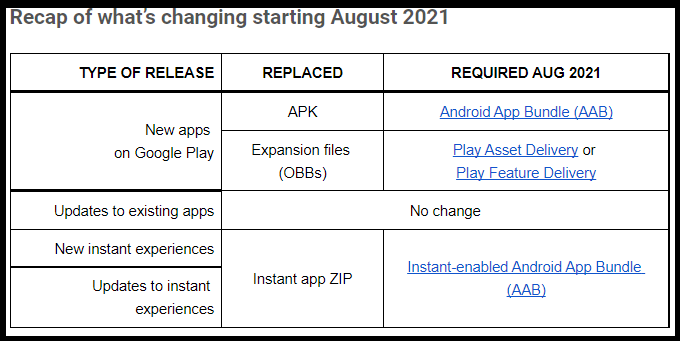
![Wondershare MobileTrans, premium phone transfer app [Review]](https://windowsreport.com/wp-content/uploads/2021/06/wondershare-mobiletrans-featured.jpg)


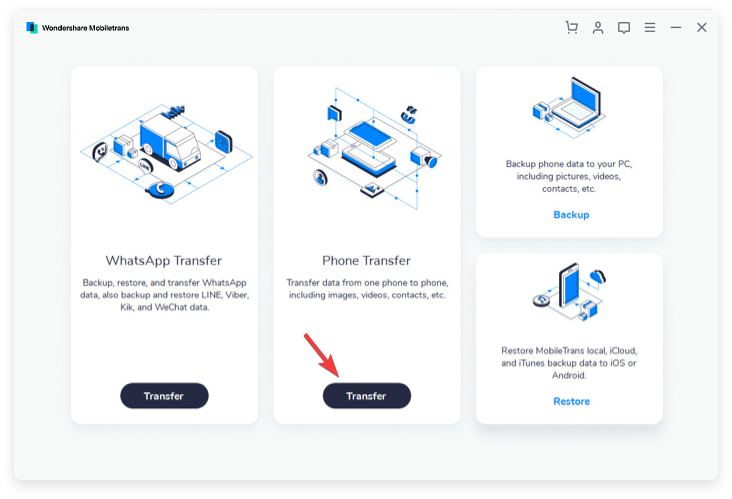
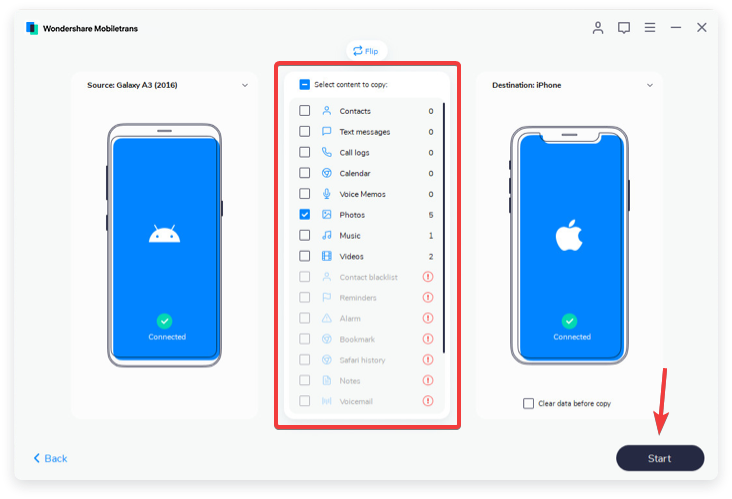
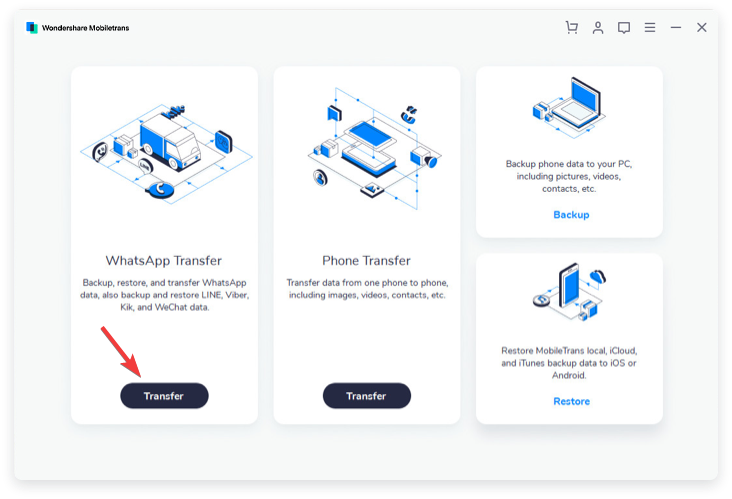

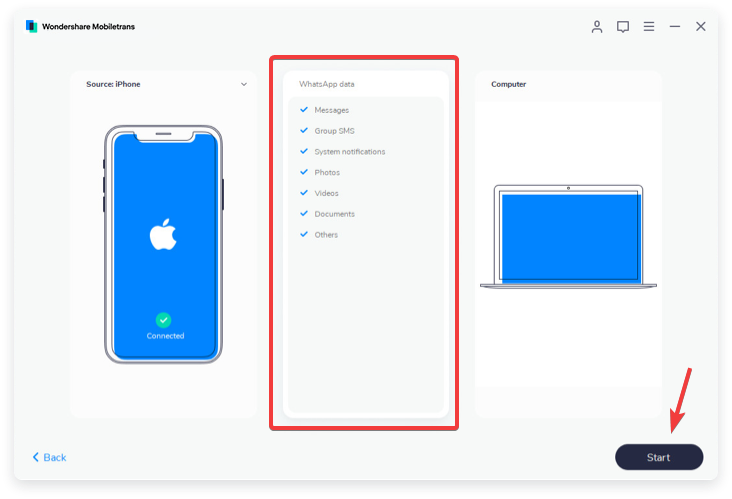
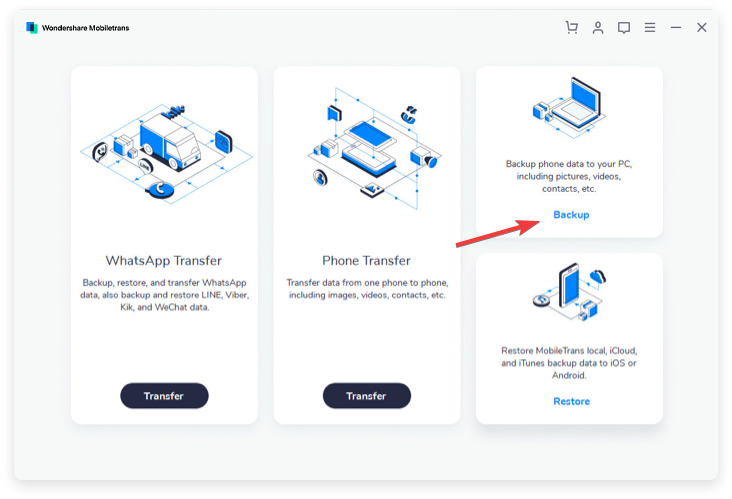
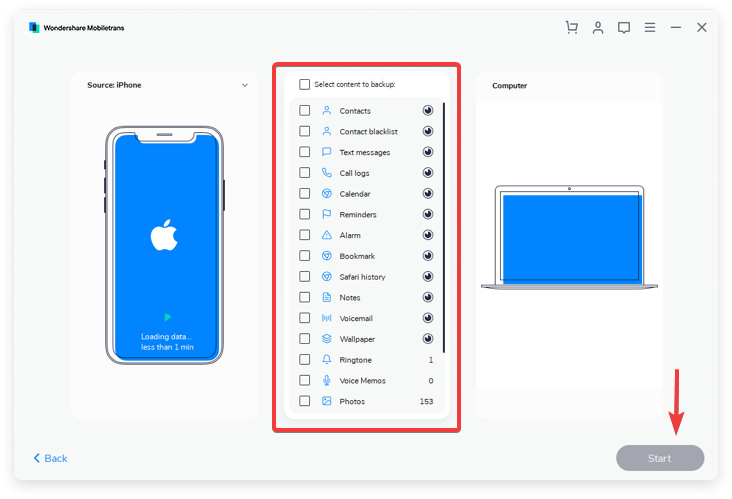
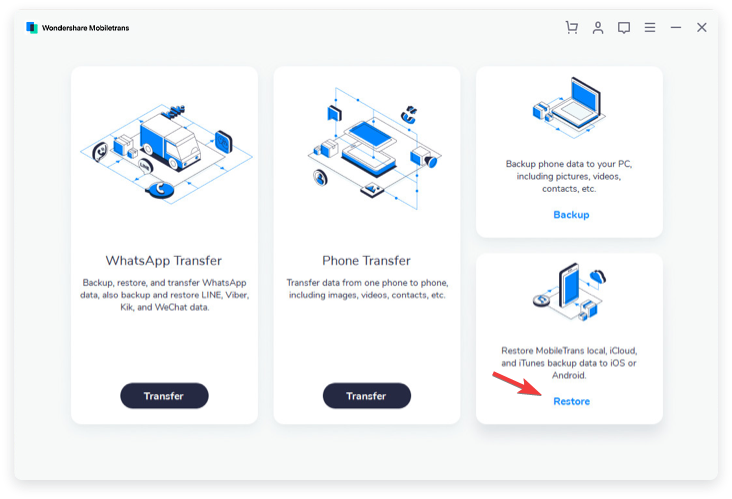
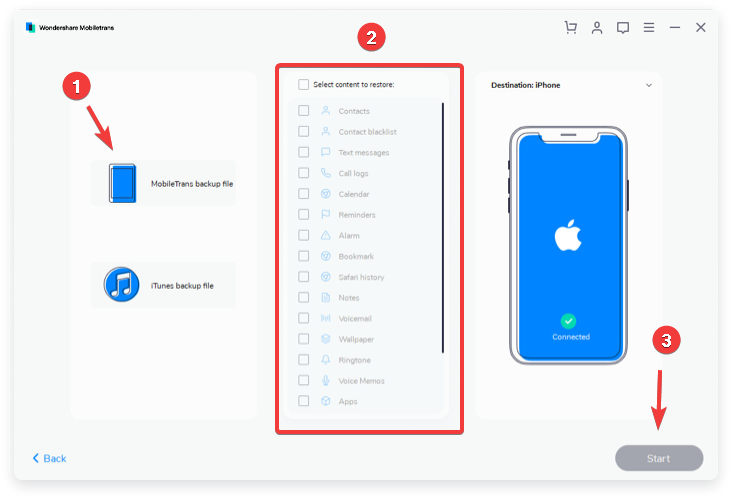
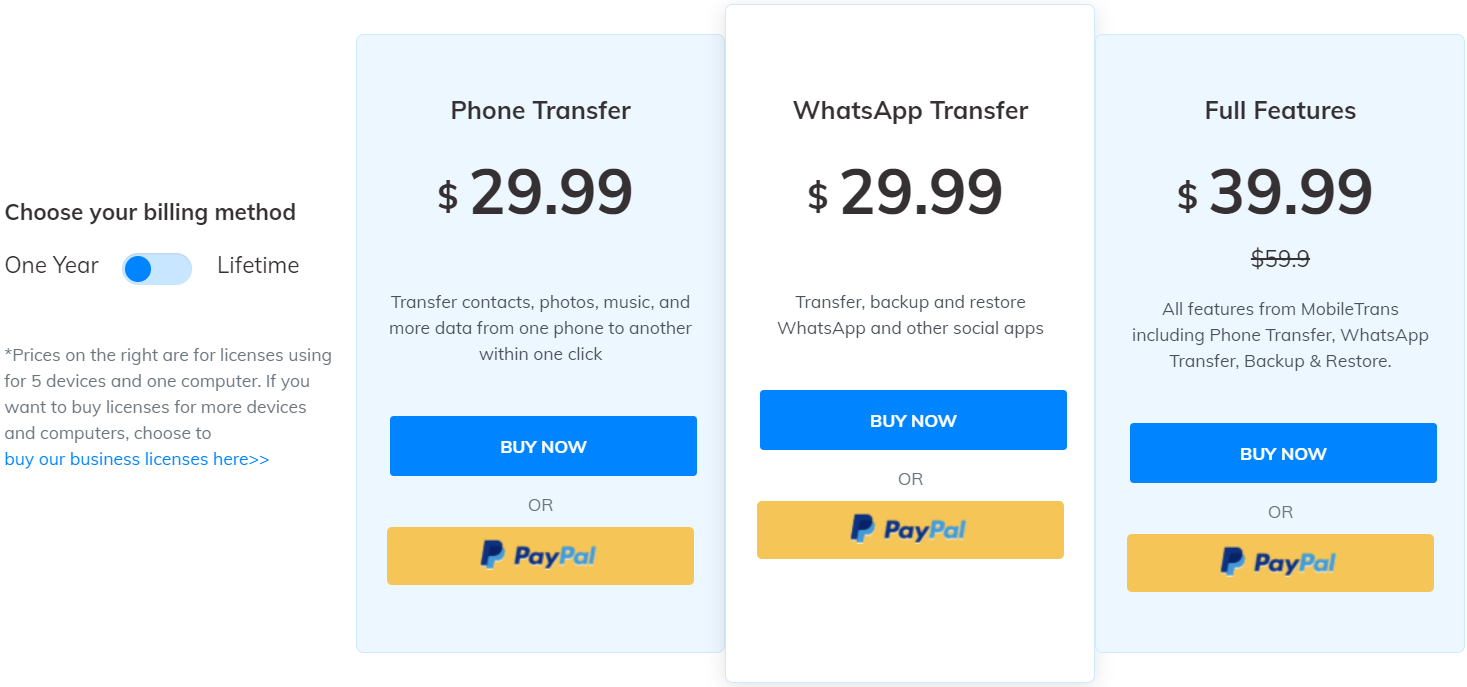
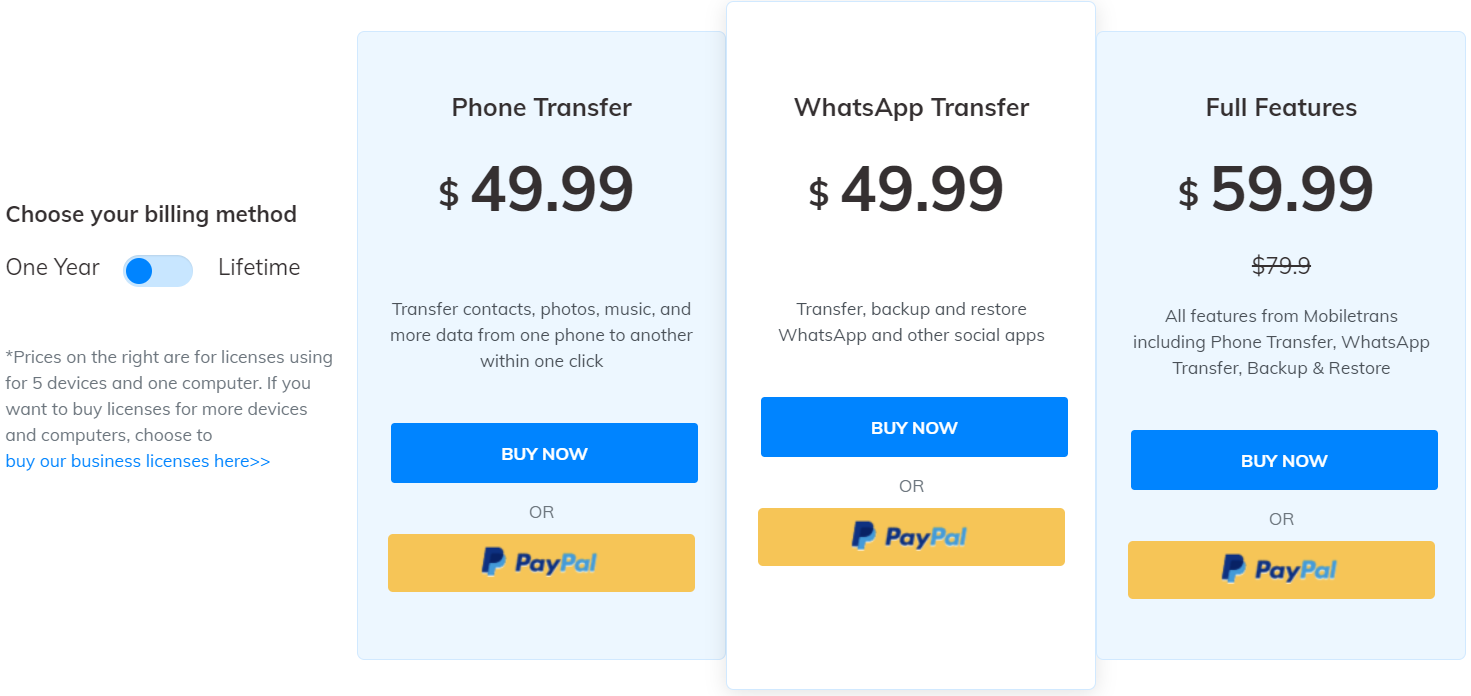



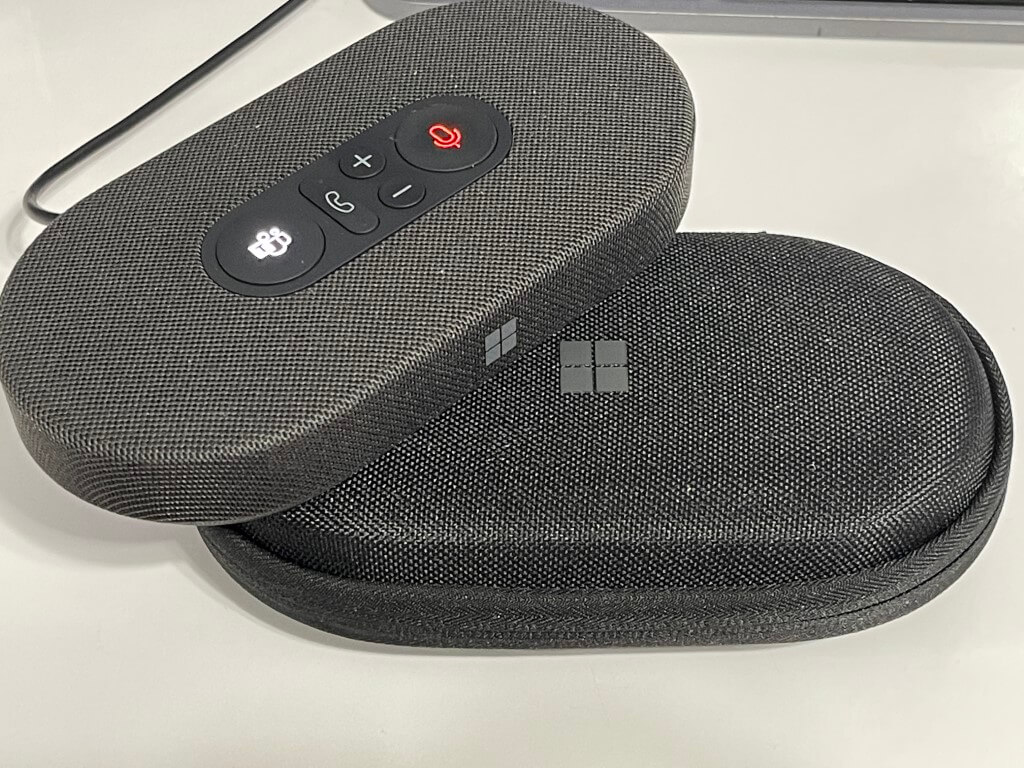
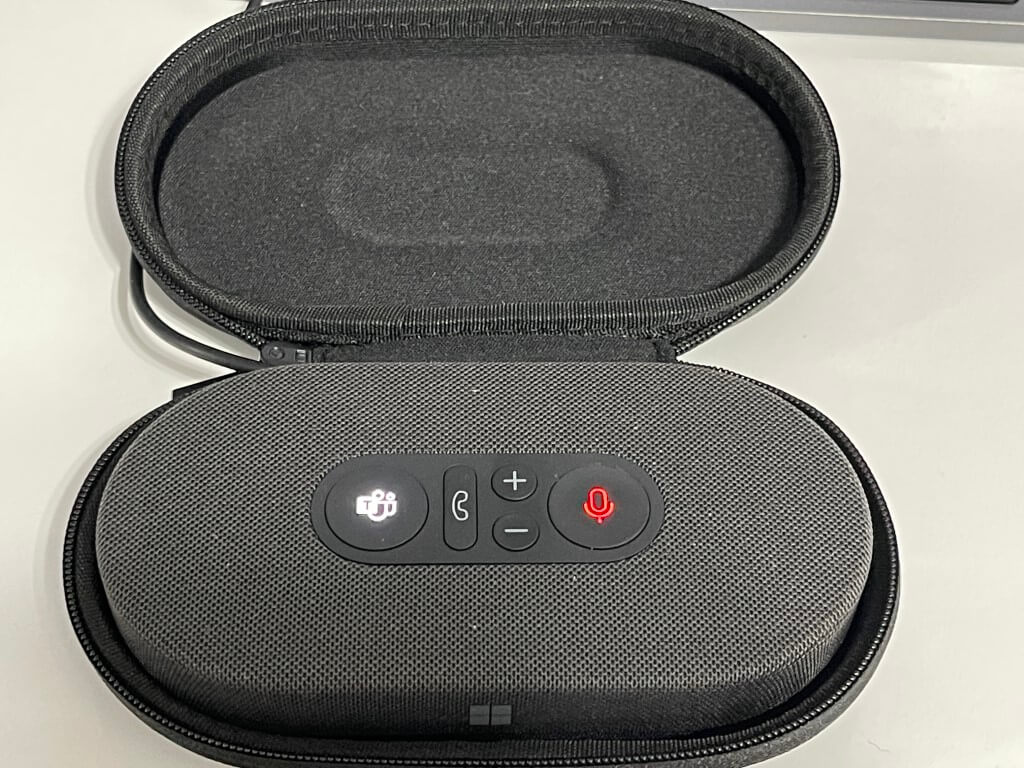
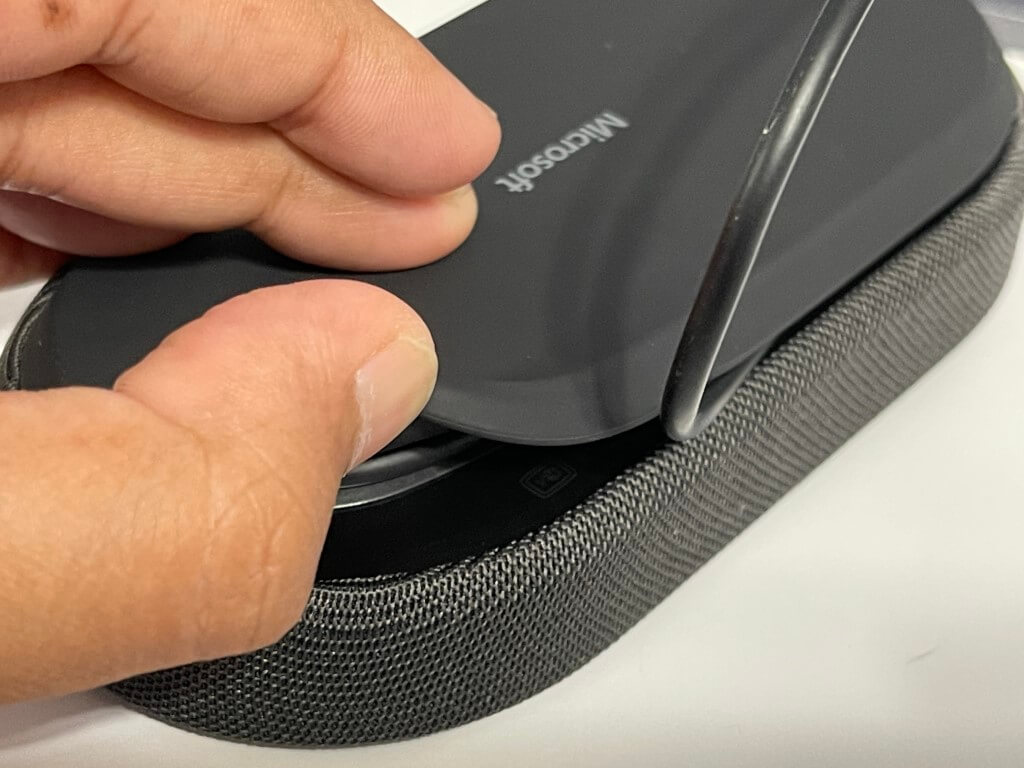
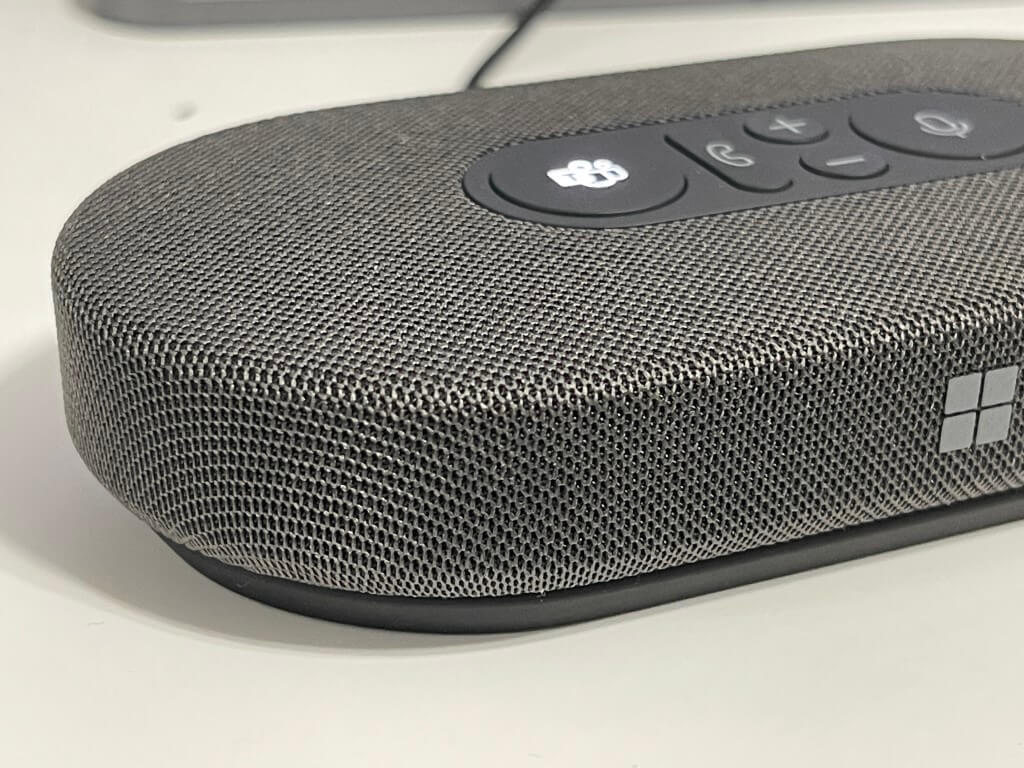
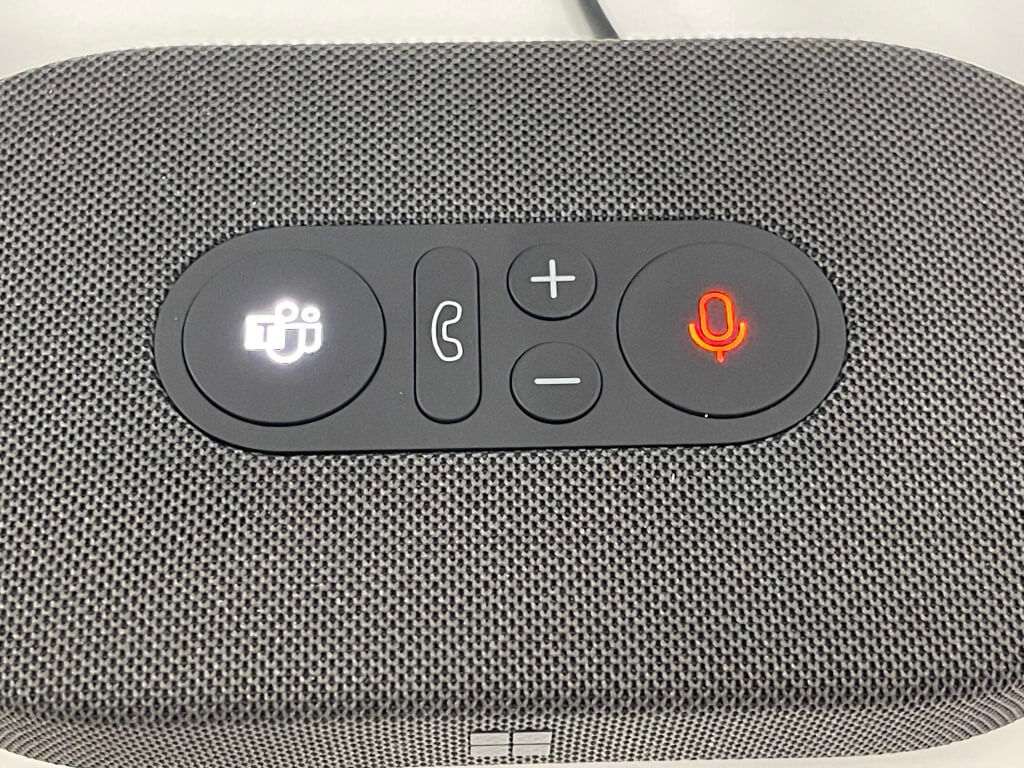
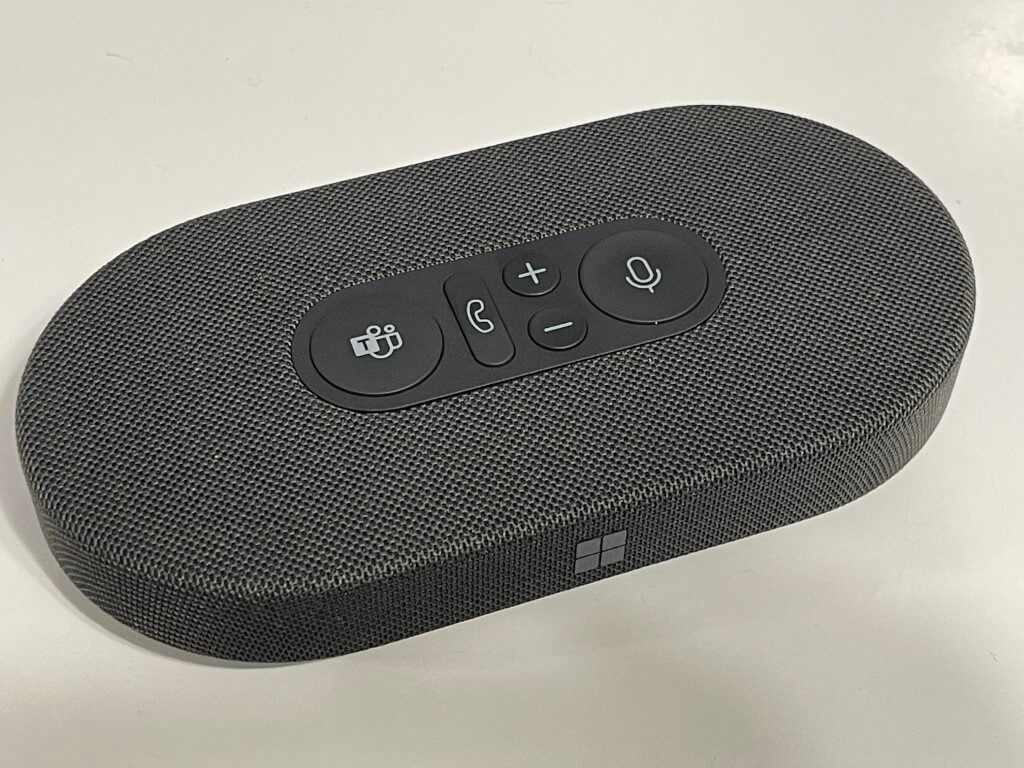






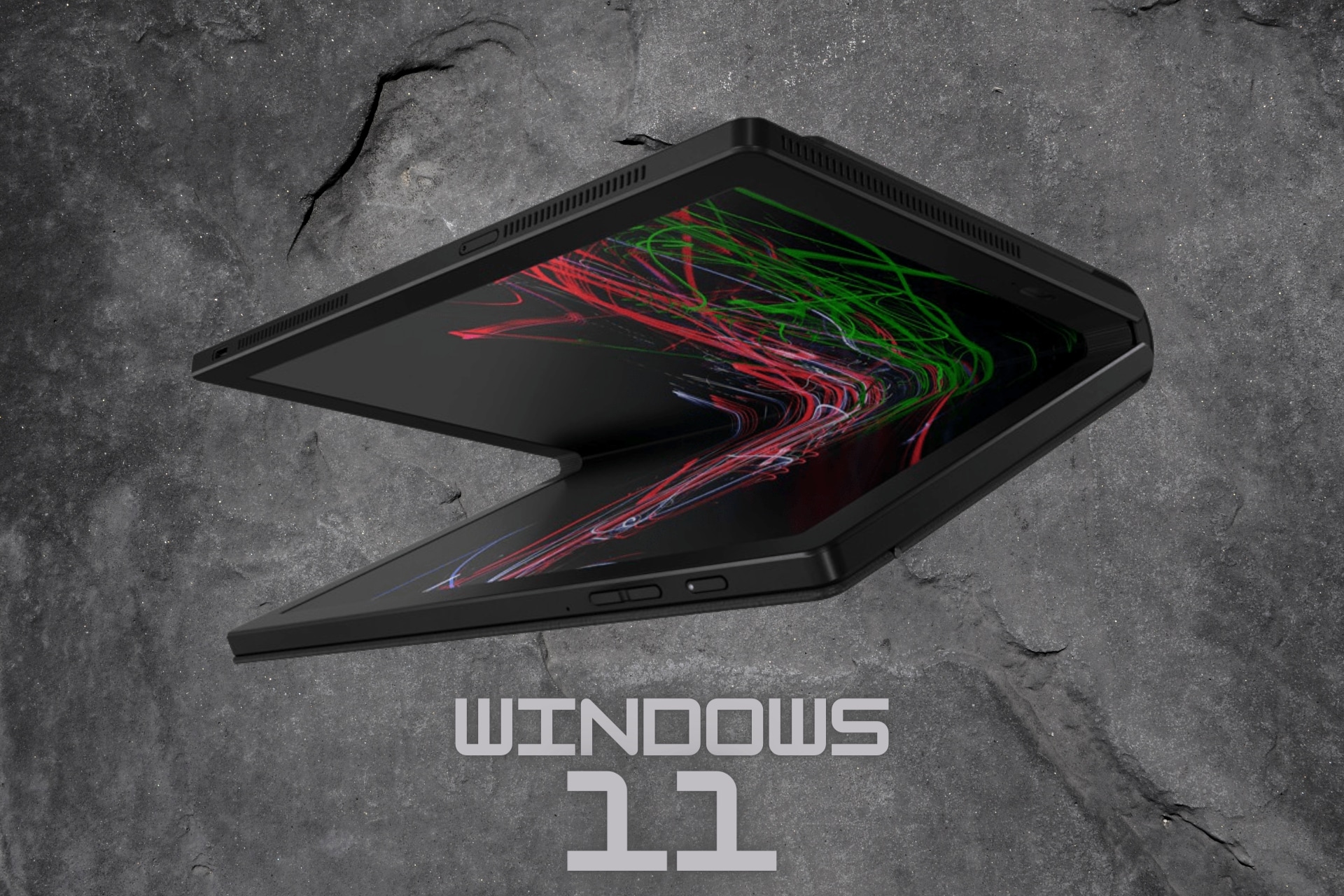
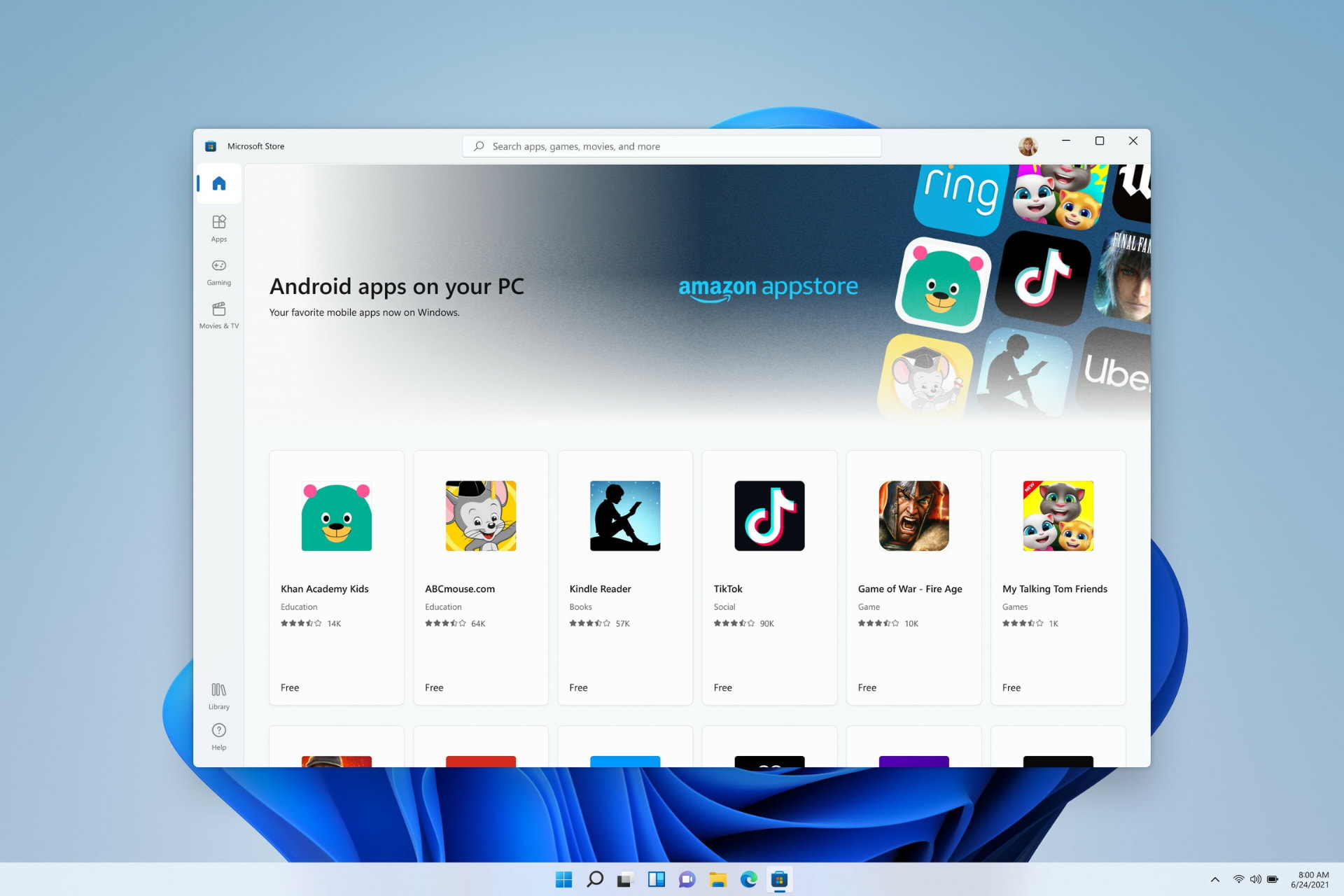


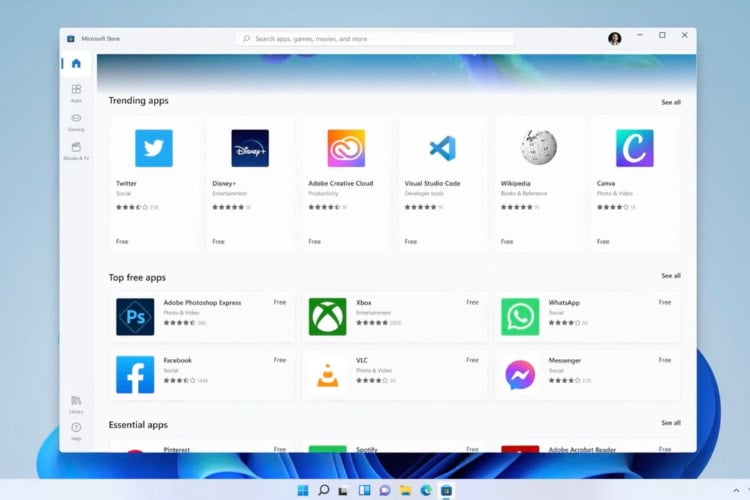
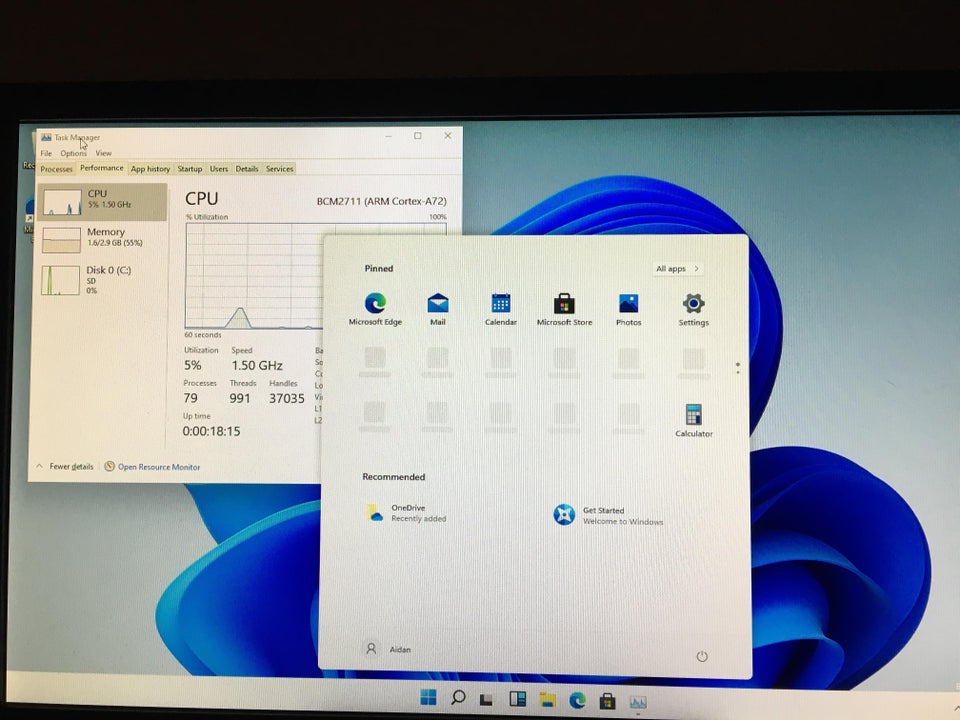



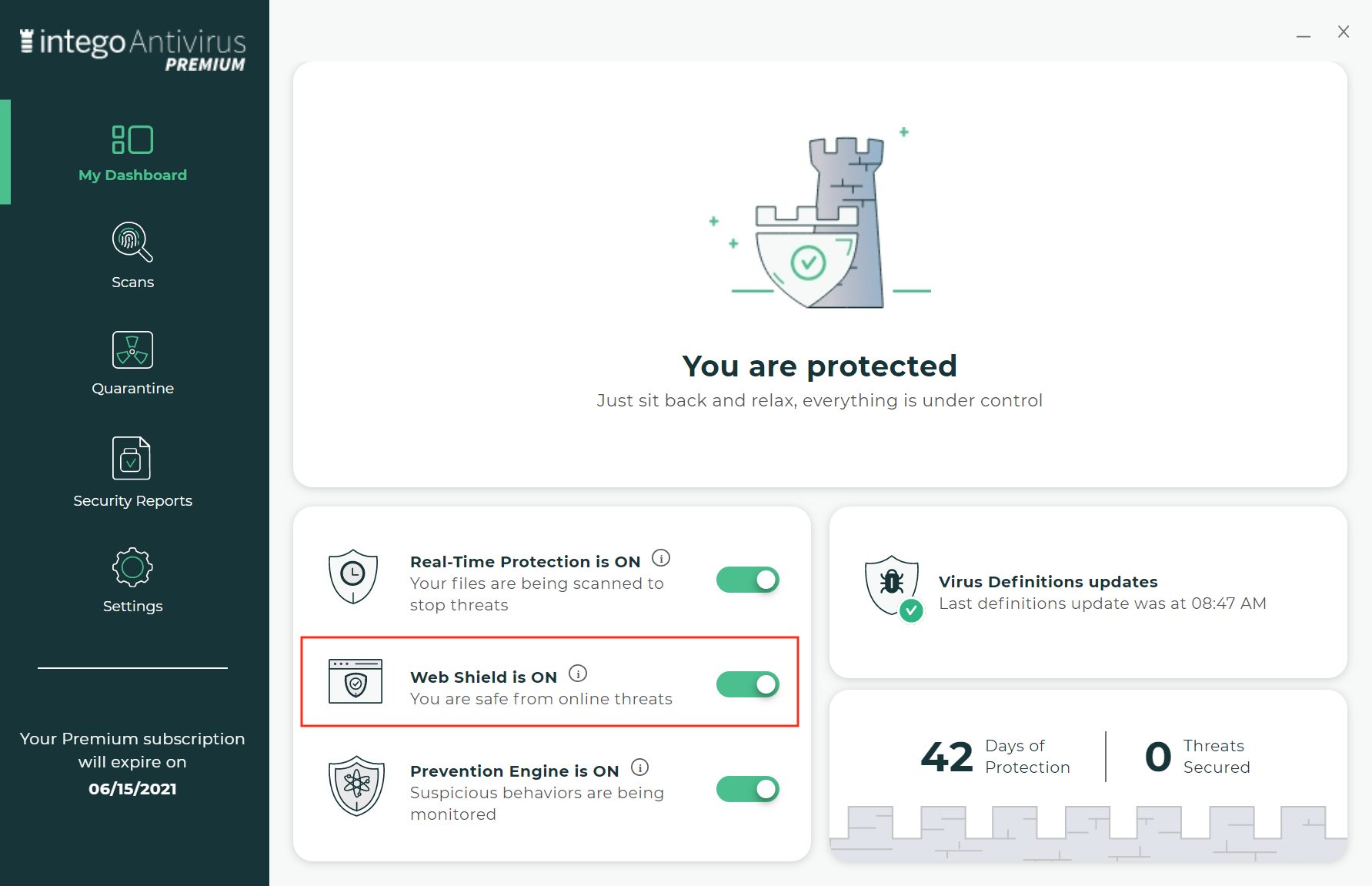


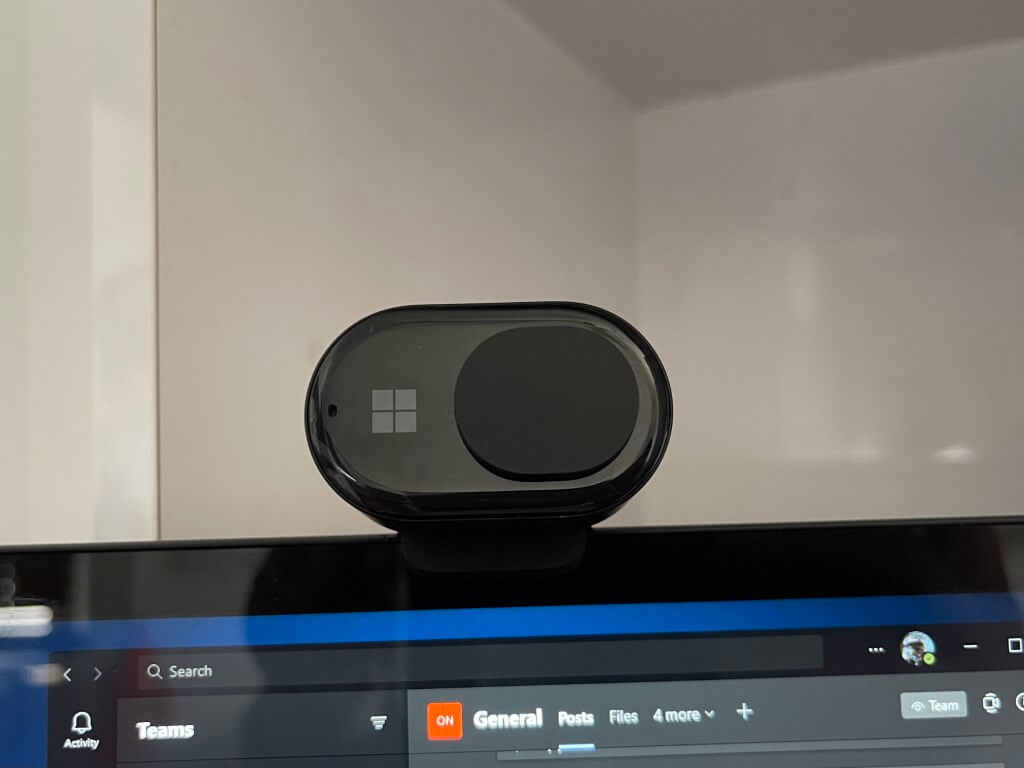
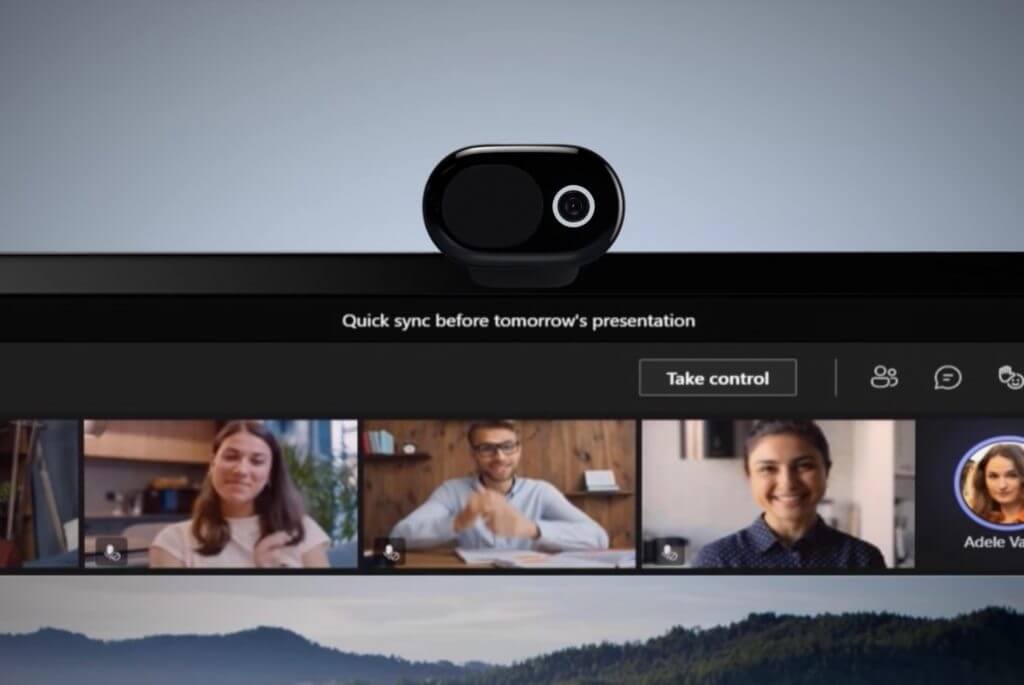
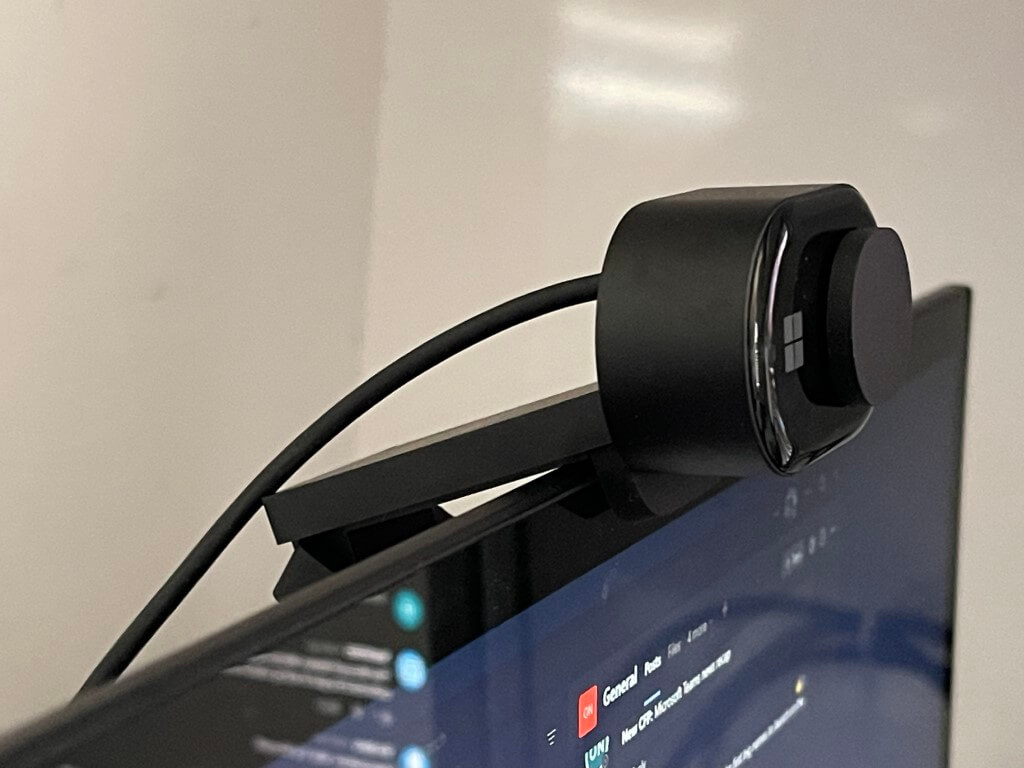
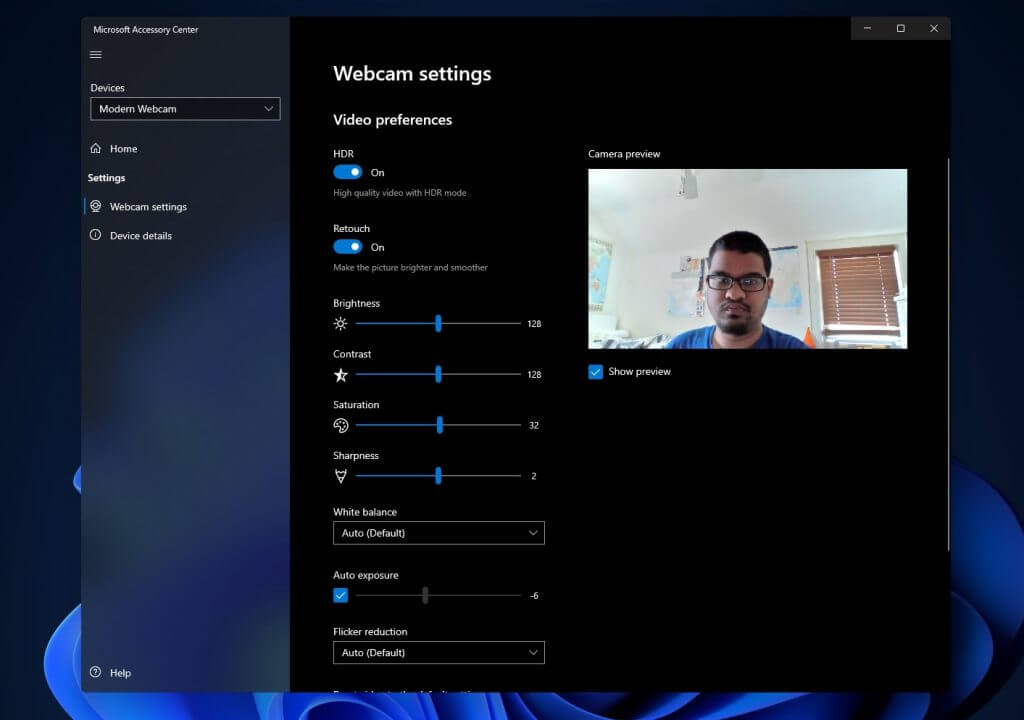

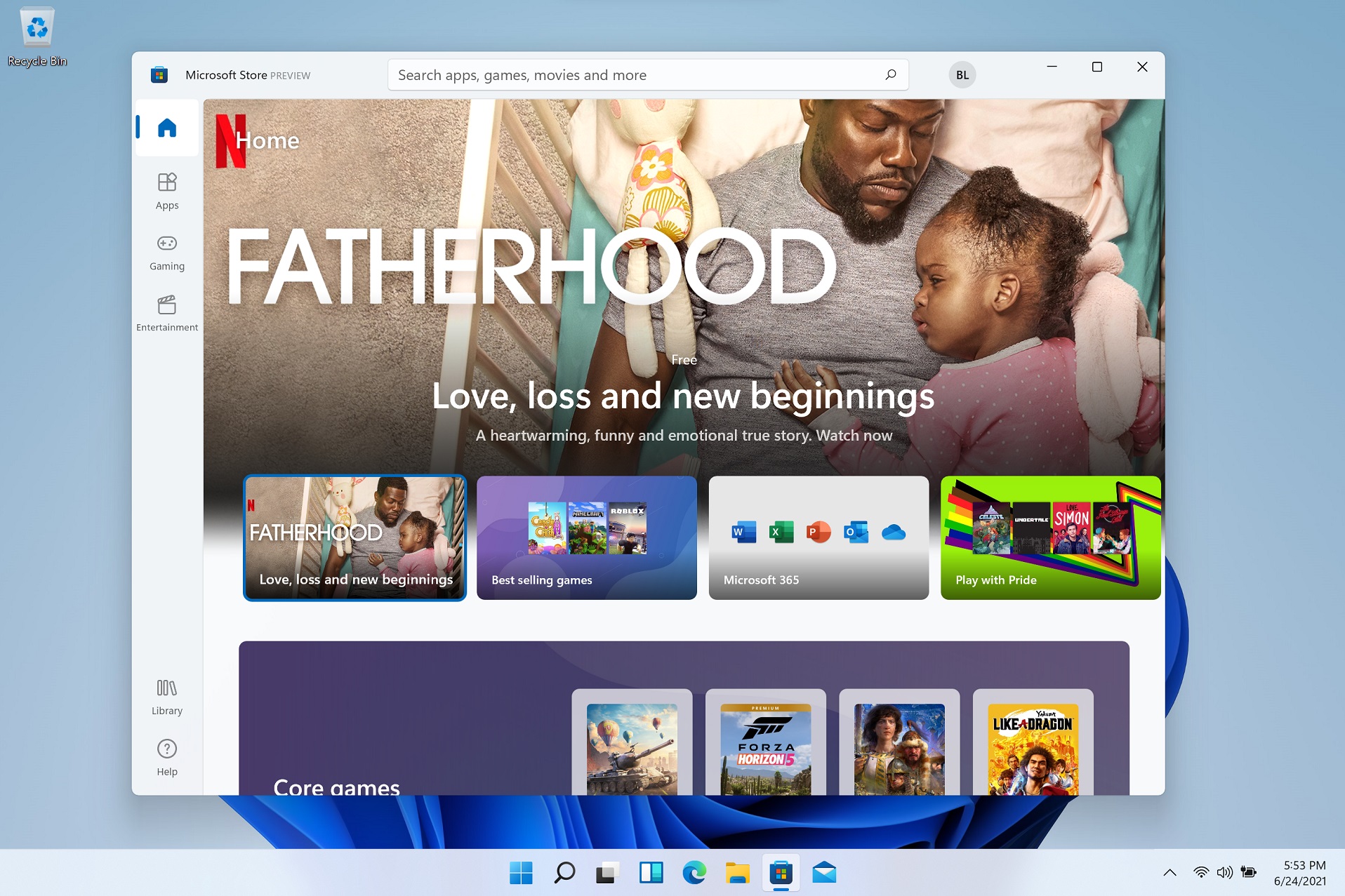

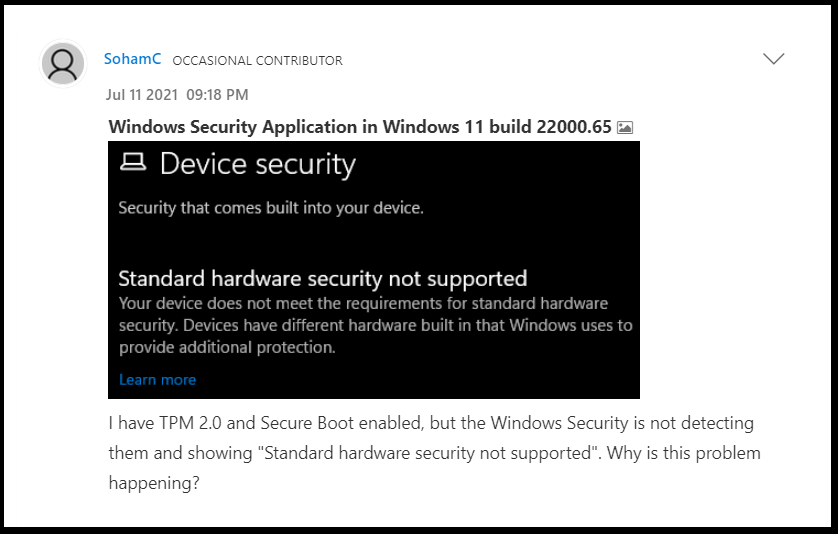


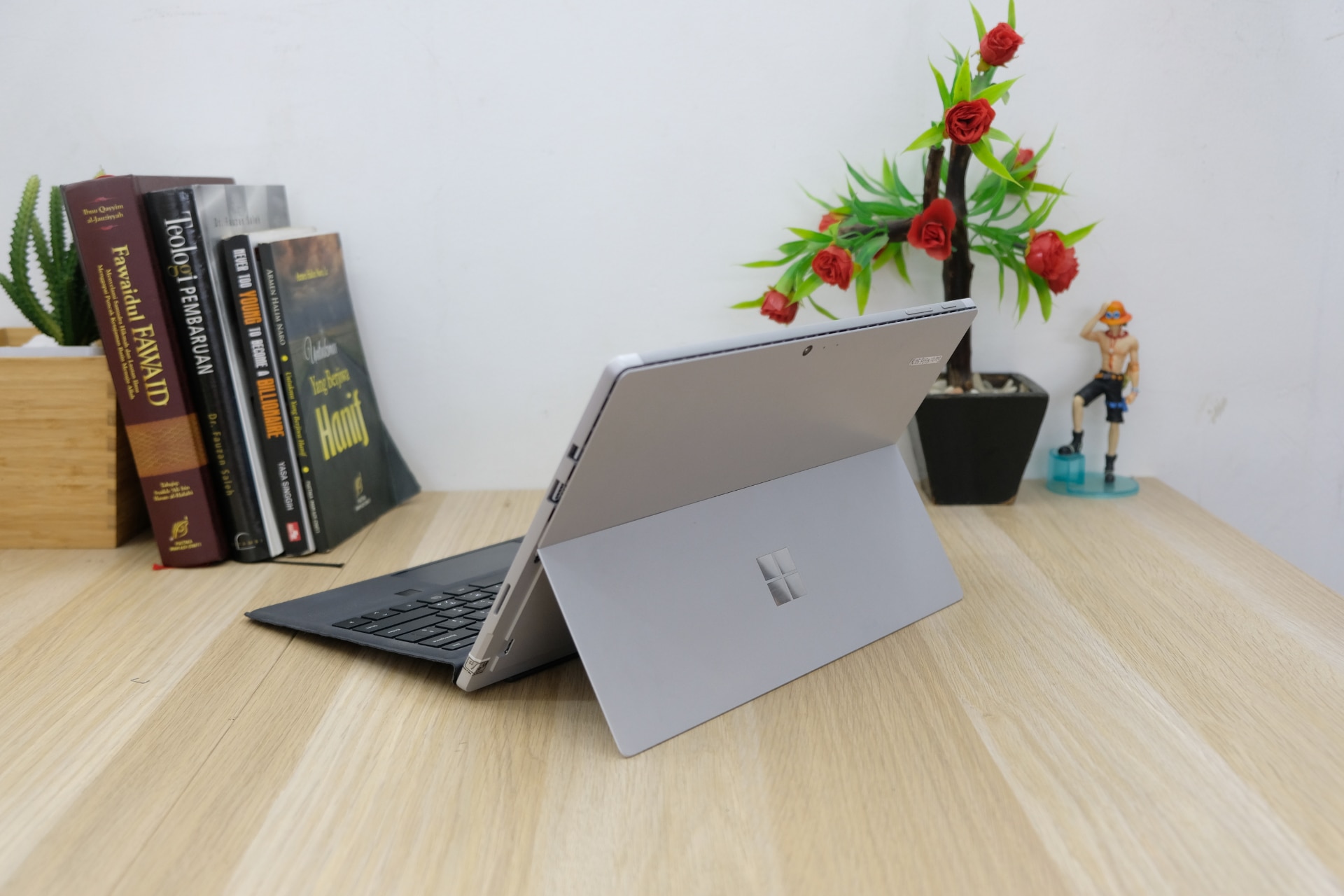
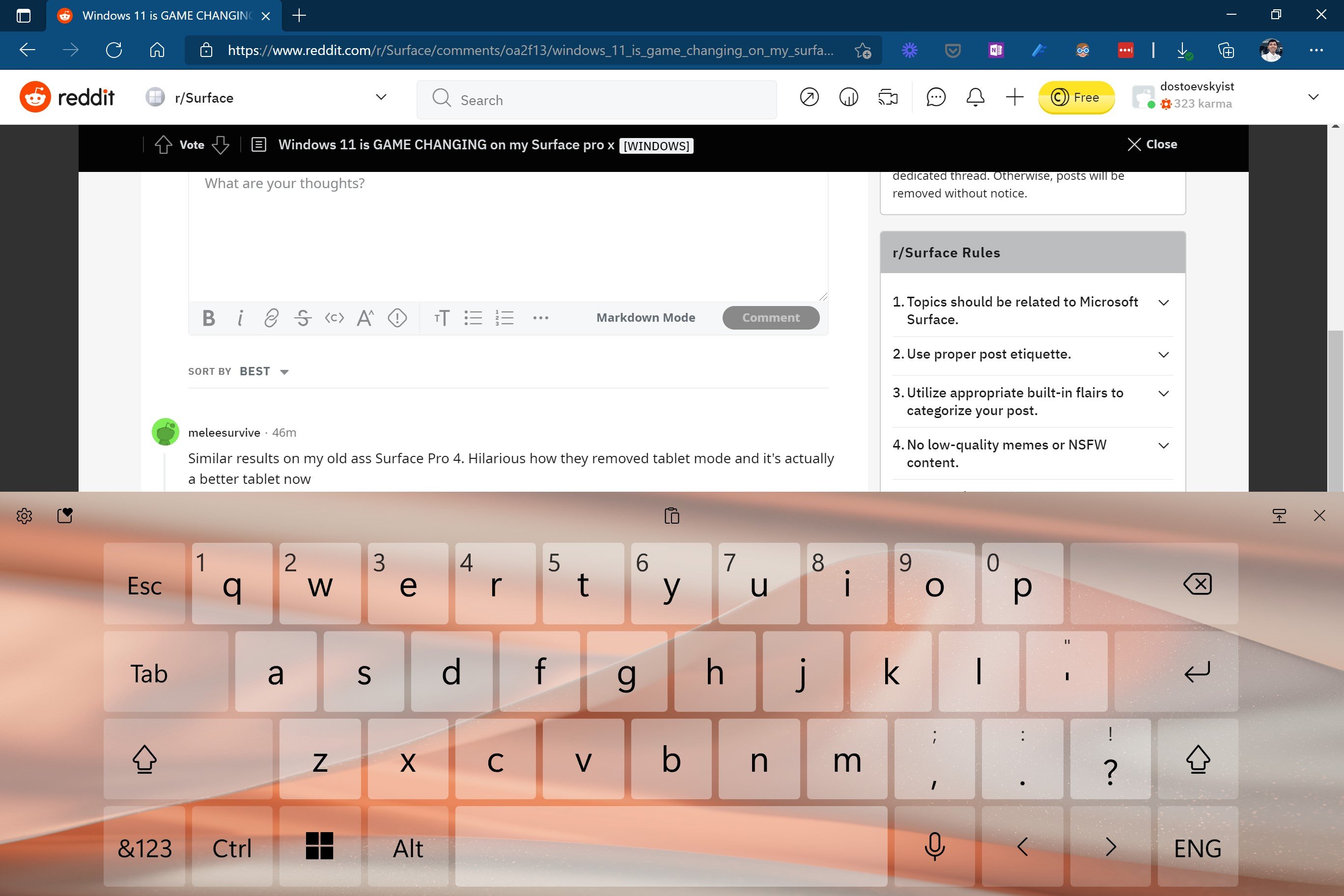
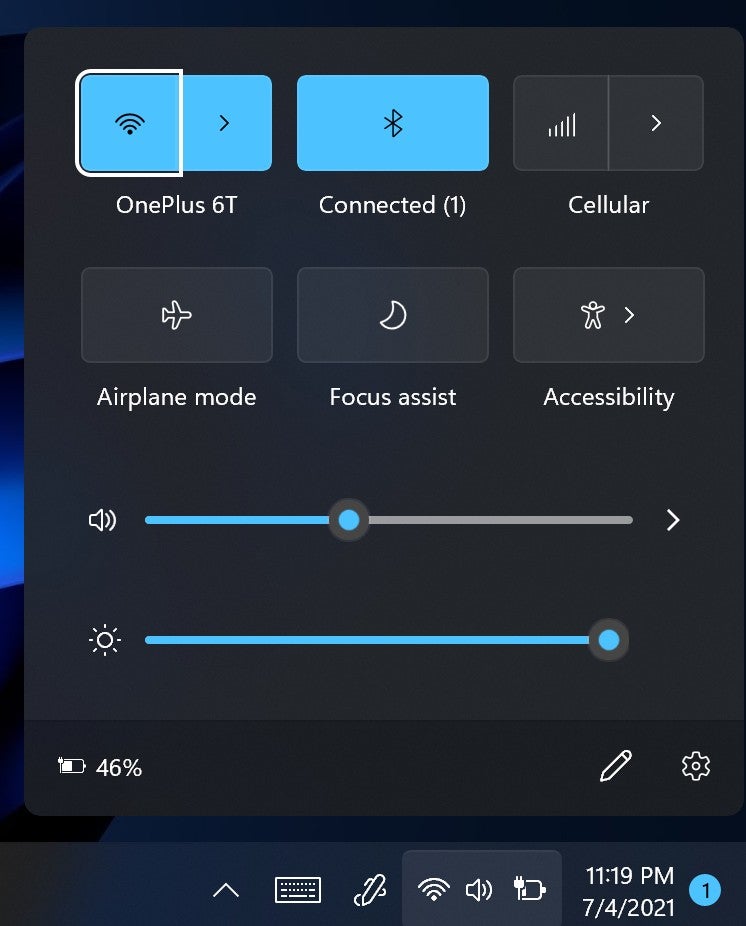


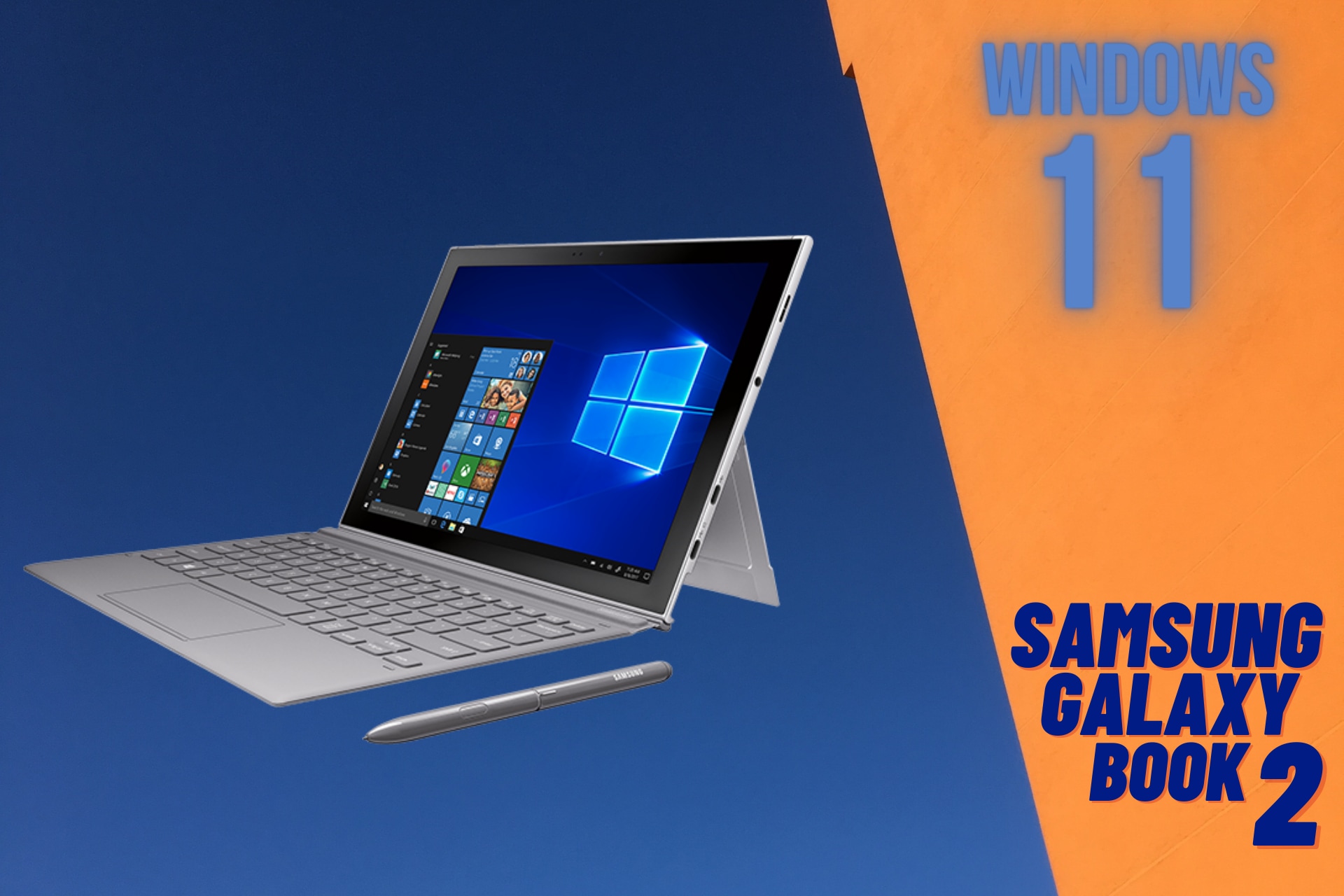
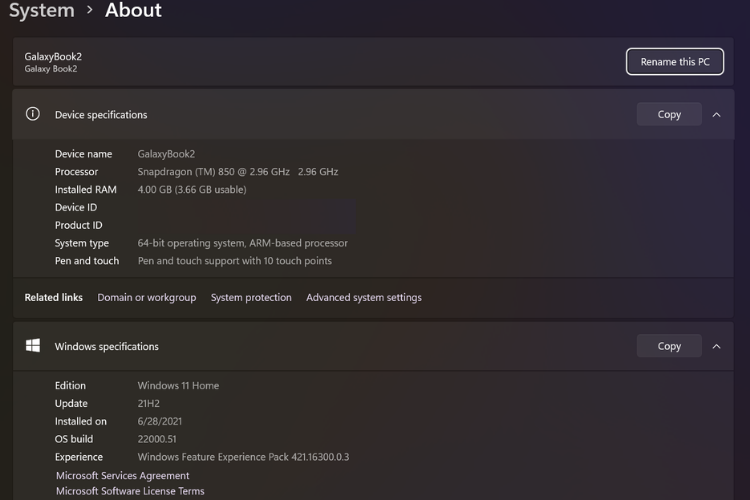




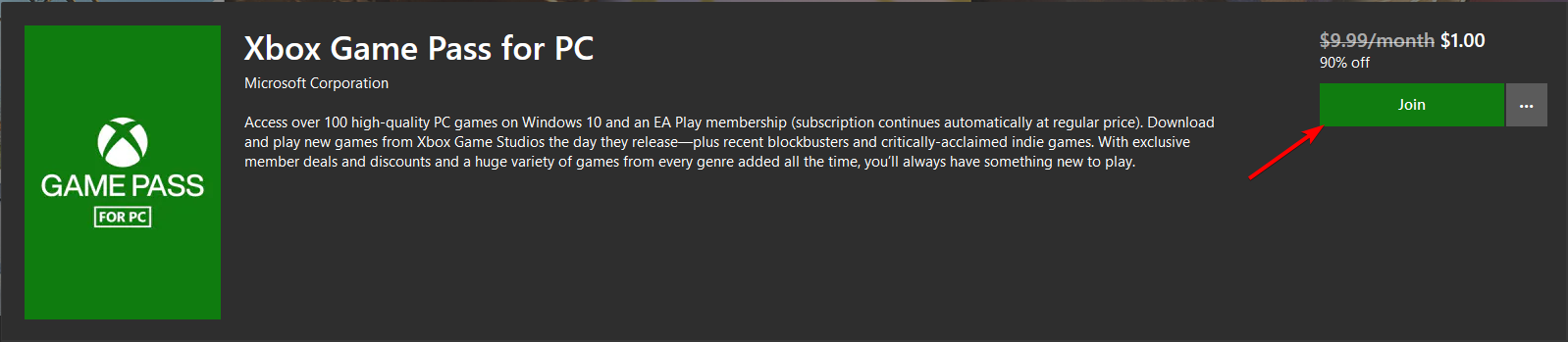
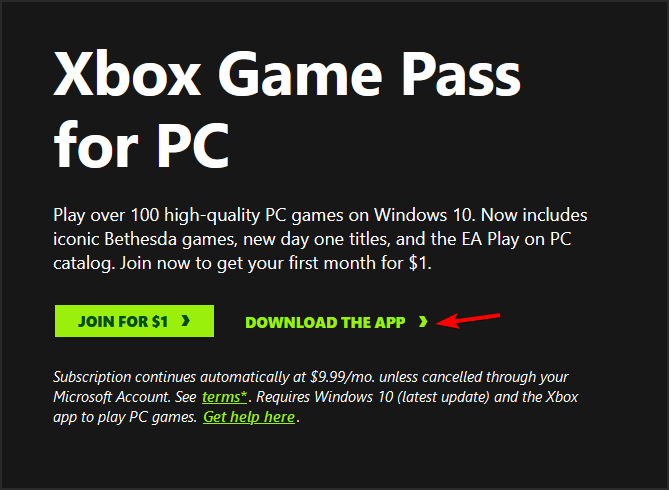
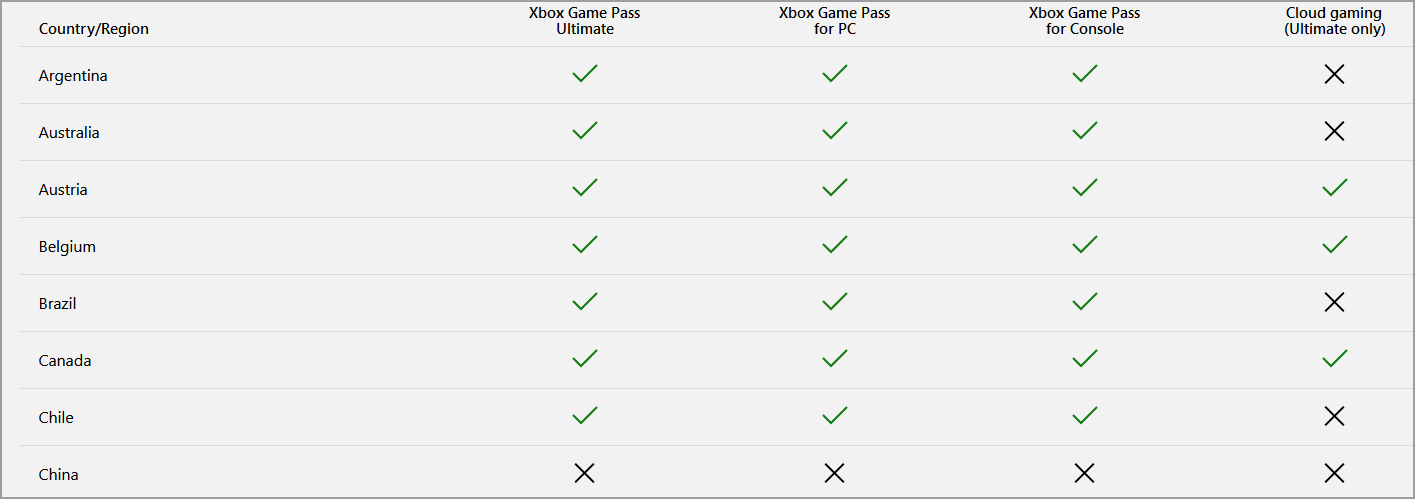



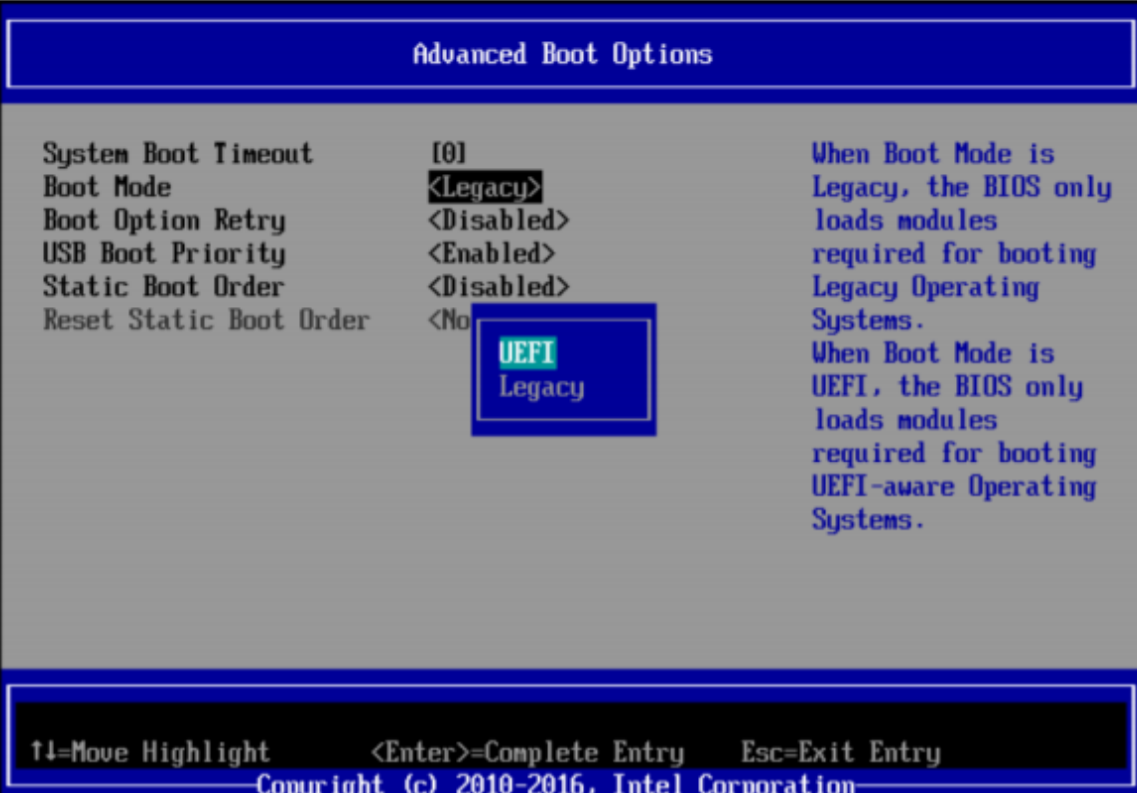
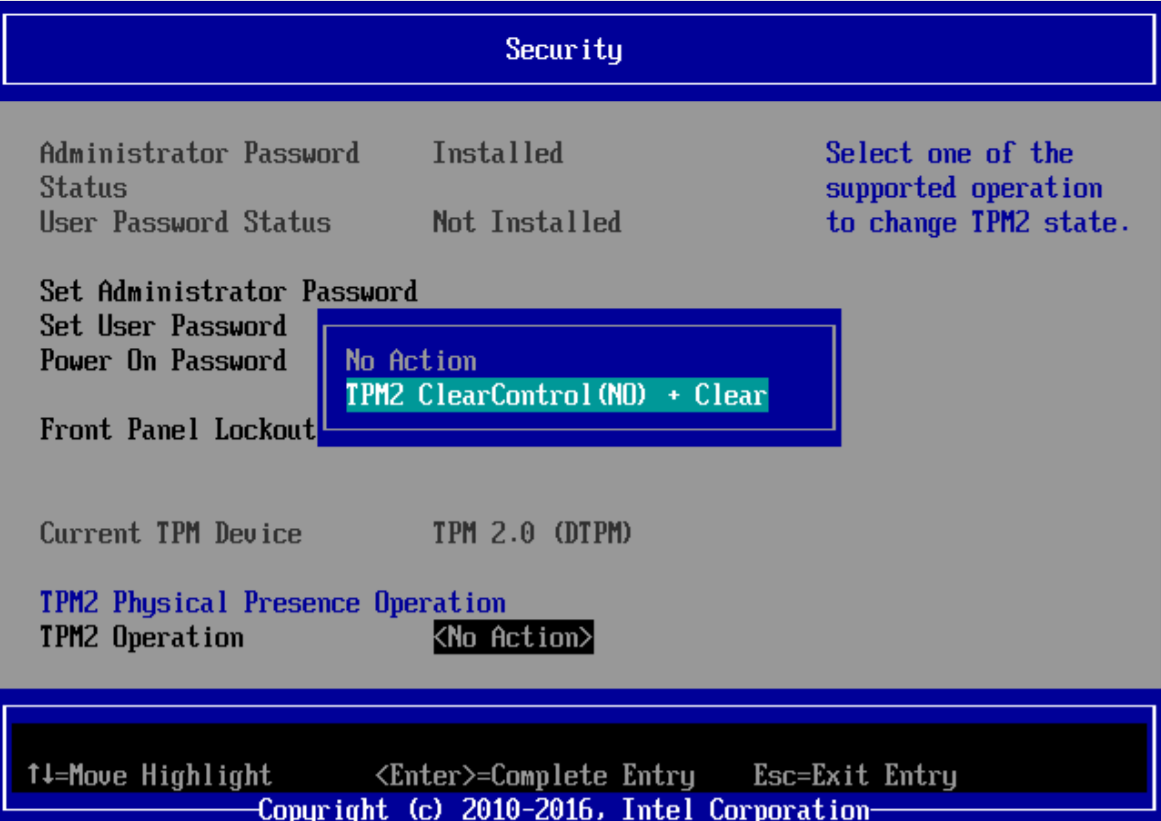
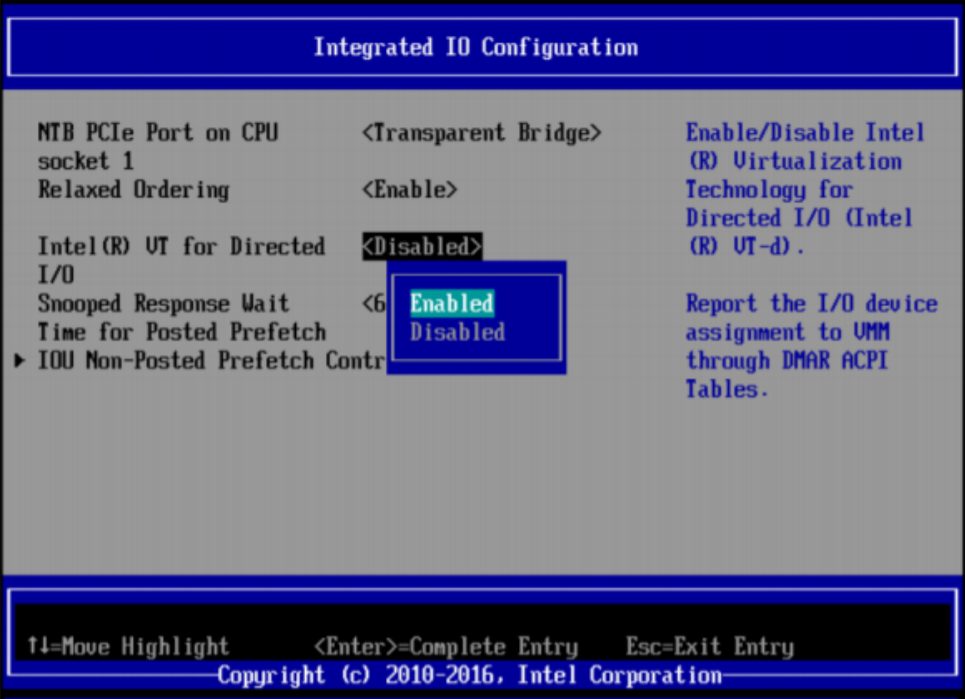
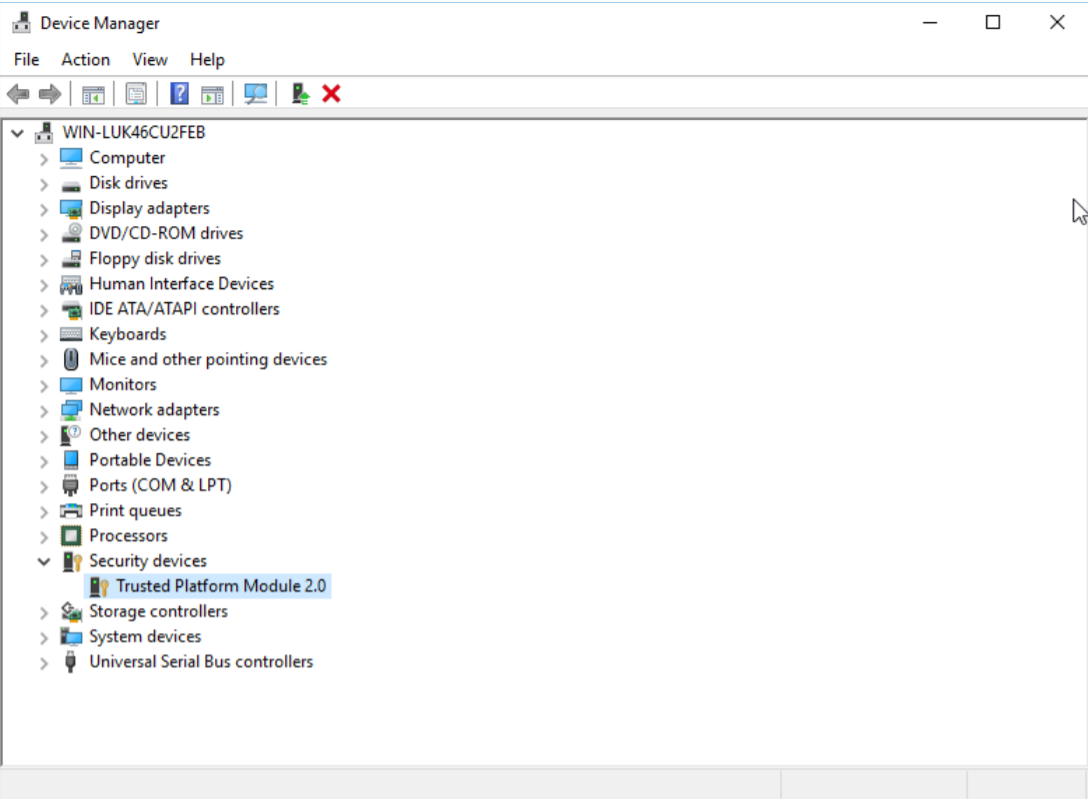
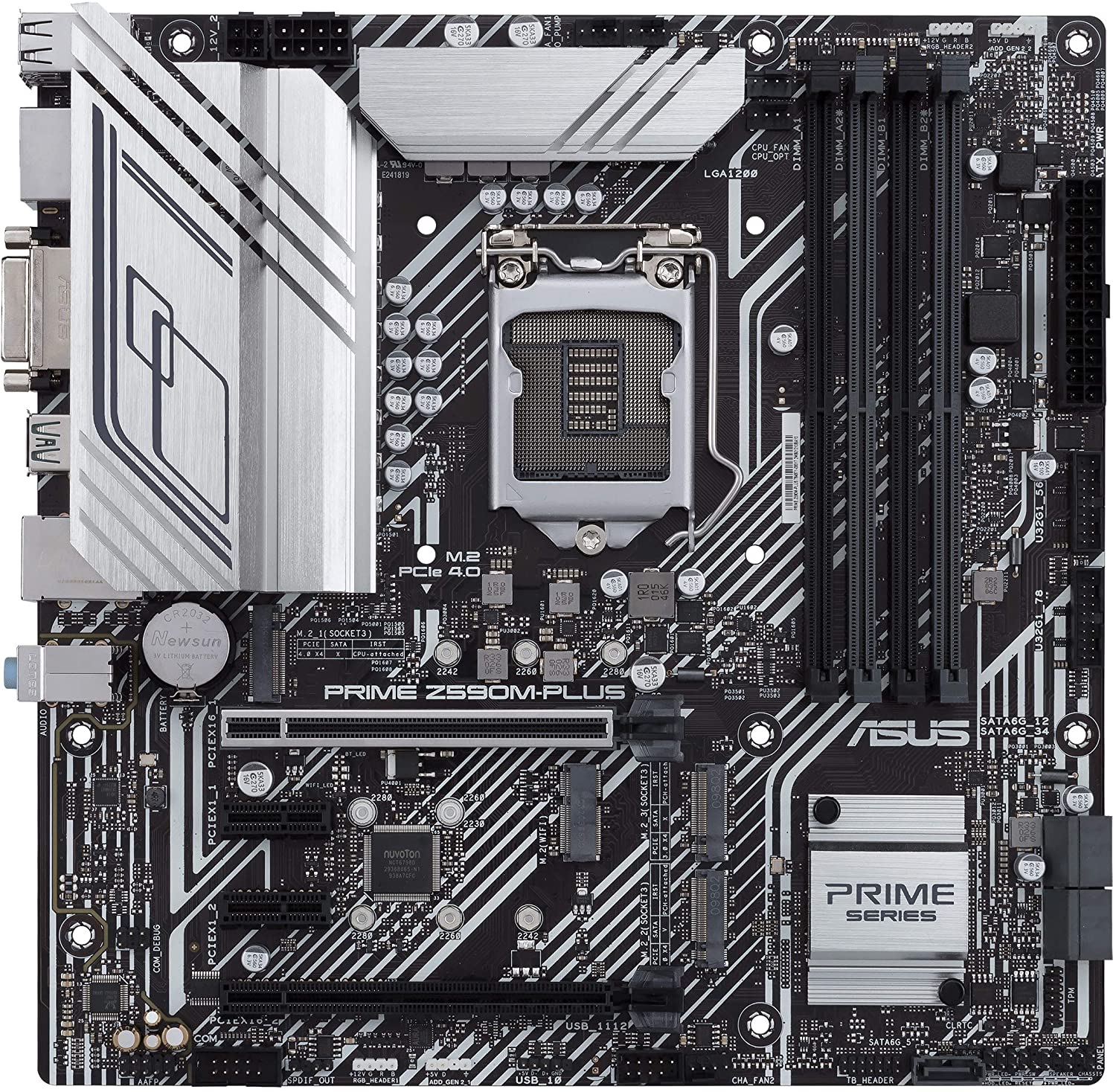
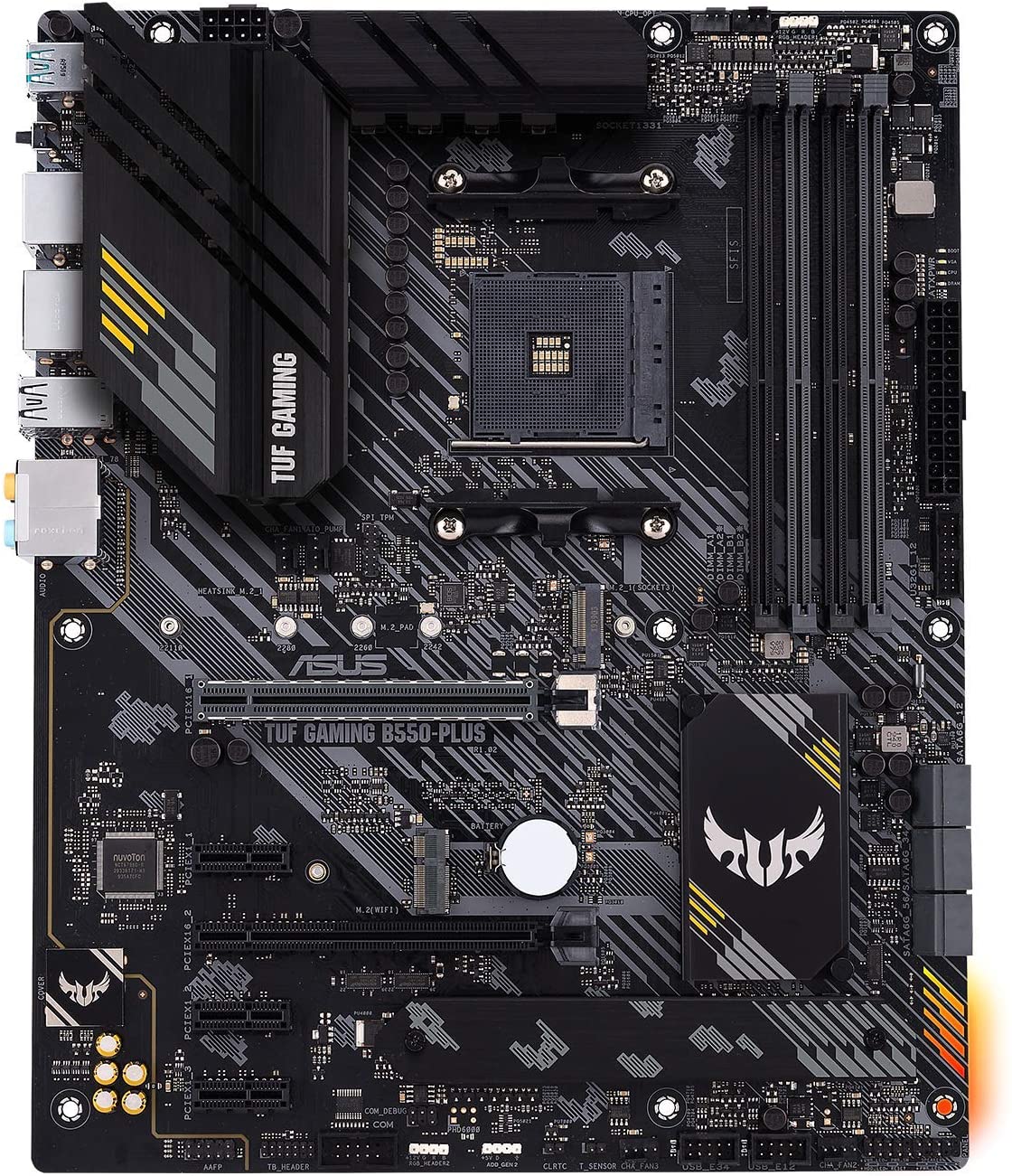
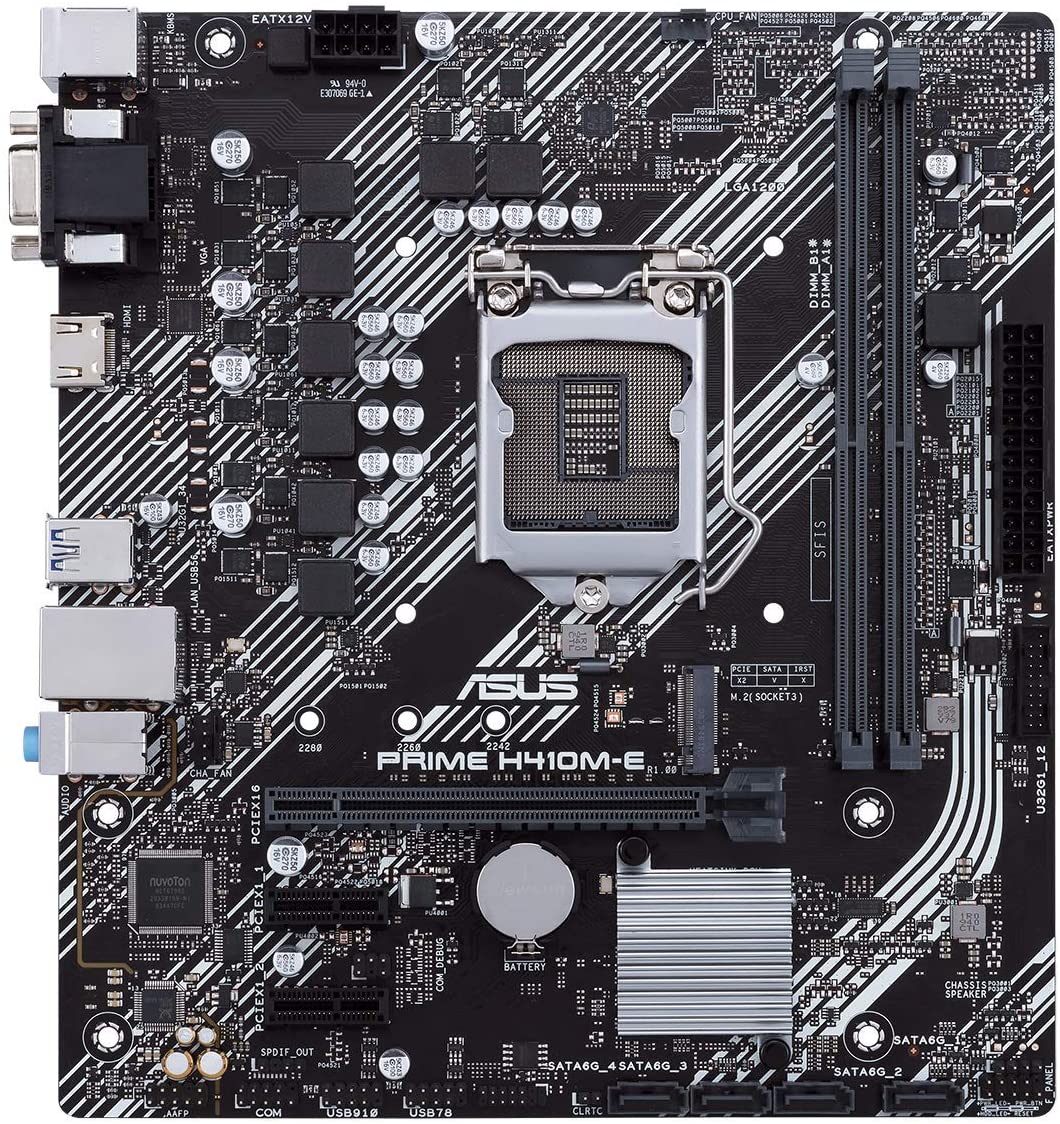
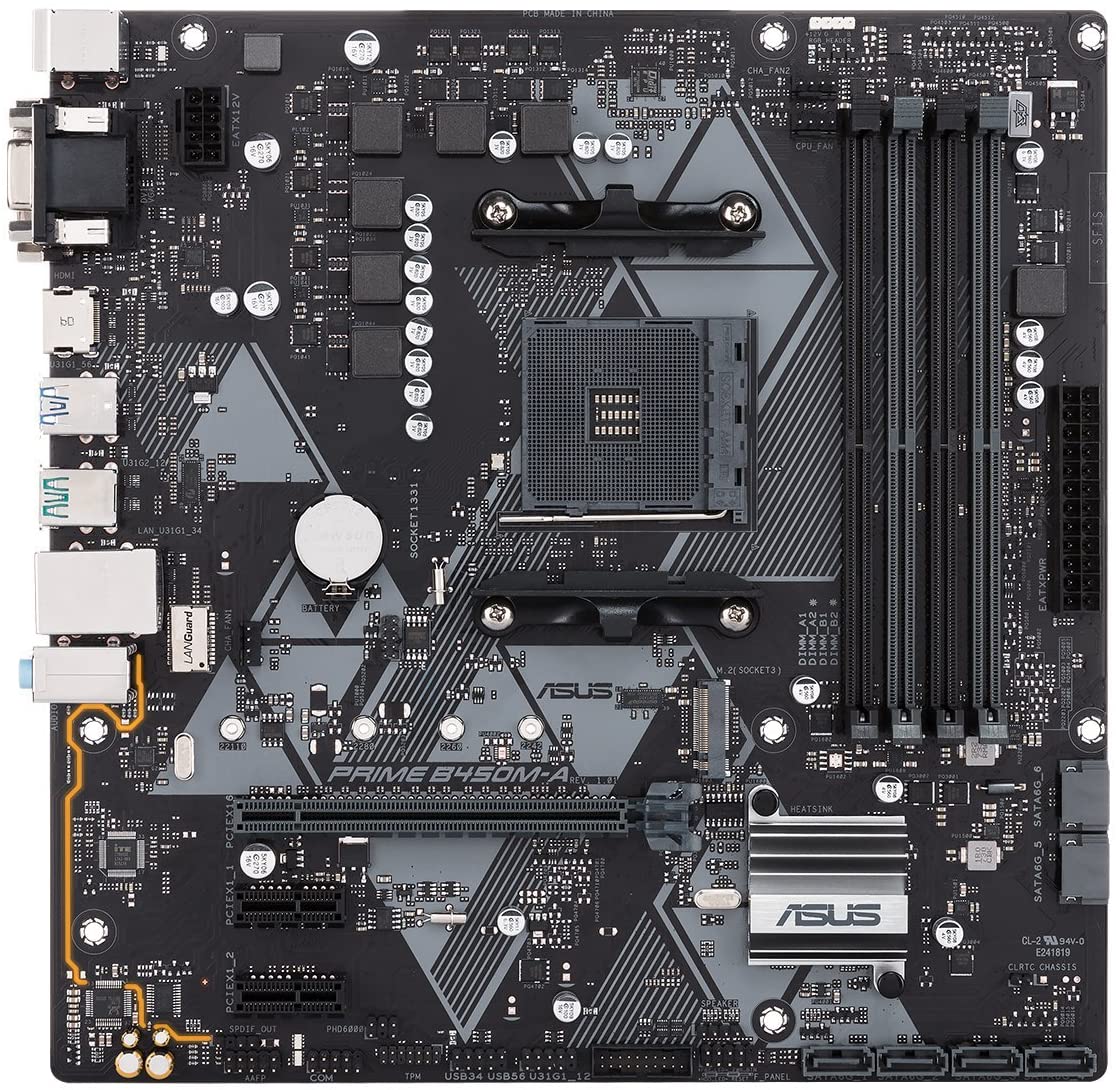


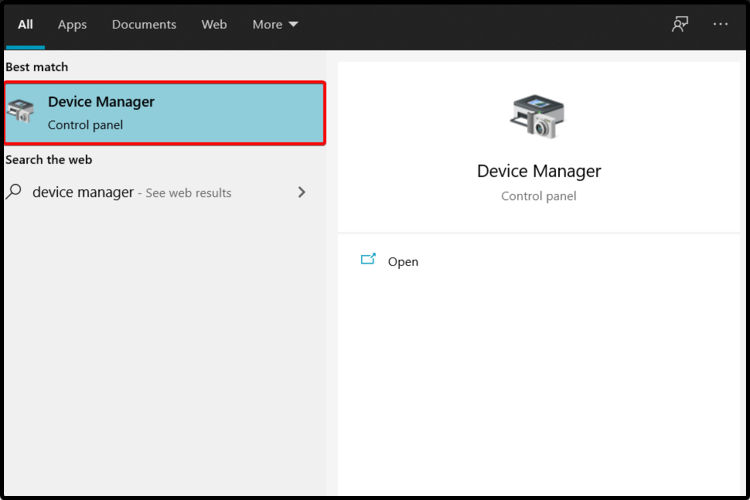

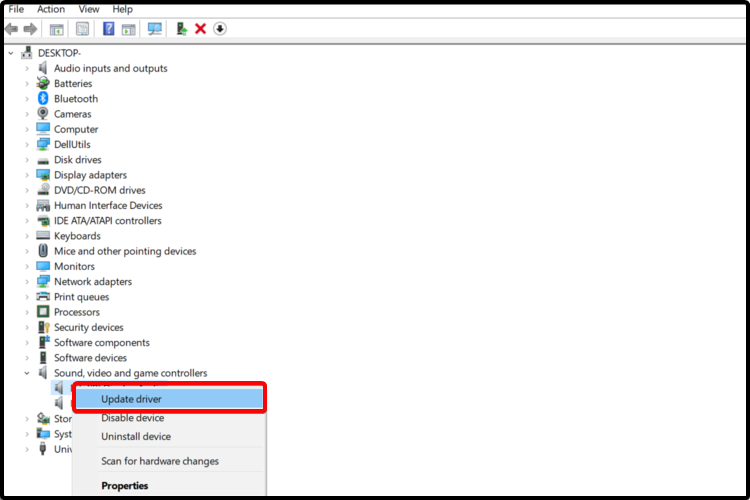
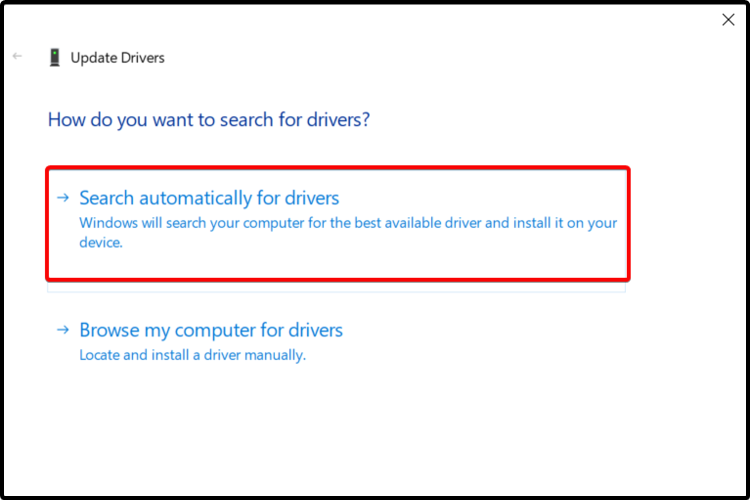
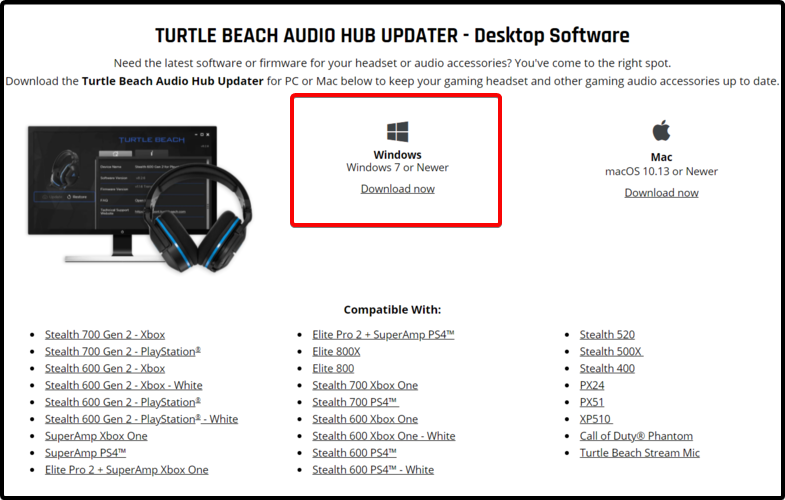


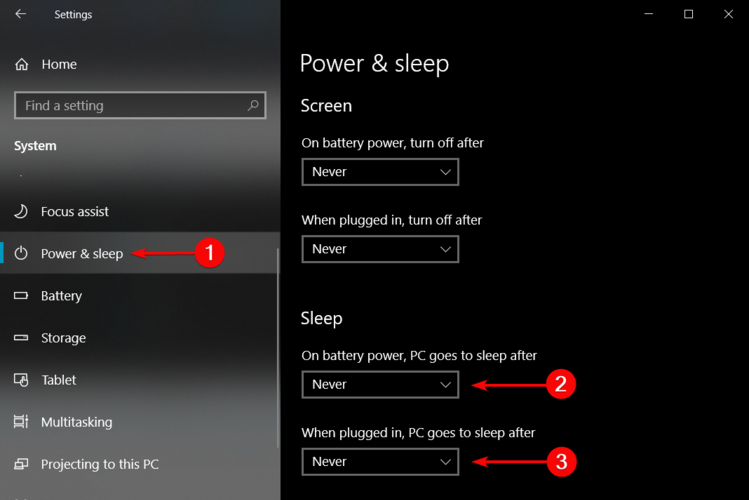

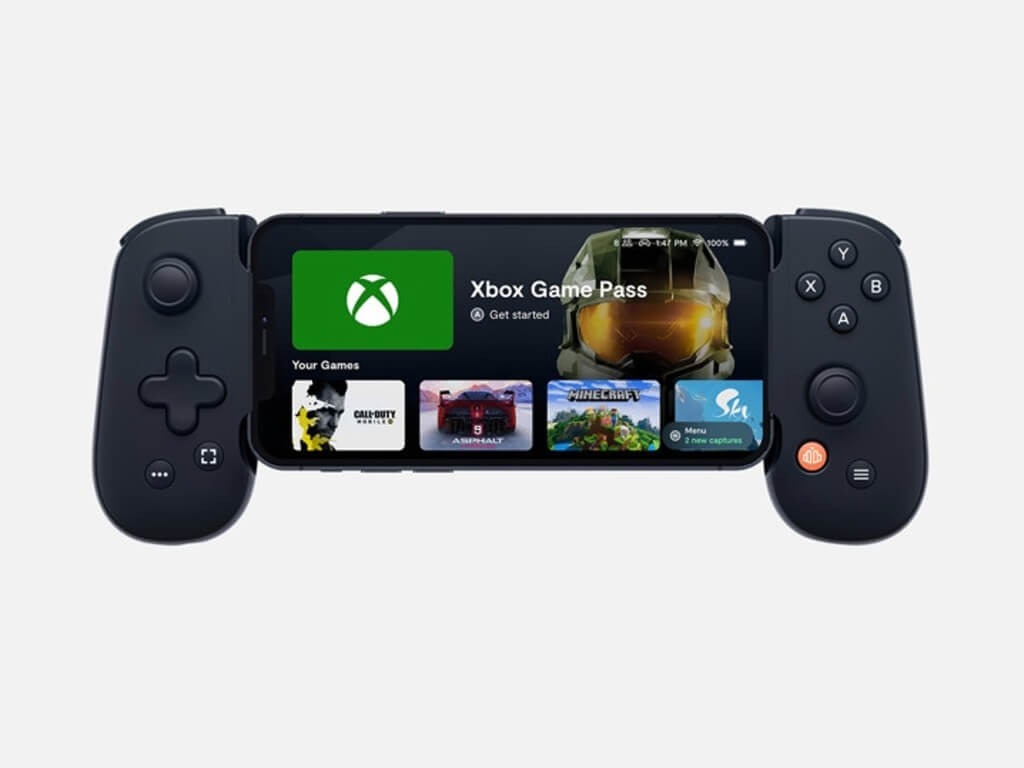
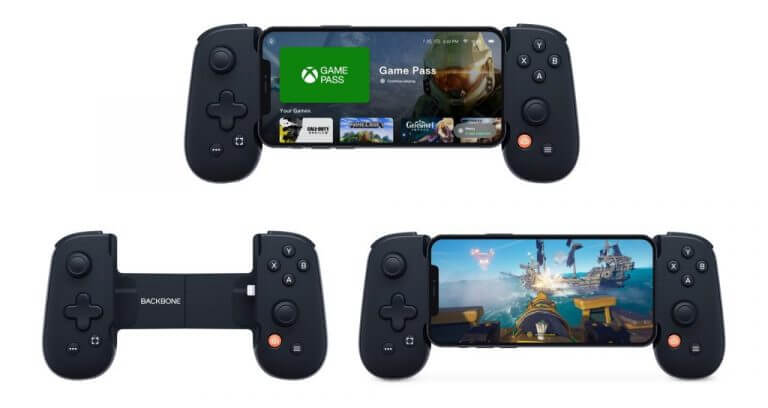
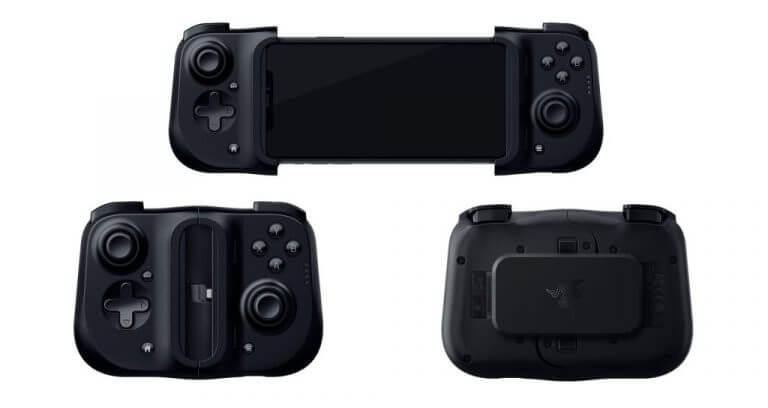

![Microsoft Surface network adapter not working [Full Fix]](https://windowsreport.com/wp-content/uploads/2021/06/microsoft-surface-network-adapter-not-working.jpg)