Destiny 2 has been optimized for the Xbox Series X|S. As of yesterday, Nick Heikkila, principal producer for Bungie has recently taken to the Xbox Wire to announce upgrades and optimization for Destiny 2 that come at no cost to current Xbox Series X|S owners.
Thanks in large part to the Series X|S Smart Deliery, the upgrades are being rolled out to game owners now and bring the following new features:
Improved load times
The improved load times promised enhancements throughout several of Destiny 2’s systems. From launching the game to loading UI elements, and even navigating through menus; multiple heavily trafficked portions of the game were upgraded to become smoother and more responsive.
4K resolution gameplay / Steady 60 FPS
Destiny 2 will be playable at an incredible 4K resolution on the Xbox Series X. Additionally, both the Series X and the Series S play at a crisp 60 frames per second.
120Hz Crucible Mode
This new optional mode provides Xbox Series X owners with the ability to increases their maximum FPS on compatible displays to a blistering 120. In high-level PvP where every frame matters, this new mode provides players with the fastest and most responsive Crucible matches available on console.
Customizable Field of View
Aside from the aesthetic, the field of view slider also carries numerous gameplay implications. When your view is wide, you can see more enemies, but those enemies are also much smaller and harder to aim at. Alternately, you can drag the slider and narrow your view. Now, the targets are much larger, but your peripheral vision is limited.
Cross Generation Gameplay and Cross Save
Well, since nothing in the future is impossible, the answer is an easy “yes.” Bungie worked with Xbox to ensure that Xbox Series X|S owners can continue playing with Xbox One owners. Bungie also developed Cross Save, a feature that allows players to carry their characters and progress between multiple platforms.
In addition to the upgrades, Bungie is also celebrating its November update that brought new levels in the Beyond Light release that include Europa, Deep Stone Crypt and Stasis. For Destiny fans there is a lot to be try out this holiday season on both Xbox One and Series consoles alike.
Bixby Voice is a popular voice assistant available on certain Samsung devices.
Unfortunately, some Samsung device owners have discovered that Bixby Voice is not available in all countries.
Despite the app’s generous list of countries (over 200), some users still have to find workarounds to bypass geoblocks and access Bixby Voice anywhere.
Check out our guide and find out how you could install and use Bixby even in unsupported countries.
If Bixby Voice starts working, you can put the SIM card back in your Samsung device.
Some users reported that using a VPN should spoof your location, making it seem like you’re in the US.
Thus, Bixby Voice should start working on your device as if you were in the US.
However, if your device has other means of picking your location without relying on your Internet connection and/or SIM card, things could get a bit complicated.
Surfshark
Surfshark’s unique GPS spoofing capabilities could help you unblock Bixby Voice in your country.
*We strongly recommend Surfshark since it’s the best VPN that can spoof your GPS location, in addition to your IP-based location. It offers a 7-day free trial for Android users (no credit card required) and a 30-day money-back guarantee.
Reinstall Bixby Voice
Launch Bixby Voice
Access the settings section
Log out of your Samsung account
Clear the cache and uninstall the app
Perform a clean Bixby Voice install
When prompted, log into your account
Some users have reported that Bixby Voice doesn’t work on their devices even if they’re in a supported country.
Instead of being able to access the app, they would see the following error message:
Bixby Voice isn’t available in your country.
However, some of these errors seem to have appeared as a result of cached data build-ups.
In some cases, logging out of the Samsung account, clearing the cache, reinstalling the app, and logging back in seemed to have restored its functionality.
Update apps and flash CSC (advanced)
Locate the following APKs:
Samsung Voice Input
Voice Wake-Up
Bixby Home
Bixby Service
Bixby Global Action
Bixby Voice
Install each APK on your Samsung device
Locate a USA CSC
Perform a full backup of your device
Flash the USA CSC to your device
Clear data/cache of all apps you installed above
Press the Bixby button
If you did everything correctly, you should have Bixby Voice up and running on your Samsung device in no time.
Note that this method could work (technically) on non-Samsung devices as well.
Important: if you’ve never flashed anything to your Samsung device, you should not try this method, unless you’re fine with potentially bricking your device, voiding its warranty, or rendering it unusable.
All things considered, if Bixby Voice isn’t available in your country, there are a few tricks you could try out.
Obviously, the easiest fix would be spoofing your location with a VPN. And Sufshark (buy here) is the best VPN for changing your GPS location and IP address.
Still, using a VPN is not a foolproof solution for all users and Samsung devices.
If you have the technical know-how and are familiarized with advanced Android operations such as flashing custom files to your device, you could try the advanced method listed on our page.
Smartwatches have developed so much in the last years, they became miniature powerhouses capable of tracking your movement, answering calls, playing music, and many more useful things.
Not only is a smartwatch almost as practical as your phone, but it is also highly customizable. You can either opt for a fancy looking one, a minimalist design, or a long-lasting battery if you don’t like charging your watch that often.
What are the best smartwatches with an always-on display?
The Samsung Galaxy Watch Active 2 is one of the best watches on the market, rocking a minimalist and cool design. It goes beyond tracking steps and calories to offer actionable insights on every movement and running style to heart rate.
The watch automatically detects your most popular activities and tracks them. In addition, the Tyzen OS allows access to a series of useful apps and customization.
The Galaxy Watch 3 is another watch using the Tyzen OS that has a professional look, coming with a leather strap. This product is the 3rd and the latest version of the Samsung Watch, keeping the iconic rotating bezel design.
It is the best smartwatch on the market, having a vast library of watch faces and a much slimmer design than its predecessors. In addition, it comes with a plethora of features and compatibility with most smartphones.
The Fossil Gen 5 manages to banish the issues of poor performance and battery life of Wear OS to the past, thanks to the 1GB of RAM and newer Snapdragon Wear 3100 processor.
The watch has custom power modes that allow you to change how much your battery lasts depends on the situation. In addition, the Wear OS has all the useful Google apps, such as Google Maps or Google Pay.
The Fitbit Charge 4 is a fitness-oriented smartwatch that will help you during your exercise. It has integrated GPS for course tracking, Spotify support, more sleep tools, and a motivating new metric called Active Zone Minutes.
The watch has a really slim design and it fits comfortably on your wrist. It also comes with different watch faces and apps for customization.
If you are an iPhone user, you should consider the Apple Watch Series 6, which has full integration with IOS. The watch features a great number of apps, both from apple and 3rd party.
The watch is comfortable to wear and it has a minimalist design, with a large range of strap options and new styles including the Solo Loop and Solo Braided Loop.
These smartwatches are the top of the line, most feature-rich, and high-quality products. They are all great choices if you want a watch that has an always-on display.
One of the defining traits of Minecraft as a videogame is its blocky art style, and while many of us can argue that it does bring a certain personal charm to the videogame, some gamers still see it as a deterrent.
That being said, it’s no wonder that everyone was excited by the prospect of introducing realistic special effects, especially when NVidia proposed the idea of introducing RTX ray tracing earlier this year.
Well, in a recent post on their personal blog, Nvidia revealed that RTX ray tracing is now available for testing in Minecraft, along with 30 other games.
Earlier this year, NVIDIA, Mojang and Microsoft released theMinecraftwith RTX Windows 10 beta, a special Insider standalone client that introduced stunning path-traced ray tracing to the world’s most popular game. Now, ray tracing and DLSS are available to all, having become part of the official MinecraftWindows 10 client!
How do I enable RTX ray tracing in Minecraft?
Mojang and Nvidia wanted to make it as easy as possible to get access to the new feature, but the procedure varies based on whether you are a new player or if you’ve already been playing the Beta.
Wait a few minutes, then check for Minecraft updates in the Windows Store app
If no updates appear to be available, uninstallMinecraft completely,
Install a fresh copy from the Microsoft Store
Note: We advise that you back up your existing worlds, saves and profiles.
If you’re having issues and no updates seem to be available for your Minecraft game, do the following:
UninstallMinecraft
Log out from the Insider Hub
Exit the Xbox Companion App, and Microsoft Store
Restart your PC
Log back into the Microsoft Store and download a fresh copy of Minecraft
Keep in mind that Nvidia RTX ray tracing is not supported by all NvidiaGPUs, so this update will not be available for all players.
The good news is that this will not lead to a separation of worlds, since players that have the RTX-enabled worlds can still play together with other, the only difference being that other players will simply see their worlds with vanilla graphics.
What’s your take on this fantastic news? Is your computer capable of running Minecraft in RTX mode?
If so, lets us know how much of a difference does it make by leaving us a message in the comments section below.
Last week, Microsoft started rolling out the Virtual Breakout Rooms feature to a limited number of GCC tenants, allowing meeting organizers to split participants into multiple smaller groups for discussions. The company has just announced that it’s expanding availability to more users. (available in all GCC tenants this week).
“Since breakout rooms are Teams meetings, all the innovation that makes Teams meetings inclusive, interactive, and intelligent are available within. Attendees can discuss a topic in their breakout room while in a virtual coffee shop in Together mode. Or students can bring up the Microsoft Whiteboard and draw out their ideas. This is also true of our security features that help make your Teams meetings a safe and secure place to meet,” the company explained.
To get with the new breakout rooms feature, make sure that you have enabled the new meeting experience within Settings. For those interested in learning more about creating and managing Breakout Rooms during meetings, be sure to check out this support page.
Alongside the new breakout rooms feature, the company is also launching some new experiences in Microsoft Teams today. Microsoft is now rolling out new holiday-themed Together mode scenes and custom backgrounds to make virtual holiday gatherings more fun. “With these new scenes, it will feel easier than ever for your team to do everything from tackling a tough problem to hosting a holiday party,” Microsoft said.
Lastly, the company has also introduced a bunch of new holiday-themed custom backgrounds for video calls and meetings. Users will be able to download these holiday backgrounds from this website. You can find detailed guidance about using custom backgrounds in our separate post.
It’s good to see that the company is working to bring joy to the Teams meetings and office parties this holiday season. The team has invited users to share their holiday celebrations and ideas with others using the #HolidaysWithTeams tag. “Happy holidays from the Microsoft Teams team. We hope these new experiences and tips bring joy to your workplace and make meetings and office parties more festive this holiday season,” the company said today.
Earlier this year, Microsoft launched a new meeting experience on the desktop, which introduced a large gallery view and Together mode, helping Teams users to deal with the meeting fatigue and make meetings feel more real. The company has now announced that these features are now available in preview on the Teams web clients.
For starters, the new Large gallery view allows users to see up to 49 participants on the screen at once. The feature is available for video calls with 10 or more participants. Alongside the new Large gallery view, Microsoft is also launching Together Mode, allowing people to share a background with up to 49 participants.
To get started with the new meeting experience in Microsoft Teams, you can click (…) in the meeting control bar and then select “Together Mode” or “Large Gallery.” It is important to note that you should be running the latest versions of Microsoft Edge or Google Chrome to use this feature.
Microsoft says that virtual desktops, including VMWare, Citrix are not fully supported in this release. If you’re not currently enrolled in the public preview program, feel free to check out the support article for details.
For supply chain executives, an automated purchase order software is a boon. The purchase function in an organization involves choosing suppliers and incorporating them, purchase order agreements, and more.
Purchase order processes are often an intricate process, unmanageable, and disorganized with several stakeholders onboard. Automated procurement management programs, therefore, are the best solution for companies struggling with intricate manual processes.
These programs help users get rid of the recurrent manual workflows, like purchase order creation, and save time. Among its other advantages are, improvement in efficiency, delivery times and decision-making skills, electronic document management, error reduction, and more.
Here is a list of some of the best-automated purchase order software programs based on simplified business operations.
What are the best automated purchase order tools for businesses?
Chargebee is a leading procurement software that automates the billing processes driving workflows without limiting delivery. Moreover, users can incorporate functional strategies from their subscription evaluation with the software.
Chargebee allows subscribers to get involved in, and upgrade using self-service websites, and create upsell possibilities using one-time and frequent add-ons. It can also take advantage of the compounding attributes of the periodic revenue.
It helps users create their own pricing options, and halt subscriptions and not cancel them. Users can also increase the renewal time frame before they expire, and recover all the expenses with Smart Dunning.
What’s more? Users can also convert every potential customer into monthly recurring profit with the PCI-Compliant Checkout designed for conversions. That’s not all, as users can also focus on developing their business without any data security and compliance concerns.
Chargebee
Automatically reconcile payments, transfers and fees to avoid spreadsheets, missed payments or human errors.
A powerful automated purchase order software for businesses, Precoro is a user-friendly platform. Apart from automated purchasing, it also helps with simple sourcing and spends analytics.
This easy to use software helps users manage orders fast and easy. The best part is, users can manage orders from any number of suppliers and get exhaustive online reports for any period.
Users can have a hold on expenditures with custom support workflows and cost allotment by departments, locations, or even users. This automated software helps make purchasing processes explicit with robust budgeting tools and data using real-time reports.
The tool features all functionalities that support automated sourcing, checklist, records, and contract management. This streamlining of workflow helps maintain smooth relationships with suppliers.
It automatically creates purchase orders, conveys POs to suppliers, matches supplier accounts to POs and contracts, and controls purchase requests – all on one platform.
Moreover, it allocates orders to budgets for managing expenses within cost centers. The real-time reports and the custom compliant workflows generated by it, lets users get control.
Esker purchasing offers automated purchasing solutions that start the P2P cycle right away. The software is cloud-based that enhances spend requests and ordering of goods/services.
This means that every expense request receives the necessary approval and each invoice is matched with a PO. Moreover, it makes user adoption amazingly easy with its power to interface with different users in different company departments.
From purchase requests to acceptance of goods or services, every transaction is tracked. This helps complete reporting on requests, items bought, orders processed and payments done.
The software also comes with an easy to use and customizable dashboard featuring integrated KPIs. Here, users can manage daily tasks and organize preferences, track productivity, and reward best performers, and identify problems and opportunities.
The automated authorization workflow allows the accurate level of approval which is applied to each request. It also helps the expenses to be within the agreed-upon budget.
Users are also allowed to access products from chosen suppliers that enable the purchase to be within the company purchasing practices. In addition, requesters receive the items they want from a catalog of authorized items in the specified period. The buyer can confirm receipt of the approvals received, by completing the order online.
The mobile application, allows managers to authorize purchase requests and review favorite KPIs and metrics from any location, anytime.
DocParser is a software that automates business operations and helps extract data from sales orders, purchase orders, warranty agreements, and more. This automated purchase order software summarizes business files to the basics and shifts the data obtained to its destination. It eliminates the need for manual data entry and automates business.
The program makes it easy to extract necessary data from invoices, for instance, references, dates, totals, and line items. After setting up the software, it automatically processes new documents and generates easy-to-use organized data.
From PDF to Excel or CSV, the data obtained can be downloaded in different file formats for manual post-processing, backup or to upload to any other platform. It can also update third-party programs in real-time, for instance, Google Sheets, Salesforce or and so on. It can move the extracted data from purchase orders to the user’s order management system, or wherever else they want it to be.
Besides, it pulls key data from rental & leasing contracts, warranty & insurance agreements, etc., efficiently and reliably. Furthermore, it can convert standardized programs, application forms, reports, payroll, or any other HR documents into applicable data and in a preferred format.
From extracting data from PDF documents in bulk to strongly and efficiently pulling tables from PDF product catalog, there’s a lot that this software can do.
In a nutshell, automated purchase order software programs make life easier for businesses. These tools are a great alternative to manual tracking of each supplier separately for conformity and performance.
The programs help users to optimize internal processes and tasks efficiently while saving time. So, make your choice from the above list and speed up your purchase order process.
As the technology evolved, we realized we could perform many more tasks within the same time window. Ironically, we also ended up understanding that we don’t have as much time as before and that it’s easy to forget the things that you planned on doing.
Given the variables, it’s no wonder that time management tools, schedulers, and calendar tools have become extremely popular.
The only real problem now is centralization since it is easy to schedule an appointment on one calendar app and then miss it because you were watching another calendar tool.
Well, that will soon be a thing of the past, especially if you use a tool like SyncGo Desktop Calendar.
What is SyncGo Desktop Calendar, and how can it help me?
SyncGo Desktop Calendar, also known as Desktop iCalendar for veteran users, is a desktop tool that anyone can use whose sole purpose is to bring together your Google Calendar, Office365 Calendar, iCloud Calendar on your Windows desktop.
Simply download and install the service, connect it to the appropriate calendar services, and all of the tasks, events and to-dos spread out across those services will be brought together into a single place.
The service is available not just on your desktop, but also on your smartphone as well, and scheduling and deleting tasks can be done from both devices, since two-way synchronization is supported.
Speaking of synching, you don’t have to worry about always being in places with Internet service, since the tool can be used offline, and it will sync and update later with the latest changes.
A calendar tool with an elegant design
Given that this tool will be used mostly for work and productivity purposes, you’re probably expecting some boring UI that is reminiscent of excel tables or spreadsheets, but that isn’t the case.
Those of you that used Windows Vista at some point in your life will probably remember the cool calendar and weather app that you could use that looked ultra-modern on the side of the desktop.
Well, SyncGo Desktop Calendar borrows from that design and greatly improves upon it thanks to the latest GUI (Graphical User Interface) rendering framework.
This makes SyncGo Desktop Calendar clearer and sharper , and it allows you to easily customize the skin of the calendar, such as changing the font, color, and background.
Speaking of the old Vista calendar and weather tool, SyncGo Desktop Calendar will also display the local weather conditions for you in the form of a live 5-day weather forecast by using your current location, using Windows’ Location Services.
SyncGo has all the tools a calendar app may ever need
SyncGo Desktop Calendar can be downloaded as an exe file, or as an AWP, but regardless of your choice, you’ll benefit from the same reliable and resourceful tool.
Your calendar can be easily managed at a micro or macro level by shifting between Day, Week, Month, Year, and List Views.
New entries can be added, and canceled events can be removed just as easily via drag-and-drop, and SyncGo Desktop Calendar also lets you print out your entire schedule if you need a physical version at hand.
SyncGo Desktop Calendar
Organize your time better and sync all events and tasks you have across several calendar apps into one single elegant UI.
Great for syncing events and schedules across several calendar service
Intuitive, minimalist, and familiar design
Available as an exe and an AWP
Lightweight and always at hand
Works offline as well
Highly customizable
Cons
Some may not the Vista-like look
Having a busy schedule is something that we all face these days, so keeping track of all events and making use of what little time we have is the closest thing to 100% efficiency possible.
However, it is impossible to remember everything that you have planned ahead of time, and not everyone can hire a secretary, so a good calendar app that can bring together all other calendar apps is the next best thing.
Thus, if you find yourself in the above-mentioned scenario, go ahead and give SyncGo Desktop Calendar a try. Not only is it incredibly affordable, but you can also test it for free during a 30-day Trial during which you have more than enough time to figure out whether the investment is worth it.
Do you need a tool like SyncGo Desktop Calendar in your life? Let us know by leaving your feedback in the comments section below.
It’s the famous Patch Tuesday moment and we’ve got the long-awaited updates at last. We’re mostly interested in the important security updates.
Patch Tuesday, as you may know, culminates with the release of cumulative updates for all major versions of Windows 10, so everyone will be receiving them.
But each version of Windows 10 is different from the other so that obviously applies to the cumulative updates.
This time, however, all the new Patch Tuesday updates have addressed the security issues when using Microsoft Edge Legacy and Microsoft Office products.
New updates improve security in Microsoft Edge and Microsoft office products
According to the Microsoft release, the new KB updates address a security vulnerability by preventing applications that run as a SYSTEM account from printing to FILE: ports.
They also mention that in order to prevent this issue in the future, you will have to ensure that your applications or services will run as a certain user or as a service account.
Microsoft also included key security updates for the following products: Microsoft Edge Legacy, the Microsoft Graphics Component, Windows Media, Windows Fundamentals, and Windows Virtualization.
We also have to mention that the Microsoft Edge Legacy vulnerabilities were listed as critical.
However, we look at them you need to remember that Patch Tuesday updates are very important.
In most parts, you will receive the updates automatically but if you want to stay ahead, visit this detailed guide where we’ve posted a detailed changelog, and we provided the direct download links for the Windows Update Catalog.
The December Patch Tuesday is here so, naturally, many users have been updating their PCs eager to find all the new features and fixes that have arrived with Windows.
As you already have guessed, all the versions of Windows 10 were touched by these updates, but they are different based on the number and type of changes that were applied to each version.
For instance, let’s look at the KB4592438 and KB4592449 updates, which are now available for Windows versions 20h2 si 2004 and 1903 si 1909 respectively.
Patch Tuesday may cause system certificate issues
According to the Microsoft update bulletin for the new KB4592438 update, when you update a device from Windows 10 version 1809 or later to a later version of Windows 10, the system and user certificates might be lost.
Devices will only be impacted if they have already installed any Latest cumulative update (LCU) released September 16, 2020 or later and then proceed to update to a later version of Windows 10 from media or an installation source which does not have an LCU released October 13, 2020 or later integrated.
According to Microsoft officials, this issue happens mainly when the devices are updated using outdated media or bundles by using an update management tool like WSUS or Microsoft Endpoint Configuration Manager.
They added that the issue can also appear if you’re using outdated physical media or ISO images that are missing the latest updates.
You should also know that if you are using Windows Update for Business or if you connect directly to Windows Update you will have no problems.
How to get around this problem?
To counter this situation, avoid performing these updates by using update manageent tools, outdated physical media or ISO images.
However, if you have already run into this problem, you can uninstall the update. To do that, go to the Windows Update window, click on View your update history and go to Uninstall updates.
Now it’s a matter of right-clicking the problematic update and selecting the Uninstall button.
Microsoft mentioned that they are working on a resolution and that they will provide updated bundles and refreshed media in the following weeks.
If you want to read more about this December Patch Tuesday, we have prepared this dedicated article that also comes with the download links that you can use to get the updates for your computer.
The next Patch Tuesday falls on January 12, so until then we’ll surely come back with details. Until then, make sure to keep your PC safe from any threats and install the security updates.
If you don’t know exactly how to go through this Patch Tuesday update, we have an excellent article with best practices that will explain the process step by step.
Let us know in the comments section below whether or not you intend to apply the cumulative updates right now.
Along with December comes the last round of Patch Tuesday updates, and with it also come the much-awaited CVE reports from Microsoft.
While 2020 hit a record-breaking number of detected CVEs, enough to surpass those of 2019 by August, users are still curious to see whether this ascending trend will continue.
Some may remember how back in October the number of CVEs finally dropped, only to go back up again in November, which is all the more reasons to see what December will bring.
Take a closer look at this quick rundown on the number of CVEs that have been tracked down this year:
Number of detected CVEs is under 100 for the second time in 2020
Vulnerabilities found in Adobe products
As far as Adobe-related CVEs are concerned, only 4 were detected that affected Adobe Prelude, Experience Manager, and Lightroom.
Of the 4 detected CVEs detected, only the one that affected Lightroom was rated Critical.
Vulnerabilities found in Microsoft products
As always, CVEs that targeted Microsoft products are more numerous, and the affect the following services:
Microsoft Windows, Edge (EdgeHTML-based), ChakraCore, Microsoft Office and Office Services and Web Apps, Exchange Server, Azure DevOps, Microsoft Dynamics, Visual Studio, Azure SDK, and Azure Sphere.
Of the 58 detected CVEs, they were rated as follows:
9 are rated as Critical
46 are rated as Important
3 are rated Moderate in severity
Which were some of the most severe CVEs?
Despite being few in numbers, a few CVEs did stand out, either because of their severity, or because of the way they acted.
All in all, here are some of the most important CVEs discovered this month:
December seems to be the month with the fewest detected CVEs in the entirety of 2020, bringing the grand total for this year to 1250.
Keep in mind that if you use any of the Adobe or Microsoft products listed above, it is important to update your PC as soon as possible, either using the Windows Update menu, or via direct download links.
If you want to learn more about the importance of Patch Tuesday updates, check out this guide where we will guide you through the best practices.
For a complete list of all identified CVEs for the December Patch Tuesday updates, also take your time to check out this useful article.
Have you identified any CVEs that weren’t covered by Microsoft yet? Don’t worry, they’ll probably fix those as well by next month, so just keep your eye on the changelogs.
Let us know what you think about this month’s vulnerability briefing by leaving us a message in the comments section below.
Error 806 is a VPN error message that occurs on Windows 10 and older Windows. It goes like this:
A connection between your computer and the VPN server has been established but the VPN connection cannot be completed. Error Code 806 – The most common cause for this failure is that at least one Internet device (for example, a firewall or router) between your computer and the VPN server is not configured to allow Generic Routing Encapsulation (GRE) protocol packets. If the problem persists, contact your network administrator or Internet Service Provider.
The description message says the VPN error 806 likely occurs due to incorrect settings involving GRE passthrough.
Don’t worry since you can fix this issue without expert PC skills, whether you’re running Windows 10 or an older Windows.
How can I fix VPN error 806 in Windows 10?
Open port 1723 over TCP
Press the Start button, type firewall, and select Firewall & network protection
Click Advanced settings
Click Yes if prompted by User Account Control (UAC)
Select Inbound Rules
Open the Action menu and select New Rule
Set Rule Type to Port
At Protocol and Ports, select TCP and set Specific local ports to 1723
Set Action to Allow the connection
At Profile, select Domain, Private and Public
Specify a name and click Finish
Go to Outbound Rules and repeat these steps
Open GRE port for protocol 47
Using the steps we described in the previous solution, create a new inbound rule in the advanced firewall settings
Set Rule Type to Predefined
Set Predefined to Routing and Remote Access
At Predefined Rules, select all Routing and Remote Access entries
At Action, select Allow the connection and click Finish
Create a new outbound rule by following the same steps
If you manually configured a VPN connection on Windows 10, you might occasionally stumbled upon errors like 806.
To avoid this issue on the long term, we suggest opting for a commercial, reliable VPN service such as Private Internet Access. It sets up the secure tunnel automatically whenever you connect to a VPN server.
You can even set up your computer to accept incoming VPN connections by requesting port forwarding in PIA, without having to change any router settings.
More about PIA:
OpenVPN, WireGuard, PPTP, and L2TP support
10 simultaneous connections
A no-logging privacy policy
24/7 live chat support
30-day money-back guarantee (no free trial)
Private Internet Access
Use PIA to set up a secure tunnel on your Windows 10 PC without encountering errors like 806.
To recap, you can fix VPN error 806 on your Windows 10 computer by opening port 1723 over TCP and port GRE over protocol 47, or by adding an exception to the system firewall.
You can also whitelist the VPN app in your anti-malware tool and configure router settings to allow PPTP passthrough.
But a more convenient solution is to get a reliable VPN service like Private Internet Access (buy here).
Which of our solutions worked for you? Do you have any other suggestions? Leave us a comment in the dedicated section below.
Microsoft is giving its Teams platform the Insider treatment with the launch of Teams Public Preview.
According to a Microsoft Teams blog post, the Teams division has come up with Teams Public Preview to encompass various development channels that now include Beta, Private Preview, and Public Preview.
Similar to the Windows, Office, and Edge preview programs, Teams users will be able to try out new features at a pace that fits their workflow based on familiar naming conventions.
Beta Channel
Ideal for early adopters and IT Pros who want to test features as they are being built. We look for bugs and regressions from this audience before releasing the features to the next channel. This was previously called Ring 1.5 and is available to participating Teams TAP customers and only under NDA and program requirements. This channel requires the most time commitment and is only available via self-customer nominations.
Private Preview Channel
Insiders in this channel will see more stable features for validation and piloting adoption. There will be faster updates and adoption help from Microsoft. Pre-release feature support is provided directly by Teams engineering. This channel was previously called Ring 3 and, like Beta channel, is available to participating Teams TAP customers only under NDA and program requirements.
Public Preview Channel
We are launching Public Preview with this announcement. This is for customers who want to evaluate a feature or developers who want to build a solution before broader deployment. There are no program requirements or commitments. This is an opt-in program, controlled via IT admin policy. Please read about how to configure this policy here. For Developer Preview please read here.
As with Windows and Office, Teams users who want to go this route will need to opt into the preview program with a pretty straightforward process that includes:
Select your profile to display the Teams menu.
Select About → Public preview.
Select Switch to Public preview.
Microsoft’s new Teams Public Preview announcement comes alongside the December 2020 Preview Pack released via the public preview channel that’s now testing Windows 10 native notifications, meeting reactions, larger gallery and Together Mode for web, and 2×2 view on VDI.
Several Airtel Broadband users have complained about a network connection issue when trying to connect over a VPN.
It seems that the VPN is not working on Airtel Broadband at all.
Here’s an example claiming that the Indian ISP blocks virtual private network connections:
I took one broadband connection on 24th may 2017. Internet is working fine for me. The issue i am facing from 24th may 2017 with SR : 82813214 is: 1>couldn’t login through VPNapplication to reach my office network through this internet connection. 2>Its working fine when i am trying with airtel 4g dongle and airtel postpaid sim. 3>It also working fine in one of my collegue working with me in same company.
If you’re also facing this issue, discover our quick-fix solutions below.
How do I fix VPN not working with Airtel Broadband?
Reset your router
Turn on the modem and wait until the LED light is stable
Using a pen tip or any protruding material, press and hold the reset button for 20 to 30 seconds
Wait for the modem to reset/restart
Create a port trigger on your router
Turn off your VPN
Access your router admin page using https://192.168.1.1
Find and click Advanced Setup
Select NAT > Port Triggering
Fill in the fields required by your VPN provider
Apply changes and restart your PC
Setting up port forwarding mode at the router level has been proven effective on Airtel’s old Beetel modem (BXI 450).
But you can also try it on newer routers to see if it works.
Use a reliable VPN
It’s critical to use a VPN that works well with Airtel Broadband. You should avoid using free VPN because they aren’t reliable.
We suggest opting for Private Internet Access (PIA). It’s a trustworthy VPN service that you can set up on Windows, Mac, Linux, iOS, and Android devices.
You can also set up PIA at the router level since it has OpenVPN manual configuration mode. If your router doesn’t support VPN client mode, you could get a second router that does and use a bridge-mode configuration.
And, if you’re thinking of configuring your home network to accept VPN connections, you can do this with PIA, too, because it supports native port forwarding.
More about PIA:
OpenVPN and WireGuard protocols
Kill switch and exclusive DNS
A zero-logging policy
24/7 live chat support
30-day money-back guarantee
No free trial
Private Internet Access
Use PIA if your VPN connection isn’t working with Airtel Broadband.
Almost all the mid-range and top-end laptops come with NVMe or SATA SSD installed out of the box. However, NVMe SSD storage on these laptops is usually limited to 128, 256GB, 512GB of storage with an expansion slot.
While buying a laptop with SSD and HHD combo is an option, you still have to deal with the slower HDD speeds. This is where the SSHD laptops are an ideal option. The hybrid drive (SSHD) will run considerably faster than an HDD but is a less expensive alternative to a pure SSD.
In this article, we have listed the best SSHD laptops that offer plenty of storage and better speed compared to standard HDDs and is cheaper than high capacity SSD devices.
With its 32GB of RAM, 512GB of SSD storage and 2TB HDD, the ASUS TUF506IV is a solid workhorse for content creators and creative professionals.
Under the hood, it houses AMD’s mighty Ryzen 7 4800H CPU paired with NVIDIA RTX 2060 GPU for optimal gaming performance. The full HD 15.6″ display offers decent color accuracy and gets adequately brighter.
Additionally, it features a full-sized Ethernet port, an excellent RGB keyboard, good audio, and plenty of I/O ports.
With a solid gaming performance, sleek and minimal design, and good build quality Dell 7855 G7 15 is a good mid-range gaming product that you can consider in this segment.
This variant of the Dell 7855 G7 15 offers 32 GB of RAM, 256GB of SSD storage and a massive 2TB of SSHD storage drive. It also comes with a 15.6″ Full HD display.
Other features of the laptop include Intel Core i7 8th Gen CPU, GTX 1060 6GB MAX-Q graphics, plenty of ports, and Windows 10 OS.
The last-gen ASUS ROG Strix SCAR II is one of the few laptops to features a 1TB SSHD drive out of the box. With a solid build quality, unique I AM Gamer design, and solid performance, it is still an excellent choice in the segment.
It features a 15.6″ Full HD 144Hz display with good color accuracy and brightness. It houses the older 8th Gen Intel Core i7 CPU, paired with GTX 1070, 16GB of RAM and a 256GB NVMe SSD drive.
Apart from the usual yet solid connectivity features, the ASUS ROG Strix SCAR II has an excellent full RGB keyboard.
If money is not a concern, the MSI GT76 Titan DT 10SGS-055 is a laptop that houses the performance of a gaming desktop in a heavy but portable chassis.
The MSI GT76 Titan DT features the latest Intel Core i7 10900K desktop CPU, paired with RTX 2080 Super for excellent ultra settings gaming and work performance. It also comes with plenty of storage that includes 64 GB of RAM, 2TB of NVMe SSD and 2TB of SSHD.
This massive laptop does have a fairly large 17.3″ 4K display with plenty of I/O options along with an excellent full RGB keyboard.
If you can overlook the aesthetics and a dim and dull display, the MSI GF63 9SCX offers solid gaming performance for the price along with a massive 1TB SSHD storage unit.
It also comes with a 256GB of NVMe SSD for OS installation. Under the hood, it features an Intel Core i5 9th Gen CPU, GTX 1650 graphics that offers good gaming performance.
The 15.6″ display is not the best but gets the job done. However, in outdoor conditions, the display lacks the brightness making it hard to read.
SSHD laptops are an excellent choice if you want to store a lot of media files on your laptop without occupying your SSD space or compromising on speed. All the laptops listed in this article offer SSD and SSHD storage to store large files.
There are certain situations when you want to stream a video in your browser just to find out that the default player doesn’t offer all the options and the control you want, or worse doesn’t even support the specific format.
A great solution that is sure to get you out of this predicament is changing the video player of your browser by installing an extension that is compatible with your operating system.
Such extensions allow you to play audio and video files directly from the browser without using third-party software. So let’s see what are the main extension that can dramatically improve your streaming experience.
This extension detects any type of stream-able media be it video or audio and offers a “send to MVP” option. Thanks to this add-on you are able to watch or listen to media streams much easier with just a few clicks.
An optimized extension was created to be as lightweight as possible. One perk you’ll like is that the background page of the extension is in non-persistent mode, so the extension doesn’t need any resources when it is inactive.
What sets it apart from other similar extensions is the fact that it’s much lighter because the media detection algorithm does not demand usual observation.
Another great option for Opera is an add-on that changes the default YouTube player to Flash and offers better resolution choices than an HTML5 Player.
It is very lightweight, doesn’t take up memory space, and also doesn’t require a lot of CPU usage. This extension is perfect if you have a slow device because it consumes fewer resources, CPU, and RAM.
Play in VLC is an extension designed to bring you a multimedia experience directly from your browser by offering the perks of great third-party software without taking-up memory space.
You can watch your favorite movie streams or listen to music in the VLC player with just one move. The extension detects all the audio and video from the web page and displays the media sources in the badge area. All you need to do is left-click on the button in the toolbar in order to send these media sources to the VLC player.
This browser extension is created to play music and video files from any type of online source. At the basis of this tool is the popular video.js project. Media Player is designed to enhance the user experience by applying custom plug-ins.
All you have to do is drag and drop the video files into the player or press the big play button, this way you’ll be able to watch any offline or online video in no time.
If you want to load subtitles for your videos, you need to make sure you also drop the subtitle files as well. In order to detect, their search for an SRT or VTT format.
A great extension that brings the awesome benefits of a media player and at the same time saves you the time you’d waste downloading video software.
You can play any type of online audio or video file at a much higher quality than are accustomed to. Change your internet viewing habits to a home cinema experience by adding this user-friendly extension to your browser.
Developed by the founder of the popular social platform, Tik-Tok, this add-on was created with the users’ preferences in mind.
With this smart extension, you can take advantage of an improved media experience when you access your favorite streaming sites like YouTube, Vimeo, Dailymotion, Break, Metacafe, or Lego.
Don’t miss out on this browser’s built-in video player that provides higher performance and a more stable experience.
You can make the best of your streaming time with this high-quality extension that supports audio boosting to 300% and provides a playback rate speed of up to 8 times.
Easy to use and with a minimal interface this extension can play media files from a local disk or a remote source.
This extension offers to play video or audio from a local disk or a remote resource. It uses the standard catching method to play remote sources with minimal interruption. You can even groove to your favorite musician by repeating one song or an entire album, thanks to this smart player.
Playing videos or listening to audio using specially created extensions that can be incorporated into your browser is a great way to add some quality to your interactive online activities.
The extensions that we presented you with in this article are compatible with most operating systems, are easy to set up and very user-friendly.
We’d like to hear your opinion on this subject so please feel free to comment by accessing the comment section below.
Microsoft has just released a new Windows 10 Preview for those on its Windows Insiders program. Surprisingly, it brings a new feature for Cortana, along with the usual fixes.
Cortana fans should know that this feature lets them use the very same digital assistant they’ve known for years to open and find files with ease.
To be more precise, Cortana will help users find files using their voice rather than sifting through documents by typing words.
The advantages of this new feature are obvious. Brandon LeBlanc, program manager for the Windows Insider program, says:
You can now use Cortana on your PCs to translate their thoughts into direct actions to open and find files and save time spent navigating to apps/folders to locate and open files.
How can I use the Cortana file finder feature on Windows 10?
The feature that we are talking about is included in Cortana version number 2.2011.26701.0 or up. That’s available for download in the Windows Insider channels via the Microsoft Store.
Assuming that you run this version already, feel free to ask Cortana to look for files based on parts of file names or on author names. You may find a recently edited file as well (Hey Cortana, find my recent files).
Moreover, you can ask to search for different file types – .txt files, ppt and .pptx ones, .doc and .docx files, and not only. To find a document of a particular type, it’s enough to say: Hey Cortana, find my recent doc files.
If users of a Microsoft account can take advantage of Cortana to find files saved on their computers, enterprise users who sign in to Cortana with their corporate credentials can also search for files saved on SharePoint and OneDrive for Business.
Could this new Cortana feature make you more productive when finding and opening files? Let us know your opinion in the comments area below.
In a blog post penned by Jared Spataro, Microsoft announced a new milestone in the company’s history. SharePoint, the cloud-based service that helps organizations share and manage content, recently hit the 200 million monthly active users mark in the cloud.
According to the blog post, SharePoint usage has doubled in nearly the last year actually surpassing that 200 million monthly active user mark. Microsoft says this is all driven by user feedback and support since 2011. Another key reason is accelerated Microsoft 365 adoption, and the way SharePoint plugs in with Azure and the Microsoft Graph and other Microsoft experiences like Teams, OneDrive, Office, custom PowerApps, and SPFx apps, and more. In the words of Microsoft:
SharePoint powers content collaboration across Microsoft 365. It underpins the document sharing scenarios in OneDrive with Word, Excel, PowerPoint, and 320 other file types. It drives our new Microsoft Lists experiences. It enables end-users to create beautiful pages and portals with video from Microsoft Stream and conversations from Yammer to engage employees.
The COVID-19 pandemic is also a driving factor, too, with educators, and businesses having to deal with remote work and learning, and a dependable service for content access and management around the globe. This is why Microsoft was also recognized by Gartner as a Leader in the Content Services Platforms Quadrant for 2020. Now the fourth year in a row, the company says it places higher in both Completeness of Vision and Ability to Execute than any other company in the Leaders’ quadrant.
For all the success, Microsoft is still planning to invest in SharePoint going forward. Spataro’s post ends by noting that Microsoft is planning to “bring to market many new SharePoint-powered experiences in collaboration, media, protection, intelligence, custom solutions, and more in 2021.”
Gears 5 is getting its first solo expansion on December 15 with the Hivebusters Expansion. The new DLC will include a 3-hour campaign featuring Lahni, Keegan and Mac, the 3 heroes from Gears 5’s Escape mode on a suicide mission to destroy a Swarm hive.
Just like the regular Gears 5 campaign, the Hivebusters Expansion will support 3-player co-op, split-screen or online. However, each of the 3 heroes will have its own Ultimate Abilities to use again Locust enemies, a notable difference compared to the Gears 5 campaign where only Jack, the robot companion has special abilities.
The Gears 5: Hivebusters campaign expansion will also add 16 new achievements to unlock for 210 Gamerscore. Gears 5 was recently updated for Xbox Series X|S consoles, and this new DLC will support the same optimizations on Microsoft’s next-gen consoles including reduced load times, variable refresh rates, and 4K HDR Ultra visuals on Series X.
The upcoming DLC is available for $19.99 pre-purchase from the Microsoft digital store today ahead of its launch on December 15. If you’re an Xbox Game Pass Ultimate subscriber, you’ll be able to play it for free on day one on Xbox, PC, or Android via Cloud gaming. Also launching on December 15 is Gears 5: Game of the Year Edition, a new $59.99 bundle that includes the base game, the upcoming Hivebusters campaign expansion, Halo: Reach Character Pack, plus 30 days of boost.
If you’re familiar with computers, you likely have used the command prompt once to accomplish a common or admin task in Windows 10. But did you know that Teams also has its own command line or sorts? That’s right, from the top of the search bar in Microsoft Teams you can input certain commands. We’ll be looking at some of those today.
What are slash commands?
Slash commands in the Teams app on the web or the desktop app allow you to perform common tasks. You’re able to do things like update a status, going to a specific channel, or show recent files. You can use these by clicking your mouse in the search box and typing a “/” Once you do that, you can see all the commands available for you. Do note that you can also press Alt+K (Windows) or Option+K (Mac) to open the command list. You’ll likely appreciate slash commands because they can save you time during a busy day.
What are some common slash commands?
Command
What the command does
/activity
See a coworker’s activity
/away
Set your status to away
/busy
Set your status to busy
/call
Call a certain number or contact
/dnd
Set your status to do not disturb
/goto
Go to a team or channel
/files
See your recent files
/mentions
See your @mentions
When you first check out the slash commands, you’ll see a long list of supported ones. Right now, there’s a total list of 18 commands that are supported. Everyone using Teams has access to these, and if something isn’t working for you, then your organization likely disabled a feature that needs the command. Some of our favorite commands are above.
Not to be confused with keyboard shortcuts
Though we’ve focused on slash commands, these really should not be compared or confused with keyboard shortcuts. These are two different things. Slash commands are for common tasks in Teams, but keyboard shortcuts are rather focused on the general navigation of Teams. We explained those in a separate post. As always, we also remind you that you can check out our dedicated Teams hub for more Teams news and information.
Dictation recorder software usually works similarly to a dictaphone. Such tools allow your computer to be used in order to send dictation to your typist by email, the Internet, and also over the computer network. They also come with digital audio recording features.
There are a lot of dictation recording programs on the market by we gathered some of the best in order to show you their best features and to make your choice much easier. Check them all out and decide which one’s the best for you.
What dictation recorder tools can I find for Windows 10?
Using this program, you will be able to record and send dictation directly from your computer. This is a voice recording program that allows your PC running Windows to send dictation to your typist via email, Internet, or computer network among others.
Check out the best features that are included in this software below:
This is a professional dictation voice recorder that works like a traditional dictaphone.
You will be able to send a dictation instantly via the Internet.
This digital dictation software will significantly improve turn-around time, and it will let you work wherever you want to.
You will be able to enjoy excellent signal processing quality.
The program comes with automatic non-destructive editing with various record modes including record-overwrite, record-insert, and more.
The long silences will not be recorded thanks to voice-activated recording.
You will get the ability to assign priority to individual dictations.
The software supports encryption, and this is perfect to secure patient or client data for transmission over the Internet.
Express Dictate
Free, basic recording software for PC or Mac that successfully replaces a dictaphone to digitize your audio material.
Dragon Professional by Nuance is another dictation software that you can use to turn voice into typing directly onto your computer. This tool also allows for voice commands that turn into actions.
The new version of Dragon has been improved to recognize various accents and voice particularities, taking voice recognition to up to 99%.
Besides, the tool will memorize your most used words and phrases, to save dictation time. Actually, Dragon is focused on productivity all the way, given the fast speech recognition capabilities and instant on-screen reproduction, allowing for rapid corrections, if necessary.
The tool is compatible with Windows-only devices, including tablets or smartphones, and it has been adapted for touchscreen used, as well.
Note that in terms of browsers, it will work only with Internet Explorer or Chrome.
Dragon Professional Individual
Efficient, user-friendly dictation software, optimized for touchscreen devices, that will help you get your work done within minutes.
Another product in the same Dragon family, this time Dragon Home, the basic version of the Dragon speech recognition software.
It boasts the same efficiency when it comes to voice recognition and rendering. It is extremely useful when it comes to creating and formatting documents with only voice commands.
As opposed to the previous recommendation, Dragon Home won’t automatically turn your recordings into texts, and won’t sync customizations with the mobile app, in care you’re also using it.
However, for the sole purpose of transcribing and dictating, it will do the job perfectly.
Dragon Home
Basic, but reliable speech recognition, dictation and transcription software to bring your ideas to life.
SoniClear is a dictation voice recorder that will make recording dictation easier than using a dictation machine. You will get enhanced digital quality and also the convenience of managing your dictation files on your computer.
Check out the best features of this software:
You can send dictation files for transcription via the Internet or LAN.
Using this program, you will be able to experience the high-quality and convenience of recording dictation on your computer running Windows.
The default source audio will be from your sound card microphone.
If your computer comes with a built-in microphone, the program will record automatically from the mic.
If your computer does not come with a built-in mic, you have to plug a computer microphone into the mic-in jack of your sound card.
The default recording type is Meeting, and you will have to change it to Dictation.
When you are using the program for the first time, you will probably have to adjust the record volume.
When you finished dictating, you have to click the stop button.
If you’re satisfied with the results, your recording is done, and if you’re not, you can click the undo button and try again.
You also have the ability to record in sessions.
Groups of users can also post recordings into a common server location to provide a dictation repository. You can check out more of this software’s features and try out SoniClear by downloading it from its official website to see how it works.
With the latest software Olympus Dictation Management System (ODMS) you have a complete solution to create your daily businesses documents easily, quickly and efficiently.
Check out the best features included in this program:
Olympus has many years of experience in audio and dictation.
You will be able to choose between the ways in which you can turn speech into text: classic, automatic, and advanced transcription.
Classic transcription involves dictating and sending your dictation to the typist; the typist will make the transcription and the author will approve the document.
The automatic voice transcription involves dictating and sending the file to a speech recognition module, and then the document has to be approved by the initial author.
The advanced voice transcription involves the dictation module, the transcription module, and also the speech recognition capabilities.
You will receive the right tools to implement a professional dictation workflow and set up a complex central administration.
The program comes with a new and improved interface for increased usability. The user interface is a really important component of professional dictation, and it can really boost your efficiency and productivity as well. Check out more about Olympus Dictation Management System (ODMS) on its official website.
Dictation Buddy is a Windows-based software that records your voice and saves the recording as a compressed sound file that you will be able to play, edit, send, or publish.
Take a look at the most important features that are included in this software:
You can use Dictation Buddy to transcribe a recording or to record phone conversations.
You can record, and playback compressed sound files using fast and efficient Windows codecs.
You will be able to record from any line or sound card from your computer.
The automatic sound activation means that the recording will start when the audio sounds are detected.
The automatic save facilities mean that the sound files are automatically saved when a conversation or a dictation ends.
The files will be saved in a directory specified by the user.
You will also get accelerated playback for easy searching and the ability to edit your recording.
You will be able to send your recording via email.
The software is easy to use, and it includes an audio wizard to help you select the best recording parameters. The global hotkeys allow for quick access to the primary functions.
BigHand Dictate is currently one of the world’s leading dictation software having more than 280,000 users in more than 2,550 organizations.
Take a look at the features that are included in this program:
You will be able to use your resources in a smarter way to manage higher workloads and to spend more time on billable work.
You will be able to track, assign, edit, and approve a regular flow of work for increased clarity and efficiency.
Using this software, you will be able to get a return on investment.
This program makes dictation faster to complete and easier to manage.
The program enables you to record onto a vast variety of devices and then to easily share your dictation.
You will also be able to prioritize and track your voice files as well.
You can send your work to the support staff for transcription, to a speech recognition engine, or an outsourcing agency. Check out BigHand Dictate on its official website.
These are some of the best dictation recorder tools that you can currently find on the market and that is compatible with computers running Windows. Go to their official websites to check out their complete set of features. After you analyze them, you will be able to make the best choice for your dictation needs.
After Nvidia brought ray tracing support to the beta version of Minecraft for Windows 10 earlier this year, all PC gamers with Nvidia RTX cards can now enjoy ray tracing on Minecraft for Windows 10 today. The sandbox game’s new Render Dragon technology is quite the visual makeover as it introduces brightened blocks, water reflections, more realistic shadows, and rich global illumination.
“Players who install Minecraft ray tracing will by default see everything enhanced with a special physically based rendering texture pack, which interplays with the ray-traced effects to further enhance the experience. There are plenty of maps and worlds with this feature – all available on the Minecraft Marketplace,” the Minecraft team explained today.
In addition to this new ray tracing update for Minecraft for Windows 10, players can also download a new free world named Colosseum RTX, and a second one named Dungeon Dash RTX will follow soon. Developer Mojang has also announced the release of free content for both Bedrock and Java editions of Minecraft to celebrate the Minecraft Community this holiday season.
“For Bedrock, we’re releasing new character creator items and maps over the course of four weeks. We also have plenty of surprises for our Java players! These gifts will be released each Monday, and we will also be giving away a free week of Java Realms between December 8 and January 13 to both new and existing subscribers,” the team explained today.
Apple this morning announced their latest product, over the ear headphones known as AirPods Max. Priced at a whopping $550, there’s a lot of initial reaction and comparisons to Microsoft’s Surface Headphones. So, if you’re part of that wave, we’ve got your back. Here’s how the two compare on price, features, and a lot more.
Price
First off, there’s the price. Microsoft’s Surface Headphones come in two generations. You can find the first-gen Surface headphones for much cheaper at around $100-$120 on most reseller websites like eBay. The latest Surface Headphones 2, though, comes in at $250. Both products also come in multiple colors. Surface Headphones 2 come in Light Gray and Matte Black, though first-gen Surface Headphones only in Light Gray.
Apple’s AirPods Max, though, comes in five colors: Space Gray, Silver, Green, Sky Blue, and Pink. They’re priced at $550. Looking at just the price, you can see the difference here. You can pick up two Surface Headphones for the price of one Apple AirPods Max. But is it worth it? Let’s dive deeper.
Connectivity
Next up, there’s connectivity. This is quite important for headphones. We’re giving Microsoft the upper hand here, for a couple of reasons. First off, Surface Headphones have a 3.5 mm headphone connector, letting you connect the headphones up to a PC or any other device manually to a headphone jack. Secondly, it also features multi-device support and Bluetooth, letting you pair and switch between PCs, Macs, iPhones, and other devices. There’s even a companion app on Windows, iOS, and Android, too to help you manage how you use the headphones with your non-Windows devices
Looking at the AirPods Max, there’s quite the situation if you’re not into Apple’s ecosystem of devices. While AirPods Max supports Seamless Switching and pairing between Mac, iPhone, and iPad devices, we presume it would work the same way with AirPods do with Windows. This isn’t exactly as seamless when it comes to pairing compared to Surface Headphones. Anyway, AirPods Max also lacks a 3.5 mm connector, so you can’t use the Apple cans with your PC with a cable.
And, as far as we can tell, managing the AirPods Max will only work through iOS, unlike Surface Headphones, which can be managed on iOS, Android, or Windows via the Surface Audio App. Finally, Apple’s headphones also have a proprietary Lightning connector for charging, whereas Surface Headphones are USB-C.
Design
Now, there’s the design. Of course, these two products differ significantly in design. We already dived deeper into Surface Headphones design back when we reviewed it. Basically, the Surface Headphones feature a padded canopy on the top and memory foam around the ear cups. We really like this design.
The outside of the cups (on the side) also rotates for volume control and noise cancellation and has touch controls to help control your digital assistant or play and pause music You’ll also find a dedicated mic mute button, as well as the power button on the cup, too. This is a unique design that helps keep the headphones light and thin, around 0.64 pounds, 8 inches in length, and 1.89 in thickness.
Apple’s new AirPods Max are different. Apple says that the headphones have a “breathable knit mesh canopy, spanning the headband, is made to distribute weight and reduce on-head pressure.” The headband is made of stainless steel and looks to be quite flexible. The earcups are also able to independently pivot, too.
Weight comes in at .85 pounds, and the length at 7.37 inches, and thickness at 3.28 inches. But let us not forget Apple’s Digital Crown. The AirPods Max features this signature feature from the Apple Watch on the top of the cup. This is to control volume, answer calls, and activate Siri. Another button on the cup will also let you switch between the audio and noise cancelation modes.
Sound and noise cancellation
Now, for sound and noise cancellation. Microsoft’s Surface Headphones feature up to 30dB for active noise cancellation, and 40 dB for passive noise cancellation (to hear outside). Microsoft claims there are 13-levels of active noise cancellation, too. Its Omnisonic speakers (Microsoft’s term for audio immersion,) meanwhile come with a 40nm Free Edge driver. The frequency response is 20-20 kHz, and audio Codecs are SBc and aptX. Digital Assistants, meanwhile, can be configured on-device based on what operating system or phone you’re using Surface Headphones with.
Just like AirPods Max, the Surface Headphones also sport audio pause, which means the music will pause if you slip it off your ears. There’s a total of eight mics on board, with two being in each cup. These are all the technical specs we can find listed online about Surface Headphones.
Apple’s AirPods Max, however, are jam-packed with all kinds of sensors for tracking your head, and for spatial audio. The drivers and speakers are Apple-designed and are dynamic. It has an optical sensor, position sensor, accelerometer, in each cup, and a gyroscope in the left ear cup. There’s also a total of nine microphones onboard, 8 for active noise cancellation, and three for voice pickup. Oh, and let’s not forget Siri, which is always-on with the Apple headphones, letting you hear messages, respond to messages, check the weather, and more.
There’s also a transparency mode, to let you hear outside noise, and adaptive EQ, which automatically tunes the low- and mid-frequencies of the music to the shape of an individual’s ear. We’ll also mention Apple’s headphones have the H1 headphone chip in each ear cup, too. Apple says this chip “uses computational audio to create a breakthrough listening experience.”
On paper, it would seem as though Apple has the upper hand here over Microsoft. For the high price, its headphones have a lot of technology packed in Apple’s new cans.
Battery life and conclusion
Apple says that AirPods Max can last up to 20 hours on a single charge for watching movies, talking, and more. Microsoft’s Surface Headphones, meanwhile, can go on for up to 18.5 hours of music listening time or up to 15 hours of voice calling on Microsoft Teams. Note that Apple’s headphones have a special carry case, which can put the headphones in an ultra-low power state to preserve charge. Surface Headphones have one, too, but the case doesn’t support this feature.
Alas, looking at both headphones, the choice is yours to make. For Microsoft fans, the Surface Headphones 2 are the best buy. You get the ease of use with different devices, and Windows 10. Apple fans, or those with Apple devices, might be better off with AirPods Max. Those pair of cans play nicer with iOS and Macs and even might have better sound quality.
Robots are deployed in a wide variety of manufacturing industries. Industries that utilize robots need robotic programmers to program their robots. Those are programmers who generate code for robot controllers with various scripting languages.
Robot programmers utilize offline programming and 2D and 3D simulator software. They need laptops with good processors and at least eight GB RAM that can handle the most complex robotic programming software.
Laptops with bigger displays and full-size keyboards are also more preferable for programming.
What are the best laptops for programming and robotics?
The Dell XPS 15 is a great laptop for all programming fields. Its ninth-generation i9 processor boasts a super quick 4.5 GHz clock speed.
This laptop provides up to 32 GB RAM and one TB storage, which is more than sufficient for robotic programming. It also has a crisp and vibrant 15.6-inch 4K resolution display.
The Dell XPS 15 has some nice features too. Its integrated fingerprint reader on the power button enables users to log in quicker.
The Dell XPS 15’s backlit keyboard is ideal for low lighting conditions, and its Dell Mobile Connect software also enables users to integrate their mobiles with this laptop.
With a ninth-generation Intel 8-core processor and up to 32 GB RAM, the ZenBook Pro Duo UX581 provides top-notch multitasking performance.
Its NVIDIA GeForce RTX 2060 is a beast of a GPU for 3D robotic simulator software. This laptop also boasts a luxurious 4K resolution display.
The ZenBook Pro Duo UX581 also features a unique dual-screen design. Its secondary touchscreen Sidepad Plus display can provide an expanded visual workspace for programming code and content.
So, that’s a feature of robotic programmers and other productivity users will appreciate.
This is a 15.6-inch gaming laptop with a powerful configuration that ensures it can handle the most system resource-intensive software for robotics programming.
It incorporates a 10-gen i7-108750H processor, 16 GB RAM, one TB SSD storage, and an NVIDIA GeForce RTX 2080 GPU.
The Razer Blade 15 also has a great keyboard backlighting. The Razer Blade 15 Advanced Model features per-key Razer Chroma lighting effects that users can customization.
Although not really useful for programming purposes, that’s still a nice feature nonetheless.
The LG gram 17 is an expansive, yet lightweight, 17-inch laptop that doesn’t sacrifice portability for size. Its 10th generation Intel i7-1065G7 CPU, combined with 16 GB RAM, makes it a powerful workstation for the most system resource heavy robotic programming.
Furthermore, LG gram 17 also has a decent keyboard that’s spacious and responsive.
The inclusion of a Numpad on its right side is a welcome addition for programming. Its keyboard also features two backlighting levels, which is handy for finding keys in low light conditions.
The VivoBook Pro is a good value laptop with a seventh-gen Intel i7-7700HQ CPU, 16 GB RAM, one TB HDD +256 GB SSD storage, and GTX 1050 GPU.
Although its processor isn’t the latest generation, this laptop still delivers decent performance for heavy-duty productivity software and multitasking.
This 15.6-inch laptop also has a nice design and a full-size keyboard. The VivoBook Pro incorporates a smooth aluminum chassis with light gold color. Its ergonomic backlit keyboard has responsive 1.4 mm keys and a Numpad robotic programmers can utilize.
Those are five of the best laptops to program robots with. Their strong processing and RAM quantities make them more than sufficient for the most heavy-duty programming and multitasking.
Overall, they’re great laptops for all productivity users and aren’t bad for gaming either.
The first reviews for Cyberpunk 2077, one of the most-anticipated games of 2020, have been published yesterday and they’re quite polarized. Following the blockbuster success of The Witcher 3 which crossed 50 million sales earlier this year, developer CD Projekt Red had a lot of pressure on its shoulders to deliver another iconic RPG, especially since Cyberpunk 2077 has been hyped to the extreme since its original announcement back in 2012.
If The Witcher video games series was based on a series of novels and short stories that started in 1993, Cyberpunk 2077 is based on a dystopian tabletop RPG launched in 1988. The game is set in Night City, a large American city entirely created by CD Projekt Red, and the developers obviously spent years on the meticulously crafted open world where players should be able to spend hundreds of hours.
Cyberpunk 2077 has been delayed several times, and CD Projekt Red also took some flak for breaking its promise to stay away from the crunch issues that have been plaguing the development of so many AAA games in recent years. Despite the ongoing hype, there’s definitely some controversy about Cyberpunk 2077, including the way the game deals with nudity, trans people, drugs, and more, though the developer deserves credit for not shying away from adult themes.
As of this writing, the PC version of the game received widespread critical acclaim with a 91 score on Metacritic, though several reviews have pointed out the huge amount of bugs still present in the game despite the multiple delays. Cyberpunk 2077’s RPG mechanics also don’t appear to really revolutionize the genre, though there’s nothing really wrong with that.
While Night City may likely appear to be intimidating at first, many reviews emphasized that the megacity is a true work of art. Carolyn Petit from Polygon had one of the best descriptions of it:
To its credit, the Night City of Cyberpunk 2077 is not just an amalgamation of imagery lifted from other influential sources, but an original creation that incorporates many signifiers of cyberpunk genre flavor (lots of Japanese kanji in neon, airships slowly drifting through the sky) while also feeling like a place we haven’t seen before.
Steam may issue forth from every surface, but this isn’t the shadowy aesthetic allure of Blade Runner. Night City is something altogether uglier and more chaotic than that, with its skyline of awkward megabuildings resembling a landscape assembled by a child out of chunky toy blocks.
Cyberpunk 2077 is CD Projekt Red’s first game that plays out in first-person, and gamers will be able to customize pretty much everything about V, the player controller protagonist. While The Witcher 3 series had a charismatic main character with Geralt of Rivia, Cyberpunk 2077 has Jonny Silverhand, a supporting character played by A-list actor Keanu Reeves. As expected, the movie star did a great job at making Silverhand a great sidekick.
“Keanu Reeves, known as Johnny Silverhand, is the one constant in every “Cyberpunk” playthrough, and probably the game’s best hook for its story. Reeves steals every scene he’s in, and dominates the game in ways I once again won’t dare spoil. Cyberpunk’s most objectively great quality is that it contains hours and hours of an extremely committed and multifaceted performance from Keanu Reeves. His starpower and presence is not wasted here,” wrote Gene Park from The Washington Post.
Among the not-so-positive reviews, Kotaku’s Riley MacLeod pointed out that the developers may have been too obsessed about trying to be edgy, and that can ultimately hurt the storytelling and gameplay. “It tries too hard, stuffing itself with a tangle of complicated roleplaying game systems; with so many cyberpunk tropes, plots, and slang; with neon and holograms and so many in-game ads, most of them for sex; with car chases and hacking and corporate espionage and double-crossing powerful people; with a world where the human body is made obsolete with money and technology, while also chewed up and spat out for the sake of capital,” wrote MacLeod.
Jeff Grub from Venture Beat also explained why despite CD Projekt Red’s ambition to push boundaries, Cyberpunk 2077 is probably more like a synthesis of the best open-world games from the past couple of years.
What Cyberpunk really is, however, is a big open-world action role-playing game. What it’s not is a look at gaming’s future. Instead, it feels like a summation of where we’ve come in gaming since the Xbox 360 generation. It feels like a game built by people looking around to see what works — like Grand Theft Auto’s open world, Watch Dogs’ hacking, Assassin’s Creed’s quest-filled maps, Fallout’s combat and character progression, Mass Effect’s dialogue system, Batman: Arkham Knight’s crime scene investigations, and every games’ skill trees.
It’s very rare to see games launching in a non-buggy state these days, and a huge open-world game like Cyberpunk 2077 could probably have stayed a couple more weeks in the oven. “This game is boiling over with glitches, particularly toward the game’s climax. As the game neared its end, every main character of the game was touched by some hilarious, scene-breaking glitch — including the very final shot of the story before the credits rolled. Whether this world holds together is a question I just can’t answer yet,” explained Gene Park from The Washington Post.
It’s worth noting that CD Projekt ReD didn’t provide codes for the Xbox One and PlayStation versions of the games to the media. The publisher also asked all testers to not use their own gameplay videos in reviews, probably to prevent bugs and glitches from becoming viral ahead of the game’s release. The PC version of the game supports ray-tracing and seems well optimized, though performance on consoles remains a mystery. As a reminder, a true next-gen version of Cyberpunk 2077 for Xbox Series X|S and PlayStation 5 consoles won’t be available until next year, and we hope CD Projekt Red will share more information soon.
Last but not least, Game Informer pointed out today that Cyberpunk 2077 can be hazardous for gamers prone to epileptic episodes. As it turns out, the game includes epileptic triggers in several zones where flickering lights are used. “During my time with Cyberpunk 2077, I suffered one major seizure and felt several moments where I was close to another one,” wrote Game Informer’s Liana Ruppert.
As game developers have been slowly but surely learning to make their games more inclusive, this is a clear misstep from CD Projekt Red and we hope this is something the developers will fix. In the meantime, if you’re prone to suffer from epileptic episodes, it’s probably best to play the game with caution.
Cyberpunk 2077 will be available on November 10 on Xbox One, Playstation 4, Google Stadia, and PC, and we’ll publish our hands-on with the Xbox One version later this week. We’ll be comparing the differences between the Xbox One S and Xbox One X versions in backwards compatibility mode, and we hope to publish our full review soon.
Microsoft is rolling out support for more background scenes in Microsoft Teams meetings. The company began the rollout earlier this month, and now it’s starting to show up in some tenants.
As the name suggests, Together mode allows meeting participants to sit beside other co-workers in virtual shared environments. With these new background scenes, users will be able to pretend that they are holding a Teams meeting in a coffee shop, an auditorium, or a conference room.
To try new scenes, enable Together mode in a meeting, and select the “Change scene” option. Keep in mind that some of these scenes like cinema, curved conference theater, and the auditorium can be used for larger meetings with up to 49 participants. However, the coffee shop and boardroom scenes are suitable for smaller meetings.
For now, users manually need to adjust their workstation camera to improve the effectiveness of the combined video feeds. To address this issue, the company is working on a new feature that should automatically scale and center participants in their virtual seats. We hope that the company will ship this enhancement in the coming months. Have you spotted the new Together mode scenes on your PCs? Sound off in the comments section below.
Microsoft is continually making international investments to expand its digital and physical footprint and yesterday, the company made its most “most significant investment in its 30-year history in Denmark.”
In a press release on the Microsoft Stories Europe website, the company announced a new sustainable data center in Denmark. According to Microsoft, the new data center is part of the company’s #DigitalLeapDenmark initiative that is not only intended to spark growth of Danish enterprises but do so while using 100 percent renewable energy.
Microsoft is estimating that its Denmark servers can be up to 93 percent more energy efficient than traditional enterprise data centers, an evaluation given by advisory and investment company The Footprint Firm which helps companies move toward “climate-positive” and sustainable solutions.
More specifically, the Denmark data center will help provide Danish customers access to the Microsoft Cloud at much faster speeds by mitigating distance-related complications.
“This is a proud day for Microsoft in Denmark. Building a hyper-scale data center in Denmark means we’ll store Danish data in Denmark, make computing more accessible at even faster speeds, secure data with our world-class security, protect data with Danish privacy laws, and do more to provide to the people of Denmark our best digital skills training. This investment reflects our deep appreciation of Denmark’s green and digital leadership globally and our commitment to its future.” -” Brad Smith, President, Microsoft.
Part of Microsoft’s Denmark investment comes with a pledge to bring “digital upskilling to 200,000 Danes,” which includes various training programs, certifications, digital education opportunities, and job-seeking tools. With over 2,000 partners collaborating with Microsoft in the area the company’s “upskilling” efforts should result in higher-paying more sought-after jobs over time for more Danes.
Checking in to a hotel usually means using its Wi-Fi to gain Internet access. Sometimes it’s password-protected, and sometimes it’s not.
Unfortunately, hotel Wi-Fi has security risks since you never know who might be monitoring your connection to the outside world.
If you don’t want to worry about this, we suggest getting a top VPN for hotel Wi-Fi. It will protect you from eavesdroppers and DDoS attacks, and even help you unblock websites.
Here’s what you should look for in a reliable VPN for hotel Wi-Fi while travelling:
Military-grade encryption
A large network of VPN servers
No IP or DNS leaks
A zero-logging policy
24/7 live chat support
We found the best VPN clients that incorporate all these features. You can find quick overviews of them below.
ExpressVPN is one of the best VPNs for hotel Wi-Fi, thanks to its superior connection speeds and top-of-the-line security features. It brings over 3,000 VPN servers in 94 countries.
This tool supports OpenVPN with up to 256-bit military-grade encryption. It runs zero-knowledge DNS servers and includes IPv6 leak protection. ExpressVPN supports 5 simultaneous device connections.
More about ExpressVPN:
No logs or leaks
Watch Netflix US anywhere
24/7 live chat support
30-day money-back guarantee
7-day free trial for Android and iOS
ExpressVPN
Don’t worry about your device security and online privacy when you can turn to this reliable VPN.
CyberGhost VPN – secure killswitch and DNS leak protection
CyberGhost VPN is the best free VPN for hotel Wi-Fi because it’s a premium VPN that you can use for free for a limited time only. It’s compatible with Windows, Mac, Linux, iOS, and Android.
This VPN service has an impressive network of more than 6,500 VPN servers in 89 countries. It supports OpenVPN with up to 256-bit military-grade encryption.
Furthermore, CyberGhost VPN has private DNS servers and split tunneling. It supports up to 7 simultaneous connections.
More about CyberGhost VPN:
No identifying logs
No IP or DNS leaks
Watch the best Netflix libraries, including US, UK, and Canada
Up to 45-day money-back guarantee
24/7 live chat support
1-day free trial for Windows
7-day free trial for Android and iOS
CyberGhost VPN
Get this dependable VPN to stay safe and unblock Netflix on hotel Wi-Fi.
NordVPN is already a household name that needs no introduction. It’s one of the most popular VPNs on the web and works great for keeping you safe while connecting to hotel Wi-Fi.
This VPN service has a network of more than 5,100 VPN servers in 59 countries. You can set it up on all popular platforms, including Mac, Windows, iOS, and Android.
NordVPN uses OpenVPN with up to 256-bit military-grade encryption. To amp up your security level, you can also use Double VPN, Onion-over-VPN or obfuscated servers.
More about NordVPN:
A zero-logging policy
No leaks
Unblock Netflix US and other catalogues
30-day money-back guarantee
24/7 live chat support
No free trial
NordVPN
Stay safe and secure when connecting to hotel Wi-Fi, thanks to this practical VPN service.
Private Internet Access (PIA) has more than 3,300 VPN servers in 48 countries. You can set it up on your Windows laptop, Macbook, iOS or Android mobile, with up to 10 simultaneous devices.
You can use the modern WireGuard protocol or stick to OpenVPN with up to 256-bit miliary-grade encryption. It has exclusive DNS servers, a browser ad blocker, along with SOCKS5 and Shadowsocks proxy.
Additionally, PIA includes a kill switch, port forwarding, and split tunnelling.
More about PIA:
No traffic logs
No IP, DNS or WebRTC leaks
Unblock Netflix US anywhere
30-day money-back guarantee
24/7 live chat support
Private Internet Access
Secure your Internet connection when using hotel Wi-Fi, thanks to this reliable VPN service.
Surfshark is an incredibly popular VPN for hotel Wi-Fi because it offers affordable subscription plans and unlimited device connections. It comes with more than 1,700 VPN servers in over 63 countries.
Surfshark supports WireGuard and OpenVPN with up to 256-bit military-grade encryption. It can be installed on all popular devices such as Windows, Linux, Mac, Android, and iOS.
Furthermore, you can use exclusive DNS servers, obfuscated servers, multi-hop VPN connections, a kill switch, and split tunnelling mode. It also includes the Shadowsocks proxy.
More about Surfshark:
A no-logging privacy policy
No IP or DNS leaks
Watch unlimited Netflix streaming
30-day money-back guarantee
24/7 live chat and email support
1-day free trial for Android and iOS
Surfshark
Get this budget-friendly VPN to protect your device from hackers on hotel Wi-Fi.
It turns your PC into an OS emulator for various platforms and operating systems, including older Windows versions, Linux, and Mac. And it’s completely free to use.
Since VirtualBox supports VPN, a lot of users turn to it as a solution for securing their network connection.
But VPN connections don’t always work on VirtualBox.
Here’s a relevant message from the VirtualBox forum:
Hello, I have installed Windows XP on a Virtual Box space, everything is ok but when i tried to access the VPN it didn’t want, this is the first time i try to access the VPN with the Virtual Box, with my normal PC to ISP the VPN works great, but it doesn’t want to get connected through Virtual Box Windows XP image. Please help. Thank you
Resolve the problem by following the steps we listed below.
Why I cannot access VPN through VirtualBox?
Enable Paravirtualization in NAT adapter
Launch VirtualBox and go to Settings > Network
Find and select Adapter
Set Attached to NAT
Click on Advanced and select Adapter type: Paravirtualized Network
Enable VPN service on the host PC and start the virtual machine
Once done, you should be able to use the VPN of the host computer on the guest computer or virtual machine.
Switch to DNS proxy
Run VirtualBox on the default NAT setup
Open a terminal inside VirtualBox
Copy and paste the following line to enable DNS proxy:
VBoxManage modifyvm "VM name" --natdnsproxy1 on
If the DNS solution doesn’t make your VPN work properly with VirtualBox, proceed to the next.
Install two network adapters (NAT & Host-Only)
Set up a NAT adapter
This allows the guest PC to share the host VPN network and other related settings. However, your virtual engine (guest computer) would still be unable to access connections on the host computer.
Set up a Host-Only networking adapter
It will fix the previous problem and provides you with an IP address that can be accessed from the host PC. Then, you should be able to connect to the host’s VPN network.
You should now have a two-way connection, between both computers (virtual and actual). Consequently, VPN network sharing is made easy.
Use a VPN client
If you’re looking for an easy solution to bypass the VPN connection issue with VirtualBox as well as to protect your online privacy, consider using a premium VPN client.
All you have to do is download and install a VPN app, connect to a VPN server, and then open your virtual machine. And we can’t think of a better option than Private Internet Access.
PIA supports numerous VPN servers, a zero-logging privacy policy, WireGuard and OpenVPN protocols. It allows 10 simultaneous device connections and works flawlessly with Private Internet Access.
More about PIA:
Made for Windows, Mac, Linux, Android, iOS, and routers
To summarize, you shouldn’t worry if your VPN connection fails to work with VirtualBox. Instead, you can enable Paravirtualization in the NAT adapter or switch to DNS proxy mode.
You can also set up two network adapters for NAT and Host-Only. But the best way to remain secure and anonymous online is by turning to a reliable VPN service like Private Internet Access.
VPNBook is a free VPN service that lets you hide your digital identity in no time. However, like any other digital service, it may face certain issues.
One of the most discussed problems is VPNBook not connecting to the Internet.
It’s easy to see why such an issue can be debilitating to the regular Internet user.
Instead of anonymizing your connection, this issue can make it impossible to get online.
The good news is that there are a few fixes you could try to get VPNBook up and running again.
How to fix VPNBook not connecting
Update OpenVPN
If you’re no stranger to VPNBook, you probably understand how it works.
As opposed to using traditional VPN solutions, VPNBook relies on the OpenVPN client for some of its servers. OpenVPN has to be configured manually on each device.
Given that OpenVPN is, to some degree, the backbone of the VPNBook project, you must make sure that you’re at least running the latest version of the client.
For that reason, if VPNBook is not connecting to the Internet, try downloading the latest OpenVPN client, configure it properly, and try again.
Note: VPNBook PPTP servers make use of devices’ built-in VPN capabilities. For instance, you can configure PPTP on Windows and Android using each device’s internal capabilities.
Check credentials
For security reasons and probably to prevent exploitation of its free service, VPNBook frequently replaces the set of credentials displayed on its website.
With that in mind, you might want to check that the credentials you’re using haven’t been changed in the meantime.
Using invalid credentials can render your VPN connection unusable, thus making it impossible for you to access the Internet through it.
Visit the official servers page on the VPNBook website, scroll down and check if your credentials match the ones on the website.
Reinstall TAP adapter
Much like any other VPN solution, VPNBook makes use of a special driver that must be installed on the target computer.
This is usually called TAP adapter, TAP driver, TAP adapter driver, or generally a combination of the terms above.
Most VPNs bundle the driver, so you don’t have to spend a lot of time looking around for it. Even OpenVPN does.
However, this driver could become outdated or corrupted without warning.
For that reason we recommend you check if you have the latest version installed. If you do, try reinstalling the driver to rule out corruption problems.
Check servers
The servers offered on the dedicated page by VPNBook may be modified without warning from time to time.
For instance, a ca222.vpnbook.com server could no longer work overnight, but a ca223.vpnbook.com server could take its place without you even noticing.
Check the servers page as often as you can to prevent this issue.
Switch to TCP
Some ISPs or network administrators may have UDP filters and blacklists in place, which would render VPN unable to connect to the Internet.
All VPNBook bundles include TCP 443, TCP 80, UDP53, and UDP 25000 profiles.
Make sure to try them all out before calling it quits. More importantly, if you notice that UDP doesn’t seem to work at all, try using a TCP profile instead.
Alternative VPN services
Purchase a premium VPN subscription (we recommend PIA)
Download and install the VPN
Launch the VPN client on your computer
Connect to the server of your choice
Enjoy browsing the Internet privately
Using a premium VPN service could be, or at least seem less appealing than a free service such as VPNBook.
However, paid VPN services are constantly developed and serious issues such as connection issues are not frequent at all.
Private Internet Access, for instance, has a huge network that counts almost 20,000 servers all around the world.
Thus, even if one server doesn’t seem to work, you can simply switch to another one to solve any connectivity issues.
Private Internet Access
Looking for an alternative to VPNBooks that doesn’t have connectivity issues? Try Private Internet Access.
Final thoughts on VPNBooks not connecting to the Internet
All in all, if you’re using VPNBook and suddenly discover it doesn’t connect to the Internet, there are a few things you could try before calling it quits.
Given that the service revolves around partially configuring settings manually, you’ll have to make sure that credentials and server addresses are accurate.
If you’ve tried everything configuration-related and nothing seems to work, you could switch to a premium alternative.
Sure it’s less convenient that you’ll have to pay for it, but at least you’ll dodge connectivity issues with grace.
Whether you shoot videos using your smartphone or a DSLR camera, 4K videos have become a standard format for many. However, editing 4K videos is a CPU intensive work and requires a capable editing machine that offers adequate storage space and an accurate color display.
If you are on a budget, there are many mid-range laptops capable of running full-blown editing software like Adobe Premiere Pro and Black Magic Design’s DaVinci Resolve.
In this article, we have listed the best budget laptops for video editing that offer excellent performance without breaking the bank.
What are the best budget laptops for video editing?
Acer Aspire 5 A515-55-56VK is a winner when it comes to a budget priced workhorse. The latest version of the laptop comes with Intel Core i5 10th Gen CPU that packs enough punch for CPU intensive tasks like video editing.
While the build quality of the device is decent, the 15.6″ display offers good picture quality. It also features a fingerprint scanner on the touchpad and a backlit keyboard.
For storage, there is 8GB of RAM that is expandable and 256GB of SSD storage. It also offers plenty of I/O options, including USB Type-C 3.1 port and WiFi 6.
Acer Aspire 5 A515-55-56VK is an excellent choice for anyone looking for a mid-range laptop that doesn’t cost the earth without compromising the build quality or components.
Best laptop for video editing under $700: Acer Nitro 5
The latest edition of Acer’s Nitro 5 budget gaming laptops is the right choice for video editing. A beefy processor and a dedicated GPU offer enough to edit even 4K videos fast.
Under the hood, it comes packed with a Core i5 9th Gen Intel CPU paired with Nvidia GTX 1650 for optimal gaming and video rendering performance. The 15.6″ Full HD display gets decently bright and offers sharp picture quality.
Other features of the laptop include 8GB of RAM, 256 GB of SSD storage, and the usual connectivity features, including WiFi 6. The keyboard is good to type on, and the backlit keys help in the dark.
Acer Nitro 5 is a reliable workhorse that delivers on performance. However, to keep the costs down, Acer had to go short on storage while leaving space for storage expansion.
ASUS ZenBook 14 UX425JA comes packed with an Intel Core i7 CPU and integrated Intel GPU. For storage, you have 8GB of RAM that is expandable and a 512GB super-fast SSD drive. Like its 15″ variant, this one also features a touch-enabled trackpad that can also be used as a numberpad.
The 14″ Full HD display is a treat to watch and gets adequately bright when required. It also features the standard set of new-gen I/O ports to accommodate all your accessories.
ASUS ZenBook 14 UX425JA gets three – portability, power, and pricing – right for an ultraportable device that packs some serious power inside. Add to that the stunning looks, and you have the best budget laptop under $1000.
Finding the best budget video editing laptop is a tricky task as you have to find a decently powered laptop that offers great value for money.
All the laptops listed in this article can power through most video projects that you can throw at them. Go through the list and let us know your pick in the comments below.
In the past, audience engagement was usually done only by clapping and cheering but with the advancements in technology, now we can use specialized software designed specifically for this reason.
This type of software allows the crowd to interact with speakers and vice-versa using a simple button. You can use this software for live polling, webinars, gamification, live Q&A, etc. The information provided by such apps can also help speakers and organizers better understand the crowd’s preferences, make the experience more engaging and interactive.
Most of the software options for audience polling require different third-party controllers that allows your crowd to input data.
In this article, we will focus on the crowd polling software that doesn’t require you to buy anything else . People that are part of the audience, can easily use their smartphone to input data or participate in polls.
The speaker/presenter can also use his/her computer or mobile to set up questionnaires, interactive games, polls, get reactions, etc.
What are the best audience engagement tools for live events?
Captivate is currently the leading eLearning courses maker, bringing a set of professional features to create trainings quickly and efficiently, and spice them up with video content, interactive sessions, VR walkthroughs, or quizzes.
So the program isn’t a polling software per se but includes the necessary tools to create a polling session via out-of-the-box quiz templates.
Such types of interactions can challenge participants to match multiple choices, fill in the blanks, or provide a short answer.
Additionally, the remediation workflow provided by the app allows users to improve their results by retaking the quiz and better understanding the concepts.
Apart from this quiz-creation feature, Captivate allows you to accomplish the following:
Use ready-made templates to create simple or module courses
Add video content, motion effects, animations
Sync with PowerPoint to easily import presentations and convert them rapidly into interactive trainings
Deliver projects that are multiscreen responsive, so they adapt to the users’ device
Simultaneously record on-screen + webcam movement and edit for later insert into your slides
Bulk edit your objects with copy/paste functions, to save time when working on large projects
Access a whole library of attractive fonts via the Typekit integration
Adobe Captivate
Create highly interactive polls and quizzes within minutes, using the ready-made templates this fully customized software offers.
VoxVote is a great audience polling tool that allows you to easily manage your crowd no matter how big it is. This software was designed for any speaker or teacher in order to be able to interact with the crowds by creating questions, vote sessions, and also have the ability to discuss the results of the tests live.
This software can reduce the number of paper feedback forms, that are really hard to handle and the response rate is very low. This makes the feedback-obtaining process, more streamlined and exact.
You can also compare the results of your polling/tests by interacting with your crowd before, during, and after the talk.
Key features include:
Unlimited audience/projects/events
Browser-based voting (Wifi, 3G.4G, https)
See the results of your graphs live
Audience can receive email summaries
Allows the audience to ask questions and moderate
Ability to instantly create new questions
Can create presentation slides
Secure voting
Crossing/combining question in result
VoxQuiz – calculates the total of points obtained by answering the questions right and exports a list of users to Excel
You can find a good range of tutorials about how to use VoxVote on the official site.
BuzzMaster is a greatly powerful piece of software that was designed in order to make your audience polling experience easier than ever.
This software works with the state of the art interaction technology that can help you easily interact with your audience, find out opinions about different subjects, create tests/polls, and can also help you crowdsource funds for your cause.
The paid versions of BuzzMaster even offer you the services of an interaction specialist, who controls the system, consults with you in the starting stages of the project, and also works as a connection between the speaker and the crowd.
Key features include:
Selfie upload – when attendees arrive they can upload a selfie that can be customized by each person
Matchmaking – this feature allows you to be matched with different people at the
conference/meeting based on similar interests
Ability to open questions and comments – find out exactly what your audience’s opinion is and allows them to express their concerns, praises, etc.
Multiple-choice questions – allows you to find out data about audience demographics
Bar graphs – for easier representation of charts, questions, etc.
Pie charts
Clusters – groups your audience’s responses into data clusters for easy access
Voting features
Sorting and grading – can find out what the audience think of the speaker by using grades
The tool comes in three versions. We’ll list the main features of each version below.
BuzzMaster Essential:
250 maximum participants
Limited features and slides
Customized design
Interaction is done by client
Full phone customer support
Data export – PNG, XLSX
GDPR data protection
BuzzMaster Advanced:
This version of the software offers an unlimited number of participants, features and slides, a great number of customized designs. The Control Interaction Tool is managed directly by BuzzMaster, you get full customer support on-site, and all the other features of the Essential version with some additions :
Dedicated Wi-Fi network
Closed servers
Interaction specialist
Event program consultant
Complete technical support
Data DJ
Audience intermediary
With the Premium version of this software, you get all the features presented in both Essential and Advanced versions. The Premium version also gives BuzzMaster the power to function as a moderator.
Crowdpurr is another great software option that offers great audience engagement features for your events. This app is free to use and offers a wide range of traits that allow you to be in full control of your audience and, at the same time, pick their minds regarding their opinions, discussions, votes, interactive games, etc.
One of the best features of Crowdpurr is the fact that you can interactively add different elements to your hub. You can customize your software to suit your needs perfectly by adding images, questions, answers, brand logos, etc.
Crowdpurr offers users a wide range of features. Some of the most notable ones are:
Experience dashboard – friendly design of the user interface that allows you to keep a live overview and control over your data
Ability to see fully detailed results
Projector view – a reactive pop-up screen that allows you yo share your project with the crowd on any device
Real-time response with no refreshing needed
Ability to present the final results of your poll, trivia game, etc.
Easy to access mobile view – the audience can interact with your polls with no sign in required
Multiple and single voting
Wide range of question formats
Live polling
Social media walls
The free version of Crowdpurr has a limited amount of features and is designed for smaller crowds. You can use it with 15 participants/event, can ask only 3 questions, and can produce 3 experiences.
This version includes the experience dashboard, projector view, and mobile platform. The free Crowdpurr also has a logo posted on the screen and ads.
Crowdpurr’s Classroom Plan offers a good range of features that are designed for medium crowds. This plan allows you to use 100 participants, ask 100 questions, and produce up to 10 experiences. You can also upload custom branding logos, create image/GIF based questions, has a fully automatic playback mode, and get free customer support via email and phone.
You can also easily export test results, audience votes, and other participation data to Excel.
The Seminar Plan for Crowdpurr was designed for larger crowds. This version has all the features included in the Classroom Plan, and also adds:
500 participants
Can create 25 experiences
Can set custom crowd access codes for experiences
Collect and export names, emails, phone numbers, etc.
Multi-language crowd support
The Conference Plan from Crowdpurr was designed with huge crowds in mind. This version offers all the features of the Seminar Plan, and also adds:
1000 participants
Can create 50 experiences
Custom background uploading
Ability to set brand custom domains and URLs
The Convention Plan offers high-end advertising and was designed specifically for massive crowds. In this version you will find all the features included in the Conference Plan and also adds:
5000 participants
100 experiences
Ability to monetize ad space
Dedicated servers
The Crowdpurr Custom Plan offers you the possibility to organize specially tailored and branded experiences for high number of events. This version allows you to get high-end interactive experiences directly from the producer, offers support for Ultra HD Live events, and you have unlimited power of customization and deeply branded experiences.
You can also use immersive 3D graphics in your presentations and can get on-site tech support for both training and setup.
EventScribe is another great audience polling software that was designed specifically for educational conferences and meetings. This software allows planners to control every aspect of the event, and also gives the attendees the power to express their concerns, issues, and opinions.
When it comes to your audience, EventScribe can make note-taking a lot easier. Your attendees have access to the full event program, choose the sessions they want to participate in, and they can also add highlights, annotations, and even draw on your presentation slides.
By using EventScribe Floor Plan app, your audience can take part in live polling, ask questions, connect to social media, add comments during sessions, and can even share notes with other people.
This app is also perfect for meeting planners with its powerful back end tools. You can customize your app with specific branding, and the tile home screen design can easily present you with the possibility of selling sponsorship with full-screen ads, event sponsored content, etc.
EventScribe has been released in 3 different versions that offer specific features for different types of users:
EventScribe Express:
5 maximum menu navigation items
Basic pop-ups for your presentation
Speaker photos and biographies
Email module for communicating with users
EventScribe Standard includes all the features of the Express version and adds:
8 maximum menu navigation items
Quick tutorials for users
Advanced presentation pop-ups
Attendee list
EventScribe Professional contains all the features of previous versions and adds:
Unlimited number of menu navigation items
Set up customized pop-ups
Can hide speakers once the task is completed
You can filter the speakers by county, state, and organization
Confrenz is a light-weight audience polling app that allows the speaker/presenter to keep in touch with the crowd’s emotions, and also allows the audience to interact with the speaker by asking and answering different questions, participating in polls and questionnaires, etc.
Even though this app is not as powerful as the other options presented in this article, Confrenz has a good range of features that can simplify the process of organizing and managing events of all sizes.
Key features of Confrenz include:
Offers you a complete and interactive event guide
Great communication tools that allow you to stay connected to your crowd and vice-versa
Tools to get event feedback and info
Customized questionnaires and surveys
Wide range of interactions both speaker to the audience, and audience to the speaker
Having the possibility to engage the crowd at your events is a crucially important task. This allows you to hold their attention and present/talk with ease, by the use of all the incorporated tools found in the software presented above.
The wide range of tools presented in this article covers all the needs of both speakers/presenters that work with small crowds, and also for events with thousands of people.
Browsing through the features lists presented in these tools will surely make it easier than ever for you to choose the best software option for your needs. With this software, you can engage your audience at a professional level and make decisions on how you are going to continue your talk/presentation, based on live feedback from the attendees.
Let us know in the comment section below what software option you chose and why.
For many, live streaming has almost become their full-time job while for others is a requirement in their workplace, which in return gives them a lot of movement freedom.
Now it’s easier than ever to get your work done with only a good laptop and a reliable internet connection.
For high-quality streaming, you need high-speed internet with a reliable upload speed. Not to mention that your laptop should be able to handle multiple applications at the same time.
As there are many good laptops out there that could do this job just fine, we took the liberty of trying them out and select them based on the most frequently used streaming options.
Make sure to check out this article for the best streaming laptops you should have.
HP Pavilion Gaming 15-Inch Laptop is a laptop with so many great features that many will become addicted to it.
It comes with a 9th Generation intel(r) processor that will complete your tasks easy and fast. Is a great laptop for live webcam streaming and also fantastic for gaming or watching movies.
The advanced thermal management that comes within will ensure that your laptop is kept cool to the touch at all times and that this is not affecting the acoustics.
HP Stream Laptop is a slim and lovely laptop, as the description says, and is also the perfect choice for streaming twitch.
The screen is very sharp and with high contrast and is smooth and fast enough for web surfing, streaming video watching, normal office software working.
The keyboard backlit is another convenient addition that makes the typing comfortable especially when you are using the laptop during night time.
Acer Aspire 1 A115-31-C2Y3 is a great choice that will make it easy for you to stream while using OBS.
It’s a lightweight laptop with fast Wi-Fi connectivity and most of all reliable, meaning that you can count on it while doing your projects at work or school or while watching a movie at home.
Thanks to the Windows 10 in S mode you will benefit from a fast start-up and a pretty efficient way to get all things done fast.
Acer Aspire 5 Slim Laptop comes with a great balance between the performance it offers and its price.
It is the perfect choice in terms of listening to music, thanks to the Acer TrueHarmony that will allow for a more clear sound with its innovative speaking design.
Its peak performance and mobility and its extensive connectivity will allow you to accomplish more with this laptop than with any other.
Dell Inspiron is the last of our recommendations and the best when it comes to TV streaming thanks to the 15.6” HD Touchscreen.
It has been upgraded to 1 TB SSD which will allow you to save data on your laptop at a pretty fast speed.
Thanks to its powerful processor and the substantial bandwidth RAM you will be able to smoothly run your favorite TV programs, play games, work in video editing applications. All this without ever losing performance speed.
It’s not always an easy task finding and selecting the best laptop for your specific needs, considering that there are so many really great options out there.
We hope that our list helped you find the best laptop with which you can watch TV, play games, stream music, or work on other projects.
Spectrum is a popular US-based Internet Service Provider (ISP) that provides its customers with many communication services.
However, as expected, the service is unavailable to non-US residents. Furthermore, merely accessing the Spectrum website outside the United States will prompt you with an ugly Access Denied error.
With that in mind, we’ll teach you how to quickly circumvent this geo-restriction and bypass the Spectrum Access Denied error.
If done correctly, you should be facing Spectrum’s homepage without breaking a sweat. You’ll gracefully dodge the error you can admire in its entireness below:
You don’t have permission to access “https://www.spectrum.com/” on this server.
Using a VPN will hide your IP address, and re-route your connection through secure servers while encrypting your traffic to prevent it from being monitored.
By the end of it, Spectrum’s website will believe you are located on the US server you connected to.
As a result, you won’t have any problems accessing this US-only service, even from outside of this region.
ExpressVPN
Unlock geo-blocked content and navigate the internet safely with this powerful VPN solution.
Proxy servers are a great alternative to mask your actual location if you’re not ready for a total VPN commitment.
Most of them are free, so you won’t have to spend a dime trying to mask your location and bypass Spectrum’s Access Denied error.
On the other hand, using free proxy servers might significantly slow down your connection, given that many users constantly assault them.
Last but not least, advanced filtering and firewall systems can easily pick up on proxy traffic and restrict you from accessing specific resources.
By comparison, modern VPN solutions have traffic obfuscation features that could help you fly under the radar.
Smart DNS services
Using Smart DNS is perhaps the fastest method. In short, it can hide your location like a VPN but with no speed loss.
Let’s discuss this in more detail: a Smart DNS service replaces your ISP-assigned DNS with a private address hosted in a certain location.
Furthermore, your IP address will stay the same, and your traffic will be visible to your ISP.
As a result, you’ll be able to access resources such as Spectrum’s geo-restricted website quickly, just as long as you select an appropriate location.
Smart DNS services are fast due to their lack of encryption. Thus, if you also care about your privacy as much as you do about bypassing Spectrum’s Access Denied error, you should consider using a VPN.
Tor
Tor is still one of the most popular choices for hiding your online identity. Thus, it makes sense to use it if you want to access Spectrum and bypass the Access Denied error.
Aside from masking your IP address, Tor also hides your actual location and makes it seem like you’re in a different place.
Some of the most commonly known drawbacks of Tor include its slow connection speed and the random factor regarding location spoofing.
To summarize, Tor is free and can effectively hide your location. However, it’s also prolonged, and you can’t choose a specific location like you can with VPN services.
However, suppose you want to land in a specific exit node country. In that case, you can modify some configuration files, which is not intuitive, especially for non-tech-savvy users.
All things considered, if you’re trying to bypass Spectrum’s Access Denied error, there are many ways you can tackle this issue.
VPNs are arguably one of the best ways to go about it, but you’ll have to commit to buying a premium plan, given that free VPNs aren’t as effective.
Surely, you may bypass it successfully by using some of our other suggestions. However, you may experience some drawbacks, including slow connectivity, lack of encryption, and even the inability to choose a specific region.
After initial testing with Edge Insiders, Microsoft is finally rolling out the “Search in Sidebar” feature to the production version of the Chromium-based web browser. As long as you’re running Edge version 87.0.664.55 or higher, you can now drag to highlight a word and then right-click on it, then choose Search in Sidebar, and get a contextual search box to the right side of Edge.
Specifically, this new option can be useful for things such as definitions, web links, images, videos. Compared to the “Ask Cortana” feature in legacy Edge, you’re also getting image and video verticals, which show better results related to the highlighted word or phrase. You also can summon it with CTRL+Shift+E, too, without clicking, as an alternate shortcut.
It’s important to note, though that sidebar search is persistent in the tab in which it was opened. You’re going to get the option to close the pane (with the “X) or look up additional information related to other words using the search box from Bing. You’re also able to use the“Open in new tab” button which opens the web results in a new tab.
This feature will definitely be useful for educators, students, and even journalists, too. Perhaps even for shopping, in combination with the Collections and price checking feature in Edge, as well. Let us know what you think in the comments.
Traditional computers are still going strong, but they no longer detain the monopole. A pool of alternatives is now available on the market and diversity, as always, is a good thing.
One particular alternative that is steadily gaining terrain are Chromebooks, hybrid-like devices that can be used as both laptops or tablets that primarily run on the Chrome OS.
We say primarily because recent years have spiced things up even more and now, we have Chromebooks that can run Android or even Linux apps.
And let’s not forget about the plethora of enhancements such as bigger screens, more computing power, and propers keyboards that were injected into these devices in recent years.
Price-wise, of course, a Chrome will be more affordable than a full-scale PC. But today, we want to show you the very best options for the lowest of budgets.
So, without further ado, here are our top 5 Chromebook recommendations that go for 200$ or so to fit all pockets.
For those of you who thought that Chromebooks and gaming are no match made in heaven, this device is here to prove you wrong.
With all the rights boosts in all the right places, this Chromebook is perfectly optimized to provide performance even in the most demanding scenarios such as intense gaming sessions.
The device is equipped with a powerful Intel Celeron N3350 processor, a 14-inch IPS HD SVA anti-glare WLED-backlit display, and beautiful Intel HD-powered graphics. To complete the immersive experience, audio is also one stead ahead with B&O play with dual speakers.
It may not be brand new, but it looks and acts like one. This HP-manufactured Chromed is powered by a dual-core Intel processor that is guaranteed to deliver performance.
When combined with Intel HD Graphics, you can expect a truly incredible viewing experience that is even further enhanced by the wide display geared with HD, SVA, and WLED anti-glare.
Wifi-ready (not to mention the Bluetooth compatibility) and backed-up by the Amazon guarantee, you simply cannot go wrong with this super-affordable and highly effective product.
Powered by an Intel Celeron processor that clocks at 1.1 GHz combined with 4GB of RAM, this Chromebook is all about boosting productivity as it allows you to open multiple tabs and run multiple apps simultaneously with no lagging.
The Intel HD 500 integrated graphics render fine-textured visuals on the HD display that stretched across 111.6 inches to provide an optimal viewing experience.
Coming in at approximately 2.2 pounds, this Chromebook is lightweight and portable, but also effective thanks to its Intel Celeron processor that pumps in enough power to support all your daily tasks effortlessly.
Speaking about portability, the device also comes with 2 Lithium-ion batteries included that will keep you juiced up for no less than 10 hours.
Last, but not least, the 11.6-inch display will have you set for a comfortable viewing experience in no time.
The Intel Celeron N2840 processor will put both its cores to good use allowing you to use this Chromebook for all your daily tasks, quickly and easily.
Its snappy performance can only be matched by the 11.6-inch display that offers crisp-looking images and is also HD-ready for your convenience.
The device is also highly versatile and Bluetooth-compatible to help you pair all your peripherals while keeping those precious USB ports free for more important devices.











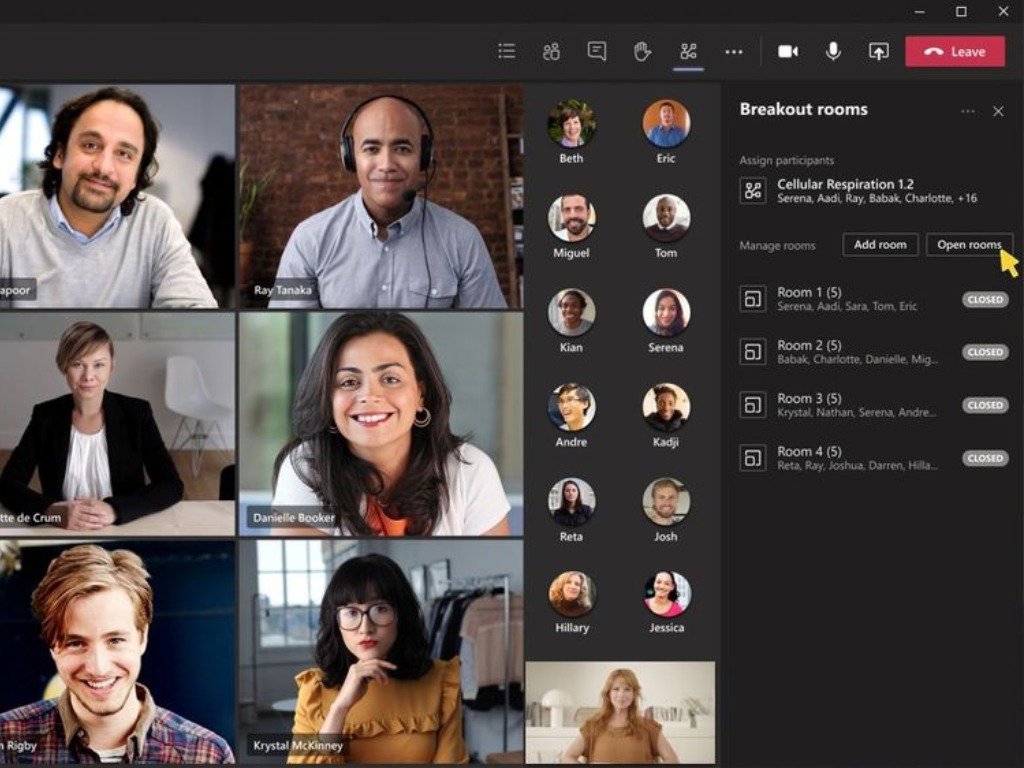
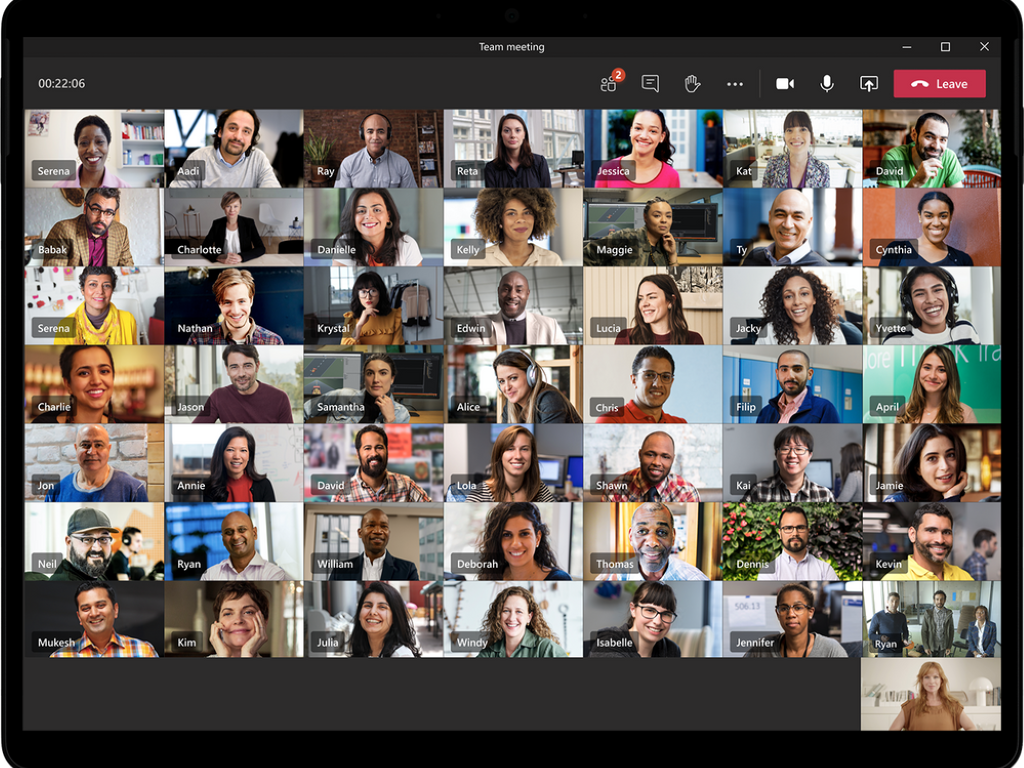


![SyncGo Desktop Calendar [Review]](https://windowsreport.com/wp-content/uploads/2020/12/Office-Desk-SyncGo.jpg)









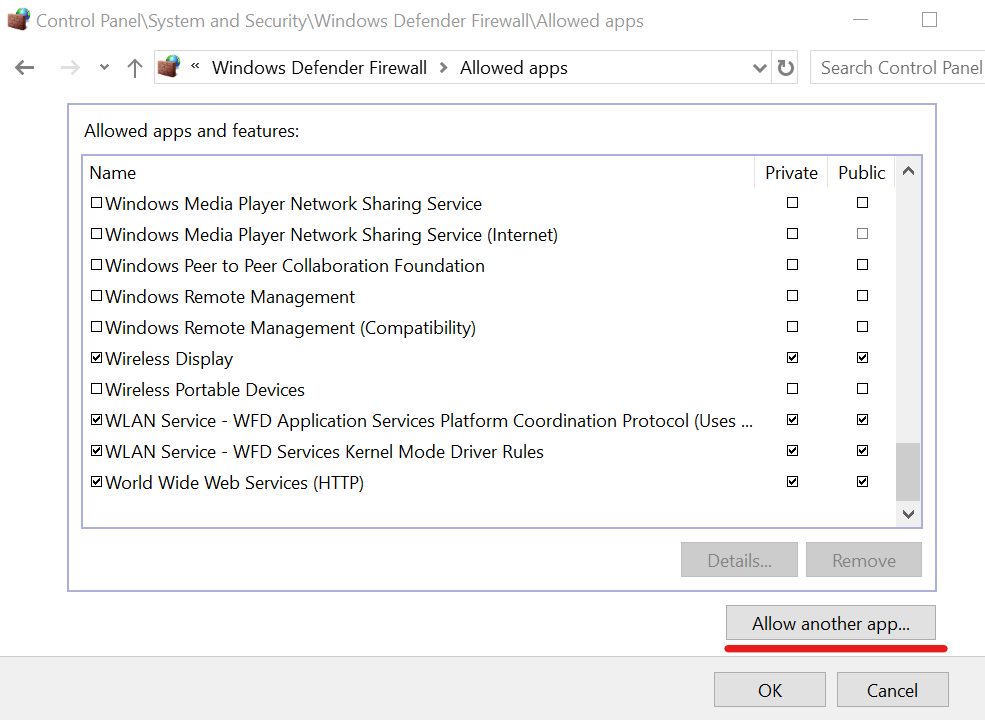


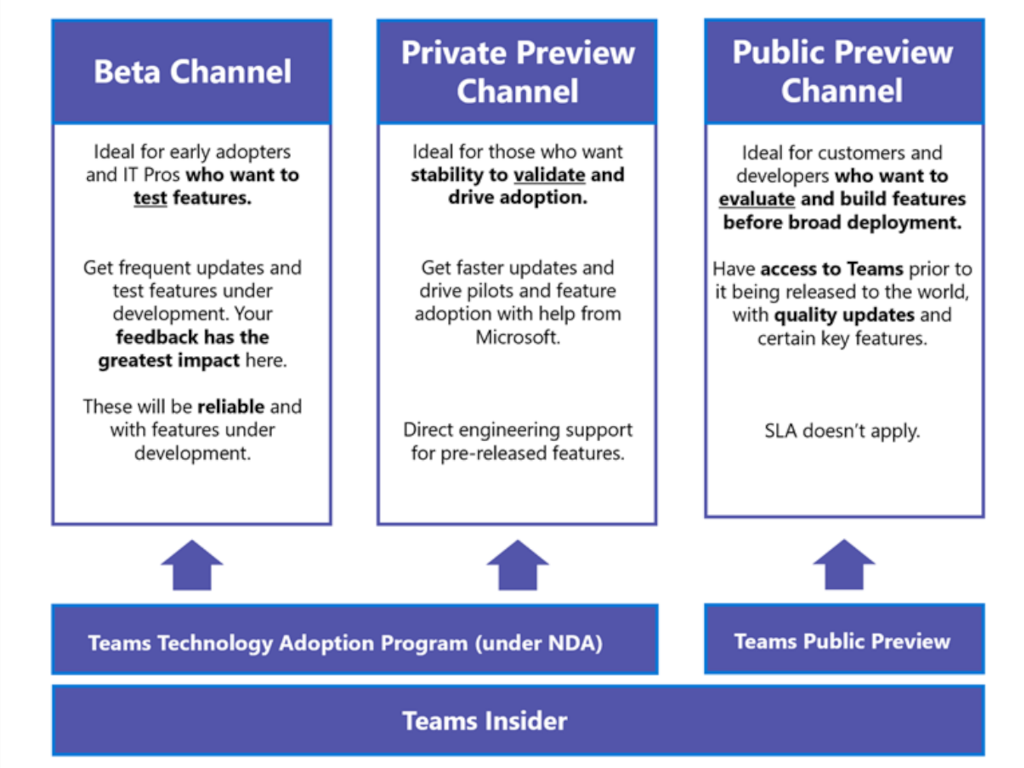


![5 Best SSHD Laptops To Invest In [Buying Guide]](https://windowsreport.com/wp-content/uploads/2020/12/Best-SSHD-laptops-to-buy-in-2020.jpg)









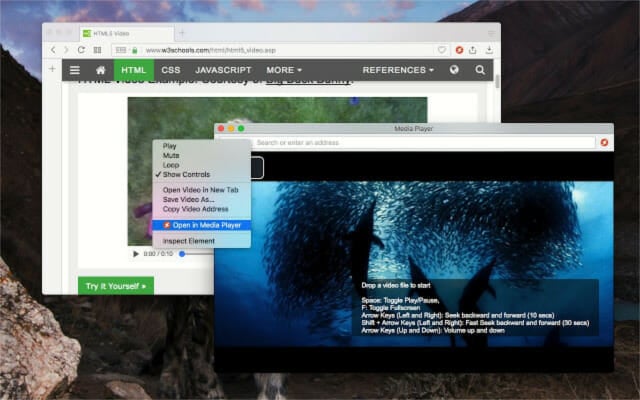
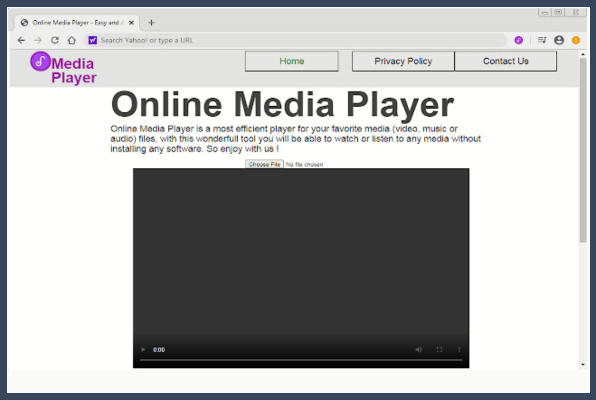






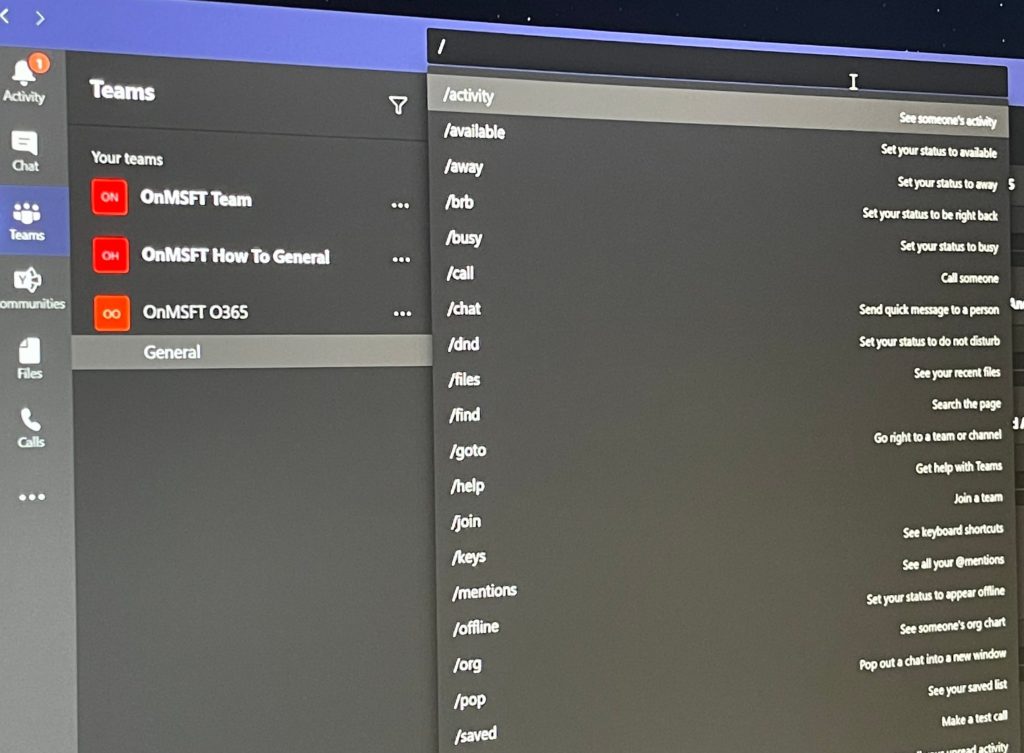
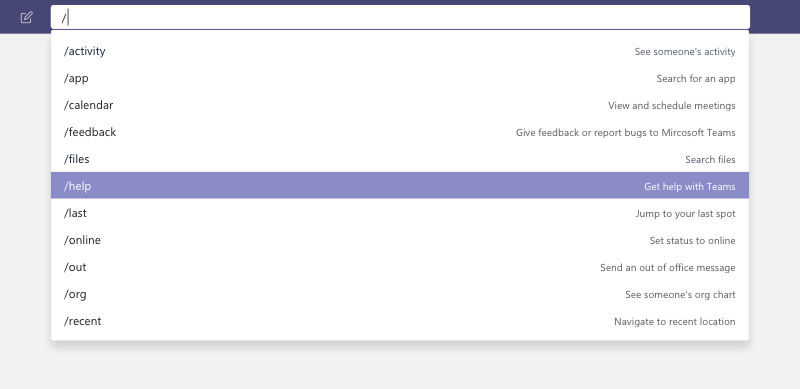
![7 Best Dictaphone Recorder Software For Pc [2026 Guide]](https://windowsreport.com/wp-content/uploads/2019/11/recorder-software.jpg)






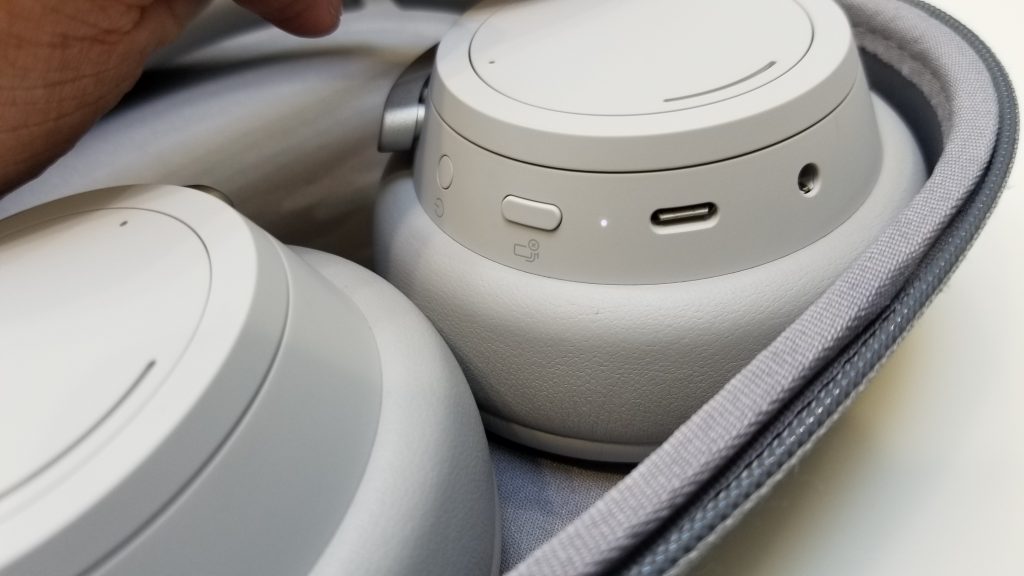

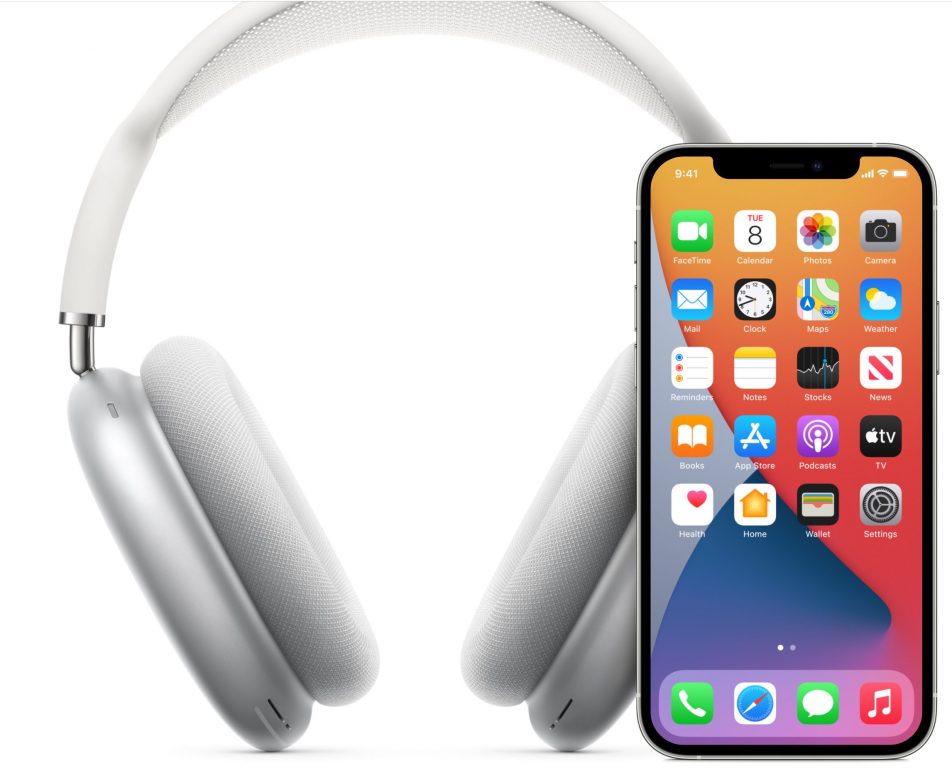










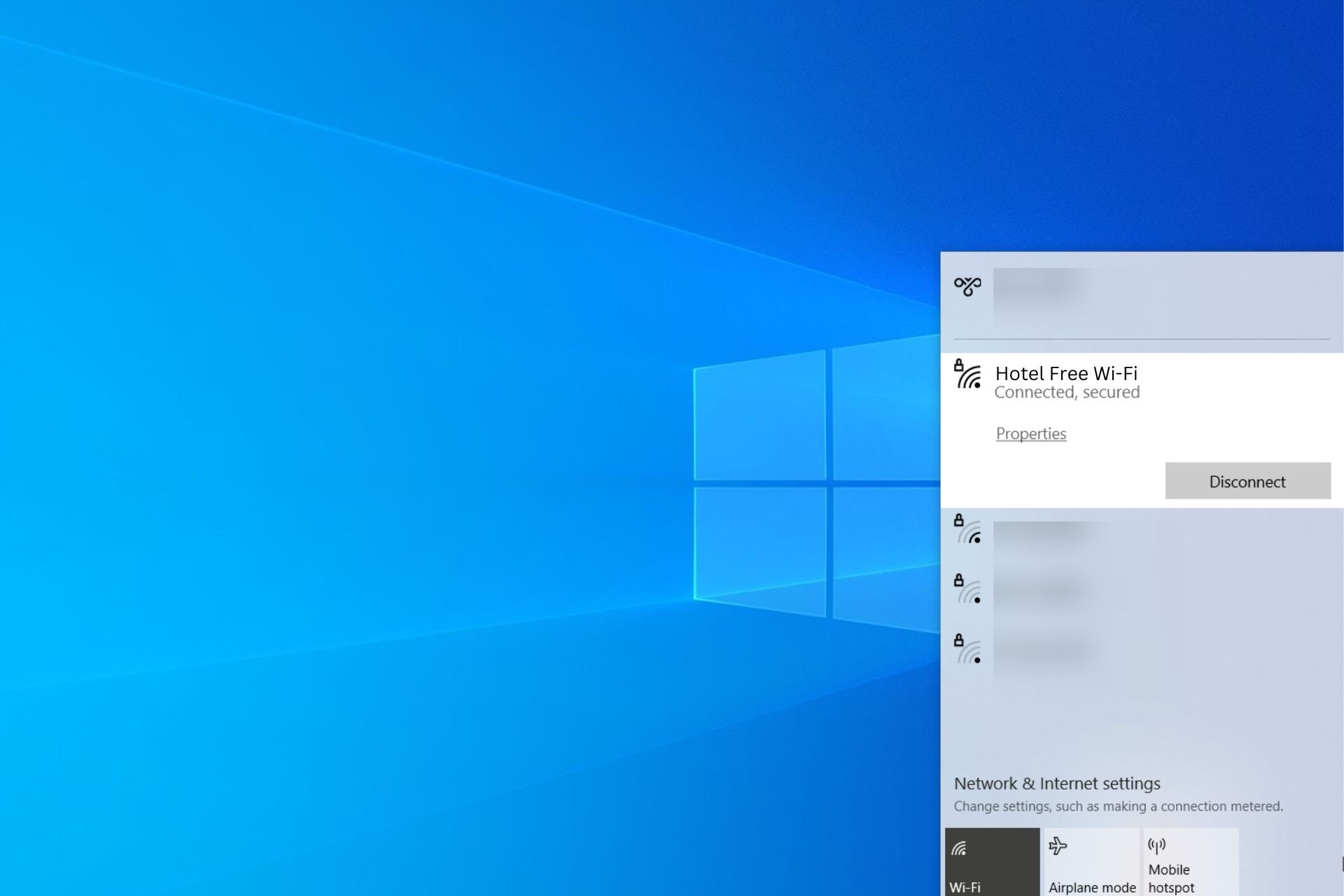
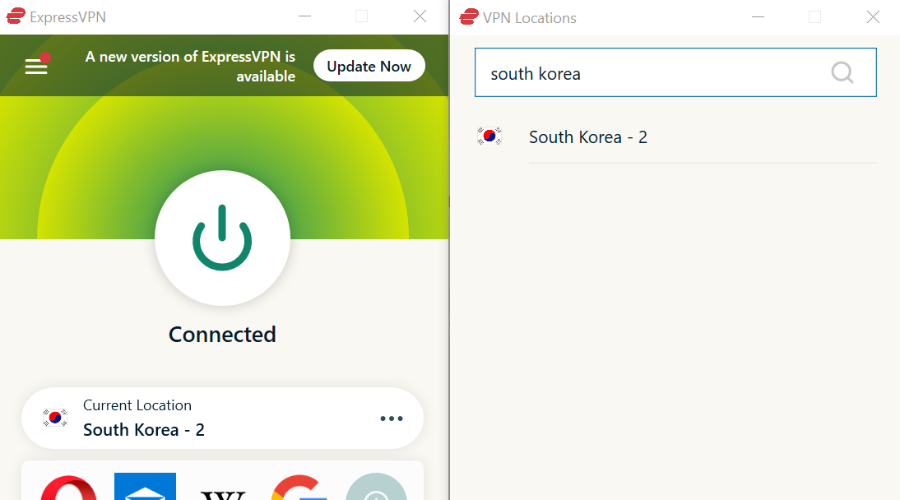

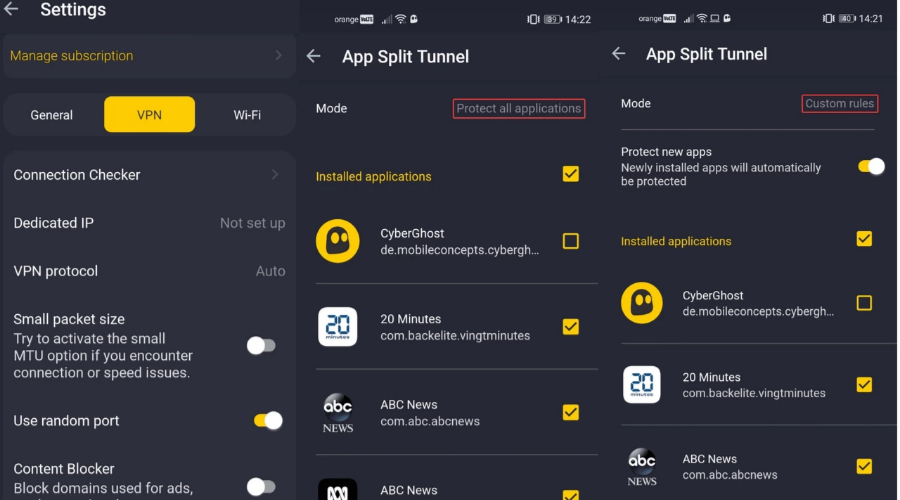



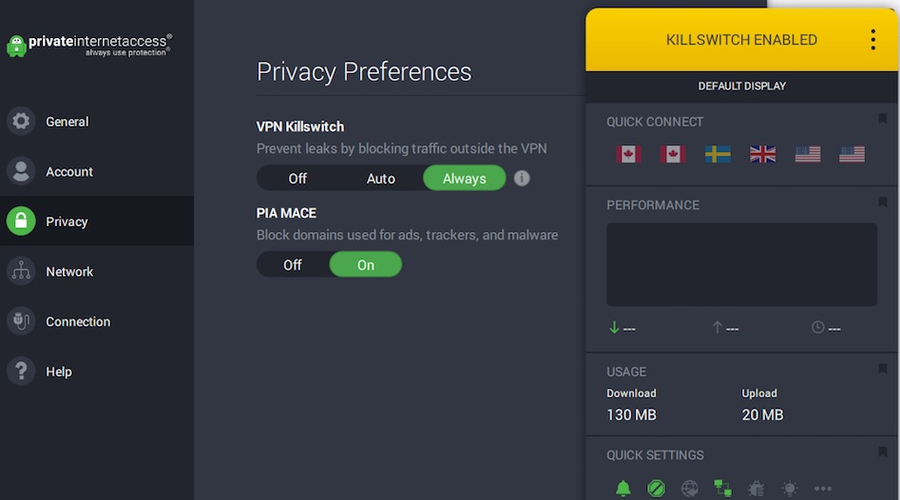
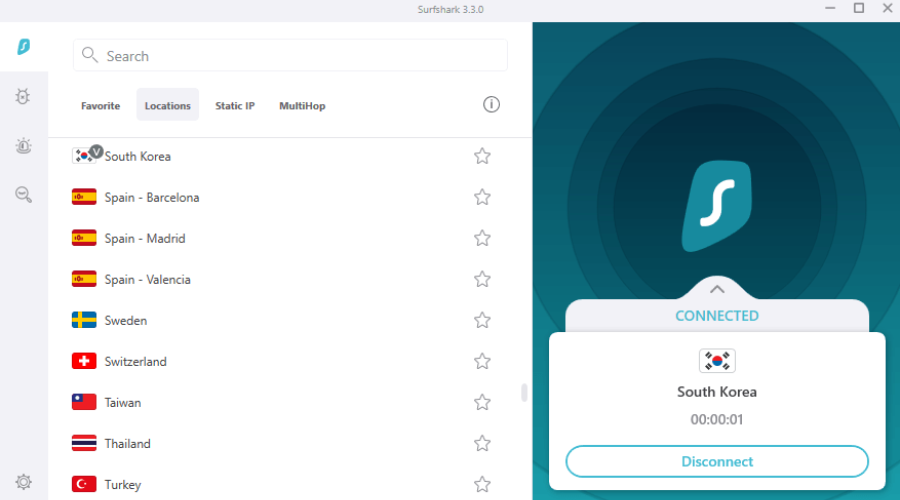

![Fix: VPN not Working on VirtualBox [4 Easy Solutions]](https://windowsreport.com/wp-content/uploads/2019/06/VPN-not-working-on-VirtualBox.jpg)








![5 Best Budget Laptops For Video Editing [2026 Guide]](https://windowsreport.com/wp-content/uploads/2020/12/best-budget-laptops-for-video-editing.jpg)