Can VPN be overloaded? How to fix an overloaded VPN?

We’re living in a world where seemingly private activities such as accessing a website from the comfort of your own home can be made public. There are several third parties that can get between you and your online whereabouts.

For instance, your ISP is just a few clicks away from getting a full report of your online activities. Sure, it can’t read emails or see your account passwords, but it knows what websites you visited and files you downloaded.

And that’s already too much.

However, things don’t need to be that way. Nowadays, there’s a huge selection of privacy tools that can help you protect your privacy. And the best, most powerful ones are, without a doubt, VPNs.

VPNs can easily help you put some walls between you and whoever feels like spying on you. It redirects your traffic through a secure tunnel, but not without encrypting it first.

Thus, even if someone were able to take a peek inside that tunnel, your traffic would look like gibberish.

However, what happens if the VPN server can’t take it anymore? Let’s find out.

How does a VPN work?

From a workload standpoint, a VPN is similar to any regular server. It can house a certain number of connections and, as the number of users reaches the limit, it becomes more and more difficult for it to allocate resources.

First and foremost, keep in mind that you’re almost never alone on a VPN server. That’s why providers mention shared IP addresses. After connecting to a VPN server, your default IP address is replaced by the server‘s address.

But many other users who use the same server will have the same address.

So, it’s really not rocket science to figure out that VPN servers can’t keep accepting connection requests forever and have to stop at some points. That’s why the best VPN services have huge networks in the first place.

Can VPN get overloaded?

Yes, there’s no way to sugar coat it, VPNs can and do get overloaded regularly. Much so during unfortunate events such as natural disasters and pandemics, when a lot of people need to work from home and generally spend more time indoors.

Considering that a VPN should fix issues such as packet loss and network congestion, an overloaded server could be quite inconvenient.

Additionally, we’ve already explained how VPN affects Internet speed. Thus, it should be no surprise that an overloaded VPN server can affect your Internet speed even more.

What to do if your VPN is overloaded?

  • Choose a VPN with a large network of servers
  • Use split tunneling to manage VPN traffic efficiently
  • Switch the server if you’re on a crowded one
  • Change the location (if convenient and possible)
  • Use a different protocol (it might be faster)
  • Try using a wired connection instead of WiFi

Although these are not exactly ways to solve an overloaded VPN issue, they can help you alleviate problems that an overloaded server can cause you.

VPNs with large server networks

We’ve put together a list of our recommendations for the best VPNs that have large server networks. Take a look:

Product NameNumber of serversCompany Name
CyberGhost VPN7,100Kape Technologies
NordVPN5,200Tefincom & Co., S.A.
Private Internet Access3,300Kape Technologies
ExpressVPN3000+Express VPN International Ltd.
Surfshark VPN1700+Surfshark LTD

Keep in mind that the number of servers shouldn’t be the only thing you judge a VPN after. However, for the purpose of avoiding an overload situation, this is quite a strong criterion.

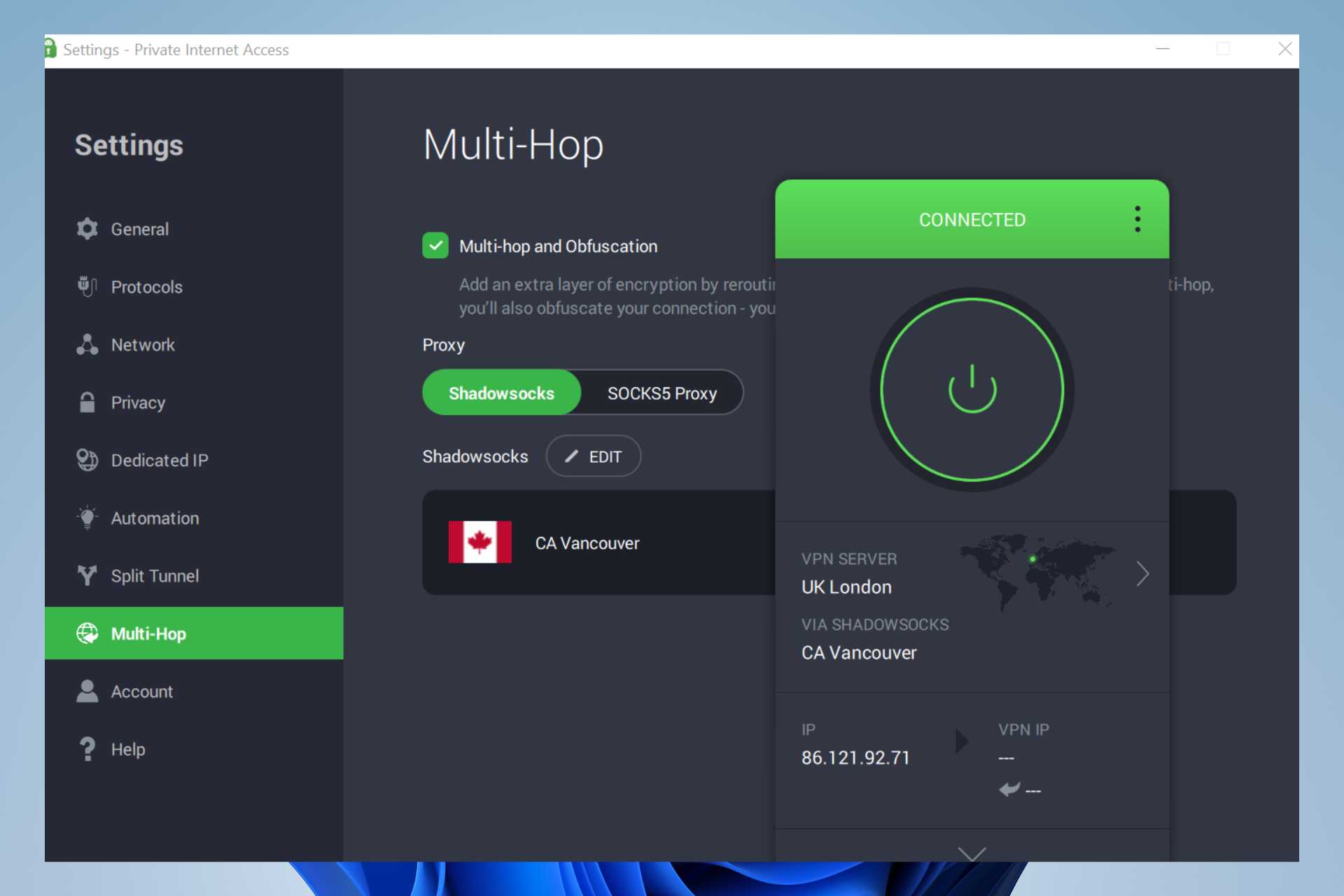
Private Internet Access

Have a try with this proficient VPN solution with a great number of servers and increased stability.
Check price Visit website

Yes, VPN can get overloaded

To wrap it up, it’s true that VPN can get overloaded, much so during natural disasters and pandemics. This, in turn, could lead to other issues such as slow Internet speed, packet loss, and jitter.

However, bypassing a VPN overload is quite simple, compared to other potential issues. Merely switching the server you’re currently on or changing the location should take care of things for good.

FIX: Too many simultaneous connections Outlook error

Many Outlook users reported Too many simultaneous connections message while trying to check their email.

This can be a big problem and prevent you from receiving new emails, but there’s a way to fix this issue, and in this article, we’re going to show you how to do it.

How can I fix simultaneous connections error in Outlook?

  1. Use a different desktop client
  2. Disable Send & Receive All schedule
  3. Check your antivirus
  4. Install the latest updates
  5. Sign out from certain devices or applications
  6. Check your password
  7. Change Server Timeout value
  8. Use webmail

1. Use a different desktop client

Too many simultaneous connections message is usually caused by your email client, most notably Outlook, and if you keep getting this error, you might consider switching to a different email client.

There are many great email clients, no one can deny it. However, if you want one that works and feels like Outlook, we suggest that you try using eM Client.

Keep in mind that it is being constantly updated, so expect to enjoy an error-free experience. Other than that, it’s compatible with both Windows and Mac OS.

eM client

eM client

Experiencing repeated Outlook connection errors is frustrating. Try out Em Client and you’ll forget all about them!
Get it free Visit website

2. Disable Send & Receive All schedule

  1. Click on File > Info > Options in Outlook.
  2. From the left pane pick Advanced. Now click on the Send/Receive button.
  3. Send/Receive Groups window will now appear. Disable Schedule an automatic send/receive every option and click Close.
  4. Save changes.

If you’re getting Too many simultaneous connections Outlook error, the problem might be your settings.

As you know, Outlook has a certain schedule and it checks for new emails every few minutes.

However, sometimes you might not be able to receive your emails due to certain settings.

According to users, in order to fix this problem, you just need to disable Send & Receive schedule in Outlook. To do that, you need to follow the above steps.

After disabling this option, the problem with Outlook should be resolved. We have to warn you that by disabling this option Outlook won’t check for new messages automatically, so you’ll have to do that manually.

This is a solid workaround, so feel free to try it out.

3. Check your antivirus

Having a good third-party antivirus is important if you want to protect your PC from online threats.

However, sometimes your antivirus can interfere with Outlook and it can cause Too many simultaneous connections Outlook errors to appear.

To fix this problem, it’s advised to disable certain antivirus features and check if that helps. In case that doesn’t work, your next step would be to disable your antivirus entirely.

In several instances, users had to remove their third-party antivirus in order to fix this problem, so you might have to do that as well.

If removing your antivirus solves the problem, you should consider switching to a different antivirus solution.

There are many great antivirus applications, but if you want maximum protection that won’t interfere with your system, you should then try TotalAV.

4. Install the latest updates

  1. Use Windows Key + I shortcut to open the Settings app.
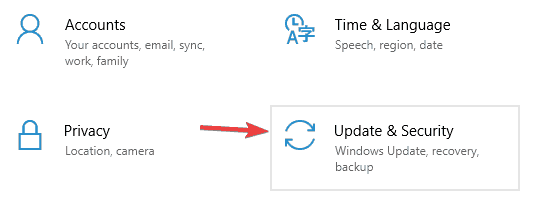
  2. In the Settings app, go to the Update & Security section.
    outlook error too many simultaneous connections
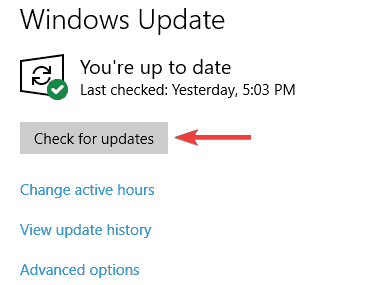
  3. Now click Check for updates button.
    outlook error too many simultaneous connections

If you’re getting Too many simultaneous connections errors in Outlook, the problem might be the missing updates.

To ensure that this issue doesn’t appear, it’s advised that you update Outlook to the latest version and check if that solves the problem.

In addition to Outlook, it’s important that you update Windows as well.

By default, Windows 10 downloads the updates automatically, but you can also check for updates manually, as described above.

Windows will now check for available updates and download them automatically in the background. ]Once you download the updates, restart your PC to install them. Once your system and Outlook are up to date, check if the problem is still there.

5.  Sign out from certain devices or applications

  1. Open Gmail in your browser.
  2. Scroll all the way down and locate Last account activity. Now click Details.
    outlook error too many simultaneous connections
  3. A new window will now appear. You should be able to see all your current sessions. Click Sign out all other web sessions.
    outlook error too many simultaneous connections

Too many simultaneous connections message can appear due to certain limitations in Gmail.

In case you don’t know, you can have 15 simulations connections to your Gmail account, and if you exceed this limit, you’ll get the aforementioned error message.

It’s worth mentioning that certain applications can use two or more connections to access Gmail, so if you have several email clients or multiple devices connected to your Gmail account, it’s possible to quickly exceed this limit.

To fix this problem, it’s advised to sign out of certain email clients on your PC, phone, or tablet.

After you sign out on a couple of clients, the problem should be resolved, and you’ll be able to access Gmail once again.

If you want, you can also sign out of all sessions. However, you’ll have to log back in again in every client manually.

After doing that, you’ll be signed out from Gmail on all other devices and the issue should now be resolved.

Keep in mind that you’ll need to sign back in manually on each email client, but that shouldn’t be a big problem.

6. Check your password

Too many simultaneous connections Outlook errors can occur if your password was changed or if it’s expired. This can be a problem, but you can fix it simply by resetting your password.

Once you reset your password you need to make changes in Outlook and change your login credentials accordingly.

After doing that, the problem should be completely resolved and everything should start working again.

7. Change Server Timeout value

  1. In Outlook open Account Settings.
  2. Go to the Advanced tab and lower the Server Timeout value.
  3. After doing that, click OK to save changes.

Too many simultaneous connections error message can appear due to Server Timeout value, and in order to fix this issue, you need to make a couple of adjustments.

Apparently, if the Server Timeout value is too long, the client will try to make additional connections causing this error to occur.

After making these changes, check if the problem is still there.

8. Use webmail

If you keep getting Too many simultaneous connections Outlook error, you might be able to fix the problem simply by using webmail.

Almost all email providers offer webmail, so if you keep getting error messages in Outlook, you might want to try using webmail for the time being.

Webmail doesn’t have many problems that desktop clients have, so if you have any issues, we suggest that you try using webmail as a temporary solution.

Too many simultaneous connections Outlook error will prevent you from receiving any new email messages, but you should be able to fix this problem using one of our solutions.

Use them when dealing with these issues too:

  • Too many concurrent connections opened in Outlook. Cannot open Gmail – If you are also experiencing this issue, we’d suggest trying out a different desktop client.
  • Outlook 365 too many active sessions connected to this mailbox – We investigated this particular issue and it seems that creating a different throttling policy is the quickest solution.
  • IMAP too many simultaneous connections in Outlook – A quick fix for the IMAP server failure caused by the high number of simultaneous connections is resetting your password. You should also check if it works in webmail, as described above.


Outlook email fails after Windows 10/11 upgrade [Fixed]

Email is a crucial part of our lives and it can be quite frustrating for you if you find yourself not being able to send emails.

Speaking of which, it seems that Outlook won’t send emails after upgrade to Windows 10, so let’s explore this issue.

Users have reported that they are unable to send emails using Outlook on Windows 10, and this issue seems to affect various versions of Outlook.

In order to fix this issue, we have a couple of solutions for you.

What can I do if Outlook email fails?

1. Change your email client

enjoy Mailbird

We know that switching to a different email client isn’t easy, especially if you’re used to the same Outlook for a long time.

However, if none of these solutions help, maybe you should consider switching to an alternative email client.

There are many free ones available and most of them will do perfectly as an Outlook replacement. We would strongly suggest you Mailbird as one of the leaders on the market.

It is a friendly user choice and best of all, it has many great features that will be very helpful in mailing management and using all your favorite apps from one place.

Mailbird

Mailbird

When Outlook email fails after a recent upgrade, the well-designed Mailbird is a great alternative to try out.
Get it free Visit website

2. Run System File Checker scan

SFC scan

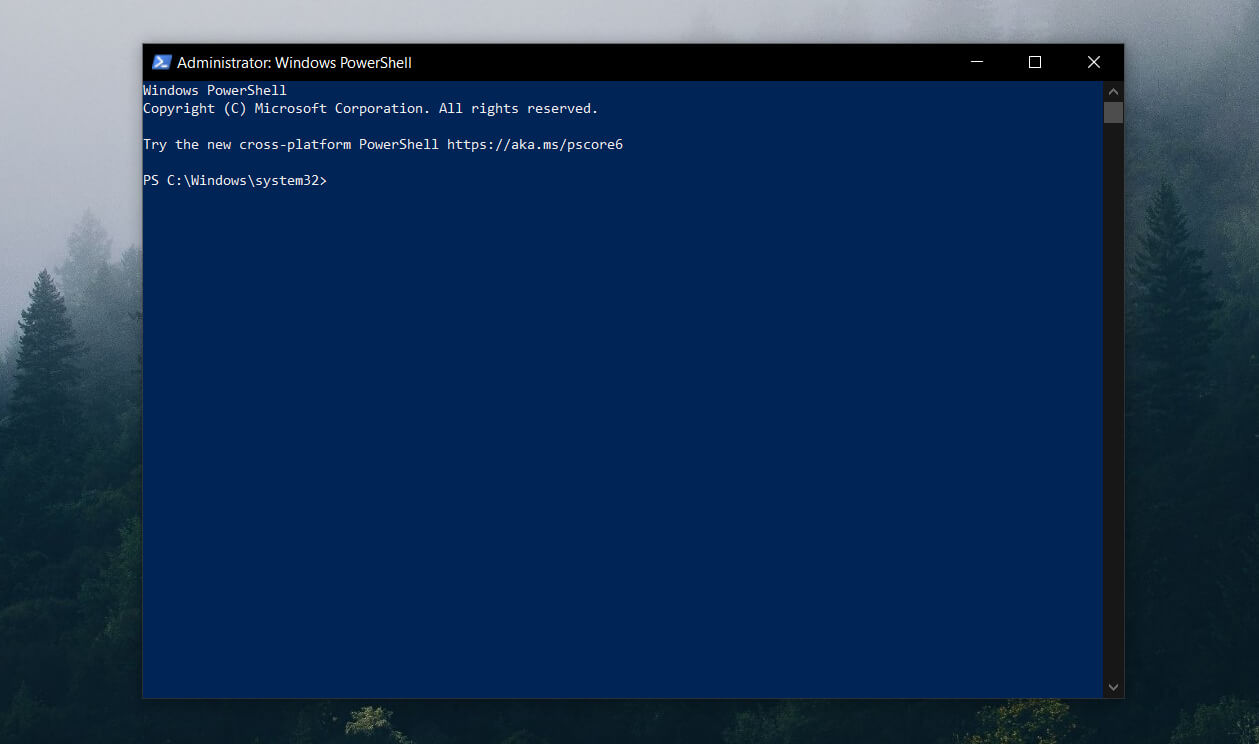
  1. Right-click on the Start button and click on Command Prompt (Admin). If for some reason Command Prompt isn’t available, you can choose Windows PowerShell (Admin) instead.
  2. When the Command Prompt opens you need to type sfc /scannow.
  3. Press Enter and wait for the process to complete. System File Checker can take about 20 minutes on a regular hard drive, so make sure that you do n0t interrupt it.
  4. When the scan finishes it will inform you whether it was successful or not.
  5. Restart your computer and check if the problem is solved.

If you’re not familiar System File Checker is a scan that will scan your Windows 10 for any corrupted system files, and it will repair those files if possible.

To perform a System File Checker scan, complete the above steps.


scannow command has stopped before the process finished? Don’t worry, we’ve got an easy fix for you.


3. Perform a clean install of Windows 10

Windows 10 install

If the System File Checker was unable to help, maybe you should perform a clean install of Windows 10.

Just make sure that you create a backup for your important files and not delete them by accident. In that regard, use these great local data backup software tools.

Reinstalling Outlook might also help. If you’re not sure how to do this, ask someone to help you out, or hire someone to do it for you.

Also, keep in mind that the above solutions are ideal when no images appear in emails after Windows 10 upgrade. That’s a similar issue that many Outlook 2010 complain about.

Are things any better now? Let us know via the comments area below.

[wl_navigator]


Windows 10/11 2004 audio issues not gone just yet

When Microsoft realized that some devices weren’t ready for Windows 10 2004, it put them on a compatibility hold. It usually does that to preserve the user experience.

However, avoiding a Microsoft compatibility hold doesn’t always guarantee that a machine will have no compatibility issues with the Windows 10 May 2020 Update. That’s the hard fact that some users have come to accept after the OS caused audio issues with their PCs.

Windows 10 2004 sound issues

Recently on the Microsoft Answers forum, a user reported that they kept losing their Windows 10 2004 PC audio. It seems that they’re using NVDIA and Sony audio devices, both of which tend to disappear from the device manager list.

I have a sony x800 with nvidia 1080ti. For some reason, since going to 2004 version of win 10, i keep losing the sound device in the listing. The only way to get it to come back is to pull the video cable and put it back in.

Windows 10 2004 audio complications date back to the OS’ prerelease days.  A couple of months ago, a Windows insider claimed on Reddit that their system lost sound after updating to a beta version of Windows 10 2004.

Another user on the Answers forum laments:

My audio is still not working after the recent Windows 10 version 2004 update. It causes the system to auto lockdown after initial booting and the audio functions are now totally lost.

Here’s yet another recent May 2020 Update audio concern:

After the update, it no longer finds the Realtek sound card, as if it is not connected at all.

But the machines in question should be compatible with Windows 10 version 2004, which is why Microsoft offered them the OS in the first place.

The good news is that some of the affected users resolved the issues after troubleshooting their audio device. Updating sound card drivers also seems to work for others.

What’s your experience with the May 2020 Update so far? Any sound card issues? Talk to us via the comments section below!

[wl_navigator]

Latest Skype update brings predefined backgrounds, 3×4 grid view for video calls

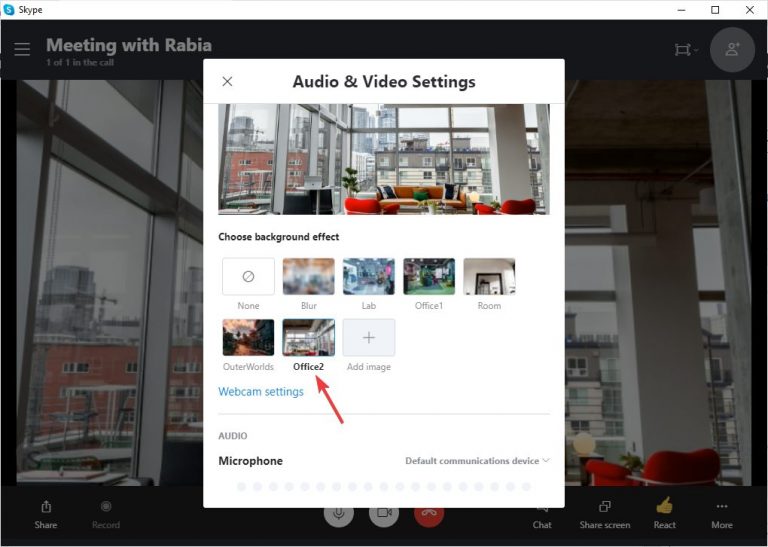
Microsoft has released a new Skype update on all platforms which brings some interesting new platform-specific functionalities (via Neowin). On the desktop, Microsoft has now made it possible to choose from a library of pre-selected images, in addition to uploading your own custom backgrounds for video calls.

To customize your background, follow these steps:

  • Start a call, hover over the video button, or click the More menu.
  • Now, click Choose background effect, and you should see an option to choose an image from the predefined backgrounds.

Skype custom backgrounds

The recent update also includes a new grid view that brings the ability to see 12 participants at once on desktop, and 9 attendees on mobile during a video call. To switch views during a Skype video call on desktop, click the Switch View button, and select the 3×4 Grid view from the menu.

Lastly, Microsoft noted that it has rolled out improved message sync experience, as well as some general improvements on all platforms. Microsoft has also added the ability to blur your background during video meetings when using Skype on iPhone and iPad.

Microsoft Outlook Crashing [Exception Code 0xc0000005]

Those of you that use Microsoft Outlook may have noticed a sudden increase in crashes and error messages whenever they try launching the app.

More precisely, we are talking about an error code 0xc0000005, and it can later be displayed in the event viewer.

This issue was even confirmed by our own users that commented:

I did the microsoft update, restarted and now outlook crashes. Obviously it was the update.

Apparently, this issue is most likely related to the July 2020 MS Office release. Luckily enough, if you too are experiencing any similar crashes with Outlook, we’ve compiled this guide to help you solve the issue in no time.

How do I fix Outlook error code 0xc0000005?

1. Perform an MS Office rollback to the June 2020 version

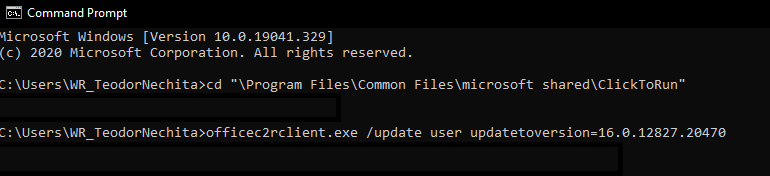
  1. Press Start, and type in CMD
  2. When the Command Prompt window opens type in the following line, and then press Enter:
    • cd "\Program Files\Common Files\microsoft shared\ClickToRun"
  3. This will open the ClickToRun folder. Type in the following line, and then press Enter:
    • officec2rclient.exe /update user updatetoversion=16.0.12827.20470
  4. Wait for Microsoft Office to download and install that version
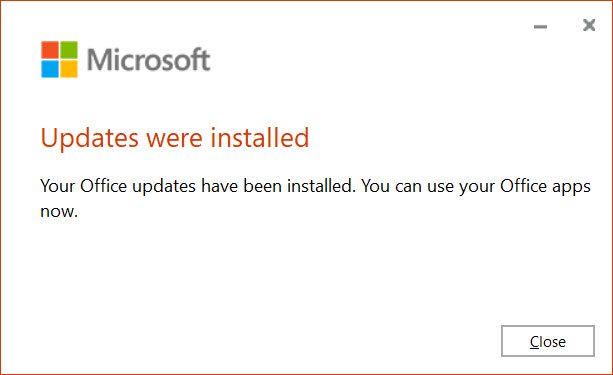
  5. When a window appears stating that Downloads were installed, you may press Close

Note: If this method doesn’t work for you, use this command line instead of in step 3: officec2rclient.exe /update user updatetoversion=16.0.12527.20880

2. Start Outlook in Safe Mode

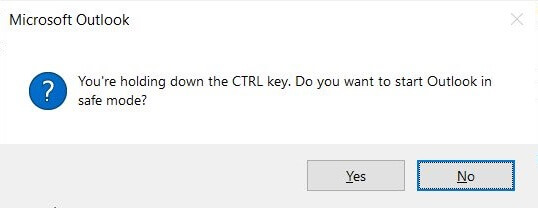
  1. Hold the Ctrl key pressed, and launch Microsoft Outlook
    • You will be asked whether or not you want to start it in Safe Mode.
  2. Select Yes
    • This will start Outlook in its most basic form, without any interferences from outside programs of add-ins.

Note: This particular solution was confirmed by some of our readers:

Irepaired the net. framework with a microsoft tool. after that i can open outlook in safe mode

By following this step, you should be able to now use Microsoft Outlook without any more issues.

It should be noted that this isn’t the only time error code 0xc0000005 has appeared, having affected different applications in the past as well.

Thankfully enough, we’ve covered that issue as well in this detailed troubleshooting guide.

Let us know which method helped you by leaving us a message in the comments section below.

How to recover deleted/archived Outlook messages [Guide]

Are you wondering how to recover some deleted archive Outlook messages? There’s no need to be alarmed, we have got the solutions for you.

Microsoft Outlook is a component of the Microsoft Office suite. It is normally used as an email application and can sync with any POP3 or IMAP webmail server.

Other Microsoft Outlook features include calendar, contact manager, journal, task manager, and web browsing.

Sometimes, you can accidentally or intentionally delete archived Outlook messages from your mailbox; however, it is possible for you to recover the deleted messages but not permanently deleted items.

We have compiled solutions for different Outlook versions which you can use to recover the deleted archive folders in Outlook 2016 and not only.

How can I recover deleted/archived messages in Outlook?

1. Recover in Microsoft Outlook app for Windows

  1. Launch Microsoft Outlook and login to the email account.
  2. Click on the Mail Folder tab and then Deleted Items.recover deleted archive outlook
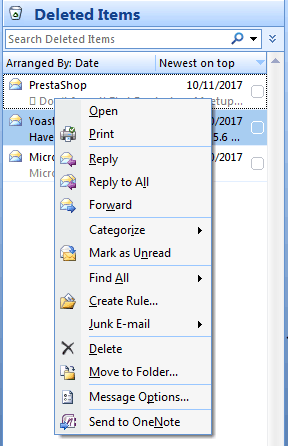
  3. Now, right-click on the deleted archived message and select Move to folder option.recover deleted archive outlook
  4. Then, click on Inbox to move the deleted message to the Inbox”and wait for the process to be completed.recover deleted archive outlook

The simplest way to recover deleted archive messages on your Outlook mailbox is to undelete from the Deleted Items folder.

This folder consists of messages which have not been permanently deleted, so use the above steps with no hesitation.

However, if you are unable to find the specified message in the Deleted Items folder, you may need to access the Recoverable Items folder.

Recoverable Items folder is a hidden folder in Microsoft Outlook which consists of items that have been cleared from the Deleted Items folder.

Here’s how to access the Recoverable Items folder:

  1. In the Outlook account display, go to your email folder list, and then click Deleted Items.
  2. Click on the Home tab, and then click on Recover Deleted Items From Server.
  3. Now, select the deleted archive Outlook messages you want to recover.
  4. Click Restore Selected Items, and then click OK.

You cannot recover items deleted from the Deleted Items folder if you do not have an Exchange account in Microsoft Outlook.

However, we have an additional guide on how to recover your Outlook emails using OST to PST Converter that will fix this problem in a fraction of the time.

2. Get back your Outlook messages by using a dedicated tool

Do note that there are some Windows friendly programs that you can use to recover deleted archive folders in Outlook.

With the number of free programs available for card making, you can clearly find a good fit to your interests and needs. For example, we recommend trying out Stellar Outlook Repair.

This utility is specially designed to extract mailbox components from corrupt PST file in intact form. This includes emails, contacts, photos, and all other attachments.

On top of that, this high-rated tool restores them in a new PST file that can be easily imported back in Outlook.

Stellar Outlook Repair

Stellar Outlook Repair

Looking for a powerful software to recover deleted/archived Outlook messages? Stellar Outlook Repair is the best pick!
Get it free Visit website

3. Recover in Microsoft Outlook web app

  1. Go to the Outlook and then Sign in to your account.
  2. In your email folder list, click on the Deleted Items tab.recover deleted archive outlook
  3. Locate the specific message, right-click on it, and then click Move > Inbox.recover deleted archive outlook

Another way of recovering deleted archived Outlook items is by accessing the Outlook website and undelete from the Deleted Items folder.

Alternatively, if you can’t find the message in the Deleted Items folder, you need to look for it in the Recoverable Items folder. Here’s how to access the Recoverable Items folder:

  1. Go to the Outlook Web App, and then Sign in to your account.
  2. In your email folder list, right-click on the Deleted Items tab.
  3. Now, click Recover deleted items.recover deleted archive outlook

In addition, you can also use the search box to find the deleted archived message you want to recover. After locating the item, select it, and then click Recover.

To learn more about archiving, we have a great guide on how to apply AutoArchive settings to subfolders in Outlook that you might want to check out.

In conclusion, the methods and program listed above can help you to recover deleted archive Outlook messages on your Windows PC. Feel free to comment below if you have any questions.

I used the consumer features in Microsoft Teams for one week, and it’s better than you’d think

In these times, there’s a lot of ways to communicate with friends and family. From Facebook Messenger, WhatsApp, iMessage, and so much more, there are no shortages of ways to talk to people.

But riding the momentum of Microsoft Teams in the enterprise and business space, Microsoft recently brought Teams over to the consumer world to enter the fray of messaging platforms. The company envisions Teams as not only something you can use for work, but also for friends and family.

With a beta of these features recently making their way over to the iOS version of the Microsoft Teams app, I thought I’d try it out. I really had my doubts, but after a week of using Teams consumer features, I loved it. Here’s my story.

The setup
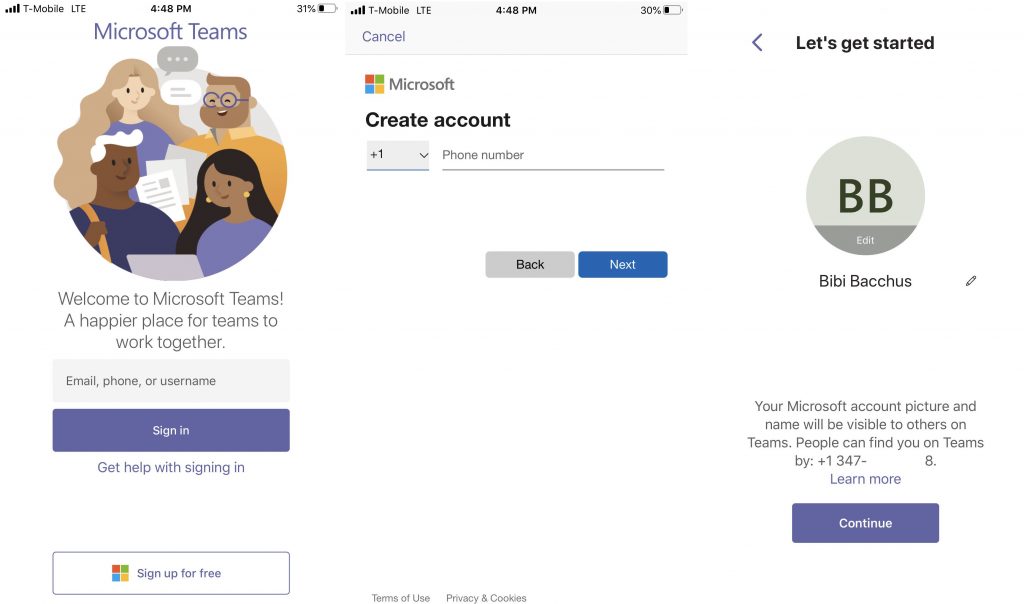
Much like signing up for WhatsApp or other services, setting up Teams for consumer was quite easy. For most people who aren’t already using Microsoft Teams in their work — and are trying Teams for the first time — this will be an important step. Luckily, Microsoft makes it simple.

Since I already use Teams for work at OnMSFT, I simply went into the hamburger menu, and under accounts and orgs, signed in with my personal Microsoft Account then confirmed my phone number. I also opted to sync my contacts, too, as I wanted to see if anyone else was using Teams. I was then good to go.

Coincidently, an old college friend of mine (who now lives in Kazakhstan) was already using Teams’ consumer features. After I synced my contacts, I noticed that her name and number showed up when I went to create a list of messages in the chat. My colleague at OnMSFT also showed up too, and we used the app to talk instead of our usual method of communication, WhatsApp, and iMessage. I spoke to both these people on Teams throughout my week with the app thus far, and it is still ongoing.

I even convinced my mother to give Teams a try. As a first-time Teams user, she found the setup process quick and easy. She clicked the Sign up for free button, signed up with her phone number, confirmed it, added a profile picture, synced her contacts, and was good to go!

The chat experience
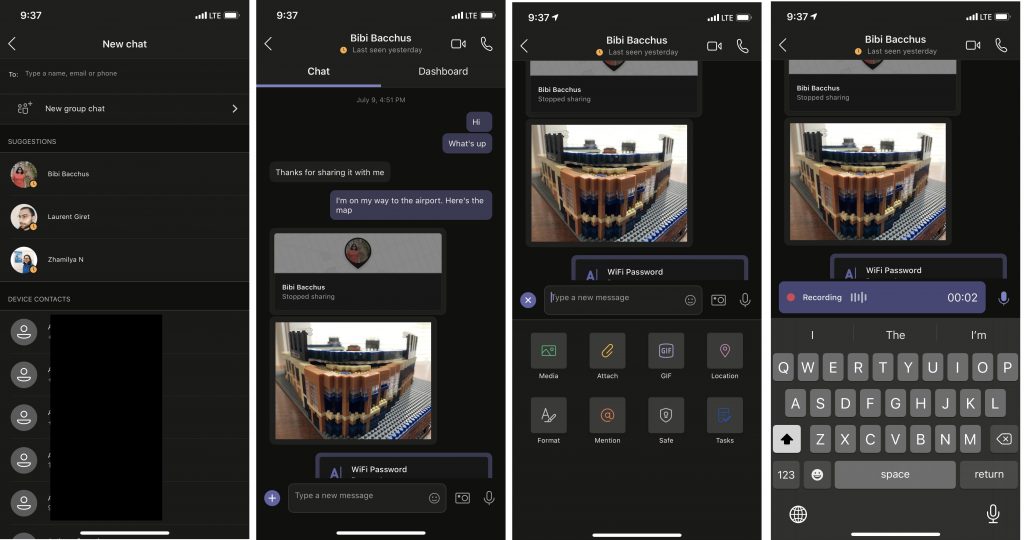
Just like Teams for business and enterprise, the core experience of Teams’ consumer features is the chat experience. As someone who is quite used to messaging on WhatsApp and iMessage, I must say this is where Teams’ consumer experience is just as good.

In the chat, you not only can send out text messages, but you also can record and send voice audio messages. This is a feature that has been present in iMessage and WhatsApp for quite some time, and it’s something that I am glad made its way to consumer Teams, too. After all, there are situations where written words are not right.

Another thing I liked about the chat experience is how similar it is to WhatsApp. The locations for the user interface are almost exactly the same. A plus icon to the left of the compose box to send files and GIFS, or location. There’s also a camera to the right to quick-send a photo, and then the microphone to record audio.

Composing messages, meanwhile, is the same as WhatsApp. If you opted to sync contacts, you’ll see everyone with Teams appear under the compose box. You can also add someone to a group chat without them already having Teams. Just tap their phone number, and add them. They’ll be sent an invite link via text to download and join Teams.
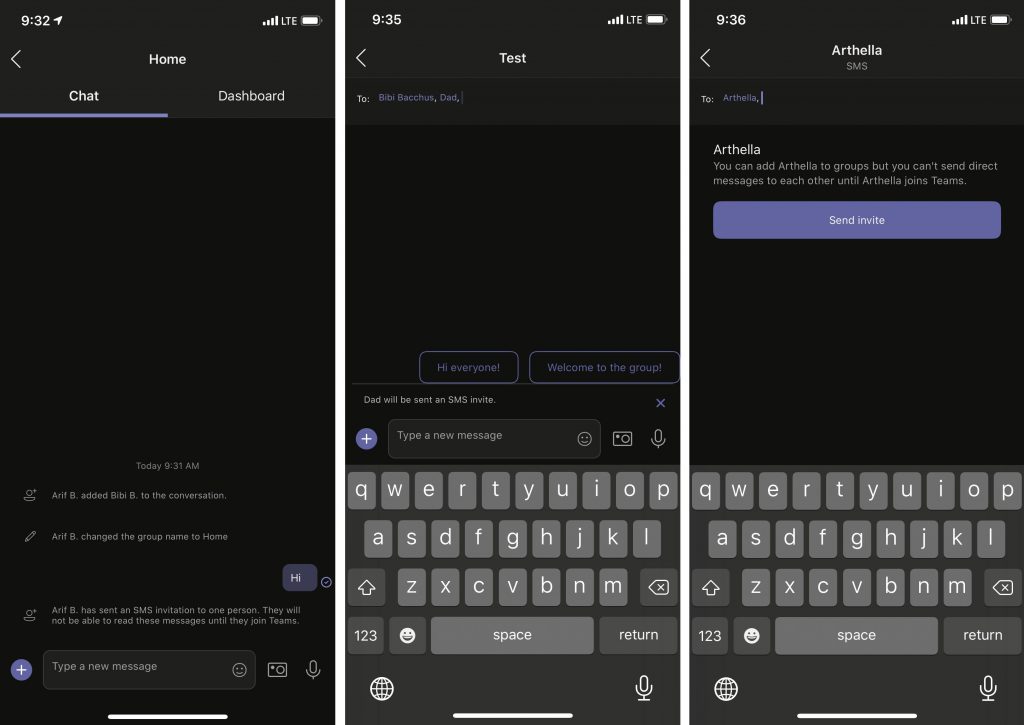
The same goes for a chat, too. If you want to chat with someone on Teams who doesn’t yet have the app, just tap their number and they’ll be sent a unique link to join the later. (This is possible in WhatsApp, but the recipient of the invite won’t be able to automatically join the group chat or the chat you had for them.)

As my mother told me when she tried it out, most people will feel right at home when using Teams. There’s not much learning curve to using it. In my one week so far, chatting with my colleague and friend has been as natural as it is on WhatsApp and other apps. Not to mention, the emoji reactions (which aren’t on Whatsapp) have made for some funny moments and some more prolonged conversations between myself and my friends.

But there are some advanced features in chat that can only be found in Teams. This includes a formatter to bold, italics, and underline things in your messages. There’s also the ability to @mention someone to get their attention (outside of a group chat) or use the Task and the Safe features. Keep in mind, WhatsApp doesn’t support these, which is why I will dive deeper into these next.

The Dashboard has lots of cool uses
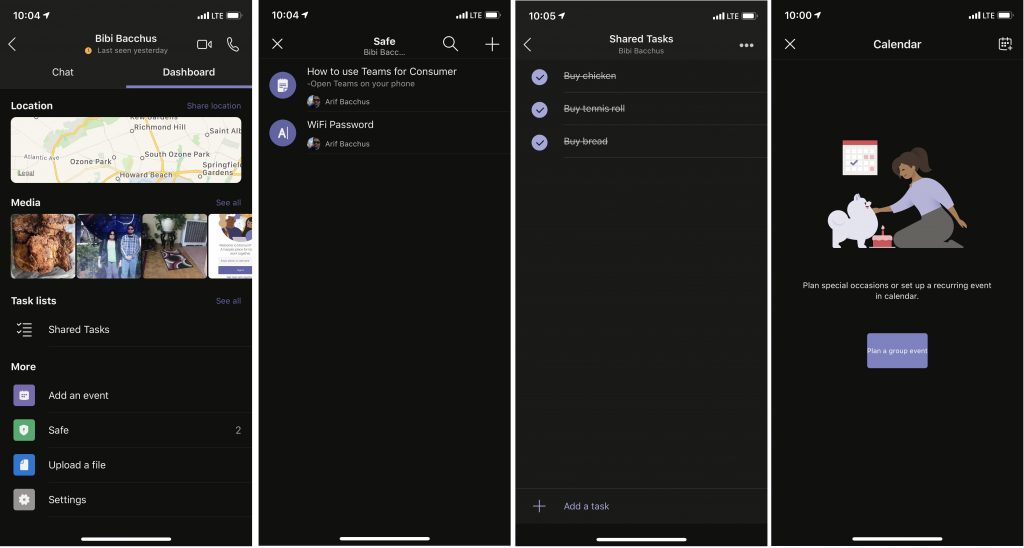
Asides from chat, another thing that makes Teams consumer unique is the Dashboard. From here, you’re able to use Teams for consumer features to your advantage. There’s a lot to get into, including the Safe, location sharing, uploading files, and more. As a summary, though: the dashboard is essentially a hub, showing you all the things that happened within a chat or group chat.

I’ll start first by talking about location sharing. This was one of the features Microsoft spoke a lot about when it first unveiled Teams for consumers. Just go to a chat, then tap the Dashboard, then choose Share location. You’ll be able to share the location for 30 mins, 1 day, or always on. If your contact is also sharing location, you even can pull up a map to see a comparison of where you are in comparison to each other. You can stop sharing at any time with a Stop Sharing button in the UI.

Alas, the point is the person in the chat will be able to see exactly where you are. I used this with my mother to show her where I was when I left the home one day, but it’s a feature I think will be useful for families, and keeping kids safe. Say, a kid leaving school, etc. It’s not exactly exclusive, though, as WhatsApp has the same exact feature, though, as do iPhones with the “Find My” app.

But what is exclusive to Teams is the Safe. Setting this up is simple, as you’ll need to enter a PIN (and store an encryption key for it on your MSA.) You’ll then need to grant your contact access to your safe, and they’ll be able to access it in real-time (or vice versa, too.) This is a great way to share information like passwords, passports, memberships, and more. Once you share your safe, the contact will be able to access it, too, and add content. I used it with my mother to share step by step instructions on how to do things in Teams and to give her the WiFi password. This is quite nifty, and Safe is even locked behind FaceID or TouchID for extra security. I have yet to see something like this on other messaging platforms, and it’s really Teams’ big potential.
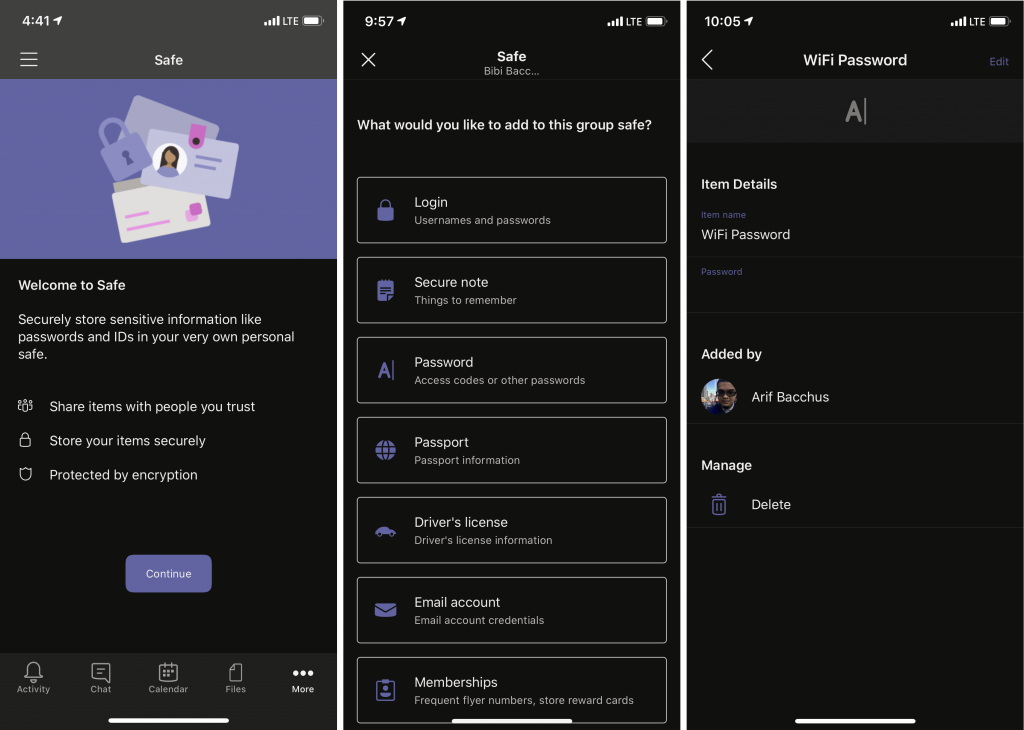
Then there are the other features. You can create a shared calendar so you and contact can plan an event. You also can create a shared task. This one was useful for me and my mother, as I left her a grocery list, and she was able to check things off as she went to the store. Meanwhile, as I was home and was able to see the things she picked up from the store as she checked it off the list. Again, something that can be useful for families and giving children tasks or chores to do.

Finally, there is the ability to upload files. If you and the person you’re sharing the file with both share or have a Microsoft 365 subscription, you can edit and co-edit the documents together by viewing the file in Teams, and then opening it through the Office app. This is great, as it combines the power of Office with Teams, allowing you to get your maximum productivity.

Still some faults, but still great

After one week, I’m now a believer in Microsoft Teams being used by consumers. Although most features are already on iMessage, WhatsApp, and other platforms, it’s great to see Teams expand its reach. After all, most people already likely use Teams for work, so why not bring it into their homes, too?

But, not everything is perfect. Currently, Teams’ consumer features are only available on the mobile apps. There is no way to enjoy it on the desktop. Photos, videos, and other content sent on Teams don’t easily transfer to desktop, as they would with enterprise and business.

Also, switching between work and personal accounts could lead to some serious problems. It really annoyed me to get double notifications, from both work and my personal account when using a single app for communication

This experience is still in beta, so more changes could be coming soon. Until then, I am a believer. Here’s to hoping that Teams become just as popular as WhatsApp.


Microsoft removes Windows 10 May 2020 Update compatibility hold related to Thunderbolt docks

Microsoft acknowledged a bunch of compatibility issues hitting the Windows 10 May 2020 Update since launch, with one of them causing a compatibility glitch with Thunderbolt docks. Some Windows 10 users have been unable to install the latest feature update so far while Microsoft was investigating blue screen of death errors triggered due to “plugging or unplugging a Thunderbolt dock”.

Microsoft has recently confirmed that it has removed the compatibility hold that was in place for PCs with certain settings and a Thunderbolt dock, and these machines can now install the Windows 10 May 2020 Update normally. Following the release of the July Patch Tuesday updates earlier this week, Microsoft updated the Windows 10 Health Dashboard to indicate that the KB4565503 cumulative update includes a fix for this issue (via Bleeping Computer).

If you haven’t been able to get the latest feature update on your PCs with Thunderbolt ports yet, you should be able to grab it now via Windows Update. Microsoft noted that the “safeguard hold is estimated to be removed in the coming days,” so it can take up to 2-3 days before the Windows 10 May 2020 Update will show up on your device.

However, since the problem has been resolved now, Windows 10 May 2020 Update through the Media Creation tool should now be possible. Notably, the Windows 10 Health Dashboard still lists 8 known issues affecting the latest feature update, and hopefully, these will get fixed too in the coming weeks.

Xbox Series X will drop support for Kinect, including Kinect games

Microsoft’s Kinect accessory won’t be supported on the company’s next-gen Xbox Series X console launching later this year. The news came from Xbox head Phil Spencer today in a blog post that also mentioned the free inclusion of Project xCloud with Xbox Game Pass Ultimate in September.

“It’s our intent for all Xbox One games that do not require Kinect to play on Xbox Series X at the launch of the console. And because of the unprecedented power of Xbox Series X, most of your favorite games will load faster and look and perform many times better on the new console,” Phil Spencer explained.

“There’s no way for Kinect to work,” the head of Xbox also said in an interview with The Verge. That’s a bit surprising, as the Xbox Series X will apparently use the same OS as the Xbox One S and Xbox One X consoles, which still support Kinect via a USB adapter. However, that accessory has been discontinued in 2018, one year after Microsoft stopped manufacturing the Kinect 2.0.

The original Xbox One console that launched in 2013 included a Kinect in the box, with Microsoft hoping that making the accessory broadly available will push more game developers to create Kinect games. That ultimately didn’t happen, and Microsoft started offering cheaper Xbox One bundles without its Kinect 2.0 accessory a year later.

Microsoft’s Kinect technology lives on in other products such as the Azure Kinect DK camera, which developers can use to build computer vision and speech models. Kinect fans will still be able to use the accessory on Xbox One consoles, but Kinect voice commands can now be replaced by Xbox skills for Alexa and the Google Assistant.

PowerToys for Windows 10 gets another maintenance update

Microsoft has released PowerToys version 0.19.2 this week which fixes more bugs affecting the collection of Windows 10 tools. The patch resolves a high CPU load issue and addresses additional problems affecting the PowerToys Run and FancyZones tools.

Here’s the full list of improvements and fixes in PowerToys version 0.19.2:

  • #4578 – WinKey for launcher throws a lot of false positives
  • #4521 – Improving performance of Adding and Removing Packaged Apps
  • #4694 – FancyZone Windows Snap Behind Top Mounted Windows Task Bar

Microsoft has acknowledged that PowerToys version 0.019.2 didn’t fix all previously reported bugs, and the recurring issue that has been preventing users from opening PowerToys Settings when it’s minimized in the taskbar still persists in this release. The software giant noted that the bug will be resolved in PowerToys version 0.20. In the meantime, if you want to get the latest stability improvements, head over to the GitHub releases page to download the recent version.

Twitter: Your media file could not be processed [Fixed]

Users experience Twitter video upload errors all the time, and this issue stops you from publishing videos on Twitter and throws an error when you try.

One thing that users with the Twitter your media file could not be processed problem note about it is that the error only shows up to specific videos.

This selective nature of the issue goes to tell you that the error is caused by the content and not your Twitter account or app.

Troubleshooting the Twitter video upload error is straightforward if you know what causes it. Therefore, the next section will explain more about the problem.

How to fix the Twitter video upload error?

1. Convert the video to the MP4 format using Adobe Premiere Pro

  1. Transfer the video to your computer.
  2. Download and launch Adobe Premiere Pro.
  3. Click the File menu and select Import… from the dropdown menu.
  4. Browse for and choose the media file that couldn’t be processed by Twitter.
  5. Import it into the Adobe Premiere interface.
  6. Click on the File menu again, but this time, choose Export and click on Media.
  7. Select the H.264 format.
  8. Finally, click on the Save button and hit Export. The video will now be saved as an MP4.

To get unparalleled video and media editing capabilities you should indeed proceed with Adobe Premiere Pro.

2. Compress the video

From the above sections, you know that Twitter has recommended specs for its video uploads.

While the prime suspect for the Twitter video upload error is the video format, it can also be caused when your video is too large for Twitter to handle.

On Twitter, you cannot upload a video that exceeds 512MB. If you do, you will get the Twitter your media file could not be processed issue.

In this case, you need to compress the video to reduce its size.

Adobe Premiere also does an excellent job of compressing videos. However, if you’re not sold on the application, this guide will help you select video compression software.

Twitter saying your media file could not be processed has nothing to do with your account. It’s just a matter of the file format.

Therefore, the most common solution is to compress the video to a size that doesn’t exceed 512MB.

More useful information about accepted video formats on Twitter

Why can’t I upload my video to Twitter?

When you attempt to post some videos, the application (or website) takes a longer time than usual processing it.

While in the processing stage, you get slapped with the error saying that your Twitter media file could not be processed.

In the case of batch uploads, the error goes, Some of your media failed to upload error Twitter.

These error messages don’t imply a problem with your smartphone or Twitter account, but it does point to an issue with the format of the file you’re trying to use.

What is the best video format for Twitter?

Although Twitter supports MOV and MP4 videos, you can only upload MOV videos through Twitter mobile apps.

Because of this, the best format for Twitter is the MP4 format. Added to the list, are also the MP4 with H264 format, and AAC audio files.

Twitter says your media file could not be processed whenever you try to upload videos in unsupported formats to the platform.

The video format is a key factor for Twitter uploads, but some other aspects of your video can also cause the Twitter your media file could not be processed problem.

To upload video content to Twitter, it must meet the specifications below, according to Twitter.

  • Its aspect ratio must be between 1:2.39 and 2.39:1
  • The video cannot has a resolution that’s less than 32 X 32
  • Twitter’s maximum resolution for videos is 1920 X 1200 and 1200 X 1900
  • The framerate of your video must range from 40fps to 25Mbps
  • Maximum size: 512MB

How long can a Twitter video be?

Social media platforms limit the lengths of users’ video uploads, and this limit varies from one platform to another.

For Twitter, you can only upload up to 2 minutes and 20 seconds of your video.

Twitter trims the video if it exceeds 2 minutes and 20 seconds, but, the great thing is that the trimming isn’t automatic.

When uploading the video, the preview screen page lets you trim the video easily simply by sliding your finger on the sequence at the bottom of the screen.

We hope this guide has proven useful in your situation. Feel free to leave any questions in the comment section below this guide.

Ghost Recon Breakpoint, Ash of Gods Redemption, and Frostpunk are free to play on Xbox One this weekend

Xbox One console owners with an active Xbox Live Gold subscription will be able to play Tom Clancy’s Ghost Recon Breakpoint, Ash of Gods Redemption, and Frostpunk: Console Edition for free this weekend beginning at 12:01 AM PDT on Thursday, July 16th and running through the end of Sunday.

As with previous Free Play Weekend promotions, all three video games will be able to be played in full, Xbox Achievements can be unlocked, and all progress will be saved to the cloud for future playing. Each title has also been discounted rather significantly for those that decided to buy them after the Free Play period is over.

Here’s the info on each title:

Tom Clancy’s Ghost Recon Breakpoint

Play Tom Clancy’s Ghost Recon Breakpoint full game for free for 6 hours by downloading the trial! Your progression is saved if you decide to buy the game. Experience a military shooter set in a diverse & hostile open world that you can play solo or up to four-player co-op.

Ash of Gods Redemption

Ash of Gods: Redemption is a turn-based RPG that combines tactical combat, CCG elements, and a constantly evolving story in which no one is safe from death, including the main characters. Ash of Gods is the story of three separate protagonists rising in response to a centuries-old menace once thought to be mere folklore.

Frostpunk: Console Edition

Offering players a complex strategic challenge alongside a rich narrative featuring an alternative take on the 19th-century industrial revolution, Frostpunk weaves a story of how our planet mysteriously freezes, putting an end to civilization as we know it and forcing the human race to adapt to the harsh conditions. As the leader of possibly the last civilized society on Earth, you’re going to build the city your survivors live in, discover new technologies, explore frozen wastelands and most importantly, manage and rule society to prepare it for life in an unforgiving world.

Which Xbox One video game are you going to play this weekend? Let us know in the comments below and then follow us on Pinterest and Facebook for more Xbox news.


Ash of Gods Redemption
Developer:
Ravenscourt
Price:
$19.99


Frostpunk: Console Edition

[Solved] CE-34788-0 PS4 Error Code

The PlayStation 4 is a gamer favorite, with top-of-the-line graphics and impressive hardware. This console is not prone to many errors, but the CE-34788-0 PS4 error code has recently appeared on users’ consoles.

The affected consoles usually have the error message appear after booting up the console. The system boots into Safe Mode and a black screen comes up, which says that The update file cannot be used. 

Thankfully, this error message provides tips on how to troubleshoot this problem. On the error screen, the message advises using a USB storage device that contains the most recent update file.

How to fix the PS4 error CE-34788-0?

1. Hard reset the PS4 console

  1. Press and hold the Power button on your PS4 console and wait for the system to power off completely.
  2. Disconnect the power source from the console and press the Power button twice or thrice to ensure all the energy is drained from the system. Leave the console in this state for around three minutes.
  3. Next, reconnect the power source and allow it some time (wait for the front LED light to change from white to orange color).
  4. Power on the PS4 and confirm if the CE-34788-0 PS4 error code has been cleared.

This solution should fix the problem. It also works when your PS4 system randomly turns off. Proceed to the next solution if hard resetting the console doesn’t fix the error.

2. Manually update the PS4 system

Back up your PS4 using a USB disk

  1. Format a USB drive to either the exFAT or FAT formats (if you encounter a system error, fix it with this guide).
  2. Power on your PS4 system and insert the USB storage device.
  3. Navigate to Settings and click on System. Next, choose Back up and Restore.
  4. Select the Back up PS4 option from this screen.
  5. Check the Applications saving option by tapping X on your PS4 controller.
  6. At this point, the system will begin to reboot while backing your data to the USB drive. This process could take a while – from a couple of hours to more than a day.

Install the latest firmware

  1. When the backup process is completed successfully, open your computer and create a new folder named PS4.
  2. Create another folder inside the newly created PS4 folder and call it UPDATE.
  3. Download the PlayStation 4 firmware update from the Perform a new installation of the firmware section.
  4. Rename the downloaded firmware to PS4UPDATE.PUP and save the downloaded file in the UPDATE folder created earlier.
  5. Copy the PS4 folder from your computer and place it in the root folder of a USB drive.
  6. Open up Settings on your console, and navigate to System Software Update.
Note icon NOTE
If you downloaded the update correctly and named the folders accordingly, you must follow the on-screen instructions to complete the installation.

Restore your PS4 system

  1. Connect the USB storage device you used to back up your files to your PS4.
  2. Navigate to Settings.
  3. Select the Application Saved Data Management option.
  4. Click on the Saved Data on USB Storage Device option and select Download to System storage.
  5. Finally, select a title and press the X button to mark the checkbox for the backup to use. Hit Copy to finalize the process.

This method has a downside: It wipes all of your data from the system. However, the CE-34788-0 PS4 error code leaves you with few choices, which may be a worthwhile price to pay to get your PS4 working again.

To avoid the CE-34788-0 PS4 error code next time, always ensure you turn off your PS4 console properly before putting it away.

You may be able to turn off the system by long-pressing the Power button or directly from the switch, but this will eventually affect your system considerably.

Beyond this, you risk getting the CE-34788-0 PS4 error code every time you do this. If you’re having more problems, we have a guide on troubleshooting PS4 CE-34335-8 issue, so don’t miss it.

To find out more about the CE-34788-0 PS4 error code, let us tell you that it indicates file corruption in the PS4 operating system. This damage occurs unexpectedly when you switch off the console without following the correct procedure.

You can also see the CE-34788-0 PS4 error code even when you properly turn off your system. Users have explained that they suffered the problem because their internet went off while downloading firmware updates.

Other instances of this issue have arisen when the USB device or its content used for restoring or updating is corrupt.

Read this guide to the end to learn how to repair your PS4 and clear the CE-34788-0 PS4 error code.

If you already experienced this issue, follow the solutions above to get your game back on!

The PeacockTV app is now live on Microsoft’s Xbox One video game consoles

The official Xbox One app for the new PeakcockTV streaming service is now live to download for free from the Microsoft Store on Xbox One consoles or remotely via claiming it here.

PeakcockTV is a streaming service owned by NBCUniversal that offers both free and paid plans for its content. A large variety of classic and new TV series and movies are available on the platform with a surprising amount of content made available for free viewers.

Here’s the full rundown:

Introducing Peacock: the new streaming service from NBCUniversal. It’s where the best of streaming meets the best of TV. And best of all, you can watch for free (or upgrade for more).

With Peacock, you can stream current hits, hundreds of timeless movies, thousands of episodes of your favorite TV shows, and exclusive Originals. Plus… timely news, live sports, and pop culture, updated daily.

Here’s what you get with PEACOCK FREE:

  • Instant access to hundreds of movies from major Hollywood studios such as Universal, DreamWorks Animation, Focus Features, and Illumination; fascinating documentaries like Murderball, Dying Laughing, I Am Ali, and Dave Chappelle’s Block Party.
  • Thousands of hours of iconic TV shows, including full seasons of buzzworthy faves, bingeworthy classics, and current-season NBC hits.
  • Peacock Channels – playing your favorite movies, shows, and clips, 24-7. Scroll less and stream more with The Office Shorts, SNL Vault, Fallon Tonight, Seth Meyers Now, TODAY All Day, True Crime, and Keeping Up with the Kardashians.
  • Exclusive Originals for everyone in the household, including the new Psych movie and In Deep with Ryan Lochte.
  • A daily dose of live news, showcasing the best of NBC News, CNBC, MSNBC, and E! News; plus late night and pop culture to satisfy your FOMO.
  • Live sports, including the Tokyo Olympics.
  • Kids’ movies and shows, including brand-new seasons of Curious George and Where’s Waldo?
  • Hit Spanish-language TV shows and news from Telemundo.

Upgrade to PEACOCK PREMIUM ($4.99/month) for an all-access pass to everything Peacock has to offer – every movie, every episode, every season, every live sporting event. More to watch. More to binge. More to love.

  • Stream everything— including even more blockbuster movies and full seasons of premium TV.
  • Full seasons of Exclusive Peacock Originals, including Brave New World, The Capture, Intelligence, Lost Speedways with Dale Earnhardt Jr., and more.
  • More live sports, including hundreds of Premier League soccer matches.
  • Next-day streaming of current-season NBC hits like New Amsterdam, Manifest, The Tonight Show Starring Jimmy Fallon, Late Night with Seth Meyers, and Saturday Night Live.
  • Unlimited access to the entire library of Kids and Family entertainment including titles from the vaults of DreamWorks Animation: Trolls World Tour and the upcoming Peacock Original Madagascar: A Little Wild.

With PEACOCK PREMIUM PLUS ($9.99/month), you get everything included in Peacock Premium, plus ad-free* streaming.

* Due to streaming rights, Peacock Channels, events, and a few shows & movies will still contain ads.

PeakcockTV joins the growing library of streaming apps available on the Xbox One console such as YouTube, Netflix, Disney+, Twitch, CW, and HBO Max which also launch recently.

What streaming apps do you watch on your Xbox One console? Share your recommendations with the community in the comments below and then follow us YouTube for more Microsoft content.

PeacockTV
PeacockTV
Developer:
Peacock TV LLC
Price:
Free

5 Best Encrypted File Sharing Tools to Use in 2026

Secure file sharing brings a lot of advantages for various types of businesses and individual users as well.

There are a few industries that are placed under a deep level of scrutiny in the present digital era that we live in and for these, it’s vital to use encrypted file sharing tools.

Secure file sharing options come with a vast variety of features that are designed to protect against all kinds of threats making sure to help you keep your data safe and secure whenever you are sharing it.

Thankfully, there’s enough open source privacy software available on the market for everyone.

But, just to make your decision much more comfortable, we decided to pick four of the best options that you can currently find.

So, make sure to check out their complete sets of features because they bring lots of benefits for your security.

The products mentioned above also apply if you are interested in the following topics:

  • Secure file sharing encryption – All of the products guarantee secure file transfers by encrypting the data

What are the best encrypted file-sharing tools?

WinZip (recommended)

Topping off our article is a tool that a few years ago you may have never imagined that it could make it into such a list.

WinZip has come a long way ever since it was first developed, evolving from your typical archiver to a powerful tool that not only ensures data compression but also encryption services and data transfer as well.

It can still unzip all major file formats, and it even supports several proprietary formats as well, and the archives it create can be encrypted and password-protected so that only designated users can discover what is inside them.

Once you are done compressing your data and protecting it via encryption and passwords, you can then go ahead and transfer it between different PCs, networks, clouds, or even share it on social media.

Here are some of the perks of using WinZip:

  • Lightweight and easy-to-use
  • Available to try before you buy
  • Allows for great file compression
  • File encryption and password protection features
  • Good for file conversion and watermarking PDFs and images

”WinZip”

”WinZip”

”Encrypt
”Get
&aff_sub2=Native” current_url=”true” button_text=”Get it now” image=”https://windowsreport.com/wp-content/uploads/2017/11/WinZip-button-210×160.png”]

OnionShare

OnionShare is a great open-source tool that allows users to securely and anonymously share files of any size. This works by starting a web server and making it accessible as a Tor onion service. It generates an URL that cannot be guessed in order to access and download the files.

OnionShare does not require any setting up of a server on the Internet. You will not have to use any kind of third-party file sharing service either.

Check out more features include in OnionShare:

  • You will host the file on your own system and use a Tor onion service in order to make it temporarily accessible on the web.
  • Using OnionShare, you will never have to worry about file sharing ever again because this process will be finally completed in the safest environment.
  • The receiving user just has to open the URL in Tor Browser in order to be able to download the files that you sent, and this is it.

You will be able to find any other information about the product’s features and on how to best use it on Github’s page.

⇒ Download OnionShare

Magic Wormhole

If you need to transfer a few hundred megs to a friend or coworker across the country, you will have a few options, and one of the best ones is Magic Wormhole. Developer Brain Warner is the developer behind Magic Wormhole.

Using this tool, you will finally be able to send your files straight to the person you want to without any kind of intermediate upload, web interface or login.

Check out the best features that are implemented in Magic Wormhole and the way this tool works:

  • For starters, you and the recipient have to be both online and have the minimal software installed on your systems.
  • You will have to invoke a wormhole via command line with the file that you want to send.
  • The public or private server will give you a simple password that you can only use one time.
  • After that, you will have to tell your friend the password over the chat, or phone.
  • That user will have to enter the password in the wormhole console, and the encrypted download will begin between your computers.
  • Using Magic Wormhole, you will be able to transfer files from one computer to the other safely.
  • The program identifies the two endpoints by using identical wormhole codes as you have seen above.

⇒ Download Magic Wormhole

Muonium

Muonium is another handy tool that ensures the secure sending of your files online. Their policy states that Internet privacy is an essential right and we shouldn’t accept the things that we don’t accept offline, in our daily life. It’s imperative to encrypt conversations these days, and this is why developers created this tool.

Muonium’s goal is to provide an alternative for securely storing and sending your documents online.

The tool’s policy requires Muonium to encrypt end-to-end files, and as a result, the users are the only actual owners of their data.

Here are the best features and functionalities that are included in this tool:

  • The tool comes with an intuitive and modern interface that allows you to access your files quickly and effortlessly.
  • TLS 1.2 technology secures all users’ connections to Muonium.
  • All the data is encrypted in your browser, and this means that you are the only one who is able to consult it.
  • While using this tool, your files are protected against espionage.
  • Using your password, you are the only person who can get access to your files.
  • Muonium is a free open source tool, and you can get the code on GitHub if you are interested.
  • The program does not require, and it does not collect any personal data, and you will have the ability to remain anonymous.

⇒ Download Muonium

Crypho

Crypho is a cloud-based application that is used to securely chat and share notes and files in real time. There’s also a desktop app that is compatible with systems running Windows. It’s based on end-to-end encryption and not even the staff managing the collaboration platform will be able to access your data.

You won’t have to install anything in order to be able to use Crypho in your system. The encryption and key management will run in the background.

Take a look at the essential features that are included in this software below:

  • In order to open an account on Crypho, you will need to enter a valid email address and confirm it by clicking a link.
  • You will also have to confirm a mobile phone number where you will get a verification code to log into the system.
  • Crypho is multi-platform and to be able to get the most out of it, you are required to use it from various platforms.
  • All your clients will be synced automatically.
  • You will be able to use the desktop app in your office while you will also get the chance to stay in touch while you’re remote.
  • The desktop app is available for Windows and it will just sit conveniently on your desktop tray, notifying you of messages and other activity.

⇒ Download Crypho

These are our four picks for the best encrypted file-sharing software. It’s best to check out their complete sets of features and their benefits before making the final decision for your safety needs when sharing files online and more.


[wl_navigator]

Microsoft’s Xbox One X console possibly killed off months ahead of the Xbox Series X launch

Microsoft appears to have ended production of new Xbox One X consoles for the Australian market several months ahead of the Xbox Series X’s launch later in the year. A similar situation is likely happening in the United States and other regions too.

The Xbox One X’s end-of-life status in Australia was first noticed by Press Start who confirmed with JB Hi-Fi and EB Games (two of Australia’s largest video game and electronic store chains) that the console had been removed from their systems and that no new stock was expected. The product listing on Amazon Australia has also been removed and the link to buy an Xbox One X console on the official Microsoft Australia website forwards to a page promoting the Xbox One S and says that all Xbox One X models are sold out, suggesting that the Xbox One S will continue to be an option for gamers on a budget going forward at least for the near future.

Curiously, the Xbox Series X page on the USA Xbox website also forwards to a page showing the sold out status of the Xbox One X, prompting users to buy an Xbox One S instead. Amazon is also now showing “Discontinued” in the product title making it incredibly likely that the Xbox One X is being discontinued in most major markets.

While no release date has been confirmed for the Xbox Series X console, it is expected to launch in either November or December which are around four months away. With pre-orders likely going live very soon, it does make sense that Microsoft would want to remove competition by taking the Xbox One X, which would be cheaper than the Series X, off the shelves.

It’s also a good idea for Microsoft to limit the number of Xbox consoles on the market to avoid consumer confusion during the upcoming holiday season. It’s not hard to imagine people getting confused when tasked with choosing between an Xbox One S, Xbox One S All-Digital Edition, Xbox One X, and the Xbox Series X. Never mind the rumored and basically confirmed (though not officially) Xbox Series S console which is expect to launch along the Series X as a cheaper alternative.

The Xbox One X is currently the most-powerful of the Xbox One generation of consoles and offers support for both HDR a 4K gaming and media viewing. It launched in late-November 2017, about three years before the expected launch of the next gen Xbox Series X.

Want more Xbox news? Make sure to check out our Xbox news hub here and then follow us on Pinterest and Twitter for all the latest.

Windows File Protection: Here is all you want to know

Windows File Protection happens to be a built-in Windows feature designed to protect critical system files from getting replaced or overwritten, be it inadvertently or intentionally.

In the unlikely scenario of that ever happening, the feature also restores the original copy of the particular file automatically to ensure the smooth operation of the PC.


What is Windows File Protection?

Those files that are needed by the operating system as well as other supported applications for the smooth functioning of the PC come under the coverage of Windows File Protection.

Such files typically have extensions such as .dll, .exe, .ocx, and .sys extension and some True Type fonts.

It works on the basis of file signatures and catalog files generated by code signing to make sure if the files under its purview are indeed the ones that came with the original Windows installation.

If not, the affected files are identified and replaced though the replacement is done strictly in accordance with the following method:

  • Windows Service Pack installation using Update.exe
  • Hotfixes installed using Hotfix.exe or Update.exe
  • Operating system upgrades using Winnt32.exe
  • Windows Update

Third-party file protection programs

A far simpler alternative than to use your system’s built-in tools is to use third-party software that is especially dedicated to this particular task. In the case at hand, One program that can ensure the safety of your files is none other than WinZip.

While most of you may know it as a basic archiving tool, WinZip has evolved a lot ever since its inception, adding many new features to its toolset, including the ability to lock files and protect them from deletion.

This is done via something that the developer likes to call banking-level encryption, meaning that no one other than yourself will ever have access to the data that you are archiving.

Of course, it hasn’t forgotten its roots, since it can still unzip all major file formats, compress files in the best ways possible, and even share them afterward over various platforms.

”WinZip”

”WinZip”

”A
”Get
&aff_sub2=Native” current_url=”true” button_text=”Get it now” image=”https://windowsreport.com/wp-content/uploads/2017/11/WinZip-button-210×160.png”]

How does Windows File Protection work?

Further, there are two ways the WFP feature works though fortunately for the user, most of its working goes on behind the scene and requires least intervention by the user.

For instance, the WFP feature kicks in automatically whenever there is a directory change notification raised. The latter again springs to life if there is a change detected in any files present in the protected directory.

The next thing for WFP to do is to determine which file has undergone a change and if the file is in the protected category:

  • If yes, WFP will then attempt to match the file signature with the file catalog to make sure if the new version of the file is indeed genuine.
  • If not, WFP will then replace the file with the correct version of it from the cache folder – %systemroot%system32dllcache.

Or if the said file is missing in the cache folder, WFP will then attempt to source the same from the installation source which can be either the Windows DVD, image file or such.

In such a scenario, WFP shows a message wherein it mentions the name of the corrupted file along with the original location of the said file. Point to note here is that the said messages will be shown only if you are logged in as an administrator.

Else, the system will wait for the administrator to log in for the message to be displayed.


SFC scannow and Windows File Protection


The other protection mechanism WFP feature comes with is the System File Checker or SFC. The way it works is this – the System File Checker will scan all protected file once the GUI mode of setup is complete.

This way, SFC will ensure all protected files are exactly how it should be. The SFC will also scan all the catalog files as well, the ones that are used to check the authenticity of the protected files.


And just in case there is any discrepancy found in the catalog file, it makes the necessary correction using the cached version of the file from the cache folder.

However, if the cached copy of the catalog file is also missing, the WFP feature will request the original Windows installation media to retrieve the correct version of the affected catalog file.

Windows File Protection originally debuted with Windows 2000 followed by other subsequent Windows versions such as Windows XP and Windows Server 2003.

With Windows Me, it came to be identified as System File Protection or SFP through the basic functioning remained the same.

Starting Windows Vista and all subsequent editions of Windows post that, its Windows Resource Protection that took on the role.

That included preventing undesired system configuration changes, protecting crucial registry keys and values besides ensuring all critical operating system files are in the current form and order, thereby preventing what has come to be known in the tech circle as the dreaded .dll hell state.


[wl_navigator]

How to protect files from deletion in Windows 10

You probably have certain files on your computer that you’d like to keep safe and secure. However, deletion is quite an easy process in Windows, so you can accidentally delete some of your precious files.

In case you delete an important file, perhaps the best solution is to try to restore it with a third-party program. But, safe is definitely better than sorry, so the right move is to secure your files from deletion in the first place.

Unfortunately, Windows 10 doesn’t have a straightforward option that will allow you to prevent your files from deletion, and that could be a big problem. However, there are a few ‘other’ ways to keep your files secure from deletion in Windows 10.

You can use a third-party program specially designed for preventing deletion, you can change security permissions of a file you want to secure, or you can completely lock it.

The choice is yours, and we’re just going to explain to you what each method does, and how to perform it. So, you can choose the best option for you.


How do I keep files safe from a deletion in Windows 10?

1. Use WinZip to lock a folder


This method involves doing the same thing as in the first method, but only with a third-party program. So, we’re going to use a file-locker software to forbid access to a file to everyone else.

This method is for those who want to this the simpler way, as using a program requires less effort. There are a handful of effective programs for protecting your files out there.

WinZip is one such tool, even though you may not consider it at first glance.

Despite starting off as a basic archiving and unzipping tool, WinZip has evolved over the years to include tools that make it an excellent addition to any office worker’s digital library.

Besides the efficient compression methods and formats, which include the best ones available, WinZip is now also capable of locking, encrypting, and sharing your archives over social media and the cloud.

Besides file lock and encryption, you can set passwords to specific folders and files, the interface being self-explanatory for setting it up.

”WinZip”

”WinZip”

”Protect
”Get
&aff_sub2=Native” current_url=”true” button_text=”Get it now” image=”https://windowsreport.com/wp-content/uploads/2017/11/WinZip-button-210×160.png”]

2. Change security permission

If you’re a fan of first-party solutions and don’t like to install various third-party tools on your computer, the only thing you can do to keep your files safe is to change some security permissions.

What you’ll need to do is to forbid access to a file you want to secure to everyone else except you. That way, only you’ll be able to access and delete the file, so you don’t have to be afraid that someone else will delete it.

Here’s exactly what you need to do:

  1. Right-click the file you want to secure, and open Properties
  2. Go to the Security tab, and choose Advanced
  3. Now, click on disable inheritance
  4. Click on a user you want to deny access to your file, and go to Edit
  5. From the Type: dropdown menu, select Deny, and click OKprevent file deletion windows 10 2
  6. Repeat the previous three steps for each user account you want to deny access to
  7. Click OK

There you go, after performing this method, nobody but you will be able to access, change, or delete a secured file.

You can also forbid access to yourself, but then you’ll have to change security permissions each time you want to access the file.


Epic guide alert! Find out more about taking ownership of a file or a folder on Windows 10!


That’s about it, you now know how to protect your files from a deletion in Windows 10. Unfortunately, the system doesn’t have its own option for this, and we doubt Microsoft will ever introduce it.

Therefore, you either need to find an alternative way or install a special program for that. But even that is better than nothing.

If you have any comments, questions, or suggestions, just let us know in the comments below.


[wl_navigator]

Windows 10 build 20170, Microsoft Launcher v6 roll out

The news that Microsoft was deprecating the Microsoft Launcher Preview has been in the public domain for a while now. Well, earlier today, the tech giant just launched the app’s replacement, Microsoft Launcher v6, in general availability.

Likewise, Windows 10 insider preview build 20170 arrived in the Dev Channel. This version brings fixes and improvements on some of the features that came with build 20161.

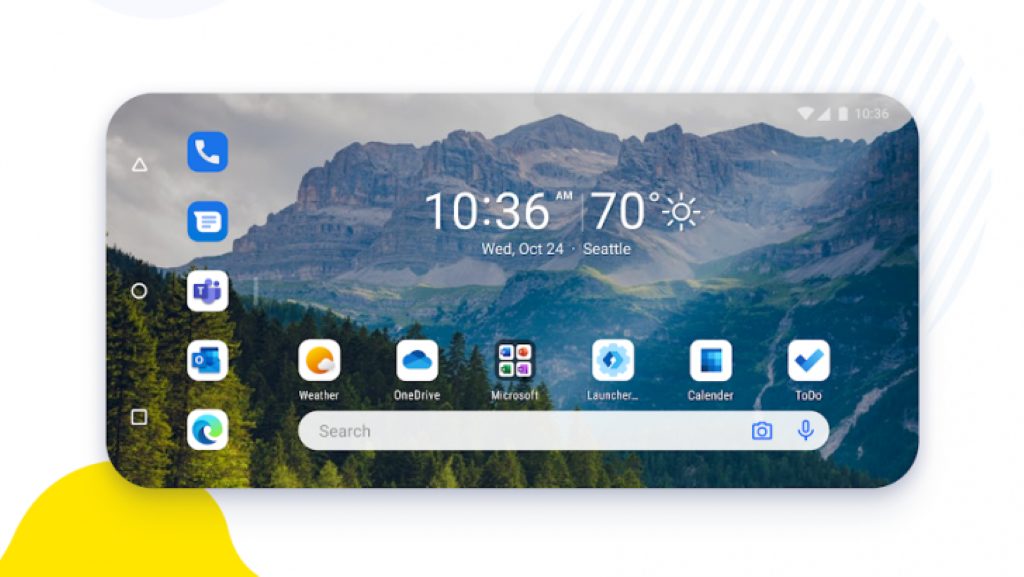
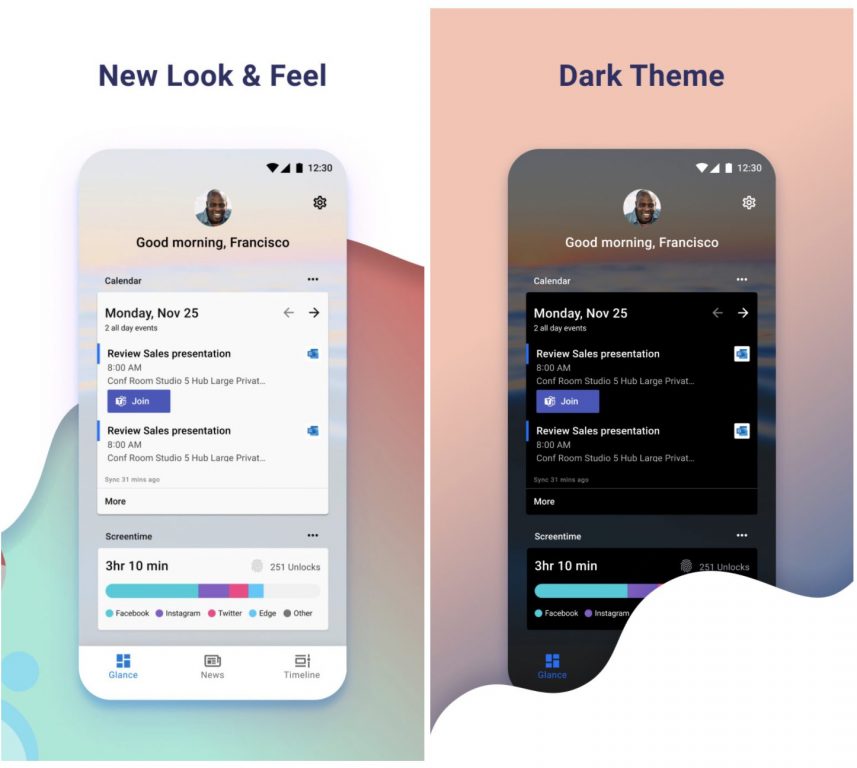
Microsoft Launcher v6 supports dark theme and much more

Microsoft Launcher v6 sports a new look and feel, and it even has a new icon!

The app, which requires Android 7.0 or higher, lets you customize icons and personalize your news feed. Similarly, it supports vertical and horizontal orientations, on top of letting you use dark theme.

This launcher is built on a new codebase allowing us to bring multiple new features to you – such as Personalized News, Landscape mode, Customizable App Icons, Bing-Supported Wallpaper, Dark Theme, and numerous performance improvements like speed to load, low memory utilization, battery optimization and fluent animations.

New Windows 10 build 20170 features

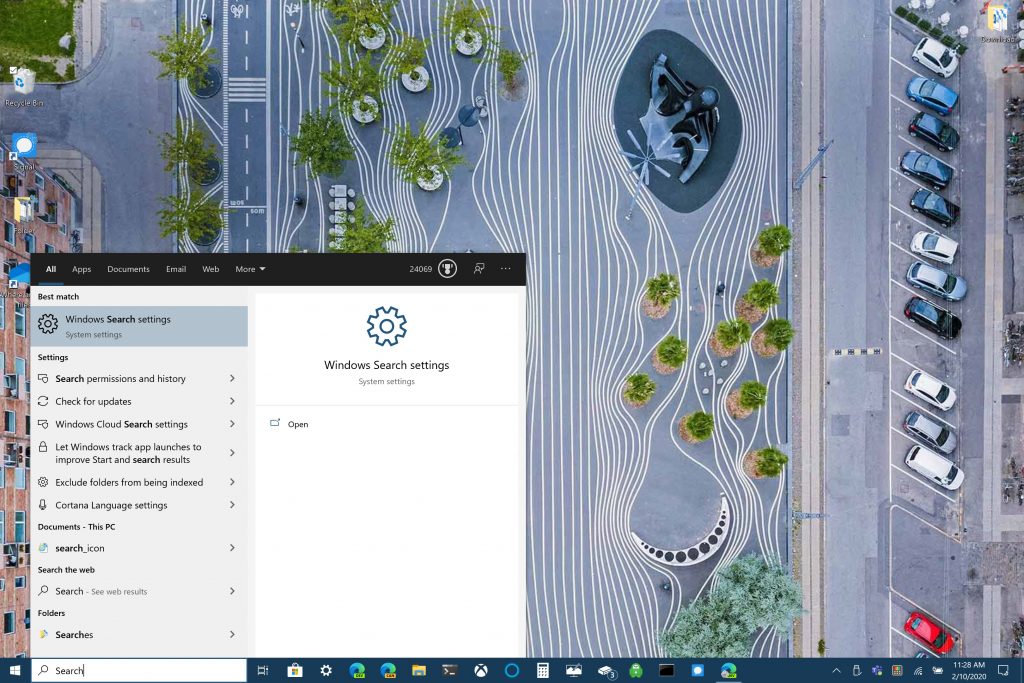
Windows 10 build 20161 brought insiders the programmable Taskbar. Now, with build 20170 the feature sports a double-column layout that lets you find what you need much faster.

In addition, you can launch the redesigned Windows 10 search interface by simply clicking Search in the Taskbar or pressing the Windows key + S.

Windows 10 build 20170 has a couple of feature improvements/changes too, including:

  • Fluent Design Settings icon: Insiders now get to sample a new-look Settings icon, which is a perfect match for the recently launched Windows 10 Start menu with theme-aware tiles.
  • Notepad: For a while, the app’s windows will no longer be capable of staying open even when you reboot your machine or update it.
  • Transport Layer Security (TCL) beta testing: Windows 10 build 20170 has the implementation of this feature enabled by default.

Have you downloaded Windows 10 build 20170 yet? Please tell us more about it in the comments section below.

Outlook now crashes at every startup, to users’ despair

Microsoft is right now dealing with a barrage of criticism from distraught users who have Outlook crashing every time on startup. The bug, which Microsoft has acknowledged, is affecting multiple clients across organizations.

Outlook startup crashes

Outlook startup crashes have users up in arms online, from Twitter to Reddit. The issue appears to affect Office 365 business account and Outlook 2016 owners.

According to one of the affected users, Outlook opens for 2 seconds before crashing with an exception code 0xc0000005. The issue is so widespread that this user said they had received five reports about it in 10 minutes.

 I’ve just received 5 calls in 10 minutes about outlook opening for 2 seconds and closing. Is anyone experiencing this issue? Make that 6 calls. Seems to be 365 business on all accounts.

Yet another user reports:

I just got my second report today of Outlook crashing for the end user. I am working on the first one now and it won’t even open in safe mode with outlook.exe /safe.

On Twitter, user Lennon Kaufman says that they’re experiencing the same issue with Outlook 2016, which is not connected to any Office 365 account. They’re also having crash issues with Outlook 2019 connected to a Microsoft 365-based exchange.

Workaround

Via the Microsoft 365 Status Twitter account, Microsoft said that it’s looking into whether a recent update triggered the Outlook startup crashes.

Apart from that, it appears that the bug doesn’t affect Outlook on the web or mobile clients. That explains why Microsoft is suggesting reverting to these alternatives as a temporary workaround.

In the meantime, some users on Reddit claim that rolling back the update resolved the issue for their Outlook clients.

For example, user Quintalis says that they used CMD to fix the issue. The user reports that they started experiencing the Outlook crash issue after installing the July 14, 2020 Patch Tuesday updates.

I’ve got a fix, after this hit several of our clients. Performing a rollback fixed it, must be a bad office update.

So, are you too experiencing any Outlook startup crash issues? Kindly let us know in the comments section below.

[wl_navigator]

Windows 10 May 2020 Update Breaks Outlook Contacts Search

Is there really a single thing on your PC that the Windows 10 May 2020 Update can’t wreck? As you may have heard, installing the new OS has caused all manner of issues for some users, from Windows 10 search bugs to Bluetooth connectivity problems.

And now, broken Outlook contacts search is one of the operating system’s latest side effects, according to users on the Microsoft Answers forum.

Outlook contacts search not working for Windows 10 May 2020 Update user

A Windows 10 May 2020 Update user has expressed their frustration with the inability to find contacts after searching their Outlook address book.

The glitch started occurring after the Outlook user upgraded to the latest version of Windows 10 in general availability. So, when they now look up a contact by name or company, they get the typical no results response.

It appears that the user wants to quickly access email recipients’ full contact details, including name, address, telephone number, etc. But they can’t do that due to the broken search issue.

Since upgrading to Windows 10/2004 (June 2020), when I search for a contact in my outlook address book – either by name or company – the response is no results. I can scroll down my contacts list and see/read my contact details and it looks like to search works when i start a new email – but searching the address book offers no results!

What’s even more frustrating to the user is that they know the contacts they’re searching for do exist. They just can’t find anything about them without scrolling down their contacts list.

An independent advisor, who had reached out to help, tried changing the scope of the search to no avail. As a result, they resigned to filing a bug report with Microsoft.

Have you installed the Windows 10 May 2020 Update yet? Any difficulty executing search in Outlook so far? If anything comes up, don’t hesitate to reach out via the comments section below.

[wl_navigator]

Can VPN Be Detected? Which VPNs Cannot Be Detected?

If you’re spending most of your free time online, privacy should be one of your main concerns. There are numerous third parties out there ready to get their hands on your private data and use it for their own personal gains.

However, if you landed here, chances are you’re already in the know. Or at least you want to discover more about the privacy wonder tool that is VPN. Either way, we’ve got you covered.

We’ve already put to rest some of the most searing questions on end-users minds, such as:

However, there are a lot of potential scenarios, and for each one of them, there’s an unanswered question. So we’re tackling them one by one until everything is as clear as daylight.

In this article, we’ll focus on whether or not a VPN can be detected. Also, we will show you what to look for best privacy online.

How does VPN work?

First of all, a VPN isn’t some magic invisibility cloak that you just throw over your router. Helping you get online, while also keeping your virtual whereabouts to yourself is kind of a big deal.

Your VPN stands between you and the world wide web and helps you access it safely. You install a VPN client on your PC, which encrypts your traffic and routes it through a secure tunnel.

The traffic gets through the tunnel and into a VPN server, which decrypts it, and sends it to your destination, whether it’s a website, a game, or an Internet service we’re talking about.

The host then sends a response back to you, which gets encrypted by the VPN server, routed through the same secure tunnel, decrypted by your VPN client, and displayed to you.

If you consider using a VPN and don’t know exactly where to start, we recommend trying a reputable service like Private Internet Access.

The VPN provides strong encryption, unlimited bandwidth, and data, and offers advanced features that can mask even the fact that you use VPN.

Private Internet Access

Use PIA’s private servers to remain untraceable online!
Check price Visit website

Can a VPN be detected?

Normally, if you’re not using a VPN, your ISP plays the role of the VPN client, secure tunnel, and VPN server.

So everything you send towards the service of your choice gets through the ISP’s infrastructure.

Now when you’re relying on a VPN to secure your traffic, your ISP isn’t yanked out of the picture. Instead, it kind of oversees the whole process, but without knowing what’s happening.

Imagine that your regular non-VPN traffic is a transparent tube that your ISP can see into. Your VPN traffic is like a smaller, opaque tube, which obscures traffic so that your ISP can no longer see it.

With that in mind, let’s get back to the original question: can a VPN be detected by ISP? Yes. Your ISP can detect whether or not you’re using a VPN, and the fact that you’re passing encrypted traffic is a strong indicator.

Can they do anything about it? Yes, but it’s not very likely. An ISP could block your VPN, but it would take a lot of time to do so since it involves manually blocking IPs and ports associated with the VPN.

You may also wonder whether a VPN can be detected by the government. If the VPN uses a zero logs policy and encrypts data, then it’s unlikely that the government can track it.

However, most VPNs, even those with zero logs may let legal agencies track users if they have to comply with court orders or such.

How to use a VPN without being detected?

Well, as we said earlier, even if your ISP detects that you’re using a VPN, there’s little they can do about it. Unless you live in a country where VPN usage is illegal and they decide to let authorities know, that is.

However, if you’re really determined, you can start looking for VPNs that cannot be detected. Such VPNs offer obfuscated servers, which make VPN, encrypted traffic to look just like regular traffic.

Here are our strongest suggestions:

Product NameObfuscationCompany Name
ExpressVPNStealth serversExpress VPN International Ltd.
Private Internet AccessWireGuard VPN protocolKape Technologies.
NordVPNObfuscated ServersTefincom & Co., S.A.
Surfshark VPNCamouflage ModeSurfshark LTD
VyprVPNChameleon protocolGolden Frog GmbH
IPVanishScramble OpenVPN trafficStackPath, LLC
TunnelBearStealth VPNMcAfee, LLC
Windscribe VPNStealth VPNWindscribe Limited
VPN UnlimitedKeepSolid WiseKeepSolid Inc.

If you choose either one of these services, you’ll be able to hide the fact that you’re using a VPN from third parties, including hackers and even your trusted ISP.

However, that’s the easiest way to avoid VPN detection. There are some other ways, such as redirecting your VPN traffic to another port.

Firewalls usually monitor UDP port 1194, since it’s commonly used by OpenVPN.

So you might want to redirect all your VPN traffic to port 443, since most HTTPS traffic uses this port, as well, and it’s harder to detect and block.

VPNs can be detected but it’s usually not a big deal

To wrap it up, VPN can and usually is successfully detected without too much effort. However, unless you live in a country where VPN usage is illegal, or try to access a service that blocks VPN users, it’s not a big deal.

There are several ways to bypass VPN detection, including switching your IP address (if possible), changing the port from within the VPN client, and even forwarding VPN traffic to a common port such as 443.

However, if the suggestions above look like gibberish to you, just try using a VPN that offers obfuscated servers. These servers pass VPN traffic as regular, unencrypted traffic, so detecting you is virtually impossible.

Microsoft Launcher v6 is out with Landscape mode and performance improvements

The latest version of the Microsoft Launcher is dropping its beta tag today. With the new version 6, Android users will enjoy a new Landscape mode and dark theme, personalized news feed updates, customizable App Icons, a new Bing wallpaper every day, and several performance improvements.

Here are the main highlights the Windows Insider team mentioned today:

  • Personalized news: Stay in the know. The personalized news feed updates throughout the day with top trending stories, making it easy to stay on top of whatever’s relevant to you.
  • Landscape mode: Microsoft Launcher supports vertical and horizontal orientations to enhance your viewing preference.
  • Customizable icons: Give your phone a consistent look and feel with custom icon packs and adaptive icons.
    Beautiful wallpapers: Enjoy a fresh new wallpaper from Bing every day or choose your own photos.
  • Dark theme: Reduce eye strain when using your phone at night or in low light environments. This feature is compatible with Android’s default dark mode settings.
  • Improved performance: Microsoft Launcher now loads faster, uses less memory, is more battery efficient, and offers fluent animations.

The new version will roll out gradually to Android phones running version 7.0 or higher, but some features such as System dark theme are only supported on Android 8.0 or newer. Microsoft also noted that native Android 10 navigation gestures may not work for all phone manufacturers and models.

If you’ll be upgrading from previous versions of the Launcher, be aware that Sticky notes sync issues may occur after installing the v6. Moreover, you may also need to enable notification badges again after upgrading. You can learn more about how to get started with the Microsoft Launcher on this FAQ.

The app was not found in the store. ?

Latest Windows 10 20H2 Update Removes Notepad for some users

Windows 10 20H2 build 19042.388 arrived in the Beta Channel yesterday and it brought with it a host of bug fixes.

But just like the July Patch Tuesday updates that Microsoft released the same day, the latest Windows 10 20H2 build causes a number of PC issues. One of the most notable problems is that updating to build 19042.388 may remove Notepad.

Windows 10 20H2 update may remove Notepad

Some users are reporting on Reddit that Notepad disappeared from their PC after updating to Windows 10 20H2 build 19042.388.

One user wonders:

Does the new update remove Notepad? (ver. 19041.388). How to get it back?

In addition, some users lost Microsoft Paint too after updating.

Hello i updated my windows to 19041.388 and now i don’t have Paint and Notepad? How can i get them back.

All these users are desperate to have their Windows 10 applications back.

However, the issue of Notepad disappearing after updating Windows is not new. In fact, many users started noticing the absence of the app after upgrading to Windows 10 version 2004.

But what many affected users may not know is that Notepad is now an optional feature on the Windows 10 May 2020 Update.

The good news is that if the app is missing after installing the new OS, you can get it back via the OS’ optional features settings.

Simply go to Settings>Apps & Features>Optional Features>Add a Feature.

Yet another user (this time around a gamer) decries their awful experience with the PS4 controller after updating to version Windows 10 20H2 version 19042.388.

This user claims that their controller was working fine before upgrading. However, the update appears to have broken the system seeing as the device keeps disconnecting every few seconds.

Before the update (OS Build 19041.388) everything was working fine. But now when I turn on the controller, the “Bluetooth & other devices” page shows the controller as ‘Connected’ but then disconnects after a few seconds.

Any interesting experience with the latest Windows 10 20H2 update? As always, you can reach out with any suggestions or questions via the comments section below.

New Windows Search experience is now rolling out on Windows 10 version 1809 or newer

Microsoft has started rolling a new Windows Search experience to Windows 10 users running the version 1809 of the OS or newer. The new experience features a two-column layout that offers enhanced readability and faster access to Quick Searches for users who like to see local weather, top news, and more helpful info on their desktop. However, it will still be possible to type directly in the search bar for finding other web results or navigating directly to a website.

Updated taskbar search experience in Windows 10.

The new Windows Search experience is a server-side change, and it will be available in markets where Quick Searches are supported, and the list includes the United States, Australia, Canada, China, France, Germany, India, Japan, Mexico, Spain, and the UK. Moreover, Microsoft announced today that Windows search now provides web search support for Dutch speakers in the Netherlands who set their Windows region set to “Netherlands,” and set Dutch as their default language.

In addition to this new Windows Search experience, Microsoft also announced today the release of a new Windows 10 Insider build which brings more minor changes for the Settings app. We invite you to check our separate post for more details.

KB4565503, KB4565627 may block WhatsApp and Slack on PC

Microsoft released the latest security patches in the notorious Patch Tuesday event.

And while delivering a lot of fixes including no less than 139 CVEs, the KB’s also came with some known issues but also some unknown ones.

While KB4565483 may conflict with some modems, KB4565503 and KB4565627 may block Electron built apps like Android Messages, Authy Desktop, WhatsApp, Slack, Twitch for Windows 10 v2004.

How do KB4565503 and KB4565627 are blocking apps on Windows 10?

A user complains on Reddit that every time he tries to start Electron built apps, he receives the error message The application was unable to start correctly (0xc0000005). Click OK to close the application.

The issue is showing on his Dell XPS 8500 computer but not on his other Dell OptiPlex 390 MT, the difference being that the latter is running a Release Preview Windows 10 build.

The only difference I can figure between the 2, besides channel, is that the 1st machine uses Known Folder Redirect (KFR) while the 2nd one doesn’t. It seems Windows is not handling the KFR use case very well.

He also specifies that he performed an SFC scan without any results.

How can I fix error code 0xc0000005?

As the issue started manifesting after installing the new KB4565503 and KB4565627, Microsoft didn’t react yet with an answer to this problem.

However, we have previously encountered and fix The application was unable to start correctly (0xc0000005) error.

If you encounter the error code 0xc0000005 after installing the new KB4565503 and KB4565627, you can try to fix the problem with our comprehensive guide.

Tell us about your experience and problems after installing the new KBs in the comments section below so we can try to help you further.

The article KB4565503, KB4565627 may block WhatsApp and Slack on PC appeared first on WindowsReport.com.

[wl_navigator]

[SOLVED] Your account access is temporarily limited

When you get the dreaded Your account access is temporarily limited PayPal email, most of the time, it’s the beginning of the end of your PayPal account. But it doesn’t have to be that way.

PayPal is the favorite payment method for most online shoppers as well as businesses. It simplifies transactions by only requiring the payer to enter his or her email address.

The simplicity and tons of other benefits are the reasons payers love PayPal.

However, businesses don’t like leaving huge sums in their PayPal accounts because they know that they can be hit with Your account access is temporarily limited email at any time.

When you see this message, you won’t be able to carry out some basic actions on your account.

If the issue is not resolved, in time you will use access to all the funds stored in your account.

The only thing the message tells you for sure is that your account has activities or transactions that go out of line with PayPal policies.

What does it mean your PayPal account is temporarily limited?

1. How can I resolve the Paypal account temporarily limited issue?


To resolve this issue, you will need to also understand the reasons for it occurring in the first place.

Here are the most possible reasons for which your PayPal account could be temporarily limited:

High-risk transactions on your account

  1. Recently, your account has received lots of chargebacks or claims.
  2. For Business PayPal accounts, you can get this error message if you begin to sell new products or offer new services.
  3. Similar to the situation above, if the volume of your sales suddenly spikes, PayPal can also flag your account.

Your account is not active

Your account access can get temporarily limited also if you haven’t logged in to the account or carried out any transaction on it since your registration.

This is a security measure for dormant accounts.

Your PayPal account is temporarily limited to protect it

Sometimes, your account access is temporarily limited by PayPal for your own protection.

When the system notices that an unauthorized user logs in to your account, it limits your account from making transactions.

PayPal‘s system determines unauthorized access mostly when the login was from a foreign location.

If you’re going to travel out of your country, it’s best to let PayPal know about it beforehand.


2. How to remove your account access is limited in PayPal


The same way the reasons for limitations vary, that’s how different the solutions are.

Thankfully, the Your account access is temporarily limited email hints on how to lift the PayPal limits for your unique case.

Some of the most common resolutions are as follows:

Visit the Resolution Center

paypal-resolution-center-your-account-access-is-temporarily-limited-paypal
To lift the limits, you may be instructed to go to the PayPal Resolution Center. On this page, you will have more insight into the root of the problem.

The Resolution Center also tells you how you can remove the limits.


Upload proof of identity


If the limitation was to protect your account, you may need to provide PayPal with some documents to prove that you are the legitimate owner of the account.

To do this, log in to your PayPal account and click on the Summary tab.

On the Summary page, you will see a notification to inform you of this resolution. It also shows you the required steps and documents to provide.

Most times, the proof of identity could be a copy of a Government-issued ID card, such as driver’s license, international passport, or ID card.


Following these solutions or the advice you got from PayPal, the account limitation should be resolved.

If you’ve completed the solutions and still have limits on your PayPal account, check your inbox for an email from PayPal requesting for additional information.

Alternatively, your account access may be temporarily limited still because they are reviewing your submitted documents, and you just have to wait a little more.

If your submitted documents don’t pass PayPal‘s review or the work in the Resolution Center fails, your account access won’t be temporarily limited but permanent, and you’ll not be able to access it again.

How to open Excel, Word, PowerPoint files from OneDrive in desktop apps

One of the benefits of storing files in OneDrvie is the ability to open Office files on the web. This not only gives you access to preview the file right from your OneDrive account, but you also can edit it, too. However, there are some cases where you might want to open the file in the desktop version of an Office app. Here’s a quick look at how you can do that.
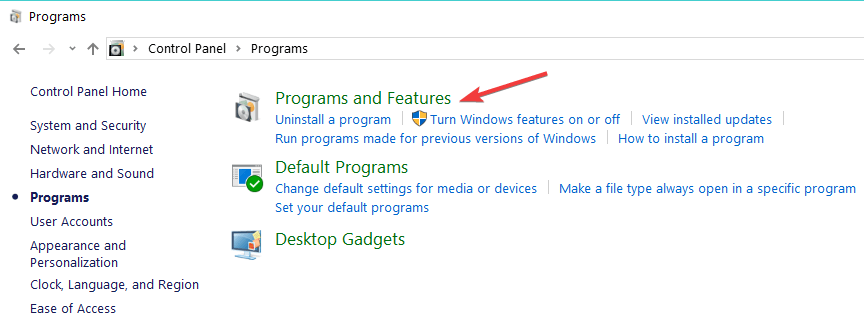

Method 1: From the list of files

Our first method is the least complicated. From the list of your files in OneDrive, simply right-click the file, and choose Open in … You’ll then get a prompt on the screen, saying that this site is trying to open …. Agree to it, and click Open. After a few seconds, the document should open up in the full desktop version of the Office app. As it is pulling the document from your OneDrive, any changes you’ll make will automatically be saved, without having to manually save the file again, and re-upload it to your OneDrive account.

Method 2: From the file itself

A second method might be useful if you’ve already opened the file on the web, but still want to open the file in an Office app. With this method, you’ll want to click or tap the File menu inside the Office web app. Then, from there, click Save As. You should then see an option to Download a Copy. Click this, and the file will download. Once finished, simply click the downloaded file to open it in the Office desktop app. Alternatively, you can just right-click the file name in your list of files, and choose Download too.

Just keep in mind, this method involves downloading the file, so any changes you make will not automatically be saved to your OneDrive. When you finish your edits, you’ll need to delete, and then re-upload the file to make sure that your edits save to your account.

Other tips and tricks for OneDrive

This is just the latest entry into our deep dive of the Office 365 apps. In the past, we shared some other tips and tricks for OneDrive. These include backing up your PC to OneDrive, saving email attachments, and more. Feel free to check it out here, and let us know your thoughts in the comments.

Grounded, Yakuza Kiwami 2 and more are coming to Xbox Game Pass in July

Microsoft has just announced eight new games coming to Xbox Game Pass this month, with six of them to be available on both Xbox One consoles and Windows 10 PCs. Two new games will be available starting tomorrow, July 16, with the 2D open-world game Forager and the strategy sandbox title Mount & Blade: Warband (Console only).

Two more games will follow next week on July 23: The horror game Carrion, along with the PC version of Golf with your Friends (already available on Xbox Game Pass for Console). Grounded, the new survival adventure from Obsidian Entertainment will also launch in preview on Console and PC on July 28, and the game is already available for pre-download on both platforms.

Last but not least, Xbox Game Pass subscribers will get three more games on July 30 with the adventure puzzle game The Touryst, the card game Nowhere Prophet, along with Yakuza Kiwami 2 (the first game is already available on Xbox Game Pass for PC and Console).

In case you missed it, Halo 3 has just launched on Xbox Game Pass for PC yesterday, and we hope that Halo 3: ODST and Halo 4 will soon complete Halo: MCC on PC. Two new unannounced games have also joined the Xbox Game Pass catalog this month, including the roguelite action-platformer Neon Abyss, and the turn-based strategy game Endless Space 2 (PC only).

That’s it for July, but August should be another exciting month for Xbox Game Pass subscribers. The much-anticipated Microsoft Flight Simulator game will be available on PC on August 18, and it’s already available for pre-download through the new Xbox beta app for Windows 10. A closed beta will also be available on July 30.

HomeGroupUser$ password: How to fix this login error

Usually, the HomeGroupUser$ account appears due to a damaged Windows Homegroup user account.

If you tried to log in on your laptop, only to see on your screen the HomeGroupUser$ account asking for a password, you are not the only one.

Some users are facing this situation where, before they are even able to enter the password, it prompts the message The password is incorrect.

Because the HomeGroupUser$ is a built-in account you cannot delete it from the system. But you can easily overcome this, by trying the confirmed solution we are presenting in this article.


How do I fix the HomeGroupUser$ password login error?

1. Use Command Prompt/PowerShell

  1. Press Win key + S and type cmd
  2. From the search results, click Command Prompt
  3. Type the following command: net user
  4. Locate HomeGroupUser$ and type: HomeGroupUser$ /active:no

Can’t run Command Prompt as admin? Check out this useful guide and fix the problem in no time.


2. Use the Local Users and Group

  1. Press Winkey + R to open Run.
  2. Type in lusrmgr.msc and hit enter.
  3. Once the Local Users and Groups window pops up, click on the Users folder.
  4. In the middle panel, you’ll see all the accounts on your system.
  5. Right-click on HomeGroupUser$ and click Properties.
  6. In the Properties window, click the Account is disabled box.
  7. Hit Apply and click OK.

3. Use Netplwiz

how can I fix the HomeGroupUser$ account log in error

  1. Go to the Start Menu, type in netplwiz and open it.
  2. Check if the Users must enter a user name box is unchecked, make sure to click it to check the box.
  3. This will stop the auto-login attempt of the account.

4. Stop Homegroup Services

  1. Open Start Menu, type in services, and open it.
  2. From the list of Services, locate HomeGroup Listener and HomeGroup Provider.
  3. Double-click the services and click Stop.
  4. Hit Apply and then click OK.

That is about it. We hope that you managed to solve the problem by using one of our solutions. 

If you have any more questions or suggestions, don’t hesitate to leave them in the comments section below.


Avatar and Korra content is now live in the Smite video game on Xbox One

The SMITE x Avatar Plus Bundle is now available to buy and download on Microsoft’s family of Xbox One consoles.

The bundle includes the Smite video game, three characters from the popular Avatar and Korra cartoon series, and the Merlin, Susano, and Skadi Gods.

Smite is a free-to-play title that can be downloaded at any time so the main appeal of this bundle is the three Gods and the Avatar skins.

Here’s the official bundle description and trailer showcasing the skins in action:

The iconic heroes of Nickelodeon’s cult animated series Avatar: The Last Airbender and The Legend of Korra join the Battleground of the Gods in an all-new Battle Pass.

This crossover includes three fan-favorite characters as Skins for community-loved Gods: Aang Merlin, Zuko Susano, and Korra Skadi.

The Avatar Plus Bundle is the best way to get started! Instantly unlock the Korra Skadi Skin and all Battle Pass rewards up to level 25 with the Avatar: The Last Airbender Plus Pass. Plus: you’ll get all three Gods featured in the pass, and their Voice Packs.

Avatar: The Last Airbender has experienced somewhat of a resurgence recently after the entire series was added to the Netflix streaming service in various regions. The announcement of a new live action version of Avatar has also garnered a lot of attention.

Are you an Avatar or Korra fan and are you going to pick up this Smite bundle? Let us know in the comments below and then follow us on Twitter and Pinterest for more Xbox gaming news.

SMITE x Avatar Plus Bundle

6 Best soccer games online to compete with your friends

Soccer is one of the most popular and watched sport by people, all around the world. Millions of people are insanely passionate and follow their favorite soccer team on any occasion. Moreover, there are soccer apps that keep you up to date on scores and all the games that will be played. The best online soccer games manage to transfer some of the most complex and advanced characteristics of real-life soccer into video games. In this article, we’ve compiled a list of some of the best soccer games that you can play online. Take a look as there are plenty to choose from. To be able to enjoy these games without any issues or distractions, we also recommend that you download and install a stable and fast browser. Opera GX not only offers you lightning-speed internet browsing capabilities but also enables you to keep your privacy online by using the built-in VPN service.
Editor's choice
Opera GX browser logo
  • Best gaming browser
  • Resource controller
  • Custom UI
  • Twitch integration
  • Free VPN included
  • Ad-blocker

Where can I play the best soccer games online free?

FIFA 20

where to play the best games online fifa 20

FIFA 20 is different from previous years in some. Volta is a new way to play FIFA, bringing street soccer to the main series for the first time.

You control a team of superstars aiming to become the world’s best players in an around the globe journey.

Volta focuses on the culture of street soccer where the language and atmosphere are more relaxed and more open to customization.

Defensive AI is now far more intelligent and they will intercept passes and block shots much more often.

The new tool, strafe dribbling, is extremely useful in providing more options when in control of the ball.

Once you get used to the direct free kicks and penalties, they offer great depth and satisfaction when you smack one in the right corner of the goal.

⇒ Get FIFA 20 on Origin

PES 2020 – Pro Evolution Soccer

This is a game that offers an enriched experience on how the players play and behave in the game field.

In this game, players take on a life on their own. The game comes with a big feature called Magic Moments which consists of 39 specialized RPG style traits. Not all players have access to them though.

Amazingly, Magic Moments steps beyond simply adding new moves. They add traits such as a fighting spirit which gives players better performance when in difficulty.

With these key improvements in the field, we can say that PES 2020 is the most satisfying football games of the current console generation.

Note: In order to play the game, you will need to connect your KONAMI ID with your Football PES 2020 game account. 

⇒ Get PES 2020 on Steam

Football Manager 20

In football Manager, you can run your team the way you want and with the new features and polished game mechanics, your experience will be like never before.

The greatest thing is, that there is no predefined ending or any script to follow.

You can plan and strategize to an endless amount of possibilities and opportunities. It is up to you to create the game.

⇒ Get Football Manager 20

Rocket League

Playing soccer with a car is definitely unique and from what we are seeing, pretty fun as well.

The game is pretty straightforward and is a combination of soccer and hockey where you control the car. You use your car to move the ball into the opponent’s goal and if you score more points inside a 5 minutes match, then that’s a win.

There are several ways on how you can do this: by ramming it, flipping into it, or hitting it directly.

You can play the game in teams or as a single-player.

Now, going into the more technical aspects -the visuals. The graphics are really nice and the fields have depths and weather effects. The cars look fantastic and there are plenty of customization options available.

⇒ Get Rocket League on Steam

Hattrick Football Manager

best soccer game online hattrick

This is one of the most popular games when it comes to feeling like the real owner and manager of your football team.

In terms of strategies decisions and the organization, you will have the last call. The amazing Hattric desktop application simplifies this, by providing you all the necessary data.

From Hattrick Organizer you will be able to see everything that happens in your team. This will allow you to know faster which decision to make and when.

The multitude of plug-ins and utilities will help you know exactly which are your team needs.

⇒ Try the Hattrick Football Manager

Kopanito All-Stars Soccer

If youțre looking for something out of the box that guarantees you’ll have a lot of fun, then this may be the game for you.

There are no specific rules in this game. The sole objective here is to score a goal more than your opponent in order to win the match.

Suffice to say you should not expect the same graphics or move physics to the standards of FIFA or PES. The offer that Kopanito is giving, is a lot mot different and is just fun football and a game played in your own personal way.

⇒ Get Kopanito All-Stars Soccer

And this concludes our recommendations. We are happy to hear your comments and suggestions.


[wl_navigator]

New Xbox Series X console ad focusing on its better and faster video games releases online

Microsoft released another new video ad for their upcoming Xbox Series X console this week, this time focusing on its Velocity Architecture. You can check it out below.

Velocity Architecture is the name used by Microsoft to describe the custom hardware designed for the Xbox Series X, the basis of which consists of a custom 1TB NVME SSD, hardware accelerated decompression blocks, a DirectStorage API layer, and Sampler Feedback Streaming (SFS).

A detailed breakdown was posted by Microsoft’s Jason Ronald here but what all of this new tech essentially means is that the Xbox Series X will be able to download video games quicker than current Xbox consoles and load them much faster. The promise of getting “the virtual elimination of loading times” has been made a few time now though gamers will have to wait until the console launches later this year to see if this promise is met.

Want to watch more Xbox Series X videos? Check out the previous ad here.

What aspect of the Xbox Series X interests you the most? Share your thoughts with the community in the comments below and then follow us on Pinterest and Twitter for more Xbox news.

Camtasia cannot connect to YouTube [Full Fix]

5 steps to fix Camtasia YouTube issues

  1. Check Your Internet Connection
  2. Turn Off Third-Party Antivirus Software
  3. Turn Off the Windows Defender Firewall
  4. Edit the Registry
  5. Reinstall Camtasia

Camtasia 8 and 9 users can usually upload their recorded videos directly to YouTube (or Google Drive) from within the software. However, some users have also stated on forums that a “Camtasia cannot connect to YouTube” error message pops up when they try to add their recorded clips to YouTube.

Consequently, those users can’t upload their clips to YouTube with Camtasia. Here are some Windows fixes that might resolve the Camtasia YouTube error.

How do I fix YouTube connection issues on Camtasia?

1. Check Your Internet Connection

The full error message states: “Camtasia cannot connect to YouTube. Check your internet connection and try again.” As such, the error message suggests that users check their internet connections. The obvious way to do that is to open a few web pages in a browser.

The Internet Connections troubleshooter might come in handy for users who need to fix internet connections for Camtasia. That’s a troubleshooter that provides fixes for network connections that are down or down for a specific website. Follow the guidelines below to open the Internet Connection troubleshooter in Windows.

  1. Open Run with the Windows key + R hotkey.
  2. Enter ‘Control Panel’ in the Open text box, and press the OK button.
  3. Click Troubleshooting to open the Control Panel applet below.
    troubleshooting control panel
  4. Click Network and Internet to open the troubleshooter list shown directly below.
  5. Right-click Internet Connections and select Run as administrator
  6. Click Advanced to select the Apply repairs automatically option.
  7. Then press the Next button to initiate the troubleshooter and go through its suggested resolutions.

2. Turn off third-party antivirus software

Antivirus software with firewalls can block third-party software connections much the same as WDF. As such, Camtasia users should also turn off third-party antivirus utilities before opening the screencast software.

To do that, right-click the antivirus utility’s system tray icon to open its context menu from which you can usually select a disable or turn off the option.

If you can’t find any turn-off turn option on the antivirus utility’s context menu, open the settings menu or tab in the software’s primary window to select a disable option from there.

However, if you’re tired of antivirus tools that keep interfering with your software, then maybe you should consider changing it.

If you use a Windows PC, you must have one of the finest antivirus software, whether free or commercial, installed. Windows is more frequently targeted by viruses, Trojans, and other malware than any other software platform, and running a PC without antivirus protection is asking for trouble.

Once installed, compatible and suitable antivirus software will run silently in the background, ensuring that you have a malware-free experience while using Windows 10. More so, you don’t have to worry about disabling or uninstalling it whenever something else doesn’t work.

3. Turn off the Windows Defender Firewall

The “Camtasia cannot connect to YouTube” error message still pops up for some users when their internet connections are ok. However, Windows Defender Firewall can still block connections for specific software.

Thus, Camtasia not connecting to YouTube could feasibly be due to Windows Firewall blocking the software. So turn off the WDF to ensure that it isn’t blocking Camtasia.

  1. To turn off Windows Defender Firewall, open the Run accessory.
  2. Then enter ‘firewall.cpl’ in Run and click OK to open the window.
  3. Click Turn Windows Defender Firewall on or off to open settings shown below.
    turn off firewall windows 10
  4. Then select both the Turn off Windows Defender Firewall options, and click the OK button.

If turning the WDF off fixes the Camtasia YouTube error, the firewall must have been blocking the software. You can temporarily turn off the firewall before opening the software and then turn it back on again as required.

Alternatively, you can set up outbound and inbound WDF rules with the Windows Defender Firewall app that allow the Camtasia connection.

4. Edit the Registry

Follow the guidelines below to edit the registry.

  1. Open the Run accessory.
  2. Input ‘regedit’ in the Open text box, and press the OK button. Then the Registry Editor window will open.
  3. Enter this key in the Registry Editor’s address bar to open that key. Alternatively, you can copy and paste that registry path with the Ctrl + C and Ctrl + V hotkeys.
    Computer\HKEY_CURRENT_USER\Software\TechSmith\Camtasia Studio\8.0
  4. Right-click the 8.0 folder (or key) on the left of the Registry Editor and select Delete.
  5. Then open Camtasia Studio 8.

TechSmith’s official resolution for the Camtasia 8 YouTube error is to delete the software’s 8.0 registry key. Numerous Camtasia Studio 8 and 9 users have confirmed that editing the registry fixes the YouTube error.

5. Reinstall Camtasia

  1. Camtasia users have also stated that reinstalling the software can fix the “cannot connect to YouTube” error. Users can uninstall Camtasia by entering ‘appwiz.cpl’ in Run.
  2. Then select Camtasia Studio in Programs and Features
  3. Press the Uninstall button.
  4. Click the Yes button to confirm.
  5. Restart Windows after uninstalling the software.
  6. Thereafter, reinstall Camtasia Studio with its setup wizard.

One, or more, of the above resolutions, will probably fix the Camtasia YouTube error for most users. However, if not, Camtasia users can send a support ticket to TechSmith at the company’s ticket submission page.

Remember that you can also add recorded videos to YouTube without the Camtasia software.

Book Organizing Software: 6 Best to List Your Collection

When choosing a software for listing books, you need one that is customizable, allows for tagging and collections, tracks multiple dates, allows for adding notes like where and when you got the books and also allows for book tracking on titles you’ve lent out.

Overall, find one that suits your needs, both specific and aesthetic.

When it comes to book collections, most people who have them can be obsessive and proud, but there are advantages to knowing the books you have in your library, and where they are.

Some of these benefits include not forgetting what you own so you don’t have to buy duplicates, you can track books to who you lent by making notes or adding tags so they never get lost

You can also rebuild your list or collection in the event of a crash or natural disaster, you can share your list with others, you can track where and when you bought the books and organize according to statistics like author, genre, book types, and much more.

Cataloging of books takes some simple steps to do. Once you choose the best software for listing books, scan them using a barcode scanner, upload to your inventory program, then start organizing each and get statistics for the same.

Here are our top picks for the best software for listing books.

Best tools for listing your books

Icecream Ebook Reader

Part of having a vast library of books is creating a system through which you can organize them for easier browsing. It can be either based on book series, genre, author, or whatever else sparks your interest.

bottom line is, you can’t just use any crummy ebook reader for this job since most will either have subpar tools or not have them at all.

One tool that doesn’t fall under that category is also the one topping off our list: Icecream Ebook Reader.

This Ebook reader not only allows you to open, read, and manage a wide variety of ebook file formats, but it has plenty of features that allow better management of your vast digital library.

And the best part is that the tool is extremely easy-to-use, so arranging thousands of books will not seem like a nightmare.

Here are some of the perks of using Icecream Ebook Reader:

  • Great book collection management tools
  • Works on all versions of Windows
  • Available at a discount price
  • Lightweight
  • Easy-to-use

Icecream Ebook Reader

Icecream Ebook Reader

Manage your vast digital library of ebooks with the help of this feature-rich and easy-to-use tool, now at a discount price for a limited time only.
Get it free Get it now

Book Collector

With this software for listing books, you can fulfil the following tasks:

  • Catalog books and e-book files on your Windows computer
  • Download book details and images automatically, such as author, title, publisher, cover art, genre, plot or add by ISBN
  • Access a rich variety of features and highly customizable tools
  • Install on multiple computers, and sync data between the PCs
  • Store book data and images locally, or sync with cloud storage
  • Browse, sort and search your collection in different layouts and views with a highly customizable screen so you can make it look the way you want.

Other cool features and tools that this book cataloging software provides include editing, adding missing cover images from the internet with the built-in Find Image Online tool.

You can also customize or create your own database with User Defined Fields, Loan Manager system to manage loans, an export tool to export database to text or XML files, and even print book lists in your preferred order.

⇒ Get Book Collector

All My Books

This software for listing books helps you organize, track and archive your book collection, whether that is hard copy or printed books, audio and/or e-books, or all three combined, as it has all the features you need for listing your books.

Whether you forgot who you lent a book to, or want to know how many titles of a particular author you have read, or just want to print/upload your list and organize your collection, you can do it with this tool.

It is easy to download and install and doesn’t have any malware, ads, or third party bundles. To use it, all you need is the title, author’s name, or the ISBN number, then plug this information into the software, and it does everything else from online sources, adding it to your personal database.

Features include:

  • Hard drive scanning for book files and you can add individual files or batch files
  • Automatic population of information about the books including reviews, cover art etc.
  • Access to 12 different book databases (international) to collect information on your book list
  • Add your own information as it is fully customizable
  • Variety of custom templates to define the software’s appearance to your liking
  • Monitoring of your books across multiple locations
  • Sorting and grouping of books based on specific criteria you select
  • Book tracking – what you’ve read and what you’re yet to read
  • Analytics and statistics
  • Automatic searches using ISBN number
  • Transfer of books to mobile devices, or importing existing lists to other formats – text/Excel
  • Password functionality to secure your collection
  • Audiobook playback support for MP3, WMA, M4A, Audible (AA,AAX) and OGG

You can try it for free for 30 days and test run it, but this doesn’t come with the HTML exporting and create new database functions.

⇒ Get All My Books

Libib

This is a cloud software for listing books, movies, music and video games. With this tool, you can create and share your collection using the library management service, which lets you create multiple libraries, catalog books, create tags and notes, import or export your collection and much more.

It has two different plans for listing books: Standard and Pro.

Libib Standard is available for free and built for personal collections, so you can manage your private library of books. To use this plan, you can scan, search, enter ISBN, or import batch items from a CSV file and the tool retrieves the details automatically. You can also create up to 100 different libraries and catalog up to 5,000 books. It generates statistics, has no ads, and you can publish your list for people to view.

Libib Pro, on the other hand, is meant for schools, small organizations and power users, allowing them to lend, manage multi-user accounts, manage patrons, have full control over data, and use a high powered library management system on a brilliant design.

Its features include:

  • Up to 100,000 items can be cataloged
  • Lending/circulation system
  • Custom branding and colors for libraries that are published
  • Interactive library with multiple layout options
  • Email notification for patrons
  • Kiosk app for self-checkout
  • Batch editing and field data editing
  • Add books using Library of Congress Number
  • Expanded search and much more

⇒ Get Libib

Tapforms

This software for listing books is the digital filing cabinet you need for your book collection, to organize everything in one place that is secure, searchable and can be accessed from other devices.

With Tapforms, you can use the built-in design tool to create your own custom forms, by choosing from the ready form templates, and use that to track, manage and organize your book collection.

Features include:

  • Custom forms that are easy to build and within minutes of downloading the application
  • Label designer to generate printable labels for the information stored in your form fields (more than 1000 Avery label sizes are available)
  • Custom layouts to showcase your collection differently for digital and print
  • Multiple documents to keep your forms organized into multiple database documents and sync each independently of the other either with nearby or auto-sync
  • Photo grid view to see your list in a new way, World map view to see your locations on a world map in one go
  • Multiple photos and encryption of file attachments
  • Easy backup and restoration of your lists
  • Import and/or export your lists
  • Integrated barcode scanning
  • Auto-lock so no one can access your collection while you’re not by your computer
  • Advanced formula editor to get total/average/minimum or maximum from your list

⇒ Get Tapforms

Book Organizer Deluxe

This is great for both personal and/or business use and works with different Windows operating systems, including 10/8/7/Vista and Windows Servers.

It lets book collectors organize, catalog, and manage their collections on their computers, using the intuitive and simple interface, which is feature-packed and powerful.

Its benefits include:

  • Simplicity and ease of use
  • Ready to use templates with a user-friendly interface
  • 3 book cataloguing solutions that can meet your requirements, or define yours with the free Database Designer tool
  • Manual or automated cataloguing
  • Quick access to your database
  • Web auto-search and auto-catalog by ISBN number
  • Easy processing of book data using the Report/Label/HTML Generator Wizard that let you create book lists and reports, as well as book labels with color and art
  • It is web-ready so you can organize your favorite book websites, or publish your list to the web

⇒ Get Book Organizer Deluxe

Do you have other methods or software for listing books? We’d love to hear from you. Share with us in the comments section below.


[wl_navigator]