How to create a custom video, speaker, and audio setup in Microsoft Teams

There comes a time where the webcam, speakers, or microphone on your PC might not be good enough for your conference calls. Your microphone might not be of good quality, your speakers might sound horrible, or you might just want to use a microphone that will better highlight your voice. In these cases, you might end up plugging in an external peripheral to your PC via USB or Bluetooth.

In some cases when you want this, you might still want to hear the audio from a meeting on your PC speakers, but use your microphone on your headset — or vice versa. To get this working right, you’ll need to head into Teams and pick and choose your audio, video, and speaker settings to create a custom setup.

The process is relatively easy, and in this guide, we’ll explain how you can go about doing that.

Before a call

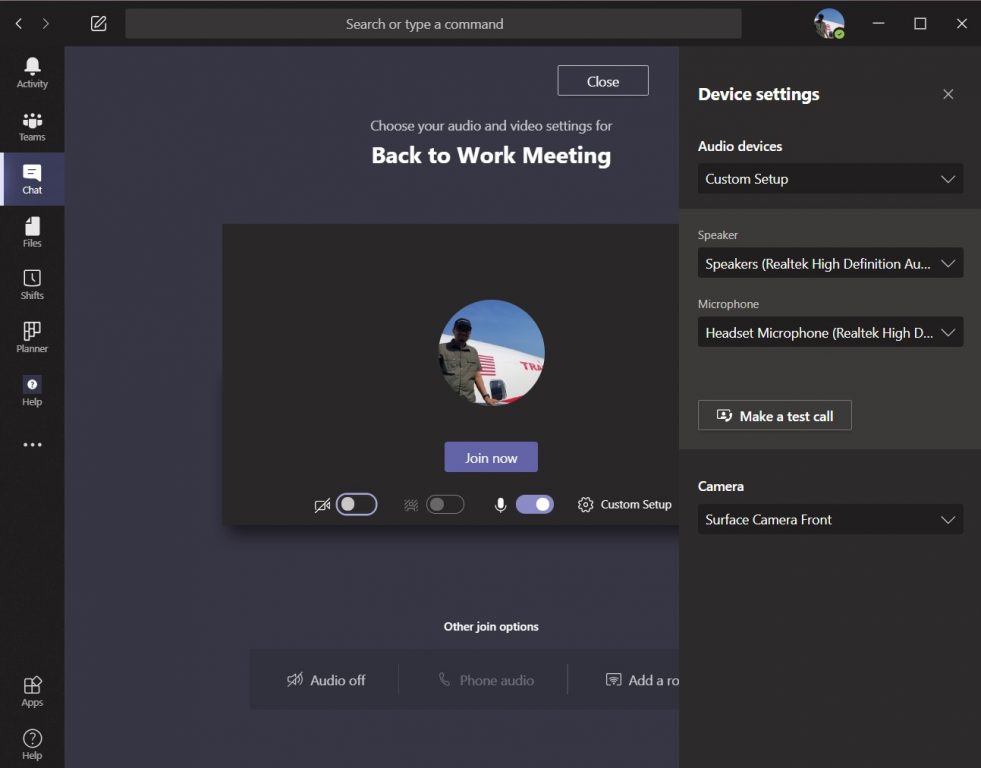
To create a custom setup before a call or as you join the call, you’ll want to click the PC Mic and Speakers settings cog under your video feed. After you click that, you’ll see an option for Audio Devices. Click the down arrow box in this field, and then choose Custom Setup. This will switch away from using your PC’s microphone and speakers and pick and choose your own setup.

Next, head to the fields underneath. In the Speaker box, click the down arrow and choose the device or peripheral you want to use for your speaker. In our case, we’re keeping the default Realtek speakers for our Surface. After that, you can head to the Microphone box, click the down arrow, and choose the microphone you want to use. We’ll be using our Headset. You also can change the webcam by clicking the down arrow next to Camera and choosing another camera, too.

When satisfied, you can test out your setup to see if it works for you. Simply click the Make a test call button. This will call Microsoft’s Teams Echo service, where you can say a message and have it played back to you to see if everything works. At the end of the call, you’ll get a list of your call results, showing a list of everything you choose, and if it worked.

During a call

You not only can create a custom setup before a call, but you also can do it during the call too. This might be a case where you want to switch things up after you realize your call isn’t sounding or going the way you want.

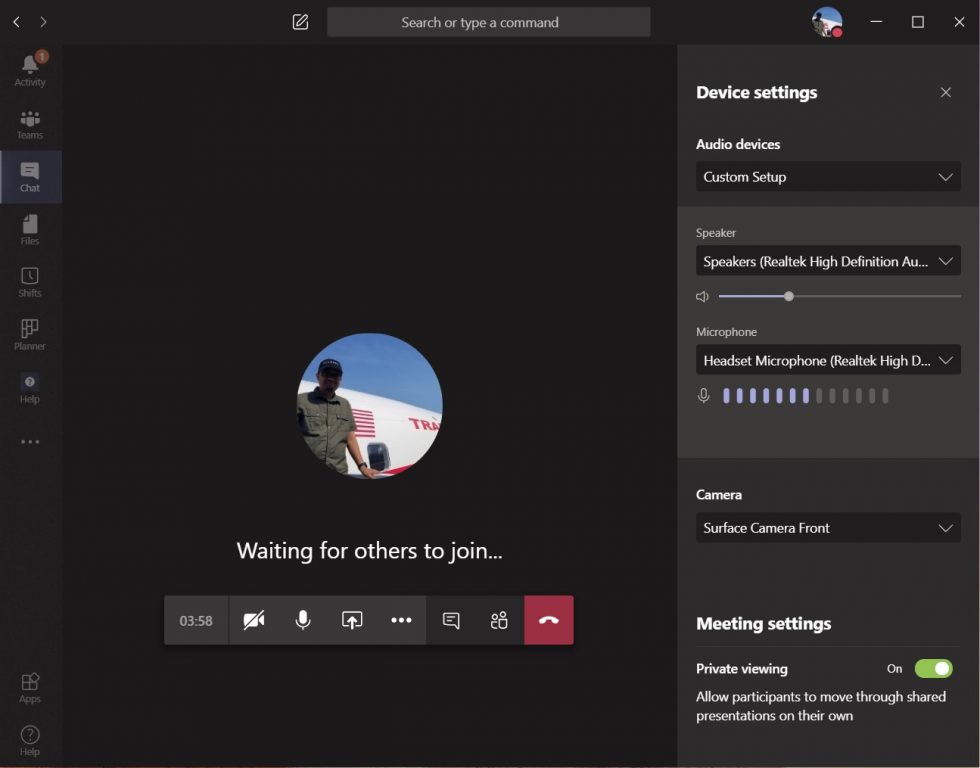
To do this, simply hover your mouse over the middle of the screen, and then click the . . . more actions option. From there, click the Show device settings option, and then choose Custom Setup from the drop-down box under Audio Devices. You can then choose the speaker and microphone or webcam you want to use in the boxes that show up under that.

You’ll be able to see feedback from your microphone, to see if it works. Try increasing the volume on your PC or Mac to test that, too. When satisfied, click the (X) next to Device Settings to close the window, and join your call.

Other ways to change settings

These are just two ways to create a custom setup in Microsoft Teams. You also can change the settings before any calls by heading to your profile icon, clicking the Settings option, then choosing Devices. From here, under Audio Devices choose Custom Setup and then pick your speaker, microphone, and camera as we explained above.

As we always remind you, this is just our latest Microsoft Teams guide. We’ve extensively covered the topic over the past few months, and have tips about chats, search, and so much more. Check out our news hub for all the latest Microsoft Teams and Microsoft 365 news and information.

Lenovo ThinkPad Yoga L13: An IT Pro’s alternative in a pinch

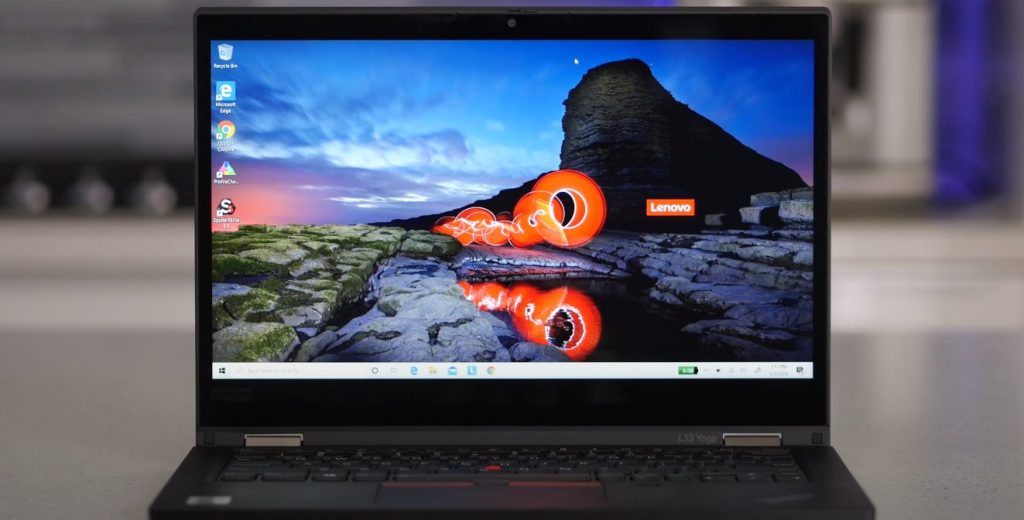
Lenovo is back with an addition to its L-series lineup of laptops with the ThinkPad L13 which offers mid-level performance and specs for  IT pros on a budget. Starting at $677 (not accounting for partnership or wholesale discounts) a small-to-medium-sized business can outfit its IT staff and arguably its in-office employee base with a fleet of L13’s that offer a customary productivity experience.

For a little under $700, customers get a convertible device with an i3 Intel Core 10th gen processor, 4GB DDR, 128GB SSD PCIe storage, integrated Intel UHD graphics, and a 13.3 FHD touchscreen display. However, for a few hundred more dollars businesses can upgrade to the specs I reviewed that make the L13 the pitch hitter purchase I think makes more sense for staff on a relative budget.

The Design

The L13 comes with typical industrial ThinkPad design elements that include the matte black finish, u-shaped chicklet style keyboard, infamous red-nipple, dual button trackpad clickers above the trackpad itself, 80-20 screen to body ratio bezels and patented three-point 180-degree hinge mechanisms for full 2-in-1 convertibility. While the L13 lacks the refining touches of say a ThinkPad X1 Carbon or the commercial polish of the Ideapad lineup, it does offer some improvements on the company’s traditional SMB offerings.
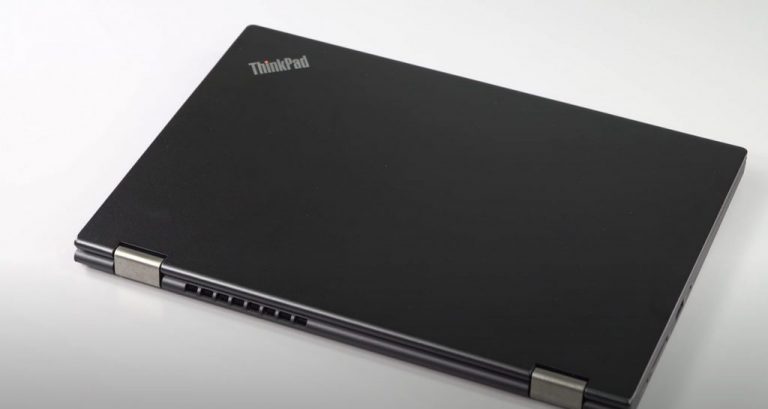
The L13 Yoga weighs roughly 3 pounds but its rigid chassis eliminates any flex in the frame when pressing on the body, keyboard, or screen. While most of the parts are soldered on, there are easily accessible screws under the body for battery replacements or storage upgrades, after the fact. The L13 won’t win any design awards anytime soon, but its understated design adds to its no-nonsense look that works well when tossing it into a non-descript satchel or backpack for on-the-go IT troubleshooting.

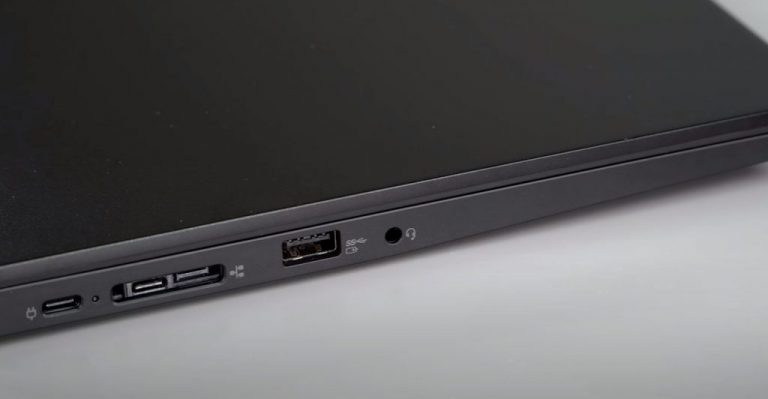
As part of the design, Lenovo opted to keep to its tried and true industrial style that also enables a breadth of connecting options that include a full HDMI port (that’s awfully convenient when working from home on and HDMI monitor), dual USB-A ports, micro-SD card slot, 2 USB-C gen 1 power delivery, display, and data transfer ports and a traditional headphone and mic combo.

The Guts

The L13 offers up to 4 different spec customizations that include 10th Gen Intel Core i3, i5, and i7 processors as well as varying storage and memory options. The unit I was given came with an Intel Core i5-10310U processor with Pro and up to 4.40 GHz and Turbo Boost spread across 4 cores and 8 threads. Memory on my L13 topped out at 8GB DDR4 2666Mhz, while storage maxed at 512GB. The remaining specs aren’t much to write home about such as the 720p HD webcam, 13.3 FHD touch display, or the integrated Intel UHD graphics chip that stuttered on almost every game I attempted to play, including the measly Streets of Rage 4 for Xbox Game Pass members.
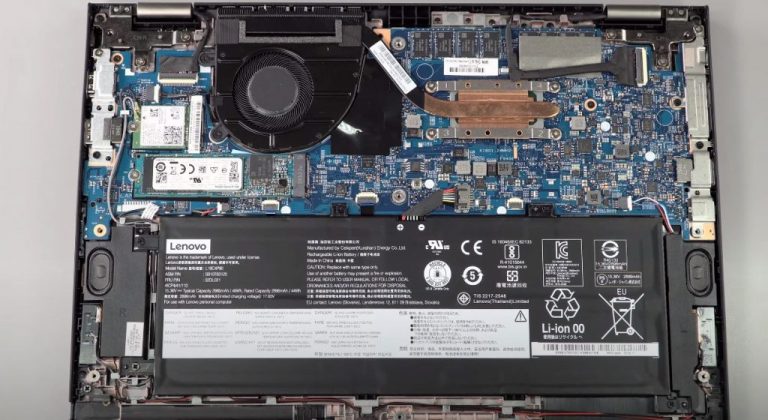
However, in everyday use as a work-from-home device the L13 services pretty well. The Cometlake chipset onboard took care of most of the computational tasks and needs I had but its throttled graphics performance often rendered the machine sluggish at times unlike an Icelake chip might have done. I was able to run several Office 365 applications such as Word, PowerPoint, and Excel while also pushing a VPN connection and populate several Google Ads accounts in open Chrome tabs long before I saw any processing slow down. Yet, when I would open up GIMP for some quick spot-check graphics work, I would have issues transitioning in and out of apps, load times would sometimes double and some applications lost all responsiveness and would require a restart.

In an 8 hour workday from start to finish, I could regularly get the fans whining noticeably loud and heat up my makeshift work desk several times, but for the typical spot-fixing and VM workflow of an IT crowd, the higher end L13 models should fare decently in day-to-day use.

Pen, Keyboard & Bio authentication

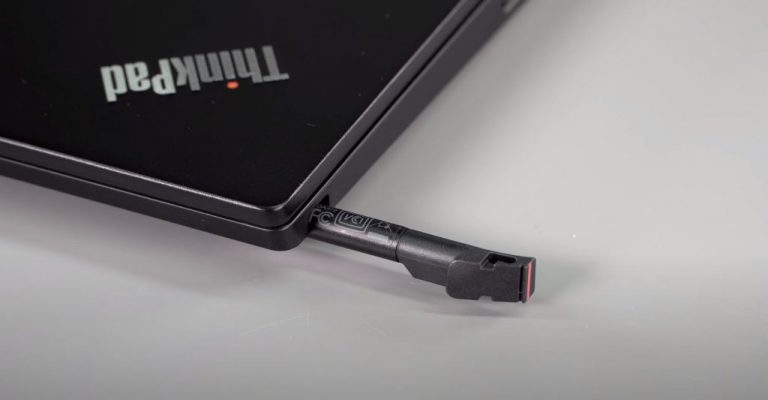
Lenovo seems to have made it a practice to squeeze as much value into the box of each purchase and continues to do so with the L13. Customers get, out of the box, the dedicated pen that sits housed in a little silo near the bottom front of the keyboard, a relatively snappy fingerprint reader for extra security and webcam shutter switch for added privacy. Each of these extra features work very well. The dedicated pen is useful for doodles, highlighting figures in charts, and even navigating parts of Windows when the device is in tablet mode. I’m not sure how much use an IT professional will get out of the pen, but regular employees might enjoy the convenience when document signatures are needed or they forget their notebooks at their desks during meetings. The convenience factor of using the pen is also extended to its rechargeable nature. Customers no longer need to hunt for their coveted AAA battery stash, as placing the pen back into its discrete housing also recharges it.
 

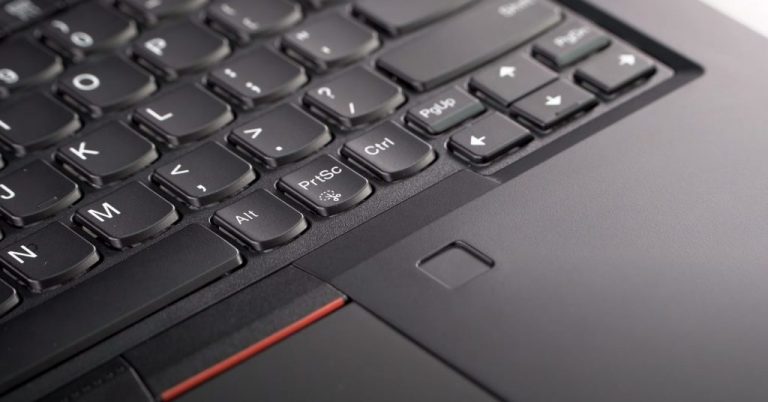
As for the keyboard, it’s a standard Lenovo ThinkPad keyboard. The rigidity of the chassis makes for a nice typing experience devoid of mushy button presses or flex points in the center mass. Key travel is springy and the U-shaped chicklet design was a nice contour for my rather chubby digits. Spacing was nice and the sound of key presses was understated in a good way, there was also a two-step backlighting setting for keyboard making it a convenient choice for late-night typing. The trackpad was ok, there are points near the corners where more pressure needed to be applied to register a click, or oftentimes multiple taps were necessary to get an action done. I haven’t really found a use for the red nipple in any of my tests or reviews, but it’s there for customers who make use of it, it feels sturdy and moves the mouse around the screen as I suspect it’s supposed to.

Regarding the fingerprint reader and webcam shutter, they’re both usable. Personally, I would rather have had the option for an IR that made use of Windows Hello during this time of COVID-19 and work from home, but the fingerprint reader was serviceable and fairly reliable. There were some instances in which I need to touch my finger to the reader several times from different angles, but it would eventually grant me access.
The webcam shutter came in handy in allowing me to join a call with video but grant me some extra seconds to tidy up a background or center my video better. The webcam shutter also makes for a foolproof way to make sure you’re not on camera when you don’t want to be regardless of what conference software list you as.

Summary

I used the L13 as my main workstation while I worked from home, and it did everything I needed to. Occasionally, there was bit of a bog down when flipping back and forth between VM environments, but I blame that mostly on me also running some rather unstable Windows 10 Insider builds. All in all, Lenovo’s ThinkPad L13 is a great device for its price. I don’t know what kind of wholesale deals SMB’s get for devices like this, but I could see an entire office outfitted with these laptops and get the most out of its convertible build, processing power, and built-in security features. The one thing I didn’t mention during my review earlier was battery life, and that’s because it’s nothing to write home about, literally. I saw 5 to 7 hours off the plug, but when working from home, that gets a bit skewed as I believe it would be when working in an office, eventually. The L13 wasn’t a road warrior for me, but when used as a stationary workstation it shined. The quick charge feature was also a reason I didn’t have to point out battery life because within an hour of charging I was back up and running, rarely missing a beat.
 

Who is the L13 for?

I’d recommend it to anyone looking for the bare minimum, in a good way. The L13 isn’t a designer laptop, but it has everything a user would need to get their work done such as a decently vibrant touch screen, pen for notetaking, ok battery life, latest chipsets for a boost in processing output for more demanding Office 365 tasks, and a plethora of I/O for connectivity. There is very little to be negative to be discussed about this laptop. I think any business looking to outfit its IT staff or single pro would benefit in handing them an L13. It’s lightish, portable, and gets the job done for under $1,000.

Recommendation: Buy, but with office-oriented uses in mind.

How to convert between units using a Windows 10 PC

Need to convert between units? There’s no need to head to the internet while working on your PC. Instead, open Windows 10’s Calculator app to use the built-in quick conversion features.

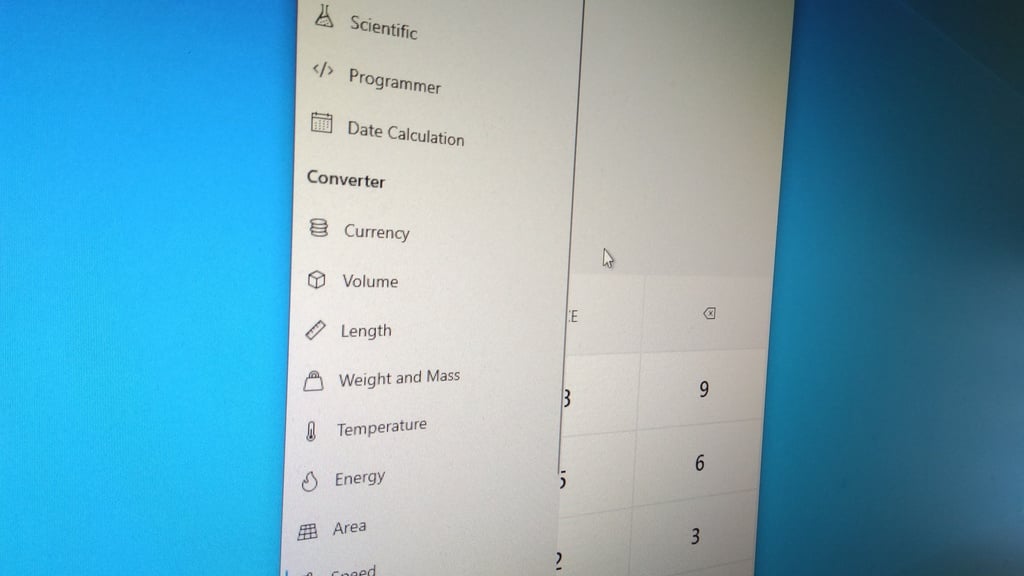
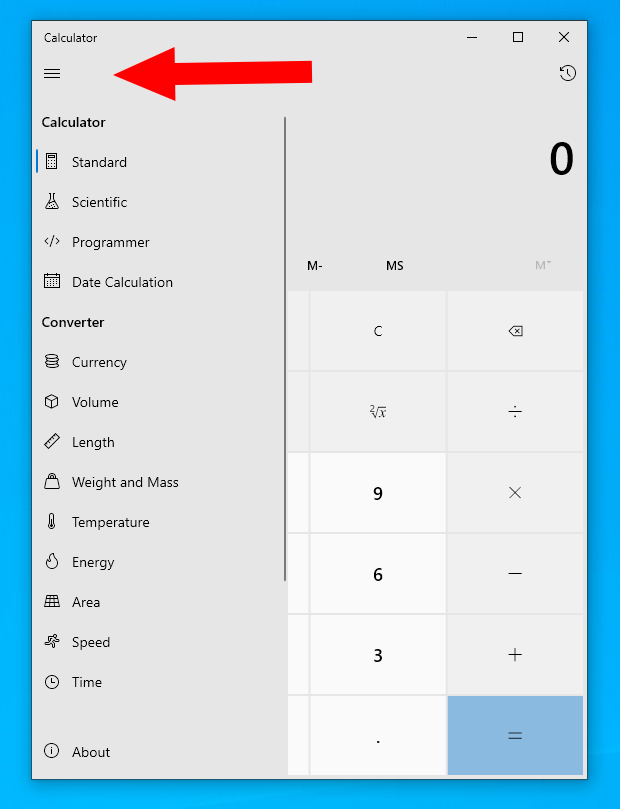
With Windows 10, Microsoft made Calculator into far more than a simple arithmetic tool. Click the hamburger icon in the top-left to switch between the calculator’s modes.

Unit conversions in Calculator on Windows 10

The options available are comprehensive – whether you’re looking for length, weight, temperature or even currency, Calculator has you covered. There’s even options for converting units of time, power and data.

Unit conversions in Calculator on Windows 10

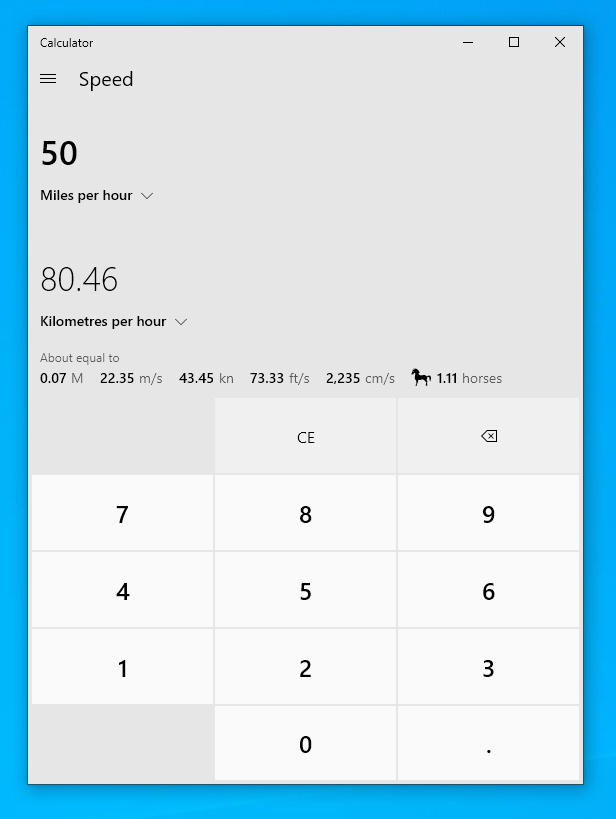
Chances are that you’ll be able to use Calculator to convert between any commonly used sets of units. Select the appropriate category and then enter your two values. You can change the selected units using the dropdowns below the value.

Unit conversions in Calculator on Windows 10

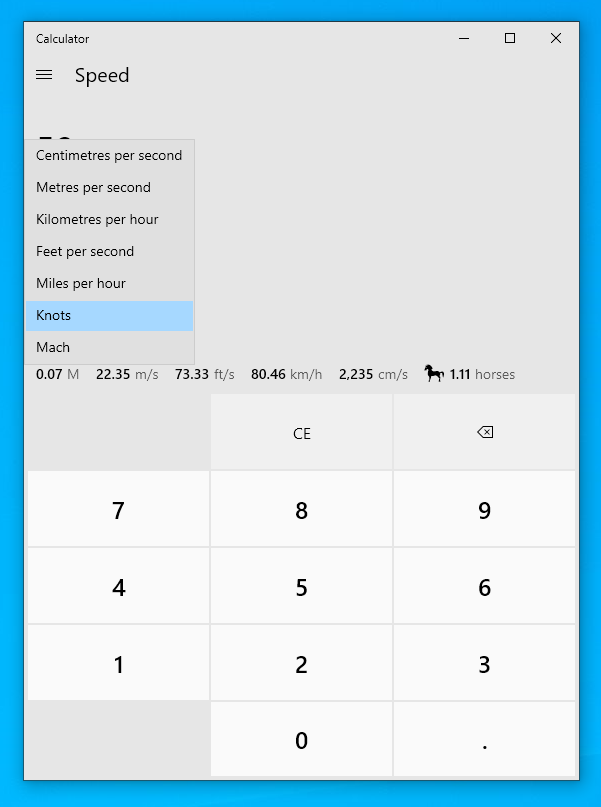
With this example, we’re converting miles per hour into kilometres per hour. We can also see the result if we convert into nautical knots, or even aeronautical mach units.

Calculator automatically remembers your last used conversion category. Next time you use the app, it will return you into that section. Expand the hamburger menu and click the “Standard” option at the top to return to the regular mathematical calendar.

Facebook Gaming won’t replace the Mixer tab on the Xbox One console’s dashboard

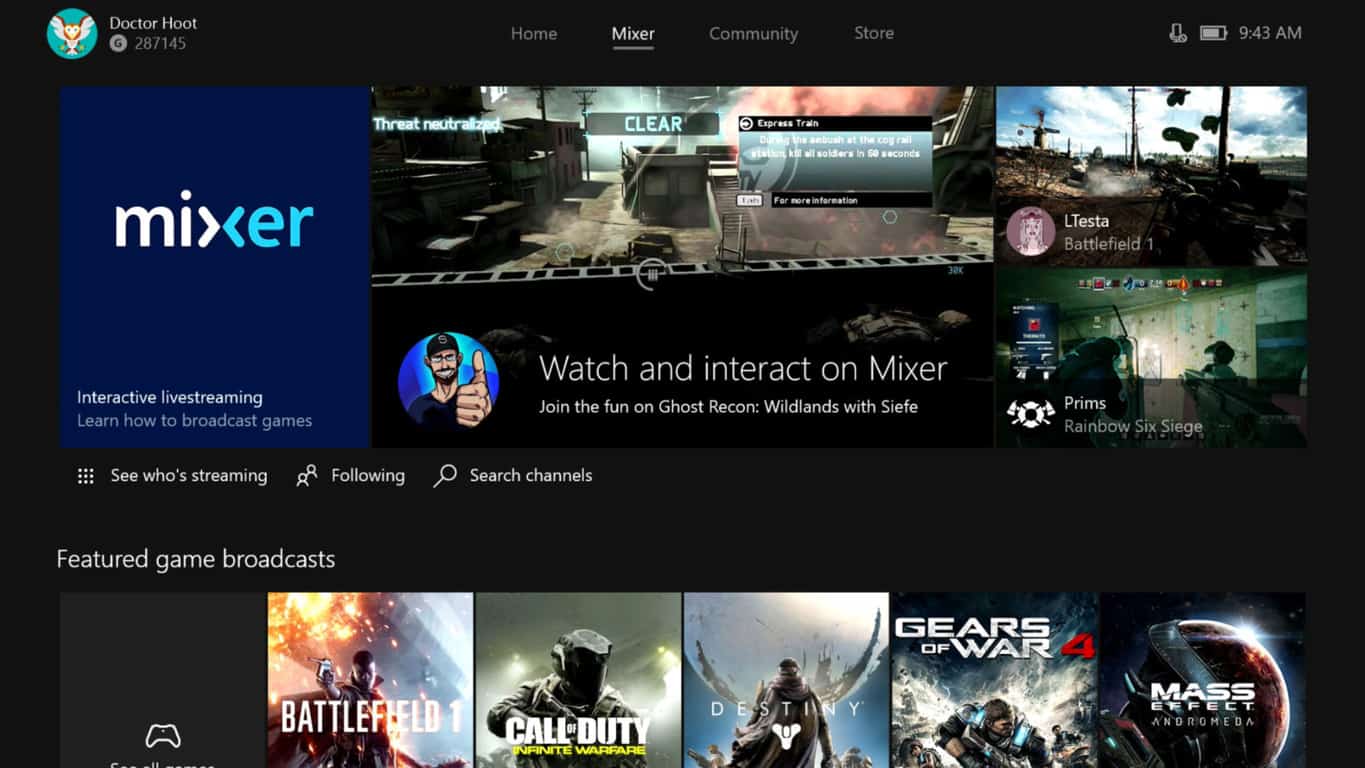
With the recent announcement that Microsoft’s Mixer video game streaming service would be closing next month and a strong push for streamers to jump over to Facebook Gaming, many Xbox One owners naturally began to wonder if a Facebook Gaming tab would replace the Mixer one on the console’s dashboard.

The company’s Larry Hryb (aka Major Nelson) responded to this concern on Reddit by saying, “If you are asking if the current Mixer integration in the dashboard is just going to become Facebook gaming. The answer is no.”

While this does confirm that the Mixer tab won’t simply be swapped out for a near-identical Facebook Gaming one, this doesn’t necessarily mean that Facebook Gaming won’t have a presence going forward. In fact, Phil Spencer recently hinted that support for more streaming platforms could be coming to the Xbox One and presumably the Xbox Series X.

Hryb elaborated on Spencer’s statement in another Reddit comment which teases some of the changes that are in store for streaming on Xbox consoles. “Built-in broadcasting from Xbox One will be temporarily disabled in the transition after July 22 so we can build it into a more social experience for Xbox players,” he wrote. “In the meantime, players can stream their gameplay from Xbox One using the Twitch app or by connecting to a PC and streaming via software such as OBS or XSplit.”

No ETA was given for the new “social experience” but it’s probably safe to assume that it’ll be ready in time for the launch of the Xbox Series X console, which will use the same or at least a similar dashboard as Xbox One, later this year.

How would you prefer to see streaming implemented on Xbox consoles? Share your thoughts with the community in the comments below and then follow us on Twitter and Pinterest for more Xbox news.

Twitter updates on Windows 10 and web with List cover photos and quick DM feature

An official list of recent and upcoming changes for the Windows 10 and web experience of Twitter has been published.

While most users would have noticed the scheduled tweet feature by now, the addition of cover/banner images for Twitter Lists went live just this week and the quick access to DMs is currently being tested with a very small group of users.

You can read all about it and the other changes to the Twitter PWA here:

New

  • DM Quick Access: We’re testing ways to allow you view and send DMs without having to navigate to the DM inbox. Starting with a small % globally, we’re allowing users to view their DM inbox and conversations through a docked drawer when using Twitter in widescreen.
  • Drafts: Not quite ready to send that Tweet? You can now save it as a draft, or schedule it to send at a specific time – all from the Tweet composer! See it in action
  • Lists: Customize Lists you own by adding a banner image. You can upload and preview the image through the edit list flow.

Updated

  • Internet Explorer 11 support: twitter.com no longer supports Internet Explorer 11. Please see this Help Center article for a list of supported browsers.
  • Lists: Find new accounts to add to your Lists quickly with the suggested accounts tab. Find it under manage members when editing your List.
  • Navigation: You can now use a middle mouse button to open links in new tabs quickly and easily.
  • Retweets with comments: After launching the Retweets with comments timeline last month, we’ve made some updates! We’re now including counts for Retweets with and without comments on all timelines. We’re also testing a variation on the “Retweets” label on the Tweet detail page to make it more obvious when there are Retweets with comments, so keep an eye out!

Fixed

  • Account Registration: Fixed an issue preventing movement through the registration flow when attempting to reuse a previously entered password.
  • Emoji Picker: Fixed an issue where opening the emoji picker on Firefox broke the Tweet and DM composers.
  • Lists: Twemoji will now render properly on the List detail screen.
  • Media Upload: Attempting to upload media we don’t support or non-media files will no longer leave you in a bad state.
  • Media Upload: Fixed a bug where videos could fail to upload randomly sometimes.
  • Tweet Compose: Using the Cmd/Ctrl + Enter keyboard shortcut when the composer is in an invalid state will no longer attempt sending the Tweet.
  • Tweet Compose: When adding Tweets to a thread you’ve started on mobile, the composer will no longer scroll you too far up the thread.
  • User Profile: Previously, if a user’s Name and Display Name were the same, the “Follows you” indicator on the user’s profile page or profile hovercard wouldn’t be shown. It will now display.

Do you use the Windows 10 Twitter app or do you prefer a third-party solution? Share your recommendations with the community in the comments below and then follow us on Twitter for more Windows 10 app news.

Twitter
Twitter
Developer:
Twitter Inc.
Price:
Free

Bridge games online that you can play in your browser

Playing cards have always been a favorite activity between friends.  Bridge is one of the best-known card games. It needs four players, a deck of cards and a lot of fun. What better way to spend a rainy afternoon than playing bridge with your friends? But what are you going to do if you can’t gather all in one place? Simple. Just read this article and choose one of the websites that offer online bridge games. We strive to bring you all the information you need to make the best choice.

Use a dedicated gaming browser for your Bridge games

However, to play online bridge you need a browser. And though all browsers can serve pretty well for this purpose, our strong recommendation is Opera GX. Opera GX is the best browser for online games. It is meant to be very fast and it opens into a split of a second. It features a rich gaming theme, completely integrated with Razer Chroma. You don’t have to worry about resources management. With Opera GX you set the amount of RAM that this browser uses so you don’t affect other tasks you have open. Opera GX allows you to set it a network bandwidth limit. This way you can let other applications use the bandwidth. Opera GX is built around the concept of security. It comes with a VPN with unlimited bandwidth. Its built-in ad-blocker takes care of unwanted ads. You are always connected to your friends during online gaming sessions thanks to Opera GX’s Messenger. The latest news in the gaming industry is accessible through GX Corner. All of your favorite games are found here, very well organized. So, trust us and try the best browser for games, Opera GX and you are not going to be disappointed.
Editor's choice
Opera GX browser logo
  • Best gaming browser
  • Resource controller
  • Custom UI
  • Twitch integration
  • Free VPN included
  • Ad-blocker

Best online Bridge games to have fun

Bridge Base Online

Bridge Base Online has a community of more than 250000 players. It comes with a rich, interactive interface. They present themselves as a social club, also. You can choose to play for free, without becoming a member. If you want, you can decide to become a member and enjoy the full experience and benefits.

Tournaments winners and best players receive BBO points. They also host ACBL tournaments, where winners receive masterpoints. Though Bridge Base Online is more of a social club for passionate bridge players, all players are welcome to learn and have fun.

⇒BridgeBaseOnline

Bridge Doctor

Bridge Doctor has a simple interface but very rich content. If you want to learn how to play bridge, then this is the right place. It features Bridge lessons right on the first page of the website. Once you become a member you can start playing.

Choose to play practice games against the computer. Or you can join a game against human players. If you have a paid membership plan, you can create your own game and call your friends to share the fun.

⇒Bridge Doctor

Bridge Club Live

Bridge Club Live focuses on players with extensive knowledge of Bridge game. You need to become a member and pay a fee to be able to play. They organize regular tournaments and even tournaments for professional players. The graphics are quite good and pleasant.

Though this site has more of a professional look, you have the option of playing a live game with your friends.

⇒Bridge Club Live

OK Bridge

OK Bridge has a history that starts in 1989. You can see it has a long experience from the way it is built. Simple, but with a lot of features for avid bridge players. They have a teaching and practice section for new players. You can become a member and play for free.

Or you can pay for a subscription plan and participate in one of their daily tournaments. Best players receive Masterpoints.

⇒OK Bridge

24-7 Bridge

24-7 Bridge is the fastest and simplest way to play Bridge in your browser. Once it loads, all you need is a click and you can start playing. The whole interface is built around a bridge table. Your teammate is a computer, as are your opponents. It’s a very good place to practice Bridge or just to relax.

⇒24-7 Bridge

These are our recommendations for websites on which you can play Bridge in your browser. In our view, you have the best experience playing Bridge when you are using Opera GX.

Please share with us your thoughts in the comments section below.


[wl_navigator]

Microsoft Edge sync feature ships to more enterprise users

Microsoft Edge started gaining sync capabilities a while back when you could only sync basic settings and things like passwords across your signed-in devices.

The Chromium-powered browser has continued to get both consumer-focused and enterprise-oriented features, though. It recently received the ability to sync extensions across multiple devices, for example.

Well, starting today, Microsoft 365 Business Premium users can enjoy Edge enterprise sync services.

Microsoft Edge enterprise sync services

The Edge enterprise sync services update is automatically rolling out to new M365 Business Premium users. So, if you subscribed to the cloud-based managed IT service in May 2020 or later, you don’t have to do anything to activate the sync feature.

However, older subscribers (before May 1, 2020) may have to sign out of their browser and sign back in to activate syncing. Microsoft recommends the steps below to get the feature working in Edge:

To sign out of Microsoft Edge, make sure you have your profile with your Business Premium account active, then select the Sign Out button in your profile settings. Then, sign back in with the Sign In button. Within a minute or two, sync should be working as expected.

From now on, M365 Business Premium users can sync their browsing data and have a uniform experience across all their logged-in devices.

In addition, syncing Collections should enhance your productivity in the workplace since you can always pick up your content research where you left off each time you sign in to a synced device. Plus if you sync your passwords, signing in becomes a breeze so you can quickly get started on your business account every time you boot your device.

Previously, not all Azure Active Directory (Azure AD) account owners could access the Microsoft Edge sync feature.

Are you an M365 Business Premium user? Or, better still, are you able to sync your Microsoft Edge browsing data? Feel free to leave your feedback in the comments section below.

[wl_navigator]

Some users decry new weather tile in Windows 10 Search

Apparently, Microsoft is slowly pushing a weather tile to the Search UI in Windows 10. But some users are not happy with the server-side update that started rolling out a few days ago.

While the OS has a built-in weather app, the latest alternative is ideal for users that seek real-time weather updates.

New weather tile in Windows 10 search

You’ll soon be able to access the weather forecast for your location in the Search pane of Windows 10.

Some insiders have started receiving the server-side update, such as Reddit user Vendetta_47, who shared a screenshot of the feature to the Windows 10 Subreddit. The user said that they’re on version 1909 in the release preview channel.

In addition, the new weather tile in Windows Search is rolling out to all users in the coming days. You can try rebooting your PC to see if the feature is available already.

However, it seems that some users didn’t receive this news too well, based on their feedback on Reddit.

For example, this user argues that weather updates are sometimes an abuse of AI.

All of these companies are obsessed with AI, and what do we see from the fruit of most of this labor? Weather. It’s always weather. These companies are obsessed with the weather, am I the only one who doesn’t check the weather 24/7?

Others are eager to use the new weather tile in Windows search, though. One such user reports that the feature isn’t getting their location right.

But it appears you can manually set your location to receive more accurate and relevant weather information. Simply navigate to Settings>Privacy>Location.

It’s not uncommon for Microsoft to use Windows Search for purposes other than its core function. Just the other day, some users reported encountering Microsoft Edge recommendations when looking upChrome or Firefox via the Windows 10 Search UI.

What’s your take on the new Windows 10 Search weather tile? You may reach for the comments section below to leave your feedback.

[wl_navigator]

3 best VPNs to fix Green Hell lag spikes and reduce ping

If you’re experiencing Green Hell lag or high ping, using a VPN can help eliminate this issue.

Green Hell is a survival game with an open world that takes place in the Amazonian rainforest. Available for Steam, it features single-player mode and online co-op for those who want to team up with other players. There’s even a story mode for co-op.

However, some players have trouble with the online co-op version due to Green Hell lag spikes and latency issues. If you’re one of them, you can use a VPN to improve your ping and refine your online gaming experience, no matter what platform you’re using.

Most VPN users know they can hide their IP address and encrypt their traffic by connecting to a VPN server. But few are aware that they can speed up their Internet connection and optimize their network traffic for gaming. It’s also possible to minimize packet loss with a VPN.

What are the best VPNs to fix Green Hell lag?

Private Internet Access

PIA is the best Green Hell VPN

When it comes to eliminating Green Hell sudden game lag, you can’t go wrong with Private Internet Access (PIA). Developed by Kape Technologies, PIA has a wide range of network servers optimized for gaming that you can use to redirect your network traffic through VPN.

You can easily host game servers with PIA, thanks to the fact that it has native support for port forwarding. Furthermore, you can use static or dynamic IP addresses, enable split tunneling, choose between the OpenVPN and WireGuard protocols, and use exclusive DNS servers.

PIA supports SOCKS5 and Shadowsocks proxy servers, a kill switch, together with an ad and malware blocker for browsers. Plus, it can fix Wi-Fi packet loss. If you ever stumble upon any technical issues with this Green Hell VPN, you can contact 24/7 live chat and ask for assistance.

More about PIA:

  • +3,300 VPN servers (48 countries)
  • 10 connections at the same time
  • No traffic logs
  • 30-day money-back guarantee (no free trial)
Private Internet Access

Private Internet Access

If you need a quick Green Hell lag fix, turn to PIA for assistance.
$2.85/mo. Buy it now

CyberGhost VPN

use CyberGhost VPN to fix Green Hell lag

An alternative solution for dealing with Green Hell lag spikes is by using CyberGhost VPN. It’s a fast and secure virtual private network solution owned by Kape Technologies, which you can use to evade geoblocks and optimize your network traffic for gaming.

If your bandwidth is limited, you can create whitelists or blacklists to isolate the Green Hell VPN connection from other applications, thanks to CyberGhost’s support for split-tunneling mode.

CyberGhost VPN can fix Green Hell co-op lag using private DNS servers to speed up your Internet connection. It supports OpenVPN, an ad and malware blocker for browsers, an emergency kill switch, and DNS leak protection. You can also use it to fix Xbox high packet loss.

More about CyberGhost VPN:

  • +6,500 VPN servers (89 countries)
  • 7 simultaneous connections
  • No identifying logs
  • Up to 45-day money-back guarantee (1-day free trial)
CyberGhost VPN

CyberGhost VPN

Whenever Green Hell becomes laggy, use this dependable VPN service to reduce your ping and improve your gameplay.
$2.75/mo. Buy it now

NordVPN

use NordVPN to reduce Green Hell ping

If your VPN connection is refused by the remote host, it’s time to use NordVPN to get past this issue and fix Green Hell multiplayer lag. That’s because this VPN solution has obfuscated servers to make your VPN traffic look like typical HTTPS while repairing network congestion.

Owned by Tefincom & Co., NordVPN provides you with fast VPN servers spread across the entire globe. If you’re not sure where to begin, you can connect to the recommended server to get the best possible Internet speed and minimize jitter.

NordVPN is an excellent Green Hell VPN solution, thanks to the fact that it uses OpenVPN to encrypt your data traffic. It supports custom DNS servers, an ad and malware blocker (CyberSec), and a kill switch ready to turn off your VPN when required.

More about NordVPN:

  • +5,100 VPN servers (59 countries)
  • 6 connections at once
  • No logs
  • 30-day money-back guarantee (no free trial)
NordVPN

NordVPN

Easily fix Green Hell lag and ping issues by resorting to this powerful VPN app.
$3.49/mo. Buy it now

To sum up, you can use a premium VPN solution to effortlessly fix Green Hell lag spikes, high ping, latency issues, packet loss, and other connectivity issues.

By routing your Internet traffic through VPN servers, you can reduce the distance between your computer and the remote server, resulting in better speed.

[wl_navigator]

Bitdefender update patches Safepay error handling bug

The Bitdefender is one of the most popular antivirus solutions for resolving different types of cyber threats, including data theft, ransomware, and distributed denial of service (DDoS) attacks.

But it’s got its own inherent security flaws as cybersecurity researcher Wladimir Palant revealed recently.

Notably, Bitdefender’s Safepay had a bug that malicious actors could have exploited in remote code execution (RCE) attacks.

Bitdefender fixes Safepay bug

Palant brought the Safepay issue to the attention of Bitdefender, which swiftly released an update with a security fix.

Safepay is a browser security component that should protect your online transactions, including banking and e-shopping. Its objective is to put your browser activity in a sealed environment, making the theft of your personal information difficult.

It is ironic, then, that the same antivirus component meant to protect your browser could have been breached by cybercriminals.

Bitdefender has since released an advisory on the Safepay bug it patched:

Improper Input Validation vulnerability in the Safepay browser component of Bitdefender Total Security 2020 allows an external, specially crafted web page to run remote commands inside the Safepay Utility process. This issue affects Bitdefender Total Security 2020 versions prior to 24.0.20.116.

The HTTPS error handling issue in Safepay

The CVE-2020-8102 flaw in Safepay has something to do with the way Bitdefender handles HTTP connections.

According to Palant, the antivirus tool handles HTTP error certificates instead of leaving that task to the browser. So, when the solution encounters a suspicious security certificate, it offers the user the option of exiting to safety or proceeding to open the web page in question.

But the URL in the browser’s address bar remains the same, which appears to be the root cause of the RCE vulnerability.

For example, a hacker could load a malicious page in the Safepay by first presenting a valid certificate on initial request before changing to an invalid one from the same server. The vulnerable browser won’t stop the suspicious page behavior.

Thankfully, Palant’s is only a proof of concept (PoC), which is no evidence that some bad actors actually tried to exploit the RCE bug in Safepay.

As always, you’re welcome to leave any suggestions or questions in the comments section below.

FFXI packet loss: What is it and how to minimize it?

FFXI, short for Final Fantasy XI, is an MMORPG developed by Square Enix and released in 2002. Despite its almost ancient release date, FFXI still has an active player base in 2020. And, on top of that, a quite successful subscription service.

Although many encourage new players to find stable fan-run servers, the official servers are pretty much alive and kicking. So it’s no use trying to find fan servers as long as the official one still exists.

Is FFXI still playable?

Maybe the most burning question nowadays is if FFXI is still playable, and the answer’s yes.

However, you need to understand that since it’s not only an online game but a massively multiplayer online one, it faces some pretty tough challenges.

For instance, high ping (due to the number of players), and jitter are regulars in this game. More so if you have poor Internet connectivity.

However, in this article, we’ll try and focus on more serious matters. Among the more troublesome issues that FFXI is facing is no other than packet loss.

What is packet loss in FFXI?

Packet loss tends to be the same, no matter where you may encounter it. It happens whenever data packets that you send or receive within your connection never make it to their destination.

Leaking packets isn’t exactly easy to spot, as many players usually think that they’re experiencing high latency. While the two might appear highly similar, they’re completely different.

For once, packet loss can cause high ping, but not the other way around.

If you’re leaking packets, you’ll start experiencing some more noticeable issues such as slow in-game movement, being unable to interact with your inventory, rubberbanding, and even disconnection.

More often than not, packet loss is caused by network congestion. And this can be either on your half of the connection (home network/ISP network) or the game server’s side (improper server sizing).

Minimizing packet loss in FFXI

1. Try using a VPN service

  1. Download Private Internet AccessFFXI PIA
  2. Install it on your PC
  3. Launch it
  4. Log into your account
  5. Connect to a fast server (low ping)
  6. Launch FFXI
  7. Check if the problem is still there

Private Internet Access is a trustworthy all-round VPN service from Kape Technologies. It can help you improve various game-related issues such as high ping or packet loss, but that’s not all.

Private Internet Access

Private Internet Access

Losing packets in FFXI? PIA can help.
$2.85/mo. Buy it now

It can also improve your online privacy by a great deal, secure your connection and keep it away from prying eyes, and lifting geo-restrictions so you can enjoy a borderless, censor-free Internet, the way it’s supposed to be.

Note: PIA might not be able to fix packet loss if it’s not caused by your ISP through bandwidth throttling or improper network routing (which leads to network congestion).

2. Troubleshoot the connection manually

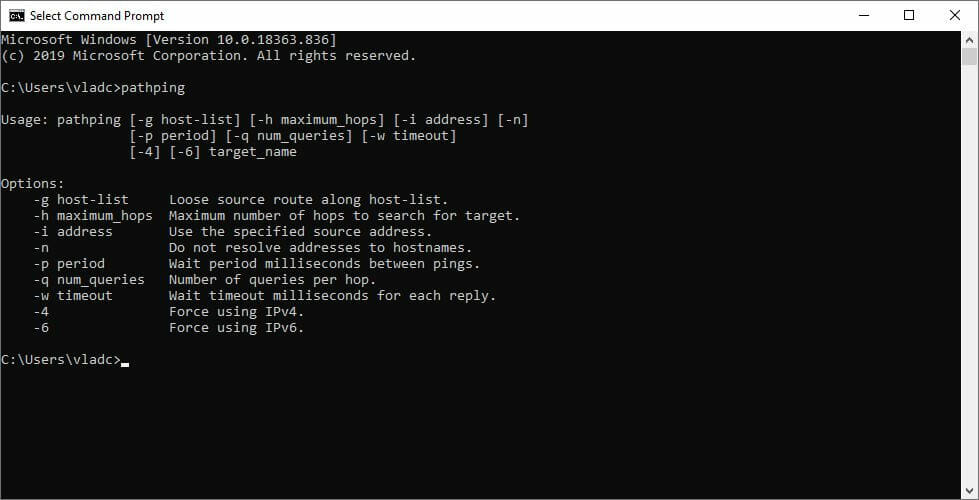
  • Run a pathping test to see if you’re leaking packets on your side of the connection
  • Check and repair/update/replace/upgrade any faulty component on your side (PC, cables, router, drivers)
  • Call your ISP and inform them of any abnormalities you notice during the test
  • Contact Square Enix and let them know if there’s something wrong with their server
  • Restart your router and/or modem and try again
  • Try connecting straight to your modem or home line
  • Use a wired connection instead of Wi-Fi (Wi-Fi leaks packets more often)
  • Restart the game
  • Try connecting to another server
  • Avoid peak hours, if possible

Truth be told, packet loss can be caused by a lot of things, including old Ethernet cables. Even upgrading your CAT 5 cables to CAT 6 ones could make a huge difference.

Therefore, even if some of the suggested fixes above don’t work, be patient and at least try them all. If no improvement can be seen, it’s likely that improving packet loss is unfortunately not an option at the time.

FFXI packet loss can sometimes be improved

All things considered, if you’re experiencing packet loss in FFXI, our suggestion would be to wait it out. More often than not, it’s caused by network congestion, which clears quite fast outside of peak hours.

However, if you suspect that it’s more than just that, stepping in would be the best decision. You can either try using a VPN and check if the problem still persists, or troubleshoot your connection manually, each component at a time.

[wl_navigator]

Movie Title Maker Software: 5 Best in 2026

It’s time to time a glimpse into the amazing movie software world. So, get ready for some impressive movie titles software tools.

You may use them for memorable home movies and even official presentations or engaging cinematic movies. That’s where titles come in.

Titles are known as standalone clips meant to precede movies. Rather than settle for less, why not use one of the best movie titles software tools instead?

Choose a program that allows you an incredible amount of control and flexibility when it comes to editing your projects.

And, no less important, begin your movies with customized titles that stand out.

What’s the best cinematic movie titles software?

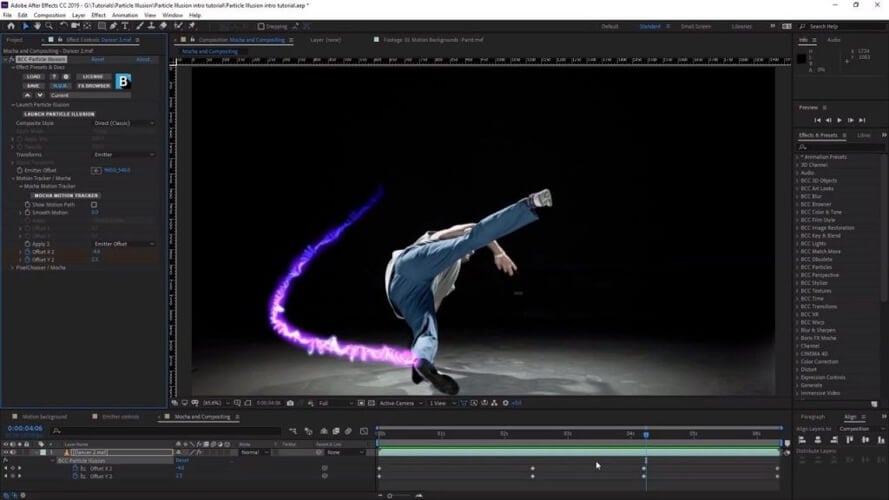
Adobe After Effects

try out Adobe After Effects

Adobe After Effects has an interface that allows you to create cinematic movie titles and transitions with added productivity and efficiency.

You may start from scratch or get a little help from all those amazing presets available right from the app to give your titles a more professional look and feel.

If you want to take up movie making as a serious hobby or lifetime job, Adobe After Effects is the best investment.

Unleash your creativity and combine videos and images and go even further and let your creation become immersive from all angles through VR videos.

You see that Adobe After Effects offers a variety of tools that lets you and do more than just adding titles to your movie software.

Some of its prime features also include Content-Aware Fill to remove unwanted items extremely fast and with a third of the memory, as well as full integration with other Adobe products.

This means that you may easily transfer all your work projects from one software to another, to reduce any interruptions in the process to the minimum.

The main key features of Adobe After Effects are:

  • Keyframes and expressions to set everything in motion
  • It imports EXR files as compositions
  • Integration with other Adobe apps and services
  • Hundreds of video tutorials for beginners and professionals alike
Adobe After Effects

Adobe After Effects

For everything and anything related to movie-making, titles including, Adobe After Effects is the go-to software that simplifies your workload and propels your creativity!
Check priceVisit website

Adobe Premiere Pro

grab Adobe Premiere Pro

Adobe Premiere Pro is a top choice software tool for cinematic movies.

There is no secret that it is extremely robust, but if you’re a pro, then it can help you create nearly any design title you can think of.

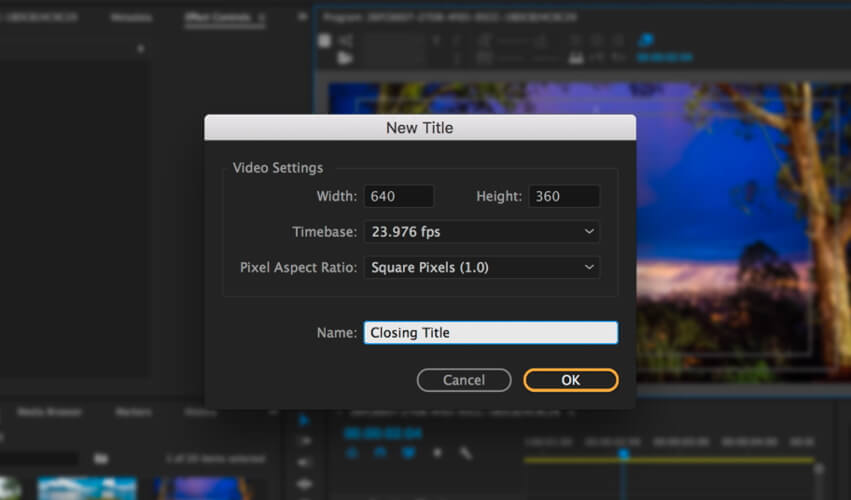
Just start in the Titles workspace by selecting Titles at the top of the screen. From the main menu, follow this path Title > New Title > Default Still, give your title clip a name and click OK.

This will save a blank title clip in the Project panel and that’s just the beginning.

This was the first step towards creating and customizing the title movie. If a picture’s worth a thousand words, your movie deserves to benefit from just a bit more.

Personalized fonts, different sizes, and alignments – they’re all there to provide remarkable results. Finally, to add the title to your sequence, simply drag the title clip from the Project panel to the sequence in the Timeline panel.

For those with no complex editing knowledge, Adobe Premiere Pro can be a bit overwhelming. It may be helpful to start out with a more user-friendly software tool such as Adobe After Effects.

Outstanding key features to look for in Adobe Premiere Pro:

  • Native file support
  • Edit footage in various formats, from 8K to virtual reality
  • Top and Tail editing to trim the in or out point of your clips
  • It comes with Premiere Rush, an innovative app that works across all devices
  • Immersive Virtual Reality Support

⇒ Download Adobe Premiere Pro

Movavi Video Editor

try out Movavi Video Editor

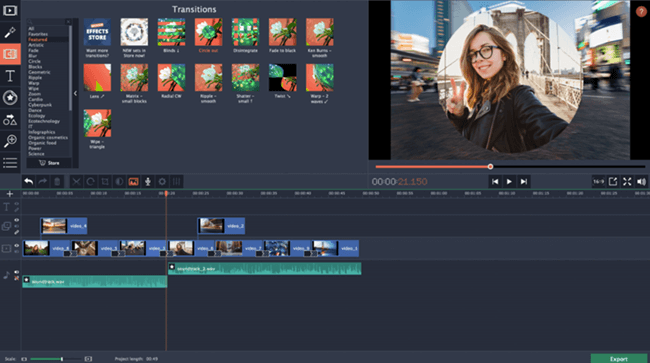
If you want to create impressive movie titles, Movavi Video Editor might also be an option to consider.

It doesn’t matter if you’re a newbie as the interface simplifies the process and its amazing editing tools come in an all-in-one easy to access package.

So, text isn’t the only thing you may add with Movavi Video Editor. Background music, filters, captions, and transitions are also options to consider for making your movie more interactive.

Even if you’ve never done anything like that before, mastering the movie editor will come like second nature to you. And keep something essential in mind.

Not everything that’s entertaining has to be related to our times. The ’80s had their charm that no one can deny.

A quick look back at those times might give you flashbacks with extreme fashions, Pac-Man, and punk rock, so why don’t make your movie look like the ’80s?

Other key features here included:

  • Intuitive workflow
  • Transition wizard
  • Transitions inserted automatically
  • Video stabilization feature to deshake your movies

⇒ Download Movavi Video Editor

BluffTitler

give a try to BluffTitler

BluffTitler is a popular program for beginner video creators who want to add 3D animations like titles, intros, and special effects to their movies.

Here’s a software that will not only win you over thanks to its own custom 3D render engine, optimized for rendering text, but it’s and one of the easiest tools to master.

When you’re pleased by the result, all you have to do is to export your title as a video file – both MP4 and AVI formats are supported.

You may even export it as numbered frames – JPG and PNG – with or without alpha channel and in any desired resolution.

If you’re undecided, here’s a short recap of some BluffTitler key features:

  • 3D game technology to render your cool animations in real-time
  • Impressive ready to use templates
  • Bevels, strokes, kerning, emoji, diacritical marks, and variants are all supported
  • Detailed video tutorials to help you master the software

⇒ Download BluffTitler

Windows Movie Maker

grab Windows Movie Maker

Windows Movie Maker is a standardized editing program wrapped into a simple interface that requires zero advanced video editing skills.

The best part is that you may add as many title clips as you please. You can also move them around anywhere you want in the timeline, including in the middle of your movie to divide sections.

In spite of that, do note that some of its editing tools are sometimes crashing. After all, this shouldn’t come as a surprise since the program was updated eight years ago.

Windows 10 was released without this software, but you’re still able to use this movie titles software on your computer.

Impressive key features to take into consideration:

  • All basic video editing functions are here included
  • You may add transitions from the Animations tab to Title clips, just like in regular video clips
  • Easy, intuitive video editing
  • Completely free tool

⇒ Download Windows Movie Maker

Since it’s one of the most intuitive tools to use for video editing, you may give it a chance and use this detailed guide to install Windows Movie Maker on Windows 10.


We hope your choice got a lot easier with these amazing software tools at your disposal. What program are you finally using when you need to add some creative titles and intros to your movies?

Don’t forget to share your experience with us by using the comments area from below.

New Safe Documents sniffs out unsafe Office 365 docs  

You can now use Safe Documents to scan your Office 365 docs for bugs in Protected View before editing.

The security feature arrives in general availability at a time when malicious players are still sending phishing emails with unsafe attachments to Office 365 users.

It particularly comes in handy for users of file-sharing platforms, such as, SharePoint, because these can be a target for all manner of cyber attacks, including ransomware.

Safe Documents in Protected View

Safe Documents is a new Office 365 feature that enables you to sniff out unsafe docs before editing them.

In the release notes for the feature, Microsoft says that it solves a doc security issue whereby users are too quick to exit Protected View.

From now on, Safe Documents will be scanning your docs in Protected View before letting you leave the sandbox. In that case, the security tool will be automatically checking the documents against existing threat profiles.

It appears that Microsoft has integrated the Intelligent Security Graph with Microsoft Defender ATP to power the Office 365 document scanning tool.

Safe Documents leverages the power of the Microsoft Intelligent Security Graph and brings it to the desktop. When an admin enables Safe Documents for their tenant, untrusted files that open in Protected View go through an additional flow where the document is uploaded and scanned by Microsoft Defender ATP.

As your doc undergoes security scanning in Protected View, you can access and read it. But it’s available in read-only mode during the safety check. As such, you can’t make any changes to it until the scan is complete.

If Microsoft Defender ATP finds malware in your document, it prevents you from exiting the Office 365 security container. Nonetheless, system admins can configure the tool to let users edit files flagged as malicious.

What’s your take on the Office 365 Safe Documents feature? Feel free to ask any question or share your views via the comments section below.

[wl_navigator]

3 best VPNs for For Honor to fix lag and reduce ping

If you’re experiencing For Honor lag and high ping, you can fix them with a VPN. Published by Ubisoft for Windows, PlayStation 4, and Xbox One, For Honor is a third-person action video game with a medieval theme. Find it on Steam and Uplay.

You can choose your character from historical soldiers and warriors, including Vikings, samurai, and knights, to fight in single-player or multiplayer mode. The game features online co-op and PvP content for users who prefer sharing their gaming experience with friends.

Unfortunately, many players in For Honor report high ping, which prevents them from fully taking advantage of multiplayer sessions. Lag spikes and latency issues can be incredibly annoying, but you can use a VPN to improve your ping and get back to enjoying the game.

You need a premium For Honor VPN that gives you the possibility to connect to numerous VPN servers worldwide so that you can join online multiplayer sessions without lag spikes. Besides, using a VPN can reduce For Honor packet loss, too.

What are the best VPNs to fix For Honor lag and high ping?

Private Internet Access

PIA is the best For Honor VPN

Made by Kape Technologies, Private Internet Access (PIA) is your best shot at eliminating For Honor VPN lag spikes, thanks to its impressive network of VPN servers and superior security features. You can also use it to bypass geoblocks and access blocked webpages.

PIA supports port forwarding, static and dynamic IP addresses, exclusive DNS servers to protect your online security, together with an integrated ad and malware blocker for all your browsers. And, if you need to improve packet loss with a VPN, PIA is your first choice.

You can quickly get rid of For Honor lag and ping problems by turning to Private Internet Access. Plus, you can use it to host game servers. You should also know that PIA makes the cut on a shortlist of VPNs with 24/7 live chat support.

More about PIA:

  • Connect to more than 3,300 servers in 48 countries
  • Can be installed on Windows, PS4, Xbox One
  • Supports 10 simultaneous device connections
  • An excellent For Honor VPN to fix latency
  • 30-day money-back guarantee (no free trial)
Private Internet Access

Private Internet Access

Get rid of For Honor high ping problems and boost your gaming experience by turning to this fast and secure VPN.
$2.85/mo. Buy it now

CyberGhost VPN

use CyberGhost VPN to fix For Honor lag

Also owned by Kape Technologies, CyberGhost VPN is another great solution for dealing with For Honor lag issues. It has the largest network of VPN servers on this list, which are optimized for gaming, streaming, torrenting, and secure browsing. Plus, you can fix Wi-Fi packet loss.

CyberGhost VPN has private DNS servers and DNS leak protection to ensure the privacy of your online identity. It uses the OpenVPN protocol to encrypt your gaming traffic without sacrificing speed. Plus, you can use split-tunneling mode to create whitelists or blacklists.

This VPN service can effortlessly eliminate For Honor gameplay lag while shielding you from hackers and DDoS attacks. You can also use CyberGhost VPN to protect your browsers from malware and to minimize jitter.

More about CyberGhost VPN:

  • Explore over 6,500 VPN servers from 89 countries
  • Compatible with Windows, PS4, Xbox One
  • Allows 7 connections at the same time
  • A fast and secure For Honor VPN to reduce lag
  • 45-day money-back guarantee (1-day free trial)
CyberGhost VPN

CyberGhost VPN

Get rid of all your For Honor ping problems by connecting to the high-speed servers of this VPN.
$2.75/mo. Buy it now

NordVPN

use NordVPN to lower For Honor ping

Created by Tefincom & Co., NordVPN does an excellent job optimizing your Internet connection for gaming, in order to fix For Honor unplayable lag. It lets you connect to a ton of VPN servers worldwide while providing anti-hacker protection. You can also reduce Xbox packet loss.

NordVPN can not only fix For Honor high ping issues but also get past any VPN blocks you might encounter, thanks to its obfuscated servers. It’s the only VPN on this list that can hide the fact that you’re using VPN by cloaking your network traffic. It can fix network congestion, too.

You can not only repair For Honor lag but also set up custom DNS servers to boost your connection speed. It’s also possible to protect your browsers from malware using CyberSec and enable a kill switch that immediately turns off your VPN if your Internet connection drops.

More about NordVPN:

  • Use more than 5,100 VPN servers from 59 countries
  • Works with Windows, PS4, Xbox One
  • Up to 6 simultaneous connections
  • A highly secure For Honor VPN that fixes lag spikes
  • 30-day money-back guarantee (no free trial)
NordVPN

NordVPN

Quickly eliminate For Honor lag spikes and high ping issues using this reliable VPN.
$3.49/mo. Buy it now

In conclusion, if you need a helping hand when it comes to For Honor lag, just use a VPN. By redirecting your network traffic through VPN servers, you reduce the distance between you and the remote servers, as well as optimize your Internet connection for gaming.

Besides, a powerful VPN service can also help you fix packet loss caused by network overloading, poorly router networks, and other issues. And, if you can’t decide what is the best VPN for For Honor, pick PIA.

[wl_navigator]

Sudden packet loss Diablo 3: How to test and fix it?

Diablo 3 is a popular hack’n’slash game developed and released by Blizzard Entertainment. It’s the third title in the Diablo series and was released way back in 2012. That’s 8 years ago and the game is pretty much still alive.

But that shouldn’t exactly come as a surprise, considering that even Diablo 2 still has a lot of active players.

In Diablo 3, players create a character by choosing one of the 7 classes available in the game and embark on a journey to defeat Diablo, the demonic overlord. You can do that solo, or join others.Main screen Diablo 3

If you’re familiar with previous releases, you’ll know that teaming up doesn’t mean it’s going to be easier. In fact, the difficulty of the game increases as more and more players join your server.

However, we didn’t gather to discuss Diablo 3‘s awesomeness. Instead, we’re going to analyze one of its less-fun parts: sudden packet loss.

What is sudden packet loss in Diablo 3?

Packet loss is usually the same, no matter where you encounter it. Packets of data that are transmitted through your connection never make it to their destination. As a result, you can experience more noticeable issues.

For instance, the game slows down to a pulp, you rubberband all around the map, you can’t really use your inventory, and the game simply stops responding to your commands.

If the packet loss is severe (what we like to call a packet loss storm), you might even disconnect from the game. And that’s not exactly something you’d want happening while you’re battling Diablo or any of its spawns, believe me.

How to see packet loss in Diablo?

1. Use pathping

  1. Go to the pathping article page on the Battle.net website
  2. Select Diablo III from the combo menuIP address Diablo 3
  3. Write down the IP address you want to run the test on
  4. Launch an elevated CMD instance
  5. Type pathping x.x.x.x (replace x.x.x.x with the IP you wrote before)CMD pathping
  6. Wait for the test to come to an end
  7. Check if there’s any packet loss and where is it located

2. Use Blizzard’s Looking-Glass tool

  1. Head over to the Blizzard Looking Glass website
  2. Select your region from the menu
  3. Choose Diablo 3 from the service menuLooking glass Diablo 3
  4. Make sure at least MTR is selected
  5. Hit the Run Test button
  6. Wait for the test to complete
  7. Check if there’s any packet loss in the Test Result screen

How to fix sudden packet loss in Diablo 3?

1. Try using a VPN

  1. Download Private Internet AccessPIA Diablo 3
  2. Install it on your PC
  3. Launch it and log into your account
  4. Connect to a low ping server
  5. Run any of the tests above
  6. Check if the problem still persists

Private Internet Access is a great all-round VPN service from Kape Technologies that can help you tackle packet loss in Diablo 3. However, note that it might not work if the problem is not on your ISP’s side.

Private Internet Access

Private Internet Access

Experiencing sudden packet loss in Diablo 3? PIA could come in handy.
$2.85/mo. Buy it now

On the bright side, a VPN can help you solve many other issues such as privacy concerns, securing your connection, and circumventing geo-restrictions.

2. Perform manual troubleshooting

  • Restart your router and/or modem
  • Try connecting straight to your modem or home line
  • Use a wired connection instead of wireless (Wi-Fi leaks packets often)
  • Check and replace/repair/update/upgrade any faulty component on your end (drivers, cables, PC, router)
  • Avoid peak hours if possible
  • In the Battle.net launcher window, click the Diablo 3 Options button and select Scan and RepairDiablo 3 scan and repair
  • Restart the game
  • Call your ISP if it seems the problem is on their side
  • Contact Blizzard and inform them if the server seems to be having problems

Keep in mind that the most frequent cause of packet loss is network congestion. There’s pretty much nothing you can do about it, except if you’re a network administrator and know how to optimize routing and manage subnets.

Thus, the best way to improve packet loss is more often than not waiting for it to fix itself.

Diablo 3 packet loss can be solved

To wrap it up, you’ve learned how to check for packet loss in Diablo 3 and discovered a bunch of quick fixes for this issue. If the issue lies on your ISP’s side, the most effective fix would be investing in a trustworthy VPN.

However, there are many potential causes for packet loss, and your ISP might not be responsible for all of them. Thus, you might need to rely on your troubleshooting skills to improve, if not fix packet loss altogether.

[wl_navigator]

Following Mixer’s demise, Xbox head Phil Spencer wants to allow Xbox gamers to stream to other places

Witch Microsoft announcing yesterday that it would pull the plug on Mixer next month, it’s safe to say that Xbox gamers are quite confused about how to stream games on the console going forward. Microsoft is currently recommending Xbox streamers to switch to Twitch, which is the only Xbox One app that lets you stream games while providing a limited amount of technical settings.

Still, using the Twitch app to stream games on Xbox consoles is not as convenient as using Mixer, which has the advantage of being built into the OS. But now that Mixer is going away, could Microsoft make it easier to stream to other game streaming platforms in the future? It does seem like it, according to what Xbox head Phil Spencer said on Twitter today.

In a reply to a tweet about streaming options on Xbox consoles, Phil Spencer said today that “we absolutely want to give gamers the choice of where to stream from Xbox.” It’s not clear yet if Spencer was referring to third-party apps or something more integrated, but with the Xbox Series X controller coming with a dedicated Share button, it does make sense to offer more game streaming options at the system level.

As you may know, Sony’s PlayStation 4 consoles offer the ability to stream to Twitch and YouTube right of the box, with everything being built in the OS. Sony’s PS4 controllers also already come with a dedicated Share button, making it really easy to start streaming your game. Hopefully, Microsoft took some inspiration from that for future Xbox One OS updates.

Microsoft announced a new partnership with Facebook Gaming yesterday, but some details are still unclear, including the ability to stream to Facebook from Xbox One consoles. Perhaps, more Importantly, Spencer also told VentureBeat yesterday that Xbox’s partnership with Facebook Gaming wasn’t an exclusive one, and that Microsoft is free to team up with other streaming platforms if deemed necessary.

Microsoft probing data files error prompt in Outlook update

Microsoft Outlook, which recently got a Poll update, is generating a data files error prompt for some users. The bug message requires the user to close the application altogether.

According to Microsoft, the problem affects users that updated to version 2005 Build 12827.20268 or higher.

Outlook data files error prompt

Microsoft says that, when affected users launch Outlook, they get an error about a problem with one of their data files. Apart from that, the user is prompted to click ok to initiate repair.

Something is wrong with one of your data files and Outlook needs to close.  Outlook might be able to fix your file.  Click OK to run the Inbox Repair Tool.

There’s an initial solution to the problem, though. According to Microsoft, the insider beta version 13004.10000 has the fix.

But this solution is not available to all users yet. Moreover, it’s not yet clear whether Microsoft will push the fix via a Windows 10 or Outlook update.

In the meantime, the Outlook and Windows teams are jointly looking into the matter.

Still, the issue has a workaround that involves modifying the registry. Since Microsoft warns that the process is risky, you may want to consider backing up the registry before proceeding.

If you don’t know how to create registry backup in Windows, check out our detailed guide.

Next, to fix the Outlook issue, follow these steps that Microsoft recommends:

  1. Right Click the Windows Start button, and then choose Run.
  2. In the Open box, type regedit, and then select OK.
  3. In the left pane, expand Computer and then expand HKEY_CURRENT_USER\SOFTWARE\Microsoft\Office\16.0\Outlook\PST
  4. Under the PST key delete the registry keys below and then restart Outlook:

“LastCorruptStore”=”C:\\Users\\user.REDMOND\\AppData\\Local\\Microsoft\\Outlook\\***

Email address is removed for privacy ***”

“PromptRepair”=dword:00000001

Are you experiencing any problems after updating to a recent version of Microsoft Outlook? You can always let us know via the comments section below.

Microsoft closes Mixer, moves everything to Facebook Gaming

Mixer, Microsoft‘s gaming live streaming service, was launched as Beam back in 2016, and then rebranded it into Mixer.

After Microsoft bought it, the company started to integrate the service into Windows 10 and Xbox One through the Game-Broadcasting feature.

The result seems to be a success even if it faced strong competitor platforms such asAmazon’s Twitch and Google’s YouTube Gaming.

Now, Microsoft announced on a blog post that it’s going to discontinue Mixer.

Microsoft is shutting down Mixer on July 22nd 2020

Why is Microsoft closing Mixer? Because they realized that they are too slow on their efforts to scale the platform quick enough to match the demand from the gaming world.

Ultimately, the success of Partners and streamers on Mixer is dependent on our ability to scale the platform for them as quickly and broadly as possible.

It became clear that the time needed to grow our own livestreaming community to scale was out of measure with the vision and experiences that Microsoft and Xbox want to deliver for gamers now, so we’ve decided to close the operations side of Mixer and help the community transition to a new platform.

What’s next for Mixer’s users?

To better serve our community’s needs, we’re teaming up with Facebook to enable the Mixer community to transition to Facebook Gaming. 

This is a key part of a broader effort that Xbox and Facebook Gaming are embarking on, bringing new experiences and opportunities to the entire world of gaming

, said the Mixer team.

Xbox and Facebook Gaming team up for the future

At the same time, on an Xbox blog post, Phil Spencer, the head of Xbox announced that

Facebook Gaming will make it easy for anyone in the Mixer community to join if they choose to do so. We will work to transition the Mixer community over the next few weeks. Starting on July 22, all Mixer sites and apps will redirect users to Facebook Gaming.

Are you using Mixer? How do you feel about Mixer being shut down? Leave us a comment below.

[wl_navigator]

Microsoft is replacing its Skype Microsoft Store app with the standalone version

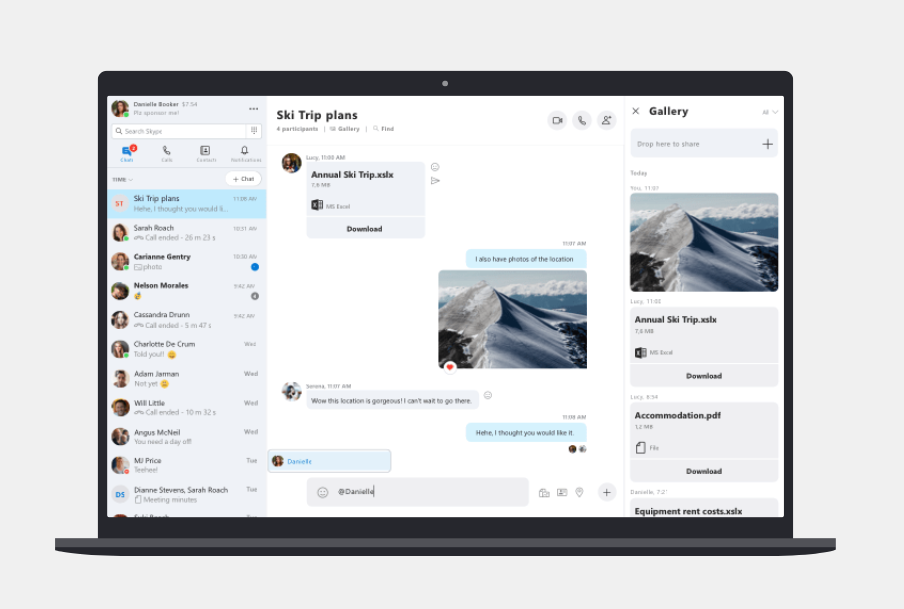
The days of Microsoft having two separate Skype apps on Windows 10 are finally over. With the release of Skype version 8.61 this week (via Neowin), Microsoft announced that it was introducing an “enhanced Skype for Windows 10,” though that’s actually a bit misleading.

For those unfamiliar, Skype for Windows 10 is the version of the app that ships with the OS and gets updated via the Microsoft Store. The new “enhanced” version of Skype for Windows 10 that has now started rolling out is the same app as the standalone Skype client that can be installed manually, though Skype for Windows 10 users will lose some features along the way.

“Skype for Windows 10 and Skype for Desktop are becoming one so we can provide a consistent experience. This lets us give the newest updates and improvements regardless of where you get Skype, from the Microsoft Store or from skype.com,” the Skype team explained on a support page. “We tried to preserve all the functionality of existing Skype for Windows 10 experience, but there are a couple of things that are not yet supported on this platform.”

Indeed, the previous Skype for Windows 10 app had unique features like Share Charm integration, and it also was one of the few apps that supported the now deprecated My People feature on Windows 10. These two features are gone in the latest Skype for Windows 10 update, though the change is all about consistency.

Microsoft now releases Skype updates at the same time across platforms, though some features now ship first on the desktop versions of the app. As an example, the ability to blur your background during video calls is only coming this week to Skype for iPhone and iPad, while the new 3×3 grid views for video calls is not available on mobile yet.

Outlook on the web will now let you send emails later

Microsoft has started rolling out a new “Send later” feature for Outlook on the Web that allows you to schedule your emails to be sent at a later time or date. Microsoft’s Product Manager Mike Tholfsen announced the feature on Twitter yesterday (via Neowin), though you may not see it right away.

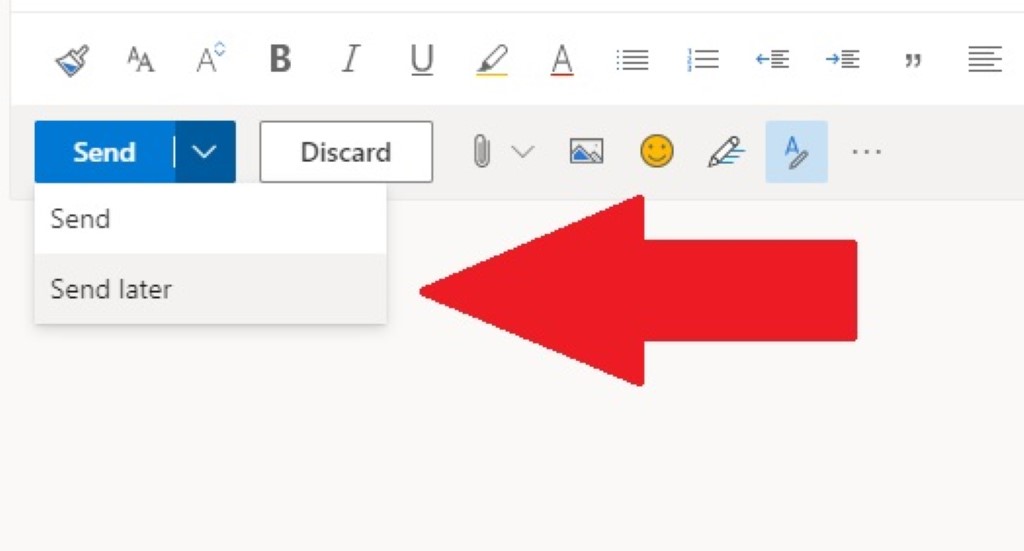
For those who don’t know, the schedule an email option is already available on the Outlook desktop client, and it will be a welcome addition for users of Outlook on the web who prefer to compose emails in advance and want to send them at a later date. To access this feature, navigate to the dropdown arrow beside the send button, click on the ‘Send later’ option, and you will now see a pop-up that will allow you to choose the time and date for scheduling the email.

If the feature is now gradually rolling out to all the Office 365 enterprise subscribers, Microsoft’s Mike Tholfsen also confirmed that Send Later would also be available on the Outlook.com webmail for consumers. Have you spotted the feature on your PC? Sound off in the comments section below.

How to use To Do in Outlook with Microsoft 365 for your productivity advantage

If you’re a Microsoft 365 Personal, Family, or Business subscriber, you might have noticed a little checkmark at the bottom right corner of your mailbox when looking at the sidebar in Outlook on the web. If you also click the Try the new Outlook switch, this is a link that will take you to try out a preview integration with To Do, Microsoft’s new task management tool.

This tool is something that small business owners, students, parents, or teachers alike could find it useful. It can pull your important flagged emails, show you things that are planned, and even pull your assignments in Microsoft Planner. Here’s a look at all that, and how you can use it to your productivity advantage.

My Day and Tasks in To Do


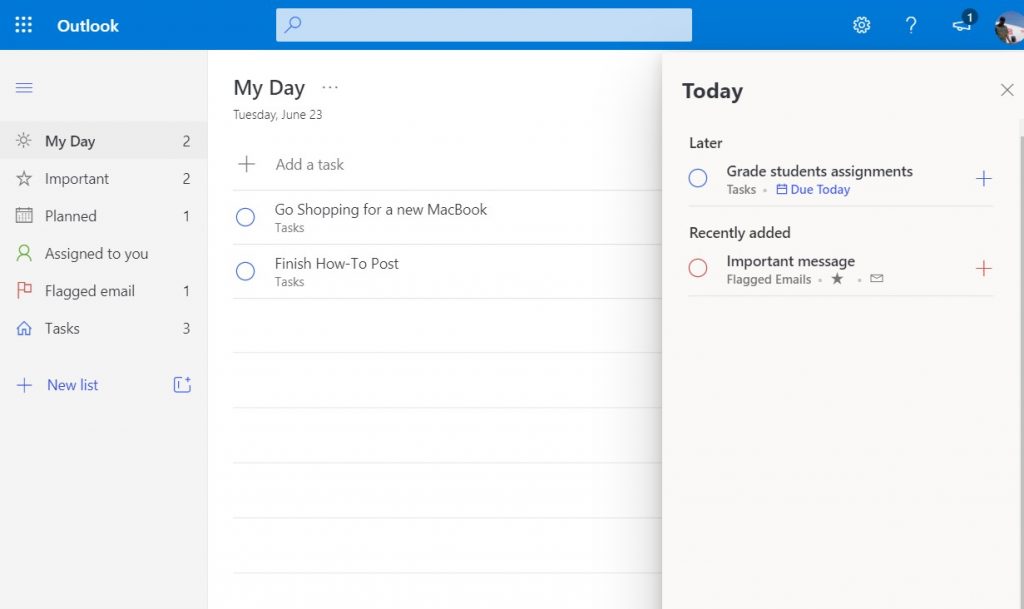
The first thing that noticeable in To Do is what is known as “My Day.” My Day is a fresh clean slate to add certain tasks that you want to accomplish each day. You can manually add common tasks with the Add a task button, or you can see suggested itineraries and other items for your day with the lightbulb icon at the top of the screen. Suggestions will be grouped by Yesterday, Later, and Earlier, based off when To Do thinks you should add them. You can click the + icon next to the task to add it, or the circle box to complete it. Other options available from the My Day page include options to sort. You’ll see options to sort by importance, due date, alphabetically, or creation date.

Also of note is the “Tasks” section in To Do. This appears at the bottom of the sidebar and is your list of all the things you’ve added To Do from across all the categories which we’ll be discussing next.

Important in To Do

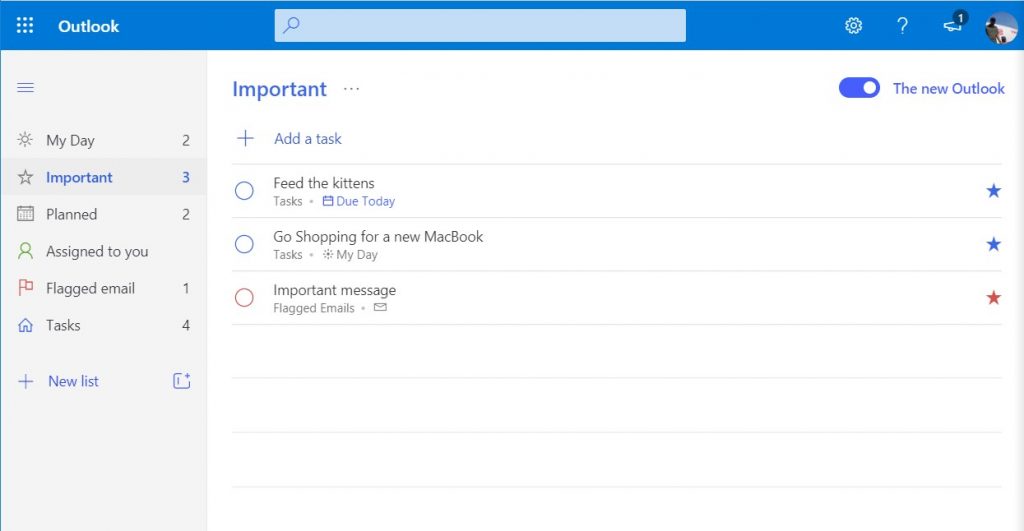
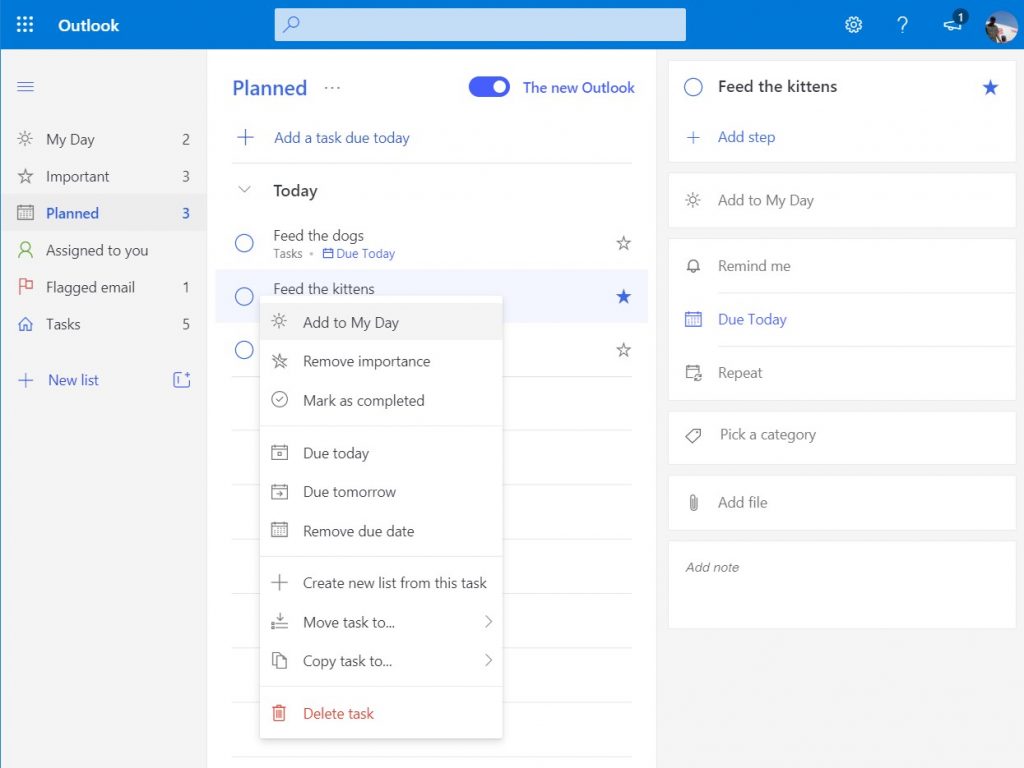
Next up in To Do is what is known as “Important.” Important in To Do are a collection of tasks that you’ve marked as urgent, say to attend that important meeting, or grade papers, or even feed the kittens. These will get extra visual attention thanks to the star icon you’ll see next to them. Important tasks work just like other tasks, though. After creating one with the Add a task button, you’ll see it populate the list and you can mark as important with a star. You’ll be able to complete it by clicking the circle checkbox. All tasks in To Do will also have an icon next to the task to tell you where it came from — be it My Day, or an email.

Planned in To Do

A third area in To Do is what’s known as planned. As the name suggests, planned tasks are tasks for the future. You can create these tasks with the + icon, and then click add. Once added, you can change the due date by right-clicking, and choosing another date. A traditional left click on the task, meanwhile, will give you reminder options, steps, and more options to set a different date. You even can attach files or leave notes if you need to.

Assigned to you and Flagged email in To Do

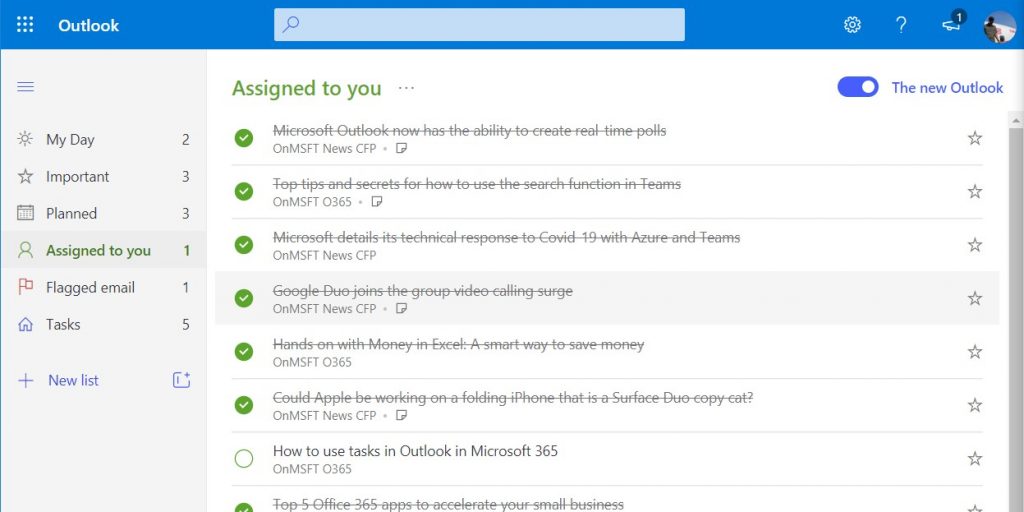
If your small business or school is subscribed to Microsoft 365 and using Microsoft Planner, then this section of To Do is for you. The “Assigned to you” section will show you tasks assigned to you by management through To Do or Microsoft Planner.

You might need to see it up by clicking the Create button in the pop-up in the sidebar, to link your Planner account to To Do. Once set up, all Planner tasks will show in To Do. You even can see old ones by clicking the . . . and then choosing Show completed tasks. It’s a nifty little feature that gives you a good productivity boost and a look at all the tasks you need to finish for the day.

We’ll also talk about the Flagged email section too. If you’ve flagged any emails in Ourlook, they’ll show up in this section of To Do. From here, you can right-click the task to add it to the “My Day” list, remove the importance, or change the due date. Doube clicking it, meanwhile, will show you the information from the message, and allow you to open it in Outlook. Again, it’s a nice little shortcut to avoid having to click through multiple things to find what’s important.

Other aspects of To Do

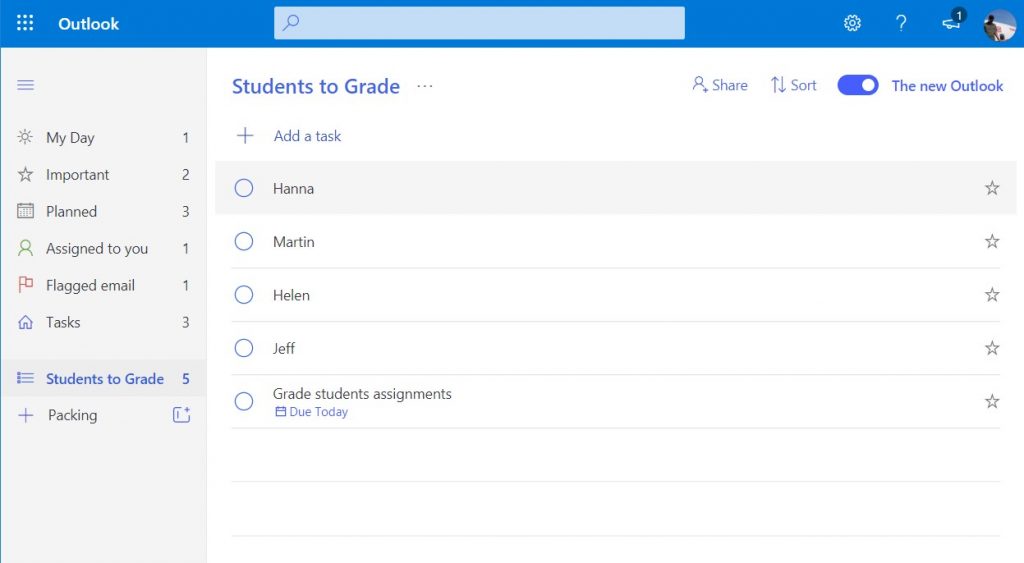
We’ve touched on the core aspects of To Do, but you also can leverage the Lists function of the service too. Once you add a task to To Do, you can create a list for it. Say, if the task is to go shopping, you can right-click the task, and then create a list for it. The list will show up in the sidebar, and you’ll be able to check things off as you complete them. It’s a really nifty way to manage complicated situations, like grading papers, or even an inventory of stuff.

If you’re finding To Do useful, let us know in the comments below. And feel free to check out our news hub, where we talk about the other Microsoft 365 apps and services.

Opinion: Apple seems poised to succeed where Microsoft failed with Windows 10 on ARM

Apple’s WWDC introducing keynote was quite a rollercoaster yesterday, and it ended up on high note: The company finally announced the Mac’s upcoming transition to Apple’s custom-designed ARM chips, which follows a previous transition to Intel chips back in 2005.

The change has been a decade in the making at Apple, and it should allow the company to get even better at what’s it’s really good at: Tightly integrating hardware and software to squeeze more performance out of its Mac components. Moreover, the transition will allow Apple to innovate faster on its Mac line as the company will no longer depend on Intel’s chips and inconsistent release cycle.

It’s been 10 years since Apple released its first-designed ARM SoC, which was the A4 chip that debuted on the iPhone 4. Since then, Apple has delivered 2 billion of its own SoCs on its iPhones, iPads, and Apple Watches, and the company also claims that CPU performance on its own silicon has improved by 100x, while GPU performance has been multiplied by 1000.

By bringing its ARM chips to the Mac line, Apple’s goal is to offer the highest performance at the lowest power consumption. Apple’s ARM SoCs also come with high-performance GPUs, a Secure Enclave for security, and a neural engine for AI-powered tasks, and many other things you can’t find on Intel or AMD processors today.

Apple won’t be the first company to make laptops with ARM chips, but it will likely be the first company to make it work without a lot of asterisks, unlike Windows 10 on ARM PCs. As we’ve seen with Microsoft’s Surface Pro X last year, Windows 10 on ARM still has lots of issues, including the inability to run 64-bit legacy Windows apps, and the incompatibility with standard Windows drivers.

Apple said yesterday that it expects to transition its whole Mac family to Apple silicon over the next two years, though the company is not done releasing Intel-based Macs. The first ARM-powered Macs will ship later this year, and the ARM version of macOS 11 won’t have the compatibility issues that have plagued Windows 10 on ARM so far.

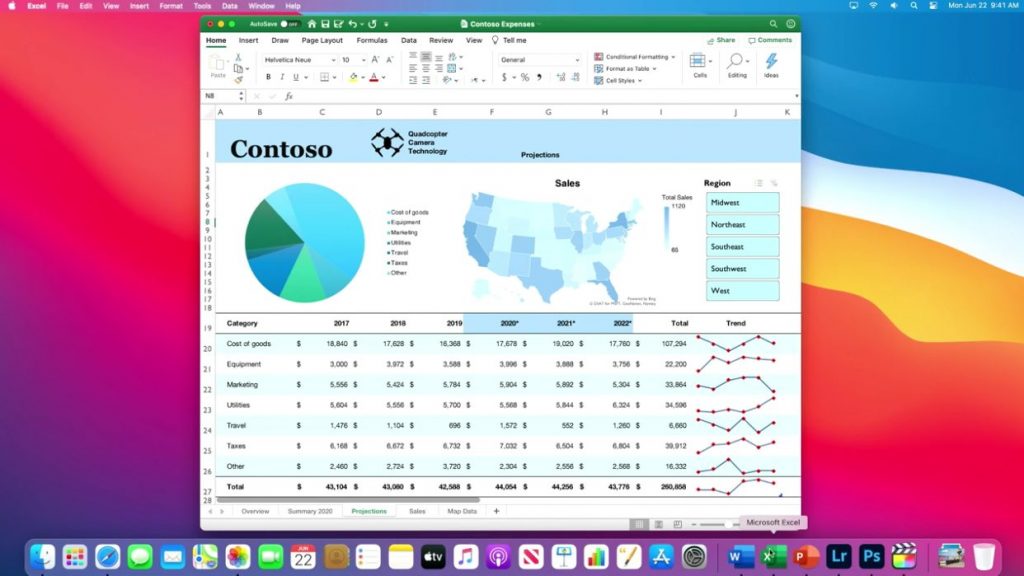
First of all, Apple’s macOS apps have already been recompiled for the ARM architecture, including professional apps like Final Cut and Logic Pro. Microsoft Office and Adobe Photoshop and Lightroom are also ready for this new ARM version of macOS, and Apple said that it has built all the tools into its Xcode IDE to make the transition as easy as possible for developers.

Apple showed Microsoft Excel running on an ARM-based Mac yesterday.

“With everything built into Xcode 12, such as native compilers, editors, and debugging tools, most developers will be able to get their apps running in a matter of days. Using Universal 2 application binaries, developers will be able to easily create a single app that taps into the native power and performance of the new Macs with Apple silicon, while still supporting Intel-based Macs,” the company explained yesterday.

Apple also mentioned Rosetta 2 yesterday, a new version of the emulator that the company shipped during the PowerPC/Intel transition 15 years ago. Rosetta 2 will automatically translate existing Mac apps at install time, and these apps should work just like they do on Intel-based Macs. Rosetta 2 will support complex apps with plugins, as well as video games.

In addition to native ARM64 apps and emulated apps, ARM-based Macs will also be able to run iPhone and iPad apps unmodified. Apple said that these apps will be available on the Mac App Store, though it remains to be seen how apps optimized for touch will adapt to mouse and keyboard input. However, Apple is still pushing Project Catalyst, a new set of tools making it easy for developers to transform their iPad apps into Mac apps.

iPhone and iPad apps are coming to macOS.

It’s pretty crazy to think that the new ARM-based Macs will be compatible with more types of apps compared to Intel-based Macs: That includes existing Mac apps, new ARM64 Mac apps, iPhone apps, and iPad apps should all run great on these new Macs, and this is all possible because all of Apple’s devices will use the company’s ARM chips. The situation is quite different on the Windows 10 on ARM side of things, as devices like the Surface Pro X have only access to a limited pool of native apps. Emulated Win32 apps offer lackluster performance and drain the battery, and it’s also not possible to run PC games or mobile apps.

As the company emphasized yesterday, this transition is all about establishing “a common architecture across all Apple products, making it far easier for developers to write and optimize their apps for the entire ecosystem.” ARM64 apps are clearly the future for Apple, even though the company will continue to support macOS for Intel-based Macs for many years. But the company will make it easy for developers to create universal Mac apps that can run on both ARM-based and Intel-based Macs, something that Microsoft hasn’t been able to do so far.

Microsoft lost many years convincing Windows developers to drop their Win32 apps in favor of Metro-style apps, then UWP apps, with little success. Now, the company is working on unifying its Windows Developer platform with Project Reunion, which should allow developers to modernize their Win32 apps with UWP components. It’s not really clear how that will help Windows 10 on ARM, though. Even Windows 10X, Microsoft’s new OS designed for dual-screen and Chromebook-like devices has been designed for x86 processors, not ARM ones. And yes, Microsoft’s dual-screen Surface Neo, which has now been delayed to next year, will use an Intel processor.

Windows remains a complex desktop OS designed for x86 processors, and Microsoft has been working closely with Intel for years, hence the “Wintel” portmanteau. On the other hand, Apple has successfully transitioned its Mac line from Motorola processors to PowerPC processors to Intel ones, and the upcoming switch to Apple Silicon should allow the company to innovate faster while making the platform more attractive for developers and consumers as well.

Apple is often criticized for better executing on ideas that it stole from competitors, but the Mac’s transition to Apple Silicon is making Windows 10 on ARM PCs look really bad. The whole initiative has always looked like a side project for Microsoft and other PC OEMs, and these PCs won’t take off until Microsoft fixes the app compatibility issues that should have never been there at launch.

New Xbox One and Xbox Series X cross-platform logo used in recent video game trailer

While watching the new trailer for the recently announced Crash Bandicoot 4: It’s About Time video game, eagle-eyed gamers may have spotted a new Xbox logo (see above image) on the final screen used to communicate what consoles the title would be playable on.

Until now, recent Xbox video game trailers and teasers have used an Xbox logo, an Xbox One logo, an Xbox Series X logo, or a combination of the latter two if a game would be playable on both the Xbox One and Xbox Series X consoles (as seen in the Assassin’s Creed: Valhalla trailers). It’s clear that Microsoft is experimenting with how best to communicate cross-platform titles going forward and it’s possible that this may be the style they’ve settled on.

This new logo, as you can see in the above image which has been taken from the end of the Crash Bandicoot 4: It’s About Time trailer, features the Xbox logo and specific mentions of both the Xbox One and Xbox Series X afterwards. This is arguably the best style to use as it promotes the Xbox brand and confirms, in an easy-to-understand format, what consoles the game can be played on.

Curiously, this logo is only used on the trailer hosted on the Crash Bandicoot YouTube channel. The version of the video on the official Xbox YouTube channel uses the ambiguous Xbox logo (see below).

There’s still several months until the launch of the Xbox Series X console so the exact way in which game compatibility will be marketed to consumers in videos, store listings, and on physical packaging is likely still being locked in.

Clear labelling is important though if Microsoft wants to avoid confusion as right now the majority of Xbox One games should be playable on the Xbox Series X console but many future Xbox One games will also be getting separate Xbox Series X versions as well and some people may buy the wrong version.

How do you think Microsoft should label Xbox video games going forward? Do you think casual consumers will be confused? Let us know in the comments below and then follow us on Pinterest for more Xbox gaming news.

Digital pre-orders open for Crash Bandicoot 4: It’s About Time video game on Xbox One and Xbox Series X

A brand new entry in the popular Crash Bandicoot video game series, Crash Bandicoot™ 4: It’s About Time, has just been announced for Microsoft’s Xbox One and Xbox Series X consoles and it’s now up for digital pre-order.

The trailer, which you can view below, mentions both the Xbox One and Xbox Series X consoles though it’s unknown if the game will be playable on the Xbox Series X via backwards compatibility or if it will be getting its own separate release and support Smart Delivery.

Here’s the official game description:

Buy digitally and get the Totally Tubular Skins for Crash and Coco. It’s About Time – for a brand-wumping new Crash Bandicoot™ game! Crash fourward into a time shattered adventure with your favorite marsupials.

Neo Cortex and N. Tropy are back at it again and launching an all-out assault on not just this universe, but the entire multiverse! Crash and Coco are here to save the day by reuniting the four Quantum Masks and bending the rules of reality. New abilities? Check. More playable characters? Yep. Alternate dimensions? Obviously. Ridonkulous bosses? For sure. Same awesome sauce? You bet your sweet jorts. Wait, are they actually jorts? Not in this universe!

Are you a Crash fan and are you hyped for this new game? Share your thoughts in the comments below and then follow us on Pinterest for more Xbox gaming news.

Passport Photo Software for Professional IDs: 5 Best to use

In a world where traveling is easier than ever before, documentation has to evolve too. This includes the good old passport that you need to carry when you travel between countries, as it has to follow certain guidelines in order to be valid. Of course, the centerpiece of any passport is your photograph, and you want to make sure that it is impeccable if you don’t want issues at the border. That being said, if you want to provide your own photo when creating the documentation, then at least make sure that it looks good. That being said, here are some software tools that we consider to be the best when it comes to creating your own passport photos.

What are the best software to create passport photos?

Adobe Photoshop

Adobe photoshopAdobe Photoshop is the ultimate photo editor on the market, and while it is not specifically designed to create passport photos, its versatile toolset allows you to also do that.

More so, you don’t have to prepare beforehand, since you can pretty much take any photograph where your face appears, and manipulate it to the point where it can be a valid ID photo.

This includes changing the lighting, deleting background, editing the clothes, and more.

More so, you won’t feel limited with Adobe Photoshop at all, since the license will give you the freedom to do pretty much anything you can think of, not just create ID photos like the dedicated tools.

Finally, those of you that are skeptical regarding the product’s quality are free to test it before they buy it by going for the free 7-day trial that each Adobe account can benefit.

Here are some of Adobe Photoshop’s main features:

  • Can manipulate any image file
  • Great at creating ID photos
  • A world-class image editing tool
  • Intuitive UI for Adobe veterans
  • Works with well-known file formats

⇒ Download Adobe Photoshop free

Adobe Illustrator

Adobe Illustrator can be described as Adobe Photoshop, but with a few extra twists. While admittedly it does have a lot of Adobe Photoshop’s tools, Adobe Illustrator is a vector-based image editor.

This allows the images created to be expanded indefinitely without fear of quality loss. However, this particular trait is almost useless when it comes to ID photos since there is a limit to how much you can expand the photo of someone’s face.

However, if you have a very good camera, and you want to use your ID photo on something else as well, like a banner or billboard, then you can’t go wrong with Adobe Illustrator.

Here are some of Adobe Illustrator’s main features:

  • Can manipulate any image file
  • Great at creating ID photos
  • The world’s best vector-based image editor
  • Compatible with all other Adobe products
  • Can be tested for free for 7 days

⇒ Download Adobe Illustrator free

Passport Photo Maker

Unlike the previous entries on our list, Passport Photo Maker is a dedicated tool specifically designed for those that want to create and edit ID photos.

This means that the program has all the basic tools needed for this particular task, but it also means that it is useless for anything else. However, if you work as a professional photographer and you create ID photos for a living, a dedicated tool like this one can be extremely handy.

The UI is extremely simplistic to the point of being almost entry-level.

Here are some of Passport Photo Maker’s main features:

  • Can handle ID formats for US, UK, Australia, and 130 other countries
  • Comes with Auto crop and biometric features detection
  • Supports several convenient printing layouts
  • Comes with a built-in photo editor
  • Features a clothes and background replacement tool

⇒ Download Passport Photo Maker

ID Photos PRO

Yet another lightweight software tool for creating ID photos made it on our list. It comes with a similarly simplistic UI just like the previous entry, while still maintaining the toolset necessary to create professional ID photos.

It boasts formats from several different countries in the form of photo crop-out templates, so you don’t have to google each country’s size. More so, the editing process is greatly simplified thanks to the built-in facial recognition.

More so, it supports several ePhoto formats with electronic signatures, so it isn’t limited just to printed IDs.

Here are some of ID Photos PRO’s main features:

  • Supports formats from different countries
  • has a built-in automatic face recognition feature
  • Enhanced with several controlled security settings
  • Your photos are safe thanks to secure cloud storage
  • Detailed interface adjustment to suit your taste

⇒ Download ID Photos PRO

ID Photo Creator

Last but not least is yet another dedicated ID photo editor called ID Photo Creator. The great part is that it features all the tools that you would expect from a dedicated tool like this one, but you can also export photos to other image editors, like Photoshop.

More so, it manages to perfectly balance simplicity with complexity, as it features an intuitive UI while still being capable of more complex tasks, such as orders management, print shop logos and creating new ID types.

Here are some of ID Photo Creator’s main features:

  • ID types from over 200+ countries
  • Comes with automatic background replacement
  • Built-in basic photo editor
  • Easy navigation between files
  • Good for business and homeowners

⇒ Download ID Photo Creator

Thanks to the programs listed above, you should be able to create professional-looking passport photos that will give you no problems when crossing the border.

More so, if you own a business that makes money out of ID photos, all of the entries mentioned below are just as useful.


[wl_navigator]

Chromatic Aberration Filter: 5 Best Software to use

Chromatic aberrations are a common phenomenon in photography and video recordings. Fortunately enough, there are plenty of software tools that can handle imagery that has this issue, without having to repair or buy new camera lenses.

That being said, we have compiled a list of the best software tools that can handle this problem, and we will be ranking them based don multiple criteria.

These include the software’s availability, how easy it is to use, how efficient the end-results are, and more.

What are the best software to remove chromatic aberrations?

Adobe Photoshop

When it comes to image editing, no software tool is as recognizable as the best of the best: Adobe Photoshop.

This professional raster-based image editor has all the tools you may ever need to manipulate, enhance, or fix digital photos.

That being said a common lighting issues such as chromatic aberrations are easy to handle, especially since the program has a dedicated menu for it.

As you tweak your photos, you can preview in real-time what the photo will look like post-editing, so that you always know you will be getting the best result.

More so, you can try out this professional tool before you buy it by getting a free 7-day Trial for all Adobe products.

Here are some of Adobe Photoshop’s main features:

  • Professional raster-based image editor
  • Adobe users will get used to the UI fast
  • Has a dedicated section for removing chromatic aberrations
  • Can be tested during a 7-day trial
  • Compatible with most other image editors
Adobe Photoshop

Adobe Photoshop

Save potentially great shots with the advanced editing tools provided by this full-feature image editor.
Free trial Visit website

Aurora HDR

Aurora is the first on our list to not be part of the Adobe family, and among all entries, it is alose probably the newest. However, this tool has proven itself that you don’t need to be a bulky program in order to get the job done.

It does this by being extremely lightweight in both looks and feel while being perfectly capable of producing fantastic digital results.

In fact, Aurora HDR is so good at removing chromatic aberrations, that it can do it on HDR photos where even the slightest color variations are noticeable.

You can also use the extensive filter library to create beautiful results within seconds. Aurora HDR has basic filters, color filters, glow filters, and more.

This software doesn’t compromise picture quality. It can help you rescue shots with all sorts of problems, including chromatic aberrations, lack of clarity, lack of depth, and more. All these can be fixed by using the HDR Enhance tools within the UI.

Here are some of Aurora HDR’s main features:

  • An entry-level image editor
  • Works well with complex HDR images
  • Removes chromatic aberrations without an issue
  • Lightweight
  • Has both layer and mask support

⇒ Get Aurora HDR

Adobe Lightroom

If you’re a fan of the Adobe family, then this entry will overjoy you. Lightroom is a program that you use together with Adobe Photoshop in order to produce fantastic photographic results.

That being said, Lightroom’s UI is a bit more simplistic, but its use is also greatly reduced compared to Photoshop.

However, the entry made it on our list primarily because it can handle chromatic aberrations quite easily, especially if you know how to fix them using Photoshop.

All in all, the program is quite good for this particular task, and you can also try it out during the 7-day trial mentioned earlier.

Here are some of Adobe Lightroom’s main features:

  • Works well with Adobe Photoshop
  • The UI is easy to handle
  • The program is great for professionals
  • Easily takes care of photo issues such as chromatic aberrations
  • Can be tested out for 7 days before you buy it

⇒ Get Adobe Lightroom

Luminance HDR

If your main concern is your budget, then you’ll be glad to know that you don’t need to pull any money out of your pocket if you want to fix your photos.

Luminance HDR’s main highlight of this tool is that it is extremely easy to use and that it is also free of charge.

Of course, this doesn’t mean that the program’s capabilities are lacking, just that the number of features that it brings considering that it is free is amazing.

While processing the images is a bit slower compared to the other entries, the pros more than outweigh the cons.

Here are some of Luminance HDR’s main features:

  • Completely free
  • Easy image manipulation
  • Intuitive controls
  • Great results for a free program
  • Can handle chromatic aberrations if handled properly

⇒ Get Luminance HDR

Photomatix Pro

Even though it makes the last entry on our list, Photomatix Pro is still one of the best software that you can use to fix chromatic aberrations.

The program earned its position thanks to the long history that it has in which it never failed to deliver great results. The UI is extremely well arranged and intuitive, and you never feel like anything is too cluttered.

More so, there is nothing bad that we can say about the program as far as sheer results are concerned, as it can remove chromatic aberrations as if they were never there.

This software has a very simple UI which makes it suitable for beginners. Despite the simplicity, it can help you create high-quality pictures.

It has HDR features that ensure great clarity, lightning, and color. You can use them for multiple picture HDR merging, but it works on single pictures as well.

Other key features of Photomatix Pro include:

  • Exposure adjustements
  • Tone blancer
  • Contrast optimizer
  • HDR presets
  • Brush tools
  • Lightroom plugin
  • Multiple HDR styles

The software has a free version that never expires. It is however limited and places watermark on top of your images. The licensed version is a one-time purchase with free upgrades.

⇒ Get Photomatix Pro

Conclusion

We hope these software suggestions can help you enhance the quality of your pictures. Feel free to let us know what you think in the comments below.

For more similar guides, check out our dedicated Graphic and Design page.

Apple TV to get support for more Xbox controllers with tvOS 14 update

During Apple’s WWDC 2020 conference, Apple announced that their Apple TV streaming boxes would be gaining support for Microsoft’s Xbox Adaptive Controller and the Xbox Elite Controller Series 2 in the new tvOS 14 operating system update coming later this year.

Apple TVs already support regular Xbox-branded video game controllers for playing video games on the platform.

While this added support may seem odd to the casual Apple TV owner who may not play that many video games, it’s important to remember that the Xbox Game Streaming (Project xCloud) app is already being tested for iOS devices and that it will likely become available for Apple TVs too. Once it does, Xbox controllers will be getting a lot more usage by Apple TV owners.

Do you use Xbox controllers with your Apple TV or are you waiting for something like Project xCloud to rollout? Share your thoughts with the community in the comments below and then follow us on Pinterest and Twitter for more Xbox gaming news.

How to use Python in browser

Python is a popular programming language, but did you know that you can run and test your Python code in a web browser?

That’s right, there are various websites that will compile your Python code, and in today’s article, we’re going to show you how to use them.

Quick Tip:

If you want to run Python on your browser, you probably want the choice that is the fastest and most efficient.

As far as those criteria are concerned, Opera is your best bet, especially since you can automate the Opera browser with Selenium WebDriver and Python.

The browser uses the Chromium engine, so you have guaranteed speed and frequent updates to come.

Opera

Write Python code in Opera without any major headaches thanks to its unique design and Chromium build that allows easy automation.

How do I run Python in the browser?

1. Trinket.io

Python browser trinket.io

Trinket.io allows you to compile your Python code and run it in your browser with a single click. On the left side, there’s your code and on the right, you can see the rendition of your code.

For debugging, you can open the console or pause the code. Of course, you can easily share your creations with others.

2. Skulpt

Python browser skulpt

Another website that can easily run Python is Skulpt. The website offers a simple interface, and you just need to enter your code and press the Run button.

Alternatively, you can use the keyboard shortcut. The website is minimalistic and simple to use, so it’s perfect for running Python snippets.

3. Repl.it

Python browser repl.it

Repl.it is an online IDE for Python and it comes with advanced features. The web app allows you to create multiple files and folders, as well as add various packages.

Debugging and version control is also there, as well as a quick preview of your rendered code. Of course, file sharing is available, so you can easily collaborate with others.

Compiling and running Python code can be demanding on your resources, therefore it’s advised to use a browser with low resource usage, such as Opera for example.

Opera is quite humble when it comes to system resources, so it should handle any website without issues.

The browser has its own tracking protection, so it will block all tracking cookies and scripts and make your browsing experience faster.

Opera also has its own ad blocker, so you won’t have to deal with ads anymore. It’s worth mentioning that Opera is based on Chromium, so it works with Chrome extensions.

Opera is available on all desktop and mobile platforms, and with browser synchronization, you can easily continue browsing on any other device.

Editor's choice
Opera-browser
  • Fast browsing technology
  • Free VPN
  • Includes Messenger Apps
  • Has Dark Mode
  • Built-in Ad-blocker

Python is a great programming language, and if you want to try it out from your web browser, we strongly suggest using one of the websites from this article.

Before running Python online, it’s always good to confirm that your local setup works properly. You can easily do this by following this guide on how to check Python version in Windows CMD.

Adventure Sync not working – Pokemon GO [Fixed]

Who said you can’t get fit by playing video games? You can. And Adventure Sync does just that. It encourages you to walk for miles to get exclusive rewards in Pokemon Go.

Adventure Sync is a feature in Pokemon Go that connects to Google Fit on Android or Apple Health on iOS, depending on your device. From there, it pulls data about your walking distance.

However, there are times when Adventure Sync is not working. We are going to see in the next article what you need to do when Adventure Sync is not working in Pokemon Go.

How can I solve Adventure Sync not working in Pokemon Go?

1. Make sure that Adventure Sync is enabled in Pokemon Go

  1. Start Pokemon Go app on your smartphone.
  2. Touch the Poke ball icon.poke-ball-icon-pokemon-go
  3. Go to Settings and check the Adventure Sync button.settings-pokemon-go
  4. Tap Turn it on when the message requesting confirmation pops up.enable-adventure-sync-pokemon-go
  5. Now, you should receive a message that Adventure Sync is enabled.enabled-adventure-sync-pokemon-go

2. Check that Adventure Sync has all the permissions needed

  1. In iOS, go to Apple Health and in Sources and verify that Adventure Sync is allowed. 
    • Also, in Settings-> Privacy-> Motion&Fitness turn ON Fitness tracking option.
  2. For Android, install Google Fit and allow it to access Storage and Location.
  3. After, allow Pokemon Go to pull Google Fit data from your Google account.

    Want to try out some new games?? Here are 14 new titles for you to try.


3. Battery Saver enabled for Android users

This fix is only for devices running on Android. Adventure Sync doesn’t run if Battery Saver is active. So, disable Battery Saver in Pokemon’s Go Settings. pokemon go-battery-saver


By following these steps, you should be able to make Adventure Sync work again, and therefore gain its benefits withing the Pokemon Go game.

Let us know which troubleshooting steps mentioned above helped you by leaving us a message in the comment section below.


[wl_navigator]

Microsoft Teams mobile app now supports video calling

The Teams mobile app is getting a couple of consumer-focused features, starting today. These include the ability to chat and make video calls.

In the recent past, Microsoft has added multiple features to Teams, especially to empower remote workers worldwide. For example, the functions below either exist in or are coming to Teams:

  • Pop-out apps: The ability to pop out apps into separate windows is soon coming to Teams.
  • Meeting participants: Currently, Teams supports up to 250 meeting participant. That limit is set to change to 300 according to some reports.
  • Asana integration: Asana users can now access Teams conversations to track tasks.

But most of these upgrades are either enterprise-oriented or not available on the Teams mobile app altogether. That’s going to change with the incorporation of more consumer-centered features into the application.

Microsoft Teams mobile app gets new features

Microsoft is rolling out the new Teams mobile app features in preview over the next few weeks, starting today.

According to the company, Teams will now be offering some of its core features to individual users instead of just enterprises.

Whether you’re a busy parent managing daily family life or just trying to stay connected and in sync with those who matter most, the new features are designed to alleviate the need for disparate tools and instead offer one central hub for individuals, groups, and families to collaborate and stay connected and organized.

In brief, the new updates to the Android and iOS versions of Teams include:

  • Enhanced communication: The app lets friends, families, and loved ones communicate via video, text massages, and chat.
  • Collaboration: You can now collaborate on Office-365-powered documents, including Word and Excel in the Teams mobile app.
  • Location sharing: You can now share your physical location via the app.
  • Personal task management: The new Teams mobile app lets you organize your life and share your to-do lists, docs, and even calendars.

What do you think of the consumer-oriented features that the Microsoft Teams mobile app is getting? Kindly share your opinion or any user concerns via the comments section below.

[wl_navigator]

Edge for Windows 7 update doesn’t alter your default browser

Microsoft Edge for Windows 7 and 8.1 is now available. It’s about two weeks since Microsoft released the new Chromium-based browser for the more recent versions of the OS, including, theWindows 10 May 2020 update.

The Redmond-based tech giant acknowledges that Edge may not be the most popular Windows 10 browser right now. So, it has been shipping it without forcing it to users as the default browser.

This policy continues, according to the release notes for the Edge update.

So, if you’re a Windows 7 or 8.1 user, you can install Edge without having to replace Chrome or your favorite browser.

The new Microsoft Edge for Windows 7 and 8.1

The new Microsoft Edge for older versions of Windows automatically creates taskbar and desktop shortcuts after installing on your PC. Also, the update doesn’t interfere with Internet Explorer.

In addition, you have to manually make Chromium Edge your default browser since the update doesn’t support automatic transition.

Here are the changes that the Edge update for Windows 7 and 8 brings:

  • The new Microsoft Edge will be pinned to the taskbar and add a shortcut to the desktop. If your current version of Microsoft Edge already has a shortcut, it will be replaced.
  • The new Microsoft Edge will not replace Internet Explorer.
  • This update will not change your default browser.

Microsoft is pushing Edge on Windows 8 and 7 PCs via Windows Update. This version became available after Microsoft announced that it had deprecated the old Edge on Windows 10.

Windows 7 already reached end of support on January 14, 2020. As such, the OS is no longer receiving free security updates from Microsoft.

Also, while you may receive security fixes for Edge on Windows 7, the OS itself may expose your entire browsing experience to threats. That’s why Microsoft still recommends that users move to Windows 10.

Are you still using Windows 7, and do you like the new Microsoft Edge for the OS? You can always leave your feedback in the comments section below.

[wl_navigator]

Google Chrome experiment warns of malicious add-ons

Browser extensions should enhance your browsing experience every day, from password managers to VPNs. But some are malicious, as the Google Chrome extensions checkup experiment currently warns.

For example, when you install a VPN extension, you expect it to guarantee your privacy and protect your anonymity online. However, some of these tools can share your information to other entities.

Quick Tip:

If browsing the Internet privately is your main priority, then switching to a browser that features built-in security features is the next logical step.

As such, we recommend you give Opera a try. It comes with an ad and tracking blocker as well as a VPN service.

These security features can be further enhanced by the wide selection of extensions that are available thanks to the browser’s Chromium-based engine.

Opera

An excellent web browser that offers many useful tools, including the ability to save and print your web pages.

Google Chrome experiment warning

Google Chrome recently added an extensions checkup experiment that may warn you about the possibility of some extensions compromising your security and browser performance. You have to enable the feature to get the warning, though.

In addition, the feature gives you multiple warning message options depending on how it’s enabled.

For example, the Enable on Startup setting can offer a neutral, performance, or privacy-focused message.

So, depending on the setting you choose, you may receive the warning that some extensions can monitor your browsing activity. Also, the warning messaging advises you to deactivate any add-on you didn’t install.

It appears that some malicious extensions may also cause your browser to behave abnormally. You should consider turning off the extension in question in such a case too.

Google takes down malicious Chrome extensions

The extensions checkup warnings are joining Chrome’s list of experimental features a few days after reports that Google took down about 106 malicious Chrome add-ons.

Before this move, cybersecurity firm Awake had uncovered 111 illegitimate Chrome extensions. Users had downloaded these malicious browser add-ons about 33 million times.

According to the firm, the extensions were part of a broader privacy breach. The now-removed apps could take screenshots of the user’s device or read user input.

In addition, some of the extensions delivered malicious payloads.

Google Chrome uses numerous security techniques, including sandboxing, to prevent malware from affecting the user’s PC. However, it seems that the bad extensions bypassed all these features.

What do you think Google Chrome should do to enhance browser privacy and security? You can always let us know via the comments section below.

For Honor packet loss: How to fix high packet loss?

For Honor is a popular action video game released by Ubisoft in 2017. The game gathered quite some traction in the past few years thanks to its intuitive combat system that took fighting games to a whole nother level.

In For Honor you can pick a hero from various factions (knights, Vikings, and samurais), and wreak havoc to your enemies. Imagine a medieval fighting game that uses a third-person perspective.

Add a bunch of objectives, an awesome combat system, perks, and AI minions, and you got For Honor.

What is packet loss in For Honor?

Like many other online games, For Honor is subject to certain technical issues including high ping, network congestion, jitter, and packet loss. The latter is what we’re going to focus on today.

Packet loss occurs whenever some of the packets that you send and/or receive never make it to their destination. Thus, instead of receiving the full set of data, the destination (you or the server) retrieves only a part of it.

This situation triggers a series of subsequent issues, depending on the gravity (i.e. how high the packet loss count is).

Some of them include high lag/latency, rubberbanding, in-game slowdowns, no responsiveness, and even crashes or connection timeouts.

More often than not, network congestion is the main culprit when it comes to packet loss. In which case, the wisest way to tackle this challenge would be simply waiting it out.

However, if you can’t afford wasting time waiting for the packet loss situation to fix itself, here’s how you can take care of it yourself.

How to fix high packet loss in For Honor?

1. Use a VPN

  1. Download Private Internet Access and install it on your PC
  2. Launch it and log into your account
  3. Connect to a server of your choice (make sure it’s a low ping one)
  4. Relaunch For Honor
  5. Check if the problem still persists

Experiencing issues with For Honor? Our comprehensive guide can help you fix common errors.


Private Internet Access is an excellent VPN service from Kape Technologies that can help you improve packet loss in no time. Usually, all it takes is launching it and connecting it to a random server.

Private Internet Access

Private Internet Access

Experiencing For Honor packet loss? PIA could be of help.
$2.85/mo. Buy it now

However, note that if the packet loss issue doesn’t occur on your ISP’s side, using a VPN won’t do much. Thus, it won’t work if you’re the one leaking packets or if the game server has high packet loss.

It’s worth mentioning that using a VPN can also improve your ping, boost your privacy, secure your connection, and even circumvent geoblocking.

Therefore, even if it doesn’t solve packet loss, it’s still a wise decision to invest in a trustworthy VPN.

2. Troubleshoot the connection manually

  • Run a packet loss test using the pathping x.x.x.x (replace x.x.x.x with the server’s IP address) commandCMD pathping
  • Call your ISP if the tests show that they’re leaking packets
  • Contact the For Honor server host if they’re the ones with high packet loss
  • Switch to wired instead of Wi-Fi (Wi-Fi leaks packets more often)
  • Check and replace/update/repair/upgrade any faulty component of your network (PC, drivers, software, cables, router)
  • Restart your router and/or modem
  • Try connecting straight to your home line or modem (bypass the router)
  • Avoid peak hours if possible
  • Upgrade your Internet subscription if it’s a low bandwidth one
  • Try closing any other bandwidth-consuming processes on your PC

These suggestions aren’t guaranteed to solve your packet loss situation since leaking packets can have an awful lot of causes. However, it can’t hurt trying them all and ruling them out one by one.

More often than not, packet loss is caused by network congestion. However, sometimes even something as little as upgrading your CAT 5 cables to CAT 6 can improve packet loss dramatically.

For Honor packet loss can be fixed

All things considered, if you’re experiencing packet loss in For Honor, it would be a wise thing to see where exactly does this leak occurs by running a pathping test.

Once you got that out of the way, you can start considering the best approach.

If you’re the one leaking packets, try checking every component of your network and repair or replace it if necessary. Even outdated drivers or older Ethernet cables can play a huge role in triggering high packet loss.

If, on the other hand, the leak seems to be on your ISP’s side, try using a VPN. Sometimes your ISP might throttle your bandwidth.

Using a VPN re-routes all your traffic through its private servers, away from your ISP’s malevolent bandwidth limitations.

[wl_navigator]

BF4 packet loss: How to test and get rid of it?

BF4, short for Battlefield 4, is a popular first-person game developed by EA DICE. This game was released in late 2013 and followed the 2011 Battlefield 3 title.

Maybe the most popular trait of Battlefield 4 was, and still is, its multiplayer mode. As far as its singleplayer campaign goes, it wasn’t so well received by the series’ fans.

That’s why it’s safe to say that BF4 was heavily-focused on online playing. While that’s not inherently bad, the game was and still is subject to a series of technical challenges that many other online services face.

Namely, these issues are high ping, jitter, network congestion, and the dreaded packet loss.

What is packet loss in BF4?

Packet loss is the same regardless of where you encounter it. It occurs whenever data packets you transmit (send/receive) never make it to their destination.

As a result, it triggers other issues such as rubberbanding, slowdowns, and even connection timeouts.

In Battlefield 4, packet loss can make the difference between glorious victory and crushing defeat.

You might be familiar with placing your enemy right in the middle of your crosshairs and pulling the trigger, only to discover it rubberbanded and you missed the shot.

That can be frustrating or downright infuriating. More often than not it’s caused by packet loss. This issue is usually caused by network congestion, which means that the best way to fix it is often waiting for it to pass or avoiding peak hours.

How to test for packet loss in BF4?

  1. Locate the IP address of the server you suspect of packet loss
  2. Launch an elevated (Administrator) CMD instance
  3. Run the pathping x.x.x.x (replace x.x.x.x with the BF4 server’s IP address) commandCMD pathping
  4. Wait for the test to come to an end
  5. Locate the hop that’s leaking packets

This test will run a traceroute to the BF4 server while also pinging each hop along the way and returning the values back to you, along with packet loss percentage.

If you want to log the results to a file on your PC instead of displaying them within the CMD window, simply add > C:packetloss.txt (replace packetloss with a file name of your choice) at the end of the pathping command.

Thus, the full command should look like this:

pathping x.x.x.x > C:packetloss.txt

How to get rid of packet loss in BF4?

1. Use a VPN service

  1. Download Private Internet Access and install itPIA BF4
  2. Run it and log into your account
  3. Connect to a fast server (low ping ones are best)
  4. Launch BF4 and check if the problem still persists
  5. Run the test above and check if packet loss improved

Private Internet Access is an excellent VPN service brought to you by Kape Technologies. It can cover a lot of ground regarding connectivity issues, ranging from reducing packet loss, to even improving ping or eliminating jitter.

However, it can take care of even more such as safekeeping your privacy, securing your connection, or helping you circumvent geoblocking.

Private Internet Access

Private Internet Access

Getting packet loss in BF4? PIA might come in handy.
$2.85/mo. Buy it now

Note that using a VPN might not work every time. In fact, if you leak packets on your end, or the game server does, using a VPN won’t do any good.
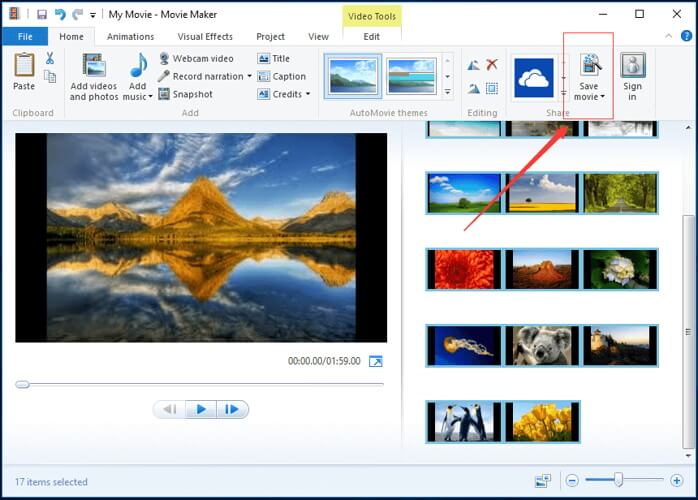
Therefore, for this fix to work, the packet loss must occur on your ISP’s side (bandwidth throttling or improper routing).
2. Troubleshoot your connection manually

  • Restart your router and/or modem
  • Try connecting straight to your modem or home line
  • Switch to wired instead of Wi-Fi (Wi-Fi packet loss happens more often)
  • Check and replace/update/upgrade/repair any faulty component on your side (PC, cable, drivers, router)
  • Call your ISP if you pick up something wrong on their side and ask them to look into it
  • Contact the BF4 server owner if there’s something wrong on its side of the connection
  • Try to avoid peak hours if possible
  • Switch the BF4 server if it’s possible

BF4 packet loss can be improved

All things considered, even using a VPN can improve packet loss, but only if the issue is on your ISP’s side. Other times it might just be the byproduct of network congestion and fixes by itself.

Last, but not least, you might want to try some of our manual troubleshooting suggestions.

They might not help you improve packet loss all of the time (especially if the leaks occur on your ISP’s side or the game server’s), but keeping your home network in top shape never harmed anyone.

[wl_navigator]

3 best VPNs for Dying Light to fix lag and reduce ping

If you have Dying Light lag and high ping, you can easily fix it with a VPN.

Dying Light is a first-person shooter and survival horror game that takes place in a post-apocalyptic world. You can freely roam the open world, look for supplies, build weapons, and do everything you can to escape the zombie invasion.

The game features a single-player mode together with online PvP and co-op for multiplayer. You can play it on Steam, Windows, Mac, Linux, PlayStation 4, and Xbox One.

However, many players have trouble with Dying Light lag in the multiplayer mode. If you’re one of them, you can use a VPN to improve your ping and get back to enjoying the game with your friends.

What you need is a premium Dying Light VPN with a vast network of servers, superior connection speed, and excellent security features. Besides, you can also minimize packet loss with a VPN.

What are the best VPNs to fix Dying Light lag and ping?

Private Internet Access

PIA is the best Dying Light VPN

If you’re looking for a quick Dying Light lag fix, choose Private Internet Access (PIA). It’s a superior VPN service created by Kape Technologies, which can help you bypass geoblocks and access blocked sites using an extensive network of VPN servers.

You can quickly connect to the recommended server of PIA to get the best speed. Furthermore, the tool keeps your device safe from DDoS attacks during gameplay. You can set up an ad and malware blocker, as well as host game servers for you and your friends.

In addition, PIA is one of the few virtual private network solutions that support port forwarding and 24/7 live chat, so that you can get help as soon as you need to deal with Dying Light lag.

More about PIA to reduce Dying Light high ping:

  • Works with Windows, macOS, Linux, PS4, Xbox One
  • +3,300 VPN servers in 48 locations
  • 10 connections at once
  • No logs
  • 30-day money-back guarantee (no free trial)

Private Internet Access

If Dying Light is running slow on PC, use PIA to quickly fix this issue.
Check price Visit website

CyberGhost VPN

use CyberGhost VPN to fix Dying Light lag

Whenever Dying Light starts lagging on your PC or PS4, you can turn to CyberGhost VPN for assistance. Owned by Kape Technologies, this VPN service offers you a huge network of servers to reduce jitter and boost your gaming experience.

If you don’t know how to begin, simply connect to the VPN server recommended by CyberGhost VPN to test your new Internet connection speed. It’s one of the best Dying Light VPN apps that can not only fix latency and lag issues but also handle network congestion.

Moreover, CyberGhost VPN supports split tunneling, a practical feature for managing your bandwidth resources in case you don’t want to redirect all network traffic through VPN.

More about CyberGhost VPN to lower Dying Light ping:

  • Compatible with Windows, macOS, Linux, PS4, Xbox One
  • +6,500 VPN servers in 89 locations
  • Up to 7 connections at the same time
  • Zero logs
  • Up to 45-day money-back guarantee (1-day free trial)

CyberGhost VPN

If you need a Dying Light lag fix on low-end PC, use this powerful VPN tool.
Check price Visit website

NordVPN

use NordVPN to lower Dying Light ping

NordVPN offers a fast and easy Dying Light lag spike fix to help enhance your gaming experience. Operated by Tefincom & Co., NordVPN is one of the fastest VPN apps on the market that can also fix Wi-Fi packet loss.

Besides connecting you to the nearest VPN server, the tool adds security to your browsers by keeping your safe from malware (CyberSec). You can also use it to get around VPN blocks by connecting to obfuscated servers, as well as to repair Xbox packet loss.

What makes NordVPN a great Dying Light VPN is the fact that it can not only speed up your Internet connection but also protect your device from hackers. And, whenever you want to go back to your regular connection, you can quickly turn off the VPN.

More about NordVPN to fix Dying Light lag:

  • Install it on Windows, macOS, Linux, PS4, Xbox One
  • +5,100 VPN servers in 59 countries
  • Supports 6 simultaneous connections
  • No identifying logs
  • 30-day money-back guarantee (no free trial)

NordVPN

Get rid of Dying Light multiplayer lag and high ping using this dependable VPN app.
Check price Visit website

Dying Light is an awesome game that can be best enjoyed with your friends in PvP or co-op mode. But it can be impossible to do so when you have to handle lag issues.

You don’t need to switch back to the single-player mode when you can get rid of Dying Light lag and high ping with a trustworthy VPN service. It’s also a great way to fix packet loss in games.

Surface Duo to support PC syncing via Your Phone

Microsoft has in the past published the design principles it wants developers to follow when creating apps for its upcoming dual-screen devices. We all know that, for example, applications on the Surface Duo should support multiple screen modes.

Apart from that, the tech giant should be done developing the hardware aspects of the device by now. So, it’s currently concentrating on building pre-installed apps for the futuristic form factor.

Well, it appears that Microsoft is now working on a dual-screen version of the Your Phone app. If the application comes pre-installed on the Surface Duo, the device will have the ability to pair with a PC, out of the box.

Surface Duo could get the ability to sync with PC

According to images that Twitter user Alumia shared recently, Your Phone is getting multi-screen support.

The images showcase the app’s frame in single-screen and two-screen modes.

While the tweet does not categorically state that this version of Your Phone is coming to the Surface Duo, it would be unimaginable for the device to ship without PC syncing support.

Logically, if Surface Duo can sync to a PC, it has to use Your Phone, the only Android application Microsoft has for this function.

The Surface Duo isn’t the typical smartphone, so all the other apps it’s getting support multiple screen modes too.

For example, it recently emerged that a two-screen version of Microsoft Edge will be the default browser for the device. As such, the Chromium-based app will have the ability to span across the two displays of an open Surface Duo.

It shouldn’t be long before the device finally ships, according to the expectations of many. Holiday 2020 is the official release date for the device, though. Unsurprisingly, Microsoft remains tightlipped as to whether this has changed.

What are your expectations of dual-screen user experiences on the Surface Duo? Feel free to let us know via the comments section below.

[wl_navigator]