Fix: PC stuck in boot loop when upgrading to Windows 10 Fall Creators Update

Windows 10 Fall Creators Update, the third installment of Windows 10, is here at last. It might take some time until the majority of Windows 10 users get a hold of it, but some of them already have.

Now, the ‘chosen’ ones that were able to acquire this major update, run into a major issue. Namely, failure of the installation process resulted in a boot or restart loop.

For that purpose, we provided an explanation for this strange occurrence followed by the fitting solution. If you bump into this stumbling stone, make sure to check the information below.

How to get out of restart/boot loop after upgrading to Fall Creators Update fails

As you’re probably aware, Windows Update feature needs your PC to restart in order to complete update’s installation and apply changes to your system.

Now, with the minor updates, that’s usually not a problem. However, since Redstone 3 (1709), publicly known as Fall Creators Update is a major update, things can go south fast.

Major updates installation somewhat represents a brand new system installation or rather an upgrade. That includes drivers updates, too. And that’s where the problems start. A minor incompatibility of a single device can provoke a never-ending upgrade cycle. Basically, it goes like this:

The installer tries to install a driver for an unsupported peripheral device > installer fails > installer reboots your PC and tries again.

And again and again and again. You can see where this is going. In order to address this, your first step is to unplug all peripheral devices and give it another try. If that fails, we’re afraid that you’ll need to perform a factory reset of your PC.

Reset this PC

This Advanced recovery option enables you to restore your PC to its factory state. In the scenario like this, the only applicable solution is to start from a scratch.

And that’s where the ”Reset this PC” recovery feature comes into play. So, in order to stop your PC rebooting like there’s no tomorrow, make sure to follow the steps we provided below:

  1. Hard power off your PC 3 times until the Advanced Recovery environment appears.
  2. Choose Advanced options.
  3. Select Troubleshoot.
  4. Click ”Reset this PC”Reset this PC
  5. Choose whether you want to keep or delete your files and apps.
  6.  Click Reset.

After the procedure ends, you should be able to use your PC just like before.

As a side note for the future major updates, we advise you to use the Media Creation Tool for this sort of upgrades. This tool always checks out your PC compatibility and that way, in case something is wrong, you’ll be able to prevent updating and avoid boot loops. Read more about this tool here.

That should conclude it. If you’re aware of some alternative solutions or have a question for us, feel free to post them in the comments below.

RELATED STORIES YOU SHOULD CHECK OUT:

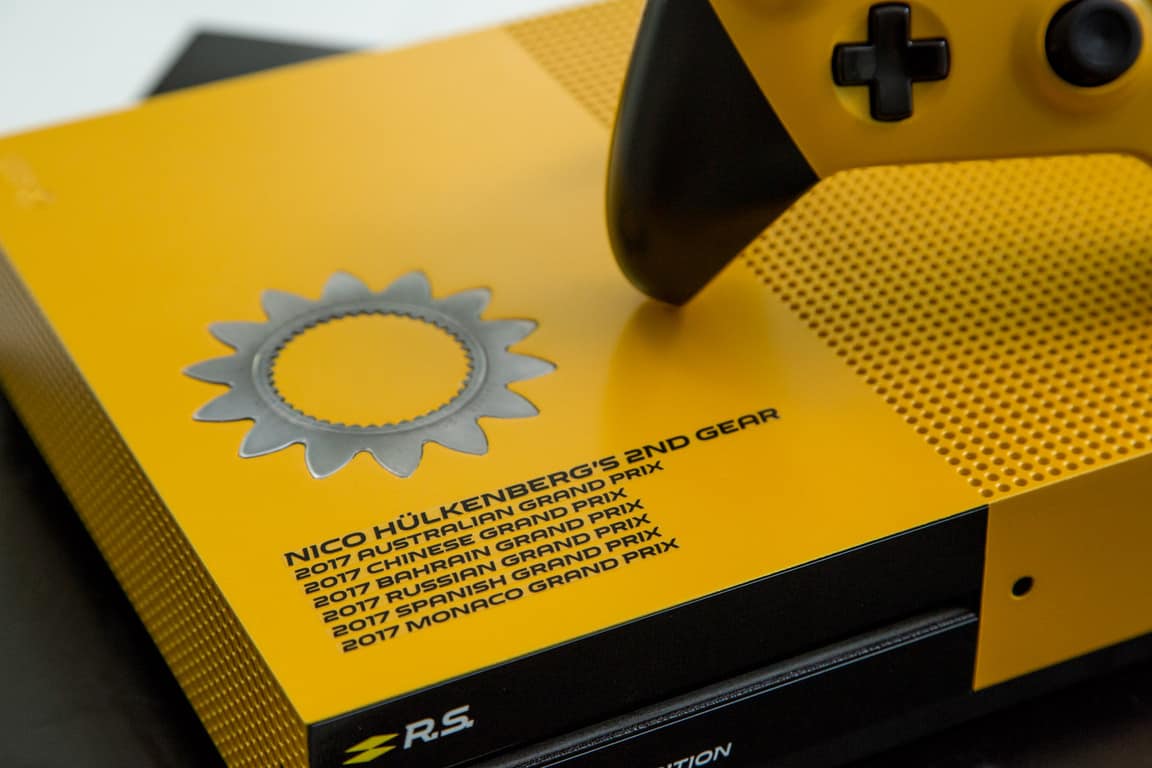
Microsoft is giving away custom Renault Sport Formula One Xbox One S Console

A few weeks ago, Microsoft unveiled a one of a kind custom Xbox One S for the American DJ duo, The Chainsmokers. Just as before Microsoft is now giving Xbox fans the chance to win another custom Xbox One S console— this one designed with the Renault Sport Formula One team in mind.

This console features the same yellow and black design included on the Renault Sport Formula One car. It’s also crafted with race grade materials, in anticipation of the Formula 1 United States Grand Prix at the Circuit of the Americas on October 20-22. Cyril Abiteboul, Managing Director of Renault Formula One Team. remarked on the console, and Microsoft’s partnership with the team:

“With the recent launch of the Formula 1 Esport Series and the growing popularity of this new discipline in the Paddock, the opportunity to increase our footprint in gaming and partner with Xbox on a custom console was an exciting challenge for us, especially knowing it would be released before the highly-anticipated Formula 1 United States Grand Prix… We have included design technologies that push the boundaries of manufacturing and we are proud of the result we have achieved. We can’t wait to congratulate the winner of this console.”

One lucky fan can win the console by heading to the Xbox Twitter page between now and October 23rd. All it takes to win is to follow the official Xbox Twitter account and retweet the promotional post. If you’re not lucky enough to win the console, you can still enjoy the Renault Sport Formula One car by playing Forza 7 or buying it via the link below.

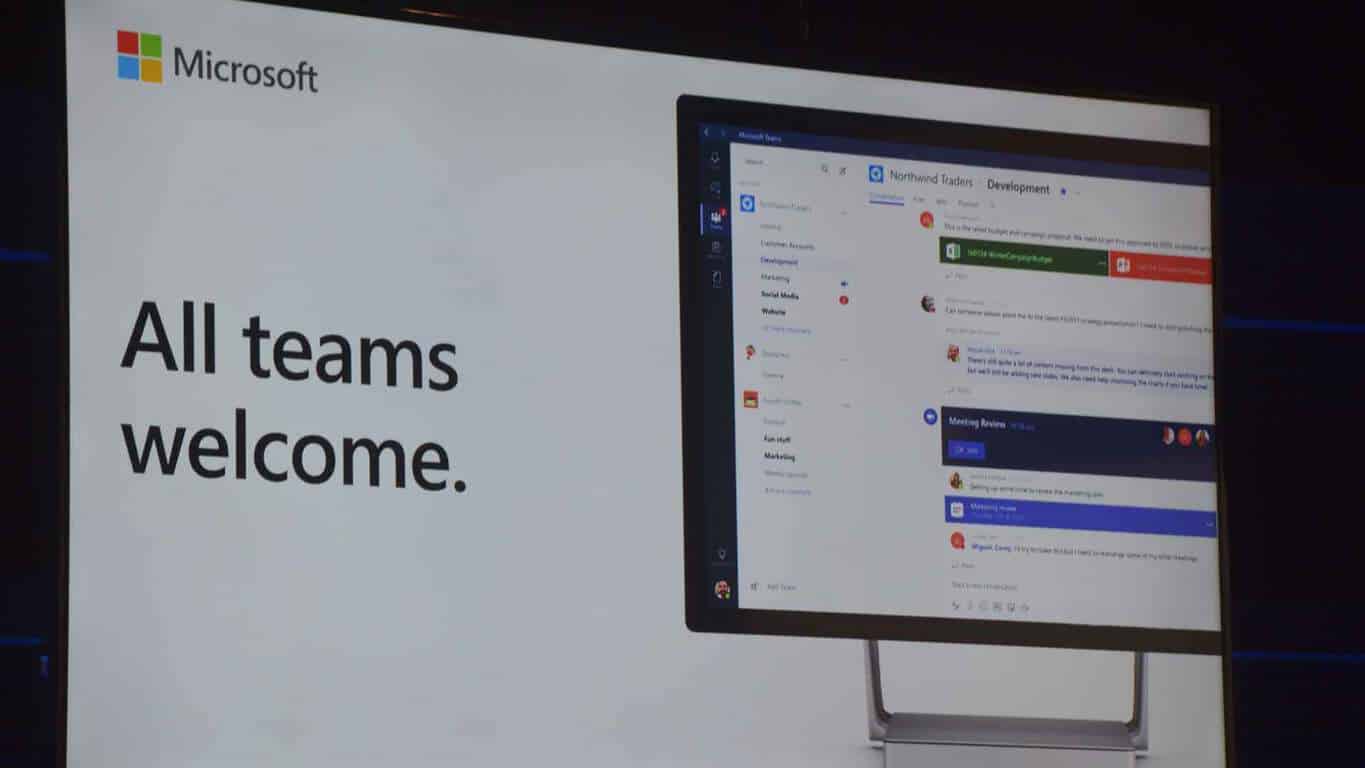
Microsoft Teams bumps the team membership limit from 999 to 2,500

Microsoft Teams is set to become the core communication client in Office 365, and after rolling out Guest Access last month the company is now working hard to integrate all Skype for Business Online capabilities into the new cloud productivity app.

It will likely take some time before Microsoft Teams completely replaces Skype for Business in Office 365, but in the meantime Microsoft continues to listen to customer feedback to slowly iterate on the new product. Earlier this week, Microsoft’s Suphatra Rufo announced that the maximum number of team members in one team has been bumped from 999 to 2,500, a change that will likely be very welcome at big companies using Microsoft Teams (via MSPoweruser).

On the dedicated Uservoice website, the Program Manager added that this 2,500 members limit includes both guests and regular team members. Moreover, the channels per team limit is still 100 for now, which should be enough for most companies. Are you satisfied by this new team membership limit, or would you like it to be even higher? Let us know below.

Xbox to kick off “Feel True Power” Xbox One X campaign this Sunday, watch a teaser here

We’re now just a few weeks away from the worldwide launch of the Xbox One X, and Microsoft is getting ready to launch a massive marketing campaign for the world’s most powerful console. This Sunday, October 22, the Xbox team will debut its “Feel True Power” TV commercial on The Walking Dead season premiere at 9PM PT, as well as during the kick off of the Atlanta Falcons vs. New England Patriots NFL game at 5:30 p.m. PT.

A first teaser of the commercial has just been revealed earlier, and the full version will also be published this Sunday at 4PM PT on the Xbox YouTube channel.

The teaser may look familiar to you if you watched the several Project Scorpio teasers published by the Xbox team ahead of E3 2017, but this new version highlights several Xbox One X enhances games such as Assassin’s Creed Origins, Middle-Earth: Shadow of Mordor, PUBG and Halo 5: Guardians. Craig McNary, Director, Xbox Integrated Marketing had this to share about the “Feel True Power” on Xbox Wire:

The campaign is designed to appeal to all gamers, taking the audience on an emotional roller coaster to elicit emotions like awe, excitement, fear, and passion; a call for gamers to feel the emotions of gaming in a way they may never have felt before. “Feel True Power” represents that the experience isn’t just about what you see, but also what you feel.

Even if Microsoft will have the most powerful console on the market this holiday season, the company can still expect tough competition from Sony’s PlayStation 4 Pro and the Nintendo Switch, which are both cheaper and with a strong catalog of exclusives. The Xbox One X will really need a strong marketing push over the coming weeks, and we hope that Microsoft won’t disappoint.

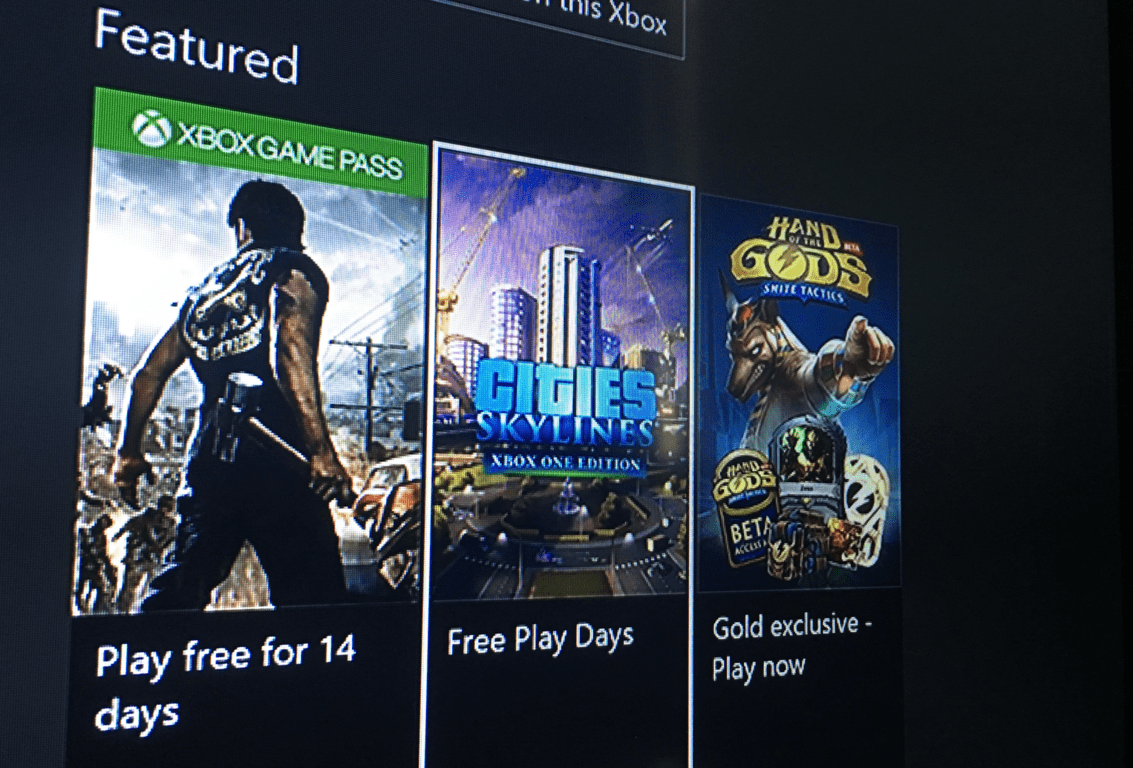
Cities: Skylines Xbox One Edition goes free to play this weekend with Xbox Live Gold

Cities: Skylines, the popular city building video game released earlier this year on the Xbox One is free to play for Xbox Live Gold subscribers this weekend. Originally released on PCs, the Xbox One version of Cities: Skylines has been optimized for the Xbox One controller, and it also comes with the After Dark expansion which adds which a day-night lifecycle to the game.

Here is the game’s official description:

Cities: Skylines – Xbox One Edition puts you in charge of a growing city – from the ground-breaking of its first streets to the ever-changing needs of thousands of citizens. Design, build, and manage the city of your dreams, from public services to civic policies, and challenge yourself to grow from a simple town to a bustling metropolitan hub.

The game is only a 2GB download, and it can be yours for $29.99 ($10 off) for a limited time. Sound off in the comments if you would recommend Cities: Skylines to fans of management games.

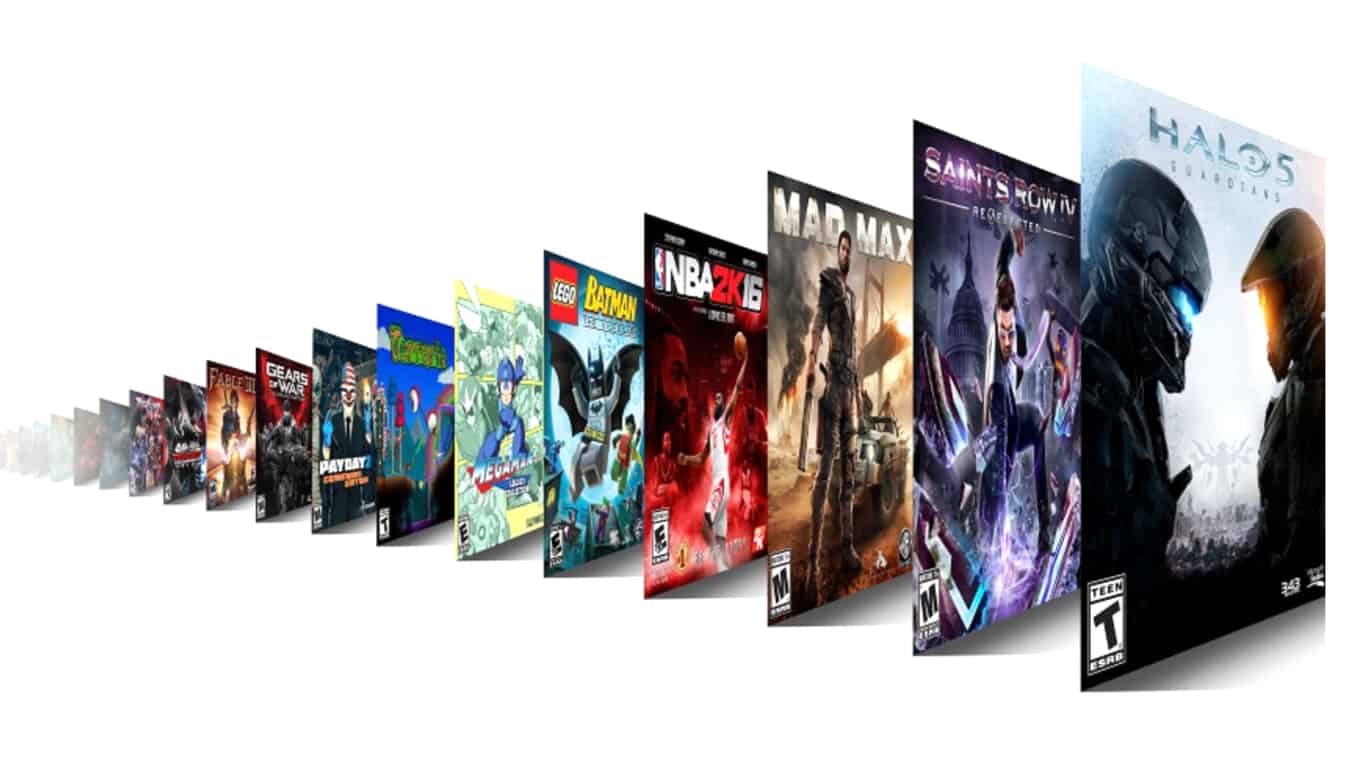
Donate blood and get a free month of Xbox Game Pass (in Brazil)

Xbox Gamers in Brazil now have a good reason to get off the couch and leave their console behind for a bit. In a new promotion, Microsoft is giving away one month of Xbox Game Pass to those who donate blood (via Reddit.)

Judging from a rough translation of the promotion page, all it takes to get started is to first donate blood at a local blood donation center. After this is done, the blood donation certificate must be uploaded online, and then a code will be sent via email. Finally, the code can be redeemed on Xbox One, or via the Xbox Website.

It’s not made clear when this promotion will end, but this is great, especially since donations will help fill local blood banks and those in need in hospitals. So, if you’re in Brazil, feel free to check out this promotion, keeping these tips in mind before going in to donate.

Plex app update brings Amazon’s Alexa to Microsoft’s Xbox One

The official Plex app has just updated with a completely new UI and a host of new features for Microsoft’s Xbox One video game console.

In addition to the new visual design, and improved features such as subtitles, the new Plex app also brings support for Amazon’s Alexa virtual assistant which now allows users to control the app via their Alexa device which will detect the Xbox One app as a location to play media from. Here’s the official release notes for the four main features of this update:

  • Mixed Photo/Video Libraries: Now, not only can you view all the unforgettable moments captured in your vacation photos, but you can watch the videos you took during the trip, too. All within the same library!
  • Alexa Compatibility: Compatibility with Alexa means you can freely lose the remote into the deep abyss of couch cushions with wild abandon; just talk to her, already!
  • Better Subtitle Compatibility: The app can now display many subtitle formats without using additional server resources. Enjoy faster playback and less whirring!
  • Xbox Gamertags: Not sure you want everyone to know how long you’ve been playing Goat Simulator? For the internet sleuths in your life, Plex accounts are no longer tied to your Xbox gamertags. There’s no need to link accounts, and you can enjoy your newfound freedom!

All of these changes are currently available in a brand new Plex app on the Xbox One which can be found within the Store section of the console. Over the next few days though, this new app will apparently replace the existing one via an automatic update so users won’t have to do much to experience the new features.

Plex app on Xbox One

Have you tried the new Plex app yet? What would you change? Let us know in the comments below.

Original Xbox video games begin appearing on Xbox One

Backwards compatibility for original Xbox video games appears to be just around the corner as official game hubs and listings for several titles have already been spotted by eagle-eyed Reddit user, HiPanda123.

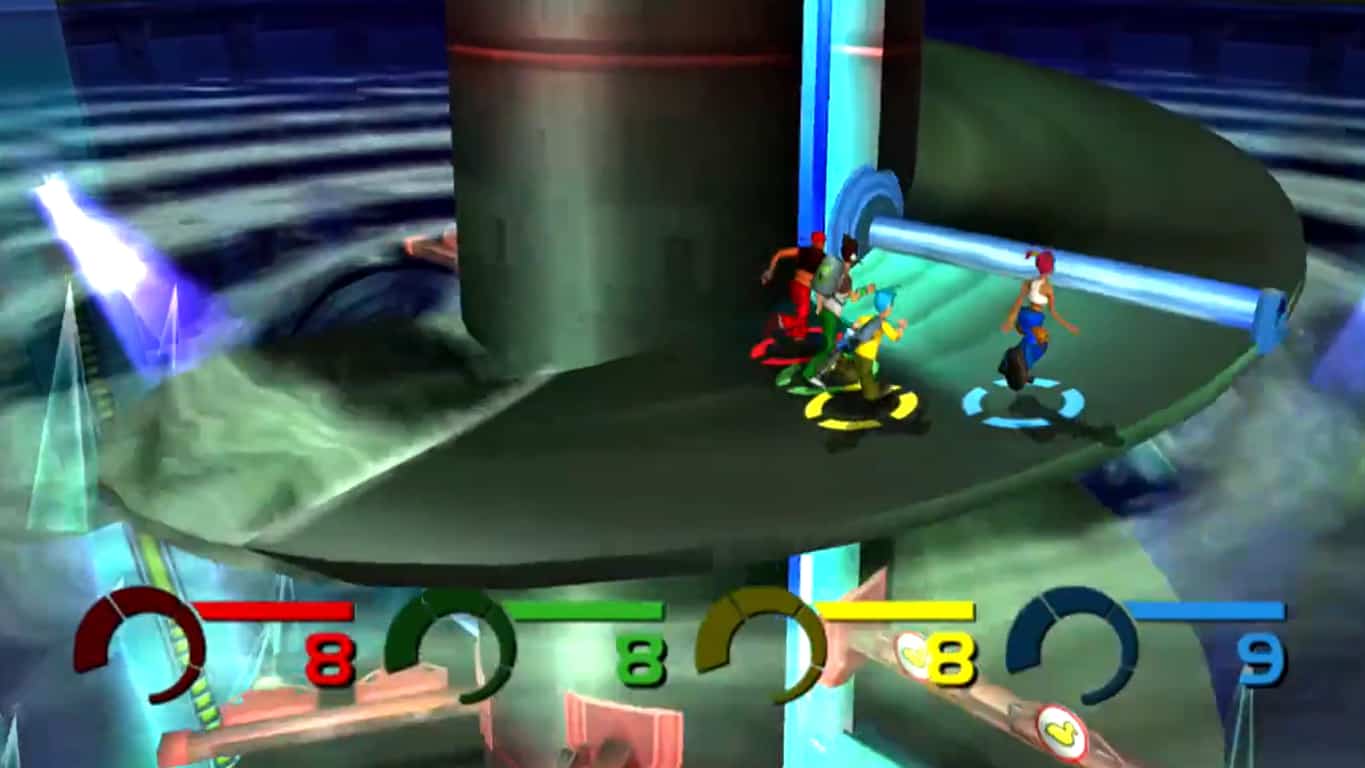
So far five separate games have been identified; The King of Fighters: Neo Wave, Dead to Rights, Red Faction II, Crimson Skies, and Fuzion Frenzy. Fuzion Frenzy was previewed working earlier this year (see above image).

Interestingly, the Store pages for each title appear to be offline (which makes sense since the games haven’t launched yet) but some of them such as Fuzion Frenzy do appear in search results complete with original Xbox branding. Clicking on these search results simply directs the user to an error page though.

Original Xbox game Fuzion Frenzy

No specific date has been announced for original Xbox backwards compatibility however it is assumed that the feature will launch on Xbox One sometime before the end of 2017.

Are you excited to see original Xbox games on the Xbox One? Let us know what you want to play in the comments below.

Microsoft pokes Google for its handling of exploits

Recently, Microsoft found itself in the position to scold its frequent exploit nuisance finder Google, and boy did the company jump at the opportunity.

In addition to Google’s task of patching the WPA2 vulnerability that affects over millions of Android devices, the company had to address an exploit in its Chrome browser recently uncovered by Microsoft.

Based on Microsoft’s Offensive Security Research (OSR) publishings, the company discovered a remote execution exploit that enables hackers to steal passwords saved in the Chrome browser.

More specifically,

  • Some of our key findings include the following:
    Our discovery of CVE-2017-5121 indicates that it is possible to find remotely exploitable vulnerabilities in modern browsers
  • Chrome’s relative lack of RCE mitigations means the path from memory corruption bug to exploit can be a short one
  • Several security checks being done within the sandbox result in RCE exploits being able to, among other things, bypass Same Origin Policy (SOP), giving RCE-capable attackers access to victims’ online services (such as email, documents, and banking sessions) and saved credentials
  • Chrome’s process for servicing vulnerabilities can result in the public disclosure of details for security flaws before fixes are pushed to customers

Discovering the exploit was only the beginning of Microsoft’s work with Google as the company then decided to take the opportunity to try and dish out a backhanded lesson in dealing with vulnerability discoveries.

Our strategies may differ, but we believe in collaborating across the security industry in order to help protect customers. This includes disclosing vulnerabilities to vendors through Coordinated Vulnerability Disclosure (CVD), and partnering throughout the process of delivering security fixes.

Despite some very public finger wagging by Google a few days ago over a Windows 7 exploit the company felt Microsoft was putting its customer at risk as it sought to apply a fix, Microsoft tried to take higher ground by allowing Google to patch its vulnerability before making the exploit public knowledge. The company’s approach was then reinforced in its publishing where Microsoft called on Google to consider following in kind with their own future discoveries.

There is no reason to believe that Google will heed Microsoft’s example, but this recent situation does highlight the differences between a veteran software company versus the relatively new comer to the industry.

The Windows 10 Fall Creators Update is not playing nice with some Razer laptops

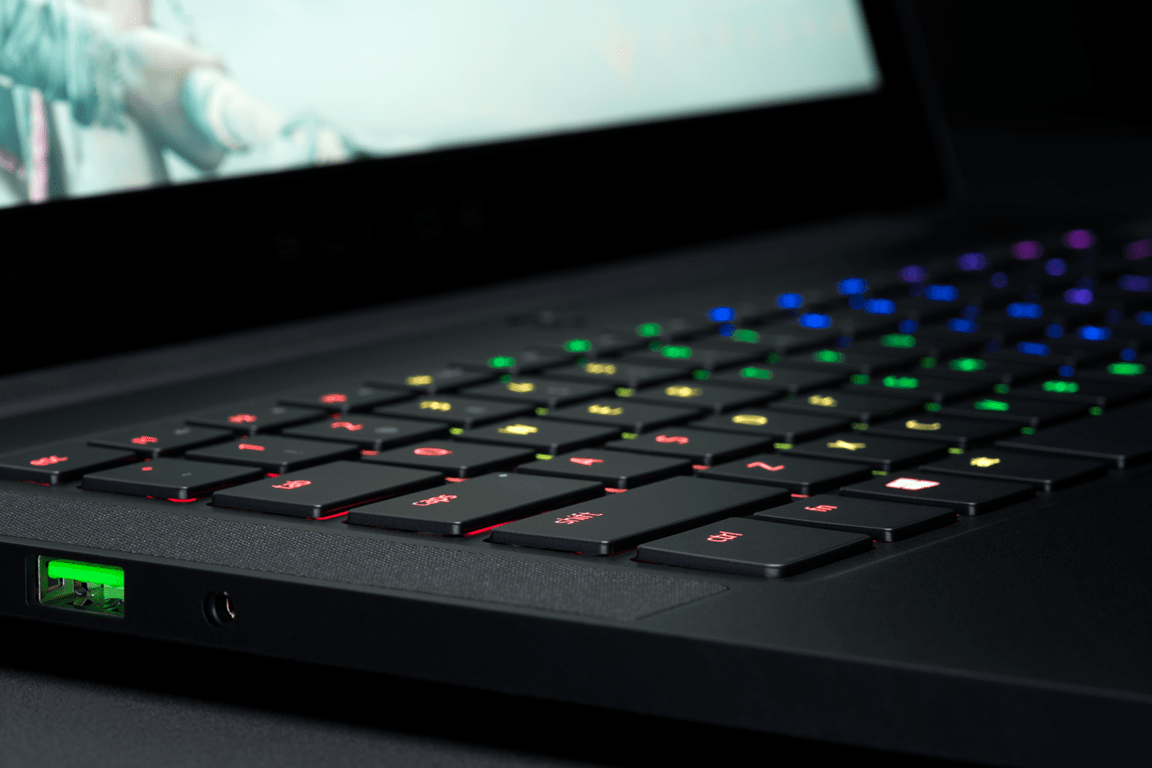
If you use a Razer laptop, you may want to hold off on downloading the Windows 10 Fall Creators update. According to several reports, the new Windows 10 update is causing major problems in just about every Razer laptop. If these reports are to be believed, the Fall Creators Update will cause all of you laptop peripherals to stop functioning after the machine wakes up from sleep mode.

Here’s a post from the Razer forums, talking about the issue.

Razer has not updated compatibility with their drivers to support this version of windows and it renders the trackpad, keyboard, and USB features useless when waking from sleep mode on battery power. Reinstalling drivers or talking to Razer support will do nothing to fix your issue. The only fix is to roll back to Creators Update until Razer gets their sh*t together and fixes the problem.

You should probably delay the update for a little while, as Razer works on a fix. At the time of writing this, the company has not yet acknowledged or pushed out any kind of fix for this compatibility issue, so you’ll just have to sit tight for a while. Thankfully, issues like this are usually fixed sooner rather than later. With the Fall Creators Update coming to just about every Windows 10 machine, Razer is most likely drowning in complaints by now.

Here’s why you shouldn’t install Windows 10 Fall Creators Update on PC!

It’s a special day at Microsoft! Another major update for Windows 10 makes its way to satisfied users.

This is how Microsoft would like everyone to begin their news and reports about the Fall Creators Update with. This is how actually many media outlets begin their stories with (no disrespect here). This is how I’d like to begin this article with. But unfortunately, that’s not possible. Because users are not satisfied, and the update is not that major. At least for PC users.

Let’s get straight to the point right from the beginning. This so-called “major update” serves as nothing more than a promotion platform for new Microsoft’s products. Yeah, I said it. It also leaves PC users hanging, because the Fall Creators Update brings nothing that PC users can’t live without.

Of course, Microsoft has every right to do what it did with the Fall Creators Update. It’s their product after all, and it would make little to no sense to promote others’ products. But at least, treat everyone equally!

Here at Windows Report, I write positively about Windows-related products 95 percent of the time. But this time, I feel like it’s the right moment to step up in the name of all the PC users who won’t be using the Surface Pen to draw 3D smileys.

So, here’s the complete analysis of the Fall Creators Update, and why installing it on your PC is simply not worth it.

Windows 10 Fall Creators Update is useless on PC!

A promotional platform for Surface devices

If you take a look at the most important features of the Fall Creators Update, you’ll notice they’re mainly NOT meant for PC users. Let’s quickly break it down.

Mixed Reality Viewer and Paint 3D are clearly for touch-enabled devices. Of course, you could use your peripheral camera on PC to view Mixed Reality, but that’s not the point here. But Paint 3D? Will any PC user ever use it? In fact, Microsoft started the whole thing with the original Creators Update back in April, and it just continues the practice now.

I’m not going to include the option for improving the battery life into this conversation. It’s a really useful feature that’s really supposed to be there. Let’s not overreact.

So what happens next? All these 3D/Mixed Reality/Design features and Microsoft announces the Surface Book 2? I’m not a conspiracy theorist, but you’ll have to put in some pretty strong arguments to convince me that Microsoft didn’t do this on purpose. If we take into consideration the tragic fall of Windows 10 Mobile, the picture gets even clearer.

Microsoft needs to sell hardware, for the company’s well-being. Which makes turning Windows 10 limited on non-Microsoft platforms a pretty powerful marketing strategy.

Imagine this, a new major update for Windows 10 introduces some ultra-futuristic technology that the whole world is talking about. But there’s a catch, it’s only compatible with the latest Surface Book. Wouldn’t it make you want to buy that powerful new laptop? You don’t need a Ph.D. in psychology to notice the pattern.

Speaking of the human psychology, there’s another part of the story that also works in Microsoft’s favor. Technology users, especially Windows 10 people, are obsessed with keeping up with the latest trends. This forces you to install a new update for your operating system, even if you really don’t think it’s essential for your computer. Just for the sake of not ‘being left behind’.

I’m sure Microsoft knows this better than I do. So it would make sense for the company to take advantage of it by promoting new hardware through major updates, knowing you simply couldn’t resist installing it. It’s business after all, and everything is allowed.


What about PC?

Just to make this clear, I’m not against the new technologies that Microsoft is trying to promote with both Creators Updates. I’m just saying the number of features is simply unbalanced. If you take a look at features that are compatible with PC, and think about them, I think you’d agree they’re nothing special, to say the least.

So, what do we have? The My People app is now integrated into the taskbar, OneDrive now shows your files without downloading them, and there are new Story and Video Remix features to play with your photos and videos. And of course, the new GPU usage meter in the taskbar.

I’ll just say that the GPU meter is by far the most useful feature of the update and the only “major update-worthy” feature that comes with the Fall Creators Update. If only there are more features like that one, I probably wouldn’t be writing this article right now.

What about the My People app integration into the taskbar and OneDrive placeholders? Well, these improvements feel more like individual app updates, then a major system update. Microsoft could easily deliver placeholders as a part of some bigger update for OneDrive, it would make much more sense.

People app integration into the taskbar is another example of Microsoft forcing people to use products they don’t want to use. Skype, in its natural form, has been working very well for years, so there’s really no need to push it further. And for the My People app, I’m not even sure anyone actually uses it on the regular. But the exposure of these apps is now much bigger, so Microsoft obviously hopes for huge increases in the number of users.

And finally, the most useless feature of them all – Story/Video Remix for Photos. Let’s get serious for a second, who will actually use these? Have you been waiting for six months just so you can create a few cute collages or slide videos with a few 3D animations and filters?!

Windows 10 is not a social network! People who use filters and stickers on Instagram or Snapchat are doing so for the sake of sharing. But who will you share your ‘amazing 3D creations’ from Story Remix with? I really don’t see a bright future for this feature.

When we draw a line. This is all we got from six months of work from the whole development team of the biggest software maker in the world? Really not enough for a major update for ‘a service’ like Windows 10.

After reading all of this, you could still just say: “So what? What difference does it make? I’ll just spend an hour or two updating my system, and I’ll just keep using my computer normally for the next six months.” Which brings me to my next and final point.


Bugs, issues, problems!

Major Windows 10 updates are known for being quite troublesome, and the Fall Creators Update is not the exception. Okay, I’m not saying the Fall Creators Update is the worst of them all, but it can potentially cause some issues.

As far as we know, the main problems of the fall Creators Update are BSODs, high CPU usage, and activation issues. These issues were reported by a couple of users on the Fall Creators Update release day.

While this doesn’t mean you’ll encounter any issues at all, a question naturally arises – are you willing to risk having your computer disrupted just for being able to make fancy drawings in Story Remix?


Conclusion

Let’s finally wrap all of this up. There are short-term and long-term conclusions that can be drawn from this case. The short therm conclusion isn’t worrying at all because you still have a choice. But the long-term conclusion is something completely different.

Short-term conclusion: If you agree with all (or at least some) the arguments I just pointed out, you can block the update and no harm will be done. In case you don’t know how to do that, here’s a guide for just about any version of Windows 10, so we’ve got you covered. Microsoft still gives you choice, which is positive. But that brings us to the long-term conclusion.

Long-term conclusion: If Microsoft continues with this trend of favorizing their own products in major updates in terms of delivering ‘platform-exclusive’ features, you’ll have to bend the knee eventually. It’s as simple as forcing users to abandon Windows 7 in favor of Windows 10. You can’t keep on blocking major Windows 10 updates forever, because your current system version will eventually become unsupported. And running an unsupported operating system is really living on the edge in these dark times for cybersecurity.

So, what do you think about the Fall Creators Update? Am I overreacting or are these remarks on point? Write your opinion down in the comments below.

Life is Strange: Before the Storm Episode Two comes to Xbox One, available now

Last week, we reported that Episode 2 of Life is Strange: Before the Storm would soon be available for download. Well, the time has finally arrived, and Episode Two is now available for Xbox One.

Life is Strange Episode Two follows the story of Chloe Price and Rachel Amber, as they navigate their teenage years. Rachel’s world is destroyed by a family secret in their hometown of Arcadia Bay, and Chloe helps Rachel pick up the pieces.

Features of the Life is Strange series include: Choice and consequence driven narrative adventure, Multiple endings depending on the choices you make, and ‘Backtalk’ – A risk/reward conversation mode that allows Chloe to use her barbed tongue to provoke or get her way

If the trailer has caught your attention, you can buy Buy Life is Strange Deluxe Edition for $24.99 for Xbox One by clicking the link below. This edition of the game gives you access to both Episode One, and Episode Two.

More numbers emerge to support incredible Windows 10 on ARM claims

Microsoft appears to have big numbers when it comes to Windows 10 on ARM. As noted in an article on MSPoweruser, Microsoft and Qualcomm developed Windows 10 on ARM processors together and are getting insane battery life, if their claims are true.

At Computex Taipei this summer, Qualcomm discussed Windows 10 on ARM details, including the Snapdragon 835 powering the next generation of Windows 10 PCs.

Earlier this week, Qualcomm held a summit in Hong Kong and went further discussing Windows 10 on ARM PCs. Microsoft and Qualcomm are reporting “multi-day battery life” on the Windows 10 on ARM devices. If their claims are true, the prospect of leaving your charger at home might not be a big deal anymore. Apparently, the testers of these Windows 10 on ARM devices thought the battery indicators were broken because it takes so long for the batteries to deplete.

Microsoft, Windows 10, Snapdragon 835, ARM
Windows 10 on ARM devices

There are no timetables on what battery life the testers experienced on Windows 10 on ARM. However, Fudzilla reported that Windows 10 on ARM can allow you to watch Netflix for 29 hours straight before you need to charge your device. Those battery life figures would only be if you had Wi-Fi enabled. If you had both LTE and Wi-Fi enabled, the battery life would be around 20 hours.

While we may not see any Windows 10 on ARM devices in time for the upcoming 2017 holiday season, HP, Lenovo, and Asus are expected to showcase Windows 10 PCs using Snapdragon 835 processors hopefully earlier than Computex 2018. If the Windows 10 on ARM battery life reports are indeed true, Microsoft may actually release the long-rumored “Surface Phone.”

More shots of Windows 10 Fluent Design makeover for Mail and Calendar apps

Interestingly enough, as Microsoft makes efforts to combine the underlying and visual elements of its premier email client across web and desktop begin to surface, the Windows team seems to be moving in a different direction with the current Mail and Calendar apps for Windows 10.

Instead of adding the ribbon alterations for the Mail and Calendar app, the Windows team is doubling down on its Fluent Design to touch up the emailing and scheduling experiences for desktop users.

With the Fall Creators Update behind them, the Windows team is testing out some new Fluent Design inspirations for the Mail and Calendar app with a few lucky Skip Ahead Release Insider testers. Zac Bowden over at Windows Central was able to grab a few more screenshots of the Mail and Calendar updates in action.

With Microsoft’s Groove app being the poster child for Fluent Design implementation, now being shuttered in favor of Spotify integration, it’s nice to see the Windows team working on bringing its other apps up to par.

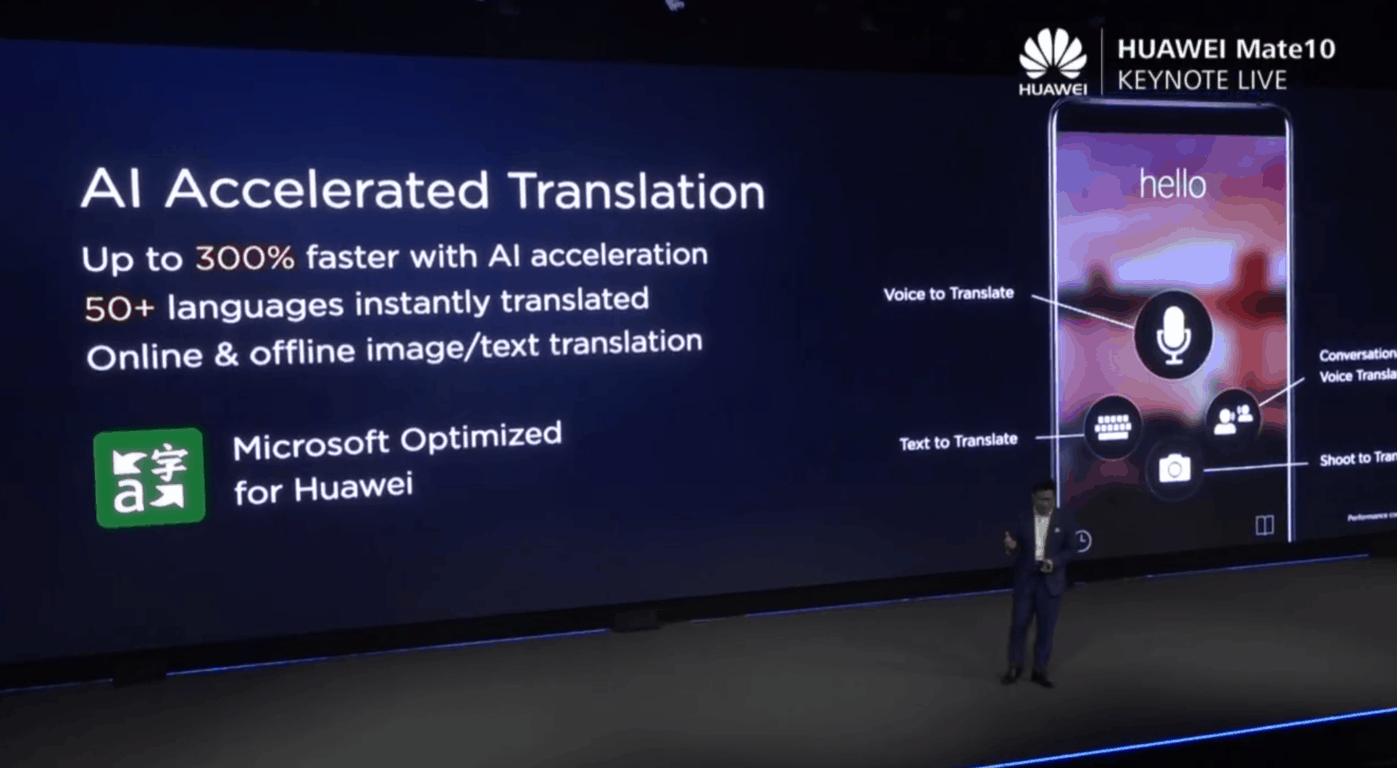
Microsoft Research brings full offline translations to the Huawei Mate 10

Huawei’s Mate 10, the company’s latest Android flagship announced earlier this week features some unique Microsoft technology. In addition to an OS-level integration of LinkedIn, the handset can also deliver full neural offline translations thanks to a customized version of the Microsoft Translator app for Android, which will be pre-installed on the Mate 10.

“Microsoft achieved this breakthrough by partnering with Huawei to customize Microsoft’s new neural technology for Huawei’s new NPU (Neural Processing Unit) hardware,” the company explained today on the Microsoft Translator blog. “This results in dramatically better and faster offline translations as compared to existing offline packs.”

The Huawei Mate 10 with its “Kirin AI” processor is the first phone that comes with a dedicated Neural Processing Unit, which can dramatically improve the speed and quality of offline translations. Using the industry standard BLEU score to evaluate translation quality, Microsoft’s internal tests showed “up to a 23 percent better offline translation quality over competing best-in-class offline packs, and often a difference of less than 1 BLEU point between Microsoft state-of-the art online neural and offline neural translations.”

Out of the box, the Microsoft Translator app on the Huawei Mate 10 can instantly translate text in 60+ languages, and it also has exclusive neural translation packs for 12 languages: Arabic, Chinese, English, French, German, Italian, Japanese, Korean, Portuguese, Russian, Spanish, and Thai. If you’re wondering, the NPU on the Mate 10 has many other use cases including intelligent photography with AI-powered bokeh effects.

Some of Microsoft’s Android apps already come preinstalled on many Android apps on the market today, but it’s interesting to see Microsoft’s neural technology being used in new ways on flagship Android handsets. CEO Satya Nadella recently shared that Microsoft needs to “make sure our software and applications are used on iOS and Android,” so you can probably expect more partnerships like this one going forward.

Windows 10’s Edge browser FINALLY gets a fullscreen mode

It’s been just over two years since its launch but Microsoft’s Edge internet browser has finally added a proper fullscreen option this week with the rollout of the Windows 10 Fall Creators Update.

A fullscreen option for Edge has been a long time coming as its predecessor, Internet Explorer, had it in Windows 8. Bizarrely, Edge’s fullscreen mode still lacks all of the functionality of Internet Explorer’s as there is currently no way to pull up the browser’s address bar to change websites while the mode is activated. Users currently need to exit fullscreen mode every time they want to search or enter a website address.

  • To turn on the new fullscreen mode in Edge, simply expand the … menu in the top-right corner and click on the arrow icon next to Zoom.
  • To exit fullscreen mode in Edge, users can swipe down from the top of the screen, if on a touch-enabled Windows 10 device, and press the arrow icon or move the mouse cursor to the top-right corner of the screen to reveal it.
  • Fullscreen can also be turned on and off by pressing the F11 key when the Fn key is activated.

Have you been waiting for the fullscreen mode to come to Edge and are you satisfied with it? Let us know in the comments below.

Round-up of Windows 10 Fall Creators Update bugs: BSoD, high CPU usage, and more

Microsoft released Windows 10 Fall Creators Update to the general public, bringing a series of new features, improvements and bug fixes to the table. If you’re interested to learn more about the complete update changelog, check out this article.

Unfortunately, Windows 10 version 1709 also brings issues of its own despite Microsoft’s efforts to detect and squash all the bugs prior to the official release.

In this article, we’re going to list the most frequent issues reported by users after installing the update as well as their corresponding workarounds, whenever available.

Fall Creators Update reported bugs

1. Activation errors

If you can’t activate the OS, you’re not the only one: many users encountered various activation issues and are still unable to activate the new OS. One of the most common Fall Creators Update activation errors is error code 0x803F7001.

Here’s how one user describes this problem:

Today, when the Fall Creators Update was released through Window Update, we installed it on two of our computers […] After the update was complete, both of these computers showed that Windows was not activated. After the upgrade, the last 5 characters of the product key was changed to the same sequence of characters on these two computers, but it is completely different from our actual volume license.
When we enter our product key to try to reactivate Windows, we get error code 0x803F7001.

In this case, wait a few days and the OS should activate automatically as the machines have a digital license, which should allow them to maintain their activation status.

For more information on how to fix various Windows 10 activation errors, check out this guide.


2. Blue Screen of Death errors on install

Many users are still struggling to install the Fall Creators Update on their computers. The download and install process sometimes fails with various error codes or BSoD errors, as this user reports:

Windows 10 automatically downloaded and attempted to install the Fall Creators Update, however it blue screened during the update after rebooting. Specifically, it got stuck at 15% for about 5 minutes, then immediately jumped to 28%, then immediately rebooted, and upon rebooting it blue screened. […]
I can’t turn off or restart my computer now, because it will just try to install the update again and blue screen again. I tried a sfc /scannow but there were no integrity violations.

If you can’t install the Windows 10 FCU on your PC, this troubleshooting guide can help you to fix various install errors and issues.


3. Remote Desktop Connection crashes

If you often use remote desktop connections, don’t hurry to install Windows 10 version 1709. Users report that Remote Desktop Connection crashes when they try to connect to another device that’s not running the Fall Creators Update.

I just installed the Fall Creators Update on Windows 10/64 bit, and now Remote Desktop Connection crashes every time I try to connect to another PC running Windows 10 64 bit (which I haven’t updated yet). Moreover, my Surface 3, running Windows 10 (but also not yet updated) can successfully connect to the same target PC.
To be clear, the connection goes through. But, invariably, within 30 seconds the Remote Desktop Connection app crashes on the machine running the Fall Creators Update.


4. High CPU usage

Other users noticed that certain processes are now causing high CPU usage, whereas this problem didn’t occur prior to the update.

high CPU usage Fall Creators Update

This issue may appear after Windows update gets stuck when downloading an update or a corrupted Windows service causes the Service Host to consume more CPU usage than normal.

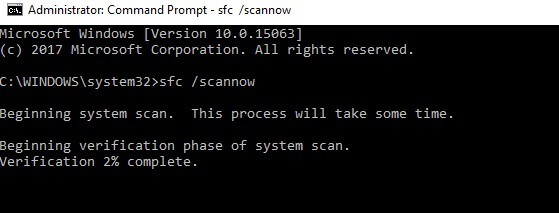
To fix high CPU usage with the Windows 10 version 1709, run the System File Checker followed by DISM to repair damaged system files.

Here are the steps to follow:

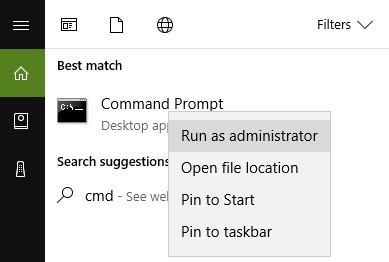
1. Go to Start > type cmd > right-click Command Prompt > select Run as Administrator

2. Type the sfc /scannow command

3. Wait for the scanning process to complete and then restart your computer. All corrupted files will be replaced on reboot.

4. Launch Command Prompt again and type the following command: DISM.exe /Online /Cleanup-image /Restorehealth

5. Launch Task Manager to check if the issue persists.

For more information on how to fix high CPU issues on PC, follow the steps available in this guide.


5. Edge Favorites are gone

If you lost Edge Favorites after the upgrade, don’t worry, we have a solution.

Tonight I downloaded and installed the Windows Fall Creator’s Update on both my desktop PC and my Surface Pro 3. When the desktop finished updating, I checked various items including the Edge browser. On the desktop PC, most of my bookmarks had vanished.

Here are the steps to follow to restore Favorites on Edge:

  1.  Go to this location and check of the Favorites folder is empty: %localappdata%PackagesMicrosoft.MicrosoftEdge_8wekyb3d8bbweACMicrosoftEdgeUserDefaultFavorites
  2. If this is the case, look at your backed up data for a similar path. Your bookmarks should be there.
  3. Copy them to %userprofile%Favorites, the Favorites folder for Internet Explorer
  4. Import your Favorites from there into Edge then go to this location: %localappdata%PackagesMicrosoft.MicrosoftEdge_8wekyb3d8bbweACMicrosoftEdgeUserDefaultDataStore
  5. Locate the Spartan.edb file usually located at the bottom of the folder tree
  6. Replace the current Spartan.edb with the copy from the backup. That should bring back your Favorites list.

ALSO READ: Here’s how the Fall Creators Update lets you customize Favorites in Edge


6. Certain apps are missing

Many users reported that the icons for some of the Store apps are missing after the upgrade. While the apps are already on the computer, the problem is in how users can’t access them unless they go to the Store, search for the respective apps and click the play button from within the store to launch the apps.

It simply appears that the PC can’t detect the apps:

I just upgraded to the Windows 10 Fall creators update after the update I now have missing icons for some of my store apps they are completely gone from the start screen and if I search through Cortana they do not come up some of the icons on the task bar are missing […]
if I go to the store and search for the missing apps I get the prompt saying they are installed and when I click launch they will launch properly from within the store, but that is the only way.

For the time being, there is no solution available to fix this problem.


7. PC keeps asking for Defaultuser0 password

Users also reported that their PCs keep asking them to enter the password for Defaultuser0. However, users are unable to enter Defaultuser0 account since it’s locked, and they can’t access Windows 10 at all.

If you encountered this problem, this troubleshooting guide can help you solve it.

These are the most common Windows 10 Fall Creators Update bugs reported by users. If you encounter other issues, tell us more about your experience in the comment section below!

RELATED STORIES TO CHECK OUT:

Fall Creators Update improves gaming performance, but only for some

The Windows 10 Fall Creators Update is now available for download. You can install it automatically via Windows Update, or download its ISO files.

This new OS brings a bevy of new features, improvements and bug fixes that will make Windows more stableoverall.

One of the most important and useful changes this update brings is related to gaming performance. As a quick reminder, the Windows 10 Creators Update broke many games and players hoped this release would fix all the gaming issues triggered by the previous update.

Gaming performance on the Fall Creators Update

Indeed, the latest version of Windows 10 adds a series of important improvements that will enhance your gaming experience. The bad news is that not all players will be able to enjoy a smooth gaming experience.

As we already reported, Windows 10 version 1709 fixes the stuttering present in Forza Motorsport 7 and boosts the framerate in other games, something players have already confirmed.

However, other titles such as Black Desert Online are affected by severe issues that often include freezes and crashes. Some players complained that the Fall Creators Update actually makes things worse, claiming that FPS significantly dropped after installing the update.

How to fix game issues on the Fall Creators Update

gaming fall creators update

As we stated above, some gamers still encountered various issues after upgrading their OS. If you’re experiencing stuttering on the Fall Creators Update, you need to completely delete the files related to Game DVR. Simply disabling it won’t eliminate stuttering.

Overall, most gamers will enjoy better gaming sessions after installing Windows 10 version 1709. If you’re into gaming, we recommend you to install the update as soon as possible.

Windows 10 3D printing support brings Minecraft creations to real life

Early on, Microsoft checked a feature off its Windows 10 list that many had seemingly glossed over because the barrier for entry at the time was a bit pricey. When Microsoft announced that Windows 10 held support for 3D printing, I, like most, gave a concerted shrug and moved on.

However, with the price of 3D printers coming down and a market for handmade toys, memorabilia, and gadgets growing, perhaps it’s time to revisit the world of 3D printing.

Going after some low hanging fruit, Microsoft recently announced that Minecraft players can now port their in-game creations to the real world thanks in part to Windows 10 3D printing support.

Aside from the digital creation of a Minecraft object, the process is fairly simple. Porting is done by placing a printing (or special) block in-game, next to an object or sculpture. Windows 10 does the rest by exporting that selected object to Remix 3D where fans can then polish it up a bit before hitting the print button.

For a handful of beta testers, the feature may seem like old news, but for the majority of Minecraft fans, being able to do all the heavy creative lifting digitally and then allowing Windows 10 to transfer those creations into the real world could be a major selling point for both the game and Microsoft’s OS.

Forza Motorsport 7 crashes: Here’s how to fix it

Are you experiencing Forza Motorsport 7 crashes on your computer? We’ve got solutions.

One of the most exciting gaming action is the Forza Motorsport 7, what with the adrenaline, the cool car designs, and speed – every gamer loves speed!

Most gamers who have downloaded and played the Forza Motorsport 7 game have however mused about the consistent crashes they get.

Some say the game crashes when they’re designing the car, going too fast, or at different points of the gameplay. This can be pretty frustrating, especially when you’ve just downloaded the game and you’re all set to get on the track.

One of the known issues of Forza Motorsport 7 crash issue on Windows computer is when Benchmark mode experiences long load times, or even crashes after you run the benchmark test. Annoying, right?

But, worry not, there’s always a way around some of the common game issues faced. Here are some quick fixes to resolving the Forza Motorsport 7 crash issue.

How to fix FM7 crashes on your PC

  1. Disable Internet and antivirus
  2. Check if the issue is related to a driver bug
  3. Use Administrator privileges to fix Forza Motorsport 7 crash
  4. Update your video card or graphics driver to fix Forza Motorsport 7 crash
  5. Downgrade the video card driver to an older version to fix Forza Motorsport 7 crash
  6. Uninstall and reinstall Forza Motorsport 7

Solution 1: Disable Internet and antivirus

You can try turning off your Internet connection, and antivirus program as well, then try to play the Forza Motorsport 7 game.

If this doesn’t work, try the next solution.


Solution 2: Check if the issue is related to a driver bug

Do the following to check this:

  1. Right-click Start
  2. Select Event viewer
  3. Expand Windows Logs
  4. Click System

If you see any recent red exclamation marks, click on it to see what it says then troubleshoot for the issue it brings back.


Solution 3: Use Administrator privileges to fix Forza Motorsport 7 crash

If you don’t have any, you can ask the administrator to create a user profile for you and give you the rights.

Here’s how to create a new user profile and give administrator privileges:

  1. Click Start
  2. Select Settings
  3. Select Accounts
  4. Click Add someone else to this PC
  5. Fill in the form with the user name and password. Your new user account will be created.
  6. Click on Change account type
  7. Click the drop-down arrow and choose Administrator to set the account to administrator level
  8. Restart your computer
  9. Log in to the new account you just created

Try playing the game using the new account.

You can also right-click on the Forza Motorsport 7 game icon, then click Run as Administrator.

Not yet there? More solutions ahead.


Solution 4: Update your video card or graphics driver to fix Forza Motorsport 7 crash

Here’s how to update drivers on Windows:

  1. Right-click Start button
  2. Select Device Manager
  3. Click on Universal Serial Bus Controllers to expand the list
  4. See whether there are any devices with either a yellow exclamation mark, question mark, down-arrow mark, or an error notification or code.
  5. If the driver has a yellow exclamation mark on it, double click on it then open Properties
  6. Under the Drivers tab, choose Update Driver

Windows will find the appropriate driver for your video card or graphics driver.

Note: You may need to know the name of your graphics or video card, for instance, if it is NVIDIA, AMD or Intel because then you’d have to download directly from the website of either of these.


Solution 5: Downgrade the video card driver to an older version to fix Forza Motorsport 7 crash

Here’s how to go about this:

  1. Right-click Start.
  2. Select Device Manager.
  3. Click Display Adapters.
  4. Right-click the Display adapter.
  5. Select Properties.
  6. Check the version.display adapter PC
  7. Find a previous version and install it.


Solution 6: Uninstall and reinstall Forza Motorsport 7

You can always uninstall, then clean your system, and reinstall the game back again.


Game Fire is a game booster that will get rid of freezes, lags, low FPS and other issues while playing. Download it now (free) for a better gaming experience. 


We do hope one of these solutions worked for you. If not, share with us the specifics of your issue in our comments section below.

Happy gaming!

RELATED STORIES TO CHECK OUT:

Latest Xbox One update lets you set privacy on your Activity Feed

On Monday, Microsoft released the Xbox One Fall Update, enhancing several of the experiences on all Xbox One consoles. Turns out the update also introduces some new privacy-related settings, helping you further control your Activity Feed.

Shared by Major Nelson, the changes allow you to decide who can see your posts to your activity feed. You can set it to everybody, friends, or block altogether. Subsequent tweets from Major Nelson reveal this also allows you to set your game, party, invite and messages privacy as desired, but still allow others to see feed content. The settings can be found on the web, or on the console by navigating to My Profile, Privacy, View Details, Communications, and Multiplayer.

This is definitely a welcome change, helping users, and even parents, control the content shared on Xbox Live. Do you find this feature useful? Drop us a comment below to let us know your thoughts!

Halo: the Master Chief Collection to get Xbox One X enhancements next year and lots more Halo news

343 Industries made some pretty exciting announcements for Halo fans yesterday. First, the Overtime Content release for Halo 5: Guardians brings back the Oddball game mode, a weapon tuning update, Team Skins and more. For those of you interested in Halo e-sports, you can watch the HCS Fall 2017 Finals this weekend on Mixer or Twitch, and get ready for the Halo World Championship 2018. You can read more details about these Halo 5 updates on Halo Waypoint.

Along with Halo 5: Guardians, Halo Wars 2 will soon be improved with 4K graphics for the Xbox One X, and an upcoming update for the RTS game will also bring support for Xbox Arena as well as cross-platform play between Xbox One and Windows 10. As the game already supports Xbox Play Anywhere, this latest addition really makes sense.

Halo: The Master Chief Collection, the Xbox One anthology including Halo: Combat Evolved and Halo 2, 3 and 4 will also be enhanced for the Xbox One X and get new patches to fix remaining issues with the game and more. The team plans to kick off a public flighting program with iterative patches next spring, and more details will be shared with fans when the time comes.

For now, it doesn’t look like all games in Halo: The Master Chief Collection will get 4K upgrades, like Halo 5: Guardians and Halo Wars 2 will. However, it’s good to see that the Xbox One anthology is still being supported by 343 Industries three years after its release.

Fluent design comes to Windows 10 Mail & Calendar app for some Insiders

The Windows 10 Fall Creators Update shipped yesterday, and with it came Microsoft’s new design language known as Fluent Design. Turns out the company is not done experimenting with Fluent Design yet, as some Windows Insiders are now seeing touches of the new design language in the Windows 10 Mail and Calendar app (via Windows Central.)

At the moment, only a small set of Windows Insiders in the Skip Ahead ring appear to be seeing these changes in version 8700.40315 of the Mail and Calendar app. The Fluent Design inspired features includes a redesigned UI for where email accounts are listed, and an acrylic-looking window and reveal effects on submenus.

Fluent Design in the Mail app, photo from Windows Central

Given how things have gone in the past, this version of Mail and Calendar might be rolling out to a broader audience soon. But for now, it just being tested out with Insiders. Do you like the touches of Fluent Design in the Mail and Calendar app? Or do you prefer the standard look? Let us know your thoughts below.

How to upgrade to Fall Creators Update from Windows 7

Upgrading to a new system has never been easier.

In order to upgrade from Windows 7 or 8.1 to Windows 10 Fall Creators Update, you’ll need only basic Windows-related knowledge, some spare time, and a firm determination.

Even after 8 years, Windows 7 still stands firm as the most reliable system Microsoft has ever made.

But, regardless of what Windows 7 has to offer (and if you ask us, that’s a lot), things are changing and we must eventually embrace the improvements in order to keep up-to-date security and expect Microsoft‘s support to tend to our needs, as both home and professional users. The same goes for Windows 8 or 8.1.

Therefore, if you’re certain that Windows 10 Fall Creators Update is your cup of tea, check the step-by-step explanation we provided below.


Epic guide alert! Everything you need to know about upgrading to Windows 10 for free!


Here’s how to upgrade to Windows 10 Fall Creators Update from Windows 7

  1. Windows 7
  2. Windows 8

Upgrade to Windows 10 Fall Creators Update from Windows 7

Even though the free upgrade prompt is long gone, you can still, taking into account that you have a valid Windows 7 license, upgrade to Windows 10.

Without charges whatsoever. Just that this time, the procedure is not as automated as it was before but you can still do it with a little effort.

So, if you finally decided to switch from good old Windows 7 to Windows 10,  make sure to follow the steps below and the upgrade should be as simple as possible:

  1. Boot to Windows 7 on your PC and make sure to:
    • Have enough space (up to 20 GB depending on a Windows 10 version).
    • Unplug temporarily all peripheral USB devices.
    • Uninstall a third-party antivirus.
    • Backup your data from system partition just in case something goes south.
    • Alternatively, you can update your BIOS but that’s rarely a problem.
  2. Download Media Creation Tool by following this link.
  3. Right-click on the tool and run it as an administrator.upgrade to Fall Creators Update from Windows 7/8.1
  4. Accept the Licence Terms.upgrade to Fall Creators Update from Windows 7/8.1
  5. If you’re asked to install Windows 7 updates before the upgrade commences, make sure to do so.upgrade to Fall Creators Update from Windows 7/8.1
  6. Choose Upgrade this PC.upgrade to Fall Creators Update from Windows 7/8.1
  7. Select the preferred architecture, language, and system version. Make sure that it responds to your license.
  8. Once it downloads files, Media Creation tool will prompt will ask you what to keep:
    • Keep personal files and apps – keeps everything you had in Windows 7
    • Keep personal files only – removes programs, keeps only personal files.
    • Nothing – wipes everything and it’s closely related to a clean reinstallupgrade to Fall Creators Update from Windows 7/8.1
  9. Click Install and follow the further instructions.

Later on, you can configure your brand new Windows 10 Fall Creators Update system to your liking.


Learn everything there is to know about downloading and installing Windows 10 Fall Creators Update!


Upgrade to Windows 10 Fall Creators Update from Windows 8 or 8.1

In comparison to fan favorite Windows 7, Windows 8 and 8.1 respectively received a huge backlash. Nonetheless, these are still reliable platforms and not only a mere transition like highly-criticized Vista was.

But, design-wise, if you have a good time with Windows 8 or 8.1, you’ll enjoy Windows 10 Fall Creators Update in all its glory.

The upgrade procedure is almost the same as the one on Windows 7, but the things should even go smoother and faster.

Just make sure that you have enough space, unplug peripheral devices that can cause drivers compatibility issues, and double-check your license. Furthermore, ensure that a third-party antivirus is disabled.

Once you prepared everything, follow the instructions below:

  1. Backup sensitive data from the system partition to a data partition or external storage media.
  2. Download Media Creation Tool from this link.
  3. Right-click on the Media Creation Tool setup and run it as an administrator.upgrade to Fall Creators Update from Windows 7/8.1
  4. Accept the License Terms Agreement.upgrade to Fall Creators Update from Windows 7/8.1
  5. If prompted with available updates for current system version, install them accordingly.
  6. The setup should check your system for compatibility.upgrade to Fall Creators Update from Windows 7/8.1
  7. Select the preferred architecture, language, and system version.
  8. Click Next and wait for the downloading procedure to start.upgrade to Fall Creators Update from Windows 7/8.1
  9. The next windows will ask you what to keep, so make sure to choose carefully.
  10. Click Next and then Install.
  11. Your PC will restart several times before the upgrade process ends.

That should do it. Now you’ll have the latest Windows 10 iteration installed, so you can start with the customization and tweaks immediately.

With this, we can conclude this how-to article. We do hope that Windows 10 Fall Creators update will live up to your expectations. In case you have any questions or suggestions, make sure to share them with us in the comments below. 
READ ALSO:

Got problems with Fall Creators Update? Here’s how to roll back

The long awaited Fall Creators Update for Windows 10 is finally here, and it brought us many new features. Unfortunately, with major Windows updates various issues can also occur, and sometimes the only way to fix them is to roll back to the previous build.

How to roll back from Fall Creators Update?

Solution 1 – Use Settings app

The simplest way to roll back from Fall Creators Update is to use the Settings app. Before you roll back to the previous build, it’s advised to back up your important files. After doing that, you can roll back by following these simple steps:

  1. Press Windows Key + I to open the Settings app.
  2. Once Settings app opens, navigate to Update & security.
    Fall creators update 1
  3. Navigate to the Recovery tab in the left pane and click on Get started button in Go back to the previous version of Windows 10 section.
    Fall creators update 2
  4. Now you need to select the reason for going back to the previous build. After doing that, click on Next.
  5. You’ll be offered to download the latest updates. Click on No, thanks button.
  6. Now click on Next to continue.
  7. Click on Next once again and select Go back to earlier build.

Rolling back process will now start. This process can take a while, sometimes more than an hour, so be patient and don’t interrupt it.


Solution 2 – Use Advanced startup

If you have major problems with Fall Creators Update and you can’t access Windows 10 at all, you might be able to roll back using Advanced startup. To do that, follow these steps:

  1. Click the Power button, press and hold the Shift key and choose Restart from the menu. You can do that right from the Windows 10 login screen. If you can’t even access the login screen, simply restart your PC a couple of times while it boots.
  2. Now click on Troubleshoot > Advanced options > Go back to the previous build.
  3. Choose Go back to the previous build and follow the instructions on the screen.

We have to mention that roll back option is available only for 10 days after the upgrade, so if you have any major problems with Fall Creators Update be sure to roll back as soon as you can.

If you’re unable to roll back, it’s rather likely that the roll back period expired or that you deleted Windows.old files manually or by using Disk Cleanup. In that case, you’ll have to stick with Fall Creators Update or perform a clean install.

Fall Creators Update offers many new features, but if you want to roll back to the older build, feel free to do so by using one of our solutions.

READ ALSO:

Operating system version is incompatible with Startup Repair [FIX]

Startup Repair, also known as Automatic Repair, is a tool used in Windows operating system to automatically repair your computer when it cannot start – or is unbootable.

There are several reasons your computer may be unbootable, and Startup Repair tool helps sort out issues such as:

  • A corrupted Registry
  • Missing or damaged system, and driver files
  • Corrupted Disk metadata
  • Corrupted File system metadata
  • Installation problems
  • Incompatible drivers
  • Incompatible errors that come with installation of Windows service packs, and/or patches
  • Corrupted boot configuration data
  • Bad memory
  • Disk hardware errors

If you’re experiencing some of these (if not all) issues, then the Startup Repair tool should help you out.

You’ll need to run the tool at the early stages so that your computer is not affected by any eventual problems that could come up as a result. If you encounter secondary effects, follow a reinstall guide or contact your machine’s technical support, or Microsoft Support for further guidance.

However, your computer could also bring up a troubleshooting to do with the Startup Repair tool, when it’s incompatible with your operating system.

This article describes what you can do in order to fix the Startup Repair incompatibility issue with Windows 10 operating system.

Windows 10 is incompatible with startup repair [FIX]

  • Disconnect all devices
  • Go into Safe Mode then do a Clean Boot
  • Perform Automatic repair from WinRE

Solution 1: Disconnect all devices

If you’re unable to boot to the start screen on your computer, try disconnecting all the devices plugged in to your computer, with exception to the keyboard and mouse. Try booting again.

If this doesn’t work, try the next solution.


Solution 2: Go into Safe Mode then do a Clean Boot

Safe Mode starts up your computer with limited files and drivers but Windows will still run. To know whether you’re on Safe Mode, you’ll see the words at the corners of your screen. If you can’t start your computer on Safe Mode, follow the steps listed in this troubleshooting guide.

How to get your computer into Safe mode

There are two versions:

  • Safe mode
  • Safe mode with Networking

The two are similar, though the latter includes network drivers and other services necessary to access the web and other computers in the same network.

Follow these steps to start your computer in Safe Mode:

  • Click on Start button
  • Select Settings – the Settings box will open up
  • Click Update & Security
  • Select Recovery from the left pane
  • Go to Advanced startup
  • Click Restart nowfix OS incompatible with Startup Repair
  • Select Troubleshoot from the choose an option screen, then click Advanced options
  • Go to Startup Settings and click Restartfix OS incompatible with Startup Repair
  • Once your computer restarts, a list of options will come up.
  • Choose 4 or F4 to start your computer in Safe Mode

ALSO READ: 4 best PC repair toolkits to restore your PC’s health

A quicker way to get into Safe Mode is to restart your computer then do the following:

  • From the Choose an option screen, select Troubleshoot > Advanced options > Startup Setting s> Restart
  • Once your computer restarts, a list of options will come up.
  • Choose 4 or F4 to start your computer in Safe Mode

If the problem isn’t there while in Safe mode, then your default settings and basic drivers are not contributing to the issue.

Do the following to exit Safe Mode:

  • Right click Start button
  • Select Run > type msconfig
  • A pop up will open
  • Go to the Boot tab > uncheck Safe Boot option box
  • Restart your computer

If the issue doesn’t persist with Safe Mode, perform a Clean Boot to check whether a third party app is causing the issue.

How to perform a clean boot

Performing a clean boot for your computer reduces conflicts related to software that can bring up the root causes of the Startup Repair incompatibility with your operating system. These conflicts can be caused by applications and services that start up and run in the background whenever you start Windows normally.

In order to successfully perform a clean boot on Windows 10, you have to be logged on as the administrator, then follow these steps:

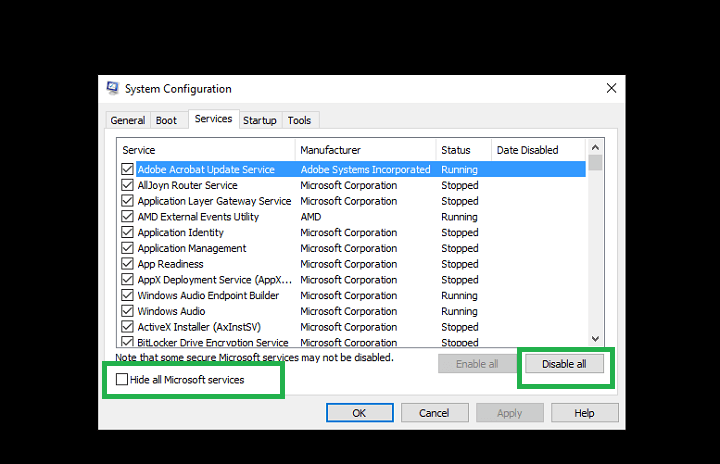
  • Go to the search box
  • Type msconfig
  • Select System Configuration
  • Find Services tab
  • Select Hide all Microsoft services box
  • hide all microsoft services windows 10
  • Click Disable all
  • Go to Startup tab
  • Click Open Task Manager
  • Close Task manager then click Ok
  • Reboot your computer

You will have a clean boot environment after all these steps are carefully followed, after which you can try booting your computer again.

Didn’t help? Try the next solution.


Solution 3: Perform Automatic repair from WinRE

If you still experience the issue with the Startup Repair tool, try booting from Windows 10 media then perform Automatic repair from Windows Recovery Environment (WinRE).

In order to perform Automatic repair, do the following;

  • Insert a USB or DVD
  • Restart your computer
  • Press F12 on your computer to open Windows Setup
  • Select the drive you inserted your USB or DVD into
  • Click Next
  • Choose Repair your computer
  • A blue screen will come up with options
  • Choose Troubleshoot
  • Select Advanced options
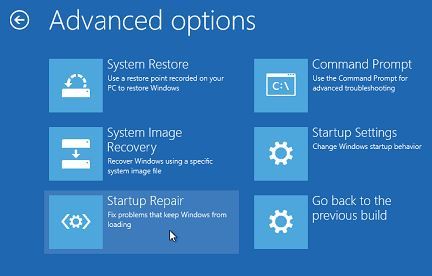
  • Choose Startup Repair (or Automatic Repair) from Advanced boot option

Operating system version is incompatible with Startup Repair

Once the repair is complete, try booting your computer again to see whether the issue persists.

RELATED STORIES TO CHECK OUT:

Mouse Without Borders: How to Download and Use

Microsoft Garage is a great Microsoft project that brings a lot of interesting Windows applications. Microsoft developers develop applications like Mouse Without Borders, making them much more trustworthy and better optimized.

Compatibility is not an issue for a program as useful and well-designed as Truong Do’s Mouse Without Borders. But there have been some issues with Windows 10, though these are fixable. Keep reading to find out!

What is Mouse Without Borders?

Mouse Without Borders is a great and simple freeware KVM (Keyboard, Video, Mouse) tool that covers one too often neglected function. It employs a single mouse and keyboard for up to 4 different computers or other computing devices.

Now, one could assume that this isn’t exactly a novelty, but there’s a catch. With the Mouse Without Borders app, you can transfer files across PCs in a seamless manner as all connected devices share one clipboard.

You’ll need to configure one host PC and ensure that others share the same wireless or LAN network. That’s quite a simple procedure, and you don’t need to be a tech-savvy user to get things working.

mouse without borders in windows 10

The user interface is as well-designed and combined with detailed instructions. You’ll have an easy time learning how to take full advantage of Mouse Without Borders and multiple interconnected devices. And all of that on various Windows versions that you can combine (only Windows for now, though).

Nonetheless, the ”Windows versions” part is also where the problems start. Namely, this program (believe it or not) doesn’t support Windows 10.

At least, not officially. As we can confirm, the developer provided an alternative in Windows Store, but, as stated by some users, the desktop version is better in many aspects.

mouse without borders in windows 10

Now, it seems that it works well, but there are minor problems, especially when users combine different systems, e.g., Windows 10 as a host and Windows 7 as a slave.

So, how can Mouse Without Borders work in Windows 10 without minor issues like in Windows 7? We have a few ideas, so check them out below.
How do I run Mouse Without Borders on Windows 10?

  1. Download Mouse Without Borders.
  2. Run the setup and follow the on-screen instructions to complete the installation process.installer
  3. Right-click on the application’s launcher and select Properties.
  4. Navigate to the Compatibility tab.
  5. Now, tick the Run this program in compatibility mode for checkbox, and select Windows 7 from the dropdown menu.compatibility mode to run mouse without borders
  6. Once done, click on Apply and OK to save the changes.

Some users managed to use Mouse Without Borders with some peculiar workarounds. Namely, you’ll need to keep a surplus mouse plugged in on Windows 10 PC for the application to work. Furthermore, you can try and run the application in a different compatibility mode.

Repeat this procedure for all Windows 10-powered PCs you want to connect. Additionally, you can run Mouse Without Border as an administrator, which might improve the overall performance.

Besides, do not forget to check some of the best customization apps for Windows to reconfigure things.

Have you tried Mouse Without Borders? What’s your favorite KVM application for Windows 10? Tell us in the comments section below.

New security report pegs Microsoft Edge as the safest browser against phishing attacks

Ever since Microsoft Edge was released, the browser has been battling out with the other browsers including Chrome and Firefox. The Edge browser initially faced a lot of criticism for lack of features but the recent builds have improved greatly.

Yes, the extension collections on the Edge browser is not really exhaustive and this is one aspect that might make you abandon the browser.

Edge browser Android iOS

All said and done the Edge browser has often been lauded for its security features. Cyber security consultancy firm NSS Labs has published a Security Comparative Reports on the web browsers and the report has pitted the browsers against each other to test their resistance against a phishing attack.

A phishing attack is when a hacker attempts to take hold of sensitive information like bank credentials, usernames and other data for personal or monetary gains.

Usually, the attacker wears the guise of a trustworthy entity or will employ social engineering tactics. Phishing has been one of the most infamous methods of obtaining information and as per Microsoft, the annual impact of phishing is pegged at US$5 billion.


As per the report, Microsoft Edge is better than Chrome or Firefox when it comes to the phishing attack. The report has studied in 36,120 different instances wherein 1,136 suspicious URL’s were opened in a span of 23 years.

Microsoft Edge successfully blocked 92.3% of the phishing attacks while Chrome and Firefox managed to block 74.6% and 61.1% respectively.

Zero-day threats are released even before the security patch is released. Even in the zero-hour protection test, the Edge Browser could ward off 81.8% of the attacks as opposed to the 58.6% for Chrome and 50.7% for the Firefox. Microsoft Edge also has a better reaction time when it comes to warding off the attacks.

The Microsoft Edge browser has come a long way and even as we speak the browser is being updated for the new feature. I have used personally used the Edge browser and apart from being fast, it has also helped me save on my laptop battery.

Do you use Microsoft Edge as your primary browser? Let us know your thoughts in the comment section below.

RELATED STORIES TO CHECK OUT:

Microsoft adds Follow Me guided navigation for Windows 10

Windows 10 users usually rely on the Tips and Get Started apps to provide furthe guidance for getting around the OS and configuring its settings.

However, a new video leaked by a reliable tipster highlights that’s about to change with the addition of Follow Me to Cortana. Although nothing has been officially announced, the video highlights how guided audio navigation may become a new feature for Windows 10.

Cortana is the virtual assistant included with Windows 10 and Microsoft has enhanced that app in previous updates. Follow Me could be the next new Cortana feature, providing audio and visual prompts to guide a user on how to configure various settings in Windows.

They would be something like screencast tutorials for Windows, except that you don’t need to open any videos to launch them.

Follow Me improves guided navigation on Windows 10

The YouTube video includes one example of the Follow Me guided navigation. In it, Cortana provides details for how you can connect a Bluetooth device with Windows 10 via the Settings app.
Follow Me guided navigation includes a blue circle and red rectangles to highlight the cursor and other options.

Cortana’s Follow Me is comparable to Guided Help in that it appeared in pre-release builds of Windows Vista. Vista’s Guided Help option also had a Show me step-by-step option that showed users where to click. It looks like Microsoft is resurrecting Guided Help in Windows 10 with Follow Me.

When Microsoft will add Follow Me to Windows 10 is somewhat unclear. The Windows 10 Fall Creators Update rolling out this October probably isn’t going to include any last-minute surprises. However, Follow Me could be a part of a spring 2018 update.

Cortana’s Follow Me could be a great new addition to the virtual assistant’s repertoire. Cortana is becoming an ever more essential part of Windows 10, and with Follow Me the app will provide invaluable guided navigation for new users.

How to download and install Windows 10 Fall Creators Update

Microsoft finally releases the freshest major update for Windows 10, the Fall Creators Update, on October 17. When the rollout officially starts, millions of Windows 10 users around the world will get the new version of the system. As there are multiple ways to obtain the new update, you can pick one that suits you.

How to download Windows 10 Fall Creators Update

There are two legitimate ways to obtain the Fall Creators Update. And you’re probably familiar with both of them. Of course, we’re talking about updating through Windows Update and manually installing the update. And in case you’re not sure how to download it, we’ll be talking about it in a bit.

System requirements

But first, let’s quickly check the system requirements. System requirements haven’t changed since the Creators Update. So, if you’re running the current latest version of Windows 10, you’ll also be able to run the Fall Creators Update. Here’s the complete list, as a quick reminder:

  • Processor: 1GHz or faster processor or SoC
  • RAM: 1GB for 32-bit or 2GB for 64-bit
  • Hard disk space: 16GB for 32-bit OS or 20GB for 64-bit OS
  • Graphics card: DirectX9 or later with WDDM 1.0 driver
  • Display: 800×600

So, if you’re a ‘regular’ user you probably won’t have any problems downloading and using the Fall Creators Update. But, if you want to exploit the full potential of Windows 10 version 1710, you’re going to need much more than just minimum system requirements.

Of course, we’re talking about Mixed Reality and 3D objects. Which are, more or less, the main highlight of the Fall Creators Update. To check if your computer is ready for Mixed Reality, download official Microsoft’s tool which will tell you exactly that.

Install through Windows Update

The most popular, easiest, and straightforward way to install Windows 10 Fall Creators Update (and just about any other update) is through Windows Update. If you choose to install the new update like probably 90 percent of other users, you’re choosing the easy path. All you have to do is go to Settings > Update & security and check for updates.

As soon as the Fall Creators Update becomes available in your region, the download process will start automatically. Just wait for everything to download and install, restart your computer, and follow further instructions. After the process is finished, you’ll end up with the freshly installed Fall Creators Update on your computer. As simple as that.


But knowing the nature of Windows 10 and its updates, there’s a chance you won’t be getting the Creators Update on the very first day of its availability. We’re not going to discuss reasons, as there are a couple of them. But if you don’t want to wait for the update to eventually appear in Windows Update, there’s another way to install it.

Install Manually

As soon as Windows 10 Creators Update becomes available, Microsoft will also release installation files. You’ll be able to obtain them from Microsoft’s site (link still unavailable). You’ll get the installation files in form of a Media Creation tool. When you start the tool, you can choose whether you just want to download the ISO file, and mount the USB later, or create an installation media right on the spot.

If you’re not sure how to perform the whole process, you can check out our article about installing Windows 10 Creators Update manually. The procedure is pretty much the same.

That’s about it. We hope you’ll get the Creators Update on time and that it will serve you well. If you have any questions, just let us know in the comments section below.
RELATED STORIES YOU NEED TO CHECK OUT:

Microsoft adds two new members to its board of directors

Microsoft announced yesterday two new additions to its board of directors, Penny S. Pritzker, founder and chairman of PSP Capital and Arne Sorenson, former U.S. Secretary of Commerce. These nominations follow the appointment of Hugh Johnston, vice chairman and chief financial officer of PepsiCo last month.

The new board members will be presented for election at the company’s annual shareholders meeting on Nov. 29, 2017, when ValueAct Capital President G.Mason Morfit will also leave the board. “Penny and Arne are both strong leaders with impressive accomplishments and contributions that span business and public service,” said John Thompson, independent Microsoft board chairman. “They will serve as valuable additions to the board.”

With these two additions, Microsoft’s board of directors will soon have 14 members including Reid Hoffman, LinkedIn co-founder and partner at Greylock Partners, Microsoft co-founder Bill Gates and CEO Satya Nadella. You can learn more about Board of Directors members on Microsoft’s website.

The process is not in background processing mode [Fix]

System errors can appear on almost any PC, and one of those errors is ERROR_PROCESS_MODE_NOT_BACKGROUND. This error comes with The process is not in background processing mode error message, and today we’re going to show you how to fix it.

How to fix ERROR_PROCESS_MODE_NOT_BACKGROUND?

Fix – ERROR_PROCESS_MODE_NOT_BACKGROUND

Solution 1 – Restart the problematic services

According to users, this error appears while trying to download software updates in ConfigMgr. If you’re experiencing this error, you might be able to solve it by restarting certain services. To do that, follow these steps:

  1. Logon to the ConfigMgr server or WSUS server.
  2. Press Windows Key + R and enter services.msc. Press Enter or click on OK.
  3. Services window will now appear. Locate Background Intelligent Transfer Service and stop it. To do that, right click the service and choose Stop from the menu.
  4. Disable Windows Update service as well.
  5. Minimize the Services window.

  6. Press Windows Key + R and enter %appdata% press Enter or click OK.
  7. Navigate to the MicrosoftNetworkDownloader directory. Locate and delete qmgr0.dat and qmgr1.dat files.
  8. Navigate to C:Windows directory, and delete the SoftwareDistribution folder.
  9. Go back to Services window and start Background Intelligent Transfer Service and Windows Update services.
  10. Open the ConfigMgr console and click on Software Updates > Software Repository > Run Synchronization.

After doing that, you should be able to download software updates without any problems. If the problem still persists, some users are recommending to edit Anonymous Authentication for the IIS website. Simply change it from Specific User to Application pool identity and the problem should be fixed.

Solution 2 – Change the deployment settings

Users reported this error while trying to deploy an update with SCCM. According to users, you might be able to fix this problem by changing your deployment settings. Simply change Deployment settings from Download software updates from Internet to Download software updates from a location on my network. After that, you just have to point to the file share that uses WSUS and the update should be downloaded without any problems. This solution applies only to SCCM users, so if you’re not using it you should skip this solution.

Solution 3 – Export the public key

If you’re using ePO and you’re having this problem while trying to perform UNC pulls, you might want to try exporting the public keys. According to users, you just have to export the public key from third-party ePO server and install it on your ePO. After doing that, the issue should be resolved completely. This is an advanced solution, so if you’re not familiar with ePO servers you should skip it entirely.

Solution 4 – Update the Sophos UTM exceptions

This error usually appears when trying to deploy an update with SCCM. According to users, you can fix it simply by updating Sophos UTM exceptions. After doing that, you should be able to deploy updates without any problems.

Solution 5 – Configure your proxy

Many users use proxy to protect their privacy online, but sometimes your proxy can interfere and cause this and other errors to occur. This error appears while using SCCM and it can prevent you from downloading update packages from WSUS. To fix the problem, you just have to configure proxy to bypass the local addresses and the problem will be resolved.

Solution 6 – Enter your proxy credentials

Users reported this error message while using SCCM server and proxy. According to them, you can avoid this error simply by logging in to the SCCM server and opening your browser. After doing that, you just need to enter your proxy credentials and everything should be in order.

Solution 7 – Recreate your repository

If you’re getting this error while using ePO, you might be able to solve it by deleting the whole repository and recreating it. Several users reported this error, but they were able to solve it by deleting and recreating the repository. After doing that, the problem should be resolved entirely.

The process is not in background processing mode error message can cause some problems, but you should be able to fix it by using one of our solutions.

READ ALSO:

Fix: Windows Resource Protection could not start the repair service

Windows has several mechanisms for protecting itself from malware and other security threats.

It’s a well-known secret that the registry values are compromised in most of the cyber attacks. It is for this reason that Microsoft has something called as Windows Resource Protection, a tool that protects registry keys and folders apart from the critical system files.

In cases where the Windows Resource Protection file is missing or corrupted the Windows will not work as expected. The System File Checker tool can be used to scan for errors and repair the computer however if the WRP file is missing then even the SFC tool cannot be run.

Why is my PC showing ‘Windows Resource Protection could not start the repair service’?

The Windows Resource Protection works in tandem with a service called Windows Modules Installer. The Windows Module Installer has complete access to the WRP.

In this case, when we try to run the WRP resources the Windows Module Installer is disabled and this the error ‘Windows Resource Protection could not start the repair service’ will be displayed.

At this juncture, I would also like to mention that the SFC service sometimes needs to be run multiple times or in safe mode.

How to fix ‘Windows Resource Protection could not start the repair service’ error?

One can fix the WRP error by following the steps below,

  • Press Windows key+R in order to open a Run box. Now type “services.msc” in the box and then click OK.
  • Once the Services window is open find the “Windows Modules Installer” and double click on the same.

Windows Modules Installer

  • In the next step, the properties pane opens and its here that you need to select “General”
  • Go to the “Startup” type drop down and select the “Manual” option. Before exiting click on “Apply” and “OK” to save the settings. Now you can exit the services Window.
  • Now one needs to open the CMD by searching for the same in the Start Menu. Right-click and select the “Run as administrator.” If prompted by User Account Control click on Yes.
  • Once the CMD window is open click the commands listed below and don’t forget to press “Enter” after each line.

sc config trustedinstaller start= demandnet start trustedinstaller

net start trustedinstaller

Now try to run the sfc.exe on the Windows and everything should work as intended. As an alternative approach, you may also use tools like Reimage which will repair the Windows file corruption in a single click.

RELATED STORIES TO CHECK OUT:

Microsoft compares AWS and Azure in new Cloud Service Map

Today, Microsoft released a cloud service map showing users why they should choose Microsoft Azure over Amazon Web Services (AWS). The cloud service map goes over the cloud capabilities of Azure and AWS in all categories. Depending on what service, you choose, Microsoft shows what you need ot keep in mind when choosing either available cloud service.

Microsoft, AWS, Amazon, Azure
Excerpt from the Compute Section from the Cloud Service Map for AWS and Azure

The cloud service map lays out 13 areas that pits AWS against Microsoft Azure and shows the pros and cons of each cloud service. Here are the 13 areas that the cloud service map covers.

  1. Marketplace
  2. Compute
  3. Storage
  4. Networking & Content Delivery
  5. Database
  6. Analytics and big data
  7. Intelligence
  8. Internet of Things (IoT)
  9. Management & monitoring
  10. Mobile services
  11. Security, identity, and access
  12. Developer tools
  13. Enterprise integration

Microsoft provides a very informative cloud service map to help you make the choice that is right for your organization.

The Turing Test & Medal of Honor: Airborne now free for Xbox Live Gold members

We’re about halfway through the month of October, which means a new set of games have just gone free for Xbox Live Gold subscribers. Gamers can now grab up The Turing Test & Medal of Honor: Airborne for free for a limited time with their membership.

The Turing Test:

The Turing Test is a first person puzzler that explores the phenomena of consciousness and challenges the meaning of human intuition. Take control of Ava Turing, an engineer for the International Space Agency (ISA), and progress through a narrated story of introspection and morality whilst uncovering the hidden mysteries of Europa. Delve into The Turing Test’s human interaction puzzles and arm yourself with logical and methodical thinking. Take on tests designed in such a way that only a human could solve them. In an evolving story based on mankind’s inherent need to explore, protect and survive; players search deeper into Europa’s ice crusted core and transcend the line between man and machine.

Medal of Honor Airborne:

Take to the skies in Medal of Honor Airborne, where your choices will turn the tide of WWII. Starting with your jump from a C-47, every choice you make can seal your fate. In the air, control your parachute to select the landing spot that brings you the greatest strategic advantage. On the ground, explore the open, vertical environment for positions that will provide you a tactical edge against your enemies. Then, head onto Xbox LIVE for furious multiplayer battles in three different modes, including all-new Airborne modes! You decide where to drop, you decide how to fight. It’s a different war every time.

Valued at $40, these are two good games to play on your Xbox One. Let us know in the comments which games would you like to see go free next month.

Microsoft highlights several Fluent Design System components in new video

Last week, Microsoft held its second Windows Developer Day where the company highlighted everything that’s new for developers in the Fall Creators Update. One of the big theme of the event was Fluent Design, Microsoft’s new design language for Windows 10 which is already visible in the Windows Shell as well as several stock Windows 10 apps.

Yesterday, the company published the following video on its Windows Developer channel to showcase several Fluent Design System components (via Neowin): beyond the “acrylic” transparency effects, you can see the “Reveal” lighting effects when the mouse is over the desired areas, and there are also some cool parallax scrolling effects in some apps such as Photos and MSN News.

Microsoft previously explained at Build 2017 that Fluent Design will evolve and become more complex (and hopefully prettier) in future major Windows 10 updates. It’s now up to developers to embrace Fluent Design in their Windows 10 apps, and you can learn more technical details about the new design language by checking all videos from last week’s Windows Developer Day.