The next Xbox Live Sessions will feature James Corden and FIFA 18

Microsoft has announced that the next Xbox Live Sessions will feature James Corden, host of the host of The Late Late Show. Corden will be playing FIFA 18, and viewers definitely are in for some jokes and humor during the entire session.

As usual, the session will be hosted on the Xbox Mixer Channel, this time on Sunday, September 24 at 12:00 PM PDT. Xbox fans will also have a chance to get an early look at the game before it launches on September 29th, ask Corden questions, or enter to win codes for FIFA 18 and EA Access.

Aaron Greenberg, GM of Games Marketing at Xbox, remarked on having Corden as a guest.

Xbox One is the only console with EA Access, which allows fans to play FIFA 18 first starting today and what better way to celebrate that than with James Corden who will undoubtedly entertain fans globally during his Xbox Live Session,”

Previous guests for Xbox Live Sessions included DJ Khaled and Marlon Wayans. Microsoft is saying that other guests will be doing Xbox Live Sessions soon, including athletes, actors, and some of the best musical talent.

Microsoft Teams previews Dial In Conferencing

Earlier this month, we learned that Microsoft was preparing to upgrade Skype for Business users to Microsoft Teams, a transition that would be opt-in while the company continues to enhance the Microsoft Teams experience. There are definitely a lot of synergies between the two products, and a new feature that lets users join Microsoft Teams Meetings using their Skype for Business dial-in number is apparently in public preview.

credit: Jeff Brown.

After creating a new Microsoft Teams Meeting yesterday, Skype for Business Technical Consultant Jeff Brown spotted the dial-in conferencing information in the meeting description, with a new “Join by Phone” section including dial-in number and conference ID details. When a participant joins the Teams Meeting using PSTN, he will be identified by his phone number in the participant list, explained Brown.

credit: Jeff Brown.

“The dial-in conferencing is a welcome feature and only goes to show that Microsoft Teams is rapidly taking on Skype for Business features,” shared Brown in a blog post yesterday. “One noticeable feature missing from meetings is the ability to dial-out or the “call me at” feature to dial out to a phone.” Despite the Dial In Conference ability being in public preview, it looks like Microsoft has yet to officially announce the new feature. There are a couple of Ignite sessions dedicated to Microsoft Teams and Skype for Business next week, and we expect to learn more about dial-in conferencing in Teams on this occasion.

Marvel vs. Capcom: Infinite now out on Xbox One in most regions

Marvel vs. Capcom: Infinite is now available to play on the Xbox One family of consoles in all major regions. The game is the latest in the popular Marvel vs. Capcom fighting franchise and features a new art style, new characters, and the complete removal of any character whose movie rights currently belong to FOX. Here’s the official description, shopping link, and trailer:

The epic clash between two storied universes returns with Marvel vs. Capcom: Infinite, the next era of the highly revered action-fighting game series. Marvel and Capcom universes collide like never before as iconic characters team up for action-packed player-versus-player combat. Ultron Sigma has begun the systematic eradication of all biological life. Against all odds, heroes arise from the rubble, form new alliances and stand together against the ultimate threat, their only hope laying with the all-powerful Infinity Stones.

Buy Marvel vs. Capcom: Infinite on Xbox One

Have you played Marvel vs. Capcom: Infinite and would you recommend it to others? Let us know why or why not in the comments. Did it meet your expectations?

Enhance Scoria Gaming Headset Review

The Scoria Gaming Headset is a relatively new headset designed for gamers. It boasts 7.1 audio for a more immersive gameplay experience and also features a built-in mic for multiplayer chat or online streaming.

Due to its USB connectivity, the Scoria Gaming Headset unfortunately isn’t compatible with Microsoft’s Xbox One family of consoles however it works perfectly fine on Windows 10 PCs and impressively sets itself up automatically within minutes after the initial connection is made. No manual installation of software is required to get it running.

An Impressive 7.1 Surround Experience

When it comes to sound quality, the Scoria really impresses with a clear separate focus on each individual audio channel that effectively creates a truly immersive experience when playing supported games or watching a movie or TV show. The bass, while not the deepest, works completely fine and few will find much to complain about here.

LED Lightshow

Arguably the main feature of the Scoria Gaming Headset is its LED lighting which can be set as either one of five available color options or left to cycle through the spectrum on an automated basis. The lights aren’t as bright as most would expect when turned on in a well-lit environment though which could disappoint some users who play games with the lights turned on. They really are designed to be used in a dark room while playing games on a PC and they suit this situation just fine.

Comfort Level & Practicality

The Scoria Gaming Headset is fairly well designed with both of its earpieces fitting into place comfortably. Its double-headband (or whatever you’d call it) creates a form factor that quickly and conveniently adjusts to the user’s head size automatically without requiring any trial-and-error manual fixing as is the case with most rival headsets.

The headset’s microphone is also worth mentioning due to its ability to extend to a fully-functional mic form or be quietly pushed back into the left earpiece when not being used.

What lets the Scoria Gaming Headset down is its weight which is surprisingly heavier than one would expect. At 14.4oz (or 408g for everyone not in the U.S.A.), the Scoria is the heaviest of Enhance Gaming’s headsets and it definitely feels like it. It’s not heavy enough to cause any neck pain or be made unusable but it does cause a strain when looking down or when sitting in any position that isn’t completely upright. This extra weight appears to be a side effect of the metal headband which, while making the overall device look cool, does make it heavier than it should be. This may be a headset worth trying on in a store before buying.

Overall Impressions

The Scoria Gaming Headset is fantastic value for its current price (under US$50) with its very solid 7.1 surround sound experience that really elevates the gaming and movie-watching experience on a PC. The customizable LED lights are a very attractive feature that could be a major selling point for many gamers though will likely appeal more to those who stream on services such as Twitch and Mixer due to their added visual flair. Worth checking out.

Available on Amazon & Enhance Gaming

Microsoft Band sign-in issues: 5 easy ways to fix them

Nowadays, maintaining a well-balanced and healthy life can turn out to be a real challenge. Balancing our working hours and the remaining time of the day to take care of our daily problems is a difficult act. But, as it should be, the goal is to build a healthy lifestyle – we must protect our body in order to keep our mental and emotional balance.

Now, there are a few ‘tricks’ to use for ensuring that you achieve this balance every day. And such solution is the Microsoft Band, a gadget that can help you exercise wisely every day. The best thing is that the Microsoft Band can be paired with your smartphone, so you can apply your own exercise regimen whenever you wish to. Of course, there are dedicated Microsoft Band apps available for the major OS platforms that are currently available on the market.

However, the purpose of this tutorial is not to review the Microsoft Band but to show you how to troubleshoot a common problem that recently affected many users: the sign-in issue. Apparently there is a small glitch within the Microsoft Band app (regardless of the OS platform you are currently using) that is stopping the usual sing-in process.

Don’t worry, since we are talking about a soft-related bug, there are different solutions that can be used in order to easily fix the already discussed issue. Now, if you haven’t already experienced this problem, here is the main behavior: you open the Microsoft Band app and you enter your sign-in details (the Microsoft ID and your personal password) and instead of being prompted with the actual app interface you get a white screen that says “We’re logging you in to your Microsoft account”, which enters into a loop state. So, you basically never get to use the Band app on your smartphone or tablet.

If you get this sign-in error, you shouldn’t panic. This is not a hardware problem but a software issue which can be easily addressed with the help of some easy steps, which are explained in this tutorial.

How to fix Microsoft Band sign-in problems

Solution 1 — Uninstall and re-install the Microsoft Band app

As usual, the first thing to do should be a fresh start. So, uninstall the app from your handset and re-install it afterwards. This should fix any bugs that are related with blocked processes that run in the background or any other compatibility problems. The uninstall / install operation should only take a few moments so you can re-try the sign-in sequence within minutes.

Solution 2 — Disable Bluetooth, restart and unpair

Another way in which you can try to fix the Microsoft Band sign-in problem is by trying to reconnect the Band to your phone and to the mobile operating system that is used. You can do that easily by disabling the Bluetooth connection, by unpairing the app from your device and by rebooting your handset when done. Eventually, you will have to reinstall the app and reconnect it with your handset via Bluetooth.

Solution 3 — Clear app data cache and wipe dalvik cache

If you are still having troubles while trying to sign-in into the Microsoft Band app, you should also try to clear the cache from your device. In this way, you can make sure that there aren’t any processes related with the Band still running on your handset after you remove the software. By clearing cache you can afterwards obtain a clean install of the app, thus you can refresh the sign-in processes.

Solution 4 — Reset the Microsoft Band

Up until now we applied solutions that weren’t aiming the Band. But, a reset might also help you troubleshoot all the issues. You can choose to restart your Microsoft Band by following:

  1. Press and hold the Power and the Action buttons at the same time – after 3 seconds you will get the ‘turn power off’ message.
  2. Swipe left and tap on ‘yes’, or just keep pressing the already mentioned keys for about another 8 seconds.
  3. Eventually the screen will be flashed red. You can now release the buttons for initiating a quick restart, or you can keep pressing the keys for a few more moments in order to completely turn off your gadget.
  4. When done, press on the Power button in order to power-on your Microsoft Band.

The reset process can be done differently, by using the built-in settings as it’s showed below:

  1. On your band tap on the Settings icon.
  2. Navigate towards Power.
  3. Swipe left and choose ‘factory reset’.
  4. Tap on ‘reset device’.
  5. When asked about ‘erase all data’ choose ‘yes’.

Of course, after you apply the reset you need to set up the Microsoft Band again – reestablish the Bluetooth connection.

Solution 5 — Wait for a new update

The sign-in problem might appear after an update. If that’s the case, troubleshooting solutions listed in this article won’t work for you. You might have to wait for a new official update – then, all the issues will be automatically fixed. Anyway, just make sure that you are using the latest version of the Microsoft Band app and that everything is up to date on your smartphone.

Conclusions

Hopefully, the guidelines from this tutorial helped you to fix the Microsoft Band sign-in problems. We will update this step by step guide as soon as we find new solutions that could work for you.

2 Quick Ways to optimize Windows 10/11 startup

Windows as an operating system is not exactly known for its fast boot times.

In fact, Windows will start getting sluggish after usage of a year or two. The issue with Windows is that it needs doses of maintenance laced with the latest updates.

That being said, there do exist a couple of ways by which we can make the Windows boot faster. In this segment, we will walk you through all the possible methods that can be employed for a faster Windows machine.

How to speed up PC startup

1. Access Windows 10 Start Manager

optimize Windows 10 startup

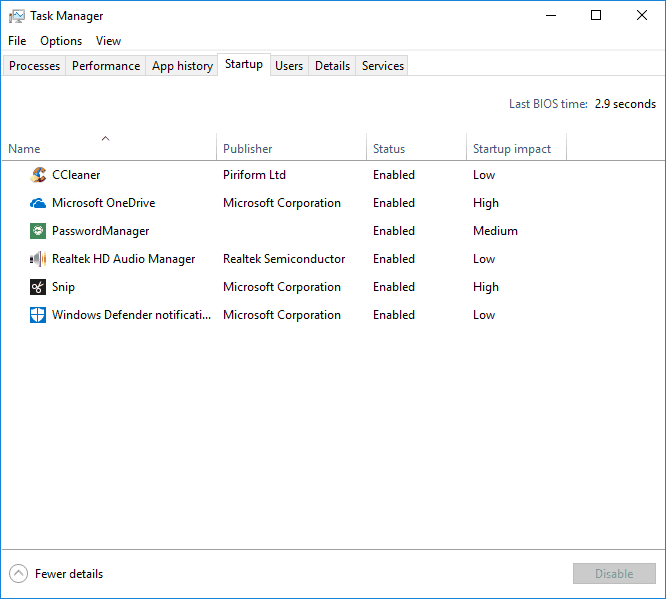
Start Manager is a subset of Task Manager and the former allows you to choose all the apps that need to be started during a boot. The best approach is to activate only a couple of apps for startup and use the rest when needed.

In order to access the Startup Manager go to Taskbar > Right Click > Task Manager.

At first, the processes page will be opened post where you will find the ‘Startup Tab’ on the right-hand side. Clicking on the Startup tab will show you all the programs that are consuming the computing resources during boot.

Thankfully Windows also has a Startup Impact Column that shows the impact of the programs and thus will eventually help you decide between the apps.

Please note that some of the apps are labeled “Not Measured”. this means that Windows 10 doesn’t have sufficient data to measure the impact of that particular program.

Select all the programs you wish to shut down during boot. Click on the program and then select the “Disable” button at the bottom of the dialog box.

Also, use your discretion to shut down some of the manufacturer preinstalled programs as its very likely that you won’t be needing them. If you need more information about any of the programs simply right-click and select search online.

2. Enable Fast Windows 10 Startup

  1. Open Power Options by typing “Power” in the search bar and select the best results.
  2. In the next menu select the following option, “Choose What the Power buttons do.”
  3. In case of the grayed-out menu select “Change settings that are currently unavailable” from the top section of the menu as shown in the figure above.
  4. The last step is to tick the box against the option “Turn on fast startup (recommended)” and most importantly don’t forget to click on “Save Changes.”

If you want to have a Windows PC that boots relatively faster then this is the best bet for you. The Fast Startup intelligently kills the programs that are not needed during a boot and thus speeds up the entire boot process.

The Fast Startup stores all the required system files including those of the Windows Kernel and device drivers in a master file and loads the same into the RAM while rebooting.

So what happens, in this case, is that all the applications are shut down and yet the user will not lose any data.

In order to improve the startup process on your PC, there is effective repair software capable of detecting current system issues and speeding up overall performance.

That being said the Fast Startup has its own downsides, for instance, it can potentially cause problems if your machine is set up to dual boot.

In some cases, especially with dual-boot systems, the boot options might not appear as expected. Enable Windows Boot Manager to ensure your PC displays all operating system choices during startup.

We wouldn’t recommend the Fast Startup feature for advanced/power users however for general users it shouldn’t pose any problems.

One thing we have noticed after switching Windows 10 to Fast Startup is that the battery backup has also improved, though marginally. You can also improve startup time by going to the Startup folder on Windows 11 or 10 and removing all items from it.

Another piece of advice is to try and avoid storing files on the desktop, I know it’s convenient but also adversely affects the startup time.

On a related note, the temporary files also tend to slow down your system, so consider using programs like Wise Registry Cleaner or AVG TuneUp to clear the temporary files and also repair your registry.

Night Light not working in your download of Windows 10 Fall Creators Update? Here’s a fix

The latest version of Windows 10 Creators Update offered a slew of new features, with one of the most useful being the Night Light. This feature blocked the notorious blue light emitted by the display when evening sets in. Blue light is considered to disturb the circadian sleep cycle and will trick the brain into believing that it’s not nighttime yet. The quality of a person’s sleep is also adversely affected by blue light.

The feature has now made it to several smartphone operating systems and also other computer operating system alongside other blue light-taming apps like the much-acclaimed f.lux. In the recent past, Windows Insiders running the latest Windows 10 Builds have complained that a certain Nvidia update breaks the Night Light feature.

The worst part, however, is that the driver update is also breaking f.lux or another third party software that promises to filter the blue light. The culprit seems to seek refuge in the latest Windows 10 Fall Creators Update build 16288 which comes with Nvidia GeForce driver v387.68. The bad driver update has also caused stuttering during gameplay. That being said one can get the Night Light working by following the steps given below.

How to fix Night Light issues on PC

  1. Click on the Start
  2. Search for “Device Manager” and then press enter
  3. Expand Display adapters
  4. Select GPU option by double-clicking
  5. Click the Driver Tab
  6. Click Roll Back Driver, fill the corresponding feedback form that asks you for reasons to roll back
  7. Wait for some time and ignore the “Not Responding message”

With the driver rolled back the Night Light should start working just fine along with f.lux. Microsoft will surely iron out the issue but with the rollout date for the Windows 10 Fall Creators Update rollout nearing a lot is at stake.

RELATED STORIES TO CHECK OUT:

Microsoft joins Dell and General Dynamics in $1 billion contract to bring the cloud to the U.S. Air Force

Microsoft has joined General Dynamics and Dell in a contract with the U.S. Air Force, granting the collection of companies $1 billion to build a Cloud Hosted Enterprise Services (CHES) program. The program will be part of an ongoing effort by the United States Government to implement more cloud technology into their infrastructure, driving efficient and less costly work.

The program is meant to be rolled out to 776,000 users, and is planned to be ready to go in under a year. “The CHES contract extends the ability of the Air Force to collaborate across the enterprise,” explained Leigh Madden, General Manager for U.S. Defense at Microsoft. “We aren’t just delivering a secure productivity solution, we’re freeing up resources, so our airmen can focus on mission critical tasks,” he added. On top of the US Air Force, the CHES will also benefit the Defense Logistics Agency and the U.S. Army Corps of Engineers.

One of the biggest contracts that the U.S. Government has ever struck in terms of its communications technology, the design of the new CHES is something that can make serious leaps and bounds in the efficacy of the American government. Depending on how this works out in the long run, it could also mean that more aspects of the government will be moved over to the cloud for faster and less expensive operation.

Microsoft joins the Coalition for Better Ads

Microsoft announced in a blog post that the Redmond-based company has joined the Coalition for Better Ads. The Coalition helps provide a better, more streamlined online experience for consumers so that they are not inundated with online ads while browsing.

Here is Microsoft’s full statement:

“At Microsoft, we believe in supporting and collaborating with the online advertising industry to develop standards that make the digital ecosystem function better for consumers, marketers and publishers.

In this spirit, we are excited to announce that Microsoft has joined the Coalition for Better Ads (CBA). Through our advertising platforms, and our multitude of consumer services, we believe we can make an important contribution to improving and safeguarding advertising standards on the web.

Microsoft is committed to working with our industry partners and the Coalition for Better Ads to continue the development and implementation of standards that will have a positive impact on consumers and the entire online advertising community.”

By joining the Coalition for Better Ads, Microsoft wants to make sure its own ads platform, Bing Ads, stays within consumers’ rights and expectations for online advertising.

Windows 10 Creators Update improves quality, lowers customer support calls

Since Microsoft launched Windows 10 and “Windows as a Service,” Windows 10 users now get two major updates every year which bring several new features as well as under the hood improvements. And if the Windows 10 Fall Creators Update will start rolling to all users on October 17, Microsoft is describing today the current Windows 10 version (aka the Creators Update) as “the most performant and reliable version of Windows 10 ever.”

If the timing of the announcement is quite interesting, Microsoft penned a lengthy blog post to detail all the performance, battery life, reliability and security improvements introduced by the Creators Update. Highlights include the new power slider, which allows user to prioritize battery life over performance, and vice versa. Many stock Windows 10 apps such as Movies & TV, Outlook Mail and Microsoft Edge are now more battery efficient (though other browsers vendors may disagree).

If performance matters to you, Microsoft also shared the following data proving that Creators Update is significantly faster than the Anniversary Update:

  • Booting up your device is now 13% faster, and logging in after boot is up to 18% faster.
  • Unlocking your device with Windows Hello Facial recognition is up to 30% faster.
  • Microsoft Edge is also up to 53% faster in the Creators Update thanks to efficiency improvements that make scrolling pages and loading pages faster, and website rendering and interaction more responsive.
  • Two features used daily are the Start Menu and Windows Search, and we’ve improved both – the Start Menu opens faster, and we’ve optimized Windows Search performance.
  • For devices on which multiple users log-in (e.g., classrooms) the first user log-in is up to 47% faster in the Creators Update.

Microsoft also says that its close relationship with its OEM partners really helps to make Windows 10 more reliable across the vast ecosystem of devices running the OS. “With well over 400 thousand ecosystem drivers on Windows 10, we work closely with device manufacturers to test and ensure the reliability of their device drivers,” explained John Cable, Director of Program Management, Windows Servicing and Delivery. As a result, Microsoft claims that it saw a 18% reduction in users seeing certain system stability issues in the Creators Update compared to earlier versions of Windows 10.

Likewise, Microsoft and its OEM partners saw reduced customer support volumes since last year. “Our close collaboration with our ecosystem partners has resulted in a 39% total reduction in operating system and driver stability issues between the Anniversary Update and Creators Update,” explained Cable.

“By listening to user and partner feedback, we evolve Windows to make each quality update and each feature update better than the last,” added Cable. “It also assures we continue to keep Windows 10 the most reliable, performant and secure version of Windows ever.”  Overall, it seems that Windows as a service as come a long way since the days when Microsoft was aggressively pushing the Windows 10 update to Windows 7 and 8 users. AdDuplex recently noted that the Creators Update was rolling out to all users at a slower pace compared to the Anniversary Update, and it’s also worth noting that Microsoft no longer hesitates to delay major updates that are not fully baked (My People, Timeline, etc). Quality is always better than quantity, and Microsoft obviously agrees with that.

Would you also say that Windows 10 is becoming more reliable after every major update, or did you encounter any major issues after installing the Creators Update? Let us know what you think in the comments below.

Latest Windows 10 Maps app on Skip Ahead provides bus, ferry, train schedules, more

Microsoft has released an update for the Windows 10 Maps app for those who have opted to Skip Ahead (via Aggiornamenti Lumia.) The update is fairly minor but adds in bus, ferry, train schedules and more.

After updating, the latest version of the Windows 10 Maps app gets pushed to version 5.1708.2511.0. Other notable features delivered in this update are some Fluent Design elements, and user interface changes. A rough translation of the changelog for the update can be seen below.

  • It is now possible to check the schedules of Bus, Metro and ferries: Simply click or “tapping” on the icons that symbolize the vehicle and automatically you will see the list of all upcoming departures
  • Improvements with Fluent Design
  • Improvements and minor fixes
A look at the bus schedule (Image via Aggiornamenti Lumia.)

As has been the case in the past, you can expect for this update to roll out to the standard Windows 10 Mobile and Windows 10 Mobile users very soon. If you’ve already received this update on your device, let us know your thoughts by dropping us a comment in the section below.

Xbox Live trolls can now play in Overwatch multiplayer matches

Apparently, Overwatch is no longer governed by Xbox Live’s reputation system, allowing “Avoid me” players (AKA trolls) to be able to be put in matchmaking with anyone (via Reddit). As outlined in the Reddit post, Overwatch players will be all be grouped from the same matchmaking pool, regardless of reputation in competitive play.

The Reddit post comes after an Overwatch patch update yesterday (full patch notes available here), which includes a number of general, interface, and other updates that include the aforementioned “Avoid me” players on Xbox Live:

[XB1] Players whose Xbox Live reputation has been downgraded to “Avoid Me” will remain in the same matchmaking pool as other Overwatch players. However, they will no longer be able to use the in-game voice communication.

In other news, Overwatch will be free to play on Windows, Xbox One, and PS4 this weekend, starting September 22 and running until September 25, 2017. While Overwatch will be available free to play for Xbox Live Gold members in all regions, Windows 10 PC users will only be able to participate in the following regions: “Americas, Europe, and Asia gameplay regions—excluding Korea.”

Xbox One gamers with Xbox Live Gold memberships will be able to play as one of the 25 heroes available in Overwatch. There are also 4 different game modes and 16 different maps available to play, including:

  • Assault: Hanamura, Horizon Lunar Colony, Temple of Anubis, and Volskaya Industries
  • Escort: Dorado, Junkertown, Route 66, and Watchpoint: Gibraltar
  • Assault/Escort Hybrid: Eichenwalde, Hollywood, King’s Row, and Numbani
  • Control: Ilios, Lijiang Tower, Nepal, and Oasis

Any progress made in Overwatch this weekend will be saved and carried over if you decide to purchase the game. Xbox Live Gold members are also offered a special discount and can get Overwatch for $38.99, down from its regular price of $59.99!

Download Overwatch today from the Microsoft Store and get ready to start playing for free this weekend!

PepsiCo CFO Hugh Johnston joins Microsoft’s board, ValueAct’s Morfit to leave in November

Microsoft announced yesterday the appointment of Hugh Johnston, vice chairman and chief financial officer of PepsiCo, to its board of directors and to the board’s audit committee. The 56 years-old exec previously worked as a director and audit committee chair for Twitter Inc. and AOL Inc, and will bring his valuable experience to Microsoft’s board.

“Hugh is an accomplished financial and business leader who brings a depth of experience from his successful career at PepsiCo where he has oversight of finance, IT, e-commerce and the company’s digital transformation,” said John W. Thompson, independent Microsoft board chairman. “He is a great addition to Microsoft’s board of directors, and we look forward to working with him.”

Johnson’s addition is effective immediately and will make the board reach 13 members. However, the Redmond Giant also announced yesterday the upcoming departure of ValueAct Capital President G.Mason Morfit, who chose not to seek re-election to the board. Morfit will leave the board at Microsoft’s annual shareholders meeting set for Nov. 29, 2017. “Mason has been a valuable adviser at an important time in Microsoft’s transformation, and we are grateful for his contributions,” Thompson said.

The next Windows Insider Webcast is later today (9/20) at 10:00 AM PDT

Microsoft has revealed that the next Windows Insider Webcast will be later today on September 20th at 10:00 AM PDT. This webcast is set to focus on Microsoft’s flighting system and will feature familiar faces including Jason Howard, Program Manager on the Windows Insider Engineering Team.

For those who are unsure, 10 AM PDT is 5 PM in UTC, and you can convert this time to your specific time zone by checking here. The webcast is a great way to connect with the Windows Insider team and have them answer your burning questions about the company’s flighting system. As usual, you can watch on Mixer or check later in the day on demand if you happen to miss it live.

Microsoft last held a Windows Insider Webcast last month on August 29th, and it was focused on the mechanics of the Windows engineering systems. So, be sure to tune in again this time, as you no doubt will learn more about how the Windows Insider team works to get those new builds to your desktop!

Minecraft’s Better Together Update begins rolling out on Xbox One, Windows 10, & Mobile

It looks as if the beta for Minecraft’s Better Together Update has no finished and the full, proper, public launch of the new unified Minecraft is ready to rollout.

https://twitter.com/Chupacaubrey/status/910213343528419328

According to Mojang’s Aubrey Norris, the update has already begun to roll out to Xbox One consoles and will continue in waves throughout the rest of the week while the Windows 10 and mobile versions will update tomorrow. The Nintendo Switch version will apparently update later in the year as Mojang is still testing this new version on that console.

After the update has been installed, all versions of the game will be renamed as simply, Minecraft (i.e. no Minecraft: Windows 10 Edition-type titles), and a load of new changes will be implemented. You can read a comprehensive of what will be new here. The biggest new feature will be the ability to play with other players on different platforms. As long as they’re running the latest version of the game that is.

Minecraft will be getting another big update later in the year with its Super Duper Graphics Pack which will add 4K graphics and higher resolution imagery (pictured above).

Are you excited to play this new version of Minecraft? Let us know in the comments below.

Xbox 360’s Fable Anniversary is coming to Xbox One

Microsoft’s Phil Spencer has confirmed in a tweet that the popular Xbox 360 video game, Fable Anniversary, will indeed be coming to the Xbox One family of consoles via the system’s backwards compatibility feature. While no estimated release date was announced, Spencer did state that it’s being worked on right now so fans shouldn’t have to wait too long.

Fable Anniversary was a re-release of Fable: The Lost Chapters for the Xbox 360 and contained a variety of improvements such as better graphics and Xbox Achievements. The game came out relatively recently in early 2014.

Do you enjoy playing Xbox 360 games on your Xbox One via backwards compatibility? Let us know your favorites in the comments below.

USB Drive Not Mounting in Windows 10: How to Fix it

Have you ever tried to plug in your external USB drive to your computer, but it’s not mounting in Windows?

This can be problematic, especially when you urgently need the files saved in the drive or your drive is the only tool you have to save your files for use elsewhere.

The first instinct would be to unplug and plug it back through another port. However, if this doesn’t resolve the issue, then either your external USB drive has a problem, and if not, there are various solutions you can use to resolve it. Keep reading to find out!

What can I do if USB drive is not mounting in Windows 10?

Before we head to the slightly complex solutions, try these quick ones:

  • Restart the computer.
  • Unplug any USB hub connected to your computer and remove other devices.
  • Check for any pending updates from Windows Update.
  • If the external USB drive has a power switch, power it on.
  • Try your external USB drive on a different computer. If it still isn’t working, then the drive has a problem.
  • Sometimes Windows may ask you to format the external USB drive. Don’t do it yet because you may lose all your files. It is possible your drive was formatted on a different operating system, so you can either read it on a different OS or choose a third-party program to help you read its contents. Otherwise, if you don’t need the files, choose Format disk and proceed.

If none work, head to the fixes listed next.

1. Scan for hardware changes

  1. Right-click the Start button.
  2. Select Run.
  3. Type devmgmt.msc.
  4. The Device Manager will open, then select the USB entry.
  5. Go to the Action tab, and select Scan for hardware changes.scan or hardware change to fix usb drive not mounting windows 10

If this still doesn’t resolve the issue with your external USB drive, then the next solution.

2. Uninstall and reconnect the external USB drive

  1. Right-click the Start button and select Device Manager.
  2. Select Disk Drives.
  3. Right click on the problematic external USB drive, and click Uninstall device.uninstall device
  4. Unplug the external USB drive, then wait for about a minute and reconnect it again.

Once you do the above, the drive should load automatically.  To be sure it has been recognized, go to Windows/File Explorer and check for it.

3. Reinstall USB controllers

  1. Right-click the Start button.
  2. Select Device Manager.
  3. Find Universal Serial Bus controllers and click to expand it.
  4. Right-click on the device.
  5. Click Uninstall device.uninstall
  6. Rinse and repeat for all other problematic devices.
  7. Reboot your computer.

Once you do the above, the drive should load automatically.

4. Disable USB selective suspend

  1. Click on the battery icon from the taskbar and select Power and sleep settings.
  2. Click on Additional Power settings.
  3. Next to your current power plan, choose Change plan settings.change plan settings to fix usb drive not mounting windows 10
  4. Click on Change Advanced Power Settings.
  5. A pop up will appear.
  6. Find USB settings, and expand it.
  7. Expand USB Selective Suspend.
  8. Click on the drop down menu, and choose Disabled.disable to fix usb drive not mounting windows 10
  9. Click Apply, then OK.

Ensure you have a system restore point created first, and if these solutions do not yield any results, remember to restore your old settings back.

5. Update the drivers

  1. Right-click the Start button.
  2. Choose Control Panel.
  3. Under Hardware and Sounds, click View Devices and Printers.
  4. Your computer will start scanning for available devices.
  5. Check for any entry on any Unidentified USB device or Unknown Device.
  6. Open the Properties of the unknown or unidentified external USB drive.update
  7. Update the driver if there’s an update available.

6. Prevent computer from turning off device

  1. Right-click the Start button.
  2. Select Device Manager.
  3. Click on Universal Serial Bus Controllers to expand the list.
  4. Select the USB Root Hub for your drive.
  5. Right-click and select Properties.
  6. A popup box will appear. Navigate to the Power Management tab.
  7. Uncheck the Allow the computer to turn off this device to save power option, and click OK.disable setting

In case the USB drive is still not mounting in Windows 10, head to the next method.

7. Update the USB drive drivers

  • Right click Start button
  • Select Device Manager
  • Click on Universal Serial Bus Controllers to expand the list
  • See whether there are any devices with either a yellow exclamation mark, question mark, down-arrow mark, or an error notification or code.
  • If the driver has a yellow exclamation mark on it, double-click on it, then open Properties
  • Under Drivers tab, choose Update Driver, and follow the on-screen instructions to complete the process.update to fix usb drive not mounting windows 10

Perhaps your computer cannot identify or see the external USB drive, but it is visible on other computers. This indicates that something is wrong with your USB drive drivers. In this case, updating the drivers will do the trick.

And if the USB drive was not mounting earlier, it should be listed both under the Device Manager and File Explorer now.

Hope these solutions worked. But let us know your experience.

Something Went Wrong in Microsoft Office 2013: Error 30088-4

Error Code 30088-4 is a generic error that pops up when you try to install Office 2013. Oftentimes, You can’t fix this error by uninstalling Office and trying to install it again. Here you’ll find a few ways you can deal with it.

Something Went Wrong in Microsoft Office 2013 [FIX]

This error is particularly prone to happen on operating systems that have had Office installed on them before. Sometimes, the built-in uninstaller just doesn’t cut it; it doesn’t delete everything and leaves some files on your computer, and those cause issues on subsequent installs of Office.

Solution 1 — Completely uninstall Office using Microsoft’s tool

Thankfully, Microsoft has provided a tool that was specifically made to help you uninstall Office. You can follow these steps to download and use the tool:

  1. Download the tool from here.
  2. When it has finished downloading, double-click on it and open it.Uninstall Tool for Office
  3. Click on next on the first screen. Wait a bit until the next screen shows up that gives you a yes or no choice. Click on Yes to remove office.
    Click on Yes to remove Office
  4. Wait for the tool to do its job.

You should try installing Office again to see if the error code 30088-4 still persists. Hopefully, it won’t, but If it does, you should try the next method.

Solution 2 — Completely uninstall Office manually

Deleting all of Office’s files manually consists of many steps. But before we start, you have to make sure your computer displays hidden files and folders. Do so by following these steps:

  1. Open Start and search for File Explorer Options. Click on the first choice.
  2. Go to the View tab.
  3. Under Advanced Settings, you’ll two radio buttons. Make sure to select ‘Show hidden files, folders, and drivers’.
    Show hidden files and folders
  4. Uncheck the ‘Hide extensions of known file types’ checkbox and hit OK.
    uncheck hide extensions for known file types Error Code 30088-4

Now that you can see hidden files on your system, it is time to delete the ones related to Office.

Read also: How to run Microsoft Office Picture Manager on Windows 10.

Stop Office’s service

Microsoft Office has a service named Office Source Engine Service, and this should be stopped before proceeding further. It locks Office files on your computer, and if you attempted to delete them, your computer will only show a “File in use by another process” error.

  1. Search for Services in Start and select the option with a gear icon.
  2. After the Services window opens, search for Office Source Engine and right-click on it. If the Stop option is available, click it. If it’s not, that means it wasn’t running, to begin with, and you should move forward.Stop Office Source Engine Error Code 30088-4

Uninstall Office packages

  1. We first have to navigate to the Installer folder to delete all of Office’s installer packages. You can do this by simply copying this address ‘C:\WindowsInstaller’ and pasting it in your Windows Explorer’s address bar (note: this address may not work with some locales, in which case you should simply navigate to the folder).
  2. Open the View tab by clicking on (it’s on the top right corner). In the Layout section, you should make sure Details is selected. This will display more information about each file and help you locate the Office 13 ones.
  3. While still on the View tab, click on Add columns and then choose Choose columns.
    Choose columns photo Error Code 30088-4
  4. A window should pop up. Scroll down until you find an option titled Summary and check it.
  5. Before clicking OK, you should make sure that the Width of selected column (in pixels) box has a value over 350. This will help you see all of the summary, which is vital to know which files are the Office installers.Width of selected column photo Error Code 30088-4
  6. Sort the files by their summary by clicking on the Summary in the Column Headings.
  7. Find any file that starts with “Microsoft Office” and ends with “2013”. These are all related to Office 13 but don’t delete them by simply pressing the delete button. You must right-click on each one and select Uninstall.

Delete the leftover Office files

Depending on whether you are running A 64-bit version of Windows or a 32-bit, the locations you need to search will differ. The ‘(x86)’ part of each address is only required if you have a 64-bit system, and you should omit it if you have a 32-bit one.

  1. Navigate to “C:\Program Files (x86)\Common Files\Microsoft Shared”. This is the folder where Microsoft stores files of several of its flagship programs.
  2. Locate the folders “Office 15” (which is Office 2013‘s official version number) and “Source Engine” and delete both of them.
  3. Now, navigate to “C:\Program Files(x86)\Microsoft Office”. This folder is specifically for Office files.
  4. Delete the “Office 15” folder here too.
  5. Finally, You might find a folder named “MSOCache” at the root of each of your hard disk drives. Open each one and search for a folder named “All Users”. Type “0FF1CE}- ” in the search bar and delete everything that turns up.

You may need to repeat step 5 a number of times depending on how many drives you have. One time for each hard drive. 

Finishing touches

  1. Navigate to “C:\Users\[username]\AppData\Roaming\Microsoft”. You should replace [username] with your specific username on the computer.
  2. Open the templates folder and delete both Normal.dotm and  Welcome to Word.dotx files.
  3. Go back and then go into the Document Building Blocks folder.
  4. You’ll find a folder with four digits as its name. Open it and you may find a file titled ‘Building blocks.dotx’ delete it. If you didn’t find it, you may find a “15” folder. Open it and delete the Building Blocks.dotx there.

Delete Office keys in the Registry

A word of warning, deleting Registry keys is quite risky to do and you might make your computer unfunctional. You should attempt this as a last resort and make sure you backup your Registry before doing it.

  1. Open Registry by searching for regedit in Start.
  2. Navigate to “HKEY_LOCAL_MACHINE\SOFTWARE\Microsoft\Office15″. 
  3. Delete that folder and all of its keys.

Solution 3 — Use the offline installer

If you are using an online installer for your Office installation, switching to the offline counterpart might help. There are a lot of unknown variables like firewalls and ISP specific settings that might cause the error. The offline installer will eliminate those uncertainties and, hopefully, help you install Office successfully.

Conclusion

In this article, we looked at three ways you can deal with the stubborn error code 30088-4. We hope that as you are reaching this point in the article, your Office is happily installing without any issues.

Use the comments section below to tell us about the problems you’ve faced when trying to install Office, and whether this article helped you resolve the error code 30088-4, or if there was a method we overlooked and didn’t mention.

RELATED STORIES TO CHECK OUT:

pCloud: what it is and how to install it [Windows, Mac]

Are you looking for personal storage space for all your files and folders? Then pCloud is your friend.

pCloud is a personal cloud storage space where you can keep away all your folders, files, and any other documents.

What’s more, its interface is user-friendly and shows you where everything is located, as well as what each item does. Plus, you can get it on almost any device and operating system such as Windows (10, 8, 7, Vista and XP), or get it as a mobile app, or web extension (this is the latest feature on pCloud).

Once you install it on your computer or device, the app, which works pretty much like Google Drive, creates a well-secured virtual drive that enlarges your local storage space.

Each change made instantly reflects on your computer, or device, and synchronizes them so you can access any updates made.

Some of the main tasks you can fulfill with pCloud include:

  • Sharing files and folders

You get instant access to all your files and easily share with anyone (up to 150 times), anywhere in three ways:

  1. Share a link by creating a link to files or folders in your account and share the link. This works whether they have their own pCloud accounts or not. They can view and download your files.
  2. Invite others to a folder for collaboration. You can control who can edit or view files on your pCloud storage.
  3. Upload links by providing a link to your folders where others can upload their content to.
  • Instant file synchronization

You can sync all your files instantly between your computer, phone, and tablet using pCloud Drive, then sign in with the same login credentials across all the devices. If you have it already, every change you make is synced on all your devices so you can access from any device, anywhere, anytime.

Note: you need the app on your other devices in order to access and synchronize your files.

You can register for the app on your mobile device as well. When you install and launch it, you’ll either use an existing account or create a new one. This comes with most pCloud features and 10 GB storage space for free! You can only have one app installation per device, linked to a single account, which means you cannot use multiple accounts.

pCloud key features include:

  • Sharing download and upload links
  • File versioning
  • Data recovery
  • Upload your files and data remotely, or work offline (by adding your files to Favorites – click on the star sign next to your files, and you can use any files, photos, videos or audios while offline).
  • Preview documents while online
  • Restore files using Rewind feature
  • Have an extension for your HDD
  • Get detailed statistics for your shared links, including number of downloads
  • Save 5 copies of files on different servers, and you have an option for extra encryption
  • Automatic uploads of photos (including camera roll)
  • Create backups from various platforms such as Dropbox, Facebook, Instagram, OneDrive and/or Google Drive

Types of pCloud applications available

There are three types of applications available:

  • pCloud for Desktop
  • pCloud for Mobile
  • pCloud for Web

pCloud for Desktop

This can be used on almost any operating system including Windows. It creates a virtual drive that you can use the way you use your hard drive but doesn’t take up any space on your computer. It secures your data using pCloud Crypto – this is a new feature that requires a Crypto pass to encrypt and decrypt your files.

pCloud for Mac

pCloud works seamlessly on all Mac operating systems, offering quick access to its functions without affecting your hard-drive in any way. It does this in the same way as on the Windows platform, by creating a virtual drive, thus offering a sandbox-environment which can not affect your system even if it gets corrupted.

pCloud for Mobile

Once you install the app on your device, you can use its mobile features to preview, upload, download, or share files on the go. The pCloud Automatic Upload feature also backs up your photos and videos from your device to the cloud.

pCloud for Web

pCloud’s web platform on my.pCloud.com allows you to preview, upload, and download any files. You can share them with anyone, and do more in any web browser.

How to get pCloud for your computer

To get pCloud on your computer, there are quick yet simple steps you can follow as outlined below:

pCloud website

  • On the top right-hand side, click Download

pCloud download

  • You will see a variety of operating systems and devices to which you can install the app
  • Click on Windows

pCloud Windows

  • Point on the ‘Choose another version’, and select your version of Windows

pCloud download Windows

  • If using Windows 10, click on it
  • Your download should start immediately

pCloud download

How to install pCloud on your computer

To install the app, take the following steps:

  • Go to the folder in which the pCloud download (.exe file) was saved

pCloud download exe

  • Double click on the .exe file OR right click and select Openpcloud download exe
  • A setup box will appear
  • Read the terms and conditions, then check the box to agree

pCloud setup

  • Click Install
  • Windows will ask whether you want to continue with the installation: Click Yes or Allow
  • The set up will begin processing your installation request

pCloud setup process

  • A pop up will appear asking “Would you like to install this device software”, click Install

pCloud install prompt

  • You will receive a confirmation that your setup was successfulpcloud set up successful
  • A little blue cloud icon with the letter P on it will appear on your taskbar. That means the app has been installed and appears as a virtual drive on your computer

pCloud icon taskbar

  • Click Launch

pcloud set up launch

  • The login window will appear. You can sign in with your existing account or create one

pcloud login

  • Upon successful signing in, pCloud will send a welcome message.

Once set up and installation is complete, and you’re logged in, you can proceed to save your files to pCloud.

pCloud pros and cons

Pros

  • Easy file backup
  • Guaranteed security/Password protection
  • User-friendly interface
  • Easy to navigate File Manager
  • You can connect using your Facebook profile if the email addresses match
  • Easy sharing (with advanced features)
  • Set expiration date on shared files/links
  • You can track the number of link downloads
  • Rewind feature lets you restore files
  • Comes with 50 GB storage for a free account (has premium accounts as well). You can get additional free space when yours is used up, by inviting other users to register for pCloud. Each registration expands your storage space with 1GB when either the user has uploaded 1GB to pCloud, or has signed in from a device or virtual file system. You can also backup your documents to pCloud and get additional free space.
  • Comes with a free version before upgrading to paid or premium versions

Cons

  • For users on the free version, accounts are deleted after 12 months of inactivity, permanently deleting the files (and account) altogether
  • Some users have noted that the app constantly pulls some processor time after a while
  • Users on the free version can only restore deleted files within the first 24 hours upon deletion, though the files are held in the Trash folder for 15 days. An upgrade to the Premium version is required to restore these files, and other files deleted more than 24 hours ago.

Have you tried pCloud or do you use it? Share your experience with us in the comments section.

RELATED STORIES TO CHECK OUT:

Convert LibreOffice documents to Word file format with these converters

ODT is the default text document format of the OpenOffice and LibreOffice suites. However, not every MS Word application supports ODT; and those versions that do don’t always exactly preserve the original ODT page formatting. Thus, it’s better to convert a ODT file to either a DOC or DOCX format before opening it in Word. Here are a few file converters that you can convert the ODT and DOC formats with.

Best ODT to DOC converters

Doxillion Document converter Software

Doxillion Document Converter Software is a program that you can convert numerous document file formats with. The software has a freeware version that supports a more limited range of file formats than the Pro version, which is retailing at $14.99. Doxillion is compatible with 64-bit Windows platforms from XP up. Press the Download Now button on this website page to add Doxillion to Windows.

Doxillion supports the ODT, DOC, DOCX, PDF, TXT, HTML, RTF, XML and EPUB document formats among others. As such, you can convert various file formats with this software. Doxillion users can convert multiple ODT documents to DOC formats with the software’s batch file converter. This program also adds options to context menus in Windows Explorer so that you can select to convert documents by right-clicking their files.


MultiDoc Converter

MultiDoc Converter is a freeware ODT to DOC converter with which you can convert a batch of documents to alternative file formats. You can run this software on both 32 and 64-bit Windows platforms from Vista to 10. Click Setup.exe on this website page to save the program’s installer to Windows.

This software is primarily a batch conversion tool with which you can select to convert a group of ODT documents within a specified folder path. It includes filters that you can select to convert just one file format within a specified folder.

MultiDoc users can then select to convert their files to DOC, DOCX, RTF, XML, HTML, TXT or EPUB formats. This program doesn’t have a huge range of additional options, but it’s a straightforward batch-processing tool with which you can quickly convert multiple files to other formats.


Soft4Boost Document Converter

Soft4Boost Document Converter is a freeware file conversion utility that has a few novelties. The main novelty is the that software is a file viewer and converter wrapped into one. The program works on Windows 10, 8.1, 8, 7 and Vista; and you can save its setup wizard by pressing the Download S4B Document Converter button on this website page.

You can convert ODT documents to DOC, PDF, DOCX, TXT, RTF and HTML formats with Soft4Boost Document Converter. Unlike some alternative file converter software, S4B Document Converter also displays selected documents in its window and includes a Print option.

You can select to convert multiple documents at once, and the program also supports drag and drop so that its users can drag files onto its window. S4B Document Converter users can also modify the output file titles and select to extract images from the documents.


AVS Document Converter


AVS Document Converter is a utility designed specifically for converting ODT, DOC, PDF, DOC X, TXT, EPUB, HTM and HTML file formats. The software is freely available, but the non-activated version adds watermarks to converted output files. To remove the watermarks, you’ll need a $39 access subscription. Press the Download AVS Document Converter button on this page to save the installer to Windows.

AVS Document Converter’s UI bears an uncanny resemblance to S4B Document Converter. In fact, the UI design is almost something of a copy as it also incorporates document tab previews within its window and shares similar rename, extract images and format settings options. AVS Document Converter users can batch convert documents, and the software includes a Create Archive option with which you can compress output files. This software also includes a command line mode that users can convert and merge files with.


Total Doc Converter

Total Doc Converter is software that you can convert ODF files to the DOCX format with, which is the default file format for more recent Word versions. Total Doc Converter users can also convert DOCX to a format more compatible with earlier Word versions. This software is retailing at $49.90, and you can try out a one month trial package.

Total Doc Converter supports 10 output file formats, which include RTF, DOCX, PDF, TXT and HTML. The software has a preview panel that displays the selected document, and you can print out the files. Total Doc Converter users can batch process their documents and merge PDF and DOC output files. This program also has additional options for adding header or footer logos, digital signatures, page counters and dates to output documents.

Those are five file converters that support the ODT, DOC and DOCX formats. With those programs, you can quickly convert multiple ODT documents to MS Word’s DOC or DOCX default formats. That will ensure the documents retain their original formatting and layout when you open them in Word.

RELATED STORIES TO CHECK OUT:

NBA 2K18 players bothered by microtransactions

NBA 2K18 is finally here! The hype is still real but the game itself might actually kill the excitement for some players. According to the very first 1500+ reviews on Steam (around 1,600 reviews), players are quite unsatisfied with the game.

The main problem? Microtransactions, an aspect of the game that has angered gamers for years in general and with NBA 2K releases in particular. Almost every Steam review says that the game has become pay-to-win and comment on how the balance between buying VC for actual money and earning has been disrupted.

Here’s what some of the players say:

“AAA price tag for a game that has more pay-to-win microtransactions than 99% of mobile games. They’re probably going to charge you VC to be able to skip cutscenes in an upcoming patch too,” said user Zyrrac.

“I fear that in NBA 2k20, 2k will demand VC for every step we take. It’s ridiculous to ask money for even hairstyles that were available for free last year. Even f2p games don’t ask for this much money for in-game items and the game itself is expensive in the first place. For God’s sake, what does it take to satisfy 2k’s greed,” asked Kuraf.

Players indeed have a point on this one. It would make sense for free-to-play games to as many transactions as developers need at least some money from players. But doing the same thing with an AAA title is unfair towards players, to say the least.

What do you think about the whole concept of the game? Is it really pay to win now? Let us know in the comments below.

RELATED STORIES YOU NEED TO CHECK OUT:

‘Pirate Speak’ mode transforms your Outlook.com account on International Talk Like a Pirate Day

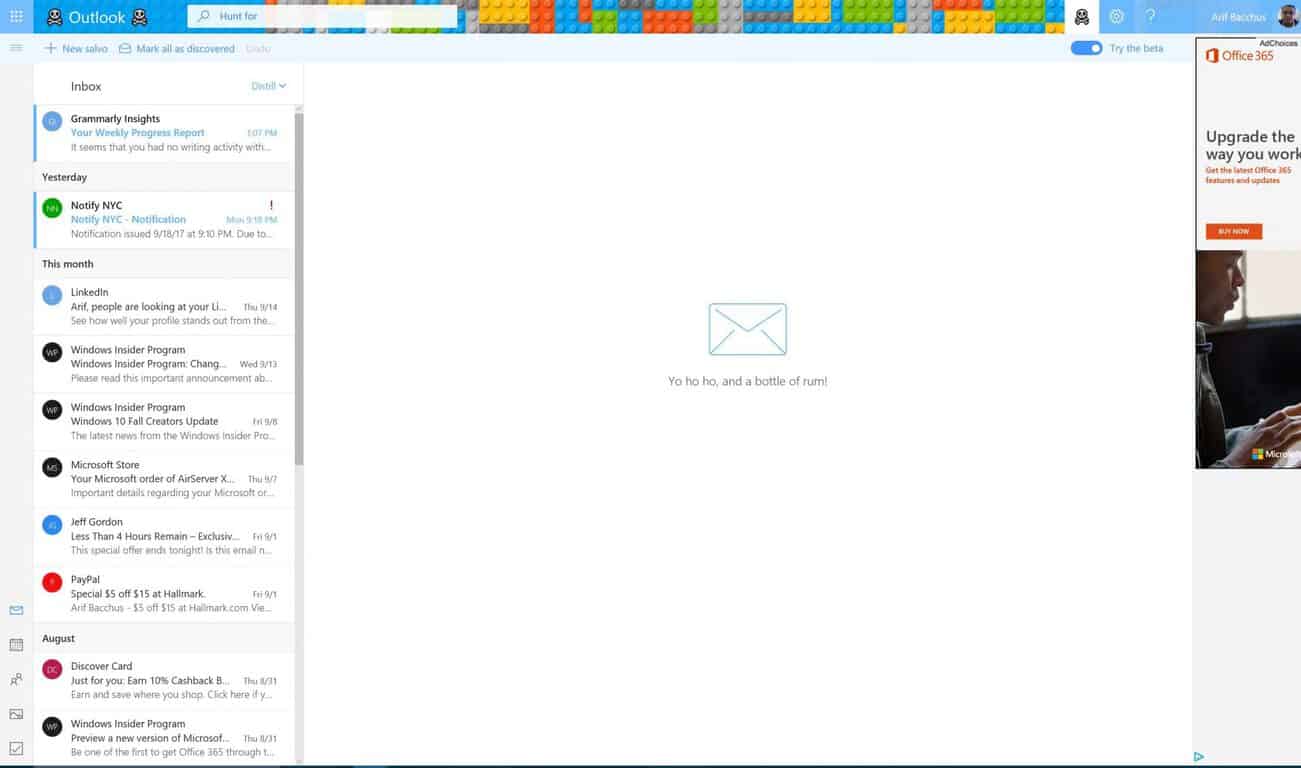
Today, September 19th marks International Talk Like a Pirate Day, and of course, Microsoft is getting into the fun. A temporary ‘Pirate Speak’ mode is now showing up on Outlook.com Beta accounts, allowing you to have a couple of laughs and celebrate the day dedicated to pirates (via Windows Central.)

If you’ve enabled the Outlook.com beta, you can find the button to toggle the Pirate Speak mode by looking for the skull and crossbones icon in the upper right-hand side of your inbox. After you click and toggle this switch, the text in Outlook.com will transform into a Pirate-type language. Here is a list of what you can expect if “ye be so brave enough” to toggle the button and “walk the plank” down into the world of Pirate talk.

  • Your Favorites heading will be marked as “Loot.”
  • Your Folders will be marked as “Treasure Troves.”
  • The search button will be labeled as “hunt for.”
  • New mail will be marked as “New Slavo.”
  • Delete will be “Throw Overboard.”
  • Send will be “Fire away.”
  • CC will be “Expand Crew”
  • BCC will be “Stow Away”

Several other areas of the Outlook.com Beta experience also see language changes when “Pirate Speak” mode is enabled. And, if you don’t like the mode, you can disable it by clicking on the skull and crossbones icon again.  We’ll let you explore the other changes on your own, so have fun, and let us know your favorite part of the Pirate Speak mode by dropping us a comment below.

Steam Inventory Helper reportedly spies on users

If you installed the Steam Inventory Helper on your computer, you may want to uninstall it as soon as possible: recent reports suggest this extension used to buy and sell digital goods on Steam is spying on its users.

Redditor Wartab made a thorough analysis of the tool and reached the following conclusions:

  • The spyware code tracks your every move starting from the moment you visit a website until you leave. It also tracks where you are coming from on the site.
  • Steam Inventory Helper tracks your clicks, including when you are moving your mouse and when you are focusing on an input.
  • When you click a link, it sends the link’s URL to a background script.
  • Fortunately, the code does not monitor what you type.

The purpose of this spyware is to collect data about gamers for promotional purposes.

Steam spyware

Here’s what Wartab wrote on Reddit:

I have just analyzed the current code of Steam Inventory Helper. Step by step what it does:

On every single page you visit, SIH executes code at document_start (meaning as soon as the page is opened). It even executes on your about:blank page and in all sub-frames on the currently visited site! The code executed is js/common/frame.js […]

What this script does is very nasty. First of all, it monitors EVERY SINGLE HTTP request you make. […] It will then send to their own server a summary of this HTTP request if some condition is met (promoteButter?). […]

Bottom line is: they are monitoring what sites you visit and may be sending a lot of your online activity to their own server. I couldn’t figure out when they do it, yet, but it seems to be for promotional stuff. More importantly, in the future, even if what they do now is legit, you will not be informed about any changes to their permissions, because it basically already has every permission it can get in that regard. Therefore I strongly suggest uninstalling and reporting this extension.

Steam has yet to issue any comment on this matter.

Users fear Steam could go into full tracking mode

This entire debacle has unsurprisingly let many users down and put them on edge, fearing that Steam could include something harmless to enable the permission at first and later enable a full-on tracking mode in a later update. However, it’s not likely Steam would ever resort to such a move considering the negative reaction to the spyware that was just discovered.

As a result of this news, many users have decided to uninstall many other Steam-related apps and extensions, fearing these programs might be spying on them as well. All in all, this revelation deals a devastating blow to Steam’s reputation.

Back to the user data privacy debate

There have been many revelations concerning the breaching of user data lately, like reports revealing that Netgear routers collect analytics data,  Windows 10 Enterprise ignores user privacy settings, and the infamous advanced NSA backdoor infection that affected tens of thousands of Windows computers.

How can users prevent companies and other organizations from collecting data on their digital behavior and preferences? It seems that in the era of no privacy, VPN software could be the answer. However, any tool claiming to protect your online privacy isn’t 100% bulletproof and ultimately, there is no perfect solution to this quandary. With an increasing number of users becoming more aware and subsequently concerned about their data privacy, we’re sure developers will focus more on creating software that helps them defend the integrity of user privacy.

Just like the antivirus industry boomed after malware started to invade the internet, we’re sure companies that develop user data privacy software will become very successful in the future. No matter where you fall — consumer, developer, or hacker — the battle to keep user data private has only just begun.

What do you think about Steam spying on its users? How does this revelation affect your online behavior? Let us know in the comment section below!

RELATED STORIES TO CHECK OUT:

Phil Spencer promoted to Executive VP as Xbox gains a seat on Microsoft’s Senior Leadership Team

Phil Spencer has just received a promotion to Executive Vice President of Xbox, and a seat on the Senior Leadership Team. First noted by Microsoft watcher Mary Jo Foley, the promotion suggests that Microsoft may be taking its Xbox and gaming incentives more seriously moving forward.

Now that Phil Spencer has moved up to an EVP position, Microsoft has a total of 16 members in the Senior Leadership team— including CEO Satya Nadella, Terry Myerson, Brad Smith, and others. Spencer will continue to be responsible for Microsoft’s gaming incentives across all of its platforms, such as Xbox HoloLens, and Windows. He is well known by Xbox fans and was previously the head of Microsoft Studios before he was promoted to Executive Vice President of Gaming at Microsoft.

The change in position is effective immediately was shared with employees today by Satya Nadella. Along with this, he also shared the news that the Enterprise Mobility and Security (EMS) team is moving from the Cloud and Enterprise unit to Windows and Devices. The new team is being renamed to “Enterprise Mobility and Managment” and members will report to Corporate Vice President Brad Anderson and Windows and Devices chief Terry Myerson.

Windows Defender ATP to add AI-based automated threat responses

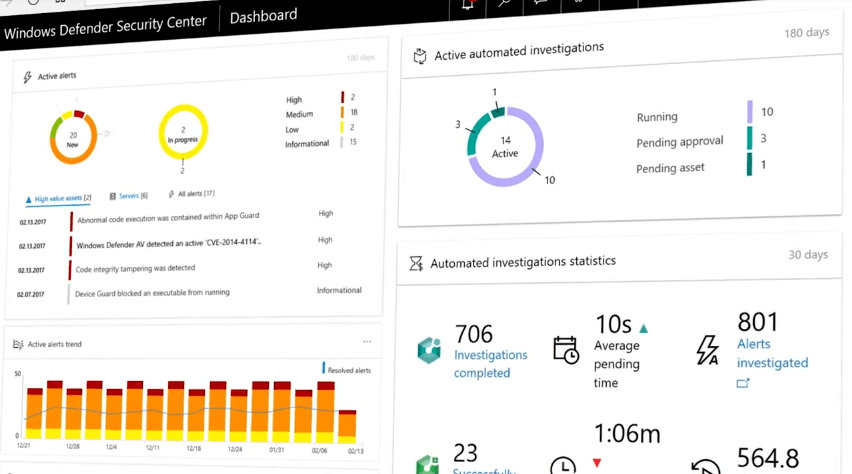
By launching Windows Defender Advanced Threat Protection last year, Microsoft gave enterprise customers a new tool that can detect, investigate, and respond to advanced attacks on their networks. The upcoming Fall Creators Update will further improve Windows Defender ATP with new prevention capabilities, but Microsoft’s recent acquisition of security automation company Hexadite will add another much important brick to the wall.

“We are happy to announce we have successfully integrated Hexadite’s innovative security automation technology into Windows Defender ATP,” Microsoft announced today. “This enables Windows Defender ATP customers to leverage state of the art AI technology to solve their alert volume challenges by letting Windows Defender ATP automatically investigate alerts, apply artificial intelligence to determine whether a threat is real and to determine what action to take, going from alert to remediation in minutes at scale.”

You can see how Hexadite’s security automation technology will improve Windows Defender ATP in the video below:

The Redmond giant says that the new automated response capabilities in Windows Defender ATP will be available in preview later this year. “With this addition, Windows Defender ATP now covers the end-to-end threat lifecycle from detection to investigation and response automatically,” Microsoft added.

US Navy to control submarine periscopes with an Xbox Controller

You’re probably familiar with using your Xbox Controller to play Call of Duty or Forza in your living room, but the government has come up with another (much cooler) use for the device. Noted by Digital Trends, the US Navy is looking to replace the joystick controllers on their new Virginia-class submarines with Microsoft’s Xbox controller.

The reasoning behind the switch to the Xbox Controller is rather complex, but it is mainly due to the fact that some junior officers found the current joystick control system too clunky and heavy. Basically, the current joystick system (valued at $38,000) which are used to control the periscopes, photonic masts, and 360-degree cameras on board the submarine is not working out well for some crew members.

As a result, Lockheed Martin experimented with other systems like multi-touch tables and Kinect, but the $30 Xbox Controller was the winner amongst sailors and the government.  Senior Chief Mark Eichenlaub explains.

“That joystick is by no means cheap, and it is only designed to fit on a Virginia-class submarine…I can go to any video game store and procure an Xbox controller anywhere in the world, so it makes a very easy replacement.”

The Navy has extensively tested the system and plans to put it into use on the USS Colorado in November, and other Virgina-class submarines in the future. While a bit more serious than using the controller to battle it out on Call of Duty, using the Xbox Controller to control an actual real-life submarine is a boy’s dream come true. Do you envision any other uses for Xbox Controller? Let us know your thoughts below!

Outlook.com is back up and running in Europe

Yesterday, Microsoft’s Outlook.com was hit by a service outage in Europe, which prevented many users to access the service or send and receive emails. After investigating the issue and deploying a fix, Microsoft confirmed on the Office 365 Service Health page today that the consumer email service is now back up and running in Europe.

“We’ve verified that new mails are being sent and received as expected, and the previous queue has returned to normal,” explained Microsoft in the latest update published earlier today. “A very small number of messages sent during the incident may be delivered over the next few hours as the last remaining messages are processed.”

Have you been affected by the outage yesterday, and if so are you now able to use Outlook.com as usual ? Let us know below.

Play NBA 2K18 right now on Xbox One

NBA 2K18 is now available to play on the Xbox One family of gaming consoles. The latest entry in the NBA game franchise features several significant visual and gameplay upgrades in addition to a variety of new modes such as The Neighborhood which allows players to connect with others online. Here’s the official game description:

We are excited to announce that NBA 2K18’s free demo, The Prelude, will be available to fans this Friday, September 8 at 12am ET on Xbox One and PlayStation 4. Fans can get an early taste of NBA 2K18 with this free, downloadable experience that begins their journey into The Neighborhood, the groundbreaking new way to play NBA 2K. The Neighborhood brings together the most loved elements of NBA 2K together into a shared world for players to truly experience the life of an NBA athlete, both on the court and off.

Buy NBA 2K18 on Xbox One

Gamers interested in sampling NBA 2K18 before buying the full game should check out NBA 2K18: The Prelude, a free demo of the title designed to introduce the game’s mechanics and modes to new players.

Have you played NBA 2K18 yet? Share your impressions with the community in the comments below.

Fix: Cortana ”Ask Me Anything” not working in Window 10

A story about Cortana is a story about ups and downs. It started strong, others caught up, and now it’s still a force to be reckoned with, but not as popular or praised as it was back in the days. The main reason is a lackluster support (especially for the Windows Mobile platform) and an inclination towards bugs. One of those bugs is a critical stall of Cortana in Windows 10 which occurs in different variations. Basically, Cortana ”Ask me anything” feature doesn’t work as intended.

Luckily, there are a lot of ways you can address this or similar issues with Cortana. For that purpose, we advise you to follow the instructions below and we’ll overcome the problem in no time.

How to resolve Cortana ‘Ask me anything” issue in Windows 10

Solution 1 – Update Windows 10

The first step to take when something goes wrong with any of the system native apps (including Cortana) is to check for updates. If everything worked seamlessly and you suddenly encountered issues, it’s reasonable to suspect that the recent updates are the main culprit behind the problem. Accordingly, we can also expect that the future updates will sort it out. At least, folks from Redmond are claiming so.

As you already know, Windows updates are, like it or not, automatically distributed, but it will cost you nothing to, from time to time, check for them manually. You can do that by following the instructions below:

  1. Press Windows key + I to open the Settings app.
  2. Choose Update & security.
  3. Open the Windows Update from the left pane.
  4. Click on the ”Check for updates” button.
  5. Install the updates and restart your PC.

Hopefully, after the updating, we’ll be in the clear and you’ll be able to use Cortana just like before. On the other hand, if you’re still unable to use it, we advise you to check the additional solutions below.

Solution 2 – Run Start Menu Troubleshooter

Even though the Creators Update unified the troubleshooting tools under one, so to say, flag, Windows still lacks a proper troubleshooting tool for issues in the Cortana department. Luckily, a diligent folk from Redmond, Oregon provided Windows users with the downloadable troubleshooting tool for the job. The Start Menu Troubleshooter’s main task is to check for all of the Start/Search bar related issues and, hopefully, resolve them.

That, of course, includes Cortana and smart assistant’s features. If Cortana misbehaves,  you’re unable to access the search results, or something third is the problem, make sure to give this tool a go.

Follow these instructions in order to utilize the Start Menu Troubleshooting tool:

  1. Download this nifty tool from the official site, here.
  2. Run the Start Menu Troubleshooter and follow the instructions closely.
  3. The tool will check for all Start-related issues and resolve them accordingly.

If even this isn’t enough to get the Cortana in the working mood, make sure to check the additional steps.

Solution 3 – Reset Cortana

Reinstalling Windows built-in features is a hard task, as hard as they come. You just can’t do it in a normal manner, like you’re used to doing with the third-party apps. What you can do, on the other hand, is to reset Cortana to factory settings and start from a scratch. We’re aware that this can take some time, plus, you’ll lose all the personal data Cortana gathered like a brilliant assistant she truly is.

Resetting Cortana should remove the stall and you should be able to use it just like you did before. This requires the usage of PowerShell, so follow the steps below closely and we’ll reset it in no time:

  1. Press Windows + X to open the Power User menu.
  2. Choose PowerShell (Admin) from the list.
  3. In the command line, copy-paste the following values and press Enter:
      • Get-AppXPackage -Name Microsoft.Windows.Cortana | Foreach {Add-AppxPackage -DisableDevelopmentMo
        de -Register “$($_.InstallLocation)AppXManifest.xml”}
  4. This command will restart Cortana and, after you start it and reconfigure it again, it should work without any issues. 

Solution 4 – Add different outbound rule for Cortana in Windows Firewall

Some users had a hard time with repeated searches. Namely, they were, for no apparent reason, unable to perform an actual search two times in a row. The first time everything is fine – the second, well, Cortana presents 0 (zero) results.

Luckily, users themselves provided the temporary workaround and it considers certain Windows Firewall tweaks. Namely, some users managed to get rid of the aforementioned search issue by changing the outbound rule for Cortana in Windows Firewall.

Follow the instructions below to and you’ll, hopefully, fix the issue at hand:

  1. In the Windows Search bar, type control, and open Control Panel.
  2. Open Windows Firewall.
  3. Choose Advanced Settings from the left pane.
  4. Expand the Outbound rules option.
  5. Locate Microsoft Windows Cortana or just Cortana on the list.
  6. Double-click on Cortana to open the dialog box.
  7. In the General tab, select Block this connection and confirm changes.
  8. Restart your PC and look for changes.

Solution 5 – Assign a new account to Cortana

Finally, if none of the previous steps proved as a valid solution for defiant Cortana issues, we can present you the last one. Of course, some would say that Windows recovery options or even the reinstallation are viable solutions, but we recommend those steps only and only if you can’t imagine your daily workflow without the Cortana assistance.

As you already know, Cortana stores a bunch of your personal information and preferences in order to speed up the searching process and provide a more relaxed, friendly-like workflow. All those personal files are connected to your Outlook account you provided during the initial setup. So, what you’ll need to do in order to apply this step is to replace your current account for a new one. If something created the stir within the gathered data, this should reset it to default values so you can start from a scratch. That’s a long shot, but it just might resolve the Cortana issue that bothers you.

  1. Press Windows key + S to open the Search bar.
  2. In the upper left side, select Notebook.
  3. Choose About Me.
  4. Click on your email address that’s assigned to Cortana and choose Sign out.
  5. Now, use any other address and sign in again.

With that, we run out of options. But, nonetheless, we’re positive that some of the offered solutions will relieve you of the trouble. At least, in a ‘workaround’ sense, until Microsoft improves Cortana resilience to bugs in the future updates.

How do you rate Cortana? Tell us in the comments section below.

RELATED ARTICLES YOU NEED TO CHECK OUT:

New Windows Store update introduces Fluent Design to Windows 10 users

As promised earlier this year, Microsoft finally released the new update for Windows Store users can get hold of by updating the Store app. But what did Microsoft change and what’s affected by this update?

Not so much, to be completely frank. The Windows Store does receive a card-based design and a revamped Fluent Design look, but there’s a long road before the Windows Store is able to compete with the likes of the Play Store or Apple Store. These aesthetic changes include new parallax effects and a redesign of the navigation bar. Additionally, users can now ”Pin to Start” apps directly from Windows Store, something which can come in handy.

It seems the main idea behind this update is to get Windows Store ready for the upcoming changes in the Fall Creators Update. And it seems that, based on this update, they’re on the right track.

As we already stated, users can get this update from the Windows Store. Since the rollout is a recent event, there’s a chance that certain users might wait for some time before the update comes to them.

What do you think about the redesigned Windows Store app? Feel free to share your first impressions with us in the comments section below!

RELATED STORIES YOU NEED TO CHECK OUT:
HP is at it again blocking non HP print cartridges

Printers have been around for quite some time and while technologies are updating all around us making it easier to work without the need for a paper trail, these devices are still very important. But they are also pricey.

Printer ink, depending on the model, brand and quality of the device, can sometimes cost more than the entire printer device itself – for just one cartridge. Luckily, lower cost options and refill kits are also on the market to make it easier to get ink to your printer when you need it.

HP caught a lot of flack when it tried to limit this ability with users last year when it released a firmware for some of its printers that would block them from functioning when a non-HP cartridge was used.

Now the company is back at it again. One year later it has released another firmware update for its Officejet printers that seems to be blocking out third-party ink cartridges from working properly for users. According to numerous reports the printer creates an error message stating that the cartridge is damaged and needs to be replaced when it in fact is not.

Here’s how HP describes the issue on its official webpage:

If you see a Cartridge Problem error message when you are using non-HP cartridges, it is possible that a dynamic security feature has caused the printer to reject the non-HP cartridge. It is also possible that the cartridge has simply failed for other reasons.

The list of devices is expansive but some workarounds are already being released including deactivating the Dynamic Security feature.

Have you noticed this error yet? Are you opposed to be locked to one brand for your printer ink?

Read Also:

Microsoft holding Windows Mixed Reality event on October 3rd in San Francisco, Alex Kipman to speak

According to reports, Microsoft is in the process of sending out press invitations for a special Windows Mixed Reality event to be held on October 3rd in San Franciso. Not many details are available at this moment, but it was revealed that Alex Kipman, the inventor of HoloLens, will be scheduled to speak at the event.

Quite obviously, it is widely believed that the event is to focus on the Windows Mixed Reality headsets which are scheduled to launch on October 17th, ahead of this holiday season. Although The Verge confirmed that Microsoft won’t be showing off the second generation of HoloLens, invitations for this event specifically mentions that attendees will have the chance to “hear where Microsoft is headed next.”

With that so, we might as well end up getting more of an American focus on the Mixed Reality headsets and motion controllers which Microsoft’s partners showed off during IFA 2017 in Germany. As you may recall, these include the $349 Dell Visor and Lenovo Explorer. This event is not to be confused with another Microsoft October event at Future Decoded in London, which is set to feature Panos Panay, and possibly some new hardware announcements.

Microsoft offers collection of Windows Premium Ads, lets advertisers target highest performing apps

Microsoft is always helping Windows developers make more money, and today the company has announced another step towards of fulfilling that goal. Indeed, the company has revealed the launch of Windows Premium Ads Publishers Program, a collection of ad-enabled apps that are best in class in terms of usage, engagement, and experience.

Even though there are over one million apps in the Windows Store, Microsoft is saying that the apps will “use one or more ad formats from among banner, interstitial banner, interstitial video and native ads to monetize.” To qualify, the apps in the program need to have a minimum guaranteed daily ad request volume, high viewability standards, and not have any fraudulent activity. Here is a bit more on what Microsoft is saying about the program.

These are top apps and games with a globally distributed audience that is highly engaged, have identifiable users and are viewability certified​. The full list of qualifying criteria is as follows:

  • Minimum guaranteed daily ad request volume
  • High viewability rate for impressions
  • Good quality clicks contributing to a minimum CTR across all ad formats
  • Only IAB standard ad sizes and no hidden ads
  • Clean placement of banners – not adjacent, no using ad units across multiple apps
  • Clear defined user flow to the point where the video and/or interstitial banner ad is shown, no pre-caching
  • Controlled ad refresh behavior so that the ads returned from the mediation server are always played
  • Great Store presence with clear app descriptions, high fidelity screenshots and icons uploaded to the Store along with a video trailer (preferable)

Apps submitted to this program go through a rigorous manual review process, part of which make sure that ads are places so the user will not unintentionally click on them. Apps are also monitored so the app usage can not drop over time. Any content uploaded as part of the Store submission is automatically used to showcase premium apps. More information on the program is available here.

Microsoft to build its own power station in Dublin as local power can’t keep up with demand

As the competition between cloud computing giants can only get more intense in the coming years, Microsoft can only maintain its rank by building new data centers around the world. And this can definitely come at a cost, especially when the local electricity network can’t met the huge power demands of these massive data centers.

According to a report from The Irish Independent, Microsoft is set to build 16 gas-powered generators in the Grange Castle Business Park in Clondalkin, Ireland, which will power one of its data center in the west of the Irish capital. The power station will be able to deliver up to 18 megawatts of electricity, which would be enough to power around 18,000 homes. However, a Microsoft spokesperson told the Irish Independent that the new generators will only be used “if necessary.”

EirGrid, the state-owned electric power transmission operator in Ireland, confirmed that the increasing number of data centers in the Grange Castle Business Park is putting a huge pressure on the local electricity network. “Space at Grange Castle Business Park is in high demand from international business customers,” an EirGrid spokesman told the Irish Independent. “To accommodate this growth, further power is required to meet both current electricity needs and to plan for future electricity demand.”

If Microsoft is making sure that its Clondalkin data centers won’t suffer from power outages in the short-term, EirGrid is already planning to upgrade the local electricity network in the near future. Indeed, the state-owned company will spend millions of dollars to build a new substation in the area, to be completed in 2019.

Service outages affecting Outlook.com, Exchange users in Europe

Microsoft has acknowledged service outages for Outlook.com and Exchange users in Europe. After investigating the issues this morning, the company said that it has been restoring service but it doesn’t have a time of recovery yet.

https://twitter.com/Office365Status/status/909779744190803971

https://twitter.com/Office365Status/status/909783387799420928

https://twitter.com/Office365Status/status/909797609463844864

Office 365 users can can learn more about the Exchange outage by checking the Office 365 admin center and mobile app. For Outlook.com users, you can get updates on the dedicated Twitter account or the Service Health page.  The email service is currently affected by two issues, with some users struggling to connect to Outlook.com and others not being able to receive and send emails.

The Outlook.com outage seems to mostly affect Western Europe according to DownDetector.

Have you been affected by these outages today, or are you still able to access your Outlook.com or Exchange email account? Let us know below.

[Updated] Xbox One/Playstation 4 cross-platform play pops up in Fortnite

Despite Sony’s refusal to enable cross-play multiplayer across Playstation 4 and Xbox One, it seems that Epic Games’ Fortnite could be the first game that unofficially supports it (via Eurogamer). Over the past two days, several Reddit users reported seeing gamers using Xbox gamertags when playing the online survival game on the Playstation 4. PS4 players noticed it because Sony doesn’t allow gamers to use spaces in their PSN usernames, while Microsoft does for Xbox Live gamertags.

Reddit user and PS4 gamer “PRE_-CISION-_” posted the following gameplay video which shows him being killed by “zCypher Nine,” a username impossible to create on PSN, but that is a genuine gamertag on Xbox Live.

Another Reddit user called “PyroBlack76”  posted a picture of himself playing the game on an Xbox One against his son on a Playstation 4. You can see both players posing back to back below:

Fortnite developer Epic Games has yet to confirm that cross-play multiplayer is indeed possible across Xbox One and Playstation 4, and it would be pretty big news if it was really the case. As of today though, an official FAQ on the game’s website still states that “cross-platform play is not supported by Fortnite at this time.” We’ll let you know if we learn more about this exciting possibility, but we doubt Sony suddenly changed its mind about cross-play multiplayer just a couple of weeks before the Xbox One X relaunches the console wars.

Update: Epic Games told The Verge today that cross-play multiplayer is not happening. “We had a configuration issue and it has now been corrected,” explained a company spokesperson.