Microsoft Flow service update increases user productivity

Microsoft has updated its Flow service which can now perform multiple steps at the same time as others. “One simple example for this is using our new Approvals feature,” the Microsoft’s Stephen Siciliano says in a post on the official Flow blog. “Imagine for an incoming request for approval from both Finance and Sales, but you don’t want for one to approve before the other to sees the request. With the new parallel functionality, you can dispatch both requests simultaneously.”

This update has also added five completely new features as well. Here’s the official descriptions of each one:

Approvals – With our modern approvals experiences, you can quickly create an approval workflow for your data in SharePoint, Dynamics CRM, Twitter, Visual Studio Team Services, MailChimp and many others. As part of the approval process, approvers will receive email notifications about pending approvals, and can view and respond to all approval requests in a brand-new, unified approvals center.

Benchmark Email – Online email marketing solution to engage subscribers, target an audience, send beautiful, responsive emails and track results.

Capsule CRM – Online CRM for individuals, small businesses and sales teams wanting a simple, effective and affordable solution.

LiveChat – LiveChat is an online customer service software with live support, help desk software and web analytics capabilities.

Outlook Customer Manager – Outlook Customer Manager helps you to graduate from managing contacts to building relationships. It is part of the Office365 Business Premium subscription.

Microsoft Flow is a service that allows for communication between different apps and can be used to create workflows (hence the name) that are completely automated and require very little input from the user.

Are you a Flow user? What feature do you like the most?

Best to-do apps to use on your Windows 10 PC

Keeping your time organized isn’t always simple, and this is why many people tend to use to-do apps to help them manage it better. If you have problems managing your time, you might be interested in one of these to-do apps for Windows 10.

What are the best to-do apps for Windows 10?

Todoist

to-do-apps-todoist-1

Next on our list is Todoist. This tool is designed to work as a to-do app for you and your team. The first thing you’ll notice when you start it up is its clean interface. In addition to that, this to-do app allows you to create multiple projects you can share with others.

Just like any other to-do app, Todoist allows you to set due dates and times for your tasks. It also allows you to add a priority flag next to your tasks so you can easily differentiate important tasks from the ones that are less important.

Although Todoist is a great app, it lacks certain features in its Free version, like labels or reminders. You also can’t access filters or write comments to your tasks. Speaking of limitations, you can share the tasks with up to five people and you can have 80 active projects at a time in the Free version.

There are two premium versions available which opens up reminders, comments, labels, templates, location-based notifications, the option of adding tasks via email, and so much more. If you want to have access to these features, you’ll have to purchase the premium version of Todoist for $28.99 yearly.

Even though Todoist is available for download from Windows Store, it lacks some basic features with its Free version. If you don’t mind the lack of reminders and labels, feel free to try it out!

⇒ Get Todoist!

Tick Tick

to-do-apps-tick-tick-1

Tick Tick is another to-do web app available for most popular platforms. Unfortunately, there’s no Windows version available, so if you want to use Tick Tick on a Windows 10 PC, you’ll have to download an extension for your browser. Tick Tick comes with a simple design, but allows you to create custom lists for your tasks and assign tags to them. This is especially useful if you want to organize your tasks. Tick Tick supports standard options, like due dates or repeating tasks. In addition to standard predefined intervals, Tick Tick fully supports the creation of custom repeating tasks. Of course, you can assign priority to certain tasks if you wish to do so.

Tick Tick allows you to attach files to your tasks, add comments and descriptions. Unfortunately, there’s no option for to-do lists in its Free version. The upgraded version gives you the access to a Calendar or the option to import your own calendar if you want. Another benefit of the Premium version is the Task Revision History feature that allows you to see detailed information about tasks. The Premium version also gives you an unlimited number of lists and 99 tasks per each list. With the Premium version, you can share your lists and tasks with others and have unlimited number of subtasks. The Premium version also gives you 5 reminders per task and allows you to upload 99 files per day. As for the price, the Premium version is available for $2.79 per month.

Tick Tick comes with simple yet effective design and some decent features, but one of its biggest flaws is the lack of checklists in its Free version. Also, there’s no Universal application or Desktop version available, so you’ll have to use the web app version or download the extension for your browser if you want to use Tick Tick.

⇒ Get Trick Tick

Get It Done

to-do-apps-get-it-done-1

Get It Done is a Universal to-do app for Windows 10. This app comes with a simple design and offers basic features to the users. With this app, you can easily create new lists and add your tasks to them. In addition, you can add tags to tasks so you can organize them easily.

We have to mention that this app doesn’t support repeating tasks in its Free version. In addition to repeating tasks, the Free version also lacks cloud storage which many apps on our list have. Get It Done is a basic to-do app with simple features, designed and optimized for Windows 10 devices – just without many bells and whistles.

⇒ Check Get It Done

Any.do

Any.do is another popular to-do app available for multiple platforms. One thing that separates Any.do from other to-do apps on the list is its sleek and innovative design. All your tasks are sorted into several categories such as Today, Tomorrow, Upcoming and Someday. This allows you to easily see the upcoming tasks and not miss anything. If you prefer, you can sort your tasks by lists such as Personal, Work, etc. If you want, you can also create new custom lists. Also, there is Priority View that allows you to see important tasks that have a star assigned to them.

Task creation is simple and allows you to add notes, sub-tasks,  and attachments. You can even share tasks with your friends. As for repeating tasks, there are basic options available, but if you want to create custom recurring tasks, you’ll have to purchase the Premium version. With it, you can share unlimited tasks with an unlimited number of people and receive location-based reminders. By purchasing a Premium account, the file limit will change from 1.5MB per file to 100MB per file, and you’ll have access to multiple themes. In addition, you’ll have access to an unlimited number of Any.do Moments.

While Any.do is a great to-do app, there’s no version for Windows 10 available for download. There’s an unofficial version available in Windows Store, but we weren’t able to log into it on our PC. Any.do offers great design and some basic features and is perfect for basic users. However, the lack of a Windows 10 application might be a deal breaker for some users.

If you want to try Any.do out, go to the tool’s official website and download it on your computer.

⇒ Get Any.do

Remember The Milk

to-do-apps-remeber-the-milk-1

Remember The Milk is a simple to-do application available for most major platforms. The application allows you to create tasks and repeating tasks easily.

Of course, you can add tasks to lists or assign certain tags to easily organize them. If you want, you can also add start dates and estimated times to tasks. In order to differentiate your tasks, you can even set priorities for certain tasks or add locations to them. Of course, sharing your tasks with others is also supported. If you want, you can easily postpone certain tasks or change the due date simply by selecting the desired task and choosing the option that you want from the menu.

We have to mention that the free version of Remember The Milk doesn’t have support for subtasks — a major flaw in our opinion. As for the premium version, you can get it for $39.99 per year. This will allow you to add subtasks to your tasks,  share tasks with an unlimited number of users, and color your tags. The Premium version also brings with it advanced sorting, reminders on your mobile device as well badges and widgets. Another benefit of the Premium version is synchronization with Microsoft Outlook, support for themes, the option to use it offline, and unlimited storage for your tasks.

There’s an unofficial Remember The Milk app available on Windows Store called QuickMilk, so if you have a Windows 10 Mobile device, you might want to consider using this application. Before you’re able to use QuickMilk, you’ll have to log in to Remember The Milk and authorize the application to access Remember The Milk data. There’s also a classic Desktop version available if you don’t want to use the web app. Remember The Milk is a decent app, but the lack of offline support and subtasks might be an issue for some users.

⇒ Get Remember the milk

Wunderlist

to-do-apps-wunderlist-1

Wunderlist is one of the most popular to-do apps on all platforms, and rightfully so. This application allows you to create lists and share them easily with others. In addition to that, it offers a beautiful and simple user interface.

Regarding its features, you can easily create tasks and set the due date for them. In addition, you can add reminder dates as well so you don’t miss any of your tasks. There’s also a simple option to repeat your tasks on a daily, monthly or weekly basis. Although this option works well, there’s no ability to set custom repeating schedule like with Google Keep.

Regarding other options, you can easily add subtasks thus creating a to-do list quickly. If you want, you can even add notes to your tasks, and there’s support for comments and files as well. There’s also an option available that allows you to add a star to certain tasks so you can easily differentiate them. All your tasks will be stored in the list on the left so you can easily locate them.

All these features are available to you in its Free version, but there’s also a Pro version available for $4.99 a month. That removes the 5MB limit for uploaded files and allows you to have an unlimited number of assigned to-dos and subtasks. In the Free version, you can assign tasks to up to 25 people and have up to 25 subtasks, but the Pro version removes these limitations. In addition, with its Pro version, you can also choose between 30 attractive backgrounds. If you want to use Wunderlist with your team, there’s also a Business version available.

Wunderlist offers great features in its Free version that will be enough for most basic users. The only options missing are labels and custom reminders, but even without those Wunderlist is a great to-do app.

⇒ Get Wunderlist

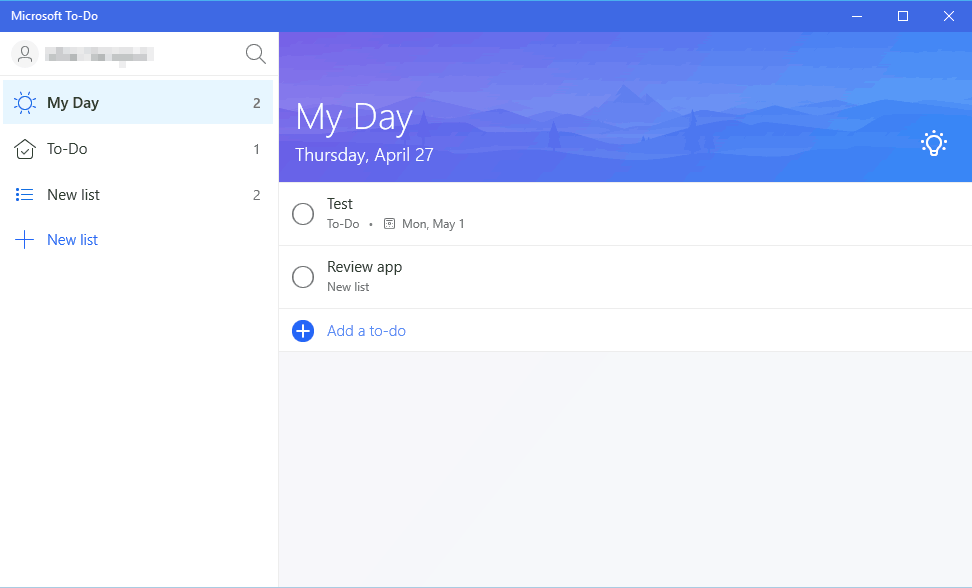
Microsoft To-Do

Last entry on our list is Microsoft To-Do. This is a brand new application from Microsoft that you can use to create to-do lists and notes. The application offers sleek user interface so you can easily organize your tasks.

You can create new tasks with ease and set reminders and due dates for them. In addition, you can add notes for each task. It’s worth mentioning that you can set your tasks to repeat and set a custom repeating schedule for them. All your tasks are sorted into different lists and you can easily move tasks between them. The application has two lists by default, and you can move all your important tasks to My Day list. Of course, you can also create new lists and assign various tasks to them. It’s worth mentioning that you can import your tasks and lists from other applications such as Todoist or Wunderlist.

The lists are customizable and you can change the name and the background of each list in order to differentiate them. While the application looks great with its minimalistic design, it lacks certain features. There’s no ability to share your tasks and lists with others, and you also can’t add subtasks. There’s no support for file sharing and the lack of ability to receive notifications via email or text message is also noticeable.

Microsoft To-Do lacks certain features, but we’re confident that Microsoft will introduce them in the upcoming versions. The application is completely free, and it’s available as Universal app from
Microsoft Store. In addition, iOS, Android and web version are also available. If you’re looking for a simplistic and completely free to-do app, we highly recommend that you try Microsoft To-Do.

⇒ Get Microsoft To-Do

Google Keep

to-do-apps-keep-4

Google Keep is Google’s tool for note keeping similar to OneNote or Evernote. In addition to adding notes, you can also add reminders with the reminders tool. Just as with other, similar tools, you can set the reminder’s due date and time along with the option to set a weekly, daily, monthly or yearly reminder for certain events. This is great if you have same events every week or month, but in addition to a predefined repeating schedule, you can also set a custom schedule that allows you to repeat certain events only on specific days of the week.

You can also set certain events to repeat once every number of weeks, months, or years, which is great for making long-term schedules. In addition, you can set when do you want a specific reminder to end.

to-do-apps-keep-1

In addition to advanced scheduling, you can share your to-do list with other users or customize it by adding certain colors or images to it. Lastly, this tool allows you to create an actual to-do list so you can easily check the things that you completed. If you want to keep a certain note or reminder easily accessible, you can pin important reminders so that they will stand out againts all your other notes and reminders. If you want to organize your to-do lists, you can assign different labels to them in order to sort them.

to-do-apps-keep-2

Google Keep is a simple note taking and to-do web app and can be easily accessed from any web browser. If you have Google Chrome installed, you can install the web app on your PC and there are also Google Keep extensions available for major browsers. There’s also a Windows 10 app available from the Windows Store called EasyNotes for Keep and even though this app is ad-sponsored, it works similarly to web app version, so we definitely recommend it.

to-do-apps-keep-3

⇒ Get Google Keep

There are many great to-do apps for Windows 10, but if you’re looking for a simple application that offers all the necessary features in its Free version, we highly recommend you try Todoist.

It comes with simple design, supports cloud storage, and is available on almost any platform. In addition, Todoist offers all the necessary options for basic users in its Free version, so there’s no reason not to try it out!

Here’s how to start an Xbox Live party on Windows 10

The Xbox app for Windows 10 lets you gather and chat with friends with parties, a crucial feature for games that support cross-platform play. Parties can accommodate up to 16 people, including the host. Keep in mind, though, that only users with a current Xbox Live Gold subscription can join a party, provided they are also signed in with the Gamertag accompanying that subscription.

Here’s a brief guide to starting an Xbox party chat in Windows 10:

Starting a party

There are several ways to start a party.

Invite people from your Friends & clubs list

  1. From your Friends & clubs list, choose the friends you want to party with.
  2. Right-click a gamertag, and select Invite to Party.
  3. Now you can see your party in the Party tab.

Join a party that your friends are already in

  1. From your Friends & clubs list, select the friend you want to party with.
  2. On that friend’s gamercard, select Joinparty.

Start your own party and invite multiple friends

  1. From the Home screen, go to the Party tab in the upper-right corner.
  2. Click Start a Party.
  3. Click the add (+) button at the bottom of the page.
  4. Choose the Friends you want to party with (up to 15 friends).
  5. Click Party to send the invites.
  6. Click OK on the Invites Sent pop-up box.

Have you tried party chatting with people through the Xbox app? Let us know how it went!

Next uTorrent version to run in web browser

Although uTorrent is the most popular torrent client in the world today with 150 million users, most of its features are five years old now. It’s currently in version 3.0, meaning its growth and development have stalled since 2012. That’s about to change soon, though, according to Founder Brahm Cohen.

The current free version of uTorrent works as a standalone, lightweight client with Pro features and no ads. The developers of uTorrent previously monetized the app through toolbar installations. However, modern versions of web browsers have made that scheme less attractive to users. uTorrent later switched to in-app advertising through which it now earns most of its revenue.

With the upcoming change, uTorrent promised not to depart from its reliance on its current advertising scheme. Instead, the update will introduce a new way of delivering uTorrent’s product. Cohen said during TorrentFreak’s ‘Steal This Show’ podcast that the version of the torrent client will run in the browser. Cohen added:

The features behind it that people really want, being able to see torrents in the browser, we’re basically going to be shipping with the new uTorrent. It’s going to be your browser instead of a separate browser.

Cohen said advertising will remain the company’s major source of revenue, but that uTorrent also intends to unify its development process and improve existing features. Using the latest browser technologies, uTorrent plans to roll out features more quickly and efficiently in the future.

In addition to its transition to the browser-based model, the company also plans to clean up its client experience, according to Cohen. A browser-based uTorrent will provide a simpler implementation of features, including streaming, which many users today consider as a vital part of their online experience.

Prior to the update’s rollout, however, Cohen promised to take into account user feedback so as not to alienate existing customers. He said:

We’re very, very sensitive. We know people have been using uTorrent for a very long time and love it. So we’re very, very sensitive to that and gonna be sure to make sure that people feel that it’s an upgrade that’s happening. Not that we’ve just destroyed the experience.

Are you eager to get your hands on the future version of uTorrent? Share your thoughts in the comments.

Warhammer 40K Dawn of War III bugs: low graphics quality, audio cuts off, and more

Warhammer 40,000: Dawn of War III is now live and tens of thousands of gamers are already playing it. The game takes players into brutal battles between three warring factions, where only the strongest will survive.

As a player, you’ll take part in epic battles, with countless participants. Mercy is a word that has no meaning in Warhammer 40K: Dawn of War 3 if you want to stay alive.

Unfortunately, Warhammer 40K: Dawn of War III is also affected by a few technical issues that may sometimes severely limit the gaming experience. In this article, we’re going to list the most common Dawn of War III bugs reported by players.

Warhammer 40K: Dawn of War III issues

Graphics issues

Many players can’t customize their graphics settings because the settings always reset after they restart their computers.

Can’t change the settings. They require a restart and after a restart there is always a reset of the settings. yes i press the button apply.

There are also players who complained about low graphics quality even on the highest settings. If you’ve experienced this problem, try switching preset, select High, then hit Apply, and then select Maximum and hit Apply again.

Why the graphic look suck even when I put it on the highest settings. I got gtx1070. Is this a bug because it really look better in the gameplay video. Already restart my pc and update the graphic driver. Its like the unit run on 2D picture background. So hideos for 2017 games.

Dawn of War III won’t connect to servers

Anyone else getting the issue? I preloaded, waited for it to “unpack” took about 10 min. Now when I try to launch it, it goes connecting…..”connection timeout”. Are the servers down for you guys or just me? I tried to restart steam, my comp multiple times and same issue. My internet is working fine.

Mouse issues

Quite a few players also report that they can’t use their mice to move around the map. Unplug your mouse, restart your computer, update your drivers and see if this solved the problem.

Custom solo vs AI. Cant use hotkeys, cant use mouse to move around map. I’m on a 1070 w/ 4790k.

Audio bugs

Sometimes audio simply cuts off. Unfortunately, this issue that affected the beta version of the game still persists after the official launch.

I’ve noticed that some audio cuts off. This includes the announcer (he stops in the middle of a sentence) or the sound of a Requisition Generator being deployed.

UI font is too small

Many players are having a hard time reading all the information available on Warhammer 40K: Dawn of War III’s user interface. The font is so small that turns reading into an effort.

UI and Font are really small is there no way to scale it?
Having a hard time reading some of the text.

These are the most common Warhammer 40K: Dawn of War III bugs reported by early players. If you’ve encountered other issues, or you’ve come across various workarounds to fix the problems listed above, use the comment section below to tell us more about your experience.

We’re sure that Relic Entertainment, the game’s developer, will soon roll out a patch fixing all these issues.

RELATED STORIES YOU NEED TO CHECK OUT:

Lenovo computers compatible with the Windows 10 Creators Update

If you own a Lenovo computer and you’re thinking about upgrading it to the Creators Update, don’t forget to check if the device is compatible with Microsoft’s latest OS version. Running the Windows 10 Creators Update on an unsupported computer may cause various technical issues and we wouldn’t want that!

Lenovo devices that support the Creators Update

If your Lenovo computer is in the list below, this means your system was not tested by Lenovo and updated drivers may not be available.

Lenovo ThinkPad laptops

  • 11e (1st Gen)
  • 11e (2nd Gen)
  • 11e (3rd Gen)
  • 11e (4th Gen)
  • E450
  • E455
  • E460
  • E465
  • E470
  • E475
  • E550
  • E555
  • E560
  • E560p
  • E565
  • E570
  • E570p
  • E575
  • Helix (2nd Gen)
  • L440
  • L450
  • L460
  • L470
  • L540
  • L560
  • L570
  • P40
  • P50
  • P50s
  • P51
  • P51sP70
  • P71
  • S1
  • S2
  • T440p
  • T450
  • T450s
  • T460
  • T460p
  • T460s
  • T470
  • T470p
  • T470s
  • T540p
  • T550
  • T560
  • T570
  • ThinkPad 10 (2nd Gen)
  • ThinkPad 13 (1st Gen)
  • ThinkPad 13 (2nd Gen)
  • W540
  • W541
  • W550s
  • X1 Carbon (3rd Gen)
  • X1 Carbon (4th Gen)
  • X1 Carbon (5th Gen)
  • X1 Tablet (1st Gen)
  • X1 Tablet (2nd Gen)
  • X1 Yoga (1st Gen)
  • X1 Yoga (2nd Gen)
  • X250
  • X260
  • X270
  • Yoga 11e (1st Gen)
  • Yoga 11e (2nd Gen)
  • Yoga 11e (3rd Gen)
  • Yoga 11e (4th Gen)
  • Yoga 12
  • Yoga 14
  • Yoga 15
  • Yoga 260
  • Yoga 370
  • Yoga 460

Lenovo IdeaPad laptops

  • Edge2-1580
  • 500-14ISK/500-15ISK
  • M51-80/500S-15ISK
  • Y700-15ISK/Y700Touch-15ISK/Y700-17ISK
  • Y700-14ISK
  • M41-80/K41-80
  • Flex3-1480/Flex3-1580/Yoga 500-14ISK/Yoga 500-15ISK
  • 500S-14ISK/300S-14ISK
  • 500S-13ISK
  • B41-30/B51-30
  • B41-80/B51-80E41-80/E41-80/E51-80/TianYi 300-14ISK/TianYi 300-15ISK/E51-80
  • Yoga700-11ISK
  • Yoga700-14ISK
  • Miix 700-12ISK
  • Flex 3-1120/Yoga 300-11IBY
  • Flex3-1470(HSW)/Flex3-1570(HSW)/Flex3 1470(BDW)/Flex3 1570(BDW)/S41-70(HSW)/S41-70(BDW)/U41-70(HSW)/U41-70(BDW)/Yoga
  • 500-14IHW/Yoga 500-15IHW/Yoga 500-14IBD/Yoga 500-15IBD/Yoga500-14IBD Brazil/XiaoXin I2000
  • S41-35/Flex 3-1435/Yoga 500-14ACL
  • S41-75
  • U31-70(BDW)
  • Yoga 3 14(BDW)/Yoga 3 14(HSW)
  • Yoga 3 Pro
  • Z70-80
  • Z40-75/Z50-75
  • 500-14ACZ/500-15ACZ
  • G40-80 BDW/G50-80 BDW/G40-80m BDW/G50-80m BDW/G40-80 Brazil/G50-80 Touch/v3000/G40-80 HSW/G50-80 HSW/G50-8
  • Touch(HSW)/G40-80m HSW/G50-80m HSW/G50-80 Brazil
  • 100-14IBY/100-15IBY/B50-10/100-14IBY Brazil/100-15IBY Brazil
  • S21e-20
  • E31-70 (HSW)/E31-70/E31-70 (BDW)
  • E40-80/B50-80/B40-80/E40-80/E50-80/N40-80/N50-80/N40-80(HSW)/N50-80(HSW)/B40-80(HSW)/B50-80(HSW)/305-15IBD/B40
  • 80 Brazil/305-14IBD
  • Z40-70 Brazil
  • G70-80
  • B70-80
  • G40-45/G50-45/G70-35
  • Flex2 Pro15 BDW/Edge15 BDW
  • Z41-70/Z51-70/Xiaoxin V4000/Y50c/Erazer Z41-70/Erazer Z51-70
  • G41-35/G51-35
  • Yoga 2 11BTM
  • B50-45/B40-45/Erazer N40-45/Erazer N50-45/305-15ABM
  • M41-70(BDW)/K41-70(BDW)/M41-70(HSW)/K41-70(HSW)
  • K20-80
  • Yoga 2 11HSW
  • Y50-70/Y50-70 Touch/Y70-70 Touch/Erazer Y50-70/Y50p-70/Y70p-70 Touch
  • 300-14IBR/300-15IBR
  • 100-15IBD/100-14IBD/TianYi 100-14IBD/TianYi 100-15IBD
  • 300-14ISK/300-15ISK/300-17ISK/300-15ISK Brazil/Xiaoxin 300-14ISK
  • E31-80/E31-80
  • RESCUER 14ISK/RESCUER 15ISK
  • Y700-15ACZ
  • K21-80
  • 700-15ISK/700-17ISK/Xiaoxin 700-15ISK
  • Yoga 510-14ISK/Yoga 510-15ISK/Flex 4-1470/Flex 4-1570/Yoga 510-14ISK Brazil
  • 310S-14ISK/510S-13ISK/510s-14ISK/XiaoXin 510S-14ISK
  • 710s-13ISK/Xiaoxin Air 13
  • 300S-11IBR/Flex 3-1130/Yoga 300-11IBR
  • Y900-17ISK
  • V310-14ISK/V310-15ISK/V310-14ISK Brazil
  • Yoga 900-13ISK
  • Yoga 900-13ISK for business
  • Yoga 900-13ISK2
  • Yoga 900S-12ISK
  • YOGA 710-14ISK/Yoga 710-15ISK
  • Yoga 710-11ISK
  • 110-14IBR/110-15IBR/110-14IBR consumer/110-15IBR Brazil/B110-14IBR Brazil
  • 110-14ISK/110-15ISK/TianYi310-14ISK/TianYi310-15ISK
  • Miix 3-1030
  • E40-30/B50-30/B50-30 Touch/B40-30/Erazer N40-30/305-15IBY
  • B41-35/B51-35
  • B71-80
  • B50-50
  • 310-14ISK/310-15ISK/310 Touch-15ISK/510-15ISK/Xiaoxin 310-14ISK/310-14ISK Brazil/310-15ISK Brazil
  • 110-15ACL /110-17ACL/110-15ACL Touch
  • 310-15ABR
  • E41-10
  • E41-15/E41-15
  • Yoga 710-14IKB/Yoga 710-15IKB
  • Yoga 710-11IKB
  • Y910-17ISKMiix 710-12IKB
  • YOGA 510-14IKB/YOGA 510-15IKB/FLEX 4-1480/FLEX 4-1580
  • 310S-14AST/YOGA 510-14AST/FLEX 4-1435
  • Miix 720-12IKB
  • Yoga 310-11IAP/Flex 4-1130/310s-11IAP
  • Miix 310 10ICR-T3
  • Miix 310 10ICR-T4
  • Xiaoxin Air 12
  • Miix 510-12ISK
  • 110s-11IBR
  • 510s-13IKB
  • V110-14IAP/V110-15IAP
  • V110-15ISK
  • V110-14AST/V110-15AST
  • Yoga 910-13IKB Glass/Yoga 910-13IKB
  • V310-14IKB/V310-15IKB/E42-80/E52-80/V310-14IKB Brazil/V510-15IKB/V510-14IKB
  • 710S Plus-13ISK/XiaoXin Air 13 Pro
  • 710S Plus-13IKB/XiaoXin Air 13IKB Pro
  • Xiaoxin 310-15IKB/510-15IKB/310-14IKB/310-15IKB/310 Touch-15IKB/Xiaoxin 310-14IKB
  • 310-14IAP/310-15IAP
  • 110-17IKB
  • V110-17IKB
  • 110-14AST/110-15AST
  • Xiaoxin 510S-14IKB/310S-15ISK/510S-14IKB/310S-15IKB/310S-14IKB
  • 710s-13IKB/Xiaoxin Air 13IKB
  • MIIX 311-10ICR
  • 700S-14ISK
  • ideapad MIIX 300-10IBY
  • ideapad 100S-11IBY
  • ideapad 100S-14IBR
  • N22
  • Lenovo N23

Lenovo ThinkCenter + AIO

  • ThinkCentre M79
  • ThinkCentre M900
  • ThinkCentre M800
  • ThinkCentre M700
  • ThinkCentre X1
  • ThinkCentre M900z/M9550z/M9500z
  • ThinkCentre M800z
  • ThinkCentre M700z
  • ThinkCentre E74z
  • ThinkCentre M900 Tiny
  • ThinkCentre M700 Tiny
  • ThinkCentre M600 Tiny
  • ThinkCentre M900x Tiny
  • ThinkCentre M715
  • ThinkCentre M715q
  • ThinkCentre M910q
  • ThinkCentre M910
  • ThinkCentre M910t/s
  • ThinkCentre M710q
  • ThinkCentre E74/E74s
  • ThinkCentre M710t/s
  • ThinkCentre M4500k
  • ThinkCentre M8600t/s
  • ThinkCentre M6600t/s
  • ThinkCentre M4600t/s
  • ThinkCentre M710
  • ThinkCentre M6600q
  • ThinkCentre M8600x
  • ThinkCentre M8600q
  • ThinkCentre M8300z/M8350z
  • ThinkCentre M7300z
  • QT M2300
  • QT B2300
  • QT M5900
  • QT M6600
  • QT M4600
  • QT A3300
  • QT A7400
  • QT A5000
  • QT M4500C
  • QT A9050
  • QT M4500
  • QT A8150
  • QT M4550
  • QT M4500
  • S2010
  • S4150
  • S3040
  • S5250
  • S200z
  • V510z
  • LenovoS200
  • LenovoS510
  • Af Q150
  • YT H110
  • YT H110 PCI
  • YT Mc Godavari
  • YT Mc Carrizo-L
  • YT Mc Braswell
  • YT Me H110
  • YT We H110
  • QT A7300
  • S800
  • S4030
  • S5030
  • S5030
  • S405z
  • S500z
  • S400z
  • S4105
  • S5130
  • S4130
  • ThinkCentre M4500t/s
  • ThinkCentre M8500t/s
  • ThinkCentre M6500t/s
  • ThinkCentre M4500q
  • ThinkCentre M73
  • ThinkCentre M93
  • ThinkCentre M93p
  • ThinkCentre M83
  • ThinkCentre M73p
  • ThinkCentre E73(WW)
  • ThinkCentre M73 Tiny
  • ThinkCentre M93 Tiny
  • ThinkCentre M93p Tiny
  • ThinkCentre E79
  • ThinkCentre E73(PRC)
  • ThinkCentre E73s(PRC)

Lenovo IderCenter + AIO

  • IC 300S-11IBR
  • IC 300-20IBR
  • IC Y900-34ISZ
  • IC Y700-34ISH
  • Bigwin_X315
  • IC_710-25ISH
  • H3005
  • H5005
  • H5055
  • ideacentre 610S-02ISH
  • IC 300-20ISH
  • Y710 Cube
  • 510S-8L
  • ideacentre 200-01IBW
  • IC_ Y900 RE-34ISZ
  • AIO300-20ISH
  • AIO300-23ISU
  • AIO 510S-23ISU
  • AIO 910 – 27ISH
  • AIO 510-22ISH
  • AIO 510-23ISH
  • AIO 510-23ASR/510-22ASR
  • AIO 310-20ASR
  • AIO 310-20IAP
  • AIO 300-20ISH
  • AIO Y910-27ISH
  • AIO 700 -22ISH

Lenovo ThinkStation

  • P500
  • P700
  • P900
  • P310
  • P410
  • P510
  • P710
  • P910

RELATED STORIES YOU NEED TO CHECK OUT:

Microsoft’s Q3 earnings show steady Office gains, sharp drop in Surface revenue

The earnings are in for Quarter 3 of fiscal year 2017, offering investors and fans alike a look at how things are going for Microsoft as they move forward with their business plans. There are some ups and downs this quarter, with Office and gaming revenue on the rise and Surface revenue taking a considerable dip.

Here’s a look at the highlights:

· Windows OEM revenue increased 5% (up 5% in constant currency)
· Windows commercial products and cloud services revenue increased 6% (up 6% in constant currency)
· Surface revenue decreased 26% (down 25% in constant currency)
· Search advertising revenue excluding traffic acquisition costs increased 8% (up 9% in constant currency)
· Gaming revenue increased 4% (up 6% in constant currency)

Increases from ad revenue, gaming, cloud services, and OEM revenue all show signs of gradual improvement. On the other hand, a sharp drop in revenue hit the Surface line, tanking numbers down 26%. That’s a pretty huge loss of revenue for any one period of time, and might prove as some reasonable cause for alarm for investors looking at the hardware as possible inroad into the company encroaching Apple-like territory. That being said, it may also be a by-product of the fact that we haven’t had a big announcement regarding the Surface Pro line in quite a while.

The Q3 earnings report leaves investors with a split impression, with numbers doing exceptionally well for everything besides Surface products. We’ll be getting a better idea of how things shake out as investors take the time to digest some of the information in the Q3 report.

Mazda Road to Indy TV app now available on Xbox One

Looking to get a little bit more involved in the racing scene, but want to stick to the comfort of your Xbox One? The new app for the Mazda Road to Indy has arrived, offering a bunch of new programming that can offer racing fans programming they’ll be able to enjoy through a dedicated channel on their Xbox One.

This marks a milestone for the racing community as they continue to try and get a hold of a different demographic, trying to spread their reach outside of the average racing fan. While it will be difficult for the app to compete with the massive library of content already available for streaming through apps like Netflix, Hulu, and just the Xbox store, it’ll definitely appeal to a niche, and making that niche more appealing for newcomers.

If you’re interested, the app is available right now on Xbox One.

Halo 6 will focus on Master Chief

Halo 5 caused a lot of controversies and drew a lot of criticism due to how Master Chief was advertised as the main character only to place players in the shoes of Team Osiris for most of the game.

343 Industries to repair the mistake

It looks like 343 Industries failed in realizing that the series’ fans have become extremely attached to Master Chief. Franchise Director Frank O’Connor said during an interview with GamesTM magazine that he acknowledges the flaws in Halo 5’s narrative and promised a to correct them. He said the team took some digs for storytelling in Halo 5 that were merited. He knows that fans are highly disappointed because they wanted more of Master Chief, recognizing that they’ve even begun to fill in the gaps in the character’s story themselves:

We certainly underestimated that with Halo 5. He’s slightly more important now than he has ever been, certainly to our franchise…Doubling down on the Master Chief story and the amount of focus on him was probably the easiest learning from Halo 5., according to O’Connor.

Halo 6 brings Master Chief back into the spotlight

Halo 6 is going to bring the focus back to Master Chief, but playing as Team Osiris still isn’t ruled out. Halo 6 is expected to be revealed at E3 2017 and aim for a Holiday 2018 release.

RELATED STORIES TO CHECK OUT:

View all running Windows processes with NoVirusThanks Process Lister

While Microsoft has always tried to meet the need to view all the running processes in Windows through its Task Manager, the tool sometimes falls short of serving up additional details and features for users. Thanks to the Process Lister by NoVirusThanks, you now have an alternative option for a wider overview of all current processes running on your Windows PC. On top of basic information, the tool also displays information like system uptime, version, signer or PID.

NoVirusThanks Process Lister is a helpful app for Windows that allows you to see all processes running in your operating system and lets you manage them. The tool includes a wide variety of options for termination, memory dumping, enumeration of loaded modules, and handle table traversal. It also displays multiple columns of information about the process, low-level IP address blocking, DLL un/injection, raw file copying, file multi-hashing, view loaded kernel drivers and services.

NoVirusThanks Process Lister features

Although NoVirusThanks says the program caters to the need of more advanced Windows users, the tool has a simple and friendly interface to help the novice navigate the app. The app recently received updates, including:

  • Suspend/Resume Process options
  • Delete on Reboot option
  • Terminate & Delete on Reboot option
  • Stop buttons for both DLL Search and Handle Search options under “Tools” main menu
  • Improved function to list handle objects

Because the tool comes in a small package with minimum requirements, the download and installation process should be pretty easy. Its simple UI means has only two elements: a list of all running processes and a menu bar. However, the tool does not have a hierarchy view, which means you won’t easily find a parent process. You won’t be able to sort columns, either. It is always easier to locate new items, though, since you can find them at the bottom of the list.

The list includes a process’s PID and parent PID, uptime, version, user/domain, company, signer, description, as well as details about whether the process is protected, critical or a Metro process. You can also open the contextual menu by right-clicking a process in order to view the process hash, modules, windows, and handles.

Are you using Process Lister? What has been your experience so far?

RELATED STORIES YOU NEED TO CHECK OUT:

Windows 10 Sync Settings feature allows you to sync apps and settings across all devices

If you plan on configuring settings and applications on all your devices, you must know by know that this process takes a lot of time and effort.

Windows 10 Sync Feature is here to make your work much easier because it allows you to sync all apps and settings across all your devices running on Windows 10. This way, if you are going to reinstall the OS, you won’t also have to configure them all over again.

Windows 10 Sync Feature

This sync settings feature was released with Windows 8.1 and it has always been an appreciated feature.

When you turn on Sync Settings on your Windows 10 PC, your OS is going to take care of all your apps and settings for all your devices running on Windows 10. You’re going to be able to choose which settings you want to sync across your devices. You can choose passwords, color themes, browser settings, and many more.

How to sync settings and apps in Windows 10

The enable the feature of sync settings, you need to login to your Windows 10 with the same Microsoft Account on every device.

You’re going to find Sync settings available right under the Accounts settings in Windows 10. Open Settings, open the Accounts tab and scroll down to get to Sync Your Settings.

You have the option of turning Sync on for all apps and settings or you can decide according to your preferences. You’ll also be able to turn off the Sync settings altogether. You will see different settings options under the Individual Sync Settings.

  • Syncing the Theme setting will synchronize your PC’s background color, themes and so on across all your Windows 10 devices.
  • Syncing the Internet Explorer settings will synchronize your bookmarks, login details, browsing history.
  • If you want to sync the Passwords across your Windows 10 devices, you’ll have to verify your identity and you can get the code on your phone or e-mail.
  • The other sync settings allow you to synchronize the language preferences and more Windows settings.

Once the feature is on, the synchronization will take place across all your devices that are running on Windows 10 and where you’re logged in with the same Microsoft Account.

RELATED STORIES TO CHECK OUT:

Digital Difference event: Hands on with Microsoft’s Connected Vehicle demo

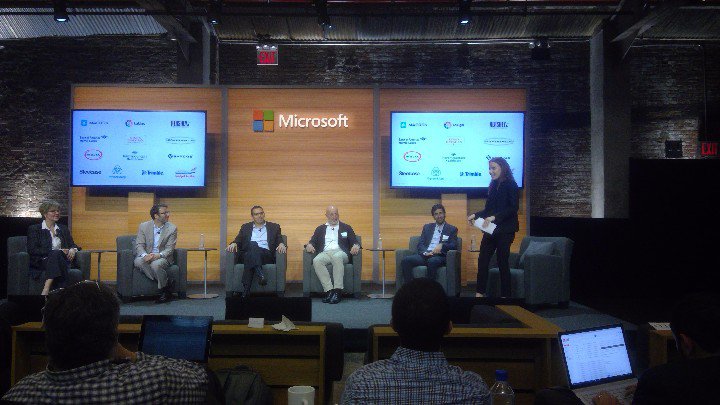
Yesterday, Microsoft held a Digital Difference media event in New York City, featuring dialogue and insights around advancements in several major areas, including health, retail, transportation, robotics, sports fan engagement and consumer goods. While several Microsoft customers and partners were showcased at this event, we had a chance to go hands-on with a simulated demo of Microsoft’s own Connected Vehicle technology, guided by Christan Berg, Product Manger, Business Intelligence, and Analytics at Microsoft.

In this case, the Connected Car was a simulator, using the Xbox Game Forza 6 to simulate the external environment. There were also sensors on the simulator, measuring steering wheel input, and acceleration and braking. Outward facing cameras, and an inward facing camera in the form of a Kinect was also present in the simulation.

According to Christan Berg, machine learning is able to analyze and measure the driver’s stress, anxiety, and engagement to create a driver score. The driver score also measures how much time your eyes are on and off the road, showing that the car can tell if you’re looking at the right things. Importantly, the technology is adaptive, so it knows when it can disturb you, and when you need to concentrate.

Driving the Connected Car Simulator
Another attendee driving the Connected Car simulator

As detailed at the Consumer Electronics Show, Christan Berg holds true to the fact that the automotive industry is going through rapid transformation powered by Industry 4.0. In fact, one of the key changes is the Connected Car, and estimates show that a quarter billion connected vehicles will enable new in-vehicle services and automated driving capabilities by the end of the decade. Christan Berg believes that this rapid transformation has an immense opportunity in the automotive industry, including safer cars, more reliable cars, and cars that make you more productive, whether you’re doing a conference call, or catching up on emails.

Berg detailed that in order to enable all these scenarios, cars will need to generate up 25GB of data per car per hour. So to help automakers keep up with these changes and deal with the data, Microsoft created the open source Microsoft Connected Vehicle platform, based on the Azure cloud (and available on GitHub.)

At the end of the day, the Connected Vehicle demo introduces Microsoft’s vehicle telemetry solution built on Microsoft’s Azure and the Internet of Things. The advanced analytics, data, and business intelligence derived from this driving simulation are visually quantified by Power Bi and spotlights the products and services solutions made possible for auto dealers, insurance providers, manufacturers and drivers across the world.

Reported issues with Titanfall 2: A Glitch in the Frontier

Titanfall 2 recently received a new update that brought a series of bug fixes and improvements as well as a bevy of new features. The patch notes for the update “A Glitch in the Frontier” reveal that the update brings a new map, a new Live Fire Map, a new faction, as well as many useful matchmaking and network improvements, among other things.

Unfortunately, A Glitch in the Frontier also brings a few issues of its own as gamers report. In this article, we’re going to list the most common issues reported by gamers.

Titanfall 2: A Glitch in the Frontier bugs

  • The update won’t install

I’m trying to update my game since the new Glich in the Frontier patch, but it won’t start the update, it’s just says “Update in Queue”, but nothing happens. What is wrong, anyone else having this problem? The game worked fine before this…

  • Titanfall 2 freezing on Glitch

since the DLC, Titanfall 2 is directly (1-3min) freezing on Glitch-Map in any game mode…..anyone the same problem(s)? On other maps (after ten games) no Problems detected….

  • Graphics issues

A Glitch in the Frontier has made Titanfall 2 unplayable for many gamers. When they launch the game, random black squares appear on the screen, as you can see in the screenshot below.

These are the most frequent issues reported by Titanfall 2 players after installing A Glitch in the Frontier. As you can see, there are only three bugs on the list, meaning that the update is actually pretty stable and reliable, with most players able to enjoy a smooth gaming experience.

RELATED STORIES YOU NEED TO CHECK OUT:

Xbox Head Phil Spencer wants Xbox Game Pass to become a Netflix of exclusive story-driven games

Two months ago, Microsoft invited Xbox Insiders to test a preview of its new Xbox Game Pass. For those unfamiliar, this is a new game subscription service that will give Xbox One gamers access to a catalog of over 100 Xbox games for $9.99 per month. The service will officially launch later this Spring, but the Xbox team is already thinking about how the Xbox Game Pass could disrupt the gaming industry, just like Netflix did with TV shows.

In a lengthy interview with The Guardian, Xbox head Phil Spencer explained that single player, story-driven games are increasingly competing for attention with “Games as a service” like Destiny or Tom Clancy’s The Division. “The audience for those big story-driven games… I won’t say it isn’t as large, but they’re not as consistent,” said Spencer. “You’ll have things like Zelda or Horizon Zero Dawn that’ll come out, and they’ll do really well, but they don’t have the same impact that they used to have, because the big service-based games are capturing such a large amount of the audience,” he added.

As a result, Spencer thinks that it’s very important for the video games industry to create new business opportunities for story-driven games. Drawing a comparison with the high-quality exclusive TV shows that you can find on Netflix or HBO today, Spencer thinks that gaming subscription services could give much more creative freedom to developers of story-driven games:

I’ve looked at things like Netflix and HBO, where great content has been created because there’s this subscription model. Shannon Loftis and I are thinking a lot about, well, could we put story-based games into the Xbox Game Pass business model because you have a subscription going? It would mean you wouldn’t have to deliver the whole game in one month; you could develop and deliver the game as it goes.

The episodic games from Telltale Games are one of the best story-driven games you can play today.

Spencer is convinced that television has now reached a golden age of creativity, and if you already watched Games of Thrones or House of Cards you’ll probably agree with him. “The storytelling ability in TV today is really high, and I think it’s because of the business model,” added Spencer. “I hope as an industry we can think about the same. Subscription services might spur new story-based games coming to market because there’s a new business model to help support their monetisation.”

Including exclusive story-driven games into the Xbox Games Pass could certainly make the subscription service much more valuable for Xbox gamers, and it could even drive Xbox One sales if these games are really good. However, old-school gamers who like to “own” their games may not like this at all. And more importantly, it’s not clear why game developers would prefer to restrict their games to a limited audience of subscribers, especially since Sony’s Playstation 4 sold much better than the Xbox One to this day.

Do you think a Netflix-like business model could benefit story-driven, single player games, or do you think gamers and the video game industry are not ready for this yet? Let us know what you think in the comments below.

Microsoft is changing its update schedule with the Creators Update, here’s what’s new

Earlier this week, Microsoft released a new cumulative update for the Windows 10 version 1703, aka the Creators Update. Unlike the usual Patch Tuesday updates, which include both security fixes and other general improvements, this latest cumulative update was described by Microsoft as a non-security update with only “quality improvements.”

As Microsoft’s Michael Niehaud explained on TechNet this week, you can expect to see more of these updates every month going forward (via Neowin).

Based on feedback from customers, we are making some adjustments to the updates that we are releasing for Windows 10, version 1703 (also known as the “Creators Update”). With these changes, we will routinely offer one (or sometimes more than one) additional update each month. These additional cumulative updates will contain only new non-security updates, so they will be considered “Updates” in WSUS and Configuration Manager.

In addition to Patch Tuesday, users of Windows 10 version 1703 will now get additional non-security cumulative updates every month.

Installing these non-security cumulative updates will change the minor build number, as did the one released earlier this week which bumped the OS to build 15063.250. For consumers like you and me, this means that you’ll be asked a little more often to install updates and reboot your computer. This new update schedule will also affect Windows Insiders on the Release Preview Ring, which will “get these same updates, but earlier in the process before they are published broadly to Windows Update, WSUS, and the Windows Update Catalog,” explained Niehaus.

If you’re worried about these updates disturbing your workflow, we remind you that the Creators Update gives Windows 10 users more control over the update process: once an update is ready to be installed on your PC, you can either pick a time that suits you best or “snooze” the update for three days.

The Creators Update lets you manage Windows 10 updates more easily.

As Niehaus explained, this new update schedule will also affect business users using Windows Server Update Services (WSUS) and System Center Configuration Manager to manage the deployment of Windows updates. Those new non-security cumulative updates will usually be labeled as “Updates” in both tools, but in some cases they will appear as “Critical Updates” when they “address more critical issues that could be affecting organizations,” said Niehaus.

Either way, these non-security cumultative updates won’t be installed automatically on PCs that have been configured with Windows Update for Business policies: organizations will be able to deploy them immediately, push them to only a subset of devices or not deploy them at all. “There is no harm in doing this since the same fixes will be included in the next “Update Tuesday” cumulative update (along with all the new security fixes). To clarify, Niehaus added in the comments that this new update schedule is meant to allow business users to test non-security fixes earlier than before:

Before, most organizations picked up new security and non-security updates in the cumulative update released on Update Tuesday. Now those non-security updates will be available a couple of weeks earlier. This gives you the opportunity to validate these non-security fixes, in advance of the Update Tuesday package (which will include the same fixes, so if you don’t deploy this non-security update, you’ll still get the same fixes a couple of weeks later).

For now, this new update schedule won’t affect users of Windows Server 2016, though Niehaus said that “we’re looking at the potential for doing this for other Windows releases at some point in the future.” Overall, this is the first major change to “Windows as a Service,” and we’ll see how it goes. There is probably a fine line between keeping your OS up to date and reaching “update fatigue,” so let us know in the comments if you think this new update schedule could be an annoyance for consumers and business users.

Xbox Live hacker sentenced to 2 years in jail

Adam Mudd, the man who created the program responsible for at least 1.7 million attacks on Xbox Live, Minecraft’s servers, Microsoft, and other online services has been sentences to two years in prison as reported by The Guardian.

According to the report, Mudd, who is 20 years old now, earned over £386,000 in US dollars and bitcoins in sales of his program and that there were “more than 112,000 registered users of Mudd’s program who hacked about 666,000 IP addresses. Of those, nearly 53,000 were in the UK.”

The report states that Mudd had been suffering from “undiagnosed Asperger syndrome” but that he was also described as being “bright and high-functioning” by his lawyer with the judge, Michael Topolski QC, concluding that Mudd knew exactly what he was doing and the consequences his actions would have on business and security. “I’m entirely satisfied that you knew full well and understood completely this was not a game for fun,” Topolshi said. “It was a serious money-making business and your software was doing exactly what you created it to do.” Mudd was also accused of personally carrying out at least 594 of the distributed denial of service attacks between December 2013 and March 2015. He pleaded guilty.

Do you think two years is sufficient punishment? What do you think could have been done to prevent this situation? Share your thoughts with us in the comments below.

Create shortcuts in My Computer & Control Panel with this tool

Frequently searching for files and folders nested deep in Window’s File Explorer could be a daunting task. Thanks to desktop shortcuts, though, you can avoid getting lost and locate what you are looking for easily.

There are a few caveats, however. Namely, the one where your desktop becomes cluttered with shortcuts. In addition, you may not place everything on your screen. For all this, the My Computer Manager has your back.

My Computer Manager is a tool for creating shortcuts and adding them to the My Computer and Control Panel windows. This helps you use available space in those windows to avoid cluttering up your desktop. The tool has quite a straightforward interface: up top, you’ll find the File and Tools menu. Below those menus is where the Add File, Add Folder, Edit Item and Remove Item buttons appear. To the right, the Mode and Location drop down menus are located. The main part of the interface contains the Name and Location of added shortcuts.

You can add a file or folder shortcut by setting the Mode to Advanced, clicking on the My Computer or Control Panel from Location, and selecting the Add File or Add Folder button. You will then see a window pop up to let you choose the Name, Path, and Icon for your desired shortcut. From here, click add.

The tool will automatically add the file and folder shortcuts to the pre-defined window. Select the Tools menu and click Options to combine the Add To My Computer and Add To Control Panel options in the Windows Explorer right-click menu. Add a file or folder shortcut to the My Computer or Control Panel window by right-clicking a file or folder.

My Computer Manager is available on Windows XP, Windows Vista, Windows 7 and Windows 8, with support for both the 32-bit and 64-bit versions of the OS.

RELATED STORIES YOU NEED TO CHECK OUT:

Windows Defender won’t launch when double-clicking the tray icon [FIX]

Windows 10 Creators Update users have been reporting a strange flaw that is now confirmed on computers running both the stable version of the operating system and the Redstone 3 preview builds. It seems that they can’t launch Windows Defender by double-clicking the icon from the system tray.

Windows Defender in Windows 10 Creators Update

Windows Defender has become Windows Defender Security Center in the Windows 10 Creators Update. This is the OS’ main protection shield against all kinds of unwanted problems therefore it runs non-stop, and it’s got its own icon placed in the system tray to give users the quickest possible access to it.

Unfortunately, it looks like double-clicking on this icon won’t do a thing. It makes no difference and the app doesn’t launch. Users have been trying to find a solution and they managed to do it.

It seems that right-clicking on the icon and then hitting the ‘Open” option is the easiest way of getting the app to work. This trick is working properly on affected systems, but it’s still unknown the reason for which this bug has appeared in the first place.

The bug is not new in town

It’s interesting to find out that this bug has been lurking around for some while now because the same problem has been reported and also listed as a known bug by Microsoft during the Microsoft Insider program before the Windows 10 Creators Update was released.

The posts that can be found in the Windows 10 Feedback Hub all confirm that this is a known problem. Also, a Microsoft engineer has confirmed himself a couple of weeks ago that the team was working on a fix for this issue.

Until now, there still hasn’t been provided any patch and the bug is becoming more and more experienced on fully updated systems. Microsoft might release a fix for it when the next updates for Windows 10 Creators Update land, and that is on May 9.

RELATED STORIES TO CHECK OUT:

Microsoft Teams introduces Trello app for Windows 10

The popular management app Trello is now integrated with Microsoft Teams, allowing Teams users to access their Trello boards easily from the Microsoft Teams application or on the Web.

All users have to do is add a new integration, with this integration the first of many more to come. Teams has been competing with services like Slack that currently offers integration with more collaboration and productivity services and apps.

Trello vs. Office 365 Planner

Trello is competing with Office 365 Planner, a new service revealed by Microsoft that’s also integrated with Microsoft Teams. The Planner offers quite a limited number of features for now compared to Trello. Despite that, it’s good that Teams user now have more options to choose from.

Microsoft Teams

Before the full launch in March, Microsoft issued an update to Teams that brought improvements to Meetings and introduced bots.

  • Microsoft Teams Meetings

Users will enjoy an improved Meetings experience on Microsoft Teams thanks to the newest improvements. Now, users will have support for one-to-one meetings with people outside the teams now able to meet with each other. Before this, users were only able to meet within a team. This is a great step for Teams.

Another Meetings improvement is the Scheduling Assistant that helps users manage their meetings more efficiently.

  • Microsoft Teams Bots

Microsoft Teams uses bots to automate tasks and to offer help to users. The latest update has given the necessary tools to enter conversations taking place across a team. In order to activate a bot, all users have to do is to place an @ before the name of a specific bot.

RELATED STORIES TO CHECK OUT:

Pre order Call of Duty: WWII on Xbox One now

Activision has just given us some much-anticipated information about Call of Duty: WWII, the next installment in the popular shooter franchise that will be released on November 3. The game is being developed by Sledgehammer Games and will be a return to Call of Duty’s WWII roots. “We’re talking boots- on- the- ground gameplay delivering a visceral and immersive gameplay experience unlike anything we’ve seen before,” explained Activition in a blog post today.

The company also published today the game’s reveal trailer and you can watch it below. Unlike the one’s for Call of Duty: Infinity Warfare which received an unprecedented amount of dislikes on YouTube, the reception for this one seems much more positive so far.

“Call of Duty: WWII focuses on the actions of a squad from 1944 to 1945, but will also touch on events from 1940 to 1944 to help set the stage for the narrative and establish the characters,” explained Activision. The game’s single player campaign will take place in the European theater of conflict, and the company also share the following details about multiplayer gameplay:

  • War: This narrative-driven mode brings a gripping new layer of excitement to Axis vs. Allies team play.
  • Divisions: A new approach to Create-a-Class and character customization as you enlist in a division and progress through the ranks.
  • Headquarters: A brand-new, social feature for Call of Duty, where you rally and interact with your fellow soldiers.

Call of Duty: WWII is already available for digital pre-oder and pre-download on the Xbox One, and you can choose between the $59.99 standard version and the $99.99 Digital Deluxe Edition. Pre-ordering the game will also give you access to the Private Beta which will be available later this year. Sound off in the comments if you’re willing to pre-order the game after watching the reveal trailer.

Xbox E3 Fanfest go quickly as expected, Microsoft adds perks for lucky few

Last week, Microsoft messed up its ticket giveaway for the Xbox E3 Fanfest, when far more than the 400 available tickets were given away, causing Microsoft to pull back and start over again this week.

Initially, those disappointed fans were somewhat appeased with a 3 month Xbox Live Gold pass, but they got an additional surprise today as the company tried once again to release those 400 tickets.

According to a post on Reddit, this time the giveaway didn’t last long, with all 400 tickets gone after only 2 minutes. Once the giveaway was complete, Microsoft made a couple of additional announcements:

If you were lucky enough to win a ticket, you’ll also get access into E3 Expo itself, which for the first time ever is opening up to the public, having been locked down to press, industry insiders, and game developers up until now.

But those fans who tried last week and were disappointed weren’t left out, either:

E3 takes place June 13-15 at the LA Convention Center, with the Xbox media event happening this year on Sunday June 11th, moved up from its usual Monday time slot to avoid getting caught “in the middle” of other pre-E3 events.

Microsoft is widely expected to show off Project Scorpio, lots of games, and maybe even a few surprises at this year’s E3. We’ll be there to bring you all the latest, so stay tuned, and btw if you’re going to FanFest, let’s talk!

How to view your friends’ activity using the Xbox app on Windows 10

The Activity Feed in the Xbox app of Windows 10 lets you monitor the developments of your friends playing games online. You can also post new messages, view screenshots, and comment on their recent achievements using this tool as well.

You can see the Activity Feed on the Home screen of the Xbox app. Alternatively, you can also check out the activity timeline of a specific friend via their profile page.

To see your friends’ activities from the Home screen, simply open the Xbox app and view the Activity Feed. From there, you can comment on your their recent achievements and game clips.

To interact with a friend’s posts, follow these steps:

  1. Click the Heart icon to “like” a post. A screen will then show that one of your friends unlocked an achievement in a game. You can use four buttons at the bottom to Like, Share, or Leave a comment, as well as report an abuse or something inappropriate.
  2. To Share someone’s activity on either your Activity feed or in a message you send to others, click the icon of a circle with three small circles on it. A message screen will provide a field for you to enter the recipients’ Gamertags and a message about a friend’s achievement.
  3. Use the Leave a comment box to type a message for anyone who views your friend’s Activity feed to see. An achievement screen includes a comment left by a friend. The words ‘Good Job, Mann!!!’ appear under the achievement notice. Click the Gavel icon in the lower right-hand corner of any post to report an inappropriate or abusive post. You will then see a messaging window in the Xbox app where you can report inappropriate or abusive behavior.

To see activities from a friend’s profile, search for the friend or choose them from your friends list and double-click their Gamertag to open their profile page. From their profile, you can view the Activity feed.

RELATED STORIES YOU NEED TO CHECK OUT:

  • The new Xbox One build introduces Creators Update features to more testers

Microsoft Teams improves Files experience with new update

If you’re not done hearing about the latest work collaborating tool, Microsoft Teams has received an update today with a few new features. The Slack competitor became generally available last month and since then the team has been eager to respond to its ripe UserVoice forum with a better experience.

Here is what’s new:

  • Wiki supports Markdown: Now you can use Markdown in Wiki. Use the same Markdown syntax that applies to chats and messaging to format Wiki sections on the fly. If Markdown isn’t your thing, you’ll still be able access all the same formatting options from your toolbar.
  • Link to a channel or team: Now, you can grab a shareable link to a channel or team just by clicking the more icon next to the channel or team name. Copy and paste the link in a message or email to give someone a quick and easy entry point to key conversations, files, and contacts.
  • A better viewing experience: We made some performance improvements to your Files view in channels. Now, when you’re navigating to your Files, the view will load even faster.
  • New refresh button: We added a refresh button at the top corner of the Files tab in each channel. You now have an easy way to check for new files or any other changes that might have happened since you last looked.
  • New upload indicator: Now, when you upload a file to the Files view or OneDrive in a channel, you’ll see an indicator letting you know your upload is in progress. From there, you can track your progress or cancel uploads for multiple files at a time.

Just in case you missed it, Teams on Android also got an update yesterday with essential channel creation and profile picture features.

Of course, we at OnMSFT are excited to see Teams adding to its repertoire of collaborative features. But there still some areas that could use a few tweaks. If you’re interested, check out my personal review of Microsoft Teams.

Dive deep into Windows 10, Surface, Edge and more with new technical docs available on Windows IT Center

If you’re an IT Pro who needs the latest in-depth information about Windows 10 and related technologies, you now have a new place to find everything you need. In a new blog post on Microsoft’s TechNet website, the company announced that it’s moving all its technical documentation to docs.microsoft.com (not to be confused with Microsoft’s Docs.com service).

“This move, from the TechNet Library to Docs, is part of our ongoing commitment to make it easier for you to find the content you need and have a great experience viewing that content from any device—phone, tablet, or PC,” explained the company. Additionally, IT Pros can suggest additions or updates to all English content: to do that, they can click on the Edit button in the top right menu, which will lead them to the corresponding GitHub page.

Here are some of the different sections you might want to check on the Windows IT Center:

Microsoft is also inviting IT Pros to share their feedback on the new experience, and you can do that on the dedicated UserVoice website.

Microsoft backpedals to revert Azure AD login changes, vows to do better

Sometimes, even a tech giant like Microsoft can find themselves between a rock and a hard space. A few weeks ago, the Azure team switched up the branding logic for its Azure Active Directory login pages. But that didn’t sit too hot with the consumers.

Employers and employees that encountered the updated login were finding themselves less efficient as a result of miscommunication. Even though the proposed changes were meant to make it easier for employees and B2B guests what they were signing into, it seems the plan backfired. With what some called a ‘sudden change’, many were confused and even frustrated enough to leave their two-cents for Microsoft.

As a response, the Azure team is rolling back the changes to the Azure AD login page. Alex Simons explained in the announcement that they will be revisiting the plan to inform and communicate changes like these in the futures. It seems the team is taking this commitment to interacting with the feedback seriously too. Program Manager Ariel Gordon even listed off ways that the team will be adjusting for futureAzure AD releases that will affect businesses.

  1. Future login UX change that affect business customers will be announced ahead of time
  2. Changes will be tested via flighting, and incorporate a Preview period that allows us to gather broader feedback from you
  3. For most disruptive design changes, we’ll introduce an opt-in period of at least 30 days, giving everyone a chance to update their support and training materials

No doubt we’ll see a revamped version of this login update later down the line. As pointed out int the blog post, this was also a step to mainstream Azure AD with Microsoft accounts. At least this time, everyone will be expecting it.

UBS, Maersk join Microsoft in making a Digital Difference

The business world, ready or not, is facing rapid changes as companies move to the cloud, and today Microsoft showcased a number of those companies who are making a “Digital Difference.” Our own Arif Bacchus liveblogged event this morning in New York City, where Microsoft CVP Judson Althoff hosted a panel discussion on the transformation to the cloud and showcased a number of new partners now taking advantage of the Microsoft Cloud.

Among them, UBS, the “world’s largest wealth manager,” is using Azure to power its risk management system, and has plans to move more business applications into the Azure cloud. As usual, security is a big focus and a big advantage for Microsoft:

Key to UBS’s move to Azure was a significant focus on regulatory compliance. Microsoft’s Financial Services Compliance program — a unique program that allows firms and regulators to deeply examine Microsoft cloud systems, services and processes — provides transparency into Microsoft cloud operations. This ensures UBS and regulators that Microsoft has taken the proper steps to secure data and mitigate risk. In addition, Azure’s industry-leading compliance portfolio ensures UBS can move to the cloud while meeting current compliance requirements, as well as plan for future regulations.

Maersk, a “global leader in container shipping and ports,” and a big win for Microsoft with its 88,000 employees working in 130 countries, announced today that it too is making a Digital Difference, making Microsoft its preferred cloud partner and using Azure to power its app store and help drive business model innovations.

Microsoft is pushing hard to compete with the likes of Amazon Web Services for the almost inevitable move to the cloud by businesses of all sizes, and are rolling their efforts into a new initiative, the Digital Difference.

We’ll have more from the event today, and more news on Microsoft’s efforts as they come, so stay tuned!

Install the Creators Update or Redstone 3 OS on unsupported Lumia phones

Only a handful of phones will get the new Windows 10 Creators Update and the upcoming Redstone 3 update. Here are all of them:

  • Alcatel IDOL 4S
  • Alcatel OneTouch Fierce XL
  • HP Elite x3
  • Lenovo Softbank 503LV
  • MCJ Madosma Q601
  • Microsoft Lumia 550
  • Lumia 640/640XL
  • Microsoft Lumia 650
  • Microsoft Lumia 950/950 XL
  • Trinity NuAns Neo
  • VAIO VPB051.

This also means that the pool of phones participating in the Windows Insider Program has been drastically reduced to just 13 devices.

The good news is that if you really want to run the Creators Update and the Redstone 3 update on unsupported Lumia models, you can: a group of resourceful developers has come up with a workaround to trick Microsoft’s update servers into installing these two operating systems on unsupported Lumia phones.

How to get the Creators Update or Redstone 3 on unsupported Lumia phones

For a video guide, scroll to the end of the article.

  1. Update to Windows 10 using a hack for unsupported phones or the upgrade advisor.
  2. Go to Settings > Update and Security > select Developer Mode
  3. Open the 8.0 development tool and deploy VCREG_005
  4. Change the registry keys to the 950 or 950 XL keys
  5. Open VCREG > select HKEY_Local_Machine and String
  6. Select the 3 dots and select templates
  7. Go to live interop/capability unlock > Full FS Access > Restore NDTKsvc
  8. Go back and type the following path

Path
System\Platform\DeviceTargetingInfo

Key
PhoneFirmwareRevision Value = 01078.00053.16236.35014
PhoneRadioSoftwareRevision = BO25c43.00024.0001
PhoneSOCVersion = 8994
PhoneMobileOperatorName = 000-GB
PhoneMobileOperatorDisplayName = GV GBIE
PhoneManufacturerModelName = RM-1085_13829
PhomeModelName = Lumia 950 XL
PhoneManufacturer = Microsoft
PhoneHardwareVariant = RM-1085

9. After having written this path, go to Settings > Update and Security > select the Insider Program
10. Join the Insider Program > restart your phone if prompted
11. Join the Fast Ring > check for updates and you should get the latest Windows 10 Creators Update build.

For more information, watch this step-by-step video guide below:

RELATED STORIES YOU NEED TO CHECK OUT:

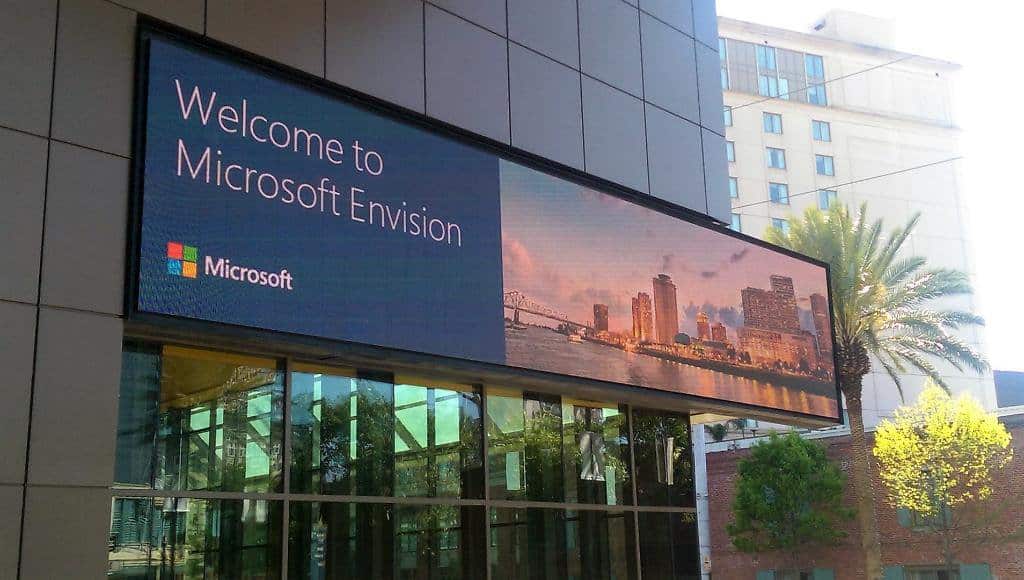
Michelle Obama to speak at Microsoft Envision

Michelle Obama, the former First Lady of the United States, will be one of the featured speakers at Microsoft’s Envision 2017 conference. The former attorney and role model for women will join other high-profile speakers such as Vice Chair of General Electric Beth Comstock, Microsoft CEO Satya Nadella and many other Microsoft execs including CFO Amy Hood and Chief Marketing Officer Chris Capossela.

https://twitter.com/MSFTEnvision/status/856908165639798784

For those unfamiliar, Envision is a new business executive conference that Microsoft introduced last year in April. This year though, Envision will become a part of Microsoft Ignite, which is the company’s big conference for IT professionals. “The partnership between business and IT leaders has never been more important, so Microsoft Ignite will now cater to both audiences and help foster collaboration between the two,” explained Capossela in December.

Microsoft Envision will kick off on September 25 in Orlando, Florida, and you can register and get more information about it on the dedicated website.

Microsoft Digital Difference media event live blog

Microsoft today is holding a Digital Difference media event, and we’re here live! The event features great dialogue and insights around advancements in several major areas, including health, retail, transportation, robotics, sports fan engagement and consumer goods. A wide range of global companies and digital start-ups are here, and they are sharing how they’re using technology to create new business models and products.

Judson Althoff, Executive Vice President at Microsoft, and Abbie Lundberg, a researcher at Harvard Business Review are scheduled to speak at this event, so be sure to follow along with us right here at the event in New York City by reading our live blog below.

Screen flicker after installing Windows 10 Creators Update [Fix]

Windows 10 Creators Update has been around for more than two weeks. And while the majority of users is still getting accustomed to the new features, there are some people who are not that delighted about the new update.

Those users are, of course, users who have encountered certain issues upon installing the Creators Update. One of the most annoying problems that recently emerged is the screen flickering issue, that some people complain about. This is a known problem in Windows 10, and users have already developed a defense mechanism against it in form of a couple of useful workarounds.

So, in case you’ve encountered the screen flickering issue upon installing the Creators Update, we might have a few solutions that may come in handy. Keep reading.

How to deal with screen flickering in Windows 10 Creators Update

Check drivers

The number one step you should take when dealing with display-related issues in Windows 10 is to check your display drivers. Of course, everything was fine before the update, but there’s a chance the Creators Update conflicts with your current display driver version.

In that case, the obvious solution is updating your display driver. In case you’re not sure how to do that, follow these instructions:

  1. Go to Search, type devicemngr, and open Device Manager
  2. Scroll through the Device Manager, and look for your graphics card, under Display adapters
  3. Right-click your graphics card, and go to Update driver
  4. If the update is available, just follow further instructions, and let the wizard finish installing the update
  5. Restart your computer

In order to prevent PC damage by installing the wrong driver versions, we suggest doing it automatically by using specialized software.

Advanced tools will find the right driver versions and will keep your firmware up to date. Beware that some drivers can be installed by these tools in multiple steps.

⇒ Get Fortect Driver Updater

If an outdated driver indeed was the cause of the problem, you’re good to go now. On the other hand, if the problem still persists, move on to another solution.

Change monitor refresh rate

Although it’s probably unlikely, there’s a slight chance that the Creators Update messed up your screen monitor refresh rate. In that case, you should go and get your screen refresh rate back to ‘normal’. Here’s exactly what you need to do:

  1. Right-click on Desktop and go to Display Settings
  2. Go to Display adapter properties
  3. Under Related settings, go to Display adapter properties
  4. Go to the Monitor tab and select another refresh rate from Screen refresh rate:
  5. Click OK

Check for incompatible apps

The new update brings a certain amount of changes to the system, and how everything within it works. So, just like it’s the case with drivers, there’s a chance that the current version of your operating system conflicts with some of the installed apps or programs.

So, find an app or program you think causes the screen flickering issue, and simply uninstall it. Or even better, update it if the update is available. This is especially related to antivirus programs, as they’re known as a culprit for various system-related issues in Windows 10.

To update your installed apps, simply head over to the Windows Store, and check for updates.

If you want to completely uninstall a certain Windows 10 app, just follow these instructions:

  1. Go to Settings.
  2. Click on System > Apps & features.
  3. Select the app causing the problem and click Uninstall.
  4. Click Uninstall again to confirm.

To uninstall a program, follow these instructions:

  1. Go to Search, type control panel, and open Control Panel.
  2. Click on Uninstall a program.
  3. Select the program you want to remove.
  4. Click Uninstall and follow further instructions from the uninstallation wizard.

That should be all, we certainly hope that at least one of these solutions helped you to resolve the screen flickering issue in Windows 10 Creators Update. If you have any comments, questions, or suggestions, feel free to let us know in the comments section below.

RELATED STORIES YOU NEED TO CHECK OUT:

Surprising new Windows 10 wearable announced

In a surprising move, Microsoft has just revealed a new wearable which will be powered by Windows 10. The TrekStor IoT wearable will be a Windows 10 IoT (Internet of Things) Core-based B2B commercial-grade device that can connect to the cloud, run apps designed in the Universal Windows Platform (UWP) app format, will be using Microsoft Cognitive Services, and will have built-in Wi-Fi and Bluetooth functionality.

The 1.54 inch screen will be made from Gorilla Glass 3 and the hardware is described as having “the processing power and battery life to perform its line-of-business functions” which could include sending and receiving text and voice messages.

No further information has been revealed on the TrekStor IoT wearable but the official blog post does state that right now it’s being created for work environments and not the casual consumer.

Microsoft has experimented with wearables before with their now seemingly cancelled Microsoft Band product. The TrekStor IoT wearable will be created by a Third Party however so there will be very little financial risk on Microsoft’s party if this new concept fails to take off.

Would you be interested in another Windows 10-powered wearable? Let us know in the comments.

Marvel vs. Capcom: Infinite release date and new characters revealed

A host of new information for Marvel vs. Capcom: Infinite was released today that sheds some light on the characters that will be featured in the game and the release date.

Marvel vs. Capcom: Infinite is now due for release on Xbox One and PC on September 19th this year and is set to include the following playable characters: Iron-Man, Captain Marvel, Megaman, Ultron, Hulk, Thor, Hawkeye, Rocket Raccoon, Chun-Li, Strider Hiryu, Chris Redfield, Captain America, Sigma, Morrigan, and Ryu. The game will feature a story mode and several unannounced characters will launch as DLC after they game’s release. Here’s the new trailer that was released alongside today’s information.

Marvel vs. Capcom: Infinite will release in three different versions. The Standard Edition will contain the base game and its pre-order will include the Warrior Thor and Evil Ryu premium costumes. The Deluxe Edition comes with the game and the 2017 Character Pass (all six post-launch characters). The pre-order of the Deluxe Edition will also unlock the Warrior Thor and Evil Ryu premium costumes as well as the Gladiator Hulk and Command Mission X ones.

Marvel vs. Capcom: Infinite Collector's Edition

A special Collector’s Edition will come with everything in the Deluxe Edition as well as four interlocking figures and LED-powered Infinity Stone replicas.

Digital pre-orders are now live in the Xbox Store: Pre-order Marvel vs. Capcom: Infinite here

Are you excited for Marvel vs. Capcom: Infinite on Xbox One? Let us know which character you want to play as in the comments below.

Night Trap video game coming to Xbox One for 25th Anniversary

The classic 90s video game, Night Trap, is getting a special 25th Anniversary release on Microsoft’s Xbox One in Spring this year. The game is famous for being at the center of the violent video game debate in the 90s and along with Mortal Kombat was responsible for the creation of the Entertainment Software Rating Board (ESRB) in the U.S.A. Despite having no nudity or graphic violence, the game was eventually banned and never received a second printing. Here’s the official game description and announcement trailer.

Night Trap tells the story of five teenage girls spending the weekend at the Martin home. As a member of the Special Control Attack Team, your job is to monitor the home and protect the girls using an intricate system of cameras and traps as it is being invaded by vampires.

Are you excited to play Night Trap on your Xbox One? Let us know in the comments below.

How to fix Outlast 2 graphics issues quickly

Stunning graphics is a must for all horror games, so high-quality and detailed images create a realistic gaming experience and help send shivers down your spine. In order to enjoy perfect Outlast 2 graphics, follow the recommendations below. In this article, you’ll learn what graphics settings to use for optimal results and what workarounds you can use to fix various Outlast 2 graphics issues.

Outlast 2 graphics settings

Textures

  • Try not to use larger textures than your RAM/VRAM can handle in order to avoid poor graphics performance.
  • Systems running Direct3D 10 should be restricted to low or lower.
  • Systems having 1GB of VRAM or less should be restricted to medium or lower.
  • Anisotropic filtering is available from 1x to 16x. Your video card might limit filtering to a lower value if it is not supported.

Shadow Quality

  • Using high values for shadow quality will require your video card to do more work. Direct3D 10 hardware should use low settings, meaning that shadows will be half the resolution (512).
  • Medium: Shadow will use the default resolution (1024) while High: Shadows double the resolution (2048).

Geometry Quality

  • Systems with low/mid-range CPUs should restrain from using high settings to reduce CPU strain.
  • Here’s what each setting does:
    • Low: Objects will use low polygon version more often and decals will disappear quite close to the camera.
    • Medium: Balanced draw distance.
    • High: Draw distances and geometry detail is greatly increased.

Fog

  • Restrain from using high settings unless your computer is equipped with a hi-range graphics card. Direct3D 10.0 hardware should use a lower quality version of the fog. Using high settings will add a lot of pressure on your GPU and only make a subtle difference anyway.

Effects

  • Direct3D 10 hardware should use the low settings for effects.

Anti-Aliasing

  • The game devs recommend using Temporal Anti-aliasing on all computers.

V-Sync

  • Running Outlast 2 without vertical sync might create tearing, but will allow you to run at a frame rate independent of your monitor refresh rate.
  • Enable and then disable V-Sync for testing purposes and then choose the option that yields the best results.
  • It is worth mentioning that when playing in windowed or borderless full-screen mode, Windows may enforce V-Sync.

Triple Buffering

  • Triple buffering allows you to run Outlast 2 with V-Sync enabled and without tearing, at a frame-rate relatively independent of you monitor. However, keep in mind that this comes with high input latency.

Outlast 2 recommended graphics settings

Now, if your PC meets all the system requirements, use the following graphics settings:

  • Resolution: 1920×1080 (or closest native or recommended resolution)
  • Texture Quality: Very High
  • Texture Filtering: 1x (or slightly higher)
  • Shadows: Medium
  • Geometry: Medium
  • Fog: Medium
  • Anti-Aliasing: Temporal
  • Effects: High

Direct3D 10 PCs graphics issues

  • Bear in mind that if your video card doesn’t support Direct3D 11 (Shader Model 5.0), some graphical options will be disabled and the game will run at an overall lower quality.
  • If your CPU supports Direct3D 11 and the game detects it as a Direct3D 10 adapter, update your graphics drivers.

Advanced INI File options

You can also edit the INI files for additional options. Don’t forget to save the original file before applying any changes. You should also be aware that some combinations of options may lead to graphical issues and crashes. The INI files are available at this location: %userprofile%\Documents\My Games\Outlast2\OLGame\Config

Here are the features that you can edit within the INI files:

  • Chromatic Aberration: Disable the chromatic aberration effect by setting AllowChromaticAberration in OLSystemSettings.ini to False.
  • Borderless Fullscreen: Set the UseBorderlessFullscreen option to True in OLSystemSettings.ini in order to enable borderless fullscreen.
  • Unlocked Frame Rate: To enable this feature, open the OLEngine.ini file and modify the MaxSmoothedFrameRate. The game will analyze your setting and the monitor’s refresh rate and pick whichever is the highest.
  • Sync Interval: If Outlast 2 runs at a very irregular frame rates, you can lock it down to 30. Open the OLSystemSettings.ini file and tweak the SyncInterval. The devs explain that a SyncInterval of 2 will V-Sync every 2 refreshes of your screen, making the game run at 30 FPS on a 60 Hz monitor.

Unsupported graphics features on Outlast 2

  • SLI and Crossfire are not supported. The game will run both but will show no gain in performance.
  • NVIDIA G-SYNC and AMD FreeSync are not supported.

We hope the recommendations listed above helped you to improve Outlast 2’s graphics quality on your PC. If you’ve come across other quick tips and tricks to make the game look even better, feel free to share them in the comment section below.

RELATED STORIES YOU NEED TO CHECK OUT:

Posted in Fix

Surface Book overheats after installing Windows 10 Creators Update [Fix]

Windows 10 Creators Update is simply made for the Surface Book, when you take a look at the list of features. But as it turns out, all these novelties are actually too much for some Surface Book devices. Namely, we’ve seen a couple of reports about Surface Book overheating after installing the Creators Update.

This shouldn’t be a widespread issue, as the Surface Book is a pretty well-made device, but there might be some cases here and there. Since we’re talking about overheating issues after installing the Creators Update, we’re not going to mention external causes, like an inappropriate bag, in this article. We’re going to focus solely on system features.

Unfortunately, we haven’t found any workarounds specifically related to the Creators Update features. So, we’ll have to work with what have. Check out the solutions below.

Surface Book overheats after installing Windows 10 Creators Update

Turn off Cortana

There’s a widespread opinion (although not confirmed by Microsoft) that Cortana causes overheating issues in the Surface Book. At least that was the case in the Anniversary Update. And Microsoft’s virtual assistant indeed received some changes with the latest update. So, until you find a more reliable solution, you can go and turn Cortana off.

Since Cortana is an integrated Windows 10 feature, disabling it is not a walk in the park for an average user. So, we’re going to lead you through the whole process. Here’s exactly what you need to do:

  1. Go to Search, type regedit, and open Registry Editor
  2. Navigate to the following path: KEY_LOCAL_MACHINE\SOFTWARE\Policies\Microsoft\Windows\Windows Search
  3. If you can’t find the Windows Search folder, and a lot of computers are missing it, you can create one yourself. Here’s how to do that:
    • Right-click the Windows folder and choose New > Key
    • Name it Windows Search
    • Right-click the Windows Search folder, and go to New > DWORD (32-bit Value)
    • Name it AllowCortana
  4. Now, double-click AllowCortana, and set its value to 0
  5. Save changes, and restart your computer

After you restart your computer, you’ll end up just with Windows Search, as Cortana will be disabled. There’s also a way to disable Cortana through Group Policy editor, but certain reports suggest that it’s not such a good idea in the Creators Update. So, our advice is to play it safe with the Registry editor tweak.

You can turn Cortana back on anytime by changing AllowCortana‘s value to 1.

Modify Power settings

There’s another possible workaround for the Surface Book overheating issues. This solution applies if your Surface Book is overheating while it’s supposed to be in the Sleep Mode. To deal with this problem, you should modify the On battery power, stay connected to Wi-Fi while asleep setting in the Windows 10 Settings app.

Here’s exactly what you need to do:

  1. Open the Settings app
  2. Go to System > Power & Sleep
  3. Find the modify the On battery power, stay connected to Wi-Fi while asleep option, and turn it off

That’s about it, we certainly hope at least one of these solutions helped you to resolve the overheating issue with your Surface Book. One the other hand, if none of the solutions worked, make sure that the culprit of the problem aren’t external factors, like we mentioned above.

If you have any comments, questions, or suggestions, feel free to let us know in the comments.

RELATED STORIES YOU NEED TO CHECK OUT:

Windows 95 and 98 still power Pentagon’s critical systems

If you think the Pentagon has the most modern computer systems in the world, think again. While the United States Defense Department currently transitions to the Windows 10 ecosystem in partnership with Microsoft, a great majority of the defense agency’s computers still run legacy versions of Windows including Windows 95 and 98, according to Defense One.

That means despite the Pentagon’s extensive effort to beef up its security, many of its computers are powered by unsupported versions of Microsoft’s OS for desktop. Such is the revelation from no less than Daryl Haegley, program manager for the Office of the Assistant Secretary of Defense for Energy, Installations and Environment.

Unsupported versions of Windows include Windows XP and other editions that date back 20 years ago. Haegley said that nearly 75% of control system devices run Windows XP or other older versions. The figure is based on data gathered from 15 military sites in the United States. It is easy to recall that Microsoft ended support for Windows XP in 2014. Nevertheless, the Defense Department is paying Microsoft to continue providing support for the legacy OS.

The good thing is that those computers no longer connect to the Internet, which means it would be difficult for hackers to infiltrate those systems. But it is not enough guarantee that those systems are free from cyber attacks. That is especially so if those computers belong to a larger network of computers that are connected to the Internet. In fact, as DefenseOne reports, Pentagon’s critical infrastructure equipped with internet-connected sensors run on antiquated operating systems. That means the systems that run those sensors make the defense agency vulnerable to hackers.

Haegley is now pushing for an expansion to the Pentagon’s bug bounty programs in order to tap the brightest security researchers to identify vulnerabilities in its critical systems.

RELATED STORIES YOU NEED TO CHECK OUT: