Windows 10 Creators Update will have options to limit app downloads to Windows Store

As you likely know, rumors show that Microsoft is planning to release Windows 10 Cloud, which is essentially a “locked down” version of Windows 10 that only allows you to only install apps seen in the Windows Store. It now appears  that Microsoft is also bringing the “locked down” strategy to other versions of Windows 10, as new reports are indicating that the Windows 10 Creators Update will also have options to limit app downloads to Windows Store (via Windows Central.)

The option to enable a lock feature which will force users to go to the Windows Store to download and install application, games, and more is available in the latest Windows Insider build and can be found in the app settings portion of Windows 10, with two levels of control.

Windows 10 App Store Settings

As seen above, the first of the two app settings options will block non-Windows Store apps, but will also allow for the user to install with an “install anyway” button if there is no Windows Store version of the app available. On the other hand, the second option will completely lock down Windows 10 and will block all non-Windows Store apps from being installed.

It’s clearly obvious that Microsoft might have included this feature to improve the security in Windows 10, but it is worth noting that Apple also previously introduced a somewhat similar “Gatekeeper” feature in MacOS which prevents unsigned and non-store apps from being installed.  According to Windows Central, these options will be turned off by default on Windows 10 editions that are not Windows 10 Cloud. You can head to the settings portion of the latest Insider Preview builds to check out these features for yourself, so do let us know what you think by dropping us a comment below.

Lenovo announces new Yoga 720 and 520 laptops and the Miix 320 detachable at MWC

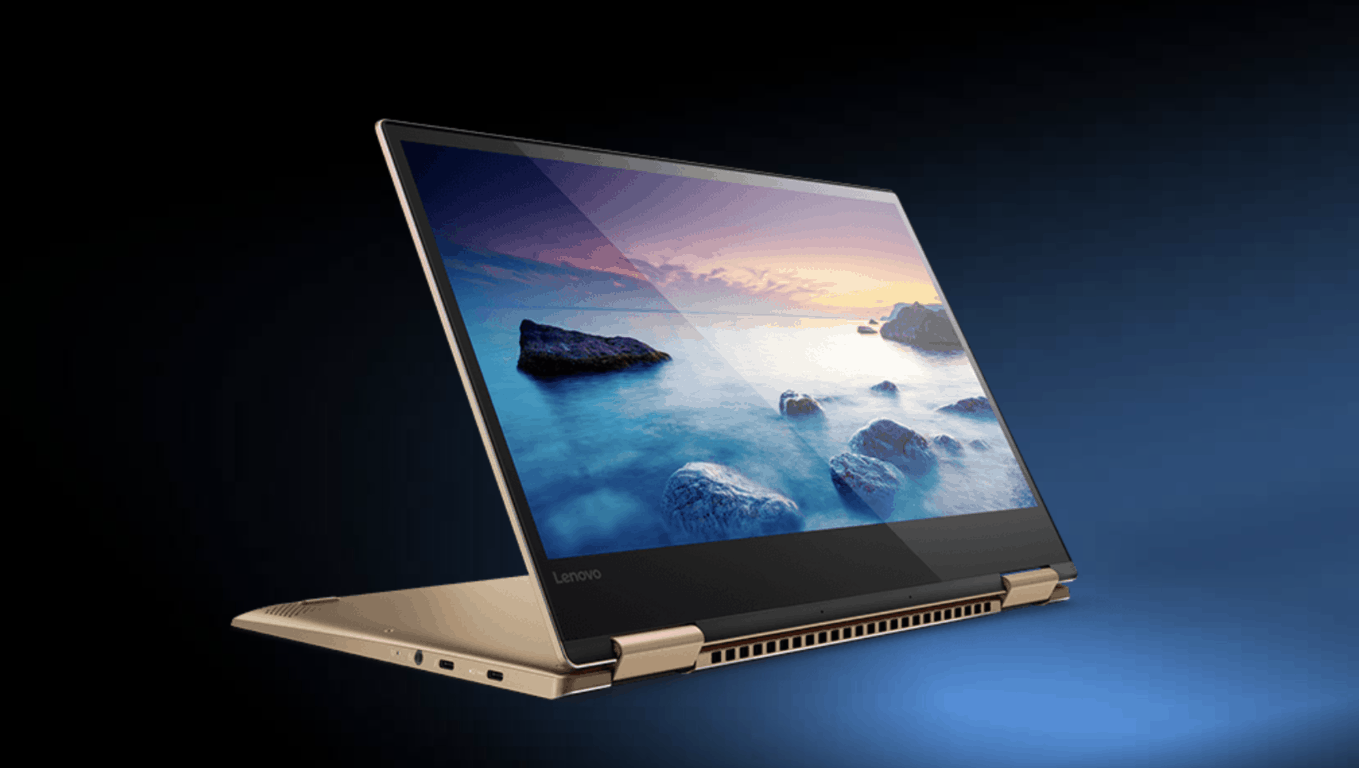
Lenovo announced today at MWC a new portfolio of Windows 10 convertible devices with the Yoga 720 and 520 laptops and the Miix 320 detachable tablet. The Chinese manufacturer seems committed to delivering a well-built, versatile devices at an affordable price and this new lineup of Windows 10 hybrids doesn’t disappoint.

First off, the Yoga 720 will be available in 13 and 15-inch models with either a Full HD screen or a UHD (3840×2160) IPS screen. Regarding specs, both convertible laptops can be configured with Intel’s 7th Core i7 processors, up to 16GB of RAM and a NVIDIA GTX 1050M GPU for the 15-inch model. Both models also feature a thin and light design, a fingerprint reader for Windows Hello and optional active pen support.

Lenovo Yoga 720 13
The Lenovo Yoga 720 (13″).

The Yoga 520, which will be marketed as the Flex 5 in the US is a 14-inch convertible laptop that features the same 360-degree hinge for flexibility. Options include a Full HD screen, an Intel 7th Core i7 processor, a NVIDIA Geforce 940MX, a fingerprint reader and the Lenovo Active Pen for creativity.

Lenovo Flex 5
The Lenovo Yoga 520 will be marketed as the Flex 5 in the US.

Last but not least, the Miix 320 detachable tablet is quite an interesting Windows 10 device for mobile workers: it comes with a 10.1-inch Full HD (1920 x 1200) touchscreen, an Intel Atom™ X5 processor, up to 4GB memory and there is even optional dual antenna LTE connectivity. Lenovo guarantees up to 10 hours of battery life for this device that is only 17.5mm thin and weighs 1.02kg with its detachable keyboard.

Lenovo Miix 320
The Lenovo Miix 320.

The Lenovo Miix 320 will start shipping in April with a $199.99 starting price, which is really cheap for what looks to be a solid Windows 10 2-in-1. As for the new Yoga laptops, the 13-inch and 15-inch Yoga 720 will also start shipping in April with prices starting at $859.99 and $1099.99, respectively. Lastly, the 14-inch Yoga 520 (Flex 5 in the US) will be available in May with a $799.99 starting price.

Tower 57 coming to Xbox One and Windows 10 via Xbox Play Anywhere

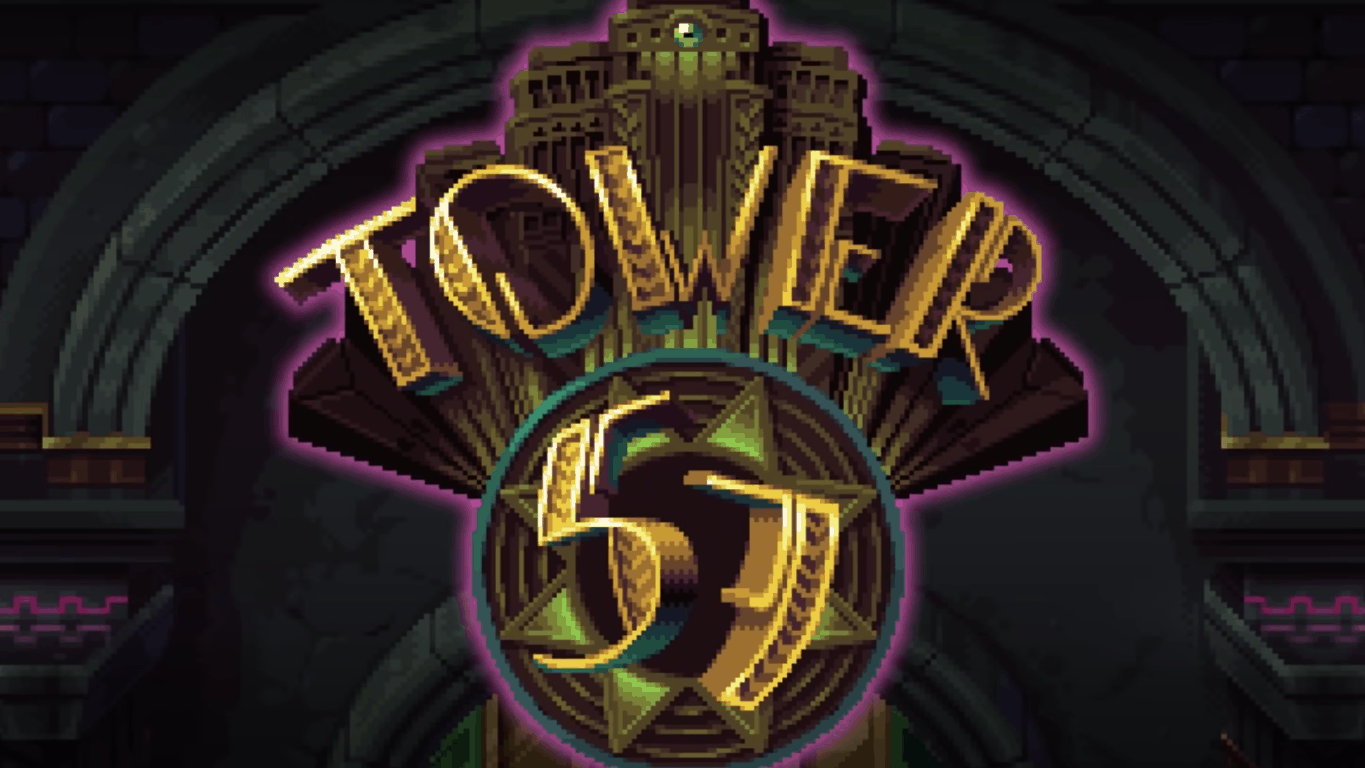
Tower 57 is a 16-bit top-down twin-stick shooter. The game offers co-operative play, so that you can play with friends. It is the latest title to be announced for Microsoft’s Xbox Play Anywhere platform, bringing the game to Xbox One and Windows 10 at the same time, universally.

A description of the game reads:

Now, imagine being lost in a steampunk-themed tower-like fortress full of threats straight from campy sci-fi stories. Some of these enemies have tentacles, others with cutting-edge lasers, but all share the same agenda: putting an end to your existence. Now think of the same situation, but with a Tesla gun in your hand, plenty of ammo at your disposal, and a friend who’s got your back. Sounds like a much different, more explosive story doesn’t it?

There’s no set release date for Tower 57, however, the developers, 11bit studios, will share more “in the coming months.”

Windows 10 news recap: Redstone 3 builds begin showing, Viber putting app on hold and more

Welcome back to our Windows 10 news recap. We are continuing the trend of our weekly “Windows 10 news recap” series where we go over the top stories of the past week in the world of Microsoft’s flagship operating system.

Viber’s Windows 10 and Windows 10 Mobile apps “on hold until further notice”

Viber, which was once seen as one of the strong supporters of Windows 10 and Windows 10 Mobile due to its well-designed app, has announced that it is putting its apps on hold “until further notice.”

Viber, Microsoft, Windows 10, Windows 10 Mobile

Top-down action shooter RUINER coming this summer to Xbox Play Anywhere on Xbox One and Windows 10

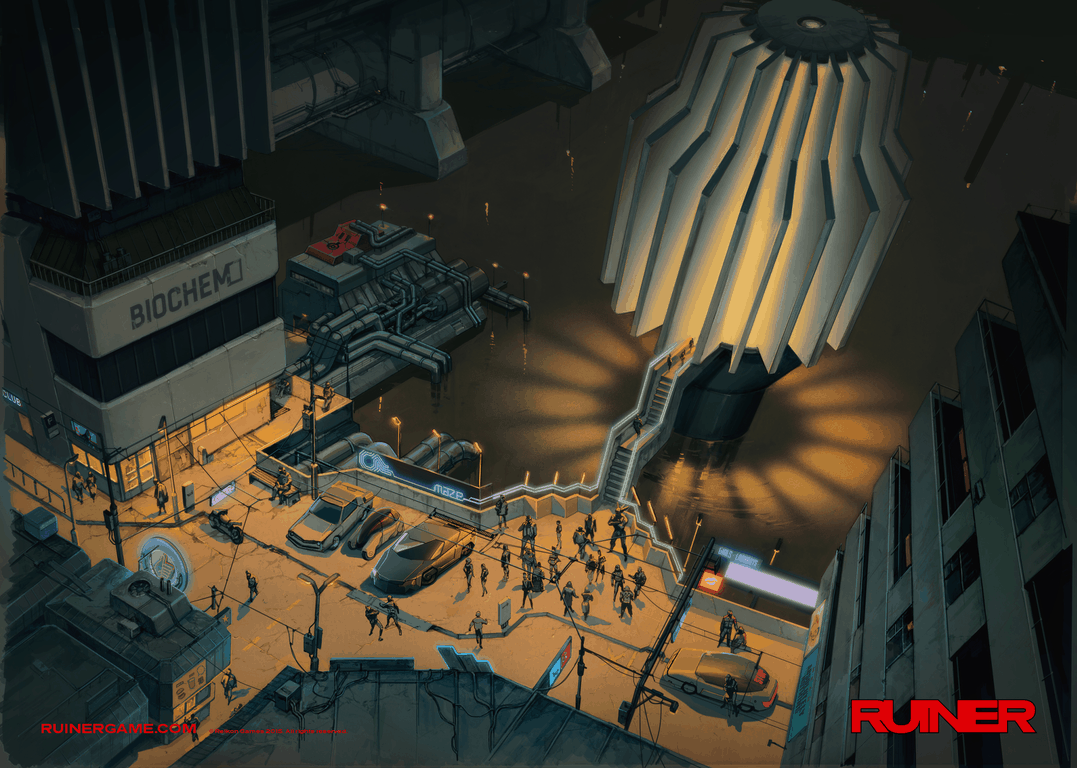
RUINER, a top-down shooter, is coming to both Xbox One and Windows 10 this summer, thanks to Microsoft’s Xbox Play Anywhere. Originally, the game was planned for PC, Mac and Linux, however, after comments from fans wanting console support too, the developers gave way to Xbox Play Anywhere.

Riptide GP: Renegade, the latest Xbox Play Anywhere title, is now available on Xbox One and Windows 10

Talking of Xbox Play Anywhere titles, the latest to be released is Riptide GP: Renegade, which is now available on Xbox One and Windows 10, providing the very latest hydrojet racing experience.

First Windows 10 Redstone 3 builds start showing up as Creators Update nears completion

With Redstone 2 almost all wrapped up ready for release, Microsoft appears to be working on Redstone 3 in the background, with build 15141 showing up on Microsoft’s internal build ring, Canary.

Speedtest by Ookla app updates with better reporting data on Windows 10

Windows 10’s Speedtest by Ookla app has received an update that brings improved reporting data, bringing the display of packet loss and jitter data.

That’s the top Windows 10 news for this week – we’ll be back next week with more!

Windows 10 build 15042: How to fix install issues

If you’re still trying to download the latest Windows 10 build, but you can’t because the install process hangs, there’s no need to panic. Microsoft has officially acknowledged this build install issue and posted a quick workaround on how to fix it.

The Redmond giant confirms that this issue affects only a small percentage of users, which is a good piece of news after all.

Windows 10 build install hangs

Issue: During the 15042 install, your PC may “hang” and become unresponsive at the Windows boot logo screen
Why: One of the required install processes may initialize but not complete or timeout, thus causing the “hang”
What to do: There are no lasting effects from this issue. Please see the workaround steps below to continue with your update

Fix: Windows 10 build install hangs

1. Manually reboot your PC if it “hangs” at the boot logo during the first attempt to install build 15042
2. Allow your PC to successfully roll back to your previous OS build
3. Log into your PC and open a Command Prompt (Admin) window:

  • Click Start > type Command Prompt
  • Right-click Command Prompt (desktop app) in the results list > select Run as Administrator
  • Click Yes to confirm
  • Paste these commands into the command prompt window > press enter after each line:

reg delete HKEY_LOCAL_MACHINE\system\setup\upgrade\nsimigrationroot /f

netsh int ipv6 set locality state=disabled

reg delete HKEY_LOCAL_MACHINE\SYSTEM\CurrentControlSet\Control\Nsi\{eb004a01-9b1a-11d4-9123-0050047759bc}\28 /f

4. Close the Command prompt window
5. Reboot your PC
6. Re-scan for updates and re-attempt the install.

Unfortunately, some Insiders report that Microsoft’s solution doesn’t always work, and despite having performed the steps listed above, the build install process still hangs.

Trying to upgrade from Build 15031. My install hangs at 23% consistently. I tried running the above commands, rebooting, rescanning and upgrading. I removed an SD card I had plugged in, and also unplugged my keyboard as was suggested elsewhere. Still hangs at 23%.

Did you manage to fix the build install issues using Microsoft’s solution? If you’ve come across other workarounds, you can list the troubleshooting steps in the comment section below.

RELATED STORIES YOU NEED TO CHECK OUT:

Blizzard drops support for World of Warcraft, Diablo 3 on Windows XP and Vista

If you are a fan of Blizzard games and are still clinging to Windows XP or Vista, now might be the right time to seriously consider an upgrade: The video game developer is joining a growing number of companies no longer supporting both operating systems.

Blizzard announced in a forum thread that World of Warcraft, StarCraft II, Diablo III, Hearthstone, and Heroes of the Storm won’t work on those legacy platforms before the end of the year. The game developer said:

Starting later this year, we will begin the process of ending support for Windows XP and Windows Vista in World of Warcraft, StarCraft II, Diablo III, Hearthstone, and Heroes of the Storm. Microsoft ceased mainstream support for these versions of Windows in 2009 and 2012, respectively, but since a decent portion of our audience was still using them at the time, we continued supporting them. However, there have been three major Windows releases since Vista, and at this point, the vast majority of our audience has upgraded to one of the newer versions.

After these older operating systems are no longer supported, the games will not run on them, so we encourage any players who are still using one of the older OSes to upgrade to a newer version. We’ll be rolling out this change on a staggered schedule, and will post further notices as we get closer to making the change for each game.

In 2016, Blizzard announced that it would drop support for both Windows XP and Vista after years of patronizing both. However, the time frame was not clear. Blizzard games have remained available for players for many, many operating system cycles. But since many gamers have migrated to modern platforms, Blizzard finally decided to pull the plug on some games still supporting those older operating systems.

Reports suggest that this process would be on a case-by-case basis rather than be executed all at once. The ending of support for those games makes sense considering that Microsoft itself no longer supports XP for consumers.

Hopefully, players must make the switch and be able to continue playing Blizzard’s games. Does Blizzard’s decision to ditch Windows XP and Vista surprise you? Let us know!

RELATED STORIES YOU NEED TO CHECK OUT:

We answer: What is Windows 10 N version and how to use it?

Windows 10 is Microsoft’s latest OS version. The OS itself has 11 editions and each version brings different sets of features. Windows 10 Home is designed for PCs, tablets and 2-in-1 PCs, Windows 10 Pro is dedicated to business usage, Windows 10 Education offers a series of unique features designed for use in schools, and so on.

Perhaps one of the least known versions of the OS is Windows 10 N. In this article, we’re going to explain to you what Windows 10 N is and how to use it.

Windows 10 N Edition

Long story short, the Windows 10 N OS comes without a built-in media player. Back in 2004, the European Commission fined Microsoft for anti-competitive practices. The Commission argued that Microsoft’s bundling of Windows Media Player within the Windows OS was actually anti-competitive. As a result, we now have the Windows 10 N Editions with no built-in media player.

There are also many functionalities that aren’t available in the Windows 10 N Editions. Users can’t play or create audio CDs, digital media files, organize content in a media library, create playlists and so on. Of course, it’s possible to add the missing functionality by installing third-party apps, such as the Media Feature Pack, Groove Music, and others.

Speaking of different Windows versions, Microsoft also developed Windows 10 KN and Windows SLP. Windows 10 KN is available to customers in South Korea, does not include Media Play back capabilities, but can be downloaded separately. Windows 10 SL is the single language variant of the OS. In other words, it comes with support for one language only, which is usually English, but users can download more languages from Microsoft’s website.

RELATED STORIES YOU NEED TO CHECK OUT:

Here is the changelog for the Xbox Insider update on the Beta ring that brings Beam broadcasting

Earlier today, Brad Rossetti of the Xbox Insider team announced that Beam broadcasting would be arriving to Xbox Insiders on the Beta ring. The Xbox Insider team have now put up the changelog for the update that arrives to those on the Beta ring today.

Improvements

Beam

Beam is an innovative and interactive livestreaming service that gives viewers the ability to watch and deeply interact with their favorite game streamers in real-time, and you can now access Beam from the Guide on Xbox One! Please view this forum post for more information about Beam on Xbox One.

NOTE: To view the Broadcast icon for Beam in the Guide, you should download and install the new update. If you hard reboot your console after 2:00PM PST 2/25 without installing the new update, you’ll be able to see and use Beam in the Guide, but may experience sub-optimal streaming. This should be corrected by installing the update.

Beam App

The Beam app is now installed by default on Xbox One! To get started with the Beam app, navigate to My games & apps and search for Beam. Please use the Beam app and let us know if you encounter any issues via Report a problem.

Network Icon in Guide

Your connection status from Settings > Network is now represented in the Guide. To view the status of your network, press the Xbox button to launch the Guide and note the network icon in the upper right corner. The network icon will display your wireless connection strength or your wired connection. If you’re offline, the network icon will indicate you are not connected to a network.

Fixes

Networking

Fixed an issue which caused certain games to fail to connect to multiplayer (Destiny, Rocket League, Trove, Lies of Astaroth, …).

Upload Studio

Fixed an issue which caused Upload Studio to crash to Home on launch.

Audio

Fixed an issue which caused no audio output from the console.

Movies & TV

Resolved an issue with the media remote which caused the play and pause buttons to be unresponsive.

Known issues

Launching Games & Apps

When launching a game or app installed on the console which you do not own, a system message is displayed which has a “See in store” button. Selecting the “See in store” button will cause the console to crash.
Workaround: Perform a hard reset (hold down the button on the front of the console for five seconds until it fully powers down, then power it back on).

Audio

When switching between apps, there may rarely be an audible “pop”.

Notifications

Some users may not receive certain types of notifications.

Game Clips

After capturing a game clip, the game clip fails to automatically post to the Activity Feed (if your profile is configured to do so).
Workaround: Manually view game clips in Profile > Captures > Manage captures and post to the Activity Feed.

Sign-In

The console may fail to automatically sign in a profile with automatic sign-in enabled.

My Games & Apps

An app named “Developer Education” may appear in My Games & Apps. When launching this app no content will be displayed. This app is intended for development use and is not accessible on standard Xbox One consoles. The app will be removed from My Games & Apps in a future system update.

Cortana

  • Cortana may take a long time to respond when activated while playing certain games.
  • Scheduled Cortana reminders will not provide a notification if the user who created the reminder is signed in, but not the current active user.
  • Using voice dictation sometimes causes the virtual keyboard to become unresponsive.

EA Access

The EA Access app may indicate you are not an EA Access subscriber when you are. This does not affect your ability to download or play games from the Vault, or receive discounts on EA titles.

Screen Dimming

The screen may dim after a short amount of time while viewing videos in certain apps (Hulu Plus).

Settings

Ease of Access When enabling the Mono output setting in Ease of Access – Audio, Settings becomes unresponsive, crashes, and fails to launch on subsequent attempts.
Workaround: To launch Settings, perform a hard reset (hold down the button on the front of the console for five seconds until it fully powers down, then power it back on).

Display & sound The Audio output page is under construction and some of the new settings are not yet functional. New support is planned for Dolby Atmos for home theater, Dolby Atmos for headphones, and more in upcoming builds. An announcement will be made when these new features are ready to try out; enabling these settings now will have no effect.

Wireless Display

The Wireless Display app fails to launch and immediately crashes to Home.

The update is available for Beta ring Insiders at 2PM PST.

Xbox Insiders on the Preview Beta ring to receive Beam broadcasting today

Those who are part of the Xbox Insider program and are on the Beta ring will today be receiving a new update. This update brings Beam broadcasting. It has taken some time for the feature to make its way from the Alpha ring to the Beta, but today is the day.

Brad Rossetti, part of the Xbox Insider team, announced the news on Twitter:

Keep your eyes on the Xbox and it won’t be too long until the update beams its way to you.

Google Smart Lock vs LastPass: The best tools for password management

Securing your online accounts with strong passwords is crucial for your safety. Since all of us have multiple online accounts, many users use their browser to memorize their passwords. This isn’t the safest method, and this is why many users are using password managers. Seeing the flaws of web browsers and password memorization, Google decided to introduce a new feature called Smart Lock. This feature works as a simple password manager, but how does Smart Lock compare against LastPass?

Which one is better, Google Smart Lock or LastPass?

Google Smart Lock

Google Smart Lock is a Google’s version of password manager. This feature works with Google Chrome, Android devices and Chromebooks. Unlike regular password managers, this feature allows you to pair your smartphone with your Android Wear watch and use the watch to unlock the phone. As a result, you’ll never have to enter your PIN number to unlock your phone.

In addition, this feature is also available for Android apps, so you can easily log in to any app without entering its password. The same feature is available for any website. Simply choose the option to remember your username and password, and you’ll automatically log in every time you visit that website. In fact, you won’t even see the login screen since Chrome will sign you in automatically.

Lastly, we have to mention that this feature works with Chromebooks as well. This means that you can pair your Chromebook over Bluetooth connection with your Android device. This allows you to log in to your Chromebook without entering your user password.

With Google Smart Lock all your passwords are stored in the cloud and you can easily view them or edit them if necessary. Since passwords are stored in the cloud, you can use them on any device that can run Google Chrome.

Smart Lock is incredibly convenient feature because it allows you to save your passwords and access your favorite websites without even seeing the login screen. Support for Android applications is also a great feature that many users will find useful. Lastly, this feature is useful if you own a Chromebook or an Android watch since you can use Bluetooth connection to unlock your phone or Chromebook. If you want a basic and convenient password manager that works with Google’s devices and software, Smart Lock might is perfect for you. This is a native feature of Google Chrome and Google’s devices, so you don’t need to install anything in order to use it.

LastPass

Probably one of the best password managers on the market is LastPass. This is a free password manager, and in order to use it, you need to download and install LastPass browser extension. The extension is available for every major browser, so it will work on any platform and browser.

After you create your LastPass account, you need to protect it with a master password. Master password needs to be strong, so be sure to choose a strong password that you can easily remember. After doing that, you can easily add websites to LastPass Vault. If you’re signing up for a new website, LastPass will ask you to save your login information to the Vault.

LastPass comes with a password generator that will generate a unique password for every new website. Strong password needs to be at least 8 characters long and contain both lowercase and uppercase letters, numbers and symbols. Memorizing such password is hard, but that also makes this kind of password almost impossible to guess. Since LastPass has its own password generator, you can customize what kind of password you want to create. After generating the password, it will be added to LastPass Vault.

LastPass will automatically fill in the login details for saved websites, so you won’t have to memorize any password ever again. Since this tool generates unique and strong passwords, all your accounts will be protected from malicious users, as long as you use LastPass. LastPass allows you to import your old passwords, and it will inform you if you have any weak or duplicated passwords in your Vault. If that’s the case, we strongly advise that you use LastPass password generator to create a new and unique passwords for saved websites.

LastPass stores all your passwords in the cloud, and all your passwords are protected with AES-256 bit encryption. This means that even if LastPass is hacked, your passwords will remain inaccessible to hackers. Of course, you can also create a backup of your passwords and store it on your computer or any other device.

LastPass supports secure notes, so you can add your notes to the cloud and protect them with LastPass. This password manager encrypts your notes and makes them accessible only with your master password. This tool also supports profiles for online shopping. By using this feature you won’t have to type your billing information or credit card number ever again. If you want, you can even share your passwords with others, but this feature is only available to premium users.

Since LastPass stores sensitive information, it also supports two-factor authentication in a form of dedicated application. In addition to dedicated application, LastPass works with third-party applications, and it supports several other verification methods including fingerprint reader.

LastPass is available for mobile devices, and you can use it to quickly log in to your smartphone apps. As for availability, LassPass is available for all major mobile platforms. LastPass is an amazing password manager, and it offers wide range of features free of charge.

We have to mention that there’s a premium model that offers 1GB of encrypted storage and password sharing. Additional premium features include more 2-factor authentication options, desktop fingerprint identification and support for desktop applications.

Conclusion

Google Smart Lock is a simple password manager that will store all your passwords and allow you to seamlessly log in to your favorite websites. This feature is also prefect for all users that have Android smartwatch or Chromebook since it allows you to unlock your Android devices via Bluetooth. Google Smart Lock is focused on Google’s products, and that’s one of its flaws. Google Smart Lock feature isn’t available on other browsers which is a major limitation.

Lastly, Google Smart Lock doesn’t have a password generator. This isn’t a problem if you know how to make a strong password or if you use third-party password generators, however, it would be convenient to have this feature available.

On the other hand, LastPass requires you to install an extension for your browser. You also have to install the application for each mobile device. The tool offers password generator and other advanced features such as multiple types of two-factor authentication and secure notes. Although LastPass requires few extra steps to install it, it provides great security and it will force you to use better security practices. In addition, this application works on any platform, mobile device and browser, and that’s a major plus in our opinion. Unfortunately, you can’t use LastPass to unlock your phone or Chromebook over Bluetooth.

Smart Lock is a native Google Chrome and Android feature, so it requires no setup in order to use it. In addition, it also works with other Google’s devices and software. We recommend it to all users that use Google Chrome and Google’s device, but be sure to use a third-party password generator in order to create unique and strong passwords. As for LastPass, we recommend it to all advanced users. This password manager offers wide range of advanced features and compatibility with any browser, device or platform, so it’s perfect for any user.

READ ALSO:

[FIX] Halo 5 Guardians multiplayer doesn’t work

The freshest shooter from the Halo family gained much recognition upon its release in 2015. Now, millions of players around the world are on a mission of leading Master Chief against evil hordes of alien enemies.

However, fighting opponents is not the biggest problem some players face while playing this game. Namely, numerous users recently reported that the multiplayer mode in Halo 5: Guardians doesn’t work.

Check for services outage

In the case Halo 5 or Xbox Live services are down, there’s no way you can play the game so wait. While service outages don’t happen very often, they do go down from time to time and that’s when you need to be patient.

  • To check if Xbox Live services are down, visit this link
  • To check if Halo 5 services are down, visit this link

Check your connection

If your console isn’t connected to the internet, you won’t be able to play any multiplayer game, including Halo 5. So, check your connection on Xbox One to make sure everything is right.

In case you’ve noticed any problems with the internet connection on your Xbox One, check out this article.

Restart the console

If none of the solutions from above solved the problem, you might want to restart your console. To restart your Xbox One, follow these instructions:

  1. Unplug the power cable from the back of the router, and wait for five to 10 minutes.
  2. Restart your Xbox One, to do that, follow these steps:
    • Scroll left from Home to open the guide.
    • Select Settings.
    • Select Restart console.
    • Select Yes to confirm.
  3. After another five minutes, plug the modem in, and wait for it to get back to its normal state.
  4. Try to connect to the multiplayer again.

If you have any comments, questions, or suggestions, just let us know in the comments below!

RELATED STORIES YOU NEED TO CHECK OUT:

Top-down action shooter RUINER coming this summer to Xbox Play Anywhere on Xbox One and Windows 10

Polish game studio Reikon Games has just announced that their first title called RUINER will be released on Xbox One and Windows 10 this summer with Xbox Play Anywhere support. The game has been in production since January 2015 and is a top-down action shooter set in a cyberpunk environment.

Following an official announcement last year for PC, Mac and Linux, the developer explained on Xbox Wire that “most of the comments and messages we’ve received about Ruiner were about a console release.” By teaming up with published Devolver Digital, the game studio settled for an ambitious debut project. “Our fourfecta is exciting gameplay, compelling storyline, amazing graphics, and sound that immerses you in the experience,” explained Reikon Games’ Magdalena Tomkowicz.

Here is the game’s official description:

RUINER is a top-down action shooter created in the spirit of cult cyberpunk anime and game classics. RUINER is quick and brutal but sophisticated gameplay, original world with mature storyline and unique visual style. It was born out of passion for great games but also for pushing the boundaries. RUINER is our own take on cyberpunk motifs but we we’re not making a pure cyberpunk game. Our main inspiration is the world we live in. Because the future’s already here.

We’re pleased to see that more and more developers are embracing Microsoft’s Xbox Play Anywhere initiative this year. This is great for consumers, but this also helps the Windows Store to become an increasingly interesting option for PC gamers. Stay tuned on OnMSFT to get all the news about upcoming Xbox Play Anywhere titles.

Microsoft’s Peggy Johnson tops list of most powerful female engineers of 2017

With this week being National Engineer’s Week (February 19-25), Business Insider listed the 43 most powerful female engineers in the US for 2017. Microsoft’s Peggy Johnson tops the list as the most powerful female engineer in the US.

Johnson is Microsoft’s executive vice president of Business Development. Johnson and her team were responsible for Microsoft’s $26 billion buyout of LinkedIn in 2016. However, that is not the only time Johnson has come up big for Microsoft.

Johnson helped Microsoft build an artificial intelligence center in Montreal after buying the startup company, Maluuba. Johnson also helped microsoft invest in the incubator, Element AI, and also collaborated with Yoshua Bengio.

Johnson was also integral in creating Microsoft Ventures, Microsoft’s corporate venture capital fund. In addition, Johnson is a board member of PATH, an international health organization, as well as Live Nation Entertainment. Prior to joining Microsoft, Johnson started out as an electrical engineer for Qualcomm.

Microsoft’s Lili Cheng is also on the list, ranked at the 31st most powerful female engineer. Cheng is a great engineer and a part of Microsoft’s AI and Research department. Cheng is a 20-year veteran of Microsoft, responsible for much of the Microsoft Bot Framework, specifically focusing on conversational bot AI.

Currently, Cheng is working on making Cortana a contender for Amazon’s Alexa. Previously, Cheng was the director of user experience for Microsoft Windows. Cheng helped organize Botness in NYC and helped create Kodu Game Lab more than 6 years ago.

Riptide GP: Renegade, the latest Xbox Play Anywhere title, is now available on Xbox One and Windows 10

Riptide GP: Renegade, the latest hydrojet racing game from developer Vector Unit, is now available on Xbox One and Windows 10 as an Xbox Play Anywhere title. The game previously launched on iOS, Android, Steam and Playstation 4 and is the first title from the franchise to be designed for modern consoles and PCs.

The Xbox Play Anywhere game supports cross-play multiplayer between Xbox One and Windows 10, and the Xbox One version also supports local split screen with up to six players. The official description notes:

Experience the future of illicit hydrojet racing, where armored riders kick out death-defying stunts over massive waterfalls, dodge cops through public waterways, and boost at breakneck speeds across surging waves. You are a hydrojet rider, framed and cast out from the Riptide GP league, forced to race illegally through city waterways, flooded ruins, and churning factory machinery in an effort to reclaim your reputation and your title. Play through the single player career to unlock new vehicles, playable characters, and customization features as you take down bosses and build your crew. Then, take your skills online for the ultimate test as you battle opponents around the world in 8-player online matches. Challenge your friends for leaderboard supremacy in the ghost-racing challenge mode.

At just $9.99, Riptide GP: Renegade is really affordable and a pretty cool addition to the Windows Store. You can get the game from the download link below, let us know in the comments if you plan to purchase it!

Riptide GP: Renegade
Developer:
Vector Unit
Price:
$9.99

New Xbox One Preview build fixes networking issues for Preview Alpha users

The Xbox team has started to roll out a new preview build to members of the Preview Alpha ring yesterday, which finally fixes the networking issues that prevented many from playing online multiplayer games recently. The new build also brings a new Network icon in the Xbox Guide that will make it easier to check your network status.

You can learn more about the other fixes and known issues in the changelog below:

DETAILS

OS version released: rs2_release_xbox_1703.170221-1900
Available: 6:00PM PST 2/23 (2:00AM GMT 24/2)

NEW FEATURES:

  • Network Icon in Guide: Your connection status from Settings > Network is now represented in the Guide. To view the status of your network, press the Xbox button to launch the Guide and note the network icon in the upper right corner. The network icon will display your wireless connection strength or your wired connection. If you’re offline, the network icon will indicate you are not connected to a network.

FIXES:

  • Networking: Fixed an issue which caused certain games to fail to connect to multiplayer (Destiny, Rocket League, Trove, Lies of Astaroth, …).
  • Upload Studio: Fixed an issue which caused Upload Studio to crash to Home on launch.
  • Audio: Fixed an issue which caused no audio output from the console.
  • Movies & TV: Resolved an issue with the media remote which caused the play and pause buttons to be unresponsive.

KNOWN ISSUES:

  • Launching Games & Apps: When launching a game or app installed on the console which you do not own, a system message is displayed which has a “See in store” button. Selecting the “See in store” button will cause the console to crash. Workaround: Just hard reboot your console.
  • Audio: When switching between apps, there may rarely be an audible “pop”.
  • Notifications: Some users may not receive certain types of notifications.
  • Game Clips: After capturing a game clip, the game clip fails to automatically post to the Activity Feed (if your profile is configured to do so). Workaround: Manually view game clips in Profile > Captures > Manage captures and post to the Activity Feed.
  • Sign-In: The console may fail to automatically sign in a profile with automatic sign-in enabled.
  • My Games & Apps: An app named “Developer Education” may appear in My Games & Apps. When launching this app no content will be displayed. This app is intended for development use and is not accessible on standard Xbox One consoles. The app will be removed from My Games & Apps in a future system update.
  • Cortana:
    • Cortana may take a long time to respond when activated while playing certain games.
    • Scheduled Cortana reminders will not provide a notification if the user who created the reminder is signed in, but not the current active user.
    • Using voice dictation sometimes causes the virtual keyboard to become unresponsive.
  • EA Access: The EA Access app may indicate you are not an EA Access subscriber when you are. This does not affect your ability to download or play games from the Vault, or receive discounts on EA titles.
  • Screen Dimming: The screen may dim after a short amount of time while viewing videos in certain apps (Hulu Plus).
  • Settings – Ease of Access: When enabling the Mono output setting in Ease of Access – Audio, Settings becomes unresponsive, crashes, and fails to launch on subsequent attempts. Workaround: To launch Settings, perform a hard reset (hold down the button on the front of the console for five seconds until it fully powers down, then power it back on).
  • Settings – Display & sound: The Audio output page is under construction and some of the new settings are not yet functional. New support is planned for Dolby Atmos for home theater, Dolby Atmos for headphones, and more in upcoming builds. An announcement will be made when these new features are ready to try out; enabling these settings now will have no effect.
  • Wireless Display: The Wireless Display app fails to launch and immediately crashes to Home.

In other Xbox Insider Program related news, Microsoft’s Brad Rossetti also shared on Twitter that Preview Beta participants can now use screen time limits to restrict how much time child accounts can use the console each day.

As usual, Xbox Insiders can download this new preview build update by opening the Xbox Guide and navigating to All Settings > System > Updates. Let us know in the comments if this build has finally fixed the networking issues for you.

The best lunar calendar software for Windows 10/11

There are many tools out there that can teach you more about the stars and planets. If you’re interested in astronomy — in particular, the Moon — you might want to check out this lunar calendar software for Windows 10.

What is the best lunar calendar software for Windows 10?

Moonphase

Moonphase is simple and free lunar calendar for Windows. The tool has a slightly outdated user interface, but it offers all sorts of useful features. As soon as you start the application you’ll see an animated picture of the moon that represents the moon phase. This picture is animated and will change according to your location or selected date.

In addition to current moon phase, you can also see upcoming phases along with the appropriate dates. The tool allows you to choose your time zone, but you can also enter geographical coordinates for more accurate or just different results. Moonphase also has support for summer time to keep your lunar calendar accurate throughout the year.

The tool has a built-in calendar with which you can see the moon phase for any date. In addition, you can also enable the option to show the best days to fish. The tool also offers some extra information regarding the moon, like the exact time the Moon rises or sets as well as moon transit time. In addition, you can see brightness percent and Moon distance. It’s worth mentioning that similar information is available for the sun as well.

Moonphase also has a built-in map you can use to choose your location quickly in order to get the most accurate results. Although the map is useful, it doesn’t support zooming at all, making it harder for you to select your precise location. Despite that, Moonphase is a solid lunar calendar and it’s available for free so you might want to download it.

  • READ ALSO: Amazon Echo’s Alexa can now read your Outlook calendar

QuickPhase Pro

QuickPhase Pro offers extensive information about the Moon and Sun. The application is split into three sections, and the Day section shows you current information about the moon. This section will show you the picture of the Moon in its current phase. Of course, there’s a wide range of information available such as phase name, brightness, Moon rise and Moon set time, etc. The same type of information is available for the Sun, so you can see both the sunrise and sunset times, altitude, declination, hour angle, and other important information.

Regarding the Month section, you can use it to see the moon phase for any day of the year. It’s worth mentioning that this application supports dates ranging from 4713BC to 8000AD. By hovering over a specific date you can see the basic information at a glance, but you can also select individual date to see the detailed information. We have to mention that this tool supports exporting, so you can easily select Moon or Sun data and export it. You can also choose the desired time period and export the table in CSV format.

QuickPhase Pro supports multiple locations which can be useful for some users. The application will automatically recognize your location so you can start using this application immediately. As for adding new locations, you can do that by using the built-in map or by entering the exact latitude and longitude. If needed, you can also save specific dates and access them later for comparison.

In addition to tables, the application allows you to save your data as an image. By doing so, you can save the information from Day or Month section as an image and easily print it. The application also supports dynamic resizing, so it will adjust as you resize the window. As a result, you can view your information on any display regardless of its size.

QuickPhase Pro offers amazing features and great user interface. Although this is a great application, it’s not free, but you can download and use 15-day trial version in the meantime..

Lunar Phase Pro

If you’re interested in astronomy and the Moon, you might want to try Lunar Phase Pro. Unlike other applications on our list, this one allows you to view Moon charts and explore the surface of the Moon. This is a great feature and is useful for astronomers. The tool has a detailed model of the Moon and you can rotate it to see its details. We also have to mention that this tool allows you to view NASA live streams on your computer.

Since this application supports Moon charts and printing, you can choose which parts you want to print in order to save your ink. Lunar Phase Pro also uses high-resolution maps, so you can zoom in and see all the necessary details easily. The tool is perfect for astronomers because it allows you to add notes directly to the application and compare them later.

Lunar Phase Pro will also show you the current moon phase as well as its age, distance, and visibility. Of course, you can see its upcoming phases as well. In addition to the Moon, you can see information regarding the Sun such as sunrise and sunset time. There’s also a built-in calendar so you can check the moon phase for a specific date easily.

Lunar Phase Pro offers wide array of options, so it’s a perfect tool for astronomers. Regarding its flaws, it seems like this application hasn’t been updated in a while. As a result, the application has an outdated user interface that some users might not like. As for availability, you can download and try the free demo version. If you want to get access to all features, you’ll have to purchase the full version.

VeBest MoonLight

VeBest MoonLight is a simple moon calendar software for your PC. The application will show you the picture of the Moon along with its visibility percentage. In addition, you can also see the name of the current Moon phase. The software also allows you to see the previous and upcoming phases along with the appropriate dates. Of course, you can easily navigate to next or previous days and see how the Moon phase looks for those days.

The application also has a built-in calendar that allows you to quickly find the desired date. We also have to mention that this tool allows you to enter your location in order to get the most accurate results. The application also offers some astrology information, which can be useful to some users.

VeBest MoonLight offers simple user interface, so it will be perfect for basic users. This isn’t a tool for astronomers, but if you need a simple lunar calendar, this application will be perfect for you. A free demo is available for download, but if you want to access all features, you need to purchase the full version.


Desktop Lunar Calendar

This is a rather simple lunar calendar that doesn’t come with some of the advanced features other tools on our list have. Desktop Lunar Calendar has a built-in calendar and a floating Moon icon that shows the current Moon phase. If you want, you can choose to hide Moon icon or the calendar, and you can position them anywhere you want on your screen.

The tool offers basic configuration and you can change the size of the Moon icon or the color of the calendar. The calendar also shows you upcoming and previous Moon phases along with its illumination percentage, phase name, and corresponding date. Regarding the calendar, it can show the current date and time, the illumination percent or phase name.

  • READ ALSO: Calendar.help arranges your meetings through Cortana

Desktop Lunar Calendar is a simple application and offers the most basic features. The floating Moon icon can be useful if you want to quickly view information about the current Moon phase at any time. The application has a humble user interface, which can be a flaw for some users. This tool is available as a free trial and if you want to continue using it, you need to purchase a license.

Lunar Calendars and Eclipse Finder

Lunar Calendars and Eclipse Finder is a simple application that works as a lunar calendar. The application will show you the current date, but it will also show you the date according to Julian, lunar, solar and many other calendars.

Lunar Calendars and Eclipse Finder offers a lot of information regarding the calendar and the current Moon phase. Available information includes the name of the phase as well as the percent of illumination. The application also has a picture of the Moon that represents the current phase. If you want, you can see the Moon phase for the next or previous day, or navigate to a specific date.

We have to mention that this tool also allows you to search for a specific Moon phase in the past or future. In addition to Moon phases, you can search for eclipses as well. Lunar Calendars and Eclipse Finder is a decent tool and offers a simple user interface that might be difficult to use. The application is available for download as a free trial, but if you want to continue using it, you’ll need to purchase a license.

Moon Phase

This is another simple and free Moon phase software. Once you install Moon Phase, it will add a little icon to your Taskbar that represents the current phase. At any time, you can click the Taskbar icon and show additional information regarding the current phase.

  • READ ALSO: HoloLens now supports Outlook Mail and Calendar apps

Once you click the icon a new window will appear and show you the age, altitude, declination, name of the phase and other useful information. You can also configure which information you want to see available. As for configuration, you can enter latitude and longitude in order to get the correct information about the current Moon phase.

The tool doesn’t have a built-in calendar, its biggest flaw. Moon Phase is a free, lightweight and simple tool that will show you the current Moon phase along with the necessary information. Unfortunately, the application doesn’t have a built-in calendar, which can be a major flaw for some users.

MoonPhases

Another simple Moon phase software is MoonPhases. This tool is compatible with both Windows and Mac computers, and it requires Adobe Air in order to run. The application will show you the current Moon phase along with two upcoming phases. If you require additional information, you can view it by hovering over a specific Moon phase. If you hover over the current phase, you’ll see the current date, name of the phase, as well illumination percent. In addition, you can see how many days are left until the new or full Moon.

MoonPhases tool will also show some astrological information regarding the current Moon day. There’s also a Moon astrology sign available, and you can read additional information about it right from the application. MoonPhases is a simple and lightweight application, and it’s perfect if you want to see current and upcoming Moon phases. The application doesn’t have a built-in calendar, and that’s one of its biggest flaws. If you’re looking for a simple and free Moon phase software, we recommend that you try MoonPhases.


Moon Phase Calculator

If you’re looking for a basic Moon phase software, you might be interested in Moon Phase Calculator. This application offers a humble user interface and you can see the current Moon phase with its image. The tool will show you the current date as well as the lunar day, name of the phase, and percent of illumination.

  • READ ALSO: Clock and Calendar time format issues fixed in latest Windows 10 build

The tool also offers the most basic calendar feature and with it, you can navigate to any date in order to see its Moon phase. Regarding the customization, you can change the date format or choose your hemisphere. Moon Phase Calculator is an extremely basic tool and offers a basic interface and  features. We have to mention that this application is available as a free trial, so if you want to continue using it you need to purchase a license.

MB Free Moon Phase

Another extremely basic Moon phase software is MB Free Moon Phase. This tool offers a basic user interface and allows you to see the Moon phase for a specific date. Simply enter the desired date and the Moon phase will appear in the bottom right corner. This tool doesn’t offer any advanced options or information, so you can’t see the name of the phase or percent of illumination. The application offers a basic calendar , as well.

The tool has a plain user interface that isn’t friendly to new users. It seems that this application hasn’t been updated in a while and that’s the reason for its outdated interface. MB Free Moon Phase is a decent application, but its outdated and unfriendly user interface will turn off some users. While the application isn’t free, you can download and use its free trial version for 30 days without limitations.

Moonrise

If you’re looking for a simple lunar calendar, you might want to consider this tool. The tool offers simple user interface but will provide you with the necessary information you need. The application will show you the current Moon phase, along with additional information. Available information includes twilight, sunrise, sunset, moonrise and moonset times. In addition, there’s also brightness percent available.

The software has a basic calendar that you can use to select a specific date. This allows you to see the Moon phase for past or future dates with ease. The application will also show the dates for the upcoming phases which is rather useful. Moonrise also allows you to set a specific location in order to get the most accurate information. You can also view the list of summarized information for the current month.

Moonrise is a decent tool, but it has an outdated user interface that some users might not like. Despite this flaw, the application offers decent features so be sure to download and install the free trial version.

BlueMoon

There are all sorts of lunar calendars, and this is one of the simple ones. The tool has a basic calendar that will show you important Moon phases. To make the viewing process easier, you can choose any date from the calendar. Of course, if you want more precise information, you can add your current location.

The application doesn’t offer any advanced information, and you’ll only see the moonrise and moonset time for each date. Unfortunately, BlueMoon doesn’t allow you to view the current Moon phase, which is a major flaw. There’s also no graphical illustrations for all Moon phases like in some other tools, which can be a problem for some users. However, all important phases are marked on the calendar.

This is a simple lunar calendar with basic features and humble user interface. The tool is available for free trial, but you’ll need a license if you want to continue using it.

Lunar calendar and moon phase software can be quite useful if you’re interested in astrology or astronomy. There are all many different applications available, and we hope that you found the suitable application for you on our list.

READ ALSO:

How to Download, Install and Set up iTunes on Windows 10

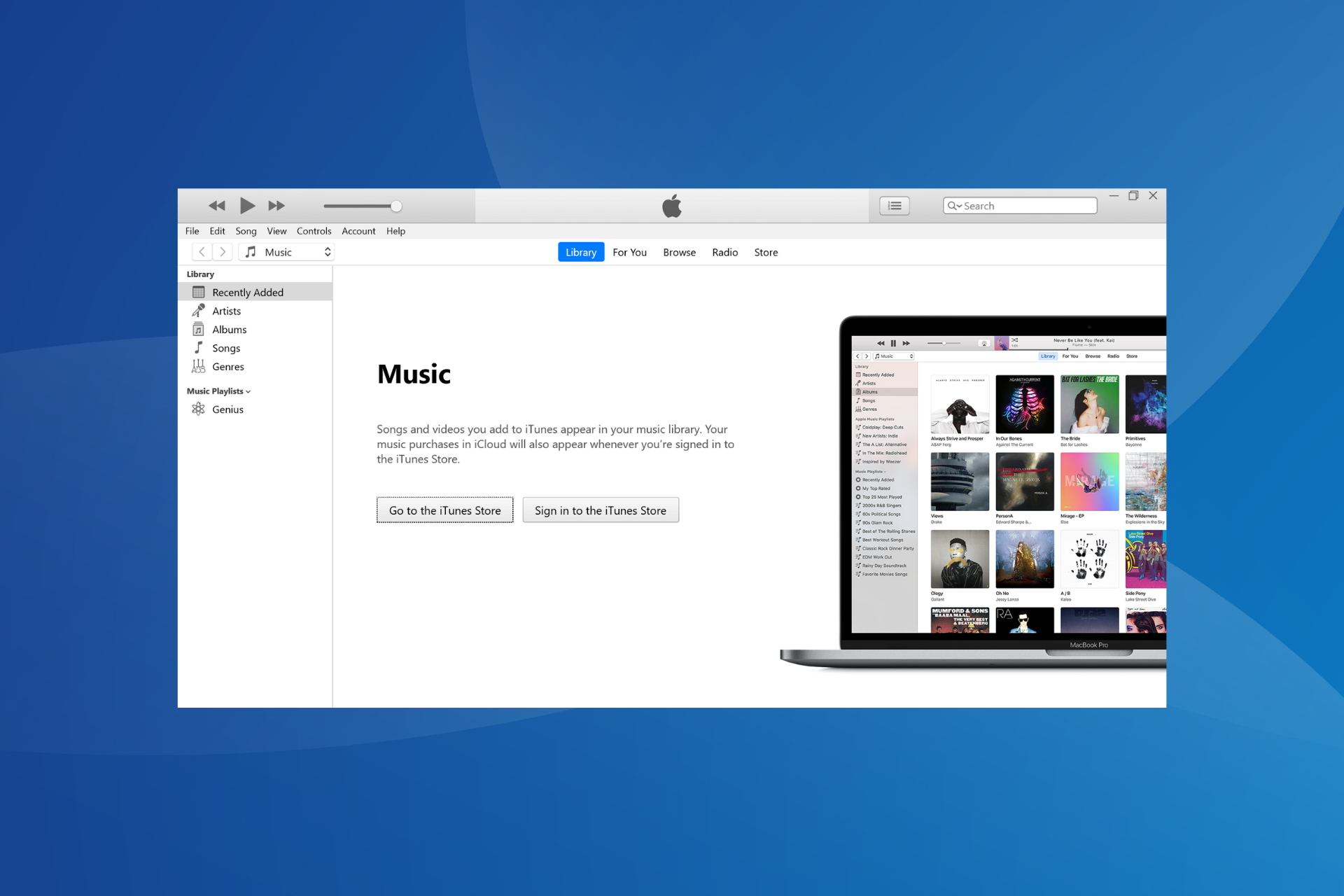
iTunes is a gatekeeper to endless entertainment, serving as a media player, media library, online radio broadcaster, and mobile device management app compatible with all versions of Windows. And if you want to download iTunes on Windows 10, we are here to help you.

While there are several iTunes alternatives, the app still serves as the best software to access and manage data on Apple devices. And it doesn’t take much time to get things up and running. Keep reading to find out!

How do I download iTunes on Windows 10?

Download iTunes from the Microsoft Store

  1. Go to the iTunes page on the Microsoft Store since this is the official version Apple recommends.
  2. Click on the Get in-store app.download itunes
  3. Download the app.download iTunes in Windows 10
  4. That’s it! You can now search for iTunes on the PC and launch the app.itunes

Once you have downloaded and installed iTunes in Windows 10, the next step is to set it up. Let’s get to that!

How do I create an Apple ID for Windows 10?

  1. Launch iTunes, and go to Account.
  2. Click Sign In, and select Create New Apple ID if you don’t have one already
  3. Click Continue, and accept the terms and conditions.
  4. Type your email address and password and confirm it.
  5. Choose an answer to the security questions, and click Continue.
  6. Confirm your payment options.
  7. Confirm your name and address and click on Create Apple ID.
  8. Check your email and click the verification link sent to the email address.
  9. Click OK.

How can I authorize the Windows 10 computer in iTunes?

  1. Launch iTunes, and go to Account.
  2. Go to Authorizations, and select Authorize This Computer.

3. Type your password and confirm the authorization.

How do I import the media library into iTunes?

  1. Launch iTunes, go to File, and click Add Folder to Library.
  2. Click a file or folder to import and then click Select Folder.

That’s it! With the iTunes download in Windows 10 complete and the app completely set up and authorized, you can start using it immediately. You can also do so on Windows 11. Besides, for problems launching it, find out how to fix things when iTunes is not opening.

Tip icon Tip
iTunes works on Windows 10, but many users have reported various issues if Windows 7 or another previous iteration is updated to Windows 10, resulting in them resorting to performing a clean install of Windows.

For any queries or to share your feedback on iTunes, drop a comment below.

The Sims 4 Toddlers: Here’s what you need to know

Toddlers is the latest, free update for The Sims 4, complete with a pack of new little Sims with whom your own Sims can share “cute, heart-warming moments.”

With Toddlers, you can capture the moments of growth that highlight the special bonds between parents and toddlers. The Sims 4 also added more than a hundred new animations, interactions, outfits, and objects.

Meet the Toddlers

While the new adorable Sims bring most of the features you love about the previous iterations of this age group, Toddlers also introduces new content to The Sims 4. This includes new Create-Your-Sim content like clothing, hair, and teeth, letting you customize your Toddlers too.

The update also allows you to create Toddlers in Create A Sim. Simply choose the toddler’s age in CAS and you can then change the way they look by customizing their eyes, mouth, chin, cheeks, and weight. Toddlers also bring with them a bookcase, bed, a high chair, nesting blocks, and more.

Differences from Toddlers in The Sims 2 and 3

The Frequently Asked Questions page about Toddlers describes toddlers in The Sims 4 as “more active and capable than Toddlers we’ve seen in previous iterations of The Sims.” The Sims 4 focuses on the development and growth that occurs during the toddler age.

Compared to toddlers in the previous versions of Sims, toddlers in the Sims 4 do not drink from bottles, sleep in a crib, or crawl. The new Toddlers also walk unsteadily and may stumble sometimes, but they have improved their ability to run around the house.

Gain Toddler skills

You can unlock various Toddler skills by performing various actions such as walking to gain a movement skill and socializing to get a communication skill. You can also play with nesting blocks to gain an imagination skill. Engage with objects and the world around the Sim to acquire more skills. If all else fails, you can get help from a caregiver. The new Toddler skills include Communication, Imagination, Thinking, Movement and Potty.

Toddler Traits

You can select a Toddler Trait if your toddler Sim ages up from a Baby (or in CAS). The game also prompts you to select a valid Child Trait when the toddler ages to a child. The new Toddler Traits include Angelic, Charmer, Clingy, Fussy, Independent, Inquisitive, Silly and Wild.

You can refer to The Sims forum thread to learn more about the full list of features included in the update and patch notes.

RELATED STORIES YOU NEED TO CHECK OUT:

SofaScore ends support for its Windows Phone app

With Windows Phone’s falling market share, many developers are, unsurprisingly, withdrawing support for their apps on the platform. The latest to leave Windows phones is SofaScore, a popular app for live scores, statistics, and player analysis for more than seventeen various sports.

Developers of the app cited the platform’s dwindling market share as the reason for their decision to cut the cord. SofaScore has been one of the more popular tools for obtaining live scores on a mobile device. However, it no longer makes sense to maintain the app on Windows phones given the platform’s small share in the market.

According to NetMarketShare’s January 2017 report, Windows Phone accounts for 1.48% of the market, down from 1.62% a month ago. Meanwhile, Android and iOS continue to enjoy a dominating market presence in the mobile OS segment.

SofaScore’s decision comes hot on the heels of an update the company rolled out to its app for Windows phones last month. The update introduced new chat rooms and player comparisons.

SofaScore is now leaving Windows Phone because of the lack of “any sign of progress.”

In September of last year, we announced that version 4.1.5.0 was the final SofaScore update for Windows Phone and Windows 10 mobile platforms, and that there will be no new features. The app itself remains available to users as a universal app on Windows Store, but without new features.

SofaScore team has worked hard in moving the project further and we are happy to say that for Windows Phone and Windows 10 mobile users, SofaScore web ( www.sofascore.com ) provides an amazing alternative.

Obviously, the Windows Phone platform has been struggling for quite a while now. Does SofaScore’s decision surprise you? Let us know your thoughts.

RELATED STORIES YOU NEED TO CHECK OUT:

Fix: Invisible players in FIFA 17 online mode

The FIFA 17 and Pro Evolution Soccer 2017 war has changed the genre. Instead of earlier pursuits towards realism and licensing, the battle is now fought to see who can create better online modes and improved multiplayer experiences.

Nevertheless, even though FIFA 17is winning this battle, EA should pay more attention to the annoying glitches that render the game unplayable. For instance, many Xbox players have reported a serious glitch that prevents them from seeing opposing players. We prepared some possible solutions to overcome this problem.

How to fix FIFA 17 invisible player bug on Xbox consoles

Download latest update

Some of the users who encountered this issue managed to fix it after the 1.05 update (4th in the row since the game came out). As such, download the latest update and hope for the best. If you don’t see the update prompt at the welcome screen, follow these instructions:

  1. Go to Settings.
  2. Choose System Settings.
  3. Select Storage or Memory.
  4. Highlight any hard drive and press Y on your controller.
  5. Select Clear System Cache and confirm the selection.
  6. After the process, restart the console and look for FIFA 17 update.

This should let you update. However, if the problem is not solved with the update, you may want to try reinstalling the game. To do so, move on to the next solution.

Reinstall the game

No matter which kind of a copy you have, reinstalling shouldn’t be hard to do. We will walk you trough the reinstall process.

If you installed the disc copy of the game on your hard drive, follow these instructions:

  1. Insert FIFA 17 in your console.
  2. Choose game Overview and select Delete.
  3. Restart your console but keep the disc inside.
  4. Stop the game from auto-starting.
  5. Choose Overview tab and select install.

On the other hand, if you have the digital copy of the game, you can redownload it by following these steps:

  1. Go to Settings.
  2. Open System.
  3. Choose Storage.
  4. Select Hard Drive.
  5. Open Games.
  6. Highlight FIFA 17 and press Y.
  7. Choose Delete.
  8. Go to Settings.
  9. Open Account.
  10. Choose Download History.
  11. Find FIFA 17 and redownload the game again.

Be sure to log in with the account with which the game was purchased.

The Bottom Line

These are our solutions for the annoying FIFA 17 issue. We advise you to try both in the order we presented them. However, if the problem is persistent, all we can do is wait for the additional patch to fix this up. It is not the first time that older consoles have specific issues with the game. We blame it on bad multiplatform integration in online modes.

We can agree that all costumers deserve the same treatment, no matter which gaming system they use. Are you having similar issues? Was the latest patch helpful for you? Post your feedback in the comments section.

RELATED STORIES YOU NEED TO CHECK OUT:

Posted in Fix

Veritas joins Microsoft in strategic hybrid cloud partnership

Information management solution Veritas Technologies has signed up a multi-year partnership with Microsoft to improve Azure optimization for businesses and organizational use. The announcement, through the Veritas web page, expresses the partnership is just a commodity after a long and beneficial relationship with Microsoft.

Veritas has been peddling Microsoft Azure as an information management solution, selling the cloud storage to their customers. “Microsoft and Veritas customers have enjoyed the benefits of highly complementary technology offerings, focused on solving IT challenges in the data center,” said Jason Zander from the Azure team explained in the press release.

As part of the new collaboration, Veritas will be including Azure in their NetBackup 8.0 premium solution. It includes storage tiering with Azure, improved data lifecycle with Azure cloud storage, and lower costs ideal for their medium to small business customers. Of course, the Veritas Backup Exec 16 package also comes with similar benefits of Azure cloud computing with the seamless transfer of information provided.

It’s safe to say that the partnership between Veritas and Microsoft will make cloud computing and information management in Azure a much more accessible option for organizations. You can read more about Veritas https://www.veritas.com/solution/microsoft-cloud.

Windows 10 Mail and Calendar app to get Focused Inbox, more, in update rollout

Microsoft today announced that Windows 10 Mail and Calendar app will get focused Inbox, color categories for calendar events, and many more new capabilities. The new features will be rolling out to all Mail & Calendar users over the next few weeks for their Outlook.com and Office 365 accounts, and are all part of ways for Microsoft to help you stay on top of your emails and manage your time well.

Leading off the new additions is Focused Inbox. With this feature, the Mail app separates your inbox into Focused and Other tabs.  You can even turn this feature off or on at any time under Settings > Reading in the app. Here is how Microsoft describes it:

Our inboxes are being inundated with more emails vying for our attention. That’s why we’re giving you a new way to stay focused. Emails that you likely want to act on appear under the Focused tab, while the rest remain easily accessible—but out of the way. What lands in your Focused tab is determined by an understanding of the people you interact with often, and the content of the email itself (e.g. newsletters, machine generated email, etc.).

Second on the list is Mentions: as you may guess, you can now add the @ symbol anywhere in the body of an email, and this will bring up frequent contacts as well as access to your directory. Once you pick the person you want to address, their name is highlighted in the message in blue, helping them know they are being asked to take an action in your message. Additionally, the @ symbol will also appear in the message list for the messages you’ve been mentioned in, so you can see at a glance which emails require your action before you open them.

Mentions
Mentions

Other areas rounding out the list of new Calendar features can be seen below:

  • Colors categories for calendar events
  • Interesting Calendars
  • New ways for you to stay on track of travel reservations and packages
  • New features to help you do more with calendar invites.

With Colors categories for calendar events, you can categorize calendar events in a variety of color categories, enabling you to quickly scan and visually associate similar events, and plan your day better.

Interesting Calendars, meanwhile, can help you keep track of TV schedules and your favorite sports teams’ calendars.

Interesting Calendars

Lastly, thanks to summary cards in your inbox and calendar, you now can quickly get to travel reservations and package delivery details, check in for flights or change hotels and rental car reservations or track the latest packages delivery status. This feature is turned on by default and can be tinkered with from events in email’ settings in your account on the web.

Ending the list of new features is the ability to do more with calendar invites: here, you will see location suggestions from Bing so you can add popular addresses quicker, an option to add Skype for online meetings, a scheduling assistant for Office 365 accounts and a fun emoji picker. Lastly, a people picker will also help you quickly browse and select contacts when you create a calendar appointment.

What are your thoughts on these new features? You should be receiving these features in an update soon, so it’s best to stay tuned to the Windows Store and check for updates over the next few days. Once you received the update, be sure to sound off and drop us a comment below to let us know how the experience is going for you!

All of the DLCs for Resident Evil 7 are now available on Xbox One and Windows

Following a timed exclusivity on the Playstation 4, the two DLCs for Resident Evil 7 are now available to purchase on Xbox One and Windows (via Gamespot). Called Banned Footage vol. 1 and 2, the DLCs include additionnal Scenario missions plus new game modes that will likely please fans of the critically-acclaimed survival horror game.

You can download the additional content for free if you purchased the game’s Deluxe Edition, otherwise you can purchase game’s $29.99 Season Pass or download the DLCs separately. Here are the official descriptions below:

Banned Footage Volume 1 ($9.99) : This newly unearthed footage exposes further secrets from the dark past of the Baker family

  • Nightmare: Trapped in a basement full of unknown horrors, you must fight for your life.
  • Bedroom: Tied to a bed, you must try to escape while avoiding Mother’s watchful gaze.
  • Includes the highly difficult extra bonus content Ethan Must Die.

Banned Footage Volume 2 ($14.99) : This newly unearthed footage exposes further secrets from the dark past of the Baker family.

  • 21: Take part in a twisted card game where the stakes are your life.
  • Daughters: Experience the events that unfolded on the night it all started, when the downfall of the Bakers was set in motion.
  • Includes the extra bonus content Jack’s 55th Birthday.

As a reminder, Resident Evil 7 is an Xbox Play Anywhere title and you purchase the new content once and enjoy it on both your Xbox One and Windows 10 PC. If you don’t use Windows 10 or prefer to avoid the Windows Store, you can also purchase the game and its DLCs on Steam.

Simple Magic Audio Enhancer improves your Windows 7 PC’s sound quality

While your laptop may be a high-end model that costs hundreds of dollars, its speakers might still sound a bit tinny and disappointing for the price. Limitations in space and power usually cause poor sound quality in most notebooks because these constraints downsize the related components such as audio chips, amplifiers, analog-to-digital converters, and speakers.

There is a solution, though: You can help improve the sound quality of any music format using software tools like the Simple Magic Audio Enhancer. The tool is designed as a plugin for Winamp and enhances the sound quality of MP3, Internet radio, Windows Media, and other music files.

Simple Magic Audio Enhancer can lend a premium stereo system sound to your PC, providing a perfect listening environment to the household. You can adjust the settings to suit your taste: Increase audio levels, refresh stereo depth, achieve a deep bass sound, enhance the clarity, and optimizethe headphone sound.

Some of the tool’s features include:

  • Speech processing modes
  • Double audio enhancement capabilities
  • 3D surround sound
  • Stereo ambience
  • High fidelity restoration

The software can also help cancel persistent background hiss that ruins the quality of your favorite song. Designed by Simple Magic Inc., it offers convenient controls over how your music file sounds.

Simple Magic Audio Enhancer has a stylish user interface that helps you easily adjust your music experience. The tool also comes with high fidelity restoration feature that allows you to restore the quality of poor files.

The tool has a free trial version, though it offers the bare minimum in features. Still, you can take advantage of the program’s nifty features to let you get the music experience that you want.

We recommend you install the Simple Magic Audio Enhancer primarily on Windows XP, and Windows 7. You can download the tool from Soft32.

RELATED STORIES YOU NEED TO CHECK OUT:

How to fix common Miracast issues on PC

Miracast-compatible devices and receivers have grown in number since the introduction of the wireless display standard.. That means you can now mirror the display of your Miracast-enabled phone, tablet, or PC wirelessly to any receiver that supports Miracast.

For starters, the wireless technology enables PCs to project your screen to TVs, projectors, and monitors that support Miracast. It lets you share the tasks you are performing on your PC, present a slide show, or play your game on another screen.

If you are on Windows 8.1 or Windows 10, your PC is ready for the wireless display. However, if a receiver does not yet support Miracast, you must add the necessary hardware to the display before you can start the wireless projection.

Before you can project to a receiver wirelessly, check if your computer supports Miracast and that its drivers are up-to-date:

  1. Swipe in from the right edge of the screen, and then tap Devices. (If you’re using a mouse, point to the lower-right corner of the screen, move the mouse pointer up, and then click Devices.)
  2. Tap or click Project. If you see Add a wireless display, your PC supports Miracast.

As mentioned above, you might encounter problems projecting wirelessly if your PC drivers are out of date. To get the current drivers for your PC, let Windows Update install all of the critical and optional updates for your PC. In addition, you can download the latest drivers from the support page on your PC manufacturer’s website.

How to get your devices ready

1. How to set up an unsupported display for Miracast

While most receivers today already support Miracast, some devices you might want to project to may not be compatible with the wireless technology yet. If so, get a Miracast adapter or dongle and plug it into an HDMI port on your display to allow your PC to connect wirelessly with the receiving device. Various companies manufacture and offer adapters for Miracast, including ActiontecScreenBeam Pro Wireless Display Receiver and the NetGearPush2TV (PTV3000) Wireless Display Adapter.

On top of your PC, the adapters must have the latest firmware version as well. You can get the updated firmware from the support page of the manufacturer’s website or by searching through your device. The Windows Store also offers some application that automatically updates the firmware on your adapter, such as the Miracast Wireless Adapter app.

2. Add your specific display

Now that your PC and display are ready to communicate wirelessly, make sure the two devices are at close range and follow these steps to add a wireless display to your PC:

  1. Swipe in from the right edge of the screen, and then tap Devices. (If you’re using a mouse, point to the lower-right corner of the screen, move the mouse pointer up, and then click Devices.)
  2. Tap or click Project, and then tap or click Add a wireless display.
  3. Choose the wireless display in the list of devices found, and follow the instructions on the screen.

3. How to project your monitor to a wireless display

After adding the wireless display to your PC, project your monitor to it and change the display on each screen. Perform the following:

To project your screen

  1. Swipe in from the right edge of the screen, and then tap Devices. (If you’re using a mouse, point to the lower-right corner of the screen, move the mouse pointer up, and then click Devices.)
  2. Tap or click Project, and then tap or click the wireless display you want.

To choose the display on each screen

  1. Swipe in from the right edge of the screen, and then tap Devices. (If you’re using a mouse, point to the lower-right corner of the screen, move the mouse pointer up, and then click Devices.)
  2. Tap or click Project, and then choose one of these options:
  • PC screen only. You’ll see everything on your PC. (When you’re connected to a wireless projector, this option changes to Disconnect.)
  • Duplicate. You’ll see the same things on both screens.
  • Extend. You’ll see everything spread over both screens, and you can drag and move items between the two.
  • Second screen only. You’ll see everything on the connected screen. Your other screen will be blank.

4. How to disconnect the wireless display

You can do the following if you choose to disconnect your PC from the wireless display:

  1. Swipe in from the right edge of the screen, and then tap Devices. (If you’re using a mouse, point to the lower-right corner of the screen, move the mouse pointer up, and then click Devices.)
  2. Tap or click Project, and then tap or click Disconnect.

How to fix frequent Miracast issues

In addition to installing the latest drivers and firmware versions, you can perform other methods in case some issues with projecting wirelessly persist.

1. Unable to add a wireless display

One of the common issues you might encounter with Miracast is the trouble with adding or connecting to a wireless display. If you are unable to add a wireless display or even connect to it, restart your PC or the wireless display and/or adapter. If the problem persists, do the following:

  1. Swipe in from the right edge of the screen, tap Settings, and then tap Change PC settings. (If you’re using a mouse, point to the lower-right corner of the screen, move the mouse pointer up, click Settings, and then click Change PC settings.)
  2. Tap or click PC and Devices, and then tap or click Devices.
  3. Tap or click the wireless display, and then tap or click Remove Device.
  4. Swipe in from the right edge of the screen, and then tap Devices. (If you’re using a mouse, point to the lower-right corner of the screen, move the mouse pointer up, and then click Devices.)
  5. Tap or click Project, and then tap or click Add a wireless display.
  6. Choose the wireless display in the list of devices found, and follow the instructions on the screen.

2. Fuzzy text and stuttering images

Another issue with projecting wirelessly via Miracast is fuzzy text or stuttering images. If this happens, change the screen resolution on your computer by performing these steps:

  1. Swipe in from the right edge of the screen, and then tap Search. (If you’re using a mouse, point to the lower-right corner of the screen, move the mouse pointer up, and then click Search.)
  2. Enter Screen resolution in the search box, and then tap or click Display settings.
  3. Use the Resolution slider to choose a different screen resolution.

3. Audio playback issues

If the audio continues to play on your computer, try to disconnect the display and reconnect again. See to it that you have selected the display as the default audio device by doing the following:

  1. Swipe in from the right edge of the screen, and then tap Search. (If you’re using a mouse, point to the lower-right corner of the screen, move the mouse pointer up, and then click Search.)
  2. Enter Sound in the search box, and then tap or click Sound.
  3. Tap or click Playback, and make sure the Miracast wireless display is selected as the default device.

If you happen to encounter other issues with projecting wirelessly not mentioned above, share them with us in the comments.

RELATED STORIES YOU NEED TO CHECK OUT:

Fix common Halo Wars Definitive Edition errors [Windows 10/11]

Halo Wars: Definitive Edition launched as an Early Access game on Xbox One and Windows 10 PCs on December 20 last year, bringing fans of the real-time strategy video game to the origin of the war between the Covenant and UNSC. The game generally runs seamlessly on both the Xbox One and Windows 10 platforms, but users still encounter various issues from time to time.

For this how-to article, we took the time to dig into the troubleshooting methods for some of the most common game issues on Windows 10.

How to fix Halo Wars: Definitive Edition bugs

1. Error while downloading the latest game configuration data

If you have encountered this issue, chances are that online features of the game are limited. Therefore, you need to download the latest update to the Halo Wars: Definitive Edition. To do so, quit the game and check for updates. Install the updates and restart the game.

2. Trouble with accessing content from the server

Some players might see a prompt message that says they cannot access content from the server because it is currently unavailable. The error could mean an issue with the game’s online services or with your Internet connection. Check Halo Waypoint for server details to troubleshoot the error. If the server is working properly, look into the Xbox Live service status.

3. Error connecting to the Xbox Live services

This trouble means the Ethernet cable is not plugged or network connection is down. To solve the issue, see to it that your Ethernet cable is plugged in to your PC. Otherwise, check the Xbox Live service status.

4. Xbox Live services and gameplay session connection error

This error might mean the service is down. To help you address the issue, check the Xbox Live service status. If there are no issues with the service, there might be a trouble with your connection. This problem requires the following solution, as described in Xbox One’s support page:

Before you begin troubleshooting your connection, check for service alerts on the Xbox Live Status page, or see if an Xbox Live service alert appears at the top of this page.

If there is a service alert, wait until the service is back up and running before you start troubleshooting.

Note: If you’re trying to connect your Xbox One console to Xbox Live for the first time, go to the Xbox One First-Time Connection Solution for help setting up (and if necessary, troubleshooting) your network connection.

Troubleshooting for Xbox One connection issues is divided into two general categories:

  • Can’t connect: The console is unable to detect or connect to your home network, or can’t establish an Internet connection, or can’t connect to Xbox Live. All of these types of issues fall under network connection errors.
  • Poor connection quality: Although the console is able to connect to Xbox Live, there are connection quality issues, such as poor streaming quality, random disconnects, or slow performance. All of these types of issues fall under multiplayer connection errors (even if multiplayer gaming is not involved).

Describe the general type of network connection issue you are experiencing. If your Xbox One console is unable to connect to Xbox Live, the first step is to run the network connection test on your console. If this test is successful, your console will connect to Xbox Live. Otherwise, you’ll see an error message, which should help to identify the specific issue that’s preventing your console from connecting.

To run the network connection test, follow these steps:

  1. Scroll left from Home to open the guide.
  2. Select Settings.
  3. Click All Settings.
  4. Select Network.
  5. Select Network settings. Any known outages will appear in the middle of the screen.
  6. On the right side of the Network settings screen, select Test network connection.

Note: If your Xbox One console is unable to detect your wireless network, it won’t be able to run the network connection test. In this case, go to the Xbox One Wireless Network Connection Solution to troubleshoot this issue.

If the connection test is successful, your console will connect to Xbox Live. If the connection test generates an error message, select NO: I GOT AN ERROR MESSAGE below to go to the Xbox One Network Connection Error Solution, and then select the appropriate error message to troubleshoot that specific connection issue.

Xbox One also offers a number of different solutions in its support page that address various network connection quality problems. Choose a specific type of issue to locate the appropriate solution. If the solutions offered are not found in the selection, choose “Other/Not Sure”.

5. Fatal Error! Graphics Card is below minimum specs

This error requires you to update the graphics card or driver to the version that supports DirectX 12 Feature Level 11.1. To perform the update, press and hold the Windows logo key and R to open the Run dialog box. Then type “dxdiag” and hit Enter to launch the DirectX Diagnostic Tool. Find the DirectX version listed on the System tab in the System Information window.

If you have found other issues with Halo Wars: Definitive Edition and their troubleshooting methods, share them with us!
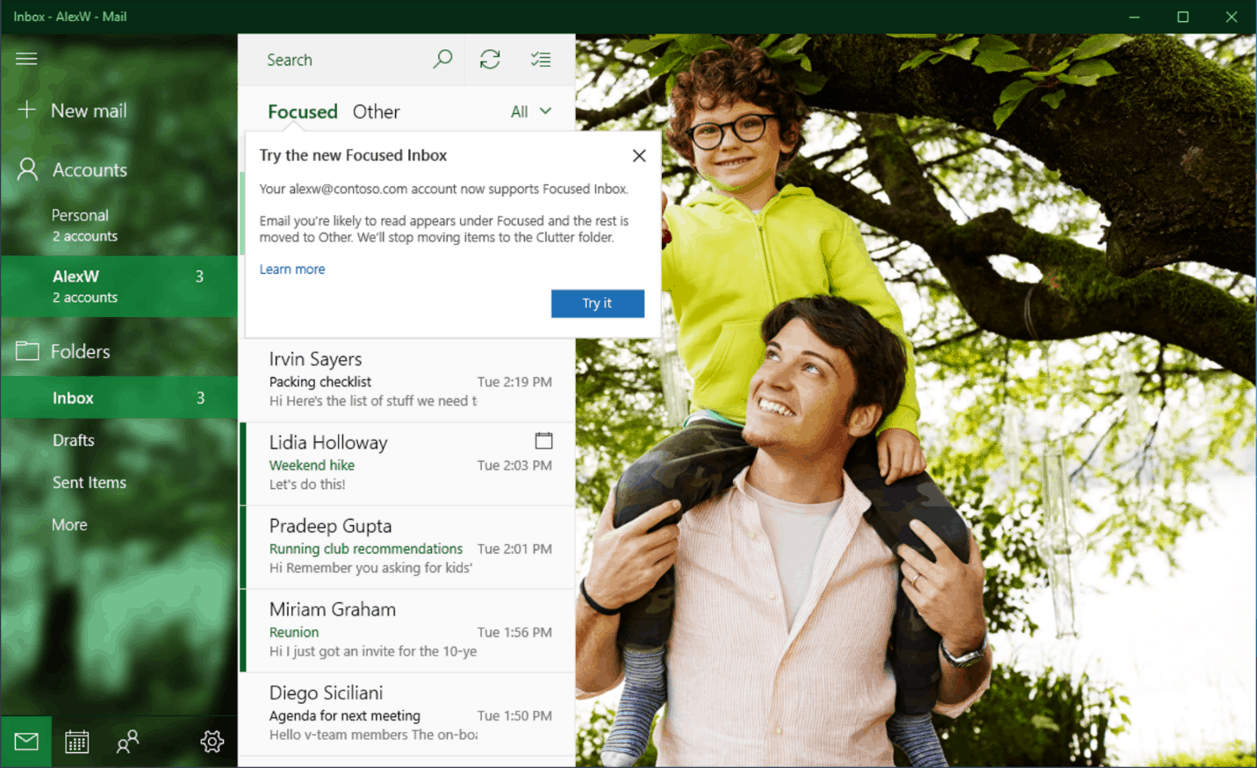
RELATED STORIES YOU NEED TO CHECK OUT:

Posted in Fix

More Gears of War 4 Legacy Characters coming in March

Gears of War 4 fans should an keep an eye on the game’s official website in March. The Coalition will be rolling out a series of Gears of War 4 Legacy Characters next month, including the highly demanded Locust Characters.

As a quick reminder, TC has run a survey, asking fans what Locust character they would love to see in Gears of War 4. Judging by player feedback, it appears that Skorge is the most popular choice.

GoW 4 gets more Legacy Characters

TC hasn’t yet revealed what other Legacy Characters will be coming back to GoW 4 in March, but confirmed there will be a steady flow of them.

Following on the heels of Dizzy, we are hard at work bringing back more Legacy Characters by updating their voice work and character fidelity to make them right at home in Gears 4. Beginning next month, this work will turn into a steady flow of Legacy Characters for our fans – from iconic heroes of the past to the hotly demanded return of Locust Characters!

Could this be suggesting that the company will be rolling out a Legacy Character each week? Bringing back Legacy Characters is not an easy task, as TC needs to adapt many variables to the current Gears of War 4 gameplay.

The company needs to record new dialogue specific for the new features and enemies that were not in previous games, bring the characters up to modern graphics standards and more. Perhaps one Legacy Character per week is to much to ask, but one Legacy Character a month seems like a doable task.

Speaking of which, what Legacy Character would you like to see next?

RELATED STORIES YOU NEED TO CHECK OUT:

Panasonic Toughbook 54 is the best semi-rugged laptop in the world

Panasonic has made a name for itself in the rugged laptop market, and the Japanese electronics giant’s Toughbook 54 is a living testament to it. While nowhere near as beefy as Panasonic’s earlier rugged notebook Toughbook 31, the Toughbook 54 packs a punch to help get your job done in tough environments.

The Toughbook 54 finds wider adoption in construction sites and hospitals, where operations can get extra demanding for a PC. It is one of the best all-around laptops in the market, though it is not the most rugged in that category. Nonetheless, you have the luxury of choices when it comes to configuration. The Toughbook 54 offers plenty of choices for an optical drive, storage, CPU, and connectivity.

Panasonic Toughbook 54 shows off a robust design and performance without sacrificing elegance. The rugged laptop can endure a drop from altitudes of up to three feet and withstand spills, humidity, and extreme temperatures. The 14-incher Toughbook can disguise itself as a suitcase, though it does not necessarily add a lot of bulk to your travels.

Toughbook 54’s Lite configuration barely reaches 4.2 pounds. That means the Toughbook 54 is 2 pounds lighter than most of its rivals. As Panasonic puts it, the laptop is the world’s “lightest and thinnest semi-rugged” notebook. It is also half an inch thinner than the competition, with a thinness of 1.2 inches.

Panasonic Toughbook 54 Key features

However, if you are a hardcore gamer, the laptop is not for you, though it includes up to 16GB DDR3 RAM and two storage slots for a 1 terabyte mechanical disk and 256GB solid state drive. Panasonic also slapped Intel’s fifth-generation architecture called Broadwell into the laptop. The Toughbook 54 also packs Core i5-5300U vPro and the Intel integrated graphics inside.

On the connectivity aspect, the notebook includes HDMI, USB 3.0 support, multiple Ethernet ports, 4G LTE, an SD card, Kensington cable lock slot, fingerprint reader and TPM security chip.

Toughbook 54 boasts a screen resolution of 1,366 x 768 on the Prime and Lite versions, and 1,920 x 1,080 on the Performance and Gloved Multi-Touch models. You can also select between Windows 7 Professional and 8.1 Pro for the laptop. The battery can also juice up the rugged laptop for up to 11 hours.

The laptop can be had for $ 1,395 from MooringTech while the lite version is being sold for on Amazon.

RELATED STORIES YOU NEED TO CHECK OUT:

Xbox Insider team aim to bring Beam to Preview Beta ring Insiders this week

The Xbox team is hard at working bringing Beam to Microsoft’s Xbox One console. Just the other day, the Beam app began rolling out to Xbox Insiders on the Preview Alpha ring and we’ve seen Beam integrated into the upcoming Xbox One Guide, currently in preview also.

Brad Rossetti, from the Xbox Insider team, has said that the team are aiming to bring Beam to those on the Preview Beta ring also, however, the priority is resolving a Multiplayer issue for those on the Preview Alpha ring first:

Are you on the Preview Beta ring and waiting for Beam? Let us know below!

Fix: FIFA 17 unexpectedly exits Ultimate Team

FIFA 17 gained a massive advantage over Pro Evolution Soccer 17 by creating an original PC game instead of an underwhelming port. The game uses the new Frostbite engine and looks great as a result. However, the peak of the FIFA 17experience is FIFA Ultimate Team, an online mode that lets you compete with friends and players around the world using custom teams.

Despite its fun factor, there are many reports of glitches and crashes in this mode. One of the most relentless is the ALT-Tab crash that results in instant disconnects and a result, defeat. This is a well-known safety measure to stop cheaters, but sadly completely blocks your multitasking while playing.

We will try to address this issue and lead you through few possible workarounds.

How to fix FIFA 17 crash in FUT mode on PC

Update game to the latest patch

Updating the game should be your first step. The latest patch is 1.05, the game’s fourth since launch, is known to addressing some overlay issues. Try it out and maybe the problem will disappear.

Disable all background programs

Some users reported that FUT game crashes because of applications working in the background. Our best bet to overcome the problem is to disable those apps and their respective processes. Disabling Skype, Windows Update, and antivirus applications should prevent or at least minimize desktop crashes.

On the other hand, we are aware that some of you like to change your music playlist or chat on social networks while playing. But, until an alternative solution is presented, Alt-Tab should not be used while playing FUT.

Disable Origin In Game feature

Occasional crashes occur due to Origin Notifications feature while playing FIFA 17. As we already stated, it seems that most of the background processes conflict with the game while playing online and Origin In Game is not an exception. You can disable ‘Origin In Game’ feature by following these steps:

  1. Start Origin desktop client.
  2. Open MyGames.
  3. Right-click on FIFA 17 and choose Game Properties.
  4. Select Origin In Game and uncheck the box.
  5. Save your selection and start the game.

This way you won’t be able to chat with your friends while playing online, but the procedure will prevent possible interference and there so crashes.

Try out windowed mode

This may not an actual solution but a mere workaround for your issue. When the game starts in Windowed mode, you can use background programs without minimizing them. That way, crashes will occur less often than usual. You can start the game in windowed mode by pressing the ALT and ENTER keys at the same time. If this doesn’t working, follow these steps:

  1. Go to the FIFA 17 desktop shortcut.
  2. Right-click the Fifa17.exe and choose Properties.
  3. Open Shortcut tab.
  4. In the Target,  you will see the destination to Fifa17.exe
  5. After quotation mark, press space and write -window.
  6. Save your settings and start the game.

It should make the game work while the background applications are active so that you’ll be able to chat and play at the same time.

Conclusion

Those were our temporary solutions for the issue. We hope that EA will find the way to create a permanent solution to let players multitask while playing online. Most of them will rather encounter few cheaters now and then instead of being unable to minimize the game.

If you are having some other solutions in mind or similar issues, please share them with us in the comments section.

RELATED STORIES YOU NEED TO CHECK OUT:

Microsoft promises Xbox Insider Preview Alpha Multiplayer issue fix this week

Yesterday, we reported on a growing issue of Xbox Insiders in the Preview Alpha ring which prevented many from playing online multiplayer games. The issue appeared to affect Destiny in particular, however, reports came in of general online connectivity being affected also.

Now, Brad Rossetti of the Xbox Insider team, has took to Twitter to announce that a brawl is taking place over the issue at Microsoft’s Redmond campus:

We are not sure if any fixes have been injured during this fight – but we’ve reached out to Microsoft to confirm. In the meantime, Xbox’s engineering team are currently flighting (or “fighting”) a fix internally to ensure it resolves the issue. If it does, it will be rolled out as soon as possible “this week.”

Let us know in the comments below if you’ve been affected by this issue.

Windows Store app hints at Windows 10 powered Samsung Galaxy Book

The Windows Store is a great place to find applications, games, music, and movies, but who knew that it also could hint at the release of impending devices? According to SamMobile, a new application which is named “Book Settings” has surfaced in the Windows Store, ultimately revealing that Samsung could possibly be releasing a Windows 10 powered “Galaxy Book” device (via Neowin).

Book Settings
Book Settings

As seen above, the description seen in the store listing hints that the “Book Settings” app includes a Battery Life extender, settings for screen mode, pattern login, a user manual, and other Samsung-specific features. More importantly, the description also makes specific mention of the Galaxy Book by pointing out that, “Book Settings is an application for Galaxy Book, and it may not function normally on other devices.”

From this app description, one can assume that the would be Galaxy Book could have an AMOLED display, as well as support for a pen, and other battery saving features. Again, this does not mean anything is set in stone as of yet, but given Samsung’s 2012 trademark application for “Galaxy Book” we could possibly hear more about this device moving forward into the future.

Typoman launches on Xbox One

The most recent Indie game to arrive to Xbox One is Typoman, a 2D platformer. Acting as a hero, the aim of the game is to find the final letter in order to restore hope to the world.

The official game description reads:

Typoman is a 2D puzzle platformer. You slip into the role of a character made of letters, struggling to make your way through a dark and hostile world. Despite your small stature you have a powerful gift: You can craft words to alter your environment.Choose your words wisely. They can either be a blessing… or a curse!

Take a look at the trailer for the game:

Let us know what you think in the comments below!

Typoman
Typoman
Developer:
Brainseed Factory
Price:
$9.99

Flipkart, India’s leading online retailer, signs cloud partnership with Microsoft

At an event in Bangalore today, Microsoft and Flipkart announced a strategic partnership to expand ecommerce in India. Both Microsoft CEO Satya Nadella and Flipkart Group CEO Binny Bansal were present at the event. Launched in 2007, Flipkart is India’s largest e-commerce marketplace with over 100 million customers offering more than 80 million products across 80+ categories.

As a first step in the broad collaboration between the two companies, Flipkart will adopt Microsoft Azure as its exclusive public cloud platform. Microsoft Azure will add a layer of advanced cloud technologies and analytics to Flipkart’s existing datacentres.

“At Microsoft, we aim to empower every Indian and every Indian organization with technology and key to this is forging strategic partnerships with innovative companies like Flipkart. Combining Microsoft’s cloud platform and AI capabilities with Flipkart’s existing services and data assets, will enable Flipkart to accelerate its digital transformation in e-commerce and deliver new customer experiences.”

– Satya Nadella, CEO, Microsoft

Flipkart also plans to leverage artificial intelligence, machine learning, and analytics capabilities in Azure, such as Cortana Intelligence Suite and Power BI, to optimize its data for innovative merchandising, advertising, marketing, and customer service.

In a statement, Bansal shared that Microsoft’s strong reputation in cloud computing, coupled with scale and reliability, will allow this partnership to make online shopping more relevant and enriching for customers.

Windows 10 news recap: Adguard comes to Microsoft Edge, city of Munich may return to Windows 10 and more

Welcome back to our Windows 10 news recap. We are continuing the trend of our weekly “Windows 10 news recap” series where we go over the top stories of the past week in the world of Microsoft’s flagship operating system.

Adguard ad blocker, Ebates arrive as latest Windows 10 Edge extensions

Microsoft Edge has gained yet another ad blocking extension, this time Adguard. The Microsoft Edge team announced the extension via Twitter:

Halo Wars 2 video game now playable on Xbox One and Windows 10

Microsoft’s latest game in the Halo franchise, Halo Wars 2, is now available to play on Xbox One and Windows 10, in the form of an Xbox Play Anywhere title.

Halo Wars 2 on Xbox One and Windows 10

Snake Pass coming to Xbox One and Windows 10 on March 28th, watch the trailer

Snake Pass is a new platform-based puzzle game that is coming to Xbox One and Windows 10 via Xbox Play Anywhere on March 28th, developed by Sumo Digital. The game puts you into the body of a snake and challenges you to complete puzzles just like a snake would (or so they say).

Here is the trailer for Snake Pass:

The city of Munich might drop Linux for Windows 10, could switch by 2020

It has been over ten year since the city of Munich migrated away from Windows and over to Linux. Despite this, it appears Microsoft may have won them back as they’re aiming to migrate to Windows 10 by 2020.

That’s the top Windows 10 news for the week – we’ll be back next week with more.

Microsoft news recap: enhanced parental monitoring tool, Build 2017 sold out, 15 years of .NET and more

Microsoft (MSFT) news recap is a weekly feature highlighting the top Microsoft news stories of the past week. Sit back, grab some coffee, and enjoy the read!

Microsoft patents a ‘real-time parental monitoring’ tool

With the advent of more children taking to private messaging and communication, Microsoft has patented a new tool that provides real-time parental monitoring, allowing parental control over the message contents, contacts and the type of message.

Microsoft Build 2017 is sold out, but you can still join a wait list

It didn’t take too long for tickets to Microsoft’s annual event, Build 2017, to sell out. Anyone wanting to get in will now need to join a waiting list.

Microsoft, Build

Microsoft celebrates 15 years of .NET

This week marked 15 years of .NET since its initial introduction:

Since the beginning, the .NET platform has allowed developers to quickly build and deploy robust applications, starting with Windows desktop and web server applications in 2002. You got an entire managed framework for building distributed Windows applications, ASP.NET was introduced as the next generation Active Server Pages for web-based development, and a new language, C# (pronounced “see sharp” :-)) came to be.

Microsoft Channel 9: .Game .Net Development

Microsoft helping those with ALS by creating app that allows speaking with their eyes

Microsoft has been building an app called GazeSpeak. The app allows those with ALS to speak by using their eyes. It is somewhat inexpensive to get started, requiring only an iOS device to use the app.

Microsoft continues work on Teams, adding bots in channels and tab improvements

Microsoft’s competitor to Slack, Teams, is continuing to expand with new features and improvements. This week saw the addition of bots, as well as improvements to tabs.

Microsoft Teams Android

That’s all the Microsoft news this week – we’ll be back next week with more.