In February 2024, Microsoft signed a $2.1 billion deal with Mistral AI, a France-based company, to enhance its cloud computing platform, Microsoft Azure. Leveraging the partnership, Microsoft has added another one of Mistral AI’s language models, Mistral Small, to its portfolio.
Mistral Small, available in the Azure AI model catalog, is the smallest LLM developed by Mistral AI so far.
1. A small model optimized for low latency: Very efficient for high volume and low latency workloads. Mistral Small is Mistral’s smallest proprietary model, it outperforms Mixtral 8x7B and has lower latency. 2. Specialized in RAG: Crucial information is not lost in the middle of long context windows. Supports up to 32K tokens. 3. Strong in coding: Code generation, review and comments with support for all mainstream coding languages. 4. Multi-lingual by design: Best-in-class performance in French, German, Spanish, and Italian – in addition to English. Dozens of other languages are supported. 5. Efficient guardrails baked in the model, with additional safety layer with safe prompt option.
You can try out Mistral Small through Models as a Service (MaaS) in Azure AI Studio today. It’s a highly efficient option that is best suited for high volume and low latency workloads. And, as was the case with previous models, deploying the language model is effortless and doesn’t take more than a few seconds!
Mistral’s documentation says the language model is suitable for simpler tasks that can be done in bulk. Examples include text generation, customer support, and classification.
CORSAIR is known for its outstanding gaming peripherals, but the company has recently introduced a new PC.
This model comes with a sleek design and offers great performance, so let’s take a closer look at it.
CORSAIR has introduced ONE i500, a gaming PC powerhouse
As BetaNews writes, CORSAIR has introduced a new compact PC called ONE i500. This PC comes with a small form factor, and it’s 30% smaller than traditional desktop PCs.
Despite its small size, this PC comes with an incredible design that features an aluminum chassis with FSC-Certified real wood panels.
If you’re a gamer, you’ll be pleased to hear that ONE i500 comes with customizable underglow and front-panel lighting, as well as a touch-sensor spotlight.
Regarding the specs, this model packs quite a punch and it comes with the following:
CPU:
Intel Core i9-14900K
Graphics:
NVIDIA GeForce RTX 4090
Memory:
16GB DDR5
Storage:
2TB NVMe SSD
Cooling:
Liquid cooling
Connectivity:
Front: 2x USB 3.2 Gen 1 Type-A ports, USB 3.2 Type-C port, headphone/mic jack Back: 4x USB 2.0 ports, USB 3.2 Gen 2×2 Type-C port, USB 3.2 Gen 2 Type-A port, 2x USB 3.2 Gen 2 Type-A ports, integrated graphics HDMI 2.1 port / DisplayPort 1.4, 3x DisplayPort 1.4a, 1x HDMI 2.1 port
In case you need more power, this model can handle up to 192GB of DDR5 and 24TB of storage which should be more than enough for everyone’s needs.
Overall, this is an amazing PC, however, to make the most of it, you’ll likely need a RAM upgrade. As for availability, you can get this model in dark and light colors from Amazon.
In case you’re looking for other CORSAIR devices, you might be interested in Corsair HS35 v2 headsets.
If you’re tight on the budget and in need of something less stylish, then consider getting ASUS ROG G13CH at a discount.
In 2024, when more than 60 countries are heading to polls, the emergence of AI has caused more problems than many would have expected. The use of Artificial Intelligence in deceiving unsuspecting minds through edited photos, videos, and audio has become a challenge globally.
In an effort to combat the problem and increase literacy around AI, Microsoft and OpenAI are setting up a $2 million Societal Resilience Fund. The move is in line with Microsoft’s and OpenAI’s commitment to reducing misinformation spread amongst voters via the use of Artificial Intelligence, including deepfake.
As per Microsoft’s official blog, grants from the Societal Resilience Fund will go to several organizations, including Older Adults Technology Services from AARP (OATS), Coalition for Content Provenance and Authenticity (C2PA), International Institute for Democracy and Electoral Assistance (International IDEA), and Partnership on AI (PAI), amongst others.
OATS will hold in-person and virtual training programs for US citizens above the age of 50 to help them understand the concept of AI, its use in spreading misinformation, and how they can identify such instances.
Speaking on the occasion, Tom Kamber, Executive Director, OATS from AARP, said,
As AI tools become part of everyday life, it is essential that older adults learn more about the risks and opportunities that are emerging. We are pleased to work with Microsoft and OpenAI on this vital project to make sure that older adults 50+ have access to training, information, and support—both to enhance their lives with new technology, and to protect themselves against its misuse.
Other organizations, too, will organize similar training and awareness programs aimed at spreading information about the changing digital landscape, the misuse of AI, and the best practices. PAI, on its part, will use proceeds from the grant to augment its Synthetic Media Framework.
In a few months, it will be evident how effective the move turns out to be. For now, we can just hope that the Societal Resilience Fund, established by Microsoft and OpenAI, plays its part in raising awareness.
What do you think is a practical solution to the increasing use of AI in spreading misinformation? Share with our readers in the comments section.
AI can help us address critical issues such as accessibility and inclusion. With AI tools, we could potentially fix social inequities. After all, the use of AI is becoming increasingly widespread across the globe. Also, tools like Seeing AI and Voiceitt are improving the lives of thousands.
Copilot and other generative AI assistants have additional capabilities that promote accessibility and inclusion. For example, they won’t get mad if someone asks them the same question. They don’t work on a schedule and are available 24/7.
How does generative AI help with accessibility?
Generative AI could enhance people’s perspective about the world by generating creative descriptions. As a result, this technology could change how we interact with objects like paintings, sculptures, and other works of art. However, that’s just one of its many uses.
Microsoft partnered with the Rijksmuseum, and the disability community to generate an exquisite experience for the people that are blind or have low vision. The final AI product describes various pieces of artwork in detail and increases their overall accessibility. Additionally, there are some 3d models available to help you feel the paintings.
During the pandemic, museum employees managed to describe 300 artworks. However, the number is small, and it took them an hour per description. Yet, with Copilot, they can do it for more than one million pieces.
Copilot has a record of being a game-changer for us. On top of that, it significantly improved the accessibility of Microsoft tools and services. Also, if you have spare time or want to know more, you can check This is my Copilot on YouTube to witness some personal stories.
Besides improving accessibility for people with disabilities, generative AI makes life easier for neurodivergent people. For example, Copilot can transcribe and summarize meetings for someone with ADHD.
Microsoft and Global Symbols are working on a project to offer people who can’t use their voice more easily understood symbols. In addition, they want to include more cultures and languages. Thus, fewer people will feel left behind.
The European Disability Forum considers AI a possible help. Yet, for it to be what we need, it is crucial to include many people from different backgrounds while testing and improving it. After all, the assistant has to learn how to handle specific situations to solve accessibility and inclusion-related issues.
What is Microsoft doing for accessibility?
Microsoft also supports the Zero Project initiative from Austria which contains various research on accessibility innovation and disability policies. In addition, most resources are highly accessible and available in different formats. Also, the project uses AI to make the best accessibility practices available for policymakers, tech innovators, and the disability community.
Ultimately, Microsoft uses its AI to help companies and organizations with their projects meant to improve accessibility and inclusion. Furthermore, thousands are using AI to aid them daily. However, we are far from fixing social inequities. Yet, AI can speed up the process and find the best ways towards that goal.
What are your thoughts? Can AI improve accessibility and inclusion? Let us know in the comments.
With Microsoft Edge version 125 in beta, Microsoft is testing a feature called Sleeping Tabs intended to prevent memory being taxed by the browser from unused tabs.
Sleeping Tabs made its first appearance during Edge development back in 2020 as part of documentation for Microsoft’s browser feature-roadmap. Since 2020, Microsoft has slowly been testing the efficacy of Sleeping Tabs and it seems the company is closing in on the confidence to release its to all Edge users soon.
Sleeping Tabs acts as an automatic pausing features for unused tabs in the Edge browser where a new AutoDiscardSleepingTabsEnabled policy kicks in and gradually reduces the memory consumer by the browser as tabs are essentially discarded or put into ‘Sleep Mode’ for more than a day and a half of inactivity.
The new policy will only trigger if the previous ‘SleepingTabsEnabled’ policy is currently active, otherwise, unused tabs will continue to draw on memory resources in a tombstone state.
To clarify, Sleeping Tabs will be the opening salvo as part of a memory resource reducing effort by the Edge team that combines both Sleeping Tabs and Discarded Tabs technology to gradually pause and then eventually discard unused tabs that exist beyond the current day and a half time.
Microsoft hasn’t stated whether the day and half-time frame before a tab fully drops its claims to memory resources and eventually fully discard, can be adjusted by the user or website host.
While most users may never hit the day and a half time limit before their tabs are closed, the autonomous nature of Sleeping Tabs and Discard Tabs will come as a shock to others. Just because a tab has been revisited in two days doesn’t necessarily mean a user’s is done with engaging with it, especially when the only other option is to fully reload it.
On a positive note, this level of autonomous resource saving will further benefit Windows users in whole and perhaps especially for people picking up ARM based devices over the next few where memory allocation and dedicated neural processing units will be working in tandem on a single SoC.
The HP Deskjet is an all-in-one printer and compact for everyday tasks like scanning. If you’ve been wondering what’s the most convenient way of scanning your documents, we show you just how easy it is.
How do I scan on HP DeskJet 3755?
By using the HP Smart app
Power on your HP DeskJet 3755 printer and load paper.
Press the WiFi button on the printer and hold for three seconds.
Wait for a blue light to indicate your printer is ready to connect.
On your phone or PC, launch the HP Smart app. If you don’t have it, you’ll have to download it.
Click on Add printer or Add new printer
Locate the HP DeskJet 3755 and click on it.
Tap Yes to confirm an automatic connection to your WiFi.
Once it is connected, the WiFi icon on your printer will stop blinking and you should hear a sound.
Now follow the on-screen prompts to complete the setup.
Next, launch the HP Smart app again and tap on Printer Scan.
Your app will prompt you to feed the document to the scanner. Load it and ensure it is properly aligned and the printer grasps it.
Now tap on the Scan on your phone and begin scanning. If it is more than one page, tap on the Batch option.
You can also tweak the settings if you wish to change the page size, color and quality settings.
Additional tips and troubleshooting common scanning issues
Paper jams – This is the most common issue but usually, it’s just an incorrect placement of the document on the scanner. Ensure you’re properly feeding the document into the scanner to avoid jams.
Scanner not detected – Your HP scanner not being detected by your PC or phone could indicate a network issue. Ensure your HP Deskjet 3755 is on the same network connection or restart your router then re-establish the connection.
Poor scan quality – Always clean your scanner from any debris or accumulated dust to ensure a clean scan job. Alternatively, you can adjust the quality settings just before you scan to a higher quality for a clearer document.
Printer not working – Your HP Deskjet 3755 may stop working if the printer firmware has not been updated in a while. Keep your software up-to-date including your OS and use the HP Print and Scan Doctor troubleshooting tool where necessary.
For efficient scanning,
Keep your printer drivers up-to-date and keep the printer’s scan feeder dust-free for clean scan jobs.
Preview your documents before scanning and optimize scan settings for optimal scans.
Keep your scanned copies on your cloud as backup or for collaboration.
Further, when scanning documents, you may be more inclined to choose a printer with an automatic feeder scanner to minimize errors so check out our comprehensive list of some viable solutions.
Have you been able to scan documents on your HP Deskjet 3755? How easy or difficult was it? Drop us a comment below on your experience.
As you clean install Windows 11, it may automatically encrypt all drives without your consent or awareness. This notable change might catch you off guard. Encryption can enhance security, but it also poses risks.
This shift has been implemented since build 25905 came out in July 2023, and Microsoft announced the same at the same time:
Starting with this build, we have adjusted the prerequisites (removal of Modern Standby/HSTI validation and untrusted DMA ports check) for enabling device encryption so that it is automatically enabled when doing clean installs of Windows 11.
The main concern is the lack of transparency during the installation process, as users may not notice their drives are encrypted until they face difficulties accessing their data at a later date.
Without clear notification or explicit consent, users may now lose their data during reinstallation or system resets, as they might not have the decryption keys handy.
Furthermore, there is no option to opt-out, which means users have limited control over their encryption preferences, raising usability and privacy concerns.
However, you can prevent it during the installation process in two ways: either you can tweak the registry entry during the onboarding experience or modify the install image, so let’s check them out.
Preventing automatic encryption: Two approaches
Method 1 Disable encryption via Windows Registry
When you are in the initial setup stage, press Shift + F10 or Shift + Fn + F10 to invoke Command Prompt. Type regedit, and press Enter to launch the Registry Editor. Now navigate to this path: Computer\HKEY_LOCAL_MACHINE\SYSTEM\CurrentControlSet\BitLocker. Here, right-click BitLocker and select New>DWORD (32-bit Value). Now, name it PreventDeviceEncryption. Once created, double-click it, set its Value data to 1, and click OK to save. Close Command Prompt and Registry Editor.
Now proceed with the installation process as usual. Once you have installed Windows, let us check if the drives are encrypted. Type the command prompt in the search bar and select Run as administrator to run it with admin privileges. Type manage-bde -status, and you will get the list of your drives. Go through the list and check the Conversion Status; it should be Fully Decrypted.
Next, connect a USB drive, choose Windows 11 image, and click Start. You will get a pop-up box with a few options to enhance user experience during the process. Look for Disable BitLocker automatic device encryption and make sure it is unchecked. Click OK.
Once the process is complete, install Windows 11 on your computer in the normal way.
So, these are ways that you can use to control the disk encryption preferences on your device while installing Windows 11.
We understand that Microsoft thinks the user’s device security is paramount, but automatic encryption implementation is a little far-fetched. Also, the absence of an option to opt-out is annoying and risky, as the user’s data could be at stake.
We believe that the Redmond tech giant should keep these settings optional and let the users decide whether they want the drives to be encrypted, thereby fostering a secure and transparent environment.
What are your thoughts on this matter? Share your opinions with our readers in the comments section below.
Microsoft joins the downward trend of video game related layoffs as it shutters several gaming studios including Arkane Austin, Alpha Dog, and Tango Gameworks.
According to a report from IGN.com, an internal email sent to employees from Xbox Game Studio head Matt Booty details the list of studios on the chopping block as well as other changes to come because of a “reprioritization of titles and resources.”
As Booty puts it, Arkane Austin “will close with some members of the team joining other studios to work on projects across Bethesda.” Arkane Austin’s latest game, Redfall, is no longer being worked on and its previous update will be the last gamers receive. However, the servers for Redfall remain online with Microsoft providing ‘make-good’ offers to gamers who recently bought Hero DLC for the game.
It’s unclear how long Microsoft plans to maintain the servers for Redfall.
Next up is Alpha Dog Studios, which is also ending with Mighty Doom sun setting on August 7, 2024, along with nixing the ability for gamers to make any future purchases in game.
As for Tango Gameworks, it follows the same fate as Alpha Dog with an official closure and no mention of current employees being shifted to other Xbox Game Studio properties. As for the indie hit Hi-Fi Rush, Microsoft says the game will “continue to be available to players on the platforms it is today.”
Microsoft will be folding Roundhouse Games into the larger ZeniMax Online Studios (ZOS) portfolio to help build out The Elder Scrolls Online experience.
In less cutthroat news, Arkane Lyon, id Software, and Machine Games survive this round of cuts as they work to publish titles based on Marvel’s Blade Character and a new Indian Jones game title Indiana Jones and the Great Circle.
Booty ends his devastating email with several mentions of consolidation that will help Xbox Game Studios be “well-positioned to build new IP, explore new game concepts, and expand on our existing franchise.”
On the other side of things, Arkane Lyon Chief Dinga Bakaba fired off a series of tweets calling out Microsoft’s hypocrisy in spending almost $70 billion on games while also ushering in steep cuts to the same studios they just paid for.
This is absolutely terrible. Permission to be human : to any executive reading this, friendly reminder that video games are an entertainment/cultural industry, and your business as a corporation is to take care of your artists/entertainers and help them create value for you.
Microsoft is working to add SharePoint files to Teams easier on your mobile devices. The feature is already available on the desktop version of Teams and will soon make its way to the mobile app as well.
According to the Feature ID: 395375 entry on the Microsoft 365 roadmap site, the Redmond tech giant will soon let you select and attach files from SharePoint sites in the Teams mobile app. Here is the detailed description mentioned on the Microsoft 365 Roadmap site:
Users will be able to browse, multiselect and attach files from SharePoint Sites to a chat or channel conversation in the mobile app.
This feature is expected to be generally available in June 2024. It will be available on various cloud instances and for both Android and iOS devices.
Also, if you wish to see all the changes made to Microsoft Teams in April 2024, including the Multi-turn conversation with Copilot in chats and channels, the ability to use a custom chat profile picture, and more, read the detailed story here.
What do you think about it? Share your thoughts and opinions with our readers in the comments section below.
Xbox Game Pass is perfect if you want to have access to a fresh list of titles on your console, and speaking of which, it seems that two new games are being added.
So which games are making their way to Game Pass, and more importantly, when can we see them?
Lords of the Fallen and Sniper Ghost Warrior Contracts 2 are coming to Xbox Game Pass
Xbox Game Pass is constantly getting new games, and as Neowin writes, we should see two new games available: Lords of the Fallen and Sniper Ghost Warrior Contracts 2.
In case you’re not familiar, Lords of the Fallen comes from Hexworks and it’s a soulslike game made in Unreal Engine 5. The game offers a unique “two-world” mechanic and it recently got a massive update called Master of Fate.
If you prefer something different, Sniper Ghost Warrior Contracts 2 is a tactical stealth game in which you’re tasked to eliminate enemy targets using a sniper or your close combat and infiltration skills.
These two games are a great addition to Game Pass, but unfortunately, we don’t know when they will be added, so keep your eyes open for the announcement.
Chrome is a great browser because it constantly gets new features, and speaking of which, Google is working on a new multimedia feature.
So what’s this new feature, and how does it affect multimedia? Keep on reading to find out!
Chrome will add native support for video chapters
According to BleepingComputer, Google is working on a new feature in Chrome that will bring support for video chapters. This feature has been present on YouTube for a while, and now it will be available for any embedded video.
With this feature, users will be able to break a video into different sections, each with its preview, thus allowing users to find a specific part more easily.
This feature is a part of the MediaMetadata interface for the Media Session API, and according to Google, it will be added to the blink layer based on the processed W3C API update.
The corresponding implementation on the blink layer based on the w3c api change, which is to add the `ChapterInformation` attribute in the existing `MediaMetadata`. ThisChapterInformation applies to audio as well as video, since MediaSession is for both audio and video.
The concept of neuroergonomics is relatively new, and if we are to trust Wikipedia, it applies neurosciences to ergonomics, to improve workspaces to fit the brain functions of all employees for a better and healthier performance, all around.
It seems that Microsoft is looking into developing such a neuroergonomic system, according to a patented technology published recently in a paper.
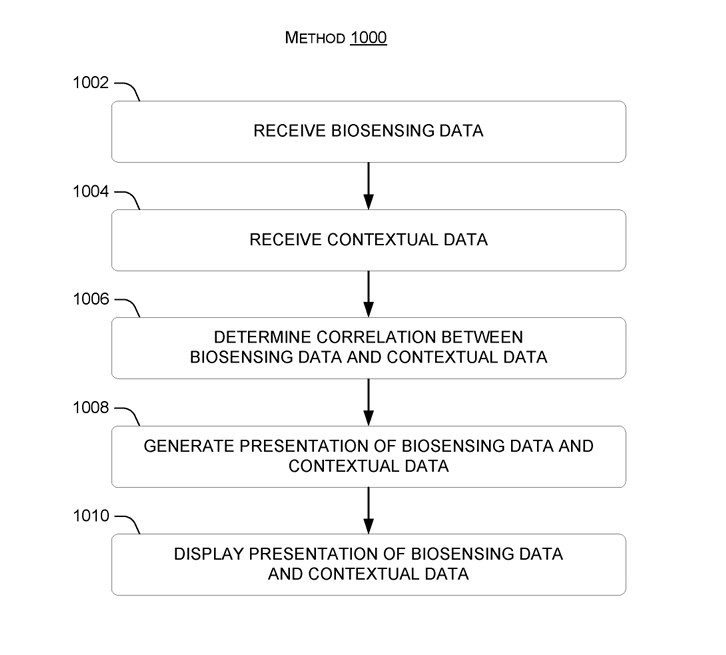
The technology describes it as a system that measures biological signals (like heart rate, pupil size, stress level, etc.) and links them to events happening at the same time. These measurements and events can be shown as they happen or as a summary of past data.
The present concepts inbolve presenting biosensing data in context such that useful knowledge, including neuroergonmic insights, can be gained. For instance, bio-sensing measurement associated with one or more users can be presented in conjunction with events that occurred when the biosensing measurements were taken, so that the viewer can observse how the users responded to the events.
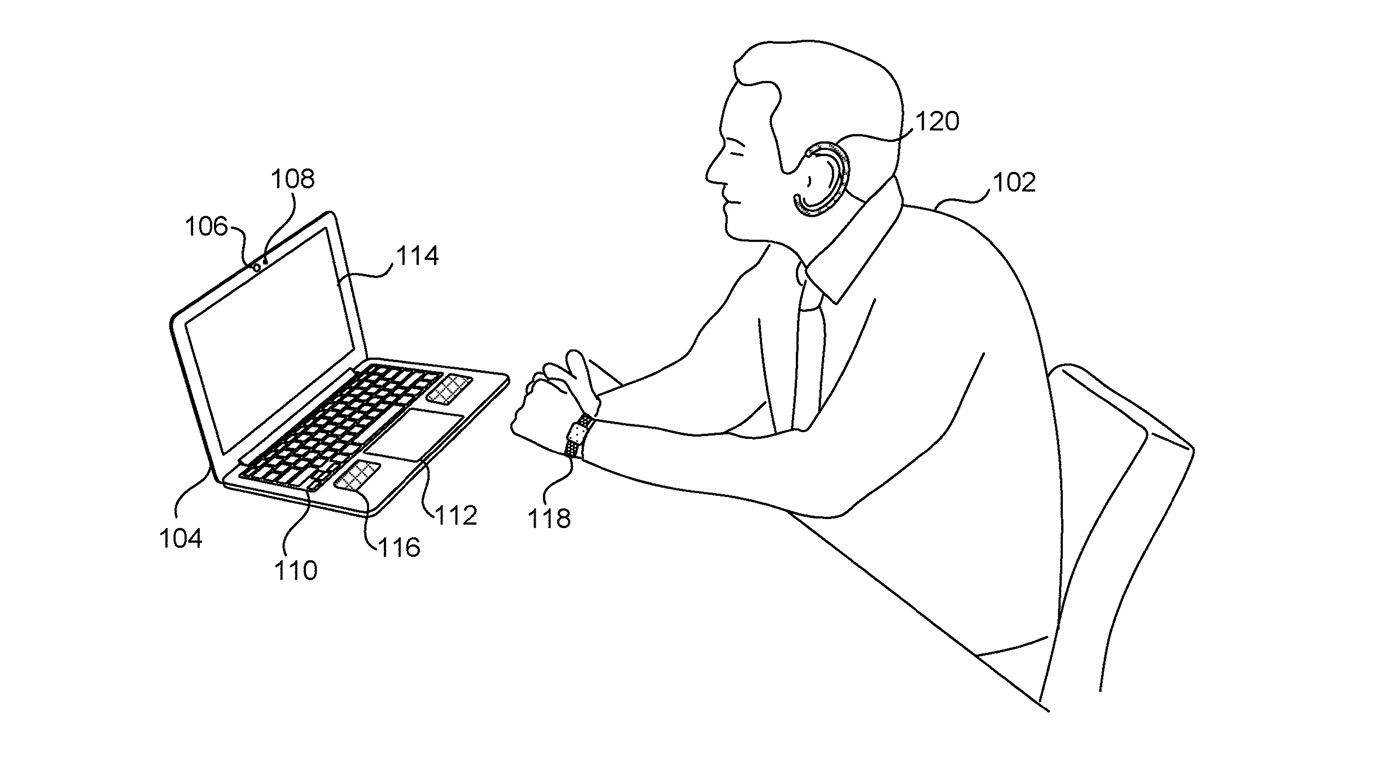
The system would use several other devices to measure these emotions based on biosensors. So, devices such as smartwatches can measure the pulse and heart rate and send that information to the system. The microphone in a laptop can record breathing sounds, and send the data to the system, again.
Other peripherals, such as the web camera, can gather data about the eye pupil size and body temperature, and send that data to the system.
The system, then, will process all of the data gathered around from various devices., while also figuring out exactly when those peaks or lows in biosensors happened. In other words, the system can tell you were nervous in a videoconference, stressed when performing a work task, or even bored when watching a video presentation.
The present concepts involve presenting biosensing data in context such that useful knowledge, including neuroergonmic insights, can be gained. For instance, bio-sensing measurement associated with one or more users can be presented in conjunction with events that occurred when the biosensing measurements were taken, so that the viewer can observse how the users responded to the events.
This way, users can easily understand which events caused which physical responses. However, Microsoft doesn’t want the neuroergonomic system to stop here. Aside from using AI to offer valuable information about one’s mental state when working, the system also recommends various actions that can provide a better environment for the users.
The biosensing data taken during a videoconference meeting, during a speech, while an advertisement is being presented, or while playing a movie, can provide insights into how to improve the meeting, the speech, the advertisement, or the movie, respectively.
This helps users to change their behavior, improve their work process, design better products or services, increase their happiness and well-being, be more productive and earn more, and avoid things that negatively affect their feelings and mental state.
The system is presented using SDK (software development kit) technologies to customize the criteria that should be taken into consideration, thus making it fit specific environments, from corporate organizations to educational organizations, or even healthcare, or social services.
Microsoft envisions this neuroergonomic system as an independent app, but it could also be integrated into existing platforms or operating systems, such as Microsoft Teams or Windows.
The Redmond-based tech giant is no stranger to developing technologies that aim to improve the mental state of employees, with Microsoft Mesh being one of them, for instance. However, this system would be far better, as it offers real and pragmatic data to organizations seeking to make work for employees less stressful, or even stress-free.
Microsoft released a new Xbox Update Preview to the Alpha ring, which promised you to find better deals from the Microsoft Store or even the home screen or search. However, for now, only some of the Insiders will be able to notice this change. Here is what it said in the official blog:
Finding a great deal shouldn’t be difficult, so we’ve made it easier. With today’s update, a random subset of users will notice an improved experience, making it easier to identify sales and take advantage of them. In addition to searching the Microsoft Store, more information regarding sales will now be visible when selecting a game on Home and when searching from Home or the guide.
Here are the System Update details mentioned on the support Xbox website:
OS Version: XB_FLT_2406ZN\25398.4801.240502-2000
Available: 2:00 p.m. PT – May 6, 2024
Mandatory: 3:00 a.m. PT – May 7, 2024
Furthermore, a new Xbox Wireless Controller firmware version was made available, including several fixes and enhancements. Here is the list of changes done:
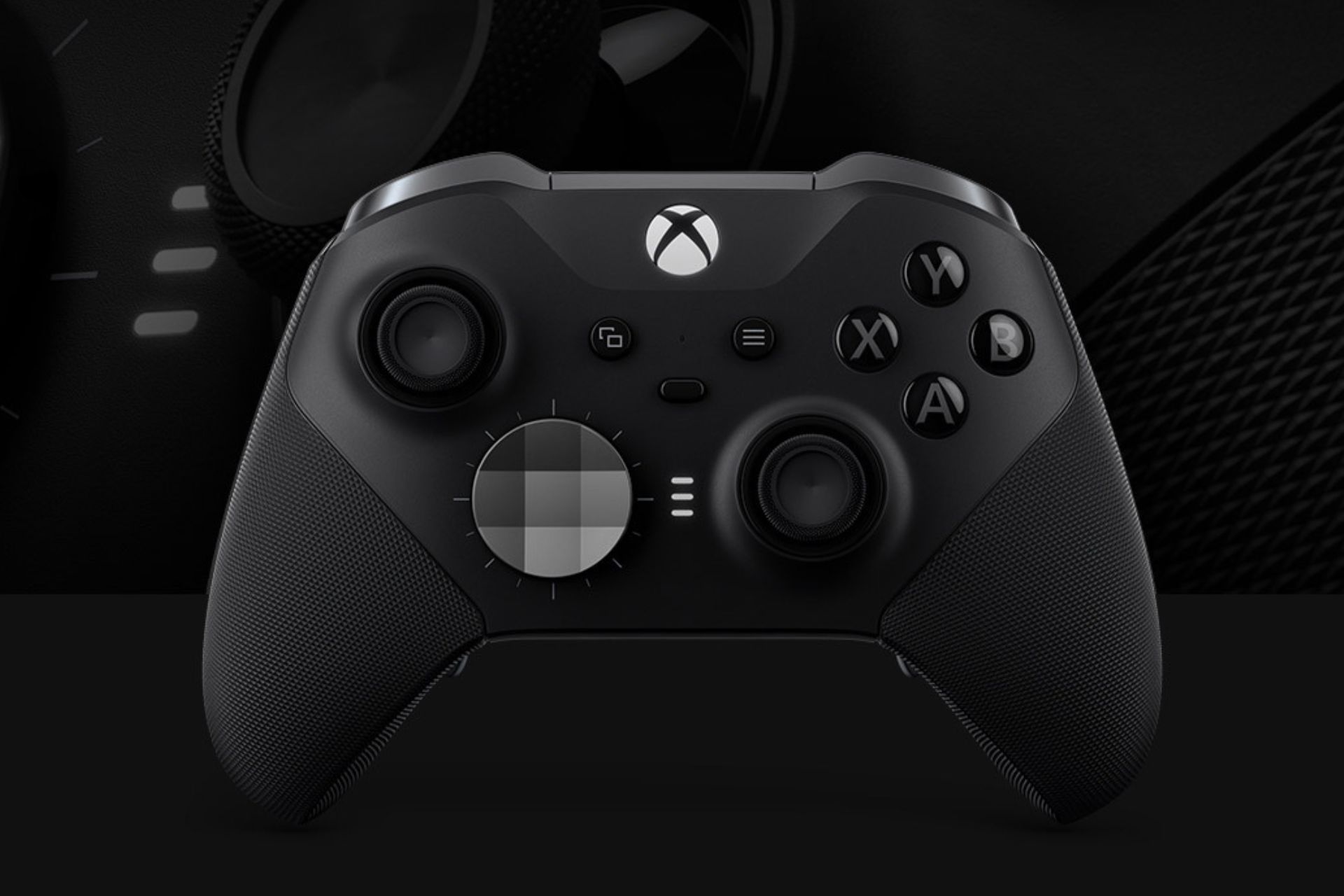
Fixes to address the Xbox Elite Wireless Controller Series 2 paddles remaining active with the default profile.
Fixed an issue with unexpected input behavior when using a 3.5mm and USB joystick together with the Xbox Adaptive Controller.
If your controller needs an update, you will get a prompt to install it once you have it turned on and connected to your console.
However, you can also open the Xbox Accessories app to instrall the update manually if you accidentally missed the notification.
Apart from these, the blog on the Xbox support website, also mentioned the fixes and improvements which were introduced due to feedback provided by the Xbox Insiders:
Game Card
Fixed an issue where the game card could close unexpectedly shortly after launching.
System
Various updates to properly reflect local languages across the console.
To ensure you get the latest updates as they release, turn on Keep my console up to date. However, if don’t prefer that, you can also press the Xbox button on your controller and navigate to Profile & system > Settings > System > Updates to install them manually.
If you are wondering how to become an Xbox Insider, you must know that the Alpha Skip-Ahead ring on Xbox is an exclusive testing group, and you need to enroll to get the pre-release versions. As these builds might be prone to errors, Microsoft keeps it invite-only.
However, if you are interested in joining the group, navigate to Xbox Insider Hub> Activities > Available > Joining new rings from your console, then complete the survey.
The Xbox Wire post also encouraged Xbox Insiders to visit the community subreddit if they need any support.
If you are already a part of the program and facing some issues with the new build, you can use Report a Problem to send feedback to Xbox staff.
Also, to stay informed about the Release Notes on Xbox Insider features, you can follow Xbox Insider on X (formerly known as Twitter).
Have you opted in Xbox Insider Program? If yes, share your experience using new features in the preview with our readers in the comments section below.
Threat actors are increasing their efforts to hack into cloud-based systems and applications. Some of their campaigns are using malicious OAuth apps. Thus, Microsoft improved its Defender XDR with automated attack disruption capabilities to prevent intrusion attempts.
OAuth, long-form Open Authentication standard, applications allow you to log on to multiple accounts without requiring your credentials every time. Also, you can use them to protect your data. Thus, the new features will block malicious OAuth apps with the help of AI and machine learning.
How does the automated attack disruption work?
The automated attack disruption feature of the Defender XDR operates by correlating signals from many sources into a single incident. According to Microsoft, the feature uses insights from endpoints, identities, email and collaboration tools, and SaaS apps. On top of that, it identifies assets controlled by the attacker. Afterward, it uses relevant Microsoft Defender products to isolate the attack and affected assets.
The new automated attack disruption capabilities of Defender XDR prevent hackers from further exploitations. As a result, they won’t be able to access your data. Also, according to Dark Reading, the Microsoft XDR can stop ransomware, business email compromise, and credential-stuffing attacks in less than three minutes.
How do hackers use malicious OAuth apps?
Cybercriminals can access your account and retain access to various applications if you enter your credentials on malicious OAuth apps. However, you can prevent their attacks with defense suites like Defender XDR.
Unfortunately, wrongdoers can also use corrupted OAuth apps to gain control over your system. After all, they can create, modify, and grant broad privilege access using the breached user accounts for Microsoft cloud services.
In addition, if you lack strong authentication measures like MFAs, threat actors could use phishing and password-spraying attacks. On top of that, with elevated permissions, they could launch various spam campaigns.
Microsoft added more protections and features to the Defender XDR to deal with other issues. For example, now, the platform has native protections for operational technology (OT) and industrial control systems (ICS). Thus, defenders can deal with OT system threats and verify their ICSes directly from the Defender XDR portal.
In a nutshell, Microsoft keeps enchanting its security systems with AI features. Also, the Defender XDR can protect you from malicious OAuth apps and other malware. On top of that, AI technologies are faster than classic methods and can defend you in real-time. So, their development is crucial since hackers can perform a complete attack chain in two hours.
What are your thoughts? Are you using Defender XDR or an alternative? Let us know in the comments.
Microsoft released a May 2024 firmware update for Surface Laptop Studio, and it brought a lot of other changes, including game improvements and fixes related to audio, network, and display, which will enhance the performance of your device for several games.
Here is what the changelog mentioned on the official blog says:
Improves the audio quality of calls and recordings.
Provides a more enjoyable and smoother gaming experience for the latest games including Mortal Kombat 1, Lies of P, and Starfield, enabling support for 8 new G-SYNC.
Fixes problems associated with the second monitor display flickering and not working when the device is connected to Surface Dock 2.
Addresses issues related to recovery of Wi-Fi and Bluetooth connections when device is on Standby, enhancing connection reliability.
The release contains the following components, and the components are installed on the basis of your device’s configuration:
Windows Update Name
Device Manager
Intel – System – 2334.5.1.0
Intel(R) Management Engine Interface – System devices
Surface – Firmware – 15.0.2473.3
Surface ME – Firmware
Surface – Firmware – 25.100.143.0
Surface UEFI – Firmware
MBIHV – Firmware – 1.7.1.16
Quectel MSFT MBIHV Mobile Broadband Firmware Device – Firmware
Surface – Firmware – 2.23.139.0
Surface Pen Cfu Over Ble LC Connection – Firmware
Surface – Extension – 1.22.139.0
Surface Pen0C0F Cfu Over BleLc Extn Package – Extensions
Surface – Extension – 1.22.139.0
Surface Pen0C0F Firmware Update – Extensions
Intel – Software Component – 1.70.101.0
Intel(R) iCLS Client – Software components
To install this update, your Surface Laptop Studio must be running on Windows 10 October update, version 22H2 or higher, or Windows 11 version 22H2 and newer.
You can download the update from the official website; the update size is 1.4 GB. So far, no known or reported issues or bugs are associated with the update.
Have you installed the update so far, and can you see the changes? If so, share your experience with our readers in the comments section below.
Star Wars fans are eagerly waiting for the Star Wars Outlaws game, and if you’re a fan of the franchise, you might be interested in some custom controllers.
Ubisoft and Xbox have teamed up, and they have brought new themes to Xbox Design Labs inspired by the upcoming game.
Two new Start Wars Outlaws controller themes are available on Xbox Design Labs
It’s no surprise to see custom controllers coming from Xbox, and this time we got two new controller themes inspired by Star Wars Outlaws, as Game Rant writes.
These controllers can be built by Xbox Design Labs, and the first controller recreates the color scheme of the Star Wars Outlaws cover art with a black base, orange thumbsticks and bumpers, and a metallic D-Pad.
This color scheme is available only for the Standard Xbox Controller. If you want an Elite controller, it comes with its theme with a teal background, white face buttons and sticks.
We've partnered with Xbox Design Labs for two Star Wars Outlaws inspired controllers. You can use these presets when you order customized controllers to explore a galaxy full of opportunity! #MayThe4thBeWithYou!
There is no doubt that Microsoft Edge has some good translation capabilities: from the live translation of its PDF reader to the more advanced video translation enhancements that effectively allow users to translate audio or subtitles while watching videos in the browser, Microsoft wants to make sure no one feels left behind.
This is most likely why the Redmond-based tech giant is bringing AI-generated voice dub translations to videos, according to the latest post from software enthusiast @Leopeva64.
In other words, you’ll be able to listen to video translations rather than reading them on Microsoft Edge, all due to a new enhancement that uses AI to generate that audio translation.
After many attempts and multiple crashes I was finally able to make a short recording of Edge's video translation feature, in the first video you can hear the original audio and in the second you can hear Edge's AI-powered translation:https://t.co/FIcnSbSZjTpic.twitter.com/ozilW5YMOc
According to the enthusiast, Microsoft Edge will have AI generate different voices for dubbing the translation based on who’s speaking. For instance, if a man is speaking in the video, AI will generate a male voice, and if a woman is speaking, then a female voice will be generated.
Here’s another example of Edge’s video translation feature, this time with a female voice (the AI uses female voices if the voice in the video is female), the first video has the original audio and the second the dubbed audio:
Leopeva64
Here's another example of Edge's video translation feature, this time with a female voice (the AI uses female voices if the voice in the video is female), the first video has the original audio and the second the dubbed audio:https://t.co/Y6lHH3UUaHpic.twitter.com/nYemTsdXln
The capability is currently live in Edge Canary, and it supports voice translation from English, Spanish, and Korean to German, Spanish, Hindi, Italian, and Russian.
For now, however, the capability is laggy, and it crashes constantly: Currently the translation is constantly interrupted (you can hear it in the video) and the browser crashes and lags a lot when enabling this feature, says the software enthusiast, but there is no doubt Microsoft will remedy this when the capability reaches its general availability.
However, the AI-generated video translation will be a game changer for Microsoft Edge users, as it broadens accessibility to visually and hearing-impaired individuals.
The capability should make it to the stable channel in the following weeks.
It’s no surprise Microsoft wants to enhance Teams to allow admins and managers to perform management on the platform, as well: let’s just take, for instance, a recent addition to the Microsoft 365 Roadmap, unveiled that the Redmond-based tech giant will allow admins to manage the deployment of each app in the platform, individually.
The new method will ensure the Teams environment is aligned, while also providing a safer and more secure infrastructure.
But, Microsoft is not stopping here. Another entry to the Microsoft 356 Roadmap that was recently added says that the company wants to allow admins, and managers to cancel scheduled device operations through Teams admin center.
In other words, you’ll be able to perform device management directly in the Microsoft Teams Admin Center. This could allow the handling of specific situations such as canceling operations when they are no longer needed.
Microsoft says updates to various devices from the organization can be canceled, as well as canceling specific actions such as restarting a device.
If a device operation is no longer required, admins will be able to cancel scheduled device operations like, Software update and device restart, through Teams admin center.
Microsoft
Performing device management directly from the Teams Admin Center could be an easier way to deal with unexpected situations or outdated devices.
If certain updates are no longer needed, or some devices are scheduled for automatic restart, these actions can now be canceled directly from here, without having to access other platforms, such as Intune, for instance.
According to the Roadmap, this new enhancement will be added to the Microsoft Teams Admin Center in June 2024, and it will be generally available on the web version of the platform.
What do you think about it? Could this be a new way to plan device management? Let us know.
There is no shortage of interesting games, and if you ever want to take the role of a US president, this game will allow you to do so.
This game is called I Am Your President, and it’s finally launching on the Xbox platform, so let’s see what it offers.
I Am Your President is set to launch on Xbox tomorrow
According to GamingLyfe, I Am Your President is coming to the Xbox platform, and in case you’re not familiar, this game puts you in the shoes of the newly-elected US president.
During your tenure, you need to attend press conferences, manage crises, manage your social media, and govern the entire nation.
Each decision you take will affect your political compass thus swaying you to Democrat or Republican party. You can even adopt some radical stances if you choose to.
The game offers various random events, so no two playthroughs are the same. Overall, this sounds like an interesting concept, and if you want to try it, the game will be available on Xbox Series X|S and Xbox One starting from May 8th.
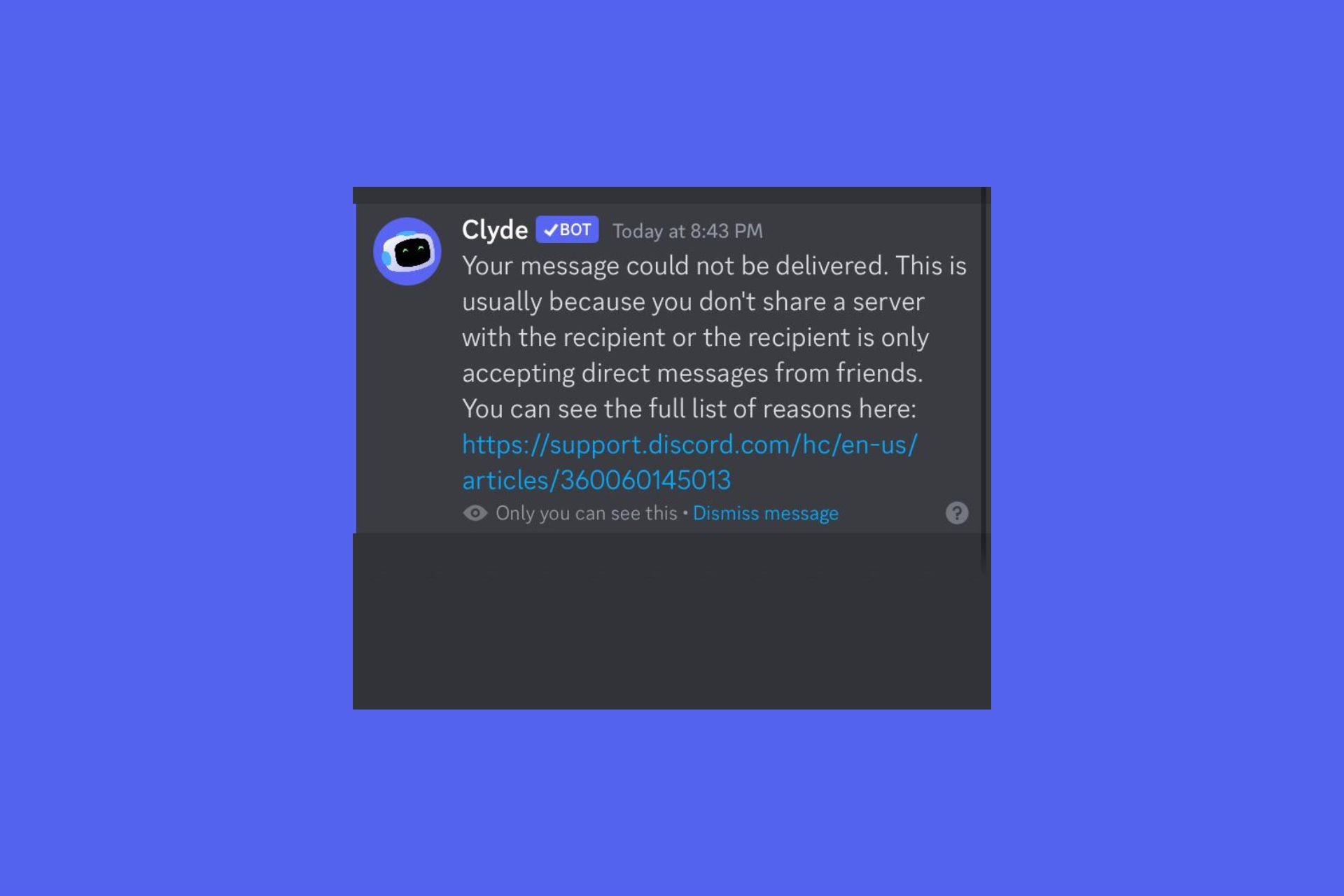
Discord is gamers’ way of communicating, but sometimes, you need the reassurance that it’s a two-way communication hence the need to know whether your message has been blocked.
If you sent a message and it’s been days before you got a reply, you may have been blocked. There’s no native way to tell that your Discord message has been blocked but with a few tips, you can make this assumption.
How do you tell if you’ve been blocked on Discord?
Direct messages – If you suspect that your messages have been blocked, try sending another. The message will not go through if you’ve been blocked. Another tell-tale sign is that you can no longer react to previous messages with emojis.
Friends list – Since you have access to your friends list, you can always check whether your suspected friend blocked your message. If they’re no longer in the list, then your messages have been blocked. Another trick is to try and search for their username and send a friend request. If it goes through, something must have happened with their account but if you encounter an error, you’ve been blocked.
Mutual servers – Try and check whether you can see their messages on mutual servers on the community tab. It may be a long shot but if they were previously active and now all of a sudden they’re quiet, chances are you’ve been booted.
Contact a mutual friend – If you share any mutual friends, you can request them to try sending a message and see if they get the same response. Remember, Discord has no read receipts so the only way to know is if they respond. This should tell you that you have been blocked.
What are other signs of a blocked message on Discord?
Delayed response – If you chat with the Discord user regularly but all of a sudden your messages have overstayed without a response, you could have been blocked.
Empty profile – If you click on the Discord user’s profile and there’s little to no information but previously there was, they may have blocked you.
No status indicators – Statuses like Online or Typing indicate that the Discord user can see your message and may respond. However, if these indicators have been absent for a while, your messages may have been blocked.
Discord is a social app that values privacy. After all, you can get hacked on Discord so it’s a win-win. Still, you can’t be 100% sure your message has been blocked. If it’s really bothering you, you can contact the user using other ways and ask them directly if they’ve blocked you.
Have you had a message on Discord blocked before? If so, how did you discover it was blocked? We’d love to hear about any additional tips so drop us a comment down below.
Days after releasing Edge Beta 125, which brought some interesting features to the browser, such as dedicated colors for workspaces, among many other features, Microsoft released another version of the build, bringing it to 125.0.2535.29.
According to the official changelog, 125.0.2535.29 will improve the Purview experience for all Microsoft Edge users. In other words, those accessing Microsoft Purview on Edge will notice a change in how they can copy/paste information around.
The Redmond-based tech giant says this new change will greatly improve the user experience on the platform when accessing it on Edge. The cut/copy/paste experience will become more intuitive and user-friendly, with new dialog boxes that will vanish when the operation is successful.
Improved user experience for Purview copy/paste controls in Edge. Our Purview cut/copy/paste experience is now more user friendly with self-dismissing dialogs on successful paste. The existing “Paste to supported browsers” setting allows organizations to classify and protect the content that end users can paste – both to specific websites and through supported browsers. You can follow the instructions in Use Endpoint data loss prevention (DLP) to create the DLP policy.
Microsoft
So, if you don’t have access to the Microsoft 365 app, where you can access Purview, Microsoft has made sure you can properly access it on Edge.
It’s a smart move, as those individuals who are tied to the platform to their organizations are now encouraged to access it on Edge, rather than other browsers.
It’s well known that Microsoft Edge is gaining ground in the browser market, and it’s already above Safari, Mozilla, or Opera, being the second most used browser behind the more popular Google Chrome. But Edge has come a long way in just under a year: in 2023, the browser was failing behind Safari, and now it has overtaken it.
If it continues this way, Chrome might soon have a serious competitor in Edge. And it seems Microsoft wants it that way, too.
When it comes to laptops, HP remains one of the most dependable brands worldwide. And if you can get an HP 15-fd0097nr laptop for only $519, it’s a deal you can’t miss. With a regular price of $839.99, you will end up saving $320.99 in this limited-period deal.
Powered by the 13th Gen Intel Core i7 processor and Intel Iris Xe graphics, this is the perfect laptop for browsing and running low resource-intensive apps. Say, browsing the web, watching videos, or creating a quick PowerPoint presentation. With the keyboard featuring a Num Pad, your gaming experience will go up a notch.
And you will never run out of storage with the built-in 512 GB SSD!
The best part is that the HP 15-fd0097nr supports Copilot, Microsoft’s native AI-powered chatbot. So, tasks like searching for information, creating images, and generating summaries can all be done from the desktop.
If you are often on video conferences, the laptop features a 720p webcam with a privacy shutter. What more could you ask for $519?
When we checked the user reviews, most liked the laptop’s sleek design, performance, and storage capabilities. A few said it was the perfect laptop for working from home!
HP 15-fd0097nr’s specifications
Processor
13th Gen Intel Core i7-1355U
Graphics
Intel Iris Xe (integrated)
Storage
512 GB M.2 SSD
RAM
16 GB DDR4
Operating System
Windows 11 Home
Display
15.6″, FHD, 1920 x 1080, Micro-Edge Display
Sound
Stereo speaker, dual mics
Battery Backup
7-9 hours
If you are interested, get the HP 15-fd0097nr from B&H. And hurry up, the offer is valid until stocks last!
Riot recently made the Vanguard anti-cheat mandatory for those who play League of Legends. Unfortunately, the application is a bit troublesome. After all, players reported various errors related to compatibility issues. Also, you must reboot your PC to re-enable Vanguard if you close it. On top of that, players receive leaver penalty bans due to crashes caused by Vanguard.
Does Vanguard require TPM 2.0 on Windows 11?
Some of us using Windows 11 are experiencing problems related to Vanguard because it requires the TPM 2.0. You need this technology to upgrade from Windows 10 to 11. However, there are some workarounds to bypass this system requirement. Yet, to use the anti-cheat software, you must enable TPM 2.0 from BIOS.
According to RiotK3o, Riot’s anti-cheat manager, since the 14.9 update of League of Legends went live, only 0.03% of the players experienced Vanguard issues. In addition, most of them were error codes you can fix easily, such as 128, 152, 1067, -81, 9001, or 68.
There are also reports claiming that Vanguard is responsible for bricking hardware. Redditors complained of problems such as BSOD, malfunctioning drivers, compatibility errors with software such as the MSI afterburner, and game crashes. In addition, some players received bans over the leaver penalty generated by Vanguard-related problems.
Another problem with Vanguard is that it needs kernel-level access to your device. So, many of us are skeptical of it, especially since it runs permanently. Yet, Riot claims that even if the software loads a driver upon boot, it only works when League of Legends is active.
Things you should know
Besides having kernel-level access, Vanguard takes screenshots. Even if RiotK3o claims that the anti-cheat does that just for the game client and the region the game occupies, some of us are skeptical. After all, it runs permanently on our devices unless we decide to close it and reboot every time we want to play League.
You can’t play League of Legends from Linux via Wine because there is no support for the new anti-cheat systems. However, Riot might consider addressing this issue soon. On top of that, if you use MacOS, you won’t need the Vanguard system.
If your device doesn’t support TPM 2.0, to continue playing League of Legends on Windows, you must downgrade to Win 10. Additionally, the Vanguard doesn’t require SecureBoot.
Know that you can continue using Blitz because according to its developers, it complies with Riot’s terms of service. Thus, the Vanguard shouldn’t ban you for it. However, close any tweaking applications and cheats used for other games while running League.
Ultimately, Vanguard reduced the number of bot accounts joining the game. Yet, the various problems generated by TPM 2.0 made some players quit the game, especially since most of us don’t want new devices to play League of Legends. By the way, besides account bans, Vanguard allows Riot to perform hardware bans.
What are your thoughts? Are you going to continue playing League of Legends with Vanguard? Let us know in the comments.
Nobody likes browser notifications, and there’s nothing worse than being spammed with notifications from specific websites.
Google is aware of this issue and it is currently testing a new feature that should put an end to these pesky notifications.
Chrome’s new feature plans to put an end to abusive notifications from websites
Google is currently testing a new feature in Google Canary that will allow Safety Hub to block abusive notifications from certain websites.
Google has already taken steps against notifications by offering a content settings section that allows users to automatically remove permissions from unused websites.
This can be useful if you’re overloaded with notifications and can’t manage them manually, but Safety Hub brought an additional level of control by allowing users to see which websites sent a lot of notifications recently.
Safety Hub can also alert users about malicious extensions, compromised passwords, and Chrome updates. It also got improvements to the safe browsing status.
With this feature, Chrome will automatically check the permissions and remove them for abusive websites. The feature runs in the background and it will inform you when the browser revokes a permission.
Do keep in mind that revoking abusive notifications needs to be enabled using a Chrome flag and once you do that, you might see a dedicated section that lists all websites that send abusive notifications.
This will allow users to see the list of abusive websites, view details on why the website was classified as abusive, and even revoke notification permissions for single or multiple websites.
Implement permission change functions for revoking abusive notifications. This is another CL for banning abusive notifications in Safety Hub.
These methods are responsible for revoking notification permissions and responding to user actions, changing setting values according to what the user wants.
The flag is named Include abusive notification sites in the Permissions Module of Safety Hub, and once you enable it, you should see the abusive notification permission revocation information in the site permission module of Safety Hub.
While this feature is still in the testing phase, it is coming to Windows, Mac, Linux, ChromeOS, Fuchsia, and Lacros.
A couple of weeks ago, many Xbox users complained about an annoying bug that would cause the Elite Wireless Controller Series 2 paddles to malfunction. More specifically, the paddles would remain active when there were no active profiles, which proved to be quite frustrating for many.
Xbox acknowledged the issue, and it even offered some temporary workarounds until a more permanent solution would be released.
The workarounds were efficient, but many of them took time to be implemented. For instance, Xbox users would need to create a new profile every time they bumped into the issue.
Fortunately, it seems that Xbox now fixed the Elite Wireless Controller Series 2 paddles permanently. According to the latest builds to the Alpha and Alpha Skip-Ahead rings, Microsoft released the permanent fix for this annoying bug, stating:
Fixes to address the Xbox Elite Wireless Controller Series 2 paddles remaining active with the default profile.
Xbox
Xbox users will only need to update their consoles to the latest version, which will also install the latest updates for the controllers, once it is connected to the console.
In other news, the Alpha Skip-Ahead ring also introduced the ability to manage multiple wireless networks (finally), allowing Xbox users to remember up to 10 password-protected wireless networks.
This means you don’t need to disconnect the wireless network; instead, you can select another one from the available networks and then go back to your preferred network anytime from the list again.
To start, go to Settings > General > Network settings > Manage wireless networks. To remember your current wireless network, disconnect it first, then set up a wireless network, then choose your network again, and enter the password; you will get the option to remember it.
You can read the full changelog for the Alpha Skip-Ahead ring here. What do you think about these new fixes and capabilities coming to Xbox?
Every day, websites you may have signed up to fall victim to security vulnerabilities, resulting in sensitive user information making its way into the hands of fraudsters and other criminals. It’s happened to me on more than one occasion!
This data may include passwords, email addresses, credit card details, and other information, leading to compromised accounts, financial theft, and identity fraud.
Unfortunately, personal data breaches are a fact of modern internet use, and it can be difficult to know when your information has been leaked, how it might be used, and what to do about it.
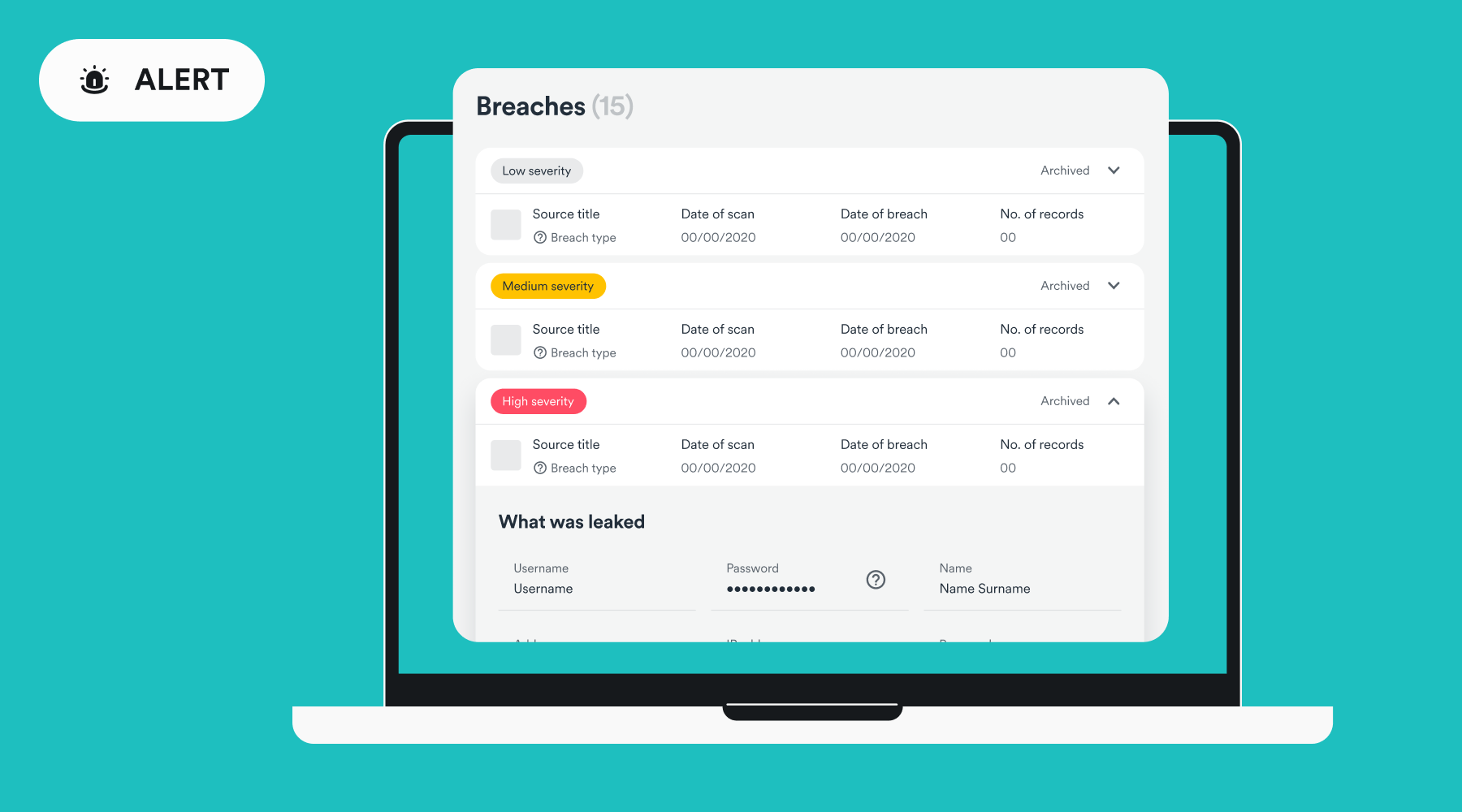
The good news is, tools like Surfshark Alert scan the web and dark web and let you know if your personal info is being shared, so you can quickly secure your accounts.
What is Surfshark Alert?
I recently tested Surfshark Alert, which is a powerful feature within the Surfshark One and Surfshark One+ VPN bundle. Here’s what I found most useful and how you can use it effectively:
Email Protection – Get instant alerts if your email address is breached, allowing you to swiftly protect your account from intruders.
Identity Protector – Stay one step ahead of identity thieves with real-time monitoring of your personal identification number’s security status.
Password Monitoring – Uncover your password’s vulnerability by seeing how often it has been compromised and if it’s time to reset to a stronger password.
Credit Card Watchdog – Prevent fraudulent purchases by receiving notifications when your credit card details surface online.
Data Security Reports – Receive regular reports on the status of your personal data, with valuable insights into patterns and risks, so you can take the right precautions.
Breach Response – In the event of a data breach, get personalized recommendations and a tailored emergency plan to help you navigate the situation with confidence.
Who is it for?
Whether you’re an individual or business owner, Surfshark Alert has many benefits. Especially if you:
Are a heavy online shopper with lots of accounts and saved credit card information.
Want to protect your entire family, thanks to Surfshark’s support for multiple devices and family monitoring.
Are taking care of elderly family or friends who aren’t as security aware.
Run a business and want to reinforce existing cybersecurity protocols and prevent costly data breaches.
Are an influencer or otherwise have a large online presence and digital footprint.
Travel a lot and require data security while on the go, which is perfect alongside the VPN.
Alternative ID
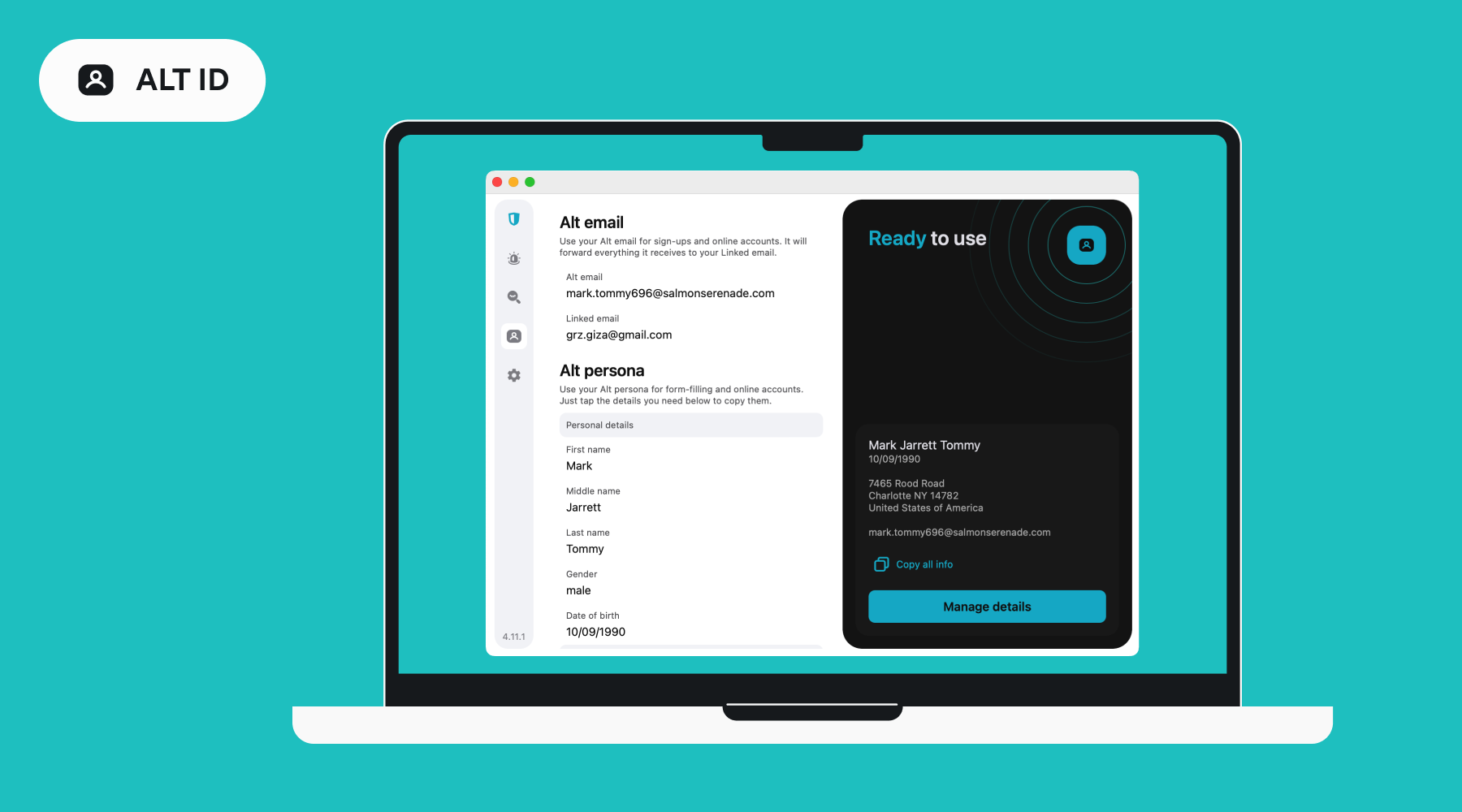
I also recommend Surfshark Alternative ID feature that allows you to generate a new digital identity to safeguard your privacy while browsing the web. This:
Maintains the privacy of your real email address and name when interacting with unfamiliar websites, platforms, or untrustworthy brands.
Reduces the likelihood of receiving spam emails from unsolicited marketing campaigns.
Minimizes the risk of your data being acquired by data brokers or cybercriminals in the event of data breaches.
Shields you from the dangers of online stalking and harassment.
How to use Surfshark Alert
Surfshark Alert is simple to set up before a breach and guides you every step after a breach occurs.
Before a Data Breach
To get started with Surfshark Alert, all you have to do is:
1. Go to Surfshark and purchase either Surfshark One or Surfshark One+
2. Download the appropriate app for your devices.
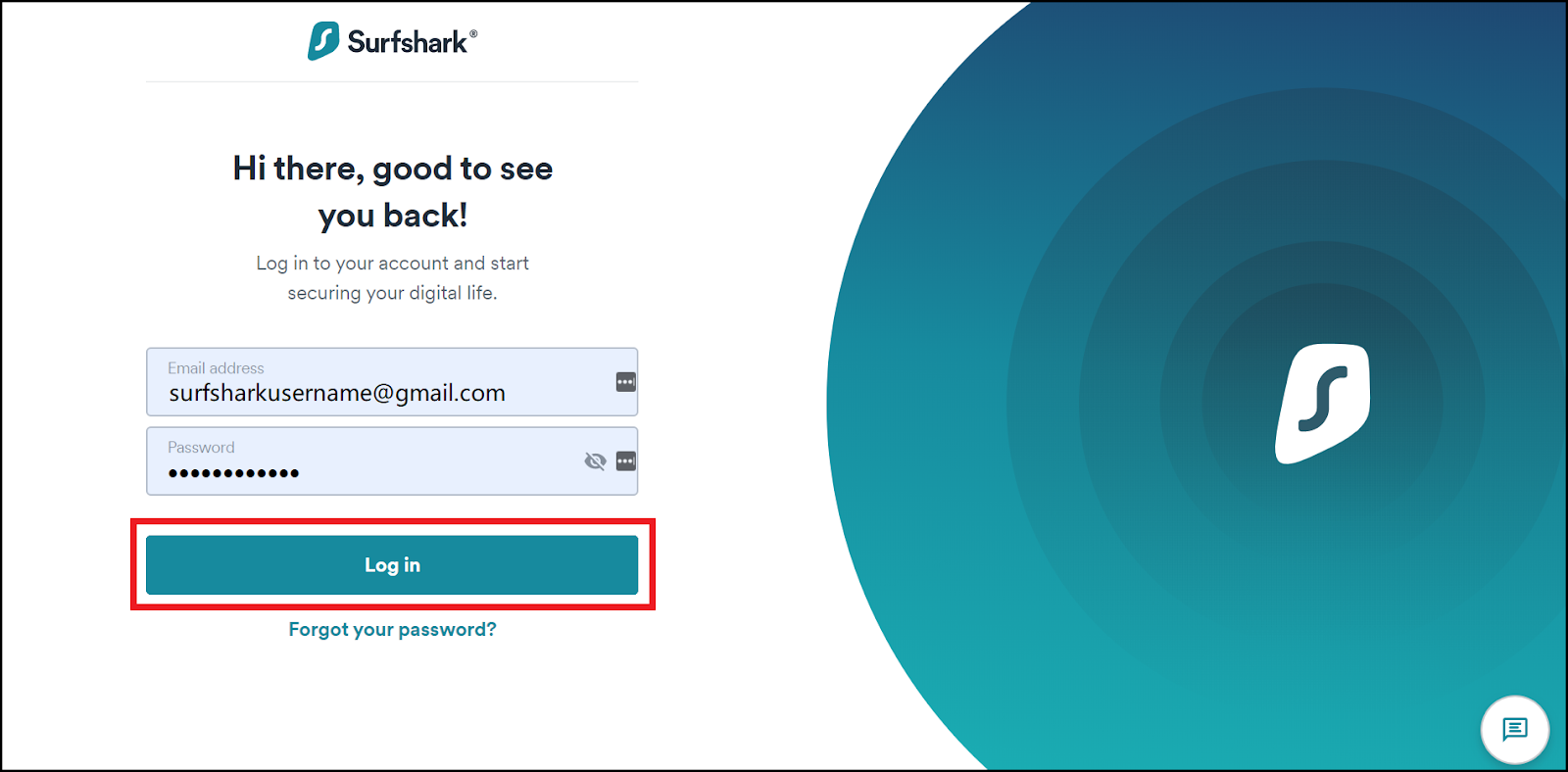
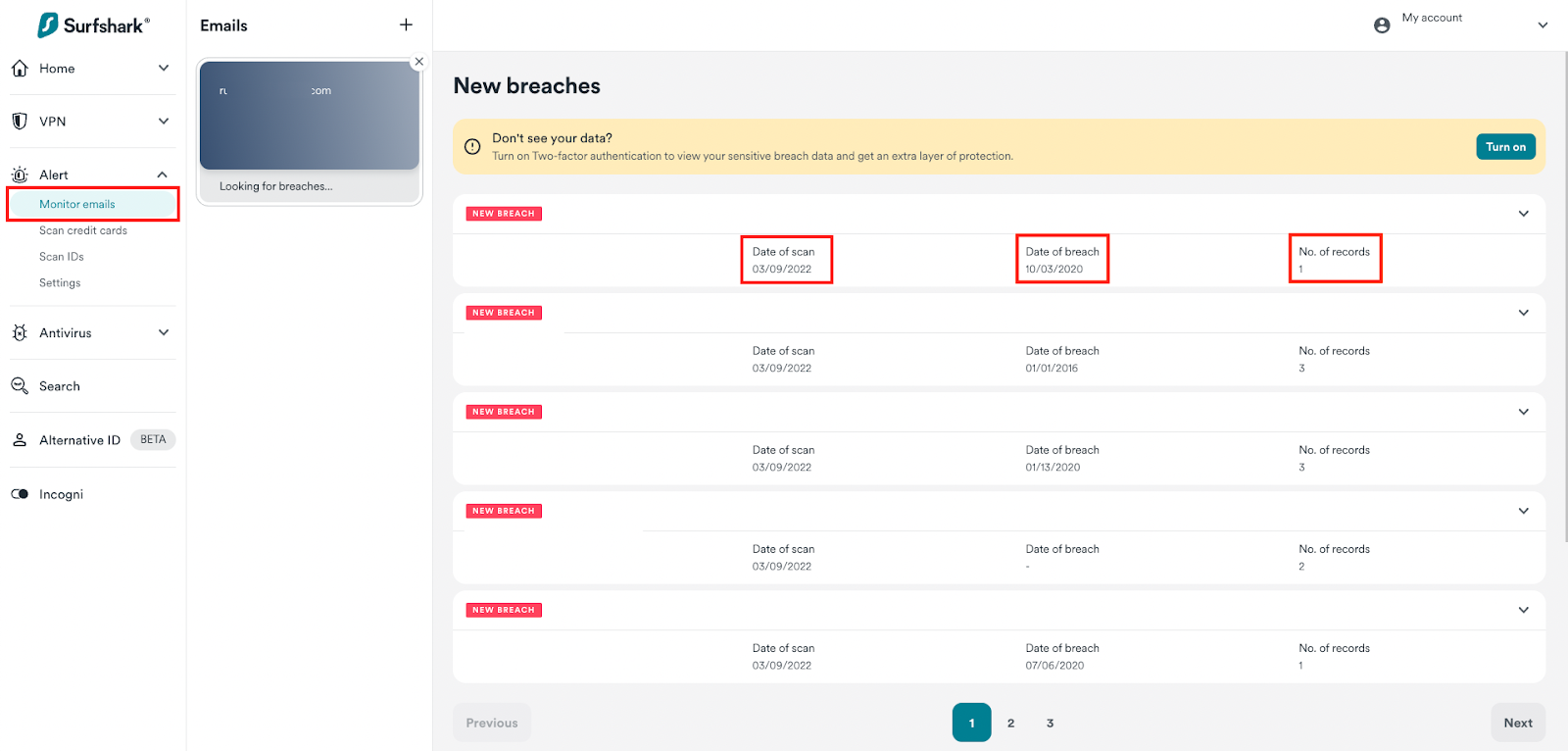
3. Login into your web dashboard and locate the Alert tab on the left panel.
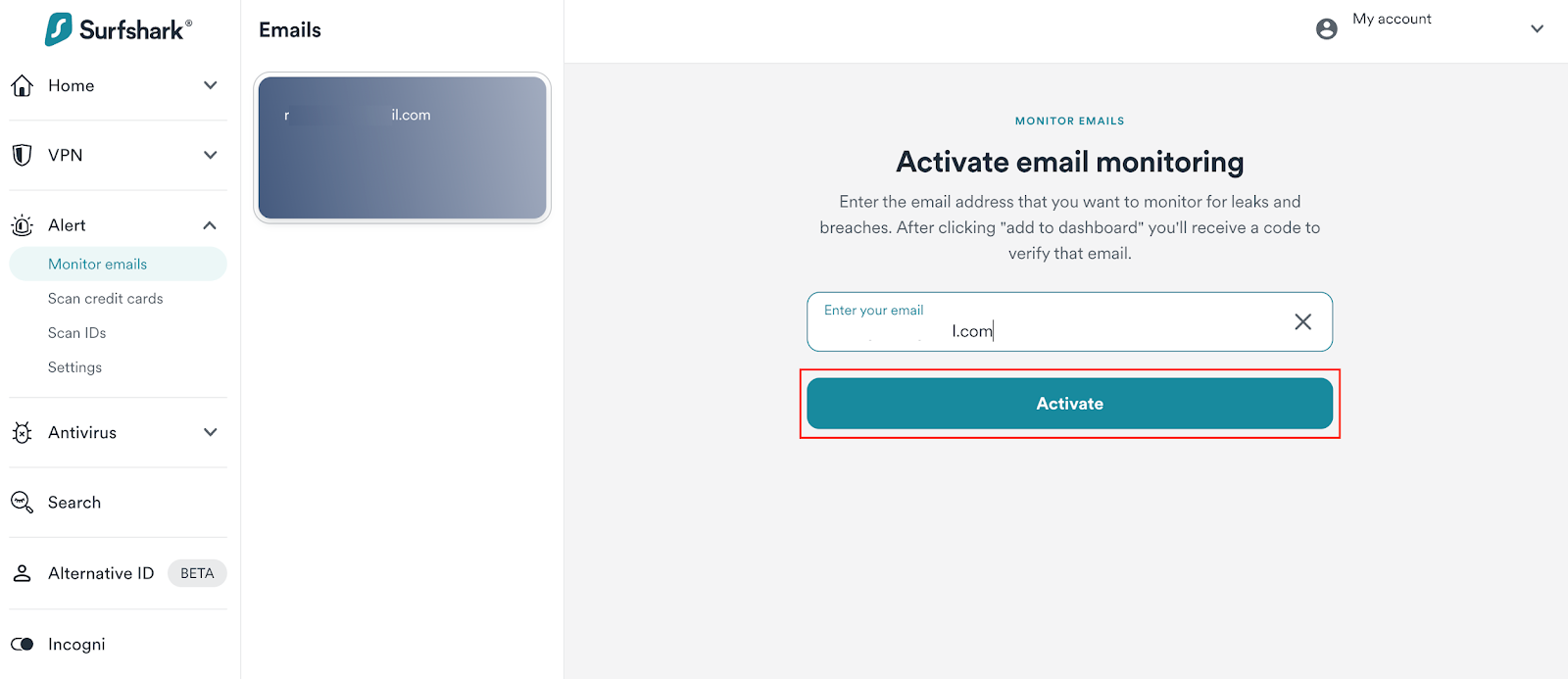
4. Choose whether to monitor emails, scan credit cards, and scan IDs, then read the terms and check the box to continue.
5. Enter your email address, credit card information, and ID. Then press Activate or Scan.
6. Remember to verify your email address with the link sent to you via email.
What to do after a Data Breach
If you have received an alert of a personal data breach, it will inform you of the type of breach and how to protect yourself.
Compromised Password – Change your password immediately on any account that uses the password. Activate two-factor authentication (2FA) on these accounts if possible.
Compromised Credit Card – Immediately contact your bank or card provider and inform them of potential compromise and fraudulent activity. They may freeze the card and issue a new one.
Identity Theft – Alert relevant institutions that fraudsters might have your data. Check your credit reports for suspicious activities and consider placing a credit freeze to stop fraudsters using your identity for new accounts, credit, or insurance.
How to Activate Alternative ID
Alternative ID is part of the same bundle and takes only a few seconds to create a new online persona:
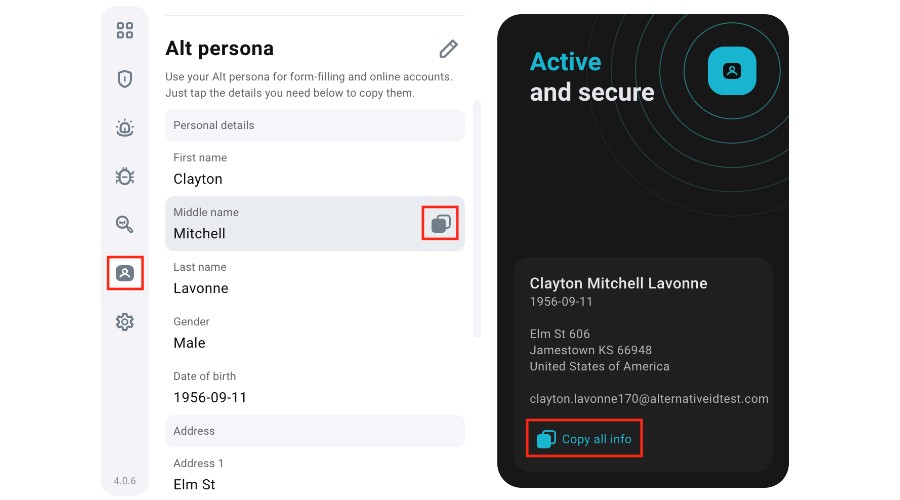
1. Select Alternative ID within your Surfshark web account, browser extension, or app. Then provide the new details you want to use, such as gender, age, birth date, and country.
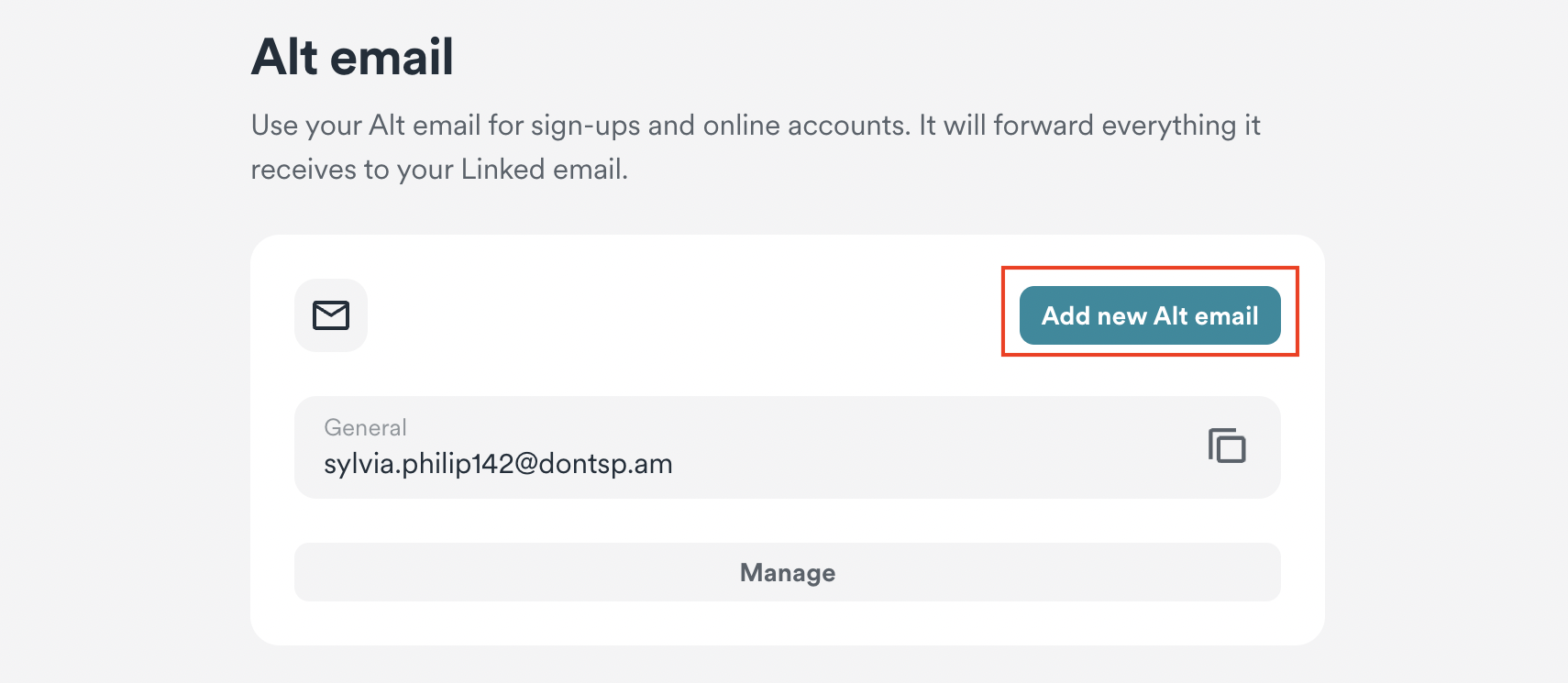
2. Surfshark then automatically generates an email address with your new persona, which is forwarded to your real email address.
3. Copy this info for any sites you wish to use your new persona.
4. You can also create up to three alternative emails.
5. Download the Surfshark extension for your browser for an integrated experience.
Get Surfshark One or One+ Discounted Today
Surfshark is currently running some great offers to get started with Surfshark Alert and Alternative ID. For its 12-month plans, you get up to 81% off:
Surfshark Starter – ($2.99 a month / $41.86 upfront) + 2 FREE months – VPN and Alternative ID
Surfshark One – ($3.49 a month / $48.86 upfront) + 2 FREE months – VPN, Alert, Alternative ID, and Antivirus/Safe Search.
Surfshark One+ – ($5.49 a month / $76.86 upfront) + 2 FREE months – All of the above, plus data removal by Incogni.
You can make deeper savings with the two-year plans or opt for a month-to-month plan instead. All come with a 30-day money-back guarantee.
Final Thoughts on Surfshark Alert and Protecting your Personal Information
While there are a number of services that offer identity theft protection, many lack the features of Surfshark Alert, especially the VPN, ad blocking, and safe search.
For example, Have I Bee Pwned is free, but doesn’t have real-time alerts. Identity Guard is very comprehensive but only focusses on credit monitoring, dark web monitoring, and alerts for potential identity theft.
Overall, I found Surfshark to be one of the best combinations of data breach alerts, disposable email accounts, and VPN protection.
Last week, Microsoft released the KB5037008 to the Beta Channel on the Windows 11 Insider Program, and the patch comes with some important enhancements and changes.
First off, Microsoft speeds up File Explorer and Task Manager in this patch, allowing Windows 11 users to get a better performance on this operating system. But speaking of performance, one of the most important changes coming with KB5037008 is the DDR memory speed unit change.
According to the official changelog, which can be read here, the Redmond-based tech giant will update the units for DDR speed from MHz to MT/s.
Updated the units (from MHz to MT/s) for DDR speed.
Microsoft
This change will display more accurate information about the DDR chipsets’ actual performance on Windows 11 devices.
MHz (Megahertz) is a unit of frequency that denotes a million cycles per second. In the context of SDRAM (Synchronous Dynamic Random Access Memory), MHz was used to denote the speed at which data moves within and between components.
MT/s (Megatransfers per second), on the other hand, is a more accurate measurement for the effective data rate (speed) of DDR SDRAM memory in computing.
So, when you see DDR speeds mentioned in MT/s instead of MHz, it’s a more precise measure of the actual data transfer rate, and it provides users with the real state of their chipsets’ performance.
This information, in turn, can be used to make informed decisions when changing RAM chipsets, for example, as the new units will accurately tell you if a chipset is performant or not.
The change is currently rolling out to Windows 11 Beta Insiders, but if you haven’t gotten it yet, the Windows enthusiast, @PhantomOfEarth, says you can enable it with a third-party app, such as ViveTool, by using the following command:
vivetool /enable /id:38476224,48380607
What do you think about this new change? You can read the full changelog for KB5037008 here.
Security of your online accounts is paramount, and one of the best ways to protect them is by using a 2-step verification (2SV).
Google has recently improved the process for enabling 2SV for Workspace, so let’s dive into it and see what has changed.
Google makes the 2-step verification process more simplified
According to the Google Workspace Updates page, users can now add a second-step method, such as Google Authenticator or a hardware security key before enabling 2SV.
In the past, users had to enable 2SV with a phone number before being able to add a second authentication method. With this change, this is no longer a requirement thus making this process a lot simpler than before.
Users that have hardware security keys will have two options on the Passkeys and security keys page:
Use security key – This will register the FIDO1 credential on the security key, even if the key is FIDO2 capable.
Create a passkey and follow instructions to use another device – This registers a FIDO2 credential on the security key and will require users to use the key’s PIN for local verification.
Keep in mind that users will be asked for their password and passkey by default unless Allow users to skip passwords at sign-in by using passkeys policy is enabled.
Lastly, it’s important to know that if a user turns off 2SV from their account settings, their authentication methods, such as Google Authenticator or a second device aren’t automatically removed from the account.
For the second authentication method to be removed automatically, the administrator will have to disable 2SV for a specific user.
This sounds like a great change, and this feature has already started rolling out, so it should be available to all Workspace customers and users with personal accounts in a few days.
After months of speculations and clues here and there, it seems that Microsoft is now finally giving Windows users a sneak peek of the upcoming AI Explorer, which will most likely be officially unveiled at this year’s Microsoft Build conference, which will take place later this month.
As you may (or may not) know, the AI Explorer is an upcoming capability similar to Copilot, which uses advanced AI technologies to search everything Windows 11 users tell it to, using natural language.
Since it was unveiled, many Windows enthusiasts have been searching for clues about it in Insider builds, and thanks to them, we now have a pretty definitive idea about the AI Explorer. Microsoft will demand users to upgrade their devices, as the tool requires a lot of resources to run properly.
Of course, all these were taken with a pinch of salt: Microsoft hasn’t said anything official about it. However, with the latest Insider build to the Dev Channel, Windows enthusiast, @PhantomOfEarth, discovered that Microsoft has placed the icon for this tool in it, along with the text ‘Pre’ (similar to how Copilot is currently displayed).
Albacore, another software enthusiast, previously discovered the icon for the AI Explorer, a couple of weeks ago, but it didn’t show the additional text back then. However, with the addition of the new text, it seems the Redmond-based tech giant is finally just weeks ahead of introducing the new feature on Insider channels.
We speculated that Microsoft might introduce the AI Explorer with the Windows 11 2024 Update (also known as the 24H2 Update), coming later this year, but insiders should get it earlier than that, with a possible preview coming this summer, although we don’t know exactly when.
It will be nonetheless interesting to see if the general public will love this new tool or not. You can also read the official changelog for the Windows 11 Insider Preview Build 26120.461 (KB5037009) to the Dev Channel here.
Microsoft’s weeks away from unveiling its new Surface PCs that will presumably be marketed as ushering in a new Windows on ARM future, but the upgrade path for older WoA devices may be cut short in the process.
For owners of Microsoft’s earlier WoA attempts that include the Surface Pro X, X 2, and Lenovo’s ThinkPad X13s, the upcoming Qualcomm Snapdragon X Elite-led Windows on ARM party will be a ‘new PC’ only attended affair.
According to official documentation, the specs to run this newer version of Windows 11 on ARM will be locked to physical hardware in the form of a Snapdragon 850 processor or newer.
The next version of Windows 11 scheduled for release, version 24H2, will require a minimum spec of ARM v8.1 to operate, which will exclude devices sold from 2016 up until last year.
Some users online have already begun testing the proposed minimum specs from Microsoft on devices such as retrofitted Lumia 950XL smartphones that have been jerry-rigged to run versions of WoA operating systems with ARM v8.0 processors.
Unfortunately for those testing the limitations, booting Windows Insider builds starting with 25188 has resulted in system crashes.
There has been little discourse from Microsoft as to how Windows on ARM has evolved from its previous iterations that could be upgraded across older SoCs, but perhaps the new push for ambient AI features could tax older chips that were not designed to accommodate dedicated processing.
Microsoft’s upcoming ARM-led Surface PC showcase will come a day before the company hosts its annual developer conference where it’s expected that it will go into more details about its even stricter Windows 11 specifications since its initial rollout.
Microsoft is reportedly developing a new AI model, internally called MAI-1. The world is going crazy behind AI and that’s fair as it is the booming tech. Microsoft is among some of the big global tech companies that have taken a keen interest in AI.
The company is rapidly putting out AI products by leveraging OpenAI LLMs like GPT-4. Talking of large language models, Microsoft doesn’t have an impactful one that can shake its market rivals. But, that will change soon.
MAI-1 is under development and being overseen by ex-Google AI leader
Now it seems Microsoft is readying a new AI model to compete against rival companies like Google, Anthropic, and OpenAI. The news comes from The Information (via Reuters) which reports the company is developing MAI-1, the new AI model, which will take on leading LLMs in the market.
Mustafa Suleyman, who happens to be an ex-CEO of AI startup Inflection and co-founder of Google DeepMind is in charge of Microsoft’s new AI model MAI-1.
Not to forget, Microsoft recently paid Inflection $650 million for the rights to the startup’s intellectual property back in March. It even hired a majority of Inflection’s staff.
Well, that doesn’t mean Microsoft is carrying forward the AI model from Inflection. However, there are possibilities that Microsoft could use other tech and data to train its new AI model though.
‘MAI-1’ will be much larger than the previous models launched by Microsoft
As per the report, the new AI model MAI-1 will be much larger than the previous smaller models. This eventually means that it would be more expensive than all other models.
Microsoft is reportedly readying large servers using a bunch of Nvidia’s GPUs and tons of data to train and improve the new AI model.
The report also mentions that MAI-1 will have approximately 500 billion parameters less than OpenAI’s GPT-4 one trillion parameters. Not to forget, the recently announced Phi-3 mini model has 3.8 billion parameters.
There’s not much information available about Microsoft’s new AI model ‘MAI for now, but going down the line pictures will surely get clearer.
That’s not all, the recent report has also sparked a new conversation on whether Microsoft will continue to use OpenAI’s model for its products. Or, MAI-1 will be used by the company as a replacement. Who knows, time will tell.
Are you excited about MAI-1? Share your thoughts on whether or not it would be a great decision for the company going forward.
Amidst all this, many solutions were provided online; one was to toggle off Show recommendations for tips, app promotions, and more under Settings>Personalization.
One ad blocker app with a cool name, Oh Frick Go Back, is getting popular, as it enables users to disable different types of ads in Windows 11 with a single click. And, with it joining the parade is a well-established app, Winpilot, which is a Windows debloater app (formerly known as Bloatynosy).
Earlier, the app could remove unwanted apps from your device, but now, with the newest version of Winpilot, 2024.5.5, it can help you remove ads with a few toggles. The aim is to remove bloat without any hassle.
Seems like we’re all getting tired and annoyed by the new advertising on the Windows 11 UI, right? That’s why Winpilot is introducing a new feature/plugin called Adblock for Windows. It focuses solely on removing ads from the Windows 11 UI. Special thanks to elevenforum for the inspiration!
In the best-case scenario, everything should look like this. All toggles are set to 0/disabled
If you would like to disable Start Menu ads, Personalized Ads, Welcome Experience Ads, Finish Setup Ads, General Tips and Ads, Settings Ads, Lock Screen Tips and Ads, File Explorer Ads, and Tailored experiences, you should get the Winpilot’s latest version on your Windows 11 computer.
You can download it from its GitHub page, but remember that it is third-party software, so you need to be careful when installing it on your device.
Once installed, the app automatically turns off all types of ads; however, you can always turn on the ones you like.
Have you tried Winpilot’s latest feature yet? If so, share your experience with our readers in the comments section below.
Researchers at Microsoft have detected a security vulnerability dubbed Dirty Stream in several Android apps. The security research team detected the vulnerability in the filesharing mechanism of several file-sharing Android apps as reported by BleepingComputer.
Vulnerabilities are a boon to cybercriminals and provide an easy pass to target naive users. Given the availability of over 3.5 billion active Android phones globally, preventing them is the need of the hour.
Users are often asked to prevent visiting shady websites or using apps downloaded from unofficial app stores. But, deep down you’d agree that it is the responsibility of the platform owners to protect its users from any frauds.
Microsoft security research team detects ‘Dirty Stream’ vulnerability in two popular Android apps
Talking of responsibility, Microsoft has a dedicated security research team for the same. Security researchers are responsible for detecting and negating possible threats posed by any vulnerabilities.
More recently, security researchers at Microsoft have detected a vulnerability in the filesharing mechanism of several Android apps. They have detected a vulnerability dubbed Dirty Stream in popular apps like Xiaomi File Manager, WPS Office, and more.
Dirty Stream malware lets malicious apps send a file with a manipulated filename or path to another app’s home directory. It misleads the target to trust that filename or path and stores the file in the critical directory.
Overview of Dirty Stream | Image credit: Microsoft
This eventually manipulates the data stream between two Android apps and possibly leads to unauthorized code execution, data theft, and more.
In a recent blog post, Dimitrios Valsamaras, Microsoft’s security researcher adds that such incorrect implementations unfortunately exist in large amounts. He adds:
We identified several vulnerable applications in the Google Play Store that represented over four billion installations. We anticipate that the vulnerability pattern could be found in other applications. We’re sharing this research so developers and publishers can check their apps for similar issues, fix as appropriate, and prevent introducing such vulnerabilities into new apps or releases.
Valsamaras says both companies responded to the findings and teamed up with Microsoft to fix the vulnerability. Google also published Microsoft’s report on the Android Developers website to draw developers’ attention to mitigate similar vulnerabilities down the line.
From the user’s point of view, there’s nothing much you can do other than update the apps regularly or avoid downloading APKs from unofficial third-party stores or shady websites.
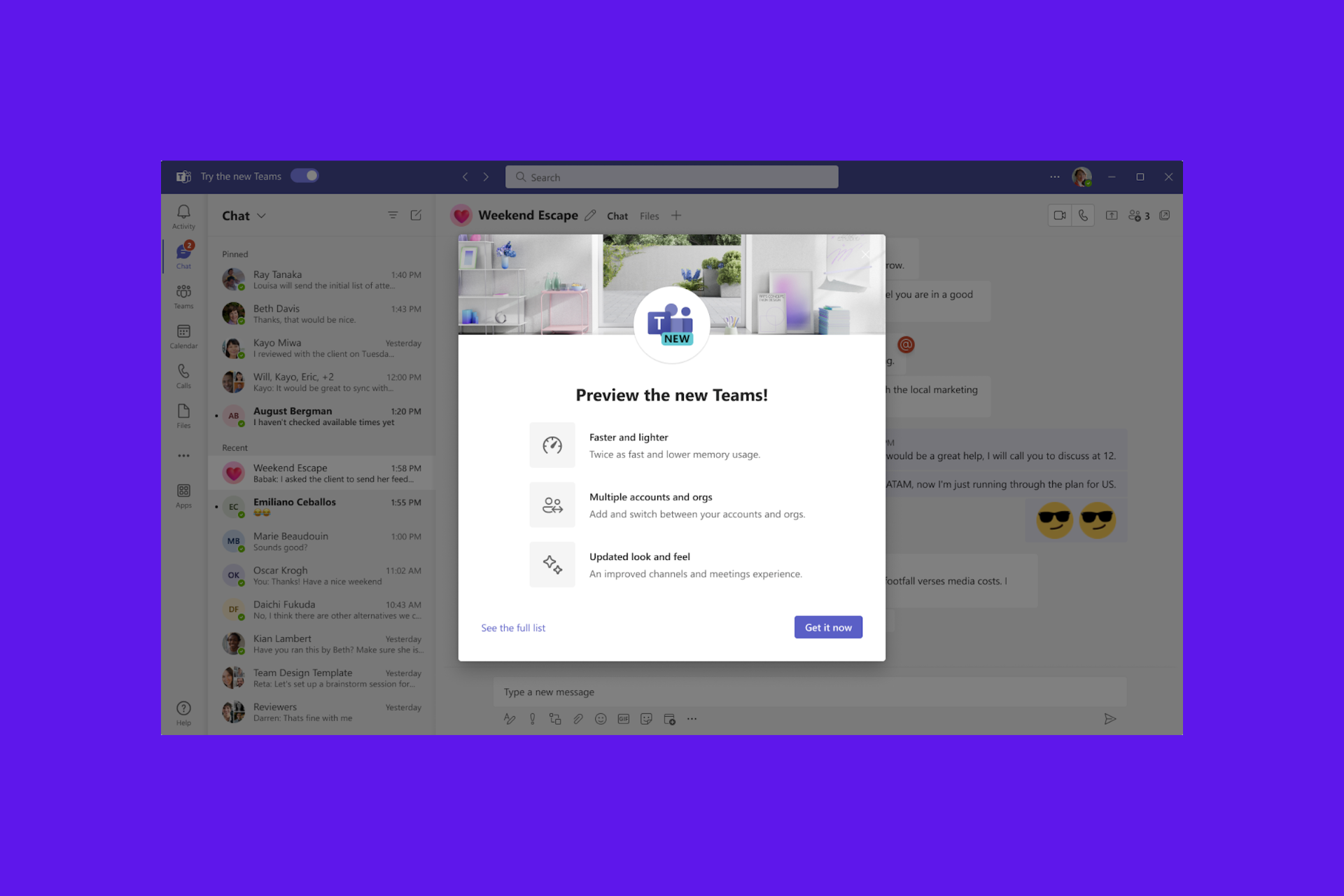
Microsoft Teams’ new version assures better performance while consuming less memory and has many new features to explore.
However, with this upgrade, you will lose some of the features you liked or see the changes to the preexisting features. In a support document, Microsoft mentioned them all; take a look at it:
Classic Teams
New Teams
Allow users to follow another user’s presence, then notify them of availability
Select a user’s avatar or profile photo anywhere in new Teams to quickly get an overview of their online status, next available calendar slot in Outlook, work hours, local time, or work location either remote or in office.
Contacts in chat
Teams notifications are now fully served by Teams, and all notification preferences are handled within Teams Settings.
Windows notifications
Consistent with other Office applications, the Teams Theme setting follows the OS Theme by default. Users can change this default in Teams Settings > Appearance and Accessibility. When a user signs out of Teams, any change to the default Theme won’t be saved.
Ability to save messages and files in Teams
The Save feature is no longer available. However, classic Teams users can download their saved messages and files to a local folder that they can open in new Teams. Learn more: Mark a message as saved in Microsoft Teams
Teams Theme Setting
Users can no longer opt-in or opt out of receiving notifications at a channel post level.
Look up an organizational chart while in a 1:1 chat
Select a user’s avatar or profile photo anywhere in Teams and navigate to the organizational chart within the profile card.
Settings dialog
Teams Settings is now an app accessed from the More options menu (…) in the title bar.
General appearance changes
Colors, tooltip styles, and general appearance have been updated.
Use the Sharepoint app instead. Then, add the document library from there as a tab to the channel. Existing document libraries automatically convert to a SharePoint document library on first use.
Post-level notifications within a channel
Search box commands
The following commands are no longer available in the new Teams search box: /activity, /files, /goto, /help, /join, /keys, /mentions, /org, /saved, /testcall, /unread, /whatsnew, /who, /pop.
Adding a Wiki to a channel tab
You no longer see a Wiki app. Instead, select the Notes app.
You no longer see the “Add cloud storage” in the OneDrive app on Teams’ left navigation bar or within the Files tab in Teams channels. You can add the third-party storage app directly from the Teams App Store.
Adding third-party cloud storage service from Files app and Files tab in channels
Adding a document library (DocLib) app to a tab in channels
Activity tab in the chat
Team owners can edit the team name and change the team picture in the team Settings tab by selecting More options (…) > Manage team.
No longer available.
Look up LinkedIn while in a 1:1 chat
Select a user’s avatar or profile photo anywhere in Teams and navigate to the LinkedIn tab within the profile card.
Edit team name and change team picture from Edit team view.
Adding third-party cloud storage service from the Files app and Files tab in channels
Ability to choose EDU themed team avatar from a list in the Edit team view In Microsoft Teams for Education
No longer available.
Files app on Teams left navigation pane
The OneDrive app replaces the Files app on the left navigation pane.
Ability to use tags in the “Add member” dialog.
There’s now an advanced flow for tags.
About links in the More options menu (…)
About links are now in the Settings app under the About Teams category.
Help in the app bar
The Help entrypoint, including Help links and Give Feedback is now located under the More options menu (…) in the title bar.
Ability to sign out from the notification area at the far right of the taskbar (system tray).
No longer available.
Adaptive Card-based tabs in personal app tabs.
No longer available.
Whiteboard Tab automatically displayed in meeting tabs.
Using Recap tab from the calendar allows you to access the Whiteboard file shared in the meeting in the content section.
Third-party and custom sign-in solutions using RunAs or undocumented hooks.
No longer available.
App name is Microsoft Teams classic, except for Windows 11, where it’s Microsoft Teams classic (work or school).
Microsoft Teams (work or school) app name is changing to Microsoft Teams.
Presenter mode (standout) during PowerPoint Live sharing.
Presenter mode is no longer available. To use presenter modes, start a screen-sharing session and choose one of the three available modes.
Some of these changes will improve the user experience in the new Microsoft Teams app. However, the features that are not included or replaced by something better in the new app might make you regret upgrading.
What do you think about these changes in the new Microsoft Teams app? Share your opinions with our readers in the comments section below.
Recently, Microsoft released Edge 126.0.2552.0 to the Dev Channel, which includes two new features and many improvements related to reliability.
Here are the changes mentioned in the changelog on the official blog:
Added Features:
Implemented a mute button on the taskbar.
The capture menu toolbar has been added to the PDF file.
Improved Reliability:
Fixed an issue where the browser would crash when users clicked on ‘Leave workspace’.
Fixed a browser crash on android.
Fixed an issue that caused the browser to crash upon closing the final tab.
Changed Behavior:
Resolved an issue where the share box would briefly appear blank and then vanish after a few seconds.
Fixed an issue where tabs that had been deleted reappeared after restarting.
Resolved a problem where there were visual style discrepancies on the product detail page, including issues with margins, colors, border radius, and shadows, within the extension.
Resolved a problem that caused visual distortions when tabs were grouped in a vertical layout.
Fixed an issue where horizontal scroll bar and vertical bar appeared in FRE.
The issue where the side pane would unexpectedly open after FRE has been resolved.
Fixed an issue where the page at edge://settings/appearance/CustomizeToolbar was displaying as blank.
Fixed an issue that prevented the sharing of screenshots via Outlook.
iOS: Fixed an issue where the string in the toolbar settings page needed to be changed.
Mac: Resolved an issue where the Send Feedback feature initially displayed a blank screenshot. Subsequent attempts would then show the previously captured screenshot on Mac.
Android:
Resolved a problem where the keyboard focus was not moving to the ‘Earn More Rewards’ link within the Microsoft Rewards section on Android.
Fixed an issue when altering the background color, the page no longer flashes on Android.
You can download Microsoft Edge Dev from the official Edge Insider website if you wish to use the new features before the public release.
Also, if you face any issues while using the version, Microsoft encourages you to report them through the in-app feedback by visiting Help and Feedback> Send feedback.
Have you tried and tested the new Edge Dev Build yet? If so, please share your experiences with our readers in the comments below.
When you have more than one Xbox account on your Windows 11 device, you can switch accounts to separate your gaming personas. Luckily, Microsoft allows you to have multiple accounts signed in when you need to keep your files or settings separate.
How do I switch accounts on the Xbox app?
Hit the Windows key, type Xbox on the search bar and click Open to launch the app.
Navigate to your profile, click on it and in the pop-out menu, click on Sign out.
Click on the sign-in button and before entering your credentials, click on Switch accounts.
Now click on Use a different account and follow the on-screen prompts to sign in if you don’t already have another Microsoft account linked to your Xbox.
Some users had problems as they failed to switch accounts and the initial account automatically signed in. This is mainly because the Microsoft account is tied to the administrator account on your Windows 11 device. If you encounter this issue, reinstall your Xbox app and restart your PC.
Additional tips for managing multiple accounts efficiently
Create user profiles – Creating different user profiles helps keep settings and any other important information separate and avoid mixups. It’s also good for privacy.
Use Windows fast profile switcher – Windows has a fast switcher feature that allows for seamless switching of accounts. This can make it easier to switch to your preferred Xbox account.
Customize accounts – When you tweak some settings on one Xbox account, it becomes easy to identify. Similar accounts can be difficult to make out at face view.
Hopefully, you can now switch your Xbox accounts with ease whether you’re sharing your Windows 11 device or have multiple gaming profiles. And with the troubleshooting steps for any issues that may arise, you now know how to address them head-on.
Have you encountered any difficulties when switching accounts? If so, feel free to drop us a comment below.