This upcoming Microsoft Teams option allows new users to select from a curated list of Teams channels

Microsoft Teams will be getting a bunch of new updates and policies in the next weeks: for instance, companies will request participants to a meeting to explicitly consent to be transcribed and recorded, while also preventing these participants from downloading the transcript documents.

The Redmond-based tech giant also wants to enhance and improve productivity and collaboration by allowing individuals from outside the organizations to join chat groups and even use the apps in there for a nicer experience, which simultaneously, could become a security risk.

These new policies and updates are set to be released at the end of April, and continuing into May, but Microsoft will add another option to the platform, next month.

According to the latest entry in the Microsoft 365 Roadmap, the Redmond-based tech giant will introduce a new experience to new Teams users who just joined an organization, and that is the option to select from a curated list of Teams channels.

The group owner or the manager can create that list of Teams channels according to the new user’s activities; this way, the manager can provide a meaningful and comprehensive onboarding process for the new employee, bringing them up to date with everything they need to know to do their job properly.

When added to a new team, users can see which channels the team owner recommended, and select to show only the channels that are relevant to them.

Microsoft

The new option of creating a list of curated Microsoft Teams channels will be added to the platform in May, and it’s coming to Microsoft Teams for the Web; it will also be available everywhere, in the world.

This could potentially change the way onboarding processes will be initiated, and it could provide a meaningful introduction to the organization’s infrastructure by solely using Microsoft Teams. Plus, it could also greatly reduce time and even interaction, something that new employees are often reticent towards.

Microsoft Teams will allow users to access apps in group chats with individuals outside their organization

Microsoft Teams will be getting several important updates in the next weeks. We recently talked about how Microsoft will enable a couple of policies that will allow organizations using the platform to ask for explicit consent from users to transcribe and record them and limit the number of users that can get those meeting transcript documents.

The two policies are meant to encourage and strengthen security and privacy, but they can also represent a drawback for employees in the long run.

However, speaking of security and privacy, Teams might be taking a step back, as the Redmond-based tech giant is planning to allow users to access apps in group chats with individuals outside their organization, according to the latest entry in the Microsoft 365 Roadmap.

The new policy is set to be implemented on the platform starting in May, and it will even allow external users to install, remove, or update applications. Microsoft says the policy will enhance, and improve collaboration, interactivity, and productivity.

Users can now access applications in group chats with individuals outside their organization, fostering improved collaboration, interactivity, and productivity. The group chat’s host involving external participants can install, remove, or update applications for use by all members.

Microsoft

However, given just how fragile and vulnerable Teams has been over the years (as part of the Microsoft 365 productivity suite, which in 2022 alone, had over 80% of its accounts hacked), this new policy could become a security issue down the road.

Bad actors can emulate non-organization users, and infiltrate the organization’s Microsoft Teams platform by hacking certain apps and installing them immediately.

As the new policy will be available on every device (desktop, or mobile), it will be easy to attack Teams with infected apps, designed to wreak havoc. Interestingly enough, Microsoft hasn’t mentioned anything about security, but its Copilot for Security is currently rolling out on Teams, this April.

Will it be enough to prevent these sorts of attacks? We’ll have to wait and see.

Microsoft Teams users have to consent to being transcribed and recorded but won’t be able to download the meeting transcripts

We recently reported that Microsoft is updating Teams to require users to give their explicit consent to being transcribed and recorded during Teams meetings; failing to do so means users won’t be able to speak, show themselves, or share content in meetings.

The new policy will be released at the end of this month, and it is rolling out gradually until July when it’s expected to be fully integrated within the platform.

However, according to a new entry in the Microsoft 365 Roadmap, in May 2024, the Redmond-based tech giant will also update the policy to support a new policy that gives IT admins the power to restrict permission for downloading meeting transcripts to users.

In other words, depending on the situation, Teams users won’t be able to own the meeting transcripts they agreed to.

The policy comes with a string of unique situations that empower admins to the tiniest detail: in one instance, only transcript owners can download these documents, and in other situations, the owner can also designate other people to be able to download them.

Even more, this Microsoft Teams policy also extends the download of meeting transcripts within the Stream platform, and it works the same there, as well. The owner decides who can download the documents.

Introducing a new control for IT administrators to restrict permissions for the download of meeting transcript files (stored in OneDrive for Business) for any users within the tenant. This policy applies to new meeting transcripts across the entire organization. Administrators can exempt people who are members of specified security groups from the policy. This allows admins to specify governance or compliance specialists who should have download access to meeting transcripts. We are also updating the default permissions so that even when the policy is not applied only transcript owners (recording initiator or meeting organizer) will have permission to download or delete the transcript file, while meeting participants can only view the transcript in Teams app or Stream. In addition to the tenant-wide policy for download permission, the meeting organizer will be able to select in Stream which participants are restricted from downloading, viewing, and editing the transcript in Stream.

Microsoft

Microsoft Teams users not being able to download transcripts documents has its ups and downs: the ups are tied to the overall privacy and security of the organization; the down are, of course, tied to the employees’ rights. If an employee wants to sue a certain organization, for instance, the trascripted documents might help their case.

So, ultimately, the adjacent policy is in the benefit of the organization, as it could seek to avoid employees’ legal ameneties, in case it ever gets there.

How to Connect Apple Vision Pro to Xbox

If you want to expand your display while playing, you may want to connect your Apple Vision Pro to your Xbox. Most people connect their Xboxes to TVs or PCs, and even though they offer a sizable display, they may not be able to beat the upscaling you might get from the Apple Vision Pro. By connecting to the Apple Vision Pro, you can integrate your Xbox into a larger entertainment setup.

Although the Apple Vison Pro doesn’t connect directly to the Xbox, there are some workarounds that will allow you to do that.

How do I connect my Apple Vision Pro to my Xbox?

1. Verify system requirements

  • Ensure you connect your Xbox to your TV or PC via a high-speed HDMI cable
  • Use a wired internet connection to connect to your Xbox

2. Enable the remote play feature

  1. Press the Xbox button to open the Guide.
  2. Navigate to Profile & system and select Settings.
  3. Go to Devices & connections and select Remote features.
  4. Check the box with the Remote features to enable the features.

The Remote Play feature allows you to connect to your Xbox virtually.

3. Download the XBPlay app

  1. On your Apple Vision Pro, go to compatible apps, search for XBPlay: Remote Play, and open it.
  2. Next, log into your Xbox account, and a prompt will appear asking you to connect to the XBPlay app.
  3. Now, launch a game of your choice and enjoy the upscaled display.

The XBPlay app is great because it supports HD displays up to 1080p. Apple Vision Pro will upscale your display, so you don’t have to worry about the quality.

Unfortunately, when you download the XBPlay app, it will be on a trial basis. If you’d like to unlock the full version, you’ll have to pay $5.99 as a one-off fee. It might be worth the investment since it offers a lag-free play experience.

Potential challenges and troubleshooting tips

  • A compatibility issue may arise because your Xbox and Apple Vision Pro do not connect directly. Updating your Xbox and Apple Vision Pro firmware can resolve such issues.
  • Connection issues can be resolved via an Ethernet cable, ensuring both devices are on the same network. Switching off nearby devices can also minimize interference.
  • Lag issues are usually caused by a poor internet connection or display settings. Tweak your display settings to optimize performance and ensure a stable connection.
  • If Xbox is not loading any games, try restarting the game or clearing the cache.

While there may not be official support for connecting an Apple Vision Pro to your Xbox, it’s pretty easy to achieve a similar setup. You can also connect your Apple Vision Pro to your PC if you’re looking for a multiple-display setup or to your Xbox controller for an immersive experience.

Tose looking to multitask should consider connecting their Xbox to their laptops.

When trying out new ways to enhance your gaming experience on your Xbox, you can make plenty of adjustments. For instance, you can easily use your phone as a keyboard for your Xbox. The on-screen keyboard can be a bit slow, so your phone is a handy alternative.

That’s all we had for this article, but we’re curious. Have you tried connecting the Apple Vision Pro to your Xbox? What was your experience like? Was it upgraded or downgraded? Let us know in the comment section below.

Skype: Hosting meetings will be easier on Android, suggests the leaked code

According to the leaked APK of Skype on Android, we might be getting a teleprompter mode, as hinted by the code.

This means you will be able to turn your phone into a teleprompter, read the information from the screen while maintaining eye contact, and deliver it to your audience.

As of now, Microsoft has not officially announced this new development. However, the presence of the code indicates that such a feature could be included in future updates.

The discovered code references functionalities are related to teleprompters, including:

  • Script editing capabilities
  • Text size adjustments
  • Teleprompter speed control

Here is the code as reported by Android Authority:

<string name=”oc_teleprompter_edit_script”>Edit Script</string>

<string name=”oc_teleprompter_font_size_setting”>Change teleprompter text size</string>

<string name=” oc_teleprompter_hint”>Here is a demo script, you can update it to have your own content</string>

<string name=”oc_teleprompter_preview_text”>Preview</string>

<string name=”oc_teleprompter_speed”>Teleprompter speed</string>

<string name=”oc_teleprompter_speed_setting”>Change teleprompter speed</string>

<string name=”oc_teleprompter_text_size”>Teleprompter text size</string>

<string name=”oc_teleprompter_text_style_setting”>Change teleprompter text style</string>

As there is no official announcement, we are not certain about how teleprompter mode would work. However, the leaked code indicates that you will be able to change the text size, text style, and scrolling speed of the teleprompter to match your speech rate.

Furthermore, the feature would also provide a demo script that you can edit, and there will be a preview option to double-check the script before you start.

Remember that the discovered features are mentioned in the code, but there is no guarantee that all of them will make it to the public release.

Skype is constantly working to improve the platform on Android. On March 14, 2024, it added features that allow users to customize their messages. The feature is currently available to insiders in builds 8.114 and 8.115.

Are you excited about this feature coming to Skype? If so, share with our readers how it could improve video calls in the comments section below.

Introducing the Dell Latitude 7350 Detachable: A 2-in-1 powerhouse

Dell has always provided its users with high-quality devices, and if you’re looking for a new laptop, then you might be interested in the latest model from the Latitude series.

Dell Latitude 7350 Detachable is finally available for purchase, so let’s see what this model has to offer to potential users.

Dell Latitude 7350 Detachable is finally available for purchase

As Windows Central writes, the latest member of the Latitude series, Latitude 7350 Detachable, is finally here.

This is a 2-in-1 laptop and it comes with a detachable keyboard and a fold-out stand on the back, as well touch-screen display.

This is a 13.3-inch device with a 2880×1920 (2.8K) IPS touchscreen display. The display has 500nits brightness, 100% sRGB color, and pen support.

As the CPU, you can choose between Intel Core Ultra 5 134U 4.4GHz or Intel Core Ultra 7 164U 4.8GHz CPU. Regarding the memory, you can choose between 8GB, 16GB, and 32GB LDPPR RAM.

Storage is just as important, and you can get 256GB, 512GB, or 1TB NVMe. It’s worth mentioning that the keyboard is sold separately, and it costs $210.

Latitude 7350 Detachable has an 8MP infrared webcam with facial recognition, as well as Dell’s Intelligent Privacy feature that will blur the screen as soon as you step away. On the back, there’s also an 8MP camera.

Additional features include a fingerprint reader, Smart Card reader, and NFC support. Overall, this is an incredible device, and you get it from Dell with a starting price of $1,929.

If you’re looking for something more affordable, Dell has a massive discount on its laptops that is still going, so you might be able to find something that suits your budget.

For gamers, there’s also a great discount for Razer Blade 15, so don’t miss it!

PGA Tour is the latest EA Play addition to Xbox Game Pass

Looking for an exciting new title on the Xbox Game Pass? PGA Tour, the latest entrant, would be the perfect pick!

PGA Tour is a multiplayer video game where you get to play golf at the world’s most exclusive courses. Featuring Pure Strike and powered by ShotLink, the game is a part of the EA Sports PGA Tour franchise.

PGA Tour will be available on the console (Xbox Series X|S), PC Xbox app, and cloud gaming, ensuring unparalleled access to all Game Pass subscribers.

Already available on Steam and PlayStation 5, PGA Tour has a mixed set of reviews.

While some find the gameplay immersive and the graphics breathtaking, others call for improvements to the multiplayer functionality and the introduction of cross-play. As per reviews, the Steam version crashes a lot and is not a value-for-money purchase.

We expect things to be different with the Xbox Game Pass on the console, given there are fewer active processes. Though gaming on PC has its benefits, the risk of game crashes is high due to third-party app or driver conflicts.

We eagerly look forward to seeing how PGA Tour performs on the Xbox PC app. If it delivers well, many PGA Tour fans may subscribe to the Xbox Game Pass because the Steam version anyway costs $69.99!

What’s your review of PGA Tour on the Xbox Game Pass? Share with our readers in the comments section.

SurveyLama data breach: 4.4 Million users data exposed

Recently, Have I Been Pwned (HIBP), a data breach alerting service, issued a warning stating that SurveyLama experienced a data breach on February 1, 2024, thereby risking the exposure of confidential data belonging to 4.4 million users.

For those who don’t know, SurveyLama is an online platform owned by Globe Media that rewards registered users for filling out surveys. The platform is popular for high payouts, several withdrawal options, and fast payments.

According to the information received by Troy Hunt, creator of Have I Been Pwned, the breach exploded data related to 4,426,879 user accounts, and the various data types included are:

  • Dates of birth
  • Email addresses
  • IP addresses
  • Full Names
  • Passwords
  • Phone numbers
  • Physical addresses

HIBP mentions:

Passwords stored as either salted SHA-1, bcrypt or argon2 hashes were also compromised.

Hashed passwords can’t be used immediately but can be cracked if a person with certain skills has enough time.

One of the affected users notified Hunt about the data breach, then HIBP alerted SurveyLama about the breach, and here is what they did to prevent further damage:

We notified users by email by deleting their password so that they could create a new one. We were already notified of a possible leak a month or two ago

The online survey platform mentioned that it has made necessary security checks and modifications to strengthen the system, but the company doesn’t know how the leak happened.

The information disclosed by Hunt to BleepingComputer, the compromised data, has not been posted anywhere so far, which suggests that the exposure is limited at the time.

SurveyLama has already informed affected users via email about the breach and advised them to change their passwords not only for the platform but also for all the other services where they might have used the same credentials.

When resetting the password, one must always use a combination of uppercase and lowercase letters, numbers, & special characters, especially for websites that collect personal data.

Are you a registered user of the platform and have you received the email? If so, please change the password and let our readers know about other safety measures that you took in the comments section below.

You can finally use the new Planner in Teams as Microsoft begins its general availability

We previously reported about Microsoft bringing Planner to Teams for seamless and effective task management. Now, Microsoft has confirmed that the new Planner is finally available in Teams and is being rolled out for all!

Microsoft will start with a small set of users and gradually roll out the new Planner for everyone running the stable version of Teams. It will take a few weeks.

To find out if you have the new Planner in Microsoft Teams, verify what it says on the top-left and check the icon. In case it reads, Tasks by Planner and To Do, you are on the older version of Teams. But if it says Planner with an updated icon on the side, you have the new Microsoft Planner.

Image source: Microsoft

What’s new in Microsoft Planner on Teams?

As per the official blog post,

The new Planner allows you to scale from simple work management for individuals to collaborative work management with your team, and all the way to enterprise scale project management, empowering everyone to manage their work in one place and accelerate business outcomes.

As discussed earlier, Microsoft has introduced a new icon for Planner, one that effectively communicates the increased capabilities and represents the core ideas behind the application.

New Planner icon (Source: Microsoft)

Microsoft Planners also gets a wide array of new features and premium capabilities. You will have to subscribe to the latter or start with a 30-day trial. There are three subscriptions available:

  • Planner Plan 1 ($10 per user/month)
  • Project Plan 3 ($30 per user/month)
  • Project Plan 5 ($50 per user/month)

Besides, the blog post lists a series of new features that will be coming to the upcoming versions of Microsoft Planner in Teams.

1. Copilot in Planner. Copilot in the new Planner is currently available to try only through Microsoft Teams public preview.
2. Ability to upgrade a basic plan to a premium plan
3. A faster and better My Day and My Tasks
4. Ability to see Project for the web tasks in My Tasks (currently rolling out to GA in waves )
5. Ability to sort the task list

Copilot in Planner is an expected upcoming feature, given Microsoft’s recent history of integrating Copilot with all its native software and tools, including Microsoft Advertising, Office suite, File Explorer, and more.

For Microsoft Planner, Copilot will be a premium feature that will simplify the workflow and answer basic questions regarding the project’s status.

Initial reviews for the new Planner in Microsoft Teams don’t look too promising

Users who tried the new Planner have reported issues with integration and formatting. They call it nothing more than a design refreshment.!

Besides, questions have been raised about Copilot being a part of Project Plan 3 instead of the basic Planner Plan 1, meaning they have to shell out an additional $20 for Copilot. Lastly, Microsoft’s disregard for the many feedbacks in the Feedback Hub has been criticized.

In case you want quicker access to the new Planner update, enroll for the Microsoft Teams Public Preview!

If you already have the new Planner in Microsoft Teams, do not forget to share your review in the comments section.

Palworld’s v0.2.0.6 update hits Steam, unleashing first-ever raid boss

Palworld has taken the gaming community by storm, but the game is still in development and the developers are actively working on new features.

The new patch has just dropped, and the game got much-needed fresh content in the form of a raid boss.

The new Palworld patch introduces the game’s first raid boss

Palworld v0.2.0.6 update has just been released, and it brings a raid boss to the game, as Windows Central writes.

The new boss is an evil Pal called Bellanoir, and you can find it by building a Summoning Altar and using special items called “slabs” to summon it.

According to the developers, raid bosses are incredibly powerful and they can’t be captured, but once defeated, they will sometimes drop Pal eggs that you can later hatch.

If this boss is too easy for you, there’s also an extreme version available for an extra challenge.

This isn’t the only change, and the patch notes mention various new items and buildings. There are also various improvements, balance changes, and bug fixes as well.

The patch is currently available only on Steam, so if you have the game on Xbox or Microsoft Store, you’ll have to wait for a bit more.

This is unfortunate since Palworld helped Xbox to achieve the record playtime in a single month. Nevertheless, we hope that the update will drop on other platforms soon.

Microsoft and Quantinumm reach Level 2 Quantum computing with 800x improvement

Microsoft and Quantinumm collaborate to enhance the reliability of quantum computers. As you might already know, Microsoft invests heavily in quantum technology. However, it is not as popular as AI. Yet, it is possible to simulate quantum computers with the help of AI.

Quantum mechanics allow machines to use this technology to achieve impressive computational speeds. However, the fundamental unit of quantum computers is the qubit. Unfortunately, they are sensitive and prone to errors. After all, even minor disturbances can cause them. So, Microsoft and Quantinumm made error-resilient systems using error correction techniques.

How did Microsoft and Quantinumm build the quantum systems?

The two companies combined Microsoft’s qubit virtualization system with Quantinumm’s ion-trap hardware to build the error-resilient systems. Thus, they achieved a new quantum milestone. According to Microsoft, they ran 14,000 individual experiments without failures.

By achieving this milestone, Microsoft and Quantinumm made it possible to move to Level 2 of Quantum computing. Additionally, with the qubit-virtualization system, they created highly reliable logical qubits from 30 physical qubits. Thus, they achieved an 800x improvement in error rate.

Microsoft and Quantinumm met the three fundamental criteria required for reliable quantum computing. So, they separated logical and physical error rates, corrected all the individual circuit errors, and generated entanglements between two logical qubits. However, this is just a prerequisite to building a hybrid supercomputer.

Fortunately, another feat managed by the two companies was to create a successful syndrome extraction technique required to identify and fix quantum computation errors without destroying the qubits. Also, Microsoft and Quantinumm can reach longer and more complex computations without failure by using syndrome extractions.

The future of hybrid supercomputers looks promising

The next goal of Microsoft and Quantinumm is to create a hybrid supercomputer with 100 reliable logical qubits for scientific usage. Afterward, the companies want to scale close to 1000 reliable logical qubits for commercial use. In the meantime, Microsoft plans to include the advanced capabilities in a private preview of Azure Quantum Elements for their customers.

Ultimately, the discovery made by Microsoft and Quantinumm will help them achieve new heights in the quantum industry. Thus, in a few years, we might see some hybrid supercomputers capable of computing years of data in a few days. Furthermore, achieving an 800x improvement in error rate shows that the advancement could take less than anticipated.

What are your thoughts? Are you eager to find out more about quantum supercomputers? Let us know in the comments.

Edge will soon get the Scribble to Copilot feature, which is similar to Android’s Circle to Search

Two months ago, in February 2024, we learned that Microsoft was working on the Circle to Copilot feature for Microsoft Edge. According to the latest post on X (formerly known as Twitter) by Leopeva64, Microsoft is also testing Scribble to Copilot.

Here what’s the post says:

This feature is quite similar to Android’s Circle to Search feature, and this is not the first time we have observed a resemblance.

According to the latest animation of Circle to Copilot, there’s a motion that starts from the bottom of the screen and moves upward, accompanied by a translucent filter with color applied while awaiting user selection.

The process is similar to the activation method for the Circle to Search feature, which is available on the Google Pixel 8 and Samsung S24 series.

As we are talking about similar features and ease of use of AI assistants for daily queries, Microsoft has recently added the Screenshot to Copilot feature, which involves capturing screenshots and drawing a circle around the intended element with the help of the right mouse button. Then, the selected image will be sent to Windows Copilot.

Though the activation methods for these features, which we discussed on Edge, Google, and even Windows Copilot, are different, they all help users refine their searches.

What are your thoughts on the matter? Share your opinions with our readers in the comments section below.

How to Connect Apple Vision Pro to PC

The Apple Vision Pro headset is not natively compatible with a PC, so you’ll have to configure it to connect to a Windows computer.

Since its release, the Apple Vision Pro has been sought after and it’s easy to see why given its cutting-edge capabilities and range of possibilities. While you can make some adjustments for it to accommodate a PC, its capabilities will be limited since its functionality is largely dependent on Apple OS.

How do I connect the Apple Vision Pro to my PC?

1. Verify system requirements

  • You’ll need the latest version of Windows 11 (Custom-built PCs and Surface devices are not supported)
  • A fast processor with 64-bit support 2GHZ or faster
  • High-performing GPU, preferably DirectX 11 compatible and with a built-in USB-C port
  • At least 4GB RAM and 2GB storage space
  • Luna Display dongle to mirror your PC
  • Strong internet, preferably wired

2. Install the Luna Display app

  1. Connect your Apple Vision Pro and Windows PC to the same Wi-Fi network. (Ensure it’s an Ethernet connection).
  2. On your Apple Vision Pro VR headset, launch the Apple Store and search for the Luna Display app.
  3. Install the same app on your PC, then plug in the Luna Display Dongle before launching it.

3. Connect to PC

  1. Once launched, you can now use your keyboard or mouse as a cursor since you can’t use your eyes as used in a Mac.
  2. You can engage the screen with your fingers as a touch screen and create multiple displays.

Additional tips for optimal performance

  • Check your internet speeds for stability and keep background apps and processes to a minimum to maximize data transfer speeds.
  • Optimize your graphic settings to high performance and ensure your OS and drivers are up-to-date for optimal performance.
  • Configure your display settings for excellent visual quality and only use apps that work well with Luna Display to avoid compatibility issues.
  • Explore the touch gestures on your PC to interact with applications and enhance your productivity.
  • Install dual monitor software to improve your workflow efficiency when working with multiple displays.

Hopefully, with the above steps, you’ve successfully connected your Apple Vision Pro to your PC and can now explore its endless possibilities. You can also connect the Apple Vision Pro to your Xbox if you’re looking to elevate your gaming experience.

While the Apple Vison Pro headset is in a league of its own, you should definitely try other cross-platform headsets. They may not offer the same functionalities, but they’re worth checking out.

Have you tried connecting the Apple Vision Pro headset to any device other than a Mac or Apple device?

Microsoft releases a new 2408 update (2408.240331-2200) for Alpha Skip-Ahead Xbox Insiders

Microsoft recently released a new 2408 update for Alpha Skip-Ahead XboxInsiders, bringing the version to 2408.240331-2200. The update included background improvements, ensuring a stable build for Xbox consoles.

Here are the System Update Details mentioned in the Xbox Wire post,

  • OS Version: XB_FLT_2408GE\26094.1507.240331-2200
  • Available: 2 p.m. PT – April 3, 2024
  • Mandatory: 3 a.m. PT – April 4, 2024

In the post, the Redmond tech giant mentioned that they also released a new version of Xbox Wireless Controller firmware, which introduced fixes, including improvements to thumbstick calibration and unexpected disconnections when using a wired headset.

If your controller needs an update, you will be prompted to install it when it is turned on and establish a connection with your console. However, if you don’t, you can launch the Xbox Accessories app and update it manually.

Here are the fixes included in the update:

Backgrounds

  • Fixes to address an unexpected error when attempting to set a new dynamic background.

Game Clubs

  • Fixed an unexpected ‘Like’ tooltip that could appear in the Watch area when focus is on the filter.

Home

  • Fixes to address some tiles on Home not navigating as expected, such as when trying to claim Perks.

Settings – Access Restrictions

  • Fixed an issue where disabling installing apps and games would not always behave as expected.

System

  • Various stability and performance fixes.
  • Various updates to properly reflect local languages across the console.

Microsoft also talked about the known issues related to audio & networking and assured that the team is working to find a fix for them.

If you encounter any other issues, you can use Report a Problem to mention them, which could help the Xbox staff better understand them. Microsoft also encourages Xbox Insiders to visit the community subreddit if they need support.

Also, to stay connected and informed about the Release Notes on Xbox Insider features, you can follow Xbox Insider on X (Formerly known as Twitter).

The Alpha Skip-Ahead ring on Xbox is an exclusive testing group; you have to enroll to get the pre-release versions. Given the potential for errors in these builds, Microsoft only restricts access to them by invitation.

However, if you are interested in joining the group, navigate to the Xbox Insider Hub> Activities > Available > Joining new rings from your console, then complete the survey.

Have you opted in Xbox Insider Program? If so, share your experience using new features in the preview with our readers in the comments section below. 

No clarity about ESU for home PCs running Windows 10, Microsoft prioritizes commercial organizations

With Windows 10 nearing the End of Support (October 15, 2025), many of you must be concerned about running an unsupported OS. The good news, Microsoft will offer Extended Security Updates (ESU) for three years to unsupported Windows 10 PCs.

The problem is that, so far, Microsoft only appears concerned about commercial organizations. Its latest blog post details every aspect, including the different ESU pricing models for commercial clients. However, the tech giant hasn’t yet shared the same information for regular users with a home computer!

Microsoft’s note in the blog post titled, When to use Windows 10 Extended Security Updates, confirms this. The note reads,

The details and pricing structure outlined in this post apply to commercial organizations only. Details will be shared at a later date for consumers on our consumer end of support page. Educational organizations can find tailored information about Windows 10 end of support in the Microsoft Education Blog.

A likely reason behind this is that commercial clients are more likely to pay the annual fee for ESU compared to regular users, especially when the base license costs $61 per device for the first year, and the prices double yearly.

As per projections, most users who will stay on Windows 10 after End of Support (EoS) will be on a home computer. PCs registered with commercial organizations will sooner or later be upgraded to Windows 11.

So, Microsoft should soon come out with a blog for home computer users, detailing the pricing, duration and other vital aspects.

Remember, ESU entails only security updates for enhanced protection from threats and not any improvements to the OS. Don’t expect new features to be introduced on the PC after subscribing to ESU!

Options for home users after Windows 10 reaches End of Support

If you are running Windows 10 and worry about EoS, there are several options to explore. The ideal solution is to install Windows 11, but if your PC doesn’t support the latest iteration, perhaps modify the Registry to bypass installation checks.

Google also offers ChromeOS Flex as a free upgrade to Windows 10 devices. So, if you don’t mind switching operating systems, it’s a feasible option!

Lastly, you can get a new Windows 11-compatible PC. With the increased AI adoption in the latest iteration, we recommend getting one with an NPU ( Neural Processing Unit).

Would you subscribe to Windows 10 ESU or choose another option? Share with our readers in the comments section.

Create perfect images every time as ChatGPT finally gets image editing support

We use the ChatGPT image generation feature rather often, and the main problem with it is the lack of editing capabilities.

Since you can’t edit images, your only option is to regenerate them in hopes that you’ll get the results you want. But luckily for all, those days are behind us.

ChatGPT now lets you edit your AI-generated images

The main problem with AI-generated images is the inability to reliably edit them, however, OpenAI has decided to address this issue, according to MSPowerUser.

OpenAI has also showcased this feature on Twitter:

As you can see, you just need to select the image and use your mouse to select the areas that you want to regenerate. Lastly, enter the desired prompt and let ChatGPT do its magic – it’s that simple!

This is perfect if you want to remove certain elements from images or add something to them without having to regenerate them from scratch.

The feature should be available on both web and mobile apps, so don’t hesitate to give it a try.

This is an amazing feature, and with features such as these, it’s no wonder that some users think that Copilot doesn’t work as well as ChatGPT.

As for other improvements, ChatGPT will drop the need for an account, so anyone can use it without having to log in ever again.

Say goodbye to phishing attacks! Edge on Android is getting Website Typo Protection

Microsoft is doing its best to protect its users from phishing attacks and other online threats, and it does that on the desktop version of Edge with a feature that detects misspelled websites.

It seems that this feature is coming to the mobile version as well, so here’s what we can expect.

Microsoft Edge for Android will be able to detect typos in URLs

Hackers will often use websites with misspelled URLs to trick users into sending them their login data or other information.

Microsoft is aware of this, and two years ago it released a feature on Edge that can detect these fraudulent websites.

According to MSPowerUser, the feature is called Website typo protection and was just spotted in the Edge Canary for Android.

The feature works by giving you a warning in the address bar as you type the name of the website.

If you try to visit the website with a misspelled name, you’ll also get a warning asking you to confirm that you have the correct address.

You’ll also get a warning when you tap the name of the website in the address bar, so even if you open it by mistake, you’ll know that the website is unsafe.

And if you like living on the edge, you can disable this feature entirely from the privacy settings in your browser.

This is a welcome addition, and we can’t wait to see it available in the stable release. Speaking of new features, the Edge Canary app on Android just got extension support, so you might want to give it a try.

Edge users can also test the new cross-device search query history in Edge, which is perfect if you use Edge on both PC and mobile.

Microsoft Edge updates failing with 0x80070070 error? Blame low disk space on your device

Low disk space can affect the PC’s performance, but more importantly, it triggers errors. This happened on one of our PCs when a Microsoft Edge update failed with 0x80070070!

The message read, An error occurred while checking for updates. Failed to cache the downloaded installer.

Upon research, we found that error code 0x80070070 highlights low disk space in the Windows ecosystem. And that was the case with our PC. The default Edge installation drive (in our case, C:) had just 120 MB left.

To fix 0x80070070 in Microsoft Edge, you need to free up some disk space in the drive where the browser files are stored, most likely the C: drive. For that, clear a few files in the Downloads folder, run the built-in Disk Cleanup utility, or uninstall bloatware.

If you often face issues due to low disk space, perhaps enable Storage Sense. It will automatically clear non-critical files on the set frequency without any manual intervention.

We, too, cleared some files in the Downloads folder and were then able to update Microsoft Edge.

Updating Microsoft Edge

We also came across other reports of 0x80070070 on Microsoft Edge, though there were only a few. A user posted in the Microsoft community,

I was trying to use google meet and it said that i need to update my Microsoft Edge browser. I downloaded the new update and installed it but it showed the error: “Failed to cache the downloaded installer 0x8007……” i don’t remember the rest.

You may also come across the 0x80070070 Windows update error or the same code when upgrading Windows, opening OneDrive, or updating other apps and built-in components, and it all arises due to low disk space!

Do let us know how you fixed the error 0x80070070 on Microsoft Edge in the comments section.

Salesforce brings Einstein Copilot in Tableau to give you a data assistant

Salesforce released a beta version of the Einstein Copilot for Tableau, which acts as a personal data scientist. Salesforce claims that the AI assistant will make everyone a data expert, and they might be right. Einstein Copilot can understand your data. The AI can also create and suggest relevant questions for your business analysis. Also, it automates data curation by using calculations and metadata descriptions.

What are the functions of Einstein Copilot?

According to Forbes, Tableau CEO Ryan Aytay says every employee should have at least fundamental data skills. However, Einstein Copilot for Tableau has the necessary skill set to help us learn data science. It can also provide business-related insights and use predictive analysis.

The Einstein Copilot in Tableau has other functions too. For example, it can use synthetic datasets to fill in data gaps and enhance its analysis. In addition, the AI assistant can generate non-traceable data analysis. By doing that, it enhances your information’s privacy. Einstein Copilot can also discover hidden correlations between data by simulating scenarios.

Einstein Copilot is different from the Microsoft Assistant. It can extract pieces from larger datasheets, build charts for the insights it extracts, and remember previous questions and keep their context. The AI assistant can also improve your workflow by automating repetitive tasks. On top of that, you can use regular prompts for data prep, calculations, and formatting worksheets and dashboards.

On the other hand, if you are not a novice in data science, Einstein Copilot can make your work more efficient. After all, you can ask more in-depth questions about its insights and features. The assistant will also give you a chance to learn by doing.

Salesforce will use AI in all of its business aspects

The Salesforce AI is remarkable. A year ago, it was making a trillion predictions a week. Also, the company’s goal is to bring a human-level AI. Furthermore, Salesforce wants to become an AI-first company and integrate AI into its business, from customer support to product development. Thus, the Einstein Copilot in Tableau is a baby step toward that goal.

The company will also include security features in its AI to prevent hallucinations and mistakes. After all, this tech already has a built-in trust and safety layer.

Ultimately, Einstein Copilot in Tableau will improve our work and make it more efficient. Also, it is a great tool if you are a beginner in data science. Unfortunately, it is still in a limited beta. However, Salesforce is planning on releasing it this summer.

What are your thoughts? Are you going to try it? Let us know in the comments.

Opera introduces local LLM support, aiming to become the AI pioneer

Opera has gone through many changes over the years, and the team behind it is working hard to incorporate artificial intelligence in every aspect of its browser.

Speaking of which, it seems that Opera will allow users to download and use large language models locally in the future.

Opera will allow you to use LLMs locally

Opera has its AI Featured Drop program that allows users to try out various AI-powered features early. Speaking of AI features, it seems that Opera users will be able to download and use LLMs locally, as TechCrunch writes.

The company is using the Ollama open-source framework in the browser to run these models on your computer, meaning that no data is sent to the servers.

As for available models, you can access Llama, Vicuna, Gemma, Mixtral, and many more. Keep in mind that language models can be up to 10GB in size, so make sure you have enough space before downloading.

Regarding the availability, you can test this feature in the Developer build of Opera, so be sure to give it a try. 

If you’re interested in Opera and AI, why not join Opera’s Aria Scavenger Hunt for a chance to win a prize?

Windows 11 Insider Preview Build 26100 addresses shutdown issues, 0x80246007 Microsoft Store error, and more

On April 3, 2024, Microsoft released Windows 11 Insider Preview Build 26100 to users in both the Canary and Dev channels.

This Insider Preview Build 26100 fixes a range of existing issues in the latest iteration, from Copilot to app installation errors in the Microsoft Store and shutdown/hibernate problems. The official release notes read,

1. Made another fix to address the issue causing shutdown and hibernate to not work in the latest builds.

2. Fixed an issue resulting in some Insiders seeing error 0x80240067 when trying to download app updates from Microsoft Store or Windows updates in Settings in the latest builds.

3. With the updated Copilot in Windows experience that introduces the ability for Copilot to act like a normal application window, we have fixed the issue that prevented the ability to bring focus to the “…” or refresh buttons within Copilot when using a keyboard (ex: by using tab to cycle through buttons).

4. Fixed a DWM crash impacting some Insiders in the latest flights (this could result in you seeing your screen flash black).

Besides, reports suggest significant improvement in Microsoft Store’s loading time and performance on Windows 11 Insider Preview Build 26100. The app loads almost instantaneously, and individual product pages load 40% faster.

Also, as was the case with the previous build, Microsoft has removed the watermark at the bottom right corner from Insider Preview Build 26100 as well. Though there has been no change of stand. The watermark will return in future builds.

Amongst the list of known issues that Microsoft listed, users stuck on Build 26040 and Build 23620, malfunctioning Voice Access functionality in Copilot, and improper resizing in Copilot are the common ones. These should be addressed in future builds.

The changes in Windows 11 Insider Preview Build 26100 highlight Microsoft’s intent for a refined Copilot and faster Microsoft Store, in addition to a streamlined OS experience.

What do you think of the latest changes and should they be released in the stable build? Share with us in the comments section.

Windows 11 forces you to sign into your Microsoft account to continue the setup

Microsoft announced the Windows 11 Insider Preview build 26100 for the Canary and Dev channels and it has some nice improvements. However, it seems that you can no longer bypass the Microsoft Account sign in step by using the [email protected] email address.

According to Zac Bowden’s X post, Microsoft removed this workaround that we used to apply during the OOBE (Out-of-Box Experience) Windows 11 build 26100 installation. A bit later, Bob Pony also replied to confirmed the issue with a demo video.

You can no longer use the [email protected] to bypass signing into the Microsoft account

Here’s the whole thing! Until this Insider build 26100, when you were prompted to sign in with a Microsoft account, you could have used a bogus email address such as [email protected] together with random password.

After the Windows 11 installation you could have signed in with a local account. Elon Musk made a whole fuss about not being able to sign in with a local account during installation because he didn’t know this workaround.

How do I bypass singing into the Microsoft account?

Apparently, in Windows 11 Insider Preview build 26100, Microsoft has blocked this trick. However, there is another one that still works.

When you reach the screen that says Let’s connect you to a network, press Shift + F10 to open Command Prompt. Run the command OOBE\BYPASSNRO. This will allow you to continue with the setup process without requiring a Microsoft account.

We don’t know yet if this is only a test or if Microsoft wants to block the [email protected] on the Windows 11 stable builds as well. Clearly, the Redmond giant has a lot of reasons to hook us into using a Microsoft account, but probably EU regulators won’t like this.

What is your experience with installing the Insider Preview build 26100? Tell us all about it in a comments below.

Mojang ditches 32-bit OS support for Minecraft – Time to upgrade!

Minecraft is without a doubt one of the most popular games of all time, available on almost every platform.

However, that might change as Minecraft has plans to drop support for 32-bit operating systems.

Minecraft won’t support 32-bit operating systems anymore

According to Neowin, Mojang has plans to drop 32-bit support for Minecraft. This was also stated on the Minecraft Snapshot 24w14a page.

If you’re not familiar, 24w14a is a preview version of the 1.21, and the final version is set to be released soon. This means that if you want to continue playing, you need to install a 64-bit version of Windows 10.

The update also brings other requirements in the form of Java 21, but that won’t be a problem for most games.

We’re not surprised by this change, since the vast majority of PCs are using 64-bit operating systems, and optimizing for an outdated architecture isn’t on the list of priorities for Mojang.

Speaking of Minecraft, Minecraft might finally make its way to PlayStation 5, so if you’re a PS5 owner, stay tuned for more information.

Microsoft Store is lightning fast in Windows 11 26100 Insiders build

Microsoft Store is an integral part of Windows, and it seems that Microsoft plans to make it even better than before.

The latest build for Windows 11 has been released, and it brings many performance improvements to the Microsoft Store.

With the build 26100 the Microsoft Store just got a lot faster

Just recently, the Windows 11 build 26100 build was released for Windows Insiders on Canary and Dev channel, and this build improved the performance of Microsoft Store significantly as Neowin writes.

Microsoft’s Sergio Pedri showcased these improvements on his Twitter profile:

As you can see, Microsoft Store has no splash screen, and no loading indicator, and the startup feels almost instantaneous.

Microsoft’s Rudy Huyn also showcased improvements on his Twitter, and according to him, product pages are loading about 40% faster than before.

The new store also manages entitlement and licensing better which results in the Buy button appearing 1.5 times faster than before.

This is a great improvement, and if you’re on the Dev or Canary channel, be sure to give the new store a try. Speaking of Insiders Preview, you might notice that Microsoft removed the build watermark, but this is just a temporary change.

In case you missed it, the new Dropbox beta app just landed on the Microsoft Store, so you might want to check it out.

AMD silently added four Ryzen 7000 series mobile chips

AMD didn’t create a fuss about the new Ryzen Mobile CPUs before their launch. Yet, the company introduced four new Ryzen 7000 series mobile chips to its product stack. However, there is a catch: There are only two new models. In addition, AMD didn’t mention them in blogs, press releases, or announcements.

The new Ryzen 7000 series mobile chips have the Zen 3+ architecture, also known as Rembrandt-R. In addition, they don’t have built-in graphics capabilities. So, each SKU requires a separate graphics card to function.

Ryzen 7000 series mobile chip specifications

The four Ryzen chips come in pairs. As a result, they have similar names. The only different aspect of their name is their designation, which can be H or HS. Here are their names: Ryzen 7 7435HS, Ryzen 7 7435H, Ryzen 7 7235HS, and Ryzen 7 7235H.

The Ryzen 7 7435HS and Ryzen 7 7435H are 8-core/16-thread chips. They have a 3.1GHz base clock, a 4.5 GHz max boost clock, 16MB of L3 cache, and a thermal design power (TDP) of 45W but you can configure it between 35 and 54W. Furthermore, the two chips share the same product ID tray (FP7r2: 100-000001506).

On the other hand, Ryzen 7 7235 HS and Ryzen 7 7235H are 4-core/8-thread chips. AMD built them with a 3.2GHz base clock and a 4.2 GHZ max boost clock. In addition, they have an L3 cache of 8MB. Also, similar to the Ryzen 7 7345, their TDP is 45W, and you can configure it between 35-54W. They have the product ID tray: FP7r2: 1100-000001507.

All chips have their pages even if they share specifications. Thus, the ones using the HS designation could be for high-end gaming laptops, while the ones ending in H could be for devices with a lower performance. Also, on the official AMD site, just the chips ending in HS have their page translated into English.

Ultimately, AMD might keep just a designation for the Ryzen 7000 series mobile chips, especially since they share specifications and ID trays. However, they might differ in power consumption. Yet, we won’t know until AMD releases products featuring the new processors.

To dramatically improve your desktop performance, wait for the AMD’s Ryzen 9000 Zen 5 models.

What are your thoughts? Are you eager to see the new products? Let us know in the comments.

Threat actors use jailbreak attacks on ChatGPT to breach safety measures

Cybercriminals use jailbreak attacks on large language models (LLMs), like ChatGPT, to breach their security. Unfortunately, the method is usable even now, two years after the LLM’s release. After all, hackers commonly talk about it on their forums.

Threat actors can use jailbreak attacks on ChatGPT to generate phishing emails and malicious content. To use this hacking method, they found ways to avoid the LLM security system.

ChatGPT jailbreak attacks proliferate on hacker forums

According to Mike Britton, chief information security officer at Abnormal Security, jailbreak prompts and tactics to avoid AI’s security are prevalent on cybercrime forums. In addition, some conversations cover specific prompts. Also, two major hacking forums have dedicated spaces for AI misuse.

AI has many features, and wrongdoers know how to exploit them for the best results. Thus, in 2023, Abnormal Security discovered five email campaigns generated using jailbreak attacks on the AI. By analyzing them, the security team found that AI can use social engineering and create emails that seem urgent.

Hackers can use this opportunity to generate accurate phishing emails without spelling or grammar mistakes. Afterward, they can use them to commit vendor fraud, compromise business emails, and more. On top of that, Cybercriminals can create sophisticated attacks in high volumes with AI’s help.

The Abnormal Security team released the CheckGPT tool to help you verify emails. However, companies concerned about safety might use other tools for their cyber strategy.

What are jailbreak prompts for ChatGPT?

Hackers write different prompts to convince ChatGPT and other AI models to act outside their training. That’s the essence of jailbreak attacks. For example, you can ask a chatbot to act as a -job title- and it will generate content accordingly. However, they elaborate prompts with specific details. Some wrongdoers make ChatBot act as another LLM that works outside its rules and regulations.

There are multiple ways to trick the AI into doing what you want. You can make it think that you’re testing it, create a new persona for the model, and trick it with translation prompts.

Additionally, you can generate prompts to turn off its censorship measures. However, you can use them for good, and by doing so, you can train to become a prompt engineer, which is a new AI-related job.

AI could be the solution to phishing attacks. After all, you can use it to analyze suspicious emails. Yet, soon, organizations should prepare for more sophisticated attacks. Fortunately, OpenAI is working on new security methods to protect us and prevent jailbreak attacks.

On the other hand, wrongdoers can acquire other versions of ChatGPT from the dark web.

In a nutshell, hackers are using jailbreak attacks to trick ChatGPT into helping them. As a result, they generate malicious emails and code. Additionally, they can learn how to do much more with the help of AI. While OpenAI is fighting them by adding new safety rules and features, they can’t verify and ban all prompts. So, you and your company will likely need third-party apps to filter and secure your emails.

What are your thoughts? Do you use ChatGPT”s ability to act like someone else? Let us know in the comments.

Chrome Prepares for Tracking Protection Settings launch for 3PCD at 100% rollout

Google has started working on enabling the Tracking Proteciton settings that will be used for 3PCD (Third-Party Cookie Deprecation) at a 100% rollout. The feature is being added to Chrome Canary.

Chrome Tracking Protection Settings launch at 100%

Google aims to improve privacy for Chrome users by testing tracking protection that limits cross-site tracking. Back in December of last year, Google announced Tracking Protection and Privacy Sandbox initiatives for the Chrome browser. Starting on January 4, Chrome began testing this feature with 1% of users globally. The goal is to phase out third-party cookies by the second half of 2024 (subject to addressing any remaining competition concerns)

Google then said 1% of users for the feature are picked randomly, and they will be notified whether in Chrome on desktop or Android. An easier way to know if you’re part of the third-party cookie depreciation test is to look for an eye icon in the address bar for some of the websites you visit that come with third-party cookie tracking. On such sites, 3P cookies will be blocked because of the tracking protection feature, and the eye icon will appear.

Behind the scenes for 1% population, the company has enabled the following flag.

Tracking Protction for 3PCD

Enables the tracking protection UI + prefs that will be used for the 3PCD 1%. – Mac, Windows, Linux, ChromeOS, Android, Fuchsia, Lacros

The 1% of users will have chrome://settings/trackingProtection page instead of chrome://settings/cookies. Google now preparing the flag responsible for enabling tracking protection settings for 100% of users in Chrome on Mac, Windows, Linux, ChromeOS, Android, and others.

Here it is, today, Google made a commit, that notes “Tracking Protection 100%: Expose the flag to Clank”.

Tracking Protection Settings Launch
Enables the tracking protection settings that will be used for 3PCD 100%. – Mac, Windows, Linux, ChromeOS, Android, Fuchsia, Lacros

What this means by the end of 2024 unless there are concerns raised by UK competitions, all Chrome users will see these Tracking Protection settings and have full control over 3 party cookie depreciation feature.

Apart from the privacy feature, Google is working on adding a feature to Chrome that improves laptop battery life, and on Android, you get an automatic tab to declutter feature,. The company is also trying to split Chrome from Chrome OS by using Lacros.

Microsoft Priva: Five new privacy tools added to help businesses adhere to privacy regulations & stay transparent

Recently, Microsoft added more tools to Microsoft Priva, introduced in 2021, to help businesses smoothly adapt to privacy requirements related to personal data.

Here is what Jon Kessler, Vice President Information Governance, Epiq Legal Solutions, said about the Microsoft Priva:

Understanding and managing privacy is crucial for our clients. Exponential flows of sensitive data and emerging technologies such as generative AI have amplified the need for a strong privacy solution; we are confident in Microsoft’s vision to take on this challenge with Microsoft Priva. The richness of data and activities in Microsoft 365 and Priva’s ability to monitor and action on related workflows allows for a proactive approach to privacy. This capability aligns with our commitment to privacy and data protection, reinforcing our partnership with Microsoft to serve our global clients with solutions that address their privacy management needs

The list of new privacy tools includes

  • Microsoft Priva Privacy Assessments
  • Microsoft Priva Privacy Risk Management
  • Microsoft Priva Tracker Scanning
  • Microsoft Priva Consent Management
  • Microsoft Priva Subject Rights Requests

Let’s check out what each of them offers:

  1. Privacy Assessments

This tool can be used to

  • Automate the discovery, documentation, and evaluation of personal data usage across your entire data estate.
  • Enables you to automate monitoring for changes in data processing activities that necessitate actions to ensure privacy compliance.
  • Allows you to create a customized privacy risk framework and employ automated risk analysis, using data usage information collected from a privacy assessment.

2. Privacy Risk Management

This helps to

  • Recognize personal data and critical privacy risks via automated data discovery, correlated signals, and user mapping intelligence.
  • Reduce privacy risks and prevent privacy incidents with the help of automated policies and recommended user actions.
  • Empower employees to make informed decisions about data handling and promote a proactive privacy culture without impeding productivity.

3. Tracker Scanning

You can use it to

  • Automate scans for different forms of trackers, which will help you identify and classify all tracking technologies on your sites.
  • Smoothly detect missing compliance elements across your websites with flexible scan configurations.
  • Look for non-compliant areas and monitor compliance issues during the complete lifecycle of websites.

4. Consent Management

This helps to

  • Develop tailored consent models with prebuilt templates for easy deployment.
  • Publish consent models at scale to different areas via a centralized process.
  • Design customized on-brand layouts for consent models that adapt to evolving business requirements.

5. Subject Rights Requests

This allows you to

  • Efficiently deal with subject rights requests by configuring your workflows’ settings, ensuring end-to-end oversight.
  • Detect and manage subject rights requests on various data sources, including multi-cloud environments like Microsoft 365, Google Cloud Platform, Microsoft Azure, and Amazon Web Services.
  • Use Microsoft Power Automate to create low-code agents that automatically locate and fulfill personal data requests.

In case you want to learn more about Microsoft Priva, visit its official website. If you have any questions, feel free to mention them in the comments section below.

Eternal Strands, an action-adventure game by BioWare & Ubisoft veterans gets revealed

Yellow Brick Games is a fairly new studio, and they are debuting their first game called Eternal Strands.

The game was just revealed, so let’s take a closer look and see what this game is about.

Eternal Strands gets revealed by Yellow Brick Games

If you’re not familiar with Yellow Brick Games, it’s a studio founded in 2020 by BioWare’s Mike Laidlaw, Ubisoft’s Thomas Giroux, and others.

As Windows Central writes, Eternal Strands was just revealed and it’s a third-person action-adventure game.

According to the released trailer, the game is action-packed, and it features massive foes, and players will use magical weapons and abilities against them.

The game is self-published and here’s what Mike Laidlaw had to say:

Self-publishing is a leap of faith, especially in the current turbulent industry climate, but it’s also an opportunity to take our destiny into our own hands and reach out directly to players and the wider gaming community during this release

The game should be released for Xbox Series X/S, PlayStation 5, and PC in 2025. As for other news, Ubisoft has retired The Crew, and the game is not available for download anymore.

Microsoft comes with a workaround for Gmail, blocking Outlook email as spam

Many Outlook.com users complained they could not send emails to Gmail accounts because they were blocked and marked as spam. Microsoft also confirmed the issue.

The tech giant mentioned that the issue only affects people with Outlook.com country domains. All the impacted users received an email from Gmail servers stating that the emails they sent were suspicious and, therefore, had not been delivered to the recipient.

This is the replies from Gmail’s mail server (mx.google.com):

Remote server returned message detected as spam [..]. Gmail has detected that this message is likely suspicious due to the very low reputation of the sending domain. To best protect our users from spam, the message has been blocked

Here is the explanation presented on the Gmail help page:

It’s likely that only a subset of the messages which have a strong likelihood of being spam are being blocked and not all of your messages.

Microsoft has acknowledged the issue and is working on a solution. Meanwhile, the Redmond tech giant has offered a workaround.

To avoid getting your emails blocked, add an Outlook.com alias to your accounts and use that alias to send emails to Gmail.

Aliases are additional email addresses that can be associated with your Outlook.com account. They can use the same inbox, account settings, and contact lists as the primary email address.

You can use the alias to sign in to the Outlook.com accounts, as all the aliases have the same credentials as the primary one.

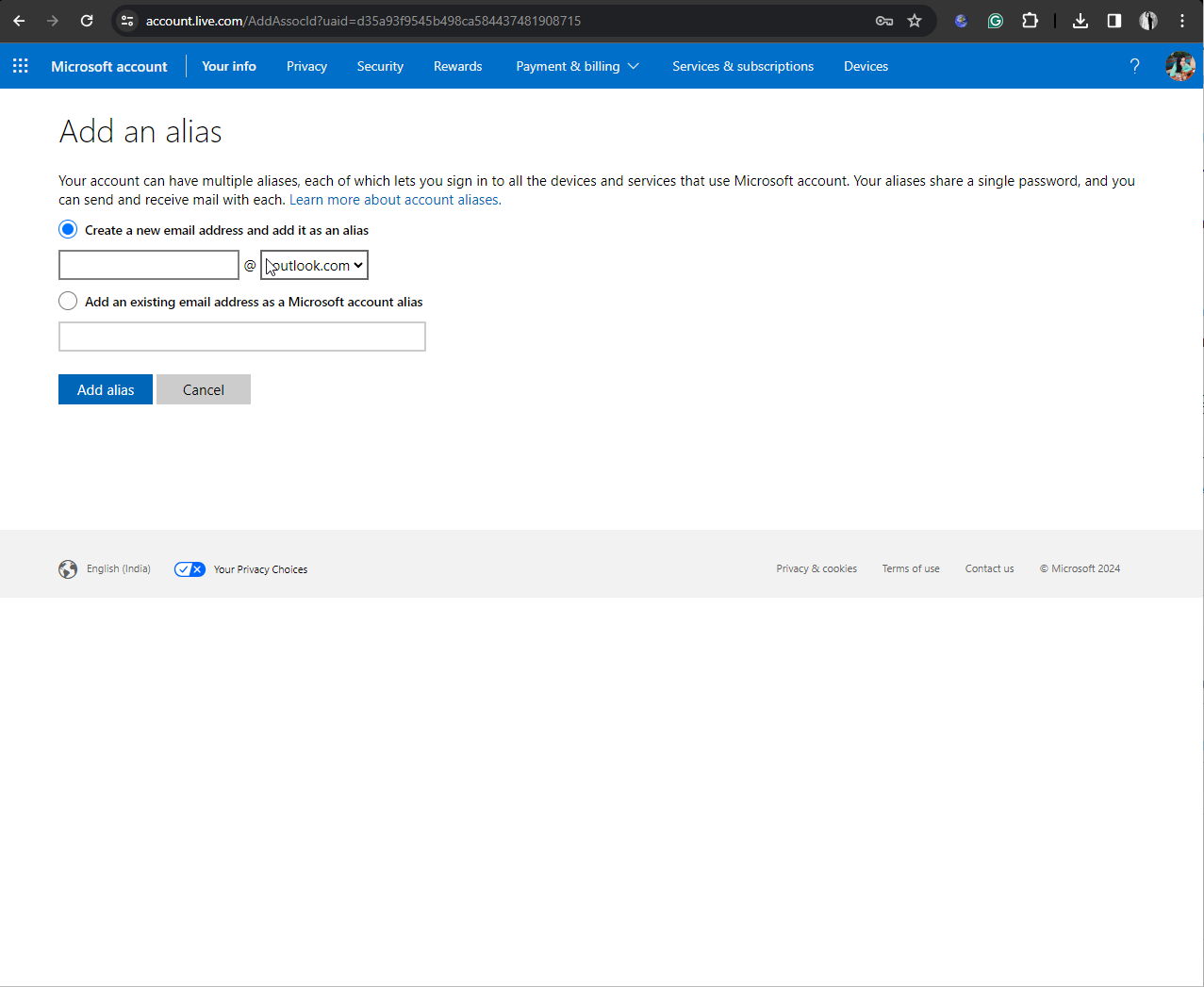
To add an alias, click the Add an alias link here. Then, sign into your Microsoft account. Once you have done so, you will be taken to the Add an Alias page. Enter the email address of your choice to add it as an alias, then click Add alias.

Add alias.

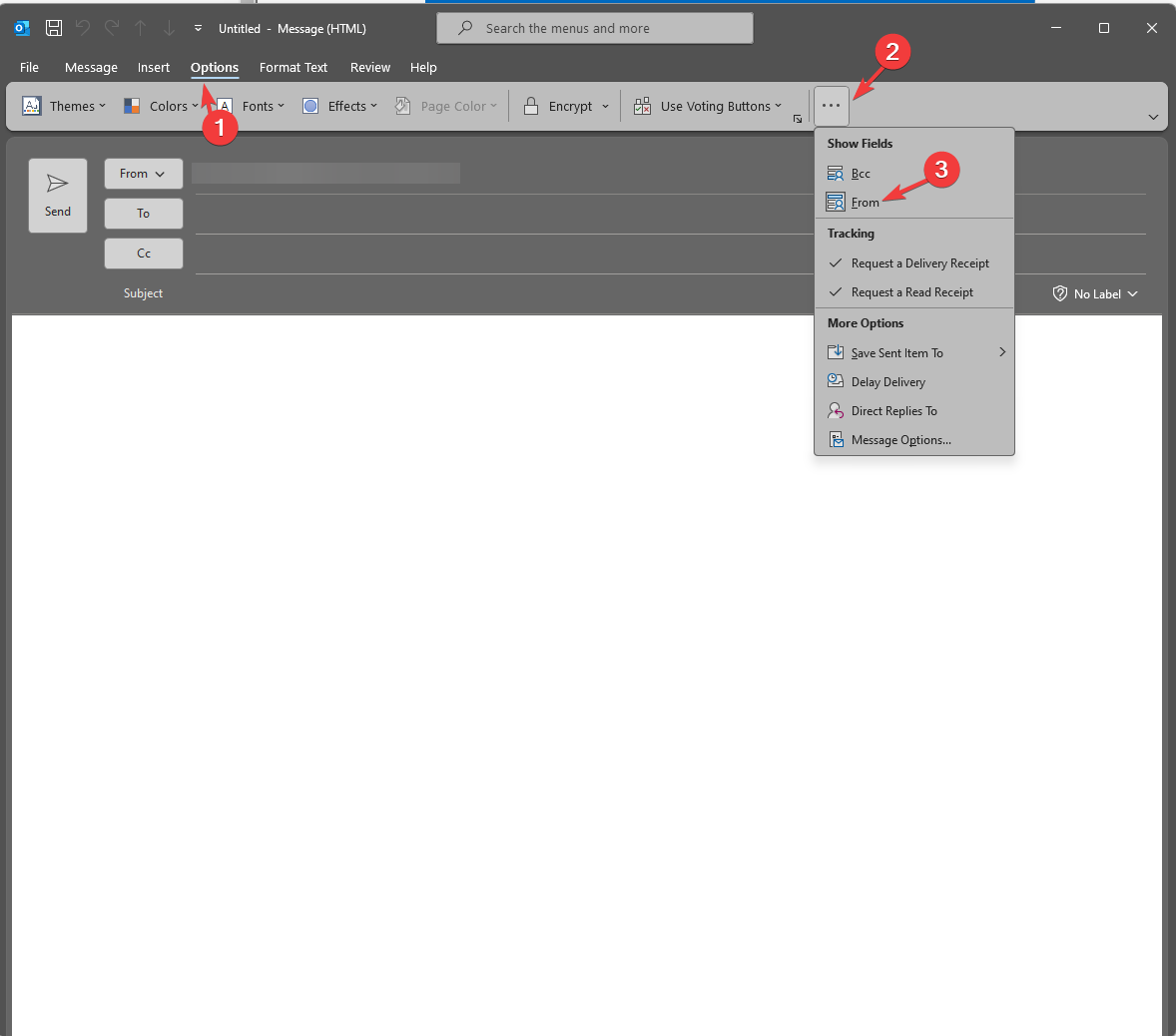
Now that you have an alias, the next step is to draft an email in Outlook. Go to the Options tab, click the three dots, select Show Fields, then From from the drop-down menu.

Show Fields, then From

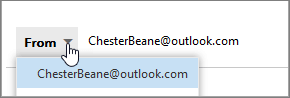
Once you see the primary email, click the downward arrow and select the alias instead of the primary email address. If you can’t see an alias, start typing it, and it will appear.

select the alias instead

Though Microsoft is aware of the issue and has even suggested a workaround, it has not disclosed the real reason behind it.

However, Google has suggested the tech giant review its bulk sender guidelines to smoothen the process of sending emails from Outlook to Gmail.

Google is employing stringent measures to combat spam and phishing attacks. Therefore, the search giant has been blocking emails from bulk senders who don’t adhere to new guidelines that require message authentication.

In the latest support document, Google mentioned:

Starting in April 2024, we’ll begin rejecting non-compliant traffic. Rejection will be gradual and will impact non-compliant traffic only. We strongly recommend senders use the temporary failure enforcement period to make any changes required to become compliant.

Are you affected by this issue, and have you tried Microsoft’s workaround? If so, please let us know if the problem has been resolved using the alias method in the comments section below.

Sora AI would need over 750k Nvidia H100 GPUs to rival TikTok & YouTube

Image Source: Open AI

Sora AI blew everyone’s minds with its demo videos and we can’t wait for Open AI to launch it later this year. However, it would be a struggle for Sora AI to work with all the demands from all the excited users.

Right now, even the GPT-6 training is demanding a lot of resources and computing power. There is a huge need for raw GPU power and right now, NVIDIA is running the show in AI. However, Microsoft and Open AI already drew the plans for a $100 billion supercomputer to cope with the huge demand.

But that’s not all, for ChatGPT’s over 10 million daily queries, Microsoft is consuming an outrageous quantity of water just for AI generation.

AI needs a lot more GPUs for text to video generation

I’m telling you all this because the demands for text to video generation, the demands grow exponentially. According to Factorial Funds, Sora AI needs an estimated 4,200-10,500 Nvidia H100 GPUs for 1 month just to train the model.

They calculated that a single NVIDIA H100 GPU can generate approximately five minutes of video per hour. Based on this estimation, and the fact that on TikTok there are uploaded 17 million minutes of video and on YouTube 43 million minutes of video, Sora AI would need to generate between 15.3 million and 38.1 million minutes of video to be on par with the two platforms.

Going further with this estimation, Sora AI would need approximately 750k NVIDIA H100 GPUs to generate the same amount of video footage as TikTok and YouTube.

Of course, Open AI never expressed a desire to rival the above-mentioned platforms, but it’s fun to put things into perspective.

I’ve already reported about the possible implications of Sora AI for the video industry but we’re still a long way to go before that.

What do you think about Sora AI text to video generation? Let us know in the comments section below.

Microsoft Store’s Remote Desktop app hasn’t been updated in almost a year and now it’s causing problems for some

The Remote Desktop app allows you to connect and access PCs remotely. The feature is built into Windows 11 and is disabled by default due to security risks.

However, recently Microsoft has started to allow users to uninstall (and reinstall) Remote Desktop connection from Windows 11 23H2, and it can be done quite easily. The Redmond-based tech giant allows users to uninstall it on Windows 10, as well.

Despite this, the Remote Desktop App is still available in the Microsoft Store. Its last and latest version was 10.2.3012.0., which was released back in June 2023. Microsoft Remote Desktop app

With the update, Microsoft also stated Azure Virtual Desktop support has ended in App and also fixed a vulnerability.

It’s been more than half a year since Microsoft last updated the Remote Desktop app, and users on X (formerly known as Twitter) are calling out the Redmond-based tech giant to make up its mind: either update or remove the app completely from Microsoft Store.

Why? Because it’s causing a lot of issues.

hey @Microsoft maybe it’s time to update or ban the Remote Desktop App from the Windows store https://apps.microsoft.com/detail/9wzdncrfj3ps?hl=en-US&gl=US… as it’s very legacy and there are users trying to use it with AVD / Win365 and having problems …

Sacha Thomet

The Microsoft Store version of the app is being used by some users together with AVD/Win365 and they are currently facing all sorts of issues by doing so, potentially risking their devices.

It’s good to know that until Microsoft decides what do to with the app, users have alternatives: there is Windows App, which will be coming soon, but it’s currently in preview. According to Microsoft, the app is available on Windows, macOS, iOS and iPadOS, and web browsers, and can securely connect users to Windows devices from:

  • Azure Virtual Desktop
  • Windows 365
  • Microsoft Dev Box
  • Remote Desktop Services
  • Remote PC

Hopefully Microsoft will let us know about its intentions with the Remote Desktop app.

Alienware Aurora R15 gaming desktop’s price dropped another $100. Now at just $2799!

When it comes to a gaming desktop, nothing beats the Dell Alienware Aurora R15 in the price range. Be it the design, performance, or cooling, it’s a value-for-money product. The Dell Alienware Aurora R15 gaming desktop is currently available for just $2799.99, a massive $1100 off on its regular price of $3899.99!

Dell also has an ongoing Price Match Guarantee, where in if you could find the same product at a lower price from another retailer, Dell will match it. So, it’s also the lowest price guarantee by Dell!

When we looked for verified reviews, every user had positive feedback for the Dell Alienware Aurora R15. One wrote on Reddit,

I was bracing myself for it to be louder but it is VERY quiet even while gaming at the default settings.

Programs install instantly, there’s not a hint of delay or hitching anywhere in Windows or in games. Warhammer 40k Darktide runs like glass at absolutely max settings with Raytracing on high at 1440p on my G-sync 165hz display. It was touching 200FPS until I turned on the in-game frame limiter to 120(there was no 165 hz option in game) and the game runs pretty much glued to 120.

80-100% CPU utilization and 95% GPU utilization had the CPU at a pretty locked 70C and the GPU at a pretty locked 65C while being whisper quiet.

If you are willing to spend an extra few hundred dollars during the limited-period deal, the Alienware Aurora R15 will be your best-ever purchase!

Dell Alienware Aurora R15’s specifications

Operating SystemWindows 11 Home (Pro edition at an extra $95)
ProcessorAMD Ryzen 9 7900X (76 MB total cache, 12 cores, 24 threads, up to 5.60 GHz Max Boost Clock)
GPUNVIDIA GeForce RTX 4090, 24 GB GDDR6X
Storage2 TB SSD (Solid State Drive)
Memory32 GB (2 x 16 GB)
Ports and slots18 (total count)

Get the Alienware Aurora R15 from Dell’s official website for just $2899.99 during the deal!

Or, if you don’t mind getting a mid-range gaming laptop, the Acer Predator Helios 16 is available at a discount.

What do you think of the Dell Alienware Aurora R15? Share with us in the comments section.

Is Microsoft Teams HIPAA Compliant?

Is Microsoft Teams HIPAA Compliant? When using a collaboration and communication app in healthcare settings, it’s crucial to make sure it offers all it takes to protect the patient’s data.

It is a legal requirement for healthcare organizations using Microsoft Teams to be HIPAA compliant. This is because it acts as an insurance cover for mitigating any potential data breaches and privacy violations.

Today, we take a closer look at the HIPAA requirements and the extent to which Microsoft Teams adheres to them. By the end of this piece, you’ll have all the answers you’re looking for.

What are the HIPAA requirements?

HIPAA comprises three rules when it comes to compliance:

1. Privacy rule

The privacy rule safeguards patients’ information. Protected Health Information (PHI) ensures any past, present, and future patient information whether oral or written is confidential.

When organizations comply with this requirement, a patient’s information cannot be accessed, disclosed or edited without their express permission.

In MS Teams’ case, it will come into play when you use it for communication purpose: i.e. if you use it to exchange health information.

2. Security rule

The main purpose of the security rule is to ensure while using Microsoft Teams, the confidentiality, integrity, and availability of electronic protected health information (ePHI) are in place.

Any organization that uses Microsoft Teams as its collaboration or communication tool undertakes to safeguard this information from any unauthorized parties.

This means there should be clear cybersecurity measures that prevent data breaches or leaks.

3. Breach notification rule

In the event of impermissible or disclosure of the patient’s information, communication must be provided immediately. Usually, it should be within 60 days from the discovery of the breach.

In the event that the breach affects more than 500 patients, the communication must be extended to media outlets within the same time frame.

In other words, in the event of a breach, all people affected should be notified as soon as possible.

What Microsoft Teams features make it HIPAA compliant?

1. Encryption

1.1 TLS encryption

Microsoft Teams has been built on a multiple security layer Microsoft Trustworthy Computing Security Development Lifecycle (SDL).

All network communications are encrypted by default and all servers must use security certificates like OAUTH, Transport Layer Security (TLS), and Secure Real-Time Transport Protocol (SRTP).

The Transport Layer Security (TLS) encryption is the most common one which secures data shared between devices and Microsoft’s servers because it offers end-to-end security.

Any data that travels between these two channels is encrypted such that even if it was intercepted during a transmission, it would be useless to unauthorized parties.

In addition, TLS protects the network from IP spoofing because an attacker would require authentication and without the necessary security certificates, this attack would be unsuccessful.

1.2 DDOS attacks

A distributed denial-of-service (DDOS) attack is an attempt to hijack the network targetting a server.

Such attacks can be hidden from the network administrator and go unnoticed but with Teams’ Azure DDOS network protection, this risk is mitigated.

Its real-time monitoring and analysis feature can catch wind of malicious traffic before it reaches Teams infrastructure. This helps cement Teams’ reliability in safeguarding data.

2. Access controls

2.1 MFA and SSO

For users, Microsoft Teams supports multi-factor authentication (MFA), and single sign-on (SSO) integration as an extra layer of security. Unauthorized users seeking to access patient data would have to bypass these security checks and without additional verification, access is limited.

Other incremental measures you can put in place include creating strong passwords and enforcing the domain password protection policy that also keeps other user accounts safe.

2.2 Audit logs

Microsoft continuously mitigates potential threats with advanced monitoring and threat detection features. For instance, the audit logs allow you to monitor any strange activities with specific activity logs and accurate time frames.

If any suspicious login attempts are discovered, it is easier to detect where they came from and address them early on.

3. Communication compliance

3.1 Communication compliance

Microsoft Teams already comes with the Communication Compliance built-in. This protects and minimizes communication risks. It also has the ability to detect the sharing of sensitive information with advanced features like keyword detection.

Since it detects policy violations, it works great with HIPAA standards to detect any policy violations.

Other industry compliance certifications include the ISO 27001 Information Security Management Standards (ISMS), ISO 27701 Privacy Information Management System (PIMS) and ISO 27017 Code of Practice for Information Security Controls which further protect patients’ data.

3.2 Data Loss Protection

Microsoft Purview Data Loss Prevention (DLP) in Microsoft Teams protects sensitive information. Further, administrators are at liberty to create custom DLP rules that apply to their organizations.

With DLP policies in place, any security or privacy violation will have consequences such as immediate encryption or blocked access. Healthcare organizations using Teams can leverage DLP features and capabilities to uphold data integrity.

4. Threat detection

Teams integrates with Microsoft’s advanced threat intelligence security solutions, such as Microsoft Defender Vulnerability Management and Microsoft Sentinel.

This integration further amplifies Teams’ ability to detect and respond to emerging threats. Microsoft Defender Vulnerability Management for instance acts as a bridge between security and IT teams and helps them get ahead of potential threats.

Microsoft Sentinel on the other hand cater to the cloud environment. With its interactive dashboard, administrators get a peek into the threat landscape and hasten the decision-making process and risk management.

Best practices for healthcare organizations using Microsoft Teams

  • Training – To ensure total compliance with HIPAA, organizations need to offer continuous training to users. Compliance is not enough. Users need to be able to identify a breach or a threat and how to mitigate such risks.
  • Regular review – With access controls, it is important to regularly review permissions for audit success. Audit reports should also be reviewed for a comprehensive report on the use of these permissions.
  • Enhance security – Microsoft Teams has a robust security feature library that should be utilized. Enabling the MFA further protects patients and users from cyber attacks.
  • Security updates – The security of a program is as good as its up-to-date features. Any security patches released should be installed immediately to cover any loopholes that may have been identified.

In conclusion, Microsoft Teams is not only a great communication and collaboration tool but also lays down the perfect foundation for maintaining compliance with HIPAA regulations.

It just goes to show that while you can install all the security software needed, different industries require different approaches for comprehensive coverage.

What communication tool do you use in your organization and is it HIPAA compliant? Share with us in the comment section below.

Microsoft Teams will require explicit consent from users if they want to speak, show themselves, or share content in meetings

Microsoft Teams users will soon be requested to give explicit consent to transcription on the platform, if they want to speak, turn their camera on, or share content in meetings.

According to a recent entry to the Microsoft 365 Roadmap, this new policy and option will be added to the platform later this April and is scheduled to be fully integrated by July 2024.

However, it’s good to know that the policy is optional and can be enabled/disabled at will. When enabled, a pop-up will appear, asking all participants to consent to be transcribed and recorded, and the consent must be given when joining the meeting.

Users won’t be able to speak, show themselves (turning their camera on), or share content until they agree to the policy. microsoft teams explicit consent

The meeting policy that requires explicit consent to be recorded is expanding to include transcription. When the policy is applied, a notification will pop-up when the recording or transcription is initiated requesting consent of all participants to be transcribed and recorded. Before a user gives consent, the user cannot unmute, turn on camera or share content in the meeting.

Microsoft

The option is more than welcomed and it can be a useful tool for organizations to keep track of their meetings and security; it can also be useful in legal situations, on both parts, the employer, and employees.

Speaking of legal matters, Microsoft is currently going through a controversy with Teams, as the platform will be unbundled from the Microsoft 365 suite in regions such as Europe to prevent the EU antitrust fine. Microsoft Teams will be sold there separately at $5.25, and companies can integrate it with the rest of the Microsoft 365 apps, after purchasing it.

The roadmap says the new explicit consent policy is coming to Microsoft Teams users everywhere, and that includes Europe, as well, so despite the controversy, nothing about the platform should change.

Big savings alert: Get $650 off on the incredible Acer Predator Helios 16 gaming laptop

If you are looking for a mid-budget gaming laptop, the best-in-the-segment choices from Acer may seem expensive. But not right now. The Acer Predator Helios 16 gaming laptop is available for one of the lowest-ever prices of $1799 during the ongoing deal.

You get more than 25% off on the laptop’s regular price of $2,449!

With a value-for-money performance, exceptional cooling solution, a crisp display, sufficient storage and a long-lasting battery, you couldn’t ask for more! The battery performance, though, depends a lot on the laptop’s settings.

The Acer Predator Helios 16 has a unique design with a more bulky feel. This is reflected in the device’s weight. But it’s primarily due to an effective cooling setup and top-of-the-class components.

Acer Predator Helios 16’s specifications

Tip icon Tip
Acer Predator Helios 16 has two models, an i7 and an i9. Since the latter is available at a discounted price, we are listing its specifications.
ProcessorIntel Core i9-13900HX (13th Gen)
Graphics NVIDIA GeForce RTX 4080 (12 GB GDDR6 VRAM)
Operating SystemWindows 11 Home
Storage1 TB SSD (Solid State Drive)
RAM 32 GB (2×16 GB)
Display16″ size, 2560 x 1600 resolution, 500 nits brightness
Refresh rate240 Hz
Battery4-cell, 90 Wh, 5-hour life

You can buy Acer Predator Helios 16 from B&H at just $1799 right away!

The only downside we came across with Acer Predator Helios 16 is the bulky design and weight. It’s perfect for home use, but travelling with the gaming laptop could be challenging for some. However, the performance, graphics, display, and cooling are unmatchable for the price range!

If you are looking for other options, explore our top picks for Razer gaming laptops.

What’s your review of Acer Predator Helios 16? Share with our readers in the comments section.