Vodafone VPN not working? Here’s what to do

Circumvention and encryption tools like VPN are being used to bypass region restrictions or maintain online anonymity across various websites and platforms. 

Some users have reported VPN not working on Windows 11 while using Vodafone broadband, which is not a good experience, especially with increased remote jobs and conferences. 

There are reports that Vodafone blocks some VPN protocols and access their customer care for assistance has been a nuisance and yields nothing. 

You are wondering what to do when your VPN stops working? Fortunately, there are fixes that you can perform to enjoy your VPN experience. 

Why is Vodafone VPN not working?

Frankly, Vodafone has not given clear reasons why VPNs are blocked on some users’ devices. However, some reports show that they do this for security reasons and age restrictions. 

For the users in the UK, the issue could be that Vodafone broadband is allocating IP addresses that belong to other Vodafone users from a different country like India. 

The VPN provider blocks any IP address that originated from the UK but doesn’t match the country – for security reasons. 

This basically explains why some websites show their location as India and work well with other UK Internet providers who give UK IP addresses to their users.

You can contact Vodafone support to reassign you with a UK IP address, so you don’t experience VPN failure on Windows 11. 

If your VPN is PPTP, it may be categorized into two protocols: TCP traffic on the 1723 port server, the default for the control connection, and IP GRE, protocol 47 for data flow. 

A PPTP VPN protocol is considered unsafe. It hasn’t aged with time. Below is a chart showing its pros and cons, and maybe that is why Vodafone has issues with it:

ProsCons
Easy to setupNot supported by many VPN providers
You can configure effortlesslyCan be cracked by NSA
Inbuilt in many operating systemsProne to exploits and attacks
SuperfastLow levels of encryption
Easily blocked and recognized

Vodafone refuses to forward GRE for PPTP VPN to analyze a particular issue. There is no way you can work around this – you will have to contact Vodafone support and ask them to enable GRE forwarding to your Vodafone user account. 

The good news is that you can use another type of VPN to connect to your network. Whereas contacting Vodafone is a noble thing, some users have reported nil responses or the issue not fixed. For that reason, we invite you to try our fixes that prove to work for many users.  

What can I do if Vodafone VPN is not working?

1. Configure the firewall

  1. Type firewall on Windows Search box and click on the first search results.
  1. On the firewall window, select Allow an app through Windows Firewall.
  1. Click on Change Settings.
  1. A long list will appear. Ensure that private and public networks are enabled. 
  1. If you can’t see your VPN software on the list, find it manually by clicking Allow another app.
  1. Click OK to confirm the changes and restart your VPN software. 

2. Reinstall WAN miniports

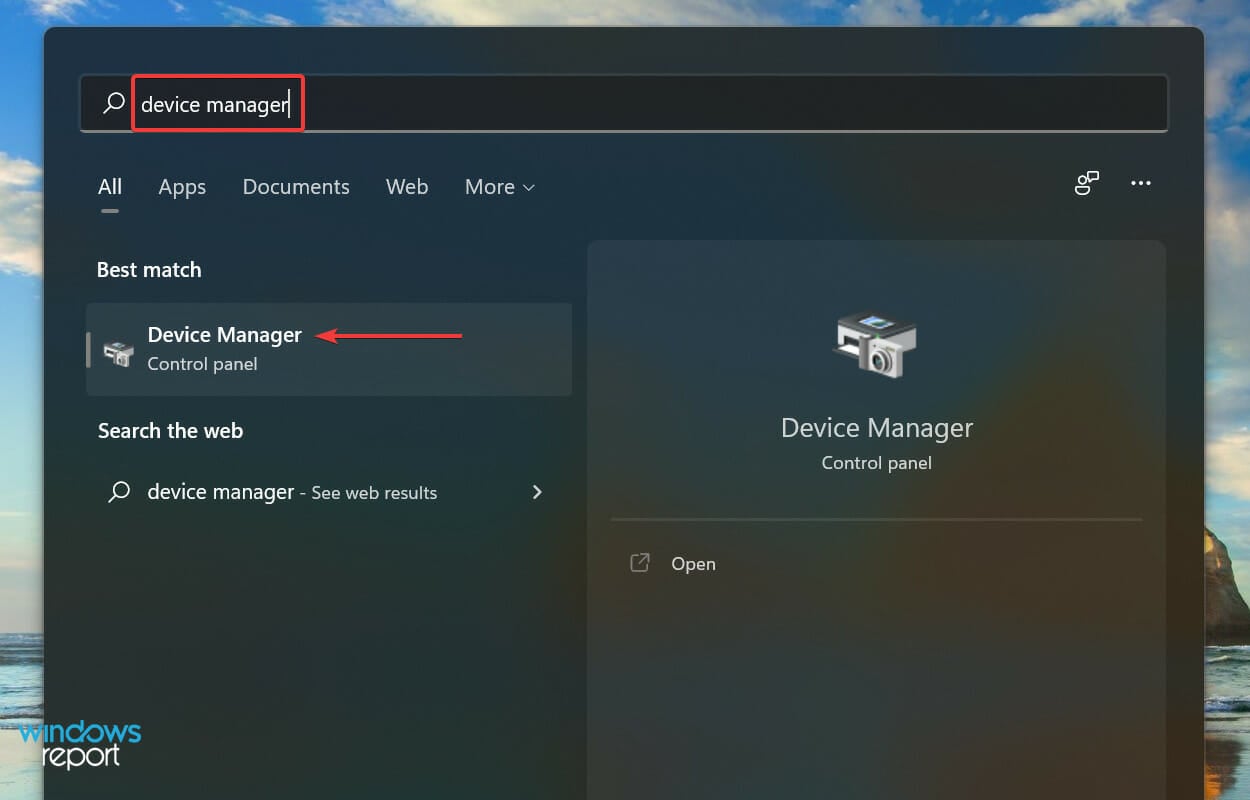
  1. Type Device Manager on the Windows Search box and click on the first search results. 
  1. A list will appear. Select and double-click on Network Adapters.
  1. The menu will expand to a list of items. Right-click on each of the following at a time: WAN Miniport (PPTP), WAN Miniport (IPv6), and WAN Miniport (IP). Select  Uninstall device from the list to remove each Miniport. 
  1. After uninstalling the three WAN Miniports, navigate on the top bar on the window, click on Action, and select Scan for the hardware changes to reinstall the adapters you removed. 

3. Disable IPv6

  1. Type Settings on the Windows search box and click Open or hit Enter to open the Settings App.
  1. Select and open Network and Internet, then choose Change adapter options. 
  1. Right-click on the VPN network adapter and hit Properties.
  1. Uncheck the box against the IPv6 and click OK to confirm the changes. 
  1. Restart your PC.

How do ISPs block VPNs?

Deep Packet Inspection (DPI) is a technique used by firewalls to analyze the type and destination of every data packet traversing the network.

DPI allows your Internet Service Provider to differentiate between a web browser, YouTube, Skype, VPN, or over 2000 traffic types. Your ISP uses DPI to throttle, block, or even restrict certain traffic types on the Web. 

But the key is that you can disguise your VPN traffic as normal web browser traffic to make it impossible for any ISP to block your VPN.

Vodafone cannot block your VPN with this disguise unless it wants to block all highly unlikely HTTPS traffic.

You can also fix any VPN errors on Windows 10/11 using some easy steps or learn more about what to do if your router blocks the VPN.

We hope the fixes worked for you, or if you have any other solution, do not hesitate to leave a comment in the section below.

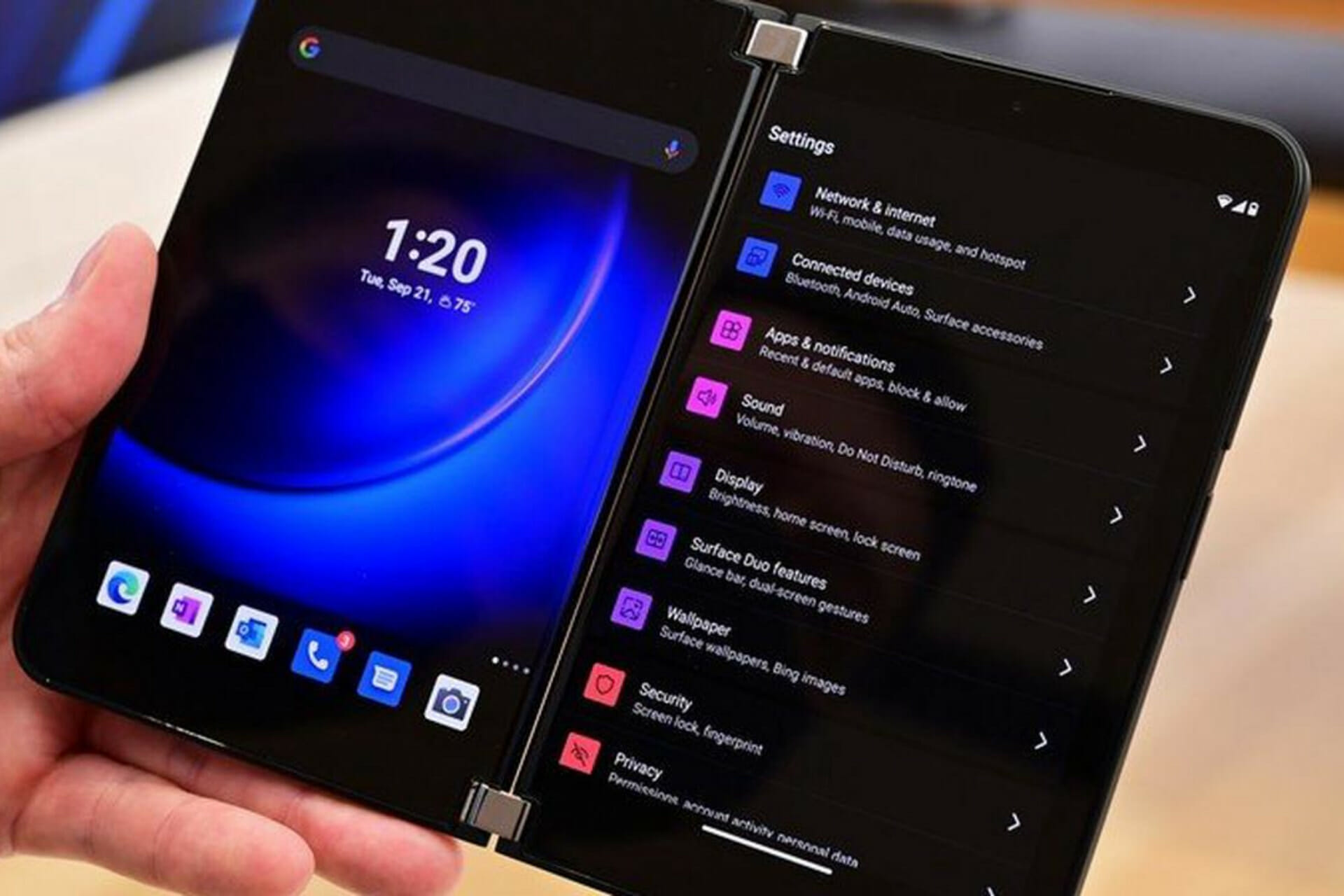
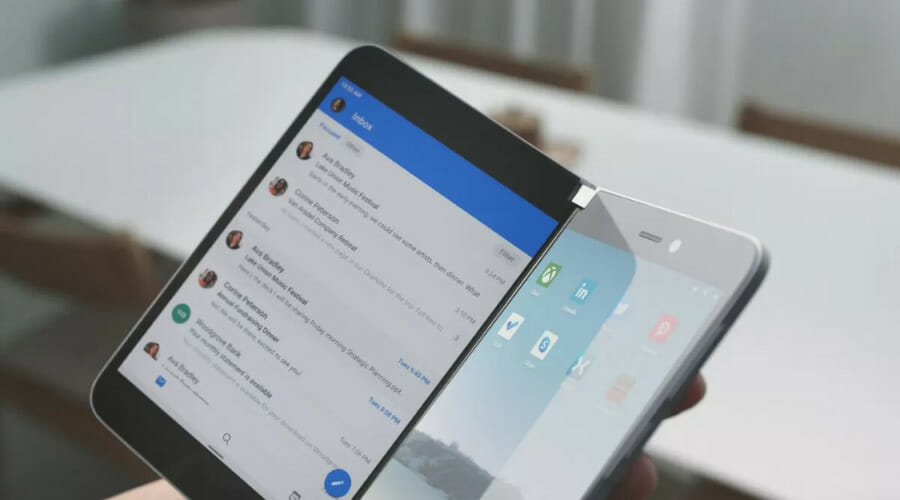
You can actually turn your Surface Duo device into an Android PC

There are a lot of Surface users out there, and many of them have opted for a Surface Duo to have in their pockets as well, besides the tablets or laptops that await them at home.

Why, you ask? Well, one of the best-selling features of the Surface Duo is the productivity boost it supposedly offers.

And it’s true, as having two screens means you can do more at once. But we know how the human mind works, and many have been wondering if they can add another monitor.

The answer is you can, and the gadget actually has a hidden desktop mode feature which, when turned on, can turn your Duo into a mini Android PC.

How to enable desktop mode on your Android device

If you want to test this out, you don’t even need a Surface Duo, any Android phone running Android 10 or Android 11, that supports video output over USB-C, will actually work.

This hidden desktop mode is woven into the developer mode, so not many ever used it until now. Keep in mind that this will never work on Pixel devices because Google disables video output over USB-C.

All you have to do in order to access it yourself is open the Settings menu and scroll down to the bottom, where you need to tap on About.

Now, tap on the build number a total of seven times, and then enter in your PIN to confirm. Once you did that, scroll back to the main page of the Settings menu, choose System and then tap Developer Options.

As a final step, scroll down to the Apps section and toggle the switches for Force Desktop Mode, and Enable Freeform Windows.

We’re done, and all that’s left is to reboot your phone and then plug it into a display using a USB-C connection.

However, the Desktop Mode on your Surface Duo device isn’t as fun or effective as Samsung’s DeX mode.

Sure, it’s a neat trick you can do from your portable device, but it only lets you open the same apps from your phone in a windowed mode and you can drag the apps around your screen, and resize them like you could on a Windows PC.

You can also open additional apps on the main screen of your Duo, and apps can even be opened on the secondary screen by dragging up to open the app drawer.

Another important factor to consider is that the experience is buggy for the time being. Crashes are pretty common, leaving your screen blank.

So, now that you know this neat little trick, you can try it out for yourself and see what you think. Have you tried this yet?

Share your experience with us in the comments section below.

Microsoft Forms not showing all questions? Fix it now

Forms keep track of participant responses, allowing you to see real-time results and data for your survey. However, users reported that Microsoft Forms is not showing all the questions they had entered in it, and it seems to be caused by a random bug.

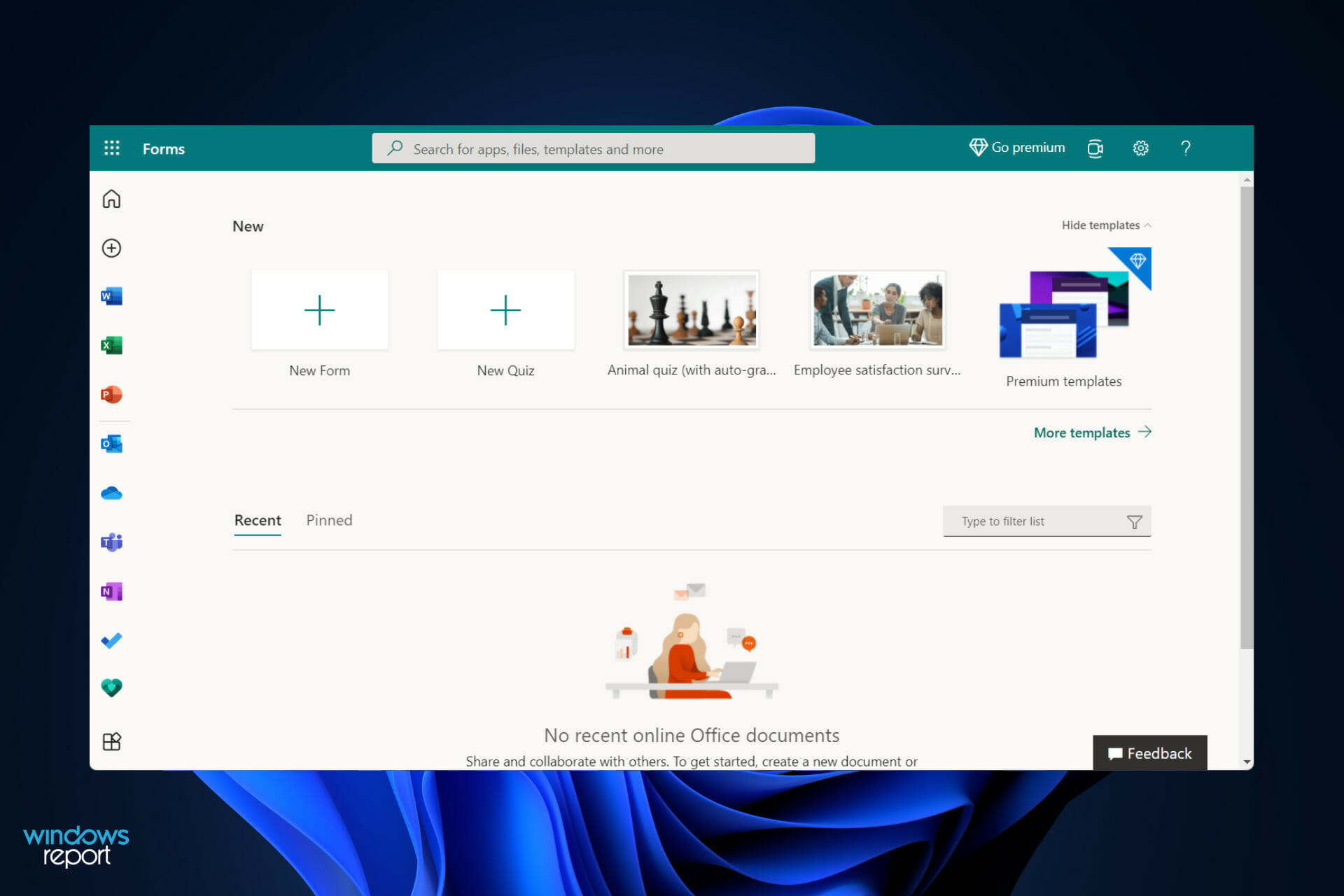
To locate the app, go to your Office 365 Home Page and select Apps from the drop-down menu. If the app isn’t visible, select Explore all your apps from the list of options and it will be featured there.

You can simply design surveys, quizzes, and polls, and you can see the results as they come in as they are submitted. When you create a quiz, feel free to ask others to participate by responding to it using any web browser, even those on mobile phones.

Follow along as we will show you what to do if the questions aren’t displayed properly right after we see what the benefits of using the app are. Keep up with us!

What are the benefits of using Microsoft Forms?

Office 365 customers can use built-in analytics to assess responses as they are sent, which can be done in real-time. Form data, such as quiz results, can be simply exported to Microsoft Excel for further analysis or grading purposes.

Your company intranet home page will be made to flow with your brand standards and arranged according to your business requirements when you use Dock. This is the location where every employee begins their day in order to obtain vital news, alerts, and data.

Birthdays and anniversaries of employees, as well as new hiring information, are highlighted. Employees can find out when and where the next exciting event is taking place at the organization.

As it connects seamlessly with Microsoft 365 and Teams, it can be used to distribute statistics, collect data, and generate reports quickly and efficiently for a variety of purposes.

new form microsoft forms not showing all questions

Forms appear as an overlay on top of all Microsoft applications, allowing you to quickly gather information no matter what you’re working on. While participating in a video conference, for example, you can conduct a survey to rapidly question and agree on the next meeting date for your employees.

Alternatively, do not hesitate to include a questionnaire in your next email blast so that your employees can provide you with feedback on their ideal task assignments while they are browsing their emails on Outlook for example.

The app is completely customizable, allowing you to create questionnaires that are tailored to your individual preferences and requirements. And don’t be concerned if you have remote workers, satellite offices, and/or on-the-road employees because it is compatible with any platform.

It is intended to be straightforward and easy to use for both administrators and audiences, so you can rest certain that it will not interfere with your staff’s ability to be productive.

What can I do if Microsoft Forms is not showing all questions?

1. Sign out and in

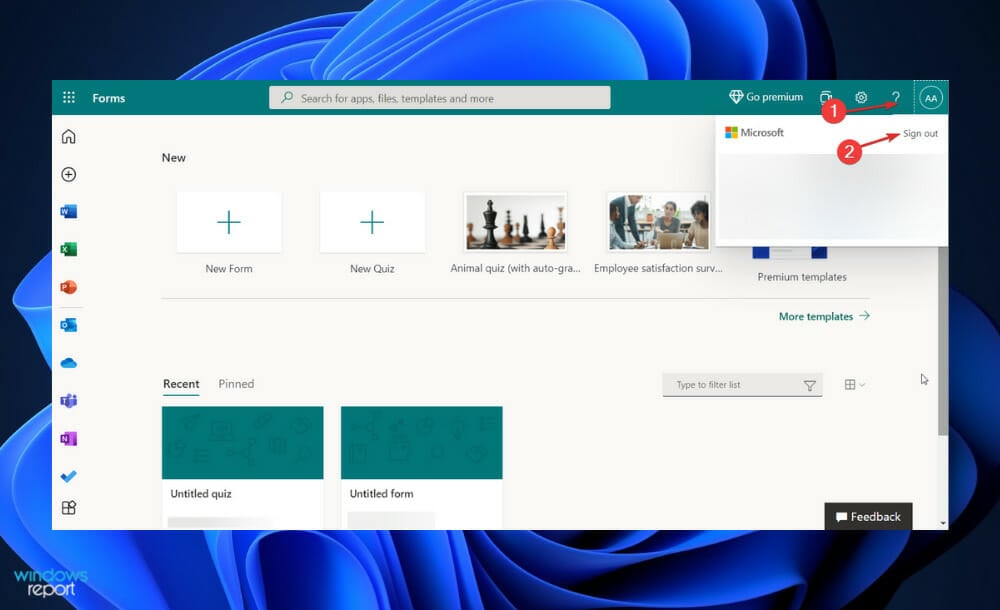
  1. Click on the name abreviated from the top right corner in Forms then choose Sign out.signout microsoft forms not showing all questions
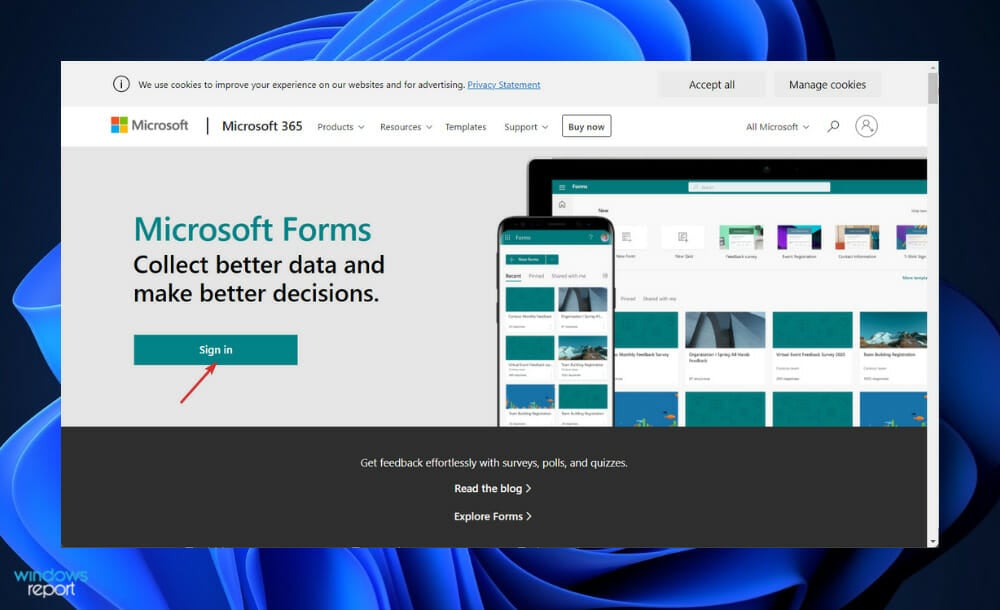
  2. Now close the window(s), then search for the Microsoft Forms website, or re-enter the app on your desktop and sign in again.resign inmicrosoft forms not showing all questions

2. Delete the last question

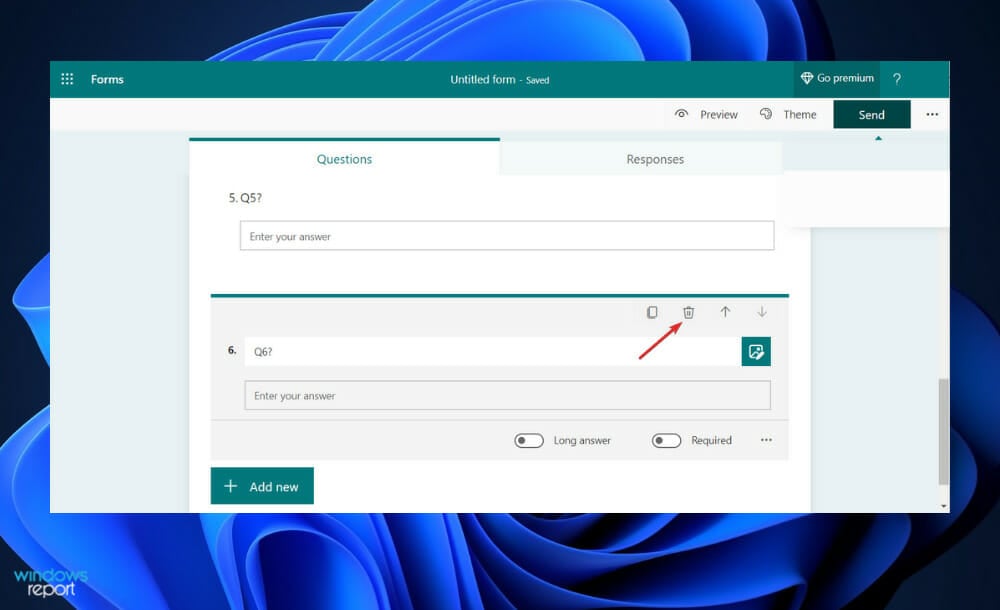
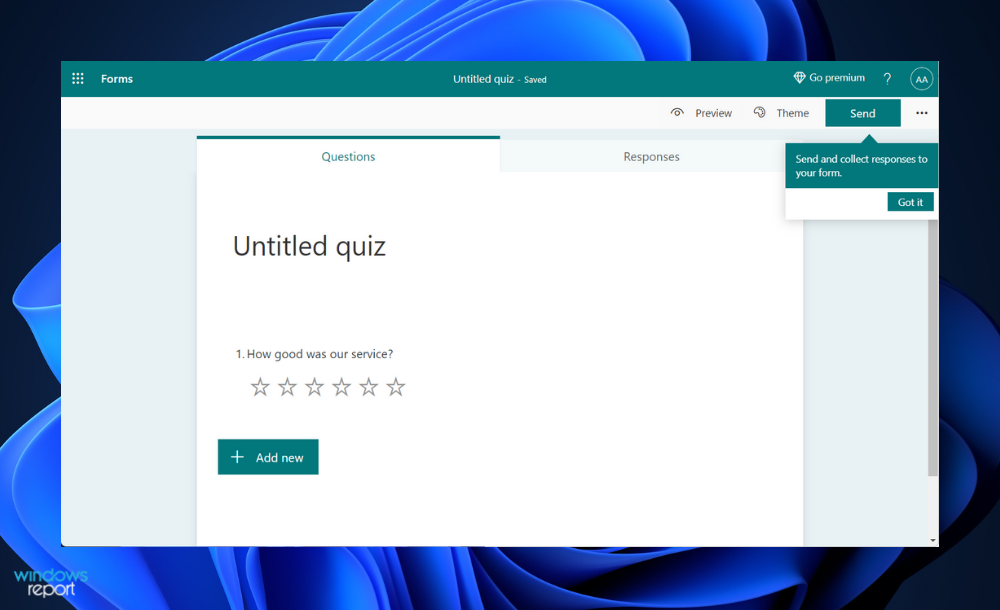
  1. While you are in the creation phase, delete your last question from the form by clicking on the bin icon.delete-q microsoft forms not showing all questions
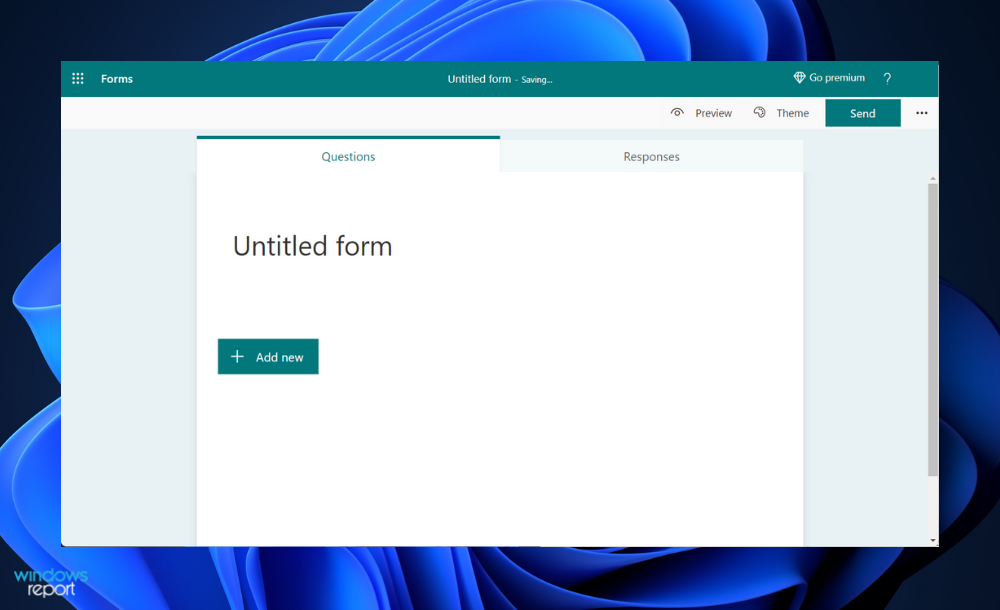
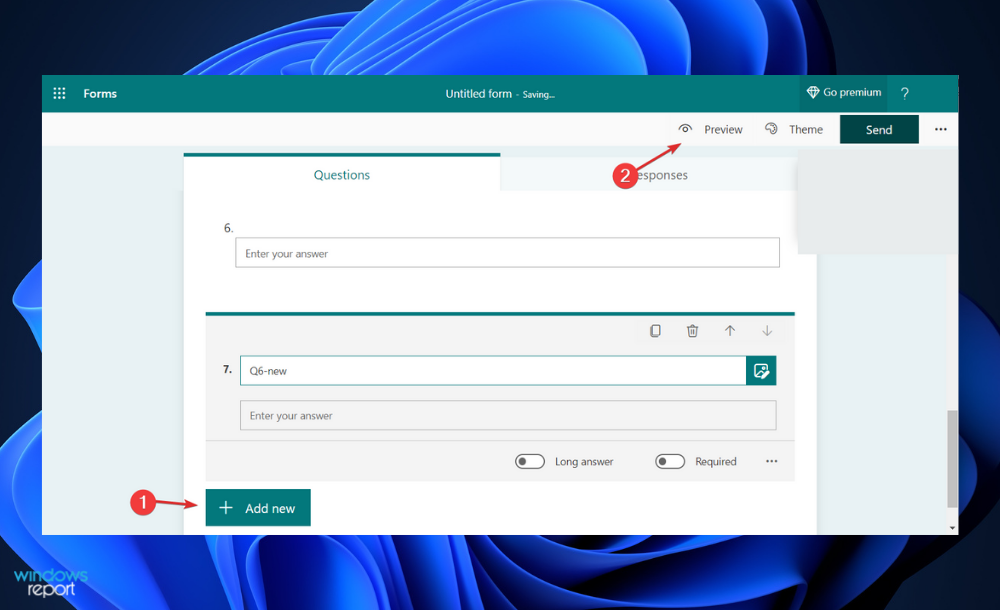
  2. Now re-enter it by tapping on New and click on Preview to see if the other questions show up as well. If you still can’t see them, you might want to delete all the questions and re-type them back in.add-new-preview microsoft forms not showing all questions

Users are not so sure as to why this method works but it does, and that’s all that matters. Alternatively, you can try creating a new draft and copy-pasting all of your forms in there if you are still not able to see all the questions.

What are the most popular methods of data collection?

Surveys are a great approach to directly solicit particulars from your consumers and prospects. You can use them to collect either quantitative or qualitative data or a combination of the two types of data.

It is comprised of a list of questions that respondents can answer in one or two words, and it frequently provides participants with a list of responses from which to choose. You can conduct surveys in a variety of ways, including online, by email, over the phone, and in person.

Your company’s website, as well as your mobile application, if you have one, are wonderful platforms for gathering consumer information. Someone visiting your website can generate up to 40 data points, depending on their device.

new form created microsoft forms not showing all questions

Also, you may see how many people visited your site, how long they stayed on it, what they clicked on, and other statistics by gaining access to this data. This type of data may be collected by your website hosting provider, and you might be able to collect it through the use of analytics tools.

Whether you sell things in-store, online, or both, the data you collect from transactions can provide you with useful insights into your customers and your business. A customer relationship management system (CRM) can be used to hold transactional information.

This data will provide you with valuable insights into how many things you sell, what types of products are the most popular, how frequently consumers normally purchase from you, and other pertinent details about your business.

Social media is another wonderful source of information about customers. In order to gain a better picture of who your target audience should be, you can check through your following list to determine who follows you and what traits they have in common with one another.

If you’ve grown tired of Microsoft Forms, we recommend that you take a look at five of the best form creation software tools out there on the market for you.

Alternatively, check out the best free & paid PDF editors for Windows 10/11 to make your day-to-day tasks easier to handle.

And lastly, don’t miss out on our article about the most interesting new features in Windows 11 so that you can take full advantage of the OS.

Comment below and let us know if this guide was helpful for you. Thanks for reading!

Baseus USB-C Power Bank review: A good way to charge up your Surface on the go

These days keeping your devices powered up is important, especially when you’re spending more time in meetings and more time working. Usually, you might charge up with a regular outlet, but the benefit of USB-C means you also can use power banks to juice up your devices when you’re not near an outlet.

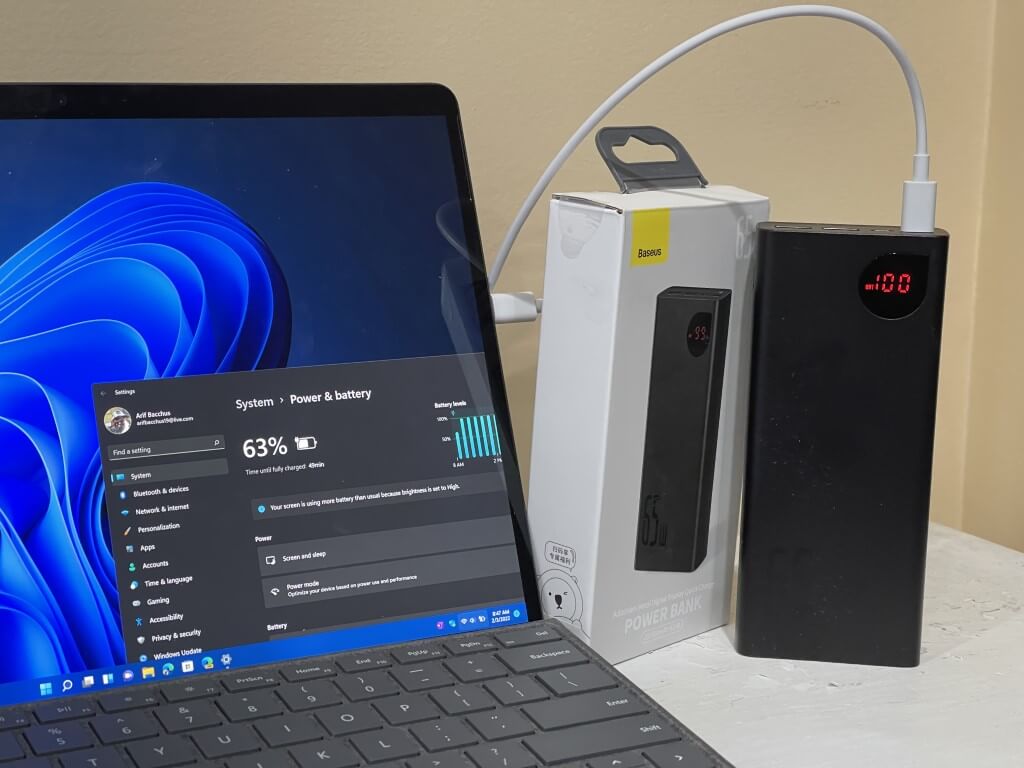
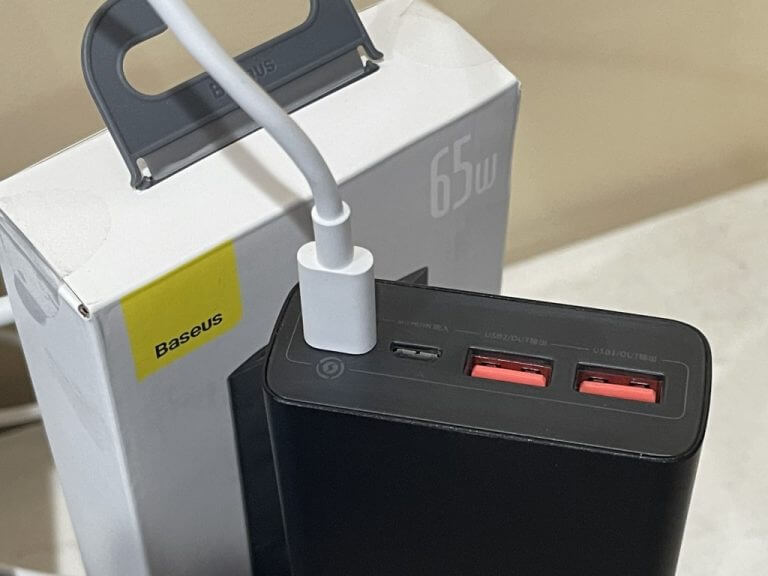
The Surface Pro 8 is one such device that has a USB-C port, and with it comes the ability to use PD power banks. Baseus was kind enough to send me their latest product, the Baseus power bank ($60, Amazon) for review, and I think it’s a good way to charge up your Surface devices on the go.

Design

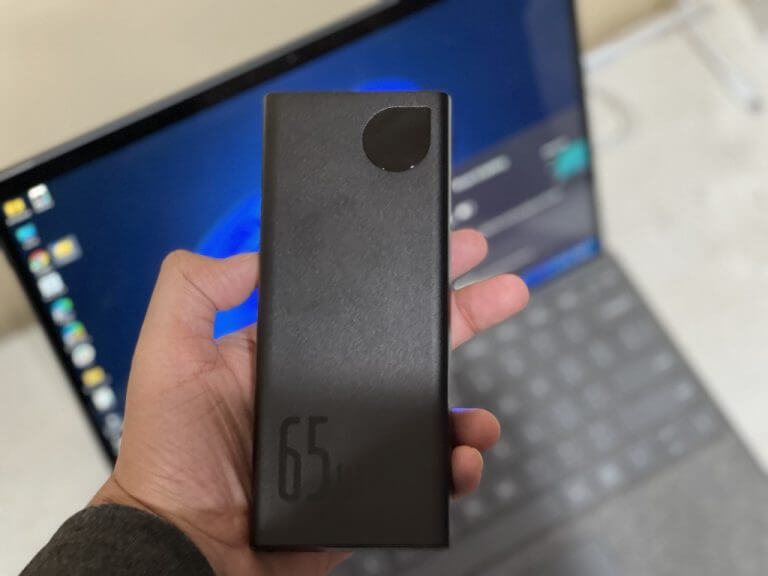
The Baseus USB-C power bank is a product that will match the premium finish of your devices. The Surface Pro 8 sports an aluminum finish, and the Baseus power bank fits that with an all aluminum-alloy design. For the high price of $60, it feels very nice in the hands. Baseus even says that the design can help dissipate heat during the charging process. It’s something I noticed when using the power bank to charge my Surface when under heavy loads. It didn’t get too hot.

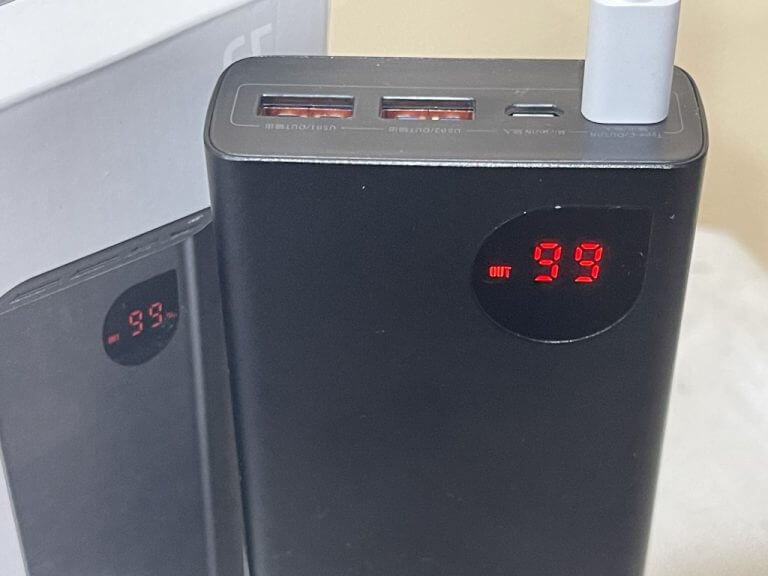
Another signature feature of this power bank is the numerical LED charge indicator. With this, you just tap the side button to see how much power is left in the bank itself. It shows the battery level at all times when charging, as well as the output in volts and amps. Super useful for keeping an eye on when you might need to recharge the power bank itself.


As far as ports go, there is one 65W PD USB-C port and two 30W quick charge USB-A ports. You also have the option to charge the power bank with a micro USB input, which I think is a waste. I think a second USB-C port would have been better. It is 2022, and USB-C should be standard on all power banks for input charging, especially since it’s become more of the universal standard.

Micro USB also means the bank itself is slow to recharge. It takes about 2 hours to fully recharge to 100% and a physical charging brick is not included. Using USB-C, though, lowers recharge time to around 1 hours.

Baseus also sent me their separate USB desktop charging station, and it’s what I used to charge up this power bank with the included micro USB cable. The charging station sits on my desk as a convenient way to plug in my dedicated Surface Laptop charger, as well as 100-watt USB-C cables for my MacBook, Nintendo Switch, and other devices.

How long it lasts

This Basus power bank is rated at 20,000 mAh with a 65W output. Interestingly, though, the bottom of the bank mentions a rated maximum capacity of 12,000 mAh, and also a capacity of 5,000 mAh. I am not sure what’s going on there. It could be a translation issue, or it could be a series of four 5,000 mAh batteries together inside for 20,000 mAh, according to most Amazon reviews. Either way, 20,000 mAh means you can travel with this in an airplane, as it meets TSA specs.

At any rate, the listed 20,000 mAh is more than enough to charge up my Surface Pro 8, but I feel as though the power bank might hold less than 20,000 mAh total. When using the USB-C port, It took my Surface Pro 8 from about 25% to 100% one time, while powered off, leaving about 10% left in the power bank itself.

When the Surface Pro 8 is powered on, meanwhile the Baseus bank kept charging up the Surface Pro 8 under heavy web browsing. The fully charged power bank got my Pro 8 from about 25% to 80% before it died out. That’s more than enough for when you might be in a pinch, but considering Surface Pros have close to a 6,657 mAh battery, I felt as though the Baseus should be able to do more.

As for my other devices, the Baseus power bank took my iPhone 12 Pro Max from 20% to 100% and used up about 45% of its capacity. For an iPad Mini, it took 55% of the charge to go from 20% to 80%.  Your mileage might vary a bit, especially if you charge more than one device at the same time.

A good buy, but there are many others

The Baseus USB-C Power Bank is a good buy if you’re looking for a solid affordable USB-C power bank for your Surface. But there are many other alternatives in the market that you can buy if you have more money to spare. The fancy design of the Baseus makes it worth $60, as well as its digital display, but these are standard features you’ll find in other products, too. Anker has a similar one, but it’s priced higher at $100. For what you’re paying, the Baseus is great.

How to Fix Valorant Error Code VAL 51

Valorant, developed by Riot Games, is free to play and was officially released in the year 2020. However, several users have reported encountering various issues. In the following guide, we will tell you how to fix the error code VAL 51 on Valorant in Windows.

Ever since the game was released, a lot of users have been glued to it owing to the amazing graphics and interesting gameplay. The VAL 51 error code can be encountered both while launching the game and when playing it.

So, if you too have been encountering the error, learn why it happens and how you can fix the Valorant error code VAL 51 in Windows 11.

Why did I encounter the VAL 51 error code in Valorant?

There could be a lot of issues that lead to the VAL 51 error code in Valorant. These include both the ones at your end and at the server’s end. Here is a list of the most common ones:

  • Issues with the game server
  • A trivial bug
  • Switching windows while playing Valorant
  • Problems with the current version of Valorant
  • Improper installation

Now, that you have a basic understanding of the underlying causes, let’s walk you through the most effective fixes for each of these.

And, most likely you wouldn’t have to go down all the way to the bottom, since the first few are known to fix Valorant error code VAL 51 for most users.

How can I fix the VAL 51 error code in Valorant?

1. Restart the computer

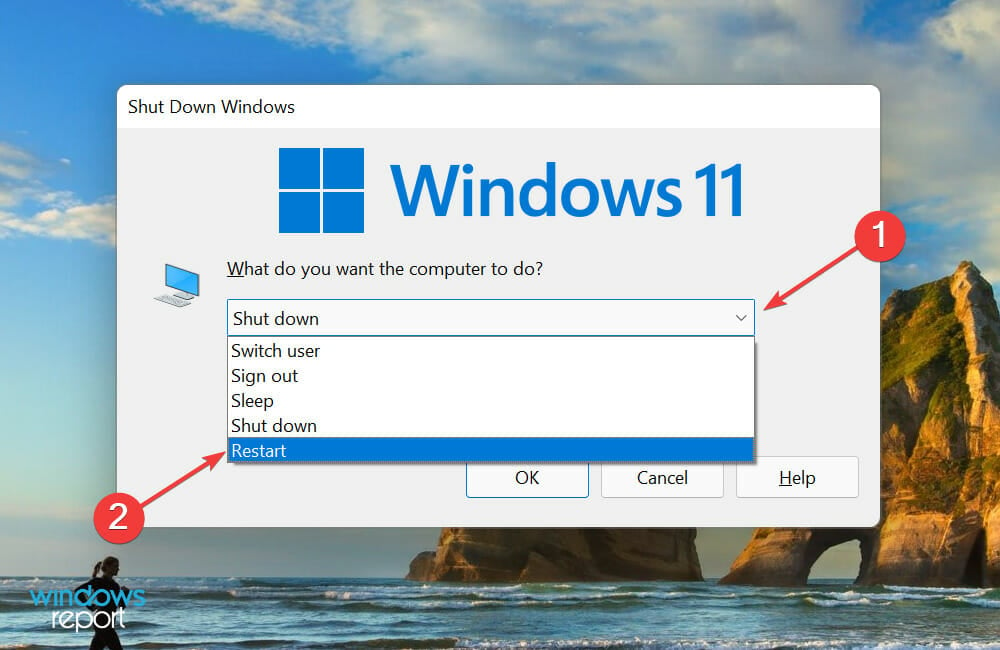
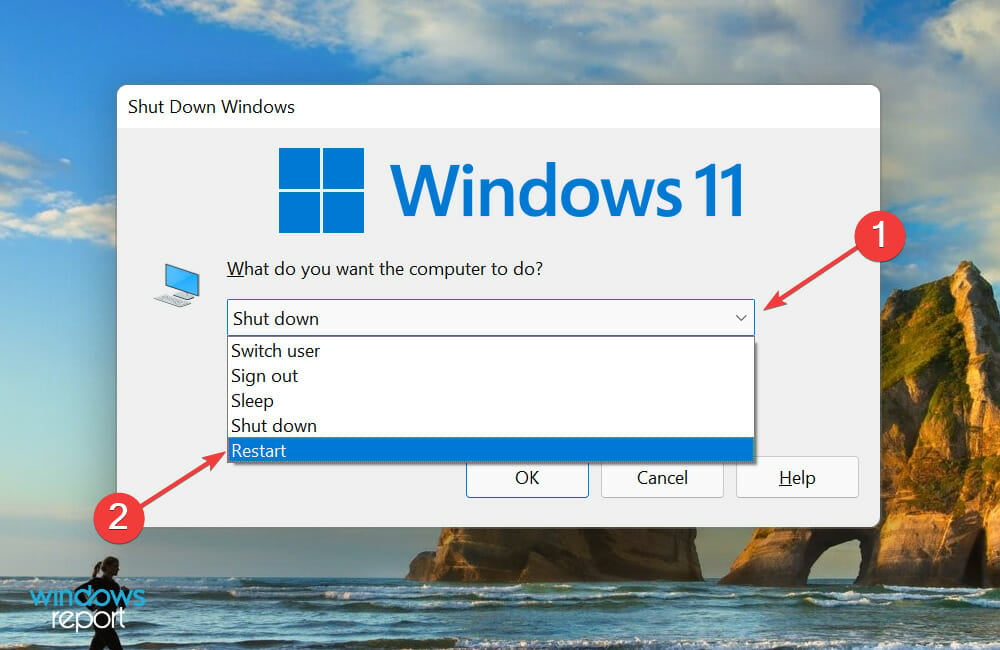
  1. Press Alt + F4 to launch the Shut Down Windows box, and select Restart from the dropdown menu.restart the computer to fix fix valorant error code 51
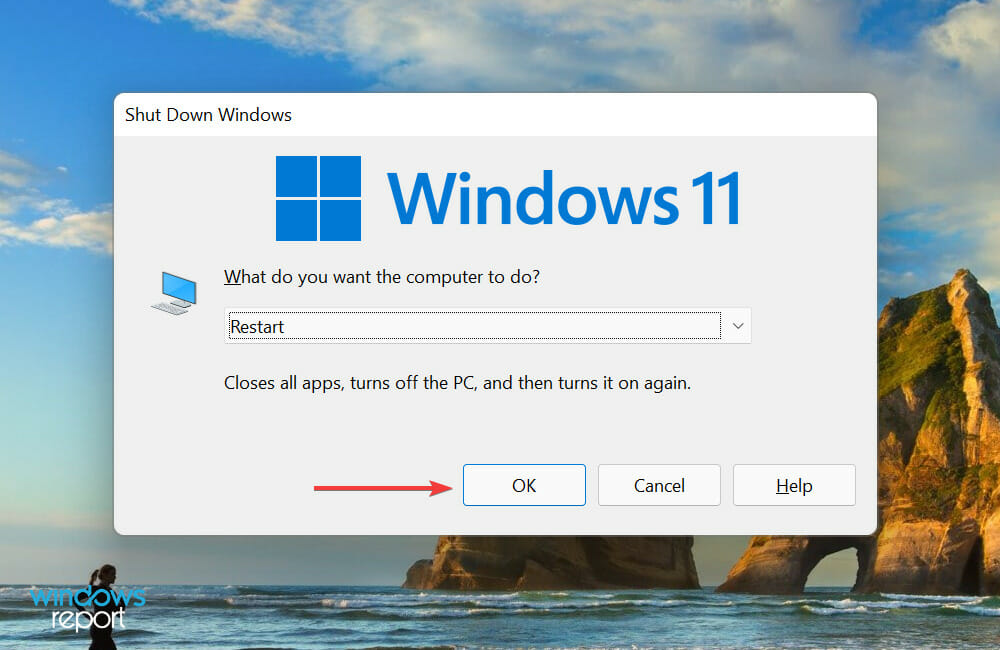
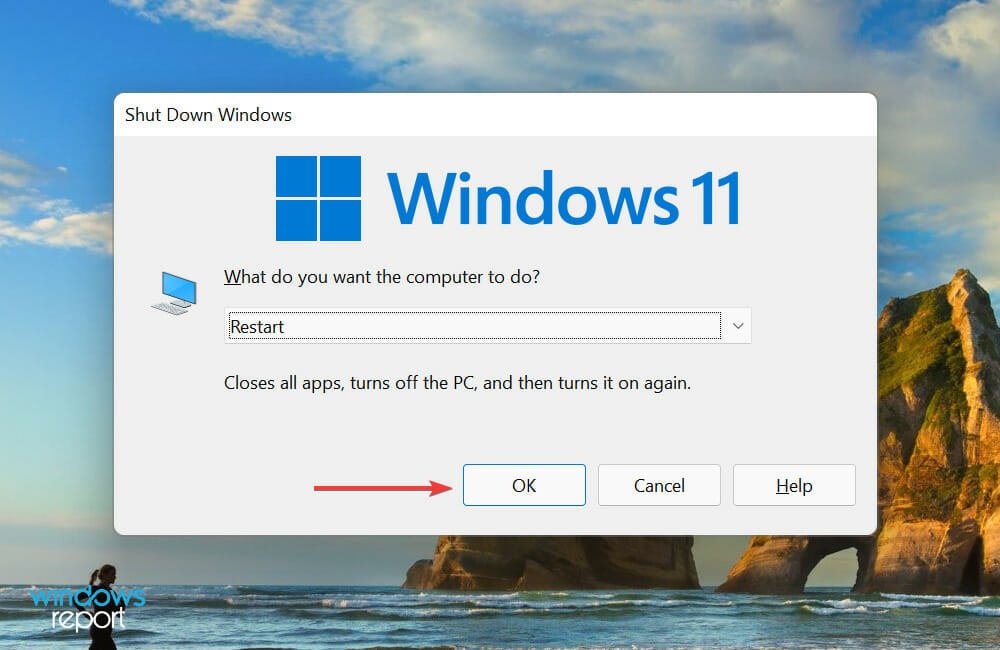
  2. Next, click on OK to restart the computer.Confirm Restart

Your primary approach when dealing with errors involving games should be to restart the computer. In most cases, it’s a trivial bug behind the problem, and a simple reboot will eliminate it. Once done, check if that fixes the VAL 51 error code.

2. Check if the servers are down

Another likely reason for the VAL 51 error code in Valorant is the issues with the server. To identify if that’s causing the problem in your case, check the official Valorant website for any updates. This is also the reason behind Error code 46.

Also, you can check with your friends or on gaming communities that exist on Reddit or Twitter. If there’s a problem at the server’s end, you wouldn’t be the only one facing the error, and many might have posted about it.

In case the servers are working fine, head to the next method to fix VAL 51 error code in Valorant.

3. Update Valorant

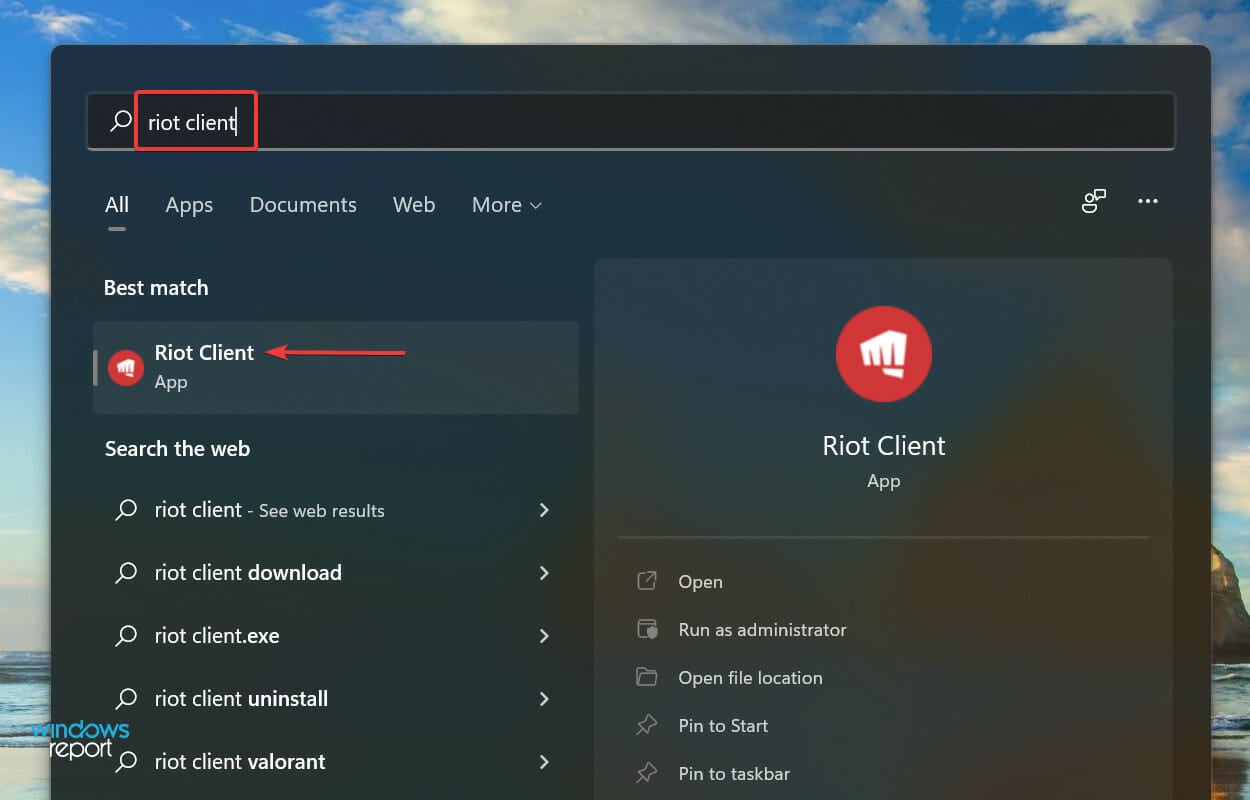
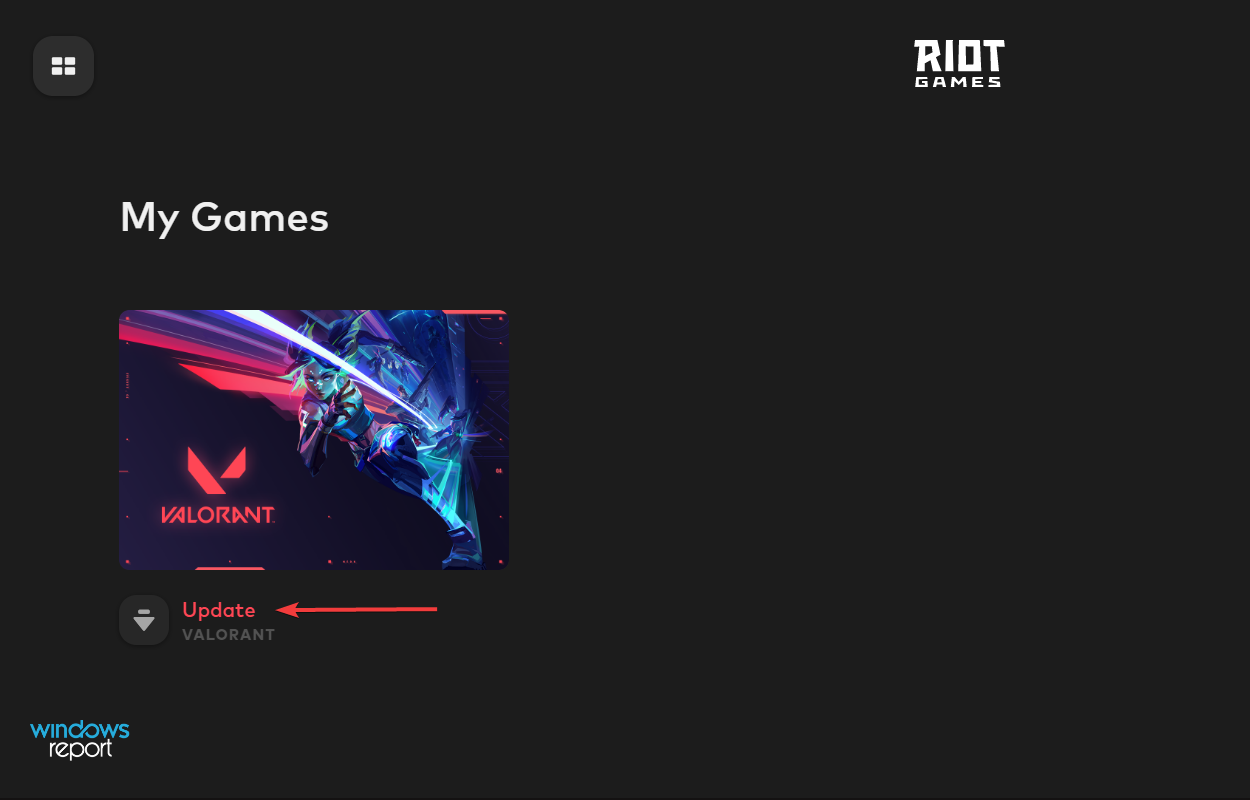
  1. Press Windows + S to launch the Search menu, enter Riot Client in the text field at the top, and click on the relevant search result that appears. You can also launch Riot Client from the desktop shortcut, in case you have created one.Riot Client
  2. If you find the Update option listed under Valorant, click on it.Update Valorant to fix fix valorant error code 51
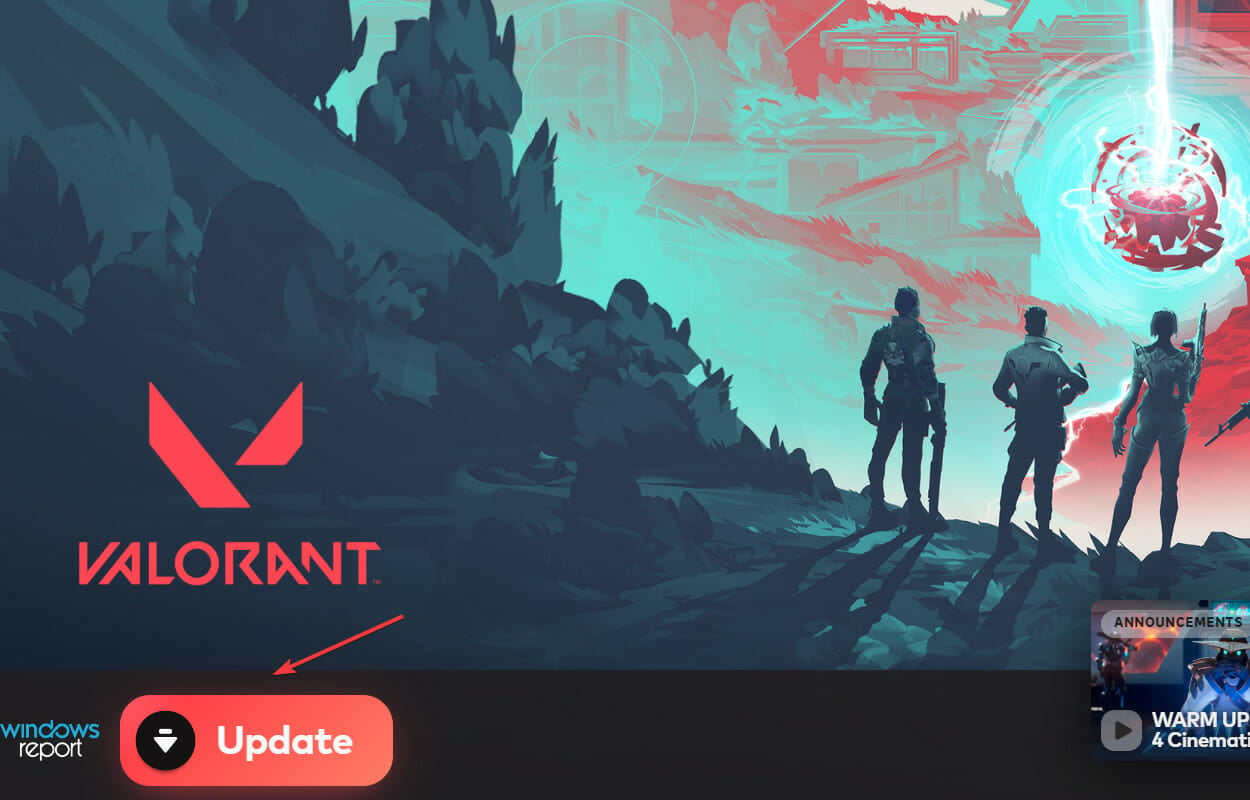
  3. Next, click on the Update button at the bottom to install the latest version of the game.Update Valorant

If the error is encountered every time you launch Valorant, it’s likely that the issue lies with the current version of the game itself. In which case, update the game to the latest version, or wait for one if it isn’t available at the moment.

4. Use a VPN

If you are still encountering the VAL 51 error code while launching or playing Valorant, using a VPN could help.

For this task, we recommend using ExpressVPN, a powerful software that can help you with various issues that may occur due to your internet connection.

This software comes with servers all around the world and very high connection speeds, so you never have to worry about delays during your gameplay.

ExpressVPN

Don’t let network errors ruin your gameplay with this powerful VPN.
Free Trial Visit Website

5. Restart the VGC service

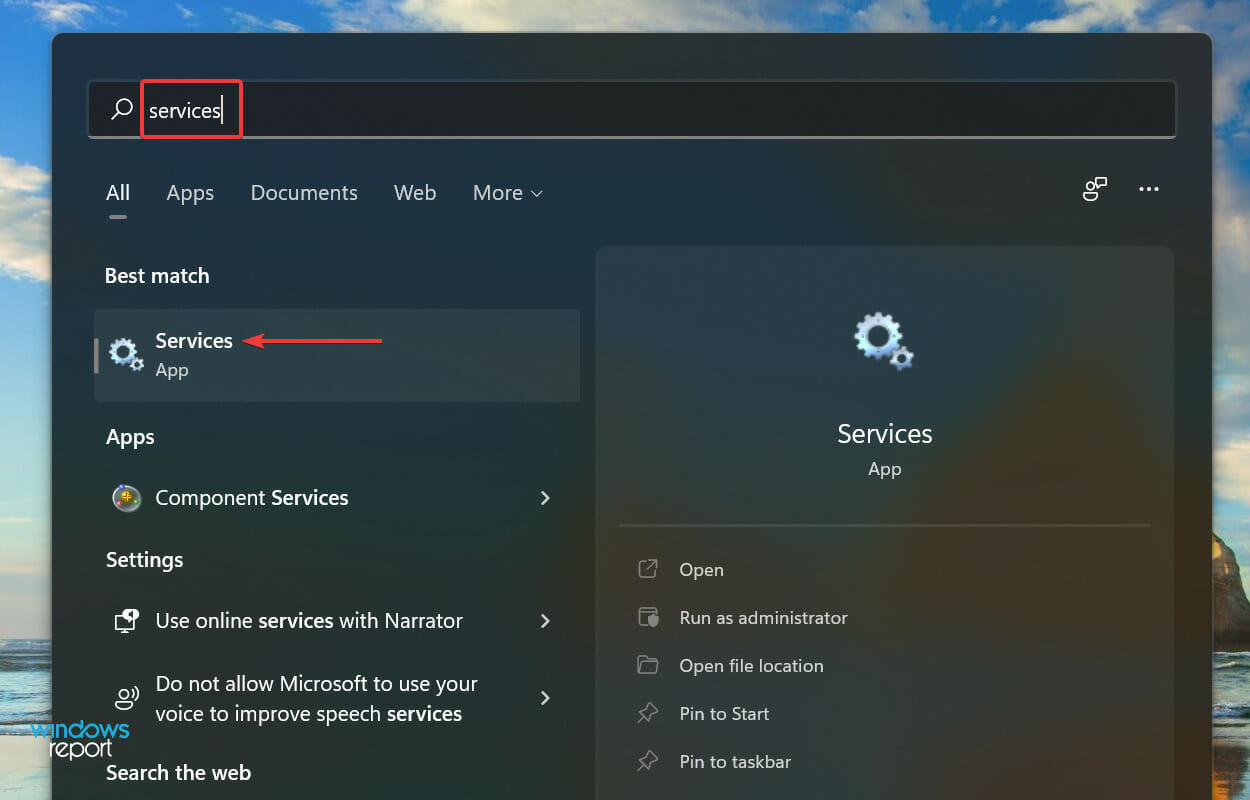
  1. Press Windows + S to launch the Search menu, enter Services in the text field, and click on the relevant search result.Services
  2. Next, scroll down to locate the vgc service, right-click on it and select Properties from the context menu. Since the services here are either listed in the alphabetical or reverse-alphabetical order, it shouldn’t be difficult locating one.vgc service to fix fix valorant error code 51
  3. If the service is running, click on the Stop button to terminate it and then click on OK at the bottom to save the changes.Stop vgc service to fix fix valorant error code 51
  4. Now, double-click on the vgc service to again launch its properties.vgc properties
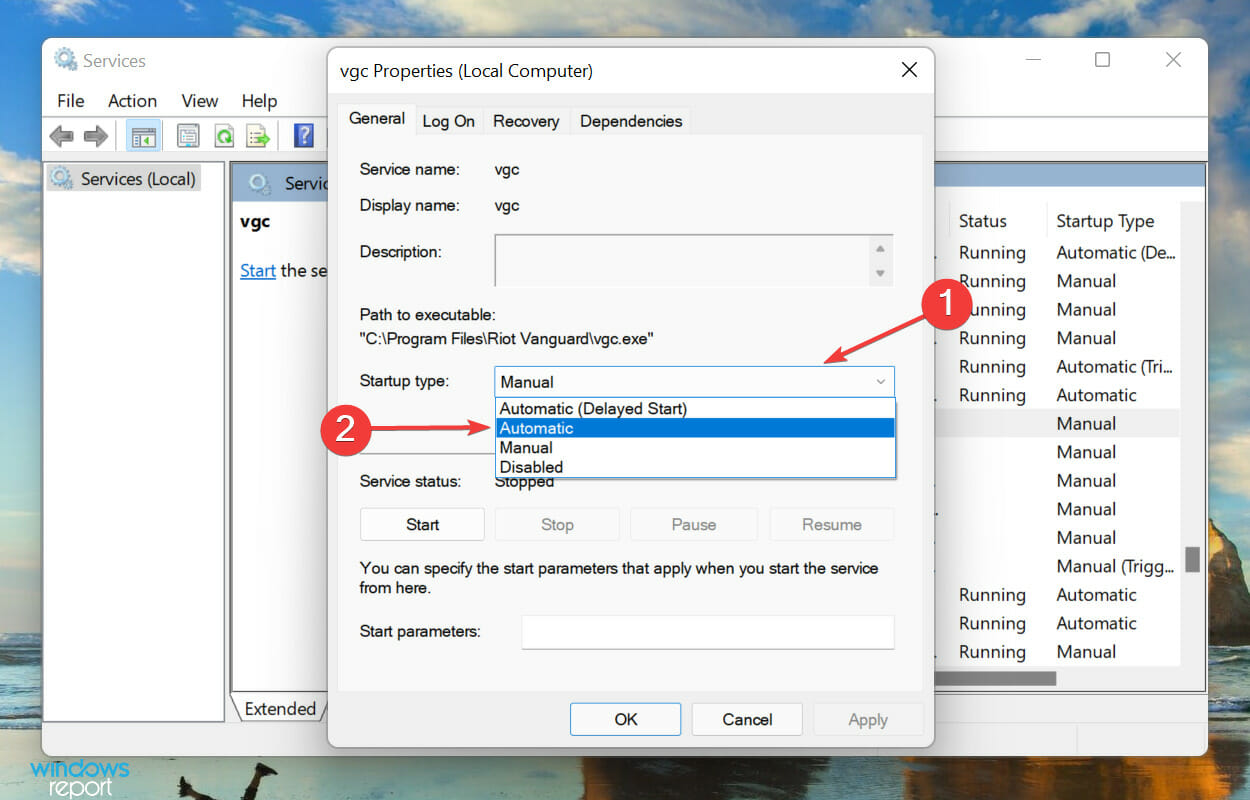
  5. Click on the Startup type dropdown menu, and select Automatic from the list of options.Change Startup type to automatic to fix fix valorant error code 51
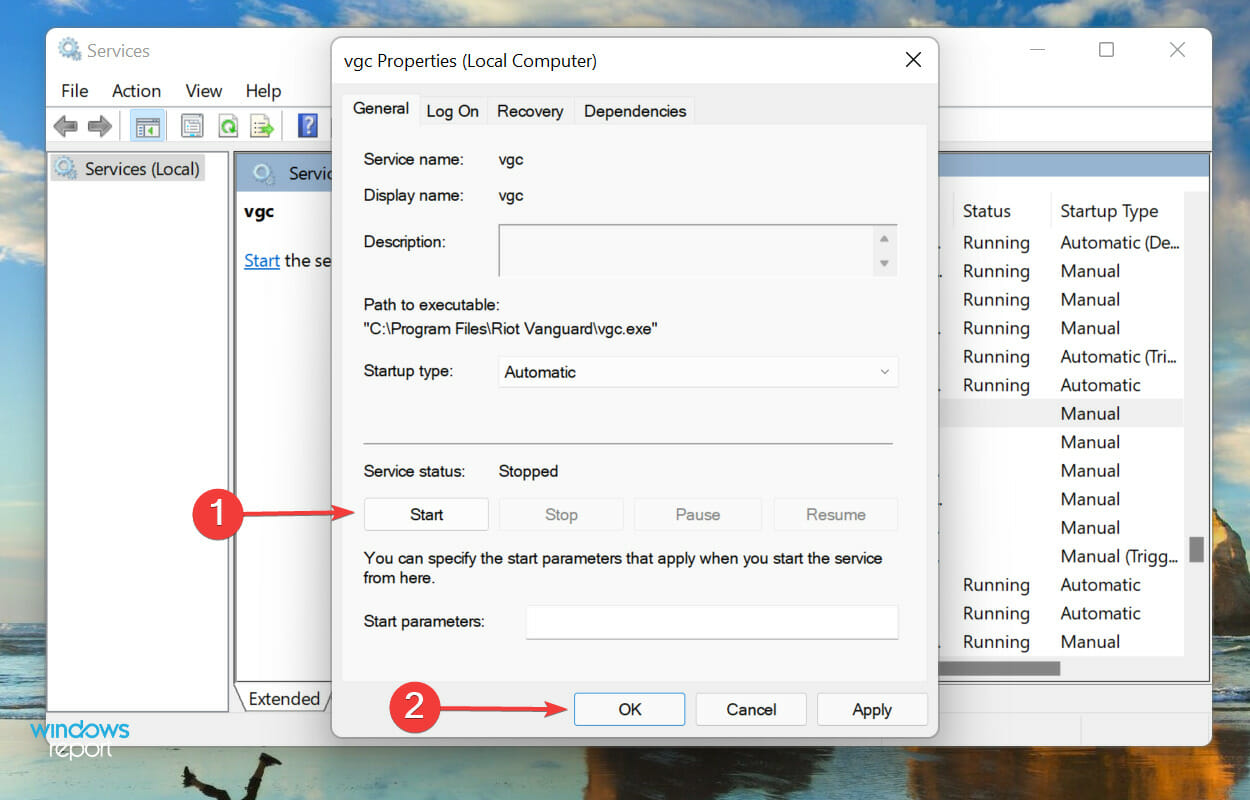
  6. Next, click on Start to run the service, and finally click OK to save the changes.Start VGC service

6. Reinstall Valorant

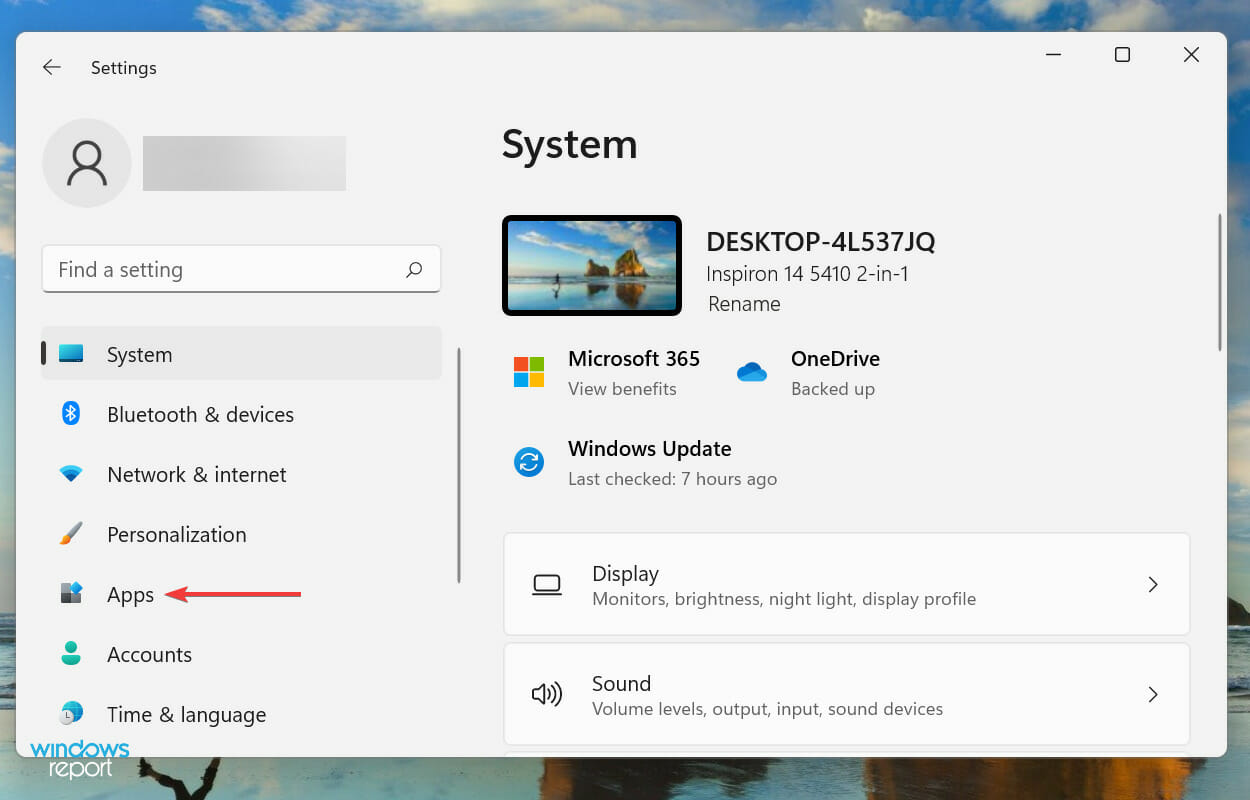
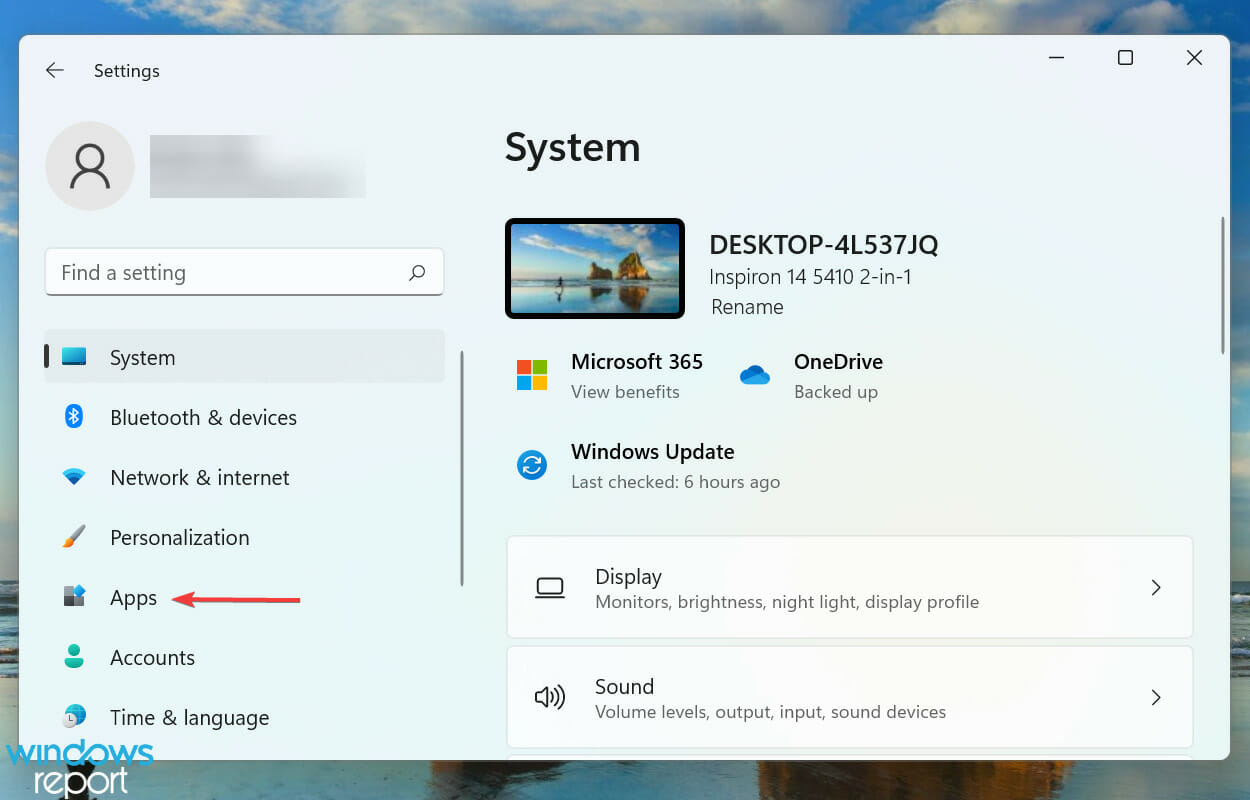
  1. Press Windows + I to launch Settings and select Apps from the list of tabs in the navigation pane on the left.Apps
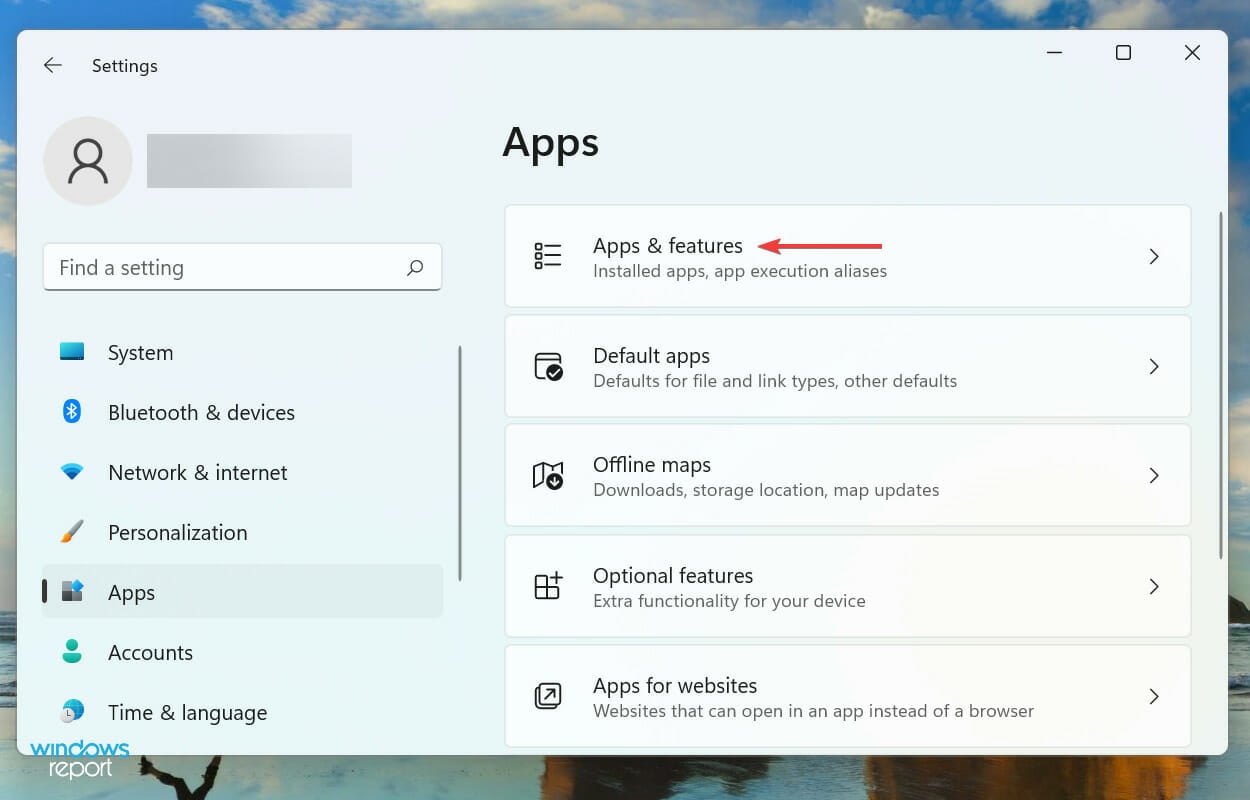
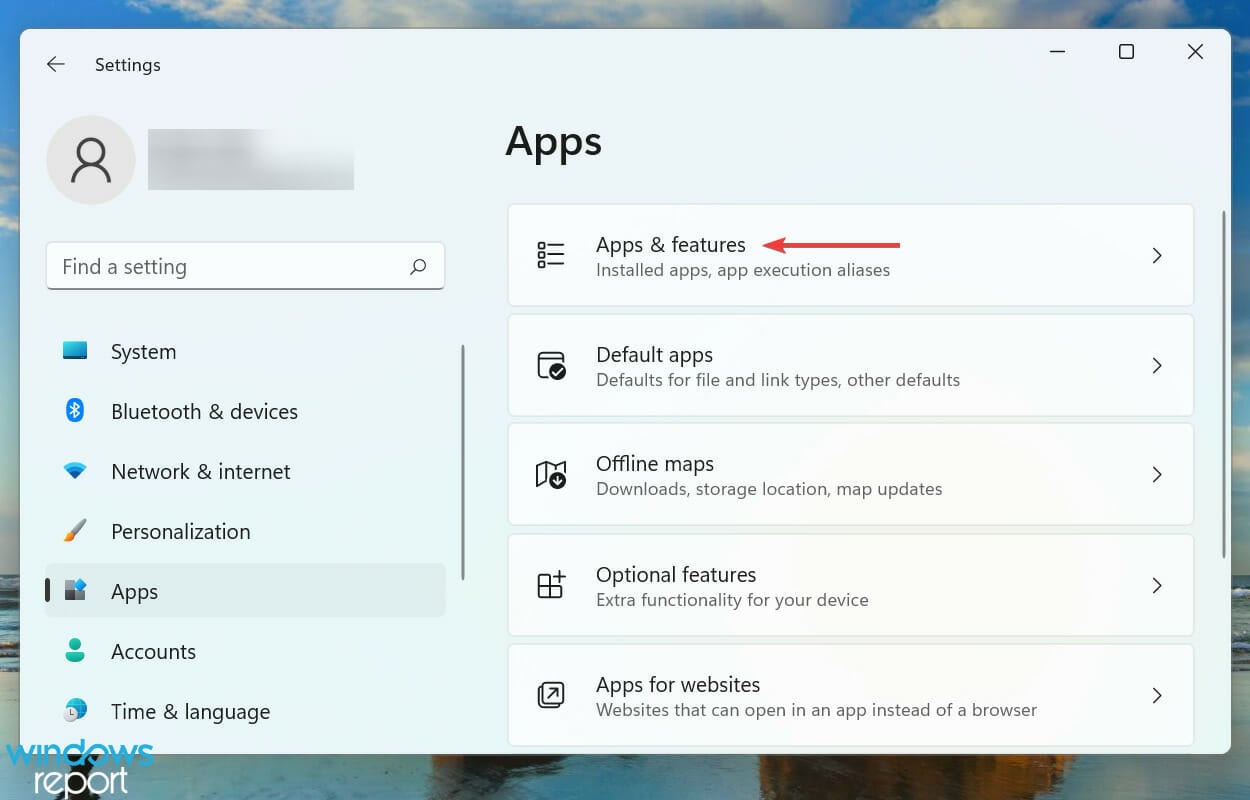
  2. Next, click on Apps & features on the right.Apps & features
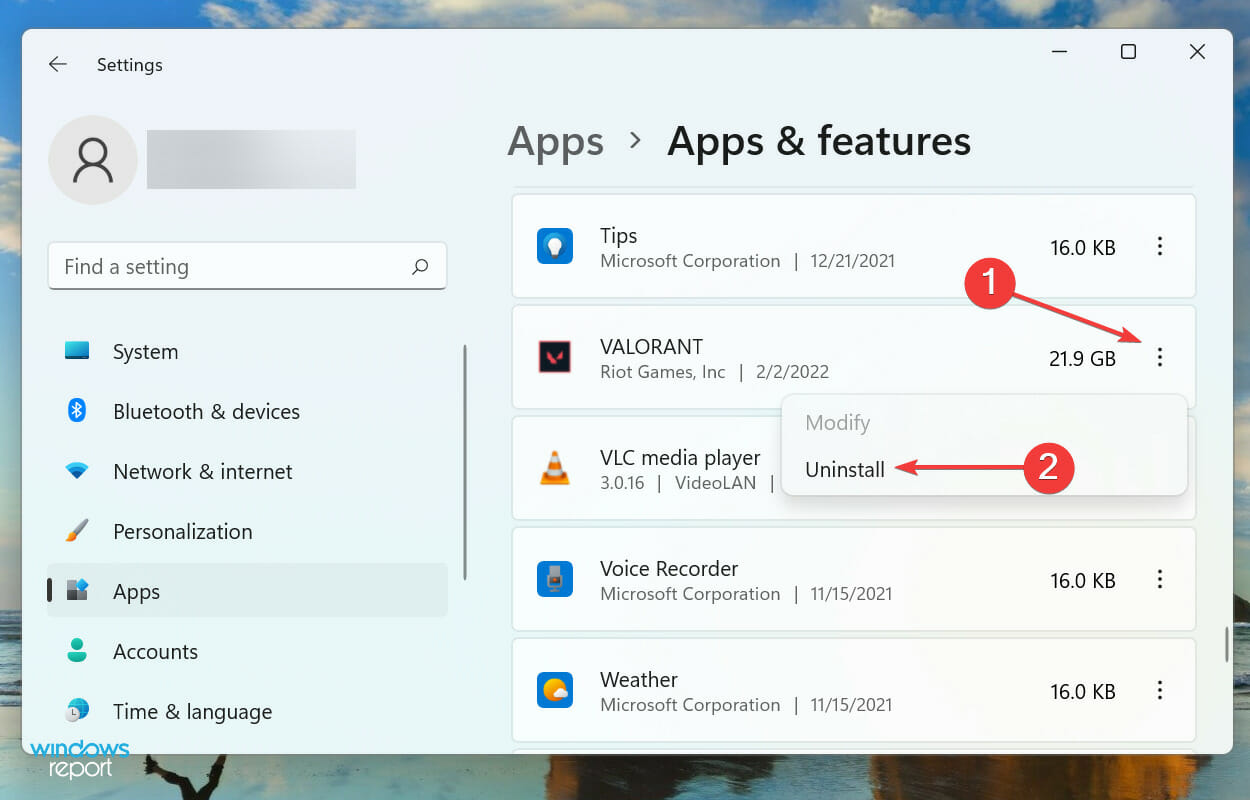
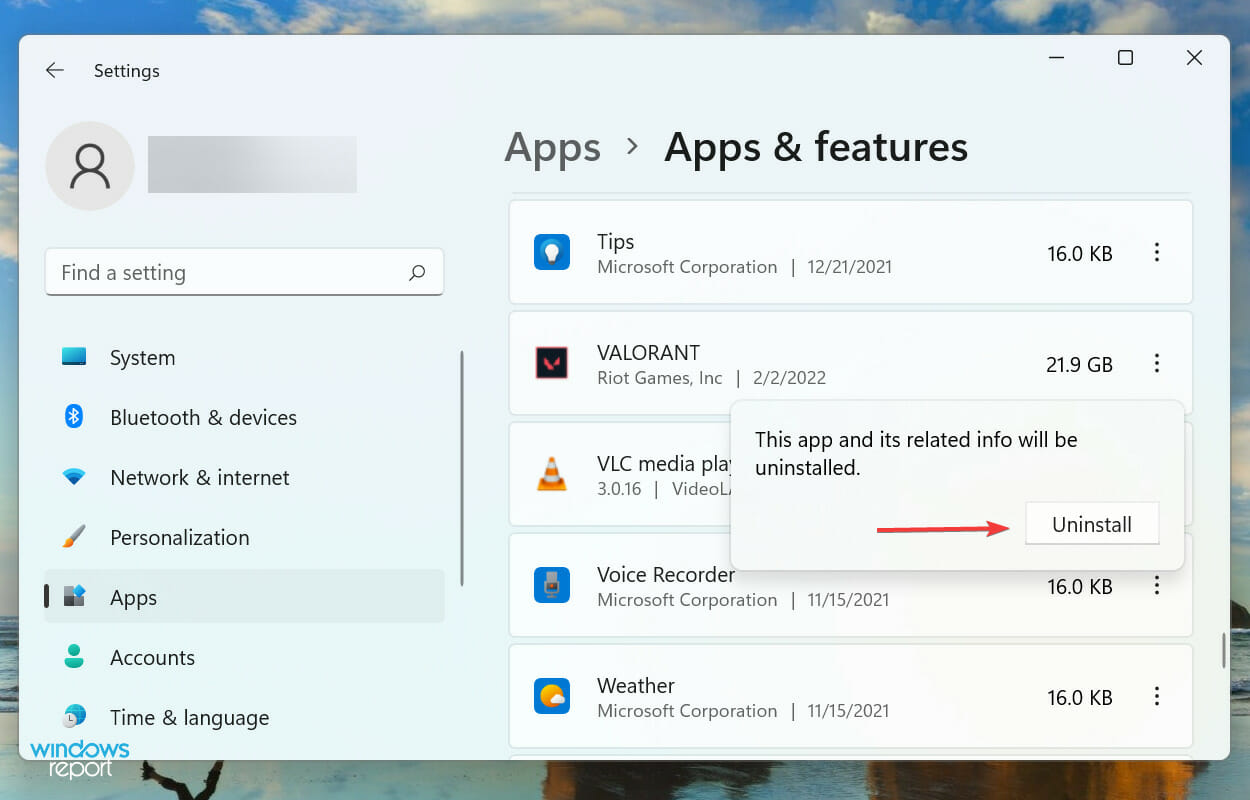
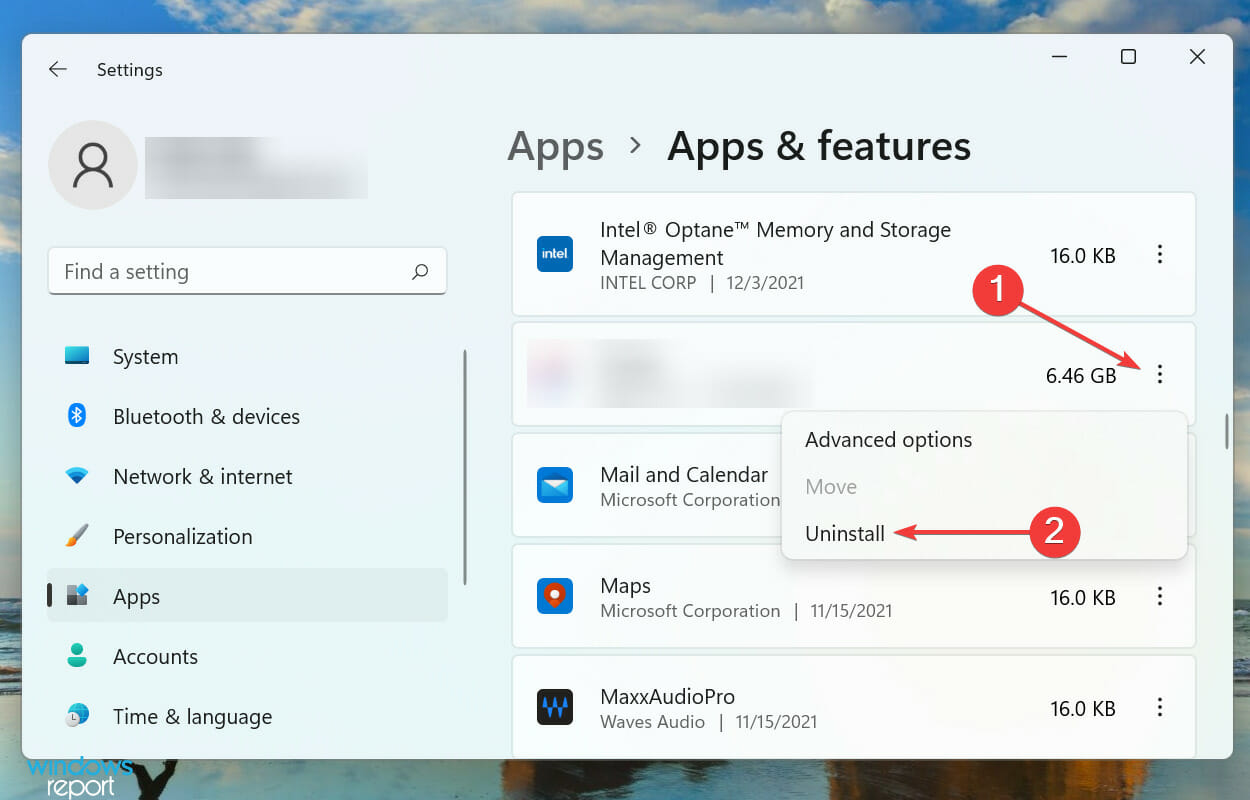
  3. Scroll down and locate Valorant, click on the ellipsis next to it, and select Uninstall from the menu.Uninstall to fix fix valorant error code 51
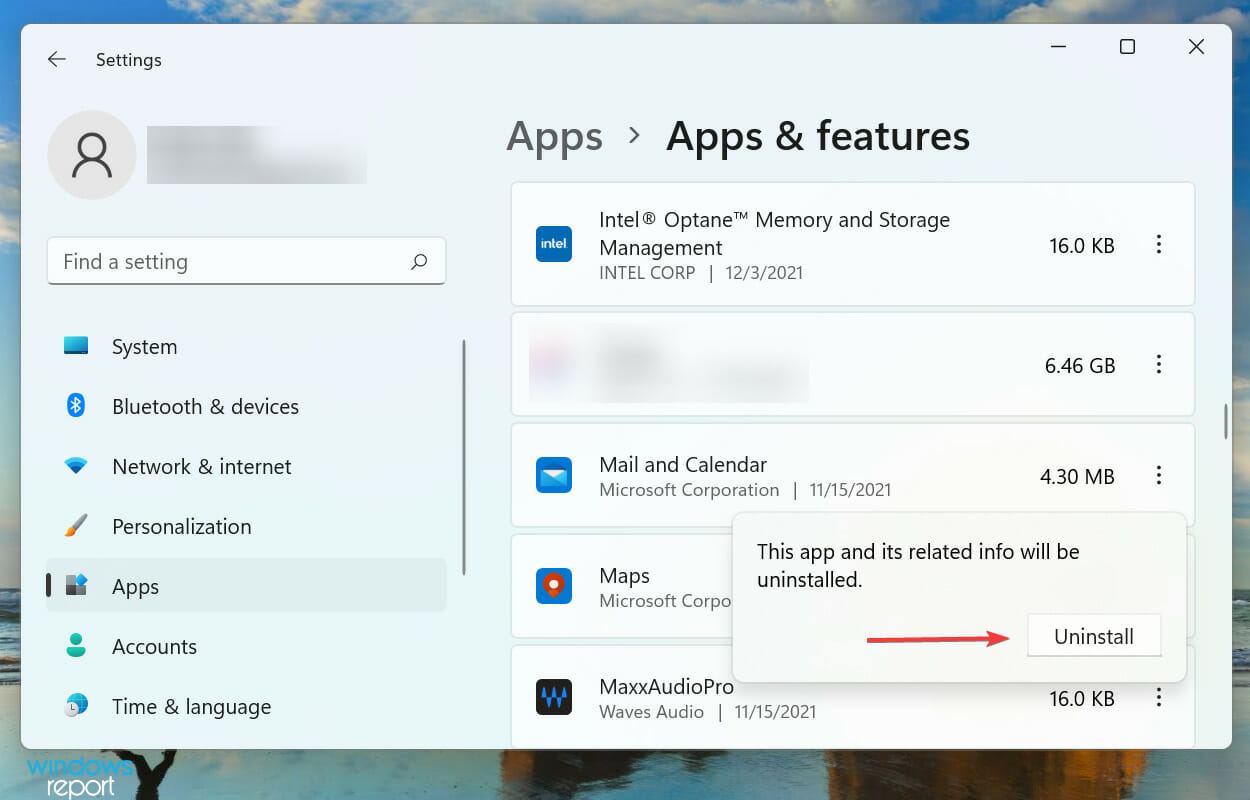
  4. Again, click Uninstall on the confirmation prompt that pops up.Confirm Uninstall
  5. Once Valorant has been removed, reinstall it like you did before.

If none of the above methods have helped fix the VAL 51 error code in Valorant, your last option is to reinstall the game. Oftentimes, you may encounter such errors due to an improper installation or if some critical files go missing.

What can I do if Valorant is not opening in Windows 11?

Valorant could be easily run on Windows 10, but when it comes to the latest iteration, i.e., Windows 11, your computer should be compatible with the OS. If you have bypassed the TPM and SecureBoot criteria by making changes, Valorant may not run on your system.

Apart from that, Valorant being a recent game still has some unpolished features that are responsible for crashes or preventing the game from launching.

If you are unable to open Valorant in Windows 11, check our dedicated guide for the best solutions.

These are all the ways you can fix the Valorant error code VAL 51 in Windows 11. After eliminating the issue, you can start playing your favorite game without any more errors popping up.

Also, find out how to fix issues causing an FPS (Frame per Second) drop in Valorant in Windows 11.

Tell us which fix worked and your experience of Valorant, in the comments section below.

Windows 11 Shutdown Box Keeps Popping up Randomly [Fix]

The shutdown box can be quickly launched via the keyboard shortcut to sign out, switch users, shutdown, restart, or put the computer to sleep. However, several users have reported that it keeps popping up randomly in Windows 11.

It not just affects your Windows experience but is also detrimental to making progress while working on the system. And, the worst part is that there is not enough credible information available on the web to resolve the problem.

Therefore, we have decided to dedicate this guide to list out the causes and walk you through the most effective fixes to keep the Windows 11 shutdown box from popping up randomly.

What causes the Windows 11 shutdown box to pop up randomly?

There are a lot of issues that cause the Windows 11 shutdown box to show up randomly, even when you are not pressing any keys or for that matter, even using the computer. Given below are the most likely problems causing the error on your PC:

  • Bug in the current version of Windows 11
  • Corrupt system files
  • Conflicting applications
  • System infected with malware or virus

The causes listed above should provide you with a basic insight and help troubleshoot the problem. In case you are able to identify the issue, execute the relevant fix in the next section. Otherwise, follow the steps in the listed sequence to quickly eliminate the error.

What do I do if the shutdown box keeps popping up in Windows 11?

1. Restart your Windows 11 PC

Note icon NOTE
Instead of following the steps below, you can also restart the Windows 11 PC from the shutdown box when it pops up.
  1. Navigate to the desktop and press Alt + F4 to launch the Shutdown Windows box. Click on the dropdown menu and select Restart from the list of options.Restart to fix Windows 11 shutdown box issue
  2. Click on OK to restart the PC.Confirm restart

If you are facing this issue for the first time, it could be a bug that can be fixed by a simple restart. After you reboot the system, check if the Windows 11 shutdown stops popping up.

2. Update Windows 11

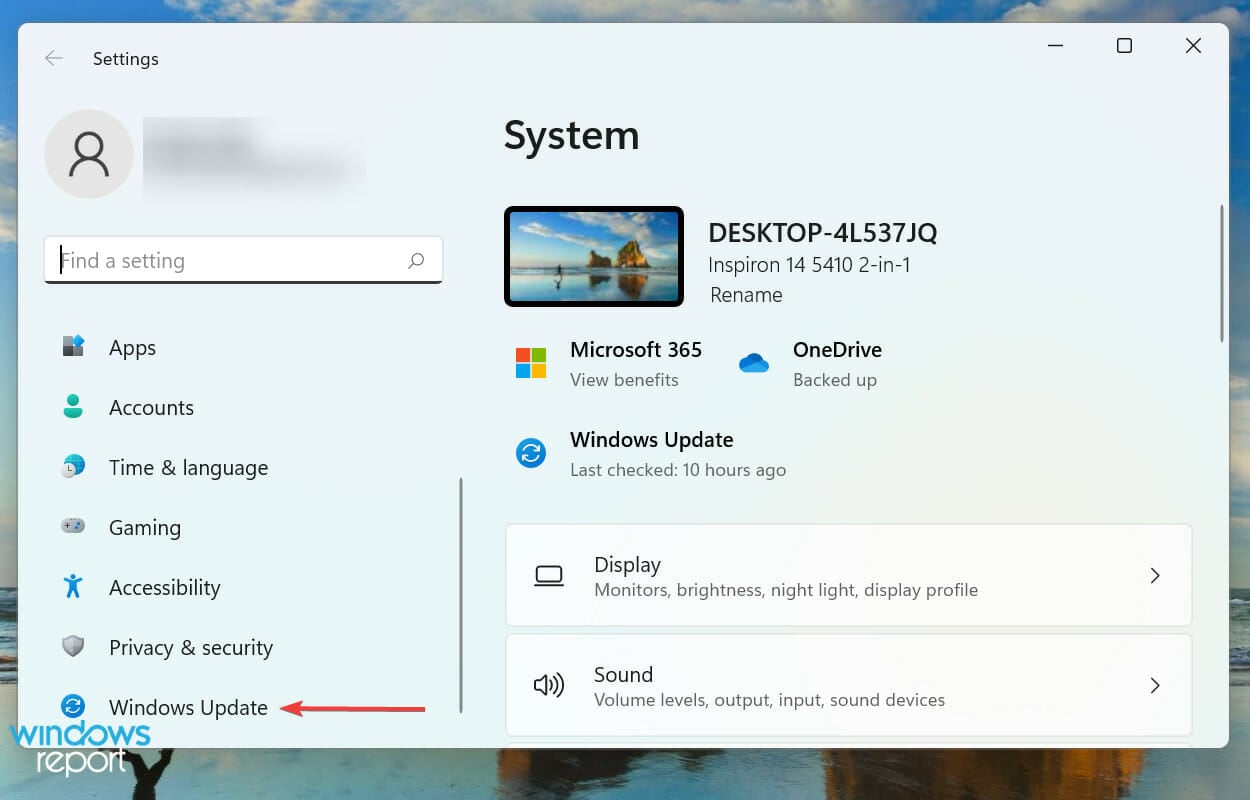
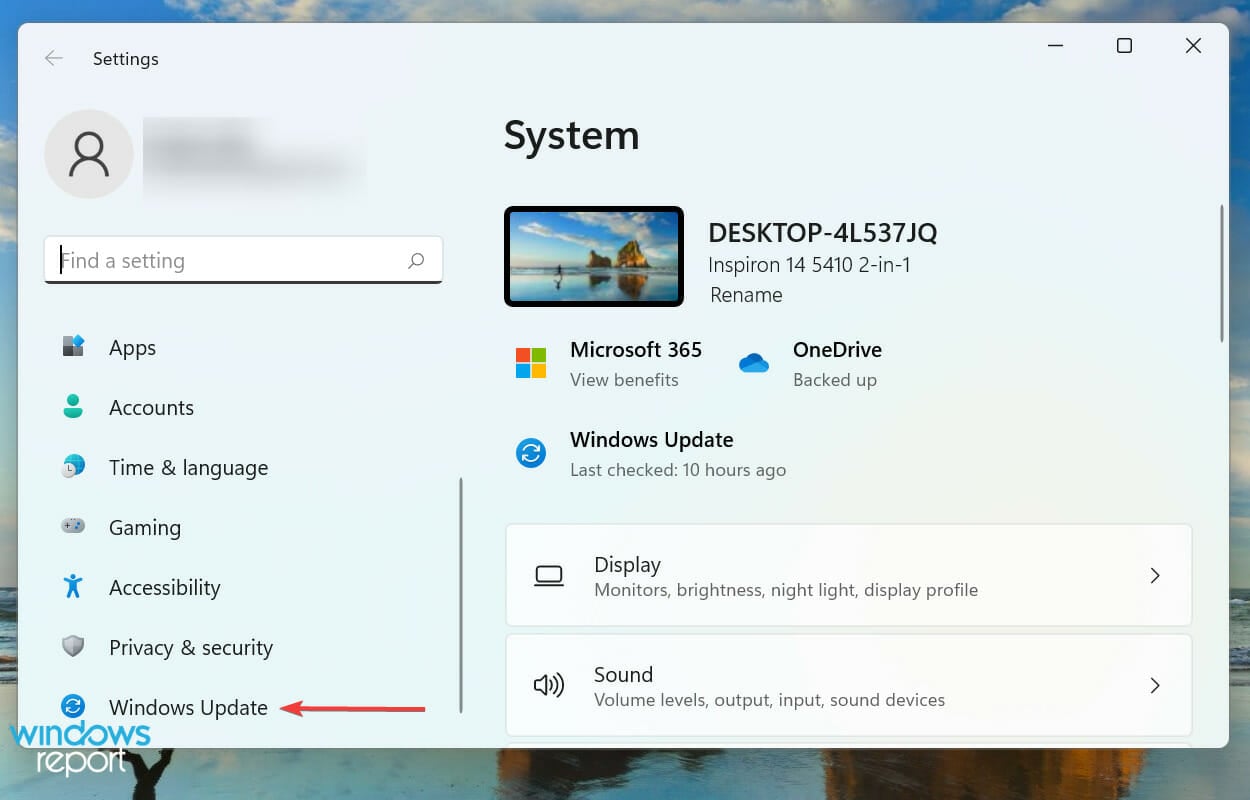
  1. Press Windows + I to launch the Settings app, and select Windows Update from the list of tabs listed in the navigation pane on the left.Windows Update to fix Windows 11 shutdown box
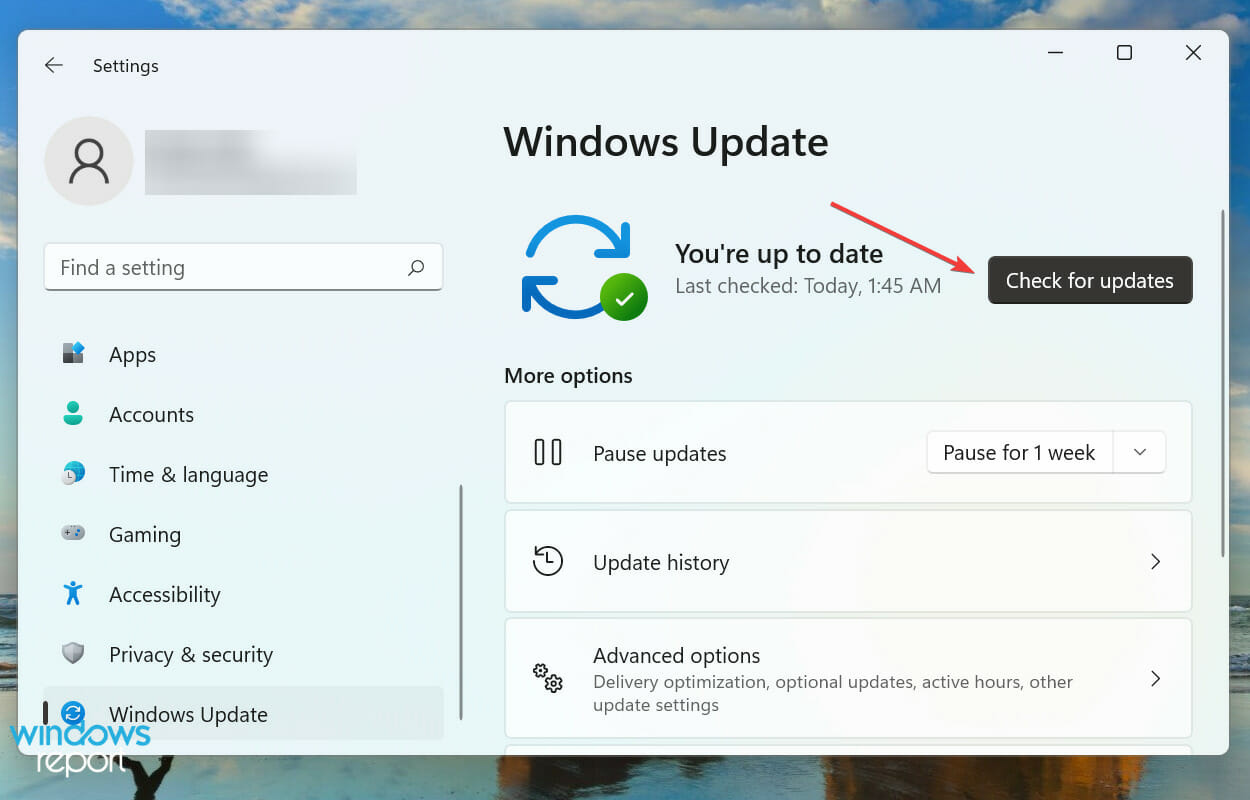
  2. Next, click on Check for updates on the right to scan if there’s a newer version of the OS available.Check for updates
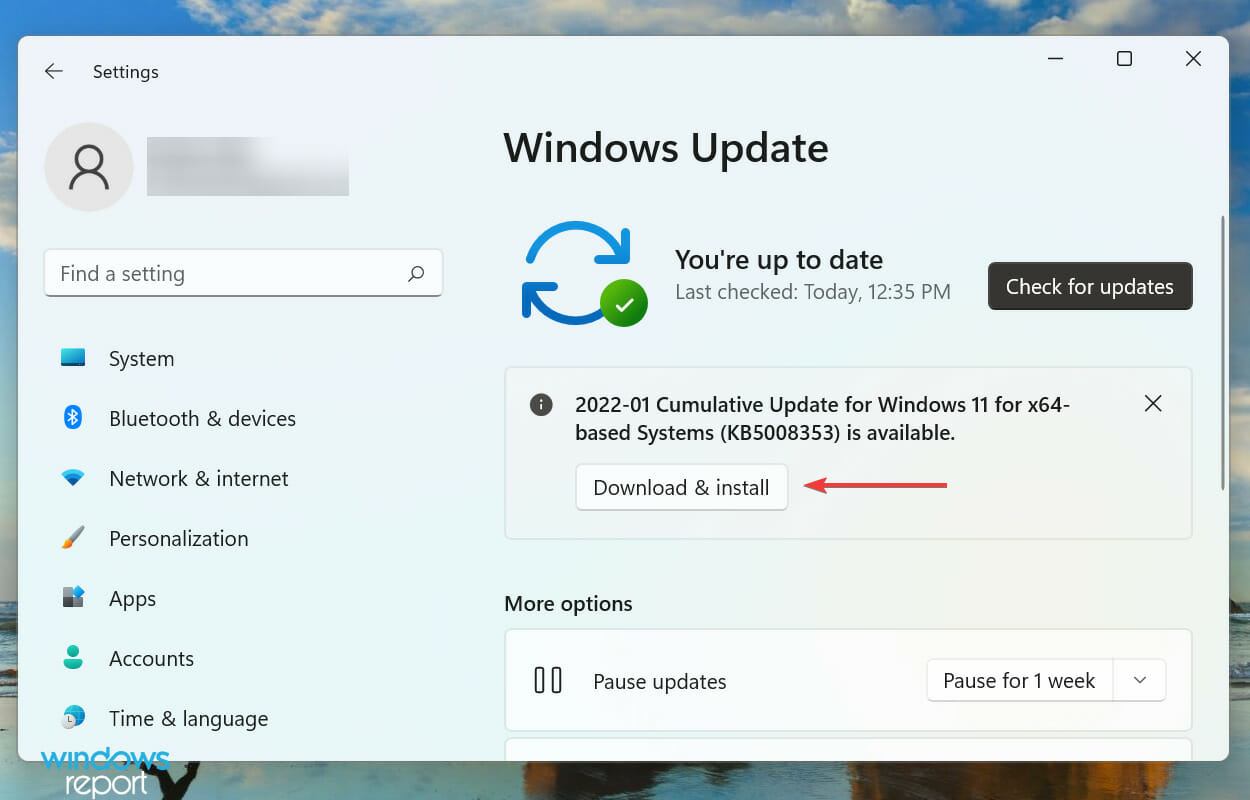
  3. Click on Download & install, if an update appears.Download & instll update to fix Windows 11 shutdown box

After going through several forums, we discovered that it was a problem in the current version that caused the shutdown box to pop up randomly in Windows 11.

Microsoft is known to address these bugs and release a patch for them in the subsequent versions. Therefore, we recommend that you update the OS and check if the error is fixed.

3. Uninstall any recent OS updates

  1. Press Windows + I to launch Settings, and select the Windows Update tab from the navigation pane on the left.Windows Update tab to fix Windows 11 shutdown box
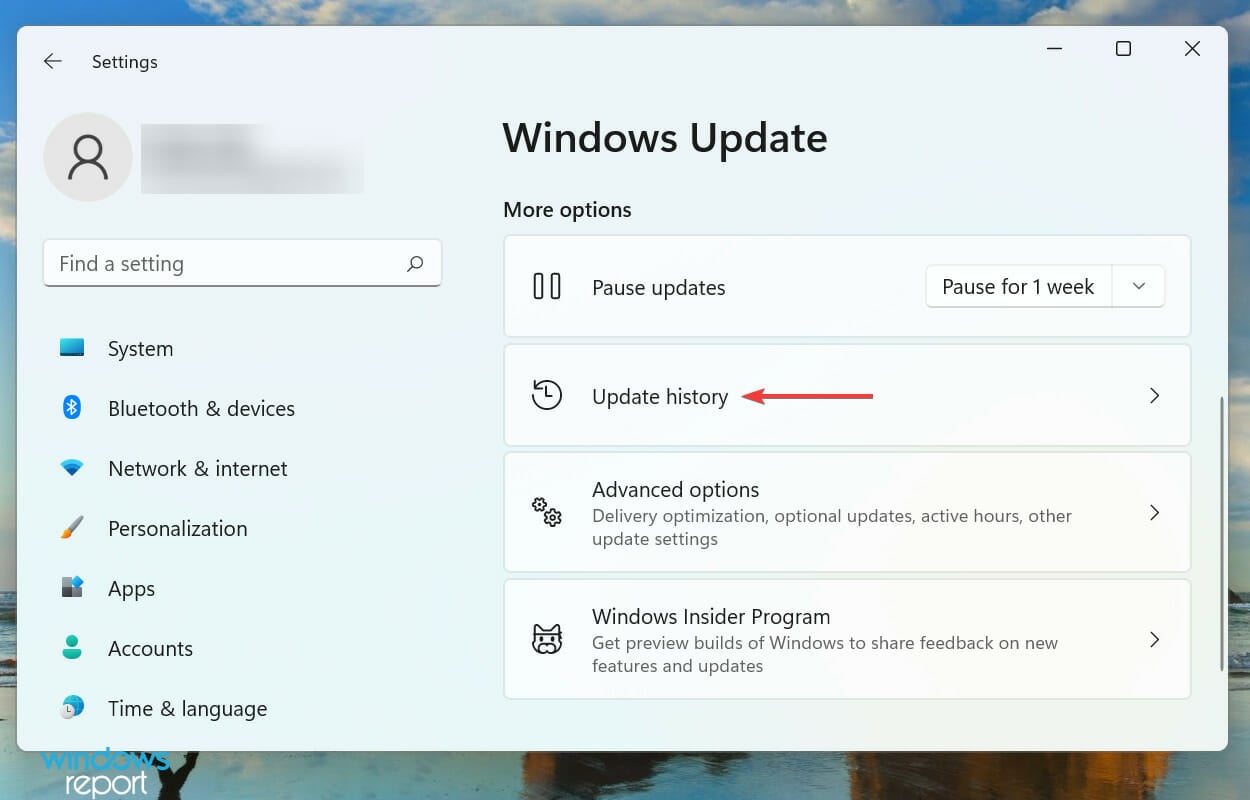
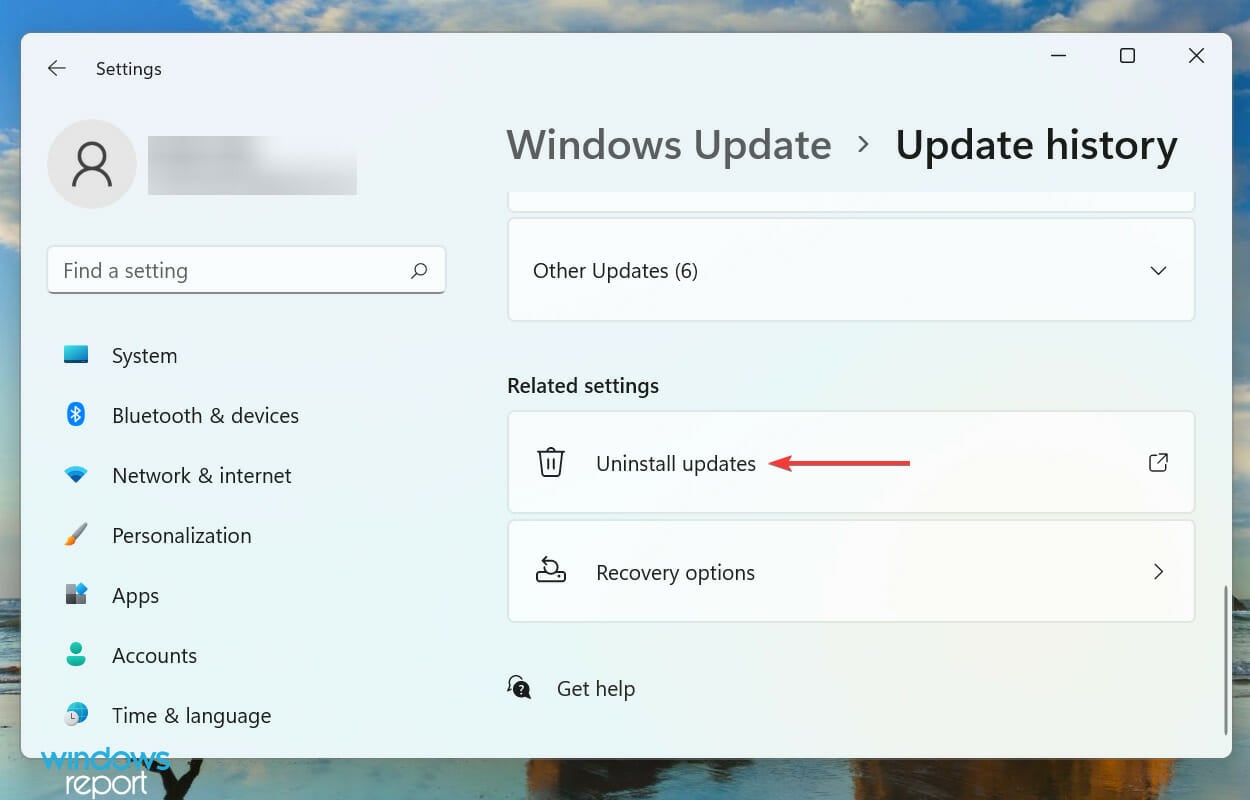
  2. Click on Update history under More options on the right.Update history
  3. Next, click on Uninstall updates.Uninstall updates to fix Windows 11 shutdown box
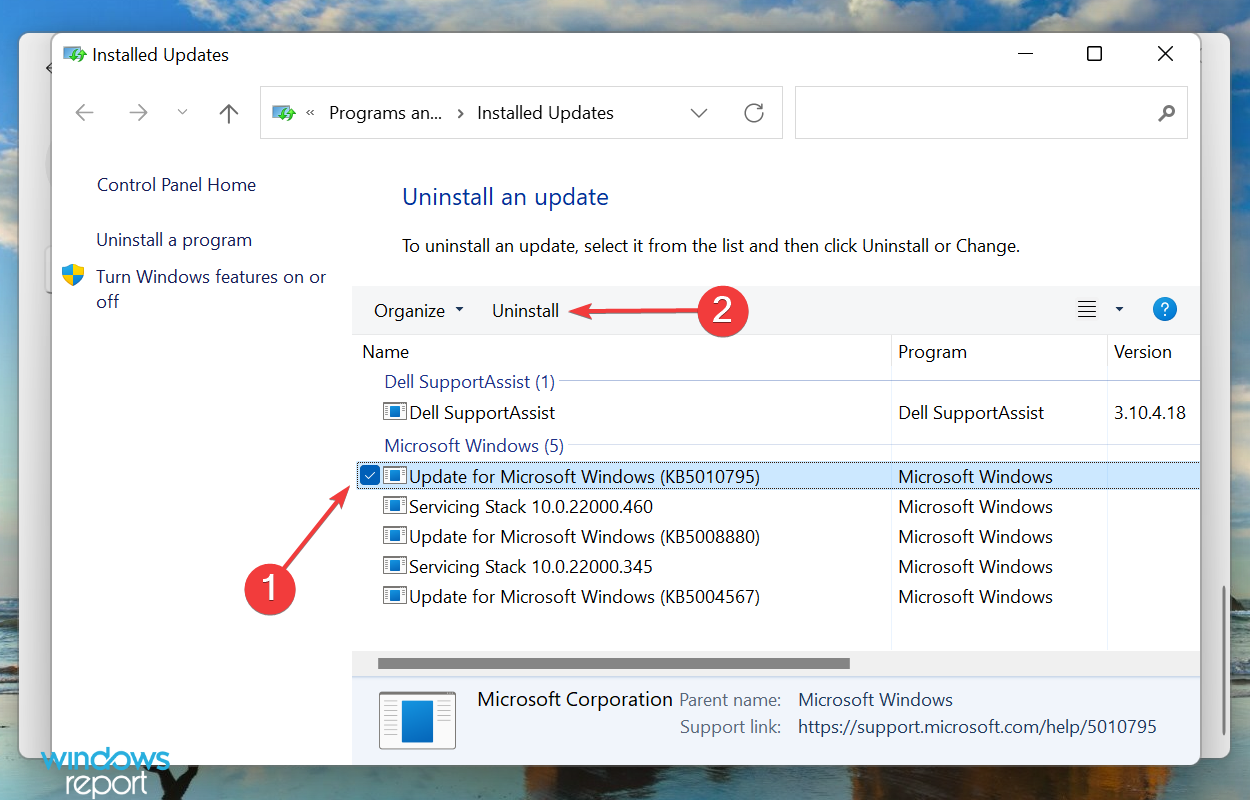
  4. Now, locate and select the problematic update from the list, and click on Uninstall at the top.Select update
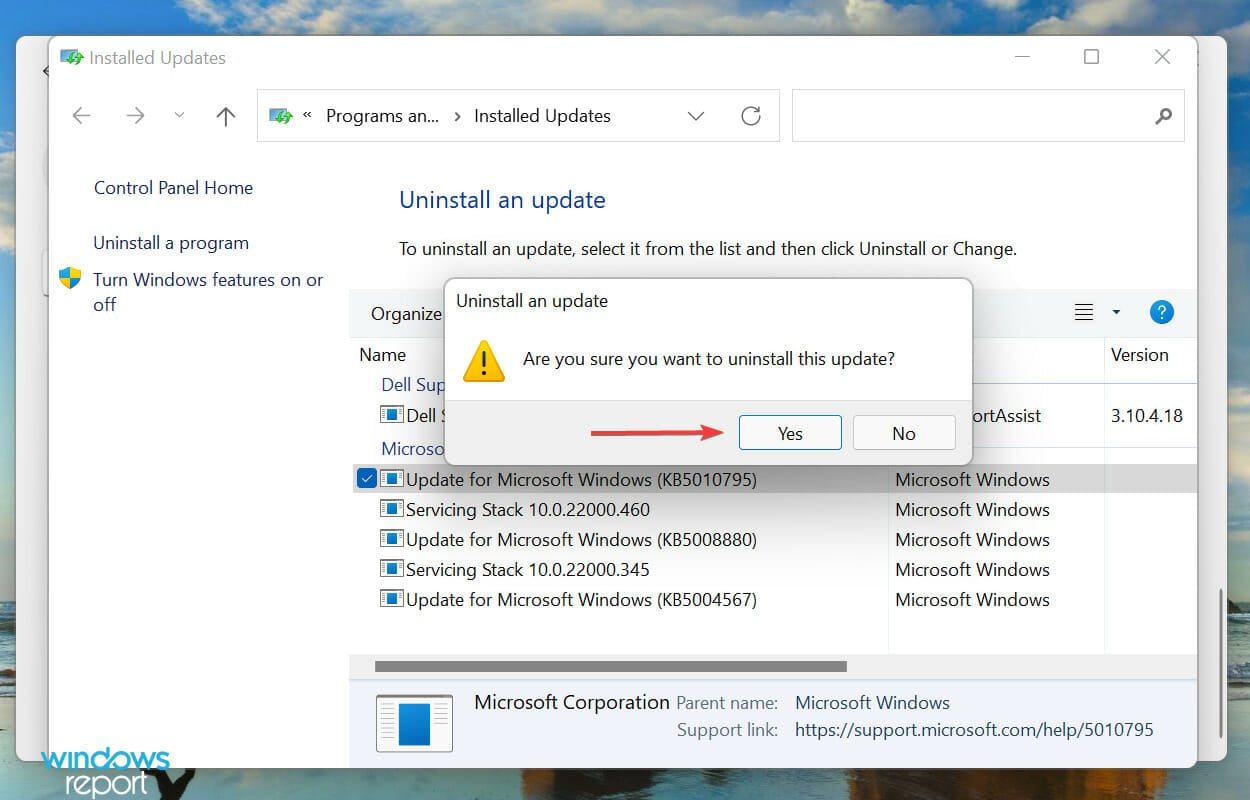
  5. Click Yes on the confirmation box that pops up.Confirm uninstall to fix Windows 11 shutdown box

If you couldn’t find a newer version in the previous method, uninstalling the current update and reverting to the last version of the OS could prevent the shutdown box from randomly popping up in Windows 11.

4. Run SFC scan and DISM tools

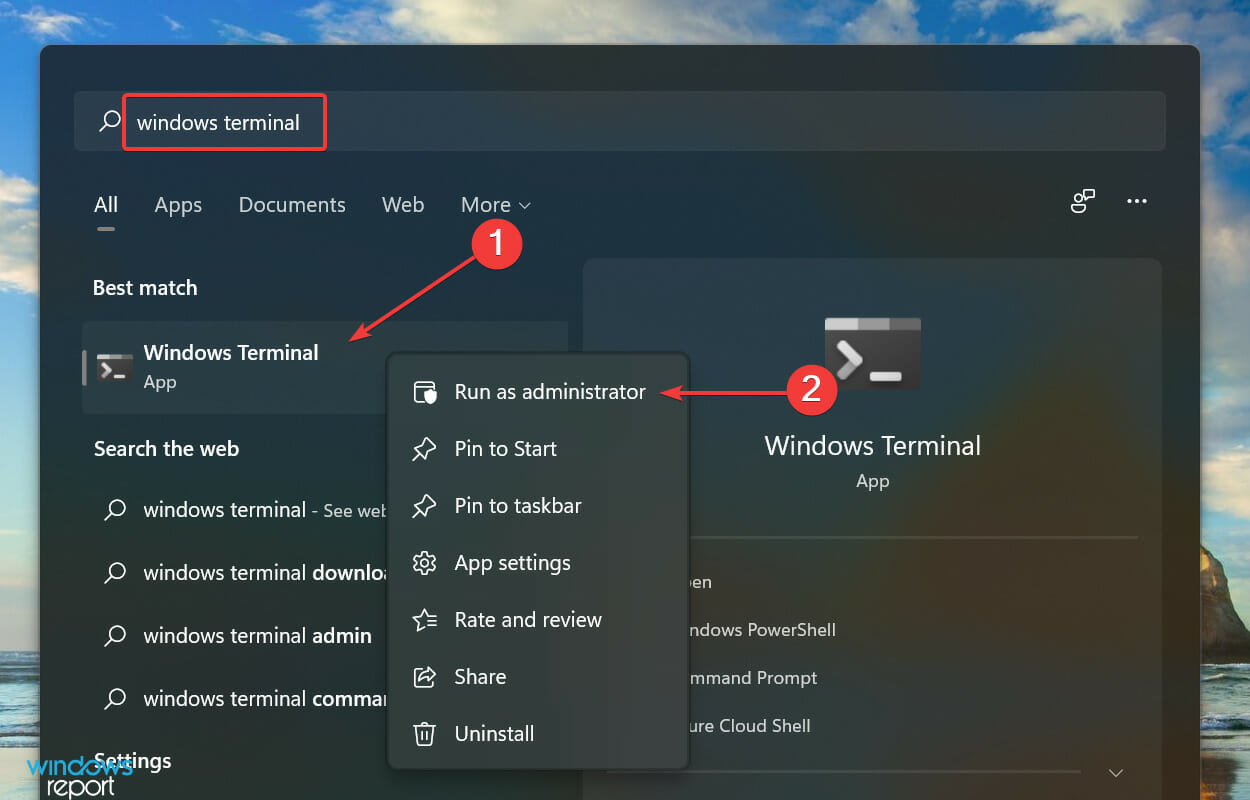
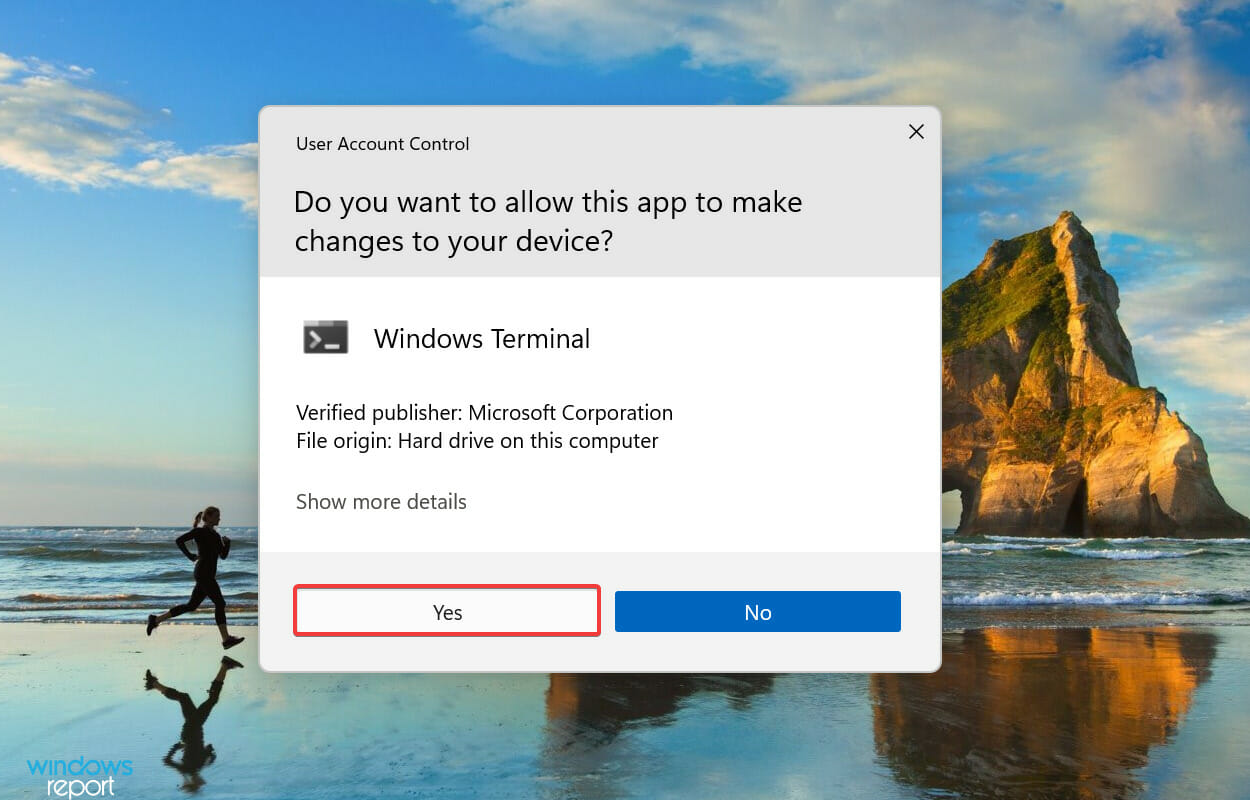
  1. Press Windows + S to launch the Search menu, enter Windows Terminal in the text field at the top, right-click on the relevant search result, and select Run as administrator from the context menu.Launch Windows Terminal to fix Windows 11 shutdown box
  2. Click Yes on the UAC (User Account Control) prompt that pops up.Click Yes
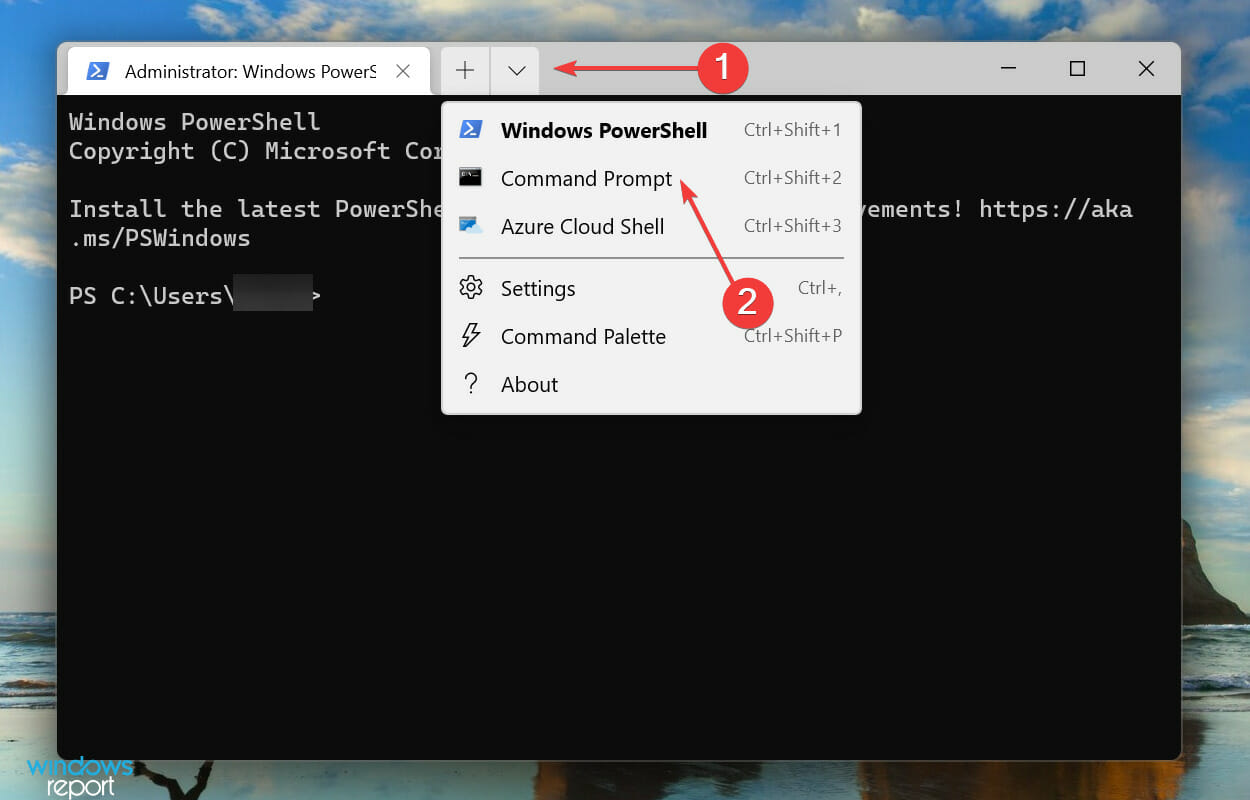
  3. Next, click on the downward-facing arrow at the top, and select Command Prompt from the list of options. Alternatively, you can hit Ctrl + Shift + 2 to launch Command Prompt in a new tab.Open Command Prompt to fix Windows 11 shutdown box
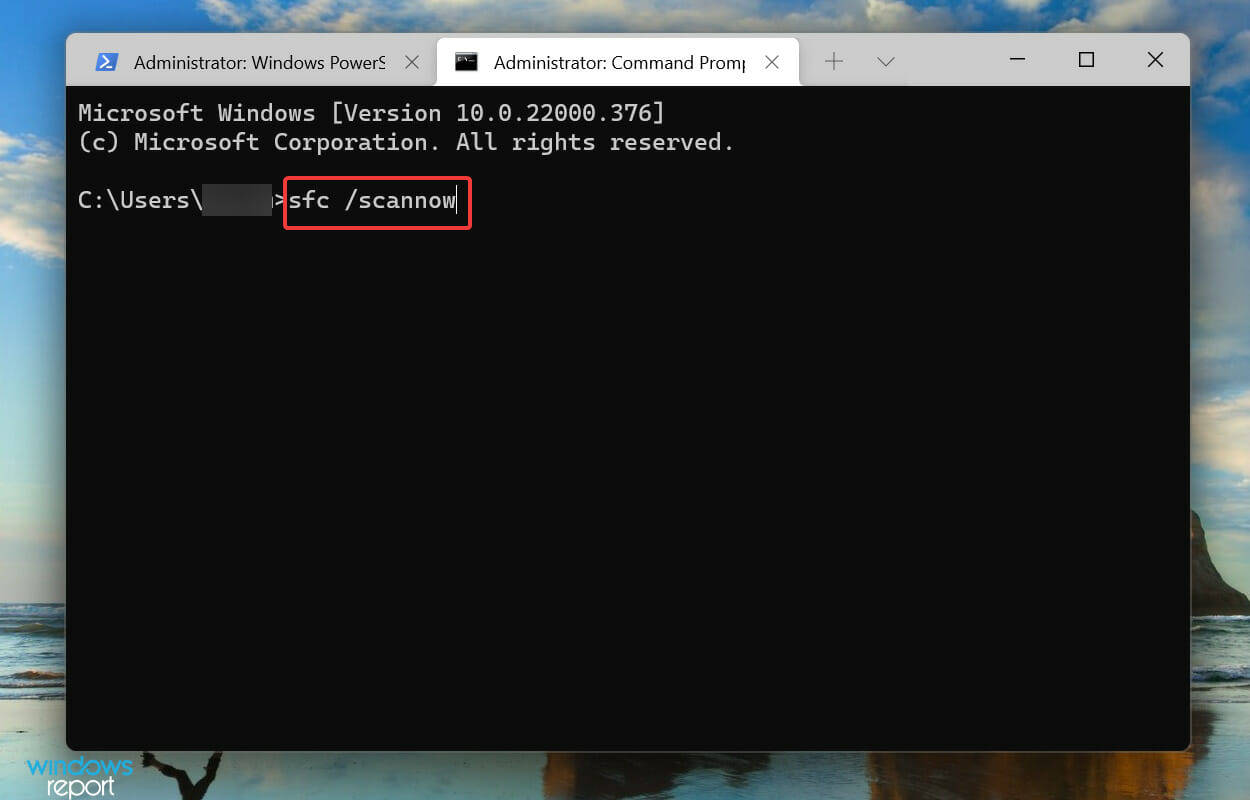
  4. Type the following command and hit Enter to perform the SFC scan:sfc /scannowRun SFC scan to fix Alternatively, you can hit Ctrl + Shift + 2 to launch Command Prompt in a new tab.
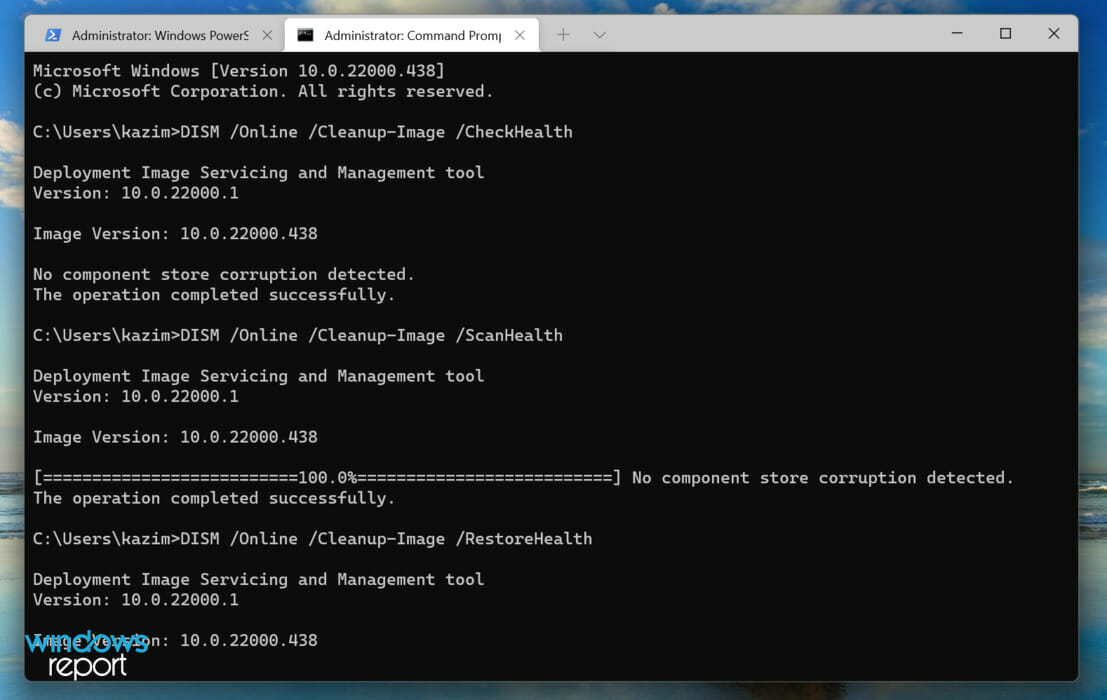
  5. After the scan is completed, execute the following three DISM commands individually. It basically means that you have to type/paste these one a time and hit Enter after each:DISM /Online /Cleanup-Image /CheckHealth DISM /Online /Cleanup-Image /ScanHealth DISM /Online /Cleanup-Image /RestoreHealthRun DISM tool to fix Windows 11 shutdown box

The SFC (System File Checker) scan looks for corrupt system files on the computer, and if any are found, they are replaced with their cached copy stored on the drive.

While, the DISM (Deployment Image Service and Management) tool scans for any kind of corruption and other issues that might be affecting the functioning of the OS, and eliminates them.

After running both scans, check if the shutdown box stops popping up randomly in Windows 11. Alternatively, you can try using specialized repair tools which are more advanced than Windows built-in tools.

5. Scan for malware

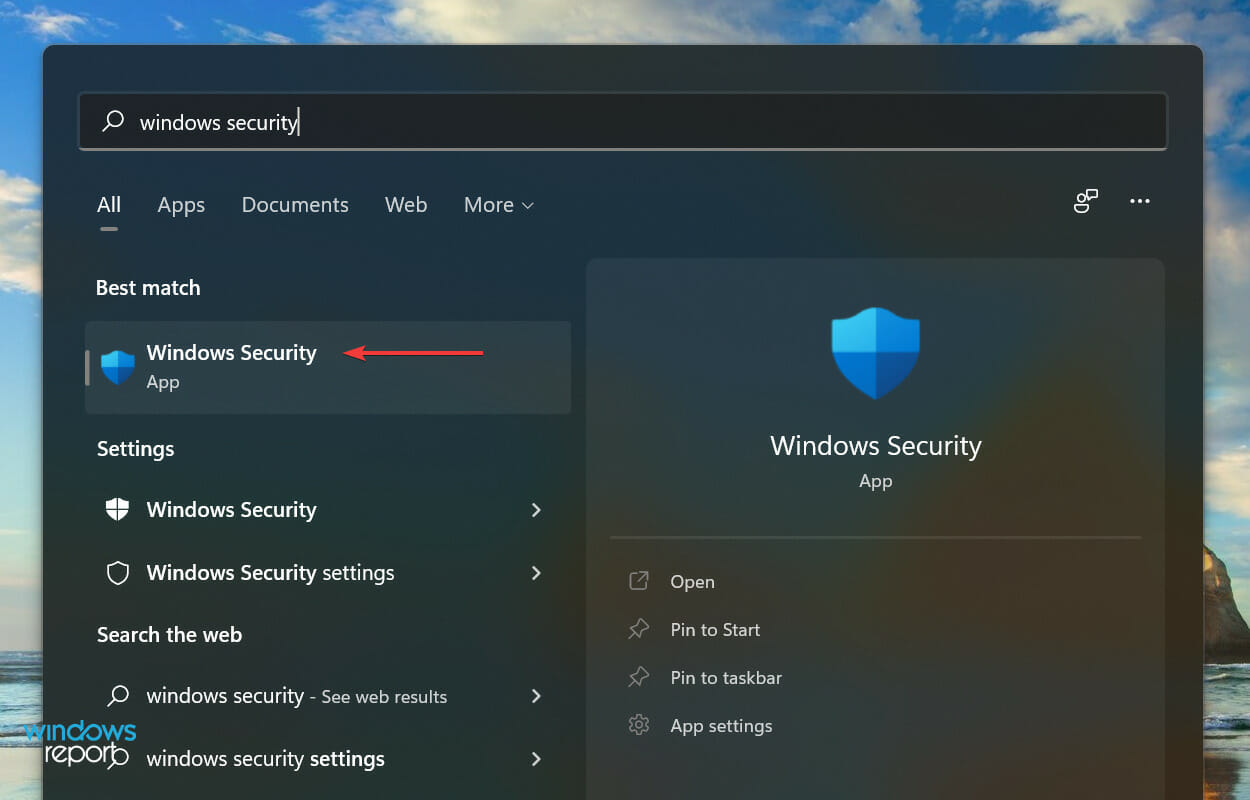
  1. Press Windows + S to launch the Search menu, enter Windows Security in the text field at the top, and click on the relevant search result that appears.Launch Windows Security to fix Windows 11 shutdown box
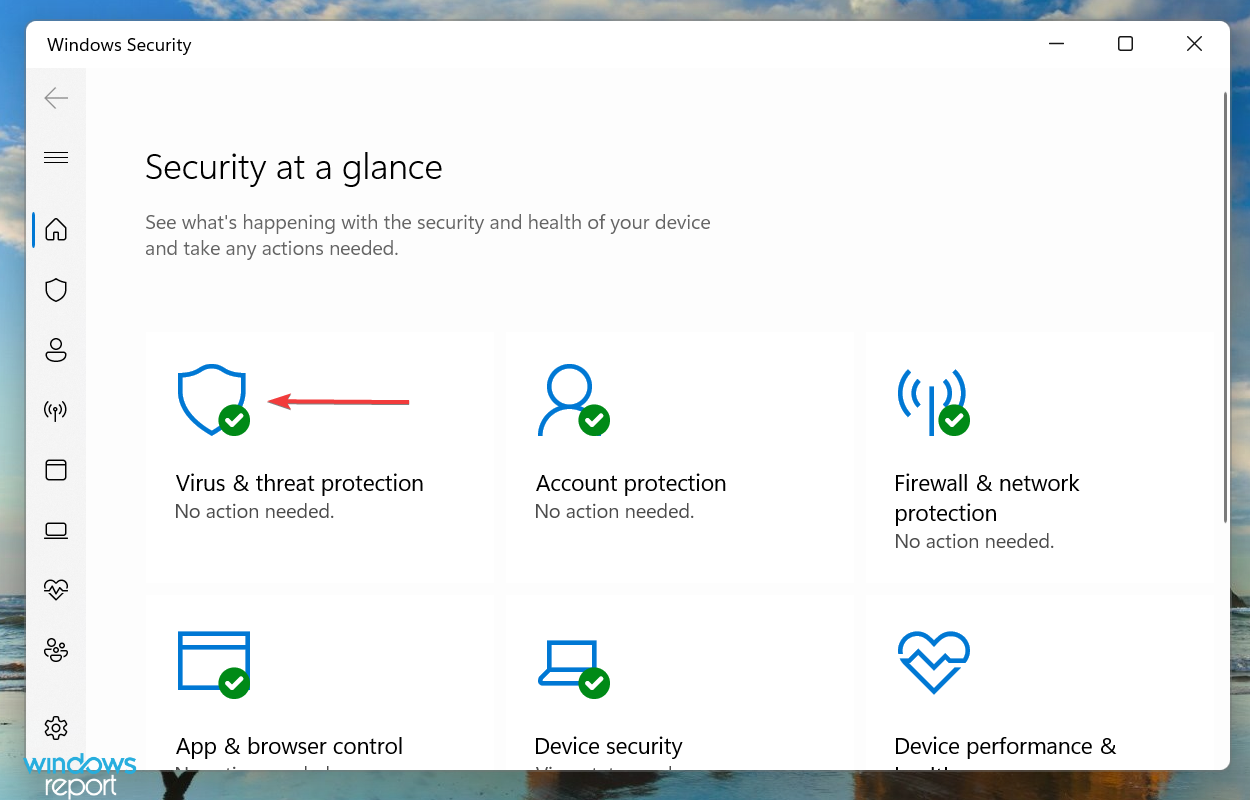
  2. Click on the Virus & threat protection option.Virus & threat protection
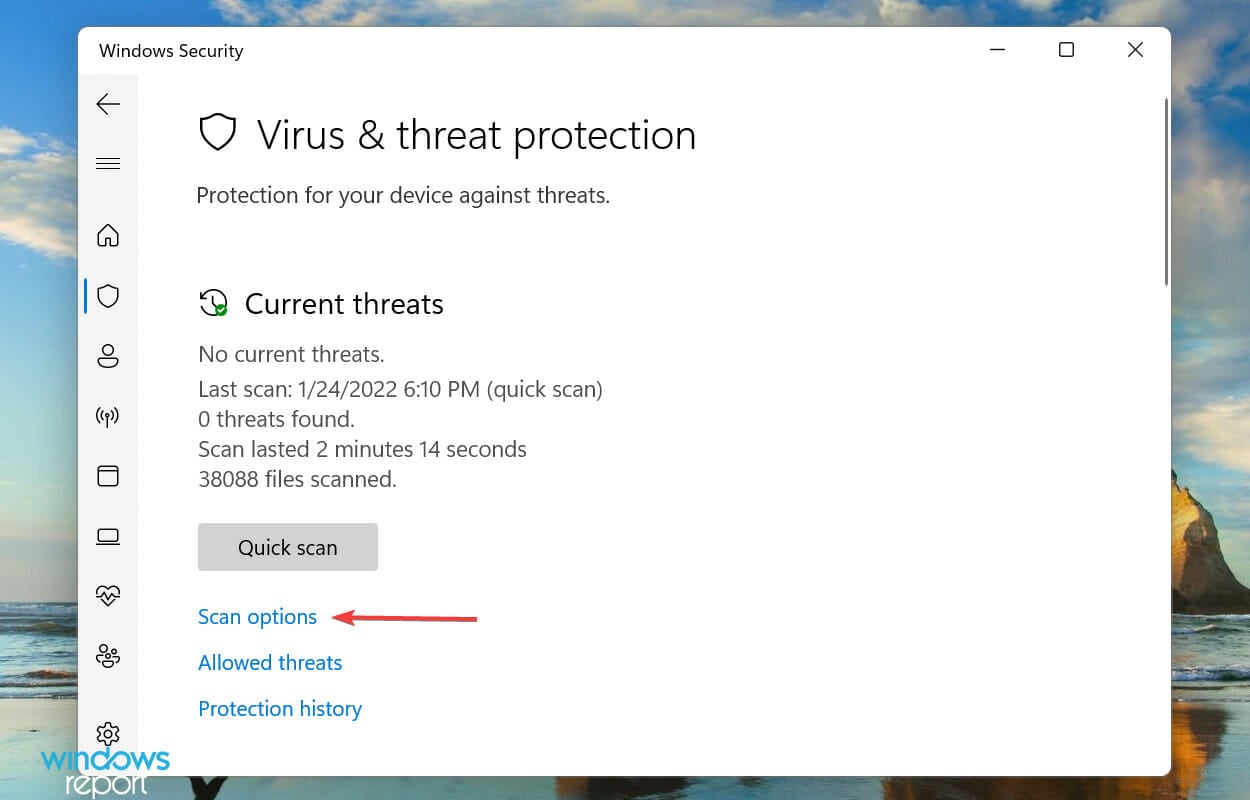
  3. Now, click on Scan options.Scan options
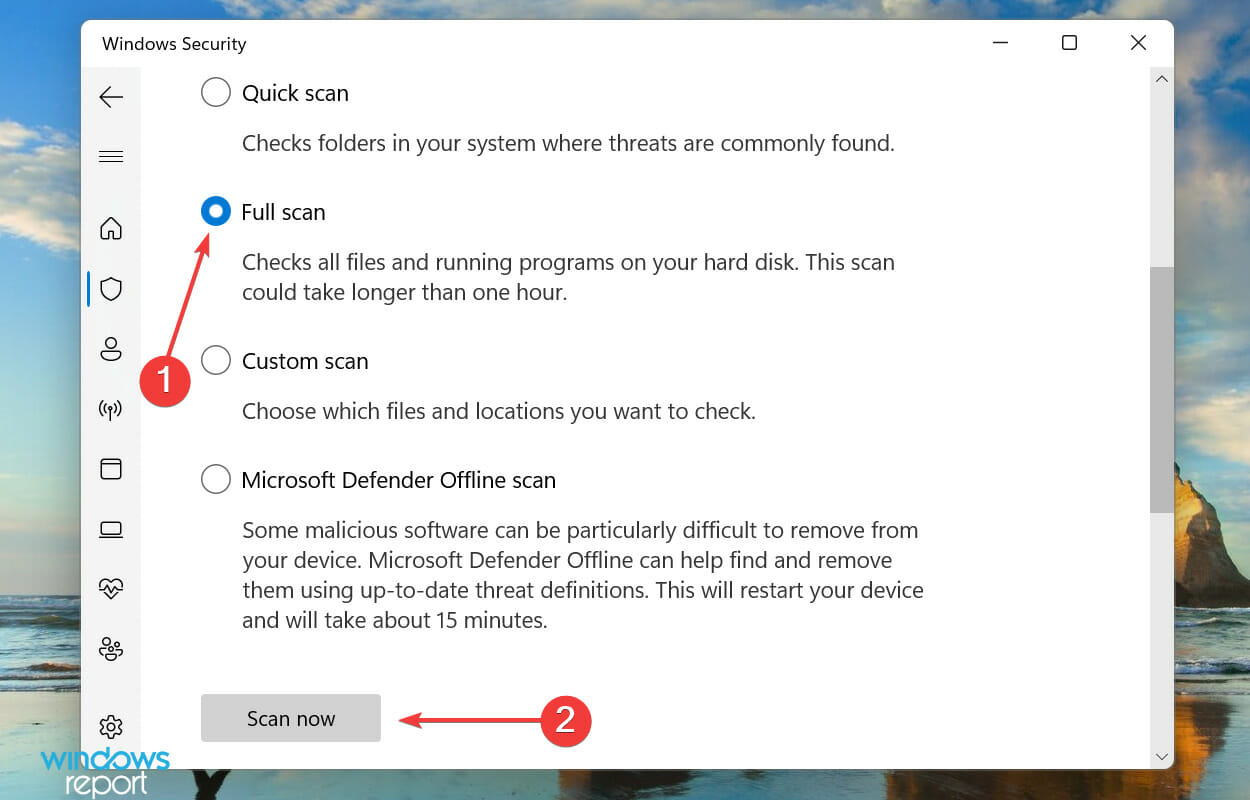
  4. Select the Full scan option and click on Scan now at the bottom.Run full scan to fix Windows 11 shutdown box

6. Remove conflicting applications

  1. Press Windows + I to launch Settings, and select Apps from the tabs listed in the navigation pane on the left.Apps tab to fix Windows 11 shutdown box
  2. Click on Apps & features on the right.Apps & features
  3. Locate the conflicting app, click on the ellipsis next to it, and select Uninstall from the menu.Uninstall app to fix Windows 11 shutdown box
  4. Finally, click Uninstall in the confirmation prompt that pops up.Confirm Uninstall

If you recently started encountering the error, it could be just as well be an app that’s conflicting with the functioning of the OS.

Make a list of all the apps that were installed around the time you first encountered the error. Now, start uninstalling the apps one at a time, restart the computer after each for the changes to fully come into effect, and check if the issue is eliminated.

Once you identify and uninstall the conflicting app, reinstall the other ones that were removed during the troubleshooting process.

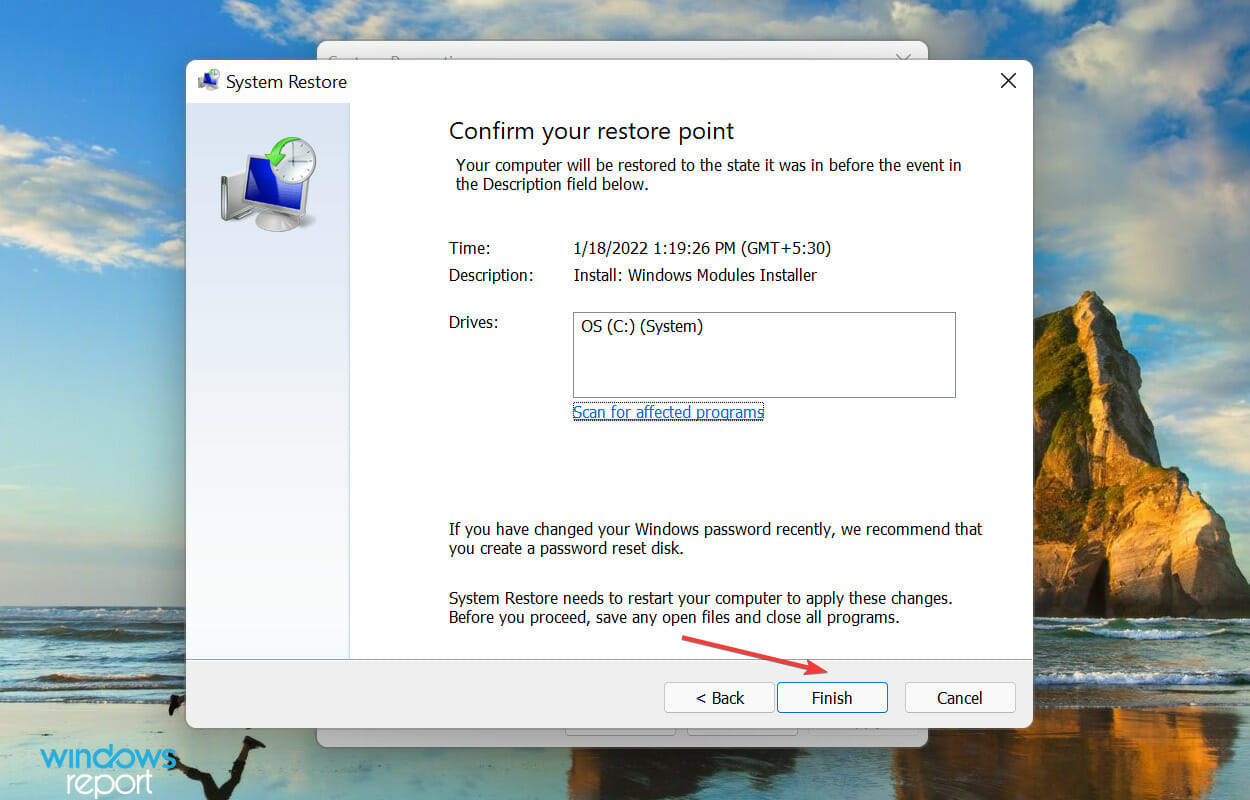
7. Perform a system restore

Note icon NOTE
Make sure to save any open files to avoid losing data, since the computer would restart during the restore process.
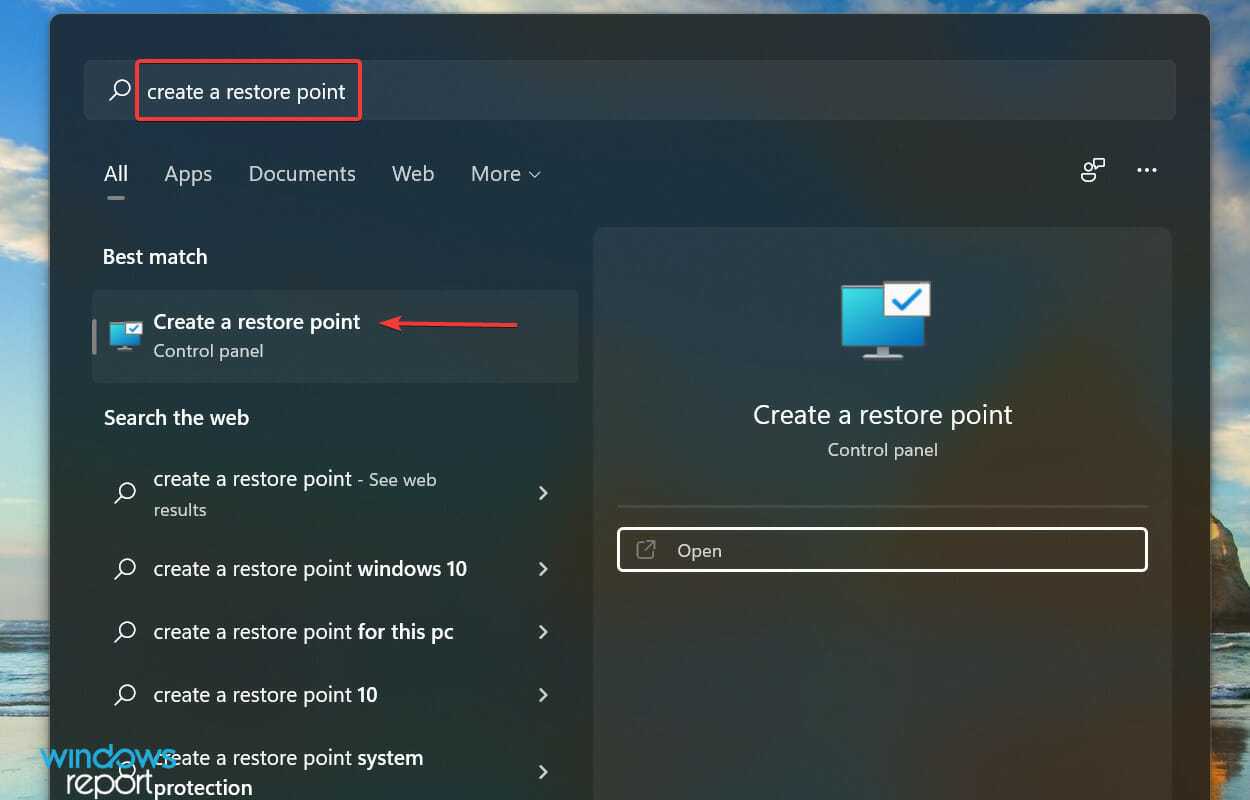
  1. Press Windows + S to launch the Search menu, enter Create a restore point in the text field at the top, and click on the relevant search result that appears.Create a restore point
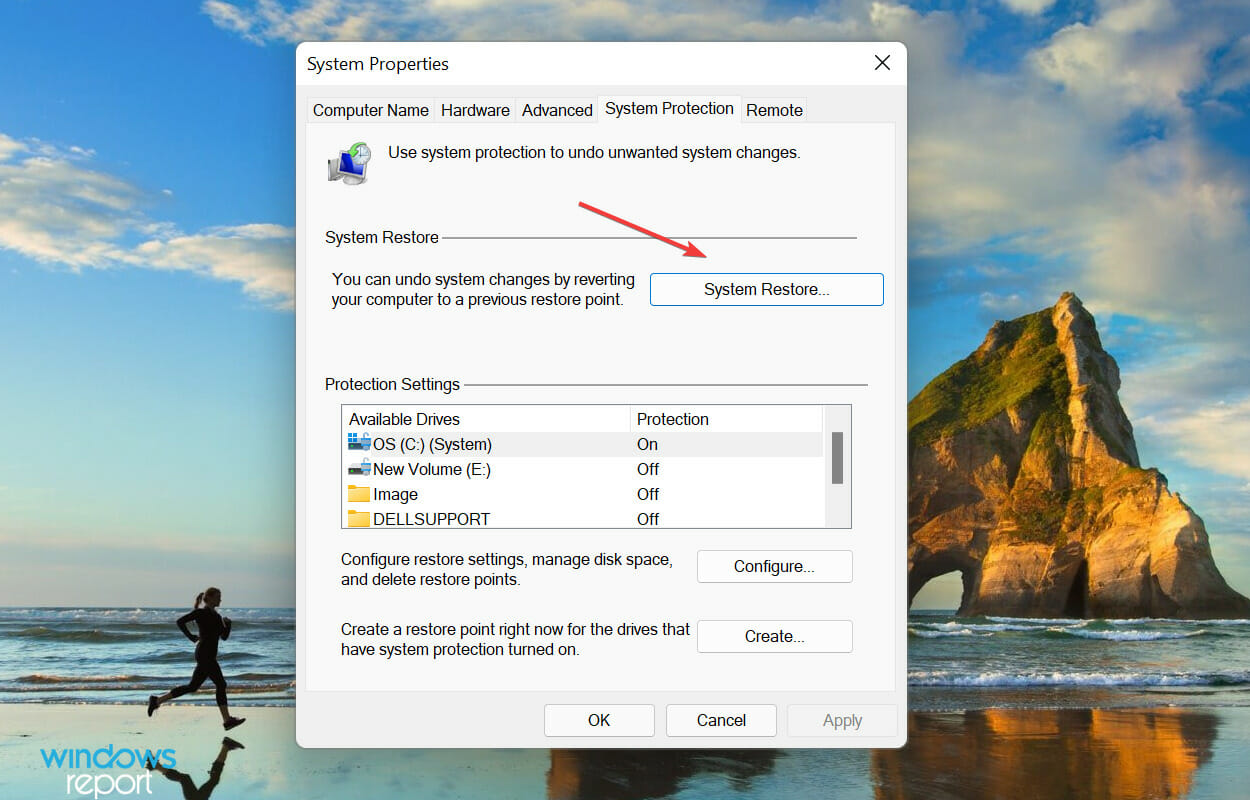
  2. Next, click on the System Restore button.System restore to fix Windows 11 shutdown box
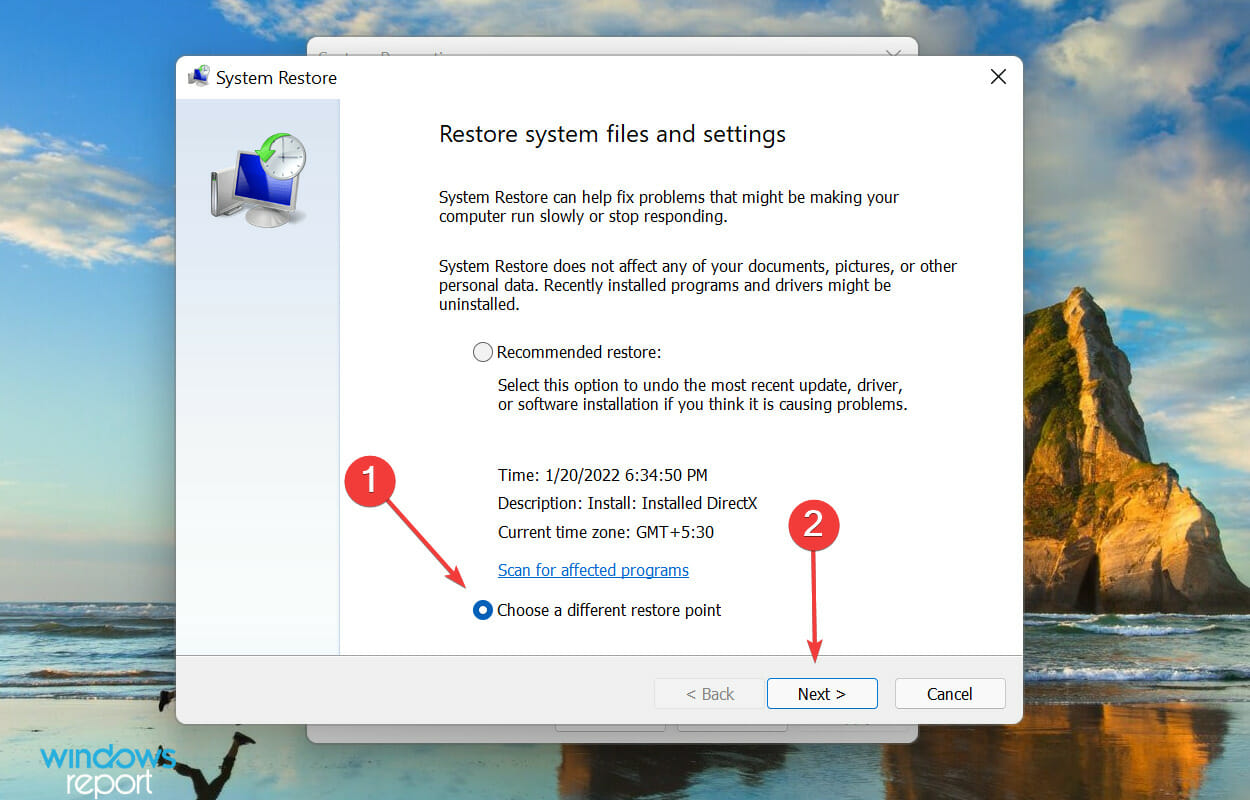
  3. Select the Choose a different restore point option and click on Next.Choose a different restore point
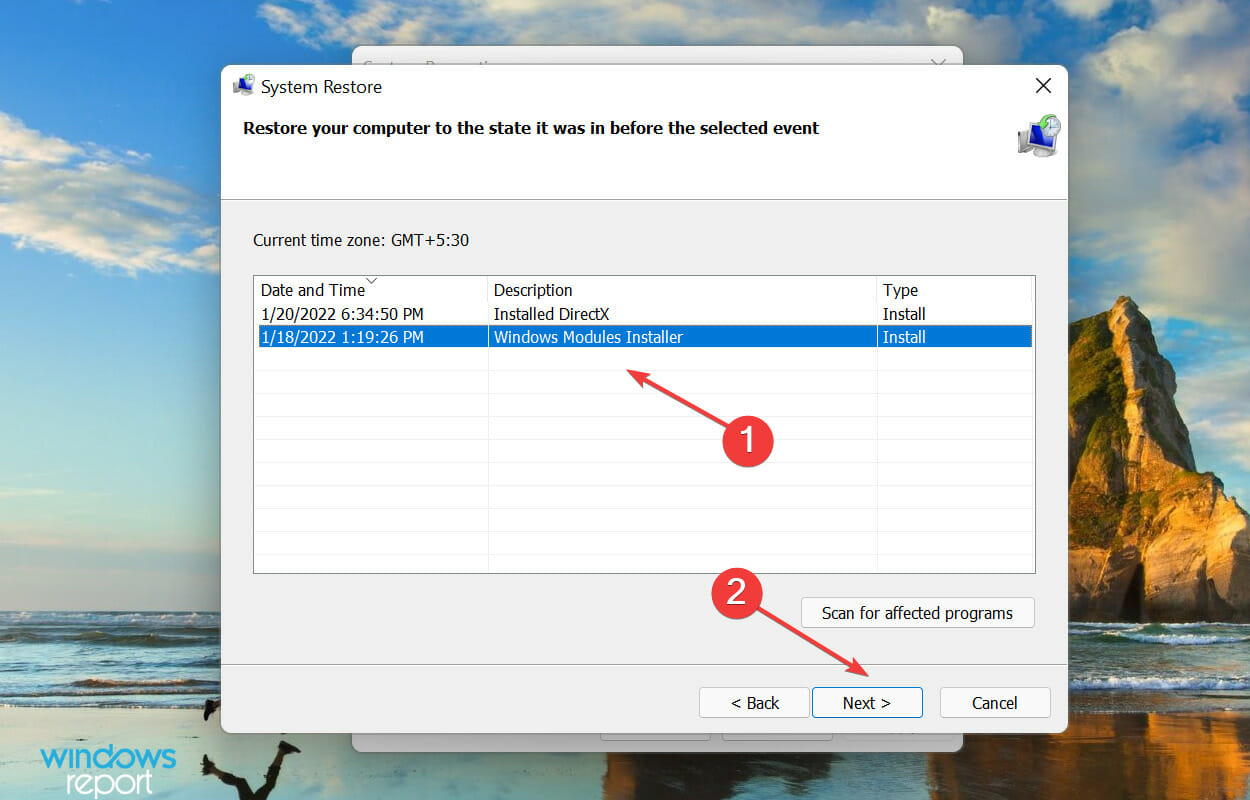
  4. Now, select a restore point from the list, and click on Next at the bottom.Select Restore point from the list
  5. Finally, verify the details and click on Finish to start the restore process.Start system restore process

If none of the methods listed above helped eliminate the issue causing the shutdown box to pop up randomly in Windows 11, restoring the system could help.

When you perform a restore, the idea is to take back the system to a point when the error didn’t exist. Note that this doesn’t affect the stored files, although, recent apps or configured settings may be removed.

What are the different ways I can shut down a Windows 11 PC?

Most of us have been using the same method to shut down, probably ever since we got our first Windows PC. But, knowing the alternate ways helps quickly shut down the system, no matter the state or even if the mouse or keyboard are not working.

To learn that, check our dedicated guide that lists the different ways you can shut down a Windows 11 PC. Also, find out how to schedule system shutdowns.

These are all the ways you can fix issues causing the shutdown box to pop up randomly in Windows 11. Besides, if these don’t work, you can roll back to the previous iteration.

In case you are facing issues shutting down the computer, learn how to fix the problem.

Tell us which fix worked and your experience of Windows 11 thus far, in the comments section below.

Microsoft Translator adds Inuinnaqtun and Romanized Inuktitut translation to its growing list of languages

Microsoft just announced that they are adding new translations to the Microsoft Translator. This move will allow the inclusion of both Inuinnaqtun and Romanized Inuktitut with the goal of enhancing the number of languages it supports.

The Microsoft Translator supports over 100 different languages including the two that have just been included. and the feature cuts across the board as users can access it on Office, Translator for Bing, and Microsoft Translator apps.

Additional support

According to Microsoft, you can now add Inuinnaqtun and Romanized Inuktitut text and document translation to applications, tools, websites, and workflows using Azure Cognitive Services Translator. Moreover, users have the ability to use the feature with Cognitive Services like Speech or Computer Vision. In return, you get additional features such as speech-to-text as well as image translation on your applications.

In January 2021, Microsoft used the traditional syllabic script to add Inuktitut to Microsoft Translator. They have taken quite some time to work on this with the aim of enhancing the effectiveness and efficiency of the translation models.  The move has further enhanced their cause to break language barriers.

As such, they are able to work with people that come from all walks of life despite their language barrier thanks to Microsoft Translator, preserving endangered languages such as Inuinnaqtun and Romanized Inuktitut. According to the post by Microsoft, there are over 7,000 languages spoken across the world. Unfortunately, a language becomes extinct every two weeks.

Endangered languages on the verge of becoming extinct

Based on predictions made, around 50% to 90% of the endangered languages are said to completely disappear from the phase of the earth in the next century. Nunavut’s government has worked with Microsoft Translator and community groups such as the Kitikmeot Heritage Society to ensure that Inuinnaqtun and Inuktitut are not among the languages that become extinct.

What are your thoughts on Microsoft’s move to try and preserve endangered languages? Share your thoughts with us in the comment section below.

Here are the consequences if you install Windows 11 with limited RAM

Getting Windows 11 installed on a computer with a small amount of disk space will still work, but you will have to be careful about the services and applications that you install.

The minimum processor requirements are a 1 GHz processor (1.4 GHz is recommended) and 4 GB of RAM. You also need at least 64GB of storage. There are more system requirements so be sure to check out the full list. 

Installing Windows 11 is a breeze, but there will be ramifications if you are trying to install it on a computer with low RAM. It’s likely that you’ll have some trouble with the installation process, as well as in the performance once the software is installed.

Why you should care about RAM

RAM is one of the most important components of your computer. In a nutshell, RAM is a temporary storage space that allows your computer to quickly access and run applications without having to read from your hard drive.

The more RAM you have, the faster your computer can perform tasks. When you’re running multiple programs at once, each program has to share its resources with its neighbors (this is called multitasking).

An application that’s using too much of its neighbor’s RAM may slow down or crash because of it.

The more RAM you have, the more tasks you can accomplish simultaneously without adversely affecting your performance speed.

You may also encounter some compatibility issues with older programs if you are running a limited amount of RAM. These programs may slow down or even crash when run in Windows 11 with limited RAM.

Can I upgrade my RAM?

It is possible to use Windows 11 on a computer with only 2GB of RAM, but you will find that you can’t do everything you want to do.

You’ll notice that the Windows 11 operating system runs smoothly when you’re just using your computer to browse the web and check email, but as soon as you start running other programs the computer slows down.

This is because Windows 11 needs more memory to run additional programs efficiently.

You can upgrade your RAM but you can’t do it on any computer. You have to check the specifications of your computer or laptop.

Users on Reddit had a field day when someone said they had installed Windows 11 with 2GB RAM. 

On the thread, comments were quick to dismiss the user and said that his joy would be short-lived as he wouldn’t enjoy the features for long.

To avoid any eventualities, use the PC Health Check app to see if your device meets the minimum system requirement.

Have you had any issues installing Windows 11 or encountered performance issues? Let us know in the comment section below.

New phishing scam targeting Youtube creators

A new phishing scam has been discovered by security experts, this time targeting online video creators and supposedly coming from Opera.

The fraudsters are trying to deceive users into believing they are communicating with a well-known brand, and making a profit out of it.

YouTube has become a platform for many different companies to advertise their products and services, so it’s not surprising that scammers have started taking advantage of this as well.

Scam alert

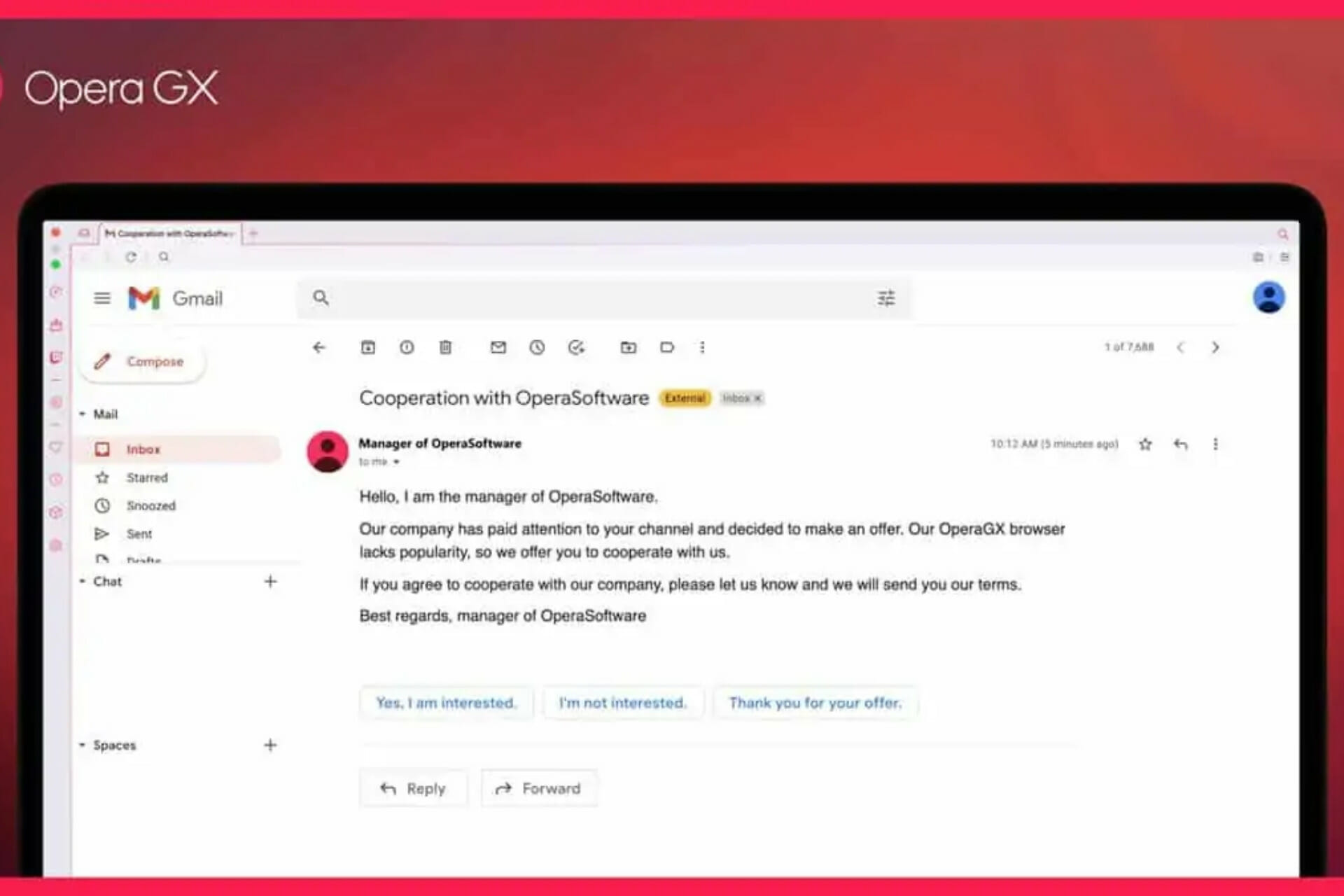
The scam email doesn’t look too dodgy at first glance — if you look at it, the message almost appears to be legitimate. It is easy to fall into the trap if you do not look closely.

The email starts off by saying that Opera GX is a browser that lacks popularity, and it would like to collaborate with the recipient.

In order to do so, the scammers are requesting that their company be featured.

Opera has confirmed that they have nothing to do with such offers made through email. The company has asked its users not to respond to such offers and advised them not to share any kind of personal or financial information over email.

Stay alert with these tips

Fraud emails often have spelling and grammatical errors. For example, the subject of the Opera GX scam email is spelled incorrectly in this way: “Opera Software GX.

The signature is another part of the mail that you can use to check the authenticity of the sender.

If the signature is written improperly and does not provide any information about the sender except for his or her name, it could be a phishing mail.

You should never click on links in scam emails. Sometimes, scammers will create a link to a website that looks like a real company’s site.

For example, the text might look like “www.example.com.” However, if you hover your mouse on this link in your web browser, you can see that the text is actually not valid—there are misspellings or it just doesn’t make sense.

These are clearly malicious links that can steal your password or install malware on your computer.

If you receive malicious mail, don’t open any links embedded in it or download any attachments — instead, report the message to the corresponding company, as well as to anti-virus and anti-spam companies. 

What other tips do you use to verify the authenticity of mail received? Share with us in the comment section below.

This easy tip on your Taskbar will make Windows 11 faster

The taskbar is the bar at the bottom of the screen where all your open programs are located.

By default, it has a few icons on it including Cortana, Search, and Task View which makes it easy to switch between programs or launch new ones.

You can customize the taskbar by moving these icons to different positions or adding new ones.

Lose the Teams icon

It’s not necessarily that Microsoft Teams is a bad app, but it’s not one that you’ll be using all of the time. For example, if you’re doing work on your PC and want to open a new tab in the browser, this is what you’ll see instead of the usual Chrome or Firefox icons.

Tapping the Teams icon will launch the app in a separate window, with buttons across the top to access your feed and so on.

Windows 11 has plenty of great features. However, the Microsoft Teams app is a RAM hog and can slow down your Windows computer, particularly if it’s not even being used.

Trying to find a way out of this situation, we discovered that you can completely remove the Microsoft Teams icon from the taskbar in Windows 11 for faster performance.

End space-hogging

However, some of these programs fire up processes in the background, even if you choose not to interact with them.

Removing the Microsoft Teams icon from your taskbar will get rid of these processes and free up memory on your system.

It’s a quick hack that will help improve performance if you’re running low on RAM and struggling with stuttering or freezing issues.

The same thing can be done with Widgets too but Microsoft doesn’t seem to be as aggressive about using up RAM through system tray icons.

The only time Widgets launches processes is when the icon is clicked. The Teams icon on the other hand uses up a lot of memory just sitting in the taskbar even if you don’t click on it.

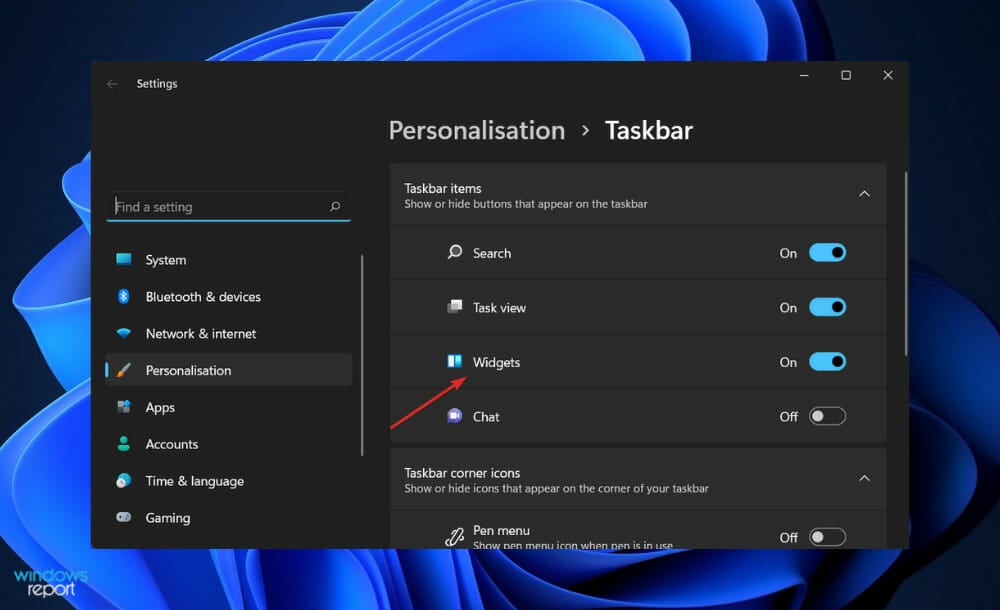
To remove the icon from the Taskbar, navigate to Settings>Personalization>Taskbar and toggle the Chats button off.

If you’re not a big user of Microsoft Teams, you might want to consider uninstalling it. You can also hide the taskbar if you find it annoying.

Do you have any other app icons that could be hogging space and have background processes that slow down your PC? You can also lose the icons from the Taskbar and boost your speed. 

Let us know in the comment section if this worked for you.

Test IE Mode in Microsoft Edge with Internet Explorer Drive

The Microsoft Edge team is committed to open web standards that enable developers to create experiences across any browser, including Microsoft Edge.

Software testing relies on a combination of automation tools and manual testing. Microsoft is working towards improving the support of Internet Explorer (IE) in Microsoft Edge.

In today’s uncertain software development environment, organizations must balance the need to deliver secure, quality software with the need to do so faster than their competition.

The company has confirmed that it is joining hands with the Selenium project to enable users to test IE mode in Edge with Internet Explorer Driver.

New testing capabilities

Now, by running your tests in IE mode, you can verify that your legacy web content works as expected in the company’s Chromium-based browser.

The goal is to increase the testing scenarios in which Edge can be used to deliver the latest web experience to customers.

This new capability allows organizations to run their web tests natively within Microsoft Edge.

If you would like to run IE tests using Edge, you will need to download IEDriver from the Selenium Project and also complete the required Selenium configuration requirements.

After you have downloaded and installed IE Driver, please ensure that it is configured appropriately for Selenium by following our Required Configuration.

On the 15th of June, 2022, some versions of Windows 10 will not offer support for Internet Explorer 11 (IE11).

Because of this, customers with older versions of Windows 10 that include IE11 need to upgrade their operating systems or begin the migration process to Microsoft Edge and use IE Mode, if needed.

Are you still dependent on Internet Explorer and will you or your organization be needing the IE mode? Let us know in the comment section.

Use this Windows 11 tip and let it do the dirty work for you

If your hard drive is full, you might be surprised by how much of a dent it can make on your PC’s performance.

That’s because a slow-running computer can have an effect on everything from streaming video games to simply checking your email in a web browser.

Fortunately, Microsoft Windows comes with a space-clearing tool you can use to avoid serious problems. Windows 10 users can also enjoy automatic cleaning with Storage Sense.

Automatically free-up space

When you’re running out of storage space, it’s usually because your PC is full of junk — temporary files, old downloads, and more. Windows 11 has a few settings you can configure to quickly delete this junk.

You may want to delete some files on your hard drive to free up some space. But how do you decide what file to get rid of? Is there an easy way to quickly find files that you can delete and free up disk space?

You don’t need a third-party program for this, but you could use one if you wanted. However, deleting lots of files from your hard drive can be time-consuming, especially if your PC is older and slower. 

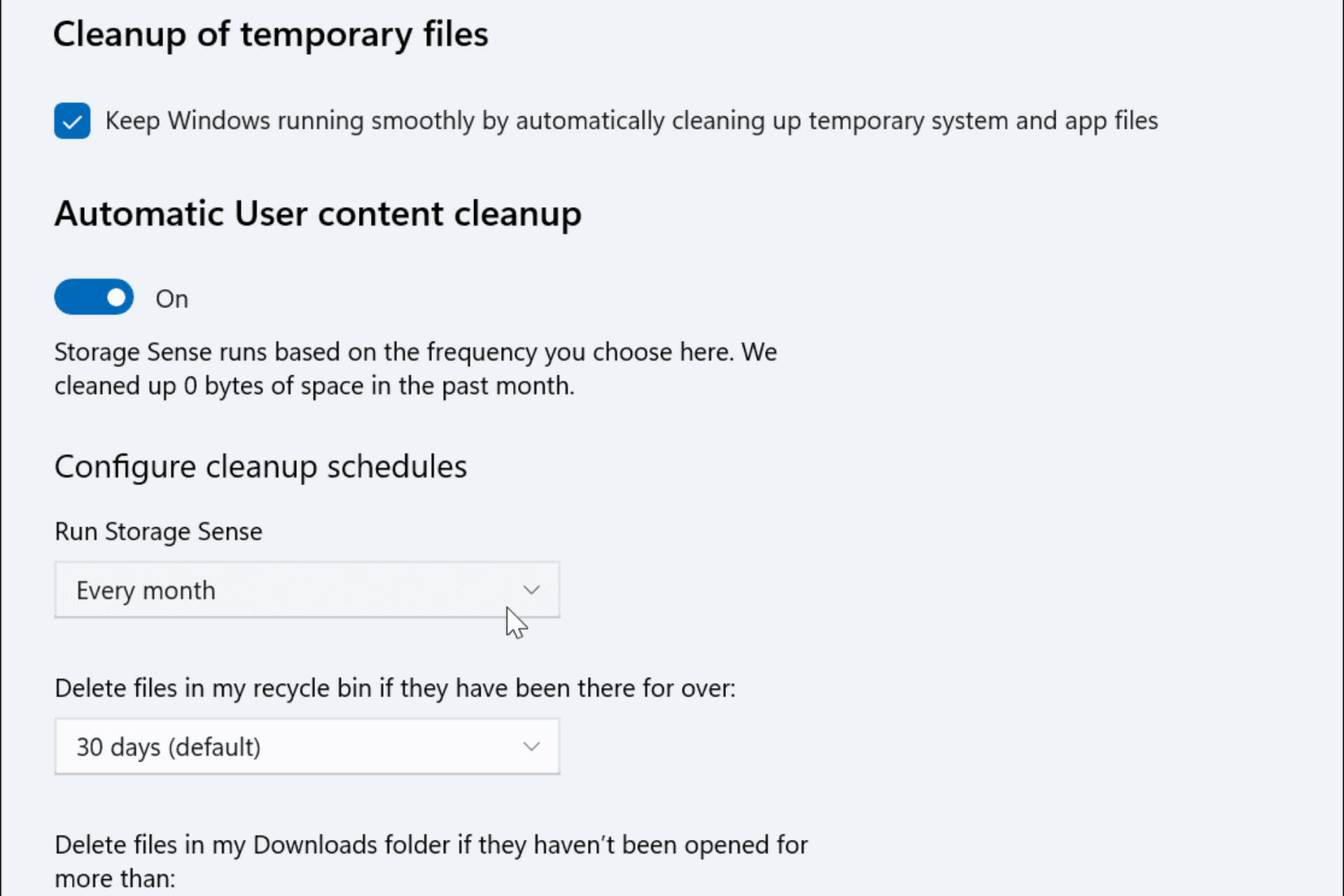
To do so, navigate to Settings > System > Storage. You’ll see a breakdown into several categories of apps and features, temporary files, and others.

Storage Sense

If you’ve ever had less than 15 percent of your hard drive free, then you know how frustrating it can be to have a computer that constantly runs out of space. But there’s a way to avoid this hassle with Windows 11 called Storage Sense.

It’s a good way to free up disk space on Windows devices running out of storage when you don’t have a lot of time to do it manually. 

The Storage Sense settings can automatically free up disk space on your computer when you’re running low. This process happens in the background, so you don’t have to worry about it happening at an inopportune time while you’re working.

You can also configure Storage Sense to automatically delete files depending on how much storage you have remaining. If you give it a minimum amount of free space, it will automatically delete the oldest, least-used files when that threshold is reached.

So what are you waiting for? Enable Storage Sense on your device and go on about your business while it does the work for you.

You can also use some of our recommended cleaner tools to free up space if you are looking for third-party apps to do the job for you.

Have you enabled Storage Sense on your PC? How is it working so far for you? Share your experience down below.

Celebrate the Minecraft Lunar New Year with a free map and other goodies

If you are among the people who just can’t wait to celebrate one of the major annual events in their favorite game and earn some unique rewards while doing it, this article is for you specifically.

The Lunar New Year is here, and Minecraft is ready to celebrate alongside communities around the world with a free map, and tiger-themed character items.

Let’s get right into it and see what the creators have prepared for this year’s virtual festivities.

Playres can earn unique bonus rewards during the event

Since we’re celebrating, and the pixelated air in Minecraft already smells like an oriental renaissance fair, let’s talk about all the goodies we can score this season.

First of all, the Legend of Nezha map will be available on the Minecraft Marketplace for the next 12 months for free.

This new area has been designed by the people at Next Studio, and it allows Minecraft players to immerse themselves in a tale of heroes and battles, and even a fight with a Strone Queen.

You were, of course, wondering about character items, so you should know that there’s a free tiger mask and a free tiger sweater.

However, the above-mentioned cosmetics will only be free between February 1 and February 7, so you better step on it if you want to add them to your collection.

Keep in mind that, if you also want a shot at these rewards and the new map, you’ll need the latest version of Minecraft: Bedrock Edition and access to Minecraft Marketplace.

This is actually very exciting news for Minecraft players that are always hungry for new content, especially since it’s been some time since the last DLCs were dropped.

Take advantage of this opportunity, have fun with your friends, and earn those cosmetic seasonal rewards you were looking forward to so much.

Have you already downloaded the free Lunar New Year content? Share your experience with us in the comments section below.

Mozilla promises its users more privacy through MAC and VPN

If there’s one thing Mozilla generally places great emphasis on, its individual privacy and security in its Firefox browser.

For those who remember, back in 2017, the company released a Multi-Account Containers add-on, which enables you to sandbox different aspects of your life. T

However, today, Mozilla announces that it is combining this add-on with Mozilla VPN to further enhance your privacy. How’s that for some great news?

Multi-Account Containers and VPN combined up for extra privacy

Multi-Account Containers have been extremely popular in its user base as people have been successfully able to containerize their online lives, according to Mozilla.

Users can personalize their containers in different ways and categorize them as needed too, if that’s what they trully want.

Keep in mind that website cookies between containers are obviously isolated so you can sign into the same site with different accounts in different containers.

Users have the ability to configure different exit servers for each container, and the goal here is to add another layer of privacy to your online personas, through the Mozilla VPN integration.

An exacmple of how one might use this is to set one container to your current location, and set another container to the location of your loved ones, so that you can order gifts for them online and have them delivered quickly.

Needless to say, there are tons of other more privacy-focused scenarios where Mozilla’s VPN integration with Multi-Account Containers would be useful too.

The company has actually described this combo as a unique privacy solution that is only available in Firefox, just to help nudge potential new users in the right direction.

Mozilla VPN’s multi-hop feature that enables users to configure two VPN servers instead of just one is now also available on Android and iOS, following its initial release on desktop in September 2021.

Although this is not set in stone, this is primarily meant for journalists, political activists, and other high-value people.

Is this a feature tht would make you consider switching to Firefox, from you current browser? Share your opinion with us in the comments section below.

Fix: YouTube Music Not Available in Your Country

There are many great audio streaming services, such as Spotify, but certain users prefer to keep using Google and their apps instead.

Unfortunately, sometimes, these services aren’t available worldwide, so instead of being disappointed because YouTube Music is not available in your country, you should continue to read as we come up with solutions to fix that.

In the unfortunate event that your country is not on the list, you should be able to access this service if you follow the solutions from this guide.

How does YouTube Music work?

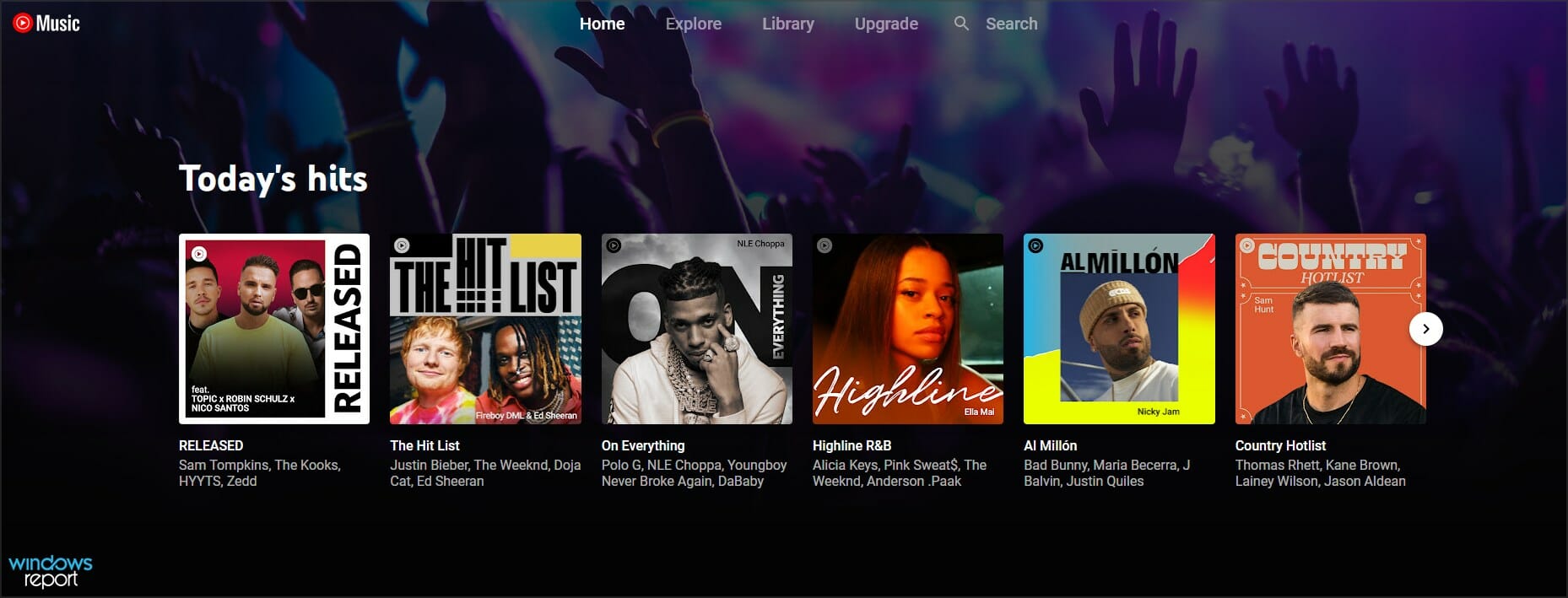
YouTube Music is made by Google and it’s a streaming service optimized for audio streaming and music video playback.

It’s similar to YouTube, but the whole experience is optimized for music listening, making it easier to find your favorite artists.

Why do I get a message saying that YouTube Music is not available?

There are numerous reasons for this, and it’s possible that the service isn’t available yet in your region. Another cause can be your Google account settings.

Other factors include a corrupt application cache or your proxy or VPN settings.

What can I do if getting the error: YouTube music is not available in your area?

1. Clear the application cache

  1. Go to Settings and navigate to Storage.
  2. Now select Other apps.
  3. Select YouTube Music from the list.
  4. Click on Clear cache.

2. Use a VPN

How to use a VPN on PC

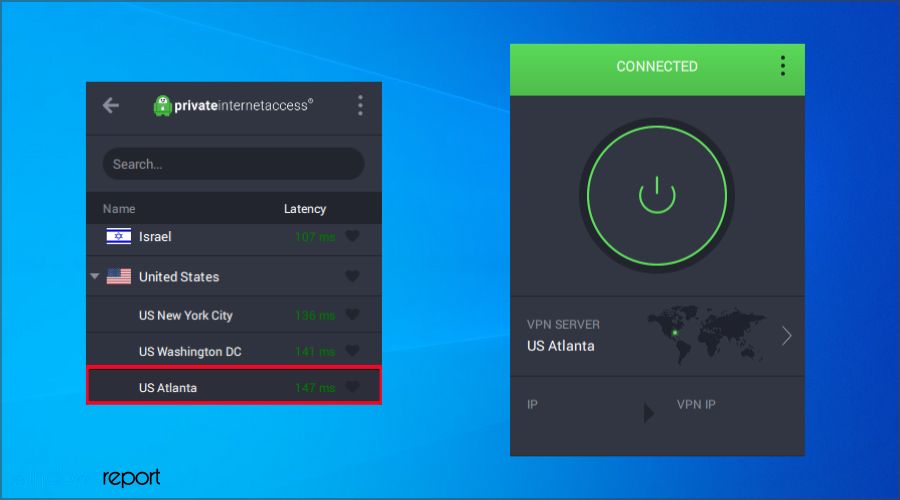
  1. Sign up with a VPN service provider (We’ve been using PIA – Private Internet Access – for the demonstration).
  2. Download and install the application on your device.
  3. Launch the application.
  4. Connect to a server in a country where the service is available (e.g. USA, Germany, France, etc.).
  5. Open the YouTube Music web player and enjoy streaming your favorite jams without any restrictions.

How to use a VPN on Android

  1. Sign up with a VPN service provider.
  2. Install the VPN client on your Android device.
  3. Connect to a VPN server in a country where the service is available.
  4. On your Android device, go to Settings click on Apps, and choose Google Play Store.
  5. Tap on FORCE STOP to restart the app.
  6. Go to Storage and tap on CLEAR CACHE, then choose CLEAR DATA.
  7. Open Google Play Store and try again launching YouTube Music.

3. Create a new Google account

  1. Open Settings and select Accounts.
  2. Scroll down and select Google and choose Add account.
  3. Pick Google and select Create account.
  4. Select For myself and follow the instructions on the screen.
  5. Now enter your personal information and follow the instructions on the screen to complete the process.
  6. Use the new account to sign in to YouTube music and check if the problem is resolved.

4. Change my Google Play country

  1. Open the Play Store app on your Android device.
  2. Then, go to the menu, then tap on your account picture.
  3. Go to Settings.
  4. Select General.
  5. Pick Account and device preferences and then Country and profiles.
  6. Select your country and follow the on the screen to complete the process.

What can I do if getting the YouTube Music is not available in your country error on iPhone?

  1. Open Settings on your iPhone.
  2. Now tap your name and then tap Media & Purchases.
  3. Navigate to View account. If asked, be sure to log in.
  4. Go to Country/Region.
  5. Tap on Change country or region.
  6. Select the new country and save changes.

How can I fix YouTube Music is not available in your area message on PC?

1. Create a new Google account

  1. Visit Google Account creation page.
  2. Enter your personal information and click on Next.
  3. Enter a valid phone number and click Next.
  4. Follow the instructions on the screen to complete the process.
  5. Once your new account is verified, use it to sign in to YouTube Music.

2. Change your country in Google Play

  1. Go to Google Pay webpage.
  2. Now navigate to Settings.
  3. Click the edit icon next to Country/Region.
  4. Now select Create new profile.
  5. Follow the instructions on the screen to complete the process.

3. Disable proxy and VPN

  1. Press Windows key + I to open the Settings app.
  2. Head to the Network & Internet section.
  3. Navigate to Proxy and disable all settings in the right pane.
  4. Now go to VPN and select your VPN. Now click on Disable or Remove.

Which are YouTube Music supported countries?

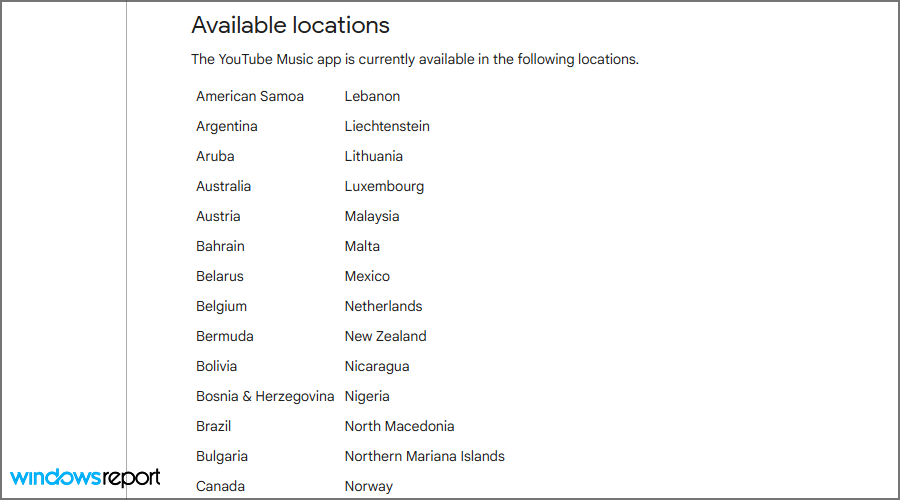
Since its launch in 2015, Google has working hard to bring support for YouTube Music to as many countries as possible. Before you download YouTube Music, check whether your region is whitelisted.

List of countries where YouTube Music is available (Source: Google)

Currently, the service is available in over 100 countries worldwide, including most in the Americas, Europe, and several countries in Asia and Africa.

Is YouTube Music available for free?

Yes, the service is available for free, but there’s also a Premium subscription available that offers certain benefits, the lack of ads being the biggest one.

The paid version also allows you to download music or play it in the background, which can be useful, especially if you’re listening on your phone.

We are confident that after trying the above solutions, you can use the streaming service even if YouTube Music isn’t available in your country.

In case you’re having issues, perhaps you should consider using VPN specialized for streaming until the service becomes available in your region.

Did you manage to fix this issue on your own? If you have, feel free to share your solutions with us in the comments section below.

Users claim their Windows 11 devices finally run smoother

There has been a lot going on with Windows 11 since it first came out back in October 2021. The latest OS has been plagued by disk performance issues since last summer, when it was still only available to Insider testers.

Some of these issues were still alive and well in the present version of Windows 11, but the Redmond tech giant claims to have permanently dealt with the Windows 11 disk performance issues.

It looks like there might be some truth to all this, seeing how everyone claims everything went back to normal after the KB5008353 release.

HDD?SSD issue fixed through late January cumulative update

The bug actually affects HDDs and SSDs, which in some cases are running more than 50% slower, and the issue was first reported in July 2021.

The great majority thought that this problem was officially resolved in December 2021, when Microsoft issued a cumulative update to solve it.

However, the Windows 11 cumulative update fixes these performance issues for some users only and there are reports of SSD or HDD still being slower than it should be.

Before this late January update, the speed and response time of PC fixed storage devices could be severely impacted on Microsoft’s latest OS.

The update’s release notes mention that the software specifically addresses a performance regression issue that occurs when you enable the update sequence number (USN) journal.

Windows 11 users have started acknowledging the win all over forums and on Microsoft’s official Feedback Hub, where they claim that storage devices are at last performing as well as they did under Windows 10.

The observations appear to cover the gamut of drives, from those using the SATA interface to the latest M.2 NVMe SSDs.

It’s important that the word spreads to absolutely anyone who has been struggling with sluggish response times because of this annoying issue.

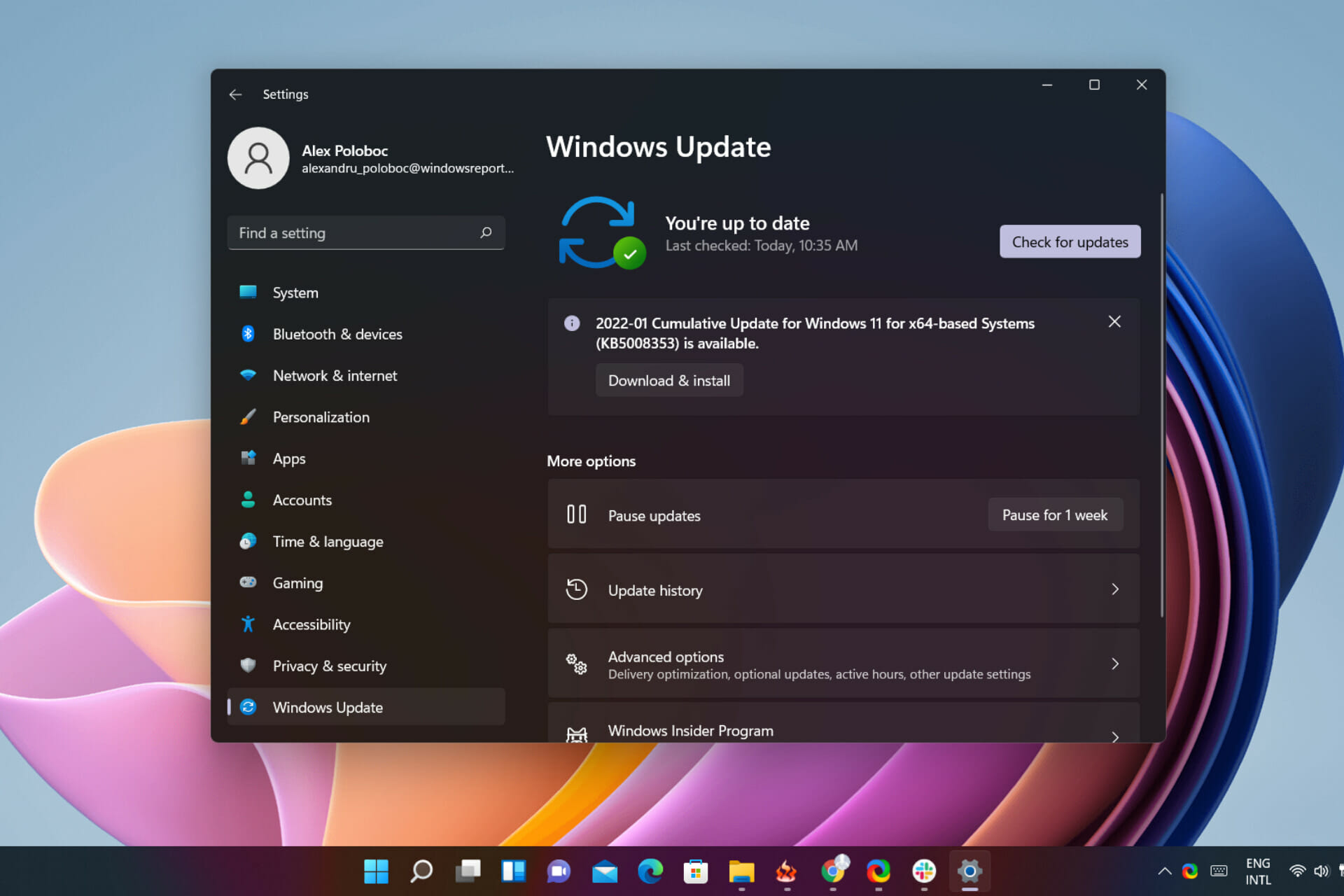
So, if you upgraded to Windows 11, or have a pre-built Windows 11 system whose disk performance doesn’t quite seem to be what you expected, you can manually check for KB5008353.

This late January cumulative update brought forward a lot of fixes and improvements that you will definitely want to check out if you’re interested in this kind of stuff.

Have you also experienced slow HDD or SSD response times on your Windows 11 device? Share your experience with us in the comments section below.

Best Calendar App for Windows 11: Top 6 Picks Ranked

It’s difficult to imagine a world without a calendar. It’s something that even ancient people knew was incredibly important.

The calendar has evolved from stone tablets to paper filled with stick notes and scribbled notes filling the posts. The modern-day routine would not exist as it currently stands if we didn’t have a way to mark important dates and times.

It may be hyperbole to hype up the calendar to this extent, but its importance must be stated outright.

Innovation has led the calendar to migrate over to the digital space where we rely on apps on our operating systems to do the jobs for us. But it’s always important to have good time management skills.

If you get time management right, you will save tons of time and yourself some stress. And that’s the main goal of calendar apps: making your life easier so you can maximize the amount of time you spent working and your personal life.  

The calendar on Windows 11 does a decent job, but there are better options out there on the internet.

What should I look for in a calendar app?

There are three main categories that you should focus on when shopping for a new calendar app:

➡ User interface

➡ Synchronization capabilities

➡ Features

The user interface and features are pretty straightforward ideas. You want something that looks good and is easy to navigate.

And there are a ton of calendar apps that offer additional features to help them stand out from the crowd. Certain calendar apps are better suited for a specific purpose rather than general situations.

Synchronization is a tougher idea to pin down. It refers to how the app can sync with other apps, and thus how versatile it is across systems.

You see, the majority of calendar apps aren’t true calendars as they require a connection to another calendar. The app is merely window dressing that gets added on top of that calendar and adds new tools and features.  

Having this functionality helps enhance the overall experience with the calendar.

This guide will break down the best calendar apps for Windows 11 computers for this year. Some of these also saw a lot of success on Windows 10 due to their high quality.

What are the best calendar apps on Windows 11?

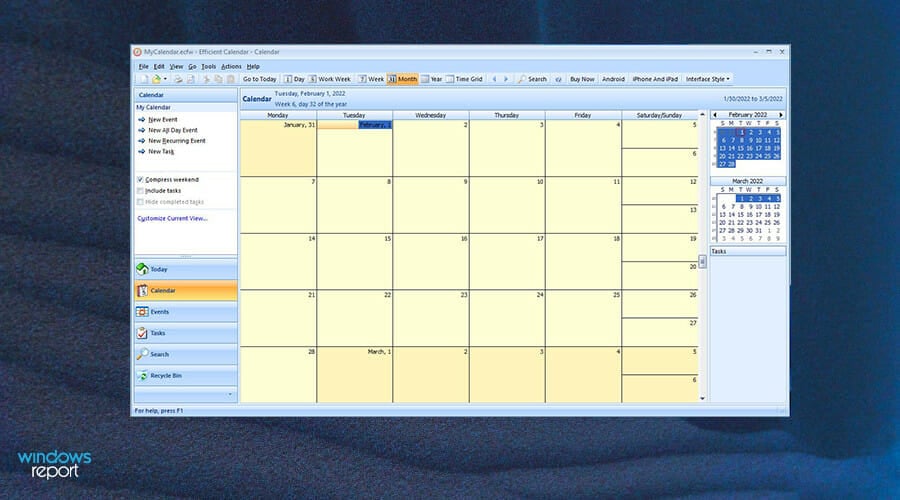
Efficient Calendar

Keeping in line with good-looking apps is Efficient Calendar. It’s a cross-platform app that allows you to schedule, plan, and remind you of your upcoming events. It has a mobile app version for both Android and iOS to sync up to your Windows 11 computer, but there’s nothing for Mac machines.

Efficient keeps track of multiple calendar views from Day, Week, Month, and Year which can all be organized in a list view so you can better track your events. You can even implement subtasks at any level for better micromanaging. The app has a First Thing First feature that can set which tasks and events are the most important and list them by priority.

Interestingly enough, Efficient even comes with a document editor similar to Microsoft Word, so you can add comments to scheduled events. This is something that unique to Efficient as most other apps just let you add comments.

The mobile version is free, but the desktop version isn’t. You do, however, have access to a free 30-day trial so you can test out Efficient and see if it fits your scheduling needs.

Efficient Calendar

This user-friendly application enables you to sync your calendars across platforms and helps with organizing your schedule, no matter how busy it is.
Check price Visit website

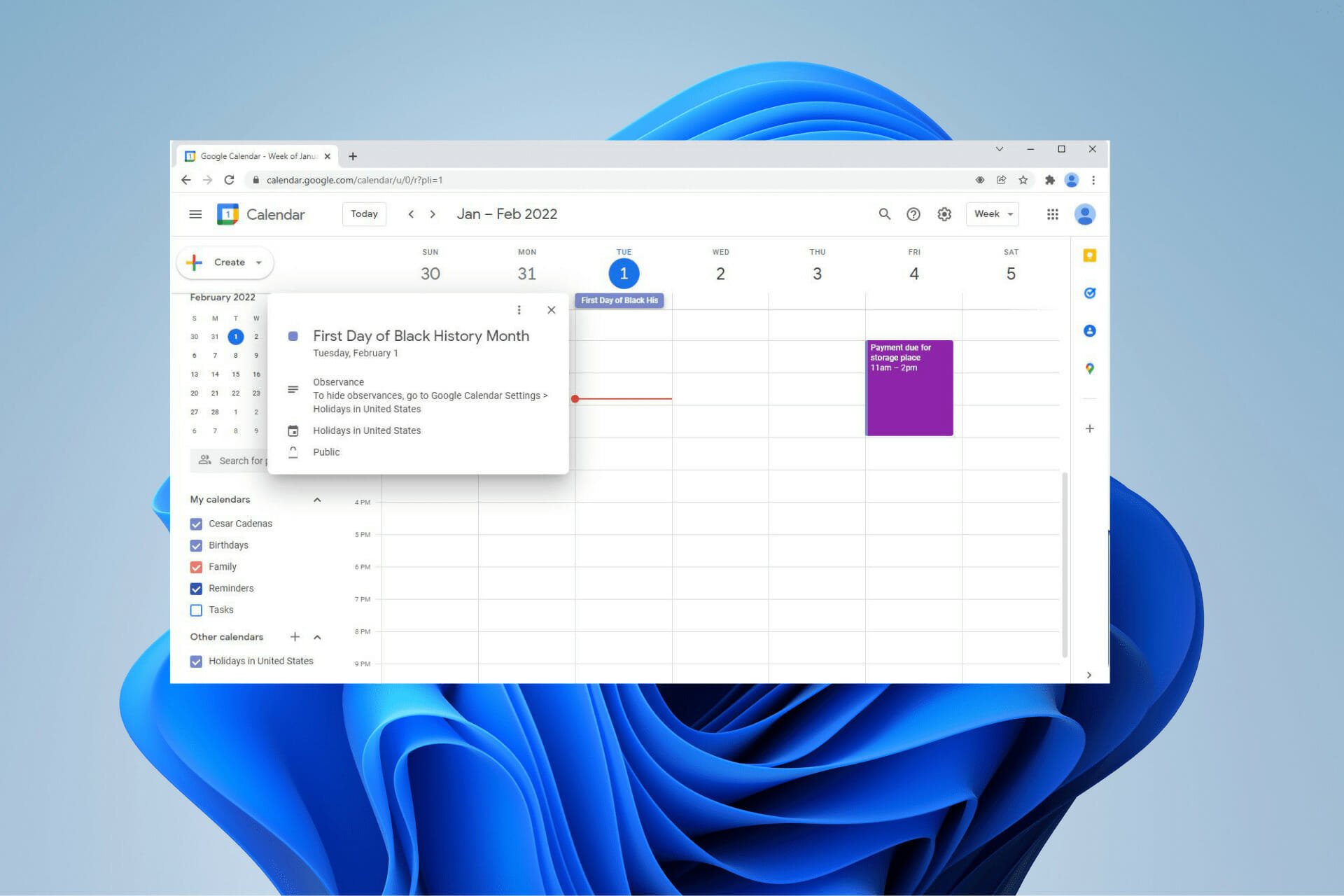
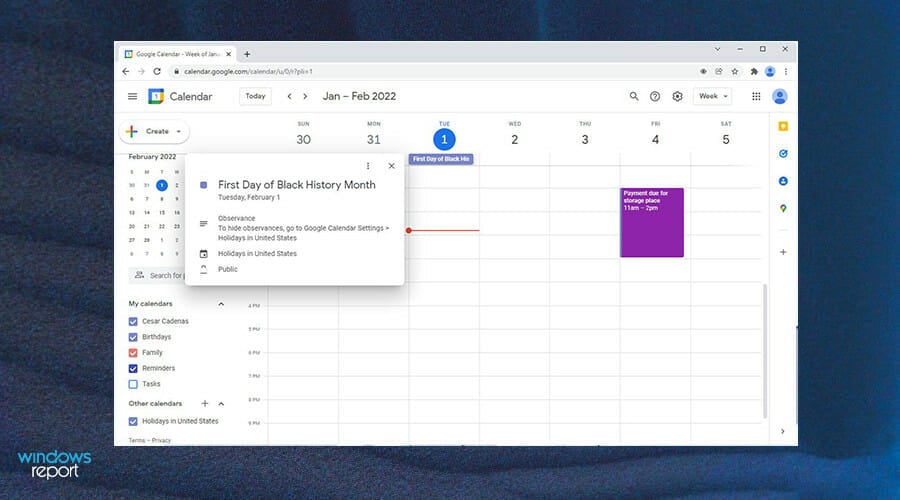
Google Calendar

Starting off the list should be an obvious choice: Google Calendar. It’s not surprising that one of the best calendar apps/services belongs to the most popular. The app can make life events strict and well organized, plus it keeps a great historical record of everything that you put up.

If you want to go back and see when your last shopping trip was or when you last did your taxes, it’s all easily accessible. You can add notes on entries in Google Calendar for more details on what you have to do and why.

Google Calendar has some great features like its diary that allows you to record simple schedules on the app. It keeps great track of everything added and has a good workflow so you know what you’re doing every day of the week.

It also synchronizes well with other apps as Google Calendar can take in information from other apps and store it, from mail records to address books and even photographs.

Now, there isn’t a standalone app for Google Calendar, but you can run it on web browsers.

⇒ Try Google Calendar

Outlook Calendar

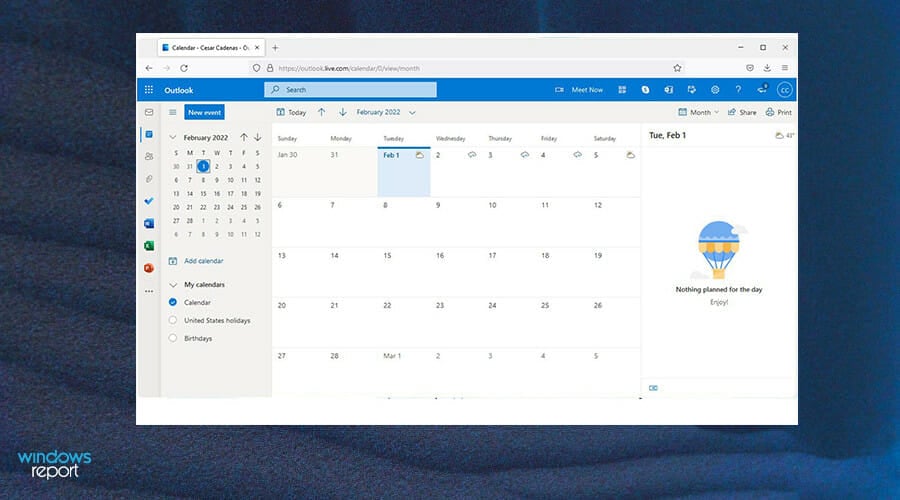
Microsoft’s own Outlook Calendar takes the one on Windows 11 and makes it even better. You may be more familiar with Outlook as a part of your work email, and as much as you don’t want to think about work, you must admit that this app is pretty handy.

It does more than just the calendar, but also emails, contacts, work tasks, and more. Outlook Calendar itself can help you stay organized as it can handle booking conference rooms, RSVPs for meetings, and more.

You can also share the calendars made on the Outlook app with others to synchronize schedules and see the availability of others.

Outlook supports multiple calendars which you can view side-by-side and the service offer a high degree of cybersecurity that keeps your sensitive data secure.

Plus, you can enable notifications to remind you of events. Now to get the most out of Outlook, you will have to buy it, but there is a free trial available.

⇒ Try Outlook Calendar

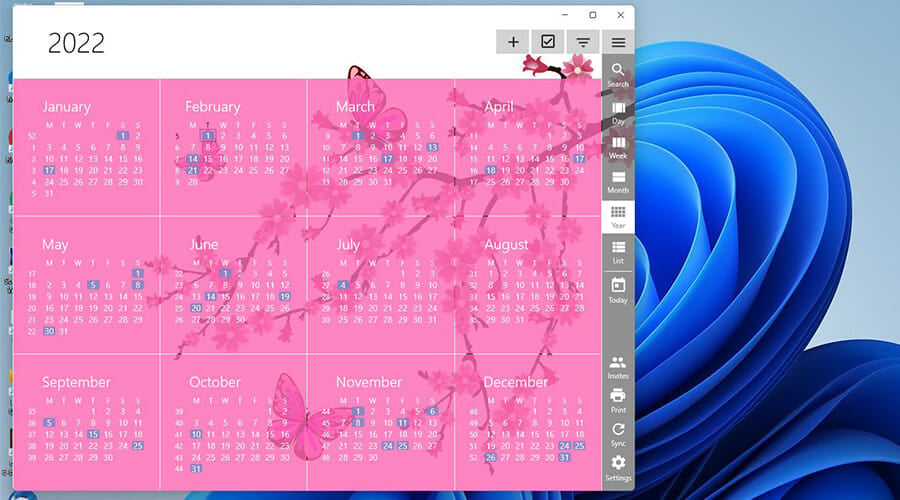
One Calendar

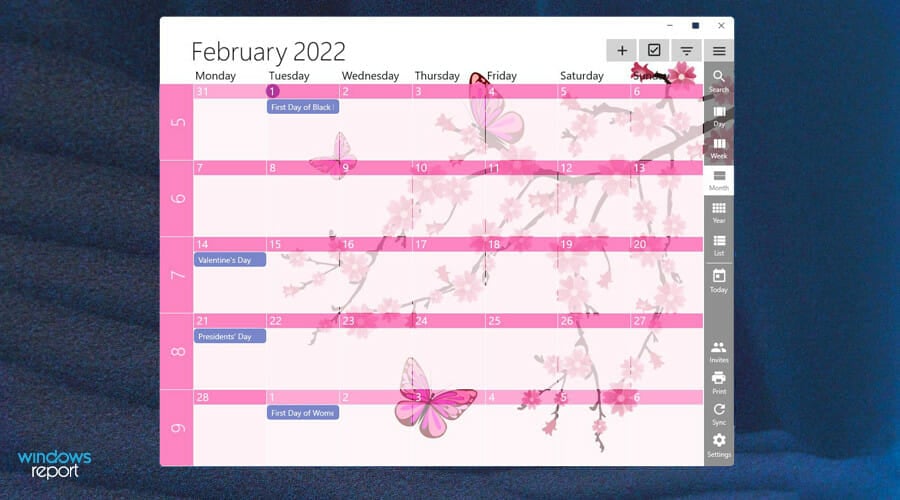
OneCalendar is by far, one of the best-looking calendar apps on the market. It has a great user interface that is easy to understand and never gets confusing. It’s highly customizable and versatile with its features. You can even synchronize all the other calendars under the OneCalendar roof.

With this particular app, you can add, delete, and update appointments by day, week, month, and even year. It also can view other calendars and Facebook events through its unique feature. OneCalendar is best described as a central hub of sorts; one where you can view everything from.

Other notable features include a lock screen, live tiles, themes, semantic zoom, and advanced search functionality so you can quickly scour through all your appointments. It can even support multiple languages and has a dark mode to protect your eyes from strain.

The best of OneCalendar is that it’s free to download, but some of the more advanced features are locked away behind in-app purchases. Some of the locked features include room scheduling, reminders, and live weather updates.

⇒ Try OneCalendar

SavvyCal

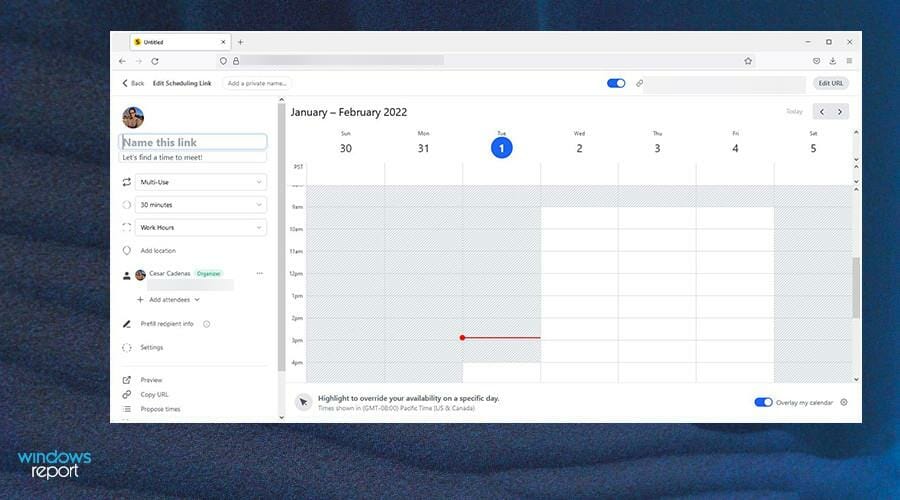
SavvyCal specializes in scheduling events and meetings. It may seem strange at first as to why a calendar app needs to have such a specific and nuanced focus, but once you try it out, you’ll realize how this app stands out above the rest.

One of the biggest issues with scheduling is the large number of emails that you’ll have to send back and forth just to find a time that works for everyone involved. SavvyCal solves this annoyance by keeping up to date with all changes made.

SavvyCal can determine which times work for the people involved. For example, you can pick a time and a link is sent to another person with a list of times available. The recipient picks the times that work for them and the app syncs both calenders to select the best time possible.

Other apps do something similar, but SavvyCal overlays the calendars of the participating parties on the scheduling page. It makes the process a lot easier. Plus, the app syncs up with Google Calendar so you can move scheduling over with ease and integrate with video apps like Zoom.

⇒ Try SavvyCal

Lightning Calendar

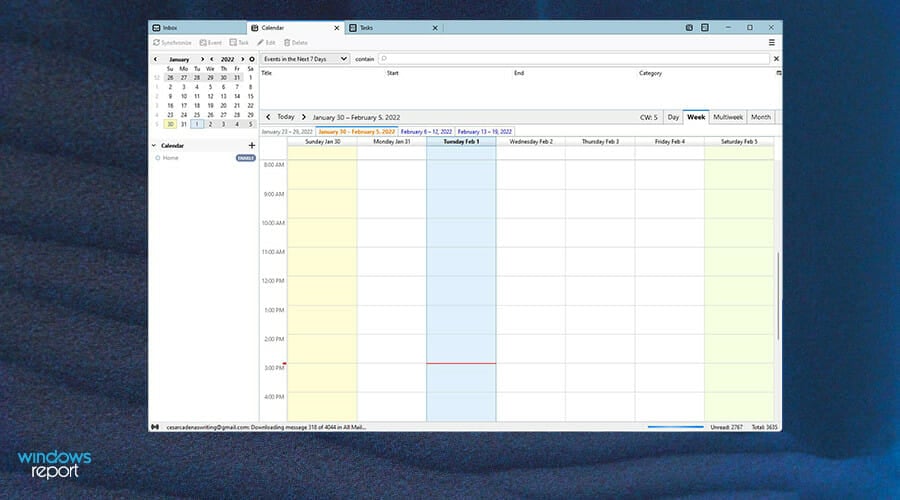
Lightning Calendar comes from Mozilla and is offered as a part of the company’s email client, Thunderbird. It’s one of the few open-source calendar options out there and is also one of the best apps for Linux computers. This app does a lot of the same things as other ones do.

You can create events, set up reminders, and invite people to those events, plus it syncs well with other similar applications. Mozilla also provides a full list of holiday calendars from countries around the world in case you want to celebrate a culturally significant day from your old hometown.

Those events can be further expanded upon with detailed configurations like tracking the progress of a project and advanced postponing. One nice thing about Lightning is that it has an active and supportive community in case you ever have questions about something.

And it’s free to download and use, but there’s no standalone app. You have to install Mozilla Thunderbird in order to use Lightning Calendar.

⇒ Try Lightning Calendar

Are there other apps or features that I should look for on Windows 11?

As Windows 11 continues its lifespan, more and more great features keep coming out. A case in point is the big update that will finally bring Android apps in an official capacity to the system. Android app support was first announced before Windows 11 came out and users have been eagerly awaiting its release.

Currently, the feature is locked behind the Windows Insider Program where you can try out Android apps, but there are still some bugs attached. As for apps, it’s recommended that you download remote control software, which gives you the ability to access another computer from anywhere.

Feel free to leave a comment below if you have any questions on other Windows 11 apps. Also, leave comments about guides that you’d like to see or information on other Windows 11 features or list guides like this.

Game Pass loses another six games in February

If there’s one thing that console gamers know above all else, is that the start of a new month means they will receive some new games, through their paid subscription service, but also lose a few in return.

Sometimes, the games added are more than enough to cover for the ones lost. However, there are situations in which the balance is not at all perfect, making players feel some kind of way.

And February isn’t at all different than all the other months, with a total of six titles leaving the service.

Control and Project Winter are leaving Xbox Game Pass

In this golden age of streaming services, people shouldn’t expect their favorite programs to stay on forever, as providers constantly feel the need to rotate provided products.

Movies, music, as well as games, will come and go for a variety of reasons, and some will stay on the platform longer than others.

If you already got bored with the games you have available, Microsoft will be refreshing the roster with some fresh games that most of you have been waiting for.

Thus, February 2022 will bring Xbox Game Pass titles for February 2022 will include Ark: Survival Evolved Ultimate Survivor Edition, Dreamscaper, Infernax, Skul: The Hero Slayer, Edge of Eternity, Besiege, The Last Kids on Earth and the Staff of Doom, Contrast, and Telling Lies.

We know that nothing in this world comes for free, so besides the money we pay for the subscription, we also lose some of the titles we’ve grown accustomed to.

This month, Xbox has decided to let go of a total of six games across cloud, console, and PC, among which we can find Final Fantasy 12: The Zodiac Age, and the very popular Control.

Code Vein, The Medium, Project Winter, and The Falconeer are the other four titles leaving Xbox Game Pass, which is sad if you didn’t get to finish them all.

There’s no need to be sad at all, as the beauty of this paid service is the constant flow of fresh games, both new and critically acclaimed, which keeps everyone invested and entertained.

What is your favorite game leaving Xbox Game Pass this February? Share your thoughts with us in the comments section below.

Windows 11 Calendar is not Opening: 3 Quick Steps to Fix

Several readers have reported that the Calendar widget is not functioning properly on their computers. They are either unable to open the widget, receive a blank widget or get the Sorry events from this account cannot be displayed error message.

We will show you how to fix the Outlook calendar widget, and the Google calendar widget as well.

How do I fix the calendar widget on Windows 11?

1. Sign in with a Microsoft account

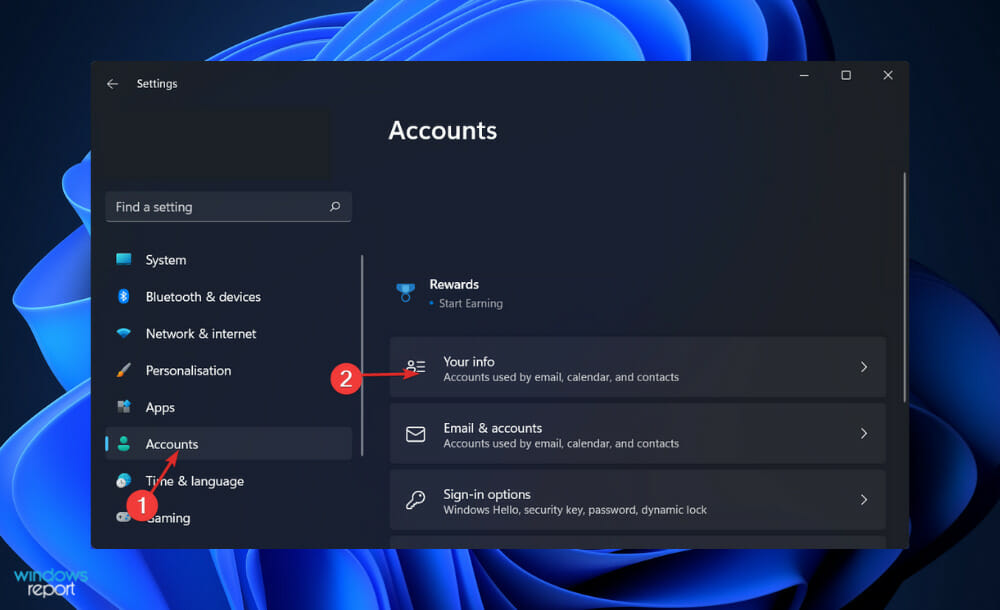
  1. Press the Windows key + I to open the Settings window and click on Accounts followed by Your info.accounts calendar widget not working windows 11
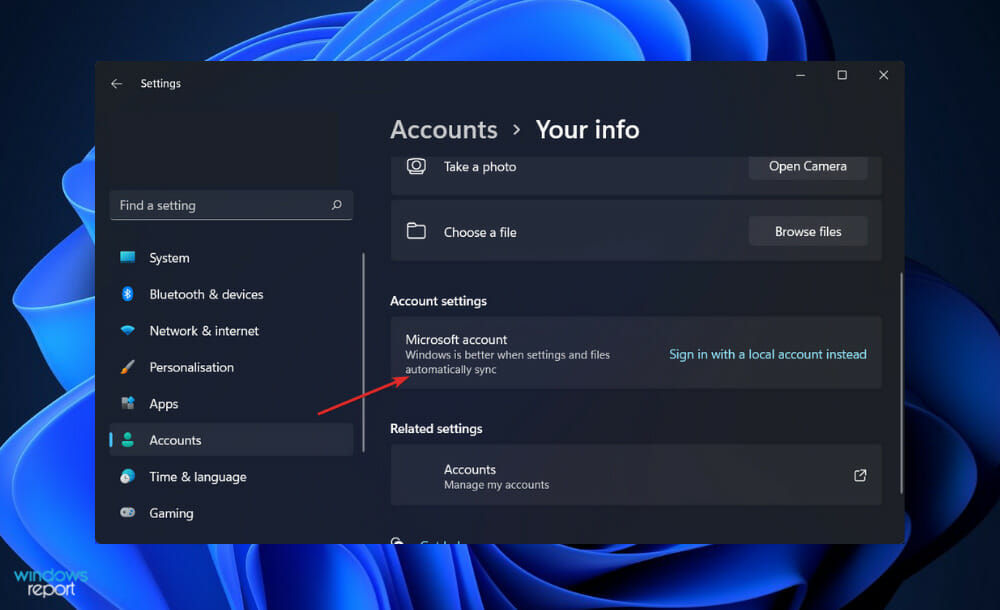
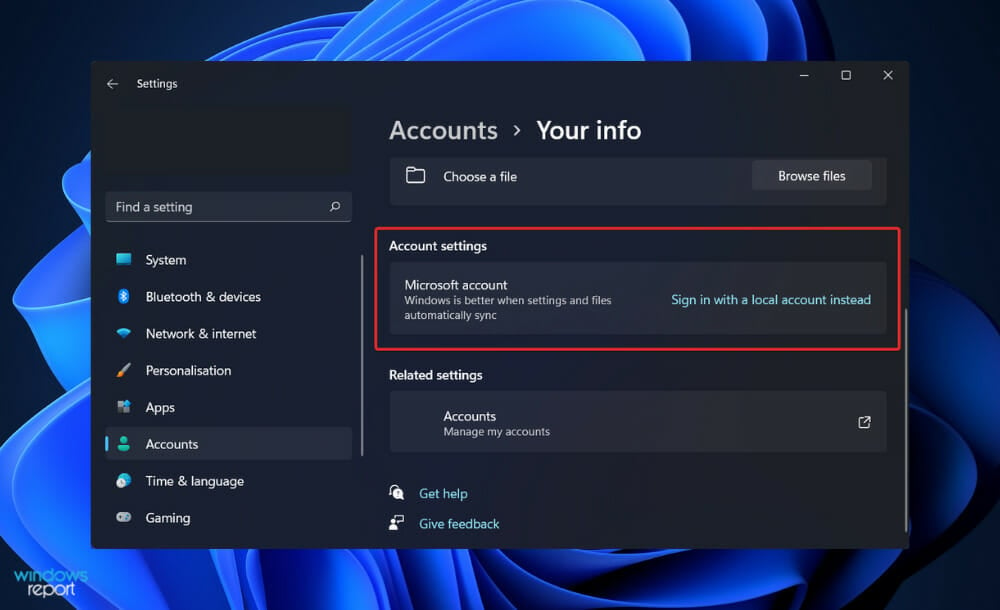
  2. Now, under the Account settings section click on Sign in with a Microsoft account instead. Since we are already signed in with one, we get the Sign in with a local account instead but you will get the former option. microsoft-account-option calendar widget not working windows 11
  3. Restart your computer to apply the changes made, then try to open the calendar widget.

2. Update Windows

  1. Press the Windows key + I to open the Settings app, then click on Windows Update in the left panel.update-windows windows live photo gallery encountered an error loading wix photoviewer.dll
  2. If you have any new updates to download, click on the Install now button and wait for the process to finish, otherwise click on the Check for updates button.check-updates windows live photo gallery encountered an error loading wix photoviewer.dll

Using an older version of Windows could be causing the problem, which can be fixed by updating to the most recent version. The mistake will most likely be fixed in a later update to the software package.

3. Update drivers

  1. Press the Windows key + I to open the Settings app, and click on Update & Security from the left panel followed by Advanced options on the right side.update-advanced subnautica not saving settings
  2. Scroll down until you find the Additional options section then click on Optional updates.optional-update subnautica not saving settings
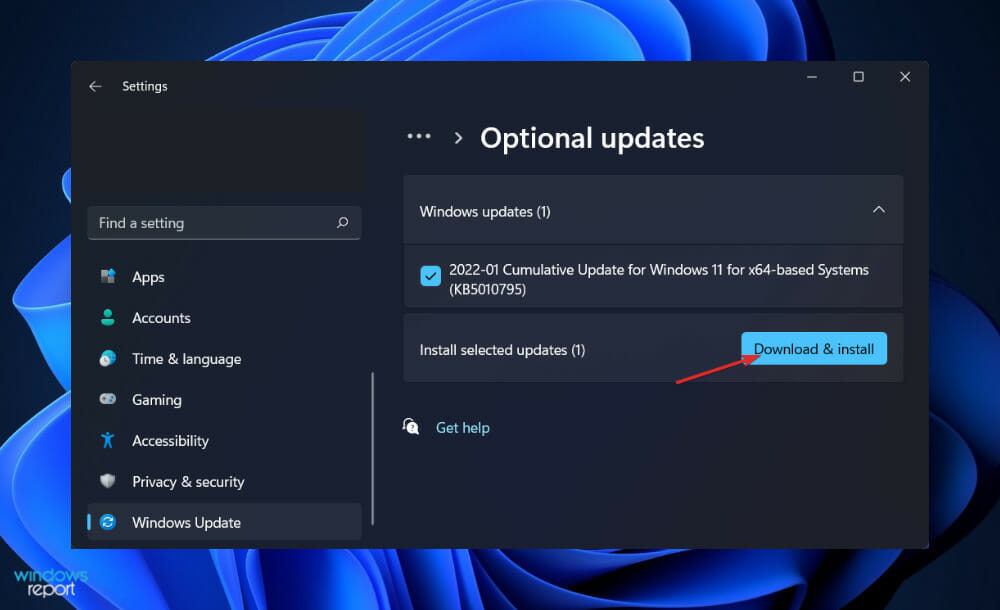
  3. Now click on the Driver Updates option then select all the driver updates you are presented and lastly click on the Download & install button.install-update subnautica not saving settings

Although Windows is normally responsible for driver updates, you can manually check for updates if you experience a problem.

For automatic scans of outdated drivers, we strongly recommend a dedicated tool such as Outbyte Driver Updater.

Should I sign in with a Microsoft account in Windows?

Using services like the Xbox network, Hotmail, Outlook, OneDrive, or Windows Messenger will result in the creation of a Microsoft account. The company consolidated several services, allowing users to access them all using a single email address and password combination.

In addition to providing quick access to all of its services, a Microsoft account when used in conjunction with Windows 11 delivers a few additional advantages.

Although the name may be confusing to new users, a local account is nothing more than a user account that allows you to access your computer as the default administrator. It only works on the computer that it is created on.

microsoft account calendar widget not working windows 11

One of its most interesting features is that it maintains your Windows 11 account settings in the cloud, which is perhaps the most anticipated feature. When you log into your account on one Windows computer, the changes you make are reflected in the settings of all of your other Windows computers.

A local account is perfectly OK if you don’t care about Windows Store programs, have only one computer, and don’t need access to your data anywhere else than your own house. It’ll bring you inside Windows and provide you a personal space to call your own once you’re in there.

When it comes to the drawbacks of utilizing a Microsoft account, one con stands out above all others: the loss of privacy. We’ve discussed the issues surrounding Windows privacy problems, but the use of it unquestionably creates its own set of questions and concerns.

Using your Microsoft Account on Windows means that anyone with access to your password might have access to all of your apps and services without having to do anything more than guessing your password.

Additionally, if you leave yourself logged in and haven’t properly configured the various timeout settings, someone may sit down at your computer and have complete access to all of your accounts without your knowledge.

What are widgets used for?

Whilst a widget is an element of the graphical user interface (GUI), it is more specifically an element that displays information or provides a specific manner for a user to interact with the operating system or an application.

Icons, pull-down menus, buttons, selection boxes, progress indicators, on-off checkmarks, scroll bars, window edges, toggle buttons, forms, and a variety of other devices are used for displaying information and inviting, accepting, and responding to user actions, and they are referred to as widgets.

widgets calendar widget not working windows 11

The term widget also refers to the little program that is created to describe what a particular widget looks like, how it operates, and what happens when the user interacts with it.

Most operating systems come with a collection of ready-to-customize widgets that a programmer may use to incorporate into an application while specifying how the widget should function. It is also possible to develop new widgets.

It has long been accepted that the term widget can refer to any discrete object, usually of some mechanical nature and of relatively small size, when the object does not have a name, when you can’t remember it, or when you’re talking about an entire class of certain unknown objects in general.

Although Eric Raymond, the compilator of The New Hacker’s Dictionary, claims that legend has it that the earliest widgets were holders for buggy whips, he acknowledges that the statement may have been intended to be sarcastically humorous.

For further information and possible solutions to your problem, you can take a look at our guide on how to fix the calendar app in Windows 10/11.

Speaking of privacy, if the Windows Security center is not opening in Windows 11, you will have to pause everything and read about how to fix it to make sure you don’t lose any important data.

And lastly, troubleshooting virus and threat protection when they aren’t working was already covered in one of our articles. Don’t miss out on it if you encounter the same issues.

Was this guide helpful for you as well? Don’t hesitate to let us know in the comments section below. Thanks for reading!


You can now join organization meetings with a personal Teams account

If you were among the users that were waiting for this Teams feature to be released, your wait has finally come to an end, starting today.

Microsoft has finally introduced a new feature that allows Teams users to chat with members outside their organization, even if they are using a personal account.

This can be achieved by inviting the other person by using either their email address or phone number. Yes, you can also invite groups of users with personal accounts, using the same technique.

The feature has already started rolling out to the public

Indeed, the Redmond tech company has finally made the announcement that many were waiting for since the last Ignite conference.

So, if you want to start a 1:1 or group chat with anyone with a Microsoft personal account, there is no tenant switching required.

All this happens while still giving IT admins and Microsoft personal account Teams users a range of controls and tools to ensure security.

How can I use this feature?

Don’t get alarmed, as taking full advantage of this latest integration is as easy as saying Microsoft Teams. Chatting with external users without needing to switch tenants enables you to get the results that you need faster.


Thus, depending on the administrative settings of your organization and of the Teams personal account user:

  • Start conversations with external Teams personal account users.
  • External Teams personal account users can start conversations with Teams at work users.

Starting a chat with a Teams personal account users:

  • Teams users managed by an organization can invite Teams personal account users they want to chat with by entering the full email address or phone number. Teams personal users can enter the exact organizational email address of the user they want to reach and attempt to start a chat.
  • If the person you want to chat with is not a Teams user already, they will receive an email or a text message inviting them to join the conversation using a personal account. When they register and sign-in to their Teams personal account, they’ll be able to join the chat.
  • Once the person you invited accepts the invitation, you can start a new 1:1 or group chat or even add them to an existing external group chat. This chat thread will appear alongside your other chats, no tenant switching is required to view the chat.
  • Express yourself, as a part of your chat, you can send and receive rich messages, GIFs, and media.
  • Be only in the conversations you want to be in. You can block messages from external users or leave a group chat.
  • Teams users managed by an organization and Teams personal account users have the option to decline external invitation. One can message an external user up to 10 times before they accept, but if the message is not accepted after 10 messages, you won’t be able to send additional messages to this user.
Source: Microsoft

We know that you’ve been waiting on this new integration for quite some time now, so you’ll surely be thrilled by Microsoft’s latest announcement.

As we said, the feature already started rolling out, and all you have to do in order to get it is update your Teams application.

And since now this is generally available, the next step would be to join Teams meetings as HD, 3D avatars, integration that is also in the works right now, believe it or not.

Being the top communication app out there, Teams receives updates and new features pretty often, so don’t forget to also take advantage of the new mental fitness exercises available on the platform.

Another interesting new addition to the software is the walkie-talkie feature, which is also generally available for everyone that wants to take it out for a test drive.

Excited about joining organization meetings with your personal Teams account? Share your thoughts with us in the comments section below.

Sony has now shipped 17.3 million PlayStation 5 consoles despite supply issues

Sony has just announced that PlayStation 5 shipments have now crossed 17.3 million units as of December 31, 2021. If the PlayStation 5 remains ahead of Xbox Series X|S shipments, which are currently estimated at around 12 million units, Sony’s previous console, the PlayStation 4, did sell faster with 20.2 million units shipped during the same period.

Of course, this new console generation is quite exceptional as both Sony and Microsoft have been dealing with shortages of semiconductors since the launch of the PS5 and the Xbox Series X|S. As highlighted by Niko Partners analyst Daniel Ahmad, Sony now expects to ship 19.3 million PS5 consoles by March 31, 2022, instead of the previously forecasted 22.6 million units, though the company expects PS5 shipments to eventually catch up.

According to a previous report from Bloomberg, Sony may be manufacturing a million more PS4 consoles this year to compensate for the PS5 supply issues. In comparison, Microsoft announced last month that it had stopped manufacturing all Xbox One consoles at the end of 2020, and the company also has its entry-level Xbox Series S as an alternative for consumers who can’t find an Xbox Series X (or a PlayStation 5).

Another interesting tidbit from Sony’s investor presentation transcribed by Eurogamer is that the company is planning to capitalize on its acquisition of Bungie to create more live service games in the near future. “Through close collaboration between Bungie and PlayStation Studios we aim to launch more than 10 live service games by the fiscal year ending March 2026,” said Sony executive Hiroki Totoki.

The PlayStation division is a major moneymaker for Sony, and live service games like Destiny 2 should become an important source of income in the coming years. Sony also announced that it had 48 million PlayStation Plus subscribers at the end of 2021, and the company is planning to launch its Xbox Game Pass competitor codenamed “Spartacus” later this Spring.

FIX: Windows 11 not recognizing iPhone

We often connect our iPhones to a computer, generally to transfer photos or in some cases, to troubleshoot errors. But, what do you do if Windows 11 is not recognizing your iPhone?

Not being able to connect both the devices poses a major hurdle to users, and you will find several forums on the web where users complain of the same. A common factor amongst all these forums is that nowhere will you find a credible and effective troubleshooting approach.

Therefore, we have dedicated this guide to help you understand why Windows 11 is not recognizing your iPhone, and walk you through the fixes for the problem.

Why is Windows 11 not recognizing my iPhone?

Since this situation involves two devices, problems with either can lead to Windows 11 not recognizing the iPhone. So, you will have to put in almost twice the effort. We have listed some of the common issues that cause the problem:

  • Faulty connections
  • Critical permissions not granted
  • Outdated drivers
  • Running an older version of iTunes

Now, that you have a basic understanding of the underlying causes, you are in a far better position to troubleshoot the error.

What do I do if Windows 11 is not recognizing my iPhone?

1. Check the connection between the devices

Your primary approach when dealing with connection issues should be to check if they are faulty. Make sure the cable is properly plugged in at both ends, in the Windows 11 system and the iPhone.

Even better, unplug and then firmly replug them.

Also, check for any damage to the cables or the ports. Check if the same cable can charge your iPhone. If it does, continue with the methods listed below, but if it doesn’t, try using another cable and it should now work.

2. Make sure your iPhone is unlocked and provide necessary permissions

  1. Keep your iPhone unlocked and then connect it to the Windows 11 PC.
  2. Tap Trust on the prompt that pops up on your iPhone screen.Trust to fix windows 11 not recognizing iphone
  3. Now, enter your iPhone passcode to establish a connection between the two devices.Enter passcode

Whenever you connect your iPhone to the computer, there are some permissions to be granted and an authentication process to complete. If the display is turned off, you are likely to miss the notification.

After following the steps listed above, Windows 11 should now be recognizing the iPhone. In case the prompt doesn’t pop up on your iPhone, head to the next method.

If you cannot unlock the phone or Face ID fails to show the Trust prompt, follow this guide to fix it: Face ID not working on iPhone.

3. Restart both the Windows 11 PC and iPhone

In some cases, it could be a trivial bug or a background process that’s preventing Windows 11 from recognizing your iPhone.

You have the option to identify the process and terminate it, though a simple way out would be to restart both the iPhone and the PC.

Note icon NOTE
Before restarting the two devices, remove the cable connecting them, and only after they are turned back on should you reconnect.

Restart the PC

  1. Click the Start button from the taskbar.
  2. Select the Power button.
  3. Choose Restart from the list that pops up.
  4. Wait for the process to complete, and log back into Windows 11.

Restart your iPhone

➡ iPhone X, 11, 12, or 13

  1. Press and hold either the side or volume button until the power off slider appears on the screen.
  2. Drag the slider and wait for 30 seconds for the device to completely turn off.
  3. Press and hold the button found on the right side of the phone until the Apple logo appears.

➡ iPhone SE (2nd generation), 8, 7, or 6

  1. Press and hold the button on the side of the phone until the power off slider appears.
  2. Drag the slider and wait for 30 seconds until the device is completely turned off.
  3. Press and hold the same side button to turn on your device.

➡ iPhone SE (1st generation), 5, or earlier

  1. Press and hold the top button until the power off slider appears on the screen.
  2. Drag the slider to turn off the phone, and wait for 30 seconds for the device to close entirely.
  3. Press and hold the top botton to restart your iPhone.

Now, check if you can establish a connection between the iPhone and your Windows 11 computer.

If your issue happens during iPhone Quick Start rather than Windows recognition, see how to fix Quickly Set Up iPhone not working to complete the device-to-device transfer.

4. Remove the non-critical peripherals

Another simple troubleshooting method is to remove all the peripherals, barring the critical ones. In simple words, remove everything except the keyboard and the mouse.

If you have speakers, earphones, an external hard drive, a printer, or maybe an external Bluetooth adapter, remove them all. Once done, restart your computer, and then check if the connection works.

In case a peripheral was conflicting with the functioning, Windows 11 should now recognize your iPhone, and a connection should be established right away.

5. Update drivers

  1. Press Windows + S to launch the Search menu, enter Device Manager in the text field at the top, and click on the relevant search result that appears.Launch Device Manager
  2. Double-click on the Portable devices entry to expand and view the devices listed under it.Portable devices
  3. Right-click on Apple iPhone and select Update driver from the context menu.Update driver to fix windows 11 not recognizing iphone
  4. Next, select Search automatically for drivers from the two options listed in the Update Drivers window.Search automatically for drivers
  5. Your system will now automatically scan for the best available driver and install it.

An outdated driver is also one of the possible reasons why Windows 11 is not recognizing the iPhone in Windows 11. If that’s the case, updating the driver should fix the problem.

The Device Manager method listed here is one of the simplest ways to update any installed driver, but this too has a drawback. It will only scan for the updates that have already been downloaded to the computer, and wouldn’t check the other available sources.

In case the update didn’t go through earlier, you can check for the latest version in Windows Update or manually install the setup from the manufacturer’s website and install it.

If that sounds like too much trouble, you can always use a reliable third-party app. We recommend using Outbyte Driver Updater, a dedicated tool that will scan all available sources for the latest driver version, and keep the installed ones up-to-date.

⇒ Get Outbyte Driver Updater

6. Update iTunes

  1. Press Windows + S to launch the Search menu, enter Microsoft Store in the text field and click on the relevant search result that appears.Launch Microsoft Store
  2. Next, click on the Library icon near the bottom-left corner.Library to fix windows 11 not recognizing iphone
  3. Click on the Get updates button to run a scan and view all the available ones.Get updates
  4. If an update for iTunes is available, download it.

The steps listed above would work only if you have downloaded iTunes from the Microsoft Store. In case you used a standalone installer to get iTunes, click on the Help menu and select Check for Updates. If one is available, click on Download iTunes on the pop-up.

After updating, check if Windows 11 is now recognizing your iPhone.

7. Repair/reset iTunes

  1. Press Windows + I to launch Settings, and select Apps from the tabs listed in the navigation pane on the left.Apps to fix windows 11 not recognizing iphone
  2. Next, click on Apps & features on the right.Apps & features
  3. Locate the iTunes app, click on the ellipsis next to it, and select Advanced options from the menu.Advanced options
  4. Now, click on the Repair button under Reset.Repair to fix windows 11 not recognizing iphone
  5. After the process is complete, check if the problem is eliminated. In case it persists, click on the Reset button.Reset to fix windows 11 not recognizing iphone
  6. Again, click on the Reset in the popup to confirm and start the process.Confirm reset

Repairing an app identifies corrupt files and replaces them, along with verifying the Registry entries, and making the necessary changes, if required. The whole process doesn’t affect the configured app settings or data.

On the other hand, resetting an app is similar to reinstalling it, since the result is the same in both cases. However, resetting is a far simpler and quicker method. Do remember, though, the data and saved settings, if any, will be lost.

Once done with the reset and repair, Windows 11 would now recognize the iPhone.

How can I project my iPhone screen to a Windows 11 PC?

Several users have been looking around for ways to mirror their iPhone screen to a Windows device, and honestly, there are a lot of them available. But, most of these are not as effective.

To find the answer, check our curated guide for the best software to project iPhone screen to Windows 11 as well as the previous iterations. Also, some of these offer free trials, which gives you the option to check out the various features before subscribing to the paid version.

That’s all there is to fixing issues when Windows 11 is not recognizing the iPhone. Once the error is eliminated, you can start transferring files between the two.

If the problem is still there, we have a great guide on what to do if the phone is not showing up on PC, so you might want to check it out.

 Also, learn how to use Facetime in Windows 11 to seamlessly make video calls from your PC.

Do not forget to check out how to download iCloud on the latest iteration.

Tell us which fix worked for you in the comments section below.

5 Best Antivirus for Gmail to Drive Malware to Extinction

It may have been launched on the 1st of April, but Gmail is no prank. Ever since its release back in 2004, Gmail has been steadily attracting more and more people and it’s still going strong today.

With a crisp and modern look and feel that does not slow you down, seamless collaboration-focused integrations with other valuable Google products, and even a sturdy antivirus engine embedded in its infrastructure, it’s easy to fall in love with Gmail.

It boasts more than 1,5 billion subscribers and we can totally see why.

According to Statistics & Data, no less than 1 billion 700 thousand people were actively using Gmail as their main email service provider in 2020.

Once upon a time king of digital communication Yahoo barely made it to 5th place with a little over 200 thousand subscribers.

Even though it has a lot going on for it in terms of security enhancements, you still need a good antivirus for Gmail to secure your communication, confidential data, and files.

And this is something with which the mighty Google itself agrees. Let’s have a closer look together, shall we?

Does Gmail have virus protection?

Yes, Gmail integrates antivirus software and it aims to protect your email account as well as your PC against widespread infections that may hide in email attachments. Here’s how this works.

Gmail relies on an extensive virus database to perform its checks. It automatically scans inbound and outbound messages with a focus on suspicious attachments that can harm, damage, or gain illicit and unauthorized access to your account.

Moreover, it looks beyond petty vermin to detect spyware, Trojans, and other forms of advanced malware.

Which antivirus is used by Google? As we like to put it: it’s classified. And we mean it, Google uses undisclosed virus protection software or a blend of antiviruses to block out threats.

In an attempt to strengthen protection against sophisticated phishing and fraud techniques, Google even incorporated AI and deep learning into the mix.

While it does have its befalls, we cannot deprive Google of the gratification it deserves for trying its best.

But here’s the thing, placing your defense in the hands of an antivirus exclusively designed for the Gmail infrastructure can be a bliss just as much as it can be a curse.

Proprietary applications are somewhat treacherous because they tend to focus on specific threats and fail to cover the entire spectrum of nastiness that preys on system vulnerabilities.

Is Gmail safe and secure?

Whether Gmail has some sort of virus protection is merely the tip of the iceberg. Cybersecurity is multi-faceted and it works in mysterious ways. We cannot help wondering if Google’s built-in antivirus is enough to lock predators out.

Does Gmail check for viruses? Yes, it automatically scans attachments for viruses both in the messages that you send as well as in those that you receive. But this may not cover all the loopholes.

Without an adequate full-scale antivirus for Gmail, users are only safe to some extent.

Incentivized by increasing profitability or simply driven by a visceral need to flaunt their acumen, hackers are more and more interested in compromising Gmail, Dropbox, OneDrive, and other Google products.

With ransomware attacks on the rise, Gmail needs every single drop of protection it can get.

Even though its built-in scanner can differentiate legitimate files from harmful ones, you can still accidentally open the door to havoc without ever opening an email or clicking on an ill-intended attachment.

Can a Gmail account be infected?

Beyond any doubt. First of all, Gmail’s malware scanner focuses on specific files with extensions such as .EXE or .BAT and checks for specific file sizes. Anything above 25 MB usually catches its eyes, but malware takes many forms and just as many sizes.

If it does not match the pattern, devious malware can easily sneak past Gmail’s sentinels and head straight for the goodies on your system.

It’s not rare for Gmail to require your intervention when it is unable to comprehend or to process a prohibited file type.

Thus, instead of handling security end to end (as it should happen), you are expected to either delete the message or download the attachment at your own risk.

Here’s the cherry on top: Gmail can detect a virus, but it can not remove it. You’d still have to use a specialized email-scanning tool that can eliminate the cause of infection and sanitize your system as well as your email account.

And did you get the part where Gmail scans your emails? That’s right, it examines the content, links, and attachments in your messages.

Now, Google mentioned that scanning for marketing and advertising targeting is no longer tolerated, but you can still notice emails flagged as spam or marked with a little card beside them.

That’s a clear indicator that your private communication is still scrutinized and many voices condemn this practice.

What is the best email protection for Gmail?

Gmail’s scanner is a handy tool, but it lacks the depth and complexity of a full-scale virus protection software and security experts worldwide, including Google representatives seem to agree with this.

We ran various tests on one of our Gmail accounts and deliberately downloaded harmful files to see if Gmail reacts. It didn’t and we cannot blame it.

It’s merely the first line of defense against nefarious malware and it should be treated as such, with parsimony.

Now, there are countless ways to compensate. You can go for an email provider that integrates security features, use antivirus for browsers to protect your Gmail account, deploy security software on your mail server, and the list could go on and on.

But if you’re a home user and simply wish to protect your digital correspondence as well as your rig, there is nothing quite like a good antivirus for Gmail to help you continue to enjoy Google’s services for as long as you desire.

With a trusted partner on your team, you will be able to secure your communication channel and block out threats on browser, app, network, or system levels with one proverbial blow (or stone).

Without further ado, here are our recommendations for the best antivirus for email protection.

TotalAV

  • WebShield blocks phishing sites linked from emails
  • Scans downloaded attachments in real time
  • Ransomware and spyware protection
  • Data breach check for your email address
  • Works on Windows, Mac, Android and iOS
  • No anti-spam filter of its own; it relies on Gmail's.

TotalAV is a simple, lightweight antivirus with real-time protection, WebShield browsing protection and built-in clean-up tools. One licence covers Windows, Mac, Android and iOS.


Bitdefender Internet Security

  • Advanced network threat prevention and defense
  • Comprehensive privacy-focused suite
  • Anti-spam, anti-phishing and anti-fraud modules
  • Robust ransomware protection
  • Vulnerability scanner and secure browser
  • VPN traffic capped at 200 MB per day

Bitdefender has a solid reputation and we feel they earned it fair and square. The Internet Security suite not only detects and neutralizes threats instantaneously but also anticipates and remediates flows.

Unlike countless other security programs that leave havoc behind them, Bitdefender Internet Security boasts strong remediation capacities materialized via a full-scale rescue environment that provides you with the necessary tools to clean up and restore your infrastructure post-sanitization.

This is one of the many reasons for which we recommend this app as the best antivirus for Gmail and much more. But let’s not let our enthusiasm get in the way.

If you’re looking for the best antivirus for email protection, you’ve come to the right place.
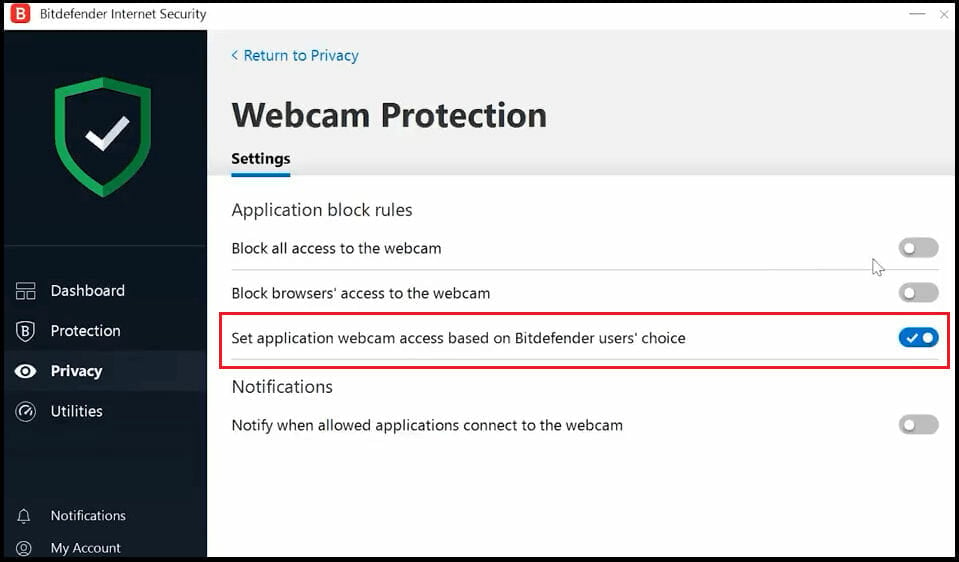
Geared with advanced web-filtering technologies and a sophisticated vulnerability scanner, Bitdefender will steer you away from malicious links and other untrustworthy sources that may scam you or trick you into revealing confidential credentials or financial data.

The powerful anti-phishing and anti-fraud modules take it from there while the anti-spam filters will rid your mailbox of redundant messages.
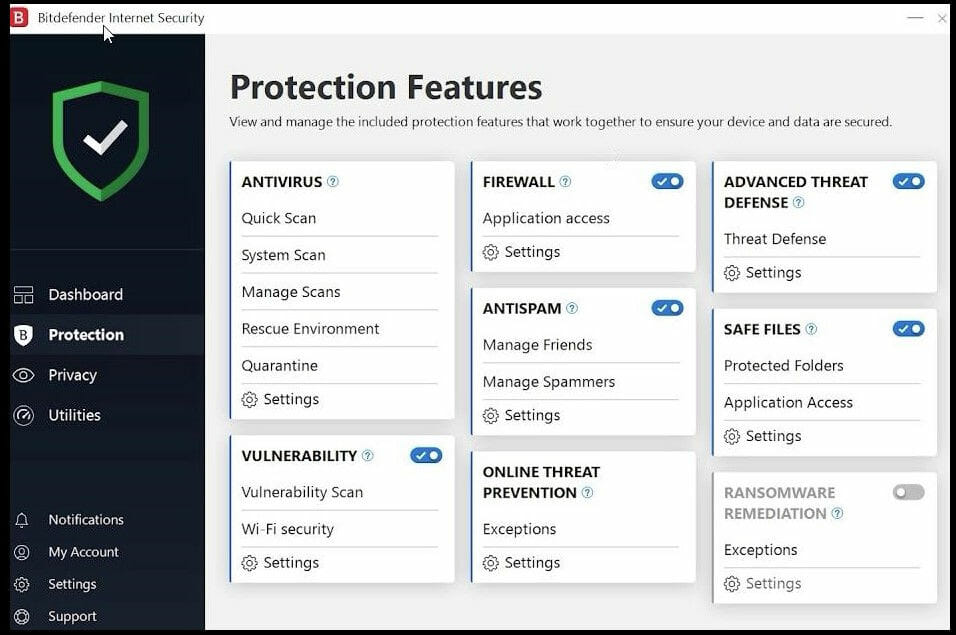
Don’t fancy browser-based email platforms? Not a problem at all, as Bitdefender will also take good care of local email clients such as the popular Outlook or Thunderbird.

Speaking about browsers, you’ll be pleased to know that Bitdefender covers every single aspect of your digital experience and this includes repelling the dreaded script-based browser-targeted attacks.

The final piece falls into place. We’re talking about the vulnerability scanner, of course, a precious tool that will scrutinize your entire system to detect potential weaknesses such as outdated drivers, missing Windows updates, or unoptimized security settings.

Its advanced ransomware protection layer works like a charm on email attachments and it will catch even the most elusive bugs that managed to slip past Gmail’s sentinels.


Avast Premium Security

  • Real-time updates + automatic software updater
  • Robust anti-ransomware and anti-password theft shields
  • Webcam protection plus data shredder
  • Advanced firewall capacities
  • Integrated sandboxing features to test suspicious apps securely
  • Traffic encryption only available in the Ultimate bundle

Avast Premium Security joins the defense line with powerful assets that will secure your Gmail account as well as your system, network, and everything that comes with them.

Whether you check your email at home while sitting down at your desktop or on the go, it’s simply a matter of preference.

Avast will be there to support and secure your connection against hackers, ransomware, malware, and more on PC or Mac as well as on your mobile devices running on Android or iOS.
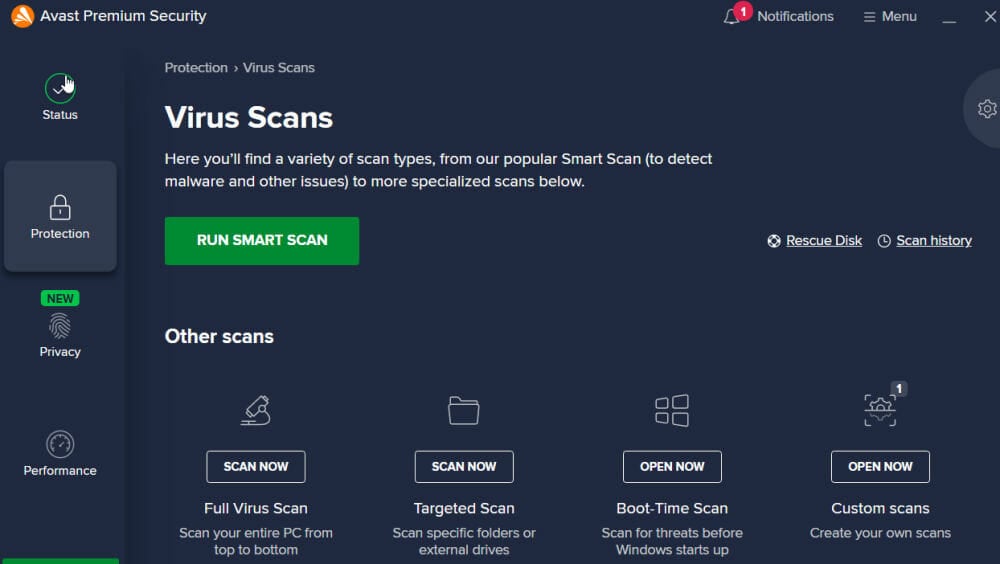
This best antivirus software for email automatically hardens your browser making it immune to remote hacking, password theft, and vicious ransomware attacks.

Meanwhile, the web security shield monitors your online routine in order to steer you away from spoofed websites, harmful links, prohibited files, or dangerous downloads.

This feature alone should be enough to convince you that Avast is a great antivirus for Gmail.

But you get a lot more with it, including webcam protection, a powerful firewall to secure your home network, and a dedicated Wifi inspection tool that scrutinizes your connection for weaknesses without interruption.
As if it weren’t enough, Avast also boasts sandbox software capacities that allow you to execute a suspicious app in a closed, isolated environment without risking a widespread infection.

We could go on and on simply because the benefits do not seem to ever end with this Gmail virus protection software.

Here’s one more tool that works to your advantage and we’re persuaded that you will appreciate it to its core.
Avast not only pushes real-time security updates but also extends the same care to your apps and programs.

Thanks to its dedicated automatic software updater, you can be sure no loopholes are left unattended for hackers to exploit.


Avira

  • Performance optimization tools on desktop and mobile platforms
  • Strengthens email security and prevents phishing attacks
  • Secures your browser against exploits
  • Powerful anti-hacking and anti-ransomware modules
  • Does not include a free trial (30-day money-back guarantee only)

Here’s another strong contender for the title of the best antivirus for Gmail. We’re talking about Avira, of course, the all-in-one security bundle that truly has it all and does not hold back when it comes to keeping you safe online.

Since Gmail is a browser-based email service, our hunch is that you will be most interested in Avira’s browser defense. Well then, prepare to be impressed.

Fully geared with an unlimited VPN (that’s right, no data caps, no daily limits) and a dedicated password management system, Avira will make sure your Chrome browser traffic is anonymous and encrypted and that your passwords are simply unhackable.

From infected webpages to aggressive advertising, trackers, and ISP surveillance, nothing is too elusive, too sophisticated, or too challenging for Avira to successfully block out.

Needless to say, phishing attacks that usually thrive in email-based communication channels are a thing of the past and you won’t ever have to think twice before downloading a Gmail attachment again.

Along with privacy, sensitive data is a big thing for Avira, that’s why you get video and audio protection for all your IoT devices.

Credit card safeguarding and a private sentinel that checks whether your Gmail address was compromised are also included. Thus, you can take immediate action to secure your Gmail account.

Similar to our previous recommendation, this best antivirus for email protection does not settle for browser-level defense.

Cross-platform Avira detects threats in real-time across all your devices and by all, we mean up to 25 different gadgets running on all major platforms.

You’re probably thinking that syncing all your data across such a tremendous array of devices is nothing less than a nightmare, right?

You needn’t worry at all. Thanks to Avira, you will automatically log into all your accounts, on all your devices.


AVG Internet Security

  • Webcam and password protection
  • Anti-phishing, anti-ransomware, and anti-fraud modules
  • Advanced web and email filters
  • Strong firewall capacities and fake website shield
  • Unsuitable for commercial use

AVG focuses its defense on 5 major pillars and we dare say, it covers every single aspect of your digital experience impeccably.

While each module plays an important part in strengthening your overall shield against online nastiness, it’s the Web & Email pillar that will most likely catch your eye.
AVG Internet Security keeps your emails, files, webcam, credit cards, and passwords safe from malware, ransomware, and network-targeted exploits in one go.

Its comprehensive security starts with an email shield that will prevent malware-injected attachments from reaching your system and secure your data against spear-phishing attacks.

Fraudsters are cunning and there’s no denying it, but AVG found the perfect combo to outsmart them. In comes a powerful trio made of a web shield, Wifi advisor, and toolbar remover.
These tools will scan suspicious links and steer you away from fake websites, check files for signs of infection before downloading them, alert you in case you’re about to connect to an unsecured Wifi network, and remove PUPs such as shady browser toolbars and plugins.

And that’s just the first line of defense. Additional layers of protection unfold to immunize your system against ransomware attacks and password theft.


Bottom runners

Besides the products that made the list after our rigorous testing process, there have been other antiviruses that proved their capabilities.

Even though they will most likely not with an award for the best antivirus for Gmail anytime soon, they could still make good options to consider.

➡ VIPRE

Essential protection is often enough to secure your data against malware. And we’re not talking about mediocre solutions here.

VIPRE’s Antivirus Plus delivers a no-hassle type of defense that you can enjoy right away. No hidden catch, no strings attached, or complicated tweakings required – just straightforward, airtight protection against virus infections, ransomware, and nefarious malware.

➡ F-Secure

The intuitive F-Secure does just what it advertises: it keeps you safe. Its advanced browser protection module will keep an eye on your Gmail account and make sure no malware – however devious, cunning, or stubborn – can ever infiltrate your mailbox and later leak into your system.

From harmful websites to viruses and malware, there is no threat too big for F-Secure SAFE to handle.

Here are some interesting takeaways for you. Does Gmail protect against viruses? Yes, it does. Is it enough to keep all malware at bay? Far from it.

You need a solid security program that covers every single aspect of your digital life, including your Gmail account and the default malware scanner simply lacks this complexity.

While finding the right tool is somewhat challenging considering the diversity, we feel our selection has what it takes to steer you in the right direction. Why not start your journey with us?

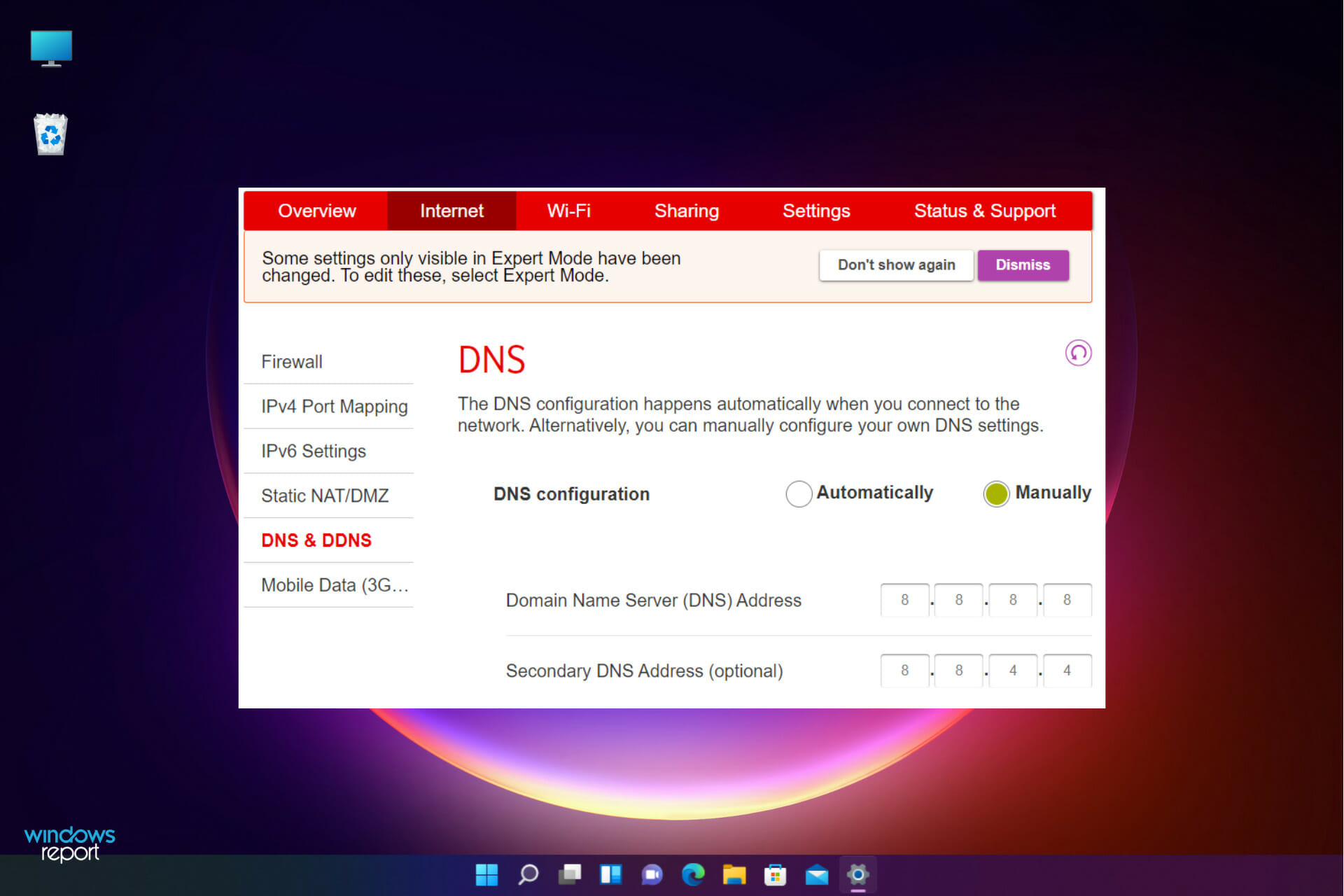
VB6 on Windows 11: How to Install & Use

After stating officially, that Windows 10 would be the last operating system, Microsoft released the Windows 11 OS at the back-end of last year.

Windows 11 brings in more of the macOS style of UI elements. You get a redesigned taskbar, with the Start menu located at the center. Yes, you can change its position, but by default, it will be placed at the center.

The control center also sees some design tweaks. In the next update, support for Android apps is also coming along with redesigned Notepad and Media Player.

While all these features make Windows 11 a decent upgrade over Windows 10, certain doubts are brewing in the minds of the users.

There is a certain section of users as well as developers that have a sense of fear about whether Windows 11 will support the legacy apps and technologies, left behind or not.

With Visual Basic being one of the best programming languages in the world, such queries popping into the minds of the users is quite natural.

If you are looking for an answer to this question, then you are in the right place. Because, in this guide, we will share with you some information on whether Windows 11 comes with VB6 support or not.

What exactly is Visual Basic 6 (VB6)?

Microsoft released Visual Basic 6 back in 1998, which is the last version of Visual Basic to be offered by the company. It is essentially a BASIC programming language that can be used to develop Windows applications.

It makes the job easy as Visual Basic provides a Graphic User Interface, or GUI, allowing programs to be modified by simple drag and drop of objects, further defining their behavior and appearance.

Visual Basic, or VB, in short, is easy to use and fast to write code with. So, it is also often referred to as a rapid application development (RAD) system.

Visual Basic 6

Some years later of its launch, Microsoft made Visual Basic a part of Visual Studio.NET. Notably, it has been replaced by Visual Basic for Applications (VBA) and Visual Studio.NET.

While VB6 was supported by Windows 10, the arrival of a new OS in the form of Windows 11 has created doubts in the minds of the developers as to whether it will support VB6 or not.

Let us take a look at the information that is currently available that will help such users resolve their queries.

Can I run VB6 apps on Windows 11?

It is clear that the previous version of the Windows OS, i.e., Windows 10, could run Visual Basic 6 or VB6 applications with no problems.

Furthermore, it even let the developers run the IDE and program from scratch. Now the question arises, does Windows 11 come with VB6 support.

Long story short, the simple answer to this question is yes. You read it right. According to the official Microsoft documentation, the company has clearly stated that “The VB6 runtime will ship and will be supported in Windows 10 and Windows 11 for the lifetime of the OS.“

If you go through the full documentation, under the heading “Executive summary” you will see that Microsoft will continue to provide VB6 five years of mainstream support, followed by five years of extended support.

Doing simple math, you can deduce that Visual Basic 6 or VB6 applications will be supported till 2031.

Besides, Windows 11 is more of a cosmetic update over Windows 10. So, there wasn’t any need to abandon previously compatible products, unless Microsoft had something advanced over them.

What can I do to run a VB6 app on Windows 11?

If you are trying to run a VB6 app on your Windows 11 PC and come across any issue that is preventing its smooth operation, then there are a few tricks that you can apply to make it work

Open the app in compatibility mode with admin rights

  1. Right-click on the VB6 application and select Properties.
  2. Click on the Compatibility tab, and under the Compatibility mode section, check the box located next to the Run this program in compatibility mode for option.
  3. From the drop-down menu, select Windows 7. After the selection is made, click on Apply and then OK to save the changes.

To be extra sure, you can reboot your PC and then try opening the VB6 app on your Windows 11 PC to check if it works or not.

What are the features of Visual Basic 6 or VB6?

By now you would have understood that you can use Visual Basic or VB6 to create or write EXE applications. Using VB tools, not only you can develop complete software, but it also lets you go back and modify your work.

VBA or Visual Basic for Applications is the most popular Visual Basic used today. However, do note that VBA can be used to modify existing apps, but cannot be used to create new ones.

Some features of Visual Basic are:

  • Simple and easy to write code with
  • Huge set of icons and pictures to use
  • Mouse and keyboard actions supported for example, drag-and-drop
  • Supports sequential and random access file
  • ActiveX data control object
  • Has database integration and additional internet capabilities
  • Offers a Graphic User Interface or GUI

We hope that this guide has sufficient information to clear up your doubts about whether Windows 11 comes with VB6 or Visual Basic 6 support or not.

You can let us know in the comments section below what your thoughts are on this topic. Moreover, you can also mention if you come across any compatibility issues while running VB6 apps on Windows 11.

Here’s how Xbox is celebrating Black History Month

February marks Black History month here in the United States, and Xbox is once again celebrating in more ways than one. From chances to donate points with Microsoft Rewards, to gaming events, and even spotlighting black streamers, game creators, and nonprofits, here’s a recap of all the things Xbox is doing.

Gaming

On the actual gaming side of Black History Month, Microsoft will be offering a Black History month emblem and nameplate for Halo Infinite. In addition, Forza is hosting a new in-game livery design contest spotlighting designs celebrating the past, present, and future of Black communities. Designs created in Forza Horizon 5, Forza Horizon 4, and Forza Motorsport 7 that end up as featured designers will receive in-game credit rewards.

Of course, we also can’t forget the avatars. Microsoft is introducing a new gamerpic, profile themes, and avatar items themed towards Black History month. These include a shirt with a special colored Xbox logo, and a hat, too. You can download these here.

We’ll also share the Microsoft Rewards initiatives. Over on the Xbox Microsoft Rewards app, if you activate the special card, you can earn points to support organizations that back black communities. Simply click the card, earn an Xbox achievement, and then donate to either Cxmmunity, Black Girls Rock!, or Gameheads.

In other areas of actual gaming, Microsoft says that it has doubled the games featured on Xbox from Black creators and continues to increase the visibility of diverse and inclusive content in additional regions. There’s even a TV and movies collection featuring black creators and leads.

Finally, Minecraft Education has a free demo that is is featuring lessons on social movements throughout history including the Civil Rights Movement and Black Lives Matter as well as lessons about Dr. Martin Luther King.

Events

Now, for the events. Microsoft and Xbox Game Studios will be hosting Game Camp in New Orleans from March 9 to April 27. This event will provide people from underrepresented communities with access to subject matter experts, tools, and industry connections to aid them through the game creation process.

In addition, Xbox is holding a special panel with its employees who are HBCU Connect Alumni. They’re planning to talk about how to contribute to an inclusive place where people from various walks of life can excel.

The final event is “The New Face of Gaming” at the Game Developers Conference in San Francisco this March. There, Xbox panelists, Senior Program Manager at Xbox Calicia Johnson, Software Engineer Keirten Nivol, and Xbox Marketing Manager Austin Joseph will share their experiences in gaming and explore how diverse voices are contributing to the evolution of the gaming industry.

Note that Microsoft’s Xbox Plays and the Xbox Twitch channel will also feature programming celebrating Black History Month. Each week of February on the channel, you’ll see different Black Streamers, Creators, and nonprofit organizations.

Microsoft’s Defender is rated higher than other top antivirus software

If you’re a person that values security above everything else, you will surely want to read what these latest antivirus software charts have to say.

German-based IT Security research institute, AV-TEST, has just released its December 2021 best anti-virus programs assessment report for Windows 10 home users.

Security experts analyzed 20 different anti-malware programs from various companies and the test also included Microsoft’s Windows Defender.

Defender defeats heavyweight rivals in security check

As in previous months, Windows Defender has obtained a very good rating, scoring the full eighteen points available.

Thus the product received the AV-TEST TOP PRODUCT certification as it has scored higher than the 17.5 points threshold.

Now, the Redmond tech giant’s virtual police officer has joined the ranks of similar high-rated solutions available, such as ESET, Kaspersky, Avira, and Norton.

Defender has actually done better this time around, as some of its heavyweight rivals like Avast, AVG, and Malwarebytes have each scored lower in one of the protection, performance, and usability categories.

However, keep in mind that these are still rated AV-TEST TOP PRODUCT because each of them has managed to score 17.5 points.

So, if you too want to stay safe in this everchanging and dangerous online world, we’re sure that you’ll find a suitable antivirus in the list above.

Or, you could skip the search altogether and go with Microsoft’s own Defender, since its security capabilities can no longer be questioned by skeptics.

Out of all the software solutions in the list, which one is your most trusty antivirus program? Share your opinion with us in the comments section below.

Microsoft moved the Surface Audio experience on the main Surface app

As pretty much every Surface device owner knows, the Surface Audio app has long been the place to manage Surface earbuds or headphones, but it now looks as though Microsoft is quitting on it.

The Redmond-based tech giant is therefore moving most of the controls over from the special Surface Audio app over to the standard Surface app.

You can notice the change after updating the Surface Audio app on Windows 11 to the latest version, which at the moment is 3.36.600.0.

You will be greeted by a message that says a new version of the Surface app is now available, and Surface Audio is no longer supported by Microsoft.

Surface Audio is gone after the latest update

Although you can simply dismiss the message and keep on using the app, the best experience for your accessories is on the Surface app.

The new interface seems to be a bit more modern, with personalized visuals for the Surface gadget you’re using at that time.

However, the controls are the same as the Surface Audio app, with access to equalizers, and even the list of devices it is connected to.

Opening the Surface app also prompts about the Surface Audio app no longer being supported, with the recommendation to uninstall the app.

The iOS and Android versions of the app will apparently be updated through your App Store and replaced with the Microsoft Surface App.

With that being said, Windows 10 and Windows 11 users of the Surface Audio app will have to uninstall it and download the Surface app in the store instead.

It’s interesting to see Microsoft consolidate these Surface apps a bit, as it could mean that newer Surface accessories can be on the way, to be configured in the app.

Get ready for PowerToys’ new mouse functionality

You surely remember that one of the recent updates for PowerToys introduced a new set of cursor-related tools.

Now, PowerToys users can find the lost cursor by double-pressing the Ctrl button, and the software also lets you highlight right/left mouse clicks, which comes in handy when you record or share the screen.

The lead for Microsoft PowerToys, Clint Rutkas, revealed the fact that a new accessibility feature coming soon to Mouse utilities in PowerToys.

Improved PowerToys functions are on the way

The Redmond tech company just released PowerToys 0.55.0, pretty soon after we found out that the new version was only a public preview.

In the release notes, Microsoft added that the v0.55 release cycle is a continuation toward getting PowerToys ARM64 ready, with a few fixes, and some new functionalities introduced.

The team succeeded in upgrading the codebase to .NET 5 and will continue with the plan to bring it to .NET 6, which should bring stability and speed improvements.

IN order to offer a better understanding of these changes, here are the three new toys added to the collection:

  • File Explorer add-on: Developer files for preview pane. This should add about 150 file extensions total. This experience is powered by the Monaco Editor.
  • File Explorer add-on: STL file format thumbnail and preview pane generation! Since STL is a common 3D file format, this allows a quick visual check.
  • Mouse Utility: Crosshair over pointer via Ctrl+Alt+P. This feature was co-developed with the accessibility team at Microsoft. When the team envisioned the idea and described trying to find your cursor by looking through a straw, the team knew it could leverage code from the other mouse utilities to quickly enable this feature.

In the changelog, under the Fixes column, developers mentioned that they fixed a nasty bug that would mess up zones after an update. Another important fix here was the editor margin issue for Chinese language.

For those of you that didn’t already know, PowerToys is Microsoft’s open-source project that offers a collection of useful tools, which can be used to customize the Windows 10 or 11 UI and experience.

Depending on feedback and general stability, some of the utilities also make their way to the main operating system eventually.

So, if you also want to take advantage of the new functionalities, you can easily update your software directly from the Microsoft Store, if you are using PowerToys in Windows 11.

For Windows 10 users, just open the app and click on Check for updates under the updates section on the General tab.

What other PowerToys feature should be embedded in the Windows 10 or 11 OS? Share your experience with us in the comments section below.

Windows’ January 2022 Patch Tuesday update patches an elevated access bug

In a blog post by Bleeping Computer, a security researcher has published details of their exploit of a previously undiscovered local privilege elevation vulnerability in Windows 10, which allows any user to gain administrator privileges on the operating system.

CVE-2022-21882, a vulnerability in Windows 10 allows threat actors with limited access to a compromised device to easily elevate their privileges and perform privileged commands, allowing them to spread laterally within the network and create new administrative users. The vulnerability is a means of exploiting CVE-2021-1732, the previously patched bug.

William Dormann, a vulnerability analyst for CERT/CC, tweeted that he had demonstrated that the exploit worked and provided elevated privileges. BleepingComputer was able to independently verify the vulnerability’s existence, but could only get the exploit to work on Windows 10.

As the bug has already been patched, most PCs are not affected by it. However, some admins chose to skip the January 2022 Patch Tuesday updates because of the collection of critical bugs. As a result, some PCs remain susceptible to the recently-fixed vulnerability.

This means that they are at risk of compromise by a known exploit used in cyberattacks by advanced persistent threat (APT) groups. Microsoft has released out-of-band updates to fix vulnerabilities in the January 2022 updates. the elevated access bug. Administrators are advised to install the updates immediately.


Gmail gets the Microsoft Outlook treatment with new “integrated view” option

Gmail is getting a new look that might a bit familiar for Microsoft fans.  Announced in a recent blog post, Google says a new “integrated view” on Gmail is all about making it easier to switch between its own critical applications in one unified location. The new experience in Gmail will initially be an opt-in experience starting February 8 and should roll out to everyone by the end of this year.

Just like Outlook on the web’s sidebar which links out to Word, and other Microsoft 365 apps, Google’s new Gmail experience improves the discoverability of Google’s other products. Once the new Gmail is enabled, you can switch between inbox, conversations, and meetings without having to switch between tabs or open windows. These are now all in a left pane. Other changes include notification bubbles for each Google application, a unified search experience, and a full view of mail and label options. Check it out in the image below.

Right now, if you want to opt-in to this new experience, you can look for the Try the new Gmail view pop-up at the bottom right side of the screen. Later this year in April, Google is planning to roll the experience out by default, but you’ll be able to go back to classic Gmail in the settings app if you please. The change will be permanent by the end of the year.

Microsoft Edge’s new tab page gets livelier with Bing video of day option

A feature baked into the Microsoft Edge browser is finally getting noticed by users and it’s helping to spruce up the homepage with a video experience.

The folks over at Windows Central stumbled across YouTuber BrenTech who posted a video three months ago walking through the setup process of enabling the Microsoft Bing Image or video of the day.

The feature enables a window wide full screen video to loop at the start of a new browsing tab when using Edge, and the browser shuffles through video feeds similar to the Bing image experience which is once a day. Typically, the video is in high fidelity and last anywhere from 3-20 seconds depending on the capture.

While BrenTech first began video documenting the initial rollout, removal and reintegration back in late October of 2021, Microsoft obfuscates the official release by lacking any readily available documentation. There are no easy blogs or press releases to point from either the Bing or Edge team that details that pre-date the public finding out about the new feature in the last two months.

The video feature appears to be a cross-platform and works with both Windows 10 and Windows 11 after an initial operating system flighting by the developer.

To enable it use the following steps instructions

  1. Open a new tab within Microsoft Edge.
  2. Click on the Settings icon.
  3. Select Custom.
  4. Select Image or video of the day.
  5. Reload the new tab page or open another new tab.

There are other customization options buried with the new feature that include completely turning the background off for a distraction free experience, adding a user’s own custom image or applying a custom theme from Microsoft’s pre-selected options.

All of the new customization features act very similar to applying background to the lock screen or desktop with the exception of a running a repeating video reel.

With people just finding out about the video of the day feature, there haven’t been a ton of testing or measurements taken as to how enabling the video feed affect battery life and other resource. However, seeing that the video of the day feature is tied to a new tab, it’ll like be a quick experience that many users will blaze past as they go exploring the internet in a new tab.

Windows 11 users continue to receive compulsory updates

Windows 11 is a much-talked-about OS and it is no secret that Microsoft has been trying to make Windows 11 occupy more space in the market. One of the ways that Microsoft is trying to do this is by forcing users to update their devices.

Till now, we have seen users complaining about Windows 10 updates but now, it has come to light that even Windows 11 users are complaining about being forced to make updates on their Windows 11 devices.

Microsoft has admitted that it is automatically downloading big software updates to devices running Windows 10 and Windows 11 but says the process is necessary.

Workaround

The company added that users who do not want the updates can turn off automatic downloads, although some have argued this does not work.

Users have been reporting that they are being forced to make the update even if they don’t want to. It appears like users will be having no say in the matter and they will be forced to update their Windows 11 devices.

Unexpected update

The issue was reported by a number of users on Reddit and Microsoft’s forums, with those affected stating that their PC was restarting or going into a reboot loop when they were not expecting it.

One user notes that he tried to delay upgrading but immediately found himself presented with another notification for the Anniversary Update. Furthermore, even though he chose not to install it at that time, he received a message saying his PC would be upgraded anyway in 24 hours. 

Have you gotten the compulsory update on your Windows 11 devices? Share your thoughts with us in the comment section.
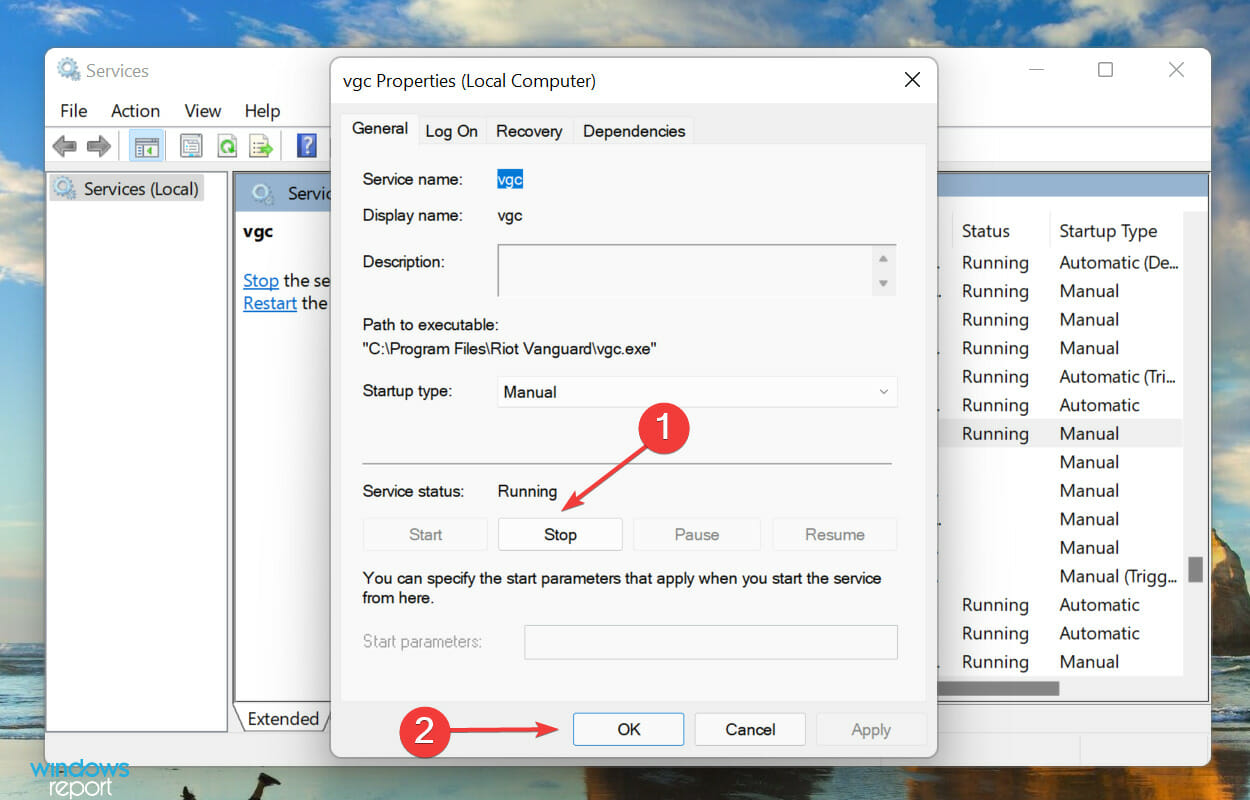
PCs inadvertently miss updates if you don’t stay connected – Microsoft warns

Most Windows devices have a Wi-Fi or Ethernet connection and will automatically connect to the internet if it’s available, but there are certain situations where you may not want them to do so.

For example, if you don’t want your machine connecting over a public Wi-Fi connection then you can turn off the Wi-Fi or Ethernet card from within Windows.

Microsoft has a few tips for users who want to ensure their PCs are up-to-date. First, regularly connect computers to the internet and ensure that they have been powered on for at least two hours for quality feature updates.

Just a few days ago, Microsoft revealed why PCs weren’t getting updates and now it seems inadequate connection time joins the list of reasons.

Not enough connectivity time

If you aren’t connected to the internet, your Windows computer may be missing out on important updates that could affect your security, privacy, and performance.

Microsoft says that it has found that devices that aren’t connected for long periods of time are “very unlikely” to successfully install any updates.

In a blog post, Microsoft’s program manager David Guyers said that devices failed to meet the recommended amount of connectivity time hence unsuccessful in the updates.

What we found is that devices that don’t meet a certain amount of connected time are very unlikely to successfully update. Specifically, data shows that devices need a minimum of two continuous connected hours, and six total connected hours after an update is released to reliably update. This allows for a successful download and background installations that are able to restart or resume once a device is active and connected.

50% of the devices do not meet minimum update connectivity

The company says data shows that more than 50% of devices that are not on a serviced build of Windows 10 do not meet the minimum update connectivity, and 25% of Windows 10 devices that are on a serviced build but have security updates that are more than 60 days out of date, have less than the minimum update connectivity.

Microsoft has been warning users to install Windows updates on the second Tuesday of each month, and it’s a good reminder that all users should have a solid patch management plan in place.

As organizations embrace the bring work-from-home revolution, they should be aware of a potential security hole: PCs that use Microsoft’s Intune device management service to keep them updated and patched may miss updates if they are not connected to the internet.

You can work to ensure that more devices across your organization meet the minimum Update Connectivity measurement by communicating with device owners, encouraging them to leave their devices plugged in and connected – instead of powering them off overnight – so that updates can download and install properly.

Intune users can create an alert for the Update Connectivity status of each device by navigating to Devices > Monitor in the console. From there, users select either the Feature update failures or Windows Expedited update failures report.

In the meantime, as we near the next Windows updates, refresh your mind on what to do to be prepared for the next Patch Tuesday.

Does your PC meet the minimum connectivity period for updates as recommended by Microsoft? Let us know in the comment section below.
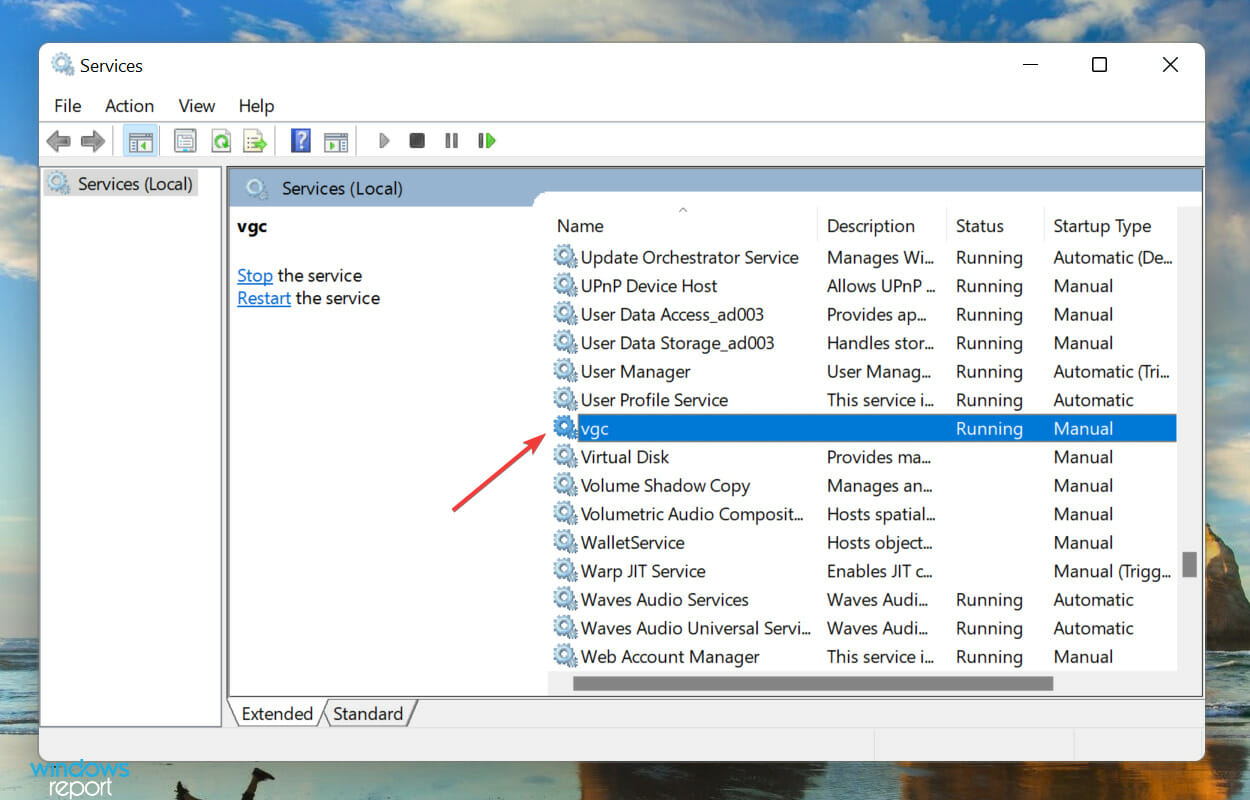
Looking for 3D emoji on Windows 11? [Microsoft answered]

After first teasing 3D emoji support in Windows 11 last year, Microsoft is still working on adding the feature to the operating system.

Microsoft designer Nando Costa recently stated that the software company is currently working hard on improving how its Windows 11 emoji appear to users.

On Friday, Microsoft’s Senior Product Designer Daniel Costa published a blog post discussing the company’s plans for its emoji system, detailing Microsoft’s push towards 3D after a 2020 hackathon.

Costa responded to a tweet from someone wanting to know when Microsoft will bring 3D emojis to Windows 11 by saying, “We’re working on that,” with a grinning face with sweat emoji. Although Microsoft has yet to unveil the release date for the feature, it appears that the company is still committed to making its original vision happen.

Still on 2D

Though Microsoft showed off impressive 3D emoji, the company surprisingly reverted to a simple two-dimensional design.

The flat design trend works in many applications, so Microsoft likely chose it for its universality. Technical issues may be delaying the adoption of 3D emoji.

Close attention to details

Costa’s blog describes how Microsoft’s design team chose to reflect human qualities, such as wrinkles and hairstyles, in its emoji, how the team made these emoji pop in apps like Microsoft Teams, and how some of its custom designs were inspired by “the new reality of a hybrid workplace.”

Microsoft used a variety of tools, including Adobe Illustrator, Cinema 4D, and Figma, to create its 3D emoji.

What are your expectations of the 3D emojis once they get to Windows 11? Share your thoughts with us in the comment section below.

This major security boost will help Microsoft Edge better protect your data

Microsoft has been busy lately, updating its browser and giving it some much-needed security. The Redmond-based company has revealed that it has pushed out a new feature for Microsoft Edge.

When it comes to browsers, there are plenty of options available to anyone willing to try something new, from Google Chrome and Mozilla Firefox all the way down to the niche likes of Vivaldi and Brave.

While there is no doubt that Google Chrome is the most popular web browser, Microsoft Edge has been making steady progress over the past couple of years.

In line with the roadmap

In a new entry in its Microsoft 365 roadmap, the company announced that Edge will allow users to “enhance your security on the web” with the new feature.

Microsoft’s new “next-generation” browsing experience will roll out in Microsoft Edge v.98.

It’s not clear how far Microsoft plans to take this technology. It could seek ways to prevent attacks by analyzing a page before it’s even loaded in the browser, or it could rely on third-party services that would provide real-time protection as users browse the web.

Expected features

Microsoft Edge v.98 is set to offer some serious security, data protection, and privacy enhancements.

Some of these are already available on rival browsers with their own unique features and security systems, but Microsoft has gone one better by adding customized protection for its new browser.

The new policy controls allow IT pros to apply group policies to end-user desktops across not just Windows devices, but also those running macOS and Linux.

This has been a thorn in the side of large organizations that have had to use multiple management tools to secure their mixed-platform environments.

Zero-day threats kept at arms-length

Microsoft is adding a new level of protection to its Edge browser, going beyond the usual sandboxing and exploit mitigation to directly protect users from zero-day threats.

It’s a feature that’s being touted as a way to help mitigate against potential future zero-day attacks — attacks that would exploit unknown security vulnerabilities and cause damage before anyone could even know what hit them.

The new protections, which are currently being tested in preview builds of Microsoft Edge, protect against both zero-day attacks and previously-known exploits.

There is no official date of release yet but we will keep you updated on any new developments.

Should you encounter any problems with your Edge browser, we have a guide on what to do to get it working again.

Let us know what you think of the latest security feature coming soon to Edge browser in the comment section below.

The question of what will happen to old devices that can’t run Windows 11 in 2026 remains unanswered

Microsoft released Windows 11 in late 2021, adding features and making changes to the operating system’s interface and security protocols while continuing to support Windows 10 with updates. 

All Windows 10 users can upgrade to Windows 11 for free, but not all Windows 10 devices will be able to upgrade; Microsoft changed the new operating system’s requirements.

Although it is possible to install Windows 11 without meeting its system requirements, this workaround may not be successful on all hardware. 

Incompatible devices

The lack of updates in the future will cause features to stop functioning, and because of these updates, Windows Update will cease to function for incompatible devices.

If you use Windows 10 on a device that does not meet the minimum system requirements, the operating system will remain in place, but it will stop receiving updates. 

Microsoft lists October 14, 2025, as the last day of support for Windows 10 Home and Pro (all consumer versions of Windows 10).

If you replace your device with a new one that has an operating system version that is compatible with Windows 11, you will likely be able to transfer your data from your old device to your new one.

No more updates for Windows 10

Microsoft will not upgrade millions of Windows 10 devices to Windows 11, as they cannot meet system requirements. Some users may circumvent these restrictions by upgrading to Windows 11 without permission.

After October 2025, Microsoft will stop releasing security updates for Windows 10. Although Windows 10 devices will continue to function, security vulnerabilities affecting the operating system will not be remedied, leaving affected computers susceptible to compromise. 

In addition, 0Patch may provide some security updates for Windows 10, but the company may not offer patches for all vulnerabilities and may not distribute them for free.

Windows 10 will be fully supported until October 2025, so using it may still be valid even if the computer is not connected to the Internet or if its security software is effective at blocking most attacks.

Bypass Windows 11 system requirements

Microsoft has not been very kind to users of older Windows systems with its new operating system, Windows 11. As a matter of fact, users running Windows 7 and Windows 8 are finding that their systems are incompatible with the new OS. Microsoft says that it is because the company wants to push its new OS and make sure everyone is using it, but it still feels like a bit of a slap in the face for those who have been loyal customers for years.

This compatibility issue does not seem to be affecting the newer systems that have been released in the past few years, but it seems to get worse as you go back in time. If you feel like you are being left behind by this issue and need help bypassing system requirements, here is what you can do.

Use Linux instead

Linux is an open-source operating system that functions like Windows or Mac OS. It is free to download and use. It can operate on desktops, laptops, and servers. For a lot of users, the best part about Linux is there are no licensing fees.

Trying Linux can be a great way to save money if you want to keep using Windows but don’t want to shell out cash for it anymore.

There’s actually a way to install Windows 11 on Linux, but it’s not ideal for most users. You can run Windows as a virtual machine using Oracle VM VirtualBox, which is a free program for GNU/Linux, Solaris, macOS, and Microsoft Windows operating systems. 

Using this method allows you to run both operating systems at the same time on one computer without having to reboot between them. This setup isn’t for everyone, though. It’s ideal only if you have an older PC with limited memory and disk space that you still need to use for applications that run only on Windows. 

Other than that circumstance, installing Linux instead of buying a new version of Windows is probably the better bet if you’re looking to save money while avoiding headaches.

What are your thoughts on Microsoft’s move to stop sending updates to Windows 10 devices? Let us know in the comment section below.