Windows 11 is the latest OS from Microsoft, delivering a more intuitive and efficient user experience. If you own a Surface device, you can easily upgrade to the OS by following a few simple steps.
So, this article will guide you through the quickest and most straightforward way to upgrade your Surface to Windows 11.
Which Surface models can upgrade to Windows 11?
Not all Surface models are eligible for the Windows 11 upgrade. Currently, Microsoft has confirmed that the following Surface models can upgrade to Windows 11:
Surface Pro 7
Surface Pro X
Surface Laptop 3
Surface Pro 6
Surface Laptop 2
Surface Go 2
Surface Book 3
It’s important to note that the availability of the Windows 11 upgrade for Surface devices may vary based on region and other factors.
Also, to check if your specific Surface model is eligible for the upgrade, you can visit the Microsoft website or check for updates in Windows Update on your device.
Additionally, check if your device meets the minimum system requirements before going into the upgrade process.
Click the Download button for Create Windows 11 Installation Media.
Run the downloaded file as administrator and hit Accept to continue.
Select your language and click the Use the recommended options for this PC link.
Choose either USB flash drive or ISO file, then click Next. In our case, we will be using a USB flash drive.
The boot drive should be downloaded. Open it and right-click on Setup.exe, then choose Run as Administrator.
On the updates windows, select Not right now and click the Next button.
Now, accept the license terms.
If you get a window telling you that the device does not meet the minimum requirements, click on the Accept button (This means you are willing not to have updates or bear the risk of installation).
Now you are set to install, so click on the Install button.
Finally, the installations should begin. You will have to wait several minutes for it to complete, but once it is done, you can log in and configure your Windows 11.
That is as much as you need to know to upgrade from Windows 10 to 11 on a Surface. We recommend that you do these on systems that meet the minimum requirements, but as you must have observed, even if your system does not meet these requirements, the upgrade could still work.
Whether you’re looking for improved performance, enhanced security, or a more intuitive user experience, Windows 11 has something to offer everyone.
The Activation contect generation failed error is usually associated with a host of programs which suffer some sort of compatibility issues regarding the C++ package.
Mostly, this error message is only logged in the Event Viewer, but does not, in any way, disrupts the smooth-running of the affected program.
Unfortunately, some other times this error causes the application to experience periodic or frequent crashes, deeming the respective app unusable.
Therefore, we created an article that contains a comprehensive technical guide on how to fix the Activation context generation failed error on any Windows 10 version and device.
How do I fix the Activation context generation failed error?
First, when you come across the Activation context generation failed error, especially if it affects the stability of the host program, you can try to reinstall the program.
By reinstalling the program, the fresh installation might offer a more advanced setup that is compatible with the Microsoft Visual C++ package.
There are several ways to reinstall an application, but we recommend using uninstaller software that will get rid of any traces of the app.
By using uninstaller software, you’ll ensure that the affected application is completely removed from your PC, thanks to which you’ll prevent any potential issues from appearing in the future.
As a result, software like CCleaner will not only delete undesirable applications, but will also ensure that your computer is not only clean, but also faster and more performant.
Open the Start Menu, and type msconfig to open System Configuration.
Click on System Configuration from the list of options, and select Run as administrator.
In the System Configuration window, navigate to the Services tab.
Locate and check the Hide all Microsoft service. Click on Disable allon the right-hand side.
Click on the Startup tab (right next to Services), then click on the Open Task Manager link.
In the Task Manager, go to the Startup. Right-click on each Startup entry and select Disable.
Exit the Task Manager window and go to the previous window.
Click OK.
Restart your PC.
Reinstall the affected program.
In the event that the failed to create process default activation context error causes the affected program to crash, you can run a clean boot in Windows to resolve the issue.
Check if the program now runs fine. If the problem persists, you can proceed to the next solution.
NOTE
This method is only applicable if the error crashes the affected program. It is basically aimed at repairing the crashed program, and thus might not fully resolve the issue. This means that the error message might still appear in the Event Viewer/application log.
3. Reinstall Microsoft Visual C++
As emphasized earlier, the primary cause of this error is the backward incompatibility of a program with the Microsoft Visual C++ components.
This means that the version of Microsoft Visual C++ on your system is too advanced to support such a program; hence the Activation context generation failed error.
In this case, the ultimate solution might be to reinstall an earlier version of the Visual C++ package and see if it resolves the issue.
To determine the version of the C++ redistributable package to install, it is recommended that you check the year (and month) of the affected application that was developed.
Once this is known, you can proceed and download a version of the redistributable package that was released a year or two prior to the development of the affected program.
Feel free to try all of our solutions and let us know how everything worked out, in the comments section below. We’re also open to any other feedback regarding the subject.
Microsoft has published its usual recap of all the new capabilities and improvements that were added to its Microsoft 365 suite of apps and services. This month, the company has detailed updates made to Microsoft Teams and other Office apps, including Excel, Edge, Outlook, and more. Here’s a look at what you need to know.
Microsoft Teams
As always, we will start first with all the improvements being made to the Teams collaboration service. This month, the Microsoft Teams desktop app has added a new feature that lets users quickly create tasks right from any chat or channel conversation. This means that users will no longer have to switch apps or windows for tracking important information. This option is currently only supported on the Teams desktop and web clients.
Microsoft Teams is also getting the ability to spotlight multiple participants in a virtual meeting. Thanks to this feature, organizers or presenters can now pin the video feeds of up to seven attendees simultaneously during meetings.
In addition, Microsoft has some improvements for managing attendee camera permissions in Teams meetings. This update allows organizers to configure the permissions to enable/disable attendee mics cameras before or during the meeting. It should help to prevent visual distractions.
Microsoft Excel, Scheduler service, and more
Next up are improvements to the Office suite of apps. Last month, Excel on the web picked up a new Office Scripts feature that lets users automate their repetitive tasks. This capability doesn’t require any programming experience, and it’s now generally available for all eligible Microsoft 365 subscribers.
Microsoft is also detailing the new Cortana experience in Outlook introduced this month for mobile users. Outlook for iOS now lets users compose emails, schedule meetings, and search using their voice. These capabilities are set to head to Android users later this year.
The Redmond firm has launched a meeting scheduler service for Microsoft 365 customers. The feature helps to save time by providing an option to use natural language queries for scheduling meetings. Other improvements include a new web landing page for Visio for the web and the general availability of Conversation Insights in Yammer communities.
Microsoft Edge and other updates
To end the recap, we highlight some important updates for Microsoft Edge and the other Microsoft 365 apps. The new Edge browser got a new Outlook extension that lets users quickly access their mail, calendar, contacts, and tasks without switching to another tab or app. The extension is coming to the Chrome Store soon.
In addition, Microsoft Outlook is receiving an Organization Explorer experience this summer. It should make it easier for employees to find co-workers with similar skills to collaborate on group projects. The Organization Explorer app is currently avaialble in preview for all Office 365 Insiders.
Some other features added to Microsoft 365 include several new capabilities for Microsoft Bookings. The Bookings app now offers customization and branding options, stricter administrative controls, and an improved appointment scheduling experience. Finally, Microsoft Seach has added support for finding content and information in additional locations with Microsoft Graph connectors, and you can read more about these updates on this support page.
Windows 11 will be available as a free update for Windows 10 users later this year, but it’s possible that a big part of the user base may not be able to upgrade. Microsoft shared the minimum requirements for Windows 11 yesterday, which include a 64-bit CPU, a DirectX12 GPU, and a TPM 2.0 chip.
Microsoft released yesterday a PC health Check app that can tell you if your PC is eligible for a free Windows 11 upgrade later this year, but the app does a poor job at explaining what’s wrong if your PC doesn’t meet the minimum requirements. For now, the app won’t tell you that you may be able to upgrade your PC’s components or enable the dormant TPM chip on your motherboard, which may be cheaper than purchasing a brand new PC that’s for ready Windows 11.
Anyway, Microsoft’s lackluster communication about the TPM requirement has forced some employees to step up on Twitter yesterday. If you do have a recent PC, there’s a good chance that it shipped with a TPM 2.0 chip, though many PC OEMs may have it turned off by default in your UEFI settings. Again, that’s something that Microsoft’s PC Health Check app should be able to tell you, but it doesn’t right now and this has probably caused a lot of frustration among early enthusiasts since yesterday.
Can't get Windows 11 even though you have a TPM? Check your UEFI (BIOS) to see if Virtualization extensions/instructions are enabled for your CPU. Even if you don't USE virtualization, they're a key part of the security platform. Many gaming/enthusiast motherboards default to OFF
— Carmen Crincoli, but Fhqwhgads (@CarmenCrincoli) June 24, 2021
Nope, nope, and nope. All CPUs on the compatible list already have an embedded TPM. TPMs have been required for Windows certified devices since 2015! A very small number (mostly DIY) will have to enable it. We have some instructions and an update to the tool to make it easier. https://t.co/6VYPhDQUUA
Worse, Microsoft’s bad communication about TPM chips has already led scalpers to buy these usually inexpensive chips to raise their price. It looks like TPM 2.0 chips are about to become just as rare as next-gen consoles and PC GPUs, and it’s unfortunate that Microsoft couldn’t anticipate that.
Microsoft, can you not impose a TPM requirement during a silicon shortage?
Especially considering most desktop motherboards support TPM only as a purchasable accessory.
Steve Dispensa, VP of Product, Enterprise Mobility & Security at Microsoft explained on Twitter yesterday that Microsoft is going to “improve the PC Health Check app over the next couple of weeks”, with a first update possibly coming today. The exec added that Microsoft will also release in a few days analytics tools for IT departments to assess their fleet for Windows 11 compatibility, with full integration into Microsoft Endpoint Manager analytics coming this fall.
What Microsoft’s PC Health Check app really needs is to be able to tell users if the hardware test is failing because of not meeting the “hard floor” or “soft floor” requirements. The company noted on a support page that TPM 2.0 chips and CPU generations are a actually “soft floor” limit that will still allow older PCs to install Windows 11, even though the upgrade is not advised on these machines. The company published yesterday a quite restrictive list of Intel, AMD, and Qualcomm processors that are officially supported by Windows 11, but again, CPU generations shouldn’t be a hardware block for the upgrade. It appears, however, that at least currently, the PC Health Check is failing devices that don’t meet the 8th gen CPU hard floor requirement.
For Intel Core processors, only 8th gen “Coffee Lake” CPUs or newer are officially supported. On the AMD side, only Ryzen 2000 or newer and 2nd-gen or newer Epyc CPUs are officially supported. This leaves a lot of recent devices in the not officially supported camp, including Surface devices Microsoft is still selling such as the Surface Studio 2 which uses 7th gen Intel Core CPUs.
it can run Windows 11, it just won't be officially supported or "recommended"
Again, many devices that don’t have an officially supported CPU may still be able to upgrade to Windows 11 for free, even though Microsoft isn’t recommending the update. However, PCs that don’t meet Microsoft’s “hard floor”, which includes a TPM 1.2 chip, a 64-bit CPU, 4GB of RAM, and 64GB of storage won’t be able to upgrade to Windows 11 at all.
In that case, these devices will continue to receive Windows 10 updates until 2025, which is when mainstream support for the OS will end. Windows 10 should continue to receive new updates twice a year, and the OS is also getting the new version of the Microsoft Store that will also ship with Windows 11 later this year. This new Store will welcome Win32 UWP, PWAs, as well as Android apps via a partnership with the Amazon App Store, so Windows 10 users won’t really be left behind.
Microsoft is getting ready to release the first official Windows 11 build next week, and the company will allow all Insiders already running Dev Channel builds to install it, even though their PC doesn’t meet the minimum requirements. However, unsupported PCs will only be able to install Windows 11 preview builds until the OS becomes generally available later this year, a situation that mirrors what Microsoft did many years ago with its Windows 10 Mobile Insider program for unsupported Lumia phones.
The software giant explained yesterday that free Windows 11 upgrade will begin to roll out to eligible Windows 10 PCs this holiday and continuing into 2022, but it’s not exactly clear how unsupported devices that still meet the “soft floor” limit will be able to install the new OS. Microsoft will need to clarify soon, but the upcoming launch of Windows 11 should be a great opportunity for PC manufacturers to sell new PCs. Microsoft is already working with its retail partners to make sure that the Windows 10 PCs you buy today are ready for Windows 11, but the new OS will also be available on new devices that will ship this holiday season.
One of the more interesting bits of news to come out of Microsoft’s massive Windows 11 info dump yesterday was confirmation that the company’s Skype app will not be pre-installed on new Windows 11 devices or remain on existing devices when doing a clean-install of the new operating system.
The app will remain on devices that already have it installed before doing a basic upgrade to Windows 11 though so current users don’t have to worry about Skype being uninstalled without their permission.
This definitely isn’t a good sign for the aging communications app that launched way back in 2003 before being purchased by Microsoft in 2011 for a whopping US$8.5 billion. While Skype will apparently still be available to download from the Microsoft Store app store for Windows users who want to use it, Microsoft choosing to remove it from its list of essential apps sends a strong message that Skype’s days are numbered.
Skype has been trending downwards for several years now mostly due to a combination of the rise of easier and more fully-featured rival chat, voice, and video apps and a noticeable lack of interest from Microsoft when it comes to keeping the Skype brand relevant with consumers. Microsoft’s increased focus on improving Microsoft Teams and making more of its features free has also played a role while the astronomical rise of Zoom during the global pandemic confirmed that Skype just isn’t a service people think of any more when it comes to video conferencing and calls.
One of the main features of Windows 11 is a productivity enhancement called Snap. This allows users to multitask easily, by splitting the screen into multiple portions.
Microsoft is letting users know that old display monitors with a resolution thinner than 1920 pixels will not benefit this fully.
While browsing the official system requirements and specifications of the upcoming version we’ve discovered that it’s required to have a full-HD (also known as 1080p HD widescreen) resolution in order to use the three-column layout of Snap.
Older laptops or PCs that are linked to not that new monitors will have a limited use of this feature.
Even though the 1920×1080 resolution is one of the most popular out there, there are a lot of people that fall short of this aspect.
Snap three-column layouts require a screen that is 1920 effective pixels or greater in width.
When it comes to our own readers, we found that only one-third of devices visiting our website has a resolution that is compatible with this feature.
There is a concerning portion of devices that is simply going to be let out. We’ve excluded mobile users from our calculations.
How will Snap look for old monitors?
Pretty much like this. Almost the same as it looked in Windows 10, until now. Those that have wider monitors than 1920 pixels will benefit from extensive Snap Layouts and extensive Snap Groups.
With these features, future Windows 11 users will be able to split their screen into multiple columns and save that configuration for later usage.
We can’t wait to test the full Windows 11 Snap on our 32″ monsters, right here in the office. We’ll share a screenshot next week.
Windows 11, the upcoming version just announced today also comes with a fresh clean-up of some of Microsoft’s most-wanted features, back in the ages.
As evolution unfolds and the tech giant moves in other directions, Windows 11 will deprecate important aspects, such as Cortana, Skype, Snipping tool, Paint 3D, and a lot more.
With cutting offline access for all those wishing to use Windows 11, Microsoft is clearly putting their foot in the ground.
In that manner, there are around 15 plus features that have been deemed unworthy by the Redmond-based company.
As Microsoft suggests, some of these features are going to be removed completely, while others are simply deprecated.
This will allow existing Windows 10 users to keep them while upgrading, but if you clean install the new version or buy a device that comes with Windows 11 pre-loaded, you won’t find them.
Important Windows 10 features that are not going to be in Windows 11
Cortana will no longer be included in the initial boot sequence, nor be pinned in the Taskbar.
Internet Explorer will be disabled from the get-go. Microsoft favors Edge instead of the old bloke, but we don’t understand why they don’t remove it completely.
Snipping Tool is said to be kept, but its entire design and functionality are replaced with Snip & Sketch. This is a nice way of saying remove in the face of frustrated users that like it (anyone else besides me?).
OneNote will be removed on clean installations, users can still install it from the Store.
Paint 3D will be removed.
The list continues with some functionalities that are going to be completely changed, such as the Start Menu, the Taskbar, News & Interests and more.
Windows 11 has just been unveiled and it’s generated quite a hype already, thanks to its catchy features. Those lucky enough to be enrolled in Microsoft’s Windows Insider Program will also be able to download a copy of it, before the official roll-out.
The announcement was made on the official Windows Experience blog and it states that previews will arrive starting with next week. Even though it’s a couple of days away, windows Insiders are still going to get a taste of Windows 11 ahead of the free upgrade schedule.
Update: Microsoft temporarily removed the PC Health Check app and plans to get it back online before Windows 11 becomes generally available. Because of multiple complaints from users and some problems related to Windows 11 minimum requirements, the Redmond giant decided to rebuild and adjust the app for improved reliability and guaranteed compatibility. Find out more details from Microsoft’s official statement.
How can you download Windows 11?
The first step would be to enroll in the Windows Insider Program, a simple procedure which can be done by accessing the official page and clicking on Register. Be sure to read on how the program works and what are the downsides of running a pre-release version.
Afterwards, check if your PC is compatible with Windows 11 and patiently wait for the update roll-out. You can also use Microsoft’s PC Health Check app (scroll to the bottom of their page) to see if your machine meets the requirements to run Windows 11.
The mass-rollout of Windows 11 to eligible Windows 10 PCs will begin this holiday season and continue into 2022. Another way to upgrade fast is to purchase a device that comes with Windows 11 pre-installed. These will hit the market soon, as Microsoft has signed hardware partnerships with various companies, including Dell, HP and Razer.
After a lot of hype and questions regarding Microsoft’s latest operating system, the official reveal of Windows 11 was the answer that many were waiting for.
The leaked build that floated around the past few weeks was only a small preview for many because none of the features or performance numbers couldn’t be confirmed.
we plan to release the first Insider Preview build for Windows 11 next week.
How to download a Preview Build if I’m not an Insider
First of all, make sure that your PC meets the minimum requirements for Windows 11. These general requirements also apply to the Windows Insider Program, even though these are just Preview Builds.
If your PC doesn’t meet the requirements for Windows 11, you can opt for the Release Preview Channel to preview updates for Windows 10.
After that, you’ll have to register for the Windows Insider Program, if you’re not yet a Windows Insider. The steps are pretty simple:
Go to Settings.
Then head over to Update & Security.
Click on Windows Insider Program.
After that, click on Get started and follow the steps.
How to download a preview Build if I’m already an Insider
In the case that you’re already an Insider, things are a bit simpler. You’ll just have to make sure that your PC is compatible. You can do so with the help of the following chart:
There’s also an exception from Microsoft’s specs:
All Windows Insiders who have already been installing builds from the Dev Channel on their PCs up through June 24, 2021 will be allowed to continue installing Windows 11 Insider Preview builds even if their PC does not meet the minimum hardware requirements.
The key thing to remember is that for the release of Windows 11 Insider Preview builds to the Beta Channel later this summer, all the PCs that do not meet the requirements in the Beta Channel will be moved to Release Preview Channel.
This change allows a better experience for everybody and will ensure seamless integration of the Preview Builds on all the PCs that meet certain requirements.
You can also check out a guide that explains how to enable the Xbox full screen experience on Windows 11 once you are running an Insider build by visiting this Xbox full screen experience tutorial.
However, if you have any questions regarding the process, Microsoft has set up a Microsoft Answers post just for that.
Microsoft has just unveiled Windows 11 and among its best features, we couldn’t but note the inclusion of DirectStorage API.
This cutting-edge technology will allow PC games to be loaded directly from the video card and generally make gaming a lot faster.
Microsoft is betting heavily on gaming with the upcoming version and to give people another reason to upgrade, DirectStorage will only be available to Windows 11. The feature will be exclusive and not shared with Windows 10 or Windows 7.
Originally present on Xbox consoles and announced to migrate to PC back in September 2020, the soon-available API technology is considered to be very beneficial for PC gaming.
How will DirectStorage API load games faster on PC?
Featured in the Xbox Series X and Series S, DirectStorage is a breakthrough technology that takes advantage of high-performance NVMe SSD to load games directly through the GPU.
Part of the Xbox Velocity Architecture, this technology allows modern games to continuously load parts of the world while you move from other sources than the CPU.
In a normal Windows 10 environment, areas that are soon to be unveiled take up a toll on the CPU and have a higher loading priority than physics or loading NPCs in the scene.
With DirectStorage, the CPU load on this specific task is being reduced from multiple cores to just taking a small fraction of a single core.
Beneficial for gamers worldwide, this feature will also change a bit the way how developers are programming resource consumption.
Having a stronger partner to take on a significant portion of the CPU load, future games might bet bigger on visuals that can now be processed by DirectStorage.
And don’t forget, this will be only on Windows 11. Time to dust off that XP…
Windows 11 was officially revealed, and amongst a plethora of new and interesting features, Microsoft announced a new era for its platforms and OSs.
Some of the previously leaked changes were confirmed over the company’s event, but some things are completely new.
One good example is Windows 11’s requirements and features that are now official. While some of the new features sound very interesting, the removal of Skype and Paint 3D from Windows 11 might pose a problem for some users.
Microsoft wants to give developers more freedom
Another interesting finding is that Microsoft focuses a lot more on developers with its new OS. The goal seems to be making Windows 11 a completely open platform for all developers.
Obviously, this means a lot more apps that are better optimized and offer greater integration with the system.
Being such a big leap from past operating systems, the new partnership with developers begins with 5 key areas:
The new Microsoft Store
The great news here is that the new Store now offers support for Win32, .NET, and PWAs, as well as support for Android apps from the Amazon Store.
This means that a lot more of your favorite apps will soon find their way there. Furthermore, an improved design and new features are also present.
You will also have more revenue sharing options, such as keeping 100% when you bring your own commerce platform for the Store for your app (this does not include PC games).
End-to-end web development is now better, alongside native apps.
In Windows 11, the tech giant also focused on its developer tools. The goal is a more seamless integration and faster performance:
With the new PWABuilder3, you can build a PWA from your web app in minutes. The evergreen WebView2 runtime is also included with Windows 11 making it easier to take advantage of its web platform as a performant and secure way to build hybrid web apps. Of course, you can continue to use powerful developer offerings like Windows Terminal and the new Microsoft Edge DevTools as they are now in-box.
The Windows App SDK (formerly known as Project Reunion) and the new ARM64 Emulation Compatible tool complete the list of useful tools that ca boost efficiency and help developers to create native apps easier.
Fluent design takes its place
WinUI3 is the perfect tool for developers to make apps that will look and feel just like they’re part of Windows 11.
Rounded geometry, refreshed iconography, new typography, and fun micro-interactions are just a few of the many features that can be of great help.
And that’s not all, because you can also use Reunion Windowing to easier manage your apps:
It works with your existing app code, simplifies common operations, and brings new functionality to your desktop apps like light-dismiss behavior, picture-in-picture mode, and easier titlebar customization.
Windows 11 is made for gaming
Lastly, the Game Development Kit (GDK) offers a simpler way to develop new games. In this kit, you’ll find common tools, libraries, and documentation needed to build amazing games with simpler steps and less friction.
GDK comes as part of the Game Stack collection offer by Microsoft to increase productivity and scalability of game developing. This combined with Auto-HDR promises to bring amazing gaming experiences for all users.
What do you think of all these new changes and the open path for developers? Let us know in the comments section below and we’ll continue the talk there.
Windows 11 Home edition requires internet connectivity and a Microsoft account to complete device setup on first use. Switching a device out of Windows 11 Home in S mode also requires internet connectivity. Learn more about S mode here. For all Windows 11 editions, internet access is required to perform updates and to download and take advantage of some features. A Microsoft account is required for some features.
Thus, all Windows 11 editions require Internet access to perform updates and to take advantage of some features. Of course, just like before, a Microsoft account is required for some features.
However, enterprise customers still have an offline setup option when it comes to Windows 11 Home.
What this move actually means is that not every device running Windows 10 will be able to run Windows 11. In our recent search it was very clear that there’s a good bunch of users that wouldn’t make the jump to Windows 11 precisely because of data-loss related fears.
Brad Sams from Petri.com also explains why the strategy of forcing the creation of an account might not sit well with privacy-focused consumers:
The concept of forcing the user to create an account for the OS is not new and the functionality has been baked into Windows 10 for years. Other operating systems also push similar requirements but expect to hear loudly from privacy advocates that Windows 11 will be a step backward when it comes to keep your identity a secret when using the OS.
Microsoft is holding its biggest event of the year today, and we’re here to guide you through all the announcements and updates so you won’t miss a thing!
We expect to finally see the company’s latest operating system and a bunch of new improvements and features. Of course, today is also the day when we’ll find out if the leaks over the past few months are true or if the Redmond giant has something else in store.
The big event is today, June 24, and it starts at 8 am PT, 11 am ET, and 4 pm BST. Our Australian readers can set a reminder for 1 am AEST on June 25. Be sure to join us, as we’ll cover the full reveal from start to finish to give you all the important highlights as they happen.
And lots of new tweaks, improvements, and design changes to the OS
How to watch Microsoft’s live reveal of its new OS
If you want to watch the event live, be sure to tune in on Microsoft’s website today, June 24, at 8 am PT, 11 am ET, 4 pm BST, and on June 25, 1 am AEST.
If you want to make sure that you won’t miss anything important, stick with us for the liveblog and we’ll keep you constantly updated with Microsoft’s most important announcements.
Windows 11 launch event live blog
Latest updates are added to the top, so don’t forget to refresh the page for more.
Thanks for joining, everyone! Keep an eye on our latest articles to find out more about Windows 11’s new features!
06:45 And, on a 1.1 million live viewers note, the live ends. But Windows 11 continues. Can’t wait to play with all these new features. What’s next?
06:42 CEO Satya Nadella is taking the floor! He’s talking about the new era of Windows and the next decade. “Windows has always stood for sovereignty for creators.”
06:38 Windows 11-ready PCs are a thing!
06:37 Intel, AMD, and Qualcomm are working with Microsoft for better performance and for a larger ecosystem of hardware. We can expect some new amazing devices from companies like Dell, Lenovo or HP!
06:36 Android apps are coming to Windows! What’s more to say? Tik-Tok on Windows, anyone?
06:33 The Microsoft Store is completely rebuilt. And now, developers have easier ways to develop and enhance their apps. Document Cloud and Creative Cloud from Adobe are now part of the Store.
06:30 Game Pass is now part of Windows 11! So is Xbox Cloud. Isn’t that awesome? You can now buy a game directly from the app on your PC. Don’t forget that you can connect lots of controllers and external GPU’s to your PC and play whatever you want, however you want it!
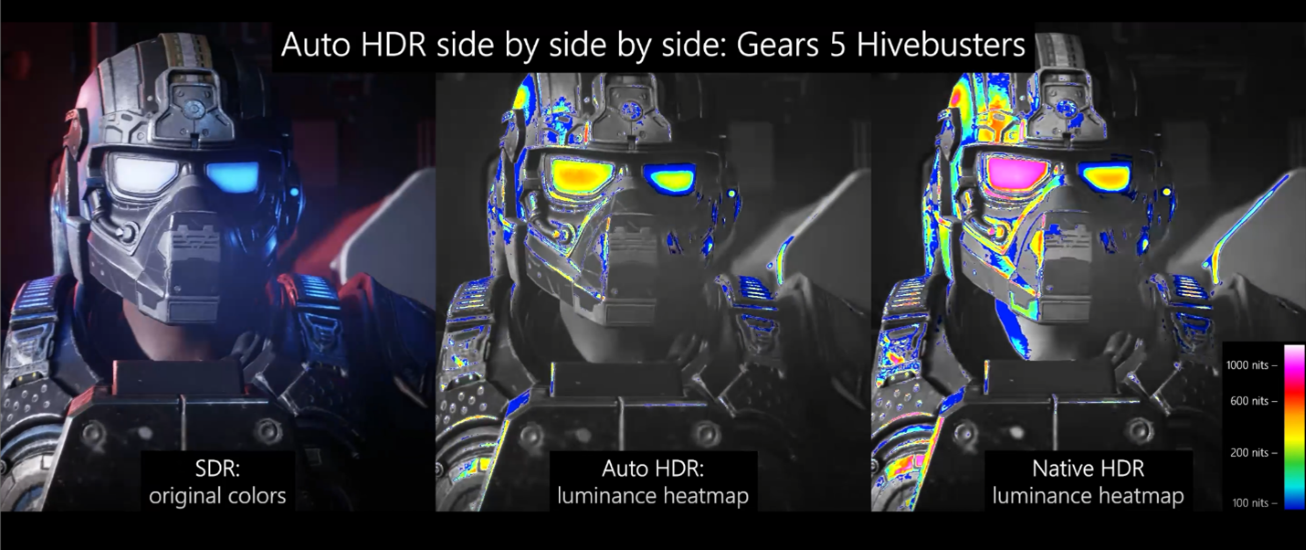
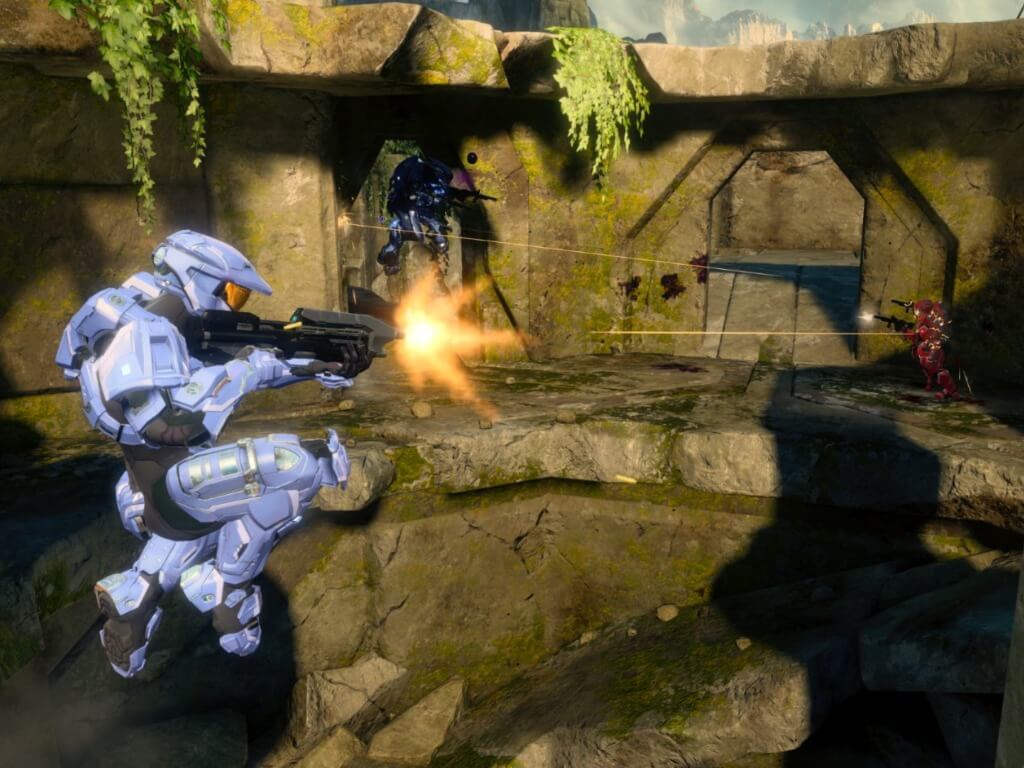
06:28 Windows 11 offers superior graphics thanks to Auto-HDR. Doom and Age of Empires are some of the 1000+ games optimized.
06:26 Windows 11 is focused on gaming, as Microsoft finally confirms. That’s great news for gamers all over the world. Faster FPS anyone?
06:22 Resizing is now child’s play! The new experience on tablets is way more refined than before. It seems that Windows 11 will work seamlessly on both PCs and touch devices.
06:17 Microsoft Teams is now working directly from the Taskbar! The chat list pops up when you hover over the icon.
06:12 Snap Group layouts and the docking/undocking experience are awesome! A new level of productivity that will definitely improve many workflows.
06:11 PM The new Start Menu has integrated search for File Explorer, OneDrive, and web. Also, the redesign is completely optimized for touch-input devices
06:06 PM It seems that Microsoft is having some problems with the live stream. Server issues?
06:04 PM – Windows 11 is confirmed. The speculations around Microsoft’s latest OS are finally over.
3 minutes and counting. Already 13.7k people are tuned in
Are you ready? Because Microsoft surely is. Let’s see what Microsoft has in store for us…
Reddit is undeniably one of the most interesting and most popular websites on the internet.
It’s part news, part social media, and the bigger big part – entertainment, which makes it your one-stop shop for finding the latest trends and everything interesting on the Internet.
Additionally, there are plenty of third-party apps available for Windows, Android, and iOS platforms.
And among those apps, here are the ones we, at Windows Report, think are most worthy of your use on your Windows 10 devices.
ReddPlanet is a relatively new third-party Reddit app for Windows 10 PC’s, mobile, and tablets.
Similar to other Reddit apps on Windows 10, ReddPlanet also works under the same universal Windows platform, bringing the same intuitive and sleek UI across PCs and mobile devices.
ReddPlanet comes with a ton of features for both novice and advanced Reddit users, further perpetuating the Windows 10 pedigree.
It comes with support for multiple accounts, better ways to view trends, different ways to toggle between subreddits, give users four different views, and a ton of additional features.
Customization is great as you would expect on a top-notch app; users can change colors, text sizes, fonts as well as customize a night theme for night use and more with ease.
For desktop, laptop, and tablet users, ReddPlanet provides support for split-screen modes. If you enjoy Reddit, head over to Microsoft Store to grab the app
It is free to download and gives you a customized experience on your Windows 10 device.
Arguably one of the best-designed Reddit clients for Windows platform, Readit for Windows 10 makes things even better.
Readit for Windows 10 uses the universal app SDK, bringing with it a set of premium features that you need to transform your Windows experience.
The most noticeable feature is the customizable columnar interface that allows you to hide and show elements with a simple toggle.
When using it on a smartphone, scrolling is highly responsive as you would expect on a premium app and everything shifts with pleasing animations.
When using it on a laptop or desktop, the app detects where the cursor is hovering thus enabling you to scour through different places without having to select them.
Readit is one of the feature apps that impart optimism for the future of the Windows ecosystem.
It incorporates a vast majority of Reddit’s functionality including, but not limited to nested commenting, voting, upvoting, and DLNA/mirror casting that enables users to mirror content straight to X-Box One over the home network.
Additional features include built-in Imgur integration for album viewing and the app also lets you view YouTube videos and GIFs as well. The app is also free, but you have to pay a small fee if you want to get rid of ads.
Baconit is one of the best and most popular apps for Reddit on Windows phone. The code for Baconit was recently rewritten in a bid to offer users a better experience.
It’s now coded using the Universal Windows Platform (UWP) which is good news because the app can now run on your PC, Surface, phone, Xbox, and even HoloLens.
Many users have found the app good enough to present everything that is right about UWP and Windows 10. The app is powerful, dynamic, and beautifully designed with kicky looks.
The app is also loaded with a ton of features that might make you want to give up your browser.
It represents the content in an easy-to-read format complete with upvote and downvote buttons and other multiple sorting options.
There is also a handy search bar that lets you easily find posts and subreddits in seconds. The app also allows you to pin posts and subreddits to the start screen. Baconit is a free and open-source app.
Infinity for Reddit one of the most popular Reddit apps for Windows 10 so you might try it even it’s on the last spot in our top.
It features an intuitive design and a user-friendly interface that makes it easy to browse your favorite Reddit content whether you are using a phone or a PC.
The app sports a set of unique and premium features that distinguishes it from other Reddit apps.
Just like other Reddit apps, you can vote, save, report, and perform other functions associated with your Reddit account.
Other added features include integrated quoting, the ability to reply to comments and links, the ability to view your messages on a user’s profile, and more.
You can even integrate it with Windows search and share and can also launch a link in the browser or copy it to the clipboard.
The Infinity for Reddit app also comes with an integrated viewer for a spectacular viewing experience.
If you’re new to Reddit, it’s going to look like an alien world with tons of information and lots of confusion.
The key here is to learn how to find the favorite content easily and faster and that’s what we’re trying to help you with below.
Understand more about subreddit
A subreddit is just somehow like a category of a website on a certain subject. So, when you open the front page, you will see posts from the default subreddit.
So, all you need to do is to check the subreddits that you’re interested in and there you will find lots of talks about the subject you’re on to.
Following people helps you
Once you find the topics you’re interested in, you can check out which are the most influential and active users who provide the most relevant posts and follow them.
They will be an extremely valuable source of information in the future. Of course, to do that, you will need a Reddit account.
Get to your Subreddits faster
When you’re entering a URL for a subreddit, don’t bother to enter the slashes. You can enter the subreddit nape at the front of the URL.
If you’re looking for Windows, you can type windows.reddit.com instead of reddit.com/r/pics. It’s easier and faster.
We hope you found the right Reddit app for your Windows 10 PC. All the above are great but you should test all of them to see which one you like better.
Microsoft showed off a lot of new features coming to Windows 11 but was understandably silent on what users will miss when upgrading.
Fortunately, later Microsoft published a list of features that will be deprecated or removed when Windows 11 event hits devices this fall.
According to Microsoft users will need to say their goodbyes to the following:
Cortana will no longer be included in the first boot experience or pinned to the Taskbar.
Desktop wallpaper cannot be roamed to or from device when signed in with a Microsoft account.
Internet Explorer is disabled. Microsoft Edge is the recommended replacement and includes IE Mode which may be useful in certain scenarios.
Math Input Panel is removed. Math Recognizer will install on demand and includes the math input control and recognizer. Math inking in apps like OneNote are not impacted by this change.
News & Interests has evolved. New functionality has been added which can be found by clicking the Widgets icon on the Taskbar.
Quick Status from the Lockscreen and associated settings are removed.
S Mode is only available now for Windows 11 Home edition.
Snipping Tool continues to be available but the old design and functionality in the Windows 10 version has been replaced with those of the app previously known as Snip & Sketch.
Start is significantly changed in Windows 11 including the following key deprecations and removals:
Named groups and folders of apps are no longer supported and the layout is not currently resizable.
Pinned apps and sites will not migrate when upgrading from Windows 10.
Live Tiles are no longer available. For glanceable, dynamic content, see the new Widgets feature.
Tablet Mode is removed and new functionality and capability is included for keyboard attach and detach postures.
Taskbar functionality is changed including:
People is no longer present on the Taskbar.
Some icons may no longer appear in the System Tray (systray) for upgraded devices including previous customizations.
Alignment to the bottom of the screen is the only location allowed.
Apps can no longer customize areas of the Taskbar.
Timeline is removed. Some similar functionality is available in Microsoft Edge.
Touch Keyboard will no longer dock and undock keyboard layouts on screen sizes 18 inches and larger.
Wallet is removed.
The following apps will not be removed on upgrade but will no longer be installed on new devices or when clean-installing Windows 11. They are available for download from the Store:
3D Viewer
OneNote for Windows 10
Paint 3D
Skype
Some of the items on the list seem like justifiable changes to improve the overall optimization of Windows such as getting rid of duplicate experience like OneNote, Paint, Internet Explorer, and Snipping Tool. However, there are some oddities such as Skype, Tablet Mode, Pinned Apps, and roaming Wallpapers, which stand out as headscratchers as well a curious admission to the company’s failed Windows 10 vision.
Arguably, most of the items listed have been mostly depreciated by users and it just seems Microsoft has finally caught up on clearing out the cruft.
During the Windows Developer event for Windows 11 today, Microsoft announced that Windows Insiders will get their first look at the new Microsoft Store “next week.” While it’s been previously announced that Insiders will get access to the first builds of Windows 11 next week, this is the first confirmation that a preview build of the new Store will be available.
Microsoft has published a new home page for the new Microsoft Store, where you can learn more about all the goodness coming to the new Store, including 100% revenues for developers using their own commerce platforms, built in apps like Office, Teams, Notepad, Visual Studio and VS Code, and Paint coming to the Store
Windows 10 has been out for years, bringing many interesting features. In today’s guide, we’re going to give you the best reasons why you should upgrade to Windows 10.
Join us while we take a closer look at Windows 10 and all the benefits that it has compared to the previous version.
Why should I upgrade to Windows 10?
1. Start Menu differences
Start menu was one of the most recognizable features of Windows operating systems for decades, and Microsoft’s decision to remove it in Windows 8 represented a significant change.
But Windows users weren’t ready for such a change. They were unsatisfied with the new Metro environment, and a lot of users complained about the lack of a Start menu.
Microsoft was well aware of the situation and the company decided to fulfill the wish of millions of users and return the Start menu in the next Windows.
But what to do with all those apps designed for the Metro environment? The company couldn’t just throw them away.
So Microsoft came up with a compromise, as it combined the traditional start menu with Metro apps to get a brand-new look of the Windows 10 Start menu.
Reviews are positive, and Microsoft definitely made the right move by returning the Start menu to Windows platforms, because it satisfied users who were against the start screen, as well as users who loved Metro apps.
If you’re looking to upgrade your OS, we recommend making the jump to Windows 10. Check out the best Windows 10 editions, and find which one is right for you.
2. Cortana
Besides the Start menu, Cortana is also one of the most notable additions to Windows 10.
Microsoft first introduced Cortana to its Windows Phone platform with the 8.1 update, and was the last of major manufacturers who release a virtual assistant for its mobile platform.
But Microsoft was first to bring the personal assistant to PC platforms, which is a noteworthy innovation.
With Cortana you can search web, but also local files and folders on your computer.
It is also a customizable and personal virtual assistant, as it recognizes things you like and provides content based on your interests.
Cortana will also be integrated with Microsoft’s new browser, Project Spartan or Edge, so you can use its help while you’re browsing, right on the webpage.
Cortana is a very useful assistant, so if you decide to remove it, we can help you bring it back. Check out our detailed guide and see how to enable Cortana after disabling it.
3. Multiple desktops and Task view
Cortana isn’t the only thing Microsoft took from portable devices, because Windows 10 features a brand-new Task Manager and the option of creating multiple desktops.
Virtual desktops feature allows users to create multiple desktops and pretend to be working with multiple monitors.
This feature could be extremely useful if you want to work with multiple programs at once.
Next is the Task view feature which allows us to easily control our tasks, just like we do on mobile devices.
Task view button is present in the taskbar, next to the search bar, but you can also access it by pressing the Alt + Tab buttons.
With this task manager, you’ll be able to swiftly switch between tasks, manage and close them, and it will definitely increase the productivity of Windows 10 users.
Also, if you’re an advanced user or looking for a Task Manager alternative, check out our list of best Task Manager software.
4. Xbox and gaming features
Microsoft is preparing many great, new things for gamers with Windows 10.
Basically, gaming in Windows 10 will be all around the new Xbox app, but this app offers many features.
You can chat with friends, track your activity feed, check leaderboards, etc.
Also, you’ll be able to stream your Xbox One games on your PC, which means that you may play and watch all your Xbox One games on your computer.
Xbox app goes to the point where it will allow you to play Xbox games on PC with friends who play the same game on the console.
This is another addition to Microsoft’s Windows 10 cross-platform philosophy.
Also, we expect the new DirectX 12 to be released for Windows 10. The new DirectX will definitely improve graphics of the games and bring the new experience to PC gamers whose graphics cards could support it.
If you don’t know how to enable DirectX 12 in Windows 10 for any game, take a closer look at our comprehensive guide and find the best solution.
5. Windowed apps
Along with Start Screen, Microsoft introduced Metro apps in Windows 8, Windows 8.1.
There are a lot of useful Metro apps in the Store, but users simply don’t like the fact that these apps use the whole screen.
So many people disapproved this feature, just like it was the case with the start menu. Luckily, Microsoft fixed this as well.
Of course, the company couldn’t allow itself to simply remove all those apps from the store, because a lot of effort and a lot of money were put in them.
So Microsoft decided to redesign them a little, as they’re now available in the windowed mode, just like other regular programs.
This is much better for PC users, because the previous design of apps just wasn’t desktop-friendly, and some users had a hard time using it.
But in Windows 10 size of apps’ window is easily customizable, so you can adjust it according to your desire.
6. Default web browser
It looks like Microsoft developed a habit of ending an era with its new operating system.
Like the start menu in Windows 8 (luckily, the company decided to revive it), Microsoft sent Internet Explorer to history after nearly 20 years of lasting.
Internet Explorer will be replaced by new Microsoft browser, Project Spartan/Edge, in Windows 10.
Microsoft’s move might be good, because although Internet Explorer is the most famous browser in the world, it’s not famous for great performance.
People are mocking Internet Explorer for years because it’s slower than competitors, and introducing a new browser could attract users’ attention in a good way.
As for Microsoft Edge, we can’t tell you much about the performance, because like the system itself, it’s still in its early testing phase, but it surely offers some new, refreshing features.
It is powered by EdgeHTML engine, a new layout engine, created from Internet Explorer’s Trident.
It also has some other Microsoft’s products integrated, like personal assistant Cortana, which will improve your searching, and Microsoft OneDrive.
It also has a new Reading View option, bringing a new dimension to the reading experience.
This means that the operating systems are not receiving feature and security updates.
As a result, your PC will be more vulnerable to security attacks and exploits.
Many applications dropped Windows 7 support and the same fate is coming to Windows 8.1.
Windows 10 is no more demanding than its predecessors, so you should upgrade as soon as possible to keep your PC safe and compatible with the latest software.
Windows 8.1 is losing popularity, and for more detailed information, visit our Windows market share history guide.
Are you still using an older version version of Windows? If so, let us know your reasons in the comments below.
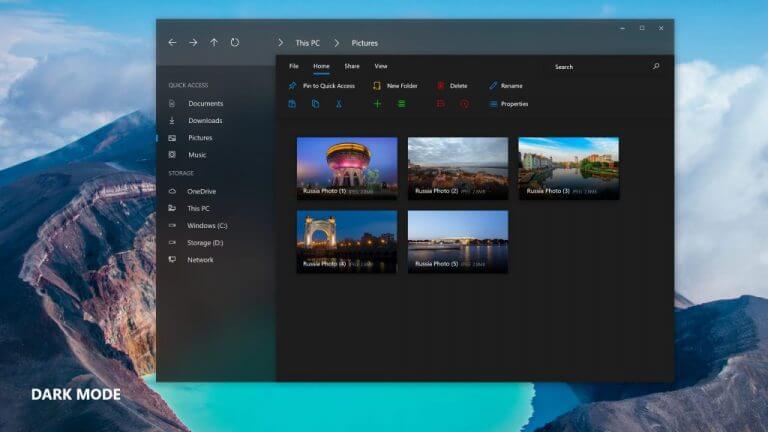
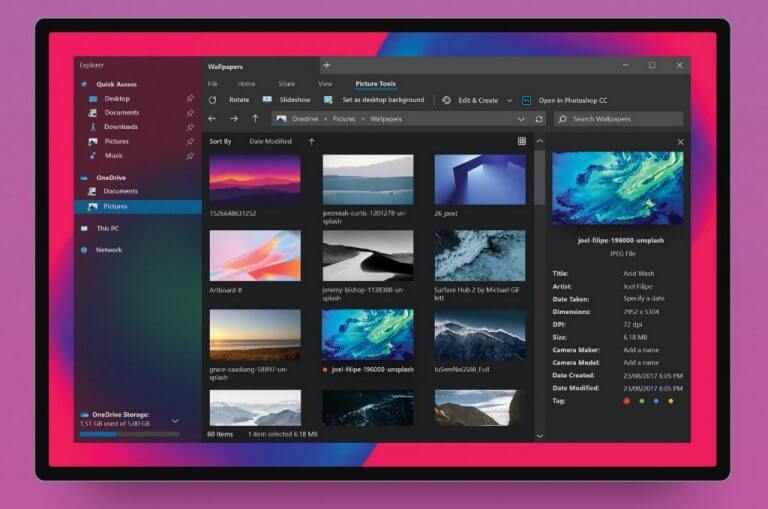
Microsoft seemingly laid all of its Windows 11 cards on the table as it walked users through all the features to come to the operating system, except for the long-awaited File Explorer upgrade the company has hinted at for some time.
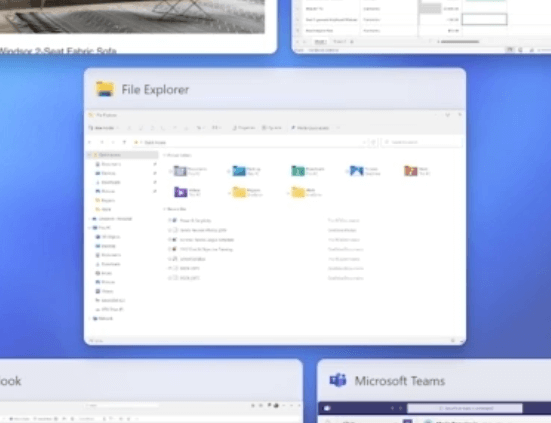
Despite being in almost every screenshot during Microsoft’s 45-minute long unveiling of Windows 11, the company suspiciously avoided the File Explorer icon in the new Taskbar.
Not only Microsoft manage to run full workload scenarios involving Office 365 and Teams without once referencing the File Explorer, but the company also danced around the app during countless demos of other apps that sat near or even directly next to it.
While a new File Explorer has been a fever dream of many Windows users for decades now, it was Microsoft itself that introduced the notion that an update was destined for the aging organizing software. Just recently, Microsoft adjusted the padding to visual elements in the File Explorer to enable slightly improved touch interactions with the app, but, thanks to a quick screenshot caught by many during today’s “What’s Next for Windows” event, there seems more visuals changes are destined for the app.
Based on its brief appearance, the years’ worth of conceptual depictions of the File Explorer may have been overreaching as Microsoft looks to retool the Ribbon with more an iconography-focused layout for editing options.
As evident by the demo, it appears the adjustments to the Filer Explorer are in place to encourage greater touch adoption by users.
Nevertheless, it seems surprising that Microsoft would be bashful in touting the changes while gushing over additional windowing options through visual prompts. Whatever the reason, Microsoft has chosen to remain mum on the changes coming to the Windows 11 File Explorer even though the appetite for it to modernize both visually and functionally, is at an all-time high for some users.
Microsoft has finally shared more details about Windows 11 earlier today, and the next version of the OS should be an exciting update for PC gamers. Indeed, Windows 11 will integrate new platform features that shipped first on Xbox Series X|S consoles last year, and this should definitely help to make the Xbox ecosystem a bit more cohesive in the near future.
Auto HDR, an AI-powered feature that can apply High Dynamic Range enhancements to Standard Dynamic Range (SDR) images will be the first Xbox feature to make the jump to PC. The HDR reconstruction technique will be compatible with games built on DirectX 11 or higher, and it should help to make old PC games look better than ever with no work required from game developers.
Windows 11 will also add support for DirectStorage, Microsoft’s new I/O system that’s one of the components of the Xbox Velocity Architecture on Xbox Series XlS consoles. DirectStorage is a technology designed for unleashing the full performance of an SSD to optimize hardware decompression and let Modern games perform asset streaming in the background without stressing the CPU.
DirectStorage will require a high-performance NVMe SSD and the proper drivers, and Microsoft said today that “DirectStorage Optimized” Windows 11 PCs will come configured with the right hardware and drivers. Even on PCs that are not optimized for gaming, Windows 11 will still provide access to a great selection of games with Xbox Cloud Gaming, which will be integrated into the Windows 11 Xbox app.
Windows 11 will be a free upgrade for Windows 10 users later this year, though the new OS will require a PC with a 64-bit CPU and a DirectX 12 compatible GPU. A new version of Windows is usually a good opportunity for PC makers to sell new devices, and Windows 11 should be no exception.
Microsoft took the wraps off Windows 11 earlier today, and the next version of the OS will ship on new PCs this holiday season and will also be offered as a free upgrade for Windows 10 users. If Microsoft also confirmed today that Windows 10 version 21H2 is coming later this year, the company also announced that Windows 11 will only get one major update every year (via ZDNet).
In recent years, Windows 10 users have gotten used to bi-annual updates in the Spring and the Fall, but Microsoft will do things differently for Windows 11 and that’s probably not a bad thing. Each major update for the Home and Pro editions of Windows 11 will get 24 months of support, while the Enterprise and Education editions of the OS will get 36 months of support.
Microsoft will also service Windows 11 with regular cumulative updates, and the company highlighted today that it has optimized Windows Update on Windows 11 to make patches 40% smaller and make the installation happen in the background. Users have been complaining for years about Windows updates messing with their workflow, but it remains to be seen if Windows 11 updates will be less disruptive.
Windows 11 will have some pretty strict hardware requirements and Windows 10 PCs that don’t have a 64-bit CPU, a TPM 2.0 chip, and a DirectX 12 GPU won’t be able to upgrade. These PCs will need to stay on Windows 10, which will be supported until 2025. We don’t have details about the version 21H2 of Windows 10 coming later this year, but it will likely be another minor update as Microsoft starts to give Windows 11 the priority.
Windows 7 users are no exception. Most of them are already wondering if they will be able to make the transition towards the new Windows without paying a dime.
This seems to be their lucky day since Windows 11 could not only be a free download for Windows 10, but also for owners of Windows 7 devices.
65% of Windows 7 users intend to upgrade to Windows 11
Microsoft has been quite aggressive in pushing Windows 10 to Windows 7, 8, and 8.1 PC and laptop owners.
Users of older Windows versions were able to upgrade at no additional cost and the initial one-year time limit on the free upgrade offer became a thing of the past.
They could easily do so long after that deadline. Even at this point, with Windows 11 in the spotlight, there are ways to make it happen. The truth is that not so many Windows 7 users were willing to embrace Windows 10.
Things are about to change, though. No less than 65% of polled participants have already confirmed their intention to upgrade to the new operating system version.
Changes are that the improvements that leaked so far convinced them to finally take action – the floating Start Menu that can be easily moved and that centered Taskbar are some exciting new elements, not to mention those fluid animations, and the new collection of sounds which give Windows a fresh vibe.
No less than 51% of users will buy a Windows 11 desktop PC
Windows 10 was released in 2015, therefore Windows 7 systems are outdated and offer a less pleasant experience.
Therefore, it comes as no surprise the fact that 16% of Windows 7 users will buy a new Windows 11 device, double the amount of Windows 10 users.
While 51% of users opt for a Windows 11 desktop PC, 41% already plan to become the owners of a new laptop instead.
Even if the free upgrade theory proves to be true for those eager to enjoy Windows 11, this doesn’t turn into an argument against all those upcoming laptops and pre-built machines that will start to be sold with Windows 11 out of the box.
We don’t know how soon this will happen yet rest assured that we’ll keep an eye on things and return as soon as possible.
Halo: MCC has received a big update on Xbox and PC yesterday to go along with the launch of the game’s Season 7, which brings new customization content, map changes, and more. The new cosmetic content to unlock as part of Season 7 includes new Halo 3 Elite armors, new Halo 3 Energy Sword colors, as well as exclusive Halo 4 weapon skins.
The Custom Game Browser that 343 Industries has been working for quite some time is also going live with this new update, though it’s currently restricted to Halo Reach. With this new feature, players can customize and host their own custom game session or search for other people’s custom games.
There are also several notable multiplayer changes in this update, including a new Halo 3 map named “Edge” and the addition of the Halo 3: ODST and Halo: Reach Firefight game modes in Social matchmaking. The settings for the Halo: CE Hardcore playlist have also been updated better align it with the expectations from the competitive community on Xbox.
This update also brings some visual improvements for Halo: CE to make it look closer to the classic experience on the OG Xbox. For advanced users interested in fine-tuning Halo: CE, new mod tools are also available for the Steam version of the game and you can learn more details on this page.
This latest patch has also fixed several issues with Halo: MCC, including a bug that sometimes caused the game to crash on Xbox consoles why performing background operations. You can check out the full release notes for Halo: MCC’s Season 7 update on the Halowaypoint website.
The Windows 11 event is upon us! Today Microsoft is unveiling “the next generation of Windows,” which we know to be Windows 11. Even though a development build leaked last week, there’s still lots we don’t know about Windows 11, both in the details but also the direction Microsoft has planned for Windows. We have some speculation on what to expect and what not to expect, but we’re as excited as you to hear, officially, what’s next. We’ll have lots to say about the news as it’s revealed, and you’ll be able to catch up on all the latest news from our blog posts, but we’re going to be following along right with you, and live blog our thoughts here too. Feel free to chime in, either via the 24 Live Blog interface, or just through comments on this post, and let us know your first reactions to what’s being unveiled.
We are expecting a lot of new and interesting facts about the new operating system although we already know a lot about some of the design features.
NOTE
In case you’re interested in finding out what other people think about the upcoming Windows 11 release, feel free to check out our thorough Windows 11 survey. In total, 6056 users have responded to our queries on this topic, with users ranging from the US, India, the UK, Canada, Australia, and other 147 countries.
When to prepare for the Windows 11 event?
The event will be starting Thursday, 11 a.m. Eastern time on June 24, 2021, with Microsoft’s CEO Satya Nadella and Chief Product Officer Panos Panay both hosting the event.
If you miss the exact time, you can still watch the recording later on the Microsoft website like always.
How to watch the event
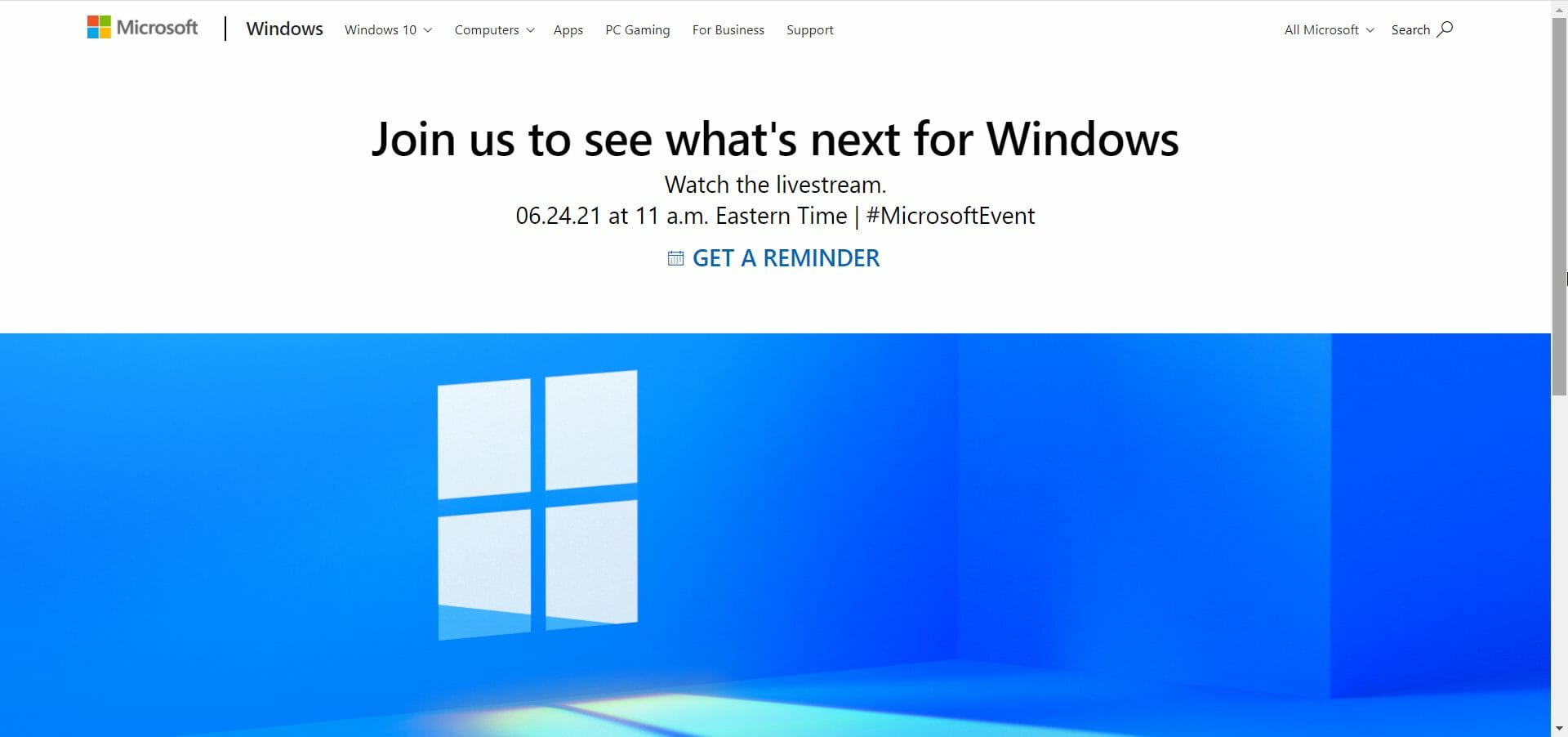
Microsoft already created an event page that you can go to right now and you can even set a reminder before the start so you can get right in.
Of course, the streaming will work on any browser you might use, starting with Microsoft Edge but not excluding Opera, Chrome, Firefox and all others.
Of course, you can also use any other streaming-able device like the PC, laptop, smartphone, tablet and the event will also show up on Microsoft’s YouTube channel.
What will we find out at the event?
Satya Nadella already teased the new OS as the next generation of Windows in the invitation for the event so we’re eager to find out more about Windows 11.
How much more? Hopefully a lot because the whole event is only focused of this subject alone.
However, we already got a glimpse of many new features after Windows 11 ISO leaked a few days ago. We even know about a Windows SE version designed for enterprises.
We know about the graphics overhaul, that the Microsoft Store is going to be revamped and that Microsoft Edge got a massive overhaul that will convince a lot of naysayers.
It would be nice to hear about a lot of clarifications and tech details that will bring us closer to the actual Windows 11 OS.
According to our latest exclusive study on Windows 11, you guys are really excited to know more about it and we’re going to make sure you are well informed.
If you have any more questions or you just want to talk about the new OS, leave us a comment in the dedicated section below.
The recycle bin is a temporary storage of deleted files in the Windows Operating System. PC users can restore deleted files or manually clean the recycle bin by using its Empty Recycle Bin function.
However, clearing the recycle bin is a tedious process; hence, the need for an automated process of cleaning the recycle bins i.e. software application. Meanwhile, we have this list of the best recycle bin cleaners.
How does the Delete option in Windows work?
When you hit the delete button, the file will go into the recycle bin. Then after you empty the bin, the file will be deleted.
Well, not quite because the system will not permanently delete the file. It will only mark the space on the drive as empty so it can be overwritten.
That means that it can take a few days and a bit of activity for the original file to get lost because another file was written over it.
Even so, there are a few recovery algorithms that can retrieve a file that was partially written over.
That is why if you want to permanently delete a file it’s not enough to delete it from your drive or simply send it to your recycle bin.
You will need specialized erasing tools to do that for you and we found the best solutions for you below.
What are the best tools to erase recycle bin on a Windows PC?
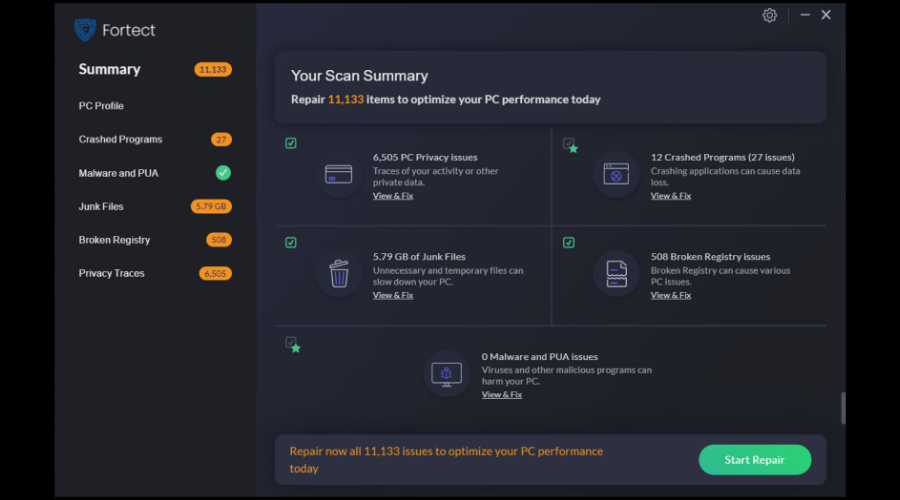
Fortect is a great help in cleaning your Recycle Bin as it has advanced cleaning features and other optimizing tools.
Besides cleaning your Recycle Bin, Fortect can help you erase junk files and other unnecessary files that slow down your computer which helps with its optimization.
Moreover, you can perform a browser cleanup and remove all your web browser tracking cookies to clear any trace of your online activity.
With this app, you can opt for repairing your damaged or missing operating system files, like DLLs or registry keys, by replacing them with healthy components from the software’s repository.
Fortect is a real-time software and malware monitoring which means it will check your downloads, installs, and executables for digital threats every time you use your PC.
Other key features of Fortect include:
Full scanning report
Ultimate OS repair technology
Registry Key optimization
Windows Restoration
Fortect
Keep your PC optimized and free up space by using this excellent software.
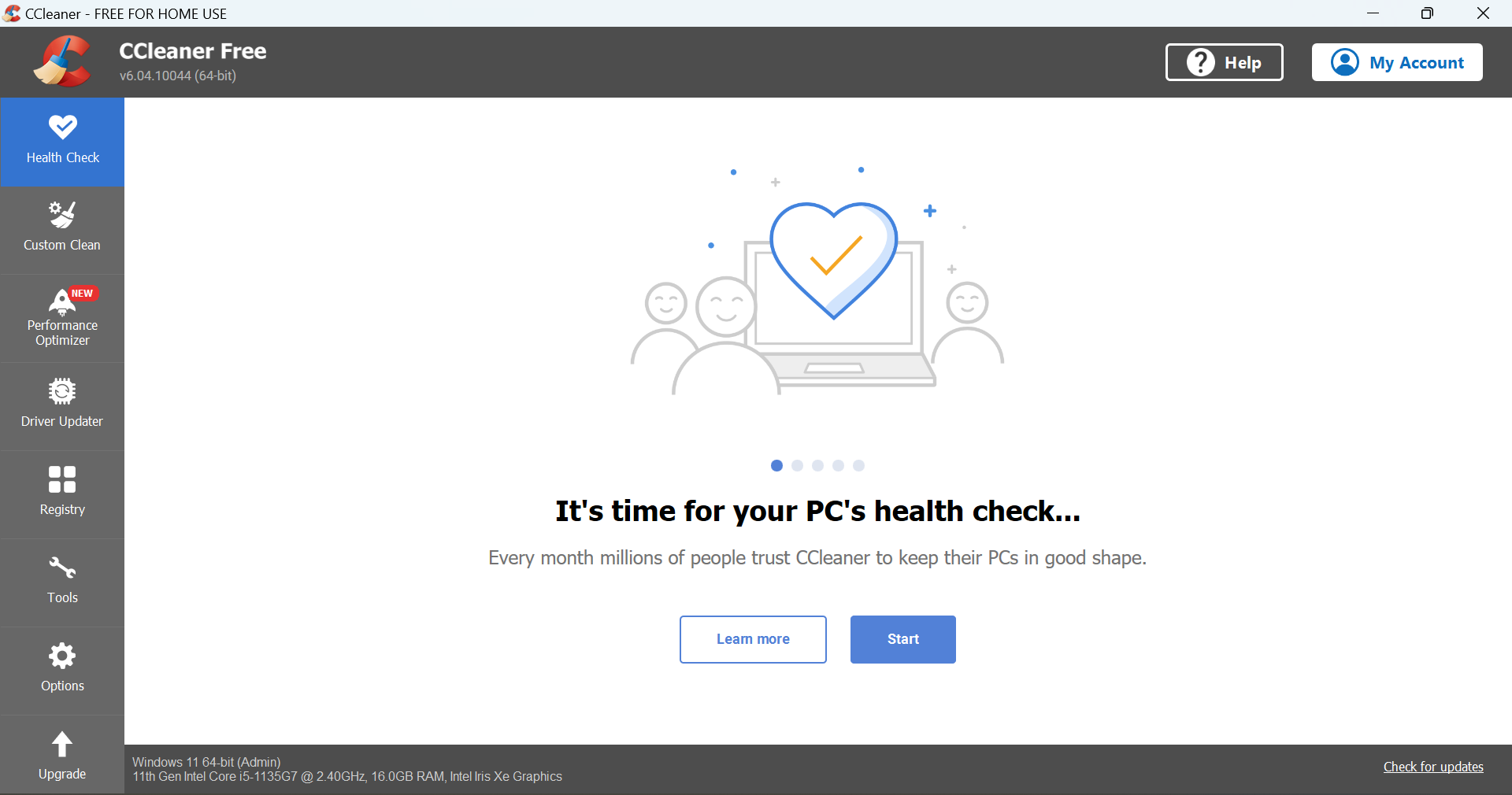
CCleaner is an award-winning PC cleaning program that can also be used as recycle bin cleaner with over 1.5 billion downloads.
It’s extremely easy to use by simply selecting the task you want the tool to perform and then waiting.
It includes options such as registry cleaner, program uninstaller, startup monitoring, duplicate finder, disk analyzer, or system restore.
This program also offers a portable version that you can use from your external drives. The software is compatible with Windows XP 32-bit and 64-bit systems or later.
As old software that wasn’t updated can hide vulnerabilities, you will be happy to discover the CCleaner software updater that will keep app your apps up to date.
It comes as freeware, but for certain actions, you will need the paid version. You just need to test it and see what extra features you want.
Let’s see some of its most important features:
1-click software update feature
PC optimization tools
Removes tracking files and browsing data
Control which apps use your computer’s resources
Driver updater feature
CCleaner
A hassle-free tool to clean not just the recycle bin, but also duplicate or temporary files and get more disk storage space.
With Secure Eraser, you can boast of a versatile PC utility tool that also functions as a recycle bin cleaner.
This program is available in both the free version as well as the Professional version. Secure Eraser is easy to use due to its excellent graphical user interface.
In addition, Secure Eraser also functions as a registry cleaner and system cleaner for deleting junk system files.
The tool supports major Windows OS such as Windows XP, Windows Vista, Windows 7, Windows 8, Windows 10, and Windows Server 2003, 2008, and 2012.
Its most important feature, however, is the great system of deleting your data securely, making sure that you won’t have any remains that can be retrieved.
Its latest version received a speed optimization, and the interface became even more friendly and easy to use.
Also, it extended its support to 64-bit systems and optimized the deletion procedure to become faster.
Let’s see what are its most important features:
Supports all major Windows OS versions, including 64-bit versions
Secure data-erasing system
Excellent graphical user interface
Registry cleaner and system cleaner included
Available in free and Professional versions
Secure Eraser
This excellent tool not only that it cleans your Recycle Bin but also all your unwanted files.
If you want a recycle bin cleaner with drag and drop feature, Securely File Shredder is the ideal program for you.
It’s free and easy to use even for beginners. You can conveniently clean the recycle bin by clicking only one button
In addition, you can change the wipe method for file deletion and also show the program in the notification area.
However, this lightweight program is only compatible with Windows 10 version 17763.0 or higher and Xbox.
Supports the shredding algorithm used by the Department of Defence (DoD), and other algorithms like Schneier’s method, the Gutmann Method, and also a custom-designed one.
Securely is extremely easy to use. You can just drag and drop the files or folders on Securely or mass delete them with just one click.
The app comes in a free version that has a limited number of deleted files per week and features ads.
If you want an unlimited number of deletions and no ads, you will have to go for the Full version of the program.
Securely File Shredder
Delete unwanted files all at once with a very simple drag-and-drop tool.
If you want to schedule the cleaning process of your Recycle bin, use Eraser software. Eraser, just as its name implies, is a secure recycle bin cleaner for any Windows PC.
This software works by scheduling and erasing tasks process. You can set up recycle bin cleaning tasks to run daily, weekly, or monthly.
Eraser supports major Windows OS such as Windows XP, Windows Vista, Windows 7, Windows 8, Windows 10, and Windows Server 2003 – 2012.
This means you can set up Eraser to securely empty the Recycle Bin every day, for example, or to delete the files in your Downloads folder on a schedule.
Eraser works by scheduling tasks to erase certain files. You can set up a task to run immediately after it has been created, manually, on every restart, or recurring on a particular daily, weekly, or monthly schedule.
Not only that it can safely clean your internal drives, but it also works with any drive that works with Windows.
To delete the trash for good, all you need to do is to right-click Recycle Bin, select Eraser, then the Erase option.
The upcoming Space Jam: A New Legacy movie that will be released on July 16 will also get its own free-to-play game on Xbox consoles next month, Microsoft announced today. Space Jam: A New Legacy – The Game is an arcade style game that will be free to grab for Xbox Game Pass Ultimate starting July 1, and it will become free-to-play for all Xbox gamers on July 15.
“The game is inspired by the upcoming live action/animated feature film with deep reverence for the lively characters in Space Jam: A New Legacy and appreciation of the Tune Squad’s pop culture influence, all while reminiscent of classic arcade games of the 1990s,” explained Sarah Bond, CVP, Game Creator Experience & Ecosystem at Xbox.
Space Jam: A New Legacy – The Game will feature NBA star Lebron James as well as Looney Tunes characters Bugs Bunny and Lola Bunny as playable characters. Overall the beat em’ all game looks like a fun companion piece to the movie that is a standalone sequel to the original Space Jam movie from 1996 starring NBA legend Michael Jordan.
To celebrate the upcoming movie and video game, Microsoft has also created three exclusive Xbox Wireless Controllers inspired by “Space Jam: A New Legacy.” The limited edition controllers will be available starting July 8 at the Microsoft Store, Amazon, and other third-party retailers in North America, APAC, LATAM, and EMEA.
It’s not a secret anymore, Windows 11 is coming! But ahead of Microsoft’s June 24 “what’s next for Windows” event, Microsoft appears to be teasing Windows 11, which we just so happen to already know about, thanks to the “leaked” build that our own Cody Carson just went hands-on with.
We don’t let that ruin the fun though. Microsoft is definitely amping up for some Windows 11 marketing, and here’s a recap of all the Windows 11 teasers we’ve seen from Microsoft so far, just a short 24 hours from when the event is set to kick off.
New social media wallpapers and profile photos
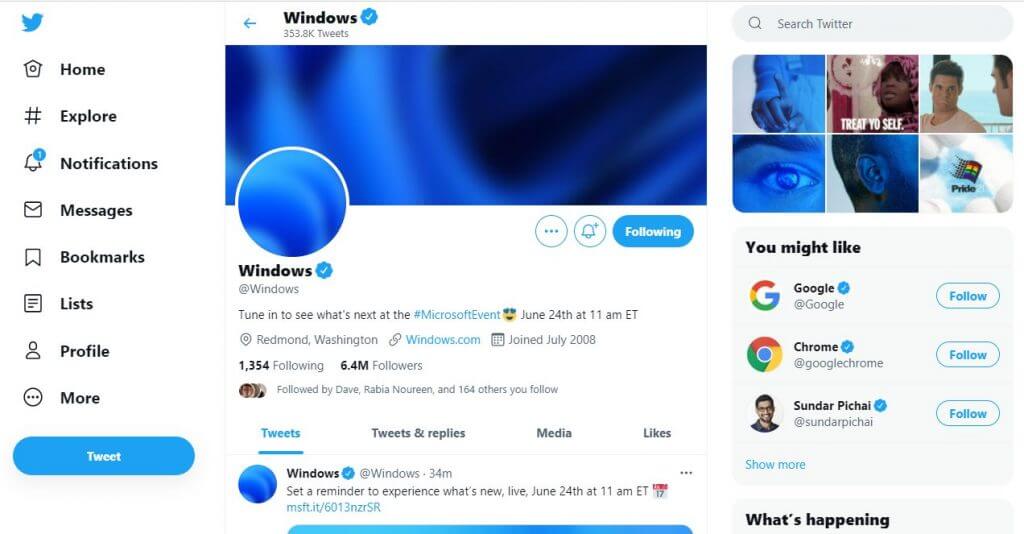
Let’s start first with a look at the Windows social media accounts. If you visit Twitter, you’ll see that the Windows account has changed its Twitter header to include a new “wave” which looks a lot like one of the default wallpapers we’ve seen in Windows 11. That wave also carries over to their profile photo, too. Their Instagram and Facebook all have the same imagery well. Clearly, this is a tease at new wallpapers and more Fluent Design effects in Windows 11.
Going back in time a bit, the first Windows 11 leaks started happening on June 15. That’s when screenshots of the operating system appeared online, then the ISO for the entire build. The media was quick to pick up on this, with the first reports happening around 11:50 AM ET. Shortly after, at around 2:48 PM, the Windows Twitter page seemingly tweeted out “This is just the Start. Tune in on June 24 at 11 am ET to see what’s next.” It’s a bit of a push to say so, but Microsoft did seemingly acknowledge the leaks with that tweet and could be teasing more new features ahead which weren’t in the Windows 11 build. That’s just us, though.
Backing up to June 21, Microsoft sent out an interesting Tweet which again seemed to tease something in Windows 11. Looking at the video in the Tweet, you can see the camera zoom in closely on someone’s ear. Now, some people think that’s a tease for new Surface audio devices, but if you think about the new Windows 11 sounds which our Cody showcased in his video, then this could be Microsoft teasing that audio revamp for Windows 11. Even before that, Microsoft pushed out an 11-minute video on YouTube which remixed Windows startup sounds, too. We’ll let you be the judge of what that means.
In another tweet, this one sent out on June 22, you can see Microsoft hinting at more new wallpapers for Windows 11. If you look into the eyes of the woman in the video, you can see one of the wallpapers which we spotted in the leaked Windows 11 build. Clearly, Microsoft had things planned out to tease the new images, before the actual leak revealed everything at once.
Today (June 23), Microsoft sent out a tweet to the Windows account which combines the previous two which we mentioned above. But in this one, you end up seeing a woman touch the camera at the end of the video. Again, it’s just us stretching things out, but Microsoft could be hinting at more touch experiences in Windows 11. We’ve already seen that so far in the leaked build with new gestures for getting into virtual desktops, and minimizing Windows, as well as a new area in the Windows Ink Workspace. Could there be more on the way? We’ll have to wait and find out.
What’s “in store” for developers for a new Microsoft Store?
Continuing down the line, the Windows Developer event sent out a tweet about “tune in to see what we have in store for developers.” This is a separate event from the main Windows 11 reveal and is set for later in the day. It’s rare for Microsoft to hold developer events like this one outside of Build, so this definitely has to be teasing some new features for the Microsoft Store in Windows 11. Again, we’ll let you be the judge on that one, but we’ll be watching live to hear about any new changes.
We’ll be watching live right with you
That’s just a look at Microsoft’s teases. We’ll be watching the June 24 event live, so be sure to look out for our special live blog come event day. And be sure to follow us on Twitter, too, where we’ll be tweeting our reactions and offering commentary. And don’t forget that we’ll be recapping everything that happened at the event on our Podcast. It’s a busy time to be a Microsoft fan, and we have your back!
Last week, we reported that Microsoft Edge is getting a new Outlook extension that will let users quickly access their inbox without switching tabs or apps. The Outlook extension is now available to download on the Microsoft Edge add-ons website, though it is currently in preview (via Neowin).
The Outlook browser extension enables users to read, send, and manage emails and receive new email notifications without opening a new tab. Once downloaded, the browser adds an Outlook icon on the address bar. Users will need to sign in with their work or personal account to see their emails, calendar, contacts, and tasks, and more in a pop-up menu while browsing the web.
Other features include the ability to join online meetings, create new events, as well as view upcoming events. The extension currently supports 50 different languages, including French, Arabic, and Korean and it helps to perform the following functions:
Reading an important email
Checking your calendar
Adding a task based on what you’re reading on the web
Fast look up of a contact’s phone number
Referring to info on a webpage while writing an email
It is important to note that the new Outlook add-on is still a work in progress and the Microsoft 365 roadmap indicates that it will drop its preview tag in July this year. At this point, it’s only available on the Edge Add-ons store, and there is no word on when it will become available for Chrome users.
When you hear the words “Microsoft Garage,” you might think of a garage located somewhere in Seattle, but don’t be mistaken, it is something different. Microsoft Garage is actually an official outlet from Microsoft that allows employees and interns to create and experiment with apps that can solve common problems.
There are even physical Microsoft garage locations around the world in Vancouver, Bay Area, Atlanta, New England, New York City, Dublin, Israel, Hyderabad, Bengaluru, and Beijing. The garage locations provide spaces for projects, as well as talks and workshops.
Anyway, there are some great Microsoft Garage projects for Windows 10, some of which are actually quite cool. Today, we’ll be looking through those garage projects for you.
First on our list is Sketch Pal. This is an app that is really great for Surface devices. It is able to make drawing easier for artists. According to Microsoft, this Windows 10 drawing app brings new features like coloring assist, stroke cleanup tools, and reference view. These features all leverage the technology in a Surface pen like low pen latency, tilt support, and pressure sensitivity. Some other unique features in Sketch Pal include the ability to create your own brush, join strokes, add reference pictures to sketch under or alongside with. You even can use a second PC as a remote palette and continue drawing on another device.
Next up is Charts 3D. This app is more for engineers and those who are information workers, but it actually is quite useful. It is designed to help make data easier to see and understand and for you to create insightful visualizations. Officially, Microsoft says the app can be used by presenters to illustrate their key points with a more immersive and interactive 3D objects.
Some features in Sketch Pal include cool ways to interact with charts such as zooming, rotating, and panning the graph from different perspectives. There are also analytical tools in the app centered around filtering, seeing data as connected lines, and even on a 2D plane. Interestingly, you also can manipulate and interact with the visualization using simple voice commands.
This third Microsoft Garage project goes back to inking, and it’s quite the cool one, too. Sketch 360 is an app that helps artists create full 360-degree sketches through a grid design. The app has a drawing area on the left, and a 360-degree view on the right, which is able to render your 2D drawing in 3D in real-time. Using the app is easy, too, as you can trace along embedded gridlines, use a variety of pens in the app, and tilt and rotate images with the movement of your device. Sketch 360 was so popular that Microsoft ported it over to Android for devices like the Surface Duo!
Fourth on our list is Mouse Without Borders. This app lets you control up to four Windows computers with a single mouse and keyboard. You even can copy and paste text and drag and drop files across the computers, too. If this sounds familiar, then you probably know why. This is basically the Microsoft version of Universal Control, which was recently introduced by Apple as a way to control iPad and Macs with a single keyboard and mouse. Mouse without Borders works on Windows 7, Windows 10, and even Windows XP and Vista. It is not available in the Microsoft Store, but you can download it as a traditional .exe file via the link below.
Finally, we get to an app that’s designed for developers. This one lets you draw wire frame sketches and export them to Visual Studio. Microsoft says this app is designed to help you expedite the process of prototyping UWP and Android user interfaces. Basically, the app lets developers envision and create their ideas more easily.
Though this post mainly focuses on Microsoft Garage projects that have made it to Windows 10, there are others that you can download. Our previous post looked at 10 great Microsoft Garage projects you probably didn’t know about. There we covered other apps like 3D Models in Office, Eye Control for Windows 10, FindTime, Watch For, and so much more. Do you have a favorite Microsoft Garage project? Let us know in the comments below!
A noteworthy trend with point of sales software vendors is that most have tweaked their programs to fit different operating systems.
Competition has also been heating up and with windows still dominating, small businesses looking for the best POS software for Windows are increasingly spoilt for choice.
There are also further improvements and most pos systems now accommodate advanced requirements such as customer loyalty programs, intelligent real-time reporting, and email marketing.
Windows users are in more luck because most POS easily integrate with numerous Windows’ compatible business programs and spreadsheets like Microsoft Excel.
This allows users to add extra capabilities such as complex data filtering.
How do POS systems work?
A POS captures products or services ordered and automatically sum up the amount due including sales tax.
The system then accepts payment and issues a neat receipt. The best POS software for Windows tends to do more.
For instance, they calculate customer rewards, track inventory sale-by-sale, and accepts a host of payments methods such as credit /debit cards.
They also protect business owners and their clients by supporting fool-proof data security technologies including encryption.
Windows users can revolutionize their businesses by installing any one of the dozens of contemporary point-of-system software. Here are some recommendations.
What are the best Point-of-Sales tools for Windows 10?
Topping off our list of best POS software for Windows 10 is a Squarespace, a software service that makes it easy to keep your inventory and customer data in sync, whether you sell online or in person.
Unlike a lot of the other entries on our list, this POS tool not only lets you sell your merchandise online, but you can also do it in person thanks to the Squarespace Commerce app.
Squarespace partnered up with Squire, and this allows the service to accept credit cards, mobile payments, and cash simply by connecting your Square account and pair a reader to a compatible mobile device.
As of now, the service currently supports iPhone, iPad, or Android devices, so hardware limitations will not prevent you from selling your products.
With large websites, inventories and customer lists are hard to keep track of, but Squarespace allows you to keep both of these parameters in sync constantly, all within your online store.
Besides, Squarespace improves the way you relate to your customers by allowing you to have in-person discounts, so you’ll make more sales by offering your customers one-off deals once they’re at the checkout page.
Lastly, you can get in touch with your customers and potential customers better thanks to the mailing list feature.
So, your target demographic will always be just one click away, and they’ll always know of your latest products and deals.
Let’s see some of its best features below:
Great even for large websites with many products
You can grant in-person discounts
Built-in mailing list feature
Available on multiple platforms, including mobiles
Accepts many payment options
Squarespace
Keep your product inventory and customer data in sync with this great POS software!
Copper POS adopts the tried and tested cash-register approach to managing sales to huge success.
Businesses can store their product information, record sales quickly, assess tax, give discounts, print professional receipts, and even process refunds.
The interface is straightforward and needs very little training. It additionally works with all popular barcode scanners and touch screen terminals so cashiers work faster than when using a mouse or keyboard.
Its powerful reporting includes incisive sales by salesperson reports to help nab non-performing employees.
At the same time, it integrates with NCH’s powerful stock management software, Inventoria to help track stock movement.
Business owners who want to streamline customer checkout, save time used ringing up sales, and cut out costly cashier errors have a sure bet in this program.
This impressive collection of abilities will, however, cost a couple of bucks per month but going by the rave reviews from its current subscribers, users have a reason to be optimistic.
Take a look at a few of its most important features:
Multiple payment options including cash, checks, credit cards, and more
Easily apply coupons and promotions to individual items
Print receipts in multiple sizes
Records sales transactions quickly and easily
Works with touch screen terminals and barcode scanners
Copper
Forget about the old cash register and step up at the next level with Copper’s advanced features.
Poster POS is another Windows POS to hold its own against market leaders like copper.
It’s a cloud POS and even topples some of the giants by offering some intriguing features remotely.
For instance, it still captures revenue details accurately offline in the event the Internet connection is disrupted.
Taking orders, printing tickets, and receipts is a breeze while the reliable backup system serves as a useful fallback in case of data loss.
Incredibly, Poster POS incorporates practically all the software needed to run a business efficiently.
It’s has a complete front-office solution, inventory manager, finance controller, analyst, and an amazing CRM (customer relationship management) system.
Set up takes just about 15 minutes while prices start from reasonable amounts if you also consider the competition.
In Poster POS, business owners running restaurants, cafes, and stores have a tool to help run their businesses from anywhere!
Intuit has used its many years of experience in the highly competitive business software niche to build QuickBooks POS, one of the most comprehensive POS in the business.
Indeed, its abilities are top-notch. For instance, the salesperson can create orders as they serve clients around the store from a tablet/laptop and even check the bestsellers.
Another interesting option is to connect a mobile scanner to a tablet like Microsoft Surface® Pro 4 to help ring sales faster.
Furthermore, the POS updates the accounts in the main QuickBooks software to help business owners access accurate tax obligation details on time.
The system also integrates with online stores such as Amazon and will easily process gift and credit cards or email receipts to online shoppers.
QuickBooks desktop point of sale is fully flexible meaning users can print analysis reports from their laptops while on the move.
Though the priciest, the multistore version presents results by store location and traces inter-store inventory transfers.
There’s also the basic version for a startup and the more advanced QuickBooks POS pro for fast-growing businesses.
Not one to be left behind, Square POS engineers have been working in overdrive towards their goal of becoming the world’s best retail POS.
The end result is a dynamic POS that effortlessly sells, manages, reports and grows retail businesses in way competitors can only dream of.
Among the most standout features is the customer directory. From here, sales agents can check purchase history, send digital receipts, on top of collecting useful feedback from buyers to improve service.
The Square POS’ dashboard is also phenomenal. It not only makes ordering and payments flow smoother but also displays quick insights, for example, of top items by sales.
Decision makers will benefit from real-time sales reports, discounts summaries, refunds history, inventory dispatch, and smart charts. Even better, all the reports can be filtered by employees, store, and terminal.
Conveniently, the pos rings up items from any device and accept payments fast without needing extra phones, tablets, or apps.
Other Square POS inventions include a solid payroll, digital rewards program, and email/social marketing assistants.
Square doesn’t charge a monthly fee so charges are super flexible.
A few things to consider when choosing the right POS
One may think that the POS is the last thing when building a business. It’s actually one of the most important things!
Why? Because that’s how you cash in the fruits of your labor, so it has to be perfect for your business. Here are a few things to take into account when getting a POS.
Make sure it integrates with the other hardware
If you’re just starting, you should be looking for an integrated system but if you already installed other hardware, make sure that the new POS is compatible.
You can end up spending a lot more money on other system if the POS is not the one you need.
Get the right features
Whether you have a shoe selling business, you’re delivering food or manage a hair salon, the POS feature have to match your requirements.
So, when you’re picking up your POS, adjust its features and software to your needs so you can make your life easier and the business more successful.
Consider Cloud services
A lot of businesses switched their POSes to cloud storage and some of the software from our list do that.
The data is stored safely, encrypted in the cloud so you can access them wherever you are with any device and that helps keeping the database integrated.
The best POS software for Windows can jumpstart a sluggish business by improving efficiency and cutting down on expensive human errors.
Users profit from elaborate analytics and can take action to correct performance deviations before it’s too late.
On the other hand, customers are happier because of the well-organized checkout process and keep returning. In other words, point-of-sale systems are a win-win.
Lenovo just took the wraps off its updated ThinkPad L lineup introducing its L13 and L13 Yoga’s in their second generation.
We recently reviewed the ThinkPad L13 Yoga here at OnMSFT and as quickly as we finished that piece, Lenovo is back with a second generation that brings a notable platform upgrade.
For the first time in Lenovo’s company portfolio, it’s introducing an AMD ThinkPad Yoga powered by Microsoft’s Windows operating system. The L13 (2nd Gen) will boast AMD’s latest Ryzen 5000 series APU with integrated Radeon graphics.
Similar to its previous generation, the L13 Yoga (2nd Gen) comes in both black and silver with a 13.3-inch FHD IPS display and 300 nits of brightness. As Lenovo is want to do these days, the L13 will come with an integrated digital pen in the box as well as 46Whr battery capable of up to 10 hours of use on a single charge.
Other specs of the L13 Yoga (2nd Gen) include configurations with up to 16GB of DDR/3200MHz RAM and a 1TB of SSD as well as Dolby Premium audio support, Modern Standby software support, Match on Chip Fingerprint reader, and Windows Hello facial recognition.
Lenovo also tossed out a 2nd Gen L13 that delivers a familiar experience as its Yoga cousin with same core components, at least on paper.
Both the L13 (2nd Gen) and the L13 Yoga (2nd Gen) will be available in August of 2021 and start at $799.00 and $999.00 respectively.
Lenovo also showed off its most significant update to its ThinkPad X1 Extreme line up. In its 4th generation, the X1 Extreme gets a chassis overhaul to introduce a new 16:10 panel with narrower bezels as well as new patent pending cooling solutions for better boost performance alongside a new carbon woven pattern.
Not only does moving to a 16:10 design modernize the viewing experience for users, but allowed Lenovo to rejigger a lot of the component placements for hardware that helped improve the width the of trackpad, increased the speaker size by 20 percent and shift the finger print reader to the power button while still maintaining a 17.7mm thickness.
However, anyone looking to use an Extreme notebook may find the design overhaul nice but secondary to the internals, which now come with up to NVIDIA RTX 3080 laptop GPU, Intel 11th gen core i7 or i9 H-Series CPUs, dual DIMM and dual storage options.
Other specs include QHD or UHD options that can output up to 600 nits of brightness on the UHD model, as well as Dolby Vision, 1080p webcam with privacy shutter and Dolby Atmos user firing speakers. There is also an option 5G WWAN and Wi-Fi 6 and 6E connectivity.
The ThinkPad X1 Extreme 4th Gen will be available in August, alongside the L13 options, for $2,149.00.
ThinkPad’s weren’t the only items getting spotlighted today from Lenovo, the company also showed off new IdeaPad 5i Chromebooks which come in clamshell and “Flex” variants.
The standard clamshell Chromebook variant sports a 14-inch touch supported FHD displays with 100% sRGB and 300 nits, Intel processors, SSD storage, and Wi-Fi options. The 5i opts for a premium feel with metal chassis, narrower screen bezels, user facing speakers and privacy shutters identical to Lenovo’s flagship ThinkPad lineup.
The Lenovo 5i 14 Chromebook will be powered by an 11th Gen Intel Core i5 processor with up to 512GB SSD storage options and a proposed 10 hours of battery life indicated by a front LED light bar reflecting battery power capacity for easy identification.
The port situation remains unchanged from other Lenovo Chromebook options that include two 3.1 Gen 1 USB-C, one Gen 1 USB-A, and audio jack.
As for the 5i Flex, there is an option for a full HD IPS LCD touchscreen or OLED which Lenovo claims to deliver 50 percent faster response times over LCD panels with boosted color volume.
The Chromebooks will come in two color options that include Sand and Storm Grey (which looks blue in some lighting situations).
The Flex lineup will be available as early as this month with the Flex 5i-13 Chromebook for $439.99. The Lenovo 5i-14 Chromebook will come a month later in July for $439.99 as well.
Lenovo also rolled out a plethora of work-from-home accessories that include:
Lenovo L15 Mobile Monitor starts at $229.99 is expected to be available starting September 2021
Lenovo LC50 Monitor Webcam starts at $79.99 is expected to be available starting September 2021
Lenovo L32p-30 Monitor starts at $449.99 is expected to be available starting October 2021
Lenovo L27m-30 Monitor starts at $229.9 is expected to be available starting September 2021
ThinkVision M15 Mobile Monitor starts at $219.00 is expected to be available Q3 2021
ThinkVision T24m-20 starts at $299.00 is expected to be available Q3 2021
ThinkVision MC50 Monitor Webcam starts at $99.00 is expected to be available Q3 2021
In April, Microsoft announced that it would start rolling out a new option for joining Teams meetings with a digital code at some point in May. According to a new report from Petri, the company is delaying the release of this feature indefinitely, and it’s no longer coming this Summer.
The Redmond gaint has posted an update on the Microsoft 365 Admin center earlier this month to indicate that the team is no longer moving forward with the release at this point, and it will communicate a new timeline in the future. “At this time we will not be moving forward with rolling out the feature as outlined. We are evaluating changes based on feedback and will announce our new plan via Message center when we are ready proceed,” the company explained.
There’s no further indication as to when the feature will be available for Teams users and whether it will arrive this year as planned. As of now, the firm has not updated the Microsoft 365 roadmap to reflect the delay, and it still states that the feature will be available in June.
Microsoft Teams already allows organizers to share a meeting link with participants or inviting them directly, but the new feature in the app will bring the ability to join a meeting by entering a meeting ID. This update will provide an additional way for attendees to join a virtual meeting in scenarios when the meeting link is not avaialble. This option will be avaialble across Microsoft Teams desktop, mobile, and web clients.
This capability is already available on other platforms (including Zoom) for a while now, so it remains to be seen when Microsoft actually plans to deliver this update. In case you missed it, Microsoft has also delayed the rollout of Shared Channels in Teams earlier this year, and this update is now slated for a release in November 2021.
In a bit of odd marketing for the upcoming Windows 11 event later this week, Microsoft has uploaded an 11 minute video on the official Microsoft YouTube channel featuring a mix of different Windows operating system startup sounds slowed down by 4,000% to create a kind of bizarre meditation audio experience.
The sounds are taken from Windows 95, Windows XP, and Windows 7 while the choice of images shown on screen reflect each operating system’s default wallpapers or design aesthetic.
You can watch the full Windows Startup Sounds Slo-fi Remix video below.
While Microsoft has yet to officially announce Windows 11, pretty much every tease for the June 24th Microsoft Event has made reference to the number 11 in one way or another. The obvious reference here being the runtime of this video, 11 minutes.
Let us guess: you’ve reinstalled your system and everything is spot on except that one thing with the screen resolution, which is glitchy and strangely blurred.
Your GPU drivers are missing, obviously, and even though you’re well aware of that fact, the installation disk is nowhere to be found.
Windows installed some drivers, but they seem to fell short. The nerve-wracking occurrence makes you angry.
Don’t worry. Take a deep breath and check the explanation below. We made an effort to help you resolve your urgent issue.
As you’re probably aware, the CD or DVD for that matter is already outdated data storage technology.
Now, we understand that back in the days the CD distribution simplified things in some regards, but that’s not exclusively the case nowadays.
Especially due to the fact that newest Windows iterations won’t work with the majority of the outdated drivers provided on the installation disk.
So, basically, a lost driver support CD isn’t exactly a grave loss for Windows users. However, that doesn’t mean that the GPU drivers provided by Windows Update will suffice.
What you’ll need to do is to follow the steps below and update sensitive GPU drivers manually. If you have combo-cards or dual-GPU, make sure to do so for both options.
You’ll also find here a reliable third-party tool that will update the drivers automatically and will fix some other related-issues, so be sure to check it out.
In order to help you, we made sure to provide you with the detailed, step-by-step explanation.
How do I install proper GPU drivers in Windows 10 without CD?
1. Install drivers from Device Manager
Right-click on the Start button, and open Device Manager.
Navigate to the Display adapters section, and expand it.
Right-click on your default device, and open Properties.
Choose the Details tab.
From the drop-down menu, select Hardware Ids.
Copy the first row, and paste it into your web browser.
Choose the official support site, and download drivers.
Install drivers and restart your PC.
If you’ve lost a driver support CD, it’s not really a serious waste. You only need to follow the steps above and update the GPU drivers manually.
2. Use a reliable third-party tool
Updating drivers manually can be a complicated and time-consuming process. If you want to solve the problem as quickly as possible, then you can rely on third-party software.
Drivers are essential for your PC and all the programs that you use daily. If you want to avoid crashes, freezes, bugs, lag or any other problems, you will need to keep them updated.
3. Use an alternative search provided by the manufacturer
Additionally, you can use an alternative search provided by the GPU manufacturer. For the detailed insight, you’ll need to navigate to one of these 3 sites.
Of course, depending on who manufactured your graphics card, you should check out the proper one for your needs.
The study was formulated with feedback from 6056 readers from across the globe. Most of the users who responded were from the US, but India, the UK, Canada, and Australia are included as well.
L3 cache takes big hit on the 64 Bit version of Windows 11
Curiosity pushes many users to attempt a plethora of tests on this new version of Windows and, so far, results have been more than pleasing.
A recent thread on Reddit is stirring some controversy among users, with heated discussions related to the overall performance of Windows 11 64 Bit.
The post author ran some tests, using AIDA64, on the 64 Bit version of Windows 10 Pro, as well as the 64 Bit version of Windows 11.
The results, about which he wasn’t pleased at all, indicate that the L3 cache is not actually performing as expected. Note that these tests were run on an AMD Ryzen 5 3600, 6-core processor.
As we previously mentioned, its way to early to get caught up in such meaningless semantics, as these early builds of the OS are much too limited and deprived of most of their main features.
Thus, it should come as no surprise that there may still be elements which won’t perform as expected. However, this won’t stop users stretching this dev build to its limits, trying to find out what makes it tick.
AIDA64 glitch or accurate readings?
Even though the results of the above-mentioned tests were disconcerting to some users, there is still an important question to be asked.
Are these readings as accurate as they can get, or is it that the AIDA64 app just has difficulties with L3 cache readigs?
As strange as it may sound, this application has been known to deliver inaccurate results on this specific cache in the past, as some of the more tech-savvy users pointed out in the thread.
Are you experiencing any actual differences in workloads (even other benchmark results), or only in AIDA’s L3 cache speed test? AIDA has had previous difficulties with the L3 cache test accuracy (albeit with Zen 3 CPUs) as well as memory throughput reporting. It’s also entirely possible that an under the hood change with that Windows 11 build is simply throwing off AIDA’s accuracy (timer change, etc).
A very good remark, as there are many factors which can actually influence the results of this kind of tests.
Not many others have reported similar readings, which could mean that not many have performed this test, or maybe it was a simple matter of inaccurate readings.
All the tests we undergo now will more or less pointless, once the finished, polished version of the OS will be available for users worldwide.
Even 3DMark benchmark tests are lower than expected on Windows 11
In this constant process of getting to know everything there is about the new operating system, users are going out of their way to squeeze every little bit of information out of it.
Running a benchmark test using the 3DMark software did not bring back better results than previous attempts, performed using different software, as some users may have expected.
In fact, the results were significantly lower than any of us might have thought.
And while many users are totally displeased and are beginning to lose faith in Microsoft’s new OS, there are others that constantly remind them that this is still a preview build.
Here’s an idea- it’s pre-release software and not optimized for your scenario yet.
And indeed, its is way too early to rely on such in-depth tests on such a primordial version of this operating system, which is, as you know, still in the dev channel.
Thus, Microsoft still has a long way to go until it can say that it has delivered a fully functioning, bug free, competent piece of softare.
Windows 11 boosts x86 Hybrid CPUs
Hot Hardware took the time and tested the new Windows 11 on Intel’s Lakefield processor. If you didn’t already know, Lakefield is currently the only x86 hybrid CPU on the market.
This piece of hardware combines four Atom CPU cores, with a single Ice Lake CPU core. Note that Lakefield is not a high-performance core, as it’s designed for power efficiency.
According the tests that took place, the performance gains from Windows 11, over Windows 10, are situated between 2 and 11 percent.
Some of the testing applications used pick up a bit of multi-threading performance, like GeekBench, while others gain in single-thread, such as Cinebench.
The Browerbench Speedometer 2.0 is the one that brought home the gold, registering a 10.8 percent performance jump.
Also worth mentioning is that everyone is still running Windows 10 drivers on these early Windows 11 builds, so it’s not impossible that some software updates will improve things further.
Windows 11 is already surpassing Windows 10 performance-wise
Performing these tests and recording such gains are actually really important for a multitude of reasons.
Some rumours even indicate that it’s possible these gains will come to Windows 10 in the future. But this is extremely hard to believe, as the company will want to keep them exclusive for the new OS.
There is no actual way that we can know if Windows 11 is more power-efficient than Windows 10, until the final drivers and software versions are available, however good test results are now.
The 3-6 percent performance improvement recorded in these scenarios suggests that Windows has actually improved dropping workloads on the proper cores for the job.
Are you eager to leave Windows 10 behind and adopt the new Microsoft OS? Let us know in the comments section below.
While others are constantly disapproving Microsoft’s current UI and app customizing choices, others are quite pleased with the overall look and feel of the new OS.
Recently, in a thread that has been stirring users’ curiosity on Reddit, many have gotten to take a look at how Edge will present itself on Windows 11.
Most of the participants in this discussion state that, without the title bar, the Edge browser looks gorgeous, far better than it ever did on Windows 10, while others compare it to Safari.
Reminds me of Safari on macOS Monterey, beautiful indeed. something I wish they would do is center the search bar and the other stuff at the top, I’m guessing that will happen since this is literally a leaked OS.
As most of you we are sure that Microsoft has prepared some changes that will most likely blow our minds, but is keeping them well hid until the official release.
Microsoft has made a lot of changes to Edge lately
As you probably know, in the recent months, Microsoft has applied quite a few changes to their popular browser, and they don’t seem like they will stop.
The company seems bent on constantly improving their internet browsing experience, even more now that their new OS is on its way to the public.
If you want to stay updated and know what changes Edge is going through, make sure you check our Edge-related articles.



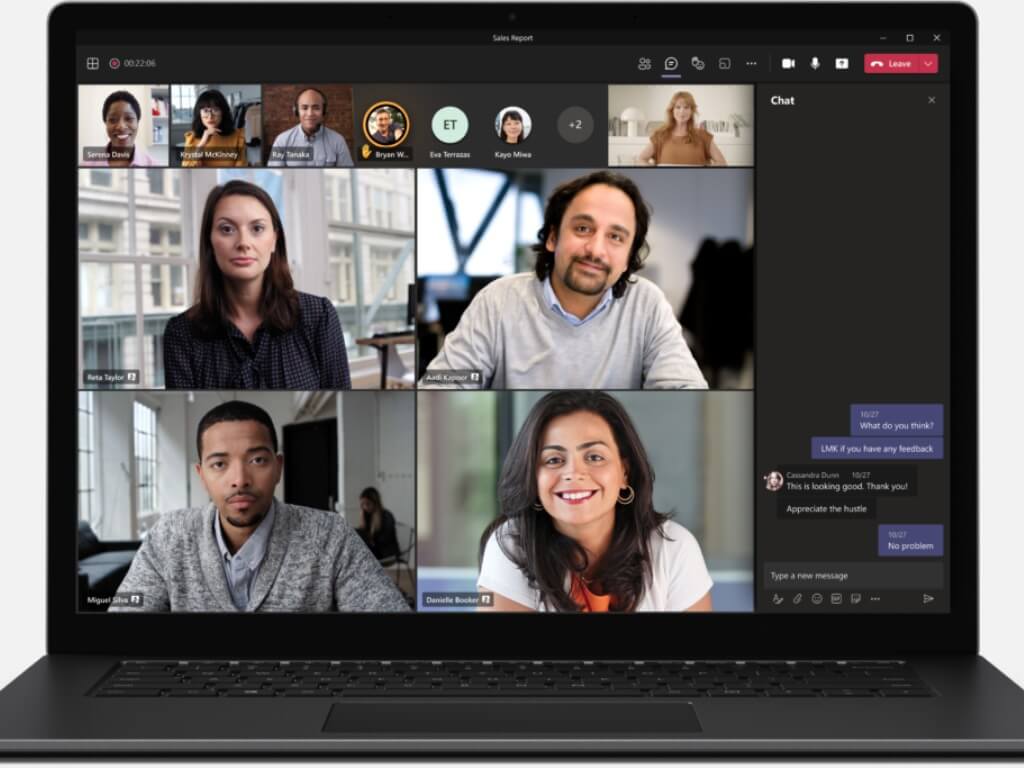
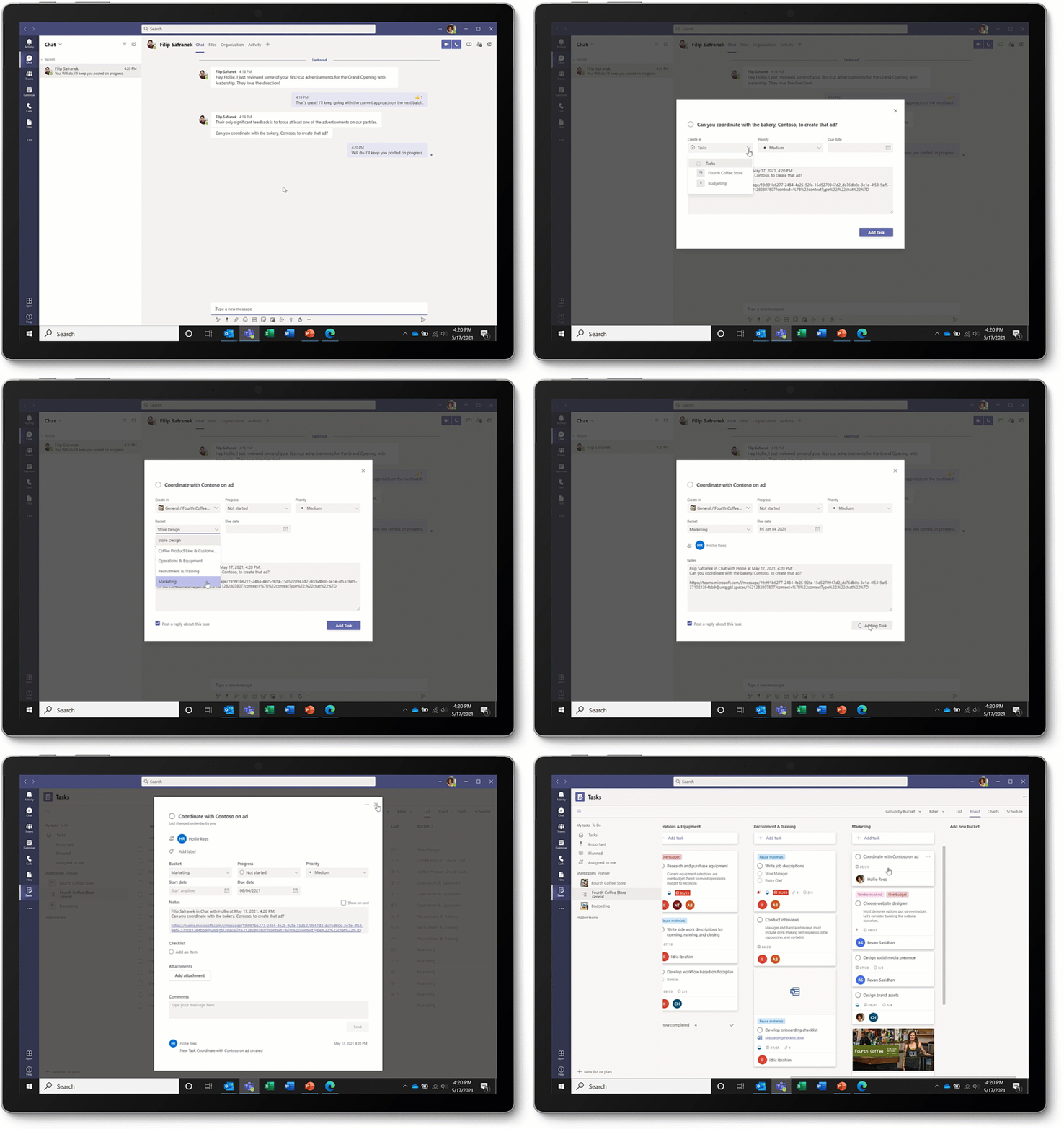
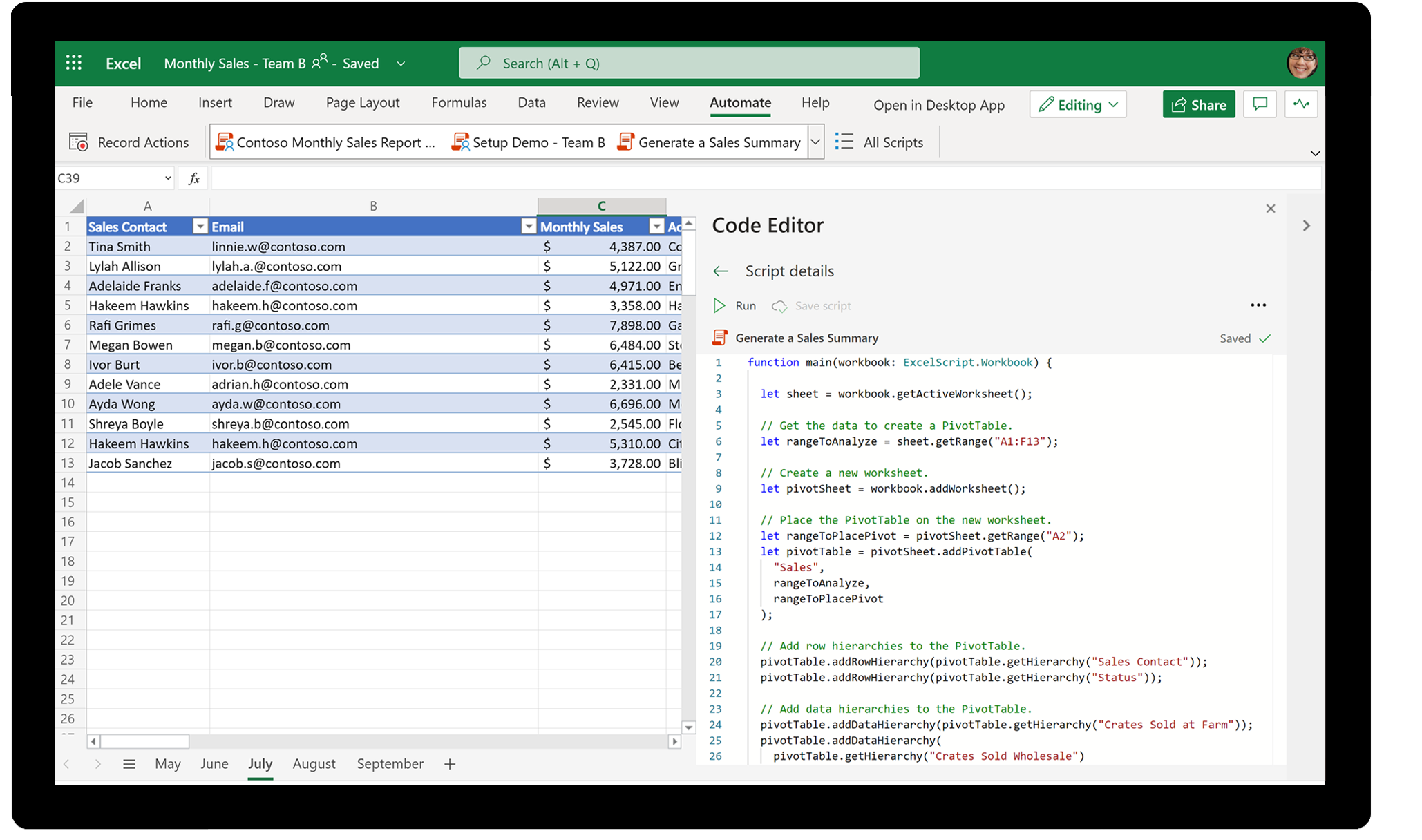
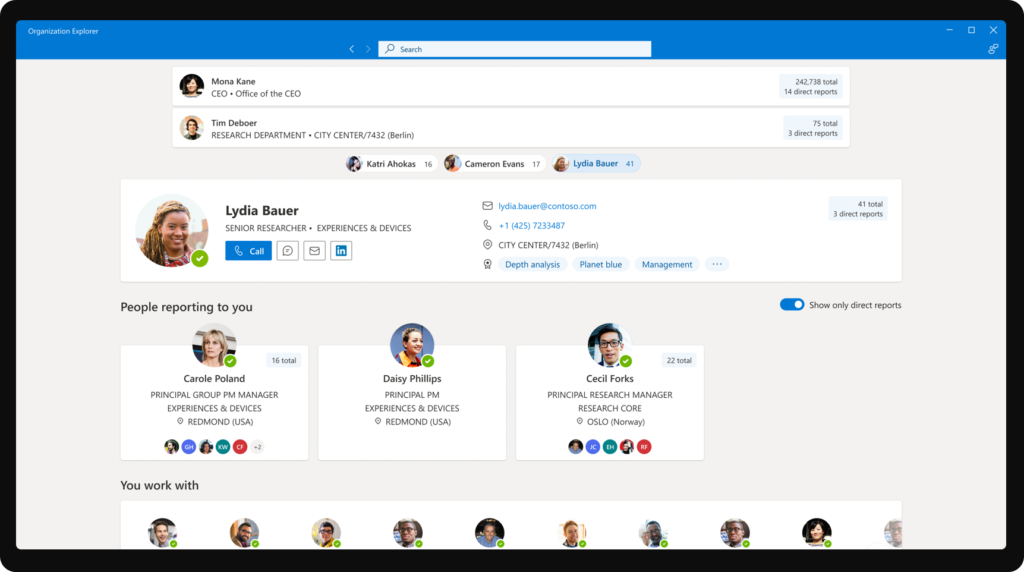

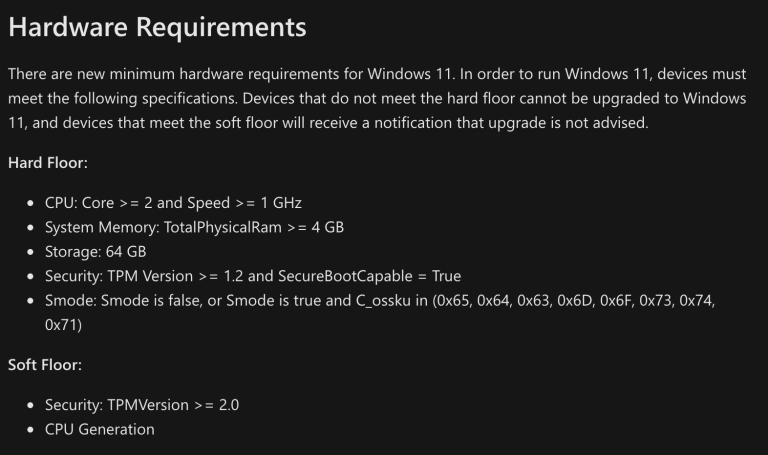
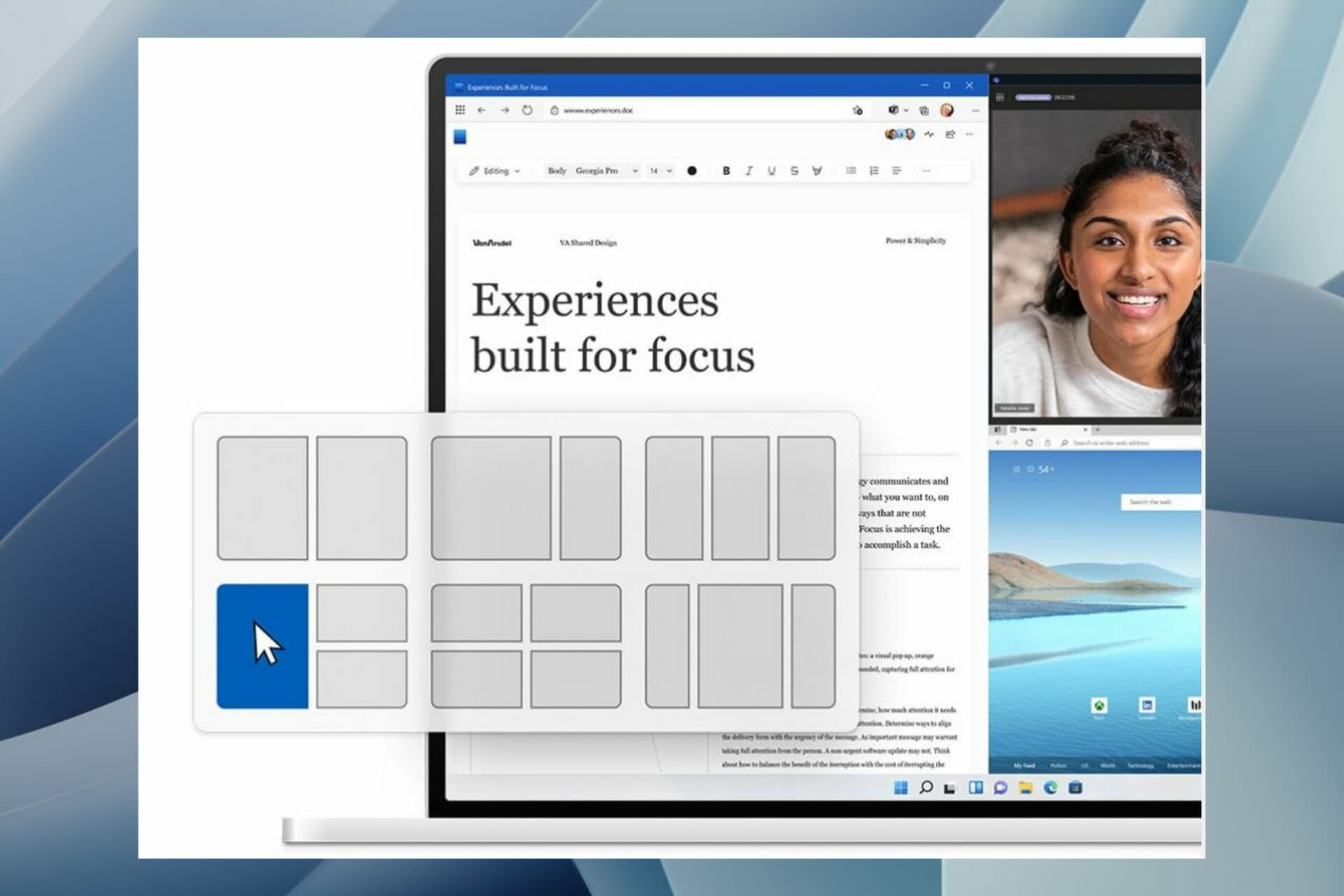
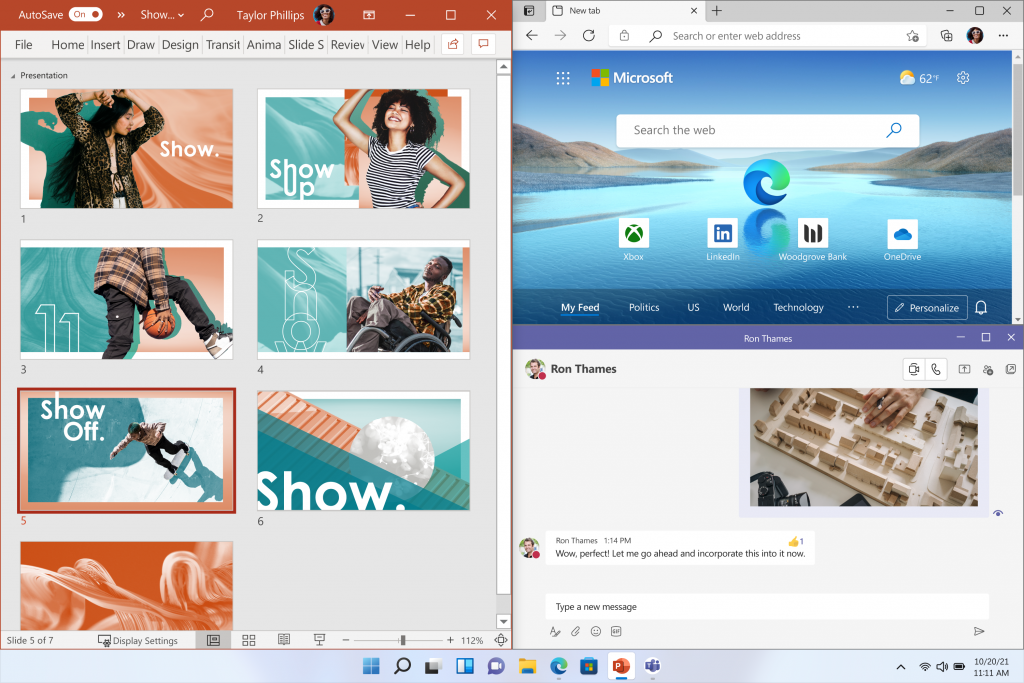
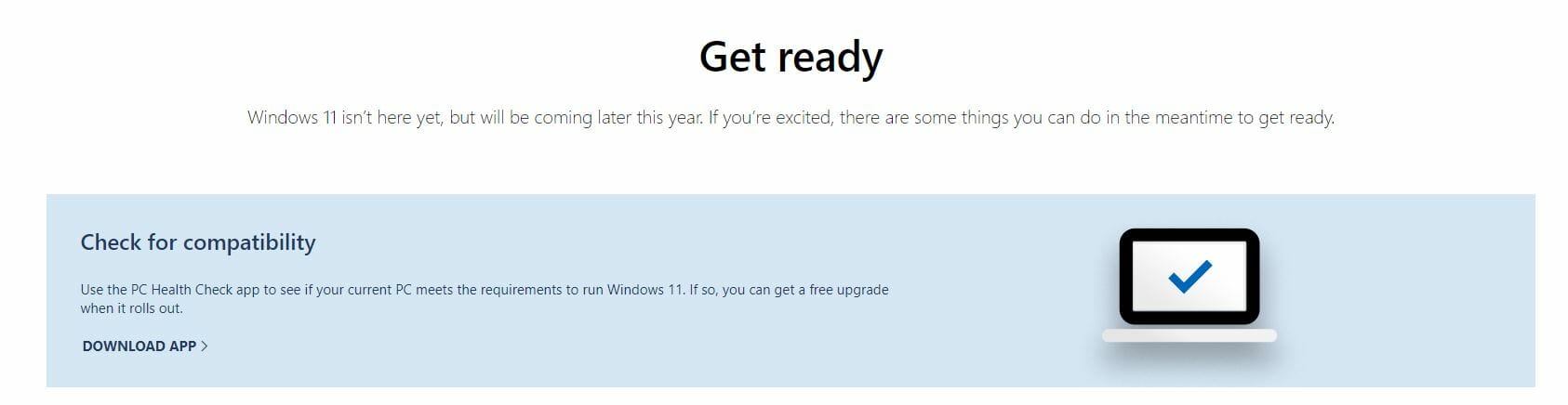

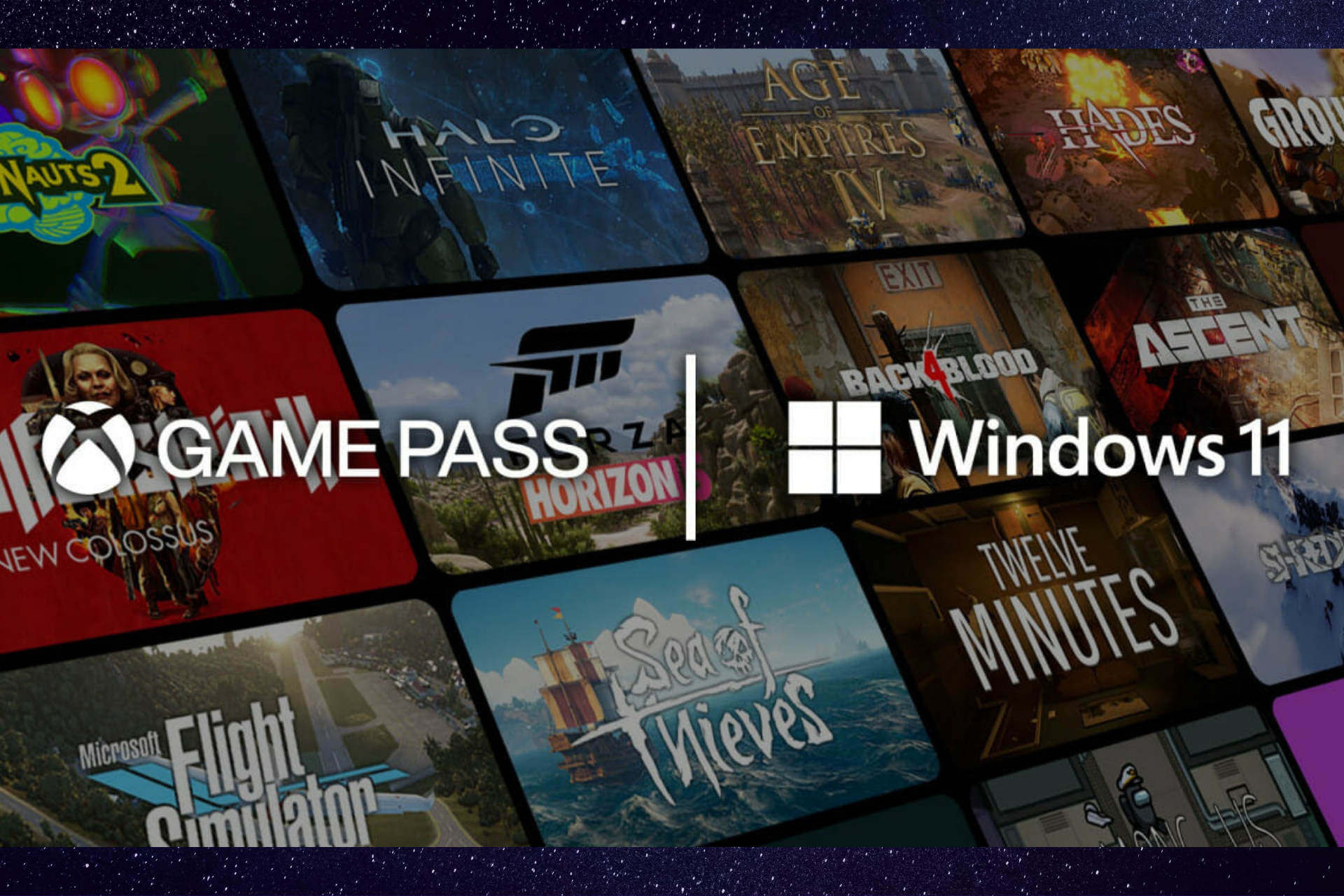


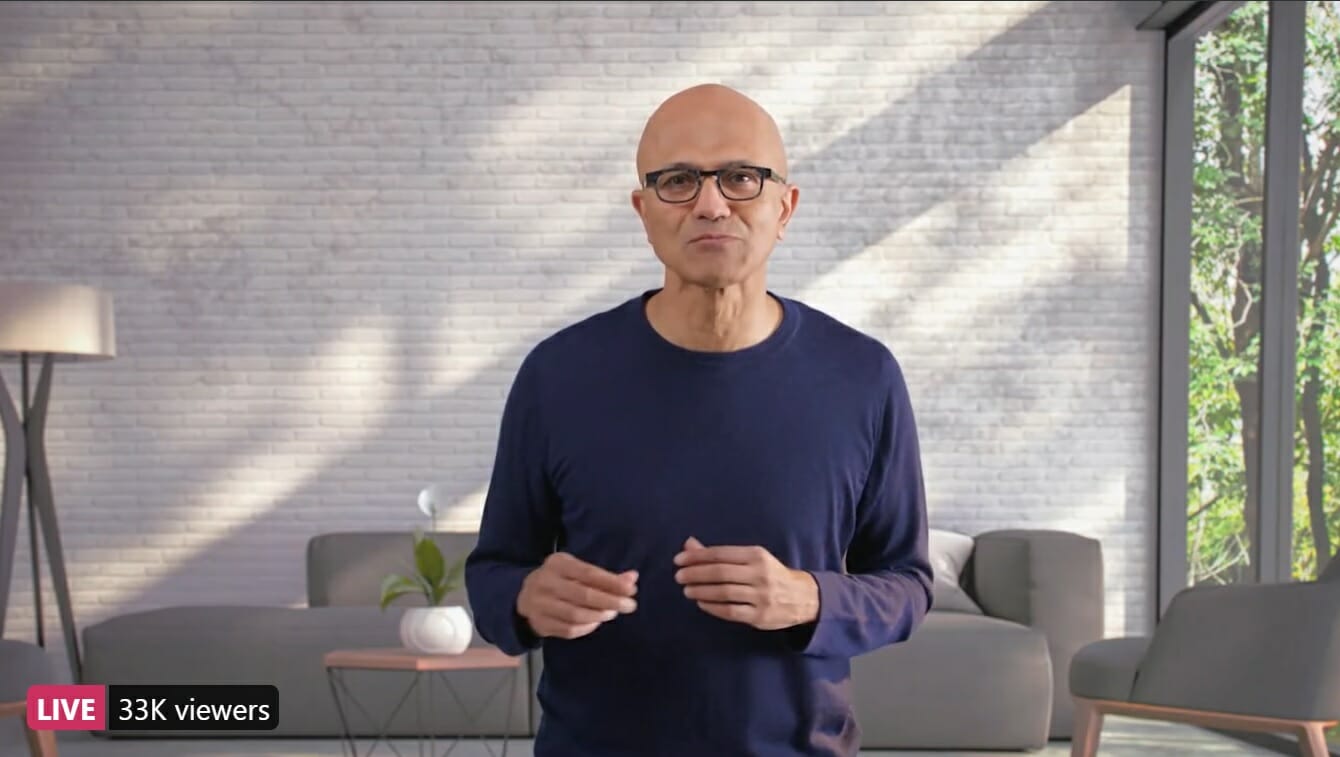
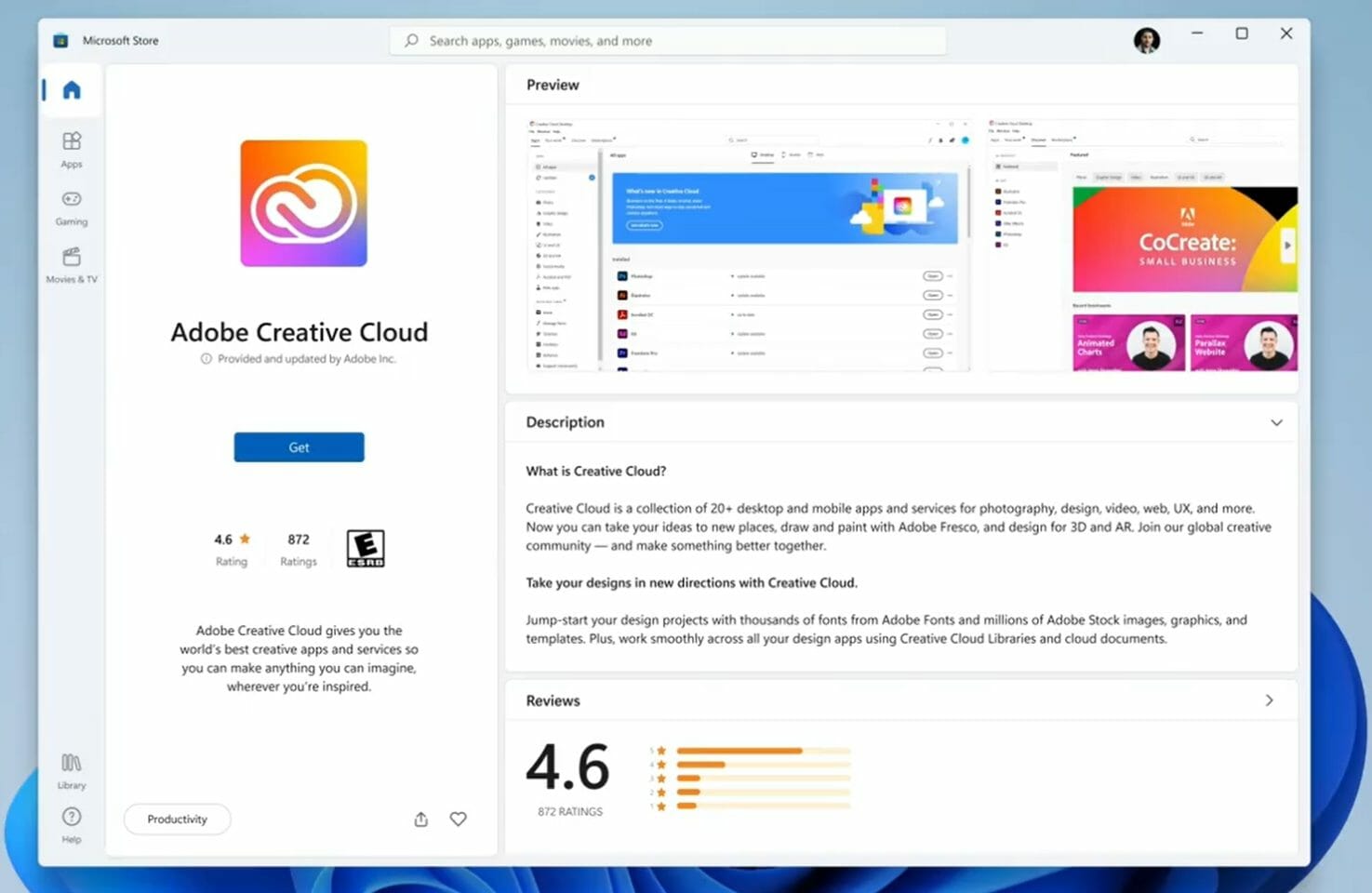
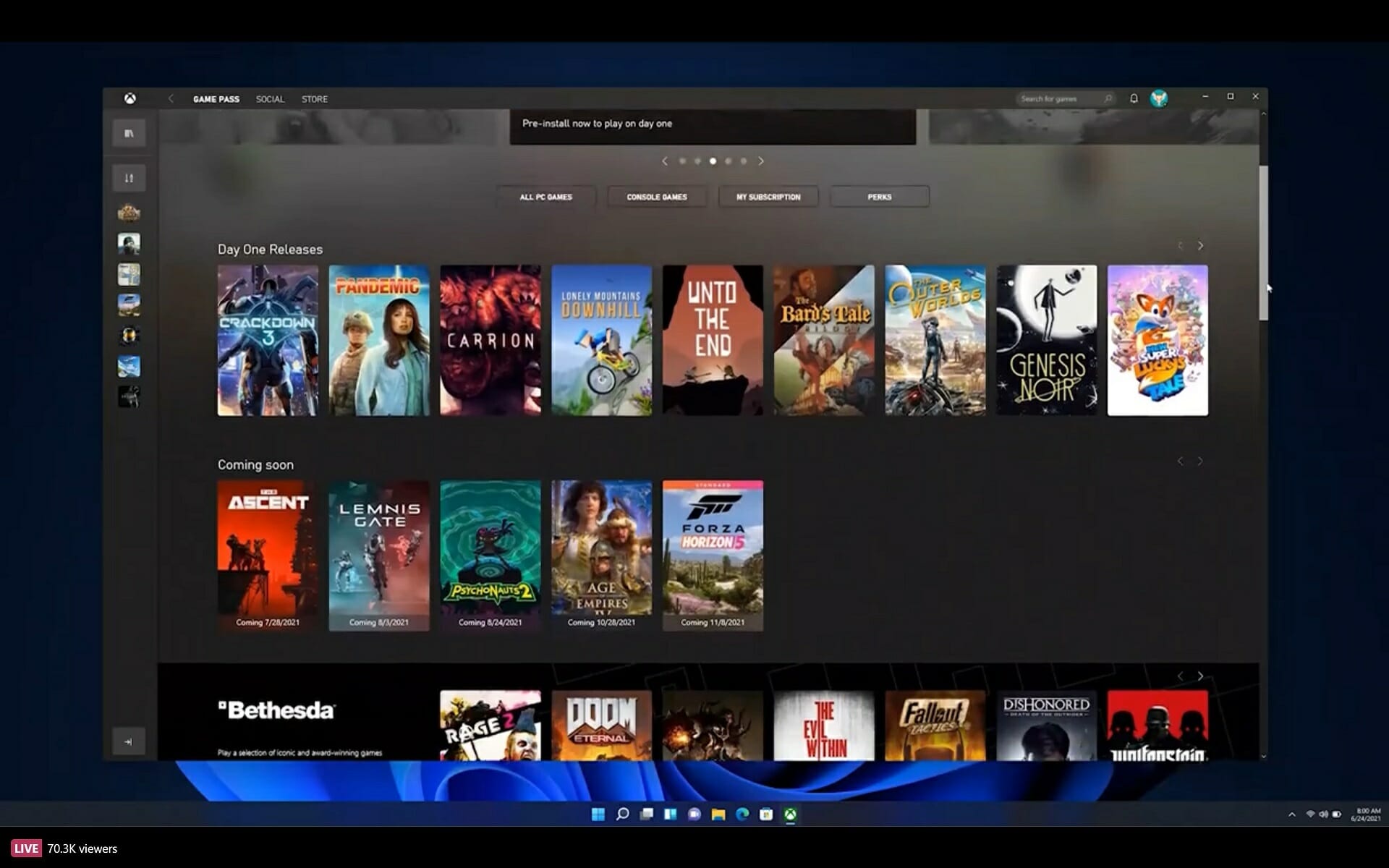
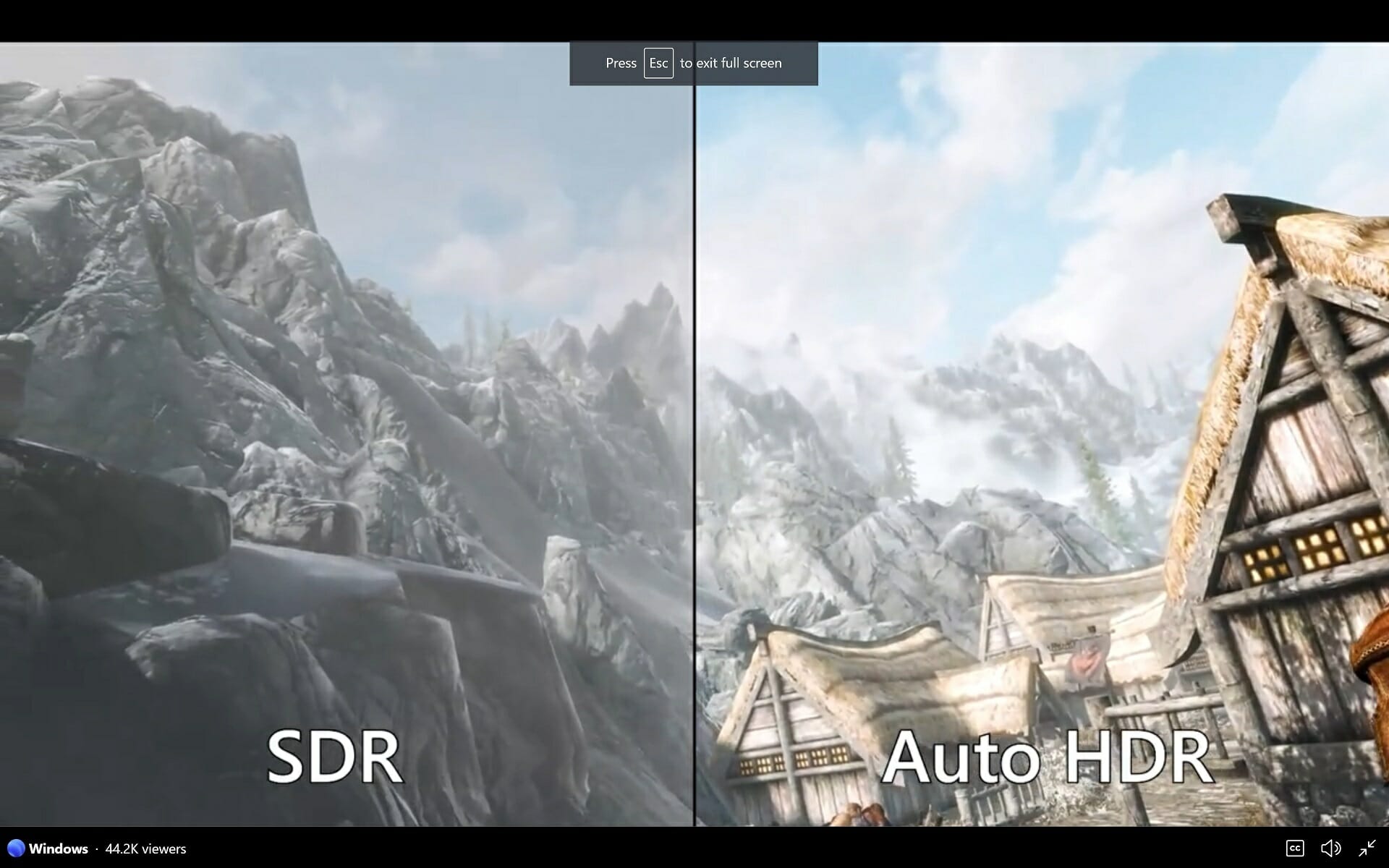
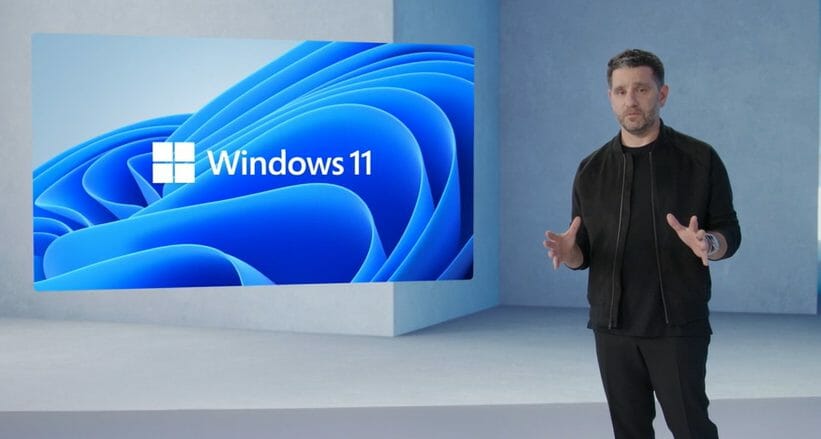
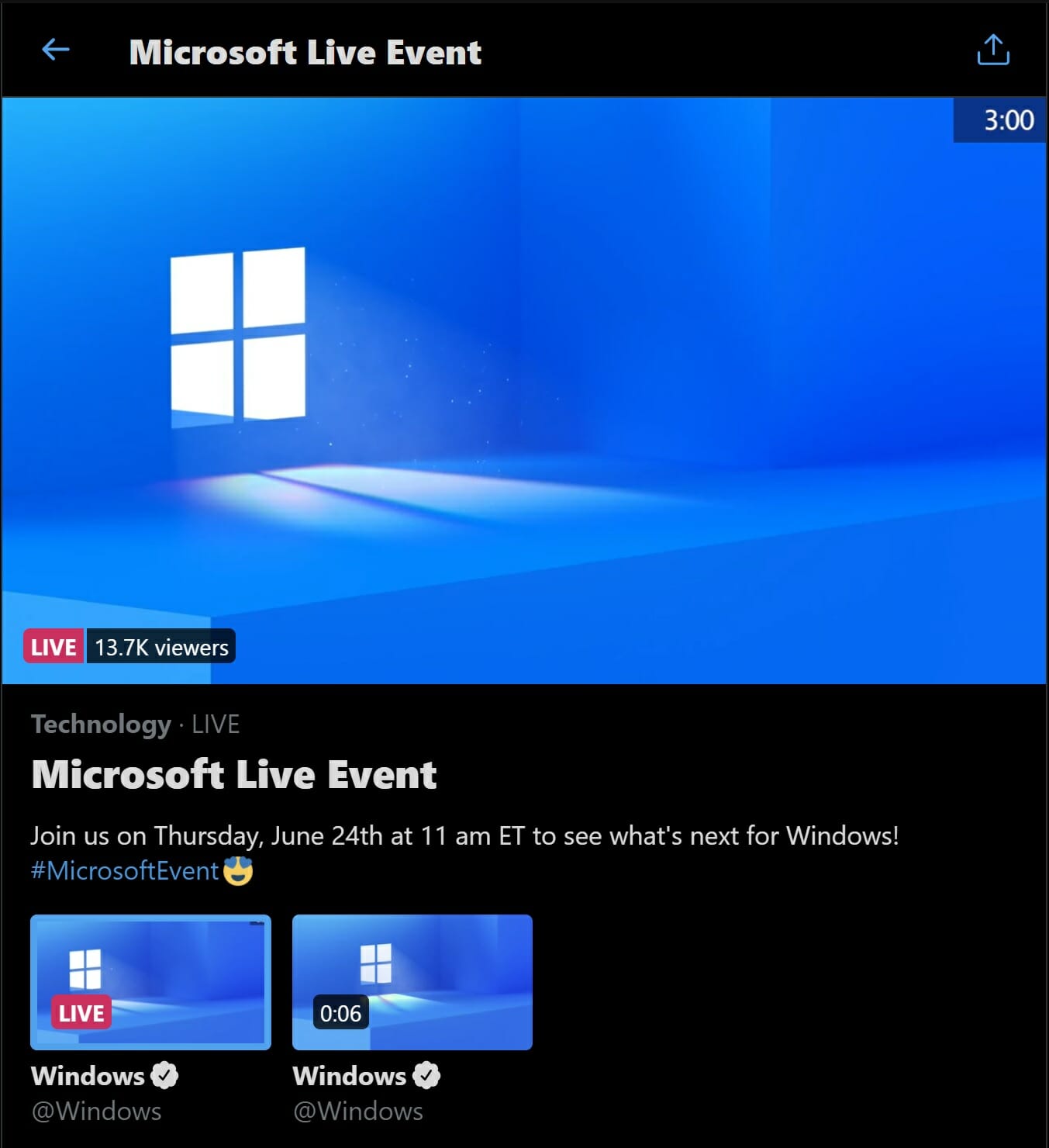
![Best Reddit Apps for Windows [2026 List]](https://windowsreport.com/wp-content/uploads/2016/08/Reddit-apps.jpg)
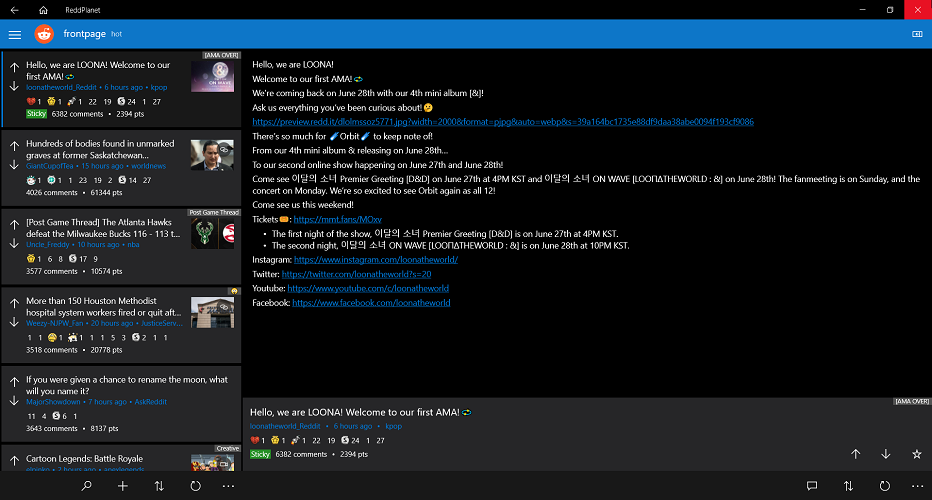

 Baconit is one of the best and most popular apps for Reddit on Windows phone. The code for Baconit was recently rewritten in a bid to offer users a better experience.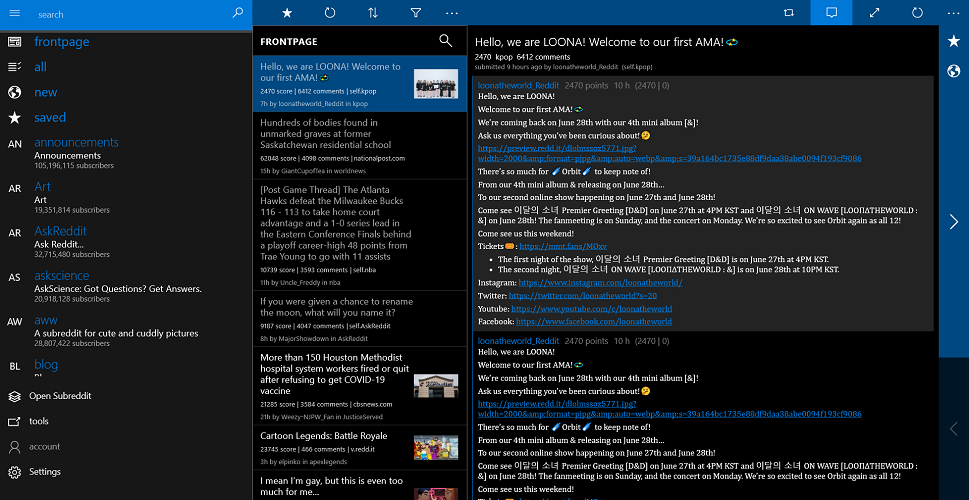
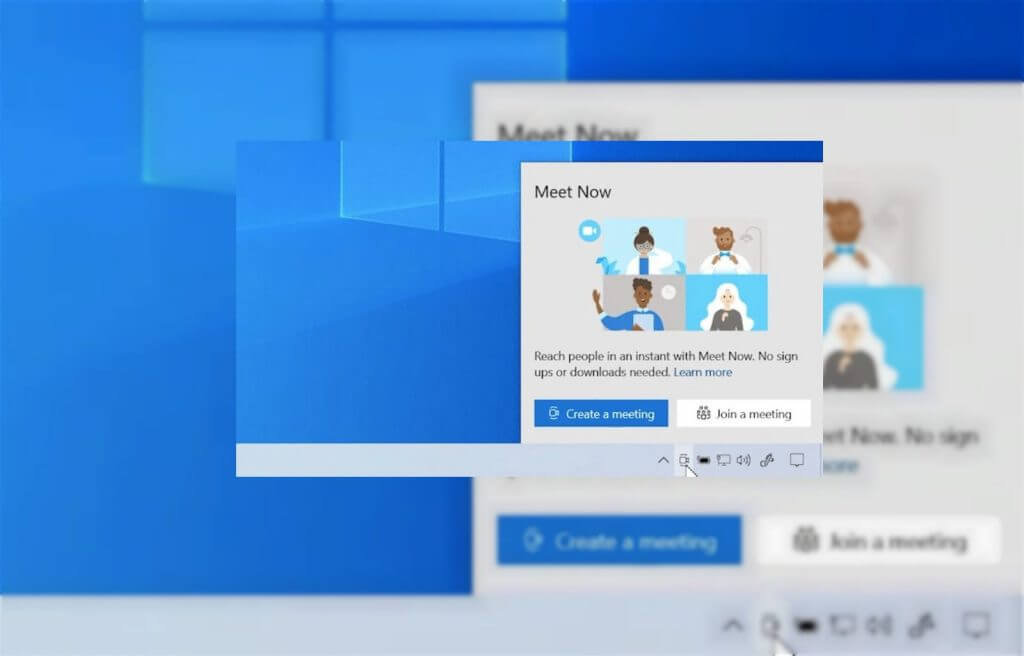
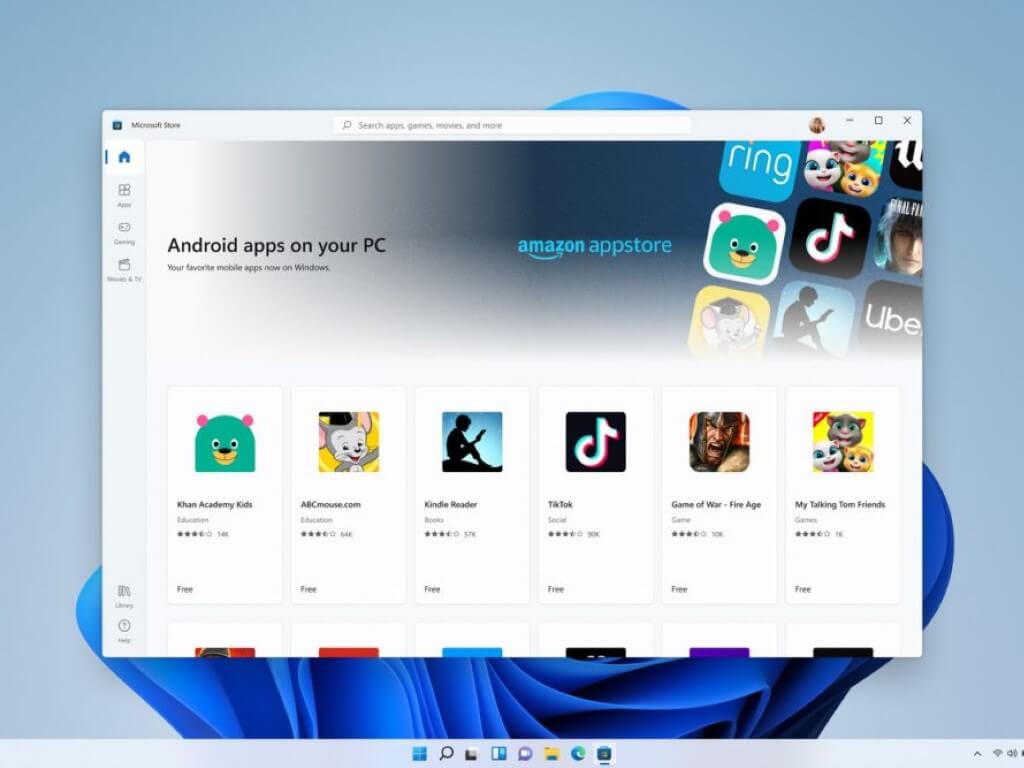
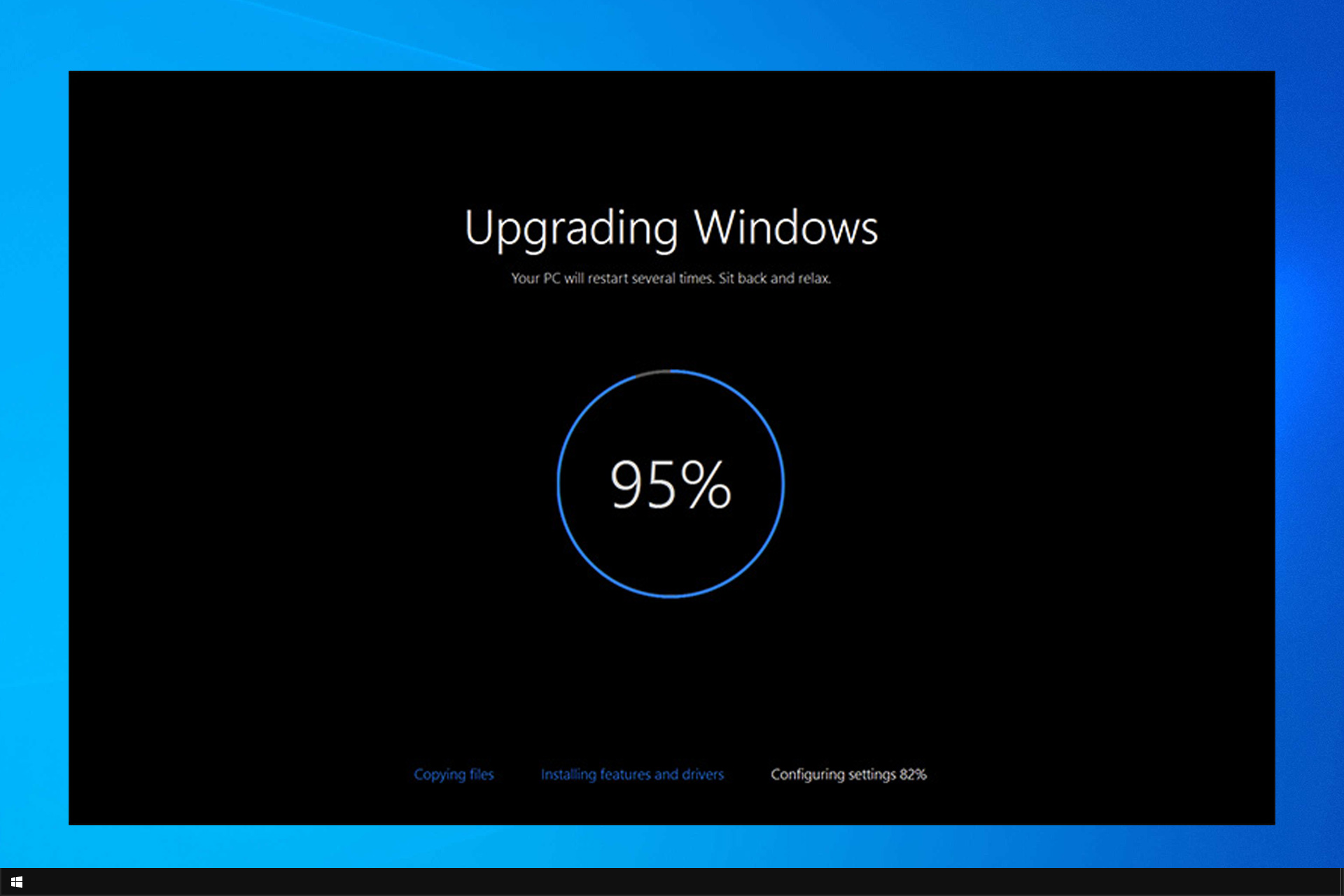
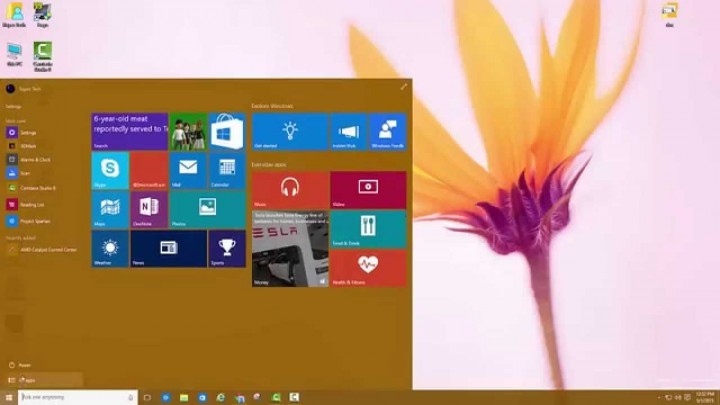
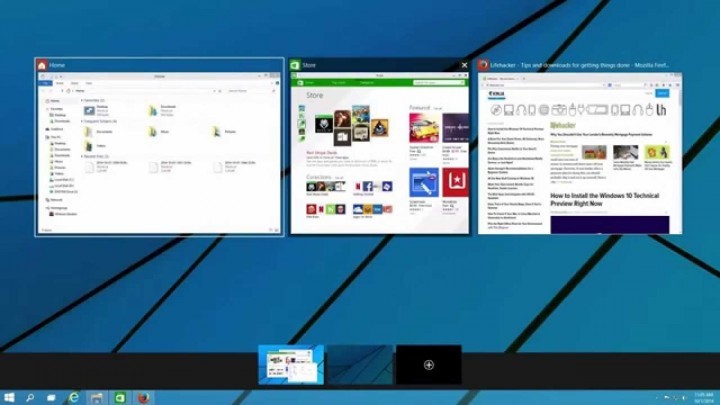
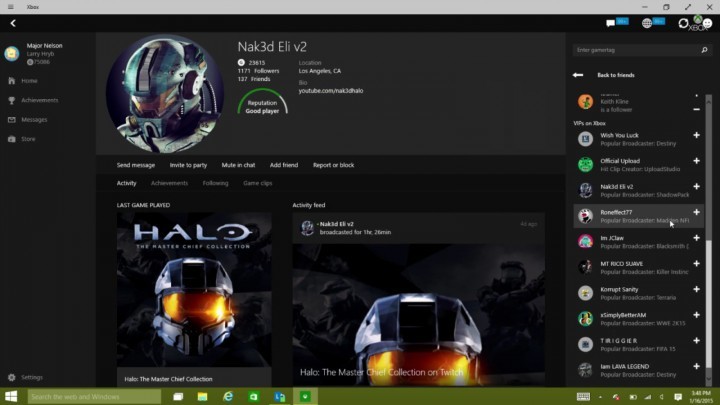

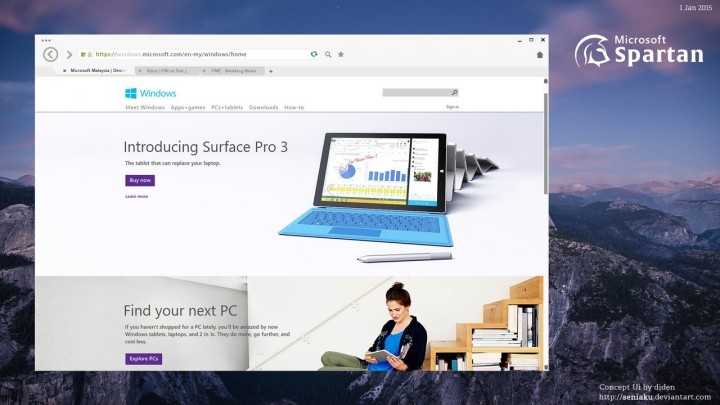

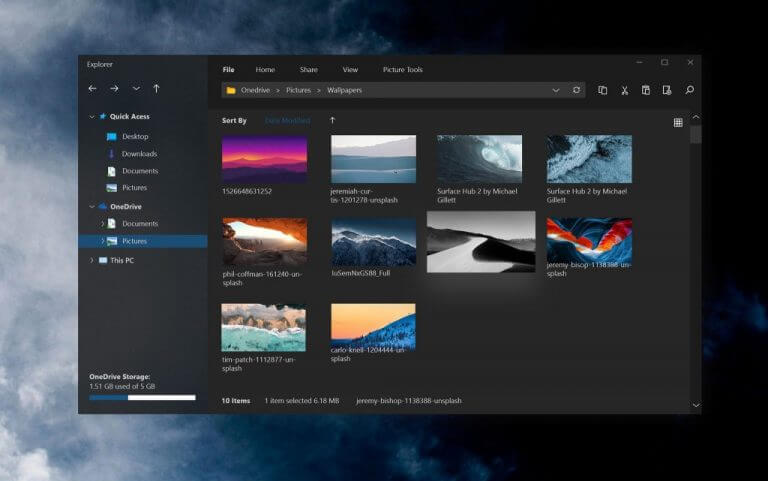
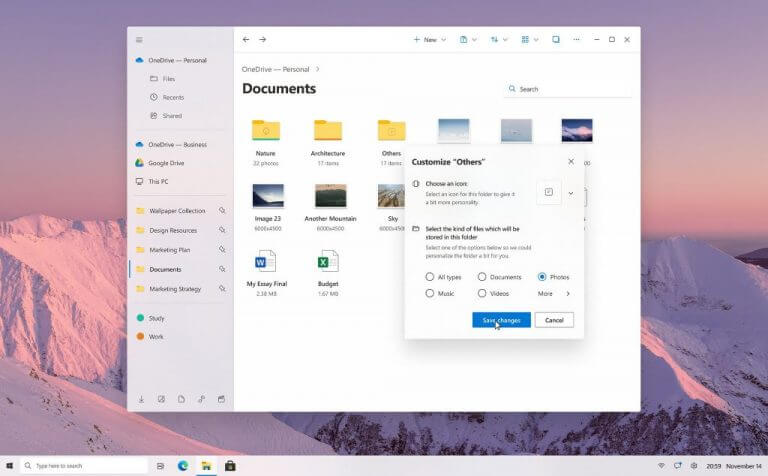
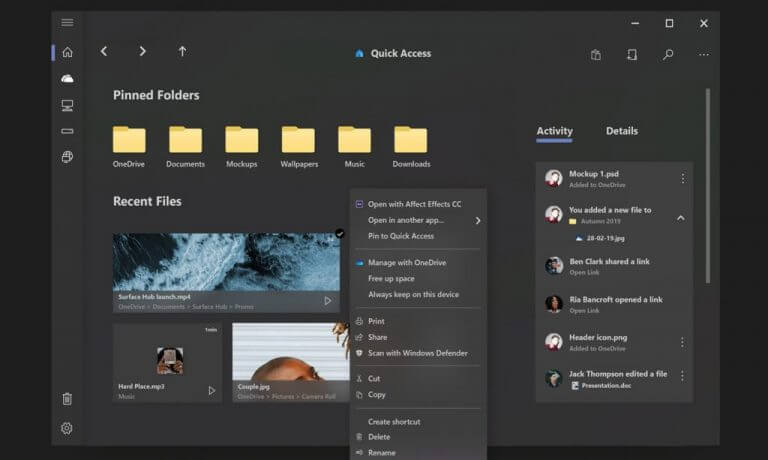 Slide content