Windows 10 addresses gaming performance and VR issues with KB5003690

After Microsoft has been testing KB5003690 with Windows 10 Insiders in the Beta and Release Preview Ring for some time, they released this update as an optional preview for all supported versions of Windows 10.

To be more exact, this cumulative update takes Windows 10, version 2004,  version 20H2, and version 21H1 to Build 19041.1081, 19042.1081, and 19043.1081.

Taskbar graphics and Virtual Reality bugs are fixed

As explained by the developers, this cumulative update addresses quite a number of issues that users have been struggling with on Windows 10, lately.

For example, the situation where the Japanese Input Method Editor (IME) would suddenly stop working while you are typing, has been fixes via KB5003690.

Some of the other problems that Microsoft addresses with this update are:

  • Updates an issue in a small subset of users that have lower than expected performance in games after installing KB5000842 or later.
  • Updates an issue that causes blurry text on the news and interests button on the Windows taskbar for some screen resolutions.
  • Updates an issue in which signing in using a PIN fails. The error message is “Something happened and your PIN isn’t available. Click to set up your PIN again.”
  • Updates an issue that, in certain cases, takes you out of the exclusive virtual reality (VR) app and back to Windows Mixed Reality Home when you press the Windows button on the controller.
  • Updates an issue with Search box graphics on the Windows taskbar that occurs if you right-click the taskbar and turn off News and interests. This graphics issue is especially visible when using dark mode.
  • Updates an issue that might prevent you from using your fingerprint to sign in after startup or waking up your device from sleep.

Microsoft also points out the known issues with KB5003690

Some of the known issues to plague this cumulative update include devices with Windows installations, created from custom offline media or custom ISO image, could have Microsoft Edge Legacy removed by this update.

This issue is only encountered when custom offline media or ISO images are created by slipstreaming this update into the image without having first installed the standalone servicing stack update (SSU) released March 29, 2021, or later.

The official patch release article also explains how users can move past this nuisance, with some simple workarounds

As always, in order to get the update, you can navigate to Settings > Update & Security > Windows Update, which will prompt the OS to download this cumulative update.

Another way of installing this software on your computer is by using the Microsoft Update Catalog.

5 best Windows games for 5-year-olds

Choosing a video game for your children might be a hard decision, and that’s because you know they deserve only the best.

The capabilities that a game for youngsters must have are extremely diverse, and the perfect one needs to offer a perfect balance between them.

Probably one of the most important features that a game must deliver is the ability to improve strategic skills. Besides that, creating an extensive creative perception is an aspect that must be considered.

Our guide will show you some of the best Windows games for 5-year-olds. Make sure you read it completely, to find the one the suits your kid the most.

What are the best Windows games for 5-year-olds?

Lego Worlds

Lego Worlds is a game that has some extremely robust creation tools. With its fundamental structure, any youngster who has ever played Lego before will be familiar with our recommendation.

It is one of the simplest third-person adventure games, created around digital bricks, collectibles, and plenty to explore. It allows kids to build constructions in a 3D procedurally generated world.

By playing this game, your child will acquire some complex skills and abilities. Thus, the Lego Worlds’ tools are introduced one by one. In these terms, your children will have to solve different types of ingenious puzzles.

But advantages don’t stop here. Your kid will also be able to practice copy and paste structures, raise and flatten land and scenery, and also build brick-by-brick.

Thus, players will be allowed to create their own world by using predefined Lego structures and bringing up some of the most incredible works of art.

The diversity of biomes and Lego imaginative creation let children discover their abilities, in an adventurous and enjoyable way.

In these terms, is no doubt that this game represents a perfect toy for your kids’ creativity, preparing them for school first-years.

⇒ Get Lego Worlds from G2A

For other advantageous price offers, feel free to check the ones available on Kinguin, and the ones showed on Green Man Gaming.

Lego Star Wars

If you want a game that will never disappoint your children, who are definitely looking for fun, we strongly recommend considering Lego Star Wars.

Some users affirmed that they had much more fun playing this game than watching the actual movie. Thus, your kids will experience untold adventures, set before the Star Wars.

With its easy and accessible gameplaying, children will be put in an amazing world. Moreover, they’ll be able to play with specific characters, based on each scene of the movie.

Lego Star Wars comes with a total of 59 playable characters. They can be collected by completing levels or by purchasing them during Dexter’s Dinner.

It’s important that up to two gamers can control the champs, using some different abilities. If you’re also game-passionate, you can play alongside your child, detaching yourself from the stressful routine.

To unlock certain interesting chapters, the player will have to complete all the game’s levels. Therefore, it comes as a reward, and it’s probably that your kids will feel much more motivated to reach it.

Another cool thing about this game is the soundtrack. The producers used the same background music as in the Star Wars movies. Considering this, your youngsters’ virtual experience will be complete.

⇒ Get Lego Star Wars from Gog

If you’re interested in other price offers, we recommend checking the following:

Lego: The Incredibles

Lego The Incredibles’ stories merge both the Incredibles’ well-known movie and the specific features of all Lego editions.

Your kids will be able to control each member of the Parr family, using plenty of supernatural abilities.

Thus, children can use Mr. Incredible’s brute strength or Elastigirl’s rubber limbs. Among other important characters, we can mention Dash with his speed or Violet with her force field and power blasts.

Each character has a set of combo moves and special super combat that can be charged. Therefore, Lego The Incredibles allows kids to exercise strategic action plans and to show who’s the best in-game.

Players can choose to play from different perspectives. They can either solve puzzles, beat up enemies, or destroy the scenery to earn studs.

The music is, of course, borrowed from the Incredibles movies. This is also a cool aspect considering a full game experience. Taking a look at its graphics performance, it looks and feels as good as any of the previous Lego games.

Overall, Lego The Incredibles is an extremely cool superhero game, that will allow your kids to enjoy a full incredible gameplay experience.

⇒ Get Lego: The Incredibles from Kinguin

You can also check the latest price offer available on G2A.

All-Star Fruit Racing

With All-Star Fruit Racing your kids will experience incredible action, filled with rift through looping bends, soar over monumental jumps, and defy gravity itself around tubular tracks.

What’s extremely nice about this game are its explosively colorful racer bursting with championships.

As expected, the main characters of the game are fruits bursting with specific personalities and, of course, with unique powers.

To unlock audacious power-ups, players have to collect fruits and then perform the mix-and-matching fruit juice. This is the access key to the cocktail of ultra-powerful skills, capable of turning the whole race upside-down

All-Star Fruit Racing also allows gamers to put their original stamp on the races. Thus, after winning championships, they’ll be able to unlock additional vehicle parts and skins.

There over 32,000 possible variations from where players can choose to build their own kart.

The game offers three different difficulties and also plenty of additional modes, including custom championships, drag races, and elimination battles for the ultimate racing game experience.

Not to mention that your children can challenge the All-Fruit Star Racing world also on PlayStation or Xbox One in 8-player online races.

⇒ Get All-Star Fruit Racing from Green Man Gaming

You can also explore some other price offers available on Kinguin and on G2A.

Tetris Ultimate

Probably one of the most popular old games that we all know is Tetris. Thus, our last recommendation is the newest one, Tetris Ultimate. This game is available in six different modes.

First of all, we have the Marathon Mode. Playing gamers need to break down 10 horizontal lines. Maybe it sounds simplistic, but it’s kind of challenging.

Another interesting mode is the Sprint one. It requires destroying 40 lines as fast as it can be done, without getting filled up to the top. This mode can be great for youngsters to get a competitive head-on, boosting against friends!

Ultra Mode looks pretty much the same as the previous one, but this one limits the player at 3 minutes to score as much as he can.

We can also talk about the Battle Mode and the Battle Ultimate one. These are perfect for running a friendly game turn into a battle of survival. Thus, every cleared lane will be sent to one of your enemies.

The Battle Ultimate Mode looks exactly like Battle Mode, except the player is able to use power-ups to change the effects of the game.

The Endless Mode is a hard one, where the gamer is not able to resume where he left. Note that this is not available until the player completes the Marathon Mode.

Comparing it to the older versions, Tetris Ultimate works also on devices like PlayStation, Xbox One, or Nintendo. So, using it on different peripherals can create unique experiences.

⇒ Get Tetris Ultimate from G2A

You can also check the latest price offer available on Kinguin.

Find out how many hours children spend gaming weekly

Because monitoring your children’s online activity is important for each parent, we’ll come up with some statistics of hours spent on gaming weekly by kids.

The study was made for a period between 2013 and 2017. Its main focus is based on children between ages 3 and 15 years.

Source: Medium

As you can see from the graph above, children between 12 and 15 years spend the most time on gaming. From what we observe, kids between 3 and 7 years old obtained some of the lowest scores.

Moreover, besides the youngest category, the study indicates progressive growth during all years. Thus, in 2017, the average spent hours was between a total of 5.9 and 12.2.

Kids alerts distribution by virtual categories

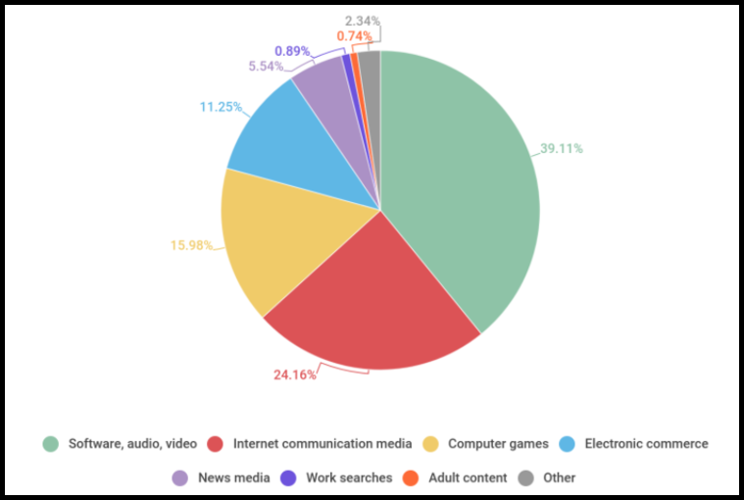
Going forward, as parents, we should consider the type of activity that our children are running in the virtual world. Thus, we propose to you a graph from Kaspersky Safelist studies.

In the section below you’ll find statistics related to the kids alerts distribution, by category, from June 2019 through May 2020.

As you can observe, 39,11% of the studied children prefer software, audio, and video activities, while 24,16% choose Internet communication media.

Third-ranked preference is the computer games activity, which was registered in 15,98% of presented cases.

Prepare yourself for your teen child

The importance of monitoring your kids’ online activity increase while your children are growing. Once they become teens, they are much more exposed to violent or emotionally harmful content.

Thus, we prepared some statistics, conducted by a famous research center, on how parents monitor their teen’s digital behavior.

As we can observe, checking which websites their teen visited is the most popular monitor made by the parents. Moreover, checking the teen’s social media profile is the second-ranked.

Among other measures applied by parents are represented by the following:

  • Looking through teen’s phone calls records or messages
  • Using parental controls for blocking, filtering, or monitoring their teen’s online activities
  • Taking advantage of parental controls to restrict teen’s cellphone use
  • Using monitoring tools to track teen’s location with his/her cellphone

Of course, it is up to you whether or not you choose to apply some of these monitoring options.

We made sure to select the most engaging and creative Windows games for 5-year-olds. We hope at least one of the listed options will suit your children’s necessities.

If you’re also a game passionate, you should also check a 2021 list related to the 10+ best Windows 10 games. You won’t be disappointed.

For any other additional questions or recommendations, don’t hesitate to comment in the dedicated section below.

5 best basketball games for PC to play

Playing video games is one of the most popular activities to enjoy in your free time. However, there are plenty of games that you can choose from, from sports games to action ones.

Since we know how many fans are out there waiting for the highest-rated recommendations, in this article, you’ll find the 5 best basketball games for your PC.

There are a few great options waiting for you. Thus, whether you want to live in the legendary stars skins or have the greatest coaches’ experiences, this list will surely fulfill your needs.

What are the best basketball games for PC?

NBA 2K21

The NBA 2K21 game represents one of the most popular basketball simulations with a gameplay mechanism that allows you to perform the sport under some professional and cultural aspects.

If you’ve ever played some of the NBA game series, this one is going to be extremely familiar to you. However, it comes with some new upgrades.

One of the most popular is the latest shot-stick aiming, which allows for the challenge of actually aiming shots rather than just timing them. 

Alongside the developments, the Pro Stick feature has advanced in 2K21. Now, you can also use extensive dribbling and even initiate size-ups. 

NBA 2K gameplay director Mike Wang explained on the official NBA2K website the following aspects:

For NBA 2K21, when you shoot with the Pro Stick, the shot meter changes from a timing bar to a targeting system. So instead of trying to stop the shot meter when you reach the perfect release window, you adjust the Pro Stick in real time to hit the ideal center aim point.

Among one of its amazing features, we have to mention the building of a custom player which goes through a story. Thus, you’ll be able to lead into a full career, take to the streets, and rec center for pick-up games.

According to its capabilities, NBA 2K21 allows you to model your player’s movement after the following legendary stars: LeBron James, Russell Westbrook, Giannis Antetokounmpo, Kawhi Leonard, and the list can continue.

You should also know that NBA 2K21 allows you to play on both single-player and multiplayer. In these terms you’ll have the occasion to train your abilities on the single-mode, then show your friends who is the badass.

⇒ Get NBA 2K21 from Green Man Gaming

You can also take a look on the price offers available on G2A, and also the ones available on Kinguin.

NBA 2K20

The NBA 2K20 game also incorporates an important series of well-known basketball celebrities. Moreover, most users affirmed that this sports simulator has no rival in its genre.

Unlike the older NBA editions, it seems like this one proved to feel much more intuitive. Thus, you can easily learn the basics without being trained before.

The centerpiece of the game is the venerable Michael Jordan. However, you can also find there a few legendary names, that will surely fulfill your basketball dream.

You’ll be able to live in the skin of the L.A. Lakers star Anthony Davis or the Miami Heat VIP, Dwayne Wade. Their images were used for the NBA 2K20 game’s covers, considering the impressive gameplay performed in real life

Among other notable improvements from the previous editions, there are now 27 different types of ball handlers. This feature adds some personality and eliminates the feeling of similarities between players.

According to gamers, the biggest strategic change made from the older versions of NBA has to do with the use of turbo. Unlike the other editions, it is more limited now.

As in the NBA 2K21 case, the present game allows you to play in both single-player and multiplayer modes. So, your experience will be completed.

⇒ Get NBA 2K20 Legend Edition from Kinguin

If you’re interested in finding other price offers, we recommend you to check the ones available on G2A, and also the ones from Green Man Gaming.

NBA 2K19

The NBA 2K19 game is built under a fantastic presentation and gameplay, and also a wide array of game modes. You’ll enjoy intuitive control, but you should also know that skills and thoughts are required. 

Moreover, the producers did an excellent job with the fluidity of the animations, that match the identity of the basketball legends. In these terms, the players are lifelike and everything feels extremely smooth.

However, some users reported that it is not as smooth as it should. NBA 2K19 has a tougher learning curve than the older NBA series.

Probably one of the most important highlights that NBA 2K19 offers is the variety of modes. Besides all the standards versions that any sports game has, NBA 2K19 comes up with extra options.

For example, you’ll be able to feel the role of a basketball team’s general manager. Thus, the game offers you two stages: the story and the basic.

While the first one is using text-based cutscenes to connect all the big decisions and games, the basic model is cutting out all the story stuff.

NBA 2K19 also includes a Blacktop mode, where you can play street basketball on both one-on-one half-court or five-on-five full court.

If you’re a new player of the NBA series, or you just enjoy having a really good basketball game NBA 2K19 is a solid choice you should definitely consider.

⇒ Get NBA 2K19 from Green Man Gaming

You can also explore some other price offers available on G2A and on Kinguin.

NBA 2K18

On the same model as the examples presented above, NBA 2K18 requires a good knowledge of the real-life players’ abilities.

Comparing it with the older NBA editions, this time you’ll find some genuinely impressive remakes on handling each legendary player.

The game’s main focus is based on taking advantage of the basketballers’ strengths and weaknesses. Thus, before going for dribbling drives, you’ll have to think twice about how to act.

NBA 2K18 also provides a really cool soundtrack, with 49 specific competitive badass songs. Most of them are also played during real-life gameplays. So, you’ll enjoy a true basketball experience.

However, users claimed that NBA 2K18 has taken a notable step back. Most commonly, gamers describe bringing microtransactions to a place that feels uncomfortable.

According to Metacritic, NBA 2K18 received the most generally favorable reviews for Xbox One and PlayStation 4 game versions. In addition, the Nintendo Switch version got some mixed or average reviews from the critics.

Therefore, if you’re the type of person that can stand the ups and downs of bugs that will be patched, this game is perfect for strategic and professional basketball gameplay.

⇒ Get NBA 2K18 from G2A

If you choose to play Draft Day Sports: College Basketball 2021, you’ll have a high-quality virtual experience in the role of head coach of your favorite college basketball team.

You’ll be able to take control of all your desired school’s programs. Thus, you can recruit the next team stars, while preparing them for the new tournaments.

College Basketball 2021 features offer you some recruiting filters that make it even easier to target your favorite players.

In addition, the game allows you to supervise aspects like your players’ grades or decide what player or team will practice the sport.

Speaking about the game’s overall activity, with its amazing UI, Draft Day Sports: College Basketball 2021 provides you a smooth moving around.

For original customization, with the new database editor, you’ll be able to change team details and conference names, you can edit logos, courts, and many more great features.

In conclusion, most users reported this game as being way more stable than the previous versions, where the entire campaign was usually crashing due to some annoying bugs.

⇒ Get Draft Day Sports: College Basketball 2021 from G2A

Check out some older NBA editions

As you can see, we started with the four latest NBA editions. However, if you’re basketball-addicted, there are some other versions you should consider.

Thus, you’ll find below a list of best-selling basketball video games, made by Statista in 2012. The results are related to North American lifetime sales, expressed in million units.

Source: Statista

As you can observe, the study placed NBA 2K11 on the top of the list, with a total of 4.17 million units sold in North America.

The second-ranked is NBA JAM, with 3.88 million units, and the third one is NBA LIVE 2005, with a total of 3.19 million units. ESPN NBA 2K5 registered a number of 2.14 million units, is set on 10th place out of 10.

Each of the listed basketball video games has some interesting features that you should definitely consider when deciding to extend your NBA playing area.

Other devices on you can play basketball games

In addition, we decided to present you other devices on you can play basketball games, besides your personal computer. Thus, you’ll observe below some statistics results of the U.S. video game market size, by device.

This study was conducted by Grand View Research and it was released for the period between 2016 and 2027. Note that the results are expressed as USD Billion.

As you can see, the study focused on three main devices: console, mobile, and computer. As expected, each device recorded multi-annual growth. In addition, the researchers gave a constantly growing forecast for each gadget.

The most significant one is indicated in the mobile case and the second one in the console’s one. We can admit that our PCs will register a lower usage across time. Thus, the other handy devices will be on the top of gamers’ preferences.

Most popular video games on PS5

As admitted before, consoles and mobiles will gain more significant popularity across video gamers. There are plenty of devices you can choose from, but one of the most preferred by users is the PlayStation edition.

Therefore, we consider properly showing you some of the most played games on the latest version of PlayStation.

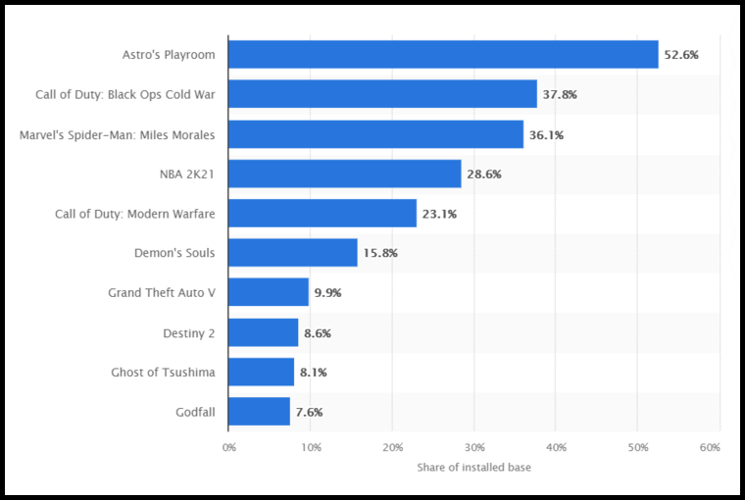
The picture indicates the most popular games on PlayStation 5 in the United States as of November 2020, with a focus on the installed base.

Source: Statista

As you can observe, on the top three places are set the following games: Astro’s Playroom; Call of Duty: Black Ops Cold War, and Marvel’s Spider-Man: Miles Morales.

However, NBA 2K21, our first recommendation in today’s article, is the fourth-ranked in the study conducted by Statista. As the results show, the game registered a total of 28,6% from the installed base.

Considering all the presented aspects, we hope you managed to find the perfect basketball game for your needs.

Also, for the times when your PC games are acting weird, we strongly suggest checking a full guide about how to fix game crashes in Windows 10.

For any other additional questions, don’t hesitate to share your thoughts in the comments section below.

Microsoft Edge starts rolling out new tab sharing feature in the Stable channel

Microsoft has finally started rolling out the new tab sharing feature to its Edge browser. The company began testing this update back in April, and some users now have the option to share tabs across devices in the stable version of Edge.

The new tab sharing tool allows users to send active tabs to other desktop or mobile devices. The ability to share tabs across different devices has been available in Mozilla Firefox and Google Chrome for a while now, and it’s great to see the new Chromium-based Edge finally catching up. However, this feature is still a work in progress, and it doesn’t appear to work with all web pages. Moreover, the browser currently only supports sharing tabs with iOS and Android devices running the Canary or Dev version of Edge.

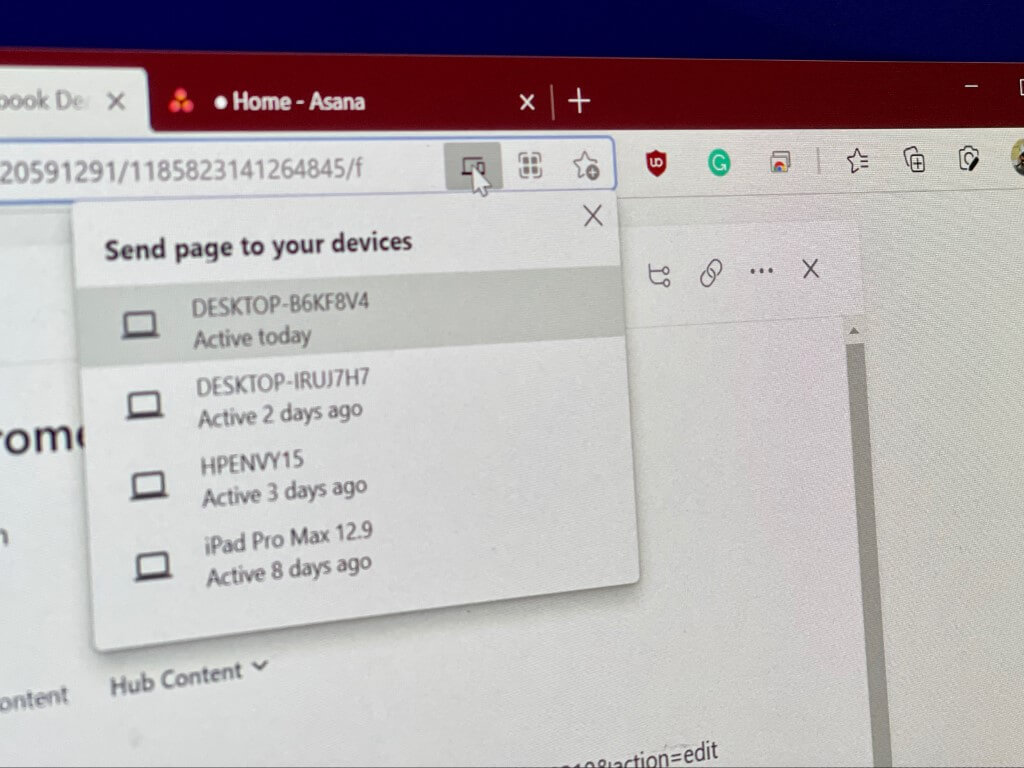
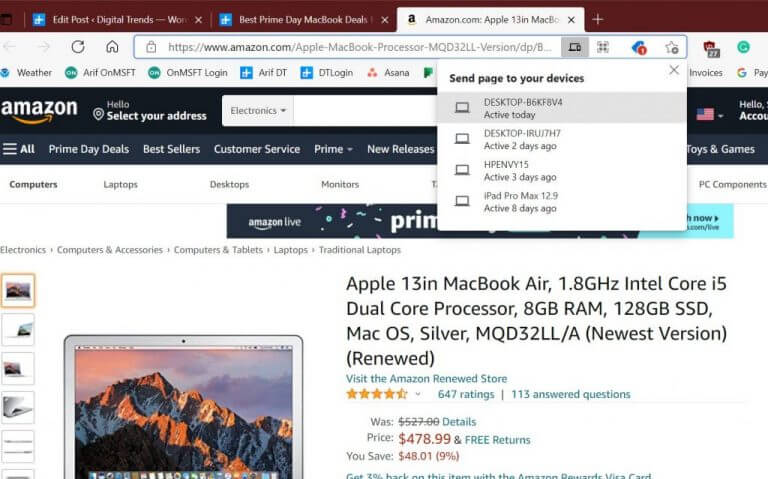
To use this feature, you will need to head to the left corner of the address bar and click the “Send this page” option as shown above. A pop-up menu will then appear on the screen showing the list of all available devices currently logged in with the same Microsoft account. If you choose to send a tab from your desktop to a smartphone, a notification will show up in the notification bar that includes both the web page’s name and URL. Tab sharing is available in both directions, which means that it also supports sharing webpages from mobile devices to the desktop.

The new tab sharing experience appears to be rolling out gradually to a small group of users on Windows 10 and macOS, and it will likely make its way to all Edge users soon. The addition of this feature should make it easier for users to pick up where they left off when switching between devices. Let us know in the comments below if you have also spotted this feature on your PCs.

Microsoft reveals new Designed for Xbox HDMI 2.1 monitors from Philips, ASUS, and Acer

Microsoft is expanding its ecosystem of “Designed for Xbox” accessories with new HDMI 2.1 monitors from Philips, ASUS, and Acer. There’s already a growing number of high-end TVs that support the brand new HDMI 2.1 standard, but the 4K gaming monitor market is finally catching up this year

For those unfamiliar, HDMI 2.1 is the new future-proof protocol that makes it possible to play games at 4K 120FPS with HDR and Variable Refresh Rate (VRR), which enables capable displays to refreshed as fast as the console can render images. Microsoft’s Xbox Series X|S consoles and Sony’s PlayStation 5 all ship with an HDMI 2.1 port, but it’s probably safe to say that not all early adopters ar aware that they need to upgrade to a new TV or monitor to take full advantage of their next-gen console.

This is precisely what Microsoft is trying to do with these new Designed for Xbox gaming monitors which will be available starting this summer. “From Variable Refresh Rate (VRR) to HDR, these monitors will harness the power of cutting-edge HDMI 2.1 technology to deliver an immersive, high fidelity experience unlike anything seen before,” the Xbox team explained today.

The most expensive option is the Philips Momentum 559M1RYV 55”, which will be priced at $1,599. The 55” 4K 120Hz monitor will support the AMD Freesync Premium Pro VRR technology for a tearing-free gaming experience, and HDR images should also look great with the DisplayHDR 1000 certification.

The new Designed for Xbox Philips Momentum display is certainly not cheap, but it will also offer a TV-like experience with a built-in Bowers & Wilkins soundbar and the inclusion of Philips’s signature Ambilight technology. The TV maker has also worked with Microsoft to add a dedicated Xbox picture mode that should provide the best gaming experience.

Next is the smaller 43” ASUS oRg Strix Xbox edition monitor, which comes with a 4K 120Hz panel with a 1ms response time, AMD FreeSync Premium Pro support, a 90% DCI-P3 color gamut and DisplayHDR 1000 certification. This gaming monitor will also offer an Xbox mode providing the best settings when paired with Xbox Series X|S consoles. Pricing details are not known yet, but the ASUS ROG Strix Xbox edition will be available in October.

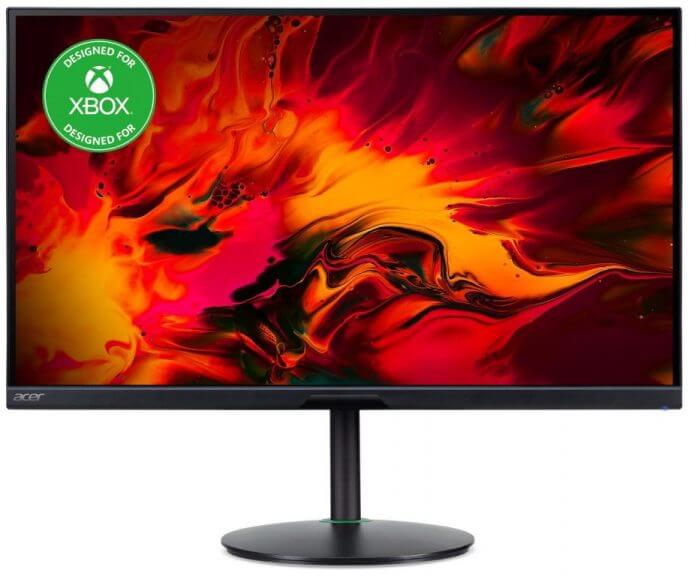
Lastly, the 28” Acer Xbox Edition Gaming Monitor will be available this fall at a $949.99 price. You can also expect a 4K 120Hz display with a 1ms response time and AMD Freesync Premium Pro support, though HDR pictures won’t look as good due to the inferior DisplayHDR 400 certifications.

Still, the Acer Xbox Edition Gaming Monitor has other interesting features such as a TUV/Eyesafe certification, as well as a built-in KVM switch allowing gamers to easily switch between different PCs without having to change the monitor, keyboard, and mouse setup.

To fully take advantage of an HDMI 2.1 TV or monitor, gamers also need to get an HDMI 2.1 cable, and this is another area where Microsoft is trying to help. The brand-new Cable Matters Active HDMI Fiber Optic Cable is the first certified cable to be certified by Microsoft, and it’s also pretty long at 32.8 feet. You can already purchase it for $69.99 at various retailers including Amazon and Walmart in the US.

“This is just the beginning, and we look forward to more monitors joining the Designed for Xbox program in the future”, the Xbox team said today. If you prefer gaming on TVs, Microsoft has also teamed up with Samsung and is recommending the company’s Neo QLED and QLED TVs to get the most of its new hardware.

Lenovo launches the first foldable PC in India, the ThinkPad X1 Fold

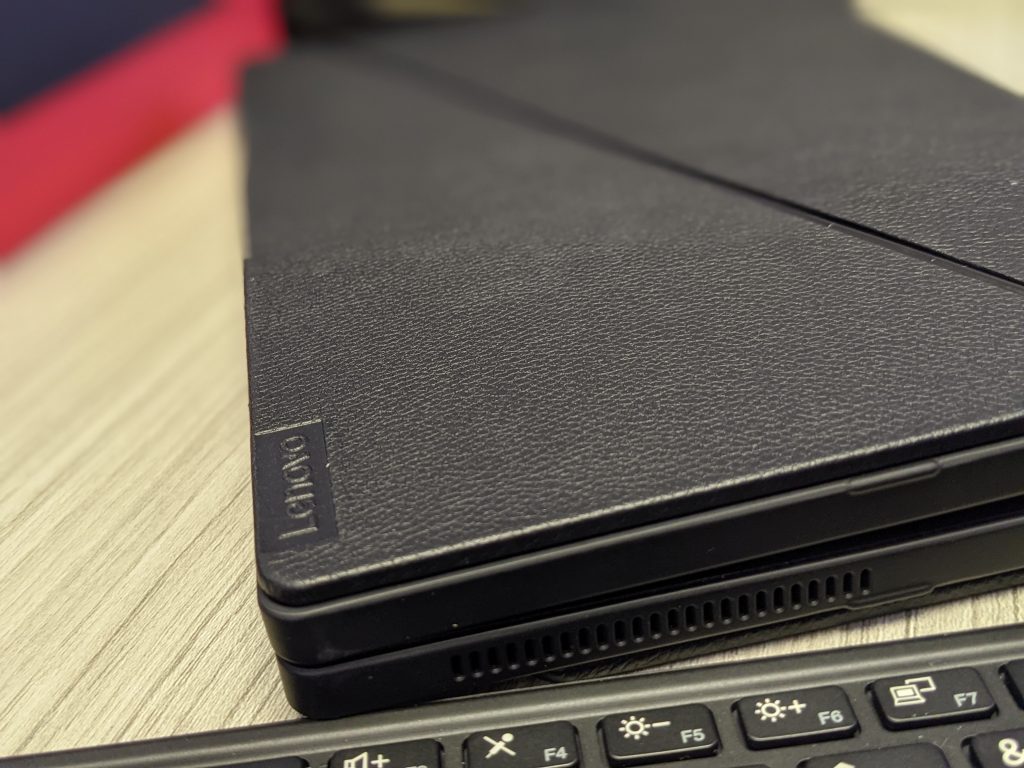
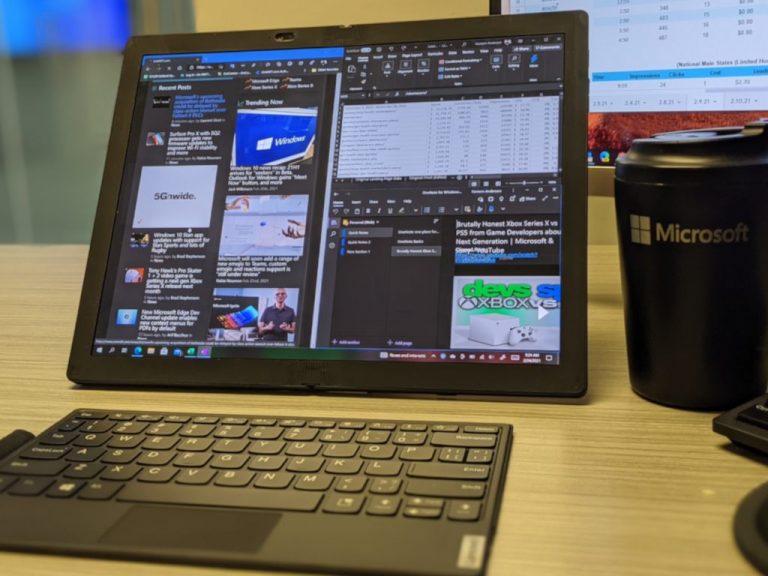
Lenovo has announced the launch of the ThinkPad X1 Fold in India. Covered in an attractive leather folio, the ThinkPad X1 weighs just 999 grams and provides a split-screen experience via its folding OLED screen.

The ThinkPad X1 Fold boasts of a durable multilink torque hinge design and is tested against 12 military-grade certification methods and 27 procedures (MIL-STD 810H). Lenovo claims that the X1 Fold went through additional testing to make sure the screen could handle the stresses of being opened and closed thousands of times. The ThinkPad X1 Fold is an always-connected PC and packs in support for Wi-Fi 6 as well as the optional LTE support.

Lenovo ThinkPad X1 Fold

ThinkPad X1 Fold Specifications

  • Operating System: Up to Windows 10 Pro
  • Processor: Intel Core i5 with Intel Hybrid Technology | 11th Gen Intel UHD integrated graphics
  • RAM: 8GB LPDDR4X 4267MHz
  • Storage: Up to 1TB PCIe-NVMe M.2 2242 SSD
  • Display: 33.52cms (13.3 inches) OLED | 2K (2048 x 1536) resolution | 300 nits brightness | 4:3 aspect ratio
  • Connectivity: WWAN CAT20 (5G/LTE) | WiFi 6 802.11 AX | Bluetooth 5.1
  • Battery: 50Wh with Rapid Charge technology
  • Weight: 999g / 2.2lbs

The ThinkPad X1 Fold is available at a starting and a staggering price of ₹329,000 ($4,425) on Lenovo.com. It does come bundled with the Lenovo Easel Stand for easy portrait or landscape placement on a desk and a Bluetooth Mini Fold Keyboard that nests inside the system.

Lenovo ThinkPad X1 Fold

Would you be interested in this first-generation and very expensive foldable PC or wait till Windows 11 arrives to see how the experience evolves? Do check out my colleague Kareem Anderson’s review of the ThinkPad X1 Fold before you take the plunge.

Cyberpunk 2077 video game updates with some PC and Xbox console improvements

Cyberpunk 2077 received a new update this past week that contained some fixes specifically for Xbox One and Xbox Series X console owners in addition to a large number of improvements for players on all supported platforms.

Xbox owners will be pleased to hear that this update, Patch 1.23, fixes a glitch that was making the game unresponsive during fade-outs while also correcting another one affecting a buggy pause menu. The game on all platforms should also be significantly more stable and play better now due to new memory and CPU optimizations and better memory management overall.

Here’s the full release notes for Cyberpunk 2077’s Patch 1.23 update:

Quests & Open World

Space Oddity

  • Fixed an issue where the “Open the package” objective could change location.

Gig: Family Matters

  • Fixed an issue where Juliet’s car could disappear on sight after completing the quest.
  • Fixed a streaming issue in Juliet’s house.
  • Fixed an issue where it wasn’t possible to enter Juliet’s house if the player didn’t meet either of the Attribute requirements.

The Heist

  • Fixed an issue where Jackie could go through glass.
  • Fixed an issue preventing some guards from attacking the player.
  • Fixed an issue where the “Search the Arasaka officer” objective could remain active after fulfilling it.
  • Fixed an issue where the mech didn’t spawn in the lobby.
  • Fixed an issue where some Arasaka guards could clip through the door.
  • Fixed an issue where some guards could spawn on player’s sight.
  • Fixed an issue where Arasaka officer’s body could be unaccessible, making the player unable to loot the shard and blocking progression.

The Nomad

  • Removed unnecessary button prompts.

The Hunt

  • The news segment in the shard from River will now properly play audio.

The Beast in Me

  • Fixed an issue where progression could be blocked if the player left Claire after the Santo Domingo race too early.

Queen of the Highway

  • Fixed an issue where the Basilisk could clip through some of the trees.

Down on the Street

  • Fixed an issue where there were no quest-related dialogue options when talking to Wakako.

Forward to Death

  • Smoke and dust will no longer flicker when riding the Basilisk.

Gig: Goodbye, Night City

  • Fixed an issue where progression could get blocked after rescuing Bruce if the player called Delamain.

Path of Glory

  • Fixed an issue where V could get stuck in the AV if they stood at the landing spot before it arrived.

Gig: No Fixers

  • Fixed an issue where it wasn’t possible to open the door to Dakota’s garage at the end of the quest.
  • Fixed an issue where Iris could teleport instead of walking.

Gig: Getting Warmer…

  • Fixed an issue where fixer’s car could drive straight through the intersection instead of turning right.
  • Fixed an issue where the prompt to use the coolant on 8ug8ear could still be selected while plugging her out, which could break the animation.
  • Fixed an issue where it wasn’t possible to pick up 8ug8ear.
  • Fixed an issue where NPCs could spawn underground, blocking progression.

Gig: Many Ways to Skin a Cat

  • Fixed an issue where notifications from Regina regarding this gig could appear during The Heist.
  • Fixed an issue where it was possible to connect to the computer after failing the quest by destroying the van, which resulted in player getting stuck.
  • Fixed an issue where progression could get stuck on the “Go to the Revere Courier Servies facilities” objective.

Cyberpsycho Sighting: Where the Bodies Hit the Floor

  • Fixed an issue where after collecting the information the next objective to send it to Regina wouldn’t appear.

Cyberpsycho Sighting: On Deaf Ears

  • Fixed an issue where after collecting the information the next objective to send it to Regina wouldn’t appear.

I Fought the Law

  • Fixed an issue where River wouldn’t be present at the meeting spot before entering Red Queen’s Race.

Gameplay

  • Fixed an issue where after killing a NPC and stealing their car, their body could get stuck in the car.
  • Adam Smasher will no longer receive damage during animations between his attack phases.
  • Fixed an issue where dropping a NPC’s body caused too much destruction.
  • Cataresist cyberware should now work properly.

Visual

  • Fixed Johnny’s spectral appearance in various quests.
  • Fixed various issues related to clipping in NPCs’ clothes.
  • Fixed appearance of rocks in the Badlands.
  • The Pickup
  • Fixed an issue where one of the Maelstromers was T-posing.

Stability and performance

  • Numerous crash fixes in animations, UI, scene, physics and gameplay systems.
  • Memory optimizations and memory management improvements in various systems (reducing the number of crashes).
  • Various console CPU optimizations.
  • Memory and I/O improvement leading to fewer instances of NPCs with identical appearances spawning in the same area, and to improved streaming.

PC-specific

  • Fixed an issue where it wasn’t possible to click the upgrade button while playing with 1280×720 resolution.
  • Fixed an issue where toggling the Windowed and Fullscreen modes with Alt+Enter made the game appear unresponsive.
  • [Steam] Changing language settings to default will now set it to the language of the Steam client.
  • A popup message asking to verify integrity of game data will now be displayed when incomplete or corrupted game data is detected.

Xbox-specific

  • Fixed an issue where signing out during a scene fade-out could result in the game being partially unresponsive.
  • Fixed an issue where the Pause Menu would open again on its own if the Xbox guide and the Pause Menu were closed in quick succession.

Cyberpunk 2077 was one of the most-hyped video game releases of last year when it launched in late-2020 though it was almost immediately criticised for its poor performance on the Xbox One and PS4 consoles and the numerous bugs and oddities seen on Xbox Series X, PS5, and PC.

The game has received various updates since launch with the aim of making it as good as it initially seemed it would be though a lot of the excitement surrounding Cyberpunk 2077 has noticeably diminished in recent months and it’s unclear if it’ll ever recover from its buggy debut.

Have you played Cyberpunk 2077 recently? What do you think about this latest update? Let us know in the comments below and then follow us on Twitter and Facebook for more gaming news.

Cyberpunk 2077
Cyberpunk 2077
Developer:
CD PROJEKT RED
Price:
$29.99

5 Best Ebook Manager Software to Use in 2026

If you have a large unorganized catalog of eBooks such as FB2, EPUB, PDF, MOBI, and other formats, then you are probably missing something.

The possibility of managing and organizing your eBooks makes the process of reading them easier.

However, eBook management software can be used for managing your eBooks on Windows PC and tablets.

Most noteworthy, eBook management software supports online reading as well, thus improving the reading culture.

Hence, we have compiled a list of top six eBook management software for you.

Which is the best eBook management software for PC?

Soda PDF

Soda PDF is a modern cloud-based eBook manager, with a wide array of tools and annotation options. Its nine modules provide efficient solutions and help you organize your reading material as needed.

You can connect the software to your OneDrive, Dropbox, or Google Drive accounts to transfer files. Moreover, you have the flexibility to manage your eBooks wherever you are.

Since Soda PDF works on any device with a browser, including laptops, smartphones, or tablets, you can do that easily.

The software supports all major eBook formats and the Optical Character Recognition (OCR) function can turn any scanned document into an editable file, within seconds.

Soda PDF’s annotation instruments package is quite generous and practical, allowing you to insert images, shapes, or links; as well as leave comments or bookmark a specific page.

You can do so by selecting the desired action from the main toolbar. Similarly, you can skip a chapter or go back by entering the page number in the search field.

All standard features of Soda PDF are available online, with certain limitations. The two Premium packs contain free software updates and can be accessed on Windows, Mac, Linux, and Citrix server deployment.

Other important features of this eBook manager include:

  • Unique 3D Viewer system and page-flipping effect
  • The Read-Aloud option that can audibly recite the content
  • Advanced zoom and rotation options without diminishing the quality
  • Clean and intuitive interface
  • Creating PDFs from 300+ file formats
  • Personalized toolbar with item-specific controls for each module
  • Full compatibility with CBR and CBZ files
Soda PDF

Soda PDF

Manage, edit, and convert your eBooks with this intuitive and modern software!
Check priceVisit website

Icecream Ebook Reader

Assuming that you have a large collection of ebooks and want to enjoy spending time reading them,  Icecream Ebook Reader is a top-notch choice.

What distinguishes Icecream Ebook Reader from similar programs is the one-click feature that allows you to resume reading where you left it.

The bookmarks feature allows to mark your favorite parts of a book or full-screen mode for PC.

Moreover, you may alter the text to better suit your needs, allowing you to read the text in blocks of any preferred size.

Thanks to this ebook library software you can open PDF, MOBI, DJVU, and other popular book formats. It also provides Copy, Translates, and Search functions.

Write down your ideas regarding each paragraph of the book with the Text annotation feature. If you are a late-night reader then you will definitely make the most of the night mode function.

Improve your workflow with the intuitive scrollbar that facilitates quick navigation. You can also export Library features to easily transfer your eBook collection.

Let’s take a look at the app’s main features:

  • Library
  • Reading progress
  • Book search
  • Annotations
  • Bookmarks
  • Fullscreen mode
Icecream Ebook Reader

Icecream Ebook Reader

Organize your eBook library with this customizable software and enjoy the best digital reading experience!

Adobe Digital Editions

ebook management software

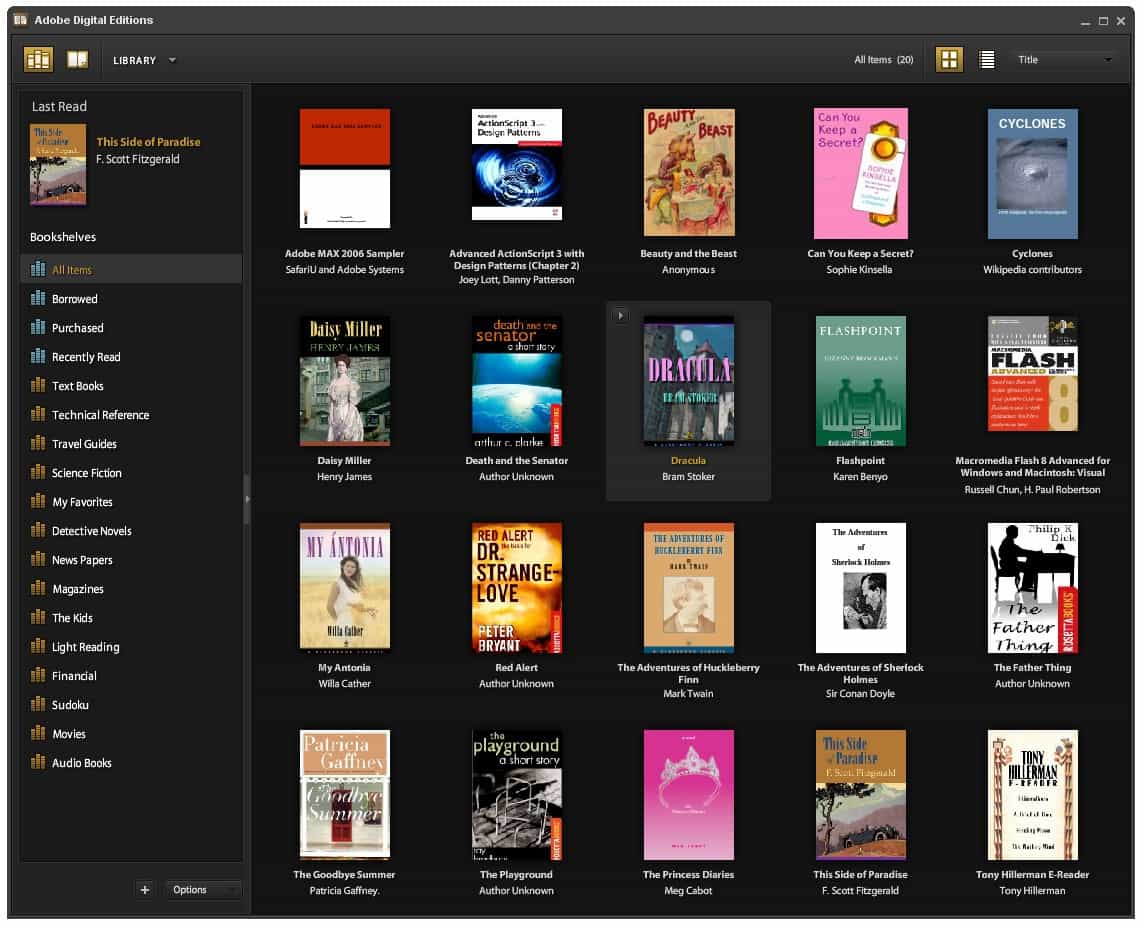
Ideal eBook management software for your Windows PC is Adobe Digital Editions (ADE) powered by Adobe Inc.

This software enables you to view, organize, and manage your eBooks, journals, magazines, and other electronic publications. You can purchase digital content within the program.

One excellent characteristic is the Free and open-source reader function for Windows. Feel free to organize your eBook collection with customizing elements such as covers, titles, tags, authors, publishers.

In order to keep a clear evidence of your favorite authors and have quick access to your readings you can use the advanced eBook search and sorting features.

Make things more interactive by creating custom bookshelves. You are also allowed to make library migrations from lower versions to the latest version.

Enjoy the Full-screen mode while reading and also add bookmarks such as tags and comments.

One the best things about this eBook collection manager is that it allows you to even borrow eBooks from public libraries. With this software you also get printing and multilingual support.

Also, Windows users can transfer eBooks from/to USB-connected eReader hardware.  Free eBook samples may be downloaded from ADE’s website.

ADE eBook management software is compatible with Windows and can be downloaded for free from the official page in the link below.

The software has the following core features:

  • Comment
  • Edit pdf
  • Fill and sign
  • Organize pages
  • Print documents
Adobe Digital Editions

Adobe Digital Editions

Manage and customize your eBooks library with this advanced versatile software!

Calibre

ebook management software

Calibre is the topmost eBook management software due to its excellent bundle of features making it possible for Windows users to manage their virtual library.

This ebook management software offers numerous management options for keeping your eBook library organized.

Users can search for a particular book using specific comments or tags that they left on the eBook. It can also be used to find any missing metadata in eBooks.

Thanks to this smart tool you can edit eBook editing and browse your eBook collection using covers, titles, tags, authors, or publishers.

Plan which book you want to read in a more efficient manner with the Advanced eBook search and sorting function.

You can as well download all the metadata for an e-book (metadata such as title, author, publisher, ISBN, tags, cover, or summary).

Transfer your eBook from one device to another(wirelessly or with a cable) so you can access your library from any type of device even from your phone.

A great and very useful perk of this tool is that it supports all major eBook format views, so it works with different devices from various brands.

You can create a Backup library for eBooks and even download the latest news using RSS. Another important feature of Calibre is that it has a vast plugin repository.

⇒ Get Calibre

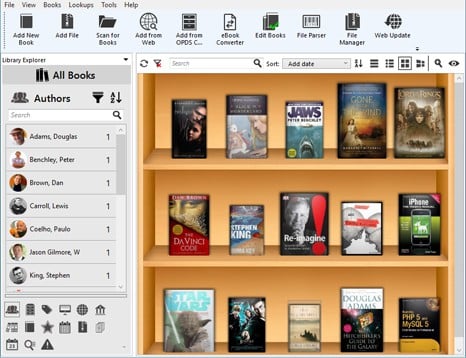
Alfa eBook Manager

Alfa eBook Manager is another recommended eBook management software for your Windows PC.

It allows you to organize both your paper and electronic books together in a single library. AEM’s free version has limited functionalities, while paid versions offer full features.

Manage your entire library with the powerful eBook search and sorting function and feel free to add tags, comments, and custom fields.

You can also make your e-Library match your mood and why not your favorite literature genre by customizing it with interactive elements.

Feel free to update eBooks information from Amazon, Google Images and other book sites. Scan your computer for eBooks, parse metadata.

Take full advantage of the built-in eBook reader and audio player because it supports most popular formats.

Another very interactive characteristic is that you can view your eBooks with realistic 3D models. You also have an EBook converter tool incorporated within this app.

An amazing feature is that with this tool you have access to the most valuable literature pieces because it allows you to download eBooks from the public library.

A most noteworthy feature of Alfa eBook Manager is that users can access the eBook library and read books in the local networks from any device via Web Interface.

The free version of this eBook management software is available for Windows 7/8/10 and gets constantly updated.

⇒ Get Alfa eBook Manager

eXtreme Books Manager

ebook management software

eXtreme Books Manager is an advanced eBook management software that can import information for eBooks, audiobooks, and physical books.

Organize eBook collection by using covers, titles, tags, authors, publishers. Manage your library more efficiently with the advanced eBook search and sorting function.

Thanks to this application you get a clean and intuitive library appearance. Another great feature is that this tool allows you to easily import and export data using XML files.

You can extract titles, ISBN codes, and comic issues from the TXT file. Scan your entire hard drive or ISBN barcode in search of digital or audiobooks.

Additionally, you can quickly and easily add books and manage information (manually by title or automatically from the Internet).

Keep track of the books you exchange with other avid readers by using the loan and friend manager tool.

⇒ Get eXtreme Books Manager

Lucidor

ebook management software

Finally, this eBook management software for your Windows PC is ideal for book lovers new to the idea of managing and organizing their eBooks.

Unfortunately, Lucidor only supports eBooks in the EPUB file format and OPDS catalog files, which is inconvenient.

However, Windows users can convert their eBooks from other file formats to EPUB format using an eBook online converter.

With this tool, you can enjoy reading EPUB eBooks and organize them in bookcases. Also, find your favorite titles faster with the advanced search feature.

Feel free to search for and download eBooks right from the Internet and have a variety of the world’s digital libraries at your fingertips.

You can also convert RSS feeds and web pages into eBooks. Thanks to the tabbed interface function you can open multiple eBooks at the same time.

Keep your library fun, interesting, and efficient by customizing its appearance and changing the themes to give it that unique feel.

Finally, this eBook management software also has extensions for Mozilla Firefox, Wiki, and Moodle applications.

⇒ Get Lucidor

Paper books vs eBooks

Over the years, eBooks have become increasingly popular among book worms, thanks to their versatility and all the other awesome things you can do with them.

Owning a Kindle will let you download thousands of books at the same time, which you can pull out at any time and read whatever you want.

Compared to taking physical books with you, which are limited by space, this is revolutionary. No longer will you need to carry heavy books with you at all times.

Converting files to the eBook format

In order to get the best eBook reading experience, an eBook reader such as the Amazon Kindle needs specific file formats.

Additionally, using the standard format will give you access to all the different things you can do with an eBook reader, which you would not be able to use otherwise.

If you don’t like buying eBooks from online stores, you can also download them, but you have to make sure the files you download are properly converted to the designated formats.

Thankfully, most eBook management tools such as Calibre will give you the option to choose the exporting format. You can also use dedicated converters like Any eBook Converter.

Benefits of using an eBook Reader

Besides allowing you to store countless books on the same device without having to carry their physical copies around and break your back while doing it, most readers have other useful features.

Lately, all Kindle models are backlit, which means that you can read in the dark without having to use a lamp! You can also increase or decrease the light levels.

Moreover, you have the option to change the font of your text, the spacing, and other formatting tools that allow you to customize your page layout just the way you like it.

One other awesome thing is the built-in dictionary. Sometimes, you might encounter a word and you won’t know what it means.

When reading an ebook, you can tap on the said word and you’ll be given an official definition from the dictionary, alongside the phonetic writing and pronunciation.

Since we praised the Kindle so much, why don’t we also take a look at this awesome list of the best Amazon Kindle deals on the market!

We also highly recommend that you try out eBook management softwares to read, organize and manage your eBooks.

That’s about it from us today. If you have any addition or experience with the software above, feel free to give us feedback in the comment section below.

Microsoft draws the ire of law makers as congress readies new antitrust legislation

Microsoft may have to step into the antitrust ring again, as its recent “human error” ordeal regarding the infamous Tiananmen Square “tankman” image omissions catch law makers scopes.

Microsoft president Brad Smith was questioned early Monday morning via a letter presented by Ohio Republican Jim Jordan who sits on the House Judiciary committee, on a range of topics primarily focused on censorship, bias, and moderation.

While Jordan’s line of questioning strayed from the heart of the conversation congressional law makers are attempting to have in the wake of new antitrust legislation, his questions still echo a relative sentiment.

With Microsoft’s ability to ‘accidently’ remove important, vital, controversial, and factual information from one of two major search engine platforms in the US, it calls into question just how much power the company holds over competition and the right to information as well as what would become of the company if new bills passed?

As congress begins to weigh in and wrangle some industry influence away from some of the biggest names in tech including Amazon, Apple, Facebook and Google, Microsoft has flown relatively under the radar.

Facebook, Microsoft, Google, Apple sitting in front of congress

That was until it had the infamous Tiananmen Square “tankman” images removed from its image search engines for a little under 48 hours.

Now it seems, as the language in a new set of proposed antitrust bills gets hammered out, Microsoft may soon come under similar anticompetitive rhetoric, enough so, that it may have spin off several recently acquired businesses to adhere to them.

Below is the summed-up version of the five main bills:

  • Ending Platform Monopolies Act: Sponsored by Jayapal, whose district includes Amazon’s headquarters of Seattle, and co-sponsored by Rep. Lance Gooden, R-Texas, this bill would make it unlawful for a platform with at least 50 million monthly active U.S. users and a market cap over $600 billion to own or operate a business that presents a clear conflict of interest. Unlawful conflicts would include anything that incentivizes a business to favor its own services over those of a competitor or disadvantage potential competitors that use the platform. Lawmakers have previously expressed concern that both Amazon and Apple, which run their own platforms for sellers and developers, respectively, could undermine competition due to a conflict of interest for their own competing products or apps.
  • American Choice and Innovation Online Act: This bill, proposed by Cicilline and co-sponsored by Gooden, would prohibit dominant platforms from giving their own products and services advantages over those of competitors on the platform. It would also prohibit other types of discriminatory behavior by dominant platforms, such as cutting off a competitor that uses the platform from services offered by the platform, and ban dominant platforms from using data collected on their services that isn’t public to others to fuel their own competing products, among several other prohibitions.
  • Platform Competition and Opportunity Act: This proposal from Rep. Hakeem Jeffries, D-N.Y., co-sponsored by subcommittee ranking member Ken Buck, R-Colo., would shift the burden of proof in merger cases to dominant platforms to prove that their acquisitions are in fact lawful, rather than the government having to prove they will lessen competition. The measure would likely substantially slow down acquisitions by dominant tech firms.
  • Augmenting Compatibility and Competition by Enabling Service Switching (ACCESS) Act: This proposed bill from Rep. Mary Gay Scanlon, D-Pa., and co-sponsored by Rep. Burgess Owens, R-Utah, would mandate dominant platforms maintain certain standards of data portability and interoperability, making it easier for consumers to take their data with them to other platforms.
  • Merger Filing Fee Modernization Act: This bill, introduced by Rep. Joe Neguse, D-Colo., and co-sponsored by Rep. Victoria Spartz, R-Ind., appears to be companion legislation to the bipartisan bill of the same name in the Senate. The Senate version passed in that chamber on Tuesday as part of a larger $250 billion tech and manufacturing bill. The bill would raise the fees companies pay to notify the Federal Trade Commission and Department of Justice Antitrust Division of large mergers with the goal of raising money for those agencies.

As demonstrated by representative Jordan’s letter earlier today, several of Microsoft’s businesses would fall under the broadest scope and interpretation of the bills as currently written.

Oddly enough, the bills have bi-partisan support from which both political parties have varying degrees of grievances with how the current tech landscape is set and as a result, could help grease the wheels on their implementation as early as this summer.

For its part, Microsoft has been a quiet steward of congressional investigations as of late championing most congressional initiatives and answering grueling subpoenas, but few of them threaten Microsoft’s bottom line as do these five new antitrust bills.

Best Windows 10 Edition: Find The Right One For Your Needs

As you know, there are several versions of Windows 10, each with its pros and cons, but what is the best Windows 10 edition for you?

This depends solely on your needs as a user, and in today’s guide we’re going to take a look at various editions and compare them.

What is the best Windows 10 edition?

Windows 10 Home – Best choice for most users

Windows 10 Home

As the name itself says, Windows 10 Home was developed as a consumer version, intended for the typical private home user.

Also called the standard version of Windows 10, this edition is a popular one being that it runs on the vast majority of computers, notebooks, as well as tablets.

Windows 10 Home offers users all core functions and is in itself a complete operating system so if you use your device mostly for browsing online, streaming, social media, paying your bills, and watching Netflix, Windows 10 Home might be the right choice for you.

And if you’re worried about malware, you’ll be happy to know that this edition comes with built-in security features that include antivirus, firewall, and internet protections.

Moreover, Windows 10 Home edition introduces you to Windows Hello, a feature that’ll scan your face or fingerprint for a more fast and secure way to unlock your device.

Let’s see what some of its best features are:

  • Built-in Outlook, Cortana voice assistant, Microsoft Edge, and OneNote
  • The option to sync with your Galaxy phone, PC, and OneDrive
  • Focus assist to block notifications, sounds, and alerts
  • Built-in security
  • Parental controls
  • Password-free functionality
  • A customizable timeline
  • Microsoft Photos
  • Instantly stream live gameplay
  • Accessibility tools and features for people who are blind, color blind, or have low vision

Windows 10 Pro – Intended for professionals

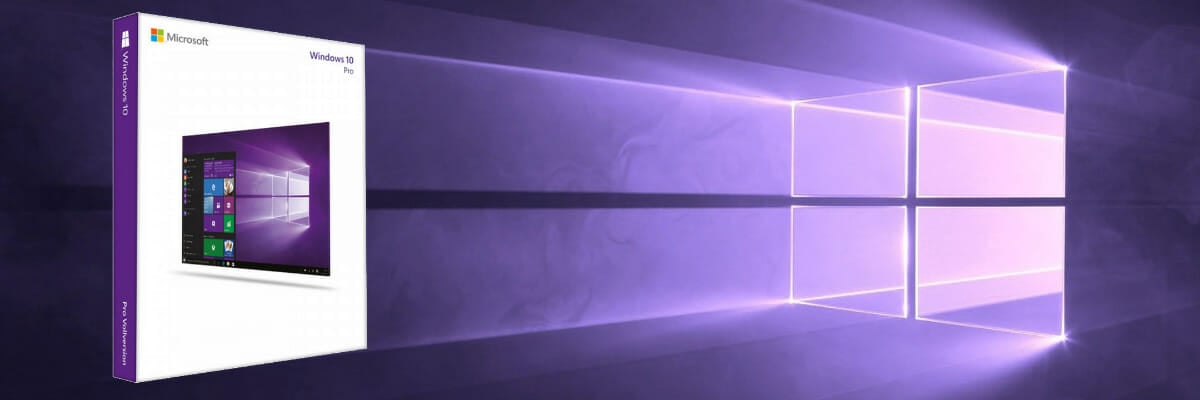
Windows 10 Pro

Windows 10 Professional has all of the features of Windows 10 Home with a few additions for, you guessed it, Windows professionals and small businesses.

The Pro Edition also offers additional features such as domain join, group policy management, remote desktop, the Business Store for Windows 10, Enterprise Data Protection, BitLocker, and other advanced management and security functions.

One of the most notable features of this edition is that users can now access the Windows Update for Business, which gives IT administrators the option to keep the Windows 10 devices in their organization always up to date with the latest security defenses and Windows features.

Windows 10 Pro is aimed primarily at smaller companies and professional users. At most, the remote desktop and BitLocker drive encryption should be of interest to home users.

Let’s take a look at some of the key features:

  • BitLocker for better data encryption and security management
  • Remote login that enables you to log in to your work PC from home
  • Hyper-V, good for using multiple virtual machines on one PC
  • Protection from fileless based attacks
  • Device Control (e.g. USB)
  • Application Control
  • Windows Hello for Business
  • Integrated with Microsoft Information Protection
  • Windows Insider Program for Business
  • Windows Information Protection (WIP)

Windows 10 Enterprise – Perfect for business users

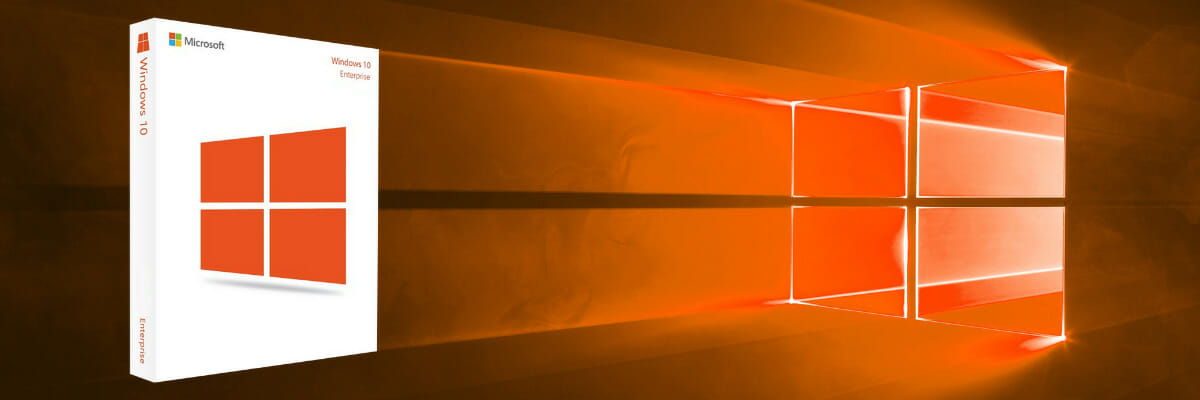
Windows 10 Enterprise

Windows 10 Enterprise, no connection to Star Trek whatsoever, was developed specifically for business.

Windows 10 Enterprise, in turn, is based on Windows 10 Pro with additional features to assist with IT-based organizations and is aimed at larger companies.

It is sold to them as a volume license and offers additional functions which, among other things, control the operating system distribution in the company as well as device and app management. 

With the Enterprise version, companies also have access to Microsoft’s Long Term Servicing Branch. This is a special form of Windows update that only installs security updates and does not add any functions in Windows.

Let’s have a look at what its main features are:

  • Credential Protection
  • Endpoint Detection and Response
  • Unified Write Filter (UWF)
  • 30-months of support for September targeted releases
  • Windows 10 Long Term Service Channel
  • Desktop Analytics
  • Windows Virtual Desktop Use Rights
  • Microsoft User Experience Virtualization (UE-V)
  • Microsoft Application Virtualization (App-V)

Windows 10 Education – For students and teachers

Windows 10 Education

Windows 10 Education is based on the Enterprise version and is aimed at educational institutions such as schools and universities, for staff, administrators, teachers, and students.

This edition is available through academic Volume Licensing and was designed as a low-cost way to provide university and school staff and students with Windows 10.

What is important to remember is that pupils and students are able to upgrade to Windows 10 Education if they use Windows 10 Home or Pro at home.

Windows 10 Education has similar features to Windows Pro:

  • Microsoft Learning Tools
  • Microsoft Whiteboard
  • Windows Hello sign-in
  • Remote Desktop Connection
  • Windows Update for Business
  • AppLocker
  • User Experience Control
  • Start Screen Control (with GPO)

Why should you choose Windows 10?

It is clear that Microsoft wanted to cover all bases when started developing Windows 10. There’s an edition for each and everyone’s needs, be it home users, schools or universities, small or big companies.

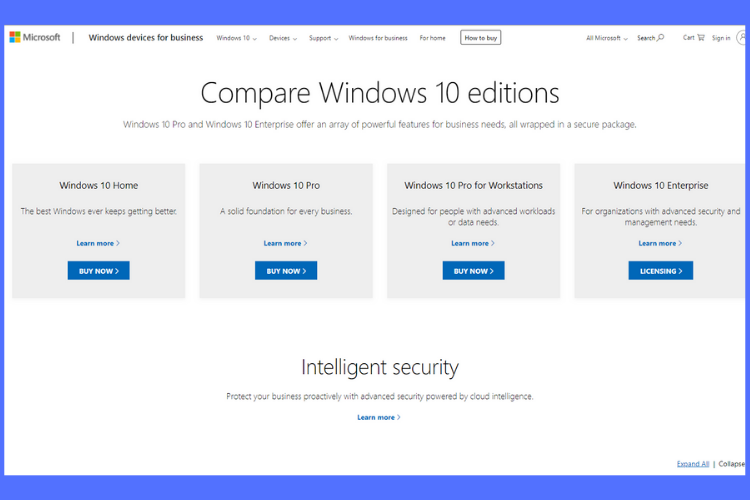
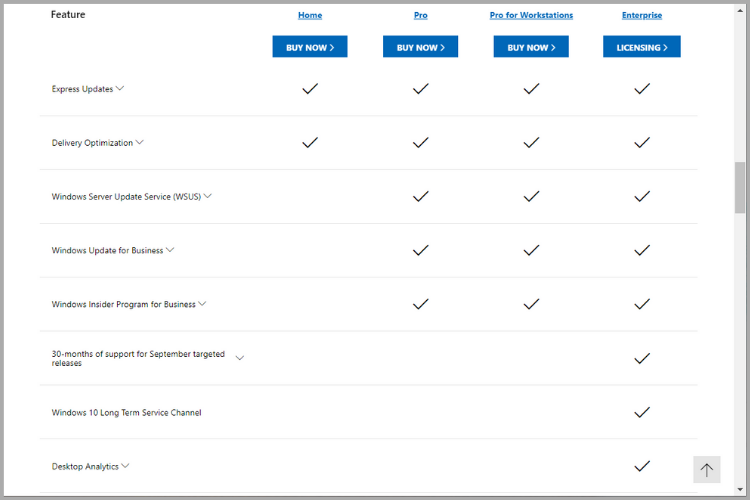
Compare Windows 10 editions

All versions of Windows 10 the following:

  • High performance
  • Constant security through regular updates
  • Reliable compatibility with peripheral devices
  • Large variety of apps.

Note that apps like Mail, Calendar, Music, Video, Maps, are already included in every edition of Windows 10. Also, if you ever wondered how many apps are available in the Microsoft Store, our article has the answer you’re looking for.

The OS not only offers high-performance operation but also a stable mode of operation, so your apps will work great in all modes, on all Windows-enabled devices.

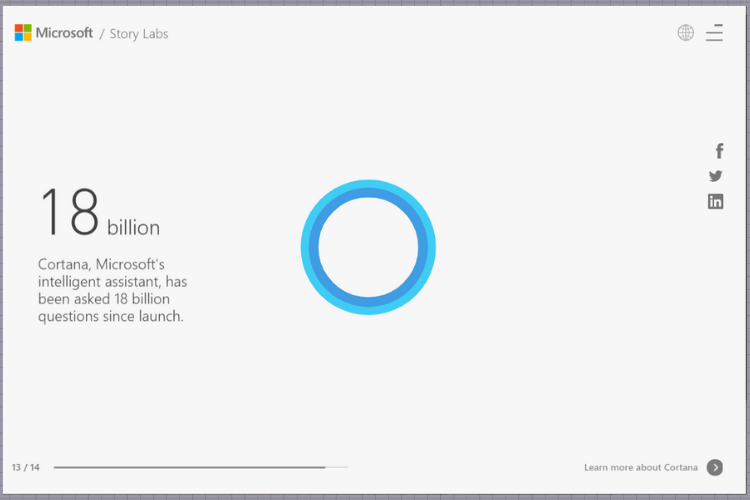
Speaking of, did you know that more than 1 billion people use Windows 10 as their OS? Take a look at what Microsoft corporate vice president Yusuf Mehdi wrote in the announcement:

We’re delighted to announce that over one billion people have chosen Windows 10 across 200 countries resulting in more than one billion active Windows 10 devices. We couldn’t be more grateful to our customers, partners, and employees for helping us get here.

The digital voice assistant Cortana and Microsoft’s Internet browser Edge, which used to be known as Spartan if you can believe it, are also at your disposition to help you navigate your device easier.

cortana

If you want to experience the latest in Windows technology you need to get yourself a Windows 10 upgrade.

Which of the editions provides better security?

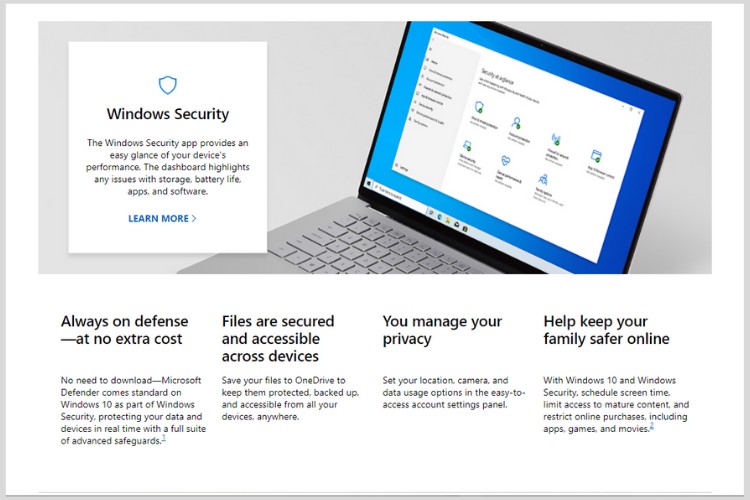
All Windows 10 editions provide real-time protection against threats from malicious apps and ransomware with Windows Defender.

The program offers the following:

  • Protection from fileless based attacks
  • It has a low resource consumption
  • In runs silently in the background
  • It’s completely free.
  • Automatically gets virus definitions from the cloud

In case you want to learn more, we suggest visiting our Windows Defender review for more in-depth information.

But if you want to know what edition provides the best security, against malware and hackers, you need to take into consideration that Windows 10 Pro, Enterprise, and Education also contain the encryption technology Bitlocker.

If you’re not familiar, Bitlocker does the following:

  • Encrypts a Windows boot driveUSB or and external drives
  • With Bitlocker, all information and data stored on the computer is conveniently protected
  • You just have to log into Windows 10 and then have full access
  • In the background, Windows 10 automatically decrypts the files as soon as you access them
  • If the device is stolen or a stranger gains access to the computer, he will not be able to access the data.

To learn more, we suggest reading out guide on Windows Device Encryption or if you just want to protect your flash drive, we have a great guide on how to encrypt a USB flash drive.

What are some of the best features?

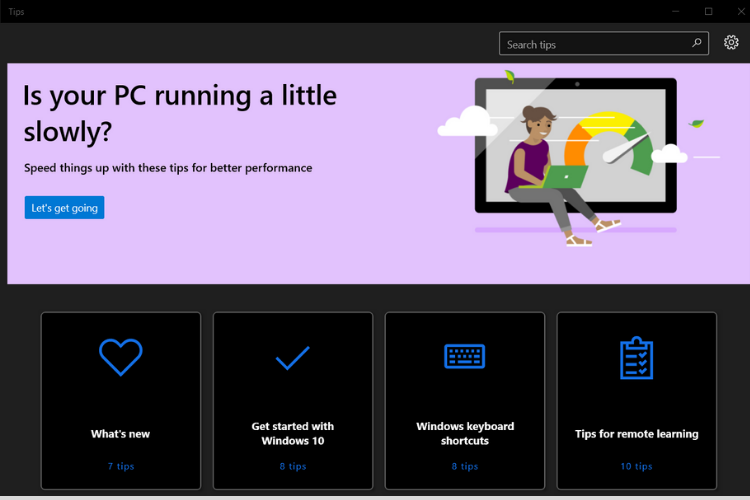
A really great feature that’s included in all Windows 10 Editions is the Tips app. Here you can find videos and simple step-by-step tutorials on timesaving shortcuts, Windows 10 basics, tips for remote learning and ways to get organized.

Windows 10 Tips App

Microsoft also provides the Remote Desktop Connection application in both Windows 10 Home and Windows 10 Pro.

The complete remote desktop support offered by Windows 10 Pro is useful if, for example, you want to have full access to the computer at work from home.

Hyper-V is particularly interesting for Windows professionals. However, the virtualization technology is only included in Windows 10 Pro. 

With Hyper-V, a program or operating system can be tested in a secure environment and you can easily run guest operating systems as virtual machines in a window.

Get more control over updates: Under Windows 10 Home, you can receive the updates immediately and you can delay the installation for a short time. 

On the other hand, in Windows 10 Pro, you can decide in much more detail whether and when you want to receive which Windows updates. 

It has often happened that a new Windows 10 update has proven to be faulty and subsequently had to be uninstalled after struggling with problems. 

In Windows 10 Pro, you can simply wait a few days after the update is available and only install it when it is clear that the update is OK.

Microsoft also introduced the Windows Defender Application Guard function for Windows 10 Pro, after the function was previously only available for the business version of Windows 10. 

With WDAG you can use the Microsoft browser in a sandbox and surf in a completely secure environment. Only extensions may not be used and the favorites created are not adopted in the secured variant.

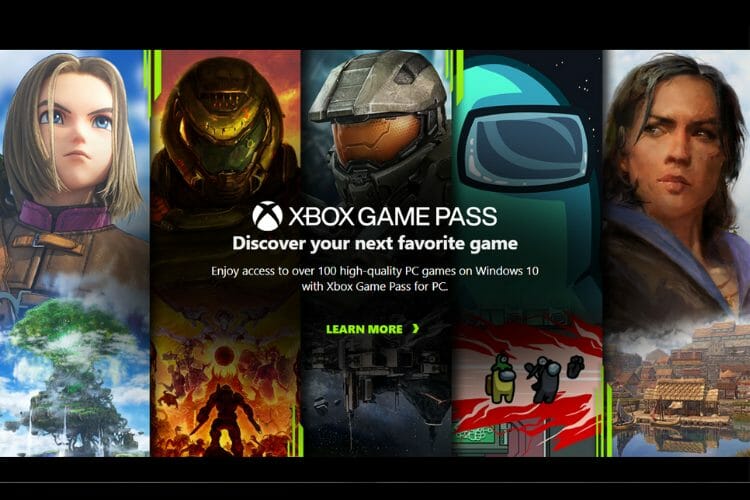
And for all the gamers out there, there’s also an Xbox app in all Windows 10 editions. The Xbox app works together with Xbox Live for cross-platform play and all game data flows together there.

xbox app_windows10

What Windows 10 edition is right for me?

For the majority of Windows users, Windows 10 Home is the preferred version. For advanced users and IT professionals, Windows 10 Pro and Windows 10 Enterprise are more suitable.

Compare Windows 10 editions

Windows 10 Education is interesting for schoolchildren and students as you can upgrade from a Home and Pro version to the Education version provided your educational institution supports it.

What is also notable is that there’s also a Windows 10 Pro for Workstations edition that was developed for people with advanced data needs such as data scientists, CAD professionals, researchers, media production teams, graphic designers, and animators.

As for the download links, you can find them all on the Microsoft Windows 10 Download page.

Is Windows 10 S better than Windows 10?

Many devices come with Windows 10 S Mode, and in case you’re not familiar, the S Mode does the following:

  • It protects your device by allowing only the apps from Microsoft Store to run on your PC.
  • Blocks all other browsers besides Edge.
  • Improves performance by limiting the installation of third-party apps.

While this might be a useful feature for first time users, many users switch out of S Mode as soon as they can since it lacks so many features.

If you want to learn more, we have great guides on Windows 10 S mode vs Home and Windows 10 S vs Pro version, so don’t miss them.

Which Windows 10 is right for you depends entirely on whether you want to use the operating system mainly for leisure or for work.

Now that you have all the information, what will it be? Home, Pro, Enterprise, or Education? Let us know in the comments section below.

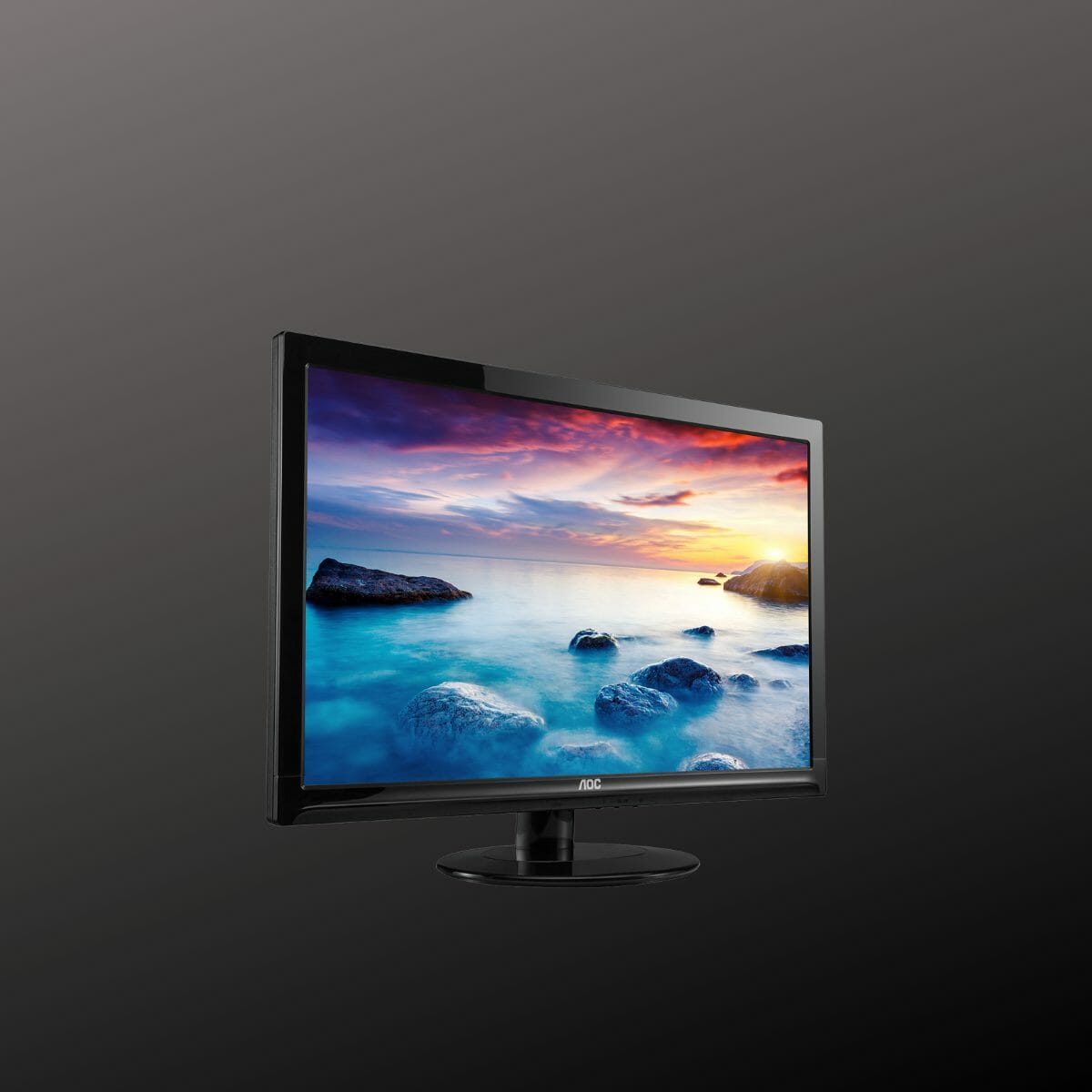
How to install AOC monitor drivers Windows 10

In case you started to have some functionality issues with your AOC monitor, know that you are not alone and there is no need to panic.

Considering that drivers are what ensure good communication between your monitor and your device, this will also be the first place to look and see if everything works properly.

We will explore in this article how you can easily download and install AOC monitor drivers in Windows 10, so make sure to keep on reading.

How can I install AOC monitor drivers in Windows 10?

1. Install the driver manually

  1. Open a new tab in your browser and go to the AOC service center.
  2. In the search box type in your exact monitor model.
  3. Once it found it click on Support.
  4. Next, go to the Drivers and Software section and click on Driver.
  5. Finally, click on the downloaded file and follow the instruction.
  6. Once the process finishes make sure to restart your device.

2. Use a third party software

Although having troubles of any kind with your AOC monitor, downloading and installing updated drivers can be done easily with just a few steps.

Is always recommended to use a dedicated tool for updating drivers, even though you can also perform this action manually, as it will avoid any involuntary mistakes to happen.

We hope that this article offered you all the information needed in order to efficiently update your AOC monitor drivers.

Don’t hesitate to leave us a comment in the dedicated section below if you have additional recommendations and suggestions.

How to update Huion tablet driver [Full Guide]

One important element that influences the way your Huion graphics drawing monitor or any other devices work, is using updated drivers.

These small files not only allow you to use all the functions of your device fully but also prevent issues from arising in the future.

Another very important element when it comes to using your Huion device optimally is choosing the right drawing software.

We will explore in this article the exact steps you need to take in order to update Huion tablet drivers, so make sure to keep on reading.

How can I update Huion tablet driver?

1. Update the driver manually

  1. Go to the Huion website and click on Download.
  2. Next, search your Huion tablet and click on the Windows icon.
  3. Allow for the file to download and then open it.
  4. Next, double-click on the application file.
  5. Finally, make sure to follow the wizard to install

2. Use the Device Manager

  1. Press the Windows key and R at the same time.
  2. In the Run window type in devmgmt.msc and click OK.
  3. In the Device Manager window locate the Mice and other pointing devices option and expand it.
  4. Go to the Huion tablet and select Update driver from the list.
  5. Next, click on Search automatically for updated driver software.
  6. Allow for the process to finish and restart your device once done.

3. Use a dedicated third-party tool

Another solution that we think is worth taking into consideration is to update the Huion tablet driver with the help and support of third-party software, designed specifically for this purpose.

Considering that updating the driver manually can be less time-efficient and is also prone to human errors, we would strongly recommend choosing a reliable tool that will perform the action automatically.

We hope that this article helped you update your Huion tablet driver with ease. Don’t hesitate to use the Outbyte solution and learn how to update and fix your drivers like an expert.

At the same time if your issue is not only related to driver update, then this guide on how to solve Huion not connecting deserves your attention.

As always, don’t hesitate to leave us a comment in the dedicated section below if you have additional comments and suggestions.

Google Stadia Game Design Director joins Microsoft’s Xbox Game Studios Publishing team

Microsoft revealed today that it has made a new high-profile hire to bolster its Xbox Game Studios Publishing team. Kim Swift, a video games veteran who worked on Portal and Left 4 Dead has left her Game Design Director position at Google Stadia to become Senior Director of Cloud Gaming at Xbox Game Studios Publishing.

According to her LinkedIn profile, Swift previously worked for the publishing department overseeing design for second-party projects at Google Stadia, and she also led a team working on experimental first-party projects. Peter Wyse, Head of Xbox Game Studios Publishing said in an interview with Polygon that “Kim is going to build a team focused on new experiences in the cloud, something that’s going to support our mission of bringing our Xbox games to connect 3 billion gamers to play our games.”

Overall, this is an interesting hire for Microsoft, and it follows the news of Google closing all of its internal studios making first-party games for the company’s Stadia cloud gaming platform. A lot of Stadia execs have since left the company, including Stadia VP & Head of Games Entertainment Jade Raymond, who went to open a new studio developing exclusive games for PlayStation.

Microsoft is on a journey to help developers build cloud-native games, and the Xbox Game Studios Publishing team also shared today its three core pillars for second-party projects, which are Community, Innovation, and Inclusivity. “You can see this come to focus in a game like Tell Me Why,” Wyse told Polygon. “We’re super proud of that game. It speaks to our values around LGBTQIA+ representation, mental health awareness, and more.”

Last year, the Xbox Game Studios Publishing team also brought us critically-acclaimed games with Microsoft Flight Simulator and Ori and the Will of the Wisps, which have both been made by small external studios punching well above their weight. Upcoming second-party projects include Contraband, a co-op experience developed by Avalanche Studios (Just Cause), and there’s also As Dusk Falls, the new interactive adventure from INTERIOR/NIGHT that Microsoft revealed last year.

5 best gangster games for your PC

Playing video games is probably one of the most popular activities on the computer, in your free time. Thus, producers are constantly updating their products, including new features and some high-quality visualizations.

Of course, there’s plenty of games you can try, but our article will show you 5 of the best gangster games for your PC.

Considering this kind of game allows you to do something you wouldn’t do in normal life, this list will surely fulfill your virtual fantasy.

What are the best gangster games for my PC?

With its latest update, GTA V is a masterpiece that promises gamers a vast open-world experience. The producers define it as the biggest, most dynamic, and the most diverse open-world ever created.

Grand Theft Auto V blends storytelling and gameplay under some new great features. GTA V allows you to play with 3 main characters who have something in common, the gangster life.

Michael de Santa is a retired bank robber, Franklin Clinton works as a repo man for a car dealership, and Trevor Philips is a mentally unstable redneck and bank robber.

The game’s storytelling is based on their criminal activities, which can be done by completing certain missions.

We can also talk about the deuteragonists and main antagonists of GTA V, who have significant roles during the story. As for the protagonists’ friends and helpers, they are FBI agents or masterminds.

Moreover, players are able to repeatedly jump in and out of their lives, while playing all sides of the game’s story.

Not to mention that GTA V comes with some stunning graphics. Running at a mighty 60 frames per second and 1080p resolution will make a huge difference in your game experience.

⇒ Get GTA V from G2A

Feel free to check some other cool Grand Theft Auto V offers available on Kinguin and Green Man Gaming.

The first Mafia game was one of the pioneers of open-world action PC games. The story of the Mafia is set throughout the 1930s, including the final years of Prohibition.

The action is playing in a city of constant drama, Lost Heaven. Its story goes after the rise and fall of a Sicilian-American cab driver who turned into a gangster. Tommy Angelo is the only protagonist of Mafia: Definitive Edition.

Outside the main story, you can also perform a Free Ride mode, so you’ll be able to explore the city without any required mission objectives.

However, during October 2020 the game added some new activities in the Free Ride mode. Thus, we mention taxi missions or racing modes.

Speaking of character models, they are different in terms of voice actors. Moreover, their looks are created to match their voice tone, so you’ll enjoy an extremely realistic experience.

Considering the game is set in the 1930s, the cars seem to be weighty and slow. So, if you’re used to smoothing and swift acceleration as the ones in modern car games, this might represent a disadvantage.

⇒ Get Mafia: Definitive Edition from Green Man Gaming

If you’re also interested in a good price deal for Mafia: Definitive Edition you should check the G2A website and Kinguin website.

Sleeping Dogs

Most users consider the Sleeping Dogs game as being a GTA clone, borrowing some interesting related features. Some others claim that it is the best open-world game they have played in their life.

The location is incredible, and with the game’s technological, audio, and visual improvements, you’ll feel Hong Kong has never been so alive.

The game’s story is inspired by the city set in. So, Sleeping Dogs follows keeping with Hong Kong action movies. Its narrative’s fundamental objective is the over-the-top action.

Wei Shen is the main character. He is an undercover Chinese-American police officer assigned to infiltrate the Sun On Yee Triad organization.

Sleeping Dogs’ main focus is on Shen’s fighting, shooting, and parkour abilities. Also, it implies several gadgets that can be used for combat and exploration.

Another great feature we can discuss is the stories’ presentation. Users are admiring the seriousness of the story, but also that you can choose to be serious or not too.

Thus, you can do a serious quest dressed up like Neo, a bronze god, or wear a pig mask. So your game will imply not only action but also amusement moments for your free time.

Sleeping Dogs is simply evolving as you play. Step by step you get access to cooler stuff, more interesting side-quest, or gadgets. For more enjoyable moments, there is always time for some karaoke or car/bike racing.

⇒ Get Sleeping Dogs from Green Man Gaming

If you’re interested in finding other price offers, we strongly recommend you try the ones available on G2A and available on Kinguin.

Hitman 3

Hitman 3 is the dramatic conclusion to the World of Assassination trilogy. In general, the game is based on the same IO interactive built used for the first two editions.

Thus, you’ll be playing with the same bald Agent 47. He is now revolting against his former employers, the International Contract Agency.

One important aspect you should consider is that Hitman 3 gives you plenty of assassination opportunities. Besides that, Hitman 3 allows you to access awesome living and locations. So, you’ll never get bored of playing it.

So, there are six locations: Dubai, UAE; Devon, United Kingdom; Berlin, Germany; Chongqing, China; Mendoza, Argentina; and the Carpathian Mountains, Romania.

Moreover, the game allows you to access too all the previous Hitman levels. Each level implies numerous ways to dispatch targets, rewarding you for playing stages more than once.

In addition, Hitman 3 allows you to access other modes outside of the standard campaign.

Thus, we can talk about Elusive Targets, Escalations, and Contracts, which put different spins on each level. In different circumstances, Sniper Assassin provides a completely unique experience.

⇒ Get Hitman 3 from Green Man Gaming

You can also explore the Hitman 3 offers from G2A website and also from Kinguin website.

Saints Row: The Third

Users often claimed Saints Row: The Third as the best game in the Saints Row series. This is an open-world game, which takes you out of Stilwater and drops you into the new city of Steelport.

There are three local gangs that are firmly established. However, a fourth one, Third Street Saints, is not going to be underestimated.

Thus, while playing it, you’ll have to make sure that Saints Row the Third will take over this new city and will overpower the competition.

Moreover, you can enjoy cool character customization. You’ll be able to personalize bodies, clothing, vehicles, and also home properties.

Saints Row: The Third offers you the experience levels feature. Most of this game’s actions are based on the money impulse, as well as it happens in gangster’s real lives. Thus, money can buy lands or weapons.

In addition, respect is an experience point that is able to unlock player abilities like no damage from falling or the infinite sprint.

⇒ Get Saints Row: The Third from G2A

If you’re looking for a good price deal, don’t hesitate to check Kinguin offers for Saints Row: The Third.

Best graphics out of the top 5

Even though each game is advantageous considering its graphics, one of them stands out in a remarkable way. Thus, we can talk about Grand Theft Auto V.

When playing in-game, you can benefit from an extremely high-resolution setup. With Grand Theft Auto V, you’ll enjoy perfect graphics, with high frames per second.

Look at how cool haircut details and the railway look in the following 4K Ultra Graphics Gameplay picture. Even facial expressions and clothing make no difference from real life.

However, the graphics resolution is related to your PC compatibility. Sometimes, if you want the best graphics you can use, you’ll have to deal with lower FPS. On the opposite, customizing your game for greater FPS usually means some graphics compromises.

Thus, considering you want to call to boost your graphics, the first recommendation is to use the game settings. You’ll need to balance smooth graphics and frame speed.

Other devices to play gangster games

In today’s article, we presented a list of video games that work on your personal computer. However, you must know that there are some other devices you can run them on.

According to some studies, users also prefer playing games on dedicated console games.

The following graphic reveals the top best-selling video game consoles. Also, note that the results are expressed in millions of units sold.

As you can see, from billions of gamers worldwide, PlayStation 2 is the best-selling game console of all time, with a total of 157.68 million units sold since its launch.

Also PlayStation, PlayStation 3, PlayStation 4, and PlayStation Portable are listed in the top 10 devices.

Best PlayStation 4 video games

As you see, PlayStation editions are some of the most popular worldwide devices. Thus, we consider properly to indicate the best video games played on one of the latest versions.

The graphic below shows the best-selling PlayStation 4 video game titles worldwide as of March 2021.

Source: Statista

According to the graph, Marvel’s Spider-Man was the most played video game on PS4, with a total of 20 million units.

However, our gangster game’s star, Grand Theft Auto V, is second-ranked in Statista’s study, with a total of 19.39 million units.

So, not only that it has some of the most incredible graphics, but it is also extremely compatible and popular on one of the latest version of PlayStation.

For those ones of you who are game-addicted, we strongly recommend taking a look at the best Windows 10 games. One of them could be exactly what you are looking for.

If you have any other questions or unclear information, feel free to leave a comment in the section below.

Microsoft to address issues with flipped webcam images in Teams Meetings

Microsoft is finally planning to address issues with the flipped webcam images in Teams Meetings. According to a recent comment made on the Microsoft Teams UserVoice page, the company is close to finalizing a fix, and it plans to roll it out to users in the near future.

“Thank you for your continued feedback, the team is currently planning for this work. We will share an update as soon as one is available. Note: Your meeting attendees receive a non-mirrored video including the image of you and any text, whiteboards, etc. The image and video in your Call Monitor screen is shown to you only, as if you were looking in a mirror,” said Alex from the Microsoft Teams engineering team.

Interestingly, the company noted that the app only mirrors the video in the preview shown to the presenter and the other meeting participants see the unmirrored view. However, many users have been complaining on Microsoft’s UserVoice and Tech Community forums about the webcam mirroring bug, and apparently, it affects some third-party cameras and older Windows PCs. “Teams has issues with some Logitech webcams (mine is a BRIO) where video get flipped randomly and the experience is not consistent. So the ability to flip video is also to deal with issues like this,” a comment on the UserVoice post reads.

As of today, Microsoft Teams doesn’t provide any built-in option to reverse the mirroring effect during meetings, and some people have been using third-party programs to reset their cameras to the normal position. Fortunately, Microsoft is aware of these flipped webcam images issue, and it’s planning to deliver a fix soon. Zoom and Skype for Business already have a toggle button to mirror everything that is broadcast from the webcam.

The mirror camera effect is one of the most annoying problems in Microsoft Teams, and almost 4,000 people have upvoted this post on the UserVoice forum. Unfortunately, the software gaint has not specified a timeline for the update rollout, so it could be a while before it makes its way to the desktop version of Teams. Let us know in the comments section below if you have also experienced the webcam mirroring issue during meetings.

Fix: Problem Checking for Updates in Wacom Update Utility

If you encounter There was a problem checking for updates in Wacom Update Utility, you won’t be able to download any updates.

This can lead to various issues, and in the worst-case scenario Wacom driver won’t install, and you won’t be able to use the tablet at all. Luckily, there are a few fixes that you can use.

How can I fix There was a problem checking for updates error in Wacom Update Utility?

1. Restart the Wacom tablet service

  1. Press Windows key + R and enter services.msc. Press Enter.
  2. Click on it and locate TabletServiceWacom from the list.
  3. Next, right-click on it and select Restart.
  4. Restart your device at this point and see if the issue is solved.

2. Use Device Manager

  1. Make sure the tablet is not connected to your PC.
  2. Open Device Manager and locate Human Interface Devices.
  3. Here, expand the option and right-click on Wacom Tablet.
  4. From the list, select Update driver.

  5. In the next window select the Search automatically for updated driver software option.
  6. Allow for the process to finish and restart your device.

This simple solution can help you if the Wacom firmware update has failed.

3. Reinstall the driver

  1. Go to the Wacom official website.
  2. In the Search section type in your Wacom model and press enter.
  3. Next, download and install the corresponding drivers.
  4. Follow the prompts to finish the installation.

4. Use a third-party tool

Manually installing or updating the faulty or missing drivers is not always indicated since this method is prone to human errors which could cause even more damage to your device.

It is also much more time-consuming than using a dedicated tool that will update your drivers and ensure they are working correctly all the time.

How do I update my Wacom firmware?

  1. Open the Wacom Center.
  2. Click on the Global settings icon.
  3. Navigate to the Software updates section and click on Install update.
  4. Follow the instructions on the screen to complete the process.

We hope that the solutions presented in this article helped you successfully solve There was a problem checking for updates in the Wacom Update Utility. If you managed to fix this issue, check the best drawing software for Wacom tablets.

Which one of the above solutions worked best for you? Don’t hesitate to message us in the dedicated section below if you have additional recommendations or suggestions.

5 of the best browser sound editors for online editing

Most users will utilize sound-editing software, such as Audacity, for editing audio clips. However, there are also various online audio editors you can utilize within web browsers.

Those browser sound editors are freely available and are fine for basic audio editing. Check out these online audio editors.

What are the best browser sound editors?

TwistedWave Online Audio Editor

TwistedWave browser sound editor

TwistedWave Online is a browser-based version of the TwistedWave software. Unlike some of the alternatives, this sound editor opens in a separate window outside your browser.

That makes it feel more like a separate app as users can maximize and resize its editor window.

This browser sound editor has comparable features to the TwistedWave software.

It packs in a wide variety of VST effects along with other important ones for fading, crossfade, changing pitch speed, amplification, etc. Its users can also trim silences and convert clips to stereo.

Other features

  • Enables users to export their clips to Google Drive or SoundCloud
  • It includes a Convert Sampling Rate tool
  • Users can drag-and-drop audio files to edit into TwistedWave
  • TwistedWave’s Analyze option provides detailed statistics for audio clips

⇒ Get TwistedWave

Sodaphonic

Sodaphonic browser sound editor

Sodaphonic is a straightforward browser sound editor for basic audio editing.

Although it doesn’t have as many editing options as some of the alternatives here, users can still apply 11 effects to their music clips with it.

Sodaphonic also enables you to trim, cut, erase, and paste parts of audio clips.

Other features

  • It users can import music files from DropBox and Google Drive
  • Sodaphonic includes a built-in audio recorder for recording new clips
  • This browser sound editor has several keyboard shortcuts

⇒  Get Sodaphonic

Beautiful Audio Editor

Beautiful Audio Editor browser sound editor

Beautiful Audio Editor is one of the most feature-rich browser sound editors for Chrome and Firefox.

This is a browser app you can add to Chrome by clicking Add to Chrome on the Beautiful Audio Editor app page. You can also click Demo on the Beautiful Audio Editor page to try it out.

Beautiful Audio Editor enables users to apply 12 different effects to their sound clips. Users can select effects like Dynamic Compressor (for weakening loud parts), revert, peaking (to boost range frequencies), and gain.

This sound editor includes a good choice of frequency effects.

This browser sound editor also enables users to fade volume with volume envelopes. Its users can add control points to envelope areas with which to fade volume.

That’s a great Beautiful Audio Editor feature for generating fade-ins and outs within musical clips.

Other features

  • Its Edit Mode toolbar includes duplicate switches for duplicating sections
  • Users can split sections in tracks Beautiful Audio’s Editor’s split button
  • Beautiful Audio Editor’s usability is enhanced with its various keyboard shortcuts
  • This sound editor also supports multi-track editing

⇒ Get Beautiful Audio Editor

Bear Audio Tool

Bear Audio Tool browser sound editor

Bear Audio Tool is a handy browser sound editor for some quick audio editing. With it, you can trim down, cut, merge, and rearrange MP3, WAV, and OGG sound clips.

It also incorporates fade-in, fade-out, and high-pitched options for editing music.

Other features

  • It enables users to open audio files with URL links
  • Bear Audio Tool includes a free sound material clip library
  • Users can drag-and-drop clips into Bear Audio Tools
  • This sound editor enables users to export clips with six alternative formats

⇒ Get Bear Audio Tool

Audacity Audio Editor Online

Audacity Audio Editor Online browser sound editor

Audacity is one of the best freeware software sound editors for Windows. You can also edit your clips with Audacity Audio Editor Online in your browser.

Audacity editor online has a very similar UI design to its software counterpart and shares many of the same features.

The Audacity Audio Editor Online menu includes a wide range of effects to apply to clips (along with additional plugins).

It enables users to edit and mix a large number of tracks, fade the volume up and down, and alter single sample points. This editor also incorporates four different analysis modes.

Other features

  • Users can open files from and save them to Google Drive
  • Audacity audio editor online users can select two alternative input modes
  • This browser sound editor supports plug-ins like Nyquist, VST, and LADSPA
  • It also incorporates a built-in file manager tool

⇒ Get Audacity Audio Editor Online

The above browser sound editors are very accessible ones that are easy to utilize and pack in numerous editing options and tools for editing audio files.

They’re more than adequate for basic editing, and some of them pack in more advanced music creation tools.

Windows 10 news recap: Windows developer event to be held on June 24, Windows 7 and 8.1 users may get free upgrade to Windows 11, and more

Welcome back to our Windows 10 news recap, where we go over the top stories of the past week in the world of Microsoft’s flagship operating system.

Microsoft to hold separate digital event for Windows developers on June 24

Aside from the planned Windows event where Microsoft is expected to announce Windows 11 officially, or at least the next-generation of Windows, Microsoft is also set to hold a digital event that focuses on Windows developers, on the same day, June 24.

Microsoft may offer free Windows 11 upgrades to users still on Windows 7 and 8.1

As it did for Windows 10, there are signs that Microsoft might offer a free upgrade path for Windows 7 and 8.1 users to move to Windows 11.

Leaked screenshots of Windows 11 reveal Windows 10X-inspired Taskbar and Start Menu

When Microsoft put a halt to its Windows 10X project, it said that some elements from it would move into the main Windows OS, and now, leaked screenshots of Windows 11 have shown a new Taskbar and Start Menu that are inspired by Windows 10X.

Leaked screenshots of windows 11 reveal windows 10x-inspired taskbar and start menu - onmsft. Com - june 15, 2021

That’s it for this week. We’ll be back next week with more Windows 10 news.

Fix: HID-Compliant Touch Screen Driver is Greyed Out

Microsoft is constantly rolling out new updates to fix reported bugs and provide additional security on Windows 10.

But even with constant updates to fix bugs, some users still report that their touchscreen refuses to respond or work.

This problem usually occurs when users upgrade their operating system from a previous version. When we install a new OS, all the drivers are installed again from scratch.

In this case, it is possible that your drivers were not installed correctly. Keep reading and find out how to fix the HID-Compliant touch screen driver.

What can I do if the HID-Compliant touch screen is disabled?

1. Install the latest Windows updates

  1. Open the Start Menu from the bottom of the screen.
  2. Click to open Settings.
  3. Click on Update & Security.Update & Security
  4. Click on Windows Update, then click on Check for updates button.check for updates
  5. If there are any available updates, install them.
  6. Restart your computer after the process is complete and check if the issue still persists.

2. Re-enable it using Device Manager

  1. Right-click on Start and select Device Manager.
  2. Search through the devices until you find Human Interface Devices and click on the drop-down menu.
  3. Go to the HID-complaint touch screen, right-click on it and select Disable device.HID - disable device
  4. Windows will warn you that disabling it may stop it from working. Press OK.
  5. Now, right-click on the option again and select Enable this time.
  6. Check if your touch screen is working.

3. Update your touchscreen driver

3.1 Manually

  1. Follow the steps from the previous solution until you reach the HID-complaint touch screen in Device Manager.
  2. This time, right-click on it and select Update driver.HID - update driver
  3. Select Search automatically for updated driver software.search automatically for the updated driver
  4. If the driver update wizard finds a new driver, install it.
  5. Check to see if your touch screen works.

3.2 Automatically

Another safer way to install or update necessary drivers is with the help of a standalone tool called Outbyte Driver Updater. This magic software will automatically install and update any missing driver with only a few clicks.

Its interface was designed to be used even by the least experienced users so you don’t need to worry about having an IT degree.

4. Changing power management settings

  1. Again, open the Device manager and go to Human Interface Devices.
  2. Select the HID-complaint touch screen, right-click and select Properties.HID - properties
  3. Once in Properties, select the Power Management tab.
  4. Uncheck the box that says Allow the computer to turn off this device to save power.
  5. Save changes and exit.
  6. Restart your computer and check if the problem is solved.

5. Disabling USB selective suspend

  1. Open the Search bar, type control panel in the dialog box and press Enter.
  2. Select Hardware and Sound. hardware and sound
  3. Now click on Power Options.power options
  4. A new window will appear consisting of all the power plans your computer has. Choose the one you are using and click on Change plan settings.change plan settings
  5. To navigate to advanced settings, click Change advanced power settings.change advanced power settings
  6. Locate USB settings from the list of options and click on it to expand it. You will have another option named USB selective suspend settings that you need to expand.USB selective
  7. Select Disabled in both cases: on battery and Plugged in.
  8. Save changes and exit.
  9. Now, do a cold reset. Turn off your computer, remove the battery if it is a laptop, or unplug the power cord. After waiting 10 minutes, restart your computer and check if the touch screen is fixed.

There you have it, a fully functional touchscreen driver. Be sure to follow all the steps carefully in order to fix this issue once and for all.

If you want to ask us a question, have a suggestion, or thank us, use the comment section below.

Automatically detect settings keeps getting checked [Fix]

Internet browsers are often configured in such a way that the Automatically detect settings option is enabled in order to accommodate networks that use a proxy server.

While the intention is to make life easier, users have been complaining that every time they open the browser the option keeps getting checked, therefore the browser takes a lot of time to figure out what the settings should be.

This issue can occur if you use a Proxy on your computer or due to malware infections, and while the problem isn’t a complicated one, it can get on people’s nerves, so here are a few easy methods to fix it.

How do I fix the auto-detect settings on my browser?

1. Turn off the Automatically detect settings option

  1. Go to Start and select Settings.
  2. Click on Network & Internet.
  3. Select Proxy from the left-hand pane.
  4. Under Automatic proxy setup, disable the Automatically detect settings option.automatically detect - off
  5. Under Manual proxy setup, disable Use a proxy server option.use a proxy - off
  6. Restart your PC to fix the LAN settings automatically detect settings.

2. Check your computer for malware

Protecting your PC from malware is highly recommended if you want your computer to function properly without any issues.

On that note, we recommend TotalAV. This antivirus quickly reacts to incoming threats and silently monitors your system for suspicious activity, plus protecting from dangerous malware or phishing attacks, ransomware threats, and more.

That being said, you can have powerful security and remove this browser issues using malware removal tools, capable of detecting cyber threats instantly.

3. Check the permissions on Internet Settings in registry

  1. Press Windows key + R.  
  2. Type regedit and hit enter.regedit
  3. Navigate to: HKEY_LOCAL_MACHINESoftwarePoliciesMicrosoftWindowsCurrentVersionInternet Settingsinternet settings - regedit
  4. Right-click on Internet Settings and select Permissions.Permissions - full
  5. Check that your user profile has full control. The proxy automatically detects settings on or off issue will be fixed.

4. Reset network functions

  1. Go to the Search bar and type Command Prompt.
  2. Click on Run as administrator.cmd - run as admin
  3. Type netsh winsock reset and press enter. This will reset various network functions of your PC, such as clearing out old connection data and getting a new IP address from the router.netsh winsock reset
  4. Restart your computer.

5. Reset network settings

  1. Open Settings and select Network & Internet.
  2. On the Status tab, locate Network reset at the bottom. This will remove all network information from your computer.network reset
  3. Click Reset now.
  4. After the process is finished, restart your PC.

6. Run the troubleshooter

  1. Open Settings and go to Update & Security.Update & Security
  2. Select Troubleshoot.troubleshoot
  3. Click on Additional troubleshooters.Additional troubleshooters
  4. Choose Network Adapter from the list and click on Run the troubleshooter.run the troubleshooter
  5. Follow the on-screen instructions.

There you have it, 6 methods to fix the automatically detect settings keep getting unchecked issue. It’s quite easy to resolve any computer issues if you simply follow our step-by-step guides.

Have any questions or suggestions? Use the comment section below and we’ll get back to you.

Opera Adblock vs uBlock Origin – Detailed Comparison

Ads on web pages help web admins monetize their content. However, some web pages have too many intrusive ads that ruin the browsing experience and, at times, even redirect to suspicious websites.

One way to avoid intrusive ads is to install an adblocker. There are plenty of ad blocker extensions like uBlock Origin that can help you block ads on websites.

However, installing an ad block extension means working with a third-party app on your browser that is heavy on your system resources. This is where browsers with built-in ad blockers shine.

Opera browser is one of the few browsers with a built-in adblocker. Now that you have an ad blocker built into your browser, do you need a dedicated ad blocker like uBlock Origin?

In this Oprea Adblock vs. uBlock Origin comparison, we have compared the two popular ad blockers on their effectiveness, interface, filter options, system load, and affordability. So, let’s get started with the comparison.

Opera Adblock vs. uBlock Origin – which is a better adblocker?

Compatibility and installation

uBlock Origin is a dedicated ad blocker available on several platforms, including Firefox, Opera, Safari, Chrome, Edge, and Chromium.

Opera Adblock, being a built-in ad blocker, is only available on the Opera browser, be it on mobile or desktop. Opera browser is available on Mac, Windows, Linux, Android, and iOS platforms.

Opera Adblock vs uBlock Origin

You can install uBlock Origin from your browser’s web store, like Chrome Store. uBlock Origin is only available through Chrome Store and other official browser app stores, so don’t confuse it with uBlock.

Opera Adblock does not require any extension, as it comes pre-installed. So, when it comes to finding and setting up the adblockers, Opera Adblock has an edge as you don’t have to install anything.

UI and Design

The interface on both the ad blockers has nothing fancy. To access uBlock Origin, click the icon on the toolbar.

It will show the button to enable and disable it, statics for blocked ads, connected domains, and options for other features such as Log, Element Zapper, and Settings. Click the More options, and you can access more to customize webpage content even further.

For Opera, click the Menu icon and scroll to Privacy and Security to enable or disable the adblocker.

To customize the ad blocker settings on Opera, you need to access the Privacy and protection settings.

Both tools are easy to access and offer a no-nonsense interface.

Opera Adblock vs uBlock Origin

It is when you go into the settings of uBlock Origin that things can get a little complicated. You can modify and micro-manage general settings, privacy options, and default behavior.

uBlock Origin settings offer access to filter lists, your filters and rules, trusted sites, and more. uBlock Origin offers many features for power users, but if you prefer something click and go, Opera AdBlock is a better choice.

Performance

Both the ad blockers are enabled by default and will start blocking ads on the website as soon as you land.

When using Opera on a smartphone, you may notice ads even when Adblock is enabled. These are known as Acceptable Ads. However, you can disable even filtered ads in the settings.

After landing on a web page on Opera, you can notice a blue shield icon in the top right corner. Clicking on the Privacy Protection icon will show how many ads are blocked on this website.

To allow ads on any website, click the shield icon and choose to Turn off for this site.

For more details, you can also check our complete guide on uBlock Origin not working on YouTube to fix video ads specifically on the platform.

Filter Options

As discussed above, uBlock Origin has more filter options than Opera Adblock. Opera Adblock doesn’t have any filter option.

With uBlock Origin, you can change the default behavior, disable the cosmetic filter, block media elements with size, block remote fonts, and disable JavaScript.

Opera Adblock vs uBlock Origin

You can also add your filters or import and append an existing file and add/remove rules through manual addition or importing a file. You can add and remove trusted sites to allow some websites you trust to show ads.

Resource usage

Browser operations are resource-hungry tasks. Add extensions and add-ons that consistently run in the background; it can increase resource usage and affect system performance.

While uBlock Origin is relatively less resource-hungry than other ad blockers, Opera Adblock is still the most efficient browser due to built-in adblocking.

Which program is the best?

uBlock Origin is an excellent ad blocker offering an extensive set of features to micro-manage every aspect of a website. Opera Adblock is a simple built-in ad blocker that blocks ads with a few customization options.

If you are using an Opera browser, the built-in ad blocker works great. It blocks ads, allows you to add a website to the exception list, and even blocks trackers.

uBlock Origin is useful for both the average internet user who wants to block annoying ads and power users looking to do more than block ads.

If you don’t need all the additional features and rather avoid installing a third-party ad block extension to control system resource usage, Opera Ad-block is a better choice.

In case you decide to use the default option, be sure to check our guide on how to enable or disable Opera GX adblocker.

Many also reported that Opera GX adblock is not working on YouTube, but we have addressed that in another guide.

If you’re not familiar with Opera’s adblocker, we have a great guide on how to block ads in Opera, so don’t miss it.

Take both blockers for a spin to get a better idea of which tool meets your requirements best.

FIX: Forza Hub is not updating stats for Horizon 4

Forza Hub is a way to stay connected to the Forza video game world on your Xbox One. Thus, it seems to be the best place to check your rewards.

Even if it is extremely efficient, users reported that Forza Hub is not updating stats for Horizon 4.

Most commonly, the inventory is showing a smaller number of collected elements than it should. Another frequent issue is that the level ratings appear lower than they actually are.

Our article will explore some useful options that will help you fix this annoying issue and get your deserved stats.

How to fix Forza Hub not updating stats for Horizon 4?

1. Complete a few races

As a first option, it might be worth logging in to the game and completing a few races so the Hub can update optimally.

Besides the fact that many users confirmed this tip as working, chances are to have fun while doing so.

2.  Sync Forza Horizon 4 with the cloud

  1. After launching the app, you’ll be asked to enter your Microsoft account details.
  2. Enter the password or PIN for your computer.
  3. Keep the Xbox app running and launch Forza Horizon 4 on your PC.
  4. This time the game should sync all your data and let you play without any error.

3. Submit a ticket to the support website

  1. Open the Forza Motors support website.
  2. Sign in with your FH4 credentials.
  3. Go to the submit a ticket page.
  4. Describe your issue and send it to the support team.

We hope that our list has been helpful to you, so you managed to get your Forza Horizon 4 stats. Also, if your multiplayer mode is crashing, don’t hesitate to check a full-fix guide about how to play Forza Horizon 4 online on PC.

Comment in the section below and share your thoughts regarding the presented subject. We’re eager to hear your opinion as well.

Microsoft goes after the websites that leaked Windows 11 ISO

It is true that everyone was so excited to see and also interact with the new Windows 11 OS, that nobody actually stopped for a second to ask where the leak actually came from.

It could be that for some users it was hard tracking the leak’s origin, since they discovered this information on different social media platforms such as Reddit, Mega, or Telegram.

Even though the new OS hype is far from being over, Microsoft has officially confirmed Windows 11 through the DMCA complaint that they registered.

To see what our readers thought about the newly-announced Windows 11 OS, don’t hesitate to have a look at our extensive Windows 11 survey results.

The results were extracted from the answers provided by 6056 users who completed the survey entirely, which were located mostly in the US, but with very close numbers from the UK, India, Canada, and Australia.

That being said, the survey was taken by people located in more than 152 countries around the world, so the sample size is varied enough to be considered objective.

Microsoft wants justice for the Windows 11 leak

Recently, Microsoft Japan has filed a Digital Millennium Copyright Act (DMCA) complaint against the Indian tech news publication Beebom.

The charges for which Microsoft is pursuing legal action is that of distributing unreleased Windows 11 ISO files that were copyrighted to Microsoft.

The Redmond tech giant also petitioned Google to remove Beebom’s article from the search results, because it of the same reasons.

The Indian website we mentioned above is not the only target for Microsoft, as there were other web based third parties that facilitated this information leak.

And although what the current version of Windows 11 contains is not really that much, except for some of the UI changes, the company still wants this spectacle to end as soon as possible.

Microsoft has just confirmed the existence of Windows 11

Through the DMCA complaint that Microsoft has registered against the web publications that leaked the new OS information, the company inadvertently confirmed that Windows 11 is actually on its way.

This could confuse some of the users that were banking on the operating system to have a different name, after Microsoft said that Windows 10 will actually be the last version of the Windows OS series.

Or maybe Microsoft is just calling it Windows 11 now, so it can later reveal the new operating system name during one their own hosted events.

Recent rumors suggested that the tech company could actually name the new OS Sun Valley, as the massive visual overhaul update that they promised the public not that long ago.

In the end, whatever Microsoft decides to name the new software is quite a bit redundant, as long as we all know that the project is well on its way to our PCs.

As you remember, the tech giant is going to host a massive reveal event on the 24th of June, in which many believe that we will actually get all the information we need about the future of the Microsoft OS family.

Do you think the new operating system will be called Windows 11 or Sun Valley? Share your thoughts with us in the comments section below.

Microsoft Wireless Display Adapter driver update

The Microsoft Wireless Display Adapter has the great benefit of allowing you to enjoy the multimedia content you want on an external display.

Microsoft has released a fresh update for the Wireless Display Adapter for the Windows 10 users.

This seems to be a minor update, but it brought a new user interface which makes things seem more fluid on Windows 10. Still, to enjoy the adapter, you must first download the app from the Microsoft Store.

This app automatically downloads and installs the latest firmware updates for the adapter, and the major benefit is that it allows users to adjust settings as needed.

Here are the key features of the device:

You can now use this app to personalize the name of the adapter, change the adapter language, customize the display wallpaper, and connect your adapter to Wi-Fi for better performance.

It also allows you to enable HDCP to stream copyrighted digital content, activate the PIN when connecting a new device, and enable the password for adapter settings.

This new update supports the latest generation of Microsoft 4K Wireless Display Adapter, so get this app from your Microsoft account and install on up to ten Windows 10 devices.

How can I use the Wireless Display Adapter on Windows 10?

  1. Launch the app.
  2. Plug the USB and HDMI from the Microsoft Wireless Display Adapter into your screen device.
  3. You can then connect your Windows 10 computer to your big screen.
  4. Go to the Action Center, and select Connect.
  5. Select the Microsoft Wireless Display Adapter.
  6. Navigate to the Adapter Settings and name the adapter, select the language, and adjust the screen.
  7. You can also secure your device and set a password.
  8. If you want to refresh the connection, you can select the Restart Adapter option.

Furthermore, if you have been plagued by various problems with your Microsoft Wireless Display Adapter in Windows 10, check out our comprehensive guide to help you fix it.

⇒ Get the Wireless Display Adapter

We hope that this information regarding Microsoft Wireless Display Adapter driver update helped you to better understand it, and to use it properly.

For more suggestions or other questions, please access the comments section below.

What is low code development?

A low code development platform allows business workers to quickly create and deliver custom business applications without the need for extensive programming to boost organizational agility.

Though low-code development platforms in their current form have been around for over a decade (there’s the popular Zoho Creator, for example), in principle, they’ve actually existed much longer. This development approach works on a common premise of high-level programming abstractions and offers a visual development approach to application development for non-technical users.

Low-code platforms are now a first-class development approach and a way for businesses to pivot and adapt to rapidly shifting work requirements. The low-code market is predicted to grow to $45.5 billion by 2025.

Benefits of low-code development

Essentially, low code is a disruptive software development method that allows office workers to create enterprise-grade business apps – like conference apps for event attendees or internal apps for procurement and employee onboarding processes – using drag-and-drop functionality and visual guidance—with “very little or no coding experience or knowledge”. Low code platforms can help businesses make internal workflow applications, build timesaving automations, and create seamless integrations.

The idea is to allow almost everyone—with no high-level technical or programming expertise—develop professional-grade apps that solve specific business challenges. These business users are referred to as ‘citizen developers,’ and helps frees up developer resources so that they can work on more complex, business-critical projects. Low code development platforms make businesses more productive and agile by allowing existing staff as citizen developers. It’s also a quicker approach and reduces costs.

Low code application development isn’t all easy-peasy though. For most enterprise-grade solutions, the citizen developers still need IT guidance or support from the development team.

Low code vs No code

Low code and no code are quite similar alternative approaches to traditional application development with several things in common. Both enable citizen developers develop apps in a fast, affordable, and accessible manner.

Of course, no code is the best approach if speed is a consideration, and the intended apps need to accomplish simple automation tasks and not require any customizability or scalability. While a low-code development platform needs minimal manual programming, there’s still a need for basic understanding of programming. No code solutions, on the other hand, do not require any coding knowledge. As a corollary of that, apps built with no code solutions have limited capabilities but the low code ones allow developers to create more sophisticated apps.

To summarize, while low code platforms are useful for both business users and professional developers to create apps without IT guidance, a developer is still required for any significant customization. No code platforms, on the other hand, allow anyone with moderate computer skills to rapidly develop apps. That said, these apps can be difficult to customize and do not allow for greater flexibility and control as the ones developed with low-code platforms.

Microsoft Power Apps

Microsoft Power Apps is a low-code development platform to easily build low-code apps that help modernize business processes, optimize efficiency with time-saving automations, and integrate other Microsoft products and services like Teams.

Part of the Microsoft Power Platform, Power Apps offers a suite of apps, services, connectors, and data platform to build custom business apps that connect to your business data stored either in the underlying data platform (Microsoft Dataverse) or in other data sources like SharePoint, Microsoft 365, Dynamics 365, et al. It offers a visual development experience with a drag-and-drop user interface and prebuilt templates allowing business workers to add rich business logic and workflow capabilities to their apps.

That said, do note that Power Apps is a low code platform, and not a no code one. Despite what the marketing suits will tell you, to build anything that fits an organizational need, you’d probably need professional developer guidance. On the other hand, the Power Platform also has Power Automate that allows workflow automation directly in your apps with a no-code approach.

Of course, Power Apps is an extensible platform so that professional developers can programmatically interact with data, apply business logic, create custom connectors, and integrate with external data, if needed. They can also use Azure to extend these low-code apps and create enterprise solutions that scale to meet the organization’s needs.

Source: The Forrester Wave – Low-Code Development Platforms for Professional Developers

Essentially, Power Apps aims to democratize app development experience and enables business workers to build feature-rich, custom business apps with only a little bit of code.

Since Microsoft is ubiquitous in enterprise, Power Apps is fast becoming a standardized low-code platform of choice and in a recent report, Forrester declared it to be a Leader among 14 providers in low-code development platforms for professional developers.

Is Windows 11 Good for Gaming? FPS Data Says Yes

Even though users are now busier than ever, checking out everything the new OS has to offer, there is one question that most of them were itching to get answers to.

Will games run smoother on Windows 11? Based on community feedback, video games seem to perform better on the new OS than on Windows 10.

Because we’re very interested in this new OS release from Microsoft, we decided to ask our readers what they think about the possible name and if they would be interested in upgrading.

As a result, we created an exclusive survey that covers the answers of WindowsReport users from across the globe.

Around 8000 people from 152 countries answered, and 6052 users finished the survey. Most of the results come from the US, but the UK, India, Canada, and Australia are not far behind either.

How are games performing on Windows 11?

Social media platforms have been taken by storm by users wanting to share their Windows 11 gaming experience with the rest of the world.

Although some thought this OS wouldn’t support games too well, we are happy to say this is not the case.

As we previously discussed, Windows 11 runs a lot smoother and faster than its predecessor, so it should be no surprise that games will also perform better on this improved OS.

Some games users have tried on the new operating system were Minecraft, Far Cry, and Crash 4.

However, most gamers were interested in some of the more recent, system requirements-hungry games, like The Callisto Protocol, Football Manager, etc.

As one of the Reddit users points out, he was more than impressed with the OS’s performance he was more than impressed after trying A Plague Tale Requiem and Stray (an indie game in which you play as a cat).

The titles worked flawlessly on Windows 11 and performed significantly better than ever on the previous OS version, maintaining stable FPS through cut-scenes and in direct gameplay with complex architectures and interactions.

Windows 11 has already revolutionized PC gaming

From our own experience with games like The God of War, Uncharted 4 Legacy of Thieves, and many other high-end titles, Windows 11 performs amazingly.

As video games are becoming more and more realistic and eating up a lot of RAM, the requirements for the GPU and the processor also increase drastically. Even high-end PCs are not exempted from game stuttering, so having a gaming-optimized OS like Windows 11 can make a huge difference.

It could be that we will see never-before witnessed gaming specs for Windows 11, maybe even a dedicated version, in the future, which could feature other improvements, including more efficient use of resources and memory.

Microsoft is also improving Xbox integration into Windows 11 which has effectively replaced the old Games for Windows Live. The Xbox Game Bar and Windows Game Mode remain the same as Windows 10 and add more functionality and accessibility to these elements.

We look forward to finding out what other PS games will become available on PC while scouring the web for the latest releases to play on our Windows 11 PC.

What games are you eager to try on Windows 11? Let us know in the comments section below.

9 Best File Compression Software to Use in 2026

Sharing large files is easier than ever nowadays, yet there are situations when users need to compress their files due to file size limitations.

Also, compressed files have a lesser impact on users’ system resources, preventing unnecessary strain on their computers.

There are plenty of compression tools available on the market and choosing the right one for you can turn into an annoying task.

To make this action time-efficient, we’ll list the best file compression software currently available for Windows 10, together with their main features, and you can choose the app that meets your needs the best.

Which are the best file compression tools for Windows 10?

WinZip

best file compression winzip

Perhaps the most popular compression tool for Windows 10 is WinZip. It currently has more than one billion active users.

This tool is more than a simple compression tool as it also allows users to share, manage, protect, and backup their files.

WinZip unzips all compression major formats, such as Zip, Zipx, RAR, 7z, TAR, GZIP, VHD, XZ, and more.

Other features include finding, opening, editing, moving, and sharing the files stored on PCs, networks, or cloud services.

WinZip also encrypts files to secure information and data and can create read-only PDFs and add watermarks to deter copying.

If you’re dealing with a lot of files, you can pin and access the favorite ones in WinZip’s Files pane. You can pin them to the Quick Access section and access them with the click of a button.

The tool is integrated with Dropbox, G-Suite, or OneDrive for complete integration and cloud back-up functions.

Let’s see what are its most important features:

  • Uncompresses major formats including Zip, Zipx, RAR, 7z, TAR, GZIP, VHD, XZ and others
  • Cloud storage integration
  • File encryption feature for increased security
  • Easy sharing and back-up options
  • Combine more PDF files into a bigger one
WinZip

WinZip

Manage your important large files with this versatile compression tool for Windows.
Free trialVisit website

WinRAR

WinRAR is a powerful compression tool, with over 500 million users worldwide standing proof for the tool’s performance.

It compresses files for efficient and secure file transfer, faster e-mail transmission, and organized data storage. The tool is also available in over 50 languages.

WinRAR supports the following compression formats: RAR, ZIP, CAB, ARJ, LZH, ACE, TAR, GZip, UUE, ISO, BZIP2, Z, and 7-Zip.

Users can also split archives into separate volumes, making it possible to save them on several disks.

Its 256-bit password encryption and its authenticated signature technology ensure secured file transfers.

WinRAR is compatible with several operating systems in both 32-bit and 64-bit, and it is the only compression software that can work with Unicode.

WinRAR comes with a free trial and you can use it absolutely free for 40 days enough time to test it before taking a decision.

Take a look at some of the most important features:

  • The only compression software that can handle Unicode
  • Can handle all major formats, including RAR, ZIP, CAB, ARJ, LZH, ACE, TAR, GZip, UUE, ISO, BZIP2, Z, and 7-Zip
  • 256-bit password encryption for top of the line security
  • Available in more than 50 languages
  • Over 500 million users around the world
WinRAR

WinRAR

Compress, encrypt, package, and backup all your large files with this all-in-one efficient tool.
Free trialVisit website

NX Power Lite Desktop

NXPowerLite Desktop is a powerful tool that allows you to compress and optimize Excel, PowerPoint, Word, JPEG, and PDF files up to 95% without losing any quality and free up disk space or send them by email.

Optimized and compressed files retain the original format and are fully editable. It’s especially effective for office work and for people who work with lots of multimedia files.

The advanced settings give you the possibility to set the desired balance between the quality and compression ratio.

Additionally, this software integrates with Microsoft Excel, PowerPoint, and Word as well as email clients and automatically compress attachments when they are sent.

This tool has a 14-day trial period that gives you enough time to get it tested before considering to buy.

When you install and register the software, you can also decide what components to install, and you can set your own settings.

You can even configure the location of the options of NXPowerLite in the Microsoft Office ribbon conveniently.

Let’s review some of its most important characteristics:

  • Greate compression rate of up to 95% for documents, photos, and PDF files
  • Automatically compress files for e-mail transmission
  • Compress up to 10,000 files at a time
  • Available as a Windows Installer .MSI file for easy installation
  • Compress files directly from Windows Explorer
NXPowerLite Desktop

NXPowerLite Desktop

Quickly compress your files and folders with this simple, yet fully-featured tool.
Free trial Visit website

7-Zip

This compression tool is 100% free and delivers a high compression ratio. It packs and unpacks the following file formats: 7z, XZ, BZIP2, GZIP, TAR, ZIP, and WIM, and can unpack more than 30 file formats.

For ZIP and GZIP formats, it provides a compression ratio that is 2-10% better than the ratio provided by PKZip and WinZip.

You can use 7-Zip on any computer, including a computer in a commercial organization. You don’t need to register it.

The only slight downside is that it only supports 12 languages, including English but for an open source software it’s still great.

It’s good to know that if you’re looking for hardcore security, you have to go for a 7z and ZIP formats because you will be able to apply an AES 256-bit encryption to your archives.

It’s also important for developers and programmers to know that 7-Zip is integrated into Windows Shell for quick commands.

Other important features include:

  • Strong AES-256 encryption in 7z and ZIP formats
  • Self-extracting capability for 7z format
  • Integration with Windows Shell
  • Powerful File Manager
  • Localizations for 87 languages

⇒ Get 7-Zip

PeaZip

PeaZip is a free file archiver utility that works with more than 200 archive formats so it’s improbable that it won’t be able to find an unsupported format.

If you’re tired of ads, you’ll be glad to know that PeaZip doesn’t contain any of those, so you won’t be bothered.

This tool also deploys a powerful and complete file manager, and strong security features, such as strong encryption, encrypted password manager, secure delete, and file hashing.

The user interface is very friendly, with an intuitive design so it will be easy to get accustomed to it very fast.

Moreover, the versions for Linux and Windows doesn’t need installation. You can simply extract and use the application freely.

⇒ Get PeaZip

PowerArchiver 2021 Standard/ Professional

PowerArchiver is a professional compression utility, able to operate with all the compression formats currently available.

Apart from its compression capabilities, this tool can also encrypt files, reduce their size by 90% and back them as well.

This solution includes the Advanced Codec Pack, which is the most comprehensive compression format available today.

It comprises many filters and codecs that create the best possible compression/speed ratio for your files.

The thing is that the Smart Optimized modes will decide automatically the best compression/speed ratios based on the individual files.

So, when you’re compressing a batch with different file formats, PowerArchiver will use multiple codecs and adapt its conditions on the fly.

UAC elevation support is required when it detects the need for an admin account in order to read or write in some folder.

⇒ Get PowerArchiver

Ashampoo ZIP FREE

Ashampoo ZIP FREE compresses and decompresses files fast and easily. It supports creating and extracting ZIP, 7-ZIP, CAB, TAR (TAR, TAR.GZ, TAR.BZ2, TAR.XZ), and LHA formats.

The tool features unlimited size of the archive, unlimited size of files inside the archive and an unlimited number of files inside archive when using ZIP and 7-ZIP formats.

It comes with integrated preview that supports many different images, text and other file formats. Preview files without ever extracting them from the archive.

The solution also includes a Repair ZIP Tool that can do magic when it comes to repairing broken ZIP files.

You can apply uncompromised security to your archives with the 256-bit AES encryption for backup or transfer purposes.

Lastly, but no less important is the friendly graphical interface that it easy to understand and use to its full extent.

The tool is fully integrated with Windows 7, 8 and 10, as well as Windows Server editions with support for both 32-bit and 64-bit versions.

⇒ Get Ashampoo ZIP FREE

Bandizip

This free compression utility creates archived files in various formats and can open and extract them as well.

Bandizip is lightweight, has a very fast Zip algorithm for compression and extraction with Fast Drag and Drop, High-Speed Archiving, and Multi-core compression.

However, it handles only the most popular compression formats so if you’re dealing with more unusual archives, you’re not going to unpack them with this tool.

However, it makes up with an excellent, built-in password manager and a great archive repair tool.

It also features a preview for the photo archive so you can see exactly what’s inside before starting to unpack the file.

Bandisoft regularly releases updates and bug fixes for this tool and will probably add more compression formats to its tool in the future.

If you want an ad-free compression tool, with a very user-friendly interface, that costs you nothing.

⇒ Get Bandizip

Zipware

Zipware is a free compression tool that is very simple to use. This tool supports all major archiving formats including the new RAR5 format and is fast and stable to handle both small and large archives.

Zipware offers full drag & drop support with Windows Explorer. The Windows Explorer context menu can scan any files using over 50 anti-virus products via VirusTotal.com, securing your folders.

It can also calculate MD5, SHA-1, SHA-256 and SHA-512 checksums for any file and the function is integrated into Explorer’s context menu.

For extra security, Zipware’s program files are signed by a Verisign/Symantec digital certificate to prevent any possible modification.

This compression tool also converts the supported archive formats to Zip, 7z so you can send them to others that don’t have advanced unarchive tools.

You will also be glad to know that the program comes with a password manager that helps you store passwords and other information.

⇒ Get Zipware

How to decide on the best compression software

Compression software are great for storing files effectively and creating back-ups. They are also very useful for compressing your files and sending them through e-mails.

However, these software can have a lot of other features so let’s see what are the most important characteristics to take into account when choosing an archiver software.

High compression rate is important

If you’re aiming to create a major backup for your system or files, the compression rate is paramount because when dealing with big files, you will be able to save a lot of space.

That means that you will be able to use lower space back-up solutions or fit more data on the same media.

Consider other features and integration

For example, the most popular archiver software like WinZip comes with cloud storage integration which means that you can get to store your files directly on your supported accounts.

Safety is always important, and you will notice that not all the archivers support 256-bit AES encryption. For back-ups, select the best choice.

More formats, the better

Usually, you will be encountering Zip, Rar and a couple of other type of archives but what if you get a more obscure format that you badly need to open and you can’t?

It doesn’t happen too often, maybe never, but it’s enough to face the situation once to convince you get prepared so try to pick a compression software that supports the most formats possible.

That’s it! We hope that you found the best file compression tool for your PC and they helped you create an extensive backup of your files.

You might also be interested in the best software to create and open ISO files that are also a type of compressed file.

As always, if you’ve already used one of the compression tools listed above, you can tell us more about your experience in the comment section below.

Task Scheduler not running the Python script? Try these fixes

Task Scheduler helps with scheduling (the same way you schedule jobs) programs, and scripts, and one of the scripting languages it is used on is Python.

Many users claimed that when it isn’t working, the Python script in Windows 10 cannot be launched at the times or intervals as planned.

Before resolving the issue, check the last time it worked, and whether you made any recent hardware and/or software changes on your computer.

Here are some helpful solutions to help you fix the Task Scheduler if it’s not running the Python script, so keep reading!

What to do if Task Scheduler is not running the Python script?

1. Start Task Scheduler from Command Line

  1. Click Start, and type CMD in the search field box
  2. Right-click Command Prompt, and select Run as Administrator.
  3. When the Command Prompt opens, type net start task scheduler.

If it still doesn’t open, then you can proceed to the next solution below.

Also, you can learn to work in Command Prompt like a real technician with our comprehensive guide, so be sure to check it out.

2. Check if Task Scheduler is actually running

  1. Click Start, and type services.msc in the search field box, and hit Enter. services.msc windows 10
  2. Look for Task Scheduler.
  3. Right-click it, then select Properties.
  4. Under Startup Type list, select Automatic.
  5. Click Start, select Apply and Ok.

A good solution is to check that the Task Scheduler is actually running by following our steps above. If you’re still not having luck, continue with the next fix.

3. Run a System File Checker scan

  1. Click Start, and type CMD in the search field box.
  2. Select Command Prompt. game crash
  3. Right-click, and select Run as Administrator.
  4. Type sfc/scannow, and hit Enter.
  5. Restart your PC.

A System File Checker scan checks or scans all protected system files, and then replaces the incorrect versions, with the genuine, correct Microsoft versions.

If the Task Scheduler still isn’t running the Python script, try the next solution.

4. Delete the corrupted task

  1. Click Start, type Task Scheduler in the search field box, and press Enter.
  2. On the left pane, click on the Task Scheduler library.
  3. Select backup task in the middle pane, and delete it.

If you cannot find the corrupted task, do the following:

  1. Click Start, and type CMD in the search field box.
  2. Right-click on the Command Prompt, and choose Run as Administrator.
  3. Type the following command: schtasks /query | findstr /i

Once the command is executed, look for either of the following errors:

  1. ERROR: The task image is corrupt or has been tampered with.
  2. ERROR: The task cannot be loaded: task name.

Finally, try scheduling a task or run a Python script, and check if the issue persists.

5. Restart Task Scheduler

  1. Click Start, type services in the search field box, and press Enter.
  2. Right-click Services, and click Run as Administrator.
  3. Give the necessary password or permissions or click Continue.
  4. Right click Task Scheduler service, and select Restart.

6. Change Service Configuration

  1. Click Start, and type CMD in the search field box.
  2. Choose Command prompt.
  3. Right-click, and select Run as Administrator.
  4. Choose to continue at the UAC prompt.
  5. In the console window, type the following command: SC Comfit schedule start= auto
  6. If you get the reply [SC] ChangeServiceConfig SUCCESS, the service will be changed to automatic once you reboot.

If these solutions are too complicated, then you can ease your work by installing one of the task scheduler tools from our list, so be sure to take a closer look.

7. Perform a Clean Boot

  1. Go to the Search box, type msconfig, and press Enter.
  2. Select System Configuration.
  3. Find the Services tab, and select the Hide all Microsoft services box.
  4. Click Disable all.
  5. Go to the Startup tab, and click Open Task Manager.
  6. Close the Task manager then click Ok.
  7. Reboot your PC.

Performing a clean boot for your computer reduces conflicts related to software that can bring up the root causes of the Task Scheduler not running Python script.

These conflicts can be caused by applications and services that start up and run in the background whenever you start Windows normally.

You will have a clean boot environment after all the above steps are carefully followed, afterwards check if your Task Scheduler still doesn’t run the Python script, or if the problem is gone.

8. Create a new user account

  1. Click Start, and select Settings.
  2. Choose Accounts, and click on Add someone else to this PC.
  3. Fill in the form with the user name and password.
  4. Your new user account will be created.
  5. Select Change account type.
  6. Click the drop-down arrow, and choose Administrator to set the account to administrator level.
  7. Restart your PC.
  8. Login to the new account you just created.

You can create a new user profile then change settings to administrator privileges, and check if the issue of Task Scheduler not working persists.

If the issue goes away, then it may mean your other user profile is corrupted. Learn how to fix that by following our detailed guide.

You can try the following in case of a corrupted user profile:

  1. On your new account, use it to downgrade your usual account.
  2. Click Apply or Ok.
  3. Raise back your old account to its default admin level.
  4. Rinse and repeat a few times as this will help to remove any corruption.
  5. Leave your account on as Administrator.

Check whether the issue of Task Scheduler not working goes away when using the newly created account. If it does, then you can either fix the old user account or migrate to the new account.

9. Perform a repair install

  1. Insert the Windows installation DVD.
  2. Restart your computer.
  3. If asked to boot from your DVD drive, do so.
  4. Choose your language.
  5. Click Next.
  6. Click Repair your computer.
  7. Select the operating system you want to repair.

Also, if Windows 10 won’t install, no worries, we got the right solutions for you, just take a closer look at our comprehensive guide.

Particular troubleshooting steps on Task Scheduler

1. A task doesn’t run as and when it is expected to

If this happens, ensure the task is enabled, and check that the triggers on the task are set correctly. Check the task’s history to see when it was started and check for errors.

A task only runs if its conditions are met. Some run when a particular user is logged in depending on the security options on the task itself, so ensure the task’s security options are correctly set.

2. The task runs, but the program didn’t run correctly

If this happens, try running the program manually (not from the task) to check that it works properly. You can add a command line option to the program’s path.

Some programs need elevated privileges to run correctly, so set the task to run with the highest privileges by changing its security options on the General tab of the Task Properties dialog box.

If the program doesn’t run properly, check the task’s history for any errors.

3. You get an error when the task tries to send an email

If this happens, and the email isn’t sent correctly, ensure the settings for email action on the task are properly set.

The email action should have a valid value for the SMTP server To and From settings. Ensure the SMTP server is set up correctly.

4. A task uses 100% of the CPU

  1. Restart in Safe Mode (Task Scheduler doesn’t run in Safe Mode).
  2. In Windows/System32/Tasks folder, rename the task file, or delete it.
  3. Restart in Normal Mode.
  4. Redefine the task.

If this occurs, the system can be rendered unusable. Disable the task, then change its trigger. If the system is unresponsive because of this issue, follow the above steps.

Now that your Task Scheduler works fine and the Python script is running normally, check out our comprehensive guide to learn to use it at its full potential!

We hope that our solution were helpful and helped you to fix the Task Scheduler if is not running Python script. For more suggestions, please access the comments section below.

FIX: Computer Not Going to Sleep on Windows 10/11

Even though everything considerably evolved in Windows over time, Sleep mode is still something that’s there and it will be for a long time.

Its main use is to shut down HDD and computer monitor after a specified period in order to prevent unnecessary power consumption.

But, what to do when your PC just won’t go to sleep on Windows 10? You’re at the right place to find out.

In this article, we’ll list all the possible solutions to fix this problem. Make sure to take follow them in the presented order.

What can I do if my Windows 10 PC won’t go into Sleep mode?

  1. Make sure the Sleep Mode is enabled
  2. Scan for viruses
  3. Remove peripheral devices
  4. Disable Hybrid Mode
  5. Change Advanced Power Settings

1. Make sure the Sleep Mode is enabled

  1. Press the Windows key + I to instantly open the Settings app.
  2. Choose System.computer not going to sleep system settings
  3. Select Power & sleep from the left pane.
  4. Set preferred values under the Sleep section and exit.computer not going to sleep power and sleep options

Let’s start with the obvious and confirm that the Sleep Mode timeout is enabled in the first place. A lot of users are not even aware of certain, minor changes that are made after every system update.

So, if you updated Windows recently, make sure to check out your Power Plan settings. There’s a slight chance that something changed without your knowledge.

Since we know that there can be problems with the Settings app, we’ve created a useful guide dedicated to fixing the Settings app if it doesn’t open. Make sure to give it a read.

You can also restore Advanced Power Settings for the active Power Plan by following the steps below:

  1. Press Windows key + I to open Settings.
  2. Select System.
  3. Choose Power & sleep from the left pane.
  4. Click on the Additional power settings in the top right corner.computer not going to sleep additional power settings
  5. Select Change when the computer sleeps.computer not going to sleep change when the computer sleeps
  6. Now, click on Restore default settings for this plan.
  7. Save changes.computer not going to sleep restore default settings for this plan

Can’t find your Power Plans? Here’s a neat guide about enabling Windows Power Plans if they are missing from your device.

2.  Scan for viruses

  1. Open Windows Defender from the Notification area.
  2. Select Virus & threat protection.computer not going to sleep virus and threat protection
  3. Click on the Advanced scan section.computer not going to sleep windows defender advanced scan
  4. Choose Windows Defender Offline Scan and then click on the Scan Now button.computer not going to sleep windows defender offline scan
  5. Your PC will restart and the scanning procedure will commence.

In addition, some users reported that malicious software such as malware was preventing their computer from going into Sleep or Hibernation.

Allegedly, if the computer is not going to sleep, there might be harmful software working in the background, mostly adware hidden within the Chrome browser.

In order to follow through with this step, you’ll need to perform a deep system scan with either a third-party antivirus from this awesome list or Windows Defender.

This will make sure the Sleep Mode issues aren’t caused by malware. Since the procedure varies on different third-party solutions, we made sure to show you how to perform the scan.

Need additional info on how to perform a full system scan directly from Windows Defender? Find out more in this dedicated guide.

3. Remove peripheral devices

Another valid reason behind a PC’s inability to go to sleep lies in peripheral devices. Some of them, like a mouse or keyboard, shouldn’t cause any issues. However, we can’t say the same for webcam, printer, or SD reader.

In addition, make sure to remove DVD from DVD-ROM in case it’s not in use. After you unplug peripheral devices, your problem should be resolved.

On the other hand, if you’re still stuck with an insomniac PC, make sure to continue with the steps below.

4. Disable Hybrid Mode

  1. Press Windows key + I to open Settings.
  2. Select System.computer not going to sleep system settings
  3. Choose Power & sleep from the left pane.
  4. Click on Additional power settings in the top right corner.computer not going to sleep additional power settings
  5. Select the preferred Power Plan you actively use and click on Change plan settings.
    computer not going to sleep change plan settings
  6. In the next window, click on the Change advanced power settings.computer not going to sleep change advanced power settings
  7. In the tree menu, expand Sleep.
  8. Expand the Allow hybrid sleep and turn it OFF.
  9. Save changes.
    computer not going to sleep disable hybrid sleep

The Hybrid Mode is, as the name itself says, the hybrid of Sleep and Hibernate power-saving modes. Its primary use is to resemble hibernation power saving traits while keeping the loading speed of the Sleep mode.

That sounds great but not every motherboard supports this technology. Meaning, if you’re using an older PC configuration and the Hybrid mode is enabled, there’s a high possibility that your PC won’t ever go to sleep.

In order to resolve this, an obvious solution is to disable Hybrid Mode and move from there. Finally, if none of these solutions helped you, there’s still one thing you can do.

5. Change Advanced Power Settings

  1. Press Windows key + I to open Settings.
  2. Select System.computer not going to sleep system settings
  3. Choose Power & sleep from the left pane.
  4. Open Additional power settings from the top right corner.computer not going to sleep additional power settings
  5. Select your preferred Power Plan and click on the Change plan settings.computer not going to sleep change plan settings
  6. Click on the Change advanced power settings.computer not going to sleep change advanced power settings
  7. Expand Multimedia settings.
  8. Set When sharing media option to Allow the computer to sleep.
  9. Confirm changes.
    computer not going to sleep allow computer to sleep when sharing media

There are some minor things that are too often overlooked when it comes to Power Plans and their advanced settings. To be more precise, the Multimedia sharing option and Multimedia sharing that lies within.

This feature prevents PC to sleep when you stream something on your PC, e.g. YouTube videos. Since it’s enabled by default, we advise you to disable it and, hopefully, fix this problem once and for all.

If you’re uncertain how to do it, these steps should show you how:

With that, we can conclude this article. We certainly hope that it was a helpful read and that assisted you to finally put your PC to sleep.

Did your power icon disappear, leaving you unable to power off your PC? Here’s a useful guide dedicated to fixing the power icon if it disappeared from your device.

In case you have some dilemmas, feel free to tell us in the comments section below. We’ll make sure to provide you with additional tips.

Programs to Type Faster: Top 10 of 2026

Do you want to learn how to type faster? Do not worry; this post is meant for you. We have compiled the best learn-to-type faster software in this post.

Typing has become an essential part of computing as most jobs require typing in one form or another. It is usually embarrassing when typing works are incomplete due to you being a slow typist, but this can be rectified thanks to the availability of several typing software.

Most programs are available for download, such as TypingClub for Windows 11, while others are browser extensions.

This software teaches users how to type quickly with all ten fingers without looking at the keyboard this technique is called the touch typing technique.

This technique gives users speed and accuracy rather than other techniques such as the hunt and peck technique, in which a person uses two or five of his fingers to type by looking at the keyboard, or the buffering technique where a person memorizes a few words and types it quickly without looking at the keyboard.

The typing software that offers to teach touch and type techniques are numerous, but these are the top typing software that teaches users in a user-friendly and effective manner with great features.

What are the best tools to learn how to type faster?

Typing Master 10 – Step-by-step approach

Typing Master is a good software for learning how to type with unique features such as diverse typing tests, reviews to fix specific typing difficulties, and typing meters. The software also comes with some fun typing games.

Users can also set the learning pattern suitable to them for quicker learning. It supports US and Canadian Multilingual, Danish, French, and Belgian keyboard layouts. Users can choose whether typing speed is displayed in words per minute or keystrokes per minute.

Pros

  • Good features
  • Good typing games
  • Step-by-step approach to professional keyboarding
  • Typing Meter to record and analyze typing habits

Cons

  • Poor user interface

Typing Master 10

Improve your typing skills and write faster with this progressive & customizable app.

Key Blaze Typing Software – Multiple keyboard layouts

This software is at the top of our list because it supports user profiles from kids, teen beginners or improving, adult beginners, improving or professional, and more.

It comes with various typing games that are geared toward improving typing efficiency and speed.

We should also mention that it comes with options such as games, practice, and speed tests.

Keyblaze also supports various keyboard layouts like UK English, Dvorak, German, French, US English, and many more. Users can also compare test results with friends and colleagues.

Pros

  • Allows for the creation of different profiles
  • Multiple keyboard layouts
  • Allows sharing of test results

Cons

  • Poor customer care service

Key Blaze

The Key Blaze program has the perfect methods of training your typing speed.
Check price Visit Website

KAZ Type – On-off site testing

Kaz is a versatile typing program available for users of all ages and its courses are focused on accelerated keyboard training.

The software has been designed according to the principles of Accelerated Learning, a unique approach where the information is retained in a stimulating and natural way. There’s a 90-minute course that teaches you the A-Z keys for the U.S. and U.K. keyboards.

Pros

  • Various editions, including one for users with special educational needs
  • On-off site testing
  • Simple and responsive interface
  • Versatile tools like audio narration and inline quizzes

Cons

  • No typing games
  • Only U.S. and U.K. keyboards are available

Get KAZ type

KAZ type

This awesome tool will train you as a typing specialist.
Check Price Visit Website

Typing Instructor Platinum – Nice user interface

Typing Instructor Platinum is an award-winning premium typing software that teaches users to touch typing effectively. It offers unique features such as Multi-Level, High-Quality Typing Games, and about 20 typing courses.

The typing software also takes into note the ability of users with different stages, from beginner to professional and gives real time feedback on users’ progress.

Typing instructor also gives certification after completing its various course,s which are quite unique. It is compatible with various languages, which is ideal for multilingual typing schools.

Pros

  • Nice user interface
  • Quality Typing games
  • Multiple language compatibility

Cons

  • Test exercises are few

Typing Instructor Platinum

Learn to type and speed up your skills with Typing Instructor Platinum.
Check Price Visit website

GS Typing Tutor – Keyboard layouts multi-compatibility

This typing software is one of the popular typing software with its powerful and feature-rich tools for learning touch typing. The software supports numerous language options like English, French, Spanish, and many more.

The software gives users course options such as beginner for users just new to typing to performance for users who are experts and want to test their typing skills. Users can choose to learn to type either single-handed or double-handed, which is a good feature.

It also provides an onscreen keyboard for novices to know where the keys are located and other features of this software include typing tests, diverse types of courses, statistics, and typing games.

The software also supports over 20 keyboard layouts, such as QWERTY, Latin American, Swiss-French & German, and many more. It is available for free trial, which can be purchased fully for $30.

Pros

  • Nice user interface
  • Compatible with many keyboard layouts

Cons

  • Poor customer support system

⇒ Get GS Typing Tutor

Typing.com – Engaging games

Typing.com is a progressive typing program that aims to help users build essential keyboarding and computer skills.

It’s equipped with robust features ideal for educational use and allows teachers to track their student’s progress in real time with specialized in-built tools. The platform offers content in English, Spanish, and Portuguese.

Pros

  • Provides coding fundamentals
  • Engaging games, lessons, and tests
  • Single Sign-On (SSO) technology and syncing with Google, Clever, and ClassLink
  • Highly customizable platform

Cons

  • Most tools are available for educational use only

⇒ Get typing.com

Rapid Typing Software – Typing flexibility

Rapid typing software has unique features that make it very popular for typists. Users can choose to learn typing either one-handed or two-handed. It allows users to configure the keyboard based on language.

It also gives users different training courses for beginners, experienced, and advanced with tests to check for users’ proficiency in typing after each course.

The software supports up to 24 languages, such as French, English, Spanish, and many more, which gives it a worldwide appeal and is ideal for multilingual typing schools or businesses.

It also comes with a unique rapid typing portable typing software this version does not require installation and can be taken anywhere using a USB stick, which is quite cool. The software is also free to download.

Pros

  • Typing Flexibility
  • Multi-level lingual keyboard layout

Cons

  • Lack of typing games

⇒ Get Rapid Typing

Typesy – Large amount of courses

This typing software has consistently been among the best typing software and most popular among typists and entrepreneurs. Typesy packs innovative and amazing features that give users a unique experience of touch typing with its user-friendly interface.

However, this software includes video tutorials, step-by-step lessons with an expert instructor, 7 learning strategies, and over 500 typing lessons.

Also, it provides advanced monitoring statistics such as personal help, social profile with a dashboard, smart goals, typing count per minute that gives a totally unique experience to users.

In addition, this program supports a variety of keyboard layouts like US, UK, Australian, Canadian, Spanish, and more. The software also supports cross-platform compatibility and is available on major Windows OS. It does not have free trial but is available for $30.

Pros

  • Large amount of typing courses
  • Good user interface
  • Entertaining games
  • Multiple users support

Cons

  • No preset goals

⇒ Get Typesy

Mavis Beacon Teaches Typing Software – Detailed reports

Mavis Beacon is one of the premiere and oldest typing software which is popular among students and typists. This software has updated learning tools, with features that make it the most comprehensive typing tutor that guarantees typing improvements in a very short time.

However, this software gives users comprehensive personal typing instruction with detailed reports to illustrate users’ overall progress and assist in identifying specific strengths and weaknesses.

Mavis Beacon’s main features help users to learn essential keyboarding skills or improve overall typing efficiency.

These features include 430 Personalized lessons, exercises, and tests, detailed tracking and progress reporting, and 16 Arcade-style games including multi-level games.

Mavis Beacon also supports multilingual keyboard layouts in English, Spanish, and French. Users can also import their own MP3 files and type while listening to their favorite tunes. It is free to download

Pros

  • Over 430 Personalized lessons
  • Good typing games
  • Detailed interface

Cons

  • Poor customer care service

⇒ Get Mavis Beacon Teaches Typing

TypeLift – Intuitive and accesible

TypeLift is a free platform designed to help users practice their typing skills and significantly increase their typing speed.

It is an online platform that runs directly in your browser to assist you in practicing your keyboard skills effectively.

TypeLift offers typing tests, learning fundamentals, and a multiplicity of free typing lessons to increase your skills cautiously.

Thanks to its statistics feature, you can follow your progress and see your newest results and long-term development.

Moreover, it has lessons suitable for everybody, and you can create up to 10 customizable typing courses to concentrate better on your personal needs.

Pros

  • Suitable for both beginners and advanced
  • Customizable typing lessons
  • Progress report

Cons

  • Additional settings are only available in the Pro version

Do share with us your experience in using any of these learn to type faster software we mentioned above. Feel free to comment below.

6 Best Speech Therapy Software to Use in 2026

Speech therapy software is used by patients to practice at home in between sessions. It can help them improve their language on their own.

Such digital tools are becoming more commonly accepted these days as legit forms of home practice, maximizing the benefits of speech therapy.

Speech therapy software is becoming increasingly popular because patients are presented with tons of ways to make the most of their practice time.

On the other hand, speech therapy software can help business improve their operational, clinical, and billing functionalities and efficiency.

Such tools help practices, and health centers eliminate all the time-consuming paperwork and improve clinical productivity.

Here are five of the best speech therapy tools that come with extremely useful features for both patients and businesses.

What are the best speech therapy software for your business?

1. PT Practice Pro by PT Billing Solution

This is a fully integrated Practice management program that is explicitly designed for Rehab sciences, and it can provide solutions and growth.

PT Practice Pro is a really evolved practice management software. With this program, you don’t need to manage multiple systems together.

The PT Practice Pro also comes with features including auto-posting ERAs, care plan management, insurance management, patient records, patient scheduling and registration, progress tracking, and practice management.

It is a web-based system that allows patients’ practice to handle documentation, reports, scheduling, and billing.

And it’s especially good with documentation. All the content is filtered by body part for easy access. Also, you can customize all the templates for your business.

Another huge benefit is that Practice Pro automates billing requirements specific to the patient and his or her payment options, including Medicare, Medicaid, Workers Comp, and others.

Practice Pro also fills your appeal forms and exports them as PDF documents for your convenience and it’s the best speech therapy EMR software.

Check out the program’s most important features:

  • The software is best used in practices that focus on the Rehabilitation Sciences
  • It serves all disciplines from Physical Therapy all the way to Aquatic Therapy
  • The program comes with fully customizable documentation
  • It provides scheduling features that allow doctors and staff members to schedule appointments
  • PT Practice Pro has an easy-to-use interface
  • It is one of the most robust and reliable systems in today’s market

⇒ Get PT Practice Pro

2. Double Time Docs

Double Time Docs is occupational therapy software that mainly serves Pediatric Speech-Language Specialists as well as individuals, private clinics, and schools.

It includes features such as progress tracking, assessment management, and patient records.

They currently have a couple of school and clinic-based versions that help you achieve documentation consistency among your SLP, OT, or PT teams.

The pricing starts at 5$ per month for individuals that will give you access to create, edit, and download your documents. For large teams, you will have to contact them to get a customized pricing quote.

The automatically generated result for the Standardized assessment is a huge time saver and one of the most utilized options of the app.

It actually takes about 3 hours to complete such evaluation, but the software will reduce that time to minutes.

And it will even reduce common errors like incorrect names or pronouns inherent when creating such a document.

Let’s take a look at some of its best features:

  • Will drastically reduce the number of common errors in the reports
  • Documentation consistency among SLP, OT, or PT teams in a school or clinic
  • Utilize DTD as a teaching tool for new SLP, OT, and PT graduates
  • Helps you address all aspects of your student with the comprehensive questions and format provided

⇒ Get Double Time Docs

3. CONNECT by Cedaron Medical

This is an occupational and speech therapy practice management system that comes with CPT codes, libraries of diagnosis, and assessment tools.

The tool comes with integration with hospital HER, billing and patient permanent medical records.

You can use this tool specifically for rehab with lots of features for the physical, occupational, and speech therapists as well without having any issues communicating with the central hospital system.

The automated processes will save therapists and administrators lots of time with the paperwork.

CONNECT is one of the best on-premise practice management solutions for rehabilitative practices of all sizes and it’s also a great speech therapy software for adults.

The modules in this solution incorporate all the requirements for each specialty so you can customize workflows and access an increasing library of tests, tools, and measures. 

Cedaron’s CONNECT aims to maximize efficiency and it’s always updated on legislation and compliance. Of course, that will lead to profits increase of your business.

Take a look at this tool’s essential features:

  • It focuses on methods that provide medical services including physical therapy speech therapy, and occupational medicine
  • APTA Connect is built around an Electronic Medical Records app that offers procedure workflows, a patient portal, and tablet support
  • Entering patients’ data via point-and-click drop-down menus is effortless
  • The tool comes with a scheduling module that allows you to view schedules by the clinic, therapist, or clinician
  • APTA Connect comes with a picture archiving system
  • Users can upload and store any type of documents or images from a patient’s medical record
  • The system also includes a full library of diagnosis codes

⇒ Get CONNECT

4. Mercury Medical by CrisSoft

This is a modular medical solution that offers credential management, patient record management, appointment scheduling, and claims to process.

This solution comes with a table-driven interface to meet operational designations for any RCM process including CMS 1500 and UB04 claim requirements.

This is an excellent solution for billing companies that are looking for a reliable and proven professional Accounts Receivable solution that drastically reduces processing times, shortens payment cycles, and increases cash flow.

Mercury Medical is a practice management solution ideal for a variety of specialties and practices provided on SaaS or On-Site.

It comes with business-intelligent reporting that can offer information to negotiate contract terms and ensure compliance

The interface of this system seamlessly integrates with electronic clinical systems so that the implementation is easy and flawless.

It also comes with a great support team that will help you deal with any integration efforts along the way. It integrates well with stroke speech therapy software.

Take a look at the most impressive features of this system:

  • It allows users to customize solutions with an easy interface
  • Mercury Medical has 63 reports that are configured with filters and that provide data analytics
  • It lets users supplement business decisions
  • Users can also manage bundled payments
  • The program is entirely HIPAA compliant

⇒ Get Mercury Medical

5. ReDoc powered by xfit Software

ReDoc powered by xfit Software is a cloud-based rehab therapy documentation, scheduling and practice management software.

This is a fully integrated solution from Net Health, and it drives PT, OT, and SLP workflow that helps practices move through the day quickly and efficiently.

Besides software, more services are available such as the one for billing and collections and workflow optimization consulting.

This program will turn out to be all you need for scheduling, billing and electronic medical records.

The software comes with options such as integrated fax management, appointment reminders, and an integrated home exercise program.

It also features an excellent infrastructure for communication and issue resolution that will help you in any possible situation.

Moreover, ReDoc is easily adaptable to your business and very simple to operate across all your departments.

Here are the best features of this software:

  • It ensures compliance and boosts efficiency
  • It supplies enough tools to grow the revenue
  • It provides users access to over eleven million therapy episodes of care
  • The program is straightforward to use and very functional
  • Flexible and adaptable to your clinic procedures
  • The program gets regular updates and security measures
  • This solution includes functional assessments and configurable workflow

⇒ Get ReDoc

6. Optima Therapy by Optima Healthcare Solutions

Optima Therapy by Optima Healthcare Solutions offers streamlined workflows and compliance tools to improve clinical, operational, and billing efficiencies.

This cloud-based solution provides electronic medical records, patient scheduling, and billing to speech therapy, physical therapy, and rehabilitation practices. It is ideal for practices of all sizes.

Overall, Optima Therapy is the leading therapy management solution for contract therapy businesses and skilled nursing facilities as well.

It comes with integration with more than thirty software systems, and it will help your business thrive, and your patients get the best care.

The system is easy to deploy, and it comes with customizable and secure functionalities. It’s continuously updated in order to comply with regulatory requirements.

Optima Therapy includes integration with software such as MatrixCare, PointClickCare, and HealthMEDX.

You can use the tool to manage billings, denials and appeals, eligibility, invoicing, and e-signatures that will get you through the necessary paperwork.

Check out its essential features below:

  • It provides case management features
  • You can use this program to set up therapy plans based on various disciplines and diagnosis codes.
  • It comes with automated scheduling tools
  • The system includes configurable calendar views
  • It provides capacity alerts for therapists
  • You can enter therapy notes while you are offline and they will be synced once you go online
  • The business intelligence module offers reporting and role-based dashboards
  • Users can access features using Android, iOS and Windows devices

⇒ Get Optima Therapy

Here is where our roundup of the best services for speech therapy comes to an end. Each solution presented above comes with its unique set of features targeted at different needs and clients.

Analyze them all and choose the one that seems the best suited for your needs and for increasing your medical business efficiency and productivity and for helping your patients.

Select the best medical care software

All these software solutions provide the most necessary tools to run your practice and to help you deliver the best quality medical care.

Speech therapy software and services also help you communicate better with compliant documentation and boost workflow and efficiency between the financial and the clinical side of your practice.

If you’re in charge of the clinic’s documentation department, whether you’re dealing with 3 or 10 departments, you will need to take some important factors when choosing the software.

Assess the level of paperwork needed for each department

The software addressed in our article is focused on speech therapy and language training but you can use it in many other departments and practices.

The first step is to find out exactly what papers the clinicians need to fill and any other compliance documents and then fit the software accordingly.

Ensure security and a proper back-up system

The medical business, any healthcare business is in danger of disclosing or losing patient data and that is a liability problem with rather catastrophic consequences for your business.

Make sure that the software you’re implementing across your business is perfectly safe or secure it with backup systems and malware protection.

Pick the best level of assistance

When you decide on a software solution for your business, make sure that you will have all the assistance necessary to implement and support it within your practice.

Whether you have a capable IT department or not, there are issues that can only be solved by the developer of the software. That goes also for updating the system.

That concludes our guide and list with the best speech therapy apps for Windowse that will help your business.

If you’re also interested in tools designed specifically for clinicians, you can also check our speech therapy/language training software for Windows list.

Do you have any other suggestions that might fit our selection? Let us know in the comments section below.

To sell Windows 11, Microsoft needs to come clean

This week there was a bit of a kerfuffle on Twitter (now deleted) between a couple of tech pundits about previous reporting on unreleased information about the leadup to Windows 11. I won’t get into details, but the point here is that Microsoft so far hasn’t done a good job of controlling the narrative; information about Windows 10X, about Core OS, about Sun Valley, and now about Windows 11 have largely come not from Microsoft, but from reporting and speculation by a few tech writers.

And there are some problems with that. While some pundits have access to insider information, they rarely have full access. It’s like looking through the wrong end of a telescope: you’re only seeing a very small piece of what’s usually a much bigger picture.

Yet, Microsoft continues to allow the narrative to be controlled by others – not so much by locking down access and looking for ways to punish leakers (known as “a Sinofsky”), but by not taking hold of the narrative themselves, especially when leaked information leads away from what’s really going on.

It may well be that there simply hasn’t been a single story to tell. From afar we’ve seen that it’s been a journey with Windows 10X – we doubt there was a plan from the beginning to use 10X to create a set of UX changes on top of Windows 10 to market as Windows 11.

Windows Vista
Windows Vista

There’s been some questioning too about if this “Sun Valley” update is really even worthy of a version change. This move to 11 is different. MS-DOS to Windows was obviously huge, but so was the move from Windows 3.1 to 95, from 95 to 98, and so on. The move from Vista to Windows 7 was less of a sea change, but it was necessary to sweep away the negative vibe that came with Vista (see: control the narrative).

Windows 10 to Windows 11 is much less about sea changes and much more about creating some new excitement around a nearly 6 year old OS at a time when PCs are suddenly popular again.

That’s all fine, but the “lipstick on a pig” narrative has already begun. Thanks to tech punditry along with a lack of transparency, there’s a viewpoint that Microsoft failed with Windows 10X, and shifted gears at the last moment, trying to salvage what they could.

There are good reasons why Windows 11 makes sense, but if the narrative veers off into “it’s just a coat of paint to sell more devices,” or “it’s still a mess under the hood,” then selling Windows 11 is going to be a lot more difficult.

Microsoft needs to gain back control, by coming clean, for starters. Let’s hear “here’s the story of the twists and turns we took getting from where Windows 10X started out, to where we are now. And now that we’re here, this is the path leading forward” That story needs telling, and it’s either going to be the wrong end of the telescope version, or a real, transparent assessment of why we’re where we are today. And that may be the difference between selling Windows 11, or having it go the way of Vista.

Microsoft releases Visual Studio 2022 Preview 1 with 64-bit support

Microsoft announced the release of Visual Studio 2022 64-bit Preview 1 yesterday, and it is available for download now. For the first time in Visual Studio history, Visual Studio 2022 marks the first release of a 64-bit version of Visual Studio. The “key goal with this preview is to test and tune the scalability of the new 64-bit platform”, Microsoft says. Because converting Visual Studio to 64 bit affects every part of the suite, Microsoft has stated that the preview’s scope is much bigger than the team’s usual previews with Visual Studio.

The idea to make build a 64-bit version of Visual Studio is to ensure better use of system resources when tasked with more complex solutions overtime. According to Microsoft, during the early testing of Visual Studio 2022, customers were able to run the VS IDE for days, even with solutions containing 700 or more projects.

However, there are a “small number” of features missing from Visual Studio 2019 in the publicly released VS 2022 Preview 1 as noted under the release notes, Microsoft has stated. Visual Studio 2022 previews can be installed side-by-side with earlier versions of Visual Studio’s existing three branches of editions – Community, Pro, and Enterprise. Previews of Visual Studio 2022 are, of course, free to use.

As part of its Visual Studio 2022 roadmap, Microsoft has shared that testers should expect new features and performance improvements showing up overtime with Preview 2. You can download the VS 2022 Preview 1 here.

Thought Organizing Tools: 13 Best to Use in 2026

Mind mapping is a great way to visualize ideas and put them in a more realistic form. It is a great way to make a plan, brainstorm, and turn those ideas into the steps needed to make them real.

If you often get lost in the thicket of ideas or are tired of chasing after those creative words that arise from your brainstorming sessions only to disappear later, then you should consider using mind mapping software.

Thankfully, there is a universe of tools out there that can help you build and organize mind maps. Mind mapping tools can help you explore new concepts.

They will also map out new ideas in a more detailed manner than you have done before, and help you figure out and fix holes in the plans.

Anyone can use mind mapping tools to fine-tune their plans and ideas. Students can use them to organize their work, like map out how to split an essay into headings, paragraphs, etc.

If you are planning a party, you can draw the nodes with all the aspects to be covered from guests to snacks, location, etc. At a corporate level, a mind-mapped SWOT analysis can help you spot a strategy’s strengths and weaknesses.

In this article, we will introduce you to the best mind mapping tools so you can plan and organize your work effectively.

What are the best mind mapping tools?

MindMaster by Wondershare

Organizing your ideas and thoughts can be more difficult than it sounds, especially if you consider how many of them you can have at a certain point in time.

Since there isn’t always time for you to just sit back and organize yourself the old fashion way, getting a more hands-on approach to how you plan and link your ideas can be extremely helpful.

That is where MindMaster comes into play, as it is a versatile, user-friendly, and professional mind mapping tool especially designed to promote productivity.

It is available on multiple platforms, including PC, tablet, mobile, and web, you can create mind maps and access them from each platform.

Additionally, its toolset includes elements that allow the sharing of your ideas, basically turning this mind mapping tool into a collaborative tool as well.

If you love organizing things in a certain way, then you will love the customization options and templates that you can apply to your train of thought.

Choose between 12 different structures, 33 different themes, and over 700 clip arts to create an ideal path that is as unique and memorable as it needs to be.

Here are some of its core features:

  • Gantt chart mode
  • Tag and resource
  • Track progress
  • 33+ themes
  • 12 different structures
MindMaster by Wondershare

MindMaster by Wondershare

It is a versatile, intuitive and professional mind mapping tool. Easily organize your ideas in a more effective and visual manner.
Check priceVisit website

MindMeister

mind_mapping_tools_mindmeister

Hailed as one of the best and most popular mind mapping tools, MindMeister is an online mind mapping tool that boasts over 4 million registered users.

This award-winning mind mapping tool allows you to brainstorm, take notes, make detailed project plans, and perform other creative tasks.

So whether you use Windows, Linux or Mac OS, you can use MindMeister to easily access your mind maps.

Team collaboration is what it does best. Whether you are thousands of miles away or in a face-to-face meeting, MindMeister allows you to collaborate with your colleagues.

You can communicate with your coworkers in real-time and discuss changes in an integrated chat platform for ease of access.

And when your mind maps are complete, you can present them in form of slide shows using the integrated presentation mode.

You can also broadcast it live to your collaborators, or even export the slides as PNG. Pricing varies starting from $6 per month per user for personal use to $15 per user per month for businesses.

Let’s take a look at the software’s core features:

  • Collaborative brainstorming
  • Customizable Designs
  • Multimedia attachments
  • History view
  • Presentations
MindMeister

MindMeister

An onine mapping tool that allows you and your team to design, capture and brainstorm visually.
Check priceVisit website

Scapple

Scapple is not just a regular brainstorming tool. Actually, it’s main purpose is not to be a mind mapping tool, but you can use it as one.

In fact, Scapple doesn’t call itself a mind mapping tool in its documentation, but a note-taking app instead.

However, this is just a marketing trick, because more people are familiar with the term note-taking app than with the mind mapping tool.

This program allows you to create mind maps by typing anywhere on the screen. When you type your ideas, you simply connect them with branches.

After scrambling all of these ideas and structuring them properly, you got yourself a simple, yet very understandable mind map.

The software also supports images, and even allows you to make your full diagram out of images. Importing images into Scapple is easy, you simply drag and drop them.

Here are its best features:

  • Write notes anywhere
  • Connect them using drag and drop
  • Complete freedom
  • Customizable
  • Full-screen mode
Scapple

Scapple

Put your thoughts on a piece of paper and organize your ideas creatively and interactively.
Check priceVisit website

Mind Maps Pro

mind maps pro presentation page

Mind Maps Pro allows you to easily take notes and to change their position, interline, color and order.

It is the perfect app for note-takers that are used to create mind maps at a fast speed because the app is user-friendly and designed to quickly add on the drawing board whatever you want.

If you are using other apps in order to take notes, Mind Maps Pro fits perfectly in your inventory. We have to mention that you can save your maps as text, image, OPML, PDF, or Visio.

You can import notes from other apps as well so you can arrange all of your observations, thoughts, plans, notes in a single document.

Annotate and highlight important stuff you write down on the go with the free-hand tools, then export the result in different file formats.

Turn your thoughts and ideas into reality thanks to this awesome mind mapping tool full of features and customization options.

⇒ Download now Mind Maps Pro

Coggle

Available as a Chrome extension, Coggle mind mapping software is well known for its sheer simplicity. Coggle comes in three packages: free, awesome, and organizational.

Though the commercial versions come with premium features such as presentation modes, the free version packs all you need to create unlimited maps and do more.

You can use it to create detailed maps with colored nodes and branches as well as add detailed notes to the branches.

And if you want to embellish your maps with images, Coggle allows you to drag and drop images from your desktop.

And since Coggle maps are collaborative as well, you can invite members, see who and what was edited in real-time as well as message the team members.

The software also allows you to download the created mind maps in different types of formats, such as text, PNG, or PDF.

⇒ Download Coggle

Bubbl.us

Bubbl.us is available as a web app, so you don’t have to download anything in order to use it. Simplicity is one of its key selling points.

All you have to do is launch it in your preferred browser, click the ‘start brainstorming’ button, and off you go. And if you get stuck, you can use the help page or go through the provided tutorial.

The free version allows you to create up to 3 mind maps. You can create the mind maps, save them in your free user account, export them, and even share them with colleagues.

However, if you need more mind maps, you can sign up for the premium version at $6 per month that allows you to create unlimited mind maps, insert images and get priority support.

The app makes it easy to organize and structure your ideas visually so that you and others can follow and re-read them easily.

Therefore, install Bubbl and learn to increase productivity by focusing on certain tasks and mapping strategies with the software.

⇒ Get Bubbl.us

MindMaple

Available for Windows, Mac, and iOS, MindMaple is an amazing mind mapping tool that has a free and a paid version on offer.

This awesome software comes loaded with various templates and themes that make mind mapping easy and enjoyable.

Additionally, It comes with a clip art library that you can use to add appropriate graphics and other interesting things to your mind map.

More so, you can also add files, hyperlinks, relationships, and boundaries to your mind map to make it more interesting and detailed.

If you upgrade to the pro version, you get advanced features such as Microsoft Office exporting, password security, and PDF exporting.

You can export your mind map in a variety of file formats, such as HTML, Excel, Word, PowerPoint, Image files, or XMind files.

⇒ Get MindMapple

XMind

xmind windows 10

XMind is another powerful mind mapping tool that has been around for a long time. However, despite the fact that it was built for older operating systems, XMind still perfectly works in Windows 10.

The biggest power of XMind is its flexibility, and a high variety of graphical options for creating diagrams, and other graphical designs.

You can choose various styles for putting your ideas on the screen. Whether it’s a simple mind mapping style or a fishbone flowcharts style.

As the tool allows you to customize your maps and diagrams, you can add images and icons to different parts of the project, hyperlinks, and more.

Unlike Mindjet, XMind is completely free and open-source, which makes this tool one of the most popular mind mapping software on the list.

However, if you’d like to spend some money on XMind, you can purchase Plus or Pro versions for $79 and $99, respectively.

⇒ Get XMind

WiseMapping

wisemapping windows 10

WiseMapping is another online-based mind mapping tool that doesn’t even require you to log in to start using it.

It’s extremely easy to understand, as you’ll need just a few minutes to get around. It works on all modern browsers, across all platforms, and uses vector graphics and HTML5 to make your mind maps possible.

However, if you’re planning to use WiseMapping more frequently, it is advisable to open a free account, because you can save your mind maps if you’re not logged in.

It uses the drag and drop principle, so all you need to do is to write down your ideas, and arrange them by your desire, with a few mouse moves.

WiseMapping allows you to save your projects as images, PDF documents, or FreeMind files, and you can also embed them into any website.

The collaboration feature allows you to share and work on your mind maps with your friends and colleagues to get the best results possible.

⇒ Get WiseMapping

Freemind

freemind windows

Freemind is another extremely flexible, free mind mapping software for basically any platform. As it is GNU General Public Licensed, it works on any platform you’re using.

This includes Linux, and Windows 10. Freemind owes its popularity to a big number of features, flexibility, and consistent performance.

With Freemind, you can create any mind map you want, be it a simple to-do list, or a complex diagram with tons of ideas.

When creating complex diagrams, you can add branches, graphics, and icons to differentiate notes and properly connect them. Of course, you can add hyperlinks to any part of your project.

Freemind can export your mind maps into various types of files, including HTML/XHTML, PDF, OpenDocument, SVG, or PNG.

However, if we take a general look at its design, it looks a little bit dusty, because the tool is pretty old, but it still does a marvelous job, regardless of platform.

⇒ Get Freemind

NovaMind

novamind windows

NovaMind is a multiplatform brainstorming software. It is available across a high variety of platforms, including Windows, iPad, Mac OS X, or Android.

Therefore, if you own more devices, you can sync your ideas between them. It has a free basic version, which is very limited, so if you’re more serious about using this tool, a commercial version is advisable.

NovaMind is fairly easy to use and understand, especially because it starts with a tutorial, and a demo mind map, to show you all of its features and concepts.

It has a unique user interface in form of a dial, that holds all needed features. NovaMind offers integration with its own cloud storage, NovaMind Cloud, where you can save up to 10 documents.

As we said, all of its main features are available in the commercial version. The free version actually serves as a demo for trying out the tool, as it doesn’t even allow you to save your projects.

You can find more details about the tool, its awesome features, and other interesting information regarding the price or the company on its official website.

⇒ Get NovaMind

Mindjet

If you want to pay for mind mapping software, and office productivity is one of your concerns, then you should go for Mindjet.

Mindjet is more than mind mapping software, it is designed to help you and your colleagues collaborate, brainstorm, and stay organized at all times.

If you have a project, you can use Mindjet to assign different tasks to all individuals, flesh out all the job requirements, and organize every arm of the project.

Whether you are organizing your own to-dos, working with a dozen, or even over a hundred members, Mindset has all you need to create and organize the mind maps.

In addition to mind mapping, it integrates well with the common tools and web services such as Box, Microsoft Office, and more.

The individual plan costs $15 per month per user while the enterprise plan cost $30 per month per user, which is pretty affordable.

⇒ Get Mindjet

Text2Mindmap

text2mindmap windows

Text2Mindmap is another web-based mind mapping tool, a lot of users like because of its speed and simplicity. It allows you to create mind maps simply by creating text lists.

Once you complete your text list, each text line will be converted into a single node in the minimap. A similar technique is present in Microsoft Powerpoint’s tool for creating diagrams.

Additional features of Text2Mindmap are the ability to save your projects as PDF, use keyboard shortcuts, and access maps via a unique URL.

Text2Mind map is available for completely for free, and it is web-based, working on all browsers flawlessly, without the need to install anything.

The web version is based on the older software that is no longer support and cannot be accessed anymore. Think about this as a tribute to it.

Therefore, why don’t you try it out quickly? As we said, it’s completely free, fun to use, and simple enough for anyone to start using right away.

⇒ Get Text2Mindmap

The best mind mapping tool

There are many things that make a mind mapping app great. So how should you go about choosing the right tool then?

Some of the factors to consider include price (free or paid), ease of use, collaboration, looks, import and export options.

Obviously, it really depends on what you want to use the software for, and what you expect from it. Each user will have different needs.

Mind mapping in your office

If you intend to use the software in an office setting or with team members, then you should go for a tool that has collaboration and presentation features.

Software that can properly structure your workflow, goals, and create meaningful graphs will make your business skyrocket.

Export options like PDF are important for printing and presentation purposes. But if you are new to mind mapping, then you should probably start with a mind mapping tool that is available free of charge.

Overall benefits

Mind mapping will definitely make you a better businessman, either while being part of a team, or being a one-man-army for your own business.

Using this process, you can better organize your ideas, and keep track of them, creating branches and sub-branches filled with ideas, all transformed into a cohesive concept.

By using mind mapping software, you can improve your ability to communicate ideas. This way, an entrepreneur will be able to share his mindset with stakeholders.

Owning a small business and you’re not sure what to do to keep your data safe? Here’s a nice list of the best business software for you to choose from.

We really hope you will find this article useful. Additionally, feel free to give us any kind of back regarding the subject in the comment section below.

5 Best Dell Latitude Laptops [Ranked by Popularity]

Dell is a major name in the PC industry, delivering quality products at a level not many competitors can match, which is constantly involved in technological innovation, development and maintenance of PCs.

The Latitude laptop series are known worldwide for their quality and can be used for demanding business tasks, everyday home use, gaming or even video editing.

That’s why we’ve compiled a list of the best Dell Latitude laptops you can use in different instances for all budgets, so read on to discover the proper one for your needs.

Note icon NOTE
Note: Deals are subject to change. Keep in mind that the price tag may vary, as some discounts may no longer be available by the time youu2019ve made your purchasing decision.

What are the best Dell Latitude laptops to buy?

Dell Latitude 7410 – business laptop

  • Compact design
  • Anti-glare touch display
  • Good battery life
  • IR Camera
  • Great keyboard
  • Heavier than competitors

Dell’s Latitude 7410 is a 14-inch FHD (1920 x 1080) Anti-Glare touch display, Intel UHD Graphics premium tablet that includes Intel Core 10th Generation i7-10610U processor (Quad Core, up to 4.90GHz, 8 MB cache, 15W).

You can also get the machine with up to 16 GB RAM of memory and up to 256 GB SSD of storage. The 720p front-facing camera supports Windows Hello and the rear-facing camera is 8MP.

Unlike the Surface Pro, this device features two USB Type-C ports with support for Thunderbolt 3.

The laptop comes with a 52WHr battery that should last you long enough to get the work done throughout the day.

Because the safety of your documents and files is so important, Dell has put facial recognition together with Windows Hello software to ensure maximum protection.

This particular laptop comes with infrared webcam and proximity sensors to easily detect when you’ve moved away from or near your laptop.

As for the battery, when you plug in, the ExpressCharge Boost feature will get a 35% charge in about 20 minutes or up to 80% in an hour.

  • Great battery life
  • Lightweight
  • Robust performance
  • Colorful display
  • backlit keyboard
  • Price tag

The Dell Latitude 7320 2-in-1 is a very powerful handheld device that will be useful for happy home users who need a lightweight device with good and fast performance.

Thanks to its Core i5 processor, the laptop can handle most work or online streaming needs with flying colors for users who prefer classic Netflix and chill.

Plus, the laptop has a host of security features to make sure your important information is safe from prying eyes.

In terms of battery longevity, the Latitude 7320 2-in-1 holds up heroically for web browsing over Wi-Fi at 150 nits of brightness.

The full-size keyboard and clicky, backlit keyboard stroke are great for typing and crown this well-built little laptop.

So if you’re looking for a secure, lightweight 2-in-1 for working from home, you can’t go wrong with the Dell Latitude 7320 2-in-1.

Dell Latitude E7450 – video editing laptop

  • Robust design
  • Long battery life
  • Convenient keyboard
  • Solid carbon-fiber/magnesium-alloy body
  • Flat sound

The Dell Latitude E7450 is a strong choice when it comes to a business Ultrabook, with its solid carbon-fiber/magnesium-alloy body.

The E7450 has passed testing for an 810G rating to military standards and withstands both high and low temperatures, shock or moisture.

As for the keyboard and touchpad, the sensitivity of the mouse, touchpad and stick pointing speed can be set individually, or turned off as desired to ensure comfort when editing a video, for example.

This great laptop features a 14-inch 1366×768 resolution screen with a matte finish that ensures productivity while keeping you from glare

With its integrated Intel HD Graphics 5500, the E7450 is good for video editing or maybe some light gaming in the off time.

Dell Latitude 9510 – gaming laptop

  • Slim and sleek design
  • 15-inch display
  • Robust performance
  • Long battery life
  • Compact keyboard
  • Price tag

Dell has managed with the Latitude 9510 an extraordinary battery life performance in addition to its very-very-slim size and a bright 15-inch screen.

The Latitude 9510 is a 2-in-1 laptop, so you can flip this machine into tent mode or tablet mode however you need.

In terms of security, the Latitude 9510 is equipped with vPro for remote management and a TPM security chip.

This great, super slim laptop has passed endurance tests, so it can handle extreme temperatures, altitude, shock, vibration or dust.

In terms of performance, it comes with an Intel Core i7-10810U vPro processor with 16 GB of RAM, which will make gaming run on perfect terms to ensure your victory.

Coming to the highlight of this model, the battery, continuously surfing the internet via Wi-Fi at 150 nits of brightness, it managed 18 hours before running out.

Dell Latitude 5490 – budget pick laptop

  • Great security options
  • Good battery life
  • Strong performance
  • Fingerprint sensor
  • Affordable price
  • Heats up quickly

The Dell Latitude 5490 is an ideal laptop option that offers security and performance at an affordable price.

This great laptop is built tough and has survived the tests that US military equipment has to pass, so you don’t have to worry about falling on the floor, sandy and dusty winds, or very low or very high temperatures.

In terms of performance, the Latitude 5490 is equipped with an Intel 1.7 GHz Core i5-8350U Quad Core CPU and has 6 GB DDR4 and 512 GB SSD, which makes it powerful enough to perform serious multitasking.

In terms of battery life, you should know that it lasted almost 10 hours in continuous website browsing tests at 150 nits of brightness.

This laptop offers a number of optional security features: an infrared webcam, a fingerprint reader and a smart card reader.

With all these features on its side, we can say it’s a great choice if you’re paying attention to both budget and performance.

What should be considered when choosing a laptop?

The Dell Latitude series of laptops is reliable and ready to help you whenever you need it, when you’re in the office or working from home or just travelling.

They’re slim and stylish yet powerful and durable laptops that will serve you faithfully when you come in need.

Once you’ve determined which Dell Latitude laptop best suits your budget and needs, it will be very important to consider the components inside the laptop that will make it run smoothly.

Most laptops also offer the possibility to customize them with new specifications, but if they are not useful to you, they just become a financial strain for you.

That’s why we recommend taking a look at the often customizable components inside a laptop:

The central processing unit (CPU), i.e. the core element of the laptop that is interdependent with all its other working components.

It plays a very important role in the speed at which your chosen laptop can operate, so if you’re going to use it for multiple tasks such as video editing or gaming, you need to invest some money in it.

The GPU, or graphics card, is responsible for the dynamic-aesthetic side of what you’ll see on your chosen laptop.

If you work in a visually creative field, or are a hardcore gamer, then you’ll really need to invest in this part in order to enjoy demanding video games.

Also, if you’re just a home user and only perform basic tasks on your laptop, then the standard video card your laptop comes with from the factory will be enough for you.

Storage: we recommend that you always consider the possibility of storing important information in the cloud.

This will save you a lot of money in the long run that you would otherwise invest in additional storage options on your laptop. You may have to choose between HDD and SSD.

For a brief overview of the two options, we inform you that HDD offers a higher storage capacity, but also has a lower performance for fast recovery of your files. That’s why a dual storage approach may be desirable.

RAM, or random-access memory, is another piece of resistance in your laptop ecosystem, on which the speed and efficiency with which your applications run depend.

So if you need to perform multiple tasks simultaneously, then you’ll definitely need 8 GB. For other, more demanding programs or tasks, you’ll most likely have to opt for a few extra GB.

And the last but not the least component to keep in mind is the display.

A screen with a resolution of at least 1080p will ensure good viewing of images and text, while gamers will choose a Full HD screen.

Of course, you also need to consider the screen size, well, those extra inches will make all the difference when you’re undertaking certain gaming activities, for example.

We hope that these Dell Latitude laptop recommendations from our list were helpful. For more suggestions or other questions, please access the comments section below.

Windows 11 runs better & faster on old or low-spec devices

There are endless discussions and millions upon millions of threads about Windows 11 nowadays, everyone wanting to get their point of view across, as far as this OS goes.

While some are intrigued and have grown to like this primitive Windows 11 build, others are bashing it and saying that it’s just Windows 10 with a new skin, while nothing new is being brought to the table.

Because of this reason, we decided to ask you, the readers, what is your opinion about the new version of Windows called most likely Windows 11.

To do this as objectively as possible and then compound the results in an easy-to-understand manner, we created a thorough survey that covered the possible name choice and many other interesting elements.

Our survey was completed by 6056 users from across the globe, most of the readers’ opinions coming from the US and UK, but with great numbers in India, Canada, and Australia as well. In total, there were participants from 152 countries across the globe.

Windows 11 seems to perform better than its predecessor

This is more than normal news, considering that a company as big and tech-savvy as Microsoft wouldn’t just invest in visual upgrades for an operating system as big as theirs.

So the fact that Windows 11 actually performs better than the previous OS shouldn’t come as such a shock to us.

We can all agree that this was the number one aim for Microsoft developers while designing the future.

Users that got their hands on this early Windows 11 build are already starting to sense the differences between how this operating system performs, in comparison with Windows 10.

Some of them even tried installing this OS on some pretty old devices, which resulted in a better outcome than they have initially expected, with the system running as smooth as ever.

As you can imagine, they were more than eager to share this information with users everywhere, via social media platforms, such as Reddit.

I’ve done both a clean win10 VM and clean win11 VM as well as an image of a semi-bloated win10 and upgraded to win 11 and it seems faster and less of a resource hog than Windows 10 did. Not comparable to a clean Linux install but still way better than before

Too early to tell much about Windows 11

So a few days have passed ever since this version of Windows 11 got leaked on the internet and, although everyone has his own opinion, the truth is that it is still too early to be able to judge the new OS.

As we stated in a previous article, this version of the operating system is highly restrictive and only showcases a few of the features that will be available with the complete edition.

Just to get an idea of how many things are missing from this early Windows 11, keep in mind that even basic built-in apps such as the Microsoft Store have not been included.

Also, users that want to try this new experience must be able to login with a Microsoft account, or say goodbye to the whole situation.

Basically, Microsoft is already nudging users to do this, the only workaround for avoiding having to use a Microsoft account is by not connecting to the internet.

Only time will tell and only when the tech giant decides to release a more complete version of Windows 11, will we be able to actually judge the new OS for what it actually is.