Skype is looking to attract podcasters with new “Content Creators” mode

Despite the Skype team recently experimenting with its own version of Snapchat Stories, Microsoft hasn’t forgotten that Skype remains a “prosumer” app. Today, the team announced Skype for Content Creators, a new mode in the Windows 10 and Mac Skype apps that will allow users to record and live stream calls without needing to invest in expensive software.

“With Skype for Content Creators, Windows 10 and Mac users will be able to select the Content Creators mode to place and record calls directly within NDI®–enabled software such as Wirecast, Split and Vmix,” the Skype team explained. “Once the call is recorded, content can be easily imported into apps such as Adobe Premiere Pro and Adobe Audition for editing.”

The new solution seems quite flexible, and the Skype team added that creators will be able to customize the look and feel of the calls. Skype for Content Creators is currently in preview and will be generally available this summer. Microsoft will also showcase the feature at the NAB Show in Las Vegas next week.

Windows 10 Redstone 5 update will introduce new “Screen clip” shortcut in Action Center

There are already several ways to take screenshots in Windows 10, including the PrtSc key, Microsoft’s handy Snipping Tool or the new Win + Shift + S shortcut that was introduced in the Windows 10 Creators Update. However, Microsoft is apparently working a new solution that will be integrated right into the Windows 10 Action Center.

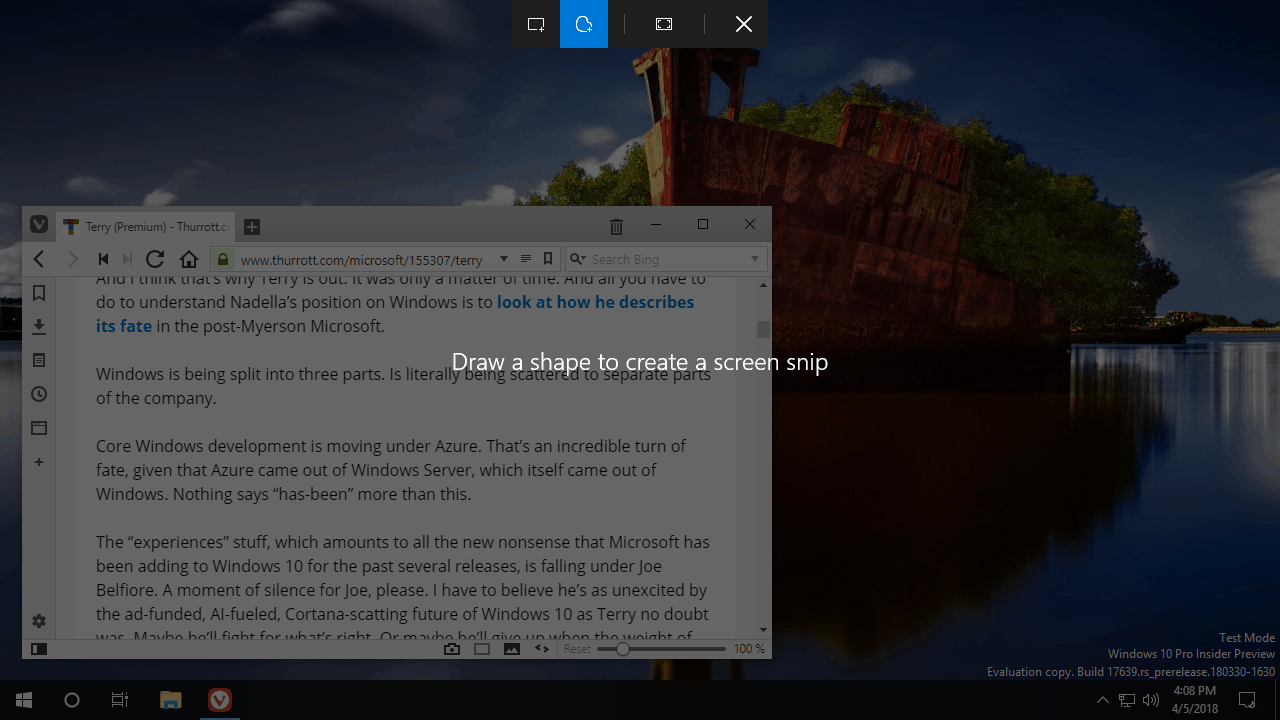
Today, Microsoft watcher Rafael Rivera found a way to enable a new Screen Clip shortcut in the Action Center in Windows 10 RS5 build 17639. It’s not clear how he enabled the new clipping experience (we’re not seeing it on our Skip Ahead PCs), but the new Screen clip button seems perfect for people using Windows 10 in tablet mode.

Tapping the Screen Clip button in the Action Center will dim the screen and display an overlay at the top, with dedicated buttons for creating recording rectangular, free-form or fullscreen clips. According to Rivera, screen clips are automatically saved to the Windows 10 clipboard, and you can’t directly save them on your PC, at least not yet in this very early implementation.

The Windows Insider team will likely soon ask Insiders to give their feedback about this new feature. It does seem to be useful addition for tablet users, but it could also make sense on other form factors such as the foldable mobile device that Microsoft is currently developing.

Feature image credit: Thurrott.com

Xbox One Spring update gets plenty of fixes ahead of upcoming public release

Microsoft yesterday released a new Xbox One Preview Update all Preview Rings in the Xbox Insider program. The update comes with plenty of bug fixes for many core experiences and should perfect the Xbox experience ahead of the upcoming April release of the Xbox One Spring Update. Here’s a look at the fixes.

Fixes:

  • Predictive text is now working when using the Official chat pad or a USB keyboard.
  • We have resolved the issue Guide staying on the screen or being blank when exiting a game or app.
  • Fixes for when quitting a game or app via the guide you will no longer see a black screen.
  • Fixed an issue in with system updates were not being automatically applied when the console was idle overnight and not in user.
  • Fixed issues with localization when configuring the Elite controller.
  • Fixed an issue when a user who needs copilot tried to use “share controller” on Mixer the feature would not function for them.
  • Netflix has released an app update to ensure that 1440p mode works on a monitor.
  • We fixed the issue with party chat failing when Guide is dismissed.
  • Fixed an issue in with some users were being logged out instantly after logging in.
  • Fixed issues in with Users could not download temporarily Free To Play games from the My Games and Apps (Ready to install – RTI) and Gold sections without having ever seen the ESRB rating and description of the app/game.
  • Fixed issues in which a user would try to launch the Store via the App such as the Dolby digital app (to purchase a license or content) and the store would not load.
  • Fixed a new issue in with system stability that could result in Home/apps or games crashing when running multiple apps/games.
  • Fixed issues with Wi-Fi in which some users would turn the console on and not connecting or seeing your Wi-Fi network.

There are still some known issues with this latest release, including an ongoing problem with Pi-hole, and profile colors. Microsoft also needs your help to see if you’re having any audio issues on your console and wants users to file reports on the matter. You can see more on the other issues with this release below.

  • Pi-hole users may encounter issues signing in, creating, or recovering accounts upon downloading the 1804 update. This is due to a new configuration file which is downloaded from a URL Pi-hole blocks by default.
  • Some users are discovering that some games are not showing in HDR – Please file feedback when you encounter this to help in the investigation.
  • Sometimes users may encounter the incorrect Profile color when powering on the console.
  • Some users are reporting when quitting a game or app via the guide Home is not loading and you see a black screen.
  • Hulu app volume is lower and the Hulu team is working on an app update.

As always, you can find this update now by heading to System > Console info & updates > Update console on your Xbox One. Happy downloading, and do let us know how this latest release is working for you by dropping us a comment in the section below.

Windows 10 Photos app now lets you tag your friends and family

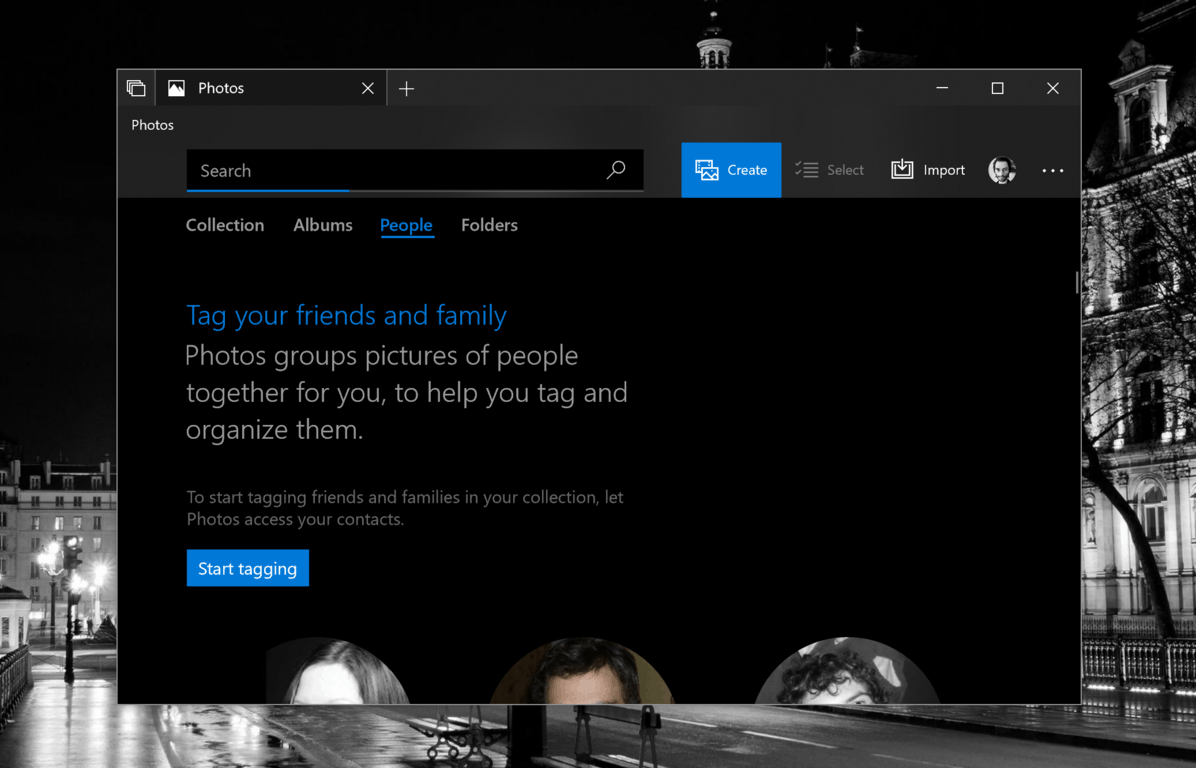
Some time ago, Microsoft added a face recognition feature to its Windows 10 Photos app, allowing it to group people in your photos and videos. This is an interesting feature, even though the app doesn’t really let you edit the data in any way.

However, we’ve just noticed that the app now lets you associate people in your photo collection with contacts in your address book. To start tagging people, you’ll have to let the app access your personal contacts, and once it’s done you’ll see an “Add name” option below each person in your photo collection. Clicking this button will let you choose any contact in your address book.

This is pretty basic feature, and there is still a long way to go before this app can really help us organize pictures of our friends and families. As an example, it’s still not possible to correct misidentified individuals, group together duplicate persons or choose favorites. Anyway, you should see this new tagging feature in Microsoft Photos version 2018.18022.15810.0 and higher,  let us know what you think of it in the comments below.

WWE’s Ric Flair, NXT Women’s Champion Ember Moon to star in next Xbox Live Sessions on April 8

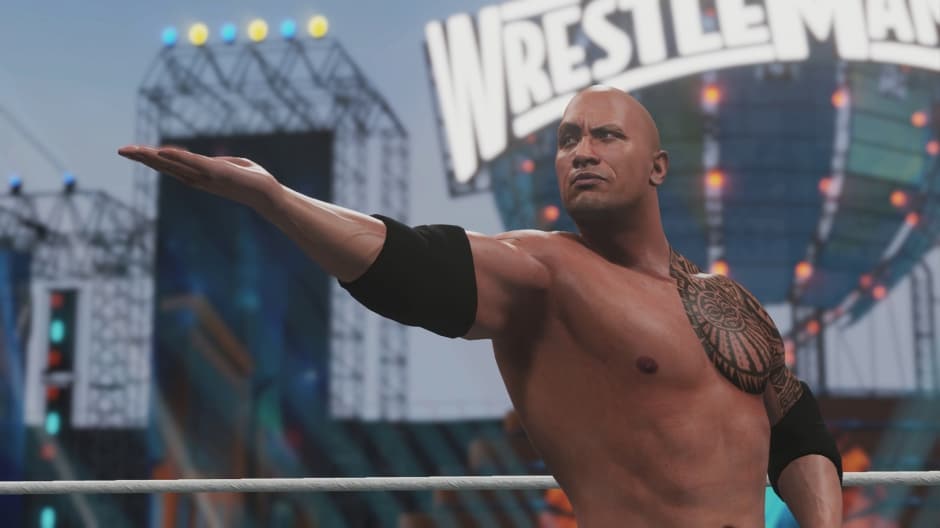
Microsoft announced today that the next Xbox Live Sessions for this weekend will feature WWE Hall of Famer Ric Flair and NXT Women’s Champion Ember Moon. The two will be playing WWE 2K18 (which is free on Xbox Live Gold this weekend) prior to the big Wrestlemania event in New Orleans, and you can watch the action live on Mixer on Sunday, April 8, starting at 12:00 p.m. PT.

For those in New Orleans, the Xbox Live Session will be held live in front of the Mercedes-Benz Superdome where WrestleMania 34 will take place that evening. WWE Hall of Famer Ric Flair will join the show first, and will answer questions, followed by Ember Moon.

If you’re watching from home, you’ll have the chance to win a custom WrestleMania Xbox One X console autographed by Ric Flair. The livestream will be hosted by Microsoft Community Studios Manager, Rukari Austin, so be sure to tune in to the action for more information.

Microsoft is also making WWE 2K18 free to play this weekend for Xbox Live Gold members starting at 9:00 a.m. PT on Thursday, April 5 through 11:59 p.m. PT on Sunday, April 8. The game features all the WWE superstars, and stunning graphics, drama, and excitement. You can check it out via the Microsoft Store below, and it will be available at a 50% discount throughout this weekend.

WWE 2K18
WWE 2K18
Developer:
2K
Price:
Free

Microsoft ScaleUp launches its latest cohort in India to help startups grow their business

Microsoft ScaleUp, previously known as Microsoft Accelerator, has selected 12 startups to be part of its new 12th cohort in India.

Microsoft ScaleUp focuses on late-stage B2B start-ups and helps them accelerate their business growth. ScaleUp is part of the ‘Microsoft for Startups’ initiative launched a couple of months ago and delivers access to technology, go-to-market and community benefits that helps startups grow their customer and revenue base.

The selected startups in the 12th cohort are focused on areas of Artificial Intelligence, virtual reality, Big Data analytics, among others to build solutions for the market.

  • AppICE has built a proprietary platform that can take soft and hard sensor data from connected devices like smartphones and use machine learning to generate actionable insights.
  • Appiyo Technologies’ Twixor is the first of its kind ‘customer engagement platform’ which brings together the power of ‘bi-directional actionable messaging’ and Business Process Management (BPM). Twixor delivers actionable customer engagement in a PWA (Progressive Web App) capsule powered by their versatile BPM engine.
  • Avanseus Technologies delivers AI based enterprise solutions for Mobile, Fixed, Transmission and IP Backbone Networks, Industrial Analytics, Security, Railways and the Internet of Things, transforming massive amounts of data into useful business insights and actions.
  • eGovernments Foundation aims to build and drive government transformations across India using open source technology.
  • Gaia Smart Cities Solution is a Data Automation and Analytics Company focused on bringing together multiple IoT and digital data streams into a single platform to enable the clients to measure, monitor and manage performance and service delivery.
  • GrowthEnabler Pii (Personalised Intelligence Interface) provides insights and intelligence on Technology Disruption, Digital Innovation and its impact on large corporations to solve their business issues and create competitive advantage. Their unique Artificial Intelligence and Machine Learning engine connects business issues to global innovative emerging companies and startups.
  • Karo Sambhav is a tech-enabled, environmentally beneficial and socially responsible Producer Responsibility Organization (PRO) that is setting up a robust India-wide transformative solution on e-waste management.
  • Kogence brings flexibility, agility and productivity in the High Performance Computing (HPC) based workflows.
  • MachineSense has developed a patented Industrial IoT system for Predictive, Preventative and Electrical Maintenance of Industrial Machines. The company aims to build an IIoT platform for factory and building utilities that includes electricity, compressed air, water, HVAC, vacuum, etc.
  • SmartVizX is developing VArch Suite, a virtual reality product that improves interior design collaboration in the Architecture-Engineering-Construction (AEC) industry by offering immersive visualization, spatial awareness, interactivity with design elements, data management and communication features.
  • Sprinkle Data provides Search based Insight discovery and adaptive data management software-as-service.
  • Xurmo Technologies is a self-service data ingestion, preparation and analysis platform built with the vision to simplify and automate data-driven decisions. By simplifying the analytics process, Xurmo enables faster adoption of data-driven decision making in enterprises.

During the six-month program, these startups will work closely with Microsoft leaders, industry experts, and leverage the Microsoft Partner Network to scale their business models and serve enterprise clients. These startups will get access to technology expertise, infrastructure, and Azure cloud platform to build a strong technology backbone for their business.

As part of the program, these startups will also have access to a vibrant global alumni network of over 730 startup graduates as well as access to Microsoft industry and customer events.

Fix: Xbox Game DVR doesn’t record games in Windows 10/11

Game DVR recording is a great addition for all gamers in Windows 10. But what if this feature doesn’t work, and you’re unable to record your games? Well we have a couple of advice for you, if that happens.

  • Sorry this PC doesn’t meet the hardware requirements for recording clips – This is one of the most common error codes you’ll get if you’re unable to run the Game DVR feature in Windows 10.
  • Windows game bar nothing to record – Another common error code that can appear.
  • Can’t record right now Windows 10 – Another common error code that can appear.
  • Windows 10 game bar not working – In case you can’t even pull the game bar feature in Windows 10, we have a separate article on the problem, so make sure to check it out.

What to do if Game DVR doesn’t work in Windows 10

Table of contents:

  1. Make sure your computer is compatible with Game DVR
  2. Restart Game DVR Task
  3. Reset Windows Store
  4. Update the game
  5. Delete temporary files

Fix: Game DVR not opening in Windows 10

Solution 1 – Make sure your computer is compatible with Game DVR

Although you’re available to run some other screen-recording software, broadcasters and some popular games, like Skyrim, you maybe won’t be able to run Game DVR feature. Because this feature is actually more demanding than it seems, and if you’re rocking an older hardware, you’ll probably be able only to take screenshots from your favorite game, but not to record any clips.

game recording problems windows 10
To make sure you posses hardware strong enough to record clips with Game DVR, open your Xbox app, go to Settings, Game DVR, and if you see the message “This PC can’t record clips,” you don’t have enough hardware capacity for that. Otherwise, just make sure Background recording is set to On, and everything should work just fine.

The most important component for running Game DVR is graphics card, so if you don’t have enough powerful graphics card, you won’t be able to use all Game DVR features. To save you from further headaches, here is the list of graphics cards needed for running Game DVR feature on Windows 10:

  • AMD: AMD Radeon HD 7000 series, HD 7000M series, HD 8000 series, HD 8000M series, R9 series, and R7 series.
  • NVIDIA: GeForce 600 series or later, GeForce 800M series or later, Quadro Kxxx series or later.
  • Intel: Intel HD graphics 4000 or later, Intel Iris Graphics 5100 or later.

Solution 2 – Restart Game DVR Task

If you’re sure that your graphics card is compatible with Game DVR, but you’re still unable to record your games, there’s a simple solution. Sometimes your recording doesn’t end correctly, and that prevents you from recording any new clips. To change that, you just need to restart Game DVR task, and you should be able to record again. If you’re not sure how to do that, follow these instructions:

  1. Right-click on the taskbar and go to Task Manager
  2. Find Broadcast DVR Server (bcastdvr.exe), click on it and go to End taskgame dvr doesn't record windows 10
  3. Now, press Windows button + G again, and you should be able to record clips you want

I also have to mention that some games don’t recognize when Windows button is pressed, so if you notice that you can record some games, but you can’t record others, go to Xbox app, Settings, Game DVR, and set different shortcuts for recording.

Solution 3 – Reset Windows Store

The next thing we’re going to try is resetting the Windows Store. It’s a very easy thing to do, but if you’re not sure how, just follow these instuctions:

  1. Go to Search, type wsreset, and open the WSReset.exe command.
  2. Finish the process and restart your computer.

Solution 4 – Update the game

There’s a slight chance your game isn’t compatible with the Game DVR feature. We’re mainly talking about older games here, because new titles are all compatible with this feature. In case your game isn’t compatible with the Game DVR feature, you can either leave it be, or look for a new varsio of the game that actually supports this featue.

So, just go and update your game, if the update includes the DVR support, you’re good to go. If you still can’t access the game bar, maybe your game is simply too old for it.

Solution 5 – Delete temporary files

Some users also reported that deleting the temporary files also resolved the issues with the Game DVR, and that’s the next thing we’re going to try:

  1. Open Settings app and go to System.
  2. Go to Storage and choose This PC.
  3. Scroll down and locate Temporary files.
  4. Click Temporary files and click on Delete temporary files. This process can take a while, so wait until it’s completed. game bar not opening
  5. After you’ve successfully removed Temporary files, restart your computer.

That’s about it, we ceartainly hope at least one of these solutions helped you resolve the problem with recording games using the Game DVR feature in Windows 10. If you have any comments, questions or suggestions, just let us know in the comments below.

RELATED STORIES YOU NEED TO CHECK OUT:

Windows 10 build 17133 heads to the Release Preview ring, is the Spring Creators Update release near?

Dona Sarkar today announced that Microsoft has moved Windows 10 build 17133 to the Release Preview Ring. This comes one week after the build was initially released to both the Fast and Slow Rings, and just one day after it rolled out to Windows Insiders with HoloLens headsets.

Since the Release Preview Ring is the lowest and less risky ring in the Windows Insider program, this might mean that the release of the Redstone 4 Windows 10 update is coming near. It is widely believed that this build 17133 releasing today is the RTM, which would ship out to Microsoft OEMs for installing on new PCs.

Microsoft is now likely putting the final touches on the Redstone 4 update, and might officially announce both the naming and an official release date within the next few days. Anyway, you should be seeing this update now in Windows Update if you’re a Release Preview Insider. Happy downloading, and let us know how the experience is going for you by dropping us a comment in the section below.

Microsoft to provide cloud, data services for new connected and automated vehicles center in Detroit

Yesterday Michigan Governor Rick Snyder announced the grand opening of the American Center for Mobility (ACM.) The center is being called “pinnacle moment for the state in the mobility revolution” and is one of 10 federally designated proving grounds for developing and testing self-driving vehicles. Microsoft is playing a key part in the center and will provide the cloud and data services for new connected and automated vehicles center in Detroit.

The American Center for Mobility will also collaborate with Microsoft and will design a Data Managment and Analytics Platform solution to help collect, store, and analyze data from tests. Powered by Azure, the solution is expected to offer the necessary capabilities for developing and deploying new use cases, and accelerate the development of CAV technologies, apps and industry standards. In the words of Kevin Dallas, corporate vice president, artificial intelligence & intelligent cloud business development, Microsoft:

“Vehicles are quickly becoming datacenters on wheels, and the opportunity to use the vast amounts of information generated to fuel innovation is unprecedented…We’re proud ACM has selected Microsoft Azure as its exclusive cloud provider for its intelligent capabilities and the enterprise-grade security and compliance required to develop comprehensive solutions that help drive the future of mobility.”

AT&T, Visteon Corporation, Toyota, Ford, Hyundai America Technical Center Inc, Subaru of America, Inc, and Adient are just a few of the other companies which are supporting the ACM. The facility is located on a  500-acre site that once housed a World War II bomber plant, and includes a  2.5-mile highway loop, a 700-foot curved tunnel, two double overpasses, intersections and roundabouts.

Xbox Live Sessions: Deadmau5 to play PUBG live from PAX East

Another week down in the calendar means another new Xbox Live Sessions is coming up. This week, Xbox and Microsoft partnered with the electronic musician Deadmau5 at PAX East. He will be playing PlayerUnknown’s Battlegrounds, and you can watch it live on both Mixer and Twitch.

Both PUBG Creative Director Brendan Greene and Xbox Live’s Major Nelson will join deadmau5 in the episode airing at Saturday, April 7 at 10:30 a.m. PST / 1:30 p.m. EST. There will be the chances to ask questions and win free codes for PUBG, so you don’t want to miss it.

The two will be playing live in the Main Theater at PAX East, where Microsoft is planning to have a big presence during the April 5-8 event. The company will have an Xbox Booth, Sea of Thieves Longe, Mixer Booth, and more at PAX East. Those with a PAX badge will get the opportunity to play new Xbox games for the first time, interact with streamers through Mixer, and meet developers.

Those at home can watch the PAX action live on Mixer, and enter for a chance to win a State of Decay 2, PUBG, Sea of Thieves, or Ashen custom Xbox One X console created by Hydro74. Also included is a Samsung 55” QLED 4K Television, an Elite controller, one year of Xbox Game Pass, and one year of Xbox Live Gold. You can Follow @Xbox or @XboxCanada on Twitter and retweet the above tweet mentioning the sweepstakes to try your luck at winning.

You can now vote for the Windows Developer Awards finalists

The finalists for the 2nd annual Windows Developer Awards have just been announced, and you have until April 16 to vote for the different nominees. The five different categories include “Application Creator of The Year” and “Design Innovator of the Year,” and there are some pretty cool names in the different lists.

The note-taking app Penbook, which is currently free for a limited time is one of the four finalists in the “Application Creator of the Year category,” along with Todoist, Affinity Designer and Plex. Cuphead, the retro-looking platformer that already won many awards also made it to the Game Creator of the Year category.

As you know, Microsoft wants Windows 10 to be the best-looking Windows ever, and the company shared its new “Fluent Design” guidelines with developers last year. If you’re interested in app design, you may want to check out the finalist in the Design Innovator of the Year category, which include the Mixer third-party app Mixer go as well as the music app Aurora Music.

There is also a “Ninja Cat of the Year” category for developers that “exemplified Microsoft’s core values while making significant contributions to the craft of Windows development in the past year.” Unfortunately, only Microsoft employees can vote for the nominees who are still unknown. Anyway, make sure to vote for your favorites until April 16, and Microsoft said that it will announce all the winners during its Build developer conference in May.

Microsoft will now let its partners keep key patents for co-created new technologies

In a lengthy blog post yesterday, Microsoft president Brad Smith announced the Microsoft Shared Innovation Initiative. The initiative is based on a set of principles and is designed to give customers “clarity and confidence” when working with Microsoft on new technologies.

According to Smith, the initiative covers seven areas, all of which are designed to help Microsoft customers grow their businesses through technology, and help Microsoft improve their platform products. Under the new guidelines, the Redmond giant says it will allow partners that co-developed new technologies with Microsoft to own key patents and industrial design rights that result from the collaboration. “Microsoft will receive a license back to any patents and design rights in the new technology that results from the shared innovation, but the license will be limited to improving our platform technologies,” Smith added.

Other highlights from the guidelines are below:

  • We won’t impose contractual restrictions that prevent customers from porting to other platforms the new, shared innovations they own.
  • We will work with customers to ensure transparency and clarity on all IP issues as the shared innovation project moves forward.
  • We’ll continue to learn from this work and use this learning to improve further our shared innovation work.

The Shared Innovation Initiative builds on the Azure IP Advantage program, which the company introduced last year. That program helps Microsoft customers help fight legal claims against intellectual property (IP) in the cloud. “We believe this initiative and these principles offer a path that will ensure that the co-creation of digital technologies creates new economic value to companies throughout the economy and around the world, rather than for just a few select companies in the tech sector,” Smith said.

Evernote update brings over 100 new emoji to the Windows 10 app

The official Evernote app has updated to Version 6.11 on Windows PCs and tablets running Windows 7, 8, 8.1, and 10. This latest update improves the drag-and-drop functionality, improves the loading of notes, adds a new zoom feature to the image gallery, and brings support for over 100 new emoji. Here’s the official release notes.

Improved:

  • Improved drag and drop support for lists, to-dos, and tables
  • Added incremental zoom control in the image gallery mode
  • Added support for hundreds of emojis using typebehind including ??????
  • Improved the performance of note loading

Fixed:

  • An issue where some clipped content is not visible in notes
  • An issue where words added to the dictionary aren’t remembered between app launches
  • An issue where some notebooks are not listed when moving a note from a joined notebook
  • An issue where attached PDFs and Images are sometimes not searchable
  • An intermittent issue where new users can sometimes see no content after first launch
  • An issue where a new note is created in the default notebook when a stack is selected instead of the first notebook in the stack
  • An issue where rotating an image or annotating it results in the size of the image getting reset
  • An issue where Google drive links cannot be opened when the enable descriptive links is checked
  • Several workchat issues including one where a user is taken back to the “All Notes” view after a sync is performed
  • Several top crashes

The official Evernote app is a traditional Windows app that ironically replaced the modern touch-enabled app that launched during the Windows 8 era. Do you use Evernote on your Windows device? Let us know if you enjoy using it (or not!) in the comments below and make sure to like us on Facebook to get the latest Windows 10 app update news every day.

Evernote
Evernote
Developer:
Evernote
Price:
Free+

Play Neo Geo The King of Fighters ’99 on your Xbox One right now

The classic Neo Geo video game, The King of Fighters ’99, is now available to play on Microsoft’s family of Xbox One consoles.

The King of Fighters ’99 originally launched on the Neo Geo system in, as the name would suggest, 1999 and was later ported to the original PlayStation console, the Dreamcast, and Windows PC. It’s the sixth game in the King of Fighters series and is now one of many Neo Geo titles that Xbox One owners can play.

This Xbox One version of The King of Fighters ’99 features all of the original arcade game’s content in addition to visual settings to make it look like the original machine display and Xbox Live-powered online leaderboards. Here’s the official game description and link.

“THE KING OF FIGHTERS ’99” is a fighting game released by SNK in 1999. This entry in this series marks the beginning of the “NESTS” chapter of the KOF story, and focuses on the new character K’ instead of Kyo Kusanagi. This entry introduces a new Striker Match mode, adding an even more strategic element to the classic KOF game system.

The “ACA NEOGEO” series has faithfully reproduced many classic NEOGEO masterpieces. Players can change various game settings such as game difficulty, and also reproduce the atmosphere of arcade display settings at that time. Players can also compete against each other from all over the world with their high scores. Please enjoy the masterpiece that built a generation for video games.

Have you played any classic Neo Geo games on your Xbox One console? Let us know in the comments below and make sure to follow us on Twitter for more Xbox One video game news.

Microsoft Launcher update fixes bugs for all users

Microsoft Launcher has just rolled out a new update to Android users which brings it to Version 4.7.5 and squashes a variety of bugs that had been plaguing many. These fixes were first tested with beta testers a few weeks ago and they’re now available for everyone to experience.

Here’s the official release notes.

  • Fixed top crashes and App Not Responding Errors;
  • Support applying icon pack over single custom-set icons;
  • Adjustments to wallpaper settings experience;
  • Fixed several badge count issues;
  • Performance/memory/CPU improvements

Microsoft Launcher provides a way for users to fully customize their Android device using a variety of wallpapers, themes and accent colors, icon packs, gestures, and features. It also allows for more connectivity between an Android smartphone and a Windows PC with select file syncing between the two devices once the initial setup connection is made.

Do you use Microsoft Launcher? Let us know in the comments below.

Microsoft Launcher
Microsoft Launcher
Price:
Free

Windows 7 KB4099950 fixes NIC settings and IP address issues

Microsoft provided cumulative Spectre and Meltdown protection with Windows 7 Monthly Rollup KB4088875 and security update KB4088878. However, many users have experienced various issues after installing the respective patches.

As a result, Microsoft rolled out a new update for Windows 7 Service Pack 1 and Windows Server 2008 R2 to fix these problems.

KB4099950 is a maintenance update to fix the problems with the virtual network adapters caused by the security updates of Patch Tuesday in March. The bug was replacing the existing adapter and breaking down network connections as Microsoft said:

A new Ethernet Network Interface Card (NIC) that has default settings may replace the previously existing NIC, causing network issues after you apply this update. Any custom settings on the previous NIC persist in the registry but are unused

Downloading and installing the new update

This update can be downloaded and installed automatically from Windows Update. Alternatively, the standalone package for this update is also available on the Microsoft Update Catalog website.

microsoft updates catalog

Please be aware that if you have installed one of the above-mentioned updates and then manually restored the adapters, you have to uninstall the update. Afterward, install the new update KB4099950 and then KB408875 or KB408878.

Microsoft is not aware of any issues affecting this update, so the install process should go smoothly and you shouldn’t encounter any issues afterwards either.

Have you installed KB4099950 on your Windows 7 computer yet? Tell us more about your experience in the comments below.

RELATED STORIES TO CHECKOUT:

‘Free up space now’ cleans Windows 10 junk files in less than 2 minutes

Whether you like it or not, junk files constantly pile up on your Windows 10 computer when you browse the Internet or use apps and programs on your machine.

The Windows 10 Spring Creators Update now makes it much more easier for you to clean all those junk files and speed up your computer.

If you’re an Insider, you can already test this new feature. If you don’t want to enroll in the Insider Program, all you need to do is wait for a few more days until Microsoft rolls out the Spring Creators Update.

‘Free up space now’ is available on the Settings page

Free up space now windows 10

To use this new option, go to the Settings app > System > Storage > Free up space now. This feature allows you to clean a series of junk file categories, including:

  • Windows upgrade log files
  • Non-critical Windows Defender files
  • Thumbnails
  • Temporary data
  • Previous Windows installations
  • Temporary Internet files
  • Device driver packages
  • Delivery optimization files

But there’s already a similar option available, you may say. Indeed, you can also use Disk Cleanup to clean temporary files and other types of junk files, but this new feature is much faster.

Of course, it all depends on the amount of junk files that you stored on your computer, but many users confirmed that ‘Free up space now’ usually cleans your computer in less than 2 minutes — which is great.

It took like 2 mins to clean up all these junks compare to “Disk Cleanup” with “cleanup system files” which usually takes an eternity.

This feature is a more user-friendly approach to GUI and is perfect for touch devices.

Speaking of junk files, here are some tools that you can use to remove them for good:

Have you already used the ‘Free up space now’ feature? What would you change about it? Tell us more about your experience in the comments below. 

How to fix Minecraft error code 5 on Windows PCs

Some Minecraft players get an error code 5 error message when they launch that game. The full error message states: “Mojang native launcher updater. Problem moving C:\Program Files (x86)\Minecraft\tmp\tmpLauncher.exe to MinecraftLauncher.exe with error code 5.” Consequently, the game doesn’t run when that error message pops up. These are a few resolutions for Minecraft error code 5.

Fix Minecraft error 5 on Windows 10

  1. Run Minecraft as Administrator
  2. Copy the tmpLauncher File to the Minecraft Folder
  3. Update the Minecraft Launcher
  4. Update Java Version

1. Run Minecraft as Administrator

  • Launching games with elevated admin rights can kick-start them. So, try running Minecraft as an administrator first. This is how you can launch Minecraft as an administrator.
  • First, right-click the Minecraft Launcher to open its context menu.
  • Select the Properties option to open the window shown directly below.
  • Click the Compatibility tab in the snapshot below.
  • Select the Run this program as an administrator option on the Compatibility tab.
  • Press the Apply and OK buttons.

2. Copy the tmpLauncher File to the Minecraft Folder

  • Some Minecraft players have fixed error code 5 by copying the tmpLauncher file to the Minecraft folder. To do that, open this folder in File Explorer: C:\Program Files (x86)\Minecraft\tmp.
  • Next, right-click tmpLauncher.tmp and select Copy.
  • Open the C:\Program Files (x86)\Minecraft folder in File Explorer.
  • Right-click Minecraft.exe and select the Delete option. Click the Yes button to confirm.
  • Then right-click an empty folder space in File Explorer and select the Paste option.
  • Right-click the tmpLauncher.tmp file and click Rename.
  • Enter Minecraft.exe as the new file title for tmpLauncher.tmp, and press the Yes button on the dialog box window that opens.

3. Update the Minecraft Launcher

Downloading a new Minecraft launcher is another fix for error code 5. You can download a new launcher from the hyperlink included in Minecraft’s Nativelog.txt file. This is how you can update the game’s launcher.

  • Open the game’s Nativelog.txt file (in the Minecraft folder), and copy the hyperlink in Nativelog that includes MinecraftLauncher.exe with the Ctrl + C hotkey.
  • Then open a browser.
  • Press Ctrl + V to paste and open the copied URL, and download the Minecraft launcher from that page.
  • Then drag the new MinecraftLauncher.exe to the Minecraft folder to replace the original launcher.
  • Right-click the old Minecraft.exe and select Delete to erase it.

4. Update Java Version

Minecraft is a game that requires Java to run. As such, it might also be worth checking if your Java version is the most update one. This is how you can update Java.

  • First, press the Win key + R keyboard shortcut.
  • Enter ‘appwiz.cpl’ in Run, and press the OK button.
  • Next, input ‘Java’ in the search box to check your Java version as shown in the snapshot directly below.
  • If your version is not the latest Java 8 Update 161, select Java and press the Uninstall button to remove it.
  • Next, open this page and select to download a 32 or 64-bit Java version. You’ll need the 32-bit version for 32-bit browsers and 64-bit Java for 64-bit browsers.
  • Open your browser’s about page to check if it’s a 64 or 32-bit browser. For example, in Chrome you can click Customize Google Chrome > Help > About Google Chrome to open the tab shown directly below.
  • Open the Java setup wizard to install the latest version.

One, or more, of those fixes will probably get Minecraft up and running on your Windows desktop or laptop once more. To fix other Minecraft error messages in Windows 10 and 8, check out this article.

Posted in Fix

FIX: Only install apps from Microsoft Store in Windows 10/11

Microsoft remodeled its Store and name it Microsoft Store recently. There’s still so much to improve, but the question is still what to do to make both end-users and developers drop the Win32 applications and migrate to UWP.

Until they figure it out (if they ever will), there are some options which prevent users from installing third-party applications from “unknown sources”.

This can be addressed simply and if you’re stuck with UWP apps exclusively, look at the bottom for the resolution.

How to allow standard Win32 desktop applications to install in Windows 10

Every informed Windows 10 user will see through the obvious Microsoft ambitions to completely replace standard Win32 applications with the UWP ones. It’s easier and safer to integrate them into the system, it’s simpler to monetize, and, most importantly, this makes Windows ecosystem closer to Android and Apple.

We all know how successful those two are. But, while we can see the idea behind the “only Microsoft Store apps allowed” concept, UWP apps are still ages behind the competition: both in numbers and in quality. And it’s 2018 already.

And that’s where the Microsoft, kind of, crosses the borders with enforced marketing. Just like with the Edge browser, which isn’t bad per se, but it’s far from perfect. Furthermore, given that end-users have a choice, most of them will stick with the legacy desktop applications. And those come from the third-party sources rather than recently-remodeled Microsoft Store.

Even though there are prompts by UAC and Windows Defender about possible dangers, you can still install any third-party program with the proper installer and compatibility traits.

There’s an option which might be enabled and it’ll prevent installing non-Store applications. You can disable it with ease and here’s how to do it:

  1. Press Windows key + I to summon the Settings app.
  2. Choose Apps.fix you can only install apps from the microsoft store
  3. Choose Apps & features from the left pane.
  4. Under the “Installing apps“, expand the drop-down menu.
  5. Choose “Allow apps from anywhere” and exit Settings.fix you can only install apps from the microsoft store

That should allow you to install whatever you want. However, this doesn’t mean that the UAC won’t limit certain applications that want to make changes to the system. Run them as administrator to avoid that.

That shoud do it. In case you have questions, suggestions, or just a thought about UWP experience, make sure to tell us in the comments section below.

RELATED ARTICLES YOU SHOULD CHECK OUT:

Microsoft’s next gen HoloLens may ship with an ARM processor and new Windows 10-based OS

It’s now been two years since Microsoft started shipping its HoloLens headsets to developers and businesses, and we already know that the company is working on a successor. Harry Shum, executive vice president of Microsoft’s Artificial Intelligence (AI) and Research group revealed last year that the next-gen HoloLens would feature a dedicated AI coprocessor for implementing deep neural networks, but Microsoft is apparently planning some other exciting updates as well.

According to a new report from Windows Central, the next HoloLens is currently codenamed “Sidney,” and it could feature an ARM processor providing better battery life and LTE connectivity. As a reminder, the first gen HoloLens is powered by an Intel Cherry Trail processor, providing up to three hours of battery life.

The report also says that Microsoft’s new HoloLens headset may provide a wider field of view compared to the first generation device. It’s true that there’s quite a difference between the reality and what Microsoft usually show in marketing videos, and Microsoft hopefully found a way to improve the field of view in the new version.

In addition to hardware improvements, Microsoft’s new HoloLens could also introduce some exciting software changes according to this new report:

HoloLens 2 will run a version of Windows 10 built on Windows Core OS. This version of Windows 10 is codenamed Oasis, and is a Mixed Reality-specific experience that runs on HoloLens 2 and likely other Mixed Reality devices in the future. HoloLens 2 will also feature CShell, Microsoft’s new adaptable UI that works across all device types.

This isn’t the first time we hear that Microsoft is working to adapt Windows 10 to new devices and scenarios. A couple of weeks ago, a previous report revealed that Microsoft’s new Composable Shell for Windows 10 devices would debut on the next-gen Surface Hub later this year.

It’s still not clear when Microsoft plans to announce its new HoloLens headset, though. In a recent blog post on LinkedIn, HoloLens inventor Alex Kipman shared that “we have some exciting work planned for 2018 that I can’t wait to share in the coming months.” The first HoloLens headset was unveiled back at Microsoft’s Build 2015 developer conference, and it remains to be seen if we could hear more about the new HoloLens during Build 2018 in May.

Windows 10 RS5 build 17639 brings Bluetooth battery percentage in Settings, Windows Calculator Improvements

Microsoft is rolling out today the Windows 10 RS5 build 17639 to Windows Insiders who have opted into Skip Ahead, and the new bits brings the next wave of improvements for Windows Sets. The Sets experience is already one of the most exciting new features coming with Redstone 5, but this latest preview build also introduces two notable additions.

The first one is the addition of Bluetooth battery percentage in the Windows 10 Settings app. If your Bluetooth devices support this feature, you can now check their battery percentage in Bluetooth & other devices, as seen in the image below.

This new RS5 build also ships with a new version of Microsoft’s Windows Calculator app, which can now correctly calculate square roots for perfect squares. This probably won’t be useful for many, but Microsoft provided the following details for power users:

Windows Calculator has been updated (version 10.1803.711.0) to now correctly calculates square roots for perfect squares (integers that are squares of other integers). Because of the arbitrary precision arithmetic library used by the Calculator app, the square root calculation is an approximation calculated using the Exponential Identity function.

Previously, when you would calculate the square root of 4, the result would be 1.99999999999999999989317180305609 which would be rounded to 2 when displayed, because we calculated enough digits to do the rounding correctly. However, as soon as you subtract 2, you would see the remaining digits.

After this update, the square root calculation now recognizes perfect squares and correctly returns exactly 2 for the square root of 4.

Do you use many Bluetooth devices with your Windows 10 PC, and do you find it useful to be able to check their battery levels right in the Settings app? Let us know in the comments below.

Skip Ahead Windows Insider RS5 build 17639 fixes include Disk Management and list Settings crashes under known issues

What’s better than new features for an Insider build? Perhaps, fixes and improvements to previously introduced features, for some.

With Windows Insider preview build 17639, Skip Ahead testers are greeted with some spit and polish for some features that were in dire need of addressing.

General changes, improvements, and fixes for PC

  • We fixed an issue resulting in duplicate entries in Disk Management.
  • We fixed an issue that could result in certain UWP apps silently terminating when minimized.
  • We fixed an issue resulting in certain devices with BitLocker enabled unexpectedly booting into BitLocker recovery in recent flights.
  • We fixed a race condition that could result in the taskbar not autohiding after opening and closing the Start menu while a fullscreen window was visible.
  • We fixed an issue where typing in Start would switch to a blank Cortana screen if Start was open when the PC went to sleep.
  • We fixed an issue when using Arabic as your display language where after using the X to close the touch keyboard in a UWP app text field it might stop coming up automatically in that field.
  • Sometimes having too many choices can be confusing and less is more. That is why this new build has consolidated the places where users can adjust their display brightness by removing the display brightness slider in Control Panel Power Options and the “Display brightness” section under Power Options Advanced Settings. Don’t worry! You can still adjust your display brightness via Settings > System > Display settings, the Action Center, and via keyboard hotkeys.

As with most releases, build 17639 also has its Known Issues list, but fortunately, Insiders aren’t looking a daunting bullet point for this Skip Ahead preview.

Known issues

  • If you open Settings and clicking on any links to the Microsoft Store or links in tips, Settings will crash. This includes the links to get themes and fonts from the Microsoft Store, as well as the link to Windows Defender.
  • On resuming from sleep, the desktop may be momentarily visible before the Lock screen displays as expected.
  • When Movies & TV user denies access to its videos library (through the “Let Movies & TV access your videos library?” popup window or through Windows privacy settings), Movies & TV crashes when the user navigates to the “Personal” tab.

With all the Microsoft re-org and seeming reprioritization of Windows and its development, it’ll be interesting to see how frequently Skip Ahead builds are released as well as what feature sets we begin to see emerge.

New build 17639 for Skip Ahead, available now, adds Sets improvements, more

Microsoft just announced the release of another Skip Ahead build, this one numbered 17639, and it’s available now for download for your bleeding edge test machines.

The new build features “the next wave” of improvements to Sets, the tabbed experience for Explorer and beyond. Here’s a quick roundup of the improvements:

  • You can now drag and drop tabs within and between Sets Windows
  • Tabs are now “bubbled up” in ALT + TAB
  • Settings for Sets get improvements
    • Sets gets its own section at Settings>System>Multitasking, and is searchable
    • The ALT + TAB feature above has its own settings:
  • Based on Feedback, it’s getting easier to group two File Explorer windows together, a work in progress:
    • To start with, you no longer need to hold CTRL on the new tab page to launch a File Explorer window in a tab (this was a temporary necessity with the last wave). We’ve also added a new keyboard shortcut to open a new tab when a File Explorer window is in focus: Ctrl + T. Remember, you can use Ctrl + N to open a new window, and Ctrl + W to close the window/tab.
  • Sets Tabs and Windows are easier to open via the File Menu, or by right-clicking.
  • There are new right-click context options available within Sets by clicking on a tab
  • Previous tabs get improvements:
    • You can now pick and choose which Previous Tabs you want to restore, instead of only being able to restore all tabs. Note: if you use the Sets activity card in Timeline, it will automatically restore all tabs.
    • You can now restore Previous Tabs from any type of activity – whereas with the previous wave of features we only supported restoring tabs when the primary window was a document.
    • When you open a document that previously had tabs, a prompt will appear offering to restore those tabs, and the Previous Tabs button will be in the filled state. For things that aren’t documents, a prompt will not automatically appear, but you’ll know that there are tabs available to restore because the Previous Tabs button will be in the filled state.
    • We added an animation to the experience when there are no Previous Tabs available to be restored.

There are a few more improvements and fixes based on Insider feedback:

  • We fixed an issue where the active tab color wouldn’t be visible until you hovered over it.
  • We’ve been working on our polish, and you’ll notice that switching between open tabs is now a lot smoother.
  • We’ve improved the reliability when restoring tabs, fixing some issues where tabs didn’t restore as expected.
  • We fixed an issue where closing a tab in a Set then immediately opening a new tab might result in the window unexpectedly maximizing.

… and of course there are some known issues:

  • File Explorer ribbon doesn’t stay pinned open across restart.It may take some time for the app exclude list in Sets settings to populate the first time it’s opened.
  • Sometimes it takes two tries to bring up an inactive tab from the taskbar.
  • There’s a chance that you may see an unexpected second row of tabs when you open the new tab page.
  • When you launch an app or website from the new tab page, there’s a chance focus will change to a different tab.
  • The “filled” state of the restore icon in Sets will remain filled even though you’ve restored all tabs.
  • We’re aware of an issue that causes Narrator to read extra text when invoking Alt + Tab, and we’re working on a fix.
  • The new tab may sometimes open blank. Closing the tab then opening it again should resolve this issue.

Finally, Microsoft is planning to implement Sets within Office, first for Office Insiders. Check out the blog post for all the details and get to downloading!


Microsoft’s Chinese chatbot XiaoIce now using “full duplex voice sense” in technology breakthrough

Microsoft today shared they have reached a technological breakthrough by developing a new way to allow people to have a more natural conversation with an AI-powered chatbot. The breakthrough happened in China, where the XiaoIce Microsoft chatbot can now operate in “full duplex voice sense” by listening to a user, digesting the information, and then responding more naturally at the same time.

Microsoft says that the advancements means the chatbot is also able to predict what the person talking will say next. Microsoft’s Li Zhou, engineer lead for XiaoIce, says this is a common skillset natural to us humans, but not yet common to chatbots. See a sample conversation in action below with the Xiamo Yeelight smart speaker.

More than 200 million people have used the XiaoIce Microsoft chatbot, providing the necessary knowledge base for such a breakthrough. This is not to be confused with productivity assistants like Cortana, which are designed to help assist with tasks. The XiaoIce chatbot can engage in interesting banter with people, much like you would with someone you know in person. Microsoft is working to apply the same technology to Microsoft Zo here in the United States, so best to keep tuned for more in the months ahead.


Windows 10 RS4 build 17133.1004 is now rolling out to HoloLens

Just last week, HoloLens owners got their first preview build of the upcoming Redstone 4 update for the Mixed Reality headset. Well, yet another RS4 build is now rolling out to HoloLens, and this time it is the same build 17133.1004 build that previously rolled out to Windows Insiders on PC (via Windows Central.)

This latest build is only available for HoloLens users who already installed the previous Insider build (17123) and it should be showing up now under Windows Update. Unlike before, however, HoloLens owners won’t need to wipe their headset to install and can update just as they would normally. There’s not much new in this build, and it just brings general fixes for speech reliability and overall reliability for the headset. Microsoft also notes a known issue with this build where users may experience reliability issues when using voice to place Skype calls for the first time.

With the Xbox Spring Update now rolling out to Omega Insiders, and the PC version of the Redstone 4 release just picking up small bug fixes, development of Redstone 4 is basically complete. Given today’s HoloLens news, the build numbers are now lining up across Microsoft’s three Windows 10 platforms, so best to keep tuned for more.

Microsoft tries to create qubits and lead quantum computing research

Microsoft researchers teamed up with Niels Bohr Institute academics to try and transform computing with quantum computers. If they manage to succeed, Microsoft will place itself as the leader of a race with a fantastic prize that involved solving problems that are beyond the capabilities of traditional computing.

In a laboratory in Copenhagen, with the help of a few white cylinder-looking fridges that are cooled to almost absolute zero. These cylinders help create a qubit which is the foundation of a quantum computer.

Microsoft has to demonstrate the creation of a qubit publicly

The team is led by Prof. Charlie Marcus, and it works in collaboration with other labs in the Netherlands, the US, and Australia in Microsoft’s program for quantum research, as BBC reports.

Scientists are going down a different route than the ones taken by its competitors, and they’re trying to create qubits using a subatomic particle named the Majorana particle.

Microsoft’s progress in isolating the Majorana particle

By isolating the particle, Microsoft believes that this will trigger more stability of the qubit and this would be terrific the company’s competitors are using other ways which are more exposed to errors. Microsoft basically has to invent a particle that has never existed before and then use it for computing.

According to Prof. John Morton from the University College in London who researches the use of silicon to build qubits, this whole thing is that:

[…] one of those things that on paper look incredibly exciting, but physics has a habit of throwing up spanners in the works.
Until we see the demonstration, we don’t know how well these Majorana qubits developed by Microsoft will really behave.

Microsoft’s target is a commercially relevant quantum computer

Such a computer would have the ability to solve real problems, and it’s set to be completed in maximum five years. Microsoft’s director of quantum computing business development, Dr. Julie Love says that a quantum computer would allow solving problems that have never been solved with the help of traditional computing:

What it allows us to do is solve problems that with all of our supercomputers running in parallel would take the lifetime of the universe to solve in seconds, hours or days.

Overall, Microsoft is dead serious in creating quantum hardware as soon as possible.

RELATED STORIES TO CHECK OUT:

Xbox Live Rewards becomes Microsoft Rewards in June

Xbox Live Rewards and the quests that are provided by it along with the various types of currencies haven’t been the most straightforward approach, and it seems that this program eventually reached the end. Microsoft used Xbox Live Rewards to treat gamers for their Xbox activity and Xbox Store purchases.

Microsoft updates the Xbox Live Rewards website

microsoft rewards

When you enter Xbox Live Rewards website, the first thing you see is the grand announcement saying that:

Xbox Live Rewards is becoming Microsoft Rewards – In June, Xbox Live Rewards will become Microsoft Rewards in the United States. You can read more about this change in our FAQs.

Xbox Live Rewards is now available in 17 markets, and this transition looks to be a global one because the announcement that greets users when they enter the Xbox Live Rewards website was seen in more locations including Canada, France, Germany and the UK.

What does this transition involve?

The transition to Microsoft Rewards implies that all Xbox Live Rewards activities and offers will stop and members can earn MyVIP Gems and unlock MyVIP Perks until May 31, 2018.

They can claim any open Gems and Perks until June 15, 2018. After June 15 unredeemed MyVIP Gems will be transformed to Microsoft Rewards points. The rate will be one MyVIP Gem to one Microsoft Rewards point.

Existing Xbox Live Rewards members don’t need to do anything

Microsoft FAQ describes that existing members will be automatically switched to Microsoft Rewards membership in June, by the end of the month. Any pending Rewards Credits that have been left in an Xbox Live Rewards account will get converted to local currency and then deposited in Microsoft accounts.

Members will get a whole year in which they’ll be able to spend the credits on digital items found in the Microsoft Store.

You can choose to opt out of the transition

Xbox Live Rewards members who have not joined Microsoft Rewards will be able to skip the transition by June 15, 2018. If they choose this option, they won’t earn Xbox Live Rewards Credits anymore. Their pending Xbox Live Credits will still be deposited into Microsoft accounts as local currency.

Considering all these changes, it’s pretty clear that Microsoft is extremely interested in the expansion of the company’s Rewards Program. You can learn more about it on the official website of Xbox Live Rewards.

RELATED STORIES TO CHECK OUT:

FIX: Can’t upload pictures from my camera on Windows 10/11

Many users like to take pictures and store them on their PC, but according to some users there are certain problems with image transferring on Windows 10.

Users reported that they can’t upload pictures from their camera on Windows 10. This can be a major problem, especially if you’re a photographer, so let’s see how to fix it.

Can’t upload pictures from my camera on PC [FIXED]

  1. Set the Pictures folder to default path
  2. Check the Pictures folder permissions
  3. Add the picture folders to an archive
  4. Use a card reader
  5. Format your SD card
  6. Use your camera software to upload pictures
  7. Disable OneDrive
  8. Update the firmware on your camera
  9. Check your USB cable and ports
  10. Use File Explorer
  11. Use a different computer

Solution 1 – Set the Pictures folder to default path

If the path to the Pictures folder is changed for any reason, you might not be able to upload pictures to Windows 10 from your camera. Fortunately, you can easily fix this issue by doing the following:

  1. Locate the Pictures folder, right click it and choose Properties.
    upload-pictures-camera-folder-properties-menu
  2. Now go to the Location tab and click the Restore Default button.
    upload-pictures-camera-restore-default
  3. Click Apply and OK to save changes.

Solution 2 – Check the Pictures folder permissions

Some users claim that changing the permissions for Pictures folder fixes this issue, so let’s see how to do that. This process involves changing certain core settings of your operating system, therefore it might not be a bad idea to create System Restore point just in case anything goes wrong.

To change the permissions of the Pictures folder do the following:

  1. Locate the Pictures folder, right click it and select Properties from the menu.
  2. Go to Security tab and click the Edit button.
    upload-pictures-camera-edit
  3. You should see several accounts. Like in our example, you might have several Account Unknown entries.
  4. Delete Account Unknown entries by selecting them and clicking the Remove button. Some users claim that you should delete all accounts except your account, Administrators and SYSTEM.
    upload-pictures-camera-permissions
  5. After you’re done click Apply and OK to save changes.

Few users claim that you need to also change the permissions for all subfolders in the Pictures folder. To fix this issue make sure that your user account has full control of Pictures folder and all its subfolders.

Solution 3 – Add the picture folders to an archive

This isn’t a permanent solution, but it can allow you to transfer your photos from your camera to your PC. To add your pictures folder to an archive do the following:

  1. Connect your camera to the PC.
  2. Access the camera using the File Explorer and locate the pictures folder.
  3. Right click the folder and choose Add to archive option.
    upload-pictures-camera-add-to-archive
  4. After you create an archive, move it to your PC and extract the pictures.

Solution 4 – Use a card reader

Another useful workaround might be using a card reader. According to several users, they were unable to transfer their pictures from the camera, but after removing the SD card and connecting it to the card reader there were no problems with the file transfer.

Solution 5 – Format your SD card

Sometimes these types of problems are caused by problematic SD card, and you can fix them by formatting the card. Keep in mind that formatting the card will delete all files that are stored on it, so be sure to back them up if you can.

To format an SD card simply open the options menu on your camera and choose the Format card option. Once the card is formatted you should be able to import pictures to Windows 10.

As an alternative to formatting you can use a different SD card and check if the issue appears again. If the problem still appears, try formatting that SD card and check if everything works after that.

Solution 6 – Use your camera software to upload pictures

If you can’t transfer pictures from your camera to Windows 10, we suggest that you try using your camera’s software. According to users, they managed to fix this problem by using their camera’s software for file transfer. If you don’t have this software be sure to download it from your camera manufacturer’s website.

Solution 7 – Disable OneDrive

OneDrive is a great cloud storage service, but it seems that OneDrive is causing certain problems when transferring images from your camera. According to users, disabling OneDrive usually fixes this error, and in order to disable OneDrive you need to do the following:

  1. Press Windows Key + S and enter group. Select Edit group policy from the menu.
    upload-pictures-camera-group-policy
  2. Navigate to Local Computer Policy > Computer Configuration > Administrative Templates > Windows Components > OneDrive in the left pane.
  3. In the right pane double click Prevent the usage of OneDrive for file storage.
    upload-pictures-camera-prevent
  4. Once the new window opens select Enabled option and click Apply and OK to save changes.
    upload-pictures-camera-prevent-2

Solution 8 – Update the firmware on your camera

According to users, you can fix this problem by updating your camera’s firmware. Few users reported that this solution worked on a Fujifilm cameras but you can try this solution even if you own a different brand of camera.

Bear in mind that updating firmware on your camera can be potentially dangerous and cause permanent damage to your camera, therefore extra caution is advised.

Solution 9 – Check your USB cable and ports

If the cable you’re using to transfer photos with is faulty, this may explain why you can’t upload any photos from your camera to your PC. It’s also possible that the culprit be your PC’s USB port.

Make sure that this is not a hardware issue and try to transfer your photos using a different cable and then switch ports. Also, make sure there are no dust particles trapped in your USB port.

Solution 10 – Use File Explorer

Some users confirmed they fixed this problem by opening File Explorer and dragging the photos to their Pictures folder.

I opened file explorer, then opened the camera, and dragged the file to my Pictures folder and it copied fine that way. Ridiculous that Microsoft isn’t more helpful, or provided a fix.

Solution 11 – Use a different computer

If you still can’t transfer your photos from your camera to your computer, try using a different computer. In rare cases,  hardware compatibility issues may occur blocking your photo transfer. Unfortunately, fixing this problem is sometimes impossible especially if you’re using a rather old computer.

Not being able to upload pictures from your camera to Windows 10 PC can be a big problem, but we hope that you managed to fix this issue after using one of our solutions.


READ ALSO:

Assassin’s Creed IV: Black Flag and Divinity II The Dragon Knight Saga join Xbox One backward compatibility

Assassin’s Creed IV: Black Flag and Divinity II: The Dragon Knight Saga are the latest Xbox 360 games to be added the Xbox One Backward Compatibility list today. The first one was the last game from the main series to be released on the Xbox 360 back in 2013 (it was also released on next gen consoles the same year), and it’s set set in the 18th century Caribbean.

If you enjoy Sea of Thieves on the Xbox One, the world of Assassin’s Creed IV: Black Flag is much more vibrant and mixes open-world exploration on both the seas and the ground. Of course, there is also a healthy dose of ship customization and naval combat.

As for Divinity II: The Dragon Night Saga, it’s the first episode in the Divinity action-RPG franchise to be released on the Xbox 360. This version actually includes the original game as well as its expansion called Flames of Vengeance.

These are two very cool additions to kick off the month of April. Yesterday, the Xbox team teased some exciting OG Xbox backward compatibility news for next week, so hopefully this means we’ll see more cool old games being added to the list later this month.

Microsoft Teams to allow retention policies, rolling out now

In a pickle, choosing between which chat communication solutions best fit your work environment?

Perhaps Microsoft could tempt you with the inclusion of Teams retention policies being included in Office 365 security and compliance center.

Yesterday, the Office team began rolling out the retention policies to Office 365’s security compliance center and estimate the full breadth of the release should be concluded within the next few weeks.

What does this mean for your average admin in charge of maintaining the office’s communication platforms?

  • What are retention policies for Teams?
    For most organizations, the volume and complexity of their data is increasing daily – email, documents, Teams messages, and more. To manage or govern this information is important for admins need to:Comply proactively with industry regulations and internal policies that require organizations to retain content for a minimum period – for example, the Sarbanes-Oxley Act might require you to retain certain types of content for seven years.
  • Reduce their risk in the event of litigation or a security breach by permanently deleting old content that organizations are no longer required to keep.
  • Help organizations share knowledge effectively and be more agile by ensuring that their users work only with content that’s current and relevant to them.

With a Teams retention policy, you can:

  • Decide proactively whether to retain content, delete content or both – retain and then delete the content based on time.
  • Use the SCC Policy creation user experience or Teams Retention PowerShell cmdlets
  • Set different retention durations for Teams Chats v/s Teams Channel Messages.
  • Target the entire organization with these location rows and target specific users (for Teams chat retention) and specific
  • Teams (For Teams channel message retention)
  • Use retention policies with the SharePoint & OneDrive location rows to address the Files in Teams.

In addition, IT Admins can choose what to do with content in chats, whether it be retaining or deleting, use the eye-friendly SCC policy creation center to create rules and guidelines, schedule different retention durations, target entire departments using location rows and location rows to establish retention policies for Sharepoint and One drive folders.

Once again, the update is currently rolling out, but for those interested, there are some FAQ sheets to mull over, here. Microsoft seems to be pouring a lot of resources into Teams to help it catch up in the market while also being competitive with current offerings. The company has eDiscovery of calls and meetings planned for Teams, as wells as implementing Data Prevention of conversations and files found in Teams as well addressing the current round of feedback and audit logs for the month.

Microsoft plans to beef up Power BI with Forerunner Software technology acquisition

Microsoft announced in a blog post yesterday that they’ve acquired technology from Forerunner Software that “includes, among other things, client-side rendering of Reporting Services (*.rdl) reports, responsive UI widgets for viewing reports, and a JavaScript SDK for integrating reports into other apps.” According to the SQL Server Reporting Services Team Blog post, SRSS users are looking for more out of those reporting services, and this new technology should help bolster SRSS and provide more and better reporting information.

In addition, the Forerunner technology will move the Report Viewer from a purely ASP.NET Web Forms control to a “client-side/JavaScript-based Report Viewer you can integrate into any modern app.”

The blog post cautions that “these are large undertakings,” and there’s no timeline to share as of yet, but this is one more signal that Microsoft is serious about both extending its position with PowerBI, and furthering its goals with acquisitions.

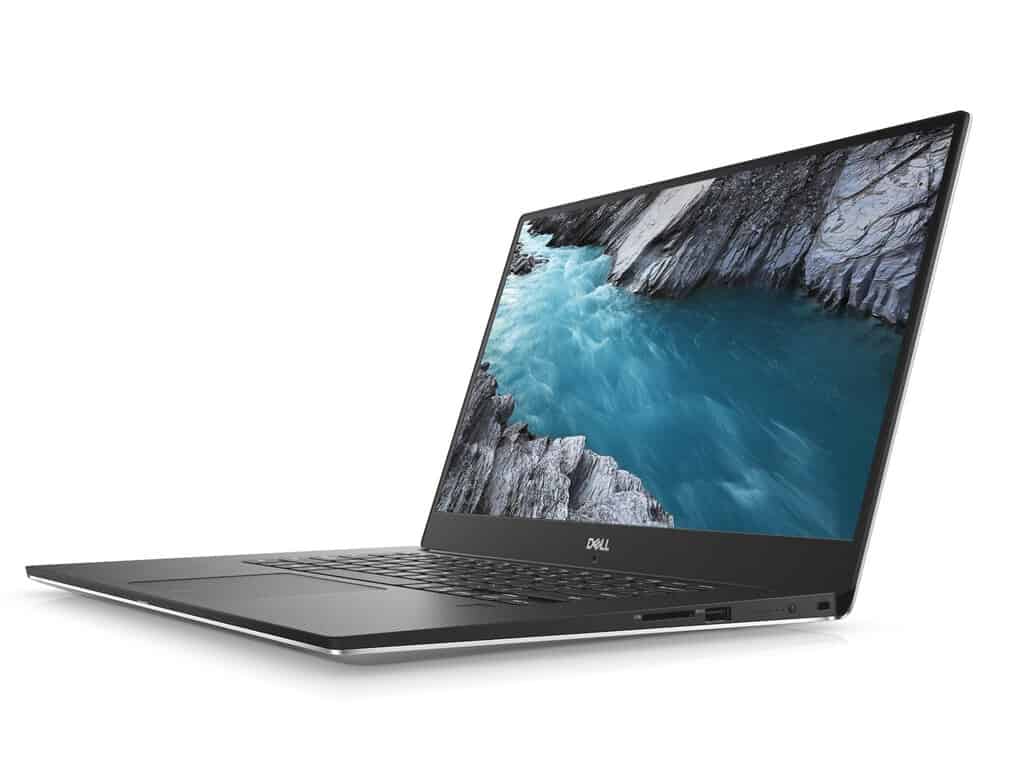
Dell announces new XPS 15, and it’s a beast

Dell today announced the 2018 refresh of their XPS 15 lineup, and the device is a true beast. The 2018 Dell XPS 15 9570 packs a familiar design and build, but with improved insides, including options for the NVIDIA GeForce GTX 1050Ti, and Intel’s freshly announced Core i9 processor (via Windows Central.)

The base model of the unit starts at $999 and comes with integrated graphics and Intel’s Core i5-8300H CPU. Also included onboard low-end models is a 56WHr battery, and a 97WHr battery on the higher end models, with a total promise of 21.5 hours of battery life. Both models boast Dell’s slim InfinityEdge display, though there’s a 4K display option available. Finally, Dell also improved the Thunderbolt 3 port to support four PCIe lanes instead of two, which is always important.

Preorders for the XPS 15 9570 open up on April 16th. Do you think this is a device that you might purchase? Let us know your thoughts in the comments below.

New Microsoft 365 security and compliance center to help expand on unified administration experience

Yesterday, Microsoft announced the rollout of the Microsoft 365 security and compliance center. This new center offers the same experiences as Office 365 security and compliance center and is designed to help expand on the unified administration experience that is part of the Microsoft 365 vision.

According to Microsoft, the Microsoft 365 security and compliance center enables data administrators, compliance officers, security administrators, and security operations to “discover security and compliance controls across Office 365, Enterprise Mobility + Security, and Windows in a single place.”  As an example, a data administrator can use the center to easily access Azure Information Protection and Microsoft Cloud App Security to help report on their data.

Administrators can log into the experience like they normally do by visiting this link, or by visiting the Microsoft 365 admin center. Microsoft will also continue to integrate and streamline administration experiences across Microsoft 365 over the next few weeks, so best to keep tuned for more.

Microsoft enables peer-to-peer digital payments on Microsoft Kaizala

Microsoft has enabled digital payments services on Microsoft Kaizala in India by integrating the mobile payment services of Yes Bank and MobiKwik. The feature will allow users to quickly send or receive money without having to leave the Kaizala app.

Users will be able to make peer-to-peer payments in one-to-one and group chat conversations via the MobiKwik wallet and via Yes Bank’s Unified Payment Interface (UPI) integration. The UPI payment integration works with all participating 86 banks.

Microsoft Kaizala, a mobile-only product designed for large group communications and work management, enables organizations to take business workflows to its Firstline workforce. This feature will now enable organizations to disburse micro-payments, enable bill expense reimbursements, and pay travel allowances on the go to its mobile workforce.

When we launched Microsoft Kaizala for India in July 2017, we provided consumers as well as businesses with a secure chat platform to collaborate and be productive, on the go. Microsoft Kaizala is used by thousands of organizations across different industry verticals for their day-to-day workflows today and is growing. Payment transactions within the app was a key demand from our users for getting work done and we are happy to offer it today in collaboration with YES Bank and MobiKwik.

– Rajiv Kumar, Corporate Vice President, Office Product Group, Microsoft.

Launched in July 2017 in India, Microsoft Kaizala is being used by over 900 organizations as well as few government departments already.

Surface Pro 3 Can’t Connect to This Network [Fix]

Many reported that Surface Pro 3 can’t connect to this network and this can be an issue since you won’t be able to access Internet at all.

This can occur if Microsoft Surface network adapter not working, but there’s a way to fix this issue, and in today’s guide we’re going to show you the best ways to do it.

So without further ado, let’s get started, shall we?

Why does it keep saying can’t connect to this network?

  • Issues with your network connection or router can cause this issue to appear.
  • Temporary glitches with your Surface or router can cause issues such as this.
  • Incorrect date and time can sometimes lead to this and many other problems.
  • Power saving features on your Wi-Fi adapter can prevent network from working.

What can I do if Surface Pro 3 can’t connect to this network?

1. Preliminary checks

Check the WiFi settings:

  1. Click Start and select SettingsSurface Pro won't connect to WiFi Windows 10
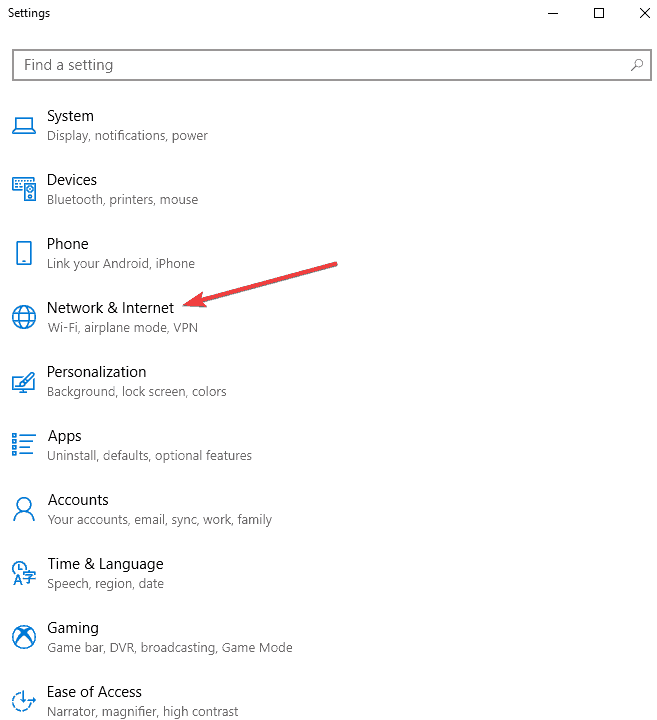
  2. Select Network & Internet.Surface Pro won't connect to WiFi Windows 10
  3. Select WiFi.
    Surface Pro won't connect to WiFi Windows 10
  4. Make sure WiFi is On and that Airplane mode is Off.

Check the password for your router

  1. Click Start button and select Settings
  2. Select Network & Internet
  3. Select Status
  4. Select Network and Sharing Center.
  5. In Network and Sharing Center, next to Connections, select your Wi-Fi network name.
    Surface Pro won't connect to WiFi Windows 10
  6. In Wi-Fi Status, select Wireless Properties.Surface Pro won't connect to WiFi Windows 10
  7. In Wireless Network Properties, select the Security tabSurface Pro won't connect to WiFi Windows 10
  8. Select the Show characters check box. Your Wi-Fi network password is displayed in the Network security key box
Surface Pro won't connect to WiFi Windows 10

These are just a couple of simple checks to perform if Surface Pro 3 can’t connect to this network.

2. Check your network on a different device

  1. Use your phone or any other Wi-Fi device.
  2. Try connecting to the network on that device.
  3. If you can’t connect on other devices, the issue may be with the network or your hardware.

3. Restart your network hardware and reconnect

  1. Remove the power cord from your router or modem.
  2. After all lights are out, wait thirty seconds and plug back the modem again.
  3. Wait for the modem to boot.
  4. Restart your Surface and try to connect again.

4. Restart your Surface Pro and reconnect

  1. Restart (don’t shut down) your Surface Pro.
  2. Select Start   
  3. Select Power

  4. Select Restart to restart your Surface and re-connect to Wi-Fi.
     

Sometimes a quick restart is all you need if Surface Pro 3 can’t connect to this network.

5. Check Date and Time settings

  1. Go to Start, and select Settings and choose Time & language.
  2. Make sure the info is correct or make changes as necessary.
  3. Try to connect to your Wi-Fi network

6. Forget the old network

  1. Swipe from the right to display Charms menu
  2. Select Settings
  3. Select the Wireless network list
  4. Right click or press and hold the network you want to forget
  5. Select Forget this network

  6. Restart the Surface Pro device

In case Surface Pro 3 can’t connect to this network, try removing all the networks and check if that solves your problems.

7. Check if MAC address filtering is enabled

  1. Log in to your router.
  2. Turn off MAC filtering temporarily to see if it is causing the Surface Pro not to connect.
  3. Add the MAC address of your Surface to your router’s authorized list.

If you want to find the MAC address, do the following:

  1. Select the search box in the taskbar, enter cmd, and in the search results select Command Prompt.
  2. Run the following command: ipconfig /all

  3. Find the Physical Address. This is the MAC address for your Surface.

Now make sure to add your device’s MAC address to the list of allowed addresses and that should help with Surface Pro 3 can’t connect to this network error.

8. Run Windows network troubleshooter

  1. Right click Start
  2. Select Control Panel
  3. Select Network and Internet
    Surface Pro won't connect to WiFi Windows 10
  4. Select Network and SharingSurface Pro won't connect to WiFi Windows 10
  5. Go to the search box and type Identify and repair network problems
  6. Select Identify and repair network problems to run it following the instructions carefully

9. Install updates

  1. Install updates by either using a wired connection, using another connection.
  2. Install the missing updates on your devices.
  3. After installing updates, restart your surface and reconnect to Wi-Fi to see if it helps.

10. Reconfigure Wi-Fi adapter

  1. Right click Start and select Device Manager

  2. Right click your Wireless adapter and select Properties
  3. Click Power Management tab
  4. Uncheck Allow the computer to turn off this device to save power
  5. Click OK
  6. Change the default power plan and switch from high energy savings to low

11. Check TCP/IP settings

  1. In the search box, type CMD
  2. From the search results, right click Command Prompt and tap Run as administrator.
    Surface Pro won't connect to WiFi Windows 10
  3. Type the following command and press Enter after each command.
    netsh int tcp set heuristics disabled
    netsh int tcp set global autotuninglevel=disabled
    netsh int tcp set global rss=enabled
    netsh int tcp show global
  4. Type Exit and press Enter.

We hope that these steps helped you fix Surface Pro 3 can’t connect to this network error message.

This isn’t the only issue, and many reported that Surface Pro won’t connect to iPhone’s hotspot, so you might want to check that guide for more solutions.

Did any of these solutions help? Let us know in the comments section below.

Download KB4096309 to fix connectivity issues in Windows 10

Many Windows 10 users still run the Anniversary Update, and Microsoft takes good care of this user segment. As a result, the company just rolled out a brand new update for their systems, KB4096309 which takes the OS version to Windows 10 version 14393.2156.

This update comes with a few quality improvements, but there are no operating system features packed in it.

KB4096309 improvements and fixes

According to Microsoft’s changelog for the update, the patch fixed an issue that caused “operational degradation or a loss of environment” due to all kinds of problems related to connectivity.

These issues are mainly revolving around environment configurations that were triggered by the installation of the previous build, KB4088889 released back on March 22, 2018, or by KB4088787 which was released on March 13, 2018. This is the only fix that is packed in the update.

If you installed earlier updates, it’s important to note that only the new fixes contained in this package will be downloaded and installed on your system.

There are no known issues included in this latest update at the moment. In order to get the standalone package for the update, you should head to Microsoft Update Catalog’s website.

Improvements for Windows Update client

As a quick reminder, any Windows 10 device that’s configured to receive the updates automatically from Windows Update (including Enterprise and Pro editions) will get the latest Windows 10 Feature Update.

This will be based on device compatibility and also Windows Update for Business deferral policy and it will not be applied to long-term servicing editions.

RELATED STORIES TO CHECK OUT: