Redesigned Cortana Notebook section now rolling out to select Windows Insiders

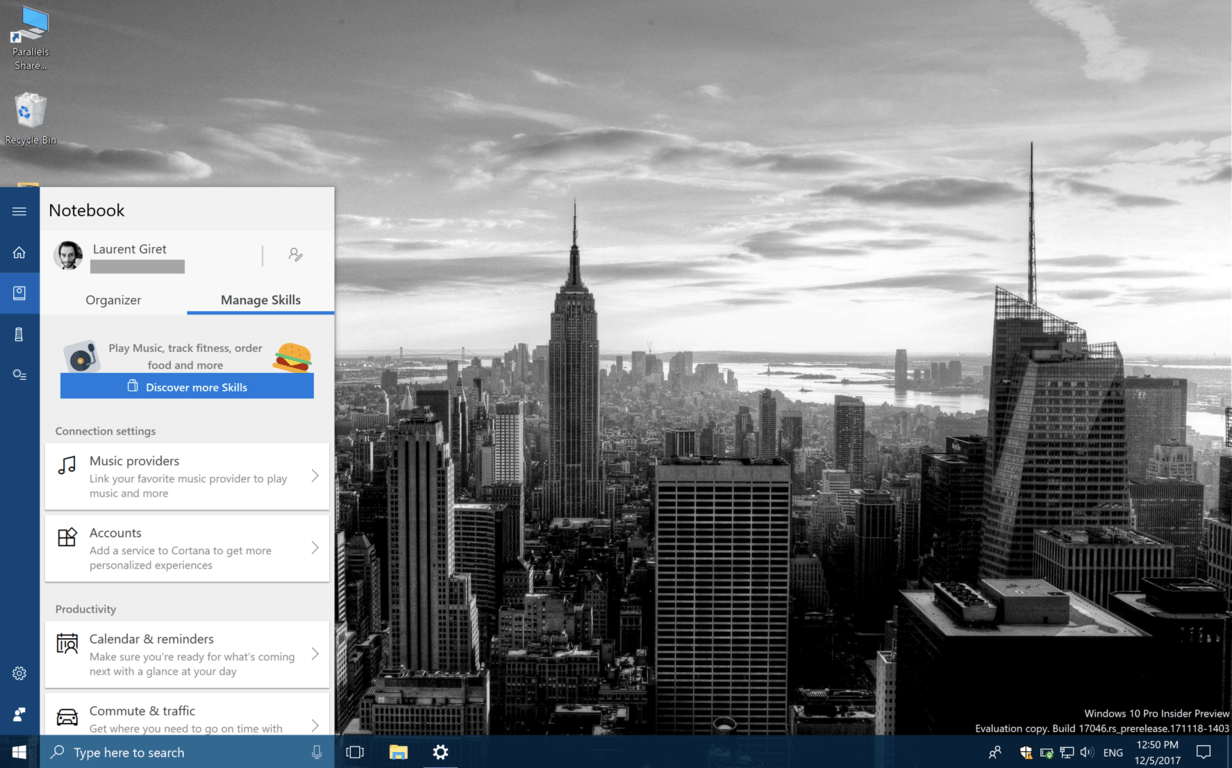
Microsoft is currently testing a new UI for Cortana’s Notebook section on Windows 10 PCs. The new design has been discovered by Reddit user Noam_ha (via Thurrott.com), and it’s currently rolling to some Windows Insiders running the latest Redstone 4 build.

As you can see in the screenshots below, Cortana’s Notebook has now two sections: the “Organizer” page lets you create To-Do lists and Reminders, while the “Manage Skills” lists all the different Skills that were previously available in the old UI, but they have now been regouped under different categories such as Connection settings, Productivity, Stay up-to-date and Lifestyle.

It’s still not clear if this redesigned Notebook UI could roll out soon to all Windows 10 users, but we find it slightly more usable and organized than what’s currently available on Windows 10 and Windows 10 Mobile. We already know that Microsoft is planning a lot more changes for Cortana on the desktop, and the digital assistant could look and work more like macOS Spotlight in Redstone 4.

Did you also notice this new Notebook UI on your Windows 10 PC? If so, let us know your thoughts about it in the comments below.

Check out this week’s Deals with Gold including a bundle sale on ID@Xbox titles

This week’s Deals with Gold are officially out, along with a big bundle sale on ID@Xbox titles. On the Xbox One, Xbox Live Gold members can save up to 75% off Divinity: Original Sin Enhanced Edition, Dungeon Defenders II, the Metro Redux Bundle, Unravel and The Technomancer. Additionally, everyone can save up to 75% off the INSIDE & LIMBO Bundle, the Jackbox Party Bundle, The Kinect Triple Bundle: Beats & Booms & Squids and many more indie titles.

On the Xbox 360, this week’s highlights include Battlefield 3, Bionic Commando Rearmed 2, Dead Space 3, NBA JAM and Street Fighter IV Arcade Edition. You can find the full list of discounted titles on Major Nelson’s blog, but as usual we’ve added more details about our favorite deals below.

Xbox One Deals

Divinity: Original Sin – Enhanced Edition ($10)

Easing a new generation into the world of cRPGs, Original Sin: Enhanced Edition features isometric, party-based gameplay, turn based combat, and hours of fully voiced and remastered dialogue in a story that will have you embroiled in a fantasy world of free exploration thanks to a new split-screen friendly UI. Sneak, stab, explode, poison or talk your way through Rivellon in this extended and enhanced version of 2014’s hottest RPG title.

Dungeon Defenders II – Deluxe Edition Bundle ($25)

Give yourself a bigger kickstart into Dungeon Defenders II with the Deluxe Edition.  This edition contains: – 3,000 Gems to purchase Heroes, Tower Skins, Costumes and more – 1,000,000 Gold for a quick boost in leveling your loot – 2 Hero Cards to create and keep more heroes – Five Campaign Shard Packs to gear up your heroes faster – Five Chaos I Shard Packs to gear up faster in the Trials – Legendary Autumeow Pet to make your enemies fall before you

Metro Redux Bundle ($7.50)

Including the epic single-player campaigns of both Metro 2033 and Metro: Last Light, Metro Redux takes you on a journey from the forgotten catacombs beneath the subway to the desolate wastelands above, where your actions will determine the fate of mankind.

Xbox 360 Deals

Battlefield 3 ($4.99)

In Battlefield 3, players step into the role of the elite U.S. Marines where they will experience heart-pounding single player missions and competitive multiplayer actions ranging across diverse locations from around the globe including Paris, Tehran and New York.

Dead Space 3 ($4.99)

Dead Space 3 brings Isaac Clarke and merciless soldier John Carver on a journey across space to discover the source of the Necromorph outbreak. Crash-landed on the frozen planet of Tau Volantis, Isaac must comb the harsh environment for raw materials and scavenged parts. He will then put his engineering skills to the ultimate test to create and customize weapons and survival tools. The ice planet holds the key to ending the Necromorph plague, but first Isaac must overcome avalanches, treacherous ice-climbs, and the violent wilderness.

Street Fighter IV Arcade Edition ($11.99)

Street Fighter IV took the world by storm and now it’s back, and more Super than ever with Super Street Fighter IV! Ten new fighters, nostalgic Bonus Stages, new spectator features and the awesome Replay Channel will draw you in for one more brutal fight!

All discounts will be valid through Monday, December 11, let us know in the comments if you found any interesting games to pick up in the list.

Fix: We found one or more settings that might affect battery life

Windows 10 is a smart firmware designed to offer a great and intuitive experience even for entry-level users. So, that’s why there are so many system notifications displayed on your device.

While in most situations these notifications are there to help you optimize and improve your overall Windows 10 experience, sometimes everything can turn out to be quite annoying. Such example is the battery notification message saying that ‘We found one or more settings that might affect battery life: Screen brightness is set to 100%, Sleep is set to Never’.

Shortly, the OS is telling you that your battery will drain out faster because you aren’t properly configuring some built-in settings like screen brightness and generic idle modes. The strange thing is that you receive these notifications even when your computer is connected to AC. And since you set sleep mode to never, it really means that you don’t want to put your computer to sleep mode due to specific reasons. So, in these situations the Windows 10 Action Center notifications functionality might turn out to be a real annoying thing.

Therefore, you can consider in disabling / turning off the battery notifications along with the other similar system notifications that acts in the same way – for example, similar messages can be displayed by Windows Defender (mostly when there’s nothing to worry about) or each time a new update is made available. Well, as already outlined, if the Windows 10 notifications are driving you crazy, you should disable the Windows 10 Action Center system and here is what you need to follow:

How to turn off the ‘We found one or more settings that might affect battery life’ notification

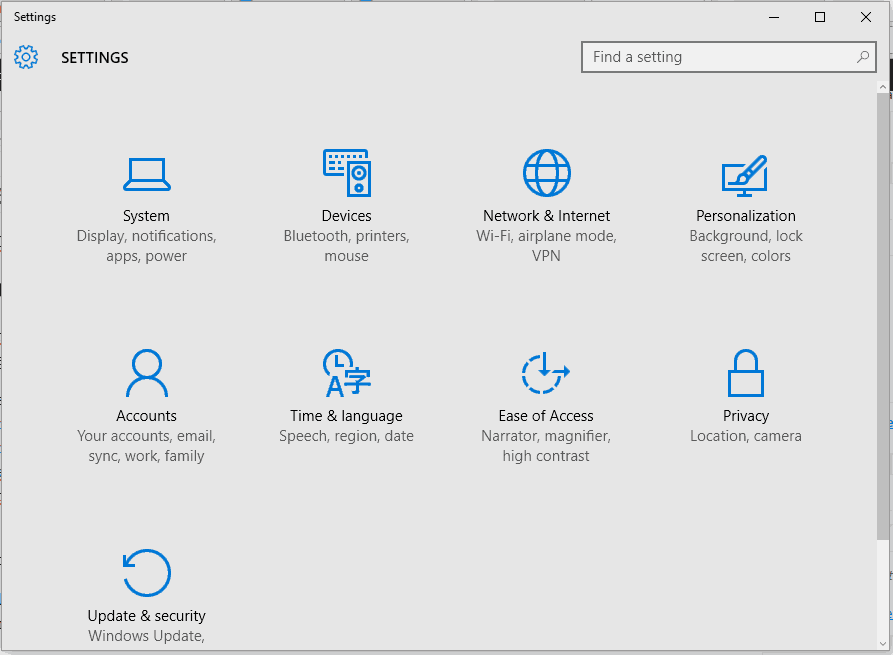
  1. Press the Win+I keyboard hotkeys.
  2. The System Settings window will be displayed.fix update and security not working windows 10
  3. From there click on System.
  4. From the next window, from the left panel choose Notifications & actions.
  5. Scroll down and find the Battery saver entry.turn off battery saver notification
  6. Just turn off the slider for disabling the Battery saver notifications.

If you cannot turn off this slider (if it’s turned grey and you cannot turn it off / on) make sure that your Windows 10 device isn’t connected to a power source. So, unplug it from the power source and then try to disable the Battery saver notifications again – if the slider is still grayed and disabled, reboot your computer and retry.

If you still cannot turn off Battery Saver, make sure that the ‘Get notifications from apps and other sender’ is enabled (this feature can be located with the same steps from above); then turn off Battery Saver notification and re-disable ‘Get notifications from apps and other sender’.

Additionally, you can also try to: navigate towards System Settings – > Power & sleep – > Additional power settings – > Change plan settings – > Change advanced power settings – > Battery and turn off Low Battery Notifications for on-batter or plugged-in situations. And yes, the battery saver icon shouldn’t be set to ‘on’ but to ‘off’.

In that way you can successfully disable / turn off the Battery Saver notifications within the Windows 10 system. So, after applying these tweaks you shouldn’t receive the ‘We found one or more settings that might affect battery life’ notification message anymore.

If you still have questions or if you cannot manage to properly apply the troubleshooting steps explained above, don’t hesitate and share your experience and your observations with us.

RELATED STORIES TO CHECK OUT:

Windows 10 KB4051963 fixes browser crashes and game launch issues

Microsoft recently rolled out Windows 10 KB4051963, adding a series of improvements and bug fixes to the Fall Creators Update OS.

The update addresses a script-related bug that may cause Internet Explorer to stop working.

KB4051963 also fixes the issue where apps may stop responding for users who rely on Internet or web proxies that use PAC script configurations.

So, if you encountered various issues where Outlook cannot connect to Office365 or Internet Explorer and Microsoft Edge cannot successfully render content (local computer content and web content included), simply install this update on your computer to fix them.

If you’re a gamer, and particularly a fan of Forza Motorsport 7 and Forza Horizon 3, install KB4051963 to fix the issue that prevents these two games from running on certain high-end gaming laptop configurations.

Speaking of Forza Motorsport 7 and Forza Horizon 3, check out the troubleshooting guides below to learn how to fix common bugs affected the games:

Windows 10 KB4051963 changelog

Other important fixes and improvements include:

  • Addressed a performance regression when users run full-screen Microsoft DirectX 9 games and applications.
  • Fixed the issue where user selections for Feedback Frequency in Settings > Privacy > Feedback & diagnostics aren’t saved.
  • Addressed the issue where RNDIS5 networking devices don’t get a valid IP address or don’t show network connectivity.
  • If a user manually changes the system’s time zone and doesn’t log off or restart, the new time should now display correctly on the Lockscreen clock.
  • Addressed the issue that prevented some Epson and TM (POS) printers to print on x86 and x64-based systems.

For more information about the full changelog, go to Microsoft’s support page.

You can download and install KB4051963  automatically through Windows Update. You can also get the standalone package from the Microsoft Update Catalog website.

Windows 10 KB4051963 issues

The update also comes with a minor bug. Namely, after installing it, Internet Explorer 11 users who use SQL Server Reporting Services may not be able to scroll through a drop-down menu using the scroll bar. Microsoft is working on fixing this problem.

Have you come across other issues after installing this update?

This new tool helps Windows Insiders track build flights all in one place

When you have multiple devices enrolled in the various rings of the Windows Insider program, keeping track of all the builds flighted by Microsoft can sometimes be tricky. Well, Senior Program Manager on the Windows Insider Program, Brandon Leblanc, has created a little tool from scratch to help Insiders sort things out. He learned coding to make the tool, and the results of his labor are pretty nifty.

This tool is actually a website, which Leblanc is appropriately calling “Flight Hub.” The goal of the website is to give Insiders one central dashboard for all things related to previewing builds. For now, it’s just in a preview state and lists the latest Insider Preview releases for PC, Server, IoT, and SDKs and  ISO images. There are also dates for when builds were released, and links to the appropriate blog posts.

Flight Hub

Brandon has said that the preview of Flight Hub is just the start, and will be expanding into apps (maybe even a UWP app?) soon. There’s also plans to integrate it into the Windows Insider website and the Windows 10 Feedback Hub, and even bring the list back all the way to the beginning of the Windows Insider Program. This is a really good initiative, and we’re looking forward to see how this project evolves over the coming months.

[Updated] Windows Update broken for some Windows 7 users, no word yet on fix

Windows Update is supposed to help keep your system up to date and safe, but according to a report from ZDNet, the feature is not working at all for some Windows 7 users. Even worse, there’s still no word from Microsoft about the issue as of yet, and it appears as though a simple expiration date hidden in the system registry may be the problem.

Again, the issue appears to be affecting a broad set of Windows 7 users, as noted on the Microsoft Answers forum. Some users are seeing an 80248015 error code when trying to update (with no other info), and some are getting a follow-up message telling them that the Update Service cannot currently check for updates because it is not running, or no updates are available (when in fact there are updates available).

This is all rather strange, primarily because Microsoft is supporting Windows 7 until January 2020. Anyway, it is being recommended by some users to change the system date back in time to March 12, 2017 as a temporary workaround to the issue. We’ll be updating this article is Microsoft issues an official fix or statement.

Update: Microsoft has apparently corrected the problem. Though no details were provided, a spokesperson said: “We resolved the issue causing a delay in the update delivery service.”

Tom Clancy’s The Division is free to play with Xbox Live Gold this weekend

With Tom Clancy’s The Division set to receive a free content update tomorrow, December 5, the Xbox team has just announced that the game will be free to play with Xbox Live Gold starting December 6 at 11:01 p.m. PST. The free weekend will end on Sunday, December 10 at 10:59 p.m. PST, and the game’s three expansions will also be free to play for everyone during this period.

For those unfamiliar with it, the online action-RPG title was released back in March 2016 on the Xbox One, and it’s set in a post-apocalyptic version of Manhattan, which has been hit by a deadly virus. Xbox Wire shared the following details about the upcoming free update to be released tomorrow:

With update 1.8 arriving on December 5, a whole new area of the city will be opened up for exploration. The West Side Pier is an industrial port in the northwest corner of the map dominated by a massive aircraft carrier, and it will play host to two new game modes. Resistance will pit Division agents against an unprecedented alliance of enemy factions, challenging players to fight off waves of powerful foes and formidable bosses. In Skirmish, two teams of four will fight to subdue each other in a trio of new arenas. New rules for going rogue in the Dark Zone, new exotic weapons, and the spread of sinister Hunter enemies will ensure that returning players have their hands full.

Starting December 6, the game and all of its three expansions will also be discounted up to 70% off on the Microsoft Store. Keep an eye on the Gold section of your Xbox One dashboard if you don’t want to miss the upcoming free weekend.

Laptop Starts Charging Then Stops [Fix]

Laptops are great if you’re on the move, however, many reported that the laptop starts charging then stops suddenly.

If this happens, you should use laptop battery health software to ensure that your battery is working properly.

You can use other methods, and we’ll explore them further in this guide.

Why does my laptop start charging then stops?

  • Hardware damage – It’s possible that your battery is worn out or your cables or adapters aren’t working properly.
  • Battery glitches – These can be caused by bad drivers or outdated BIOS.

What can I do if laptop charges for a second and then stops?

Before we start fixing this issue, there are a few checks that you can perform:

  • Check jack, adapter, and battery – Your hardware may be having issues, so be sure to check the cable and jack for physical damage as well as your battery health.
  • Update BIOS – In some instances, updating BIOS can solve this issue. To see how to do that, check our guide on how to flash BIOS.

1. Reinstall a driver

  1. Disconnect charger and shut down your computer.
  2. Remove the battery and re-connect the charger.
  3. Power On your PC.
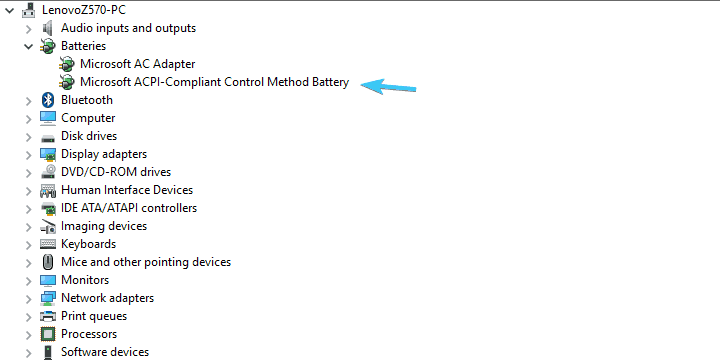
  4. Right-click on the Start button and open Device Manager.
  5. Expand the Batteries section.
  6. Right-click on the Microsoft ACPI Compliant Control Method Battery device and Uninstall it.computer charges then stops
  7. Shut down PC again and disconnect the charger.
  8. Insert the battery and re-connect the charger.
  9. Power On the PC again and it the system should reinstall Microsoft ACPI Compliant Control Method Battery device.

In addition, you can remove the battery-related software provided by OEM. For example, Samsung has a tool called Battery Life Extender that will limit the charging percentage to 80% in order to extend the battery life.

This is a simple solution and it might help you if the laptop starts charging then stops.

2. Discharge the battery

  1. Charge your battery as much as you can and disconnect the DC charger.
  2. Use the computer until the battery is fully depleted.
  3. Once the laptop shuts down, remove the battery if possible.
  4. Press and hold the power button for approximately 60 seconds.
  5. Insert the battery again and reconnect the DC charger.
  6. Don’t turn On the laptop until the battery is charged completely.

The standard Lithium-Ion battery is predetermined to last up to 300 full recharge cycles. Meaning that it takes 300 full recharges to wear it off. Now, users are rarely going to fully discharge the battery and charge it again to 100% or regular basis, even though it’s arguable, the best way to extend your battery’s life.

In addition, the constant half cycles can cause a stir in the supporting software and prevent your battery from charging.  In other words, discharging has multiple roles, which might help you resolve the issue at hand.

These are just some of the solutions that might help if your laptop starts charging and then stops.

Before you leave, find out how to limit the battery charge in Windows and extend the battery’s lifespan.

We certainly hope that this was a helpful read. In case you have some questions or suggestions regarding the battery charging issue we addressed today, make sure to post them in the comments section below.

Microsoft news recap: Outlook.com showing ads in the inbox, Samsung debunks ‘Microsoft Edition Samsung S8’ and more

Microsoft (MSFT) news recap is a weekly feature highlighting the top Microsoft news stories of the past week. Sit back, grab some coffee, and enjoy the read!

Wall St Journal gets pounded after suggesting finance pros drop Excel

the Wall Street Journal recently published a story accusing Microsoft Excel of not keeping up with the needs of the financial sector, and subtly advising people to drop the software as a result. That, however, didn’t go down too well with some people in the financial sector.

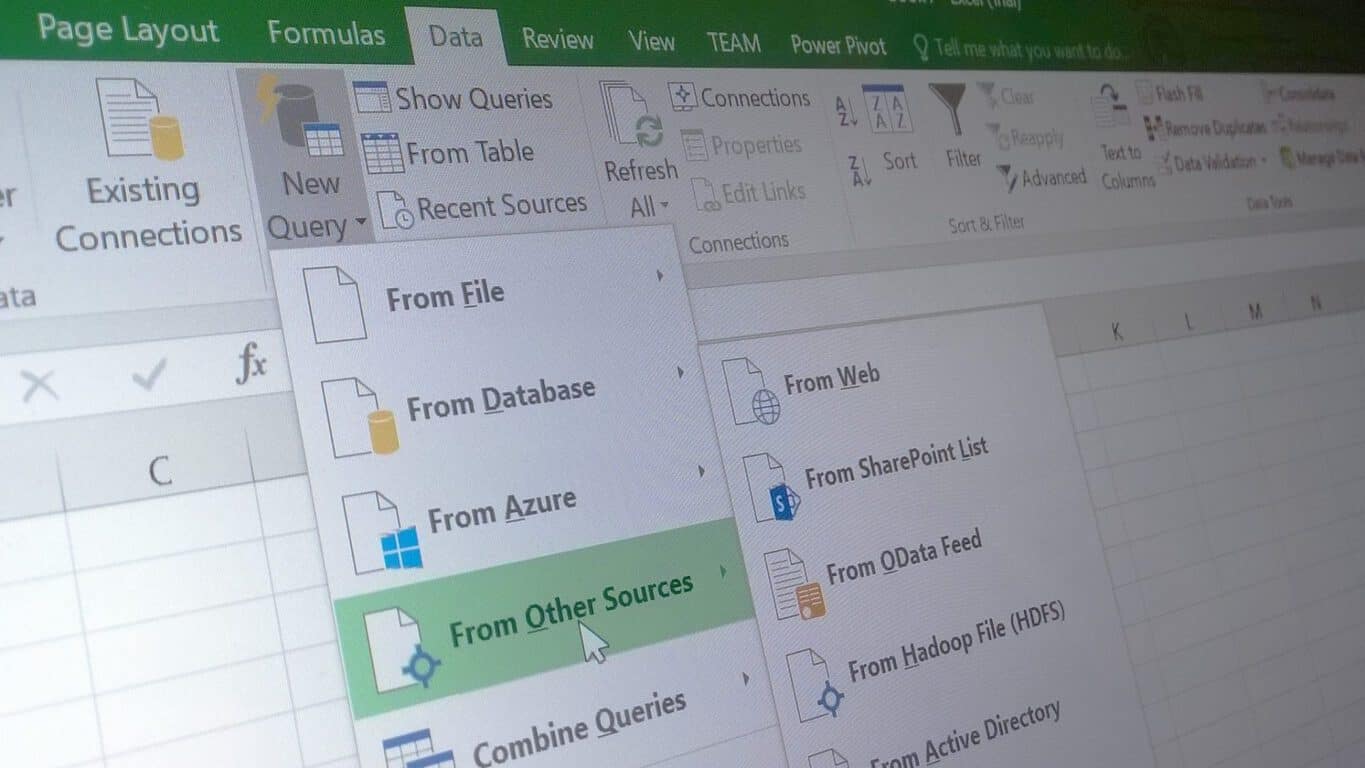
Excel 2016 new Data capabilities

Inbox ads spotted in Outlook.com, are you seeing them?

For free users of Microsoft’s hosted email service, Outlook.com, it appears that the company is beginning to show inbox ads, where ads will appear in the inbox similar to how an email message would look. Those on an ad-free premium subscription do not see these.

Samsung clears up the mystery behind the Microsoft Edition S8 and S8 Plus

Despite rumours of a Microsoft Edition Samsung S8, Samsung has come out and debunked the myth, stating that there is no ‘Microsoft Edition’ of any of its devices, but does confirm that Microsoft is aiming to offer a unique edition from within its own retail stores.

Microsoft Teams Guest access for Microsoft Accounts is delayed again, apparently

Microsoft Teams’ Guest Access feature is still being worked on, with yet another delay, although Private Channels are well underway. Guest access is needed for those who aren’t necessarily part of an organisation, but are doing work for them, such as a freelancer.

That’s it for this week. We’ll be back next week with more Microsoft news.

Xbox news recap: PUBG will be 30FPS despite previous claims, Destiny 2 now has a free trial and more

Welcome to our weekly Xbox news recap series, where we go over the top stories of the past week in the world of Xbox. Let’s get started.

PUBG will run at 30FPS, despite previous claim

PUBG is going to be running at 30FPS at launch on both the Xbox One X and the Xbox One, according to new claims. Earlier in the week we had a “confirmation” that Bluehole’s popular battle royale game will launch at 60FPS on Xbox One X, but the company has backtracked. The latest tweet from the official PUBG Twitter account says that “this early in dev, we’re unable to confirm” anything about future framerate. PUBG will be launching at 30FPS on both consoles, and there’s a chance that they could increase that in the future.

Destiny 2 gets free trial on Xbox

Destiny 2 now has a free trial on Xbox One, similar to the trial that the original Destiny got after the release of its third expansion, The Taken King. The trial is designed, like most trials, with the intention of getting users to try out the game for a bit before they decide they’re interested in purchasing the whole thing. With Destiny 2 being an MMO-like experience, this format is fairly successful as a way to hook players into the game’s core gameplay, while still promising a bounty of content going forward. This also comes just before the release of the first expansion – Curse of Osiris – which is due on December 5th.

Bethesda games are now Xbox One X enhanced

Fallout 4 and Skyrim, as well as a suite of other Bethesda titles, have received updates on Xbox One X to get them looking shiny and new. The games on Xbox One X are now equipped with 4K texture packs, improved draw distances, some changes to framerate limits, and more. You can check out our full article for specifics on the changes, but you can rest assured that most recent Bethesda games are affected in some way, shape, or form. If you have an Xbox One X and have been waiting to dive into a Bethesda game recently, now’s the time.

Marvel Heroes Omega shuts down, Marvel forced to offer refunds

Marvel Heroes Omega has been shut down, and with it, Gazillion entertainment has been shuttered. This comes as part of some internal licensing issues at Disney, and it’s brought a very abrupt end to a game that was relatively well liked. The set date for the game to shut down its servers was December 31st, but to add insult to injury, the company then decided to shut the game down effective immediately, blowing off the grace period for fans to say goodbye. Fans who reach out to Microsoft will be refunded any in-game purchases, so you should make a point to get that money back as soon as possible if you’ve sunk anything into the game.

Thanks for joining us. To keep up to date with all the latest Xbox news, keep a close eye on our Xbox One tag.

Eye tracking laptops: Their applications and the technology behind them

The world of computers is ever evolving, with new hardware innovations released and ever more intelligent software developed every day. Eye tracking laptops are one such technology in which interest is growing.

These are laptops equipped with high-performance hardware sensors consisting of customised components and advanced optics. Well,  that’s the rather elitist definition of eye tracking laptops.

In this article, we will delve deeper into the subject of eye-tracking laptops and, in the process, get to understand the concept of eye tracking, the technology behind it, and the applications for eye tracking on laptops. This should also help us break down and simplify what eye-tracking laptops really are about.

Hopefully, by the end of this article, we will have a better understanding of the concept of eye-tracking as it applies to laptops and its many potential applications.

Understanding eye-tracking laptops

Eye tracking is the study, recording, and measurement of either the point of gaze or the movement of eyes relative to the head. In general, gaze refers to where one is looking, and specifically where one’s eyes are focused.

Eye tracking on laptops is thus the process of electronically locating where a person’s eyes are focused on as they gaze on the laptop screen. The gaze must, of course, last a reasonable time.

Similarly, eye tracking on laptops can be understood as the recording of eye movements as the eyes gaze on or follow an object, lines of text, or any other visual stimulus on the laptop screen.

Eye tracking data collected on laptops now make it possible to objectively qualify human attention in real time and monitor when and where one’s eyes are focused.

How eye tracking is applied to laptops

To implement eye tracking on a laptop, we first need to equip the laptop with an eye tracker, which is hardware that acts as an input device for human-computer interaction. An eye tracker enables the recording and measurement of eye positions and movements.

An eye tracker consists of sensors (camera and advanced micro near-infrared (NIR) projectors), and image-processing algorithms. Eye tracking devices use a concept commonly referred to as pupil centre corneal reflection (PCCR). Near-infrared (NIR) projectors are used to create a reflection pattern of near-infrared (NIR) on the eyes.

The generated near-infrared (NIR) light is directed toward the center of the eye (pupil), causing visible reflections in the cornea (outermost optical element of the eye). The high-frame-rate images of the eye and reflection patterns are captured and tracked by small digital video cameras or web camera (webcam).

The digital cameras, which are mounted on the laptop screen (monitor attached) or embedded within the monitor, are configurable and angled to capture eye tracking digital images at eye level.

Webcams are more accessible and can be used in place of monitor embedded cameras, but they do not deliver the same level of accuracy as infrared eye trackers.

Eye tracking software

The final piece of technology to complete an eye-tracking laptop is the application layer, which is the eye tracking software that records and analyzes the digital images captured by the eye tracking device.

The image-processing algorithms find specific details in the eyes and reflection patterns, and use the technological interpretation of the stream of images generated by the sensors, to calculate the eye’s point of gaze on the laptop screen.

Free, open-source, or commercial eye tracking software, compatible with a variety of eye trackers or eye tracking hardware from vendors such as Tobii, SMI, Eye Tech, Eye Tribe, GazePoint, is available from third-party software vendors.

Accurate and reliable eye tracking software, allow tracking from both near-infrared (NIR) and visible spectrum illumination. The software enables comprehensive data analysis that assists in visual research and human decision making.

Eye tracking laptops’ applications

Eye tracking technology is getting more advanced by the day. There are now eye trackers that not only establish exactly where one’s eyes are focused, but can also determine presence, attention, drowsiness, conscientiousness or other mental states of the person sitting in front of the laptops.

This opens the door to many exciting applications for eye-tracking laptops. We have even seen big software developers like Microsoft jumping to embrace the technology. There is even support for eye trackers on the Windows 10.

A more accessible technology for people living with physical disabilities

Eye tracking technology can be used in place of a PC mouse or touchpad. It now also allows people with severe physical disabilities to use gaze for computer commands they would otherwise need a keyboard for.

For instance, people afflicted with Amyotrophic Lateral Sclerosis (also called ALS or “Lou Gehrig’s disease”), who have paralysis of voluntary muscles or have lost their voice but are able to move their eyes, can use eye-tracking technology to better interact with computers.

Amyotrophic Lateral Sclerosis (ALS) is a rapidly progressive and fatal neuromuscular disease that is characterized by the degeneration of a select group of nerve cells and motor neurons in the brain and spinal cord.

The loss of motor neurons leads to paralysis of voluntary muscles. But there is generally little impairment of the brain or senses. Eye-tracking technology thus enables ALS sufferers ability to benefit from using computers through eye-enabled logins, hands-free typing, and other tools made possible by the technology.

Better quality of consumer research data

Eye tracking technology can also be harnessed in many exciting ways by digital marketers. The technology now allows webmasters and other digital marketers a better way to learn how users interact with digital media.

For example, we can deduce what attracts people attention more as they browse web pages as well how they interact with products and advertisements.

Website designers and owners can accurately pinpoint areas they need to concentrate their efforts to lower bounce rates, increase time on page, and optimize conversions. All this is data consumers may not willingly give up or disclose in focus groups and other traditional methods of consumer research.

Using information gleaned from the data analysis availed by eye tracking software, we can now confirm whether or not an advertisement is actually seen. Advertisers are now in a better position to determine which types of adverts generate the most interest.

You can deduce the amount of time a person gazes at an advert to mean the advert has had some effect on them. The opportunities for advertisers and marketers in general to harness the power of eye-tracking technology are thus endless.

There are even more exciting applications for eye-tracking technology for gaming laptops. Add the growing scope of face recognition software, the rapid pace of growth in the world of artificial intelligence, and eye-tracking laptops may go mass market sooner than we think.

As the eye-tracking technology is still in its formative stages, both the hardware and software will be pricey. However, as interest in the technology grows, as it should judging by the rapid growth of other machine learning technologies, demand will also rise. The growing demand should meet with a corresponding drop in costs as both hardware manufacturers and software developers scale up.

RELATED ARTICLES YOU NEED TO CHECK OUT

No new Redstone 4 build today due to bug with UWP apps, says Dona Sarkar

Since Microsoft announced earlier this week that Timeline would finally be available for testing with the next Redstone 4 build, we’ve been really looking forward to try this new feature. Unfortunately, Head of the Windows Insider Program Dona Sarkar has just tweeted that a bug with UWP apps is preventing the team from releasing a new build today:

It’s certainly not the first time that a blocking bug forces the team to delay the release of a new build, but make no mistake, there are definitely some fun times ahead. In addition to Timeline, tabs for UWP apps (aka “Windows Sets”) will also be tested with select Fast Ring Insiders over the coming weeks, and this is really one of the most exciting features to be added to Windows 10 since launch. It’s really exciting to be a Windows Insider these days, and we hope we won’t have to wait too long to get a new Redstone 4 build.

Wall St Journal gets pounded after suggesting finance pros drop Excel

As slow as Microsoft often moves to assert itself with new trends, most of its business customers are even slower and less willing to change to accommodate new communications, workflows, or integrate ‘modern’ software. The glacial pace of Microsoft’s software pivots have been undeniably tied to its most profitable contributors in the enterprise sector and for good cause as a financial executive recently found out as he attempted to extract Microsoft’s Excel software from CPA’s on the floor.

The Wall Street Journal published a brief article last week where it posited that Microsoft’s Excel software has not kept up with contemporary needs the finance sector requires and subsequently resulted in financial chiefs asking their staffers to part ways with the aging piece of software. Predictably, that did not go over well with people who have embedded Excel in their most vital workflows.

One CPA went as far as to respond to the article via Twitter with a declaration that, “You can have my Excel after you ripped it from my cold, dead hands.” Another management consultant summed up his fellow co-workers affair with Excel as being similar to an addiction, “asking finance professionals if they’ve given up Excel is “like asking whether we’ve given up drinking.”

While, probably, a bit of hyperbole, the sentiment seemingly was unanimously felt across employees in the financial services industry that felt Excel was needed to maintain consistency and familiarity with tasks with responses and anecdotes to the article came pouring in over the Thanksgiving break in both the comment section and on Twitter.

Daniel Blumen, a treasury management consultant in Naperville, Ill., said he was astonished to find that one of his clients in the solar industry had bought a treasury management system that likely cost more than $250,000 but had never properly implemented it. The company was using an Excel spreadsheet to track several hundred million dollars in letters of credit.

Understandably, executives and IT managers are finding themselves at ends with employees as they attempt to introduce newer and more mission-tailored technology, according to a follow-up article by the Wall Street Journal on the same topic.

Mr. Schiller, the Virginia software engineer hired by a boutique insurer, said he wasn’t shocked that the actuarial staff was still working in Excel. What he couldn’t fathom, he said, was that sometimes they crunched numbers on a calculator, too.
In his 17-year career, Mr. Schiller said he’s never encountered so much resistance to change. At meetings, he said, “everybody was pleasant to each other.” Afterward, however, they would buttonhole their bosses to lobby against the technology project.
When the company finally adopted a new platform, he said, 4½ years had passed.

Slowly, Excel’s grip on the enterprise market is loosening as businesses opt to use custom software for more task-specific operations, but that doesn’t mean Microsoft is idly sitting by allowing its software to stale. With more than 90% of the Fortune 500 financial companies being powered by Office 365 in the cloud, Brian Jones head of Excel is closely monitoring the UserVoice suggestion boxes from those users to keep the software as competitive as possible.

Inbox ads spotted in Outlook.com, are you seeing them?

A few months ago, Microsoft started pushing premium Outlook.com features to Office 365 subscribers including a new option for an ad-free Outlook experience and other enhancements. Noted by Paul Thurrott, Microsoft may now be using inbox ads with standard Outlook.com users who do not have the premium features bundled with Office 365.

This is a first for Outlook.com, which generally does not punish users with this very intrusive type of inbox advertising. It’s also very similar to the kind of ads which may occasionally appear in Gmail, Yahoo, and other free email services. With that so, it will be interesting to see how the Outlook.com community reacts this type of change, or if it will be pushing more Outlook users into buying an Office 356 subscription for premium features and a cleaner and more secure inbox.

Do you find the inbox ads troublesome or intrusive to the traditionally clean Outlook.com experience? Let us know your thoughts below.

Give the gift of tech: Microsoft launches 2017 holiday gift guide

Buying new tech gadgets for that special someone on your list this holiday season can be tricky, but Microsoft is here to help. The tech giant recently launched their 2017 holiday gift guide website, which features a series of videos explaining the top tech products and accessories from Microsoft and it’s partners this holiday season.

The videos and guides to gifts are aimed at mothers, fathers, the traveling gifter, fashionistas, trendsetting techies, mobile professionals, music lovers, and gaming gurus. Microsoft Store employees and scenery from the company’s retail stores even make appearances in the videos, which is especially thoughtful.

Anyway, store employees discuss the top tech products this holiday season, be it from Microsoft or it’s partners. We noticed the Fitbit Alta HR, Surface Pro, Surface Laptop, Windows Mixed Reality headsets, and much more in some these holiday gift guide videos.

Nice to see Microsoft helping those who aren’t always up to date on tech find the best gifts this holiday season. We invite you to check out the guide for yourself and would love to hear your thoughts in the comments section below.

PUBG developer backtracks, says the game will run at 30fps at launch across all Xbox One consoles

Yesterday, we learned that PUBG developer Bluehole was working hard to make the game run at 60 FPS on both the Xbox One X and the standard Xbox One. In an interview with gamesTM magazine, Director Brendan “PlayerUnknown” Greene shared that the game would “definitely” hit 60FPS on the freshly released Xbox One X, but he was still “not sure if we’ll get there” on the older console.

Earlier today though, Greene backtracked on his comments and shared on Twitter that the game will run at 30FPS on both consoles at launch:

This turnaround is really disappointing, especially when popular online FPS such as Call of Duty: WW2, Battlefield 1 and Titanfall 2 all run at 60FPS on next-gen consoles (Destiny 2 is the notable exception). PUBG is probably the biggest Xbox exclusive title of 2017, and it’s sad to see that the PC version of the game will continue to provide the best gameplay experience for the time being.

Unfortunately, it’s also some kind of bad PR for the Xbox One X, which Microsoft is marketing as the most powerful console ever released. PUBG will be enhanced for the Xbox One X with 4K graphics, but we assume that most players would much prefer smoother framerates over sharper textures. But as Greene previously said to gamesTM, it’s the standard Xbox One that seems to be causing issues. “The last time I saw it, it was running at about 30 to 40,” the Game Director explained.

Still, Greene said in his tweet that the team was “constantly refining the game & exploring options to increase FPS,” so it may well get better in the future. In the meantime, are you still interested in playing PUBG on your Xbox One even if it’s locked at 30FPS? Sound off in the comments below.

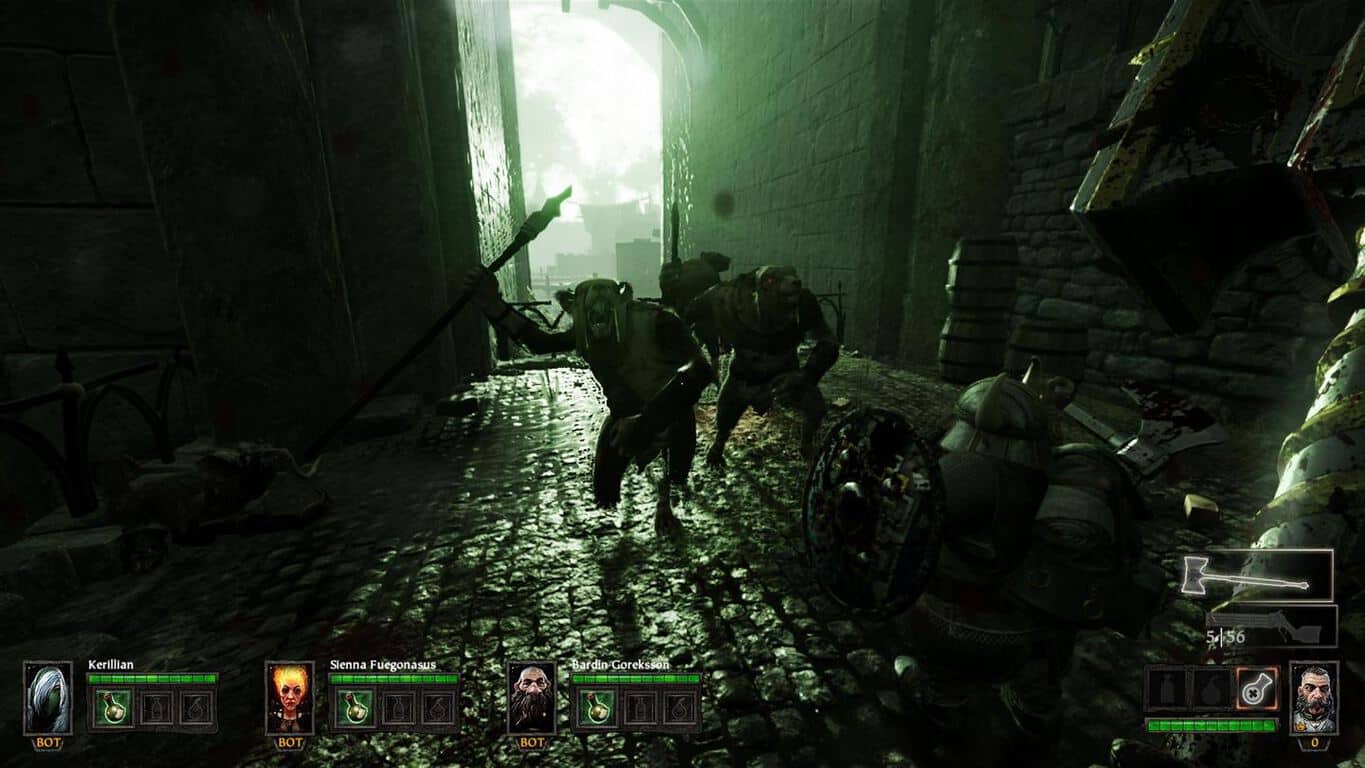
Warhammer: End Times Vermintide and Child of Eden are now free with Xbox Live Gold

Today is the December 1st, which means that Xbox Live Gold subscribers now have two new games to add to their game library for free. This month, the first Games with Gold titles are the online FPS Warhammer: End Times – Vermintide and the Kinect-enabled game Child of Eden. The first one is already enhanced for the Xbox One X with support for 4K graphics. You can find more details about both games below.

Warhammer: End Times – Vermintide ($39.99 value):

The world is ending… though few believe it. The once proud city of Ubersreik now stands in ruin at the hands of the dreaded Skaven army. Few have survived their ruthless invasion. Team up with 3 friends and work together to thin out the ratmen’s forces and drive them out of the city. Assume the role of one of five heroes, and hack, slash, smash, burn and pierce the vile Skaven using a multitude of weapons. Fight your way through the city of Ubersreik, from the top of the Magnus Tower to the bowels of the Under Empire. This is our last stand and only you can stem the Vermintide.

Child of Eden ($29.99 value):

One of the most anticipated games of 2011 for Kinect. Winner of 9 awards at E3 for innovative graphics, music, and gameplay. Child of Eden is the “multi-sensory shooter” that will send players diving into a visual matrix of synchronized music and mind-blowing visuals. It will usher forth yet another landmark game experience from the mind of renowned game designer Tetsuya Mizuguchi.

As a reminder, the two other Games with Gold titles to be available starting December 16 are Back to the Future: The Game and Marlow Briggs and the Mask of the Death. Anf If you haven’t done it yet, you can still download the excellent Tales from the Borderlands Complete Season for free through December 15.

Microsoft tests a redesigned Windows 10 People app with Fast Ring Insiders

Windows Insiders on the Fast Ring can now test a redesigned version of the Windows 10 People app, which now looks slightly more consistent with the native Mail and Calendar apps (via Aggiornamenti Lumia). The big headers for “Contacts,” “What’s new” and “Groups” are gone, replaced with a hamburger menu with Acrylic transparency effects.

Clicking on a contact will open a card on the right where you can see contact details, recent conversations and upcoming events with this contact. There is also a pin button to add contacts to your taskbar (next to the My People shortcut) or your Start Menu.

We’re not seeing the update on Windows 10 Mobile yet, but the new desktop app is quite an improvement over the previous version. If you’re on the Fast Ring, the version 10.3.3241.0 of the People app is what you’re looking at, let us know in the comments if you like this new design.

Spotify Windows 10 app picks up Live Tile support with latest update

When Spotify launched in the Microsoft Store earlier this year, it was ported using Microsoft’s Desktop Bridge tool. Though still a solid option for fans of the service who also own a Windows 10 PC, the app did not include support for some of Windows 10’s unique features such as Live Tiles or notifications.

Well, Spotify has finally delivered, and a recent update to the app finally introduces support for Live Tiles (via Windows Central.) The Live Tile support is still a minor addition, but it’s appreciated nonetheless. Turned on by default, it is available in three tile sizes (medium, wide, large) but will only show suggested playlists and songs, and not what is currently playing. As usual, the user can also turn the Live Tile off by right-clicking and choosing “Turn live tile off.” from the “more” sub-menu.

The three sizes of the Live Tile

This is still a very far way from the native Groove Music app, but also a small step forward, opening up hope for additional features in later updates to come. You should be seeing this update now in the Microsoft Store. If you’re not seeing it, you can manually trigger the update by clicking the link below and opening the Microsoft Store on your PC.

Spotify Music
Spotify Music
Developer:
Spotify AB
Price:
Free+

Play The Escapists 2 Special Edition right now on Xbox One

Looking for a new strategy game? Something a little different than the usual run-n-gun, hack-n-slash action? The Escapists 2: Special Edition is now available on Xbox One, giving you all access to a pretty solid strategy sandbox game on your favorite console. The special edition includes the base game, the season pass, and the “Wicked Ward” add-on. In other words, it gives you about as complete of an experience as you can get.

The Escapists is a pretty storied franchise of games at this point, having built up a dedicated following after the first game’s release. Now, after being a relatively successful series on consoles, the creators at Team 17 are enjoying a thriving franchise across all platforms. If you’re interested in picking up the special edition, it’ll run you about 30 dollars.

Samsung clears up the mystery behind the Microsoft Edition S8 and S8 Plus

Despite a handful of publicly announced partnerships, it seems Samsung would like its customer to know it’s still fully committed to the big G and that rumored Galaxy S8 Microsoft Edition phone is nothing more than a rumor.

According to Windows Central, the often whispered Galaxy S8 and S8 Plus Microsoft Edition phones were never an actual product. In hindsight, it seems a bit obvious that Samsung would not go out of its way to produce a phone with specific Microsoft software onboard, but for many, the idea of a Microsoft Edition phone conjured up those exact expectations.

As we, along with Windows Central reported back in the day, the concept of a Microsoft Edition phone was a fairly straightforward affair where employees at the company’s retail outlets would sell a purchased Samsung Galaxy S8 or S8 Plus running Android and then walk customers through the process of Microsoftizing it by downloading items such as Arrow Launcher, Microsoft Apps, and Bing Search.

Galaxy S8+ with Lumia 950 XL

Samsung was in enough agreement with the idea that when issuing its clarification about the non-existent S8 and S8 Plus Microsoft Edition phones, they detailed experiences as such.

Samsung Galaxy S8, Galaxy S8+, and Galaxy Note8 devices are available in the Microsoft online and retail stores with a unique Microsoft experience which ensures their customers, particularly small-to-midsize business owners and entrepreneurs, a best-in-class productivity experience. There is not a ‘Microsoft Edition’ brand of any Samsung Galaxy products.

So, long story short, there is not and perhaps never will be a Microsoft Edition branded phone coming from Samsung and as far as we know, was never officially announced to have been. What Microsoft fans and Windows Phone converts can look forward to, is turning every Android phone into a Microsoft Edition phone thanks to a handful of applications and tweaks.

Get a free engraving with any Xbox Design Lab controller

As if customizing your very own Xbox controller with your whatever wacky color combination your hearts desires isn’t enough, Microsoft is now offering free engravings to make sure your friend’s Cheetos-laden fingers never mistake your controller for theirs.

What used to cost an additional $9.99 for anyone visiting the Xbox Design Lab website looking to brand their controller with whatever quip or signature they could come up with is now free for what we believe is a limited time.

Further sweetening the pot, Microsoft is also claiming early takers of this deal should get their custom controllers in time for Christmas.

For those interested, head over to the Xbox Design Labs website to try out a few customizations and engraving options before dolling out the $79.99 for that personalized piece of hardware. Anecdotally, I tried out several options to actually match the decor in my living room straight from the website and the results were awesome.

Share with us below in the comments your ideal customized controller.

Defend the Earth, play Sonic Adventure 2 with today’s Xbox One Backward Compatibility titles

Earth Defense Force 2017 and Sonic Adventure 2 are the latest Xbox 360 games you can play on your Xbox One console. These two titles follow the addition of Peggle 2 and Marlow Briggs and the Mask of the Death to the Backward Compatibility list two days ago.

For those unfamiliar, Earth Defense Force 2017 is a futuristic third-person shooter developed by Japanese developer Sandlot, and the first game in the series to be released in North America. As for Sonic Adventure 2, it’s a remastered version of the platform game originally released on the Sega Dreamcast back in 2001. You can find more details about both games below.

Earth Defense Force 2017 ($14.99)

Earth Defense Force is a shooting action game and follow-up to “The Earth Defense Force” and “The Earth Defense Force 2”, released in Japan. In this game, the player becomes a soldier of an international army, the EDF, trying to defeat an alien army that suddenly arrives on Earth. The PS2 predecessors have sold over 350,000 copies in Japan, and now the popular series has made its way to the XBOX 360. To take advantage of the console’s high definition capability, the graphics and gameplay have been improved, while the design and game world have been completely revamped.

Sonic Adventure 2 ($9.99)

In the fight between heroes and villains, will you choose to save the world or conquer it? The hunt for the Chaos Emeralds is on and battle lines have been drawn between Hero and Dark. Experience two unique adventures featuring both long-time heroes and new and returning villains as they battle for the fate of the world! Sonic Adventure™ 2 makes its return on Xbox LIVE Arcade with a full cast of playable heroes and villains, exciting two-player competitive modes, Chao Gardens, and more than 30 action-packed stages, all remastered in HD!

Overall, nine new Xbox 360 games have been added to the Xbox One Backward compatibility list this month, and we’re looking forward to see what’s in the pipeline for December.

Dead Space 3 is now available in EA Access on Xbox One

There’s another Xbox backward compatibility game title available for EA Access subscribers. This time it’s Dead Space 3, an Xbox 360 exclusive, released in 2013.

EA Access subscribers can now play Dead Space 3 on the original Xbox One, Xbox One S, Xbox One X. Dead Space 3 on EA Access has all of the Season Pass content, including Dead Space 3: Awakening.

If you don’t already have one, I suggest getting an EA Access subscription. It’s a cheaper option if you want to play some of the best EA game titles without buying each one individually. EA Access is just $30 for the year, a 50% savings over the $5 monthly plan.

Right now, EA Access subscribers can play games like Mass Effect: Andromeda, Titanfall 2, NHL 17, and more. EA Access also allows players to play new Xbox One games (on a trial basis) before you buy and you get an additional 10% off any EA games you decide to buy. Join EA Access today.

Dead Space 3 is currently available to buy for $19.99 from the Microsoft Store.

Dead Space™ 3
Dead Space™ 3
Developer:
Electronic Arts
Price:
Free

Microsoft adds four new members to Board of Directors, announces quarterly dividend

Microsoft yesterday held its annual shareholders meeting, where CEO Satya Nadella discussed the future direction of the company and how Microsoft is helping customers and partners thrive. Four new Board of Directors members were voted on and added during the meeting, and the company also announced its quarterly dividend.

The Microsoft Board of Directors now sees the addition of Reid Hoffman, Hugh Johnston, Penny S. Pritzker, and Arne Sorenson. Hoffman is a partner at Greylock Partners and was a co-founder of LinkedIn, Johnston is the CFO of PepsiCo Inc, Pritzker was a former US Secretary of Commerce, and Sorenson is president and chief executive officer of Marriott International.  Other proposals were acted on by the company’s shareholders can be seen below.

  • Approved, on a nonbinding advisory basis, the fiscal year 2017 compensation of the company’s named executive officers. The advisory measure received more than 95 percent of votes cast.
  • Approved a yearly advisory vote on executive compensation. The advisory measure received more than 90 percent of votes cast.
    Ratified the selection of Deloitte & Touche LLP as the company’s independent auditor for fiscal year 2018, with over 98 percent of votes cast.
  • Approved material terms of the performance goals under the Microsoft Corporation Executive Incentive Plan, with a vote of more than 98 percent of votes cast.
  • Approved the Microsoft Corporation 2017 Stock Plan, with a vote of 96 percent of votes cast.

In addition, the Microsoft Board of Directors declared a quarterly dividend of $0.42 per share, payable on March 8, 2018 to shareholders of record on Feb. 15, 2018, with an ex-dividend date on Feb. 14, 2018.  Appearing front of the same board members, Satya Nadella also discussed Microsoft’s pursuit of a $100 billion gaming industry and Windows 10 reaching 600 million monthly active devices.

No files on desktop: Use these quick fixes for Windows 10/11

aNothing can be more frustrating than turning on your computer, logging in then you get no files on your desktop.

It is even worse when you have no idea where they could have disappeared to, or how to restore them back to your screen and get back to your work.

Well, we have just the solutions you need when you get no files on desktop Windows 10, especially after you performed an upgrade or recently installed it on your computer then this happened.

This article looks at the quick solutions you can use, some simple, some with longer steps to take, but at the end of it all, we hope you will get sorted and the files are restored to your desktop.

Steps to take when you get no files on desktop Windows 10

  1. Check Windows.old folder
  2. Show hidden files, folders and drives
  3. Run Microsoft Safety Scanner
  4. Run a System File Checker scan
  5. Perform a Clean Boot
  6. Check if your settings are on tablet or desktop mode
  7. Create new user profile
  8. Perform a System Restore
  9. Reset the Windows explorer
  10. Boot in Safe Mode

1. Check Windows.old folder

If you get no files on desktop Windows 10, especially after an upgrade, which doesn’t cause data loss but instead creates a Windows.old folder in the operating system on local drive. In this case, check for that folder, open it and restore the files back to your desktop.

Here’s how to do this:

  • Click Start
  • Select File Explorer

get no files on desktop Windows 10

  • Click This PC

get no files on desktop Windows 10

  • Open Local C: drive
  • Open Windows.old folder

get no files on desktop Windows 10

  • Click Users

get no files on desktop Windows 10

  • Select your User name

get no files on desktop Windows 10

  • Go to Desktop folder and find which data was saved on your desktop, then copy and paste it to your desktop

get no files on desktop Windows 10

Did this help? If not, try the next solution.

2. Show hidden files, folders and drives

Here’s how to do this:

  • Click Start
  • Select File Explorer

get no files on desktop Windows 10

  • Click This PC
  • Click Desktop

get no files on desktop Windows 10

  • Click Organize
  • Select Folder and Search Options
  • Click View and look for Hidden files and folders
  • Select Show hidden files, folders and drives

get no files on desktop Windows 10

  • Click OK

Did this work for you? If you still get no files on desktop Windows 10, try the next solution.

3. Run Microsoft Safety Scanner

Microsoft Safety Scanner is a tool designed to locate and remove malware from Windows PCs. It only scans when manually triggered, then you get to use it 10 days after you download it.

This means you need to download the latest version of the tool before you perform each scan on your computer.

However, the Microsoft Safety Scanner tool doesn’t replace your antimalware program. It helps remove malicious software from your Windows 10 computer that could cause you to get no files on desktop Windows 10.

Here’s how to run Microsoft Safety Scanner:

  • Download the tool
  • Open it
  • Select the type of scan you want to run
  • Start the scan
  • Review scan results on the screen, which lists all malware identified on your computer

To remove the Microsoft Safety Scanner tool, delete the msert.exe file by default.

Check if the issue persists. If so, try the next solution.

4. Run a System File Checker scan

A System File Checker scan checks or scans all protected system files, and then replaces the incorrect versions, with the genuine, correct Microsoft versions.

Here’s how to do this:

  • Click Start
  • Go to the search field box and type CMD
  • Select Command Prompt

get no files on desktop Windows 10

  • Right click and select Run as Administrator

get no files on desktop Windows 10

  • Type sfc/scannow

get no files on desktop Windows 10

  • Press Enter
  • Restart your computer

If you still get no files on desktop Windows 10, try the next solution.

5. Perform a Clean Boot

If you manage to boot in Safe Mode, perform a clean boot to eliminate any software conflicts that may be causing you to get no files on desktop Windows 10.

Performing a clean boot for your computer reduces conflicts related to software that can bring up the root causes of the problem. These conflicts can be caused by applications and services that start up and run in the background whenever you start Windows normally.

How to perform a clean boot

In order to successfully perform a clean boot on Windows 10, you have to be logged on as the administrator, then follow these steps:

  • Go to the search box
  • Type msconfig

get no files on desktop Windows 10

  • Select System Configuration
  • Find Services tab

get no files on desktop Windows 10

  • Select Hide all Microsoft services box

get no files on desktop Windows 10

  • Click Disable all
  • Go to Startup tab
  • Click Open Task Manager

get no files on desktop Windows 10

  • Close Task manager then click Ok
  • Reboot your computer

You will have a clean boot environment after all these steps are carefully followed, after which you can try and check if your files are restored.

6. Check if you’re settings are on Tablet or Desktop Mode

Sometimes you can get no files on desktop Windows 10 simply because of the display settings mode on your computer.

In this case, check if the settings are on Tablet mode and turn it off by doing the following:

  • Click Start
  • Select Settings

get no files on desktop Windows 10

  • Go to System
  • Click Tablet Mode

get no files on desktop Windows 10

  • If it is ON, toggle it to OFF

get no files on desktop Windows 10

  • Check if your desktop is showing the files

If this doesn’t help, try the next solution.


7. Create new user profile

You can create a new user profile then change settings to administrator privileges, and check if you still get no files on desktop Windows 10.

Here’s how you can create a new user profile:

  • Click Start
  • Select Settings

get no files on desktop Windows 10

  • Select Accounts
  • Click Add someone else to this PC

get no files on desktop Windows 10

  • Fill in the form with the user name and password. Your new user account will be created.
  • Click on Change account type
  • Click the drop down arrow and choose Administrator to set the account to administrator level
  • Restart your computer
  • Login to the new account you just created

If the issue goes away, then it may mean your other user profile is corrupted.

You can try the following in case of a corrupted user profile:

  • On your new account, use it to downgrade your usual account
  • Click Apply or Ok
  • Raise back your old account to its default admin level
  • Rinse and repeat a few times as this will help to remove any corruption
  • Leave your account on as Administrator

Check whether you still get no files on desktop Windows 10 when using the newly created account. If it persists, then you can either Fix the old user account or migrate to the new account.

If you have different user accounts, log in to each and check if you can find the files and folders that were there after the upgrade to Windows 10.

You can also disable the Built-in administrator account by doing the following:

  • Right click Start
  • Select Command Prompt (admin) to open Command Prompt

get no files on desktop Windows 10

  • Type the command: net user administrator /active: no
  • Press Enter

Did this fix the chop? If not, try the next solution.

8. Perform a System Restore

If you get a PC status at risk warning on your computer, use System Restore to create restore points using the steps below and see if it helps:

  • Click Start
  • Go to the search field box and type System Restore
  • Click Create a restore point in the list of search results

get no files on desktop Windows 10

  • Enter your administrator account password or grant permissions if prompted to
  • In the System Restore dialog box, click System restore

get no files on desktop Windows 10

  • Click Next
  • Click a restore point created before you experienced the problem
  • Click Next
  • Click Finish

Restoring doesn’t affect your personal files. It however removes apps, drivers and updates installed after the restore point was created.

To go back to a restore point, do the following:

  • Right click Start
  • Select Control Panel
  • In the control panel search box, type Recovery
  • Select Recovery

get no files on desktop Windows 10

  • Click Open System Restore

get no files on desktop Windows 10


  • Click Next
  • Choose the restore point related to the problematic program/app, driver or update
  • Click Next
  • Click Finish

Still get no files on desktop Windows 10? Try the next solution.

9. Reset Windows Explorer

Here’s how to do this:

  • Press CTRL+SHIFT+ESC to open Task Manager

get no files on desktop Windows 10

  • Right click on Windows Explorer

get no files on desktop Windows 10

  • Click End Task
  • On the top of Task Manager, click File
  • Click Run new task

get no files on desktop Windows 10

  • Type explorer.exe
  • Press Enter

Does this fix the problem? If not, try the next solution.

10. Boot in Safe Mode

Safe mode starts up your computer with limited files and drivers but Windows will still run. To know whether you’re on Safe mode, you’ll see the words at the corners of your screen.

If the issue of programs disappearing persists, check whether it occurs while your computer is in Safe mode.

Follow these steps to start your computer in Safe Mode:

  • Click on Start button
  • Select Settings – the Settings box will open up
  • Click Update & Security

get no files on desktop Windows 10

  • Select Recovery from the left pane

get no files on desktop Windows 10

  • Go to Advanced startup
  • Click Restart now
  • Select Troubleshoot from the choose an option screen
  • Click Advanced options
  • Go to Startup Settings and click Restart
  • Once your computer restarts, a list of options will come up.
  • Choose 4 or F4 to start your computer in Safe Mode

A quicker way to get into Safe Mode is to restart your computer then do the following:

  • From the Choose an option screen, select Troubleshoot>Advanced options>Startup Settings>Restart
  • Once your computer restarts, a list of options will come up.
  • Choose 4 or F4 to start your computer in Safe Mode

If the issue isn’t there while in Safe mode, then your default settings and basic drivers are not contributing to the issue.

Did any of these ten solutions help you get your files back on your desktop? Let us know by sharing with us your experience in the comments section below.

RELATED STORIES TO CHECK OUT:

Install Windows 10 KB4051033 to fix app launch issues and print bugs

Microsoft rolled out a new Windows 10 version 1607 update, addressing a series of issues affecting the OS. Windows 10 KB4051033 brings a long list of fixes to the table making the Anniversary Update more stable and reliable.

The update fixes the issue where some Epson SIDM and TM (POS) printers failed to print on x86 and x64-based systems. This problem affects KB4048953.

Another example is the issue where a service fails to start when two or more services are using the same built-in account. When this issue occurs, the following error messages appear on the screen “The service did not start due to a logon failure“, or, “A specified logon session does not exist. It may already have been terminated.”

Additionally, KB4051033 also fixes the issue where screen tearing and scrambled content appear when a computer is connected to three or more USB 3.0 display devices.

For more information about the full changelog, you can check out Microsoft’s Support page.

Download KB4051033 now

Unfortunately, this update also brings two issues of its own:

  • Internet Explorer 11 users who use SQL Server Reporting Services (SSRS) may not be able to scroll through a drop-down menu using the scroll bar.

The good news is that the scroll wheel on a mouse still works as expected and the issue only applies to document mode 11. Loading the page with document mode 10 may temporarily solve this issue. Here’s how to do that:

  1. Select F12.
  2. Select the Emulation tab.
  3. In the Document mode drop-down menu, select 10. Reload the page in the new document mode.
  • The error “CDPUserSvc_XXXX has stopped working” may appear. Additionally, Event ID 1000 is logged in the Application event log noting that svchost.exe_CDPUserSvc_XXXX has stopped working and the faulting module name is “cdp.dll”.

Microsoft is working on a permanent fix for both issues.

RELATED STORIES TO CHECK OUT:

You can now download Microsoft Office on Chromebook for offline use

Google revealed that it would bring Android apps to Chrome OS back in 2016 to provide their laptops and hybrid devices with increased versatility. Microsoft also stated that it’s currently working to improve its own Chrome OS support.

The apps turned out to only be available on Google’s Pixelbook and a bunch of other devices.

Microsoft’s strategy remains the same

According to Microsoft, the company’s strategy remained the same. This means that Office for Android is currently supported on Chrome OS devices via the Google Play Store.

Google Play on Chrome OS is still in beta, and it seems that Microsoft is teaming up with Google in order to deliver the best experience for Chromebook users. They are planning to make their apps available on all compatible devices and to make them generally available.

Microsoft’s full Android Office Suite, now available for all Chromebooks

It looks like Microsoft’s complete Android Office Suite has become available for all Chromebooks and you can now download Microsoft Office on Chromebook for offline use.

Chromebooks are mainly used by a vast majority of the K-12 students at least in the US, so this move was quite a significant one. Without Office is was much more comfortable for many to just use Google Apps. The sales of mobile PCs into the K-12 sector developed a lot in 2016 with annual shipments growing 18% year-on-year in 2016.

During 2017, the market shipment growth was still significant. This constant growth in the education sector highlights the reason for which PC OEMs and the major OS providers keep focusing hard on the education market.

This whole experience is not as exquisite as using the full desktop Office in Windows 10, but for the K-12 level, it is likely more than enough, you can find the apps by heading to Google Play Store.

RELATED STORIES TO CHECK OUT:

Windows 10 Skype app gets first Fluent design touches in latest Insider update

Microsoft has just updated its Skype UWP app for Fast Ring Insiders, delivering subtle touches of Fluent design to the messaging app. Though a bit small of a feature, the update brings it visually up to speed with some of the other stock apps in Windows 10.

Seen in the featured image above, the 12.10.534.0 update introduces Fluent Design’s reveal effects to the sidebar of the Skype app, where conversations are listed. Again, still a minor change, but it’s an indication that Microsoft has not forgotten about the UWP Skype app, and might be adding more Fluent Design UI enhancements soon. However, we’ve not seen any traces of Fluent Design on Windows 10 Mobile so far.

This update also introduces some changes to the profile page. The toggles for ” Do Not Disturb” and  “Do Not share my presence” are replaced with a simple “Status” field, which is more consistent with how status management now works on other platforms. There also is a change in the green status dots, which are now slightly larger.

The Status Page

You can expect this update to roll out to a wider audience soon. For now, though, Windows Insiders can bask in all the Fluent Design glory by heading to the Microsoft Store and updating the Skype app.

Select to choose what happens with: Disable/configure this AutoPlay feature

Windows 10 is pre-loaded with various useful features and most of these built-in capabilities can be easily personalized based on your own preferences. Well, among these features we can detail the AutoPlay engine. Thus, during the lines from below we will learn how to enable, disable and configure this specialized Windows 10 option.

AutoPlay is a default Windows 10 app which is usually initiated automatically when you attach an external device to your computer. The program will recognize the external gadget and will ask what you want to do next – in most situations you will be prompted with the ‘select to choose what happens with…’ message along with a list of options such as: import photos and videos; get your stuff on your PC, tablet and phone; open device to view files; or take no action.

Now, if receiving the ‘select to choose what happens with…’ message each time you want to use an external device is starting to get annoying, you need to smartly configure the AutoPlay software as explained during the following guidelines.

Easily configure the Windows 10 AutoPlay feature

  1. Press the Win+I keyboard hotkeys and from System Settings click on the Devices entry.fix update and security not working windows 10
  2. From the left panel of the main window, click on AutoPlay.
  3. Now, you can choose how to personalize this feature.configure autoplay windows 10
  4. You can disable this option by switching the check button displayed under ‘Use AutoPlay for all media and devices’.
  5. You can also set certain AutoPlay settings for each external device that was or will be connected with your Windows 10 PC.
  6. Just extend the dropdown menu displayed under each entry and choose a certain action that will then be automatically initiated each time you will connect that device with your computer.
  7. When done, save your changes and reboot.

ALSO READ: Windows Media Player disappeared after update? Here’s how to get it back

You can also configure the AutoPlay option by using Control Panel as explained:

  1. Click on the Windows search icon – it’s located near the Windows Start button (it’s the same button with the Cortana icon).
  2. In the search icon type autoplay and click on the result with the same name.
  3. Now, from Control Panel you will be able to access all the settings that can be used for customizing the AutoPlay field – you can choose what to do with each type of media, you can choose the camera storage partition, you can customize the DVDs section and so on.

So, there you have it; that’s how you can access the AutoPlay feature on Windows 10 in order to decide how to customize and personalize this built-in functionality.

Therefore, you can now choose to configure the ‘select to choose what happens with…’ message and the options that follow. If you still cannot customize this feature or if you need further explanations, don’t hesitate and contact us – you can do it easily and quickly by filling out the comments field from down below.

RELATED STORIES TO CHECK OUT:

Want the best USB-C hub for Windows? 6 great picks with multiple connectivity

The use of multiple devices has brought with it an increased need for more power and connection ports, not just for devices like your phone or tablet, but also hardware like keyboards, mice, and printers.

For such a demanding task, there is need for either more cables to connect each device or hardware, or you can simply get one hub to manage all these and keep your work space free from clutter.

This is why USB hubs were created – to extend your system’s functionality to cater for multiple connections for USB-compatible devices, and hasten the share and transfer of files from these devices through expanded USB slots.

If you’ve noticed, most modern computers and laptops come with a very limited number of ports, at most two, and if you’re lucky, three.

One of these is a USB-C port, which is increasingly taking over from its type-A and type-B predecessors.

For you to effectively operate all your devices and hardware simultaneously, without the need for many cables and still do your work, you need the best USB-C hub for Windows.

Our top picks for the best USB-C hub for Windows are described in this article, and these meet more than just the need to power up your devices.

USB-C hubs for Windows

  1. Letscom
  2. CharJenPro
  3. Anker
  4. Astronia
  5. Letscom
  6. Dodocool

1. Letscom

best USB-C hub for Windows

Letscom is one of the big names you’ll come across while looking for the best USB-C hub for Windows.

This particular one is a 6-in-1 USB-C hub with which you can expand your computer’s ports as it comes with a USB-C port (only for data transfer, not video output or charging), 2 USB 3.0 type-A ports, an SD and TF card slot. The type-A port on this hub supports a charging output of up to DC5V/900mAh but isn’t recommended for charging.

Features include PowerDelivery and data transfer, all at the same time so you can charge your computer while connecting all peripherals for transferring your files. It also has a sleek and slim aluminum, alloy design, plus it is about the size of a chocolate bar, so it is very compact and portable.

It is also plug and play so there’s no need for any software, drivers, or complicated installation – it is ready to go soon as you get it.

For the best performance, however, the devices you connect to this hub shouldn’t exceed a total current of 900mA, otherwise the current may become unstable or get disconnected. Check the current on your devices before connecting to the hub.

It comes in silver and gray colors.

⇒ Get Letscom USB-C hub for Windows

2. CharJenPro

best USB-C hub for Windows

This is a premium multi-port hub or adapter that works for all laptops and USB-C ports, making it not just ideal, but the best USB-C hub for Windows you can get in the market.

It has an array of 7 connectivity ports, with a HDMI port that supports up to 4K video output, three USB 3.0 (3.1 gen 1), SD and micro SD card reader slots, USB-C PowerDelivery port, all in a sleek, slim metal body construction.

Like most USB-C hubs, this one is also plug and play so you don’t need any installation for software or updates. However, the PowerDelivery port must be plugged in if more than 1 high powered device is connected to the hub.

If you have any issues with this gadget, you can easily get tech support from the CharJenPro customer care team, which takes utmost pride and care in everything they do, including the engineering, design and packaging of the product.

This hub compliments your laptop or computer to streamline a consistent design language throughout your workspace.

Note: it can only support one external hard drive at a time due to power requirements.

It comes in Rose Gold, Silver and Gray colors.

⇒ Get CharJenPro USB-C hub for Windows

3. Anker

best USB-C hub for Windows

This is one of the top names as well in the tech gadget industry.

When looking for the best USB-C hub for Windows, it pops up with amazing reviews from its many users.

With this hub, you can expect USB-C compatibility with the latest computers and devices that have type-C ports, get extra ports by turning one USB-C port into 4 USB 3.0 ports, super speed data of up to 5Gbps (you can easily transfer an HD movie in seconds), a sleek and ultra-compact aluminum design, plus an 18-month warranty with friendly customer service.

Enjoy faster and safer charging due to Anker’s advanced technology. It is also compatible with Windows XP or higher versions.

Note: for a stable connection, avoid using high power consumption devices with this hub such as external hard drives. It may also not support 2.4GHz wireless devices, MIDI devices, and some USB 3.0 devices.

⇒ Get Anker USB-C hub for Windows

4. Astronia

best USB-C hub for Windows

This bus-powered USB-C hub comes in a stylish design with advanced heat management, and multi-system support plus a high strength cable for additional durability.

Other features include support for hot-swapping and multi-platform, plug and play, HDMI port for maximum resolution so you can mirror your laptop display to a HDMI-enabled device, SD/TF and micro SD slot, and 3 USB 3.0 ports with up to 5Gbps transfer speeds, and to top it up, you get a high speed RJ45 Ethernet port.

This is the best USB-C hub for Windows that lets you quickly upload or download your digital media files, connect external storage and other hardware devices such as your keyboard, mouse, optical driver or headsets and many others.

It also has a PowerDelivery port for charging laptops and other devices, while transmitting data at the same time. Each of its ports support over-current protection so your computer and devices as well as the hub are kept safe from power surges.

⇒ Get Astronia USB-C hub for Windows

5. Letscom 8-in-1

best USB-C hub for Windows

From the image, this hub looks like a Swiss Army knife, and it actually is, but for your computer and devices.

This 8-in-1 USB-C hub, also expands computer ports into an HDMI output port, Gigabit Ethernet (RJ-45) port, USB-C charging port, two USB 3.0 PORTS, one USB 2.0 port, and an SD/TF card slot – everything in one place.

It is slim, compact, and portable so it can fit in your bag when you’re traveling or commuting. It’s also plug and play so there’s no need for software installations before using it – it is ready to use once you get it.

For a stable connection, avoid using it with high power devices such as an external hard drive. Its USB-C female port is for charging USB-C laptops with ports that support USB PowerDelivery, so it doesn’t support data transfer.

⇒ Get Letscom 8-in-1 USB-C hub for Windows

6. Dodocool

best USB-C hub for Windows

This is a 6-in-1 USB-C hub that can extend into three super speed USB 3.0 ports, one USB PowerDelivery type-C charging port, one HD output port, one RJ-45 Gigabit Ethernet port, without the need for driver installations so it is plug and play.

It also supports hot swapping, and you can connect up to 3 USB-A peripherals and transfer data with up to 5Gbps speed.

If you need a HD video adapter, you can use it to extend the display of your laptop to your monitor, projector or TV in up to 4K UHD resolution using the HD output port.

⇒ Get Dodocool USB-C hub for Windows

Factors to consider when looking for the best USB-C hub for Windows

Unlike the usual USB-A and USB-B ports found on most PCs and laptops, the USB-C port is gaining more popularity because it enables faster data transmission, and quick charge for different devices.

When it comes to a USB hub, most users look for the following:

  • Ports that work whenever anything is plugged into them (and an indicator that shows they’re working)
  • Well-arranged ports that keep the desk organized and do not suck up much space
  • Minimum of three data ports
  • Speeds that do not drop off
  • Multiple functionality such as USB type A or B ports, Gigabit Ethernet adaptability, and ability to power itself (that is the hub should be a powered hub as this means it has higher power supply for all your devices and hardware)
  • A good price

It is important to note that not all devices can run from USB hubs, so you’ll have to plug it directly to your laptop’s ports. However, your laptop will give you a warning message prompt in such a case, and recommend what to do when this happens.

Like a Swiss Army knife, a multi-port hub has several extended ports that offer a variety of functions to help you fulfill tasks such as:

  • Charging your phone
  • Fast data transfer
  • Charging your laptop (if you have a type-C connector)
  • Connect hardware such as your keyboard, mouse, flash drive or hard disk
  • Stream HDTV using the HDMI port
  • Read SD and Micro SD memory cards

The compact design of multi-port USB hubs effectively take up little desk space, and support high power devices, when connected to an external power source.

Have you found the best USB-C hub for Windows from these six? Let us know your favorite pick, or if you’re using one that you feel should make the list, let us know by leaving us a comment in the section below.

RELATED STORIES TO CHECK OUT:

Skyrim and Fallout 4 get the 4K treatment with today’s Xbox One X update

Earlier today, Bethesda Studios updated a number of titles in its game collection, including Elder Scrolls V: Skyrim and Fallout 4, to use all the power of the Xbox One X. Skyrim and Fallout 4 now support 4K resolution, dynamic range, and a number of other updates. Fallout 4 contains an extensive list of updates across all platforms, that’s available on Bethesda’s website.

Besides Skyrim and Fallout 4, Bethesda updated their other game titles too. Here’s a list of the other games and their updates:

Wolfenstein II: The New Colossus

  • Supports 4K Resolution
  • Dynamic Resolution

Dishonored 2 & Dishonored: Death of the Outsider

  • Supports 4K Resolution
  • Dynamic Resolution
  • Improved framerate stability
  • 4K textures
  • Improved geometry/draw distances
  • Improved anti-aliasing
  • Improved shadows quality

The Evil Within 2

  • Upgraded resolution
  • Higher framerate
  • 30 fps lock removal

The Elder Scrolls Online (ESO)

  • Supports Native 4K Resolution and HDR
  • Increased view distance
  • Upgraded shadows with Screen Space Ambient Occlusion
  • Upgraded water reflections

All these updates are live today, with the exception of ESO (details here), which will get its update for Xbox One X tomorrow, November 29. Bethesda also added that “Fallout 3 and The Elder Scrolls IV: Oblivion are also joining the Xbox One X Enhanced catalog.” Bethesda gave no update as to when we will see the updates, so stay tuned.

Destiny 2 gets free trial on Xbox One, PS4, and PC

Seems as though the developers behind the Destiny franchise are looking to increase their gamer adoption numbers this holiday season by offering a free trial of their latest installment, Destiny 2.

For gamers who are home on school break, working relaxed winter hours or simply have more free time in December, they can now try out Destiny 2 free on both Xbox One, PC and PlayStation 4 starting November 28th.

The trial will consist of both a single player campaign and a player vs player mode and progress gained from during the trial will thankfully be carried over if and when a full purchase of the game is done.

The timing of the trial seems a bit strategic not only in luring more buyers during the holiday gift-giving season but also precedes a highly anticipated expansion pack that might just be the tipping point for fans to convenience their friends and fellow combatants to buy the full version of the game.

Bungie, the studio behind Destiny and Destiny 2 have not publically stated how long players will have with the free trial which makes downloading after November 28th a priority to get as much time with the game before potentially plopping down $59.99.

As with Black Friday, we imagine Destiny 2 will continue to see on-again, off-again discounts from major retail outlets well into next year. So, if you’ve always wanted to try out Destiny but not at the steep asking price of $60, head over to your Xbox One, PlayStation 4, app or webpage and download the game to your console immediately.

Only a part of ReadProcessMemory or WriteProcessMemory was completed [FIX]

The ReadProcessMemory is one of the tricky error messages. Unlike other errors, this one keeps popping out of the blues and this makes it hard to diagnose.

I have personally come across the “Only part of a ReadProcessMemory or WriteProcessMemory request was completed” message quite a few times. Speaking from my experience it usually happens when my Windows machine is running a bunch of apps in the background. The error message also pops up while opening applications and installer files.

As I said earlier,it’s pretty evident that the error is closely linked to the memory issue. The error message also hints at the possibility of the operating system failing to read or write the request. As with most of the error messages, we need to troubleshoot the problem and see if it goes away.

Let’s start with the most obvious stuff and then move on to the ones that are slightly advanced (please ensure that you create a System Restore point before trying out the troubleshooting steps).

How to fix ReadProcessMemory or WriteProcessMemory issues

1. Restart

Yes, the restart is like one drug for all the problems. Invariably most of the problems vanish with a restart and the ReadProcess Memory is no exception. Also, try restarting the Explorer and see if the error persists. On a related note try disabling your antivirus/firewall and see if it makes a difference.

2. Recheck File Permissions

The “Only part of a ReadProcessMemory or WriteProcessMemory request was completed” error can also be caused when the user doesn’t have sufficient permissions. In this case, try taking ownership of the file.

3. Run Check Disk Utility

One can unearth disk errors by running the Check Disk Utility. In order to run the scan follow the steps below

  • Right Click on the Drive
  • Select Properties
  • Select check button under the Tools Tab and choose “Scan Drive” option
  • Please keep in mind the scan option will not be shown if the disk doesn’t has any errors
  • Once the disk check is done restart the computer and see if the problem persists

4. Clean Boot

Clean boot is somewhat similar to the safe mode, during the clean boot the Windows will start with a limited set of drivers and startup programs. Here’s how to perform a Clean Boot:

  1. Go to Start > Search and type “msconfig”
  2. Once the System Configuration is open, go to the General and choose “Selective Startup.”
  3. In the next menu select Hide All Microsoft Services and click on Disable all.
  4. Click on OK and with this, your PC is started in Clean Boot mode.

5. Problem with optical drive

In some cases, the “Only part of a ReadProcessMemory or WriteProcessMemory request was completed” error message has been linked to an issue with the optical drive. If you are using a pen drive or a portable hardisk try copying the files to the local drive before giving it another try.

6. Bad files in the “Temporary Internet Files folder”?

A couple of users have reported that the issue was caused by a bad temporary file that required an Administration access to delete. The chances are that even if you clear the temporary files with this program the file causing the problem will not be deleted since it requires an elevated access.

In order to trace the rogue file one needs to install and run the Process Monitor, the path of the file would look something like the one mentioned below,

D:\\\Users\\\Default\\\AppData\\\Local\\\Microsoft\\\Windows\\\Temporary Internet Files\\\SQM\\\iesqmdata_setup0.aqm

On an ending note, the “Only part of a ReadProcessMemory or WriteProcessMemory” issue should be resolved by following one or all of the above step. If nothing works (it should, ideally) try diagnosing the hard disk for error or perhaps a faulty storage connector.

RELATED STORIES TO CHECK OUT:

Poll: The Windows Insider Program changed yesterday – is that ok with you?

Yesterday, Microsoft took an unusual step in pre-announcing two new features that will soon be included in Windows 10 Insider RS4 builds, Timeline and Sets. Timeline will allow users to go back to a previous point in time in their workflow, re-opening files, apps, and webpages. “Sets” is the not-yet-final name for Tabs in UWP apps, and what sounds to be a useful but perhaps not as earth-shaking a change as Timeline.

But what got some Insiders fired up on Twitter yesterday was mention of what we think is a fundamental change to the way the Windows Insider Program works. Dona Sarkar wrote this:

Second – we’re going to start doing controlled studies with some of new features for Windows 10 we’re working on. We’ve been doing this on a smaller scale – like trying out different Hub icons in Microsoft Edge to see which one people like more. Now we’re going to start doing these with entire features. This means that a smaller percentage of you will initially get certain new features in builds and others may not get these new features for a while, as we compare the usage and satisfaction of these features versus people who don’t. Eventually everyone will get these features—but it just could be awhile. With this approach, it also means that we will make these features broadly available when they are ready, not necessarily tied to the next major feature update of Windows 10. (italics ours)

We had fun yesterday debating the significance of the change on Twitter, which boils down to this: are Insiders in the program to be helpful testers for Microsoft, or are they looking to gain early access to builds and features? Of course for many/most of us, it’s probably some of both, but up until yesterday, if you were on the Windows Insider Fast Ring, you were ensured first access to new features. With the changes, this is no longer the case, and a percentage of us may have to wait days or weeks to try out features that we’re only able to read about in the tech press.

Anyway, I contended on Twitter that some/most testers join the Insider for early access more than to test whatever comes their way, is that true? Why did you join the Windows Insider Program, and what are your expectations? Let us know in the poll below:


While we don’t doubt for a minute that doing A/B testing on Insiders will yield results for Microsoft that may well ultimately make Windows better, we can’t help but feel that something significant was taken away yesterday. Do you agree or disagree? Let us know in the comments below

Microsoft announces significant extension of its Redmond campus

Microsoft announced today a massive extension project for its Redmond-based campus, which has been the company’s home since 1986. The company plans to expand its 500-acre campus with “18 new buildings, 6.7 million square feet of renovated workspace, $150 million in transportation infrastructure improvements, public spaces, sports fields and green space.”

The refresh project will kick off next fall and should take up to seven years, with the goal to create more room for up to 8,000 additional employees. “Our new campus will be more open and less formal, divided into a series of “team neighborhoods” while capturing more natural light and fostering the type of creativity that will lead to ongoing innovation to advance the industry and benefit our customers,” explained Microsoft President and Chief Legal Officer Brad Smith.

The construction of the new campus should require 2,500 construction and development jobs, and Smith explained that it should be a boon for the Puget Sound area. “It’s an investment that’s good for our employees, good for the Puget Sound community, and makes good sense for our shareholders,” said Smith. “We are not only creating a world-class work environment to help retain and attract the best and brightest global talent, but also building a campus that our neighbors can enjoy, and that we can build in a fiscally smart way with low environmental impact.”

The extension of Microsoft’s Redmond campus is a reflection of the company’s recent growth, and it also follows other redevelopment projects at Microsoft’s offices in Vancouver BC and London. Following the opening of Apple’s new spaceship campus in Cupertino, it seems that it also was an opportunity for Microsoft that it represents one of the best workplaces in the tech sector. “As Microsoft continues to create the tools and services that are shaping the future of work, we can’t think of a better time to modernize our campus into a model of ingenuity and innovation,” explained Smith.