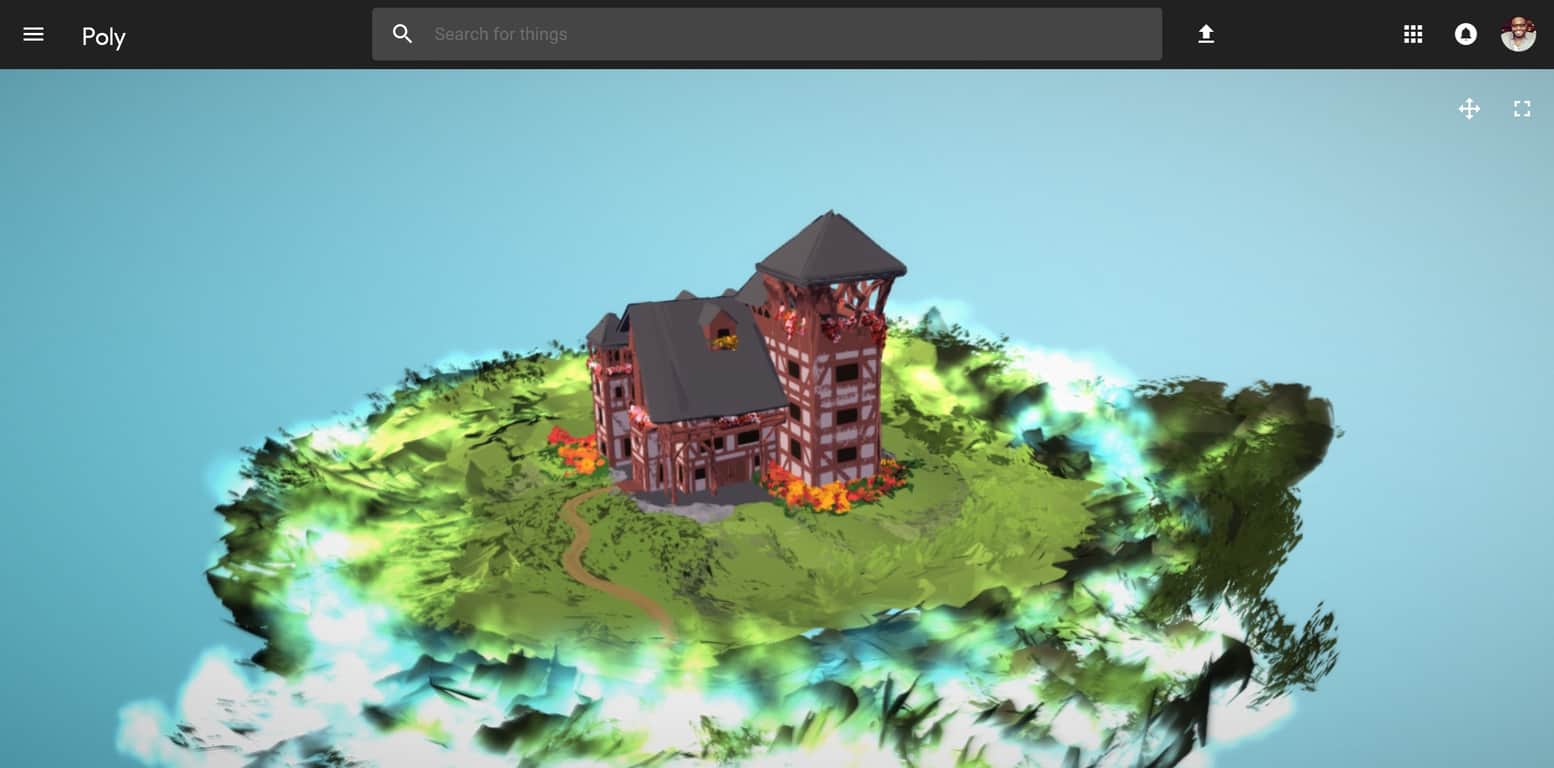
Google follows in Microsoft’s footsteps with its new Remix 3D-like community Poly

Once again, it seems Google is playing the “anything you can do I can do better” game with Microsoft after announcing its new community library of 3D content called Poly.

Poly is eerily similar to a recent Microsoft initiative called Remix3D which can be found, in part, in the most recent Windows 10 Fall Creators Update as well on the web where it offers a social media component where users can go to view, download and engage with 3D objects.

Thankfully, Google is differentiating their Poly a bit more than their Doc facsimile efforts by coupling their 3D community with their phone-based VR  development. Instead of doing a carbon copy of Remix 3D, Google is tieing Poly to Google VR and apps such as Tilt Brush and Blocks. Out of the box, Google claims Poly will support Wavefront OBJ and we can assume the company will expand its support platform in the near future to include FBX, STL, PLY and 3MF like Remix 3D currently does.

Thanks to some early interoperable development, the community of 3D users has just expanded for both Microsoft and Google as Poly will play nicely with Remix 3D allowing anyone to download from an open library of OBJ formatted objects. Furthermore, Poly users can go from crafting handmade 3D objects to porting them into Remix 3D and using Windows 10’s native 3D printing support to bring them into the real world.

While we won’t be seeing Microsoft and Google holding metaphoric software hands anytime soon, it is nice to see the use of standards bring them a bit closer together.

eBay app for Windows 10/11: what happened?


Update – eBay app no longer on the Windows Store

eBay app was pulled from App Store. The company has also discontinued the support for those who still have the app installed. If Windows Store tells you to update it – don’t waste your time – it’s over for eBay app on Windows platform. From now on, you will just have to use eBay services from your browser (in case you don’t have the app installed already on one of your devices). You can find more information in our dedicated article about the discontinuation of eBay app on Windows devices.


The official eBay app for Windows 8, Windows 10 is a shopping companion wherever you are; but it also comes with friendly features for sellers, as well
ebay windows 8 app
eBay is a resonating name in the Internet marketing world. Although when it started, back in 1995, as a small part of a bigger website, runned by Pierre Omidyar, nobody did suspect it was going to evolve into the biggest online auction and shopping store. This international giant has developed apps in the past, aimed at the users of eBay, so they could carry on their shopping needs wherever they were.

Now, with the rise of Windows 8, Windows 10 and a host of new devices hitting the market as we speak, eBay Mobile wanted to get a head start, and so, they have pushed out the eBay official Windows 8, Windows 10 app. The app is free to download from the Windows Store and from a first look, it manages to keep the eBay feel even on this new platform.

eBay on Windows 10, Windows 8/RT: sexy shopping app

When launching the app, you see a very eye-pleasing interface, perfectly integrating the Windows 10, Windows 8 Modern UI. A clean, but very useful bar at the right of the screen informs you about the best Daily Deals and the main part of the screen has tiles that help you find your way around the app and to be honest, very well thought because they make for improved productivity. The layout contains:

  • Watching
  • Buying
  • Selling
  • Saved Searches
  • Deals
  • Search

The app works even better than I expected, it’s obvious that the developers have really put a lot of thought in the creation of the app, both the UI and the components of the app work very fast, with almost no lag. In the ebay for Windows 10, Windows 8 video review, you can see how well the app is designed. One thing I did not like about the app is the fact that upon adding an item to your watchlist, it does not appear right away, but it takes a couple of minutes for it to get there, and the picture of the item is also appearing after another 1-2 minutes. Although this is not a major issue, it is the only thing I could find wrong with the app at this time.

What I didn’t like about that Daily Deals section is that it eats up a lot of space and there are only 5 items displayed. Not very clever, if you ask me. So, if you’re looking for more deals, then simply click on that section and more (much, much more) will apear in one row, then will continue on 3 reviews. A nice design touch. The deals are then organized in multiple categories. When you sign in with your eBay account, the “Saved Searches” tab appears.

Where it fails

Searching for items is being performed through the “immortal” Charms bar. If you find the product that you were looking for but you don’t have enough money to buy it or if you’re not quite sure you want to make the purchase, then you can “watch” it. Just click “Watch” and it will go int your Watch list and will remain there. However, I didn’t manage to complete the purchase of any item, because, apparently, it isn’t enabled on eBay Mobile. So, basically, I had to go on the eBay website to do that.

Another big drawback, perhaps the biggest, is the fact that you can’t sell directly within the app, again, you have to exit the app and access the website. After right clicking anywhere in the app, you find the “Sell on eBay” button only to discover the following message:

Pretty sad for those that are actively selling on eBay. I imagine that having a Windows 10, Windows 8 or Windows RT device on the go and being able to use it to change your selling portfolio is what many sellers have imagined doing, but sadly, the eBay minds thought otherwise. Thus, the eBay application on Windows 8 is much more for buyers then for seller and acts like a “middle-man” for your purchases, since even those can’t be finalized within the application.

Now, let’s recap all the features that eBay for Windows 10, Windows 8 has:

  • Very well designed UI, intuitive, easy to use and pleasing to look at
  • Very good performing with minimum lag and very fast search
  • The information is very well structured
  • The app allows you to save searches for later use
  • You can add items to your watch list to keep an eye on them

As you can see, eBay is a very aesthetic  app to have on your Windows 10, Windows 8 device. I very much prefer it over the old fashioned website but I can only hope that they’ll improve it in the future, otherwise, for now, it’s only about the looks and not the “substance”. To learn more about how eBay looks and feels on Windows 10, Windows 8, have a look at the video below.

Download eBay for Windows 10, Windows 8/Windows RT

Fluent Design update for Windows 10 Mail and Calendar apps now available for everyone

Some well-needed Fluent Design touches were previously being tested in the Windows 10 Mail and Calendar apps with Windows Insiders over the last few weeks. Today Microsoft revealed that the redesigned apps are rolling out to the desktops of all Windows 10 users on the Production Ring.

The version 17.8700.40485.0 update completely revamps the Windows 10 Mail and Calendar apps, adding in a clean and concise look throughout the experience. There are now acrylic and reveal effects on the hamburger menu of the apps, and a touch of light as you hover over items in the list. Finally, there’s also a new boardless user interface, allowing content to extend to the uppermost portions of the window.

Some other new features were noted by Microsoft in the changelog for the update, including hundreds of new colors to brighten up your calendars. It’s great to see that Fluent Design is spreading to more and more apps in Windows 10. If the recent leaks about the Settings app hold up to be true, Windows 10 might as well look completely revamped once Redstone 4 is released.

Skype gets a SAVEUR recipe bot just in time for holiday festivities

Skype has just added a Food and Drinks section to its Bots directory, which now counts the new SAVEUR bot from the gourmet magazine of the same name. “The SAVEUR bot will message you with delicious recipes every week and provide helpful tips and tricks to help you unleash your inner master chef,” the Skype team explained in a blog post today. “Just in time for Thanksgiving and end of the year celebrations, the bot will fuel your culinary curiosity and inspire you with new, seasonal recipes.”

We went hands-on with the new Skype bot and it seems to work as advertised. Despite some excitement last year, messaging bots didn’t exactly change how we use messaging apps, and the tech industry is still figuring out how to make bots more efficient than just using the web or dedicated apps. This new Skype bot does nothing revolutionary, but if it can definitely satisfy your food curiosity. You can add the bot directly to your Skype contact list by clicking here.

All about Assassin’s Creed: Origins big November Xbox One update

Assassin’s Creed Origins just launched last week, but Ubisoft is hinting that there is a lot more to come in the November Update to the game. The update is set to introduce HDR support, Trial of the Gods, and more additions to the In-Game Store.

With Trial of the Gods, players can expect to face the ultimate boss battle. Ubisoft will be adding the god Anubis to the game and will be sharing more details in a follow-up article soon. Additionally, in November via the Nightmare Pack and First Civilization Pack, Ubisoft will release in-game items. Read more about what else can be expected with the November Update below.

  • We are planning to deploy a title update in November that will ready it for the launch of the Xbox One X, improving stability, and adding additional support for HDR on all supported platforms.
  • Nightmare Pack – November 14: Includes four weapons and a mount.
  • First Civilization Pack – November 28: Includes four weapons and a mount.
  • In addition to the packs, we will also be releasing some bundles that include gear, a mount, and a brand-new outfit in each. The Roman Centurion (November 7) and Horus packs (November 21) are included in the season pass.

Ubisoft will also be hosting a Community Stream later today, so be sure to tune in if you’d like to have a chance to win some prizes and hear from community managers. Are you enjoying Assassin’s Creed Origins? Let us know your thoughts below.

Poll: Office 365 is catching on, do you use it?

Microsoft is reaching record stock price highs, and has been on quite a roll lately with the release of Windows 10 Fall Creators Update, the upcoming launch of the Xbox One X, and some serious momentum for its cloud component, Microsoft Azure.

One area of the company that’s seeing huge growth and adoption is Office 365, the subscription service offering pay as you go versions of Office, a Slack competitor in Teams, and integrations with SharePoint, with OneDrive, with Exchange and Azure Active Directory, and with an ever increasing portfolio of apps and services like Flow, Sway, Planner and more.

Office 365 seemingly has a plan for everyone, too, from Office 365 Personal (for a single user) and Home (5 users) to enterprise offerings and even Microsoft 365, which not only includes Office but Windows 10 in a subscription service.

So, do you use Office 365, either as a standalone product via Personal or Home, or as part of your school or work? Do you benefit from the built-in services that come with Office 365, like Groups or Teams, or do you primarily just take advantage of always-up-to-date versions of Word, Excel, and PowerPoint? Take our poll below and let us know what you’re using:


At OnMSFT.com, we’ve been using Office 365 Business Essentials for close to a year now, making extensive use of Microsoft Teams and Planner, as well as taking advantage of the shared documents abilities of OneDrive for Business, and have toyed with Power BI and Flow, although we probably don’t get nearly as much out of O365 as we could. What about you, are you a heavy or light user of Office 365, or have you gone in a different direction entirely? Let us know in the comments below

Demand for the Xbox One X is “super high” says Microsoft’s head of devices Panos Panay

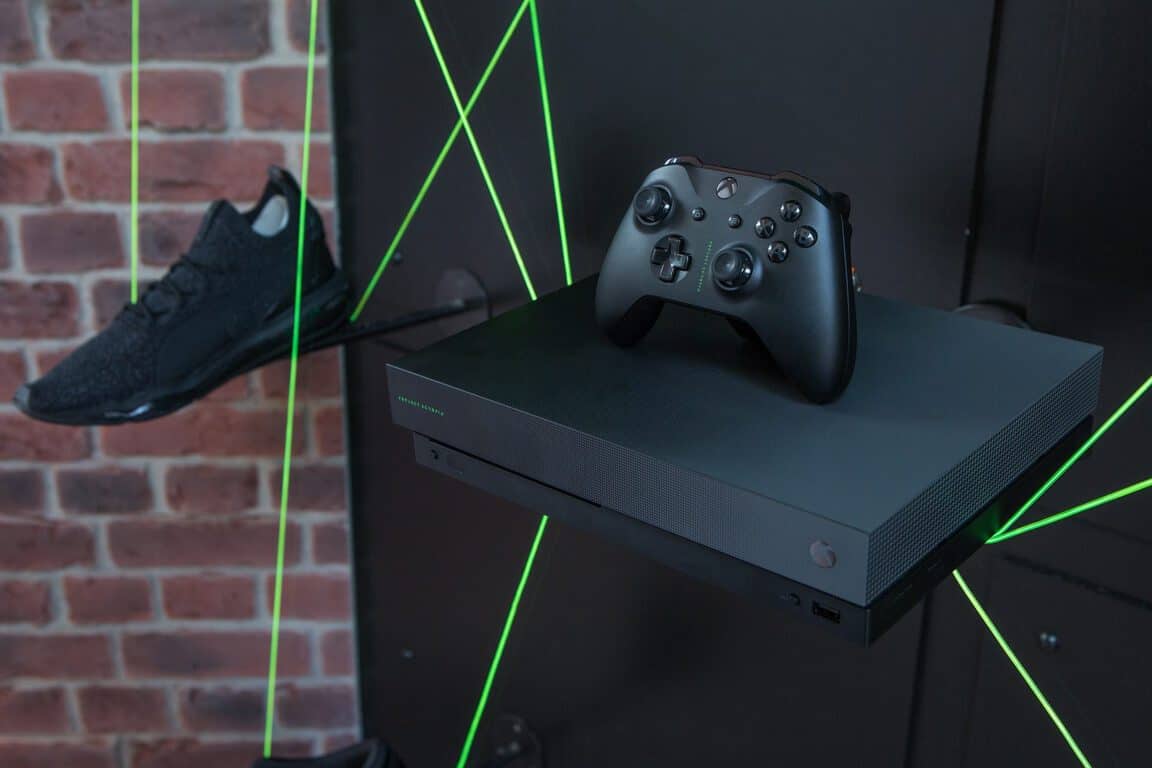
We’re now less than a week away from the worldwide release of the Xbox One X, and the stars seems to be aligned for the new console to do really well during the holiday season. Microsoft promised that 70 Xbox One X enhanced titles would be available on November 7, with many more to be released over the coming weeks including PUBG.

In an interview with CNBC yesterday, Microsoft’s Corporate VP of Devices Panos Panay shared that demand for the Xbox One X surpassed the company’s expectations. “I won’t talk about the exact numbers but the demand is super high, we are very, very excited about Xbox One X right now,” the exec said. “I won’t compare it to other consoles. What I’ll say is the demand for Xbox One X right now is exactly where we anticipated, even more so when you see that excitement for the product… this is something that resonates with gamers.”

At the time of this writing, the Xbox One X is currently the third best-selling item in Amazon’s Video Game Consoles & Accessories category, and sitting behind the Nintendo Switch. After being sold out for a while, the new console went back in stock on Amazon last week and you can still pre-order it if you want to join the fun on day one.

Microsoft plans to triple its Azure presence in China in the next six months

Today at the Microsoft Tech Summit 2017 in Beijing, Microsoft announced plans to triple their Azure presence in China over the next six months. The expanded presence will offer up new opportunities for Azure customers, helping businesses and cooperations expand their overall coverage in Asia.

Microsoft is planning to triple the capacity of the Microsoft Azure operated by 21Vianet in China. This was originally launched in March of 2014 and was the first international public cloud service to become available in the China market. As required by Chinese law, Azure in China is mainly provided via a partnership between Microsoft and Chinese datacenter operator 21Vianet, setting the stage for other cloud services who have considered entering the China region.

Azure has over 1,000 cloud partners in China, and 80,000 enterprise customers such as Lenovo and Huawei, and even mobile phone manufacturer Xiaomi. It will be interesting to see how these companies can use Azure to their advantage in the months ahead.

Guide: Optimize Wolfenstein 2: The New Colossus for the best experience

Wolfenstein 2: The New Colossus is one of the demanding games you can get today. That automatically qualifies it as a premium AAA title for many gamers.

However, this game is also the proof an expensive production and beefed up graphics is not what makes a game ‘good’. At least that’s what players have been saying.

I’m not going to argue here whether the game is ‘good’ or not. I’ll leave that job to more relevant reviewers. As always, I’ll go all technical.

People who have already played Wolfenstein 2 would agree that the game is not so well-optimized, to say the least. You’ll have to work your way around it, if you want to get the best out of this title. And in this article, we’ll talk about just that.

I’ve found some handy tips that will make your life in Wolfenstein 2 easier. So, if you want the game to stop being annoying, I recommend checking these.

How to optimize Wolfenstein 2: The New Colossus

Install Game Ready drivers

First of all, don’t even bother installing this game without the latest Game Ready drivers. Around half of the reported issues in Wolfenstein 2: The New Colossus have been fixed with the hotfixes. For both AMD and NVidia GPUs.

AMD and NVidia released Game Ready drivers just a few days after the Wolfenstein 2 release. Before that, Steam forums were flooded with various error and crash reports. So, installing the latest drivers is highly recommended!

You can download drivers from these links:


Set your primary GPU

If your computer has multiple GPUs, you have to ensure your drivers are selecting the ‘right’ one for playing Wolfenstein 2. Of course, that’s not your integrated GPU.

Although this doesn’t happen too often, it’s possible. And you’ll know when your system is using the integrated GPU, as, well, you probably won’t be able to launch the game at all.

To change these settings, go the NVIDIA Control Panel/AMD Catalyst Control Panel and make that Wolfenstein II: The New Colossusx64.exe is using your primary GPU.

More instructions:


Change your power plan

If you’re playing this game on a laptop, congratulations! You own a beast! All jokes aside, you power plan can have the impact on your in-game performance. So, make sure your power plan is set to High Performance. And of course, plug in your power cable. 

If you don’t know how to change your power settings, just follow these instructions:

  1. Click the battery icon in the taskbar
  2. Select More power options… > Show additional plans 
  3. Select High performance

Install the latest version of DirectX

Wolfenstein 2: The New Colossus requires the latest version of DirectX, the DirectX 12. If you don’t already have it installed on your computer, you can download it from this link.


Change in-game graphics settings

Of course, if your GPU is not strong enough for running the game at max settings, you should change some in-game graphics change. Here are the settings you should look for:

  • Lower the Resolution.
  • Change the Anti-Aliasing settings
  • Decrease texture level
  • Decrease level of shadow details

Of course, you’ll be sacrificing looks for performance here. So, if you have a ‘stronger’ GPU, changing these settings is unnecessary.


That’s about it, I certainly hope these settings will help you get the best out of this game. To wrap it up, once again, the most important thing here is to install the Game Ready drivers! So, don’t forget that.

In case you have any comments, questions, or maybe suggestions, let us know in the comments below.

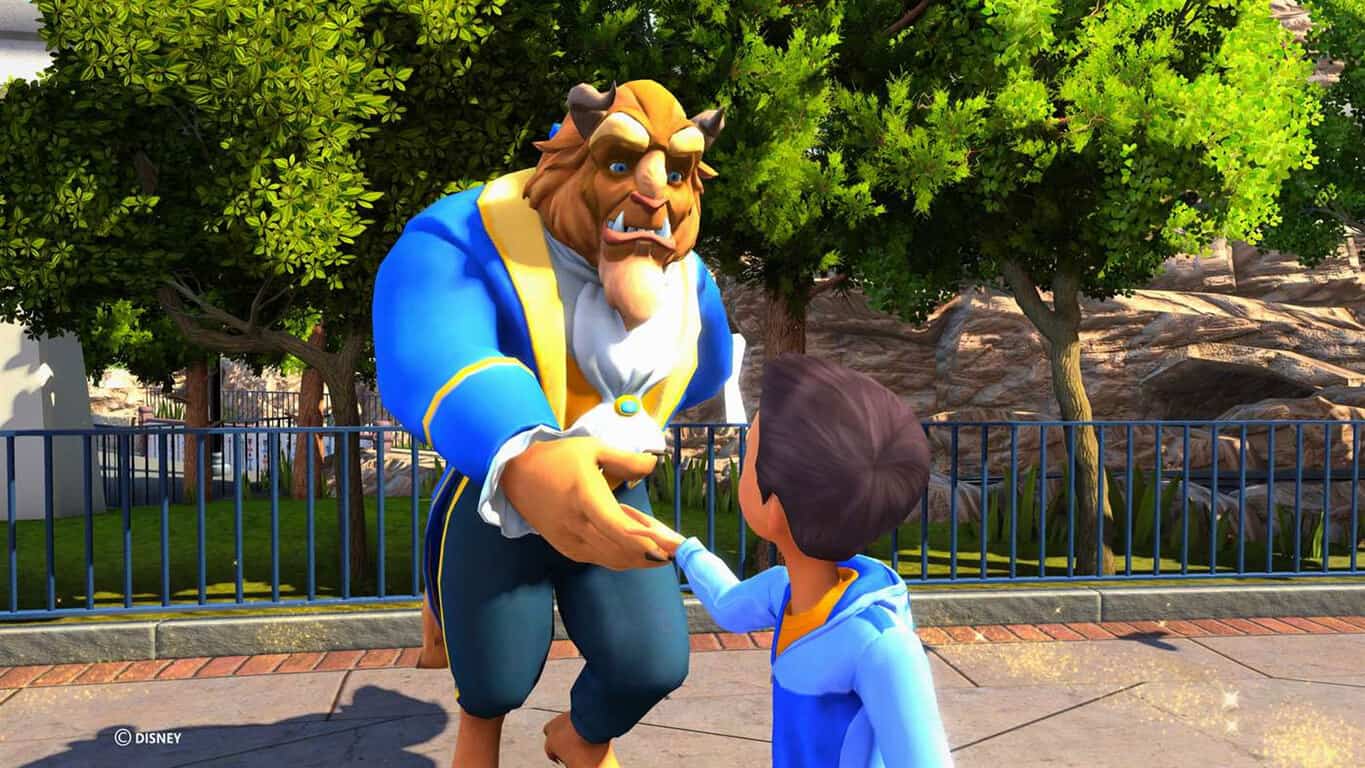
Disneyland Adventures launches today on Xbox One with Kinect, 4K, & HDR

Disneyland Adventures is now available to play on Windows 10 and Xbox One and also supports Xbox Play Anywhere so buying it on one ecosystem will immediately unlock it on the other. The game is a re-release of the Xbox 360 title of the same name and also supports the Kinect sensor on Xbox One family of consoles and 4K resolution and HDR when played on the Xbox One X or a compatible Windows 10 PC. Here’s the official description.

Experience the magic of Disneyland like never before! Take a journey where stories come to life and dreams come true, right in your living room! Explore Disneyland® park — from Main Street U.S.A. to Critter Country — join Peter Pan to battle Captain Hook, high-five Mickey Mouse or hug Snow White. “Disneyland Adventures” allows children, families and Disney fans of all ages to explore Disneyland park, step into adventures based on attractions, engage in challenging quests and interact with beloved Disney characters remastered in 4K Ultra HD and HDR.

Have you played Disneyland Adventures yet? Let us know if you’re playing on Windows 10 or Xbox One in the comments below.

Disneyland Adventures
Developer:
Xbox Game Studios
Price:
Free

Zoo Tycoon returns to Xbox One in 4K with Kinect support

The re-release of Zoo Tycoon, Zoo Tycoon: Ultimate Animal Collection, is now live and ready to play on both Windows 10 PCs and Microsoft’s Xbox One family of devices.

Zoo Tycoon: Ultimate Animal Collection is a remaster of the original Xbox One video game but has been given a variety of new content and has also had its graphics upgraded to 4K for Xbox One X owners or those playing on a PC powerful enough. Here’s the official game description:

The wildly popular Zoo Tycoon series gets fully-remastered and set to crank up the excitement, challenge, and fun of building the ultimate zoo. Let your imagination run wild with “Zoo Tycoon: Ultimate Animal Collection”! Choose from almost 200 visually stunning animals and the largest, most detailed selection of environments ever, then build, manage, and maintain your dream zoo alone or with up to four players on Xbox LIVE. This zoo simulation will charm animal lovers of all ages. Easy to start and easy to play, Zoo Tycoon on Xbox gets you up close and interacting with the animals and zoo, offering intuitive controls and fun tutorials that allow players of all ages to have fun. Play smart as animals and guests will react to your creative choices and ultimately decide your chances to become a Zoo Tycoon.

Like the original, Zoo Tycoon: Ultimate Animal Collection also features support for the Xbox One’s Kinect sensor for added interactivity. Will you be playing with just the controller or are you going to give the Kinect features a go as well? Share your thoughts with the community in the comments below.

Microsoft begins testing Xbox One games gifting with Insiders

Build 1711.171024-1923 has begun to rollout to all Preview BETA and some DELTA Xbox Insiders today. This update adds several improvements to the setup process for new users, more varied idel notifications, miniature Game Hubs to the Guide, the ability to hide games with no Gamerscore, and finally digital game gifting. Here’s the full, detailed, release notes:

Last week, we delivered an upgraded console experience to Xbox One owners that focused on personalization and speed improvements. It was a massive update, but we aren’t done just yet. Over the next few weeks, we’ll be addressing customer feedback and adding even more great new features that gamers have been asking for.  Here’s a sneak peek at what to expect:

  • For Xbox Insiders in the BETA ring, the Microsoft Store now enables gifting of select digital Xbox One games, “durable” downloadable content (DLC) (map packs, weapon skins, etc.), Xbox Live Gold, and Xbox Game Pass—right from your console! Just choose a game within the Store, select “Buy as Gift,” and send it to your friends or family members by picking their Gamertag or entering their email address.
  • NOTE: Digital gifting will be enabled for Preview BETA @ 2:00PM PDT on 10/31 and is not tied to the system update. Please see Digital Gifting below for more information.
  • In addition to games and friends, you will soon be able to add club blocks to Home. We’re also making it easier to explore additional types of blocks at the bottom of Home by adding a new section under “Add More.”
  • We’re improving the setup experience to make it better for both new users and upgraders.  The settings from your home console will now be saved to the cloud, just like your game saves.  Whenever you set up a new console, you will have the option of applying these settings during the sign-in process.
  • Additionally, your console will now back up even more settings, including your TV & OneGuide settings. This expansion will provide a simple experience when you transition from one console to another using the settings backup to your external games and apps storage device.
  • The Xbox app for iOS and Android will now enable you to finish setting up your new Xbox One X console while it’s downloading the day one update. Additionally, we’ve also improved the process for enabling 4K output right out of the box.
  • Xbox’s new notifications provide an at-a-glance status of what activities you can immediately step into after you’ve had to step out for a moment. We’re adding additional notifications types when your system goes idle, including LFG posts, broadcasts, and Achievements.
  • We’re adding miniature Game Hubs for your most recently used games in the Guide. That way, you can access the great content on a game hub without having to leave the action.
  • Adults who have enabled the “Buy & download” online safety setting will now have an easier time purchasing games thanks to a passkey/password challenge directly in the Xbox dashboard.
  • We’ve heard your feedback! Games with no unlocked achievements can now be hidden from the personal and public view of your profile.

These features will roll out to Xbox Insiders over the next few weeks. Insiders can check the release notes within the Xbox Insider Hub for more details, or navigate to the Xbox Insider forums at forums.xbox.com.

Digital Gifting

You’ll soon be able to send digital games and subscriptions as gifts to your friends and family in the Microsoft Store (on Xbox, Windows and on the Web), and today (10/31) at 2:00PM PDT we’re allowing Preview BETA participants a first look!

NOTE: Access to the digital gifting feature is tied to your Gamertag. You’ll have access to digital gifting on any Xbox One console with the Gamertag used to enroll your console(s).

  1. To access digital gifting:
  2. Sign in on an Xbox One console.
  3. Launch the Store and navigate to the Store page for a product.
  4. You’ll see a new [Buy as gift] option on the Store page if the product is eligible for digital gifting.

When purchasing a gift, the gift will be delivered to the recipient via email message containing a digital code for the item. The email will be sent immediately upon purchase. The email message will provide the gift recipient with instructions on how to redeem the digital code.

On Xbox, users have the choice of entering the email address of the gift recipient or selecting a friend from the Friends list. In addition to receiving a gift message via email, on Xbox, if the Friends list is used, the gift recipient will receive a system message from Xbox Live containing the digital code along with a one-click redemption button.

  1. In addition, please join the Digital Gifting flight in the Xbox Insider Hub to give us feedback:
  2. Launch the Xbox Insider Hub.
  3. Navigate to Insider content > System > Digital Gifting.
  4. Select Join.
  5. If interested, complete the digital gifting Quests Email: Gift a Game and Xbox: Gift a Game.

There are a handful of rules and restrictions currently in place for digital gifting:

  • Users can gift select Xbox One games, downloadable content (DLC), and subscriptions (Xbox Live Gold and Xbox Game Pass)
  • Gifting of “durable” game DLC (map packs, weapon skins, etc.) is supported, but the gifting of “consumable” game DLC (virtual currency, etc.) is not supported.
  • When a particular item is discounted, users are allowed to send two (2) gifts of that item every fourteen (14) days. The 14-day clock starts once the first copy is purchased at discount. Once the limit for that item is reached, users will not be able to purchase that item again as a gift until the 14-day period is over, even if the product is no longer discounted.
  • Users are allowed to send ten (10) total gifts at discount every 14 days. There are no limits on items that are at full price.
  • Not all Xbox One games are available for gifting, including some XPA titles.
  • Xbox 360 backward compatible games and consumable DLC (such as virtual currency) are not eligible for gifting.
  • Pre-ordered games and pre-ordered durable DLC are not eligible for gifting.
  • Digital codes can only be redeemed in the country/region where they were purchased.
  • Refunds for digital gifts are not supported, nor can entitlements for content or subscriptions be transferred once redeemed.

Please see the gifting terms and conditions as well as the Microsoft Store terms and conditions for a full list of policies.

FIXES:

  • Home: Resolved an issue which sometimes prevented content blocks from being added to Home.

Party chat

  • Fixed an issue which sometimes caused party chat to unexpectedly disconnect.
  • Miscellaneous improvements for party chat stability.
  • Blu-Ray Player: Resolved an issue which could cause the console to get stuck displaying video content in 24hz after playing a Blu-Ray.
  • Resolved an issue which caused 3D Blu-Rays to play in 2D.
  • Dolby Atmos: Fixed an issue which caused Dolby Atmos settings to reset after resuming from connected standby.

Are you an Xbox Insider and have you played around with this build yet? Let us know your thoughts in the comments.

What is PC error 8790 and how to fix it on Windows 10

The PC error 8790 is a common error found on computers using a Windows operation system. The error code will appear on your screen if one of your drivers or applications on your PC is either outdated, damaged, or corrupted.

Since there are multiple possible factors that can cause this error, there are also multiple possible fixes.

Below are the most common, effective solutions that will help you fix the PC error 8790. However, before we get into the different solutions, it is important to know exactly what this error is and what causes it.

What is PC error 8790 and what causes it?

This error can appear on Windows xp to Windows 10 and every version of Windows between. It’s a virtual TMP file that appears when something corrupts a file system that is related to the drivers on your computer.

Typically, malicious adware viruses, Trojan viruses, spyware, etc, are the culprits behind this error. However, this error can also appear if the user accidentally deleted key files of an application by mistake.

Now that you know the basics about this error, lets get started with the possible solutions.

How to fix PC error 8790 on Windows 10

1. Run a scan on your anti-virus program

As I mentioned above, viruses and spyware are probably what are causing this error to appear. Therefore, it is only logical to run a scan to clean your computer from harmful files.

It is important to remember to constantly keep your firewall applications up to date, as an update could help better protect your computer from new, emerging threats.

Furthermore, you will want to initiate a full computer scan, as a quick scan may overlook certain files. You may want to restart your computer if you found and eliminated a virus.


2. Reinstall the damaged programs

If you manage to identify the application that is causing this problem, then it is highly recommended to reinstall said program. The reasoning behind this is that one or more of your files in that application could be damaged or corrupted.

Reinstalling the software, will give your application a fresh start with new files to work with.


3. Perform a disk clean up

Sometimes, cleaning your temporary files through Window’s built in “disk clean up” app can help solve this problem.

To perform a disk clean up on Windows 10, type in “disk cleanup” on your start menu and click on the application with the same title. Afterwards, make sure to click on the check box next to “Temporary Files”.

Press Enter when you are ready to do a disk clean up. If you are still unsure which box to check, you can refer to the sample picture below. 


4. Undo system changes

This fix is great for users who think they have accidentally deleted an important file, which led to the error message appearing. Fortunately, Windows offers a highly useful tool that allows users to undo any unwanted system changes by reverting your PC to previous restore points. Here is how you can perform a system restore on Windows 10:

  1. First open the start menu by press the windows key on your keyboard, or by clicking on the windows icon located on your bottom left side of your task bar.
  2. Next, type in “create a restore point” into the menu.
  3. A system properties windows should open. Make sure you are in the “System Protection” tab.
  4. Locate the option called System Restore and click on it. 
  5. Once the System Restore window opens you will be presented with two options: Recommended restore and Choose a different restore point. If the recommended restore point is dated before the error started appearing, then select it. Otherwise, you may need to choose a different restore point.

Conclusion

So, if you run into the PC error 8790, then you will want to try these fixes. Of course, since there are multiple causes of this error, you may have to try a few fixes before you stumble on the correct one.

READ ALSO: 

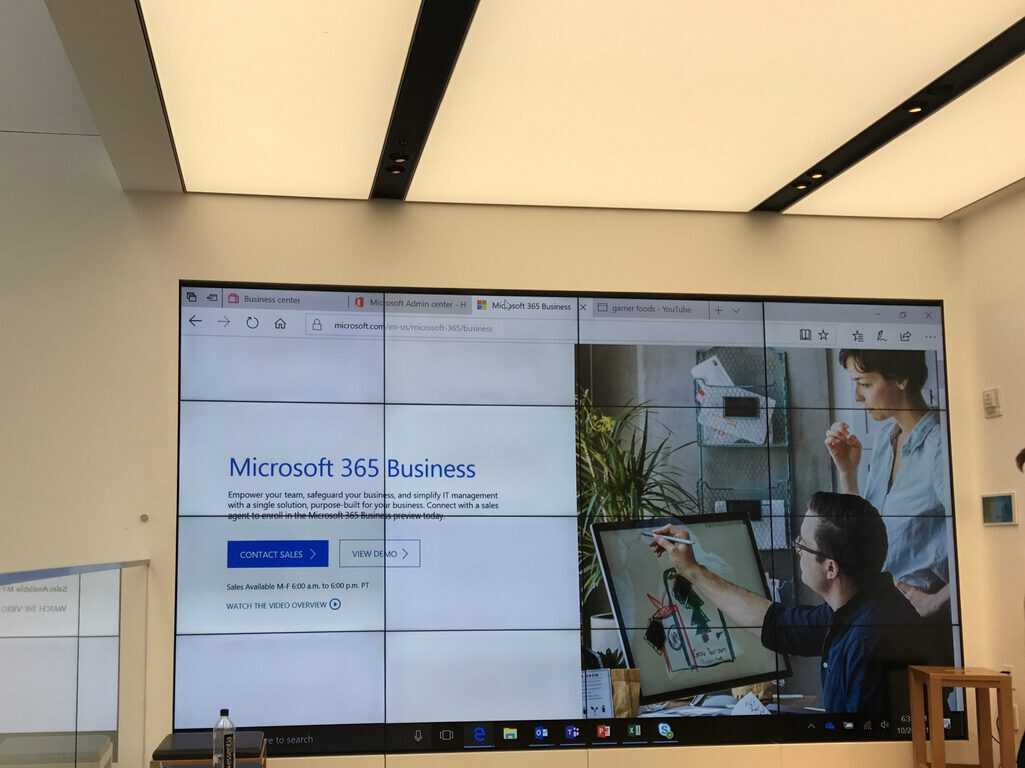
Microsoft 365 Business launches, includes Office 365, device management, new apps

Today Microsoft is announcing the general availability of Microsoft 365 Business in the United States, U.K, and Canada. The new solution combines productivity, collaboration, and device management tools and is designed to help medium and small sized businesses with up to 300 employees simplify IT management.

Microsoft 365 Business includes the familiar Office 365 productivity and collaboration tools and Office apps that businesses need to be most productive: Teams, Word, Excel, PowerPoint, Outlook, SharePoint, and OneDrive. Coming as a centralized and integrated solution, Microsoft 365 Business also allows medium and small businesses to safeguard their company information, extend their security and productivity across apps, while also making sure PCs are up to date and secure.

Also designed to help reduce the costs of managing technology for businesses and IT partners, the Microsoft 365 Business solution includes the necessary tools to allow for a simple set up and management of devices. From the Microsoft Admin Center in Microsoft 365 Business, a company can configure device settings, remove company data from lost or stolen devices, or add and remove new employees. This all simplifies set up and management, enabling business owners to spend more time building their businesses and less time worrying about technology.

Microsoft 365 Business was designed to reduce the complexity and costs of managing technology for businesses and their IT partners. It offers simple setup and management, so business owners and their team can put more of their time and energy toward building their businesses. From a single console, you can quickly set up new employees, configure device security policies, and manage user identity and access, as well as ensure all your people are on the most up-to-date versions of Windows 10 and Office.

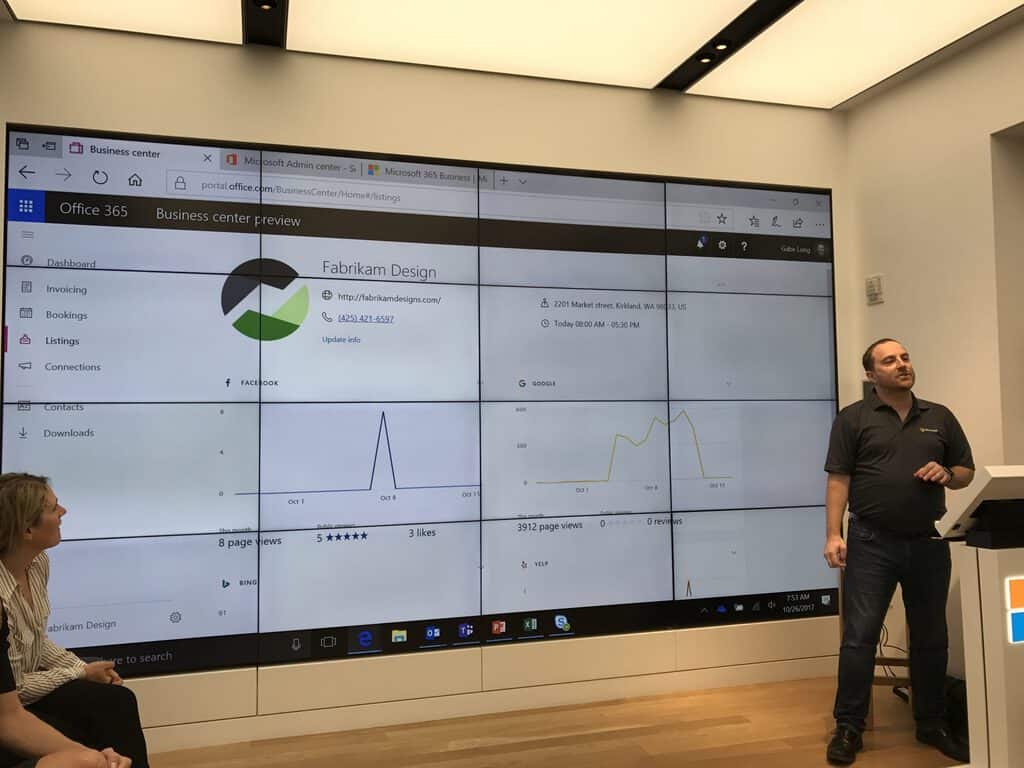
Microsoft 365 Business includes access to Staffhub, and three new business apps— Connections, Listings, and invoicing, which will further help a business grow and thrive. Managed from the Microsoft Business Center Portal, a user can all the apps and get a single snapshot of all the day’s work. You can check out more about the included apps by clicking here. Business owners should free to visit a local Microsoft Store for a workshop or visit this webpage for more information about the $20 per user per month pricing for Microsoft 365 Business.

New Microsoft 365 Business apps Connections, Listings, Invoicing hit general availability

Along with the availability of Microsoft 365 Business, Microsoft today announced the availability of Microsoft Connections, Listings, and Invoicing for Microsoft 365 Business and Office 365 Business Premium. The apps can be managed in the Microsoft Business Center in Microsoft 365 and will be rolling out to customers in the United States, United Kingdom, and Canada starting today.

Paired with the power of the pre-existing Microsoft Bookings, Outlook Customer Manager, and MileIQ business apps, the new apps are expected to bring businesses new ways to manage customer relations and build a business.

We start with Microsoft Listings, which is designed to help a company get listed on Facebook, Google, Bing, and Yelp all from one location. The app ensures that a business name, address, phone number, website, hours, and logo are all up to date across these social platforms.

Next up is Microsoft Connections, crafted to help send professional looking marketing emails to showcase a brand and help drive sales. Businesses can use Microsoft Connections to engage with customers and set up individual refer a friend incentives.

Finally, there is Microsoft Invoicing, specifically tailored for businesses to help generate estimates and invoices that look professional. The app allows for businesses to get paid fast with online payments via PayPal, and can even be used to track pending and partial payments, find draft estimates, and past invoices or set sales tax and other discounts.

These three apps can be managed from the Microsoft Business Center, which is a central access point and dashboard powered by the Microsoft Graph. Key business metrics such as outstanding invoices, email subscribers, online impressions, and total bookings can all be tracked via the Business Center.

The three apps all build on Microsoft Bookings (an app to manage customer’s appointments,)  and Outlook Customer Manager (allows for quick access to all customer information.) Microsoft is also updating MileIQ, and will be making it smarter to automatically classify drives as business or personal.

Finally, Microsoft announced that Staffhub will be included in Microsoft 365 Business. The app helps employees manage their workday, allowing business owners and first line employees to easily create and manage schedules, assign and complete tasks, and communicate with each other.

You can learn more about these apps by visiting the Microsoft 365 Website, or by attending a workshop at your local Microsoft Store.

These 8 secure online shopping tips are so simple, your kids can do it

Have you been shopping online lately from your Windows PC? Today, we will be giving you secure online shopping tips to protect you and of course your money.

The world has moved on from shopping physically to virtually, hence, gradually transforming the world into a global virtual market. This gradual transformation has generated safety concern; hence, the security of the online shopping process between online retailers and online shoppers must be addressed.

However, there have been safety measures implemented by online retailers such as SSL certificate usage and other cyber security options; but we are also concerned about you the online shoppers.

Therefore, in this post, we will give 8 secure online shopping tips to increase your online shopping security options especially when shopping apps are not working.

Here are the 8 secure online shopping tips


  1. Update your Operating System, browser, and antivirus software


secure online shopping tips

First of all, you need to update your Windows OS, phone, browser and antivirus software. Microsoft frequently releases OS updates which contain patches that fixes latest threats, or loopholes which hijackers use to penetrate your system.

You can take advantage of Windows updates to improve your PC performance, stability, and functionalities. Updating your phone will also help you avoid rejected transactions on Google Pay when there’s a compatibility issue.

In addition, outdated web browser is prone to data leakages when you shop online. However, when you update your web browser, it will be able to withstand any penetration attacks from hijackers.

Also, you need to update your antivirus so as to secure your online shopping process. You can update Windows Defender a built-in antivirus by Microsoft, or any third-party antivirus program available on your Windows PC. We also recommend that you turn on the protection status on your PC.


  1. Run a full system scan frequently


Well, if you have a good antivirus on your Windows PC, running frequent system scan will help you system to weed out malware, virus, crapware, and most especially spyware from your system.

Spyware runs like a normal process on the PC; hackers use it to spy on your browsing activity, browsing history, and even keystroke logs. Keyloggers are example of spyware; removing them will secure online shopping process on your PC.

Read Also: Best anti-keylogger software to obliterate keyloggers


  1. Use Strong Passwords


Sometimes, online shoppers use weak passwords such as abc123, password, 123456, “their names”, etc. However, these passwords are easily cracked by hijackers who steal their account information.

Hence, we highly recommend that you use strong passwords for your email address and online shopping accounts.

Read Also: Top 5 Windows 10 Password Managers to Use


  1. Shop on site with the HTTPS://


secure online shopping tips

Secure online shopping is only possible on a secured website which has SSL. Secure sockets layer (SSL) certificate is issued to a website which has the encryption layer that prevents hijackers from tampering with information passing to and fro on the online shopping website.

You will know a site is secure if the URL for the site start with HTTPS:// instead of just HTTP://. In addition, the icon of a locked padlock will appear in the status bar at the bottom of your Web browser.


  1. Are you buying from a real online shopping site?


Some hackers set up fake or cloned online shopping websites to deceive unsuspecting online shoppers. Fake online websites can infect your PC with spywares, or even viruses so as to damage your PC.

However, you can carry out WHOIS CheckUp by typing “whois” followed by the URL in search engine’ search bar; this will check if the domain name is registered by the company or an individual. You can also detect a fake online shopping website by using search engines for reviews about the online shopping site.

Prefer legitimate discounts from well known retailers and official programs such as Kroger digital coupons rather than deals from unfamiliar websites.


  1. Use secure Internet connections


secure online shopping tips

If you are on a free Wi-Fi connection and you are shopping online, then you may be compromised. Hackers can monitor your Internet activity on an unsecured connection. Information such as emails, addresses, passwords, checkout information, and other personal information can be intercepted.

We know that a free and open wireless connection means a lot to us when online; but, we recommend that you connect to the Internet wirelessly over a virtual private network (VPN) connection. Another option is to connect to the Internet privately by using Dialup Modem.

Read Also: 10 best VPN tools for Windows 10


  1. Use a password manager


secure online shopping tips

Believe it or not, you need a password manager so as to secure online shopping activity. Sometimes, online shoppers use the same password for all their accounts such as email address, social media, or even online shopping accounts; this itself is a major security risk.

Meanwhile, we do recommend that you use different passwords for your online shopping accounts; but constantly remembering too many passwords at the same time is another issue.

However, we do recommend that you use a password manager, so as to ease out the process of secure online shopping by generating secure password, and initiate your login details. Some Windows compatible password manager that you can use include Password Padlock, LastPass, etc.


  1. Don’t give out more private information


One of the best ways to secure your online shopping process is not to give out more private information than necessary. Some online shopping websites request for private information such as social security number, or date of birth; however, they do not require this information to deliver your goods.

This private information may contain clues to your email address, ATM pin, and bank account details. We do recommend that you do not give out sensitive information that could be used to violate your privacy.


  1. Bonus Tip – Keep a record of your transactions


In addition, you need to check your online shopping records and compare with your banking records. Sometimes, online shoppers do not remember the items purchased from online shopping site(s), most especially frequent online shoppers.

Irregularities may occur on a compromised online shopper’s banking account which is not easily noticeable. These irregularities can be fixed by comparing your online shopping details with the banking records.

Doing this, will enable you to identify the loopholes and resolve the impending issue.

Read Also: 8 best personal finance and accounting Software

Drop us a tip

Do you know of any tips which we did not mention above? We would like to hear your suggestions, feedbacks, or tips. Feel free to comment below and we would get back to you.

RELATED STORIES TO CHECK OUT:

Review of Minesweeper for Windows 10/11

This is probably one of the oldest games made for Microsoft, and even now, it retains a stable and constant number of users. The first versions of Minesweeper appeared in the ’70s when the first games were made.

Minesweeper has been among the star games in the Top Free Microsoft Store for quite a while. If you’ve been playing Minesweeper from the first Microsoft version, you’ll be pleasantly surprised by it in Windows 10.

Update: Minesweeper for Windows 10

Microsoft diversified Minesweeper by applying it to Microsoft Treasure Hunt (a Windows 10 game) . You can find the basics of Minesweeper in it, but you also have a story mode that might entertain the old-school players even more than the original. In the game, you will have the possibility to:

  • Play wherever you want (the game progress is saved in the cloud)
  • Connect with your Xbox device
  • Compete with other players for in-game high ranks
  • Purchase upgrades and supplies
  • Continue your game from all your devices
microsoft treasure hunt minesweeper

Microsoft found a way to bring Minesweeper to a whole new level. Let’s hope they will do the same with their other games.

Microsoft Minesweeper for Windows 10 review

minesweeper for windows

Quite soon, there will be a lot of games in the Microsoft Store, but currently, there are only a few. So, until more appealing games will be there, ones that could make even the iPad tremble, we’ll have to make do with such games as Microsoft Minesweeper.

But there’s quite a large number of people that prefer casual games to more advanced ones, so you’ll be surprised to see this one surviving despite bigger, more challenging games.

Since using apps in Windows 10 I realized that many of them get low ratings because they are still in their first versions. Well, not with Microsoft Minesweeper.

Who knows, maybe because it’s made by Microsoft or simply because it’s such a brilliantly simple game, but it currently has 4.2 out of 5 ratings. Everything is shiny and seems to fill up the entire space efficiently, unlike some other apps, like Evernote, which fail to do it.

Microsoft Minesweeper Windows 10 features

The games are free. Microsoft Minesweeper for Windows 10 is a classic puzzle game that has passed the test of time and has been updated for Windows 10. And the game isn’t at the first version, as the team has already managed to make an update on October 25.

Though it’s currently unavailable for ARM devices (those that run Windows RT), the team at Microsoft Studios has promised to fix that as soon as possible. Here’s what you can do inside:

  • Play 2 different modes: you can choose to play the old, classic Minesweeper style or the Adventure mode. One of the reasons why Microsoft Minesweeper for Windows 10 got such a good rating was the addition of Adventure mode. You must “travel” to the core of the Earth alongside your hero, collecting goodies while on the go. A modern approach to a veteran game is the right solution to make it a successful Windows 8 casual gaming application.
  • Daily challenges: to make sure that users are “hooked up” and stay connected with the game, as simple as it might not seem, Microsoft has created some daily challenges where you can compete against your friends, thus receiving badges. A good ego boosts loyal fans.
  • Xbox integration: using Xbox, you can do the same things as with the daily challenges feature, meaning you can compete against your friends, but you can also see your statistics and submit scores to the leaderboards to see who the king of the hill is in this game.
  • Different difficulty levels: the beauty of Microsoft Minesweeper for Windows 10 is that it gets more and more challenging for you to solve it. So, if you’re a brainiac, then you should be able to work your way up until the hardest level. I’ll confess that I am not a big fan of the game, especially because I’m not patient enough.

There’s not too much what else to say about Microsoft Minesweeper for Windows 10 as the actions that you can perform there are fairly limited, as it is a very basic game.

Suffice it to say that the touch experience is pretty awesome and makes it an even more personal game than it previously was. The biggest addition, the Adventure mode, will surely get some love from math-loving kids, as they will definitely love to explore as they make those tedious calculations in their minds.

One of the game’s drawbacks was that you have to watch an ad first before actually playing, so it was ad-supported. But not anymore.

But some users report a slow start-up and often reboots. It didn’t happen during my review of Microsft Minesweeper, however. Here’s what else users have reported as positive changes:

MSFT has done a great job revamping this classic. The changes I particularly like in this release are the new statistics and daily challenges. Some of the new game types such as “Flags” are excellent for gaining more of an intuition of the game. I’m not particularly fond of the “adventure” mode, but I imagine it caters to a younger audience. The weak link in this app by far, are the ads before the daily challenge; they can be quite intrusive. Luckily, these ads not played before most game types.

Have a look at the video below to see Minesweeper for Windows 10 in action:

Update: Great news for Minesweeper lovers. The version of Windows RT has been officially launched. So, get your Surface RT or other tablets for RT and start playing this old but always awesome game!

[Microsoft Minesweeper for Windows 10]

Amazon Prime Video app launches worldwide on Xbox One

Amazon Prime Video is probably one of the only services out there right now that can feasibly compete with Netflix. Bundled with the Amazon Prime service – which many people think is solid on its own – the Prime Video service gives users tons of free TV, as well as a growing batch of original shows.

The Amazon Prime Video app is available on Xbox One world wide starting today and will be available on the Xbox One X when the console releases on November 7th. Like every other app, you can pick it up for free through the Xbox store, and log in through your Amazon account to access that sweet, sweet Prime library, including titles such as The Grand Tour, The Man in the High Castle, Transparent, Mozart in the Jungle and American Gods.

Is my Computer Compatible for Windows 10?

Many new users, before installing Windows 8 or windows 10 on their machines will ask themselves this – “is my computer compatible for windows 8 or windows 10?” I know this because I had the same issue and was wondering if I meet the requirements or not. Maybe for the first time ever, the system requirements for the PC/machine to run Windows 8 or windows 10 are not that “harsh”. In this article we will tell you about the requirements but also if your computer is compatible for Windows 8 or windows 10.

[Update]

Why upgrade to Windows 10?

Here are a few reasons why you should upgrade to Windows 10 if your computer is compatible with it :

  • Fast startup (faster than previous versions of Windows)
  • The ‘return’ of the start menu
  • Touchscreen support for all devices including PCs
  • A more compatible and faster browser
  • Xbox app on your PC (streaming, playing, buying)
  • Cortana assistant : easy communication with your device

Is your computer ready for Windows 8 or windows 10?

To help you get the answer to this question, Microsoft has prepared an Upgrade Assistant so that you could use to know if your PC is prepared for Windows 8 or windows 10. But before going into that, there’s one basic thing you need to check, albeit I’m sure that in this time and age, your machine most likely meets the system requirements to run Windows 8 or windows 10:

  • Processor: 1 GHz or faster with support for PAE, NX, and SSE2
  • RAM: 1 GB 32-bit or 2 GB 64-bit
  • Hard disk space: 16 GB 32-bit or 20 GB 64-bit
  • Graphics card: Microsoft DirectX 9 graphics device with WDDM driver

There are other system requirements for other miscellaneous feature, so be sure to check them out on the above mentioned link address. Obviously, you won’t be able to enjoy the touch experience of Windows 8 or windows 10on a non-touch device, so be sure to get informed on how to use it with a keyboard and mouse, even if it might seem like a real trouble in the beginning.

Microsoft tells you if your computer is prepared for Windows 8 or Windows 10

Download the Upgrade Assistant on this link, then let it scan your machine. It will perform a compatibility check and inform you of the results. So, the system requirements are the “raw” things that you need to know before upgrading your machine to Windows 8 or windows 10. And if you meet them (I could install it even on my Pentium IV PC…), then you should check if it’s also compatible with the programs. For a few minutes, you’ll see a print screen like this one:

find if pc is ready for windows 8

Depending on how many apps or how fast your computer is, this step may take less or more minutes (just be patient). Now, what you need to know is that for those that currently have Windows 7 on their machines, their files will be automatically transferred, which is a great plus. Sadly, those that are running “veteran” operating systems, like Windows XP or Windows Vista will have to reinstall all those applications and will be getting a message like this one (I tested it on a XP machine to get the message):

So, it will inform you that the apps are compatible, but you’ll still have to reinstall all of them. Then you’ll be asked to choose what you want to keep: Windows settings and personal files, personal files or just nothing. And that’s about it. After that, you’ll be presented with an order button, so that you could buy Windows 8, Windows 10 or Windows 8 Pro and finalize the upgrade.


How to find and download Windows RT apps

Finding apps for your Windows RT device is much easier than you thought, but it does require a few simple steps to be taken. First of all, you should know that, currently, unfortunately, there isn’t a list with all the applications that are suited especially for Windows RT devices. At least, not for now.

Maybe Microsoft will soon fix that and will add a special category in the Windows Store, which, I think will be a simple and easy solution for many frustrated Windows RT users out there. As of now, there is not a list that shows all the Windows RT apps, so you will have to rely on this basic method.

Update  

Windows RT was discontinued in 2016 as it was not compatible with various devices and drivers. Surface 3 was the first sign that RT is no longer one of Microsoft priorities. Moving forward, Qualcomm’s support for laptops, especially those with x86 processor, affected Windows RT which was not based on x86 Snapdragon. In 2015 Microsoft stopped the production of Windows RT devices. There are still RT device owners which use the system and need apps for it, so here’s how to find them.

How to know which apps are for Windows RT?

Finding the apps compatible with Windows RT

This issue with Windows RT-optimized applications reminds me of the issue that Android used to have and still has with tablet-optimized apps. The current state of the Windows Store isn’t quite cheerful and for those that currently have Windows RT devices, that’s essential for them to get a better experience from the device. To know if the Windows 8/RT application you want to install will work on your Windows RT devices, here’s some very simple steps that you have to take to do it:

how to find apps for windows rt

apps for Windows RT

  1. Let’s say Wikipedia is the application you want to install (or the application that you are interested in).
  2. Go to the details section of the application.
  3. See if there is mentioned ARM as supported processor. If it is is, then it will work for your Windows RT device.

Read also : Top Free Windows RT Apps You Need to Download 

Sure, you might say that there was written from the beginning “Get Windows 8 or Windows RT to run this app“. But, truth be told, that isn’t always true. And here’s the proof to it: in our Microsoft Minesweeper review, I found out that the application should work fine on Windows RT devices, but that wasn’t entirely true. Just have a look at the print screen below:

windows rt apps ARM

Apps are essential for Windows RT

If you didn’t know until now, ARM is the processor architecture behind all Windows RT devices. It is designed for better battery life and overall, the creators of the ARM architecture had in mind ultra-portable and mobile devices – smartphones and tablets. More powerful machines will run Windows 8, Windows 8 Pro or Windows 8 Enterprise. Also, Windows RT comes preinstalled on your device. So, now you know that ARM is the kernel of your device. Terefore, the shortest solution, for now, to find apps that are tailored for Windows RT devices is to perform these easy steps.

Read also : Collection of Best Windows RT Games for 2014

Without any doubts, if Microsoft decides to help us somehow in our app finding process for Windows RT, we will let you know about this. If we take applications out of the equations, Windows RT becomes pretty useless, since that is it’s main purpose – to allow you to enrich it with apps from the Windows Store. Also, there even aren’t that many Windows RT devices out there.

Microsoft wants gamers to experience 70 Xbox One X enhanced games on launch day

The Xbox One X is a week away from release, which means that everybody’s looking for numbers about the launch experience. A new tweet from the marketing leader for Xbox touches on one of those vital figures: Just how many games will be Xbox One X enhanced on launch. Right now, it seems like we can look forward to about 70 titles improved by the new console during the first week of the Xbox One X’s life.

We’ll be reviewing the Xbox One X in a few days, and giving you an idea of which games are going to be part of this starting lineup – and if it’s worth dropping nearly $600 on the console for the enhancements. Either way, 70 games is a good place to start, especially since they’ll continue adding in more enhanced games as time goes on.

Microsoft again challenges Consumer Reports Surface findings: every generation getting better

From the launch of the Surface Pro LTE Advanced to the news about Surface Book 2 being part of the future of computing, it’s been a great day to be a Surface and Microsoft fan. But even with these evolutionary advancements to the Surface family, it’s hard to forget what Consumer Reports said about the reliability of Microsoft’s Surface devices.

It turns out Microsoft is still talking about it too, again challenging Consumer Reports and telling ZDNet that “every generation of Surface keeps getting better.”

Specifically, Microsoft is highlighting that fewer than 1 in 100,000 of new Surface devices has gone bad while in the hands of a consumer. This is meant to be a direct shot at Consumer Reports, which originally claimed that of a total of 90,000 surveyed laptop and tablet owners, 25% of those with Surface devices believe they will experience issues by the end of their second year of ownership.

Ryan Gavin, the general manager for Surface at Microsoft, talked more about the reliability of Surface and questioned Consumer Report’s methodology:

One of the things you’re seeing is the reliability of our products over time, with every generation getting better and better and better…We’re talking about incidents per device of less than 0.001%…

We thought it was unfortunate the report that Consumer Reports put out, partly used the methodology that is consistent with how you evaluate home appliances and applied it to laptops. That would be like [asking] ‘Has your dishwasher behaved unexpectedly in the past two years?’ and if the answer was ‘Yes’, you’d be deemed unreliable…

Echoing the words of Panos Panay, the genius behind the Surface lineup of devices, Gavin also mentioned that consumers are especially enjoying Surface devices:

“This is not consistent with our ongoing testing and we have a good ongoing conversation with them… What we hear from our customers, however, and from the telemetry data that our customers want to share with us, is that Surface devices have never been more reliable and with every generation we release they get increasingly so.”

Consumer Reports has noted that it still will not be recommending the new Surface Book 2 and that their original decision will “still in effect.” It’s their loss, really, especially because Surface is becoming very popular, and was a contributor to Microsoft’s $24.5 billion in revenue in the last quarter.

Office 365 adds 96 new markets, picks up many new features in October

As October is coming to a close, head of the Office 365 client applications product team Kirk Koenigsbauer has just published a new blog post to highlight everything that’s new to Office 365 this month. First of all, the cloud productivity suite is now available in 96 new global markets, and overall we’re now talking about 246 markets worldwide in 44 languages. You can learn more about international availability on this page.

This month, the Office team added many new features to power content creation, starting with Translator in Word. The built-in translation tool available from the Review tab in Word now supports supports 60 languages, with 11 of them using neural machine translation). “You can now translate sections of text, or your entire document, and review or save the result as a regular document file,” added Koenigsbauer.

On the iPad, the popular word processor recently picked up support for Immersive Reader and Read Aloud, with more of Microsoft’s Learning Tools to be available in November. Additionally, Office 365 commercial subscribers can now use a new “Tell me what to do” box in Word, Excel, and PowerPoint, which can help to easily find people and documents, share current files with colleagues and more.

Earlier this month, the deprecated OneDrive placeholders feature from Windows 8.1 finally made its come back in the Windows 10 Fall Creators Update, and it has been improved significantly. The feature is now called “Files On-Demand,” and it supports OneDrive, OneDrive for Business and Sharepoint Online team sites. As for those of you working with 3D, the various OneDrive apps and OneDrive.com now fully support 3D files and easy importation into Word, Excel and Powerpoint.

Other highlights include new visualisations and tips in MyAnalytics, the integration of LinkedIn’s data into Outlook.com and Office 365 apps, as well as the general availability of web-based diagramming tool Visio Online. Last but not least, Microsoft has revamped its Office.com website with an improved search experience, redesigned app launcher and new Gallery feature. Do you have any favourites among all these new features? Let us know below.

Microsoft Stores to hold Minecon Earth viewing parties on November 18th

Microsoft today announced that several of the company’s retail stores will be hosting Minecon Earth viewing parties on November 18th. Store Locations across the U.S. and Canada will take part in the live-streamed, interactive showcase of all things Minecraft. Also offered up at the stores will be chances to participate in costume contests, giveaways and competitive and collaborative gameplay with other members of the Minecraft community.

As a bonus, some Microsoft Store locations will also host top Minecraft creators, YouTubers, and familiar streamers. The following figures will be visiting the store locations seen below.

  • Flagship NYC Microsoft Store: Thinknoodles
  • Microsoft Store at Lenox Square Mall: xNestorio, Tylarzz
  • Microsoft Store at SouthPark: CavemanFilms, BlackieChan, Guude
  • Microsoft Store at Prudential Center: Carnage The Creator, AntVenom
  • Microsoft Store at NorthPark Center: Jojopetv, AviatorGaming, RyguyRocky, MeganPlays, BurtDude, BAHMLounge
  • Microsoft Store at The Florida Mall: FireRockerz Studios
  • Microsoft Store at Oakbrook Center: Aureylian, MangoTango

For those who are unable to head to a local Microsoft Store, you can still enjoy Minecon from the comfort of your own home. Comedian and Actor Will Arnett will be hosting the live-streamed Minecon event, and you’ll expect tons of interactive entertainment and humor as well as a celebration of all things Minecraft. You can watch MINECON Earth on both Mixer and Twitch, at 12 pm EST / 5 pm GMT on November 18th.

All about Titanfall 2’s Xbox One X update

As many newer Xbox One games are getting their own Xbox One X enhancements, Titanfall 2 is no exception. As noted by Xbox Wire, Titanfall 2 will have plenty of new enhancements. Xbox Wire talked with Respawn Entertainment’s lead producer on Titanfall 2, Drew McCoy, to get the list of the Xbox One X enhancements.

Microsoft, Titanfall 2, Xbox

Over 130 Xbox One games are getting special enhancements for the big Xbox One X release coming exactly one week from today. While not every Xbox One game will support native 4K, but some games will be able to offer some advanced graphics due on 1080p screens.

Respawn Entertainment’s McCoy noted that the Xbox One X has extended the amount of dynamic resolution for Xbox games, which is a good thing, and not just for Titanfall 2. In other words, The Xbox OOne X enhancements for Titanfall 2 will “always output a 4K signal, but dynamically alter the resolution based on GPU load to ensure smooth framerates.” Titanfall 2 will also support dynamic superscaling from the Windows 10 PC version to allow the full power of the Xbox One CPU to be used.

“Titanfall 2 on Xbox One X is a substantially clearer/sharper image presentation. Players will notice lots of little details in the world and it maintains the fluid 60 fps framerate needed for smooth gameplay more often so you won’ see any frame rate drops even with a bunch of 20 foot Titans battling it out at once.”

McCoy noted that you can expect that Titanfall 2 will give players a 60 FPS gaming experience on Xbox One X, just like Gears of War 4. The Xbox One X will launch November 7, 2017, available for $499.00 in the Microsoft Store.

How to recover a deleted database in Windows

In case you’re trying to recover a deleted database, either because it happened by mistake, or you think it could have been moved, there are solutions to fix it.

Most of the time, your computer has a backup copy of the deleted database, so recovery involves:

  1. Restoring the database from the backup database, or
  2. Restoring the deleted database to a previous state.

We’ll show you how to do both so as to recover a deleted database.

How to restore deleted databases

Solution 1: Restore a deleted database from the backup database

In order to restore a deleted database, your computer has to have a backup copy of the file or folder, which is also known as ‘known good copy’ of the database file or folder.

This copy is one which you are sure of its integrity and design.

To set off the restoration process, use the Backup Database command within Microsoft Office Access so as to make backups. However, you can also use any known good copy to restore the deleted database such as that stored in a USB flash drive.

There are two ways to restore a deleted database in this case:

  • Restore the entire deleted database
  • Selectively restore, or restore part of the deleted database

Without a backup copy, data loss, corrupted database design and unwanted changes are expected so you need to make backups regularly.

How to restore an entire database

Restoring an entire database simply means you’re taking the backup of the database, and replacing the previously deleted database that may have been damaged, or has other issues altogether.

Missing database files almost always have backup copies so replacing the database means you locate the backup copy, and then put it where the deleted database should be – the correct location – because some databases or programs are linked to objects in the particular database, and if not restored correctly, these will not work, or you may have to recreate them all over again.

Before restoring an entire database, delete the damaged file, and replace it with the backup copy.

How to selectively restore a database

If you intend to restore a part of the deleted database, import the object from the backup copy into the database with the object you want to restore.

Follow these steps to restore files from a backup:

  • Firstly, ensure the media or drive your backup copy is saved on is available
  • Right click Start
  • Select Control Panel
  • Click System and Security
deleted database

  • Click Backup and Restore
deleted database

  • Click Restore my files
  • Follow the instructions in the wizard

Solution 2: Restore a deleted database to previous state/version

A previous version of a database has copies of files and folders saved automatically by Windows as part of a restoration point, or restore point.

Such copies are also known as shadow copies.

In order to restore files and folders to previous versions or previous state, do the following:

  • Click Start
  • Select File Explorer
deleted database

  • Go to the folder that contained the deleted database
  • Right click on the file or folder
  • Click Restore previous versions
  • If the folder was at the top level of a drive, right click the drive, then click Restore previous versions. A list of available previous versions (including files saved on a backup), and restore points
  • If you want to restore a previous version of a file or folder in a library, right click on the location of the file/folder, not in the library, then click Restore previous versions

How to restore a deleted database to a previous state

Follow the steps below to do this:

  • Click Start
  • Select File Explorer
  • Go to the folder that contained the deleted database
  • Right click on the file or folder
  • Click Restore previous versions. If the folder was at the top level of a drive, right click the drive, then click Restore previous versions. A list of available previous versions (including files saved on a backup), and restore points
  • On Previous Versions tab, you’ll see some previous versions of files. Before you restore a previous version, select the previous version, then click Open to view it (ensure it is the version you want)
  • Select the previous version, then click Restore. This replaces the current version on your computer, and this cannot be undone.

If you’re working with databases often, you might be interested in what to do if the DBeaver driver download has failed.

Did any of these solutions help? Let us know in the comments section below.

Microsoft kicks off its Future Decoded event in London, watch the main keynote here

We’re in London at Microsoft’s Future Decoded conference today, and the main keynote has just started. You can expect to hear the latest on Microsoft’s Surface devices from Panos Panay, and featured speakers will also include CVP of Azure Julia White and Chief Operating Officer Clare Barclay.

Good news, Microsoft is live streaming the conference on this page using its Skype for Business technology. We’re still waiting for Panos Panay to go on stage and announce some exciting news, but we’ll let you know as soon as it happens.

What is Windows Time Service and how is it useful?

Windows Time has been my guiding star when it comes to setting up my classic analogue watches. Agreed that not everyone needs a clock when we have an array of gadgets showing time however it doesn’t hurt having a clock on your desktop.

Apart from showing the time the Windows Time Service is crucial for many programs to work as intended and the time keeps on getting automatically synchronised by sampling the time source.

In the initial days the Windows Time service depended on SNTP support rather than NTP support, in the initial days, the service mostly focussed on getting the basic time synchronisation right.

The W32time has been subjected to various mods and improvisation from the Windows 2003.

The Working of Windows Time Service

Well, the Windows Time Service works in the line of torrents that uses P2P network, however, the time service syncs up only the time.

The service will communicate with other computers on your network and sync the clock accordingly. The underlying principle here is that the service keeps your clock in sync with a remote clock making it an interaction between a time client and time source.


The obvious question here is what if two computers are not synchronised properly?

This is a completely plausible scenario and the NTP handles this beautifully by being computer independent. In order to sync the time one needs to establish a relation between time source and time client without any assumptions,

  • Considering that the total time taken is (t4-t1)
  • (t3-t2) is the time spent for the time source in order to process the request
  • Thus the total transit time of the request is obtained by ((t4-t1)-(t3-t2))

The final equation for the clock offset between the two computers reads as follows,

  • ((t4-t1)-(t3-t2))/2 will be the clock offset between the two computers in question.

Once the clock offset has been obtained the time correction is done by using two methods, skewing and setting. In cases where the time difference is small, the adjustment is done gradually, however, if the time difference is very large it is always better to set the local clock to the time.

The Windows Time service is a synchronisation offering that currently supports a slew of hardware and it’s also responsible for fetching the accurate time stamps. The NTP provider in the Windows Time service is made up of two parts.

The NtpServer output provider is a time server that is mostly used for responding to client time requests on the network while the NtpClient input provider fetches the timing from either a hardware device or an NTP server. Furthermore, it also returns the time samples that can be used to synchronise the local clocks.

That being said the NTP is highly useful and it is often used as a highly accurate time referencing source.

Other hardware clocks like the caesium clock are extremely accurate and are not affected by temperature, humidity or pressure, however, they are extremely expensive.

It is for this reason that one can use GPS receiver as an NTP server since it will be obtaining the time from satellites which in turn sourced it from the caesium clock.

RELATED STORIES TO CHECK OUT:

Crossplatform play comes to Xbox One’s Roblox

The video game-creator video game, Roblox, has just turned on cross-platform play for Xbox One players which means that they’ll now be able to interact with other Roblox players on other platforms such as PC, tablets, mobile, and VR.

“Since we launched exclusively on Xbox One in January 2016, Roblox has been a massive success on the platform. In fact, we still continue to rank consistently as one of the top free games to play on Xbox One,” the official announcement reads. “We can’t thank the community enough for all your love, support, and imagination over the years. Today’s announcement is great for Xbox players, who maybe haven’t played on another device before and will now see a whole new gaming and social experience with cross platform support. With your help, we can make the Xbox experience bigger, better, and more fun than ever before. We look forward to seeing you in-game!”

Roblox is a free-to-play video game that’s garnered a loyal following due to players being able to create their own games and play those mode by others.

Are you a Roblox fan and have you been wanting to connect with players on other devices? Let us know in the comments.

ROBLOX
ROBLOX
Developer:
ROBLOX
Price:
Free

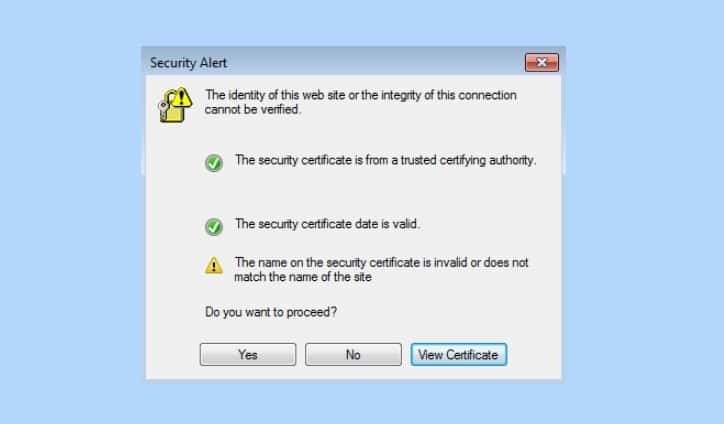
The identity of this website or the integrity of this connection cannot be verified [FIX]

The ‘Identity of this website of the integrity of this connection cannot be verified‘ is an error that usually pops up while visiting a website.

It is often debated whether or not this is a malware but most of the times its just a warning message that signals an invalid certificate.

Browsers come with a mechanism that always ensures that the website you are visiting is safe by authenticating its certificates. We do have a feature that can be used to turn this off but that’s absolutely not recommended.

website identity cannot be verified

The worst part, however, is that the Error message dominates the screen and there is nothing much that one can do about it. As I said earlier this is due to the mismatch in the security certificate or it is the case of a untrusted one.

The error message is accompanied by three buttons, yes, no and view the certificate.

If you know how to analyse a security click on View. In cases wherein you trust the website simply click on “Yes” if not click on “No.”

Before proceeding to the actual troubleshooting steps I would personally recommend an anti-virus scan along with an anti-malware scan. In order to get rid of the “The Identity of this website or the integrity of this connection cannot be verified” error message follow the steps below.

  • Search for “Control Panel” in Windows Search. Once the control panel is open select “Internet Options” and go to Advanced Tab. Now you should be able to see a settings tab with a checklist. In the list, the following options will be ticked.


  • Check for publishers certificate revocation and Check for server revocation. Ensure that both are unchecked and click on Apply. After doing this you will see a tiny warning message that says the following “Some Settings are managed by your system administrator.” Needless to say overriding the error message also means that the same is not displayed even in case of a genuine certificate error case.

How to whitelist individual websites?

This is the best method to retain the warning mechanism and yet use the websites you trust.

I personally trust some websites and I have added them to the “Trusted Sites” list. Before adding a website to the Trusted List make sure that its safe. In order to whitelist a website go to Start Search and type “inetcpl.cpl”

  • Select Security tab clicks on Trusted sites and then click on sites button. In the dialogue box enter the URL and Click Close>Apply>Exit.

Server Test

Well if you feel the Windows is throwing up unnecessary errors there is a way to check the website. Head over to SSL Server Test and copy paste the URL in the “Hostname” field. I would personally recommend you to go through this test.

Reset Browser Settings and Flush the DNS

Reset the browser settings and make sure that everything including the temporary files is deleted. Also, flush the DNS to speed up subsequent requests for the same hostname. This will also ensure that the bad hostname is cleared as well, leaving no room for conflict.

RELATED STORIES TO CHECK OUT:

AMD reveals the world’s fastest processor for ultra-thin notebooks

AMD just unveiled  Ryzen mobile CPUs for premium 2-in-1s, ultra-thin notebook computers, and convertibles.

This comes just after AMD’s fantastic success with its Ryzen desktop processors, combining the architectures of Radeon Vega graphics and Zen x86 cores for a system-on-chip design.

According to AMD, the new Ryzen 7 2700U features a 15W nominal processor, the fastest processor created for ultra-thin notebooks.

It will boast up to 44% more multi-threaded CPU performance and up to 161% more graphics performance compared to Intel processors.

These Ryzen mobile processors will provide leading performance in a sleek form factor along with blazing fast speeds compared to the previous AMD mobile processor generation.

Precision Boost 2 technology

AMD ryzen mobile CPU

Ryzen mobile processors feature the brand new Precision Boost 2 technology, accelerating the CPU’s performance in workloads using one or more CPU cores.

The Mobile Extended Frequency Range (mXFR) raises sustained performance in notebooks and provides impressive cooling solutions and also certified for Ultimate XFR Performance.

The new processors are also highly energy efficient. AMD also plans 2X battery life improvement. What’s also great is that the premium laptops powered by these new processors may provide up to ten hours of battery life.

Microsoft OEMs to release Windows devices powered by the newest Ryzen CPUs in a few weeks

Windows devices powered by these new Ryzen processors will be available from Microsoft’s partners including top manufacturers such as Lenovo, HP, and Acer later by the end of the year. According to AMD, Dell and more OEMs will also launch their own devices powered by the latest Ryzen CPUs in early 2018.

RELATED STORIES TO CHECK OUT:
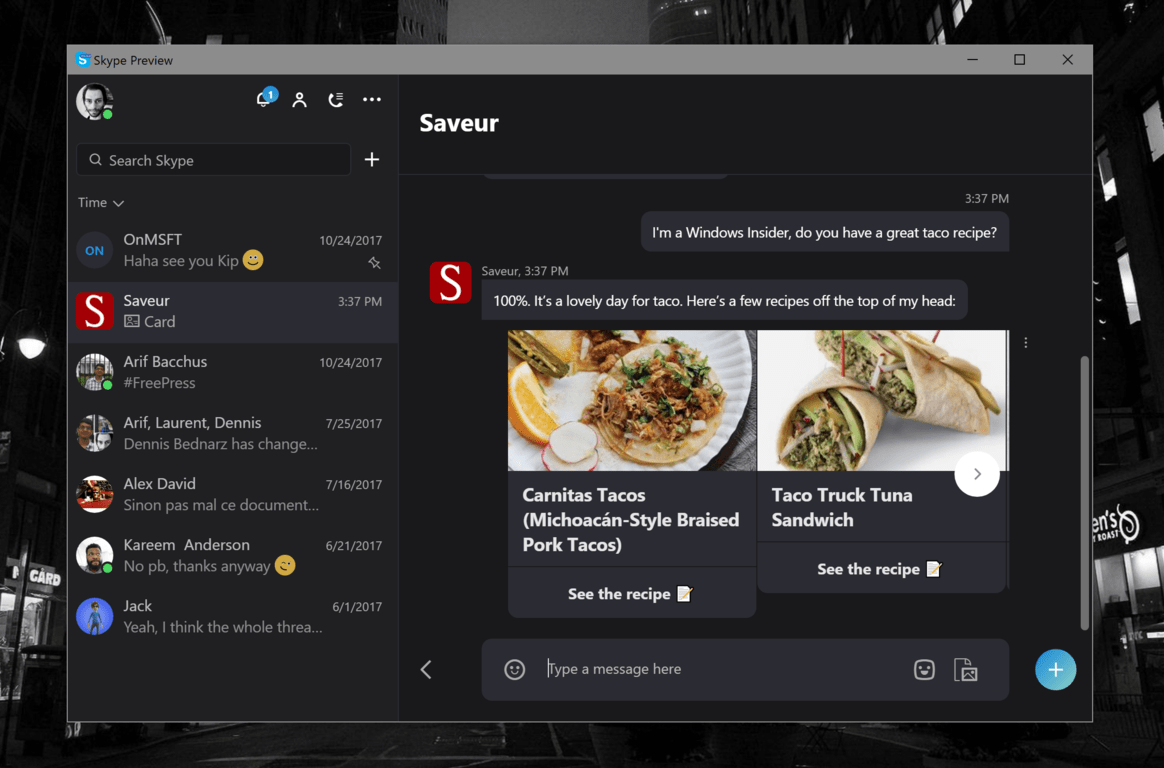
Enable low shadows in games to boost FPS

You have a supercomputer that can literally render the entire universe with no lag? But, can it run Player Unknown’s BattleGround on medium graphics? There’s a joke that it is next to impossible to get decent FPS on some games such as PUBG, Witcher 3, etc, even if you have a decent graphics card and CPU.

Sudden FPS drops not only affects how immersive a game is, but it can also mean the difference between life and death, of your in game character that is.

Therefore, it is only common sense to change your graphic settings to low shadows, low textures, etc, if your computer is having difficulty properly running your game.

When configuring their game settings, many people overlook the “shadows” option in a game. Generally, gamers do not realize that high shadows is quite GPU intensive, which means it will eat up a lot of your FPS.

Why do game shadows put so much stress on your GPU? Well first, you will need to understand how shadows are typically made and rendered in a game. Below is a detailed description of how shadows are rendered in a game.

How shadows are rendered

Drawing and rendering shadows is a difficult task for game developers as it involves numerous different factors. For instance, most modern games use another camera located at the light source to render the image from the point of view from the light source’s position.

This image is not a typical one. Instead it is usually called a “shadow map”, because it calculates the distance between the source of light and the person, place, or object that is creating the shadow.

Once there is a “shadow map”, the actual scene gamers will see is drawn. During this regular scene, all of the shadows have to be calculated from the “shadow map” and the light source.

Remember, your computer has to calculate everything the shadow is falling on as well as the intensity of the shadows/light. There are also refractions, reflections, etc involved in the calculations and rendering of shadows.

As you can see, it is pretty much a computing nightmare to properly render shadows.

Why do shadows affect FPS so much

When rendering shadows, your computer has to render another scene (shadow map) for each and every light source in the moment you are playing. This obviously, will significantly reduce your FPS.

So in theory, a game with just one light source will half the amount of FPS. If there is two light sources in a scene, then your FPS in game will be reduced to one third.

This is of course, theoretical, as there are other factors involved that will help you keep a decent FPS.

New games will probably have AIs, and other tools, shortcuts to help reduce the strain shadows put on your GPU. This means your FPS wont be halved every time another light source is introduced to the scene. However, the point I am trying to get across is that shadows significantly affect FPS.

How do I fix this issue?

Well, the most obvious way to fix this issue is to put your game’s graphics settings to “low shadows” or to the lowest possible setting. You can also try turning down the resolution of your game.

Turning down the resolution helps improve your FPS because it makes the shadows more pixelated. The bigger the pixels are the less information your computer has to calculate.

Of course your game will look much uglier if you reduce your resolution too much. So you will need to do some testing and experimenting to see what settings works best for your particular set up.

It is advised to first change your shadow’s setting to the lowest one possible. This won’t heavily affect the aesthetics of the game, but will give you a large FPS boost. However, if the FPS is still too low to be playable, then you will want to tweak your resolution settings.

If changing the resolution or low shadows in games still does not give you a big enough boost in FPS, then you may want to look at other ways to tweak your settings. Here is a description of each video setting typically found in games, and how to change them to improve your gaming experience.

RELATED STORIES TO CHECK OUT:

Posted in Fix

Microsoft publishes new productivity report revealing the challenges of digital transformation in the UK

Digital transformation has been a hot topic this year, which Microsoft launching a new offering called Microsoft 365 that includes Office 365, Windows 10, and Enterprise Mobility + Security. As you know, the Redmond giant is on a journey to empower everyone and every organization to achieve more, and today the company published a new study showing that employee’s fear of change is putting British businesses at risk.

Microsoft’s new productivity report, which can be found here, is entitled “Creating a Culture of Digital Transformation.” According to the company, it’s one of the most extensive reports on the state of the UK’s digital transformation to date. The in-depth study was conducted in collaboration with Goldsmiths, University of London, and YouGov, and it’s the result of interviews with more than 1,000 business leaders and employees in the UK.

The report reveals that only 23% of organizations in the country have developed cultural cultural change programs, which are the necessary first step to help employees realise the value of digital transformation. Moreover, 53% of UK organizations have already invested in digital transformation programs, even though the exact same percentage of companies expect their industries to be disrupted over the next two years.

“The majority of businesses investing in digital transformation programmes face a common challenge in realising value from their investments: the human factor,” Microsoft explained in a press release. “Findings reveal that moves to improve how people work by introducing new technologies creates anxiety among employees (61%), the automation of tasks creates fears about job security (59%) and staff express a fear of change when digital transformation initiatives are introduced (49%).”

For Cindy Rose, Microsoft UK CEO and Area Vice President, this report is a great resource for companies that have yet to realize the profound cultural changes that are necessary to support digital transformation. “Digital transformation is not a technology deployment or an IT exercise, it’s a people exercise,” she explained. “Business leaders must therefore embrace cultural transformation from the top and explore the behavioural shifts that are needed to bring about lasting change,” she added.

Microsoft could launch a foldable, Andromeda-powered device in 2018

Even if Microsoft put aside its efforts with Windows 10 Mobile, it wouldn’t mean the company is avoiding mobile for good. While it’s clear Windows on smartphones is no longer a priority, it seems that Microsoft is hoping to create a new mobile device targeted at a new user category that places pen and digital inking in the center of the experience.

The Andromeda folding device

CShell and Windows Core OS, previously known as Andromeda, are two projects both related to Microsoft’s next rumored device. The Andromeda device is a prototype foldable tablet running Windows 10 built with CShell and Windows Core OS. The foldable device is designed to be placed in your pocket when it’s folded and rumors say it also can place calls, meaning it could replace your smartphone despite not being explicitly designed for it. In that way, it’s similar to the canceled Microsoft Courier, making it likely that Andromeda is a digital pocket notebook.

Digital inking

The device will feature a pen for digital inking, with prototypes opening up into a notebook app tied to OneNote with support for standard inking options via Windows Ink.

The notebook app is designed to mimic writing in a real notebook using virtual pages. It will also have a Start screen and menu bar along with the ability to run apps such as Edge or Photos.

Andromeda will probably run on ARM and will include the latest Snapdragon CPU. It will also be able to run true-UWP apps.

Target audience

Microsoft is not building Andromeda for the average user and won’t be an iPhone or Android competitor. In this way, the company will try to create a new market for people who want this kind of device. It’s not so hard to imagine a digital journal aimed at schools and enterprises, is it?

As long as Microsoft doesn’t cancel these plans, its future mobile efforts sound incredibly exciting. Since Andromeda is expected to arrive in 2018, it’s possible that this mysterious foldable device also lands around the same date.

RELATED STORIES TO CHECK OUT:

Microsoft discontinues Outlook.com Premium for new users, rolls out some features to Office 365 subscribers instead

Microsoft today announced the rollout of new premium Outlook.com features to Office 365 customers. The company has opted to close the original Outlook.com Premium Program for new subscribers, instead now rolling out an ad-free experience, protection against email threats, more mailbox storage, and premium support to all users with an existing Office 365 subscription.

First and foremost, Microsoft has closed the original Outlook.com Premium standalone offering to new subscribers. Current subscribers can renew their subscriptions and continue receiving the same benefits. The personalized email address feature of Outlook.com Premium, though, will not be available in Office 365 Home or Office 365 Personal subscriptions in the new Outlook.com Premium.

Moving on, with the ad-free experience, Office 365 Home and Office 365 Personal subscribers will no longer see banner ads as well as advertisements in the message list. According to Microsoft, this will make for “fewer distractions and faster page load times, so you can be more focused and have a better email experience.”

Next up are the sophisticated protection against email threats. Here, Office 365 Home and Office 365 Personal subscribers will be able to protect themselves against viruses and ransomware with the ability to scan attachments and check links.

The last of the significant features is access to more mailbox storage. Office 365 Home and Office 365 Personal subscribers will be able to enjoy 50GB of email storage space, up from the 15GB which is offered to a standard free Outlook.com account currently. Also, as part of the change, Microsoft will be boosting storage limits to 50 GB for all Outlook.com users whose mailbox size is 12 GB or larger.

Please be aware that the rollout is currently underway worldwide for those with Office 365 Home and Office 365 Personal subscriptions. If you don’t see these features at first, don’t be alarmed, as Microsoft is saying that the process of updating all accounts will take about one month. Addresses ending in @outlook.com, @hotmail.com, @live.com, and @msn.com will get Premium benefits automatically. Gmail or Yahoo accounts, or other non-Outlook.com accounts will not receive the benefits.

Those who have access to Outlook.com Premium will also have access to the highest level of Premium Support, either via the app or the phone. Additionally, if an Office 365 Home subscription is used with other users, the benefits of Outlook.com Premium can still be shared.

Fix: ”This application requires DirectX version 8.1 or greater to run”

aDirectX issues in Windows 10 are the common ache for a plentitude of users that reside in the gaming world.

One of those errors affects a lot of users that are keen to play some older, legacy titles. Allegedly, they keep seeing the ”This application requires DirectX version 8.1 or greater to run‘ prompt.

This basically means that, even though you have DirectX 11 or 12 installed, it just won’t cut it for older applications. In order to help you resolve this peculiar and rather complex problem, we provided some solutions below. If you’re stuck with this error every time you start the game, make sure to check the list below.

How to fix ”This application requires Directx version 8.1 or greater’ error in Windows 10

  1. Install DirectX Runtime June 2010
  2. Run the application in a compatibility mode
  3. Reinstall the troubled program
  4. Enable DirectPlay

Solution 1 – Install DirectX Runtime June 2010

For some peculiar reason, the older games or applications that are dependant on DirectX need older DirectX versions in order to run. Now, even though you’re positive that you have DirectX 11 or 12 installed, our guess is that you’ll need to obtain and install older DirectX version and resolve the issues.

For that matter, most of the games come with the matching DirectX installer package and additional redistributables. On the other hand, if you’re unable to locate them within the game installation folder, they can be easily found online and downloaded.

You can download DirectX Runtime installer here.


Solution 2 – Run the application in a compatibility mode

While we’re at it with older games played on Windows 10, let’s try to use compatibility mode to overcome this issue. Compatibility issues are quite frequent with older game titles, like GTA Vice City or I.G.I.-2: Covert Strike played on Windows 10 platform.

For that purpose, we recommend you to try and run this games on their recommended Windows systems, respectively. Firstly, inform about supported system versions in games/apps system requirements and move on with the steps below.

  1. Right-click on app’s desktop shortcut and open Properties.
  2. Open the Compatibility tab.
  3. Check the ”Run this program in compatibility mode for” box.
  4. From the drop-down menu, select Windows XP or Windows 7.
  5. Now, check the ”Run this program as an administrator” box.this application requires directx version 8.1 or greater to run
  6. Save changes and run the application.

On the other hand, if you’re still prompted with ”This application requires Directx version 8.1 or greater to run” error, make sure to continue with the steps below.


Solution 3 – Reinstall the troubling program

Some users managed to resolve the issue by simply reinstalling the application (most of the time, game). Integration problems are also quite common, again, especially with older game titles. So, without further ado, follow the steps below to uninstall the troubling game and install it again:

  1. In the Windows Search bar, type Control and open Control Panel.this application requires directx version 8.1 or greater to run
  2. Select Category View.
  3. Click on Uninstall a program.this application requires directx version 8.1 or greater to run
  4. Right-click on the troubling program and Uninstall it.this application requires directx version 8.1 or greater to run
  5. Restart your PC.
  6. Right-click on the installer file (Setup.exe, most of the time) and open Properties.
  7. Select Compatibility tab.
  8. Check the ”Run this program in compatibility mode for” box.
  9. From the drop-down menu, select Windows XP or Windows 7.
  10. Now, check the ”Run this program as an administrator” box.this application requires directx version 8.1 or greater to run
  11. Confirm changes and run the installer.

Furthermore, if you’re a Steam user, you can do so within the client, as it has a better success rate.


Solution 4 – Enable DirectPlay

DirectPlay is a legacy component that was excluded from a few latest Windows iterations. But, as we already determined that this problem plagues older games, it’s safe to say that it’s vital to enable this option. Follow the steps below to enable DirectPlay and, hopefully, resolve this issue:

  1. In the Windows Search bar, type Turn Windows and open Turn Windows features on or off.this application requires directx version 8.1 or greater to run
  2. Scroll down until your reach Legacy Components.
  3. Expand Legacy Components and check the ”DirectPlay” box.this application requires directx version 8.1 or greater to run
  4. Click OK to confirm changes and try starting the app again.

With DirectPlay enabled, you should be able to run all games from the past decade without issues whatsoever.

That should conclude it. Feel free to share your questions, suggestions, or alternative solutions with us. You can do easily in the comments section below.

RELATED STORIES YOU SHOULD CHECK OUT: