Stock up on your favorite shows with the Windows Store TV Season Pass Sale

If you often buy movies and TV shows on Microsoft’s Windows Store, then you should check out the TV Season Pass Sale that just kicked off today. For a limited time, you can save up to 65 percent on more than 60 popular TV shows including Supergirl, Better Call Saul, The Blacklist, Designated Survivor and more.

Here are some highlights below, please note that sometimes discounts only apply to select seasons of TV shows included in the sale:

  • Supergirl Season 1 – $19.99 ($15 off)
  • Arrow Season 1 – $19.99 ($10 off)
  • The Big Bang Theory Season 10 – $29.99 ($10 off)
  • Better Call Sall Season 3 – $19.99 ($5 off)
  • The Blacklist Season 4 – $29.99 ($9.50 off)
  • Riverdale Season 1 – $19.99 ($10 off)
  • NCIS Seasons 14 – $29.99 ($10 off)
  • Downtown Abbey Season 6 – $9.99 ($10 off)
  • Blindspot Season 2 – $24.99 ($15 off)
  • Six Season 1 – $6.99 ($13 off)

The sale will run through May 22, so you have a full week to find something to watch using the Movies & TV app on Windows 10, Windows 10 Mobile or the Xbox One.

Microsoft Philanthropies expands TEALS program, helps volunteers teach computer science in high schools

Microsoft Philanthropies today announced an expansion of the Technology Education and Literacy in Schools (TEALS) program. In the upcoming school year, the program will see an addition of 100 schools in the US, a total of 1,100 new volunteers, all aimed at paring technology professionals with educators to teach computer science in high school classrooms.

According to Microsoft, since estimates show 350,000 manufacturing jobs are unfilled, top manufacturing regions in the US will benefit from the program, including Wisconsin, Ohio and North Carolina. The new schools added to the program also include five schools in the Detroit area. With the focus on preparing classroom teachers to teach computer science and AP computer science, curriculums for TEALS  are developed in conjunction with the UC Berkeley and the University of Washington computer science departments.

Mary Snapp, corporate vice president and head of Microsoft Philanthropies explains.

“As industries evolve, we should prepare young people with the skills they need…Half a million jobs that require computing skills are unfilled in the United States, with openings in every industry and in every state. Yet most high schools do not teach computer science. Volunteers from Microsoft and more than 300 other companies are working to fill that gap, in partnership with teachers, through TEALS.”

The expansion is possible thanks to new partnerships Microsoft formed with schools, businesses, government leaders, and nonprofit organizations. If you have a background in computer science and programming, and you would like your community, you can head to this website to learn more and to apply to the TEALS program.

Here are the Windows Developer Awards winners from Build 2017

Last week at Build 2017, Microsoft presented a select group of Windows developers with a special set of awards aimed at celebrating their outstanding work and creativity. As we previously covered, the first ever Windows Developer Awards included five areas: Ninja Cat of the Year, App Creators of the Year, Game Creator of the Year, Reality Mixer of the Year, and Core Marker of the Year. Microsoft has just updated their dedicated Developer Awards website with a list of winners, so we’re giving you a look at the lucky winners below.

Ninja Cat of the Year: Kophosight: What originally started as a school project has now become something much larger. Kophosight is driven by a desire to make everyday life better for the deaf. Built on the Universal Windows Platform using Unity, with Microsoft HoloLens as the centerpiece, Kophosight translates the spoken word into sign language.

App Creator of the Year: djay Pro: Algoriddim’s award-winning DJ application with over 30 million downloads is now on Windows. djay Pro provides a complete toolkit for DJs of all skill levels with features built specifically for Windows 10 including: touch + desktop devices

Game Creators of the Year: Astroneer: Astroneer is set during a 25th century gold rush where players must explore the frontiers of outer space, risking their lives and resources in harsh environments for the chance of striking it rich

Reality Mixer of the Year: MyLab: MyLab is an educational tool that lets users explore an interactive periodic table of the elements using the power of holograms. Spawn atoms, view their structures, and explore similarities and differences between different elements.

Core Maker of the Year: Nova Underwater ROV: This underwater Remotely Operated Vehicle (ROV) is run by Raspberry PI 3 with Windows 10 IoT Core controlled from a UWP app connected to motor controllers, servos and sensors.

The winners of these awards, with the exception of the Ninja Cat of the Year, were all chosen by the developer community. With a list of winners this impressive, it wil be exciting to see which developers will make it to the list next year.

Microsoft criticizes governments stockpiling software vulnerabilities following WannaCrypt ransomware attack

Last Friday, a global ransomware attack caught the world by surprise as the malicious “WannaCrypt” worm was targeting Windows-based machines across the world. Since then, the worm has spread to close to 200,000 PCs worldwide, affecting utility companies and health services including the UK’s National Health Service (NHS).

Though Microsoft released a security update in March to patch the vulnerability on modern versions of Windows, the company quickly released another security update this weekend to address the security exploit on Windows XP, 8 and Server 2003. Since then, Microsoft’s Chief Legal Officer explained in a blog post yesterday that this latest cyberattack should be a wake-up call for governments, organizations, and consumers.

“This attack is a powerful reminder that information technology basics like keeping computers current and patched are a high responsibility for everyone, and it’s something every top executive should support,” explained Smith. But more importantly, the Chief Legal Officer criticized governments for stockpiling software vulnerabilities instead of reporting them to vendors. Because yes, the Wannacrypt worm is based on an NSA exploit codenamed “EternalBlue,” which was recently released on the Internet by a hacker group called the Shadow Brokers. Smith added:

This attack provides yet another example of why the stockpiling of vulnerabilities by governments is such a problem. This is an emerging pattern in 2017. We have seen vulnerabilities stored by the CIA show up on WikiLeaks, and now this vulnerability stolen from the NSA has affected customers around the world. Repeatedly, exploits in the hands of governments have leaked into the public domain and caused widespread damage. An equivalent scenario with conventional weapons would be the U.S. military having some of its Tomahawk missiles stolen. And this most recent attack represents a completely unintended but disconcerting link between the two most serious forms of cybersecurity threats in the world today – nation-state action and organized criminal action.

Drawing a comparison with the international rules that apply to conventional weapons, Smith is urging governments to act more responsibly with what are basically cyber weapons. “We need governments to consider the damage to civilians that comes from hoarding these vulnerabilities and the use of these exploits,” he explained. “This is one reason we called in February for a new “Digital Geneva Convention” to govern these issues, including a new requirement for governments to report vulnerabilities to vendors, rather than stockpile, sell, or exploit them.”

As of today, the world is still figuring out if the worst is now behind us or if we should expect new attacks based on modified versions of the Wannacrypt worm. Smith said that Microsoft has been “working around the clock since Friday to help all our customers who have been affected by this incident,” and we’ll let you know if we learn anything new about the cyberattack.

Microsoft news recap: security update for Windows XP and others, Skype gets video bots, bot payments and more

Microsoft (MSFT) news recap is a weekly feature highlighting the top Microsoft news stories of the past week. Sit back, grab some coffee, and enjoy the read!

Microsoft releases security patch for Windows Server 2003, Windows XP and Windows 8 to patch WannaCrypt exploit

Following the recent global cyber attack, which made use of an exploit in Windows, Microsoft has unexpectedly released a patch for unsupported versions of its operating systems, including Windows Server 2003, Windows XP and Windows 8, with later versions having already had a patch available since March.

Microsoft Logo

Microsoft Rewards “coming soon” to the UK

This week, On MSFT discovered that Microsoft is planning to finally bring its Microsoft Rewards scheme to the UK.

Microsoft Rewards

Microsoft announces that Windows Server is joining the Windows Insider Program

At Build 2017, Microsoft announced that Windows Server will be joining the Windows Insider program, potentially offering Windows Server admins to try out upcoming changes early, as well as to provide their feedback to Microsoft.

Microsoft Logo

Microsoft launches Skype video bots, bot payments, more at Build 2017

Skype got a few mentions at this years Build, with most of it focused on Skype Bots. The company announced that Skype Bots will be coming to video calls, as well as adding support for taking payments. Additionally, Skype Bots will be able to be used as a live chat system for offering support via websites, as the company will be releasing embeddable web controls for the platform.

That’s all the top Microsoft news for the past week – we’ll be back next week with more!

Windows 10 news recap: OneDrive placeholders are returning, 500 million active devices and more

Welcome back to our Windows 10 news recap. We are continuing the trend of our weekly “Windows 10 news recap” series where we go over the top stories of the past week in the world of Microsoft’s flagship operating system.

Windows 10 reaches 500 million active devices

At Build 2017 this week, Microsoft started the conference by announcing that Windows 10 is now in use on over 500 million monthly active devices.

Microsoft shows off Windows 10 on ARM at Build 2017, runs x86 programs outside of the Windows Store

Many, particularly in the Windows phone group of fans, are interested in Microsoft’s efforts at bringing ARM to Windows 10, running full x86 programs. Now, the company at its Build conference has shown off Windows 10 on ARM once more, with a preview of how 7zip performs.

Microsoft introduces Timeline for Windows 10, Clipboard and Pick Up Where You Left Off for cross platform sharing

As Microsoft began talking about Windows 10 at Build, it announced the Windows 10 Fall Creators Update. With this, the company announced several new features – including: Timeline, which will allow you to view what you were doing across a number of devices previously and jump back to it, as well as Pick Up Where You Left Off, which allows you to transition what you were doing on one device, and continue it on another – be it Windows 10, Android or iOS. Finally, they announced a cloud-powered clipboard, enabling you to copy/paste between devices.

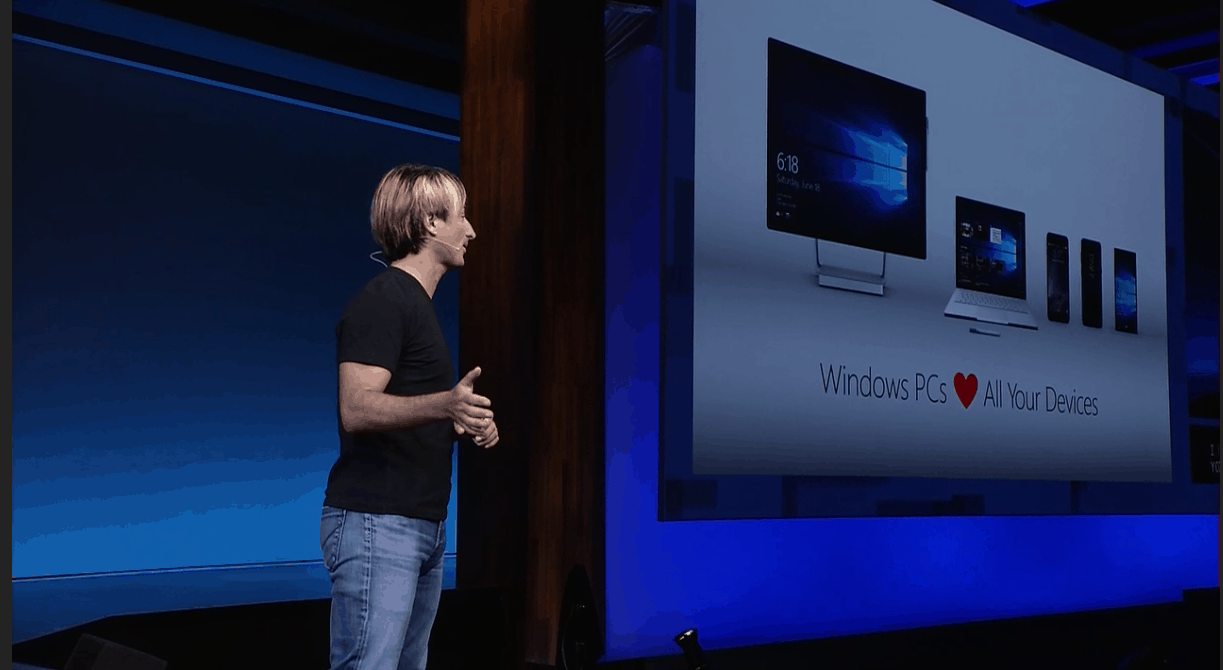
Windows 10 Loves All Devices

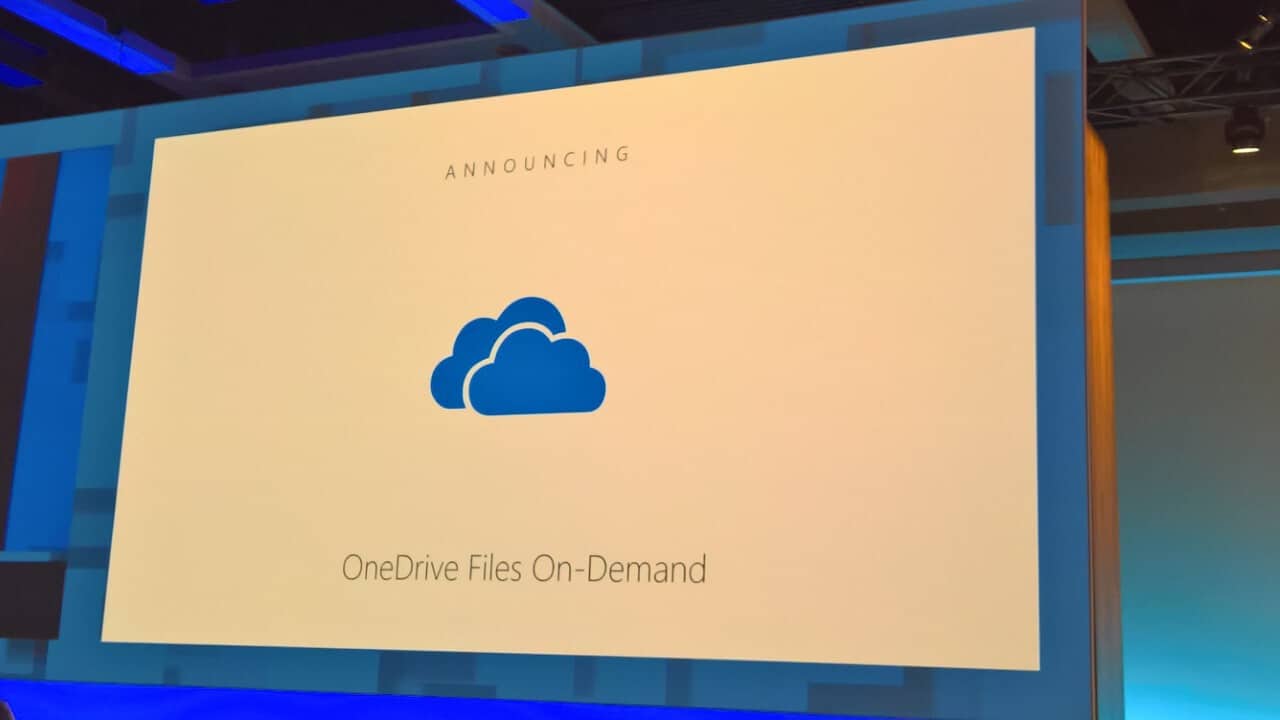
Windows 10 OneDrive placeholders are coming back as Files on Demand, in preview this summer

OneDrive users rejoice – as Microsoft has announced it is finally giving placeholders the comeback many have been waiting for. Now known as Files on Demand, users will be able to access files on their Windows 10 devices stored on OneDrive without having to actually sync and download them all.

OneDrive Files on Demand

That’s it for this week – we’ll be back next week with more!

Mix audio and video with Cute Video Audio Merger

Cute Video Audio Merger is free software for Windows devices that allows users to easily combine video and audio files.

Merge audio and video files on Windows PCs

If you want to mix audio and video files on Windows machines, you usually have to use third-party tools. And even if you have access to programs that record audio and video at the same time, you probably want more control over the audio.

For example, if you upload videos to YouTube, you might already know it doesn’t offer any options to add custom MP3 files to uploaded videos. For this reason, you need to first process the videos on your desktop and then upload them.

Cute Video Audio Merger features

  • You can click the add video and add audio buttons to add a video and audio file to combine them. The program will display the duration of the files.
  • You can also set the output directory for the merged video, the output format, and the quality of the video.
  • The tool also allows you to customize the output video size to find the best format. Usually, it’s best to keep the original size and then pick the same output format as the source file.
  • Click on the merge option to start the audio and video files mixing process. Keep in mind that if the video has its own original audio, it will be overwritten.
  • Supported formats include major video formats such as mp4, avi, flv, mkv, mp3, wav, ogg, and flac.

Cute Video Audio is a simple program which is dead easy to use for mixing video and audio files. You can download it for free from VideoTool.

RELATED STORIES TO CHECK OUT:

Mass Effect Andromeda Update 1.06 bugs: game freezes, crashes, sound cuts out, and more

Mass Effect: Andromeda is a game that let many players down due to the plethora of issues affecting it. In order to improve the game’s quality and stability, Bioware recently rolled out a new patch.

Mass Effect: Andromeda Patch 1.06 brings enhanced performance and stability, and addressed a number of player-reported issues, including a bug that caused SAM to repeatedly tell Ryder they had received new email, among other issues.

At the same time, Mass Effect: Andromeda Update 1.06 also brings issues of its own, as gamers report. In this article, we’re going to list the most common ME:A Update 1.06 issues reported by gamers on EA’s official forum.

Mass Effect: Andromeda Patch 1.06 reported bugs

1. Mission Kadara causes the game to freeze and crash

Approaching Emergency SOS quest location on Kadara will cause the game to lock / freeze / crash. You can be on foot or in a vehicle. You can take any path towards the quest location. It is 100% reproducible. Patch 1.06

EA has officially acknowledged this problem and confirmed it would be addressed in an upcoming hotfix.

2. Game lags, stutters, pauses

Since patch 1.06 I’ve been have experianced a lot of instnaces in Single Player where the game will lag, freeze, pause or stutter for a few moments. It happens mostly when: 1. Driving the Nomad. 2. Entering new areas. 3. Evading (either on ground or in air). 4. When combat gets “hectic” (when lots of explosions, powers and combos are happening). I experianced very little (next to none) instances of this happening prior to Patch 1.06.

3. Players cannot leave H-047c

Cannot leave H-047c. Absolutely no way to get back on the ship. you get stuck in the nomad. you can’t leave it because of radiation, and you can’t select, scan, interact with anything from inside the rover.

If you’ve encountered the same problem,while in the Nomad, hold “T” if you’re on PC, or “Y” if you’re on the Xbox One. That is the “Extract to tempest” button while inside the Nomad.

4. Pathfinder Weapons Don’t Go Above Level V

The Deluxe Edition includes a set of Pathfinder weapons and we get upgrades every ‘tier’ until they reach level V. These should level up to X.

This problem should be solved in an upcoming hotfix.

5. Missing Ryder in memory
This issue has been plaguing gamers since March, and Patch 1.06 fails to fix it.

Yep Xbox One version and todays date is May 13th 2017 still not fixed people. I’m playing as a male character so my sister is missing from the scene. This didn’t happen the first time i played the story only since patch 1.06.

6. HUD issues in 21:9 aspect ratio

Patch 1.06 broke the HUD positioning in 21:9 aspect ratio in Multiplayer. It looks like it’s set to 16:9 instead (4,5,6,7 consumables + text log of who killed who)

Ea has officially acknowledged this problem and is working on a fix. No ETA has been given yet to avoid setting false expectations.

7. Weapon Mastery progress blocked after Patch 1.06

After the recent patch (1.06) progress towards Shotgun Mastery is no longer recorded. More specifically, defeating enemies with the M-23 Katana does not add any points towards its respective counter in the Prestige>Challenges>Weapons menu. After 3 consecutive successful extractions on Bronze, blasted through with the Katana in hand, the counter did not move by a single point.

8. Sound cuts out

Haven’t had issues since I’ve started playing the game 3 days ago on patch 1.05 for PC, updated patch 1.06 and within a couple minutes into gameplay (singleplayer) lost all sound until I fully exited the game and restarted it. Thought I’d mention it since it wasn’t an issue until the patch download.

These are the most common Mass Effect: Andromeda Patch 1.06 issues reported by gamers. If you’ve come across any solutions to fix the problems mentioned above, feel free to list the troubleshooting steps in the comment section below.

RELATED STORIES YOU NEED TO CHECK OUT:

Windows 10 Safe Mode not Working: 5 Ways to Force it

The Safe Mode option exists to help you troubleshoot Windows. However, some users complain that Safe Mode keeps crashing or does not work on Windows 10.

If you also face this issue, we will show you how to fix it in the following sections of this guide.

Why can’t I get into Safe Mode Windows 10?

Below are some of the reasons you might be unable to get into Safe Mode on your Windows PC:

  • Corrupt system files: The primary cause of this problem is the presence of faulty system files on your PC. Repairing and restoring these files is the easiest way around this.
  • Faulty Windows installation: If Windows 10 won’t go into Safe Mode, it might be because some changes made to your PC are affecting your Windows installation. You need to perform a system restore to solve the problem.

What can I do if Windows 10 Safe Mode is not working?

1. Repair system files

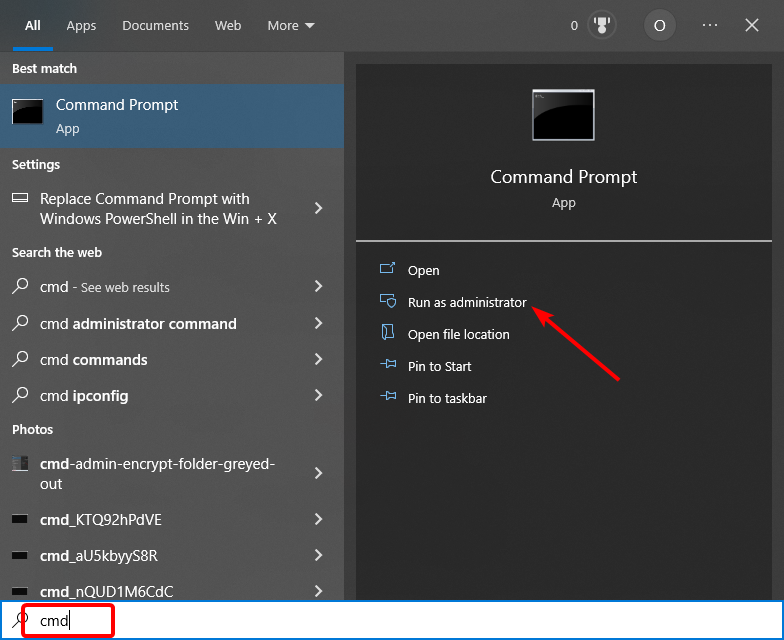
  1. Press the Windows key, type cmd, and click Run as administrator under Command Prompt.
    cmd admin windows 10 safe mode not working
  2. Type the command below and hit Enter to run it: DISM /Online /Cleanup-Image /RestoreHealthdism restore
  3. Now, wait for the command to finish running.
  4. Next, type the command below and hit Enter to run it: sfc /scannowsfc scan
  5. Finally, wait for the command to finish running and restart your PC.

Corrupt system files are among the significant potential causes for the Windows 10 Safe Mode not working. Thankfully, you can fix it with the help of the built-in tools on your PC.

Another option is to use a dedicated tool to repair and restore your system files. These tools replace any missing or corrupt files with the original copy built from your PC cache or database.

2. System Configuration utility

  1. Press the Windows key + R, type msconfig, and click OK.
    msconfig
  2. Click the Boot tab at the top.
  3. Now, check the box for Safe Boot and tick the Minimal radio button.
  4. Click the Apply button, followed by OK, to confirm the action.
    safe boot
  5. Finally, click the Restart button to check if your PC can now enter Safe Mode.
    restart windows 10 safe mode not working

If Windows 10 Safe Mode is not working via the WinRE, you can get into the troubleshooting mode through the System Configuration window.

This has proved effective for other users, and you should try it too.

3. Use the Startup repair tool

  1. Press the Windows key + I and select the Update & Security option.
    update and
  2. Select Recovery in the left pane and click Restart now under Advanced startup.
    restart now
  3. When your PC restarts, click Troubleshoot > Advanced options.
    advanced options windows 10 safe mode not working
  4. Now, select the Startup Repair option.
    startup repair
  5. Finally, follow the onscreen instructions to complete the process.

Sometimes, Windows 10 Safe Mode might not be working because of issues with your startup files. Fortunately, Windows has a tool that can help you repair these files.

4. Perform a system restore

  1. Press the Windows key + R, type rstrui.exe, and click OK.
    rsrtui
  2. Click the Next button on the window that pops up.
    next windows 10 safe mode not working
  3. Now, select your preferred restore point and click the Next button.
    restore point
  4. Finally, click the Finish button and follow the onscreen instructions to complete the process.
    finish

Windows 10 Safe Mode might not be working because of some changes you made to your PC. This can be the installation of apps or some tweaks to your system settings.

In this case, you need to restore your system to a time when it worked well.

5. Reset your PC

  1. Press the Windows key + I and select Update & Security.
    update and
  2. Choose Recovery in the left pane and click the Get Started button under Reset this PC.
    get started
  3. Finally, choose whether to keep or remove your files and follow the onscreen instructions to complete the process.
    keep or remove  windows 10 safe mode not working

If all the solutions above cannot get the Windows 10 Safe Mode to work, you need to reset your PC to default. This will give you a clean installation of Windows that is devoid of issues.

With this, we can conclude this guide on the Windows 10 Safe Mode not working issue. Hopefully, one of our solutions helped you restore normalcy on your PC.

Similarly, if you want to know how to add Safe Mode to your boot menu on Windows 10, check our detailed guide to do it effortlessly.

Feel free to let us know the solution that helped you fix this issue in the comments below.

Microsoft Teams offer new collaboration features like Office Store

At its annual Build 2017 conference in Seattle, Microsoft announced a few updates for its Teams developer platform. Developers will also be able to bring more features to Teams in the future.

Microsoft Teams — a new app experience

Thanks to its new set of features, developers will be able to deliver their apps for Teams using the Office Store. Teams will be featured in a new “discover apps experience” section that will offer it more visibility. Users will see a new “compose extensions” panel in the preview that will allow users to add commands to draw information from the integrated apps and service in the chat.

There will also be available support for third-party notifications in Microsoft Teams. The Teams activity feed will allow developers to build new features into apps and these will alert users of important information in the feeds section.

Microsoft’s response to Slack

This seems to be Microsoft’s response to Slack, but unlike it, Microsoft features its own ecosystem of Office apps, which means that they will become better integrated with Teams. This will include a vast range of Microsoft apps such as Excel, Word, PowerPoint, OneNote, and so on. To all this, Microsoft will add more than 150 integrations from third-parties with a corporate focus. Like this, Microsoft entertains the possibility for another winner this year.

Slack is an app which has become a favorite amongst startups because it’s free. Teams offer strong competition to it even if Microsoft hasn’t quite revolutionized the collaboration game just yet.

RELATED STORIES TO CHECK OUT:

Microsoft Rewards “coming soon” to the UK

Microsoft Rewards is Microsoft’s combination of Bing Rewards and Xbox Rewards, bringing its rewards scheme under one name, with more features. The transition has been slow, with it initially only being available in the United States, available for a short time in India, before rolling out to Australia 3 weeks ago.

Now, it looks as if Microsoft is gearing up to bring Microsoft Rewards to the United Kingdom. When visiting the Microsoft Account page, with the website location set to ‘United Kingdom’ and logged-in to a UK account, the site has the following now showing above the gift card balance:

Microsoft Rewards UK - Join Now

Take note of the ‘Join now’ option. Clicking this takes you to the following page, which states that it is “coming soon”:

Microsoft Rewards UK Coming Soon

Microsoft Rewards has been a long-awaited opportunity for Microsoft’s UK consumer customers, as currently the UK is stuck with Xbox Rewards, which we’re sure most will agree, is not really all that… well, rewarding. Bing Rewards is also not an option in the UK.

Would you like to see Microsoft Rewards available in the UK? Let us know your thoughts below!

Xbox news recap: New Fluent Design UI will redefine Xbox, First Project Scorpio headset revealed

Welcome to our weekly Xbox news recap series, where we go over the top stories of the past week in the world of Xbox. Let’s get started.

The new Fluent Design UI will redefine Xbox

While Build wasn’t really about Xbox, we still got some Xbox news out of it. In a brief sizzle reel talking about Fluent Design – Microsoft’s new UI design – we got a few frames to peak at of the new upcoming Xbox One UI. This new UI has quite a bit more color in it, and generally offers users a brighter, and more interesting to look at interface. While we only have this one picture to look at, it’s a really huge difference that has significant implications for Xbox One going forward.

The first Project Scorpio headset revealed

LucidSound’s new LS35X headset is the first headset to officially announce support with Project Scorpio, offering early adopters a solid option if they’re looking to beef up their gaming setup in preparation for the new console. On top of being the first confirmed Scorpio headset, the LS35X seems to be the first truly wireless Xbox One headset – no wired connections necessary whatsoever. It’s still a third party device, but it’s good to see people jumping on the bandwagon.

LucidSound Officially Licensed Xbox LS35X Wireless Gaming Headset

Kingdom Hearts 3 might be launching in 2018

I’ve rarely met gaming fans as dedicated as the people who follow Kingdom Hearts, so I expect some thunderous applause when I tell you that there’s a good chance Kingdom Hearts 3 is going to be coming out next year. Initially expected to release years ago, Kingdom Hearts 3 is now slotted in the “2018 and beyond” category for Square Enix. While a 2018 release isn’t guaranteed, it seems like the devs are as tired of waiting as we are.

T-Mobile customers getting a free month of Game Pass

Xbox Game Pass is here to give you access to a ton of games, aiming to be the Netflix of video games for Xbox One users. If you’re a T-Mobile customer, you’ll be able to bypass that first monthly subscription cost and get yourself a free month going. The news comes from an email sent by T-Mobile to its customers, which also doubled as a reminder to everyone to watch the Xbox press conference at E3 next month.

Xbox Game Pass

Minecraft Windows 10 Edition will be a launch title for Scorpio

Surprisingly, one of the first launch title announcements we have for Scorpio isn’t a heavy duty AAA title – it’s Minecraft. This isn’t confirmed, mind you – it’s still a rumor – but considering Microsoft’s relationship with Minecraft in the past, it’s not at all outside of the realm of possibility that the game accompanies Project Scorpio as it launches.

Thanks for joining us. To keep up to date with all the latest Xbox news, keep a close eye on our Xbox One tag.

These are the top VR shooters for the PC right now

Who wouldn’t want to blow things up and shoot bad guys without any repercussions found in the real world? Thanks to the first person view most shooters employ, players oftentimes have experienced a deep dive into the game and step in the shoes of the protagonist. And now, today’s technology takes this one step closer with the help of VR.

The promise of virtual reality technology has made way for a new sub-genre of games: VR shooters. For those that seek the ultimate first person experience to put them right into the action, here are the top VR shooters compatible with Windows.

The best VR shooters

Onward

The first game on the list is Onward. While Onward is still in Early Access, it is promising game that includes beloved elements of regular shooters to the VR world. In Onward, players team up online with a team of other “military strategists” for a tactical shooter experience.

With many calling it hands down the best VR shooter currently on the market, it’s definitely worth a try considering its developers are constantly adding new modes, maps, fixes and other goodies.


Holopoint

Holopoint is another great VR shooter experience that strays from the crowd with its own unique take. While most shooters of are military-based and packed to the teeth with rifles, pistols and machine guns, Holopoint puts the bow and arrow in the spotlight.

In this game, players take on a very intense VR experience filled to the brim with samurai and ninjas while they go through the motions of using the bow and arrow, from drawing the arrow to releasing it with the utmost precision.


Out of Ammo

This VR shooter plays on the scenario of the classic war hero. Everyone knows and loves those movies and in the game, players are tasked with defending a point with almost no ammo, no backup and a huge swarm of invaders approaching. If they can heroically pull it off, they’ll go down in history. Players can now be in that position with Out of Ammo.

In this VR game, players defend a point against an insane enemy numbers using high precision and different weapons and just the tools available in the base. Are you ready for the challenge?


Raw Data

The VR experience generated by Raw Data presents a cybernetic future in which players aren’t safe, called to action as one of the three available characters: Bishop, Saija and Boss, each specializing in guns, blades and fists respectively. This choice is important as players get the opportunity to choose their fighting style as well, switching between a large variety of guns and swords or just keeping it simple with close-quarters combat.

In this futuristic shooter, players fight an evil corporation that fights back with an arsenal of robots, ninjas, drones, mechs and tons of explosives. When it gets too hectic, they can team up with a real life friend and battle the corporation together.


HordeZ

Those that fondly remember about the classic on-rails game Virtua Cop will surely take a liking to HordeZ. This title brings on-rails gameplay to the VR scene in ultimately is very diverse experience where players get to choose between multiple weapons to fight multiple types of enemies on multiple levels.

The game puts players in the shoes of an elite mercenary which gets the contract of their lives: repel the demonic hordes causing rampage across the world. With humanity enslaved by mind controlling demons, only the player and (optional) their multiplayer co-op friend can save the day by shooting every demon they see.


The Brookhaven Experiment

The rise of VR shooters have included the genre of survival shooters, which have become their own genre over the past couple of years, cultivating a large following behind them.

In The Brookhaven Experiment, players crawl through levels while managing their supplies and making sure they don’t run out of their extremely limited and important goods and ammo. After a failed experiment put the entire human race in peril, players must survive in a world filled with monstrosities that are more than happy to hunt them down and see to it that they don’t.


House of the Dying Sun

House of the Dying Sun brings players in the setting of a true space opera-type adventure. In this title, the emperor is dead and the throne has fallen into corrupt and undeserving hands. It’s up to the player to correct this in a series of spectacular space ship battles in the seat of Empire’s prime aircraft. Take the fight to the enemy while shooting away from this fine vessel’s cockpit.

More than that, players are in control of the entire fleet, giving their reign over the other ships, commanding them to fulfill specific actions and tasks in a very intricate tactical shooter set in space.


Pavlov VR

Some of these VR shooters are great but for some they might appear as being just a bit too fancy. Traditional gamers whojust don’t like all these new features or are having a hard time getting the hang of them can opt for Pavlov VR instead. The perfect way to keep this player segment connected to the VR phenomenon, Pavlov VR brings the classic multiplayer shooter experience with a tiny twist.

While the game is as multiplayer shooter-based as it can be, it does have an MMO-inspired feature that has players traverse the map as ghosts to reconnect with their out of body selves at the new location.


War Thunder

War Thunder is a different entry in this list, mainly because it’s not a game specifically designed for VR. Instead, it can be played without a headset but features the option of going into VR mode. The game takes the gun out of a player’s hands and shoves them into a machine of mass destruction. Players can choose between aircrafts, tanks, and even warships as they battle across multiple maps and different landscapes. Whether it be sea, land or the skies, players can play a role in the most epic war ever portrayed in an MMO.


Serious Sam VR: The Last Hope

Last but definitely not least is Serious Sam VR: The Last Hope. Veteran gamers will have no problem remembering this franchise’s days of glory when it was one of the most popular shooter franchises out there. While that shine has since faded, Serious Sam still holds a special place in many people’s hearts and memories.

Now, players have the chance to hop into a VR experience focused on killing dozens upon dozens of demons, monsters and freaks into a new, more realistic light. The game is still in Early Access, which means that the developers will be adding more content regularly but the game is available to play right now.

RELATED STORIES TO CHECK OUT:

UK, Spain and others hit by large-scale cyber attack on Windows machines, affecting health services, utilities and more

Countries around the world are facing a large-scale cyber attack after ransomware has infected large organisations en masse. Of the affected organisations, health services, utiliy companies, universities and more have been affected, including the UK’s National Health Service (NHS) and Spanish utility companies and mobile providers, such as Telefonica (via BBC News).

The ransomware is spreading through Microsoft Windows-based machines, from Windows Server 2008 all the way to Windows 10, making use of a security hole that Microsoft patched back in March, but many systems have not been updated yet.

As part of the attack, the ransomware is demanding $300 (£230) in Bitcoin to unlock the encrypted files. According to reports, the Bitcoin wallets provided in the program are already beginning to receive payments from people wanting to regain access to their computers.

In the United Kingdom, the NHS has declared a major incident and many health services are affected, with heart surgeries and non-emergency treatments being cancelled or delayed.

Some of the attacks appear to be using vulnerabilties that the United States’ NSA had been using to spy on people, that were leaked recently. In all, more than 74 countries have reported attacks, with thousands of reports pouring in.

Translate PowerPoint presentations live with Microsoft’s Presentation Translator

At Build 2017 in Seattle, everyone got the chance to see how Microsoft is using AI to enhance its productivity suite, a good example being the Presentation Translator plugin for PowerPoint.

Build 2017 gave fans a chance to meet Microsoft CEO, Satya Nadella, who made it very clear during his introductory keynote that artificial intelligence will bring some extreme changes for lots of Microsoft products, including Office and Windows.

Introducing Microsoft’s PowerPoint Presentation Translator

The new Presentation Translator plugin for Powerpoint is a Microsoft Garage project that uses Microsoft’s Translation APIs to translate content from any Powerpoint presentation in 10 languages: Arabic, Chinese, English, French, German, Italian, Japanese, Portuguese, Russian and Spanish. The plugin is able to provide translated subtitles in real-time and can also translate the full text of a presentation while preserving its original formatting.

Program Manager Yina Arenas presented an amazing demo of the program during Build 2017. One of the most interesting parts of the technology is its ability to share a unique link attendees can use in order to get translations in real-time. This can also be achieved on mobile devices.

Register now to make sure you’re among the first testers

The program can only be found available for early access on the Windows version of Powerpoint. You can register now if you want to make sure that you’ll find yourself among the first ones to get to test it.

We’re all looking forward to use the plugin for presentations to a multilingual public and Microsoft made a great move with this addition. If you were previously impressed by Skype’s real-time translation feature, you’ll likely be wowed by this new addition.

RELATED STORIES TO CHECK OUT:

Leaked report reveals interesting facts about Xbox One demographics

According to leaked internal Microsoft documents found exclusively by Windows Central, there are many interesting statistics regarding Xbox gamers.

The Microsoft internal documents were meant to be shared privately with Xbox partners in an effort to help understand the diversity of Xbox One gamers on Xbox Live. Some of the Xbox statistics were obtained via responses from about 2,000 Xbox One owners across the US. Here is a list of the statistics as reported by Windows Central:

“The split in Xbox One ownership between genders is 42 percent female and 58 percent male.
Most Xbox One gamers reside in the 25- to 34-year-old bracket, followed closely by the 35- to 44-year-old bracket.
56 percent of Xbox One owners live with a married spouse or partner, 10 percent live alone, and 23 percent live with their parents.
Many Xbox One owners have an annual income of around $75,000.”

When examining Xbox player behaviors on Xbox Live, Microsoft used a range of categories to label gamers on how they use Xbox One and Xbox Live; 53% of Xbox One owners fit into the “socializing” category because they play an average of 17 hours per week playing multiplayer games on Xbox Live. Microsoft saw the other 50% of gamers are “explorers,” because they use a number of Xbox Live services, such as Game Pass and EA Access and purchase a number of different game titles.

Microsoft report obtained by Windows Central

Windows Central also found that Microsoft Research grouped Xbox One owners through their activities on Xbox Live, finding nine traits of gamers to label how they play on Xbox Live. In another Microsoft document obtained by Windows Central, you can see the nine traits of gamers on Xbox Live and how they play.

Image: Windows Central

Microsoft used the information that they collected on Xbox One owners to build more features and capabilities into Xbox Live to try to increase player engagement and improve Xbox One games and Xbox Live services based on how players play games.

Remedy’s Alan Wake will soon disappear from Xbox, Steam stores, get it 90% off on Steam starting tomorrow

Remedy will soon offer the psychological horror action-adventure video game, Alan Wake for 90% off on Steam from May 13th to May 15th, so you might want to consider grabbing it up before it’s gone forever. The reason why? According to new reports, Alan Wake will soon disappear from Xbox, Steam stores, and physical retail stores due to a music licensing issue.

While the exact details surrounding the licensing issue is not clear, Remedy tells Polygon that the “the licensing for the music will expire on May 15.” With this so, the game can’t be sold after the date, until Microsoft and Remedy manage to renegotiate the licenses. Thomas Puha, the head of communications for Remedy explained to Polygon.

“Microsoft and Remedy are looking into renegotiating the music licenses, but there’s nothing more to comment on that for now…Obviously having to remove the game from stores is rather unfortunate. So, we figured, let’s discount the game heavily and those who have not bought Alan Wake yet, here’s your chance to grab it on Steam.”

The licensing issues do not affect Alan Wake American Nightmare, which Remedy negotiated its own music licensing free for. An official blog post from the developer mentions that Remedy is looking into relicensing the music for Alan Wake, provided no timeframe.

You can head to this link to download Alan Wake at the discounted price once the sale begins.

You can now pre-order Madden NFL 18 on Xbox One

Xbox’s Major Nelson, aka Larry Hryb, announced that you can now pre-order Madden NFL 18 on Xbox One. Xbox Wire posted the Madden NFL 18 teaser trailer, showing New England Patriots’ star QB and five-time Super Bowl champion, Tom Brady, as the NFL superstar that will grace the cover of Madden NFL 18. Considered by many to be the GOAT (Greatest Of All Time) of the NFL, this is Brady’s first time on the cover of a Madden game.

There will be two versions of Madden NFL 18 available for purchase on Xbox One:

  • Madden NFL 18 Standard Edition ($59.99) – This bundle includes the game, plus when you pre-order, receive an Elite player from your favorite NFL team and five Squad Packs in Madden NFL Ultimate Team.
  • Madden NFL 18 G.O.A.T Edition ($79.99) – This bundle includes the game, plus when you pre-order, receive early, full-game access to Madden NFL 18: G.O.A.T. Edition, an Elite player from your favorite NFL team, Uniform Pack, 2,500 Contracts, and twelve Squad Packs in Madden NFL Ultimate Team.

EA Access members get an extra 10% off and get to play Madden NFL 18 a full three days before the game is released on consoles. We should see more Madden NFL 18 game details, features, and more revealed at EA Play on June 10, 2017. Madden NFL 18 will be released on August 25, 2017, on Xbox One.

Pre-order Madden NFL 18 Standard Edition

Pre-order Madden NFL 18 G.O.A.T. Edition

Microsoft has no plans to make Edge browser a true Windows Store app, but “never say never”

Two weeks ago, sources at Microsoft told Neowin that the upcoming Windows 10 Fall Creators Update (aka Redstone 3) would make Microsoft Edge a true Windows Store app. By implementing this change, the company’s new web browser would no longer need to wait for major Windows 10 updates to receive new features going forward

This change seemed to make perfect sense considering that competing web browsers such as Chrome or Firefox have now adopted a fast release cycle. However, it seems that unbundling Microsoft Edge updates from Windows 10 updates is actually not a priority for Microsoft: following a Build 2017 session dedicated to the web browser yesterday, a member of the Edge team told Neowin that there are “no plans for [unbundling] right now, but never say never.”

It’s not exactly clear why the company thinks that Microsoft Edge can thrive with only two major updates per year, but you can still be assured that the Windows 10 Fall Creators Update will bring significant improvements to the web browser. As the company detailed yesterday, you can expect speed improvements, better support of progressive web apps as well as visual improvements inspired by Microsoft’s Fluent Design System. Time will tell if this will be enough to gain more users.

How to run Cortana on Windows IoT Core

Cortana is a personal digital assistant working across all your Windows devices. This tool can help you organize your daily tasks, search for particular information, and so on. IoT Core is a special Windows 10 OS version optimized IoT devices.

The Windows 10 Creators Update allows users to enable Cortana on IoT Core. In this article, we’re going to show you how exactly you can do that.

Enable Cortana on Windows IoT Core

Here’s what’s required to do this:

  1. Your device must have Internet connection.
  2. You must have a Microsoft account that you will use to sign in on the device.
  3. The device must be equipped with a display, microphone and speaker.

 Here are the steps to follow:

1. Install Windows 10 IoT Core Dashboard.
2. Flash your IoT Core device with the correct image. You can go to the Windows Insider Preview Downloads page to find the image for your IoT device.

3. Open the Device Portal and install the available updates:

Enter https://:8080/#Windows%20Update in your browser > click on Check for Updates > apply the updates> restart your device.


4. Set up your peripherals
Connect the microphone and speakers to the USB port > open the Device Portal to adjust their settings:

Enter https://:8080/#Device%20Settings in a browser > go to Audio Control > adjust the volume settings for both within the range of 40-70%.

To enable USB audio on the Dragonboard 410c, you need to disable the Qualcomm audio driver. Launch Powershell and type devcon disable “AUDD\QCOM2468”.

5. Launch Cortana > accept the consent > sign in using your Microsoft account.

With this done, you can now talk to Cortana. Say “Hey, Cortana!” and ask her whatever you want!

RELATED STORIES YOU NEED TO CHECK OUT:

How to manage Windows 10’s built-in network usage monitor

Windows 10 monitors the network bandwidth usage of its apps by default and this turns out to be very helpful in the long run.

Check which apps use most data

Monitoring the network bandwith of your apps can help you spot malware along with which apps are using the most resources. If you’re running Windows 10, you don’t have to install complex software in order to be able to do this: the operating system tracks all this information by default. Here’s how to check it out:

  • Launch the Settings app
  • Click Network and Internet
  • Select Data usage
  • Click View usage details

You’ll get a window with a list of apps sorted by bandwidth used over the last 30 days. In case you are using otherconnection types (Wi-Fi or Ethernet), you can view their usage separately. Note that you can’t change the counting period as it’s always set for “the last 30 days”.

Reset Data Usage

Freeware developer Sordum launched a solution called Reset Data Usage, a small portable tool that allows you to clear the usage stats whenever you want to.

To launch it, just click Reset Data Usage and the app counts are set back to zero.

Running the program from the command line with an / R switch – resetdu.exe / R – will reset the stats of the OS. You can set up a Windows scheduled task and this way you’ll be able to reset the count every day, week, month, and so on. You also have a Data Usage button for launching the report window.

This feature should have already been available in the operating system. Microsoft’s current approach looks like it’s more about removing configuration options than adding some new ones but fortunately, Sordum fills the functionality gap.

RELATED STORIES TO CHECK OUT:

Surface Dial Apps That Work Best with This Tool

Surface Dial is an innovative tool dedicated to the creative process. It is a new way to interact with technology and create, store, customize, access, and edit graphics masterpieces.

Surface Dial is designed to work with any image-based app and relies on scroll, zoom, and undo actions. Some apps have tools specific to Surface Dial.

Surface Dial apps

  • Adobe Photoshop
  • Adobe Illustrator
  • Bluebeam Revu
  • Drawboard PDF
  • Microsoft Excel (Office Win32 version)
  • Groove Music
  • Mental Canvas Player
  • Microsoft Photos
  • MohoTM 12
  • OneNote (Universal Windows App version)
  • Paint
  • PewPew Shooter
  • Plumbago
  • Microsoft PowerPoint (Office Win32 version)
  • Sketchable
  • Sketchpad
  • Spotify
  • StaffPad
  • All Windows apps
  • Windows Maps
  • Microsoft Word (Office Win32 version)

Indeed, Surface Dial also makes your everyday tasks simple and fun especially, with its varied uses. You can use it to adjust the volume of your favorite Groove tracks, scroll through news articles, or wander around your local city in Windows Maps.

Out of the 20 apps listed above, 6 of them are specially optimized for Surface Dial:

  • Sketchable: Surface Dial gives you quick and intuitive access to the brush settings you use most.
  • Mental Canvas: Rotate the device to move through 3D drawings along the artist’s bookmarked views.
  • Drawboard PDF: Use Surface Dial to draw perfectly ruled lines, or freely rotate a single page to suit your writing position.
  • Moho: Rotate it to move back and forth in the timeline, click to play/stop or add new frames, rotate and zoom your canvas, and more
  • StaffPad: Use the device to click to play/stop, rotate left and right to rewind/fast-forward your score, or place it on screen for quick access to symbols.
  • Bluebeam Revu: Place Surface Dial on screen and use its location to split screen and zoom to magnify your PDF.

Do you own a Surface Dial? Share your experience and tell us which apps work best with this tool.

Microsoft responds to 3 unpatched Microsoft Edge vulnerabilities, no fixes available yet

Earlier today, we reported that there are currently 3 unpatched vulnerabilities in the Microsoft Edge browser. These vulnerabilities can be used to steal passwords and other data stored in cookies.

Following the reports, we reached out to Microsoft for comment, to which a spokesperson for the company responded:

Windows has a customer commitment to investigate reported security issues, and proactively update impacted devices as soon as possible. Our standard policy is to provide solutions via our current Update Tuesday schedule. We encourage customers to practice safe computing habits online, including exercising caution when clicking on links and opening unknown files and not downloading content from untrusted sources to avoid this type of issue.

Further to the above comment, we can also confirm that Microsoft’s Security Response team is aware of the reports. While the company has not stated when fixes may be available, the above statement suggests that when fixes are available, the company will roll them out in the usual Update Tuesday fixes, rather than earlier. This is despite recently being applauded for its quick response to an exploit report by a Google security researcher earlier this week.

Forza Horizon 3 Hot Wheels bugs: black screens, FPS drops, and more

Hot Wheels, the latest Forza Horizon 3 DLC, brings a series of exciting new features and improvements to the table. Unfortunately, the expansion is also affected by a series of technical issues.

In this article, we’re going to list the most common Forza Horizon 3: Hot Wheels issues on both PC and console, as well as their corresponding workarounds whenever available.

Forza Horizon 3: Hot Wheels reported bugs

Players can’t back out of the buy screen

I’m unable to back out of the hot wheels screen right after the short video after the new hot wheels update.

To fix this problem, follow these steps:

  1. Load up Forza Horizon 3 and go to the “Buy Now” screen you are stuck at.
  2. Press the Xbox Guide button to go back to the dashboard and open up the Forza Hub App. Do not shut the game down.
  3. Open up the Hot Wheels is Here! Story on the Forza Hub App.
  4. Press the black “Play Now” button on the first page of the story and select Continue when prompted.
  5. Go back to the game. You should now be able to back out of the “Buy Now” screen.

Hot Wheels won’t install

Many players report that they can’t install the Hot Wheel extension because the download process suddenly stops. Sometimes, error 0x87E00005 appears on the screen as well.

Updated FH3 last night, and this morning, I go to install the expansion itself. It gets to just over 1GB, then it suddenly stops […] I’ve restarted my console, and gone to install it again, and it won’t download at all. It gave me an error code: 0x87E00005

If you’ve encountered this issue, try performing a hard reset. First, close all your games and hold the X button down until the system shuts down. Then, disconnect the external power from the wall plug and wait one minute.

Plug the power cord back in, restart the console, and then wait until the device self-checks and fully boots to the dashboard. This time, the Hot Wheels extension should install smoothly.

Low FPS issues

When driving through a Loop-the-Loop alongside multiple cars in an online session, the frame rate dips noticeably.

Players further detail that this issue often occurs only when they are looking forward during sunrise or sunset, or when multiple cars are on-screen at the same time.

Players don’t have access to all their cars

I have gotten 100 medals and completed the goliath race but i only have access to the Rip Rod, the bone shaker, and the twin mill. how do i get the rest of my cars

To get all your cars, simply go to the autoshow and DLC tile, then go to All cars and collect them from there.

Blizzard Mountain won’t load after installing Hot Wheels

after the Hot Wheels Expansion the game won´t let me travel to Blizzard Mountain. I´m always stuck in in infinite loadingscreen.

Turn 10 Studios has already acknowledged this issue and is working on a fix.

These are the most frequent Forza Horizon 3: Hot Wheels bugs reported by gamers. If you’ve encountered other issues, use the comment section below to tell us more about your experience!

RELATED STORIES YOU NEED TO CHECK OUT:

Microsoft shows off Windows 10 on ARM at Build 2017, runs x86 programs outside of the Windows Store

At Build 2017, Microsoft has again shown off its Windows 10 on ARM work and the progress it has made. Last seen in December, the company is now touting that it is able to run x86 programs outside of the Windows Store, as well as those in the Windows Store.

Windows 10 on ARM could be Microsoft’s answer to its mobile woes, allowing an abundance of programs to be installed on a portable, mobile and power-efficient device, derived directly from the top desktop operating system, Windows.

During the display of Windows 10 on ARM, the company shows how effortless it is to install an x86 program on ARM, the same way you would on a standard PC running Windows 10. As an example, they needed to open a Zip folder that was sent to them, so they proceeded to search the internet for a download of 7zip and within seconds, had it fully installed, just like normal, with no development changes required whatsoever.

This simplicity is thanks to the Windows on Windows layer, which handles the x86 emulation, which is currently used for running 32-bit programs on a 64-bit computer.

Microsoft confirms Surface Pro 5 won’t arrive this year

Microsoft’s Surface chief Panos Panay recently said that users should not to expect a Surface Pro 5 anytime soon.

No Surface Pro 5 coming our way

If you have been waiting for Microsoft to announce the Surface Pro 5 tablet, you should take your mind off it as “there’s no such thing as a [Surface] Pro 5,” according to the Surface Chief. This is sad news for many who were hoping that Microsoft would reveal a new Surface Pro device at its forthcoming event in Shanghai. Panay himself gave fans some hints on his Instagram account, saying that it would see some sort of Microsoft Surface hardware unveiling.

When will the Surface Pro 5 arrive?

The fact that Panay said that “there’s no such thing as a [Surface] Pro 5,” is solid proof that Microsoft won’t announce any Surface Pro 5 device this year. However, Panay didn’t say that there never was or would never be a Surface Pro 5. This means that the company could indeed introduce the Surface Pro 5 in 2018. Only time will tell if this guess has a grain of truth in it.

Microsoft’s Surface strategy

This also raises some concerns regarding Microsoft’s larger Surface strategy. The Surface Pro 4 tablet hasn’t received a significant update since it was launched back in 2015. Now, the company is blaming the age of the Surface Pro 4 and increased Windows tablet competition for the 26% fall in Surface business from the end of 2016.

Panay said that Microsoft is looking for some “meaningful change” before it launches another tablet in an interview with CNET pointing to a “experiential change” that would have a bigger impact on the way that people use it, like lower weight or enhanced battery life, for instance. If Microsoft can’t come up with something much bigger, then why bother releasing it?

Whatever Microsoft launches next should be a meaningful upgrade of the Surface Pro 4. Unfortunately, this also means Surface Pro 4 users will have to look elsewhere for a premium Windows 10 tablet for upgrading.

RELATED STORIES TO CHECK OUT:

Here are the specs and pre-order pages for the HP and Asus Windows Mixed Reality Headsets

Mixed reality is coming to the forefront of Microsoft’s game plan as we move onto the next big iteration of Windows 10, and so new mixed reality headsets are taking the stage to grab a piece of that pie. Today, we have two headsets going up for pre-order: The HP and Asus Windows Mixed Reality Headsets.

From a technical standpoint, these two headsets are almost identical. Here are the technical specifications, applicable to both headsets.

Operating systems
Windows 10 – Creators Update (Developer Mode enabled)

Processor
Desktop: Intel Desktop i7 (6+ Core) OR AMD Ryzen 7 1700 (6 Core, 12 threads

Graphics GPU
Notebook: NVIDIA GTX 965Ml | AMD RX 480M (2GB) equivalent or greater | DX12 and WDDM 2.2 capable GPU
Desktop: NVIDIA GTX 980/1060 | AMD Radeon RX 480 (2GB) equivalent or greater | DX12 and WDDM 2.2 capable GPU

Graphics drivers
Windows Display Driver Model (WDDM) 2.2

Thermal design power
15W or greater

HMD connectors
HDMI 1.4 or Display Port 1.2 for 60 Hz HMDs
HDMI 2.0 or Display Port 1.2 for 90 Hz HMDs
1x available graphics display port for HMD

Resolution
SVGA (800×600)

Bit depth
32 bits of color per pixel

RAM
16GB or greater

Storage
>10GB additional free space

USB
1x available USB port for HMD
USB 3.0 Type-A
Note: USB must supply a minimum of 900mA

Bluetooth
>Bluetooth 4.0 (for accessory connectivity)

You can check out the HP Mixed Reality headset here, and its Acer cousin over here. These headsets are meant for developers, so consumers looking to purchase one might want to hold off – they aren’t meant for everybody. If you’re convinced you want to choose one of them to take home with you, keep in mind that the only real difference is in their design.

Third-party Start Menu apps cause black screen issues on Creators Update [FIX]

Brace yourselves: there’s another bug hitting systems attempting to install the Creators Update.

Third-party Start menu apps cause black screen issues

Microsoft recently announced the discovery of a bug on various systems trying to install the Creators Update, with the culprit being select third-party Start menu apps.

According to Redmond, users who are running third-party Start menu apps might not be able to upgrade to the Creators Update. The process ends with a black screen preventing the systems from reaching the desktop.

Microsoft has not revealed which apps are unsupported, but it mentioned that the Creators Update won’t be offered anymore if these are installed on Windows 10 devices.

Some applications that modify the Windows 10 Start button may not be compatible with Windows 10 Creators Update.  These applications may cause Windows 10 to hang at a black screen with a cursor if you install the Creators Update.

To prevent further instances of this problem, Windows Update will no longer offer the Creators Update on Windows 10 devices that have these incompatible applications installed on the system.

How to fix Start Menu app issues

Users who encounter this problem must return to their previous Windows restore point and remove the third-party app before trying to update again. In case you don’t have one available, you could also try booting from recovery media and either remove the app that causes the issue or downgrade to the previous version of Windows version.

RELATED STORIES TO CHECK OUT:

Is your PC compatible with Windows Mixed Reality? Check out these recommended specs

If you’re looking to be on top of the latest app development, exploring into Mixed Reality is likely to be on your ‘to-do’ list. Luckily, Microsoft announced at Build 2017 today that the Windows Mixed Reality dev kit is now available in US and Canada for pre-order starting at $299.

Following up this announcement, a blog post was shared with the minimum PC recommendations for future Windows Mixed Reality app developers.

Processor

  • Desktop: Intel Desktop Core i7 (6+ Core) OR AMD Ryzen 7 1700 (6 Core, 12 threads)

GPU

  • Desktop: NVIDIA GTX 980/1060, AMD Radeon RX 480 (2GB) equivalent or greater DX12 and WDDM 2.2 capable GPU
  • Drivers: Windows Display Driver Model (WDDM) 2.2
  • Thermal Design Power: 15W or greater

Display

  • Headset connectors: 1x available graphics display port for headset (HDMI 1.4 or DisplayPort 1.2 for 60Hz headsets, HDMI 2.0 or DisplayPort 1.2 for 90Hz headsets)
  • Resolution: SVGA (800×600) or greater
  • Bit depth: 32 bits of color per pixel

Memory: 16 GB of RAM or greater

Storage: >10 GB additional free space

Connectivity

  • 1x available USB port for headset (USB 3.0 Type-A). USB must supply a minimum of 900mA.
  • Bluetooth 4.0 (for accessory connectivity)

It’s worth noting that these PC specs are rounded up for app developers. Mixed Reality for consumers may end up being less intensive on your device, but it couldn’t hurt to beef up with an upgrade or two.

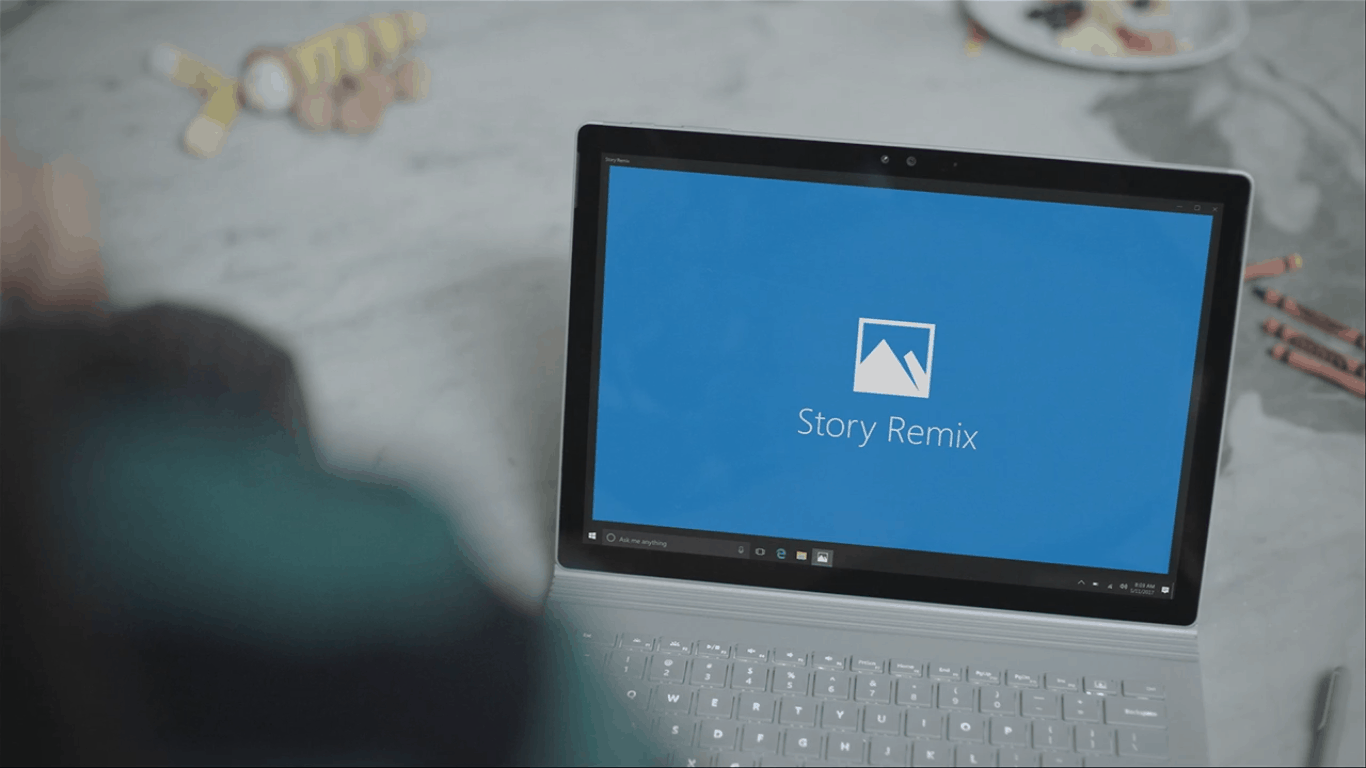
What’s new in Windows 10 preview 16193 for PCs includes Story Remix, new UX and discovery bar

Fresh of the avalanche of Windows announcements made during Day 2 of Build 2017, the Windows team has now released a new preview build to Insiders that’s bringing some of the newly sought after features demoed on stage today and scheduled for the Fall Creators Update later this year.

Here’s what’s Insider get to play with today in Windows 10 preview 16193 for PCs:

Tell your story your way: Today at Build we unveiled a big update coming to the Windows 10 Creators Update and the Windows 10 Fall Creators Update. Story Remix is an evolution of the Photos app that makes it easier than ever to relive your memories and introduces video story creation from your photos and videos. Windows Insiders will be the first to try out many of the new features demonstrated today – with more to come!

Videos made easy: Story Remix uses its understanding of your content to find collections of content most relevant to you and automatically brings it together into video stories – each with a soundtrack, theme, and transitions. You can keep these suggested video stories to enjoy and share, remix them with just a click of a button, or edit them yourself in story editor to get it just right. Anyone can get started creating great videos with the help of Story Remix.
Search: Story Remix uses deep learning and AI to automatically tag your content. Now you can search by people, places or things to easily find specific photos in your ever-growing collection so that you can view, edit or create a story.

Updated UX: The Story Remix app now includes elements of Fluent Design like connected animations, conscious scrollbars, and acrylic. The Explore page is the hub for your entire collection of photos and videos, where you can view your content in three different sizes – small, medium, and large. The Create page is the jumping off point for creating new stories.
Discovery bar: The new discovery bar gives you quick access to delight and common tasks, making it easy to create a new story, see stories we’ve created for you, and discover your past memories of people, places, and things.
Share your stories: Upload your video stories quickly to YouTube and Facebook, or share them easily via email or via OneDrive.
Power Throttling Update: Starting with Build 16193, the Task Manager column name has changed from “Background Moderated” to “Power Throttling”. For more information on Power Throttling, read this blog post here.

Individually controlling the volume of your UWP apps: We’ve updated the Volume Mixer to now include UWP apps (like Microsoft Edge, or Groove Music), so you can set their volume without impacting the overall system volume. Appreciate everyone who’s shared feedback requesting this, let us know what you’d like to see next! Note: UWP apps will only appear in the Volume Mixer once they start playing sound. To open the Volume Mixer, right-click on the speaker icon in the taskbar.

As an Insider myself, it’s great to see the windows between announcement and release has being shortened for Insiders.

Happy downloading, Insiders!

Microsoft introduces Timeline for Windows 10, Clipboard and Pick Up Where You Left Off for cross platform sharing

The Windows 10 Fall Creators Update announced at Build 2017 today is the next step for the Microsoft OS. Building on the Redstone 2 release launched earlier this year, this upcoming release will add more accessibility and tools for users across multiple devices.

Here are some of the new features coming to Windows 10 later this year.

Timeline

The Task View for Windows 10 is getting a major update, transitioning to a new Timeline view. If you’ve ever needed a visual timeline of what you were doing on Windows 10, now you will. The feature will show your recent activity along with date and time, letting you jump back into your train of thought easily, even if it’s on another device.

Pick Up Where You Left Off

Perhaps one of the most frustrating parts about moving devices so commonly is the inability to pick up and go. With Cortana, this feature is exactly what Microsoft intends to deliver. With Windows, iOS, and Android devices, Cortana can save a state of documents for you on one end and let you pull it up on another on request.

Cloud Powered Clipboard

Users will be able to click copy on one device and use paste from onto another with the newly updated Clipboard feature. During the demo presentation, Microsoft explained how by using the simple copy function on your PC to an Android device, integrated with Swipe keyboard to instantly copy text from the cloud.

These features aren’t all that’s coming to Windows 10. There’s more to learn as Build 2017 continues, and we’ll have it all here OnMSFT.


PC status: Potentially unprotected [FIX]

Windows Defender can sometimes displays a confusing message — PC status: Potentially unprotected. In order to clear the mystery up, we’ll explain why this message occurs and how to get rid of it.

To start, here’s how one user describes this confusing message:

PC Status: Potentially Unprotected. I don’t know why my windows defender has refused to updated. Please can you help me update my windows defender?

This message appears when a lot of time elapses since your last scan or Windows Defender couldn’t install the latest definition updates. Oftentimes, this message occurs after a third-party program has deleted some of the log files Windows Defender uses to check if your computer has been recently scanned or not. This error can also occur if the Antimalware Service isn’t running.

How to fix the “PC status: Potentially unprotected” error

1. Make sure that Windows Defender’s Real-time protection is turned on.

2. Install the latest Windows Defender definition updates.

3. Uncheck Windows Defender from your registry cleaner or junk file cleaner’s list. Here are the steps to follow for CCleaner, one of the most popular registry cleaners in the world:

Open the Applications tab > go to Utilities > Uncheck Windows Defender.

4. Now, scan your computer using Windows Defender. This action should recreate the log files deleted by your junk file cleaner.

5. Make sure there is only one anti-malware tool installed on your computer. There are many anti-malware programs compatible with Windows Defender, but you should install only one at a time. Running two different anti-malware tools at the same time may trigger software conflicts.

If you’ve come across other workarounds to fix this error, you can list the troubleshooting steps in the comment section below.

RELATED STORIES YOU NEED TO CHECK OUT:

Windows 10 OneDrive placeholders are coming back as Files on Demand, in preview this summer

Microsoft has announced during Day 2 of Build 2017 that file placeholders will return to OneDrive on Windows 10 devices with the Windows 10 Fall Creators Update later in the year.

The new placeholders will work in a similar way to how they worked before they were removed (i.e. simply listing files available in the cloud on a device without actually having to download them) but are being renamed as OneDrive Files on Demand. Here’s the official description of the revamped feature:

OneDrive Files on Demand: Access all your files in the cloud without having to download them and use storage space on your device. You don’t have to change the way you work, because all your files , even online files, can be seen in File Explorer and accessed on-demand whenever they are needed.

File placeholders were a popular feature of OneDrive before they were removed as they allowed for users to free up space on their devices while still having access to their files in the cloud if they ever needed them. Are you happy to see this feature return? Let us know in the comments below.

T-Mobile customers to get a free month of Xbox Game Pass

Microsoft originally announced Xbox Game Pass a few months ago, but it has apparently already gathered the attention of the Seattle-based cell phone provider T-Mobile. A recent post on Reddit shows that T-Mobile customers will get one free month of the gaming subscription service for free.

Free Month of Game Pass to T-Mobile Customers After E3 2017 from xboxone

Seen above, the post from the Redditor shows that “Xbox is coming back” and T-Mobile will be giving away one month of Xbox Game Pass to its customers. As the screenshot suggests, Xbox fans are also urged to tune into the Xbox E3 briefing on June 11th at 2 PM PT for a chance at epic Xbox Prizes.

Xbox Game Pass is Microsoft’s upcoming gaming subscription service, which gives Xbox fans access to 100 Xbox One and Xbox 360 games for $9.99 a month. It’s scheduled to be released to the wider Xbox community in Spring of 2017, but Xbox Insiders have already had chances to test out the service.

Games from industry leading publishers such as 2K, 505 Games, BANDAI NAMCO Entertainment, Capcom, Codemasters, Deep Silver, Focus Home Interactive, SEGA, Warner Bros. Interactive Entertainment and Microsoft Studios, will all be included in the service. You will be able to you discover and download the full titles directly on your Xbox One, without the need to stream the games.

6 Best Registry Finder Applications for Windows

If you need to make changes to your registry, the fastest way to do it is to use a registry finder for Windows.

Windows has a built-in Registry Editor, but this tool has some limitations, which is why many are going for specialized software instead.

If you want to find a desired key or value in your registry quickly, we strongly recommend that you try one of the registry finder tools from our list.

How do I find all registry entries for a program?

  1. Open Registry Editor. You can do that by pressing Windows key + R and entering regedit.
  2. Now press Ctrl + F.
  3. Enter the name of the application you want to find and click on Find Next.
     
  4. You’ll get a single result.
  5. Now repeat steps 2 and 3 again to go to the next result.

As you can see, this method is simple but not very effective, which is why many prefer using registry finder software for Windows instead.

What is the best registry finder for Windows?

Registry Finder – Best overall

If you’re looking for a simple registry finder, this tool might be just what you need. The application allows you to browse your registry with ease, but you can also delete and rename both keys and values.

Thanks to the tabbed interface you can easily open multiple keys and make the necessary changes. It’s worth mentioning that all your open tabs will be saved after you close Registry Finder.

As a result, you can always continue working on a specific key even if you accidentally close the application.

In order to quickly navigate to any key you can use the address bar at the top. Simply paste the path to the desired key and you’ll instantly navigate to it.

The application has a powerful search feature that can easily find any value or key in your registry. It’s worth mentioning that the search results are shown in a different tab. Therefore searching doesn’t interfere with your work.

This is especially useful because searching the registry can take a while sometimes, so you won’t have to wait idly while Registry Finder performs the search.

The search supports a wide range of parameters, so you can easily find any value you want. All search results are displayed as a list so you can easily navigate them.

The application will also show you the location where the match occurred along with additional information such as key name, value name, or data value.

In addition, all matched data is highlighted in red, therefore it’s easy to spot. Of course, you can easily navigate to a specific search result simply by double clicking it.

We must mention that this tool has a replace feature that can replace one string with another. The replacement affects only values from the Find Results tab, but if you want, you can perform replacement only for selected values.

Registry Finder also has a powerful history feature that allows you to restore any deleted or replaced entry. This feature is especially useful if you want to revert your registry to the previous state.

Registry Finder is a great application that will allow you to perform changes to your registry with ease. Thanks to the powerful search feature you’ll be able to perform changes to desired values in a matter of seconds.

The application is completely free, and since there’s a portable version available you can run it on any PC without an installation.

Key features:

  • Doubles as registry editor
  • Tabbed interface
  • Searches are displayed in separate tab
  • Matches highlighting
  • String replacement

⇒ Get Registry Finder

RegScanner – Advanced search feature

If you’re not satisfied with the search options in Registry Editor, you might want to consider using this tool.

Unlike our previous entry, this tool doesn’t work as a registry editor, so you can’t make any changes to your registry using this tool.

However, this tool works perfectly with default Registry Editor, so you can use RegScanner to perform searches and find the desired keys with ease. After finding the desired values, you can easily access them with Registry Editor.

RegScanner has an extensive search feature that allows you to customize your search properties. For example, you can choose which base keys to scan, but you can also display keys that are modified during a specific time period.

In addition, you can also display only specific types of data if you want. After performing the search, all results will be displayed in a list, so you can easily navigate to any value simply by double-clicking it.

The list of results is populated in real-time, so you can see the results as soon as they are found. It’s worth mentioning that this application can also search registry on a remote computer.

However, before you can do that, you need to log in to the remote computer using the administrator account.

RegScanner supports exporting, so you can easily export your search results as a .reg file and use that file for backup. In addition, you can also save the list of results as a text file.

Although this tool doesn’t offer registry editing, it allows you to easily delete any value right from the application.

This is rather useful if a specific value or a key is causing a problem on your PC. It’s worth mentioning that deleted keys and values are stored in a .bak file that you can use to restore them.

This file is created in the application directory, so you can easily access it. If the application can’t create the .bak file, the selected item won’t be deleted.

Another feature that you might find useful is the ability to open any registry path from your clipboard. Using this feature you can simply copy a path and open it in Registry Editor with a single click.

RegScanner is a great registry finder tool, but it doesn’t work as a registry editor. This means that you’ll have to completely rely on Registry Editor to make changes to your registry.

This tool offers advanced searching options, so you should be able to find any value with ease. Lastly, this is a completely freeware and portable application, which means that you can use it on any PC without an installation.

Key features:

  • Works great with Registry Editor
  • Advanced search feature
  • Real-time results
  • Supports exporting

⇒ RegScanner

Acelogix Registry Finder – Friendly user interface

Another great registry finder that we want to show you is Acelogix Registry Finder. The application offers powerful search engine, and with the friendly user interface using this tool should be a breeze.

To perform a search simply select the type of data that you wish to search for and the type of hives that you want to scan. We have to mention that this tool also allows you to scan local registry and registry on a remote computer.

You can also use this tool to read and view registry without Registry Editor on your PC.

After selecting the search parameters, you just need to enter the string you want to search for. It’s worth mentioning that the application also supports regular expressions, wildcards, and hex strings.

If needed, you can also search for values modified between a specific time period. Acelogix Registry Finder also has a useful folder tree in the left pane that you can use to sort your search results.

We have to mention that this application doesn’t allow you to modify your registry, so if you want to change a specific value, you’ll need to use Registry Editor. This application offers full integration with Registry Editor, so you can easily access and edit any value.

To edit a value with Registry Editor you have to double-click it in the list of results. The application allows you to delete registry entries, but you can also export your search results and use them as a backup.

Acelogix Registry Finder offers a friendly user interface, so you should be able to easily search your registry.

Although this is a great registry finder, we must mention that this tool isn’t free, so you’ll need to purchase it if you want to continue using it. The application offers a 30-day free trial, so feel free to try it out.

Key features:

  • Friendly user interface
  • Supports both local and remote registry
  • Works great with Registry Editor
  • Support for wildcards, hex strings, and regular expressions

⇒ Acelogix Registry Finder

Registrar Registry Manager – Great bookmark support

Another great tool that can help you search and edit your registry is Registrar Registry Manager. The application uses tabbed interface thus allowing you to perform multiple operations at the same time.

Using this tool you can edit registry on a local computer or on a remote PC. It’s worth mentioning that this tool allows you to back up and restore your registry with ease. This means that you can easily fix any problem that occurs after modifying the registry.

The application offers a powerful bookmark editor so you can easily bookmark registry keys and save them for later use.

Bookmark editor supports categories, and there’s even support for coloring and custom descriptions, thus allowing you to differentiate your bookmarks easily.

We also must mention that this tool supports multi-level undo, so you can easily revert any changes. Speaking of which, we also wrote how to undo registry changes on your PC, so be sure to check it out.

The application supports registry defragmentation, and there’s even a registry monitor available. Thanks to the latter, you can see a detailed log and check which applications have accessed your registry.

Registrar Registry Manager also has a powerful compare tool to easily check the differences between two keys.

The application also offers an advanced search feature that can quickly search your registry. Your search results will be displayed in a new tab so you can do other things while searching your registry.

The search is highly customizable, and you can perform text, binary, and regular expression searches. You can also apply various filters and specify data size, value type, and last write time to narrow your search.

Of course, you can easily modify any registry value or jump right from search results.

Registrar Registry Manager is a great tool, and it offers an advanced search feature that allows you to find any value in your registry.

Thanks to the available features, this tool can also work as a Registry Editor replacement. The application is free to use, but the Free version doesn’t have access to some advanced features. If you want to access all features, you’ll need to purchase the Pro version.

Key features:

  • Tabbed interface
  • Support for local and remote registry
  • Bookmark support
  • Registry monitor
  • Advanced search

⇒ Get Registrar Registry Manager

RegSeeker – For first-time users

RegSeeker is a useful tool that can clean your registry and optimize your PC. The application has a simple user interface so it’s perfect for new users.

Using this tool you can manage startup items, services and drivers. In addition, you can view and uninstall all installed applications on your PC.

The application also allows you to see your system information which is rather useful if you want to learn more about your hardware. In addition, there’s also a Process Navigator and File / Process Monitor.

Using these features, you can easily close any running application right from this tool. We also have to mention that this tool offers a powerful file search feature so you can easily find any application or file on your PC.

The application also supports computer cleaning, thus allowing you to easily clean any recently opened files, Start Menu history, etc.

RegSeeker allows you to easily clean your registry, but you can also manage your backups and restore the registry if needed. Using this tool, you can create registry favorites and access them with a single click.

In addition, the application also allows you to search your registry, so you can use this tool as a registry finder. Searching is rather simple, and you have to enter the desired string select the search options, and the keys that you want to search.

Of course, you can easily open any search result in Registry Editor simply by double-clicking it. In addition, you can also search through your search results to find the desired values faster.

RegSeeker is a solid registry finder, but it can also optimize your PC. If you’re looking for a tool that will allow you to manage your computer and search the registry, we advise you to try RegSeeker.

The application is free for personal use, and since it’s completely portable, it will work on any PC without an installation.

Key features:

  • Offers simple registry search
  • Ability to clean the registry
  • Simple user interface
  • Ability to manage startup items

⇒ Get RegSeeker

Registry Replacer – Offers basic editing

Another application that can search your registry is Registry Replacer. The application allows you to perform a quick search and it even allows you to perform search and replace actions right from this tool.

This tool is simple to use; you just need to enter the desired string and click the Search button. You can also configure search parameters and select what type of data you want to include in your search.

In addition, you can also choose which keys you want to search. Thanks to the Search and replace feature, you can easily edit your registry.

This feature can also create certain issues if you’re not careful, therefore, be extra cautious. We have to mention that you can create registry undo file right from this application, so you should be able to restore your registry if any issues occur.

Registry Replacer also offers basic editing, and you can easily edit any search result by double-clicking it. In addition, you can rename any value or delete it from the results list.

If you need to perform more advanced options, you can open Registry Editor right from this tool.

Registry Replacer is a solid registry finder that can also replace the selected values. Despite the humble user interface, the application has much to offer its users.

This tool isn’t free, so you’ll need to purchase a license if you want to continue using it. The application offers a 30-day free trial, so feel free to try it out.

Key features:

  • Lets you search and replace
  • Offers basic editing
  • Offers backups
  • Ability to delete and rename items

⇒ Get Registry Replacer

Registry finder applications are beneficial if you need to navigate to a certain key or find a specific value in your registry. Several registry finders on our list are free, so we encourage you to try them out.

In case you’re looking to clean the registry, then use one of these great registry cleaner applications.

What is your favorite registry finder for Windows? Let us know in the comments below.

Windows Store now has over 1000 desktop apps converted by Desktop Bridge

During a Build 2017 session called, Bring Your Desktop Apps to UWP and the Windows Store Using the Desktop Bridge, Microsoft’s John Sheehan revealed that over 1,000 desktop apps had been converted to the new Universal Windows Platform (UWP) app format and/or added to the Windows Store since the launch of the Desktop Bridge initiative.

Microsoft’s Desktop Bridge is essentially a way for developers to repackage their traditionally made Desktop (Win32) apps for sale in Windows 10’s Windows Store and allows them to implement certain features such as in-app purchases and pushed updates. Desktop Bridge can also be used to convert the older apps into the newer UWP app style which allows for greater functionality on a wider variety of Windows 10 devices. One recent example of an upgraded app that used Desktop Bridge is the official Kodi app.

Would you like to see more developers taking advantage of Desktop Bridge? Let us know what apps you’d like to see converted in the comments below.