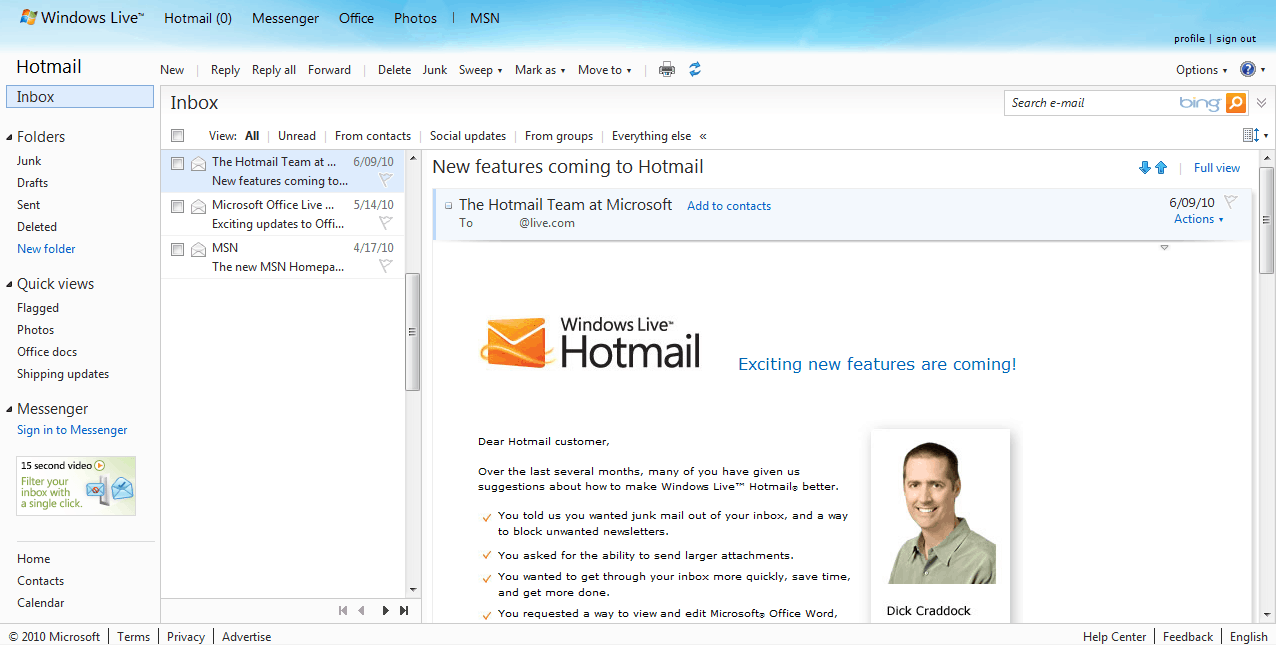
Earlier this year, Microsoft started testing a new Outlook.com Premium email service which offers an ad-free inbox, five personalized email addresses on the custom domain on your choice and more. Following a few months in public preview, the service now seems to be available to all users in the US.
According to the official web page, you can try Outlook Premium for free for the first year even though Microsoft mentions a “special price of $19.95/yr (regular $49.99/yr)” right now. We successfully signed up with several Outlook.com email adresses today, and it also seems to work outside of the US despite Microsoft’s claims of US exclusivity.
You’re invited to choose your custom email address after signing in.
After signing in, you will be invited to choose your personalized email address with the custom domain of your choice. Microsoft will help you with suggestions but you will also be able to configure it with a domain that you already own. While it’s possible to skip this step, you’ll have to do it to enjoy the ad-free experience on Outlook.com.
The ad-free inbox is nice.
Back in April, the official web page stated that the premium service would be priced at $3.99 per month, but according to these new pricing details the service would now be slightly cheaper than that following the end of the free year offer. We invite you to try to sign in for Outlook Premium over here and to let us know in the comments how it works for you.
Microsoft has announced an expanded partnership with German multinational software corporation SAP. As part of the partnership, Microsoft will provide public cloud services for the SAP SuccessFactors HCM Suite and SAP will make available its cloud-based human capital management solutions on Microsoft Azure over the next five years.
Overall, the deal is an addition to the already existing partnership between Microsoft and SAP, such as previous integrations made between Office 365 and SAP SuccessFactors HCM Suite, as well as SAP Fieldglass Vendor Management System, SAP Ariba and Concur solutions. It also comes as Microsoft recently announced the general availability of Azure large instances, hardware configurations specifically designed for the largest and most demanding SAP workloads.
Additionally, the deal marks SAP’s first move to “supplement its own infrastructure and operate SAP SuccessFactors solutions in a third-party public cloud.” Judson Althoff, executive vice president, Worldwide Commercial Business at Microsoft put the deal best and said:
“Microsoft and SAP share a commitment to empowering digital transformation across every aspect of business… The combination of SAP’s market-leading, innovative human capital management solutions with Microsoft’s intelligent cloud will equip companies around the world to help maximize the potential and skills of their most valuable asset, their people…”
According to a statement from Mike Ettling, president of SAP SuccessFactors, SAP SucessFactors is “the fastest growing core HR solution, and SAP has seen exponential growth in the past two years, with 42 million users benefiting from their market-leading solutions.”
From its Photo Gallery, Movie Maker, Mail, and even Live Writer, Windows Essentials has held on as a suite of Windows applications which help you do more on your Windows PC, even after the demise of the Windows Live era. Thanks to a tip from a reader (Thanks, Nicola!) we can now report that you no longer will be able to download Windows Essentials 2012 after January 10, 2017.
Windows Essentials end of support message
As seen above, word on this first spread via a support web page for Windows Essentials, which now has a banner that reads, “Windows Essentials 2012 suite will reach end of support on January 10, 2017.” Those who have the series of Windows Essentials apps installed can still use the applications after the January 10th date, but with the security risk associated with the use of unsupported products past the end of support.
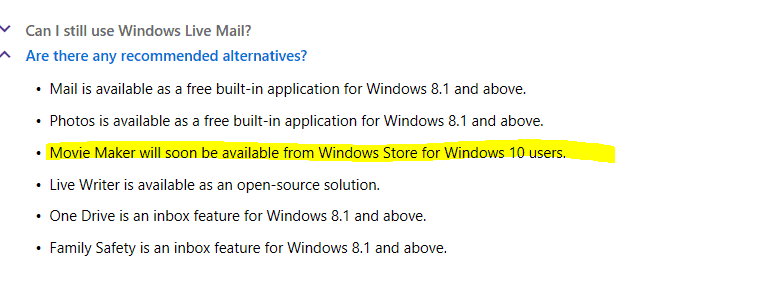
Microsoft is also pointing users of the Windows Essentials applications to the built-in Mail, Photos, One Drive, and Family Safety features in Windows 8.1 and above. As an added bonus, (and as we previously reported,) the company also hints in the support page that Windows Movie maker will soon be available from the Windows Store for Windows 10 users:
Movie Maker lives!
And lastly, for users of Windows Live Writer, Microsoft points to the open source third party Live Writer app, which we previously described in this post here.
Are you sad to hear about the end of the Windows Essentials era? Let us know what you think by dropping us a comment in the section below!
Major Nelson has taken to his blog to announce that the Ultimate Edition and Early Enlister Deluxe Editon of Battlefield 1 are now available for purchase on Xbox One. The release of the special editions come one week ahead of the launch of the standard edition of the game.
Battlefield 1 Early Enlister Deluxe Edition is available for purchase at the price of $79.99 or $71.99 with EA Access, and Battlefield 1 Ultimate Editon is available for the price of $129.99 or $116.99 with EA Access. In case you did not already know, Battlefield 1 is the fifteenth installment in the Battlefield series, and is set in the World War 1 time period. The game puts you in control of various armored vehicles and even horses, and features dynamic open environments complete with a 64-player multiplayer online mode.
Do you think you will be picking up the special editions of Battlefield 1 so you can play early? Let us know what you think by dropping us a comment below!
Batman: Return to Arkham is now available to purchase, download, and play on Microsoft’s Xbox One video game console. The title is a bundle of the two previously released Batman video games, Arkham Asylum and Arkham City, which have received graphical upgrades and contain all of the downloadable content that was released after their initial launches. Here’s the official game description:
Return to Arkham and experience two of the most critically acclaimed titles of the last generation – Batman: Arkham Asylum and Batman: Arkham City, with fully remastered and updated visuals. Batman: Return to Arkham includes the comprehensive versions of both games and includes all previously released additional content.
Batman: Arkham Asylum exposes players to a dark and atmospheric adventure that takes them into the depths of Arkham Asylum –Gotham City’s high security psychiatric hospital for the criminally insane. Use Batman’s legendary gadgetry, strike from the shadows, and confront The Joker and Gotham City’s most notorious super villains.
Batman: Arkham City sends players soaring into Arkham City – a heavily fortified sprawling district in the heart of Gotham City. Batman Arkham City introduces a brand-new story that draws together an all-star cast of classic characters and murderous villains from the Batman universe, as well as new and enhanced gameplay features.
Live Tiles are one of the signature features of Windows 10. There are two types of Live Tiles, one that fits into the system’s color theme and one that doesn’t. And while we didn’t have many customizations earlier, you can now create custom live tiles in Windows 10.
So in this article, we’re going to explore how to create custom Start menu live tiles in Windows 10.
As soon as you open the app, you’ll notice a section for downloading the StartMenu Helper. Follow the instructions, and download StartMenu Helper. Since it comes as a .zip file, unwrap it to get started. Open StartMenu Helper.
To create a new tile, select New Tile, click on the Auto Generate all from a single imagebutton, and then select an image for your tile.
Under Other options, add some more details, like the name, a background color (you can even use a transparent color), and more.
Once you’ve entered all the needed details for your Live Tile, head over to the Action section. Select Run desktop app
Now, in the Select section, add the file path of an app/program you want the Live Tile to link to. The easiest way to find the file path is to right-click the program you want to create the Live Tile for, go to Properties, and copy the Target location.
Click on Generate tile data, and then your tile will show up in the Better StartMenu app.
After you’ve generated and set everything, click on Pin select tile to Start Menu, and your newly created Live Tile will show up.
Better StartMenu is a UWP app available in the Windows Store, and it comes with a price of $2.99 (but you can use a trial version, which has no limitations).
It consists of two parts – Better StartMenu and StartMenu Helper. Better StartMenu collects all title data, including the program’s name, icon, and path, while Better StartMenu is used to pin a Live Tile to your Start Menu.
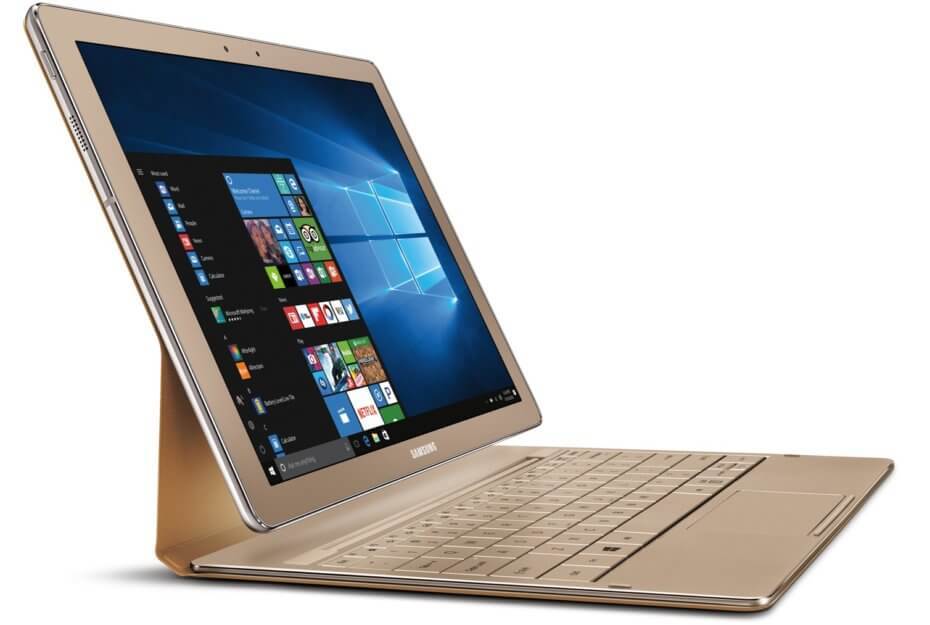
After the recent controversy generated by Samsung’s explosive Galaxy Note 7, the company plans to redeem itself with the release of the Gold Edition Galaxy TabPro S. Its predecessor was included in our best Windows 10 Hybrid’s list, so we hope this release can perform miracles.
The lurid remake of the already lithe Galaxy TabPro S tablet runs Windows 10 and has an Intel Core M processor. After the unveiling of the Galaxy TabPro S at CES in January, the Korean brand decided to upgrade some of its features in addition to gilding the device. The latest sixth generation Intel Core M processor model comes with 8GB of RAM, a 256GB SSD solid state hard drive and a battery that should be good for 10.5 hours of video playback.
It hasn’t even been an entire year since the PC replacement debuted and Samsung is already taking big leaps with its Galaxy TabPro S by introducing double memory space and storage than their previous release. The gold-finished model possesses a sleek and svelte metal bling body, is only a quarter-inch thin, and weighs only 1.53 pounds. The 2-in-1 Galaxy TabPro S also holds a detachable keyboard with integrated touchpad. The keyboard is connected via the Pogo pin connector eliminating the need for pairing or individual charging.
Additionally, Samsung Flow allows for unified connectivity between the Galaxy TabPro S and your Samsung handset. Now users can get instant phone notifications and incoming calls right on their convertible.
Though there is nothing much innovative in the model apart from the gold finish on its magnesium alloy body. The Galaxy TabPro S Gold Edition packs the same 12-inch Super AMOLED Full HD display, a 2.2 GHz Intel M3 processor and a 5MP front facing as well as rear-facing cameras. Another difference lies in the entire package costing you $999.99. It goes on sale at Best Buy and Samsung.com starting today. If you are not a fan of this tablet’s design, a more restrained version with 4GB of RAM and 128GB of storage goes for for $799.99, $100 less than before on Samsung’s site. There is also a TabPro Pen up for purchase that users can utilize for inking experience pleasures.
Take a look at the full specs below:
Galaxy TabPro S Gold (SM-W700NZDBXAR) Specifications
Display: 12-inch Super AMOLED Full HD+ (2160 x 1440)
Processor: 2.2 GHz Intel Core M3
RAM: 8GB
Internal Storage: 256GB
Camera: 5MP front camera | 5MP with Auto Focus rear camera | 4X Digital Zoom
Battery: 5200mAh
Dimensions: 11.43″ x 7.83″ x 0.25″ (without keyboard)
With so much going on in the world of technology, politics and not to mention the unending celebrity drama, a robust Windows 10newsapp is a must have on your PC. Gone are the days when people used to visit the vendor’s shops pretending to buy the newspaper only to cast a brief look at the news headlines. Today, there is a respectable collection of Windows 10newsapps that break the news for you even before it hits the press.
These newsapps can be linked to a news reader that pulls news from different sources or dedicated to a single news agency. Some apps target a certain niche such as sports only while others cover every story that has made the headlines ranging from politics to sports, pop culture to medicine and more. Some of these titles are very familiar and you may have heard of them while others are very new but you’ll realize that they have quite a lot to offer. In this roundup, we’ll only mention the newsapps that are available in the Windows 10 store.
There are many newsapps for Windows 10 and Windows mobile but none beats NewsFlow. The app is a new player in the game and comes with a beautiful user interface, the kind that you’ve not seen before on RSS readers. NewsFlow strictly follows all the Windows 10 UI guidelines which partly explain why it has such a clean and really nice user interface. But the secret is not in the UI, but in what the app brings on the table.
NewsFlow comes with a ton of features all geared to give you an unparalleled user experience. It brings all the news from your favorite website in one central place, so you don’t have to browse the internet looking for additional information. Below find a few of the top features you will find in this app.
Favorites and read later lists
Portrait and landscape orientations
Live tile with the latest news
Notifications for all the top news
Offline news storage
RSS, RDF, and ATOM support
Standalone feeds synchronization engine
Even better, NewsFlow is one of the few newsapps that do not include in apps advertisements. The app is 100% free and is available on the Windows store.
Discovery News is your solid source of information in the world of science and technology. As the name suggests, Discovery News is a product of the Discovery Channel and it was specifically designed to unravel the science mysteries and bring the answer right into your fingertips. The interface is stunning, yet very informative. The home page is divided between the latest featured stories and the various news channels.
News stories and videos are added on regular basis. Countless videos are added on daily basis and you also get the lowdown every weekday from hosts such as Anthony Carboni. In addition to videos, you can swipe through a large catalog of HD photo galleries. You also get a dose of crazy facts that you might not find elsewhere.
MSN News is the official newsapp created by Microsoft Inc. and it brings curated news stories from many sources and customizes it to suit your topics of interest. The app has a clean interface and is renowned for bringing news, sports, and weather right to your desktop. The stunning interface has a live tile support that delivers the current headlines of the day, gathering information from global sources.
MSN News has a layout that allows you to quickly tap to your news of interest. All the news categories are displayed across the top of the screen with the menu buttons on the left side. Microsoft gives you the option to edit the categories so as to hide the ones that are of no interest to you. The menu bar will help you navigate to your topics of interest and also has the option to send feedback to Microsoft. You can use the arrow key to navigate between articles and the action button to share any article on social networks.
CBS News is a free universal app available for both Windows mobile and Windows 10. The CBS News app delivers on-demand videos from the company’s award-winning news program including CBS This Morning, CBS Evening News as well as CBSN—the 24/7 digital streaming network from CBS news.
The CBS News app covers many news categories including US News, World News, Entertainment, Health, Technology, Science, Politics, and more. The app also brings you live news shows such as Face the Nation and 60 Minutes. You can also bookmark or share the stories of interest through the hamburger menu.
USA Today
USA Today is a popular newsapp that brings what you would expect to find in a newspaper to your Windows 10 PC and Mobile devices. The app covers daily news stories from vast categories including politics, technology, travel, money, lifestyle and more. Clicking on each category will open into more refined sub-categories, for instance in Sports, you will find NFL, NCAA, NBA and other sports leagues.
The USA Today app has an intuitive interface and the layout consist of the hamburger menu nested on the top left corner. Clicking on the hamburger menu opens many options to choose from. You can share the stories, tag as favorites, or save to read later. The app also allows you to use keywords to search for specific news stories. USA today is a no compromise app that brings the top news and trending stories right into your Windows 10 PC.
The world has evolved so much such that almost everything that used to be done manually has a digital platform that simplifies the way things are done.
The list above only highlights the top apps and is by no means exhaustive. Other top newsapps that you should also check out include ESPN Sports, READIY, Redditting, News Republic, CNN, and Flipboard.
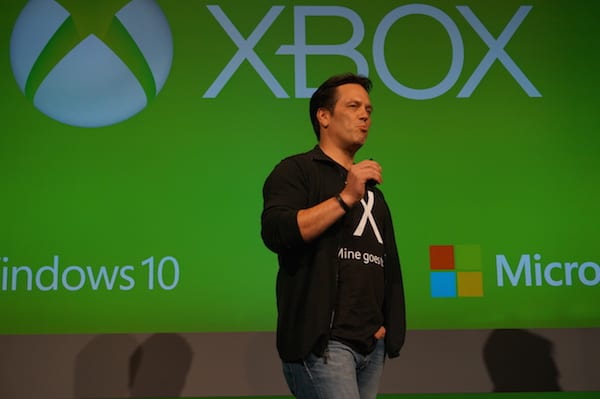
It is no secret that the Xbox has yet to find a substantial audience in Japan and aptly so, for various reasons. Head of Xbox Phil Spencer believes he may have narrowed down a few key reasons why the Xbox and the Xbox One, in particular, may being doing so poorly in the region.
In an interview with Famitsu magazine, Spencer discusses several topics related to Microsoft’s Xbox division such as the One, Xbox One S, Project Scorpio, and VR and during the interview, he reveals a few tidbits about why the company has been having trouble grabbing a Japanese audience.
How do you feel about the current Xbox One market in Japan? As you have seen it is not doing well in sales, what are your current thoughts regarding this matter?
Phil: Sadly the Xbox One is not living up to the amount of sales I originally thought the country would put out, but with the Xbox One S we will release it in Japan and with the co-operation of many developers we’re hoping to make a giant change in sales compared to the current climate!
What are your personal thoughts on why the Xbox One is not a much bigger name over here in Japan?
Phil: I think it’s due to a lot of games that are released on the console, I feel that a lot of the games are not games that the Japanese public would play and get themselves into. A lot of Japanese gamers really seem to like games such as Persona 5 or Nioh and that is why we decided to get in touch with Japanese developers to create such games as Blue Dragon and Lost Odyssey for the Xbox 360. If we plan on doing better in the Japanese game market, we want to release games that the average Japanese gamer will really enjoy.
You are working close with Japanese developers to create games for the Xbox One, how is it going so far?
Phil: So far we have made friends with a variety of developers that then asked to create games for our system; such as Mr. Inafune Keiji with ReCore & Mr. Kamiya Hideki and the staff from Platinum Games for the development of Scalebound. We plan to talk with many other developers in order to bring more games to the Japanese market; we were happy to announce Final Fantasy XV on the Xbox One which made me extremely happy and as mentioned we plan on a lot more connections.
While it’s been assumed for years that the Xbox’s lineup of games has catered to a very specific market, it’s also very interesting to see the head of the division admit that the console has failed to meet the demands of varied gamers.
Despite Microsoft doing a recent about-face and concentrating on being a more gamer-centric company for a wide variety of users by working to combine platform play between PCs and consoles, it seems Spencer and the Xbox team aren’t entirely sold on competing in the Japanese gaming industry.
Coupled with an earlier lackluster Xbox One release in the Japan, Spencer was careful to say, “If we plan on doing better in the Japanese game market,” rather than “we plan,” it seems the Japanese gaming market will remain on the peripheral while the company figures out a new approach.
The event, marketed as ‘Imagine What You’ll Do’, at the Microsoft Store starts at 7:30 PM EDT, although the invite shares no specifics except ‘Music by Questlove’. One would expect the new Surface devices and accessories that will be announced earlier in the day to be showcased (and maybe up for pre-order?).
Microsoft is bringing a new Microsoft Paint app to Windows 10 which, according to its launch video, will include features from the current version of Paint as well as new changes like 3D object support and pen- and touch-friendly features. It’s not clear when the revamped Paint app will officially be released, but users who don’t want to wait can install the leaked .appx that is x64.
Thanks to Gustave M, the guy behind Interop and GusTools, Windows 10 users are able to download the Paint .appx file signed from the Store. It’s very easy to install the new Paint app and below, we’ll tell you what steps you need to take:
• Head to this page to download the .appx file
• After the download is complete, double-click the file and associate it with App Deployer
• You will get a warning from SmartScreen Filter, but instead of clicking “Don’t Run”, select “More info”
• Continue with the installation by selecting “Run”
• From the installer select Install
• When the installation is complete, choose Launch or find the Paint in the Start menu.
You will not need Developer Privileges enabled because the app is signed, but you can turn them on by going to Settings -> Update & security -> For developers -> Sideload apps/Developer mode.
Also, know that the new Paint Preview works only on desktop PCs because their graphics can handle the 3D software. For now, the leaked .appx is x64 but most likely, Gustave M will post an x86 version on his Twitter account.
Users who installed Paint Preview said the app works well, but experienced a few crashes. We remind you this is the leaked app and when Microsoft finally makse it available, all glitches will be fixed.
DICE together with EA, did a great job when it came to support for the Xbox One. EA Access lets gamers play a continually expanding collection of games and also gives them privileged access to certain games before anybody else. This is what’s happening with Battlefield 1 out on October 21st.
Initially, Battlefield 1 underwent a beta test that went live in August. It was limited to one map and two modes for multiplayer, but fans were happy to test it out nonetheless. The Access Play First Trial from EA comes with many more features such as five maps (together with the Sinai Desert map present in the test version), a couple more levels from the campaign and four multiplayer modes. Many people are worried that if they play the trial and progress, they will have to start over again in the full version. However, the company assured everybody that progress will indeed be transferred to the final game to not lose anything.
The First Trial for the game will only last ten hours and you might want to use it to the fullest. If you launch the game, you will get a dog tag but if you play the game the entire ten hours, you will also receive a free Battlepack when the final game is out.
If you’re a member of the EA Access program, you can also enjoy a 10% discount on a pre-order for Battlefield 1. Also, if you’re not interested in the bonuses offered by EA, you can simply pre-order the physical version of the game from Amazon. to playing the First Trial, launch the EA Access on Xbox One and search for Battlefield 1 there.
Today, Microsoft unveiled a poster titled “Contoso in the Microsoft Cloud,” showing what Microsoft can do for enterprise customers that are looking to move forward by adopting a “cloud-inclusive IT infrastructure.” The Contoso Corporation is a fictional company created by Microsoft years ago, and is now being used to show how enterprise customers can benefit when using all of Microsoft cloud services, including Azure, Office 365, Dynamics 365, and Intune.
Contoso in the Cloud
The “Contoso in the Microsoft Cloud” poster includes the following highlights::
An overview of the fictional Contoso Corporation, its three-tier design for its offices, and key elements of Contoso’s implementation of the Microsoft cloud.
A review of Contoso’s on-premises IT infrastructure and how its business needs map to Microsoft’s cloud offerings, including opportunities for Azure PaaS and IaaS.
Contoso’s private WAN infrastructure, its app design for its offices, its use of Azure ExpressRoute Premium, and its step-by-step path to cloud networking readiness.
Contoso’s on-premises Windows Server Active Directory (AD) forest, how it geographically distributes authentication traffic, and how it uses Azure IaaS to provide authentication infrastructure redundancy for the 15,000 workers in its Paris headquarters.
Contoso’s structure for Microsoft cloud offering subscriptions, licenses, its common Azure AD tenant, and user accounts synched with Azure AD from its on-premises Windows Server AD forest.
Contoso’s security requirements in the cloud, its data sensitivity classification and mapping of cloud features to each level, and its step-by-step path to cloud security readiness.
This poster in is available for download via PDF or Visio format, and you can also view it online on Docs.com. Microsoft plans to add additional highlights to posters like these that will include Azure PaaS, SQL Server Stretch Database, and others. Microsoft hopes to use these posters to shift enterprise customers from an on-premises IT infrastructure to a cloud-enabled one.
Take a look at the additional posters that are available in the Microsoft Cloud for Enterprise Architects Series.
If you are an IT administrator and you have a scenario that you would like to see available in a future update to this poster email the Microsoft Cloud team at [email protected].
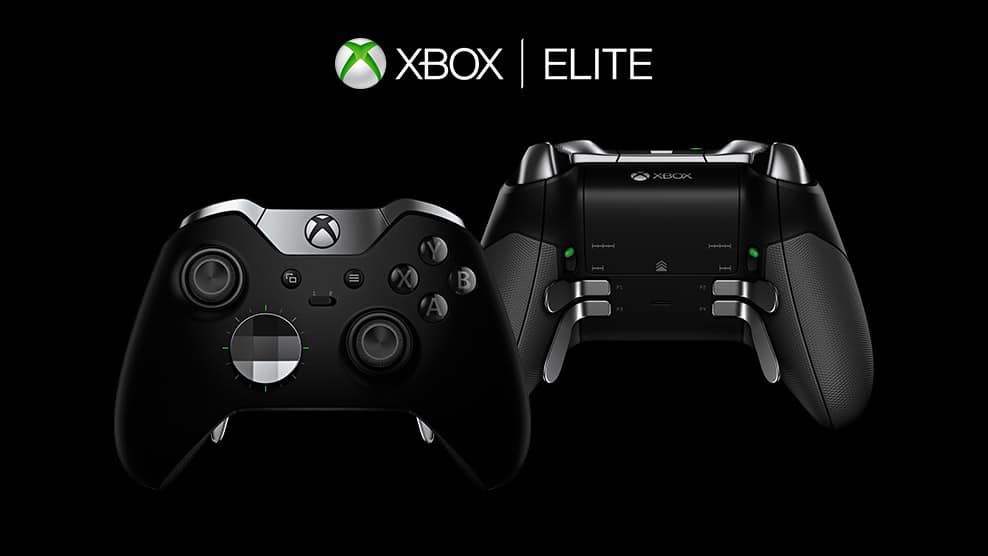
A little more than a year ago, Microsoft introduced a new Xbox One controller for hardcore gamers during its E3 2015 presentation. Called the Xbox Elite Wireless controller, the new gamepad was designed in collaboration with pro-level players and offered premium materials, extra buttons on the back and more mapping options through the Xbox Accessories app.
While the $149 controller quickly became a popular hit among Xbox enthusiasts, the customizable gamepad also offers a lot of value for people with disabilities who need special and expensive controllers to enjoy video games. Craig Kaufman, Program Director at the AbleGamers Foundation explained why to the folks over at Engadget.
“There’s a social isolation that happens for people with disabilities when you’re inside all the time,” explained Kaufman to Engadget. That’s why the AbleGamers Foundation tries to help improve the quality of life of people with disabilities through the power of video games. According to Kaufman, the removable parts, extra buttons and mapping options found on the Xbox Elite controller can sometimes be a good replacement for more specialized controllers that can be used with one hand or mounted on a wheelchair. That’s why the foundation has started buying Xbox One Elite controller to give them away to disabled people.
To demonstrate the versatility of the controller, Kaufman even filmed a video of himself using the controller with his mouth and just one hand and showed it to a man who lost the use of one his hands. “This is a $150 solution that you can go buy at Wal-Mart, and it helped that dude with a stroke play games. That’s huge,” he explained. Kaufman also sent Microsoft a gamepad layout for first-party title Gears of War 4 that doesn’t use the controller’s triggers, and Microsoft accepted it.
Lastly, Kaufman explained that it makes sense for the video games industry to be more inclusive to sell more games, and Microsoft seems well aware of it according to him. “The fact that we give these out is huge for them, and they’re always looking at how to include more players,” he added.
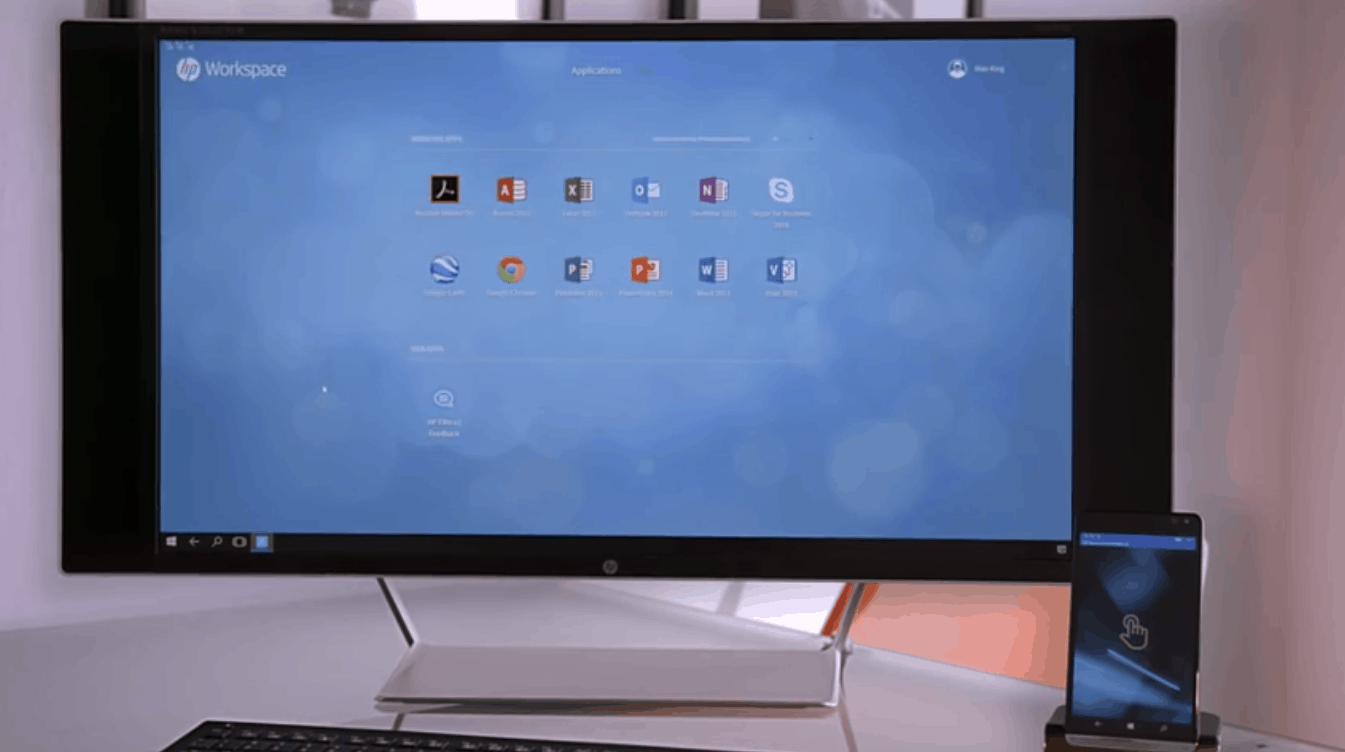
HP’s Elite x3 Windows 10 Mobile phone is now available in the US and it’s the most powerful and versatile Windows phone you can buy right now. As a 3-in-1 device mainly targeted at business users, the premium handset aims to make the Windows 10 Mobile Continuum feature a more complete desktop experience than what you can currently enjoy with Microsoft’s Lumia 950 and 950XL phones. This is possible thanks to HP Workspace, a new app that allows users to run virtualized legacy Windows apps in Continuum mode.
As of today, Windows 10 Mobile’s Continuum mode is pretty limited: it only works with UWP apps that support it (and there are not a lot that do so far), and it doesn’t support windowed apps yet. But HP Workspace changes that as it enables a familiar desktop experience with access to legacy desktop apps such as Chrome, Internet Explorer, the Office 2013 apps and more. However, the virtualized environment is a premium service targeted at business users. Engadget got the chance to test it and you may be surprised by some of the details.
First of all, HP Workspace is available as a subscription service and there are two different tiers:
For $49 per month per user, the virtualized environment is limited to 4GB of RAM, 10 different apps and 40 hours of monthly usage.
For $79 a month per user, you get 8GB of RAM, unlimited apps and 80 hours of monthly usage.
HP Workspace works with both HP’s Desk Dock and the company’s Lap Dock which is not yet available. According to Engadget, using virtualized apps is not as smooth as using those apps on a real computer, but that was to be expected. But while the experience seems pretty good overall, it remains to be seen how the service will scale after many enterprise users start using it on the Elite x3.
More importantly, it’s still not clear if HP’s all-in-one solution is cheaper and more effective than a classic setup including your average smartphone and laptop/PC. The 3-in-1 device could be appealing to some users, but the premium price and the technical limitations (you’ll need to have a good Internet connection to make it work) could also be too much to handle for many. It’s still early days though, and HP deserves credit for trying to reinvent the smartphone experience nine years after Apple changed everything with the original iPhone.
Founded in 2007, Seattle-based tech startup Zipwhip has more recently been known for its technology which “allows business customers to send texts from the web, desktop, and smartphones through the major US Wireless carriers.” Today it has been announced that the same startup company has received a $9 million Series B investment from a number of investment firms, including Microsoft Ventures (Via GeekWire.)
As part of the investment, funding for the 100 employees and the company will reach $20 million, and the funding will also be used to help grow the company’s sales and product development teams. Zipwhip and its software, nonetheless, functions similar to a Microsoft Exchange Server and allows businesses to text with their customers using already existing landline phones and toll-free numbers for customer service, appointment scheduling, and sales.
Customers of Zipwhip come from a wide variety of fields such as transportation, radio, medical, insurance, and fitness. Zipwhip CEO John Lauer put the situation best and told GeekWire,
“Businesses are late adopters, They don’t want the new thing and they don’t want to What’s App-enable or Facebook Messenger-enable their business. They just want to text-enable because everyone has texting… What’s so interesting about Microsoft participating in this round is that they’re looking at us and saying, ‘OK, we dominate the email space with respect to business software, and email is an open communication medium… Texting is emerging as an equivalently-important open communication medium. Some company will dominate the business software for that open communication medium, and we are in that position.”
ZipWhip has contacts with the major wireless carriers, which allows the start-up company to, “create industry policies which text-enabled existing hardline numbers.” According to GeekWire, the startup is also on pace to reach $10 million in annual recurring revenue by Q3 of this year and is also looking to double the existing 100 person workforce, and expand their 50 person sales team.
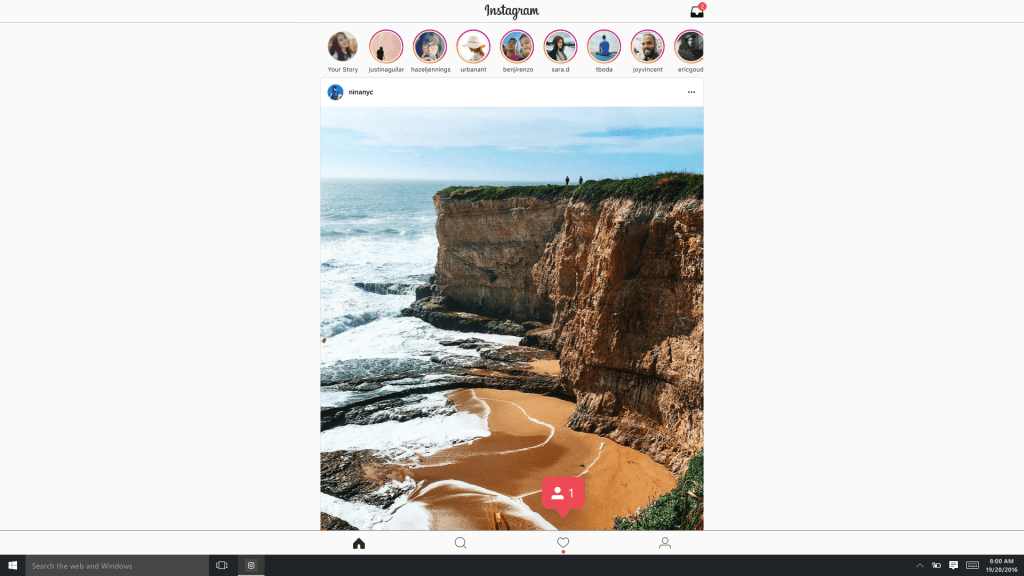
Instagram is a popular mobile video/photo sharing and social networking service that allows users to take videos and pictures and share them either privately or publicly. At the same time, the application comes with a simple user interface, which will make life easier for new users.
The Instagram application for Windows 10 has just been updated and it can now be installed on both tablets and PCs. It is good to know that the new Instagram application is almost identical to the mobile version.
However, it seems that posting a photo or video content on Instagram from a tablet or PC that runs on Windows 10 will be limited to devices with backwards facing camera and touchscreens (such as the Surface Pro line and Surface Book). This is mostly because the user interface of Instagram is influenced by the smartphone application design.
Here are more features that the Instagram application for tablets and PCs running on Windows 10 comes with:
Post and edit photos – Instagram makes sharing moments with everyone in your world easy, speedy, and fun.
Stories – Stories from people you follow will appear in a row at the top of Feed.
Instagram Live Tile – Find out what your friends and family are up to at a glance.
Rich, native notifications – You will receive the notifications you want to see so that you don’t miss important updates.
Instagram Direct – Instagram Direct lets you exchange threaded messages with one or more people, and share posts you see in Feed as a message.
Full featured Search, Explore, Profile, and Feed.
It seems that Instagram is getting more and more popular and now the company wants to expand its services on any platform.
Are you using Instagram to share your videos and photos with your friends? Tell us your thoughts about this social network!
Microsoft (MSFT) news recap is a weekly feature highlighting the top Microsoft news stories of the past week. Sit back, grab some coffee, and enjoy the read!
Microsoft files for EU approval of LinkedIn acquisition
Salesforce has recently tried to block Microsoft from the LinkedIn acquisition in the EU by hiding behind antitrust issues. They are doing everything they can to crush their competition, as the LinkeIn deal could badly hurt them.
Microsoft now files for EU approval of the deal to shut Salesforce up and the deal has already been approved by government antitrust regulators in the United States, Canada, and Brazil which means that it should go well for the approval in the EU too.
Microsoft shows off cloud based data in feature on transforming golf
It seems like Microsoft may actually be into golf. Microsoft is thinking outside the box again and has announced that they now focus on golf enthusiasts by using cloud data. The data will be available by using the Microsoft Course IQ app and it will contain maps for over 30,000 different golf courses together with specific features for golf like score tracking and more.
With this information, golfers will be able to play the sport even easier, as they won’t have to worry about a lot of difficulties that they usually may have to deal with.
Indian government grants Microsoft cloud a rare provisional accreditation
Microsoft can now do more to support the government of India. Microsoft has officially obtained a rare provisional accreditation from The Ministry of Electronics and Information Technology in India, which means they now deliver a cloud computing solution in India that provides truly innovative digital services to a wider range of customers.
Microsoft involving itself into different governments is nothing new, but now, the company has a pretty good position over in one of the fastest technology-growing countries in the world.
Images of the apparently cancelled Band 3 published
Microsoft may have ended the Band product line, but that doesn’t stop leaks from happening. Windows Central got their hands on images of the cancelled Band 3, with even more images following a few days later. It is a shame that a product so good has potentially been buried alive.
Microsoft tapping Pegatron as its high-end Surface AIO manufacturer
One product may have apparently been killed off, but that doesn’t mean other ones can’t Surface. The Surface AIO device has been rumoured for quite a while and now, we might finally know who will manufacture them. The rumours say that Pegatron may be the company for the job, and Microsoft seems to trust them in the production of their flagship brand.
That’s it for Microsoft this week – we’ll be back next week with more.
Updating can be sometimes quite annoying, especially if you have some important things to do on the computer. There are many users and administrators out there who run into updating issues on Windows machines.
For example, in the past year, we’ve seen many updates that caused some several issues on Windows 10 OS. For example, the updates KB3081424 and KB3194496 have caused issues on computers all over the world.
Because of this, Microsoft has also released a “Reset Windows Update Agent, which is a tool that is designed to fix the updating problems. So, if the Windows Update doesn’t work correctly, this is a great tool that you can use in order to make sure that your updates are installed properly.
How To Check Windows Update Errors Fast And Easy
It is good to know that Windows is keeping an update log where it is listing all update-related events. These logs can be found in C:\Windows\Logs\WindowsUpdate and they can be analyzed by using various tools.
However, you can also use a simple PowerShell command in order to turn the Event Trace Log files into a single text log that you can then check for errors or other issues that are related to the updates on Windows.
Here is how you can do that:
On Windows 10 OS, press the Windows-key and type cmd.exe, but make sure that you hold down Shift and Ctrl and hit the Enter key. If you do this, a command prompt will open with “Administrator” rights
Type powershell and hit the Enter key
Now write the command: get-WindowsUpdateLog –verbose
After doing a WindowsUpdate.log file will be created on the desktop which you will be able to load it once the process finishes (using any type of editor – we suggest you to use NotePad++).
Microsoft introduced folder libraries in Windows 7, which have remained a part of File Explorer. The libraries give you a central place to manage folders. File Explorer includes default Videos, Pictures, Documents and Music libraries. The Music Library gives you quick access to music folders in multiple locations, which can come in handy.
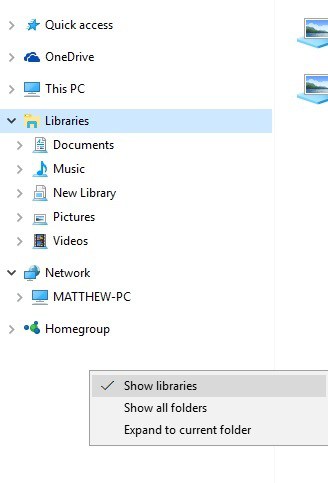
Note that the Music Library is not included on the Windows 10 File Explorer sidebar by default. To restore Libraries File Explorer’s navigation bar, select This PC. Then you should right-click an empty space in the left sidebar and select Show libraries from the context menu as below. Then you can select Libraries > Music in the sidebar.
However, the Music Library might not always work. When the Music Library doesn’t open, a Windows Libraries window pops up stating: “Music.library-ms is no longer working. This library can be safely deleted from your computer. Folders that have been included will not be affected.” You can fix the Music Library as follows.
First, open File Explorer (or Windows Explorer) and click Libraries on the left of the window to open them as below.
Then right-click the Music Library and select Delete from the context menu.
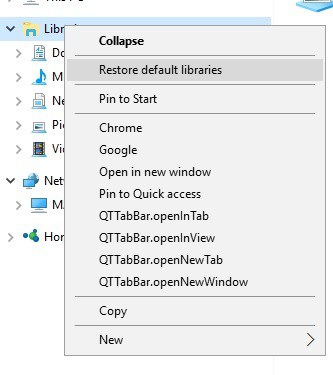
Next, you should right-click Libraries on the navigation sidebar to open the context menu shown directly below.
The context menu includes a Restore default libraries option. Click the Restore default libraries option.
Now click on the restored Music Library to open it.
So that’s a quick fix for the Windows Music Library. Note that you can fix any File Explorer library folder much the same. Just delete the library folder that isn’t opening and select Restore default libraries.
Wireless adapters are essential for connecting your PC or laptop to Wi-Fi networks. However, many users face issues when their wireless adapters are incompatible with Windows 10 or Windows 11. This often results in dropped connections, error messages, or complete inability to detect Wi-Fi signals.
Why Wireless Adapters May Not Work With Windows 10/11
Several factors can cause incompatibility between wireless adapters and Windows 10/11. Common reasons include outdated drivers, lack of manufacturer support, missing protocols, or unsupported hardware. In some cases, a wireless adapter that worked with Windows 7 or 8 may stop working after upgrading to Windows 10 or 11.
Driver support dropped: Some manufacturers no longer provide updated drivers for older adapters.
Protocol mismatch: Adapters that only support outdated standards like 802.11b/g may not perform correctly.
Hardware limitations: Older chipsets may not fully support Windows 10/11 networking features.
Secure boot or compatibility issues: Windows security improvements can block unsupported drivers.
Common Wireless Adapters Known To Cause Issues
Based on user reports and official manufacturer notes, several wireless adapters have been flagged as problematic or outright incompatible with Windows 10 and Windows 11:
Broadcom 802.11n adapters – Known for frequent disconnects and missing driver updates.
Qualcomm Atheros AR956x – May fail to recognize Wi-Fi networks after upgrading.
Realtek RTL8188/8192 series – Users report driver crashes and unstable speeds.
Intel Centrino Wireless-N 1000/1030 – No official Windows 10/11 drivers available.
Older USB Wi-Fi dongles – Many generic brands lack long-term driver support.
How To Check If Your Wireless Adapter Is Compatible
Before upgrading to Windows 10 or 11, it’s important to confirm whether your wireless adapter will work properly. You can check compatibility using these steps:
Open Device Manager → Expand Network Adapters.
Note the model number of your wireless adapter.
Visit the manufacturer’s website to see if Windows 10/11 drivers are listed.
If only Windows 7/8 drivers are available, compatibility issues are likely.
Howow to fix internet connection problems for older Wi-Fi adapters in Windows 10
The main gap between Windows 10 and your old Wi-Fi adapter is an outdated driver. If you current driver is not compatible with Windows 10, there’s no chance you can connect to internet normally. So, the solution for this problem is obvious, you just need to update your Wi-Fi adapter driver, and you should be able to connect to internet in Windows 10.
However, updating a driver for an older piece of hardware is slightly more complicated than updating a driver for newer software. The method is still quite similar, but it requires more work. So finally, here’s what you need to do to properly update your older Wi-Fi adapter’s driver in Windows 10:
Go to your wireless adapter manufacturer’s website, and find and download the latest driver for your Wi-Fi router. Even if it says that the driver is only compatible with older versions of Windows.
It will probably come as a .zip file, so extract everything from a zip file to an empty folder.
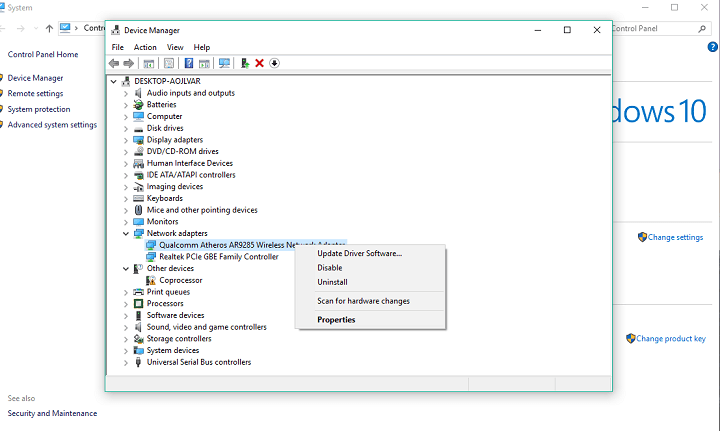
Now, go to Search, type devicemng, and open Device Manager.
Find your wireless adapter from the list of installed hardware, right-click it, and select Update Driver Software.
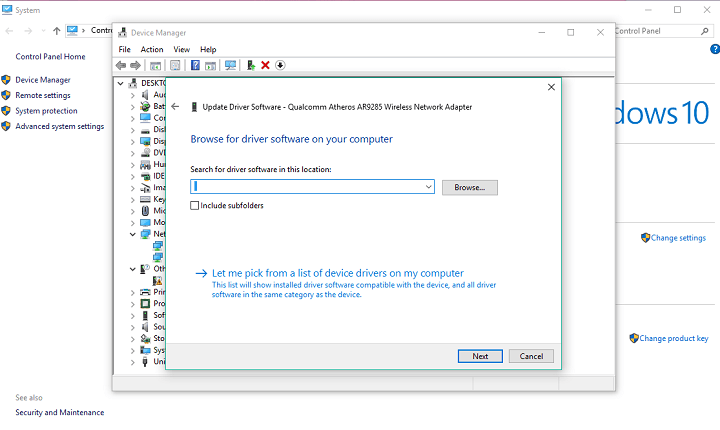
Now, instead of searching for a driver automatically, click Browse my computer for driver software.
Click Browse to locate the adapter driver.
Check the Include subfolder option.
Click Next to complete the task and install the new driver.
Restart your computer
Even after performing this, there’s no guarantee that your Wi-Fi adapter will start work normally. Solution for that is to actually keep experimenting with different versions of a driver for your Wi-Fi adapter. So, if one version doesn’t get the job done, download anther one, and repeat the process, don’t get discouraged if the first try fails. You’ll have to do this until a manufacturer releases a Windows 10-compatible driver for your device. If that ever happens.
Also, even if you managed to get your Wi-Fi adapter working with the current version of Windows 10, there’s no guarantee that it will stay functional after Microsoft releases a new major update for Windows 10, like the Redstone 2 update.
In case a major update causes your Wi-Fi adapter to stop working again, the only solution you’ll have is to actually replace it with a new one. At the end of the day, that shouldn’t be a problem either, as Wi-Fi adapters are not that expensive, plus you’ll be saved from the pain of installing driver software over and over again.
That should be all for our article about fixing compatibility problems with older Wi-Fi routers. In case you have any comments, questions, or suggestions, just let us know in the comments below.
Update KB3185330 is the first Monthly Update Rollup for Windows 7. From October onwards, Microsoft changes the manner in which it pushes security and reliability updates to Windows 7 and 8.1. As a result, the Monthly Update Rollup KB3185330 includes improvements and fixes from previous updates, as well as the patches brought by KB3192391, the latest Windows 7 cumulative update.
However, not all Windows 7 users have been able to install the first Monthly Update rollup for the OS. For many users, KB3185330 failed to update with error code 80004005. Usually, the install process advances until it reaches 70% or more, but then gets stuck. When it advances up to 100%, it fails and the error code 80004005 appears on the screen.
Windows 7 users can’t install KB3185330 due to error 80004005
KB3185330 Failed to Update w/Error Code 80004005. I’ve been trying all kinds of fixes through this site and Mr. Google, but I can’t get this to install. After a restart, it seems to get up to 71% and stay there for a long time. Then when it finally advances up to 100%, it fails and reverts back. How can I fix this? Any help will be most appreciated.
Other users quickly offered possible workarounds to fix this issue, but it appears non of them got the job done. For the time being, it seems there is no solution available to fix the 80004005 error and complete the installation process of KB3185330.
Microsoft’s Support Team hasn’t yet replied to the posts from this forum thread. More than 400 Windows 7 users viewed the thread, which suggests this is not an isolated issue.
If you’ve come across a fix for this bug, you can list the troubleshooting steps in the comment section below.
Throughout the past few years, CDs have lost their popularity. And the reduced usage of the drive led to multiple issues. A common problem many users face is when the CD is stuck in the laptop.
This could happen to anyone and is usually seen when the CD drive is not used often. In some cases, the CD drive was not opening, while for a few, the tray opened but was empty. This indicates that the CD is stuck inside the body. Let’s find out how you can fix things in both cases!
What can I do if the CD gets stuck in the laptop?
Before we move to the slightly complex solution, here are a few quick things to try:
Restart the computer and then try opening the stuck CD drive.
Check for a small hole on the CD drive used to eject it forcefully. If there’s one, insert a pin or paper clip into it, wait for a click sound, and the drive will open.
If none work, head to the solutions listed next.
1. Try ejecting from Windows
Open File Explorer.
Go to This PC.
Right-click on the CD/DVD drive, and choose Eject.
If you’re unable to eject your CD ROM by pressing the physical button, you can do the same thing by Windows to eject a CD automatically. This should be the primary approach when the CD is lost inside the computer.
2. Try to eject on reboot
Press Ctrl + Shift + Esc to open the Task Manager.
Identify any programs you think might be responsible for the problem, right-click on them, and click End task.
Check if you can now eject the drive.
In case not, restart the PC and try ejecting the drive before Windows boots up.
Some manufacturers even have an eject function in the BIOS. So if your laptop is one of these devices, there’s a chance that CD ROM will even automatically eject on the next start-up.
That way, no program will be able to prevent your CD ROM from working and will help you in removing a stuck CD from the laptop.
3. Check for Driver updates
Go to Search, type Device Manager, and open the tool.
Find your CD ROM from the list of installed hardware.
Right-click on it, and choose Update Driver.
Let the wizard search for available drivers. If a driver is found, let the wizard install it
Restart your computer
If you have an older laptop and, therefore, an older CD drive, there’s a chance that your hardware isn’t compatible with the installed version of the OS and needs a driver update. The only way to check this is to actually update the driver for your CD ROM.
If all your drivers are up to date, and no program blocks your CD from being ejected, then the problem is not in Windows but in the hardware.
If nothing works or you have to use a wire to remove a CD every time, it’s a sign that the drive is damaged, or there’s a CDrom.sys error, resulting in the CD getting stuck on the laptop.
So, you should consider changing it. Contact your nearest service and consult them about getting a new CD tray for your laptop.
Be aware that laptops are not as easy to replace as drives from regular PCs. So, unless you know what you’re doing, asking a professional for help is highly advisable.
And since most laptops now come without a built-in one, check our curated guide listing the best-rated external CD drives and get one today!
If you have any comments, questions, or suggestions, let us know in the comments below.
Welcome back to our weekly “Windows 10 news recap” series where we go over the top stories of the past week in the world of Microsoft’s latest operating system. Let’s get started.
Samsung launches new Windows 10 2-in-1, the Galaxy TabPro S Gold Edition
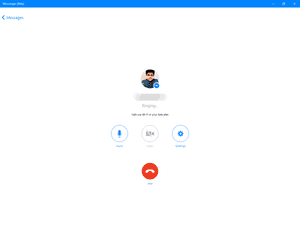
Facebook’s Messenger beta app for Windows 10 PC gains calling option
Windows 10 users on both PC and mobile have been longing for Facebook to bring its calling feature to its Windows 10 apps, however, up until now, we hadn’t seen any official support for the feature. This week, the company released calling functionality to the beta version of its app on PC.
via Windows Latest
Instagram app for Windows 10 now works on PC and tablets
Another Facebook-owned app update, Instagram, has added support for PC and tablets running Windows 10. Now users on PC and tablet can post photos to Instagram and view others, just like they would on their Windows 10 Mobile. This marks a stark change in Facebook’s previous policy of only being able to post photos via a mobile device.
HP announces new holiday lineup of Windows 10 PCs
In time for the holiday season, HP has announced a slew of new Windows 10 PCs. All featuring Intel Core i5’s or higher, these PCs pack some serious specs, however, they are certainly not for the budget-minded.
Here is a look at one of those PCs, the HP Envy 27-inch All-in-One:
Early version of new Windows 10 Paint app leaks
Last week, we reported that Microsoft is working on an overhaul to the classic Paint program in Windows. Earlier this week, we reported that an early build of the all-new Paint app for Windows 10 has been leaked. To find out how to obtain this early build, read our coverage of the leak here.
Many Windows Mail client users who tried to add a new iCloud account recently couldn’t complete the action due to error 0x800706be or infinite loading times.
Users quickly searched for a solution to fix this problem, and tried various workarounds they could find on the Internet, such as rebooting their computers, running a system file check, but none of these solutions really worked.
Windows Mail users can’t add a new iCoud account
I have a gmail account that I have had on my windows 10 mail app for a long time and it works perfectly. However, I tried to add my old (but still very much needed) iCloud email account to the app many times with no success. I’ve tried using the default “iCloud” preset and also customizing the servers and ports myself to what I’ve found online. I’ve used my regular password and the app-specific password apple provides for accounts with two factor auth enabled. I’ve tried reinstalling with powershell. I’ve tried rebooting. I’ve tried running a core file check with SFC and it comes out clean.
Users reported that Microsoft’s Support Team was overwhelmed, spending hours remoting into their machines, reinstalling apps and performing troubleshooting actions – all to no avail.
Fortunately, one Windows Mail user found a workaround that appears to solve this issue. When you add the iCloud account in the People app, it adds successfully and you can then add the account anywhere: “It works!! When you add the iCloud account in the ‘People’ app it adds successfully and then when you go back to the calendar app the account is there!”
If you’ve also encountered this issue, try the workaround mentioned above and tell us if it solved the problem for you.
Another week, another Windows 10 Preview build. This time, Microsoft released build 14946 to all Windows Insiders on the Fast ring. This is the feature-richest Redstone 2build so far, as it introduced a lot of improvements for Windows 10, and its default apps.
However, new features and system improvements aren’t the only thing that landed on Insiders’ computers with build 14946. The new build also caused a lot of problems to Insiders, who have been complaining on Microsoft’s forums ever since build 14946 got released.
Microsoft revealed its own list of known issues in Windows 10 Preview build 14946, but it appears that more problems are bugging users in this release. So, as we usually do, we prepared a report article containing all user-reported problems in Windows 10 Preview build 14946. We’re going to tell you what to expect from this build, in case you haven’t installed it yet, and try to solve at least some of these problems.
Windows 10 Preview build 14946 reported issues
Traditionally, we start off with reports about installation issues, so let’s not break the tradition now. Numerous users complained about various build installation issues, including installation fails, stuck installs, and more. Here’s what some of them said on the forums:
“When installing the build my system hangs at 78% on about the third “Reboot”. It doesn’t move even if I wait a several hours. I have to “Reset” it at which time it to returns to the previous build.”
“This machine has two drives, a 500 GB ssd which hosts the os and key data, plus a 4 TB data drive, which is a spinning disk. The last two builds of the Technical Preview series, 14942 and 14946 won’t install. I just keep getting the message:
There were some problems installing updates, but we’ll try again later. If you keep seeing this
and want to search the web or contact support for information, this may help: (0x80240439)”
As you can see, the installation problem occurs for various reasons. Because of that, we can’t say what is the most effective way to solve it, but we can recommend using the WUReset script, and removing a third-party antivirus software.
One of the solutions for installation issues is to install the build on another computer, create a bootable drive, and install it manually. However, it seems impossible for some Insiders in build 14946, as one user reported that when he tries to create a bootable media, a wrong version of the system is mounted:
“I upgraded my Insider Computer to build 14946 with no known issues. I decided to create a normal ISO for from the ESD file for backup as a I normally do. For some reason the iso it created reports version 14936.1000.160923-1700. I have not burned it yet. Has anyone tried a clean install from the 14946 esd to iso yet? What version did it actually install?”
Unfortunately, no one had a proper solution for this odd issue, so if you know what’s going on, please let us know in the comments.
“On build 14946 Facebook will force close on Internet Explorer 11, even when added to Compatibility Settings. No problems on Edge.”
Once again, other Insiders from the forums remained silent about solving this issues.
Speaking of Microsoft Edge, Windows 10’s default browser causes problems in build 14946, as well, but this time on Mobile. Namely, Microsoft Edge crashes shortly after being opened, making it impossible for some Insiders use it. Apparently, this problem happens on the Lumia 950 XL. Here’s what one Insider said about this issue:
“This is on a Lumia 950 XL. On the latest build 14946 the Edge Browser crashes shortly after the splash screen. No page is loaded. This also has happened to a number of other apps. If the app that is crashing can be uninstalled and then re-installed that seems to fix the problem, HOWEVER….the Edge Browser cannot be uninstalled and then re-installed. I have tried soft and hard resets on the phone (multiple times), no change to how the Edge Browser is behaving. The edge browser will also crash if another app calls it to open a website.”
Although this is a serious problem, nobody had a solution for it. So, if you’re encountering Edge crashes on your Windows 10 Mobile device, probably the best solution is to roll back. But be careful, it can be a tricky process.
And last, but not least, one user said that he’s unable to download speech packs since installing build 14946:
“Hi, on build 14946 i cannot install speech pack. It remains on 0%, download not start and i cannot delete it on language settings. Thanks!!”
As you can see, problems reported in Windows 10 Preview build 14946 are not so serious (except the Edge crashing issues on Mobile), and users are able to test the build despite them. We just hope that the future builds will be relatively stable, as well, so Insiders will have easier job testing them.
In case you’ve encountered some problem we didn’t list in this article, feel free to let us know in the comments below.
Mantis Burn Racing is developed by VooFoo Studios as a high-end racing game with highly detailed tracks, dangerous races, four players local play either with a split screen or online with up to eight players. Mantis Burn Racing offers an in-depth vehicle upgrade system to change the wheels, suspension, nitro and engine component. Thanks to these upgrades, players can win races and improve their driving skills. But there’s always room for advice and we’re here to tell you about a few strategies that will help you out in this game.
If you create a fast vehicle, it doesn’t mean it will be easy to control it. Be careful when making turns not to turn the wheel too much and skid.
Study the track’s characteristics before entering the race circuit to make sure your vehicle is suited for it.
Take shortcuts only when they’re safe enough and not slippery and don’t panic when losing traction.
Don’t ignore heavyweights because they reach a top-end speed/
If you want a boost in speed, draft behind fast-moving vehicles.
If you add too many upgrades, your vehicle will become too fast and unpredictable so be careful.
If you upgrade your vehicle’s suspension, it will soften the blow of heavy landings while reducing the air gained off of big jumps and lose speed when catching air.
Don’t hesitate to update old upgrades with newer ones. The more you play, the more powerful upgrades you’ll get.
Use the mini-map until you’re familiar with the tracks.
You’re allowed to quit Time Trial anytime you want — you won’t lose your fastest recorded time.
Shadow Warrior 2 is one of the most popular games of the moment. Tens of thousands of gamers are engaged in this impressive game trying to uncover the secret behind a series of fierce demonic invasions. As a player, your task is to constantly upgrade your weapons and kill all the demons so that you can banish evil back into the darkness.
Shadow Warrior 2 is a captivating game, but not yet perfect. Many users complain that sometimes the game won’t load, they can’t save their progress, and VSYNC doesn’t work properly.
Fortunately, the game developers already offered a series of workarounds for common issues reported on Xbox One and Windows PC. They also promised to push a patch as soon as possible since not all the issues can be solved using quick workarounds.
Fix frequent Shadow Warrior 2 issues
SLI/Crossfire, Freesync/GSYNC or HDR displays don’t work
To fix this bug, you should enable exclusive full screen. Go to Options > Video > Display Mode > set to Full screen.
Stuttering or VSYNC issues
These issues should be fixed when full screen and full screen window are enabled
Shadow Warrior 2 won’t start
First, launch the game without Steam and see if it shows a missing DLL error. If this happens, install either the Media Feature Pack for Windows 10 or Visual Studio Redist 2012. This type of issues was mainly reported by users running Windows 10 N editions. If you’re running the Windows 10 Anniversary Update OS, you should then download cumulative update KB3133719 which installs the Media Feature Pack for N editions of Windows 10 version 1607.
More specifically, here are the steps to follow to install Redist:
Go to C:Drive> Program Files > Steam > Steam Apps > Common > Shadow Warrior 2 >_CommonRedist > vcredist > 2012
Click on all of the vcredist programs in that folder. If they are not installed yet, you’ll be asked to download them. Click “Yes” to all of these programs. That should fix the problem.
However, if you installed the programs, but the game still won’t start, proceed with the following steps:
Click on the vcredist programs in the folder. You’ll be asked if you want to uninstall the programs.
Uninstall all the programs and then delete everything within that folder.
Check the game cache in Steam. All the vcredist files that you deleted will now be restored.
Go back to the folder you just deleted everything from, and you should see the same vcredist programs you deleted before.
Click on each program. A prompt to install them should appear.
Accept the installation. Once all the programs are installed, you should be able to run the game.
If the game won’t start, you can also create a new Windows user account and then start the game. Shadow Warrior 2 won’t work if two user accounts are active at the same time.
Error “DX11 Device not found”
If this error appears on the screen, go to C:\Users\*\Saved Games\Flying Wild Hog\Shadow Warrior 2\profiles\steam_*/config.cfg
Find the line r_fullscreen_monitor 1 and change it to r_fullscreen_monitor 0. If you can’t find this line, you can simply add it.
Shadow Warrior 2’s developers are actively working on a first quick patch to fix the issues listed above, as well as other minor issues. Shadow Warrior 2 Patch 1.1.1.0 is expected to land on October 18 and will fix the following issues:
Cutscene FOV, when playing with non standard FOV
Game stuck on loading on 2 core CPUs
Safe mode will be added. This will allow gamers to disable AlienFX and other videos that cause the game to crash on startup
PAX MP avatar skin issues.
As a quick reminder, NVIDIA recently updated its drivers for Gears of War 4, Mafia 3 and Shadow Warrior 2. Install the latest drivers to make sure your system is properly configured to run Shadow Warrior 2.
Microsoft just released a new build for Windows 10 Preview and Windows 10 Mobile Preview. The new build is labeled 14946 and is available to all Insiders on the Fast Ring.
Build 14946 brings a handful of system improvements and a few new features, so we can finally say that we have a legitimate Redstone 2 build. Each previous Redstone 2 build included some improvement but build 14946 is the most feature-rich build so far. Of course, the Redstone 2 update is still in its early development phase, so we expect even more additions in future releases.
When it comes to content, this build’s main highlight is improved touchpad gestures customization. Users now have the ability to set up what three and four finger gestures do. Gestures can activate Cortana, switch between apps, open the Action Center, play/pause playback, and more. Read more about improved touchpad gestures here.
Microsoft continues to bring improvements to Windows 10’s Settings app, on both PC and Mobile. This time, the new build improves the Wi-Fi settings page, as users can now set up a timer to have it turned on automatically.
The new build also brings some handy improvements to Mobile, more precisely in its typing experience. Starting with Windows 10 Mobile Insider Preview build 14946, it is easier for users to use auto-correct when typing.
To download build 14946, just head over to the Settings app > Updates & security and check for updates. Once again, you’ll only receive this build if you’re on the Fast Ring.
Windows 10 Preview build 14946 improvements and issues
As always, Microsoft released the list of known issues and other improvements in build 14946. While the list of improvements for both versions of the system is long, Microsoft reported just one known issue for Mobile and One for PC.
Here’s what’s improved for PC in Windows 10 Preview build 14946:
Optional components such as Hyper-V and Bash should remain installed after updating to this build.
We have fixed the issue where signing into games that use Xbox Live would not work. You should be able to sign-in to Xbox Live in games in this build.
We fixed the issue causing Microsoft Edge to sometimes crash on launch, or when you type in address bar or try to open a new tab. You no longer need to run the PowerShell script.
We fixed the issue causing touch scrolling to be too sensitive in Windows 10 apps, such as Microsoft Edge.
We fixed an issue where Explorer.exe would hang when attempting to open considerably large .MOV files.
We fixed an issue that could result in the network icon occasionally getting into a state where a red X would display in the taskbar despite an active internet connection, until the device had been restarted.
We fixed an issue where if the device’s brightness was automatically adjusted after being woken from sleep, the brightness level shown in the Action Center’s Brightness Quick Action might not reflect the current brightness of the device.
We fixed an issue leading to Narrator not tracking focus on the Start Menu All apps list or tiles.
We fixed an issue potentially resulting in the “Open with…” dialog displaying with two entries for Calculator after tapping the Calculator key on a keyboard or running the Calculator app.
Here’s what’s improved for Windows 10 Mobile:
We fixed the issue causing you to get into a state where text messages will fail to send.
When your phone is connected to your PC, long lists of captured photos will now load significantly faster in File Explorer.
We’ve updated Narrator’s reading order for Windows 10 apps which display an app bar on the bottom of the app, for example OneDrive, so now the contents of the page will be read before the contents of the app bar
We fixed an issue resulting in video thumbnails sometimes not being shown in WhatsApp – videos received from this build onwards will display a thumbnail.
We fixed an issue resulting in Camera app video recordings having a slight crackle to their audio in recent builds.
Known issues for PC:
“If you have 3rd party antivirus products such as Bitdefender, Kaspersky Antivirus, F-Secure Antivirus and Malwarebytes installed on your PC – your PC might not be able to complete the update to this build and roll-back to the previous build.
Larger Windows Store games such as ReCore, Gears of War 4, Forza Horizon 3, Killer Instinct and Rise of the Tomb Raider may fail to launch.”
Known issues for Mobile:
“If your phone has additional speech packs installed – this build will fail to install on your phone with an 0x80188319 error. This is why we polled Insiders about language pack usage this week. Based on the response, we decided to push forward and send the latest bits. This issue will be fixed in the next build we release. NOTE: Removing speech packs will not correct the issue. Your device will continue to try and download and install the update and fail. It is recommended you move to the Slow ring until this issue is fixed.”
We’re sure these issues won’t be only problems to plague Insiders who install the latest build on both platforms. Look out for our article on what problems the build really causes.
In case you’ve already installed the build on your computer and have encountered problems not listed as a ‘Known issue’ by Microsoft, feel free to let us know in the comments.
Microsoft’s legal team aren’t out of the woods just yet, despite the preliminary ruling a three-judge panel from the Manhattan 2nd Circuit Court of Appeals granted the company regarding the issue of data stored on servers in Ireland.
For some time now, Microsoft has been fighting the case that email, data, and content stored on overseas servers that the company manages, should not be held to warrants or search and seizure practices from the US despite being a US-based company, but instead the company should be regarded as data-sovereign.
Late Thursday, the US Justice Department again attacked Microsoft’s stance on international data security by asking “the full appeals court the Southern District of New York to review a decision that upheld Microsoft’s refusal to comply with a search warrant for an alleged drug trafficker’s emails held on a server in Ireland”, according to the Washington Post.
The original argument for allowing the US Justice Department to issue Microsoft a warrant compelling the company to comply with its investigation stemmed from the notion that regardless of where the Washington State software company held its servers internationally, the transaction of an email data exchange would remain a US-based occurrence.
Microsoft, presumably not keen on the idea of losing its international business due to a perception of US collusion, is asking that in the future, governments both international and domestic file data request through a mutual legal assistant treaty (MLAT) at the very least. Microsoft, along with others, have admitted that the MLAT treaty isn’t an end-all-be-all solution but rather a first step in reforming data-sharing practices and addressing the deficiencies in Stored Communications Act of 1986 in the US.
Whether or not the full appeals court will take the time to revisit the earlier ruling is yet to be determined, but much is stake depending on which side comes out of this ultimately victorious.
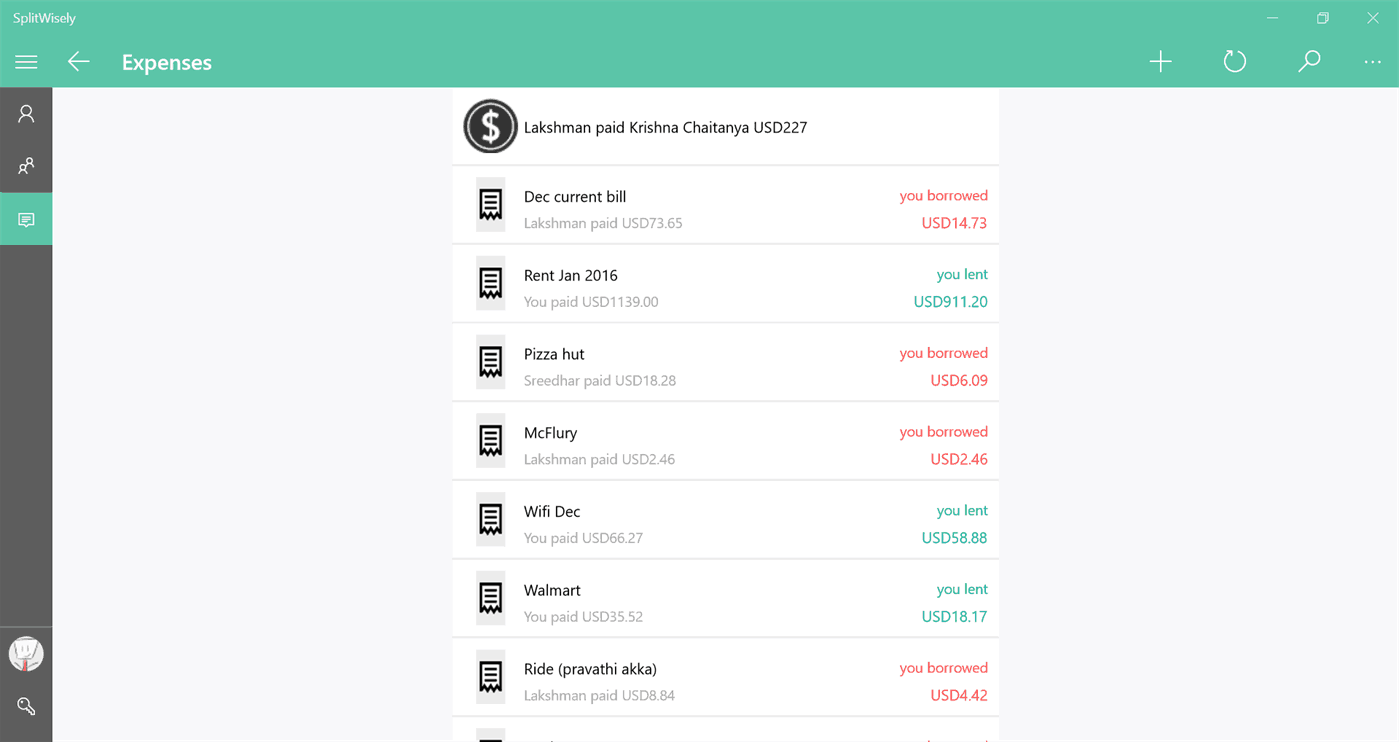
If you’re not aware of it, Splitwise is a popular service for friends and coworkers to track bills and shared expenses in one place so that everyone can see who they owe and everyone gets paid back.
I’m a big fan, and use it to keep a log of shared expenses with friends, especially on trips. Trouble is, Splitwise does not have an official app for Windows. Additionally, their site does not offer the best experience on mobile. When I first started using the service, I looked around and found a few third-party Splitwise clients. None of them were really great, and none had been updated for Windows 10, so I gave up.
Developed by an indie developer, Krishna Chaitanya, SplitBook is a universal Windows 10 app and available for both Windows 10 and Windows 10 Mobile. I recently discovered it, and the UWP adds offers a seamless and intuitive way to add expenses as well as manage friends and groups.
SplitBook – Splitwise app for Windows 10
Now a mature app, in v2 at the moment, SplitBook is the only Splitwise client on Windows Store that offers Tile, Toast, and Badge notifications as well as have the ability to add, update, and save expense receipts. The latter is quite useful if you want to dive deep into expenses at a later date or file expenses at work.
SplitBook is a pretty good app with a clean Splitwise-inspired UI and offers a great, snappy user experience. If you are a Splitwise user, I highly recommend you to give it a whirl and let us know of your experience in the comments below.
Mahjong is one of those casual games that can either relax you, or leave you frustrated beyond words. The classic title-matching game has long a been a favorite of computer gamers, and Microsoft has a nice version available for Windows 10. Today, the Xbox blog let us know that the game’s received a rather nifty update.
Here’s everything that’s new in Mahjong for Windows to in today’s update:
Variety of New Themes – Enjoy gorgeous graphics and relaxing sounds with multiple visual themes to choose from. Complete puzzles at four levels of difficulty – perfect for Mahjong beginners and experts alike.
Daily Challenges – Take your tile-matching skills to the next level as you work your way through Daily Challenges, including unique gameplay modes such as Golden Tiles, where your goal is to uncover and match the hidden pairs of golden tiles. You can also earn special badges by completing!
Undo System – You can rewind the game back to any spot to fix mistakes or take a different approach.
Xbox Live Integration – With added Xbox Live integration, fans can earn Achievements and Gamerscore, compete with your friends on the leaderboards and track your personal statistics. Plus, if you sign in with a Microsoft account, your progress is stored in the cloud, so you can play the game on any device without missing a beat.
The game is free to play via the link below. Let us know in the comments what you think of today’s update.
Today, Microsoft filed for the European Union’s (EU) approval regarding their recent purchase of LinkedIn for $26.2 billion. Recently, Salesforce moved to block Microsoft’s acquisition of LinkedIn in the EU, citing antitrust issues. In a statement, Salesforce Chief Legal Officer Burke Norton said the sale would make Microsoft “anticompetitive” and “threatens the future of innovation and competition.” Salesforce believes that the sale would also give Microsoft an “unfair competitive advantage.”
Microsoft company spokesperson Robin Koch stated, “We [Microsoft] filed today.” The European Commission has until November 22, 2016, to view the case and decide whether or not any action needs to be taken. Microsoft’s purchase of LinkedIn has already been approved by government antitrust regulators in the United States, Canada, and Brazil.
Have you ever attached files to an email only to find that they eclipse the maximum size for attachments? If you need to share larger files, file-sharing software can come in handy. File-sharing applications enable you to share files over networks without any size restrictions. There are loads of them to choose from, but not all are open-source software packages. These are some of the more notable open-source file sharers for Windows.
Ares Galaxy
Ares Galaxy is a file-sharing package based on P2P, otherwise peer-to-peer, network technology. Its own decentralized network gives the software an edge over other alternatives, and it boasts an efficient built-in search tool that enables users to find content very quickly. The software also comes with a variety of extra bells and whistles such as its chat module, directshow media player and library manager. Users can preview downloaded audio and video files with the media player. In addition, Ares Galaxy also works with firewalls so you don’t need to reconfigure them. Click Download on this Web page to save its installer.
Deluge
Deluge is a BitTorrent client, which is one of the best P2P protocols. The software offers full encryption for files. Another good thing about this program is that it has three alternative UIs. Aside from its desktop mode, Deluge also has a Web UI for browsers and a command line console UI. That gives the package greater flexibility than other alternatives, and you can also add numerous plugins to it to further enhance the software. Click the Downloadnow button on the Deluge site to save its installer to Windows, Mac OS X or Linux.
qBittorrent
The qBittorrent software is another BitTorrent client file sharer. This is an open source alternative to uTorrent, which has an extensive user base. Consequently, it has a comparable UI to uTorrent. It comes with its own built-in search engine that provides a better alternative to the torrent search sites. You can access the qBittorent server with the software’s Web UI option. Furthermore, users can enhance qBittorrent with some of its extensions. Click qBittorrent v3.3.7 installer and PGP signature on this site page to add this software to Windows 10.
FileZilla
FileZilla is undoubtedly one of the most highly rated FTP clients for Windows and other platforms. Firstly, the software has an intuitive tab-based UI and users can also drag and drop files between server and desktop. It’s a reliable and fast file sharer that the developers regularly update. It provides more advanced file settings for configuring transfer speeds. The software also enables its users to resume larger file downloads if needed, which can also come in handy. You can select to add a FileZilla client or server to Windows by pressing the pertinent download button on this page.
Shareaza
The Shareaza website boasts that this file sharer is, “the ultimate P2P client” primarily because of its multi-network support. The software can connect with four separate P2P networks at the same time. As such, with this program you can share files via BitTorrent, EDonkey 2000, Gnutella and Gnutella2. The software also includes a media player that enables you to preview file downloads and play video and audio. In addition, Shareaza boasts a customizable UI with its skins and has extra plug-in modules. Open this page to download 64 or 32-bit Shareaza versions to Windows 10.
These open-source software packages will certainly come in handy for sharing larger files. However, note that some might host illegal downloads and proliferate viruses.
Microsoft has announced today that it has partnered with theSkimm, a popular business newsletter , to create new integrations with Office 365 and Skype. By leveraging Office 365 Connectors, theSkimm will allow Office 365 users to receive daily highlights of the newsletters into their Group Inbox in Outlook. From there, users will be able to share and discuss the content with co-workers within Office 365 Groups.
theSkimm Connector for Office 365.
To set up the integration, Office 365 users will have to search for the new theSkimm Connector in the Connectors catalog on Outlook on the web. Once the Connector has been added, users will be asked to visit theSkimm site and enable the integration with Office 365.
Additionnally, theSkimm has also launched a new Skype bot in early preview: it’s pretty limited for now, but the bot can provide users editorial content and book recommendations when typing simple commands such as “news” or “books”. To try it, users can add theSkimm bot from the messaging app’s bot directory
theSkimm Skype bot is in early preview.
A New York-based startup, theSkimm raised $500,000 last month from a group of investors including the New York Times (via ReCode). In the blog post announcing the news, Daneille Weisberg, one of theSkimm’s founders explained that “we’re always looking for ways to bring our unique content to new platforms to reach more people. We are excited to partner with Microsoft on theSkimm’s integration into the company’s productivity and communications tools.” As Office 365 is enjoying increasing popularity among Fortune 500 companies and SMBs, it makes sense for the business newsletter to try to reach its readers where they are.
Windows 10 has been one of the biggest changes to Microsoft’s operating system for decades. It features an all new design, a bunch of new features, a new personal assistant, a notification center, and a whole new platform. That platform, which perhaps marks the biggest change with Windows 10, is called the Universal Windows Platform, and it’s a replacement for the old, so-called, Win32 platform that has been in use since 1993.
The current state of UWP
Now, you may think how stretched out mobile apps can replace serious programs like Adobe Photoshop or Visual Studio. Short answer: they can’t. Not for now, in any event. The Universal Windows Platform, typically shortened to UWP, is in a very early stage. It has fewer Application Programing Interfaces than Win32, and therefore can’t be as functional.
APIs allow for everything from starting up an app to breaking your system. UWP apps slowly gain new APIs with every major Windows 10 release, like the Anniversary update. With each release, UWP apps are closer to replacing the legacy Win32 code that may be seen as superior today, but definitely won’t be in the future.
Minecraft now
Minecraft in 10 years
Currently, UWP is a more limited addition to the programs likely already running on your computer. There is a good chance that you’re using Chrome to read this article, for example, as it is the most common browser used to view our site. Chrome is a Win32 program. So are Word, Spotify, GIMP, 7zip and many other utilities that are usually installed immediately after getting a new computer.
Replacements exist for some of those apps, like Edge, Word Mobile, Groove Music, Photoshop Express, and 8zip, respectively, but those are usually relatively underpowered and not enough for the power user. Fundamentally, this is caused by the lack of APIs. Developers simply can’t yet make the apps better because there is nothing to “plug into.”
What’s next?
It’s not a secret that Microsoft is now focusing on UWP and the API expansion. Microsoft is now focusing mostly on UWP apps, and many people are not happy about that decision because they only see the present, not the future. The future is a clean and non-fragmented Windows, running on all your devices. On your phone, gaming console, computer, laptop, tablet, you name it. Unlike Win32, UWP will support all of these devices, and thanks to the development of the platform, these platforms could get a lot more serious than a Starbucks app.
With declining PC sales, desktop computers may come to an end in the future and get replaced by other form factors. Some suspect it may be tablets that will take the crown, and some suspect that it may be our smartphones with features like Continuum. However, I don’t think it will be any of these two and neither does Microsoft. This is why they are so heavily investing into the new universal platform.
The revolution
The original 2007 iPhone
The original 2016 HoloLens
Back in 2007, Apple announced something “ridiculous and pointless” as some people thought: the iPhone. It was called a failure by many tech sites and companies, and even Microsoft’s former CEO, Steve Ballmer, ridiculed the device. He publicly stated, in an interview, the quote below and regretted it a few years later:
There’s no chance that the iPhone is going to get any significant market share. No chance. It’s a $500 subsidized item. They may make a lot of money. But if you actually take a look at the 1.3 billion phones that get sold, I’d prefer to have our software in 60% or 70% or 80% of them, than I would to have 2% or 3%, which is what Apple might get.
But his thinking was quite logical, actually, at least based on the information available at the time. The iPhone was expensive, it lacked features that regular cell phones enjoyed, and it was big, different and weird. And here we are now. It’s 2016, and Apple is the most valuable tech company in the world. They revolutionised the personal computing market by entering it with something new and different. And now, so has Microsoft.
Today, nobody can imagine themselves walking around with a big HoloLens on their head or spending $3,000 for one. But as opposed to Apple, Microsoft has announced the product before releasing it. Microsoft made a Developer Kit and priced it so high to make sure regular customers don’t get the unfinished software and hardware and then start judging it by the flaws that would result in Microsoft losing this market.
Holograms are something science-fiction movies have made us believe will be a standard in the future. And why not? The HoloLens may replace all your devices with just one in the next 10 years. The form factor may be as thin and small as today’s sunglasses are, the look may be less weird, the battery may be much better, and so on.
But just as with this article, these are just speculations. The iPhone was in an almost identical state as the HoloLens is now–in a very early stage.
What will happen to UWP?
But where will Windows 10 be in a year? Probably not in a much different position than it is today. The Mobile version of the operating system will continue in decline, Xbox will grow, PC sales will continue to fall, and so on. A year is often said to be a lot of time in the tech industry, but not in this case. Microsoft is aware that they lost most of their markets. PCs are dying out and their smartphone OS is almost extinct. That is why they are thinking about the future battle instead of winning this one.
Coding tools of the present
But let’s say that Microsoft might try to fight a little in the mobile market, too. How could they do that? The Islandwood bridge for iOS apps is clearly not working. And so what is working?
The answer is simple: the $400 million Xamarin acquisition that Microsoft made back in February. If developers want to reduce the work that needs to be put into their apps for iOS and Android, they can use Xamarin, which is now free for everyone. The next big thing may be coded using Xamarin.
Coding tools of the future
While most developers don’t target their apps towards Windows 10 Mobile, they would automatically do so by using Microsoft’s tool. Fully 90% of the work to develop a Windows app would already be done, and so why not do that 10% yourself and “get over it”? That would automatically work on Xbox, Windows 10, Windows 10 Mobile, HoloLens, Hub, IoT, and more. Most developers would consider the extra effort well worth it–there’s not much work, after all. This may cause the next “Snapchat” to be released for Windows alongside its Android and iOS siblings.
This also leads back to HoloLens. If an app would work on Windows 10, it would work on the holographic unit too.
The future of personal computing
Imagine Windows 10 in ten years. It will most probably be called just “Windows.” You won’t have a traditional desktop PC in your room, but rather all you will have is a HoloLens. If you need to sit down and work in front of a desk, you just fire up Word and use your Bluetooth keyboard and mouse to do what you have to do. Think of it like Continuum for Phones, but a step further. You won’t even need a screen anymore. You will have all your files in the cloud, and by using the glasses, you will just edit them wherever you go without begin limited to any device except your head.
Gaming on HoloLens
Then, what about Xbox? My prediction has been that it would gain users over the course of a few years. But Microsoft isn’t interested in hardware, and so why would they continue making the Xbox? Well, HoloLens may once more be the answer. You can already stream your Xbox One to the HoloLens and play it from there, technically, without a screen. All you need is the Xbox, HoloLens, and a Bluetooth Xbox One S controller.
In the future, gaming may be fully in the cloud. Some Win32 services have already shown up offering an entire library of games streamed to your console for a monthly fee. What if that streaming became a standard? Then you could play Final Fantasy XXIII on your sunglasses.
Conclusion
Now, I can understand that such forward thinking may be a little much at first. But the point isn’t to understand the logic behind it. That is Microsoft’s job. The point is to understand the result. Thank you so much for reading. And stay tuned for part two.