Picture a place where the strength of AI isn’t only an idea in the future but something you can feel and see, improving every part of how businesses work. This is the world Microsoft and ServiceNow are creating together as they unite to introduce a fresh time for generative AI creativity.
The main focus of this cooperation is to increase productivity and reshape it by incorporating AI into digital workflows without any interruptions. Microsoft’s collaboration with ServiceNow, a symbol of digital changes, is not only an alliance in technology but also shows the effect of AI on workplace transformation.
At Knowledge 2024, where more than 20,000 global tech leaders and fans came together, you could feel the harmony between Microsoft and ServiceNow. The gathering showed how these two big companies are partnering to smoother business processes and improve productivity with the help of generative AI solutions.
It’s interesting to imagine what could happen, right? Picture a scenario where you have one or two AI assistants at your service. They will help handle any task or question while you work and respond promptly to each request. This is not a look in the future but rather something happening now.
The combination of ServiceNow’s platform with Microsoft Copilot is at a new level. This teaming up merges the finest aspects from both sides, making it simple for organizations to use high-quality generative AI models without hassle.
The simplicity and effectiveness of this blending are quite remarkable. For example, when you want to purchase office supplies, Copilot can create the order with simple prompts. Then, Now Assist comes in and finishes it within ServiceNow. This smooth interaction saves time and improves productivity by eliminating the need to switch between platforms.
It shows a change to smarter, AI-based settings where technology cooperates with people to make workplaces better, more productive, and more creative.
ServiceNow is already experiencing these benefits by noticing less costs and more output with the help of AI. The possible change is very big, and it’s interesting to imagine how this alliance will keep growing and impacting the future of digital work processes.
When we think about the future progress in AI and automation, this partnership between Microsoft and ServiceNow will be seen as a milestone. It hints at what’s to come: generative AI that can make our work easier by handling repetitive tasks and freeing up time for more creative thinking.
This collaboration shows how big tech companies joining forces can greatly impact not just one sector but many fields. Whether you are inside the technology industry or someone who likes to learn about artificial intelligence at work, this partnership reveals that the future is here now—and it’s smarter than before.
In the active gaming world, where the excitement of a new virtual journey is only one click away, Lenovo has chosen to provide game lovers with an irresistible flash sale.
Lenovo offers significant price cuts on strong gaming laptops, creating a great opportunity for gamers to improve their equipment. Let’s see what they have prepared for us in this special event.
For starters, the Legion Pro 5 Gen 8 is now selling at $1,500, a reduction from its initial $2,000 price tag. It’s quite a powerhouse with its mobile RTX 4060 and an impressive 16-inch display featuring a speedy 280Hz refresh rate. It is great for people who are part of the fast-paced esports world or require a dependable partner in their creative tasks.
Next, we have Legion 7i Gen 9. It is priced at $1,830 now, a nice drop from the original $2,290. This one is a dream for anyone who needs top-tier CPU performance. It uses the Intel Core i9-14900HX processor and has the same RTX 4070 GPU as Legion Pro 5 Gen 8, promising the best gaming experience ever. Also, it has an impressive 16-inch display with a resolution of 2560 x 1600 and can achieve up to 240Hz in refresh rate.
But hey, if these two don’t quite fit your hope list, no worries. There are many more gaming laptop deals waiting for you to find them. Whether it’s about playing games, programming, or making content, each person has a suitable choice.
One cannot always buy a high-quality gaming laptop without spending too much money. If you are upgrading from an older model or entering the gaming world for the first time, glance at these offers. And if you don’t feel like Lenovo matches your vibes, look at this Dell Gaming laptop, another gem, now 30% off.
They’re the perfect laptops for starting a gaming career. We mean streaming career. You get it. Happy shopping and happy gaming!
The G15 laptop series has always been the workhorse for DELL in the gaming laptop department. That’s because it has a very balanced ratio between features and price, hence its popularity amongst PC gamers. Now, the balance is a bit broken because Dell has lessened the cost by $300 for G15, so now it is available at just $700 instead of previous amount which was $1,000.
Such a price reduction cannot be ignored and is particularly appealing for gamers who are looking to save money.
Why should I buy the DELL G15 gaming laptop?
The main star of this gaming laptop is the RTX 4050 graphics card. Yes, it may be considered as an entry-level GPU but it has some serious power inside. This will allow you to enjoy DLSS 3, which increases your frame rate in games that support it.
Moreover, it performs well for 1080p gaming. The display’s size is 15.6 inches and it has FHD resolution plus a maximum refresh rate of 165Hz which can give you an excellent gaming experience with smooth visuals that are very engaging; however getting up to this high level might mean turning off some graphical options in your game settings.
If you’re in a mood to spend more, then going for an RTX 4060 will not just improve your graphical quality but also give you a better CPU at $200 additional cost. Talking about CPUs, in this configuration, the G15 is fitted with an 13th gen Intel Core i5-13450HX CPU , which is a powerful option from mid-range that can handle most games and daily tasks effortlessly.
Paired with 16GB of DDR5 RAM, gaming experience will be smooth. Also, having 1TB storage is quite enough for your games and media. But still, it is advisable to look for a deal on an external hard drive to get more space.
Now, we move to the elephant in the room – battery life. It is common knowledge that gaming laptops do not have great stamina when it comes to battery life and this holds true for the G15 as well. On a good day, you should anticipate using it for somewhere around 3-5 hours which falls within what’s expected from a typical gaming laptop of its generation.
If you’re not into budget savvy gaming laptops, you can go through our list of the Copilot+ PC upcoming machines and see how much you have to save for that new AI PC.
Finally, the Dell G15 is a fantastic option for gamers on a budget, especially with the $300 discount offered by Dell. If you already own a Dell G15, feel free to share your experience in the comments below.
If you’re adding a new SSD or hard drive to your PC, you’ll likely need to initialize the drive in Windows 11 before you can format or use it. This process sets up the disk’s partition style (MBR or GPT) so the system can recognize and access it.
Below are the easiest and most reliable ways to initialize your disk, and no third-party tools are required.
Initializing a disk erases any files on it. If you have any important files, ensure you have a backup.
1. By using Disk Management
Press the Windows + R keys to open the Run command. Type diskmgmt.msc in the run dialog box to launch Disk Management.
You’ll see all connected hard drives listed when the Disk Management window opens. Look at the list, and find a drive listed as Disk 1, or Disk 10 (other names are possible, as well).
You’ll recognize this drive because it is not initialized and is listed as Unknown, and unallocated. Right-click on it and select the Initialize Disk option.
Right-click on that partition, and select Initialize Disk from the right-click context menu.``
Once you initiate the process, it will ask you to choose between a Master Boot Record (MBR) or a GUID Partition Table (GPT). We advise you to choose a GPT. Click OK.
Once you do this, you’ll get back to the main window, where your new drive will be listed as Basic and Online, but it will still have unallocated space.
To fix that, right-click on the stripped box, and select New simple volume…
Click Next, and assign a drive letter.
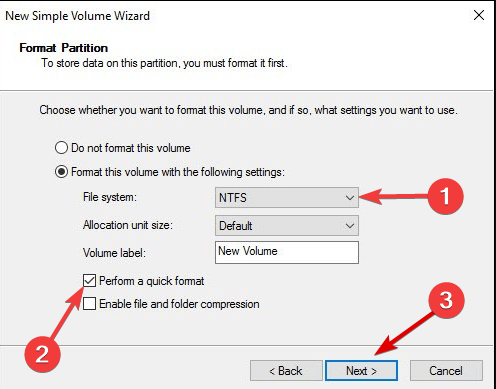
Now you need to format your new drive. For the best results, choose the NTFS file system, and Perform a quick format, then hit Next.
Finish the process.
2. By using the Command Prompt
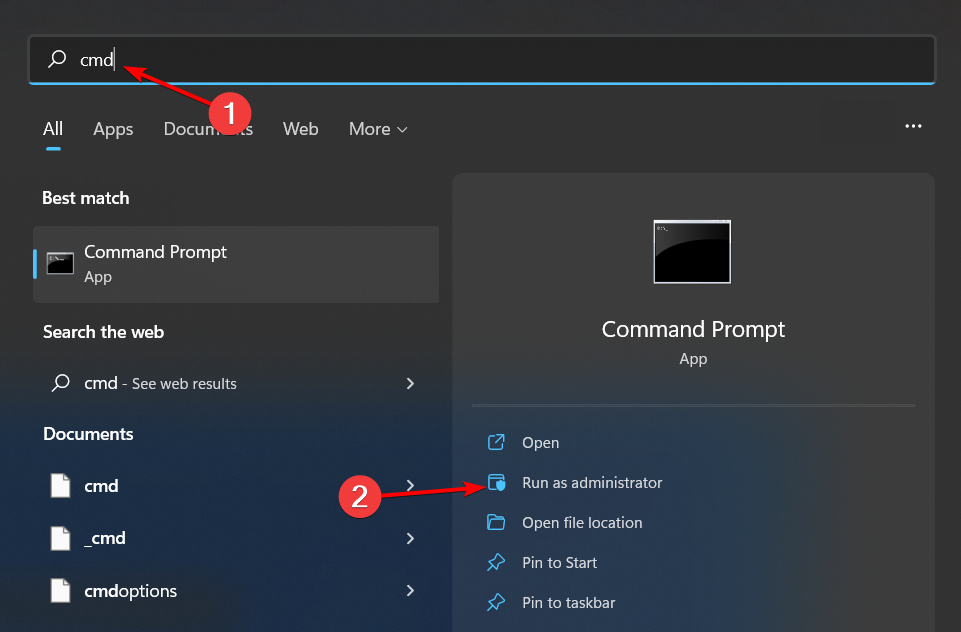
Press the Windows key, type cmd in the search bar and click Run as administrator.
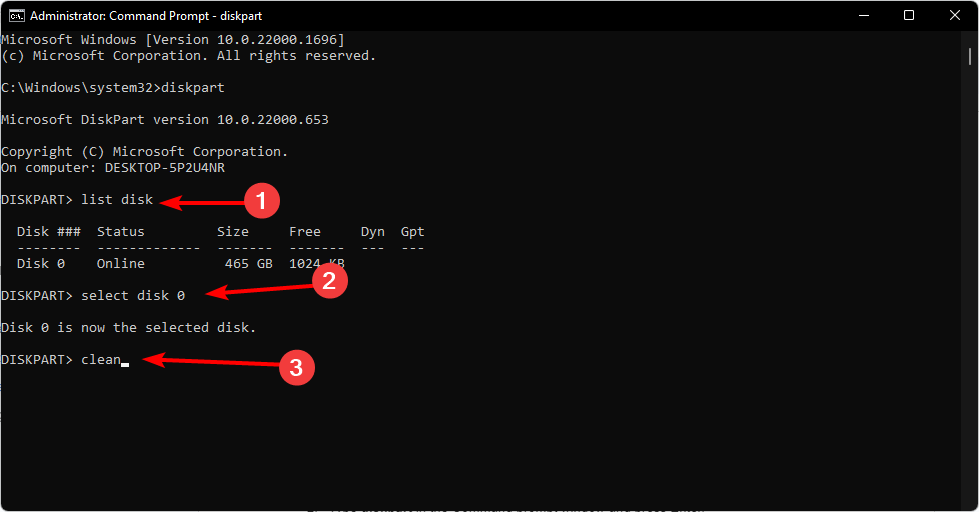
Type diskpart in the Command prompt window and press Enter.
Next, type list disk and press Enter. This will list all drives on your PC.
Type the following commands and press Enter after each one: Remember to replace X with the corresponding number matching the uninitialized hard drive: select disk Xcleanconvert gpt
3. By using Windows PowerShell
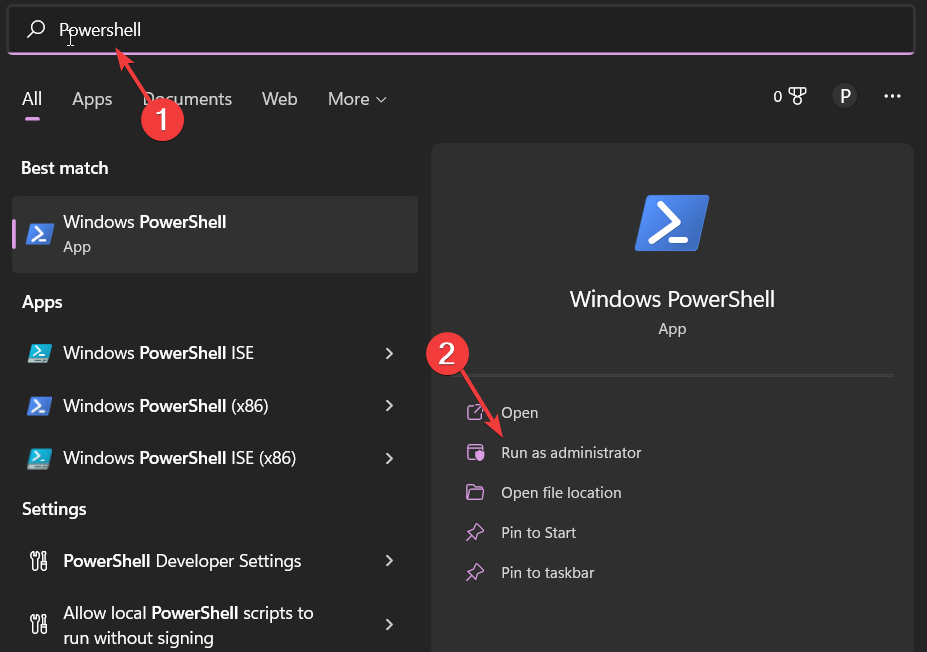
Press the Windows key, type Windows Powershell in the search bar and click Run as administrator.
Type and Enter the following command. get-disk
Your uninitialized disk should appear as RAW. Next, type the following command and hit Enter to initialize it. Remember to replace n with the actual number represented by the uninitialized disk: initialize-disk n
The disk will be initialized in the GPT partition style by default but if you wish to use the MBR style, type in this command: initialize-disk n –PartitionStyle MBR
In all these manual talks, it’s probably time-consuming to initialize a drive on your Windows 11. Luckily, you don’t have to go through this as there are a host of partition manager software that can do the job automatically and with fewer errors.
Further, these tools can help you out with partitioning and allocating space in your drive especially if you don’t know what partition style to use or Windows fails to create a partition. However, the main advantage over these manual methods is that they don’t wipe out your data.
5. Reboot and Let Windows Auto-Detect the Drive
Windows 11 can often detect and initialize newly connected storage automatically.
Steps:
Power off your PC completely (don’t just restart).
Connect the new SSD or HDD firmly using proper SATA or USB cables.
Turn the PC back on and wait 2–3 minutes.
Open This PC or File Explorer to see if the new drive shows up.
If it doesn’t, Windows might still recognize it in Device Manager.
6. Use Device Manager to Refresh Disk Drivers
If your new drive is detected but not accessible, driver issues may be to blame.
Steps:
Press Windows + X, then click Device Manager.
Expand the Disk drives category.
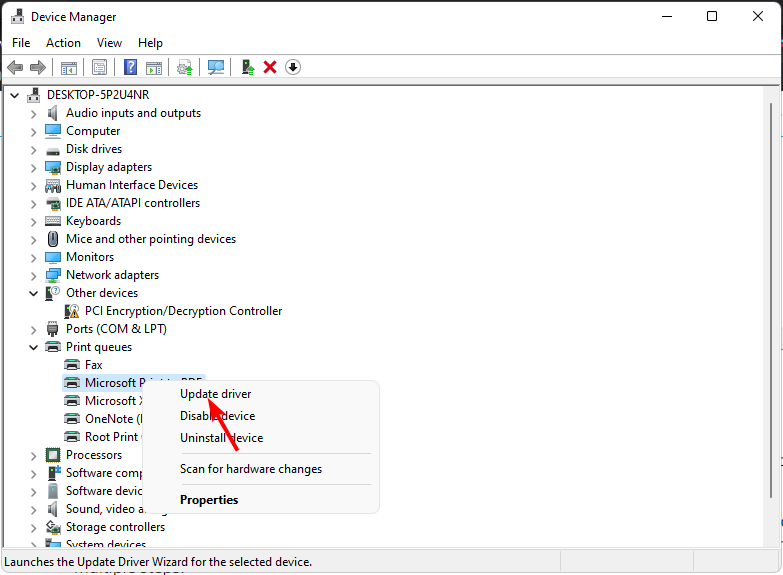
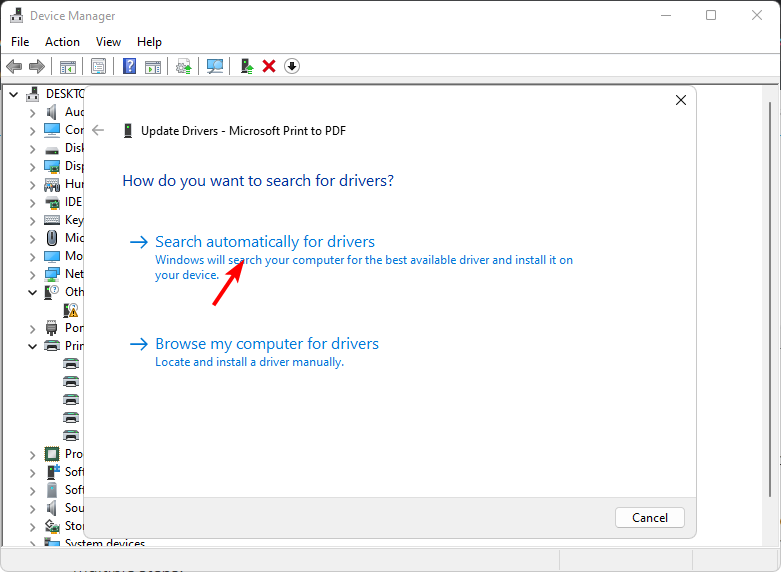
Right-click your new drive and choose Update driver.
Select Search automatically for drivers.
If that doesn’t help, uninstall the device and restart your PC to reinstall it.
In some cases, this step alone can make the system initialize the new disk.
7. Enable the Drive in BIOS or UEFI Settings
Sometimes, the drive isn’t initialized simply because it’s not active in your BIOS.
Steps:
Restart your PC and press F2, Del, or F10 (depending on your motherboard) to enter BIOS.
Go to the Storage Configuration or Drives tab.
Check if your new SSD or HDD is listed.
If the drive is disabled, enable it, then save and exit.
Windows 11 should now detect and auto-initialize the drive during boot.
8. Install Windows 11 Directly on the New Drive
If you want to use the new drive as a boot device, Windows will automatically initialize it during installation.
Steps:
Create a Windows 11 bootable USB using the Media Creation Tool.
Boot your PC using the USB installer.
During setup, select the unallocated space on the new drive.
Windows will initialize it and create the necessary partitions.
This method is ideal when installing Windows 11 on a new SSD that’s currently blank.
9. Use Device Manager to Scan for Hardware Changes
This method forces Windows to rescan all connected devices and can trigger automatic initialization.
Steps:
Open Device Manager via the Start menu.
Right-click your PC’s name at the top of the list.
Select Scan for hardware changes.
Wait for the scan to complete.
If successful, Windows will detect the uninitialized drive and prompt for setup.
10. Disconnect Other Drives Temporarily
Sometimes, too many connected drives can interfere with initialization.
Steps:
Power down your PC and disconnect all storage drives except the one you want to initialize.
Boot into Windows.
Wait a few minutes to see if the OS detects and configures the single drive.
Once initialized, you can reconnect your other drives.
This is particularly helpful when setting up multiple SSDs or cloned disks.
Should I initialize MBR or GPT?
Selecting MBR or GPT is not based on guesswork. You have to consider the OS version you’re on, the size of the drive and your PC’s BIOS mode. Also, if you plan to expand in future, you need to consider a partition table with more flexibility.
Further, MBR is used for older Windows systems and has a size limit. GPT is newer, supports a larger size limit and is more secure.
That’s a wrap from us but we’d love to hear your experiences with initializing your hard drives. How easy or difficult was it? Did you use Windows built-in tools or dedicated tools? Let us know in the comment section below.
Network issues are fairly common on the latest iteration of Windows, be it problems connecting to Wi-Fi or intermittent loss of connectivity. In all such cases, a network adapter reset on Windows 11 does the trick!
For the unversed, a network adapter is a physical device that allows your PC to communicate over the network and connect to the Internet. The process to reset the network adapter on HP, Dell, Lenovo, Asus, or any other laptop running Windows 11 is rather straightforward, and won’t take more than a minute!
How can I reset the network adapter in Windows 11?
1. Reset the network settings
Press Windows + I to open Settings, go to Network & Internet from the navigation pane, and click on Advanced network settings on the right.
Scroll down to the bottom and click on Internet options.
Go to the Advanced tab and then click on Restore advanced settings.
Click Apply and OK to save the changes.
Next, go back to Advanced network settings, and click on Network reset.
Click the Reset now button.
Next, click Yes in the confirmation prompt.
Wait for the computer to shut down, and upon restart, all network-related settings will be reset to default.
Resetting via Settings will reinstall all the network adapters, thus reconfiguring them back to their original state. It’s the quickest way to reset the network adapters in Windows 11!
2. Reset the adapter via Command Prompt
Press Windows + R to open Run, type cmd in the text field, and hit Ctrl + Shift + Enter.
Click Yes in the UAC prompt.
Paste the following commands individually and hit Enter after each: netsh advfirewall resetnetsh int ip resetnetsh int ipv6 resetnetsh winsock reset
Once done, restart the computer to ensure all the changes come into effect.
This isn’t exactly a network adapter reset, but it pertains to resetting the network settings that usually trigger issues on Windows 11.
For a network adapter reset, you will have to execute the following command: netcfg -d
The command basically removes all network-related devices from the PC.
If you absolutely have to run the command, create a restore point first to be on the safe side!
3. Reinstall the network adapter
Press Windows + X to open the Power User menu, and select Device Manager from the list of options.
Expand the Network adapters entry, right-click on the individual adapters here, and select Uninstall device.
If you see an Attempt to remove the driver for this device checkbox, tick it. Otherwise, simply click on Uninstall in the confirmation prompt.
Finally, click on the Action menu, and select Scan for hardware changes.
If the previous methods didn’t work, you can always reinstall the network adapters along with the drivers, which will effectively reset them to the default state. In case any of the adapters don’t work post reinstall, manually install the network adapter drivers.
Is it OK to reset network adapter?
As long as it’s done carefully, there’s no harm in resetting the network adapter on Windows 11. But you shouldn’t do it frequently as it erases all the network-related settings.
Perform a network reset only when facing major issues with the network adapter or connectivity and the Network and Internet troubleshooter doesn’t work!
Chrome has been by far the most popular browser in years, but lately, things are not going into the right direction. It has become bloated, the menus are huge, so you can barely find what you need. Lastly, Chrome is choking my laptop out of resources and started to freeze and crash with more than 40 tabs.
In the meantime, Microsoft kept updating Edge in all areas and it’s now showing a cleaner look, with tidy menus and everything started falling into place. And yeah, I also like the Copilot sidebar, but you can disable it quickly if you don’t want it.
And you know what? I’ve also tried Bing and it gave me a lot more relevant and trustworthy results than Google Search, which is constantly and blatantly favoring the major media brands instead of showing useful and accurate information.
Here is why I would choose Edge over Chrome
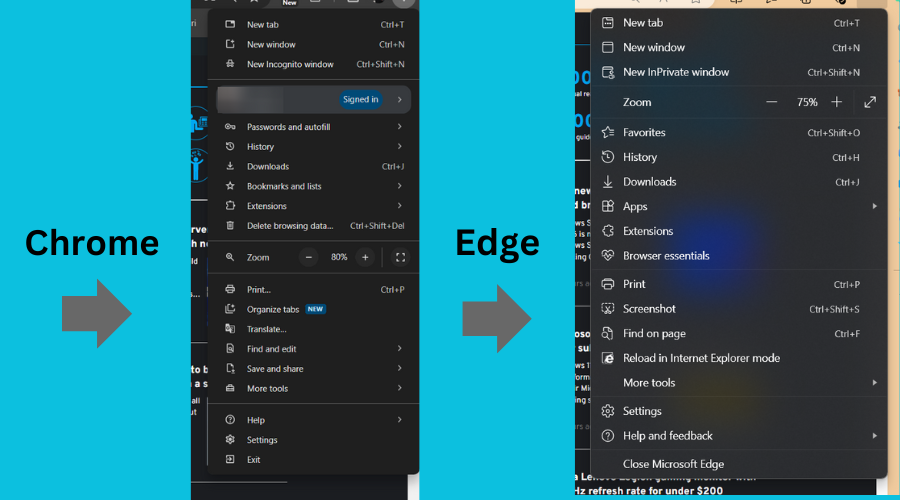
Both Chrome and Edge are Chromium browsers, which means that they are both built on the same engines. However, how they use the engine and resources are totally different. Let’s take a look at the first impression and at the menu button.
Although the main menu of Edge is slightly bigger, it is a lot less cluttered, showing only the tools you need, in a more elegant manner.
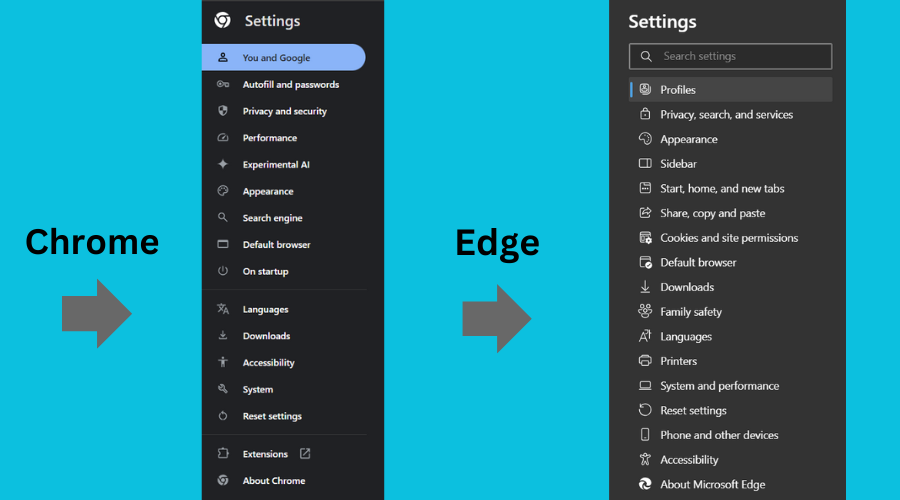
Let’s also look at the settings menus from both browsers. You will undoubtedly agree that the one from Microsoft Edge is a lot more straightforward and comprehensive than Chrome’s.
Edge simply has more description to show you exactly where to go according to what you may need to do. You and Google? On startup? I do know what they mean because I’ve browsed the option, but for a newer user, those might not ring any bells.
Chrome’s performance settings
Now, let’s look at something more important for any user, the performance settings of the browser.
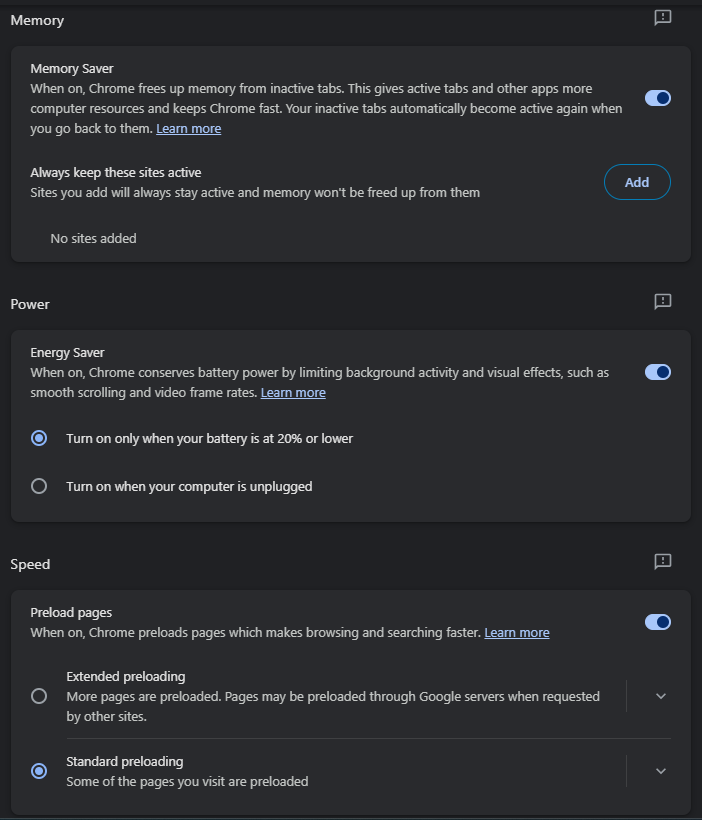
Chrome performance settings
If we look at the Google Chrome performance settings, we find a default memory saver that is meant to put inactive tabs to sleep and save you resources. Also, there is an option to turn on the energy saver when your laptop is at 20% or lower, or when the computer is unplugged. Lastly, you have the standard or extended preloading of the tabs, to make the browsing experience faster.
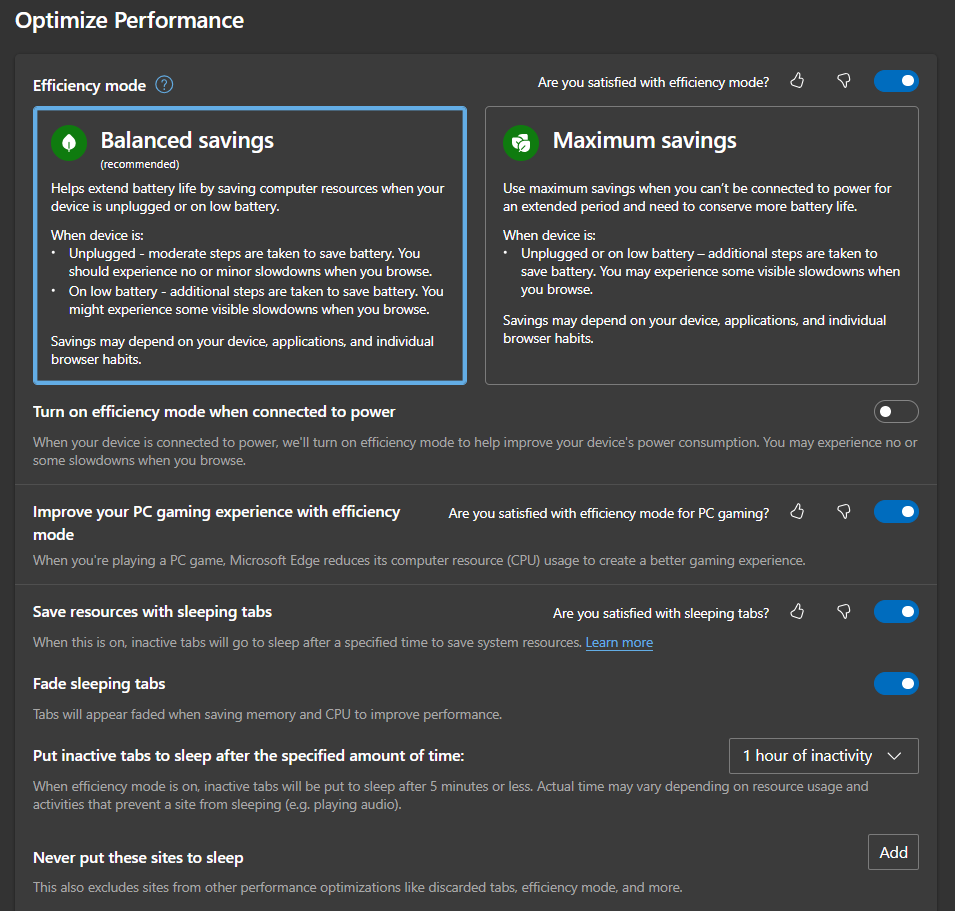
Edge system & performance settings
And now, let’s see the available options in Microsoft Edge in several steps, because you have a lot more complex selections available.
So, first, we have some system options, that can launch Edge on startup and continue running extensions and apps even when Edge is closed. We don’t like the second one at all, but it’s disabled by default, so there’s no need to get panicked.
Then, Edge is able to use graphics acceleration and enhance videos whenever possible, and that comes from the fact that the browser is optimized with Windows and knows how to manage those features. Chrome doesn’t have any such integration with your system and can’t do anything about hardware acceleration.
Now, the performance setting in Edge are something else. Apart from the energy savings options which are clearly outlined, you may also save energy when the laptop is connected to power. And hey, there’s a gaming option! When you’re playing a game but still need Edge, the browser will tone down its resource consumption to boost your game. Another option apart from putting tabs to sleep is to show them faded. So, the browser won’t close them, but they will have a ghostly appearance to save some extra energy. And Microsoft actually added a timer for when those tabs go to sleep.
Well, these are the main things that count from me, and that’s why Edge is performing faster than Chrome even with 40 tabs opened. I could go on and tell you why Edge would be a lot better for its Family safety features and how you could create a child profile. Or, we could go through the security features of Microsoft’s browser that are also a lot better than Chrome’s. And if you go through the menus, you will see many other improvements that Chrome lacks.
Again, I didn’t talk about Copilot and how it may help you in Edge, just because not everyone likes Microsoft’s bot. However, for me it turned out to be pretty helpful and I use it almost every day. And you can start right now, because Microsoft just released Edge version 126 in the stable channel.
It’s obviously your choice whether to use Chrome or Edge, but at this point, I feel like this option is more likely based on a general trend than on the user experience. If you’re not convinced, just give it a try for a week or two and see how it all turns out.
Your search for the best browser for your smart TV ends here!
Besides playing movies and TV shows and watching YouTube videos, you can also surf the web on your smart and Android TVs. But for that, you’ll need an internet browser.
I’ve tested 18 different options on an Android TV OS 14 from Google. After rigorous assessment of various use cases, like productivity, multi-tasking, TV control support, app downloads, movie downloads, and more, I singled out these seven tools.
Downloader is the most popular browser for Android and smart TVs because of its excellent support for app downloading. You can quickly save APKs by entering the direct download URL and shortcodes. Also, you can easily browse most websites.
The app takes up only 10 MB on the smart TV’s internal storage. It’s lightweight and compatible with most models. It requires Android OS 5.1 and better for smooth operation.
Furthermore, the browser directly integrates with the internal and external storage of the TV device. Once you download an APK or video file, you can access it using the native file browser or a third-party file manager app.
Other major features are as outlined below:
A basic in-app file browser.
Auto-installs downloaded APK files.
You can customize the default download location on the TV.
You can import or create Favorites.
Supports the URL Auto Follow feature for easy surfing.
You can enable JavaScript for specific websites.
Pros:
It’s a download-friendly web browser.
Comes with a basic file browser.
Cons:
There’s no incognito browsing mode.
You can’t import bookmarks and favorites from other browsers or devices.
If you’re looking for a general-purpose web browser for your Android or smart TV, try out the TV-Browser Internet app right away. Besides free web surfing, you can also stream free movies and TV shows from YouTube, PutLocker, Vimeo, Dailymotion, and so on.
By default, it comes with three popular search engines: Google, Baidu, Bing, and DuckDuckGo. You can choose which one you want to use from the Home Screen. You’ll have to activate Bing from the Settings screen, though.
Here are other important features:
Works on most x86-based Android and smart TV device architectures.
Requires Android 5.0 and better.
Only consumes up to 15 MB of space in the device storage.
Dedicated screens for Bookmarks and History.
Compatible with most smart TV remote controls.
Fully compatible with Google Account sign-in and device browsing synchronization.
Pros:
Separate tabs for different websites.
Customizable pointer speed and styles.
Cons:
The Bing search engine is hidden, and not available on the home screen.
BrowseHere is particularly suitable for TCL smart TVs and Android TVs. You can also install this app on Android set-top boxes and Android TV boxes. Its built-in ad-blocker lets you surf without any distractions on foreign and local streaming websites.
It also comes with an integrated software IPTV player. You can stream live TV without worrying about throttling imposed by ISPs and satellite TV providers. Therefore, if you’re looking for a free or affordable subscription for endless live TV channels, this should be your go-to app.
Find more features below:
Fully compatible with your TCL smart TV remote control.
The website shows trending free multimedia content streamed by other BrowseHere users anonymously.
Allows webpage bookmarking and internet surfing history.
Using QR-code-based technology, you can send websites from your smartphone to the smart TV.
Zoom in and out on web pages.
To swipe a page up and down, you can use Scroll Mode.
It runs on any Android 5.0 or better smart TV and requires only 15 MB of storage space.
Pros:
Offers full-functional voice-based surfing and downloading.
Built-in IPTV extension.
Automatically adds subscribed websites and OTT apps from the smart TV.
Cons:
Its default search engine is Google and you can’t change that.
Are you looking for the best browser for smart TVs with multitasking support? You should check out the Internet Web Browser. Moreover, it’s a super-lightweight Android TV browser given the app only needs up to 5 MB of space on the TV storage. It also runs on the latest models because it’s compatible with Android 6.0 and later operating systems.
Additionally, the browser includes the latest surfing and streaming technologies to use less data. Also, you can switch to the Dark Mode view to reduce strain on your eyes.
The developers are working on a new feature so you can export smart TV browser history, bookmarks, favorites, etc., to Chrome and Firefox on a PC or Mac.
Here are other prominent features:
Scroll Mode allows you to move up or down on the web page really fast.
Built-in incognito browsing.
Compatible with most downloads, like APK files, movies, web series, etc.
Zoom in and out on web page images and text.
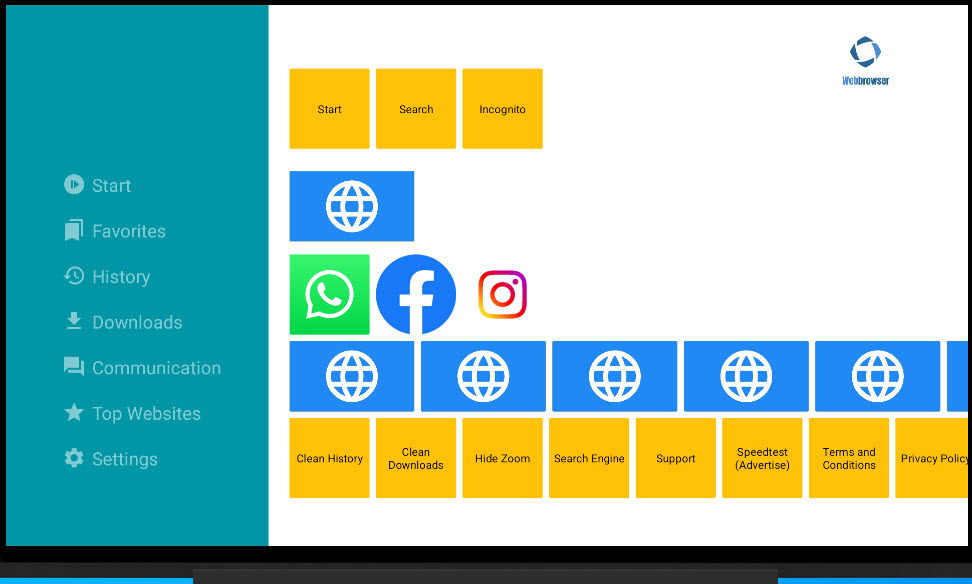
Dedicated buttons to quickly delete browsing data, download history, and more.
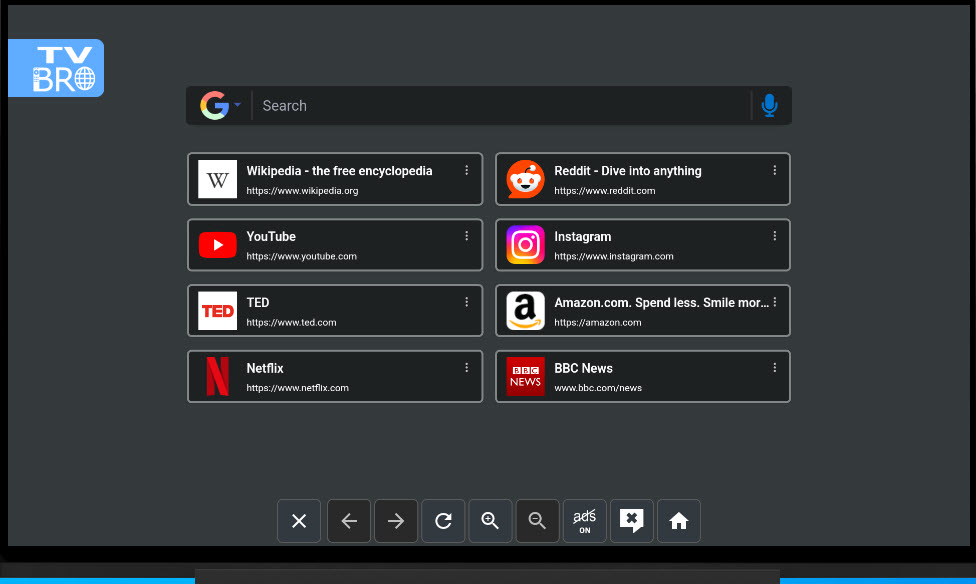
If you’re looking for a browsing experience almost equivalent to a PC or Mac, you can go for TV Bro. Its home screen is similar to that of Opera or Chrome. There’s also a search engine field showing Google as the default search portal.
However, you can switch to other options, like Bing, Yahoo, Yandex, DuckDuckGo, and more. Furthermore, there’s a field for a custom search engine where you can add a URL for a different provider not available in the drop-down list.
Below the search engine space, there are speed dials (as in Opera) or shortcuts (as in Google Chrome) for quick navigation to the most visited or important websites.
Other major features are as outlined below:
There’s a dedicated Downloads icon so you can quickly navigate to the recently downloaded apps or multimedia.
Incognito mode to browse without saving browsing history, cookies, etc.
Works with most TV remote models.
Offers tabbed website browsing for multi-tasking.
You can search using voice commands if your smart TV remote supports voice inputs.
Requires at least Android 7.0 or better Android TV OS.
Pros:
Offers a built-in ad-blocking tool.
Supports zooming in and out from website content.
Cons:
Always resets the default search engine to Google.
Doesn’t support smartphone-based navigation.
It requires up to 200 MB of storage space, so it’s not the most lightweight app.
Browser is a popular and secure tool for Android and smart TVs. You can use most of the browsing features, like entering a URL in the address bar, downloading from direct links, saving bookmarks, and clearing history data, with the smart TV remote.
Also, if the remote is compatible with voice searching, you can surf on the Browser app via voice commands. It’s a lightweight app that runs on most TVs with Android 6.0and up and only requires up to 16 MB of internal storage space.
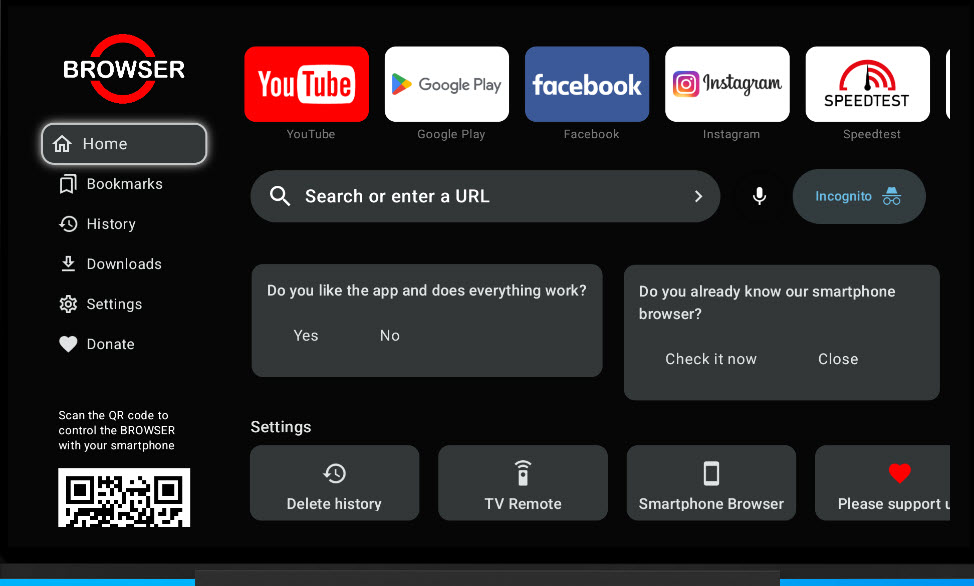
Moreover, it offers a sleek browsing interface with a left-side navigation panel for Home, Bookmark, Browsing History, Downloads, Settings, and Favorites. On the right side, you’ll find shortcut tabs on the top for popular sites like YouTube, Google Play, Facebook, Instagram, TikTok, etc. Beneath the shortcuts toolbar, there’s an address bar and voice search tool.
Other significant features include:
Virtual remote tool to convert your smartphone into the remote for the Browser app.
Custom cursor styles, sizes, and speeds.
Incognito browsing facility.
Pros:
Allows smartphone-based browser navigation.
Dedicated button to delete browsing history in one click.
If your preferred browsing app is Google Chrome, you can also enjoy the same on your smart TVs and Android TVs. However, it isn’t natively available on the smart TV app store.
You can side-load it on your Android TV by downloading its official APK from APKMirror for free. You’ll need to activate the app installation from Unknown Sources on the smart TV.
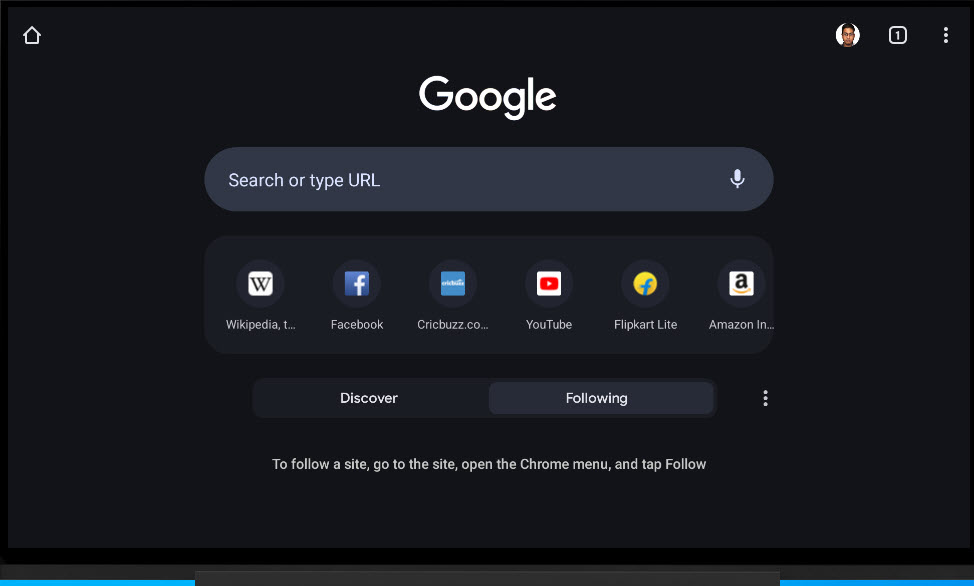
Once installed, sign in to your Google Account to import all the browsing data from your PC or Mac to the TV. Its user interface and browsing experience are similar to Chrome for PC and Mac.
Find below other notable features:
The voice search feature is compatible with the microphone of the TV or remote.
Shows trending news and events in the Discovery tab.
The Following tab shows you updates from the websites and apps you follow.
Dedicated buttons for Downloads, History, Incognito browsing, etc.
I’ve considered the following points to pick apps that stand out from the crowd:
1. Availability on the App Store
I’ve ensured that the best smart TV internet browsers are available on the built-in app store. Otherwise, installing a non-native web browser involves complex steps, like side-loading third-party APK files.
2. Compatibility
I checked that the browsers work with most smart TV models and operating systems. All of the apps mentioned above will run smoothly.
3. Remote Control Friendly
Typing and browsing on a tiny remote isn’t ideal, so I picked browsers with a user interface designed for easy navigation with arrow keys and buttons.
4. Voice Search
Does the browser support voice search? Speaking into your remote to search the web is a game-changer for hands-free browsing.
5. Performance
I’ve only listed options that are optimized for smart TVs so that websites load quickly and without lags.
6. Downloading Apps and Videos
These tools let you browse the internet freely, just like surfing the web from a computer, and download apps and multimedia smoothly.
7. Security
Just like on your computer, security matters. I’ve ensured that the apps I’ve listed come with built-in privacy and security features, like pop-up blockers, malware protection, adware blocking, etc.
8. Ad Blocking
Other than being annoying, ad trackers can steal sensitive content preference data from your smart TV. To help you prevent ads, I’ve chosen the best Android TV browsers that come with built-in ad blockers or let you install extensions.
9. Syncing
For multitasking and productivity, you often need to sync browser data between devices. I’ve listed smart TV browsers here that can sync your bookmarks, favorites, and more.
Summary
If you’re here, congratulations! You can now easily pick the best browser for your smart TV. So, give them a try and choose the one that suits your browsing style and preferences.
If the article helped you, feel free to comment below. If you’ve got critical feedback or suggestions, you can mention them as well. Moreover, if you need a browser for an older, 32-bit system, I’ve got you covered.
In the constant hunt for the best gaming setup, an incredible deal has appeared from Amazon’s huge range of products. The AMD Ryzen 7 5700G CPU, considered a powerful force in gaming processors, now comes with a large discount of 55%.
This isn’t just any sale; it’s an epic June Amazon deal that gamers and PC builders are discussing. But what about this deal that’s so unique, and why might you consider making the AMD Ryzen 7 5700G the main part of your gaming rig? Let us look into it.
The AMD Ryzen 7 5700G CPU can be obtained for a mere $162.37, noticeably less than the initial $359.00. Yes, you are correct: this signals a substantial saving of $196.63 if you make your move quickly enough! This offer is not simply beneficial but could be considered an opportunity too good to miss for those wishing to enhance their gaming arrangement without spending excessively on it.
What makes this processor stand out, you inquire? To begin with, it holds 8 cores and 16 processing threads, making it a monster for multitasking and gaming.
Furthermore, the AMD Wraith Stealth cooler is included in the package. This means your CPU will remain calm under pressure without requiring more money to purchase cooling solutions.
But wait, there’s more. The Ryzen 7 5700G comes with a 4.6 GHz Max Boost, paired with a 20 MB cache, and can also handle DDR4-3200 memory. This shows that you get great performance and can manage almost any game you play.
Also, for those who enjoy pushing their hardware to its maximum, this CPU is not locked and can be overclocked. This gives you the liberty to adjust your system’s performance.
An important advantage of this CPU is its built-in graphics card. It may sound surprising, but you can play well-liked games at 1080p without requiring an additional graphics card.
This game-changer is for anyone with a tight budget or wanting to build a small gaming computer.
But where can you find this unbelievable deal? Currently, the correct answer is Amazon. However, these types of deals vanish as fast as they emerge into view. So move quickly to get an AMD Ryzen 7 5700G at an amazing price.
If, by any chance, this CPU doesn’t fit what you need, no worries. Amazon has many other great offers for gaming CPUs. You can find everything from Ryzen 7 5700X to Ryzen 9 5950X – it suits every builder and budget.
The AMD Ryzen 7 5700G CPU deal is a special chance to enhance your gaming setup with a strong processor for just part of the price.
Whether making a new PC or improving an existing system, this Central Processing Unit provides a superb mix of power, cooling ability, and built-in graphics. However, always remember that deals such as these may not be around forever. Then, what holds you back from seizing this big June Amazon deal and elevating your gaming escapades?
In the past, Xbox was only a console—you know, the type of box that sits under your TV and lets you play games. But now? Now things are different! It has transformed into this huge multiplatform game development giant, changing over time yet shown off at Xbox Games Showcase 2024.
This occasion was more than a presentation of new titles; it signified that Xbox has evolved from its console’s initial stage to encompassing a future where it shines as the leader in gaming on all platforms.
Central to this transformation is the collection of acquisitions Microsoft has amassed in the last six years. The studios such as Obsidian, Compulsion Games, and Bethesda that they have absorbed all add to a line-up of varied and impressive games.
From grimy realms depicted in Doom: The Dark Ages through the vast universe of Starfield: Shattered Space – this display showed Xbox’s dedication to showcasing diverse content while maintaining high standards for excellence within its offerings. But it’s not only the games but how we play them.
The arrival of a disc-less Xbox Series X model suggests that physical media may become less important in the future compared to digital and streaming services. With the teasing of an Xbox handheld console, the company is ready to take on even more gamers.
However, what is the reason behind all these acquisitions, and why this strong effort towards a platform-agnostic future? The answer appears to be Game Pass, Microsoft’s subscription service that provides a variety of games for a monthly fee.
It is an audacious step, especially in today’s world, where PC gamers hold onto their Steam libraries like life-saving rafts. Nonetheless, it demonstrates that Microsoft has faith in the subscription method’s ability to reshape our approach to playing games.
But this change has not come without difficulties. The history of Microsoft’s relationship with PC gamers is like a wild ride, swinging from being ignored to overly controlling. However, more balance has been shown in the past few years, and attempts have been made for integration instead of domination into PC gaming.
This subtle balance of power is observed cautiously by gamers who value their freedom, yet they find Microsoft’s promises quite interesting.
The Xbox Games Showcase 2024 was not only about the games but also a window into a future where gaming is free from being limited to certain platforms, and adventures await us no matter how we decide to start them.
It’s an exciting yet unsure future, but one fact remains: Xbox is now more than just a console. It has become an entrance to a more reachable, varied, and absorbing gaming universe than ever before.
What’s your viewpoint? Are you prepared to enter into this fresh Xbox gaming period, or are you still clutching onto past practices? Let us interact in the remarks and express our enthusiasm (or concerns) concerning what comes next in the world of Xbox.
Have you ever felt the need to keep up with all the latest updates on Microsoft Edge but sometimes feel that too much technical talk is being used? Well, let’s review recent changes and features in Microsoft Edge 126. However, we will discuss it like a conversation over coffee rather than reading from a tech manual.
Lastly, Microsoft Edge is always changing. The most recent updates in the Stable Channel are part of this ongoing process. They include many different things, like fixing bugs and adding new features. It’s worth noting that these updates are not instantaneously available to everyone at once but rather roll out gradually over a span of a few days. So, if you don’t observe them right away, be patient, as they will appear soon on your device.
The AI theme generator is an especially interesting new feature in Microsoft Edge 126. Imagine typing a prompt and then receiving several theme images for your browser. Very cool, isn’t it? Remember that this feature is being introduced gradually, so it might not be accessible immediately to everyone.
There is some good news for corporate Edge managers. The Edge management service will have its own room for enhancing security settings. It remains in preview, but it’s coming soon.
Have you ever felt overwhelmed by a long article? The fresh Copilot summarization notification might change the game for you. It appears when you are on a page that can be read in mode and offers to summarize the content in the sidebar. Again, this is rolling out gradually.
A few new policies exist in Microsoft Edge 126, such as allowing proactive authentication and ensuring the Edge window stays in front when using Internet Explorer mode. However, just as it happens with all things tech-related – some policies are being retired, such as those related to Math Solver and Immersive Reader Grammar Tools.
Security is also an important focus, with numerous updates to fix vulnerabilities. It’s good to know they are working on making our browsing secure.
A prominent announcement is the withdrawal of the Microsoft Defender Application Guard extension. If you use this, you must look for other options, as it will not migrate to Edge Manifest V3 and will become inaccessible after May 2024.
For the neat types, updates have been made to fix browser crashes and improve reliability. One repair deals with an issue with the “View in File Explorer” option in SharePoint Online.
Finally, we talk about the future. Features such as the insecure downloads warning over HTTP are getting better, a sign that safer browsing practices are coming soon.
So, how about these latest features for Microsoft Edge? Do they sound thrilling to you, or is there something else that you hope to find in it? Keep in mind that technology keeps advancing, and being knowledgeable about it helps one fully utilize its potential.
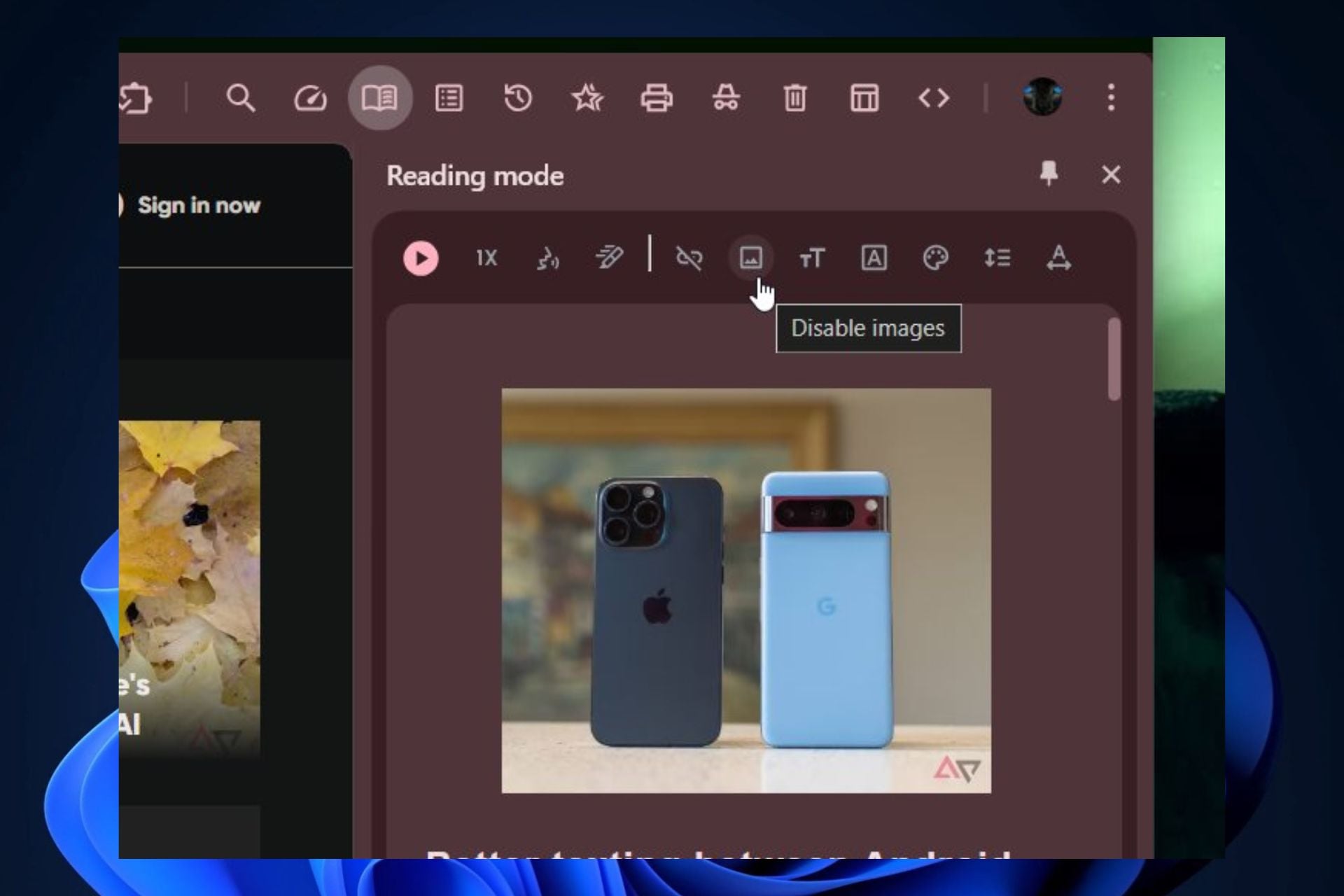
Have you experienced getting lost on an overloaded webpage with many ads and disturbances while simply trying to read an article? Google Chrome’s reading mode has relieved numerous people by providing a cleaner version showing only text on web pages.
But there is exciting news coming soon. Not long after now, you can put images with text in Chrome’s reading mode. Just think about it: looking at relevant pictures and not getting bothered by ads everywhere – isn’t that cool?
According to tech enthusiast @Leopeva64, Google is slowing down the rollout and controlling how it is released. This means the feature will become widely accessible soon, but not everyone can use it simultaneously. This function aims to give users greater authority over their reading experience.
You may select a text-only version or add images if desired. Moreover, should the pictures bother you, an easy-to-find “Disable images” symbol is located at the uppermost part of the Reading Mode panel. The main thing here is tailoring your reading experience to your liking.
This change is one of the many adjustments Google has been making to Chrome’s reading mode. It shows that they are seriously considering improving readability on the internet.
And for people who enjoy exploring things in great depth, this function was noticed a few months back, but now it’s being formally introduced. The expectation is real for all of us who enjoy some visual aid with our text.
For those who love technology, you may wonder how to get a preview. This feature was seen in Chrome Canary, the version of Chrome that Google uses to test new features before they become available to everyone. It’s similar to getting an early look behind the scenes.
But remember that Canary builds might not be very stable. It’s a give-and-take situation.
In this age of information overload, it is crucial to have choices to personalize content consumption methods. Whether you are a visual learner who likes images or prefers the simplicity of text, Google’s update hopes to address your needs.
So, look out for this feature in your Chrome browser soon. It is a small but noticeable change in how technology advances to assist us with handling our digital world.
Geoff Keighley’s tweet about the Gears of War: E-Day trailer stirred up a recent storm in gaming news.
It is interesting to see how one tweet can start such an argument. Keighley, who has given much to gaming events, just expressed his opinions on how the trailer was made. He said CGI was made from in-game assets using Unreal Engine 5 technology. Little did he know this would create a chain reaction among fans.
The great Gears of War piece was a CG from Blur Studio, using in-game assets from UE5.
Game info: Gears of War: E-Day is the next mainline game in the Gears of War universe, set during the pivotal Emergence Day. Fourteen years before Gears of War, war heroes Marcus Fenix and Dom…
The main point of disagreement centered around the difference between “CG” and “in-engine footage,” a distinction that might appear small but turned into a warzone for console fans. Keighley’s comment was viewed by certain people as devaluing the effort put in by developers, an outlook that rapidly gained ground on the internet.
The debate spiraled, necessitating an explanation from Xbox’s marketing director, Guy Welch. Welch clarified how the trailer was made but didn’t completely remove uncertainty.
Finally, Microsoft came forward to clarify the situation and back Keighley by saying that the trailer was truly made using Unreal Engine 5 but not in real time—a small but crucial difference.
This incident underlines the continuous rivalry between gaming consoles, with Keighley getting entangled, sadly so, due to assumed loyalties. It’s an instance that reminds us of how passionate and at times too enthusiastic gaming followers can be.
In another area, YouTuber Plainrock124 criticized Geoff Keighley’s declaration about the Summer Game Fest 2025 for not making what they considered a strong impact on the industry.
The critique mentioned its “mid-show and overpriced ad spots,” stirring up a wider discussion about how gaming showcases are now. Although there were some good parts, people generally didn’t react that much to the 2024 Summer Game Fest. They wanted it to be more like how E3 used to be—with big effects and important news.
Glad you liked it!
Blur developed the trailer hand-in-hand with our team @CoalitionGears using @UnrealEngine 5. The trailer is developed with in-game models, textures, environments and props that players will see in the final game.
The gaming world faces a difficult junction, with layoffs, studio closures, and a perceived dip in game quality causing worry. Even events like the Summer Game Fest are being questioned about their role in this ecosystem—do they help or just add to the difficulties?
As we consider forthcoming gaming events, we hope there will be more focus on creativity and innovation—elements that have always pushed the best of gaming forward. Until then, did you like the new Gears of War E-Day trailer?
If you’re one of the Assassin’s Creed series fans, you’re going to be very excited about this! Rumors suggest that Patrice Désilets, who created Assassin’s Creed, could be working on a fresh game within Xbox Game Studios. Now, isn’t that something to get your gamer senses tingling?
According to Exputer, Désilets’ studio, Panache Digital Games, might be leading this mystery project. Allegedly, they are using the strong Unreal Engine 5 to make their plan real. The whispers go on to say that this could very well be the much-talked-about game called 1666: Amsterdam–a creation which has been sailing through a storm of legal disputes since its first publisher THQ went bankrupt back in 2013. But for now, details are as hard to grasp as a shadow in night, keeping us all waiting anxiously.
The rumor started from Exputer’s forum
What gives this news an extra layer of interest is the excitement it builds up. Seeing how Désilets has always been able to make deeply involved and detailed universes, it’s easy to understand why the gaming world is abuzz with guesses and anticipation.
But like any good story, patience is important here too. Don’t hold your breath as this might take a few years in the making, unless they managed to keep everything under wraps for longer that we could expect.
So, what’s your take? Is it a possibility that we are about to see the next major success in the gaming universe, or could this be starting of another incredible story being created? One thing is certain: the partnership of Patrice Désilets and Xbox Game Studios is a perfect match for gamers, and we are excited to discover what lies ahead.
You could be a Minecraft player who loves the game, dedicating many hours to creating, examining, and experiencing adventures in its large pixelated universes. Just picture yourself logging in one day only for your account – the key that opens up this world on which you have built so many memories – to vanish forever.
It is not just an idea; some people face this reality. Microsoft’s choice to delete Minecraft accounts that were not moved from Mojang until 2023’s conclusion has caused disappointment and annoyance within the game’s community.
The main problem is that players feel their rights to a game they purchased legally are being taken away. This situation has sparked renewed discussion about Digital Rights Management (DRM) in video games.
One player’s comment on Reddit summarizes this well: “The fact they can just take away your license to the game like that is insane.” It is not surprising that you feel this way because if a game has DRM, are you really owning it or only getting a short-term permit to play it?
Many platforms’ comments sections are fiercely contested. Microsoft gave enough warning, and some people say it was simple to move over accounts.
On the other hand, some people believe that if they paid for a game, they should be able to play it regardless of whether their account has been migrated. Some users even claim they received no warning about when their account would be deleted, but checking these statements is difficult.
This happening has shifted some players towards piracy, which is as debatable as it indicates their desperation. At present, Microsoft has not said anything about deleting Minecraft accounts.
Many people are left wondering what will happen to their digital purchases and how safe their gaming situations are.
This entire story makes us think about digital ownership and consumer rights in the era of technology. It is a memory that with DRM, the distinction between owning a game and only having permission to play it can blend uncomfortably.
What are your thoughts? Is it fair for customers to lose access to games they paid for due to account migrations, or should they be accountable for taking the necessary steps to secure their digital purchases?
Microsoft recently issued the June Patch Tuesday security updates, including the KB503921, KB5039217, KB5039214 and KB5039225 for Windows 10. However, the Redmond giant warned the Windows 10 21H2 users that those are the last security updates for the version as it just reached the end of service.
However, Microsoft wants to protect your systems whether you want it or not, with an automatic feature update, as written in their announcement board:
To help keep you protected and productive, Windows Update will automatically initiate a feature update for Windows 10 business devices not managed by IT departments when these are at, or within several months of reaching, end of servicing. Moving to Windows 10, version 22H2 keeps your device supported and receiving monthly updates that are critical to security and ecosystem health.
So, of course, you can still block the updates and stay on Windows 10 21H2, but you will have to deal with the potential security risks on your own. You might do just that if your PC is not compatible with Windows 22H2. Otherwise, we recommend updating your OS as soon as possible, even all the way to Windows 11. After all, Microsoft just recognized that Windows 11 shares 99.7% of Windows 10’s DNA.
Moreover, Microsoft has reiterated the distinctions between LTSC and non-LTSC by confirming that Windows 10 Enterprise LTSC 2021 and Windows 10 IOT Enterprise LTSC 2021 will retain mainstream backing until January of 2027, while the latter will enjoy an extended end support timeframe scheduled for the year 2032.
What do you think about the deprecation of Windows 10 21H2? Did you update your OS? Share your thoughts in the comments below.
Microsoft dropped some exciting news for Windows 11 enthusiasts, especially those enrolled in the Insider program.
The tech giant released new builds for Windows 11 versions 22H2 and 23H2, specifically builds 22621.3807 and 22631.3807 under KB5039302.
These updates are packed with features that were previously teased in early Insider channel builds, including a nifty way to pin Copilot to the taskbar, a new Game Pass recommendation card, and enhanced support for creating 7-Zip and Tape Archive (TAR) files.
First off, the Copilot experience is getting a major boost. It’s pinned to the taskbar and behaves like any other app, so you can resize, move, and snap the window to your heart’s content. Imagine having a virtual assistant right at your fingertips, ready to help with whatever task you have at hand.
And for gamers, the new Game Pass recommendation card on the Settings home page is a game-changer. This feature is for you if you’re signed in with your Microsoft account and actively play games on your PC.
But that’s not all. The update also returns the show desktop button on the taskbar by default. It’s a small change, but it’s a welcome return to a more intuitive desktop experience for many. Plus, File Explorer has received some love, too.
Emoji enthusiasts will be thrilled to hear that with KB5039302, Windows 11 now supports Emoji 15.1, which introduces a range of new emojis, such as the Horizontal and vertical head shake, Phoenix, Lime, Brown mushroom, and Broken chain.
For those who rely heavily on the Task Manager, this update promises better performance, improved accessibility, and an easier way to resize the window.
But it’s not just about new features. Microsoft has also tackled a number of bugs and performance issues, ensuring a smoother and more reliable experience overall.
These updates are all about improving your Windows 11 experience, from addressing issues with USB device ejection to enhancing the reliability of Task Manager and updating the units for DDR speed from MHz to MT/s.
So, whether you’re a gamer, a productivity powerhouse, or someone who loves staying on the cutting edge of technology, these new Windows 11 builds have something for everyone. And remember, while some features are rolling out gradually, it’s just a matter of time before all Release Preview Insider members can enjoy the full suite of improvements.
Opera GX is a browser dedicated to gamers, delivering a seamless browsing and gaming experience. With a built-in ad blocker and free VPN, it is one of the best-ever gaming browsers. To further enhance the browser functionalities, users tend to rely on Opera GX extensions, managing which is as straightforward as the browser itself.
Extensions in browsers are small add-ons that allow you to add features that are not natively present in the browser or aren’t as advanced and, subsequently, boost functionality. For instance, grammar checkers, ad blockers, volume boosters, web protection, and productivity tools.
How can I download extensions on Opera GX?
Launch Opera GX, open the Opera menu from the top left, choose Extensions, and then select Get extensions.
Now, search for an extension using the search bar near the top right.
Choose the most suitable extensions from the ones listed on the screen. If you are looking for a functionality add-on, pick from under Extensions and not Themes.
Click on Add to Opera and wait for the extension to install.
You can similarly add as many extensions as you need to Opera GX. To discover the best ones for you, check our top picks for Opera GX extensions.
Remember, while adding too many extensions to Opera GX will enhance the functionalities, it also tends to slow down the browser and consume more resources on the PC. So, only install the vital ones!
How can I remove extensions on Opera GX?
Launch Opera GX, click the Opera icon near the top-left corner, select Extensions, and then choose Extensions again.
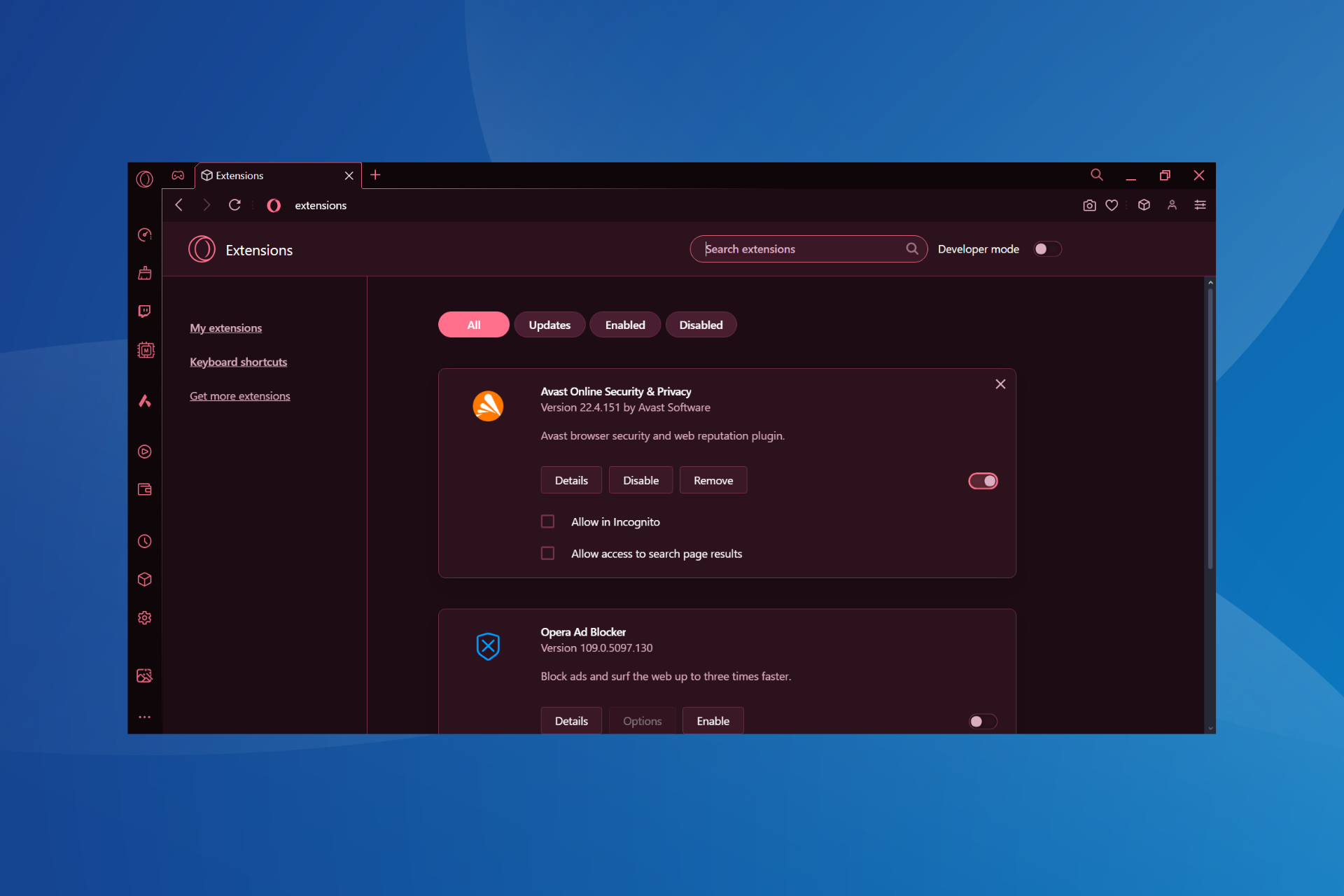
You will now find a list of all the installed extensions, both available by default and the ones added manually.
To disable an extension, click the Disable button under it. You can similarly disable all extensions in Opera GX.
To uninstall an Opera GX extension, click the Remove button under it, and again choose Remove in the confirmation prompt.
If Opera GX is using 100% CPU or running slow, it’s a sign that you have too many extensions installed. Removing a few usually does the trick!
How can I manage extensions on Opera GX?
Launch Opera GX, paste the following path in the address bar and hit Enter: opera://extensions/
Click the Details button under the extension for which you want to manage the settings.
You can reconfigure all the extension settings, including Pin to toolbar, Allow in Incognito, Allow access to file URLs, and Allow access to search page results, amongst others.
Each extension has specific settings you can manually configure and manage from the Opera GX extensions page. This makes them all the more useful and streamlines the browsing experience!
What can I do if Opera GX extensions are not working?
Often, specific or all Opera GX extensions stop working, or you can’t open the Extensions page and get redirected to the browser settings. All these are signs of a conflicting extension, malware infection, misconfigured settings, or a bug in the installed version of Opera GX. To fix things:
Remove any unwanted extensions: If one of the Opera GX extensions is not working, you should first remove it and then reinstall the extension from the Opera Add Ons Store.
Scan the PC for malware: Press Windows + S to open Windows Security > click on Virus & threat protection > select Scan options > choose Full scan > click on Scan now > wait for the scan to complete. Alternatively, you could use an effective antivirus tool to remove malware.
Reset Opera GX to default settings: Launch the browser > open the Opera menu > choose Settings > scroll down to the bottom and select Restore settings to their original defaults > click on Reset to confirm.
Install an older version of Opera GX: If the problem started after installing an update for the browser, uninstall it, then download an older version of Opera GX from the official website, and finally, install it.
Resetting Opera GX to default
You now know how to effectively manage Opera GX extensions, be it adding, removing, or reconfiguring the individual settings. From now on, you will have better control over the browser and enjoy a personalized browsing experience.
Microsoft has released a new build for Windows 10 Insiders in what seems like a series of quick updates. This build is mainly aimed at people in the Beta and Release Preview channels.
It’s important to note that this update – tagged as build 19045.4593 under KB5039299 – includes several expected enhancements and fixes for the Windows Backup app, such as an easy way to save printer device settings and preferences.
It also addresses a hibernation issue linked with BitLocker encryption and makes other improvements. Let’s dive into the details, shall we?
If you are using the Beta Channel on Windows 10, there is good news for you. Microsoft has made some adjustments to improve the stability of searching for apps through the search box on your taskbar. Also, there has been a notable enhancement in the Windows Backup feature with KB5039299.
Finally, you can smoothly save and bring back personalization settings for Activity History and Printer Device Settings, which are not linked with any particular hardware or accessory. This allows preferences such as “Allow Windows to handle my default printer” and “Keep my activity history on this device” to be moved easily to a new PC, making the changeover more seamless.
Microsoft has additionally corrected some bugs to improve the backup and restore feature. A bug that caused backups to fail when desktop and lock screen backgrounds were backed up twice has been fixed.
For those who desire to be at the forefront, they need only turn ON the toggle within the settings menu. When accessible, updates will arrive instantly.
The improvement is not only for the Beta Channel. A set of additional features and fixes will be provided for both the Beta and Release Preview Channels.
These enhancements address a problem that impacted MSIX applications: an incomplete download from an HTTPS URI would make it impossible to open the application. The MDM client has been improved to send richer details about the device, assisting in its identification.
For those using a Japanese Input Method Editor (IME), the candidate window issue has been fixed. This means you will no longer encounter unexpected freezing or returning to a previous composition state.
Direct Composition batched presentations have also improved, reducing the number of brief flashes of triangles or boxes that appear on the screen. Additionally, this update brings Country and Operator Settings Asset (COSA) profiles for certain mobile operators up to date, resolves a hibernation problem linked with BitLocker, and makes various other refinements to improve your overall experience using it.
In simple terms, this update shows how Microsoft is serious about making Windows 10 better for people. They are working hard to improve the operating system in many ways, showing dedication to delivering an experience that matches and surpasses users’ expectations.
This advancement has something for everyone—from those who love technology and want new features as soon as possible to those who depend on Windows 10 every day for work activities; it will surely enhance your computer usage by providing smoother operation and increased consistency.
Here we go! The first batch of Qualcomm X Elite laptop reached the hands of some early adopters This includes Samsung Galaxy Book4 Edge and luckily we also have a first feedback posted by cponica23 on Reddit who eagerly started using it. Let’s say, the outcome was a blend of expectation and slight letdown.
Geekbench Results: The Qualcomm Snapdragon 8 Gen 1 chip, which is used in many high-end smartphones, did not reach the 3000 and 15000 scores for single-core and multi-core tests as promised. One core test score is 1,841 while multi-core result reaches 11,537. Comparing these numbers to Apple’s A14 processors of the previous year shows that they are lower.
Going into more details, the device’s maximum running speed was found to be limited at 2.5GHz only, a significant difference from the promised 3.4GHz. This inconsistency raised some possible speculations that Samsung could intentionally slow down CPU to lengthen battery life. But, these tests didn’t check NPU of device which is very important for Copilot+ experience.
Coming to the sunny part, battery life appeared hopeful with a promise of one full day’s use. However, it still could not beat Apple M2-powered MacBook Air that Microsoft has been aiming to surpass. Tests in gaming at first stages with games such as Resident Evil Village showed frame rates are playable yet pointed out Copilot+ PCs might not be ideal for people who are serious about gaming.
So, in the end, even though these initial tests were not ideal, there may be a possibility of future solutions to tackle the performance problems with a simple driver update from Qualcomm. We won’t jump to any conclusions yet, and we invite you to do the same.
Would you buy a Copilot+ PC? Let’s talk about this in the comments below.
Microsoft, showing its dedication to cybersecurity, has made a significant change in how it reviews workers. With worries increasing about cyber threats and the safety of online products, the big tech company will now include evaluations of cybersecurity contributions in its performance reviews for employees.
This decision follows a series of major cyberattacks that targeted Microsoft’s services, emphasizing the immediate requirement for improved security actions. It is important to mention that a Chinese group accessed Outlook email accounts all over the United States and Europe during the summer of 2023.
The method of Microsoft to enhance cybersecurity is a thorough assessment of the contributions made by every worker in this crucial field. The company’s interior “Connect” meetings and reviews, which all employees have with their manager, will now include one more “core priority” linked to cybersecurity.
This implies that each Microsoft worker will converse with the manager about his or her work associated with cybersecurity; this conversation will directly influence their yearly bonuses and pay. The motivation reaches the top leadership team, too, where one-third of their performance evaluation for bonuses is reliant on cybersecurity accomplishments.
This change in strategy shows how Microsoft understands the importance of each worker to protect their digital castle. They want to encourage a culture that values security everywhere by linking cybersecurity with performance assessments.
The emphasis on security by Microsoft’s top management, such as President Brad Smith, highlights a company-wide dedication to defending against cyber dangers.
While we are still waiting for the results from these fresh review methods, it is obvious that Microsoft is trying to tackle cybersecurity issues. Holding its workers and top-level staff responsible for security efforts sets a standard in the technology field, emphasizing the importance given to the digital safety of its products and services.
The intention is not only to improve Microsoft’s security but also to inspire other firms to elevate their focus on cybersecurity within their organizational aspects.
Do you remember when we used to write on paper and wished for a magic wand to transform our random scribbles into neat, typed text? Microsoft is making this fantasy true for OneNote users like us—particularly if we are part of the Microsoft 365 Insider program.
According to the official blog post, Microsoft’s work on improving OneNote for Windows with various digital ink characteristics has led to a new interactive ink tutorial feature to provide a better understanding and enjoyable experience using these improvements.
Just picture this: you start OneNote on your Windows device, and there’s a message about a fresh ink tutorial. If you want to know more (and who wouldn’t?), all it takes is clicking “Try it” to enter a scenario where ink encounters innovation.
This tutorial is not a regular one; it’s an interactive trip planned for you to learn about digital ink in OneNote. The tutorial uses a show-and-tell method, including videos and practical tasks that will improve your note-taking ability.
Now, I can hear your thoughts. What if you don’t own a stylus? Microsoft has considered this problem too. When the tutorial’s interactive part is in tune with a stylus, you can still participate even if you don’t have one.
You are able to engage with the non-interactive videos that explain features. However, if a stylus exists, the touchpad or mouse will be less involved during lesson time.
One hiccup to note: the tutorials won’t work with Windows N versions because they lack the necessary multimedia support. But there is a workaround. Downloading and installing the Windows Media Feature Pack will help you get back on track.
For eager people who want to try this, the fresh tutorials are ready for those using Microsoft 365 Insiders running Version 2405 (Build 17628.20006). It is similar to having your private teacher help you understand digital ink in OneNote; this makes capturing your ideas, drawings and notes simpler and more pleasant.
Are you prepared to give your notes a digital upgrade? If you are a Microsoft 365 Insider, this is the perfect opportunity to push the limits of what can be done with ink in OneNote.
We may witness the creation of something truly groundbreaking. This could be the start of a new era in which people can interact more intuitively and interestingly with their ideas and creations in the digital world.
Opera GX is known for its undeniable features that make it a reliable browser but since its extensions catalogue is limited, you might need to install Google extensions.
A lot of users are switching to Opera GX and lucky for you, it is fully compatible with Google extensions. Of course Opera GX extensions are available but Google has more to offer so installing them is bound to amplify your already great browsing experience.
Click on the Sign in button located in the top-right corner of the extension marketplace.
Enter your Google Account which you’ve been using in the Chrome browser.
Enter the password and authenticate the sign-in process with OTP, Android device, etc.
You should now see the Chrome Webstore home screen signed into your account.
Click on the Extensions tab and scroll down to install an extension you like. You can also search for a specific one by typing the name in the search bar.
Click the Add to Opera button to install it on Opera GX.
Once you’re done, click on the three-dots menu in the top right corner, near your Google Account profile picture and select My extensions & themes from the context menu. You should now see all the Chrome extensions you’ve installed so far.
Best practices for installing Google extensions on Opera GX
Keep your extensions up-to-date to avoid compatibility issues. Chrome extensions may work well with Opera GX but remember they’re not natively made for this browser so regular checks ensure they’re at optimal performance.
Keep an eye on the permissions requested by an extension. Some may request access to extremely personal information so ensure your privacy is not at risk.
Now that you can add Google extensions to your Opera GX browser, you may be wondering if you can to install Chrome extensions on Opera. If so, we lay it all down in our extensive article.
Have you tried Google extensions on your Oera GX browser? Did you experience any significant performance changes, compatibility issues or privacy and security concerns? We’d love to get your feedback so let us know in the comment section bellow.
In a constantly changing AI world, Microsoft appears to be preparing for a big change. The news says that with CEO Satya Nadella taking charge of the company, they are considering shifting from depending on OpenAI’s powerful technology to growing their AI.
This could lessen their need for outside help and perhaps even lessen their dependence on OpenAI, which created the amazing tech behind many of Microsoft’s current offerings in the artificial intelligence field.
Such an important shift could redefine how AI development is viewed, focusing more on self-grown innovation rather than relying too much on external partnerships. But why is this change happening, and what could it mean for the future of AI at Microsoft?
In a paradigm shift, Microsoft seems to be developing its own AI model. This could mean they want to be equal or better than the AI technology they are using from OpenAI, showing a possible desire for more control and competitiveness in this quickly growing field of artificial intelligence.
The exact motives for this planned change still require some guessing, but it suggests Microsoft’s aspiration to pursue an independent path in creating AI.
Central to this effort is Mustafa Suleyman, whose name is significant in AI domains. He is one of the founders of DeepMind and currently leads a fresh AI team at Microsoft, so his knowledge and vision are key to this endeavor.
His team’s attempts to create a unique artificial intelligence model that meets Microsoft’s demands may possibly bring about significant technological progress for the company.
However, despite the possible change in direction, Microsoft is unlikely to cut all its connections with OpenAI. The cooperation between these two groups has benefited both sides; Microsoft is a big investor in OpenAI.
Even as Microsoft considers building its AI technologies, it will still have a significant relationship with OpenAI—particularly because of its importance in cloud computing. This implies that Microsoft may use a mix of AI models from both OpenAI’s advancements and its creations in the future. The selection could be based on the specific use case.
The effects of Microsoft’s strategic move to focus on self-made AI are significant. This change might alter the company’s place in the AI field and emphasize how crucial it is for firms to possess their technology as a tool for staying competitive.
As Microsoft gets deeper into creating AI, the tech world is interested in its effect on the larger artificial intelligence system.
Fundamentally, Microsoft’s investigation into in-house AI technology, guided by Satya Nadella, signifies an important turning point in its path.
The combination of future vision and technology skill places Microsoft in a strong position to handle the difficulties involved with developing AI, possibly establishing fresh benchmarks for invention and teamwork within tech industry context.
Did you ever want to modify your Windows 11 arrangement a little more so it fits your liking? More precisely, did you have nostalgia for times when the taskbar could be vertical instead of the usual horizontal layout? It seems like many people miss this feature.
Many users have been asking for this feature, but Microsoft thought it was too complicated and not used by many people to include in the new version of their operating system. However, even if Microsoft does not officially support it, the third-party modding community has found a solution.
It is called Windhawk. This mod has gained attention because it can also restore the vertical taskbar on Windows 11 and other features.
Windhawk is not alone in the game; there is also StartAllBack, another long-standing third-party solution. However, it might cause issues with Windows 11. What makes Windhawk special is its minimal and non-intrusive nature.
The people who made Windhawk have created their mods only to do what they are meant to, without changing everything about how the interface looks or feels. This is good news, as you can use a vertical taskbar and, at the same time, maintain the rest of your Windows 11 experience according to Microsoft’s design principles.
However, there is one little quirk in the Windhawk mod’s current version: the clock has not been rotated correctly. Thus, if you habitually glance at your taskbar clock during the day, be prepared for a moment of confusion until this gets sorted out.
The person who made the Windhawk mod confirms that it is a project that is still being developed, including the feature of putting the taskbar on top.
The best option for people who want to try it is to go to Windhawk’s website. From there, they can get the mod and follow instructions for setting up the “Vertical Taskbar for Windows 11” mod.
This process may greatly improve your user experience, especially if you like having more space on the screen and prefer an orderly desktop layout.
It’s worth highlighting that Microsoft eliminated the vertical taskbar alternative due to its recognized intricacy and limited frequency of use.
Still, users’ requests for additional customization possibilities—such as relocating the taskbar—suggest that Microsoft may have undervalued how much individuals appreciate these modest and personal changes in their computer surroundings.
Finally, whether Windhawk’s solution suits you depends on your choice. Some may say it requires too much work for a feature that should have been present in the OS from the start.
Others could see this as an example of a lively Windows modding group filling up spaces left by official developers with choices available through community efforts. No matter where you stand, the wish for a more adjustable and user-friendly computing experience is still strong.
Often, we reach a point where we have to choose between sticking with what we know – Windows 11 – and embracing the unknowns of Linux. Let me introduce a game-changer: openSUSE Leap 15.6 has been freshly launched into this realm, and it’s getting attention for good reasons.
This is not an ordinary release; it’s a guiding light for people who desire stability, performance, and easy use. Whether you are a technology worker, someone who loves this field, or in the middle of both, this update benefits everyone.
openSUSE Leap 15.6 is not only about new features; it focuses on improving what already exists. The addition of the Cockpit package shows this direction. It makes managing systems and containers easier using a web interface that is simple to understand and strong in functionality.
Ever been swamped with bureaucratic duties? It’s similar to getting aid from a computer-wise buddy.
Container technologies, such as Podman 4.8, which is made better for Nextcloud, Docker, and Distrobox (to name a few), have also seen important enhancements, making handling various software environments smoother than ever before.
For those who depend upon virtualization, updates in Xen, KVM, libvirt, and virt-manager are expected to improve performance and stability—crucial for any business’s backbone.
Yet, what of the desktop users? No worries. KDE updates incorporate improvements to the Plasma environment, making Qt technologies blend perfectly. GNOME 45 has not been forgotten, as the updates focus on improving the user experience.
It’s about having a choice for people who want a complete desktop environment.
There are also changes in networking and telecommunications. The DPDK and Open vSwitch updates support better network performance and dependability, which is important for any business communication system.
Additionally, fans of high-quality audio will be pleased with the improvements in audio technology. This includes new editions of PulseAudio and PipeWire that enhance Bluetooth functions and compatibility with hardware—a promise for an even better sound experience.
Important updates include the change to Python 3.11, which helps remove unmaintained Python packages. The system is more secure and current with recent Python features and enhancements, which benefit developers and regular users.
Thus, why consider openSUSE Leap 15.6 as an option for Windows 11? It is straightforward: This version provides a strong, versatile, and safe computing atmosphere. If you are a developer, need dependable tools, or want a solid and effective desktop experience, openSUSE Leap 15.6 is what you require.
Willing to switch? You can download it from the official website; live ISO images come with KDE Plasma, GNOME, and Xfce desktop environments, among other options.
In a constantly changing universe, openSUSE Leap 15.6 shines as a symbol of steadiness, power, and ease for its users. Are you prepared to begin?
For Insiders in the Canary Channel (Build 26236), Microsoft has given them a fresh Windows 11 build. Although the official change log focuses on other changes, people who love Windows have found a couple of new characteristics connected to Recall and privacy settings in this recent version.
Recall is a characteristic that allows you to look for image content within Windows 11. It brings an extra choice called “Search the Web,” which will search for any text recognized from the picture.
This characteristic is turned off as a standard function in build 26236, but its working method isn’t instantly obvious. This feature might use Bing by Microsoft to search for webpages related to the text found in an image, but it’s not certain yet.
Windows Recall is getting a new "search the web" action for text detected by screenray in snapshots. (disabled by default, build 26236.) pic.twitter.com/NsGM2CGHCv
The “Search the web” function in Recall needs a separate app called ViveTool, but it is unknown if Microsoft will officially support this feature. Microsoft has been testing an approach to allow third-party apps to be seen in the system’s Share dialog, a characteristic that also needs activation via ViveTool.
It will be interesting to see where this leads. If you remember, Windows Recall has been massively booed by Windows users and critics as a major threat to security and privacy, and for a good reason. Security experts showed just how easy it is to hack the tool, and Microsoft itself was ambivalent towards Windows Recall before deciding to remove it and make it completely optional.
However, with features such as Search the Web in Windows Recall, which is found hidden in Insider builds, it’s clear that the Redmond-based tech giant does not want the tool to go just yet. So we should expect dozens of other features in the following weeks and months before its release in the Windows 11 24H2 update.
Google has a very fast-paced developments for their experiments with YouTube. We’ve already reported about generating green screen backgrounds in Shorts which sounds amazing. Now, Google is playing with other features limited to a number of testers: Google Lens search for YouTube videos as user-generated effects on Shorts.
What features is Google testing for YouTube?
First, let’s talk about the Google Lens search. You know how it goes for the mobile and desktop versions, right? You can search for similar images you upload or take with your phone on Google. Well, the YouTube version will allow you to search for existing content on YouTube as well. Here’s how Google describes it in the community thread:
[June 12, 2024] Testing Google Lens search: We’re experimenting with the ability to search on YouTube via Google Lens ? ? If you’re in the experiment, you’ll see a Lens button on in the search bar. From there, tap the Lens button to search what you see and receive relevant YouTube content as your search results. You’ll also be able to get more information about the visuals by clicking “Search on Google.” This test is rolling out to a small percentage of viewers who watch YouTube on Android mobile devices.
So, the test is for a limited number of Android smartphone users, but the description doesn’t mention if your input has to be an image or a video.
The other feature that is in an ongoing testing period is the user-generated effects on YouTube Shorts.
[June 11, 2024] Testing user-generated effects in Shorts: To make Shorts creation even more fun and expressive, we’re running an experiment that gives a small group of creators the ability to design and publish their own unique effects directly to Shorts. All creators can use these user-generated effects in their own Shorts content by tapping the Effects✨ button and exploring from there. This experiment is rolling out to a small percentage of folks at first, but we’re aiming to make it available to more creators later this year. We hope this test will enable all Shorts creators to unleash their creativity with a new repository of effects ?️? Stay tuned for updates as we continue to explore new ways to elevate creation on YouTube!
In a nutshell, you’ll be able to create unique effects for your Shorts videos and apply them just by tapping on the Effects button and selecting it. Google also mentions that you also have access to an existing selection of effects. It’s not clear how the generating part works, but you will probably have some base effects you can combine and get unique ones this way.
If you’re one of the happy testers, don’t hesitate to send us your feedback in the comments.
In the bustling tech world, where innovation is the currency of success, Databricks Inc. has thrown down the gauntlet. This data software titan is stepping into the ring with a new visualization tool, AI/BI, aimed squarely at rivals Salesforce Inc and Microsoft Corp.
What makes AI/BI stand out? It’s not just another tool; it’s a game-changer that integrates artificial intelligence. It allows users to ask questions about their data and see the answers come to life in charts and graphs. Imagine the ease of typing a question and watching as the system automatically crafts the visual data story for you.
Today, we are excited to announce Databricks AI/BI, a new type of business intelligence product built from the ground up to deeply understand your data’s semantics and enable anyone to analyze data for themselves. AI/BI is built on a compound AI system that draws insights about your data from its full lifecycle across the Databricks platform – including ETL pipelines, lineage, and other queries.
Databricks
Databricks’ CEO, Ali Ghodsi, points out a crucial difference: while others have awkwardly tacked AI on their platforms, often leading to errors, Databricks’ tool learns from each customer’s data, improving its query understanding over time. This is thanks to the brains at MosaicML, a company Databricks acquired for a cool US$1.3 billion.
This tool, which is free for customers, aims to keep data visualization within the Databricks ecosystem, ensuring fresher data and simpler controls. It’s a bold move in a competitive field, especially as Databricks, valued at a whopping US$43 billion, prepares to go public.
The company’s aggressive strategy doesn’t stop at innovation; it also expands through acquisitions, like the recent purchase of Tabular. According to Ghodsi, this is part of a broader consolidation phase in the industry.
But Databricks isn’t just about flashy tools and acquisitions. The company is on a financial tear, anticipating a jump in annualized revenue to $2.4 billion in the year’s first half alone. This growth isn’t accidental; it attracts new customers and deepens existing ties.
CFO Dave Conte shared these figures at an investor briefing, highlighting the company’s resilience in a fluctuating market. With a net revenue retention rate higher than 140% last fiscal year, Databricks is doing something right. And let’s not forget that this growth is partly fueled by its data warehouse product, which has already topped $400 million in annualized revenue.
So, what’s the takeaway here? Databricks is not just surviving; it’s thriving, outpacing competitors and setting new data visualization and AI integration standards. With its eyes set on an IPO and a strategy that blends innovation with smart acquisitions, Databricks is a company to watch. Whether you’re a tech enthusiast, an investor, or just curious about the future of data analytics, Databricks’ journey is a compelling story of ambition, innovation, and success.
Looking for the best driver updaters for Realtek sound cards for PC?
Windows OS offers a built-in function to update device drivers, including those for Realtek sound cards. However, it’s possible that the installed updates might not be compatible with your specific hardware or system configuration. This may lead to unexpected audio issues.
In that case, you should consider using a dedicated driver updater.
After thorough testing, I’ve selected the top five apps to help you install the most compatible, safe, and up-to-date driver updates on your system.
So, let’s roll in!
5 Best Driver Updaters for Realtek Sound Cards for PC
Fortect is a well-known driver updater that auto-scans your PC for corrupt, missing, or outdated drivers. It has a database of over 1 million different drivers including Realtek sound card drivers. Thus, it automatically downloads and installs up-to-date official drivers on your system.
Moreover, Fortect Driver allows you to schedule weekly or monthly scans. It instantly updates drivers and backs them up on your system to restore in the future. You can restore your system to a previous point if you face issues after installing any updates.
It also fixes network, display, device, and sound issues in just one click. You’ll see a complete list and further details for all of the installed drivers. In addition, Fortect Driver maintains a history of installing and downloading history.
To test it, I opened the app and clicked on the Start Scan button.
As a result, the software took a few seconds to update the database.
Then, it searched for the required driver updates.
Lastly, I clicked the Fix All button to update the listed drivers including the Realtek sound cards audio drivers.
Pros:
User-friendly interface
Extensive driver database
Safe and secure
Automated scanning and updating
Cons:
Contains additional software, so make sure that you’ve unchecked those boxes during installation
IObit’s Driver Booster is another popular driver updater on my list. This software quickly scans, downloads, and installs the device drivers with ease. Specifically, it can download missing drivers in offline mode.
Driver Booster’s database supports over 6.5 million devices and drivers from 1200 famous brands. It also offers free built-in tools to resolve common Windows-related issues such as video, Wi-Fi connectivity, graphics, and sound problems.
If your system hangs or you face a sudden slowdown, use Driver Booster for a fresh scan. It helps you find out and solve the issues faster than doing it manually. In addition, the software also allows you to create a restore point.
For instance, when you launch Driver Booster on your system, its main windows display a dial-based SCAN option. Click on it to start a quick device drivers scan.
Wait for a few seconds until it completes.
It displays a summary of how many drivers are outdated and which ones aren’t currently installed. Either select a specific driver or mark all of them to update them all at once.
Driver Booster then takes a few minutes to download and install the driver updates on your system.
Pros:
Creates a restore point before updating the selected drivers
Its database contains over 6 million drivers
Automatically finds outdated drivers
Enables you to compare the old and new drivers before installing
Downloads updates within the software
Cons:
Bundled with other software that you have to deactivate
Outbyte Driver Updater scans your system and identifies currently installed devices and drivers. It recommends the relevant updates only from official sources.
More specifically, the software provides clear information related to installed and suggested driver versions and their developers. It then allows you to save a copy of your current drivers as a restore point.
You can also configure Outbyte Driver Updater to automatically check for driver updates after every five minutes of Windows bootup. In addition, you can set up a monthly, weekly, or daily automatic scan.
To test it, I launched Outbyte Driver Updater. It then automatically started scanning the device driver on my system.
Within a few seconds, the software displayed a scan report for the outdated drivers.
Moreover, it showed the current and available driver updates with timestamps.
It’s up to you to either fix all driver updates at once or only go with the selected one.
Pros:
Offers tweaks to improve system performance
Automatically scans and updates the outdated drivers quickly
4. DriverMax – Best for Smart Backups and Scheduled Scans
DriverMax supports scheduled scans, automatic installation, and full device driver backups. Moreover, it allows you to check for driver updates and download them at any time.
The software also examines your existing drivers and offers you the latest version for over 2 million drivers. Its intelligent technology ensures that only the most suitable and recent version gets installed.
Furthermore, it backs up the current driver and creates a system restore point to quickly rollback if required.
To use DriverMax, open the software and click on the SCAN FOR DRIVER UPDATES NOW button.
Wait until the ongoing scan is complete.
Select the required device driver from the scanned results and click DOWNLOAD AND INSTALL.
Pros:
Easy-to-use interface for both beginners and professionals
Creates recovery points
It doesn’t install unnecessary programs
Downloads drivers directly through the program
Cons:
Its free version limits downloads based on days and month
Some features appear free until you try to use them
Needs an internet connection to find outdated device drivers
Driver Easy stands out for its one-click update feature. Once you launch the software, its built-in scanning engine detects missing or overrated system drivers. Notably, it also offers a quick driver uninstallation feature.
In addition, Driver Easy supports an extensive database with over 8 million drivers in its repository. It also has a relevant team of experts so that new driver versions are added timely.
So whether you need to backup existing drivers, schedule automatic scans, or update outdated ones, this app gets the job done.
To test it, open Driver Easy software and click on the Scan Now option.
Wait until the scan is complete.
After viewing the scan report, select the drivers you want to update and click Update All.
Pros:
Supports an extensive database with over 8 million drivers
How I Chose the Best Driver Updaters for Realtek Sound Cards for PC?
During testing, I prioritized the following points to choose the software:
Compatibility with Realtek sound cards
Automatic driver updates
User-friendly interface
System restore point creation
Extensive driver database.
So now you’ve all the crucial info related to the best driver updaters for Realtek sound cards for PC. Feel free to share which one you liked the most in the comment below! Additionally, if you keep encountering audio issues after installing Realtek drivers, or specifically on Windows 11, I’ve got just the guides for you.
OneDrive has seen a lot of improvements lately, with Copilot starting to have a real impact on document management. However, the big problem with OneDrive is really locating your actual files within a clutter of data.
Well, according to the Microsoft 365 roadmap announcement, we should expect a fresh update of OneDrive Web version that will provide just that: easier and faster search. Here’s how Microsoft describes this improvement:
OneDrive for web now lets you find your files faster than ever with a new and improved search functionality. Say goodbye to the days of endlessly scrolling through folders to find that one elusive document. With our latest update, locating your files is now faster and more intuitive than ever before. Whether it’s in your personal OneDrive, shared folders, or document libraries, our improved search feature allows you to seamlessly sift through your digital workspace from one centralized location. We’ve added new filters for different file types, ensuring you can pinpoint exactly what you’re looking for and with the date filter, you can narrow down your search results to find files created or modified within a specific timeframe. We understand that searching within a folder or document library is important to you, and for that, we have simplified scoping options that will enable precise searches within folders, sites, or document libraries. We’ve also visually updated the interface with more metadata, ensuring you effortlessly identify the right files every time.
What do you get with the new OneDrive Web?
So, to narrow things down, you will be able to search through all your documents stored on OneDrive from anywhere you’ve uploaded them. Next, you will access new filters for different file types, and sort them based on the date they were created or modified last. Lastly, we can also expect an improved interface that will include more metadata for your files.
The update is scheduled for a June rollout so that means we will see it really soon. We’re talking about the OneDrive Web, so you don’t need to do anything special to get it, just to open the app in a browser.
What do you think about the new OneDrive Web features? Let us know in the comments below.
Have you ever wondered the difference between a Microsoft account and a local one on your Windows device? Microsoft has been nudging users to embrace the Microsoft account for a good reason.
They believe it offers a more integrated and secure experience across their services. But let’s dive into what this means for you and me.
A local account is tied to one device—like having a key to a single room. You don’t need the internet to sign in, and your settings, files, and applications stay on that one device. It’s straightforward but somewhat limiting if you use multiple devices or enjoy the perks of cloud services.
A local account is created on the device and doesn’t require Internet connectivity to sign in. It’s independent of other services, and it’s not connected to the cloud. Your settings, files, and applications are limited to that single device
Microsoft
On the other hand, a Microsoft account is like a master key to several rooms. It’s linked to an email address and password used across various Microsoft services, such as Outlook.com, Hotmail, Office, OneDrive, Skype, Xbox, and Windows.
When you sign in with a Microsoft account, you’re not just accessing your PC; you’re connecting to a cloud service that syncs your settings and files across devices. Plus, it’s your gateway to other Microsoft goodies.
A Microsoft account, on the other hand, is associated to an email address and password that you use with Outlook.com, Hotmail, Office, OneDrive, Skype, Xbox, and Windows. When you sign in to your PC with a Microsoft account, you’re connected to a Microsoft cloud service, and your settings and files can sync across various devices. You can also use it to access other Microsoft services
You might wonder, “What if I use a local account and want to switch?” Microsoft has made it pretty straightforward through the Settings app. They’ve even provided a guide for those looking to switch, emphasizing the benefits of a Microsoft account over a local one.
The process involves selecting ‘Sign in with a Microsoft account instead’ under your account settings and following the prompts.
But what if you’re on the fence and considering the opposite switch? Microsoft has covered that base, too, with a guide on moving from a Microsoft account to a local one.
However, they’re clear: a Microsoft account is recommended for a more seamless, secure, and integrated Windows experience. But the Redmond-based tech giant is making it look bad.
The choice between a Microsoft and a local account boils down to what you value more: simplicity and device-specific use or a more interconnected, secure, and versatile experience. Whichever path you choose, it’s good to know Microsoft has provided clear guides to help navigate these waters.
Connecting peripherals to your Windows 11 PC requires proper management for a seamless connection so here’s a quick guide to manage your devices and printers settings.
A malfunctioned printer can cause issues with your printing and cause your system to slow down. If your printer is not printing, you’ve probably neglected it by not updating its drivers promptly or its printer firmware.
Effective management ensures your print jobs are seamless and an unresponsive printer is not your portion, elevating your overall experience.
How do I manage my devices and printers in Windows 11?
1. Access device and printer settings
1.1 Access device and printer settings
First, click Start on your taskbar to bring up that menu.
Select Settings on the Start menu.
Click the Bluetooth & devices tab in Settings then select Printers & scanners on that tab.
Click on one of your printers and your Printer settings will open. Here, you can run the troubleshooter, check printer properties, adjust your printing preferences among others.
1.2 Update printer drivers
Hit the Windows key, type Device Manager in the search bar, and click Open.
Navigate to Printers and locate your printer.
Right-click on it and select Update driver.
Select Search automatically for updated drivers.
Windows will find the most suitable driver and recommend you install it.
Click on Bluetooth & devices, then select Printers & scanners.
Select the printer you wish to rename.
Click on Printer properties.
Navigate to the General tab, type in the new name, then hit Apply and OK to save the changes.
4.2 By using the Control Panel
Hit the Windows key, type Control Panel in the search bar, and click Open.
Click on Hardware and Sound >select Devices and Printers.
Right-click on the printer you wish to rename and select Printer properties.
Navigate to the General tab, type in the new name, then hit Apply and OK to save the changes.
5. Install the printer management feature
Press Windows + I to open Settings.
Click on System from the navigation pane, and then click on Optional features on the right.
Now, click the View features button next to Add an optional feature.
Enter Print Management in the search box, tick the checkbox for the tool, and then click on Next.
Click on Install to begin the process.
Wait for Print Management to install on the PC completely.
Once done, restart the computer for the changes to come into effect.
Print management is an optional feature which means it is not added by default. It is also not available on all Windows editions so if it is missing, your edition is probably the issue. For more information on how to manage optional features, check out our detailed article.
Once installed, you can manage your printer, add a new printer and configure its settings. Printer configuration issues tend to occur when you do it manually so try this feature and see if the process is error-free.
How to troubleshoot common issues
You can easily troubleshoot printer problems with Windows built-in printer troubleshooter.
Hit the Windows key and click on Settings.
Select System on the left pane, then click Troubleshoot on the right.
Click on Other troubleshooters.
Find the Print troubleshooter and click the Run button next to it.
For deeper diagnostics and automatic fixes, try using the HP Print and Scan Doctor. It quickly resolves printing and scanning errors on Windows 11 devices.
You can quickly confirm that your printer and drivers are working correctly by printing a test page in Windows 11 before starting longer print jobs. You can also review your printer activity, and the guide on how to check print history in Windows 11 helps you confirm that each print job reaches your device correctly.
To ensure your devices and printers are properly maintained, keep our drivers up-to-date, do routine check-ups and keep it clean.
Finally, while all these tweaks are built-in, you may want to ease your load by downloading printer management software. These tools can make your work easier by automating a majority of these tasks. Some even have advanced features that can help you troubleshoot common printer problems.
And in case you’re on the look out for a new printer, we have a collection of all-in-one printers that we think will be a perfect match for you.
Hopefully, with these tips, you can now make your printer work for you and get the most out of it. If you have any additional tips on how to better manage your device and printer settings on your Windows 11, we’re happy to hear them. Drop us a comment down below.
Within the wide and constantly changing realm of technology, myths, and misunderstandings are as frequent as the latest software update. In its latest blog post, Microsoft sought to address some of these myths while making bold statements that will undeniably trigger some Windows users.
Among those myths, the Redmond-based tech giant wants to calm down users who may think the step from Windows 10 to Windows 11 is huge. It’s not, and actually, Windows 11 is just an extension of Windows 10.
From talks with businesses both large and small around the world, certain repeating factors show that accepting Windows 11 along with tools native to cloud like Microsoft Intune or Microsoft Entra ID is not so difficult. The tech giant says moving onto Windows 11 is similar to a normal feature update for Windows 10. Created on an identical base, it provides better security, work efficiency, and user encounters while sustaining app compatibility
The fact is that Windows 10 to Windows 11 is, by design, the same as a Windows 10 feature update. If you’re like most organizations, feature updates aren’t major projects. Windows 11 is built on Windows 10, even carrying a Windows 10 version number for the highest compatibility. So, you can take a more business-as-usual approach to this upgrade.
Another common misunderstanding is that to deploy Windows 11, you must adopt a cloud-native approach. But, the truth is that if your current system runs on any supported edition of Windows 10, moving to Windows 11 can be done using the tools you already utilize. For IT admins, this involves using the current infrastructure to introduce Windows 11 and reduce effort and effects. If you are already involved in a cloud-native approach with Microsoft Intune, it’s an added advantage to keep moving ahead.
Many people worry that upgrading will cause problems with their apps. Yet, for the most part, this is not true for Windows 11. The Redmond-based tech giant says there is a 99.7% app compatibility rate between Windows 10 and its successor system; it’s clear that moving from one version to another won’t be as difficult as some may think. And in case of a hiccup, Microsoft’s App Assure is available to smooth things out.
Another worry is how the new Windows 11 experience may disturb business efficiency. But, in actuality, the fresh user interface, like the Start menu and taskbar, has been planned to improve productivity, particularly on widescreen arrangements. It’s all about improving things for users without compromising performance or familiarity with system navigation.
Finally, there is the concern about different device settings and how they might increase overall cost. Though it’s correct that diverse roles and areas may need distinct setups, shifting to Windows 11 and accepting cloud-native management can make operations more efficient. When you handle your complete property with a “single pane of glass” similar to Intune, you simplify processes and decrease complexity.
It’s worth noting that Microsoft is aware people aren’t upgrading to Windows 11. Even though the company is adding new features to Windows 10, its EOS is still in October 2025. However, getting Windows users to understand that, ultimately, Windows 11 is not so different from Windows 10 is the right thing to do in convincing them to upgrade.
For Chrome users who rely on Google Password Manager (PWM) on their desktop to manage their passwords, Google is introducing a long-awaited feature: the ability to delete all password manager data. This offers a much-needed reset button for your password management within Chrome.
Chrome comes with Google Password Manager (PWM) built-in. It can remember your usernames and passwords for websites and apps and automatically fills them for you. PWM also helps you create strong passwords and syncs your credentials across all your devices where you use Chrome with the same account.
Google PWM also lets you create strong passwords and syncs your credentials across all your devices where you use Chrome with the same account. Google prioritizes the security of your passwords. They are encrypted and stored securely within your Google Account.
Reset or delete Google Password Manager data in Chrome
Now, Google is adding the ability to delete all saved passwords in Password Manager.
Soon, when you visit Settings > Autofill and Passwords > Google Password Manager > Settings, you’ll find the “Delete all Password Manager data” setting with a “Delete data” button.
Clicking it will permanently remove all your saved passwords, passkeys, and other related information from Google Password Manager. This action cannot be undone.
Benefits of deleting Your Password Manager data
If you’ve decided to abandon Chrome or Google Password Manager entirely, this option allows you to securely wipe your credentials. This is particularly useful if you’re concerned about a data breach or simply want a fresh start.
If your saved passwords have become cluttered over time. Deleting everything allows you to rebuild your password database with a more organized approach.
If you’ve ever shared your device with someone and are worried about them accessing your saved passwords, this option provides a definitive way to remove all sensitive information.
What It Doesn’t Do Deleting your password data does not delete any online accounts you’ve created using those passwords. You’ll still need to manage those accounts directly with the respective websites or services.
This functionality is currently limited to Chrome and Google Password Manager. Your passwords saved in other browsers will remain unaffected.
Previously, Google Password Manager lacked a dedicated reset option on desktop Chrome. This addition allows users to take control of their password management and prioritize security. The new feature makes it possible to securely wipe your saved credentials from Google Password Manager in Chrome.
Windows Server Preview Build 26236 is now available for Windows Server Long-Term Servicing Channel (LTSC), as stated by Microsoft. The preview build provides the Desktop Experience and Server Core installation choices in Datacenter and Standard editions, Annual Channel for Container Host, and Azure Edition for virtual machine evaluation.
What are the new Windows Server 2025 features?
The most awaited feature for Windows Server 2025 is finally here: Windows Server Flighting. Until now, you required to download every fresh build manually and do either a clean installation or an in-place upgrade. You may still do that if you want, but Windows Server Flighting allows you to get newer builds as Feature updates, or otherwise known as in place OS upgrades straight from Windows Update within Settings. Also, the Feedback Hub app is now available for Server Desktop users.
Another new feature is Delegated Managed Service Accounts (dMSA), a fresh type of account that permits the shift from typical service accounts to machine-based accounts having managed and completely randomized keys, simultaneously shutting down unique service account passwords. The verification method for dMSA is associated with the gadget identity; this implies only designated machine identities mapped in AD can use this particular account.
Unfortunately, as with many other updates, Windows Server Preview Build 26236 has some known issues. For certain users, there could be problems with the upgrade that causes the downloading process to not move forward from 0%. For this situation, Microsoft suggests you to do an upgrade by making use of ISO media download option for getting a newer build. You might also encounter other documented issues such as access denied error when utilizing Diskpart —> Clean Image on Winpe.vhdx VMs made using WinPE and so on.
You can get the ISO form of Windows Server LTSC Preview in 18 languages and VHDX format in English, while for Windows Server Datacenter Azure Edition Preview it’s only available as ISO and VHDX format in English. Keys for Server Standard and Datacenter are available in preview, with symbols on the public symbol server.
The way you perform searches and consume information online has transformed drastically in the recent while. And in the past few months, we have witnessed the integration of Artificial Intelligence (AI) into the search landscape, a prime example being Browse for Me on the Arc browser!
Browse for Me, in the Arc browser, revolutionizes how we search for information and has been a trending topic of discussion ever since it was introduced. After trying the feature, I was mighty impressed by its capabilities. But not everyone is of the same view!
What is Browse for Me in Arc browser?
Browse for Me is an AI-powered feature that instantly scours the web for information for any query and presents a condensed summary and any vital related information, along with the sources.
Having used it for the last few days, I found Browse for Me a vital addition to the entire search experience, especially when the searches are rather direct. For instance, match scores, product reviews, or informational content.
How can I use Browse for Me in the Arc browser?
If you don’t have it already, download Arc Search from the Apple Play Store.
Once done, go through the initial setup and walk-through.
Now, tap the + icon at the bottom.
Enter your query in the text field, and tap on the Browse for Me button next to the entry that best matches your query or even the exact one.
Wait for a few seconds as Arc Search generates a summary of the information available on the web.
Similarly, I performed a bunch of other searches using Browse for Me on the Arc Search browser, and it delivered surprisingly decent results. Although, I recommend that you don’t blindly follow all the information presented in the summary, because, at the end of the day, it’s an AI-powered tool that can make mistakes.
For simpler queries, Browse for Me will help you save both time and effort and allow you to consume more information in a limited time!
Here’s how Browse for Me divides the information into various sections:
Related images and videos: This section includes several images and videos related to the query, sourced from across the web.
Search results: The section section includes quick links to the top search results, along with a direct option to search on Google.
Summary: This is the AI-generated summary from Browse for Me that includes information presented in the top search results.
Additional information and news: Depending on the query, you will find additional information presented in a condensed form in the next section. This complements the initial summary.
Dive deeper: At the bottom, you will find a list of links to websites that will help you explore the topic in detail.
Is Browse for Me available on Windows and Mac?
Browse for Me is currently available only in the iOS version of the browser, i.e. Arc Search, and is yet to be natively integrated into Mac or Windows.
I am not sure if it’s even under consideration, given The Browser Company’s focus on Arc Explore, a nearly identical feature that uses AI to discover answers to the query and present it in a summarised form.
Perhaps Browse for Me will be limited to Arc’s mobile browser and never make it to the desktop version. But as long as there are built-in alternatives, the user base won’t mind!
Also, I found mentions of web-based alternatives for Browse for Me, basically websites that claimed to perform the same job. Upon checking, most of them turned out to be completely non-functional. So, I would recommend you stay away from these.
If you are on Android and don’t yet have the Arc Search available for download on the Google Play Store, it’s best that you wait. In the meantime, sign up for the waitlist and get updates on the latest developments.
What are the disadvantages of Browse for Me?
While the topic so far revolved around the benefits of Browse for Me, let’s not forget that there are serious limitations as well. Here are the common concerns shared by experts and users:
Limits the scope of search: As opposed to a search engine that lists hundreds of results, Browse for Me presents a quick summary followed by a few links. This limits the amount of information we consume and prevents us from exploring other possible angles or sides to the story, if any.
Information is not always accurate: The quick summary presented by Browse for Me in the Arc Search browser isn’t always accurate because it reportedly doesn’t scour too many web pages but limits the research to the top search results.
Would affect content creators: Several content creators and websites earn through ads running on their websites. With AI-powered features like Browse for Me, the traffic to these websites will fall, thus resulting in reduced income for creators.
Personally speaking, I find Browse for Me to be a user-oriented innovation, even if we take the downsides into account. But, at present, it is only suitable for rather direct and simple queries. For complex ones where there are different sides to the story, I will still recommend a search engine!
Tip
While we are discussing Arc Search, it’s imperative to highlight another useful feature, Summarize. With it, you can summarize the contents of any webpage, including the search results on Google. As expected, it doesn’t work alongside Browse for Me, meaning you can’t summarize the information even further.
Or in case you are still unsure about its utility, read our detailed review of the Arc browser, highlighting all vital functionalities, quick tips, and even the bugs!
What’s your review of Browse for Me in the Arc Search browser? Share with our readers in the comments section.



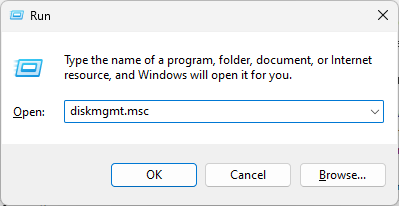
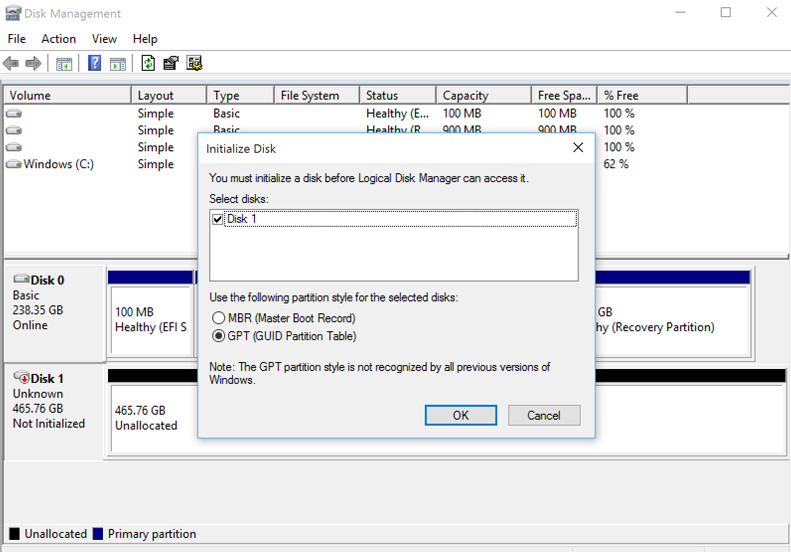
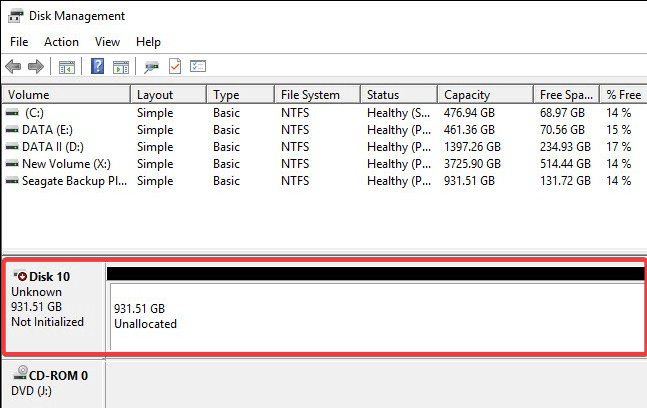
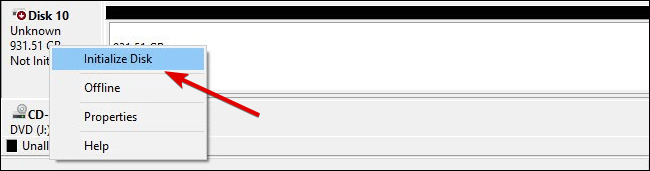 `