Microsoft is working to add SharePoint files to Teams easier on your mobile devices. The feature is already available on the desktop version of Teams and will soon make its way to the mobile app as well.
According to the Feature ID: 395375 entry on the Microsoft 365 roadmap site, the Redmond tech giant will soon let you select and attach files from SharePoint sites in the Teams mobile app. Here is the detailed description mentioned on the Microsoft 365 Roadmap site:
Users will be able to browse, multiselect and attach files from SharePoint Sites to a chat or channel conversation in the mobile app.
This feature is expected to be generally available in June 2024. It will be available on various cloud instances and for both Android and iOS devices.
Also, if you wish to see all the changes made to Microsoft Teams in April 2024, including the Multi-turn conversation with Copilot in chats and channels, the ability to use a custom chat profile picture, and more, read the detailed story here.
What do you think about it? Share your thoughts and opinions with our readers in the comments section below.
Xbox Game Pass is perfect if you want to have access to a fresh list of titles on your console, and speaking of which, it seems that two new games are being added.
So which games are making their way to Game Pass, and more importantly, when can we see them?
Lords of the Fallen and Sniper Ghost Warrior Contracts 2 are coming to Xbox Game Pass
Xbox Game Pass is constantly getting new games, and as Neowin writes, we should see two new games available: Lords of the Fallen and Sniper Ghost Warrior Contracts 2.
In case you’re not familiar, Lords of the Fallen comes from Hexworks and it’s a soulslike game made in Unreal Engine 5. The game offers a unique “two-world” mechanic and it recently got a massive update called Master of Fate.
If you prefer something different, Sniper Ghost Warrior Contracts 2 is a tactical stealth game in which you’re tasked to eliminate enemy targets using a sniper or your close combat and infiltration skills.
These two games are a great addition to Game Pass, but unfortunately, we don’t know when they will be added, so keep your eyes open for the announcement.
Chrome is a great browser because it constantly gets new features, and speaking of which, Google is working on a new multimedia feature.
So what’s this new feature, and how does it affect multimedia? Keep on reading to find out!
Chrome will add native support for video chapters
According to BleepingComputer, Google is working on a new feature in Chrome that will bring support for video chapters. This feature has been present on YouTube for a while, and now it will be available for any embedded video.
With this feature, users will be able to break a video into different sections, each with its preview, thus allowing users to find a specific part more easily.
This feature is a part of the MediaMetadata interface for the Media Session API, and according to Google, it will be added to the blink layer based on the processed W3C API update.
The corresponding implementation on the blink layer based on the w3c api change, which is to add the `ChapterInformation` attribute in the existing `MediaMetadata`. ThisChapterInformation applies to audio as well as video, since MediaSession is for both audio and video.
The concept of neuroergonomics is relatively new, and if we are to trust Wikipedia, it applies neurosciences to ergonomics, to improve workspaces to fit the brain functions of all employees for a better and healthier performance, all around.
It seems that Microsoft is looking into developing such a neuroergonomic system, according to a patented technology published recently in a paper.
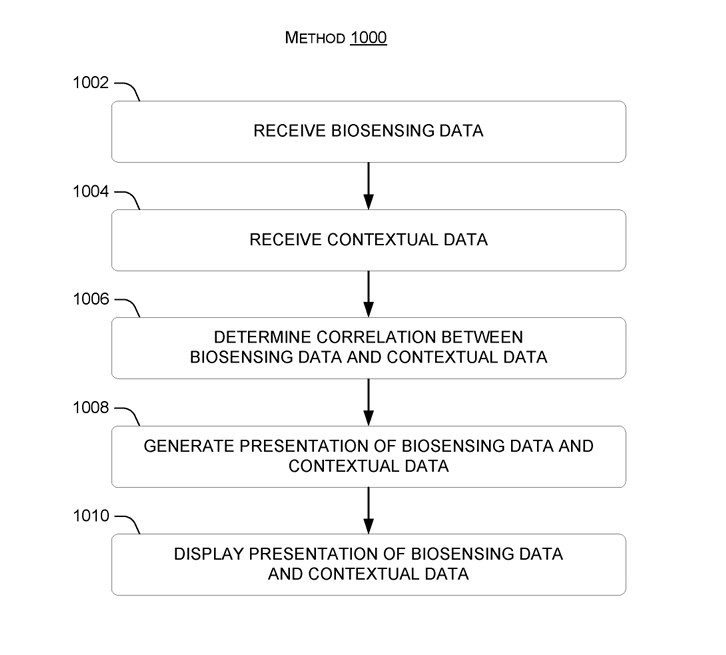
The technology describes it as a system that measures biological signals (like heart rate, pupil size, stress level, etc.) and links them to events happening at the same time. These measurements and events can be shown as they happen or as a summary of past data.
The present concepts inbolve presenting biosensing data in context such that useful knowledge, including neuroergonmic insights, can be gained. For instance, bio-sensing measurement associated with one or more users can be presented in conjunction with events that occurred when the biosensing measurements were taken, so that the viewer can observse how the users responded to the events.
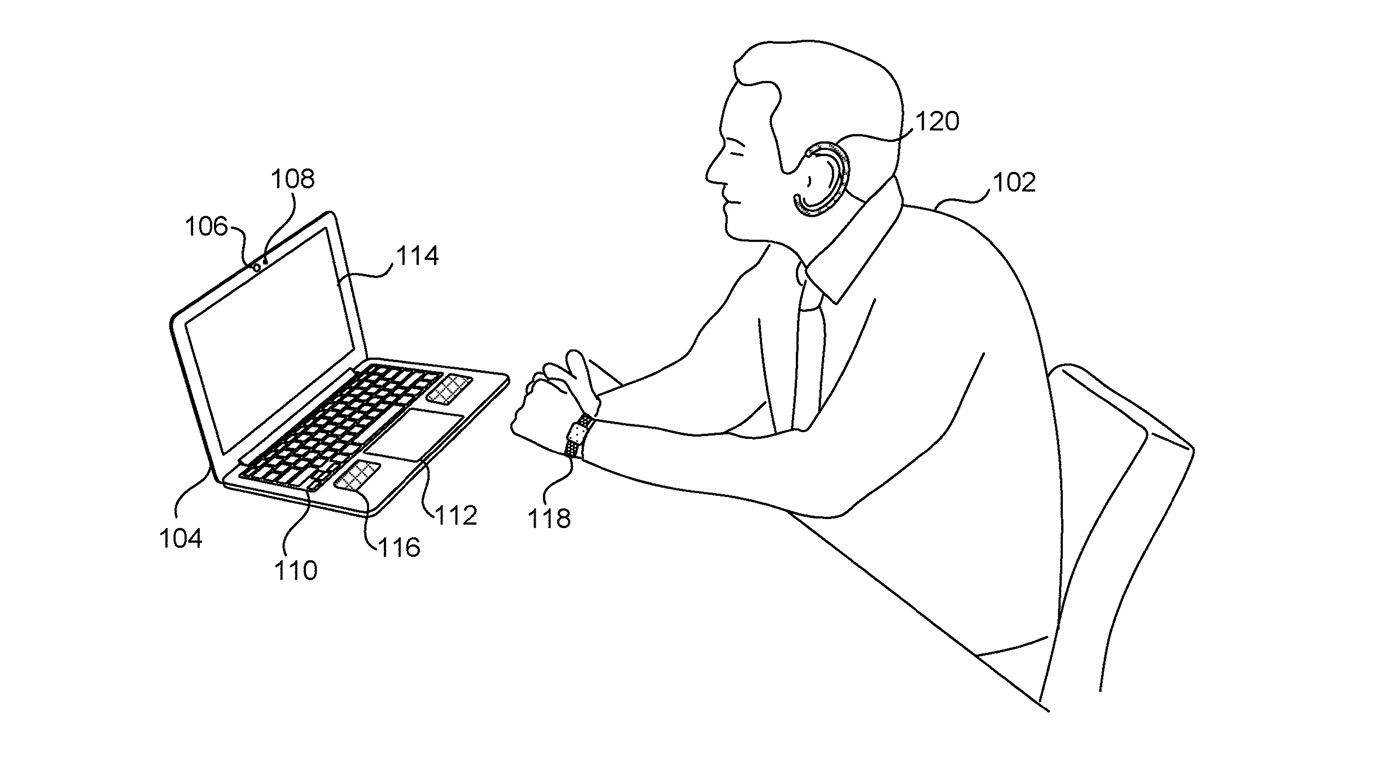
The system would use several other devices to measure these emotions based on biosensors. So, devices such as smartwatches can measure the pulse and heart rate and send that information to the system. The microphone in a laptop can record breathing sounds, and send the data to the system, again.
Other peripherals, such as the web camera, can gather data about the eye pupil size and body temperature, and send that data to the system.
The system, then, will process all of the data gathered around from various devices., while also figuring out exactly when those peaks or lows in biosensors happened. In other words, the system can tell you were nervous in a videoconference, stressed when performing a work task, or even bored when watching a video presentation.
The present concepts involve presenting biosensing data in context such that useful knowledge, including neuroergonmic insights, can be gained. For instance, bio-sensing measurement associated with one or more users can be presented in conjunction with events that occurred when the biosensing measurements were taken, so that the viewer can observse how the users responded to the events.
This way, users can easily understand which events caused which physical responses. However, Microsoft doesn’t want the neuroergonomic system to stop here. Aside from using AI to offer valuable information about one’s mental state when working, the system also recommends various actions that can provide a better environment for the users.
The biosensing data taken during a videoconference meeting, during a speech, while an advertisement is being presented, or while playing a movie, can provide insights into how to improve the meeting, the speech, the advertisement, or the movie, respectively.
This helps users to change their behavior, improve their work process, design better products or services, increase their happiness and well-being, be more productive and earn more, and avoid things that negatively affect their feelings and mental state.
The system is presented using SDK (software development kit) technologies to customize the criteria that should be taken into consideration, thus making it fit specific environments, from corporate organizations to educational organizations, or even healthcare, or social services.
Microsoft envisions this neuroergonomic system as an independent app, but it could also be integrated into existing platforms or operating systems, such as Microsoft Teams or Windows.
The Redmond-based tech giant is no stranger to developing technologies that aim to improve the mental state of employees, with Microsoft Mesh being one of them, for instance. However, this system would be far better, as it offers real and pragmatic data to organizations seeking to make work for employees less stressful, or even stress-free.
Microsoft released a new Xbox Update Preview to the Alpha ring, which promised you to find better deals from the Microsoft Store or even the home screen or search. However, for now, only some of the Insiders will be able to notice this change. Here is what it said in the official blog:
Finding a great deal shouldn’t be difficult, so we’ve made it easier. With today’s update, a random subset of users will notice an improved experience, making it easier to identify sales and take advantage of them. In addition to searching the Microsoft Store, more information regarding sales will now be visible when selecting a game on Home and when searching from Home or the guide.
Here are the System Update details mentioned on the support Xbox website:
OS Version: XB_FLT_2406ZN\25398.4801.240502-2000
Available: 2:00 p.m. PT – May 6, 2024
Mandatory: 3:00 a.m. PT – May 7, 2024
Furthermore, a new Xbox Wireless Controller firmware version was made available, including several fixes and enhancements. Here is the list of changes done:
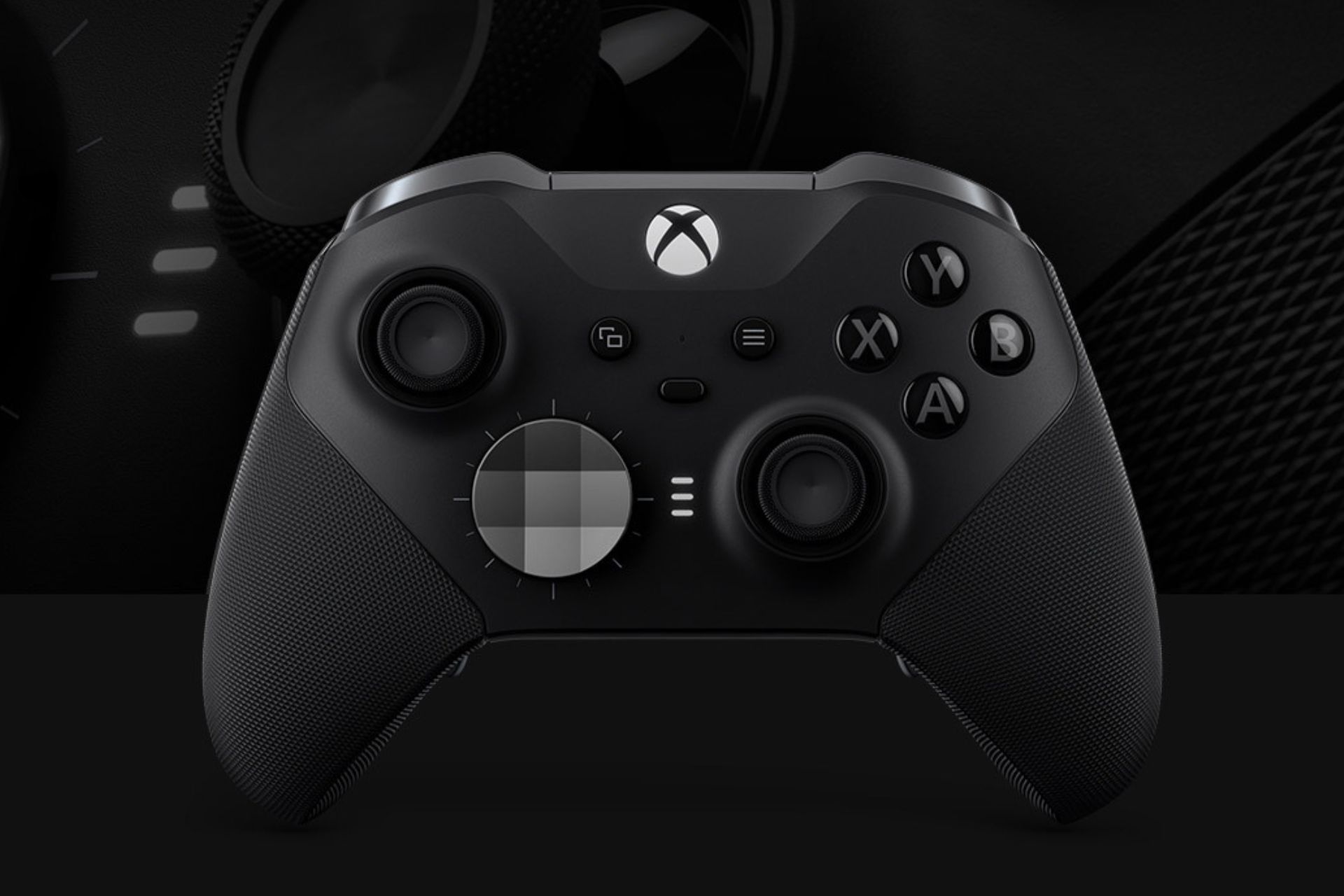
Fixes to address the Xbox Elite Wireless Controller Series 2 paddles remaining active with the default profile.
Fixed an issue with unexpected input behavior when using a 3.5mm and USB joystick together with the Xbox Adaptive Controller.
If your controller needs an update, you will get a prompt to install it once you have it turned on and connected to your console.
However, you can also open the Xbox Accessories app to instrall the update manually if you accidentally missed the notification.
Apart from these, the blog on the Xbox support website, also mentioned the fixes and improvements which were introduced due to feedback provided by the Xbox Insiders:
Game Card
Fixed an issue where the game card could close unexpectedly shortly after launching.
System
Various updates to properly reflect local languages across the console.
To ensure you get the latest updates as they release, turn on Keep my console up to date. However, if don’t prefer that, you can also press the Xbox button on your controller and navigate to Profile & system > Settings > System > Updates to install them manually.
If you are wondering how to become an Xbox Insider, you must know that the Alpha Skip-Ahead ring on Xbox is an exclusive testing group, and you need to enroll to get the pre-release versions. As these builds might be prone to errors, Microsoft keeps it invite-only.
However, if you are interested in joining the group, navigate to Xbox Insider Hub> Activities > Available > Joining new rings from your console, then complete the survey.
The Xbox Wire post also encouraged Xbox Insiders to visit the community subreddit if they need any support.
If you are already a part of the program and facing some issues with the new build, you can use Report a Problem to send feedback to Xbox staff.
Also, to stay informed about the Release Notes on Xbox Insider features, you can follow Xbox Insider on X (formerly known as Twitter).
Have you opted in Xbox Insider Program? If yes, share your experience using new features in the preview with our readers in the comments section below.
Threat actors are increasing their efforts to hack into cloud-based systems and applications. Some of their campaigns are using malicious OAuth apps. Thus, Microsoft improved its Defender XDR with automated attack disruption capabilities to prevent intrusion attempts.
OAuth, long-form Open Authentication standard, applications allow you to log on to multiple accounts without requiring your credentials every time. Also, you can use them to protect your data. Thus, the new features will block malicious OAuth apps with the help of AI and machine learning.
How does the automated attack disruption work?
The automated attack disruption feature of the Defender XDR operates by correlating signals from many sources into a single incident. According to Microsoft, the feature uses insights from endpoints, identities, email and collaboration tools, and SaaS apps. On top of that, it identifies assets controlled by the attacker. Afterward, it uses relevant Microsoft Defender products to isolate the attack and affected assets.
The new automated attack disruption capabilities of Defender XDR prevent hackers from further exploitations. As a result, they won’t be able to access your data. Also, according to Dark Reading, the Microsoft XDR can stop ransomware, business email compromise, and credential-stuffing attacks in less than three minutes.
How do hackers use malicious OAuth apps?
Cybercriminals can access your account and retain access to various applications if you enter your credentials on malicious OAuth apps. However, you can prevent their attacks with defense suites like Defender XDR.
Unfortunately, wrongdoers can also use corrupted OAuth apps to gain control over your system. After all, they can create, modify, and grant broad privilege access using the breached user accounts for Microsoft cloud services.
In addition, if you lack strong authentication measures like MFAs, threat actors could use phishing and password-spraying attacks. On top of that, with elevated permissions, they could launch various spam campaigns.
Microsoft added more protections and features to the Defender XDR to deal with other issues. For example, now, the platform has native protections for operational technology (OT) and industrial control systems (ICS). Thus, defenders can deal with OT system threats and verify their ICSes directly from the Defender XDR portal.
In a nutshell, Microsoft keeps enchanting its security systems with AI features. Also, the Defender XDR can protect you from malicious OAuth apps and other malware. On top of that, AI technologies are faster than classic methods and can defend you in real-time. So, their development is crucial since hackers can perform a complete attack chain in two hours.
What are your thoughts? Are you using Defender XDR or an alternative? Let us know in the comments.
Microsoft released a May 2024 firmware update for Surface Laptop Studio, and it brought a lot of other changes, including game improvements and fixes related to audio, network, and display, which will enhance the performance of your device for several games.
Here is what the changelog mentioned on the official blog says:
Improves the audio quality of calls and recordings.
Provides a more enjoyable and smoother gaming experience for the latest games including Mortal Kombat 1, Lies of P, and Starfield, enabling support for 8 new G-SYNC.
Fixes problems associated with the second monitor display flickering and not working when the device is connected to Surface Dock 2.
Addresses issues related to recovery of Wi-Fi and Bluetooth connections when device is on Standby, enhancing connection reliability.
The release contains the following components, and the components are installed on the basis of your device’s configuration:
Windows Update Name
Device Manager
Intel – System – 2334.5.1.0
Intel(R) Management Engine Interface – System devices
Surface – Firmware – 15.0.2473.3
Surface ME – Firmware
Surface – Firmware – 25.100.143.0
Surface UEFI – Firmware
MBIHV – Firmware – 1.7.1.16
Quectel MSFT MBIHV Mobile Broadband Firmware Device – Firmware
Surface – Firmware – 2.23.139.0
Surface Pen Cfu Over Ble LC Connection – Firmware
Surface – Extension – 1.22.139.0
Surface Pen0C0F Cfu Over BleLc Extn Package – Extensions
Surface – Extension – 1.22.139.0
Surface Pen0C0F Firmware Update – Extensions
Intel – Software Component – 1.70.101.0
Intel(R) iCLS Client – Software components
To install this update, your Surface Laptop Studio must be running on Windows 10 October update, version 22H2 or higher, or Windows 11 version 22H2 and newer.
You can download the update from the official website; the update size is 1.4 GB. So far, no known or reported issues or bugs are associated with the update.
Have you installed the update so far, and can you see the changes? If so, share your experience with our readers in the comments section below.
Star Wars fans are eagerly waiting for the Star Wars Outlaws game, and if you’re a fan of the franchise, you might be interested in some custom controllers.
Ubisoft and Xbox have teamed up, and they have brought new themes to Xbox Design Labs inspired by the upcoming game.
Two new Start Wars Outlaws controller themes are available on Xbox Design Labs
It’s no surprise to see custom controllers coming from Xbox, and this time we got two new controller themes inspired by Star Wars Outlaws, as Game Rant writes.
These controllers can be built by Xbox Design Labs, and the first controller recreates the color scheme of the Star Wars Outlaws cover art with a black base, orange thumbsticks and bumpers, and a metallic D-Pad.
This color scheme is available only for the Standard Xbox Controller. If you want an Elite controller, it comes with its theme with a teal background, white face buttons and sticks.
We've partnered with Xbox Design Labs for two Star Wars Outlaws inspired controllers. You can use these presets when you order customized controllers to explore a galaxy full of opportunity! #MayThe4thBeWithYou!
There is no doubt that Microsoft Edge has some good translation capabilities: from the live translation of its PDF reader to the more advanced video translation enhancements that effectively allow users to translate audio or subtitles while watching videos in the browser, Microsoft wants to make sure no one feels left behind.
This is most likely why the Redmond-based tech giant is bringing AI-generated voice dub translations to videos, according to the latest post from software enthusiast @Leopeva64.
In other words, you’ll be able to listen to video translations rather than reading them on Microsoft Edge, all due to a new enhancement that uses AI to generate that audio translation.
After many attempts and multiple crashes I was finally able to make a short recording of Edge's video translation feature, in the first video you can hear the original audio and in the second you can hear Edge's AI-powered translation:https://t.co/FIcnSbSZjTpic.twitter.com/ozilW5YMOc
According to the enthusiast, Microsoft Edge will have AI generate different voices for dubbing the translation based on who’s speaking. For instance, if a man is speaking in the video, AI will generate a male voice, and if a woman is speaking, then a female voice will be generated.
Here’s another example of Edge’s video translation feature, this time with a female voice (the AI uses female voices if the voice in the video is female), the first video has the original audio and the second the dubbed audio:
Leopeva64
Here's another example of Edge's video translation feature, this time with a female voice (the AI uses female voices if the voice in the video is female), the first video has the original audio and the second the dubbed audio:https://t.co/Y6lHH3UUaHpic.twitter.com/nYemTsdXln
The capability is currently live in Edge Canary, and it supports voice translation from English, Spanish, and Korean to German, Spanish, Hindi, Italian, and Russian.
For now, however, the capability is laggy, and it crashes constantly: Currently the translation is constantly interrupted (you can hear it in the video) and the browser crashes and lags a lot when enabling this feature, says the software enthusiast, but there is no doubt Microsoft will remedy this when the capability reaches its general availability.
However, the AI-generated video translation will be a game changer for Microsoft Edge users, as it broadens accessibility to visually and hearing-impaired individuals.
The capability should make it to the stable channel in the following weeks.
It’s no surprise Microsoft wants to enhance Teams to allow admins and managers to perform management on the platform, as well: let’s just take, for instance, a recent addition to the Microsoft 365 Roadmap, unveiled that the Redmond-based tech giant will allow admins to manage the deployment of each app in the platform, individually.
The new method will ensure the Teams environment is aligned, while also providing a safer and more secure infrastructure.
But, Microsoft is not stopping here. Another entry to the Microsoft 356 Roadmap that was recently added says that the company wants to allow admins, and managers to cancel scheduled device operations through Teams admin center.
In other words, you’ll be able to perform device management directly in the Microsoft Teams Admin Center. This could allow the handling of specific situations such as canceling operations when they are no longer needed.
Microsoft says updates to various devices from the organization can be canceled, as well as canceling specific actions such as restarting a device.
If a device operation is no longer required, admins will be able to cancel scheduled device operations like, Software update and device restart, through Teams admin center.
Microsoft
Performing device management directly from the Teams Admin Center could be an easier way to deal with unexpected situations or outdated devices.
If certain updates are no longer needed, or some devices are scheduled for automatic restart, these actions can now be canceled directly from here, without having to access other platforms, such as Intune, for instance.
According to the Roadmap, this new enhancement will be added to the Microsoft Teams Admin Center in June 2024, and it will be generally available on the web version of the platform.
What do you think about it? Could this be a new way to plan device management? Let us know.
There is no shortage of interesting games, and if you ever want to take the role of a US president, this game will allow you to do so.
This game is called I Am Your President, and it’s finally launching on the Xbox platform, so let’s see what it offers.
I Am Your President is set to launch on Xbox tomorrow
According to GamingLyfe, I Am Your President is coming to the Xbox platform, and in case you’re not familiar, this game puts you in the shoes of the newly-elected US president.
During your tenure, you need to attend press conferences, manage crises, manage your social media, and govern the entire nation.
Each decision you take will affect your political compass thus swaying you to Democrat or Republican party. You can even adopt some radical stances if you choose to.
The game offers various random events, so no two playthroughs are the same. Overall, this sounds like an interesting concept, and if you want to try it, the game will be available on Xbox Series X|S and Xbox One starting from May 8th.
Discord is gamers’ way of communicating, but sometimes, you need the reassurance that it’s a two-way communication hence the need to know whether your message has been blocked.
If you sent a message and it’s been days before you got a reply, you may have been blocked. There’s no native way to tell that your Discord message has been blocked but with a few tips, you can make this assumption.
How do you tell if you’ve been blocked on Discord?
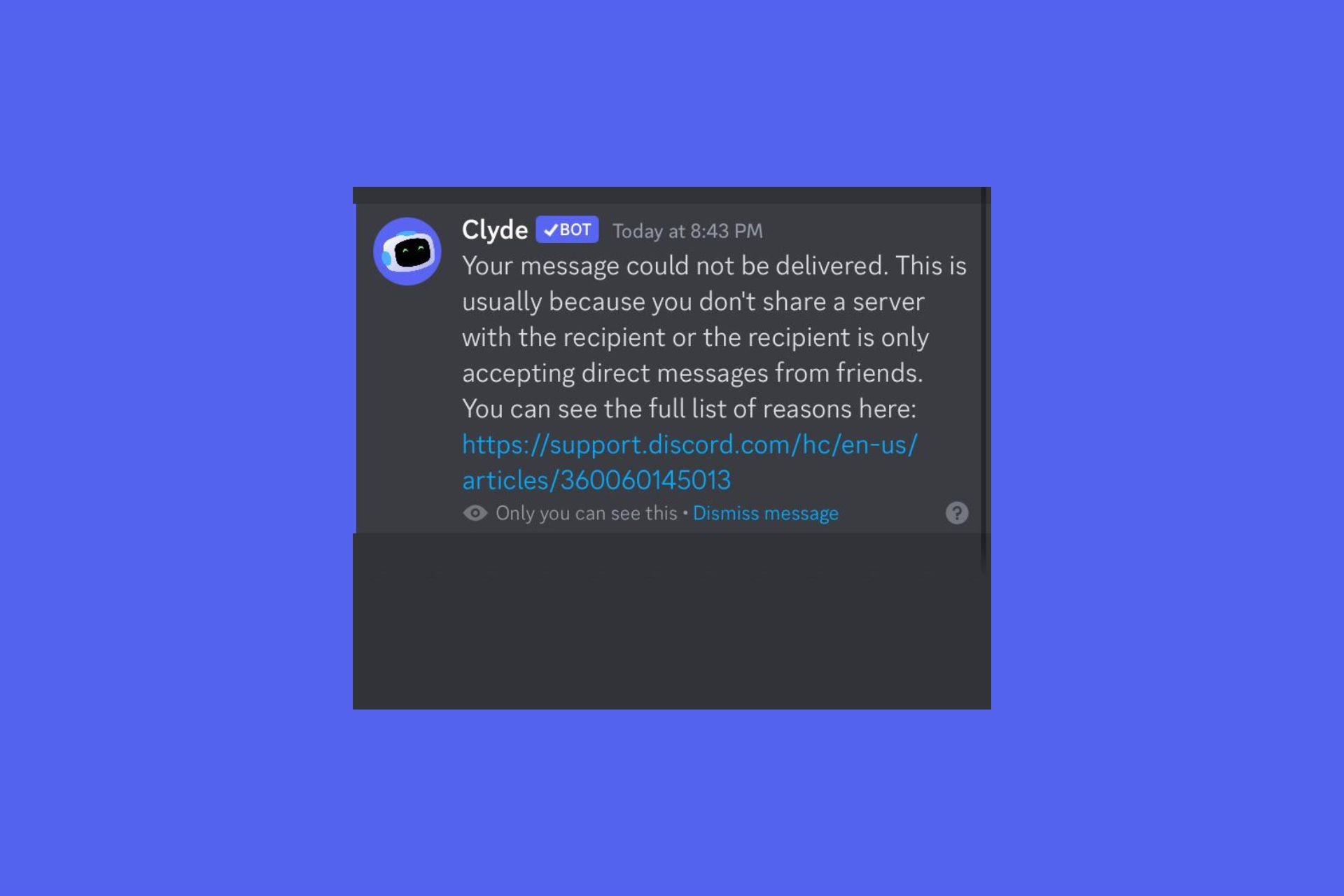
Direct messages – If you suspect that your messages have been blocked, try sending another. The message will not go through if you’ve been blocked. Another tell-tale sign is that you can no longer react to previous messages with emojis.
Friends list – Since you have access to your friends list, you can always check whether your suspected friend blocked your message. If they’re no longer in the list, then your messages have been blocked. Another trick is to try and search for their username and send a friend request. If it goes through, something must have happened with their account but if you encounter an error, you’ve been blocked.
Mutual servers – Try and check whether you can see their messages on mutual servers on the community tab. It may be a long shot but if they were previously active and now all of a sudden they’re quiet, chances are you’ve been booted.
Contact a mutual friend – If you share any mutual friends, you can request them to try sending a message and see if they get the same response. Remember, Discord has no read receipts so the only way to know is if they respond. This should tell you that you have been blocked.
What are other signs of a blocked message on Discord?
Delayed response – If you chat with the Discord user regularly but all of a sudden your messages have overstayed without a response, you could have been blocked.
Empty profile – If you click on the Discord user’s profile and there’s little to no information but previously there was, they may have blocked you.
No status indicators – Statuses like Online or Typing indicate that the Discord user can see your message and may respond. However, if these indicators have been absent for a while, your messages may have been blocked.
Discord is a social app that values privacy. After all, you can get hacked on Discord so it’s a win-win. Still, you can’t be 100% sure your message has been blocked. If it’s really bothering you, you can contact the user using other ways and ask them directly if they’ve blocked you.
Have you had a message on Discord blocked before? If so, how did you discover it was blocked? We’d love to hear about any additional tips so drop us a comment down below.
Days after releasing Edge Beta 125, which brought some interesting features to the browser, such as dedicated colors for workspaces, among many other features, Microsoft released another version of the build, bringing it to 125.0.2535.29.
According to the official changelog, 125.0.2535.29 will improve the Purview experience for all Microsoft Edge users. In other words, those accessing Microsoft Purview on Edge will notice a change in how they can copy/paste information around.
The Redmond-based tech giant says this new change will greatly improve the user experience on the platform when accessing it on Edge. The cut/copy/paste experience will become more intuitive and user-friendly, with new dialog boxes that will vanish when the operation is successful.
Improved user experience for Purview copy/paste controls in Edge. Our Purview cut/copy/paste experience is now more user friendly with self-dismissing dialogs on successful paste. The existing “Paste to supported browsers” setting allows organizations to classify and protect the content that end users can paste – both to specific websites and through supported browsers. You can follow the instructions in Use Endpoint data loss prevention (DLP) to create the DLP policy.
Microsoft
So, if you don’t have access to the Microsoft 365 app, where you can access Purview, Microsoft has made sure you can properly access it on Edge.
It’s a smart move, as those individuals who are tied to the platform to their organizations are now encouraged to access it on Edge, rather than other browsers.
It’s well known that Microsoft Edge is gaining ground in the browser market, and it’s already above Safari, Mozilla, or Opera, being the second most used browser behind the more popular Google Chrome. But Edge has come a long way in just under a year: in 2023, the browser was failing behind Safari, and now it has overtaken it.
If it continues this way, Chrome might soon have a serious competitor in Edge. And it seems Microsoft wants it that way, too.
When it comes to laptops, HP remains one of the most dependable brands worldwide. And if you can get an HP 15-fd0097nr laptop for only $519, it’s a deal you can’t miss. With a regular price of $839.99, you will end up saving $320.99 in this limited-period deal.
Powered by the 13th Gen Intel Core i7 processor and Intel Iris Xe graphics, this is the perfect laptop for browsing and running low resource-intensive apps. Say, browsing the web, watching videos, or creating a quick PowerPoint presentation. With the keyboard featuring a Num Pad, your gaming experience will go up a notch.
And you will never run out of storage with the built-in 512 GB SSD!
The best part is that the HP 15-fd0097nr supports Copilot, Microsoft’s native AI-powered chatbot. So, tasks like searching for information, creating images, and generating summaries can all be done from the desktop.
If you are often on video conferences, the laptop features a 720p webcam with a privacy shutter. What more could you ask for $519?
When we checked the user reviews, most liked the laptop’s sleek design, performance, and storage capabilities. A few said it was the perfect laptop for working from home!
HP 15-fd0097nr’s specifications
Processor
13th Gen Intel Core i7-1355U
Graphics
Intel Iris Xe (integrated)
Storage
512 GB M.2 SSD
RAM
16 GB DDR4
Operating System
Windows 11 Home
Display
15.6″, FHD, 1920 x 1080, Micro-Edge Display
Sound
Stereo speaker, dual mics
Battery Backup
7-9 hours
If you are interested, get the HP 15-fd0097nr from B&H. And hurry up, the offer is valid until stocks last!
Riot recently made the Vanguard anti-cheat mandatory for those who play League of Legends. Unfortunately, the application is a bit troublesome. After all, players reported various errors related to compatibility issues. Also, you must reboot your PC to re-enable Vanguard if you close it. On top of that, players receive leaver penalty bans due to crashes caused by Vanguard.
Does Vanguard require TPM 2.0 on Windows 11?
Some of us using Windows 11 are experiencing problems related to Vanguard because it requires the TPM 2.0. You need this technology to upgrade from Windows 10 to 11. However, there are some workarounds to bypass this system requirement. Yet, to use the anti-cheat software, you must enable TPM 2.0 from BIOS.
According to RiotK3o, Riot’s anti-cheat manager, since the 14.9 update of League of Legends went live, only 0.03% of the players experienced Vanguard issues. In addition, most of them were error codes you can fix easily, such as 128, 152, 1067, -81, 9001, or 68.
There are also reports claiming that Vanguard is responsible for bricking hardware. Redditors complained of problems such as BSOD, malfunctioning drivers, compatibility errors with software such as the MSI afterburner, and game crashes. In addition, some players received bans over the leaver penalty generated by Vanguard-related problems.
Another problem with Vanguard is that it needs kernel-level access to your device. So, many of us are skeptical of it, especially since it runs permanently. Yet, Riot claims that even if the software loads a driver upon boot, it only works when League of Legends is active.
Things you should know
Besides having kernel-level access, Vanguard takes screenshots. Even if RiotK3o claims that the anti-cheat does that just for the game client and the region the game occupies, some of us are skeptical. After all, it runs permanently on our devices unless we decide to close it and reboot every time we want to play League.
You can’t play League of Legends from Linux via Wine because there is no support for the new anti-cheat systems. However, Riot might consider addressing this issue soon. On top of that, if you use MacOS, you won’t need the Vanguard system.
If your device doesn’t support TPM 2.0, to continue playing League of Legends on Windows, you must downgrade to Win 10. Additionally, the Vanguard doesn’t require SecureBoot.
Know that you can continue using Blitz because according to its developers, it complies with Riot’s terms of service. Thus, the Vanguard shouldn’t ban you for it. However, close any tweaking applications and cheats used for other games while running League.
Ultimately, Vanguard reduced the number of bot accounts joining the game. Yet, the various problems generated by TPM 2.0 made some players quit the game, especially since most of us don’t want new devices to play League of Legends. By the way, besides account bans, Vanguard allows Riot to perform hardware bans.
What are your thoughts? Are you going to continue playing League of Legends with Vanguard? Let us know in the comments.
Nobody likes browser notifications, and there’s nothing worse than being spammed with notifications from specific websites.
Google is aware of this issue and it is currently testing a new feature that should put an end to these pesky notifications.
Chrome’s new feature plans to put an end to abusive notifications from websites
Google is currently testing a new feature in Google Canary that will allow Safety Hub to block abusive notifications from certain websites.
Google has already taken steps against notifications by offering a content settings section that allows users to automatically remove permissions from unused websites.
This can be useful if you’re overloaded with notifications and can’t manage them manually, but Safety Hub brought an additional level of control by allowing users to see which websites sent a lot of notifications recently.
Safety Hub can also alert users about malicious extensions, compromised passwords, and Chrome updates. It also got improvements to the safe browsing status.
With this feature, Chrome will automatically check the permissions and remove them for abusive websites. The feature runs in the background and it will inform you when the browser revokes a permission.
Do keep in mind that revoking abusive notifications needs to be enabled using a Chrome flag and once you do that, you might see a dedicated section that lists all websites that send abusive notifications.
This will allow users to see the list of abusive websites, view details on why the website was classified as abusive, and even revoke notification permissions for single or multiple websites.
Implement permission change functions for revoking abusive notifications. This is another CL for banning abusive notifications in Safety Hub.
These methods are responsible for revoking notification permissions and responding to user actions, changing setting values according to what the user wants.
The flag is named Include abusive notification sites in the Permissions Module of Safety Hub, and once you enable it, you should see the abusive notification permission revocation information in the site permission module of Safety Hub.
While this feature is still in the testing phase, it is coming to Windows, Mac, Linux, ChromeOS, Fuchsia, and Lacros.
A couple of weeks ago, many Xbox users complained about an annoying bug that would cause the Elite Wireless Controller Series 2 paddles to malfunction. More specifically, the paddles would remain active when there were no active profiles, which proved to be quite frustrating for many.
Xbox acknowledged the issue, and it even offered some temporary workarounds until a more permanent solution would be released.
The workarounds were efficient, but many of them took time to be implemented. For instance, Xbox users would need to create a new profile every time they bumped into the issue.
Fortunately, it seems that Xbox now fixed the Elite Wireless Controller Series 2 paddles permanently. According to the latest builds to the Alpha and Alpha Skip-Ahead rings, Microsoft released the permanent fix for this annoying bug, stating:
Fixes to address the Xbox Elite Wireless Controller Series 2 paddles remaining active with the default profile.
Xbox
Xbox users will only need to update their consoles to the latest version, which will also install the latest updates for the controllers, once it is connected to the console.
In other news, the Alpha Skip-Ahead ring also introduced the ability to manage multiple wireless networks (finally), allowing Xbox users to remember up to 10 password-protected wireless networks.
This means you don’t need to disconnect the wireless network; instead, you can select another one from the available networks and then go back to your preferred network anytime from the list again.
To start, go to Settings > General > Network settings > Manage wireless networks. To remember your current wireless network, disconnect it first, then set up a wireless network, then choose your network again, and enter the password; you will get the option to remember it.
You can read the full changelog for the Alpha Skip-Ahead ring here. What do you think about these new fixes and capabilities coming to Xbox?
Every day, websites you may have signed up to fall victim to security vulnerabilities, resulting in sensitive user information making its way into the hands of fraudsters and other criminals. It’s happened to me on more than one occasion!
This data may include passwords, email addresses, credit card details, and other information, leading to compromised accounts, financial theft, and identity fraud.
Unfortunately, personal data breaches are a fact of modern internet use, and it can be difficult to know when your information has been leaked, how it might be used, and what to do about it.
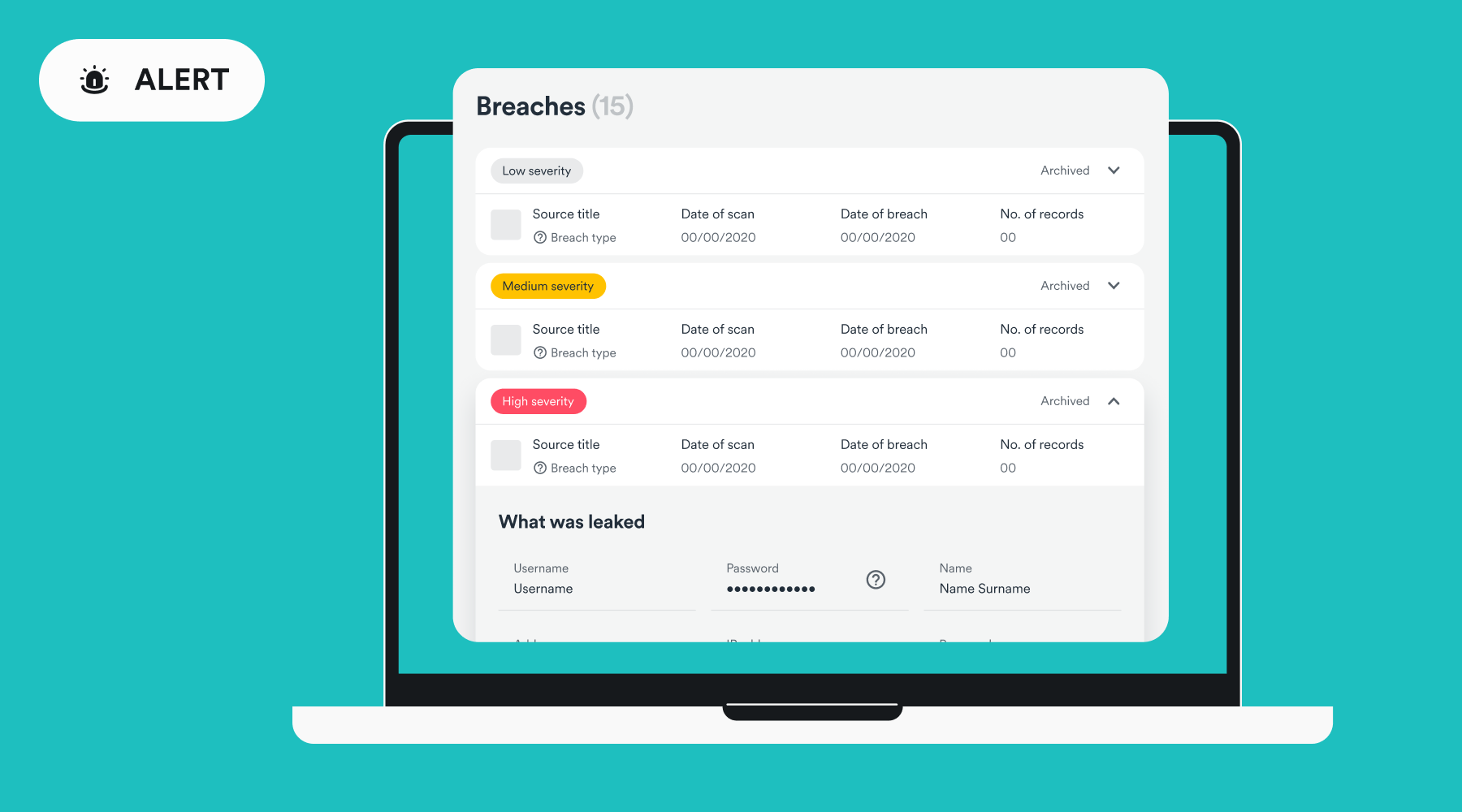
The good news is, tools like Surfshark Alert scan the web and dark web and let you know if your personal info is being shared, so you can quickly secure your accounts.
What is Surfshark Alert?
I recently tested Surfshark Alert, which is a powerful feature within the Surfshark One and Surfshark One+ VPN bundle. Here’s what I found most useful and how you can use it effectively:
Email Protection – Get instant alerts if your email address is breached, allowing you to swiftly protect your account from intruders.
Identity Protector – Stay one step ahead of identity thieves with real-time monitoring of your personal identification number’s security status.
Password Monitoring – Uncover your password’s vulnerability by seeing how often it has been compromised and if it’s time to reset to a stronger password.
Credit Card Watchdog – Prevent fraudulent purchases by receiving notifications when your credit card details surface online.
Data Security Reports – Receive regular reports on the status of your personal data, with valuable insights into patterns and risks, so you can take the right precautions.
Breach Response – In the event of a data breach, get personalized recommendations and a tailored emergency plan to help you navigate the situation with confidence.
Who is it for?
Whether you’re an individual or business owner, Surfshark Alert has many benefits. Especially if you:
Are a heavy online shopper with lots of accounts and saved credit card information.
Want to protect your entire family, thanks to Surfshark’s support for multiple devices and family monitoring.
Are taking care of elderly family or friends who aren’t as security aware.
Run a business and want to reinforce existing cybersecurity protocols and prevent costly data breaches.
Are an influencer or otherwise have a large online presence and digital footprint.
Travel a lot and require data security while on the go, which is perfect alongside the VPN.
Alternative ID
I also recommend Surfshark Alternative ID feature that allows you to generate a new digital identity to safeguard your privacy while browsing the web. This:
Maintains the privacy of your real email address and name when interacting with unfamiliar websites, platforms, or untrustworthy brands.
Reduces the likelihood of receiving spam emails from unsolicited marketing campaigns.
Minimizes the risk of your data being acquired by data brokers or cybercriminals in the event of data breaches.
Shields you from the dangers of online stalking and harassment.
How to use Surfshark Alert
Surfshark Alert is simple to set up before a breach and guides you every step after a breach occurs.
Before a Data Breach
To get started with Surfshark Alert, all you have to do is:
1. Go to Surfshark and purchase either Surfshark One or Surfshark One+
2. Download the appropriate app for your devices.
3. Login into your web dashboard and locate the Alert tab on the left panel.
4. Choose whether to monitor emails, scan credit cards, and scan IDs, then read the terms and check the box to continue.
5. Enter your email address, credit card information, and ID. Then press Activate or Scan.
6. Remember to verify your email address with the link sent to you via email.
What to do after a Data Breach
If you have received an alert of a personal data breach, it will inform you of the type of breach and how to protect yourself.
Compromised Password – Change your password immediately on any account that uses the password. Activate two-factor authentication (2FA) on these accounts if possible.
Compromised Credit Card – Immediately contact your bank or card provider and inform them of potential compromise and fraudulent activity. They may freeze the card and issue a new one.
Identity Theft – Alert relevant institutions that fraudsters might have your data. Check your credit reports for suspicious activities and consider placing a credit freeze to stop fraudsters using your identity for new accounts, credit, or insurance.
How to Activate Alternative ID
Alternative ID is part of the same bundle and takes only a few seconds to create a new online persona:
1. Select Alternative ID within your Surfshark web account, browser extension, or app. Then provide the new details you want to use, such as gender, age, birth date, and country.
2. Surfshark then automatically generates an email address with your new persona, which is forwarded to your real email address.
3. Copy this info for any sites you wish to use your new persona.
4. You can also create up to three alternative emails.
5. Download the Surfshark extension for your browser for an integrated experience.
Get Surfshark One or One+ Discounted Today
Surfshark is currently running some great offers to get started with Surfshark Alert and Alternative ID. For its 12-month plans, you get up to 81% off:
Surfshark Starter – ($2.99 a month / $41.86 upfront) + 2 FREE months – VPN and Alternative ID
Surfshark One – ($3.49 a month / $48.86 upfront) + 2 FREE months – VPN, Alert, Alternative ID, and Antivirus/Safe Search.
Surfshark One+ – ($5.49 a month / $76.86 upfront) + 2 FREE months – All of the above, plus data removal by Incogni.
You can make deeper savings with the two-year plans or opt for a month-to-month plan instead. All come with a 30-day money-back guarantee.
Final Thoughts on Surfshark Alert and Protecting your Personal Information
While there are a number of services that offer identity theft protection, many lack the features of Surfshark Alert, especially the VPN, ad blocking, and safe search.
For example, Have I Bee Pwned is free, but doesn’t have real-time alerts. Identity Guard is very comprehensive but only focusses on credit monitoring, dark web monitoring, and alerts for potential identity theft.
Overall, I found Surfshark to be one of the best combinations of data breach alerts, disposable email accounts, and VPN protection.
Last week, Microsoft released the KB5037008 to the Beta Channel on the Windows 11 Insider Program, and the patch comes with some important enhancements and changes.
First off, Microsoft speeds up File Explorer and Task Manager in this patch, allowing Windows 11 users to get a better performance on this operating system. But speaking of performance, one of the most important changes coming with KB5037008 is the DDR memory speed unit change.
According to the official changelog, which can be read here, the Redmond-based tech giant will update the units for DDR speed from MHz to MT/s.
Updated the units (from MHz to MT/s) for DDR speed.
Microsoft
This change will display more accurate information about the DDR chipsets’ actual performance on Windows 11 devices.
MHz (Megahertz) is a unit of frequency that denotes a million cycles per second. In the context of SDRAM (Synchronous Dynamic Random Access Memory), MHz was used to denote the speed at which data moves within and between components.
MT/s (Megatransfers per second), on the other hand, is a more accurate measurement for the effective data rate (speed) of DDR SDRAM memory in computing.
So, when you see DDR speeds mentioned in MT/s instead of MHz, it’s a more precise measure of the actual data transfer rate, and it provides users with the real state of their chipsets’ performance.
This information, in turn, can be used to make informed decisions when changing RAM chipsets, for example, as the new units will accurately tell you if a chipset is performant or not.
The change is currently rolling out to Windows 11 Beta Insiders, but if you haven’t gotten it yet, the Windows enthusiast, @PhantomOfEarth, says you can enable it with a third-party app, such as ViveTool, by using the following command:
vivetool /enable /id:38476224,48380607
What do you think about this new change? You can read the full changelog for KB5037008 here.
Security of your online accounts is paramount, and one of the best ways to protect them is by using a 2-step verification (2SV).
Google has recently improved the process for enabling 2SV for Workspace, so let’s dive into it and see what has changed.
Google makes the 2-step verification process more simplified
According to the Google Workspace Updates page, users can now add a second-step method, such as Google Authenticator or a hardware security key before enabling 2SV.
In the past, users had to enable 2SV with a phone number before being able to add a second authentication method. With this change, this is no longer a requirement thus making this process a lot simpler than before.
Users that have hardware security keys will have two options on the Passkeys and security keys page:
Use security key – This will register the FIDO1 credential on the security key, even if the key is FIDO2 capable.
Create a passkey and follow instructions to use another device – This registers a FIDO2 credential on the security key and will require users to use the key’s PIN for local verification.
Keep in mind that users will be asked for their password and passkey by default unless Allow users to skip passwords at sign-in by using passkeys policy is enabled.
Lastly, it’s important to know that if a user turns off 2SV from their account settings, their authentication methods, such as Google Authenticator or a second device aren’t automatically removed from the account.
For the second authentication method to be removed automatically, the administrator will have to disable 2SV for a specific user.
This sounds like a great change, and this feature has already started rolling out, so it should be available to all Workspace customers and users with personal accounts in a few days.
After months of speculations and clues here and there, it seems that Microsoft is now finally giving Windows users a sneak peek of the upcoming AI Explorer, which will most likely be officially unveiled at this year’s Microsoft Build conference, which will take place later this month.
As you may (or may not) know, the AI Explorer is an upcoming capability similar to Copilot, which uses advanced AI technologies to search everything Windows 11 users tell it to, using natural language.
Since it was unveiled, many Windows enthusiasts have been searching for clues about it in Insider builds, and thanks to them, we now have a pretty definitive idea about the AI Explorer. Microsoft will demand users to upgrade their devices, as the tool requires a lot of resources to run properly.
Of course, all these were taken with a pinch of salt: Microsoft hasn’t said anything official about it. However, with the latest Insider build to the Dev Channel, Windows enthusiast, @PhantomOfEarth, discovered that Microsoft has placed the icon for this tool in it, along with the text ‘Pre’ (similar to how Copilot is currently displayed).
Albacore, another software enthusiast, previously discovered the icon for the AI Explorer, a couple of weeks ago, but it didn’t show the additional text back then. However, with the addition of the new text, it seems the Redmond-based tech giant is finally just weeks ahead of introducing the new feature on Insider channels.
We speculated that Microsoft might introduce the AI Explorer with the Windows 11 2024 Update (also known as the 24H2 Update), coming later this year, but insiders should get it earlier than that, with a possible preview coming this summer, although we don’t know exactly when.
It will be nonetheless interesting to see if the general public will love this new tool or not. You can also read the official changelog for the Windows 11 Insider Preview Build 26120.461 (KB5037009) to the Dev Channel here.
Microsoft’s weeks away from unveiling its new Surface PCs that will presumably be marketed as ushering in a new Windows on ARM future, but the upgrade path for older WoA devices may be cut short in the process.
For owners of Microsoft’s earlier WoA attempts that include the Surface Pro X, X 2, and Lenovo’s ThinkPad X13s, the upcoming Qualcomm Snapdragon X Elite-led Windows on ARM party will be a ‘new PC’ only attended affair.
According to official documentation, the specs to run this newer version of Windows 11 on ARM will be locked to physical hardware in the form of a Snapdragon 850 processor or newer.
The next version of Windows 11 scheduled for release, version 24H2, will require a minimum spec of ARM v8.1 to operate, which will exclude devices sold from 2016 up until last year.
Some users online have already begun testing the proposed minimum specs from Microsoft on devices such as retrofitted Lumia 950XL smartphones that have been jerry-rigged to run versions of WoA operating systems with ARM v8.0 processors.
Unfortunately for those testing the limitations, booting Windows Insider builds starting with 25188 has resulted in system crashes.
There has been little discourse from Microsoft as to how Windows on ARM has evolved from its previous iterations that could be upgraded across older SoCs, but perhaps the new push for ambient AI features could tax older chips that were not designed to accommodate dedicated processing.
Microsoft’s upcoming ARM-led Surface PC showcase will come a day before the company hosts its annual developer conference where it’s expected that it will go into more details about its even stricter Windows 11 specifications since its initial rollout.
Microsoft is reportedly developing a new AI model, internally called MAI-1. The world is going crazy behind AI and that’s fair as it is the booming tech. Microsoft is among some of the big global tech companies that have taken a keen interest in AI.
The company is rapidly putting out AI products by leveraging OpenAI LLMs like GPT-4. Talking of large language models, Microsoft doesn’t have an impactful one that can shake its market rivals. But, that will change soon.
MAI-1 is under development and being overseen by ex-Google AI leader
Now it seems Microsoft is readying a new AI model to compete against rival companies like Google, Anthropic, and OpenAI. The news comes from The Information (via Reuters) which reports the company is developing MAI-1, the new AI model, which will take on leading LLMs in the market.
Mustafa Suleyman, who happens to be an ex-CEO of AI startup Inflection and co-founder of Google DeepMind is in charge of Microsoft’s new AI model MAI-1.
Not to forget, Microsoft recently paid Inflection $650 million for the rights to the startup’s intellectual property back in March. It even hired a majority of Inflection’s staff.
Well, that doesn’t mean Microsoft is carrying forward the AI model from Inflection. However, there are possibilities that Microsoft could use other tech and data to train its new AI model though.
‘MAI-1’ will be much larger than the previous models launched by Microsoft
As per the report, the new AI model MAI-1 will be much larger than the previous smaller models. This eventually means that it would be more expensive than all other models.
Microsoft is reportedly readying large servers using a bunch of Nvidia’s GPUs and tons of data to train and improve the new AI model.
The report also mentions that MAI-1 will have approximately 500 billion parameters less than OpenAI’s GPT-4 one trillion parameters. Not to forget, the recently announced Phi-3 mini model has 3.8 billion parameters.
There’s not much information available about Microsoft’s new AI model ‘MAI for now, but going down the line pictures will surely get clearer.
That’s not all, the recent report has also sparked a new conversation on whether Microsoft will continue to use OpenAI’s model for its products. Or, MAI-1 will be used by the company as a replacement. Who knows, time will tell.
Are you excited about MAI-1? Share your thoughts on whether or not it would be a great decision for the company going forward.
Amidst all this, many solutions were provided online; one was to toggle off Show recommendations for tips, app promotions, and more under Settings>Personalization.
One ad blocker app with a cool name, Oh Frick Go Back, is getting popular, as it enables users to disable different types of ads in Windows 11 with a single click. And, with it joining the parade is a well-established app, Winpilot, which is a Windows debloater app (formerly known as Bloatynosy).
Earlier, the app could remove unwanted apps from your device, but now, with the newest version of Winpilot, 2024.5.5, it can help you remove ads with a few toggles. The aim is to remove bloat without any hassle.
Seems like we’re all getting tired and annoyed by the new advertising on the Windows 11 UI, right? That’s why Winpilot is introducing a new feature/plugin called Adblock for Windows. It focuses solely on removing ads from the Windows 11 UI. Special thanks to elevenforum for the inspiration!
In the best-case scenario, everything should look like this. All toggles are set to 0/disabled
If you would like to disable Start Menu ads, Personalized Ads, Welcome Experience Ads, Finish Setup Ads, General Tips and Ads, Settings Ads, Lock Screen Tips and Ads, File Explorer Ads, and Tailored experiences, you should get the Winpilot’s latest version on your Windows 11 computer.
You can download it from its GitHub page, but remember that it is third-party software, so you need to be careful when installing it on your device.
Once installed, the app automatically turns off all types of ads; however, you can always turn on the ones you like.
Have you tried Winpilot’s latest feature yet? If so, share your experience with our readers in the comments section below.
Researchers at Microsoft have detected a security vulnerability dubbed Dirty Stream in several Android apps. The security research team detected the vulnerability in the filesharing mechanism of several file-sharing Android apps as reported by BleepingComputer.
Vulnerabilities are a boon to cybercriminals and provide an easy pass to target naive users. Given the availability of over 3.5 billion active Android phones globally, preventing them is the need of the hour.
Users are often asked to prevent visiting shady websites or using apps downloaded from unofficial app stores. But, deep down you’d agree that it is the responsibility of the platform owners to protect its users from any frauds.
Microsoft security research team detects ‘Dirty Stream’ vulnerability in two popular Android apps
Talking of responsibility, Microsoft has a dedicated security research team for the same. Security researchers are responsible for detecting and negating possible threats posed by any vulnerabilities.
More recently, security researchers at Microsoft have detected a vulnerability in the filesharing mechanism of several Android apps. They have detected a vulnerability dubbed Dirty Stream in popular apps like Xiaomi File Manager, WPS Office, and more.
Dirty Stream malware lets malicious apps send a file with a manipulated filename or path to another app’s home directory. It misleads the target to trust that filename or path and stores the file in the critical directory.
Overview of Dirty Stream | Image credit: Microsoft
This eventually manipulates the data stream between two Android apps and possibly leads to unauthorized code execution, data theft, and more.
In a recent blog post, Dimitrios Valsamaras, Microsoft’s security researcher adds that such incorrect implementations unfortunately exist in large amounts. He adds:
We identified several vulnerable applications in the Google Play Store that represented over four billion installations. We anticipate that the vulnerability pattern could be found in other applications. We’re sharing this research so developers and publishers can check their apps for similar issues, fix as appropriate, and prevent introducing such vulnerabilities into new apps or releases.
Valsamaras says both companies responded to the findings and teamed up with Microsoft to fix the vulnerability. Google also published Microsoft’s report on the Android Developers website to draw developers’ attention to mitigate similar vulnerabilities down the line.
From the user’s point of view, there’s nothing much you can do other than update the apps regularly or avoid downloading APKs from unofficial third-party stores or shady websites.
Microsoft Teams’ new version assures better performance while consuming less memory and has many new features to explore.
However, with this upgrade, you will lose some of the features you liked or see the changes to the preexisting features. In a support document, Microsoft mentioned them all; take a look at it:
Classic Teams
New Teams
Allow users to follow another user’s presence, then notify them of availability
Select a user’s avatar or profile photo anywhere in new Teams to quickly get an overview of their online status, next available calendar slot in Outlook, work hours, local time, or work location either remote or in office.
Contacts in chat
Teams notifications are now fully served by Teams, and all notification preferences are handled within Teams Settings.
Windows notifications
Consistent with other Office applications, the Teams Theme setting follows the OS Theme by default. Users can change this default in Teams Settings > Appearance and Accessibility. When a user signs out of Teams, any change to the default Theme won’t be saved.
Ability to save messages and files in Teams
The Save feature is no longer available. However, classic Teams users can download their saved messages and files to a local folder that they can open in new Teams. Learn more: Mark a message as saved in Microsoft Teams
Teams Theme Setting
Users can no longer opt-in or opt out of receiving notifications at a channel post level.
Look up an organizational chart while in a 1:1 chat
Select a user’s avatar or profile photo anywhere in Teams and navigate to the organizational chart within the profile card.
Settings dialog
Teams Settings is now an app accessed from the More options menu (…) in the title bar.
General appearance changes
Colors, tooltip styles, and general appearance have been updated.
Use the Sharepoint app instead. Then, add the document library from there as a tab to the channel. Existing document libraries automatically convert to a SharePoint document library on first use.
Post-level notifications within a channel
Search box commands
The following commands are no longer available in the new Teams search box: /activity, /files, /goto, /help, /join, /keys, /mentions, /org, /saved, /testcall, /unread, /whatsnew, /who, /pop.
Adding a Wiki to a channel tab
You no longer see a Wiki app. Instead, select the Notes app.
You no longer see the “Add cloud storage” in the OneDrive app on Teams’ left navigation bar or within the Files tab in Teams channels. You can add the third-party storage app directly from the Teams App Store.
Adding third-party cloud storage service from Files app and Files tab in channels
Adding a document library (DocLib) app to a tab in channels
Activity tab in the chat
Team owners can edit the team name and change the team picture in the team Settings tab by selecting More options (…) > Manage team.
No longer available.
Look up LinkedIn while in a 1:1 chat
Select a user’s avatar or profile photo anywhere in Teams and navigate to the LinkedIn tab within the profile card.
Edit team name and change team picture from Edit team view.
Adding third-party cloud storage service from the Files app and Files tab in channels
Ability to choose EDU themed team avatar from a list in the Edit team view In Microsoft Teams for Education
No longer available.
Files app on Teams left navigation pane
The OneDrive app replaces the Files app on the left navigation pane.
Ability to use tags in the “Add member” dialog.
There’s now an advanced flow for tags.
About links in the More options menu (…)
About links are now in the Settings app under the About Teams category.
Help in the app bar
The Help entrypoint, including Help links and Give Feedback is now located under the More options menu (…) in the title bar.
Ability to sign out from the notification area at the far right of the taskbar (system tray).
No longer available.
Adaptive Card-based tabs in personal app tabs.
No longer available.
Whiteboard Tab automatically displayed in meeting tabs.
Using Recap tab from the calendar allows you to access the Whiteboard file shared in the meeting in the content section.
Third-party and custom sign-in solutions using RunAs or undocumented hooks.
No longer available.
App name is Microsoft Teams classic, except for Windows 11, where it’s Microsoft Teams classic (work or school).
Microsoft Teams (work or school) app name is changing to Microsoft Teams.
Presenter mode (standout) during PowerPoint Live sharing.
Presenter mode is no longer available. To use presenter modes, start a screen-sharing session and choose one of the three available modes.
Some of these changes will improve the user experience in the new Microsoft Teams app. However, the features that are not included or replaced by something better in the new app might make you regret upgrading.
What do you think about these changes in the new Microsoft Teams app? Share your opinions with our readers in the comments section below.
Recently, Microsoft released Edge 126.0.2552.0 to the Dev Channel, which includes two new features and many improvements related to reliability.
Here are the changes mentioned in the changelog on the official blog:
Added Features:
Implemented a mute button on the taskbar.
The capture menu toolbar has been added to the PDF file.
Improved Reliability:
Fixed an issue where the browser would crash when users clicked on ‘Leave workspace’.
Fixed a browser crash on android.
Fixed an issue that caused the browser to crash upon closing the final tab.
Changed Behavior:
Resolved an issue where the share box would briefly appear blank and then vanish after a few seconds.
Fixed an issue where tabs that had been deleted reappeared after restarting.
Resolved a problem where there were visual style discrepancies on the product detail page, including issues with margins, colors, border radius, and shadows, within the extension.
Resolved a problem that caused visual distortions when tabs were grouped in a vertical layout.
Fixed an issue where horizontal scroll bar and vertical bar appeared in FRE.
The issue where the side pane would unexpectedly open after FRE has been resolved.
Fixed an issue where the page at edge://settings/appearance/CustomizeToolbar was displaying as blank.
Fixed an issue that prevented the sharing of screenshots via Outlook.
iOS: Fixed an issue where the string in the toolbar settings page needed to be changed.
Mac: Resolved an issue where the Send Feedback feature initially displayed a blank screenshot. Subsequent attempts would then show the previously captured screenshot on Mac.
Android:
Resolved a problem where the keyboard focus was not moving to the ‘Earn More Rewards’ link within the Microsoft Rewards section on Android.
Fixed an issue when altering the background color, the page no longer flashes on Android.
You can download Microsoft Edge Dev from the official Edge Insider website if you wish to use the new features before the public release.
Also, if you face any issues while using the version, Microsoft encourages you to report them through the in-app feedback by visiting Help and Feedback> Send feedback.
Have you tried and tested the new Edge Dev Build yet? If so, please share your experiences with our readers in the comments below.
When you have more than one Xbox account on your Windows 11 device, you can switch accounts to separate your gaming personas. Luckily, Microsoft allows you to have multiple accounts signed in when you need to keep your files or settings separate.
How do I switch accounts on the Xbox app?
Hit the Windows key, type Xbox on the search bar and click Open to launch the app.
Navigate to your profile, click on it and in the pop-out menu, click on Sign out.
Click on the sign-in button and before entering your credentials, click on Switch accounts.
Now click on Use a different account and follow the on-screen prompts to sign in if you don’t already have another Microsoft account linked to your Xbox.
Some users had problems as they failed to switch accounts and the initial account automatically signed in. This is mainly because the Microsoft account is tied to the administrator account on your Windows 11 device. If you encounter this issue, reinstall your Xbox app and restart your PC.
Additional tips for managing multiple accounts efficiently
Create user profiles – Creating different user profiles helps keep settings and any other important information separate and avoid mixups. It’s also good for privacy.
Use Windows fast profile switcher – Windows has a fast switcher feature that allows for seamless switching of accounts. This can make it easier to switch to your preferred Xbox account.
Customize accounts – When you tweak some settings on one Xbox account, it becomes easy to identify. Similar accounts can be difficult to make out at face view.
Hopefully, you can now switch your Xbox accounts with ease whether you’re sharing your Windows 11 device or have multiple gaming profiles. And with the troubleshooting steps for any issues that may arise, you now know how to address them head-on.
Have you encountered any difficulties when switching accounts? If so, feel free to drop us a comment below.
Since the start of 2024, there have been different rumors about the AI Explorer, and several leaks have been reported about the speculated features coming and the configuration needed to use it.
In the days leading up to the Microsoft event on May 20, which is expected to center on potentially unveiling AI Explorer and AI integration in Windows 11, another leak has surfaced, pointing towards new features in AI Explorer, including snapshots and recall.
So far, we know that AI Explorer is supposed to record every action performed on a PC, including activities done on the computer, meetings attended, documents prepared, songs played, and more. And, with this Snapshot leak, it all makes sense. The Explorer will take a snapshot of the moment, and when you ask about something related to that moment, it will recall the information and give you the information.
A known Microsoft watcher, Xeno, spotted snapshot references in the Control Center and mentioned it on X; here is what the post said:
"Select to open last snapshot in Recall"
Wonder what this is for, string can be found in "Windows.UI.ControlCenter.en-US.pri" in build 26200
This string could point to a feature that will likely let you open the most recent snapshot in a Recall function. This could be related to the swift restoration of previous system states or configurations within the Control Center. However, we are not sure how it fits in the AI Explorer equation at the moment.
A renowned Windows leaker, Albacore, mentioned on X (formerly known as Twitter) that AI Explorer will come with multifaceted functionality, including Snapshot capture. In his MicrosoftWindows.Client.AIX 10.0.26200.5001 layout code, we were able to spot SnapShotCapture and other functions that he spoke about in his post.
Here is what the post says:
Managed to dump a list of objects that go into making 26200.5001's AI Explorer UI package, some of the names sound interesting ✨? Sidebar Island, Shoulder Tap (making a comeback), Screen Understanding, Intent Engine, Discovery Overlay, and many more ??https://t.co/iAvOhFsrMN
This suggests that Insider Build 26200.5001 will come with a package related to the user interface (UI) of AI Explorer in Windows 11. The names of the objects within this package indicate several features that may be present in AI Explorer, including Sidebar Island (side panel within AI Explorer), Shoulder Tap (some kind of notification system), Screen Understanding (Ability to interpret what’s on the screen), Intent Engine (could help define user intent), Discovery Overlay (visual overlay that could help explore new features)
Another one of his posts suggests Insider Build 26200 seems to lay the groundwork for AI Explorer, which is anticipated to be integrated into Windows 11.
The code suggests that AI Explorer performs certain checks to verify system requirements and configuration. If your system falls short, you will get a warning about the limitations. However, a specific identifier, ID 48486440, shows that you can disable it to bypass the checks.
To conclude, with all the rumors going around about AI Explorer, we are excited to learn how it can be helpful for you but nervous about whether our existing PCs will get the functionality.
Are you excited about AI Explorer? Share your thoughts with our readers in the comments section below.
In recent years, ChromeOS has emerged as a viable alternative to Windows and is increasingly finding applications amongst users who intend to perform simple tasks. With the latest version, ChromeOS 124, your experience is about to go up a notch!
Remember, it’s a gradual rollout, so even if your device is eligible, it may not receive the update right away. We recommend you keep checking for updates and, in the meantime, discover all the new additions to ChromeOS.
Improvements in ChromeOS 124
Starting with the Settings app, it now features a user-oriented interface that bears a close resemblance to the Settings app on an Android device, reports 9to5Google. Every section in the left navigation pane has an individual icon and a short description. Besides, all these open up as a separate page.
New Settings app interface in ChromeOS (Image source: Reddit)
Moving to the next and one of the most exciting features, Faster Split Screen Setup will allow you to set up multiple apps across the display seamlessly.
Now, when you hover over the maximum/minimize icon for one of the active apps, it will show you an overview of the active ones on the other side. You can choose from the available active apps or select another one from the shelf.
To enable Faster Split Screen Setup, open the ChromeOS Settings > go to System preferences > choose Windows and desks > turn on the feature.
Next in the line is the ability to resize the cursor, a much-requested feature in ChromeOS. To increase the cursor size in ChromeOS 124, open Settings > go to Accessibility > select Cursor and touchpad > enable the toggle for Show large mouse cursor > and drag the slider to adjust the size.
In the official blog post underlining the improvements, James, Chrome Support Manager, highlights the benefits of adding the functionality.
This can be helpful for people who have low vision, for teachers who want students to follow along during a lesson while presenting, for people who are presenting on a video call, or if you just want to have a larger mouse cursor.
Lastly, ChromeOS now has a WiFi QoS(Quality of Service) feature that facilitates improved traffic prioritization when you are performing network-intensive tasks, such as video conferencing or playing games, on an already-loaded network. Irrespective of the task at hand, the display is going to be a lot smoother!
However, the feature will not be available for managed users during the initial release.
If you already use a Chromebook, these additions to ChromeOS 124 will significantly enhance the overall user experience. And for users contemplating switching from other operating systems, the new version is the perfect opportunity to jump ship.
Google rolled back the recently released reCaptcha update after users reported issues with it in Mozilla Firefox. The rolled-out reCaptcha script apparently didn’t work for Firefox users on Windows.
A recent reCaptcha update released by Google caused issues in Mozilla Firefox
After internal testing, the publication confirmed that the recently released reCaptcha update indeed didn’t work in the latest Firefox version.
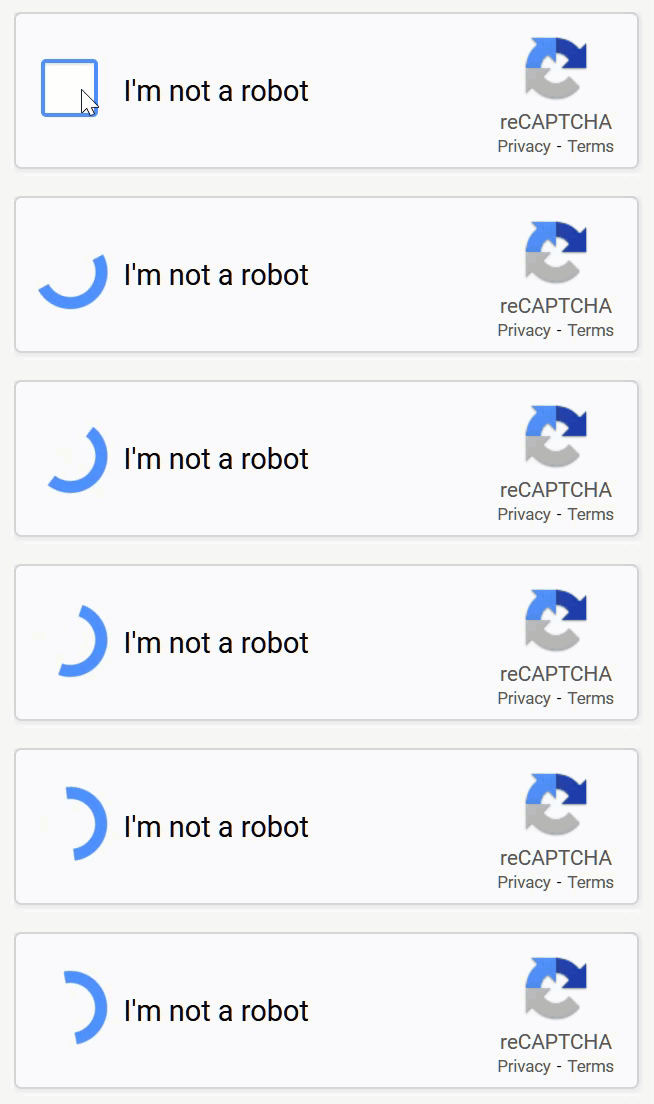
The reCaptcha prompt went on to an endless spinning circle as opposed to how it generally works. You can check the screen grab of the same below.
Source: BleepingComputer
According to a bug report on Bugzilla, the issue was related to reCaptcha’s dark mode detection routine for Mozilla Firefox in Windows. The bug report suggests that the reCaptcha script tried modifying a div’s background using document.body.removeChild.
However, since the script was loaded in the HTML head, the DOM had not loaded yet, document.body was unavailable causing the reCaptcha script error.
That said, a temporary workaround for users was to switch their browser agent to one for Edge and Chrome. Doing this lets users use the reCaptcha again.
Responding to the bug report thread, Firefox’s engineer Denis Schubert confirmed the issue. He further added that Google has acknowledged the issue in their script and was not related to the Firefox browser. He adds:
Yes, Google is rolling out a fix. It seems to work in several of our internal tests on multiple continents, but we’ll keep this bug open until we’re sure it’s fixed for everyone.
Dennis updated the bug thread the same day and added that Google fixed the reCaptcha not working bug from their end.
Google confirmed that this was mitigated, so I’ll go ahead and close this bug as fixed. If someone is still seeing issues, please give it another hour or two, clear your caches, and test again. If this persists, leave a comment here and we’ll investigate.
Did you face a similar reCaptcha issue while using Mozilla Firefox on Windows? If yes, share your thoughts in the comments below. Also, don’t forget to leave a comment by visiting this page if you are still facing the issue.
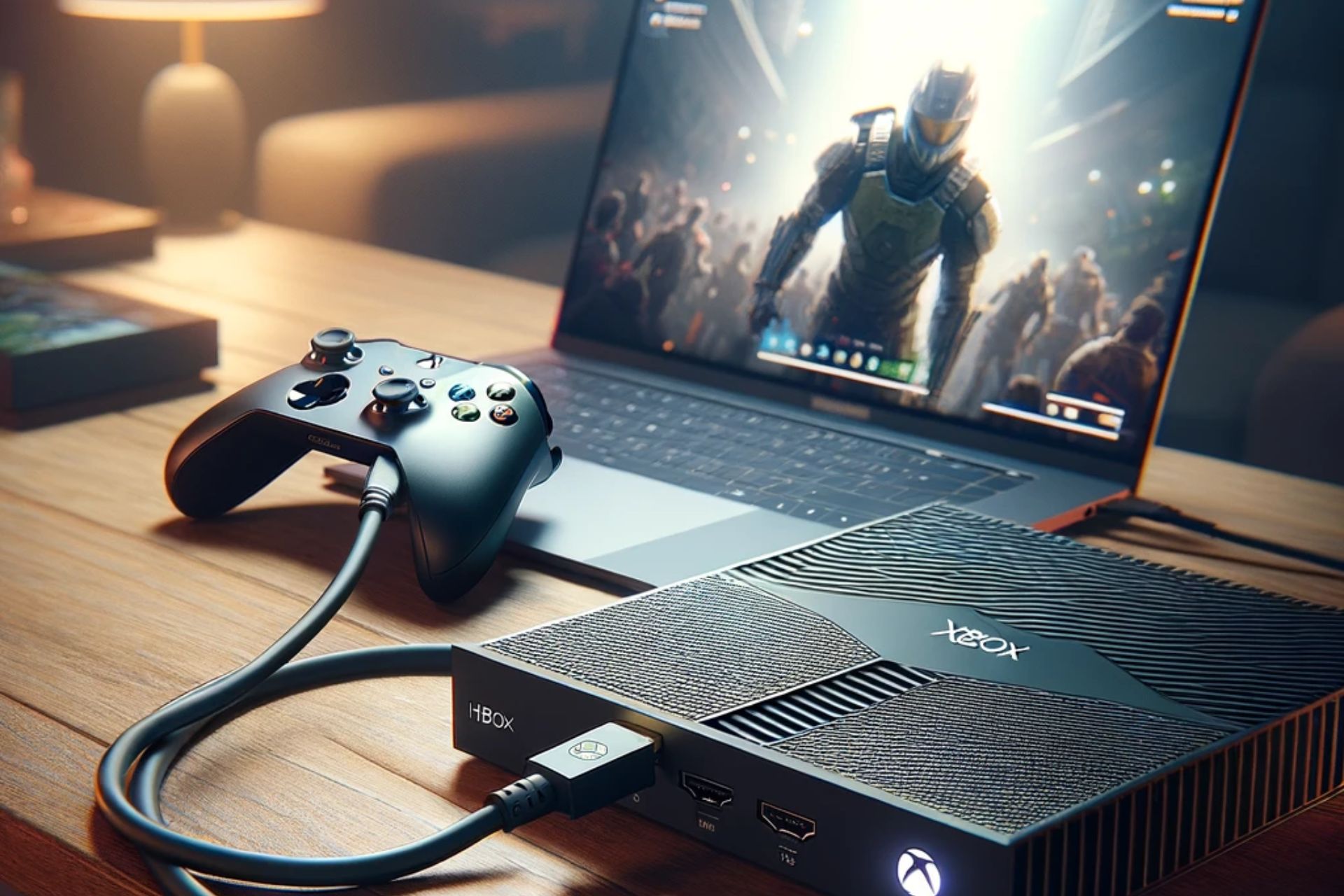
Connecting your Xbox to your Windows 11 laptop with an HDMI cable opens up endless possibilities to enjoy gameplay. Aside from using it as a monitor and allows for multitasking, you may also discover other benefits.
How do I connect my Xbox to a laptop using a HDMI?
1. Check requirements
You’ll need compatible HDMI ports on both the Xbox and laptop.
A high-speed HDMI cable that will establish a strong and stable connection.
A video capture card.
2. Convert HDMI output to input
Insert the first HDMI cable into the HDMI IN port of the USB capture card.
Plug in the other end of the first HDMI cable into the HDMI OUT port of the device from which you wish to view content. This could be your gaming console, etc.
Insert the second HDMI cable into the HDMI OUT port on the USB capture card.
Plug in the other end of the second HDMI cable into the HDMI IN port of your laptop.
Connect the USB cable to your laptop and start playing your Xbox games. You’ll use your mouse and keyboard as the controller. (You may need to connect additional cables for audio recording)
Why can’t I connect my Xbox to my laptop directly with HDMI?
It may look easy to connect your Xbox to your Windows 11 laptop with an HDMI cable but simply plugging in will not convert it to a display like a TV would. With remote play, it’s easier because you only need to tweak some settings to configure the wireless connection.
However, for HDMI, most laptops come with an output port functionality instead of an input hence cannot accept video inputs natively. For others, the laptop may lack a video capture card and require you to convert your output to input.
Some laptops may come with specialized ports that allow a direct connection but unfortunately, a regular laptop doesn’t come with these special ports as they are not a standard feature. And even if the laptop had such special ports, you’d likely require additional software to recognize and process the video.
Troubleshooting tips that may arise during setup
You’re likely to experience input lag especially if you have lower-end hardware. A high-speed HDMI cable, and a powerful graphics card can enhance your gaming experience significantly.
The video quality may be affected especially when using a video capture card. Adjusting your laptop’s resolution settings, and updating your Xbox firmware and your laptop’s OS may improve the resolution.
For compatibility issues, keep your laptop’s drivers up-to-date and ensure your hardware meets the minimum system requirements.
Finally, capture cards are not pocket-friendly especially since their main task in this scenario is to convert your laptop to a display. In such cases, you may want to rethink connecting your Xbox with an HDMI to your laptop. However, this should not stop you from trying out new ways to experience gaming.
There are so many ways to enjoy gaming on your console that will not downgrade the quality of your gaming experience. For instance, you can connect your Xbox to Apple Vision Pro and enjoy the world of virtual reality.
Have you tried connecting your Xbox to your Windows 11 laptop with HDMI? What was your experience? Do the benefits outweigh the limitations? We’d like to get your feedback so drop us a line in the comment section below.
In Fallout 76, you can level up quickly and acquire awards by joining events. However, it seems like this approach has turned out to be more problematic with the release of the Alien Event in Fallout 76.
In the past few days, we have seen countless reports of Fallout 76 crashing when players try to join the Alien Event. While the issue is primarily seen on PlayStation, some Xbox and PC users also had a similar experience.
A few players claim that most crashes happen in Charleston, but we couldn’t independently verify it. However, you could use this information as a workaround and avoid Charleston.
Besides the crashes, there are also instances of the game slowing down significantly. Loading times are way higher and as soon as one joins the game, other players are already past the initial, getting ready stage.
Users report crashes in Alien Event on Fallout 76
When we started checking for instances of the issue, user reports were found across Reddit, Steam forum, and Twitter. And everyone was facing the exact same problem!
So I’m a fairly new player and I learned to join events to level quicker. Which I’ve been doing without a problem, until this alien event. Whenever I join one that has other high level players with Gatling Lasers and Flamers my game more times then not crashes. I think it’s just because of the amount of stuff happening on the screen.
I crash about 50% of the time when doing the event: and since I’m in a party, when I try to reconnect I just get a black screen. Then I miss the event altogether. Yesterday I crashed because I opened my pip boy at the same time someone left the party. It’s just absurd how fragile this game is on PS5 and the devs just deny it’s happening.
As for Fallout 76 crashes on PC in the Alien Event, we were able to find a few reports.
I’m on PC, it crashes very specifically when the second leader dies during the second phase, so I’ve also missed out on a lot of rewards. It’s been happening to two other people I play with as well. It crashes about half the events I go to, always at the end of second phase.
When all three devices, PlayStation, Xbox, and PC, are having similar issues running Fallout 76, the problem most likely lies with the software side of things. Although, the developers have yet to acknowledge the problem, let alone release a fix!
Lowering the graphics, disabling VATS or clearing the cache might help
We found a couple of workarounds to get rid of the problem, even if temporarily:
Lower the graphics: If you don’t mind the graphics, lower them down to the minimum during the event. This way, Fallout 76 may not crash in the Alien Event.
Disable VATS (Vault-Tec Assisted Targeting System): Avoiding VATS in Fallout 76 helps reduce both the stutter and instances of game crashes.
Clear the console’s cache: Primarily reported to work on Xbox, regularly clearing the cache by restarting the console might help minimize Fallout 76 crashes in Alien Event.
Some players also had a theory that the recent Fallout 76 update broke some of the game files, and verifying the integrity of files does the trick. We can confirm that it worked for a few, but it could have been another underlying cause to blame.
Nevertheless, if you are playing Fallout 76 on a PC via Steam, do verify the integrity of the game files.
OpenAI is reportedly unveiling a new ChatGPT search engine at an event on May 9, 2024. The AI company’s new search engine is an alternative to Google. Earlier, OpenAI CEO Sam Altman has talked about developing a search engine.
OpenAI’s new ChatGPT search engine could be more comprehensive than the one currently offered by search engines. Undoubtedly, OpenAI’s new search engine will pose a great challenge to Google’s search dominance.
OpenAI is launching a new search engine powered by ChatGPT
As per a recent post on Y Combinator’s Hacker News Community, OpenAI has registered a new domain name search.chatgpt.com, along with an SSL certificate. However, the domain currently doesn’t lead to anything, rather it says Not found.
Not to forget, Sam Altman was the ex-president of Y Combinator, a venture capital firm, that was an early investor in OpenAI.
Although there’s no concrete evidence on what this could mean, speculations have been brewing since the domain has been spotted. One such speculation is that OpenAI’s ChatGPT-powered search engine might go official in a few days.
An AI influencer named Pete Huang (@nonmayorpete) has recently hinted that the ChatGPT search engine might launch on May 9.
There are a few reports that are doing rounds online pointing toward the ChatGPT search engine launch.
What would OpenAI’s alternative to Google search be like?
By now you must have understood that with the new ChatGPT-powered search engine, OpenAI is competing directly with Google. But, what it could be like. Well, imagine a search engine like the one from Google, but with generative AI capabilities.
Yes, that’s exactly what OpenAI’s upcoming ChatGPT search engine would look like. While the basics would remain the same, the company will power it with ChatGPT. When a user inputs a query, the ChatGPT search engine might offer results including AI-generated snippets with relevant web pages.
This will enable users to access the source of the information directly for better context than just an AI summary.
It isn’t new that Google reigns the search engine market with approximately 91% share, with Microsoft Bing placed at the second spot. While Google is trying some AI features in its search to up its game, OpenAI is seemingly ready to take on the search engine leader with its ChatGPT search.
Time will tell if OpenAI lives up to users’ expectations with its ChatGPT search. But, one thing is sure in the coming days users will be using the new search engine, even if it is just out of curiosity.
Will you use the new search engine once it is available? If so, share your thoughts with our readers in the comments below.
We have good news for all Windows 11 users, especially those facing issues with File Explorer and Task Manager. With the latest Windows 11 Insider Preview Build 22635.3570 (KB5037008), Microsoft is making a wide array of improvements to File Explorer and Task Manager.
Changes include patches for previously known issues and the introduction of new features on the latest iteration of Windows.
As for File Explorer, Windows 11 Insiders, upon downloading KB5037008, will find the following improvements, according to Microsoft’s official blog:
1. We’re rolling out the ability to duplicate a tab by right-clicking on a tab in File Explorer. 2. Fixed a memory leak when interacting with archive folders in File Explorer. 3. Fixed a few issues impacting File Explorer reliability. 4. Made a change to help fix an issue which could cause the spacing between your desktop icons to become extremely wide. 5. Fixed a timing issue where if you start a search from Home in File Explorer, it may unexpectedly show no results the first time you tried. 6. Did some work to help address an issue where the address bar dropdown might appear unexpectedly while you were using File Explorer.
So, from now on, you can open any folder or path separately in the File Explorer by right-clicking on the tab and selecting the Duplicate tab option. Earlier, this required using a third-party tool. We had previously reported that the Duplicate tab feature was coming to File Explorer.
Duplicating a tab in File Explorer (Image source: Microsoft)
Moving to improvements and fixes to the Task Manager with Windows 11 KB5037008, Microsoft’s official blog lists the following:
1. Updated the units (from MHz to MT/s) for DDR speed. 2. Fixed an issue where the Safely Remove Hardware option for ejecting USB devices wouldn’t work if Task Manager was open. 3. Did some work to ensure Task Manager releases process handles quickly when terminating processes. 4. Made some more improvements to help with Task Manager reliability. 5. We have improved the performance when changing the sort order. 6. Made multiple improvements to overall accessibility of Task Manager, including improving keyboard focus, tab navigation, text scaling, names of items read out by screen readers, and more. 7. We made it a little easier to resize Task Manager when trying to resize by grabbing the top of the window.
With these changes, the Task Manager will deliver better performance and quickly complete tasks, and you will find user-oriented improvements to the interface.
To benefit from these, you must be subscribed to the latest updates, even within the Windows Insider Preview.
To do that, press Windows + I to open Settings > go to Windows Updates > enable the toggle for Get the latest updates as soon as they are available.
Getting the latest Windows 11 updates
If you are not in the Windows Insider Channel, wait for a few months, and the improvements should make their way to the stable version of Windows 11.
Another major change in Windows 11 Insider Preview Build 22635.3570 (KB5037008) is Microsoft pausing public testing of Copilot. It doesn’t affect the existing functionality. The move is aimed at refining the available features and coming up with new ones.
What’s your favourite improvement in Microsoft’s latest Insider Preview Build? Share with our readers in the comments section.
In a move aimed at boosting the security infrastructure, Microsoft is bringing Zero Trust DNS(ZTDNS) to Windows devices. Currently in the Private Preview, ZTDNS will soon be available to Windows Insiders.
In the official announcement, Microsoft explains how ZTDNS, integrated with the Windows DNS (Domain Name System) client and the Windows Filtering Platform (WFP), works.
First, Windows is provisioned with a set of DoH or DoT capable Protective DNS servers; these are expected to only resolve allowed domain names. This provisioning may also contain a list of IP address subnets that should always be allowed (for endpoints without domain names), expected Protective DNS server certificate identities to properly validate the connection is to the expected server, or certificates to be used for client authentication.
Elaborating on the next step in the authentication process, Microsoft explains,
In simple words, any network traffic (IPv4 and IPv6) to an IP address not a part of ZTDNS will be blocked. With this, administrators can quickly and securely block traffic whose associated domain names are not identified.
In another blog post highlighting deployment considerations for Windows’ Zero Trust DNS, Microsoft highlights that the feature might conflict with printing, file sharing, Windows updates, teleconferencing apps, media streaming, and casting to wireless displays. However, all these can be resolved through some quick modifications!
Microsoft also explains that ZTDNS might not be as effective when deployed alongside VPNs, SASE/SSE tunnels, and Hyper-V VMs. Besides, anyone with administrative privileges on the PC can disable Microsoft’s Zero Trust DNS via the built-in settings. So, admins should reconsider the permissions they grant to users!
There will be several improvements in Zero Trust DNS before it’s finally introduced in the stable version of Windows, as confirmed by Microsoft.