Right after Microsoft redesigned Copilot, Google is doing the same to Bard a year after its release, but they’ve killed the brand instead. Bard has been replaced by Gemini, that already got three new versions in December, last year.
According to Google’s press release, Gemini will integrate with all Google products, walking on Copilot’s footsteps.
Bard is replaced by Gemini and gets a new mobile app
You can already chat with Gemini in your browser, and it’s enhanced with the Pro 1.0 model, but now, Gemini is getting its own mobile app on Android and iOS devices.
Google also launched a new app called Gemini Advanced, embedded with the latest Ultra 1.0 LLM, which is allegedly a lot smarter:
With our Ultra 1.0 model, Gemini Advanced is far more capable at highly complex tasks like coding, logical reasoning, following nuanced instructions and collaborating on creative projects. Gemini Advanced not only allows you to have longer, more detailed conversations; it also better understands the context from your previous prompts.
Google
You can also upgrade Gemini at any moment with Gemini Advanced, which is available for 2 monthtwos for free. Then, the subscription will cost you $19.99/month, exactly as Microsoft’s Copilot Pro.
With a Google One subscription and Gemini Advanced, you’ll also get access to the AI features in Gmail, Docs, 2 TB storage, and a lot more that Google hasn’t disclosed yet.
How do I use Gemini on Android?
According to Google’s release, you will be able to launch Gemini on Android exactly as you did to activate Google Assistant. Just long tap the power button, swipe from the corner or just say Hey Google on compatible phones.
How do I use Gemini on iOS?
Gemini will appear soon within the Google app by taping in the Gemini toggle. You will get the same capabilities although it’s a tap further than on Android devices.
Gemini and Gemini Advanced just started rolling out so have a little patience if you didn’t get it yet. We also remind you that the new app is available in 150 countries and in English.
What do you think about the new Gemini app and Gemini Advanced? Let’s talk about that in the comments section below.
Yes, you read that right. It will be possible for Copilot to explain a piece of text that you don’t understand in Notepad, as Microsoft released the Explain with Copilot feature to the native Windows app with the latest build to the Dev, and Canary Channels.
For now, the feature is available to Windows 11 insiders, but it will make its way to the stable Windows 11 version in the following weeks. Users will only have to open the text in Notepad, right-click it, and select the new Explain with Copilot option. Copilot will then proceed to explain the text in simpler terms.
However, there is a drawback to this. Currently, Microsoft stated that there is a known issue with the feature and it might not appear to every Windows user. And then, for it to work, you would also need Copilot on Windows, and as well know it, Copilot is not yet available everywhere.
Nonetheless, the feature is quite useful, especially for students, and also for those who deal with a lot of information and might now always understand what’s being said, for example, with legal or medical documents.
In this update to Notepad, we are adding a new feature that helps you quickly understand content in your text files. With “Explain with Copilot”, you can ask Copilot in Windows to help explain log files, code segments, or any selected content directly from within Notepad. To try it out, highlight any text, right-click, choose “Explain with Copilot” from the menu or use the new Ctrl + E keyboard shortcut, and a detailed explanation will appear in Copilot. This feature is available on devices that have Copilot in Windows, but there is a known issue where some users might not see this new feature in Notepad right away.
Microsoft officially introduces the option to choose from different shapes and forms when editing a screenshot in the Snipping Tool. The new options were revealed some time ago in the Insider channel, but the Redmond-based tech giant hasn’t said anything about it.
However, with the release of the 26052 build to the Canary and Dev Channel (one of the biggest released to the Windows Insider Program), Microsoft also unveiled a new option, which makes Snipping Tool as good as any other third-party screenshot app on the market.
As we previously reported, the new shapes are easy to create. There is a new shapes button in the toolbar, and clicking it will open a panel where users can choose from different shapes to add to their screenshots.
They can be used to highlight important information, making it excellent for professionals specialized in content writing, how-to guides, and so on.
With this update, we are adding the ability to add shapes to captures in Snipping Tool, so that you can quickly add rectangles, ovals, lines, and arrows to mark up your screenshots. To get started, select the new shapes button in the toolbar, and select the desired shape (you can change the fill or outline color if you’d like). Click and drag anywhere over your image to draw a new shape. You can resize, move, or change your shape color before clicking away. Once the shape is deselected, it will merge with your image, but you can still remove shapes with the eraser tool or undo your annotations.
Microsoft
The new feature is available in the Dev, and Canary channels now, but it will be released to the stable Windows 11 version in the following weeks.
In November last year, Microsoft acknowledged an issue on Windows 11 and 10 where users experience sudden icon jumps from one monitor to another when trying to use Copilot in a multi-monitor environment.
Well, Microsoft finally fixed the issue for Windows 11, versions 23H2 and 22H2 on devices with updates released January 9, 2024 or later.
Microsoft fixed the issue on Windows 11, but not Windows 10
Non-managed consumer Windows devices with no other compatibility hold should now have Copilot for Windows available. The safeguard hold has been removed as of February 7, 2024. Eligible Windows 10 and Windows 11 devices with no other safeguards should now be able to upgrade to Windows 11, version 23H2. Please note, it can take up to 48 hours before the update to Windows 11, version 23H2 is offered.
Microsoft
Microsoft also recommends restarting your device to get the 23H2 faster if it was not delivered yet.
Another important note from the Redmont giant is that if your organization is using Windows Update for Business reports, you should use the safeguard ID 47615939 to patch things up.
However, if you’re running Windows 10 22H2, you are not so lucky. Microsoft says that it’s still working on a patch so you will still struggle with the icon jumping annoyance.
Have you experienced this issue? Tell us all about that in the comments section below.
Apple released its Vision Pro device, and to no one’s surprise, it already is a commercial success. It has reportedly sold over 200.000 units already in less than a month, and given just how expensive a single Vision Pro is (starting at $3.499), Apple has hit the jackpot.
The company also predicts Apple Pro will hit an impressive number of 350.000 units sold in its first year, with over 12 million devices sold by 2028.
And if you’ve been on the Internet these days, you’ve surely seen that people are using the device while on the subway, or taking a walk, or even more dangerous, while driving (we don’t condone it, please don’t do it).
It’s pretty clear that Apple is seemingly winning the AR/VR race, despite Vision Pro not being a revolutionary device. Many other similar devices have been on the market for years, with Meta Quest and even Microsoft’s HoleLens coming in different versions, but they never had the hype Vision Pro currently enjoys.
The Redmond-based tech giant is expected to release HoloLens 3 soon, as the next installment from the HoloLens series, and the company should take Apple’s Vision Pro as an important lesson: HoloLens 3 should definitely be more oriented towards the usual consumers.
Why? Because that’s the only way to keep the HoloLens series alive, and there would be a demand for it: in a parody video posted by SAMTIME this week, the creator makes a valid point (although satirical) on how HoloLens was never designed for the casual user, even though it was released as such a product.
Understandably, the video went viral (it’s pretty funny, though, you should watch it) and it sparked the conversation on HoloLens vs. Apple Pro.
Should HoloLens 3 follow Apple’s Vision Pro path and take the consumer route?
The answer is yes. If Microsoft plans to release HoloLens 3 (and we speculated the device might actually be released this year, in 2024), then the Redmond-based tech giant needs to give casual consumers a chance to experience it.
Vision Pro, while sturdy and dystopian, is quite versatile: the device was designed to keep a balance between professional and personal settings, and consumers can use it for work, and entertainment, as well.
Many Microsoft 365 apps are available on the platform, which makes it perfect for those always on the road (and we mean this, as there are some viral TikTok videos with people working on Vision Pro while on a subway), but it can also be used to have an immersive cinematic experience.
And people are buying it, literally and figuratively: the sales are going exceptionally well, and Vision Pro enters the market as something revolutionary, even though it’s not.
Of course, HoloLens 3 could and should improve over its predecessor. SAMTIME effectively showcases just how bulky and weird HoloLens setup is; however, Microsoft has more than the necessary means to make HoloLens 3 the star of the show.
It has AI, and it’s quite good, so HoloLens 3 should sport a sort of Copilot (a Cowalker, maybe?), that could offer real-time information everywhere.
The device should also be designed with a more subtle structure in mind: Vision Pro might be good, but it looks rather big. And with the right apps, and tools, the device can be used by casual customers, and professionals such as doctors, engineers, and so on.
So, we hope this is a lesson for Microsoft, because the company really has the potential, the means, and the tools to hit it big with the upcoming HoloLens 3.
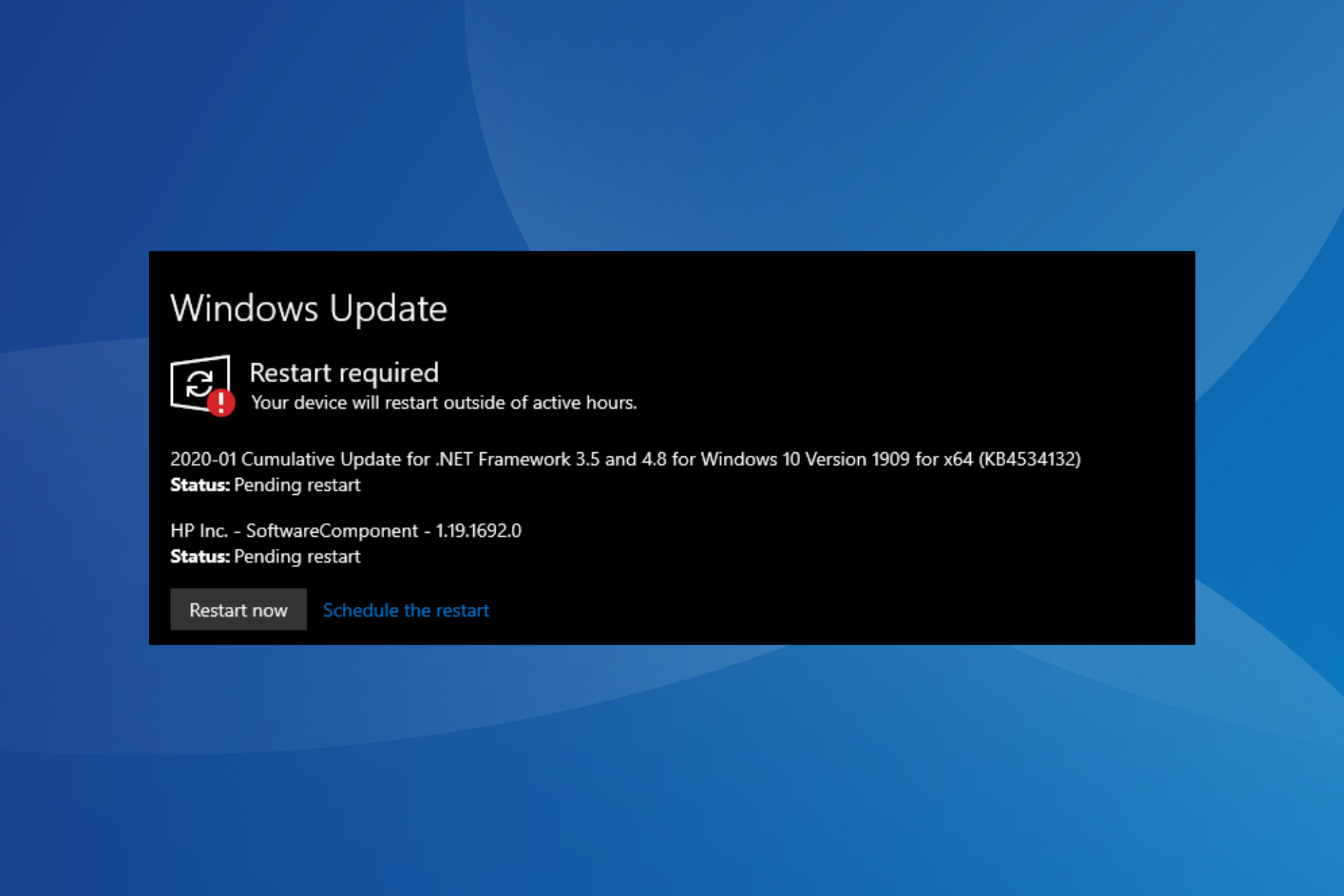
If you find HP Inc. – Software Component listed as a Windows update, it’s a genuine update deployed by HP through Microsoft.
The HP Inc. – Software Component is a generic term used by HP for its driver updates. The ones this update applies to are listed under Software Components in the Device Manager. In most cases, it was related to the HP Application Enabling Services and HP Device Health Service.
If you see HP Inc. – Software Component under Optional updates, chances are it will soon be a mandatory update listed alongside other critical ones. Installing the update often leads to issues, especially high RAM and CPU usage.
How do I remove the HP Inc Software Component Windows update?
1. Roll back the update via Device Manager
1.1 Identifying the version number
Press Windows + I to open Settings, go to Windows Update from the navigation pane, and then click on Update history on the right.
Locate the HP Inc. – Software Component entry and identify the version number listed next to it. This could be 1.49.3231.0, 1.53.3332.0, 1.58.3423.0 or something similar.
1.2 Rolling back the update
Press Windows + X to open the Power User menu, and select Device Manager from the list of options.
Expand the Software components entry, right-click on every device listed here individually, and select Properties.
Go to the Driver tab, and check whether the Driver Version matches the one you noted earlier.
When it does for a device, click the Roll Back Driver button.
Choose a reason for rolling back the update, and click Yes to proceed.
Press Windows + I to open Settings, and navigate to the Windows Update tab.
Now, expand the Pause updates dropdown menu and select a period.
In case a bugged HP Inc. – Software Component optional update keeps appearing, you can always pause Windows updates for a while. Resume it only when a newer version is available.
For more issues pertaining to the update, we recommend you contact HP support, as they can register your feedback and deploy patches in future versions.
It’s well known that Windows’ File Explorer can be quite laggy at times even on very powerful machines, as this Reddit user pointed out. Microsoft has released dozens of Windows updates where the Redmond-based tech giant addressed the issue, but time and time again File Explorer becomes slow, despite these improvements.
However, there are some solutions.
First, there are ways to make File Explorer on Windows faster. We have a couple of articles where we gathered up some of the easiest-to-implement solutions to make File Explorer run smoothly as a sail. You can check them here, and here.
But if these solutions don’t work, or you simply want to try something else, there are a lot of File Explorer alternatives out there. You can check this Reddit thread to find out more, but we’re going to gather some of them up here.
Windows File Explorer alternatives: 5 apps you should try
1. Everything.exe
Everything.exe has been lauded by the Windows users community as being one of the faster File Explorer alternatives out there.
It can be downloaded from here, just make sure to download the right version for your device, and read all the documentation before installing it.
2. WizTree
Wiztree is also a suitable solution for those Windows users who have a lot of files on their devices. This alternative to File Explorer can handle terabytes in just a matter of seconds.
Wiztree64.exe is a file tree viewer that can map terabytes in seconds.
Reddit user
It can be downloaded from here, and it’s free if you use it for personal devices.
3. Agent Ransack
This free tool has been on the market for over 20 years, and it receives many updates regularly. On Reddit, this one is lauded as being fast, efficient, and quite easy to get along with.
You can download it from here, and it also has a Premium version if you want some extra features.
4. UltraSearch
This could also be a good alternative, although you’ll only have free access to its entire capabilities for 30 days. So, if you find it fast and efficient in the first 30 days of use, just know that several Premium capabilities will be gone after that date, if you don’t get the Premium version.
However, the free version should be more than enough to replace most of the Windows File Explorer capabilities.
This is a Microsoft-backed platform that once installed on Windows devices, users have access to software that runs faster in Windows, such as the search tool.
While it would defeat the purpose (as you wouldn’t use an independent tool), many Reddit users are recommending the search tool as an effective alternative for File Explorer, and many think Microsoft Powertoys should be installed on Windows devices by default.
You can find it in Microsoft Store, and you can get it for free.
These are our recommendations. However, before you try them, make sure you follow the guides on how to make File Explorer run faster. Sometimes that is all you have to do.
After years of using iTunes for everything, Apple will split its functions into three different apps. Thus, iTunes is leaving. Fortunately, the new applications will reduce the amount of resources used. So, we hope that they will perform much better.
Is Apple abandoning iTunes?
In a way, Apple is abandoning iTunes, but only if your device is compatible with the other ones. Otherwise, you will be able to continue using iTunes for a while.
To make it easier to access the apps, we will leave a link to each one of their download pages below.
We understand the reason why iTunes is leaving Windows. After all, the app got overcrowded with features. So, over time, it became unreliable, slow, and less performant than its counterparts. Moreover, other users complained about iTunes being overall bad on Windows.
If you are concerned that you won’t be able to manage your phone or tablet easily anymore, don’t worry. One of the new applications, Apple Devices, will help you manage your phone and tablet. In addition, you will be able to restore, sync, and backup your data and perform manual updates.
The other two applications are pretty much self-explanatory. Apple TV is the streaming platform for movies and tv shows, and Apple Music allows you to listen to your favorite songs. Yet, iTunes will still be the app for podcasts and audiobooks for now. In addition, you should keep iTunes for its library, as the newer applications will require it.
As you can see, instead of having a jack of all trades and a master of none, Apple came up with the masters of one. Even if you will need four apps now instead of one, at least we know they will get updates and fixes to match the newer policies and, hopefully, our demands. Overall, we consider iTunes leaving a good thing.
What are your thoughts on this? Are you going to get the 3 apps or are you sticking with iTunes for as long as it is available? Let us know in the comments.
The Xbox Game Pass Ultimate often comes with additional rewards and limited features for us. This time, if you are from one of the eligible countries, you are getting a free 30 days Paramount+ subscription. Thus, it is a great limited reward because both Super Bowl LVIII is coming on February 11th.
How do I claim Paramount Plus on Xbox?
Once again, the first requirement is for you to be from the U.S. or one of the following AR, AU, AT, BR, CA, CL, CO, FR, DE, IE, IT, MX, CH, and GB. On top of that, you need to be a new Paramount user. Thus, if you meet the requirements, you can claim the trial from the Xbox Perks Gallery. Afterward, you will be redirected to the Paramount+ site to complete the registration.
Beware, if you decide to continue using Paramount+ or forget to cancel your subscription after 30 days, you will need to pay for your selected plan. So, make sure you cancel it on time. Also, you can claim the trial until April 7th and redeem it until May 10th.
If you were wondering, Xbox offers a free trial for Paramount+ on the Xbox Game Pass Ultimate for two reasons. The first one is the premiere of the second season of Halo, and the second one could be the fact that Microsoft paid a lot for a Super Bowl commercial featuring Copilot.
Ultimately, we can’t wait to activate the subscription and watch Halo while eagerly waiting for the Super Bowl. Thus, we consider this a great opportunity. Also, with it, we can watch other movies and TV shows featured on Paramount+. So, it is a win-win situation.
Are you excited for the Super Bowl or for the second season of Halo? Let us know in the comments.
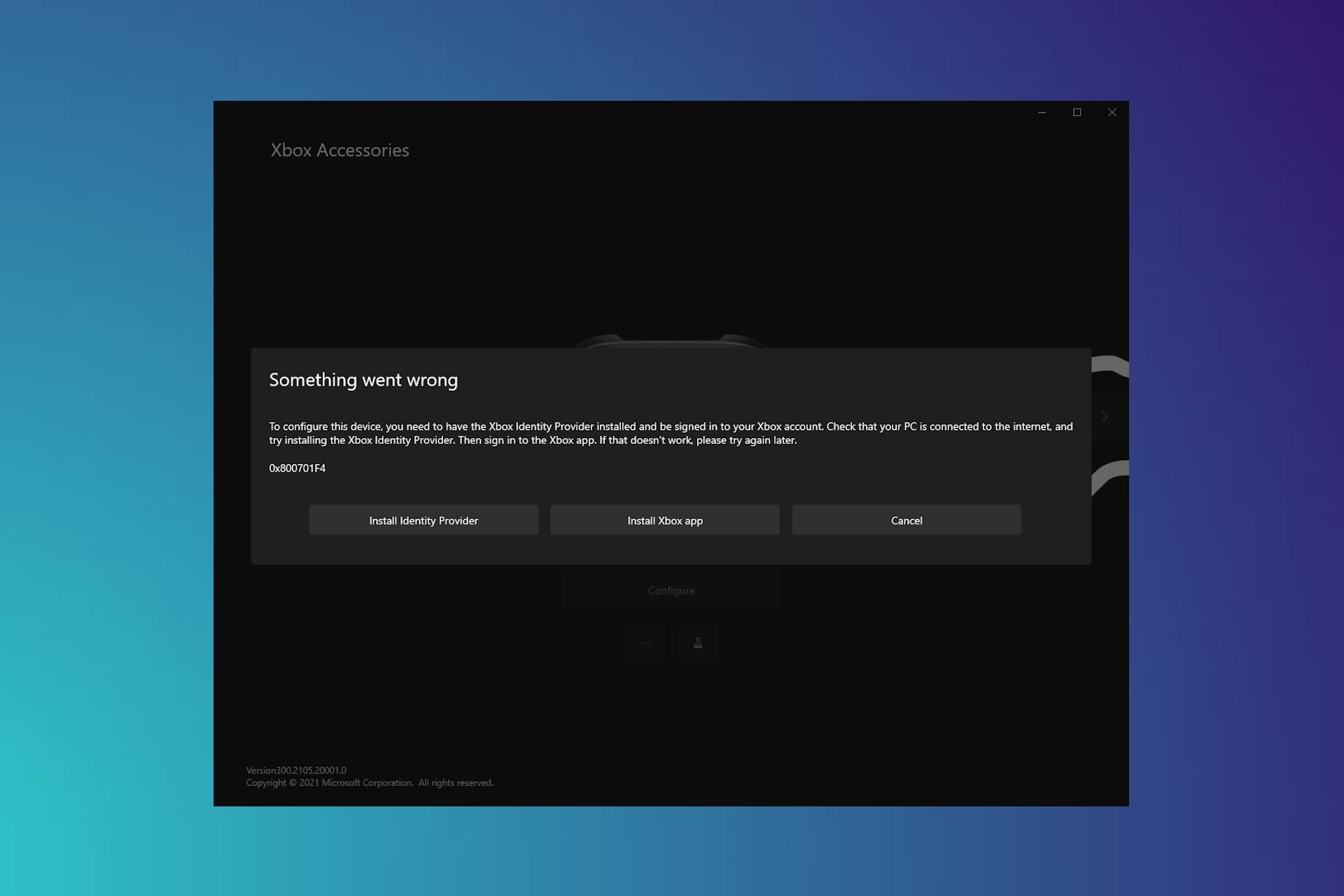
You cannot log in to the Xbox and the Accessories app, and it throws the error 0x800701F4 with the message, You need to have the Xbox Identity Provider installed and signed into your Xbox account. This error generally appears when Xbox apps or system files are corrupt.
How to fix the 0x800701F4 error on Xbox and Accessories apps?
Let us try easy workarounds before moving to detailed methods.
Turn off the antivirus protection and firewall for an hour before launching the Xbox accessories app.
Reconnect your Xbox controller or headset.
1. Reset Microsoft Store
Head to Microsoft app store’s settings from the Start menu.
Scroll down and click Reset to delete the app’s data and bring it back to the default state.
After that, restart your computer and check if the Xbox accessories error has been fixed.
2. Re-register the Xbox app and Microsoft Store
Open the PowerShell in administrator mode, from the Start menu.
Enter the following command and press enter. Get-AppxPackage windowsstore | Remove-AppxPackage
After that, enter this command and then press enter. Get-AppxPackage xboxapp | Remove-AppxPackage
Now, paste this command and then press enter to re-register Microsoft Store. Get-AppxPackage -allusers Microsoft.WindowsStore | Foreach {Add-AppxPackage -DisableDevelopmentMode -Register "$($_.InstallLocation)\AppXManifest.xml"}
Then, enter this command and press enter to re-register the Xbox app. Get-AppxPackage -allusers Microsoft.XboxApp | Foreach {Add-AppxPackage -DisableDevelopmentMode -Register "$($_.InstallLocation)\AppXManifest.xml"}
Now close the PowerShell and restart the computer to apply the final changes.
3. Change from IPv4 to IPv6 on the router
You can fix this 0x800701F4 Xbox accessories app error by changing the connection to IPv6 from IPv4 on your router. This will allow certain connections that require the IPv6 protocol to pass through.
Use our guide to change the connection to IPv6 and then restart the router. But remember that the method to change the connection may vary on routers of different brands.
4. Repair corrupted system files
Open the command prompt from the Start menu in the administrator mode.
Enter the system file checker command and press enter. sfc /scannow
Once completed, close the command prompt and restart the computer.
So, this is how you can fix the 0x800701F4 error, which prevents you from logging into the Xbox accessories app. Then, you can map or reconfigure the controls or other parameters as required.
Microsoft released one of the biggest builds the Dev, and Canary channel has seen in a while, and it brought a dozens of new features to Windows 11, but one of the most useful and interesting features is this new way to connect to a Wi-Fi network.
You’ll be able to connect to Wi-Fi by scanning a QR code with your phone though Windows 11’s Camera app. Yes, you read that right. The Camera app can be used to join a Wi-Fi network.
Scanning it will prompt Windows 11 to provide you with a link that will open the Settings page to get the new Wi-Fi profile all set up.
The best thing? You’ll even be able to create your own QR code for your Wi-Fi networks and share it with others who want to connect to them.
This could prove to be one of most useful features in Windows 11, and it could definitely become one of the most popular ones too. Users won’t have to waste time trying to connect to the right Wi-Fi network, as feature would make it possible to connect to the Internet in seconds.
Plus, in collective environments, this feature will be a game-changer. Groups of people will be able to easily connect to the same Wi-Fi network without the hassle involved. Plus, Microsoft say the feature will work for mobile hotspots, as well:
You can now use the Camera app to join a Wi-Fi network. Just scan a QR code with Wi-Fi details and a link will be provided that will open Settings to quickly get the new Wi-Fi profile added and connected. As a reminder, starting with Build 25977 in the Canary Channel you can create your own QR code for Wi-Fi and share it with others. This also works for mobile hotspots too.
Microsoft released the 26052 build to the Dev and Canary Insider channels, and with it, several new features were introduced to Windows 11.
The Redmond-based tech giant introduced Sudo to Windows 11, then it added new settings for hearing-impaired users that greatly improve their experience with the operating system, and Windows 11 users will be able to test their microphones in various situations thanks to a new audio mic test utility in the Settings page.
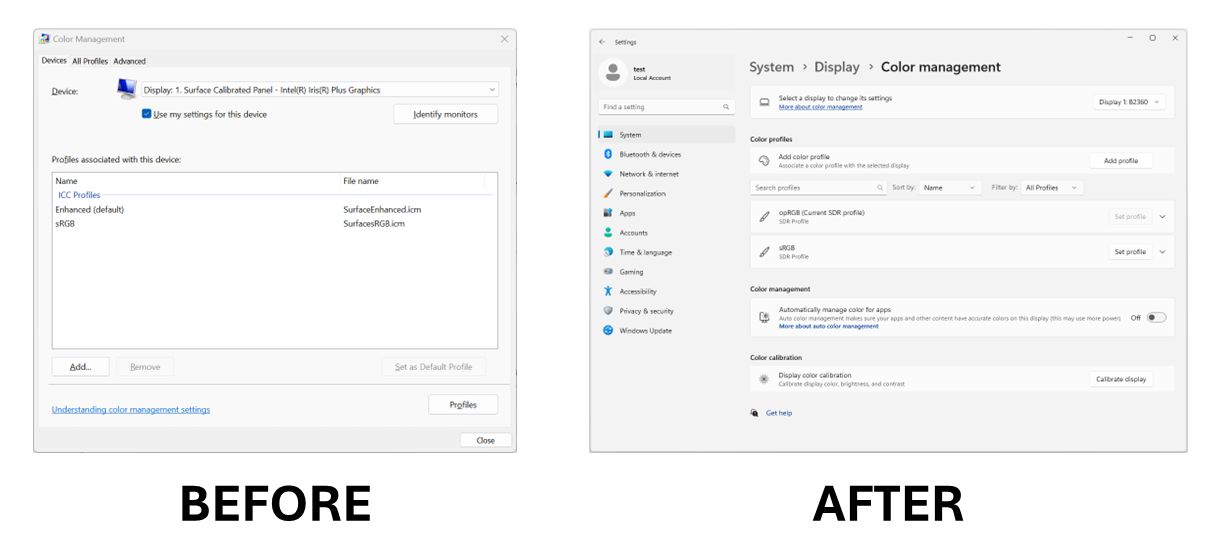
Among these new features, Microsoft also introduced a new Color Management page in Windows 11’s Settings, which effectively replaces the old Color Management panel found in the Control Panel. With it users will be able to add, and remove color profiles way more easily, as it can be quickly accessed now, rather than having to open up Control Panel first.
Here’s what Microsoft has to say about it:
Windows Insiders who use the Color Management Control Panel to make changes to their color profiles can now use the all-new Color management settings page located under Settings > System > Display > Color management. This new settings page will allow users to add or remove color profiles, as well as set default color profiles for the connected displays. In addition, auto color management can now be found on the new Color management settings page.
Want an unblocked browser for your school, ISP, or workplace? You’re in luck. There are some browsers that you can use to access any webpage you want, no matter the network you’re connected to.
While VPNs are the primary tool for this, there are some tools that have built-in VPN-like features or use other methods to get past web filters. Check them out!
Browser
Main features
Our Rating
Link
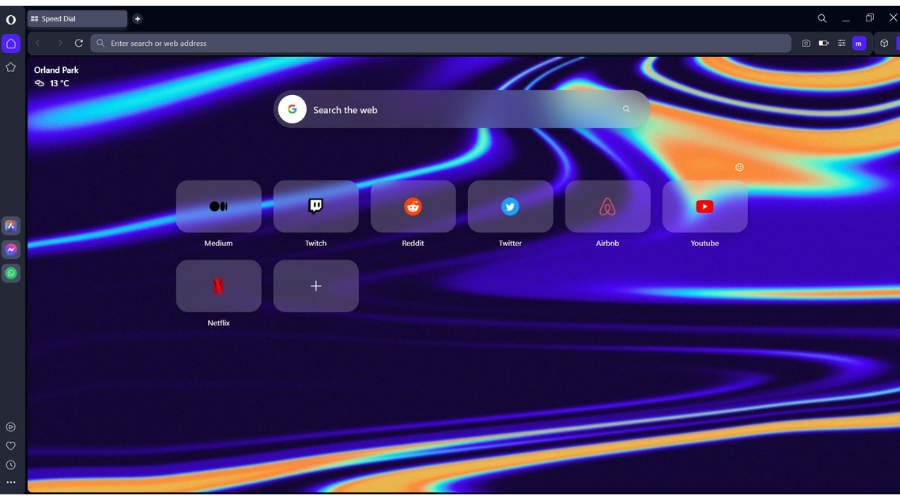
Opera One
• Integrated AI apps • Free web VPN • Android support
UR Browser also has a built-in VPN and Ninja Mode set up to open blocked sites.
The double 2048-bit RSA encrypted key, incorporating an SSL certificate helps guarantee safe and secure data transfer.
Finally, the UR browser, you can access blocked sites, surf the net, and access forums, and chats with ease. It comes with an ad-blocker and a tracker to make browsing safe without interference.
Main features:
Built-in VPN: Encrypts web traffic, providing secure and anonymous browsing
Ad Blocker: Removes intrusive ads, enhancing privacy and page load times
Tor Browseremploys onion routing, a technique that directs your internet traffic through a worldwide network of servers operated by volunteers.
Each relay in the network only knows the IP address of the previous and next relay, making it virtually impossible to trace your browsing habits or block specific content.
The browser also features other useful privacy features, including a built-in adblocker and a tracking blocker that block unnecessary scripts and prevent user data collection.
Main features:
Built-in Multi-Layered Encryption: hides web traffic for enhanced privacy and bypassing restrictions
NoScript Security Suite: Blocks scripts and trackers, enhancing privacy and security
Onion Routing: Routes traffic through multiple servers, ensuring anonymity
Privacy Mode: Automatically clears cookies and browsing history after each session
Chrome is another reliable and popular browser used by many people. Google Chrome has an easy-to-navigate user interface with a simple design that makes browsing simple.
The access to a large library of extensions makes Chrome one of the best browsers to open blocked sites. You can simply add an extension to the Chrome browser and access any restricted sites with ease.
You can switch to Incognito Mode in order to protect your browsing behavior and open blocked sites.
Main features:
Advanced Security: Safe Browsing protects against malicious websites and downloads.
Ad Blocker: Improves browsing speed and reduces distractions by blocking ads.
Customizable Extensions: Extensive library of extensions for personalized browsing experience.
Automatic Updates: Ensures the browser is always up-to-date with the latest security patches and features.
With the options above, you will be able to access locked sites and search for blocked queries, even on your school or workplace network.
These filters are often implemented for your safety or productivity, but they can sometimes become too restrictive, defeating their own purpose.
Pick the best unblocked browser from the list above according to your needs an let us know below if it can bypass blocks for you or if you need any more help configuring it.
The new build to the Dev, and Canary channel, 26052, released by Microsoft earlier today, introduced many new features to the operating system. First of all, insiders will be able to easily switch between the channels for a while, as both channels received the same build.
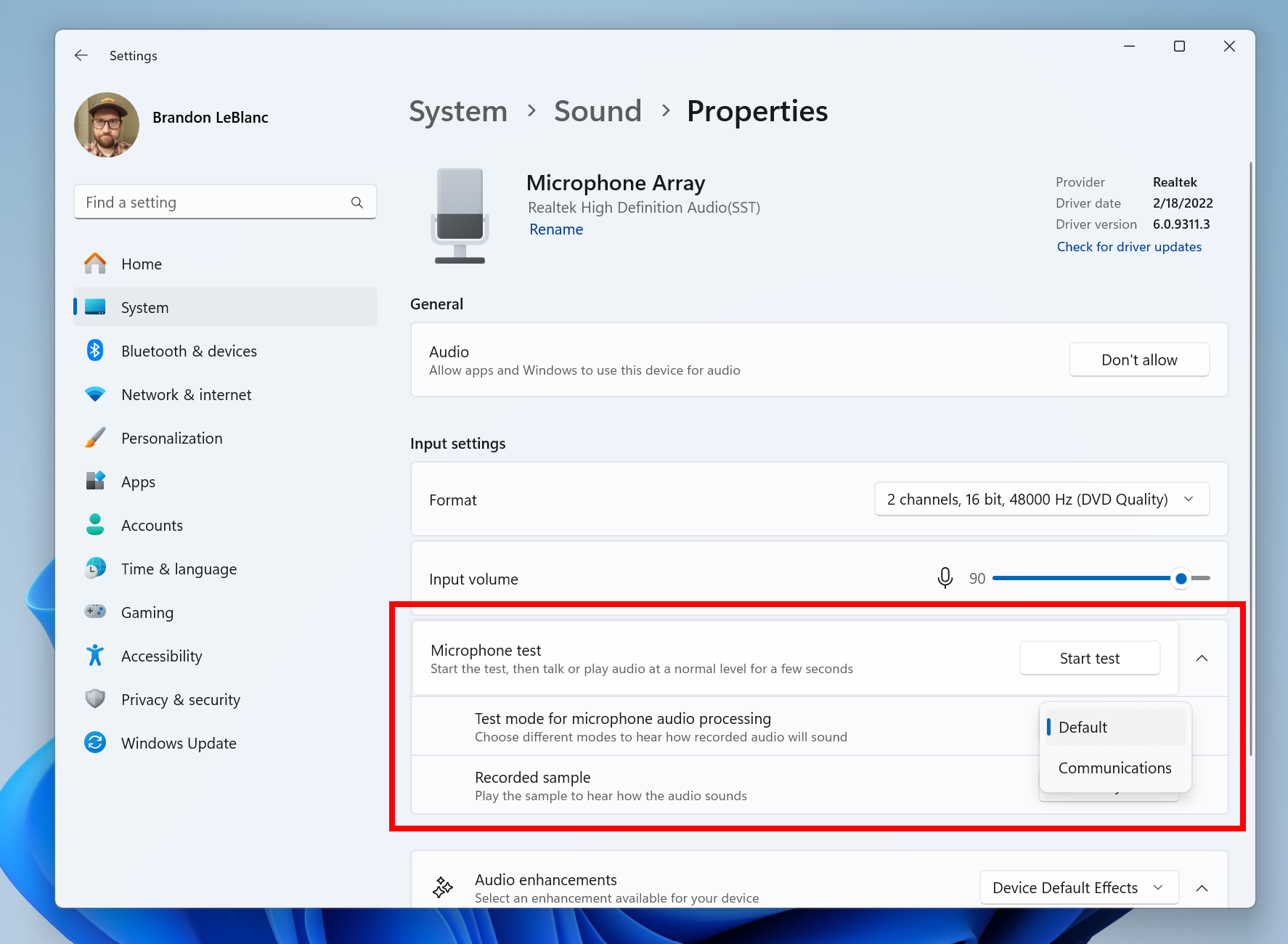
But, Dev and Canary users will now be able to test their microphones in different modes through Windows 11’s newest audio mic test utility that can be accessed in Settings.
The test will provide multiple situations to make sure the microphone is good and ready to go. It would not only save users a lot of time, but it will be quite useful in situations where you have to make sure everything functions properly, like live events, or webinars. Here’s what Microsoft has to say about it:
Windows now offers a convenient way to test the difference between Default and Communication mode audio. This new utility can be found under the microphone properties via Settings > System > Sound. You can select the mode and record/listen to audio in both modes, allowing you to easily compare audio processing modes for applications built for the Windows ecosystem. Some audio drivers come with special audio effects for communications, and the toggle lets users hear how audio captured in your microphone sounds when recorded by a communications application versus a non-communications application. It’s important to note that the utility is for testing purposes only and will not affect the actual mode of the audio.
Microsoft
The latest build to the Dev and Canary channel also added major improvements for hearing-impaired customers, allowing them to easily set up their hearing aid devices.
As an Xbox fan, you must have encountered the infamous error Xbox One Store Oops not sure what happened there, and got frustrated with your console.
Xbox Games Store is a digital distribution platform. You can create an account to use its services which allow you to download or purchase all video games.
Additionally, you can get Xbox Live Arcade, Xbox One, and Xbox 360 titles. In recent years Xbox Store was replaced on Xbox One by the Microsoft Store.
Occasionally while you are trying to purchase the game, the error message Oops not sure what happened there displays on the screen and prevents you from buying.
Furthermore, the error message usually appears with another message that says try again later. But don’t worry, there are some functional solutions to solve the problem quickly.
This being said, let’s jump into the list of solutions to the Oops not sure what happened there Xbox error. Keep on reading!
How to fix the Oops not sure what happened there in Xbox Store?
1. Test and verify the purchase
When trying to purchase anything from the Microsoft Store on Xbox, you may encounter Not sure what happened there please try again later Xbox One error. This implies the purchase failed and was unsuccessful.
First, you need to check your library or the game for which you made the purchase to make sure that the purchasing process was successful.
It is vital to check your bank account and Microsoft account. If they are out of charge, you need to recharge them. Note that it may take some time before you can use them.
2. Check the network status
Make sure that your Xbox is connected to a network and that the network is connected to the Internet.
Check your multiplayer connection to ensure that your Xbox still has a connection to the Xbox network.
For the last step, you might need to restart your router or modem to reset your network and clear up any issues which have not been resolved yet.
For the next step, check the network connection. You need to ensure that your Xbox’s Internet setting is at its optimum condition. To check this one, follow the steps mentioned above.
If any of those solutions don’t work, you can contact Xbox support to get immediate answers. They are experts and can help you fix Xbox Microsoft Store oops not sure what happened there error.
In case the connection seems OK, you should try another way such as restarting your Xbox console. This would help you clear up any related issues.
4. Restart your Xbox
Press and hold the Xbox button that is in the center of your Xbox controller to open the Power Center.
Then, choose Restart console.
Click on Restart once it asks you if you are sure of your actions.
It is necessary to know that there is no specific reason for this error. Connection issues or the choice of payment may cause this error.
You can leave it on its own and wait until your console automatically resolves the error. However, it might take quite a while before that.
How can you fix Xbox One purchase error something went wrong message?
One reason for Xbox One Oops something went wrong purchase or Oops not sure what happened there might be that the Xbox Live is temporarily unavailable.
2. Set language and location
Click on the Windows icon and open Settings.
Go to Time & language and select Language and region.
Finally, select the language you want and make sure the region matches the one on your Xbox console.
The error can be displayed on your screen because of the location mismatch, which means the console region doesn’t match your current location set to the Microsoft account.
3. Power cycle Xbox One
Press and hold the Power button for a few seconds to turn off your Xbox One.
Then, unplug both the modem router and your Xbox for three minutes.
Turn them back on and check whether the purchase error is gone.
This error may appear because of a cache problem in your console. The cache problem occurs when new purchases are declined.
As you know, there are many frustrating error messages, such as the For this game you need to be online Xbox error, which may distribute while you are using Xbox Console, but this is another error we wanted to take a look at.
The Xbox One purchase error Something went wrong message may appear when the auto-renewal and the payment tool used to purchase are not available.
If there is any problem with your connection, Xbox should recommend some troubleshooting methods to help you improve the connection. So you can also find the problem and solve it.
What are some common Store errors on Xbox?
The Oops, I’m not sure what happened there. The error is definitely not the only one that users can encounter while using their Xbox console. Here are some of the other possible errors:
Error 0x80070070 – appears when installing an Xbox game pass game on your PC.
Error 0x80070c00 – this error appears when you want to launch a game or open the guide.
Error 8015DC01 – appears when your Xbox One or PC needs an update.
Error ACC5000 – appears when you attempt to sign in to your Xbox using your Microsoft account.
Error 0x800401fb – appears when you use Xbox Live. For solutions to this specific error, check out how to fix the Xbox One error 0x800401fb in four easy steps.
Error 0x80BD003F – appears when attempting to use a theme on Xbox One.
Error 0x87DE2720 – appears when installing Microsoft Store content on Xbox One.
Error 0x8B0500B6 – appears during the process of system update on your Xbox console. Take a look at our guide on how to fix the 0x8b0500b6 error.
Error 0x903F9006 – shows up when you open an Xbox One game or application to play.
Error 0xc0000189 – appears when you can’t connect to Xbox Live, which means your console may face a sudden error.
Error PBR9000 – appears when you try to purchase from your Xbox One console.
Error PBR9039 – appears when splitting the payment for a purchase on Xbox One.
Error 0x8015DC0C – appears when you want to play a game on Xbox One game.
Error 0x87e10007 – appears when the game or application is not compatible with the Xbox console.
Error 8019019x – appears when you attempt to update Xbox One console software.
Error CP221 – appears when adding a payment option to your Xbox Live account.
Error CP309 – appears when updating address information from the Xbox console.
Error 0x80820011 – shows up when you attempt to access the Microsoft Store on Xbox One.
Error 0x87e1001B – appears when you try to join a game session on your Xbox console. Make sure to read our guide on how to fix the 0x87e1000b Xbox error.
Remember to update your Xbox software regularly. This will help you resolve any issues and bugs you may face that stop you from having a seamless experience with your console.
Let us know in the comments section below whether this article proved to be helpful to you, as well as share with us any additional solutions that you have in mind. Thanks for reading!
Microsoft released the 26052 build to the Dev, and Canary Insider channels, effectively allowing Windows 11 users to easily switch between these channels in a matter of seconds.
While the build also officially introduced Sudo to Windows 11, Microsoft also released some important features that will greatly improve the experience of using this operating system for hearing-impaired customers.
We’re talking about several enhancements in hearing aid support, including the ability for them to regulate ambient sound, and support Bluetooth LE Audio. Here’s what Microsoft says about it:
We’re introducing new capabilities to control audio presets, ambient sounds, and experience enhancements to the Settings > Bluetooth & devices page. Customers can now adjust the audio presets that they or their audiologist configured in their hearing aids, right from the Settings or Quick Settings UI in Windows. These controls allow customers to quickly adjust the behavior of their hearing aids to their preference for the environment they’re in. Preset options and availability will vary based on the model and configuration of hearing aids. We’re also introducing capabilities for customers to adjust the volume of ambient sound captured by their hearing aids. These controls adjust the balance between streamed audio and sound picked up from the surrounding environment, helping customers choose what they want to focus on. Ambient sound control availability will vary based on the model of hearing aids. These features require both your Windows device and hearing aid to support Bluetooth LE Audio. Note that not all Windows 11 PCs or hearing aids, even ones that support Bluetooth LE, have support for LE Audio.
Microsoft
The new settings for the hearing aid support devices can be accessed on the Bluetooth & devices page within Windows 11’s Settings, as you can see in the image below.
You can read the full blog post here. What are your thoughts on this?
Windows 11 officially introduces Sudo to the operating system, according to the latest blog post. The new feature that allows users to run elevated commands from an unelevated console, is now live in Dev, and Canary channels, after they received the same build, allowing Insiders to easily switch between them.
Sudo for Windows 11 was spotted a while ago by Windows enthusiasts, but the feature was not functional back then.
However, it appeared in a new section within Windows 11’s Settings, For developers, and users only needed to enable it, according to an X post (formerly known as Twitter) by Albacore.
Windows Latest, on the other hand, reported that Sudo on Windows 11 would be able to run applications in no less than 3 modes:
In a new window.
With input disabled.
Inline.
Microsoft will release the new feature of a new Windows mode set by default, and this option will open and run a command in a new elevated window. The other two modes are somehow related, and they both have security implications.
The sudo command can be configured to run in three different modes:
In a new window: A new window will open in which the elevated command will run.
With input disabled: The elevated command will run inline with its stdin closed in the window from which you’ve triggered elevation. You will not be able to interact with the elevated process.
Inline: The elevated command will run inline in the window from which you’ve triggered elevation. This mode is most similar to the sudo experience on other platforms.
Microsoft
The Redmond-based tech giant advises users who are interested in getting to play with this new feature, to check the security considerations before enabling the sudo command on their devices.
Meanwhile, if you’re interested in seeing all the new features coming to the Dev and Canary channel, you can find the full blog post here.
Microsoft released the 26052 build to the Dev and Canary channels, and with it, the Redmond-based tech giant announced that Windows insiders will be able to switch between the two channels in a matter of seconds.
However, the option is temporary and will be temporary every time the two Channels will receive the same build. But, at one point, in the future, this window will be closed, according to Microsoft, and the easy jump won’t be possible anymore.
The Canary and Dev Channels receiving the same builds is only temporary. During the times in which the Canary and Dev Channels are on the same builds (e.g. Build 26052), the window is open for Insiders in the Canary Channel to switch to the Dev Channel. At some point in the future, the Canary Channel will jump to higher build numbers and the window will be closed.
Microsoft
The Dev channel is also getting dozens of previously inaccessible features that were present on the Canary channel, such as scrollable quick settings, native TAR support, and many more.
Excel macros are extremely useful when dealing with repetitive tasks in Excel, especially in management positions, where a lot of data needs to be analyzed and organized, however, they can also be a target for serious cyberattacks, as they can be hacked by threat actors to gain access to data.
They are not usually recommended to be used in working environments due to this reason, as this Reddit user found for themselves when they tried to email some Excel macros they built at home on their personal computer to their work computer, so they could get work done faster.
IT at work has the security settings such that when I open one of these .xlsm files on my work computer I don’t even get an option to turn on macros. I have tried all the settings under options to try to get it to work. I have tried looking for the “unblock” check box under the file properties but it doesn’t exist. When I asked IT about it, they said something along the lines of “sorry, macros are a security risk so you need to use power automate”. I have used power automate before and I don’t see how I can reproduce my VBA script there, but I am no expert in either VBA or power automate. They also suggested getting the files digitally signed and I looked into that but it seems like a PITA. Without going through the commercial signing process ($$) it sounded like they would only work on my computer and no one else could use them. Can anyone point me in the right direction? Is it possible to reproduce what I am doing in an excel file in some other way using office 365 apps?
Reddit user
In other words, the emails containing macros were blocked because they were identified as a security risk to the organization. Instead, the organization recommended using Power automate, instead.
And a lot of other Reddit users think this is the way to go, as well.
Excel Macros vs. Power Automate: Here’s what people think
While macros can be a short way to get work done faster, they indeed carry a serious risk for any organization, and using them while being part of one and against its policies, can mean serious troubles for any employee, even if it’s done in good faith.
Well, trying to circumvent an information security block is a good way to get in a lot of trouble. I’d recommend trying to partner with them, saying this is what you’re trying to accomplish and see if they can’t help build something to do that thing, or maybe to grant you an exception. If they say they are too busy, the only way to handle that is to escalate it up your management chain and let them decide what should happen.
Reddit user
Can you use Office Scripts? I think you could achieve what you want with it. Maybe with a mix of office script and power automate. It’s not as fast as Macros though.
Reddit user
Macros are a pain anyway. Try to avoid them. They might sound like a good idea and for a single duke they are indeed helpful. Imagine how that scales across an organization. People use that stuff and forget about it. The files get copied around and now you have umpteenth versions. Who will be update every single copy with the latest version of that macro? Avoid macros as much as possible. Think about how this will be maintained after you don’t have use for that (or leave the team and people still call you to maintain it).
Reddit user
So, if you find yourself in a similar situation, resort to using Power Automate instead. Beware that Microsoft recently changed its name to Workflows, which is a fitting name, given that they’re used to streamline workflows.
And if you don’t know where to start or how to use them, check out our comprehensive guide about them. You’ll become an expert in no time.
Artisan Studio is set to release Lost Hellden, a new JPRG for multiple platforms, including PC, and Xbox, in 2025, and the trailer, which just dropped, showcases an exceptionally good-looking game with fun mechanics and a compelling story.
The game will be released on Xbox Series S, and X, PC (through Steam, GOG.com, and Epic), but it will also be available on PlayStation 4, PlayStation 5, and Nintendo.
The best part? It’s developed by Artisan Studio, a game studio known for housing former Square Enix, and Final Fantasy veterans, so the expectations for Lost Hellden should be high, and rightfully so.
The game uses the Deep 2D technology, which will allow it to blend in 3D elements with drawn backgrounds, as you can see in the trailer, while all of it is patched by gorgeous effects, from weather effects to lighting effects, and so on.
The gameplay looks quite fun, and engaging, turning the immersive exploration screen into a 3D over-the-shoulder combat mode that happens in real-time.
Gamers will be able to make the characters dodge attacks by moving them, while also having access to an array of techniques and spells to defeat the enemies.
The game looks gorgeous, and the way it blends naturally drawn backgrounds with 3D elements is a standout in itself. However, Artisan Studio promises a grand adventure game that will take the players all across the planet Era, a fantastical place where people are bound to one of the Seven Deadly Sins.
When a woman gives birth to twins, one being bound to all sins, while the other to none, something unprecedented on Era, the planet’s authority decides to lock them within the confines of the planet’s capital city. However, the twin bound to the seven sins manages to escape, so you’ll take the role of the other twin, who goes after his brother.
In a tale worthy of the best fantasy stories, Lost Hellden will surely become one of the studio’s hit games, and we’ve seen this happening with other recently JRPGs-inspired games, such as Sea of Stars.
If we take into consideration the fact that the game is being developed by former Final Fantasy veterans, one of the most prominent and successful fantasy franchises of all time, then the anticipation will surely be high.
As we mentioned earlier, the game will be released to almost all platforms, but if you want to play it on PC, here are the system requirements, according to Steam:
In a bid to enhance integration and achieve seamless syncing, Apple has revamped iCloud for Windows. The app now has a new and much simpler interface, making things easier for Windows users.
The previous version of iCloud, in a sense, lacked clarity, which has been addressed in the latest release. It will allow Windows users with an iPhone or iPad to access and manage data better.
The latest iCloud version is available only on Windows 10 and Windows 11.
What’s new in iCloud on Windows?
In the new version, you can view photos on iCloud in Windows Photos and create a shared album for collaboration. Also, you can now access the files on iCloud directly in the File Explorer.
Old vs new UI of iCloud on Windows
The new iCloud facilitates sign-in with a security key to your Apple ID, making it more seamless than ever. In addition to that, the app allows access to iCloud Drive and Calendar and Contacts.
Besides, iCloud now has a dark mode, which is automatically activated based on the system-wide settings. So, if you turn on dark mode on Windows, iCloud will switch to warmer colours, too.
Dark mode on iCloud
Apple has recently rolled out a series of changes, rendering iTunes almost obsolete on Windows. The new iCloud is a step in the same direction.
Apple recently released Apple Music, Apple TV, and Apple Devices, limiting iTunes’ capabilities to access audiobooks and podcasts.
It sure seems like Apple is doing on Windows what it did on Mac. Starting with macOS Catalina, Apple split the functionality of iTunes into four apps and removed the former altogether.
What do you think of the new iCloud app for Windows? Let us know in the comments section.
It’s that time of the year again! With CES gone already, it’s time for the next big connectivity event, Mobile World Congress 2024 (MWC). The event will be held in Barcelona on 26 – 29 February 2024, and it promises to continue the exciting innovations and ideas we saw at CES.
Some will come from one of the biggest tech companies, Lenovo, always present at these events. The tech giant is getting ready to upgrade its lineup with six upgrades to its current devices, plus one incredibly exciting new concept that might blow your socks off! Thanks to our sources, we have exclusive images with all of them two weeks before the official launch.
This is Lenovo’s transparent laptop, and it looks wild!
Before anything else, we have to mention that the transparent trend seems to be catching up fast. But why did it take so long? Well, firstly, because the technology involved expensive manufacturing processes. That also means a higher-end price, which doesn’t do well for home customers.
Now that transparent panels are a bit easier to produce, the market is starting to grow, and LG’s transparent OLED from CES is the perfect example. And if we go back to CES 2010, it’s clear that Samsung’s transparent OLED screen was ahead of its time.
But maybe now is the perfect time for a completely transparent laptop? Lenovo seems to think that, as they’re getting ready to unveil their concept at MWC 2024. And let me tell you, it looks crazy!
Lenovo’s transparent laptop features a bezel-less design, with the display being completely see-through. The deck also seems completely transparent, with the main components being housed in and under the chin, which is the area that’s not transparent. There’s also a non-transparent slim frame that surrounds the entire deck, probably housing the ports.
While we don’t know any specs, the laptop runs Windows 11 and follows the Lenovo design language we all know. Looking at it, it’s closer to the dual-screen laptops (which are getting increasingly popular right now) than a classic one.
But the final question is: do we need transparent laptops? We’ll surely keep an eye on MWC to see how Lenovo markets the use scenarios, and maybe we’ll get some insights on specs, battery life, and general capabilities.
Most of Lenovo’s lineup gets a much-needed upgrade. And a notch
Lenovo ThinkBook 14 G4 now goes full 2-in-1, with a touchscreen and a 360-degree hinge that lets you use it however you want, including in tent or tablet mode.
The G4 also gets the well-known outside notch but loses some ports. On the right side are a power button, a microSD card reader, one USB-A, and a Kensington lock, while the left has a headphone/mic combo, two USB-C ports, another USB-A, and one HDMI port.
The Lenovo ThinkPad T14 Gen 5 (Intel) gets a similar treatment, with a prominent top-notch that houses the camera, mics, and other sensors for secure face recognition and a welcomed change of ports.
The right side loses the optional smart card reader, which now houses an optional SIM slot, one USB-A, an Ethernet port, and a Kensington slot. You’ll find two USB-Cs, an HDMI port, one USB-A, and a headphone/mic combo on the left side.
The same changes apply to the Lenovo ThinkPad T14 Gen 5 AMD version. Both versions come in two colors: silver or black.
Lenovo ThinkPad T14S Gen 5 also gets the notch update alongside the port revision.
On the right side, you’ll find two USB-A ports and a Kensington lock, with two USB-C ports, an HDMI, a headphone/mic combo, and a SIM slot on the right. This corporate go-to also gets significantly slimmer bezels.
Now for the bigger Lenovo ThinkPad T16 Gen 3: the 16-inch powerhouse, surprisingly, also gets a notch, although at this size, it’s more of a design consistency thing than anything else.
The edges seem chamfered for a more comfortable handling and slim profile, and the excellent port selection remains almost unchanged, with two small differences: the smart card reader gets replaced by a SIM slot, and the Ethernet port moves from the left side to the right one.
Maybe the most surprising upgrade is the Lenovo ThinkPad x12 Detachable Gen 2. Yes, you read that right: the x12 finally gets a second gen. But if you were expecting massive changes, you’d be disappointed.
Nothing changed on the outside: the port selection is the same, and the keyboard, the hinge design, and pen are also the same. That’s not necessarily bad, especially for those who got the most out of Gen 1; faster components and next-gen CPU might compel you to get the Gen 2.
Finally, the Lenovo ThinkVision M14T Gen 2 is refreshed with two new USB-C ports and a new panel.
While we don’t have any hard specs, it seems the new panel might be an OLED that keeps the great functionality of Gen 1: touchscreen, clean setup, and awesome USB hub.
We don’t expect a change in refresh rate but rather in resolution. Think of it as the perfect companion for your laptop. It’s also amazing for taking notes or markups on your projects.
Maybe its best use scenario is using it alongside your smartphone, making it a lot easier to share projects, sheets, tables, and any other projects with a single cable on the go.
While most of the updates in Lenovo’s lineup look incremental, some are just small life improvements that will significantly impact everyday use. But the highlight is definitely the transparent laptop! What’s your take on it? Tell us how you would use it in the comments section below.
After a prolonged lull, there’s finally some good news for manufacturers and retailers. The PC market is slowly starting to recover, with the demand and sales reaching the pre-pandemic levels. It will be accompanied by a price rise!
According to market analyst firm Canalys, PC shipments worldwide are seeing an uptick following seven disastrous quarters. The year 2024 will see an 8% rise in PC shipments compared to 2023.
At the same time, experts are predicting a long-due price increase driven by multiple factors. And this time around, it doesn’t look like a price rise will affect the demand. So, brace yourself to shell out a few extra bucks if you are planning to buy a new PC!
Why are PC prices increasing all of a sudden?
Though Intel previously refuted reports that the cost of its processors is going up, the increase in retail prices for processors, and the PC in general, now seems imminent. It’s driven by the following factors:
New technologies have revived user interest
With the AI revolution simplifying tasks like writing an email or performing a web search, more and more users now want to jump on the bandwagon. Microsoft Copilot and ChatGPT have become synonymous with AI.
To best utilize the potential of AI, you need to be using a supported PC. And older ones seem to not make the mark.
Similarly, to get the best performance out of ChatGPT or other AI-image generation software, improved graphics were needed. In such cases, the not-so-technical users generally upgrade the PC instead of getting a new GPU. It often makes sense, too!
In a recent report, Lenovo insiders suggested that there will be a growth in PC demand fueled by AI in FY24 and FY25.
This renewed interest is set to dominate the market and increase the demand. Manufacturers realize that this opportunity can be capitalized. As a result, there will be a rise in prices.
The cost of PC components is increasing
In recent months, PC components, particularly memory, storage, and GPU, have become costlier. Analysts at TrendForce suggest that the price of NAND Flash memory could increase by 50%, which will directly affect the cost of SSDs (Solid State Drives). And most PCs today come equipped with SSDs.
Samsung SSD
As per analysts, a 40% increase would help companies just break even, and to ensure profitability, the price rise could be 50% or higher. The current shortfall in production results from this adjustment and companies switching to DRAM from NAND.
Similarly, the cost of GPUs (Graphics Processing Units) has increased over the years, even if we discount the inflation. Initially, this surge was led by crypto mining, as was the case with NVIDIA. Reports suggest that Ethereum miners spent as much as $15 billion on GPUs, driving the prices.
Although, crypto mining is becoming less profitable by the day. The Proof of Work (PoW) consensus mechanism is slowly being replaced by Proof of Stake (PoS). But prices are not expected to stabilize any time soon!
Companies trying to recover the losses
Manufacturers, ever since the initial surge during the pandemic, have been reeling under losses (or reduced profits) due to subdued demand. Many have already laid off a significant percentage of their workforce over the last few years.
HP Inc., in 2023, stated that they will terminate 6000 employees, 12% of the workforce, over the next three years. Dell, too, announced layoffs in different divisions.
There couldn’t be a better opportunity to recover the losses, or at least a part of it. Given that the surge in demand is likely to sustain, you can expect a price rise or fewer promotions in the coming months.
If you are planning to get a new PC, look out for the best deals. Besides, given that the new technologies are rendering hardware obsolete within years, it’s wise to buy a future-ready PC, i.e., one with higher specifications, say, RAM, processor, GPU, and storage.
On the bright side, the global chip shortage isn’t as alarming anymore. So, the surge in prices should be limited.
What’s your take on the changing global market dynamics? Share with us in the comments section below.
After recent patches, Cyberpunk is turning into an amazing game and users are eager to test it in all of its glory.
Regarding the performance, you can get up to 100fps in the game, with a bit of overclocking and decent hardware.
100 FPS after overclocking in Cyberpunk is great for most gamers, but is it enough?
A user on Reddit recently overclocked his PC and decided to share its results with the gaming community. Here’s what the author had to say:
I overclocked the dual fan ventus because on stock it was getting to only 65 degrees celsius max! Clock: +150 Memory:+950 stock power
By doing so, he managed to achieve an average FPS of 96.68 and a maximum FPS of 113.21. Regarding the setup, this user used a GeForce 4070Ti Super OC and Intel 14700k.
While this is great if you’re gaming in 2K resolution, many wanted to know how well the game runs in 4K, and others had to chime in with their findings:
Getting ~65fps for the benchmark on 4k ultra with the same card paired with ryzen 7600
Path tracing, framegen, DLSS perf on 4K and DF optimized settings got around 80s. I can drive around the city with 75 appx. Stock clock though with 5600x.
Digital Foundary optimised settings with RT Heavy (Reflections + Lightning Medium), DLSS Perf + FG on 4K with 4070 Super I get around 80-90 fps avg driving around Liberty City. The VRAM is capping out at 11GB and I am using 5800x3d with 32GB 3600cl16 DDR4.
As you can see, while these settings can handle 4K resolution, the frame rate does take a hit, and that can be a problem for many. This has triggered an array of comments discussing the ability of the hardware to handle 4K games:
1440p high refresh rate is still demanding even for powerful Gpus like 4070Ti Super. We need more power for 4k.
Others were disappointed because one of the top 5 GPUs currently on the market can’t handle the game properly in 2K and achieve better framerate.
This is the reason why we’re not even fully ready for 1440p yet. 96fps with 4th best (technically 3rd since 4080 and 4080s are pretty much the same) RT gpu. WITH FRAME GEN and some upscaling.
Overall, while these results are great for 2K resolution, many are wondering what will it take to handle Cyberpunk in 4K in its full glory at a higher framerate.
When you’re on the Microsoft Teams desktop app or web version, you can disable mobile notifications because you don’t need them buzzing on both devices, causing distractions.
How do I disable mobile notifications on Teams when on desktop?
Android
Launch your Teams app on your mobile phone.
Tap on your profile picture icon at the top left corner and select Notifications.
Under Block notifications, tap on When active on desktop.
Toggle it on, and now you’ll only receive notifications on your desktop.
iPhone
Launch your Teams app and tap on the Filter icon at the top right-hand corner.
Next, tap on the Menu icon, then select Notifications.
Check When I’m not active on desktop option and unselect all notification options.
Now, you’ll only receive notifications on your desktop app. However, if you’re inactive on your desktop for more than three minutes, this setting will be overriden and you’ll be back to receiving notifications on your mobile.
You can manage your Teams notifications especially, if you want to have multiple sounds for incoming notifications to differentiate senders.
Speaking of notifications, there are times when your Teams notifications won’t go away. In such cases, there may be a glitch in the app so try resetting it and see if your notifications return to normalcy.
And that’s not all when it comes to Microsoft Teams. You can also take advantage of its AI-based features to automate your tasks and work more efficiently.
So there you have it! Quick ways to manage your notifications so that you don’t lose track of any new messages or keep switching from one device to another.
We’d love to get your thoughts on the Microsoft Teams notifications. Do you prefer to receive them on both devices or turn them off when on one? Share your thoughts with us in the comment section below.
If you are looking for a new job, Facebook might be the worst place right now, due to a password-stealing malware named Ov3r_Stealer. As reported by BleepingComputer, Facebook Ads spread the malware at a fast rate. In addition, the platform has plenty of unmoderated bots and scammers flooding the job search communities.
To prevent data theft, you can ignore messages from unknown people and stay away from mysterious links and downloads. Also, make sure to check all of the sources before applying for a new job.
What happens if you open a virus on Facebook?
Most viruses that you might open on Facebook might steal your personal information. In the past, there were plenty of reports featuring account thefts. Most of them led to fake posts with links leading to malware.
Unfortunately, cybercriminals can now use malware to seal more than just your account, as they can access crypto wallets, cards, your screen, and sensitive company information. Also, by taking advantage of the current economy, they target job seekers frequently. After all, most of us want a better salary or a passive income source.
Here’s a list of the information targeted by the Ov3r_Stealer malware featuring the type of data and the commonly searched locations.
So, knowing this, the thieves plant their malicious files in attractive job-seeking offers. Also, by using Facebook ads, they make the offers look authentic. Furthermore, Ov3r_Stealer and similar malware work in the background, so you might not notice its presence right away.
In addition, your information will be sent to a bot as follows:
In a nutshell, you should always check the main source of the job listing by asking for more details about the company and looking at reviews on various forums. Also, we recommend that you stay away from unknown links from strangers.
Even if you are applying to various jobs, don’t lose faith. We suggest you get some free online certifications from trusted sites like LinkedIn or Google.
If you want to learn more about the the files used by this malware such as .exe and .dll files check the following pdf from Trustware.
Was your Facebook account ever stolen? Share your story with us in the comments.
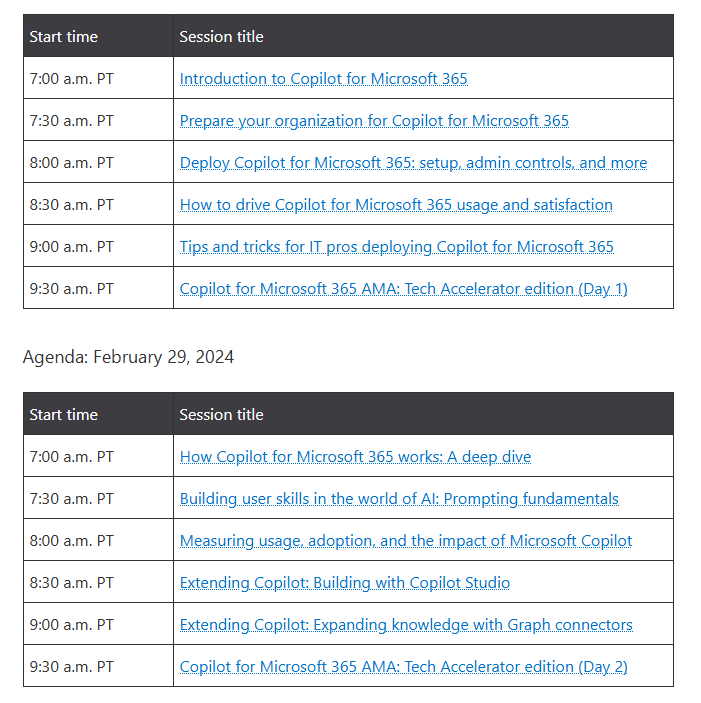
Over the two days, the speakers will dive into Copilot for Microsoft 365, its requirements, deployment information, and other tips that might benefit organizations and users alike.
You can find the detailed schedule on the official announcement page if you’re interested.
There will be Q&A sessions with experts, so users can post their questions in advance or during the event.
To participate in the event, head to the announcement page and click on Add to calendar. After that, you just need to sign in to the Tech Community and RSVP to receive reminders regarding the event.
Windows 11 comes with a handful of themes, so when you change to the Windows Spotlight theme, it will be accompanied by a learn about this picture desktop icon.
The learn about this picture icon on your desktop is not by mistake. It provides additional information about the theme you’ve just downloaded and also gives you a chance to rate it.
Most users prefer the Windows Spotlight theme because of the dynamic wallpapers it provides. However if Windows Spotlight is not working or you just don’t want the learn about this picture icon, you can remove it.
How do I remove the Windows 11 learn about this picture icon?
1. Disable the Windows Spotlight theme
Click on the Search button, type in Settings, and click on the most relevant result.
Select Personalisation from the left panel, and then click on the Lock screen on the right.
Next, choose Picture from the Personalize your lock screenmenu.
Note that by disabling the Spotlight theme, you won’t be able to access the wide variety of sceneries that come with it.
Navigate to your browser and open the Github page.
Click on the latest available ExplorerPatcher app version under Releases on the right side.
Scroll down and click on the EXE file.
Download the ExplorerPatcher tool.
Next, run the setup file. If you can’t start the installation, click on More info.
After that, choose Run anyway.
Once the installation is finished, right-click the Taskbar and choose Properties.
Click on Spotlight on the left pane then select Hide the “Learn about this picture” icon option on the right.
ExplorerPatcher comes in handy at hiding this icon since you cannot delete it from your desktop via right-click>Delete. Aside from hiding desktop icons, there’s so much more you can do with ExplorerPatcher so feel free to explore all the possibilities.
Have you been able to get rid of the learn about this picture icon on your Windows11? Let us know which solution you found easy to use in the comment section below.
Microsoft is planning to advertise Copilot during the Super Bowl weekend. The 60-second ad, titled Watch Me, was released on YouTube. It highlights how Microsoft’s AI-powered Copilot will break all boundaries and help us achieve what was previously considered out of the question.
In the official Microsoft blog, Yusuf Mehdi, Executive Vice President and Consumer Chief Marketing Officer, announced the launch of the Super Bowl ad.
While the ad is a brilliant piece of work, there’s a lot more we can’t miss. To celebrate Copilot’s first-year anniversary, Microsoft is introducing better image creation capabilities in Copilot and will roll out more features for Copilot Pro subscribers.
But what caught our attention was the fact Microsoft is shifting its attention from Bing Chat to Copilot.
Is Copilot getting more focus than Bing?
Released just a year ago, Bing Chat, Microsoft’s first foray into AI, seems to have taken a backseat. It’s now more focused on Copilot.
With a dedicated app for Android and iOS devices, integration in the Windows taskbar, and deployment in several Microsoft apps, Copilot is practically everywhere.
It appears Bing Chat didn’t deliver on expectations. Though Bing’s user base has increased, it’s still far behind Google, which has a 91.47% market share. Bing, on the other hand, stands at 3.42%, as per the Statscounter search engine worldwide market share.
However, Microsoft hasn’t lost all hope. In an interview with The Verge, Mehdi says, “We’ve seen Bing’s share grow. Even a few points of share growth is significant for Microsoft and for customers to bring more competition.“
From Feb’23 to Feb’24, Bing’s share increased from 2.81% to 3.42%.
At present, it looks like Microsoft Copilot is the way forward, and we could have more possible integrations and new features.
Do tell us what you think of the Copilot’s Super Bowl ad in the comments section.
According to Polygon, it seems that FTC is continuing its legal battle with Microsoft after layoffs to its gaming department. FTC lawyer, Imad Abyad stated the following:
This newly-revealed information contradicts Microsoft’s representations in this proceeding
The issue stems from that Microsoft stated during the previous court hearing that Microsoft and Activision Blizzard would remain largely independent.
According to Imad Abyad, Microsoft’s original intention was “to maintain the pre-merger status quo” meaning no need for layoffs.
Microsoft’s Phil Spencer characterized layoffs as “areas of overlap”, thus contradicting the previous statement made in court.
FTC is determined to undo this deal and while the chances of this coming to fruition are slim, FTC has done so in the past. No additional information is currently available, as we wait for an official decision from San Francisco’s Court of Appeals.
Yesterday, as spotted by Kotaku, GameStop posted a tweet highlighting the Xbox Demo Day event and mentioning Microsoft Game Pass instead of Xbox Game Pass.
Later on, they deleted the tweet, furthermore, fueling the speculations that Microsoft will soon kill the Xbox brand. It was clearly a mistake from their part.
However, by then, the post was retweeted by Wario64 and the hell broke loose with hundreds of comments about Microsoft’s alleged move.
The same Twitter user brought up an EA announcement where they used Microsoft Game Pass on March 1st 2023.
Other commenters suggested that Microsoft will only rebrand the Game Pass service, and it has nothing to do with a whole Xbox brand removal.
Now, in a recent XNC podcast, the Xbox insider, MAGG, talks about a new Xbox console. If you are watching the clip above at 1:31:00, he describes something about a dockable new console from Microsoft as a new Xbox console.
Here, we have a speculation that we haven’t seen before. What if the new console will not be branded as an Xbox but as a Surface device? Then, it’s only logical that the Game Pass service will stop being branded as Xbox, because it will also address the new console, right?
Anyway, right now, we don’t have solid proof that Microsoft is going to kill the Xbox brand. However, there are strong reasons to believe that Game Pass will not be branded under Xbox.
What do you think about the whole story? Write your thoughts in the comments section below.
Logitech announced that Logitech G products with LIGHTSYNC RGB are now compatible with Dynamic Lighting Hub on Windows 11, making it easy to sync with other products.
This could mean we can expect other functionalities, too, like notification-based lighting and app-specific lighting.
As of now, customizing RGB-enabled devices means requiring a certain app, and making changes is not always that easy. Microsoft is trying to sort out this mess using the Dynamic Lighting hub, allowing you to control and customize all RGB peripherals on a single screen.
Dynamic Lightning feature was first introduced in 2023, and it is available under the Personalization section on the Settings app. The feature allows you to adjust brightness, color, and other effects on RGB accessories.
You can also enable or disable the Foreground or Background app control, which allows you to extend effects or colors across all the Dynamic Lighting-compatible devices.
You can put it to use in various ways:
In gaming scenarios, the feature could extend on-screen colors to Logitech G RGB devices, thereby ensuring an enhanced gaming experience.
Creative apps can illuminate key combinations using this feature, helping you learn keyboard shortcuts.
Notifications from emails or messaging apps can use Dynamic Lighting, providing visual indicators for incoming messages and alerts.
Foreground app control is related to the app you are using actively, but Background apps provide enhanced customization and unique effects, thereby getting prioritized over other Dynamic Lighting processes.
Dynamic Lighting hub is a big step towards sorting and making customization of RGB peripherals easy, but as of now, only a few of them are compatible with it:
Company
Device Type
Device Name
MSI
Laptop
MSI CreatorPro Z16 & MSI CreatorPro Z17
Razer
Keyboard
Razer Basilisk V3 Pro, Razer Cobra Pro, Razer Huntsman Tournament Edition, Razer BlackWidow V3, Razer Huntsman Mini Analog, Razer Huntsman V3 Pro Mini, Razer Turret Keyboard Xbox One Edition, Razer Huntsman V3 Pro and Razer Huntsman V3 Pro Tenkeyless
Logitech
Keyboard
All Logitech G Lightsync RGB devices
Microsoft
Mouse
Microsoft Pro IntelliMouse
ASUS
Mouse
ASUS ROG Harpe Ace AimLab Edition Gaming Mouse
Razer
Mouse
Razer Turret Mouse Xbox One
ASUS
Keyboard
ASUS ROG Scope II Wireless 96 Gaming Keyboard
As per the Microsoft website, others like SteelSeries, Acer, and Twinkly will soon join the team.
The broad adoption of Dynamic Lighting is not expected until the last quarter of 2024 or the first quarter of 2025.
So, when more companies come on board with this feature, it will be the best option to get a streamlined and immersive experience when using RGB devices.
What do you think? Share your thoughts in the comments section below.
That’s not all, it seems that the company is determined to incorporate Microsoft 365 Copilot with its workforce as well.
Microsoft is pushing its workforce to switch to Copilot
According to the Business Insider, Microsoft is determined to get more developers to use the AI and there’s a leaked message stating so.
The message comes from former Azure boss Jason Zander, saying that the company has been running tests to increase AI usage within its development team.
The message also states that Microsoft is planning a broad release of Microsoft 365 to its team for the first time.
The company also held a hackathon with the goal of bringing employers up to speed on AI deployment. This is going better than expected, and it seems that Microsoft is almost done with rolling out Microsoft 365 to its workforce, according to spokesperson Frank Shaw.
While this move comes as no surprise, we’re still waiting to see how well will Microsoft 365 be received by regular users. There are concerns because Microsoft 365 add-ons are rather expensive and many aren’t ready for additional costs.
The Super Bowl weekend is around the corner, and Microsoft just launched their Super Bowl ad, so it’s the best time to include themed suggestions in the new Copilot rehaul for mobile devices and the web.
That’s why the new Copilot design now has a carousel showing prompts that, in time, will be populated with topics and actions that interest you.
The new redesign comes exactly one year after the Bing Chat launch, marking 5 billion chats with the AI chatbot and 5 billion generated images.
What’s new on the Copilot for mobile and web?
Now, you can customize the generated images right in the Copilot app. You can highlight an object, enhance colors, blur the background, or change the image by applying effects such as pixel art.
Another remarkable addition is enabling GPT-4 and a cooler and sleeker design. It also recommends upgrading to Copilot Pro inside the main menu.
Microsoft also announced in their blog post that they will soon include Designer GPT inside Copilot, an excellent tool for website design.
It’s worth mentioning that Copilot is completely free and except for the iOS or Android apps, it also works on the most popular browsers like Edge, Chrome, Firefox and Safari.
Microsoft started testing an app called PC Manager in 2022, and you could download it from the Microsoft PC Manager official website to free up RAM, delete unwanted files, and block malicious apps using Windows Defender.
After almost 18 months of testing, it is out of Beta and is available in the Microsoft Store on Windows 11 & 10, including x64 and ARM architectures.
The PC Manager app aims to address common pain points of users, including low storage, low memory, system lag, pop-up ads, and malicious system tampering.
The product description on the Microsoft Store says:
Microsoft PC Manager is an officially launched desktop security tool aimed at global users. It integrates Windows antivirus engine, comprehensively building a computer protection system. Microsoft PC Manager adheres to the four product concepts of simplicity, fluency, close to native, efficient and secure, and pure without disturbance. Based on user pain points, it provides a one-stop computer problem-solving solution, addressing issues such as malicious system tampering, insufficient computer space, system lag, and excessive pop-up ads, creating a native Windows system experience for users.
The app was initially customized for the Chinese market but is now available worldwide. However, as of now, it is only available in English and Chinese. Let’s see what this app has to offer:
Smart Boost – Automatically boosts your PC when RAM usage is too high or temp files are more than 1 GB
Health Check – Scans to look & clean temp files, browser & Windows cache, system logs, and recent file list.
Process management – Similar to Task Manager, it lists running processes and allows you to end them to boost up system speed.
Deep cleanup – If Health Check can’t resolve your issue, scans your PC for problems using this feature to find more problems
Startup apps – Just like the Task Manager and Startup option in Settings, you can manage the status of your login items using this feature.
System protection – This one has Virus & threat protection, Windows update, Default browser settings, Windows Update, Taskbar repair, Restore default apps, and Pop-up management.
Storage Management – You can also start the Deep cleanup scan from here. Along with it, you can manage large files and use the Storage sense feature, which is already available in Settings.
App management – Another entry point for Startup apps and Process management. The Manage apps option takes you to Settings, and the Microsoft Store option opens the App Store.
Toolbox – This has a lot of options; you can take screenshots, record audio, get captions, open Notepad & Calculator, and it also has a few web tools.
While examining the features of the app, we realized even though it is a simple app to help novice users get around common Windows problems, it is quite overwhelming.
In each category, it encompasses, Microsoft PC Manager introduces new functions, which is intriguing and makes us question its specific focus, system protection, system optimization, or utility tool.
Also, another thing that we found weird was the fact that the app helps you manage pop-ups, while Microsoft itself is being accused due to its regressive approach of pushing pop-ups to promote its products and services.
If you are willing to give the app a try but it doesn’t install, it could be due to outdated Windows, drivers, or low storage space; read this guide to learn more.
Would you download the PC Manager app on your PC? Share your thoughts in the comments section below.
Microsoft and Samsung have come together to offer Galaxy S24 users 100GB OneDrive storage. It also includes an ad-free, secure Outlook web, access to Word, Excel, and PowerPoint, along with dedicated customer support.
This is a 6-month free trial of Microsoft 365 Basic, a plan that otherwise costs $1.99/month or $19.99/year.
To redeem the offer, you will need to connect your Microsoft and Samsung accounts, sync your gallery with the OneDrive app, and then avail the promo in OneDrive. Remember, your device should support OneDrive-Gallery Sync.
The promotion is available from March 15, 2024, to June 30, 2024.
Image source: Samsung
However, users on the Verizon network in the U.S. and existing Microsoft 365 and OneDrive subscribers (or previous users of paid plans) are not eligible for the promotion.
After the free trial, it will automatically convert into a paid Microsoft 365 Basic monthly subscription. But you have the option to cancel anytime, even during the free trial.
So, no more storage hassles for you, at least for the next six months, if you grab the Samsung Galaxy-Microsoft 365 promotion today!
Get your photos on OneDrive and access them on all devices. For more details, visit the official promotion page.