Digital pre-orders open for Final Fantasy VII, X, X-2, and XII on Xbox One

The digital pre-orders for the Xbox One releases of Final Fantasy VII, Final Fantasy X/X-2 HD Remaster, and Final Fantasy XII The Zodiac Age are now all live within the Microsoft Store and the Store section on the Xbox One dashboard.

Final Fantasy VII will be the first of the three to release on the Xbox One and will launch on March 26th for $15.99. Unlike the other two games, this release is a direct port of the original Final Fantasy game and only comes with three improvements; 3x speed mode, the ability to turn battle encounters off, and a battle enhancement mode.

Final Fantasy X/X-2 HD Remaster, as its title suggests, is a two-in-one package containing HD remasters of Final Fantasy X and its sequel Final Fantasy X-2. It’s due for release on the Xbox One on April 16th and will retail for $49.99. Both games feature HD remastered game assets and cutscenes in addition to a newly-created modern audio option.

Final Fantasy XII The Zodiac Age will come out on Xbox One on April 30th and is also priced at $49.99. In addition to the HD remastering, this version of Final Fantasy XII contains a variety of added content that was unavailable in the original release.

Are you a Final Fantasy fan? Let us know which one’s your favorite and if you’ll be buying any of these re-releases in the comments below and then follow us on Pinterest for more Xbox gaming content.

FINAL FANTASY VII
FINAL FANTASY VII
Developer:
SQUARE ENIX
Price:
$15.99


FINAL FANTASY X/X-2 HD Remaster
Developer:
Square Enix
Price:
$49.99


FINAL FANTASY XII THE ZODIAC AGE

Microsoft Forms Pro lands this Spring: Here’s what’s new

Good news, folks! Microsoft Forms is all set to get a Pro version very soon. According to Microsoft, the Microsoft Forms Pro will be available to Windows Insiders this Spring.

The tool offers complete integration with Office 365, Dynamics 365, and Microsoft Power Platform. The feature is expected to be released as a part of the existing Forms service.

Notably, the tool can be used to create content in minutes that is definitely going to be helpful for Educators and Professionals. Companies and enterprises will be able to use Microsoft Forms Pro to analyze the results in real time. 

A Glimpse Of Microsoft Forms Pro

The organizations can use the surveys, quizzes, and polls for collecting feedback across customer touchpoints by using this enterprise survey tool. The organizations will be able to promote an engaging, collaborative work environment by measuring employee satisfaction and sentiments.

Both of these features are measured during the entire process onboarding to exit. Furthermore, companies can embed feedback requests for the identification of product enhancements and features. 

The tool also provides deep insights that are deduced from the collected data. Microsoft Forms Pro allows users to correlate business transactions with provided feedback.

Microsoft describes the tools as:

Capture and analyze feedback to improve how you engage across your business with this simple, yet comprehensive survey solution.

Microsoft Forms Pro currently offers the following features:

  • Easy to set up and configure
  • Trigger surveys around specific events
  • Collect feedback across channels
  • Embed surveys across apps, web, and mobile
  • Identify sentiments automatically
  • Analyze feedback for impactful insights

For now, the tech giant has just provided a glimpse of the product so that the users can have an idea about its features. The rollout of the feature is expected to bring it in direct competition to Google Forms.

An online leak has already provided a roadmap for Microsoft Forms in this respect last year. You can expect Microsoft Forms Pro to have the folder support, progress base, a mobile version of forms, as well as an insert ability.

There are more changes coming, and you can elevate your forms as Microsoft’s integration of Excel files redefines possibilities.

Well, all those Google Forms users Out there? Are you excited for a brand new tool? Looks like the tool is going to offers what Google Forms failed to provide you with so far.

Microsoft’s working on a new OS for dual-screen devices

Recent reports provide an indication that Microsoft is potentially working on a new version of Windows Shell that is expected to be running on top of Windows Core OS. Moreover, dual-screen devices hardware and software devices are currently under development.  We can expect a new product category to be released later his year.

Microsoft plans to offer tough competition to Google’s Chromebook launched for the educational sector. The tech giant is reportedly working on an upcoming version of Windows that has been aimed to target low-end affordable devices and dual-screen laptops. 

All these efforts are being done in order to enhance the modularity of the Windows operating system.

There’s a new project in the pipeline

Rumours suggest that Microsoft has been working on a couple of breakthrough projects right now. The first one is  ‘Andromeda‘ (a dual-screen mobile device), a larger dual-screen device that is reportedly codenamed ‘Centaurus’.

Centaurus is expected to come with two large displays. Microsoft has not shared any details regarding the development of Centaurus but it is expected to hit the store in April 2019.

Moreover,  the company is also working to make Windows more modular with the development of the Windows Core Operating System (Windows Core OS/WCOS).

Code names everywhere

Each form-factors will be comprised in different shells in Windows Core OS. For example, AndromedaOS is the first one, the second one is Surface Hub 2 Shell codenamed  ‘Aruba’ and finally, Oasis is the codename for Holographic Shell for HoloLens 2.

Furthermore, Microsoft plans to bring significant changes with the introduction of a simplified version of Windows named as ‘Windows Lite‘ or simply ‘Lite’.

According to Mary Jo Foley, a combination of Lite’s Shell and Windows Core OS might be codenamed as Santorini. The report further stated that Santorini is expected to be the Lite shell and run on dual-screen devices.

We can expect the things to be simpler with the release of respective devices as all those codenames are intended for internal development. 

The report also suggests that Microsoft plans to ensure that Santorini still supports Win32 apps. The platform will be able to run those apps in containers for safety reasons. While these applications will be available to the users directly from any download site. The tech giant is still looking for ways to make that happen. 

All these latest versions of windows that are currently under development aim to target separate markets. While it remains to be seen that when they are going to be launched for the users as the implementation has already been delayed various times.

Comments down below do you think that all those implementations are really going to make any difference?

 RELATED ARTICLES YOU NEED TO CHECK OUT:

Microsoft combines DirectX and PowerShell to prep for native Xbox gameplay on a PC

A handful of Windows observers and journalist such as Brad Sams, Rafael Rivera and NazmusLabs on Twitter seems to have unearthed some rather incredible news for the gaming community.

In a recent post, Sams walks through what Microsoft’s latest DirectX update means for the company’s gaming future, and it appears the company is prepping a full migration of the Xbox One installation into Windows via Windows 10’s new PowerShell enhancements.

What that boils down to is a more native Xbox One gaming experience from a PC.

Through Microsoft’s recent limited State of Decay 2 testing for Windows 10 Insiders on builds 18334 and later, we get a glimpse at how the company plans to bring native Xbox gaming to PCs.

When you download State of Decay, the oddities begin immediately. Instead of downloading from the Microsoft Store server, serverdl.microsoft.com, where all content comes from including PlayAnywhere titles, the game downloads from assets1.xboxlive.com.

What it looks like Microsoft is doing, instead of porting each Xbox feature back to the PC one by one, they are simply dumping the entire Xbox one installation/servicing plumbing and making it the primary installation for Windows.

When you install State of Decay, you get a legacy DX installation setup prompt that does a classic, non-sandboxed, and non-store based installation of DirectX dependencies to your system directory. 

In conjunction with the recent appearance of the Gaming Service App, there is mounting evidence that Microsoft is fairly deep in the weeds in its merging of Xbox and Windows platforms into a single binary for game developers to target.

Streamlining the delivery mechanisms for games on PCs and consoles appears to be a large part of the company’s end game to bolster its gaming audience. Arguably, Microsoft has lost this generations console war, but if the company maneuvers its recent consumer-focused pivot successfully, it could render Sony’s current hardware win a pyrrhic victory.

With this much groundwork already laid, it’ll be interesting to see what Microsoft shows off during this year’s E3 convention as the company has the stage alone to further cultivate its combined PC and console gaming narrative.

Download Comfort Clipboard Pro for Windows

Saving, organizing, and accessing files or text within your clipboard is an important thing in a lot of different workflows. Professional users know that quite well.

Clipboard managers come in various measures and with a variety of features but it’s hard to find a reliable and feature-rich tool like Comfort Clipboard Pro.

This premium Clipboard Manager is what you’re looking for in case you need a tool which does it all.

Besides the standard clipboard-management traits, Comfort Clipboard Pro comes with an advanced and reliable clipboard history section.

There’s a dozen different information about the content you’ve copied, including the detailed preview area, source applications and much more.

In addition, you can edit everything you’ve copied, be that an image or text, with annotations and drag-and-drop fragment transfer.

If we add the autosave feature which prevents losing clipboard content in case of a sudden shutdown, we have a full package at your disposal.

You have a trial period to try it out and if you deem it irreplaceable (which we’re sure you’ll do), purchasing it is the next obvious step.

Best clipboarding tool
download comfort clipboard free
  • Keeps clipboard history
  • Supports all clipboard formats (text, link, image)
  • Paste multiple elements at once

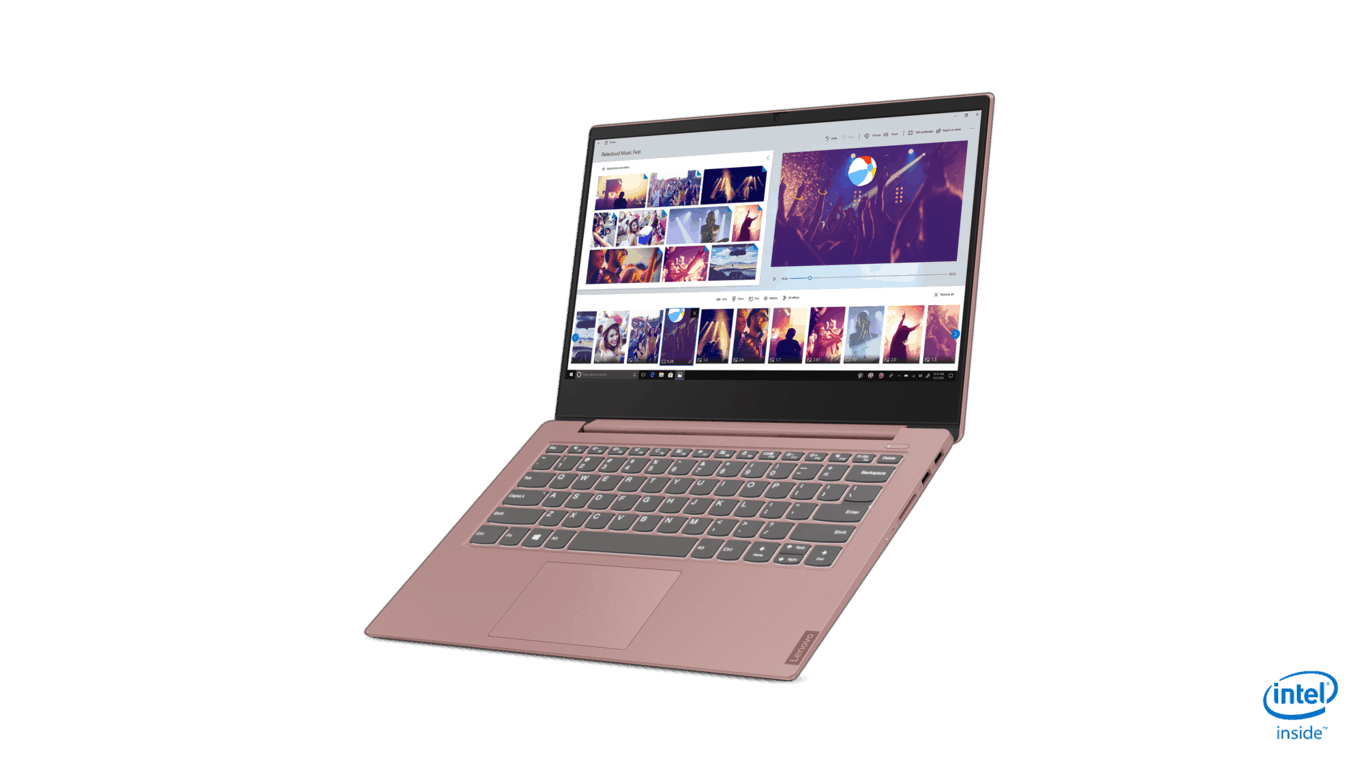
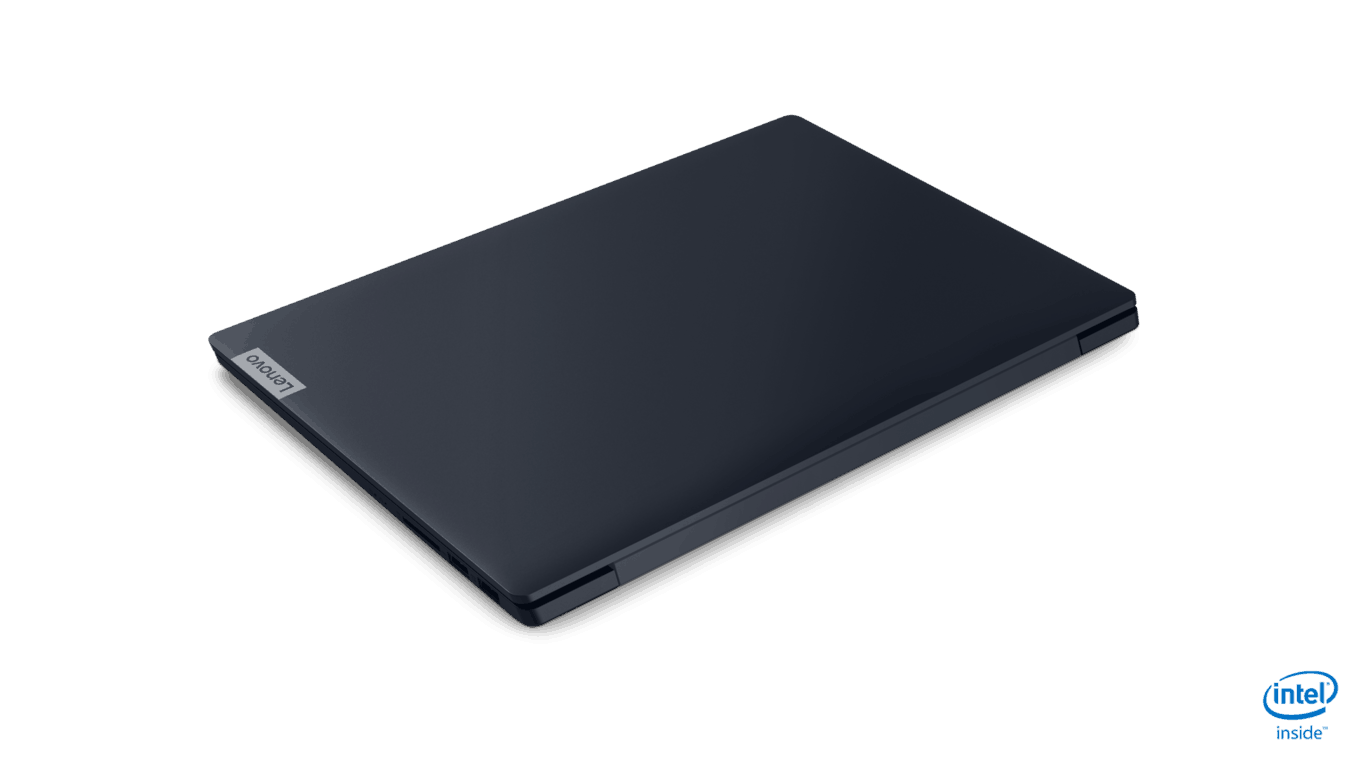
Super cheap Lenovo IdeaPad S340 laptops debut at MWC 19

Thin and budgeted seem to be an ongoing mantra in Lenovo’s laptop designs as of late.

The Lenovo IdeaPad S340 is coming in at $369.99 for the cheapest offering and at $449.99 for a slightly beefed up version and in under 3.7lbs for the average computing user.

Here are the details Lenovo has offered on the S340 thus far:

  • Upgraded Intel & AMD processors & graphics
  • Up to FHD IPS Touch Display
  • New 3 side narrow bezel >20% thinner than predecessor
  • New TrueBlock privacy shutter for webcam
  • Up to NVIDIA GeForce MX250 or Integrated graphics
  • Chassis Materials: Carbon fiber (CFRP) with an aluminum finish on the cover and soft touch deck
  • Dolby Audio Premium (2 x 2W Speakers)
  • 2 x USB 3.0 (one supports charging), 1 x USB-C, HDMI™, DC Jack (round), 4-in-1 SD Card Reader, Combo Audio Jack
  • Optional Backlit keyboard
  • All day battery life (10 Hour)  with New RapidCharge technology that gives you 80 percent capacity in 1 hour
  • Windows 10 Home Operating System
  • Up to 12GB DDR RAM
  • Up to 2TB HDD SATA storage

Customers will be able to choose between Onyx Black, Abyss Blue, Sand Pink, and Platinum Grey, starting in March for participating EMEA markets and in April for the US.

Microsoft is bringing Xbox Game Pass and app to Nintendo Switch

Recent rumors suggest that both Nintendo and Microsoft are allegedly teaming up to work together on a very exciting project. The details regarding partnership should be unveiled later this year.

The rumour came out from Direct-Feed Games, that has a strong track record as far as the reliability of rumors is concerned. 

Direct-Feed Games leaked some of the details regarding Microsoft’s plans to push more users to the Switch. Moreover, a dedicated Xbox App would be released on the Nintendo Switch. 

Microsoft also plans to support Project xCloud and offer access to its Game Pass subscription service. The service will allow the gamers to play those games that are currently unavailable on the Switch.

The Switch would be able to use streaming technology to run more powerful games. It will allow users to play their favorite games on various devices they have with them.

The tech giant also plans to start working on numerous titles that would be published directly on the Switch under its own banner. These games are expected to be native to the platform to achieve better results. Microsoft also aims to expand its service by collaborating with Sony for cross-play on the PlayStation 4. 

It is definitely going to be a major step that would act as a game changer for Microsoft. Most of the popular third-party games are currently not available on the switch, so the Game Pass will boost up the existing collection.

Microsoft can end up with an increase in its revenue through its extended subscription service.  It is difficult to enjoy the delightful gaming experience that is associated with each game for those with a tight budget. It is definitely going to be a perfect solution for gamers.

It seems like Microsoft has some big plans for a great year ahead. Keeping in mind the fact that it is concentrating more on the streaming and service business, we can expect that the company might slowly limit its console market.

Only time will tell that to what extent the speculations will be turned into a reality. If the rumors are correct, we can expect an official announcement from Microsoft during Game Developers Conference or E3.

All those PS fans out there? Are you excited to play games on Nintendo Switch? 

RELATED STORIES TO CHECK OUT:

The Lenovo IdeaPad S540 is an afforable ‘everyman’ PC

The benefit and the pain of the Windows-partner ecosystem is the level of variety and price points offered to customers. Overchoice or the Paradox of Choice can be a real anxiety trigger for Windows users looking for their next device, but fortunately, the homogony of quality specs used by device makers might help ease the pressure of finding that perfect laptop.

Enter the Lenovo IdeaPad S540 14″ & 15″

For a starting price of $729.99 customers get the following:

  • Up to 8th Gen Intel Core i7 and AMD Ryzen 7 3700U processors
  • NVIDIA GeForce GTX 1050/ GeForce MX250/ Intel Integrated graphics/ AMD Radeon RX Vega graphics
  • Privacy Shutter for webcam
  • 25% slimmer screen bezels
  • Dolby Audio speakers
  • Dual-action cooling fans
  • All-day battery life (12 hours) with Rapid Charge technology. 80% battery charge in as little as 60 mins.
  • Windows 10 Home operating system
  • 14″ FHD or 15″ FHD Anti-Glare 30o-nits display
  • Up to 12GB DDR RAM
  • Up to 1TB SSD Storage
  • 1 x USB-C (USB 3.1 Gen 1), 2 x USB 3.0 (One Always-On), HDMI™ 2.0b, Audio Combo Jack, SD Card Reader, Fingerprint Reader
  • Starting at 3.3lbs (1.5 kg)

The Lenovo IdeaPad S540 will be available in Abyss Blue, Copper, and Mineral Grey, sometime in April for US customers and March for some participating EMEA regions.

Microsoft To-Do now supports multiple accounts on Windows 10, option to show Flagged Items from Outlook coming soon

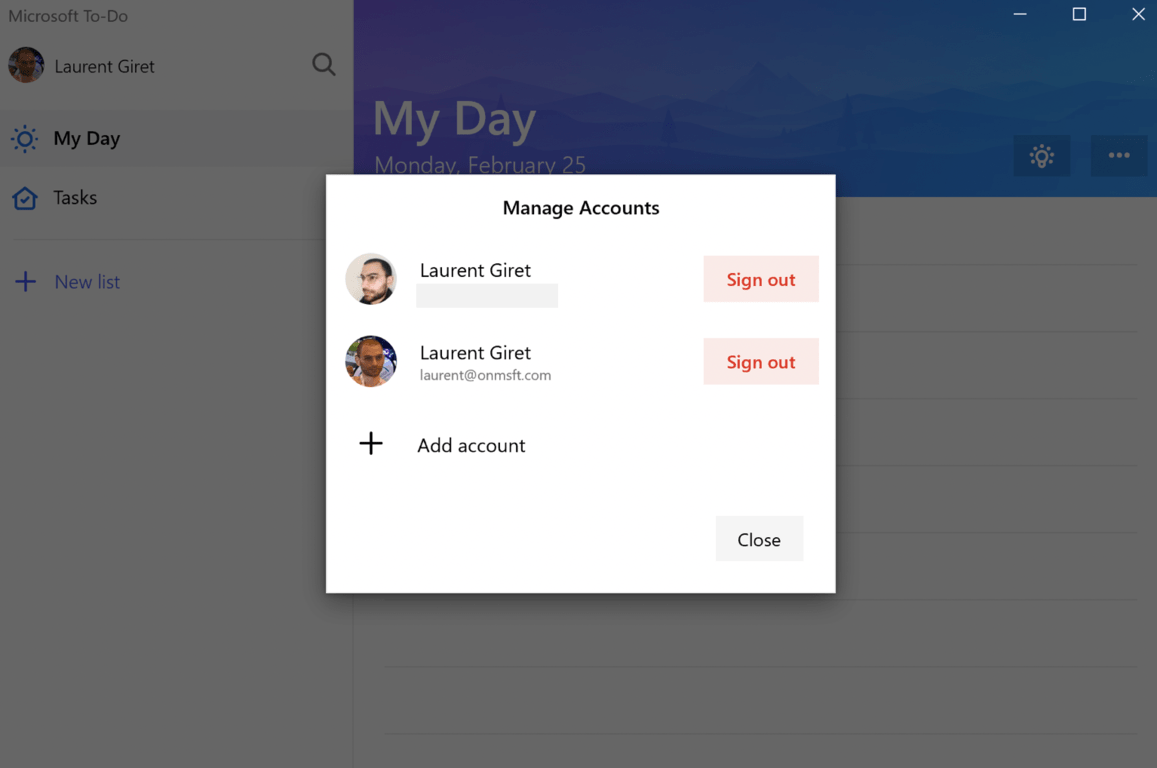
The Microsoft To-Do Android app gained support for multiple accounts a couple of weeks ago, and the same feature is now available on the Windows 10 app. After installing the new version 1.51, you’ll be able to add multiple personal Microsoft accounts in Settings, as well as your Office 365 work or school account.

The Windows 10 app lets you easily switch between accounts by clicking on your profile picture on the top left corner of the app. Unfortunately, it’s not possible yet to have one combined view that brings together all of your lists across different accounts, but the Microsoft To-Do team is open to feedback and this may eventually come in the future.

Microsoft has been iterating fast on its new task manager app, and many new features are in the pipeline, such as flagged email integration. Briging flagged emails as tasks is currently one of the top requested features on the Microsoft To-Do uservoice website, and the team confirmed yesterday that it’s “on the way.”

Updated February 26: We initially wrote that Microsoft had just opened up testing for flagged email support, but this was inacurrate. “Like our other new features, we will ship it to Insiders first,” the Microsoft Team said to us. We apologize for the error.

Lenovo showcases new Intel and AMD Ideapad models at MWC 19

While a laptop may not be the first thing to surface to the top of your mind when thinking about Mobile World Congress, the form factor is still mobile, of sorts.

Seeing an opportunity to squeeze in some awareness of its more mobile computing platform, Lenovo shuttled in the unveiling of its next line of Ideapads that include 14″ and 15″ inch versions, as well as Intel and AMD, powered devices.

Here is what we know so far:

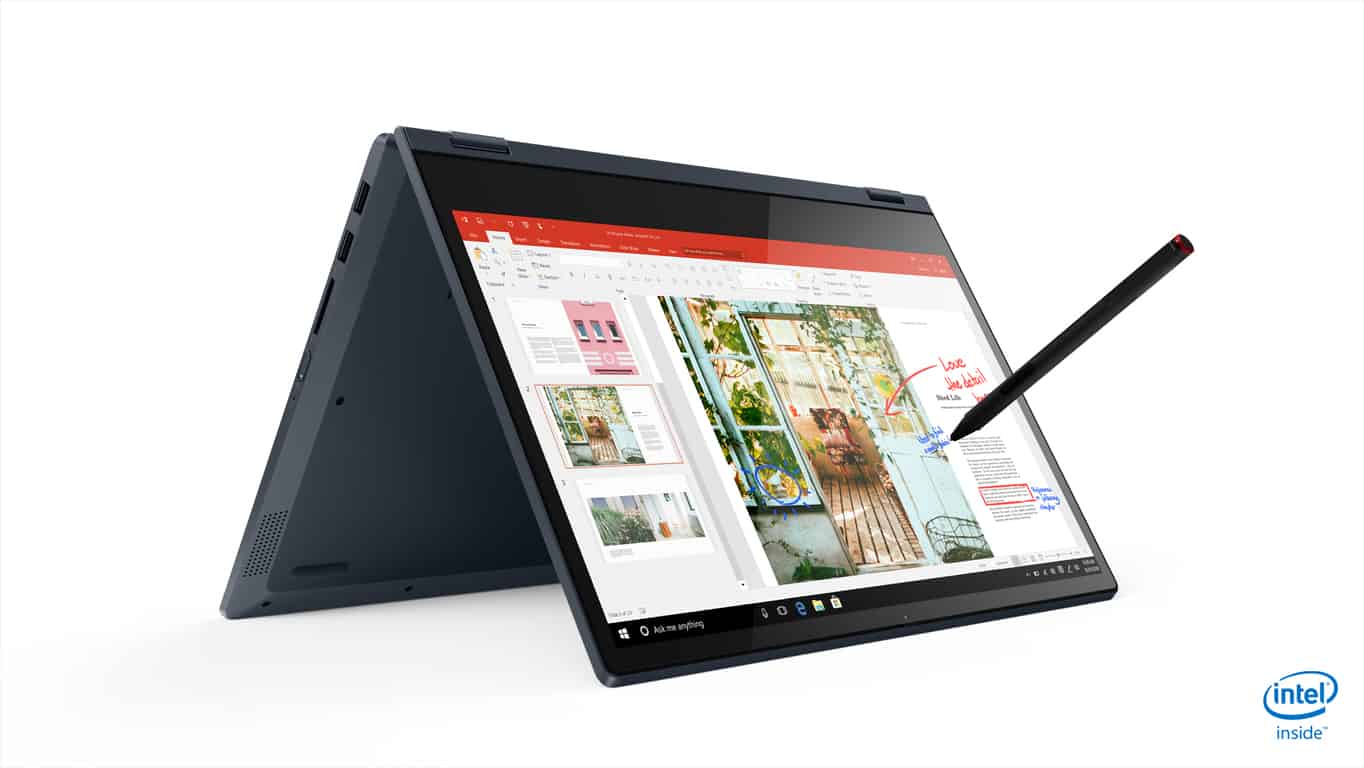
Lenovo IdeaPad C340 14″ & 15″

While the IdeaPad C-models are quickly becoming synonymous with Lenovo’s Chromebook ambitions, the C340’s are Windows 10 Home offerings.

  • 8th Gen Intel Core & AMD Ryzen 7 Processor options
  • NVIDIA GeForce and AMD Radeon RX graphics options
  • 8-hour battery life with Rapid Charge technology for an 80% charge in 60 mins
  • Privacy Shutter over the webcam
  • 2x USB 3.1/ 1 Type-A/ 1 x USB Type C/ HDMI port/ 3.5mm headphone & Mic combo jack/ Card Reader
  • Glass Fiber lid
  • Reduced screen bezel
  • Screen options ranging from 14″ FHD & 220 nits to 15″ FHD & 250 nits
  • Backlit Keyboard and Fingerprint reader options
  • Storage options ranging from 128 PCIe SSD to 1TB SATA/PCIe SSD
  • Memory options ranging from 4GB DDR to 16GB
  • Starting at 3.64lbs

The IdeaPad C340 will be offered in Abyss Blue, Platinum Grey, and Onyx Black with a starting price if $499.00 and availability sometime in April in the US, but as early as March for participating EMEA regions.

Telefónica and Microsoft announce expanded partnership at MWC

Today, Microsoft and Telefónica, one of the largest telecommunications company in the world, announced a strategic partnership at MWC 2019 in Barcelona, Spain. The partnership with Microsoft will help Telefónica improve customer experiences and integrate the use of intelligent technologies. Microsoft’s CEO, Satya Nadella noted that the partnership will improve Telefónica’s networks reach to more locations throughout the world.

“Telefónica has been a leader in using AI to transform customer engagement, and the strategic partnership we announced today builds on this history of innovation. Together, we will apply the power of Azure and Azure AI to create new, innovative experiences for millions of Telefónica customers around the world and shape the future of Telefónica’s network.”

José María Álvarez-Pallete, chairman and CEO of Telefónica, added that the new partnership will help its company improve its technology with the help of Microsoft AI.

“Telefónica is applying cutting-edge technology to its ongoing transformation, pioneering virtualization and software to develop smart, liquid networks ready to be powered by AI. Specifically, we are already using AI to enhance our customer relationships and are really excited to work with Microsoft to further harness the power of Azure AI. This agreement strengthens our relationship and our common belief that AI technology and the use of data should be based on solid ethical principles and empower people to control their digital lives.”

Telefonica and Microsoft will employ an intellectual property model based on Microsoft’s Shared Innovation Initiative. By using Microsoft’s initiative, Telefónica will be able to protect the co-creation of technology and intellectual property with Microsoft. Microsoft will be able to help Telefónica improve its customer engagement and business processes by expanding the use of Azure Cognitive Services for customer engagement and business processes, create new AI-powered, in-home experiences for customer engagement, and help transform Telefónica’s network by using AI, blockchain, 5G, and edge computing to expand and protect Telefónica’s telecommunications network.

Microsoft’s Spatial Anchor is a cloud AR platform that supports ARKit and ARCore

As part of Microsoft’s extensible push into more open development, the company introduced its new cloud AR platform dubbed Spatial Anchor.

Spatial Anchor is being billed as a cloud-powered spatial awareness apparatus for its latest HoloLens AR headset release. During the unveiling of HoloLens 2 at Mobile World Congress in Barcelona, Microsoft covered a ton of new initiatives designed to support HoloLens development and buried among the pile of news was Microsoft’s effort to create cloud-based spatial recognition system that would not be persistent marker of augmented elements at all times, but in bigger news, the company is looking to support competition AR efforts from ARCore and ARKit.

According to Microsoft’s Mixed Reality documentation, “a spatial anchor represents an important point in the world that the system should keep track of over time.”

Each anchor has a coordinate system that adjusts as needed, relative to other anchors or frames of reference, in order to ensure that anchored holograms stay precisely in place. Rendering a hologram in an anchor’s coordinate system gives you the most accurate positioning for that hologram at any given time. This comes at the cost of small adjustments over time to the hologram’s position, as the system continually moves it back into place relative to the real world.

https://twitter.com/albtaiuti/status/1099729384213229570?s=20

As part of Microsoft’s Mixed Reality documentation, we get some insights into how Microsoft Azure Spatial Anchors will work and implemented.

You can also persist and share spatial anchors across app sessions and across devices:

  • By saving local spatial anchors to disk and loading them back later, your app can reason about the same location in the real world across multiple app sessions on a single HoloLens device.
  • By using Azure Spatial Anchors to create a cloud anchor, your app can share a spatial anchor across multiple HoloLens, iOS, and Android devices. By having each device render a hologram using the same spatial anchor, all users will see the hologram appear at the same place in the real world. This allows for real-time shared experiences.
  • You can also use Azure Spatial Anchors for asynchronous hologram persistence across HoloLens, iOS, and Android devices. By sharing a durable cloud spatial anchor, multiple devices can observe the same persisted hologram over time, even if those devices are not present together at the same time.

Despite its relatively new public awareness, Microsoft has amassed several details and best practices for implementing spatial in its Mixed Reality documentation here.

With Microsoft’s focus and market share in enterprise development, it may behoove companies such as Apple and Google to adopt Microsoft Spatial Anchors as a quick way to access that crowd for its own augmented reality efforts.

Here are the main specs for Microsoft’s HoloLens 2 headset, Azure Kinect

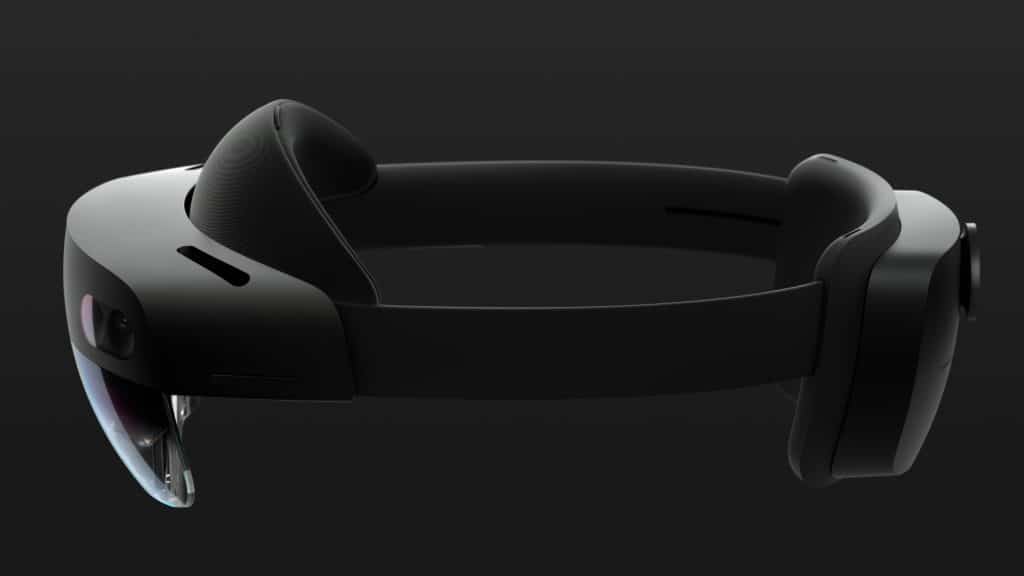
Microsoft’s Alex Kipman unveiled the company’s new HoloLens 2 headset today at Mobile World Congress, and the new device is a significant improvement over the original version. The new device has a HoloLens 2 has a new depth sensor that more than doubles the field of view, and it also comes with fullly articulated hand tracking as well as eye tracking. Microsoft also more than tripled the comfort of the device by adjusting the center of gravity so the device should be literally “float on your head.”

Kipman didn’t go into details about the specs of the HoloLens 2 during the press conference, but the full specs have been published on this page. As expected, the new headset comes with a Qualcomm Snapdragon 850 SoC, but Microsoft only promises 2-3 hours of active use, which isn’t really much. In addition to the new ARM chip, HoloLens 2 features a 2nd Generation Custom-built Holographic Processing Unit, 2k 3:2 screens, a new Azure Kinect sensor, various sensors (Accelerometer, Gyroscope, Magnetometer) and cameras that can shoot 8MP stills and 1080p30 video.

On the connectivity front, HoloLens 2 supports WiFi 802.11ac 2×2, Bluetooth 5.0, and the headset also comes with a USB Type-C that supports fast charging. Unfortunately, we don’t have more details about RAM and storage for now. Microsoft says that HoloLens 2 runs “Windows Holographic OS,” and we’ve seen various demos showing holograms that you can easily rotate and resize using touch gestures. Thanks to the new eye and hand tracking recognition technology, HoloLens 2 is now able to recognize you and the world around you, and there’s also support for voice commands by using natural Language with internet connectivity.

Microsoft also released a fact sheet for the Azure Kinect, another new device announced at MWC. This next-generation Kinect, a PC peripheral, features a 1MP Time-of-flight Depth Camera, a “12MP CMOS sensor rolling shutter” RGB camera, a 7 microphone circular array, and USB C.

We’re hoping to learn more about HoloLens 2 during our time at MWC 2019, so stay tuned to OnMSFT for more HoloLens news.

Windows 10 news recap: Microsoft Edge caught running Flash on Facebook without permission, Google Chrome adds Windows Mixed Reality, and more

Welcome back to our Windows 10 news recap, where we go over the top stories of the past week in the world of Microsoft’s flagship operating system.

Microsoft Edge runs flash on Facebook without your permission

Microsoft’s web browser, Microsoft Edge, has been found to be running Flash on Facebook and many other websites without requesting permission from the user, despite Flash not supposedly being able to run without permission, for privacy and security reasons.

Microsoft’s new Office app for Windows 10 is now available for all users

A new Office app has been launched in the Microsoft Store on Windows 10. It acts as a central hub to access all of your other Office apps, similar to office.com.

Google Chrome gets Windows Mixed Reality support, available now for Canary testers

Google Chrome is adding support for Windows Mixed Reality. Users of Google Chrome’s Canary builds can now make use of the newly-added support, This allows virtual reality within Google Chrome to be used with Windows Mixed Reality devices.

Microsoft’s Windows Timeline feature comes to Google’s Chrome browser

Microsoft has launched a new extension for Google Chrome. The extension, called Web Activities Chrome, adds support for Windows Timeline to Chrome, helping bring all of your Chrome browsing history to Windows Timeline.

Web Activities Google Chrome extension from Microsoft

That’s it for this week. We’ll be back next week with more Windows 10 news!

Obsidian Entertainment begins hiring for its first game since joining Xbox Game Studios

Back in November 2018, Microsoft announced that it had acquired RPG development studio Obsidian Entertainment and that it would be joining under the umbrella of what was once known as Microsoft Studios, now Xbox Game Studios.

We’re now 2 months into 2019 and it looks like Obsidian Entertainment is well on its way to working on its first title as part of Xbox Game Studios. According to a LinkedIn job listing, Obsidian is working on a new multi-platform RPG.

The job listing says:

Obsidian Entertainment is currently looking for an experienced Producer to join the development team making our next great multi-platform RPG.

If you are interested in the role, you can view the full job listing here.

2019 is looking to be a big year for the Xbox brand as a whole. We’re expecting information on the next console, new games from recently acquired studios, and of course, Microsoft recently rebranded Microsoft Studios to Xbox Game Studios, solidifying the brand further.

Microsoft’s MWC event kicks off at 9AM PST today, watch it here

Microsoft is coming back to Mobile World Congress in Barcelona this year, and the company’s press event will kick off today at 6:00 p.m. CET/9:00 a.m. PT. We’ll be attending the event and share the news as it happens, but we also to invite you to watch it all live below.

Microsoft CEO Satya Nadella, CVP of Azure Julia White and HoloLens inventor Alex Kipman have all made the trip to Barcelona for this first big Microsoft event of 2019. The company is expected to announce a new HoloLens headset featuring an ARM processor, an AI processor and a new depth sensor. The dedicated page for the event mentions “new innovations for the future of computing,” so Microsoft could well have other surprises for today.

Do you expect some mobile/PC news from Microsoft today, especially since MWC is mostly about smartphones and other mobile products? Sound off in the comments below.


Here’s how to fix high CPU usage by SQL server

When your SQL server skyrockets in regards to CPU usage, chances are you’ll be able to find out what’s happening rather simply. If the server restart isn’t an option at the time being, the steps below should help you easier determine what’s causing high CPU usage.

If you’re unable to find your way around on your own, consider contacting your server administrator.

How to reduce high CPU usage by SQL server

The second thing you need to do is examine the ring buffers to get the historical data. Since SQL stores all historical data, you can query for a report about the recent activity. This way, we can find out what’s causing enormous CPU spikes.

The next step is to determine which exact inside process is consuming data. Common reasons for high CPU activity on a SQL server are System tasks, Excessive Compilation/Recompilation of queries, or Query executing.

Now you’ll need to check all currently executing queries on your server. Once you’ve got the list of all available queries, it’s rather simple to determine which exact query execution is causing the error.

The best way to do all this is with the SQL Server 2005 Performance Dashboard Reports utility. It provides you with both numerical and graphical feedback.

Of course, it’s important to check other system services and determine that SQL perfmon is causing the problem. With that said, we can conclude this article.

If you’re unable to resolve the problem, consider posting on a variety of dedicated forums where professionals and tech-savvy users can help you.

RELATED STORIES YOU SHOULD CHECK OUT:

Download Windows 10 KB4491101 to fix OS stability issues

Microsoft just released cumulative update KB4491101 for those who are running Windows 10 V1507 (RTM version). The update is just restricted to the users of Windows 10 Enterprise LTSC, so you are eligible to receive the update if you have any other OS. 

At the same time, KB4491101 update bumps up the current Windows 10 build to 10240.18135.

What’s new in KB4491101?

We’ll list some of the major changes that have been offered in the recent update below.

1. IE Image Upload Bug Fix

The update has resolved an issue that was introduced by the previous builds, preventing Internet Explorer from loading images. The bug was spotted with images having a backslash () in their relative source path. 

2. Reliability Problem

A reliability issue in win32kfull.sys has also been addressed in KB4491101. The bug was initially spotted in KB4487026.

KB4491101 known issues

Microsoft has acknowledged two known issues that might be encountered by the users during the installation of KB4491101.

1. Date Parsing Issues

Users might face date parsing issue because the system might not recognise the first character of the Japanese era name as an abbreviation.

The tech giant has suggested a temporary workaround for the issue while a permanent fix is expected to be available in the upcoming release.

The two-character abbreviation for Japanese Eras should be used to modify the registry with the following keys. 

[HKEY_LOCAL_MACHINE\SYSTEM\CurrentControlSet\Control\Nls\Calendars\Japanese\Eras]
“1868 01 01″=”明治_明_Meiji_M”
“1912 07 30″=”大正_大_Taisho_T”
“1926 12 25″=”昭和_昭_Showa_S”
“1989 01 08″=”平成_平_Heisei_H”

2. Apps Randomly Stop Working

Those applications that are using Microsoft Jet database with the Microsoft Access 95 file format may experience a bug. Your apps can also fail to work in that case.

One of the easiest solutions suggested by Microsoft to resolve the issue is “Converting the database to a newer .mdb file format”. Notably, you should have the Microsoft Access 2007 runtime or Microsoft Access 2007 to resolve the bug.

First, the older file format database should be opened by using Microsoft Access 2007. Secondly, decline the conversion request by selecting No. Finally, navigate to Office Button >> Save as >> Access 2002-2003 Database.

Microsoft promises to provide a permanent fix to the solution in March 2019.

It would be interesting to know that both of these bugs have been fixed in the latest release. The Update is automatically available to the Windows 10 users’ latest SSU (KB4093430). 

You can manually download the update from the Microsoft Update Catalog. The latest Servicing Stack Update (SSU) should be installed on your system before you attempt to download the recent cumulative update. It will not only help you in mitigating potential issues during the installation process but also enhances update reliability.

RELATED ARTICLES:

4 solutions to fix HP Connection Manager fatal errors

KB4487011 and KB4487006 fix unresponsive app issues

What can I do if my Taskbar is not working on my Windows PC?

This version of Office has been deprovisioned [FIXED]

It is certainly annoying to face issues in your system when you have to finish off the most important task that has been assigned by your boss. If you are reading this article, you must have come across with the activation error stating This version of Office has been deprovisioned.

Deprovisioning is basically revoking access, licenses, or credentials from a user. It is often done to avoid security breaches when an employee leaves the office. Moreover, there are some other reasons behind this activation error. 

How do I fix deprovisioning in Office 365?

  1. Check your Subscription Status
  2. Troubleshoot Office Activation
  3. Check your computer’s date, time, and time zone
  4. Check for multiple copies of Office
  5. Perform a full repair of your Office installation

Solution 1: Check your Subscription Status

One of the most obvious reasons for the issue is that your subscription might have expired. Either you are using a subscription provided by your organization or just using your individual purchased version of the Office, you have to make sure that it’s still active.

In case the subscription has expired, just renew your subscription before moving to the next steps. 

Office 365 users can simply renew their subscription by following these steps:

  1. Navigate to the Services & subscriptions page. 
  2. Sign-in to your account by using the credentials linked with your Office 365 subscription. 
  3. Navigate to the Cancelled subscriptions section and Subscriptions section to review the details.
  4. If your subscription has been expired visit Office.com to renew it.

— RELATED: 8 best antivirus for Office 365: Here’s what to use in 2019

Solution 2: Troubleshoot Office Activation

Microsoft offers an activation troubleshooter that runs to fix activation errors for Office Home & Business, Office Professional, and Office Home & Student. It also helps to fix issues related to other individual Office apps including Word, Visio, Outlook and Project.

The Office 2019, Office 2016 and Office 2013 users can use these solution to download the troubleshooter for their respective versions. While those who are using Office 365 can use Support and Recovery Assistant to fix these problems.

  1. Download Support and Recovery Assistant and open the downloaded file.
  2. As soon and the file opens click Office, and then click the Next button.
  3. Now you have to click the following option “I’ve installed Office, but I can’t activate it” and click the Next button.I've installed Office, but I can't activate it
  4. You can easily troubleshoot the activation issues by following the prompts.

Solution 3: Check your computer’s date, time, and time zone

Often the date and time zone issues are the reason behind the activation issues in as the incorrect settings can cause your activation to fail. You can follow these steps to correct the settings.

  1. Close all the currently opened Office apps.
  2. Select date or time that is available at the bottom right-hand corner of your screen. 
  3. Now click Date and time settings. 
  4. You can either choose to Set time automatically or correct the date and time settings using Change date and time. 
  5. In the end, you have to restart your office application to check if the issue has been resolved.

— RELATED: Recent Office 365 updates cause Outlook to freeze?

Solution 4: Check for multiple copies of Office

You might not know that you have multiple copies of Office currently installed in your PC. These versions might conflict and could be a cause of the issue so we first have to uninstall them.

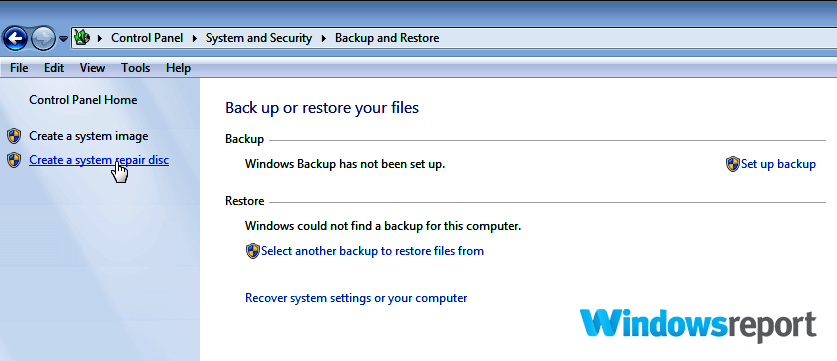
  1. Open Start menu and search for the Control Panel. 
  2. You will see a list of search results, open Control Panel from the list.
  3. Once it is opened navigate towards Programs and Features.
  4. Search for office in the Search bar and you might be able to see the multiple versions installed in your PC.
  5. Right-click the version of Office and click Uninstall and reboot your system after the completion of the process.
  6. Finally, open your Office application and complete the Sign-in process if required.

Solution 5: Perform a full repair of your Office installation

Performing a full repair of your Office installation is a comprehensive fix to any issues that exist in the software.

  1. Open the Start menu and navigate towards Control Panel >> Programs and Features. 
  2. Now you have to find Microsoft Office from the list of your installed applications.
  3. Click the ‘Change’ button that is available at the top. It will open a dialogue box.  
  4. Finally, click the ‘Repair’ button that you can see in the dialogue box. Choose the Online Repair method. repair office 2016

We hope one of these solutions helped you to fix this issue.

RELATED STORIES TO CHECK OUT:

Windows 10 KB4482887 blocks Spectre malware, fixes a plethora of bugs

Microsoft is planning to rollout Cumulative Update KB4482887 for Windows 10 version 1809 next week. For the time being, the update is available only for Preview Ring Insiders.

The Preview Ring updates are not available for the general public. They are available just for the insiders to make sure that the update KB4482887 is working properly without any issues or faults. Once its credibility has proven, then it will be launched to the general public.

Although the Microsoft has not released any official changelog about the update, Insiders already noticed the patch made their computers more stable.

KB4482887 will install automatically through Windows Update. Once it is installed, restart your PC and your Windows will be updated to Windows 10 17763.346.

KB4482887 changelog

Update: Microsoft recently published KB4482887’s changelog. The update brings a plethora of bug fixes and improvements. Some of the most important changes are the following:

  • Enables “Retpoline” for Windows on certain devices, which may improve performance of Spectre variant 2 mitigations (CVE-2017-5715). For more information, see our blog post, “Mitigating Spectre variant 2 with Retpoline on Windows”.
  • Addresses an issue that may cause the Action Center to suddenly appear on the wrong side of the screen before appearing on the correct side.
  • Addresses an issue that may fail to save some inked content in a PDF in Microsoft Edge. […]
  • Addresses a performance issue when establishing a Remote Desktop connection from a web Remote Desktop client to Windows Server 2019. 
  • Addresses a reliability issue that may cause the screen to remain black after resuming from Sleep if you close a laptop lid while disconnecting the laptop from a docking station. 
  • Addresses an issue that causes the overwriting of file on a shared folder to fail because of an Access Denied error.
  • Enables peripheral role support for some Bluetooth radios. 
  • Addresses an issue that may cause printing to PDF to fail during a Remote Desktop session. 
  • Addresses an issue that displays a black screen and causes a Remote Desktop session to stop responding when using certain VPN connections. […]
  • Addresses an issue that fails to register USB cameras correctly for Windows Hello after the out of box experience (OOBE) setup. […]
  • Addresses an issue that may prevent some applications from displaying the Help (F1) window correctly. […]
  • Addresses a compatibility issue with parsing and playback of certain MP4 content. […]
  • Addresses an issue that may cause the new Miracast connection banner to remain open after a connection is closed.

You can read the original report below.

Although there is no official statement from Microsoft regarding the latest update, it is expected that KB4482887 is mainly focusing to remove the bug in Action Center/Notification Center.

The Action Center collects notifications from all applications present in your device. After collecting notifications it displays them. The bug was reported a long time ago by Windows 10 users. Normally the Action Center show up from the right side of the screen.

Because of the bug in the old update, the Action Center showed up from the left side. So it might be possible that this new update fixes this error and retrieves the action center to the right side.

But, as stated earlier, these are the just expectations from this new update and we know the real story next Tuesday when the update will be officially published. It is possible that apart from these potential fixes, the upcoming update would also introduce further changes to the Windows 10.

What are your expectations for this new update? Why not let us know in the comment below?

RELATED STORIES TO CHECK OUT:

How to enable or disable Colorblind Mode in Windows 10

Are you someone who has one of several different types of color blindness? Do you face difficulties while using your Windows operating system? Those who are not aware of the fact that the Windows 10 Fall Creators Update aims to ease your life by bringing tons of new features and settings. 

Some specific types of colorblindness are generally common around the world that are listed below:

  • Protanopia or Deuteranopia (red-green color blindness)
  • Tritanopia (blue-yellow color blindness)

Microsoft has clearly worked very hard to offer a better computer display options to those people. Obviously, we can not perceive its value but it definitely means a lot for the colorblind users.

If you are not a colorblind user, you might have accidentally applied greyscale mode on your screen while working diligently on your system. You must be wondering why your entire screen has turned into a blank and white TV. Don’t worry!

You have not gone to the 90s era, probably you have turned on Windows 10’s built-in color filters with a key combination on your keyboard.  

If you are a Windows 10 users, we will guide you about “How to Enable (or Disable) Colorblind Mode in Windows 10“.

How to use Colorblind Mode in Windows 10

Let’s have a look at each of them in detail.

Solution 1: Use Keyboard Shortcut To Turn/Off Colorblind Mode

  1. The keyboard shortcut is one of the handy ways that you can use to Turn On/Off Colorblind mode. You can always use  Win+Ctrl+C keys to Turn On/Off your current filter.

Solution 2: Use Settings To Turn/Off Colorblind Mode

  1. Navigate to the search box and type “color filter“. 
  2. You will see a list of search results, click Turn color filters on or off from the top.
  3. Now you have to use the toggle button to “Turn on color filters” that is available under Use color filters.
  4. You will see a list of color filters and color blindness filters, select the one that is suitable for you.

Note: You can use the same process to Turn off color filters using the same toggle button.

Solution 3: Tweak your Registry To Turn/Off Colorblind Mode

If you don’t want to use the solutions that are listed above, use the REG file to switch between both options. The DWORD and string values that are available in the registry keys will be modified using the .reg files. 

1. Press Window+R keys and type notepad in the currently opened dialogue box.  This will open a blank Notepad file on your screen.

2. Enter the following values and save the files for each mode with a .reg extension on your desktop.

  • Turn On Greyscale Filter
Windows Registry Editor Version 5.00

[HKEY_CURRENT_USER\Software\Microsoft\ColorFiltering]
"Active"=dword:00000001
"FilterType"=dword:00000000

[HKEY_CURRENT_USER\Software\Microsoft\Windows NT\CurrentVersion\Accessibility]
"Configuration"="colorfiltering"
  • Turn On Invert filter
Windows Registry Editor Version 5.00

[HKEY_CURRENT_USER\Software\Microsoft\ColorFiltering]
"Active"=dword:00000001
"FilterType"=dword:00000001

[HKEY_CURRENT_USER\Software\Microsoft\Windows NT\CurrentVersion\Accessibility]
"Configuration"="colorfiltering"
  • Turn On Greyscale Inverted Filter
Windows Registry Editor Version 5.00

[HKEY_CURRENT_USER\Software\Microsoft\ColorFiltering]
"Active"=dword:00000001
"FilterType"=dword:00000002

[HKEY_CURRENT_USER\Software\Microsoft\Windows NT\CurrentVersion\Accessibility]
"Configuration"="colorfiltering"
  • Turn On Color Filters using Deuteranopia filter
Windows Registry Editor Version 5.00

[HKEY_CURRENT_USER\Software\Microsoft\ColorFiltering]
"Active"=dword:00000001
"FilterType"=dword:00000003

[HKEY_CURRENT_USER\Software\Microsoft\Windows NT\CurrentVersion\Accessibility]
"Configuration"="colorfiltering"
  • Turn On Protanopia filter
Windows Registry Editor Version 5.00

[HKEY_CURRENT_USER\Software\Microsoft\ColorFiltering]
"Active"=dword:00000001
"FilterType"=dword:00000004

[HKEY_CURRENT_USER\Software\Microsoft\Windows NT\CurrentVersion\Accessibility]
"Configuration"="colorfiltering"
  • Turn On Tritanopia Filter
Windows Registry Editor Version 5.00

[HKEY_CURRENT_USER\Software\Microsoft\ColorFiltering]
"Active"=dword:00000001
"FilterType"=dword:00000005

[HKEY_CURRENT_USER\Software\Microsoft\Windows NT\CurrentVersion\Accessibility]
"Configuration"="colorfiltering"
  • Turn Off Color Filter
Windows Registry Editor Version 5.00

[HKEY_CURRENT_USER\Software\Microsoft\ColorFiltering]
"Active"=dword:00000000

[HKEY_CURRENT_USER\Software\Microsoft\Windows NT\CurrentVersion\Accessibility]
"Configuration"=""

3. Double click on the respective .reg file to use the filter option. Click Run and click Yes from the User Account  Control dialogue box.

4. Again click Yes and OK when prompted on your screen.

5. Finally, you will have to Restart/Logoff your PC to apply the changes.

As soon as you use any of these methods to switch to these color filters, the colors will immediately change. In this way, you can choose the one that perfectly works for you. 

This handy feature is applied at the system level to all your windows and programs. Moreover, if you are not a Windows 10 user or you have not upgraded your machine yet, you can only enjoy browsing using a similar feature using a Chrome extension.

Let us know in the comments section below if you have any other tips and tricks that can enhance your display experience on your Windows PC. 

RELATED POSTS TO CHECK OUT:

KB4487011 and KB4487006 fix unresponsive app issues

Microsoft recently released Windows 10 cumulative updates KB4487006, KB4487011, KB4487021, and KB4487029  addressing non-security bugs in the operating system. The company aims to enhance the reliability of the OS with bug fixes, stability enhancement and quality improvements. 

KB4487011 improvement and fixes

KB4487011 offers four major improvements and fixes that we’ll list below:

1. IE Fails To Load Images Bug Fix

The update addressed the problems related to loading images having a backslash () in their relative source path. The issue was reported in the previous releases. 

2. Microsoft Access Bug Fix

The Microsoft Access bug was responsible for randomly stopping those apps that are using Microsoft Jet database along with the Microsoft Access 95 file format. Just like the previous issue, this bug was also reported in KB4487044.

3. Application Not Responding Bug Fix

This issue was reported by the users that the issue arose when the same input queue is used by its two threads.

4. Device Compatability Issue Fix

This fix addresses a bug that existed in the evaluation of the compatibility status of the entire ecosystem of Windows. It is done to ensure device and application compatibility for all Windows updates. 

KB4487011 Known Issues

As of now, Microsoft has not acknowledged any known issues in the update. The blog post will be updated if the tech giant confirms any potential bugs.

KB4487006 Improvement & Fixes

Apart from the device compatibility and issues and Microsoft Access bug fix, the update comes along with a series of bug fixes. Some of the major features are discussed below.

1. Remote Desktop Protocol (RDP) Client Bug

The release of KB4487006 resolved a major issue that existed in the previous build. The users got black screen at the login in the Remote Desktop Protocol (RDP) client application. 

2. win32kfull.sys Reliability Issue

The update fixes a reliability issue with win32kfull.sys, that existed in the previous versions. The bug was initially introduced in KB4487026. 

3. Microsoft Outlook “The operation failed” error

When a user tried to open the Microsoft Exchange Address Book, “The operation failed” used to appear. The issue was introduced after the installation of  KB4457127 on Active Directory domain controllers.

KB4487006 Known Issues

1. Startup Issues in Specific Laptops

Specific Lenovo and Fujitsu laptops that currently have less than 8 GB RAM may face startup issues. The bug is created as a result of KB4467691 installation.

One of the easiest ways to resolve the issue is restarting your machine with the help of Unified Extensible Firmware Interface (UEFI). Make sure to disable Secure Boot before restarting the device. 

2.  Cluster Service Start Fail

If the “Minimum Password Length” of the group policy uses more than 14 characters then the users can face cluster service start fail error. The following error message is displayed to the user “2245 (NERR_PasswordTooShort)”. The installation of  KB4467684 triggers the error. 

Microsoft is currently working to resolve the issue and the workaround is expected to be available in the coming weeks. Till now the company suggests the users to set the default minimum password length policy to equals to or less than 14 characters.

3. IE 11 Authentication Issues

Some authentication issues are reported in Internet Explorer 11 right after the installation of IE11. As soon as the same account is used by two or more users for various concurrent login sessions on the same Windows Server machine. 

Microsoft recommends the users to create unique user accounts. Moreover, multiple RDP sessions should be disabled for each user account.

System Center Virtual Machine Manager (SCVMM) fails to manage the logical switches that have been deployed on the host that is managed by SCVMM. Also, a stop error is raised in vfpext.sysif you fail to follow the best practices. 

A quick workaround is to access the affected host machine to run mofcomp files for running two mof files named as Scvmmswitchportsettings.mof and VMMDHCPSvr.mof. Microsoft recommends that users can avoid a stop error by following the best practices.

Download KB4487011/KB4487006 for Windows 10

The KB4487011/KB4487006 patch can be automatically downloaded through the Settings menu. If you have not yet received the update you need to open the Settings menu by pressing Win+I. Now you need to navigate to Update & Security >>Windows Update >> Check for updates. 

You can enhance the consistency of the update process by installing the latest servicing stack update (SSU) just before installing the LCU KB4487011. 

Microsoft has followed its tradition to specify third Tuesday of the month for the release of the non-security cumulative update. Although these updates are termed as non-security, it is yet not clear that either security components are included in the update or not. 

Comment down below if you have faced any pre and post-installation issues while installing KB4487011 and KB4487006.

RELATED ARTICLES:

ExxonMobil to use Microsoft technologies including Azure and Dynamics 365 for its Permian Basin operations

ExxonMobil is upping its cloud technology game with a new partnership that’s being steward by none other than Microsoft itself.

As of today, February 22, 2019, Microsoft and ExxonMobil are working together to optimize the oil company’s Permain Bain operations through an amalgamation of Microsoft Azure, Machine Learning and Internet of Things solutions.

ExxonMobil’s partnership with Microsoft includes an integrated cloud environment that securely and reliably collects real-time data from oil field assets spanning hundreds of miles. The data will enable ExxonMobil to make faster and better decisions on drilling optimization, well completions and prioritization of personnel deployment. Importantly, leak detection and repair response times could be further reduced with enhanced access to emissions data, strengthening XTO’s voluntary actions to manage methane emissions.

ExxonMobil’s Permain Bain operations represents the a large sedimentary basin in US southwest region as well as the largest-ever oil and gas acreage to deploy the use of cloud technology.

Covering over 86,000 square miles, ExxonMobil is projecting that its use Microsoft cloud technologies to optimize the operations could be beneficial to the company to the production tune of 50,000 oil-equivalent barrels a day that could translate into billions in net cash flow by 2025.

More specifically, ExxonMobil plan to make use of Azure Data Lake for rapid incorporation of third-party solutions for production at scale as well as Microsoft’s intelligent business applications to enable end-to-end insights and opportunities on best efficiencies across the Permian operations.

The details regarding the length of the collaboration or the price of the contract are unknown, but in the US, ExxonMobile is a rather big fish that Microsoft has seemingly managed to snare from the grips of Amazon and its behemoth AWS competitor.

How to Control a 3D Printer with a Raspberry Pi

For the uninitiated, 3D printing can seem like a daunting hobby. However, once you figure out how everything works, 3D printing can become fun and enjoyable. For beginners, it might be tempting to just buy a plug-and-play 3D printer to use with Windows 10. Some examples include the Monoprice Select Mini Pro ($250) or the Snapmaker 3-in-1 3D Printer ($800), which offers laser engraving and CNC milling capabilities in addition to 3D printing. Both printers are good entry-level choices but they have a smaller 3D printing footprint and you will quickly find yourself looking to buy a bigger printer when you need to print bigger parts.

If you are interested in finding a 3D printer for beginners, I recommend the Creality 3D Ender 3. It is a good-sized 3D printer that offers consistent quality prints. In addition, the Ender 3 is a self-replicating printer, meaning the printer is capable of printing its own upgrade and replacement parts. Moreover, the printer comes as a DIY kit, which in my opinion is the best way to learn about 3D printing.

Microsoft, Linux, 3D printing

I received the Creality 3D Ender 3 as a gift from my wedding registry. I did not know what I was going to print, but I had some general ideas. I researched the web to find the best mid-range 3D printer and came up with the Ender 3. It does take a bit of a learning curve, so if you think you will buy this and be printing perfect 3D prints in no time, you are in for a rude awakening. This YouTube video gives a thorough Ender 3 review as well as some basic 3D prints and printer upgrades.  Hovering around $200-$250, the Ender 3 is a great choice for the money, although some assembly is required.

Since I use the Ender 3, I have run into some issues being able to start and stop 3D printing when I am not in front of the printer. The problem with most 3D printers is that the 3D printing companies have not made an effective interface to interact with your 3D printer via your computer. In order to 3D print something, you need to go through a rather arduous process. Here’s what you do when you 3D print items using just the printer.

  1. Create or download an item from Thingiverse
  2. Edit the item so that it will successfully print using your printer (temperature settings, scale volume, etc.)
  3. Transfer appropriate file from your computer to microSD card
  4. Remove microSD card from the computer and put the microSD card in the printer
  5. Start print using the printer control menu

This process is frustrating because if there is an issue with the printer settings of the item you want to print, or the temperature settings are off, or something else goes wrong, you have to stop the print manually and begin the process all over again. Everything important is on that microSD card. This proved to be the most frustrating things with my 3D printer and it drove me insane until I found OctoPrint. After that, everything changed.

Microsoft, Linux, Raspberry Pi

OctoPrint is an open-source web interface for your 3D printer. OctoPrint allows you to drag and drop files on your 3D printer, change printer temperature settings at will and start and stop print jobs. It’s the best and most intuitive.  In order to use OctoPrint, all you need is a Raspberry Pi and you will be able to access your 3D printer via your Wi-Fi connection. Here is what you need to do to get OctoPrint up and running: a Raspberry Pi 3B or 3B+, minimum 8 GB microSD card, and OctoPi, a Raspbian-based microSD card image for the Raspberry Pi that includes OctoPrint plus all the dependencies you need to run it. More information is available on the OctoPrint download page.

While it is possible to install OctoPrint on Windows, OctoPrint does not run as consistently using Windows and you may experience unexpected bugs and crashes. The recent news that you can install Windows 10 on ARM on a Raspberry Pi is great, but in my opinion Windows 10 on ARM is not the best OS for the Raspberry Pi. You can just as easily install Windows IoT Core or Windows 10 on ARM, but the Raspberry Pi works best running Raspbian, which is a Linux-based operating system built specifically for the Raspberry Pi. I use a Raspberry Pi 3B and OctoPrint runs well on Raspbian without any issues.

With OctoPrint, you need to download this OctoPrint image file, and follow the instructions on the download page to extract and flash the disc image file to your microSD card, configure your wifi SSID and password, and then boot the Pi from the microSD card. Once you get your Raspberry Pi recognized on your WiFi network, you can connect it to your 3D printer and control your 3D printer’s settings and print projects from any device, and depending on your OctoPrint settings, even control your 3D printer remotely. Personally, I don’t use the mobile access feature because I have fire safety concerns for running my 3D printer unattended.

Microsoft, Raspberry Pi, 3D printing

In my opinion, OctoPrint is the best interface for 3D printing. Octoprint provides an easy interface that offers me control over almost every aspect of my 3D printer through a web browser. I wish I could say that you can use OctoPrint with Microsoft Edge, but OctoPrint works much better using Google Chrome. OctoPrint allows me to control the temperature, see the remaining time left on the print, and stop the print to make adjustments in temperature and printer speed if needed. Overall, I have been very happy with the quality of my 3D prints. Here is an example of my 3D print quality.

Microsoft, Raspberry Pi, 3D printing
Creality 3D Ender 3 Pug

The 3D print (Creality 3D Ender 3 Pug) seen above was a larger project that I was able to print after printing smaller pieces consistently. In the beginning, there was a lot of trial and error to find the best temperature and other printer settings to get consistent prints. After I got more consistent prints like the one above, I started printing bigger and larger projects.

The Raspberry Pi is such a capable single-board computer that allows me to add other extras, including a webcam to watch my 3D prints live in OctoPrint. In addition, OctoPrint allows me to add a variety of plugins to enhance the capabilities of my 3D printer through the OctoPrint browser interface. Overall, using OctoPrint with the Raspberry Pi to control my 3D printer via my Windows 10 PC is very convenient. Now, you won’t be printing things perfectly from the start, but once you figure out what works well for your 3D printer, you will find that 3D printing is a rewarding hobby. You can find more ideas on Thingiverse for what you can create.

Santorini, Centaurus, Pegasus – codenames provide clues to Microsoft’s plans for the future of Windows and beyond

Microsoft has been working for years on the modularization of its flagship operating system. Over many years, various fixes and shortcuts to gain performance made it difficult if not impossible to separate bits out again, but the idea of a modularized Windows, with a single “core OS” with basically interchangeable modules has been a holy grail at the company for quite some time.

Recently there’s been a lot of talk about “Windows Lite,” a new look operating system to compete with Chromebooks, especially for the education market. This week, both Mary Jo Foley and Windows Central revealed some news on “Santorini,” the code name they say is now being used for “Lite,” or “Windows Lite.” According to Foley, Santorini will be one shell running on top of Windows Core OS (WCOS), providing a fast and light operating system for Chromebook like devices. The new OS, while still running on a familiar core, will look different enough from what we’re used to with Windows to be considered a new operating system. In his podcast today, Brad Sams, saying that he’s seen Windows Lite, described it this way:

“It does get rid of Live Tiles, flat accent colors are mostly gone. Windows Lite looks familiar… but it does not explicitly recall Windows. Think about Chrome OS, and how you would make it a Microsoft look. It’s pretty close.”

Sams promises more on Santorini/Windows Lite next week, but for now, you can think of the new approach this way. Microsoft plans to build a number of new devices and device types on top of WCOS, including Centaurus, the dual-screen laptop type device, Pegasus devices, which may be “Windows 10 laptops running Lite,” according to Foley, the HoloLens 2, which is set to be unveiled this Sunday at MWC, and the Surface Studio 2, revealed at Ignite last year. For those of you still pining for Microsoft return to mobile, there apparently still is hope for the long rumored Andromeda, too:

Both Windows Central and Sams are expecting to hear more about Windows Lite/Santorini at Microsoft’s Build developer conference slated for early May, with Sams predicting that we’ll see hardware at the event. As for what to expect of this new experience, Windows Central’s Zac Bowden explains:

Windows Lite isn’t a lesser version of Windows; it’s an entirely new OS experience designed for lightweight computing. It probably won’t even be called Windows because of this.

As of now, Santorini isn’t being positioned as a replacement for Windows, in fact it will be running on the Windows Core OS, but will, like HoloLens and Surface Studio 2 and even Centaurus, bring new experiences to Microsoft based products, moving them beyond Windows. Should be exciting times, beginning as soon as this Sunday at MWC, be sure to stay tuned to OnMSFT for all the latest.


Resident Evil: Code Veronica X, 4 Lost Planet video games gain Xbox One backward compatibility

As promised, Microsoft has added more titles to the list of Xbox 360 games that are now backward compatible with the newer Xbox One series of consoles. As pointed out by Xbox’s Larry Hryb on Twitter, four of the Lost Planet titles—games 1, 2, 3, and Odyssey—are now on the backward compatibility list. This means those who have enjoyed playing the first-person shooter / survival series developed by Capcom can now play those games on the Xbox One.

Also from Capcom and now backward compatible is the Resident Evil – Code: Veronica. The game was the first Resident Evil title for Microsoft’s Xbox 360 console, although it was fourth in the series as a whole, and centers around Claire Redfield three months after the destruction of Racoon City in Resident Evil 3.

It’s definitely nice seeing Microsoft’s work on bringing more games to the backward compatibility list. The Xbox One is a completely different device from the 360 and thus can’t natively run its games. However thanks to the implementation of hardware emulation, many of the games that long-time Xbox fans have grown to enjoy can now be played on the newest generation system.

Microsoft brought more than 100 titles to the backward compatibility list last year, ending with almost 550 total games. While it’s hard to understand the technical challenges to bringing new titles to the list, the company is taking suggestions from users as it works on making more of them available.

Want to be more productive in Outlook? Microsoft’s CVP for Time Management shares some tips

Microsoft Outlook is a solid email client that many users, whether basic consumers or corporate enterprises, can use to stay informed and in touch with others. It competes with a major product of Google, Gmail, which is regarded as the most popular of email platforms. While the Mountain View, California tech giant might have the advantage of having its 2.7 billion users with Android phones likely pre-installed with Gmail, Outlook sets it apart by its unique feature set.

To help inform new users, and to remind those who have been using it for some time, Microsoft’s Corporate Vice President of Communication and Time Management, Guurav Sareen posted an article online detailing what many people might find useful within the app. These tips can help safe time for consumers and increase productivity for business users. Here are his main points:

  • For high priority emails that seek quick responses, users can @ mention others within a message to help get their attention. The unread message will be marked with an @ symbol, and the recipient will be able to see his or her name mentioned with the same symbol, informing them that they were mentioned. It works on the desktop app, on the web, and on mobile phones, too.
  • Document collaboration is easy in Outlook, as those attached within an email can be edited by both the sender and recipient(s) if the editing settings allow. It’s certainly easier than repeatedly sending new revisions to each other and saves a lot of time. However, this is a unique feature to Outlook on the web.
  • Office Lens integration in Outlook make it easy to scan items such as business cards which will be straightened and saves it to OneNote as a fully searchable page. And since OneNote can understand the information saved, opening it will allow the contact info to be saved either in Outlook on desktops, or in the contacts in phones.
  • Outlook is integrated with LinkedIn, a company that was acquired by Microsoft a few years back. For those with Office 365, people can view profile and contact information by hovering over People Cards from within Outlook, thanks to the integration with LinkedIn. Additionally, users will be able to see insights about people on their Outlook calendar, and also lets you share your documents to other LinkedIn users for easy collaboration of Office documents.
  • Both desktop and mobile users can plan calendar events and manage availability easily from within their apps. Outlook Mobile makes it easier, allowing anyone to insert the calendar events directly within the email.

These features are likely welcomed by many, but are only a small part of the big picture. The fact is, Outlook definitely has no shortage of other nice tools, and Microsoft is always improving it.

Both Halo Wars video games to be free to play this weekend on Xbox One

Halo Wars: Definitive Edition and Halo Wars 2 will both be free to play on Microsoft’s Xbox One consoles this weekend for Xbox Live Gold subscribers.

Both games will be free to download from February 21st at 12:01 am PT and will remain playable until February 24th at 11:59 pm PT.

Here’s the official game description for each Halo Wars title:

Halo Wars: Definitive Edition

Supports Xbox Play Anywhere: yours to play on both Xbox One and Windows 10 PC at no additional cost. Halo Wars: Definitive Edition is an enhanced version of the real-time strategy classic, Halo Wars, updated to run natively on Xbox One and Windows 10.

Set early in the iconic war between the Covenant and UNSC – made famous by the Halo FPS games – Halo Wars: Definitive Edition provides a unique angle on the war while bringing new heroes to the battlefield. Control large Halo armies and direct them in action-packed warfare. Halo Wars: Definitive Edition includes improved graphics, new achievements and all the DLC from the landmark game. Re-live the epic campaign or compete in online multiplayer battles with armies of powerful Halo forces at your command.

Halo Wars 2

It’s the Halo experience you’ve dreamed of – controlling entire armies of Marines, Warthogs, Scorpion tanks, and Spartans on the battlefield from the Commander’s point of view. Halo Wars 2: Complete Edition is the comprehensive version of the real-time strategy hit that includes ALL content for Halo Wars 2. And now you can play in native 4K Ultra HD graphics with HDR on the Xbox One X and Windows 10!

Halo Wars 2 includes an epic story taking place after the events of Halo 5, told across 12 campaign missions with ultra-realistic cinematics. Once you’ve honed your skills as a commander you can jump into a variety of multiplayer modes against the computer and play online with Xbox Live.

As with all Free Play Day promotions, any progress made in both Halo Wars games will save to the cloud and can be accessed in the future should the player choose to purchase them outright. Players will also be able to access all aspects of the full games during this period in addition to being able to unlock Xbox Achievements.

Are you a fan of the Halo Wars series and will you play either of these titles this weekend? Let us know in the comments below and then follow us on Pinterest for more Xbox gaming content.


Halo Wars 2: Complete Edition

Anthem video game is now live on Microsoft’s Xbox One consoles

One of the most-talked about video games of the past few months, Anthem, is now live and ready to play on Microsoft’s Xbox One family of consoles.

The game is an online multiplayer action title set in a futuristic alien world filled with monsters and advanced tech. Players can join up with three other teammates online and the game 4K Ultra HD when played on the Xbox One X.

Here’s the official game description and launch trailer:

On a world left unfinished by the gods, a shadowy faction threatens all of humankind. The only thing that stands between these villains and the ancient technology they covet are the Freelancers.

Join with up to three other players and assemble high-tech, hand-crafted, uniquely powerful suits of armor. Explore vast ruins, battle deadly enemies, and claim otherworldly artifacts. With every mission, you and your Javelin grow in power. Fight the dangers of an ever-changing world. Rise united to defeat evil. Triumph as one.

Anthem invites you to experience a co-operative Action-RPG set in a new and mysterious world from BioWare and EA.

Anthem is available in a regular edition and a Legion of Dawn Edition which comes with the base game, Legendary Legion of Dawn Armor Packs, a Legendary Weapon, a Legendary Ranger Gear Piece, and the official Anthem Digital Soundtrack.

Have you played Anthem yet on your Xbox One? Let the community know what you think of it in the comments below and then follow us on Pinterest for more Xbox gaming content. Would you recommend Anthem to others?

Anthem™
Anthem™
Developer:
Electronic Arts
Price:
Free


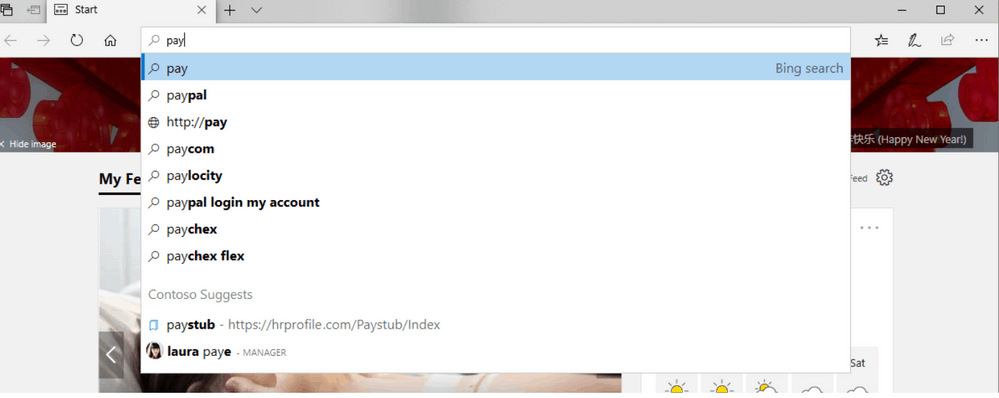
Microsoft Search adds Bookmarks and People autosuggest in Edge

The Bing search bar is getting a bit of a functionality boost for Windows enterprise users.

As of yesterday, February 20, 2019, The Bing.com autosuggest feature found in the search bar can now surface saved browser bookmarks and contact suggestions.

Similar to the functionality of the Windows 10 Search, the Bing.com search bar is becoming a more robust and multifaceted tool that’s shortening the gaps between functionality and productivity.

As much as consumers could benefit from this added ability in the regular version of Bing.com, the new functionality is even proving difficult to come by for enterprise users.

According to Microsoft, there are several hoops users will need to jump through to enable the update, presumably for security reasons.

Requirements:

To see bookmark and people suggestions in Edge, users need to meet these requirements:

  • Be a member of a MSB public preview tenant
  • Signed in to a Windows machine with their AAD credentials
  • Edge version 1709 Fall 2017 Creator’s update or newer installed
  • Bing is set as the default search provider in Edge

In the name of transparency, the Bing team offered a rationale for its inclusion of bookmarks and contacts surfacing in the search bar. Rather predictably, the Bing team plans to use the new functionality to help its algorithm determine prioritization of the additional information based on queries.

As a team, we are always striving to help users find what they are looking for in the most efficient way possible. As users click on these suggestions, we can better rank which bookmarks and people show up for which queries within a tenant. This also helps users to “stumble on” MSB organically by surfacing relevant suggestions where they’re searching and enticing them to learn more about it. We’ll continue to add these autosuggestions across various endpoints to meet users where they are.

The Bing team also plans to incorporate support of other data points that include Q&A, locations and more. As Microsoft hones in on a newer browser experience as well as creating a lightweight Chrome OS-like competitor, I can see a not too distant future where a robust search bar in a new browser becomes as vital as the File Explorer in Windows.

How to add Google Chrome activities to any version of Windows 10’s Timeline

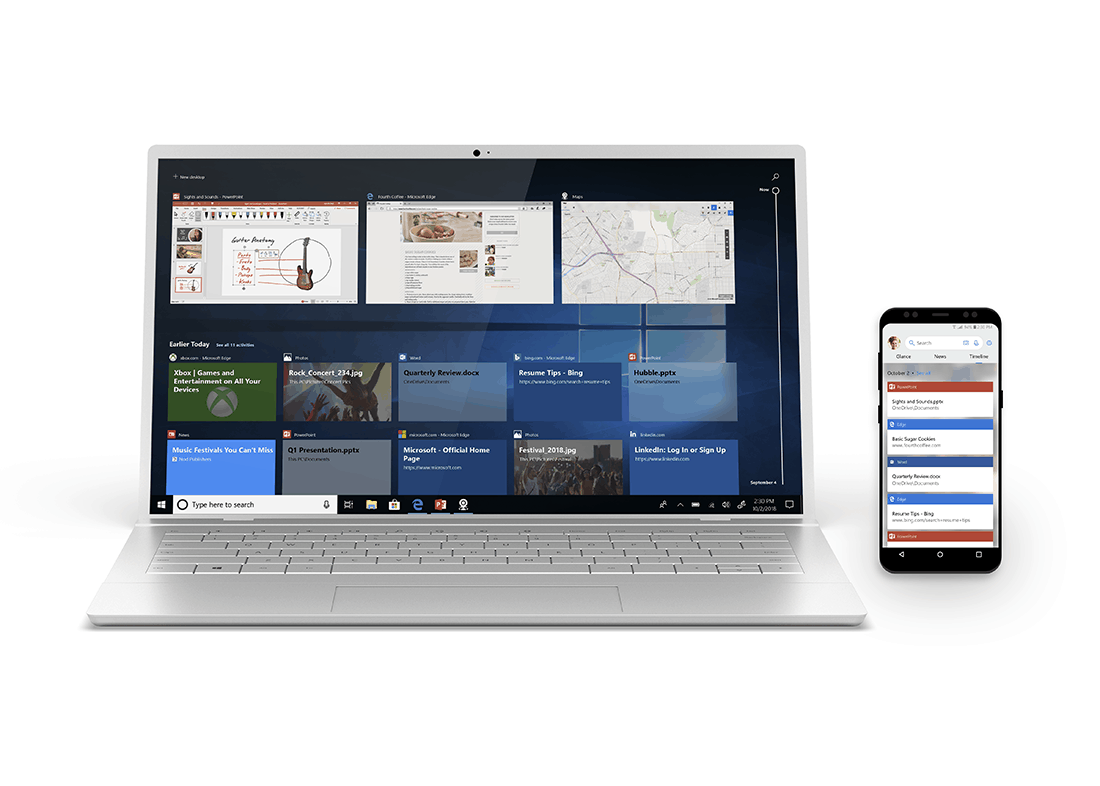
Windows Timeline is a handy feature introduced with the Windows 10 April 2018 Update that logs the activities you perform on your PC. Websites you visit, Office documents you edit and songs you play will all show up in chronological order within the Task View interface, accessed from the taskbar or the Win+Tab keyboard shortcut. Your Timeline is synced across your devices, including to Android phones via Microsoft Launcher.

Web Activities Chrome extension

This week, Microsoft announced a new Chrome extension which lets you bring your Chrome browsing history into Timeline. Published as “Web Activities” in the Chrome Web Store, it was announced alongside Windows 10 Insider Preview Build 18342 but is already available for download. We’ve found it’s compatible with every version of Windows 10 that supports Timeline.

Web Activities Chrome extension

To get started, make sure TimeLine is enabled on your PC, and then download the extension from the Chrome Web Store. Click the blue “Add to Chrome” button to install it in your browser. You’ll need to acknowledge the confirmation prompt, which warns the extension is able to access your entire browsing history. This is necessary so your visited websites can show up in Timeline.

Web Activities Chrome extension

After a few moments, you’ll be notified that the extension has been installed. Its icon will show up in the Chrome toolbar; click it to get started. Press the blue “Sign in” button” and follow the prompts in the popup window to login with your Microsoft account.

Chrome tabs syncing to Timeline

That’s all there is to it. Once you’re signed in, the extension will start recording your Chrome browsing history and feeding it through to Windows Timeline. We’ve found there’s usually a short delay but after a few seconds websites you visit should appear within Windows.

Web Activities Chrome extension

If you ever need to logout, just click the extension’s icon and press the blue “Sign out” button. The extension’s menu also includes the option of choosing whether to open Timeline web browsing activities in your default browser or Microsoft Edge. Thankfully, it’s “Default Browser” that’s selected by default. To remove the extension entirely, right-click its icon and choose “Remove from Chrome.”

Headlander is now playable on Xbox One with Xbox Game Pass

The Xbox One video game, Headlander, is now playable for Xbox Games Pass subscribers. The game is 2D platformer with a strong retro Sci-Fi vibe aesthetic and a futuristic robotic world to explore.

Here’s the official game description:

You are the last known human in the universe, and all that’s left of you is a disembodied head. Seeking clues to your fractured past, you must travel through a hostile world of machines using a special helmet that allows you to dock into and take control of any robotic host body. As you launch from one body to the next, you’ll start to discover that things are not quite what they appear to be, and the fate of humanity has yet to be decided…

Headlander was one of several video games that were announced this morning to be coming to Xbox Game Pass in the near future. The three other games that are soon to join Xbox Game Pass are  Batman: Return to Arkham, The Walking Dead: Season Two, and Alien: Isolation.

Xbox Game Pass is a monthly subscription service not dissimilar to Netflix. In place of TV shows and movies though, subscribers gain access to around 100 Xbox, Xbox 360, and Xbox One video games to play in full. Titles are added and removed on a very regular basis to keep the library fresh.

Are you an Xbox Game Pass subscriber and are you going to play Headlander? Let us know why or why not in the comments below and then follow us on Pinterest for more Xbox gaming content.

Headlander
Headlander
Developer:
Adult Swim Games
Price:
$19.99

Windows was unable to install your Android [FIX IT NOW]

Installing Android drivers on a PC should be a walk in a park. You connect your handset with the PC via the USB cable and, usually, the installation commence immediately. The generic driver provided automatically by Windows should be good enough for storage access.

The majority of users don’t need anything else, to be perfectly honest. However, what happens if Windows prompts you with the “Windows was unable to install your Android” prompt? How to make it work if a generic driver just won’t install? Find out below.

How to successfully install your Android device drivers

  1. Install  OEM USB drivers manually
  2. Enable USB Debugging on your Android
  3. Switch the USB port
  4. Use Android SDK Generic driver

Solution 1 – Install  OEM USB drivers manually

There are so many devices which don’t require manual driver installation and Android phones are not on that list. Especially if you want to use your device with the ADB and Android SDK.

Now, Windows 10 is usually able to install the device for the simplest of features (data transfer) automatically, but this doesn’t apply to earlier Windows iterations. That’s why we suggest installing drivers manually.

In order to find the best driver for your device, we’ll be looking at the OEM’s official support website. Say, Huawei device won’t do much with the Samsung driver. Therefore, make sure to find the appropriate driver. But, before that, let’s try and install the driver within the Device Manager.

  1. Connect your Android handset via the USB cable to a PC.
  2. Open Device Manager.
  3. Expand the Portable Devices (or Other devices).portable devices device manager
  4. Right-click on your handset and choose Update driver.
  5. Search automatically for the driver.

If that doesn’t work, google your OEM and download drivers. Install the driver manually. If the problem is persistent, move to additional steps.

— RELATED: Huawei brings Windows 10 to Android with its new Cloud PC app

Solution 2 – Enable USB Debugging on your Android

Another important thing a lot of people ignore is related to Android permissions. In order for a PC to have access to your device (usually not necessary for storage access), you should enable USB Debugging in handset’s Developer options.

These are not accessible by default so you’ll need to follow through with a bit gimmicky step in order to unlock Developer options on your device.

Once there, you should be able to enable USB Debugging with ease. Firstly, let’s uninstall the failed driver from the Device Manager:

  1. Open Device Manager.
  2. Click on the View in the Main Menu and toggle on “Show hidden devices“
  3. Expand the Portable Devices (or Other devices).
  4. Right-click on your android device and uninstall it.

Here’s how to enable USB Debugging mode on your Android handset:

  1. Open Settings.
  2. Choose System > About phone.
  3. Tap 7 times on the Build number.
  4. Enter your Password or PIN to access the Developer options.
  5. You’ll find Developer options in the System section.
  6. In the Developer options menu, enable USB Debugging.
  7. Connect your device to your PC via USB and allow USB Debugging when prompted.
  8. Wait until the device’s driver is installed and reboot your PC.

Solution 3 – Switch the USB port

Simple but often so efficient solution. Sometimes a certain USB port won’t work and switching to an alternative one should do the job. In addition, make sure to reboot both your handset and PC after switching the port.

In addition, if you have an alternative Micro USB-to-USB or USB-C– to-USB cable, give it a try.

These are small and easily neglected things but can invoke the issue at hand. On the other hand, if these hardware tweaks are not helping, we advise you to try the last step.

— RELATED: Best apps to transfer Android/ iOS files to Windows 10, 8

Solution 4 – Use Android SDK Generic driver

Finally, there’s a chance you have an older device which isn’t supported by either official nor generic drivers. What to do if that’s the case? The only remaining solution we can suggest is going for Android SDK generic driver.

They are usually required in order to run ADB and they might help your PC establish the initial connection with your device before installing a functional MTP driver.

Here’s how to install Android SDK Generic driver on your device:

  1. Download and install Android SDK, here.
  2. Connect your Android handset via the USB cable to a PC.
  3. Open Device Manager.
  4. Expand the Portable Devices (or Other devices).
  5. Right-click on your device and choose Update driver from the contextual menu.
  6. Select “Browse my computer for driver software“.browse my computer for driver software
  7. Choose “Let me pick from a list of device drivers on my computer“.
  8. Double-click All devices.
  9. Choose MTP USB device if available. install MTP driver
  10. If not, click “Have disk…“.install generic android sdk mtp driver
  11. Navigate to this path: C:Program Files (x86)Androidandroid-sdkextrasgoogleusb_driver.
  12. Install driver and you should be good to go.

With that said, we can conclude this article. In case you have any questions or suggestions, feel free to tell us in the comments section below. We look forward to hearing from you.

If you’re an advanced user, we have a great article on how to install Fastboot drivers for Windows 11 in order to customize your phone, so don’t miss it.

How to have baby girls in The Sims 4: Parenthood DLC

The Sims 4 recently received a new DLC focusing on family life. Titled The Parenthood game pack, it challenges players to become better parents through real-life family situations such as sibling rivalries, school projects, bad behavior, and more.

However, many players are complaining that their families have had more boys than girls:

Between 2 different families my sims have had a total of 12 baby boys and no baby girls. This has happened ever since the latest patch and the newest Parenthood GP. Anyone else have this problem?

In this article, we’re going to show you what you can do to influence the gender of your baby in The Sims 4: Parenthood DLC.

Steps to have a baby girl in The Sims 4

Eating carrots or listening to alternative music can lead to having baby boys. So, make sure that your Sims don’t engage in these kinds of activities prior to conceiving a baby.

To increase their chances of having a baby girl, Sims should eat strawberries and listen to pop music.

On the other hand, some players have been luckier and even managed to conceive triplets:

I had triplets just last night and it was two boys and one girl. i feel blessed to get one girl usually but to get one right off was amazing. I do have seven to ten boys to one girl.

Keep in mind that several attempts may be necessary to achieve the results you want. But we guess that’s another manner the game stays faithful to real life events.

Another way to influence the gender of your child in The Sims 4 is to use cheats.

Have you downloaded the Parenthood DLC? Did you encounter the same baby gender issue? Use the comment section below to tell us more about your experience as a parent!

RELATED STORIES YOU NEED TO CHECK OUT:

Download Windows 10 KB4487021 to fix major region-specific bugs

Microsoft announced a bunch of cumulative updates for various versions of Windows 10. The updates were rolled out to all the Windows 10 Enterprise editions version 1607 and 1703  on February 19, 2019. 

These updates do not deal with security and this time they have been released to fix stability and other issues that existed in the previous versions. Just like KB4487021, this time KB4487021 also brings quality improvements and bug fixes.

Microsoft states that this update resolves at least 13 errors have existed in the previous versions. Most of the issues affected users of Japanese devices. 

KB4487021 improvements and fixes

The clock and the calendar flyout Issue

The update fixes a bug that involves user settings being ignored by the clock and the calendar flyout for date and time formats for Japanese era. The problem was first reported in KB4469068. 

Japanese era name problem

A bug was reported in Microsoft Office Visual Basic applications during the previous releases. It was causing the first character of the Japanese era name to be broken down. 

Furthermore, the following fixes and improvements have been listed in the detailed changelog:

  • Updates time zone information for Chile. 
  • Addresses an issue with evaluating the compatibility status of the Windows ecosystem to help ensure application and device compatibility for all updates to Windows. 
  • Adds a new group policy called “Policy Details”. This policy will immediately disconnect any wireless connections when a wired connection is detected and “Minimize simultaneous connections” is configured.
  • Addresses an issue that causes the clock and the calendar flyout to ignore user settings for Japanese era date and time formats. For more information, see KB4469068.
  • Addresses an issue that can overwrite gan-nen support behavior for the Japanese era with a newer update. For more information, see KB4469068.
  • Enables the 元年 character for the first year in the Japanese era. For more information, see KB4469068.
  • Addresses an issue that fails to display the correct Japanese era name in Microsoft Office Visual Basic for Applications. For more information, see KB4469068.
  • Addresses an issue that fails to recognize the first character of the Japanese era name as an abbreviation and may cause date parsing issues.
  • Addresses an issue that may prevent Internet Explorer from loading images that have a backslash () in their relative source path.
  • Addresses an issue that may cause applications that use a Microsoft Jet database with the Microsoft Access 95 file format to randomly stop working.

KB4487021 Known Issues

The OS build number is increased to 16299.1004 in KB4487021. It is worth mentioning that it seems like Microsoft is working hard this time on these cumulative updates. As of now, no bugs have been reported. Therefore, no errors are expected during the installation of the updates.

RELATED ARTICLES YOU SHOULD CHECK OUT:

Fix: This Version of System Recovery is not Compatible

System recovery is one of the easiest remedies if your Windows 7 installation has failed. Sadly, it doesn’t always work due to seemingly random issues such as this version of system recovery options is not compatible error.

When it occurs, your PC may not be able to recover its correct boot settings and might show a black screen. While this issue can look scary, the solutions in this guide will help you fix it quickly.

Why am I getting the version of system recovery options is not compatible error?

  1. Compatibility issues: This hitch can occur when your installed version of Windows is incompatible with the Windows image you are using for recovery. For example, it could be an OEM while you have installed a retail edition. You could also be running a 64-bit recovery disk on a 32-bit Windows.
  1. Wrong Boot Settings: Adjusting the system boot settings in BIOS during repair could confuse the boot process and cause this problem.
  2. Disconnected Drives: You can also expect this challenge if you’re attempting a system restoration when one drive is disconnected (for PCs installed with multiple hard drives).

Long story short, the error arises due to a faulty system repair setup.

How can I fix this version of system recovery is not compatible error?

1. Modify Your Boot Settings

1.1. Disable all other disks but your Windows system disc

If you disable your second hard disk (and every other extra disk) in BIOS and leave the Windows system disc (primary hard drive) only when recovering, the compatibility hiccup may not occur. This should then allow the Windows 7 recovery to proceed normally.

1.2.  Set the System Disk to be accessed from a lower channel

Alternatively, you may have to look into which ports the various drives – system, DVD/Blu-ray drives, and secondary disks are installed on the motherboard.

You then rewire the system drive into a lower channel/slot, for example, SATA slot #0(channel 0). Connect the rest into the other slots. For instance, the Blu-ray can go to SATA slot #1, RAID on SATA slot #2, and so on.

not compatible with this version of windows

In addition, switch boot sequences and ensure that the system disk will be number 1 in the system boot priority list. Lastly, reboot from your recovery disk.

2. Disconnect and reconnect the drives

If your Windows repair option won’t work, try disconnecting and then reconnecting your hard drives, including any existing RAID disks.

You would need to access their ports by removing the system case. Remember to unplug the PC from the power source before opening the case.

Retry the recovery soon after reconnecting the power cables and see if this will fix this version of system recovery options is not compatible problem.

3. Disable UEFI

  1. Open your PC’s BIOS menu. You press the correct key during boot sequence, for example, Esc, F1, F2, or F12.
  2. Locate the Secure Boot settings, and change it to Disabled. You can find this option under either Authentication,  Security, or Boot.
    this version of system recovery options is not compatible windows 7 ultimate
  3. Save the changes and exit.
  4. The PC reboots.

UEFI Secure Boot helps to ensure that your computer boots using trusted firmware only. But it occasionally triggers this version of system recovery options is not compatible issue.

Disabling Secure Boot can hence remove the unwelcome setback. If all is well, it will re-launch recovery and run the steps to completion.

4. Create a fresh recovery disk

  1. From another EFI partitioned machine, click the Start button (insert a USB flash drive/DVD first).
  2. Select Control Panel from the menu.
  3. Select System and Maintenance.this version of system recovery options is not compatible windows 7 usb
  4. Choose Backup and Restore.bootmgr is missing windows 7 this version of system recovery options is not compatible
  5. Click Create a system repair disc from the left pane.this version of system recovery options is not compatible usb
  6. Follow the steps as directed.
  7. Insert the new Windows 7 recovery disk, then restart your PC and run the usual steps to recover your Windows 7 image.

It can be that you’re attempting to recover your Windows installation using an outdated Windows 7 recovery DVD.

This happens especially in newer machines that come with UEFI enabled instead of the conventional BIOS firmware interface.

5. Boot in UEFI Mode/ legacy BIOS-compatibility

  1. Insert the Windows installation DVD/USB key.
  2. Boot your PC to this DVD/USB key again by clicking any key at bootup.
  3. Go through the installation wizard until you come to choose an installation type. Here you select Custom.
    windows 7 repair incompatible version
  4. The Where do you want to install WindowsWindow pops up. Do this:  Select each partition shown on the drive, and choose Delete.This Version Of System Recovery Options Is Not Compatible
  5. The drive will now show one huge unallocated space/area. Select this unallocated space and press Next.
  6. Windows will automatically detect that the computer has booted into the UEFI mode and will reformat the drive and begin the installation.
  7. Don’t install. Instead, Click X to halt the process (after deleting the partition), then choose repair.
  8. Check if the System Recovery options are now working fine. 

Another way to beat this error is by booting in UEFI mode.

That’s because booting into this mode when recovering Windows eliminates any compatibility conflicts from your USB/DVD.

With the solutions in this guide, you should now be able to fix this version of system recovery options is not compatible with the version of Windows error. Similarly, if you are dealing with a Window recovery loop error, check our detailed guide to fix it.

Feel free to let us know the solution that helped you fix this error in the comments below.