Windows 10 Gaming Edition might be the next Windows 10 OS version

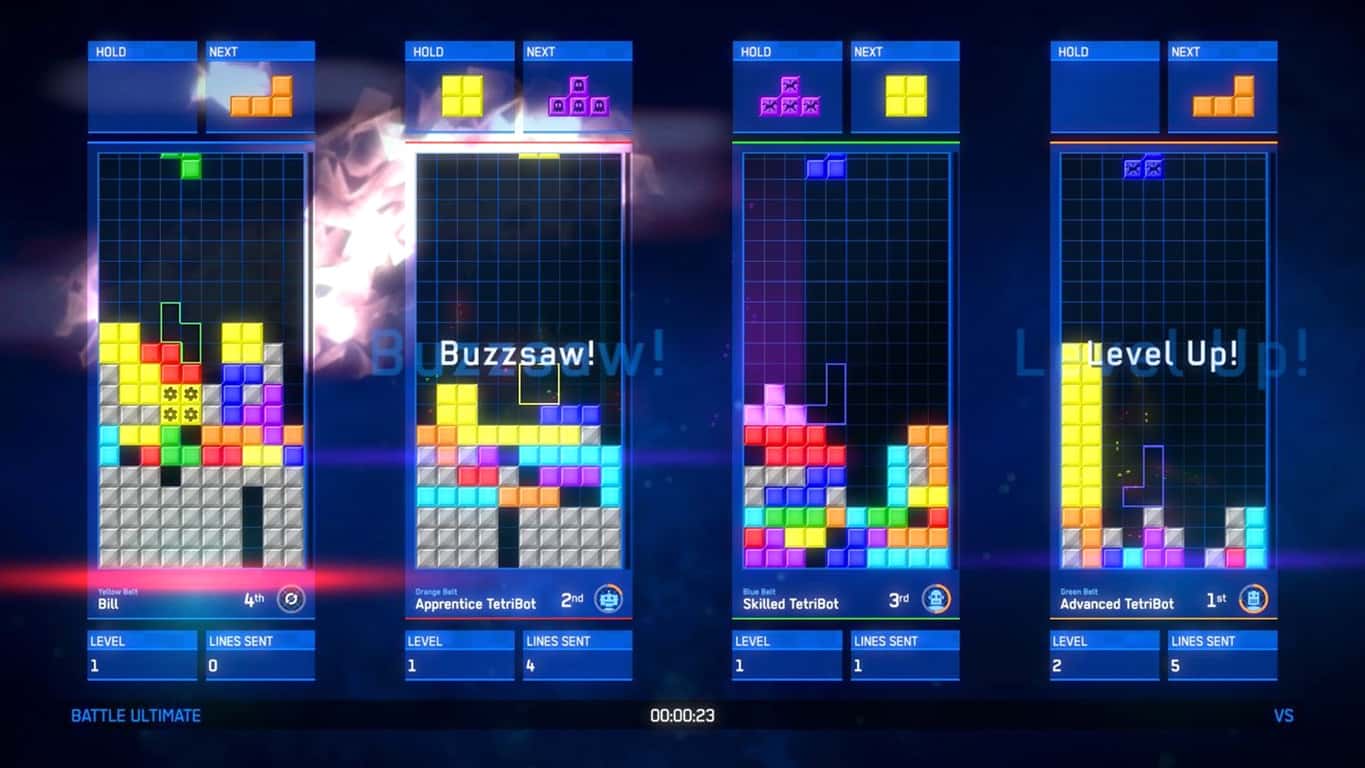
Gamers, are you ready? Windows 10 Gaming Edition is going to be the future version of Windows 10. Satya Nadella, the CEO of Microsoft declared PC gaming holds great importance in the consumer strategy of the company.

But it seems like Windows 10 Standard Edition failed to grab the attention of PC gamers with its features such as a free game recording tool, Game Mode, and DirectX 12.

Recently, the Windows 10 users used the platform of XBOX IDEAS to demand a Windows 10 Gaming Edition from Microsoft. The idea “Create a Version of Windows Specifically for Gaming” has been a huge success that got around 3,168 votes from the Microsoft gaming community recently.

Most of the other users have shared their opinions and suggestions on the platform. The gaming community welcomed the idea, shared their suggestions and provided a lot of solutions for the implementation of the Gaming version of Windows.

Windows 10 Gaming Edition potential features

Most of the users came up with a different suggestion about the look and feel along with the features of Windows 10 Gaming Editions. Some of them think that the new version should be a cross between a server and a desktop.

It should be available with just a minimalistic version of apps and services that are required for the gamers. While they should be able to start services and install apps according to their requirements.

This version of Windows should be able to control the fan speed, especially for the most demanding games. It will cool down the CPU and the RAM specifically on low end PCs.

Furthermore, the users will also be able to control monitor preferences, sound preferences, custom game profiles, overclocking and much more.

Here are some of the major recommendation that should be considered by Microsoft for a Windows 10 Gamers Edition.

1. Minimalist GUI

We know that the GUI takes a lot of RAM memory, so the Gamer’s Edition should have a minimalist User Interface. The minimalist design would help the games to launch faster and it would be easier to manage as well.

The Windows 10 lock screen should have recent games, achievements, friend activity, messages and Xbox Live activity. A full-screen game launcher should also be available by default.

It will allow the users to launch games from other sources as well, apart from the Microsoft Store. Furthermore, the Gaming PC can be made more powerful by optimizing it for both controller and mouse-and-keyboard input.

— RELATED: 6 best gaming motherboards to power your thirst for victory in 2019

2. Unified Game App

A Game app can be developed similar to the Windows Mail that would be able to link multiple accounts from different sources including GoG Galaxy, Steam, Uplay, Epic, Origin etc.

It app would not have to implement the entire functionality of the game but rather it would just provide necessary features necessary for starting the game and log accumulated time played. Moreover, the actual client would be handling the achievements and other stats etc.

3. Windows Defender

Currently, the Windows Defender is consuming a lot of CPU power while running in the background. Sometimes, it chews away memory from the game so that the game becomes unplayable in such situations.

A more minimalist version of the PC should be launched that should not be allowed to show notifications or grab the focus during the full-screen mode.

4. Advanced Hardware Monitoring

Some of the games have the ability to ensure peak performance on the systems by mapping macros and graphic card settings. Keeping in mind those requirements, the users demanded the automated settings from the operating system based on both hardware and gaming specifications. It will save the users from manually configuring on each installation of Windows.

— RELATED: 5 best gaming benchmark software for Windows 10 to use in 2019

4. Cut down in Processes

This is one of the most highly demanded features that need to be considered by Microsoft. While a game is running in a full-screen mode in Windows 10, all of the non-essential should automatically go into the “Suspend” mode.

The system should be able to prioritize the game in a way that no other program should be able to grab CPU or GPU power.

5. Manual Driver Updates

Most of the times we are forced to download the driver update or they are being automatically downloaded by the PC. So, the Windows 10 Gaming Edition should restrict the NVidia, AMD, Windows to download and install updates.

6. Hardware & Software Specifications

The hardware specification for the Windows 10 Gaming Editions should be the following: the operating system should be 10-20 GB in size.

The Software specifications include: Steam, Settings & Control Panel, a lightweight version of Windows Defender, Microsoft Store, along with some of the important OS components.

— RELATED: 10 best emulators to play multiplayer games on PC

Alternative Recommendations

Some of the users didn’t like the idea of a dedicated gaming version of Windows 10. According to them, they should not have to waste a lot of money on a version that is not going to allow them to do anything else in the future.

Moreover, they will have to spare a PC for the Windows 10 Gamers Edition that is also not a feasible option for a few of them.

Instead, those users who were against the idea suggested some alternative options be implemented along with the Windows 10 Desktop Editions.

1. Boot Option (Gaming Mode)

Most of the users were not in favor of a dedicated Windows 10 Gaming Edition so instead they suggested a new boot option “gaming mode”. It would allow the computer to boot directly into a dedicated gaming mode.

The system would be able to make full use of system resources by disabling all processes and components that are not required for gaming. A separate boot option will be perfect for those who use the same PC for work and gaming.

2. Alternative Startup Option

An alternative start-up option is another suggestion that can also be considered by the tech giant. It states that the gamers should be able to add some alternative start-up options in the Windows Settings.

Rather than logging into the normal Windows 10 desktop, it will allow the users to run a particular app (Origin, Steam or Battle.net) or a game right at a start-up. Once the app is launched the users will be able to launch, purchase, update, uninstall, chat etc.

Hence all the features will be available at one place along with a mouse and controller support. While the Windows will log off as soon as the app is closed.

Take Aways

Keeping in view the fact that the PC gaming business is expected to grow in future while there might be a decline in the overall PC market. It’s the right time for Microsoft to jump into the development phase to meet the demands of its users.

Just like the Windows Lite Edition, Microsoft needs to make PC Gaming a primary focus in Windows 10 Gaming Edition rather than just a feature in the operating system. This version is going to be specifically tailored and optimized for the gamers.

It is definitely going to help most of the gamers to get rid of most of the unnecessary elements.

All the PC Gamers out there! Comment down below if you have any suggestions for the Windows 10 Gaming Editions.

 RELATED ARTICLES:
Download EqualizerPro for Windows 10 & 11

If you’re looking for a reliable audio enhanced to step up your audio experience on your Windows computer, try EqualizerPro.

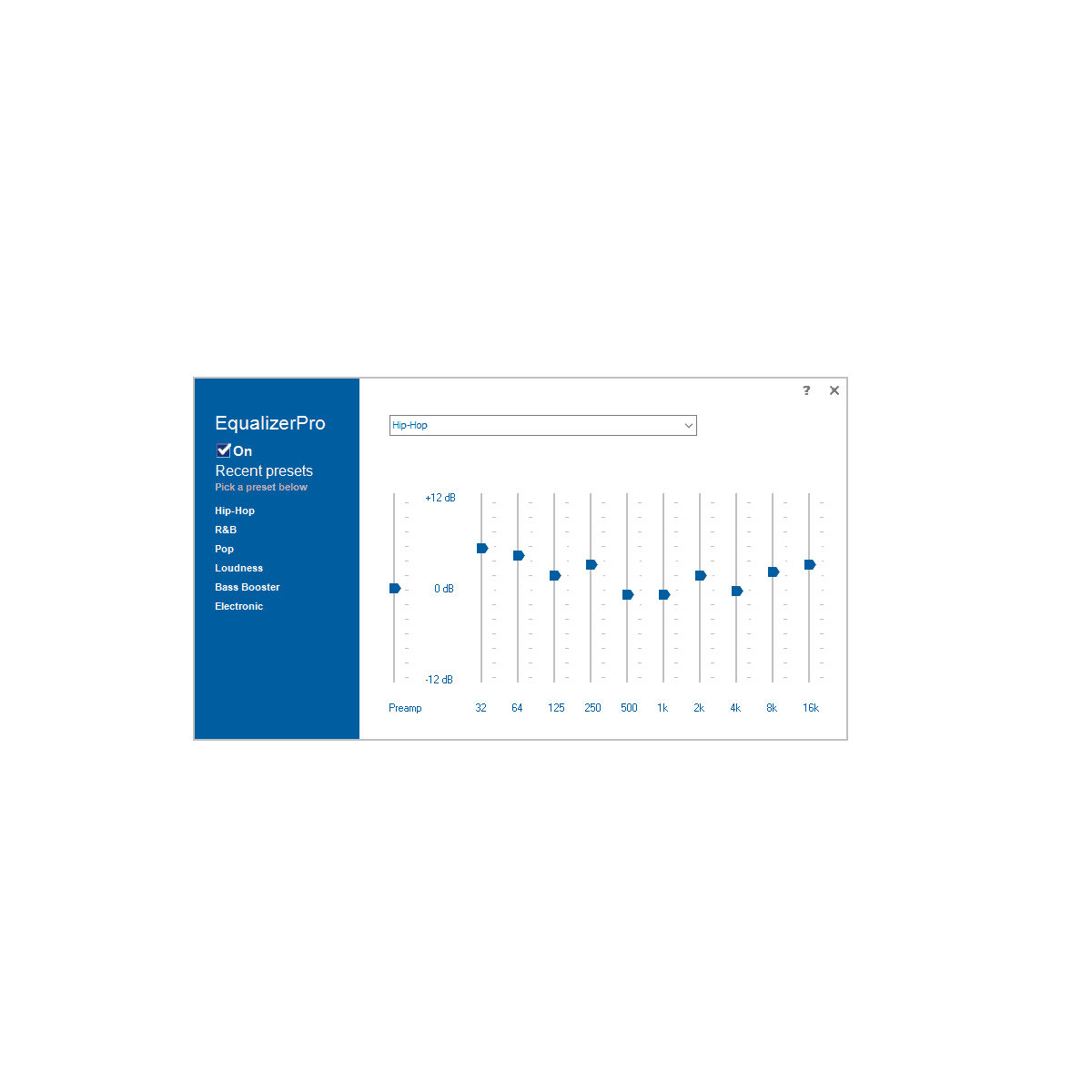
This tool packs plenty of useful features that will allow you to take your audio experience to the next level. There are over 10 band equalizer options to choose from, bass boost effects, as well as custom presets.

Moreover, EqualizerPro is fully compatible with Windows 10, Windows 7 and Windows 8.1

Download EqualizerPro 

Computer Screen Turned Sideways: How to Fix it

When you’re working on the computer, and the screen turns sideways or tilts, it indicates either a recent change or misconfigured settings. In most cases, it’s an issue at the user’s end.

Fortunately, there are ways to work around this issue and fix the sideway screen on the computer. Keep reading to find out!

How do I get my computer screen back to vertical?

1. Use the keyboard shortcut

For those of you wondering how to rotate the computer screen with a keyboard, press Ctrl + Alt + Up arrow keys simultaneously. This will rotate your screen back to the normal or default display setting.

If this doesn’t work, you can hold Ctrl + Alt and then press either the Left, Right, or Down arrow keys to rotate the display orientation as per the preferred choice.

2. Check screen orientation

  1. Right-click on the desktop and select Display Settings.
  2. Go to Orientation and select Landscape.change orientation to fix computer screen turned sideways

When the computer screen turned sideways, a quick solution is to change the display orientation to landscape. This worked for several users.

3. Check the graphics options

  1. Right-click on the desktop, hover the cursor over Graphics options, and then on Rotation.
  2. Select Rotate to 0 degrees.change rotation

Often the rotation is to blame when you find the Windows screen turned sideways. And changing it back to the default position should fix things in no time!

4. Check the advanced settings

  1. Right-click on the destop, and select Display Settings.
  2. Click Advanced display settings to open monitor settings.
  3. Click Display adapter properties.
  4. Go to the tab with your graphics card.
  5. Click to reveal rotation settings option depending on the type of graphics card you have installed.
  6. Finally, under Rotation settings, choose 0 degrees or Normal to return the display to an upright setting, and save the changes.rotation

When the computer screen is turned sideways, changing the graphic adapter properties often comes to the rescue.

5. Perform a System Restore

If nothing else works, the last option is to perform a System Restore. This works if you have previously created restore points on the PC. However, Windows should automatically do that under default settings.

So, check whether any restore points exist and revert to one created before the error first appeared. And this should fix things if the computer screen went sideways.

Before you leave, find the display settings that deliver the best experience in Windows.

Let us know in the comments section whether any of these solutions worked to resolve the issue.

EqualizerPro audio enhancer lets you achieve premium sound on PC

Music quality on PCs has improved over the years, thanks to advancements in the audio features of desktop operating systems like Windows. Nevertheless, many users still resort to equalizers to gain an extra boost in sound performance.

Although it does not offer a significant enhancement, the small bump in music quality still adds a premium feel to it.

One such tool is the EqualizerPro, which allows you to improve the sound coming from your PC, regardless of your media player. The software program redefines the way you watch movies, listen to music, or play games on your computer.

You can use it with iTunes, Windows Media Player, Real Player or any other media player you installed on your PC.

EqualizerPro Key Features

EqualizerPro software

EqualizerPro includes a bevy of nifty features that offer premium sound quality.

These include the following:

  • 10 band equalizer: With the 10 band equalizer you have more control over tone and pitch. Play around with the bands, moving them up and down, and get a feel for the effect they make on the sound. A small adjustment can have a major impact. This is just one of the reasons why EqualizerPro is considered by many to be the best music equalizer around.
  • Bass boost effect: Bass boost is an audio effect that amplifies low frequencies of the sound. Enhance your bass tone without masking it, providing for a smooth clean boost.
  • 20+ equalizer presets: EqualizerPro comes with over 20 pre-programmed presets, specially designed for popular listening modes. You will find the common “Rock” or “Jazz” presets for example, as well as unique presets such as “Vocal Booster”.
  • Custom presets: Create custom presets to use with your different programs. We all have different preferences when it comes to listening to music, watching movies, or playing games on your PC. Make unique presets and save them for later use.
  • Preamp volume control: Using this single band, you can boost low tones and enhance the overall audio output without the need to adjust each band separately.
  • Easy on/off switch: With the user friendly and easy-to-use design of EqualizerPro you can easily toggle the program on and off according to your needs.

You can use the EqualizerPro with various programs, including Pandora, Skype, and Microsoft Windows Media Player. EqualizerPro is available to download from its official website.

Download EqualizerPro 

There is a 7-day free trial period that allows you to test the tool’s features and see if it matches your needs.  

The tool is compatible with the following Windows versions: Windows 7, 8, 8.1 and Windows 10.

Enjoying the best possible audio experience has never been easier. EqualizerPro is very easy to use and features a very user-friendly UI that allows you to quickly learn what each option does.

If you already used EqualizerPro on your Windows computer, do tell us more about your experience in the comments below.

RELATED STORIES YOU NEED TO CHECK OUT:

Fix: SharePoint Online Calendar Web Part not showing events

A lot of SharePoint enterprise users will create a Team website, add and configure different overlays. One of those is a SharePoint Calendar. Sadly, there seems to be an issue with the Web Part Calendar not showing events as the website loads.

They’re visible when editing, but not in the view mode. We tried to shed some light on this, so make sure to check our suggestions below.

SharePoint online calendar not displaying events

To use the SharePoint Calendar online on your Team website, you’ll need to use the web part configuration. This is a single part of your page and it’s manually added to the website. If you’re experiencing issues with events, they’re not showing or showing irregularly, we can suggest two things.

The first step you can follow through is to start from a scratch. First and foremost, try using IE 11, as it seemingly works the best with other web-based Microsoft products. Now, delete the calendar and the overlays and re-add it again. This is done within the Web Part Maintainance page. Once you’ve removed all traces of the calendar, just add it again and, hopefully, everything will work as intended.

The other probable method to address this concerns Rich Text Environment. Namely, if you add the Calendar Web Part in a page’s Rich Text Zone, it won’t be responsive. This is causing a JavaScript error and prevents Calendar Overlays from displaying accordingly.

In order to fix this, move the Calendar Overlay into a different page section. Once you’ve done that, the overlay should work as intended and the calendar. This will fix issues with displaying events in the SharePoint online web part Calendar.

Alternatively, we recommend using a browser with a built-in calendar that shows you the date and time in the toolbar and offers other add-ons that aim to help you stay organized.

⇒ Get Opera

If you’re still experiencing issues with the calendar, consider reaching to the official support and asking for the resolution. With that said, we can conclude this article. In case you have any questions or suggestions, feel free to tell us in the comments section below.

RELATED STORIES YOU SHOULD CHECK OUT:

It’s time to ditch IE: Microsoft urges users to use modern browsers

A recent blog post by Microsoft urges its users to replace Internet Explorer with a modern browser. The Redmond giant also warned companies about additional costs for extended support. 

We all know that Microsoft is lacking behind its competitors as far as the web browsers are concerned. Although Internet Explorer is an outdated browser, we can not deny the fact that it still supports legacy web apps. This is the only reason that most of the organizations and businesses still stuck around to the old web browser. That is the reason that Microsoft itself is urging its users to stop using it and adopt a modern browser.

Chris Jackson, Microsoft’s cybersecurity expert explained in details that why you should move on to a modern browser. According to him a ton of “technical debt” is currently racking up on those organizations that are still using Internet Explorer. 

He further stated that new web standards for Microsoft Edge have currently been stopped by Microsoft. Moreover, only a few testers are currently testing Internet Explorer. Eventually, those businesses who are still interested in using Internet Explorer will be paying an extra cost for extended support.

Even today, most IT Administrators prefer to use Internet Explorer and they find it to be the easiest solution. He pleaded that companies have to look in the long term perspective and choose the best approach, rather than choosing the convenient option.

Will I still be able to browse the Internet using IE?

However, you might be wondering about the fact that either the existing websites will still be supported by Internet Explorer.  Chris clarified the matter and stated that most of the existing websites are expected to work fine. 

Most of the developers currently use modern browsers in order to render web pages. There are various reasons for behind their preference, as these browsers are a lot safer, faster and support the latest standards.

The support for IE 8, 9 and 10 was stopped by Microsoft back in 2016. As most of the people have stopped using IE, so most of the developers have stopped doing compatibility tests. 

Therefore, switching to a modern browser is the only solution is definitely the best, safer, and smarter solution right now.

Microsoft plans to use Chromium in the latest release of Microsoft Edge, that is going to support Windows 7 and 8. Most of the loyal IE users believe that things are going to be better with the release of the upcoming version.

RELATED GUIDES TO CHECK OUT:

Microsoft starts testing new game features in Insider Preview builds

Great news for Windows Insiders! The Insiders in the Fast ring have already got access to the Windows 10 Insider Preview Build 18334 (19H1). The build comes with various changes, fixes, and improvements this time with a focus on gaming on Windows. 

The current update has been released following the announcements made by the Redmond giant to make Xbox Live available to Android, iOS, Xbox, Nintendo Switch, and Windows users. As you can see, the update focuses mainly on the Xbox Live Gamertag on Windows 10, so we can assume that Microsoft has already started to prepare for the expansion.

Windows 10 19h1 gaming improvements

As we have already mentioned, this Windows 10 Insider Preview build is now available with a handful of improvements for the Settings app, mouse and keyboard,  Search, Cortana, language and Nearby sharing. While some significant changes for the Narrator have also been shipped with the package. 

Windows 10 build 18334 known issues

As we know that everything comes with a tradeoff. Therefore, you will also have to face a bunch of known issues. You might have to face the failure for Install button in the Microsoft Store or a wonky title screen.

While the most annoying part of the known issues could be an anti-cheat tool (Battleye) used by PlayerUnknown’s Battlegrounds and Fortnite might fail to work.

So, if you are not interested to risk the integrity of our main system, it is recommended that you should stick with the Slow ring. You can have a look at the complete set of fixes, improvements, along with known issues for Windows 10 Insider Preview build 18334 on the Windows Blog.

How to download the update?

For now, the update is only available to the Windows Insiders in the Fast ring. If you are one of them, the update will be automatically downloaded on your device.

Moreover, you can simply check for new updates for Insider Preview Build 18334 by navigating to Settings >> Update & Security >> Windows Update >> Check for updates.

RELATED ARTICLES:

Microsoft quietly releases the Xbox One 1902 system update (updated with changelog)

Microsoft has quietly released a new system update for Xbox One consoles today. The Xbox One 1902 update, which has been in testings with Xbox Insiders for quite some time is now generally available, though Microsoft has yet to officially announce the public rollout.

The build that is rolling out today to all Xbox One users is the same one that was pushed to Omega Xbox Insiders earlier this month. Unlike the November 2018 Xbox Update, which brought mouse/keyboard support and enhanced Cortana and Alexa skills, the 1902 update for the Xbox One is a pretty minor one, with various improvements and fixes but no new features. You can check out the full release notes below:

Audio

  • Added reliability fixes to Cortana.
  • Unplugging a headset during video playback no longer results in audio loss before video playback freezes.
  • Made audio system upgrades when switching from Home to a game or app.

Cortana

  • Improved Cortana responsiveness to commands.

Console

  • Fixed an issue that caused some consoles to crash unexpectedly.

Home

  • Improved performance on the Home Dashboard.

Mouse

  • Improved mouse responsiveness to reduce lag.

My games and apps

  • Improved the installation experience for various FastStart titles.
  • Fixed a problem in some games (e.g. Resident Evil 0) in which cutscenes would fail and the game would lock.
  • Fixes an issue to ensure certain apps like the Avatar Editor and Microsoft Rewards work on first launch.

System

  • Fixed an issue in which some people received the E203 error when taking a system update.
  • Improved performance on the network port.
  • Improved performance and reliability on the save game feature when games are suspended.
  • Improved speed and performance of My games & apps.
  • Improved idle screen performance.
  • Improved 4K visual performance in games.
  • Improved the performance of the guide on Home.

Video

  • Made improvements to the 4K video pipeline so that apps like Netflix display 4K content correctly.

Now that Microsoft is done with the 1902 system update for the Xbox One, the Xbox team can fully focus on the upcoming 1904 update that should be released in April. So far, Microsoft has been testing two new features with select Xbox Insiders, a new floating mini keyboard and the ability to reprogram the OneGuide button on the Xbox Media Remote. We hope that more exciting additions are in the pipeline for the next system update, but as usual new features will ship first to Xbox Insiders on the Preview Alpha and Skip Ahead rings.

This installer lets you easily run Windows 10 on ARM on a Raspberry Pi

While Raspberry Pis are bare essential computers designed primarily for building robots and connected devices, some people take more pleasure in building desktop computers with them. It’s easy to understand why—at just $35, a Raspberry Pi can serve as a very cost efficient way to build a desktop computer for someone who only needs to check emails, browse social media, or type a quick document.

Linux has been the best way to achieve this given that a Raspberry Pi uses an ARM-based processor that traditional Windows doesn’t support. However, it’s now easier than ever to install the full-fledged Windows 10 desktop operating system on the tiny computer thanks to the developer of the WoA Installer for Raspberry Pi (via Appuals). All one needs are the Raspberry Pi 3 (either the model B or the newer B+), and microSD card, and a copy of the Windows 10 ARM64 disk image.

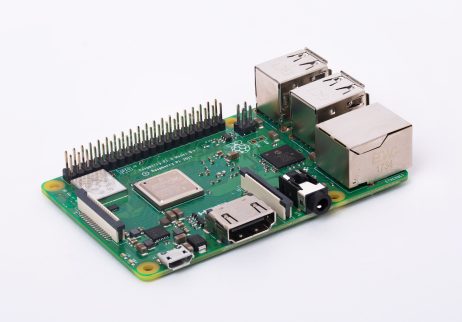
Raspberry Pi 3 Model B+
Raspberry Pi 3 model B+

The process should be relatively simple, although we haven’t tested the installation process ourselves. Just download the WoA Installer and the Core Package, then run the Installer. Once you’re done, import the Core Package from the advanced section in the program, after which you will be able to run the Windows 10 installer and install it relatively easily.

While this might not be the primary use case of the mini computer, it’s still interesting nonetheless, and could make for a nice cost-effective home computer. However, given the low-powered nature if the Raspberry Pi, the tiny computer will likely not perform well when emulating win32 applications, which weren’t designed for ARM chips. Or you could still build a robot running an overpowered full version of Windows 10 as opposed to the IoT version, if you prefer. Either way, its nice to see there are more options out there than the limited number of Linux distributions that support the device.

Microsoft gets busy with Moovit, TomTom partnerships, announces new multi-modal trip planner platform

Microsoft, along with navigation app developer TomTom and Mobility as a Service (MaaS) provider Moovit announced an interesting new partnership at the Move mobility conference in London today (via VentureBeat). The three companies announced the “world’s first truly comprehensive multi-modal Trip Planner,” which will allow consumers to find all driving, parking and public transit options all in one place.

The new solution will combine Microsoft’s Azure Maps platform, Moovit’s Transit APIs and TomTom’s data about driving and parking information to optimize urban mobility and hopefully reduce congestion in big cities. Today’s news follows the integration of Moovit’s transit APIs to Azure Maps back in November, which brought rich public transit info to the platform. Last week, Microsoft also announced that TomTom would become the main provider of location data for Microsoft Azure and Bing Maps.

“I couldn’t be more pleased that our relationship with Microsoft has evolved to the point where we’re adding more of our transit APIs, combined with TomTom’s Routing API and Traffic API, to create full multi-modal mapping capabilities for developers on Azure Maps with precise ETA,” said Moovit Co-founder and CEO Nir Erez. “This will lead to commuters having the best option to plan a trip combining legs on public transit, ride-sharing, bike or scooter, and other legs by car, including finding available parking lot spaces in real-time.”

There’s no word yet about when this new multi-modal trip planner solution will be available for consumers, but the three partners plan to allow developers to integrate the platform to their apps, IoT, and mobility solutions.

Smite is the latest Xbox One video game to get Nintendo Switch and PC cross-play

With its latest update, the popular Smite video game has gained full cross-play and cross-save functionality between its Xbox One, Nintendo Switch, and PC versions.

This means that not only will Xbox One, Nintendo Switch, and PC Smite players be able to play against and with each other, they’ll also be able to carry over progress between devices.

Here’s the official details on the update from the latest patch notes:

Cross-play

  • Players on Xbox One, Nintendo Switch, and PC can now play with and against each other!

Normal Modes

Crossplay will be on by default

  • A new option has been added to the settings menu where console players can restrict their crossplay

Ranked game modes

  • Will continue to be for their platform only, except the combination of Xbox One and Nintendo Switch
  • Players may now add friends from other platforms to their friends list, invite them to parties, invite them to clans

Cross-progression

  • Players will now be able to enjoy all of their content and progress on PC, Xbox One, & Nintendo Switch!
  • Link your SMITE accounts on multiple platforms to a single Hi-Rez account to merge progression
  • All unlocked gods and skins that any merged account has unlocked will be available
  • All earned currency from all merged accounts will be added together, as well as worshippers
  • We will release more updates on how exactly to link and merge accounts as we approach the cross-progression launch day!
  • More info can be found on our FAQ

In addition to the added cross-platform support, this latest update to Smite also adds Merlin, several new god skins, some new additions to the Awesome Chest, a variety of bug fixes, and a new Battle Pass system for the game’s Season 6 that should feel similar to anyone who has played Fortnite.

More and more video games are gaining cross-play functionality between Microsoft and Nintendo’s consoles with Fortnite, Rocket League, Minecraft, and Next Up Hero being some of the more-recent examples.

Is cross-play important to you when buying a new Xbox One video game? Share your thoughts with the community in the comments below and then follow us on Pinterest for more Xbox gaming content.

Titanfall 2 gets massive boost in player numbers on Xbox One thanks to Apex Legends

After the massively-successful launch of Apex Legends last week, it seems as if interest in the Titanfall franchise has been renewed quite a bit.

Players have begun to notice a lot more activity in the online multiplayer in the Xbox One version of the Titanfall 2 video game for example with some seeing over 10,000 players online at the same time. Apparently Titanfall 2’s online servers averaged around two to three thousand players before Apex Legends was announced.

Some speculated that the shift to the free-to-play model used in Apex Legends could spell doom for the main Titanfall video game series but it seems, at least for now, that offering a free game set within the Titanfall world may have actually been a good thing for the franchise.

Something else that’s likely helping grow the Titanfall 2 playerbase is its frequent discounts on Xbox One and its inclusion in the EA Access subscription service which lets subscribers play it for free. With lots of new players discovering Titanfall through the free Apex Legends, EA has made it very easy for them to jump into Titanfall 2.

Have you started playing Titanfall 2 since getting into Apex Legends? Share your thoughts with the community in the comments below and then follow us on Pinterest for more Xbox gaming content.

Titanfall® 2: Ultimate Edition


Titanfall® 2
Titanfall® 2
Developer:
Electronic Arts
Price:
Free

Fix: Lenovo BitLocker Requests Recovery Key at Every Boot

BitLocker encrypts hard drives and flash drives on some Lenovo PCs. However, some Lenova Yoga users have stated in forum posts that BitLocker keeps requesting the recovery key every time they boot up Windows.

Consequently, users must enter the key every time they boot up. The issue often arises after motherboard hardware changes.

How can I fix Lenovo Bitlocker key issues?

1. Update the BitLocker TPM

Users with new motherboards must repopulate the TPM (Trusted Platform Module) to fix the recovery key requests. A new motherboard’s TPM will not include any info about the BitLocker encryption.

Thus, updating the TPM by temporarily suspending protection usually fixes the issue. This is how users can update the TPM in Windows.

  • Open File Explorer with the Windows key + E hotkey.
  • Then right-click the hard drive for which BitLocker is turned on and select Manage BitLocker.
  • A Control Panel applet that includes BitLocker settings will then open. Click the Suspend protection option.
  • A dialog box window will open asking, “Do you want to suspend BitLocker protection?” Press the Yes button to confirm.
  • Then click the Resume protection option a few minutes after suspending protection.
  • Then restart the desktop or laptop.

2. Update the BitLocker TPM via Command Prompt

  • Alternatively, users can update BitLocker’s TPM with the Command Prompt. To do that, press the Windows key + R hotkey.
  • Then enter ‘cmd’ in Run, and press Ctrl + Shift + Enter to open an elevated Command Prompt.
  • Input ‘Manage-bde -status c:’ (for the c: drive) in the Command Prompt, and press the Return key.
  • To delete TPM info, enter ‘Manage-bde – protectors -delete c: -type TPM’ and press Return.
  • Then input ‘Manage-bde -protectors -add c: -tpm’ in the Prompt, and press the Enter key.
  • Close the Command Prompt.
  • Click Restart on the Start menu.

3. Turn Off BitLocker

  • Users can turn off BitLocker to stop the pre-boot authentication. To do that, open the Run accessory.
  • Then open the Command Prompt by entering ‘cmd’ in the text box and pressing Ctrl + Shift + Enter.
  • Input ‘manage-bde -off C:’ in the Prompt and press Return to turn off BitLocker.
  • Alternatively, users can turn off the BitLocker service. To do that, open the Run accessory.
  • Enter ‘services.msc’ in Run’s text box and click OK to open the window directly below.
  • Then double-click BitLocker Drive Encryption Services to open its properties window.
  • Select Disabled on the Startup type drop-down menu.
  • Press the Apply button.
  • Click the OK button to close the window.
  • Then restart Windows.

Updating the TPM or turning BitLocker off will probably stop pre-boot recovery key requests. If anybody has further fixes for BitLocker pre-boot authentication, feel free to share them below.

Google Chrome to add dark mode support for Windows 10 in April

One of the major trends these days is the addition of dark mode to apps and software. It seems that the tech giants are once again inclined to bring darker colours to screens. A few days ago it was Microsoft that upgraded its mail and calendar app to dark mode. Now, it is Google Chrome‘s turn to be uplifted to dark mode most likely in April 2019.

Chrome is a vast browsing platform. Its parent website, Google, regularly introduces new changes to Chrome to keep it up to date and intuitive.

According to the latest news from the tech world reports the implementation of dark mode on Google Chrome. According to the reports, Chrome newest version 74 will offer system-wide dark mode on both Windows and macOS.chrome dark mode

This new version 74 is expected to hit the screens in April 2019. At the moment, it is in the Canary release stage, but it already supports dark mode on both Windows and macOS.

The dark mode can be enabled on both Windows and macOS by changing the theme settings to dark. Changing the theme setting to dark enables the system-wide dark theme. However, some computers could not activate the dark mode in the Canary release. Canary is the early test version of Chrome.

The dark mode changes the colour of the screen and text. It turns the screen dark and the text white. Similarly, the dark mode on the Chrome changes the colour of its downloads page, search bar and settings.

The screens once again are being rapidly transposed to dark mode because of the less harmful effects of this mode on eyes. It is favourable for working in dim environments. Moreover, it contains less blue light and enhances the readability of the text.

Once the dark mode is officially released with Chrome 74 version in April, there would be options to enable or disable it.

We have discussed all the news about the dark mode on Chrome, but what you think about this new update. Let us know in the comments below which do you think is the better: dark or the light?

Windows 95 app update supports old Paint and Minesweeper versions

The Windows 95 app is now available with several exciting pre-installed games and apps following a major update. The first version of the app surfaced online and it can be used on a Mac, Linux or Windows 10 machine. 

The first version of the app was launched on Github in August 2018, the users got a chance to go back to the 90s era by refreshing the memories of Windows 95 versions of MS Paint, WordPad, and Minesweeper.

Windows 95‘s latest build is now available with a pre-installed web browser “Netscape 2.0” that was launched back in 1995.

Windows 95 app gets new update

Furthermore, the latest version also provides you with the opportunity to refresh the sound effects of Windows 95 in your mind as it brings support for sound. Several apps and games have been pre-installed on this old version of Windows with a free virtual disk space of 500 MB. 

While some of the other features that have been added by the developer are: a machine button, improved support for High-DPI devices and ‘Reset’. 

The app also comes pre-installed with Microsoft FrontPage and FrontPage Server and other games. For this reason, the final version has a total size of 300MB.  

Linux, Windows and Mac users can download the Windows 95 app from GitHub. 

How Users Reacted To Windows 95 Reborn?

Most of the users took to Reddit to express their opinions about the Windows 95 app. It seems like some of them are liked the app just because they missed the older version of Windows. He stated:

I do miss the Windows Classic theme in Windows 7. It was really nice for lower end machines. I don’t know why they took it out.

While others are feeling lucky enough not having to use the older builds just because they just used CPU to render so the build was slower on some machines, less efficient and wasn’t hardware-accelerated. 

Have you tried the latest version of the Windows 95 app? Let us know if you feel any difference as compared to the original version of Windows.  

RELATED STORIES YOU NEED TO CHECK OUT:

Windows 10 Core OS could support Win32 apps in the future

Microsoft is working on an adaptive and modular version of version of Windows. The build is expected to be rolled out later this year for the Andromeda OS and dual-screen devices. 

It will allow users to run UWP and PWA apps that are available in the Windows Store. Microsoft is currently working on the upcoming Windows 10 builds for Andromeda. Reportedly, the builds are already in the testing phase. The progress is visible from the fact that a dual-screen foldable device will soon hit the stores. 

A Glimpse of Windows Core OS

Windows Core (WCOS) has been a hot topic on Linkedin during the past few months. Hence there is enough evidence that Microsoft is secretly working on the WCOS. A Linkedin update recently offered more information on Microsoft’s plans.Win32 app Windows 10 OneCore OS

It has been revealed that Microsoft is reportedly working on Windows Driver Frameworks (WDF) validation for Windows Core OS and Windows Driver Model (WDM). It can be considered as a major development keeping in mind its importance for enabling drivers so that they are able to work along with the operating system.

Furthermore, the software giant also plans to support the next-generation products through refactoring Windows components. The profile further states that OneCore based containers can be used to support Win32 apps. Microsoft’s lineup of the desktop OS can be completely transformed through Windows Core OS. It is expected to bring a more streamlined and modular interface. 

It is expected that the company will be using the platform of Microsoft’s Build developer conference to launch Windows Core OS. As the upcoming conference is scheduled to take place from May 6 to May 8, we will have to wait for about a month to seek answers to all our questions.

Apparently, with the launch of WCOS Microsoft aims to enhance the efficiency and modularity of Windows operating system. The tech giant is also likely to support a brand new line of foldable devices. by tweaking elements of Windows 10 apps and user interface.

It is worth noticing that Microsoft has strictly stayed mum over the development of WCOS. The company has also abstained from coming over the rumours that are going rounds on social media platforms.  

RELATED ARTICLES:

5 expensive devices that can make excellent Valentine’s Day gifts

Valentine’s Day is all about celebrating love; and what better way to do that than to give your partner something that he or she will always remember you for.

Mentioned here are some cool gift ideas that can make you partner awe struck. These are expensive but when has love come to be measures by monetary limitations, or anything else.

Valentine’s Day expensive gift ideas

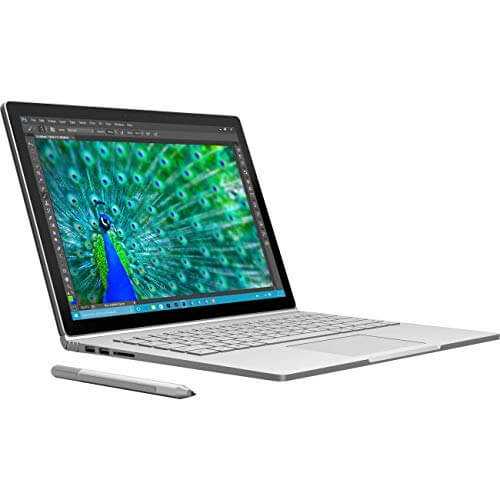
1. Microsoft Surface Book

There are plenty of reasons to fall in love with the Surface Book. It comes in a 2 – in 1 form factor, meaning it can be both a laptop as well as a notebook device. Also, with a dual core 6th Gen Intel Core i7 processor coupled to an 8 GB DDR3 SDRAM and 256 GB SSD powering the device, you can always be rest assured of breezy performance.

Plus, the Surface Book running Windows 10 Pro is Surface Pen compliant as well, which means you can draw objects or take notes right on the display itself. For the latter, there is the 13.5-inch PixelSense display while battery life is also a commendable 12 hours.

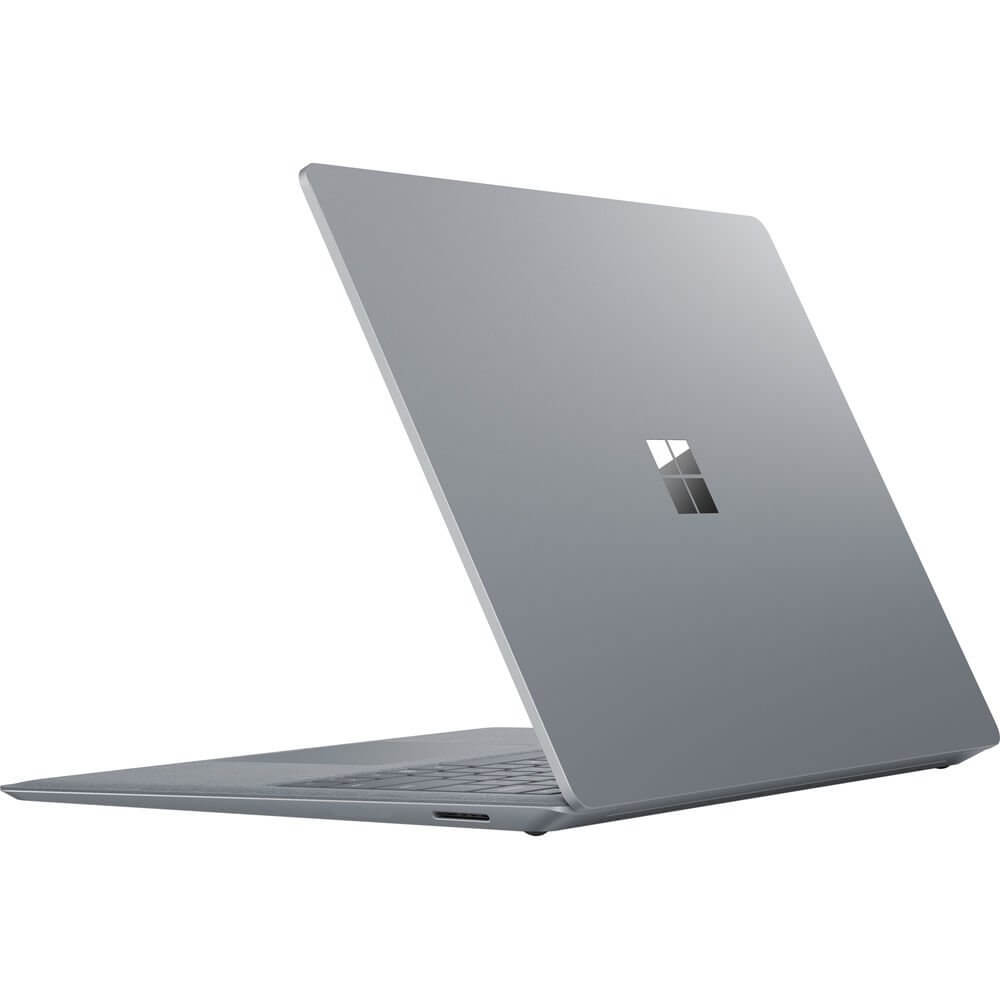
2. Microsoft Surface Laptop

With an Intel Core i7 CPU, Intel HD 620 and Intel Iris Plus Graphics 640 coupled to 16 GB of RAM, you can always be assured of best in class performance no matter how processor intensive the task is. Plus, with 512 GB of native storage, you can never run out of space as well.

You also get 13.5-inch  PixelSense Display of 2256 x 1504 resolution while battery life is a thoroughly impressive 14.5 hours.

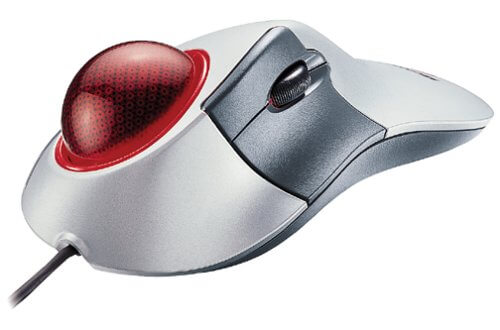
3. Microsoft Trackball Explorer

The new Trackball Explorer from Microsoft relies on optical sensor technology for a smooth and optimum control. Its robust in its design too, which coupled with the lack of any moving parts means it requires minimum maintenance. In fact, with there being no mechanical trackball, there is nothing to be cleaned here.

Plus, there are two programmable buttons that you can set to a function as per your need. Overall, there are five buttons and is designed for use by the right hand only.

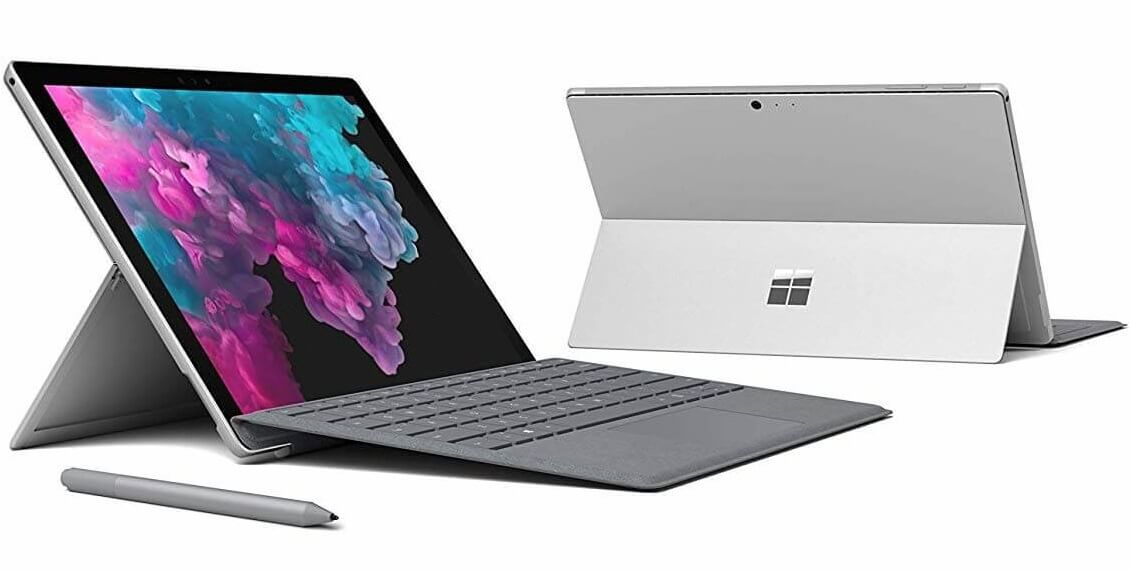
4. Microsoft Surface Pro 6

Surface Pro 6


The Surface Pro is already a legend in its own right. It’s one device that set the stage for 2 -in-1 devices to come in vogue. As it well known, the device comes with a detachable keyboard while the flexible rear stand allows you to adjust the display at almost any angle that you’d prefer.

The device is also available in a range of configuration to suit one’s need. The one mentioned here comes powered by an Intel Core i5 chip, has 8 gigs of RAM and 128 GB of storage.

You partner will surely love to have one of these while the device can remain a symbol of your love for years’ to come thanks to its durable build.

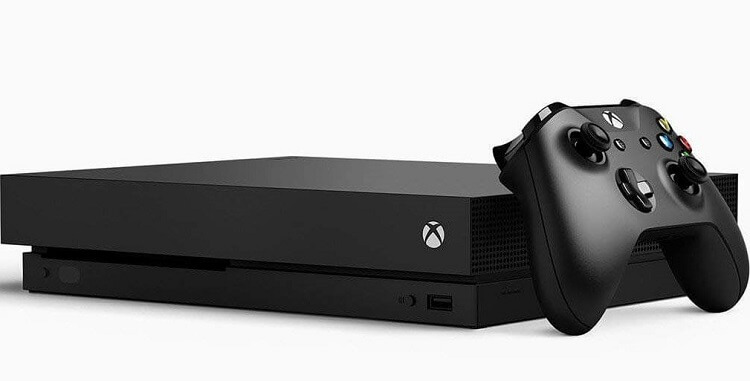
5. Xbox One X

Xbox One X console


There is no way your partner will not like to have this if he is a gaming freak. With 1 TB of storage, 4K ultra Blue Ray compatibility along with 40 percent more power than any console of its class, the new Xbox One X is one of the best you can have. Not for nothing has it been named the world’s most powerful console.

You also get an Xbox Wireless Controller as part of the deal. Then, of course, there is the almost unending supply of gaming titles to make the most of the console’s awesome capabilities.

So, which of these devices are you going to purchase this Valentine’s Day?

RELATED GUIDES YOU NEED TO CHECK OUT:

[Updated] Upcoming Xbox exclusive Crackdown 3 won’t support Xbox Live parties at launch

Microsoft has just wrapped up its Crackdown 3 Wrecking Zone technical test this weekend, gathering useful data ahead of the game’s worldwide launch on February 15. For those unfamiliar, Wrecking Zone is Crackdown 3’s multiplayer mode offering 5 vs 5 matches with cloud-powered destruction.

Crackdown 3 is the first big Xbox One/Windows 10 exclusive game to launch this year, but for some reason its Wrecking Zone multiplayer mode won’t support lobbying with friends at launch, forcing all players to go through randomized matchmaking. This is what explained the community manager for the official Crackdown 3 server on Discord yesterday, a comment initially spotted by Reddit user Branflakes222 (via Windows Central).

Crackdown 3 also has a Campaign mode you can play in coop with a friend, and this mode will apparently support lobbies. It worth noting that the game’s Campaign and Wrecking Zones are actually two separate downloads on the Microsoft Store, which is quite unusual for a Microsoft game.

The same community manager also couldn’t confirm if Microsoft was planning some additional content for Crackdown 3. This may all depend on the game’s success, but unfortunately, Crackdown 3 will be released alongside several blockbusters games this month including Metro: Exodus, Far Cry: New Dawn, and Anthem.

Crackdown 3 will be released on Friday on Xbox One and Windows 10, and Xbox Game Pass will be able to play it for free on launch day. The game also supports Xbox Play Anywhere and Xbox Live crossplay across Xbox One and Windows 10.

Update: The official Crackdown Twitter account shared today that Xbox Live party functionality would be coming in a future update, along with some post-launch content.

12 Windows 10 apps for Valentine’s Day to create romantic memories

Valentine’s Day is just a few days away.If you own a Windows 10 tablet or computer and you also care for this holiday, then you need to start downloading some useful apps. Microsoft has just highlighted some app in the Windows Store to help you get ready for Valentine’s Day.

Last month, we shared with you the Windows 10 app Valentine Photos. Meanwhile, Microsoft has added a whole new section of suggestions containing Windows 10 apps that you can install on your Windows 10 device to help you create romantic moments.

The apps from below will help you cook a romantic dinner like a chef, search for gifts and a place to eat and even to look for your soul mate on dating services.

Windows 10 apps for romantic moments

Open Table

windows 8 open table app

Use the Windows 8 Open Table app to book at more than 20,000 restaurants in the US, Canada and Mexico and take your beloved one for a romantic dinner on Valentine’s day.

Match.com

match.com windows 8

If you don’t have yet a special person with whom to spend the 14th of February, then you need to start searching for it. Match.com for Windows 8 is an app that you can download for free.

UPDATE: The app is no longer available for download.

CookBook

windows 8 cookbook

We’ve shared with you plenty of Windows 8 cooking and recipe apps, and CookBook is one of the best choices you have at your disposal.

Urbanspoon

windows 8 app urbanspoon

UrbanSpoon is one of the best restaurant recommendation apps in the world and it has released an official version for Windows 8 users, as well.

Cocktail Flow

cocktail flow

If you want to surprise your special one with your cocktail-making skills, then you can download the Cocktail Flow app for Windows 8 and start shaking that Margarit!

UPDATE: The app is no longer available for download.

Amazon

windows 8 amazon app

Shopping for the right Valentine’s Day gift isn’t that easy but by using the official Windows 8 Amazon app, you increase your chances in finding it.

Cupid Dating HD

windows 8 cupid app

Another dating app for Windows 8 users is Cupid Dating HD, the official app for the cupid.com web service. It comes with a high-quality design which makes sure you will be able to look at photos in good quality.

UPDATE: The app is no longer available for download.

AllRecipes

best-windows-8-recipe-apps-cooking-apps (1)

Another Windows 8 cooking app, AllRecipes comes with a lot of recipes and cooking tips that you can use to transform your Windows 8 tablet into a real cooking help.

For more information on additional recipe apps and guides, check out this article.

Valentine Cards

valentine cards windows 8

This simple and free Windows 8 app will let you make Valentine Cards of yourself and your beloved one straight on your Windows 8 tablet. Start unleashing your creativity!

UPDATE: The app is no longer available for download.

iCookBook

icookbook

For those who have been using iCookBook on other mobile platforms, it’s useless to remind how awesome the app is. And on Windows 8, it retains the same quality.

Pepperplate

windows 8 pepperplate

Last, but not least, Pepperplate is yet another Windows 8 cooking app that also comes with a menu and cooking planner, so you can be sure your special one won’t be disappointed.

Valentine Stickers

Valentine Stickers app

This app allows you to create your own Valentine’s Day cards and stickers using photos stored on your computer. Select a background picture, add the stickers you want, choose a frame, write a love message and you’re done. There are over 200 stickers that you can choose from. You can upload your cards on social media as well.

RELATED GUIDES YOU NEED TO CHECK OUT:

Microsoft news recap: Skype for desktop can now blur the background in video calls, Tesco arrives on Microsoft Rewards, and more

Microsoft news recap is a weekly feature highlighting the top Microsoft news stories of the past week. Sit back, grab some coffee, and enjoy the read!

Skype desktop app gets background blurring in video calls

Ever been in a Skype video call but in the background was your messy room? Microsoft is looking to solve that problem. When performing a video call on Skype’s desktop app, you can now blur the background, keeping the focus on you and not your surroundings. The feature uses the same AI-powered tech that is used in Microsoft Teams.

Tesco is now available on Microsoft Rewards, now you can use your rewards towards grocery shopping

Microsoft Rewards has become that little bit more rewarding for UK users. Points can now be redeemed for a Tesco gift card, allowing you to use your points towards grocery shopping. You know what they say, “every little helps.”

Tesco

Bing hopes to change the way search engines index the web: wants publishers to submit new and updated content

Bing is hoping to change the way that search engines find new and updated content on the web. It wants publishers to tell it when there’s new content that needs looking it, rather than relying on search engines to crawl the web, which is a resource-intensive task.

Bing.com

Microsoft’s Surface headphones to launch in eight new markets in March including Canada and Australia

If you’re in Canada, Australia, New Zealand, France, Germany, Ireland, Austria or Switzerland and have been waiting to get your hands on Microsoft’s Surface headphones, your chance is nearly here. The Surface headphones will be available in the above markets in March.

That’s it for this week. We’ll be back next week with more Microsoft news.

5 Valentine’s Day affordable gifts for the tech lovers

Valentine’s day is all about love and lovely gifts. Delicious chocolates, fresh flowers, beautiful greeting cards, or intense messages have been a part of every V-day till now. To make it a little different, gifting a gadget can be a great idea. But at the same time, it’s important to keep the budget in mind. For those who want to gift something interesting without spending a fortune, investing in Valentine’s Day affordable gifts can be a good idea. While there are many tech gift options out there, finding the right gift in a set budget can be tough. Here’s a quick list of some of the best Valentine’s Day affordable gifts for the tech geeks under $50.

5 Valentine’s Day affordable gift ideas

Belkin 3.5 mm Audio + Charge Rockstar

best cheap Valentine’s Day gifts for

Whether it’s about human efforts or tech gadgets, multi-tasking is the need of the hour. The Belkin 3.5 mm Audio + Charge Rockstar doubles up as an iPhone charger, while the owner enjoys the music.

The charging adapter is specially designed for iPhone XS, XS Max, XR, 8/8 Plus and more. It’s a great buy this Valentine’s day for the iPhone lovers and those who want to get the most out of their phone.

Hidrate Spark 2.0 Smart Water Bottle

best cheap Valentine’s Day gifts for

Yes, in the time of tech advancement, even a smart water bottle is possible. Hidrate Spark 2.0 Smart Water Bottle is a perfect gift for those who love to keep a track of their water intake. This is especially suitable for the fitness fanatics as it syncs with most fitness trackers like the Fitbit, Apple Watch, etc.

This Valentine’s Day affordable gift can also sync with smartphones via Bluetooth and glows to remind the user to stay hydrated.

    –  Get it here on Amazon

READ ALSO:

MIXIT DuraTek Lightning to USB Cable

best cheap Valentine’s Day gifts for

Smartphones are dominating our lives, hence keeping the devices going at all times is a priority. MIXIT DuraTek Lightning to USB Cable by Belkin is an MFi certified charging cable that’s specially designed for iPhones.

The lightning cable works with the iPhone XS, XS Max, XR, X, 8/8 Plus and previous models. With a 5-year limited lifetime warranty, this USB cable is a must-have Valentine’s day tech deal to stay connected at all times.

    –  Get it here on Amazon

VIKTOR JURGEN Neck Massage Pillow

best cheap Valentine’s Day gifts for

Who doesn’t crave a relaxing sleep at the end of the day? VIKTOR JURGEN Neck Massage Pillow makes for a perfect gift for those who run short of time for a spa massage. This gadget does not just relax the neck and shoulder but also massages the lower & upper back, abdomen, calf, and thighs.

The pillow penetrates deep down the muscles and tissues using the 3D multi-direction rotating balls. It provides relief to those suffering from pain, tension, knots, and aches.

COBY Premium Bluetooth Speaker with Built-In-Mic

best cheap Valentine’s Day gifts

Everyone owns a Bluetooth speaker these days. So, for the music freaks, the COBY Premium Bluetooth Speaker with Built-In-Mic makes for just the right gift. While it comes with a smart look that more resembles an old day transistor, it also boasts a high bass stereo sound. Those looking for a tech gift in a budget below $50, this is one of the best Valentine’s Day affordable gifts.

These budget gifts are a must-have for all the tech geeks who live on the latest gadgets. So, make this Valentine’s day special with these cheap Valentine’s Day gifts for the tech lover.

RELATED POSTS:

5 amazing Valentine’s Day gifts ideas to show your love

Gifts are an integral part of every special occasion, and there’s no exception to Valentine’s Day. Love is in the air and shopping is in the priority list this season. While there is no dearth of gift options for the loved ones, thinking of the right gift can be challenging. From personalized gifts to apparels or accessories, there’s a long list of Valentine’s Day amazing gifts up for grab. However, in recent years there has been a growing love for gizmos. As a result, the tech market is also witnessing a spike in demand. Those having a tech-loving partner can cash in on these superb ideas for Valentine’s Day amazing gifts. Here we have listed some of the best gifts to surprise their geeky partners this V-day.

5 amazing Valentine’s Day gift ideas

Xiaomi Mi Band 3

Valentine's Day Gift Ideas

This one’s purely for the fitness lovers, who would love to know their activity stats for the entire day. From step counts or calories burnt to heart rate and sleep quality, it does all of that and more at a much affordable price.

This sleek fitness smartwatch by Xiaomi features a smart OLED display and waterproof feature for 50 meters swimming. With a real-time display of the activity stats and option to connect with Google fit, it makes for a great Valentine’s Day gift idea.

Logitech X100

Valentine's Day Gift Ideas

Music lovers can’t ask for more with this sleek and powerful Bluetooth enabled portable wireless speaker. It features a smart look with great sound quality that boasts clear bass, mids, and highs. It comes with wrist and backpack cable for convenience.

Best of all, it can be connected to the smartphone via Bluetooth and can control calls and volume. The integrated 5-hour lithium-ion battery is rechargeable, ensuring music lovers enjoy uninterrupted music.

    –  Get it here on Amazon

READ ALSO:

Amazon Echo Dot

Valentine's Day Gift Ideas

Amazon has gradually earned that trust among the buyers with its innovative and quality products at affordable prices. Echo dot is one such innovative product by Amazon that has soon gained popularity due to its sleek design and Alexa based capabilities.

The smart speaker is voice controlled that reads news, plays music, answers questions, reads weather report, and much more.

From calling and messaging anyone hands-free to the option to get connected with high-volume speakers, this is a perfect Valentine’s Day Amazing Gifts Idea for the beloved.

    –  Get it here on Amazon

READ ALSO:

Anker Soundcore Liberty Air

Valentine's Day Gift Ideas

A pair of good quality earphones is a bare necessity in the busy schedules these days. Anker Soundcore Liberty Air is a wireless headphone that more looks like the Apple Airpods.

The quality of this gadget is the noise cancellation feature that filters out any disturbing noises around using the two integrated microphones.

The ear-buds are touch controlled and support Bluetooth 5.0 that connects it with compatible gadgets, smoothly. With around 20 hours of battery life and superior audio quality, this will make for a nice surprise for the gizmos.

DEEPCOOL Laptop Cooler

Valentine's Day Gift Ideas

What better than gifting the man a laptop cooler this Valentine’s? The laptop is used almost the entire day and it really needs some cooling down. This laptop cooling pad by DEEPCOOL is a slim device that’s made of black metal mesh and black plastic. It provides a good amount of airflow to cool the laptop, while the blue LED lights offer a lot more than just cooling.

It offers industry-recognized 7° angle for comfortable viewing and support. So, if working on the laptop entire day is your partner’s prerogative, this is one of the best Valentine’s Day amazing gifts idea you can think of.

While there’s no special time to show your love to your partner, gifting their favorite gadget during Valentine’s Day is definitely special. So, make your choice from the above list, and make memories together to be cherished forever.

RELATED POSTS

Tesco is now available on Microsoft Rewards, now you can use your rewards towards grocery shopping

If you’re in the UK and are part of Microsoft’s loyalty scheme, Microsoft Rewards, those points you have been racking up can go to more than just Microsoft’s own suite of products and services.

For a while now, users have been able to redeem their points for Pizza Express vouchers, Starbucks gift cards, and more.

Joining the fold is the UKs largest supermarket, Tesco. With this, you can now use your Microsoft Rewards points towards your grocery shopping.

Tesco Microsoft Rewards

With 7,600 points, you can net yourself £5 worth of groceries at Tesco, redeemable online or in-store.

Adding Tesco to the line up of reward options continues to increase the reasons to make use of Microsoft Rewards, through searching on Bing, cashback on purchases, and more.

Skype Background Blur helps you avoid embarrassing situations

Good news for Skype users! The automatic background blur feature is finally going to be rolled out for Skype video call users this week. 

Now you don’t have to worry about the kids roaming around in the room or you are sitting in a busy cafe. The feature will help you in getting rid of the clutter around you while having important conversations. This handy tool can also be used to get rid of the distractions in embarrassing situations.

Artificial Intelligence Comes To Rescue

Skype introduced the same background blur functionality as it has used in Microsoft Teams. The artificial intelligence technology identifies you based on hands, arms and hair, to keep you as a focal point. Then the AI blurs everything around you in your video call and makes sure that no incorrect parts have been blurred out.


We all remember the professor who faced an embarrassing situation during a BBC interview as he got interrupted by his kids. This handy feature (if enabled) is going to save him and most of us during those unavoidable situations.

How to Enable The Exciting Feature On Your PC?

Currently, the feature is restricted to the laptop and desktop who have the latest Skype version. The background blur option is available to the users during an ongoing video call by hovering at the “video button” “located at the bottom of the screen.

You have to right click the button and switch on the “blur my background” toggle that is located at the bottom of the screen. So, from now onwards your background will be out of focus. 

The feature is still in its experimental stages so the tech giant cautions its users that there is no guarantee that your background will always be blurred out in video calls. Hence, it’s not recommended to completely rely on technology in messy situations.

Furthermore, Microsoft has not yet shared any details regarding the release of the background blur feature to mobile users. 

So all the messy people around, are you excited to use the background blur feature?

RELATED POSTS:

Wmpshare.exe: What it is and how to get rid of it

Like other .exe (executable) files making up Windows, wmpshare.exe helps your Windows PC successfully run routine tasks.

Specifically, the wmpshare.exe is responsible for processes relating to Windows Media Player such as sharing media files.

Subsequently, when the wmpshare.exe file fails to start or encounters problems after starting, your computer will report issues when you attempt to run a task associated with it.

Sometimes the machine will give notifications or just display an error code on the screen. Interestingly, some users don’t understand the wmpshare.exe file and mistake it for malware.

Others don’t know how to reply to prompts made by the application and will even attempt to stop it in the task manager.

wmpshare.exe

Well, this article is all about wmpshare.exe, its role, and how to troubleshoot errors it may cause in Windows.

Should I uninstall wmpshare.exe?

The file is found either in a subfolder in %PROGRAM_FILES% or as a subfolder in %WINDOWS% in C: based on the version of Windows you have installed.
Then, as I earlier highlighted, this file belongs to Windows and contributes to the overall efficient execution of the operating system’s media player function.

For this reason, uninstalling wmpshare.exe would be unwise- not unless everything else totally fails.

Common errors sssociated with WMPshare.exe

Here are some of the frequent errors brought about by the wmpshare.exe file and their possible interpretations:

  • Exe corrupt: This may mean that the file is damaged, for instance, by a malware.
  • Exe- no disk: This likely indicates that the file service is still making references to a CD/DVD drive that’s no longer accessible.
  • Controlled folder access blocked wmpshare.exe from carrying out changes to the folder “%userprofile%music”: This ‘bug’ appears when the file is blocked from accessing certain folders by controlled folder access.
  • Library files archive bit reset by wmpshare.exe:  The library archive bit reset could be indicating that backups involving shared media files are encountering problems when run.
  • Exe not responding: The app. is frozen perhaps due to stretched system resources.
  • Exe – Application error: This may be resulting from bad code or insufficient memory when running it.
  • Exe – Access denied: The antivirus maybe blocking the file, the file could be corrupted, or your user account may be lacking the rights to access the file.
  • Exe- error: This may mean that the wmpshare.exe or a closely associated program is no longer installed in your computer.

How to fix wmpshare.exe errors

The file responds to the listed hitches variously. For example, wmpshare.exe can stop or repeatedly retry to execute your request.

It may also seek to modify the faulty settings in the registry depending on the action it is supposed to accomplish.

This explains why you often once in a while see error messages mentioning that wmpshare.exe is attempting to carry out changes to some folders.

However, it doesn’t always succeed and it may take your intervention to fully resolve some of the critical wmpshare.exe issues.

Let’s look at the steps that you can undertake to rectify the common mishaps:

  1. Scan The System Files For Errors
  2. Use DISM to Restore Health
  3. Exit The Homegroup
  4. Turn Off Controlled Folder Access
  5. Run System Restore
  6. Download and install the latest Windows Update
  7. Scan For Viruses
  8. Disable The Network Sharing Service In Windows Media Player
  9. How To Recover A Missing/Damaged Wmpshare.Exe File

Fix 1: Scan The System Files For Errors

The file may show this warning if it finds relevant files being corrupt.

Here is what to do if you’re getting notifications that the file has been blocked from accessing the %userprofile%music folder by controlled folder access:

Steps:

  1. Click on the start button.
  2. Type cmd.exe in the search box to locate the Command prompt.
  3. Right-click cmd.exe and select run as administrator.wmpshare.exe corrupt
  4. Click yes to proceed to cmd.
  5. Now type sfc /scannow then press enter.
  6. Wait as the tool checks the system for any errors.
  7. Restart your computer.

In addition, you can run complete system scans using dedicated repair tools for your PC. These tools allow you to perform in-depth scans and then quickly replace any broken system file in just a few moments.

Fix 2: Use DISM to Restore Health

DISM (Deployment Image Servicing & Management) tackles some of the file corruption challenges that the sfc tool may be unable to.

Specifically, it uses Windows Update (thus it needs internet access) to repair corrupt system files.

It’s recommended that you run the sfc /scannow before the DISM Restore Health commands.

 Steps:

  1. Click on the start button.
  2. Type cmd.exe in the search box then locate the Command prompt.
  3. Right-click cmd.exe (from the results) and select run as administrator.
  4. From there, click on Command Prompt (Admin) option.
  5. Now type these commands (press the enter key after each entry).

                    DISM.exe /Online /Cleanup-image /Scanhealth 

wmpshare.exe wants to make changes

                   DISM.exe /Online /Cleanup-image /Restorehealth 

Also, remember to allow each of the commands to run:

6. Close the command prompt and restart the computer.

Fix 3: Exit The Homegroup

Homegroups are networks of PCs created to easily share resources such as files (music, videos, pictures, documents, etc.) and printers among users.

In Windows 7, the file relies on the existing HomeGroup sharing settings.

You can therefore remove your computer from the HomeGroup and check to see if the problem will disappear.

Steps:

  1. Open your HomeGroup by tapping the Start 
  2. Click Control Panel.
  3. Type homegroup in the control panel’s search box.
  4. Click HomeGroup.
  5. Choose Leave the HomeGroup.error 'WMPSHARE.EXE corrupt file
  6. Confirm that you want to leave by clicking Leave the HomeGroup once again. wmpshare.exe- no disk
  7. Wait as the PC exits the HomeGroup then click Save changes.
  8. Hopefully, you’ll get rid of the wmpshare.exe-caused problem.

Fix 4: Turn Off Controlled Folder Access

Controlled folder access enhances protection against malware targeting Windows. The feature’s role inspects apps before they are allowed to access files residing in protected folders such as wmpshare.exe.

Unfortunately, this powerful feature sometimes prevents wmpshare.exe from operating properly resulting in random errors.

You can either allow wmpshare.exe through or Turn off the property entirely.

How to let wmpshare.exe through:

  1. Open the Windows Defender Security Center by searching for Defender from the start
  2. Click on the Virus & threat protection tile on the menu bar (left).wmpshare.exe wants to make changes
  3. Select Virus & threat protection then click on Virus & threat protection
  4. Scroll down until you view the Controlled folder access option.
  5. Click on Allow an app through Controlled folder access.wmpshare.exe*32 slows my system down
  6. Now press the Add an allowed app (+)icon(as shown) and browse to its location (C:program filesWindows media player) to add wmpshare.exe program to the allowed app. list.

If allowing the file through still refuses to work, consider turning off controlled folder access permanently.

How to turn off Controlled folder access:

  1. Select Start then choose 
  2. Navigate to Update & Security  and click Windows Security.
  3. Select Virus & threat protection  tile on the menu bar (left). wmpshare.exe wants to make changes
  4. Click Manage settings Under Virus and threat protection settings.Library Files Archive Bit reset by wmpshare.exe
  5. Under the Controlled folder access option, click Manage Controlled folder access.
  6. Set the button next to the Controlled folder access tab to Off.wmpshare.exe

Fix 5: Run System Restore

Changing the settings of Windows could interfere with the normal running of wmpshare.exe sparking errors.

If you have just undertaken some significant modifications, attempt to roll back such changes by restoring Windows to its previous condition.

This will, hopefully, stop the error.

Steps: 

  1. Click start
  2. Type control panel on the search dialog then press enter.
  3. On the results, select control panel to open it.wmplayer.exe broke
  4. On the control panel search box, type recovery and press enter.wmpshare.exe
  5. Click Open System Restore then Next.windows 7 wmpshare.exe
  6. Select the most recent update, app., or driver on the displayed results then choose Scan for affected programs.wmpshare.exe
  7. A list of the items to be deleted when you remove this current restore point will be displayed. Select Next then Finish if you’re comfortable with the deletions. (You are free to pick an older restore point depending on the recent changes).
  8. Run through the steps to the end. This should undo recent modifications.

Fix 6: Download and install the latest Windows Update

Microsoft is constantly releasing updated files for all its Windows operating systems. Now, a wmpshare bug may occur because your system is out of date. You thus need to download and install the latest Windows updates to eliminate a stubborn issue.

Steps:

  1. Click on the Start
  2. Search for update from the search dialog box (type update then press enter).wmpshare.exe
  3. Select check for updates (see above).wmpshare.exe
  4. Click Install Updates(If you see any ).

Fix 7: Scan For Viruses

Hiccups from the file are at times generated by malicious programs like Trojan horses and worms.

Scanning your computer for malware infections could hence save you from endless frustrations caused by the wmpshare file.

The steps will depend on the antivirus you have installed.

Fix 8: Disable The Network Sharing Service In Windows Media Player

The Windows Media Player Network Sharing Service facilitates the sharing of music among network computers and/or devices.

You can opt to disable the service and see how your system reacts as you seek a lasting solution especially where you rarely cross-share music files.

Steps:

  1. Click on the Start button.
  2. Type services.msc in the search dialog and press Enter.Error when trying to run Windows Media Player
  3. Under the displayed list of services, look for the Window’s Media Player Network Sharing Service. Right-click it and select Properties.wmpshare.exe
  4. Tick on the Disabled option in the startup-type drop down box.wmpshare.exe
  5. Click Apply.

This temporarily halts the service unless and could fix your snags. 

Fix 9: How To Recover A Missing/Damaged Wmpshare.Exe File

There’s always a probability of your operating system failing to locate the wmpshare.exe file, for example when it prints the message “cannot find wmpshare.exe” on the screen. 

Now, a damaged/missing wmpshare.exe file is more involved to remedy.

Indeed, it mostly takes a fresh installation of your Windows operating system to appropriately restore the file (and eliminate the current challenge).

Here is how to reinstall Windows 10.

FPS Counter Software to Download in 2026

If you’re looking for a reliable FPS counter for your gaming sessions, we’ve got 5 recommendations for you.

As you all know, a higher FPS value is synonym for smoother gameplay. Low FPS rates lead to game lag, choppy images and all kinds of other technical issues. As you can see, running an FPS software is extremely important as it allows you to quickly pinpoint the root-cause of some of the most frequently encountered game issues by PC gamers.

Without further ado, here are the download links for the best FPS counter tools for Windows 10:

7 cool smart Valentine’s Day gifts for the man who has everything

Selecting a Valentine’s Day gift for the man who has everything can be tricky. No flowers and chocolate for him please, not this time.  A tech gift might seem an unlikely choice for a valentine present.

Notwithstanding, technology is the top of the chart currently as everyone uses one form of tech item or the other. So giving him a gift that would excite him is achievable.

Just run through a selection of nice guy’s toys and watch as he grins like a little boy. Here is a list to choose from to make this year’s love celebration day an unforgettable one.

Top Picks for Valentine’s Day Gift for the Man Who Has Everything

Audio-Technica Turntable

Audio Technica LP120

Nothing can separate a man and his music box. So giving him this sound box definitely makes the best Valentine’s day gift for the man who has everything. This modern turntable has a high torque direct drive motor and USB output for direct connectivity to a laptop.  With a forward and reverse capacity, music can be played back and forth for listening pleasure.

The Audi0-Technica turntable comes with adapter cables, USB cable for PC and compatible software necessary to digitize LPs. As for other features, the audio technical has a selectable internal stereo phono pre-amplifier which allows for a direct plug to other components without a dedicated input to a turntable.

What’s more, with a three speeds rpm (33/45/78) this is the perfect Valentine’s Day gift for the man who has everything.

⇒ Get it now on Amazon

Fizzics Waytap Beer dispenser

Fizzics waytap beer dispenser

A beer dispenser to enjoy with the boys during games is an ideal tech gift for him this valentine. Engineered with a sound technology that boosts the aroma, texture, and taste of the beer. Amazingly the Fizzics Waytap can be used for all beer styles.

This dispenser converts the natural carbonation of the beer to a compacted micro bubble making it richer and creamier. Works well with 4 standard AA batteries, easy to use, lightweight and very ideal for outdoor activities.

The perfect Valentine’s Day gift for the man who has everything.

    ⇒ Get it now on Amazon

Cinema Light box

Fruz Home Cinema Light box

Make this valentine a special one by giving him this light box to show true heart feelings. A light box with which to leave love messages always is a great Valentine’s Day gift for the man who has everything.

Can be used anywhere with its 140 characters, letters and symbols to personalize messages. It comes with a smart USB power cable and has no need for batteries.

This cinematic light box is easy to move around and great for display on any occasion. Some of its features are 33 LED lights, 13 symbols, 4 blank cards, 103 letters and 20 number cards and more.

⇒ Get it now on Amazon

August Smart Lock Pro

August Smart Lock Connect

To always be in the know of who is coming in and going out, this smart lock should come in handy. An amazing Valentine’s Day gift for the man who has everything. Consider this gift to control and monitor the door, lock and unlock the door from anywhere with your phone.

August smart lock is brilliantly structured to recognize the owner’s body scent. It automatically locks or unlocks the door as one moves further or approaches the door. One can also enjoy voice control using an Alexa device.

⇒ Get it now from Amazon

Whistle 3 GPS Pet Tracker & Activity Monitor

Whistle 3 GPS pet tracker

This Valentine’s Day gift for the man who has everything is sure to wow him. The whistle 3 pet tracker helps to keep track of his pet’s activity and location at all time. It makes use of GPS technology and cellular for the fastest and most accurate nationwide tracking activity.

Connected by one of America’s largest network, this device serves as a cell phone for pets. Whistle 3 provides email or notifications and text whenever pets live their safe zones and wander too far.

Users are guaranteed the longest- lasting battery of 7 days. A notification or reminder of the need to charge is usually sent to users.

⇒ Get it now on Amazon

iTronic 700 Electric Wine Opener

iTronic 700 wine opener

This is a lovely valentine gift for him to always open drinks when chilling with the boys or partying. It is configured with a simple push button for easy operation. The iTronic wine opener can open 180 bottles on a single charge.

Irrespective of the nature of wine bottle, for as long as it is the traditional design, iTronic 700 electric wine opener will open it.  As an added feature, it has a foil cutter that removes seals easily when it is not in use.

It’s a thrilling Valentine’s Day gift for the man who has everything.

⇒ Get it now on Amazon

Golf Swing Trainer/Analyzer

Blast golf swing trainer and analyzer

For the golf lover, this Valentine’s Day gift for the man who has everything is an excellent choice. The golf swing trainer/ analyzer take the game to an all new level, giving accurate metrics and great insights.

It is simple to use, captures and analyses full swing as well as put stroke metrics for all shot. Performance tracking is easy and recording/ automatic video clipping of swing is possible.

⇒ Get it now on Amazon

Conclusion

The challenge of picking a Valentine’s Day gift for the man who has everything should not arise if following this list. The fact that he has everything sometimes makes it a lot easier.

Simply go for small but valuable things that can go unnoticed and steal the day. Creating the feeling of love and appreciation for that special someone this valentine is important. So make this year’s Valentine on February 14th a special one with these amazing gifts.

You can add up other items from the list or more. So, let this celebration of love add new spice and rekindle the flames of love in your friends and loved one.

RELATED POSTS TO CHECK OUT:

5 Valentine’s Day tech deals that never crossed your mind

If wondering what and where to find the best ever Valentine’s Day tech deals then here comes the catch. Let this Valentine serve as an avenue to say thank you to that special someone.

A tech gift at Valentine is the sure way to go in an ever-increasing technology-driven world. This article presents some of the best deals for Val tech gifts for February 14th, 2019.

Mad-rush Time: Valentine’s Day Tech Deals

Wearable Technology: Fitbit Versa Special Edition Smart Watch

Fitbit special watch

Wearable technology is the way to go for the best Valentine’s day tech deals shopping for someone. And the Fitbit Versa Special Edition Smart Watch not only offers one a sleek and ergonomic device but a total package. The user enjoys not only health and vitality experience but a personal assistant to organize one’s activities.

It comes with the heart monitor to check vital signs, in-built GPS tracker for location. Also, the Fitbit’s rich library of +300 songs helps make this Valentine a special one. Users get 15+ exercise modes plus exercising coaching tips to make it more fun than just a workout.

With the available apps, it makes it easy to keep track of fitness progress and transfer the information to phone and PC.

⇒ Get it now on Amazon

Valentine’s Day Blue Light Computer Glasses

Gamma Ray glasses

How else can one enjoy a pleasurable Valentine except with a device that helps increase one’s safety? The Gamma-ray 003 anti-ultraviolet glare glasses are just the perfect Valentine’s Day tech deal to watch out for. These special UV glare glasses have become more relevant to today’s technology world than before.

With a large number of persons peeking at the screen of their smart devices, PCs and more one needs to protect the eyes. The Gamma Ray 003 helps protect the eyes using amber tinted lenses that reduce eye strains. With these glasses, there is a reduced risk of harmful blue light emissions from smart devices to the eyes anytime.

Its overall design looks sturdy, structure; manufacturing material makes a promise for durability and more.  The breakage, satisfaction, and money back guarantee/ warranty makes it a win-win situation for shoppers.

⇒ Get it now on Amazon

Kasa Smart Wi-Fi Plug by TP-Link HS105

Gift this smart home device to help a friend keep all the home appliances organized this Valentine’s Day and more. The Kasa Smart Wi-Fi HS105 smart plug is arguably one of the best Valentine’s Day tech deals available right now. What makes the HS105 smart plug beautiful is the ability to manage all electrical devices from anywhere within the home. Once the app is installed on your Smartphone then it’s time to go!

The HS105 is definitely the easiest way to control one’s home remotely from a single location. And the energy monitoring feature amongst others helps ensure optimal performance without interruptions.

⇒ Get it now on Amazon

Tech Tools Stainless Steel Heated Travel Mug

Tech tools travel mug

Help that special someone keeps his coffee and tea warm round the clock in the Tech tools heated travel mug. Users can get the best Valentine’s Day tech deals available in this travel mug to enjoy as much as 16 ounces of warm beverage. Other valuable benefits of the mug are the ability to determine the temperature to keep one’s coffee or tea warm always.

The 12 volts adapter is compatible with the car charging system on the go. While the analog indicator can help the user monitor the heat levels. With such a sturdy rubber base, the tech tools travel mug remains user-friendly and non-slippery.

⇒ Get it now on Amazon

Canon Selphy CP1300 Photo Printer

canon selphy photo printer

How best to enjoy the thrills of the Valentine except with the use of the Canon Selphy CP1300 photo printer. The CP1300 photo printer helps bring those precious moments to live. You can capture every special moment with family, colleagues, and friends this Valentine’s day.

And that’s why it’s one of the best Valentine’s Day tech deals on offer for someone special. It offers water-resistant prints and users can snap photos on their smart device and print away!

And that’s how to create special memories for your desk and walls. The Canon CP1300 photo printer produces over 100 prints per charge. Other features enjoyable by the user include Wi-Fi connectivity, SD card slot and USB ports for easy accessibility.

⇒ Get it now on Amazon

Conclusion

Make this Valentine a special one for valued friends and loved ones. Picking from the above list of best Valentine’s Day tech deals on offer can help create the special moments you desire this season.

Each product offers durability, the right pricing and more to make this an awesome Valentine day celebration with tech gifts.

RELATED GUIDES YOU NEED TO CHECK OUT:

Fixes outweigh known issues in latest Fast Ring Windows 10 Insider preview 18334 (Updated: both Fast and Skip Ahead rings now available)

The Windows team appears to be suring up its latest Windows 10 Update release candidate as the newest Insider build is mainly a list of fixes, improvements and remaining outstanding issues.

Here is a list of everything that’s been fixed or addressed in Windows 10 Insider preview build 18334 for Fast Ring testing.

REMINDER: The new tamper protection setting in the Windows Security app protects your device by helping to prevent bad actors from tampering with the most important security settings. The setting is designed to be on by default, however the default state is not currently in effect for current Insider Preview builds. You may see a new recommendation in the Windows Security app suggesting you turn this setting on.

  • We fixed an issue resulting in a recent increase in taskbar icons becoming blank.
  • We fixed an issue where your cursor color and size settings wouldn’t persist upgrade.
  • We fixed an issue where hardware keyboard text prediction settings wouldn’t persist upgrade.
  • We fixed an issue resulting in Settings crashing when going to Color Filters.
  • We fixed an issue resulting in Sign-in Settings crashing recently under certain conditions.
  • We fixed an issue where changing the state of the Hey Cortana toggle in Settings wouldn’t stick.
  • We fixed an issue where the Cortana section of Settings was visible in regions where Cortana wasn’t supported.
  • We fixed an issue where the icons and text in the new Settings header were misaligned an certain window sizes.
  • We fixed an issue resulting in an unexpected blank space in the navigation pane in Privacy Settings.
  • We fixed an issue resulting in Microsoft David speaking when previewing voices under Settings > Time & Language > Speech, regardless of which actual voice was selected.
  • We fixed an issue resulting in unexpected double spaces when listing the active hours under Windows Update Settings.
  • When you set focus to search the search box will now have an accent colored border.
  • We fixed an issue where the Search box in the taskbar was no longer dark when dark mode was enabled.
  • We fixed an issue where recent activities in Search would use a white icon in light theme even if a dark icon was available.
  • We fixed an issue that could result in the Start menu resetting back to default on reboot for some users.
  • We fixed an issue resulting in Shutdown and Restart options in Start’s power menu not showing up in a remote desktop session.
  • We fixed an issue where having Cortana open would result in an invisible File Explorer window being shown as open in the taskbar.
  • We fixed an issue resulting in unexpected “The item you selected is unavailable” errors when interacting with jump list list items.
  • We fixed an issue where explorer.exe would crash if you shared a file via Nearby Sharing and then turned off Nearby Sharing.
  • We fixed an issue where the File Explorer title bar would blend into black backgrounds when dark theme was enabled.
  • We fixed an issue resulting in an error when extracting files on the last 2 flights.
  • We fixed an issue where attempting to set default file association for a filetype that was not explicitly declared as supported by a Win32 app would fail.
  • We fixed an issue resulting in mouse lag when certain XAML dropdowns were open.
  • We fixed an issue where unzipping files would throw an error.
  • We fixed an issue where when files were grouped by date, files that were actually downloaded last month would say “A long time ago” if it was January and the files were downloaded in December.
  • We fixed an issue resulting in some apps not going full screen properly if the app started from being snapped to the side of the screen. This issue also resulted in the taskbar appearing on top of full screen videos in this scenario, and could result in apps slowly shifting offscreen if repeatedly toggle between snapped and fullscreen.
  • We fixed an issue resulting in some languages not being able to type in UWP apps recently – Buginese, Friulian, and Gothic were among those impacted.
  • We fixed an issue impacting the Japanese IME in certain apps, like Microsoft Teams, where if you tried to finalize a converted string by typing, the converted string would disappear.
  • We fixed two issues impacting the ability to adjust brightness in recent flights.
  • We fixed an issue that could result in notifications unexpectedly being drawn at the wrong scale fact (too large, or too small).
  • We fixed an issue where the value in Narrator Settings “Change the level of detail Narrator provides about text and control” might be empty.
  • We fixed an issue where Windows Sandbox may launch to a black screen for some users.
  • Narrator now announces headings at all verbosity levels.
  • Improved reading of pull-down menus in the Skype desktop client with Narrator.
  • Improve pitch change detection by increasing the pitch deltas for capitalization reading option “Change how capitalized text is read” to “Increase pitch”.
  • Improved reading while using Narrator’s text movement commands.
  • Ensured that Narrator’s dialog reading behavior was more reliable.
  • Ensured that focus is set on the Start menu when minimizing Narrator Home.
  • Narrator now announces the value of the Calendar Date picker control as a user navigates with the Tab or Shift + Tab key.
  • Narrator no longer announces blank tooltips.
  • Removed the “not selected” phrase from speaking with Narrator unless multiple selection is possible.
  • Continued to refine reading experiences for Chrome as well as some interaction with controls such as combo boxes and expandable buttons.
  • Made moving by heading more reliable with Narrator and Chrome.
  • Resolved an issue when changing the navigation mode on the Baum VarioUltra when used with Narrator.
  • Small app update news for those in Skip Ahead: We’re rolling out Weather app version 4.28.10351.0 to you, which addresses an issue in which the Weather live tile either wouldn’t work at all, or worked but highlighted the wrong location (depending on your configuration). Thanks everyone who reached out about this, we appreciate your patience while we investigated the issue – the app update will be rolling out to other rings soon.

As is customary this far into development, the list of known issues has become disproportioantely smaller than the list of fixes. He is what remains on the docket for the Windows team to address.

  • The Windows Security app may show an unknown status for the Virus & threat protection area, or not refresh properly. This may occur after upgrade, restart, or settings changes.
  • Launching games that use anti-cheat software may trigger a bugcheck (GSOD).
  • Creative X-Fi sound cards are not functioning properly. We are partnering with Creative to resolve this issue.
  • While night light functionality is back up and running, we’re continuing to investigate issues in this space.
  • When performing Reset this PC and selecting Keep my files on a device that has Reserved Storage enabled the user will need to initiate an extra reboot to ensure Reserved Storage is working again properly.
  • Some Realtek SD card readers are not functioning properly. We are investigating the issue.
  • After upgrade, there might be two Narrator voices talking at the same time. Reboot the machine once, this issue will go away.
  • Some of the Real-Time Protection options for Malwarebytes Premium are not able to be turned on.
  • MSA user after password change may not be able to login at next attempt. Reboot fixes the problem.
  • If Magnifier is enabled and set to docked mode, machine will crash and reboot on sign-in creating a boot loop. We recommend anyone who uses Magnifier to disable docked mode for this flight. A fix for this will be in an upcoming build. For users who upgraded and encountered this reboot condition, you can try turning off Magnifier by pressing Win + Esc at sign-in, then change the Magnifier View to Lens or Full screen in the Magnifier settings.

Known issues for Developers

  • If you install any of the recent builds from the Fast ring and switch to the Slow ring – optional content such as enabling developer mode will fail. You will have to remain in the Fast ring to add/install/enable optional content. This is because optional content will only install on builds approved for specific rings.

And wait, there is more…

Head of the Windows Insiderprogram additionally announced a Skip Ahead build that should be rolling out to that channel sometime later today.

Update: build 18334 is now available for both Fast and Skip Ahead rings:

With this new build, it will undoubtedly come an additonal list of known issues for testers to address that we’ll be happy to point out.

Play State of Decay for free and test Windows gaming improvements at the same time with latest Windows 10 19H1 build 18334 (Updated: Both Fast and Skip Ahead builds now available)

Microsoft has just released the Windows 10 19H1 build 18334 for Fast Ring Insiders today, and this is quite an unusual release for the team. Indeed, the only new feature in this build is “technology tailor-made for gaming to Windows,” but the team didn’t share further details today.

Instead, Fast Ring Insiders are asked to play Microsoft’s zombie survival game State of Decay for free for a limited time and share their feedback with the team. Microsoft is apparently looking to get feedback about DirectX bug, and that’s almost all that we know. It’s worth noting that State of Decay launched first on Xbox 360 and Steam back in 2013, but it hasn’t been released on the Windows 10 Microsoft Store, unlike its sequel State of Decay 2 (an Xbox Play Anywhere game released last year on Xbox One and Windows 10).

If you recently joined the Skip Ahead ring, Windows Insider Chief Dona Sarkar said that you should receive the build 18334 later today.

Update: Skip Ahead Insiders can join in the fun too:

You can learn more about to install the State of Decay test game below:

What’s new in Build 18334

Gaming Improvements

We’re excited to bring technology tailor-made for gaming to Windows. Help us validate these systems work as expected, and play State of Decay for free (limited time only!). Just tell us about any problems you encounter with installing and launching the game.
Note: we only have a small number of available slots currently, so don’t wait too long to sign up. But if you don’t get in this time, don’t worry, we’ll be expanding over the next few weeks so you’ll have more chances. Thanks for making Windows gaming better!

Instructions:

  • If you have an Xbox Live Gamertag, go to step 2 below. If you don’t have a Gamertag, use your Microsoft Account (MSA) to log into https://account.xbox.com and create an Xbox account. Once completed, you will see your Gamertag in the top right of the page.
  • Install the Xbox Insider Hub app on the PC you’ll be flighting on (link opens in Store app).
  • Sign in to the Xbox Insider Hub with your Gamertag.
  • Select Insider Content in the upper left.
  • Select State of Decay.
  • Click Join.
  • If not redirected, click the Show in store button to launch the Store app.
  • Install the State of Decay test game to your machine from the Store app
  • Launch State of Decay and try it out! NOTE: State of Decay is rated M for Mature.
    • As part of the game launch, you’ll be prompted to install DirectX. This is for testing purposes, so go ahead and do the install, and the game will launch afterwards.
  • If you find any issues with the install, or if the game fails to launch, please file a Feedback Hub bug under the Microsoft Store category (pick Download or Install depending on your issue), and include WindowsGamingFeedback in the title.

Known issues:

  • BattleEye software (used by Fortnite, PlayerUnknown’s Battlegrounds and other popular games) does not work correctly with builds flighted to the Windows Insider Fast ring since December. If you have a PC that is not already enrolled in Windows Insider Fast, and you play games that use BattleEye software, we recommend you don’t join Windows Insider Fast on that PC.
  • If you don’t have access to the State of Decay test game, be sure to use the same Microsoft Account (MSA) and Gamertag for the Xbox Insider hub and the Microsoft Store app.
  • If you experience an error related to DirectX, please first file a Feedback Hub bug following the instructions above, and then try the following:
    • Launch the game again. This should trigger the DirectX installer to run which should fix any issues caused by previous install failures.
    • If the above doesn’t work, uninstall State of Decay by right-clicking Start, selecting Apps and Features, and then selecting Uninstall for the State of Decay entry. Then try the download and install again.
    • If you continue to see the same error even after the steps above, you can also try downloading and installing DirectX manually: https://www.microsoft.com/en-us/download/details.aspx?id=8109
  • If the Install button in the Store doesn’t work, please first file a Feedback Hub bug following the instructions above, and then try the following:
    • Restart your PC and try the install again.
    • If the above, doesn’t work, click Start, search for ‘wsreset’ and run that command, then try the install again.
  • There is an intro video that plays at the start of the State of Decay test game which is squeezed into a thin line on left side of screen. Please ignore this issue; the game works fine once the title screen appears.
  • If you have a Microsoft Account on your machine which is a Child account and have Parental Controls turned on for that account, the State of Decay test game won’t install. We are investigating a fix for this in a forthcoming Windows flight.
  • You can install and run the State of Decay test game in a Virtual Machine (VM) if you aren’t able to test on real hardware; the download and install will work fine, but you will experience slow performance when running the game itself. Note: downloading and installing is still very helpful to find issues!

Besides these mysterious gaming improvements that Microsoft will be testing with Fast Ring Insiders, the build 18334 also brings a long list of bug fixes and known issues which you can check on our separate post. As usual, please let us know in the comments if you encounter any issues after installing this build.

Microsoft’s Azure goes big on low cost data analytics

Despite Microsoft playing second fiddle to Amazon in the cloud computing wars, the company’s scrappy cultural mindset has argubly led to more consumer-friendly developments in recent months.

Corporate vice president of Microsoft Azure Julia White is dropping the news bomb on the business’ latest optimization efforts that are leading to greater cost/benefit metrics for customers.

In the most recent study by GigaOm, they found that Azure SQL Data Warehouse is now outperforming the competition up to a whopping 14x times. No one else has produced independent, industry-accepted benchmarks like these. Not AWS Redshift or Google BigQuery. And the best part? Azure is up to 94 percent cheaper.

Azure’s new price-performance improvements are also being applied across  Azure Data Lake Storage and Azure Databricks in addition to updates to cloud security and industry analytics.

White claims that Azure has the most comprehensice set of compliance offerings around and is subsequently the most trusted cloud service in the market thanks in part to its advance idenitiy governance and access management with Active Directory support.

On the insights side of the wall, combing data gathered in Azure with Microsoft’s robust visualization tool PowerBI, customers recieve unparalleled insights and analysis, according to White.

Leveraging Microsoft’s Common Data Model, Power BI users can easily access and analyze enterprise data using a common data schema without needing complex data transformation. Customers looking for petabyte-scale analytics can leverage Power BI Aggregations with Azure SQL Data Warehouse for rapid query. Better yet, Power BI users can easily apply sophisticated AI models built with Azure. Powerful insights easily accessible to all.

Last but not least is the intangible metric of future-proofing Microsoft’s Azure optimizations offer. In order to achieve the marker of future-proofed technological development, White offered the addidional annoucemments of:

  • General availability of Azure Data Lake Storage: The first cloud storage that combines the best of hierarchical files system and blob storage.
  • General availability of Azure Data Explorer: A fast, fully managed service that simplifies ad hoc and interactive analysis over telemetry, time-series, and log data. This service, powering other Azure services like Log Analytics, App Insights, Time Series Insights, is useful to query streaming data to identify trends, detect anomalies, and diagnose problems.
  • Preview of new Mapping Data Flow capability in Azure Data Factory: Visual Flow provides a visual, zero-code experience to help data engineers to easily build data transformations. This complements the Azure Data Factory’s code-first experience to enable data engineers of all skill levels to collaborate and build powerful hybrid data transformation pipelines.

Being in the number 2 spot in the battle for cloud marketshare is argubly serving Microsoft as it is forced to compete on multiple vectors effectively for mindshare and user satisfaction.

Tetris Ultimate and other video games removed from the Xbox One store

As spotted by TA, #WarGames, Ghostbusters, and Tetris Ultimate have been removed from the Xbox One storefront. This means that the digital versions will no longer be purchasable on Xbox One consoles but will still work if they are already installed or a physical disk version is present. Those who had previously purchased them should still be able to download them as well.

Unfortunately, #WarGames and Tetris Ultimate are only available digitally on Xbox One so it looks as if this could be the end of both titles for the majority of players who haven’t bought them.

The Xbox 360 games, Le Tour de France 2009, Le Tour de France 2011, Le Tour de France 2012, Le Tour de France 2013 – 100th Edition, and The Testament of Sherlock Holmes have also had their digital versions removed. Fortunately, disk versions of Le Tour de France 2011 through 2013 are available.

The removal of digital video games from online storefronts isn’t a new phenomenon and is often the result of expiring brand licences. One recent example of this was the removal of several Lord of the Rings-related video games in early-2019.

This remains one of the biggest issues many have with the transition to digital content. If rights aren’t extended, whole video games can be lost forever.

Are you disappointed by the removal of these games? Let us know which ones you’ll miss the most in the comments below and then follow us on Pinterest for more Xbox gaming content.

Time to get an Xbox One! Xbox 360’s BBC iPlayer app to stop working next month

The BBC iPlayer app will cease to work on Microsoft’s Xbox 360 consoles from March 27th. The app launched on the console back in 2012 and is the official Xbox 360 app for viewing BBC licenced television programs and movies.

This discontinuing of support for the Xbox 360 app isn’t too surprising given that a BBC app is now also available on the Xbox One, the family of consoles that succeeded the Xbox 360 generation and has been on the market now for over 5 years. There are many reasons to upgrade to an Xbox One console from and Xbox 360 and now it having a BBC app that works is just one more.

Of course, BBC apps are also available on a variety of smart devices as well so the death of the Xbox 360 BBC iPlayer app shouldn’t be that much of an inconvenience for most households.

Will you miss using the Xbox 360 BBC iPlayer app? Let us know why or why not in the comments below and then follow us on Pinterest for more Xbox content.

Proteus Arduino Simulator Free Download for PC

Proteus is a great Arduino simulator. If you arrived on this page, this means that you want to download the tool on your computer.

We want to tell you right from the start that you took the right decision. Proteus is a very versatile emulator that comes with a user-friendly interface. This makes it very simple to use.

This Arduino simulator packs a plethora of useful features that will help you to complete your projects in no time. You can see for yourself by hitting the install button below.

Proteus is available as a free trial download. You have access to all the features offered by the professional version of the tool. However, the Save option and microcontroller design simulator are unavailable.

Proteus VMS is available for download in 4 different version. There are also two bundles that you can choose from: Proteus VSM for ARM and Proteus Platinum Edition.

Download the version that best suits your needs.

Microsoft opens AI/VR technology incubator in China

While US and China relations remain tenuous for the time being, US-based software company Microsoft is forgoing political formalities and opened the Nanchang City AI+VR Innovation Center last month according to China’s Xinhua news agency.

Based on a report from Venture Beat, we’re getting details of Microsoft new AI+VR Innovation Center initiatives which appear to be “a cloud and mobile technology incubator geared towards startups and established manufacturing companies.”

The Nanchang City AI+VR Innovation Center was launched mid-January, and is expected to bustle in top talent in both artificial intelligence and virtual reality pools all coalescing in the Nanchang City Honggutan New District and ideally providing a boon to the local economy in the process.

Interestingly enough, while Microsoft is head over heels in love with AI development, its outward stance on virtual reality has, at times, seemed less enthused, to the point that the company actively pivots from using the term in its own efforts, opting instead for the phrase “Mixed Reality” to the befuddlement of many observers.

Microsoft planting an AI and VR incubator in China is no random occurrence as China has become a hotbed of VR activity and enthusiasm over the past few years. The Chinese government believes that while casual interest in virtual reality may have bottomed out in 2017, they expect it to recover, to the tune of becoming a $13 billion dollar industry by next year, 2020 based on gains in 2018.

From growth in the standalone headset market to local streaming options offering VR movie using their own 4K headsets, the market for virtual reality in China is burgeoning much faster than it is in the US or parts of western Europe. Microsoft spotting an opportunity in China and placing its incubator there can be seen as a two-prong strategy to bolster its anemic VR efforts while also reestablishing the Microsoft brand in China outside of pirated Windows image.