Do you want to turn on Sticky keys? How to get rid of this popup

Ideally, Sticky keys are meant for users with physical disabilities to help them reduce repetitive strain injury, such that keystrokes are serialized in place of pressing multiple keys simultaneously. The user can then press and release Shift, Ctrl, Alt or even Windows key and these remain active until they press a different key.

When enabled, Sticky keys may cause modifier keys such as SHIFT and CTRL to stick until released, or till the specific keystroke combination is entered, in a way behaving like Lock keys.

This has made it difficult for users who activate the Shift key a lot, like gamers, and in turn the ‘do you want to turn on sticky keys message’ keeps popping up, thus disturbing work or gameplay.

do you want to turn on sticky keys keeps popping up

If you’ve tried to restart your computer, or change your keyboard, check if there’s anything jammed between your keyboard keys and contact points. If this annoying popup still displays, here are some extra solutions that can come in handy.

FIX: ‘Do you want to turn on Sticky keys’ keeps popping up

  1. Disable Sticky Keys feature
  2. Change your keyboard power management settings
  3. Change how your keyboard works
  4. Edit the registry

Solution 1: Disable Sticky Keys feature

  • Right click Start
  • Select Control Panel

do you want to turn on sticky keys keeps popping up

  • Select Ease of Access Center

do you want to turn on sticky keys keeps popping up

  • Click Change how your keyboard works

do you want to turn on sticky keys keeps popping up

  • Click Set up Sticky Keys

do you want to turn on sticky keys keeps popping up

  • Uncheck the box: Turn on Sticky Keys when SHIFT is pressed 5 times

If disabling Sticky keys doesn’t work, try the next solution.

Solution 2: Change your keyboard power management settings

While the Sticky Keys feature may be enabled mostly by pressing SHIFT key down five times, there are times it may not go off. This may be caused by the keyboard power management settings on your computer, and here’s how to correct it:

  • Right click Start
  • Select Device manager

do you want to turn on sticky keys keeps popping up

  • Find Keyboards, and click to expand the list. If your keyboard is not under this category, check under the Human Interface Devices category, and take the next steps.

do you want to turn on sticky keys keeps popping up

  • Right click on your keyboard and select Properties

do you want to turn on sticky keys keeps popping up

  • Select the Power Management tab
  • Under Power Management, uncheck Allow the computer to turn off this device to save power box
  • Press Enter or click OK

Any luck? If not, try and change how your keyboard works as described in the next solution.

Solution 3: Change how your keyboard works

  • Right click Start
  • Select Control Panel
  • Select Ease of Access Center
  • Click Change how your keyboard works

do you want to turn on sticky keys keeps popping up

  • Go to Make your keyboard easier to use

do you want to turn on sticky keys keeps popping up

  • Find Make it easier to type section and uncheck most or all of the items under it.

do you want to turn on sticky keys keeps popping up

Did this help? If not, try editing your computer’s registry as described in solution 4.

Solution 4: Edit the registry

If the annoying do you want to turn on sticky keys message still keeps popping up, you can try and change some values in your computer’s registry by doing the following:

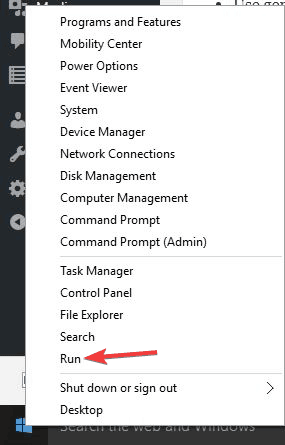
  • Right click Start
  • Select Run

do you want to turn on sticky keys keeps popping up

  • Type regedit and press Enter

do you want to turn on sticky keys keeps popping up

  • On the left pane, find this folder: HKEY_CURRENT_USER\Control Panel\Accessibility\StickyKeys

do you want to turn on sticky keys keeps popping up

  • On the right pane, find the folder, Flags

do you want to turn on sticky keys keeps popping up

  • Double click it and change its value to 506.

do you want to turn on sticky keys keeps popping up

  • Go to HKEY_CURRENT_USER\Control Panel\Accessibility\Keyboard Response key in the left pane.

do you want to turn on sticky keys keeps popping up

  • Locate Flags in the right pane, double click it and change the value to 122

do you want to turn on sticky keys keeps popping up

  • Again, on the left pane, find the folder: HKEY_CURRENT_USER\Control Panel\Accessibility\ToggleKeys folder

do you want to turn on sticky keys keeps popping up

  • Go to the right pane, and find Flags, and then change its value to 58.
  • Close the Registry Editor
  • Restart your computer for the changes to take effect.

Note: The steps outlined above for Registry Editor must be followed carefully because any incorrect modifications to the registry may cause serious damage to your computer.

Before making any changes, backup the registry for restoration in case of any problems.

Has any of the above solutions helped fix the sticky keys popup error on your computer? Let us know your experience, or what worked, by leaving a comment in the section below.

RELATED STORIES TO CHECK OUT:

Pre-orders for the old school Xbox One DUKE controller now live

Hyperkin’s upcoming Duke Xbox One controller is now up for pre-order at GameStop. This new wired controller is inspired by the original Xbox console’s controller and uses the same overly-large design and even has a screen that plays the original Xbox loading animation when it’s turned on.

“The nicknamed “Duke” controller for the original Xbox was big, bold and tough,” Hyperkin has said of the accessory. “Hyperkin’s Research and Development team sought the assistance and the blessing of Seamus Blackley, who played an integral part in the original Xbox team. The Duke sports a faithful recreation of the original controller’s form-factor with some updated features: a logo display screen, left and right bumpers, and a 9 ft. detachable cable.”

The new Duke controller will work with all Xbox One consoles and Windows 10 PCs with a USB port. Are you planning on buying the Duke? Let us know in the comments below.

Microsoft co-founder Paul Allen a “crazy motherf***er” when it comes to music, according to Quincy Jones

In a recent sprawling interview with Vulture, business mogul, actor, musician, composer, humanitarian, and father of famous actress Rashida Jones, Quincy Jones had a lot to say about some of his most notable encounters with other celebrities.

Most headlines from the interview will focus on his single dinner date with the US presidents daughter, Ivanka Trump, some twelve years ago. While that may be seen as the meat of the Vulture interview as it pertains to the more relevant political climate in the US, there was an almost throwaway mention of Jones’ encounter with Microsoft co-founder Paul Allen that we thought deserved some recognition.

According to the 79 time Grammy nominated musician, Allen is a “really good musician” on top of being a wealthy owner of the Seattle Seahawks and Portland Trailblazers, founder of the Allen Institute for Brain Science, and the Allen Institute of Artificial Intelligence to list a few of his credits.

Yeah, man. I went on a trip on his yacht, and he had David Crosby, Joe Walsh, Sean Lennon — all those crazy motherfuckers. Then on the last two days, Stevie Wonder came on with his band and made Paul come up and play with him — he’s good, man.

If you’re not one to take the word of an accomplished Grammy winner, here is a small clip of Allen shredding at a get-together.

Seems as though both Allen and Gates have done well for themselves in the second act following the creation of the world premiere software licensing company’s. Seems the pressure is on for former CEO Steve Ballmer to add to his list of post-Microsoft credits to keep in step with other company alumni.

Do Not Disturb Mode, Mini Game Hubs, and more rolling out to all users in latest Xbox One update

After a few weeks of testing with Xbox Insiders, Microsoft today rolled out the Xbox One version 1802 update to all gamers with a console in the Xbox One family. Though this update is fairly minor, it is bringing the new Do Not Disturb mode and a few more improvements to the Xbox One experience. (via Neowin.)

Do Not Disturb Mode suppresses all notifications and shows your friends you’re not available.  Also new is the upcoming achievements tracker, which as the name suggests, allows for a gamer can have a peek at which achievements are coming up next in any given game.

There is also the new Mini Game Hub, which gives a quick peek at the feed for a game, and your friends progress in any game without having to quit the action. Finally, the third major change is the addition of download progress bars in the main Xbox guide.

Other fairly minor changes in this update include some enhancements that make it easier to view comments in the feed, and a new option to have an Xbox Console shut down after two, three, four and five hours of inactivity.

It is always great to see these enhancements, but we’re still looking forward to the next featured update to the Xbox One, which should be coming sometime this Spring. As always, happy downloading and feel free to let us know your thoughts on this update by dropping us a comment below.

Microsoft launches LinkedIn powered Resume Assistant for Office 365 users

Microsoft today announced the official rollout of a LinkedIn powered Resume Assistant for Office 365 users on Windows. This comes several months after the feature was initially announced, marking a new way to help job seekers showcase their accomplishments.

There is no need to have a LinkedIn account to use this feature and any Office 365 user on Windows can find the Resume Assistant by going to Review and then clicking Resume Assistant in the Office ribbon. From there, the user can type the role they are interested in and check certain examples. The Assistant will even show work experience descriptions for inspiration and even top skills related to the role, as identified by LinkedIn.

According to Microsoft, the feature is available for Office 365 subscribers on Windows whose Word 2016 desktop display language is set to English. Users will also only see the feature if their Windows region is set to Australia, Brazil, Canada, China, India, Japan, New Zealand, Singapore, South Africa, and the United States.

Microsoft mentions that nearly 80 percent of resumes are updated in Word, with 70 percent of people saying they have difficulty portraying their work experience effectively. This feature will definitely be a help for many, and you can learn more about it by checking here.

Windows 10 Crypto Chart app gains even more Bitcoin-tracking features

The Crypto Chart app has added several new features recently that continue to cement its position as the best free Windows 10 app for tracking Bitcoin and cryptocurrency news and trends.

The app now supports parings for up to 20 different fiat currencies (US Dollar, Euro, etc) and now allows users to enable or disable specific news sources for the crypto news feed tab. Crypto Chart also now features several new details for portfolio tracking and, best of all, now supports syncing between different devices with the same Microsoft account.

Crypto Chart is a Universal Windows Platform (UWP) app which works on not only Windows 10 devices but also Windows phones and Xbox One video game consoles. With the sync option enabled in Settings, all portfolio data, selected crypto watch lists, and news preferences will stay up to date via the cloud as long as the same Microsoft account is used.

Have you given Crypto Chart a god yet? Let us know in the comments below.

Crypto Chart
Crypto Chart
Developer:
Ravaga
Price:
Free

Microsoft following through with plans to make Progressive Web Apps “first class citizens” on Windows 10

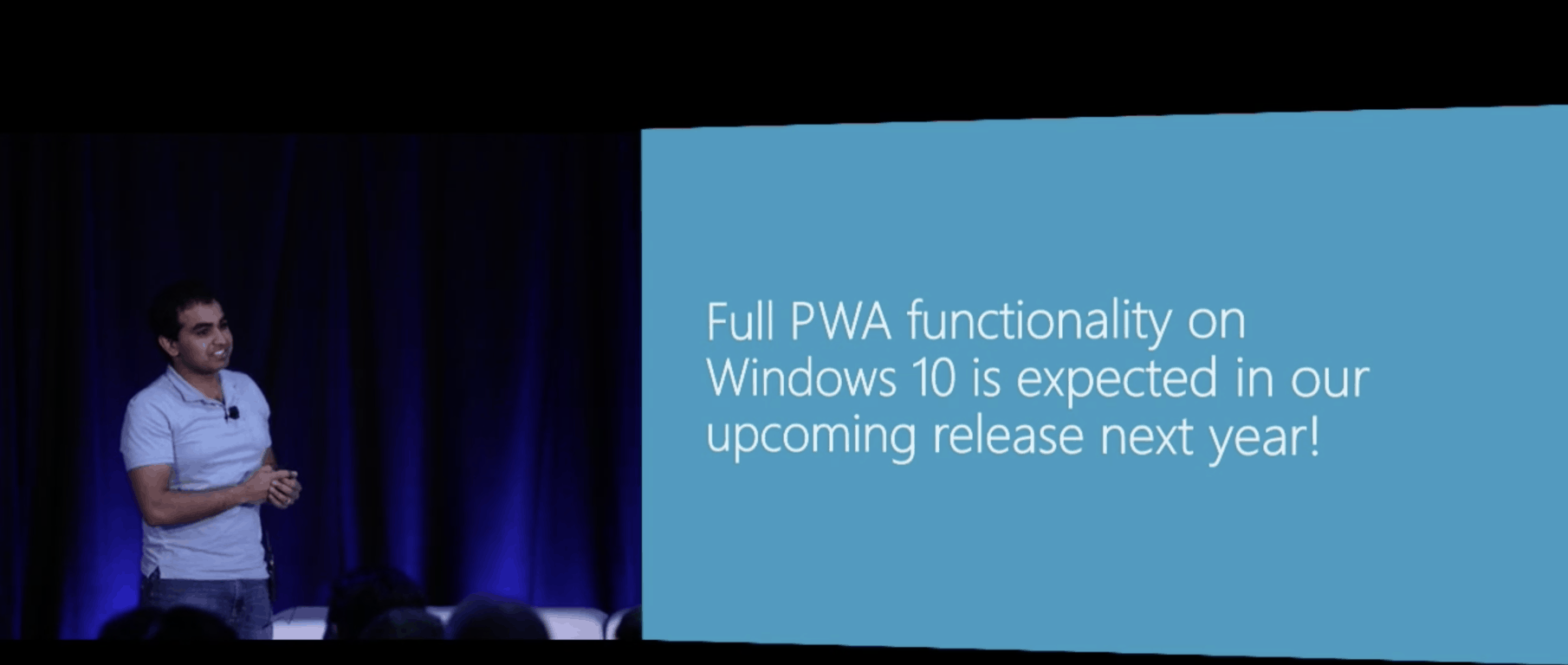
A couple of months ago, Microsoft announced during its Edge Summit that Windows 10 version 1803 (aka Redstone 4) would bring full support for Progressive Web apps. Today, the company shared an important update about its plans to make Progressive Web Apps “first-class citizens” on Windows 10.

As a reminder, Progressive Web Apps (or PWAs) are web apps that work just like native apps: they’re wrapped in an .appx container, they can work offline and send push notifications. PWAs can also work on a variety of devices including phones, Xbox One consoles, Windows Mixed Reality headsets and more. Microsoft really insisted that PWAs will be full-featured apps, and consumers shouldn’t notice any difference:

PWAs installed via the store will appear in “app” contexts like Start and Cortana search results, and have access to the full suite of WinRT APIs available to UWP apps. They can differentiate their experience on Windows 10 with enhancements like access to local calendar and contacts data (with permission) and more.

In the latest Windows 10 Insider builds, Service Worker, Push notifications, and other web technologies allowing Progressive Web Apps to work on Windows 10 are already enabled by default. This means that developers can now start testing their PWAs in Microsoft Edge, and the company will start listing PWAs in the Microsoft Store once Windows 10 version 1803 is out.

As a matter of fact, the Redmond giant is encouraging developers to submit PWAs to the Microsoft Store. Developers can do so using PWA Builder, a free tool takes data from a website to generate an AppX that developers can then manage in their Dev Center account, just like any other UWP app.

But in case developers are not ready to play along, Microsoft will also automatically index “selected quality Progressive Web Apps” in the Microsoft Store. “We’ve been using the Bing Crawler to identify PWAs on the web for nearly a year, and as we’ve reviewed the nearly 1.5 million candidates, we’ve identified a small initial set of Progressive Web App experiences which we’ll be indexing for Windows 10 customers to take for a spin over the coming weeks,” the company explained.

PWAs should really help to bring more quality apps to the Microsoft Store, but Microsoft insist that this isn’t the end for native UWP apps. “For developers who are building a fully-tailored UWP experience, building from the ground up with native technologies may make the most sense,” the company explained. “For developers who want to tailor an existing web codebase to Windows 10, or provide a first-class cross-platform experience with native capabilities and enhancements, PWA provides an on-ramp to the Universal Windows Platform that doesn’t require demoting or forking existing web resources.”

NASCAR’s Hendrick Motorsports prepares for Daytona 500 with help of Windows 10 PCs, Surface

The start of the NASCAR season is just a few days away and many teams are already preparing for the Daytona 500, one of the biggest races of the year. Hendrick Motorsports, which is a Microsoft partner, recently took to their Facebook Live to share more about their preparation process, and Windows 10 devices and Surface just so happens to be a huge help.

Hendrick Motorsports’ famed #24 team shared the video, showing fans how the team passes data around and gets ready before hitting the race track. At the 54 second mark in the video, William Byron, driver of the #24 car for 2018, shows off his Microsoft Surface Laptop, saying that it has all of his notes from test sessions. You can also see that he’s clearly using OneNote, which is a nice plug for Microsoft.

As the team passes the camera around, you can spot many Windows 10 PCs, particularly one big HP laptop which a team member uses to outfit Byron’s Surface with the information he needs to go to the track with. Some other team members are more traditional though, takes notes with pen and paper, handling more technical or engineering areas of the including shocks and suspension.

It’s definitely cool seeing this type of internal access and seeing Microsoft tech being used inside the team.  Have you ever seen Windows 10 or Surface being used in sports or on other big stages? Let us know your thoughts below.

New Windows 10 Editions, Windows 10 in S Mode – what you need to know about this weekend’s revelations

Over the weekend, Brad Sams and Paul Thurrott got their hands on some partner documentation throwing quite a bit of light on Microsoft’s plans for the future of Windows 10 S and Windows 10 consumer pricing. The news signals a number of interesting new developments for the way the company plans to sell Windows beginning as early as this spring with the release of the next update to Windows (which may or may not be called “The Spring Creators Update”).

The documentation depicts 2018 as a “transition year” for Windows as the company moves to “a more scalable family of offerings that will better meet the needs of its PC maker partners and, ultimately, the consumers who will use their shared products,” according to Paul Thurrott.

So what does that mean? Let’s take a look:

Repositioning Windows Home

Although the changes to Windows 10 S/S Mode are getting the most attention, Microsoft’s new focus on Windows 10 Home may be an even more important change. First, Microsoft is creating new pricing tiers for OEMs. Here’s the breakdown from Brad Sams:

  • Entry: Intel Atom/Celeron/Pentium ≤ 4GB RAM & ≤ 32GB SSD AND ≤ 14.1” screen size (NB), ≤ 11.6” (2in1, Tablet), ≥ 17” AiO
  • Value: Intel Atom/Celeron/Pentium ≤ 4GB RAM & ≤64GB SSD & ≤ 14.1” screen size (EM ≤ 4GB RAM & ≤64GB SSD or ≤ 500GB HDD)
  • Core: Cannot be used on devices that meet the Core+ and Advanced SKU Hardware Specifications
  • Core +: High end CPU and >4 GB RAM (All Form Factors) ≥8 GB RAM & ≥1080p screen resolution (NB, 2in1, AiO) >8 GB RAM & ≥2TB HDD or SSD storage (Desktop)
  • Advanced: Intel Core i9 (any configuration) OR Core i7 ≥ 6 Cores (any RAM) OR AMD Threadripper(any configuration) OR Intel Core i7 >16GB (any Cores) or AMD FX/ Ryzen7 >16GB (any Cores) OR ≥ 4K screen resolution (any processor, includes 4K UHD-3840 resolution

Pricing for the SKUs is as follows: Advanced ($101), Core + ($86.66), Core ($65.45), Value ($45), and Entry ($25). Also, Windows 10 S is dead, it’s now Windows 10 S mode and the baseline SKU will be going away but each version will have an S mode

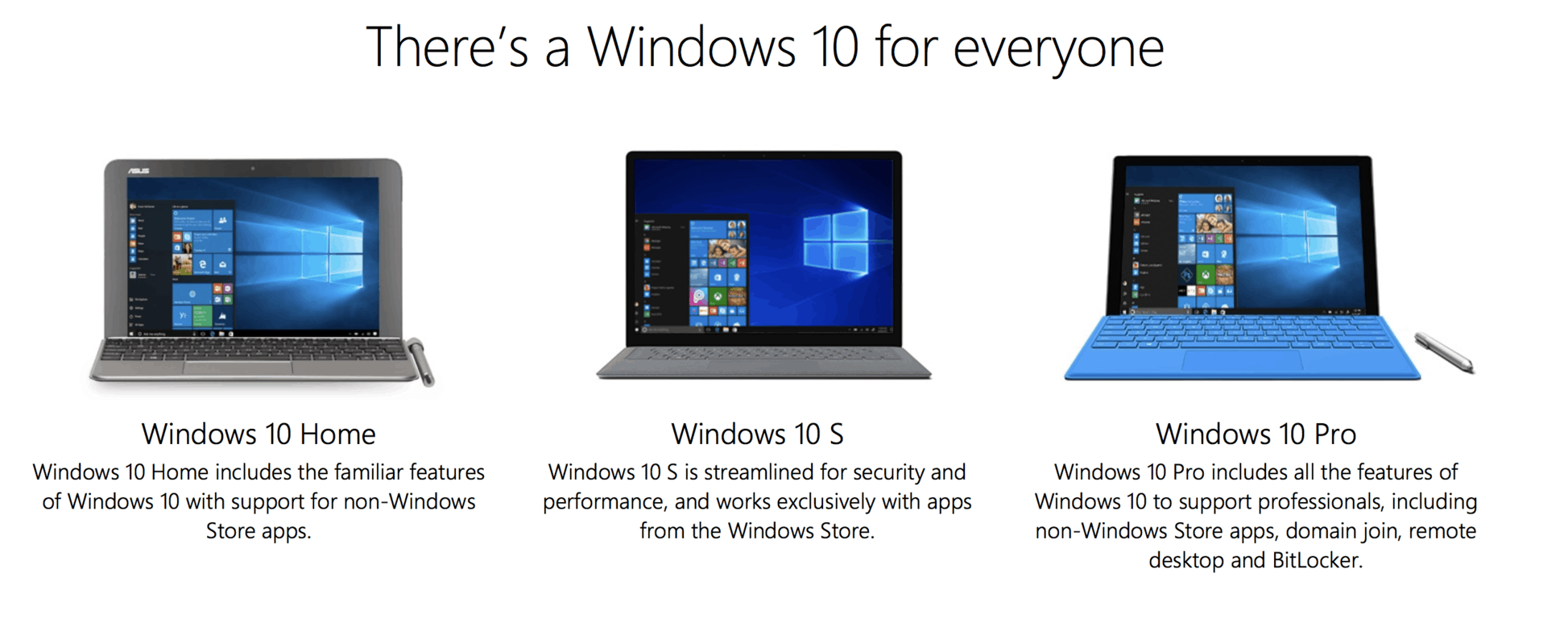
Note that while Microsoft is making these delineations for OEMs, there will apparently only be 3 Windows 10 Home Editions: Windows 10 Home, Windows 10 Home Advanced, and Windows 10 Home in S Mode. In other words, while OEMs will be able to pay less to put Home on a low end PC, it will still be Windows 10 Home whether it’s Entry, Value, or Core, etc. This appears to be a change from Microsoft’s earlier policy of allowing OEMs to install Windows 10 on devices smaller than 9″ for free.

The addition of Windows 10 Home Advanced is significant, too, as it allows users with high end specced PCs to get the most out of their Core i9 type machines without having to shell out for Windows 10 Pro, if all they want is the high-end specs and not the Bitlocker/Hyper-V additions provided by Pro.

Windows 10 in S Mode

Microsoft is apparently ready to either kill Windows 10 S or greatly expand it, depending on how you look at it. Instead of a single standalone SKU, each edition of Windows will become available (at least to OEMs) with Windows 10 in S Mode variants. While Microsoft will continue to require a ($49) upgrade fee to move from Windows 10 Pro in S Mode to full Pro, it’s significant that for the Home SKUs, an upgrade from S Mode to full Home will remain free.

OEMs would be charged the same price for installing Home Editions with S Mode or without, but they could gain some savings by releasing Windows 10 Pro in S Mode versions, according to Brad Sams. This would give OEMs an incentive to sell Pro in S Mode, and an incentive for corporations to consider deploying S Mode instead of full Pro.

Brad Sams made note of a line in the documentation that “Microsoft will improve S mode this year with further improvements to Edge, a new AV/Security Apps capability for third-party AV solutions, and optimizations aimed at low-storage devices.”

While Sams has speculated that this may mean some kind of end-around for being able to run AV desktop apps in S Mode, there’s a lot we don’t know here. Could Microsoft be working with AV vendors to create UWP AV apps, or could vendors be working on Progressive Web Apps (PWAs), which will soon be able to run on Windows with those Edge advances? We’re doubtful that Microsoft would go to all the trouble to keep S Mode and then open the barn door by allowing some desktop apps to run, but we’ll see.

Opening up Windows for low end PC sales

We already know that Microsoft wants to compete in the low end PC market, especially in the education space where Google’s Chromebooks are making a dent. This new pricing structure, along with Microsoft’s push into Always-On computing with Windows on ARM devices that should start showing up soon, and even the nearly mythical Surface Phone, will help to reposition Windows to run better and more broadly across a wider range of devices. As much as Microsoft may want to push “S Mode” as a way to capture interest in Store apps, it’s also a convenient way to get Windows onto OEM devices at a low price.

How will this affect you?

If you’re looking to buy a cheap PC, you may be in luck starting as early as later this year, as we would expect OEMs to target Microsoft’s lower prices and introduce a new range of PCs either running low end hardware, or S Mode, or both. If you’re a gamer looking for a new high end device, you may be able to run Windows 10 Home Advanced instead of Windows 10 Pro, saving you some money. If you’re a Windows enthusiast, it looks like we’ll have lots to talk about as Microsoft expands the “S Mode” program and OEMs introduce new models and device types, and if you’re an OEM, things could start to get real interesting.

Are these pricing and S Mode revelations important to you? Will you consider an S Mode machine when they come to market? Are you excited by the introduction of Windows 10 Home Advanced, when it makes an appearance? Let us know in the comments below.


Microsoft Build scheduled for early May in Seattle, just before Google I/O?

Microsoft’s Build developer conference is coming back to Seattle this year, and it looks like it will kick off just a day before Google I/O. Microsoft watcher WalkingCat just posted what looks like an official marketing picture for Build 2018, which will apparently be held May 7-9, 2018.

https://twitter.com/h0x0d/status/960901377768620032

Two weeks ago, Google announced that its I/O 2018 developer conference would happen May 8-10 in Mountain View, California. It doesn’t seem like Microsoft was aware of its competitors plans, as the company probably set the date for Build 2018 a long time ago. Anyway, it will be interesting to see both tech giants make big announcements during what should be a very busy week for the tech press.

If Microsoft releases the next major Windows 10 update (rumored to be called the “Spring Creators Update”) in April, then we hope that the company will share some details about Redstone 5 during Build in May. Last year, the company used its annual developer conference to introduce Fluent Design, as well as some features that have been delayed to the upcoming Redstone 4 update such as Timeline. We’ll see if the company will be more careful about announcing features that are not fully baked this year.

Microsoft gave James Gunn a custom Baby Groot Xbox One console

We’ve seen Microsoft give celebrities special Xbox One S consoles before, but the Redmond giant is now taking things to a new level. The company recently gifted Guardians of the Galaxy’s James Gunn a custom Baby Groot Xbox One S console, complete with a replica of the fictional superhero.

As you can see above, Director James Gunn took to his Instagram to share the picture of the custom console. It appears to be the same as a standard Xbox One S, except for a dirtied up and rusted custom color. There’s also the unique giant Baby Groot (from Guardians of the Galaxy Volume 2) which sits on the left side of the system

Safe to say this is a unique console, but we’re still wondering how it will fit into Gunn’s set up at his home. Do you think this console is cool? Let us know your thoughts in the comments below.

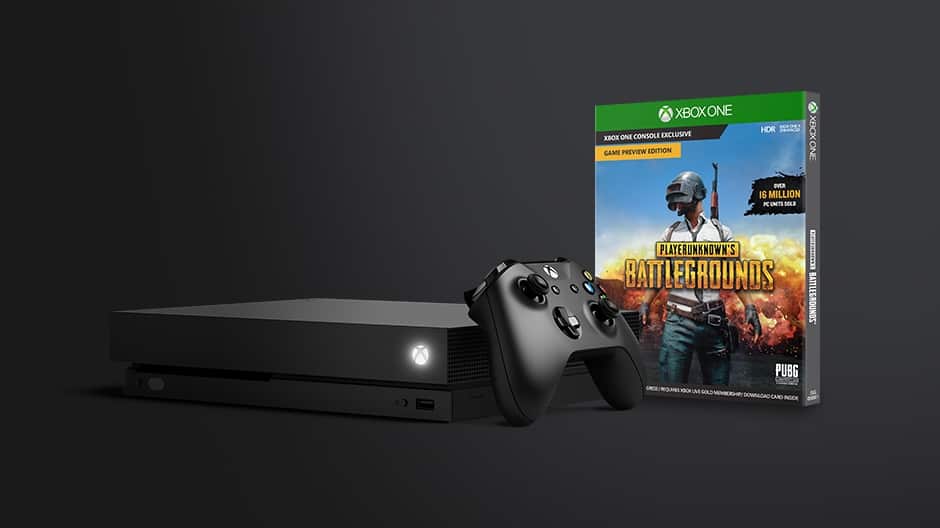
Xbox One S 1TB PUBG bundle will officially launch on February 20

A little more than two weeks after it was first spotted on Amazon, Microsoft has officially unveiled the new Xbox One S PUBG bundle today. The $299 bundle can be pre-ordered today from the Microsoft Store, Amazon and Best Buy and it should be available at participating retailers worldwide on February 20.

“Since its release as a console launch exclusive on Xbox One in the Xbox Game Preview program, PlayerUnknown’s Battlegrounds (PUBG) has reached incredible milestones, most recently surpassing 4 million players across the Xbox One family of devices,” explained Matt Lapsen, General Manager, Xbox Devices Marketing. “We’ve been blown away by the response to PlayerUnknown’s Battlegrounds on Xbox One and today, we’re excited to announce the Xbox One S PlayerUnknown’s Battlegrounds Bundle, offering fans the best value in games and entertainment with the hottest game on the planet.

For $299, the bundle will include a 1TB white Xbox One S console, a download code for PUBG, a 1-month Xbox Live Gold trial and a 1-month Xbox Game Pass trial. Even though PUBG on Xbox One is still in preview, Microsoft is betting big on the battle royale game which is definitely one of the most valuable Xbox exclusives as of today. During the holidays, Microsoft also offered a free copy of PUBG to everyone who purchased the new Xbox One X. Let us know in the comments if you expect this new PUBG Xbox One S bundle to sell well this year.

Is ”Appear offline” finaly fixed on Xbox One? That’s what users say

The offline/online status and notifications for Xbox Live are of the grave importance for its gamers base. This vastly improves the online interactions with your friends. Of course, if they want you to see them in the first place, without sneaky offline tactics.

However, this social network-like system isn’t (or it wasn’t) fully functional, as the players noticed that some of their XboxOne buddies are offline even though they are full-throttle gaming.

Furthermore, the complete absence of their last online activity was another formidable downside to this. Luckily, it seems that it’s finally sorted out. Or, at least, partially sorted out.

One user which noticed changes that are, seemingly, fixing the aforementioned issue. Here’s what he stated in the dedicated XboxOne subreddit:

”Noticed that a buddy hadn’t been online in four days, so I text him about it and apparently he has been in offline mode. But my friends list showed him “Last online 4 days ago”. Glad to hear that they finally fixed this from just saying “Offline”. I know a few people on this sub have mentioned this, so I thought I would point it out. Your offline us safe now!”

KoalaKole

On the other hand, some other users are still finding the ”Appear Offline” system lackluster and most of them expect improvements with the further updates. Here are some of the comments that highlight the user experience from the same subreddit thread:

”I’m not sure it’s ENTIRELY fixed.. i still have a handful of people on my friends list that have the “offline” status.”

MichaelLionhart

”I kinda dislike this change but I understand why. At the same time my one friend always appears offline to avoid getting inites from his Smite group so I usually send him an invite or he’ll send me one when in offline mode. But if I see it now as “last online 3 days ago” i won’t send him an invite thinking its true. lol”

Oneme1

Have you looked into it yourself? Feel free to tell us in the comments section below.

RELATED STORIES YOU SHOULD CHECK OUT:

Here’s where you can buy the cheapest Surface Laptop

Microsoft’s MacBook Air competitor, the Surface Laptop that comes with Windows 10 installed on its system just got a bit more affordable.

Excited enthusiasts can now purchase the Surface Laptop running Windows 10 for only $799. The Surface Pro priced at $799 comes only in Platinum.

Best price for Surface Laptop with Intel Core m3 CPU in the Microsoft Store

The machine comes with an Intel Core m3 CPU, 4GB of RAM and 128GB of storage space. These specifications are the same ones that are found on the Surface Pro which is also priced at $799, although this price does not include a keyboard.

cheap surface laptop

The Intel Core M processors are perfect for notebooking, email, web surfing, and basic daily tasks. It comes with Intel HD Graphics 615 graphics chip. Intel has initially introduced the Core m3 CPUs as the ideal chips for fanless designs.

On the other hand, a laptop with just 4GB of RAM is not quite future-proof these days, and we can say the same thing about the baseline Surface Pro. Anyway, this will definitely turn out to be enough for running Windows 10 S.

Surface Laptops with Intel Core i5 and Intel Core i7 CPUs are also available

The Core m3 CPUs are not as fast as the Core i5 and Core i7 chips that are included in the more expensive premium Surface Laptop version. You can find these two versions of the Surface Laptop in Microsoft Store as well.

The model with the Core i5 CPU model is priced at $999, and it comes with 128 GB of RAM, 4GB RAM and the Core i7 CPU model of the Surface Laptop, is priced at $1,599 and it includes 256GB of storage space and 8GB of RAM.

Considering that the Core m3 Surface Laptop is only available in Platinum if you really want a machine that comes in other colors such as Burgundy, Graphite Gold or Cobalt Blue, you have to go for the system that comes with the Intel Core i5 CPU.

Head over to the Microsoft Store and check out all the versions of the Surface Laptop and their available configurations.

RELATED STORIES TO CHECK OUT:
Office 2019 runs exclusively on Windows 10: Upgrade or stay out

MS Office is the world’s foremost Office suite. It incorporates MS Word, Access, PowerPoint, Outlook and Excel. Microsoft revealed last year that it planned to launch the latest addition to the MS Office suite series, Office 2019, in 2018. However, the company but did not make it clear then what platforms Office 2019 would support.

Most industry analysts might have probably expected the latest office suite to be available for two or three Windows platforms. However, Microsoft recently announced that Office 2019 will only be available on Windows 10.

Releasing MS Office for just one Windows OS is an almost unprecedented move by Microsoft. Yet, the big M has confirmed that Office 2019 compatibility will be restricted to Windows 10 Semi-Annual Channel release and Windows 10 Enterprise Long-Term Servicing Channel 2018, as well as upcoming Windows Server LTSC. This effectively means that when Microsoft no longer supports a Windows 10 version, you don’t get any further Office 2019 support (or updates) for that version either.

The big M also confirmed that it will be reducing the extended support period for Office 2019 by three years. MS Office 2019 will still get the usual five years mainstream support. However, beyond that the software publisher is only extending support by a couple of years instead of five.

Microsoft Office 2019

In addition, Microsoft confirmed Office 2019 will become available in the second half of 2018. However, the company will distribute early Office app previews from quarter two, otherwise April, May and June. Another thing to note about the upcoming suite is that it’s a perpetual Office version, which means that Microsoft is moving away from the subscription-based licensing model of Office 365 for the latest addition to the series.

Aside from that, Microsoft hasn’t revealed a huge amount about the new suite of applications as of yet. However, the general manager for Office has stated:

Office 2019 will add new user and IT capabilities for customers who aren’t yet ready for the cloud. For example, new and improved inking features—like pressure sensitivity, tilt effects, and ink replay—will allow you to work more naturally. New formulas and charts will make data analysis for Excel more powerful. Visual animation features—like Morph and Zoom—will add polish to PowerPoint presentations. Server enhancements will include updates to IT manageability, usability, voice, and security.

The latest announcement that Office 2019 is an exclusively Windows 10 package probably won’t go down a storm with many Office users who have stuck with Windows 7. Even though Win 10 is running on more than 400 million devices, Windows 7 still retains a substantial user base. The CEO of StatCounter stated, “Windows 7 retains loyalty especially amongst business users.”

So to embrace Office 2019, you’ll have to upgrade to Windows 10 first. Unless Office 2019 is a big enhancement on the previous version, it might not be worth upgrading for many Win 7 users. For further MS Office 2019 details, check out this post.

How to fix CyberGhost errors and issues on Windows 10

If you’ve decided to finally advance in your online privacy and security game, you’ll need a VPN to do so. Our recommendation goes to CyberGhost (which we’re affiliated with), for its reliability, affordability, and unlimited data and bandwidth. However, even the well-designed VPN isn’t flawless, so we decided to enlist the most common issues regarding CyberGhost and offer the applicable solutions.

If you’re using CyberGhost and you’ve bumped into an issue or two, make sure to check the list below.

CyberGhost VPN most common issues and how to solve them

  1. CyberGhost won’t start
  2. Can’t connect through CyberGhost
  3. CyberGhost crashes

1: CyberGhost won’t start

The basis of CyberGhost for Windows 10 is simple, hence the issues as critical as this are quite rare. Nonetheless, there are reports that the CyberGhost application for Windows 10 won’t start for no apparent reason. If you’re unable to get CyberGhost started, make sure to check these steps in order to resolve it:

  • Restart application.
  • Remove the similar applications.
  • Whitelist the CyberGhost application in third-party firewalls or disable them for the time being.
  • Reinstall CyberGhost clean. You can use IObit Uninstaller in order to clean the remaining files and registry inputs.
  • Run the application as an administrator.

–  Download now IObit Uninstaller (free)

2: Can’t connect through CyberGhost

Connection-related issues are the most common with the majority of VPN solutions. Either the connection is completely absent or it’s substantially slowing down/crashes. There are various reasons for such occurrences, both involving your own settings and the ones concerning CyberGhost VPN itself.

There are various steps you can apply to dismiss connectivity issues, and we made sure to enlist them below.

  • Use wired connection rather than a Wi-Fi.
  • Restart your mode or/and router.
  • Update router’s firmware.
  • Switch the server (different geo-location).
  • Create an exception in Firewall.
  • Switch the protocol. They vary in speed and encryption levels, so make sure to experiment until you find the one that works for you.

3: CyberGhost crashes

Similar to inability to start, CyberGhost seems to be prone to occasional crashes, as some users said. Luckily, this is far from being irreparable, and the steps below should enable you to avoid further crashes in Windows 10:

  • Disable background applications that might affect VPN activity.
  • Run CyberGhost as admin and in the compatibility mode with Windows 8.
  • Reinstall the application.
  • Add the firewall and antivirus exceptions for CyberGhost.

That should do it. In case you have alternative issues or solutions for the one we enlisted here, make sure to tell us in the comments section below.

RELATED STORIES YOU SHOULD CHECK OUT:

Tune in to the Windows 10 Insider BugBash Webcast tomorrow on Mixer!

The first and only Bug Bash for the upcoming Windows 10 Redstone 4 release is still ongoing, but Microsoft would like you to know about another upcoming community event. Indeed, the Windows Insider Bug Bash webcast is coming up tomorrow on Mixer, and you might not want to miss it.

Noted above, the Windows Insider team will be using a brand new microphone during this webcast, so you can expect to hear the bugs being bashed as clear as ever. As usual, you also will be able to submit your burning questions and other suggestions to the team during this webcast. Even better, you’ll likely hear more about how the Bug bash is progressing.

Build 17083 is the focus of this Bug Bash, with special attention to Input, IoT, Personalization, Privacy, Security, Store, and Windows Community. Are you submitting your feedback to Microsoft as part of this Bug Bash? If you’re not, feel free to check out this video for more on the Bug Bash process. And, let us know how the experience is going for you by dropping us a comment below.

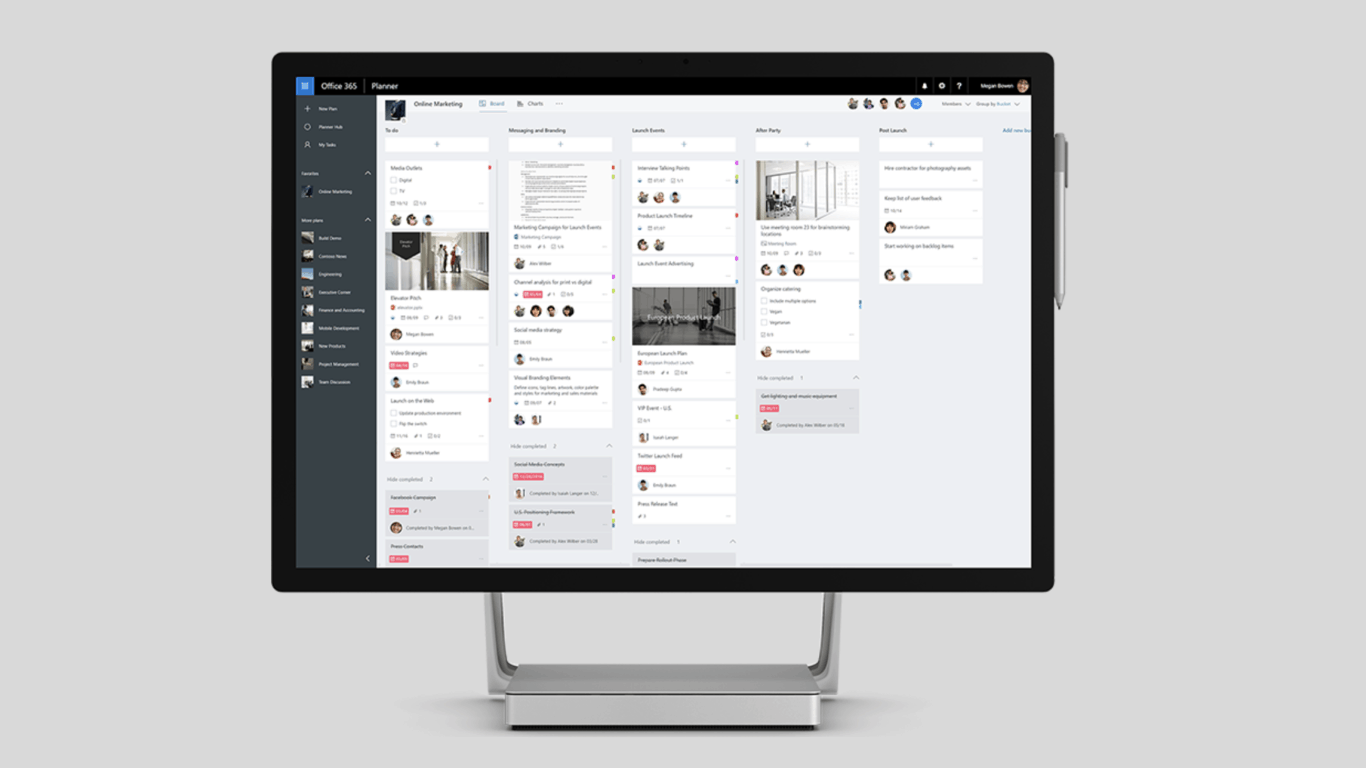
Microsoft Planner gets new Schedule view, Group and Filter options and Due date notifications

Microsoft announced today a big update for Planner, its task management app for Office 365. The Trello competitor is getting three new features today: the first addition is Schedule View, which lets Planner users view their task schedule with weekly and monthly views. Schedule view is accessible from a new button in the top bar of Planner.

With the new Group and Filter options, Planner users can also quickly surface tasks by assigned team members, progress, due date, label and more. This is really handful in case you already have many tasks grouped into buckets.

In addition to letting you filter tasks by due date, Planner can also send you emails to remind you about upcoming deadlines in the week to come, which some users may find quite helpful. Last but not least, Outlook calendar integration via the iCalendar format feed is also rolling out soon, the Office team revealed, and it will let you publish all your Planner tasks to your Outlook calendar. While this isn’t a true integration with Outlook Tasks, it’s still a good start.

You’ll soon be able to publish your Planner tasks to your Outlook calendar.

Microsoft says that these features were among the top requested additions on the Planner UserVoice website, and we invite you to check it to help the team prioritize new features.

Latest Microsoft Edge ad says yes to one touch syncing

Microsoft has promoted their Edge browser in YouTube spots before, but with the release of Edge on iOS and Android, the company is now taking their advertising machine for a new spin. Spotted by MSPoweruser, the latest Microsoft Edge advertisement is saying yes to cross-device PC to mobile syncing.

Unlike Super Bowl ads from this past Sunday, the Microsoft advertisement is very short, coming in at just 15 seconds in length. The company shows how a user can open a webpage in Edge on iOS or Android (sorry Windows 10 Mobile users), and then continue to read it on their Windows 10 PC. It’s part of how the Edge browser can allow users to “transition seamlessly from your PC to mobile in a flash,” per the YouTube description.

One touch syncing is just one of the many features of Microsoft Edge on iOS and Android. The mobile browser features a QR Code Reader, Reading List, voice search, and more. It has proven to be very popular on Android, coming in with over 1 million downloads. You can try the app for yourself and check it out via the link below.


Xbox news recap: Microsoft rumored to purchase EA and PUBG, Gigantic closes and more

Welcome to our weekly Xbox news recap series, where we go over the top stories of the past week in the world of Xbox. Let’s get started.

Microsoft rumored to purchase EA and PUBG 

Rumors have been flying since a recent piece put out by Polygon. A paragraph in this article suggested that Microsoft was in talks to purchase Electronic Arts and PUBG Corp – an acquisition that would send shock waves throughout the entirety of the gaming industry. Electronic Arts is one of the least liked publishers in the industry, and many gamers would be very interested in seeing a change in ownership – but there’s no telling how drastically things could change under Microsoft, if at all.

Gigantic closing after final update

Things just weren’t working out for Gigantic. The promising third-person MOBA on Xbox One and Windows 10 has received its last update, bringing to the game a ranged hero named “T-MAT.” The servers will be remaining open until July of this year, and all heroes will become free until that time finally comes. Gigantic failed to find a foothold in a crowded genre, and despite its great ideas, it just wasn’t going to last. In the meantime, players who are looking for a third-person MOBA should probably head over to Smite.

Microsoft, Gigantic, Xbox One, Windows 10

Overwatch now playable in 4k

In more cheerful news, you can now play the world’s most successful team shooter in glorious 4k. If you have an Xbox One X and a 4k enabled TV, the latest patch that came out for Overwatch let the game be supported by this insanely detailed resolution. Enjoy!

Red Dead Redemption 2 delayed to October

Good things come to those who wait. The anticipated sequel to one of the great masterpieces in open world gaming, Red Dead Redemption, has been delayed until October of this year. The game was originally set to release in the second quarter of 2018, but it just wasn’t panning out. Rockstar is a company who’s usually known for quality over speed, so the wait should be worth it.

Thanks for joining us. To keep up to date with all the latest Xbox news, keep a close eye on our Xbox One tag.

Windows 10 news recap: Windows 10 S may become “S Mode”, Windows 10 overtakes Windows 7’s internet usage share and more

Welcome back to our Windows 10 news recap, where we go over the top stories of the past week in the world of Microsoft’s flagship operating system.

Surprise: Next major Windows 10 update might be called the Spring Creators Update

The next major update to Windows 10 will be on its way in a couple months, and Microsoft may have inadvertently leaked the name of the update, as if we couldn’t guess. The potential name of the next update is the Spring Creators Update.

Windows 10 S is reportedly being replaced with “S Mode” for other Windows 10 editions

It’s reported that Microsoft may be ditching Windows 10 S as a standalone version of Windows 10, and instead making an “S Mode” for all users, allowing users to opt for a Microsoft Store-only mode if they so wish.

Windows 10 Build 2017

Office 2019 will only run on Windows 10, Windows 10 support extended, Microsoft announces

The next iteration of Microsoft’s Office suite of productivity applications, Office 2019, will only run on Windows 10, not previous versions of Windows.

Statcounter: Windows 10 overtakes Windows 7 as the most popular Windows version for Internet usage

Windows 10 has been slowly working its way through Windows 7’s market share, and now Statcounter is showing that Windows 10 has finally overtaken Windows 7 as the most popular Windows version for internet usage.

That’s it for this week. We’ll be back next week with more Windows 10 news!

HP Laserjet p1102w Not Printing: How to Fix it

If you use a USB connection from your laptop to the printer, one of the things to watch out for is if the cable is misconnected because the printer may not work or offer all the available features. This is often the reason HP LaserJet p1102w is not printing

The advantage of using the USB connection or cable is that it offers the ability to connect many different devices like printers, cameras, scanners, and drives with one common connection, besides being more reliable. But if things don’t work out, here’s how you can fix it!

What can I do if HP LaserJet p1102w is not printing?

Before we move to the slightly complex solutions, try these quick ones first:

  • Ensure the cable is properly plugged in at both ends when using a wired connection. Also, look for any damages.
  • Disconnect any non-critical peripherals from the PC.
  • Check for any warning signs for the printer in the Device Manager. In case you find any, reinstall the driver.
  • Head to the manufacturer’s website and manually install the driver.

If none work, head to the fixes listed next.

1. Perform a clean install

  1. Unplug the USB cable from the printer.
  2. Right-click the Start button, and select Programs and features.
  3. Select all the HP LaserJet printer entries individually and click Uninstall.uninstall to fix HP LaserJet p1102w not printing
  4. Open the Control Panel, and click Hardware and Sound
  5. Select Devices and printers – select all the printer entries and remove the device.
  6. Press Windows + R to open Run, type printui.exe /s, and hit Enter.command
  7. In the Print Server Properties window, go to Drivers, and then remove any entry there as well.remove driver
  8. Press Windows + E to open File Explorer, and navigate the following path:C:\ProgramData
  9. Go to the Hewlett Packard folder, and remove any printer-related folders & files, then restart the computer.
  10. Finally, install the printer software from the CD or the official website, and reconnect the printer.

If the HP LaserJet p1102w is not printing on Mac or Windows, you need to perform a reinstall of the software.

2. Reset the printing system

  1. Launch the Control Panel and select Hardware and Sound.
  2. Select Devices and Printers.device and printers
  3. Click on Printers.
  4. Right-click on your printer in the list and select Reset printing system, then click OK to confirm.
  5. Give admin permissions where necessary and click OK to begin the system reset process.
  6. Click the + sign, select your printer, and click on Add.

This HP LaserJet p1102w not printing with USB issue could occur if the printer is not configured properly on the network. Try resetting the printing system, but beware that this will remove any existing print queue and reset customized driver settings.

3. Set the USB connection as the default printer

  1. Open the Control Panel, and click on Hardware and Sound.
  2. Click on Devices and Printers.
  3. Right-click the printer and select Properties.properties to fix HP LaserJet p1102w not printing
  4. Select Ports. The port with the USB should be set as the default printer.
  5. Right-click the icon and select Set as default printer.
  6. Once done, restart the computer for the changes to apply.

Try and print a text document, not a Windows test page, and see the HP LaserJet p1102w is now printing properly when connected via USB on Windows 10.

4. Use HP Print and Scan Doctor

This is a free tool to diagnose and resolve printing and scanning issues on your HP LaserJet p1102w printer. You can download HP Print and Scan Doctor and run it to quickly and automatically perform several troubleshooting tasks.

You can use the HP Print and Scan Doctor to test the status of the printer spooler, print queue, device manager, and device conflicts.

5. Perform a system restore

  1. Press Windows + R to open Run, type rstrui.exe, and hit click OK.
  2. Select Choose a different restore point, and click Next.choose different to fix HP LaserJet p1102w not printing
  3. Pick another restore point from the list and click Next.next
  4. Click on Finish to start the process.

If the USB device had worked previously and then became unworkable, try using System Restore to revert to a time before when the USB device failed. And this should fix things when HP LaserJet p1102w is not printing.

Before you leave, discover the best printer management software and get one today for seamless task execution and operations.

Did any of these solutions help? Let us know by leaving a comment in the section below.

Windows 10 S is reportedly being replaced with “S Mode” for other Windows 10 editions

According to a report from Thurrott.com citing internal documents, Microsoft is looking to make various changes to the current editions of Windows 10. This will lead to an expansion in Windows 10 editions, including a new “S Mode” which will replace the education-focused Windows 10 S.

The new “S Mode” for Windows 10 was initially noted by Neowin, which discovered references to it in a Feedback Hub Quest. This is marking a change in Microsoft’s approach to Windows 10 S, as the company is replacing it entirely. Microsoft is now planning to give all Windows 10 users (running Windows 10 Home, Enterprise, and Pro) the option of locking down any device running Windows 10 to the “S mode,” working only with UWP apps just as Windows 10 S does. That an interesting change, considering you previously could only install Windows 10 S on a device with a Windows 10 Pro or Education license.

Windows 10 S
Will Windows 10 in “S Mode” be powerful enough for consumers?

As noted by Thurrott.com, some PCs will also ship with Windows 10 in “S Mode,” but Microsoft is planning to allow Windows 10 Home users remove the S mode for free. Windows 10 Pro users with S mode enabled, though, will have to shell out $49 to get to standard Windows 10 Pro.

Also a major part of the change is a new Windows 10 Home Advanced SKU. This Windows 10 edition is set to become available starting May 1st and can be considered similar to Windows 10 Pro for Workstations (in that it will only be for premium PCs with high specs.)

In a separate report, Thurrott.com also explained Microsoft would also change Windows 10 licensing and pricing for OEMs starting April 2nd, basically boiling down to Windows 10 licenses costing more on higher-end devices. Interestingly, the Redmond giant is also setting some standard for partners in how they pre-install Windows 10. According to the report, Microsoft Edge will have to be set as the default browser, and the Linkedin UWP app and Office will have to pre-installed by default.

The many different editions of Windows have always been a bit hard for consumers to understand, and Microsoft will likely have a hard time explaining to consumers what this new “S Mode” is all about. Additionally, the paid update path from S mode to Pro might also bother consumers who already shell out big money for Windows devices. But whether you like it or not, it does seem that Microsoft is looking to push UWP apps and “S mode” pretty hard in the near future.

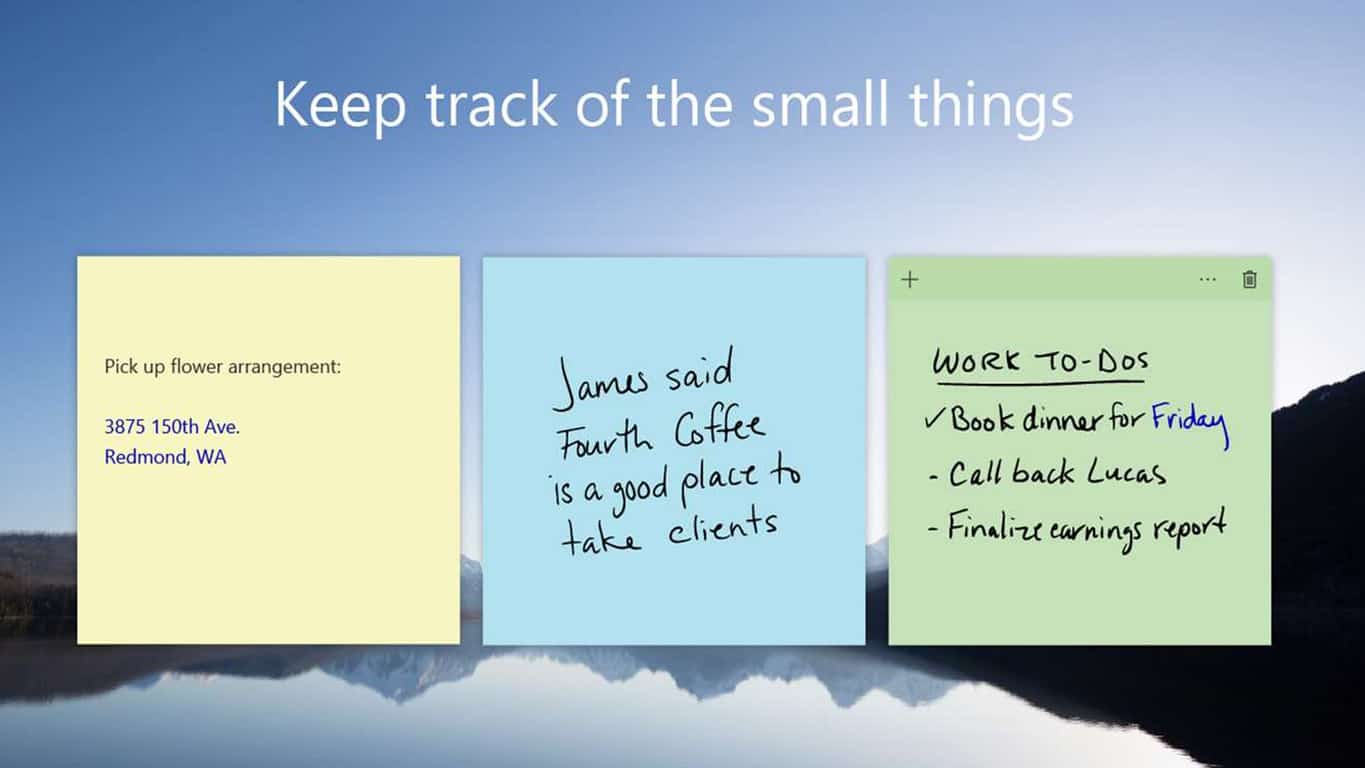
Sticky Notes on Windows 10 updated with new color picker UI, options to change font size

The Sticky Notes app on Windows 10 is already great for those moments when you want to drop down a quick idea for later, but a new update is making it even handier. Indeed, Microsoft has released a new version of Sticky Notes on Windows 10, bringing a new color picker UI and options to change font size.

We’re not seeing this update on any of our Windows Insider or Production ring machines just yet, but Microsoft’s Jen Gentleman recently tweeted about the new version of the app, saying it should be rolling out now. According to Gentleman, the update brings the latest version of Sticky Notes to version 2.1.3.0.

The new color picker UI can be found by pressing on the (…) at the top right side of a sticky note. Long time users will see the update now replaces the round color picker palettes with more squarer colors. The update also removes the settings cog from the bottom left side of a note to a dedicated area on the top right side of the color picker palettes.

Definitely great to see that Microsoft is refining the experience of the Sticky Notes app. While these new features are always appreciated, we’re still hoping that Microsoft can one day add a backup and sync feature in the application. What new features do you want to see in the Sticky Notes app? Let us know your thoughts below.

No new build today, but Microsoft kicks off the only Bug Bash for the Redstone 4 release

Dona Sarkar has just announced that there won’t be any new Windows 10 Insider build today (February 2nd) due to a rollback situation. However, there is still plenty of Windows Insider action on the road ahead: Indeed, the first and only Redstone 4 Bug Bash is kicking off today and will go on through 11:59 PM PST on Sunday, February 11th.

Since there are no new builds this week, the latest Windows Insider release –build 17083– is the focus of this Bug Bash. As always, this is your chance to complete quests, explore the new features in Redstone 4, and also provide feedback to Microsoft to help shape the final release. There are seven focus areas in this Bug Bash: Input, IoT, Personalization, Privacy, Security, Store, and Windows Community, but more content and quests will be added as the bash progresses.

If you’re a new Windows Insider, it’s best to check out this overview to learn more about how Bug Bashes work. Longtime and returning Insiders should also keep the following in mind if they’re looking to receive a Feedback Hub achievement for participating in the Bug Bash:

  • Be on the latest Fast or Slow ring build
  • Log a least one piece of feedback in the Feedback Hub
  • Complete at least one Quest in the Feedback Hub

If you so happen to be free later next week, you can feel free to tune into Microsoft’s special Bug Bash webcast on Mixer on Tuesday, February 6th, at 10:00 AM PST. You’ll be able to submit your questions to the Insider team and hear from them first hand on how the Bash is going. Happy bashing, and feel free to let us know if you’ve come across any major bugs in RS4 by dropping us a comment below.

How to set Cortana reminders in Windows 10 Mobile? Check this out!

One of the very first abilities of Microsoft‘s virtual assistant Cortana was to set reminders on Windows 10 PCs and Windows Phone devices. Since the introduction of Windows 10 and Windows 10 Mobile, Microsoft has been working on new functionality for Cortana with reminders as one of them.

With the latest Preview build for Windows 10 Mobile, Microsoft introduced two new ways of setting reminders with Cortana. Now you’re able to set a picture for your reminder in addition to setting Cortana up to remind you about third-party app content.

How to set Cortana reminders in Windows 10 Mobile

The first addition covered is titled Photo Reminder. With it, users can take a picture of something you need to be reminded about and Cortana will do so. The good thing is that you can also use existing photos from the Windows 10 Mobile Photos app, so users can set a Photo Reminder with older pictures.

Here’s how to create a Photo Reminder with Cortana in Windows 10 Mobile:

  1. Open Cortana on your Windows 10 Mobile device running at least preview build 14322
  2. Tap the hamburger menu, and open Reminders (or you can just say “Hey Cortana remind me to…”)
  3. Tap on ‘Plus’ to create a new reminder
  4. Set your reminder’s details, and if you want to include a photo, tap on the ‘camera button’
  5. You can now choose a photo from your Library, or take a new one with Camera
  6. Once everything is input, click Save and your reminder will be set

cortana reminder

As we mentioned, that’s not the only option available in Cortana after the most recent Windows 10 Mobile build. You can also share content from other apps that support Cortana integration and set reminders based on their information.

For example, users can go to Windows 10 Mobile’s News app and share an article with Cortana to be reminded to read that article later. It works just like other reminders, as well, so users can set time and date. Users will have access to the select article once Cortana reminds you about it.

We expect even more Cortana improvements to arrive in the coming Windows 10 and Windows 10 Mobile Preview builds, and we’ll make sure to let you know about every addition as soon as Microsoft releases it.

Windows 10 build fixes issue with Tencent online games not working

Windows 10 build 14342 has brought many fixes to frequently encountered issues, improving even more the user experience. One of these fixes finally solves the issue causing  Tencent online games not to work, relieving players.

Many games supported by Tencent have been affected by this bug, including CrossFire and League of Legends as players report:

I have a problem. When I open ET sometimes it says “ET.exe has stopped working” and that Windows is searching for a solution. Windows has searched long and hard but has not found a solution to my problem, so I thought I would ask the super duper professional eSport community crossfire.db.

Info:

  • Windows 10
  • this only happens sometimes, not all the time – sometimes if I try and open 3-4 more times it will just work fine
  • Haven’t reinstalled for years, just copied the folders over each time I clean installed […]
  • play on a laptop, have done since 2008 so that isn’t the problem.

I’m someone who was fortunate enough to never have problems with the client while using previous operating systems, but since upgrading to Windows 10 64-bit, I’ve twice had “LolClient.exe has stopped working” in the last week. Thankfully both times this happened I wasn’t in a game nor in a game lobby, just sitting at the main screen. If it matters, I did a clean installation of Windows 10, not upgrading from a previous operating system.

All Tencent supported games should run smoothly now for Windows 10 users thanks to Microsoft’s build 14342:

Here’s what’s fixed for PC […]

We fixed the issue causing Tencent online games from not working in current builds from the Development Branch.</p>

Speaking of games, check out these cool gaming laptops that will surely help you to land on the first place on the leaderboards. If you are a Tencent games fan, you can now add a new item to your gaming collection, namely Tencent’s new Blade BOX, its own Intel-powered Windows 10 gaming console.

RELATED STORIES YOU NEED TO CHECK OUT:

  • Will Tencent bring a UWP QQ or WeChat app to Windows 10?

WhatsApp OS: it will still support Windows 10 mobile!

Older mobile platforms’ enthusiasts are in for a change in 2018. These changes include ending support for one of everyone’s favorite instant messaging services. From January 1, WhatsApp has planned to pull support for BlackBerry OS, BlackBerry 10, and Windows Phone 8.0 and older versions.

The company announced that the users of these OSs wouldn’t be allowed to create new accounts and they won’t be able to re-verify their existing ones anymore. WhatsApp will still run normally if you already have it installed and activated on any of the platforms that we have mentioned above, but some of its features may stop anytime.

WhatsApp’s reason for cutting support for outdated platforms

WhatsApp stated that it decided to give up supporting older platforms because there will be some new features added to the latest versions of the app. These new functionalities will, of course, need modern technology and the older platforms don’t have it.

The company stated that older platforms lack the kind of features that the app requires in order to be able to expand its functionalities in the future.

Upgrade to a newer version of the OS of the outdated devices

If you’re using one of the devices that we mentioned, you are advised to upgrade to a more modern OS or a newer Android running OS 4.0, or iPhone running iOS 7+ or to Windows Phone 8.1+. This will be the only way to continue using WhatsApp.

WhatsApp will still support Windows 10 mobile

Regarding the Windows phone, the application will continue to support Windows 10 Mobile, even if the platform declined lately. On the other hand, unfortunately, there are a lot of users and developers who are dropping support for Windows mobile devices, and more and more important applications are leaving the platform. This is why we won’t be surprised if WhatsApp will decide to do the same thing shortly.

RELATED STORIES TO CHECK OUT:
Windows Template Studio 1.7 is out with support for Visual Basic and Prism framework

Windows Template Studio, Microsoft’s new UWP app creation tool, has been updated to version 1.7 this week. This new version of the Visual Studio extension brings many new features for developers including support for the Visual Basic Programming language as well as the Prism framework.

You learn more about the new features below, and the full list of adjustments is available on the dedicated GitHub.

New Programming Language Support: Visual Basic

New Framework Support: Prism framework

Updated Feature: URI Schema launching for Caliburn.Micro added.

Template improvements:

  • Tweaks for consistence across all frameworks and languages
  • Fix for bug where we have a toast and first time prompt crash.
  • Fix for JSON Helper (#1659)

Improvements to the Wizard:

  • Lots of under the hood bug fixes and code improvements
  • Changed how we handle verifying new templates. This process should be much faster now.

Improvements to Process and Tooling: Improved unit testing for verifying templates

Windows Template Studio 1.7 is available to download on this page, but the Visual Studio extension should automatically update the latest version if you have already installed it. Microsoft also shared some details about upcoming new features yesterday, including an improved UI and support for multiple projects in a single solution. You can make other feature requests by joining the community of developers on GitHub.

Heaps of anime movies & series discounted on Xbox One & Windows 10

It is shaping up to be a good month to be a fan of anime movies, games, and series because Microsoft has discounted several anime titles on Xbox One and Windows 10. The discounts are a part of the annual Anime Month celebration and will run from January 30th-February 26th in the Microsoft and Xbox Stores.

Mostly Naruto titles are included in the Anime Month Xbox games discounts, and Xbox Live Gold members can save up to 75% on certain titles such as Naruto Shippuden: Ultimate Ninja Storm 4. This title is free to play this weekend as part of Xbox Free Play Days, and Dragon Ball Xenoverse 2 will be free to play next weekend from February 8th-11th. Additionally, Microsoft is planning big Xbox game discounts for Okami HD through February 6th-12th, One Piece Burning Blood through February 13th-19th, and Attack on Titan from February 20th-26th.

On the Windows 10 side of things, certain TV season passes are up to 60% off, and certain anime moves up to 40% off. There is a wide list of TV savings that can be explored here, including on Attack on Titan, Fairy Tail, Assassination Classroom, and more. The same applies to certain anime movies on the Windows 10 Microsoft Store, which now are going for as low as $2.99. These titles include Bleach the Movie, Naruto Shippuden, Black Bulter The Movie, and more. Feel free to check here for the full list of movies which are being discounted.

Halo Wars 2 is now a part of Xbox Game Pass on Xbox One

Halo Wars 2 is now available to play as part of Microsoft’s Xbox Game Pass subscription service. Other new Game Pass titles this month include Fable Anniversary, Riptide Renegade, NBA2K17, WW2K17, Darksiders II, Rime, and Letter Quest: Grimm’s Journey.

Xbox Game Pass is a subscription service that gives subscribers full digital access to over 100 Xbox, Xbox 360, and Xbox One video games on an of the Xbox One consoles. Several titles are swapped out with newer ones each month, similar to how Netflix curates its movies and TV series.

Are you an Xbox Game Pass subscriber and would you recommend it to a friend? Are you hyped to play Halo Wars 2? Let us know in the comments below.

Trick: how to bring Windows Media Center back in your Windows 10

Microsoft decided to discontinue Windows Media Center in Windows 10, and you cannot officially install it again. But, if you still want to use this feature, there’s a trick which will bring it back in Windows 10.
windows media center windows 10
As you probably know, Windows Media Center was Microsoft‘s feature for multimedia content. It was introduced in Windows XP, and it also made its way to Windows Vista and Windows 7, but things were different in Windows 8.

In Windows 8, Microsoft decided to exclude this feature from the system, but it was still available as a separate buy. And finally, in Windows 10, it was completely shut down, and replaced with Microsoft’s new multimedia app, Windows DVD player.

Windows Media Center in Windows 10

But even if Windows Media Center isn’t available in Windows 10, a few users of MDL forums have found a way to install this multimedia feature on Windows 10 PCs. The team of ‘developers’ was working on this project for quite some time, and now it is finally ready.

And Windows Blog Italia, has documented the steps on how to bring back Windows Media Center on your Windows 10 PC. But we have to tell you that this isn’t an official way to install this feature, and Microsoft didn’t approve it, so we advise you to install it with caution and on your own risk.

Here’s what you need to do to bring back Windows Media Center to your Windows 10 PC:

  1. Download and extract the file “WindowsMediaCenter_10.0.10134.0.zip”(you can find the download on this address)
  2. Look for the file called “_TestRights.cmd”, right click on it, and then choose “Run as administrator,” and a command prompt window will appear
  3. Reboot your PC after the process is done
  4. Look for the file “Installer.cm,” right click on it, and then click “Run as administrator.”
  5. One the installer is done, a message will display saying “Press any key to exit.”

That would be all, after performing this installation, you should have Windows Media Center on your PC. You can search for it in the taskbar, and you can pin it to the Start Menu, as a fully functional feature.

Did you miss this feature? And will you follow this method and install it on your computer, even if it’s not an approved way? Let us know in the comments, below.

Read Also: 8GadgetPack Brings Windows 7 Gadgets Back to Windows 10

KB4041691 breaks Windows Hello and causes BSOD errors

Microsoft released an important Windows 10 Anniversary Update aimed at fixing system crashes. Update KB4041691 patches a series of memory corruption issues that result in random system crashes and which makes Internet Explorer more stable and reliable, among other things.

However, this update also brings a few issues of its own. Microsoft has already listed three known bugs on KB4041691’s support page, but users have also encountered two other, unexpected problems.

KB4041691 issues

Windows Hello fails to work

Users reported that KB4041691 breaks Windows Hello. The OS is unable to turn on the device’s camera, preventing users from logging in using this authentication tool. It appears that this issue affects mainly Surface devices.

Here’s how one user describes this problem on Microsoft’s forum:

Oct 11, 2017 Surface Book just updated with:
2017-10 Cumulative Update for Windows 10 Version 1607 for x64-based Systems (KB4041691)
immediately after updating it reboots and then Windows Hello at login says it can’t turn on the camera.
Settings app now says windows hello not available on this device, but it just worked right before the update
known issue? any fix?

The OP then contacted Microsoft’s Support engineers but couldn’t get a proper solution to fix this problem. Instead, they suggested upgrading to Windows 10 Creators Update.

BSOD errors

If you get BSOD errors after you install KB4041691, you’re not the only one. Quite a few users reported they too received error 0x000000e after the final reboot. They also confirmed that removing the update fixed the problem.

The good news is that BSOD errors should be history now. Microsoft fixed the root-cause of this issue and you should now be able to install the latest updates without any problem.

Have you installed KB4041691 on your Windows 10 computer? If you encountered other issues apart from the ones listed above, tell us more about your experience in the comment section below.

Windows 10 KB4058258 fails to install and breaks audio

Microsoft has had an irregular update release pattern lately. The company rolled out quite a large number of patches in January and wanted to end the month in style, so it pushed another update right on January 31.

Windows 10 KB4058258 fixes a few monitor color issues, improves caption and subtitle rendering in video playback and adds additional fixes for the annoying unbootable state error on AMD computers.

For more information about the full changelog, you can check out Microsoft’s Support page.

This update also brings three known issues to the table. Actually, two of them (error 0x80070643 and install issues on PCs running certain antivirus tools) are inherited from the previous release.

As far as the third issue is concerned, you should know that after installing this update, some users may experience issues logging into some websites when using third-party account credentials in Microsoft Edge.

Windows 10 KB4058258 bugs

Unfortunately, the list of bugs doesn’t end here. Users reported additional issues on Microsoft’s forum. We’ll list them below so that you know what to expect in terms of bugs.

  • KB4058258 requires a restart to finish installing

Many users complained that the update keeps on asking them to restart their computers in order to complete the install process. However, despite having restarted the machines several times, the issue persists.

I updated with this today but it says KB4058258 Requires a restart to finish installing Any help? Restarted about 4 times

Solution: Uninstall the update. Then manually download and install KB4058258  from Microsoft’s Update Catalog website.

Other users reported getting errors 0x80073715 and 0x80070bc2 while trying to install the update. Manually downloading and installing the update may help you fix the problem.

  • Audio stopped working

Audio problems seem to be quite common among users. If audio is unavailable on your computer, perhaps the best solution is to uninstall the update.

today my audio completely cut out. It worked perfectly up until today, and I don’t think there was any significant change or update, so I’m not sure why it stopped working. […] there are several updates appearing in the Windows Update menu and its “View installed update history” section […] One of these is “2018-01 Cumulative Update for Windows 10 Version 1709 for x64-based Systems (KB4058258).” I tried the Windows Update troubleshooter, but to no success.

As you can see, KB4058258 doesn’t cause any major issues, such as crashes or BSOD errors. However, the bugs listed above can sometimes become very annoying.

So, have you installed KB4058258 on your Windows 10 computer? Did you encounter any other issues?

FIX: Rise of Nations doesn’t work in Windows 10/11

The Rise of Nations is a popular strategy game released in 2003, but it seems that Windows 10 users are having some issues with this game.

According to them, Rise of Nation isn’t working on Windows 10, so let’s see if we can fix that.

The Rise of Nations is an old game, so some issues are expected, but if this game isn’t working you might want to try the following solutions.

How to Solve problems with Rise of Nations

Table of contents:

  1. Run DXSETUP.exe and reinstall Visual C
  2. Run the game in borderless window mode
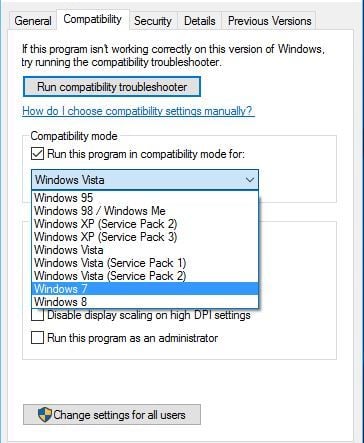
  3. Run the game in the compatibility mode
  4. Check GPU drivers
  5. Change the INI file
  6. Reinstall the game

Fix: Rise of Nations problems in Windows 10

Solution 1 – Run DXSETUP.exe and reinstall Visual C

According to users, this is supposed to be performed automatically by Steam when you start the game for the first time, but for some reason, this doesn’t happen, so you have to do this manually.

To do this, follow these steps:

  1. Go to The Rise of Nations installation folder. By default it should be something like c:program files (x86)steamsteamappscommonrise of nations but this could be different for your computer.
  2. Next go to the _CommonRedist folder > DirectX > Jun 2010 folder and run DXSETUP.exe. Wait for it to finish.
  3. Now go to _CommonRedist > vcredist > 2012 and install both files.
  4. After installing both files you should be able to run the game now.

Download Visual C++ and you won’t need additional packages!


Solution 2 – Run the game in borderless window mode

Some users claim that running the game in fullscreen mode causes issues, so let’s change the mode from fullscreen to the borderless window.

This is usually performed from game’s video options menu, but if you can’t even start the game, you can change it by changing the game’s .ini configuration file.

To do so, do the following:

  1. Go to C:Users<username>AppDataRoamingMicrosoft GamesRise of Nations and find a file called rise2.ini.
  2. Open that file and find the Fullscreen=2 line.
  3. Change the value from Fullscreen=2 to Fullscreen=1.
  4. Save the changes.

For a better gaming experience, we recommend downloading Game Fire for free. It will help with various gaming issues, such as freezes, crashes, low FPS, lags and slow PC.


Solution 3 – Run the game in the compatibility mode

Due to old age, we can’t skip on the possible compatibility issues with Windows 10. The Rise of Nations, allegedly, worked as a charm on earlier Windows iterations, both Windows 7 and Windows 8.1.

However, Windows 10 is seemingly another cup of tea and running the game in the compatibility mode should resolve some issues.


Solution 4 – Check GPU drivers

Another viable lead tracks down to GPU drivers. Things tend to complicate when the legacy classics are played on Windows 10 platform.

Occasionally, the latest properly-updated GPU drivers won’t cut it for older games. That, of course, means that you’ll need to experiment and find the right driver able to run the game.

Here are the support sites of the most-renowned OEM’s. Download the older drivers and try running the game.


Epic guide alert! Everything you need to know about updating the graphics driver on Windows 10 is right here!


Solution 5 – Change the INI file

A lot of users managed to resolve the startup issue with The Rise of Nations by a simple change of the INI file configuration values.

In order to do so, navigate to the installation folder, open rise.ini and rise2.ini files and delete all values.

Copy-paste the following configurations in both folders respectively:

rise.ini

[RISE OF NATIONS] ContentDir=Thrones and Patriots AllowLogs=0 Dialog Error Level (0 – 3)=2 BreakOnGSCommandLineCheck=0 GraphicsDLL=d3dgl.dll UseSSEDLLs=0 Sound Directory=.sounds Default Sound Directory=.. Number FX SoundPaths=0 Number VoiceOver SoundPaths=2 Number SoundTrack SoundPaths=3 IgnoreSoundWarning=0 ScriptIncludePath=.scenarioscriptlibrary script_loc_file=scen_script_loc.xml UseAutoSave=1 CheckSumDeep=0 CheckSumWindowSize=256 CheckSumFailureThreshold=2 Seed (0 for random)=0 InitialDump=0 Left Minimap=0 DEBUGROADS=0 AutoSaveLoad=0 Record Results=0

rise2.ini

[RISE OF NATIONS] Windowed Width=1024 Windowed Height=768 FullScreen=1 VSync=0 AllowAllResolutions=1 IgnoreMinimizeOnTabOut=0 ConfigDatabase=BHGVidCardConfig.txt ESCKeyGoesToMenu=1 ClickDragTiming=5 ClickDragLowSensitive=20 ClickDragHighSensitive=64 ClickDragRightSensitive=6 SkipIntroMovies=1 ForceHardwareCursor=0 ForceGDICursor=1 ForceBWCursor=0 ForceStaticCursor=0 ForceAGPVBs=0 Don’t Allow Texture Compression=0 SYS_grade_override(A-F or AUTO)=AUTO MEM_grade_override(A-F or AUTO)=AUTO CPU_grade_override(A-F or AUTO)=AUTO GPU_grade_override(A-F or AUTO)=AUTO TEXTURE_grade_override(FULL, HALF, QUARTER, AUTO)=AUTO UseAltColors=0 Console Coord Mode=0 Console Name Mode=2 Sound Enabled=1 BackVidAsSlideShow=0 UseVTUNEDLL=0 TestDelayRenderAMin=0 TestDelayRenderBMin=0 TestDelayRenderAMax=0 TestDelayRenderBMax=0 RebuildBalance=0 Force Profile Menu=0 ForceLowCPUBackgroundVid=0 EnableGraphicsToggles=0 TPModsDirectory=.Mods ScenarioDirectory=Scenarios StandaloneScriptsDirectory=Stand-alone Scripts DefaultScenarioDirectory=.scenarioCustom DefaultScriptDirectory=.scenarioScripts GameFrameTestDelayMin=0 GameFrameTestDelayMax=0 RenderMinimap=1 StartConsole=0 StartReveal=0 StartPaused=0

Save changes and try starting the game.


Solution 6 – Reinstall the game

Finally, if none of the previous solutions proved fruitful, you can always try reinstalling the game and move from there.

In addition, if you’re using Steam to run the game, you can also validate its integrity and resolve possible issues that way.

Here’s how to do it in the Steam desktop client:

  1. Open Steam.
  2. Right-click on The Rise of Nations and open Properties.
  3. Select Local Files.
  4. Choose ”Verify integrity of game files…” and restart your PC after the process ends.

Now the game should run in borderless window mode, and it should work without problems. If you have any comments, questions or suggestions, just let us know in the comments down below.

RELATED STORIES YOU NEED TO CHECK OUT:

Fix: Blacklight Retribution won’t launch

Blacklight Retribution is a cyber first-person shooter for Windows and PlayStation 4 that doesn’t always start. Some Blacklight Retribution players have stated on forums that the game isn’t launching in Steam. If you’re among those who can’t launch BLR, these are a few resolutions that might fix the game.

How to fix Blacklight Retribution launch issues and errors

1. Check the Game’s System Specifications

If you’ve never ran Blacklight Retribution in Windows before, and it isn’t launching, double-check that your desktop or laptop meets or eclipses the game’s system requirements. BLR is not a new game, so it doesn’t have especially high system requirements. A dual-core CPU, two GB RAM and 256 MB GPU are a few of the game’s specifications. Below is a snapshot of BLR’s full system specifications listed on Steam.

If your desktop or laptop doesn’t meet one of those specs, that might be why the game isn’t running. Even though Windows 10 and 8 aren’t listed as supported platforms on BLR’s Steam specifications, Blacklight Retribution does run in Windows 10. However, you could try running it in backward compatibility mode in Windows 8 and 10. To do that, right-click the BLR.exe, select Properties, click the Compatibility tab and select the Run this program in compatibility mode option.

2. Don’t Launch the Game Through Steam

Blacklight Retribution not launching can be due to the Steam launcher not launching it. Some BLR players have fixed the issue by starting the game from outside Steam. So enter the keyword ‘Blacklight Retribution.exe’ in your Windows search box, and then select to run BLR from there. Alternatively, open the Blacklight Retribution folder in File Explorer; and click the BLR.exe to open the game from its folder.

3. Adjust the AllowD3D11 Setting in the PCConsole-FoxEngine File

Some BLR players have fixed the game not starting by adjusting the AllowD3D11 setting in the PCConsole-FoxEngine file. This is an especially effective fix for Windows laptops or desktops that don’t support DirectX 11. This is how you can adjust the AllowD3D11 setting.

  • First, open this path in File Explorer: C:\Program Files (x86)\Steam\SteamApps\common\blacklightretribution\Blacklight Retribution\Live\FoxGame\Config\PCConsole\Cooked.
  • Then you can open the PCConsole-FoxEngine file in Notepad.
  • Alternatively, entering ‘PCConsole-FoxEngine’ in the Windows search box might be a quicker way to open the file.
  • Press the Ctrl + F hotkey to open the Find window.
  • Enter ‘D3A’ in the Find search box.
  • Then erase the true from the AllowD3D11 setting and enter ‘false.’ The setting should then be: AllowD3D11=False.
  • Click File and select Save from the menu.

4. Reinstall Blacklight Retribution in Steam

As previously mentioned, running this game without initializing the Steam launcher is a potential resolution for BLR not starting. Some players have also fixed the game by reinstalling in it Steam and then starting BLR with a Windows shortcut. That will update the game with the latest patches without the launcher.

  • To reinstall BLR in Steam, right-click Blacklight Retribution listed in Steam and select Delete Local Content.
  • You can then reinstall BLR by entering ‘Blacklight Retribution’ in the Steam’s search box.
  • Select to open Blacklight Retribution’s Steam page, and then click the Play Game button to reinstall.
  • Thereafter, right-click the Blacklight Retribution exe in File Explorer and select the Create shortcut option.
  • Press the Yes button to add a new BLR shortcut to the Windows desktop.

  • Then click BLR’s desktop shortcut to launch the game.

5. Verify the Game’s Cache

  • To check that the game is correctly installed, verify the game’s cache. You can do that by opening Steam and clicking Library.
  • Right-click Blacklight Retribution and select Properties from its context menu.
  • Select the Local Files tab shown in the snapshot directly below.

  • Then press the Verify Integrity Of Game Files button.

6. Close Background Software

It might be the case that background software is conflicting with BLR’s launcher. For instance, some Blacklight Retribution players have got the game starting by closing the TeamViewer remote desktop software. As conflicting software can vary widely from platform to platform, your best bet is close as many non-essential programs as you can via Task Manager. This is how you can close programs and background services with Task Manager.

  • You can open Task Manager by right-clicking the taskbar and selecting Task Manager.
  • Select the Process tab shown in the snapshot directly below.

  • First, close all the software listed under Apps by selecting them and pressing the End task button.
  • You can also close some background processes for third-party software listed under Background processes much the same. For example, terminate anti-virus software processes listed there.
  • In addition, you can remove third-party software from the Windows startup. Select third-party programs on the startup tab, and press their Disable buttons to remove them from the Windows startup.

Those are a few fixes that could kick-start Blacklight Retribution. If not, check out this article that provides further details for fixing Steam games that aren’t launching.

RELATED STORIES TO CHECK OUT: