Oops! Xbox One X is plagued by black screen issues

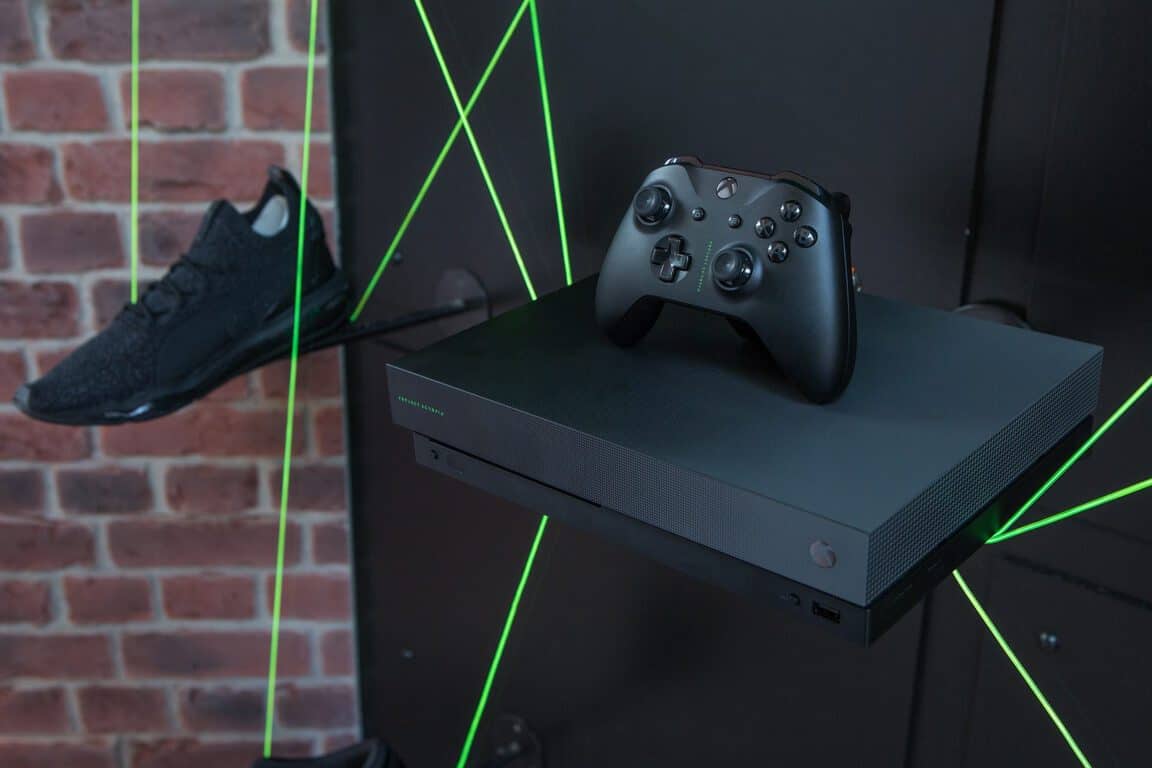
Microsoft officially launched the long-awaited Xbox One X today to gamers’ delight.

This new device is touted as the most powerful console in the world and is already very popular among gamers.

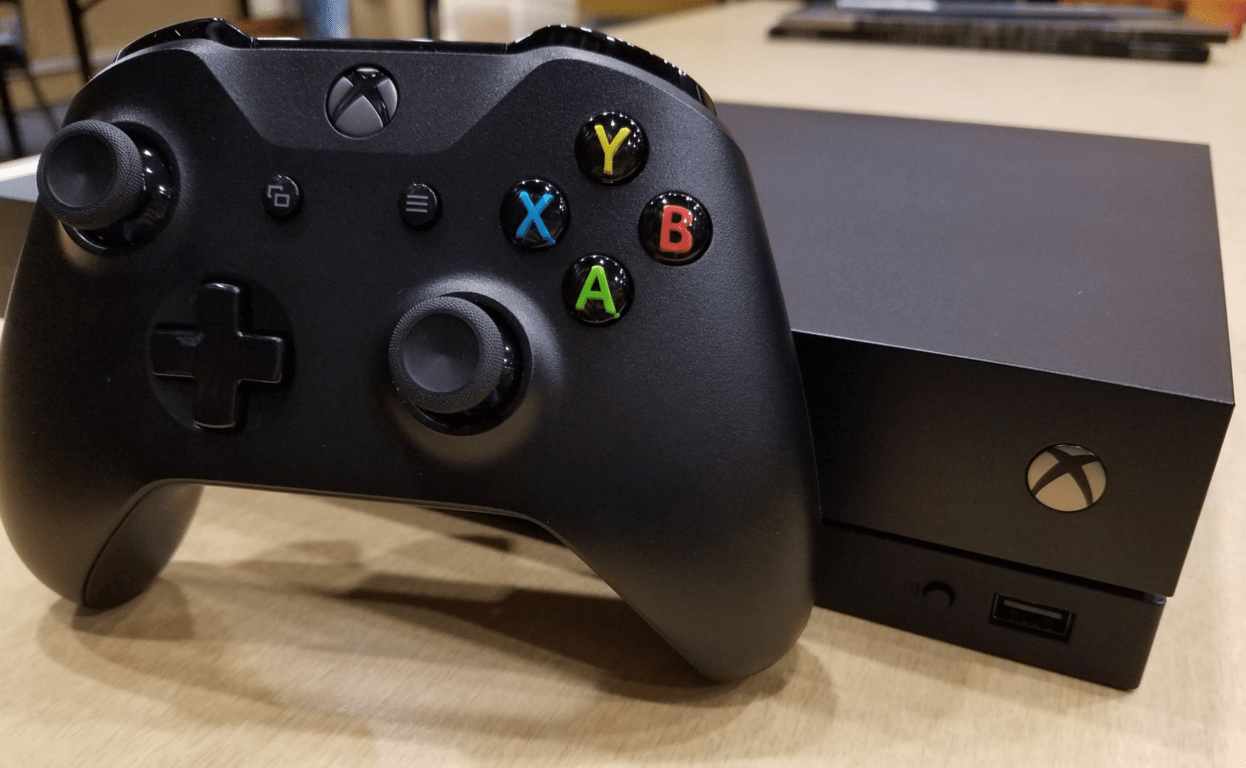
However, not all of them have been able to enjoy smooth gaming sessions on the new console. Actually, many gamers reported that the Xbox One X is affected by frequent black screen issues. This problem affects all games, it is not specific to a certain title.

Here’s how one gamer described this issue on Reddit:

Hey man, the exact same thing just happened to me.
I was able to set up the system no problem. I start Titanfall 2, no problem. After about 45 minutes of playing, my screen goes black and the system turns off. I press the Xbox logo, nothing. Unplug, then replug, nothing. Press the Xbox logo again on console for 10 seconds, nothing. I swap out the one x with my old one s, but keep the same cords, my one s powers up no problem.
…My One X is dead.

Judging by gamer reports, it appears that this problem is prevalent for the Xbox One X Scorpio Edition.

How to fix Xbox One X black screen issues

xbox one x scorpio black screen issues

For the time being, there are two solutions to fix this problem… kind of:

  1. take it back to the store to exchange it
  2. contact Microsoft support for a replacement.

By far, the first option is also the quickest way to get a new one. However, there is no guarantee that the new console won’t be affected by black screen issues as well.

Unfortunately, gamers said that basic troubleshooting steps such as power cycling the device or ejecting the disc failed to fix the problem.

Our guess is that the black screen errors on the Xbox One X are triggered by software-related bugs or incompatibility issues. The Redmond giant invested months of research into this console, so it’s very unlikely that this problem is caused by faulty hardware.

Microsoft has yet to issue any comments about this situation. This wouldn’t be the first issue of its kind – we also have a very useful guide on how to fix the infamous black screen of death on the Xbox One.

If you have encountered black screen issues on your Xbox One X, use the comments section below to tell us more about your experience.

RELATED STORIES TO CHECK OUT:

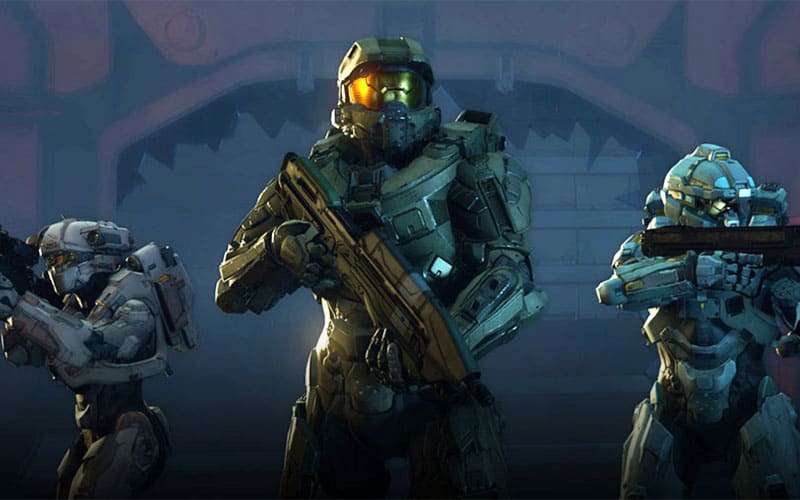
Halo celebrates Xbox One X launch, recaps game enhancements

Not one to be left out, Halo is celebrating the Xbox One X launch by looking back at all things Halo, including the Xbox One X enhancements that came for Halo 3, Halo Wars 2, and Halo 5: Guardians. Playing all these Halo games on the Xbox One X bring faster load times, 4K Ultra HD, and 60 FPS for a smoother Halo gaming experience. Halo WayPoint did a quick recap of the enhancements coming to Halo games.

Here’s the trailer of all the enhancements coming to Halo 5 on Xbox One X.

Halo Wars 2 was the highly-anticipated sequel to Halo Wars on Xbox 360 (later coming to Xbox One). Of course, Halo Wars 2 will be getting an Xbox One X update soon to take advantage of the all of the power of the new console. The new Halo Wars 2 update will also enable cross-platform play between Xbox One and Windows 10 gamers.

Halo 3 is another popular game in the series that got an Xbox One X update recently. It’s also exciting news that all Halo games that were available on Xbox 360 are now available to play on all consoles in the Xbox One family via Backward Compatibility.

There is more exciting news to come for all things Halo. The Halo 5: Guardians Overtime content update is coming soon and we should see more of the top players compete in the Halo World Championship 2018! Maybe we’ll see a new Halo game in 2018? Stay tuned!

Several Microsoft employees get special Project Scorpio Xbox Live badges

Microsoft employees were treated with special Project Scorpio Xbox Live badges today to celebrate the launch of Xbox One X. Redditor Spoon06 posted a grainy photo of one of the badges, said to be worn by Microsoft employees who helped with the Xbox One X launch.

Senior Product Marketing Manager at Xbox, Jordan Silverthorne, originally posted the picture of the badge on Twitter. The full Microsoft employee badge is not displayed, so it is hard to guess what else is included on the Microsoft employee-exclusive badge. Silvertone posted a clearer picture of the Project Scorpio Xbox Live emblem in a separate Tweet.

Microsoft Stores around the world received other goodies, including a special bag of swag, and other special Xbox events celebrating the Xbox One X launch. Receiving this Project Scorpio Xbox Live badge would have been a great gift for gamers that got an Xbox One X on launch day. Microsoft was looking to make the Xbox One X launch a big event and Microsoft has certainly delivered.

Microsoft partners with India’s Ola to power connected car platform

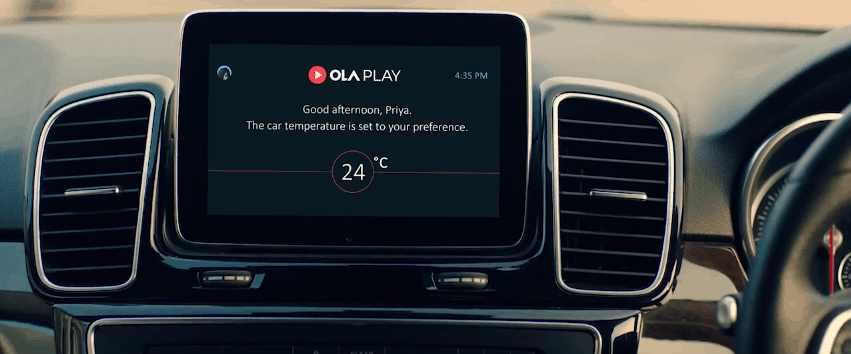
Microsoft is teaming up with Indian transportation network company Ola to build a new connected car platform powered by the Microsoft Cloud. India’s Uber rival has chosen Microsoft Azure to improve Ola Play, the connected car platform for ride sharing that the company launched in late 2016.

From the start, Ola Play has been designed to improve the in-car experience for Ola customers with connected services accessible from smartphones and tablets. The new partnership with Microsoft will benefit both drivers and Ola Play customers:

Ola Play customers will be able to use productivity tools such as Office 365 and Skype for Business, as well as voice-assisted controls built using Microsoft Cognitive Services and Bot framework, in-car during their rides. The advanced telematics platform will transform the car into a high-performing, intelligent vehicle, capable of assessing fuel efficiency, engine performance, and driver performance. It will also enable smarter navigation and predict breakdowns, enhancing safety and security while creating new business models and opportunities.

Microsoft and Ola also announced today that the Azure-powered Olay Play plaftorm will be offered to all car manufacturers interested in integrating it with their vehicle systems. “Today’s car is quickly becoming the ultimate computing device and together with Ola, we’re focused on providing more intelligent, connected and productive experiences to our customers,” said Satya Nadella, CEO, Microsoft. “The combination of Microsoft Azure, Office 365 and our AI platform with Ola Play will deliver new customer experiences and business opportunities across the automotive ecosystem.”

Xbox One X is here: A recap of the biggest global launch in Xbox history

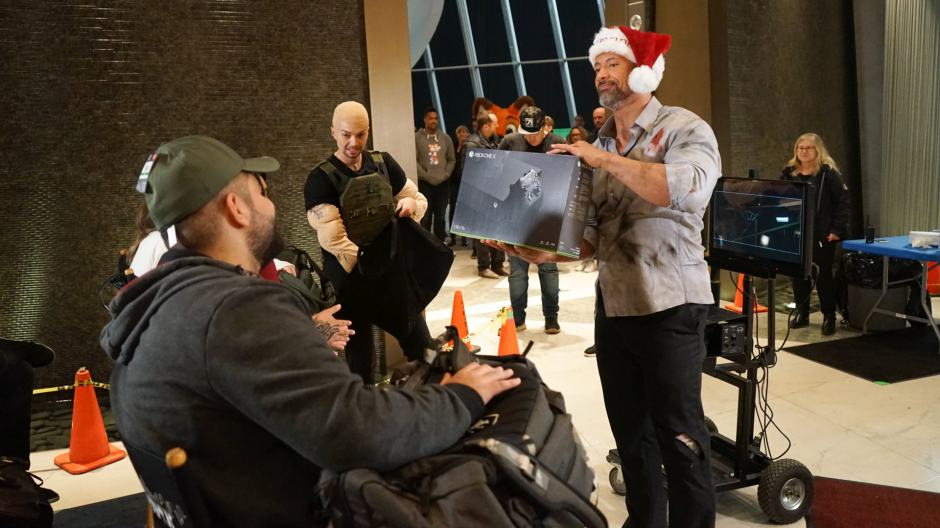
After a full year of anticipation, Microsoft’s most powerful Xbox console finally launched worldwide in 35 markets today, November 7th, 2017. The tech giant was holding launch events across the world, so here is a look at how Xbox gamers across our great planet were celebrating the release of the newest member of the Xbox family.

New York City:

In New York City, Microsoft’s Aaron Greenberg was hanging out with Conan O Brien at the Flagship Microsoft Store, and an Xbox fan was really hyped to pick up the Xbox One X. Just as with other Microsoft Stores across the world, eager fans lined up a day before the Xbox One X launched to be one of the first to get their hands on the new Xbox One X. Of course, there were other celebrity appearances as well, including Shaquille O’Neal, Liam Payne, Ronda Rousey, Odell Beckham Jr., and Caleb McLaughlin.

Lucky fans who participated in Trivia and giveaways at the launch event at the NYC Microsoft Flagship Store also scored some free swag. Redditor jerm2z shared a picture his loot with the world, including some cool Xbox One X themed hats, shirts, buttons, and more.

This is why I love Xbox. They take care of their fans. Here are all the FREE items I got at the NYC Xbox One X Launch Event. from xboxone

Australia:

In Australia, the launch of the Xbox One X was celebrated with the opening of the Xbox Stay N’ Play. The Stay N’ Play is a gaming-themed experience situated in front of the iconic Sydney skyline in Pirrama Park. Reservations were handed out for free on a first come, first serve basis, and there are rooms themed towards Xbox games like Forza 7, Minecraft, and more.

France:

In France, Xbox gamers had the chance to tune into a special eight-hour long Mixer livestream themed towards the Xbox One X launch events happening in Paris. Just as in NY, there was a midnight opening at the Fnac Champs Elysées, allowing French Xbox fans to get their hands on the Xbox One X the minute the clock hit 12:00 AM November 7th.

United Kingdom:

In the United Kingdom, Microsoft hosted an extended 14-hour live stream from the Xbox One X Apartment in London. The livestream event featured some of the biggest British content creators and special guests.

The above-seen locations are just a few places where special Xbox One X launches were happening. In a post to the Xbox Wire, Microsoft highlighted some of the other launch day activities:

  • Inspired by the new Xbox racing game “Forza Motorsport 7,” the world’s first Xbox One X was hand-delivered in New Zealand via the fastest supercar in the country.
  • In Germany, Xbox set a new world record for the “World’s Largest Unboxing” after unboxing a giant Xbox One X in the Munich International Airport, and celebrated the launch with more than 700 fans in front of Berlin’s largest 4K theater screen.
  • In Mexico City, hundreds of fans attended an Xbox One X midnight madness event hosted with Game Planet to celebrate the official launch of the highly anticipated console in Mexico.
  • In collaboration with Canadian designer and artist Brian Espiritu, Xbox designed custom Xbox One X consoles inspired by the city of Toronto to give away to five lucky Xbox fans.

Xbox One X is launching with the largest games lineup in Xbox history, with more than 50 titles available on launch day and 70 Xbox One X Enhanced titles coming in the first week. With features such as support for 4K gaming, HDR, and Supersampling, the most powerful Xbox console ever launched in 35 markets worldwide, making for the biggest global launch in Xbox history. We built Xbox One X to give game creators the most powerful platform to bring their visions to life and to give gamers the best console to play the games of the past, present, and future…We’re excited to offer gamers the world’s most powerful console with access to the largest games lineup in Xbox history,” said Phil Spencer, head of gaming, Microsoft Corp.

Check out Microsoft’s free Xbox One tool for testing 4K, HDR and more

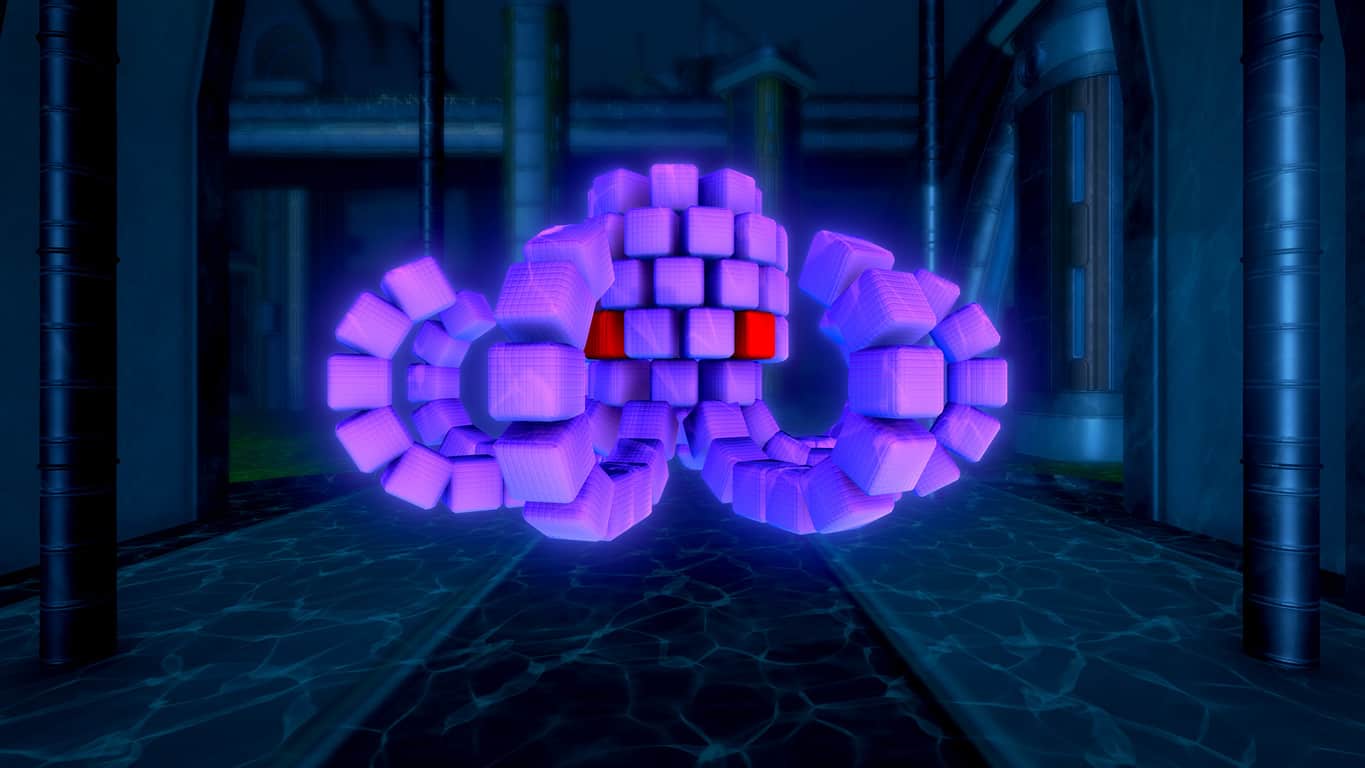
The Xbox One X is without a doubt the most powerful Xbox console ever, and Microsoft wants gamers who are unsure to see the true power of the system for themselves. Indeed, Microsoft recently released a free Xbox One tool that allows gamers to test out 4K, UHD, and many more aspects of the Xbox One X.

Originally developed by the Xbox Advanced Technology Group, the demo known as “Insects” is an interactive Ultra HD, HDR experience. It was meant to be a tool for developers, but the Xbox team realized the potential fun and decided to make it publicly available via the Microsoft Store on Xbox on the same day that Xbox One X launched.

Using the tool, gamers can toggle between the various formats and settings including 4K, HDR, and Spatial audio. For extra realism, gamers can even pause the experience, switch the time of day, highlight pixels, and zoom in on elements to see the extra attention to detail. The ultimate goal, though, is to see and hear the difference that these new technologies can make in the world of gaming.

Those with an Xbox One X can find the link for this demo below. Gamers without an Xbox One X, however, can feel free to check out the video above for a preview of the experience.

Xbox Kinect Adapters will be back in stock on November 10th

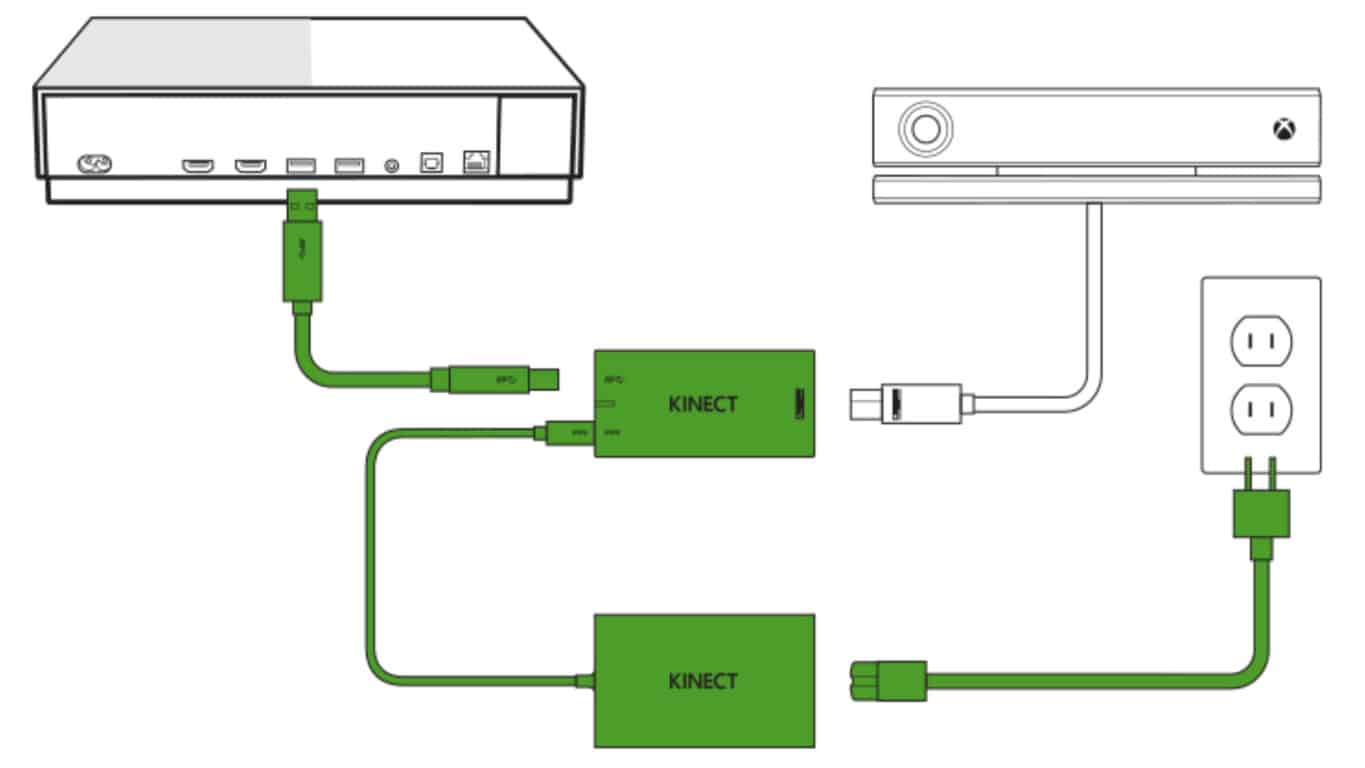
Many buyers of Microsoft’s new Xbox One X console wanting to use the Kinect for basic “Xbox” voice commands, Cortana interactions, Skype video-calls, or the numerous Kinect-enabled video games have been out of luck this month as the Xbox Kinect Adapter, which is needed to connect the Kinect to an Xbox One S or Xbox One X console, has been sold out on Amazon, Microsoft Store, and most other retailers.

Thankfully it appears that Microsoft is making more Kinect Adapters to meet demand as the official Amazon product page now states that more would be arriving on November 10th. Interested gamers can order one today and it should ship on or around the release date.

Have you managed to buy a Kinect Adapter yet or have you been waiting for them to come back in stock? Share your thoughts with the community in the comments below.

Boom Ball 3 for Kinect and Kinect Funhouse announced for Xbox One

Game studio, Virtual Air Guitar Company, have just announced that they’re working on two new Kinect video games for Microsoft’s Xbox One family of consoles.

The first game, Boom Ball 3 for Kinect, is due for release in December and is a sequel to the first two Boom Ball video games. This latest entry in the series features a different art style though and takes the players around a digital world as they encounter a wider variety of locations and creatures. Players will also be able to customize aspects of the game by taking photos of real-world objects with the Kinect camera and using those photos in-game.

The other title announced is called, Kinect Funhouse, and while no information on it was provided, it is expected to launch in spring 2018.

“Even though manufacturing has stopped, that doesn’t mean all the Kinects out there have suddenly stopped existing,” Virtual Air Guitar Company’s Aki Kanerva said in a statement. “We continue to support Kinect, and we’ll keep making Kinect games for as long as enough people keep buying them.”

Kanerva makes a very valid point about the Kinect and its continue relevance to Xbox One gamers. While Microsoft did announce that they would no longer be making the accessory, a large number of Xbox One console owners do own a Kinect and continue to use it whether it’s just for the genuinely convenient voice commands or motion games like the Just Dance series, Dance Central Spotlight, or the numerous Kinect games made by Virtual Air Guitar Company. Microsoft also just released three new Kinect games themselves this past week; Disneyland Adventures, Rush: A DisneyPixar Adventure, and Zoo Tycoon.

Are you excited for more Kinect video games on the Xbox One or do you just use the voice commands? Let us know in the comments below.

Download KB4052231, KB4052232 to fix external database driver errors

If you’re often getting external database driver errors on your Windows 10 version 1607 or version 1511 computer, Microsoft has the right solution for you.

The company recently rolled out KB4052231 and KB4052232, two updates that aim at focusing the exact same issue on two different Windows 10 versions.

The official description of these updates reads as follows:

Addressed issue where applications based on the Microsoft JET Database Engine (Microsoft Access 2007 and older or non-Microsoft applications) fail when creating or opening Microsoft Excel .xls files. The error message is, “Unexpected error from external database driver (1). (Microsoft JET Database Engine)”

KB4052231 bugs

 KB4052231 KB4052232
Unfortunately, KB4052231 is not free of bugs. Microsoft listed three known issues on the list:

  • Users may encounter an error indicating that an app exception has occurred when closing some applications. This can affect applications that use mshtml.dll to load web content and affects only processes that are shutting down.
  • If you set the text size for icons to a larger size, you may occasionally have issues launching Internet Explorer.
  • UWP applications that use JavaScript and asm.js may stop working.

For more information on what to do if your UWP apps stopped working, check out these guides:

KB4052232 issues

As far as the KB4052232 bugs are concerned, there is only one known issue on the list. Internet Explorer may sometimes fail to launch if you’re using large text size on display.

As a workaround, you can reduce the text size for icons to a smaller value. That should lessen the issue. You can also install a third-party browser on your Windows 10 computer and use it until Microsoft has fixed the problem.

Download KB4052231, KB4052232

If you already installed these updates on your computer, use the comment section below to tell us more about your experience.

Having issues with the internet? Microsoft Azure, Snapchat and other major services are experiencing issues

It may feel like the Internet is crumbling a little bit today. Major ISPs in the United States, namely Comcast, Verizon and Spectrum are experiencing severe network issues, with states across the US suffering from internet outages.

In addition to many of the major ISPs, Microsoft’s Azure and Snapchat are also experiencing issues, with users unable to access hosted websites, virtual machines, and others losing their Snap streaks, unable to send Snap’s or view stories.

Microsoft’s Azure status pages shows an ongoing network infrastructure issue for North Central US, adding that South Central US may also be affected. Reports are showing that these services are slowly returning to normal.

Meanwhile, other services continue to experience problems. Snapchat has said it is aware of an ongoing issue, but there’s been no improvement thus far.

Some claim this is an attack on Level 3, however, these reports are, as yet, unconfirmed. Level 3 tweeted that there was a configuration error on their end, but that the issue has since been resolve – despite this, services appear to remain affected by issues.

https://twitter.com/Level3NOC/status/927633534424141824

Are you facing issues with specific services or the internet overall? Let us know in the comments below!

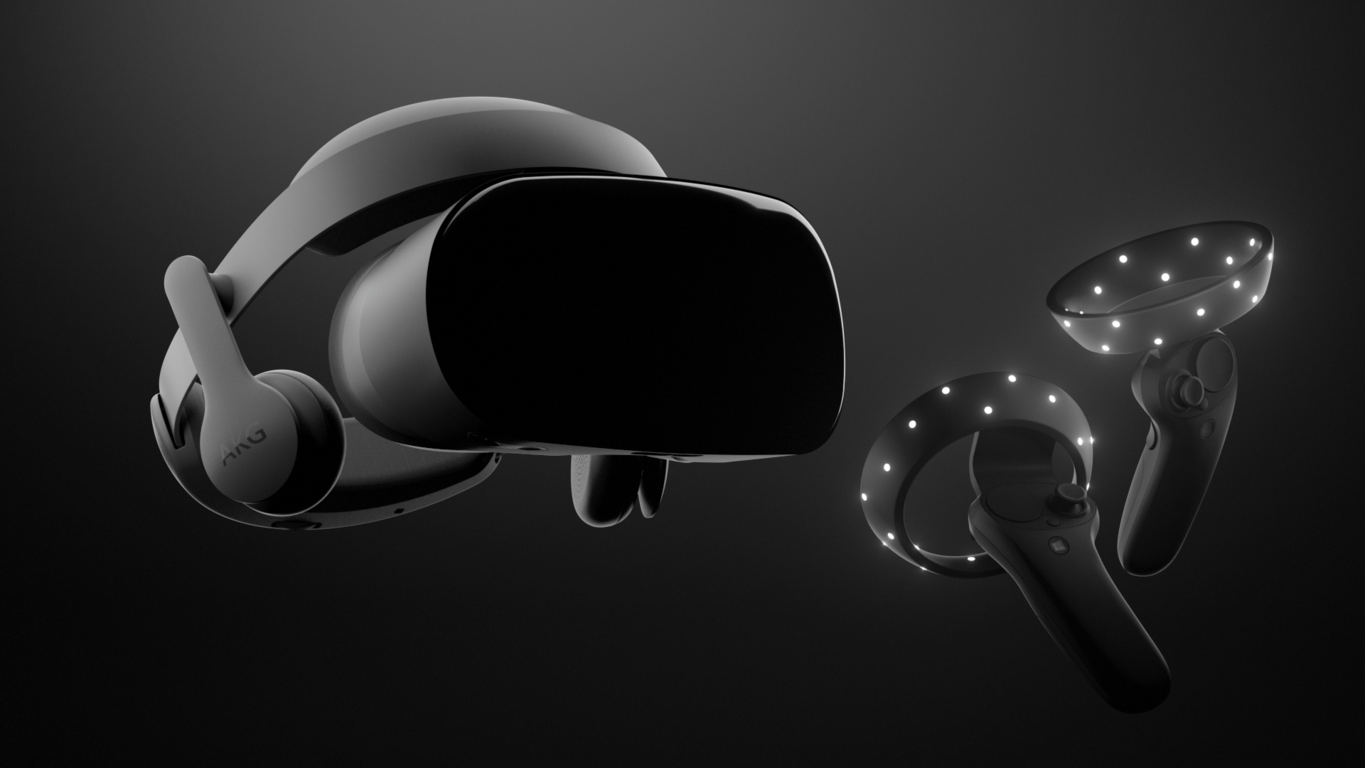
Samsung’s high-end Windows Mixed Reality headset went on sale today, and it’s already out of stock

Windows Mixed Reality headsets from Acer, Dell, and a few other OEMs all launched last month, but Samsung’s high-end headset was noticeably left out of the launch day picture. After being available for pre-order, the Samsung Windows Mixed Reality Odyssey went on sale today at the Microsoft Store but it’s already out of stock.

Priced at $499, the headset packs a fancy AMOLED display with a resolution of 2880 x 1600. This makes for a relatively better viewing experience when compared to the headsets from other manufacturers, which only have 1440×1440 resolution liquid crystal displays. Also unique to the Samsung headset is a pair of built-in AKG headphones.

Though out of stock at certain Microsoft Store online, interested buyers can try their luck by buying/reserving it online and then heading to a physical Microsoft Store to pick up the headset in person. Do you plan on buying a Mixed Reality headset this holiday season? Let us know below.

Microsoft, Princeton University sue Trump Administration over DACA immigration termination

Princeton University recently announced that it has joined forces with Microsoft to file a federal lawsuit to preserve DACA. This is all following the Trump administration’s September 2017 decision to roll back the government program protecting undocumented immigrants. In the new lawsuit, Princeton and Microsoft allege that DACA’s termination violated both the United States Constitution and federal law.

A Princeton undergraduate student, Maria De La Cruz Perales Sanchez, leads the lawsuit filed on November 3 in Washington D.C. She believes that the termination of DACA will harm both her and other DACA recipients. More specifically, she thinks that Princeton will “suffer the loss of critical members of its community” if DACA is pulled back.

See more on the legal aspect of the lawsuit below:

The plaintiffs claim that the government’s actions violated the Due Process Clause of the Fifth Amendment of the U.S. Constitution, including its guarantee of equal protection under the law, as well as the Administrative Procedure Act. The complaint asks for a declaration that the DACA program is lawful and constitutional, and for an injunction that both stops the administration from terminating DACA and prevents the government from using the information provided by Dreamers against them or for purposes of immigration enforcement.

Microsoft employs 45 DACA recipients and has long been supportive of legislation which will protect those who are under the DACA Program. “The 45 Dreamers employed by Microsoft today are making countless contributions in our company and community,” said Microsoft President Brad Smith in the Princeton Press release.

Microsoft opens MVP Summit registration for March 2018 event, but not without problems

Microsoft is set to hold its MVP Summit, a gathering of awardees recognized for their contributions to the community, early next year, on March 4-7 in Bellevue and Redmond, Washington. The program opened up registration for the event today, offering free shared hotel accommodations for the event, but the registration has left a lot of MVPs frustrated.

For one thing, the site is apparently not able to keep up with the traffic, although it shouldn’t be that high as there are only about 5,000 current MVPs:

There are also apparent problems with the registration site’s implementation, with the “blog url” field tripping things up:

Still, many MVPs (many using the #MVPBuzz hashtag on Twitter) have been able to register. Microsoft delayed the event, which has traditionally been an annual affair, last year, skipping a 2017 summit, so MVPs will be eager to catch up with each other and hear about the company’s plans for the future.

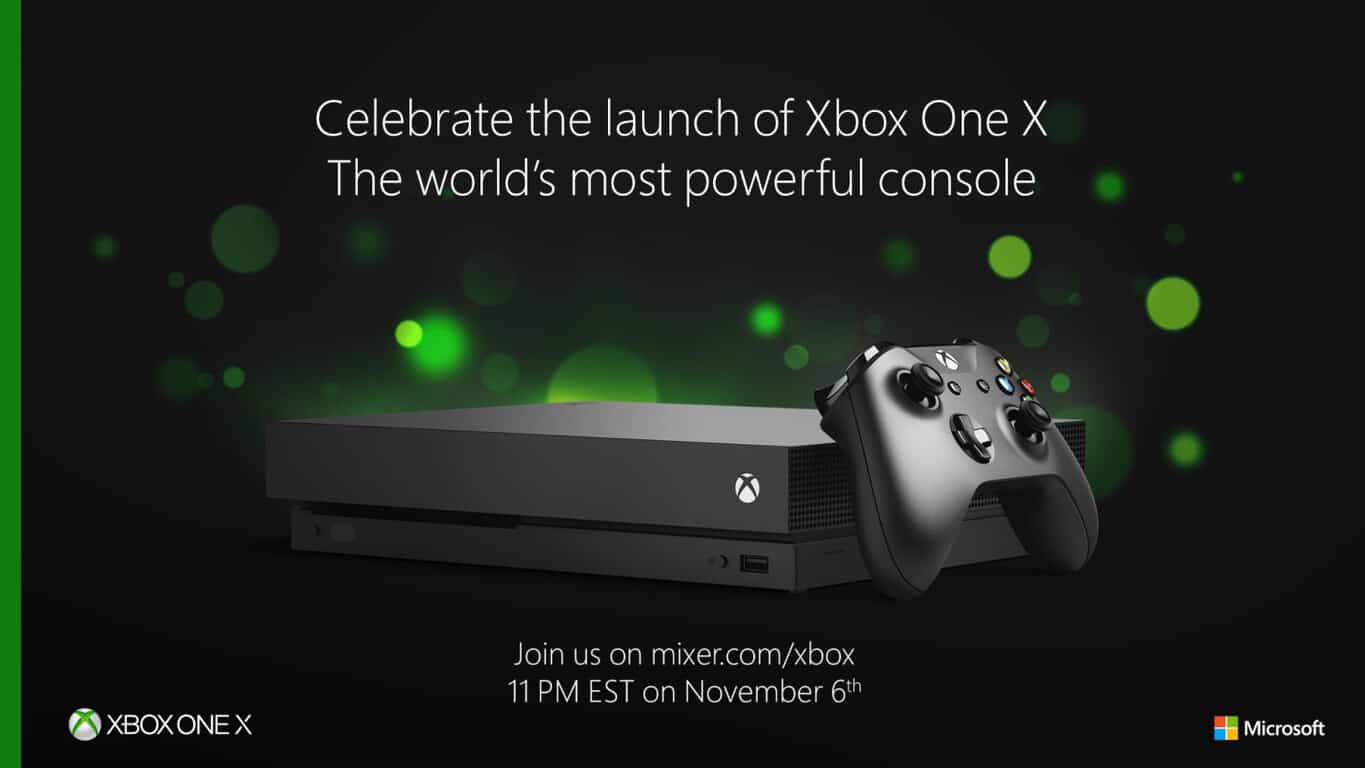
Watch the launch of Xbox One X live from NYC Microsoft Store tonight on YouTube or Mixer

After many news outlets (including OnMSFT) published their review of Microsoft’s Xbox One X last Friday, the company is now gearing up for “the biggest global launch in Xbox history.” At the time of this writing, the console has already start shipping to gamers in Australia and New Zealand, and those of you in Europe and the US won’t have to wait much longer to get their hands on the new console.

Later today, the Xbox team will hold a special launch event from Mixer NYC Studio starting at 8:00 p.m. PT/11:00 p.m. ET until 9:00 p.m. PT/midnight ET. You can watch the show on Mixer, Twitch, YouTube or Facebook Live, and the Xbox team promises to give “an inside look at launch activities happening around the globe” during the one hour live stream.

If you happen to near a Microsoft Store, many of them will celebrate the launch today with giveaways, gameplay and more: In addition to an “epic fan celebration” at the Flagship Microsoft Store on Fifth Avenue in New York, The Microsoft Store at Bellevue Square Mall in Bellevue, Washington will also host a meet and greet with Seahawks’ Cliff Avril today starting at 6PM PST. You can learn more about the many celebrations happening today on Major Nelson’s blog.

Save on select Xbox One bundles and get two free games including Assassin’s Creed Origins, Forza Motorsport 7 and more

If you didn’t set your sights on the brand new Xbox One X, the US Microsoft Store is currently offering interesting discounts on select Xbox One S bundles (via Windows Central). All bundles with 500GB consoles are currently $30 off, but you can also get two free games along your purchase including Assassin’s Creed Origins, Call of Duty: WWII, Middle-earth: Shadow of War, Forza Motorsport 7, Destiny 2, Wolfenstein II: The New Colossus, The Evil Within 2 and more.

All bundles can be found on this page, but we’ve listed the most interesting deals below:

All $30 discounts and free games offers will be valid through November 18, 2017. These pre-holiday deals are definitely interesting if you want to get a new console plus a fresh AAA game for free, though we may see even more interesting discounts around Black Friday.

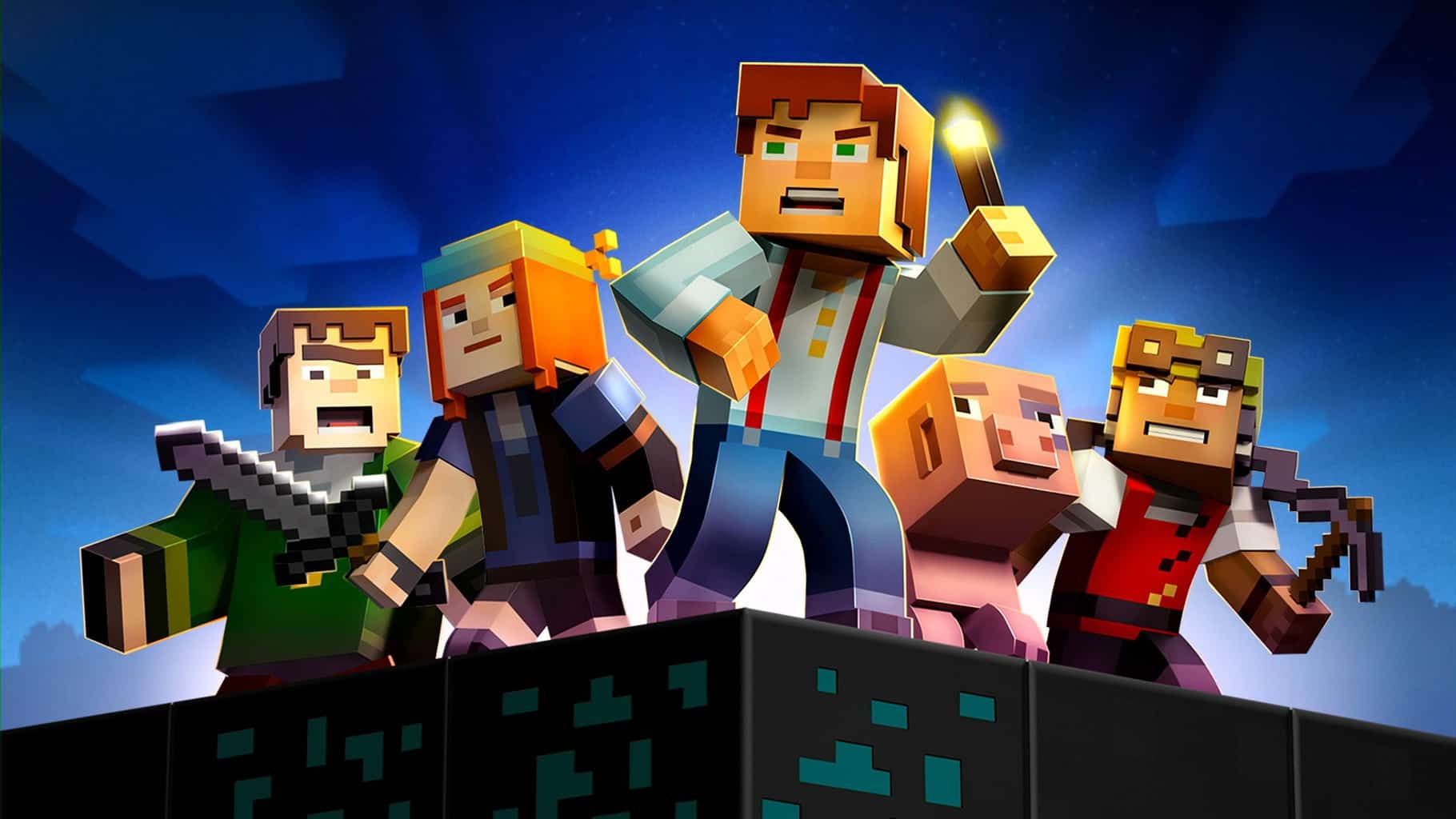
Minecraft: Story Mode S2E4 launches November 7th

Minecraft: Story Mode Season 2’s fourth chapter is scheduled to launch on Xbox One on November 7th. This chapter will continue the action from where it left off at the previous entries, and it will carry over all of the gamers’ choices that have been previously made.

There is also an exclusive trailer released for the fourth episode.

Minecraft: Story Mode is based on the Minecraft video game

Minecraft: Story Mode is a game based on the story of the famous Minecraft video game. The main video game features an open world nature, and the Story Mode is one of the few places where you can experience a fully-realized adventure in the Minecraft world.

Minecraft: Story Mode – Season Two – The Complete Season (Episodes 1-5)

You can get the Minecraft: Story Mode – Season Two – The Complete Season (Episodes 1-5) from Microsoft Store.

The story picks up from where it left after Jesse and the gang have vanquished the Wither storm, saved the world and became super popular heroes.

Now, life became much more complicated in the game. Currently, there are far more responsibilities and less time for adventure. Friendships have started to fade, and this won’t change until Jesse’s hand gets stuck in a gauntlet that belongs to an ancient temple located underwater.

Jesse will embark on a brand new journey together with his old friends, and they will all have to make really tough choices. The adventure will be filled with fun times as well, and there will also be a temperamental llama present.

The game includes access to all of the five episodes, and the episode 1 is already available.

You can get the Minecraft: Story Mode – Season Two – The Complete Season (Episodes 1-5) from the Microsoft Store priced at $24.99. The game also contains in-app purchases.

RELATED STORIES TO CHECK OUT:

Fix: iTunes Helper Not Running in Windows 10/11

Even though iTunes competition is stronger than ever in music and media regards, this is still an irreplaceable all-around program suite for all Apple users.

However, it seems that Apple’s favorite suite is susceptible to various issues, including one widely acknowledged problem with iTunes Helper that won’t run on Windows 10.

As you probably know, the purpose of this tool, or rather its feature, is to start iTunes right away once you plug in your iPhone or iPad on your PC.

Simple feature with a simple task. However, it seems that, for some users, iTunes Helper won’t run on Windows 10. To help you deal with this problem, we prepared a few solutions. You should check them out below.

How can I address iTunes Helper issues in Windows 10?

1. Run the diagnostics

  1. Open iTunes client for Windows 10.
  2. Under the main bar, click on Help and choose to Run diagnostics.ituneshelper not running windows 10
  3. In the following window, click Next and continue with the presented tests.

The first obvious step is to turn to the built-in diagnostics tool that comes with the iTunes suite. Namely, this tool covers all major functions and is well-suited for addressing most known issues, including the misbehavior of an essential integrated part called iTunes Helper.

If something is wrong with the iTunes installation as a whole or an individual part of the suite, this tool should identify the problem and address it accordingly.

2. Update iTunes

  1. Open iTunes.
  2. Click on Help and Check for updates from the drop-down menu.ituneshelper not running windows 10
  3. Download the latest version and install it.
  4. Restart your PC and check for changes in iTunes Helper behavior.

Another thing that might help you resolve your problem is a simple update. Due to recent changes to Windows 10 with the introduction of the third major upgrade, the Fall Creators Update, something might have changed in the Windows shell.

This means that you’ll need the latest, optimized version of iTunes to avoid possible issues with iTunes Helper.

3. Reinstall iTunes

  1. In the Windows Search bar, type Control, and open Control Panel.ituneshelper not running windows 10
  2. Select the Category view.
  3. Click on Uninstall a program.ituneshelper not running windows 10
  4. Navigate to these individual applications and uninstall them:
    • iTunes
    • Apple Software Update
    • Apple Mobile Device Support
    • Bonjour
    • Apple Application Support 32-bit
    • Apple Application Support 64-bitituneshelper not running windows 10
  5. Now, navigate to these directories and delete all Apple-related folders:
    • C:Program Files and Program Files (x86) and delete iTunes, Bonjour, and iPod folders.
    • C:Program Data and delete the Apple folder.
  6. Restart your PC and download the iTunes installer from this site.
  7. Look for changes.

Compared to updating, reinstalling a certain program is a more thorough approach. It can take some time since you’ll need to delete everything from your PC, download the brand-new installation files, and install them properly.

In addition, to deal with the iTunes client completely, you’ll need to manually delete all of the remaining files stored in various locations. Just make sure to back up your library.

If, even after the reinstallation, you’re still stuck with iTunes Helper not running, we can only advise you to disable this feature completely. This way, you can use the rest of iTunes features seamlessly.

4. Disable iTunes Helper

  1.  Right-click on the taskbar and open Task Manager.
  2. Open the Startup tab.
  3. Disable iTunes. That should prevent iTunes Helper from starting with the system.
  4. Restart your PC and start iTunes.
  5. Look for changes.

Basically, iTunes Helper starts with your system, and its main purpose is to speed up the integration of attached Apple devices. You’ll also find the distnoted.exe file important for notifications, so if iTunes is a bit glitchy, you need to fix its errors.

If you’re ready to trade this small accessibility trait for the overall application functionality, we advise you to disable it immediately.

With that, we can conclude today’s article. Feel free to share your questions or suggestions regarding iTunes Helper not running in Windows 10. You can do so in the comments section below.

Xbox news recap: We review the Xbox One X, demand for Xbox One X is “super high” and more

Welcome to our weekly Xbox news recap series, where we go over the top stories of the past week in the world of Xbox. Let’s get started.

We review the Xbox One X

We’ve had our hands on the Xbox One X for a week or so now, and we’re finally allowed to tell you what we think. The Xbox One X is a solid piece of hardware that is an attactive purchase for its target audience, but it’s most certainly not for everyone. If you want the full rundown, you can read our review here.

Microsoft, Xbox, Xbox One X, Foot Locker

Demand for the Xbox One X is “Super high”

The Xbox One X is coming out just a few days after the time of writing this, and the projected sales of the console are somewhat up in the air. If you believe Panos Panay, Microsoft’s Head of Devices, the Xbox One X could be looking at a great Holiday season. He mentioned that, while he “won’t talk about exact numbers,” the “demand is super high.” This is good to hear if you’re looking for the Xbox One X to set a trend of high-performance consoles going forward.

PUBG coming to Xbox on December 12

PUBG, the game that swept everyone off their feet a few months ago with its unique take on the battle royale formula, is finally coming to Xbox One. The release date was announced this week, promising fans that they’ll be able to get their hands on the game for Xbox come December 12th. The game is available for pre-order in the Microsoft Store right now, if you’re already sure you wan to play when the game launches.

Microsoft will donate $500k to the troops if gamers get 25 million achievements

In honor of Call of Duty WW2, Microsoft is giving gamers a challenge. If the Xbox community collectively gets 25 million achievements between November 1st and November 7th, the Redmond giant will be donating $500k to the Call of Duty Endowment, which is a charity that prepares veterans to get back out in the world and find high quality jobs. At the time of writing, we’re only at 4.7 million achievements with 2 days to go. If the goal isn’t hit.. I would be surprised if this money didn’t still get donated. Keep your eyes out for this one!

Call of Duty WWII on Xbox One

Thanks for joining us. To keep up to date with all the latest Xbox news, keep a close eye on our Xbox One tag.

How to transfer your Groove Music data to Spotify

Users of Groove Music woke up to an announcement from Microsoft a few weeks ago over their partnership with Spotify, the world’s largest music streaming service.

With this partnership, Groove Music Pass streaming service will come to an end as of December 31, 2017. However, you can still transfer Groove Music to Spotify by directly moving your curated playlists and music collection.

Groove Music Pass users will also get 60 free days of Spotify Premium under this arrangement, but once the December deadline lapses, the Groove Music Pass streaming service will be discontinued.

You’ll still be able to listen to any music you bought and downloaded so that won’t disappear.

If you’re still using Groove Music and would like to know how to transfer your music playlists and collection to Spotify in advance, we got you.

Prior to moving your music to Spotify, you’ll receive a temporary access request to the following:

  • Saved tracks and albums
  • Subscription details
  • Private playlists

Once the transfer is complete, all the data accessed by Spotify is deleted. You can then proceed to transfer Groove Music to Spotify with just a few clicks.

Transfer Groove Music to Spotify

Before you transfer Groove Music to Spotify, you need to ensure you have the latest Groove Music app on your computer or device.

An update for this was made available for Windows 10 and Xbox One devices in mid-October this year, so once you have the updated app, you can transfer Groove Music to Spotify and enjoy your music collections and curated playlists with a few clicks.

Step 1: Launch the newest Groove Music app

  • Go to Windows Store or Xbox One

transfer Groove Music to Spotify

  • Log in to Groove Music app

transfer Groove Music to Spotify

  • A pop-up window from Spotify will appear
  • Follow the instructions to log in or create a Spotify account (if you don’t have one)

Step 2: Log in to your Spotify account

If you have created a Spotify account, log in to it with your username and password. Do the same for an existing account.


Step 3: Transfer Groove Music to Spotify

Once you’re signed in to Spotify, your music collection and curated playlists will be moved from Groove Music to Spotify. This will take a few minutes to complete.


Step 4: Play your music

Once your music playlists and collection is moved to Spotify, the music library will have all your music which you can start playing and listening to from the app.

Once you transfer Groove Music to Spotify, all the music you moved that matches with what is in Spotify’s catalog will reflect on your Spotify library and playlists.

Additionally, you will still be able to play music content stored on your hard drive, or in cloud storage such as OneDrive through the Groove Music app on your computer.

Note: If you’re using Groove Music app on your mobile device, you can transfer Groove Music to Spotify on an updated Windows 10 or Xbox One device.

Once you launch Groove Music app, you’ll get a pop-up message inviting you to transfer your music to Spotify. Select it and follow the instructions to start the transfer process, then you can listen to your favorite music via Spotify on your device.

Troubleshooting issues after transferring Groove Music to Spotify

  • If you can’t find your music after moving it to Spotify, sometimes this could be caused by a mismatch in Spotify’s collection. If you’re using a Windows 10 computer or device to transfer Groove Music to Spotify, check for a file in your computer named txt under the music library, because the list of songs that were not moved are stored therein.
  • If you follow any editorial playlists from Groove Explore page, they won’t move to Spotify. However, you can create a new playlist with the same songs, then add them to a personal playlist and move them to Spotify
  • If you cannot move your music or haven’t seen a notification to start moving your music, check for the following:
  • If you updated to the latest version of Groove Music app. If yours is not updated, go to the Groove settings page, select About, then check for a number series that looks like this: 17083.—.-. Please note that the five digit number after 10 should be 17083 or higher, otherwise go to Windows Store for updates.
  • If you still don’t see a notification to move your music after meeting these requirements, go to Groove app settings then select Move my music to Spotify.
  • If you use Groove Music on older versions of Windows (8 or 8.1), or older devices like Xbox 360 or older PCs, you can transfer Groove Music to Spotify on an updated Windows 10 or Xbox One device, then you can listen to your favorite music via Spotify on your device.

There are other music streaming options for Windows if you don’t wish to transfer Groove Music to Spotify, including Deezer, SiriusXM, TuneIn Radio, and Pandora, among others.

We hope you were able to transfer Groove Music to Spotify easily using the steps above. If not, let us know your experience in the comments section below.

RELATED STORIES TO CHECK OUT:

Common Call of Duty: WWII bugs and how to fix them on PC

Call of Duty: WWII is now live. As its title suggests, the game focuses on WW2 and aims to redefine that era for a new gaming generation. Despite the fanfare around its release, the game received mixed reviews on Steam. It was expected that Call of Duty: WWII would blow gamers away, but seems like this didn’t happen.

We tried to find out why and identified two main reasons: the overall predictable Call of Duty-type action and bugs. Call of Duty: WWII is affected by a plethora of bugs, and some gamers even suggest that it’s worse than Early Access. In this article, we’ll list the most frequent Call of Duty: WWII issues reported by players, as well as their corresponding workarounds whenever available.

Call of Duty: WWII bugs on Windows PCs

1. Sound issues

Sound is sub-par in CoD: WW2. More specifically, sound is constantly cutting in and out, resulting in a very frustrating gaming experience.

From the very beginning the atmosphere is utter shet. Some potato cannons in the distance pop for a split second like a bb gun. The rain sounds like a flushed toilet. The boats engines sound like a RC boat for kids.
Absolute rubbish. This does not sound like a battlefield

To fix this problem, try updating your sound drivers. Also, make sure that your sound settings are compatible with the game.

Other troubleshooting steps include:

  • Reboot your PC.
  • Disable Allow applications to take exclusive control of this device in Playback Devices > Properties > Advanced Tab.
  • Disable background applications that could potentially interfere with the in-game sound.
  • Select preferred playback device as default. Right-click on the Sound icon on the taskbar and open Playback devices. Select preferred device and click Set As Default.
  • Check the in-game sound settings and even reset them, if necessary.
  • Repair the game through Steam.

If none of the solutions listed above fixed the annoying CoD: WW2 sound bugs, don’t lose hope – perhaps the upcoming Call of Duty: WWII patch will fix them.


2. Download issues

fix call of duty WW2 bugs

If you’re still struggling to download CoD: WW2 on your PC, you’re not the only one:  the download process won’t even start for some players, while others had to wait for hours on end for the game to download.

I pre-loaded the game (SP and MP), now it says it needs a update, but is not downloading.
I tried downloading another game from my library and it works fine.
Am i the only one? Any idea how to fix it?

To fix CoD: WW2 download issues, check your internet connection and use an Ethernet connection if available. Also, close background apps and any other programs that may use bandwidth.


3. Green flashing screen

Many gamers reported that the screen flickers green when they start the game:

Just went to play COD WWII on steam only to find that when game loaded all I got was a green flashing screen with black and yellow graphics. Checked and verified files ok. No other game or software gives me the same result. I am running win10 64bit fall creators update with Geforce GTX 1050 Ti 4GB card and latest 388.13 nvideo drivers. […]Have uninstalled/reinstalled game, same results. Uninstalled/reinstalled graphic drivers, same result.

One resourceful player confirmed that changing the refresh rate to another level and setting it back to max solves this problem when you’re playing. However, if you close the game and start again, you need to change the refresh rate again.


4. Player can’t join servers

call of duty WW2 fix issues

Many players can’t connect to Call of Duty’s servers and join matches. The game gets stuck on the loading screen and then suddenly returns to the desktop.

it just keeps loading for like 10 minites and then it goes back to the menu saying i can not join the server, or else it’s get stuck in the loading screen not freezing or anything but im stuck in it until it freezes and yes i think i did update my graphics card drivers


5. Bonus code won’t activate

It appears that bonus code activation is not available at the moment. Far worse, there are players who can’t even find the code.

“Sorry, an unexpected error occurred” Thats what i got if i try to get the bonus for preorder. Anyone has the same problem? Or a solution?

This is likely a temporary issue, so please exercise some patience.


6. Game crashes

Although game crashes are pretty rare in Call of Duty: WW2, they do occur.

did u have any crashes in campaign cuz i had like some huge fps drops from like 120 to 10 and game is crashed twice . I have the newest nvidia drivers (i5 6600k 4,4 16gb ram , gtx 1070 ) . Do u have the same issue as i ?

Make sure that you’re running the latest Windows 10 version on your computer. Don’t forget to install the latest driver updates and run a full system scan just in case. Also, disable background apps to allow your computer to direct all the resources to the game.


Game Fire is a game booster that will get rid of freezes, lags, low FPS and other issues while playing. Download it now (free) for a better gaming experience.


7. Black screen issues

call of duty WW2 bugs

Some gamers reported black screen issues soon after the introduction:

After watching the amazing intro video for the single player the screen goes black, and that’s it, unless loading times are 3 to 16 hours. I think this game is dead on arrival, any body else get this?
I stayed up all night for this???

Restarting your computer should fix this issue. If the bug persists, follow the troubleshooting steps available in the articles below:


8. Call of Duty: WWII won’t start

Other gamers can’t even launch the game. The screen first goes green as if it were loading and then turns blue, forcing players to close the game or restart their computers:

when i click start my profile goes green as if i would normaly start a game but after 5 seconds or so it just goes back to blue and nothing happens…


That brings us to the end of our list. As you can see, Call of Duty: WWII is affected by quite a few issues, but then again, this happens with every newly launched game. We’re sure that the upcoming game patch will fix many of these issues.

Meanwhile, if you found other solutions to fix the bugs listed above or any others, feel free to list the troubleshooting steps in the comment section below.

RELATED STORIES TO CHECK OUT:

Posted in Fix

Windows 10 build 17025 released to Slow Ring Insiders

The most recent Windows 10 build is 17025, which Microsoft released last week to those brave enough to be in the Fast Ring and Skip Ahead. Of course, as is tradition, there are countless bugs with this build, as well. So, be aware that if you install it on your Windows PC, you might still get some annoying issues:

  • Broken functionality in Mail, Cortana, Narrator or missing some features like Windows Media Player
  • Using a swipe gesture with touch to dismiss notifications from the Action Center is currently not working. 
  • There’s a noticeable screen flicker when using hotkeys or the touchpad to switch between Virtual Desktops.
  • Invoking the Game bar with Win + G may cause the mouse cursor to become unresponsive while Game bar is up. Keyboard navigation still works and pressing Win + G again will close the Game bar, restoring the mouse cursor to the game.
  • Calendar toast dismiss and snooze icons may be missing from notifications in Action Center.

If you do encounter some of these issues, we actually have extensive guides on how to fix some of them. Bookmark this page just in case you get hit by some of these glitches. If they do occur, here’s how to fix them:

Do let us know if this particular build installed smoothly on your machine or not. Once the next build gets rolled out, we will make sure to keep you informed!

The WhatsApp Desktop app is on its way to Microsoft Store

Back in 2016, WhatsApp released its new application for Windows which made it easier to use WhatsApp on the PC through a web wrapper of the WhatsApp Web experience. Later, Facebook started to test the native WhatsApp app for Windows 10 users, and now it will be available for download from the Microsoft Store.

The new WhatsApp Desktop app is in beta

Facebook is now testing the application with just a limited amount of users. If you are included in the desktop app’s beta program, you can now download the app and try it out for yourself. This new application will also be available to the general public in Microsoft Store in the future months.

WhatsApp for Windows 8 and Windows 10

The app for Windows 8 and 10 was released back in 2016 and it was not a UWP because WhatsApp wanted to reach wider audiences. It was well designed and seemed to be based on the WhatsApp Web released in 2015. It was a companion app just like Line and Viber’s PC apps so you could only use it with a phone that was already WhatsApp enabled and only on one computer at a time.

Even in 2016, WhatsApp coming to Windows was a huge step for the messaging giant. Even if some users may not have minded making use of a web app, the addition of a desktop application will undoubtedly enhance the app’s status.

All users who are part of the desktop beta program can head to the Microsoft Store and download their own version of WhatsApp. The approximate download size is about 120.07 M  and you can get the app while you’re signed into your Microsoft account.

RELATED STORIES TO CHECK OUT:

Translate Easy in Windows 10/11 With Language Translator App

What operating system would be complete without a reliable language translator? Despite the fact that it still consist of an app, Windows 10, Windows 8 accomplishes this task pretty good. However, I have thought that the Microsoft brainiacs would have introduced such a feature as part of the OS, or at least create an app, but it was not so. Luckily, some other developers have thought of this and so, we have a pretty decent translator app for Windows 10, Window 8.

At the moment, the app still has some minor issues and lacks some features, but overall, it’s a good app, capable of giving you a decent translation almost like Google Translate and other, more reputable names. We’ve tested out the app, and we saw what it can and can’t do. Here is our test of Language Translator application for Windows 10, Windows 8/RT.

language translator in windows 8

Language Translator – Look and features

The app is primarily based upon a simple interface. It would seem that the developers wanted to create something that would give you an answer on the spot, rather than having to go through menus upon menus or by having a slow and time consuming setup process. This, I think is the best aspect regarding the app: you fire it up and it works. Very simple and reliable (considering it is based on the Microsoft Translator).

Read also: Microsoft and Huawei partner to build advanced translation software

The user interface of the app also keeps this overall simple theme, by having only two parts: source text and translated text. This resembles Google Translate quite a lot, and, as its counterpart, it’s pretty fast in making the necessary translation. Also, one very awesome feature that I’ve noticed is the Share option which allows you to send text directly to the translator app.

translator for windows 8

When you come upon a text that you need to translate, select it and open the Charms bar, here press the Share button and select Language Translator. This will open a windows of the app with your selected text and you can translate it into what language you need.

The app also allows for you to listen to the text being dictated, but it only works on a handful of languages. Hopefully, with future updates we will see this option be implemented for more.

Small number of languages

What I did not like about the app is the small number of languages. I am sure that this will not be a problem in the future, but at least for now, it covers all of the major languages of the world.

One other issue I had with the app is the Auto-Detect feature. If you don’t know what language is your text, the app won’t figure it out, and you have to manually select “Detect” from the drop-down menu (which is not the first, but you can find it lower in the menu, under the letter “D”). Also, support for Speech to Text would have been a nice feature, but I hope to see it in the future.

Last but not list, the app is limited to other apps. Let me explain: if you have, for example the Wikipedia app and you want to translate a text, you can use the method shown above (the Share option), but if you are in desktop mode, you cannot share text with the app, but copy it, open the app and paste the text there.

I don’t think the developers are the ones to blame for this drawback, do to the fact that Windows 8, Windows 10 has some pretty curious settings for both Modern UI and Desktop Mode. So, I’ll attribute the lack of this feature to the guys at Microsoft.

translate app in windows 8

Now, let’s make a quick recap of what Language Translator for Windows 10, Windows 8 can do:

  • Simple interface
  • Fast translation of big amounts of text
  • Dictation for some of the languages
  • Share option form other apps

Update – Language Translator app for Windows 10 gets better

Despite the fact that Microsoft has discontinued the support for Windows 8-based devices, Language Translator App received updates and improvements to its features for Windows 10. Here’s a list of the most important of them:

  • Transliteration for Japanese, Korean and Chinese Traditional added
  • Languages added: now more than 60 languages supported
  • Offline Translation by downloading languages
  • Real-time translated conversations with two or more persons

If some of you, folks, still operates on Windows 8 and cannot use Language Translator app, we strongly suggest you to check our list of best dictionary software. They might be a good replace to it. Those of you who needs a translation tool for professional purposes can consult our ‘Top 5’ of best offline translation software .

All of this being said, the app is pretty good and I can safely say that it can satisfy most users. However, do not expect it to give you a 100% translation, but think of it as more of a tool that helps you understand what a text written in a foreign language says. It does need a few updates for it to become truly great, but it’s a promising start!

Shazam for Windows 10 Review: Song recognition at its best

When it comes to song recognition software and apps, Shazam is the undisputed leader. Luckily for all of us Windows 8 and 10 users, there is an official Shazam app in the Windows Store. Read the review from below to find out all there is to know about Shazam for Windows 8, Windows 10  and Windows RT.
shazam windows 8 app review
If you ever heard a song and you wanted to know who is the artist performing it, or what is the name of the song, chances are that you used Shazam to find out. Android and iOS music lovers are very much aware of this awesome app.

I used the Android version for quite some time and I absolutely love it. The simplicity of Shazam for Windows 8, Windows 10  is one of its greatest features, allowing you to quickly find any song you might want.

If you are used to have Shazam on other devices, then you will feel rejoiced to know that it works pretty much in the same way. Just touch the Shazam logo to start listening and it will quickly find your song.

For me, it seems that it takes a bit longer to recognize music videos, but then again, I am using it on a laptop and not on a smartphone, so this must be the difference. Apart from this, it’s practically the same app that you are used to.

Important update

In  February 2017, Shazam has been discontinued for Windows. It doesn’t appear in the Microsoft App Store anymore. Nonetheless, if you’re interested in other speech recognition technology on your Windows 10 device, here are some nice apps and software to have:

However, if you have installed Shazam on your Windows 10 device before that date (7 Feb. 2017), you are still able to use all its features.

person saying goodbye to shazam

Q&A :

  • How long will Shazam be functional on Windows 10?

-The program will work until it will become incompatible with a new version of Windows.

  • Will there be anu further update for Shazam in Windows 10?

No, the current version it is the last  one.


Using Shazam on Windows 8, Windows 10: impressions

Much to my surprise, the app provides all the features that you had on the smartphone app, thus providing an excellent service for its users. Although one of its features still has an issue, and that is the Search on YouTube feature. For some reason, it forwards me to a mobile version of YouTube, but like I said, I am using a laptop, not a smartphone, so this is understandable. Here is a quick list of what Shazam can do for Windows 8, Windows 10  users:

  • Finds any song in a short amount of time
  • Gives you information about the song and artists
  • Allows you to buy the song or the album
  • Gives YouTube links for watching the video
  • Remembers all the songs you have searched for
  • Based on your searches, it generates a list of recommendations

If you’re using Shazam on your laptop or desktop, make sure your microphone is all set up, since it will use that to find the tunes you’re interested in. Also, I’m not sure if this is a rule that should be followed by everybody, but for me personally, it worked better when I increased the volume of the song. What I still didn’t manage to understand how to do is the TV and ads part. There was no option where  I could enable that.

Also, on the official description it is written “Hold your phone up to the music or TV to identify a track, buy it, share it, watch the video, get the lyrics and more!”, so I guess they’ve just not updated the app properly. Or they simply recognize TV shows and ads by the soundtracks? Call me a n00b then, if that’s true. And when they’ll do that, we’ll update the review with what they’ve made fresh.

Video presentation of Shazam for Windows 10, Windows 8/RT

As you can see from the video review, Shazam is packed full of great features and it works pretty fast.  This about sums up Shazam for Windows 8 and Windows 10 , an app that truly amazes me and keeps me wondering how on earth it provides its services free of charge! Amazing, simply amazing! To see the official Shazam app for Windows 10  and Windows 8 in action, have a look at the video from below that we did.

Download Shazam for Windows 10 , Windows 8 and RT

Microsoft joins VR open standard group OpenXR

There are currently many players in the mixed, virtual, and augmented reality markets, but things are still very fragmented and cut up across different platforms. Offering developers a solution to this problem, the VR open standard group Khronos Group created OpenXR, an open and royalty-free standard for VR and AR applications and devices. In a win for the initiative, Microsoft is now one of the growing list of companies to join in and support OpenXR.

The OpenXR standard eliminates the need for VR applications, games, and engines to be ported to different vendors’ APIs. At the same time, for consumers, this fixes the problem where earn VR device can only run the apps that have been ported to its SDK. For developers, OpenXR enables applications to be written once to run on any VR system via two levels of API interfaces, as explained:

OpenXR defines two levels of API interfaces that a VR platform’s runtime can use to access the OpenXR ecosystem. Apps and engines use standardized interfaces to interrogate and drive devices. Devices can self-integrate to a standardized driver interface. Standardized hardware/software interfaces reduce fragmentation while leaving implementation details open to encourage industry innovation.

As Microsoft continues to push Windows Mixed Reality, the company is slowly working to becoming a big player in the VR and AR market. Their support of OpenXR is likely going to be one of the primary keys to the success of the standard in the months ahead. You can learn more about OpenXR and see a complete list of supporting companies by visiting their website.

The Xbox One X will output at 1440p on supported displays

The first reviews of Microsoft’s Xbox One X, including ours, and so far the press seems to agree on one thing: the Xbox One X is the most powerful gaming console you can buy today, and it’s definitely worth purchasing if you already have a 4K TV. If you don’t, you can still benefit from better graphics on a 1080p TV set, as well as faster load times, but you may also want to upgrade if you own a 1440p monitor.

Yesterday, Kevin Gammill from the Xbox Engineering team tweeted that native support for 2560 x 1440 resolution was coming soon (via The Verge):

1440p resolution may not be as high as 4K (3840 × 2160), but it’s a popular on high-end PC monitors. Once this resolution will be supported natively on the console, Xbox One X enhanced games with 4K assets will look better on these monitors thanks to Microsoft’s supersampling technology.

A couple of weeks ago, we learned that Microsoft had teamed up with Samsung to make the company’s QLED 4K HDR TVs the official Xbox One X partner. Thanks to early Black Friday deals, you can now get up to 45% off on select models with prices starting at $999.

Surprise! Bing boosts Microsoft’s latest quarter earnings

Some are excited to see the latest devices coming out from Microsoft, while others can’t wait to get a new software update for their Surface devices.

However, there are also those who revel in checking out the latest earnings reports, such as Microsoft’s FY2018 Q1 standings.

These statistics show which of Microsoft’s services and platforms have been the top earners and which have failed to deliver what was promised or expected of them.

For better or worse, all of Microsoft’s cards are on the table, and people are genuinely impressed by a surprise apparition in the top of the charts: Bing!

Taking a look at what Microsoft services have earned the most

According to these reports, Bing is one of Microsoft’s top earners for this most recent quarter, alongside more popular services like Surface or Cloud.

The entire Search and Surface division seems to have done quite well.

According to Microsoft, their Search revenue has grown by 15%, which is quite a bit. This is due to the increase of revenue per search volume, based on what Microsoft’s report describes.

bing earnings

Not so stellar performances

While other departments have managed to shine brighter than ever, or at least than previous quarters, Microsoft has also had services that didn’t quite hit the mark in terms of growth.

The best example for this is the More Personal Computing division, which didn’t really grow at all compared to the previous report.

Actually, to be more precise, is has currently been reported as being down 1% CC.

Here’s what Amy Hood, which acts as Microsoft’s CFO, had to say about the company’s most recent earning calls: “we expect double digit revenue growth in search ex traffic acquisition cost reflecting continued strong performance in both rate and volume.”

Still not Google, but Microsoft isn’t giving up

While Bing’s pleasing results as of late are a sign of growth in popularity (maybe), it’s noteworthy that the service is still trailing behind the more popular Google search service, not only in the US but even worldwide mostly.

Even so, Microsoft values the business that Bing is producing, as there are 12 billion daily searches reported.

With a total PC search market share of over 33% (33.3 %), Bing will continue to represent a valued asset.

Call of Duty: WWII is now available on Xbox One

Call of Duty: WWII is now available to play on Microsoft’s Xbox One family of consoles. The game is the latest in the popular Call of Duty franchise and, as its title suggests, is set during the second World War.

Call of Duty returns to its roots with Call of Duty: WWII – a breathtaking experience that redefines World War II for a new gaming generation. Land in Normandy on D-Day and battle across Europe through iconic locations in history’s most monumental war. Experience classic Call of Duty combat, the bonds of camaraderie, and the unforgiving nature of war against a global power throwing the world into tyranny. Call of Duty: WWII creates the definitive World War II next generation experience across three different game modes: Campaign, Multiplayer, and Co-Operative. Featuring stunning visuals, the Campaign transports players to the European theater as they engage in an all-new Call of Duty story set in iconic World War II battles. Multiplayer marks a return to original, boots-on-the ground Call of Duty gameplay. Authentic weapons and traditional run-and-gun action immerse you in a vast array of World War II-themed locations. The Co-Operative mode unleashes a new and original story in a standalone game experience full of unexpected, adrenaline-pumping moments.

Call of Duty: WWII boasts a variety of local and online multiplayer modes in addition to a single player campaign / story mode and a co-operative mode. The game also supports HDR visuals for Xbox One X console owners. Are you going to buy Call of Duty: WWII? Let us know in the comments below.

Call of Duty®: WWII
Call of Duty®: WWII
Developer:
Activision
Price:
Free

Printer Turns Off When I Try to Print [Fix]

If you’re trying to use your printer, but it keeps turning on and off, or it turns off unexpectedly and/or repeatedly, you need to fix it before it gets worse.

Most times, your printer appears offline with no warning whatsoever. Then you’re unable to print, copy, scan, or even fax because of low power, or the printer is off. It just won’t respond.

If it is connected to a power outlet with a low power supply problem, your printer may turn off repeatedly.

Here are some solutions you can use to troubleshoot and fix the issue.

How do I stop my printer from turning off?

Before we move to the slightly complex solutions, here are a few quick ones to try:

  • Connect the printer directly to the power socket instead of the surge protector.
  • Replace the printer cable in case of a wired one.
  • Make sure the power cable is not damaged.
  • If you use a hub, directly connect the printer to the PC.
  • Remove all the non-critical peripherals connected to the PC.

If none work, move to the fixes listed next.

1. Change power settings

1.1. Via Control Panel

  1. Go to the setup menu.
  2. Check Energy settings.
  3. Open the setup menu.
  4. Click Preferences.
  5. Click Schedule off.
  6. Click Auto Power off.
  7. Click Auto off.

1.2 Via the dedicated software

  1. Open your printer’s software
  2. Check energy settings
  3. Check the Auto Power off or Schedule Off feature
  4. Search Windows for your printer model
  5. Select your printer from the list
  6. Double click Maintain your printer, which opens a toolbox
  7. Click Advanced settings and make necessary changes to the settings
  8. Follow the on-screen prompts to complete the process

Your printer is usually designed to reduce power consumption when it is inactive. This function is enabled by the automatic Power Off or Schedule On and Off feature, which makes your printer turn off after 2 hours of inactivity.

Then, when you’re ready to use it again, press the power button to turn it back on. So, check these settings and make sure everything is in order.

If you cannot check the power settings for your printer, or the printer still turns off when you try to print, go to the next solution.

2. Restart the printer

  1. Turn on your printer.
  2. Wait till it is idle and silent.
  3. While the printer is on, disconnect the power cord from the back of the printer.
  4. Unplug the power cable from the power socket on the wall.
  5. Wait about a minute or two before plugging back the power cable into the wall socket.
  6. Reconnect the power cord to the printer.
  7. Turn on the printer if it doesn’t come on automatically, then let it warm up.
  8. Wait till the printer is idle and silent.

Restarting your printer may fix any connectivity errors lurking and get things running if the printer turns off when you try to print.

3. Update the printer’s firmware

  1. Turn on the printer and ensure it is connected to your computer through your local network or USB cable.
  2. Go to your manufacturer’s support site and enter the model number for your printer.
  3. Select the operating system.
  4. Click Firmware (if none is listed, then there’s no currently available update for your printer).
  5. Click Download.
  6. Click to use the download and install assistant.
  7. Click Next
  8. Click Install now.
  9. When the printer update window opens, check the serial number displays, then select the checkbox next to it.
  10. Click Update.
  11. If the serial number displays but the not applicable status is grayed out, click Cancel.
  12. If the serial number doesn’t display and your printer uses a network connection, plug in a USB cable to the printer and to the computer, wait about half a minute, then click Refresh. If the serial number displays, select the checkbox next to it, then click Update.
  13. Once the update is complete, click Ok.
  14. Remove the USB cable you used to update your printer.
  15. Right-click Start.
  16. Select Control Panel.
  17. Click Hardware and Sound.hardware and sound
  18. Click Devices and Printers.devices and printer to fix printer turns off when i try to print
  19. Right-click the USB printer device for your model.
  20. Select Remove device.
  21. Disconnect the USB cable from both your printer and computer.
  22. Restart your computer.

Your manufacturer may release regular printer updates, so you need to be online constantly for it to update, and also check on these and update the firmware to fix the problem. Once done, the printer shouldn’t turn off when you try to print.

4. Replace the power module

Depending on your printer model, the power supply may come with a power module inside it or outside the printer.

For an external power module, check if the indicator light is off or if there’s no light after trying the six solutions above. If this is the case, replace the power module.

For an internal power module, if the indicator light is off or there’s no light at all after trying the six solutions above, go to the next solution.

5. Service the printer

As a final resort, you can service the printer to see whether it resolves the issue. For this, we recommend contacting a professional with expertise or the official manufacturer.

They will identify any problems with the device, replace the malfunctioning parts, and get the printer to work seamlessly.

If nothing works, check the best printers available for Windows PC and get a new one.

Let us know in the comments section whether any of these solutions worked.

Mind8 lets you easily create mind maps in Windows 10

I love Mind Mapping. For those that arrived on this page, knowing what Mind Mapping is, there’s no reason to explain that. But for users that are curious about this concept, you should know that Mind Mapping is a diagram that one uses to help outline the information in a visual way.

There’s a big “thing” in the middle from where many branches/ideas start growing, just like a tree. And that thing can be just anything.

Whether you’re starting a new project, be it a new business, or you just have a difficult homework (this works pretty awesome for history), then this awesome tool will help you in your Windows 10, Windows 8 device, as well.

Albeit I’m a big fan of mind mapping on the paper with a carbon pencil. Mind 8 app for Windows 10, Windows 8 tries to convince me that I should quit that and rely on digital to do it.

mind 8 mind map in windows 8

Mind8: your mind mapping friend in Windows 10, Windows 8

Mind8 is one of those apps that don’t need to much explaining: you just start using it, without other guides. It’s very intuitive. Mind 8 is one of the oldest apps in the Windows Store (which keeps on growing).

Read also: 12 best mind mapping tools to organize your thoughts and ideas

Albeit the application is allegedly for free, in order to buy some colors to make the labels easier to understand, you’ll actually have to buy colors, so that’s … not that great. Also, quite annoying was the fact that you also had to buy the printing feature, as well.

mind mapping in windows 8

Anprobably they’re right, since most of the professional mind mapping softwares also require money, but you can easily find free desktop apps for that. To create a new mind map, you just hit  that big plus button or press Ctr + N.

After you’ve finished with your mind map, it will be saved on your starting page, with the rest of your other projects. If you can manage your project with just one color, then this shouldn’t be an issue for you. You can also pin your mind maps to the start page for an easy use afterwards. Give it a try and let us know.

Review of ChaCha for Windows 8, 10: Free Answers to Your Questions

We’ve got a ton of educational, informative apps in the Windows Store. We’ve reviewed Wikipedia and Encyclopedia Britannica, to name just a few. You can put Khan Academy in that category, for sure. And today, we’re going to review ChaCha for Windows 10, Windows 8 and Windows RT, an application that’s here to provide free answers to your questions. If you’ve been using the ChaCha website, then this new application for Windows 10, Windows 8/RT device will be a welcome addition.

Some might think – why use ChaCha when you have Google at your hands? Well, the answer is simple – Google might not deliver such “personal” results as the ChaCha application does. There are more than 2 billion questions/answers in their database and they even claim that it’s the biggest Q&A database in the world. Let’s see how the app behaves in Windows 10. Windows 8.

cha cha windows 8

ChaCha in Windows 10, Windows 8

To remind you once more, ChaCha is also a search engine, but it’s human-guided, so this means that the answers are edited and made perfect for you. When you first open up the application, it will first display a window like the one above. The design of the application is well-suited for Windows 10, Windows 8 and RT devices, unlike other failures (hear that, BBC?). There are three big categories: Recent Questions, Featured Questions and Gallery.

chacha windows 8 app

 If you’ve got a ChaCha account, then you should sign in in order to get a better experience. The good point is that the Sign up works directly from within the application, so you won’t have to exit and open a browser tab. We complained about the bad use of ads in the Top Gear app for Windows 10, Windows 8, but in ChaCha, the square ad is very well placed, but still looks a little intrusive. And all ads are video and of high-quality, to end that.

Ask ChaCha anything

Besides the three big categories, there is a left column where you have the following: Ask ChaCha, MyAnswers, NearMe. And here comes the feature that I love the most – Ask ChaCha. Asking ChaCha is being done, once more, through the know-and-do-it-all Charms bar.

You just type in what is it that you’re curious about that ChaCha will start searching that for you! You’ll be given the answer to your question and, also, there will be displayed related questions that might further interest you. The Gallery is like an informative wiki section, with interesting articles on just about anything.

From what I saw, ChaCha use its own database and also the one of WolframAlpha. In the MyAnswers category, you can see all the answers to the questions you’ve asked. Also, there’s a NearMe section that displays question asked by person leaving near you but it will show more results for USA residents. I found the ChaCha app for Windows 10, Windows 8 to be pretty fast, but that’s also according to your Internet speed. I hope the ChaCha Windows 10, Windows 8 app will manage to help you.

[Update]

ChaCha guide was discontinued in late 2016 due to lack of funds. However 2.0.15 version of the app is still available in Windows Store and you can easily download and try it. This version works on both Windows 8 and 10. You can ask questions in snap mode and it allows you to share your answers on different social media.

If you are interested in another app which will give answers to some of your questions, we suggest checking out the official Answers.com app for Windows PC users.

Review of Adobe Reader App Windows 10

Although Windows 10 provides a PDF reader, many users still want the usefulness of Adobe Reader. The PDF reader that made history is now available for Windows 10 users. The app is free to download from the Windows 10 Store and other Adobe products.

The in-built reader in Windows for pdf files isn’t that great, to be honest, and what I hate the most about it is the black background and narrow width of open files.

Adobe Reader is a tool that many missed in Windows 10. It has been the main tool for opening PDF documents for many years, and with the occasion of the Windows 10 release, it has received a facelift that is more suitable for the Modern UI. It’ll work like a charm, especially on touch-enabled devices.

adobe-reader-windows-8

Adobe Reader for Windows 10

The clean Interface that the app has a clean look, with a menu on the left side and a list of recently opened documents in the main part of the screen.

For opening new files, you have at your disposal a Modern UI file browser that is pretty easy to use. The app works flawlessly and without a hitch, opening any PDF document very fast.

adobe-reader-windows-8-file-browser

In the file browser, you can search your SkyDrive content, and we hope the future will bring integration to other cloud storage services like Google Drive, Dropbox, or Box.com, but for now, it has plenty of uses, and it’s a must-have app for your Windows 8 computer. Here’s how the official description goes:

Adobe® Reader® is the free, trusted leader for reliably viewing and interacting with PDF documents across platforms and devices. This version of Adobe Reader has been specially designed for the new Windows 8 Touch user interface to give you a great experience working with PDF documents on your Windows 8 Tablet.

Update – Adobe Reader Touch through the years

This app is one which survived many critics and changes. But the Adobe team always tried to be on top with the updates.

⇒ Get Adobe Reader for Windows 10

National Geographic Pictures for Windows 8, Windows 10 Review

National Geographic Pictures for Windows 10, Windows 8 is an application that display some pictures from the National Geographic collection. This is a very basic application and is not an official version of National Geographic, so there are only a few pictures there.

My guess is that these are free pictures, so that’s how a third party managed to use them inside a non-official National Geographic application.

But if you’re looking for a few awesome pictures, then this app performs the job. While we’re still waiting for an “official” version, this is what we’ll have to get used to. I’ve only decided to review it because many are probably searching for something that could bear the name “National Geographic.

The application isn’t that great and it only displays 25 pictures (from what I’ve managed to count). And on top of that, it is advertisment-supported.

national geographic pictures windows 8

National Geographic Pictures for Windows 10, Windows 8 Review

We can only hope that National Geographic representatives will listen to the users’ demands and come up with official apps. Right now, we’ll have to make due with this limited amount of pics. But, maybe I’m wrong, so if you know of any National Geographic-branded application in the Windows Store, don’t hesitate to inform us.

Currently, the application has a 3.7 out of 5 rating based on more than 20 votes, so it’s not that bad, according to many. The positive thing about this application is that every day, a new picture appears in your “collection”.

national geographic windows 8


So, to a certain extent, it’s much easier to keep track of your pictures in this way. Don’t look at your app for one week, and you’ll see 7 new pictures. Here’s what I did: I made a folder on my computer, named it “National Geographic Wallpapers” and stored all the pictures there.

Read also: Windows 8, 10 App Check: National Geographic’s World Atlas

I suggest you to do the same, if you want to personalize your Windows 10, Windows 8 machine. You can also do that by choosin one of the many free Windows 8, Windows 10 themes we’ve featured in the past. Inside the National Geographic Pictures app for Windows 10, Windows 8 you can do the following:

  • Save the pictures – you save the pictures that you want and you can then easily find them in your Pictures folder. If you can’t find it, simply search for it with your charms bar.
  • Share the pictures – you can also share your pictures, but sadly, you’re able to share them only to your SkyDrive account, not to social networks.

Update

This application does not longer exist. Instead of a photo app, National Geographic has created Nat Geo Wild – an app which gives you access to videos. However, if you are looking for pictures, there is another app that you can find in the store: Natural Geographic (for Windows Mobile only) which includes more features in it.

Unfortunately, it is available only in Spanish (Mexico). If you feel your Spanish is good, you can give it a try to search for pictures. Feel free to tell us about your experience in the comment section.

The Rock gifts custom Xbox One X consoles to Make-A-Wish Kids

16 years ago, Dwayne “The Rock” Johnson joined Bill Gates to announce the original Xbox. As we enter the next evolution of the Xbox brand, The Rock is making a surprise delivery to Make A Wish kids — the Xbox One X console, a week before launch. The Rock came to deliver these custom consoles as part of a full day of work for the Make A Wish Foundation, and Microsoft even gave them a bit of a personal touch. The consoles each came with a special Holiday message, and are marked with the Brahma Bull, Dwayne’s logo.

The Xbox One X is going to be released to everybody on November 7th, so these kids have some time to play with the next generation of hardware before most people get the chance. The Rock also played with the kids, letting them in on a few games of Killer Instinct, Super Lucky’s Tale, and more.

Download the Windows Tutorial Guide from Microsoft

For some, the transition to Windows 8 from Windows 7 is not quite needed, with many regarding the latest OS from Microsoft as just not that great. Why? One of the biggest reasons is that users can’t easily adapt to the new user interface and simply don’t want to learn new things. While users shouldn’t cringe when using an OS, it’s their responsibility to comprehend how to use Windows 8 and Windows 10.

Then again, when a company wants a product to be successful, it’s their job to make sure users are ready for it, which is probably why Microsoft decided to release a tutorial guide for those that want to be experienced Windows 8 users. We’ve recently discovered another tutorial, featured in the Barnes & Noble Nook application for Windows 8 review, called Windows 8 Plain & Simple.

windows 8 tutorial guide

Free Windows 8/Windows 10 tutorial guide

Windows 10 tutorial [update]

With the launch of Windows 10, Microsoft decided to offer clients an easier way to learn its OS, adopting a new online learning strategy where users choose to learn the OS in online classes or through training on demand. (Get more information directly from Microsoft’s training page.) However, users can also use Youtube videos: they are free, comprehensive, and you can access them anytime you want.


Windows 8 tutorial

The Windows 8 Plain & Simple book isn’t free and the single place we’ve found to obtain it freely and legally was the Nook application. The good news is that the Windows 8 Accessibility Tutorial Guide from Microsoft is completely free. Along with this, Microsoft’s also teaching developers how to create Windows 8 and Windows RT apps.

windows 8 guide

Here are some of the most important things you’ll be learning in this guide:

  • Windows 8 Accessibility
  • Ease of Access
  • Personalization
  • Mouse and Keyboard
  • Keyboard Shortcuts

The guide is filled with screenshots to better understand how everything works in Windows 8. Here’s the official page for this document and you’ll find the download link at the end of this article. You’ll see that once you’ll get used to Windows 8, you’ll never want to get back to Windows 7. Even if the current state and number of apps in the Windows Store doesn’t seem appealing, it will be more popular in the long run.

Download Windows 8 Tutorial Guide from Microsoft

Here’s a list of Xbox One X Enhanced titles to be available on November 7

The launch of the Xbox One X is just a few short days away and to prepare you for the moment, we’d like to remind you of some special features of the console. Here is a look at some of the 70 Xbox One X Enhanced games you should check out when the console launches on November 7th.

What does Xbox One X Enhanced means:

Please keep in mind that the Xbox One X Enhanced logo means the developer has done extra work to optimize for Xbox One X. Features vary by game, and these optimizations may include higher resolutions, faster framerates and/or improved textures.

For now, the majority of Xbox One X enhanced titles will just have this only one label (and that isn’t a sign of laziness from the developer). Here is a small selection of such titles that will be ready for the Xbox One X on November 7, including select backward compatible Xbox 360 games:

HDR:

Xbox One X enhanced titles that also have the HDR logo support High Dynamic Range for deeper colors and richer contrast. Just like the S, the Xbox One X only supports the HDR 10 open standard. See the list below for a couple of HDR games ready on November 7:

4K Ultra HD Icon:

Finally, games with the 4K Ultra HD icon means the game outputs at 2160p. Have a look at some of these games below:

Last but not least, be aware that some Xbox One X Enhanced support both HDR and 4K graphics: this small list includes Assassin’s Creed Origins, Forza Motorsport 7, Disneyland Adventures, FIFA 18, Madden NFL 18, Middle-Earth: Shadow of War, Gears of War 4, Rise of the Tomb Raider and World of Tanks. Some of these, especially Forza 7 and Rise of the Tomb Raider may probably be the most visually impressive games on the new console at launch.

While we’ve only included a small selection, the list of 70 games to be enhanced for the Xbox One X on day one is still a great selection of titles to enjoy. Many more Xbox One X enhanced titles are in development, and you can check the full list on the Xbox website. Last but not least, be sure to keep tuned to OnMSFT as we’ll soon publish our own review of the 4K gaming beast.