Minecraft releases newest experimental Snapshot with internal changes, improvements and “some new bugs”

The Minecraft team is always hard at work to improve their game for the community. A testament to this is the fact that the folks over at Mojang have released another Snapshot which reveals all the latest internal changes, improvements, bug fixes, and new bugs.

Overall, the changes are very comprehensive in length, but Mojang still is calling for your help to find bugs and report bugs in time for the next snapshots.  Mojang also notes that bigger features are planned as a surprise for Minecon, happening September 24-25 in Anaheim, California, but smaller changes will make it into snapshots in the coming week.  Please find the biggest changes below:

Notable Changes:

  • Some mobs are now more afraid to get wet in the water
  • There are now more spawn eggs for many different mobs and this time they are working properly, so we’ll keep them
  • Mob types are now separated
  • Changed the duration of hunger and saturation effects
  • Broke some bugs so they should not happen anymore
  • Resource pack format changed slightly, it’s now using version 3
  • Most commands can now use blockstate definitions instead of a numerical metadata value
  • Snowmen are now 10% less derpy
  • More robust handling of invalid items and hopefully less duping bugs due to this change
  • Lightning storm will now attract less skeleton horses

Again, the snapshot also includes a very long list of other bug fixes, a few of which can be seen below.

  • [Bug MC-90191] – Armorstands, silverfish and endermites in boats spin rapidly
  • [Bug MC-4] – Item Drops Sometimes Appear at the Wrong Location
  • [Bug MC-679] – Compass points wrong direction after returning from nether.

For the complete details on all the bug fixes, you can check out Mojang’s official blog post by clicking here. As always, please be sure to come back to WinBeta and let us know what you think of these bug fixes by dropping us a comment below.

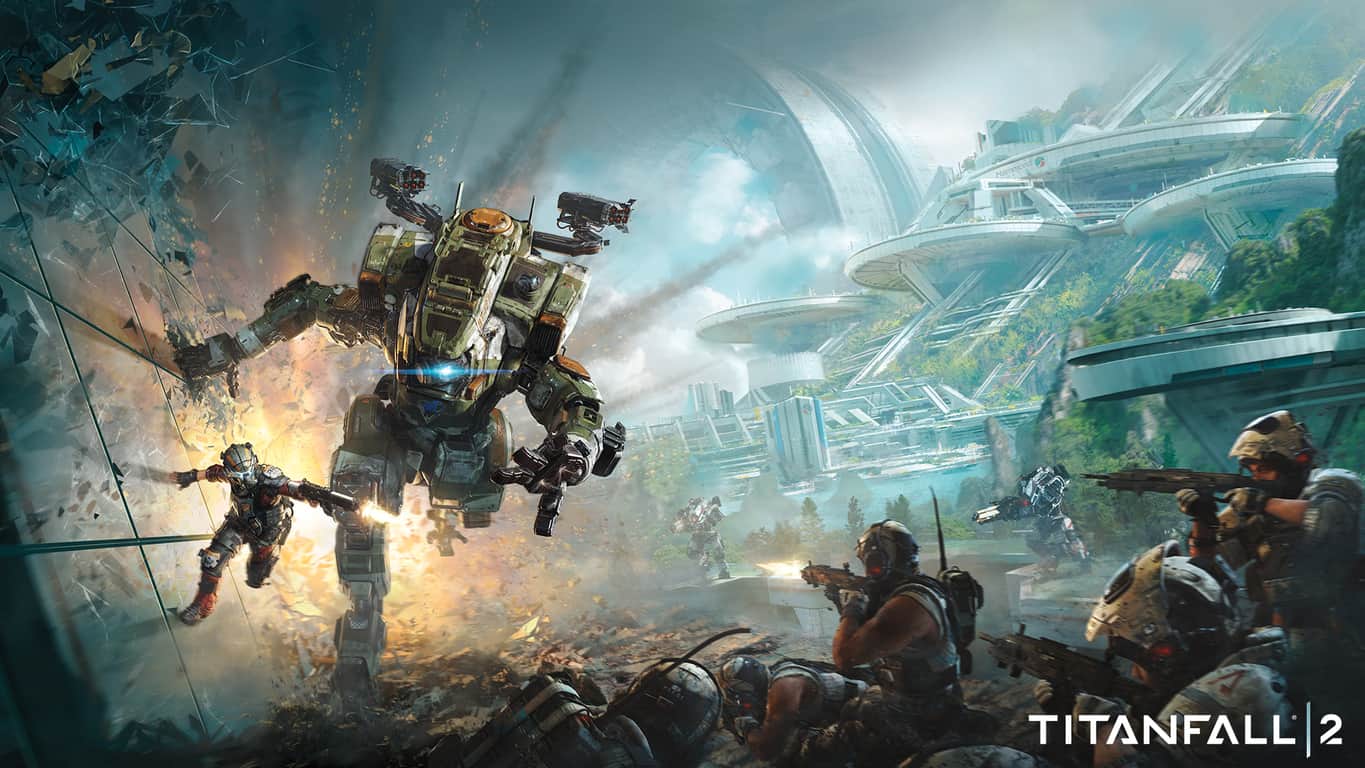
Matchmaking to get an overhaul in Titanfall 2 on Xbox One

The developer studio Respawn is learning from their past mistakes, and taking an intense look at the way their first game was put together. Matchmaking for Titanfall 1 was notorious for having games that weren’t full and overrun with players outside of their skill levels. With the creation of Titanfall 2, Respawn wants to completely overhaul and improve the system so that all players can have a more rewarding experience in multiplayer lobbies.

Mike Kalas joined Jon “Slothy” Shiring in the latest ‘Inside Development’ video to talk more about how matchmaking will work in Titanfall 2. Alongside the most recent blog post published on the game’s website, Kalas explained how he felt the flaws of Titanfall’s matchmaking would significantly improve the new one. Players would often come and go in lobbies, leaving the players stacked onto one side without any clear idea what the system was attempting to do. It always leaves a bad taste behind for gamers that are solo on their team against higher skilled or more players on the other side.

Kalas says that Titanfall 2’s system will be quicker and the skill levels will be closer together. The Skill Based Matchmaking isn’t the only improvement, though. Formerly, wins and losses defined a player’s score. While they’ll still play a large part, the player’s individual contribution will also add to the overall experience. All of these goals led to some key points to keep in mind while developing:

  • We decided we needed the ability to find a new match for any player after every match.
  • When you now have 100% of your playerbase entering matchmaking after every match, we could now create matches much more quickly than before. That would also let us make sure those matches are interesting matches for everyone ­ getting stuck in a bad match won’t continue on. We can also make sure that these matches are full much more often.
  • When it’s fast to make matches, it doesn’t make sense to make players sit and watch teams being formed around them anymore. You’ll be hanging out in your active Network instead, prepping for the next match.
  • We decided not to sell maps, so we could have the fastest and best quality matchmaking possible. On Titanfall 2, all of the maps will be free.

Respawn is inviting everyone to come to the multiplayer Tech Test to try out the massive amount of servers across multiple cloud providers. “The whole idea for the tech test is to make sure the simulator is doing what it should,” he explained to Slothy. The tech test will also be a test for the matchmaking system to make sure that it is measuring skill accurately and flowing like it should. Unfortunately, Respawn hasn’t announced exactly when the tech test will take place yet but interested parties can sign up to their newsletter.

Titanfall 2 is a highly anticipated sequel for fans of the original. The game is expected to launch for PC, Xbox One, and PlayStation 4 on October 28th. Don’t forget to pre-order early to be one of the first soldiers on The Frontier battlefield.

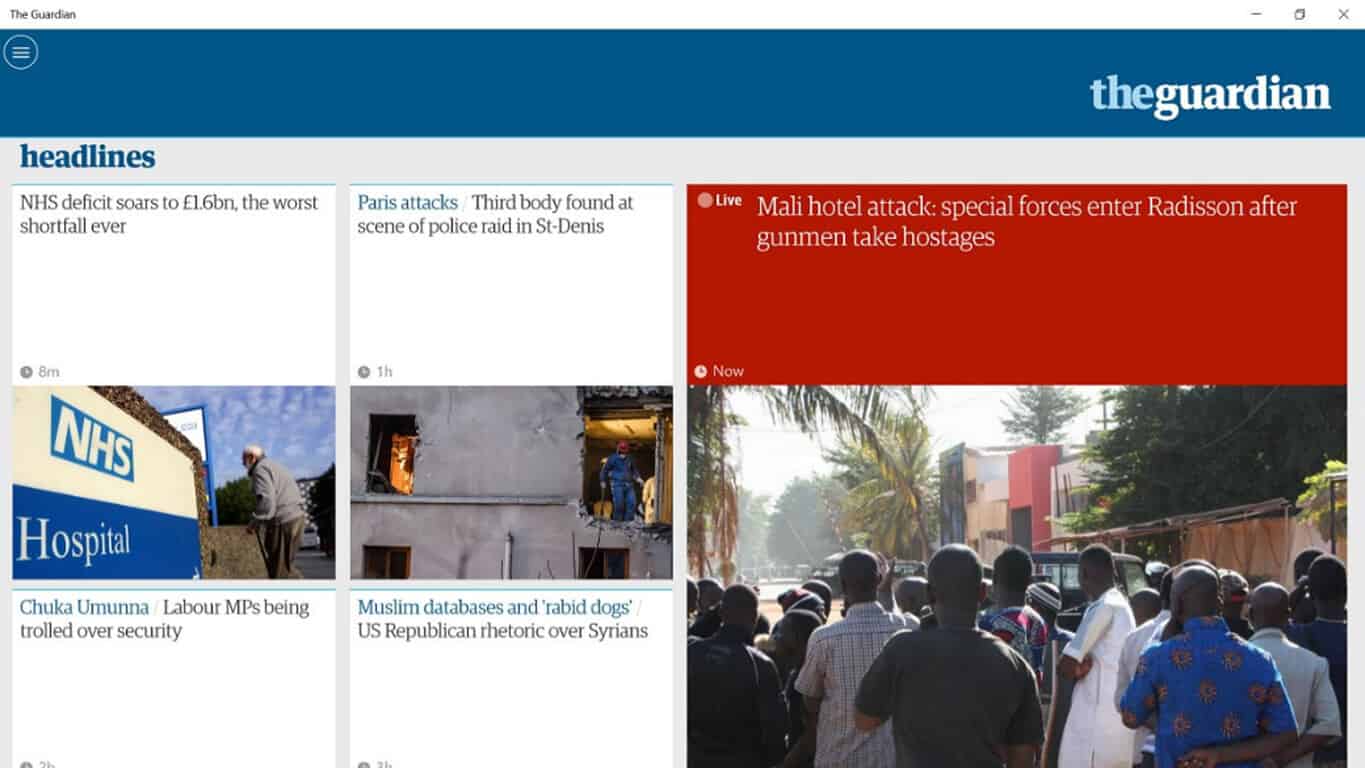
The Guardian’s Windows 10 app gains Surface Pen support

Known for keeping users up to date on the latest breaking news, The Guardian continues to improve its already sleek design and accessible award-winning content. The latest update for the UWP app brought two new important features:

  • NEW Football tables now available for most major European leagues. Find it under Football / Tables on the main menu
  • NEW for Surface users! Inking: tick cards to automatically save them for later or cross them to un-save.

Now users can take a Surface pen to the newspaper application, easily marking stories to save for later or to get rid of them. Add that to the handy search feature and offline browsing, The Guardian is cementing itself as one of the more versatile news and media applications for Windows 10.

Be sure to check it out by downloading The Guardian for free by clicking the link below.

The Guardian
The Guardian
Price:
Free

How to fix ‘Can’t upgrade to Windows 10/11 because of BIOS’

Microsoft played a bold move by offering the Windows 10 upgrade for free to every genuine Windows 7 and 8.1 user, but as it happens with every Windows iteration – it came with its own problems.

Windows 10 is an incredible improvement over Windows 8, and is well worth to effort you would put into an upgrade – if the official Microsoft upgrade tool lets you commit to it. The tool might tell you that your BIOS is not supported with Windows 10 – this is an issue not easily fixable, and it might not even have a fix at all but it is worth a shot to try some things.

BIOS is a computer’s very basic firmware – it is what drives the computer before you the operating system gets its hands on it. The BIOS is essential to a system, as without it you wouldn’t even get to the stage of booting into an operating system, and therefore compatibility between the BIOS and the operating system is crucial. There are various acronyms for BIOS features that let an operating system talk with it, and many of them are necessary for Windows 10 but one of them is something called the “NX Bit”.

One of the reasons the Windows 10 upgrade tool can tell you that your CPU or BIOS is not supported is because of the NX Bit, and so we can attempt a fix if it is supported by your CPU – and it is an easy one. Simply follow these steps:

  • Open the Start Menu and type “cmd.exe”, then right click on the top result and click on Run as Administrator.Screenshot_19
  • Once you have the command prompt opened as administrator, type this exactly as it is as the command.
  • exe /set {current} nx AlwaysOn
  • Now press Enter and it should do its magic.Screenshot_20
  • After the process is complete you will have to shutdown the computer and start it again – do not use the restart option of Windows for this.

Now try running the Windows 10 Upgrade tool once more – in all likelihood it should now say you are good to go for a Windows 10 upgrade.

If this however did not work, you must attempt something that is not very easy to follow. You can try to update your BIOS – a process that is extremely delicate and could result in complete loss of your computer if done wrong, so you must be very careful with it.

Unfortunately, it is also a process very hard to describe because it is different for every motherboard manufacturer. The steps henceforth are not necessarily how you should do the upgrade on your PC but it gives you a general idea of how to do it.

  • Open the Start Menu and type “cmd.exe”, and open the first result.Screenshot_21
  • Now type this exact command in the command prompt and press Enter.
  • wmic baseboard get product,Manufacturer,version,serialnumber
  • This should give you your motherboard’s manufacturer and model number.Screenshot_22
  • Use the manufacturer and model number to Google the exact steps for upgrading the BIOS on that specific motherboard.

While this is a complicated procedure with a lot at stake – Windows 10 is worth it and you get the added bonus of performance improvements with the new BIOS firmware if you succeed in the upgrade process..Staying up to date with the latest technology and standards can get hard and sometimes expensive but it is important to do so for security and stability.

Roundup: Most common Edge problems in Anniversary Update

One week after the Anniversary Update’s release, one thing is sure: the latest Windows 10 version is far from perfect. Of course, no piece of hardware or software can ever be perfect, but taking into account all the publicity Microsoft built around the Windows 10 Anniversary Update, and we really had high expectations for this OS.

Microsoft also hopes the Anniversary Update makes the Edge browser more popular among users. In a certain sense, the company managed to reach its goal as Microsoft Edge now has a 5.09% market share. However, judging by the plethora of issues affecting Microsoft’s favorite browser, we expect many Edge users to switch to another browser pretty quickly.

Roundup: Edge problems in the Anniversary Update

1. Microsoft Edge can’t play audio on certain websites, although everything was working perfectly fine before the upgrade. If you’re experiencing audio issues when watching Youtube on Edge, you can use the workarounds listed in this fix article to solve this problem.

“Microsoft: Please fix Edge so it plays audio on this website: https://portevergladeswebcam.com/. Edge worked fine on these PZTtv sites prior to the Anniversary Update.  Now…no Audio.”

2. Users can’t install extensions. Users are informed that some apps experience some problems, and are then kindly invited to uninstall the apps in order to repair them. However, this action doesn’t solve the problem. For more information about the Edge extension issue in the Anniversary Update, check out our fix article.

“Here is the problem: This app encountered a problem. Please reinstall it to repair. Same circle. Reinstall and same message pop up. Cannot get out.  This problem only applied for extension in Window Store. Any other app installed and worked fine. This problem is driving me crazy. 4 months waiting and nothing but pain.”

3. The Anniversary Update deletes the Favorites list in Microsoft Edge. Users have long complained about this issue, but Microsoft hasn’t done anything to solve it yet. The tech giant’s only suggestion is to import favorites from Internet Explorer. You can also use Edge’s “Sync your content” feature, perform a backup and then restore your favorites.

“When I installed the win 10 anniversary edition, it lost all my favorites and my favorites bar.  according to ms, installing the anniversary edition is just like a new clean install of windows Edge 11.  This is crazy, as some of the favorites I cannot replace.”

4. Edge can’t close down multiple tabs. If you’ve got a lot of tabs open in your Edge browser, the only way to close them is to actually close each individual tab.

“After the Windows 10 August Anniversary Update the Microsoft Edge browser does not working properly now. It will not close down with multiple tabs. […] The normal shut down button (X) doesn’t work. It asks if you want to close “Close All”, which you click, and nothing happens.”

5. Edge opens and closes all the time. Many users are complaining they can’t use Edge because the browser constantly opens and closes despite all the workarounds they’ve used.

“Since updating to the anniversary update Edge will not stay open… I’ve searched and tried it all, from deleting the folder in app data and running power shell to changing the registry…. Please help!!! anyone!!!”

6. Tabs are disappearing in Microsoft Edge. Users are complaining that some of their tabs randomly disappear when they have multiple tabs opened, except for the current tab.

“[…] when I have multiple tabs opened they will randomly disappear along with the “x” to close the window and the “-” minimize button. All I can see is the current tab I am on with no way to click and view other opened tabs. […] When I reopen edge the “x and -” to close or minimize are back and I can open new tabs and view them for a while then they disappear again and I have to start all over closing it down again.”

7. Microsoft Edge is slow. Users are reporting that Edge is extremely slow and sometimes even unresponsive. Running AdBlock speeds up the browser, but this not enough to stop users from migrating to Google Chrome.

“Did The Windows 10 Anniversary Update Which Was Suppose To better The Edge Browser,But Nothing Has changed its useless With Constant Slowness and Being Non-Responsive,Without Doubt the Worst Web Browser Ever,Thank god For Google!!. I Can See Google Has No Competition From Edge.”

If you’ve encountered other issues when using Microsoft Edge, you can tell us more about your experience in the comment section below.

RELATED STORIES YOU NEED TO CHECK OUT:

Digital board game, Armello, coming to Xbox One with new DLC

The critically acclaimed digital board game, Armello, will be launching on Microsoft’s Xbox One video game console on August 30th, the same day its first downloadable content (DLC) will be arriving on its existing versions on other platforms.

Armello is a fusion of board and card games with a fantasy twist and supports up to four players at once. The game also contains numerous roleplaying game elements such as levelling, items, and dungeon exploring and has earned itself a loyal fan base since its launch in late 2015.

Here’s the official game description: Armello is a hybrid digital board and card game for four players. Each player takes control of a hero in a quest to unite the Kingdom under the banner of their respective Clans, with the impending death of the King of Armello as a result of the Rot. How the player chooses to do this will be influenced by their talents, luck of the draw, and by the actions of other competing players.

Players begin in their Clan Grounds, located in one corner of a procedurally-generated, hex-based map. They spend Action Points (AP) to move and interact with their environment (exploring dungeons for resources, followers and treasure , questing, claiming settlements etc.) and engage other heroes / characters in combat.

The game ends and a victor is declared when the Rot-infected King is either slain (either as a result of the Rot or the aggression of a hero) or cured of the Rot (but banished from Armello forever) by the mysterious power of the Spirit Stones.

The DLC, which is also launching on Xbox One on August 30th, is called Armello: Usurpers Hero Pack. It adds four new characters to the game, Elyssia, Wardress of Warrens (Rabbit Clan), Sargon, the Death Teller (Rat Clan), Magna, the Unbroken (Wolf Clan), and Ghor, the Wyldkin (Bear Clan). Four new ring items will also be made available for DLC owners. These rings are, Tanzanite, Rainbow Quartz, Rubellite, and Aquamarine.

Are you a fan of Armello and will you be buying it on Xbox One? Let us know in the comments below.

Unable to activate Windows 10 after the Anniversary Update

If you’re running a genuine, fully activated version of Windows 10, there’s no need to activate anything upon installing the Anniversary Update. However, due to a couple of reasons and errors, your system might actually require you to activate it once again, or even worse, tell you that you’re not able to activate your copy of Windows 10, even if it’s completely legal and genuine.

When Windows 10 asks for activation, you basically just need to enter a product key, and it should be activated. But, sometimes, due to various errors and causes, entering a product key is not enough, as Windows 10 won’t accept. In that case, try some of the solutions listed below, and you should be able to have your Windows 10 once again.

How to deal with Windows 10 Anniversary Update activation problems

Solution 1 – Use a digital license

Perhaps the best solution for activation problems is using a digital license associated with your Microsoft Account. Microsoft made Windows 10 activation a lot easier when it introduced this feature, because it allows you to activate your Windows 10 PC without entering a product key, but just with signing in to your Microsoft Account.

To activate your system using this method, do the following:

  1. Go to Settings
  2. Go to Update & security > Activation
  3. You’ll find the Add Microsoft Account section, and click on Add Accountanniversary update activation fails4
  4. Just sign in with your valid Microsoft Account, and your system should be activatedanniversary update activation fails5

However, if you already tried signing in with your Microsoft Account, and it didn’t solve a problem, you can try with some of the solutions below.

Solution 2 – Use the activation troubleshooter

Another useful feature that Microsoft introduced with the Anniversary Update is the Activation troubleshooter for Windows 10. This feature basically helps you address various activation problems in the system, and might be helpful in your case, as well. To run the Windows 10 update troubleshooter, do the following:

  1. Open the Settings app
  2. Go to Update & security > Activation
  3. Click on Troubleshooteranniversary update activation fails2

Once you initiate a process, a troubleshooting wizard will start, and it will scan your Microsoft Account for a digital license. If the troubleshooter finds a digital license associated with your account, it will automatically activate your system, and you’ll be able to normally use it, once again.

Solution 3 – Make sure antivirus doesn’t conflict with activation

Just like we wrote about how a certain antivirus software might cause BSODs in the Anniversary Update, the same thing can actually prevent your system from being activated. In case a certain antivirus program conflicts with the Anniversary Update, there’s a chance that it will leave your system inactivated.

You don’t have to delete your antivirus software right away, just to check if it conflicts with the Anniversary Update. Disabling the software would be enough first, and if you notice that it really prevents the activation, remove it completely. Once you activate your system, download the latest version of your favorite antivirus program, but make sure it’s compatible with the update first.

Solution 5 – Make sure you didn’t install a wrong version of Windows 10

If you installed the Anniversary Update manually, there’s a small chance that you actually installed the wrong version. Although this is very unlikely, small errors happen from time to time, all in all, we’re just humans. To check out your current Windows 10 version, go to the Settings app > Update & security > Activation, and your currnet Windows 10 version will be listed there.

In case you really installed the wrong version of Windows 10, the only thing you can do to activate your system is to re-install it. Once you make sure that you actually have the right Windows 10 version installed on your computer, try to activate it again.

Solution 5 – Activate using Microsoft chat support

If using none of previous features and solutions didn’t help you to get your Windows 10 activated after the Anniversary Update, you can try one more old-fashioned workaround. And that is  solution is to simply contact Microsoft’s support, and explain your problem.

Windows 10 contains a feature that allows you to get in touch with Microsoft’s support team, which can help you to activate your system again. To contact Microsoft’s support in Windows 10, do the following:

  1. Go to Search, write contact support, and open the Contact Support app
  2. In the app, go to Windows, Office, Services & Apps
  3. Now, go to Windows, and click on Setting up
  4. Now, just click on Chatanniversary update activation fails6

Once you click on Chat, the app will connect you with someone from Microsoft’s support team, who will give you more instructions about how to activate your Windows 10. This method can be used for solving other problems in Windows 10, but a lot of users actually seek for Microsoft’s help when facing activation issues.

That’s about it, we hope at least some of these solutions helped you to address the problem with inactivated Windows 10 after the Anniversary Update. If you have any comments, questions, or suggestions, just write them down below.

RELATED STORIES YOU NEED TO CHECK OUT:

New File Explorer UWP app for Windows 10 on the horizon?

By now, it’s obvious Microsoft wants to change the whole look and feel of Windows. Several changes have been made with Windows 10, and even more after the Anniversary Update. There is still work to be done, and from what we have come to learn, Microsoft could be working on a UWP file explorer app to replace what we have right now.

According to a source who spoke with WindowsBlogItalia, users will be able to do all the basic things currently available in the default File Explorer experience. Users should be able to access files that are available in Quick Access, sort items by date, size, or name, and navigate between files and folders. It should also be possible to rename files and folders, move content from one area to the next, along with viewing their properties with the updated version.

The source claims the app is not yet publicly available for download but could arrive within the next few months. With that as a possibility, interested parties can download and sideload the app right now. Bear in mind the app is untested which means there will likely be a ton of bugs and even be malicious content, so keep an eye out.

We originally thought Microsoft would just make changes to the File Explorer app available for Windows 10 Mobile, make it UWP, and then throw it out to Windows 10 users. Now, it appears this is not the case as it seems to have been built from the ground up.

At the end of the day, Peter Skillman, General Manager of Core UX for Windows desktop, stated back in March of this year that Microsoft is hard at work on a “total update” for the File Explorer, even if he did not give a date as to when users should look out for it.

RELATED STORIES YOU NEED TO CHECK OUT:

Hybrid sleep missing on Windows 10 after a major update

Hybrid sleep is a combination between sleep and hibernation, allowing your computer to write out all its RAM to the hard drive, and then go into a low power state that keeps RAM refreshed. This state allows users to quickly resume their computers from sleep, and also restore them from hibernation in case there’s a power failure.

It appears that the Anniversary Update doesn’t get along well with the hybrid sleep state, as many users are reporting this feature is missing altogether from the power option list.

Hybrid sleep is missing in the Anniversary Update

Can anybody explain why and how to get it back?
I go to power options –> advanced settings and under sleep I only get Hibernate after where as before update I got Hybrid sleep option as well. Before Anniversary Update I got the above. I now only see Hibernate after.

It is worth mentioning that certain motherboards and BIOS systems don’t support the hybrid sleep feature. To see that power states your computer supports, run the command powercfg –availablesleepstates in Command Prompt.

Hybrid sleep is missing – how to fix this

Solution 1 – Restore the default settings in the power plan

Sometimes, a personalized power plan may disable a series of features. To enable the default power plan, follow these steps:

  1. Go to Control PanelHardware and SoundPower Options
power options anniversary update

2. Check the Balanced plan > select Change plan settings > Restore default settings for this plan.

restore default settings power plan anniversary update

Solution 2 – Update your drivers

Make sure both your hardware and software drivers are updated – you can use Windows Update. If there are any new drivers available, install them, restart your computer and then check to see if the hybrid sleep option is available.

All your drivers need to be updated, but doing it manually might be annoying, so we recommend you to use a dedicated third-party tool (100% safe and tested by us) to do it automatically.

Solution 3 – Tweak the Registry Editor

  1. Open the Registry > go to  HKEY LOCAL MACHINE\SYSTEM\CurrentControlSet\Control\Power.
power states registry editor

2. Right-click and export HiberFileType as a backup.

3. Now delete the HiberFileType file (if it’s available on your computer).

4. Make sure the value for the HiberbootEnabled file is 1.

5. Restart your computer. Hybrid sleep should now appear in your options and work properly.

RELATED STORIES YOU NEED TO CHECK OUT:

Fix: Homegroup problems after installing Anniversary Update

If you have two or more computers in your home, you’re probably sharing files between them using Homegroup. This is one of the simplest ways to connect two computers and to share files between them, but unfortunately users reported issues with Homegroup after installing Windows 10 Anniversary Update.

How to solve Homegroup problems after Anniversary Update?

Probably one of the most anticipated updates for Windows 10 was the Anniversary Update. This update brought many major improvements, but unfortunately there are also certain problems with Anniversary Update. According to users, after installing the Anniversary Update the Homegroup doesn’t work at all.

Users reported that after installing the Anniversary Update all Homegroup settings were lost. In addition to lost Homegroup settings, there are reports of Windows can’t find any Homegroup on this PC error message. As for missing Homegroup settings, users reported that options to view Homegroup password or to leave the Homegroup are completely missing.

According to some users, they can create a new Homegroup and get the Homegroup password, but they are unable to join it from a different PC since the other PC can’t see the new Homegroup. Instead of the option to join the Homegroup, other PCs only have the option to create a new Homegroup.

Another problem that users reported is the inability to leave the Homegroup. According to them, it appears that PCs are connected to a Homegroup, but they can’t leave it or create another one. This can be a big problem, especially if you use Homegroup to share files and printer with other users on the same network.

Solution – Remove Anniversary Update and try to install it again

According to users, problems with Homegroup can occur if your Anniversary Update isn’t properly installed, and the only solution is to rollback to the previous version. Rolling back to the previous version is quite simple, and to do that you can use the Settings app or Advanced startup. For detailed information on how to uninstall Windows 10 Anniversary Update we advise you to check some of our previous articles. Rollback procedure is usually straightforward, but it won’t be a bad idea to create a backup just in case anything goes wrong.

Users reported that after rolling back to the previous version problems with Homegroup were resolved and everything started working normally. Since this problem only occurs with Anniversary Update installed, you might want to consider using the previous version until this issue is resolved. If you want, you can also try to install Anniversary Update again and check if that fixes the problem. So far, users reported that only workaround is to switch to the previous Windows 10 build. We know that this isn’t the best option for many, but if you frequently use Homegroups and share your printer and files with other members of your network, you might want to stick to the previous build until this problem is resolved.

We assume that Microsoft is aware of this issue and that developers are working on it, and we hope to see an official fix available in near future. Homegroups are a big part of Windows 10 and a key component for file sharing, therefore we strongly believe that Microsoft will address this issue soon.

Many users were excited about Windows 10 Anniversary Update, but unfortunately, this update brought various issues. Among the issues is the inability to log in after installing the Anniversary Update, app crashes, Xbox One controller issues and many others. As you can see, installing the Anniversary Update isn’t always a problem-free process, so you might want to wait a bit until Microsoft fixes some of the major issues with the Anniversary Update. These are just some of the many issues that were reported by the users, and we hope that Microsoft will address them in near future.

If you have issues with Homegroup after installing the Anniversary Update, we suggest that you roll back to the previous build and wait until Microsoft releases an official fix for this problem.

READ ALSO:

Windows team preps Windows 10 Insiders for future OneCore improvements

Not much has been leaked about what new features users can expect from the next big update to Windows 10 or when it may even arrive, but several sources from within the Windows team have hinted at a renewed focus on mobile in upcoming build releases.

With that being said, the pace of feature development for Windows 10 on the PC side appears to be slowing, at least, for the time being. In an announcement post highlighted in the Windows 10 Feedback app, Windows 10 Insiders are warned that the Windows team will be focusing on under-the-hood refinements for now.

While the news may be sobering for Insiders who have been testing and playing with the Windows 10 Anniversary Update for months now, the bigger story nestled within the announcement was the detail of OneCore refactoring in upcoming Redstone 2 development branch builds. The Windows team appears set to hammer out and optimize its One OS engineering a bit more in the coming months.

cumulative update KB3176495

Along with further fixing Windows 10’s plumbing, Insider are also being warned of a similar shift back to a staggered roll out of builds that more resemble last year’s Insider program experience. For those new to the Insider program, leading up to the July 2015 release of Windows 10, preview participants for both mobile and PC underwent a very staggered release cycle of builds that had, at one point, offered two or three PC updates to every one mobile version.

The switch back to staggered releases may not be as lengthy an in-between process as it previously was in 2015 with the Windows team explaining that Mobile preview builds should start hitting devices once again in a few weeks.

Either way, parse the Windows team’s words for yourself if you like:

We are now getting ready to start releasing new builds from our Development Branch to Windows Insiders in the Fast ring again. Just like we did after the release of the Windows 10 November Update – we will start off by releasing PC builds from our Development Branch first and then start releasing Mobile builds a few weeks after.

With the new builds we release from our Development Branch, you won’t see any big noticeable changes or new features just yet. Just like just like we did after the release of the November Update, we are focusing on making some structural improvements to OneCore. If you recall – OneCore is the shared core of Windows across PC, tablet, phone, IoT, Hololens and Xbox. It is essentially the heart of Windows.

We’re doing some code refactoring and other engineering work to make sure OneCore is optimally structured for teams to start checking in new features and improvements in a few months. As a result, these builds may include more bugs and other issues that could be slightly more painful for some people to live with. If this makes you uncomfortable, you can change your ring by going to Settings > Update & Security > Windows Insider Program and moving to the Slow or Release Preview rings for more stable builds.”

It is interesting to see a return to staggered roll outs even as Windows spokespeople have pointed to Redstone 2 being a more mobile-focused update cycle. Perhaps, the under-the-hood improvements coming down the pipe for Redstone 2 are just paving the way for a ramp up of mobile features later this year and early next.

Fix: Laptop screen takes a minute to turn on after Windows 10 Anniversary Update

More and more issues are found by users after they’ve installed the Windows 10 Anniversary Update on their computers/laptops. Today we will talk about an issue which makes a laptop to load up the new Windows 10 OS (version 1607) within a minute. The user claims that he has enough RAM and storage space and it doesn’t make any sense why it takes so long for the laptop to load up the new version of Windows 10 OS.

Method 1

The first method that a Microsoft technician has suggested was to “Run maintenance task”. In order to this, you will need to right click on the Start Menu->Control Panel->Troubleshooting and select “Run maintenance task”.

However, it seems that this method didn’t work for that user.

Method 2

The second method that the Microsoft technician suggested was to do a “Clean” boot. In order to do a clean boot, you will have to click on the “Start” button, search for “msconfig” and start the “System Configuration” tool. On the “Services” tab, you will need to check the “Hide all Microsoft services” and, after that, click on “Disable all”. Then, click the “Startup” and select “Open Task Manager”. Here, you will need to make sure that you select “Disable” to all the Startup items. Finally, close the Task Manager, click OK on the “Startup” tab and restart your computer.

Unfortunately for our user, this method didn’t fix the issue, either.

Method 3

The third method that the Microsoft technician has suggested was to perform a system file checker. In order to do this, you will firstly have to press the Windows key + X and select “Command Prompt (Admin)” from the list of apps. Then you will need to enter the “sfc /scannow” command and press enter. Once you do this, the Windows 10 OS will start scanning all protected system files and replace the corrupted files with a cached copy of them that are located inside your computer.

Until now, the user who has reported the issue hasn’t replied, but hopefully, this method fixed his problem.

RELATED STORIES TO CHECK OUT:

Windows 10 Anniversary Update is creating “defaultuser0” profiles

After upgrading to the Anniversary Update, many users have noticed that apart from their regular user accounts, the OS also creates a new Defaultuser0 account. The most interesting part is that this unusual profile cannot be deleted even after performing a clean install.

The Defaultuser0 account bug has been haunting Windows users for a long time. Nobody knows exactly why this account is being created or how users can prevent its creation. The commonly accepted hypothesis suggests the Defaultuser0 profile is created when something goes wrong during the profile creation phase of the main account, and it should be harmless.

According to user reports, it appears that not even Microsoft’s Level Two Technical Support team can offer a clear answer to these questions, let alone a solution.

The Anniversary Update automatically creates the Defaultuser0 profile

Yesterday I performed a clean install of my Windows 10 laptop (64-bit, Pro version) to get the Anniversary Update (#1607). […] But when I logged in with my local user account I noticed something very strange: Under C:/ Users/ there is now an additional user profile called “defaultuser0.” I tried doing another format followed by a clean install, and again it was there.

[…] I decided to go back to the previous version of Windows 10 (#1511) and again did a full format with clean install, using the Windows Media Creation tool I made a few months ago. It installs fine, but when I log in, guess what I see? This darn “defaultuser0” account! […] Now today I have gone back and once again formatted the partitions of my laptop and have clean installed the Anniversary Update (#1607). STILL THERE…

How to get rid of the Defaultuser0 profile

Solution 1 – simply delete the Defaultusers0 account

Go to Control Panel > User accounts > Delete the profile

Solution 2 – Enable the hidden admin account

  1. Start your computer using your Windows 10 DVD or USB
  2. Select the correct time and keyboard type
  3. Click on Repair your computer
  4. Select Choose an option > Troubleshoot
  5. Click on Command Prompt > type the command net user administrator /active:yes
  6. Restart your computer > delete the Defaultuser0 account.

The second solution removes most of the traces left behind by the Defaultusers0 profile, but it can’t delete every trace the account has created. For the time being, Microsoft hasn’t officially acknowledged this bug, but we’ll update this article as soon as new information is available.

RELATED STORIES YOU NEED TO CHECK OUT:

Microsoft Research utilizes the cloud to enhance secure data exchange

With more people hurtling down the path of using cloud storage and computing as they continuously store and transfer photos, videos, documents and data via their devices to one another, the need for greater security measures during exchanges is increasing.

Fortunately, most companies are looking into, and applying safety measures to such an evolution of cloud usage, among those seeking to secure user data, is Microsoft. Within the halls of Microsoft’s business lay a dedicated team of researchers from its Microsoft Research division, which have devised a way to enable secure data exchange in the cloud.

Microsoft researcher and writer John Roach penned an article today discussing the various situations and current day implementations of decrypting cloud data that has led the research group to its ultimate breakthrough in securing data exchanges via cloud repositories.

New research from Microsoft aims to unlock the full value of encrypted data by using the cloud itself to perform secure data trades between multiple willing parties in a way that provides users full control over how much information the exchange reveals.

What we are trying to do is keep the data private and, at the same time, get the value out of it,” says Ran Gilad-Bachrach, a researcher in the Cryptography Research group within Microsoft’s research organization and co-author of a paper released in June that describes the protocol, or set of rules, for this system to securely exchange data.”

Day one of the Microsoft Research Faculty Summit on July 13, 2016. (Photography by Scott Eklund/Red Box Pictures)

Roach further clarifies researchers discoveries into secure data exchanges by highlighting the key cornerstones to their research in securing data exchanges which include talk of multiparty computation, test driving data, real world applications and data handoff’s.

The idea behind the use of multiparty computation seems straightforward enough as Roach explains it,

The exchange is based on the idea of a secure multiparty computation, where two or more parties agree to evaluate their data in a way that one or more of the parties gets a result but none of the parties learns anything about the others’ data, except for what can be inferred from the result.

The multiparty computation is akin to a group of employees who want to know where their individual salary ranks in relation to the group as a whole, but none of them wants to reveal their pay to the group.”

Adding to the use of multiparty computation is the idea of tacking on decryption, the use of decryption in multiparty computation would help encrypted data for computing “without actually revealing anything to anyone except the results of the computation.”

As a declarative light on the research, Roach uses a final example of researchers from various medical centers sharing, what amounts to anonymized detailed patient data, to cross examine the outcomes of different treatment plans, without revealing the exact medical center and its current treatment plan.

While only a research project at the moment, the potential of securing data exchanged through the cloud with a combination of decryption and multiparty computation could be huge. No longer would people, businesses and industries worry about their cloud-stored data being up for grabs, but the research could usher in a wave of free flowing data that contains the necessary bits for exchange while not compromising the sender or receiver.

Windows 10: Two major updates (Redstone 1 and 2) coming in 2017

When the year 2017 comes around, Microsoft will be making plans to release two important updates. For quite some time, we’ve been hearing rumors of such plans, and now Microsoft’s Nathan Mercer has stated as such in a recent blog post.

The rumored updates are Redstone 2 and Redstone 3. We’ve heard that one will focus more on the mobile side of things, while the other will tend to the desktop. We expect Redstone 2 to be the mobile centric update designed to make Windows 10 Mobile competitive as an operating system.

We should also hear more about the rumored Surface Phone as well, but expect that before the release of Redstone 2. Furthermore, it should be noted that the Windows 10 Anniversary Update is the final major update of 2016. This shouldn’t come as much of a surprise seeing as Microsoft has been working on making this update possible since 2015.

Here’s what Mercer had to say via a blog post:

“Today’s release of Windows 10, version 1607 is initially considered the Current Branch (CB) and will become Current Branch for Business (CBB) in about four months from today. For a list of Windows 10 versions by servicing option, see Windows 10 release information. For more information about these servicing options, see Windows 10 servicing options for updates and upgrades. Windows 10, version 1607 is our third Windows 10 feature update released. Based on feedback from organizations moving to Windows 10, this will be our last feature update for 2016, with two additional feature updates expected in 2017.”

Redstone 2 is expected in the early parts of 2017, while Redstone 3 should be released around August to September of the same year.

RELATED STORIES YOU NEED TO CHECK OUT:

How to install the Anniversary Update on 32GB devices

The Windows 10 Anniversary Update is coveted by many users, but unfortunately not all of them have been able to install the OS due to hard disk space limitations. In order to install Windows 10 version 1607, you need a minimum hard disk space of 16GB, and this can be quite a major problem for low budget laptop owners.

This situation has created much discontent among users, who are very upset they can’t upgrade to the Anniversary Update. When you use a 32GB laptop, freeing enough space to install the update can become quite a challenge.

Actually, this is not the first time when Microsoft imposes memory limits for users. Windows phone owners using 512 MB terminals have been the first to be excluded from the Windows 10 club. According to the tech giant, phones with 512MB of RAM cannot properly run Windows 10 Mobile, as the minimum requirement in terms of RAM is 1 GB.

Users are reporting they can’t install the Anniversary Update on 32GB eMMC devices

I have two budget laptops (a Lenovo S21e-20 and a HP Stream 11 Pro) that both have non-expandable, non-replaceable 32GB (30GB usable in real life) eMMC storage. Windows 10 won’t upgrade to the Anniversary Edition on these laptops as there isn’t 20GB available space on them (64bit systems). This means there is no upgrade in Windows Update when I trigger a manual check, and the upgrade app you can download from https://support.microsoft.com/en-us/help/12387/windows-10-update-history says there isn’t enough free space.

As for the 32GB laptops, the good news is that you can use one particular workaround to install the Anniversary Update, provided that you have 8GB of free memory.

How to install the Anniversary Update on 32 GB devices

  1. Free 8GB of space on your computer.
  2. Download the media creation tool from Microsoft
  3. Run the MediaCreationTool.exe
  4. Click on Upgrade this PC now
  5. Select Keep personal files and apps
  6. Once the installation is complete, you’ll have the Anniversary Update up and running.

As surprising as this workaround may be, it really works, as users confirm it:

Oddly, I had only 8gb of  open space when I began this process.  When I finished the second install process, I had 15gb of open space, more than my Lenovo had on the day I first purchased it.  During the Anniversary installation, older versions of Windows 10 were removed and then I removed the 3.63gb of files left behind  by the failed installation of the Anniversary update to reach 15gb of open space.

Tell us in the comment section below if this solution worked for you and don’t forget to spread the word.

RELATED STORIES YOU NEED TO CHECK OUT:

Office 365 enables cross-classroom collaboration to help student scientists act as teachers

Cheryl McClure is a science teacher for the 6th and 7th grades at the  International School in Bellevue, Washington. She is also a Microsoft Innovative Educator Expert and the guest writer for the most recent educational blog post on the Microsoft Office blog. For Cheryl’s classes, she aims to merge technology and science for her students. The use of Office 365 tools such as Sway, Powerpoint, OneNote Class Notebooks, and Skype have all opened up fields of exploration for their science department. So when the opportunity arose for her students to become the teachers, she encouraged them to look towards the tools at hand.

McClure’s 7th-grade class studied the shift from solid to liquid and liquid to gas. Then went into further depth by experimenting with amorphous solids for clearer understanding. All of which is typical of their age level. To retain their knowledge, they were then tasked with teaching the 1st-grade class all about the States of Matter. The lesson revolved around helping the younger students to understand what a molecule was.

The trick was to explain the concepts of science in a simple yet scientifically correct way. With their OneNote Class Notebook, they began to organize their work into notes, observations and creating tasks. The OneNote Collaboration Space let all of the students work together seamlessly as they put together the lesson. In or out of the classroom, everyone was able to partake and submit their own contributions.

Lessons were then put together into videos, Sway slide shows, or PowerPoint Office Mix and uploaded to Docs.com to share with the younger students across the town. Thanks to the summaries on Docs.com, it was easy for the 1st-grade students to know exactly what they were starting to learn. As a conclusion, both classes found the experience both beneficial and fun.

Technology has bridged the gaps in education and significantly improved the classroom experience for many students and educators. The tools available at our disposal have helped to essentially remove much of the hassle that teachers had spent on time and resources unnecessarily. With Microsoft Office 365 development towards incorporating more learning tools, students using the software are bound to aim higher and achieve more.

Select the Default Storage Location in Windows 10 Anniversary Update

The Windows 10 Anniversary Update is finally here and it comes with many new features and options. Today we will talk about how you can select the default storage locations on your computer that has just received the Windows 10 Anniversary Update.

Not many know, but it is very important to have the ability to have a secondary hard drive where you are able to store your important data in case you have a corrupted drive or any other hardware problems with your main hard drive.

If you are using a tablet that has less than 32GB of internal storage, a secondary storage will be very useful, as you will have more free space available in your main hard drive.

Accessing And Changing The Storage Settings

First of all, you will need to open the Windows Settings app and then select System->Storage. After that, you will need to select a default storage location for individual file types such as:

– Apps
– Documents
– Photos and Videos
– Movies and TV
– Music.

As expected, the default storage location for the mentioned file types is C:\, but you can change it to D:\, E:\ or in any other hard drive. After you made the changes, you just need to close the Windows Settings app and you’re done.

HINT: Keep in mind that the setting page will only display storage locations that can be used by these types of files. In other words, if you don’t see a hard drive among the options, then this means that it can’t be used as a default storage location.

What are your thoughts about the Windows 10 Anniversary Update and the new features and options that it comes with? Are you using the default storage location option to save files on a secondary hard drive?

RELATED STORIES TO CHECK OUT:

Microsoft deprecates RC4 in both Internet Explorer 11 and Edge

Security remains one of Microsoft’s most important goals in Windows 10. The company has been working on improving security in Windows for quite some time now, and their efforts have resulted in a Windows 10 that is perceived by many (including the company’s corporate clients) as more secure. Today, Microsoft announced another effort at improving Windows 10 security, specifically the removal of support for the RC4 cipher from Internet 11 and Edge.

Microsoft released KB3151631 as part of today’s Patch Tuesday set of updates that will disable RC4 in both Internet Explorer 11 on Windows 7 and later and in the Edge browser on Windows 10. As the company describes things:

RC4 is a stream cipher that was first described in 1987, and has been widely supported across web browsers and online services. Modern attacks have demonstrated that RC4 can be broken within hours or days. The typical attacks on RC4 exploit biases in the RC4 keystream to recover repeatedly encrypted plaintexts. In February 2015, these new attacks prompted the Internet Engineering Task Force to prohibit the use of RC4 with TLS.

Previously, Microsoft Edge and Internet Explorer 11 allowed RC4 during a fallback from TLS 1.2 or 1.1 to TLS 1.0. A fallback to TLS 1.0 with RC4 is most often the result of an innocent error, but this is indistinguishable from a man-in-the-middle attack. For this reason, RC4 is now entirely disabled by default for Microsoft Edge and Internet Explorer users on Windows 7, Windows 8.1 and Windows 10.

Most users won’t even know the update has been applied. However, if you’re responsible for a web site that utilizes RC4, then you’ll need to make some changes. Microsoft outlines the details in Security Advisory 2868725.

Reasons why Avast fails in Windows 10 Anniversary Update

Users who have installed Avast’s antimalware solution on their computers powered by an Intel microprocessor have reported that when they attempted to install the Windows 10 Anniversary Update, they experienced Blue Screens of Death (BSODs). Luckily, in the meantime, Avast has issued a patch which solved the problem, but users who haven’t found out about it yet are still dealing with blue screens and want to know why this happens and what they can do to fix the problem.

There are many Windows users who have installed Avast’s antimalware solution on their PCs, but when they received the notification about the availability of the Windows 10 Anniversary Update and tried to start the installation process, their computers crashed, displaying the “system thread exception not handled” error. Then, the system reverted to the previous Windows version and users had to re-download the update, but they experienced the same BSODs error when attempting to install the Windows 10 Anniversary Update.

Avast was informed about this issue and it explained users that there was a conflict between the antimalware software, AU and Intel’s virtualization technology. Among the affected products were Microsoft’s Surface Book and Surface Pro 4. According to Petr Chytil, a quality assurance director for Avast, “…[T]he issue really seems to occur only on the last generation of Intel CPUs,” and that “Previous generations of Intel Core CPUs are fine. Moreover, it did not show up during the testing on the Win 10 preview builds.”

Before the release of the patch, the only way to get rid of this problem was to uninstall the Avast program, then to launch the AU again. However, users were advised to not re-install Avast after the update completed, because the “system thread exception” error would reappear. However, until Avast sorted out its issues, another suggestion was to use Windows 10’s own built-in antimalware solution, Windows Defender, which is efficient enough.

RELATED STORIES TO CHECK OUT:

HP Envy driver issues after Windows 10 Anniversary Update

It seems more and more users are complaining about driver problems they’re experiencing after upgrading to Windows 10 version 1607, also known as Windows 10 Anniversary Update.

According to a user that owns an HP Envy Phoenix 810-430qe, he noticed that Windows 10 started updating drivers he manually installed during the upgrade process. He said the only way to fix this was to perform a clean install with the new .ISO release while offline and, of course, to disable automatic driver updates once Windows 10 is installed. However, he doesn’t want to do this because for him, it will be a huge hassle.

However, someone replied saying that he just tried to install the Windows 10 Anniversary Update but failed to finish. Instead, he installed it from a USB stick and while it worked, it messed the drivers on his computer as well. The same user said that he even noticed some error messages in the notification panel and once he performed a “cold” restart (when the power to the system is physically turned off and back on again), all drivers were back and working without any problems.

In other words, if you own a computer that was just updated to Windows 10 version 1607 and you have the same issues, try doing a “cold” restart and see if that fixes the problem. If not, you will either have to wait for an update to be released by Microsoft that patches it up or do a clean install, stay offline during the installation process and disable the “automatic drivers update” feature.

Have you updated to Windows 10 version 1607 and had problems with your drivers? Tell us how you solved the problem!

RELATED STORIES TO CHECK OUT:

Far Cry 3 Blood Dragon is the latest Xbox One Backward Compatible title

Last week we delivered you the news that NIN2-JUMP, NEW RALLY-X, and Mr. DRILLER Online headed to the Xbox One via Backward Compatibility. Today, another Xbox 360 title is heading over to the Xbox One, this time Far Cry 3 Blood Dragon.

Far Cry 3: Blood Dragon was released back in 2013 and is a comedic first-person shooter video game developed by Ubisoft Montreal and published by Ubisoft. In the world of the game, the year is 2007 and you play as Sargent Rex Colt, a Mark IV Cyber Commando who’s fighting against a cyborg army gone rogue. Your mission in the game is to get the girl, kill the baddies, and save the world.

Priced at $14.99, the game can be downloaded by clicking this link here. You also can check out the other games available via Backward Compatibility by checking out our dedicated news hub on the topic. As always, though, please be sure to drop us a comment below with your thoughts on this title!

Instafact team wins Microsoft’s //oneweek Hackathon

Microsoft has just announced that the Instafact team has won the company’s //oneweek Hackathon event.  From a total of 1,560 teams and 3,800 projects, the Bellevue, Washington-based team’s Office plug-in came out on top in the  company’s annual celebration of employee innovation.

As noted by Microsoft, the winning plug-in infers the data a writer or researcher might want when typing up,  mines a massive information repository to get it to them, and then auto-completes facts in Word or auto-fills data cells in Excel.  To accomplish this, under the hood, the plug-in integrates Bing’s knowledge graph, which is constantly gathering data from around the web.

For the winning team, the challenge was to build the system to quickly infer what a user wants, and also pull accurate facts and data. Silviu Cucerzan, a member of the team, and also a principal researcher at Microsoft put the challenges best and said:

“The challenge is: How do we put all this information into the hands of users in a nice, simple way, so they don’t have to keep switching tools and rely on results from web search engines?”

Team InstaFact
Team InstaFact (Photo from Microsoft/Scott Eklund/Red Box Pictures)

Members of the winning Instafact team are all part of Microsoft’s Bing Satori (knowledge graph) team, but they have never actually worked together before Microsoft’s //oneweek event.  However, as part of the process of building Instafact, the team had to build several machine learning models to see which ones gave the most accurate results. The team also rushed as the deadline loomed to build a proper demo video. Ultimatley, though, inspired by wanting to improve, the team hopes that Instafact can inspire businesses and organizations who need accature stats and research.

So, what do you think of this? How would us Instafact in your life once it gets released? As always, please let us know your thoughts on InstaFact by dropping us a comment below!

OneDrive placeholders reportedly “inching their way” into Windows 10 Redstone 2

Could Microsoft bring back OneDrive placeholders on Windows 10 in the future? The deprecated Windows 8.1 tool has been one of the most requested features in the Windows 10 Feedback Hub, and the UWP OneDrive app is still not as straightforward to manage your OneDrive tools on your Windows 10 PC. However, things could change in the future as pretty reliable leaker @tfwboredeom has just shared on Twitter that the feature could come back in upcoming Windows 10 Redstone 2 builds:

If you’re not familiar with them, placeholders or “smart files” were a Windows 8.1 feature which would show you your entire OneDrive library within your File Explorer without needing to download your files. Windows 10 has since removed that handy feature, and the built-in OneDrive desktop app now forces you to either sync all your OneDrive folders on your PC or only select the ones you really need.

Back in December 2015, head of Microsoft’s SharePoint and OneDrive businesses Jeff Teper explained in a interview with ZDNet reporter Mary Jo Foley that Microsoft chose to remove the feature in Windows 10 as placeholders “never integrated with the Windows file system, meaning some apps, APIs and command line tools didn’t work as they should.” Since then, OneDrive competitor Dropbox has announced a placeholder replacement solution with “Project Infinite”, a new feature that will allow Dropbox users to see all their files without needing to sync them locally on their machine.

Do you miss placeholders on your Windows 10 PC, and do you think Microsoft can afford to let Dropbox develop a similar feature without implementing a better native solution? Let us know what you think in the comments below.

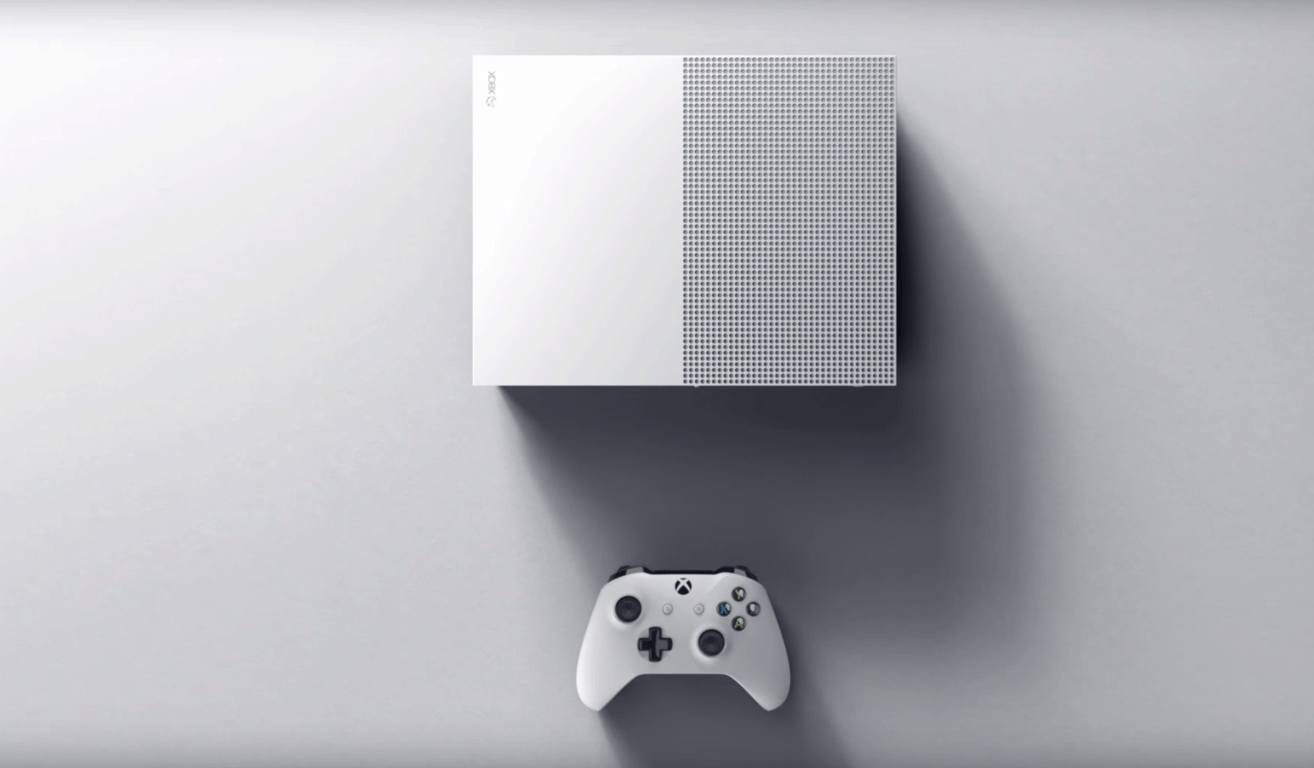
Limited quantities of the Xbox One S 2TB Launch Edition are dwindling, more bundles coming

Last week, Microsoft launched the $399 2TB launch edition Xbox One in select markets at Microsoft Stores and local retailers.  Since then, many reports and rumors have been floating around that Microsoft will not be making any more Xbox One S 2 TB models. We reached out to Microsoft in order to confirm or deny these rumors.

A Microsoft spokesperson told us via email that the 2 TB Xbox One S was released as a special launch edition in limited quantities only.  The spokesperson also pointed us to the fact that while Microsoft is thrilled at the amount of interest received, they are always looking for opportunities to offer choice and fantastic value to fans.  Additionally, the spokesperson also offered advice for those looking for the 2 TB Model and mentioned some upcoming Xbox One S bundles. Here’s the statement:

Please check with your local retailer to determine whether the 2TB Xbox One S is still available in your market. You can also pre-order the Xbox One S ‘Gears of War 4’ 2TB Limited Edition bundle now at microsoftstore.com and other select retailers. We’ve also recently announced the Xbox One S ‘Madden NFL 17’ 1TB Bundle for fans in the U.S. and Canada and the Xbox One S Halo Collection 500GB and 1TB Bundles for fans in the U.S., Canada, Australia and New Zealand. All three bundles will be available starting Aug. 23 and we will have more to share on future bundles in more markets in the coming weeks.

So, if you’re in the market for a 2 TB Xbox One S, it’s best to check online and with your retailers for the availability of the model. While the supplies may indeed be limited (and sold out in the U.K. but still available at Amazon U.S.), you could be lucky enough to find a 2 TB model for yourself.  As always, though, please let us know if you’re in search of a 2 TB Xbox One S, and your other thoughts on this by dropping us a comment below.

This week’s Xbox deals include NBA16, Resident Evil, more

If you’re looking to save some money on great Xbox games, now is the right time to shop on the newly unified Windows 10 Store. Microsoft has just refreshed the list of Deals with Gold and Spotlight Sales, and has put some great Capcom titles on sale.  As is usual we’ve given the biggest titles a look and have included Microsoft’s download links and descriptions below.

Xbox One:

NBA 2K16: $39.99 now $20.00

The NBA 2K franchise is back with the most true-to-life NBA experience to date with NBA 2K16. Featuring an all-new MyCAREER experience written, directed and produced by acclaimed filmmaker Spike Lee. Guide your MyPLAYER through the complete NBA journey, take control of an entire NBA franchise, or hone your skills online competing against gamers from around the world. With animations that provide smoother movement and more realistic articulation, and a unique cover design featuring NBA stars Stephen Curry, Anthony Davis and James Harden, it’s certain to be the most authentic NBA gaming experience yet.

Plants vs. Zombies Garden Warfare 2: $59.99 now $30.00

The battle for suburbia grows to crazy new heights in Plants vs. Zombies™ Garden Warfare 2! In this hilarious, action-packed shooter, zombie leader Dr. Zomboss has strengthened his horde and rebuilt suburbia as a zombie utopia. But hope remains, because for the first time the plants are taking the offensive in an all-out attack to reclaim their turf. Play as both the plants and zombies in new 24 player multiplayer and 4-player co-op modes, or go at it solo or in split-screen against the AI across all game modes. Garden Warfare 2 also introduces the Backyard Battleground, your very own interactive hub where you and up to 3 friends can take on daily quests, challenges, and interact with your favorite PvZ characters.

DmC Devil May Cry: Definitive Edition: $29.99 now $9.90

The definitive edition of this critically-acclaimed action game arrives with enhanced 1080p graphics at 60fps, new features and all the original DLC included. Chain together stylish combos with up to eight unique weapons. Traverse the demonic world of Limbo as you join Dante and Vergil in the legendary rebirth of the Devil May Cry franchise.

Of course, the above-mentioned titles are just a few of the deals this week.  There are many other Xbox One deals which can be seen below:

Xbox 360 Deals:

Dark Siders II: 

Awakened by the End of Days, Death, the most feared of the legendary Four Horsemen embarks on a quest to redeem his brother’s name. Become the terrifying force which everything fears but nothing can escape.

STREET FIGHTER X TEKKEN:

A dream collaboration between the two biggest fighting game franchises is now a reality! A deluge of highly demanded characters join the fray in this tag team-based game! Street Fighter fans, Tekken fans and of course gamers of all kinds can enjoy the new, easy-to-understand battle system. A new era in the history of fighting games is about to begin with STREET FIGHTER X TEKKEN!

RESIDENT EVIL 6:

The bioterrorism nightmare is more chilling than ever, as outbreaks in America, eastern Europe, and China threaten to plunge the world into chaos. Multiple heroes will rise to meet the threat of this new viral outbreak. As their fates intertwine, the story races forward to its conclusion. Experience the very best of dramatic horror with Resident Evil 6!

Just like on the Xbox One, these are just a few of the available deals this week. Other deals on the Xbox 360 include various editions of Bionic Commando,  Resident Evil, Street Fighter, and Ultra and Super Street Fighter. Titles such as Wheel of Fortune, The Outfit, Strider, Sine Mora, Remember Me, Red Faction Guerilla, Lost Planet, and Mega Man are also included as well.

These deals are valid through August 15th, so for the complete list, you can check out this post by Major Nelson. As always, though, be sure to come back to WinBeta and drop us a comment with your thoughts below!

Xbox One Preview gets another new bug fixing update, adds PayPal payment option

Xbox One continues to focus on its integration with the Windows 10 operating system. The attempt to further combine the PC and console has been a bittersweet experience where some features have been left behind, but the amount and speed of updates have been rather encouraging.

Following suit, Xbox One received another preview release last night. Brad Rosetti from the Xbox Preview Program made a minor announcement on Twitter stating the the update would roll out at the usual 6:00 p.m. PDT, and if you’re in the Xbox Preview Program, it should be available for download if it hasn’t already automatically updated. It includes various fixes including Universal apps, Game DVR, Pins, and My Games and Apps categories.

The patch will also add the long requested PayPal to the billing options for Xbox One. The full patch notes (visible to Preview members on the Xbox Forums) are as follows:

DETAILS

OS version released: rs1_xbox_rel_1608.160805-1737
Available: 6:00PM PDT 8/8 (1:00 AM GMT 9/8)

NEW FEATURES

  • Payment & Billing

You can now add PayPal as a payment option on Xbox One! To add PayPal:

1. Navigate to Settings > Account > Payment & billing and select Add a payment option.
2. OR when purchasing content from the Store, on the purchase confirmation screen select Change > Add a new payment method > PayPal.

FIXES

  • Universal Apps

Resolved an issue which could sometimes cause universal apps to crash when launched for the first time.

  • Game DVR

Resolved an issue which prevented users from capturing or editing clips in certain apps.

  • Pins

Resolved an issue which could cause unsupported media pins to remain on Home after an app updates to a universal app.

  • My Games & Apps

This build contains a fix to address an issue in which certain games (Nutjitsu, Threes, Voice Commander) appeared under Apps instead of Games.

CURRENT KNOWN ISSUES

  • My Games & Apps

If a universal app version of an app is available, the version which is not currently installed may appear under Ready to Install (causing what appears to be the same app both installed and in Ready to Install).

There’s no doubt we’ll see more of these quick preview builds popping up from time to time as Xbox One continues to merge into Microsoft’s vision of gaming anywhere.

Microsoft seeking feedback from disabled gamers for new GamerPics

Back in June, we reported that Microsoft was working hard to bring Gaming for Everyone and an “inclusive design” complete with wheelchairs for Xbox Avatars to the Xbox One. Now a few months later, it appears that Microsoft is continuing this initiative and is seeking feedback from disabled gamers for new GamerPics.

As seen above, Xbox designer Bryce Johnson mentioned that the Xbox team is now looking for suggestions on how Xbox can create Gamerpics that represent people with disabilities. In fact, Bryce even commented on a post about the subject from a few months ago on the Xbox Useroice. He also suggested that making custom gamer pics would be great, and responded to a Tweet which asked if it would be possible to create symbols to go in the corners of existing Gamerpics.

So, what do you think of Bryce’s suggestions? Will you be submitting any ideas to him? Let us know your thoughts by dropping us a comment below!

Windows 10 Anniversary Update doesn’t recognize secondary drives

The Anniversary Update is causing many drive issues, making users regret the day they decided to upgrade. Thousands of users are complaining that Windows 10 version 1607 deletes partitions and Storage Drive files from their computers.

According to recent user reports, the Anniversary Update also fails to recognize secondary drives. The OS detects secondary drives as raw format, prompting users to format them. However, the drives worked perfectly fine before the upgrade.

The Anniversary Update messes up secondary drives

When updating to Windows 10 AU I installed it via the Windows update method. […] I have 3 drives […].

When I went to login it ran through the setup process and brought me to the desktop. It prompted me to select a new OneDrive path. Drive 2 had my OneDrive stuff & other files on it. Windows detected that my drive 2 file system was RAW format and that it needed to be formatted before I could use it. The drive was working fine formatted NTFS before the Anniversary Update

Fix: Anniversary Update doesn’t recognize secondary drives

Solution 1 – Check for driver updates

If your computer was able to recognize the second hard disk before upgrading to the Anniversary Update, it’s possible that your current hard disk drivers are not compatible with the latest OS.

  1. Type Device Manager in the search box > hit Enter
  2. Select the secondary drive > right-click on it > select Update Driver Software

update disk drives anniversary update

3. Follow the on-screen instructions to update your drive.

Solution 2 – Change the drive letter

  1. Launch This PC > click on Manage

manage drives anniversary update

2. Go to Disk Management > select your secondary hard disk drive

3. Right-click on it > select Change Drive Letter and Paths

change drive letter anniversary update

4. Go to Change > choose the letter for your partition

5. Click on OK > restart your computer.

We are aware that the two solutions listed above may not work for all users. For the time being, there is no permanent fix available as Microsoft hasn’t officially recognized the existence of this issue yet. There’s most likely a compatibility issue between the Anniversary Update and the drivers on the drives the tech giant must fix in collaboration with computer manufacturers.

If the two fixes didn’t help you, the best solution is to revert to your previous Windows OS while waiting for Microsoft to fix this problem.

RELATED STORIES YOU NEED TO CHECK OUT:

Windows 10 Anniversary Update fails to recognize MP3 players

If you’re a music addict, an MP3 player is easily you favorite gadget. Unfortunately, if you’re also a Windows fan and decided to upgrade to the Anniversary Update, chances are your new OS won’t recognize your MP3 player.

Many Anniversary Update users are complaining the OS doesn’t recognize their MP3 players, detecting them as simple USB drives instead. This prevents users from opening their MP3 folders and transferring music files to and from their devices.

Anniversary Update fails to recognize MP3 players

After updating to Anniversary Update my Cowon C2 mp3 player is no longer recognised by Windows. It shows as an usb drive in file explorer, but when I want to open it, it asks me to insert drive… Strange, because in driver properties it shows Cowon USB.

So annoying. Is there a way to go about it?

What to do if the Anniversary Update doesn’t recognize your MP3 player

Solution 1 – Run the Hardware Troubleshooter

  1. Go to Control Panel > select Find and fix problems (under System and security)

anniversary update troubleshooting

2. Click on View all > Hardware and Devices > run the troubleshooter.

fix hardware problems anniversary update

3. Restart your computer.

Solution 2- Check for a compatible driver for your MP3

Sometimes, outdated drivers can prevent the OS from properly detecting all the connected devices. In this case, make sure you’ve downloaded the latest driver for your MP3 player from its manufacturer’s website.

Solution 3 – Check for hidden devices

  1. Type Device Manager in the search box > press Enter.
  2. Click on View > select Show hidden devices

show hidden devices anniversary update

4. If you find any grayed out entries> Right click on them > Select Uninstall

5. Restart your PC > connect your MP3 player.

RELATED STORIES YOU NEED TO CHECK OUT:

  • Background function for Groove Music coming to Xbox One soon
  • GMusic UWP Windows 10 app brings Google Music to your Windows devices
  • Listen to music on demand with Deezer for Windows 10, now open to all US users

Finish installing Windows 10 Anniversary Update without logging in

By now, the majority of users should have the Anniversary Update installed on their computers. However, since Microsoft is  rolling out the update in waves, there are some left who still need to install it.

In case you have yet to install the Anniversary Update on your Windows 10 machine, we have a little trick that will actually save you some time and effort. If you have ever installed a bigger update or a fresh copy of Windows before, you probably know that once the installation is finished, you’re required to provide some additional information, like your Microsoft account credentials, computer name and more in order to finish setup.

While it doesn’t take so much time to complete, some users simply find it annoying. Luckily, Microsoft introduced a new option that allows you to use your current settings while performing the upgrade process so you don’t have worry about this every time you update your computer.

Here’s what you need to do to let Windows 10 automatically finish the update process, without any of your own actions:

  1. Open the Settings App
  2. Go to Updates & security > Windows Update
  3. Go to Advanced options
  4. Now, look for the Use my sign in info to automatically finish setting up my device after an update option, and check the box next to it anniversary update no login

When you perform your next update, Windows will use your current settings and finish the process on its own. Although the Anniversary Update is actually the first Windows 10 update this option applies to, you’ll be able to use this method when installing future updates as well because Microsoft probably won’t remove this feature in future.

Using this option eliminates all those screens with text like “Almost ready,” or “Pick right where you left off”. Because of that, you might actually find some apps not working or taskbar icons missing. That’s not an issue at all because your system still needs to be fully prepared for use, and that’s why those screens appeared in the first place. So, just wait for a bit, restart your computer, and you should have everything in place.

RELATED STORIES YOU NEED TO CHECK OUT:

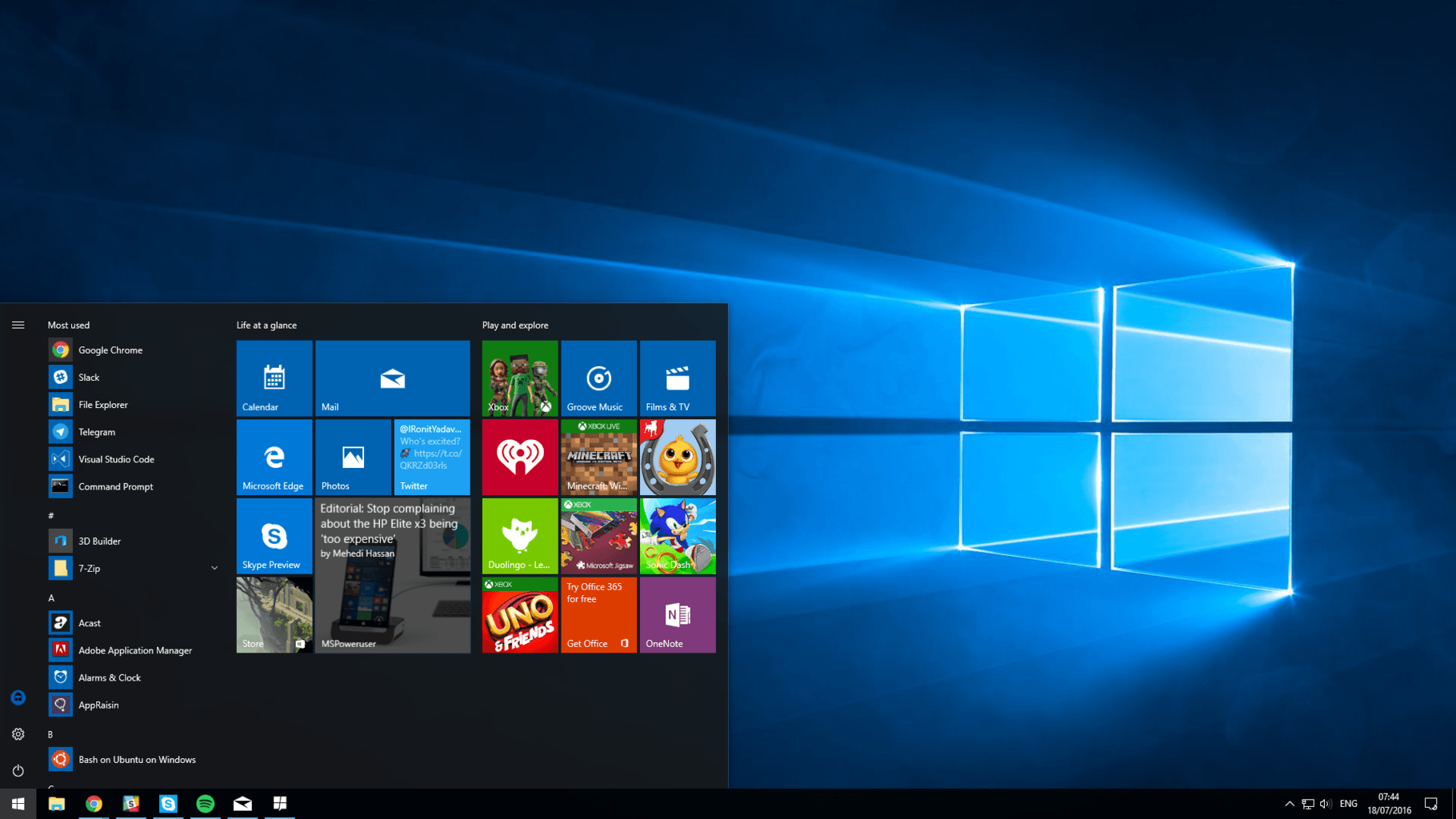
Windows 10 Anniversary Update causes Start Menu problems

The release of the Anniversary Update has caused some issues that major updates usually create for Windows 10 users. We already wrote problems with Cortana along with screen flicker, but now we reports of various Start Menu problems caused by the second major update for Windows 10 have surfaced.

Users all over the web are experiencing various issues related to the Start Menu, with some people not being able to open the Start Menu at all while others are encountering absent Start Menu apps and icons.

A solution for these Start Menu problems is still unknown and we can’t tell you exactly what to do since the cause is different for most users. However, we can recommend you check out our article about Start Menu issues in previous versions of Windows 10 where you might find a solution that could work in the Anniversary Update as well.

Microsoft is actually aware of the situation and with a high number of complaints, this issue is impossible to ignore. The company originally advised users to perform some basic troubleshooting, like running an SFC scanner or performing a clean boot, but as expected, these solutions weren’t helpful to most.

Because Start Menu issues are a serious problem for users who encountered them, Microsoft is promising a new patch that will allegedly solve the majority of Start Menu problems reported by users.

It’s been almost a week since Microsoft promised an fix for Start Menu issues, but it still hasn’t been released. The only thing users can do after trying other possible solution is to wait for Microsoft to finally release a fix. Or, if the issue is too serious, roll back to a previous version of Windows 10 until Microsoft solves the problem.

What’s your experience with the Anniversary Update so far? Is the Start Menu working properly for you, or are you also facing these problems? Tell us in the comments below!

RELATED STORIES YOU NEED TO CHECK OUT:

Three classic 90s Disney video games updated and available for the PC

If you were a Disney fan back in the 90s and had the means to play 16-bit video games, then chances are you have come across three Disney games in the form of Aladdin, Lion King and Jungle Book. These titles are classics platforms and timeless in their own right. The technology used to create these games was unparalleled back then, and guess what? They still manage to hold up today.

Yes, today, because recently GOG.com announced that all three games will be available DRM-free via its platform. The company says the games have been “meticulously updated”, but not to worry, graphics, gameplay, and original sound are all intact.

I remember, vividly, playing Lion King on the MS-DOS back in the 90s, and I could believe how they got the characters to look so real when compared to the movie. Many years later and we can see how well the graphics and animation has aged to the point where it can rival modern 16-bit games.

Here’s what GOG.com had to say:

Developed during the golden age of platformers, Disney Aladdin, Disney The Lion King, and Disney The Jungle Book established themselves as hallmarks of the genre, earning the praise of fans and critics alike for over two decades. That was due in no small part to their groundbreaking visuals. With the advent of Digicel technology, hand-drawn cels from Disney’s animation team brought the characters to life with a level of vibrancy that was unparalleled at the time, and remains impressive today. Just look at how adorable little Simba looks when he roars at his enemies!

GOG.com is selling each game for the cool price of $9.99, but if you get them now, the company will slash 10% off the price. Furthermore, if you purchase all three games together, GOG.com will offer a 33% cut in the overall price.

That’s great and all, but we do believe these games should be going for less $9.99. The Disney brand never fails to jack up prices.

There are several platformers available now for the Xbox One. Some are even available via Games with Gold for August. Furthermore, Playdead’s indie game title is now available via the Microsoft console.

RELATED STORIES YOU NEED TO CHECK OUT:

Fix: ‘Display not compatible’ error prevents Windows 10 Anniversary Update from installing

It’s been almost a week since Microsoft finally released the Anniversary Update to Windows 10 users. The update brought a lot of interesting new features and additions, we talked about it a lot lately, but it also caused a big number of issues to users who installed it, as well.

In this article, we’re going to talk about a single issue that is not actually caused by the Anniversary Update but rather prevents it from installing. This issue is an error message saying that people can’t download the Anniversary Update, because their display isn’t compatible.

Many users reported this issue on Microsoft’s Community forums, so we assume there could be a lot of people with this problem

This could be a serious issue for some users because they’re not able to install the latest update. So, let’s see what might actually cause this issue, and how we can solve it.

My screen became incompatible with Windows 10 after the Anniversary Update

Solution 1 – Update your drivers

Your screen, just like every other hardware in your computer requires a driver to work properly. What could be a problem with major updates for Windows 10 is that some drivers aren’t compatible with them.

Drivers may work properly in a current version of Windows 10, but they may need to be updated when the major update, in this case the Anniversary Update, arrives.

So, before you try to install the Anniversary Update, make sure all your drivers are compatible with it. In case you’re not sure how to do that, follow these instructions:

  1. Open Search, type device manager, and open Device Manager
  2. Find your display driver in the list of hardware
  3. Right-click on it, and go to Update driver software…display adapter not compatible anniversary update
  4. If there’s a update for your driver, it will be installed automatically

If, however, there was no new update for your current driver, your display itself is probably compatible with the Anniversary Update (but to make sure, check out the Anniversary Update system requirements).

There’s probably some other driver that prevents the update from being installed on your computer. 

We also recommend a third-party tool to automatically download all the outdated drivers on your PC. Using this specialized driver updater tool, you can manage all your drivers with automated support for fixing or updating any driver. 

Fortect Driver Updater will provide reliable support to find the latest driver versions and boost your PC performance with the newest devices. 

Lastly, using third-party software like this you stay secure from system malfunctions caused by drivers’ incompatibility with your hardware devices. 

⇒ Get Fortect Driver Updater

Solution 2 – Uninstall mirror drivers

There’s a big chance that some driver, that is not directly related to your display is actually blocking the Anniversary Update from being installed. In most cases, these drivers are mirror or remote controller drivers. Some of these drivers are Cyberlink Mirror, LogMeIn Mirror, a ‘Mirage Driver,’ and more.

So, try to uninstall whichever driver you suspect might be of this kind, and you should be able to install the Anniversary Update without any problems. If you’re not sure how to do that, do the following:

  1. Open Search, type device manager, and open Device Manager
  2. Find a suspicious driver in the list of hardware
  3. Right-click on it, and go to Uninstall
  4. Restart your computer once your driver is uninstalled

Once you uninstall a mirror driver, try to install the Anniversary Update once again, and you should have no problems. This is actually a solution that most people confirmed is working, so it’s very likely that it will also work for you.

Solution 3 – Install the update manually

display adapter not compatible anniversary update1

If nothing from the above worked, you can always try installing the Anniversary Update manually, and not via Windows Update. Installing the update manually can actually solve a lot of problems, because it is treated as a clean install, and doesn’t involve the updating process.

Since ISO files for Windows 10 Anniversary Update are now available, you can easily create a bootable media, and perform a clean install on any computer. 

If you don’t know how to create bootable media with the Anniversary Update and perform a clean install, check out this article.

That should be all, performing at least one of these solutions will probably solve the problem. But once again, the second solution is perhaps the best option, as it was helpful for most people.

In case you have any comments, questions, or suggestions, please let us know in the comments below. Also, don’t forget to tell us if any of these solutions actually solved the problem with installing the Anniversary Update for you.

Fix Cortana issues after Windows 10 Anniversary Update

Microsoft improved Cortana a lot with the Anniversary Update, by bringing it to the Start screen, Microsoft Edge, and more. However, judging by the number of complaints from users, it looks like the Anniversary Update actually causes some problems with Microsoft’s virtual assistant, as well.

We remind you that Microsoft released a cumulative update for Windows 10 just hours before releasing the Anniversary Update, and it also caused some Cortana problems to users. So, we could easily predict that things are not going to be any better in the major update, which turned out to be true.

If you encountered certain problems with Windows 10’s virtual assistant, there are actually a few things you might try, to get it working. So, try some of the solutions listed below, and you should be able to use Cortana normally again.

How to solve Cortana problems in Windows 10 Anniversary Update

Solution 1 – Perform a registry Fix 

As soon as users started reporting first Cortana-related problems caused by the Anniversary Update, a possible solution popped out, as well. That solution is a simple registry tweak, that requires you to change one value, in order to make Cortana work again.

Judging by the number of responses, this fix is actually very effective, as it solve the problem for the majority of users. We already wrote about this registry fix a few days ago, so there’s no need to mention the whole process once again. If you want to find out how to perform this simple registry tweak, make sure to check out this article.

Although it’s probably the best possible solution for the problem with Cortana caused by the Anniversary Update, it doesn’t mean that it will surely solve a problem for you. So, try it, and if Cortana still doesn’t work, try some of the solutions listed below.

Solution 2 – Make sure your regional settings are correct

If you were able to run Cortana before the Anniversary Update, your region is surely supported by Cortana, as Microsoft didn’t remove support for any language in the update (it actually added a few more). But there are two possible scenarios that might cause your regional and language settings to prevent Cortana from working.

The first scenario is that the Anniversary Update somehow changed your regional settings, to a region that’s not supported by Cortana. And the second one is that you performed a clean install, and accidentally selected a wrong region.

Either way, all you need to do is to make sure your language and region settings are correct, and make changes if necessary. To do so, follow these instructions:

  1. Go to the Settings app, and find Region & language settings
  2. Under Country or region, make sure your region is set correctly, so it’s compatible with Cortana (to see what regions are supported by Cortana, check out this article)cortana anniversary update 1
  3. Now, go to Speech tab, and also set a language compatible with Cortanacortana anniversary update 3
  4. Restart your computer

There you go, if your region or language was the issue, it should be solved now. Once again, this solution only applies if Cortana worked in the previous version of Windows 10, and the Anniversary Update somehow changed your settings. But even if Cortana doesn’t work in your region, there’s still a way to run it.

Solution 3 – Re-register Cortana

Another solution that might be helpful is re-registering Cortana, in case the Anniversary Update broke it. If you’re not sure how to do that, just follow these instructions:

  1. Go to Search, type powershell, right-click on PowerShell, and select Run as administrator
  2. Enter the following command, and press Enter:
    • Get-AppXPackage -AllUsers | Foreach {Add-AppxPackage -DisableDevelopmentMode -Register “$($_.InstallLocation)\AppXManifest.xml”}cortana anniversary update2
  3. Wait for the command to be performed
  4. Restart your computer

Solution 4 – Disable Antivirus

Disabling antivirus in order to make Cortana work seems like a very basic solution, that actually isn’t helpful at all. However, a lot of users reported that it actually solves the problem. So, if you tried all of the solutions above, and none of them worked, try disabling your antivirus program, and run Cortana again.

That’s about it, we hope that at least one of these solution helped you to get Cortana working on your Windows 10 version 1607 PC once again. In case you have any comments, questions, or suggestions, just write them down in the comments below. Also don’t forget to let us know if this article actually helped you to solve the Cortana problem caused by the Anniversary Update.

RELATED STORIES YOU NEED TO CHECK OUT: 

Pin to Start is missing in the Anniversary Update

The Windows 10 OS allows users to personalize their computers according to their needs. One of the most useful features is the Pin to Start option which lets users add the most frequently used apps to the Start Menu for fast access.

Pinning an app to the Start menu is an easy operation in itself: you simply right-click on the app and select the option Pin to Start. Unfortunately, many users who have installed the Anniversary Update on their computers are now reporting the Pin to Start option is missing altogether.

Users are complaining Pin to Start is unavailable in the Anniversary Update

After I update my Windows 10 to the Anniversary Update, I can’t pin my apps to Start. There’s no “Pin to Start” option. Instead, there’s a “Pin to Taskbar” when I right-click on my apps I want to pin.

This issue is not account-specific, as users confirm the Pin to Start feature is missing on all their accounts.  Before rolling back to your previous Windows version and reinstalling the Anniversary Update, you can use the workarounds listed below to fix this problem.

Fix: Pin to Start is missing on the Anniversary Update

Solution 1 – Repair the Shell32.dll file

  1. Launch Run > type regsvr32 /i shell32.dll 
  2. Restart your computer.

Solution 2 – delete the Registry files disabling Pin to Start

  1. Go to : HKEY_CURRENT_USER\Software\Microsoft\Windows\CurrentVersion\Policies\Explorer
  2. Delete the  NoStartMenuPinnedList value.
  3. Restart your computer.

Solution 3 – create a Registry file to enable the Pin to Start option

  1. Create the file pin_to_start.reg
  2.  Copy the following content into that file:

[HKEY_CLASSES_ROOT\Folder\shellex\ContextMenuHandlers\PintoStartScreen]
@=”{470C0EBD-5D73-4d58-9CED-E91E22E23282}”

[HKEY_CLASSES_ROOT\exefile\shellex\ContextMenuHandlers\PintoStartScreen]
@=”{470C0EBD-5D73-4d58-9CED-E91E22E23282}”

[HKEY_CURRENT_USER\SOFTWARE\Microsoft\Windows\CurrentVersion\Policies\Explorer]
“NoChangeStartMenu”=-

[HKEY_LOCAL_MACHINE\SOFTWARE\Microsoft\Windows\CurrentVersion\Policies\Explorer]
“NoChangeStartMenu”=-

[HKEY_CURRENT_USER\SOFTWARE\Policies\Microsoft\Windows\Explorer]
“LockedStartLayout”=-

[HKEY_LOCAL_MACHINE\SOFTWARE\Policies\Microsoft\Windows\Explorer]
“LockedStartLayout”=-

3. Save the file > Run it.

RELATED STORIES YOU NEED TO CHECK OUT: