How to Make a Microsoft Teams Test Call

Microsoft Teams has become the go-to video-conferencing tool for meetings, so testing your call and ensuring it sounds as expected makes sense.

How do I test a call on Microsoft Teams?

Note icon NOTE
You can only test a call on Microsoft Teams if you’re on a work/school account that is part of the Microsoft 365 plan.
  1. Launch your Teams app, click the three ellipses at the top right corner next to your profile picture, and select Settings.
  2. Click on Devices>Make a test call.
  3. The test call will now begin. Follow the cues where you’ll be asked to speak after a sound and end after another.
  4. Teams will playback the recording and here you can examine the quality of the audio.
  5. The test call results will be displayed and if you’re satisfied, click on hang up.

Another caveat to testing your calls on Microsoft Teams is that you must use the desktop app since it’s unavailable on the web or Android app. It’s also only available in English, so check your language settings if you can’t find this option.

If you’re on a personal plan and you still wish to test the quality of your Microsoft Teams call, you can create a meeting and join with another device to check for any issues.

You might need another person to verify whether they can hear you, but this is generally the closest you can get to testing the quality of your call.

Other ways to test your call is to perform individual tests. For instance, Windows 11 users can perfom a mic test or use mic test tools. For your camera, you can use the webcam test tools to make sure you’re in focus.

What can I do to resolve potential issues that may arise after I test call on Teams?

  • Inaudible or poor audio quality – If you have insufficient bandwidth or your connection keeps dropping, your audio quality may be affected. You’ll need to switch to another connection or limit bandwidth for other programs.
  • Undetected mic/camera – If your microphone or camera cannot be detected, ensure you’ve enabled access permissions for Teams. Also, update device drivers or try other devices to check for damages.
  • Frequent disconnection – This may be an app issue so ensure you have the latest version of Microsoft Teams or run the app troubleshooter to check for any issues. Also, close superfluous apps and processes that may be eating up the RAM.

Other issues may include the Teams echo problem or audio not working on your Teams app but we’ve already covered this in our separate guides.

When it comes to testing, you’re never sure what component will let you down, but more often than not, it’s your microphone. In such cases, you can easily boost your audio quality or switch to your Teams mobile app and use your PC as a mic on your phone.

Remember, you can still test a call on Teams for Linux using similar steps. Should you encounter further issues, feel free to switch to other video-conferencing apps.

Do you find the test call feature on Microsoft Teams useful, and should it be brought back to personal accounts? Let us know in the comment section below.
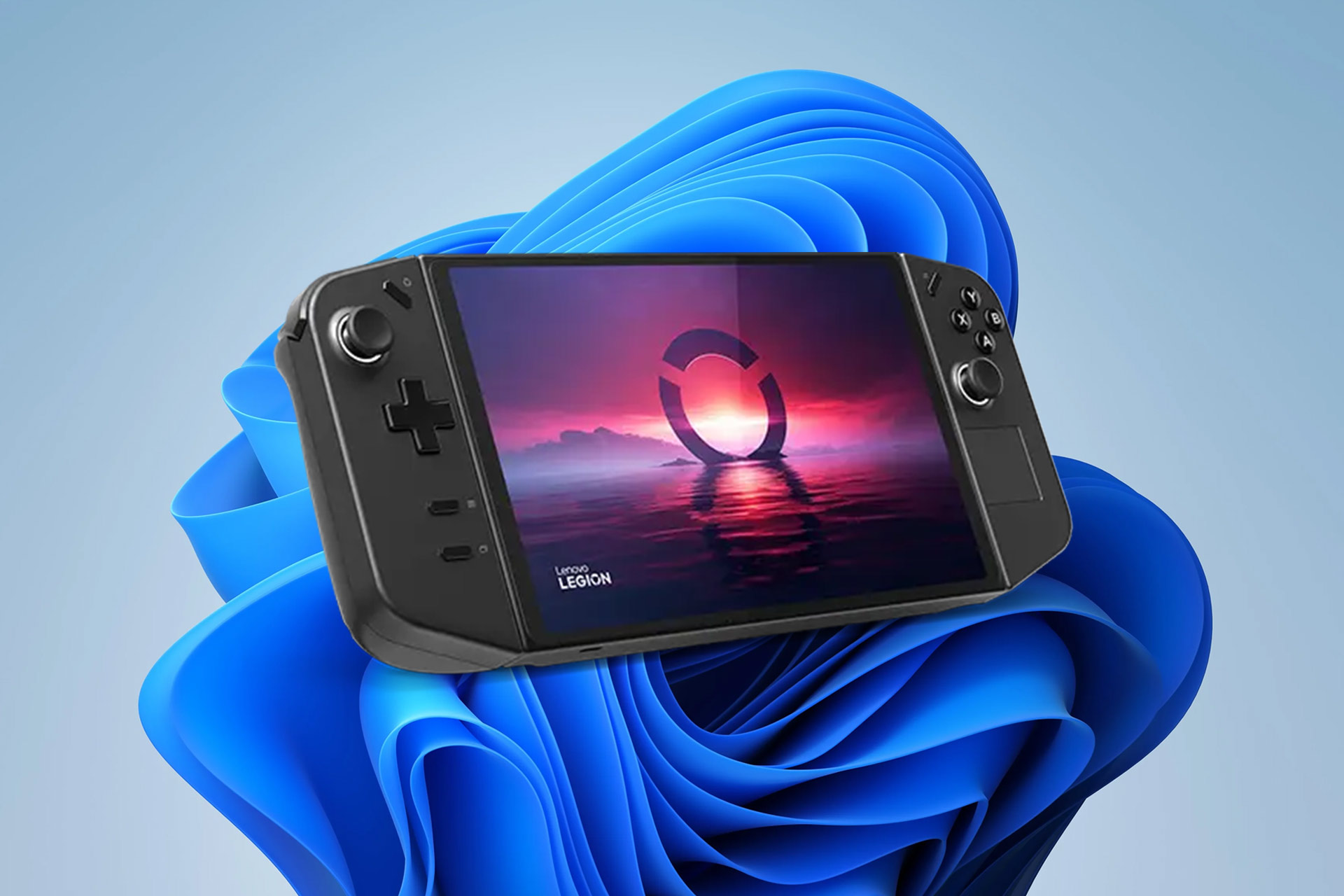
Tiny11 vs Bloatynosy on Legion GO: Why choose one over the other?

To get the best performance, many are removing bloatware on Windows 11. This is pretty simple to do, and it can make your old PC snappy again or give you a performance boost.

But what about handheld devices? Many are using debloaters on Legion GO, but the question remains, what is the best one to use? Hopefully, this guide will answer that question for you.

Tiny11 or Bloatynosy on Legion GO, what’s the best option for gamers?

To debloat Windows 11, many are using the lightweight version of Windows 11 called Tiny11. On the other hand, there’s also Bloatynosy, and we recently wrote about how can BloatyNosyAI remove Copilot for Windows 11.

But which one should you use? This has sparked a debate on Reddit, and one user reported that installing Tiny11 drastically freed up his resources and lowered RAM usage:

It only takes 20GB on the SSD and blocks only 2GB of Ram. Furthermore every bloatware by microsoft is removed.

However, many users are concerned since Tiny11 uses a modified Windows 11 ISO, and it can come with hidden malware.

Just know that by installing some modified os from the internet you are exposing yourself to malware possibly being installed along with it.

The safe bet, and it runs just fine, is to just let it install the win version it comes with and run bloatynosy to manually remove useless bloatware.

However, others claim that Tiny11 is safe since it’s built with NTDEV which seems to be a credible tool. If needed, you can also use NTDEV to manually optimize your Windows 11 ISO and create your own version of Tiny11 if you have any privacy concerns.

Yes i agree but NTDEV has a good reputation among the OS Modders. You can build tiny11 from an original iso with his builder.

On the other hand, others are skeptical about Bloatynosy, and they speculate that such tool can be used to spread malware as well.

The same malware could come along with debloaters like bloatynosy

Ntdev is pretty trustable in the community and tiny11 is an awesome project, i dont even consider the possibility of installing windows any other way

Others are boasting Tiny11 for up to 15-40% fps boost. This is achieved by freeing up RAM, and Tiny11 does just that by removing unnecessary services:

On heavier titles I’ve seen as much as a 15-40% boost in frames using de-bloated windows 10/11 a very simple reason. Ram.

According to users, Windows on Legion GO uses 6.6GB of RAM while Tiny11 uses only 2.1GB. This leaves less VRAM for the games and forces the device to use storage space as RAM, thus impacting performance.

While the performance boost sounds impressive, there are a few downsides to using Tiny11 most notably, missing features.

Not worth in my opinion, you always going to ended up needing something that will not be available on this modded version and these versions always crashes or give some kind of bugs

One of my co workers installed Tiny11 about 5 months ago…. Realized he couldn’t use Gamepass as Live services was disabled and or not included in that “debloating of the OS”.

Lastly, it’s also possible for OS updates to break your system, which can be a problem.

Users also forgot to mention that Tiny11 creates an ISO, so if you want to use it, you need to reinstall the system. On the other hand, Bloatnosy will modify your current installation without having to reinstall it.

It’s worth mentioning that with Bloatnosy you might be able to restore missing features, while that’s not the case with Tiny11.

Regarding security, both are open-source projects and are available on GitHub, so the community can easily detect any potential wrongdoing by the developers.

If we had to choose, we’d go for Bloatnosy, since it doesn’t require you to reinstall your system, but let us know what’s your pick in the comments below!

If the regular Xbox controller feels too small for you, check out these XL alternatives

Whether you have larger hands or prefer a bulkier design, you might feel the standard Xbox controller is a bit small for you. In this article, we have compiled a list of XL controllers that can help you enjoy your gaming session to the fullest.

What are the XL alternatives to the Xbox controller?

Hyperkin Duke – Huge but very comfortable

Hyperkin Duke Wired controller

The Hyperkin Duke Wired controller is an Xbox 20th Anniversary Limited Edition and is compatible with Xbox Series X/S, Xbox One, and Windows 10.

As it is designed to commemorate the two decades of gaming, it features the original Xbox startup animation played inside the Xbox button on the controller.

For better control, the controller incorporates precision analog triggers, bumpers that mirror the functions of White and Black buttons, and even a Share button & Type C port, providing responsive and accurate gameplay.

To cater to individual needs, the controller comes in four different sizes: Small, Medium, Large, and Extra Large. You can choose any of the sizes for better comfort and stability.

Additional features include a 3.5 mm headset jack, vibration feedback for a realistic experience, and a detachable Type C cable for better flexibility.

Razer Wolverine v2 Chroma – Next-generation customization

Razer Wolverine v2 Chroma

The Razer Wolverine V2 Chroma is another great Xbox controller XL alternative, offering a secure and natural hold with its non-slip rubber grips, which puts control and customization at your fingertips.

In addition to the remappable buttons, the controller comes with Razer Chroma RGB lighting, and a swappable thumbstick, so you can tailor your gaming experience the way you want.

The controller boasts Razer Mecha-Tactile Action Buttons and a D-Pad inspired by gaming mice technology. These buttons provide hyper-responsive actuation with a cushioned touch, delivering unparalleled precision and tactile feedback during gaming sessions.

With Razer Chroma RGB lighting, you can customize the controller’s aesthetic, adding a dynamic visual element to your gaming setup.

With easily swapped-out thumbstick caps, you can choose the perfect tool according to your playstyle to enjoy a natural and precise analog motion.

Thrustmaster Eswap series – Best known for its performance

Thrustmaster Eswap series

If you are looking for a professional gamepad, the Thrustmaster Eswap series is the perfect choice. It is officially licensed for Xbox Series X/S and features next-gen modules, which ensure precision and adaptability for a wide range of games & gaming styles.

Featuring new-generation analog mini-sticks with improved durability, The ESWAP X PRO CONTROLLER provides better physical resistance and an increased lifespan compared to its predecessors.

The instant remapping feature enables you to customize any regular button or function by assigning it to the four additional buttons on the back of the controller, increasing versatility for various games and hand sizes.

You can also just position the modules before or during the gameplay according to your gaming needs, catering to diverse genres such as combat, FPS, Battle Royale, Sports, or RPG.

With the ThrustmapperX software, you can adjust the essential settings and create presets for optimized gaming ergonomics.

Scuf Instinct Pro – Allows you to build your own controller

Scuf Instinct Pro

Another officially licensed Xbox product, the Scuf Instinct Pro, is a high-performance Xbox controller that offers you the unique ability to choose a graphical design for your controller or design one from scratch.

The remappable paddles are placed strategically to provide a natural feel, resulting in faster response times, and allowing you to assign actions to optimize gameplay.

You can save up to three different paddle remapping configurations and switch between them according to the game style and type of game whenever you want with the help of a button.

The controller has textured thumbsticks designed to improve grip, accuracy, and precision, thereby making it better for comfort and optimized performance.

Featuring instant triggers for swift transitions from standard triggers to mouse-click actions, Scuf Instinct is compatible with Xbox Series X/S, Xbox One, Windows 11/10, macOS Catalina & above, iOS 10 & above, and Android 9 & above.

C2Grips Xbox Gripz– Not a controller

C2Grips Xbox Gripz

While it may not be a controller itself, C2Grips Xbox Gripz is a pistol grip that is designed to attach to your existing Xbox controllers, providing a better grip on the controller with great comfort for a superior gaming experience.

Xbox Gripz easily fits onto your controller, offering complete control, and it is compatible with both Xbox One and Xbox Series X/ S.

C2 Gripz revolutionizes gameplay by placing your thumbs on top of the analog stick, providing precision, thereby redefining the way you play.

With four available sizes: Small (3.1 inches), Medium(3.1-3.6 inches), Large(3.6-4.2 inches), and Extra Large(4.2+ inches), you can select the perfect Gripz size customized for a comfortable fit.

This is a gaming accessory that makes sure you get a personalized experience with comfort and stability while reducing fatigue in your hands & fingers during longer gaming sessions.

This concludes the list of best XL alternatives for Xbox controllers recommended by our WR gaming experts. You can pick any one of them that suits your preference and gaming style.

In case you don’t want to spend lots of money on a controller, you can buy C2Grips Xbox Gripz and attach them to your existing Xbox controller for better control.

However, if you are looking for a massive but comfortable design controller, go for Hyperkin Duke. For customization with remappable button, RGB lighting, and swappable thumbsticks attract you, your choice should be Razer Wolverine V2 Chroma.

If you are a professional gamer and looking for next-gen modules for precision, the Thrustmaster Eswap series can be a good choice; however, with Scuf Instinct Pro, you can design your controller and customize it the way you want for a wide range of gaming styles.

Which one would you choose? Share your favorite controller in the comments section below.

Petition: Windows Mixed Reality should be open source, not deprecated

We reported earlier that Microsoft will discontinue Windows Mixed Reality from Windows 11, version 24H2, and the feature will reach End of Life (EoL) in Nov’26. It now appears that the decision wasn’t well received by the community.

There’s a petition on Change.org doing rounds urging Microsoft to make the Windows Mixed Reality VR Platform an open-source project to let developers improve the functionality and keep it alive!

The petition states two critical reasons for making Windows Mixed Reality open-sourced:

  • It will maintain a healthy diversity in the market.
  • Significant amount of electronic waste will be generated in the form of discarded WMR devices. A similar concern is raised regarding Microsoft dropping support for Windows 10.

Created on February 14, 2024, the petition has already garnered 629 signatures at the time of writing and has an initial goal of 1000.

The number is expected to increase in the coming days, given that many who invested in WMR-supported devices are enraged with the decision. We came across multiple Reddit threads where users shared similar concerns.

However, your WMR headsets won’t stop working right away. As per Microsoft’s official page,

Existing Windows Mixed Reality devices will continue to work with Steam through November 2026, if users remain on their current released version of Windows 11, version 23H2. After November 2026, Windows Mixed Reality will no longer receive security updates, nonsecurity updates, bug fixes, technical support, or online technical content updates.

So, to continue using your WMR devices with Steam until Nov’26, you will have to permanently disable Windows updates and stay with the currently installed version.

This does put the PC at risk, given that it wouldn’t receive any updates in the time frame. It’s something Microsoft should address!

After Nov’26, when Microsoft stops releasing security updates for Windows Mixed Reality, it will become vulnerable and prone to threats, and you will have to be a lot more cautious.

Coming to whether this or any other similar petition will make Microsoft change its decision, the chances are bleak. Windows Mixed Reality wasn’t a profitable venture and offered limited capabilities.

The decision to deprecate WMR doesn’t affect HoloLens. Microsoft remains committed to it.

If you, too, want Windows Mixed Reality to remain available, sign the petition and show your support! And do not forget to share your thoughts on the decision in the comments section.

Solved: Helldivers 2 Black Screen on Launch

Helldivers 2 is the current gamers’ obsession, but it’s proving a headache with a black screen on launch. Too many people are trying to play the game simultaneously, and the server is over capacity.

How do I fix the Helldivers 2 black screen on launch?

1. Launch the game from its executable file

  1. Go to the Helldivers 2 location. (This will differ depending on your OS): C:\Program Files (x86)\Steam\steamapps\common\Helldivers 2\bin
  2. Search for Helldivers, right-click on it, and select Run as administrator.

Helldivers 2 may be failing to launch because of required permissions. Launching it directly from its executable file allows you to bypass these restrictions and access any other files needed during launch.

2. Verify the integrity of game files

  1. Launch Steam, and go to the Library from the top.
  2. Now, right-click on Palworld and select Properties from the context menu.properties
  3. Go to the Installed Files tab, and click on Verify integrity of game files.verify game files to fix palworld disk write error
  4. Once the process is complete and all missing files are replaced, relaunch Helldivers 2 and check whether the login error is fixed.

3. Switch to Borderless window mode

  1. Launch the game and navigate to its Settings.Change the display mode and other settings
  2. Locate the Video tab, and choose Display mode as Borderless Window.
  3. Next, change the Aspect ratio to 4:3 & 5:4 and adjust the Resolution to 1280 x 980.
  4. Save the changes and check if this resolves the issue.

If you’re having issues with Helldivers 2 launching a black screen on launch, switching to borderless window mode may help with display issues.

Some games have compatibility issues with specific hardware configurations, and switching your display mode may resolve the issue.

4. Roll back to a previous display driver version

Note icon NOTE
This step is for NVIDIA graphic cards. If your graphics card is from another manufacturer, visit the corresponding manufacturer’s site.
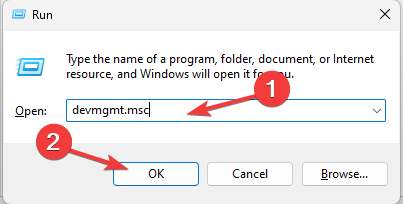
  1. Press Windows + R to open the Run dialog box.Device Manager Run command Rollback NVIDIA Drivers in Windows 10/11
  2. Type devmgmt.msc and click OK to open the Device Manager.
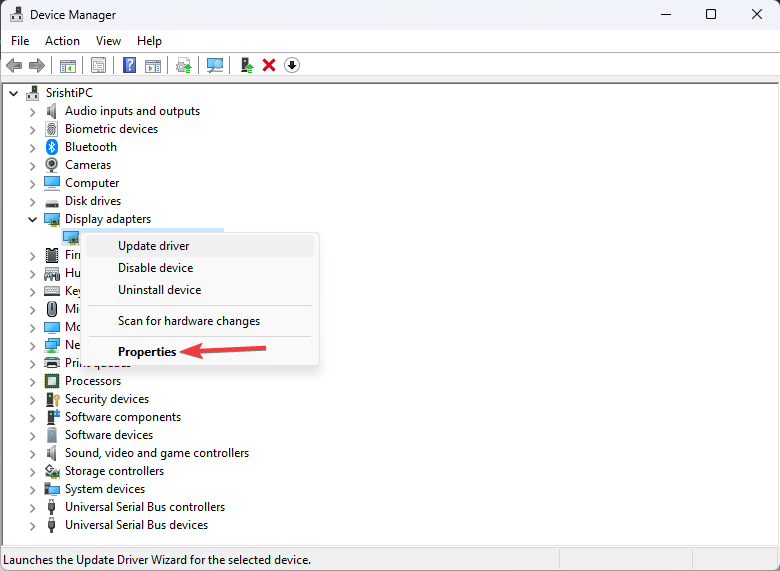
  3. Locate and click Display adapters to expand it.
  4. Right-click the NVIDIA driver and choose Properties.NVIDIA driver properties
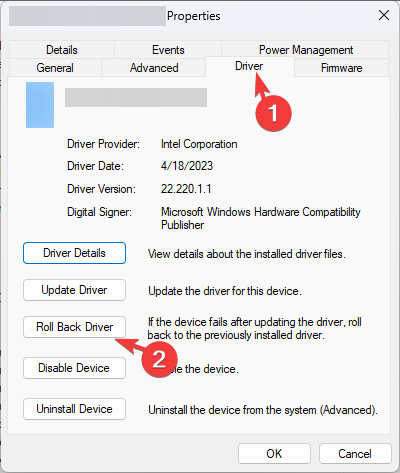
  5. Go to the Driver tab, and select the Roll Back Driver option.Roll Back Drivers
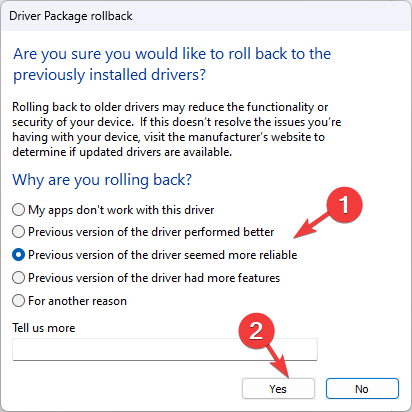
  6. On the Driver Package rollback page, select the reason for the rollback and click Yes.Select the reason click Yes
  7. Restart your computer to complete the process.

If the roll back driver option is greyed out, you can download a previous version from NVIDIA’s site:

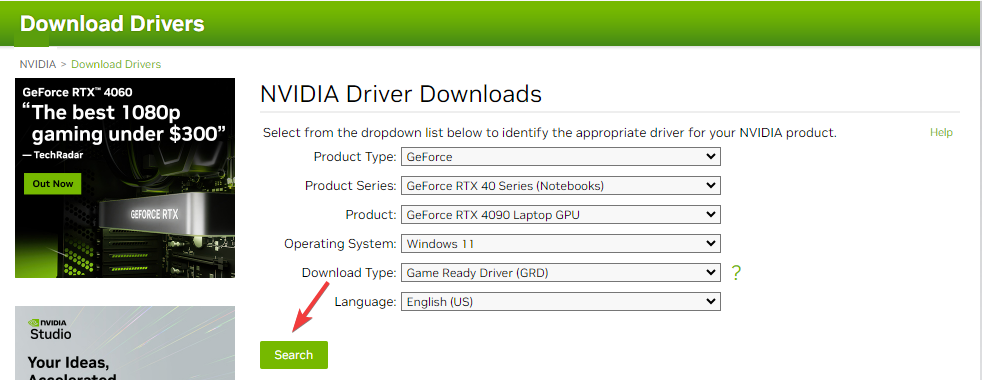
  1. Go to the NVIDIA official website and download the desired version of the NVIDIA driver at the desired location.NVIDIA driver download  Rollback NVIDIA Drivers in Windows 10/11
  2. Press Windows + R to open the Run dialog box.Device Manager Run command Rollback NVIDIA Drivers in Windows 10/11
  3. Type devmgmt.msc and click OK to open the Device Manager.
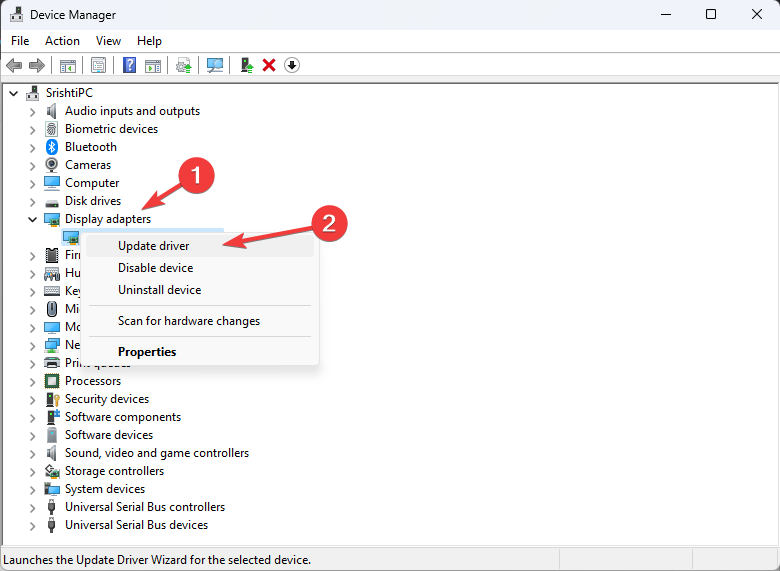
  4. Locate and click Display adapters to expand it.
  5. Right-click the NVIDIA driver and choose Update driver.Graphics Driver update
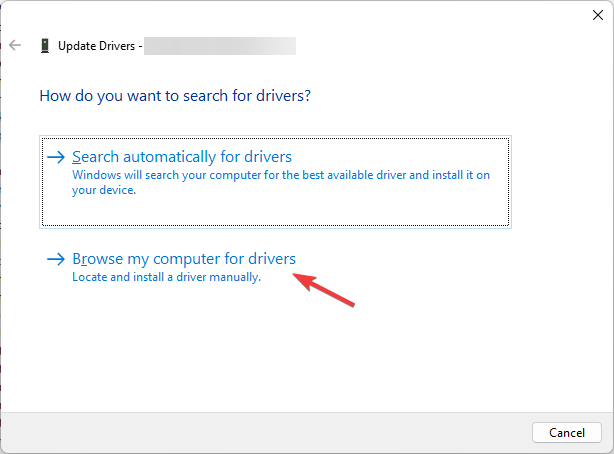
  6. Click Browse my computer for drivers.Browse my computer for drivers
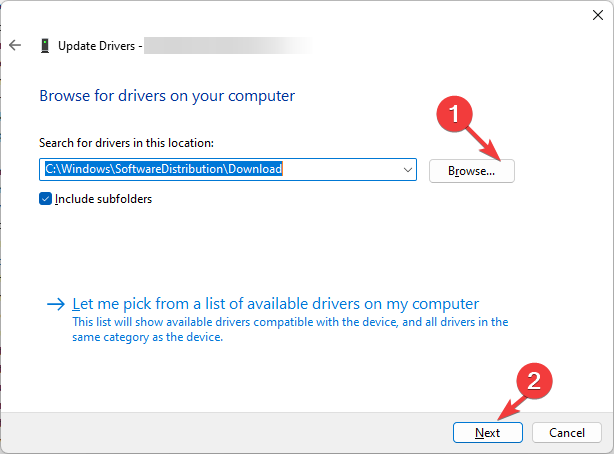
  7. On the Update drivers window, click Browse, navigate to the folder where you saved the downloaded file, and click Next.Browse and click Next
  8. Follow the onscreen instructions to complete the process.

Driver errors are in plenty and since Helldivers 2 is fairly new, there may be a driver compatibility issue. Further, older drivers tend to be more stable so try it and see if this resolves the issue.

If you prefer a quicker alternative, you can use dedicated software to automate the driver updating process by scanning and updating your drivers in a matter of minutes, plus it can be used for long-term maintenance so you can make sure your drivers never go out of date again.

⇒ Get Fortect Driver Updater

5. Rename the User Config file

  1. Hit the Windows + E keys to open File Explorer.
  2. Paste the following in the address bar: Users/User/AppData/Roaming/ArrowHead/Helldivers2
  3. Locate the User_Settings.config file and rename it to test.
  4. Try launching Helldivers 2 and see if the black screen on the launch error persists.

The user config file stores your game’s display settings alongside other configurations. If it becomes corrupted or conflicts with other display settings, you may experience a black screen when launching certain programs.

Renaming it will reset any custom settings and reconfigure it to default settings, which may resolve this issue.

Helldivers 2 black screen on launch is not so bad compared to error code 10002038, which locks you out of the game. They’re both server-related issues, but at least with the former, one of the above solutions can be a quick fix.

A little waiting may also bear fruits, and you can play the game. For a new game, Helldivers 2 is surely going through many obstacles. But the crossplay support in Helldivers 2 will surely be a treat to users!

The servers may be overwhelmed and can’t handle the unusual traffic, but hopefully, this won’t last long. You can contact support for further assistance, too. Alternatively, you can opt to play during off-peak hours.

It may not be ideal, but at least you’ll enjoy the game uninterrupted. If you have tried any other tricks you think may benefit from bypassing this black screen, do let us know in the comment section below.

Microsoft 365 Online is free: Here’s how you can use it

With almost everything coming with a subscription fee these days, it always feels good when frequently used programs have a free version. For those of you who don’t know, our go-to editor suite, Microsoft 365 (previously Microsoft Office), is also available for free!

Microsoft 365 Online is the web version of our favourite editor apps, Word, PowerPoint, Excel, and OneNote, allowing easy access to everyone who needs just the basic features or doesn’t yet want to purchase a paid subscription.

The web version of Microsoft 365 is very similar to the desktop version, so you don’t spend any time adjusting to it. Let’s get straight to using Microsoft 365 Online!

How do I use Microsoft 365 online?

1. Sign-in and interface

  1. Go to the Microsoft 365 sign-in page. If you already have a Microsoft account, select Sign in and enter your login credentials. Otherwise, click on Sign up for the free version of Microsoft 365 and create a new account.microsoft 365
  2. Once signed in, at the top, you will find the OneDrive storage status and the various available Microsoft 365 apps (also listed in the navigation pane). Click on any of the latter to open the app in a new tab and start working.Microsoft 365 apps
  3. At the bottom, you have recently opened documents, presentations, and spreadsheets.recently opened

2. Working with Word, PowerPoint, and Excel

Once you open a Microsoft 365 app, be it Word, PowerPoint, or Excel, the interface is similar to the desktop version, though not exactly the same.

You have every menu at the top, the toolbar under it, the different modes (Editing, Reviewing, and Viewing) at the top right, and the Share option beside it.

Word in Microsoft 365 Online

At the top left, you will find the sync status, which will state that the file is stored on OneDrive. Every file that you work on in Microsoft 365 Online gets automatically stored in OneDrive, along with all the changes. That’s why the Save button is missing!

If you want to make advanced changes to a file that are not available in Microsoft 365 Online, directly open it in the desktop app. To do that, click the Editing button (or another, depending on the mode) near the top right > choose Open in Desktop app.

Opening an online Microsoft 365 file in the desktop app

Microsoft 365 Online also allows you to change the zoom level, add the ruler in Word and PowerPoint, and insert additional spreadsheets in Excel, including more basic functionality available in the desktop apps.

To download an offline copy of the file, click the File menu > select Save as > choose Download a Copy.

Downloading a copy of the file

The additional downloadable file formats depend on the app you are working with. For instance, with Word, you will get the option to download as PDF and ODT. For Excel, it’s limited to ODS. For PowerPoint, the options are PDF, ODP, and JPEG images.

What are the pros and cons of Microsoft 365 Online?

ProsCons
It’s free! A paid version, on the other hand, costs $69.99 for a single user.You can’t use Macros in Excel and Excel.
Best for users who only need the basic functionality of Microsoft 365.You can’t add watermarks or themes.
No download is required. Helps save storage space on the PC.It needs access to the Internet throughout, unlike the desktop apps that support offline work.
Due to its online nature, consumes fewer resources.A limited number of drawing tools in Excel.
Accessible across operating systems, be it Windows, Mac, Android, or iOS.Unable to import audio or charts

If you are confused between a paid subscription and Microsoft 365 Online, we recommend trying the latter for a while and see if it fulfils your requirements. In case not, there’s always the option to subscribe to a paid plan!

Still unsure? Several Microsoft 365 alternatives might be a better pick for you. So, check them out!

What do you think of Microsoft 365 Online? Let us know in the comments section!

Akira Ransomware is targeting Cisco AnyConnect to steal your credentials

Cybercriminals are using Akira ransomware to target the vulnerabilities of Cisco AnyConnect. Furthermore, with it, they are getting access to your network. Also, with Akira ransomware, they can gather your data and install malware or execute other potentially malicious activities.

What is Akira ransomware?

Akira ransomware is a new threat that leaks stolen data encrypts files on your system. In addition, threat actors can use it to steal your username and passwords. Also, this type of malware tries to prevent you from recovering files by deleting their copies from your system. On top of that, it spreads fast across your network.

Moreover, cybercriminals could request ransom to remove the Akira ransomware from your system. However, nobody guarantees that they won’t come back. After all, they might be targeting your sensitive data to sell it to another company.

The research by Truesec shows that one of the main entry points for Akira ransomware is, in fact, the Cisco Anyconnect SSL VPN. The malware exploits it by using the CVE-2020-3259 vulnerability. Unfortunately, if you used the VPN in the past, even if you updated it constantly, there might already be some security problems regarding your data.

If you think that your data might be at risk, the best thing to do is to change your passwords. In addition, you could get an anti malware application featuring a ransomware detector to get rid of Akira. Furthermore, you could start moving to another email using a new device. However, that’s a bit of a last resort method.

In a nutshell, if you’ve been using Cisco Anyconnect VPN, use anti-malware on your device to protect your data. Afterward, change your password. Also, know that the Akira ransomware doesn’t affect just the Cisco VPN. It could target multiple VPN applications. Thus, you might want to always use a different password for your accounts and a different account for your VPN services.

What do you think? Are you going to change your VPN? Let us know in the comments.

Why there are so few touchscreen games on Windows? No incentive, apparently

Ten years ago, I’ve had a lot of fun with an iPad 2, with hundreds of games from the App Store. Now, I’m fiddling with a Microsoft Surface tablet and the old kid in me wants to play, but there’s literally nothing in the store to enjoy.

Yes, I know that the Surface tablets were mainly created for business and productivity, but what do I do in the few breaks I take? There are just a few touchscreen games to enjoy, and the most notable of them is Civilization. The others are just simple arcade or match games. Why aren’t there more?

Why are there so few touchscreen games for Windows?

Apparently, it all comes down to sheer numbers. First of all, Windows is installed on less than 3% of touchscreen devices. Developers wouldn’t move a muscle on that kind of market, and the result is obvious.

Furthermore, Windows gamers are much more competitive; they want something other than the touchscreen interaction. They want precision mice for that perfect shot, a high-quality display with 60 FPS and over 120 Hz refresh and mechanical keyboards with programmable keys, not unreliable capacitive contact.

Gamers have been incentivized to play in professional competitions, even televised and watched by millions. And the prizes offered in these competitions have also become huge. Touchscreen gaming is the definition of casual gaming, defined by short bursts of fun, and there’s no competition around them, except those with friends, of course.

Lastly, you can still enjoy tablet games on Microsoft Surface thanks to the Windows Subsystem for Android. And that’s what I did. I installed the app available in the Microsoft Store and played my favorite Android titles happily on my touchscreen.

So, to sum it all up, gamers don’t want tablet games, so the developers don’t create them. There is no trend for them, therefore, no one cares.

Handheld gaming consoles? That’s a different story because they combine a great screen with powerful processing and reliable gamepad controls. Microsoft is preparing a new handheld gaming console and we can’t wait to see what is like.

In the meantime, Surface tablets are for productivity. Get the gaming fun to the tablet from Android!

Would you like more touchscreen games for Windows? What games would those be? Tell us all about that in the comments section below.

Working with video? Here’s why the new Sora AI should scare you

The inevitable has happened! Open AI has unveiled Sora AI, a new model that creates video from text, and the results are stunning.

Don’t panic just yet because the new LLM is only making one minute clips, but the developer is testing it right now.

Specifically, we train text-conditional diffusion models jointly on videos and images of variable durations, resolutions and aspect ratios. We leverage a transformer architecture that operates on spacetime patches of video and image latent codes. Our largest model, Sora, is capable of generating a minute of high fidelity video. Our results suggest that scaling video generation models is a promising path towards building general purpose simulators of the physical world.

Open AI

How does Sora AI work?

The technical report from Open AI is a specialized read, but basically, Sora AI is turning visual data of all types into a unified representation that enables large-scale training of generative models.

If you see the video above, you definitely can’t tell that it’s AI-generated. All the textures, skin, and face look natural, even though the clip is flooded with detail and objects.

Open AI uses video patches instead of text tokens to train their LLM:

At a high level, we turn videos into patches by first compressing videos into a lower-dimensional latent space, and subsequently decomposing the representation into spacetime patches.

Open AI

Training an LLM with video requires large amounts of data to process. They are trying to reduce the dimensionality of the visual data while the network gets the raw video input and outputs a compressed video both temporally and spatially.

From the results, we understand that Sora AI is more than capable of delivering high-quality video. As we mentioned in the beginning, although now it’s limited to one-minute clips, in time, it will clearly be able to create commercials and, why not? whole episodes of your favorite show.

How will Sora AI change the industry?

It’s easy to see why Sora AI is met with excitement and anticipation, but many professionals working in the video industry are frowning right now, and for good reason.

As a marketing specialist, why would you spend a considerable budget to film a commercial in an exotic spot when you can create it on the computer in a couple of hours?

The advertising industry is a monster worth billions of dollars annually. Still, it feeds everyone in the video industry, including the copywriters, the filming crew, the director, the set, and many, many more specialized crews that we don’t even know are involved in the process.

The commercial/ads industry will probably change in time, but in the near future, the first who will be affected will be the royalty free video content providers.

Who will want to buy a short clip when they could create it in a few minutes with Sora AI?

Relax, the future is not that grim

Now, everyone said that AI will replace the journalists and content writers, but that turned out to be a mess. Microsoft is creating its ow news reel, but they will use AI to train the journalists and provide them with more information, not write the news directly.

Right now, search engines are trying to identify and exclude AI-generated content because many times it turned out to be inaccurate and hallucinating. You still need human journalists to discern right from wrong, to make the correct connections and write a piece like this one.

It’s the same thing with images. Meta is exposing the AI-generated images, And the search engines will probably follow suit and flag the fake photos.

That’s probably going to happen with the videos as well. But right now, text-to-video and Sora AI are in their infancy and facing some real conceptual problems.

For instance, if a generated character bites from a cookie, there is a chance that the cookie remains intact. That’s not because Sora AI doesn’t know what a bitten cookie should look like but because it doesn’t correctly understand the matter subtraction.

Sora AI has a long way to go until it delivers the right results, and Open AI hasn’t released it to everyone yet. It’s in a limited tested preview for specialists from the industry and the developer didn’t announce any date for its public release.

What do you think about Sora AI and text to video? Let’s discuss it in the comments section below.

Edge is getting better, to allow multiple search engines from the search box

Microsoft’s approach with the native browser, Edge, has been criticized over the years. Be it the push as the default browser or Edge stealing tabs from Chrome, it often made news for the wrong reasons. But this time around, it seems like Edge is become more user-oriented!

Microsoft is reportedly testing a new feature in Edge Canary (the preview version of the browser), which will allow you to manage search engines and use different ones in the same window.

Called Show additional search box in the toolbar, the feature lets you configure the preferred search engine and set different ones for the search box.

First reported by Leopeva64 in a post on X (formerly Twitter), the feature is still in the early stages and will soon be released for all. Though there’s no specified timeline.

Since the Manage search engines page is not working in Edge, as reported by Leopeva64, it’s likely that Microsoft is implementing some major changes to simplify searches.

The feature is expected to be Microsoft’s response to the Digital Market Act (DMA) in the EU, which facilitates healthy market competition. Chrome, too, recently made a similar change and allowed you to switch between search engines easily.

Whether this will affect Microsoft Edge’s user base, only time will tell. At present, Edge lags behind Chrome by a considerable margin. According to Statcounter, while Chrome commands a 64.38% market share, Edge stands at 5.35%.

To keep up with the competition, Microsoft has upgraded Edge in Windows 11, added a wide array of new features, integrated AI into the native search engine, Bing, and added AI-powered photo editing.

If you are using Edge Canary, share your thoughts on this new search upgrade in the comments section.

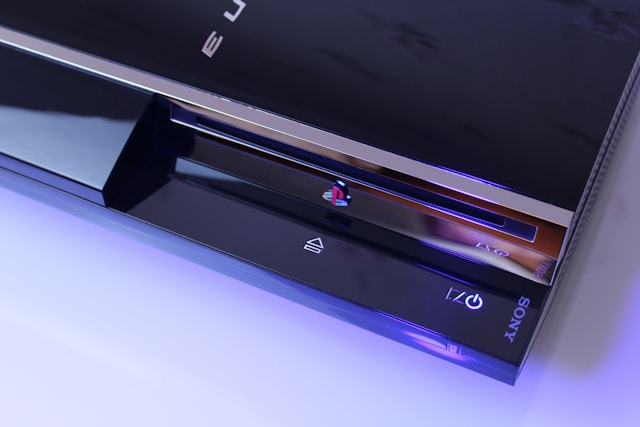
PlayStation’s Yellow Light of Death (YLoD) remains a concern. Here’s what it means

PlayStation’s Yellow Light of Death, or YLoD, has been present for years, but we still don’t know much about it, unlike issues with other similar devices. This has left many concerned about whether you can get the PlayStation to work after the problem.

Though not widespread, we have come across reports of Yellow Light of Death from over ten years ago.

We also came across more recent reports. The good news is that it’s still a rare occurrence. But Sony’s unclear response doesn’t help, and you are often forced to take the console to a certified service center. Is there something you can do to fix PlayStation’s Yellow Light of Death?

What is PlayStation’s Yellow Light of Death?

Tip icon Tip
Do not open the console or replace any components unless you are absolutely sure of the process. Also, this may void the warranty.

It basically indicates a hardware problem with one of the components, and this is, more often than not, caused by overheating. A PlayStation should be kept in a well-ventilated environment for effective heat dissipation, and the fan’s side shouldn’t be covered.

Your primary approach should be to let the console cool down, and it should automatically get things up and running. If that’s indeed the reason, replace the thermal paste and check for issues with the console fan. For the latter, replacement is the best course.

Also, clean the internal components and get rid of any dust accumulation.

Besides, there’s a high possibility of issues with BGA or problems with the solder ball connections from the motherboard to the CPU/GPU.

In some models, Sony used lead-free solders, which, though environmentally friendly, do not perform well under thermal stress and are often the reason behind YLoD.

Previously, many have used a blower to heat up the motherboard so that the loose components melt back into it. This is not the right approach, but if you have already given up on the console, heating it won’t be such a bad idea!

Experts recommend that you perform a few basic checks related to overheating, and if the Yellow Light of Death persists, contact Sony support for more help.

Tips to prevent YLoD from appearing

  • Place the PlayStation in a ventilated space and make sure it’s not covered from any side.
  • Keep the console away from dust.
  • Turn off the console when not in use.
  • If the fan makes too much noise even when not playing games, get the console inspected.

Even though your options are limited when faced with PlayStation’s Yellow Light of Death, taking good care of the console will prevent the situation from arising in the first place.

If the console is beyond repair, you can always use an effective PS3 emulator to play the same games on a PC.

Did you manage to fix PS3’s YLoD? Tell us in the comments section.

Firefox tests Native Website Translations on Android

After desktop, Mozilla is working on bringing the ability for Firefox to translate webpages on Android. The Firefox translations feature, which is currently working in the Nightly version of Android, has been spotted by us.

For Windows, Mac and Linux, Mozilla Firefox introduced native in-browser translations with version 118 released in December 2023. This means you can translate web pages directly within the browser in real-time, without needing external extensions.

Translations happen locally on your device, ensuring privacy and security. Currently supported languages include Spanish, English, German, Bulgarian, Portuguese, Italian, French, Polish, and Dutch, with more languages coming to Firefox in future versions.

Unfortunately, native translations are not yet available on the Android version of Firefox. However, Mozilla is actively functioning on adding this feature to the browser on Android platforms. Here’s our first look at it.

Firefox’s native Translation feature is coming to Android

Unlike Google Translate or the translation feature in Microsoft Edge, Firefox language packs are downloaded onto the user’s device, and translations are done locally. This means Mozilla doesn’t know or record what webpages you translate.

When you come across a page that’s not in your spoken language, similar to the desktop version, Firefox will show a translate icon in the address bar on Android. Just tap it, choose a language from and a language to translate the website into, and tap Translate. Firefox will handle the rest.

Firefox Android translate options and Settings

Firefox offers translation options that include toggles for:

  • Always offer translate option
  • Always or never translate a particular language
  • Never translate that specific site

The translation settings include:

  • Offer to translate when possible
  • Always download languages in data-saving mode

Translation Preferences:

  • Automatic translation: Select a language to manage ‘always translate’ and ‘never translate’ preferences.
  • Never translate these sites: [List of specific sites to exclude from translation]

Private translation in Firefox for Android is currently in Beta. For your privacy, translations never leave your device, according to Mozilla’s claims through the translate banner. The banner also promises support for new languages and improvements soon.

What’s your take on Firefox’s built-in webpage translation feature on Android? Let us know your thoughts in the comments below.

Mute and unmute yourself easily on Microsoft Teams with AirPods on Mac

Soon, you will be able to mute/unmute yourself from your AirPods on Microsoft Teams for Mac. This feature isn’t new. After all, it was available on iPhone XS and XR and older models since iOS 17. Thus, if you are an iPhone user, you might know how it works already.

How to mute/unmute yourself on Microsoft Teams with AirPods?

To mute or unmute yourself by using AirPods on Microsoft Teams for Mac after the update, you will need to tap the control on the stem. So, once Microsoft implements the feature, you will no longer need to mute and unmute manually.

This feature is useful, especially if you have someone causing background nosie or if you switch places during a meeting. In addition, according to the Microsoft 365 Roadmap, this option is coming to us this March. Another important thing you should know is that the feature works only on Mac models running macOS Sonoma.

Furthermore, Microsoft and Apple are starting to work together to bring users even more quality of life updates and better apps. For example, Apple split iTunes into three other applications to make it work better. However, you will still need iTunes to allow the new apps access its library.

All things considered, we are eager to see more features and applications from Apple and Microsoft. In addition, we can’t wait for the mute/unmute feature for Microsoft Teams to be available on Mac while using AirPods. After all, it will be a great help, especially when someone starts making a lot of noise in the background.

Additionally, you might want to learn how to move your content from iTunes for Windows to the other applications. However, keep in mind that the applications are still a work in progress.

What are your thoughts? Do you consider this feature useful? Let us know in the comments.

Outlook will soon tell on you if you’re working and where you are

A new feature coming to Microsoft Outlook will allow you to set your work hours and location. Thus, if you are a remote or hybrid worker, you will most likely enjoy it.

In addition, the feature might help Copilot set up your meetings better than before. Also, this work hours and location feature will be available on Windows and Mac.

When will the work hours and location feature be available on Outlook?

The new feature will arrive next month on preview builds. Yet, Microsoft could delay it if there are any issues. After all, Copilot might schedule your future meetings using this feature. On top of that, it is crucial to function properly, especially if you keep traveling while working. Otherwise, unwanted situations could happen. In addition, this location and working hours feature will be available only on desktops.

Fortunately, you will have to set the work hours and location manually. So, you don’t need to worry about security breaches or bring tracked.

To use this feature, you will need to:

  1. Open Outlook and to go to Settings or press on the Cog Wheel.
  2. Go to the Calendar tab and click on Work Hours and Location.
  3. Customize your calendar and click Save.

Ultimately, this feature is more of an upgrade to the Outlook calendar. Furthermore, we find it quite useful, and we think that it could fix some delays and some problems if it used correctly. Although, you should be careful about your location at times. After all, if something urgent comes up, you might need to switch places, and it might confuse some team members.

Unfortunately, we don’t know if the option will become available on mobile devices. Thus, if it becomes a success, Microsoft might consider it.

What do you think? Are you going to use this feature? Let us know in the comments.

The malware dropper TicTacToe is targeting Windows users

TicTacToe is a new malware dropper that targets Windows users. Moreover, it delivers final-payloads in malicious attachments like mails. Unfortunately, TicTacToe comes with different malware to steal your data. In addition, this malware is difficult to detect because it changes the final-payloads.

What does a dropper malware do?

A dropper malware installs malicious files into your computer. Furthermore, they could be used to steal your information and to damage your system. In addition, this type of malware can hide itself from antivirus programs. Moreover, you might find the TicTacToe malware dropper in phishing emails as an .iso file. Once executed, it will start adding DLL files into your memory.

Unfortunately, the malware seems to be in development because it has multiple strings. Also, researchers think that groups of threat actors use the malware. So, they alter it according to their needs. On top of that, they believe that cybercriminals trade the tool actively as a service. In addition, cybercriminals are using the TicTacToe malware dropper to deliver the following final-payloads Leonem, AgentTesla, SnakeLogger, RemLoader, Sabsik, LokiBot, Taskun, Androm, Upatre and Remcos.

The name TicTacToe comes from Kolko_i_krzyzyk, a common Polish language string encountered by researchers during earlier stages.

To protect yourself and your organization from the TicTacToe malware dropper, you will need to run hash based detections. Thus, you will need a behavior-based endpoint security application, especially since the malware keeps changing. In addition, you could consider getting the FortiEDR. After all, the tool comes from the researchers who managed to identify earlier versions of the TicTacToe dropper.

Ultimately, we recommend you don’t download any suspicious files from unknown users. In addition, keep in mind that the TicTacToe malware dropper is commonly hiding in emails. So, make sure to check the source or to verify on the internet if the file could possibly have malware.

What are your thoughts? Are you ready to deal with malware attacks? Let us know in the comments.

Skype Preview has new AR lenses powered by Snap

Skype Preview was released last week, which brings the version to  8.113.76.207, and the Skype camera got a significant upgrade. Along with the transcription of voice messages and a new reaction picker, it now has 25 new AR lenses powered by Snap, including Mad Scientist and Glossy Smile.

In an official announcement on X (formerly known as Twitter), Skype Insider announced:

In the official release notes on the Skype Insiders says:

Skype’s camera just got a major upgrade with a treasure trove of over 25 new AR lenses powered by Snap! Now, your chats can be as expressive and animated as you are.

  • ? Snap & Transform: Access the new array of lenses with a tap on the smiley icon, and pick your new virtual look.
  • ? Switch & Snap: Easily flip the camera to center stage and find your best angle.
  • ? Lenses Galore: From ‘Glossy Smile’ to ‘Mad Scientist’, choose from a variety of creative lenses that best match your mood or message.
  • ? Record with Flair: Hold down the record button to capture your personalized video message.
  • ? Share the Fun: Send your lens-enhanced videos to friends and family for an extra burst of joy in your conversations.
  • ? Avatar Makeover: Tap the smiley to sprinkle some Snap magic when updating your Skype avatar too!

Dive into Skype’s playful side with Snap lenses on mobile platforms and add a dash of flair to every call and message! ??

These AR lenses are available on Skype 8.113.76.207 for Android and iOS platforms. If you are an Android user, you can download the app from the Skype official website. However, iOS users can only access the Skype beta version if they have an invitation from Microsoft.

Have you tried the new AR lenses? If yes, then share your experience in the comments section below.

Exciting News: Skype Preview comes with voice message transcription

Microsoft has rolled out an update for Skype Preview, bringing it to version 8.113.76.207. You can download it on all compatible platforms.

With this, it now has the feature to transcribe voice messages into text. Moreover, the release includes a reaction picker with more emojis and improved sorting for a better user experience.

Voice transcription is a valuable feature when you are not able to listen to voice messages or don’t prefer to. You can tap on the Pencil button; then Skype will process and transform the message into readable text, adding convenience and flexibility. Furthermore, this feature can serve as assistive technology for people with disability.

On SkypeInsider Release Note, Microsoft introduced Skype’s Audio transcription feature and stated:

Enhance your audio messaging with Skype’s latest feature – Audio Transcription! Building on our recent UI improvements, we’re excited to unveil an addition that transforms how you interact with voice messages.

  • ?Transcribe on Tap: Discover the power of clarity with a single click. Activate the audio transcription by tapping the “A with a pencil” icon and watch your voice messages convert into text in real time.
  • ? Seamless Integration: Our transcription feature is seamlessly integrated into the refreshed audio messages UI, ensuring a harmonious and intuitive user experience.
  • ? Visual and Textual Harmony: Experience the best of both worlds as the waveform and text transcription coexist. Engage with audio messages either by listening or reading, or both!
  • ? Instant Understanding: Don’t miss a beat with immediate transcriptions that help you grasp the essence of messages faster, perfect for quick reviews or when you’re in a noisy environment.
  • ? Enhanced Accessibility: Skype’s commitment to inclusivity shines brighter with audio transcriptions, making audio messages accessible to everyone, including those with hearing impairments.

Dive into a comprehensive audio chat experience across all platforms, where every voice message is not just heard but also seen and understood. Welcome to the next level of communication on Skype!

Another significant change can be noticed in the reaction picker. Microsoft explained all the changes made:

Dive into Skype’s Enhanced Reactions Navigation! ??

Introducing a more intuitive and efficient way to express your feelings in Skype chats on mobile with our latest update to the message reactions screen!

  • ? Top Menu Selector: Elevate your chatting experience with our innovative menu selector, now positioned at the top for effortless navigation. Simply long press a message, tap the ‘+’, and glide through the new menu to explore a broader spectrum of emotions.
  • ? Easy Navigation: Say goodbye to endless scrolling! Our top menu selector allows you to swiftly jump between categories like Love, Celebrations, and Agreement, making it a breeze to find your desired reaction.
  • ? User-Friendly Design: Enjoy a seamless interaction with our refined interface. The top menu selector enhances usability, ensuring your favorite reactions are always at your fingertips.
  • ? Expanded Emoticon Library: Discover even more ways to express yourself with additional emoticons and GIFs neatly categorized for quick access.

Prepare for an upgraded, smoother, and more joyful reacting experience in your Skype chats! ??✨

The update also introduced 25 new AR lenses powered by Snap and a bug fix related to multiple missed call messages showing up in chats.

If you want to access these new features, you need to join Skype Insiders and visit the Skype Insider Program website to get it today. In case you want to learn some interesting facts about Skype, read this guide.

Have you tried this feature yet? If yes, feel free to share your experience in the comments section below.

Microsoft’s Help me create will refine content creation

Microsoft is extensively working on integrating AI into its products, and now, the tech giant is introducing Help me create to Microsoft 365 web, the online version of Word, PowerPoint, Excel, and OneNote.

According to information available on Microsoft 365 Roadmap, Help me create is powered by Copilot and is developed keeping in mind, security, privacy and compliance.

Surprisingly, it has been available since October’23 in preview and will be finally rolled out for everyone in February’24 for Microsoft 365 Web.

At present, Microsoft hasn’t shared much information about the feature set of Help me create or its primary functions. But based on the description, it will, more or less, have to do with creating content, summarizing documents, assessing the tone, or making quick modifications.

Microsoft has already worked on bringing Copilot to Word and integrating Copilot into PowerPoint, so it only makes sense that your everyday AI companion is available on the web version of these apps in one form or another.

Whether the web version will have a similar dedicated Help me create panel, as is the case with Copilot, will only be evident once the feature is rolled out in the coming days.

No matter what, we are excited, and so should you! Because, Microsoft 365 Online, the free version, is getting a Copilot-like AI integration.

What do you think Help me create? Let us know in the comments section.

Never miss another story on WhatsApp with this beta feature

WhatsApp is one of the most popular messaging services, and it seems that Meta will enhance this service with some new features.

WhatsApp is getting some improvements regarding its stories and status updates, so let’s dive into it and what we can expect from this feature.

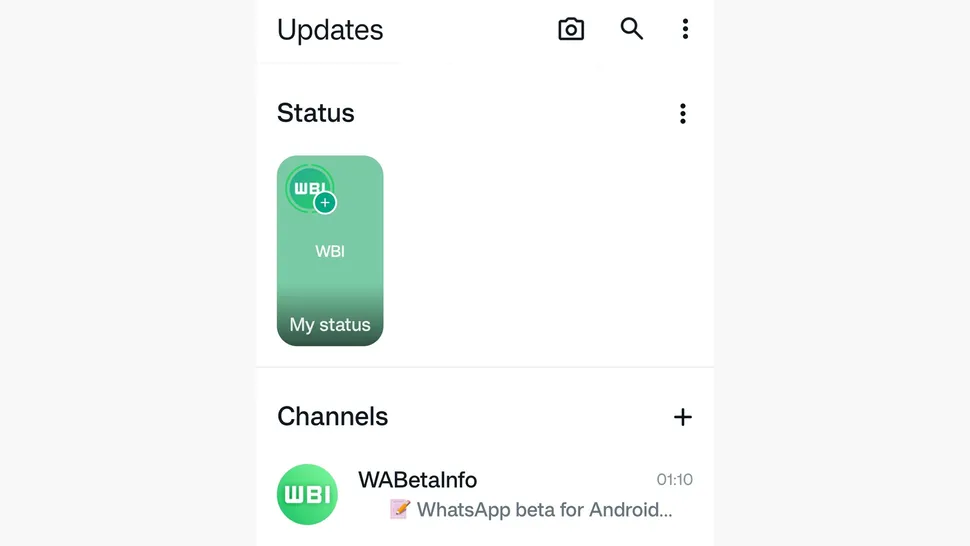
Updates tab gets redesigned on WhatsApp beta for Android

According to TechRadar, the new beta version of WhatsApp for Android has a new design for the Updates tab.

The new design allows users to view any stories that they haven’t seen already, meaning that you’ll never miss another story again.

You’ll also be able to navigate through all the stories without opening them, which is a welcome quality of life improvement.

We also have to mention that the new design will offer larger thumbnails thus allowing users to focus more on the content.

Although this feature may sound interesting to some, we have no information regarding its release date.

If you’re an Android user, don’t miss our Android 15 preview for more information.

Are you excited about this feature? Let us know in the comments below!

Why did Microsoft stop making their super useful Chatpad for Xbox? (+ alternatives)

Remember Chatpad for Xbox? That little keyboard addition to your Xbox controller that would let you chat with your Xbox friends more easily?

It seems Xbox users fondly remember the tool, and many of them are asking if it’s ever going to come back. On Reddit, there are dozens of comments on the utility and versatility of the Chatpad, with many noting that it was so useful.

Can anyone tell me why Microsoft stopped making thier OEM chat pad for their controllers?!?! This is very up setting because when I sold my Xbox one many years ago I sold my chat pad with it thinking I wouldn’t buy an xbox again. Now I have a series x and was looking to get a chatpad to go with it and they haven’t made any new ones since the xbox one days causing the old ones to inflate to well over 100$ CAD! A very unreasonable price.

The third party chat pads aren’t good and I don’t want to have to plug a keyboard into my xbox.

Am I missing something here? Why don’t they make these anymore? And am I missing a third party chatpad that is actually good? I doubt it.

Reddit user

Honestly it was a product ahead of its time. Now we are getting games that promote chat functions with mmos and even battle royales having chat windows. Honestly I think they would sell way better if they came out today. I’m also looking for one, but not at $100+

Reddit user

Well, officially, Xbox discontinued it a while ago, but if you have a Chatpad that doesn’t work, you might get help in fixing it by following these solutions here. However, if parts of it are broken, then it’s an end road, as Xbox says there are no replacements available:

Manufacturing of the Xbox One Chatpad has been discontinued. If your chatpad is not working, a replacement option might not be available through Xbox Support.

Xbox

There aren’t any official reasons why Microsoft discontinued this useful piece of gear, but many believe there wasn’t enough demand to justify manufacturing official Chatpads. The question even popped up on official Xbox forums, which is a good sign that these items are very well missed by Xbox users.

Long story short: there is a good chance the Xbox Chatpads were underperforming, from a sales perspective.

While the official Chatpad would not work with the new Xbox Series S and X (you can still use your phone as a keyboard for these consoles, if you want to chat faster with your friends), they work with Xbox One.

There are also several alternatives to the official Xbox Chatpad, including third-party items that you can easily find on Amazon, that work on Xbox Series S, and X consoles, and a simple search on the platform comes with dozens of affordable chatpads.

On GameStop, you can also find even more affordable chatpad plugins that resemble the original ones very much. However, these ones are only supported on Xbox One.

So, there are a lot of options you can choose from, even though the original ones are no longer being manufactured. Either way, you should remember that you can always use another kind of alternative, such as your phone.

Have you tried Copilot’s “What do you mean” bug? It’s weird but funny. But weird

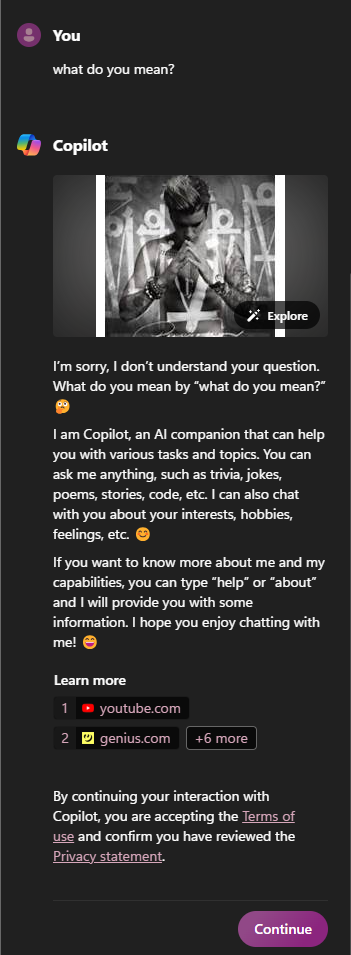
Recently, a bunch of users noticed a quirky glitch when they initiated a Bing chat with What do you mean phrase; the Copilot responded,

I apologize if my previous response was unclear. Let me clarify:

When I mentioned that Mount Everest is approximately 29,031.7 feet high, I meant that its elevation above sea level reaches that impressive height. It’s the tallest mountain on our planet! ?️

If you have any more questions or need further clarification, feel free to ask! ?

So, I also tried to ask the same question and got this response. This doesn’t only happen when you type what you mean for the first time. Every time I typed what do you mean in Bing chat, it showed the same result, blurting information about Mount Everest.

The response is hilarious and a bit weird because I never had a conversation about Mount Everest on Bing Chat, just like the other users complaining about it on Reddit.

This seems to be a bug and is only limited to the chat initiated on Microsoft Edge, as when I initiated the chat on Copilot by clicking the icon from the rightmost side of my desktop screen and asked the same question, it responded:

I’m sorry, I don’t understand your question. What do you mean by “what do you mean?” ?

I am Copilot, an AI companion that can help you with various tasks and topics. You can ask me anything, such as trivia, jokes, poems, stories, code, etc. I can also chat with you about your interests, hobbies, feelings, etc. ?

If you want to know more about me and my capabilities, you can type “help” or “about” and I will provide you with some information. I hope you enjoy chatting with me! ?

Learn more

1youtube.com
2genius.com
3dictionary.cambridge.org
4dictionary.cambridge.org
5english.stackexchange.com
6smarturl.it
7smarturl.it
8music.apple.com

Some users think that it is part of an internal prompt as a sample question and answer template for Copilot to answer.

Anyway, it seems like a head-scratcher, and nobody knows what’s going on and when this will be fixed. Have you tried this on Copilot yet? If so, then share your experience in the comments section below.

AMD and Microsoft join forces to bring Task Manager support to NPUs

Microsoft is no stranger to NPUs, and we might see an NPU on the gen Xbox consoles, but what about desktops?

It seems that AMD NPUs might get better Windows support soon. Here’s what we know so far.

After Intel, AMD NPUs are finally getting Windows integration

According to Neowin, AMD is working alongside Microsoft to bring better support for NPU hardware on Windows.

Currently, only Intel NPUs work with Windows thanks to the compatibility with Microsoft’s DirectML API. That’s about the change with the upcoming support for Microsoft Compute Driver Model infrastructure.

Using this infrastructure, NPUs will get access to various features, such as scheduling, power management, memory management, and Task Manager support.

By being able to track resource usage, users will be able to prolong battery life, while developers will be able to optimize NPU-powered applications.

Currently, only the Ryzen 8040 Series is getting this feature, but that will surely change as more and more NPU devices become available on the market.

Sadly, no information on when we can expect to see these changes, but we hope we won’t have to wait too long.

If you want to learn more about AI, Microsoft has a list of AI trends that will define the current year, so don’t miss it.

Good news for Surface Laptop 5 users, latest update to address boot and battery issues

If you are using a Surface Laptop 5 and have had problems such as intermittent boot to Windows logo or battery error messages, the latest February 2024 update will fix things!

Every few months, Microsoft releases an update that resolves current issues and introduces a set of improvements. This time around, you will find three major changes as listed on Microsoft’s official page:

  • Resolves intermittent boot to Windows logo
  • Address battery error message in the Surface App
  • Improves the stability of Surface Thunderbolt 4 Dock

The latest February’24 update can only be installed on systems running Windows 10, Version 22H2 or later. To get it, you can download the update from Microsoft’s official website.

Surface 5’s update download page

The update also installs the following two additional components, depending on the device’s configuration:

  • Surface – Firmware – 15.104.139.0 – For Surface System Aggregator – Firmware
  • Surface – Firmware – 2.26.7.0 – For Microsoft Surface Thunderbolt(TM) 4 Dock Firmware Update – Firmware

Since the latest version contains firmware updates, it’s imperative to highlight that these can’t be uninstalled or rolled back to a previous version. So, we recommend you back up the files to prevent data loss.

So far, we haven’t seen any issues with the February’24 Surface Laptop 5 update. But if you come across any, share with us in the comments section.

The now-scrapped refreshed of the Xbox Series S would’ve had power-upscaling AI capabilities

Microsoft scrapped a refreshed version of the Xbox Series S that would have had power-upscaling AI capabilities, according to RedGamingTech, a vlogger known to have insights on Xbox consoles.

Xbox wanted to release a refreshed version of the Xbox Series S with many capabilities, including improved specs, more RAM, machine learning features, and even an RDNA 3-based GPU, but the project was ultimately canceled due to several reasons.

The vlogger says the system’s APU wasn’t working, and that version’s capabilities would have made it a much stronger console than initially expected, and it would have been difficult to deal with such a product, from a marketing perspective.

The now-scrapped Xbox Series S would’ve not only had AI capabilities, but the overall improvements would have brought it very close to the existing Xbox Series X, so marketing the product would have created issues for the Redmond-based tech giant.

However, it’s worth mentioning that neither Microsoft nor Xbox confirmed these rumors, so at this point, we don’t know for sure if this version of the Xbox even existed in theory. But given the fact that Microsoft is indeed releasing a new version of the Xbox Series S, most likely, AI-powered Xbox was a conceivable notion at some point.

Xbox will release the new Xbox Series S version, Ellewood, sometime later this year, but this one won’t be much of an upgrade to the existing Series S, though. It won’t have AI capabilities, but it will come out with a bigger storage of 1TB and it will cost around $299.

However, the recent Xbox Business Update event, which took place last week, announced several important news for the future of Xbox: not only the Xbox exclusives will be released to other platforms, but Microsoft is set to unveil the next-gen Xbox soon, and it promises it will be the largest technological leap ever seen in gaming consoles, so the expectations were placed.

Now we only have to wait.

What to expect from the next Xbox console?

While we don’t know any details about the next-gen Xbox, it will most likely have several AI features. Windows 11, for example, recently got the new Auto Super Resolution, which is an AI-based feature that greatly improves the gaming experience.

Windows 11 will also sport the new 24H2 patch later this year, which is going to embrace the new NPU set to be released this summer. The next Xbox console will most likely be assembled with NPU as well.

Aside from this, there is not much speculation going on, but we’ll most likely find out more in the following months.

Activate Do Not Track to secure your browsing data

If you don’t want websites to collect or share your browsing data, Windows 11 has a Do Not Track feature available, which can be enabled on all popular browsers, including Google Chrome, Microsoft Edge, Mozilla Firefox, and Brave.

Before knowing how to enable it, let us know why browsers collect data and how the feature can help.

When you open a web browser, the websites and services you visit or use track your online activities for several purposes. The tracking involves cookies, web beacons, and fingerprinting to collect data related to your preferences and browsing habits.

However, third-party tracking is used to collect information so that they can show you targeted ads. Some also use advanced techniques like Fingerprinting (gathers information about you to create a unique identifier), behavioral tracking, and IP tracking.

When the Do Not Track privacy feature is enabled, the browser notifies every website and service that you don’t want to be tracked online by sending a Do Not Track header with each web request.

However, since the websites are not legally bound to comply with your request, some of the websites respect your preference, but some choose to ignore it. Therefore, the plan is not entirely infallible.

Another important thing to remember is that the Do Not Track or DNT feature primarily targets third-party trackers and not the websites you browse directly. This means these websites can still collect your browsing history within their domain.

I understand that, at this point, you might be wondering why bother, but while it is not a foolproof solution to protect yourselves online, it provides a certain level of protection against third-party tracking. Let’s see how you can enable it on Edge, Chrome, and Firefox.

Microsoft Edge

  1. Launch Microsoft Edge, click the More button from the rightmost corner, and select Settings.
  2. Go to Privacy, search and services, then toggle on the switch for Send Do Not Track requests to enable DNT.enable DNT Edge
  3. Click Send request to confirm.

Google Chrome

  1. Launch Google Chrome, click the three dots icon, and select Settings.
  2. Go to Privacy and security, then click Third-party cookies.
  3. Toggle on the switch for Send a Do Not Track request with your browsing traffic.Do Not Track to secure your browsing data
  4. Click Confirm.

Mozilla Firefox

  1. Launch Mozilla Firefox, click the three horizontal lines and select Settings.DNT feature
  2. Go to Privacy & Security, locate Website Privacy Preferences, and place a checkmark next to Send Websites a Do Not Track request.

However, if you wish to have more robust privacy settings on a browser, you should consider checking out the browsers known for enhanced privacy features.

Which browser do you prefer the most? Share your favorite browser name in the comments section below.

New Microsoft Surface Pro 9 firmware improves machine learning stability and more

Microsoft is busy keeping its devices updated, and speaking of which, the latest firmware for Surface Pro 9 is here.

What does this update have to offer and should you install it? Keep on reading to find out!

What’s new with the latest Microsoft Surface Pro 9 firmware?

According to Neowin, Microsoft has released a new firmware update for Surface Pro 9 with Intel CPUs. The update extends the device security certificate authority and it improves Surface Thunderbolt 4 Dock stability.

The update also improves the stability of Surface Machine Learning Service on Windows 10 and it brings new drivers for Surface Touch Pen, Intel(R) Iris(R) Xe Graphics, and various other devices.

The update requires Windows 10 version 21H2 or Windows 11 version 22H2, and it’s available from Windows Update or Microsoft Surface Support page.

Overall, it’s a decent update, and you have a compatible device, be sure to download it as soon as you can. Speaking of updates, Microsoft released the final preview of the Moment 5 update, so don’t miss it.

To keep up with the latest news from Microsoft, stay tuned for the upcoming Build 2024 event.

Amidst surge in cyber attacks, Google’s home network protection is a step in the right direction

Google Chrome has constantly been working on the security infrastructure to prevent unauthorized access and deliver maximum protection to you. Now, Google is developing a feature to keep your home network devices safe from cyber attacks.

It’s still under development, but ever since the feature was put in the public domain through Chrome Platform Status, the developers and the community are excited!

What is Google Chrome’s home network protection?

Called Private Network Access (PNA), the feature will protect devices on your home network, such as a printer or home routers, against unauthorized access from unsafe websites. We often believe these devices are safe, given they are not directly connected to the Internet.

So, basically, any connection attempts from websites directed toward home network devices will be thoroughly vetted, and only if they are secure and the device permits them, will the request go through.

This will be a warning-only mode, meaning that the browser will only apprise of the threat and not take action. It’s expected that the feature will soon evolve and start taking the necessary corrective measures, such as blocking, as opposed to its initial state.

When such a request fails, Chrome will return the newly added ERR_BLOCKED_BY_PRIVATE_NETWORK_ACCESS_CHECKS error code, along with highlighting the reason for it.

Image source: Google

The feature will be first released in Google Chrome version 123 on both PC and Android devices. No deadline has been provided for iOS so far.

For technical know-how, you can check the official document.

We will have to wait until Chrome’s Private Network Access (PNA) home network protection is released to better assess its effectiveness.

Anyway, it appears Google is extensively working on Chrome. Recently, it brought IP protection and the Gemini shortcut to the browser, and we expect more to be released in the coming days!

What are your thoughts on the latest network protection feature? Let us know in the comments section.

Is this the fastest Windows installation ever recorded? Yes, all it took was 104 seconds

The fastest Windows installation was just recorded, and it took about 104 seconds to get it done. The winner is the Windows 10 installation made with a Tiny10 version of the OS, a version that is known to be a compact Windows, only having the necessary apps, and taking less space than the regular Windows.

So, while we’re not talking about the regular Windows version, this could still be considered a Windows installation. And, as the motto welcoming users who install Windows says, it literally took just a moment.

You can watch the whole thing below, from start to finish.

The installation was done by NTDev, a Windows enthusiast who experiments with a lot of Windows-related apps and software, and they reportedly used the best hardware they had to achieve the 100-second goal. We’re also talking about Tiny10, which can be downloaded and installed by everyone.

However, don’t expect the same results if you don’t have the gear. While you won’t have to wait 20 to 30 minutes (the average Windows 10 installation takes up this long), the Tiny10 version of Windows 10 will take about 5 to 10 minutes to install, which is still a lot of time.

As you can see in the video above, the installation included a system restart, and even with that, it managed to get under 2 minutes.

What would you need to equip your system to achieve this with Tiny10? Well, a good CPU, fast RAM chips, and SSDs, as they can write up data way faster than the regular HDD. Lately, the SSDs have become the norm in the tech industry, so you don’t have to worry about that. Instead, focus on getting a good CPU, and fast RAMs.

With this being said, it would be nice if, down the road, Microsoft would strike to achieve this time with a regular Windows installation, regardless of the hardware. But we can dream, right?

Windows 11 KB5034765 won’t install but there is a workaround

On February 13, KB5034765 (OS Builds 22621.3155 and 22631.3155) was released, and many users complained that after the update, their Windows File Explorer started crashing & also made the Taskbar disappear.

Some users also reported trouble installing the security update released last week. The update repeatedly failed to install, showing error codes 0x80070002, 0x800f0922 and 0x800f0982.

According to Windows Latest, they tried to roll back, but the process was stuck, resulting in a Something didn’t go as planned error message.

Then, clearing the Windows Update cache, uninstalling third-party apps, and running the Windows Update troubleshooter also didn’t work.

However, according to one of the users on Reddit, deleting the $WinREAgent folder from the system drive can do the trick. You can do that in two ways:

  • Press Windows + R to open the Run window, type cleanmgr, and press Ctrl + Shift + Enter to run it as admin. Select the system drive, select all the items in Files to delete, and click OK. This will remove all the content of the $WinREAgent folder
  • If that doesn’t work, you can press Windows + E to open File Explorer, navigate to the system drive, and type $WinREAgent in the search bar; you will get the $WinREAgent folder. Select it and click the Delete icon to remove it.

Once the folder is removed, you can try to install the Windows 11 KB5034765 security update; you will be able to update to the latest version without issues.

Issues caused after installing the Windows 11 KB5034765

Many users also reported that File Explorer crashed when they rebooted or shut down the computer. The issue first appeared after Windows 11’s January 2024 optional update.

The error message with the title explorer.exe – Application Error appears with the description – The instruction at 0x00007FFB20563ACa referenced memory at 0x0000000000000024. The memory could not be written. Click on OK to terminate the program.

The issue seems to be persistent after running an SFC scan, running memory tests on RAM and even after a clean installation of Windows 11.

Microsoft release notes mention:

This update addresses an issue that affects explorer.exe. It might stop responding. This occurs when you restart or shut down a PC that has a controller accessory attached to it.

However, the issue remains the same for the majority of users facing the issues, and they are still reporting the issue on Reddit, Microsoft Community, and other forums.

Are you facing the same issue? Share your experience in the comments section below.

How to Fix the Helldivers Error Code 10002038

The Helldivers error code 10002038 may lock you out of the game because the server is overloaded. While you can wait and play during off-peak hours, some workarounds will enable you to bypass this error.

How can I fix the Helldivers error code 10002038?

1. Disable Steam Input

  1. Press the Windows key, type steam, and click Open.Open Steam - Windows 11 Controller is Acting Like a Mouse
  2. Go to Library, locate, and right-click the game to select Properties.Select game properties
  3. On the Properties window, click the Controller tab.
  4. Select the Disable Steam Input option from the drop-down to turn off mouse emulation.Disable steam as input

Once you disable the Steam input, you’ll lose access to your customized configurations because you’ll have to use your keyboard and mouse to control the game. Do this for a while, then switch back to your controller and see if the error code 10002038 disappears.

2. Disable the crossplay feature

  1. Launch the game.
  2. Click on the Options tab and the General tab, then scroll down and toggle off Cross-Play.

While the crossplay feature widens the player diversity pool, it may also be among the factors contributing to the server overload. Disabling it may spread the server load evenly and get rid of the error code 10002038.

3. Perform a Network reset

  1. Hit the Windows key and click on Settings.settings windows 11
  2. Navigate to Network & internet.
  3. Select Advanced network settings.going advanced network settings win11
  4. Click on Network reset.Network Reset 1
  5. Next, hit the Reset now button.Network Reset now

If none of the solutions suggested above resolve the error code 10002038 on Helldivers, then it’s probably more on the server side than anything with your device. It’s the same case with the black screen on launch.

Unfortunately, in such cases, the best case scenario would be to contact support. They could offer a timeline on when the servers will be back up or any other temporary workarounds to get you playing as they fix the issue.

While you wait for this issue to be resolved, fret not. There are many other multiplayer games you can dive into that offer the same adrenaline rush, just like Helldivers.

Have you come across another solution you think would address this error code? We’d love to hear from you. Share with us in the comment section below.

You’ll be able to play owned Xbox games on Xbox Cloud Gaming later in 2026

If you bought your Xbox games on the Xbox App, and you have a library of them already, then we have some good news for you: later in 2024, you’ll be able to play them in the Xbox Cloud Gaming, effectively allowing you to port your Xbox games on your laptops, PCs, mobile phones, TVs, and so on.

This was confirmed by Phil Spencer, head of Xbox (as seen on Windows Central), and while we don’t know exactly when in 2024, Spencer said the ability to play owned Xbox games on Xcloud should be available this year.xbox cloud gaming

This is more than great news for those Xbox players always on the road, as the Xbox Cloud Gaming lets users play Xbox games without having the Xbox around. However, they do need a strong Internet connection to do so.

The platform already has a lot of games available to users to play, including the now very popular Palworld, and with a Game Pass Ultimate subscription, Xbox enthusiasts can play the game on any supported device without actually downloading the game.

This is the trick: Xbox Cloud Gaming doesn’t really lets you download the games you play on there, as it’s all based on streaming, and playing them directly in the Cloud. You can play the multiple games from the Xbox Game Pass that are available, but as soon as becomes unavailable or are leaving Game Pass, even though you bought them, they will be unavailable to play on XCloud.

But now, according to this new change, if you buy a game for Xbox, and that game would eventually leave Game Pass, you’ll still be able to play it on XCloud.

Right now, Xbox users aren’t able to that, and this is due to licensing issues, which is an understandable point. However, as Spencer confirms the availability of this feature later in 2024, the company might currently be in the process of addressing these issues, as we speak.

KB5034763: Apps & Task Manager are not opening anymore? Here’s what you can do

When Microsoft released KB5034763 for Windows 10, we were happy because it addressed several existing issues. But, as it turns out, the update is causing more problems than it resolves!

Many now report that they can’t open the Task Manager or Settings, startup apps won’t load, the PC crashes with a blue screen, the mouse randomly jumps, the Shut Down and Restart options in the Start Menu are not working, and the screen reads Preparing Windows on boot as if it’s a new OS installation.

In the Microsoft forum, a user pointed out these issues.

Computer boots up fine and I’m able to sign in, but apps that open upon startup like Discord won’t launch and all other programs like Task Manager and Settings won’t launch either, on top of the Shut Down and Restart options on the Start Menu not working.

There are several such reports now! A few even pointed out that KB5034763 won’t install on their Windows 10 PC.

How can I fix Windows 10 KB5034763 issues?

  • Uninstall the update: Press Windows + I to open Settings > go to Update & Security > choose Windows Update from the left > select View update history > click on Uninstall updates > select KB5034763 > click Uninstall.
  • Perform a system restore: Press Windows + R to open Run > type rstrui.exe > click OK > select Choose a different restore point > click Next > pick the oldest restore point > click Next > verify the details > click Finish > wait for the process to complete.
Performing a system restore

Once the problem is resolved, after either uninstalling the update or performing a restore, you should temporarily disable Windows updates at least for a few weeks. Re-enable it only after Microsoft releases a patch!

Besides, if you are getting the 0x800f0831 Windows 10 update error with KB5034763, repair the corrupt system files, check for network issues, or reset the update components.

What problems were you facing with KB5034763? Let us know in the comments section.

Solved: NBA 2K24 Error Code 6f8ce31b [PS5 & Xbox]

With every new game update, bugs are almost always a constant just like what NBA 2K24 gamers are facing with the latest 6f8ce31b error code when playing in MyCareer mode.

From the look of things, it looks like a connection error if the displayed message is anything to go by but it could also be a buggy update.

How do I fix error code 6f8ce31b on NBA 2K24?

1. Check for updates on your console

1.1 PS5

  1. Open Settings.
  2. Go to System.
  3. In the System Software section, click on System Software Updates and Settings.
  4. Choose the type of update you want to perform.
  5. Click on the Update button, then wait until your console is updated and restarted.

1.2 Xbox

  1. Press the Xbox button to open the Guide.
  2. Now, select Profile and System and click on Settings.
  3. Click on System, and finally Updates. If an update is available, you will see the Console Update Available option.
  4. Click on it to download and install the update.

2. Clear your console’s cache

2.1 PS5

  1. Completely turn off your PS4 or PS5 (Keep in mind that the Rest Mode won’t work).
  2. Wait until the indicator light stops blinking and goes black.
  3. Do not unplug your PS4 while in the Rest Mode.
  4. Disconnet the PlayStation 4 or PlayStation 5 power cord from the back of your device.
  5. Wait one minute, then plug the cord back into the PS4/PS5 and turn it on.
  6. Now, you’ve power cycled your PS4/PS5 and you should’ve cleared the cache.

2.2 Xbox

  1. 3. Use the Xbox Settings menu
  2. Press the Xbox button on your controller.
  3. Choose Settings. Settings - clear cache xbox series x
  4. Select System, and from the right pane, choose Console Info.
  5. Select Reset Console. 
  6. Now choose Reset and Keep My Games & Apps. reset

3. Reinstall the game

3.1 PS5

  1. Highlight the NBA 2K24 game and press and hold the Options button.
  2. When the menu appears, select Delete.
  3. Select OK to confirm.
  4. Now reinstall the game and see if the error code 6f8ce31b reappears.

3.2 Xbox

  1. Press the Xbox button to open the guide, then select My games & apps.
  2. Monitor the game, press the Menu button on your controller, and select Uninstall.
  3. Scroll to Ready to install, locate the game, and reinstall it.

Since the game was released, connection and server errors seem to be the tune of the day. Always check the game’s server status to verify it’s not a downtime.

The game is still relatively new so you might need to exercise some patience as the developers try to smoothen things out.

Other potential solutions you can try are changing to a different network connection or reaching directly to customer support.

You can also continue playing the older versions such as 2K23 and 2K22 until the new one stabilizes. However, if you’ve managed to bypass this error with a solution not listed above, do let us know in the comment section below.

Bring Helldivers 2 to Xbox: the petitions amassed more than 20k signatures in less than 3 days

Helldivers 2 was recently released to Microsoft Windows PCs and PlayStation 5, and the third-person shooter has already been incredibly successful: it sold more than 1 million copies in less than 3 days, and it was positively received by players, and critics alike.

Now, it seems that a big chunk of the gaming community everywhere would like Helldivers 2 on Xbox, and several gamers took the matter into their own hands, creating petitions that have managed to amass more than 20k signatures in less than 3 days.

On Reddit, gamers are begging Sony Interactive Entertainment, which is the publisher of the game, to bring Helldivers 2 to Xbox, as well.

The petitions to port the game to Xbox come in light of the Xbox executives agreeing that Xbox-exclusive will go multi-platform. After Xbox announced Pentinent and Hi-Fi Rush would be the first exclusives to go multi-platform, the studio said other games such as Starfield, and Indiana Jones will be released on PlayStation at some point, in a decision to market Xbox games on other platforms.

Naturally, the gaming community is expecting Sony to make the same move, and release PlayStation games to Xbox, with the Helldivers 2 being one of them.

It’s worth mentioning, though, that Helldivers 2 might actually be released to Xbox sooner than expected, because the game is already available to Windows PCs.

Gamers believe that with this game coming to Xbox, the exclusivity in the video game industry could reach an end, and this will only benefit gamers, with the petition saying:

The significance of Helldivers 2 extending its reach to Xbox cannot be overstated. It symbolizes a departure from the exclusivity-driven mentality that has fueled the console wars for decades. Instead, it embraces a vision of gaming that celebrates diversity and collaboration across platforms. By making Helldivers 2 available to Xbox players, PlayStation can take a bold step towards dismantling the barriers that have long divided the gaming community.

However, it’s worth mentioning that not all gamers feel the same. When the rumors of Starfield being ported to PlayStation started going around, many Xbox lovers felt betrayed by Microsoft’s decision to do so, with many stating that owning an Xbox now feels useless, especially after buying one to play this game.

So, while non-exclusivity means more gamers will be able to enjoy video games everywhere, those who are fans of a certain console don’t agree with it. For now, Xbox is bent on making its games multi platform. We’ll see about Sony.

Do not install KB5034765, you might not be able to access the taskbar

While Windows update is intended to bring new features, improve performance, and enhance security, it often introduces instability. This time, the February’24 update, KB5034765, causes the taskbar to disappear when turning on the PC.

For some, the Taskbar took longer to load at boot. Also, there were a couple of reports of Taskbar icons going missing after installing the KB5034204 update.

So, it appears that both KB5034765 and KB5034204, released recently, are causing problems. After a user pointed it out in a comment on Reddit, many others shared that they had encountered a similar problem.

Comment
byu/AutoModerator from discussion
insysadmin

In another Reddit thread, a user reported that the Taskbar is disappearing for the last 3 days, and the conventional solutions, i.e., DISM commands, SFC scan, and OS update, fail to work.

Workarounds for the issue

  • Disconnect any controller or peripheral: If you have a gaming controller or any similar peripheral plugged in, disconnect it before turning on the PC.
  • Re-run Windows Explorer: Press Ctrl + Shift + Esc to open Task Manager > select Windows Explorer > click End task > click Run new task > type explorer.exe in the text field > click OK.
  • Uninstall the buggy update: Press Windows + I to open Settings > go to Windows Update > click Update history > choose Uninstall updates at the bottom > click Uninstall next to KB5034765 and KB5034204 > confirm the change.
uninstall
Uninstalling Windows updates

As of now, there’s no permanent fix but just workarounds to temporarily resolve the problem. To completely eliminate the bug, you will have to wait for Microsoft to release another update with a patch.

Besides, KB5034765 is causing several problems on Windows 11, including performance issues and breaking the system’s UI. However, it doesn’t affect everyone the same way. A few confirmed that the update didn’t trigger any problems on the PC!

Did the KB5034765 update affect you? Let us know in the comments section.

A files download bug comes with the latest Microsoft Edge update

Microsoft Edge has a new bug that won’t allow you to downloaded files easily. Thus, you might need to spam click to open your files. Fortunately, some Redditors discovered a way to deal with the problem. However, it is not a permanent fix. Thus, it won’t help you download files if you are in a hurry.

How to fix the Microsoft Edge files download bug?

To fix the Microsoft Edge files download bug, wait until the files are available in their download folder. Afterward, you have to open them directly from there. However, this might take a while because the files might not be available right away.

On the other hand, if you try to open the files without waiting a few seconds, you might trigger the bug. In addition, if you need to download and open multiple files, make sure you only try to open some of them.

Unfortunately, if you think of downloading an older version of Microsoft Edge, it won’t fix the file download issue. After all, the browser will update automatically.

Ultimately, we must wait for a fix for the Microsoft Edge download issue. All you can do for now is wait or to access your downloads from the folder. However, it might take a while for the issue to be solved. After all, Microsoft recently fixed the Edge problem in which the browser was stealing Chrome tabs.

If you are interested, here’s a list with the best browsers in 2024. Also, did you know that iMessage, Bing and Edge remain unaffected by Eu market regulations?

What are your thoughts? Are you going to change your browser or wait? Let us know in the comments.