What is the new Microsoft handheld gaming console going to be like?

The featured image is generated using ChatGPT and DALL-E, not the actual image of the console!

Now we know that Microsoft is preparing a new handheld console and the officials tout it as the biggest generational leap for an Xbox console ever.

However, there is a tough crows out there waiting for the next big thing on a market where Nintendo Switch is still leading and Steam Deck is breathing down its neck. And then, there are also Asus ROG Ally and Lenovo Legion Go, which are already running Windows.

The game console market will reach $7.85 billion in 2024 in the U.S., according to Statista, while the number of users is expected to amount to 21.3 million by 2029.

It’s a stiff competition, but AMD, Intel and Nvidia will jump to the opportunity to help Microsoft create something groundbreaking.

Now that the Activision Blizzard deal is starting to pay off and Game Pass reached 34 million subscribers, it’s time for the next push for the Redmond giant.

What is Microsoft going to do to succeed?

Holding the Xbox on every screen promise, the new Xbox handheld will definitely have to be able to play any Xbox and PC games. You can already play Halo Infinite on your PC, Xbox, or xCloud so we know that cross-platform is doable and everyone expects it.

Imagine starting a game on the Xbox hooked to your TV, or the PC, then grabbing your handheld, loading the save on your commute and continuing to play as if nothing happen.

And yeah, if some of the games are also available on PlayStation, you can play the same title with everyone, regardless of the device they’re using. Seamless gaming, that’s what I can understand from Xbox on every screen, and that’s probably the key to Microsoft’s future success.

Microsoft had an opportunity to jump into the handheld market when Steam Deck was launched, but Sony moved quickly and cashed in. Yeah, you can make Xbox Cloud Gaming work on Steam Deck, but it’s painstaking, and you’re definitely not experiencing the same thing as you do on your Xbox or PC.

Is hybrid cloud gaming the solution?

Now, Microsoft has to build its own rig, and it has to be powerful enough to play the best AAA games in mint conditions, but also sleek and light enough not to break our arm wrists in the process.

It will all come down to a custom chip that will be powerful enough to run a slimmed-down Windows OS, but that won’t still be enough. Asus ROG Ally and Lenovo Legion Go are running Windows and have potent chips that can match the Xbox Series S or X graphics, but they still don’t cut it in terms of playability.

If Microsoft’s handheld console manages to play the games from the cloud, the device will be slimmer, lighter, and a lot more competitive on a stage where handhelds are still bulky and hard to handle.

This is the right time for Microsoft to develop a new concept and hardware to blow the market in all aspects. Nintendo pushed its Switch 2 launch to 2025, so if Microsoft manages to bring the new handheld console on the market in time for the holiday season, we will see a lot of happy gamers.

In the meantime, you can look at a Legion Go, Asus ROG Ally and Steam Deck comparison to refresh your knowledge about the handheld game consoles.

What are your thoughts about the future Microsoft handheld console? Let’s discuss in the comments below.

Microsoft says threat actors won’t be able to use official AI tools to create deep fakes anymore

Microsoft and 20 other leading tech companies, including Adobe, Amazon, Google, IBM, Meta, OpenAI, TikTok, and X, have pledged to make it harder for threat actors to use legitimate AI tools to create deep fakes.

The pledge was announced a few days ago as an intention to combat the rising popularity of deep fakes in elections. 2024 is set to be the biggest election year in history so far, with 64 countries all over the world electing leaders, and given the current political situation at the global scale, combating false information is essential, according to these companies.

As society embraces the benefits of AI, we have a responsibility to help ensure these tools don’t become weaponized in elections. AI didn’t create election deception, but we must ensure it doesn’t help deception flourish.

Brad Smith, Microsoft

The pledge, which is set to take effect immediately, can be found here, and it comes days after Microsoft and OpenAI released a report chronicling the rising popularity of AI-generated malware by global threat actors, including but not limited to Russian, Iranian, North Korean, and Chinese actors that used AI to infiltrate and compromise information.

While Microsoft is planning the use Copilot for Security to effectively detect and deal with any AI-generated malware, the pledge will also follow three important keypoints:

  1. It plans to make it more difficult for bad actors to use legitimate tools to create deep fakes.
  2. The tech sector will work together to detect and respond to deep fakes in elections globally.
  3. The accord will help advance transparency and build societal resilience to deep fakes in elections.

These steps will be managed through the release of several new platforms, including Content Credentials as a Service, that aim to aid politicians around the world with official means, the  Microsoft-2024 Elections, where politicians are highly encouraged to report any kind of deep fakes about themselves, and the Global Internet Forum to Counter Terrorism, a forum where governments and tech officials will work together to make sure elections are carried out in a just and democratic way.

Microsoft says it’s essential for companies to work together with governments so that countries and people don’t fall victim to fake news, and false information.

Among other areas, this will be essential to address the use of AI deepfakes by well-resourced nation-states. As we’ve seen across the cybersecurity and cyber-influence landscapes, a small number of sophisticated governments are putting substantial resources and expertise into new types of attacks on individuals, organizations, and even countries. Arguably, on some days, cyberspace is the space where the rule of law is most under threat. And we’ll need more collective inter-governmental leadership to address this.

Microsoft

What do you think of this? Will Microsoft be successful in combating AI deep fakes?

Genshin Error Code 4201: How to Fix it on Mobile and PC

The Genshin Impact Error code 4201, Failed to connect to the server, highlights a network or Internet connectivity problem or indicates a maintenance schedule is underway. The error is seen on mobile, PC, and PlayStation, and the solutions remain similar for all.

To start with, check Downdetector to verify if others, too, are facing the same problem. Because in this case, it could be a server issue to blame, and you will have to wait for a few hours. Do not forget to check Genshin Impact’s official X (formerly Twitter) page for any scheduled downtimes for server maintenance.

Also, you can restart the router or enable and disable the Flight Mode on the affected device. Besides, if facing the problem on a PC or PlayStation 4, use a mobile hotspot to play Genshin Impact.

How do I fix error code 4201 on Genshin?

Note icon NOTE
The solutions here work on both a Windows PC and a mobile unless clearly specified. Though we have listed the steps for the former, the equivalent procedure will just as well work for the latter.

1. Use a VPN

Your primary approach should be to use an effective VPN. For example, you can use ExpressVPN, as it re-routes your connection through a server in another region, thus bypassing any local issues or geo-blocking. Just make sure not to choose a region far away because it will affect the Internet speed and increase the in-game lag.

We recently came across an increasing number of reports of Genshin Impact Error code 4201 in Latvia due to an ISP issue, and using this VPN did the trick for all.

⇒ Get ExpressVPN

2. Update the OS

  1. Press Windows + I to open Settings, go to Windows Update from the navigation pane, and click Check for updates on the right. check for updates to fix genshin error code 4201
  2. If an update is available, click on Download & install.
  3. Finally, restart the PC for the changes to apply.

3. Set the correct date and time

  1. Press Windows + I to open Settings, navigate to Time & language, and click on Date & time.time & language
  2. Enable the toggle for both Set time zone automatically and Set time automatically, and then check whether the Genshin Error code 4201 is resolved.set automatically
  3. If not, disable the two toggles and manually select your time zone from the dropdown menu.time zone to fix genshin error code 4201
  4. Next, click on the Change button next to Set the date & time manually.
  5. Finally, set the correct date and time and click Change to confirm.change

4. Change the DNS address

  1. Press Windows + R to open Run, type ncpa.cpl in the text field, and hit Enter.ncpa.cpl
  2. Right-click on the active network adapter, and select Properties.properties
  3. Choose Internet Protocol Version 4 (TCP/IPv4) from the list, and click Properties.IPv4
  4. Select the Use the following DNS server addresses entry, and enter the following information:
    • Preferred DNS server: 8.8.8.8
    • Alternate DNS server: 8.8.4.4change DNS to fix genshin error code 4201
  5. Once done, click OK to save the changes.

Changing the DNS server also helps with Genshin Impact’s Failed to check for updates error. Remember, while we went with Google’s Public DNS, you can always use the fastest DNS server in your region.

5. Allow Genshin Impact through the firewall (for PC)

  1. Press Windows + S to open Search, type Allow an app through Windows Firewall in the text field, and click the relevant result.
  2. Click the Change settings button.change settings
  3. Click on Allow another app at the bottom.
  4. Now, click the Browse button.browse
  5. Navigate to the folder where Genshin Impact’s launcher (GenshinImpact.exe) is stored, select it, and click on Open. It’s, by default, stored in: C:\Games\Genshin Impact
  6. Click on Add.add to fix genshin error code 4201
  7. Once done, tick the checkboxes for both Private and Public next to Genshin Impact, then click OK to save the changes.allow through firewall to fix genshin error code 4201

If the firewall is blocking the program, you can always whitelist it in the firewall to get rid of Genshin Impact’s Error code 4201 on the PC.

6. Reset the network settings

  1. Press Windows + I to open Settings, go to Network & Internet from the left, and click on Advanced network settings.advanced network settings
  2. Click on Network reset under Advanced settings.
  3. Click the Reset now button.reset network to fix genshin error code 4201
  4. Finally, click Yes in the confirmation prompt.
  5. Once done, relaunch Genshin Impact and check for improvements.

Resetting the network settings also helps with Genshin Impact’s game file download error.

7. Reinstall Genshin Impact

  1. Press Windows + R to open Run, type appwiz.cpl in the text field, and click OK.
  2. Select Genshin Impact from the list of applications, and click Uninstall.uninstall to fix genshin error code 4201
  3. Follow the on-screen instructions to complete the process.
  4. Once done, restart the computer.

If a quick removal didn’t help fix Genshin Impact’s network error 4201, use an effective software uninstaller to clear any leftover files and Registry entries.

You now know all the ways to fix Genshin Impact’s Error code 4201. In case the Failed to connect to the server message still appears, it’s most certainly a server issue, and you should contact Genshin Impact support for more help.

Before you leave, discover some quick tips to optimize your PC for gaming and get the best performance!

For any queries or to share what worked for you, drop a comment below.

Developers, Microsoft wants you to back up your Dev Drive urgently

The latest build to the Dev and Canary channel, the 26058 build, keeps the tradition of releasing the same build to the two channels, for now, of course, as this rollout is only temporary.

However, it’s important to note that those developers working on Dev Drive, while being enlisted in the Windows Insider Program should back up their Dev Drive, urgently, because, according to Microsoft, the feature has some issues in the 26058 build, as well.

This build still has the issue impacting Dev Drive users. We have also added a few issues based on feedback from last week’s flight and an issue with using the ISOs being released today to do an upgrade.

The 26058 build, which introduced 2 new Widget boards to Windows 11, didn’t solve the Dev Drive known issue that appeared with the release of the previous build to the two channels, and Microsoft is advising developers to back up Dev Drive, as it will break and they will lose files upon installing the new build.

IMPORTANT NOTE FOR DEV DRIVE USERS: Insiders on Build 26052+ who have Dev Drives and might need to rollback will need to back up their Dev Drives BEFORE rolling back as rolling back will cause Dev Drives to break and data on them to be lost.

Microsoft

As the Redmond-based tech giant doesn’t have any official backup solutions for Dev Drive, developers are advised to back it up via more traditional routes such as storing it in the cloud or backing the Dev Drive to an external hard drive and then setting it up again, once the new build in installed.

Developers need to be aware of Dev Drive’s protection before backing it up, as these security capabilities can sometimes make it harder to manage files within this special drive. However, once it is dealt with, and you can read more about it here, backing the Dev Drive up shouldn’t take much.

For now, Microsoft hasn’t said anything about fixing this ongoing known issue with Dev Drive, but as Dev/Canary builds are released on a weekly basis, it should be fixed in a matter of weeks.

Windows PCs joined to a business domain no longer have access to Windows Backup

Windows Backup was recently added by Microsoft to the Windows experience, and Windows 10, and Windows 11 devices are now prompted with the new menu that lets users choose the preferred files to transfer with them when they move to a new PC.

Users need to log into their Microsoft account, and the Redmond-based tech giant will take of the rest so that the experience of having the current operating system ported to another PC can go smoothly.

However, it seems that the latest Windows updates are not also breaking the Windows taskbar and making the Start menu disappear on some PCs, but the updates are also hiding the Windows Backup app on Windows PCs joined to a business domain.

This is not entirely a bug, but rather a weird solution Microsoft implemented: Windows Backup is a system component, and it was released this way, back in 2023, which means newer Windows versions (of both Windows 11 and Windows 10) will automatically have the app installed, no matter the context.

Windows PCs joined to a business domain will have Windows Backup installed, but the app doesn’t work for obvious reasons (security & privacy of enterprise devices would be compromised).

Instead, Microsoft opted for a more subtle solution: these devices will automatically hide Windows Backup, so it app can’t be accessed, as it doesn’t show up at all.

The change was made with the release of the latest February updates, and users can’t find, nor access the app, as Windows Backup is not supported on these devices.

Microsoft failed to fix the Windows Metadata server issue

The Windows Metadata server connection issues are still bothering us even after recent Windows 10 and 11 updates. After all, the latest updates that should fix the problems didn’t work. However, there isn’t an official fix available. Moreover, you might experience various delays and problems.

What is Windows metadata?

Metadata is information about a device, such as descriptions, model names, and properties. Furthermore, the Windows Metadata and Internet Services (WMIS) downloads and tweaks it to enable various features of the system, such as drivers, updates, and device configuration settings. 

However, when the metadata doesn’t function properly, you will experience errors. Some of the most common ones are related to external devices.

Unfortunately, the Windows Metadata server connection problems aren’t new. After all, they date back to 2023. Furthermore, you might encounter it while trying to use an external device. In addition, you might run into these issues on Windows 10 and 11.

Microsoft tried to secure the WMIS downloads with HTTPS, and according to BleepingComputer, they did that. However, they did not manage to fix the Windows Metadata connection error. In addition, the Metadata servers are now closed, and we don’t know when they will come back online.

Ultimately, the only thing we can do to fix the Windows Metadata server connection issues is to wait for Microsoft to come up with a solution. Until then, we could disable the Device Installation Settings. Unfortunately, we know how stressful the situation is, especially since it creates delays.

Here are some workarounds to fix the Windows Staging Failed issue until Microsoft fixes metadata server-related problems.

What are your thoughts? Did you encounter any Windows metadata server issues at the office? Let us know in the comments.

DuckDuckGo now syncs your data across all your devices easier

DuckDuckGo, the security browser, is now allowing you to sync your data across devices. Also, this feature will work on Windows, Mac, Android and iPhone devices. In addition, you will be able to use this feature without an account. On top of that, your data will be end-to-end encrypted. Thus, nobody will be able to get to it easily.

How do I sync DuckDuckGo across devices?

With the DuckDuckGo sync feature, instead of using an account, you will have an alphanumeric code for desktops and a QR code for other devices. Moreover, you have to do this only once. Afterward, your DuckDuckGo data will always sync locally via the internet.

To use the DuckDuckGo sync feature you need to:

  1. Go to the DuckDuckGo’s Settings.
  2. Chose Sync & Backup.
  3. Select Sync with another device.
  4. Follow the given instructions, and you’re good to go.

If you are wondering what will happen to your data if you delete the browser on the go, know there is a solution. After all, you can sync your DuckDuckGo data in a single device backup. To access it, you will get another code available as a PDF file. So, we recommend you store the PDF file with the recovery code on your most trusted device.

Last but not least, this DuckDuckGo sync feature is well thought out and useful. After all, if you don’t use an account like this, your data will be safer. Also, it is great that you can access the sync option easily. Furthermore, if you are looking for a private browser, we recommend you switch to DuckDuckGo.

Get ready to learn how to use passkeys, as they might be the future of data protection for other browsers. Also, here are some facts about DuckDuckGo that might interest you.

What do you think? Are you going to give DuckDuckGo sync a try? Do you consider it useful? Let us know in the comments.

Windows Autopatch helps admins update terminals a lot faster

Windows Autopatch has some new features for your organization’s needs. One of the new features allows you to use the update rings with Autopatch. Additionally, organizations can import their Intune Update rings for Windows 10 or later versions directly into the Windows Autopatch management.

How to import update rings with Windows Autopatch?

  1. Open the Microsoft Intune admin center.
  2. From the Navigation Menu select Devices.
  3. Go to the Release Schedule Tab and click on Windows quality updates.
  4. Click on the Import Update Rings for Windows 10 and later option.
  5. Chose your rings and click Import.

Furthermore, Windows Autopatch will check if all of your devices are ready for updates. Also, you will get reports for each computer. Thus, with it, you won’t have to rebuild your system or update and verify each device.

Moreover, by using Autopatch, you can also test some updates with a specific group of people. In addition, you will be able to create up to 15 unique deployment rings and distribute them according to your needs.

Additional features and tweaks

Moreover, Windows Autopatch won’t require 95% of your devices to be compatible with the updates anymore. Also, by using the unique deployment rings, you will be able to track each one of the groups and set different goals for them. Thus, you will have far better control over your devices. Also, by implementing groups, you will be able to track results faster.

The last tweak made by Microsoft to empower Windows Autopatch was to change the refresh cycle from 24 hours to 30 minutes. So, you and the IT admins will get detailed information on the patch compliance status. Also, the update will allow Autopatch to support multiple data streams. Thus, you will be able to identify problems quickly and fix them in real-time.

In a nutshell, the features added by Microsoft to Windows Autopatch will make it easier to use on multiple devices. Additionally, you will receive better reports. With them, you will be able to act faster. Moreover, you will be able to create groups with different goals by using unique deployment rings. So, overall, we consider this feature very important for It admins and organizations.

If you want to learn more, check what’s new in Autopatch.

What do you think? Are the new features going to help you? Let us know in the comments.

Picture Perfect! Chrome Reading mode now has Images: Will they help or distract?

They say a picture is worth a thousand words, and Google is taking that into that account adding image support to Chrome’s Reading Mode. As usual, the feature is currently available in the latest Chrome Canary build. Here’s how to enable and use it.

Chrome’s Reading Mode, known for its distraction-free view of webpages, is getting a boost. But what if you miss the visual context that images often provide? Google might have an answer with its experimental “Reading Mode with images added via algorithm.”

Chrome’s new Reading mode with Images feature

Remember our previous report on Chrome’s Reading Mode using a local, rules-based approach? This privacy-focused method keeps data on your machine, and Google is applying it to this new image feature as well.

Benefits of the Local Rules-Based Algorithm:

  • Faster and Lighter: Instead of complex AI models, Chrome uses defined rules to choose relevant images, making it faster and less resource-intensive.
  • Privacy-Friendly: No user data is sent to external services for image selection, enhancing privacy.
  • Enriched Reading: This feature addresses the lack of images in current Reading Modes, providing valuable visual context without sacrificing the clean reading experience.

Based on our findings, Google has chosen the Data URL approach for fetching images. This allows for offline availability and potentially faster loading within Reading Mode. However, it’s important to note that loading images in Reading Mode, even carefully chosen, could still slow down page load, especially on slower internet connections.

How to Enable Reading Mode with Images in Google Chrome:

  1. Launch Chrome.
  2. Visit chrome://flags.
  3. Search for and enable the following flags:
    Reading Mode with images added via algorithm

    Reading Mode with rules based algorithm.
  4. Restart your browser.
  5. Visit a webpage
  6. Click the pinned Reading Mode toolbar icon or right-click on the page and select “Open in reading mode” to view the page with images in a side panel.

Reading mode with images added via algorithm

Have Reading Mode use a local rules based algorithm to include images from webpages. – Mac, Windows, Linux, ChromeOS, Fuchsia, Lacros

So Reading Mode isn’t just about text. This new feature aims to automatically select and add relevant images to the stripped-down view, enriching the reading experience without sacrificing its clutter-free charm.

Google is actively seeking user feedback on this feature and is prepared to disable it if negative feedback outweighs the benefits.

It’s important to note that this feature is still under development and might not be perfect at this stage. We observed that, in some cases, it only displays featured images.

Let us know your thoughts on the feature in the comments below.

The new Sticky Notes app for Windows will let users capture and link sources to screenshots

Big news to end the week: Microsoft released the first preview of the new Sticky Notes app for Windows, and it will allow users to capture screenshots of the apps, sites, or File Explorer tabs they’re using, aside from its existing text features.

In a blog post published earlier today, the Redmond-based tech giant says the idea behind the new Sticky Notes app is that if you want to capture something as you go, Sticky Notes has to provide you with all the necessary tools:

Have you ever wished to capture a thought or idea in a meeting or conversation, but it passed too quickly? Do you need an easier way to pick up where you left off with notetaking when switching between tasks? These are the kinds of issues that we aim to help you solve with the new Sticky Notes app, while keeping things simple and intuitive. 

Microsoft

For now, the new Sticky Notes app can be accessed through the OneNote app on Windows, but after opening it up from there, you can stick to Windows 11’s taskbar, for easier access.

Aside from the regular features such as changing the color of the text, or opening up multiple sticky notes, the new Sticky Notes app allows users to capture screenshots of the pages, tabs, and apps they’re on with a single click.

The best thing? The app will automatically link the screenshot to the source, and it will provide you with the link so you can access it anytime.new Sticky Notes app for Windows

You can also dock the new Sticky Notes app similarly to Windows Copilot. And speaking of Copilot, it seems that the app won’t be getting AI features, but you can check Notepad for that, and it won’t be turned into a web app, something we speculated it might.

No, the new Sticky Notes remained the same Sticky Notes but beefier now, with actual useful features.

The new Sticky Notes app is available to users running OneNote on Windows Version 2402 (Build 17328.20000) or later, keep in mind that the rollout of the new app is gradual, so it’s possible you might not have access to it right away.

Android 15: The first preview hints at improved security, AI, and mobile content creation

Google released the first Android 15 developer preview, and the tech giant promises big updates, improvements, and changes to the upcoming operating system. In other words, prepare to use your Android phone at its best, because the new operating system has better security, better performance, and a lot of tools to create content.

Android 15 continues our work to build a platform that helps improve your productivity while giving you new capabilities to produce superior media experiences, minimize battery impact, maximize smooth app performance, and protect user privacy and security all on the most diverse lineup of devices out there.

Google

The tech giant has founded Android 15 on 3 important pillars:

  • Protecting user privacy and security
  • Supporting creators
  • Performance and quality

Every one of these pillars focuses on different aspects. To protect user privacy and security, Google promises several aspects, such as Privacy Sandbox on Android, Health Connect, File Integrity, and Partial Screen sharing.

The tech giant will also support creators, by turning their Android 15 device into a mini content creation studio, with features such as In-app Camera Controls, which allow for greater control over camera hardware.

Virtual MIDI 2.0 Devices will be another important feature that will transform the Android 15 device into a virtual synthesizer for music composers, producers, and so on.

Finally, Google will update Android 15 to offer an overall better performance while using GPU and CPU efficiently, to accommodate mobile gamers. Here’s what the tech giant says:

Android 15 continues our investment in the Android Dynamic Performance Framework (ADPF), a set of APIs that allow games and performance intensive apps to interact more directly with power and thermal systems of Android devices. On supported devices, Android 15 will add new ADPF capabilities:

  • A power-efficiency mode for hint sessions to indicate that their associated threads should prefer power saving over performance, great for long-running background workloads.
    • GPU and CPU work durations can both be reported in hint sessions, allowing the system to adjust CPU and GPU frequencies together to best meet workload demands.
Google

Android 15 will be generally available later this year, but Google shared a potential roadmap of the upcoming operating system, and, as you can see in the image below, several versions will be available gradually to users.Android 15

Are you excited for Android 15?

Teams users will soon be able to chat and look at content side-by-side

Microsoft Teams will soon debut a new multi-windows experience that will let users chat in Teams meetings, and look at content on the platform, in a side-by-side stage view, according to the latest entry in Microsoft 365 Roadmap.

The new experience is to be released on all platforms, so virtually all Microsoft Teams users should be enjoying it at the same time. The roadmap says Microsoft will add the feature to Teams in March 2024.

Microsoft Teams enables you to open your app content in new multi-window experiences. Unlock multi-tasking workflows for your users inside Teams. Allow them to engage with content and conversation, side-by-side.

Microsoft introduced the ability to pop Teams meetings in separate windows a while ago, but the platform didn’t support letting users do anything else, other than having to attend those meetings. Sure, you could browse the internet on Edge if you access Teams from there, but this new experience is different.

It would let users look at content on Teams while having a meeting in Teams, and these experiences will be side-by-side. As Microsoft mentions in the description, this feature could potentially be of great use to multitaskers, as it can streamline work on multiple fronts.

We’ll have to wait until March, to see exactly what this feature will look like. But this feature might become one of the best released on Teams recently.

PC Manager – Microsoft’s Optimization Tool: Is It Worth The Hype?

Last week, Microsoft released its optimization tool, PC Manager, which can be downloaded on the Microsoft Store. Initially introduced in the beta version in 2022, the app is now available in full version, showcasing itself as a complete optimization suite to boost PC speed, ensure security, and enhance overall functionality.

In this guide, we will delve into the features, benefits, and potential drawbacks of PC Manager, offering insights to help users determine whether the tool is a valuable addition or not.

What are the features of PC Manager?

1. Intuitive interface

The PC Manager app boasts a cleaner interface with easy navigation. The Home tab summarizes the main features and is divided into two sections. The first is the PC boost section, which offers a quick option to Boost memory usage and remove temporary files.

The second one is divided further into four sub-sections: Health check, which mentions the last scan information; Process, which tells you how many apps are running; and Deep cleanup, which tells you the scan summary.

The Startup section takes you to the Startup apps list, where you can quickly enable or disable apps from startup.

2. Boosts performance

With the PC boost section on the Home tab, the PC Manager can quickly boost your memory usage and remove temporary files.

To further optimize system performance, you can use the Deep cleanup option from the Storage Management tab, which searches for Windows cache, system logs, temp files, recent file listing, and other junk items.

You can also use the Manage large files option to sort the files on your computer in terms of size and decide which one to keep or delete.

The Storage sense option takes you to the Storage sense option in Settings app, wherein you can clean up temp files. You can also manage startup apps, close unwanted processes, and remove/uninstall apps from the app’s Apps management tab.

3. Scans your computer for threats

Despite having Windows Security in place, PC Manager offers a System Protection feature, which upon closer inspection, appears as nothing but a decoy.

When you click the Scan button next to Virus & Threat Protection on the app, it launches Windows Security, and a Quick scan is initiated.

One of the best features of the PC Manager app is Pop-up management, which allows you to block pop-up windows in apps, which is quite beneficial for a smoother and uninterrupted user experience.

4. Toolbox

This tab doesn’t have the conventional options to recover system space or optimize computer resources. Instead, this serves as a shortcut for a lot of Windows utility tools, like Screenshot, Screenshot folder, Recorder, Captions, Calculator, Captions, and Notepad.

Clicking on any of these options will launch the app or folder so that you can perform certain tasks. Other than these, it also has Edge Quick Links, Bing translator, and Currency converter. Furthermore, under Custom links, you can add links to the app that you want to access more often.

It also has the option to Show the toolbar on the desktop, which gives you the option to access the useful features of PC Manager without launching the app.

5. Additional features

Under System protection, PC Manager has an option to install Windows updates without even leaving the app, which is a great option for new Windows users.

You can also change the default browser settings using the Default browser settings, and use Restore default apps option to check which apps are assigned for opening Office Documents, web pages, and PDF documents. It also provides you with the Taskbar repair option to restore the taskbar appearance.

How can I optimize my PC using PC Manager?

  • Go to the Microsoft Store and click Download to get PC Manager.
  • Press the Windows key, type pc manager, and click Open.Microsoft PC Manager Review
  • Go to the Home tab, go to PC Boost, and click the Boost option to clear Memory usage and temporary files.Boost - Microsoft PC Manager Review
  • Next, go to the System protection option, locate Virus & threat protection, and click Scan.Scan
  • In case you want to clean the Windows update log files, app cache, web cache, and recycle bin, go to Storage management, locate Deep cleanup, and click Scan.
  • Once the scan is complete, you will get all the files that you can remove. Select the ones you want to delete, and click Proceed.
  • You can also manage large files and clean up temp files using the Settings app.
  • On the App management tab, you can manage processes, startup apps, system apps, and even download new apps.
  • You can also turn on the Show toolbar on the desktop option to keep the app’s most used features in the widget.

    Is PC Manager useful or just cluttering Windows?

    Whether Microsoft PC Manager is useful, depends on individual preferences and system requirements. The tool has many features, from cleaning junk and finding threats to quick access to utility tools.

    Upon inspecting the app as an experienced Windows user, I would personally not recommend downloading this app as I know my way around Windows and can perform all these functions without this app.

    Also, many of the app’s functions only redirect to the Windows Settings or Security app, raising questions about the app’s standalone value.

    However, if you are a newbie or don’t want to optimize your computer, you can try using the app on your Windows computer.

    To conclude, PC Manager is an all-in-one suite that can be seen as a conduit to other apps on your Windows machine. It can be useful for some who like to access these tools within a single app; however, it can be bloatware for those who are experienced and prefer a more streamlined & direct approach.

    In case you want to explore other optimization tools for your Windows 11, such as the Microsoft Support and Recovery Assistant, we have dedicated guides to learn your options.

    If you want to optimize your PC for gaming and get the best performance, you need to adjust the graphics performance settings.

    What do you think about PC Manager? Share your thoughts in the comments section below.

    These apps keep reinstalling themselves after each Windows Insider update, but you can disable them permanently

    Microsoft releases weekly update builds to the Windows Insider Program: the Dev and the Canary channels will receive the same build for a while, while the other two, the Preview channel, and the Beta channel receive different builds with different sets of updates.

    However, all of these builds have one thing in common. According to Windows enthusiast, λlbacore, they all reinstalled the same apps after each Windows Insider update, even though they were uninstalled in the previous build.

    λlbacore identified 3 apps:

    • Dev Home
    • New Outlook
    • Consumer Teams (TFL)

    Well, if you see them around after each new build, despite uninstalling them before updating to the new Windows Insider version, then you can permanently disable these apps from ever reinstalling.

    Note: this is only available in the Windows Insider Program. So you must be enlisted in the program first, for this to work.

    This is what you need to do:

    First, if you’re an Insider, you’re probably familiar with apps that can help users enable/disable hidden features. We’re talking about ViveTool in this case. In case you don’t know how to use the app, we have a comprehensive guide for you, here.

    You’ll use ViveTool to disable the reinstallation of these apps with these IDs:

    PreinstallDevHome,43180945

    TFLHydrate,44686276

    OutlookInstall,44697583

    Rebooting your device should effectively set these commands in place. However, keep in mind that you need to disable them before installing any new Windows Insider builds.

    The ability to access photos and screenshots from phones on Windows 11 is now available to Beta Insiders

    Microsoft released KB5034855 to the Beta channel within the Windows Insider Program, and the Redmond-based tech giant introduced the ability to access photos and screenshots from mobile devices on Windows 11 with a single click, to the Beta insiders.

    This ability was recently made available to Canary insiders, and for now, it only works with Android devices, as Microsoft states:

    We are also beginning to gradually roll out the ability to effortlessly access and edit your most recent photos and screenshots from your Android mobile device in Snipping Tool on your PC. With this feature, you’ll receive instant notifications on your PC whenever a new photo or screenshot is captured on your Android device.

    Microsoft

    As we explained in our related article, Windows users will be able to set this feature up very easily:

    1. Click the Start button on your Windows PC and go to Settings.
    2. Now, click on Bluetooth & devices and select Mobile devices.
    3. Next, choose Manage devices and allow your PC to access your Android phone.
    4. If you haven’t linked your phone to your PC yet, click on the Add Device button to do that. You will also need to install the Link to Windows app on your mobile device.

    It’s worth mentioning that every time you take a new shot on your Android phone, you will get a notification on your Windows device prompting you to view, edit, or share the image from your mobile device.

    Aside from this new feature to the Beta channel, KB5034855 also brings dozens of fixes which you can check below.

    • This update addresses an issue that affects the CrashOnAuditFail registry value. When you set it to one (1), only admins can sign in to a machine that has stopped working. After you install this update, standard users can sign in to the machine.
    • This update addresses an issue that affects an embedded SIM (eSIM) When you delete it, you do not get a notification.
    • This update addresses an issue that affects Azure Virtual Desktop virtual machines. At random, they restart. This occurs because of an access violation in lsass.exe.
    • This update addresses an issue that affects Microsoft Edge. The UI is wrong for Internet Options Data Settings.
    • This update addresses an issue that affects long-edge fed printers. The alignment of stapling or hole punch locations is wrong.
    • This update addresses an issue that affects a machine that is used as a remote desktop session host. You get stop error RDR_FILE_SYSTEM (0x27). This occurs when you start up all users from the machine.
    • This update addresses an issue that makes the troubleshooting process fail. This occurs when you use the Get Help app.
    • This update addresses an issue that affects the Windows Settings Home page. It randomly stops responding when you go to the page.
    • This update addresses an issue that affects Remote Desktop Web Authentication. You might not be able to connect to sovereign cloud endpoints.
    • This update addresses an issue that affects Steps Recorder. Some of the UI and steps are not localized to Chinese.
    • This update addresses an issue that affects Notepad. It does not open for the standard user account. This occurs when you use Command Prompt to open it based on file type association.
    • This update addresses an issue that affects 8 Zip archives. It stops you from opening them by double-clicking them in File Explorer.
    • This update affects games you install on a secondary drive. Now, they remain installed on the drive.
    • This update addresses an issue that affects the Certificate Authority snap-in. You cannot select the “Delta CRL” option. This stops you from using the GUI to publish Delta CRLs.
    • This update addresses an issue that stops a system from going to sleep. This occurs when you connect an external device to the system.
    • This update addresses an issue that affects the download of device metadata. Downloads from the Windows Metadata and Internet Services (WMIS) over HTTPS are now more secure.
    • This update addresses an issue that affects networking. A device fails to make the automatic switch from cellular to Wi-Fi when it can use Wi-Fi.
    • This update addresses an issue that affects Narrator announcements. They are slow when you use Natural Voices.
    • This update addresses an issue that affects explorer.exe. It might stop responding. This occurs when you restart or shut down a PC that has a controller accessory attached to it.

    You can read the whole blog post here.

    Microsoft Edge adds zooming capabilities to one of its most exciting features

    Microsoft released the 123.0.2400.1 build to the Edge Dev channel, and it comes with a variety of updates, including a new feature: the ability to zoom in/zoom out and reset the image position when using the Magnify image capability.

    Added buttons to zoom in/out and reset the image position within the Magnify image dialog.

    Microsoft Edge

    The exciting feature that lets users magnify images directly in the Edge browser without opening them in a new tab was added to the browser back in November, with the release of Edge Canary 120. Since then, the feature has gone through some changes and adjustments, including the ability to quickly access it using a single command.

    Now, with the release of the new build, Edge Dev users will be able to zoom in and zoom out of it, and even reset the image position all in the Magnify image dialog. This new capability will greatly improve its versatility, allowing users to quickly access information on a web page.

    Edge Dev 123: All the changes and improvements

    Below you can see the complete list with all the changes and improvements coming to Edge Dev with the release of the new build.

    Improved reliability:  

    •  Fixed a browser crash in text prediction.
    •  Fixed a browser crash in PDF.
    •  Fixed a browser crash in autofill.

    Changed behavior:

    • An issue has been fixed where the FRE Community card was removed from the safety component under browser essentials.
    • Fixed an issue where a blank space appeared at the bottom of the search panel under the search header.
    • An issue has been resolved where the web camera and microphone could not be started during a Microsoft Teams call.
    • An issue was resolved where the keyboard focus order was incorrect while navigating using the tab or shift tab keys on the ‘Import your data for easy browsing’ screen.
    • An issue was resolved where search result would not appear again when the search bar was clicked on after selecting the ‘Show in Folder’ button on the search panel.
    • Fixed an issue where an error message would appear when launching Copilot in a browser while signed in with an MSA account.
    • Fixed an issue where copilot would always display a loading page when opening.
    • A problem was fixed where, when the font size was set to the largest option, buttons would overlap with text in the pop-up and on the ‘Add to Home’ page.
    • An issue was resolved where only one favorite would be restored when multi-selecting, despite attempting to restore multiple favorites.
    • An issue was resolved where only one item would be displayed under the current workspace on the favorite’s hub when opening for the first time after killing browser.
    • Fixed an issue where “Select which buttons to show on the toolbar” menu does not include a setting for the Search icon in the toolbar.
    • WebView2: Fixed a delay issue when reloading Copilot after closing and reopening a new provider.
    • Android: An issue was resolved where the ‘Cash Back’ join button was not visible.
    • iOS:
      • Fixed an issue where clicking “join now and activate cash back” button resulted in no response.
      • An issue was resolved where clicking the ‘Try it now’ or ‘Try free image creating’ button on the FRE page would not successfully launch the Copilot chat frame.

    You can read the full blog post here.

    Can the $3 billion Microsoft investment in Germany change Europe’s view on AI (and Copilot)?

    Microsoft will reportedly invest more than $3 billion ($3.44 billion) into AI development in Germany, over the next 2 years, according to the statement made by Brad Smith, President and Vice Chair, of Microsoft Corporation at one of the Microsoft AI Tour events in Berlin, this week.

    The investment, seen by many publications, as being the most significant happening in Germany in 40 years, will focus on cloud spaces and AI technologies integration within the country’s infrastructure.

    We are doing this because of the enormous confidence we have in Germany.

    Brad Smith

    While there are not many details about this partnership yet, Microsoft and the German government official will most likely offer more information in the next weeks.

    However, there is one interesting point to consider: Microsoft has been blacklisted as a company in the EU region, as it was deemed as one of those companies that could monopolize the market. As a consequence, products such as Windows Copilot are not yet available in the EEA region which includes all of the EU countries, with Germany, as well.

    So, does this mean Microsoft might release Windows Copilot sooner than expected in Europe? Well, that depends. And it mainly depends on European policies regarding the security and privacy of the AI tools.

    For now, Microsoft is still blacklisted as part of the Digital Market Acts policy, but with the Redmond-based tech giant investing in AI development in Germany, the company might soon be able to bring its AI tools to the region.

    Microsoft has already started to process of turning its services and products, such as Windows, to be more EEA-compliant. As we discussed in this article, this means Windows will have special features that are enabled only on the European continent: and Copilot could be released to the region in this form.

    But that doesn’t mean its partnership with Germany wouldn’t help. Germany is currently the biggest economy in the European Union, and if the country’s stance on AI is influenced to become more receptive and positive, other EU countries could soon follow the example to implement AI in their infrastructures, as well.

    While Microsoft might still need to be aware of certain policies, such as the one in the Digital Markets Act, it would make it easier for the company to release future AI-based products in the region. And it makes sense: the future Windows version will reportedly be AI-based, and AI is set to become an essential part of the future Microsoft services.

    The company would turn the tides: it would EU that would need to adapt to the new technological realities, instead of the companies developing them. However, there will need to be a balance, and if that balance is achieved, then European people could enjoy Windows Copilot, as well.

    So, in other words: Microsoft’s investment in Germany could, and it probably will change Europe’s view on AI.

    The UK government loses faith in Microsoft, as it cancels their £9m deal

    The Cabinet Office, a major part of the UK’s government responsible for supporting the country’s prime minister and its affiliates, terminated a £9m deal with Microsoft, according to the official statements. The deal would have seen the supervision of the Microsoft 365 integration, following the migration from Google Workspaces.

    According to reports, the deal was planned as a 3-year endeavor from both parties and by the time of the termination, it was reaching its first 9 months.

    Following the completion of the Discover phase of this contract and after careful consideration, The Cabinet Office has taken the decision to exercise its right to terminate the Contract under Clause 18.1 of the Terms and conditions.

    Cabinet Office

    The deal with Microsoft was part of the Falcon IT Platform Refresh and Migration Programme, a £50m initiative of the UK’s government to update, and modernize its IT infrastructure. Last year, Microsoft joined the deal as the migration partner, after the Cabinet partnered up with Capgemini, which was responsible for the technical part of the deal.

    While the reasons behind the terminations are not specified, Cabinet Office will keep migrating to Microsoft 365, as its partnership with Google Workspaces is set to end later this year. Capgemini will take the role of the technical partner, but another party will be responsible for the migration now.

    The program is set to be completed by March 2025, and it includes a planned pause that the Cabinet can use to discuss and implement new business ideas: the termination of the Microsoft deal is part of this planned pause.

    While the Cabinet Office loses faith in Microsoft’s abilities to help with the migration, the institution still wants to migrate to the Microsoft 365 platform, seen by many as an efficient, but less secure productivity platform. And for good reason: in 2022, alone, over 80% of its accounts were hacked.

    However, as we mentioned earlier, the reasons for the termination are not known yet. Microsoft might release a statement on it.

    Azure IoT Central will be retired in March, despite Microsoft still sending invite notifications

    Microsoft will reportedly retire the Azure IoT Central platform on March 31th, according to a statement released to users on the Azure console, says The Register, that reads:

    Starting on April 1, 2024, you won’t be able to create new application resources; however, all existing IoT Central applications will continue to function and be managed. Subscription is not allowed to create new applications. Please create a support ticket to request an exception.

    Azure Platform

    Despite being unable to create new application resources, the platform will not be effectively retired immediately. Instead, Microsoft says that the retirement will be complete in 3 years, March 31, 2027. Developers will have enough time to migrate to alternatives and seek solutions.

    After that date, Azure IoT Central will no longer be available.

    However, despite the reporting of the retirement, Microsoft hasn’t released anything official about it: no public announcement, no official statement either, and, the Redmond-based tech giant is still sending invite notifications to customers.

    On top of that, the Azure IoT Central official website is still up, as of today, February 16, and it doesn’t mention anything about retirement.

    Start your Azure IoT journey with Azure IoT Central. Azure IoT Central is a ready-made UX and API surface for connecting and managing devices at scale, delivering reliable data for business insights. It preassembles platform as a service (PaaS) offerings, bringing together each service beneath it for an easy-to-configure, comprehensive, and secure IoT offering.

    Microsoft

    We wonder how this will impact the 1 billion Azure users everywhere, and millions of developers globally, or if Microsoft will come up with a solution for it. Either way, Azure generated about $75.3 billion in revenue in 2022, alone, so the decision to retire one of its key platforms is indeed a strange business move.

    We’ll most likely hear from Microsoft soon.

    Solved: Fortnite Error Code 86 [Xbox, PS5 & PC]

    One of the greatest joys of playing Fortnite is the ability to create and join a party channel but error code 86 seems to be putting a stop to this fun.

    How do I fix error code 86 on Fortnite?

    1. Restart Fortnite

    1.1 Xbox

    1. Hit the Xbox button on your controller.
    2. Select Fortnite from the list of games that is running.
    3. Click on the Menu button on your controller.
    4. Choose Quit and press the A button to close it.

    1.2 PS5

    1. Highlight Fortnite and press the Options button.
    2. Close the game.
    3. Restart Fortnite and see if the error code 86 is resolved.

    1.3 PC

    1. Right-click on Start and select Task Manager.
    2. Select the Processes tab and go to the Apps section.
    3. Look for Fortnite, right-click on it, and select End task. end steam process
    4. Launch it again and see if the error code 86 persists.

    Also, check the Fortnite servers. There may be a widespread outage or too much traffic. Reliable sites to verify the server status include:

    If found to be a server issue, all you can do is wait.

    2. Restart your console

    2.1 Xbox

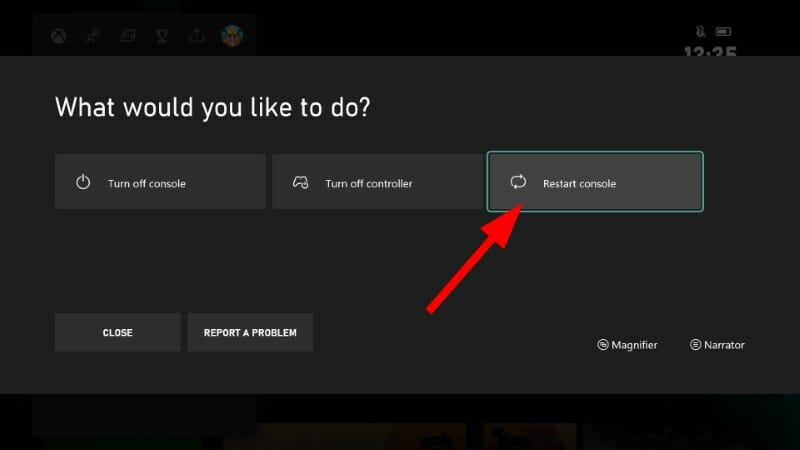
    1. Press and hold the Xbox button on your controller.
    2. Select the Restart console option.xbox restart console
    3. Press A button on your controller to confirm the action.

    2.2 PS5

    1. Press and hold the PS button for approximately 10 seconds until you see the Quick Menu.
    2. Next, go to the Power tab.
    3. Select the Restart PS5 option. playstation can't create account
    4. Confirm your action in the popup. 
    5. Wait a few seconds while your PSN console reboots, and try to create the account on PlayStation again.

    If you’re playing Fortnite on your PC, also restart it or alternatively, restart your PC in Safe Mode and see if there are any changes.

    3. Reinstall Fortnite

    3.1 Xbox

    1. Head to the Homescreen.
    2. Press the Xbox button.
    3. Select My Games & Apps.
    4. Highlight Fortnite game and press Menu button.
    5. Press Manage Game option from the pop-up menu.
    6. Select Uninstall.

    3.2 PS5

    1. Launch the Epic Games Launcher.
    2. Select the Library tab in the left pane.
    3. Click on the Settings button next to Fortnite, it looks like a set of gears.
    4. Select Uninstall.uninstall fortnite
    5. Confirm your action.
    6. Go to where Fortnite is located on File Explorer. There shouldn’t be anything there, but if you do see the Fortnite folder, delete it.
    7. Now restart your computer and try launching Fortnite on your PS5.

    Console players often deal with audio bugs too, so you may find this guide on fixing Fortnite sound not working on Xbox helpful.

    3.3 PC

    1. Launch the Epic Launcher. Click Library.
    2. Go to Fortnite and click on the three dots next to it.Uninstall - Fortnite crashing Windows 11
    3. Select Uninstall.
    4. On the next page, select Uninstall again to confirm.Uninstall confirmation
    5. Now from the list of games, select Fortnite and click Install.
    6. Click Yes on the UAC prompt to complete the installation.

    Other possible reasons why you may be unable to join a channel is an unstable network connection so perform a speed test and boost your internet speeds if need be.

    Should you encounter another error in the same family like error code 83, do not hesitate to check out our expert article on the same.

    That’s a wrap from us but do let us know in the comment section if you’ve managed to fix it using one of our solutions or any other not mentioned here.

    Xbox Cloud Gaming not coming to iOS anytime soon, confirms CEO

    When Apple opened its store to streaming apps, many of us were optimistic that Xbox Cloud Gaming would soon come to iOS. But Microsoft Gaming CEO Phil Spencer has confirmed that it won’t be the case!

    In an interview with The Verge, Spencer said that,

    There’s not room for us to monetize Xbox Cloud Gaming on iOS.

    As per Spencer, things didn’t work out between Xbox and Apple because the proposal that Apple put forward doesn’t go far enough to open up.

    He also makes a reference to Sarah Bond’s comments on X (formerly Twitter) that Apple’s new policy isn’t in the right direction.

    It appears that Apple’s response to the Digital Markets Act in the European Union wasn’t profitable for Xbox.

    Apple has brought in a €0.5 Core Technology Fee fee per user for developers who go with the alternative app marketplace amongst other similar clauses that make it unprofitable for companies to operate.

    Spotify CEO Daniel Ek calls Apple’s DMA announcement vague and misleading. The sentiments are reflected across the tech community.

    Spencer goes on to say that,

    We will continue to work with regulators, and Apple and Google, to create a space for alternative storefronts. 

    He also cites Windows as an example where there are different alternatives for downloading games, be it the Microsoft Store, Steam, or the Epic Games Store, amongst others, and calls for similar changes to be implemented on mobile devices, the largest platform for gamers.

    Since Phil Spencer hasn’t outright denied any future plans to bring Xbox Cloud Gaming to iOS, we see it happening someday, though not very soon!

    Were you excited about Xbox Cloud Gaming coming to iOS? Let us know in the comments section.

    How to Use Microsoft Teams Portrait Blur

    If you want to attend a Microsoft Teams meeting but your background is unsightly, you’ll be happy to know that the portrait blur feature can come to your rescue.

    How do I activate the Microsoft Teams portrait blur feature?

    Desktop app

    1. Launch the Teams app on your desktop and join a meeting.
    2. Ensure you’ve enabled your video option, click on the three ellipses at the top right corner, and select Show background effects.
    3. You can now select the blur option between standard and portrait depending on the level of strength you wish to have on your video then click on Apply.

    Phone app

    1. Launch your Teams app on your phone and join or start a meeting.
    2. Ensure you’ve turned on the video option, tap on the three ellipses at the bottom and select Change background.
    3. Tap on the Blur option and your video will be blurred.

    Web app

    1. Navigate to your browser and log into your Teams account.
    2. Click on the three ellipses at the top right corner and select Effects and avatars.
    3. Select the blur option and choose Portrait blur.
    4. Preview the effect then click on Apply.

    Ensure you’re using the most recent version of Microsoft Teams to enable and use the portrait blur. For web users, ensure your browser is up-to-date.

    Although the portrait blur is almost similar to the standard blur option, if you look closely you’ll notice some slight differences. For instance, the portrait option puts more focus on the subject to get clearer and sharper images.

    This way, you’ll be more in focus. The strength of the blur is also softer on the background with details not totally blurred out. With Microsoft Teams, it’s not just about obscuring your background. You can do so much more with an animated background.

    You can also create a custom Teams background if you don’t like pre-defined backgrounds. And to keep things fresh, you can also switch according to holidays and we have just the right Microsoft Teams Halloween backgrounds to get you in the mood.

    That’s all we had on the portrait blur in Microsoft Teams. Now that you know the difference between the two levels, which one do you prefer? Standard or portrait? Let us know in the comment section below.

    Moving your content from iTunes for Windows to Apple’s new media apps is tricky but can be done

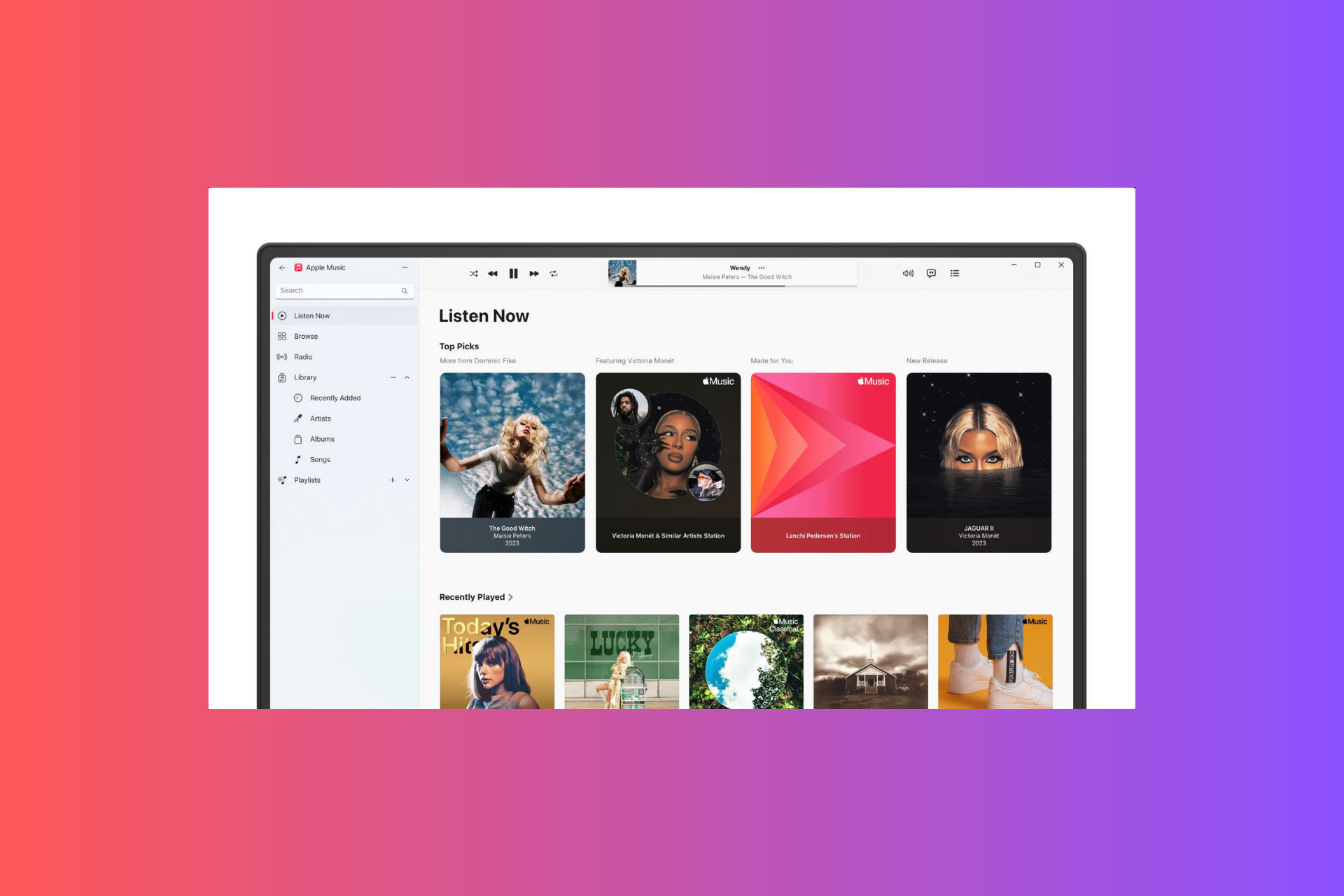
    Recently, Apple has released three new apps to shift Windows users away from iTunes on Windows 10 and 11. The reason behind this is that iTunes has become overcrowded over the years; thus, it is sometimes slow and unreliable.

    The three new apps, Apple Music allows you to listen to your favorite songs, Apple TV is the streaming platform for movies and TV shows, and Apple Devices will help you manage your phone and tablet. However, these apps might enhance the functionality, and transitioning from iTunes might pose challenges.

    Things to remember before starting the shift:

    • Install all three apps: Apple Music, Apple TV, and Apple Devices from the Microsoft Store. When you try to install one, you might get a prompt to get the other two.
    • Don’t remove iTunes after installing three apps, as you need them to access podcasts and audiobooks.
    • Don’t relocate or remove the iTunes Library folder or files post-installation, as the new apps need this content for seamless access.
    • Once you install these apps, your video and music content won’t appear in iTunes, and you won’t be able to do manual sync with your iPhone or iPad via iTunes.
    • If you have a large iTunes library, the migration process may take some time, so you need to be patient.

    The transition from iTunes to Apple’s new apps:

    1. Open iTunes and review all your content, including music, TV shows, and movies. Remove any unwanted and duplicate content.
    2. Check your iTunes library folder in File Explorer on Windows to double-check the content.
    3. In case you have not installed the new apps, install them from Microsoft Store.
    4. Launch the Apple Music app, and sign in with your Apple account when prompted. Now, wait for the music library to appear, then check the albums to ensure everything is in place.
    5. Now open the Apple TV app, sign in with your Apple account when prompted, and wait for the content to appear. To ensure the content is intact, try playing any movie or TV show for a minute or two.
    6. Next, open the Apple Devices app; you will be prompted to uninstall Apple Mobile Device Support and click Continue to remove it.
    7. Connect your iPad or iPhone, click the Trust button on the device, and enter the passcode.
    8. Try using the backup feature and select either Back up important data to this computer or Back up important data to iCloud. If the process is not initiated, click the Backup Now button and go to the Options section, then place or remove the checkmark as per preferences.
    9. On the Devices app, click the three horizontal lines, go to Music, and click Sync. You will be prompted to select Remove & sync (delete all your content, forcing to resync) or Cancel options; select accordingly.
    10. Follow the same to sync Movies, TV Shows, Photos, and Files.
    11. Now open iTunes and check if you can access podcasts and audiobooks. The rest of the content will not appear on this app anymore.

    In case during the transition, you feel that your content is missing, try removing and re-adding the problematic items.

    Also, for a better experience, you must try to use these apps on computers with small libraries, and if you still face issues, uninstall the new apps and keep using iTunes.

    Have you tried using the new media apps on your Windows computer? If yes, tell us about your experience transitioning and using them in the comments section below.

    Edge won’t steal Chrome tabs anymore, Microsoft releases a fix

    After much furore about Edge stealing Chrome tabs, Microsoft finally released a fix in version 121.0.2277.128 on February 15, 2024.

    We previously reported how Edge opens all Chrome tabs when you boot the PC. The issue has been present for the last few months, though not everyone was affected. Many pointed it out in Microsoft forums as well as Reddit.

    Now, while releasing the fix in Edge version 121.0.2277.128, Microsoft has clarified that the Import browser data setting’s state might not have been syncing across devices, and, as a result, it opened tabs from other browsers.

    To download the patch, open Microsoft Edge > click the ellipsis near the top right > select Settings > go to About Microsoft Edge > wait for the browser to install the latest version.

    Updating Microsoft Edge

    While Microsoft called it a problem with the browser, many believe that it was one of Microsoft’s tactics to get users to switch to Edge because, at present, it is way behind Chrome. As per Statcounter, Chrome commands 64.38% of the market, while Edge stands at 5.35%.

    Whatever the case, this is done and dusted. The fix is out, and Microsoft Edge will no longer take up your Chrome tabs without explicit permissions on any device!

    If you are still facing the problem after updating Edge, let us know in the comments section.

    OpenAI is reportedly developing a web search product. Can it compete with Google?

    Recent reports suggest that OpenAI, the company behind ChatGPT, is developing a web search product, which will be a direct challenge to Google.

    First reported by The Information, it’s speculated that the product may be partly inspired by Microsoft’s own search engine, Bing, which itself got AI integration recently. Not to mention, Microsoft plans to invest $10 billion in OpenAI and has an observer board seat at the company.

    Also, it’s not clear whether the web search product will be integrated with ChatGPT, be a part of the subscription, or will be a separate offering.

    As of now, there has been no confirmation from OpenAI or Microsoft regarding the developments. But, given the success of ChatGPT, other ventures by OpenAI will receive a massive response, at least initially.

    Will OpenAI’s product be any match for Google?

    While OpenAI’s web search product is being touted as a direct competitor to Google, it will take a lot of effort and time on the former’s part.

    ChatGPT became a huge success because it had a first-mover advantage. However, in the world of web search, Google is the market leader, and none of the other options even come close.

    As per Statcounter, Google commands 91.47% of the market, while the next in line, Bing, stands at a feeble 3.42%.

    We have been using Google for years, even when it slightly messed things up on a few occasions, because the search engine’s ability to index content and present relevant queries in a fraction of a second is unmatched.

    So, for OpenAI’s web search product to disrupt the market, it has to be better than Google in every sense and should be developed for instant mass adoption. It shouldn’t be like ChatGPT, which stopped working after every few hours in the initial days.

    OpenAI will have to get everything right this time!

    Are you excited about OpenAI’s web search product? Let us know what you think about it in the comments section.

    Microsoft releases the final preview of the Moment 5 update

    Microsoft has rolled out the latest update, KB5034848, for Windows Insiders in the Release Preview Channel for Windows 11 23H2 (Build 22631) and Windows 11 22H2 version(Build 22621).

    For Windows 11 23H2, the build number is 22631.3227, while for Windows 11 22H2, the build number is 22621.3227.

    This release is said to be the final preview of the next feature update for Windows 11, Moment 5. It is said to be released in the last week of February. Here are the changes you can expect:

    New features

    • The Copilot in Windows icon is now positioned on the right side of the system tray on the taskbar. The Show desktop option at the rightmost corner of the taskbar will be disabled by default. To enable it, go to Settings> Personalization> Taskbar.
    • The Phone Link settings page has been renamed as Mobile devices. Go to Settings>Bluetooth & devices> Mobile devices to access it.
    • You can use the Snipping tool on your PC to edit the most recent photos and screenshots from your Android phone. Whenever capture a photo or screenshot, a notification will appear on your PC. To activate this feature, go to Settings>Bluetooth & devices> Mobile devices to access it. Select Manage devices to allow access to your mobile phone.

    Improvements and bug fixes:

    • Games installed on a secondary drive will remain installed on the device after this update.
    • Addressed an issue affecting Notepad, where it doesn’t open for standard user profiles but happens while using Command Prompt to open it based on file type association.
    • Resolved an issue wherein users were not able to open 8 Zip archives by double-clicking them in File Explorer.
    • Fixed the issue leading to a stop error RDR_FILE_SYSTEM (0x27) that occurs when starting up all users from a machine used as a remote desktop session host.
    • Addressed UI-related problems for Internet Options Data Settings in Microsoft Edge.
    • Fixed the UI and steps in Steps Recorder not being localized to the Chinese issue.
    • Resolved the alignment issues of stapling or hole punch locations affecting long-edge-fed printers.
    • Fixed the there is no notification upon deleting an embedded SIM (eSIM) profile issue.
    • Addressed the random unresponsiveness issue of the Windows Settings Home page.
    • Resolved the issue affecting networking, wherein a device fails to switch from cellular to Wi-Fi automatically.
    • Fixed a problem related to Remote Desktop Web Authentication, wherein you might not be able to sovereign cloud endpoints.
    • Addressed the troubleshooting process failure in the Get Help app issue.
    • Fixed the issue that affects Certificate Authority snap-in, wherein you can’t select the Delta CRL option, stopping you from using GUI to publish Delta CRLs.
    • Resolved an issue that prevents your system from going to sleep if an external device is connected.

    Along with this update, Microsoft also released a February Windows Configuration Update labeled as KB5035349 for Windows 11, version 23H2 and 22H2. Here are the changes you will see:

    Voice Access enhancements

    • Voice access is available in additional languages, including German, French (France, Canada), and Spanish (Spain, Mexico)
    • You can use all voice access features on multiple displays.
    • Now, you can create voice shortcuts and custom commands in Voice Access.
    • A preview feature has been added, which means you can listen to a preview of ten natural voices in Narrator before downloading them.
    • Use Voice access to open Apps, dictate text, interact with on-screen elements, and command Narrator.

    Windows Share Windows Updates

    • The Windows Share window used the account for signing in for apps in the Share using section. In c
    • You can now use Share using section of Windows Share to share things on WhatsApp. In case you don’t have WhatsApp installed, you can get it directly from the Windows Share window.

    Nearby Share Enhancements

    • Use Quick settings or the Settings app to enable Nearby Share. If Wi-fi and Bluetooth on your device are disabled, enabling Nearby Share will also turn them on.
    • You can now give your device a name for identification while sharing. To do that, go to Settings> System> Nearby sharing.
    • Nearby Share transfer speed has been improved for those on the same public or private network, enhancing the sharing experience.

    Additional features

    • The Cast flyout menu in Quick settings will provide you assistance in finding nearby displays, fixing connections, and more.
    • Snap Layouts will include suggestions to help you instantly snap multiple app windows together, enhancing the multitasking experience.
    • Improvements for Windows 365 Boot and Windows 365 Switch.

    To get the preview build on your computer, make sure you have enabled the Get the latest updates as soon as they’re available option. And, if it is turned on before installing KB5034848, the February Windows Configuration Update KB5035349 will be installed.

    When you click Check for Updates, under the Windows Update section for Settings, the February Windows Configuration Update might not appear, but once the KB5034848 is installed and your system is restarted, you can see the KB5035349 update as well under Update History.

    In case the Get the latest updates as soon as they’re available is not enabled, the KB5034848 will be installed, and the other one KB5035349 will roll out on your device at a controlled pace.

    In both scenarios, whether you keep the feature enabled or not, you will eventually receive all the features introduced with these updates. It only affects the timing of the update delivery.

    Do you prefer to keep this setting enabled? Share your thoughts in the comments section below.

    Good news for Teams users, Microsoft to bring a single desktop app for everyone

    Microsoft Teams, one of the most popular video conferencing software, has a major drawback: the need to get a separate version for each account type, be it Work, School, or Personal. It seems like Microsoft has finally heard us!

    On February 15, 2024, Microsoft, in the Microsoft 365 Roadmap, announced that starting April’24, the Teams desktop app will support every account type. This applies to both Windows and Mac.

    It is a worldwide rollout with general availability, meaning everyone will benefit from the change.

    There’s no clarity as to what led to this decision, how it will be implemented, or the other changes we can expect. All we know for now is that you will no longer have to navigate between different Microsoft Teams for individual accounts.

    But we kind of saw it coming when Microsoft allowed joining work or school Teams meetings with your personal account.

    In the recent past, Microsoft has made a lot of enhancements to Teams. First, co-organizers got a separate chat in Town Hall. Then, it made joining meetings easier in Teams, amongst a series of other upgrades.

    If you are a regular Teams user, the future does look promising!

    What do you think of the new all-in-one Microsoft Teams app? Share with our readers in the comments section.

    Xbox will launch a new console by Christmas and it’s gonna be groundbreaking

    Phil Spencer, Sarah Bond, and Matt Booty finally came to the stage to discuss about the Xbox strategy, the games coming to PlayStation and the latest rumors.

    First of all, relax, everyone, Microsoft is not ditching the Xbox brand and Game Pass is still going to be the greatest platform for delivering games.

    Phil Spencer did say that there are four games coming to PlayStation and Nintendo Switch, but they are not India Jones or Starfield, so you can also rest your mind on that. According to Phil Spencer, they are not AAA games but rather hidden gems that have already proven their popularity amongst gamers.

    A new handheld console will shake the market

    By far, the most exciting announcement was that Microsoft is preparing a handheld console that will be the biggest generational leap for an Xbox console ever.

    We’re also invested in the next-generation roadmap, and what we’re focused on there is delivering the largest technical leap you will have ever seen in a hardware generation. Which makes it better for players and better for creators and the visions that they’re building.

    Sarah Bond

    We can only assume that the next console will challenge all the other existing competitors on the market and we’re sure that we will get some scoops about it soon enough.

    As we’ve mentioned in the beginning of this article, there’s nothing negative about Xbox Game Pass. In fact, according to the officials, Game Pass reached 34 million subscribers, up from 25 million in 2022.

    Another great scoop is that Microsoft confirmed that the biggest Activision title, Diablo IV will enter Game pass in March.

    Phil Spencer didn’t say anything about Xbox titles going exclusively digital, but we can assume that as physical media sales are going down and gamers are gradually ditching them in favor of cloud and hard drives, they are soon going to follow suite with exclusive digital downloads.

    So, there are exciting news from Microsoft and Xbox, right? Let us know in the comments your thoughts about these announcements.

    Microsoft to discontinue Publisher, users worried about the transition

    Microsoft’s recent announcement that its decades-old publishing application, Publisher, first released in 1991, will be discontinued on October 13, 2026, has left many in a frenzy.

    The message on the Microsoft 365 Admin Center reads, In October 2026, Microsoft Publisher will reach its end of life. After that time, it will no longer be included in Microsoft 365 and existing on-premises suites will no longer be supported.

    It further states, As we look ahead to the retirement of Microsoft Publisher, we are exploring modern ways to achieve other common Publisher scenarios across applications like Microsoft Word, PowerPoint, and Designer. We will update as we have more to share.

    Screengrab of the announcement

    While Microsoft Publisher certainly has a limited user base and isn’t as popular as Word, Excel, or PowerPoint, it is still employed by many individuals, organizations and non-profits to create newsletters, greeting cards, and reports.

    Soon after the announcement, many Microsoft Publisher users shared their exasperation in a Reddit post.

    As we are headed to the closing chapter of Microsoft Publisher, you should start looking for Microsoft Publisher alternatives for booklets or get used to the integrated feature set on other Microsoft 365 apps.

    The good news is that you still have over two and a half years before Microsoft finally pulls the plug on Publisher!

    Do share your thoughts on the announcement and how it affects you in the comments section.

    Omnibox to Chat with Gemini is now available in Chrome’s stable version

    Google Chrome, one of the most popular web browsers, constantly evolves to improve user experience and productivity. After introducing Bard AI and turning it into Gemini, Google is now taking another big step, integrating the @gemini shortcut into Chrome Omnibox to Chat with Gemini.

    This significantly impacts how people interact with Gemini, making it easier to send questions straight to the chat box without opening a tab and navigating to the Gemini website. The new shortcut for Gemini with the name Chat with Gemini in Omnibox is now working in the Stable version also with Expansion pack for the Site search starter pack enabled..

    Gemini, Google’s next-generation AI model, is doing well after the late launch, even though Copilot was a headliner in the last few months. Like Copilot, Gemini AI can generate summaries, answer your questions, create images, and more.

    If Microsoft integrated Copilot into the Edge browser on the Sidebar, Google widens the reach and usage of Gemini through its huge Chrome user base. The company is now making it possible to access the Gemini chat box directly from Chrome Omnibox without navigating to its website in a separate tab; a simple keyword will trigger the chat interface.

    Chrome already comes with shortcuts to search through your data in the browser, such as tabs, bookmarks, and history. These shortcuts save a lot of time, but the new shortcut for Gemini might completely change how you interact with your browser.

    How to enable & use the Chat with Gemini shortcut in Chrome’s Omnibox

    1. Launch Google Chrome
    2. Visit chrome://flags
    3. Find and enable the Expansion pack for the Site Search starter pack
    4. Restart browser
    5. Visit chrome://settings/searchEngines in the address bar and notice the Chat with Gemini name for shortcut @gemini under Site Search

    6. Open a new tab, and type @ to see chat with Gemini shortcut along with Omnibox shortcuts to search tabs, history, and bookmarks,
    7. Select chat with Gemini, type your query, and press enter.
    8. Or, type @gemini and give a space, input your question and press enter
    9. This takes you directly to the Gemini website https://gemini.google.com/app?q=query:

    While this shortcut is a great start, we expect to see more Gemini integrations in the next months. If Google follows the same path as Microsoft did with Copilot, Gemini will slowly but surely find its way into more features and products and have a real impact when it comes to usability and reachability.

    A critical Exchange vulnerability could leak your credentials to hackers

    Microsoft acknowledged that a long known CVE (CVE-2024-21410) in Microsoft Exchange was exploited by taking advantage of an elevation of privilege vulnerability.

    According to the Redmond giant, an attacker can take advantage of this vulnerability to get the credentials from Exchange clients such as Outlook, and then access the Exchange server using the victim’s data:

    An attacker could target an NTLM client such as Outlook with an NTLM credentials-leaking type vulnerability. The leaked credentials can then be relayed against the Exchange server to gain privileges as the victim client and to perform operations on the Exchange server on the victim’s behalf. 

    Microsoft issued a patch and fixed the vulnerability

    Microsoft issued the Exchange Server 2019 Cumulative Update 14 (CU14) to patch this vulnerability. The update enabled the NTLM credentials Relay Protections (also known as Extended Protection for Authentication or EPA).

    The Exchange Server 2019 CU14 enables EPA by default on Exchange servers and Microsoft recommends installing it ASAP to secure your clients and servers.

    Also, if you’re running the Microsoft Exchange Server 2016 Cumulative Update 23, the company released Extended Protection as an optional feature with the August 2022 security update (build 15.01.2507.012) to protect your server against CVE-2024-21410.

    So, if you didn’t do that until now, install the latest security update for Exchange Server 2016 CU23 before turning on the Extended Protection feature.

    Microsoft says that if you already ran the script that enables NTLM credentials Relay Protections on Exchange Server 2019 CU13 or earlier, you were protected from this vulnerability.

    If you want to know if your server is configured properly, the company recommends running the latest version of the Exchange Server Health Checker script that will provide an overview of the Extended Protection status.

    Although Microsoft acknowledged that CVE-2024-21410 was exploited, they don’t supply any information on the extent of the damage caused by this vulnerability.

    Did you already patch your Microsoft Exchange server? Comment below if you had any problems with the update or the vulnerability.

    Windows 10 insiders Build 19045.4116 released, brings Spotlight, fixes bugs

    While we all focussed on the latest changes to Windows 11, Microsoft quietly rolled out Build 19045.4116 (KB5034843) for Windows 10 insiders. It came as a surprise to many, given that Microsoft seems to be extensively focused on the latest iteration.

    In the insider build, Microsoft has released two new features for Windows 10, as well as several patches for previously known bugs.

    Here are the new features:

    • You now have Desktop Spotlight added to the Windows 10 desktop.
    • Microsoft will also allow you to share links via WhatsApp, Gmail, Facebook, and LinkedIn using Windows Share. X (formerly Twitter) will be added to the list soon. The quick share feature was recently released in Windows 11.

    As for the bug patches:

    • An issue with the Azure Virtual Desktop session has been rectified
    • Installed games will remain on the secondary drive from now on
    • Fixes UI issues in Microsoft Edge
    • Eliminate problems with Windows Hello for Business
    • Fixes issues with the Japanese Input Method Editor
    • Addresses certain problems with Remote Desktop Web Authentication.

    For the complete list and more information about the changes, visit Microsoft’s official blog.

    What do you think of these latest changes, given that we are fast approaching Windows 10’s end of life? Share in the comments section below.

    Chrome releases IP protection to mask your identity, experts raise concern

    Google Chrome’s latest IP protection feature, Hide your IP address, is making a lot of noise, both for the right and wrong reasons. Cyber experts have raised concerns ever since Google announced the feature.

    While reports of it first emerged in late 2023, the feature has finally made it to Chrome Canary, the experimental version of Chrome.

    What is the new Hide your IP address feature in Chrome?

    The feature intends to mask your IP address from trackers and websites, thus preventing them from forming a profile of you for targeted advertising and more. To do that, Google will re-route certain requests through two proxies, one of Google and another of a third party.

    To enable Hide your IP address, launch Chrome Canary, click on the ellipsis near the top right > select Settings > go to Privacy and security from the navigation pane > enable the toggle for Hide your IP address.

    Hide your IP address in Chrome Canary

    With concerns surrounding privacy on the web growing by the day, this is being dubbed as a much-needed feature.

    At the moment, it’s still in the experimental stages and only re-routes traffic for a few suspected websites that have been previously found to be using trackers to either profile users or for other ulterior motives.

    Based on reports, IP protection will initially be optional but will soon be the default setting on Chrome. Besides, there’s no official confirmation as to when the feature will make its way to the stable Chrome version.

    Why are experts concerned about it?

    Experts are suspicious because, when the traffic is re-routed via Google’s servers, it will give the tech giant a first-hand advantage in data collection and sharing it with third parties. According to recent reports, Google generates 75-80% of its revenue from advertising.

    So, now, with Google in complete and exclusive control of your searches and preferences, it will create sort of a monopoly, and subsequently, the California-based tech giant will emerge as the advertising leader in the market.

    To get an idea of Chrome’s reach, it controls 64.38%, roughly two-thirds, of the browser market share, followed by Safari and Edge, as per Statcounter.

    Also, in November 2023, a complaint was registered with the UK’s Competition and Markets Authority (CMA) by the Movement for an Open Web (MOW) group, claiming that IP protection puts rival advertising businesses at a disadvantage.

    We came across a GitHub thread where many expressed similar apprehensions that the feature would solely benefit Google and not the end user.

    What do you think of the new IP protection feature in Chrome? Share with our readers in the comments section.

    The PowerToys Cursor Crosshair is going to be a feature of Windows 11

    The Microsoft PowerToys is a toolbox with various utilities like the cursor crosshairs, color picker, and find my mouse. Yet the cursor crosshairs will soon become a feature of Windows 11. However, in the near future, we might see more of them included. After all, they are useful, and we would like to have shortcuts to them without installing PowerToys.

    How to use the cursor crosshair in Windows 11 version 24H2?

    The cursor crosshairs utility is coming to Windows 11 version 24H2, and it will mark your pointer wherever it is. Moreover, we consider this option useful if you have trouble finding the mouse pointer. On top of that, you will be able to access this setting by pressing Win + Ctrl+ X.

    As an additional option, you will be able to change the mouse pointer crosshairs color. Yet, to do this, you will have to enter the cursor settings. To do this, you will have to:

    1. Open Settings and go to Accessibility.
    2. Select the Mouse Pointer tab.
    3. Turn the Mouse Pointer Indicator On.
    4. Pick a color.

    Furthermore, you will be able to pick one of the prebuilt colors or choose another color.

    Unfortunately, you can only access the cursor crosshair by installing Microsoft PowerToys from the Store. Fortunately, it doesn’t take long, and the tool comes with other useful settings for your mouse, such as Mouse Jump, Highlighter, and Find My Mouse.

    Additionally, there are other useful PowerToys utilities available, such as Crop And Lock, Image Resizer, Text Extractor, and more. Yet, we mentioned the ones that we use mostly. Thus, we will let you discover the other settings.

    In a nutshell, the upcoming mouse pointer crosshairs option is nice but not necessarily a must-have. However, the PowerToys application is great for Windows 10 and 11. Moreover, with it, you won’t need to go on Google anymore for rulers, resizing, and screenshotting tools.

    What are your thoughts? Are you going to use the Microsoft PowerToys app or the cursor crosshairs feature? Let un know in the comments.

    Stability AI’s Stable Cascade generates images faster than Stable Diffusion

    Another advancement in the dynamic AI landscape, Stability AI, introduces the latest image-generating AI model, Stable Cascade.

    It is claimed to be a faster and more robust successor to Stable Diffusion, which is the foundation for several other text-to-image generation AI tools.

    Stable Cascade is capable of generating images, along with variations of the same picture it created. Moreover, it can also enhance the resolution of existing images.

    Other text-to-image editing features include inpainting and outpaiting, which allows you to selectively edit certain parts of an image.

    Unlike Stable Diffusion models, Stability AI has taken a new approach with Stable Cascade, using three language models that depend on the Würstchen architecture. The process has three stages: C, A, and B.

    Three stages

    In the first stage, C compresses text prompts into latents, smaller pieces of code, then the latents are passed to stages A & B for decoding, resulting in a faster and more efficient image generation process.

    The ability to break down requests into smaller bits, reduces memory requirements, thereby accelerating the training process. This helps prompt alignment and aesthetic quality.

    Stable Cascade is quite efficient and has impressive speed, as it can create an image in just 10 seconds as compared to the current Stable Diffusion XL model, which takes 22 seconds.

    comparison - stable cascade

    As of now, Stable Cascade is available on GitHub for researchers only and can’t be used for commercial purposes. This model is capable of intensifying the competition in the AI landscape, as major companies like Apple and Google are also set to unveil their image generation models.

    Stability AI has also started offering commercial licenses for Stable Diffusion via a subscription model in December to fund its research projects.

    Stability AI’s Stable Diffusion model has been infamous due to lawsuits, including the one by Getty Images, which alleges that the company has used copyrighted data for training purposes without permission. The trial is scheduled to start in December.

    We understand that competition in the AI industry is fierce, but lawsuits like these can damage a company’s image, leading people to doubt the organization’s ethical practices and legal compliance.

    The introduction of Stable Cascade is an important milestone for Stability AI, which showcases the company’s commitment to pushing the boundaries of image generation technology.

    However, it should also address the legal issues as it is crucial for maintaining trust and credibility in the tech community.

    What do you think? Share your thoughts in the comments section below.

    ChatGPT is getting smarter and will be more personal

    OpenAI is pushing the boundaries of artificial intelligence with its latest test on ChatGPT, introducing a Memory feature that allows the chatbot to remember information about users and their preferences over time. The aim is to enhance user experience by making your future chats personalized and helpful.

    Having a conversation with chatbots can be repetitive and tiring as you have to provide the same information every time you initiate a chat.

    OpenAI recognizes this challenge and is working on implementing a memory feature so that the chatbot can save specific details about you or the general conversations.

    According to OpenAI, even though bots have the ability to memorize things, it assures that users can still control what is stored in memory. This means we can manage ChatGPT memory by deleting the chats we don’t want the chatbot to remember.

    For example, if you have been prompting questions about a topic today, you will be able to ask ChatGPT questions in the same context in the future, provided you haven’t erased the query from its memory.

    The Memory feature works in two ways. You can instruct ChatGPT to remember certain things like your name, specific preferences, or other important things.

    Alternatively, the chatbot can automatically pick up things about you over time, as you interact with it, providing a more personalized experience.

    However, if you are concerned about your privacy and don’t want the chatbot to remember anything from the previous chats, you disable the Memory feature, giving you the power to tailor the interaction according to your comfort level.

    The goal of OpenAI is to make ChatGPT smarter and personal, so that you don’t have to provide repetitive information, saving you time.

    Additionally, each personalized ChatGPT instance will be stored individually in memory, which will provide you with tailored interactions based on your preferences.

    Despite the benefits of the feature, its introduction could get mixed reactions as not everyone would want the Chatbot to remember the queries.

    So, ChatGPT, knowing everything about you can be awesome for some and horrifying for others. OpenAI has addressed these concerns by stressing the fact that user control is the top priority.

    However, OpenAI’s approach to remembering things is similar to what internet services do to collect and use data to personalize user experience. Therefore, it could bring discomfort to those who fear potential misuse or mishandling of their data, leading to scam calls, and phishing emails.

    To address these concerns, the company has introduced the Manage Memory section in Settings, which lets you review, modify, and delete the information stored in ChatGPT memory, giving you complete control.

    OpenAI also mentioned that the system has not been trained to store sensitive details like health-related information.

    However, if you are still not comfortable with the memory feature, you can opt for the Temporary Chat option available under ChatGPT version options. It acts just like an incognito mode in the browser, which is great for unrecorded conversations.

    The Memory feature will be turned on by default; however, you can disable the feature with a few clicks. Go to Settings, then Personalization, locate Memory, toggle on to enable it, and toggle off to disable it.

    The company also assures that your data from ChatGPT Enterprise and ChatGPT Teams will not be sent to the models to maintain confidentiality and uphold stringent data security measures.

    Currently, the feature is in the testing phase and is available for limited users. OpenAI has addressed that the company understands the sensitivity of the feature and is working on maintaining a balance between personalization and privacy.

    Given the advancement in AI tech, the introduction of the Memory feature seems to be a great way to make interactions natural and more personalized; however, whether users embrace or resist the feature will depend on their comfort level with AI-driven personalization and trust in OpenAI’s commitment towards data security.

    Would you be comfortable using the Memory feature? Share your thoughts in the comments section below.