Microsoft Copilot’s new version, Deucalion, offers Copilot Pro capabilities, for free

Microsoft Copilot is currently rolling out a new version called, Deucalion, on Edge, after some users noticed a shift in behavior which caused it to offer better solutions and answers to tasks.

Mikhail Parakhin, leader of the Windows and Web Experiences Team, which is responsible for Copilot, confirmed the improvement is due to a new Copilot version being rolled out.

We are continually improving Microsoft Copilot, testing a new version of the base model in a flight. Fun fact: its internal name is “Deucalion” (the son of Prometheus in Greek mythology).

Mikhail Parakhin on X (formely known as Twitter)

The new version can provide complex and well-researched outputs even in the Balance mode, which is known to be a bit reserved. In a post made to X, it seems that some users are already on this new version, while others might have to wait.

When asked what is Deucalion capable of, Parakhin answered that the new Copilot version makes use of multiple AI models to provide users with the best outputs. Some of these models are coming from OpenAI, while others are trained in-house, by Microsoft.

The whole system is a combination of several models and Search internal sub-systems. Some of the models are the finetuned OpenAI models, some – OpenAI models as is, some Microsoft-trained ones.

Mikhail Parakhin

Microsoft is offering Copilot Pro features to users through Deucalion

The Deucalion version is close to Copilot Pro in nature because it is offering advanced AI capabilities to users on Edge, for free.

Some users noted that Microsoft Copilot is also capable of multilingual speech, and Parakhin confirmed that this feature is also part of the new version, although it might increase latency overall.

Yes, that’s what we are trying to bring in. It increases latency a bit though, trying to optimize.

Mikhail Parakhin

However, Copilot enthusiasts will get several Pro features, including more complex and well-thought-out outputs from the free version, which is more than welcome for those who can’t afford to pay $20/month for Copilot Pro.

Parakhin has yet to unveil more information about this new flight, but Microsoft will most probably announce it in the next days or weeks.

But for now, it seems that some users experience complex outputs from Copilot on Edge when the Balanced mode is selected. The version is gradually rolling out, so it might take a while until everybody has access to it.

Edge’s latest security update has moderate severity, addresses CVE-2026-21399

Microsoft Edge, one of the most secure browsers, recently released another security update in the Stable (Version 121.0.2277.98) and Extended Stable (Version 120.0.2210.167) channels to address the CVE-2024-21399 vulnerability.

It was released on February 1, 2024, and is a critical update for everyone. A few months ago, Microsoft fixed the CVE-2024-0519 vulnerability in Edge.

About the latest Microsoft Edge CVE-2024-21399 security update

ImpactRemote Code Execution
Max severityModerate
Base score metrics8.3
Temporal score metrics7.2

The latest patch affects the Microsoft Edge app on Windows and Android operating systems.

It will eliminate the possibility of an attacker exploiting the CVE-2024-21399 vulnerability to get you to an especially crafted unsafe website through Microsoft Edge. As per Microsoft, this is usually achieved through sending an instant message, an email, or an attachment in an email.

To download Microsoft Edge’s security update targeting the CVE-2024-21399 vulnerability, launch the browser > click the ellipsis near the top right > select Settings > go to About Microsoft Edge > and let the browser download Version 121.0.2277.98.

It’s recommended that you download the security updates as soon as possible to keep your PC and browsing experience safe!

For more details and information on the latest patches, check the Microsoft Edge security update’s release notes.

Esports for geeks: Here’s how Microsoft Excel Championship works

If you are a geek, an Excel professional, the Microsoft Excel Championship is more exciting than any online shooter. You can test your knowledge against professionals from different domains. The most important aspects of the competition are speed and critical thinking.

How does Microsoft Excel Championship work?

You’ve got half an hour to solve some complicated exercises using spreadsheets. In addition, you will compete with seven other professionals.

Each round will be a bit different from the last one. Moreover, if that isn’t enough for you, know that you will be working with a large amount of data. Furthermore, every seven minutes, someone gets out of the competition for having the lowest score on the board.

We keep mentioning exercises, but you might want to know how they look. According to competitors, they are funny and unrelated to real-life events. However, the methods used are great for daily use. To entertain you a little, below you can find the best moments of the Excel Esports battles.

If the competition piques your interest, you might want to try the Microsoft Excel World Championship bundle sold by the Financial Modeling World Cup organization. Also, the Excel Champion of the World, Andrew Ngai, stated that he uses Excel for daily needs, and you could try doing it too.

What is the reward of Excel Esports?

The prize pool is 50,000 USD. Thus, your reward depends on the win count. For example, Andrew Ngai won around 3 thousand in prize money. Overall, the competition isn’t that rewarding from a monetary point of view.

Somehow, the experience is the greatest reward in this case. Additionally, you could meet some of the world’s most experienced spreadsheet users. Moreover, many companies searching for Excel professionals could see you.

If all of this competition appeals to you, learn more about the new features of Excel and find out how to use food, movies, and similar new data types.

What are your thoughts? Would you like to one day compete in this championship? Are you interested to see how a game works or to learn more from the professionals? Let us know in the comments.

After Starfield, Indiana Jones and the Great Circle could be coming to PlayStation

The upcoming Indiana Jones and the Great Circle might be released on PlayStation 5, according to a report released by The Verge. The news comes moments after it was reportedly announced that Starfield might be ported to PlayStation, as well, in a move that could surely change Xbox forever, for the years to come.

The hotly-anticipated Indiana Jones and the Great Circle is set to be released to Xbox/PC this year, and it’s developed by MachineGames while being published by Bethesda, the studio behind Starfield. The game will follow Indiana Jones, who goes on an adventure to try to stop an enigmatic group from acquiring the power of the Great Circle.

As we mentioned earlier, the game is expected to be released later this year, and Bethesda released several teasers and trailers in anticipation. It will combine both first-person and third-person perspectives and it’s labeled as an action-adventure game.

Despite being touted as a Windows/Xbox S/X exclusive, Microsoft might actually be looking into bringing the game to PlayStation consoles as well, in a move that would make it more accessible to a wider audience, but it could lead to Xbox losing Game Pass members.

Indiana Jones and the Great Circle on PlayStation 5: what could it mean for Xbox?

Xbox might be impacted by the release of the Indiana Jones and the Great Circle on PlayStation 5.

First of all, similar to the Starfield case, gamers won’t have to pay two subscriptions to be able to access the game, and long-standing fans of this popular series could access it on PlayStation, rather than Xbox, effectively hurting the latter, when it comes to commercial success.

Similarly to the Starfield case, many people would go on to get an Xbox just to play the game, which could very easily be the case here. Many people would subscribe to Game Pass just to be able to play Indiana Jones, but if they already have a PlayStation, what’s the use?

Secondly, many Xbox users within the community would take this as a betrayal. Gamers care about the console war, and this is not an exception. As we saw when the news of Starfield being ported on PlayStation was released, many felt betrayed and disengaged with Microsoft’s decisions.

However, see it as good news: gamers have more options, and they won’t have to be tied to a single console. Plus, many PlayStation games might be ported to Xbox, as well, and we saw that happening with the announcement of MBL The Show 24 coming to Xbox.

Indiana Jones and the Great Circle is slated for a 2024 release, most probably by the end the year, around the holiday season.

After the Midnight Blizzard attack, Microsoft urges administrators to follow new security guidelines

Recently, Microsoft was under attack by a hacker group called Midnight Blizzard, and the company disclosed the attack in a recent blog post.

What exactly happened, and how serious this attack was? Keep on reading to find out!

The aftermath of the Midnight Blizzard on Microsoft

How did the attack occur?

On January 12, 2024, the Microsoft team detected a system-wide attack on its system performed by the Midnight Blizzard group. So how was this attack carried out?

The attackers used password spraying to guess a password on a legacy test tenant account. That account didn’t have multifactor authentication, therefore the hackers were able to guess the password and obtain access eventually.

After that, the attackers managed to compromise a legacy OAuth application that had elevated access to the corporate environment.

Hackers created a new user account to gain access to the corporate environment and Office 365 Exchange Online. They gained access to the mailboxes and targeted Microsoft corporate email accounts by doing so.

How can administrators protect themselves?

  • Check the privilege level of all users and service principals using the Microsoft Graph Data Connect authorization portal. Make sure that unknown, legacy, or unused entities don’t have more privileges than needed.
  • Next, check identities that have ApplicationImpersonation privileges in Exchange Online. This is crucial since with access to ApplicationImpersonation hackers can impersonate users.
  • Check for OAuth apps that are using anomaly detection policies using App governance. Remove any suspicious OAuth apps.
  • Implement conditional access app control. It should be used for users who are connecting from unmanaged devices.
  • Review applications that are using EWS.AccessAsUser.All and EWS.full_access_as_app permissions. If these applications aren’t required, remove them.
  • For applications that require access to mailboxes, implement granular and scalable access.

Since this attack initially started with a password spray attack, Microsoft shared a few guidelines on how to protect against it:

  • Eliminate insecure passwords and encourage users to review sign-in activity and mark suspicious sign-in attempts.
  • Reset account passwords for all accounts targeted during the attack.
  • Use Microsoft Entra ID Protection and Microsoft Purview Audit (Premium) to investigate compromised accounts.
  • Enforce Microsoft Entra Password Protection for Active Directory Domain.
  • Utilize risk detections to trigger multifactor authentication or password changes.

In another blog on the Midnight Blizzard attack, Microsoft stated that it would act immediately on improving its security standards on legacy systems and internal processes, and that might lead to some level of disruption.

It seems that Microsoft can’t catch a break, since recently there was a zero-day exploit in Windows Event Log reported.

The good news is that Microsoft is already on this issue, and if you’re a system administrator, be sure to check Microsoft’s blog post for detailed security guidelines.

Co-organizers & presenters get a separate chat in Town Hall on Microsoft Teams

Last year, Microsoft Teams introduced Townhall, which can be used to host large-scale virtual events in an organization, say live releases, internal reviews, and more. To streamline the Town Hall organization, Microsoft is adding a dedicated chat for presenters and co-organizers.

This allows you to chat with fellow organizers in a dedicated chatbox, separate from the one for attendees. You can start the chat before commencing the event, and it will be available even after the event.

Image source: Microsoft

As per the information available from Microsoft, the feature will start rolling out in March 2024 for Microsoft Teams’ Windows and Mac apps. Since it’s a targeted release, admins can control how to (and when) roll out the update to users.

It seems like Microsoft is working extensively on Town Hall to make things easier, and in line with it, has made a few significant changes in the recent while.

Teams’ Town Hall now has live captions, allowing users worldwide with different language preferences to participate in live streamings. Besides, co-organizers can edit live Town Hall meetings.

Microsoft Teams is about to get a wide array of features in the coming months. If you are a regular Teams user, do share your thoughts in the comments section.

Starfield is coming to PlayStation, and it could change everything about Xbox

Starfield is reportedly coming to PlayStation, as many tech publications released the news over the weekend, claiming that Microsoft will release the title to the console sometime later this year.

While there are no official statements from the Redmond-based tech giant, Microsoft has been working on this release for quite a while, allegedly, and along with Starfield, a plethora of other games might be ported to PlayStation, as well, including titles such as Hi-Fi Rush, Sea of Thieves, and even Indiana Jones and the Great Circle.

This is definitely an interesting turn of events, considering Starfield was released in 2023 as a Microsoft exclusive, meaning the game is only available on Xbox X/S consoles, and Windows devices.

Touted as one of the biggest Xbox titles in years, Starfield amplified the competition between Xbox and PlayStation, and many PlayStation gamers considered and purchased an Xbox just for the possibility of playing the game.

However, the news of Starfield coming to PlayStation might change everything about the console competition, and not in a good way.

Starfield on PlayStation: What does this mean for Xbox users?

Even though Starfield is quite popular among Xbox users, with millions of players rushing to play it in the first days after its release, the Redmond-based tech giant might want to expand its popularity beyond the confines of the Xbox’s audience.

However, many Xbox lovers feel betrayed by Microsoft’s decision to release Starfield on PlayStation, with many stating that owning an Xbox now feels useless, especially after buying one to play this game.

Releasing Starfield on PlayStation means Xbox users won’t have to pay a monthly Game Pass subscription to have access to it when they can buy it once, and play it on PlayStation. Many users believe the move could result in the end of Xbox, as we know it. Starfield PlayStation

On the other hand, other Xbox users agree that this could be a good move for Microsoft, as Xbox games will not only be introduced to a wider audience but also encourage accessibility and the chance to have options to choose from a variety of platforms.

Can this mean we could see many PlayStation titles coming to Xbox, as well? Well, this question is tricky. Reports have already stated that more Xbox games will be ported to PlayStation, but we don’t know if the vice-versa is possible.

However, just recently, a former PlayStation-exclusive, MLB series, just announced its latest title, MLB The Show 24, will be released on Xbox, so there are good chances the console exclusivity might soon come to an end.

But this could also hurt Xbox: even though Game Pass is quite popular right now, paying for just one subscription is better than paying for two, and if users have the option to play former Xbox exclusives on PlayStation, then they’re going to do it.

So, whatever Microsoft decides (we still need them to confirm the rumors), the company will have to be careful about it, as it could lose a big chunk of its fanbase, and community.

What do you think about this? Would you play Starfield on PlayStation?

Intel will boost Windows 11 VM performance on Linux with Thread Director support

Many users are running Windows 11 on Linux, and if you’re one of them, we have some good news for you.

It seems that Windows 11 virtual machines will have better performance on Linux systems that are running on Intel’s CPUs. Here’s what you need to know.

Intel is bringing Thread Director support for Windows 11 VMs on Linux

According to the public inbox, it seems that Intel is working on bringing support for Intel Thread Director to Guest systems on Linux.

The company plans to achieve this via patch and enable the ITD-based scheduling logic to the Guest system thus boosting its performance. So how of a performance boost can we expect?

According to Intel, we can expect a significant boost, and they achieved a 14%+ performance boost in 3DMARK.

Note that this feature will require certain features such as HWP, and CPPC, but they can be emulated from the VM.

This patch is coming to Intel 12th Gen or newer CPUs, but we don’t have any information about its release.  

While many Linux users might be excited about this patch, you should keep in mind that the latest Windows updates have issues with older Intel CPUs, so maybe you should put updating on hold for a while.

How to Change Xbox Name on Mobile [iPhone & Android]

To change your Xbox name or gamertag (the primary identification on the network), you can use the web panel, the Xbox console, or the mobile app. In this guide, we will walk you through the steps for Android and iOS mobile devices.

You are allowed up to 12 characters for the Xbox Gamertag, including spaces, but special characters are not supported, and you can change it for free once after signing up. On subsequent attempts, you will be charged $9.99 (plus taxes), though it slightly varies based on the region.

How can I change the Xbox name (gamertag) on mobile?

iPhone (iOS)

  1. Go to the Apple App Store, and download the Xbox app.xbox
  2. Tap on Sign-in, enter the account details and proceed with the initial setup and preferences.
  3. Go to your profile tab near the bottom left.
  4. Tap the Settings (gear) icon.open
  5. Scroll down and tap on Help topics under Support & feedback.
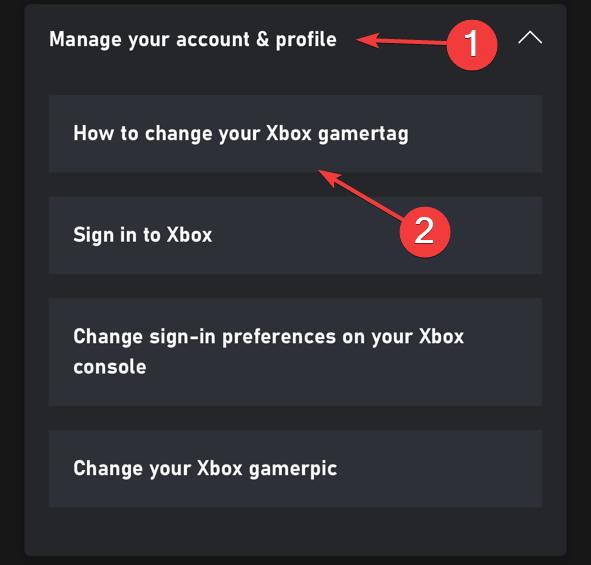
  6. Expand Manage your account & profile and select How to change your Xbox gamertag under it.change xbox name mobile
  7. Under Ways to change your gamertag, choose On the web, and tap on Choose your new gamertag.new gamertag
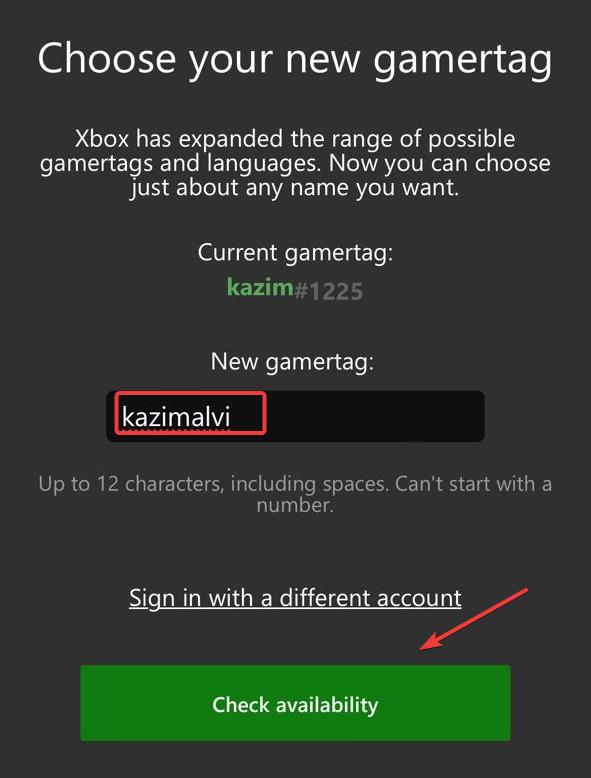
  8. In the browser window that opens, enter the new gamertag in the text field, and tap Check availability.check
  9. If it’s available, tap on Change gamertag.change xbox name gamertag mobile
  10. Again, tap on Change gamertag in the confirmation prompt.
  11. Once done, the changes should reflect right away. If not, log out and then sign back in.

Even though Xbox now allows more languages and personalization options in the gamertag, it’s still not compatible with most games. As a result, Xbox initially shows you what the gamertag would look like on non-supported games.

Android

The steps to change your Xbox gamertag on an Android mobile are identical to those on an iPhone, given that the UI (user interface) is the same. The only difference is that you need to download the Xbox app from the Google Play Store.

Once done, open Xbox Settings, tap on Help topics > select Manage your profile > tap How to change your Xbox gamertag > choose On the web > tap Choose your new gamertag > enter your gamertag in the text field > tap Check availability > if available, click Change gamertag > confirm the change.

Gamertag Change charge

As we mentioned earlier, you can only change the Xbox gamertag for free once. The next time, it will ask you to pay $9.99 or a similar amount in another currency. So, make sure the new gamertag is the one you want to stick with for the years, or at least until Xbox removes the Gametag Change charge.

Before you leave, discover the steps to change the Xbox gamertag on the console and PC if you feel more comfortable with it.

For any queries or to share why you had to change the gamertag, drop a comment below.

ChromeOS’s sleek Global Media Controls UI arrives in Chrome on Windows, Mac, Linux

The “Global Media Controls UI”, which lets you control video/audio playback in the Chrome browser, has received a fresh new look! Google is bringing this design from “ChromeOS” to other platforms, including Windows, Mac, and Linux. Here’s how you can try it out right now in Chrome Canary on Windows.

Four years ago, Google launched Global Media Controls across platforms to simplify media playback management within the browser. When audio/video is playing, simply click the music icon on the toolbar to access the Media Hub, where you can see all your media notifications and adjust playback without switching tabs.

Initially, Google made Media Hub available on Chromebooks before rolling it out to Chrome on Windows and other platforms. Following the same approach, the company is applying a sleek new design to the Global Media Controls UI, introducing it first on ChromeOS before bringing it to Windows and other platforms.

Meet Chrome’s sleek, uncluttered, and minimalist Global Media Controls UI

Traditionally, Global Media Controls featured forward, pause/play, and backward buttons along with Picture-in-Picture and Live Captions options.

The new UI on Chrome for Windows ditches the dedicated seek buttons, opting for a cleaner look with just the play/pause button, PiP, and live captions. This minimalist design appears uncluttered and modern. However, keep in mind that this might not be the final version, as it just landed in Canary on Windows.

https://twitter.com/techvenkat/status/1753766125094191541

How to Enable the New & updated Global Media Controls UI in Chrome:

  1. Open Chrome.
  2. Visit chrome://flags.
  3. Find and enable “Global Media Control Updated UI“.
  4. Relaunch Chrome.
  5. Open YouTube and play a video.
  6. Click the GMC icon on the toolbar to see the new UI.
https://twitter.com/techvenkat/status/1754809132261965957

Requirements:

  • Latest Chrome Canary (version 123)
  • Enabled the “Global Media Control Updated UI” flag
  • Chrome running on Windows, Mac, or Linux

Global Media Controls updated UI

Show updated UI for Global Media Controls in all the non-CrOS desktop platforms. – Mac, Windows, Linux

Do you like the new Global Media Controls UI that Google has brought from ChromeOS to Chrome on Windows, Mac, and Linux? Share your thoughts in the comments below

Chrome Android tests Tab Suggestions to put an end to frustrating Tab Juggling between devices

If you use Google Chrome on multiple devices with sync enabled, Google is making it easier to access open tabs from other devices in the Chrome browser on Android. Instead of digging through the Recent tabs menu or sending tabs individually, new “Tab Suggestions” appear directly on the New Tab Page under “Continue with these tabs”, so you can pick up where you left off seamlessly. This feature is currently being tested in Canary.

You’re likely familiar with Chrome showing shortcuts on the New Tab Page based on your browsing history. Now, Google is taking it a step further with Tab Suggestions in Chrome Canary. This feature leverages your synced data and recent tabs to display relevant open tabs from other devices directly on the New Tab Page.

While sending tabs and accessing recent tabs from synced devices existed before, finding specific content across devices often led to frustrating hunts. Tab Suggestions aims to streamline this process by presenting you with a curated selection of open tabs from your other devices.

Each suggestion appears as a tile with the device name, a caption, and the website’s favicon, making it easy to identify and pick up where you left off. As of now, two suggestions appear, but keep in mind that this is an early test phase.

The feature automatically updates in real time, displaying new open tabs on other devices. While this can be convenient, some users might find it intrusive. As of now, there’s no option to dismiss the “Continue with these tabs” section, but this might be added in future updates.

How to enable and see open tabs from other devices in Chrome on Android in the New Tab Page

  1. Open Chrome for Android.
  2. Visit chrome://flags.
  3. Enable “Tab Resumption Module” and “Surface Polish.“
  4. Relaunch Chrome.
  5. Open the New Tab Page and wait for Tab suggestions from other devices to appear under the “Continue with these tabs” section.

What you need:

  • Latest Chrome Canary
  • Signed into Chrome with Sync enabled on all devices.
  • Tab Resumption Module and Surface polish flags enabled.

While Chrome previously suggested tabs from recent history, this new feature focuses specifically on active open tabs from other devices. This helps users who frequently switch between devices.

While currently limited to two suggestions, we expect Google to expand this feature to show more options, further reducing the need to manually juggle tabs and switch between devices.

Tab Resumption Module
Enable showing tab suggestions on Android – Android

We recently covered some new Chrome Android features in testing: one-tap website notification unsubscription and a unified experience for installing PWAs and adding to your Home Screen. Check them out!

What’s your take on Chrome’s new Tab Suggestions feature that shows open tabs from other devices on the New Tab Page? Let us know your thoughts in the comments below.

Windows 11 is surely rising to be the most popular OS for gamers, according to Steam

Windows 11 is now the OS of choice for 44.24% of Steam gamers, with a +2.29% growth in the Windows market since December 2023, according to the latest survey from the gaming platform. This percentage brings it closer to Windows 10, which at 51.43%, has experienced a -2.02% regress since December 2023.

These numbers effectively bring the two Windows versions closer, with Windows 11 surely rising to become to most popular OS for PC gamers in 2024, if the trend continues this way.

Windows 11 is seen as superior when it comes to gaming, and it especially makes Steam run faster and perform better, as you can see in our review.

So it shouldn’t come as a surprise that many PC gamers are starting to see its potential and migrate towards it. The OS is better at handling resources such as CPU, and GPU, along with RAM power to enhance gaming experiences.
Plus, Windows 11 also has the Auto HDR, and will soon get the Auto Super Resolution, which is set to take the gaming experience to a new level. The ASR feature will also make use of AI to selectively and carefully use resources to not drain the device.

Down the road, Windows 11 will most likely be updated to support the new NPU processing algorithms, which could also come in useful for PC gamers, as it can improve performance and resource management all around.

So while the Steam survey still crowns Windows 10 as the most popular choice for PC gamers, its reign is set to end this year, most likely. However, Windows 10 is still a very popular operating system, and outside gaming, it’s the preferred OS.

Windows 11 is approaching the 500 million users target, while Windows 10 has over 1 billion users worldwide.

Microsoft has been trying to boost Windows 11’s user number, but so far to no dominant avail. Instead, the Redmond-based tech giant has reverted some of its initial intentions: Copilot is now available on Windows 10, as well, and the company is extending its EOS by 3 more years, for a price.

But now, it seems that Windows 11 is on the right track: slowly, but surely it will surpass Windows 10, when it comes to gaming, at least.

ReFS 3.12 doesn’t boot newer Windows 11 versions yet

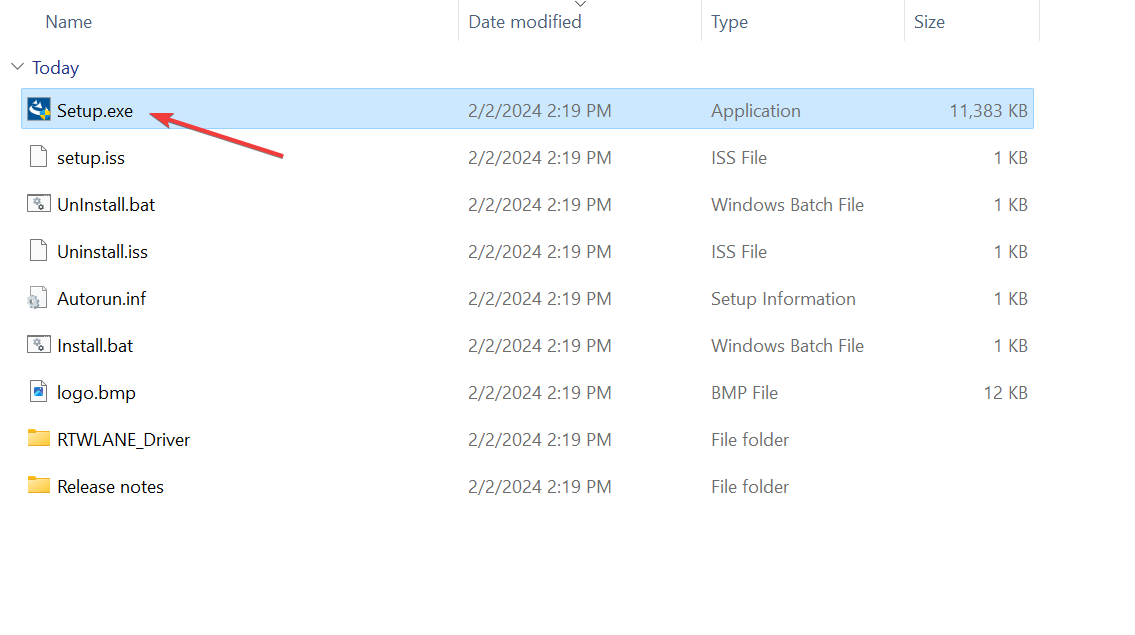
Microsoft released a new Windows installation setup experience, last week, with the release of Build 26040 to the Canary Channel, and it was found that the new setup doesn’t support automatic drive formatting to ReFS.

Now, a few days later, we know why: when trying to boot the new version of Windows on ReFS 3.12, the system reboots repeatedly, according to the same Windows Insider who spotted the inconsistency in the new UI.

However, it has been going on like this for several months now, as the spotter also posted on X (formerly known as Twitter) in November 2023, stating that booting a newer Windows version on a ReFS volume was not possible.

It seems that the Redmond-based tech giant hasn’t made any progress since then when it comes to ReFS 3.12 compatibility with newer Windows versions.

Older ReFS versions, such as 3.10, should have no problems booting the newer Windows versions, so it’s advisable to use that version when booting Windows on a ReFS volume.

ReFS is a relatively new format, and it stands for Resilient File System. It debuted sometime around the release of Windows 8, back in 2011-2012, and installing Windows on such a drive can be quite beneficial for you, as you can see in this article, as it can improve performance, support scalability, and, as its name suggests, it’s much more resilient to corruptions of any kind.

It’s worth mentioning that the ReFS format is available only on certain editions of Windows 10/Windows 11, as Microsoft states:

Applies to: Windows Server 2022, Windows Server 2019, Windows Server 2016, Windows Server 2012 R2, Windows Server 2012

Microsoft

The Redmond-based tech giant might still need some time to work on ReFS 3.12’s compatibility with newer Windows versions, so, as we mentioned earlier, users might want to opt for version 3.10.

Microsoft is advertising Copilot Pro on Windows 11’s Settings homepage, and it could greatly upset users

A Copilot Pro subscription ad card was spotted in the Windows 11’s Settings homepage by Windows Insider enthusiast, @PhantomOfEarth, in the latest builds to the Dev and Beta Channels within Windows Insider Program.

Looks like a Copilot Pro subscription card is being added to the Settings Home page, as well as a section for Copilot Pro in Accounts settings which displays billing information. Hidden in the latest Dev and Beta builds.

@PhantomOfEarth

The spotter stated that the card is currently hidden, and those who want to enable it, can use the following command in the third-party app ViveTool:

vivetool /enable /id:47942561

However, for some other Insiders, the card was already there, once they installed the latest updates, without having to uncover it with a ViveTool command, which means the Copilot Pro card is most likely gradually rolling out to Insiders.Copilot pro ad Windows 11

The Copilot Pro ad appears both as a card on the Settings’ Homepage, and a special panel in the Accounts section within Windows 11’s Settings, and it reads:

Unlock priority access to GPT-4 and GPT-4 Turbo, get accelerated performance, and create AI images faster with Copilot Pro.

Microsoft then suggests Windows 11 users get the AI tool, and find out more about its capabilities. The card is currently on in the Insider Channels, and it will most likely make its way up to the Stable channel of Windows 11.

It will also upset a lot of Windows 11 users. Here’s why.

This is why the Copilot Pro ad card on Windows 11 would upset users

First of all, Windows 11 is used by Microsoft to place ads everywhere, from those encouraging users to get on Microsoft Edge, to the company telling them to use OneDrive, and so on. A lot of Windows users have been frustrated by these ads.

A Copilot Pro ad would be another way for them to consider Windows 11 as a whole.

Then, interestingly enough, the Copilot Pro ad appears as a card in Windows 11’s Settings. Microsoft introduced the Settings cards in 2023, to allow users to access their preferred settings faster. The cards track the users’ activity on the operating system, and then Windows 11 will show personalized cards that reflect the users’ most accessed settings.

The blatant replacement of one of those cards with an ad for Copilot Pro might not go well with a lot of Windows 11 users, and it might force some to go back to an older version of the OS or transition altogether to Windows 10.

Is it a good move from Microsoft? Well, questionably. While Satya Nadella recently revealed that there are over 75 million Copilot users on Windows 10, and Windows 11, the AI tool is known for its demanding power usage.

Plus, Copilot Pro might not be a good fit for the everyday Windows user, at least not now, and many might consider there is no point in paying $20/month for the extra features.

What do you think about it?

Microsoft Intune: You can now access company-approved apps on a personal device, without moving the company’s data onto it

Microsoft will release 3 new solutions for its Intune Suite, and one of them will feature the ability to let users access company-approved apps on personal mobile devices, without compromising the company’s data, and their device’s storage.

This capability will be released with the new Microsoft Cloud KPI solution, inside the Microsoft Tunnel for MAM, which is a platform that helps secure Android and iOS devices when receiving sensitive information.

Microsoft Tunnel for MAM provides secure VPN access at the app level, for just the apps and browser (including Microsoft Edge) your IT admin explicitly authorizes. So, for personally owned devices, the user can access approved apps, without your company’s data moving onto the user’s personal device.

Microsoft

The data within the apps will be protected by specific company policies, and they won’t be stored on personal mobile devices, as well, for security reasons. That means, you’ll be able to work on your phone without worrying that the data will put you in a compromising position, in case something happens with the phone.

Intune Suite’s other 2 new solutions, Microsoft Intune Enterprise Application Management, and Microsoft Intune Advanced Analytics, promise to deliver a unified experience in Microsoft Intune that spans across many levels: cybersecurity, productivity, mobility, cloud operations, analytics, and so on, to streamline workflows, provide training for IT admins, and reduce overhead costs.

For example, the Enterprise Application Management solution will increase endpoint security, by allowing admins to have greater control over company-owned and approved apps, such as assigning privilege rights, deploying updates easier or setting them up to self-update, and many more features.

Last year, Intune received a similar update to the platform’s Custom App Control, that allowed it to stop malicious code from running, so this solution seems to take the existing feature to the next level.

With this initial release, you will be able to discover and deploy highly popular, pre-packaged apps, so you no longer need to scour the Internet to find their installation files, repackage, and upload them into Intune. Simply add and deploy the apps directly from their app publishers. You can also allow the apps you trust to self-update, and when a new update is available, it is just one click to update all your devices with that app installed.

Microsoft

The Advanced Analytics solution allows companies to have a deep, near real-time insight into their devices, and apps, so that they can improve the overall user experience or prevent/manage cyberattacks when they happen.

Microsoft also plans to integrate more AI into this solution, in the future, and it offers companies the possibility to remotely view and interact with devices.

Advanced Analytics in Intune is a powerful set of tools for actionable reporting and AI-driven analytics. It provides deep, near real-time insights into your connected devices and managed apps that help you understand, anticipate, and proactively improve the user experience. 

Microsoft

The Redmond-based tech giant says these three solutions will be enhanced as time passes, but they represent the fundamentals of the Microsoft Intune Suite, which promises to bring companies security, simplification, and savings.

You might soon be able to create your personalized emojis in Microsoft Teams

The Verge reports that Microsoft Teams might soon allow users to come up with their customized emojis in Microsoft Teams, as the Redmond-based tech giant is in the very early stages of testing customized emojis.

Reporting to the publication, several Microsoft employees said that they’re testing an animated version of the Pepe the Frog meme within internal versions of Teams.

For now, Teams supports regular emojis, and GIFs, allowing users to express themselves in a variety of ways using these methods, however, the idea of coming up with your emoji would make Teams a more welcoming and friendly place than already is.

Other platforms, such as Twitch or Discord, let users access custom emojis, with many of them being popular memes. These emojis allow for a friendlier conversation, and they open up the possibility of bonding with other users on the platform, something that Microsoft Teams could benefit from.

As The Verge noted, it seems that Teams users would want such a feature, because they have been requesting it for a while, and Microsoft placed it in its backlog, meaning the company will consider working on and possibly releasing it in the future.

With this being said, the feature will be previewed for users, if it ever gets released, and it might come out in the next months. Until then, however, users can now customize their nicknames on Teams, and they can experience it on Apple Vision Pro, starting today.

Microsoft: Copilot for Sales will revolutionize the way salespeople interact with buyers

Microsoft released Copilot for Sales and Copilot for Service, this week after the Redmond-based tech giant teased both AI models a few months ago. They’re available, starting now, with both of them priced at $50 per user/month (including the Copilot for Microsoft 365 license).

Microsoft says Copilot for Sales, especially, will revolutionize the way salespeople do their job, effectively allowing them to handle more calls, requests, and tasks with the help of Copilot which will help them:

  • Generate sales meeting preparation briefs in Word.
  • Summarize emails and surface relevant buying intent and budget, authority, need, timing (BANT) analysis in Outlook.
  • Generate emails in Outlook with relevant product, account, relationship, and opportunity information from their CRM system and Microsoft Graph.
  • Add leads and update CRM records directly from Outlook.
  • View meeting preparation notes and real-time sales insights during calls in Teams.
  • View sales meeting summaries in Teams with conversation analysis, sales keywords, and KPIs, and suggested tasks.
  • Create collaborative deal rooms in Teams that sync with CRM data.

Plus, Copilot for Sales is coming with Copilot for Microsoft 365, and this means salespeople will be able to generate presentations in PowerPoint and create and organize plans in OneNote in seconds. They will even be able to ask questions in natural language to easily catch up without wasting any time.

But this is not all, though, as Microsoft is planning to further enhance the capabilities of Copilot for Sales, to let salespeople connect the CMR to the Microsoft Copilot chat experience, effectively giving them the means to come up with precise replies in a matter of seconds, as well.Copilot for Sales

Later in 2024, Copilot for Sales will also integrate PowerPoint, and OneNote in such a way, that they will come up with tailored answers and prompts specific to every use case.

On the other hand, Copilot for Service is aimed towards organizations, rather than specific employees, and it will integrate multiple platforms, such as Teams, and Outlook, with the organizations’ internal platforms, for a more streamlined workflow.

Copilot for Service unlocks an organization’s trusted knowledge to accelerate onboarding and case resolution, improve efficiency, and automate tasks for agents in their flow of work. Without costly development time, organizations can simply point to their data and, in a few minutes, unlock generative AI-powered conversations across their knowledge bases. And for agents, they can tap into this knowledge with a copilot embedded directly in their desktop software of choice such as Salesforce, as well as the other tools they already use every day like Outlook and Teams.

Microsoft

Microsoft will enhance the tool in a manner similar to Copilot for Sales, with the following features, as the Redmond-based tech giant states:

  • In Outlook, Copilot will be able to summarize and draft emails, access case summaries, browse and update CRM records, and schedule meetings informed by case summaries and other relevant information from CRM records.
  • In Teams, Copilot will be able to browse and update CRM records during a meeting, as well as recap meetings, suggest follow-up action items, and create tasks that can all be saved to CRM systems directly from Teams.
  • In the Microsoft Copilot chat experience, Copilot will be able to ask questions about cases and contacts, as well as summarize cases—all from CRM data.

As you can see, salespeople will have more than enough tools to boost their productivity in a way that wouldn’t feel overwhelming or tiring.

However, it will be interesting to see if salespeople will adopt the new tool as their helpful companion. The latest earnings report from Microsoft says Copilot is the reason the Redmond-based tech giant amassed over 400 million paid Office 365 seats, so a lot of professionals are open about AI.

But what do you think?

BSoD Only on One Game: Here’s How to Fix it

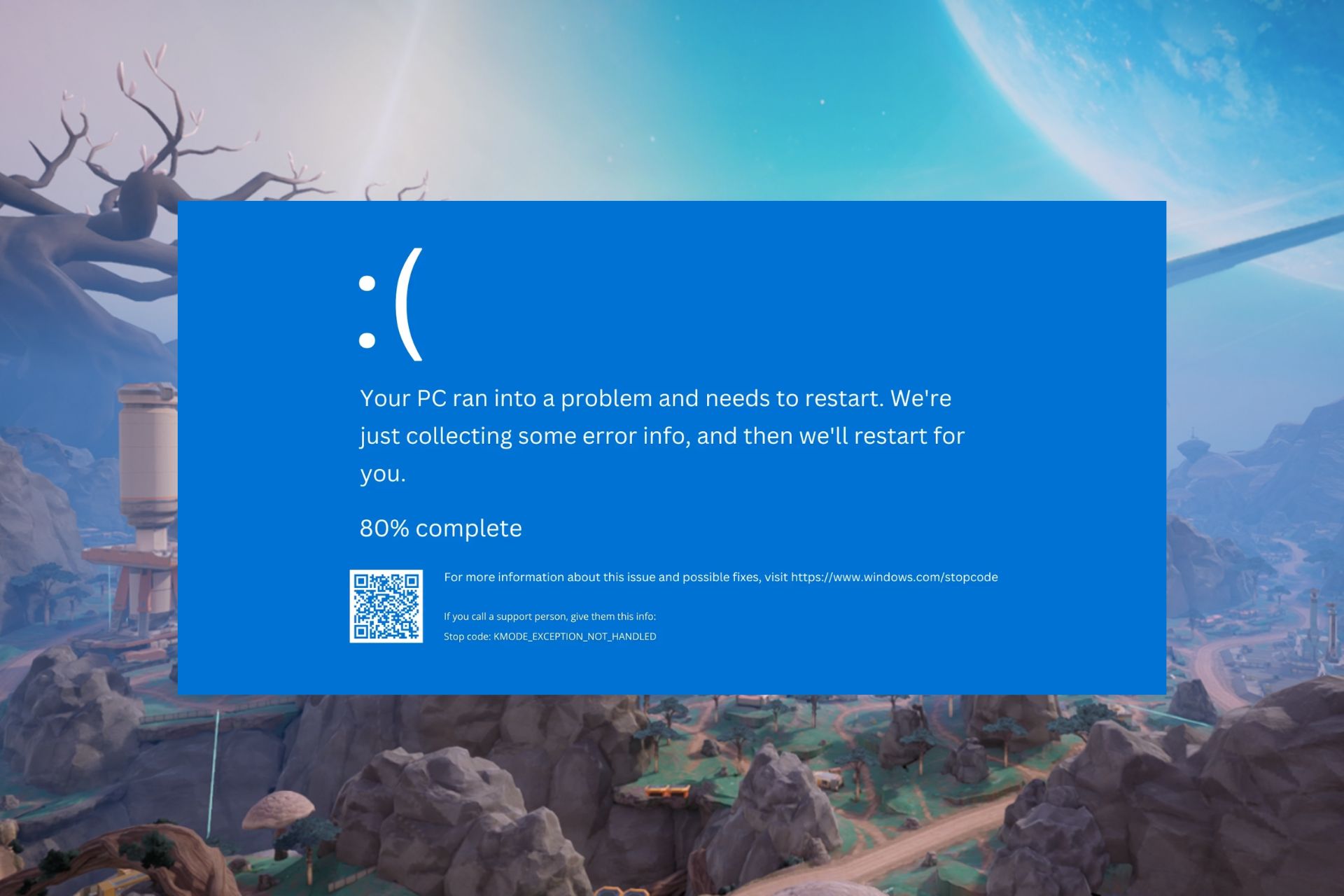
BSoD errors are common but when they only appear when playing one specific game, it should strike your interest. For this particular one, it happened when we played Farlight 84 accompanied by the llhkp.sys error code.

BSoD errors that are unique to games can be caused by software conflicts, hardware failure, outdated/damaged graphic drivers, high CPU/GPU temperatures, or even incorrect in-game settings.

How do I fix BSoD errors occurring on one game only?

1. Run the Windows memory diagnostic tool 

  1. Press the Windows key, type Windows Memory Diagnostic, and click Open. 
  2. Click Restart now and check for problems.memory-diag-tool 3 easyanticheat.sys
  3. The computer will restart and the tool will run the memory test. memory-diag-tool
  4. You can change the test options by pressing F1.
  5. Once the scan is complete, you can check for errors under Event Viewer. 

Additionally, ensure your system is up-to-date and you have enough RAM to run the specific game.

2. Optimize your PC’s power plan

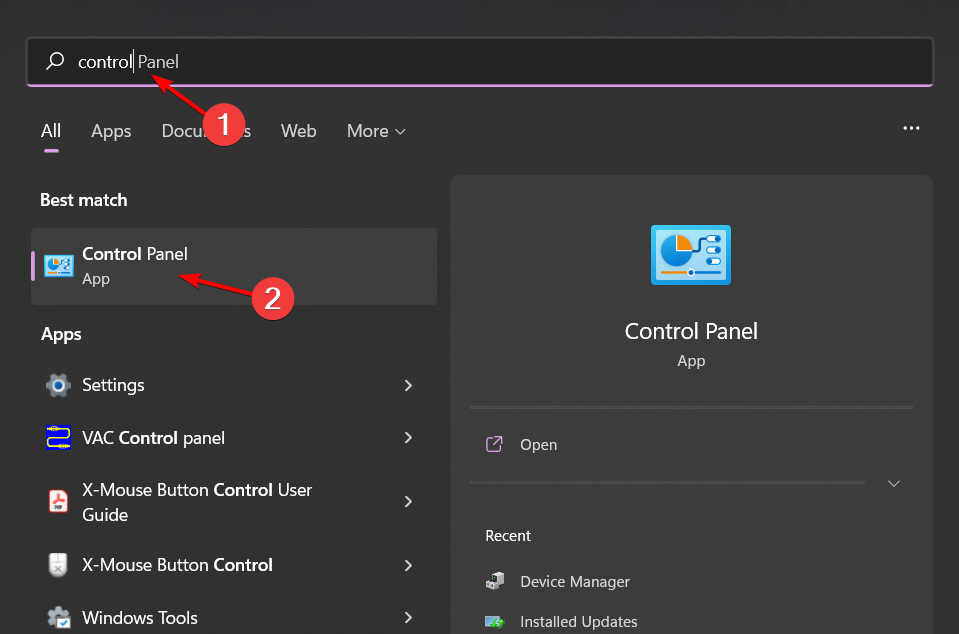
  1. Press Windows + S to launch the Search menu.
  2. Enter Control Panel in the text field at the top, and click on the relevant search result that appears.control-panel-search fallout new vegas runtime error
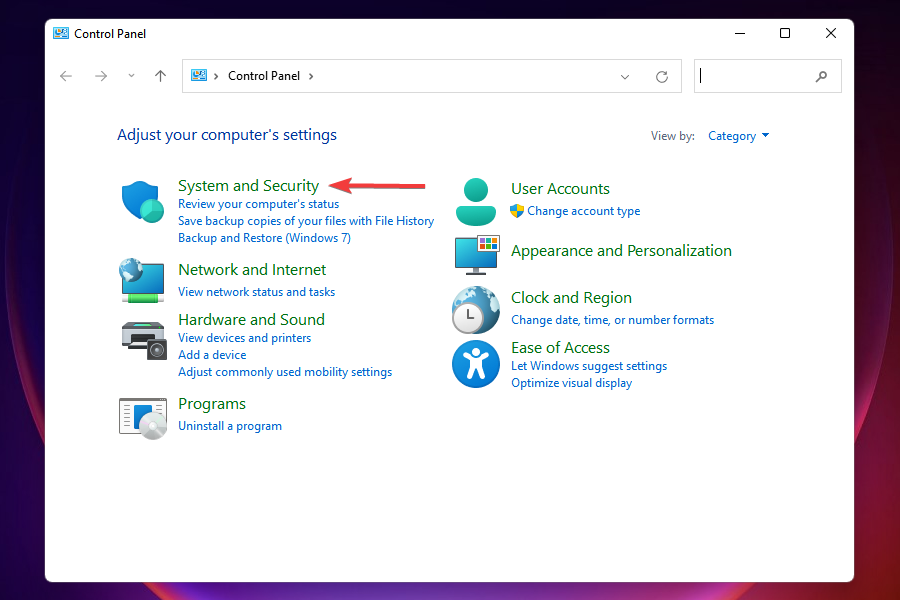
  3. Click on System and Security from the options that appear.System and Security
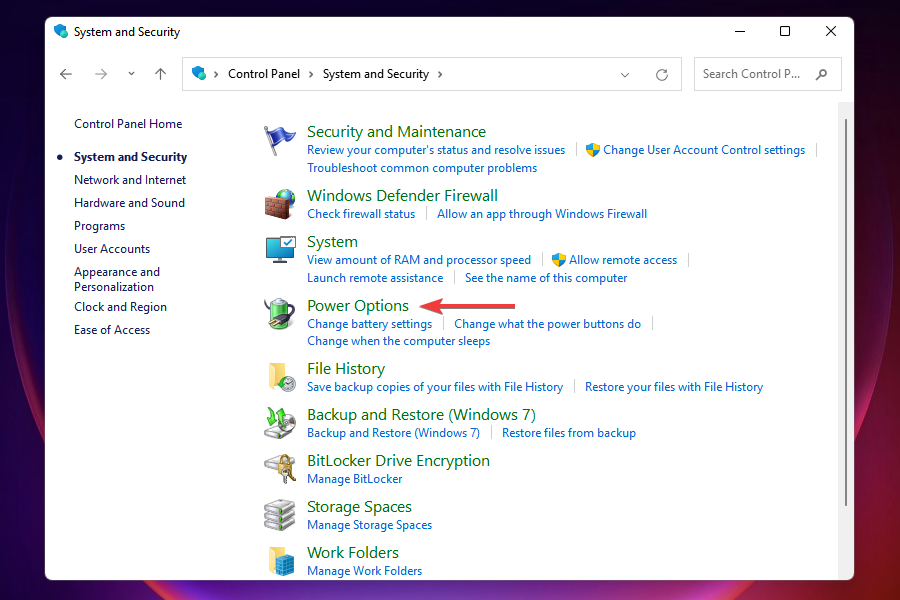
  4. Click on Power options.Power options
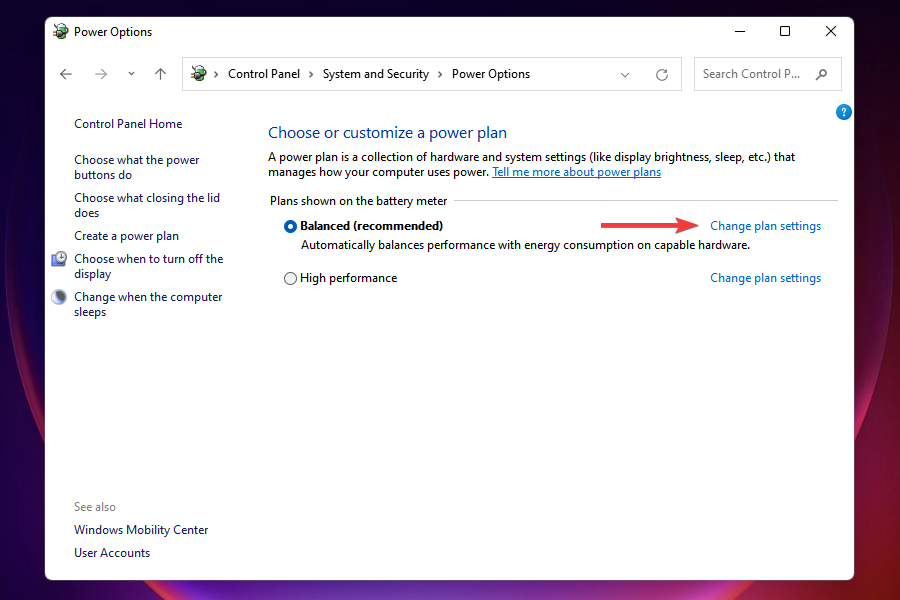
  5. Next, click on Change plan settings next to the current power plan.Change plan settings
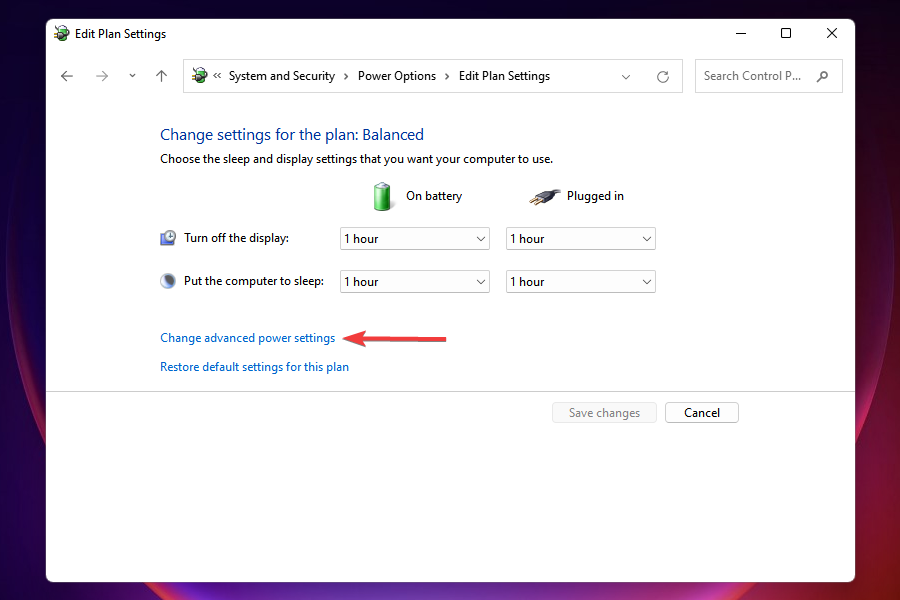
  6. Click on Change advanced power settings near the bottom.Change advanced power options
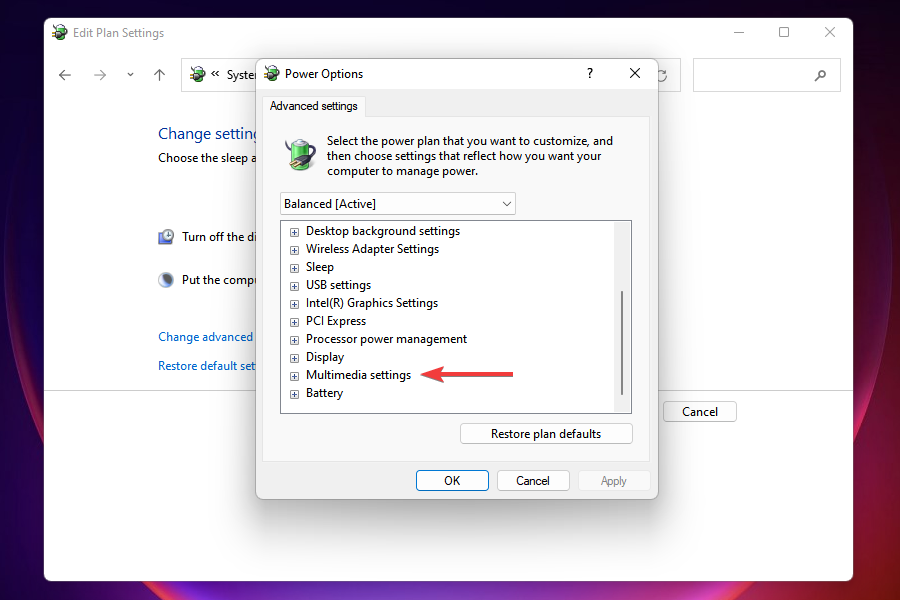
  7. In the Power Options window, scroll down and double-click on Multimedia settings.Multimedia Settings
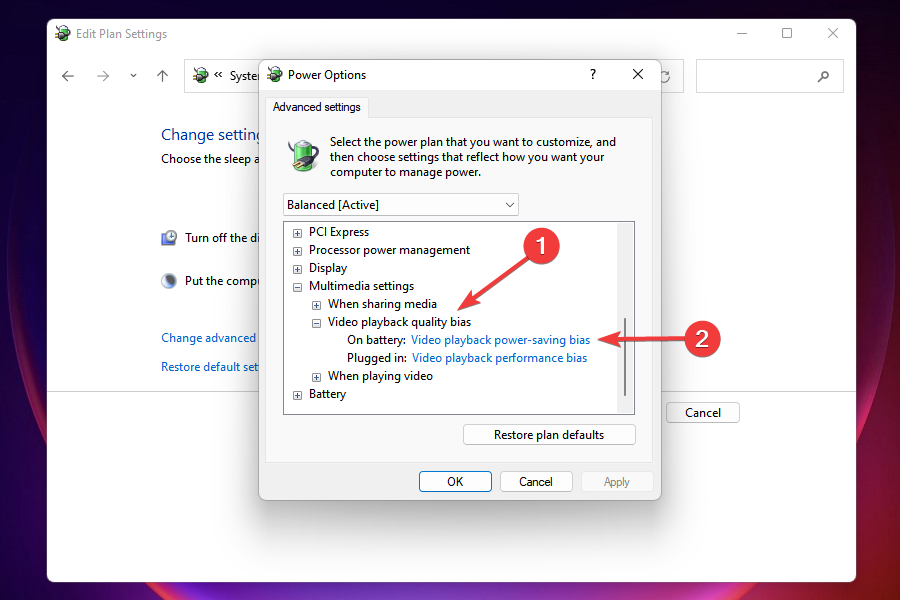
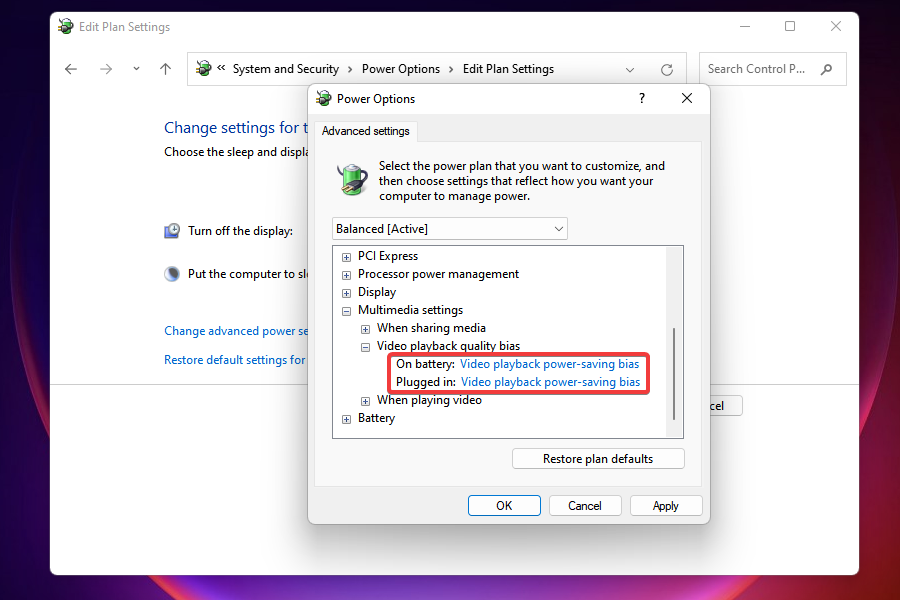
  8. Now double-click on Video playback quality bias, and then on the menu next to On battery.Change Video playback quality bias
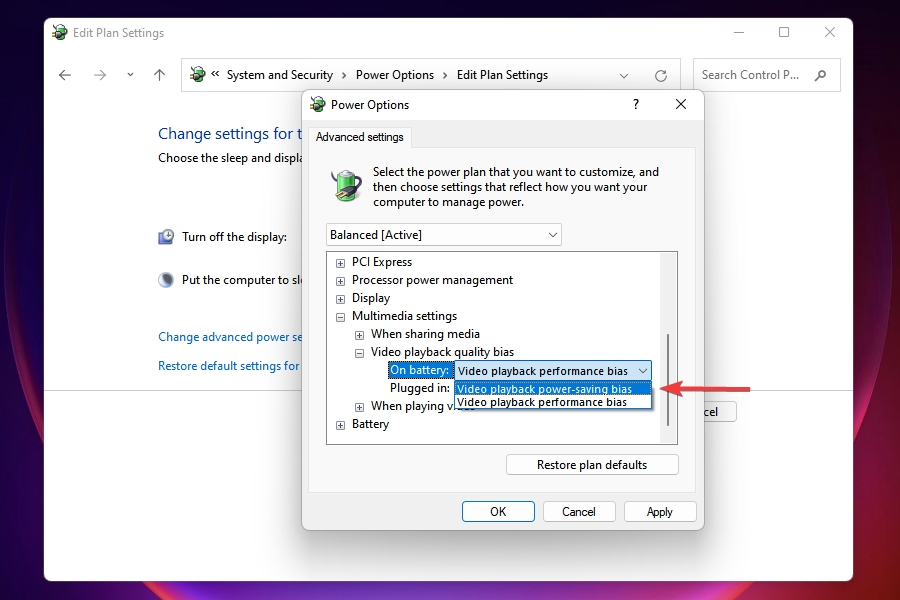
  9. Select Video playback power-saving bias from the list of options that appear.Change settings to fix overheating in Windows 11
  10. Similarly, select the same setting for Plugged in as well.Set same the same setting for both
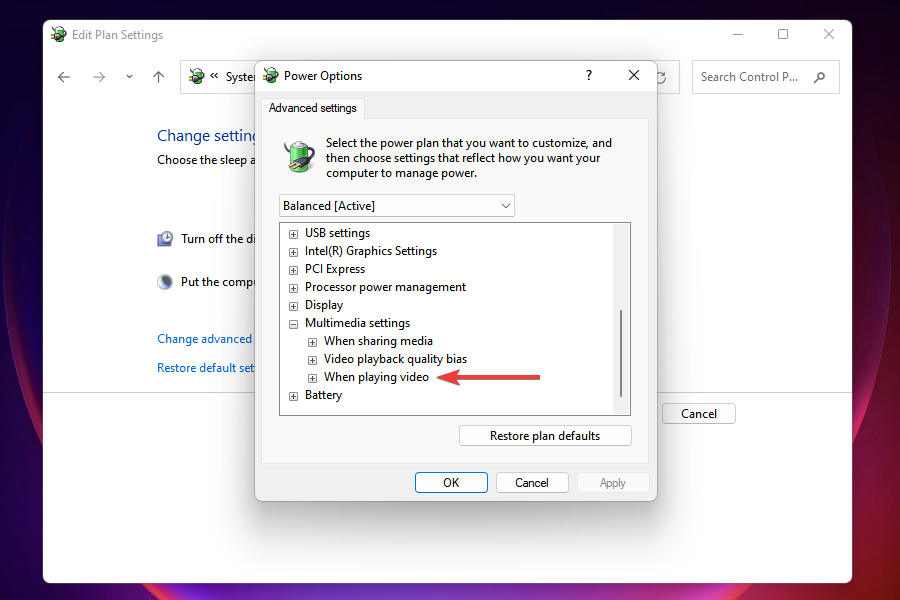
  11. Next, double-click on When playing video to expand and view the settings under it.Change when playing video settings to fix overheating in Windows 11
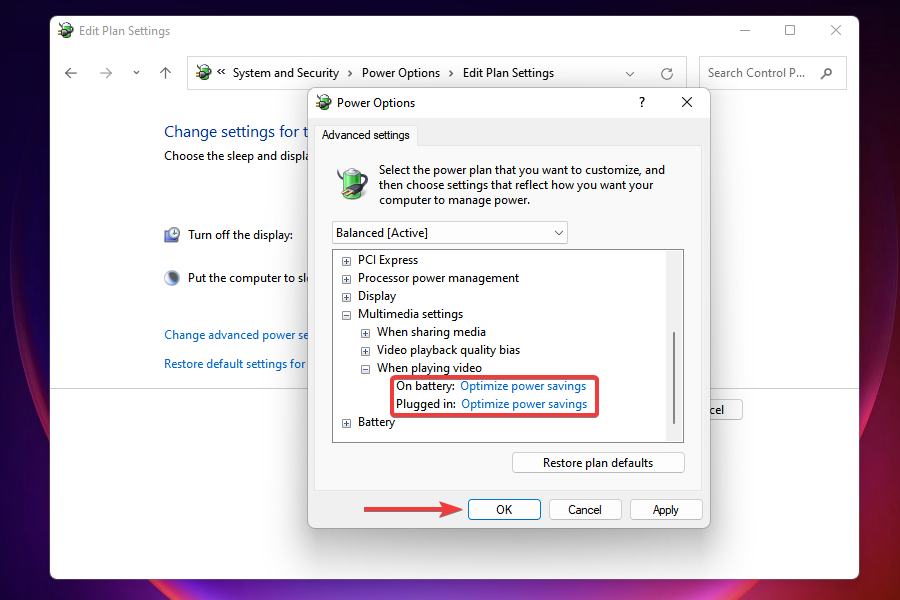
  12. Set both On battery and Plugged in as Optimize power savings, and click on OK to save the changes.Set optimize power savings for both

If you have sub-par or older hardware, intensive gaming sessions can push your hardware to its limits, leading to overheating. When your CPU or GPU temperatures exceed the safety zone, a BSoD error may be triggered.

You can also take further steps to cool down your PC such as disabling overclocking to take off the heat on your CPU/GPU.

3. Disable your antivirus temporarily 

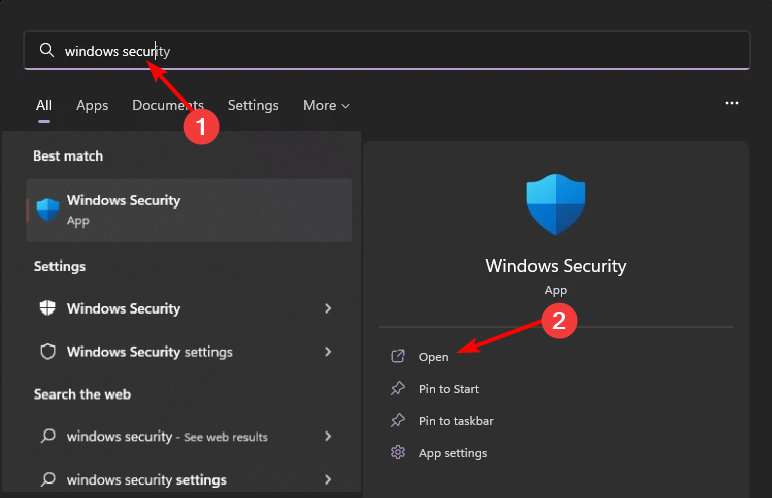
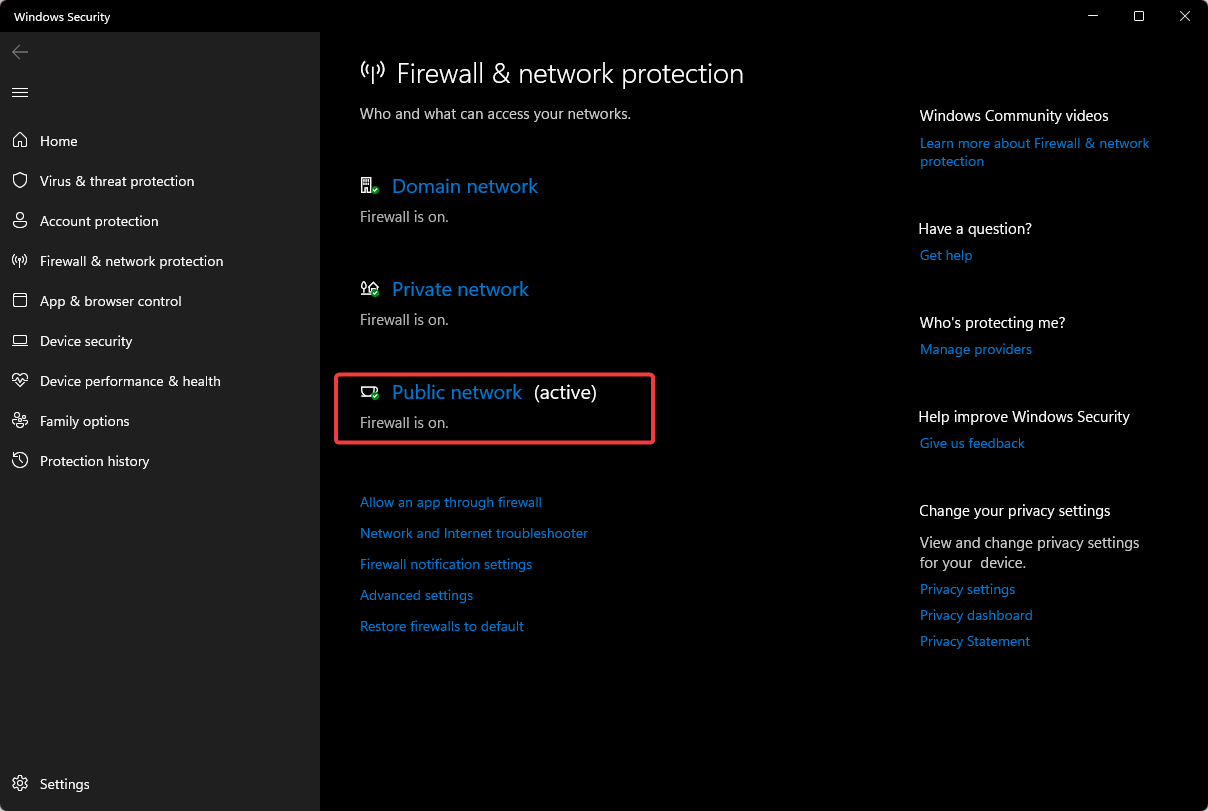
  1. Hit the Start menu icon, type Windows Security in the search bar and click Open.
  2. Click on Firewall & network protection, then select Public network.league of legends black screen after champion select
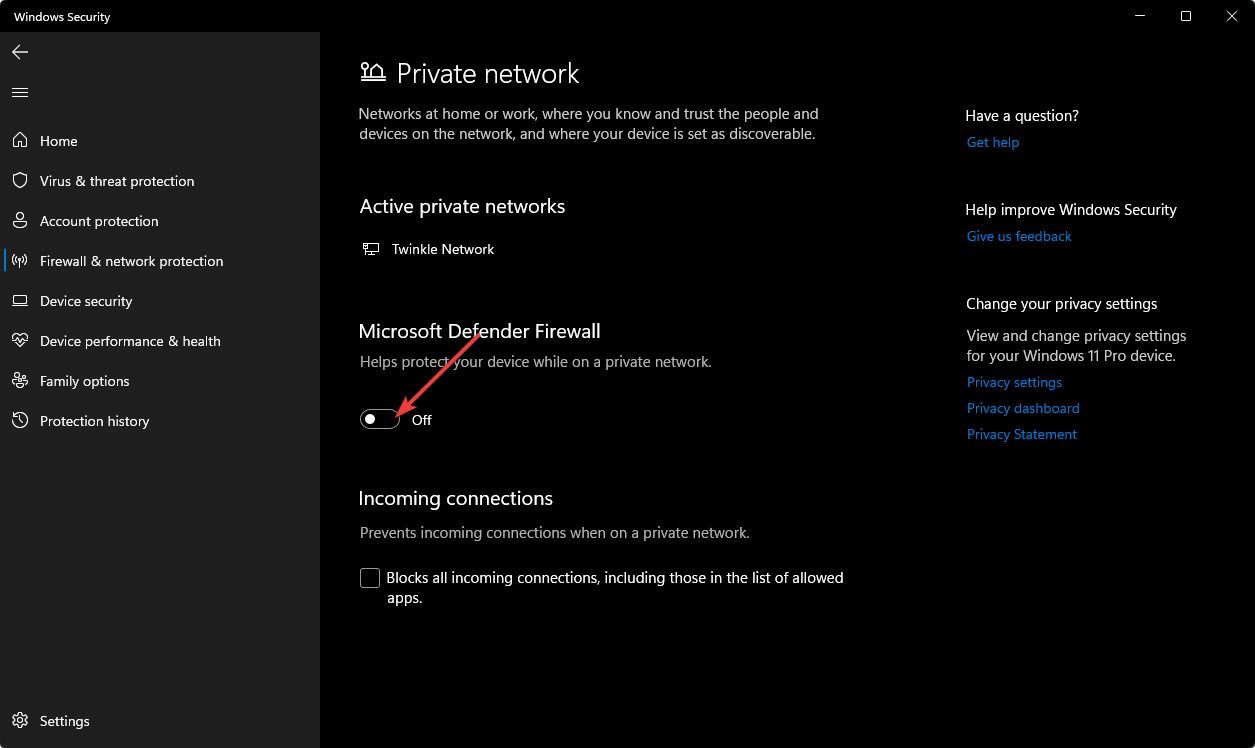
  3. Locate Microsoft Defender Firewall and toggle the off button.turning off Microsoft Defender Firewall Windows

An overtly aggressive antivirus may flag off your game as a security risk, causing system instability. If so, temporarily disabling your security software can help troubleshoot this issue but for a more permanent solution, consider whitelisting this specific game.

4. Update the GPU drivers

  1. Press Windows + R to open the Run dialog box. Device Manager RUN COMMAND
  2. Type devmgmt.msc and click OK to open the Device Manager. 
  3. Locate and double-click Display adapters.
  4. Right-click the graphics driver, and click Update driver.Graphics Driver update easyanticheat.sys
  5. Click Search automatically for drivers. Update driver 2 easyanticheat.sys
  6. Follow the onscreen instructions to complete the process. 

Updating GPU drivers, or any drivers as a matter of fact, can be greatly simplified by using dedicated software. This kind of tool can scan your entire system and identify and download missing or outdated drivers in a matter of minutes.

⇒ Get Fortect Driver Updater

5. Run DISM and SFC scans

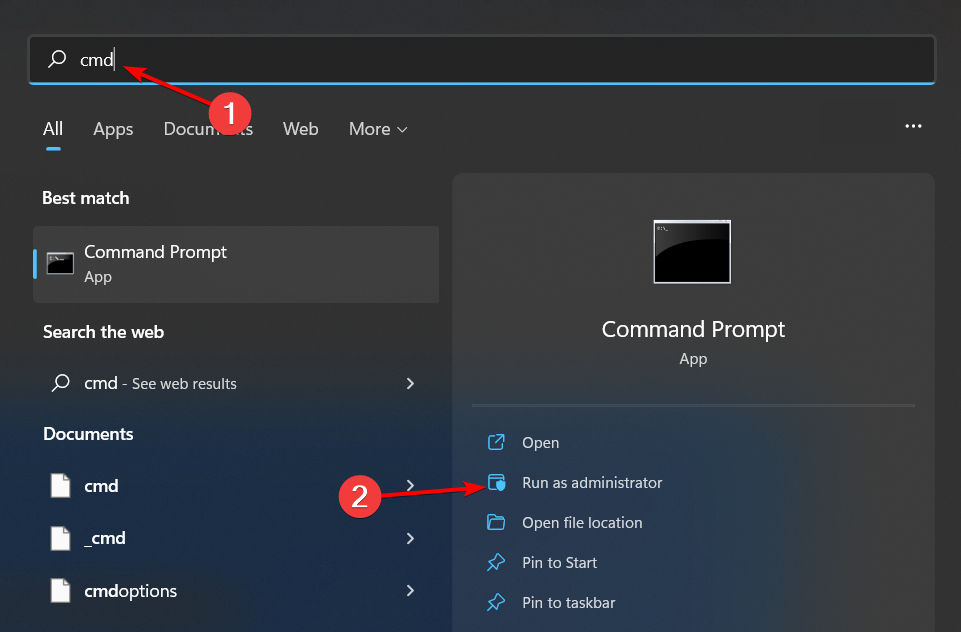
  1. Hit the Start Menu icon, type cmd in the search bar, and click Run as administrator.cmd-run-admin-w11 unexpected kernel mode trap windows 11
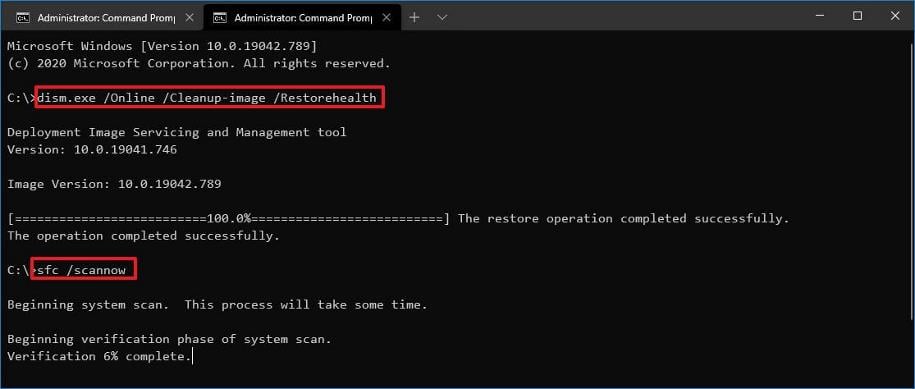
  2. Type the following commands and press Enter after each one:DISM.exe /Online /Cleanup-Image /Restorehealth sfc /scannow

6. Scan for viruses

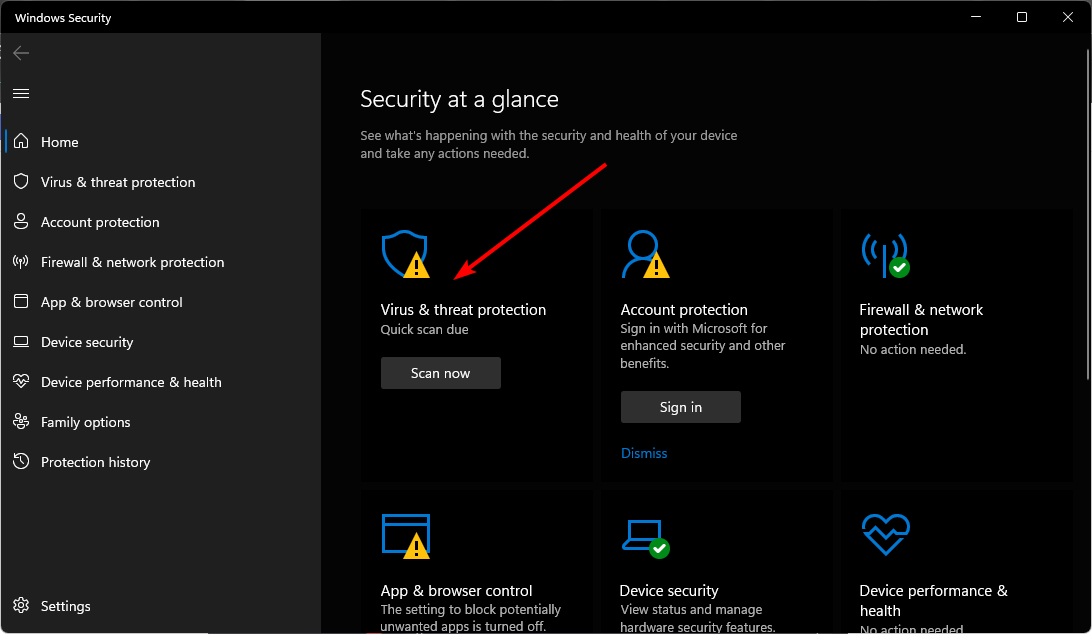
  1. Press the Windows key, search Windows Security, and click Open.
  2. Select Virus & threat protection.
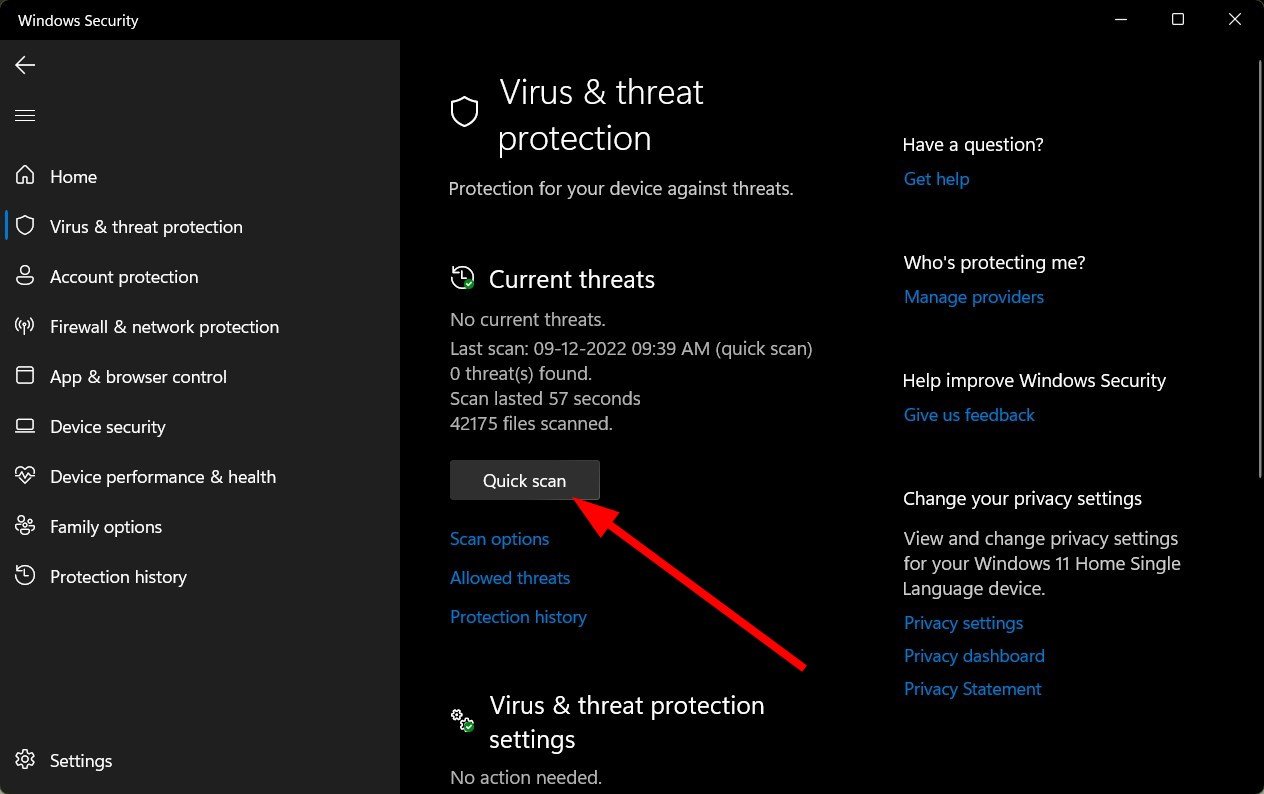
  3. Next, press Quick scan under Current threats.
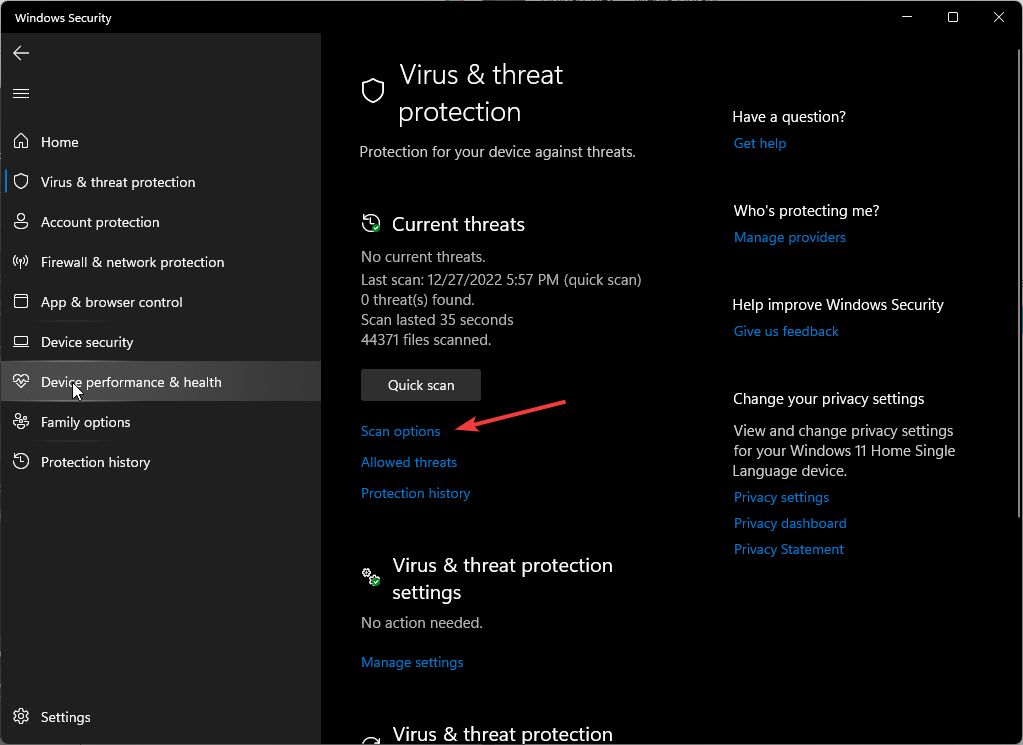
  4. If you don’t find any threats, proceed to perform a full scan by clicking on Scan options just below Quick scan.Scan options
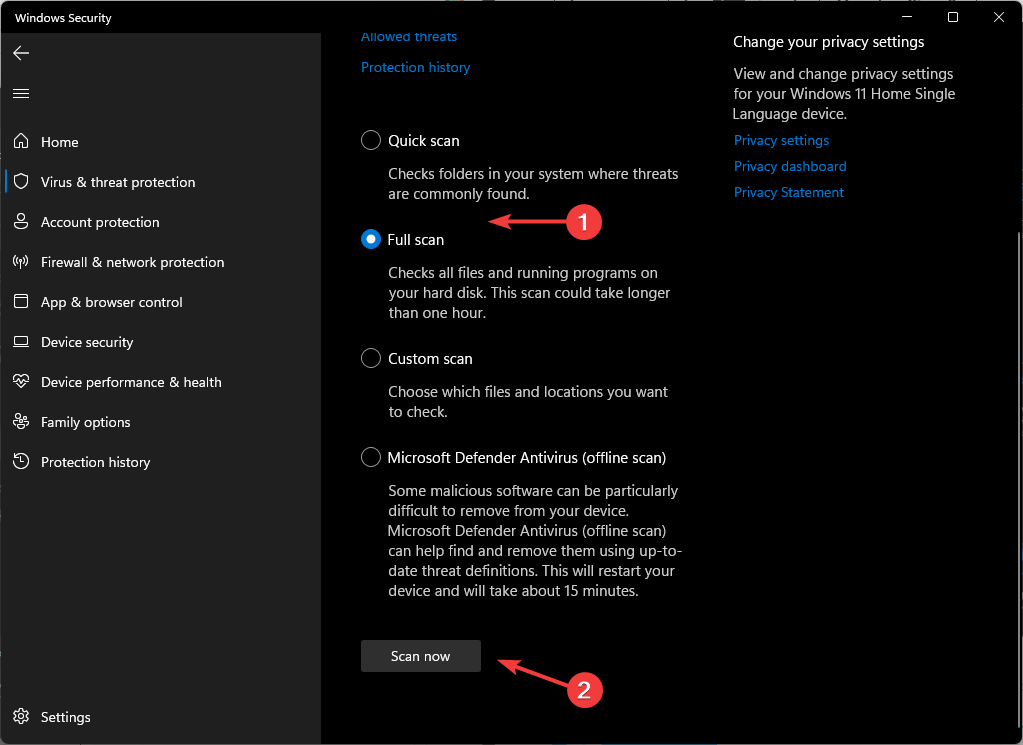
  5. Click on Full scan, then Scan now to perform a deep scan of your PC.Full Scan Scan Now
  6. Wait for the process to finish and restart your system.

7. Reinstall the problematic game in compatibility mode

  1. Click on the Start Menu icon, type Control Panel on the search bar, and click Open.control-panel-search fallout new vegas runtime error
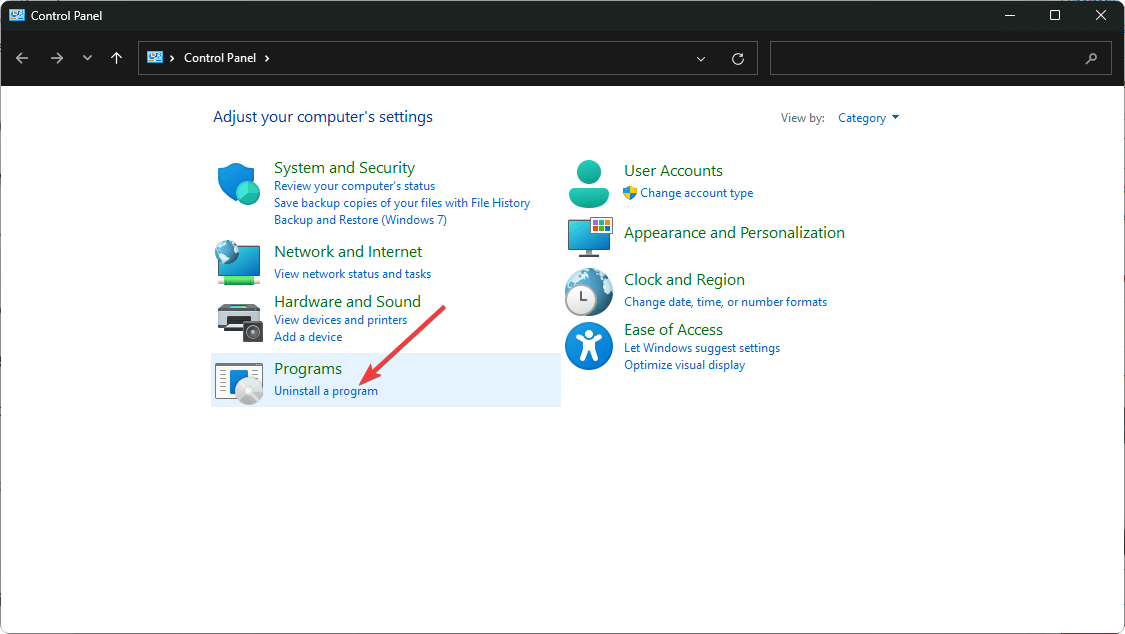
  2. Select Uninstall a Program under Programs.going uninstall program control panel
  3. Find the problematic app, click on it, and select Uninstall.
  4. Confirm uninstallation in the next pop-up.
  5. Install the app again from the official website.
  6. Locate the .exe file of the problematic app usually in one of the following paths depending on your version of Windows: C:\Program Files (x86) or C:\Program Files
  7. Scroll down until you find the program you’re looking for. 
  8. Right-click on the .exe file of the program and select Properties.    
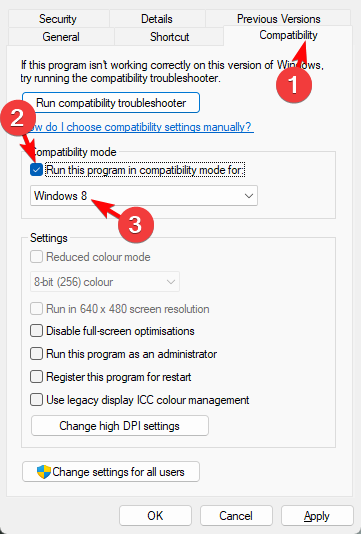
  9. Navigate to the Compatibility tab, check the Run this program in Compatibility mode option, and select Windows 8  from the drop-down menu.   run this program in compatibility for
  10. Allow the program to finish installing, then check whether the error persists.

8. Perform System Restore

  1. Press the Windows key, type Control Panel, and click Open.control-panel-search fallout new vegas runtime error
  2. Select View by as Large icons and click Recovery.Recovery Control Panel
  3. Click Open System Restore.Open system restore
  4. On the System Restore window, select Choose a different restore point and click Next.easyanticheat.sys Next Choose a different restore point
  5. Now select the restore point and click Next. Choose a point
  6. Click Finish.Finish Restore point

Unfortunately, without sufficient information, all these steps may prove futile. You can go ahead and contact EA customer support as the problem could be on their side. Perhaps a new game update had corrupt game files that are causing this issue.

However, if you’re looking for on-the-spot solutions and ensure you don’t waste a lot of time, you can try a dedicated BSoD fixer. BSoD errors related to games are in plenty so if you get a Blue Screen when launching a game, don’t hesitate to check out our expert article.

Beware of using cheating software too to get an unfair advantage over a game because you may be slapped with the easyanticheat.sys BSoD error.

Hopefully, one of these solutions has been instrumental in resolving this issue. We’re open to hearing any other way out you may have so drop us a comment below if you have another unmentioned fix.

Microsoft Edge overtakes Safari, Mozila and Opera in market share

Surprisingly, the report published by Statcounter in January 2024 shows how Microsoft Edge managed to get ahead of Safari, Mozilla, and Opera in worldwide desktop browser market share. This might show that there is a growing popularity in the browser. Yet, Chrome remains the one with the highest market share.

Which browser should I pick in 2024?

Statcounter report

The January 2024 Statcounter report regarding the browsers market share

To simplify the Statcounter report, we listed the browsers based on their market share percentage.

  1. Google Chrome – 64.84%
  2. Microsoft Edge – 12.96%
  3. Apple Safari – 8.83%
  4. Mozilla Firefox – 7.57%
  5. Opera – 3.23%

It is interesting how much Apple Safari fell behind in a matter of months. At the same time, we are surprised that Opera and Mozilla are surpassed by Microsoft Edge in market share, given how many unique features they have. However, Microsoft forces users to use Edge and the Bing search engine by using them as defaults for the search feature. In addition, Microsoft made it harder to switch from Edge.

It is easy to see why Edge managed to rise in rankings. After all, it comes with Windows, it is accessible, it is not as resource-hungry as Chrome, and it uses Chromium. Surprisingly, it even performs quite well.

Is Edge better than Safari?

Microsoft Edge has more customization options and extensions. The browser is somewhat better than Safari for Windows devices. However, for Apple devices, Safari is better optimized and more efficient. Ultimately, it mostly depends on your device type.

By the way, if you are a gamer, we recommend Opera GX. It has a lot of great features like gaming news, discounts, and sales, and it even tells you which platform offers free games.

We tested most of the browsers available, so if you’ve got time, check out the list featuring the best browsers for all devices.

Which browser are you currently using and why? What do you think of Edge? Share your thoughts in the comments, we are eager to hear them.

Rumors are Xbox is working on a handheld console, yet again. Should we believe them?

It’s that time of the year again when gamers everywhere, especially tech nerds, are starting to ponder the idea of an Xbox handheld console. Handhelds are quite popular right now, and many tech companies and video game platforms, even, have joined the fun.

For instance, Steam joined the handheld market with its Steam Deck console. Asus came in with its ROG Ally beast, and Lenovo, as we exclusively reported last summer, joined the fun with the exquisite, highly capable, yet demanding Lenovo GO. (In case you want to buy one of these handhelds, please check our detailed comparison so that you can make an informed decision.)

As the popularity of handheld consoles is getting bigger, the big players are also taking their chances once again. More specifically, Insider Gaming recently reported that Sony is planning to release another PlayStation handheld that will have an AMD APU and it’s currently in development, so it might take a year or two before it gets released.

However, as noted on X (formerly known as Twitter), many video game lovers gave their input on the news, including Windows Central’s Jez Corden, who apparently admitted Xbox is looking into developing a handheld console, as well. Does Corden know something we don’t?

Well, we don’t know, as it might simply be just a joke. But jokes, aside, should we entertain the rumors and expect Xbox to release such a console?

Should Xbox release a handheld console?

The answer is ambiguous. Yes, and no. If we explore the yes answer, then we have already entertained the idea, and you can find out what should an Xbox handheld console look like by reading this article. We said there is everything that needs to be said about a potential Xbox handheld console.

But we also want to say something more: the reason Xbox should join the handheld madness is simply due to the fact that it would offer a wide array of choices to many a variety of gamers. Sure, there are already two versions of the Xbox console, aimed at different audiences, so why shouldn’t Microsoft cater to one more audience, the ultramobile gamers, who are often on the road?xbox handheld console

From this perspective, Xbox should take a risk, just once, and release a console just for the sake of it. Maybe it will be well-received by gamers, and critics alike. Maybe it won’t. But if it doesn’t, Xbox already has two current consoles, and the very popular Xbox Game Pass to get back to.

On the other hand, if we say Xbox shouldn’t release a handheld console, is simply because the company would have too many departments to focus on: they have the Game Pass, they have the newly-acquired Activision-Blizzard-King corp to take care of (and it doesn’t look good, as Microsoft announced a wave of layoffs for the triad company), they also have a gigantic roadmap with over 5000 games in development, plus, the next-gen Xbox consoles.

So there would be too many things, and we all know how the word goes: you can be a jack of all trades, but master of none. And if Xbox wants to be the dominant force in the console market, it has to be the master of it.

Is anyone using Teams’ Walkie-Talkie feature? Apparently, not so much!

The Walkie Talkie feature in Teams was developed by Microsoft for frontline workers to automatically listen or send PPT messages from their favorite channels.

Although it seems like a great idea that might replace a lot of expensive tools, the feature is not so popular, at least not yet.
Why don’t organizations use the Teams’ Walkie Talkie?

First of all, Walkie Talkie from Teams is a pretty new addition and not many people have heard about it yet. It was available for Android and now, Microsoft is extending the feature for iOS as well.

Another reason for ignoring the feature is that although Microsoft has a tutorial on using Walkie Talkie, IT admins didn’t yet grasp it’s settings:

What is the android keyevent that triggers the MS Teams Walkie Talkie PTT button? Out hardware button is registered as Camera 27 – that doesn’t work. It can be remapped if I knew what keyevent was picked. Anybody got lucky and found it by trial and error?

Sais, one of the commenters

Everything looks easy in the how to video guide provided by Microsoft but things are not so simple as they seem. You need to be in the same channel as the person you want to send the message to, and they need to have their Teams app open, as one of the users points out:

Unfortunately, MS Walkie Talkie requires more work. MS Teams Walkie Talkie will only work for users currently in one Teams group/channel. For members that may have Teams closed, have multiple channels (like us) or simply out of the particular channel won’t receive the Walkie Talkie communication. Microsoft should allow users the ability to get calls from all multiple channels to truly become a walkie talkie. I hope that they enhance this feature. They will destroy their competitors (e.g., Verizon’s PTT + ) if they can allow communication for all channels.

However, not all the user’s complaints are legitimate. Walkie Talkie allows you to listen to up to five favorite channels since November, last year, but you need to pin them first to get the messages.

Also, Microsoft recommends IT managers to make sure that all endpoints listed for Teams in Office 365 and the IPs are reachable by the users on the network.

Do you use the Walkie Talkie Teams feature within your organization? Tell us all about it below, in the comments section.

The bug that was plaguing Outlook and email clients is gone, no more login issues

Recently many users experienced the inability to connect to Outlook servers, and according to users, Outlook wasn’t accepting passwords or app passwords.

The issue was reported on Microsoft Answers forums a few days ago, and Microsoft has acknowledged and fixed the error.

Microsoft has fixed the recent Outlook login issue

According to Microsoft’s support page, many users were unable to connect to Outlook.com. The issue has been reported on various email clients, including Outlook 2013, Outlook 2016, Outlook for Microsoft 365, and Thunderbird.

It’s not just the desktop apps, the mobile apps were affected as well. The issue appeared in email clients while trying to use POP, IMAP, or Exchange connections.

Well, Microsoft reported that it made service changes and that the issue was addressed. While the problem was fixed, some users may be still having issues on Outlook 2013 and 2016.

If you’re using any of these two versions, Microsoft advises you to enable two-step verification and create the app password that you’ll use instead of your regular password.

While this was a major issue, Microsoft was quick to address it. This isn’t the only issue being addressed, Microsoft is also working on bringing proper drag-and-drop support for attachments in Outlook.

Have you experienced this issue? If so, share your experience with us in the comments.

Mozilla calls out Microsoft on sneaky tactic to steer Windows users to Edge

A recent report named Over the Edge: How Microsoft’s Design Tactics Compromise Free Browser Choice by independent researchers Harry Brignull & Cennydd Bowles discusses how Microsoft’s design rips users from the freedom of choosing a browser.

This is not the only claim made; Mozilla also expressed the same concern in two reports titled Five Walled Gardens in September 2022 and Platform Tilt in January 2024, claiming that the Redmond giant uses dark patterns to push people towards Edge.

These reports majorly talk about the competitive barriers presented in platforms by companies, including Apple, Microsoft, and Google.

Over the Edge, as the name suggests, mainly talks about Microsoft Edge and the tech giant’s manipulative design patterns, also called deceptive patterns or dark patterns, that are crafted intentionally to force people toward a favorable outcome.

Mozilla stated,

Windows users everywhere, especially in the rest of the world, continue to have their choices inhibited, overridden and undermined by Microsoft’s use of harmful design. Regulatory action around the world is needed to restore browser choice and competition across all of the major platforms.

One thing in the report that caught our attention was the alleged injection of Microsoft Edge ads into unrelated search results or download pages, which comes under the Disguised Ads tactic. For example, when you search for options to install Chrome or Opera, you might see a pop-up on the top of the screen resembling a Windows interface, hinting that Edge is better.

Mozilla calls it misleading and makes users think compliance with Edge is important for device security.

I experienced the same issue when, after a reinstall, I tried to download Chrome on my computer, but I neglected it. Now that this report has highlighted this issue, it would be wrong to think the claim is untrue. I was bothered by the ad, and if I hadn’t always been using Chrome, I might have gone for Edge.

Other deceptive interface patterns outlined by the report are Confirmshaming, Visual Interference, and Forced Action.

When asked about these claims and their notion of healthy competition, a Mozilla spokesperson said

Our position about fair and open competition has not changed. However, there is an increased need to understand and identify some of the technical aspects related to legislation like the DMA which is why we commissioned the independent research.

The report also emphasizes that developers like Microsoft and Google should promote their products without clouding a user’s judgment.

Also, it asserts that a user should be able to download, install, and set any legitimate web browser as default on their computer without anyone manipulating their decision.

Mozilla has put its hope in Europe’s Digital Markets Act (DMA), which plans to make sure there is fair competition within the European Union. The act will be implemented in March 2024, and it is seen as the hope that the barriers to browser competition will be reduced.

The nonprofit software house also stresses that when the issues are reported, the changes made are usually incomplete and are a result of regulatory pressure. It further argues that Microsoft’s supposed use of harmful design should be addressed immediately to prevent harm to consumers, the market, and society.

Microsoft has not yet responded to these accusations. It seems that the battle between browsers will continue, and regulatory scrutiny could become a significant factor in shaping the landscape of fair competition in the tech industry.

If you are interested in knowing about Mozilla and Microsoft wars, check out our article on why Firefox ended support for Windows 7, 8, and 8.1.

What do you think about this claim? Share your thoughts in the comments section below.

Elgato’s HDMI 2.1 capture cards 4K X and 4K Pro feature HDR and great frame rates

Don’t wait any longer to stream and record in high resolution and good framerates. The 4K X and 4K Pro HDMI 2.1 capture cards from Elgato are here. Yet, if you don’t know which one to get, we’re here to help you decide.

The first decisive factor is their accessibility. If you travel a lot and always switch devices, 4K X could be the best option. However, the 4K Pro is the stronger one. So, keep that in mind. Also, before getting any of them, know that the HDR capture is only available for Windows.

4K X and 4K Pro will set your new standards

4K X and 4K Pro Tech Specs

4K X4K Pro
CaptureCapture up to 2160p144, 2160p30 HDR, 1440p144, 1440p60 HDR, 1080p144, 1080p120 HDR.Capture up to 2160p60, 1440p144, 1080p240, 720p240, High Dynamic Range (HDR).
Capture ResolutionsHDR 10-bit passthrough (up to 4K144) / capture (up to 4K144)Passthrough (up to 8K60) / capture (up to 2160p60)
InputPassthrough up to 2160p144, 2160p60, 1440p240, 1080p240, Variable Refresh Rate (VRR), High Dynamic Range (HDR) Lag-free passthrough up to 4320p60, 2160p240, 1440p240, 1080p240, Variable Refresh Rate (VRR), High Dynamic Range (HDR)
InterfaceUSB 3.2 Gen2 (10Gbps) Type-C
3.5 mm TRS (stereo) line-in port
PCIe 2.0 x4
Supported SourcesUSB 3.2 Gen2 (10Gbps) Type-C
3.5 mm TRS (stereo) line-in port
Sony PlayStation 5
Sony PlayStation 4/Pro
Microsoft Xbox Series X|S
Microsoft Xbox One X|S
Nintendo Switch
PC
iPhone/iPad
Google Pixel
And other unencrypted HDMI sources

Core differences between the capture cards

There is a great difference between the two when it comes to captures and input. 4K Pro is better if you like the higher frame rate capture and prefer better color ranges and visuals.

Unfortunately, unlike 4K X, the Pro version requires a PCIe slot that limits the overall compatibility of the card. Yet, it allows you to passthrough 8K60. On top of that, it offers you the best framerate possible for 4K. Last but not least, 4K Pro can stream on multiple platforms, while 4K X can only stream on one platform at a time.

Ultimately, if you are a streamer who prefers using multiple platforms and like wide color ranges and detailed visuals, select 4K Pro. On the other hand, if you are always moving around, prefer a USB connection, can give up on 4K at 60 FPS, and don’t mind streaming on a single platform at a time, 4K X is waiting for you.

To complement your console and to further boost your gaming experience, check out ViewSonic 4K-X1 and 4K-X2 projectors.

Also, consider checking out this capture card selector created by Elgato.

What are your thoughts? Do you prefer 4K X over 4K Pro? Would you rather wait for a 4K Pro without a PCIe? Feel free to share your thoughts in the comments section.

How to Download Brother Printer Drivers for Windows 11

Your Brother printer may not match your generic printer drivers in Windows 11 so you’ll need to download specific drivers.

Brother printers are generally compatible with multiple versions of Windows both older and newer. However, if you have any doubts, you can check the official list of supported OSes and devices against your model.

How do I download Brother printer drivers for Windows 11?

1. Download from the manufacturer’s official site

  1. Whether your Brother printer is USB-enabled or wireless, you’ll need to connect it to your PC first before downloading the drivers. For wireless printers, ensure they’re on the same network as your PC.
  2. Navigate to your browser, go to the Brother official site, and select printers.
  3. Find your specific model from the list and click on Go.
  4. Next, check and select your OS version then hit OK.
  5. Click on the Printer Driver option.
  6. At the bottom, click on Agree to the EULA and Download option.
  7. Locate the exe file in your Downloads folder, double-click on it to run then follow the on-screen prompts to install it.
  8. Restart your PC for the changes to take effect.

If you own the Brother MFC-L2710DW, you can skip searching manually and follow this Brother MFC-L2710DW driver installation guide for a direct download and setup walkthrough.

Note icon NOTE
During installation, the message: The software has not passed windows logo testing may appear. Just hit Continue Anyway and proceed with the rest of the installation.

Although you can find similar drivers from other third-party sites, it’s best to avoid them. These sites may bundle up additional software alongside the drivers that could harm your PC. Once you install it, check whether your firewall is blocking your Brother printer then whitelist it.

2. By using the Device Manager

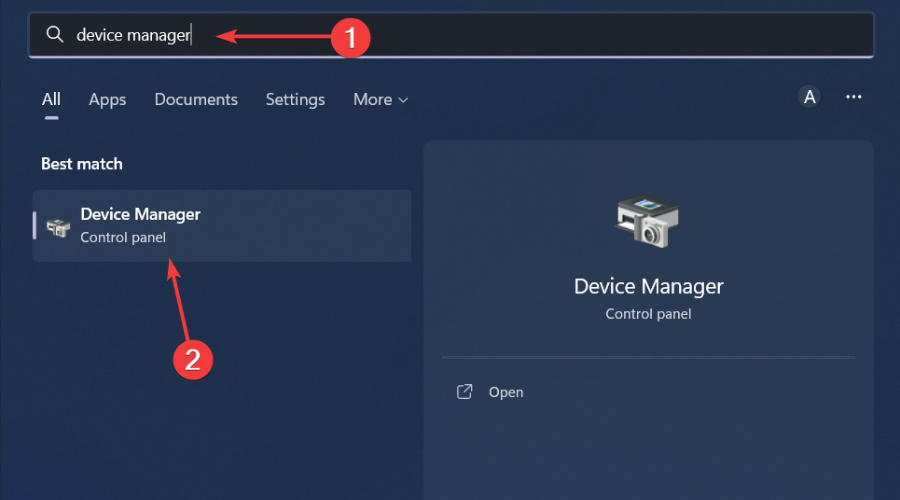
  1. Hit the Windows key, type Device Manager, and click Open.device manager w11
  2. Locate the Brother printer, and once found, right-click on it and select Update driver from the context menu.
  3. Select Search automatically for drivers and wait for Windows to update the drivers.

3. By using a driver updater utility

We strongly recommend updating your Brother printers using a driver updater. This is because it guarantees the most accurate drivers for your printers and reduces the chances of ending up with the wrong drivers.

Although there are many tools out there, we selected the easiest to use, most efficient, and cost-effective one. Fortect Driver Updater promises to deliver on this.

This tool will start a scanning process to detect outdated or broken drivers and immediately update with the latest versions from an extensive database.

⇒ Get Fortect Driver Updater

4. By using Windows Update

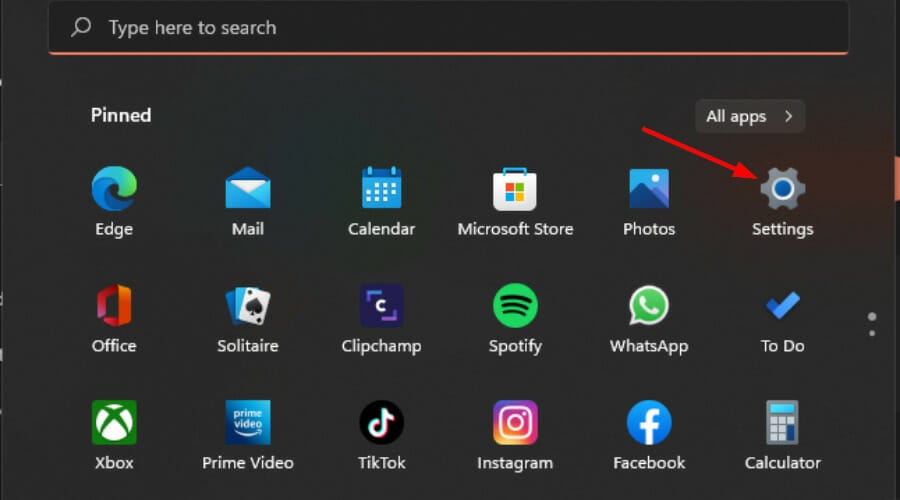
  1. Press the Windows key and click on Settings.settings windows 11
  2. Navigate to Windows Update, and click on Advanced options.
  3. Now, click on Optional updates.
  4. Tick the checkboxes for all the available updates under Driver updates, and click on Download & install.

Do I need to download Brother utilities alongside printer drivers?

Brother Utilities is a software package that is designed to enhance your experience while using your Brother printer. It contains a bunch of tools such as:

  • Driver updates: You can keep track of new driver versions as they’re released and update your printer for optimal performance.
  • Status monitoring: You can keep track of your ink and toner levels so that you can refill before it’s too late.
  • Troubleshooting: Printers, like any hardware device, may fail to print or stop working. Here, you can find common troubleshooting guides for such eventualities.

Other features include printer settings such as tweaking your user interface and changing your print quality among others. The package can help you get the most out of your printer but you do not necessarily need it for your printer to function.

Finally, since you cannot escape the occasional Brother printer paper jams, go ahead and check out our article on the steps to take for a quick fix. And while we’re still on downloading drivers, if you have an Epson model, we have an article on how to download its printer drivers.

We’d love to get your opinion on your preferred method of downloading the Brother printer drivers for your Windows 11 and your reasons behind it. Drop us a comment below.

How to Enable Microsoft Teams Together mode

You can enable Together mode in Microsoft Teams through the app’s settings. Then, use it in a meeting for yourself or everyone, depending on the host.

Together mode in Microsoft Teams is like a virtual meeting room where everyone’s video appears as if they are sitting together in the same place, like a meeting room or a classroom. Here’s how to use it!

How to Enable Together mode and use it?

Note icon NOTE
Together Mode is only available to premium members and subscribers. You cannot use it as a free user yet. You can access it individually by subscribing to a Microsoft 365 subscription or joining an organization, workplace, or institution who are subscribed to the Teams premium.

1. Launch Microsoft Teams and head to Settings from the three-dot menu at the window’s top-right. 

Settings in MS teams

2. Tick the checkbox that says Turn on new meeting experience and then close the setting wizard.

Enable Together mode

3. Then, create or join a meeting from the home menu.

Note icon NOTE
To enable Together mode, you need at least 4 participants in a Teams meeting.
Join a meeting on Team

4. After joining the meeting, select Together mode from the View menu.

Enable Together mode in a meeting

5. Now, you have to select a scene that will appear in the Together mode. Then, head to assign seats for each participant.

If you don’t want to assign seats, then you can click apply to begin with randomly assigned seats to each member.

Select scene

6. After that, drag the participants to assign them specific seats in the scenes and click Assign to start the Together mode.

Seat assignment in Together mode

7. You will see participants with these web cameras turned on appearing in the scene.

Enable Together mode

When you get bored with the scene, you can replace it through the change scene button at the bottom left. But when that does not feel enough, you can also add custom scenes.

Ensure all the participants have their webcam turned on to properly use the Together mode.

More about the Together mode

The Together mode works on a meeting with 49 participants or less. You need 4 or more participants to enable the Together mode in a Teams meeting.

Instead of seeing everyone in little boxes on your screen, it looks like you are all sitting side by side in a shared space. This makes meetings feel more like you are all in the same room, making it easier to pay attention and feel connected to the people you are talking to.

But if you don’t want to show your face on the webcam, then you can use 3D avatars on Team.

After everything is set up, you can also transfer your meetings between PC and mobile to stay connected with work while working from home.

So, this is how you can enable the mode on your Teams. The Together mode button’s position keeps changing with newer Teams versions, so explore different menus to find it on yours.

We also have a guide on Microsoft Teams Exploratory, so don’t miss it if you want to try different Microsoft services for free.

If you know of any other tweaks for together mode scenes or seat assignments, then let us know through the comment section.

The native Windows 11 Create Archive app does neat tricks with your files

Windows 11 gained native archive support last year and is getting more advanced features. But now, Microsoft designed a completely new app, called Create Archive to help you with file compression.

For now, the Redmond giant is just testing it on the Windows 11 Insider Build 26040 and newer but we’re expecting it soon in the stable builds. Who knows, maybe on Windows 11 24H2.

All about the new Windows 11 Create Archive app

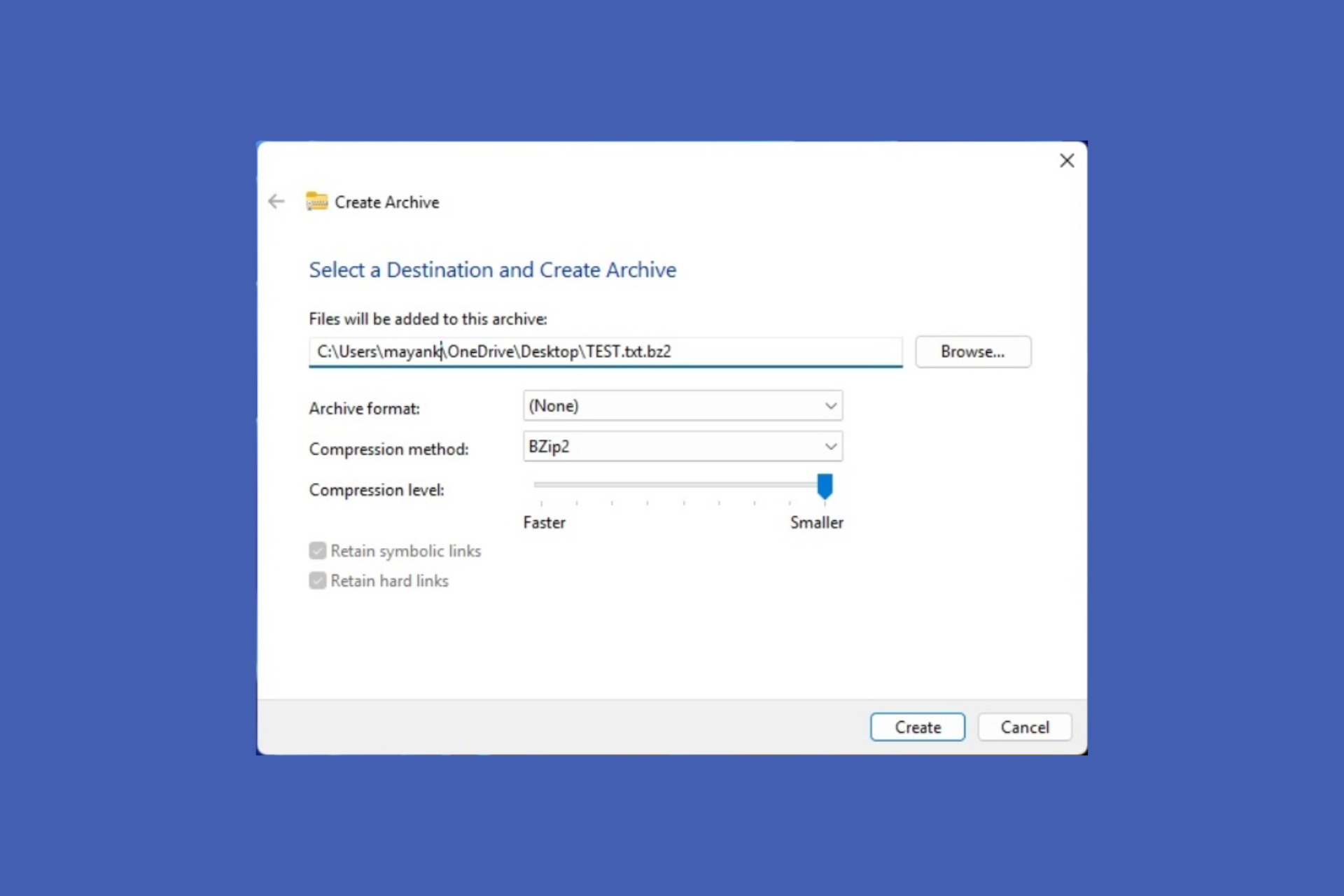
To launch the app, just right-click on one or more files in File Explorer or on your desktop, select Compress to and choose Additional options.

As you can see from the screenshot, you may also go directly with compressing the files as ZIP, 7z, or TAR.

When the app opens, you will have access to the more advanced features. You may select the format, the compression method and the level of compression.

You will see 9 graduations for the compression level, from 0 to 9, and the resulting file will be smaller as you toggle the button to the right.

The tool also has the Retain symbolic links and Retain hard links. Those have the role of keeping any existing links intact or shrinking them as well.

Supposedly, Microsoft used the Lib Archive project from Github to create the new Windows 11 Create Archive app.

Nevertheless, Create Archive will be a welcome addition to Windows 11 when it will be finally implemented in the public distributions.

What do you think about the new app? Tell us about that in the comments section below.

Apps crashing on Windows 10 after the latest Microsoft Store update

A recent Microsoft Store update left users frustrated as they were experiencing difficulties using the Windows native apps on Windows 10.

Users reported issues ranging from trouble using Explorer to open photos to issues with Calculator & other native apps, and even a Windows reinstall didn’t help.

When they attempted to report this issue using the Feedback Hub option, it didn’t even open, leaving them clueless.

Many of them took the matter to Microsoft Community to get out of this distress, which led them to discover the common ground among those affected; most of them were using old and unsupported hardware.

Usually, the people facing problems were using Intel Core 2 Duo and Quad processors, which are some of the processors that didn’t make it to the compatible list for Windows 10.

Amidst all this, the common theory floating around is that components that use an instruction extension, such as SSE 4.2, could be causing problems with the Core 2 process.

Another possibility is that some developers at Microsoft mistakenly set a compiler switch while building a shared component, and signs point out that it has something to do with Visual C++ runtime.

Some of them also think that it is intentional and Microsoft’s new way of forcing people to buy new hardware.

Despite these speculations, we believe that the Redmond tech giant, known for backward compatibility, might not have tested the update on unsupported hardware properly, which caused these issues.

No matter whether it was a glitch or faulty testing before release or Microsoft’s way of forcing customers to upgrade the device, there is one thing in the clear: if Microsoft says it is not compatible, it should be taken seriously.

So, if you are using Windows 11 on an unsupported machine, then you are on borrowed time. You are safe until Microsoft releases an update that could mess up your device.

Furthermore, it is not wise to stop updates for a longer period and we strongly advise against it, as it can be harmful as some of the updates contain vulnerability fixes.

What do you think about this situation? Share your thoughts in the comments section below.

File Actions menu in PowerToys will add extra features when selecting files

PowerToys is one of those tools that you need to have since it brings various enhancements and tools to Windows. We use these tools daily, and we wrote about our top PowerToys utilities not that long ago.

Speaking of which, it seems that new PowerToys features are in the works that will bring a new context menu with some special actions.

The File Actions menu brings checksum generation and more to PowerToys

Aaron Junker on Twitter presented a new feature of PowerToys that he’s been working on.

The new feature is called the File Actions menu and it allows you to perform different operations on selected files. Aaron has presented two screenshots and we can see that the following options are available:

  • Ability to generate file checksum using Md5, Sha1, or Sha256 hash.
  • You can combine multiple hashes into a single file, or you can generate a single hash file for every selected file.
  • The ability to create a new folder with a current selection.
  • Copying the path of selected files.
  • Other PowerToys features such as PowerRename and Image Resizer.
  • Ability to copy the selected image to a clipboard.

This feature is still in development, and Aaron is looking for suggestions on features that users would like to see in this menu, so feel free to hit him up with your ideas.

According to Aaron, this is a standalone menu that is triggered by a keyboard shortcut, so don’t expect to see it added to the context menu in Windows 11.

As fans of PowerToys, we’re excited about the all upcoming features, and we hope Aaron’s File action menu will be added to the app.

In case you haven’t tried this set of tools, this is a perfect time to do so with our guide on how to install PowerToys on Windows 11, so don’t miss it.

Physical Xbox Games might be going extinct in a few years

The physical copies of Xbox games are not as popular nowadays. After all, keeping a CD is a hustle, and it is easier to own a digital copy that remains in your account. Also, Microsoft and other companies started focusing their resources on digital, and it is understandable.

At the end of the day, you don’t want to wait for shipping or to go to the closest game store to get your games. You want to play them right there on the spot. Some retailers don’t even order newer games because they don’t get the chance to acquire them on time.

Xbox physical game copies are less profitable

Earlier this year, Microsoft laid off some of their employees from the physical retail department. In addition to this, there are rumors that the newer console models lack disk drivers. Yet, they have a bigger storage, and better download speeds.

The new Xbox Series X Refresh

The theory that implies that physical Xbox games are going extinct is a result of retailer claims. In Europe, the physical sales of Xbox games are low and not profitable. So, merchants need to focus on other types of products, like accessories and devices.

The future is Game Pass and Cloud

The Xbox Game Pass allows you to stream from most of your devices. Furthermore, the gaming library gets frequent revisions. More than that, if you get a game pass, you might also get discounts and a chance to get early access to some games. In addition, cross-playing and cloud gaming are getting updates frequently.

Xbox Game Pass list of features

To sum up, it might take a few years for Xbox and other companies to go fully digital. However, there is a great possibility that physical Xbox games will become a thing of the past while digital copies and subscription-based games will be the new norm.

If you are wondering if it is worth switching from Xbox to PS5, we already have the answer to that.

What do you think? Is it too early for Xbox to transition to digital? Do you prefer owning the physical copies of your favorite games? Let us know in the comments.

Install Windows on Steam Deck: How to do it and Why?

While Steam Deck allows you to install Windows, the process is not that simple. So, while installing it, we thought why not document the process and share it with the gaming community that prefers Windows over the Linux-based SteamOS?

The former offers a better UI, one we are used to, and that’s the primary reason you may consider installing Windows over SteamOS. Secondly, it offers the ability to use Steam Deck as a PC. Just plug in the keyboard and mouse, and you are good to go!

However, you may see a diminished performance since Steam Deck is meant to work with SteamOS. Besides, the absence of TPM (Trusted Platform Module) support may leave your device vulnerable to threats, and it may not receive Windows updates. If you are still interested, keep reading!

How can I install Windows on Steam Deck?

1. Run Windows via an SD card (dual boot Windows and SteamOS)

For the faint-hearted, dual-booting Windows and Steam OS (refer to the guide for the entire process) is the best approach, and the steps are quite simple, given you have previously installed Windows on a PC. Even if not, there’s always a first time!

Besides, since this doesn’t remove the pre-installed SteamOS, you shouldn’t face any problems if the Windows installation fails. And that’s the reason we recommend it because reinstalling the SteamOS is a herculean task.

2. Install Windows on the Steam Deck’s SSD (removes SteamOS)

Tip icon Tip
We are installing Windows 11 on the Steam Deck, though the process remains the same for Windows 10. In that case, you will need to download the Windows 10 ISO.

2.1 Prerequisites

  • A 16 GB USB drive or microSD card. If using the former, you will also need a USB type C hub or a USB type C to type A adapter. We recommend you get a hub since it will also allow connecting a keyboard and mouse to the Steam Deck later on.
  • Download and install Rufus, a third-party program to create installation media.

2.2 Creating the installation media

  1. Go to Microsoft’s official website, select the OS edition and product language, and then download the Windows 11 ISO.windows 11 ISO
  2. Now, plug in the USB drive or connect the microSD card.
  3. Launch Rufus, pick the external drive or microSD card from the Device dropdown menu, then choose Disk or ISO image under Boot selection, and then click Select.select
  4. Head to the Downloads folder, select the Windows 11 ISO file, and click Open.windows 11 iso
  5. Change the Volume label (drive or SD card’s name) if you want, and then click Start.start
  6. Tick the checkbox for Remove requirement for 4GB+ RAM, Secure Boot and TPM 2.0, and click OK.remove restrictions to install windows steam deck
  7. Choose the appropriate response in case more confirmation prompts appear.
  8. Wait for Rufus to create a bootable USB or microSD card, as the case may be.

2.3 Download the Steam Deck drivers

  1. Go to Steam’s official website and download all the drivers for your model of the Steam Deck, depending on whether it is OLED or LCD. drivers
  2. Right-click on all the downloaded driver folders individually and select Extract All.extract all to install windows steam deck
  3. Go with the default selections and click Extract.
  4. After all the driver folders are extracted, move them to the bootable USB or microSD card that you earlier created.

2.4 Installing Windows on Steam

  1. Now plug in the USB drive or microSD card to the Steam Deck, then hold the Volume Down and Power buttons simultaneously until it loads the Boot Manager.steam deck boot manager
  2. Select the bootable installation device (USB or SD card) from the list of options.
  3. The screen will go black for a while. Don’t worry! The Windows setup will load soon. It will be in portrait mode, and we can only fix that later.
  4. Follow the on-screen instructions until you reach the point where it asks for a product key. Simply choose I don’t have a product key.product key
  5. Now, when the setup lists the existing partitions, delete them all. At last, when there’s just one left, choose it and click Next.
  6. Again, follow the on-screen instructions to complete the installation, then perform the initial setup of Windows 11 on Steam Deck.

2.5 Getting things ready

  1. To fix the display orientation, press Windows + I to open Settings, go to System from the left pane, and click on Display.
  2. Now, under Display orientation, select Landscape.landscape
  3. Next, open File Explorer, go to the USB drive or SD card, and run the Setup.exe files for the drivers we downloaded earlier.setup.exe install drivers on windows steam deck
  4. After installing them all, you will be able to connect to the preferred network and download more apps.

That’s all you need to do to install Windows 11 on Steam Deck and run it as the stand-alone OS. At this point, you can connect the keyboard and mouse and start using them!

Remember, Steam is still working on some of the drivers, and they aren’t polished yet. So you might face trivial issues from time to time, but it won’t significantly affect the experience!

Also, if you plan to keep both operating systems, try using your phone as a keyboard on the Steam Deck.

If you choose to install Windows, we also have a great guide on how to download the Windows 11 Bluetooth driver for Steam Deck, so don’t miss it.

For any queries or to share your experience of running Windows on Steam Deck, drop a comment below.

Windows 11 24H2 update is coming, according to Microsoft documents

We already wrote that Microsoft has big plans involving AI, and that led many to speculate that we’ll see those improvements in the Windows 11 24H2 update.

Well, according to Windows Latest there are good news, it seems that this update is coming since it was mentioned by Microsoft in its documentation.

Microsoft acknowledges the Windows 11 24H2 update

Many are excited about the Windows 11 24H2 update that is codenamed Hudson Valley. While not much official information is available, we at least know that the update is coming.

In EnumDeviceDrivers function documentation, you can see the planned changes for EnumDeviceDrivers for Windows 11 Version 24H2.

The documentation doesn’t provide any more information about version 24H2, and it probably won’t be too interesting to read unless you’re a developer.

So, what does this mean? It means that the Windows 11 24H2 update is coming since it has been officially mentioned by Microsoft in this document.

Does that mean we won’t get Windows 12? It sure looks like it. Microsoft plans to keep its naming convention, so it might be a while before we see Windows 12. As for the Windows 24H2 update, we expect to see it in Q3 or Q4 of the current year.

How to Create and Use Breakout Rooms on Microsoft Teams

Breakout Rooms are great if you need to divide a large audience, and if you’re not familiar with this feature, this guide will show you how to create Breakout Rooms in Teams.

How can I create breakout rooms in Teams?

1. Create a breakout room before the meeting

  1. Open the meeting invite from your Teams calendar.
  2. Go to Breakout rooms, then choose Create rooms.
  3. Select the number of rooms you want; you can choose up to 50, then choose Add rooms.
  4. Next, under Assign participants, choose Automatically to assign people to rooms evenly or Manually to assign people yourself.Assign participants - Create and Use Breakout Rooms on Microsoft Teams
  5. Click Create rooms.
  6. If you want to change the settings of the Breakout rooms, then open the meeting invite, then click Breakout rooms, then Settings.

2. Create a breakout room during the meeting

  1. Once you are in a meeting, in the meeting controls, choose Breakout rooms.Select Breakrooms from meeting controls
  2. Select the number of rooms you want.
  3. Now, choose Automatically to let Teams assign people to rooms evenly or choose Manually to assign people yourself.Assign participants - Create and Use Breakout Rooms on Microsoft Teams
  4. Choose Create rooms.
  5. Click Start rooms, and meeting participants will move to their assigned breakout rooms.

How can I use breakout rooms?

1. Assign people

Before a meeting

  1. Open the meeting invite from your Teams calendar.
  2. Locate Breakout rooms, then choose Assign participants.
  3. Select Manually and click Next.Assign participants - Create and Use Breakout Rooms on Microsoft Teams
  4. Click the checkboxes next to the names of people you want in a breakout room.
  5. Locate Assign, then click the downward arrow, and select a room. Repeat the steps until you have added all the people to a room, then click Confirm to complete.Assign people

For a channel meeting, you can open Teams, and navigate to the team channel, choose the Breakout rooms tab, then select Assign participants.

During a meeting

  1. Choose Breakout rooms from the meeting controls.
  2. Select Assign participants.
  3. In the following window, you will get a list of people with rooms assigned and their status.
  4. Click the checkboxes next to the names, then click the downward arrow next to Assign and choose room. Repeat the steps to assign all people to different rooms.
  5. Select Confirm.

2. Shuffle participants

Before a meeting

  1. From the Teams calendar, go to a meeting with Breakout rooms.
  2. Choose Assign participants then select Shuffle.
  3. From the drop-down menu, choose Everyone or Only unassigned people.Appoint managers before the meeting
  4. Click Save to reassign participants.

During a meeting

  1. From the meeting toolbar, choose Rooms.
  2. In Breakout rooms, choose Assign participants, then select Shuffle.Appoint managers before the meeting
  3. Choose Everyone or Only unassigned people from the drop-down menu, then click Save to reassign.

3. Appoint breakout rooms managers

Before a meeting

  1. Open the meeting invite from your Teams calendar.
  2. Select Breakout rooms, then choose Room settings.
  3. Toggle on the Assign presenters to manage rooms option, then click Search for presenters & choose the person whom you want as a breakout room manager.Assign presenters to manage rooms - Create and Use Breakout Rooms on Microsoft Teams

During a meeting

  1. Once you are in a meeting, in the meeting controls, choose Breakout rooms.
  2. Click Room settings.
  3. Toggle on the switch for the Assign presenters to manage rooms option.
  4. Click Go to Meeting options to add presenters, then select the participant. Click the Back button to confirm the changes.

In case the Breakout room is not working, it could be due to an outdated Teams app or cache data; read this guide to learn about the solutions.

Also, before starting a meeting, it is wise to check the audio issue, and if you have a Microsoft Teams echo problem during calls, read this guide. We also have an in-depth guide on shuffling in Teams meetings breakout rooms, so don’t miss it.

If you have any questions or suggestions on using Microsoft Teams Breakout rooms, feel free to mention them in the comments section below.

Chrome strengthens security on Windows: Network Service gets its own sandbox

Google is taking Chrome security to the next level on Windows by adding an extra layer of protection to the Network Service. This crucial background process, responsible for all your internet connections in Chrome, will be placed in a special sandbox environment.

This isolation aims to prevent harmful third-party code from tampering with the service, potentially enhancing your browsing security. Google is planning to introduce this security enhancement to the public with Chrome 122.

What is Network Service and what does it do?

The Network Service is an important background process that handles network connections and data in Chrome. It works tirelessly behind the scenes to:

  • Download website content like text, images, and videos.
  • Establish and maintain connections to websites you visit.
  • Handle data transfers smoothly and efficiently.
  • Perform various network-related tasks.

Google Sandboxes Chrome’s Network Service on Windows

While Chrome already runs in a sandbox, Google is taking additional steps to isolate the Network Service further. This sandbox within a sandbox approach creates an even more secure environment, making it harder for malicious actors to exploit vulnerabilities and compromise your data.

Benefits of Sandboxing the Network Service:

Enhanced Security: By isolating the Network Service, Google aims to prevent unauthorized code from interacting with it, potentially mitigating security risks and data breaches.
Improved Reliability: Sandboxing can protect the Network Service from unexpected crashes or errors, leading to a more stable and reliable browsing experience.

To improve security and reliability, the Network Service, already running in its own process, will be sandboxed on Windows. As part of this, third-party code that is currently able to tamper with the Network Service may be prevented from doing so.

Checking the Network Service Sandbox Status:

While this feature is still in its testing phase, you can check if your Network Service is sandboxed in Chrome 122 or later by following these steps:

  1. Open Chrome and navigate to chrome://sandbox.
  2. Look for “Network Service.”
  3. If it shows “Sandbox: Not Sandboxed,” it’s currently not isolated.
  4. If it shows “Sandbox: Network,” it’s running inside a Windows App Container, indicating active sandboxing. You can click the “+” icon for more details.

Google plans to enable Network Service sandboxing on Windows with Chrome 122. However, currently, this feature is not user-enabled and requires running Chrome with specific command-line switches:**

To enable it: --enable-features=NetworkServiceSandbox
To disable it: --disable-features=NetworkServiceSandbox

It’s important to note that you may not directly see or feel any immediate effects on your browsing experience with this change.

We recently reported on Chrome’s new security setting for controlling V8 optimizations. You might be interested in reading it.

Windows 11 Insider Preview Build 22635.3139 is here, DWM and Task Manager are finally fixed

New Insider Preview Build 22635.3139 (KB5034220) was recently released to the Beta Channel and it brings various bug fixes.

Join us while we take a closer look while we examine this build and see what it has to offer.

Windows 11 Preview Build 22635.3139 comes with various bug fixes

This build doesn’t offer any new features, but it comes with much-needed bug fixes. The update improves the overall reliability of the system, but it also addresses two important issues:

  • Fixes dwm.exe crashes that were impacting some users
  • Fixes an issue that was impacting Task Manager reliability

Keep in mind that all users on the Beta Channel are on the same build, but if you want to get this update first, you need to enable the options to get the latest updates as soon as they are available in Windows Update.

As you can see, this is just a minor update that addresses a couple of tedious bugs. If you’re affected by this issue, don’t hesitate and get this update right away!

This update is available on the Beta channel, but if you’re not pleased with it, you can always unenroll your device from the Beta Channel.

You can play 4k @ 120Hz on your Xbox series S, but you’ll need the right cable

You can use Xbox Series S on 4K at 120Hz with a 2.1 HDMI cable. However, what you’ll see is not really 4K. On the contrary, it is an upscale resolution that matches 4K. After all, Series X doesn’t support native 4K. So, if you want to identify the difference, try playing on an Xbox Series X.

Explanations and caveats

Can Xbox Series S do 120Hz at 4K?

Xbox Series S can do 120 Hz at 4K. But, keep in mind that the games you play on Series S are meant for 1440p. So, even if your console can stream media files at 4K, do not expect your frame rate to match your monitor’s refresh rate while playing games due to upscaling.

Does HDMI 2.0 support 120Hz Xbox Series S?

If you want to experience 4K, know that the HDMI 2.0 cable that comes with Xbox Series S doesn’t support 4K on 120Hz. For that, you will need a certified HDMI 2.1 cable. Also, to make sure that it is an authentic cable, look for the certification sticker on the box.

From personal experience, we can tell you that a certified cable will make a difference even if you are playing on 1440p. After all, it will facilitate better data transfer.

A HDMI 2.1 cable isn’t the only requirement to run games on 4K on Series S. Moreover, you need to ensure that your monitor supports 4K UHD at 120Hz.

All in all, you can use an Xbox Series S to play on 4K at 120Hz. But, you might notice some minor texture blurs from the upscaling or zoomed-in aspects of the UI. Also, keep in mind that Xbox Series S can’t fully use the monitor at full capacity, and a 1440p 120 Hz monitor would be a better choice for gaming.

If you are interested, you can discover more about the differences between 4K and 1080p gaming on Xbox.

What are your thoughts? Will you go an extra mile to use an Xbox Series S to play on 4K at 120Hz? Do you think of compromising and playing on 1440p? Let us know in the comments below.