New Windows 10 Insider build 20180 enables theme-aware tiles, other new features for more Dev channel Insiders

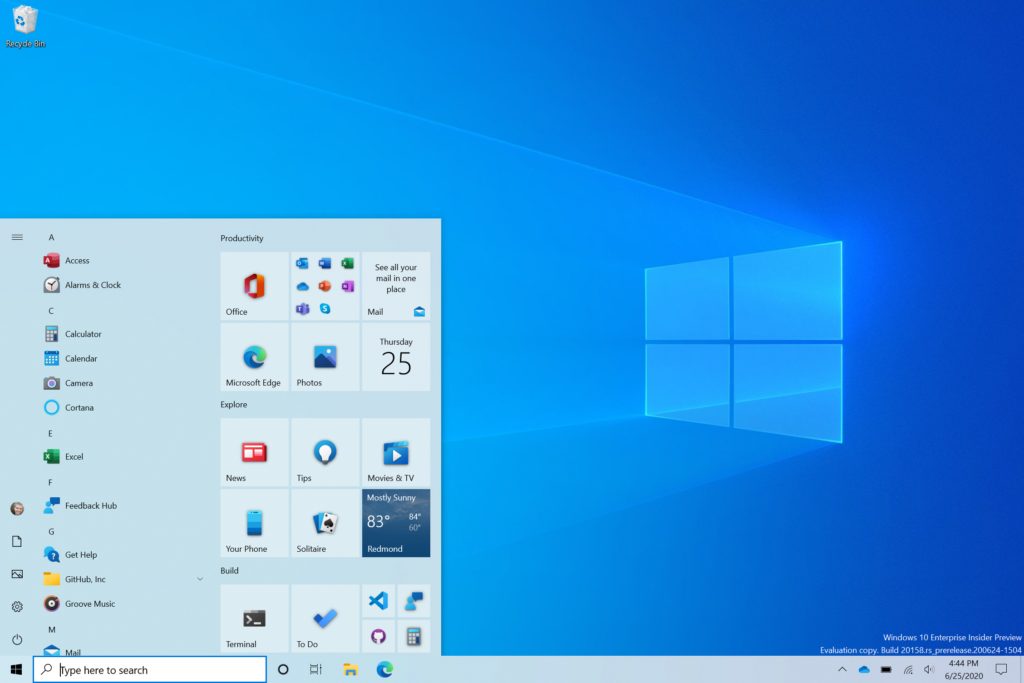
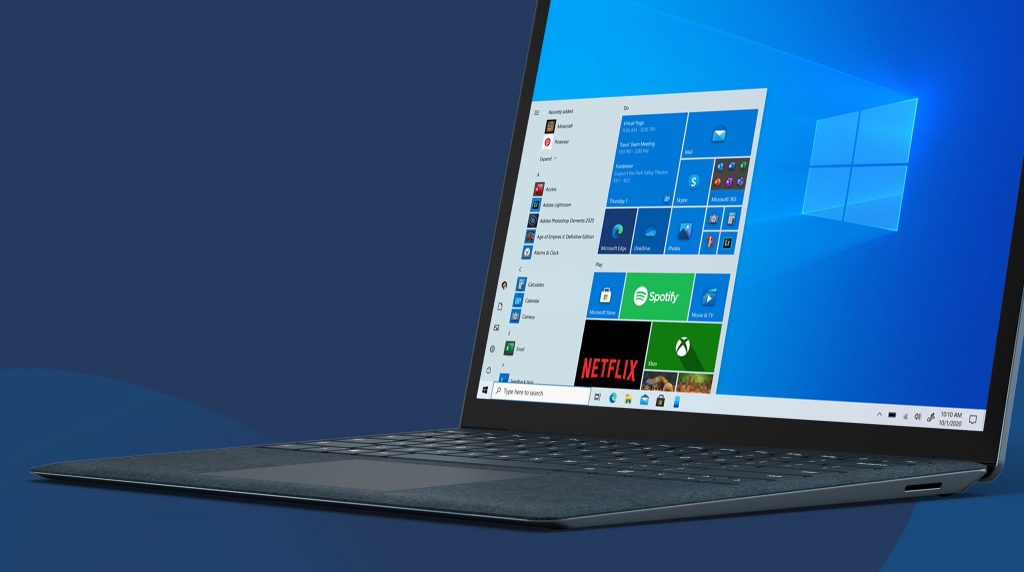
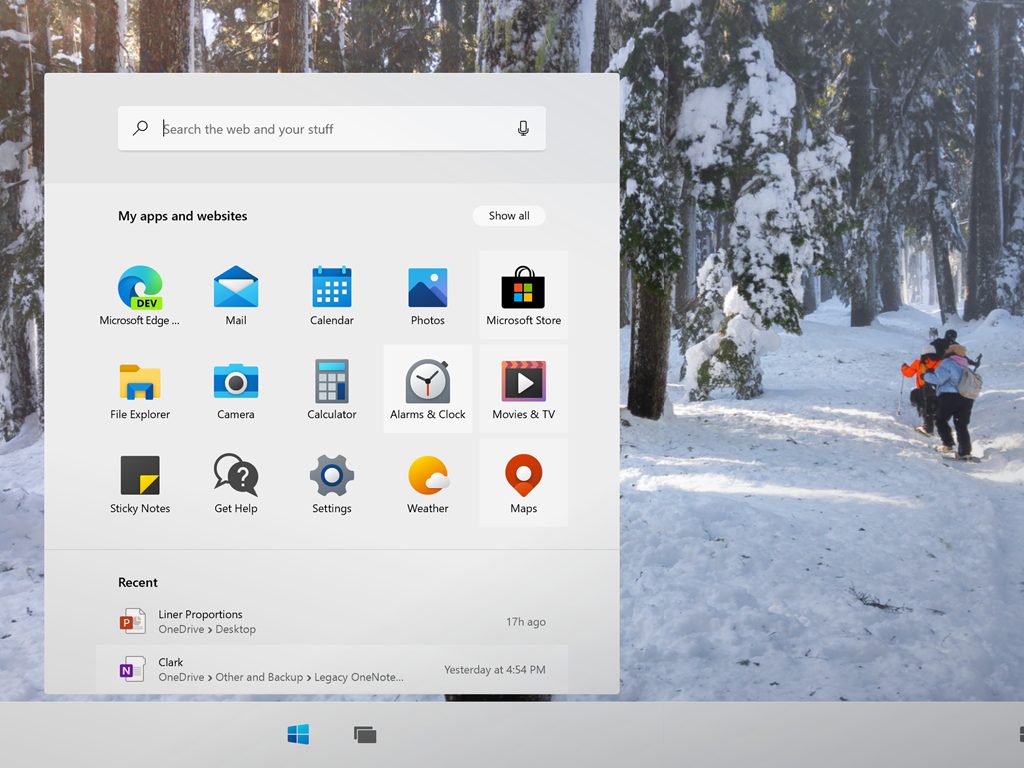
Microsoft has released today the Windows 10 Preview build 20180 for Insiders in the Dev channel. The previous build 20161 released on July 1 came with several changes that were only available for select Insiders, such as theme-aware tiles, but that’s changing with the new build released today.

“We are turning on much of the new features mentioned on July 1st in Build 20161 including theme-aware tiles on Start. The new pinned sites capability mentioned with last week’s flight of Build 20175 is still only available to a subset of Insiders,” the Windows Insider team explained today.

Today’s build also includes minor changes for the new tablet posture logic for 2-in-1 devices, as well as the search box in the Default Apps settings pages. You can learn more about other quality fixes and known issues below:

Changes and Improvements

  • Based on feedback, we’re changing the tablet posture logic for 2-in-1 devices to now only apply when using a single screen.
  • Based on feedback we’re updating the new folder icon in the Start menu’s All app’s list to be a little smaller so it better aligns with the size of the other icons.
  • We’ve updated the search box in the Default Apps settings pages to improve performance.

Fixes

  • We fixed an issue in the last flight where Magnifier wasn’t following the curser in the previous build when the zoom was higher than 100%.
  • We fixed an issue where Task Manager wasn’t showing the Publisher name for UWP apps.
  • We fixed an issue when using the Pinyin IME where tapping “/” on the keyboard wouldn’t produce the right character when using full width mode.
  • We fixed a couple issues that could result in crashes when using Alt+Tab to switch to browser tabs.

Known issues

  • We’re working on a fix for an issue where some Microsoft Store games protected with Easy Anti-Cheat may fail to launch.
  • We’re looking into reports of the update process hanging for extended periods of time when attempting to install a new build.
  • We’re working on a fix for an issue where the min/max/close buttons are stuck in their original positions after resizing a UWP app. If you move the app window the position should update.
  • We’re investigating reports that the new taskbar experience described above isn’t working for some pinned sites.
  • We’re working on a fix for an issue where sometimes the “close all windows” action in the taskbar doesn’t close not all of the open tabs
  • We’re working on a fix to enable live preview for pinned site tabs.
  • We’re working on enabling the new taskbar experience for existing pinned sites. In the meantime, you can unpin the site from the taskbar, remove it from the edge://apps page, and then re-pin the site.
  • We’re working on a fix for an issue where pinned sites don’t show all open tabs for a domain. In the meantime, you can fix this by pinning the site’s homepage rather than a specific page (e.g. pin microsoft.com rather than microsoft.com/windows).
  • We’re working on a fix for an issue where Alt + Tabbing to a browser tab sometimes moves the previously active browser tab to the front of the Alt + Tab list as well.
  • Opening a WSL 1 distribution can result in the error: ‘The I/O operation has been aborted because of either a thread exit or an application request’. Please check out this Github issue for the latest updates.

Following the close of Mixer last week, the Windows Insider team also announced that it will move the Windows Insider webcast to the Windows Insider YouTube channel. “We also have some new videos about making the most of the program, and we’ll continue to use this channel for webcasts and how-to content,” the team said today.

That’s it for today’s Windows Insider news. If you’re still running the preview Build 20161 or older on your PC, be aware that these builds will expire on July 31. It’s highly recommended to update to the preview 20170 or newer before that date. Lastly, if you’re on the Beta channel (previously Slow Ring), we remind you that Microsoft released the 20H2 build 19042.421 last week which includes Start Menu, Taskbar, and notifications improvements.
Windows 10 is 5 years old today, but has it really matured?

Windows 10, Microsoft’s latest desktop operating system is celebrating its fifth anniversary today. The OS is now running on more than 1 billion devices, and it doesn’t look like it’s going to be replaced by “Windows 11” anytime soon.

As we’ve been following the development of Windows 10 since the beginning, it’s clear that a lot of things changed since the release of the first Windows 10 Insider builds in fall 2014. Last year, Dona Sarkar, the previous head of the Windows Insider program, said that there now more than 16.5 million Insiders testing preview builds for the OS, which is massive.

In this “Windows as a service” era, following what’s happening in the Windows 10 world is not always easy. In recent years, we’ve gone from two major updates every year, to a new system with one major update in the spring followed by a minor one in the Fall. Things could once again change with the upcoming launch of Windows 10X, a new lightweight version of Windows that may not be able to run Win32 apps natively at launch.

Windows 10x start
Windows 10x start

Windows 10 has definitely improved as an OS since launch, though with some hits and misses. Some new features like the revamped Start Menu, Snip & Sketch, and the Xbox Game Bar are great improvements, but others additions like Timeline, Cortana, or UWP apps in general (the Microsoft Store included) still don’t get a lot of love. There are also design inconsistencies all over the place, and persisting legacy components such as the Control Panel which hasn’t been fully replaced yet by the new Settings app.
Back in 2015, Microsoft’s new CEO Satya Nadella said ahead of the launch of Windows 10 that “We want to move from people needing Windows, to choosing Windows and loving Windows. That is our bold goal with Windows.” Since then, Windows seems to have become just another product in the Microsoft portfolio, with no real public face.

Who’s the real head of Windows at Microsoft these days? The answer is definitely not obvious, though Chief Product Officer did become the leader of a new Devices + Windows team earlier this year, effectively rolling up the Windows Experience (client) and the hardware teams. It’s easy to find similarities between Panay’s trajectory and the one from Jony Ive, Apple’s former lead designer who went to overlook the design of iOS and macOS before leaving the company last year.

Panos Panay introduces the Surface tablet during the Microsoft Surface unveiling.
CREDIT: Andrew White

We do hope that Panay will have a good influence on the various teams working on Windows 10, though we may have some reasons to worry. A good example is Windows 10X, a new OS that was initially demoed on a premium dual-screen device, the Surface Neo. This device has now been delayed while Microsoft is now repurposing Windows 10X for single-screen Chromebook-like devices, though that new effort may come too late and with some big compromises. According to recent reports, Windows 10X could be able to stream legacy Win32 apps, but the primary focus at launch should be web apps powered by the new Chromium-based Edge browser.

Microsoft has been trying to adapt Windows for new form factors for many years now, but previous attempts such as Windows RT that skipped support for legacy Win32 apps failed. It took nearly five years for Windows 10 to reach 1 billion users, and Windows 10X is never going to achieve that without solid support for legacy apps. In the meantime, Windows 10 on ARM PCs such as the Surface Pro X aren’t in a much better shape, and the persisting app and driver compatibility issues on these devices make them a no-go for most consumers.

Windows 10 is 5 years old today, but it seems that it’s still exactly not where it needs to be, or where it could have been. Microsoft probably wasted a lot of time on experiments that never got any traction, including its EdgeHTML browser that could only gain new features with major OS releases. The company also wasted years on trying to make UWP apps replace Win32 apps, only to finally allow developers to update their legacy apps with UWP components.

For the next five years, we hope that Microsoft will go back to fundamentals. There are still a lot of room for improvement on core features like File Explorer, the Microsoft Store, the Action Center, and more. It’s been reported before that UI improvements from Windows 10X will eventually make the transition to Windows 10, though it would be nice if Microsoft could implement consistent design guidelines first. “Fluent Design” was expected to be the next big thing until it became something that few people actually understand, and Microsoft could probably learn a thing or two from what Apple did on macOS in recent years.

The late Steve Jobs once said that “Microsoft has no taste,” and it’s sometimes hard to disagree with this. Design may not be Microsoft’s biggest strength, but that’s not really something that’s been hurting Windows in any significant way. People who need Windows will continue to use it, and new features like the Windows Subsystem for Linux are also making Windows 10 increasingly appealing for developers. New form factors like Microsoft’s Surface Pro and the Surface Book are also leveraging Windows 10’s unique features, and the OS still provides plenty of room for other PC OEMs to innovate.

Windows 10 may not replace Windows 7 or Windows XP in the hearts of some Windows fans, but that’s ok. We may never “love” Windows 10 like CEO Satya Nadella wanted us to, but the free updates Microsoft releases every year are a good thing to keep PC enthusiasts interested. Importantly, Windows 10 in the first version of Windows that Microsoft isn’t developing behind closed doors, and we hope the Windows Insider program is here to stay.

5 best cable management accessories to organize your space

If you’re using a desktop computer, you know how messy dealing with cables can get, and this is why many computer owners work hard on cable management. Speaking of which, in today’s article we’re going to show you the best cable management accessories that you can get, so let’s get started.

What are the best PC cable management accessories?

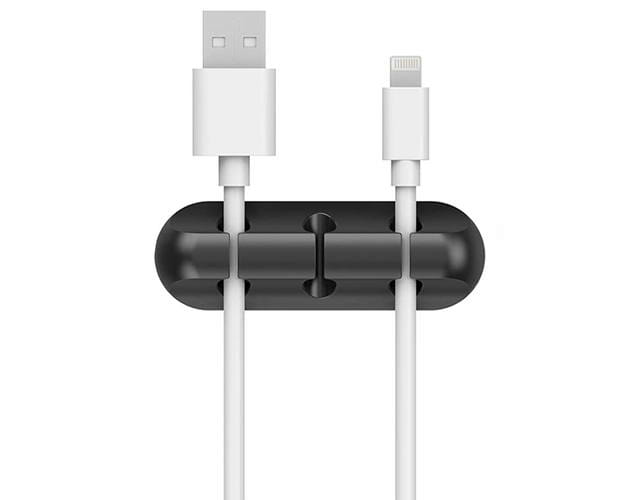
2 Pack Cable Clips

2 Pack Cable Clips best cable management accesories

If you need to organize your cables, 2 Pack Cable Clips might be just what you need. The clips work with different types of surfaces, and you can easily attach them to a wall, plastic, wood, glass, metal, or rubber surface.

The cable clips work with all sorts of cables, including both USB cables, power cords, HDMI cables, and many more. There’s an adhesive surface on the back, and you just need to remove the protective layer and place the cable clip on the desired surface.

  • Adhesive surface on the back
  • Can be placed on any plastic, wooden, glass, or metal surface
  • Can be placed on walls
  • Works with a wide array of cables
  • Easy to use
  • Can only hold 3 cables

PASOW Cable Ties

PASOW Cable Ties best cable management accesories

Organizing your cables is easy, as long as you have the proper cable ties for the job. These ties are made from a flexible fabric material, and they are completely reusable.

Thanks to their detachable hoop and loop design, you can easily detach them and move them to a different location or tighten them.

Overall, PASOW Cable Ties are light and easy to use, and they are a must-have when organizing your cables.

  • Easy to use
  • Light
  • Detachable hoop and loop design
  • 50 ties available in a set
  • Not indented for heavy use

JOTO Cord Management System

JOTO Cord Management System best cable management accesories

To organize multiple cables, the best and the tidiest solution is the cable sleeve. This sleeve comes with a zip-up solution and thanks to the neoprene material, it’s quite stretchy.

As for the number of cables, this sleeve can hold up to 8-10 cables. The sleeve is simple to use, and you just need to gather your cables, wrap the sleeve, and zip-up.

If you need to manage multiple cables, then JOTO Cord Management System is the perfect choice for you.

  • Made from flexible neoprene material
  • Can hold up to 8-10 cables
  • Zip-up design
  • 4 sleeves available in a set
  • 19 inches long with a 1.2-inch diameter
  • Incredibly simple to use
  • Can’t branch your cables

Rustark Adjustable Self-Adhesive Nylon Cable Straps

Rustark Adjustable Self-Adhesive Nylon Cable Straps best cable management accesories

These cable straps come with adhesive pad, so they should stick to plastic, wood, glass, metal, and rubber surfaces. If needs be, you can always remove the straps without any residue.

The straps also have a hole in them, so you can screw them to any surface. As for the material, the product is made from high-quality durable nylon.

It’s worth mentioning that the straps have a zipper design, so you can easily release or tighten your cables if needed.

  • 25 large and 25 small straps in the set
  • Adhesive material that works with metal, plastic, glass, wood, and other surfaces
  • Zipper design that lets you tighten or loosen your cables
  • Can be tightened with a screw
  • Adhesive might not be strong enough for some users

OneLeaf Reusable Fastening Cable Ties

OneLeaf Reusable Fastening Cable Ties best cable management accesories

If you need to organize your cables, these cable ties will be perfect for you. There are different colors and sizes available in the set, so you can find a perfect cable tie for every need.

The ties have hook and loop attachment, so they should be able to hold your cables tightly. Of course, you can easily loosen them and reuse them when needed.

The zip ties are incredibly simple to use, and if you need to organize your workspace, these zip ties are a must-have.

  • 60 cable ties available in set
  • 20x 8-inch, 20x 6-inch, 20x 4-inch ties
  • Available in 5 different colors
  • Hook and loop attachment
  • Reusable
  • Not as tight as other models

If you’re looking for the best cable management accessories for your PC, we encourage you to consider the models from our list.

In case you found our guide helpful, please let us know in the comments below.

[wl_navigator]

How to use the Time Clock in Shifts in Teams on iOS and Android

One of the built-in features of Microsoft Teams is known as Shifts. When enabled by your IT admin, managers and employees can use Shifts to manage work hours, schedules, and even use a Time Clock. We’ve already showcased how Shifts can be used on the desktop version of Teams, but now we’ll turn our attention to the Time Clock, too. Here’s how to use Time Clock in Shifts on Microsoft Teams on iOS and Android.

Getting to the Time Clock

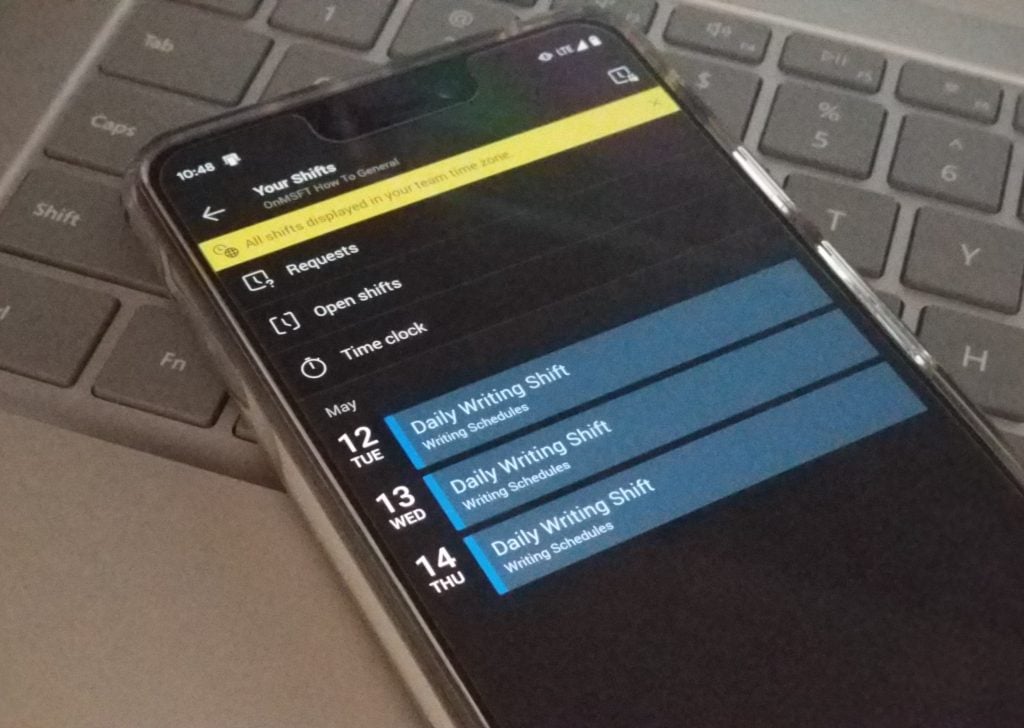
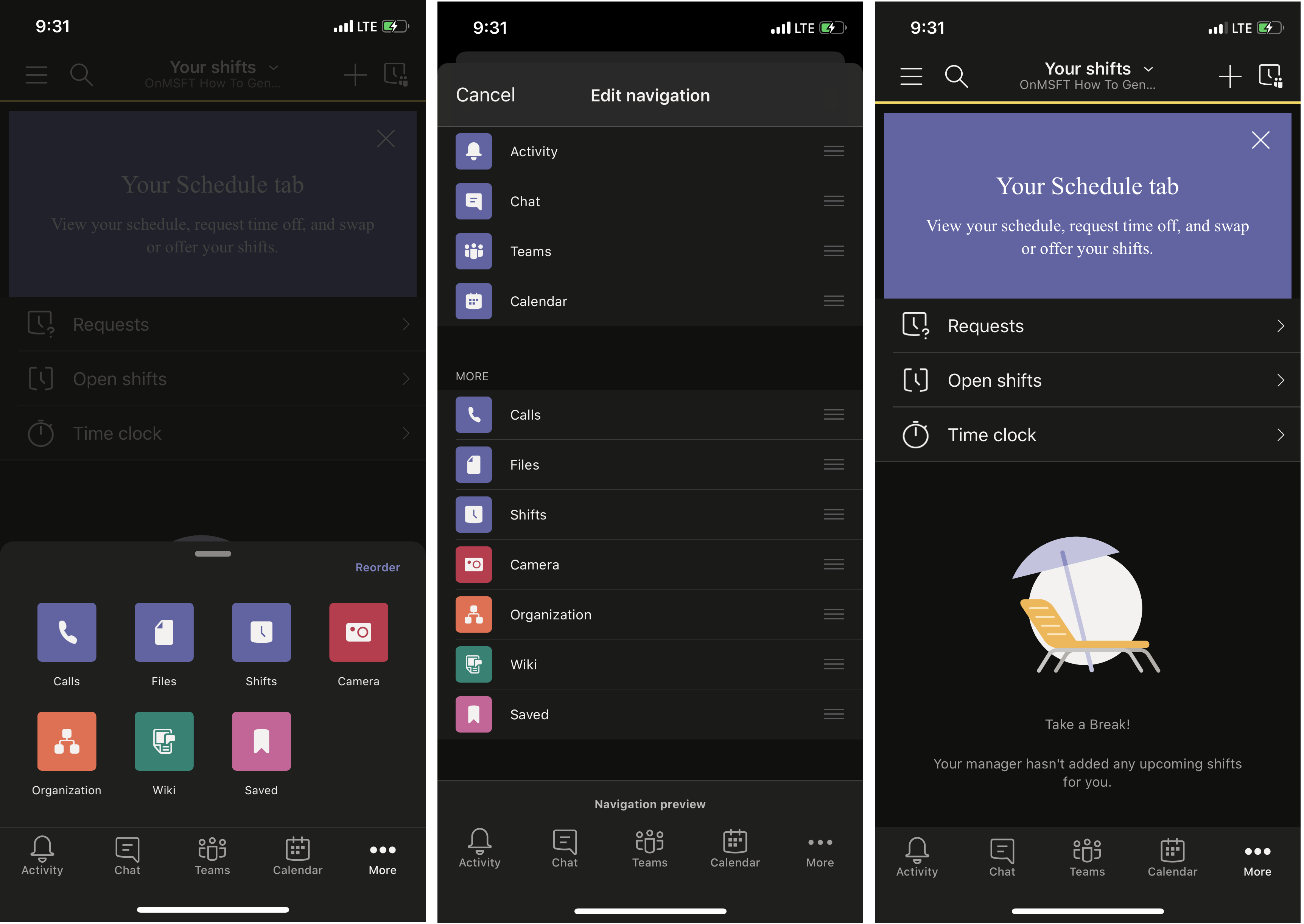
To get to the Time Clock on Teams on iOS or Android, you will first need to open up Shifts. To do this, click the … More button at the bottom of the screen. From there, you will need to click Shifts. If you want, you also can click the Reorder button at the top of the screen to change the navigation, and add Shifts to the main bar.

Once you find Shifts, tap it to open it. You should see some things like Requests, Open Shifts. Then, below it will be Time Clock. You will want to click this to proceed to the next step.

Using the Time Clock

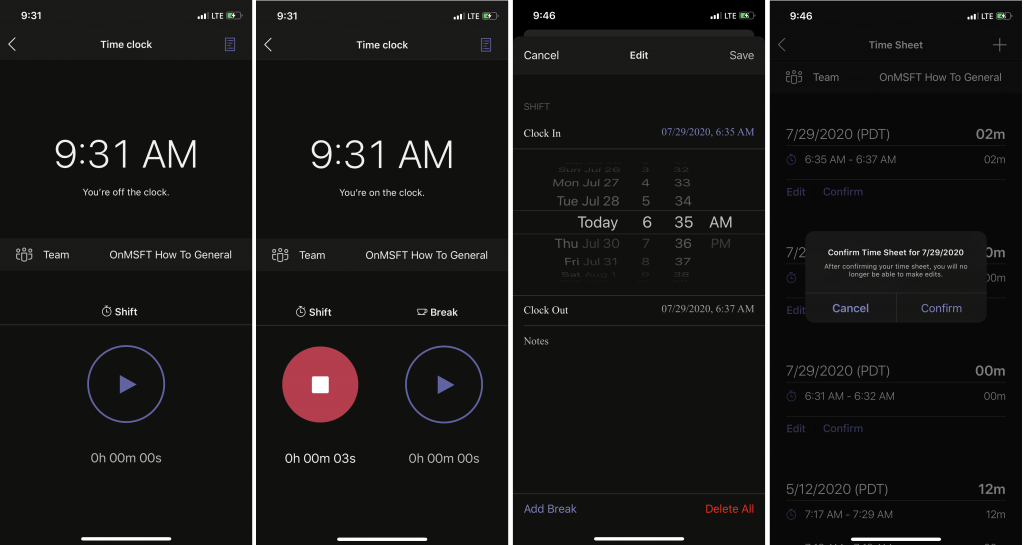
Keep in mind that to proceed, you will only be able to use the Time Clock if it has been set up by a manager and an IT admin for you through Teams. Anyway, now that the Time Clock is open, you should see a message on the screen alerting you that you are off the clock. Do not be alarmed.

You can clock in by tapping the play button. This will start a timer, and a circle will appear around the play icon. Once it stops spinning, Teams will begin reporting your shift for work. It will run in the background, even when the app is closed. If you are finished working or going for lunch, or a break, you can tap the stop icon to pause and end the timer.

Once you tap the stop timer, you’ll see a list of your shifts on a timesheet. You will see everything listed by your local Time Zone. You can either edit or confirm each of your Shifts. Just click the Edit or the Confirm button to proceed. The edit button will let you add notes to your Shift, about incidents or other issues.  You also can change the specific time, delete the entire shift and add a break if needed, or add more Shifts by clicking the + icon at the top of the screen. Once done, you can submit and your manager will be able to approve it.

Other features

With the TIme Clock explained, there’s still a lot more that can be done with Shifts on Teams. You can use the search function to look through old shifts, put in new requests, or view open shifts across your organization. Of course, you also enjoy the full experience in the desktop version of Teams, too.

Do you find the Shifts app useful in Teams? Check it out now, and let us know in the comments below. And, keep tuned to our Microsoft 365 news hub for more.

[Solved] Setup initialization error: Install stuck

While trying to download and install Windows 10 software, you may have run into an error that partially reads: setup initialization error.

It may be accompanied by text that refers to a missing file and further informs you that it was unable to complete the download or installation.

Running into errors like these can be frustrating so in this guide, we’ve provided you with a few simple yet comprehensive solutions designed to eradicate this problem.

How can I fix a setup initialization error on Windows 10?

1. Make sure the installer is running with administrator privileges

  1. Right-click on the setup file.
  2. Select Run as administrator from the context menu.
  3. Click on the Yes button from the UAC confirmation dialog.

2. Clean out the temp folder to solve setup initialization errors

clean-out-temp-folder-fix-setup-init-error

  1. Open the Windows Run Dialog (Winkey + R).
  2. Type %TEMP% into the open text field.
    open-temp-folder-setup-initialization-error
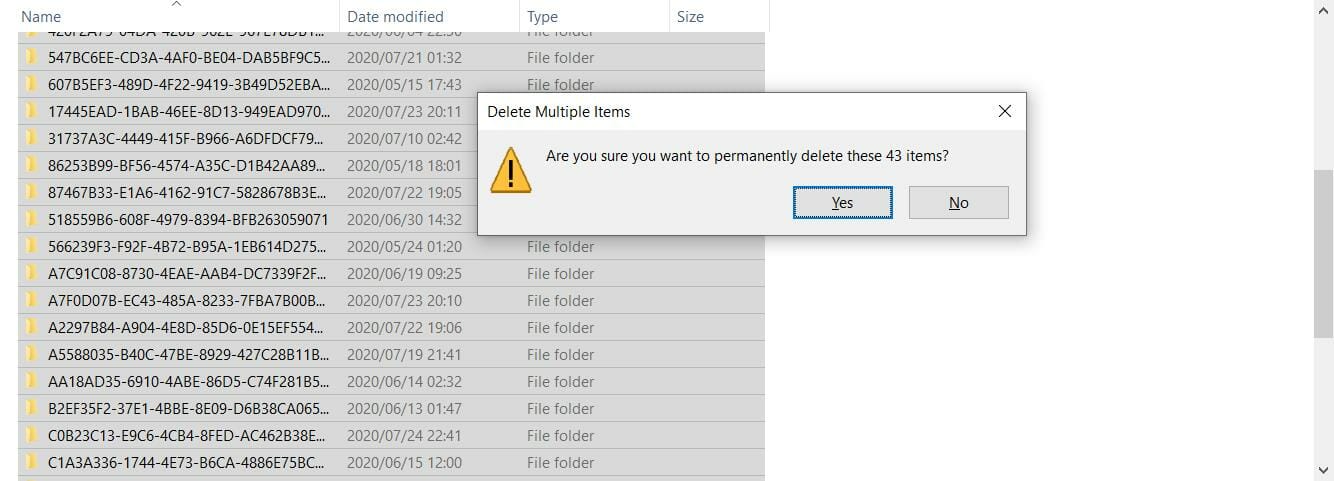
  3. Select everything in this folder and delete it.
  4. The system will ask you to confirm the deletion. Click on the Yes button.
    temp-files-setup-initialization-error
  5. Skip over any files that may be in use by other programs.

For the best results, make sure that you reboot before you purge the Temp folder. The Temp folder contains transient swap files and files used by program installers (among other things).

Sometimes older temp files conflict with newer ones. It’s also possible that the data in the Temp folder is corrupt.

Cleaning it out is good practice and will solve most setup initialization errors.


3. Download offline/standalone installer

download-alternative-stand-alone-installer-setup-init-errorApplications like Google Chrome and Bitcomet use an online installer.

When you download the installation package from the website, it doesn’t give you all the installation files.

In most cases, what you get is a download management tool for the software you’re trying to install.

If you’re running into a setup initialization error while trying to use an online installer, you should try using the offline installer instead.

The offline installer isn’t as well highlighted as the online option. You just need to pay careful attention while reading through the download page.

If you need help, contact the software vendor.

Once you find the offline installer, run it and see if it solves your setup initialization error.


4. Temporarily disable your antivirus to solve setup initialization errors

anti-viruse-banner-setup-init-error

Antiviruses are known to block executables, and yours may be interfering with the installer, preventing it from moving files to and from the temp folder.

The best way to rectify this without setting up unnecessary exceptions is to temporarily disable your antivirus.

Different antiviruses require different steps to achieve this.

For Windows Defender, you can follow these steps:

  1. Open the Start menu.
  2. Type in Windows Security.
    windows-security-start-menu-initialization-setup-error
  3. Hit the Enter key.
  4. Select Virus & threat protection from the left panel.
    virus-threat-protection-setup-initialization-error
  5. Click on Manage settings from the main panel.
  6. Set the Real-time protection switch on the off position.
  7. If Windows asks you to confirm, click on Yes.

Once you’ve (successfully) installed the software that was causing the setup initialization error, turn your anti-virus back on.


5. Modify the amount of allotted virtual memory

  1. Open Windows Control Panel. To do this, open the Windows Run Dialog, type in Control Panel, and press the Enter key.
  2. Make sure that you’re viewing all Control Panel items as either large or small icons.
  3. Click on System.
  4. On the left side panel, click on Advanced system settings.
  5. Under the Performance section, click on the Settings button.
  6. Click on the Advanced tab.
  7.  Under Virtual Memory, click on the Change… button.
  8. Ensure that the checkbox labeled Automatically manage paging file size for all drives is unticked.
  9. Click on the Custom size radio button.
  10. Set your minimum page size to the amount of RAM you have on your system multiplied by 1.5 eg. 8GB x 1.5  = 12GB (12000MB).
  11. Set your maximum page size to the amount of RAM you have on your system multiplied by 4 eg. 8GB x 4 = 32GB (32000MB).

It’s important to ensure that you have more than enough virtual memory so your computer can run as smoothly as possible.

Windows reaching a 100% page file usage may be what’s causing the setup initialization error.


6. Turn off User Account Control to solve setup initialization errors

disable-uac-windows

  1. Open the Start Menu.
  2. Type in UAC and press enter.
  3. Move the slider down until it reaches Never Notify.
  4. Click OK and confirm your choice.
  5. Restart your computer.

Sometimes Windows UAC can cause an application to time out or interfere with installations. Remember to turn it back on once you’ve installed your software. I

t’s an important part of Windows’ security features.


7. Sign in to Windows 10 using the administrator account

administrator-account-windows-fix-setup-init-error

  1. Open the Run Dialog.
  2. Type in CMD and press Ctrl+Shift+Enter on your keyboard to run command prompt with administrator privileges.
  3. Type the following command into the console screen: net user administrator /active:yes
  4.  Hit Enter.
  5. You may be asked to confirm the change, click on Yes/OK.
  6. Save and close everything then sign out of your account.
  7. Select Administrator from the Windows sign-in screen.
  8. Follow the prompts until the account is set up.
  9. Try running the installation once again.

These six solutions should be enough to help you resolve the setup initialization error. We’d also suggest cleaning your registry through the use of reputable software.

If your expertise or experience allows, you can go into the registry yourself and manually delete any errant keys.

Nevertheless, we hope you’ve found this guide to be helpful. How did you solve the setup initialization error? Let everyone know by leaving a comment down below.

[wl_navigator]

Download Chromium Edge builds on Windows 10

In 2018, Microsoft announced it would convert Edge into a Chromium web browser. This means Edge will incorporate Chrome’s open-source Chromium engine.

Microsoft has already released Chromium Edge preview versions for users to try out on Windows 10. Now the big M has just announced the release of the first Chromium Edge preview versions for Windows, 8.1, 8, and 7.

The Microsoft Edge Team announced the first Chromium Edge preview builds for Windows10,  8.1, 8, and 7 on Windows blogs. There the Edge Team states:

Today we are excited to make preview builds from the Microsoft Edge Canary channel available on Windows 7, Windows 8, and Windows 8.1. This rounds out the initial set of platforms that we began to roll out back in April, so developers and users alike can try out the next version of Microsoft Edge on every major desktop platform.

Thus, users can now try out Chromium Edge preview versions from the Canary Channel on Win  8.1, 8, and 7.

This article is also useful if you are interested in the following topics:

  • Microsoft Edge Chromium download Windows 7
  • Microsoft Edge chromium windows 7
  • Download Chromium

Quick tip:

If you are not sure about Microsoft Edge, why not try with a more reliable browser, like Opera One?

This browsing solution is built on the same Chromium engine as the new Edge Browser. Opera One packs a series of must-have privacy features in today’s online world where hackers can’t wait to get their hands on your data. Plus, it comes with a built-in AI.

Opera One

Noteworthy for the Chromium engine but packed but super efficient features.
Free Download Visit website

How do I download Chromium Edge builds?

Steps to download Chromium Edge

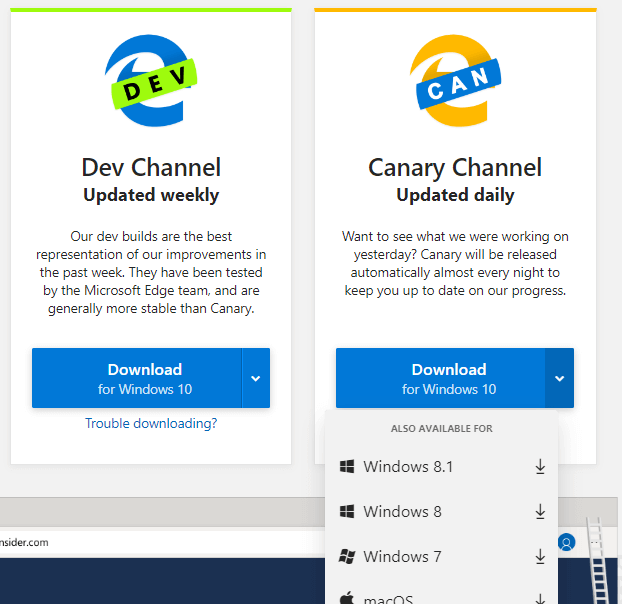
The Microsoft Edge Insider Channels page includes the download options for the Edge preview builds.

Click the small arrow on the Canary Channel’s Download button to open a drop-down menu that includes other platforms.

Then users can select to download an Edge preview build for Windows 8.1, 8, 7, or macOS platforms.

When users download a preview version, they will discover a new kind of Edge browser. Chromium Edge has a redesigned UI that mixes in some design elements from Google Chrome.

Its New Tab page includes Bing background images. The best thing about Chromium Edge, however, is that users can add Chrome extensions to the browser.

In May, Microsoft unveiled Collections for Chromium Edge. Collections enable Edge users to gather together text snippets and images from websites.

Thus, users can collect, organize, and share smaller amounts of page content with Collections.

Then users can open older websites with Internet Explorer’s rendering engine and utilize more outdated apps within IE Mode. The new version of Edge will also offer better streaming support and support for 4K content natively.

In addition, the new version of Edge will support Microsoft voices, SpeechSynthesis API and Microsoft Account and Azure Active Directory authentication. Another incredibly useful feature is the ability to mute tabs with a single click.

It’s worth noting that Microsoft Edge will have Windows Defender SmartScreen integration that should provide solid protection against malware.

The big M has also confirmed that Chromium Edge will include an Internet Explorer Mode for Enterprise users. That mode basically loads Internet Explorer 11 within Edge.

Nevertheless, users can now try out the Chromium Edge preview builds for Windows 8.1, 8, and 7.

Tip icon Tip
If want to learn more about using Edge, check out our Microsoft Guides Hub. To read about tools that you can get for Windows 10, visit our Windows 10 page.

Microsoft also plans to remove a wide range of Google’s services and replace them with its own services in Edge. Lastly, there’s support for extensions, and in addition to extensions from Chrome Web Store, users will be able to download exclusive extensions from Microsoft Store as well.

How did the installation of the Chromium Edge build work for you? Leave us a comment in the dedicated area below.

Netflix Dvds Website is Temporarily Unavailable [SOLVED]

Don’t we all love a good movie night? This brings up a core feature of Netflix, and namely renting out DVD’s, from their monthly plan. But there are reported instances when their website couldn’t be reached, as the Netflix DVDs website is temporarily unavailable.

First of all, make sure that the service is available in your country. If it is and the website is still unavailable, continue reading.

Here’s how one user described the issue on the Netflix-dedicated subreddit.

so i tried to go to the dvd.com website and i saw that it says that “The Netflix DVDs website is temporarily unavailable.” is it like that only for me? thanks

Access the website successfully by following the instructions below.

Is the DVD.com website down?

1. Switch to an alternative browser

When it comes to streaming websites such as Netflix DVDs, few browsers can even come close to how optimized they are for the job the way Opera One is.

Simply go online, start watching your favorite show, and notice the perfect image clarity and 60 FPS movements that seem impeccable.

More so, if you want to access geo-blocked content, you can also make great use of Opera One’s built-in VPN service.

Given all the features, it goes without saying that simple issues such as the Netflix website appearing to be down will be a thing of the past. The browser also features a native AI.

Opera One

A specialized web browser that is optimized for streaming content from all kinds of websites, including Netflix
Free Download Visit website

2. Clear your browser data

Chrome

  1. From your computer, open Chrome.
  2. At the top right, click More.
  3. Click More tools then click Clear browsing data.
  4. Choose a time range, might be Last hour or All time.
    clear chrome cache Netflix Dvds Website is Temporarily Unavailable
  5. Select the types of information you want to remove.
  6. Click Clear data.
  7. You’re all set.

Mozilla Firefox

  1. Firstly, click on the menu button and choose Options.
  2. Select the Privacy & Security panel and go to the Cookies and Site Data section.
  3. Click the Manage Data… button, now the Manage Cookies and Site Data dialog will appear.
  4. In the Search websites field, type the name of the site whose cookies you want to remove.
    clear Firefox browsing data Netflix Dvds Website is Temporarily Unavailable
  5. To remove all cookies and storage data for the website, click Remove All Shown.
  6. To remove selected items, select an entry and click Remove Selected.
  7. Click on Save Changes.
  8. Click OK in the Removing Cookies and Site Data confirmation button, then close the Options menu.
  9. You’re good to go now.

Microsoft Edge

  1. To view your browsing history, select Favorites then History.
  2. Select Clear history.
  3. Choose the types of data you want to remove from your browser, then select Clear.
    clear Edge browsing history Netflix Dvds Website is Temporarily Unavailable
  4. If you are using Cortana and wish to clear browsing history that’s stored in the cloud, select Change what Microsoft Edge knows about me in the cloud, then select Clear activity.

If you want to be sure that you’ve eliminated all files and data that may be interfering with your Netflix DVDs connectivity, you should try a professional PC cleaner instead.

A dedicated memory cleaner will free your PC from pretty much anything residual, such as cache data from your browsers, and perform other PC optimizations along the way as well.

Many memory cleaners also include at least some basic optimization tools that will help your PC perform better. Some of them are able to detect whether you have any faulty system files and automatically fix them.

Plus, if you want to eliminate this issue in the future, you can automate regular PC cleaning sessions because most of these tools include a scheduling feature.

2. Access the website with Incognito mode

  1. Open your browser and click on the Menu (in the top right corner).
  2. Open Incognito/Private mode in a new window.incognito mode Netflix Dvds Website is Temporarily Unavailable
  3. Navigate to dvd.com and look for improvements.

By following these steps, you should be able to connect to Netflix DVDs without any more issues.

Let us know which solution you used by leaving us your opinions in the comments section below.

OG Xbox video game Psychonauts is now free to download and play on Xbox One consoles

The Psychonauts video game, which originally came out on the original Xbox console way back in 2005, is now (spotted by Wario64) available to play for free on the current gen Xbox One family of consoles.

The game can be grabbed right here and sent to your Xbox One console by clicking on the blue Get button. Note that no Xbox Live or Game Pass subscription is needed. This is a completely free title.

Update: It looks like this game being free may have been a glitch or a premature launch of a promotion as it’s currently switching between free and paid. Cheers to Will for alerting us in the comments.

Here’s its official store listing:

A PSYCHIC ODYSSEY THROUGH THE MINDS OF MISFITS, MONSTERS, AND MADMEN. Is everything right in your head? Raz, a young psychic cadet discovers that someone is stealing brains. Using clairvoyance, astral projection, telekinesis and levitation help Raz foil this evil plot by entering their minds and smacking around a whole bunch of personal demons.

The likely reason for this free giveaway is that a sequel to Psychonauts, Psychonauts 2, was recently announced for the Xbox One and Xbox Series X consoles in addition to Windows 10. You can watch its reveal trailer below.

Are you a fan of Psychonauts or will this be your first time playing this classic game? Let us know in the comments below and then follow us on Pinterest for more Xbox content.

Psychonauts
Psychonauts
Price:
Free

Internet Explorer running slow in Windows 10? [Easy Fix]

While Windows 10 was still in the form of Technical Preview, Microsoft was advising users that glitches and problems were to be expected. One of them was the slow performance of the default Internet Explorer browser.

Microsoft confirmed that IE 11 is the last version of Internet Explorer. Therefore, if you want to make it work, read this article and find out how.

Windows 10 users have used the Feedback app in Windows 10 TP build 9860 to complain about the existing Internet Explorer version. Here’s what one of them has been saying:

Can’t say why. Page loading super slow. Even already visited pages opened in new tab

Some have been saying that the Internet Explorer 11 browser also crashes all of a sudden, does not show all letters after an update, does not display web pages correctly, and performance with JavaScript is really slow.

Internet Explorer 11 has aimed to be the first browser to make Internet connections more secure and reliable by reducing the use of vulnerable cipher suites (ex. RC4) and by using the latest security standards, TLS 1.2, by default.

One reason might be that many web pages are not officially supporting Internet Explorer anymore. Internet Explorer 11 is hardly being maintained and is merely used for Intranet websites and apps that require ActiveX controls.

Some users consider that TLS 1.2 is actually causing IE 12 to work slow, but secured. By any means, if you enjoy IE 11 and want to make it work on your device, check out the following tips and fixes to apply now.

How do I speed up Internet Explorer?

1. Opt for a faster browser

Internet Explorer is no longer officially updated by Microsoft, having been replaced with Microsoft Edge as the default browser. That being the case, replacing it with any other browser is pretty much an upgrade.

That is why, if you’re are to replace Internet Explorer, might s well go for the best alternative on the market, and it is called Opera One.

Just like Internet Explorer’s descendent, Opera One is also Chromium-based, making it faster, more reliable, and with plenty of extension support.

What’s more, you can customize Opera One however you want, with toolbars and shortcuts, night mode, themes, tab islands and AI.

Opera One

Surf the Internet like never before with this ultra-lightweight and incredibly modern-looking web browser.
Free Download Visit website

2. Scan your system for errors

Another solution would be to run SFC/scannow command in the Command Prompt to check your system for errors. And you can scan your system with good antivirus software.

We recommend you use a security tool that is stable and has a detection rate. Some of the best antivirus software available are optimized for browsing and they can actually help improve your speed rates while keeping your PC secure.

You can also run a scan with Windows Defender, but third-party tools are generally able to detect more threats and have a lower false-positive rate.

3. Clear IE Cache regularly

The first thing you can do is to clear Internet Explorer Cache. You can do that from browser‘s Settings following the steps below, or with some third-party cleaning tool, like Advanced System Care or CCleaner.

  • Launch Internet Explorer 11
  • On the right-hand side of the browser, click on the gear icon – the Tools icon
  • Go to Safety and select Delete Browsing History
  • Uncheck all options except the Temporary Internet files and website files
  • Click the “Delete” button.
  • The Delete Browsing History window will disappear and your mouse icon might go busy for a while.

4. Disable Add-ons

  • Open Internet Explorer and select the Tools button
  • Click on Manage add-ons
    How to disable Add-ons in Internet Explorer 11
  • From the drop-down menu choose “All add-ons”
  • Select each add-on that you want to remove and click on Disable.

5. Reset IE to default level

Finally, go to Internet Explorer, click Tools > Internet Options > Security > Reset all Zones to Default level.

These tweaks should help you fix your slow Internet Explorer and improve your browsing experience.

The solutions listed above are also good if you are interested in the following topics:

  • Internet Explorer 11 slow to load the first page – Users reported that usually the first tab that IE opens usually loads very slowly
  • Internet Explorer takes forever to open – Some reported that the IE browser in general moves very slowly

[Solved] Parsec error code 15000

Parsec enables users to remotely connect to other PCs to play games. However, some Parsec users might encounter a Parsec error 15000 issues on host PCs.

Here is what a full error message looks like:

We couldn’t initialize the hosting functionality on the computer you’re connecting to. Try changing the monitor Parsec is capturing in hosting settings or check out this support article for more information. Code: -15000.

In today’s guide we will discuss the best ways to resolve this issue once and for all, so make sure to read on.

How can I fix the error 15000 Parsec?

1. Disable streaming apps

  1. Right-click the taskbar to select Task Manager.
  2. Select the Processes tab.
  3. Right-click any streaming app listed under Apps and select End task.

    Task Manager Parsec Error 15000
  4. Disable all streaming apps listed under Background processes.

2. Update the graphics card driver

Make sure you’re using the latest versions of your drivers. For a manual update of the graphics driver follow the steps below:

  1. In the search bar for Windows, type Device Manager.
  2. Open Device Manager
  3. Select Display Adapters in the list of Drivers to unfold the options.
  4. Right-click on your graphics card driver.
  5. Select Update Driver.
  6. Click on Search automatically for drivers

The driver is responsible for allowing a computer to independently control video cards, computer applications, sound cards, and other hardware. You can manually update your PC’s drivers if you have a good understanding of what they are.

However, the driver updater and installation software is the best alternative for ensuring that there are no more missing links. A tool like Fortect Driver Updater not only downloads and installs drivers, but also helps you manage them by resolving problems, backing up, and restoring them. For many reasons, it is worthwhile to use it!

⇒ Get Fortect Driver Updater

3. Clean-boot Windows

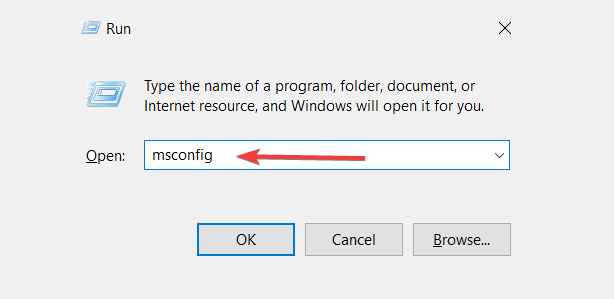
  1. Press the Windows key + R keyboard shortcut, which opens Run.
  2. Type msconfig into Run, and click the OK option.

    MSConfig Parsec Error 15000
  3. Click the Selective startup radio button.
  4. Uncheck the Load startup items option.
  5. Click Load system services and Use original boot configuration to select those options.
  6. On the Services tab, click Hide all Microsoft services to select that setting.

    The Services tab Parsec Error 15000
  7. Click the Disable all option to turn off remaining third-party services.
  8. Select the Apply option.
  9. Click OK to exit.
  10. Select the Restart option on the dialog box window that opens.
  11. Try running Parsec after clean-booting Windows.

Note: You can restore the original boot configuration by selecting your original Selective Startup settings and enabling all services again via the MSConfig window.

4. Turn off the Game bar

  1. Click Windows 10’s Type here to search button on the left side of the taskbar.
  2. Input the keyword Game bar in the search text box.
  3. Click Game bar settings to open the window shown directly below.

    The Record game clips option Parsec Error 15000
  4. Toggle the Record game clips, screenshots and broadcast using Game bar option off if it’s one.

5. Turn off NVIDIA Shadowplay

  1. Open Windows 10’s search utility.
  2. Input NVIDIA GeForce in the search box.
  3. Open it.

    GeForce Experience Parsec Error 15000
  4. Click the Get started button, and log in to GeForce if required.
  5. Click the Settings button in NVIDIA GeForce.

    Share option Parsec Error 15000
  6. Toggle the Share button off if it’s on.

6. Turn off background recording

  1. Press the Windows key + S key at the same time.
  2. Enter the keyword background recording in Windows 10’s search box.
  3. Click Game Captures maximum recording length to open Settings as shown in the shot directly below.

    Captures tab Parsec Error 15000
  4. Then toggle the Record in the background while I’m playing a game option off.

7. Lower the resolution on the host PC

  1. Open the search utility in Windows 10.
  2. Type resolution in the search box.
  3. Click Change the resolution of the display in the search results to open the Settings tab in the shot directly below.

    Display tab Parsec Error 15000
  4. Select a resolution of approx 1,280 x 800 (or 1280 x 960) on the Display resolution drop-down menu.

    Display resolution drop-down menu Parsec Error 15000
  5. Note: This fix is more specifically for PCs with AMD APUs that might not be able to handle the highest resolutions.

The above resolutions could fix Parsec error code 15000 for a lot of users. However, error 15000 can also arise for users with unsupported GPUs.

To ensure that this is not the case for you, check if Parsec supports your GPU on its Hardware page.

Which of these solutions were best suited for your particular scenario? Leave us a comment in the dedicated area below.

Tumblr blog only opens in dashboard [Quick Fix]

Tumblr blog only opening up on the dashboard is not a fault from your end or Tumblr’s; it’s by design.

The great thing about the Tumblr dashboard is that you can do anything from there.

You can publish new posts right from the dashboard, view images, message other users, and explore your feed.

However, one can feel that Tumblr is asking too much of its dashboard. When scrolling down your feed, if you try to open a blog, you see it open also on the dashboard instead of a new screen. You cannot modify any setting to change this.

But we’ll show you some workarounds to avoid Tumblr blogs only opening in your dashboard.

Why do some Tumblr blogs open in the dashboard and how to fix it?

The primary reason why Tumblr blogs only show up on the dashboard is that the developers wanted to keep everything within the dashboard.

Blogs only opening up in the dashboard sidebar is also useful if you only want to glance through the blog.

However, it gets annoying if you want to read the blog because there’s insufficient real estate on the dashboard sidebar, and the page is not responsive.

This is a recipe for poor user experience.

To stop this from happening, you don’t need to use Safe Mode. Simply open the blog in a separate tab or window.

How to open Tumblr blogs in a new tab or window

1. Using the context menu

tumblr-blog-only-opens-in-dashboard-context-menu

You can stop Tumblr blogs from showing up on the dashboard by opening them in separate tabs or windows.

To do this, instead of clicking away on the blog, right-click on it and select Open link in new tab from the context menu.

If you’d prefer to open blogs in entirely new windows, right-click the blog and hit Open link in new window.


2. Open in new tab with the middle mouse button

tumblr-blog-only-opens-in-dashboard-middle-mouse-button

Stopping Tumblr blogs from only coming up on the dashboard is easiest if you have a mouse with the middle wheel/button.

Place the cursor on the blog and press the middle button to open the blog in a separate tab.


3. How to open Tumblr blogs in new tab on mobile

tumblr-blog-only-opens-in-dashboard-safari-new-tab

If you’re browsing Tumblr from a smartphone, tap and hold the post. Then tap on Open in New Tab (Chrome browser) or Open in Background for Safari browser.


4. Force every link to open in a new tab (Chrome)

tumblr-blog-only-opens-in-dashboard-extension-fix

  1. Open the Chrome browser.
  2. Add the Long press new tab extension to Chrome.
  3. Open the extension page and configure it how you like for Tumblr.

Tumblr blogs only showing up on the dashboard was intended to improve user experience.

However, if the complaints are anything to go by, this feature has done quite the opposite.

The good news that this simple quick fix will get Tumblr working how you want it to.

[wl_navigator]

How to factory reset Amazon Firestick [Quick Guide]

Factory resetting your Firestick resolves lagging issues and eliminates bugs. However, it also erases your settings and data.

Therefore, if you are only looking to speed improve the device’s performance, you can try out other options first.

For example, clearing your cache, data, and cookies are recommended steps to take before going ahead to factory reset the Firestick.

If these don’t work, or you want to factory reset the device for other reasons, continue to the next section.

How do I factory reset the Amazon Firestick?

1. Factory reset Firestick with remote

factory-reset-firestick-with-remote

  1. Eject all connected external storage devices.
  2. Press the Back button and the right directional button.
  3. Hold both buttons for around 10 seconds.
  4. Select the Continue option on your TV screen.

By default, if you don’t click on Continue in step 4 above, the device proceeds with the factory reset on your Firestick.


2. Factory reset Firestick with computer

factory-reset-firestick-with-compter

  1. Download and install an Android emulator on your PC.
  2. Launch the emulator.
  3. Open Google Play Store.
  4. Search for the Fire TV remote app and download it.
  5. Configure the downloaded app.
  6. Specify the device that you want to factory reset.
  7. Click on the gear icon on the left-hand side of your screen.
  8. Click on the system.

3. Factory reset Firestick without pin

factory-reset-firestick-without-pin

  1. Visit www.amazon.com/pin.
  2. Log in to your Amazon account.
  3. Switch to the Parental Controls tab.
  4. If you’ve never set a PIN, enter one under Prime Video PIN.
  5. Otherwise, click on the Change button beside your hidden PIN.
  6. Enter a new PIN.
  7. Hit Save.

Note: At the end of the Parental Controls page, ensure to choose your Firestick to apply the parental control settings. Without doing this, the PIN won’t change for the Fire TV Stick.


4. Factory reset Firestick without remote

 factory-reset-firestick-without-remote

You can factory reset Firestick without remote with either a USB mouse or smartphone app acting as the remote. If you have a USB mouse, connect it to your device and continue from step 3 below.

Otherwise, download the Fire TV app on Android. For iOS devices, get it from this link. Follow the steps below to use the Fire TV app.

  1. Download the Fire TV app on your smartphone.
  2. Connect your smartphone and your Firestick to the same network.
  3. Tap on the Fire TV Stick when you see it in the app.
  4. Find the 4-digit code that shows up on your TV screen.
  5. Enter the 4-digit code on the app.
  6. Use the app as a remote controller for the next steps.
  7. Navigate to Settings.
  8. Go to System.
  9. Select Reset to Factory Defaults.

To avoid having to do a factory reset on Firestick, it’s best you limit the number of apps you download onto the device. The more free space, the smoother the Firestick runs, and the fewer errors you incur.

Also, if your Fire TV Stick has an SD card slot, you may want to make use of that when storing data.

[wl_navigator]

NTT creating security tool for virtual workplaces in Teams 

COVID-19 continues to negatively impact various aspects of social, school, and business life. Speaking of business, the pandemic has contributed to the rise in cyber attacks aimed at enterprise computing systems, especially the cloud-based ones, such as Microsoft Teams.

In response to such threats, London-based NTT Data announced plans to deliver a security solution for Microsoft Teams users in physical offices and virtual workplaces.

Microsoft Teams security solution by NTT

The use of remote working or collaborative tools rose sharply a few months after the onset of COVID-19.

Of course, as we speak, organizations are now planning for life back in physical offices. Nonetheless, many have discovered new possibilities with remote workforce collaboration.

So, we don’t expect a sharp decline in the use of platforms like Microsoft Teams once workers return to physical offices.  Instead, you’ll most likely witness the rise of the distributed workforce.

A recent NTT survey of workers backs this notion up. According to the study, 56% of office-based workers expect remote working to remain an option even after physical offices reopen.

That’s why companies like NTT Data are building security solutions for physical office use cases and remote working in Teams.

There is currently unprecedented demand for Microsoft Teams expertise as companies have transitioned to remote working. The next step is to build infrastructure to support the future workplace, a framework that will allow companies to return to the office and seamlessly blend remote working with working in the office.

Since Teams is a Microsoft 365-based app, it comes with several security features out of the box. These include at-rest and in-transit data encryption and Advanced Threat Protection.

However, enterprises may opt to engage third-parties to help with the implementation or reinforcement of Microsoft Teams security. This is where providers like NTT come in.

Is your organization ready for the transition to a distributed workforce? Let us know how well prepared you are in the comments box below.

[wl_navigator]

Tweet is unavailable: What does it mean and how to fix it?

Reading tweets on your timeline, you must have come across tweets that are unavailable.

Unlike the Twitter internal server error, the tweet is unavailable placeholder message is mostly not an issue with your account or the tweet.

In most cases, the message is Twitter protecting your privacy or that of the Twitter user who sent the tweet.

What does this message mean and how do you make tweets available? Read this article to the end to find out.

Why does the tweet is unavailable error appear?

You are trying to view a deleted tweet

The most common instance when you see this tweet is unavailable placeholder message is when the tweet has already been deleted.

Twitter doesn’t just delete the tweet; users will know that something was tweeted but won’t know what it was.


The poster of the tweet blocked you

this-tweet-is-unavailable-blocked-user

Another instance when Twitter hides a tweet from you is when you’re blocked by the Twitter account from which the tweet was sent.

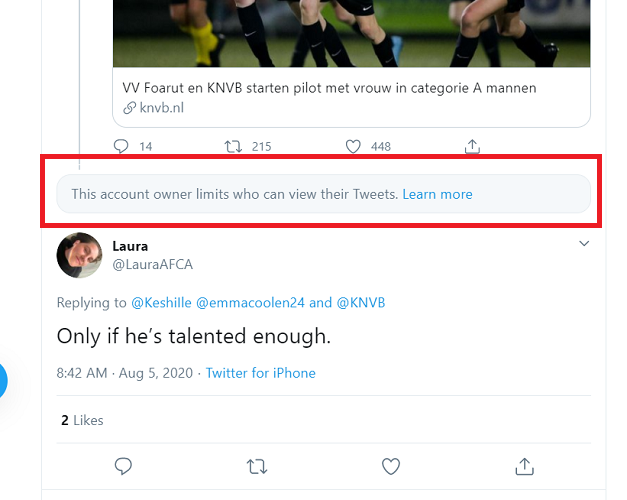
When the Twitter user blocks you, the placeholder message says This account owner limits who can view their Tweets. 

Unlike in the case of Facebook blocks, you can find their profile, but that’s as far as you can go.


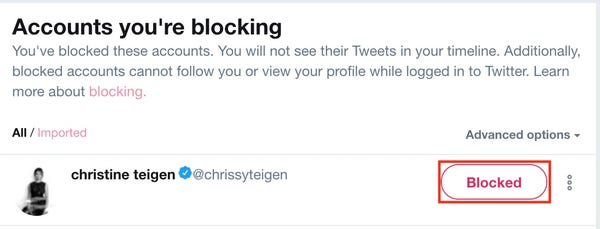
You blocked the poster of the tweet

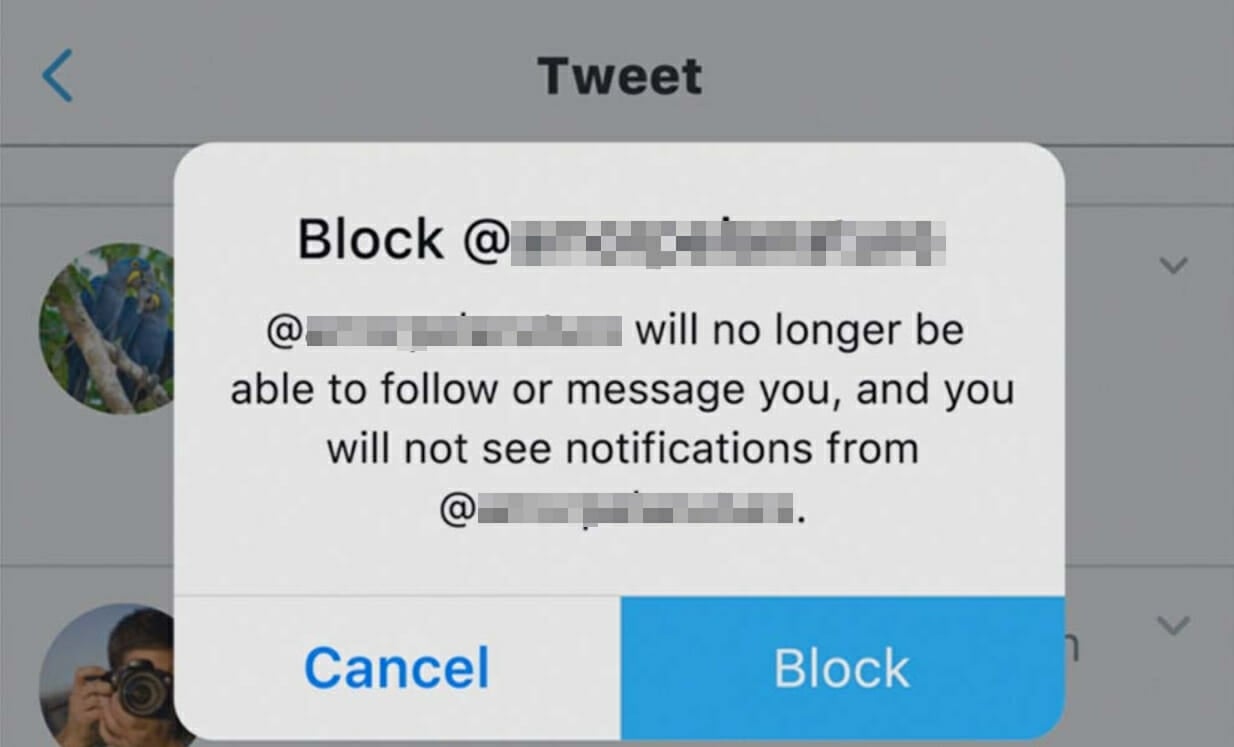
Blocking a Twitter user means that you no longer want to see their content. Hence, Twitter restricts both users from viewing each other’s content.


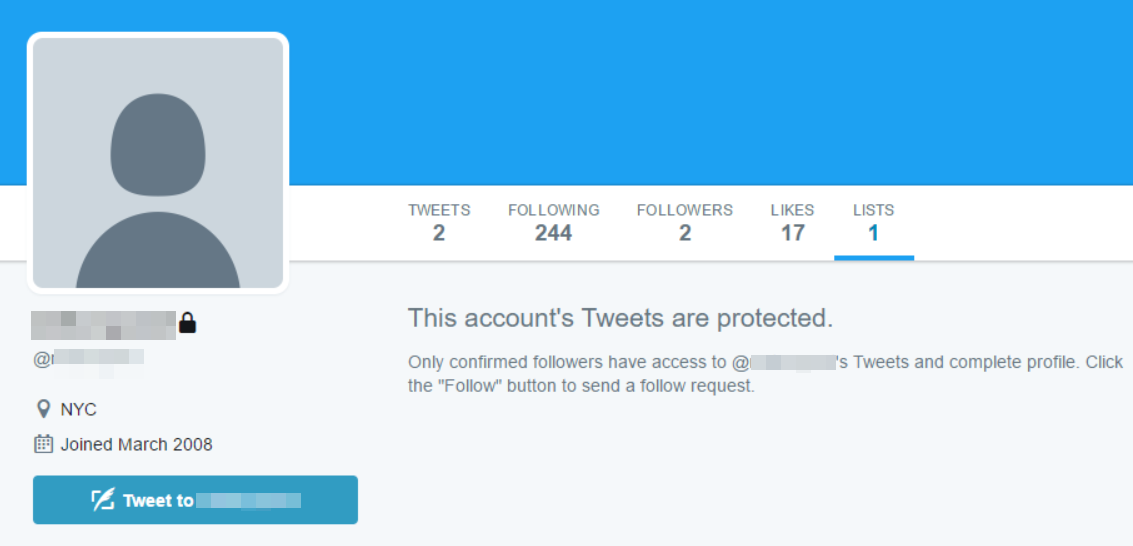
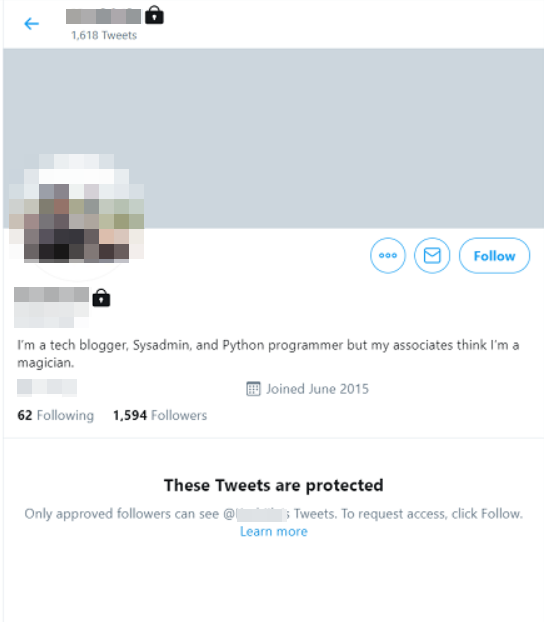
The tweet is from a private profile

The microblogging platform, Twitter, has around 321 million active users so, it sometimes gets too noisy.

Thankfully, you can set your account as private.

When you operate a private account, your content is only shown to users that follow you.


A blocked user is tagged in the tweet

Hiding the content of blocked users isn’t enough to keep them from showing up on your timeline.

If someone you blocked is tagged on a tweet, the tweet will be unavailable to you.

This is Twitter‘s way of protecting your privacy from users you blocked.


How can I remove the tweet is unavailable message?

1. Ask the poster of the tweet to unblock you

this-tweet-is-unavailable-ask-to-unblock

If the tweet is unavailable meaning that the Twitter user blocked you, you can reach out to them to ask them to unblock you.

When they do unblock you, their content will become available to you.

Since you can send them a direct message or post on their timeline, you can go through a mutual friend or follower.


2. Unblock the Twitter user who posted the tweet

If you realize that the reason why the tweet is unavailable to you is that you blocked the Twitter user, you have to unblock them to see the content.

Not only will this tweet be available to you; you can see all their content if they’re not blocked.

When you block a Twitter user, the follow button says Blocked. Simply tap or click on this button to unblock the account.


3. Send the Twitter user a follow request

This solution will make the tweet available if the user protects their tweets. To follow a public profile, hit the Follow button.

But when it comes to private profiles, after clicking Follow, you have to wait until they approve your request.

When you finally follow them, you will no longer see unavailable tweets from the Twitter user.


4. Contact Twitter support

this-tweet-is-unavailable-twitter-support

Finally, if none of these work, it could mean that your account is being penalized by Twitter. The platform limits your account especially when tweets from several users all show as unavailable.

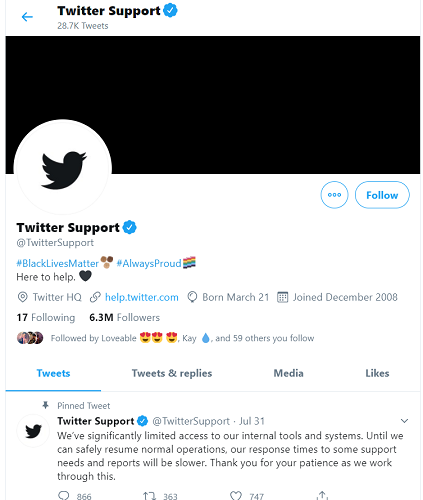
You can either visit help.twitter.com, call 415-222-9670 (toll-free), or tweet @TwitterSupport, stating your case.

If a resolution is possible, then it’s only a matter of time before tweets become available to you.

This unavailable tweet placeholder only applies to tweets that have no interactions (retweets, likes, or replies).

An example is when a user quotes a tweet, which got deleted after the quoting. Twitter tells you that this quoted tweet is unavailable if you want to view the original tweet.

The same applies to replies and retweets.

[wl_navigator]

Microsoft 365 users: beware of SharePoint phishing attacks

If you’re a Microsoft 365 user, chances are you’ve used SharePoint to share and manage official documents and content.

The app, which recently received a Yammer integration update, comes in handy when you need to remotely collaborate on business files. Sadly though, threat actors know this too. So they’re now sending spoofed SharePoint emails to unsuspecting employees as part of a phishing campaign.

Microsoft 365 user credentials targeted in phishing attacks

The folks at Abnormal Security uncovered a phishing campaign that targets corporate SharePoint users. Unfortunately, the end game for the attackers is to collect unsuspecting users’ Microsoft 365 credentials.

They start by sending spoofed SharePoint emails addressed to no specific person. By not naming any individual as the recipient, the threat actors aim at tricking as many victims as possible into supplying their Microsoft 365 login details.

This attack impersonates an automated message from Sharepoint to send phishing emails. The email itself is not addressed to any specific individual, and is meant to cast a wide net to phish for employees credentials.

However, unlike previous similar attacks, this phishing campaign doesn’t create any sense of urgency to get the target to act quickly.

According to Abnormal Security, the attackers designed the phishing emails to appear to originate from within the target organization.

As you may expect, each email has a malicious link. And if you click on the link, you end up on a fake Microsoft 365 landing page. The link may take the user to a PDF download page that redirects to another site, in other cases.

Whichever way the link goes, the user ends up on a site that requires Microsoft 365 security credentials to sign in.

Phishing attacks targeting the users of Microsoft 365 or other cloud-based or on-premises computing tools are a persistent cybersecurity issue. Be sure to guard your IT systems with all you’ve got, from antivirus solutions to Microsoft Defender ATP.

For any cybersecurity-related problem or question, write us a message in the comments box below.

[wl_navigator]

How to restore previous session on Internet Explorer

Resuming browsing from the last session is extremely useful and time-saving. Most popular browsers have a restore or history button to help you, although the initial session still opens in a new page.

This tutorial, on the other hand, is helpful to force Internet Explorer to start from the last session.

This should restrict all users on the same PC, so that they can’t change the settings on their own, and start Internet Explorer from the previous session.


How do I restore the last IE session?

  1. Use Group Policy
  2. Edit Windows Registry key
  3. Use Internet Properties

1. Use Group Policy

  1. Press Windows Key + R, type gpedit.msc in the Run dialog box and hit Enter to open the Local Group Policy Editor.
  2. In the left pane navigate to: User Configuration /Administrative Templates /Windows Components /Explorer /Internet Control Panel /General Pageinternet explorer group policy
  3. In the right pane of Local Group Policy Editor, go to Start Internet Explorer and double-click it.
  4. Now select Enabled and click Apply then OK.
  5. Close the Local Group Policy Editor and see the changes you’ve made by running Internet Explorer.

2. Use the Registry

  1. Press Windows Key + R, type put regedit in the dialog box and hit Enter to open the Registry Editor.
  2. In Registry Editor in the left pane go to: HKEY_CURRENT_USER\Software\Policies\Microsoft\Internet Explorerinternet explorer regedit
  3. In the left pane again, right-click on the Internet Explorer key, select New -> Key. Name the new key ContinousBrowsing.
  4. Now select it and come to its right pane.
  5. Right-click and select New -> DWORD Value, name the DWORD as Enable.
  6. Double-click on it, and you’ll get Edit DWORD Value box:
  7. In the Value data field enter 1 in order to force Internet Explorer to start from the previous session.
  8. Click OK and close the Registry Editor and restart your computer to apply the changes.

3. Use Internet Properties

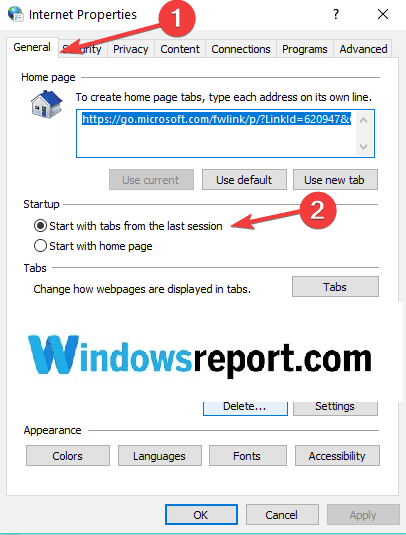
  1. Type internet properties in the home screen search box and double-click on the first result.
  2. Now, go to the General tab and locate the Startup feature.
  3. Check the option Start with tabs from the last session.
internet explorer restore last session

If you consider switching to an alternative browser and replace the outdated Internet Explorer, we strongly recommend Opera One.

This is a free lightweight and fully-customized browser, that you can download and set up in just a couple of minutes.

It comes with a multitude of features to help you navigate between various tabs, workspaces, and built-in social media chat apps. The dedicated add on library contains tens of other options that you can get for and use for free.

Opera One is available for PC, mobile (including older phones), Mac, or Linux. Besides, you can synchronize the browser across all your devices, to easily manage all the settings.

Starting from the basic version, you can bring your own flavor to the browser, adding icons, sidebars, workspaces, and bookmarks for ease of access and a better-organized workflow.

Add the incorporated VPN and the built-in AI, and you have the perfect browser.

Opera One

Take your browsing experience to the next level with this amazingly fast and highly customizable browser. You won’t regret it!
Free Download Visit website

Keyboard shortcuts not working in VLC [Mac, Windows 10/11]

VLC is a popular video player available on the Windows and Mac platforms. The VLC shortcuts, also known as hotkeys, allows the users to perform quick actions without using the mouse.

That being said, some users have reported having encountered the keyboard shortcuts not working issue in VLC.

VLC player may ignore your shortcut keys if the keys are not assigned correctly. In some instances, it can also happen due to a glitch in the media player.

In this article, we explore a few troubleshooting steps to help you resolve the keyboard shortcuts not working in the VLC issue on your Windows and Mac systems.

How can I fix the hotkeys not working in VLC?

1. Check VLC hotkeys preference

Keyboard shortcuts not working VLC

  1. Launch the VLC player on your computer.
  2. Click on Tools.
  3. Select Preference from the options.
  4. At the bottom, make sure the Simple option is selected under Show settings.
  5. In the Preference window, open the Hotkeys tab.
  6. Go through the assigned hotkeys and check if you have correctly assigned the keyboard shortcut for the function you want to execute.
  7. Click on Save.

Once you have saved the hotkey changes, close the VLC player. Use Ctrl + Q for Windows, and Cmd + Q for Mac.

Right-click on the taskbar and select Task Manager. Find any and all instances of VLC player and end the process.

Relaunch the VLC player and check if you can use the keyboard shortcuts are working.

At times, not quitting the VLC player after making changes can prevent the changes from being applied. Simply relaunch the app and check for any improvements.


2. Update VLC player

Keyboard shortcuts not working VLC

  1. Launch the VLC media player.
  2. Click on Help.
  3. Select Check for Updates.
  4. VLC will scan for pending updates and prompt you to install if an update is available.
  5. Read the description and click on Yes.
  6. VLC player will download the update and prompt you to install it.
  7. Click on Install.
  8. Play any media file and check if the VLC shortcuts are working.

VLC releases new update fixing minor bugs periodically that can resolve glitches and bugs reported by the users.


3. Check your keyboard layout

Windows 10

Keyboard shortcuts not working VLC

  1. Click the keyboard layout button from the notification area. Keyboard icon or ENG
  2. If you are in the US, select English (United States) US Keyboard.
  3. English (United States) US Keyboard and English (United States) US International Keyboard has a different layout.
  4. Once you have selected the right layout, open the VLC player.
  5. Play any media file and check if the shortcuts are working.

For many users, changing the keyboard layout has fixed the VLC hotkeys issue. Different keyboard layouts also have different hotkey functions. If you have multiple keyboard layouts installed, check if you are using the correct layout to fix the issue.

Mac

Keyboard shortcuts not working VLC

  1. Open the Apple menu.
  2. Select Preferences.
  3. Select the Keyboard.
  4. Open the Input Setting tab.
  5. Check the box ‘Show input menu in menu bar’.
  6. From your menu bar, click the Input icon and select your regular layout.

 4. Run keyboard troubleshooter

VLC hotkeys not working

  1. Press the Windows key + I.
  2. Choose Windows Update & Security.
  3. Scroll down and select Troubleshoot from the left panel.
  4. Scroll down and choose Keyboard.
  5. Click on the Run the troubleshooter button.
  6. Let windows troubleshooter find and fix any issue with the keyboard.

Running the Windows 10 keyboard troubleshooter can fix any compatibility issues with the keyboard and computer.


5. Reinstall VLC media player

VLC hotkeys not working

  1. Press the Windows key + R.
  2. Type appwiz.cpl and click OK.
  3. Select VLC from the list of installed apps.
  4. Select Uninstall.
  5. Click Next to complete the process.
  6. Once uninstalled, download and install the VLC media player from the website.

The keyboard shortcuts not working in the VLC issue usually occur due to incorrect hotkey assignment or wrong keyboard layout selection. Follow the steps in the article to troubleshoot the issue.

[wl_navigator]

FIX: Crunchyroll Server Error on Xbox One

Crunchyroll is a popular American anime, manga, and dorama streaming platform available on Xbox One and other platforms.

However, several Xbox users have reported the Crunchyroll server error when trying to open the app on their console.

The Crunchyroll is experiencing a server error that seems to be triggered by a bug in the app. Users have suggested that force closing the app seems to have resolved the issue.

In this article, we explore a few known solutions to help you resolve the Crunchyroll server error on your Xbox One.

How can I fix Crunchyroll experienced a server error on Xbox One?

1. Force close and restart the app

Crunchyroll server error
  1. Make sure the Crunchyroll app is open.
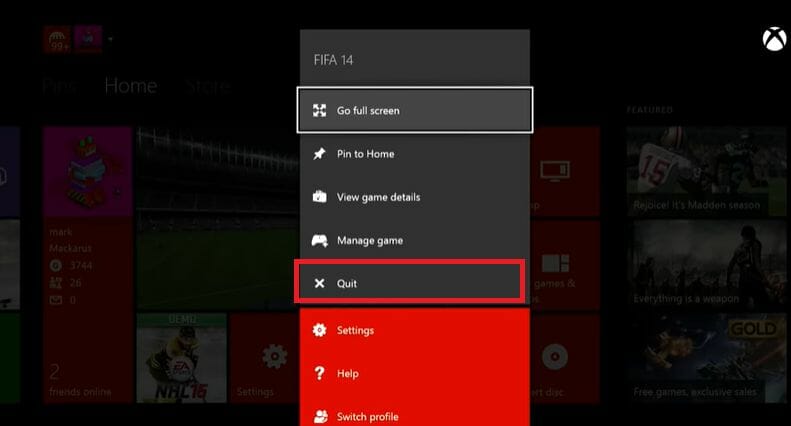
  2. Press the Xbox button on your controller.
  3. Make sure the Crunchyroll app tile is highlighted.
  4. Press the Menu
  5. Scroll down and select Quit.
  6. Relaunch Crunchyroll and check if the server is resolved.

When the user closes the game or app on Xbox, the console pauses the game or media to be able to resume without having to restart the app again.

However, Crunchyroll seems to have an issue with the pause/resume functionality. So, force closing the app is a working workaround to resolve the error.

Make sure to quit the Crunchyroll app before turning off your Xbox to avoid getting the error.

2.  Check for an app update

Crunchyroll server error
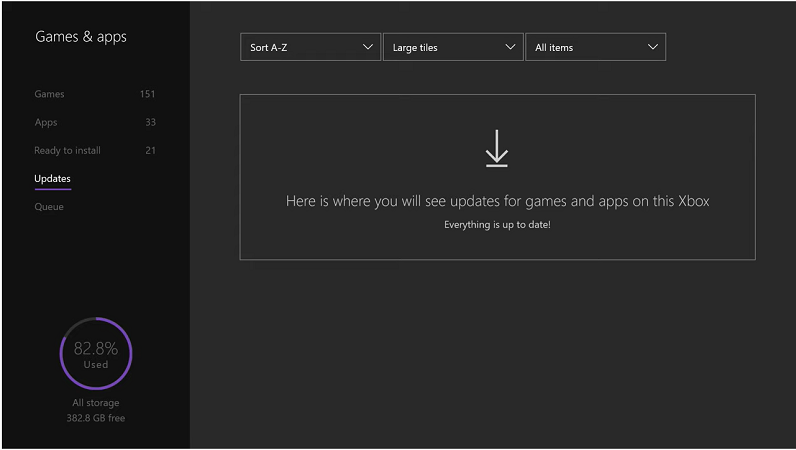
  1. From your Xbox home screen, open My games and apps.
  2. Under Games & apps, select Updates.
  3. Download and install any update pending for Crunchyroll.
  4. If no update available, press the B button go back to My games and apps.
  5. Select the Apps tab.
  6. Highlight the Crunchyroll app.
  7. Press the Start button and select Manage.
  8. Scroll down to Updates.
  9. Download and install any pending updates for the app.

Crunchyroll seems to have released an update to fix the Crunchyroll is experiencing a server error. Download and install the update and check for any improvement.

3. Use VRV app on Xbox One

Crunchyroll server error

If the issue persists, you can download and install the VRV app on your Xbox One. VRV is a fan-first streaming service that offers anime, sci-fi, tech, and more. Crunchyroll develops VRV, thus allows you to link your Crunchyroll account to the app to maintain premium access.

Download and install the VRV app on your Xbox One. Link your Crunchyroll account to VRV, and you can watch your favorite manga or anime series without the server error.

⇒ Get VRV

4. Check for network issues

Perform a network restart

crunchyroll experienced a server error xbox one
  1. Make sure the router and modem is powered on.
  2. Pull the power cable to turn off the router.
  3. Leave the modem idle for a minute.
  4. Connect the power cable and turn the router on.
  5. Connect your Xbox One to the network and launch the Crunchyroll app.

If the issue persists after performing a network restart, try a network reset to fix the issue.

Reset router to factory default

crunchyroll experienced a server error xbox one
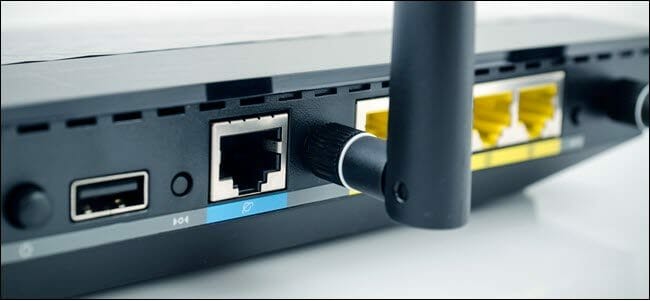
  1. Locate the reset button on the back of your router.
  2. Make sure the router is powered on.
  3. Use a paper clip or similar object to press and hold the Reset button for 15 seconds.
  4. Wait for the router to reset and power back on fully.

This should reset the router to its default factory setting. Connect your Xbox One to the router and check if the Crunchyroll experience a server error is resolved.

Note that resetting your router will wipe out off of your customized settings, including the router username and password.  You may have to configure port forwarding and proxy setting from scratch after resetting the router.

The Crunchyroll server error on Xbox One occurs due to a bug in the app. To fix the error, make sure always to force quit Crunchyroll before shutting down your Xbox One.

The new Tasks app is now rolling out in Microsoft Teams

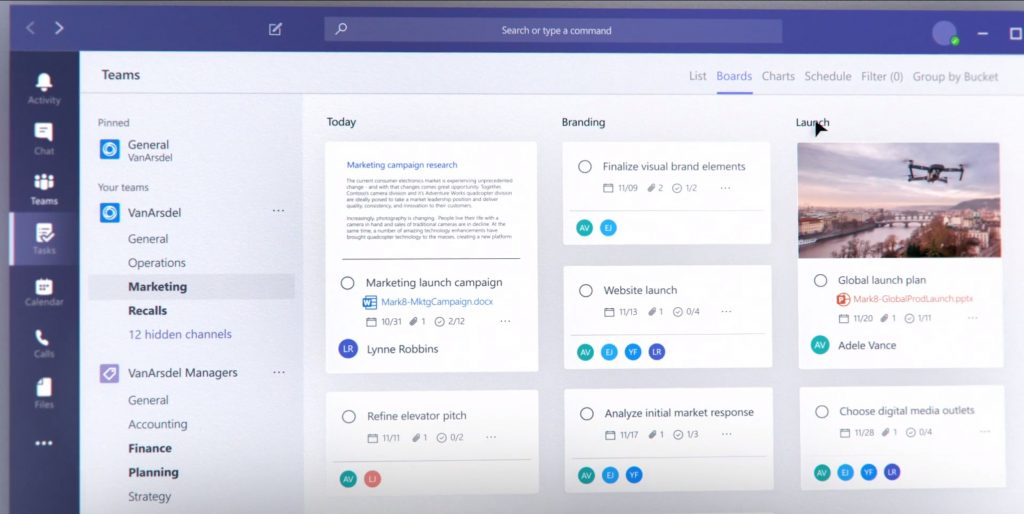
After a delay, and three months after an initial announcement, Microsoft is finally rolling out the new Tasks app in Microsoft Teams. The new experience is powered by both Planner and Microsoft To Do and is essentially a rebrand of the pre-existing Planner app inside of Microsoft Teams, creating one central hub for all things teamwork.

According to Microsoft, today’s rollout is a bit of a gradual one. The company says that it will be coming to a small group of users starting today, with a continued rollout through September. Tasks for Teams mobile, meanwhile, will not be available until the desktop rollout is finished.

Please be aware that, currently, the name of the Planner app inside Microsoft Teams will not change. Microsoft says that as they continue to roll out the new Planner experience in Teams desktop, the app name will initially remain Planner, then change to Tasks by Planner and To Do, and then change to Tasks. Mobile users, meanwhile, will always see the app as Tasks.

As a reminder, some features in the new Tasks app include a new list view, and the ability to edit multiple tasks at once. The list view includes a traditional board, charts, and schedule view from Planner, with the option for Lists, too. It also adds a bulk editing capability, where you can edit multiple tasks simultaneously, for changing progress, priority, due dates, and more.

Users of Power Automate can also enjoy integrations in the new Task app, to surface tasks created in other apps in Tasks in Teams. Finally, companies can use task publishing to create tasks at the corporate level and push those tasks to targeted locations of their Firstline Workforce.

You can check to see if Tasks is available for you by clicking the ellipses in the Teams sidebar and choosing Planner. This all part of a new movement by Microsoft dubbed as “Tasks in Microsoft 365.” With it, Microsoft is aiming at the coherence, intelligence, and integration principles.

Hit ID@Xbox video game Cuphead gets surprise PlayStation 4 release

Cuphead, one of the most successful ID@Xbox titles in recent years is being released on PlayStation 4 today. The run and gun adventure left a big mark since its release on Xbox One and Windows in 2017 and sold more than 5 millions copies to date. This is quite exceptional for an indie studio to get so much success with their first game, though Cuphead is a true work of art with its unique art style that pays homage to old-school cartoons.

Sony’s PlayStation 4 went to sell more than 100 million units during this console generation, so skipping the lead platform would have been a big missed opportunity for developer Studio MDHR. Before its PlayStation 4 release today, Cuphead has been previously ported on macOS and the Nintendo Switch as well. The indie studio also said today that it’s still working on Cuphead’s first DLC, The Delicious Last Course, which still has no released date.

Last but not least, it was announced today that the Xbox One version of Cuphead will receive a free update that will add a digital art gallery, behind-the-scenes commentary features, and playable soundtrack to the game. “This update is still in the early planning stages, and we’ll be taking the time to get things just right, but we will be sure to share more when we have something for you that meets the level of care and quality we always strive for,” the developers said today.

If you have yet to play it, Cuphead is just $19.99 on the Microsoft Store and it includes Xbox Play Anywhere support. It’s definitely a game that we would like to see coming to Xbox Game Pass one day, especially since it used to be a console exclusive on Xbox.

Cuphead
Cuphead
Developer:
Studio MDHR
Price:
$19.99

iCloud Keeps Popping up on Windows 11? How to Turn it Off

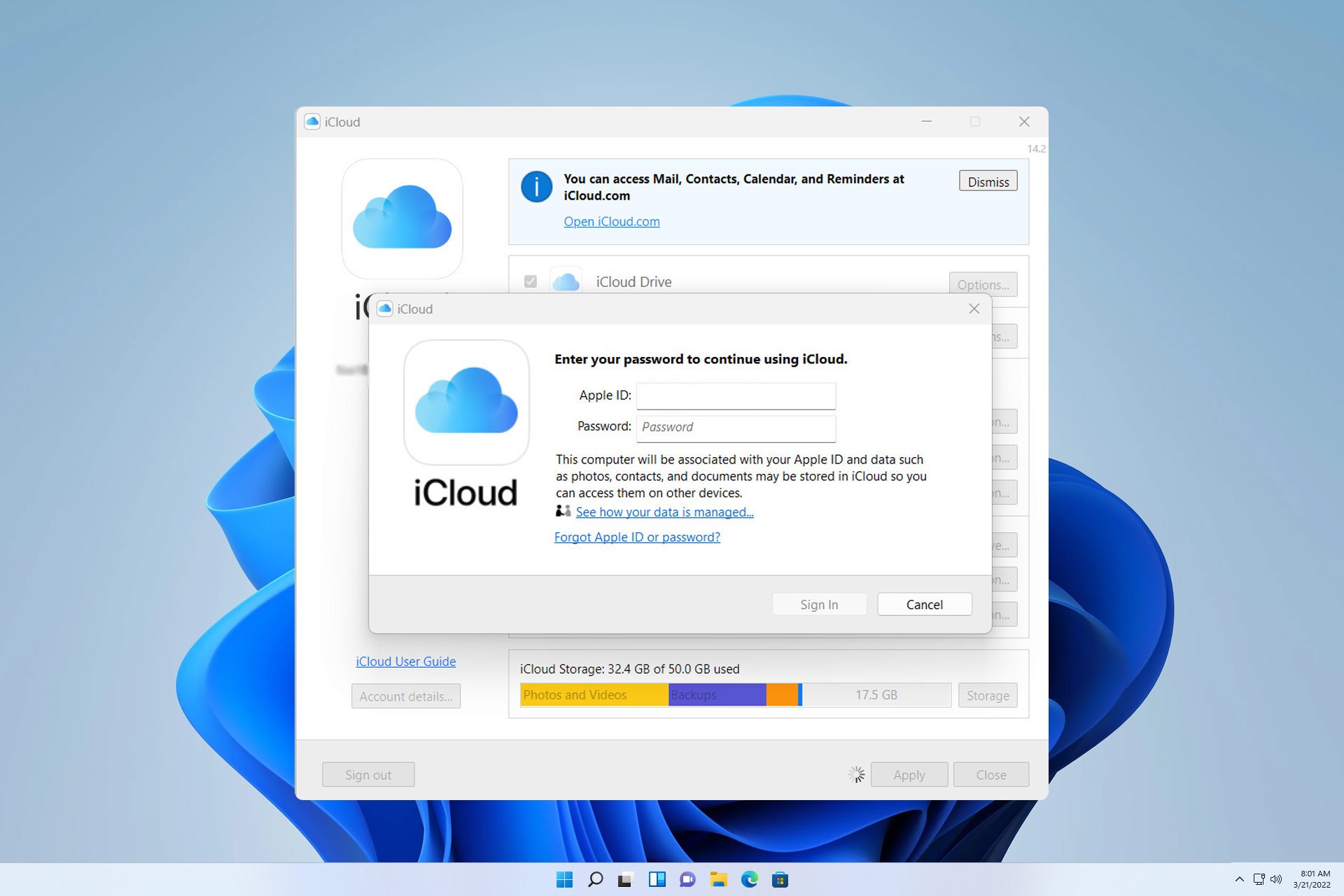
Many reported that iCloud keeps popping up on Windows 11, and this can be rather tiresome because the window starts appearing as soon as your PC starts.

Luckily, there are a couple of solutions that you can use to fix this problem on your PC, so keep on reading.

Why does my computer keep asking me to log into iCloud?

This is most likely due to iCloud configuration files. The software might not be properly configured, and this is why it’s asking you to log in constantly.

How do I stop the iCloud window from popping up?

Before we start:

  • You might be able to fix the problem by updating Windows or by entering your iCloud credentials into the prompt.

1. Disable iCloud from startup

  1. Press Ctrl + Shift + Esc to open Task Manager.
  2. Navigate to the Startup tab.
     
  3. Locate iCloud on the list, select it, and choose Disable.
    disable to fix hmonitor.exe issue

2. Reinstall iCloud

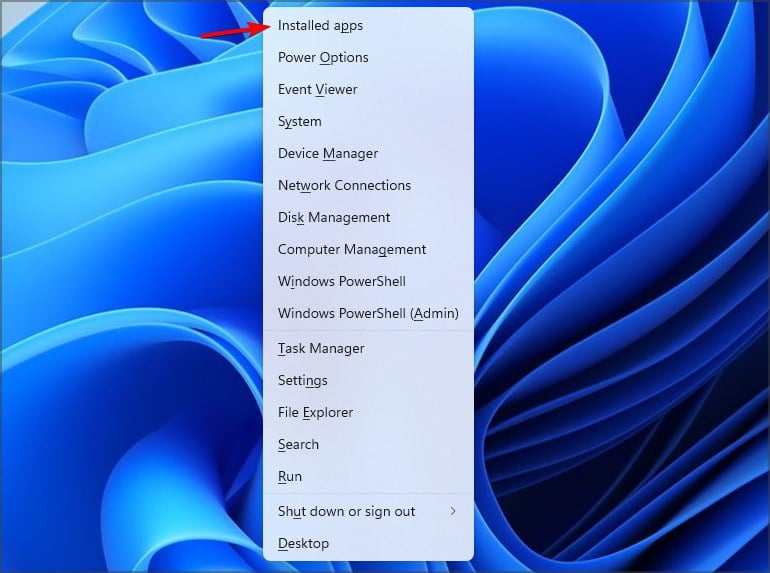
  1. Press the Windows key + X and choose Installed apps.
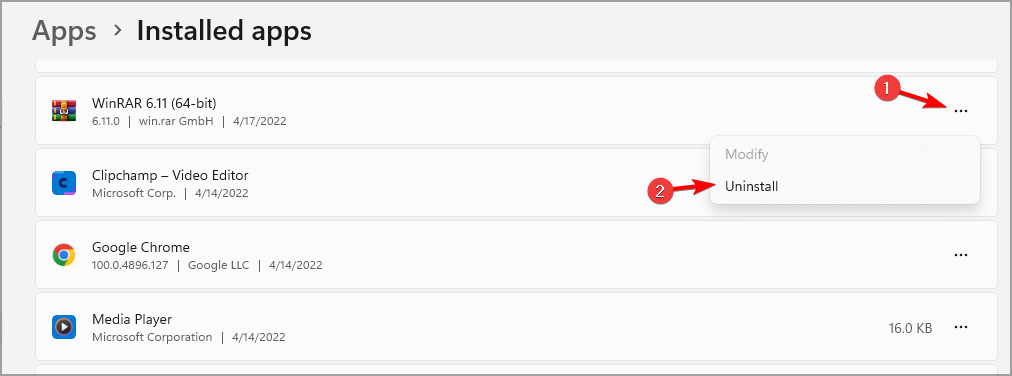
  2. Next, select iCloud, click the three dots next to it, and choose Uninstall.
  3. Follow the instructions on the screen to complete the process.
  4. If there are any more iCloud apps available, remove them as well.
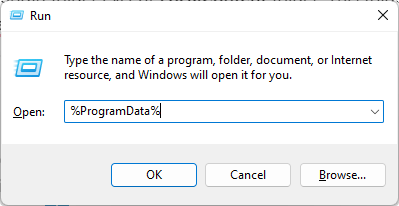
  5. Press Windows key + R and enter %programdata% programdata run command
  6. Locate and remove all iTunes and iCloud folders. If you don’t have other Apple software, remove Apple folders as well.
  7. Optional: Delete any iCloud folders from the following directories:
    C:\Users\[YourUser]\
    C:\Users\[YourUser]\Pictures
  8. After that, install the application again.

To see how to do that, visit our guide on how to download and install iCloud for Windows 11.

What happens if I delete iCloud from my computer?

All files that are already synced will remain in the cloud. However, files from iCloud Drive Folder will get deleted, so be sure to copy them to another location.

If iCloud keeps popping up on Windows 11, you can try signing in or removing the application and all its associated files.

This isn’t the only issue, and many reported that iCloud is not syncing. To learn more about iCloud, don’t forget to check our guide on how to download all photos from iCloud.

Did you find these solutions helpful? Share your solutions with us in the comments section.

Common Microsoft Word problems and how to fix them

Microsoft Word is one of the most commonly used Microsoft 365 programs. It not only has some cool templates, but it’s also used to type up important documents, letters, and a whole lot more. Sometimes, though, Word might not work as expected, and you might end up getting an error code or an error message. Here’s a look at some of the most common Word problems, and how you can fix them.

My file won’t open

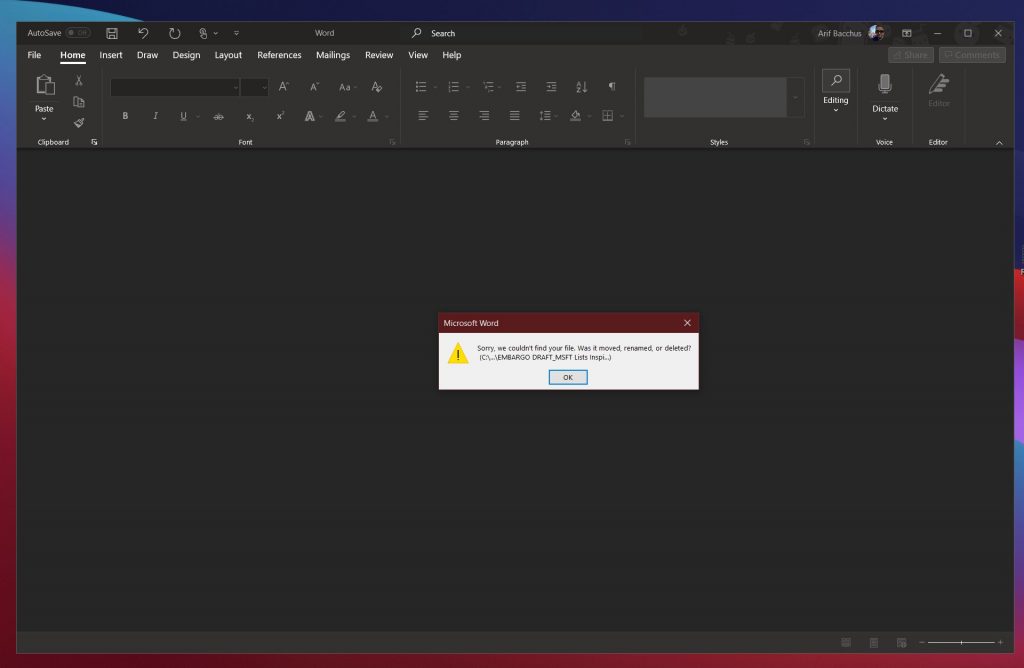
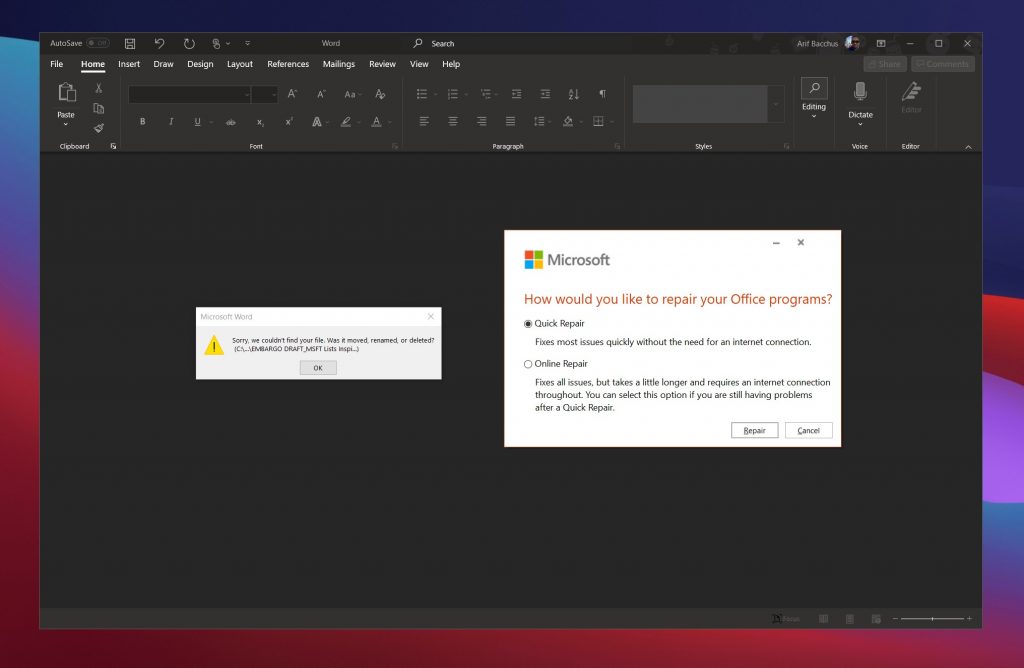
Trying to open a file but Word isn’t getting along? In this case, Microsoft Word might give you a message saying that it experienced an error while trying to open the file. This usually occurs when you don’t have the permission to open the file, or if the file has moved from its original location or has been deleted.

To fix this, check in the File Explorer or run a search in Windows 10 to see where the file has gone. To unlock the file and get the permission to open it, meanwhile, go to the location where it is saved, right-click the file, and then choose properties. From there, you’ll want to click the unblock option.

Microsoft Word crashes or freezes

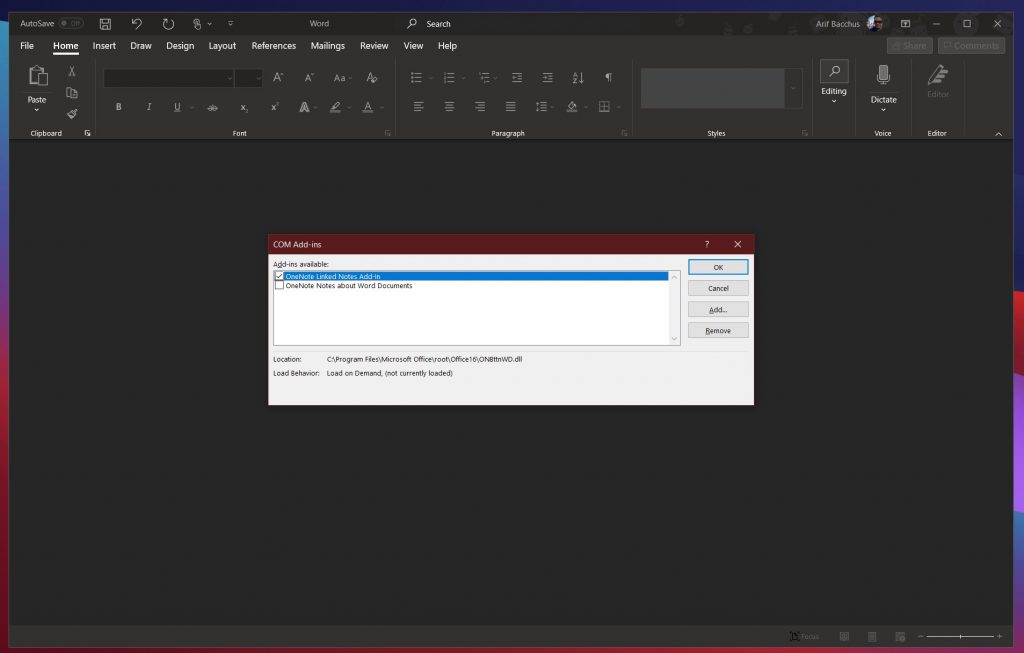
Another common issue with Microsoft Word is that it might crash or freeze when opening a document. This might occur when Word is having some trouble reading the contents of a document, or if the document has a lot of images and text.

In most cases, it’s best to wait and let Word try to resolve the problem on its own. At the risk of losing your document, you also can try to force quit word using the task manager by pressing CTRL+ALT+DEL, and clicking Task Manager, looking for Microsoft Word, and then clicking End Task. This will give the program a fresh start. In most cases, Word will try to auto recover the document as you last had it and will open the Document Recovery task pane. Again, though, this is the last resort.

If Word continues to have a problem and still gives you error messages, you get a message saying that the document caused a serious error. In this case, you might need to reset Microsoft Word completely. To do this, head to the Windows 10 Start Menu and type Add or Remove Programs. Then, choose Office or Microsoft 365 from the list, followed by Modify. You should get the option for Quick Repair. Choose, this, and Word Will be reset.

Microsoft Word is running slow

The final issue on our list has to do with Microsoft Word running slow. This could be it not picking up your keyboard input in time, or images or other menu items taking a while to load. In most situations, we recommend to use the Quick Repair option we described above.

However, as an alternate, you also might want to try to disable extra add-ins. These are meant to boost your experience, but can also slow things down. You can disable these by clicking the File menu, followed by Options, and then Adds Ins. Click an add-in, and then the Go button. You’ll then be able to disable it by clicking Remove.

Contact Microsoft Support for help!

If all else fails, and you run into a problem with Word, Microsoft is here to help you. As covered under the Microsoft 365 subscription, you always can contact Microsoft for help. Simply visit this support page, and start a chat.

FIX: Instagram action was blocked, try again later

The Action Blocked message appears on Instagram accounts that have been blocked for suspected spam. Whether you are a spammer or not, the error message can be equally annoying to every Instagram user.

The Action Blocked message usually prevents users from performing a specific action such as liking a picture or sharing Instagram posts.

In this article, we explore a few troubleshooting steps to help you resolve the Instagram action blocked message so that you can continue using your favorite social media app without any issues.

How can I fix the action blocked error on Instagram?

1. Change your network preference

Instagram action blocked

If you experience this action is blocked Instagram error when on Wi-Fi, try changing the network preference.

Switching to mobile data seems to have helped many users bypass the restrictions. This should work in case Instagram has blocked your IP address and not your account.

Disable VPN

Instagram action blocked

If you are using a VPN, try disabling it. Due to the change of location, Instagram may suspect the account to be spam and block some actions temporarily.

Stop all Instagram activities temporarily

If switching to mobile data did not help, maybe time to reconsider your Instagram usage. Stop performing some Instagram activities such as liking and commenting for 24 hours.

Giving some rest to your account will reinstate the account standing and allows you to carry on with your usual Instagram activities.


2. Link to Facebook and other social media account

Instagram action blocked

  1. Launch the Instagram app.
  2. Tap on your Profile icon.
  3. Tap on three horizontal lines.
  4. Select Settings.
    instagram action blocked creating account
  5. Tap on Account.
    instagram action blocked creating account
  6. Select Linked Accounts.
  7. Tap on Facebook.

Login with your Facebook credentials and then authorize Facebook to access your Instagram account. Once done, relaunch the app and check if the Instagram follow action blocked error is resolved.

Uninstall third-party apps

One of the common reasons for Instagram account action block is the use of third-party apps to automate likes or get followers. Uninstall any such third-party app and revoke the authorization if you have given it to any app or service to manage your account.

Try accessing the account from another device

If you haven’t tried already, it is worth a shot. Sign out of your Instagram account on your current device. Log in to your Instagram account on another device. Try performing the blocked action to see it works.


3. Reinstall Instagram

instagram action error

  1. Open Settings.
  2. Select All Apps.
  3. Search and open Instagram.
  4. Tap on Uninstall and confirm the action.
  5. Open Play Store and search for Instagram.
  6. Install the app and check for any improvements.

If you can access the account without error on a secondary device, try to reinstall the app to resolve Instagram won’t let me change my username action blocked issue.

Report to Instagram

Instagram action blocked

  1. Launch the app.
  2. Take a screenshot of the error you are seeing and save it.
  3. Tap on your Profile.
  4. Tap on three horizontal lines.
  5. Select Settings.
  6. Select Help.
  7. Tap on Report a Problem.
  8. Select Report a Problem.
  9. Explain your issue and attach the screenshot.
  10. Tap on Submit to send your appeal.

If you think your account is flagged by mistake, you can report to Instagram to get your account reinstated. You can appeal to Instagram from your account’s settings menu.

Instagram will review the request and reply to the same in a few days to a few weeks.

Instagram action blocked can occur when creating an account, or changing usernames. Follow the steps in this article, and hopefully, you can fully restore your Instagram account in no time.

[wl_navigator]

How to recover lost messages from com.facebook.orca?

A lot of users utilize Facebook Messenger on Android mobiles. Some Messenger users might occasionally accidentally delete messages. There are a few ways you can recover deleted Facebook messages.

One recovery method is to restore lost messages from com.facebook.orca. That’s a Facebook Messenger folder that includes a repository of data files for messages, images, cookies, cache, and videos.

You can recover lost Facebook messages by copying and pasting the fb_temp subfolder in com.facebook.orca. If your Facebook app doesn’t work at all, check out this guide.

How can I recover my lost Facebook messages?

Use the Windows 10 File Explorer

Copy the fb_temp folder

  1. First, plug your Android mobile’s USB cable into a desktop’s or laptop’s USB slot to connect it with PC.
  2. Next, click the File Explorer button in Windows.
    File Explorer com.facebook.orca
  3. Select your connected Android device on the left of File Explorer.
  4. Select the inner storage for your Android mobile, which might be SD card.
  5. Click the Android and data folders to open them.
  6. Open the Applications subfolder, and then look for the com.facebook.orca folder there.
  7. Open the com.facebook.orca folder.
  8. Next, click the cache subfolder in com.facebook.orca to open it.
  9. Select the fb_temp folder.
  10. Press the Ctrl + C hotkey to copy the selected fb_temp folder.

Reinstall Facebook Messenger

To uninstall

  1. Turn on your Android mobile.
  2. Open Settings on your Android mobile.
  3. Tap Apps to open a list of installed apps.
  4. Select the Facebook Messenger app.
  5. Then tap the Uninstall option for it.
    The Uninstall button com.facebook.orca

To reinstall

  1. Open the Messenger app page in Google Play. Tap the install button there to reinstall it.
  2. Then return to the Android > Data > Applications > com.facebook.orca > Cache folder path within File Explorer.
  3. Right-click an empty space within the cache folder to select Paste.
  4. Log back into Facebook within your Messenger app.

Note: You can also retrieve the deleted messages much the same by utilizing the file manager on your Android device. So, it’s not essential to connect an Android mobile with PC if it includes a file manager.

[wl_navigator]

Can ExpressVPN bypass Netflix VPN block?

Although most of us turn to VPNs due to privacy concerns, some would argue that a VPN can do so much more than keep you anonymous while online. And they wouldn’t be wrong, either.

VPN, which is short for Virtual Private Network, can make sure your connection stays secure, your online identity private, and your browsing activity unlimited.

By unlimited, we mean that certain restrictions can be bypassed while using a VPN. For instance, you may know this already, but services such as ExpressVPN can help you circumvent geo-restrictions.

Netflix is a popular geo-restricted service

Netflix is one of the most popular streaming services in the world right now. Given that the current situation (with the pandemic and whatnot) implies we all have to spend more time indoors, Netflix is quite the rockstar.

You purchase a subscription plan, access the streaming service from your device, and start binge-watching.

However, there’s something that few mention (or know) when it comes to Netflix. This service is unfortunately not the same for everyone.

The US version has the widest range of content, and it’s simply not fair for other non-US customers.

How do I bypass Netflix VPN block?

VPN users have figured out a great way to bypass geo-restrictions.

Simply using a VPN (at first) seemed to yield great results, and just for a while, non-US Netflix customers could enjoy the same content as users in the US.

In return, Netflix rapidly caught the gist of it and started restricting VPN users. As we’ve previously explained, VPN traffic can be easily detected, especially since it always passes as encrypted.

How does Netflix detect and restrict VPN users?

However, Netflix has no way of seeing your traffic and detecting that it’s encrypted. Instead, what Netflix did to improve the VPN detection rate was check if the IP you’re using is in any way associated with a VPN.

Once a VPN IP gets picked up, it gets blocked, along with other addresses in the same range, or which belong to the same provider.

That’s why we can’t stress enough the importance of using VPNs with huge server networks.

Usually, VPNs that have extensive networks of servers also have thousands of IP addresses that they update on a regular basis.

Also, there’s the chance that you can simply switch the server if you discover one of them doesn’t work. Thus, the chances of getting detected while using a VPN with numerous servers are slim to none.

An example of such a VPN service is ExpressVPN.

Can ExpressVPN bypass Netflix VPN block?

  1. Purchase an ExpressVPN subscriptionExpressVPN
  2. Download ExpressVPN
  3. Install it on your computer
  4. Launch it and log into your account
  5. Connect to a US server
  6. Enjoy streaming content from Netflix US

To keep it short, yes, ExpressVPN is one of the most popular VPN services that are still capable to circumvent Netflix‘s VPN block.

The huge network of servers that ExpressVPN holds will let you circumvent almost any geo-restricted content.

If you’re not ready to commit to ExpressVPN, here are more VPN services with large server networks:

Product NameNumber of serversCompany Name
CyberGhost VPN7,100Kape Technologies
NordVPN5,200Tefincom & Co., S.A.
Private Internet Access3,300Kape Technologies
ExpressVPN3000+Express VPN International Ltd.
Surfshark VPN1700+Surfshark LTD

However, we can’t guarantee they’ll always be able to circumvent geo-restrictions.

ExpressVPN is perfectly capable to bypass Netflix VPN block

To wrap things up, if you’re wondering whether ExpressVPN can bypass Netflix‘s infamous VPN block, it can. The most common way that Netflix blocks VPN access is by checking if the IP you’re using belongs to a VPN.


ExpressVPN not working with Netflix? Our guide can help you fix it.


ExpressVPN is one of the VPNs that can render this checkup useless. It comes with a huge server network and a large number of IP addresses that get frequently updated.

Can ExpressVPN be trusted? Is it safe to use this VPN?

It goes without saying that trust is a major factor you need to consider upon picking a VPN.

The market is over-saturated with VPN services, and if you haven’t been around this field for a while, choosing one to stick with can be quite challenging.

There’s an awful lot of categories, too, which can affect your decision. For instance, you’d be more prone to picking a free service that sells itself as being one of the greatest, if you wouldn’t know better.

Can you trust VPNs?

Many such promises are merely marketing gimmicks. You could see for yourself just by looking up past scandals involving certain free services. Privacy-wise, to be more specific.

However, on the opposite side of the ring lay paid services, such as ExpressVPN. These swear by their impenetrable infrastructure, zero-logging policy, and really good value for money.

So let’s see whether this service can really be trusted.

ExpressVPN’s censorship battle

A while back, in 2017, ExpressVPN‘s VPN apps were removed from Apple’s App Store in China.

This knowledge was made public by ExpressVPN in an open letter, which was later picked up by various media outlets.

Apple confirmed that the allegations were, in fact, true and also added that they’ve removed a total of 674 VPN apps from their App Store in China, at the request of China’s government.

Internet censorship in China affects those who want to publish online material, but also those who merely want to view it. Reportedly, Internet censorship in China is more advanced than anywhere else in the world.

It’s based on blocking certain website content, but also involves monitoring the Internet access of individuals.

Thus it’s clear to see why ExpressVPN, a service that promotes privacy and bypassing geo-restrictions, was removed from the Apple App Store in China and is also blacklisted as a whole.

ExpressVPN’s clean slate

Fortunately, ExpressVPN hasn’t lingered under the spotlight for too long, as it doesn’t have a record of breaking the trust of its customers.

Even when the need to unveil the truth was critical, nothing could be found on the ExpressVPN servers.

In December 2016, Andrei Karlov, the Russian Ambassador to Turkey, was assassinated by an off-duty Turkish police officer.

In 2017, Turkish authorities seized an ExpressVPN server, which they believed was used to erase information that was crucial to solving the case from the assassin’s Facebook and Gmail accounts.

The Turkish investigators didn’t find any logs that they could use in their investigation. ExpressVPN stated that this event verifies its zero-logging policy claim. The company also stated the following:

While it’s unfortunate that security tools like VPNs can be abused for illicit purposes, they are critical for our safety and the preservation of our right to privacy online. ExpressVPN is fundamentally opposed to any efforts to install “backdoors” or attempts by governments to otherwise undermine such technologies. (ExpressVPN statement on Andrey Karlov investigation)

What does ExpressVPN offer?

  • Enables you to browse anonymously
  • Unblocks geo-restricted content
  • ExpressVPN has more than 3,000 servers in 160 locations, in 94 countriesexpressVPN
  • Comes with a built-in speed test to help you check the quality of your connection
  • Integrated kill switch that prevents any data leaks
  • Split tunneling for selective traffic cloaking
  • AES-256 (military/government-grade) encryption
  • TrustedServer security standards
    • All the data is wiped at every reboot (ExpressVPN servers run only on RAM)
    • Nothing ever gets written to the hard drive (to minimize data theft risks)
    • The whole software solution stack gets reinstalled on every server during startup
  • Zero-knowledge DNS on every ExpressVPN server
  • Strict no-logging policy
ExpressVPN

ExpressVPN

Looking for a VPN you can trust? ExpressVPN might be what you need.
Check priceVisit website

You can see that, despite its somewhat more expensive subscription plans, ExpressVPN delivers an all-around privacy/security suite.

Yes, you can trust ExpressVPN

To put it shortly, ExpressVPN is among the most trusted VPN services you could stick with. It offers zero-logging, no-compromise policies, and a wide range of security and privacy features.

Its subscription plan pricing might be higher than other services, but you can breathe easy knowing that your private data will never be handed over to third parties, mainly because it won’t be logged.

Can VPN encryption be broken? What is the safest VPN?

When we think about VPNs, most of us picture these awesome tools that magically keep our privacy safe. Although half of this sentence is true, there’s the other, less-known part of how things really are.

VPNs are very efficient at routing and encrypting traffic so that it doesn’t fall in the wrong hands. Well, actually it can still fall in the wrong hands, but since it’s encrypted, it would be virtually useless.

If you know a thing or two about encryption, it shouldn’t come as a surprise that VPNs use complex algorithms. Let’s find out more about how VPNs work and keep your data private.

How does a VPN work?

Before talking encryption, it’s worth understanding how a VPN succeeds in protecting your data. Usually, your data is handled by your ISP, which is the middleman between you and the world wide web.

A VPN encrypts your traffic and routes it through a secure tunnel that your ISP can’t access.

After you install a VPN client on your PC, all your traffic will first go through it. Unless you use split tunneling, which changes things a bit.

Once your traffic gets to the client, it gets encrypted and pushed through the secure tunnel.

After passing through the tunnel, it reaches the VPN server, which decrypts it and sends it toward its destination.

The website/server/host generates a response and sends it back to you. Only now, traffic gets encrypted by the server and decrypted by the client, before you receive it.

All you need to know about VPN encryption

We’ve already mentioned encryption a few times, so you probably understand that it’s of utmost importance. But how does it work?

First of all, it’s worth mentioning that most VPNs use AES-256 for encryption. This is also known as the Advanced Encryption Standard or the Rijndael algorithm.

When it comes to VPNs, encryption involves taking regular traffic, and coding it so that nobody can make anything out of it. Unless they have the encryption key, that is.

If you’ve been paying attention earlier, you’ll know that your VPN client and server handle encryption and decryption.

Thus, both you and the service you’re trying to access through a VPN have access to the unencrypted data.

Anyone standing between these two points (VPN client/server) will only see encrypted data.

Ranging from passwords and usernames to private messages and emails, everything between you and the VPN exit point will be kept on the hush.

Of course, in reality, things are way more complicated than this, but we wouldn’t want to overburden you with technical gibberish such as symmetric and asymmetric key exchanges, or integrity algorithm check-ups.

Can VPN encryption be broken?

Truth be told, anything can be hacked, but brute-forcing a complex algorithm could take trillions of years. This number is so large, you can’t even wrap your head around it properly.

You couldn’t pull that off even with a supercomputer. Not even all high-end PCs on Earth couldn’t pull it off. So, the answer is no, AES-256 encryption (generally used by VPNs) can’t be cracked.

What’s the safest VPN I can use?

  • Download Private Internet AccessPrivate Internet Access
  • Install it on the device of your choice
  • Launch it and log into your PIA account
  • Connect to your preferred server
  • Enjoy browsing while your traffic is airtight-encrypted

While we agree that Kape Technologies’ PIA is one of the most secure VPNs on the market, there are other services that provide military-grade encryption standards.

Private Internet Access

Private Internet Access

Looking for a VPN with great encryption? Check out PIA.
$2.85/mo. Buy it now

Take a look at our best VPN recommendations, for instance. Regardless of what you decide to stick on, those services will make sure your traffic is securely encrypted using state-of-the-art security standards.

VPN encryption can’t be cracked

All things considered, even though it’s possible to break AES-256 encryption, it would take trillions of years to accomplish.

Considering that technology is ever-evolving, chances are you won’t even have this algorithm when the process would be complete.

So, to spare us all the headaches, it’s simpler to say that it’s impossible. Because, for so many reasons, it’s not wrong to assume so.

A VPN can get hacked, but usually, it’s done in other ways that don’t imply cracking a military-grade algorithm. So you can rest assured that it most likely won’t happen in this lifetime.

5 Best Apps that Recognize Songs by Humming

It happens that you want to remember the lyrics of a song, but all you have is a tune that’s playing in your mind in a loop. Thankfully, there are enough apps that can help you find the songs by humming.

In this article, we take a look at the best apps that can help you find songs by humming. This list consists of both web and mobile apps to help you find songs on the go.

What are the best apps that can identify a song by humming?

Shazam

find songs humming

Shazam is there since the good old Nokia days and is one of the most popular music discovery software to identify any music playing around you.

Whether you want to find the name of a song or the artists, Shazam can do it in seconds. Moreover, you can also add and listen to the discovered song to your Spotify or Apple Music playlist.

Additionally, Shazam also features Shazamed tracks that show the most popular discovery of the week around the world. The app also has a Lite version, that is less than 1 MB but comes without additional features.

It works on your Android and iOS devices. It also supports both Apple and Android Wear platform.

⇒ Get Shazam

Midomi

find songs humming

If you prefer to use a web app instead, try Midomi. It is a well-designed website that allows you to search for music using your voice. To search for a song, click the mic icon and then hum or sing the song.

After a few seconds, click the mic icon again to see if Midomi recognizes the song.  Midomi will search through its large database to find a match and show the matching results.

If you are into singing, you can use the Midomi studio to sing your favorite song and upload it to the website. You can also use the large database to find your track using a text-based search engine.

⇒ Get Midomi

Musipedia

find songs humming

Musipedia is a melody search engine inspired by Wikipedia that is trying to build a searchable, editable and expandable collection of tunes, melodies, and musical themes.

Musipedia can help you find a tune even if the melody is all you know. You can play it on a piano keyboard, whistle to the computer using the microphone, or simply tap the rhythm on the computer keyboard or use the person’s code.

If you know how to play the piano, you can use flash-based piano, JavaScript-based piano, or by dragging the mouse.

⇒ Get Musipedia

SoundHound

find songs humming

SoundHound allows you to discover, search, and play any song using voice control. It is an app-only solution, so you have to download and install the app on your Android or iOS device.

To search for a song, tap the orange button, and start humming your song. It will search for the song based on your suggestion and show the most relevant results.

SoundHound also features SoundHound Char and Top Songs section that shows the most popular songs based on the SoundHound users’ search and listening.

⇒ Get SoundHound

Apple Siri and Google Voice Assistant

find songs humming

If you don’t want to use a third-party tool, try Siri on your iOS device or OK Google, voice command on your Android device.

You can activate the voice assistant by saying Siri or OK Google. Then say ‘What song is this’. The virtual voice assistant will look for matching results and recommend songs accordingly.

If you are using a Windows Phone, Microsoft’s Cortana can also perform a similar search and help you recognize songs by humming.

Still couldn’t find the song? Try WatZatSong. It is an online community of music lovers where you can upload a sample of the track and post other details. Members of the community will try to help you find the correct song immediately.

When you can’t remember your favorite song and all you can do is remember the tune, you can use the help of the music discovery apps listed in the article.

While some apps can be downloaded on your phone, a few can be accessed on any device as they are available on the web. Go through the list and let us know your pick in the comments.

FIX: Windows setup could not install one or more boot-critical drivers

There are only so many things that can go wrong when you try to install Windows 10. However, every single one of those scarce errors is usually quite hard to deal with.

The Windows setup could not install one or more boot-critical drivers error. appears immediately after you’ve loaded the installation files from the bootable drive.

Usually, the solution to fix the error is simple, such as taking out the CD or DVD from the ROM but it can also be the case that if this does not work then you’ll need to do other steps as well.

We hope the steps we enlisted below will help you out.

Windows could not install one or more boot critical drivers?

  1. Use Tenorshare
  2. Remove the disk from the DVD/CD – ROM
  3. Create new installation media with the Media Creation Tool
  4. Try booting in the Legacy mode
  5. Fully format the system drive and try installing again

1. Use a professional booting system tool

When it comes to solving common issues related to Windows startup, such as automatically booting the system, Tenorshare Windows Boot Genius is the way to go. The software’s interface makes it really easy to use and it’s intuitive.

If you need to boot your device and already tried everything but nothing seems to work, perhaps it’s time to try a boot repair software.

This type of tool will boot your device without having any negative impact on your files. They can also help you restore your Windows OS if needed.

Boot repair software helps you recover lost data, product keys, and more. They also offer support for easy and safe backups.

2. Remove the disk from the DVD/CD – ROM

  1. Remove the disk from the DVD/CD – ROM.
  2. Reboot your PC.
  3. Try to boot with the USB again and look for changes.

This solved the majority of reported cases, and it’s as peculiar as one would expect.

The conflict between the two media drives particularly involves the disk with drivers in your DVD-ROM compartment. But the other disks might inflict the same error, as well.

On the other hand, if this isn’t the resolution for your problem and you’re still seeing the same error upon booting with the USB, there are additional steps to take. Have in mind that these require access to the hardware configuration, so you’ll need to take the following steps:

  1. Open the PC case.
  2. Unplug the DVD-ROM completely. In addition, if you’re using multiple HDD/SSD drives, keeping plugged only the one where the Windows 10 installation is placed.
  3. Unplug all peripheral devices. Ideally, only the bootable USB drive should stay plugged in.
  4. You’ll need the mouse and keyboard, so if you don’t have PS2 input devices, keep those, too.

3. Create new installation media with the Media Creation Tool

windows setup could not install one or more boot-critical drivers
  1. Download the Media Creation Tool.
  2. Plug-in the USB stick in the fastest port. It needs to have at least 6 GB of free storage space.
  3. Select the Create installation media (USB flash drive, DVD, or ISO file) for another PC option and click Next.
  4. Choose Language and Architecture. 
  5. Click Next.windows setup could not install one or more boot-critical drivers
  6. Choose the USB flash drive option.windows setup could not install one or more boot-critical drivers
  7. Wait until the tool downloads the file and mounts them onto the USB.

Note: Have in mind that the procedure will delete everything from the USB flash drive, so backup your data timely.

4. Try booting in the Legacy mode

  1. Press Windows key + I to open Settings.
  2. Choose Update & Security.
  3. Select Recovery from the left pane.
  4. Under the Advanced startup, click Restart now.windows setup could not install one or more boot-critical drivers
  5. Choose Troubleshoot.
  6. Select Advanced options.
  7. Choose UEFI Firmware Settings and click Restart.
  8. In the UEFI settings menu, change the Boot Mode to Legacy and restart your PC.
  9. Try to boot from the USB again and hopefully the error won’t reappear.

The usability of a bootable drive depends on a partitioning mode. If you’re using Legacy BIOS MBR (Master Boot Record) partitioning style you won’t be able to install Windows 10 in a UEFI boot mode. Only in Legacy BIOS.

The only way to make it boot is to format your HDD to its successor, the GPT (GUID Partition Table) partitioning style and then boot in UEFI boot mode. Alternatively, you’ll need to enter BIOS/UEFI settings and switch to the Legacy BIOS mode.

We prefer the first option as the UEFI is newer and better of the two. However, since it leads to formatting the hard drive (and who wants that), the Legacy BIOS should be a better temporary solution.

In order to change settings from UEFI to Legacy BIOS, you’ll need to access the BIOS/UEFI settings.

5. Fully format the system drive and try installing again

  1. Download DBAN ISO
  2. Download Universal USB installer.
  3. Plug in the USB (the DBAN tool takes only 32 MB but backup your USB data as this will probably wipe it as well).
  4. Run the Universal USB installer and choose DBAN ISO from the drop-down menu.windows setup could not install one or more boot-critical drivers
  5. After you have the bootable DBAN USB drive, restart your PC and boot with it.
  6. Once it boots, use the autonuke command to wipe everything.
  7. Restart your PC and boot with the bootable USB Windows 10 installation drive.

In the end, if none of the steps worked out, we suggest fully formatting the hard drive and starting from scratch. This can be done through the elevated Command Prompt. At least, it should be.

If you’re unable to access the disk drive when the installation files load from the bootable drive (pressing Shift + F10 should open Command Prompt), you can use a third-party formatting tool and nuke the HDD that way.

And when we say nuke we mean completely and permanently wipe everything, without any way to restore your data.

Because of this fact, we recommend that you to backup all your data to alternative storage and then and only then follow the steps we enlisted above.

With that said, we can call it a wrap. If you have any questions or suggestions concerning the boot-critical driver’s error prior to Windows 10 installation, feel free to tell us in the comments section below.

[Solved] Windows 10/11 won’t boot into safe mode

If you are you having a hard time booting into safe mode in Windows 10, know that a lot of users are struggling with the same issue.

If that’s the case then it’s very understandable because booting into safe mode in Windows 10 is a little bit tricky.

The safe mode feature is very useful in any kind of situation especially if one of your apps is malfunctioning in Windows 10.

In most cases, if you cannot boot normally the Windows 10 system, then the next option you need to take is to boot into safe mode.

You don’t need to worry because from now on you will be able to access this feature only by reading the lines below.

How can I boot Windows 10 in Safe Mode?

  1. Use a third-party software
  2. Boot into Safe Mode from the system configuration feature
  3. Boot into Safe Mode from Power Menu
  4. Boot into Safe Mode using a recovery CD/USB

1. Use a third-party software

If you are looking for software that could help and that is really easy to use, then you should have a look at Tenorshare Windows Boot Genius when it comes to solving common issues related to Windows startup.

Tenorshare Windows Boot Genius is a multi-functional boot recovery software that you can use to boot your device when nothing else seems to work, as well as keeping backup and restoring windows operating system if needed.

Moreover, if you are afraid of losing your data, the good news is that with this tool you can also recover data from an unbootable hard disk.

This tool will also repair the most common errors such as the blue screens and reboot loops that are often presented as a cause of viruses or a corrupted start file. 

Tenorshare Windows Boot Genius

Tenorshare Windows Boot Genius

Tenorshare Windows Boot Genius is a multi-functional software designed to help you safe boot your device.
$54.95/year Visit website

2. Boot into Safe Mode from the System Configuration feature

msconfig windows boot
  1. Press Windows key + R in order to open the Run window.
  2. Write in the Run box msconfig and press OK.
  3. Click on the Boottab and select Safe Boot.
how to do safe boot windows10
  1. You might get a message if you want to reboot your Windows 10 device in which case you will need to left-click on the Restart button.
  2. After the operating system reboots it will go directly to your Safe mode feature.

3. Boot into Safe Mode from Power Menu

  1. Go to the Settings feature in the Charms bar.
  2. Left-click on the Power button.
  3. While holding the Shift button pressed you will need to left-click on the Restart option.
  4. Next, left click or tap on the Troubleshoot feature.
  5. In the Troubleshoot menu left click on the Advanced options feature.
  6. Left-click or tap on Startup Settings feature.
  7. Next, left-click or tap on the Restart button.
  8. Your Windows 10 will reboot and it will get you to a new set of options that you can choose from.
  9. Press the F4 button on the keyboard of enable the Safe mode feature.
  10. Now restart the Windows 10 device to get to safe mode.

4. Boot into Safe Mode using a recovery CD/USB

  1. In order to do this method, you will need to have a system recovery CD/DVD or a USB stick.
  2. Insert the system recovery CD/DVD in the device.
  3. Reboot your Windows 10 device.
  4. Choose to boot from the CD/DVD when it asks you after the restart.
  5. In Choose your keyboard layout screen you have to choose the layout you want to use on the keyboard.
  6. After you chose the layout you will get to a Choose an option screen and from there you can follow the instructions in the second method above.

Now that you have 3 quick methods on how to boot into safe mode you can surely do it yourself the next time and start the troubleshooting.

You can write to us in the comments section if you have any other suggestions regarding this article.

Get cool Fortnite names with these generators

Fortnite is a free-to-play multiplayer battle royal game developed by Epic Games. Due to the popularity of the game, it is hard to find a unique username for your Player ID if you are new to the game. Even if you are a veteran, you may want to change your name to find a unique name in Fortnite. Fortnite name generators are online tools that automatically generate 100s of unique names that you can use as your Fortnite player ID. In this article, we take a look at the best way to find cool Fortnite names using some amazing online name generators.

Top 5 name generators to find your unique Fortnite name

Nickname Fortnite

Fortnite name generators

Nickname is a popular name generator website that allows you to generate names for your social media and game accounts. Nickname Fortnite is a new tool specifically designed to generate cool Fortnite names.

Generating a name for your Fortnite account using Nickname is easy. Visit the website and click on the Generate Another button on the right-hand side.

The tool will quickly generate some unique names and show it on the right side of the screen. Go through the list and click the copy button to copy your new name to the clipboard. Paste the name on your Fortnite account to change the name.

You can also submit your unique Fortnite name and share it with your friends who can upvote or downvote the names to bring it on the popularity trend list.

⇒ Get Nickname Fortnite

Name Generator

Fortnite name generators

Name Generator is another popular name generator to generate cool Fortnite names. However, compared to Nickname Fortnite, this tool offers a few customization options.

The customization feature allows you to find a very unique name using your first name, your favourite adjectives, nationality, body parts and animals, etc.

If you want some help, click on the suggest button next to every section to find a hint or suggestion that you can use. If you don’t want to customize your name, then you can generate a unique random name as well. Click on Write me some gaming names to generate a random unique Fortnite name.

Clicking on Fill entire form with random ideas will fill the entire form with random suggestions. You can review the form and make the necessary changes if you want to change anything.

⇒ Get Name Generator

GENR8RS

Fortnite name generators

If you are looking for something very simple that can help you find a cool Fortnite name with a few customization options, try GENR8RS. This name generator allows you to find a unique Fortnite name.

To generate a name, begin with selecting a name format. There are three name formats – Short, Regular and Long. You can also epicfy your name by adding a special character or number to your name.

Once you have selected the format and have included the special character or number that you want in your name, click on GENR8 button.

Scroll down to find your epic name. Click the Copy button to copy the name to your clipboard. You can paste the same in your Fortnite title to change the name.

⇒ Get GENR8RS

LINGOJAM

Fortnite name generators

LINGOJAM is not a Fortnite name generator, but a cool Fortnite fonts generator. The website has an intuitive user interface making it easy to use the tool.

If you are into fancy fonts, you can create one for your Fortnite name using the LINGOJAM tool. To use the tool, open the website, enter your Fortnite name in the left box, wait for a few seconds and the cool fonts matching your name will appear on the box on the right side.

Copy the font to your clipboard and paste it in your Fortnite name title to add the font.

⇒ Get LINGOJAM

Reedsy

Fortnite name generators

Reedsy’s character name generator is designed for anime makers and game developers to find cool names for their characters. However, you can use this tool to find a cool Fortnite name for your character as well.

Reedsy allows you to generate a name using multiple properties such as language, medieval names, mythological god names, fantasy names and Archetype names.

If you choose to generate a name from the medieval section, you can choose names from Old Norse, Old German, Old Roman, Old Celtic and Old English names. The same also applies to the God and Fantasy category.

⇒ Get Reedsy

If you are stumped on what to call yourself in Fortnite, worry no more. All the name generators listed in this article will help you find the most unique name in your Fortnite circle. Try the tools and let us know your pick in the comments.

[wl_navigator]

Browser Link Not Working in Visual Studio? We Got Fixes

Visual Studio is one of the most used applications by developers. However, many reported that Browser Link isn’t working in Visual Studio for them.

This can be a big problem, especially if you’re working on an important project, and in today’s article, we will show you how to fix this problem once and for all.

What can I do if Browser Link isn’t working in Visual Studio?

1. Configure Visual Studio properly

  1. Add the following NuGet package: AspNetCore.Mvc.Razor.RuntimeCompilation
  2. Now add following line to the ConfigureServices() method in the startup.cs:
    • services.AddRazorPages().AddRazorRuntimeCompilation();
  3. Add this NuGet package: VisualStudio.Web.BrowserLink.
  4. Now locate Startup.cs file and add app.UseBrowserLink(); in the Configure() method.

After doing that, check if the problem is resolved.

2. Remove the default browserlink package

  1. Remove the following browserlink package:
    • VisualStudio.Web.BrowserLink
  2. After doing that, you need to install this package:
    • VisualStudio.Web.BrowserLink.Loader

A few users reported that this solution worked for them, so you might want to try it out.

3. Repair the ASP.NET 5 bundle

  1. Press Windows Key + S and enter control. Select Control Panel from the search results.
    control panel visual studio browser link not working
  2. When Control Panel opens, go to Programs and Features.
    programs and features visual studio browser link not working
  3. Select NET 5 bundle and click the Repair option.
    repair program visual studio browser link not working
  4. Follow the instructions on the screen to repair it.

Once the process is finished, check if the problem is still there. Keep in mind that this solution might only work for older releases.

4. Modify the webconfig

  1. Locate the webconfig file.
  2. Modify it so that it looks like this:

<configuration>

<system.webServer>   

<handlers>

<add name="Browser Link for HTML" path="*.html" verb="*"

type="System.Web.StaticFileHandler, System.Web, Version=4.0.0.0, Culture=neutral, PublicKeyToken=b03f5f7f11d50a3a"

resourceType="File" preCondition="integratedMode" />

</handlers>

</system.webServer>   

</configuration>

Keep in mind that this solution only works if you’re using a static HTML page like with AngularJS.

If Browser Link is not working in Visual Studio for you, follow all solutions from this article closely.

Remember that our solutions are not universal and might not work for your project.

Notes not syncing to iCloud [macOS & Windows]

If you use the Notes app on your Apple device, iCloud allows you to sync your notes across your Apple devices connected to the same iCloud account.

However, at times you may encounter the Notes not syncing to the iCloud issue on Windows and macOS.

The notes may stop syncing if the iCloud settings are not correctly configured. In other cases, it can also occur due to device issues and software glitches.

In this article, we take a look at some common troubleshooting steps to help you resolve the notes are not syncing to the iCloud problem on macOS and Windows.

How can I fix Notes syncing issues with iCloud?

1. Manually sync pending notes to iCloud

Note: Before proceeding with the steps below, make sure you have created a backup of your Apple device to save un-synched notes. Here’s how to backup your iPhone and iPad data.

Once you have created a backup, proceed with the steps below.

Notes not syncing iCloud

  1. Open the Notes app on your Apple device.
  2. Tap the back button (top left corner).
  3. Choose On my iPhone.
  4. Tap on Edit.
  5. Mark all the notes you want to sync.
  6. Tap on Move to and select iCloud.
  7. That should sync all your pending notes with the iCloud account.

If the issue persists, try force restarting your Apple device. Press and hold the home button (if available) and power button until you see the Power Off slide. Power off the device, leave it idle a for a few minutes and then turn it on.


2. Enable storing notes on iCloud

Notes not syncing iCloud

  1. On your iPhone, open Settings.
  2. Tap on Notes.
  3. Select the Default Account.
  4. Select iCloud.

If you have selected your notes to be stored On My iPhone, then the notes will be stored on your iPhone. Make sure you have selected iCloud in Notes setting to fix the issue.


3. Update system software

iPhone notes not syncing

Although rare, the syncing issue can occur due to software incompatibility. If you are running an older version of iOS while your Mac is on the latest software version, there could be compatibility issues.

To check and update your iOS software, tap on Settings > General > Software updates. If a software update is pending, tap on Install Now.

Do the same for your Mac as well. Install any pending updates for macOS and check for any improvements.

Check if you are using the same iCloud on all device

If you have multiple iCloud accounts, you may not have logged into your iCloud account on all the devices. On your iPhone, go to Settings > iCloud and check if you are logged into iCloud.

For Mac, go to System Preferences and click on iCloud. If you are not logged, sign in with your iCloud account details associated with other devices.


4. Check iCloud sync setting

iPhone notes not syncing

  1. On your iPhone, open Settings.
  2. Tap on iCloud.
  3. Scroll down through the apps using iCloud.
  4. Make sure the iCloud option is enabled for Notes.

You can turn off and on note syncing from the iCloud settings.


5. Log out of your iCloud account

Note: Signing out from your iCloud account will delete unsaved/unsynced notes from your device. Make sure you have created a backup before proceeding.
Notes not syncing iCloud

  1. On your iOS, tap on Setting.
  2. Go to iCloud.
  3. Scroll down and tap on Sign Out.
  4. Confirm the action by tapping on Yes.

On your Mac, go to System Preferences, click on iCloud and select the Sign Out option. Do this with all the devices that are associated with your iCloud account. Once logged out, make sure to sign in again, and that should fix any temporary glitches that are preventing the notes from syncing successfully.

The Notes not syncing to an iCloud issue usually occur if you have disabled iCloud syncing in your iPhone. Make sure you have also selected to sync to iCloud rather than saving on your iPhone to resolve the issue.

[wl_navigator]

YouTube 360 Video not Working on Chrome & Firefox [Fix]

Google added 360-degree video support to YouTube in 2015. These videos have a new dimension that lets you rotate viewing angles with a navigation dial.

Furthermore, you can play the clips with a virtual reality headset such as Google Cardboard for even greater immersion. The 360 videos work in some Windows browsers and the Android and iOS YouTube apps.

If the 360-degree YouTube videos aren’t working for you, these are a few potential fixes.

How do I fix YouTube 360 video issues in Windows 10?

1. Check the browser compatibility

First, note that the 360-degree YouTube videos don’t work in all browsers. So, it might be that you’re opening the videos in an incompatible browser. You can view 360-degree videos in Google Chrome, Firefox, Internet Explorer, and Opera.

So, if the videos aren’t working for you in browsers such as Vivaldi or Maxthon, open them in Google Chrome instead.

2. Consider switching to a different browser

One thing you need to know about 360-degree YouTube videos is that they do require a bit more memory than regular videos, so a very lightweight browser is needed to compensate for the extra load.

Google Chrome isn’t exactly known for its resource-friendly nature, so if you continue having issues with your video playback, we recommend switching to a lightweight alternative.

One browser that competes with Chrome but is much faster is Opera One. This incredible option has all the features needed to make it excellent for watching movies and streaming content, including 360-degree videos.

Opera One

View 360-degree videos on YouTube without any issues with the help of this extremely reliable and fast browser.

3. Check the browser HTML 5 Support

Your browser must support HTML5 for the videos to play. If it doesn’t support the HTML5 video element, that’s why the 360-degree clip isn’t working. You can check HTML5 support by opening this page.

That will tell you if your browser supports HTML5 and whether it’s the default player. If it isn’t your default player, and the browser supports it, press the Request the HTML5 player button.

4. Update your browser

If your Firefox, Chrome, IE, or Opera browser doesn’t support HTML 5, it’s probably outdated. So now you should update your browser to the latest version. This is how you can update Google Chrome if required.

  • First, click the Customize Google Chrome button at the top right of the browser.
  • Then, you should click Help on the menu.
  • Now, click About Google Chrome to open the page in the shot below.
  • Chrome will check for and install updates. You can press a Relaunch button to restart the browser when it has updated.

5. Update the YouTube Video app on Android

If you can’t play a 360-degree video in the Android YouTube app, it might need updating. You can check Android app updates by opening the Play Store.

Then, look for a button with three vertical lines or dots at the top left or right of the Play Store. Click that button and select My Apps from the menu, which will open a list of your apps that need updating. If you can update YouTube, press the Update button for that app.

6. Switch on Full Hardware Acceleration in Windows

It might be the case that hardware acceleration is switched off in Windows. If you ever switched hardware acceleration off, now is the time to switch it back on so you can play 360-degree YouTube videos.

This is how to configure hardware acceleration, specifically in Windows 7 and 8.

  • Enter Control Panel into your Windows search box and select to open the Control Panel.
  • If the Control Panel is in Category view, press the View by button at the top right and select Large icons.
  • Now, you should click Display and Change display settings to open further options.
  • Select Advanced Display Settings to open an advanced settings window.
    • Then, you can click a Troubleshoot tab on that window if your graphics card supports hardware acceleration.
  • Press the Change settings button there to open a Display Adapter Troubleshooter window.
  • The Display Adapter Troubleshooter window includes a Hardware acceleration slider bar. You should drag the slider to the far right of that bar to switch hardware acceleration on if it’s not already enabled.

7. Enable Accelerated 2D canvas and Prefer HTML over Flash in Chrome

  • If 360-degree YouTube videos still aren’t working for you in Chrome, configure a couple of the browser’s about:flags settings. Input ‘about:flags’ into the browser’s URL bar and press enter to open the page shown below.
  • Now press the Enable button under the Accelerated 2D canvas setting there to switch that on.
  • Scroll down to the Prefer HTML over Flash setting and select Enabled from the option’s drop-down menu.
  • Next, restart the Google Chrome browser and try playing a 360-degree YouTube video.

8. Does your phone have a gyroscope sensor?

Android users should note that their mobiles need a Gyroscope for VR. So, if your phone doesn’t have a Gyroscope sensor, the 360-degree VR YouTube videos aren’t working.

You can check if your phone has that sensor with the CPU-Z app. That includes a Sensors tab that provides further device sensor details.

9. Calibrate the gyroscope

The sensor might still not be calibrated correctly if you have an Android phone with a gyroscope. Calibrating that sensor may fix 360-degree VR YouTube videos. This is how you can calibrate the sensor.

  • You can calibrate the Gyroscope by opening Settings on your Android device.
  • Then you should tap Accessibility in Settings.
  • Now you might find a Gyroscope calibration option. Select that option to calibrate the Gyroscope.
  • Now try playing the 360-degree clip in the YouTube video app again.

10. Update your graphics card drivers

Your graphics card also plays a role in playing 360-degree YouTube videos, and if you have an older driver installed, there’s a chance it won’t support it. So, the obvious solution, in this case, is updating the graphics card driver:

  1. Go to Search, type devicemngr, and open the Device Manager.
  2. Now, locate your graphics card, under Display Adapters.
  3. Right-click your graphics card, and go to Update driver…
  4. Wait for the wizard to look up some drivers online. If there’s a new version of a driver, it’ll get installed automatically.
  5. Restart your computer.

If you don’t want the hassle of updating drivers manually, we strongly suggest doing it automatically.

Drivers are essential to your computer since they instruct your software on interacting with hardware.

You will need to update these drivers or, if necessary, install new ones. This can be challenging, for instance, when you need to upgrade graphics card drivers to watch YouTube 360 videos.

The best driver updaters assist you in maintaining and restoring old drivers and installing the necessary ones for the PC to function properly.

These driver updaters will automatically download and update the drivers you need for your computer.

So, with those fixes, you should now be able to play those dazzling 360-degree videos in your browser or YouTube apps. You can also watch the clips with 360-degree video player software and apps covered in the article.

Should you need more to read about troubleshooting online tools, visit our Fix Web Apps section, and manage any issues known.

What were the steps that helped you get through this issue? Let us know in the comment area below.

FIX: Zedge app may be harmful [Google Play notification]

Zedge is a popular app for Android devices. It offers the best free wallpaper and ringtones to customize your Android phone.

That said, the popular personalization app ran into issues a few months ago. Google Play Protect started to send a Zedge harmful message warning to the user about the possibility that the app may try to attack other mobile and computer systems.

In this article, we explore how to fix the Zedge harmful message shown by Google Play Protect on your Android device, and if you should continue using the app.

Is the Zedge app harmful?

Zedge harmful

Last year, Play Protect flagged the Zedge app as harmful. The developers had to remove the app from the Play Store to find the issue.

The developers were not able to find any bugs or malware in the app. The reason for the Play Protect could be due to issues with the app’s security filters.

As of writing this article, Zedge is back on Google Play Store and working without any issues for many Android users.

However, if you continue to see the Zedge harmful message in your Android device, here is how to fix it.

Update the app

Zedge harmful

  1. Open Google Play Store.
  2. Search for and open the Zedge app.
  3. Tap the Update button if available. Wait for the app to download and apply the updates.
  4. Once installed, relaunch the Zedge app and check if the error persists.

The error will resolve as soon as you update the app. However, if the issue persists, try reinstalling the app.

Reinstall Zedge

Zedge harmful

  1. On your Android device, tap on Settings.
  2. Open Apps / Application Manager.
  3. Search for and open the Zedge from the installed apps list.
  4. Tap on Uninstall and then tap Yes to confirm.
  5. Once uninstalled, reboot your device.
  6. Open Google Play Store.
  7. Search for the Zedge app.
  8. Tap on Install to download the app.

Zedge is an excellent app if you are into customizing your smartphone. You can download wallpapers, video wallpaper, ringtones, alarm & notification sounds, and more with a simple search.

While there seem to be some bugs that exist within the app, the Zedge harmful issue seems to have resolved after the developers fixed issues with the security filters and released an update.

[wl_navigator]

Windows 10/11 Network Discovery won’t Stay On

Network Discovery in Windows 10 allows computers and other devices to be discovered on a network. For this to happen, the Network Discovery function must stay on.

According to Microsoft, this issue can occur if the dependency services for Network Discovery are not running or if your Firewall is blocking the Network Discovery function.

In this article, we explore a few troubleshooting steps to help you resolve the Windows 10 Network discovery won’t say on issue for good.

What can I do if Network Discovery keeps turning off?

1. Check dependency services settings

Network Discovery won't stay on
  1. Press the Windows key + R.
  2. Type services.msc and click OK.
  3. Search for and right and click on DNS Client service.
  4. Select Properties.
  5. In Properties, check if the Service status shows running.
  6. If not, click on Start.
    Network Discovery won't stay on

  7. Also, make sure the Startup Type is set to Automatic.
  8. Click Apply and OK to save the changes.
  9. Next, repeat the steps for all the services listed below:
    Function Discovery Resource Publication
    SSDP Discovery
    UPnP Device Host
  10. Make sure to save the change and then exit the Services window.

Restart your PC and check if Network Discovery stays on. As discussed earlier, the Network Discovery related issues occur if one of the aforementioned services are not running. Starting the services should fix the problem.

2. Update your Windows drivers

The Windows 10 Network Discovery issue might be connected to problematic drivers, but you can solve this in a timely manner by using a trusted third-party program with advanced capabilities of downloading, installing, and fixing Windows drivers.

3. Check your sharing options

Network Discovery won't stay on
  1. Click on the Network icon in the taskbar.
  2. Select your current network and click on Properties.
  3. Scroll down and make sure he Network Profile is set to Private.
  4. Press Windows key + I.
  5. Open Network and Internet.
  6. Click on Network and Sharing Center.
    Network Discovery won't stay on

  7. From the left pane, click on Change advanced sharing settings.
    Network Discovery won't stay on
  8. Under Network Discovery, select Turn on Network Discovery.
  9. Make sure ‘Turn on automatic setup of network-connected devices’ box is checked.
  10. Click Save Changes.

Try accessing the network and sharing options again to see if the issue is resolved.

4. Allow Network Discovery through Firewall

Network Discovery won't stay on
  1. Press the Windows key + R.
  2. Type control and click OK.
  3. In Control Panel, go to System and Security.
  4. Click on Windows Defender Firewall.
  5. From the left pane, click on Allow an app or feature through Windows Defender Firewall.
  6. Click on Change Settings.
  7. Scroll down and locate Network Discovery.
    Network Discovery keeps turning off

  8. Check the box to enable Network Discovery.
  9. Click OK to save the changes.

Once done, try to turn on Network Discovery again to see if it stays on. You may also have to configure to allow Network Discovery on any third-party firewalls installed on your computer.

5. Run network troubleshooter

Network Discovery keeps turning off
  1. Press Windows key + I.
  2. Open Update & Security.
  3. From the left pane, select Troubleshoot.
  4. Click on Additional Troubleshooters.
  5. Select Network Adapter.
  6. Click on the Run the troubleshooter
  7. The network troubleshooter will scan the system for network issues and recommend some fixes.
  8. Once done, run the troubleshooter for Shared Folders.

6. Reset network settings

Network Discovery keeps turning off
  1. Click on Start and select Settings.
  2. Go to Network and Internet.
  3. In the Status tab, scroll down and click on Network Reset.
  4. Click on Reset Now.

This will remove and then reinstall all your network adapters, and set other network components back to their original settings. The PC will restart, so wait till it reboots to see for any improvements.

The Network Discovery won’t stay on issue usually occurs if the dependency function in services is not running. In other cases, it could be due to a firewall blocking the connection.

Follow the above steps and let us know which method worked for you in the comments.

To learn how to enable this feature on the latest OS, check out our detailed guide on how to turn on Network Discovery in Windows 11.