Microsoft Launcher v6 is out with Landscape mode and performance improvements

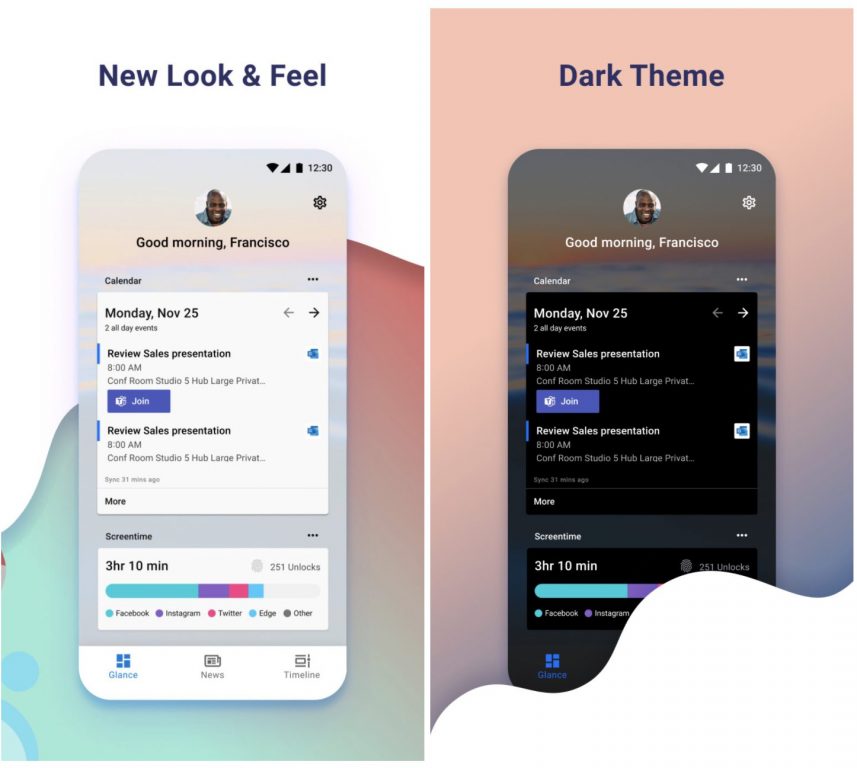
The latest version of the Microsoft Launcher is dropping its beta tag today. With the new version 6, Android users will enjoy a new Landscape mode and dark theme, personalized news feed updates, customizable App Icons, a new Bing wallpaper every day, and several performance improvements.

Here are the main highlights the Windows Insider team mentioned today:

  • Personalized news: Stay in the know. The personalized news feed updates throughout the day with top trending stories, making it easy to stay on top of whatever’s relevant to you.
  • Landscape mode: Microsoft Launcher supports vertical and horizontal orientations to enhance your viewing preference.
  • Customizable icons: Give your phone a consistent look and feel with custom icon packs and adaptive icons.
    Beautiful wallpapers: Enjoy a fresh new wallpaper from Bing every day or choose your own photos.
  • Dark theme: Reduce eye strain when using your phone at night or in low light environments. This feature is compatible with Android’s default dark mode settings.
  • Improved performance: Microsoft Launcher now loads faster, uses less memory, is more battery efficient, and offers fluent animations.

The new version will roll out gradually to Android phones running version 7.0 or higher, but some features such as System dark theme are only supported on Android 8.0 or newer. Microsoft also noted that native Android 10 navigation gestures may not work for all phone manufacturers and models.

If you’ll be upgrading from previous versions of the Launcher, be aware that Sticky notes sync issues may occur after installing the v6. Moreover, you may also need to enable notification badges again after upgrading. You can learn more about how to get started with the Microsoft Launcher on this FAQ.

The app was not found in the store. ?

Latest Windows 10 20H2 Update Removes Notepad for some users

Windows 10 20H2 build 19042.388 arrived in the Beta Channel yesterday and it brought with it a host of bug fixes.

But just like the July Patch Tuesday updates that Microsoft released the same day, the latest Windows 10 20H2 build causes a number of PC issues. One of the most notable problems is that updating to build 19042.388 may remove Notepad.

Windows 10 20H2 update may remove Notepad

Some users are reporting on Reddit that Notepad disappeared from their PC after updating to Windows 10 20H2 build 19042.388.

One user wonders:

Does the new update remove Notepad? (ver. 19041.388). How to get it back?

In addition, some users lost Microsoft Paint too after updating.

Hello i updated my windows to 19041.388 and now i don’t have Paint and Notepad? How can i get them back.

All these users are desperate to have their Windows 10 applications back.

However, the issue of Notepad disappearing after updating Windows is not new. In fact, many users started noticing the absence of the app after upgrading to Windows 10 version 2004.

But what many affected users may not know is that Notepad is now an optional feature on the Windows 10 May 2020 Update.

The good news is that if the app is missing after installing the new OS, you can get it back via the OS’ optional features settings.

Simply go to Settings>Apps & Features>Optional Features>Add a Feature.

Yet another user (this time around a gamer) decries their awful experience with the PS4 controller after updating to version Windows 10 20H2 version 19042.388.

This user claims that their controller was working fine before upgrading. However, the update appears to have broken the system seeing as the device keeps disconnecting every few seconds.

Before the update (OS Build 19041.388) everything was working fine. But now when I turn on the controller, the “Bluetooth & other devices” page shows the controller as ‘Connected’ but then disconnects after a few seconds.

Any interesting experience with the latest Windows 10 20H2 update? As always, you can reach out with any suggestions or questions via the comments section below.

New Windows Search experience is now rolling out on Windows 10 version 1809 or newer

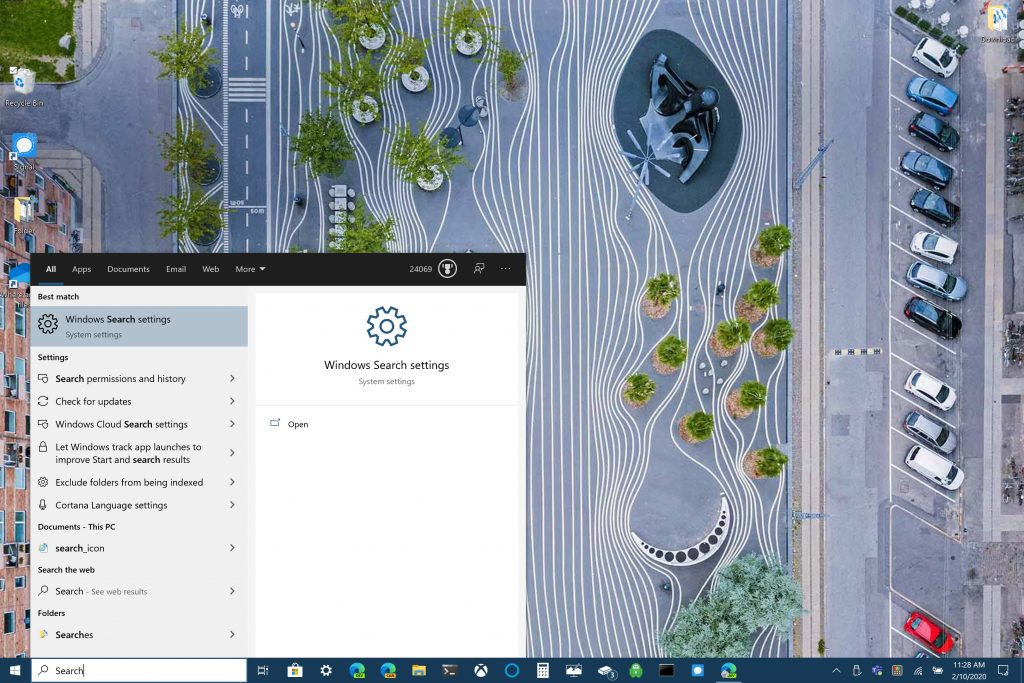
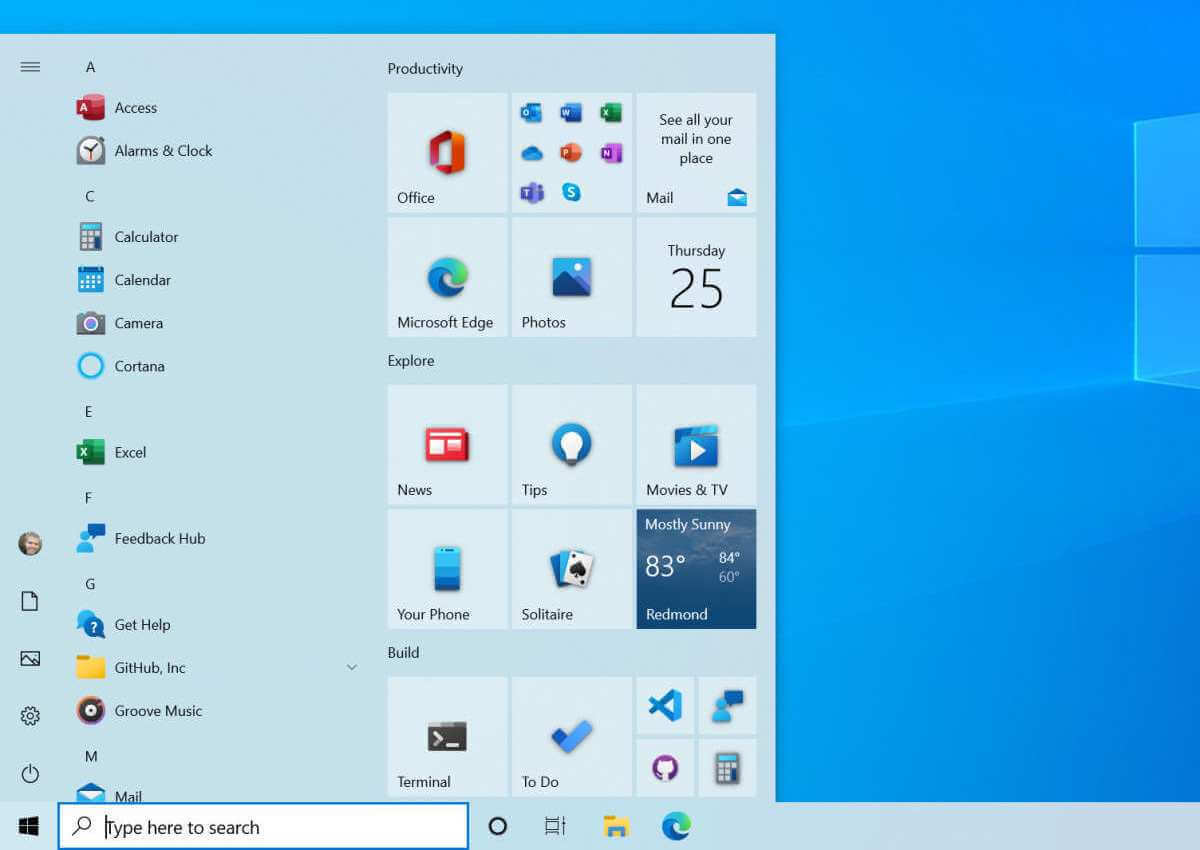
Microsoft has started rolling a new Windows Search experience to Windows 10 users running the version 1809 of the OS or newer. The new experience features a two-column layout that offers enhanced readability and faster access to Quick Searches for users who like to see local weather, top news, and more helpful info on their desktop. However, it will still be possible to type directly in the search bar for finding other web results or navigating directly to a website.

Updated taskbar search experience in Windows 10.

The new Windows Search experience is a server-side change, and it will be available in markets where Quick Searches are supported, and the list includes the United States, Australia, Canada, China, France, Germany, India, Japan, Mexico, Spain, and the UK. Moreover, Microsoft announced today that Windows search now provides web search support for Dutch speakers in the Netherlands who set their Windows region set to “Netherlands,” and set Dutch as their default language.

In addition to this new Windows Search experience, Microsoft also announced today the release of a new Windows 10 Insider build which brings more minor changes for the Settings app. We invite you to check our separate post for more details.

KB4565503, KB4565627 may block WhatsApp and Slack on PC

Microsoft released the latest security patches in the notorious Patch Tuesday event.

And while delivering a lot of fixes including no less than 139 CVEs, the KB’s also came with some known issues but also some unknown ones.

While KB4565483 may conflict with some modems, KB4565503 and KB4565627 may block Electron built apps like Android Messages, Authy Desktop, WhatsApp, Slack, Twitch for Windows 10 v2004.

How do KB4565503 and KB4565627 are blocking apps on Windows 10?

A user complains on Reddit that every time he tries to start Electron built apps, he receives the error message The application was unable to start correctly (0xc0000005). Click OK to close the application.

The issue is showing on his Dell XPS 8500 computer but not on his other Dell OptiPlex 390 MT, the difference being that the latter is running a Release Preview Windows 10 build.

The only difference I can figure between the 2, besides channel, is that the 1st machine uses Known Folder Redirect (KFR) while the 2nd one doesn’t. It seems Windows is not handling the KFR use case very well.

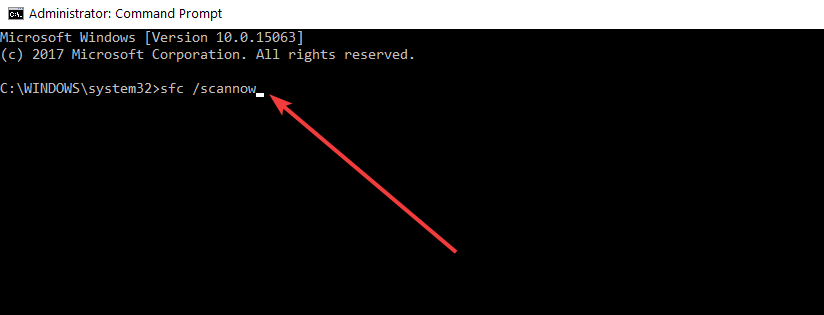
He also specifies that he performed an SFC scan without any results.

How can I fix error code 0xc0000005?

As the issue started manifesting after installing the new KB4565503 and KB4565627, Microsoft didn’t react yet with an answer to this problem.

However, we have previously encountered and fix The application was unable to start correctly (0xc0000005) error.

If you encounter the error code 0xc0000005 after installing the new KB4565503 and KB4565627, you can try to fix the problem with our comprehensive guide.

Tell us about your experience and problems after installing the new KBs in the comments section below so we can try to help you further.

The article KB4565503, KB4565627 may block WhatsApp and Slack on PC appeared first on WindowsReport.com.

[wl_navigator]

[SOLVED] Your account access is temporarily limited

When you get the dreaded Your account access is temporarily limited PayPal email, most of the time, it’s the beginning of the end of your PayPal account. But it doesn’t have to be that way.

PayPal is the favorite payment method for most online shoppers as well as businesses. It simplifies transactions by only requiring the payer to enter his or her email address.

The simplicity and tons of other benefits are the reasons payers love PayPal.

However, businesses don’t like leaving huge sums in their PayPal accounts because they know that they can be hit with Your account access is temporarily limited email at any time.

When you see this message, you won’t be able to carry out some basic actions on your account.

If the issue is not resolved, in time you will use access to all the funds stored in your account.

The only thing the message tells you for sure is that your account has activities or transactions that go out of line with PayPal policies.

What does it mean your PayPal account is temporarily limited?

1. How can I resolve the Paypal account temporarily limited issue?


To resolve this issue, you will need to also understand the reasons for it occurring in the first place.

Here are the most possible reasons for which your PayPal account could be temporarily limited:

High-risk transactions on your account

  1. Recently, your account has received lots of chargebacks or claims.
  2. For Business PayPal accounts, you can get this error message if you begin to sell new products or offer new services.
  3. Similar to the situation above, if the volume of your sales suddenly spikes, PayPal can also flag your account.

Your account is not active

Your account access can get temporarily limited also if you haven’t logged in to the account or carried out any transaction on it since your registration.

This is a security measure for dormant accounts.

Your PayPal account is temporarily limited to protect it

Sometimes, your account access is temporarily limited by PayPal for your own protection.

When the system notices that an unauthorized user logs in to your account, it limits your account from making transactions.

PayPal‘s system determines unauthorized access mostly when the login was from a foreign location.

If you’re going to travel out of your country, it’s best to let PayPal know about it beforehand.


2. How to remove your account access is limited in PayPal


The same way the reasons for limitations vary, that’s how different the solutions are.

Thankfully, the Your account access is temporarily limited email hints on how to lift the PayPal limits for your unique case.

Some of the most common resolutions are as follows:

Visit the Resolution Center

paypal-resolution-center-your-account-access-is-temporarily-limited-paypal
To lift the limits, you may be instructed to go to the PayPal Resolution Center. On this page, you will have more insight into the root of the problem.

The Resolution Center also tells you how you can remove the limits.


Upload proof of identity


If the limitation was to protect your account, you may need to provide PayPal with some documents to prove that you are the legitimate owner of the account.

To do this, log in to your PayPal account and click on the Summary tab.

On the Summary page, you will see a notification to inform you of this resolution. It also shows you the required steps and documents to provide.

Most times, the proof of identity could be a copy of a Government-issued ID card, such as driver’s license, international passport, or ID card.


Following these solutions or the advice you got from PayPal, the account limitation should be resolved.

If you’ve completed the solutions and still have limits on your PayPal account, check your inbox for an email from PayPal requesting for additional information.

Alternatively, your account access may be temporarily limited still because they are reviewing your submitted documents, and you just have to wait a little more.

If your submitted documents don’t pass PayPal‘s review or the work in the Resolution Center fails, your account access won’t be temporarily limited but permanent, and you’ll not be able to access it again.

How to open Excel, Word, PowerPoint files from OneDrive in desktop apps

One of the benefits of storing files in OneDrvie is the ability to open Office files on the web. This not only gives you access to preview the file right from your OneDrive account, but you also can edit it, too. However, there are some cases where you might want to open the file in the desktop version of an Office app. Here’s a quick look at how you can do that.

Method 1: From the list of files

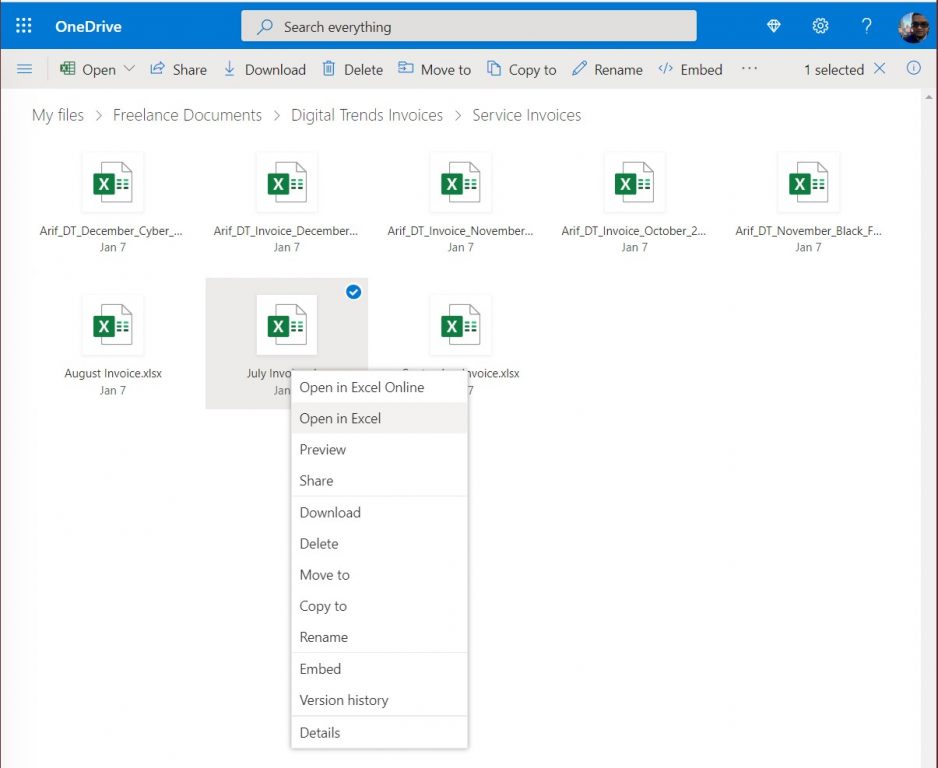
Our first method is the least complicated. From the list of your files in OneDrive, simply right-click the file, and choose Open in … You’ll then get a prompt on the screen, saying that this site is trying to open …. Agree to it, and click Open. After a few seconds, the document should open up in the full desktop version of the Office app. As it is pulling the document from your OneDrive, any changes you’ll make will automatically be saved, without having to manually save the file again, and re-upload it to your OneDrive account.

Method 2: From the file itself

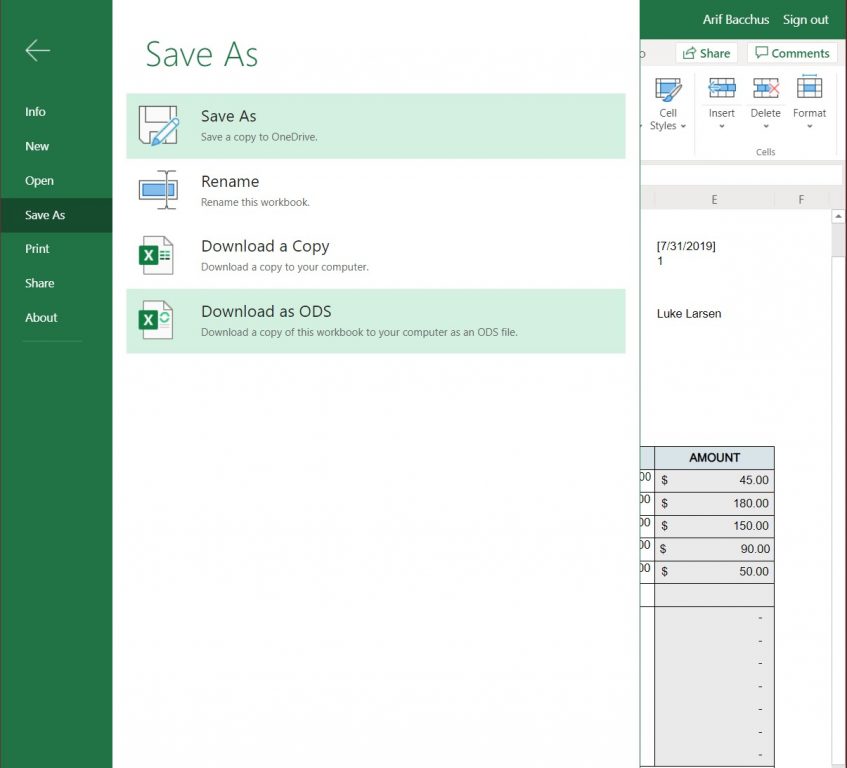
A second method might be useful if you’ve already opened the file on the web, but still want to open the file in an Office app. With this method, you’ll want to click or tap the File menu inside the Office web app. Then, from there, click Save As. You should then see an option to Download a Copy. Click this, and the file will download. Once finished, simply click the downloaded file to open it in the Office desktop app. Alternatively, you can just right-click the file name in your list of files, and choose Download too.

Just keep in mind, this method involves downloading the file, so any changes you make will not automatically be saved to your OneDrive. When you finish your edits, you’ll need to delete, and then re-upload the file to make sure that your edits save to your account.

Other tips and tricks for OneDrive

This is just the latest entry into our deep dive of the Office 365 apps. In the past, we shared some other tips and tricks for OneDrive. These include backing up your PC to OneDrive, saving email attachments, and more. Feel free to check it out here, and let us know your thoughts in the comments.

Grounded, Yakuza Kiwami 2 and more are coming to Xbox Game Pass in July

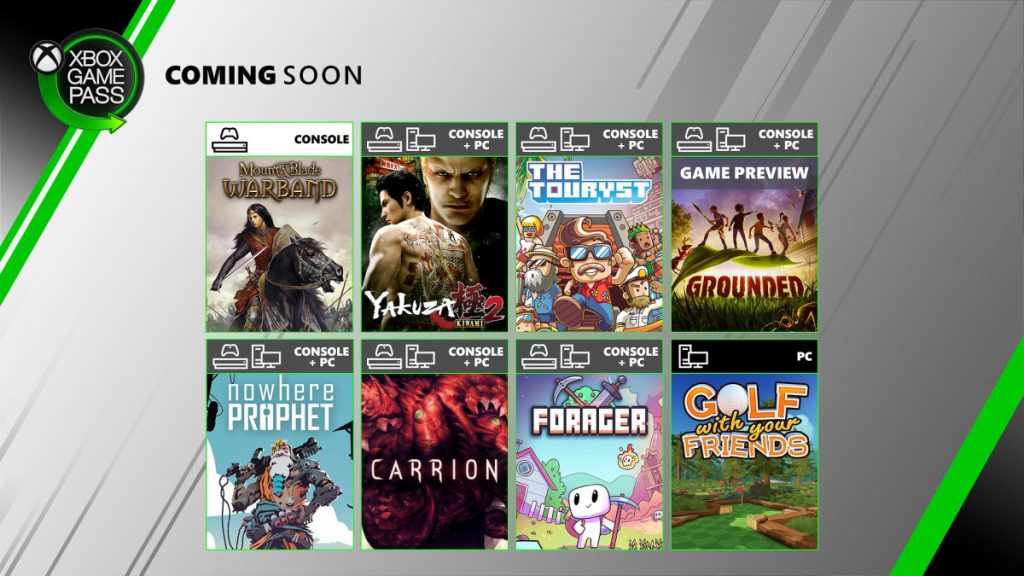
Microsoft has just announced eight new games coming to Xbox Game Pass this month, with six of them to be available on both Xbox One consoles and Windows 10 PCs. Two new games will be available starting tomorrow, July 16, with the 2D open-world game Forager and the strategy sandbox title Mount & Blade: Warband (Console only).

Two more games will follow next week on July 23: The horror game Carrion, along with the PC version of Golf with your Friends (already available on Xbox Game Pass for Console). Grounded, the new survival adventure from Obsidian Entertainment will also launch in preview on Console and PC on July 28, and the game is already available for pre-download on both platforms.

Last but not least, Xbox Game Pass subscribers will get three more games on July 30 with the adventure puzzle game The Touryst, the card game Nowhere Prophet, along with Yakuza Kiwami 2 (the first game is already available on Xbox Game Pass for PC and Console).

In case you missed it, Halo 3 has just launched on Xbox Game Pass for PC yesterday, and we hope that Halo 3: ODST and Halo 4 will soon complete Halo: MCC on PC. Two new unannounced games have also joined the Xbox Game Pass catalog this month, including the roguelite action-platformer Neon Abyss, and the turn-based strategy game Endless Space 2 (PC only).

That’s it for July, but August should be another exciting month for Xbox Game Pass subscribers. The much-anticipated Microsoft Flight Simulator game will be available on PC on August 18, and it’s already available for pre-download through the new Xbox beta app for Windows 10. A closed beta will also be available on July 30.

HomeGroupUser$ password: How to fix this login error

Usually, the HomeGroupUser$ account appears due to a damaged Windows Homegroup user account.

If you tried to log in on your laptop, only to see on your screen the HomeGroupUser$ account asking for a password, you are not the only one.

Some users are facing this situation where, before they are even able to enter the password, it prompts the message The password is incorrect.

Because the HomeGroupUser$ is a built-in account you cannot delete it from the system. But you can easily overcome this, by trying the confirmed solution we are presenting in this article.


How do I fix the HomeGroupUser$ password login error?

1. Use Command Prompt/PowerShell

  1. Press Win key + S and type cmd
  2. From the search results, click Command Prompt
  3. Type the following command: net user
  4. Locate HomeGroupUser$ and type: HomeGroupUser$ /active:no

Can’t run Command Prompt as admin? Check out this useful guide and fix the problem in no time.


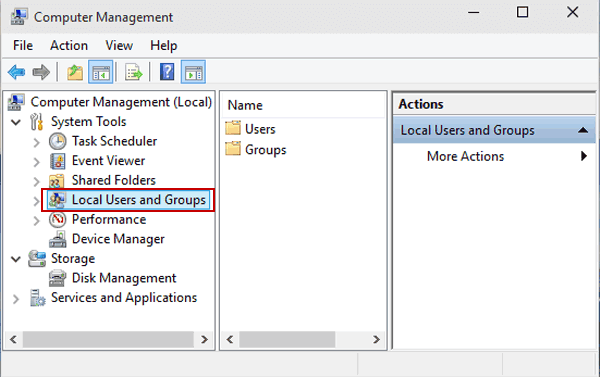
2. Use the Local Users and Group

  1. Press Winkey + R to open Run.
  2. Type in lusrmgr.msc and hit enter.
  3. Once the Local Users and Groups window pops up, click on the Users folder.
  4. In the middle panel, you’ll see all the accounts on your system.
  5. Right-click on HomeGroupUser$ and click Properties.
  6. In the Properties window, click the Account is disabled box.
  7. Hit Apply and click OK.

3. Use Netplwiz

how can I fix the HomeGroupUser$ account log in error

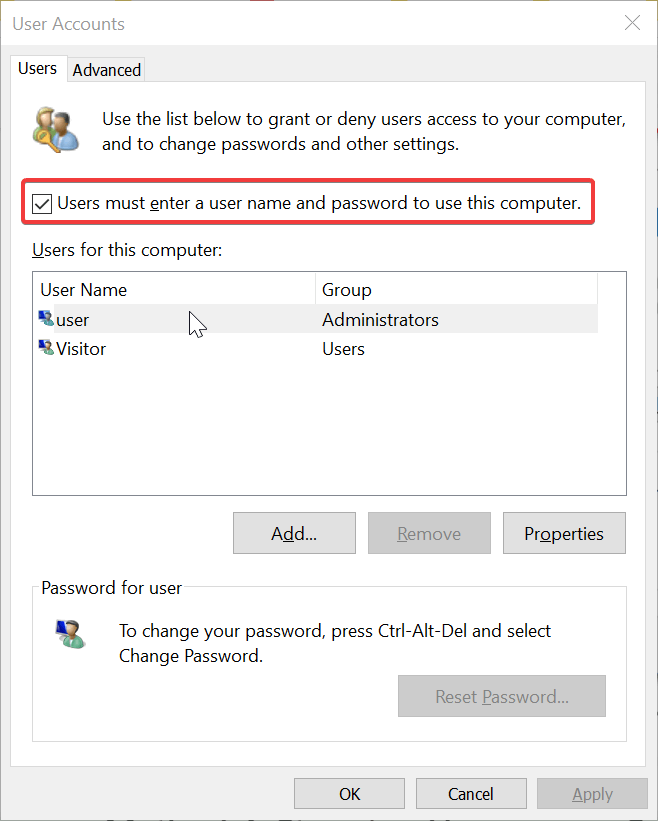
  1. Go to the Start Menu, type in netplwiz and open it.
  2. Check if the Users must enter a user name box is unchecked, make sure to click it to check the box.
  3. This will stop the auto-login attempt of the account.

4. Stop Homegroup Services

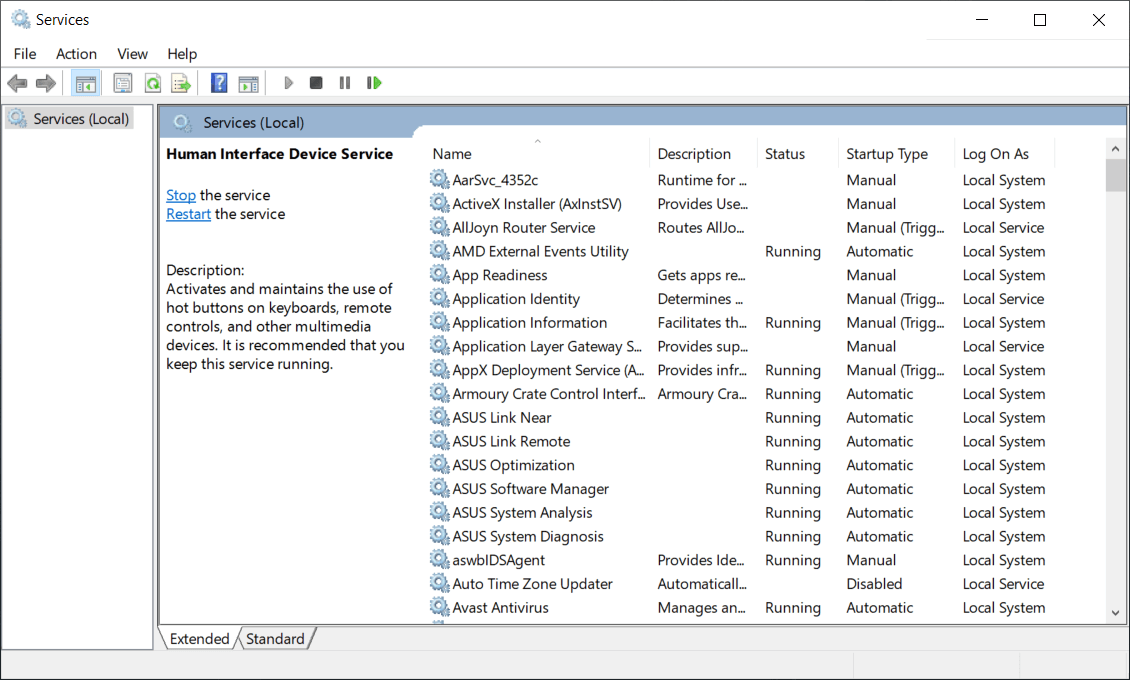
  1. Open Start Menu, type in services, and open it.
  2. From the list of Services, locate HomeGroup Listener and HomeGroup Provider.
  3. Double-click the services and click Stop.
  4. Hit Apply and then click OK.

That is about it. We hope that you managed to solve the problem by using one of our solutions. 

If you have any more questions or suggestions, don’t hesitate to leave them in the comments section below.


Avatar and Korra content is now live in the Smite video game on Xbox One

The SMITE x Avatar Plus Bundle is now available to buy and download on Microsoft’s family of Xbox One consoles.

The bundle includes the Smite video game, three characters from the popular Avatar and Korra cartoon series, and the Merlin, Susano, and Skadi Gods.

Smite is a free-to-play title that can be downloaded at any time so the main appeal of this bundle is the three Gods and the Avatar skins.

Here’s the official bundle description and trailer showcasing the skins in action:

The iconic heroes of Nickelodeon’s cult animated series Avatar: The Last Airbender and The Legend of Korra join the Battleground of the Gods in an all-new Battle Pass.

This crossover includes three fan-favorite characters as Skins for community-loved Gods: Aang Merlin, Zuko Susano, and Korra Skadi.

The Avatar Plus Bundle is the best way to get started! Instantly unlock the Korra Skadi Skin and all Battle Pass rewards up to level 25 with the Avatar: The Last Airbender Plus Pass. Plus: you’ll get all three Gods featured in the pass, and their Voice Packs.

Avatar: The Last Airbender has experienced somewhat of a resurgence recently after the entire series was added to the Netflix streaming service in various regions. The announcement of a new live action version of Avatar has also garnered a lot of attention.

Are you an Avatar or Korra fan and are you going to pick up this Smite bundle? Let us know in the comments below and then follow us on Twitter and Pinterest for more Xbox gaming news.

SMITE x Avatar Plus Bundle

6 Best soccer games online to compete with your friends

Soccer is one of the most popular and watched sport by people, all around the world. Millions of people are insanely passionate and follow their favorite soccer team on any occasion. Moreover, there are soccer apps that keep you up to date on scores and all the games that will be played. The best online soccer games manage to transfer some of the most complex and advanced characteristics of real-life soccer into video games. In this article, we’ve compiled a list of some of the best soccer games that you can play online. Take a look as there are plenty to choose from. To be able to enjoy these games without any issues or distractions, we also recommend that you download and install a stable and fast browser. Opera GX not only offers you lightning-speed internet browsing capabilities but also enables you to keep your privacy online by using the built-in VPN service.
Editor's choice
Opera GX browser logo
  • Best gaming browser
  • Resource controller
  • Custom UI
  • Twitch integration
  • Free VPN included
  • Ad-blocker

Where can I play the best soccer games online free?

FIFA 20

where to play the best games online fifa 20

FIFA 20 is different from previous years in some. Volta is a new way to play FIFA, bringing street soccer to the main series for the first time.

You control a team of superstars aiming to become the world’s best players in an around the globe journey.

Volta focuses on the culture of street soccer where the language and atmosphere are more relaxed and more open to customization.

Defensive AI is now far more intelligent and they will intercept passes and block shots much more often.

The new tool, strafe dribbling, is extremely useful in providing more options when in control of the ball.

Once you get used to the direct free kicks and penalties, they offer great depth and satisfaction when you smack one in the right corner of the goal.

⇒ Get FIFA 20 on Origin

PES 2020 – Pro Evolution Soccer

This is a game that offers an enriched experience on how the players play and behave in the game field.

In this game, players take on a life on their own. The game comes with a big feature called Magic Moments which consists of 39 specialized RPG style traits. Not all players have access to them though.

Amazingly, Magic Moments steps beyond simply adding new moves. They add traits such as a fighting spirit which gives players better performance when in difficulty.

With these key improvements in the field, we can say that PES 2020 is the most satisfying football games of the current console generation.

Note: In order to play the game, you will need to connect your KONAMI ID with your Football PES 2020 game account. 

⇒ Get PES 2020 on Steam

Football Manager 20

In football Manager, you can run your team the way you want and with the new features and polished game mechanics, your experience will be like never before.

The greatest thing is, that there is no predefined ending or any script to follow.

You can plan and strategize to an endless amount of possibilities and opportunities. It is up to you to create the game.

⇒ Get Football Manager 20

Rocket League

Playing soccer with a car is definitely unique and from what we are seeing, pretty fun as well.

The game is pretty straightforward and is a combination of soccer and hockey where you control the car. You use your car to move the ball into the opponent’s goal and if you score more points inside a 5 minutes match, then that’s a win.

There are several ways on how you can do this: by ramming it, flipping into it, or hitting it directly.

You can play the game in teams or as a single-player.

Now, going into the more technical aspects -the visuals. The graphics are really nice and the fields have depths and weather effects. The cars look fantastic and there are plenty of customization options available.

⇒ Get Rocket League on Steam

Hattrick Football Manager

best soccer game online hattrick

This is one of the most popular games when it comes to feeling like the real owner and manager of your football team.

In terms of strategies decisions and the organization, you will have the last call. The amazing Hattric desktop application simplifies this, by providing you all the necessary data.

From Hattrick Organizer you will be able to see everything that happens in your team. This will allow you to know faster which decision to make and when.

The multitude of plug-ins and utilities will help you know exactly which are your team needs.

⇒ Try the Hattrick Football Manager

Kopanito All-Stars Soccer

If youțre looking for something out of the box that guarantees you’ll have a lot of fun, then this may be the game for you.

There are no specific rules in this game. The sole objective here is to score a goal more than your opponent in order to win the match.

Suffice to say you should not expect the same graphics or move physics to the standards of FIFA or PES. The offer that Kopanito is giving, is a lot mot different and is just fun football and a game played in your own personal way.

⇒ Get Kopanito All-Stars Soccer

And this concludes our recommendations. We are happy to hear your comments and suggestions.


[wl_navigator]

New Xbox Series X console ad focusing on its better and faster video games releases online

Microsoft released another new video ad for their upcoming Xbox Series X console this week, this time focusing on its Velocity Architecture. You can check it out below.

Velocity Architecture is the name used by Microsoft to describe the custom hardware designed for the Xbox Series X, the basis of which consists of a custom 1TB NVME SSD, hardware accelerated decompression blocks, a DirectStorage API layer, and Sampler Feedback Streaming (SFS).

A detailed breakdown was posted by Microsoft’s Jason Ronald here but what all of this new tech essentially means is that the Xbox Series X will be able to download video games quicker than current Xbox consoles and load them much faster. The promise of getting “the virtual elimination of loading times” has been made a few time now though gamers will have to wait until the console launches later this year to see if this promise is met.

Want to watch more Xbox Series X videos? Check out the previous ad here.

What aspect of the Xbox Series X interests you the most? Share your thoughts with the community in the comments below and then follow us on Pinterest and Twitter for more Xbox news.

Camtasia cannot connect to YouTube [Full Fix]

5 steps to fix Camtasia YouTube issues

  1. Check Your Internet Connection
  2. Turn Off Third-Party Antivirus Software
  3. Turn Off the Windows Defender Firewall
  4. Edit the Registry
  5. Reinstall Camtasia

Camtasia 8 and 9 users can usually upload their recorded videos directly to YouTube (or Google Drive) from within the software. However, some users have also stated on forums that a “Camtasia cannot connect to YouTube” error message pops up when they try to add their recorded clips to YouTube.

Consequently, those users can’t upload their clips to YouTube with Camtasia. Here are some Windows fixes that might resolve the Camtasia YouTube error.

How do I fix YouTube connection issues on Camtasia?

1. Check Your Internet Connection

The full error message states: “Camtasia cannot connect to YouTube. Check your internet connection and try again.” As such, the error message suggests that users check their internet connections. The obvious way to do that is to open a few web pages in a browser.

The Internet Connections troubleshooter might come in handy for users who need to fix internet connections for Camtasia. That’s a troubleshooter that provides fixes for network connections that are down or down for a specific website. Follow the guidelines below to open the Internet Connection troubleshooter in Windows.

  1. Open Run with the Windows key + R hotkey.
  2. Enter ‘Control Panel’ in the Open text box, and press the OK button.
  3. Click Troubleshooting to open the Control Panel applet below.
    troubleshooting control panel
  4. Click Network and Internet to open the troubleshooter list shown directly below.
  5. Right-click Internet Connections and select Run as administrator
  6. Click Advanced to select the Apply repairs automatically option.
  7. Then press the Next button to initiate the troubleshooter and go through its suggested resolutions.

2. Turn off third-party antivirus software

Antivirus software with firewalls can block third-party software connections much the same as WDF. As such, Camtasia users should also turn off third-party antivirus utilities before opening the screencast software.

To do that, right-click the antivirus utility’s system tray icon to open its context menu from which you can usually select a disable or turn off the option.

If you can’t find any turn-off turn option on the antivirus utility’s context menu, open the settings menu or tab in the software’s primary window to select a disable option from there.

However, if you’re tired of antivirus tools that keep interfering with your software, then maybe you should consider changing it.

If you use a Windows PC, you must have one of the finest antivirus software, whether free or commercial, installed. Windows is more frequently targeted by viruses, Trojans, and other malware than any other software platform, and running a PC without antivirus protection is asking for trouble.

Once installed, compatible and suitable antivirus software will run silently in the background, ensuring that you have a malware-free experience while using Windows 10. More so, you don’t have to worry about disabling or uninstalling it whenever something else doesn’t work.

3. Turn off the Windows Defender Firewall

The “Camtasia cannot connect to YouTube” error message still pops up for some users when their internet connections are ok. However, Windows Defender Firewall can still block connections for specific software.

Thus, Camtasia not connecting to YouTube could feasibly be due to Windows Firewall blocking the software. So turn off the WDF to ensure that it isn’t blocking Camtasia.

  1. To turn off Windows Defender Firewall, open the Run accessory.
  2. Then enter ‘firewall.cpl’ in Run and click OK to open the window.
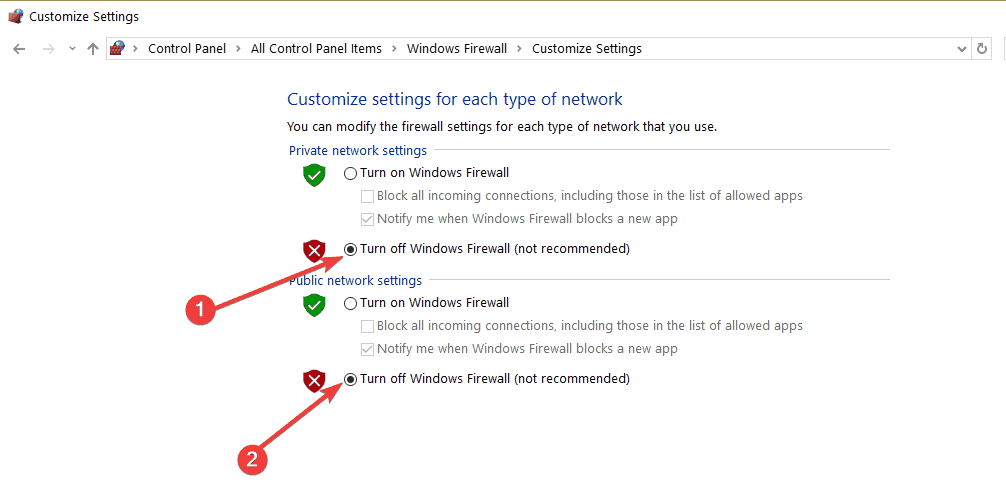
  3. Click Turn Windows Defender Firewall on or off to open settings shown below.
    turn off firewall windows 10
  4. Then select both the Turn off Windows Defender Firewall options, and click the OK button.

If turning the WDF off fixes the Camtasia YouTube error, the firewall must have been blocking the software. You can temporarily turn off the firewall before opening the software and then turn it back on again as required.

Alternatively, you can set up outbound and inbound WDF rules with the Windows Defender Firewall app that allow the Camtasia connection.

4. Edit the Registry

Follow the guidelines below to edit the registry.

  1. Open the Run accessory.
  2. Input ‘regedit’ in the Open text box, and press the OK button. Then the Registry Editor window will open.
  3. Enter this key in the Registry Editor’s address bar to open that key. Alternatively, you can copy and paste that registry path with the Ctrl + C and Ctrl + V hotkeys.
    Computer\HKEY_CURRENT_USER\Software\TechSmith\Camtasia Studio\8.0
  4. Right-click the 8.0 folder (or key) on the left of the Registry Editor and select Delete.
  5. Then open Camtasia Studio 8.

TechSmith’s official resolution for the Camtasia 8 YouTube error is to delete the software’s 8.0 registry key. Numerous Camtasia Studio 8 and 9 users have confirmed that editing the registry fixes the YouTube error.

5. Reinstall Camtasia

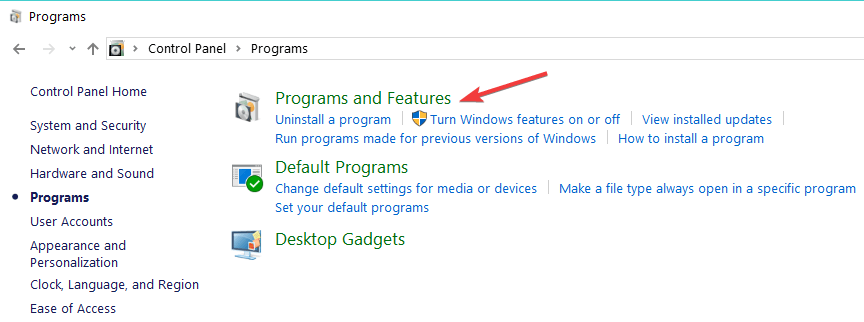
  1. Camtasia users have also stated that reinstalling the software can fix the “cannot connect to YouTube” error. Users can uninstall Camtasia by entering ‘appwiz.cpl’ in Run.
  2. Then select Camtasia Studio in Programs and Features
  3. Press the Uninstall button.
  4. Click the Yes button to confirm.
  5. Restart Windows after uninstalling the software.
  6. Thereafter, reinstall Camtasia Studio with its setup wizard.

One, or more, of the above resolutions, will probably fix the Camtasia YouTube error for most users. However, if not, Camtasia users can send a support ticket to TechSmith at the company’s ticket submission page.

Remember that you can also add recorded videos to YouTube without the Camtasia software.

Book Organizing Software: 6 Best to List Your Collection

When choosing a software for listing books, you need one that is customizable, allows for tagging and collections, tracks multiple dates, allows for adding notes like where and when you got the books and also allows for book tracking on titles you’ve lent out.

Overall, find one that suits your needs, both specific and aesthetic.

When it comes to book collections, most people who have them can be obsessive and proud, but there are advantages to knowing the books you have in your library, and where they are.

Some of these benefits include not forgetting what you own so you don’t have to buy duplicates, you can track books to who you lent by making notes or adding tags so they never get lost

You can also rebuild your list or collection in the event of a crash or natural disaster, you can share your list with others, you can track where and when you bought the books and organize according to statistics like author, genre, book types, and much more.

Cataloging of books takes some simple steps to do. Once you choose the best software for listing books, scan them using a barcode scanner, upload to your inventory program, then start organizing each and get statistics for the same.

Here are our top picks for the best software for listing books.

Best tools for listing your books

Icecream Ebook Reader

Part of having a vast library of books is creating a system through which you can organize them for easier browsing. It can be either based on book series, genre, author, or whatever else sparks your interest.

bottom line is, you can’t just use any crummy ebook reader for this job since most will either have subpar tools or not have them at all.

One tool that doesn’t fall under that category is also the one topping off our list: Icecream Ebook Reader.

This Ebook reader not only allows you to open, read, and manage a wide variety of ebook file formats, but it has plenty of features that allow better management of your vast digital library.

And the best part is that the tool is extremely easy-to-use, so arranging thousands of books will not seem like a nightmare.

Here are some of the perks of using Icecream Ebook Reader:

  • Great book collection management tools
  • Works on all versions of Windows
  • Available at a discount price
  • Lightweight
  • Easy-to-use

Icecream Ebook Reader

Icecream Ebook Reader

Manage your vast digital library of ebooks with the help of this feature-rich and easy-to-use tool, now at a discount price for a limited time only.
Get it free Get it now

Book Collector

With this software for listing books, you can fulfil the following tasks:

  • Catalog books and e-book files on your Windows computer
  • Download book details and images automatically, such as author, title, publisher, cover art, genre, plot or add by ISBN
  • Access a rich variety of features and highly customizable tools
  • Install on multiple computers, and sync data between the PCs
  • Store book data and images locally, or sync with cloud storage
  • Browse, sort and search your collection in different layouts and views with a highly customizable screen so you can make it look the way you want.

Other cool features and tools that this book cataloging software provides include editing, adding missing cover images from the internet with the built-in Find Image Online tool.

You can also customize or create your own database with User Defined Fields, Loan Manager system to manage loans, an export tool to export database to text or XML files, and even print book lists in your preferred order.

⇒ Get Book Collector

All My Books

This software for listing books helps you organize, track and archive your book collection, whether that is hard copy or printed books, audio and/or e-books, or all three combined, as it has all the features you need for listing your books.

Whether you forgot who you lent a book to, or want to know how many titles of a particular author you have read, or just want to print/upload your list and organize your collection, you can do it with this tool.

It is easy to download and install and doesn’t have any malware, ads, or third party bundles. To use it, all you need is the title, author’s name, or the ISBN number, then plug this information into the software, and it does everything else from online sources, adding it to your personal database.

Features include:

  • Hard drive scanning for book files and you can add individual files or batch files
  • Automatic population of information about the books including reviews, cover art etc.
  • Access to 12 different book databases (international) to collect information on your book list
  • Add your own information as it is fully customizable
  • Variety of custom templates to define the software’s appearance to your liking
  • Monitoring of your books across multiple locations
  • Sorting and grouping of books based on specific criteria you select
  • Book tracking – what you’ve read and what you’re yet to read
  • Analytics and statistics
  • Automatic searches using ISBN number
  • Transfer of books to mobile devices, or importing existing lists to other formats – text/Excel
  • Password functionality to secure your collection
  • Audiobook playback support for MP3, WMA, M4A, Audible (AA,AAX) and OGG

You can try it for free for 30 days and test run it, but this doesn’t come with the HTML exporting and create new database functions.

⇒ Get All My Books

Libib

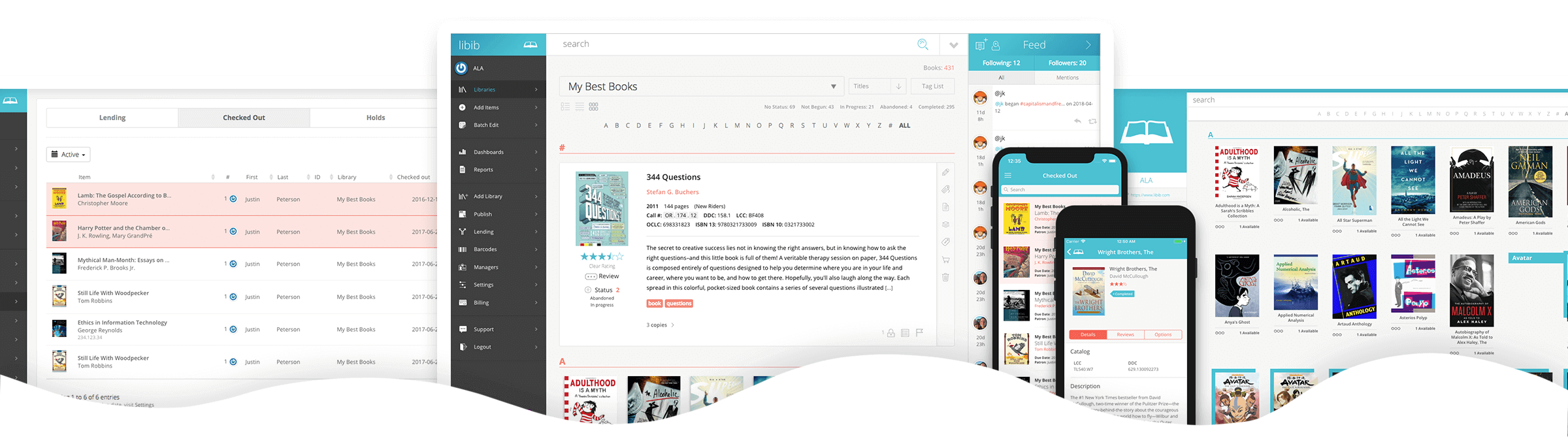
This is a cloud software for listing books, movies, music and video games. With this tool, you can create and share your collection using the library management service, which lets you create multiple libraries, catalog books, create tags and notes, import or export your collection and much more.

It has two different plans for listing books: Standard and Pro.

Libib Standard is available for free and built for personal collections, so you can manage your private library of books. To use this plan, you can scan, search, enter ISBN, or import batch items from a CSV file and the tool retrieves the details automatically. You can also create up to 100 different libraries and catalog up to 5,000 books. It generates statistics, has no ads, and you can publish your list for people to view.

Libib Pro, on the other hand, is meant for schools, small organizations and power users, allowing them to lend, manage multi-user accounts, manage patrons, have full control over data, and use a high powered library management system on a brilliant design.

Its features include:

  • Up to 100,000 items can be cataloged
  • Lending/circulation system
  • Custom branding and colors for libraries that are published
  • Interactive library with multiple layout options
  • Email notification for patrons
  • Kiosk app for self-checkout
  • Batch editing and field data editing
  • Add books using Library of Congress Number
  • Expanded search and much more

⇒ Get Libib

Tapforms

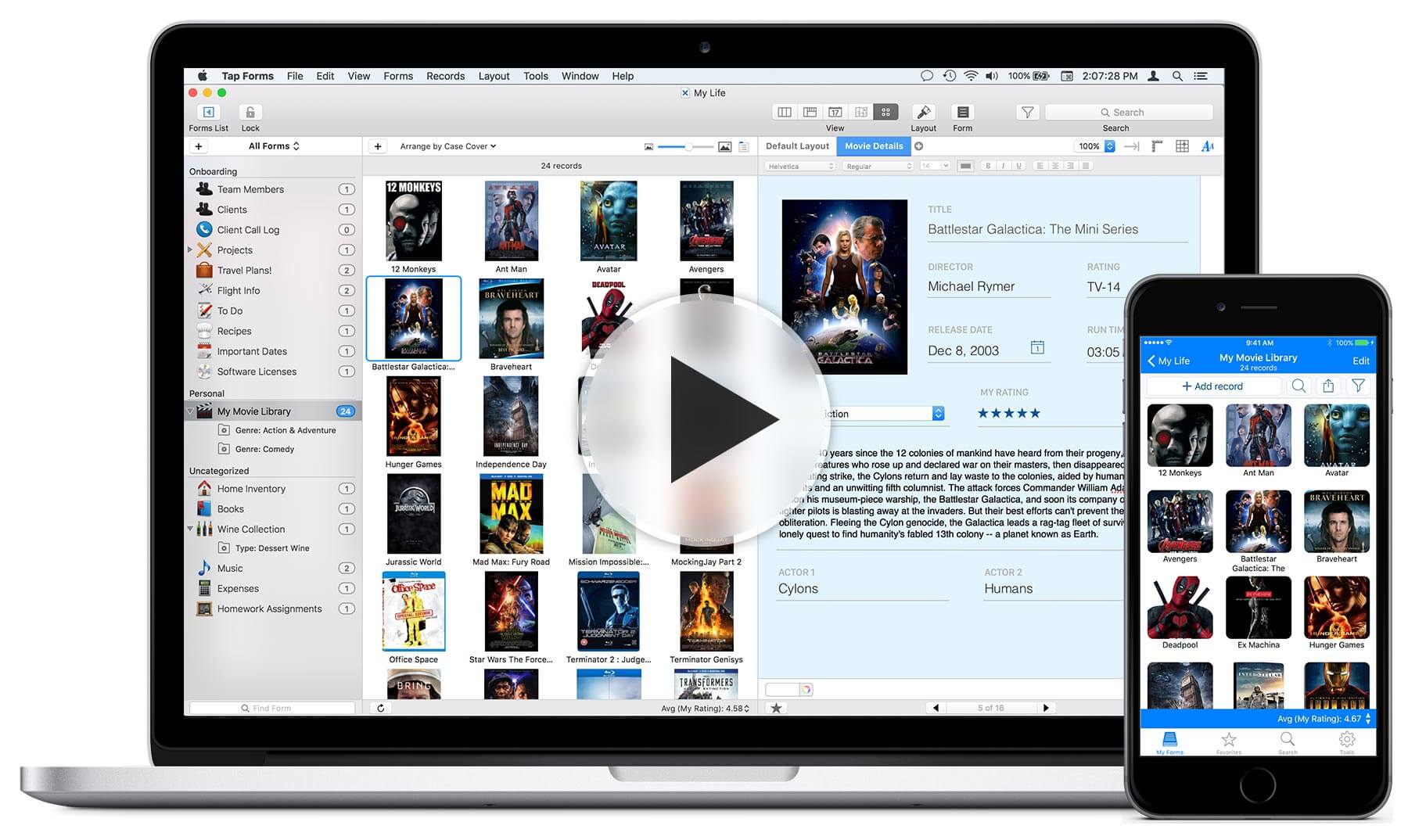
This software for listing books is the digital filing cabinet you need for your book collection, to organize everything in one place that is secure, searchable and can be accessed from other devices.

With Tapforms, you can use the built-in design tool to create your own custom forms, by choosing from the ready form templates, and use that to track, manage and organize your book collection.

Features include:

  • Custom forms that are easy to build and within minutes of downloading the application
  • Label designer to generate printable labels for the information stored in your form fields (more than 1000 Avery label sizes are available)
  • Custom layouts to showcase your collection differently for digital and print
  • Multiple documents to keep your forms organized into multiple database documents and sync each independently of the other either with nearby or auto-sync
  • Photo grid view to see your list in a new way, World map view to see your locations on a world map in one go
  • Multiple photos and encryption of file attachments
  • Easy backup and restoration of your lists
  • Import and/or export your lists
  • Integrated barcode scanning
  • Auto-lock so no one can access your collection while you’re not by your computer
  • Advanced formula editor to get total/average/minimum or maximum from your list

⇒ Get Tapforms

Book Organizer Deluxe

This is great for both personal and/or business use and works with different Windows operating systems, including 10/8/7/Vista and Windows Servers.

It lets book collectors organize, catalog, and manage their collections on their computers, using the intuitive and simple interface, which is feature-packed and powerful.

Its benefits include:

  • Simplicity and ease of use
  • Ready to use templates with a user-friendly interface
  • 3 book cataloguing solutions that can meet your requirements, or define yours with the free Database Designer tool
  • Manual or automated cataloguing
  • Quick access to your database
  • Web auto-search and auto-catalog by ISBN number
  • Easy processing of book data using the Report/Label/HTML Generator Wizard that let you create book lists and reports, as well as book labels with color and art
  • It is web-ready so you can organize your favorite book websites, or publish your list to the web

⇒ Get Book Organizer Deluxe

Do you have other methods or software for listing books? We’d love to hear from you. Share with us in the comments section below.


[wl_navigator]

5 best book catalog software [Windows & Mac]

Did it ever happen to spend tons of time looking for a book that you know you definitely have in your library, and you have also read it? We bet it did.

It can be extremely frustrating to purchase a book twice because you think that you don’t have it, or you forgot that you lent it to your buddy for the summer.

Software tools that keep track of the books that you read will become your best friend in such cases.

What is a book catalog software, and how can you use them?

Having 10.000 books on your PC isn’t all that easy, but with a proper book catalog software, you can manage your personal library in just a few steps.

This kind of tool usually allows you to create a digital list of the books that you already own, the ones you read, the ones that you plan to purchase and so on.

With the right tool below, you can create multiple online book libraries, so you always know what to find and where to find it easiest in the thousands of books available.

You can even take advantage of translation functions, which greatly simplifies searches, and even import and export entire libraries and scan all of your items with mobile apps.

There are lots of programs that allow you to create a digital library, and some of them even let you scan the barcodes with your phone just to add the books to your list.

We picked out five of the best tools that let you keep track of the books read so make sure to check out their sets of features because they also include lots of other useful functionalities as well.

What’s the best book catalog software to manage your reads?

Icecream Ebook Reader

Reading doesn’t mean you have to carry around a dusty old book with you anymore since technology has evolved to the point where you can have thousands of books on a device that can fit in the palm of your hand.

Of course, that is just the hardware part of the story, since software has also evolved.

Ebook readers have flooded the Internet, so choosing the best one can be extremely difficult, and that is why we’ve decided to test our tools for you.

Topping off our list is an Ebook reader that perfectly balances out reliability, a lightweight UI, ease of use, and the ability to perfectly mimic the feel of using a physical book.

Read ebooks in EPUB, MOBI, FB2, CBR, and other popular formats, and easily manage a digital library on your PC, all with one simple software tool.

Here are some of the perks of using Icecream Ebook Reader:

  • Supports many popular E-Book formats
  • Works on all versions of Windows 10
  • Library management tools
  • Translation features
  • Easy-to-use
Icecream Ebook Reader

Icecream Ebook Reader

Read books in an easy manner while also keeping track of your vast library with the help of this fantastic Ebook reader, now at a special price for a limited time only.
Check priceVisit website

libib

This is an online library management service that will cater both home and small organizational libraries. Among its vast functionalities and features, this tool also allows you to keep track on the books that you have read so far.

But check out even more features that are included in this useful service because they’re pretty great:

  • With libib, it doesn’t matter if you have 100 or 1000 items because it will help you either way to manage your private library.
  • Besides this, you will also be able to manage movies, video games, and music as well.
  • You can scan, search and also enter an ISBN/UPC and this tool will automatically retrieve the item’s cover art and other essential information.
  • libib also offers you the opportunity to post, discuss, and follow your buddies.
  • This will turn out to be a great tool that allows you to share your thoughts on books, movies, music, and video games.
  • Create meaningful data right after you begin cataloging.
  • You will be able to check out your reading, purchasing, and rating stars as well.
  • Import and export entire libraries, and scan all of your items with mobile apps.

⇒ Get libib

Readerware

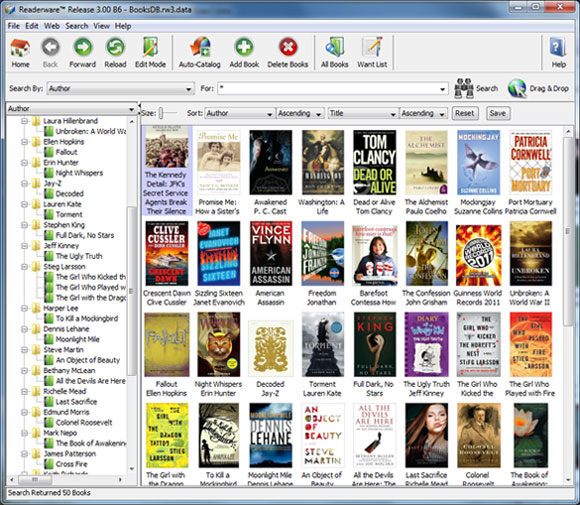
Readerware is another software that is compatible with Windows and provides you a fast and easy way to catalog your book collections. This is one of the most innovative and unique library management, database and inventory solutions that you can currently find out there.

Check out the best features that are packed in this software:

  • You will be able to create lists of the books that you have read so far.
  • This tool also allows you to feed in a list of ASBNs, UPCs or barcode scans and the program will do the rest afterward.
  • Readerware is able to automatically search the web and catalog your books and also your videos and music.
  • This tool can merge information from various websites, and it will definitely build a complex database for you.
  • It’s effortless to use the program even if you don’t have any prior experience with this type of tool.
  • Readerware comes with drag-and-drop supports, and you will be able to drag items from your browser and drop them into this tool to get them cataloged.

⇒ Get Readerware

Numento

Numento is an excellent collection software that is fully customizable and lets you choose the method of management. Using this tool that is compatible with Windows, you will be able to manage your library and catalog the read books among others.

Take a look at more impressive features that are included in this program:

  • This tool also allows you to manage your CD and DVD collections, games, comic books, and more.
  • You will also get the chance to publish your collection online with just a simple click.
  • Includes a lot of pre-defined collection types, and you will be able to create and personalize your own collection without any restrictions.
  • You can also access and search your collections anytime from any computer or mobile device as well.

The essential features also include a single click download, a barcode reader, over 200,000 items, intelligent lists, the option to import/export, printing, loan management, statistics and many more.

You can check out the complete set of great features and functionalities that are included in this software be heading over to its official website.

⇒ Get Numento

Data Crow

Data Crow is another software for media cataloging that is really worthwhile mentioning. This media organizer will help you manage your book collections and more. It will also offer you the ability to customize it according to your needs and preferences.

Check out the best features that are packed in this software that is also compatible with Windows systems:

  • You will be able to create a massive database that includes all of your collected items.
  • Retrieve the data on your books, movies, games, and software as well.
  • After your collection resides with Data Crow, you can share the information via the web with your friends and family.
  • The program comes with standard collection modules, and you will also be able to create new ones straight from within the software.
  • With the Load Administration feature, you can keep track on who has borrowed all kinds of items from you and when they should return them.
  • Data Crow also provides different kinds of reports, and you can use one of the standard reports or create a new one yourself via the free Jaspersoft Studio software.
  • You will be able to import information from various formats including, AVI, PNG, MP3, MP4, JPG, and more.

The tool’s server will allow you to make your data available on the web and it’s also a capable application server. You can check out more features included in Data Crow and download the program to see how it works.

⇒ Get Data Crow

How to pick a reliable book catalog software

In this article you can find five of the best tools for cataloging your read books and more, and they are all compatible with Windows systems.

What should be kept in mind when choosing a book catalog tool are the features that it provides.

Depending on your needs and your willingness to invest in a suitable tool, you will find a wide range of functions that will simplify your work.

For example, you should consider that your chosen app supports many popular E-Book formats, or that you can also access and search your collections anytime from both computer or mobile device.

Also, a very important aspect is that you can keep track of who has borrowed all kinds of items from you and when they have to return them.

The software listed above also fit the description if you’re looking for the following:

  • Book database software – All entries can be used to manage digital libraries featuring thousands of books
  • Book collection software – You can use the software listed above to arrange the books based on whatever criteria you want, such as series, genre, author, etc.

We strongly suggest that you visit their official websites to be able to check out their complete sets of unique features and make the best decision for your collection’s needs.

If you have any other suggestions or questions about book catalog software for Windows and Mac, feel free to visit the comments section below to share them with us.

Windows 10 20H2 fixes OneDrive Files On-Demand bug

Microsoft has released the second Windows 10 20H2 insider preview build to the Beta Channel (formerly Slow Ring).

Build 19042.388 is somewhat a cumulative update (KB4565503) that brings multiple bug fixes. It bears no feature improvements or updates though.

Windows 10 20H2 build 19042.388 solves a OneDrive issue

Last week, Microsoft acknowledged a OneDrive access issue affecting Windows 10 2004 users.

Particularly, the bug prevented OneDrive users from using the Files-On Demand feature. Similarly, it was impossible for these users to access synced files on Windows 10.

The issue, which Microsoft attributes to legacy file system drivers on older machines or devices with legacy applications, is no more.

We fixed an issue that might prevent you from connecting to OneDrive using the OneDrive app. This issue occurs on some older devices or on devices that have older apps, which use legacy file system filter drivers. As a result, this might prevent these devices from downloading new files or opening previously synced or downloaded files.

The latest Windows 10 20H2 in the Beta Channel resolves these other issues:

  • Inability for Server Core platforms users to modify the system locale using PowerShell.
  • Visual issues with certain games and apps during resizing in windowed mode or changing to window mode from full screen.
  • Error code c0000008 associated with the failure of the Local Security Authority Subsystem Service (LSASS), which is essential to the Windows 10 log-in process. Microsoft had linked the bug to some of the June 9, 2020 Patch Tuesday updates.
  • Inability for some apps to print documents with graphics or large files. Some of the June 9, 2020 updates caused the problem, according to Microsoft.
  • Windows 10 20H2 build 19042.388 also brings security updates for multiple applications and platforms, including Windows App Platform.

With Microsoft adopting a new naming convention for its prerelease versions of Windows, we know that 20H2 represents an upcoming release between June and December this year.

In other news, the July 14, 2020 Patch Tuesday security fixes are available for download right now.

Have you downloaded Windows 10 20H2 build 19042.388 yet? If there are any issues, please let us know via the comments section below.

KB4565483 for Windows 10 1909 may conflict with some modems

The July Patch Tuesday Updates are finally here, and they are packed with an assortment of new features, bug fixes, and security improvements.

However, for those of you that don’t know, each major version of Windows 10 has its own cumulative updates, meaning that not all versions receive the same changes.

Given the difference between cumulative updates, it goes without saying that some updates may be more important than others. This is precisely the case at hand with KB4565483 , the cumulative update for Windows 10 v1909 and Windows 10 v1903 from this Patch Tuesday.


KB4565483 bricks WWAN LTE modems

While this particular issue has not been reported by users on live, it is one of the known issues acknowledged by Microsoft on the cumulative update’s official webpage.

According to them, those that are using wireless wide area network LTE modems could no longer connect to the Internet post-update.

To make matters more confusing, the Network Connectivity Status Indicator in the notification area might still indicate that you are connected to the internet.

No further information on the matter has been released, and Microsoft has stated that they are looking for a solution to solve this problem.

As such, if you too find yourself in the same situation mentioned above, your only choice is to uninstall this cumulative update and install it again after Microsoft has fixed it.


That’s pretty much all for KB4565483 for now, but stay tuned since we may be updating the article in case other information comes to light about this particular cumulative update.

If you want to see a complete list of changes for all cumulative updates, as well as some very useful direct download links that lead straight to the updates themselves, check out this guide.

However, if you want to see all cumulative updates for all major versions of Windows 10 OS since its appearance, visit this comprehensive changelog.

Want to learn more about how Patch Tuesday works in general? Then you should head over and read up on this detailed guide.

Do you have any more questions regarding this update? Let us know by leaving us a message in the comments section below.

[wl_navigator]

Users decry inability to upgrade to Windows 10 2004

Despite all the known issues with Windows 10 2004, a significant number of users are excited to get the new operating system.

The appeal of certain new features, from the productivity-focused Cortana app to Windows Hello in Safe mode, is certainly too strong to resist for them.

Unfortunately, some users have tried in vain to get the Windows 10 May 2020 Update, and they’ve headed on over to Reddit to express their disappointment.

Some users still unable to install Windows 10 2004

One of the affected users reports that they’re stuck with Windows 10 version 1809. Worse still, they can neither get feature updates nor upgrade to 1909 or 2004.

The user also claims that they haven’t received any May 2020 Update incompatibility warning from Microsoft.

When using Windows Update (either viewing or clicking “Check for Updates,”) feature updates simply do not show up. At all. I had to update to 1909 via the Update Assistant, as WU never showed it to me, at all. 2004 is not showing; nothing about incompatibility or anything else.

Another user posted a screenshot of the system message that they’ll get the Windows 10 May 2020 Update once their device is ready. This specific issue is common with machines on a compatibility block.

Unsurprisingly, eager to explore some of the newest Windows 10 2004 features, some desperate users won’t hesitate to take upgrade matters into their own hands. So, they’re using Microsoft’s Media Creation tool to forcefully install the OS on incompatible PCs.

That too ends in disappointment and the error code 0xC1900101 – 0x20017 in certain scenarios.

Obviously, it’s going to take some time before Microsoft can iron out all the issues preventing some users from getting the May 2020 Update.

Meanwhile, we’ve compiled a list of the steps you may take to successfully install Windows 10 2004. You can check it out anytime!

But if you’re experiencing additional issues with the May 2020 Update, please let us know in the comments section below.

KB4565503 fixes visual issues in games on Windows 10 v2004

For those of you that haven’t opened their Windows Update menu on their Windows 10 PC, you should know that Microsoft just released the July Patch Tuesday updates.

These are monthly updates that come out every second Tuesday of every month, and they contain major bugfixes, new tools that enrich the OS, as well as new security features.

Each major version of Windows 10 receives these updates, ranging from Windows 10 v1507 all the way to the lastest, Windows 10 v2004.

Of course, each version has its own cumulative update, as they are not the same, and some of these cumulative updates stand out from all the others because of the features that they bring new, or because they finally fix a major flaw that everyone has been reporting.

Such would be the case with KB4565503, the cumulative update of Windows 10 v2004.


IME mode, PowerShell, visual distortions and OneDrive get fixed

According to the official Microsoft website, the cumulative update for Windows 10 v2004 brings several new fixes that are not present in the other cumulative updates, namely:

It fixes an issue in certain apps that use the ImeMode property to control Input Method Editor (IME) mode in Windows 10. This feature is currently only available for Windows 10 v2004, aka the May 2020 Update.

More so, it comes and repairs an issue some users have been having that didn’t allow users to use PowerShell to change the system locale on Server Core platforms.

One silver lining also comes to gamers, since KB4565503 deals with a bug where certain games and applications would have visual distortion when resizing in windowed mode or switching from full screen to window mode.

As for Microsoft Apps, this cumulative update focuses on OneDrive, more precisely, it handles an issue that prevented users from connecting to OneDrive using the OneDrive app.


That’s pretty much everything there is to know about KB4565503.  Stay tuned on our website since we update our articles as more and more interesting details are discovered regarding every cumulative update.

If you want to learn more about the process of updating your PC during Patch Tuesday, check out this detailed guide.

More so, we have a dedicated article packed with the direct download links to all cumulative updates, so don’t hesitate to get the latest updates from there.

If you want to give us feedback or want to ask a few questions regarding this cumulative update, leave us a message in the comments section below.

[wl_navigator]

The July Patch Tuesday Updates come with fixes for 136 CVEs

Microsoft has just released the 7th round of Patch Tuesday updates of the year 2020, and they are known as the July Patch Tuesday updates.

These are monthly updates that are released in order to improve Windows 10 from both a feature point of view, as well as from a security point of view.

Speaking of security, this has been yet another fruitful month for Microsoft, as they managed to successfully managed to identify and fix 136 CVEs.

Those of you that have a particular interest in security will have probably noticed that this year market a steady increase in the number of average CVEs identified.

Like in all of the previous months, over a hundred CVEs were identified for Microsoft products, which is a trend that has got many users concerned.

As an example, 851 CVEs were fixe din the entirety of 2019, and if this trend keeps up, we will pass that number during the August updates.

Over 100 Microsoft CVEs got fixed along with the July updates

This month brings fixes to a total of 136 CVEs, 13 of which are for Adobe products, while 123 are for Microsoft products

Adobe-related CVEs

This month comes with fixes for 13 different Adobe CVEs, and they involve the Adobe Cold Fusion, Download Manager, Genuine Service, Media Encoder, and the Creative Cloud Desktop Application.

Of the 13 identified this month, 3 were rated as being Critical.

Fortunately enough, none of the Adobe bugs fixed this month were listed as being publicly known, and they weren’t flagged as being under active attack.

Microsoft-related CVEs

The products with vulnerabilities identified this month include Microsoft Windows, Edge in IE Mode, ChakraCore, Internet Explorer (IE), Office and Office Services and Web Apps.

More so, vulnerabilities were found for Windows Defender, Skype for Business, Visual Studio, .NET Framework, OneDrive, Azure DevOp, and Open Source Software.

The 123 CVEs identified were rated as follows:

  • 18 are rated as being Critical
  • 105 are rated as being Important

Which were some of the most severe CVEs?

  • CVE-2020-1350
    • Windows DNS Server Remote Code Execution Vulnerability
  • CVE-2020-1025
    • Microsoft Office Elevation of Privilege Vulnerability
  • CVE-2020-1147
    • .NET Framework, SharePoint Server, and Visual Studio Remote Code Execution Vulnerability
  • CVE-2020-1349
    • Microsoft Outlook Remote Code Execution Vulnerability

These are just some of the most severe CVEs that were identified during the July 2020 Patch Tuesday Updates. 

If you know of other CVEs that haven’t been covered here, better luck seeing them fix on August 11, because that’s when the next Patch Tuesday updates will become available.

Until then, if you have any other suggestions on how to improve our articles, leave us your feedback in the comments section below.

Windows 10 July Patch Tuesday [DIRECT DOWNLOAD LINKS]

Microsoft finally revealed the July Patch Tuesday Updates and, as always, the bring a ton of new features to the table of Windows 10.

Not only do these monthly updates bring new tools to the OS, but they also fix whatever issues were discovered since the last updates, and they also bring some vital security changes as well.

Speaking of which, these month’s updates also fix 136 CVEs, so if you want to read more about that, feel free to access this article.

More so, this round of updates is mostly expected to focus on Windows 10 v2004, since they couldn’t last month due to the proximity between the launch of the new OS version, and the release of the June Patch Tuesday Updates.

In order to give you a better understanding of what comes new this month, we’ve compiled a list of changelogs for all major versions of Windows 10.

Speaking of changelogs, if you want to check out the complete changelog of all Patch Tuesday updates since the appearance of Windows 10, check out this guide.

Of course, this doesn’t mean we will just be talking about the new changes. You will get the chance to see the changes for yourself since we will also be providing direct download links to all of the cumulative updates.


Cumulative updates included in July Patch Tuesday Updates

Windows 10, version 2004

This is the latest major feature version of Windows 10 available. This means that it has all the newest features and the highest level of security among all versions of Windows 10.

That being the case, make sure that you try installing it as soon as it becomes available, and if your hardware allows it.

Cumulative update name:

Improvements and fixes 

  • Addresses an issue in certain apps that use the ImeMode property to control Input Method Editor (IME) mode in Windows 10, version 2004 (the May 2020 Update). For example, this issue prevents input mode from automatically switching to Kanji or Hiragana.
  • Addresses an issue that might prevent you from using PowerShell to change the system locale on Server Core platforms.
  • Addresses an issue that might cause certain games and applications to have visual distortion when resizing in windowed mode or switching from full screen to window mode.
  • Addresses an issue that might cause lsass.exe to fail with the error message, “A critical system process, C:\WINDOWS\system32\lsass.exe, failed with status code c0000008. The machine must now be restarted.”
  • Addresses an issue that might prevent some applications from printing documents that contain graphics or large files after installing Windows Updates released June 9, 2020.
  • Addresses an issue that might prevent you from connecting to OneDrive using the OneDrive app. This issue occurs on some older devices or on devices that have older apps, which use legacy file system, filter drivers. As a result, this might prevent these devices from downloading new files or opening previously synced or downloaded files.
  • Security updates to the Microsoft Scripting Engine, Windows App Platform and Frameworks, the Microsoft Store, Windows Graphics, Windows Input and Composition, Windows Media, Windows Shell, Windows Fundamentals, Windows Management, Windows Kernel, Windows Hybrid Cloud Networking, Windows Storage and Filesystems, Windows Update Stack, Windows MSXML, Windows File Server and Clustering, Windows Remote Desktop, Internet Explorer, Microsoft Edge Legacy, and the Microsoft JET Database Engine.

Known Issues

  • When using some apps, such as Microsoft Excel, users of the Microsoft Input Method Editor (IME) for Chinese and Japanese might receive an error, or the app might stop responding or close when attempting to drag using the mouse.

[DIRECT DOWNLOAD LINK]


Windows 10, version 1909

Windows 10 v1909 and Windows 10 1903 share a core structure, core operating system, and an identical set of system files, therefore all cumulative updates that apply to one version are available to the other as well.

Cumulative update name:

Improvements and fixes 

  • Addresses an issue with loading Browser Helper Objects in Microsoft Edge IE mode.
  • Addresses an issue that might cause lsass.exe to fail with the error message, “A critical system process, C:\WINDOWS\system32\lsass.exe, failed with status code c0000008. The machine must now be restarted.”
  • Addresses an issue that might prevent some applications from printing documents that contain graphics or large files after installing Windows Updates released June 9, 2020.
  • Security updates to Internet Explorer, the Microsoft Scripting Engine, Windows App Platform and Frameworks, Windows Apps, Microsoft Graphics Component, Windows Input and Composition, Windows Media, Windows Shell, the Microsoft Store, Microsoft Edge Legacy, Windows Cloud Infrastructure, Windows Fundamentals, Windows Management, Windows Kernel, Windows Storage and Filesystems, Windows Update Stack , Windows MSXML, Windows File Server and Clustering, Windows Remote Desktop, and the Microsoft JET Database Engine.

Known Issues

  • After installing this update on a Windows 10 device with a wireless wide area network (WWAN) LTE modem, reaching the internet might not be possible. However, the Network Connectivity Status Indicator (NCSI) in the notification area might still indicate that you are connected to the internet.

[DIRECT DOWNLOAD LINK]


Windows 10, version 1903

Windows 10 v1909 and Windows 10 1903 share a core structure, core operating system, and an identical set of system files, therefore all cumulative updates that apply to one version are available to the other as well.

Cumulative update name:

Improvements and fixes

  • Same as Windows 10, version 1909

Known Issues

  • Same as Windows 10, version 1909

[DIRECT DOWNLOAD LINK]


Windows 10, version 1809

This round of Patch Tuesday updates marks the return of non-security releases for Windows 10 and Windows Server, version 1809 and later. As far as cumulative monthly updates are concerned, nothing has changed.

Cumulative update name:

Improvements and fixes

  • Addresses an issue with loading Browser Helper Objects in Microsoft Edge IE mode.
  • Addresses an issue that might cause lsass.exe to fail with the error message, “A critical system process, C:\WINDOWS\system32\lsass.exe, failed with status code c0000008. The machine must now be restarted.”
  • Addresses an issue that might prevent some applications from printing documents that contain graphics or large files after installing Windows Updates released June 9, 2020.
  • Security updates to Internet Explorer, the Microsoft Scripting Engine, Windows App Platform and Frameworks, Windows Apps, Microsoft Graphics Component, Windows Input and Composition, Windows Media, Windows Shell, the Microsoft Store, Microsoft Edge Legacy, Windows Cloud Infrastructure, Windows Fundamentals, Windows Management, Windows Kernel, Windows Update Stack, Windows MSXML, Windows File Server and Clustering, Windows Remote Desktop, and the Microsoft JET Database Engine.

Known Issues

  • After installing KB4493509, devices with some Asian language packs installed may receive the error, 0x800f0982 - PSFX_E_MATCHING_COMPONENT_NOT_FOUND.

[DIRECT DOWNLOAD LINK]


Windows 10, version 1803

Windows 10, version 1803 has reached the end of mainstream support. As of this month, there won’t be any more optional, non-security releases for this version of Windows 10. Operating systems in extended support have only cumulative monthly security updates associated with them.

Cumulative update name:

Improvements and fixes

  • Addresses an issue that causes lsass.exe to stop working on a terminal server when you enable Remote Credential Guard. The exception code is 0xc0000374.
  • Addresses an issue that might prevent some applications from printing documents that contain graphics or large files after installing Windows Updates released June 9, 2020.
  • Security updates to Microsoft Edge Legacy, Internet Explorer, the Microsoft Scripting Engine, Windows App Platform and Frameworks, Windows Apps, Microsoft Graphics Component, Windows Input and Composition, Windows Media, Windows Shell, the Microsoft Store, Windows Cloud Infrastructure, Windows Fundamentals, Windows Management, Windows Kernel, Windows Update Stack, Windows MSXML, Windows File Server and Clustering, Windows Remote Desktop, and the Microsoft JET Database Engine.

Known Issues

  • Microsoft is not currently aware of any issues with this update.


[DIRECT DOWNLOAD LINK]


Windows 10, version 1709

Note: Windows 10, version 1703 has reached the end of service for  Home, Pro, Pro for Workstation, and IoT Core editions.

Thus, if you want to continue receiving security and quality updates, Microsoft recommends that you update to the latest version of Windows 10.

Cumulative update name:

Improvements and fixes

  • Addresses an issue that might prevent some applications from printing documents that contain graphics or large files after installing Windows Updates released June 9, 2020.
  • Security updates to Microsoft Edge Legacy, Internet Explorer, the Microsoft Scripting Engine, Windows App Platform and Frameworks, Windows Apps, Microsoft Graphics Component, Windows Input and Composition, Windows Media, Windows Shell, the Microsoft Store, Windows Cloud Infrastructure, Windows Fundamentals, Windows Management, Windows Kernel, Windows Update Stack, Windows MSXML, Windows File Server and Clustering, Windows Remote Desktop, and the Microsoft JET Database Engine.

Known Issues

  • Microsoft is not currently aware of any issues with this update.


[DIRECT DOWNLOAD LINK]


Windows 10, version 1703

Note: Windows 10, version 1703 has reached the end of service for all of its available editions.

Thus, if you want to continue receiving security and quality updates, Microsoft recommends that you update to the latest version of Windows 10.

Cumulative update name:

Improvements and fixes

  • Addresses an issue that might prevent some applications from printing documents that contain graphics or large files after installing Windows Updates released June 9, 2020.
  • Security updates to Microsoft Edge Legacy, Internet Explorer, the Microsoft Scripting Engine, Windows App Platform and Frameworks, Windows Apps, Microsoft Graphics Component, Windows Input and Composition, Windows Media, Windows Shell, the Microsoft Store, Windows Cloud Infrastructure, Windows Fundamentals, Windows Management, Windows Kernel, Windows MSXML, Windows File Server and Clustering, Windows Remote Desktop, and the Microsoft JET Database Engine.

Known Issues

  • Microsoft is currently not aware of any issues with this update.


[DIRECT DOWNLOAD LINK]


Windows 10, version 1607

Note: Windows 10, version 1607 has reached the end of service for all of its available editions.

That being the case, if you want to continue receiving security and quality updates, you should update to the latest version of Windows 10.

Cumulative update name:

Improvements and fixes

  • Addresses an issue that causes lsass.exe to stop working on a terminal server when you enable Remote Credential Guard. The exception code is 0xc0000374.
  • Addresses an issue that might cause stop error 7E in nfssvr.sys on servers running the Network File System (NFS) service.
  • Addresses an issue that causes the Windows Management Instrumentation (WMI) Provider Host (WmiPrvSE.exe) to leak registry key handles when querying Win32_RDCentralPublishedDeploymentSettings.
  • Addresses an issue that might prevent some applications from printing documents that contain graphics or large files after installing Windows Updates released June 9, 2020.
  • Security updates to Microsoft Edge Legacy, Internet Explorer, the Microsoft Scripting Engine, Windows App Platform and Frameworks, Windows Apps, Microsoft Graphics Component, Windows Input and Composition, Windows Media, Windows Shell, the Microsoft Store, Windows Cloud Infrastructure, Windows Fundamentals, Windows Kernel, Windows MSXML, Windows File Server and Clustering, Windows Remote Desktop, Windows Update Stack, and the Microsoft JET Database Engine.
 

Known Issues

  • After installing KB4467684, the cluster service may fail to start with the error “2245 (NERR_PasswordTooShort)” if the group policy “Minimum Password Length” is configured with greater than 14 characters.

[DIRECT DOWNLOAD LINK]


Windows 10, version 1507

Note: Windows 10, version 1507 has reached the end of service for all of its available editions, so if you want to continue receiving security and quality updates, you should update to the latest version of Windows 10.

Cumulative update name:

Improvements and fixes

  • Addresses an issue that might prevent some applications from printing documents that contain graphics or large files after installing Windows Updates released June 9, 2020.
  • Security updates to the Microsoft Scripting Engine, Windows App Platform and Frameworks, Windows Apps, Microsoft Graphics Component, Windows Input and Composition, Windows Media, Windows Shell, the Microsoft Store, Internet Explorer, Windows Cloud Infrastructure, Windows Fundamentals, Windows Kernel, Windows MSXML, Windows File Server and Clustering, Windows Remote Desktop, Windows Update Stack, and the Microsoft JET Database Engine.

Known Issues

  • Microsoft is currently not aware of any issues with this update.


[DIRECT DOWNLOAD LINK]


How else can I download Patch Tuesday updates?

If you prefer to update your OS from more official locations, then you should know that there are 3 ways you can do so:

  • Through the Windows Update menu
  • Visiting the Windows Update Catalog
  • Via the Windows Server Update Service (WSUS)

Note: Always remember to have a backup of all of your data before performing a big set of updates like the ones on Patch Tuesday.

Editor’s Note: Patch Tuesday updates are incredibly important, so to better prepare for them and ensure an error-free update process, follow this in-depth guide.


Bluetooth issues persist for some Windows 10/11 2004 users

As far as bugs are concerned, Windows 10 2004 isn’t out of the woods yet. That’s because its users are still reporting different types of issues that affect the functionality of their hardware and software.

Moreover, one of the most recent Windows 10 2004issues to come to the fore has something to do with functionality of Bluetooth devices.

Windows 10 2004 Bluetooth trouble

A distraught user of Windows 10 2004 recently reported on Reddit how upgrading to the OS caused Bluetooth problems.

In particular, the OS indicates the user’s Bluetooth hardware as disconnected, which is likely if the hardware is broken. However, the user doesn’t seem to think that their device is faulty.

They even plugged in a Bluetooth dongle, which didn’t work either. The hardware just couldn’t connect to any Bluetooth hardware, including earphones.

Bluetooth stopped working. According to the internet, it is an undesired side effect of the 2004 Windows iteration. The OS claims that the very BT hardware is disconnected. While there is a chance that the hardware really broke while I was using it, I even tried a BT dongle. It appears as a new device, but it won’t let me connect to, say, my Bluetooth earphones.

To add insult to injury, the user is unable to disconnect their Bluetooth earphones.

Bluetooth issues are some of the earliest to appear on the Windows 10 2004 support page immediately after the OS went live. Notably, Microsoft is still investigating the incompatibility of Realtek Bluetooth radios and the new OS to date.

But today, July 14, 2020, is Patch Tuesday, the day Microsoft releases multiple security and non-security fixes for the Windows 10 operating system.

Maybe today’s updates will include solutions for the persistent Bluetooth complications and a host of other hot-button bugs.

Have you experienced any Bluetooth problems after installing Windows 10 2004? Kindly reach for the comments section below and share your experience.


FIFA 17 won’t connect to EA servers [Fixed]

Perhaps the most popular feature of every single FIFA game, including FIFA 17, is the multiplayer gameplay.

Creating your squad in Ultimate Team, playing against your friends (and others) is a great amusement for players all around the world.

But not everything goes so smoothly in FIFA‘s online mode, as various connection errors may occur.

Issues that prevent you from connecting to EA servers are definitely the most annoying thing an average FIFA player can confront.

In case you’re facing this issue as well, we’ve prepared a couple of solutions that will make your life easier. They’re all, obviously, related to your Internet connection, so prepare for some tweaking.

How can I solve connectivity issues in FIFA 17?

1. Check your firewall/antivirus

Bullguard for Fifa 17

  1. Go to Control Panel.
  2. Choose System and Security.
  3. Click the Windows Firewall option.
  4. Select Turn Windows Firewall on or off.
  5. You’ll need administrator privileges to interact.
  6. Turn it off.

Firewall conflicts are also a common cause of connection issues, not just in FIFA 17, but in just about any multiplayer game.

So, for this case, you should make sure your firewall allows running FIFA 17. If that doesn’t help, try disabling your firewall as described above.

The same goes for third-party antivirus programs. Make sure both FIFA 17 and Origin are whitelisted in your antivirus to prevent conflicts.

Even so, you might have to completely uninstall your antivirus, or stop it while playing FIFA. If you fear the dangers of leaving your PC with zero protection, consider switching to BullGuard.

This is the best overall antivirus solution for all operating systems. You clearly know that it comes with an impressive range of Internet security protection features for all your devices.

However, do note that it also packs an amazing Game Booster ready to free up system resources to ensure FIFA 17 will always run smoothly.

BullGuard

BullGuard

FIFA 17 easily connects to EA servers when using BullGuard. Best of all, it runs faster since the antivirus isolates other active apps to a unique CPU core.
$23.99/year Get it free

⇒ Read our full BullGuard review


2. Make sure EA servers are running

verify EA servers

If EA servers are down or going through maintenance, there’s nothing you can do about it. In fact, all you can do is to wait for the servers to get back online.

The game will usually tell you if the servers are offline, so you’ll know. Additionally, you can check the Down Detector, to always have insight into the servers’ behavior.

If you’ve determined the servers are online and running, move on to the solutions listed below.


3. Restart your connection

how to restart your connection

  1. Power off your router completely for 60 seconds, then switch it back on.
  2. Restart your device.
  3. After that, try connecting to your game.

Now, let’s start solving some problems. We’ll start from the beginning, with an incredibly simple solution – restarting your router.

This will completely reset your Internet connection, along with potential connection problems.


4. Check your wired or wireless connection

check wireless connection

A lot of people will tell you that wireless connection isn’t so practical for the online gameplay, and they’re right.

Various issues may occur when you’re only connected to the wireless network.

You may lose your connection occasionally, or the signal may become weak. All in all, these flaws can damage your online playing experience.

So, if you’re trying to connect using the wireless connection, try switching to the wired one.


5. Enable UPnP

how to enable UPnP

  1. Open the Control Panel.
  2. Click on Network and Sharing Center.
  3. On the left, click on Change advanced sharing settings.
  4. Under Network Discovery, choose Turn on network discovery and click Save.
  5. Restart your computer to apply the changes.

Check your router settings to see if UPnP is enabled. If it isn’t enabled, you should enable it, in order to make your Internet connection in FIFA work.

In case you’re not familiar with the term, UPnP (Universal Plug and Play) is a feature that allows your router to automatically manage all devices connected to your network.

So, as soon as you connect a new device to your network, UPnP will automatically assign an IP address to it. This feature is essential for Peer-to-Peer games, and therefore needs to be enabled to play FIFA 17 multiplayer.


6. Check your Internet Protocol Version (IPv)

check Internet Protocol Version

  1. Open the Control Panel and search for adapter.
  2. In your search results under Network and Sharing Center, click View Network Connections.
  3. Right-click your active network connection and select Properties.
  4. In Properties, you should see checkboxes for both Internet Protocol version 4 (TCP/IPv4) and Internet Protocol version 6 (TCP/IPv6).
  5. If IPv6 is checked, uncheck it, and check IPv4.
  6. Save changes.

If you’re experiencing frequent disconnections while playing peer-to-peer games, including FIFA 17, your protocol version may be set to IPv6.

IPv4 is a standard type, and it doesn’t work well with IPv6, which may cause you a connection problem. In this case, you should switch to IPv4, as described above.


You can’t open Control Panel? Take a look at this step-by-step guide to find a solution.


That’s about it, we hope at least some of these solutions helped you to solve connection problems in FIFA 17. We also have a guide on what to do if FIFA 17 is not launching, so feel free to check it out.

If you have any questions, comments, or suggestions, please let us know in the comments section below.

Microsoft Edge Canary build doesn’t show full web address

Lately, Microsoft Edge has been receiving a whole bunch of interesting improvements, which it needs to keep attracting more users. Cross-account syncing capabilities and automatic profile switching, for example, are certainly welcome features.

But Microsoft is now courting controversy with a new Edge feature that’s now live in Canary.

As an Edge insider claims on Reddit, the browser no longer displays the HTTP and WWW parts of a web address. A lot of Windows insiders are unhappy with this change.

Latest Microsoft Edge Canary build doesn’t display full web address

If you launch a web page in the Microsoft Edge browser and take a look at the address bar right now, you’ll notice that it displays all components of the site’s address.

For starters, you should see the scheme of the URL, which highlights connection type (i.e. https:// or https://). The address of the web page you’re on forms the other part of the URL.

However, the latest Edge Canary build hides the scheme, and some Windows insiders are now questioning the importance of this change.

 Latest Edge Canary build hides WWW and HTTP in the omnibox by default. This change was made in Chrome some time ago and it was quite controversial, now it has reached the Canary version of Edge, in this version different features are tested and not all of them reach the stable version so it is still not certain that this change will reach Edge stable.

You can still have the browser display the full web address by double-clicking on the omnibox, according to the Reddit user.

But if you modify URLs often, hiding WWW or HTTP components in omnibox by default doesn’t really exactly work in your favor.

Hopefully, Microsoft will take insider feedback into account before pushing the feature to the stable version of Edge.

What do you think about Microsoft Edge hiding the scheme component of URLs? Feel free to express your opinion in the comments section below.

[wl_navigator]

Office 2016 Won’t Install on Windows 10 & 11 [Fixed]

Shortly after the release of Microsoft Office 2016, users running Windows 10 reported that they could not install the suite.

The installation error popping up was 30015-6(-1). In this article, we list a few solutions and hope they’ll be helpful.

How do I fix Office 2016 installation error 30015-6(-1)?

1. Consider using an alternative to MS Office

If the Microsoft Office suite won’t install, why not change the Office suite to a lighter alternative that is fully compatible with Windows 10?

Especially since there are a lot of cheaper, more user-friendly, and more versatile solutions on the market.

One of them is WPS Office. With more than 300 million monthly users, the suite’s popularity comes partially from its freemium model and the ease of use with the browser-like all-in-one mode.

The suite includes 3 main tools –  WPS Writer, WPS Presentation, and WPS Spreadsheet, that are fully compatible with Microsoft’s Office Word, PowerPoint, and Excel, respectively; it also includes full support for PDF documents.

With one account, you can access the entire suite anytime, anywhere. All your work is automatically saved in the cloud, there is no need to save anything locally.

As mentioned, the basic suite is free, with the possibility of upgrading to a paid plan to access the full features. It’s worth a try!

WPS Office

Try this all-in-one, customizable office suite compatible with Windows 10, Mac, Android, iOS or Linux!

2. Run the unsintall tool

If you want to keep Office 2016 you should know that Microsoft is aware of the installation problems, so they released a Fix-it tool to uninstall the product properly.

So, you should first run this tool and then install Office 2016 again.

  1. Download Fix-it tool from this link. Scroll down to get to the Problems while trying to install Office section.
  2. Follow instructions from the wizard to properly uninstall Office 2016office 2016 installation error windows
  3. After the installation is done, try to install Office 2016 again:
    • If you’re a home user, sign in to your My Account page, and choose Install
    • If you’re a business user, sign in to the Office 365 portal and choose Install

Some reported that this fixed the issue, but there are some users who are still facing the issue, as well. So, if you’re unable to install Office 2016 after performing this solution, try of the following step.


3. Temporarily disable antivirus and/or the firewall

Maybe your current antivirus prevents Office 2016 from installing. So, disable your antivirus and then try to install Office 2016 again.

Disable your antivirus or its features depending on each program. However, the firewall option can be easily found in the software’s interface; while disabling the program altogether implies turning off real-time protection just to fix the installation issue.

Additionally, you can try to disable Windows Firewall if it’s in use and then try again. If you’re not sure how to disable Firewall, here’s the instruction:

  1. Go to Search, type firewall and open Windows Firewall
  2. Look for Turn Windows Firewall on or off option
  3. Select Turn off Windows Firewall office 2016 installation error

Other installation errors you may encounter include the proplusww.msi error but we’ve already covered ways to bypass it. So, did you manage to install Office 2016 yet? Or maybe the alternative we suggested?  Tell us your opinion or share with us an alternative solution, if you know one.

Your Internet security settings prevented one or more files

Even though Windows 10 is a stable and smooth OS, you will still get various error messages when performing daily tasks.

Why? Well because each program you install on your device comes with its own software and at some point, you might experience force close errors, incompatibility alerts, or other kinds of issues.

These can be easily resolved by applying a proper troubleshooting solution. Most problems that are related to the Windows 10 system can be fixed by using inbuilt features provided by Microsoft.

Of course, you still have to find and perform the best solution available for your issue.

In that matter, during the guidelines from below, I will help you address the error Your Internet security settings prevented in Windows 10.

This error message will be usually displayed when you will want to open or run a .exe program or when you will try to install new software on your computer.

So, the alert represents a system issue that isn’t providing you access to internal programs or to basic operations.

Due to the same reasons, you should act quickly in order to safely resolve your Windows 10 problems.

How can I fix Internet security settings error in Windows 10?

1. Change Internet Explorer Settings

  1. Start or lunch Internet Explorer.
  2. Go to Internet Explorer Settings.Your internet security settings prevented one or more files from being opened group policy
  3. From the main Settings window tap on the Security tab and head towards Internet zones.
  4. Then from the new window that will be displayed go to Launching applications and unsafe files (not secure) and from there check the Enable (not secure) box.Your internet security settings prevented one or more files from being opened Windows Server 2012
  5. Check if your problem has been now resolved.

In most cases, Your Internet security settings prevented one or more files error that might be caused by Internet Explorer; so try to fix the issue by following the above steps.

If not, you should also try to uninstall and reinstall Internet Explorer, or reset the Internet Explorer settings by going to path Internet Options -> Advanced -> Reset.

2. Disable your Firewall

If the above-explained solution isn’t working for you, it means that the Internet security settings error might be caused by another program.

In that matter, you should head your attention toward your security programs. You should start by temporarily disabling your Firewall and check if the Windows 10 issue has been addressed.

3. Try a reliable antivirus solution

Firstly, you should also consider that your device might be infected with malware. This might be the cause of this annoying error, especially if you don’t have an antivirus program installed on your PC.

So, try to get rid of this alert by downloading and installing a proper antivirus software tool.

Our top pick is TotalAV due to its complex malware protection and anti-phishing smart technology that protects you from digital fraud or sensitive data theft.

Then, perform a full scan and fix your PC security issues rapidly. Even more, rely on it as it includes protection against all the emerging threats like viruses, worms, or elaborated spyware.

TotalAV

Get this multilayered antivirus to benefit from scan while downloading files or idle-scanning advanced tools.
Free Trial Visit Website

So there you go; now you should be able to run all of your programs and tools without getting the Your Internet security settings prevented error.

These troubleshooting solutions have been reported as successful methods by many users who were experiencing the same issue, so you can safely apply the same.

Visit this Browser Errors section for a selection of guides dedicated to solving similar problems. Don’t hesitate to check out our dedicated Windows 10 Errors Hub for more handy articles.

Use them with no hesitation whenever encountering these problems:

  • Your Internet security settings blocked one or more files from being opened – Although we’re writing about this error in Windows 10, it’s also possible to encounter it in Windows Server 2012. The above tips should help you out.
  • Your Internet security settings prevented one or more files from being opened group policy – This error appears when you’re not able to perform an action in Group Policy Editor. Use this comprehensive procedure to edit it correctly.
  • How to change Internet security settings Windows 10 – These settings usually affect how websites monitor your online activity. Change them for Update and Security or use this simple guide to solve Internet Explorer’s security settings that keep resetting.

Windows 10 build 20169.1.2.0 to hit Dev Channel this week

It’s been almost two weeks now since a prerelease Windows 10 version went live in the Dev Channel. But that’s set to change with the expected release of Windows 10 build 20169.1.2.0 this week.

Microsoft pushed Windows 10 insider preview build20161 to the Dev Channel on July 1, 2020. This version introduced a whole bunch of new features, most notably, a redesigned Start menu.

Nothing has arrived in the Dev Channel since. But if you’re one of the privileged Windows 10 earliest code testers, something’s coming up any time now.

Windows 10 build 20169.1.2.0 coming this week

According to Twitter user WZor, the next version of Windows 10 right from Microsoft’s Active Development Branch arrives in the Dev Channel any time this week.

Apart from that, WZor posted a screenshot showing Microsoft Store listings of Local Experience Packs (LXPs). These listings include applications associated with Windows 10 build 20169.1.2.0.

It appears that the LXPs are ready for download from the Store.

Microsoft introduced LEPs or LXPs with the release of Windows 10 version 1803. These are simply language packs that you can access via the Microsoft Store.

One of the most beautiful things about them is that they deliver translations to the user before feature updates arrive.

Features not tied to any upcoming OS

Details of what specific features Windows 10 insider preview build 20169.1.2.0 brings haven’t yet come to light. But as Microsoft announced already, any improvements or new features arriving in the Dev Channel don’t necessarily belong to a particular upcoming Windows 10 release.

In addition, Microsoft recently restructured the Windows Insider program, giving a new meaning and purpose to its beta-testing platforms. As such, the focus is now on quality rather than the frequency with which each insider Channel receives an update.

How’s your Windows insider experience since the shift from rings to Channels? Feel free to let us know or ask any questions in the comments section below.

There’s Nothing to Record’ Game Bar: How to Fix It Easily

Some Windows 10 users love to record their gameplay sessions in order to share them online. Microsoft has acknowledged this and added a Game DVR feature that lets you record gameplay on Windows 10 without using any third-party applications.

Unfortunately, many Windows 10 users reported a There’s nothing to record a message while using the Game bar. Speaking of Game Bar recording problems, users reported the following issues:

  • Windows 10 recorder says there’s nothing to record
    • This is a common problem on Windows 10, and if you’re having this issue, be sure to try some of our solutions.
  • Record gameplay Windows 10 there’s nothing to record
    • This is a variation of the original problem, but in most cases, you can fix it by using the same solutions.
  • Windows 10 DVR There’s nothing to record
    • If you’re getting There’s nothing to record message in Windows 10 DVR, you might be able to fix the problem simply by removing the temporary files.
  • There is nothing to record Xbox app
    • In some cases, you can encounter this message while using the Xbox app. To fix the problem, you need to change your Xbox app settings.
  • There’s nothing to record play some more
    • If this problem appears, you might want to check your settings. If that doesn’t work, make sure that your PC is up to date.

This can be a major problem especially if you frequently save gameplay videos, but luckily, there are few ways to fix this problem.


How do I fix the recording error in Windows 10?

1. Update your graphics drivers

Before you start fixing this problem, make sure your graphics card drivers are up to date.

To update your drivers, just visit your graphics card manufacturer’s website, locate your graphics card model and download the latest drivers for it. After you’ve installed the latest drivers, the recording problem should be resolved.

We also strongly recommend IObit Driver Booster (approved by Microsoft) to automatically download all the outdated drivers on your PC.

It’s a great tool that scans for updates as antivirus scans for threats. This tool will keep your system safe and prevent you from manually downloading and installing the wrong driver version.


2. Use Icecream Screen Recorder

If you’re getting There’s nothing to record message in Game Bar, you might want to consider switching to a different screen recording solution. Game Bar is a solid tool that allows you to record your gameplay seamlessly, but sometimes you might want to use more advanced features.

If you’re looking for a new screen recording tool, Icecream Screen Recorder is your best bet. This tool takes the beauty of simplicity to art level and it does so without compromising on features or compatibility.

Speaking about compatibility, the Icecream recorder can easily blend with Windows (even older versions such as Win 7 or Vista), Mac or Android architectures to allow you to record any area of your screen.

The ease of use and versatility of this tool are what make the Icecream-powered screen recorder feel like an in-built solution, thus eliminating the cluttered and intricated interfaces that third-party software can sometimes have.

What’s more, you can even use it to simultaneously record your screen with audio and webcam. And all that comes absolutely free of charge.

Let’s quickly look at its key features:

  • Record your full screen or specific areas only, according to your needs
  • Add text, arrows, shapes, and watermarks to your screen recording
  • Record full-screen 3D games or only audio
  • Shareware and easy uploading options (to YouTube, Dropbox and Google Drive)
  • Video editing tools to trim recordings, change the speed or add mouse click animation effects
  • Conversion tools to change the format of your recordings
  • Screen recording scheduler and Copy to clipboard

Icecream Screen Recorder

Icecream Screen Recorder

If the Windows native Game Bar no longer has what it takes, it's time to take your gameplay recordings to the next level!

3. Reinstall your graphics drivers

  1. Press Windows Key + X and choose Device Manager from the menu.
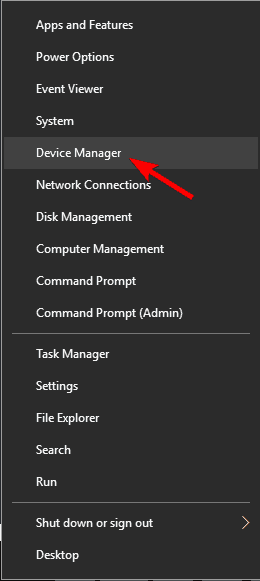
    Windows 10 DVR There's nothing to record
  2. When Device Manager starts, navigate to Display Adapters section
  3. Locate your graphics card driver
  4. Right-click it and choose Uninstall.
    • Choose not to delete the driver software for this device.
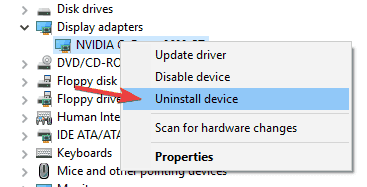
      Windows 10 recorder says there's nothing to record
  5. After you’ve uninstalled your graphics card drivers, download and install the latest version following the instructions from Solution 1.

4. Run the game in fullscreen mode

The game bar will sometimes give you There’s nothing to record error if you’re running your game in windowed mode.

For some unknown reason, the Game bar doesn’t recognize windowed mode, and it refuses to work unless you run the game in the fullscreen mode.

To run the game in fullscreen mode just start the game, go to video options and turn on the fullscreen mode.


5. Start Steam games directly

Start Steam games directly from their installation directories.

This is because some users reported that There’s nothing to record error is related to Steam. According to them, the Game bar doesn’t work properly if you start the game using Steam.


6. Delete temporary files

  1. Press Start
  2. Open Settings app and go to System.
  3. Go to Storage and choose This PC.
    Windows 10 recorder says there's nothing to record
  4. Scroll down and locate Temporary files.
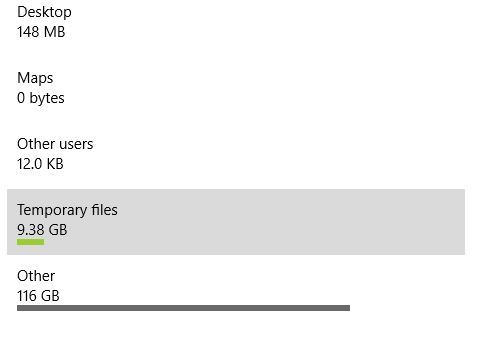
    Record gameplay Windows 10 there's nothing to record
  5. Click Temporary files and click on Delete temporary files.
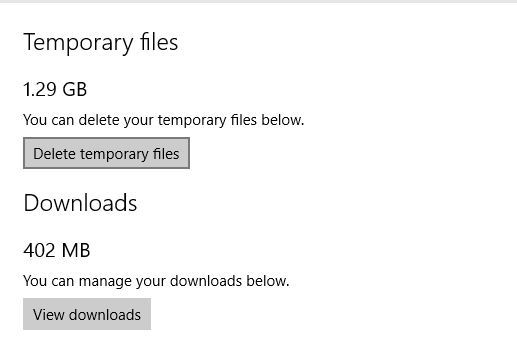
    Windows 10 DVR There's nothing to record
  6. This process can take a while, so wait until it’s completed.
  7. After you’ve successfully removed Temporary files, restart your computer.

Several users also reported that they fixed the problem by using CCleaner. By using this tool, users removed the temporary files and cleaned the registry, and that solved the problem for them.


7. Keep pressing the Windows Key + G shortcut

Windows Key + G shortcut is used to start recording, but if you’re having a problem with There’s nothing to record error message, few users advise to keep pressing Windows Key + G.

According to them, pressing this key a few times somehow manages to fix this problem, so make sure to try that.


8. Use the Windows Key + Alt + R shortcut

If Windows Key + G shortcut isn’t working for you, then you should try using Windows Key + Alt + R instead.

Bear in mind that Windows Key + Alt +R shortcut will record only 30 seconds of your gameplay, but you can change that by going to Game bar > Settings.


9. Change the recording shortcut

  1. Press Windows Key + S and enter Xbox.
  2. Choose Xbox app from the menu.
    There is nothing to record Xbox app
  3. When Xbox app starts, click the Settings icon on the left.
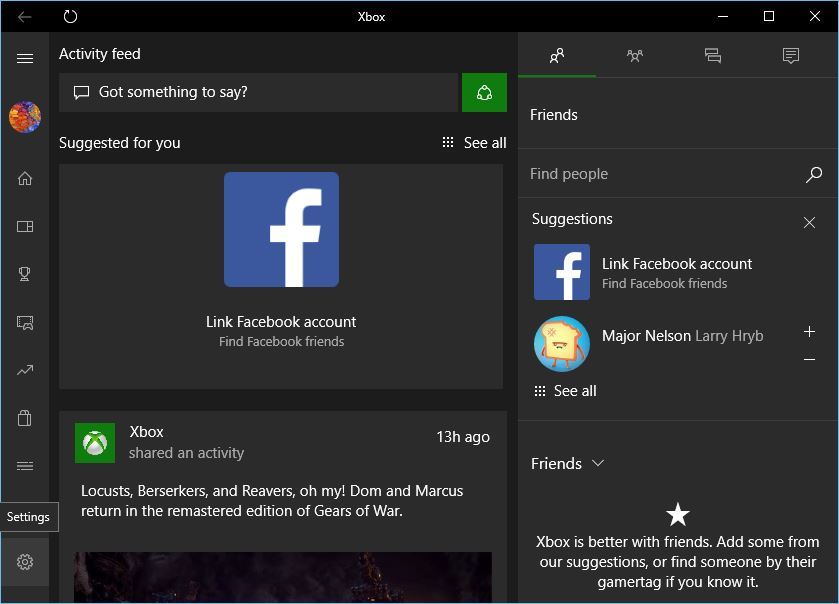
    There's nothing to record play some more
  4. Go to Game DVR tab.
  5. Set your own shortcut for to Start/stop recording.
  6. Click Save and close Xbox app.
    Windows 10 recorder says there's nothing to record
  7. Use your new shortcut to start/stop recording.

10. Use the non-Beta version of the Xbox app

If you’re constantly getting There’s nothing to record message, the problem might be your Xbox app. According to users, they had both regular and beta Xbox app installed on their PC, and the problem occurred only when using the beta version.

However, after starting the regular version, the issue was completely resolved. This is a simple workaround, but it works according to users, so feel free to try it out.


11. Make sure that you’re signed in to the Microsoft account

  1. Press Windows Key + I to open the Settings app.
  2. Go to the Accounts section.
    Record gameplay Windows 10 there's nothing to record
  3. In the right pane, select Sign in with a Microsoft account instead.
  4. Now enter the email address of your Microsoft account and click on Next.
  5. Now enter the password and click on Sign-in.
    • Optional: If you have two-step verification enabled, you’ll be asked to enter a cellphone number and enter the received code.
  6. You’ll be asked to enter the password of your current local account.
    • Enter the password in the designated field and click Next.
  7. If you’re asked to setup Windows Hello, choose Skip this step if you don’t want to use this feature.

Windows 10 supports two types of accounts, local and Microsoft, and if you’re getting There’s nothing to record error message, the problem might be because you’re using a local account.

After doing that, your local account will be converted to a Microsoft account and you should be able to use game recording feature with the Xbox app without any problems.


12. Reinstall the Xbox app

  1. Press Windows Key + S and enter powershell.
  2. Right-click Windows Powershell and choose Run as administrator from the menu.
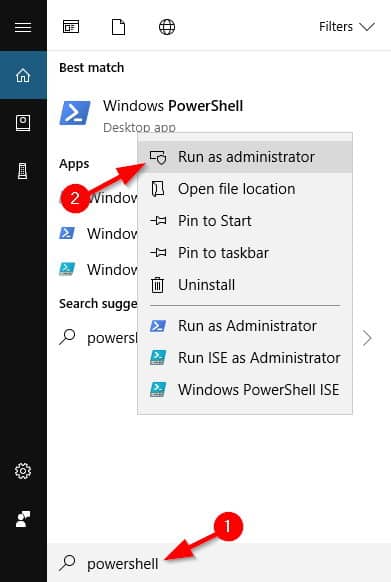
    There's nothing to record play some more
  3. When Powershell opens, run this command:
  4. Get-AppxPackage *xboxapp* | Remove-AppxPackage
    • After running this command, the Xbox app will be removed from your PC.
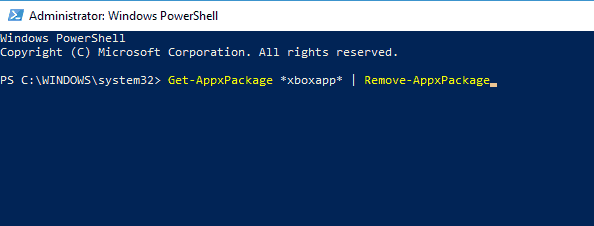
      Windows 10 recorder says there's nothing to record
  5. After doing that, you need to visit Microsoft Store and download the Xbox app again.

Once the Xbox app is reinstalled, the problem should be resolved.


13. Make sure that Broadcast DVR server isn’t running

  1. Press Ctrl + Shift + Esc to open Task Manager.
  2. Once Task Manager opens, locate Broadcast DVR server on the list, right-click it and choose End task from the menu.
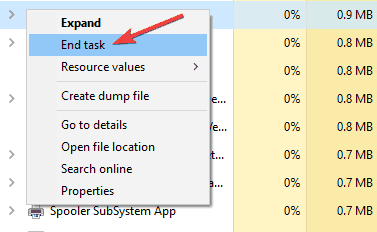
    There is nothing to record Xbox app

After doing that, check if the problem is resolved.


14. Use the Troubleshooter

  1. Press Windows Key + S and enter troubleshoot.
  2. Select Troubleshoot from the menu.
    Record gameplay Windows 10 there's nothing to record
  3. Now locate Microsoft Store Apps on the menu on the left, select it and click Run the troubleshooter.
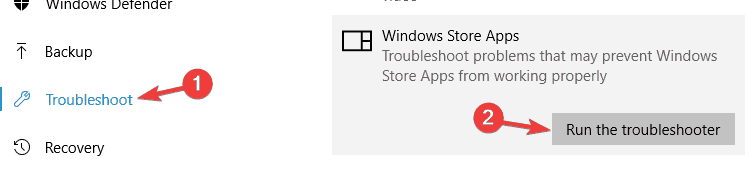
    Windows 10 recorder says there's nothing to record
  4. Follow the instructions on the screen to complete the process.

Built-in troubleshooters are useful to fix common problems automatically, and if you’re having issues with recording, be sure to run Microsoft Store Apps troubleshooter and check if that solves the problem.


By following these steps, you should be able to fix any recording issue that you may have with the Xbox Game Bar.

Let us know which of these solutions worked best for you by leaving a message in the comments section below.

[wl_navigator]

The Messenger app doesn’t start in Windows 10/11 build 20161

Microsoft announced on the official Windows Insiders Twitter channel that they fixed some issues with apps failing to start after installing the Insider Build 20150+.

Thank you to the #WindowsInsiders who reported some of their apps were failing to launch after upgrading to Builds 20150+. We included a fix for this with Build 20161.

The address included a link to the Feedback Hub where Jennifer G, a Microsoft engineer, announced the fix in a little more detailed way:

Thanks for reporting this – there was an issue with Builds 20150-20152 resulting in some games and applications crashing at launch or failing to install. A fix for this has just flighted with Build 20161.

The fix was especially targeted at the Beyond Compare 4 game that was not running anymore on build 20150.

Windows 10 build 20161 broke other apps

Although some users welcome the fix, other insiders reported that My app (Messenger) is failing to start in Windows 10 build 2016.

Microsoft hasn’t acknowledged this issue yet and doesn’t have a solution for it.

Windows 10 build 20161 was released for Insiders in the Dev Channel at the start of July and came with lots of new interesting features including the new awesome Start menu.

For what it counts, it’s a lot better to identify and resolve this kind of issue at the earliest possible time to give the Microsoft team enough time to solve them.

Did you install the new Windows 10 build 20161? Did you experience any issues? Drop us a line in the comments.

The article The Messenger app doesn’t start in Windows 10 build 20161 appeared first on Windowsreport.com.

App does not support the contract specified error [Solved]

If you upgraded your operating system to the new Windows 10, then you most certainly noticed that some of your apps, if not all of them, fail to start properly or they give you error messages along the way.

If you cannot open any Windows 10 apps, follow the tutorial available below for a quick and easy fix.

Most of the Microsoft Store apps that won’t work in Windows 10 will also have an X on the lower right side of the icon on the Start menu.

The application usually either freezes when you want to start it or it gives you a specific error message like Store failed with error: This application does not support the contract specified or is not installed and many others.

Tutorial on how to open Windows 10 Apps

  1. Use DiskCleanup
  2. Run SFC scan
  3. Show hidden files and folders
  4. Uninstall problematic apps
  5. Sync licenses
  6. Update Microsoft Store Apps
  7. Run the Microsoft Store Apps Troubleshooter
  8. Clear Store cache
  9. Disable your antivirus/ firewall/ VPN
  10. Scan your system
  11. Reset your PC

1. Use DiskCleanup

So start clean and fresh, it’s time to clear the cache on your computer. The quickest way to do this is by running Disk Cleanup, which scans your computer’s hard drive for files.

  1. Go to This PC > right-click on your main partition > go to Properties.
  2. In the Properties window select Disk Cleanup.disk cleanup
  3. The tool will then calculate how much space it could free up.
  4. You can then select which files and folders you want to clean > hit OK and wait until the process finishes.
free up space disk cleanup

One of the best tools you can use for in-depth cleaning of your PC and removing junk files a specialized software.

What is no longer necessary, such as temporary files, cached webpages, and rejected objects wind up in Recycle Bin. To erase System Restore and Shadow Copies, Dump files, Service Pack Backup Files, and more, you can use a tool that has advanced settings.

More importantly, thanks to disk cleanup software automation and advanced AI, you avoid any mistakes in deleting some of the important data on the hard drive.

2. Run SFC scan

  1. Go to Search > type cmd.
  2. A command prompt icon should appear > right-click on it.
  3. Select the Run as Administrator option.
  4. Click YES  if you are prompted to enter your user account and password.
  5. In the Command Prompt window, enter the following command: sfc /scannowSFC scan
  6. Press the Enter key on the keyboard.
  7. Let the System File Checker finish the process.
  8. Close the Command Prompt window.
  9. RebootWindows 10 operating system.
  10. Check to see if your apps are functioning correctly after the reboot.

3. Show hidden files and folders

start menu disk cleanup
  1. Go to Start > type folder.
  2. Select the first result File Explorer options.
  3. Select the View tab located on the upper side of this window.
  4. Locate the option Show hidden files, folders, and drives > hit Apply.show hidden files and folders
  5. Select the OK button to close this window.
  6. Now, navigate to This PC > double click to open the C: partition where Windows 10 is installed.
  7. Go to Program Files > select the Microsoft Apps folder.windows apps folder
  8. Right-click on this folder > go to the Properties option.
  9. Select the Security tab located on the upper side of the Properties window.
  10. Change the permissions for this folder to the Administrator group > hit Apply > OK.
  11. Reboot your Windows 10 device.
  12. Check to see if your apps are working again.

4. Uninstall problematic apps

  1. Go to Apps & Features > locate the problematic app
  2. Select the respective app > click on the Uninstall optionuninstall windows 10 apps
  3. Wait until the uninstall process is complete.
  4. Go to the Microsoft Store.
  5. Search the application you just uninstalled only this time select the Install feature to reinstall it.
  6. Follow the on-screen instructions to finish the installation process.
  7. Reboot your computer.
  8. Check again to see if your app is working as it should.

5. Sync licenses

  1. OpenMicrosoftStore > go to Settings.
  2. Navigate to App updates > select Sync licenses.
  3. After the process is completed, close the Microsoft Store and try opening your apps again.
  4. If the problem persists, reboot your Windows 10 operating system and try again.

6. Update Microsoft Store Apps

  1. Launch the Microsoft Store app.
  2. From Microsoft Store, go to the Settings option.
  3. From the Settings window, select the App updates > enable the feature that automatically updates apps.
  4. Go back to the three-dot menu > select Download and Updates > update your appsupdate windows store apps
  5. Reboot Windows 10 once more and check if  apps are working.

7. Run the Microsoft Store apps

Windows 10 also features a series of dedicated troubleshooters that allow you to quickly fix general issues.

Speaking of which, if you can’t launch your Microsoft 10 apps after installing the latest OS updates, there is one troubleshooter that you can use to fix the problem.

  1. Go to Settings > Update &Security > select Troubleshoot.
  2. Scroll down and select the Microsoft Store Apps Troubleshooter > run the tool.
windows store apps troubleshooter

8. Clear Store cache

If you’re having issues when using your Microsoft Store apps, the cache may be the culprit. Fortunately, there’s a quick way to clear the Store cache.

  1. Go to Start > type run >hit Enter to launch Run > enter WSReset.exeWSReset command
  2. Now enter the WSReset.exe command again.
  3. An empty Command Prompt window should now appear on the screen.
  4. Wait for a few seconds (or minutes depending on your cache size).
  5. Microsoft Store will pop on the screen as soon as the reset is completed.

9. Disable your antivirus/ firewall/ VPN

In rare cases, your cybersecurity software may prevent your Microsoft Store apps from launching.

Fortunately, you can quickly fix this problem by temporarily disabling these tools. So, simply turn off your antivirus and firewall protection.

If you’re also using a VPN tool, disable it as well and check if this changes anything.

10. Scan your system

Malware may also prevent your Microsoft Store apps from opening. Run a full system scan to detect and remove any potential threats that may have sneaked into your system.

11. Reset your PC

  1. Go to Settings.
  2. In the Settings window, go to Update & Security
  3. Navigate to Recovery
  4. Select Reset this PC> click on WSReset.exereset windows 10
  5. You can choose to keep your files or remove them
  6. From there on, it is easy, you only need to follow the on-screen instructions to finish the reset process for your Windows 10 device.

These are the steps you need to follow in order to get your apps up and running in the Windows 10 operating systems.

If you have additional questions regarding this article, please drop us a line in the comments section below and we will get back to you as soon as possible.

How to Fix DoorDash Error Code 400 (Bad Request)

DoorDash is a mobile application for food delivery and takeout from nearby restaurants. However, users complain about the DoorDash error code 400. This error is usually caused by your ISP’s restrictions, corrupted app installation, halfway installed upgrade, and other similar technical issues. 

I will show you five methods to fix the DoorDash error code 400 on your mobile phone. Before going ahead with the solutions below, please connect your device to a stable internet connection.

How can I fix the DoorDash error code 400?

 1. Restart your mobile devicedoordash-error-code-400-restart-device

  1. Press the Power button on your device until it shows the restart, and shutdown menu.
  2. Select the Restart option, and your device will initiate the restart process. This usually takes two minutes.
  3. When it’s completed, and your device is turned back on, launch the DoorDash application.
  4. Type your login credentials in, and check if the error still persists.

If the restart option fails to rectify the application error, try the option of Updating your DoorDash application in the next method.

2. Update app to stop DoorDash error code 400


Update DoorDash on Android

  1. Open the Google Play store.
  2. Choose the menu option and select My apps & games.
  3. Find DoorDash application on the list, and tap the update button.

Steps to update DoorDash on IOS

  1. Tap the App Store application on your device to launch it.
  2.  You will see a search bar at the top, type in DoorDash in the search bar to search for it.
  3. Choose the DoorDash application when it displays the search result.
  4. Select the Update tab when you see it.
  5. Click on the Accept/I Agree button when prompted to do so.
  6. DoorDash application will begin updating on your IOS device.
  7. Continue by pressing the Open option, so you can use the updated version of DoorDash application.

Go ahead and check if you still see the DoorDash error code 400 on your device.

3. Clear Data & Cache to fix DoorDash error code 400


On Android

  1. Go to Settings, andApplications on your device,
  2. Scroll till you find the DoorDash application and tap on it.
  3. Some options will display. Tap the clear cache button option.
  4. Now your DoorDash cache has been cleared on Android.

On iPhone

  1. Navigate to Settings on your IOS device.
  2. Scroll to the General option, click on it to open.
  3. Continue by clicking on iPhone Storage.
  4. When the iPhone storage window opens, scroll till your find the DoorDash app.
  5. Tap on the DoorDash app to display a few size management options.
  6. Choose the Delete option.
  7. Continue by Reinstalling the application from the iOS App Store.
  8. You will see the cache files have been cleared, proceed to login.

DoorDash application saves cache files on your device, and you begin to experience the DoorDash error code 400. This is why we had to delete the entire cache.

Now check if the error still persists, and proceed to the next solution if not.

4. Use a VPN or change your network provider

  1. Close the DoorDash application and restart your phone, as mentioned is solution 1.
  2. Temporarily switch your network or get your device connected to a VPN.
  3. Open the DoorDash and see if it works fine without any DoorDash error code 400.

If the various methods discussed in this article are followed carefully, you should be able to resolve the DoorDash error code 400 in no time.

As you can see this error message is not difficult to fix, and doesn’t have anything to do with the hardware of your device. Sadly, this isn’t the only service affected by this issue, and many reported Cash App error 400 on their devices as well.

Feel free to share your thoughts with us using the comment section below.

Microsoft announces partnerships with Citrix, C.H. Robinson focused on Azure

As the digital transformation progresses worldwide, Microsoft today announced that it is expanding its alliance with Citrix and C.H. Robinson to reimagine workspaces across different industries. Both companies are teaming up with Microsoft to help businesses accelerate the adoption of digital workspaces and virtual desktops, and simplify cloud transformation to enable greater agility, productivity, and security.

The new alliance with Citrix builds on Microsoft’s multi-year agreement and strategic partnership. As a part of the new deal, Microsoft will choose the company to be its “preferred digital workspace solution,” and Citrix will move all its users’ on-premises servers to the Microsoft Azure cloud platform. The partnership will allow both companies to share their tools and technologies to enable a flexible work experience for businesses, combined with offerings of Microsoft’s Azure, Microsoft 365, Citrix Workspace, and more.

Citrix has planned a significant investment to design a Microsoft-centric workspace across its operations, which will provide better functionalities, performance, as well as micro-apps for Microsoft 365 (including Microsoft Teams and Windows Virtual Desktop). In addition, Microsoft and Citrix will now be able to assist businesses looking for alternative solutions to meet their changing business requirements.

“As organizations everywhere adapt to new ways of work, they will need to reimagine how and where work gets done,” said Microsoft CEO Satya Nadella. “Together with Citrix, we will apply the power of Azure to this challenge, helping our customers seamlessly and securely connect their employees to their applications, so they can be more agile and productive wherever they are.”

Moreover, Microsoft is joining forces with a third-party logistics services (3PL) provider C.H. Robinson, with an intention to drive digital transformation across evolving global supply chains by integrating their technologies to accelerate innovation in transportation and make real-time visibility possible in the supply chain industry. The new partnership will combine the power of Microsoft Azure, Azure IoT, and C.H. Robinson’s Navisphere to provide supply chain customers more detailed information about goods as they move through the supply chain.

C.H. Robinson will integrate its real-time pricing, execution, and transportation management tools into Microsoft Dynamics 365 to provide access to these digitally-driven logistics capabilities to Microsoft customers. Both companies emphasized the need to scale and develop new solutions, and the press release notes that Microsoft and C.H. Robinson will collaborate with various Fortune 250 companies.

“We are committed to providing customers with a trusted, easy-to-use platform so they can build seamless, smart and secure solutions regardless of where they are on their IoT journey,” said Sam George, corporate vice president, Azure IoT, Microsoft. “We’re thrilled to collaborate with C.H. Robinson as it transforms the supply-chain industry by leveraging our Microsoft Azure and Azure IoT solutions.”

Microsoft noted that the capabilities will be available to the supplies regardless of their size, and Microsoft will also use the Navisphere platform across its global supply chain, as well.

Is eToro not available in the US? [Quick Answer]

eToro is one of the pioneering platforms in cryptocurrency trading. Actually, eToro is a multi-asset platform, offering both investing in stocks and crypto assets, as well as trading currency pairs, Indices and Commodities via CFDs.

It offers the largest range of cryptos anywhere and is focussed on expanding this market whenever an established token reaches the mainstream.

Presently eToro is available in most European countries, Australia, and certain Asian territories. The full list of restricted territories can be found on eToro’s official website.

Is eToro blocked in the US?how to use etoro in us

eToro has been available in the US since 2018 with a gradual rollout. At first, only the Virtual Portfolio was available. Since 2020, eToro started accepting traders from 42 US states, plus residents from the Northern Mariana Islands and the United States Minor Outlying Islands.

Yet, certain features are still disabled, such as the option to open sell trades. Also, users can’t comment on the News Feed.

For the same regulatory reasons that the platform is restricted, eToro is not available for US citizens living outside the USA.

How can I use eToro if it’s geo-restricted?how to use VPN for etoro

With all the restrictions mentioned so far, it is still possible to try to access eToro in the US with the use of a VPN.

VPNs are the best solution to stay anonymous on the web (keeping your IP address and your identity private). They also offer an extra layer of protection in terms of your online activity.

What’s more, with a VPN, you can bypass geo-restricted content by adjusting your device location to appear as if you’d access the platform from one of the accepted countries.

We can recommend plenty of VPN options, but perhaps those dedicated to crypto trading are the best choice in this particular case.

Using a VPN will allow you to access Toro, create a free account, explore the platform, get a fully functional demo account with a $100,000 virtual portfolio, and explore trading strategies.

Further on, it’s up to you whether you want to continue the adventure and get a paid plan to benefit from the full features. Make sure to also be informed about the tax regulations applied.


We hope that this information was useful; any feedback is welcome, using the comments section below.


[wl_navigator]
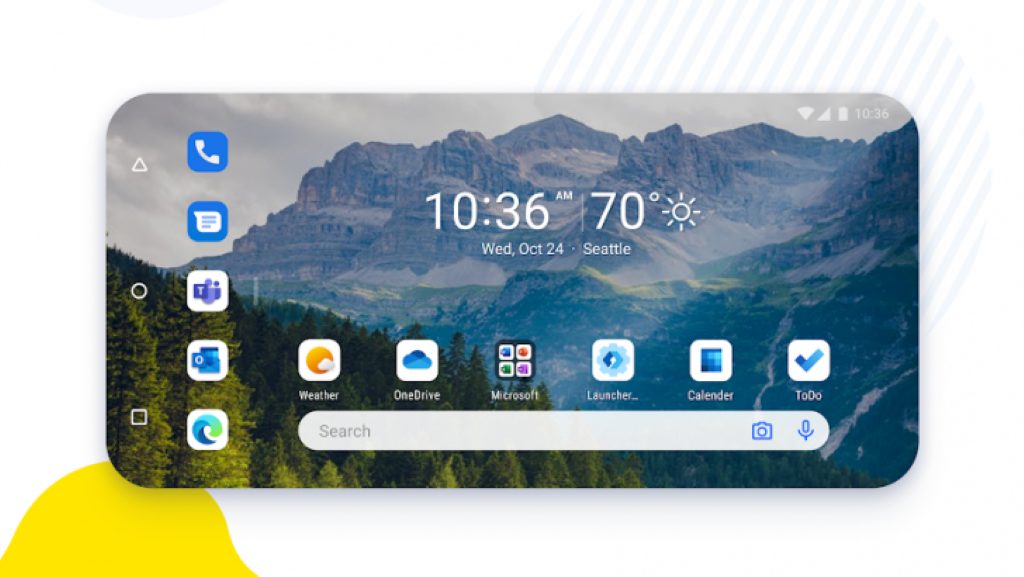
Microsoft has reportedly delayed July launch for its dual-screen Surface Duo

Microsoft’s Surface Duo dual-screen device, which has been previously rumored to be launching this summer, apparently won’t be making its official debut in July. According to Windows Central’s Zac Bowden, Microsoft has changed its initial plans to launch the Surface Duo later this month, though Bowden tweeted that we should still expect to see the device “sometime this summer, just later than originally planned.”

Several Microsoft execs have started teasing the Surface Duo on social media in recent weeks, as seen in this series of tweets from CVP of Communications Frank X. Shaw published on July 10. A month earlier, Chief Product Officer Panos Panay also tweeted a pic of the Surface Duo, adding an “I’m pretty pumped” reply to an enthusiastic tweet about the dual-screen device.

It’s clear that we’re getting closer to the launch of Surface Duo, though Microsoft may still be busy optimizing Android for the device, and working with developers to get more third-party apps ready on launch. Last week, we also learned that Microsoft had acquired the operations team from a Finnish company that has been working on the Surface Duo’s Android software.

The Surface Duo will be Microsoft’s first phone since the death of the Lumia family of Windows 10 Mobile handsets, and it will also be the company’s first Android device. Microsoft is doing something unique with the dual-screen hardware, and the company has also optimized Android to allow apps to span across both screens. It remains to be seen how well the device will work in practice, but we shouldn’t have to wait too much longer to finally find out.

OneDrive for Windows app to lose Fetch files feature later this month

Microsoft is going to remove the Fetch files feature from the OneDrive app on Windows at the end of this month. First spotted by Borncity (via Neowin), the software giant has quietly updated its support document to indicate that it will be ending support for this feature across all versions of Windows starting on July 31, 2020.

For those unfamiliar, this Fetch files feature allows OneDrive users to access any files and folders on Windows PCs running the OneDrive desktop client by simply going to the OneDrive website. The functionality also supports file fetching from network locations, with the condition that the computer hosting the required data should be online when a request is made by the user.

“After July 31, 2020, you will no longer be able to fetch files from your PC, the company explained. “However, you can sync files and folders to OneDrive and then access those files from your web browser or your phone. To automatically sync the Desktop, Documents, and Pictures folders on your PC, you can turn on OneDrive PC folder backup,” the support page reads.

Even though Microsoft didn’t provide the reason for retiring support for the Fetch Files feature, it’s probably not being used by a lot of Windows users. The functionality isn’t enabled by default in OneDrive for Windows, and users need to discover it in Settings. The company may also prefer users to sync all their files and folders to OneDrive, something that may require paying for more OneDrive storage.

Did you ever use this Fetch files features with OneDrive for Windows, and are you disappointed to see it go away at the end of the month? Let us know in the comments below.

5 best online zombie games to pump up your adrenaline

Every online zombie game guarantees its own unique experience, even if the general action scenario remains the same, and it’s not a bad idea to know what level of excitement you’re in for before you consider playing online zombie games.

From series like Dying light to Arizona sunshine, we have tested these classic zombie games to figure out which one is scariest and above all, most fun to play online. There are more than enough online zombie games to keep to get your blood pumping.

To get the most of your online gaming session, use the best game-ready browser available on the market, Opera GX.

Opera GX never fails to amaze us, by offering a wide range of very useful gaming-related features, and also some very powerful built-in online privacy tools.

Editor's choice
Opera GX browser logo
  • Best gaming browser
  • Resource controller
  • Custom UI
  • Twitch integration
  • Free VPN included
  • Ad-blocker

Try the games mentioned below in the most powerful gaming browser that ever existed.

What are the top 5 online zombie games of all time?

Dying Light

online-zombie-games-dying-light

Dying Light brings together resource management, and crafting to develop an online zombie game that you either like or dislike. While playing Dying light you will feature as an undercover agent in an area that is heavily quarantined.

In this zombie game, you will be forced to scavenge for tools to survive. While the forceful emphasis on crafting and scavenging may be discouraging for some players, it will also be a great adventure to many new players.

Zombies can easily be avoided with various gadgets that allow you to practice parkour when it is daytime. However, the case is quite different when its night time, zombies can move fast at night and are a constant threat to your survival.

The online feature offers a multiplayer mode, which can be exciting, with lots of close quarter tense conflicts. Dying Light is among the most complex open-world zombie games.

⇒ Get Dying Light on Steam

Call of Duty: Black Ops 3

online-zombie-games-call-of-duty-black-ops

The favorite fan pic since its debut has been The cooperative zombie mode has been Call of Duty: World at War.

The game style and mission range from gaining access to new locations, unlocking new gear and weapons, and repairing structures while eliminating wide colonies of zombies.

The Black Ops 3 game stands out the most when compared to zombie modes in Call of Duty.

This Zombie Chronicles edition game comes along with map versions from Black Ops 2, and World at War that has been remastered to better fit your experience when playing this online zombie edition for the Call of Duty.

⇒ Get Call of Duty on Steam

Arizona Sunshine

Arizona Sunshine operates on the usual struggle survival mode, just like all other zombie game narratives before it.

The multiplayer modes and online co-op are excellent when compared to other online zombie games. You have to kill Zombies every day with little hopes of a safe haven nearby. You will fight your way through armies of the undead who want to eat your brain.

Arizona Sunshine has so many more features to offer aside from the day to day campaign.

The physics of the game and design of the map are well developed, and when in gameplay mode, you find yourself fully immersed in a post-apocalyptic world. 

Overall, Arizona Sunshine is one of the best zombie VR online game ever created.

⇒ Get Arizona Sunshine on Steam

Project Zomboid

 If you’re on a  look for an online zombie game that lets you prove how long you can stay alive in a zombie apocalypse.

Project Zomboid is the definitive game on the market currently, and yet it is different from these other games that clot up the online zombie games genre.

When playing project Zomboid Long term survival means maintaining farms, constructing, building urban America, and adopting defensive playstyle.

What is more fascinating is the fact that’s it’s been on Steam for about two years.  If you are gaining knowledge of this game for the first time, then I must say its worth your attention.

⇒ Get Project Zomboid on Steam

The Walking Dead: The Final Season

The walking dead offers a new perspective on a global level about the walkers trying to occasionally show us that there is more to them than the primal lust for human flesh, and loud noises.

In this final season of the walking dead game, the zombies continue to prove to us that they were once human before the outbreak.

The online feature for the Walking Dead gives you multiplayer options, and also updated reflexes for Clem and AJ in response to zombies.

As new ways to survive in the zombie-infested world arise, the reflexive response of killing every walker you encounter suffers changes too.

This is something you definitely have to find out for yourself while playing this wonderful online zombie game. 

⇒ Get the Walking Dead on Steam


By now you should have successfully chosen the best online zombie games that keep you engaged and entertained.

Fortunately, all the zombie games talked about in this article can be accessed from Steam, and an online link to each of the games was presented.

Feel free to leave comments about your experience playing the games.

[wl_navigator]

Complete guide to fix csc.exe error

You may get the csc.exe error due to failed installation changes on Microsoft visual studio .NET or Visual C# Command Line Compiler while running an update, or even during a system reconfiguration.

If you encounter the csc.exe error, you need to take the proper steps to resolve the problem because it shut down the computer system automatically. To avoid any additional damages to your computer Learn to fix csc.exe error with the help of this guide below.

How can I fix the csc.exe error in Windows?

1. Check if  CSC.exe file is working in processes

  1. Launch Task Manager window by pressing the CTRL+ALT+Delete keys.
  2. Click on the Task Manager option to launch the program.
  3. Click on the Processes tab, and scroll till you find csc.exe.
  4. Right-click on csc.exe and select Properties.fix-csc.exe-error-task-manager-process-check
  5. If this file is present at c:\windows or c:\windows\system32 path location, then its definitely a bad program. The file size is usually 48 KiloBytes large.

 Note: As we managed to identify the problem with the solution described above, now you can explore the next solutions to resolve this problem.


2. Perform a Windows Update to resolve csc.exe error

  1.  Press the Windows button to open the start menu.
  2. Type Update into the search dialog box and press enter.
  3. Click check for update when windows update dialog window opens.resolve-csc.exe-error-update-windows
  4. Click on Install updates.resolve-csc.exe-error-update-windows-os
  5. Restart your computer after the update is done installing.

3. Perform a system restore

In the case that you still have access to the desktop, you can revert system changes using a restore point with these steps:

  1. Navigate to the windows start menu, by pressing the Windows start button.
  2. Next, type system restore in the search dialogue box.
  3. The search result will display System Restore. Click on it.
  4. Under the system protection tab, Click the System Restore button.csc.exe-error-system-restore
  5. Continue by selecting the Next button.csc.exe-error-resolve-with-system-restore
  6. Choose the restore point before the csc.exe error occurred.resolve-csc.exe-error-select-restore-point
  7. To view applications that will be lost before the restore point was created, Select Scan for affected programs button.
  8. Next, select the Close button, and click Next.
  9. Click the Finish button.

Note: The System Restore will return your computer to the previous working state. Once you complete the steps.


4. Re-register csc.exe file on your Windows computer

You need to download and install the .NET framework from Microsoft website for you to perform this task. It includes a C# compiler that is labeled as csc.exe

  1. Navigate to Start menu and type in Run in the search dialog box.
  2. When Run windows open type in cmd and hit enter.
  3. Type regsvr32csc.exe and press Enter again.reolve-csc.exe-error-reregister-file
  4. Complete the process by Rebooting your system.

In many similar cases, replacing the corrupt or missing csc.exe file helped fix the csc.exe error. We hope this guide managed to help you resolve this issue as well.

Feel free to leave comments below this guide for direct interaction with our team.

[wl_navigator]