How to view and delete your Bing search history

Bing tracks every search you make when you’re logged into your Microsoft account. That history can be useful if you need to get back to something you did in the past. It could also be a privacy concern, as search history can by nature reveal some quite personal information. Here’s how to take back control.

Search history in Bing's menu

The easiest way to see your search history is by visiting Bing itself. From the homepage, click the hamburger menu in the top-right. Click the “Search history” link towards the top of the drop-down which appears.

Bing’s Search History interface is simple but functional. Your search history is broken down by date. By default, an infinitely loading list of your search history is visible. You can filter to data from the past week, month or six months using the tabs.

Viewing Bing search history

Bing displays a basic graph of the types of content you search for. There are categories for Web, Images, Videos and News, depending on which of Bing’s services you use.

You can search for specific items from your history using the searchbar below the graph. Click any item to reopen the search results page in Bing.

Clearing search history from Microsoft account

To disable search history tracking, click the “Show new searches here” toggle button at the top-right of the screen. Once it’s toggled to the off position, Bing will stop logging all new searches. However, existing search data will be preserved.

To delete everything you’ve already stored, click the “Go to dashboard” link under “Manage your search history.” Login to your Microsoft account when prompted. On the Privacy dashboard, you’ll see another, less-detailed view of your search history. Click the “Clear activity” button to erase all stored records.

In a blow to Slack, AvePoint secures $200M in funding to help move more customers to Microsoft Teams

There’s no doubt that Microsoft Teams is picking up steam when compared to Slack, but the competition might have just gotten a bit rougher for Slack. Microsoft Partner AvePoint recently announced that it raised $200 Million in funding to help businesses and enterprises running Slack move to Microsoft Teams.

According to a report from Business Insider, AvePoint attributed the “bright future” of Teams for a reason to raise the funding, led by TPG Sixth Street Partners. AvePoint is actually a Microsoft Global ISV Partner, and in its own press release, states that it is seeing an “outstanding growth driven by the rise in adoption of Office 365 and other cloud office solutions.” The company also claims that over 7 million cloud users and 16,000 large enterprises across all seven continents already use its software to help move from traditional services like Google G Suite to Office 365, and Slack to Teams.

Tianyi Jiang, co-founder, and co-CEO of AvePoint, reflected on this in a statement seen in Business Insider.

“Once you start using [Teams], you have hundreds, if not thousands of teams populating everywhere and it becomes unmanageable. “So we’re able to…handle all of that, essentially automate all of that and give companies that governance and control, so in return, we’re increasing significant Teams adoption”

Jiang also tells Business Insider that AvePoint is trying to help customers get the most out of Teams. With the new funding, AvePoint is hoping to add 40,000 more customers through its channels. That’s a lot of users, and Slack might just have to watch its back.

How to create a collection of Bing search results

Searching the web and taking notes: there’s dozens of ways to do it, and Microsoft itself offers quite a few. Whether it’s with To-Do, OneNote, or Edge’s new Collections feature, you’ve got plenty of options when it comes to snipping search results for later.

Yet if you’re using Bing, you might not need to use any of them. Although now barely mentioned, Bing has had its own “collections” feature for years. It lets you save images, videos and news from search results into a special interface that’s reminiscent of both note-taking apps and Pinterest.

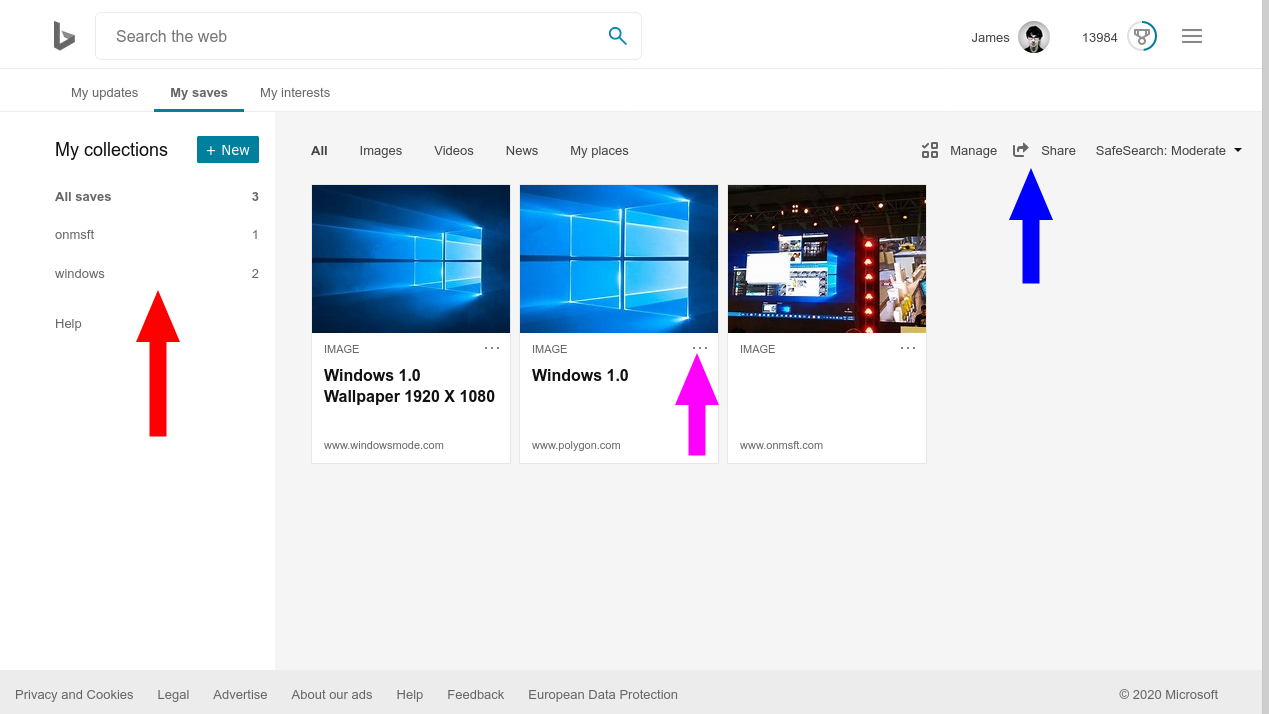
You can use collections from any image, video or news search. We’re using images in this example. To add an image to a collection, click its thumbnail preview to open the fullscreen image. Then, click the “Save” button at the bottom of the screen. Click the “See all” link to view the image in your collections.

Saving an image to a Bing collection

Content is automatically sorted into collections named after the search result you saved them from. Bing automatically grabs metadata such as image title and description too. You can access your saved collections at any time via the “My Content” link in Bing’s top-right hamburger menu.

To create a new collection, click the “New” button in the left sidebar. Name your collection. You can then move items into it by clicking their checkbox, pressing “Move to” and selecting your new collection.

Bing collections

To delete items, click the three dots icon on their card (“…”) and then press “Remove.” You can share collections via the “Share” button in the top-right. This will generate a publicly accessible link which others can use to view your content.

All things considered, Bing’s collections are rather barebones compared with Microsoft’s more recent attempts at web snipping. Apps such as OneNote and To-Do already surpassed Bing’s featureset while remaining as quick and simple to use. With the advent of Collections in Edge, you might find little reason to use Bing Collections.

It does have a few advantages though, such as true cross-device and cross-platform compatibility (it’s just a website) and automatic labelling of content by search query. Even so, we wouldn’t be surprised to see it disappear or get integrated into another service in the coming years.

Windows 7 vs. Windows 8 Comparison: Old Meets New

If you are still wondering what are the differences between Windows 7 and Windows 8, then it’s time to put a stop to that, as we have compiled a guide showcasing what has been improved in Windows 8 compared to Windows 7.

Windows 8, the newest operating system released by Microsoft, one that carries the Microsoft Flag into uncharted waters and promises to assure in a new age in mobile and computer communications.

Of course, like every product, it has received good reviews and bad remarks.

Some are still wondering if the new way Microsoft is heading is not what users want, after all, the new OS comes with a completely renewed user interface and with lots of new improvements and features.

Despite all the new aspects of Windows 8, some still want to downgrade to the old version, Windows 7, an operating system that has been around since 2009 and proved its worth time and time again. So, which one is the best, in a head-to-head battle, will the new Windows 8 take out Windows 7?

Or will the old beat the new? Let’s see how this battle of generations will go and who will be crowned the Microsoft king. Also, if you want to downgrade from Windows 10 to Windows 7 or 8, you can check this article.

Windows 7 vs. Windows 8

Because the first thing users will see when installing Windows 8 is the new Modern UI and other visual improvements, we will first look at the surface changes, and later, we will delve deeper into the performance and other lower-level improvements that Microsoft have implemented in their new operating system.

A step-by-step comparison will reveal which operating system is better on each level of operation and when we will be done, we will compare results. Now, let’s begin!

1. Look and Functionality

personalization

Windows 7 has not gone astray from the look we were accustomed to.

Although it received some improvements over its predecessor, Windows Vista (one of Microsoft’s more rubbish operating systems), it kept to the wide lines and anyone who looked at it would realize from the get-go that it was a Microsoft OS.

The same is not true about Windows 8. Microsoft seemed to have tossed legacy out the windows (get it? out the “windows”?) and went with a completely revamped UI.

We previously covered all the major visual improvements that Windows 8 brings to the table in our “getting started with Windows 8” article.

Winner: This is a very personal decision, each having a different opinion on which of them looks best, but as far as innovation goes, I would say that Windows 8 is the winner here.
If you’re looking for the best Windows 10 skin packs for Windows 7 and 8, you can find here the best options.

2. Windows Explorer

8-29-2011windows8explorer

In Windows 7, Windows Explorer was something that no one gave attention to.

It was the medium for every action you would do on your computer, and until then, it was virtually unchanged, keeping pretty much the same aspect since Windows 95.

It did receive some upgrades, but nothing so eye-catching that we would call it a big improvement.

Yet again the story changes in Windows 8. One of the most striking improvements brought by Windows 8 is the Explorer Ribbon. This is where all the different formatting and viewing tools are located, making them more accessible.

Other explorer upgrades can be seen in the new Task Manager and the copy/move window.

On the other hand, one change here has left users wondering why Microsoft would do such a thing: they have removed the Start Orb.

Winner: I don’t think anyone would have a problem with Windows 8 taking the prize here. Windows Explorer has definitely become more useful and it has a great aspect.

3. Other elements

Although Windows 7 has the old elements that we are all used to it, they present themselves at their pinnacle. They work as they should, and the visual features are awesome (compared to the other versions before it).

But apart from this, there is not much innovation here, as opposed to Windows 8.

Microsoft has implemented some new elements that make Windows 8 truly unique: the Charms bar. This element is present throughout Windows 8 and it allows users to search their computers or do accomplish other tasks.

This is somewhat of a replacement for the start orb, but opinions differ on how well it can accomplish the task.

Winner: For those who prefer the Charms bar, Windows 8 would be the winner here, but some might want to use the old start orb, and for them, Windows 7 is still the way to go.

4. Personalization

win 8 vs win 7

Windows 7 had some great personalization features. Allowing you to add more than one desktop background and they would change automatically.

Also, you could add transparency to Windows and desktop gadgets. All these awesome features made Windows 7 a great OS and it offered many customization options.

Windows 8 has some new features, but it also dropped some of the old features. For instance, you now have an entire Personalize Panel from where you can change the visual aspects of your Windows OS.

Also, Microsoft has removed the desktop gadgets and window transparency features.

Winner: I can’t be subjective here, the lack of window transparency is something that Microsoft should have implemented, so the winner is Windows 7.

5. Integrated Elements

windows 8 pc settings

Windows 7 did not have many integrated programs from the get-go. Only the usual Windows utilities and Internet Explorer, which we have nominated to be the best Internet browser to download other browsers with.

But that’s about it, and what was the biggest problem is that it was no simple way to download some other programs. This being said, let’s look at what its competitor has to offer.

Windows 8, right from the start has a bunch of apps pre-installed. Of course, Internet Explorer is still there, but it does not suck as much as before. But what is the best feature: the Windows Store.

This is where you can download apps and get started. You can find here almost all the apps you need for utilizing Windows.

The only bad part is that you still have to install all the programs you need in Windows Explorer because the apps are separate from the desktop.

Winner: Windows 8

6. Moving to the Clouds

Although Windows 7 had some cloud integration features, they could only be used if you manually installed cloud services like DropBox, Box.com, or other storage services.

So, as you can see, not many integrated cloud storage options. This is somewhat understandable because when Windows 7 was released, cloud storage was not a big deal.

But now it is, and Microsoft has jumped on the opportunity to improve its SkyDrive, which is preinstalled on Windows 8 and it offers users 7 GB of space.

This is a great initiative for Microsoft, because they were kind of falling behind in regard to cloud storage, and with Windows 8, SkyDrive integrates seamlessly.

Also, Windows 8 allows users to log on to their computer using a Microsoft account that can sync their settings and other information to a server and have it ready for them if they choose to reset their computers.

Winner: Windows 8

7. Compatibility

dualmonitor windows 8

As far as Windows 7 is concerned, it pretty much was limited to computers and laptops. This however is not true for Windows 8.

The Modern UI was specially designed for touchscreen devices, allowing users to quickly open programs and jump between them.

Also, the multi-monitor support is very well designed and much faster to set up.

ARM compatibility lets Windows 8 run not only on computers anymore, but on mobile devices also, this makes for better cross-device compatibility.

This single feature is probably its most powerful aspect, allowing Windows to run on multiple devices.

I guess, in this regard, Microsoft is covering all bases and they are trying to get into the race for mobile devices, right alongside Google and its Android OS and Apple with iOS.

Winner: Windows 8

8. Security

Your system security is rather important, so you want to make sure that your system is secure and free from malware. To ensure the security of your system, it’s important to install a good antivirus, and this is where Windows 8 comes out ahead of its predecessor.

Windows 7 doesn’t have a built-in antivirus, so you’ll need to download Microsoft Security Essentials or any other antivirus software. We recently wrote about the best antivirus solutions for Windows 10, so be sure to check them out. On the other hand, Windows 8 comes with built-in antivirus software that should provide decent protection to your system, so you won’t have to use a third-party antivirus.

Windows 8 also supports Secure Boot on the UEFI system thus providing extra protection to your bootloader.

Winner: Windows 8

9. Price

Price is a very important aspect of any device or software. And here is where Windows 8 lands the finishing blow to Windows 7. Microsoft allows any user to upgrade to Windows 8 for only $40 (or $70 for Windows 8 Pro).

This will definitely drive Microsoft sales up and users will be far more likely to spend so little and get so much than to take out of their pocket over $100 for a copy of Windows 7.

Winner: Windows 8

10. Performance

In terms of performance, we will use Windows 7 as the starting point and we will compare different aspects of each operating system.

To better show the improvements in performance that are present in Windows 8, ZDNet has done a side-by-side comparison of the two operating systems, on the same computer and has created a pretty good comparison table that clearly shows the differences between the two.

Here is the test computer that the comparison was made:

  • Intel Core i7-2600K processor
  • Crucial 4GB DDR3 1600 (PC3 12800) RAM
  • EVGA 01G-P3-1460-KR GeForce GTX 560
  • GIGABYTE GA-Z77MX-D3H motherboard
  • Western Digital Caviar Black WD1002FAEX 1TB hard drive
  • CORSAIR Enthusiast Series TX650 V2 650W power supply unit

After the tests were done and the results were in, here is what the benchmark has revealed:

Test-performance-speed-of-Windows-8-and-Windows-7

Windows 8 has a faster boot time than Windows 7 and it also performs slightly better in benchmarks. Although, from a gaming perspective, they are about the same.

The differences come when we look at the other stats of the two operating systems. As seen in the graphs below, Windows 8 performs much faster on specific tasks, such as copy time, file compression, and boot or shutdown speed.

Here are the benchmark results, so you can have a look for yourself:

Test-performance-speed-of-Windows-8-and-Windows-7

These stats are, of course, based on testing in lab conditions, so they might not apply to everyone.

Also, they can widely depend on your system and on the amount of information stored on your hard drive, and the number of programs that you have installed.

Bechmark-Windows7-vs-windows-8

But, regardless of what the numbers say, I can attest from personal experience that Windows 8 is faster than Windows 7 on many different levels, but I cannot say that Windows 7 is too slow either.

Winner: Windows 8

11. System requirements

Although I don’t think anyone has ever looked over the system requirements for an operating system before, we do have to take them into account for the purpose of this article.

Windows 7

  • 1GHz or faster 32-bit (x86) or 64-bit (x64)
  • 1 GB RAM (32-bit) or 2GB (64-bit)
  • Hard Disk space: 16 GB (32-bit) or 20 GB (64-bit)
  • DirectX 9 graphics device with WDDM 1.0 or higher driver

Windows 8

  • Processor: 1 gigahertz (GHz) or faster with support for PAE, NX, and SSE2
  • RAM: 1 GB (32-bit) or 2GB (64-bit)
  • Hard Disk space: 16 GB (32-bit) or 20 GB (64-bit)
  • Graphics card: Microsoft DirectX 9 graphics device with WDDM driver

So, from a requirements standpoint, the two are not different. They both require the same components to work, so we will have no winner here. Of course, apart from x86 processors, Windows 8 offers support for ARM processors.

Winner: Tie

A quick recap:

Browser_1

After seeing all the pros and cons of each operating system, your decision will definitely be easier, but just to give you one more extra hand, here are some highlights of the battle:

Windows 7 pros

  • familiar interface with a start button and start menu
  • better personalizing features (at least in my opinion)

Windows 7 cons

  • slower overall speed, from booting to copy/move
  • poor cloud integration
  • no compatibility between devices
  • higher price

Windows 8 pros

  • improved functionality
  • compatibility with ARM designs
  • faster
  • many new features

Windows 8 cons

  • missing start orb and start menu
  • no possibility to deactivate Modern UI

Running the numbers

So, we covered all the major aspects, we looked at all the features and we decided who is the winner for each category.

Before we begin adding, we will have to make some remarks: in aspect, we will consider a draw, due to the fact that each of them has a different look, and so, they will appeal to different people.

Now, let’s see who wins the most points:

Windows 7 earns points for aspects, different elements, personalization, and requirements, so it gets an overall score of 4/10
Windows 8 has on its side aspect, windows explorer, other elements, integrated services, cloud storage service, compatibility, price, performance, and requirements.

This totals up to a very good score of 9/10.

But is this outcome surprising? I would say not and it would have been a surprise if it was any other way. Windows 8 is, after all, the “new and improved” operating system.

I only wish they taught more about us computer users. It is true that for touchscreen devices, this operating system will be absolutely awesome and it will give users many great features.

Update – Windows 10: upgrade or not?

When Windows 10 has been launched, many users were very skeptical about it.

In fact, they thought that this was Windows 8 + the traditional start menu and Cortana. Despite that, since its launch, Windows 10 proved that upgrading it’s worth it.

The best components from Windows 7 and Windows 8 are bundled into Windows 10.

There are many features added to Windows 10 that may push a non-upgrader over the edge :

  • New features added to Cortana: asking it about meetings, flight information, and more, directly from the lock screen
  • Ink API added – that means that Stylus users don’t need anymore to come up with their handwriting and gesture algorithms because they can work directly into their apps
  • Edge extensions – now, the browser can be customized with extensions like Chrome or Firefox (still better than IE from Windows 7)

Windows 10 vs. previous versions

While Windows 7, 8, and 8.1 versions were paid for, their users can upgrade to Windows 10 without any cost. Even if there are some that say it’s not free anymore – you can do it for free, just check our article.

Another major reason to upgrade to Windows 10 and leave behind previous editions is the support offered by Microsoft: the company announced that Windows 10 will be supported longer than any of the 7,8 or 8.1 versions.

Other reasons why Windows 10 is more flexible than previous versions are:

  • It brings DirectX 12 – an important piece of software for every true gamer
  • Universal compatibility for apps – the new Windows Store apps will work on any device
  • Possibility to stream games from Xbox One
  • Multiple desktops – a useful separation between your workspace and personal space
  • Several security features were added like Device Guard (blocks unsigned software and apps) or Windows Hello (biometric support);

You can find more arguments and information in the following titles:

– Windows 10’s market share eclipsed Windows 7 in October 2017

– Windows 7 market shares drop below 40 percent and Windows 10 takes over

– Windows 8 vs Windows 10: Worth the Upgrade?

Bottom Line

If now is the time that you wanted to see a definitive winner, I am sorry to disappoint you.

Picking an operating system is pretty much based on personal options. If you were to rely strictly on the benchmark scores and you want an operating system that is blazing fast, then Windows 8 is the one for you.

Also, if we were to look only at the features it offers, Windows 8 has a bigger dish of toys than Windows 7, so this would be a chapter where it also takes the prize.

However, some of its visual changes might not appeal to everyone (including myself) and because the operating system was designed for touchscreen interfaces more than for regular computers, I can see many still sticking to Windows 7 for a while.

The decision is up to you: which do you prefer?

Do you choose Windows 7 or Windows 8? And now that Windows 8.1 and 10 have been also launched, how does that change your opinion or you’ll rather stick with good old Windows 7?


Watch: Xbox One’s Doom Eternal and Resident Evil 3 video games get exciting new trailers

DOOM Eternal and Resident Evil 3, by far two of the most highly anticipated Xbox One video games of 2020, both got new trailers today showcasing their characters, plot, and location.

Check them out below:

DOOM Eternal is due out on Xbox One consoles on March 20th and supports online multiplayer for up to three players. All pre-orders of the game get a copy of the classic DOOM 64 title for free in addition to a host of additional skins.

Resident Evil 3 is a remake of the classic game of the same name. It’s due for release on Xbox One on April 3rd and comes with the free Resident Evil Resistance online multiplayer game. It will support 4K Ultra HD when played on an Xbox One X console and, presumably, also on the Xbox Series X console which is due out later in 2020.

Are you more excited for Resident Evil 3 or DOOM Eternal? Share your thoughts with the community in the comments below and then follow us on Pinterest, YouTube, Twitter, and Facebook for more Xbox gaming news.


RESIDENT EVIL 3
RESIDENT EVIL 3
Developer:
CAPCOM CO., LTD.
Price:
Free

The Hitman 2 Isle of Sgail Pack is now live and playable on Microsoft’s Xbox One consoles

The latest expansion for the popular Hitman 2 Xbox One video game, the Isle of Sgail Pack, is now live and ready to play.

Like previous Hitman 2 expansions, the Isle of Sgail Pack is also completely playable as a standalone title and doesn’t require the player to own the main Hitman 2 video game. If players enjoy this expansion though, they can upgrade to the full game by purchasing the Upgrade Pack DLC.

The Isle of Sgail Pack adds two new locations based within the North Atlantic and New Zealand, a new Sniper Assassin Map based in Austria, new contracts, and the promise of future content.

Here’s the full description:

Welcome to the Isle of Sgail, one of the most secretive places on Earth. Located somewhere in the North Atlantic, this mysterious location is preparing to host a gathering of Ark Society members – but not all of them will make it out alive.

Get started with HITMAN 2 today and enter the world of assassinations in style with the Isle of Sgail Pack.

  • Included in the Isle of Sgail Pack:
  • Isle of Sgail (North Atlantic) sandbox location
  • Hawke’s Bay (New Zealand) sandbox location
  • Contracts Mode for the Isle of Sgail & Hawke’s Bay
  • Himmelstein (Austria) Sniper Assassin Map
  • All permanent and future content for the Isle of Sgail and Hawke’s Bay

If you enjoy this pack and want more HITMAN 2 in your life, you can upgrade to the full HITMAN 2 experience at a reduced cost via the Upgrade Pack.

Are you a fan of Hitman 2? Let us know if you’re enjoying these packs in the comments below and then follow us on Pinterest, Twitter, YouTube, and Facebook for more Xbox gaming content.

Download Adobe Patch Tuesday Updates [January 2020]

The January Patch Tuesday updates are here adding improved security features to all the supported Windows operating systems.

As always, Adobe rolled out their own security updates for a series of products affected by various security vulnerabilities.

The updates target five critical security issues that could enable arbitrary code execution on Illustrator following memory corruption attacks. The affected versions are Illustrator CC 2019 versions 24.0 and earlier running on Windows computers.

These vulnerabilities are described in detail under the following security reports:

  • CVE-2020-3710
  • CVE-2020-3711
  • CVE-2020-3712
  • CVE-2020-3713
  • CVE-2020-3714

The updates are rated 3 on the company’s severity and priority rating system. This means the product has not been a target for hackers. This is reassuring for users, but the best approach is to install the update for peace of mind.

To benefit from the latest security patches, Adobe recommends that users install the newest software version via the Creative Cloud desktop app. Simply launch your Adobe product, go to Help and search for updates.

Adobe Experience Manager, the company’s content management solution for building websites also received important security updates this month (CVE-2019-16466 and CVE-2019-16467). These flaws could enable hackers to send malware code to users via specially crafted web apps.

Editor’s Note: If you want to know everything there is to know on Patch Tuesday, check out this in-depth guide.

12 Windows Search Indexer bugs fixed on Patch Tuesday

Microsoft has just delivered its first set of updates for the year 2020. The Patch Tuesday January 2020 updates bring an entire host of new security updates, as well as a few notable bug fixes.

These are meant to improve and secure the way users experience working with Windows 10.

Speaking of which, this latest set of updates brings a fix to 12 Windows Search Indexer security bugs.

Tens of bugs got fixed

In an effort to get rid of as many security vulnerabilities as possible, over 50 different bugs got fixed, 12 of these bugs were part of the Windows Indexer Service:

All of these bugs have one thing in common: they all fall under the Elevation of Privilege classification.

These types of bugs would allow an attacker with limited access to a system to gain more control over an affected system. In the case at hand, they could elevate this privilege level to that of the Search Indexer service.

If you want to get your hands on the latest Patch Tuesday updates, but don’t know exactly how the process goes, check out this detailed guide on the matter.

Do you think that Windows Indexer Services bugs are a priority? Let us know in the comment section below.

READ NEXT:

Download the last Windows 7 Patch Tuesday updates ever

This year Microsoft is starting off strong when it comes to updates.. The Patch Tuesday January 2020 updates bring not only the typical new features, bug fixes, and security patches, but it also marks a turning point for Windows as an OS.

The Patch Tuesday January 2020 updates are the last set of updates that will also include Windows 7, as it has officially reached the end of its life.

This means that the OS will no longer be supported and that now users will have to either continue using an unsafe OS or upgrade to Windows 10, and users are urged to upgrade to Windows 10 immediately.

KB4534310 and KB4534314 changelog

The update notes are general and refer to the security improvements added to various OS components:

  • Security updates to the Microsoft Scripting Engine, Windows Input and Composition, Windows Storage and Filesystems, and Windows Server.

As you can see, the last Windows 7 Patch Tuesday updates are not so rich in system optimization improvements.

Windows 7 users are getting more EOS notifications

Starting January 15, Windows 7 users will receive regular notifications about the risks of continuing to use an outdated OS.

Starting on January 15, 2020, a full-screen notification will appear that describes the risk of continuing to use Windows 7 Service Pack 1 after it reaches end of support on January 14, 2020. The notification will remain on the screen until you interact with it. This notification will only appear on the following editions of Windows 7 Service Pack 1:

  • Starter.
  • Home Basic.
  • Home Premium.
  • Professional. If you have purchased the Extended Security Update (ESU), the notification will not appear. For more information, see How to get Extended Security Updates for eligible
  • Windows devices and Lifecycle FAQ-Extended Security Updates.
  • Ultimate.

Do you think the notifications will convince users to upgrade sooner? Let us know what you think in the comment section below.

Editor’s Note: If you’re still not sure whether you should upgrade to Windows 10 or not, you’ll find all the information you need to take the right decision in these guides:

Microsoft fixes 5 RDP security bugs on all Windows 10 editions

January 14 Patch Tuesday is finally here and it brings a lot of security improvements on all Windows 10 versions.

While Microsoft’s latest security vulnerabilities regarding the crypt32.dll component of Windows grabbed all the attention, some people are worried about older threats that are, in one form or another, still present.

Windows 10 and Windows Server are vulnerable

Here’s what one concerned user is saying:

I’m surprised I’m not seeing any mention of CVE-2020-0609 and 0610 “Microsoft Windows Remote Desktop Gateway allows for unauthenticated remote code execution“

Yes, that’s right, there are some RDP (Remote Desktop Protocol) vulnerabilities that are getting patched, and they’re very similar with last year’s BlueKeep.

Before you panic, know that they aren’t nearly as big or as dangerous as BlueKeep. For more context, here are the 5 bug fixes that are getting resolved in this months Patch Tuesday:

  • Remote Desktop Gateway Server – CVE-2020-0609, CVE-2020-0610, CVE-2020-0612
  • Remote Desktop Web Access – CVE-2020-0637
  • Remote Desktop Client – CVE-2020-0611

Update your Windows right now to avoid malware attacks

You should know that these vulnerabilities may allow a remote, unauthenticated attacker to execute arbitrary code with SYSTEM privileges on a vulnerable system, so the best thing is to update right away.

While the Remote Desktop Gateway and Web Access services are strictly related to Windows Server, the Remote Desktop Client is present on all Windows versions, so CVE-2020-0611 can be a real threat for anyone.

To avoid any malware, data theft, or any other security risks, update your version of Windows to the latest available. You can do that automatically, through Windows Update, or manually, directly from Microsoft Update Catalog.

What do you think about the RDP vulnerabilities? Share your thoughts in the comments section below.

READ ALSO:

Download KB4528760 for Windows 10 versions 1903 and 1909

Microsoft just rolled out the Patch Tuesday January 2020 updates and, as usual, it brings a host of new features for users to try, as well as several security patches and fixes for Windows 10.

As far as Windows 10 versions 1903 and 1909 go, they are pretty much identical. This is because they share a common core operating system and an identical set of system files.

KB4528760 improvements

As a result of the two Windows 10 versions being identical, the new features in Windows 10, version 1909 are the same ones included in version 1903.

Windows 10, version 1903
Note This release also contains updates for Microsoft HoloLens (OS Build 18362.1044) released January 14, 2020. Microsoft will release an update directly to the Windows Update Client to improve Windows Update reliability on Microsoft HoloLens that have not updated to this most recent OS Build.

This security update includes quality improvements. Key changes include:

Security updates to Windows App Platform and Frameworks, Windows Input and Composition, Windows Management, Windows Cryptography, Windows Storage and Filesystems, the Microsoft Scripting Engine, and Windows Server.

Windows 10, version 1909
This security update includes quality improvements. Key changes include:

This build includes all the improvements from Windows 10, version 1903.

In order to get the latest updates as soon as possible, simply use Windows 10’s Windows Update feature. This will automatically scan your PC for all of the missing updates, download them and install them.

However, if you are only interested in a particular set of updates, you can always update them one-by-one by downloading them from the Windows Update Catalog.

If you aren’t aware of how important Patch Tuesday updates are, then you should check out this detailed guide that will explain everything.

Did you find this guide useful? Let us know in the comment section below.

RELATED ARTICLES YOU SHOULD CHECK OUT:

Windows 10 v1507 update secures Windows Cryptography

The January 14 Patch Tuesday cumulative updates are finally out, and many users were eager to see if Microsoft’s latest security vulnerabilities will get fixed or not.

While there’s nothing certain for now, there’s no shortage of security improvements for all of the Windows 10 versions, including the original version.

Windows 10 v1507 gets patched for vulnerabilities

Yes, you heard it right, Windows 10 version 1507 is getting some improvements, especially on the security side. More specifically, the new cumulative updates will improve security when storing and managing files.

Also, there are similar improvements for using input devices like mice, keyboards, or styluses. Here are the quality improvements for Windows 10 v1507:

  • Security updates to the Microsoft Scripting Engine, Windows Input and Composition, Windows Media, Windows Cryptography, Windows Virtualization, Windows Storage and Filesystems, and Windows Server.

Maybe the most important part is Windows Cryptography, which directly leads to the fact that Microsoft is patching the important exploit that affected all Windows versions.

Also, there are some known issues in this update:

  • Certain operations, such as rename, that you perform on files or folders that are on a Cluster Shared Volume (CSV) may fail with the error, “STATUS_BAD_IMPERSONATION_LEVEL (0xC00000A5)”.

As a workaround, Microsoft is recommending to perform the operation with administrative rights or perform the operation from a node that doesn’t have CSV ownership.

If you want to get this update, you can do so by automatically download it from Windows Update in your PCs Setting. You can also download it manually from the Microsoft Update Catalog.

What do you think about Microsoft’s latest cumulative updates? Share your thoughts in the comments section below.

Microsoft updates support for Chrome’s new cookie policies

This year is starting off strong with a very important set of Patch Tuesday updates. The Patch Tuesday January 2020 updates bring the typical new features, bug fixes, and security patches.

For example, KB4534273 updates its support for Google Chrome‘s new cookie policies.

What are Google’s Chrome’s new cookie policies

Google Chrome plans to modify the way cookies work, to the point of totally eliminating them in a maximum of two years.

Google announced that Chrome will soon protect users from cross-site cookies and fingerprinting. The company also plans to launch an open-source ads transparency browser extension.

This latest set of Patch Tuesday updates is set to support this decision. In fact, it is expected that future updates will also support this change in development from the tech giant.

For those that are already users of Windows 10, remember that Patch Tuesday updates are very important and that installing them on a regular basis is the key to staying safe.

You can install the latest Patch Tuesday updates using two methods:

  • Use Windows 10‘s Windows Update feature to automatically download and install all available updates
  • Manually download each update one by one via the Windows Update Catalog

For more information on how to get the latest Windows updates, check out this step-by-step article that we have created just for the occasion.

Did you find this guide useful? Let us know in the comment section below.

RELATED ARTICLES YOU SHOULD CHECK OUT:

Windows 10 v1709 and 1607 get more security improvements

It’s Patch Tuesday time again, and Microsoft has just released the first cumulative updates of this year.

These updates are very important, as they will shade some light on the latest security vulnerabilities that affected all versions of Windows. Now, with their release, the company should answer some of the questions surrounding the exploit.

Microsoft is betting big on security, again

While newer versions of Windows are the main focus, Windows 10 version 1709 and 1607 have not been forgotten.

As a quick reminder, Windows 10 v1709 reached end of service on April 9, 2019, while Windows 10 v1607 reached end of service on April 10, 2018, with some Enterprise and Education editions still receiving additional servicing.

With January 14 Patch Tuesday, the big M focused on security. More specifically, both versions got increased security when using input devices like mice, keyboards, or styluses, as well as improved security for file management and storage.

Windows 10 v1607 also got support for Google Chrome’s new cookie policies. 

Here are some key changes for Windows 10 v1709:

  • Security updates to the Microsoft Scripting Engine, Windows Input and Composition, Windows Media, Windows Virtualization, Windows Storage and Filesystems, and Windows Server.

And here’s the list of improvements for Windows 10 v1607:

  • Addresses an issue to support new SameSite cookie policies by default for release 80 of Google Chrome.
  • Security updates to Windows Input and Composition, Windows Cryptography, Windows Virtualization, Windows Storage and Filesystems, the Microsoft Scripting Engine, and Windows Server.

If you want to get your hands on the latest updates, you can do so by using Windows Update from your PC’s Settings. Additionally, you can manually download the updates from Microsoft Update Catalog.

What’s your take on Microsoft’s latest security improvements? Leave your thoughts in the comments section below and we’ll continue the talk.

Windows 10 v1809 and 1803 get new Patch Tuesday updates

The first Patch Tuesday edition of 2020 is here. This month’s release brings two cumulative updates to Windows 10 October 2018 Update and Windows 10 April 2018 Update, namely KB4534273 and KB4534293.

You can manually download these updates from the Microsoft Update Catalog website by following the link below:

Alternatively, you can automatically download these updates via Windows Update. Simply go to Settings > Update and Security and hit the Check for updates button.

And now let’s see what’s new.

KB4534273 changelog

This update brings support for Google Chrome’s new cookie policies. At the same time, it improves system security when users utilize input devices such as keyboards.

The update brings the following quality improvements:

  • Addresses an issue to support new SameSite cookie policies by default for release 80 of Google Chrome.

  • Security updates to Windows App Platform and Frameworks, Windows Input and Composition, Windows Management, Windows Cryptography, Windows Virtualization, the Microsoft Scripting Engine, and Windows Server.

KB4534293 changelog

On the other hand, KB4534293 improve security when storing and managing files. This cumulative update also packs the same security features brought by KB4534273.

KB4534273 known issues

  • Certain operations on files or folders that are on a Cluster Shared Volume (CSV) may fail after installing this update.
  • Devices with some Asian language packs installed may receive the error 0x800f0982.
  • When setting up a new Windows device during the Out of Box Experience (OOBE),some users might be unable to create a local user when using Input Method Editor (IME).

KB4534293 known issues

The first and third issues are affecting KB4534293 as well.

KB4534276 adds new security patches to Windows 1709

The Patch Tuesday January 2020 updates are here. As always, these updates bring new security features and system improvements to all Windows 10 versions.

KB4534276 improvements

This cumulative update is available for Windows 7 v1709, aka The Fall Creators Update.

The official changelog reads as follows:

  • Updates to improve security when storing and managing files.

  • Updates to improve security when using input devices such as a mouse, keyboard, or stylus.

  • Security updates to the Microsoft Scripting Engine, Windows Input and Composition, Windows Media, Windows Virtualization, Windows Storage and Filesystems, and Windows Server.

In order to get the latest updates, you can use the Windows Update feature. Your computer will automatically scan for updates and install the latest patches as soon as they’re available.

If you installed earlier updates, keep in mind that your computer will download and install only the new fixes contained in this package.

If you are only interested in a particular set of updates, you can download them separately from the Windows Update Catalog.

For more information on Patch Tuesday, check out this detailed guide that will explain everything.

Did you find this guide useful? Let us know in the comment section below.

RELATED ARTICLES YOU SHOULD CHECK OUT:

Sea of Thieves doesn’t work in fullscreen? Try these fixes

If you’re looking to play a first-person multiplayer Co-op and PvP game that is themed around pirates and the high seas, then Sea of Thieves is the game for you.

The graphics are superb, and the combat mechanics are incredibly fun to use, and it is also available for Windows 10 and Xbox One.

However, it is a game after all, and no game is without the occasional bug. For example, Sea of Thieves players have been reporting that they cannot truly play the game in fullscreen:

Everytime I put my crosshair where my windows taskbar is , it pops up and If i look all the way up in the game, the game tab shows up (where you can “x” out the game “minimize”, and etc. pls help its really annoying when ur trying to the play the game.

This issue has been playing players for some time now, and there are several ways you can fix it. While admittedly some of the methods are considered workarounds at best, you will at least be able to enjoy Sea of Thieves in fullscreen mode.

How can I play Sea of Thieves in fullscreen?

1. Change your user account control settings

  1. Press Start
  2. Type Run
  3. Type in control.exe in the search bar
    • This will open the Control Panel
  4. Select User Accounts
  5. Go to User Accounts
  6. Go to Change User Account Control Settings
  7. Make sure the slider is moved to any setting other than NeverWIndows 10 User Account Control Settings

You can’t open Control Panel? Take a look at this step-by-step guide to find a solution.

2. Update the game

The game is installed via the Microsoft Store App, and as such, it can be updated through it.

As such, if you already have it installed, make sure that Sea of Thieves is updated by following these steps:

  1. Open the Microsoft Store App
  2. Press the three dots on the top right of the screen
  3. Select Downloads and updates from the dropdown menu
  4. Press Get updatesMicrosoft Store Get updates

If you don’t like manually updating your Store Apps, you could always set them to update automatically by following this guide.

3. Update Windows 10

Store App games such as Sea of Thieves may not work if you’re not running the latest version of your OS. Thus, a good step to fixing the fullscreen issue is updating your WIndows 10.

  1. Press Start
  2. Choose Settings
  3. Select Update & Security
  4. Press Check for UpdatesWindows 10 Check for Updates
  5. Reboot the PC

4. Run the Store App Troubleshooter

  1. Press Start
  2. Go to Settings
  3. Select Update & Security
  4. Choose Troubleshoot
  5. From the list select Windows Store apps
  6. Choose Run the troubleshooterWindows 10 Troubleshoot

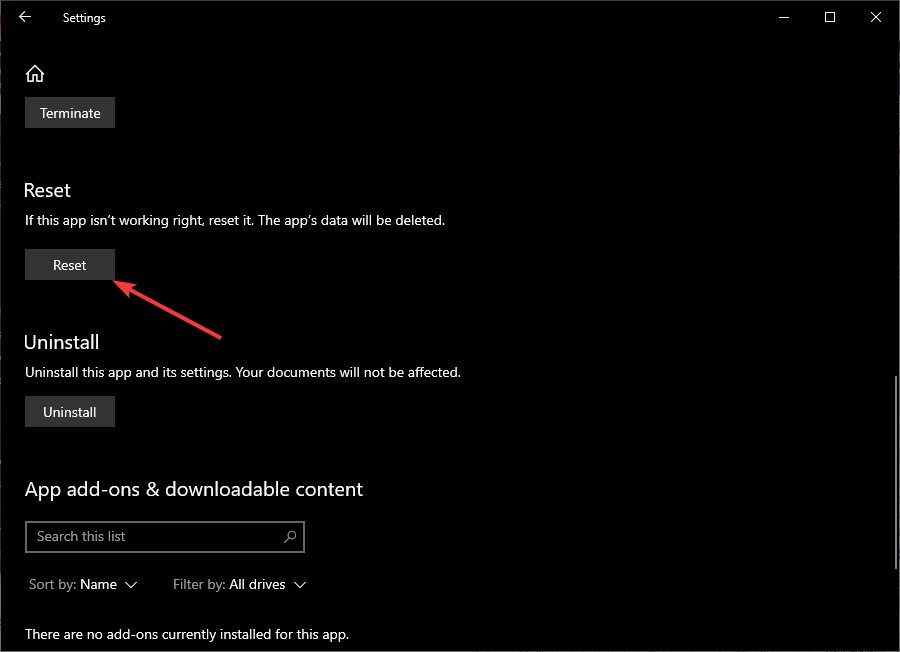
5. Reset Sea of Thieves

  1. Press Start
  2. Choose Settings
  3. Select Apps
  4. Find Sea of Thieves on the list
  5. Select Advanced Options
  6. Select Reset

reset app

By following this guide, you should be able to play Sea of Thieves in fullscreen mode without interference from Windows 10 UI elements.

Do you know of any other methods to bypass this issue? Let us know in the comment section below.

RELATED ARTICLES YOU SHOULD CHECK OUT:

Should I upgrade from Windows 7 to Mac?

Microsoft has officially ended support for Windows 7, and now common users and organizations are left wondering what their next step should be. Officially, there are only 3 things that a user can do as of now:

Of course, these are the only option if you plan on continuing using Windows as your personal or your company’s OS. This is because the option of migrating to an entirely new OS is always available.

For example, Microsoft’s biggest competitor in the OS market is Apple’s macOS. Given how popular these two OSes are, we’ve decided to do a breakdown and analyze several aspects:

  • Windows 7 vs macOS: Which is cheaper for companies?
  • How to migrate from Windows 7 to MacBook
  • How to transfer data from Windows 7 to mac

Windows 7 vs macOS: What should I go for?

1. Windows 7 vs macOS: Which is cheaper for companies?

Windows 7 still holds strong popularity among companies, and plenty of them aren’t keen on migrating just yet. As mentioned before, one of the options for companies that wish to continue using Windows 7 is buying the Windows 7 Extended Support for Business.

This feature is quite easy to acquire, but it is only a temporary solution, as it will only buy you up to 3 more years of security support. The only problem is that the costs ramp up quite a lot as time passes by, as you can see for yourself in the table below.

Sr. NoYear DurationCost
(Windows 7 Pro)
Cost
(Windows Enterprise (add-on))
1Year 1January 2020 - January 2021 $50 per device $25 per device
2Year 2January 2021 - January 2022$100 per device$50 per device
3Year 3January 2022 - January 2023$200 per device$100 per device

As you can see, a full 3 years of extended support for Windows 7 Pro will end up costing you $350, while 3 years of extended support for Windows 7 Enterprise will cost you $175 per computer.

That is a lot of money for both regular users and companies. This is especially the case when you consider the latter will just end up paying tends of thousands of dollars for an OS they will have to migrate from anyway eventually.

On the flipside, migrating to Mac seems to be a far more attractive offer as far as costs go. For example, Apple’s latest version of the macOS, called macOS Catalina is free of cost. The only downside is that it is free as long as you have the hardware.

Thus, the true question is whether it is cheaper to maintain an old OS, or buy some new hardware and get a free OS for life. The truth of the matter is that if you are still running Windows 7, most likely your hardware is in dire need of replacement anyway.

Because of that, putting hardware costs aside, the only real money sink is in the long run. While Apple kit is expensive, it does come with several advantages:

  • Hardware tends to last longer before needing replacement
  • The FreeBSD-based operating system that runs Mac desktops & laptops is still relatively virus-free
  • The OS running on Macs is free
  • Plenty of standard software run natively on Mac
  • The macOS is more reliable and users rarely are ever in need of customer support.

If all of these arguments have got you thinking about migrating, then you should probably know how to get started with the process.

2. How to migrate from Windows 7 to MacBook

Before migrating your data, there are several things you need to assess:

  • Make sure your Windows 7 PC is updated to the latest version
  • You need to know the name and password of the admin account of that PC
  • Connect your PC and your MacBook to the same network, either via Wi-Fi or Ethernet cable
  • Uninstall OneDrive from your PC
  • Use the chkdsk utility to make sure your Windows PC doesn’t have any issues.

If everything seems to be in place, you may begin the migration process itself.

You will need to download the right Windows Migration Assistant, which varies depending on the version of macOS on your MacBook:

  1. Launch the Windows Migration Assistant
  2. Press Continuemigration assistant1
  3. Go to your Mac
  4. Go to the Applications folder
  5. Open the Utilities folder
  6. Open the Migration Assistant
  7. Follow the on-screen instructions until you reach the migration pane
  8. Select the option to transfer data From a Windows PC
  9. Click Continuemigration assistant 2
  10. When prompted, enter an administrator name and password
  11. Click Continue
  12. In the migration window on your Mac, select your PC from the list of available computers
  13. Wait for the PC to show the same passcode that your Mac showsmigration assistant 3
  14. When you see the same passcodes, press Continue
  15. Your Mac will now scan your PC for data that can be transferred
  16. Select the information that you want to migrate to your Mac
  17. Click Continuemigration assistant 4
  18. Wait for the transfer to complete

Once you’ve followed all of these steps, you should have migrated all of your data from Windows 7 to macOS efficiently.

If you just want to try out macOS before migrating to it entirely, then maybe you should see how to transfer data from Windows 7 to macOS.

Afterward, you can use the data in macOS, and see if you feel more comfortable with this new OS.

3. How to transfer data from Windows 7 to macOS

There are plenty of methods that allow you to transfer data from Windows 7 to macOS. Besides the Migration Assistant mentioned above you can also use one of these methods to transfer data efficiently:

3.1 Portable hard drive or storage device

Simply create backups of your data on an external hard drive or a USB flash drive and then transfer them to your MacBook, similarly to old-fashioned PC-to-PC transfers.

3.2 Burn CDs and DVDs

SImply burning data on a disk and then transferring it to your MacBook is the easiest way to transfer data. By using this method you also get the added benefit of having a spare backup of your data at hand.

3.3. Shared network folders

Using a server to which both a PC and a Mac have access to is another great way of transferring data since now everything is done without the need of any type of hardware.

The only limitation is that both the PC and Mac need to be connected to the same server.

3.4 Email

Small amounts of information like text documents or pictures are not worth having to use an external hard drive, CD, DVD or set up a shared folder. This is when transferring data via Email becomes really handy.

3.5. Via Ethernet cable

If both the PC and the Mac are in close vicinity to each other, you can always use an Ethernet cable to connect the two and share files between them almost instantly.

3.6 Move the hard drive entirely

This is probably the most complicated method of all since PC-formatted hard drives are not always compatible with Macs. Keep in mind though that Mac OS X v10.3 or later can read the contents of an NTFS-formatted drive, but will be unable to save any new files or make changes to existing files without first reformatting the drive.

Conclusion

Now you know the pros and cons of staying with Windows 7 or moving to macOS. Additionally, you now know how to transfer data between a PC and a Mac, or even migrate entirely.

With this information, you will now be able to make a better decision regarding what your next step will be in terms of the OS you will use for both personal use, and within your company.

Will you remain with Windows 7, upgrade to Windows 10, or move on to macOS? Let us know what your choices are in the comment section below.

Mic not working in Sea of Thieves? Try these fixes

Sea of Thieves is a first-person multiplayer co-op/PvP pirate game developed for Xbox One and Windows 10. It features a unique art style, great combat mechanics, plenty of story elements, and more.

However, one key aspect of Sea of Thieves is that it is a multiplayer game. This means that players can interact with each other, for trading, partying, PvP and more.

They can do this via either text messages, or by using the game’s built-in voice chat support.

The problem is that some players cannot use this feature since the game is having problems picking up their microphones.

As the title says. Microphone is not working. Voice/chat/VOIP proximity voice it’s a huge flaw in the game. I am not the only one complaining, i see a lot of people here and reddit with problems. And let me say i tried all the fixes available! I use mic in steam/ts/discord and in many many other games without any issue. Here it simply doesn’t work.
What’s even worse is that i can see the voice icon appearing in top of other players and i can’t hear what they say. This game is meant to be played with a team and if it’s not possible to use voice chat / mic then this game is not fun to play.

Fortunately enough, there are a few things you can try that will fix this issue immediately. We went along and used them to create this step-by-step guide so that you can finally enjoy voice chatting with your fellow pirates in no time.

How do I fix the mic issue in Sea of Thieves?

1. Adjust your OS’ Microphone settings

  1. Turn off Sea of thieves completely
  2. Press Start
  3. Click on Settings (the cogwheel-shaped button)
  4. Look for the Privacy menu
  5. Under App permissions, select Microphone
  6. Under Allow apps to access the microphone, move the slider to On
    Windows 10 Microphone

Looking for a new headset for gaming as well? Then check out our top picks!


2. Fix your Xbox One audio chat settings

As far as the console version of the game goes, there are plenty of solutions that you can try to fix this problem:

2.1 Reconnect audio devices

This solution is as simple as it sounds. Simply disconnect and then reconnect your microphone, headset or Kinect.

For Kinect, there’s a Kinect mic for chat option in the Settings menu while it is connected to the console. This must be set to On to activate the microphone.

2.2 Adjust your Xbox One‘s microphone permissions

  1. Go to Settings
  2. Select Account
  3. Choose Privacy and online safety
  4. Go to Xbox Live privacy
  5. Select Communication and multiplayer
  6. Choose Voice, text, invites
  7. You must then choose App privacy after Privacy and online safety
  8. The Microphone setting can now be adjusted

By following these steps, you should now be able to chat with other players without any further issues.

Did you find this article useful? Let us know in the comment section below.

For more voice chat troubleshooting, see our full guide on Peak voice chat not working and compare solutions.

Microsoft has changed the Online Services Terms for Office 365

In 2019, the European Data Protection Supervisor investigated Microsoft’s alleged breach of European data protection laws. That body confirmed it had serious concerns regarding Microsoft’s contracts with European organizations. Microsoft has now published new Online Services Terms for Office 365.

In 2018, the Dutch Ministry of Justice launched its own investigation into MS Office’s hidden collection of telemetry data. In early 2019, the DMOJ claimed Microsoft was breaching the EU’s General Data Protection Regulation on eight accounts. Those breaches of the GDPR more specifically pertained to the telemetry data collection systems of Office 365 and Office Pro Plus. The DMOJ accused Microsoft of collecting personal data on a grand scale without correctly informing users.

That verdict sent alarm bells ringing in Brussels. The European Data Protection Supervisor followed up the original investigation in Holland. Later in 2019, the EDPS stated:

Though the investigation is still ongoing, preliminary results reveal serious concerns over the compliance of the relevant contractual terms with data-protection rules and the role of Microsoft as a processor for EU institutions using its products and services.

In response, Microsoft promised that it would change its cloud service contracts toward the end of 2019. Microsoft ‘s privacy officer stated:

[We] will clarify that Microsoft assumes the role of data controller when we process data for specified administrative and operational purposes incident to providing the cloud services covered by this contractual framework, such as Azure, Office 365, Dynamics, and Intune. The basic promise was to introduce greater transparency about data processing in Microsoft’s OST.

Now Microsoft has just published its new Online Service Terms for Office 365. That new OST is available for download in various languages from the Microsoft website. The new OST includes four key changes to the original. It is a 40-page document that does not authorize Microsoft to process customer data for commercial purposes unless the customer permits it.

Therefore, the new OST document makes it much clearer about how Microsoft Office 365 processes customer data. It will end the big M’s covert processing of customer data with Office 365 and Office Pro Plus.

RELATED ARTICLES TO CHECK OUT: 

Fix: Salesforce is not connected to Outlook

While browsing records in the Salesforce for Outlook side panel, you may come across a “Not connected” error. Many users have reported a similar error while working with the client.

This issue usually occurs due to incorrect Internet configuration. If you have also bumped into this error, here are a couple of troubleshooting tips to help you resolve this Salesforce syncing error in Windows 10.

What can I do if Salesforce won’t connect with Outlook?

1. Change Internet Explorer settings

salesfroce not connected to Outlook

  1. Close all Internet Explorer windows if open. Make sure all the programs running on your computer are also closed along with SFO clients.
  2. Press Windows Key + R to open Run.
  3. Type inetcpl.cpl and click OK. This will open the Internet Properties window.
  4. Click on the Advanced tab.
  5. Click on Restore Advanced Settings.
  6. Click Reset to restore default settings. This will open the “Reset Internet Explorer Settings” window.
  7. Check the “Delete personal settings” box and click Reset.
  8. Close the Internet Properties window.

2. Clean Internet Options browsing history 

salesfroce not connected to Outlook

  1. Press Windows Key + R to open Run.
  2. Type inetcpl.cpl and click OK.
  3. In the Internet Properties window, click on the General tab.
  4. Under “Browsing History” section, make sure the “Delete browsing history on exit” option is unchecked.
  5. Click the Delete button.
  6. In the Delete Browsing History window, uncheck the “Preserve favorite website data” option.
  7. Check “Temporary Internet files and website files“, “Cookies and website data“, “History” options.
  8. Click the Delete button.
  9. Close the Internet Properties option.

Browsing history doesn’t delete? Follow the steps from this simple guide and fix the issue in no time.


3. Change website data settings

salesfroce not connected to Outlook

  1. Press Windows Key + R to open Run.
  2. Type inetcpl.cpl and click OK.
  3. In the Internet Properties window, click on the General tab.
  4. Under “Browsing history” section, click Settings. This will open Website Data Settings.
  5. Select the “Every time I visit the webpage” option.
  6. Change Disk space to use to 225.
  7. Click OK to save the changes.
  8. Click on the Security tab.
  9. Select Trusted sites option under “Select a zone to view or change security settings:”.
  10. Click the Site button.
  11. On the Trusted Site window, type in https://*.salesforce.com in the “Add this website to the zone”.
  12. Click on the Add button.
  13. Click Close.
  14. From the Security tab, select Trusted sites again.
  15. Click on the Custom Level button.
    salesfroce not connected to Outlook
  16. On the “Security Settings – Trusted Sites Zone” click the Reset to: drop-down menu.
  17. Set it to Low and click Reset.
  18. When prompted to confirm the action, click Yes.

If you need more info on how to add trusted sites in Windows 10, take a look at this detailed guide and learn how to do it with ease.


4. Change Security Settings – Trusted Sites Zone

salesfroce not connected to Outlook

  1. On the “Security Settings – Trusted Sites Zone” window, locate “Websites in less privileged web content zone can navigate into this zone” option under Settings.
  2. Click Enable.
  3. Now locate “Display mixed content” and set it to Enable as well.
  4. Click Yes if prompted to confirm the action.
  5. Now, look for “Initialize and script ActiveX controls not marked as safe for scripting” and set it to Enable.
  6. Click OK and close Internet Properties window,
  7. Restart the PC to apply the changes.

5. Change privacy settings 

salesfroce not connected to Outlook

  1. Press Windows Key + R to open Run.
  2. Type inetcpl.cpl. and click OK.
  3. On the Internet Properties window, select the Privacy tab.
  4. Click on the Sites button and in the domain name field add Salesforce.com and click on Allow.
  5. Next, click on the Advanced button in the Privacy tab and check the boxes for “Override automatic cookie handling” and “Always allow session cookies“, then click OK.
  6. Again click on the Advanced tab.
  7. Make sure “Allow active content to run in files on my computer ” is checked. Also, uncheck “Check for server certificate revocation“.
  8. Close Internet Properties window.
  9. Restart your computer and check for any improvements.

The Salesforce is not connected to Outlook error occurs due to incorrect Internet configuration. By following the steps in this article you can fix the syncing issue with Salesforce and Outlook.

If you have any other questions or suggestions, don’t hesitate to leave them in the comments section below.

RELATED STORIES YOU MAY LIKE:

How to open SMC files on Windows

There are numerous file types available and your PC can handle most of them, with proper software of course. Speaking of file types, today we’ll show you how to properly open SMC files on your Windows 10 PC.

How can I open a SMC file on Windows 10?

What is SMC file?

how to open smc file in windows

If you ever encountered an SMC file type on your PC, you should know that this file is actually a Super Nintendo Entertainment System file. Basically, this file is an SNES game, and yes, you can run it on your PC.


Are SMC files safe?

Yes, SMC files are safe to use and they don’t contain any malware. If you want to be on the safe side, you can always scan those files with your antimalware software and make sure that the files are clean from malware.


What applications work with SMC files?

Opening these files is easy, and in order to do so, you’ll need a SNES emulator. There are many great emulators for SNES, and if you want to run SMC files, here are few applications that you need to consider:

ZSNES

  • Open-source
  • Runs on Windows, Linux, FreeBSD, and DOS

Snes9X

  • Portable, freeware
  • Made in C++

SNEeSe

  • For x86 PCs
  • Written in 32-bit C, C++, and NASM x86 assembly

Looking for the best all-in-one emulator for retro games? Be sure to check these apps!


How to open SMC files?

To open an SMC file, you just need to download and run the appropriate emulator. Once the emulator opens, you should see the Open option from the top menu.

Now you just need to locate the SMC file on your PC, select it, and it should run immediately. Bear in mind that some applications don’t have the option to open individual SMC files. Instead, you’ll need to choose the folder that holds all your SMC files, and then select the SMC file that you want to run from the list.

There you go, this is all you need to know about SMC files. If you found our article helpful, feel free to leave a comment below.

READ ALSO:

How to remove Xbox Gaming Overlay on Windows 10

Windows 10 is great for gaming, but sometimes you might encounter Xbox Gaming Overlay while playing your favorite games. This is a built-in Windows 10 feature, but some users are so distracted by it that they want to remove it.

In this article, we’ll show you how to properly remove Xbox Gaming Overlay on your Windows 10 PC.

How do I remove Xbox Gaming Overlay on Windows 10?

1. Disable Game Bar

The fastest way to get rid of Xbox Gaming Overlay is to disable the Game bar feature. You can do that by following these steps:

  1. Open the Settings app. You can do that quickly with Windows Key + I shortcut.
  2. Head over to the Gaming section.
    windows 10 how to remove xbox gaming overlay settings app
  3. Select Game bar from the menu on the left and disable Record game clips, screenshots and broadcasting using Game bar option.
    windows 10 how to remove xbox gaming overlay game bar settings

After doing that, the Xbox Gaming Overlay should be disabled on your PC.

If you’re having trouble opening the Setting app, take a look at this article to solve the issue.

2. Delete the Xbox Gaming Overlay app

If you want to completely remove Xbox Gaming Overlay from your PC, you need to remove its app. This is fairly simple to do, and you can do it by following these steps:

  1. Press Windows Key + S and enter powershell. Select Run as Administrator.
    windows 10 how to remove xbox gaming overlay powershell
  2. When PowerShell opens paste the following command and press Enter:
    • get-appxpackage *Microsoft.XboxGamingOverlay* | remove-appxpackage
  3. After doing that, close the PowerShell and the Gaming Overlay app should be completely removed.

Note: Few users reported that certain games won’t run properly if you remove the Gaming Overlay app. If this happens, you’ll need to install Xbox Game Bar again from the Microsoft Store.

There you go, these are the two ways you can get rid of Xbox Gaming Overlay on your PC. The first method will only disable the Game Bar feature, and it won’t break any games.

The other method will remove the actual app from your PC which may lead to issues with certain games, but that can be easily remedied.

If you have any other questions or suggestions, don’t hesitate to reach in the comments section below.

Download Microsoft Launcher 6.0 preview version

Microsoft Launcher is the big M’s app launcher for Android mobiles. That app enables users to sync their mobiles with Windows desktops and laptops. Now the big M has released a new Microsoft Launcher 6.0 alpha version on Google Play.

The early access preview of Microsoft Launcher 6.0 has sprung up in Google Play with its own page listing. As it is an alpha version of the app, it is not entirely stable. Microsoft Launcher 6.0’s Google Play page includes a warning that says:

This is an alpha version of the Microsoft Launcher so as such some features may not work properly, or the experience may be unstable.

Nevertheless, the app is freely available and provides a glimpse of some of the new features Microsoft Launcher 6.0 will include. The app’s page states:

This version of Microsoft Launcher has been rebuilt on a new codebase to make new features possible – such as Dark Mode, Landscape Mode, and numerous performance improvements (speed to load, low memory utilization, battery optimization and fluent animation). Additionally, this version only contains a subset of the standard features from the main app.

The most notable new features in ML 6.0 are its Dark Mode and Landscape Mode. The Dark Mode is a new dark theme for Microsoft Launcher 6.0. It will add dark background to the app as shown in the snapshot directly below.

The Landscape Mode is another big new addition to Microsoft Launcher. Landscape Mode enables users to utilize the app with a horizontal mobile orientation. That mode will suit a lot more tablet users who usually hold tablets horizontally.

This is a big update for Microsoft Launcher in a year in which the big M will re-enter the mobile device industry with the Surface Duo. That is a foldable 2-in-1 smartphone and tablet based on an Android OS. However, Microsoft might refine the Android UI design a little bit. The Surface Duo’s home screen might be based on Microsoft Launcher 6.0.

Microsoft has not confirmed when exactly Microsoft Launcher 6.0 will move out of alpha (and then beta). For now, you can click the Install button on the Microsoft Launcher Preview page to try out the early access version. Alternatively, you can add the current version to your mobile by clicking Install on the Microsoft Launcher page.

Download Microsoft Launcher 6.0 Preview

READ NEXT:

Microsoft Rushes to Patch a Huge Exploit affecting US Military PCs

The first Patch Tuesday of 2020 is right around the corner, and is seems that Microsoft is not starting the year very well.

After a very quiet December 2019 Patch Tuesday with little to no changes, the new update is set to address a very important security vulnerability tied to a core cryptographic component found in all versions of Windows.

Microsoft released a security patch prior to Patch Tuesday

The component is called Crypt32.dll and is responsible for the implementations of most Certificate and Cryptographic Messaging functions in the CryptoAPI:

Crypt32.dll is a module that comes with the Windows and Windows Server operating systems, but different versions of this DLL provide different capabilities.

While this may sound a bit to technical, the most important thing you’ll need to know is that the CryptoAPI helps developers to add more security to Windows apps through cryptography. The encryption and decryption of data is done using digital certificates.

To further confirm this security breach, it seems that the big M supposedly released a patch to fix it before the January 14 Patch Tuesday. It was sent to important customers, companies that work with Internet infrastructure, and branches of the U.S. military.

Of course, Microsoft made sure that none of them can disclose the issue before January 14th through non-disclosure agreements. As a response to KrebsonSecurity , the company stated:

Through our Security Update Validation Program (SUVP), we release advance versions of our updates for the purpose of validation and interoperability testing in lab environments. Participants in this program are contractually disallowed from applying the fix to any system outside of this purpose and may not apply it to production infrastructure.

The implications as well as the security risks are huge, considering the fact that the U.S. military and other high-priority targets were the first in line on Microsoft’s list.

Can this vulnerability affect my Windows PC?

Somewhat confirming the vulnerability, Will Dormann, Vulnerability Analyst at the CERT/CC, shared a very interesting tweet:

If you were wondering about first-hand implications, know that the security flaw can affect basic Windows functions, personal data from Internet Explorer/Edge, authentication and login security, and other third-party apps.

This is very concerning, as it can lead to malware attacks and loss of private data.

As a reminder, all Windows versions are affected, including Windows XP and Windows Vista or 7. So prepare yourself for a very bumpy Patch Tuesday and keep an eye on WindowsReport’s January 14 Patch Tuesday articles to find out any new development.

January Patch Tuesday updates for Windows 10 include fix for spoofing flaw discovered by NSA

Microsoft has just released the first “Patch Tuesday” updates of the new year. These updates are quite a big deal as they fix a serious vulnerability that has been disclosed by the NSA. This spoofing flaw affects all Windows 10 versions released since 2015 as well as Windows Server 2016, though Microsoft notes that it hasn’t been exploited so far.

“An attacker could exploit the vulnerability by using a spoofed code-signing certificate to sign a malicious executable, making it appear the file was from a trusted, legitimate source. The user would have no way of knowing the file was malicious, because the digital signature would appear to be from a trusted provider. A successful exploit could also allow the attacker to conduct man-in-the-middle attacks and decrypt confidential information on user connections to the affected software,” Microsoft explained on its Security portal.

It’s good to know that this security flaw is now fixed in all versions of Windows 10 as well as Windows Server 2016, and this month’s Patch Tuesday updates seems to be mostly security-focused. Here is what Microsoft detailed in the release notes for Windows 10 version 1909 (build 18363.592) and Windows 10 version 1903 (build 18362.592):

Security updates to Windows App Platform and Frameworks, Windows Input and Composition, Windows Management, Windows Cryptography, Windows Storage and Filesystems, the Microsoft Scripting Engine, and Windows Server.

Microsoft isn’t aware of any known issues with these two cumulative updates, and there’s also nothing to see about the ongoing issues related to Windows Search that some users have been complaining about.

If you’re still running Windows 10 version 1809, you’ll get the build 17763.973 today which includes the following fixes:

  • Addresses an issue to support new SameSite cookie policies by default for release 80 of Google Chrome.
  • Security updates to Windows App Platform and Frameworks, Windows Input and Composition, Windows Management, Windows Cryptography, Windows Virtualization, the Microsoft Scripting Engine, and Windows Server.

If you’re running older versions of Windows 10 Enterprise and Education, Microsoft also published the release notes for Windows 10 versions 1803, 1709, and 1507. Patch notes for the versions 1607 and 1703 will be published later on Microsoft’s Windows support website.

Xbox team is “hard at work on E3” while PlayStation skips it again

Microsoft is “hard at work on E3” this year, according to Xbox head Phil Spencer in a Tweet. This comes as Sony has just announced that it won’t be attending E3 for the second time in a row. “We have great respect for the ESA as an organization, but we do not feel the vision of E3 2020 is the right venue for what we are focused on this year,” said a Sony spokesperson to GamesIndustry.biz.

To be clear, while the Redmond tech giant does plan to offer plenty of announcements for E3, it isn’t expected to be attending the event directly. Instead, the company will likely have its own venue near it, just as it did last year at The Microsoft Theater and the Xbox Plaza at LA Live. While we’re still not sure what the team has in store for us this year, this could be the best chance to announce more details of the upcoming Xbox Series X that is expected to ship during the holidays.

Will you be in LA for E3 this year? What are you most excited for? Feel free to share your thoughts and plans below.

Microsoft alerted about new Windows flaw by NSA

With various versions of Windows occupying a billion devices worldwide, Microsoft’s premier operating system paints a rather large target on its back for smaller B2B security firms looking to stay ahead of nefarious parties, while also finding itself in the crosshairs of much larger agencies who might want to weaponize exploits for future data and surveillance collection.

The United States National Security Agency recently chose the former option as it alerted Microsoft about a Windows flaw that could put millions of users in danger of breach or surveillance hack. For obvious reasons, the details of the exploit are relatively vague, but according to the Washington Post, the vulnerability is essentially a mistake in computer code that specifically targets users of Microsoft’s latest Windows 10 operating system. By leveraging Microsoft and Adobe’s Code-signing sync engine, the NSA found an error in the Windows code that normally verifies legitimate signatures but could now ultimately allow hackers to install ransomware or spyware on Windows 10 PCs if exploited.

More specifically,

“The discovery has been likened to a slightly less severe version of the Microsoft flaw that the NSA once weaponized by creating a hacking tool dubbed EternalBlue, which one former agency hack said was like “fishing with dynamite.”

As a bit of a refresher, EternalBlue exploits a vulnerability in Microsoft’s implementation of the Server Message Block (SMB) protocol. The vulnerability exists because the SMB version 1 (SMBv1) protocol in various versions of Windows mishandles specially crafted packets from remote attackers, allowing them to execute arbitrary code on the target computer. The NSA used and, arguably abused the exploit right up until it became widely distributed online five years after they discovered it. The NSA ultimately alerted Microsoft in 2017 and a patch followed in early 2017, but only months before three other major cyberattacks were credited using the tool.

Fortunately, the NSA isn’t holding on to this one and giving it room to breathe like EternalBlue. Instead, by alerting Microsoft quickly, the NSA appears to be exhibiting a shift in prioritization of security and surveillance, for now at least. While Microsoft has had no comment on the matter, the NSA seems confident that the company will have a patch issued Tuesday to address the exploit, at which point Microsoft and the NSA can declare that “it has seen no active exploitation of the flaw.”

The discovery of the exploit comes as Microsoft ends security support for Windows 7 and attempts to shift consumers and businesses still using the soon-to-be vulnerable OS, over to Windows 10.

Rockstar Games pulls GTA IV from Steam due to discontinued Games for Windows Live

Grand Theft Auto IV has been pulled from Steam, making it no longer possible for users of the digital game distribution service to purchase it. The move was unexpected due to the lack of warning from Rockstar, the developer of the more than ten-year-old title.

As it turns out, the game was removed due to Microsoft’s discontinuation of Games for Windows Live back in 2014. According to a statement from Rockstar to USgamer, this prevented the company from being able to generate new keys to continue selling the game. Here’s the full statement:

Grand Theft Auto 4 was originally created for the Games For Windows Live platform. With Microsoft no longer supporting Games For Windows Live, it is no longer possible to generate the additional keys needed to continue selling the current version of the game. We are looking at other options for distributing GTA4 for PC and will share more information as soon as we can.

Although the lack of availability on Steam might be disappointing to some who potentially wanted to buy the title that’s even older than the now unsupported Windows 7 operation system, the game should still work for those who owned it prior to its removal from Steam. Luckily, the standalone expansion pack Episodes from Liberty City is still available for purchase on Valve’s platform

Additionally, the fact that the developers are looking into other ways of bringing the game back to PC means that gamers don’t have to be completely without hope. A likely scenario for Rockstar is to remove integration of Games for Windows Live from the game itself, and potentially re-release it for its new game launcher that was released last year.

What do you think about the game’s removal from Steam? Feel free to let us know that you think

Would you like official Xbox Series X video game cases to look like this mock-up?

The style of the cases for the Xbox Series X video games has yet to officially be revealed but that hasn’t stop fans from speculating about what they could look like.

One Xbox fan created their own concept image of what they’d like to see (shared on Reddit) and, as you can see in the image above, their dream case design appears very similar to the one currently used with Xbox One games with the main difference being the Xbox logo in the top-left corner as opposed to across the top horizontally.

A nice touch is the separate labels for Xbox Series X Enhanced and Xbox One Compatible which is likely very similar to how Microsoft will market their next generation of video games with it already being confirmed that quite a few, at least in the first year, will be playable on Xbox One consoles and the Xbox Series X.

It’s unclear who made this mock-up so if you know, please let us know down in the comments below so we can properly credit them.

What do you think about this concept? Do you like the style? What about the labelling? Share your thoughts in the comments and then follow us on Pinterest, YouTube, Facebook, and Twitter for more Xbox gaming content.

Microsoft releases LOADS of high quality Xbox One wallpapers based on old and new games

Earlier today, Microsoft launched a webpage on the official Xbox website that’s dedicated to hosting an absolutely huge number of wallpapers designed to be used on Xbox One consoles.

Xbox One owners have been able to customize the wallpaper on their consoles for a while now (simply transfer any image to an Xbox One via a USB drive) but Microsoft hasn’t really provided too many official images for gamers to use. At least not on this scale.

The wallpapers showcase high quality images from a wide range of titles from the Xbox One’s early days through to even some that haven’t released yet such as the upcoming Battletoads video game. There’s even a couple boasting high quality images of the recently revealed Xbox Series X console, that’s due out later this year, and the Day One Xbox One console with its Kinect.

Are you going to use any of these images on your Xbox One console? Let us know which one in the comments below and then follow us on Pinterest, Twitter, Facebook, and YouTube for more Xbox gaming content.

SQL Server 2008 Extended Support FAQ: Find out more

General Microsoft users are probably aware that January marks the end of Windows 7. Any user that still uses this OS is now left unprotected.

Once official support runs out, users will have to do one of the following:

What fewer users are aware of is that this also marks the end of Windows Server 2008, and SQL Server 2008. However, unlike Windows 7, this isn’t the end of support per se, it is the end of the Extended Support.

Given how important this piece of news is, we’ve compiled a list of the most frequently asked questions regarding the matter and answered them.

Windows SQL Server 2008 Extended Support FAQ

1. Can I still use Windows SQL Server 2008 after 2020?

No. The End of Support date for SQL Server 2008 and 2008 R2 is July 9, 2019. This means that SQL Server 2008 and 2008 R2 will no longer receive any form of updates, neither in terms of features or security.


2. What happens if I continue to use SQL Server 2008 after 2020?

Like any typical OS, End of Support means that it will not only not receive any patches or security updates, which may cause security and compliance issues, and expose customers’ applications and business to serious security risks.


3. What are my upgrade options?

The best course of action is to upgrade SQL Server 2008 to a newer version, such as 2012, 2017, etc. Additionally, you can also choose to migrate all of your data to Microsoft Azure.


4. How can I update to a newer version of SQL Server?

The update process of SQL Server 2008 is done using only the tools provided by Microsoft. The process is wizard-guided, and all you need to do is follow the on-screen instructions.

For more information on how to upgrade your Windows Server OS, check out this in-depth guide.


5. Can I perform in-place upgrades from SQL Server 2008 to a later version?

Unfortunately, no. When you upgrade SQL Server, the previous version of SQL Server will be overwritten. That is why it is a good idea to back up any SQL Server data you have before the upgrade.

You should also keep in mind that you cannot upgrade SQL Server Express or SQL Server Developer, as these are not supported.


6. Why should I migrate my SQL Server 2008 data to Microsoft Azure?

Given that SQL Server 2008 is at the end of the Extended Support, the best incentive that Microsoft Azure offers is that you will get free security updates for 3 more years after the end of support.

Additionally, migrating your data this way can also be performed in-place, allowing you to skip the data backup phase.


7. What are the system requirements for an SQL Server 2008 upgrade?

Fortunately, there isn’t much of a difference between the system requirements of different versions of SQL Server.

Thus, if your hardware meets the minimum settings listed below, you should be able to upgrade effortlessly to any other version.

  • Processor
    • Minimum: 1.4 GHz 64-bit processor
  • RAM
    • Minimum: 512 MB
  • Disk space requirements
    • Minimum: 32 GB

Conclusion

All questions and answers indicate that upgrading SQL Server to a newer version or migrating it to Azure is the best course of action.

Since this program is used primarily for data management, it is the last thing you would want to keep in a vulnerable state security-wise.

Did you find this article useful? Let us know in the comment section below.

RELATED ARTICLES YOU SHOULD CHECK OUT:

League of Legends Patch 10.1 Reported Issues

Patch 10.1 of the critically acclaimed MOBA League of Legends has hit live, kick-starting the 2020 season of this E-sports giant.

While it does bring plenty of changes, it comes with its own fair share of issues. Since the patch is quite a large one, it goes without saying that a lot of new content has been added as well, creating an ideal scenario for bugs to appear.

That is why we’ve compiled a list of what we think are the most common and serious bugs currently found in League of Legends patch 10.1.

Common bugs and issues in League of Legends patch 10.1

1. Users can’t see their friend list

It would seem that the game’s UI is bugged, and users cannot see any of the information that would usually be found on the right side of the menu.lol 10.1 bug1

It would seem that in order for users to encounter this bug, they would have to swap between EUW to EUNE servers during the patching process.

Unfortunately, repairing the client doesn’t work.

Thus, it would be a good idea to wait until the patch is complete before attempting to change the server. Additionally, it seems that if you just play a match, the client will go back to normal on itself.

2. Players cannot pick their Rune pages

Apparently, many players cannot access their created rune pages, and their default rune pages were changed as well.

Unfortunately, no one knows what triggers this bug, nor if there is any known solution to it.

3. Players receive a “password required” message after matches

Apparently, some users receive a message that states the following

A password is required to enter this room” dialogue box appears after every game.

lol 10.1 2

Normally, this would be the message users would receive when trying to join a custom match to which the owner has assigned a password.

4. Users are experiencing packet losses

In general terms, packet losses occur when one or more packets of data traveling across a computer network fail to reach their destination.

In League of Legends, packet losses may lead to NPCs and enemy champions appearing to phase in and out from on destination, as if teleporting.

Unfortunately, there is no current fix for this issue. However, check that your Internet connection is working appropriately may fix this.

5. In-game chat is bugged

Users have reported that in-game, other player’s names appear as random numbers and letters. This makes it extremely difficult to communicate in-game.

LoL 10.1 bug 3

Unfortunately, no one knows what causes this, or how to fix it.

Conclusion

That about wraps up the list of the most common League of Legends Patch 10.1 bugs that players have found so far.

While a lot of them are indeed game-breakers, Riot always manages to deliver on their end when it comes to fixing them.

As such, players should expect to see these issues fixed by the next patch update.

Did you also encounter any of these bugs? Tell us about your experience with League of Legends patch 10.1 so far in the comment section below.

RELATED ARTICLES YOU SHOULD CHECK OUT:

Windows Server 2008 Extended Support FAQ: Here are the answers

Pretty much everyone knows that Microsoft is pulling the plug on Windows 7, and users are now left with 3 choices:

However, fewer Windows users know that the same date also marks the official end of Windows Server 2008’s Extended Support. Similarly to the above-mentioned situation, users are presented with several choices:

  • Remain on Windows Server 2008 unprotected
  • Upgrade to Windows Server 2012, 2016, etc

Of course, there are many things users are eager to know about regarding the extended support. That is why we’ve compiled a list of the most frequently asked questions, and provided you with answers for each of them.

Windows Server 2008 Extended Support FAQ

1. Can I still use Windows Server 2008 after 2020?

No. Unfortunately, the end of the Extended Support means that Windows Server 2008 will no longer receive any form of updates, neither in terms of features or security.


2. What happens if I continue to use Windows Server 2008 after 2020?

Like any typical OS, End of Support means that it will not only not receive any feature updates, but it will no longer be protected. This will make your data ideal targets for hackers and cyberthreats.

Given how Windows Server 2008 is most likely used in organizations where data security is crucial, security should be a priority.


3. What are my upgrade options?

Your best bet currently is to upgrade Windows Server 2008 to a newer version, such as 2012, 2016, etc. Additionally, you can also choose to migrate all of your data to Microsoft Azure.


4. How can I update to a newer version of Windows Server?

Upgrading to a newer version of Windows Server is fairly simple. You do not require any third-party tools, as you only need the products provided by Microsoft.

For more information on how to upgrade your Windows Server OS, check out this in-depth guide. You can also download a migration guide from Microsoft’s official homepage.


5. Can I perform in-place upgrades from Windows Server 2008 to a later version?

Yes. In-place upgrading is available when upgrading your Windows Server 2008. However, it is advised that you perform backups just in case.


6. Why should I migrate my Windows Server 2008 data to Microsoft Azure?

Given that Windows Server 2008 is at the end of the Extended Support, the best incentive that Microsoft Azure offers is that you will get free security updates for 3 more years after the end of support.


7. What are the system requirements for upgrading Windows Server 2008?

If you’re planning on upgrading to Windows Server 2012, then you need to make sure your hardware meets these minimum system requirements:

  • Processor
    • Minimum: 1.4 GHz 64-bit processor
  • RAM
    • Minimum: 512 MB
  • Disk space requirements
    • Minimum: 32 GB

Fortunately enough, these happen to be the same minimum system requirements for using Microsoft Server 2019 as well.

Conclusion

As you can see, there are many aspects that need to be taken into consideration when deciding whether to migrate or not. Whatever the case, the bottom line is that an upgrade is mandatory, simply out of consideration for your data’s security.

Did you find this article useful? Let us know in the comment section below.

RELATED ARTICLES YOU SHOULD CHECK OUT:

Google picks up where Microsoft leaves off with support of Windows 7

For those paying attention, Microsoft has been crystal clear about its desire to move the aging Windows 7 user base over to the latest and greatest operating system from the company.

Promotion after promotion and prompt after prompt, Microsoft has tried to bludgeoned the war drum of expiration for Windows 7 and at the end of this week, users of the ten-year-old operating system will be left without support from the company.

Fortunately, for anyone who can’t or won’t move away from Microsoft’s previous flagship OS, Google is offering a tangential lifeboat in the way of extended Chrome support for the next 18 months.

According to its company blog post authored by Chrome’s engineer director Max Christoff,

We have enterprises covered, even if they haven’t yet made the full move to Windows 10. We will continue to fully support Chrome on Windows 7 for a minimum of 18 months from Microsoft’s End of Life date, until at least July 15, 2021. So if you haven’t started your move to Windows 10 yet, or even if your organization is mid-way through migration, you can still benefit from the enterprise capabilities of Chrome.

Understandably, Christoff makes mention of its Chromebook solution for enterprise in this blog post but ultimately steers back to the importance of businesses that rely heavily on Windows 7 by focusing on Chrome being a lynchpin to the upcoming Windows transition of support.

With Chrome holding over 60 percent of the browser market share worldwide, and a not so insignificant portion coming from Windows 7, it’s in Google’s best interest to support ‘holdouts’ for as long as possible.

In the interim, Microsoft is set to continue to pre-load Internet Explorer 11 in a semi-hidden state and use a separate sync engine to bring some interoperability between the two operating systems through a backward-compatible Chromium Edge browser for Windows 7 download.

Coincidently, Microsoft also plans to ship its new Chromium-based Edge browser to the Windows 10 public the same week it ends support for Windows 7.

The appearance of Chromium Edge could be Microsoft’s answer to Christoff’s extended 18-month support pitch for Chrome, as Microsoft seems poised to continue the development of all versions of the CE browser for some time to come.

With CE making its way to Windows 7, Microsoft now has a workaround to its own support deadline of Windows 7, for users and businesses that make primary use of browser-based applications and solutions.

Can’t receive invites in Sea of Thieves? Try this

Sea of Thieves is a fantastic new twist on the pirate game genre. This first-person multiplayer Co-op/PvP pirate game has been very popular among the fanbase, and it doesn’t show any signs of stopping.

This is also thanks to the fact that the game is also constantly updated with new content, area,s gears, mini-games, and more.

One of the key aspects of the game is the fact that it is a multiplayer game which, as you probably guessed by now, involves interacting with other players.

The problem is that some users have been reporting having issues with the game, in the sense that they aren’t receiving notifications and invites from other players.

Friends have been trying to invite me on the PC version of the beta, but I can’t seem to receive the invites. Checked the Xbox App on Windows and waited to see if I received an invitation in game, but saw nothing at all. Anything I’m missing here? Any input would be appreciated.

As you can see, this issue seems to be persistent both on the Xbox and Windows 10 versions of the game. Regardless, there are a few things you can try that will fix these issues, and we’ve arranged them all in this step-by-step guide.

How do I fix the Sea of Thieves invitation issues?

1. Make sure notifications are turned on

Sea of Thieves is a Windows 10 game that you can buy, install, update, repair and uninstall from the Microsoft Store App. As you probably know, all games that are managed through the Microsoft Store App will send you notifications through Windows 10’s default notification system.

However, this setting is not always activated by default. As such, you will need to go through these steps in order to allow Sea of Thieves notifications to push through:

  1. Press Start
  2. Go to Settings
  3. Select System
  4. Choose the Notifications & actions tab
  5. Look under Notifications
  6. Make sure the slider is turned to OnWindows 10 Notifications

2. Update Windows 10

One workaround would be to update your PC to the latest version, and see if that changes anything.

  1. Press Start
  2. Select Settings
  3. Scroll down and select Update & Security
  4. Press Check for Updates to make your PC search for any update sit may be missingWindows 10 Check for Updates
  5. If updates have already been found and they were pending, select Download now
  6. Reboot the PC

3. Update Xbox Game Bar

The Xbox Game Bar handles all things gaming-related in Windows 10, from screen recording during games to receiving notifications.

As such, if you already have it installed, follow these steps:

  1. Open the Microsoft Store App
  2. Press the three dots on the top right of the screen
  3. Select Downloads and updates from the dropdown menu
  4. Press Get updatesMicrosoft Store Get updates

If you don’t like manually updating your Store Apps, you could always set them to update automatically by following this guide.

4. Use the Xbox App

The Xbox App is a proprietary platform created by Microsoft. It acts as a dashboard for buying, installing, updating, repairing and uninstalling Windows 10 and Xbox games.

You can easily download and install this app, and then install Sea of Thieves through it. This will make the Xbox App handle the notifications aspect of the game, rather than Windows 10 itself.

By following these steps, you should now be able to receive invites and notifications from Sea of Thieves while outside of it.

Did you find this article useful? Let us know in the comment section below.

RELATED ARTICLES YOU SHOULD CHECK OUT: